Full specs of the GPD Win 2 mini-gaming laptop revealed

The original GPD Win mini PC was successfully received by users. GPD Win 2 is the follow-up device, and fortunately, it looks even more fabulous, boasting more impressive features. It comes with significantly upgraded power.

This brand new device is set to go on sale via crowd-funding at the beginning of 2018, on January 15.

GPD Win 2 specs & features

GDP Win 2 specs

GPD has posted the specifications of this new device on the company’s Reddit forum. The set of specs includes various enhancements, and these will definitely make this gaming device even more exciting.

Check out the specs as they are listed on the forum:

  • SOC Intel M3-7Y30
  • 8GB of RAM, LPDDR3 @ 1866MHz
  • 128GB of storage, M.2 2242 SSD card SATA 3.0.
  • 6″ Sharp 1280x720p capacitive touchscreen with Gorilla Glass 4
  • Windows 10 home 64 bitWiFi: 802.11 a/ac/b/g/n 2.4G/5G
  • 2 Blutooth
  • Stereo speakers and microphone
  • USB Type A 3.0, USB Type C 3.0, Micro HDMI, 3.5mm headphone jack, Micro SD
  • 2 x 4900mAh batteries at 3.8v. Total of 9800mAh – 37.24Wh
  • Two vibration motors
  • Weight 460g, Width: 162mm, Depth: 99mm, Thickness: 25mm
  • The construction material consists of an ABS body, Metal frame lid with swappable cover
  • PD 2.0, capable of charging the WIN 2 from zero to 50% in 30 minutes
  • Heatsink + Auto controlled fan (able to pump out hot air at eight times the rate of the current WIN)

GPD Win range is intended for emulated games

The Core M3-7Y30 processor translates into enhanced performance and even more ambitious emulators. The new fan will be eight times better regarding the moving of the heat, and it will also be completely software-controlled. The dual 2 x 4900mAh batteries will result in the fact that this device will be able to keep up with the enhanced demands.

This device is expected to ship in April 2018.

RELATED STORIES TO CHECK OUT:

Enter for chance to go on an Island Adventure, thanks to Xbox and PlayerUnknown’s Battlegrounds

If you play video games, it’s pretty likely that you’ve heard of PUBG. The game has absolutely exploded, and managed to stay relevant for the months that it’s been out. The battle royale hit has recently launched on Xbox One, and Microsoft is hosting a giveaway to celebrate the launch. The grand prize? An all-inclusive trip to Hawaii.

Here’s the full list of prizes:

  • (1) Grand Prize: A four-night all-inclusive trip for two to Honolulu, Hawaii. Includes round-trip airfare, accommodation, meals, and more.
  • (3) First Place prizes: Samsung QLED 4K TV, Xbox One X, 12-Month Xbox Live Gold subscription, and a physical PUBG Loot Crate including a digital copy of PlayerUnknown’s Battlegrounds – Game Preview Edition, and special surprises
  • (5) Second Place prizes: Physical PUBG Loot Crate including a digital copy of PlayerUnknown’s Battlegrounds – Game Preview Edition, and special surprises

Entering is simple. Just retweet the post from Xbox’s Twitter account above, and/or enter through your Xbox dashboard. If you win, Microsoft will presumably contact you and give you your goodies. If you end up entering, we wish you the best of luck in getting whatever prize you’re eyeing!

Developers and IT Pros get new tools in Windows 10 Insider build 17063

The freshly-released Windows 10 Insider build 17063 introduced many cool features for consumers today. Microsoft also brought some goodies for developers and IT Pros such as the Windows Command line Toolchain now including command line tools bsdtar and curl. Moreover, after listening to feedback from IT Pros, Microsoft is introducing new features in Delivery Optimization to reduce the bandwidth consumption on enterprise networks. You can read all the details from the blog post below:

New tools available to developers on Windows

Windows Command line Toolchain includes bsdtar (tar) and curl.

bsdtar and curl two popular command line tools from the Unix shell, are now available in Windows and Windows Server.  bsdtar provides handy extraction/creation of compressed files and curl offers data transfer capabilities so you can download files from a remote location.  Read this blog to learn more about the addition of these two new tools and see how they’re shaping the developer experience on Windows.

Unix style sockets (AF_UNIX) are available on Windows

AF_UNIX is an address family which has enabled inter-process communication on Unix for countless years. The windows equivalent is named pipes, which offers similar facilities. Based on user feedback, we heard that you’d like an easier path when porting tools relying on AF_UNIX to Windows. As a result, two Win32 processes can now use the AF_UNIX address family over Winsock API to communicate with each other.  Read this blog for more details.

New features for IT Pros in Delivery Optimization

We’ve added multiple policies in this release (both Group Policies and MDM Policies) that provide Admins with means to throttle bandwidth at certain times of day (for both foreground and background traffic), restrict peer selection to the same subnet, automatically join devices into peer groups by using a DHCP server’s User option or the connection’s DNS suffix as well as the ability to increase the usage of peers by delaying the use of the HTTP source.

To view the list of new configs, open the GP Editor and checkout the new policies under Administrative Templates > Windows Components > Delivery Optimization:

These features were added based on feedback from IT Pros who rely on Delivery Optimization to reduce the bandwidth consumption on their network. The throttling policies can be useful to you if you are looking to throttle Internet bandwidth during critical business hours while allowing update traffic to flow faster at other times. The new peer selection policies address feedback we’ve received from customers who are using AAD and Modern Management (Intune, WUfB) and needed more options to automatically group peers in each site they manage.

In other developer-related news, Microsoft has also released today the Windows 10 SDK Preview build 17061, which developers can now use in conjunction with the Windows 10 Insider build 17063. That’s a lot of Insider news to digest today, but it’s been nearly a month since we last saw a new Insider build. Microsoft certainly took its time to deliver but it didn’t disappoint with a massive list of changes.

Windows Defender, Subsystem for Linux get improved in Windows 10 Insider build 17063

Today’s Windows Insider build included a lot of new features, but Windows Defender and Subsystem for Linux also see some improvements. Here is what you need to know on these two fronts.

Windows Defender:

  • Microsoft is bringing Windows Defender Application Guard to Windows 10 Professional in the next feature update of Windows 10. Now, like Windows 10 Enterprise users, Windows 10 Pro Users can navigate the Internet in Application Guard knowing their systems are protected from even the most sophisticated browser attacks. Windows Defender Application Guard provides unprecedented protection against targeted threats using Microsoft’s industry leading Hyper-V virtualization technology.
  • Quick access from the context menu: You can now right-click on the Windows Defender icon in the notification area and get an updated context menu that lets you quickly do a quick scan, update your Defender definitions, change the notifications and open Windows Defender Security Center.

Windows Subsystem for Linux (WSL)

  • WSL can run background tasks: Processes that set themselves up to run in the background such as sshd, tmux/screen, etc. will now continue running after the last console window has been closed. Read this blog for more information and a demo.
  • Elevated and non-elevated WSL instances can run simultaneously: Previously WSL instances all had to all run as elevated or all unelevated. Now you can run some elevated and some non-elevated instances. You can also use Scheduled Tasks to run WSL.
  • WSL runs in remote connections: WSL is now supported when connected via OpenSSH, VPN, Enter-PSSession, and/or other similar Windows remoting tools.
  • Tool to convert Linux paths to Windows-friendly paths: Wslpath is a tool that allows you to convert Linux paths to their Windows equivalent.

Developers and the technical type will definitely appreciate these features. Let us know if you think Microsoft can further improve in these areas by dropping us a comment below.

Here’s how developers can use Activities to get their apps into Windows 10 Timeline

Now that Timeline is a useable feature in Windows 10 Insider Preview build 17063, Microsoft has detailed instructions for developers on providing Windows Timeline in their own apps. On the Windows Blog, “Application Engagement in Windows Timeline with User Activities,” provides intricate instructions for developers to integrate Windows Timeline into their apps.

Starting with Windows Insider Preview build 17056 and higher, developers can use User Activities to appear their apps in Timeline. If developers write User Activities into the Microsoft Graph, specific content within their apps can trigger a destination that is in Windows 10, and can be accessed using an Android or iOS device.

As noted by Microsoft, each User Activity that is implemented with an app can trigger a separate “Activity Session.”

“Each User Activity represents a single destination within your app: such as a TV show, document or your current campaign in a game. When you engage with that activity (by creating an Activity Session), the system creates a history record indicating the start and end time for that activity. As you re-engage with that User Activity over time, multiple History Records will be recorded for a single User Activity.”

In order to get started, developers will need to install the Windows SDK for Windows 10 Fall Creators Update or the latest Windows Insider Preview SDK. You will need Visual Studio 2017 in order to use the Windows Insider Preview SDK. If developers are interested in trying out Timeline, they will need to install the latest Windows Insider Preview. Here’s a look at how developers can engage customers using Microsoft Graph, Adaptive Cards, and Windows Timeline.

Once the latest Windows Insider Preview build is installed, developers can get started on adding UserActivities to their app. UserActivities are the unit of user engagement in Windows 10 and they consist of three important parts, an activation deep-link, visuals, and content metadata. Microsoft provides a comprehensive explanation of these parts here:

  • Activation Deep-Link is a URI that can be passed back to an application or experience in order to resume the application with specific context. Typically, these links take the form of protocol handler for a scheme (e.g. “my-app://page2?action=edit”) or an AppUriHandlers (e.g. https://constoso.com/page2?action=edit).
  • Visuals are a set of properties that allow users to visually identify an activity, for example: title, description, or Adaptive Card elements.
  • Content Metadata is metadata for the content of the of activity that can be used to group and retrieve activities under a specific context. Often, this takes the form of https://schema.org data.

Microsoft further details other UserActivities capabilities that you can add to your app to work with Timeline and Cortana. Microsoft provides more capabilities with further reading and more advanced required code.

Here’s more on that Registry process you may be seeing in Windows 10 build 17063

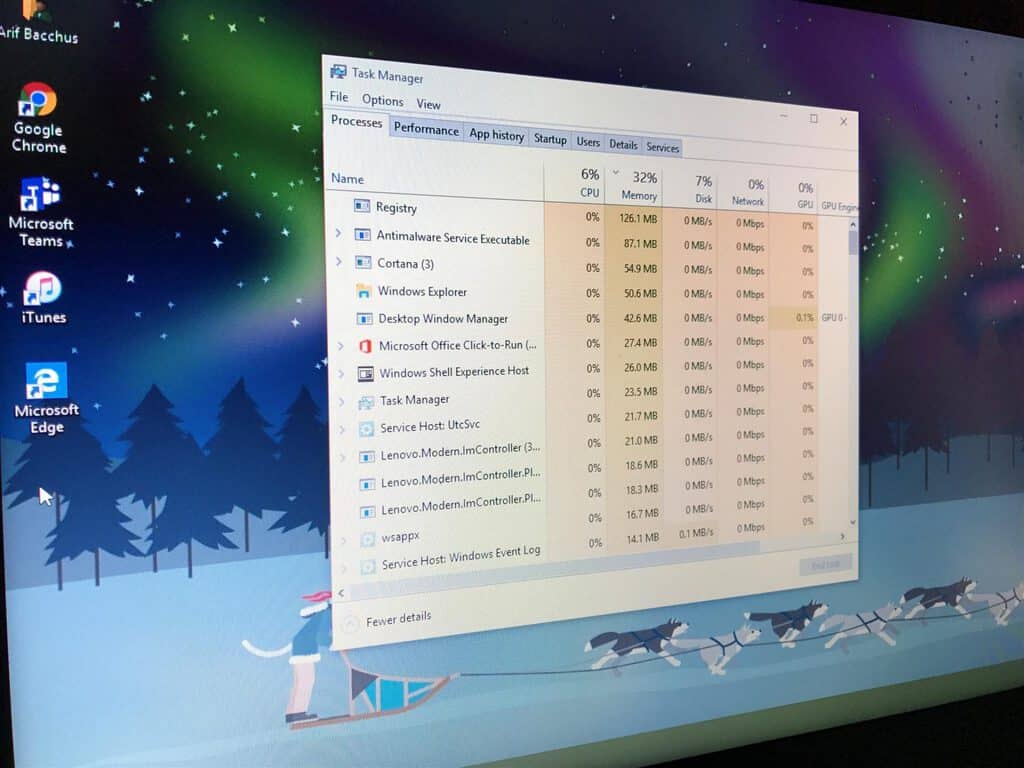
At the end of today’s blog post for Windows 10 build 17063, Microsoft made note of a new process labeled “Registry.” which may be seen in the Task Manager in the past couple Windows Insider builds. This process may be concerning for some Windows 10 users, but there’s no need to worry. Microsoft is providing the following explanation for the purposes of the Registry process.

  • In recent Insider Preview builds, you may have noticed a new process labelled “Registry” in Task Manager. The purpose of this process is similar to that of the memory compression store process in that it is a minimal process whose address space is used to hold data on behalf of the kernel. However, while the memory compression process is used to hold compressed pages, the registry process is used to hold registry hive data (e.g. HKEY_LOCAL_MACHINE\SOFTWARE, HKEY_CURRENT_USER).
  • Storing registry hive data in the registry process gives the registry access to more powerful memory management capabilities which will allow us to reduce the registry’s memory usage in the future.
  • Today’s Insider Preview build is the first to store hive data in the registry process and this is visible in Task Manager as increased memory usage by that process. Since this data was previously in kernel paged pool there is also a corresponding decrease in paged pool usage so overall there is no net change in hive data memory usage.

Did you find this registry process bothersome after you’ve installed this build? Let us know your thoughts below.

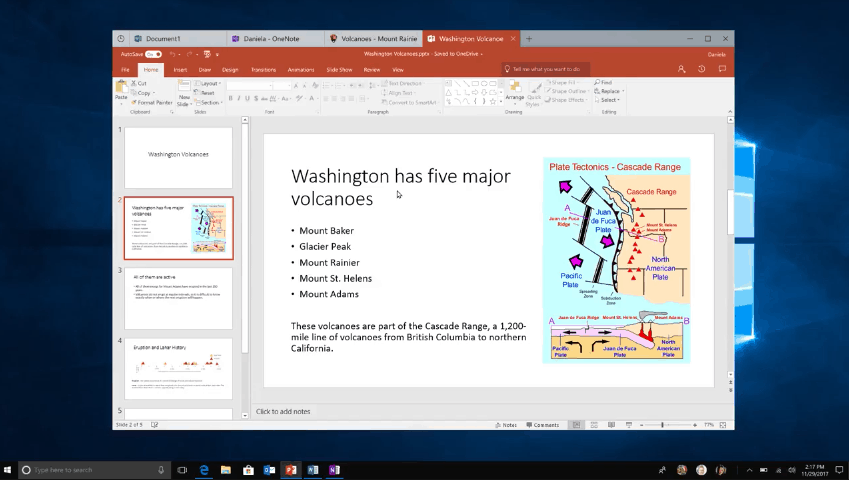
Here’s how to tell if you have Sets in the latest Windows 10 Insider build 17063

Perhaps, the most interesting part of being in the Insider program is being part of a crowd that gets to test early or experimental features. With the release of today’s latest Windows 10 Insider build, testers get to get their hands on probably one of the most anticipated features coming to Windows in a long time, Sets.

Unfortunately, access to the new Sets feature isn’t as cut and dry as it used to be for all Insiders. The Windows engineering team has seen fit to implement a new A/B testing mechanism that is now limiting who gets access to what new and experimental features, which now adds a layer of complication when Insiders speak amongst themselves to confirm the presence of new items.

Sets promise to evolve the average workflow by incorporating a newly tabbed menu paradigm for users, the only problem is, when not everyone is getting access to it, it becomes a little harder to recognize when it is and isn’t there.

Fortunately, Windows senior program manager Brandon LeBlanc chimed in to offer users a tell-tale sign that their update is the one touting the new Sets feature.

Other indicators include visiting the settings menu, as explained by another Windows Insider engineer, Jason Howard.

Lastly, Insiders can refer to the Windows Blog for a more detailed markup of how to look for the new Sets feature as well as a detailed explanation on why they may or may not be seeing it after installing this build. I would love to brag about being one of the cool kids who got the Sets feature early, but sadly, I’m stuck waiting to test it out with the rest of you. Let us know in the comments if you have access to Sets and how you are using it.

Here are the input improvements in Windows 10 build 17063

After almost a month without seeing a new Redstone 4 build, Microsoft has finally delivered today with the Windows 10 Insider build 17063. In addition to the much-anticipated Timeline and Sets features, this latest build brings a long list of novelties including some welcome input improvements.

You’ll find in this build a new split layout for the touch keyboard, as well as the ability to change the font of the handwriting experience. More importantly, the Emoji Panel is finally available in 190 languages. You can read the full list of changes below:

Personalize the handwriting panel: In this release you can now change the font that your handwriting converts to in the handwriting panel! Go to Settings > Devices > Pen & Windows Ink > “Change the font of the handwriting experience”, select your preferred font from the dropdown, then write in the handwriting panel to see your chosen font.

You can now use the Emoji Panel in more languages! Based on your feedback, we’ve been working diligently on more added support for more languages and as of today’s build you can now use the emoji over 190 locals – 152 of which have tooltip support when you hover over each emoji. This includes English (Great Britain), French (France), German (Germany), Spanish (Spain), and more! You can open the Emoji Panel by pressing Windows logo key + period(.). Currently you can only browse and use mouse/touch/keyboard to pick an emoji in these languages, however we’re working on adding search. Stay tuned!

Single or multiple emoji at a time – you choose: With the previous flight we added support for inputting multiple emoji at a time. Today we’re adding a setting so that you can decide which behavior is best for you. Simply check or uncheck the new “Don’t close panel automatically after an emoji has been entered” setting under Settings > Time & Language > Keyboard > Advanced Keyboard Settings.

Emoji data update: Last flight we shared our initial emoji data update across multiple languages for this release – as promised with today’s flight we have the second bulk of the payload. We’ve added a number of additional words you can use to find the emoji you’re looking for in your language – use the touch keyboard and search for things like hedgehog, vampire, and pretzel.

Hardware keyboard suggestions update: Since our first flight with this new feature, we have two updates to share with you:

  • Firstly: We now support dark theme! Use Color Settings to switch between light and dark and see how your text suggestions will now follow suit.
  • Secondly: We’ve moved the settings for how to enable this feature, you can now find it under Keyboard Settings > English (United States) > Options > Hardware keyboard > “Show text suggestions as I type”

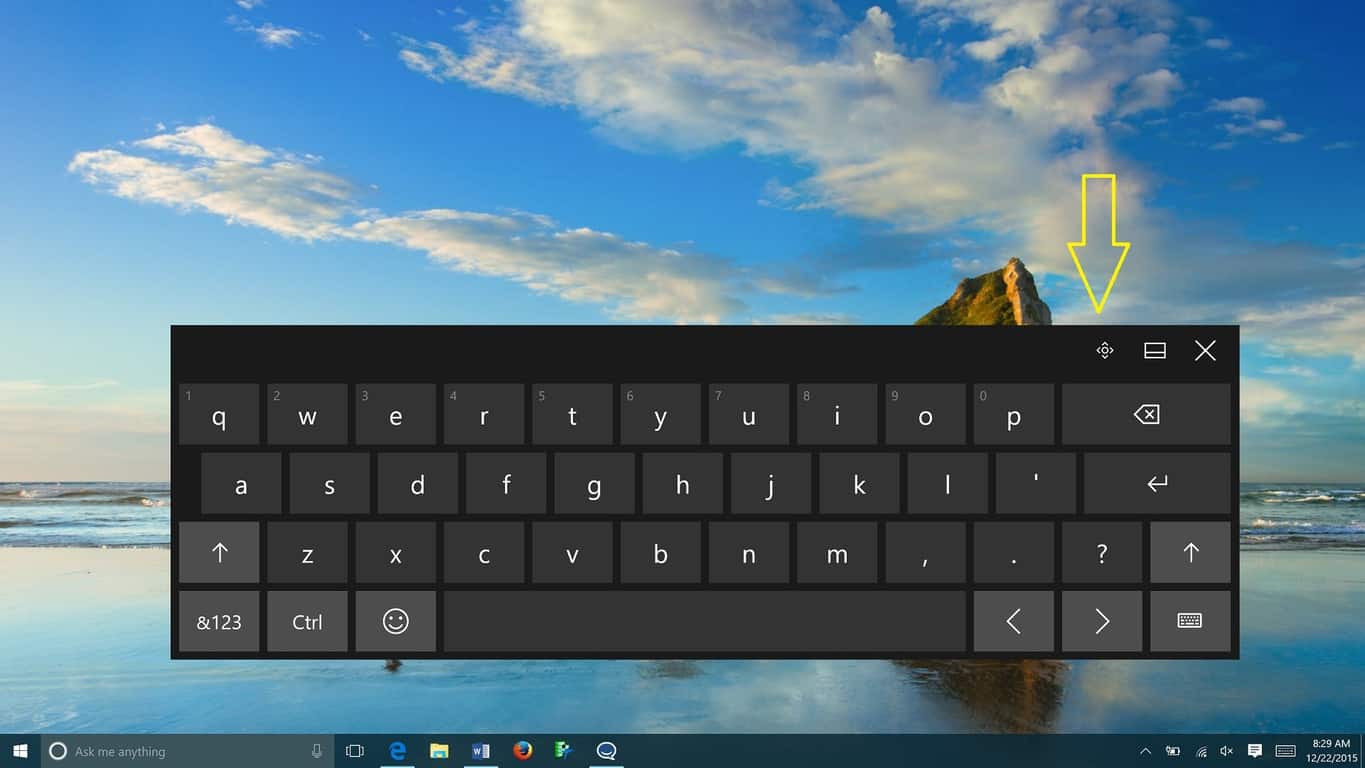
Split layout comes to the touch keyboard: As many of you know we redesigned the touch keyboard to be XAML-based for the Fall Creators Update. We’ve been hard at work addressing your feedback, and are happy to announce that with this build the touch keyboard now supports the split layout – an ergonomic layout designed to be used with both hands, one on each side of your tablet. Note: Korean, Japanese and Simplified Chinese languages aren’t yet supported for this layout, but we’re working on it.

The standard touch keyboard layout for Japanese, Korean, Quick and ChangJie for Traditional Chinese: Now the standard keyboard layout for East Asian languages are available except Simplified Chinese and Bopomofo for Traditional Chinese (which we’re still working on). Japanese Kana layout is also supported. If you want to switch between wide, one-handed, and the standard touch keyboard layouts, just tap the button in the top left of the keyboard.

These are all much-appreciated changes, especially the new split layout for the touch keyboard and the broader availability of the Emoji Panel. Let us know in the comments what are your favourite new features in the list.

Microsoft adds major tweaks to Windows 10 settings page in Insider build 17063

The settings page is one of the major hubs of Windows 10, allowing users to control core areas of the OS. Though it has always been well organized, Microsoft has listened to the needs of Windows 10 users and now added major tweaks to the settings page in build 17063. Here’s what you need to know, directly from today’s blog post.

  • Settings gets a new look: You’ve already seen we say “bring on the Fluent!” in other areas of Shell, and Settings is no different. With today’s build you’ll find not only have we refreshed the Settings UI leveraging Fluent Design principles, but we’ve also taken a look at the Settings homepage and redesigned it with an eye for visual acuity.
  • Control Windows legacy apps access to your camera: Camera privacy settings under Settings > Privacy > Camera give you fine control over the apps that have access to your camera. With this update, we are changing the toggle’s behavior to include all legacy apps. Note that each legacy app will not appear individually in the list today like Store apps do, but they will respect the toggle.
  • Security questions for local accounts: With the Fall Creators Update, we started working on self help solutions for password recovery from the Lock screen. Today, we’re adding this functionality to local accounts as well, through the newly available use of security questions for local accounts. If you already have a local account, you can add security questions by going to Settings > Accounts > Sign-in Options > “Update your security questions.”
  • You can now view detailed information about your display by visiting the new “Advanced display settings” page linked at the bottom of Settings > System > Display.

  • In this flight we’ve made it easier for you to fix apps that become blurry if you dock/undock, RDP, or change display settings. Some desktop apps can become blurry in these scenarios. When this happens, you have to log out and back in to Windows to have these apps render properly. In this flight, you can turn on a feature that will enable these apps to be fixed simply by re-launching them.
  • We’re introducing a new Keyboard Settings experience on PC! Now found under the Time & Language Settings, you’ll be able to easily add new keyboard layouts, switch between Japanese 106/109 and English 101/102 keyboard layouts, turn on and off settings like key sounds and autocorrect, and other advanced keyboard-related settings. Additionally you can now change the default keyboard independently of the display language.
  • We have reimagined the Region & Language Settings. We’ve added icons to each language entry to indicate when language support is installed for display language, text-to-speech, speech recognition, and/or handwriting.
  • You can now configure data limits and/or place background data restrictions to Wi-Fi and Ethernet connections, in addition to cellular connections, in the Data usage page. The updated settings page aims to support a diverse set of devices and users
  • Under Settings > Gaming > Game Mode there is a new option called ”Reset Game Mode Settings” that allows you to restore Game Mode settings for their PC back to the default values for the feature.
  • In today’s build you’ll notice that we now bubble up any permissions the app has asked for, along with an easy option for you to toggle them. We’ve also added links to check background usage, lock screen notifications, and defaults, and options to terminate and/or uninstall the app.

There you have it, folks, plenty of new settings to check out in this new build. Are you liking the level of control Microsoft has added to this new build? Be sure to check out all the new settings, and let us know your thoughts in the comments below.

Microsoft takes My People to the next level in Windows 10 Insider build 17063

The Windows 10 Insider build 17063 is now available to download for Fast Ring Insiders, and the new bits bring some nice improvements to the My People experience. As you may know, My People lets you pin your contacts to your Windows 10 task bar, making it easier to communicate and share content with your closed ones.

If you thought that My People is still a bit rough around the edges in the Fall Creators Update, Microsoft has been listening to user feedback to take the feature to the next level. Starting with the Windows 10 Insider build 17063, it’s finally possible to drag and drop your contacts in your taskbar and rearrange them in the order how you prefer. Moreover, it’s now possible to show up to 10 contacts in your taskbar (up from three) if you want to.

Microsoft has also improved animations for people in overflow: now you’ll see emotive notifications above your taskbar for all contacts that have been pinned within the People flyout. You can see how it works in the GIF below.

The Insider build 17063 also brings two other changes for MyPeople: the People flyout has updated with Fluent Design, and you should now see acrylic, reveal, and light effects. Last but not least, MyPeople will now suggest you social apps that you may be interested in. This change has been made to improve app discoverability, but you can turn it off in the People settings if you don’t like it.

These are all welcome changes, but My People will really become useful when more developers (especially Facebook) start to support it. Let us know in the comments if these latest changes are likely to make you use My People more in the near future.

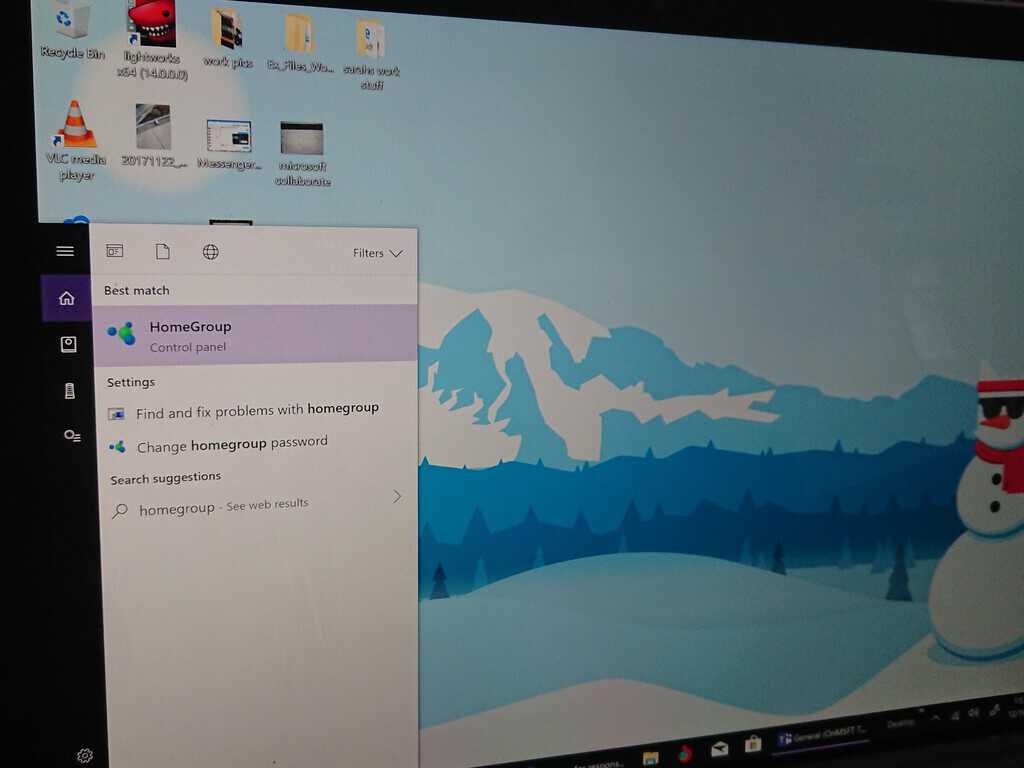
Microsoft to retire Windows HomeGroup, disabled in latest Insider build 17063

With the arrival of Windows Insider Preview build 17063, Microsoft has released a bunch of new features for Windows Insiders to use. However, Microsoft has also decided to phase out some old features too. Windows HomeGroup is one such feature that is unavailable in Windows Insider Preview build 17063.

Microsoft notes that Windows HomeGroup was a great feature in the “pre-cloud and pre-mobile era,” but there are plenty of alternative sharing options that Windows 10 can provide, instead of the now defunct Windows HomeGroup:

  • File Storage: OneDrive is a cloud-first, cross-device storage and collaboration platform for all of the pieces of data that matter most in your life – like your files, your photos, your videos, and more. OneDrive Files On-Demand takes cloud file storage a step further, allowing you to access all your files in the cloud without having to download them and use storage space on your device.
  • Share Functionality: For those who prefer not to use the Cloud to connect their devices, the Share functionality for folders and printers allows you to see the available devices and connect them to and from other PCs on your home network.
  • Easier Connection:No more remembering cryptic HomeGroup passwords in order to connect to another PC. You can now simply connect through your Microsoft Account email address across devices.

There are plenty of other new improvements and features available. Take a look at the list of what’s new in WIndows Insider Preview build 17063.

Fluent Design spreads across Windows shell, Start, and Action Center in latest Insider build 17063

Fluent Design is the next big thing for Microsoft in Windows 10, and today’s Windows Insider build includes A LOT of it. Windows Shell, Start menu, Action Center, and other core areas of the Windows 10 OS received special treatment in build 17063, and here is what you need to know about it.

  • Today, Start and Action Center support acrylic to align with Fluent design principles. And now we’re bringing the next wave of Shell UI to the party by applying acrylic to the taskbar, Share UI, Clock & Calendar flyout, Network flyout, Volume flyout, and Input flyout. Try it out and let us know what you think!
  • Notifications are inherently transient – one thing we’ve heard from you is how it can be frustrating to have started writing a response into a notification (such as one from Skype), only to have the response disappear if you didn’t submit it before the notification went away. Well, no more! If a toast gets dismissed with unsubmitted text, we will now save the draft; open the action center and your text will now be saved with the notification.
  • We’re happy to announce that with this build we’ve simplified the grouping of apps in the all apps list for Chinese (Simplified), Japanese, and Korean. This change is most noticeable for Chinese (Simplified) and Japanese, where we’ve reduced the number of groups by 29 and 36, respectively. If you use Windows in these languages, please take a moment to check it out once you get the build and let us know how it feels.

  • Cloud states for the Navigation Pane: In an effort to further keep you informed about the state of your OneDrive files and folders on demand, we’re looking at adding a state icon to use in File Explorer’s Navigation Pane. If you’d like to turn this off, there’s an option in the File Explorer ribbon View tab – click the Options button, then in the dialog that appears go to the Navigation Pane section of the View tab and uncheck “Always show availability status”.
  • A consistent Network flyout on the login screen: Continuing our work to modernize all the elements of Windows 10, we’ve now updated the network flyout on the login screen to use the same familiar network flyout you’ve grown to love in the taskbar.
  • Improving your update experience: In an effort to keep you informed about the state of your PC, if Windows Update Settings shows a warning or alert, we will now echo that via a new Windows Update system tray icon. If you right click the icon, you will see options relevant to the current state, such as restart, schedule the restart, or go to Windows Update settings. If visible, this icon can be turned off from within Taskbar Settings.

Lots of changes to examine! We wish you well in your downloading, and remind you to let us know your thoughts in the comments section below.


This is the build you’ve been waiting for! Download Windows 10 Insider build 17063 now

It’s time to get to downloading the latest Windows 10 Insider build, this one clocking in at 17063. The next build after 17046, which somewhat surprisingly was released the day before the big US Thanksgiving holiday (almost a month ago!), has seen a couple of delays.

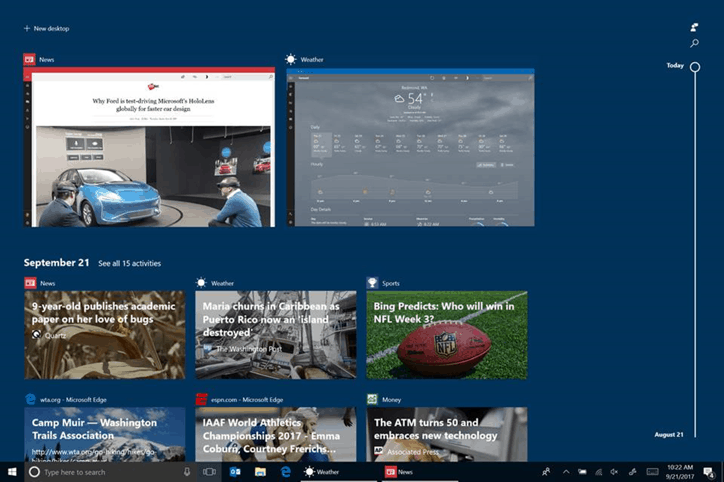
This new build continues adding features to what’s known as RS4, or Redstone 4, the code name for the latest round of updates that will eventually become the Spring 2018 Update to Windows 10. This is the first build to include an early look at Timeline, the feature Microsoft announced at Build that introduces a “visual timeline” integrated into Task View, allowing you to easily move back to reopen files, apps, and sites as though you had never left.

The Windows Insider team gave us a quick look at Timeline in the latest Windows Insider Podcast, and we shed a bit more light on what we know so far, but this new build will be the first chance for Windows Insiders to try out all the latest from Windows 10.

We’ll have all the details up for you in just a few minutes, but for now get to downloading!

Microsoft becomes first Fortune 100 company to endorse bipartisan Senate bill addressing sexual harassment

As many stories in the news and the #MeToo movement have shown, sexual harassment in the workplace is a problem in American society with newfound attention. This is why Microsoft today announced they have become the first Fortune 100 company to endorse a bipartisan Senate bill addressing sexual harassment.

In a post penned by Microsoft President Brad Smith, the Redmond giant writes about the hope of endorsement ensuring “that people’s concerns about sexual harassment can always be heard.” Introduced by Senators Kirsten Gillibrand and Lindsey Graham, Microsoft is also saying the bill “ensure that every person facing sexual harassment in the workplace can make their case in a public court, rather than solely behind closed doors in private arbitration.”

After thinking about this legislation, Microsoft also reflected on their own practices, and if they could be changed. The company found that a small segment of their employees have contractual clauses requiring pre-dispute arbitration for harassment claims. As a result, Microsoft will be waiving the contractual requirement for arbitration of sexual harassment claims in their own arbitration agreements for employees who have the requirement.

It’s great to see Microsoft stepping up, supporting this Senate bill, and taking action to address their practices internally. Being the leader they are, this means other tech giants might as well likely follow in their footsteps. Definitely one step forward in addressing a large problem that is plaguing our society.

Xbox One/Windows 10 video game gets a comic book series

Microsoft’s upcoming Sea of Thieves video game is about to get its own comic book series by Titan Comics.

The Sea of Thieves comic book series is due for release on March 14th 2018 and will be written by Jeremy Whitley with art by Rhoald Marcellius. The first issue is already available for digital pre-order on Comixology and has been given a 17+ age rating which suggests that it could be more violent than its cartoony style artwork looks. There’s also a very brief description for the first issue.

A gripping, uproarious and treacherous pirate adventure! Two crews sail the sea of thieves in a race to track down ancient treasure. Along the way they’ll deal with undead hordes, devious traps and their own bitter rivalries, but who will ultimately claim the legendary loot? Based on the shared-world adventure multiplayer game from Rare, due for release early 2018 on Xbox One and Windows 10.

Sea of Thieves will launch on Xbox One and Windows 10 on March 20th and pre-orders are already open. The game will be an online multiplayer experience and it’s unclear how much story content will be present. Because of this, exploring the game’s world via a comic book series could provide some substantial on the game that may be missing in the title itself.

Will you pick up the Sea of Thieves comic book? Let us know in the comments below.

Fix: Microsoft XPS Document writer missing/not working

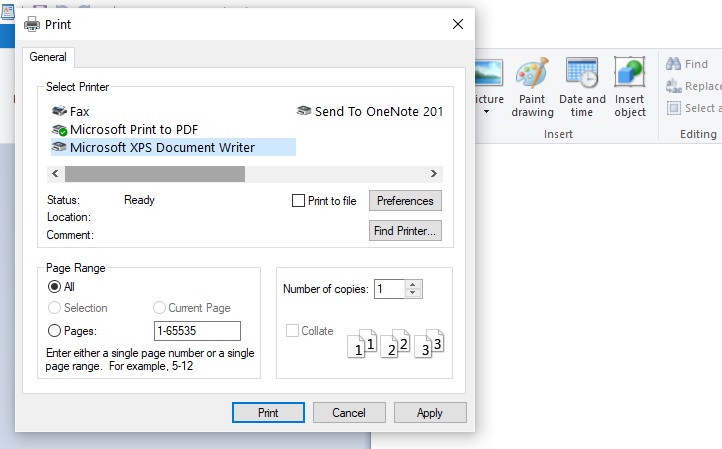
By default, Microsoft is using two virtual print drivers: Microsoft Print to PDF and Microsoft XPS Document Writer. Now, based on these two drivers and on their functionality you will be able to customize the printing process right from your own Windows 10 system.

So, if, for example, the Microsoft XPS Document Writer is missing or it’s not working, you might not be able to print your docs and files and that might be a real problem.

Anyway, if you know that this virtual driver used to work without issues and that something recently went wrong, don’t panic. The troubleshooting steps from below should help you fix the Microsoft XPS Document Writer is missing or is not working problem.

6 ways to fix Microsoft XPS Document Writer missing / not working

  • Solution 1 – Apply any pending Windows 10 updates.
  • Solution 2 – Fix Windows 10 update problems.
  • Solution 3 – Uninstall a recently applied system update.
  • Solution 4 – Update printer drivers.
  • Solution 5 – Manually reinstall Microsoft XPS Document Writer virtual driver.
  • Solution 6 – Check for system malfunctions.

1. Apply the latest Windows 10 updates

You might have problems while trying to access and use Microsoft XPS Document Writer if your system is not running on the latest available update patch. So, first of all, make sure that there aren’t any pending updates waiting for your approval. You can check for updates and apply new system patches by following:

  1. Press the Win+I keyboard hotkeys.
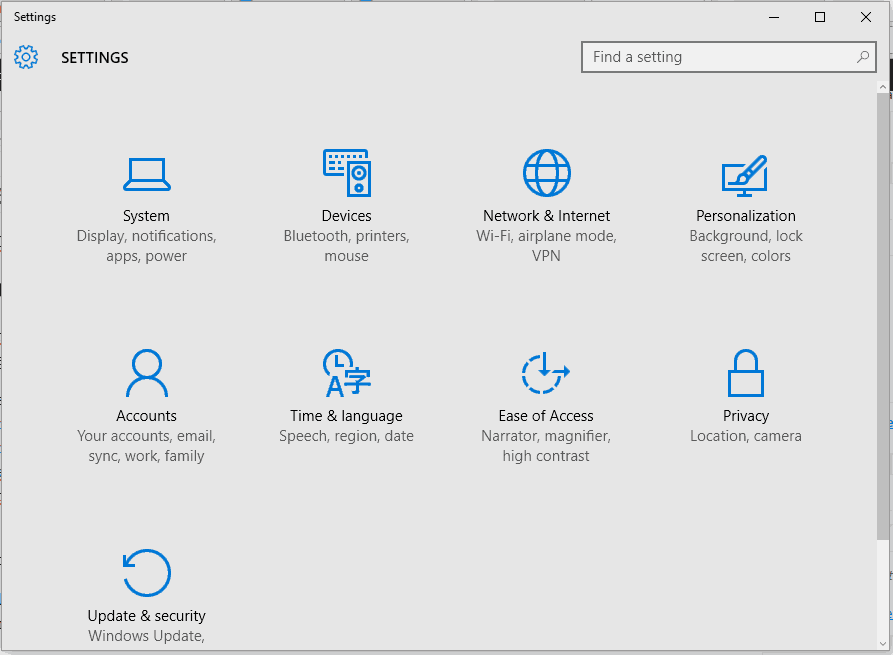
  2. From the System Settings window click on the Update & Security entry – it’s the last one, located on the bottom of the main window.fix update and security not working windows 10
  3. Next, from the left panel switch to the Windows update tab.apply updates windows 10
  4. If a Windows 10 update is available for your computer, it will be listed there in form of a system notification.
  5. So, if available, follow on-screen prompts and apply all the update files.
  6. Restart your system in the end and check the Microsoft XPS Document Writer functionality.

2. Fix Windows 10 update problems

If the problems appeared right after you installed a new Windows 10 update, you need to verify if problems occurred during the flashing process. So, in that matter, you have to run a dedicated troubleshooter. Don’t worry, you won’t have to use a third-party app or any other similar risky app, but an official program developed and offered by Microsoft.

Thus, go ahead and download the Microsoft update troubleshooter engine from this page – just run the executable file and follow on-screen prompts if that’s required (if problems are found everything should be automatically fixed).

3. Uninstall a recently applied update

If the official troubleshooter engine cannot repair your Windows 10 system, so if you still cannot use the Microsoft XPS Document Writer software, a better idea will be to uninstall the update package that caused the problem in the first case. Here is how you can complete this particular process:

  1. Press the Win+I keyboard hotkeys.
  2. From System Settings access Update & Security.
  3. Highlight the Windows update tap.
  4. Next, click on Advanced options and choose View your update history link.uninstall windows 10 update
  5. Now, you should see a list of updates that were recently applied on your computer.
  6. You can choose which patch to remove from your PC.
  7. Make sure you reboot your device in the end.

4. Update printer drivers

During certain updates or while a new app is installed, some of your drivers might require some attention. Shortly, you need to refresh the Microsoft XPS Document Writer drivers if problems are experienced – maybe the drivers just need to be updated, situation during which you will have to follow:

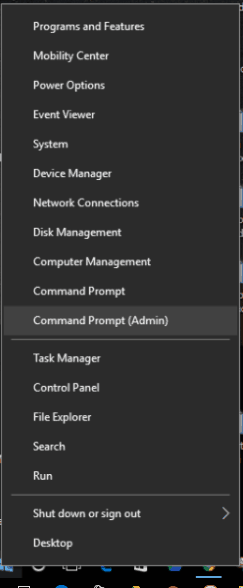
  1. Right-click on the Windows Start icon – located near the Cortana icon.
  2. From the list that will be displayed click on the Device Manager entry.device manager windows 10
  3. From Device Manger extend the Print queues feature.
  4. Right click on the Microsoft XPS Document Writer field.
  5. Choose ‘update driver software’.
  6. Also, you can choose ‘scan for hardware changes’ for repairing possible problems.
  7. That’s it; the issues should be fixed now.

Alternatively, you can use a third-party tool that scans your system and installs the latest printer drivers for your PC with just a few clicks. Fortect Driver Updater works with all versions of Windows and makes updating drivers a breeze.  

It is useful software for updating the necessary printer drivers on your PC. After installing the utility, you only need to scan your computer. It will detect outdated drivers and request your permission to update them.

The driver updater program is handy for automatically updating Windows drivers. Otherwise, doing it manually takes time and requires extensive knowledge of the drivers you’re looking for.

⇒ Get Fortect Driver Updater

5. Manually reinstall Microsoft XPS Document Writer virtual driver

In other situations, updating the virtual drivers might just not be enough. In those cases you will have to manually reinstall Microsoft XPS Document Writer:

  1. First, go to Device Manager as explained above.
  2. Extend Print queues and right-click on Microsoft XPS Document Writer.
  3. Select ‘uninstall’.
  4. Also, go to Control Panel (click on the Windows Search icon – the Cortana button – and enter Control Panel), switch to Category and under Hardware and Sound click on View devices and printers. Then, right-click on Microsoft XPS Document Writer and choose Remove device.

So, through the steps from above you managed to uninstall Microsoft XPS Document Writer from your computer; now, let’s see how you can reinstall it:

  1. Return to the Devices and Printers folder from Control Panel.
  2. From there click on Add a printer.
  3. When asked, select Add a local printer.
  4. Under Use an existing port choose PORTPROMPT.
  5. Also, fill out the next forms in this way: Manufacturer – Microsoft; Printers – Microsoft XPS Document Writer.
  6. Also pick ‘replace the current driver’ and under printer name enter Microsoft XPS Document Writer.
  7. The drivers should be now automatically installed.
  8. Thus, the Microsoft XPS Document Writer software should run smoothly now.

6. Check for system malfunctions

If the steps from above aren’t solving your problems you should check for system errors – if a process got corrupted or if similar malfunctions were caused due to different other reasons, you should scan your Windows 10 PC by using a built-in Microsoft feature. The scan process will look for problems and if something is detected the software will also try to automatically fix the issues; anyway, here is how this troubleshooting solution can be applied on your device:

  1. Right-click on the Windows Start icon.
  2. From the list that will be displayed click on the ‘Command Prompt (Admin)’ entry – that’s how you can open an elevated command prompt window.elevated cmd
  3. In the cmd window type sfc /scannow and press Enter.
  4. Wait while the system is scanned.
  5. Restart your computer in the end.

Conclusion:

The steps from above should solve the Microsoft XPS Document Writer is missing or isn’t working issues. Of course, if you are still experiencing the same problems, return here and try to describe the errors you receive in detail.

These details will help us better understand your Windows 10 problems and we can better assist you with similar tutorials like the already explained one. Let us know your thoughts on this matter in the comment area bellow.

No new Windows 10 builds today (12/18,) team is working hard, says Brandon LeBlanc

We may be sounding like a broken record at this point, but Windows Insiders won’t have a new build to play with today (Monday 12/18.) This is according to Brandon LeBlanc, who provided Insiders with a status update, saying the team is working hard to get a new build out “soon.”

LeBlanc is not giving any promises, but he did say in a subsequent tweet that the Insider team is trying and “soon” could mean “this week.” This build is also set to include Windows Timeline and Sets, two hotly anticipated Windows 10 features. As you may recall, Dona Sarkar previously revealed the upcoming build is very important for this reason, and Microsoft wants to ensure the best possible experience for everyone.

Anyway, it’s best to let the Insider Team do their work, as the last thing we would want to see is a build that breaks the PCs of those opting to install it. Patience is a virtue, and it all will pay off when you can dive right into Windows Timeline and enjoy all of its features without bugs or issues.

Skype recounts year of “highlights and milestones”

After completing the transition from a peer-to-peer infrastructure to a cloud-based one, 2017 has been another year of profound changes for Skype. The team has been working hard to modernize the ubiquitous messaging and VOIP app, and some of the changes have certainly been difficult to accept for power users.

Still, as Microsoft is getting ready to introduce more changes and new features in 2018, the Skype team took the time to look back at this year’s highlights and milestones today. Obviously, the main news this year was the release of the new Skype experience, which came first on mobile platforms before rolling out to Windows, macOS and Linux.

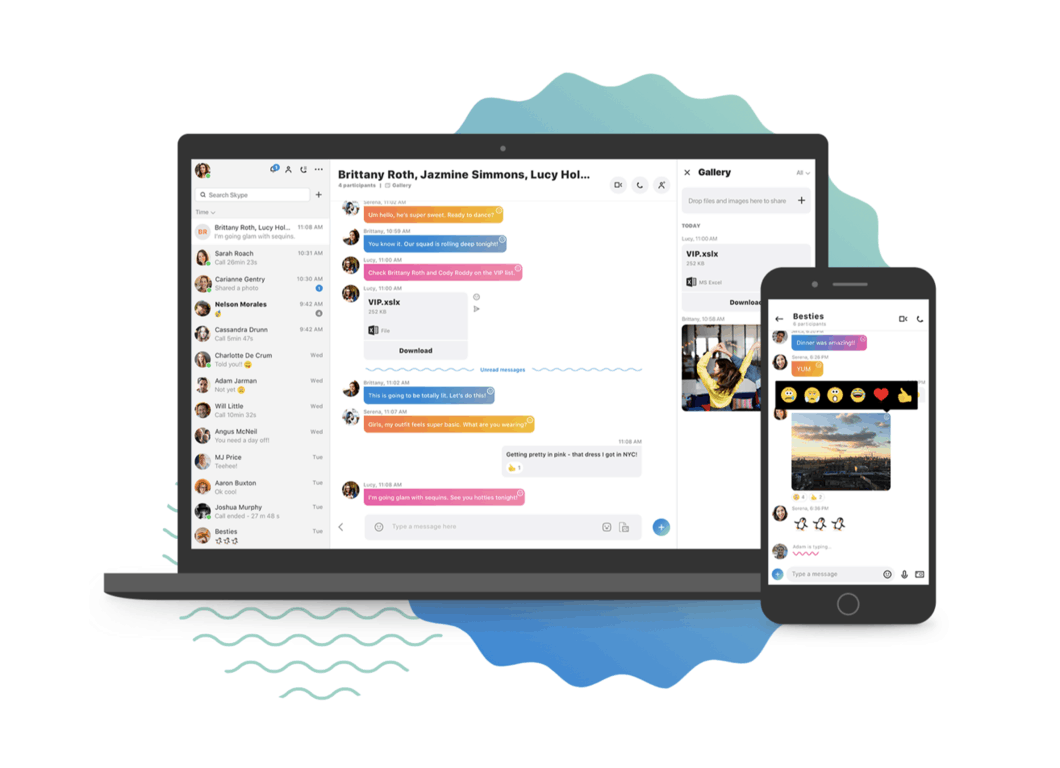
The new Skype app lets you choose your theme and accent color, react to messages using emoticons, send money via Paypal and more. “All of these updates were inspired by a simple goal: to make Skype the center of your important conversations with your personal networks and, hopefully, empower you to turn your everyday conversations into experiences,” the team explained in the blog post.

On mobile, you can also use Skype add-ins to share Gifs, create polls, find local restaurants and more. Let’s not forget about Skype Highlight’s, Microsoft’s take on Snapchat Stories (now with Snapchat-like photo effects as well) which shows the company’s ambition to turn Skype into a lightweight social network.

There is still no complete feature parity between all Skype apps today: Highlights and Skype add-ons are still mobile-only, and the Skype for Windows 10 app still has a different feature set and design compared to the new Win32 app. Additionally, the new Skype experience has yet to be released on iPads and Android tablets.

The Skype UWP app (left) next to the new Win32 app (right).

Moreover, Skype has launched a new Skype Lite app for Indian users, which is optimized for 2G networks and locations with poor connectivity. This version also has exclusive features such as SMS Insights, which aggregates the relevant information from your text messages and automatically sort them in smart categories such as Shopping, Travel and more.

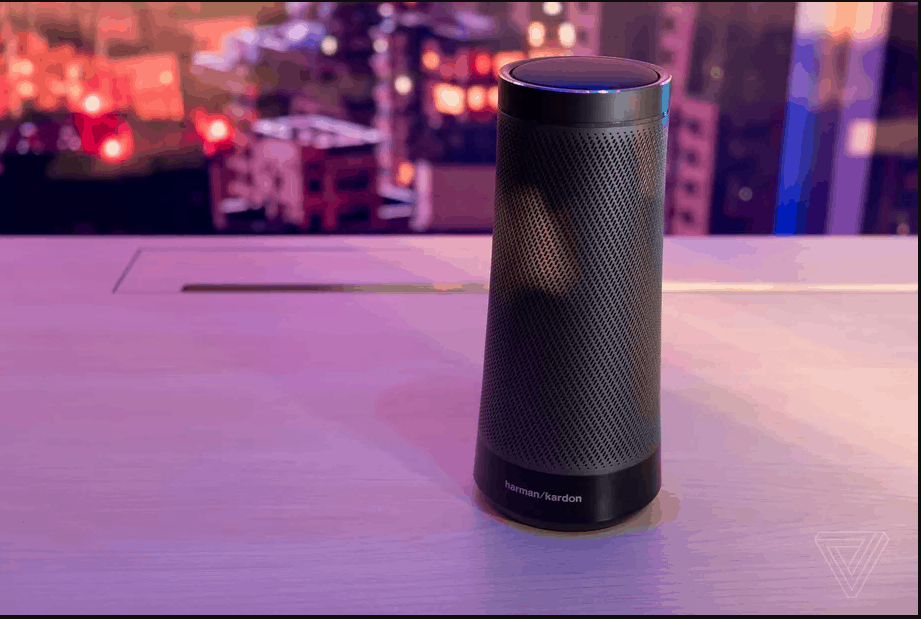
Since the new Skype experience has been created from the ground up, the team also had to temporarily discontinue the Skype apps for Android Wear and the Apple Watch. “We’re working hard to make support for wearables, and other platforms available,” Microsoft explains in a support page. In the meantime, Skype became available on the Harman Kardon Invoke speaker this year, which is the first time we see Skype being expanded to ambient devices.

It’s also worth noting that the Skype didn’t abandon professionals and power users this year. On Windows and macOS, it’s still possible to download “classic Skype” if you miss the ability to open multiple chat Windows, get notifications when your contacts go online and more. For professionals, Microsoft added a code editor to the Skype web app for coding interviews. The Skype Professional account, a new desktop client with special features for remote service providers is also available in preview in the US.

It’s been quite some time since Microsoft announced that Skype had crossed 300 million monthly active users. We doubt that Skype can ever catch up to Facebook Messenger and WhatsApp, which both have 1 billion monthly active users, but the Skype Android did pass 1 billion downloads on the Google Play Store two months ago. Skype is the first Microsoft Android app to reach this milestone, so this is definitely a big deal for Microsoft’s mobile strategy.
“We look forward to continuing to expand the ways Skype can make your life easier, more productive, and fun in 2018,” the Skype explained today. “We are committed to always continuing to innovate, listening to customer feedback, and pushing the boundaries of technology.” What features would you like added to Skype in 2018? Sound off in the comments below.

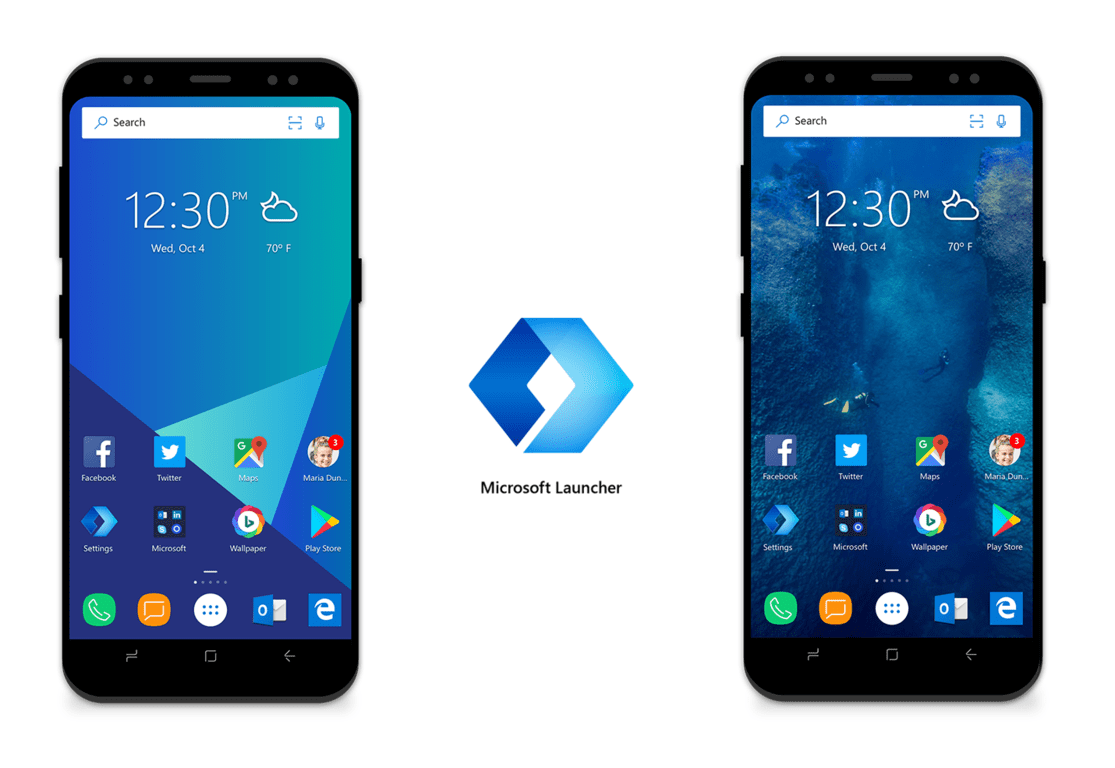
Microsoft Launcher 4.4 update brings improvements, customization options for beta testers

Beta testers of the Microsoft Launcher Android app can download a new update with several new features today. The version 4.4 of the launcher lets you hide the dock from your home screen, select multiple items at the same time to move them anywhere you want, create new folders in app drawer and more.

Here is the full changelog that the team posted on the dedicated Google+ community today:

What’s new for Microsoft Launcher 4.4:

  • Enable creating folders in app drawer – this is a long ask from users and now your wait worth it!
  • Batch mode of apps on home screen and app drawer – you can now select multiple items at the same time, across different page, move, remove, drag&drop or even creating new folders in home screen or app drawer though long press menu;
  • Enable/disable dock – now you can design you home screen without dock, with more imagination and flexibility!
  • Open app animation;
  • Pill count improvements on Line, BBM, Instagram, Yammer, Textra, WhatsApp and more – this is one of the highest bug reporting in our weekly user feedback report, so we spend a whole release to make it better, it’s still not perfect so please keep the feedback coming in around this.
  • Weather / Time widget refinement to mitigate weather refresh issue – we also receive quite some bug reporting around weather not refresh and cannot manually update, etc. we did several improvement on this, explore them on the widget and let us know how it works.
  • Bug fixing and perf tuning;

You can get the version 4.4 of the Microsoft Launcher right now from the Google Play Beta Store, but it should roll out to all users in the coming weeks. The developers have made a lot of progress on the app since its launch a few weeks ago, and we’re looking forward to see what’s in the pipeline for the next update. In the meantime, feel free to share your feedback on the new features in the Google+ community.

Want a job at Microsoft? Get an MBA

When you’re fresh out of college and just completed a master’s program, the possibilities of employment are almost endless. As noted on Financial Times, Cornell Jonhson Graduate School student Safiya Miller found this out for herself when she recently completed her Masters in Business Administration and landed a job at Microsoft.

Miller landed a job as an account executive in Microsoft’s Bay Area offices, finding Microsoft’s legacy as the foremost reasons for seeking employment at the Redmond giant. In fact, Financial Times reports that Microsoft is still the top-five tech hirers of MBA students from leading business schools, even with the recent layoffs around the company. It’s mainly the fact that Microsoft knows how to “reinvent itself” that makes the company so appealing, according to Safiya Miller:

“If I was going to move all the way out west, I wanted a team where I could learn and grow… I wanted to learn next to [people] who have not only been in the industry for years but were also experiencing this refresh, rebirth of the company.”

According to stats from the original report, Microsoft hired 30% more MBA graduates this year than last year. Chuck Edward, Microsoft’s head of global talent acquisition, explained in the report that demand for candidates with MBAs has “gone up significantly in the past two or three years,” with hires from “nearly 150 different schools in 40 countries.”

After going through a round of interviews lasting three or so weeks, these MBA graduates earn $160,000 as a median starting salary at Microsoft once fully employed. They also need to go through MACH, the Microsoft Academy of College Hires, a program which places them with mentors and through training events.

Microsoft’s Cortana quietly gains 230 skills behind Alexa’s 25,000

Perhaps it is mere coincidence that as Microsoft began throttling its Windows 10 Mobile development the air and enthusiasm around the company’s digital assistant seemed to dissipate. I hope not to come off hyperbolic because I’m not pointing to the reduction in press coverage but rather the strikingly correlated feel that limiting Microsoft’s Cortana native presence to just the desktop seems to have stunted its potential growth, developer creativity, and customer mindshare.

Conversely, Amazon’s pivot away from its arguably disastrous smartphone tryst has all but embolden the company to push forward with its digital assistant Alexa and comparatively speaking, Amazon is lapping Microsoft’s efforts almost 100 fold.

According to a report from Mary Jo Foley and our own anecdotal investigating, Cortana has approximately 230 skills (add-on functionality) that vary from asking it details about upcoming trips to ordering Pizza from Domino’s. While the list might seem impressive to Microsoft fans, it unquestionably pales in comparison to the Amazon Alexa list of 25,000 skills that fill niche request such as playing Jeopardy or receiving random quotes from Wikipedia.

Amazon’s device

The canyon between Alexa and Cortana development similarly reflects the divide between Chrome and Edge in the browser space. Perhaps, Microsoft is attempting to take the same focused and cautionary approach to Cortana development as it is doing with Edge, but when it comes to consumers, sometimes the fastest moving product gains all the attention leaving little room for perceived “me-too” solutions.

Despite the outward appearance, Microsoft isn’t sitting on its hands with Cortana, (perhaps merely pausing to tie its uneven shoelaces), the company has released several development tools and kits to spark interest in its digital assistant. Recently, items such Azure’s Bot service was made generally available to developers to help tie in messaging services such as Skype and Facebook Messenger. Microsoft also revealed that it’s working on Cortana Skill Chaining, which is probably a call back to the company announcing advances in its AI development and botlets.

While Cortana development seems to be stuck in the proverbial molasses right now, it would appear that Microsoft engineers are at least looking to keep pace with providing the toolsets necessary to make a great Cortana experience in the future.

Interestingly enough, the symphony of doom calls that erupted shortly after Microsoft seemingly lost interest in mobile (I being one of the chorus) never made their way to Amazon who also fantastically failed in smartphones. Furthermore, Amazon’s mindshare in the digital assistance space also stands as proof that not everything has to stem from or be done on a smartphone.

Xbox Game Pass to pick up Devil May Cry 4: Special Edition and NBA Playgrounds in January

Since Microsoft launched its Xbox Game Pass subscription service back in June, the company has been consistently adding new games to the catalog every month. The first two additions of 2018 will be Devil May Cry 4: Special Edition and NBA Playgrounds, Xbox’s Major Nelson announced last week (via Windows Central).

The first one is a remaster of the original hack and slash game released on the Xbox 360 back in 2008. It will join DmC Devil May Cry: Definitive Edition which has been available in the Xbox Games Pass catalog since launch.

As for NBA Playgrounds, it’s an arcade-style basketball game which was released on the Xbox One back in May. If this second title received a mixed critical reception, it should be a nice complement to NBA 2K16 which was another Xbox Games Pass launch title.

Xbox Games Pass is still a young service but it’s already very good value for Xbox One gamers. For just $9.99 a month, you can play over 100 Xbox One and Xbox 360 games including AAA titles Gears of War 4, Halo 5: Guardians, Metal Gear Solid V: The Phantom Pain, Resident Evil 6 and more. Which other games would you like to see being added to the catalog in 2018? Let us know below.

Microsoft news recap: search for text in images coming to OneDrive, Cortana coming to Microsoft Launcher and more

Microsoft (MSFT) news recap is a weekly feature highlighting the top Microsoft news stories of the past week. Sit back, grab some coffee, and enjoy the read!

Rebuilt Mixer app is now rolling out on iOS and Android

A new Mixer app is now available to Android users, and is rolling out to users on iPhone and iPad. The update delivers a rebuilt app that is hoped to enable faster updates in the future.

Search for text in images coming to OneDrive and Sharepoint in Office 365

If you’ve ever uploaded images that contain text and struggle to find them, Microsoft is working on a solution. Soon, users of OneDrive and Sharepoint in Office 365 will be able to perform a search and it will also search for text within images, rather than just the title or filename of an image.

Microsoft’s Seeing AI iPhone app now available in 35 markets including the European Union

Microsoft’s new iPhone app, Seeing AI, that is designed to assist those who are blind or partially sighted, is now available in 35 markets and the European Union. Initially launched in select countries in July, the app has been downloaded over 100,000 times, helping those using it to complete 3 million tasks.

Cortana is coming to Microsoft Launcher and Cheetah CM Launcher on Android

As Microsoft plans to bring “Cortana everywhere”, the company is teaming up with CM Launcher to bring Cortana to a popular Android launcher. Additionally, Cortana will also be arriving on Microsoft’s own Android launcher, Microsoft Launcher.

That’s it for this week. We’ll be back next week with more Microsoft news.

Xbox news recap: New filtering options on Xbox store, Microsoft launches new Xbox Year in Review and more

Welcome to our weekly Xbox news recap series, where we go over the top stories of the past week in the world of Xbox. Let’s get started.

Xbox Store gets new filtering options

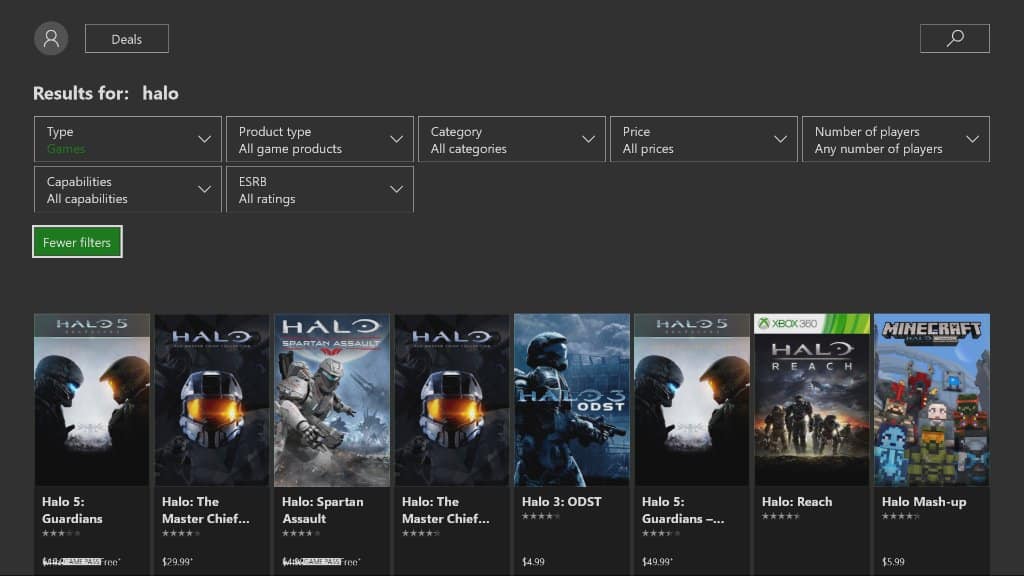
Some big quality of life changes came to Xbox users this week. New filtering options landed on the Xbox Store, letting users start to filter out products by price, star rating, and plenty of other little things that just weren’t there before. The change comes just in time for the Holiday season, and should help people comb through the store to try and find the perfect gift for any gamers in their life.

Microsoft launches the Xbox Year in Review

Microsoft has launched the Xbox Year in Review, an exercise in data tracking for gamers who want to see what they’ve done over 2017. All you need to do is log in to your Xbox account, and the Year in Review will show off how much Gamerscore you’ve earned over the year, what your most played games were, and more. It’s a fun thing to look at if you’re an Xbox fan who’s got a love for data, and the sort of thing that might make you reconsider how many video games you play.

343 Industries partners with MLG

343 Industries, the developers of Halo since Bungie dropped the franchise several years ago, has announced a partnership with Major League Gaming that will help define the future of Halo eSports. The nature of the partnership is so far limited to the Halo Championship Series being hosted through MLG’s “GameBattles” network. With MLG getting its start with Halo: Combat Evolved back in the day, 343 felt that the partnership was a natural progression for the game’s competitive scene.

YouTube on Xbox One gets 4K support

YouTube on Xbox One has been updated to give the app 4K support. The update is only applicable to Xbox One S and Xbox One X consoles, with those being the only consoles in the family capable of 4K output in the first place. While the selection of 4K content on YouTube is currently limited, the 4K support should help future-proof the YouTube app for when 4K becomes more commonplace.

Thanks for joining us. To keep up to date with all the latest Xbox news, keep a close eye on our Xbox One tag.

Emotet banking Trojan: How to protect your Windows PC

Emotet is a banking Trojan that has been around for some time. Recent reports suggests that the malware became even more vicious and can elude most popular antivirus tools.

Security researchers from Bromium Lab warned that its creators repacked the malware’s code into a unique executable for each and every potential victim. In this manner, it avoids any-and-all signature-based detection.

The good news is that there are still some things that you can do to protect your Windows PC against this virus and avoid infection.

Repacked dropped executables on this scale are unprecedented, and this is why application isolation and control is so important. Protect before you detect is the only secure approach.

Although we have seen this with polymorphic documents, repacked dropped executables on this scale are unprecedented. This is why detect-to-protect security approaches won’t work. […] The scale we see on these samples suggests they may be more than just a few steps ahead.

Follow the steps listed below and you should be able to block the Trojan from getting into your computer.

Block banking Trojan on Windows PCS in 2018

1. Install a reliable antivirus

While free antivirus tools come in handy, they only offer limited features. As a result, they are not powerful enough to protect your device in case of a massive malware attack.

On the other hand, paid antivirus software brings a series of additional features to the table that enhances your computer’s security level.

The good news is that you don’t need to shell out hundreds of dollars to get your hands on a really good antivirus.

You can get one for prices ranging from $30.00 to $50.00, or less than $100.00.

When it comes to good antivirus software, we recommend installing tools such as TotalAV, Bitdefender, or Panda.

For more information on the best antivirus to use in 2018, check out the articles below:

2. Use Virtual Machines

A virtual machine emulates your PC providing the same functionality. One of the advantages of using a virtual machine consists of blocking malware and other threats in a closed environment where they can’t escape from.

In this manner, they can’t actually affect your computer.

So, for example, opening malicious email attachments on a virtual machine allows you to isolate the threat and prevent infection.

For more information on virtual machines, check out the following articles:

  • Application Guard lets Microsoft Edge work in virtual machines

3. Avoid visiting fishy websites

block banking virus

Prevention is better than cure. Avoid visiting suspicious websites and don’t download anything from them. Also, keep in mind that free software often come packed with adware and other malware.

Try to download software only from reliable sources or from the developer’s website as much as possible.

4. Don’t open emails or email attachments that you didn’t request

Hackers are resourceful people, and come up with innovative ways to infect your computer. Nevertheless, they often resort to old-fashion methods to install malicious code on your device, including email attachments. Simply ignore these.

5. Beware of public Wi-Fi networks

Connect to public Wi-Fi networks only when absolutely necessary. Since so many people connect to these networks every day, hackers take advantage of that to spread malware.

For more tips on how to stay safe on public Wi-Fi, check out the article below:

6. Install the latest Windows updates

Microsoft regularly rolls out system updates to add new OS features and improvements, and enhance Windows security. The best solution is to set updates on Automatic Mode to make sure that you install them as soon as they’re available.

Keep in mind that prevention is always better than cure. Follow the steps listed above and you should be able to keep banking Trojans at bay.

Get the Xbox One X and PUBG together with this special holiday promotion

After weeks of teasing, PUBG finally launched on the Xbox Preview Program this week. The battle royale game is definitely one of the most hyped games of 2017, and you can expect Microsoft to continue beating the PUBG drum during the rest of the holiday season.

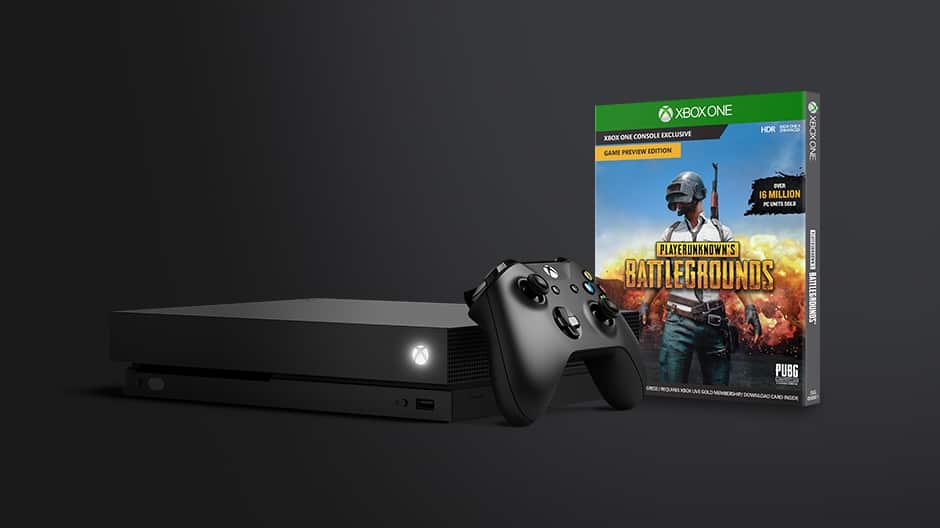
Today, the company announced a special holiday promotion that will grant everyone who purchases an Xbox One X a free digital copy of PUBG ($29.99 value). The limited time offer will be available in select regions starting Sunday, December 17 through December 31.

“Xbox fan excitement for the launch has been incredible, with more than 1 million players on Xbox One in its first 48 hours alone,” the Xbox team said in a blog post today (a blog post that also appears on news.microsoft.com, which is quite exceptional for Xbox news). It’s true that PUBG was one the most exciting games to launch on the Xbox One this year, and Microsoft is pretty much giving the game the first-party treatment right now.

While we have a yet to see some official Xbox One X bundles, it’s interesting to see that Microsoft has chosen PUBG (which is still in preview) to promote the world’s most powerful console. If the game supports 4K graphics and HDR on the Xbox One X, it’s still pretty rough around the edges: according to our colleagues over at Digital Foundry, the game struggles to consistently reach 30FPS on the Xbox One X, and it’s unsurprisingly not better on the standard Xbox One. PUBG is definitely a fun game, but it’s clearly not the best title to showcase the 6 teraflops of computing power available in Microsoft’s new console.

Do you think giving away PUBG with Xbox One X purchases will help Microsoft ship more consoles during the holidays? Sound off in the comments below.

Windows Insider program to “close the loop” on feedback deemed a success, to be expanded

A couple of months ago, the Windows Insider team acknowledged that it didn’t have a good system in place to let Insiders know when their reported bugs have been fixed. To address this situation, the team came up with three different solutions last month: SIUFs (System Initiated User Feedback, which are pop up notifications telling you that your feedback has been addressed), email notifications and Feedback Hub notifications.

A SIUF notification.

At the time the Head of the Windows Insider Program Dona Sarkar explained that only Insiders who submitted the original feedback would see SIUF notifications, but the team later expanded the pool to Insiders who also upvoted the feedback in question. Today, Dona Sarkar shared an update on this initiative to close the loop on feedback, saying that the team sent 11K SIUFs to Windows Insiders last month. The experiment seems to be a success as over 50% of Windows Insiders responded to these specific pop up notifications. “Getting a few is a good sign that you are filing/upvoting impactful feedback,” added Sarkar in a separate tweet.

Of course, the Windows Insider team will use your feedback to refine this system over the coming weeks and months, but in the meantime, Dona Sarkar is looking for naming ideas for the Feedback toast notifications. Our own Kip Kniskern offered a suggestion, and we’re sure Windows Insiders can find something better than “Close the Loop.”

Did you notice these SUIF notifications after filing feedback recently? If you saw one of these and didn’t react to it, you should receive the same message from the SUIF as an email to the MSA you used to signed up for the Windows Insider Program. Anyway, as Dona Sarkar said, the team is looking to expand the initiative in January so expect to see more of these notifications going forward.

New Xbox Year in Review tool lets you check out your gamer achievements this year

As 2017 is coming to a close, the Xbox team has launched a neat Xbox Year In Review tool which as its name suggests, gives you an overview of all your gamer achievements this year. The personal stats you can check out include how much Gamerscore points you earned this year, your most played games and genres, hours spent playing and how your stats compare to other players in your region. Proud gamers can even share their stats on Facebook and Twitter, which is pretty cool.

Here is a partial look at the data from someone who probably spent way too much time playing games this year:

Unfortunately, the data stops at October 31 so it’s not a complete overview of your gaming activity this year. Still, it’s really great to have this information and we wish Microsoft would make Xbox Year in Review available all the time with frequently updated information. Feel free to share your own gaming stats in the comments below!

Xbox One’s digital storefront gets a cool new filter feature

Microsoft recently released an update to the Microsoft Store on Xbox One, adding a cool new feature to make it easier to find what you’re looking for. Gamers can now filter titles in the store by price, star rating, capabilities, and more.

This same update was tested with Xbox Insiders back in November, but it’s now rolling out to Xbox users everywhere. It definitely is a small feature but can still help those gamers who don’t have the patience to search through the Microsoft Store on Xbox manually. For instance, you can now specifically search the store on Xbox for titles with price over $20 with 4 stars.

There’s definitely more room for improvements in the Microsoft Store on Xbox, but this is one small step forward. How often do you search for titles in the Xbox Store? Do you find it useful or rather slow? Let us know your thoughts in the comments below.

Fix: ”Trust this device” error in Windows 10

Even though Windows 10 resembles Windows 8 in some matters, there are a lot of changes that confuse users after the OS upgrade. In a sea of differences, one that’s quite important is a complete abandonment of  ”Trusted PC” option that was present in Windows 8. Users can run into a prompt questioning whether you trust your current device, but that’s only remotely similar to a ”Trusted PC” option from Windows 8. The bad thing about this? They are unable to confirm the account with the two-step verification.

In order to address this, we prepared a few possible solutions for this problem, hoping that at least one will help you resolve the problem at hand. If you’re stuck with the confirmation or the confirmation window suddenly disappears, this should help you address it.

What’s ”Trust this device” in Windows 10

  1. Try signing in again
  2. Try an alternative verification
  3. Use an alternative account

1: Try signing in again

Let’s try and explain what’s exactly happening with your Windows 10 PC when, immediately after the boot sequence, the ”Trust this device”  prompt occurs. Some would say that this change, in comparison to Windows 8, is a bad move. We can agree to some extent.

Firstly, even though it’s presented as a security improvement, it’s quite hard to understand what’s exactly about. Is there something wrong caused by the latest system changes? Or you’re basically forced to log in with your credentials, even if you don’t want? Maybe both.

On the other hand, this is a valid security measure,  a great way to protect your most important data: passwords, personal credentials and, credit card numbers. Also, it lets you sync various settings and preferences with other devices, just by using single Microsoft account.

It doesn’t refer only to Windows-powered PC’s, but to all devices. So, after you sign in, you’ll be able to make an Android or iOS device trusted, as well. Also, it doesn’t refer to plugged devices, so don’t mix it up with something else.

With that said, let’s move to a problem resolution. The first obvious step is to try to sign in multiple times. Here’s how to do it in a few simple steps:

  1. Press Windows key + I to open Settings.
  2. Open Account.trust this device windows 10
  3. Highlight Your info in the left pane.
  4. Click on Sign in with a local account instead.
  5. Enter Password and your PC will log off.
  6. Now, get back to Settings > Accounts.
  7. Click on Sign with a Microsoft account instead.trust this device windows 10
  8. Enter your Microsoft Account e-mail and password and sign-in.

If that doesn’t help, continue to the steps below.

2: Try an alternative verification

It’s not unusual for Microsoft accounts to mix things up and give you a headache. There are multiple ways to verify an account and make a device trusted. You can use an alternative e-mail address. They send you auto-generated code, you enter it in the dialog box and that’s it. Alternative verification ways are through the phone (call or SMS) and a verification app.

So, we reckon that, if one verification system fails, maybe the others will work in your favor. Here’s how to change your Microsoft accounts verification procedure from one to secondary authentication method:

  1. Navigate to Microsoft Security basics page.trust this device windows 10
  2. Under the ”Update your security info” section, click Update info.
  3. Here, you can add additional info like an alternative phone number or e-mail address. It’s advised to always have at least 3 authentication methods, including the password.trust this device windows 10
  4. Add an alternative e-mail or phone number.
  5. Log into an alternative e-mail account or wait for the SMS with the confirmation code.
  6. Enter the code and confirm changes.
  7. Restart your PC.
  8. When prompted with ”Trust this device” message, press Windows key + I.
  9. Open Accounts.trust this device windows 10
  10. Select Your info from the left pane.
  11. Click on ”Sign with a Microsoft account instead’‘.trust this device windows 10
  12. In the new window, enter your e-mail address related to the Microsoft Account and press Next.
  13. Enter the e-mail password and click Sign in.

Finally, what’s important is to use an alternative authentication method when asked. If you failed with the secondary e-mail confirmation, try with the phone. That should resolve your issue.

That should do it. In case you have questions or suggestions, feel free to post them in the comments section below.

RELATED STORIES YOU SHOULD CHECK OUT:

The new Skype Interviews Scheduler aims to help recruiters simplify the interview process

Microsoft has a new integrated scheduling app that aims to streamline the interview scheduling process.

Scheduling job interviews with multiple interviewers and candidates is a complicated and time-consuming task for any recruiter and the Skype Interviews Scheduler helps reduce the number of steps required to send an invite.

Built on the Skype Interviews platform, the Scheduler is easy to use. Launched earlier this year, Skype Interviews platform allows in-browser group video call and live code execution with syntax highlighting.

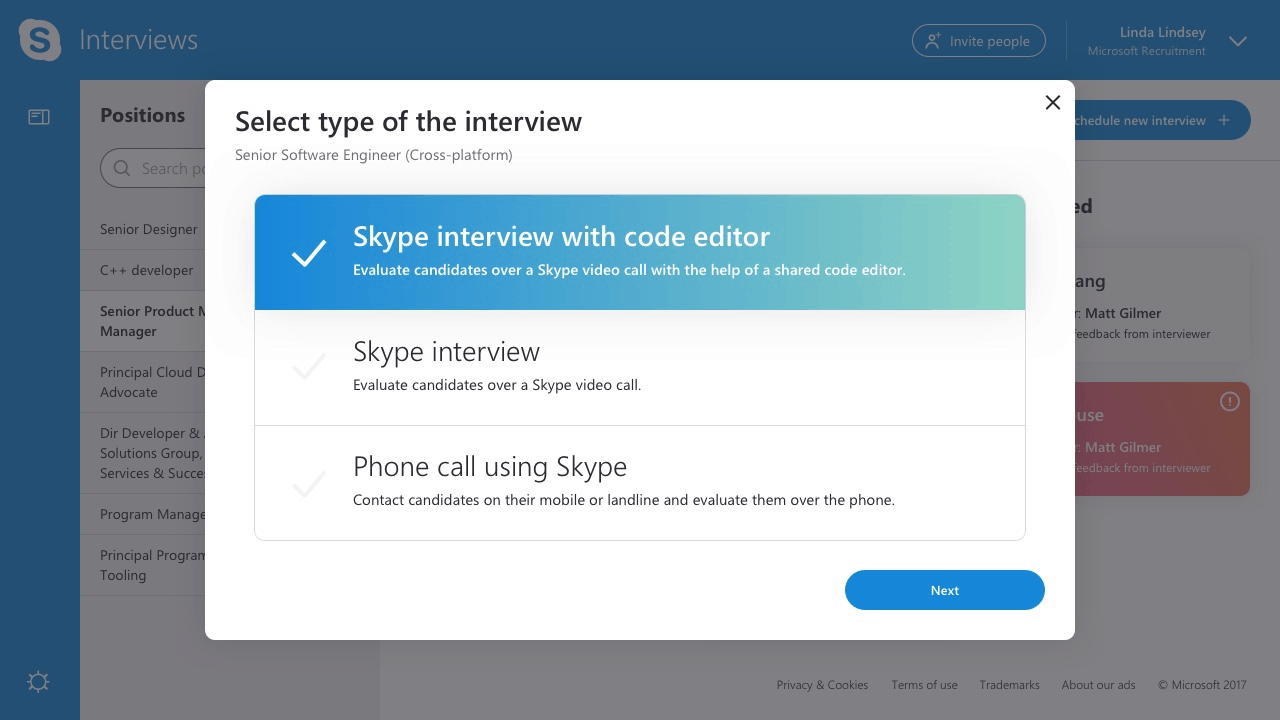
All you need to do is to sign in to Scheduler, click Schedule new interview, and then select the type of interview that is being scheduled. Once you input the candidate and interviewer’s name and email address, you can either enter an agreed-upon time and date for the interview, or select the Smart Scheduler—which will arrange the interviewer and candidate’s interview.

Once a timeslot is fixed, each participant is automatically sent a calendar invite, which they can click to join the interview directly from the email without the need for any download or Skype ID.

Recruiters can use the Skype Interviews dashboard to see what times candidates have selected and make further amendments to interviews if needed.

Microsoft is also looking for platform partners who want to integrate the Skype Interviews Scheduler functionality within their platform to make it part of their recruitment workflow via APIs.

Head to the Skype Interviews website to learn more and try the Skype Interviews Scheduler.

How to become a Pirate Legend in Sea of Thieves: progression details released

Xbox Wire released details on how to level up to become a Pirate Legend in Sea of Thieves on Xbox One. The Sea of Thieves team answered questions from the community in a livestream on Mixer. In the Mixer livestream, there were helpful hints in what players need to do to be a legendary pirate in Sea of Thieves. Here is the Mixer livestream in case you missed it.

Many Xbox players wanted to know how the game progressions works in Sea of Thieves and what players need to do to become a Pirate Legend. The Sea of Thieves team want to engage their community by fielding their questions and listening to their feedback on what they would like to see in Sea of Thieves.

The main goal for the Sea of Thieves team was to create an unparalelled multiplayer experience. This goal is what fuels the Sea of Thieves game progression system, including all the adventures and quests in the Xbox One game. For those interested in becoming a Pirate Legend, here’s what you need to do:

“Becoming a Pirate Legend is the core objective of Sea of Thieves, and players can build their legend by accruing reputation for their exploits and adventures. Reputation is acquired from a set of trading companies, rewarding players for advancing their interests on the high seas. These trading companies offer quests for players to pursue, offering successful brigands reputation and gold as well as improved titles, ranks and cosmetic items used to represent themselves to friends and foes. As players progress within a trading company, they earn access to more varied and unique quests that promise unforgettable adventures and rewards. Once players build their reputation with each trading company, they will unlock their status as a Pirate Legend.”

Additionally, sharing your quests is encouraged in Sea of Thieves. Sea of Thieves was created with an epic multiplayer in mind, and that extends to the game’s progression system. Sea of Thieves players can also share their quests with their friends on Xbox Live, regardless of their rank and reputation.

There are more surprises on the horizon for Sea of Thieves for Xbox One. Look for Sea of Thieves on Xbox One on March 20, 2018. Stay tuned to OnMSFT.com for future updates.
Pre-order Sea of Thieves for Xbox One

Sea of Thieves
Sea of Thieves
Developer:
Microsoft Studios
Price:
Free

Windows 10 Creators Update wrecks Wi-Fi driver [FIX]

The release of the much talked about Creators Update has made many Windows 10 fans happy. The Creators Update improves many areas of the OS, bringing new features to the table, continuing to trend set by the Anniversary Edition and making the platform a more refined and efficient environment.

Unfortunately, the experience hasn’t been all that smooth for many users because certain features won’t work anymore. The situation is bad enough that many users are considering going back to the previous OS build. There have been multiple problems surfacing, including that of a faulty Wi-Fi driver. A user on Microsoft’s online platform has declared that upon installing the Creators Update, his Wi-Fi driver failed to work and resetting it didn’t help at all.

Ran the hardware and devises troubleshooter… it couldn’t fix it.  Suggested reinstalling adapter driver but of course no internet access to do that.

Rebooted several times… didn’t wor. Ran the Network. Reset twice… didn’t work. Ran the Netsh Winsock Reset…. didn’t work. Any suggestions short of restoring Anniversary Edition? This WIFI driver worked perfectly before the upgrade.

According to this messageposted by Rick T_935 on Microsoft’s forum, getting rid of this problem isn’t as easy as it may first appear. The traditional solutions don’t seem to have any effect of the faulty driver.

How to fix Wi-Fi driver issues on Windows 10

Many people have chimed in to help Rick and each tried to add something new to the table in order to find a solution for the problem.

Try the following: Open the Device Manager and right-click the Intel wireless adapter > Uninstall > proceed with the uninstall and then restart the computer.

1. Update your Wi-Fi drivers manually

In the end, a solution has been found in installing the latest driver manually. The user auggy provided the details about the steps to follow to install the drivers manually and make the Wi-Fi connection fully functional again.

Version 19.50.1.5 appears to be the latest version of the driver for the AC 3165  so try reinstalling the driver. Download the driver (32-bit – assuming 32-bit installation of Windows) from the following link on a computer that has internet access:

https://downloadcenter.intel.com/download/26653/Intel-PROSet-Wireless-Software-and-Drivers-for-Windows-10

Transfer the driver file to a USB flash drive and then plug the USB flash drive into the tablet and install the driver that is on the flash drive.

Update drivers automatically

Downloading drivers manually is a process that carries the risk of getting the wrong driver installed, which may lead to serious malfunctions. The safer and easier way to update drivers on a Windows computer is by using an automatic tool.

Driver updater automatically identifies each device on your computer and matches it with the latest driver versions from an extensive online database. Drivers can then be updated in batches or one at a time, without requiring the user to make any complex decisions in the process.


There you go, we hope that this solution fixed the problem for you. If the issue persists, continue the troubleshooting process using the solutions listed below.

2. Disable and re-enable your Wi-Fi connection

In order to fix Wi-Fi driver issues sometimes all you need to do is imply disable your connection and then enable it again. As simple as that.

    1. Open Network and Sharing Center > go to Change adapter settings.
    2. Locate your Wi-Fi connection, right click it and choose Disable.
      disable-network-connection
    3. Right click the same connection again and choose Enable.

3. Check DNI_DNE in Command Prompt

If your Wi-Fi driver fails to work after upgrade, run the following commands:

    1. Open Command Prompt as administrator
    2. When Command Prompt starts, type the following and press Enter to run it:
      • reg delete HKCRCLSID{988248f3-a1ad-49bf-9170-676cbbc36ba3} /va /f
        command-prompt-1
    3. Now enter the following line and press Enter to run it:
      • netcfg -v -u dni_dne
    4. Close Command Prompt and restart your computer.

4. Reset TCP/IP

    1. Launch Command Prompt (Admin)
    2. Enter the following lines and hit Enter after each one
      • netsh int ip reset
      • netsh int tcp set heuristics disabled
      • netsh int tcp set global autotuninglevel=disabled
      • netsh int tcp set global rss=enabled
    3. Restart your computer and Wi-Fi is working now.

If you’ve experienced other Wi-Fi issues after upgrading to Windows 10 Creators Update, use the comment section below to tell us more about your experience.

RELATED STORIES TO CHECK OUT:

Search for text in images coming to OneDrive and Sharepoint in Office 365

Yesterday, Microsoft announced some exciting AI-powered features to be added to Office 365 this month. By the end of December, the company will roll out Intelligent Search to OneDrive and Sharepoint for Office 365 commercial subscribers, which will make it possible to search for words in your images stored in the cloud.

“Using computer vision technology, when you upload the image, the location data (if available) from a photograph (such as Oslo, Norway), and the identification and extraction of text will happen automatically and become searchable,” the company explained in a blog post yesterday. In the image below, you can see how searching for the word “coffee” in Sharepoint or OneDrive can surface a relevant receipt that has been previously captured and uploaded.

Microsoft says that this new intelligent search capabilities will work with 21 different image formats, but English is currently the only supported language for text identification. “In the future, we’ll automatically look at the language set on the SharePoint site that the image was uploaded to and translate the type into that language. In the case of OneDrive, we’ll translate it to the language you have set in your preferences,” the company explained.

Music section starts to disappear from the Windows 10 Microsoft Store

A couple of weeks ago, Microsoft announced two sad news for music fans: not only will the company discontinue its Groove Music Pass service at the end of the year, but it will also stop selling digital music in the Microsoft Store. As noted by MSPoweruser today, the version 11712.1000.109.0 of the Microsoft Store app, now available to download for Fast Ring Insiders has already removed the music section from the store.

The updated Microsoft Store app (right) has removed the Music section and brought back transparency effects on mobile.

On Windows 10 Mobile, this new version of the Microsoft Store app also brings back the sidebar transparency effects that recently disappeared from the mobile app. For now, music buying is still available from the web as well as the non-Insider version of the Microsoft Store app. However, it if you previously bought music from the company’s digital distribution platform, you need to make sure to download it by December 31 otherwise you’ll definitely lose access to it.

Are you disappointed by Microsoft’s decision to stop selling music on its Store, and do you fear Movies & TV and Books could be next on the chopping block? Let us know below.

Windows 10 KB4053578 fixes time zone issues, and more

It’s time for December Patch Tuesday. During this month’s Patch Tuesday, Microsoft released the new cumulative update KB4053578 for Windows 10 version 1511. The new update changes the OS build number to 10586.1295.

Since this is a cumulative update, there are no new Windows features to be excited about. The update just fixes some system issues and bugs caused by some previous updates. Perhaps the biggest highlight of the update is a fix time zone info issues, that some users reported in the past.

Once again, since this is a cumulative upadte, you’ll also get all the bug fixes and system improvements featured in previous cumulative updates that you missed. So, by installing this release, you’ll get your computer fully up to date.

Here’s the complete changelog of cumulative update KB4053578 for Windows 10 version 1511:

  • Addresses additional issues with updated time zone information.

  • Addresses issue that affected some Epson SIDM (Dot Matrix) and TM (POS) printers, which were failing to print on x86-based and x64-based systems. This issue affects KB4048952.

  • Security updates to the Microsoft Scripting Engine, Microsoft Edge, and Windows Server.

Along with KB4053578 for Windows 10 v1511, Microsoft also released cumulative updates for all supported versions of Windows 10, including: cumulative update KB4054517 for Windows 10 v1705 (Fall Creators Update), cumulative KB4053580 for Windows 10 v1703, and cumulative update KB4053579 for Windows 10 version 1607.

For more info about cumulative update KB4053578, and all other updates released this Patch Tuesady, visit Microsoft’s official Update History page.

To download Windows 10 cumulative update KB4053578, simply go to Settings > Updates & Security, and check for updates. Your computer will download and install the update automatically. Or you can download and install the update manually from Microsoft Update Catalog.

Have you installed Windows 10 cumulative update KB4053578 yet? Are there any issues and problems? Feel free to let us know in the comments down below.