Microsoft to offer hands-on interactive sessions for Microsoft Teams, sign up now

Microsoft today announced that the company will be offering hands-on interactive sessions for Microsoft Teams, Windows 10, and Office 365. The sessions are a way for the technology giant to help businesses and firms provide agility across the full span of a workday and use technology that will allow for “transition from email to collaboration to project work and back again with ease.”

The sessions will be run in small groups, and begins with an online business roundtable, discussing the biggest business challenges with a trained facilitator, and then later transitions into a live environment in the cloud.  Those who participate will receive a link to connect their own devices to a remote desktop loaded with our latest technology, so they can experience first-hand how Microsoft tools can solve challenges.  Topics covered include the following:

  • Explore how Microsoft Teams helps you collaborate with your coworkers in different locations and time zones.
  • Discover how you can keep your information more secure without inhibiting your workflow.
  • Learn how to visualize and analyze complex data, quickly zeroing in on the insights you need.
  • See how multiple team members can access, edit and review documents simultaneously.
  • Gain skills that will save you time and simplify your workflow immediately.

You can register for the free interactive session by clicking here, though it also worth noting that each session is limited to 12 participants. Those outside the US can also register and can click here to learn more.

This is the list of Kaspersky products with limited functionality with the Creators Update

If you rely on a third-party antivirus and you’re planning to upgrade to the Creators Update, don’t forget to check if there are any limitations when running it on the new OS. Since the Creators Update is not compatible with a series of hardware and software products, it may cause serious issues to computers. Kaspersky has already published a list of its security products with limitations on Windows 10 Creators Update.

While you can still run Kasperky’s security products with the Creators Update, a series of security features will be unavailable. Keep in mind that when you install Kaspersky Internet Security 2017 or Kaspersky Anti-Virus 2017 on the Creators Update, on first startup the programs will run the adaptation process. During this process, protection will be paused and only two tools will be functional: File Anti-Virus and Self-Defense of files and registry.

Kaspersky products operating with limitations on the Creators Update

Kaspersky Internet Security 2017

  • Self-Defense of the product UI and protection of the product’s processes at their startup.
  • System Watcher.
  • Detection and disinfection of malware in the system memory.
  • Protection against cryptolockers and ransomware.
  • In the Safe Money component, protection will not work for information in the clipboard, protection against screenshots will be disabled, and the Protected Browser process will not be protected against external attacks.
  • In the Application Control component, custom rules may not be applied to applications, categorization of tile applications in Windows, protection of Microsoft Edge.
  • Trusted Applications mode will work with limitations related to compatibility with Program Data Updater.
  • Protection against the attacks of the type Time-of-Check Time-of-Use (TOCTOU).

For more information and recommendations, check out Kaspersky’s Support page.

Kaspersky Anti-Virus 2017

  • Self-Defense of the product UI and protection of the product’s processes at their startup.
  • System Watcher.
  • Detection and disinfection of malware in the system memory.
  • Protection against cryptolockers and ransomware.
  • Protection against the attacks of the type Time-of-Check Time-of-Use (TOCTOU).

For more information and recommendations, check out Kaspersky’s Support page.

Kaspersky Endpoint Security 10 for Windows workstations

Kaspersky Endpoint Security 10 Service Pack 2

  • Windows Subsystem for Linux (WSL) is not supported.
  • Only upgrading from Windows 10, Windows 10 TH2 , and Windows 10 Anniversary Update (Redstone 1) is supported.
  • After upgrading to Creators Update (Redstone 2), the Firewall component is displayed in the Windows Security settings as disabled. It is displayed correctly upon the application restart.

Kaspersky Endpoint Security 10 Service Pack 1 Maintenance Release 3

  • The following management privileges in Activation Privilege Control are not available (the Application Control Rules tab → Rights):
    x86


    • Pausing other processes and threads
    • Injecting the code
  • x86/x64
    • Using other applications’ APIs
    • Installing hooks
    • Creating a service
    • Opening the service for reading
    • Opening the service for writing
    • Modifying the service configuration
    • Using the browser command line
    • The Device Guard mode is not supported.
    • Windows Subsystem for Linux (WSL) is not supported.
    • Full Disk Encryption (FDE) cannot be applied to the UEFI computers.

For more information and recommendations, check out Kaspersky’s Support page.

RELATED STORIES YOU NEED TO CHECK OUT:

Minecraft is releasing the Chinese Mythology Mash-Up Pack with new Pocket, Windows 10 update

Half a year ago, Minecraft on console received a the beautiful Chinese Mythology Mash-Up DLC with a new premade map and skins to enjoy. Today, Mojang has announced the same DLC is now available for Windows 10 and Pocket Edition versions.

In case you missed it before, the Chinese Mythology Mash-Up Pack has an array of Eastern-inspired content. Including 26 skins, a resource pack (music included), and a new map to explore.

On top of the DLC, an update to 1.0.6 encompassing Minecraft Windows 10 and Pocket Editions (and by default, Gear VR) is rolling out. It’s not too exciting of a patch, adding a Worlds section to the in-game store. The first of which is the Redstone Mansion, a map pre-crafted by Mojang designed to show off new redstone features for Pocket Edition back in 2015.

It’s nice to see the map make a return in update 1.0.6. Likely this will make way to new tailored worlds being added in updates and DLC to buy in the future. Meanwhile, the crash for some Android devices has been fixed for Minecraft Pocket Edition users.

Of course, as with any other update, the full changelog of tweaks and bug fixes can be viewed on Minecraft.net.

Minecraft for Windows
Developer:
Microsoft Studios
Price:
Free

Rumor: Microsoft to hold an early May Spring event, focused on “Windows Cloud”

Now that the Windows 10 Creators Update is available, many are wondering what is next in the pipeline for the folks at Microsoft. While some rumors have shown that Microsoft may hold a hardware event sometime this Spring , Mary Jo Foley at ZDNet has just learned that Microsoft is reportedly set to send out invitations to a May press event focused on Windows 10 Cloud.

According to the report, the Spring event is codenamed “Bespin,” and is timed for early May.  While Microsoft has not commented on a Spring launch event, rumors indicate the company will not discuss a new Surace Book 2 at this event and instead focus on Windows Cloud, the leaked UWP and Windows Store apps only edition of Windows 10, which the company has not publicly acknowledged.  The rumors also show that Microsoft may indeed have a new Surface device to show off at the Bespin event.

Again, lots of rumors are floating, and Foley believes that while Surface Book 2  is in the pipeline, it won’t be ready for the event, especially since Microsoft is more focused on selling the Surface Book and Surface Book with Performance Base. Her sources also believe that the Surface Pro 5 launch could happen, but the device might be more “evolutionary than revolutionary” with just Kaby Lake chips and no USB C or new power ports. Given that Windows 10 will be coming to ARM devices, there is also the possibility that Microsoft may unveil a new Surface-branded (perhaps Surface 4?) hybrid device to show off at the Bespin event, possibly running Windows 10 Cloud.

Dead Space Ignition, Dragon Age Origins now in EA Access Vault on Xbox One

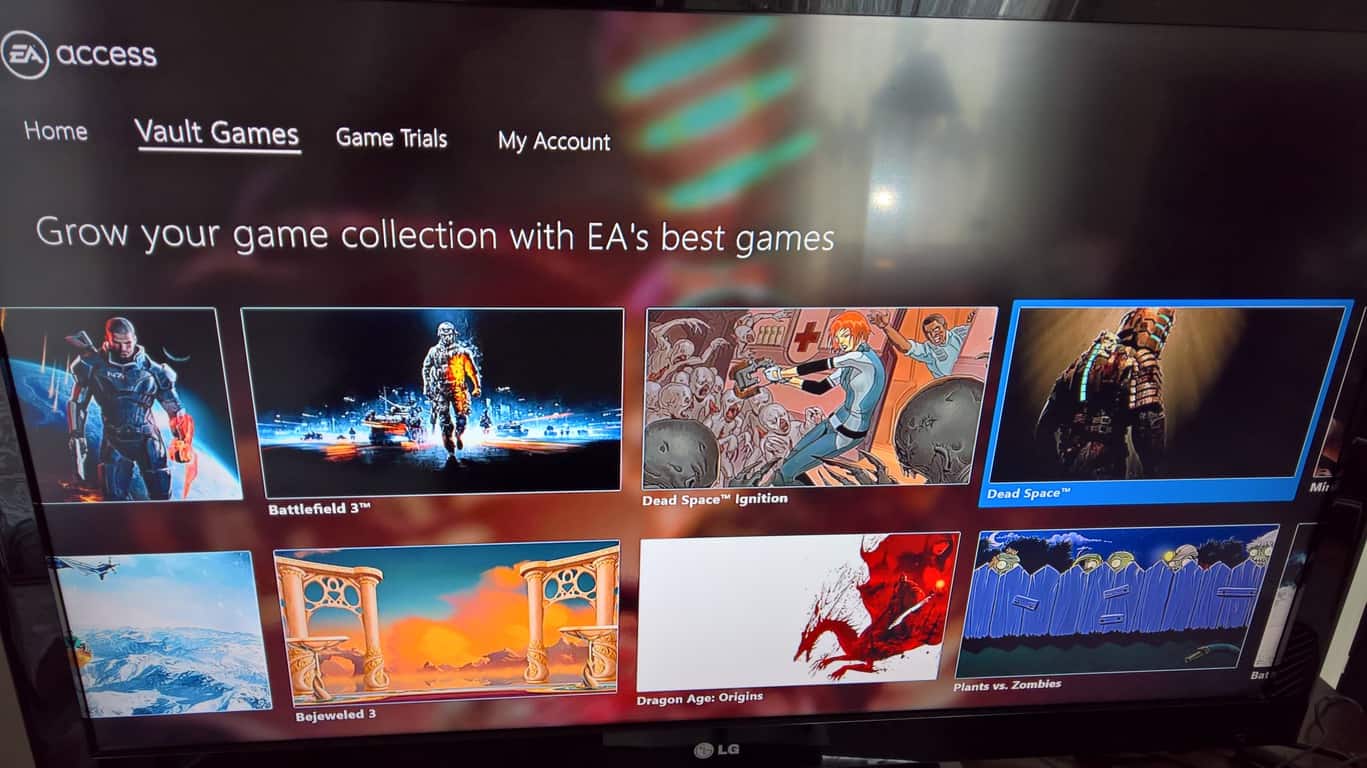
Dead Space Ignition and Dragon Age Origins are the latest games added to the EA Access Vault on Xbox Live. EA Access members can now download and play both of these games for free with their paid subscription.

EA Access is available for Xbox One and Xbox 360 gamers on Xbox Live for $4.99 a month or $29.99 a year. In addition to Dead Space Ignition and Dragon Age Origins, EA Access members can play many other EA titles including Skate 3, Battlefield 4, and Star Wars: Battlefront. EA Access members can also get 10% off any EA titles purchased on Xbox Live and get early access on new EA game titles.

If you are not yet an EA Access member, sign up here. Stay tuned for more game titles being added to the EA Access Vault in the coming months.

Xbox Project Scorpio to include FreeSync 2, HDMI 2.1 support for smoother gameplay

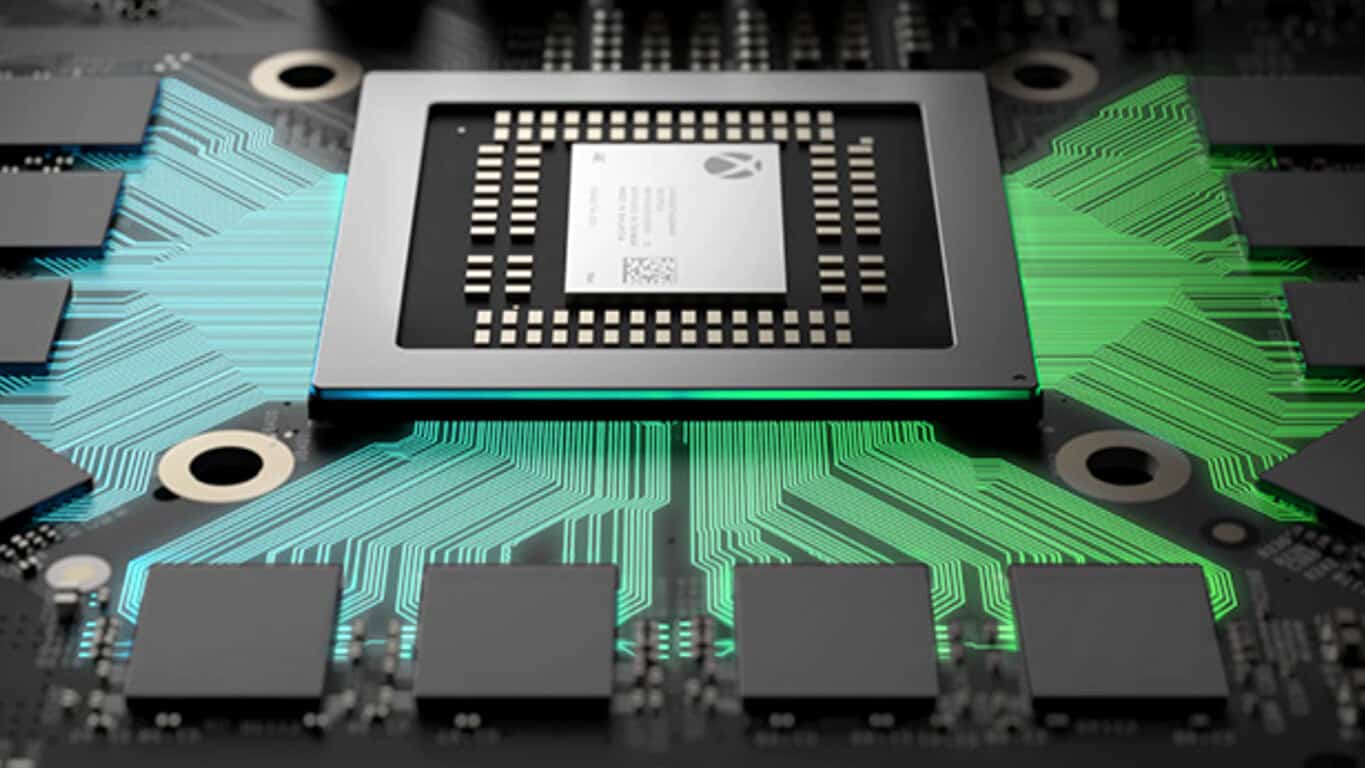
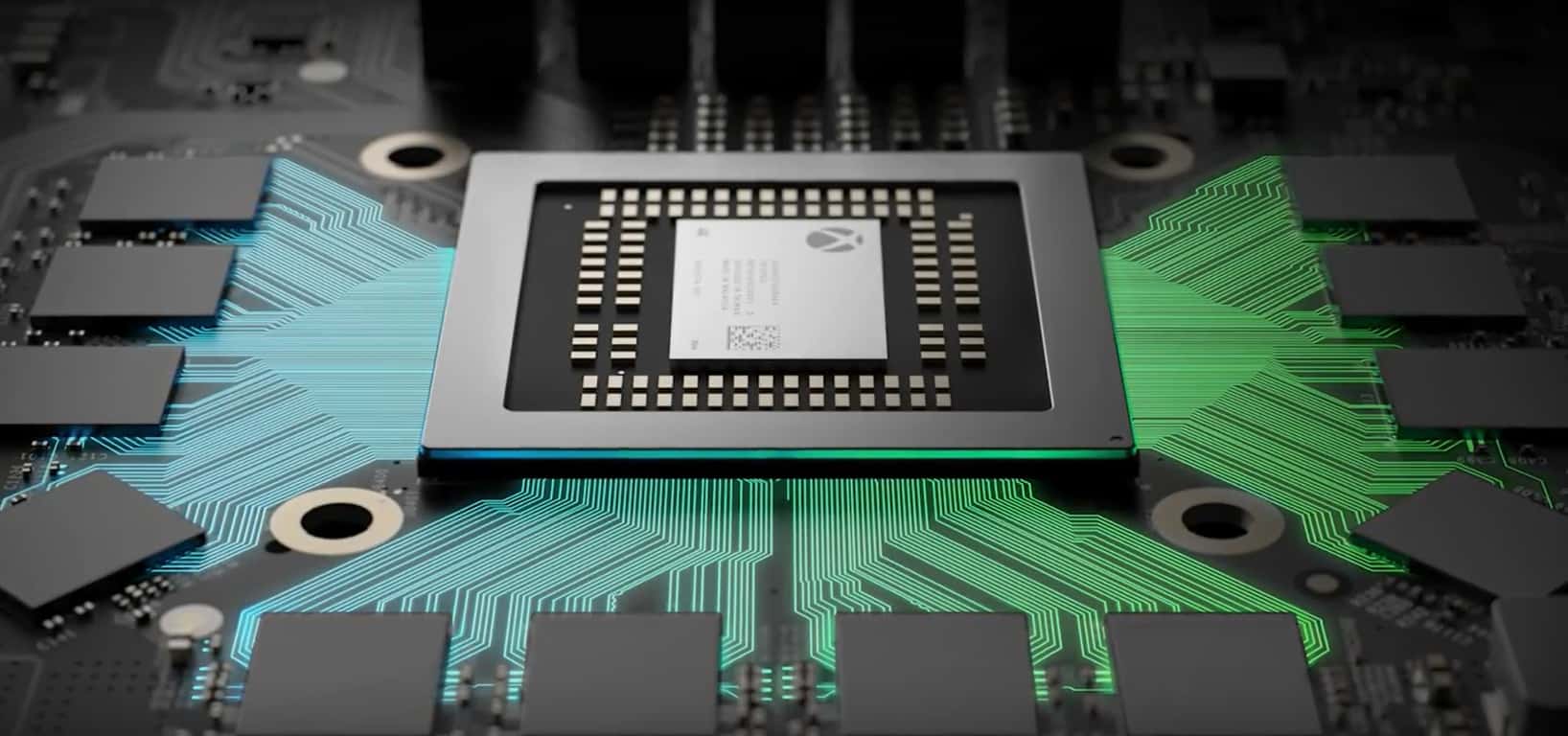
If you haven’t been living under a rock over the past few days, you may have heard that the final specs of Project Scorpio, Microsoft’s next Xbox console have finally been revealed by Eurogamer last week. Just like what Microsoft promised back at E3 2016, the new console will deliver 6 teraflops of computing power thanks to a CPU with eight custom x86 cores, a GPU featuring 40 customised compute units and 12GB of GDDR memory.

Project Scorpio will the most powerful gaming console in the market when it launches later this year, but there is one detail that had yet to unveiled, which is how the hardware will interact with displays: today, Eurogamer revealed that Project Scorpio will support AMD’s Freesync adaptative refresh technology as well as HDMI 2.1, the latest version of the audio/video interface that will be ratified in Q2 2017.

These new details definitely shows Microsoft’s forward-looking approach with Project Scorpio’s hardware. Adaptative synchronization technologies such as Nvidia’ G-Sync or AMD’s Freesync allow a GPU to control the display refresh rate, which reduces screen tearing and enable smooth, low-latency gameplay. “Microsoft has actually implemented the FreeSync 2 standard, meaning compatibility with HDR and full support across the range of potential frame-rates,” explained Eurogamer. “Paired with a supported screen, this will even eliminate tearing on games running with adaptive v-sync with frame-rates under 30fps, something not supported on most FreeSync 1 screens.”

According to the report, Freesync 2 support on Project Scorpio will benefit all Xbox games right out of the box:

What we can say is that Scorpio’s adaptive sync support is baked in at the system level – the developer doesn’t need to worry about it (though they could enable higher frame-rate caps for VRR users if the overhead is there). And on top of that, it works across all Xbox content that runs on the new console – Xbox 360 back-compat titles and Xbox One games.

Of course, you’ll have to use Project Scorpio with a TV set that supports Freesync 2 over HDMI 2.1 to see those benefits, but you can’t find living room displays sets that support both as of today. It remains to be seen if TV manufacturers will be quick to adopt the new HDMI spec plus AMD’s Adaptive refresh technology, but Microsoft is probably right to be an early adopter. The company put a great emphasis on HDR support for games and video with the Xbox One S last year, and we’re likely to hear more about Freesync and variable refresh rates in the coming months.

Microsoft closes the books on Windows Vista, ends support today

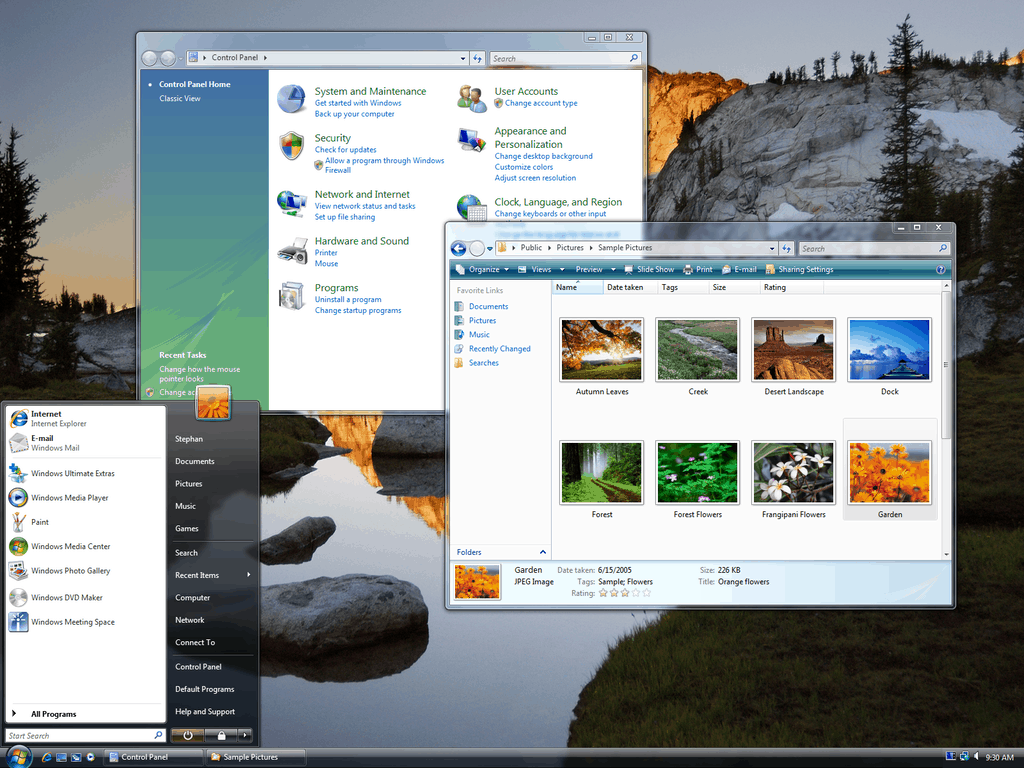
Today begins a significant moment for Microsoft, as it is the first day that the company is officially rolling out the Windows 10 Creators Update via Windows Update. The day, however, also marks another moment in Microsoft history, as Windows Vista has finally reached the end of its life.

As we warned before, Microsoft has officially ended support for Windows Vista, and those who are still using the OS are being urged to upgrade to a newer version of Windows, including Windows 7 Service Pack 1, Windows 8.1, or Windows 10.  End of support ultimately means that Windows Vista users will no longer receive any new security updates, non-security hotfixes, free or paid assisted support options, or online technical content updates from Microsoft.  Since there is no direct upgrade from Windows Vista to Windows 10, Windows Vista users are also urged to check if their PC meets the Windows 10 specs on this support page, and to move over files, folders, and more. If this is not an option, Vista users should also consider buying a new PC, since newer PCs are cheaper, and come with better hardware.

Install Vista? Or Delete Vista?

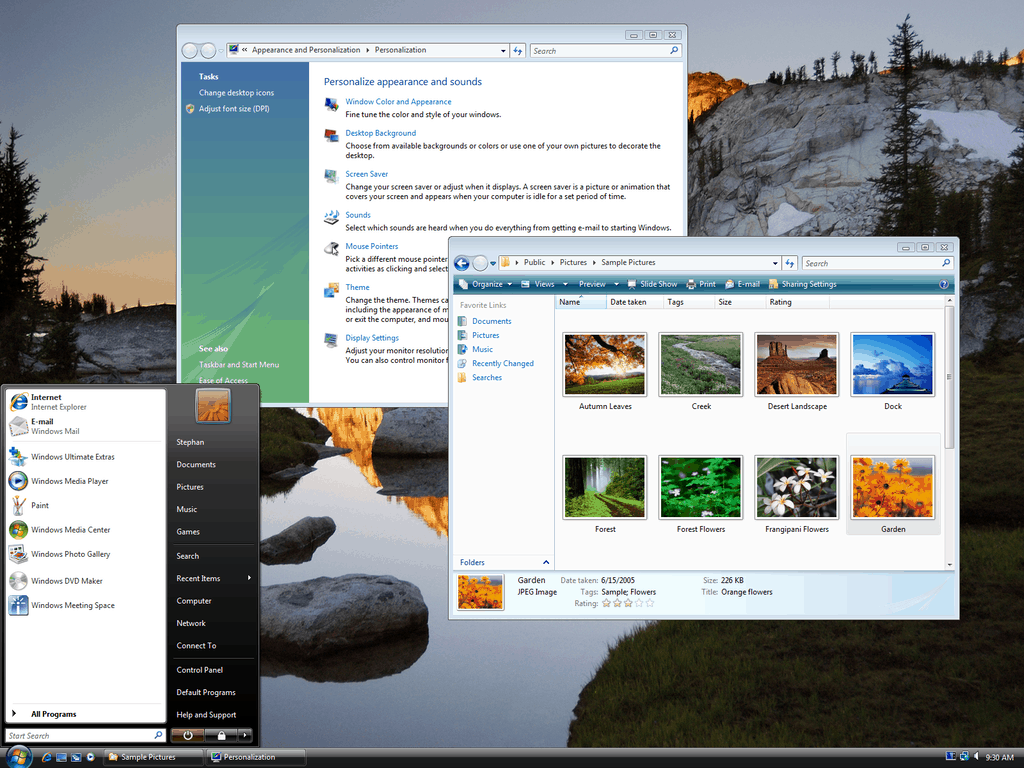
While Windows Vista (originally codenamed Longhorn) first launched in November of 2006, Microsoft has moved on to invest resources towards more recent technologies. As you may recall, Windows Vista did have its fair share of issues when compared to prior versions of Windows, especially the much beloved Windows XP.  For instance, users frequently faced glitches, crashes, and massive driver support problems. Many were also upset over DRM protections for Blu-ray discs, and the fact that Vista constantly bombarded users with User Account Control prompts. Of course, one can’t forget the fact that older hardware did not perform well with the Aero effects introduced in Vista.

Though Vista had a fair share of problems, elements of the operating system continue to be seen today. Windows Aero and Windows Aero Peek, first introduced in Vista, lives on in Windows 7 (and may be making a comeback of sorts with the upcoming Project Neon), and the search interface still lives on in Windows 10 today. Microsoft officially ended mainstream support for Windows Vista in April of 2012, Firefox has announced that it would drop support in September of 2017, and Ubisoft announced that its Uplay PC client is set to end support for Vista as well.

(Image via Vista team blog)

Get a free Surface Dock when you buy a Surface Pro 4 from US Microsoft Store

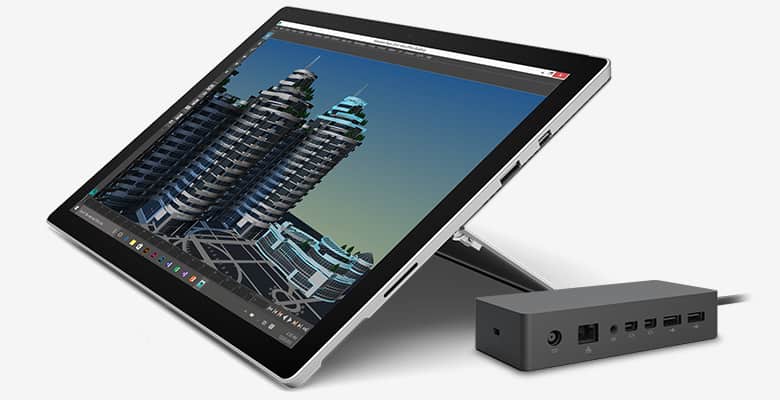
If you have yet to buy a Surface Pro 4, the US Microsoft Store is currently offering a free Surface Dock ($200 value) along the purchase of any model, including the $799 baseline configuration with an Intel Core m3 processor (via Neowin). Considering that the Surface Pro 4 only has a single USB 3.0 port plus a Mini DisplayPort, the Surface Dock is a really great value.

Surface Pro 4

For those unfamiliar, thanks to four USB 3.0 ports, Microsoft’s Surface Dock lets you connect much more peripherals to your Surface Pro 4 (it’s also compatible with the Surface Pro 3 and the Surface Book) and two Mini DisplayPorts. It also features one Gigabit Ethernet port for users that prefer wired Internet connections, as well as one audio out port. We invite you to check our detailed review to learn more about it.

The offer will be available through April 22 in Microsoft retail and online store in the US, whiles supplies last. Sound off in the comments if you would recommend the Surface Dock to Surface Pro 4 users.

Xbox Spring sale kicks off today with great discounts on more than 350 games

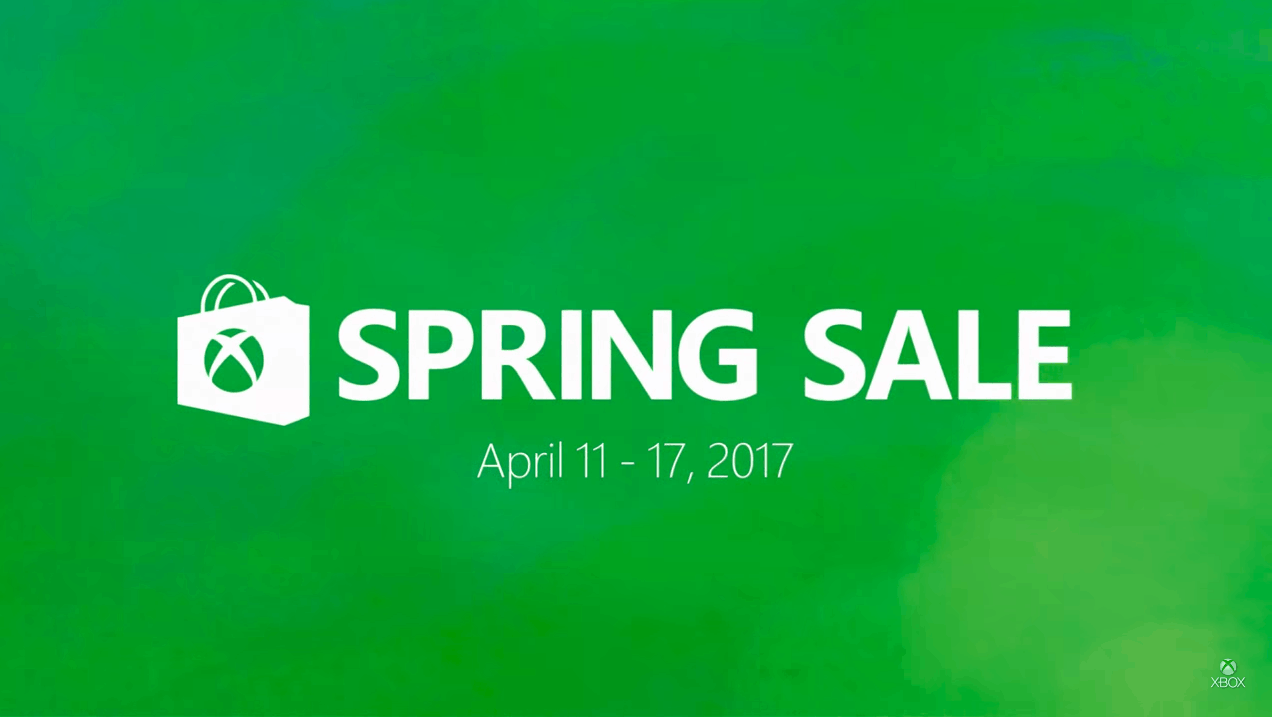
Microsoft has kicked off today its massive Xbox Spring Sale, and Xbox fans can now take advantage of up to 60% discounts on more than 350 Xbox One and Xbox 360 games. The sale will last through April 17, and if you want to save up to 10% more on all deals you can go Gold for $1 for the first month of membership during the Spring Sale.

Many great blockbuster games are being discounted on the Xbox One including Battlefield 1, Titanfall 2, The Witcher 3 and FIFA 17. If you’re interested in Xbox exclusives (and Xbox Play Anywhere titles), you can also take advantage of cool deals on Quantum Break, Forza Horizon 3, Gears of War 4, Recore and even the recently launched Halo Wars 2.

We’ve highlighted some of our favorite deals below, and as usual we invite you to check the full list of discounted games on Major Nelson’s blog post (please note prices may vary by region, and the ones listed below doesn’t take into account the additional discounts for Xbox Live Gold subscribers).

Xbox One Deals

  • Assassin’s Creed Syndicate ($25)
  • Battlefield 1 ($41.99)
  • BioShock: The Collection ($35.99)
  • Borderlands: The Handsome Collection ($24)
  • Call of Duty: Infinite Warfare – Launch Edition ($44.99)
  • Destiny – The Collection ($35.99)
  • Dishonored 2 ($35.99)
  • FIFA 17 ($30)
  • Fallout 4 ($24)
  • Forza Horizon 3 Standard Edition ($38.99)
  • Gears of War 4 ($29.99)
  • Grand Theft Auto V ($35.99)
  • Halo Wars 2: Standard Edition ($44.99)
  • Just Cause 3 ($19.80)
  • Ori and the Blind Forest: Definitive Edition ($11.99)
  • Quantum Break ($30)
  • ReCore ($19.99)
  • The Witcher 3: Wild Hunt – Complete Edition ($29.99)
  • Titanfall 2 ($35.99)

Xbox 360 Deals

  • Assassin’s Creed IV Black Flag ($9.99)
  • Call of Duty: Black Ops III – Bundle ($24.99)
  • Crackdown 2 ($9.99)
  • Destiny: The Taken King – Legendary Edition ($17.99)
  • Diablo III: Reapers of Souls – Ultimate Evil Edition ($23.99)
  • Fable Trilogy ($29.99)
  • Grand Theft Auto V ($23.99)
  • Red Dead Redemption ($17.99)
  • Tomb Raider ($6.59)
  • Watch Dogs ($9.99)
  • XCOM: Enemy Within ($15.99)

As a reminder, the US Microsoft Store is also offering $30 off select Xbox games as well as $15 off Xbox Design Lab controllers (online only). Let us know in the comments which games do you plan to purchase during the Xbox Spring Sale!

Parablu releases BluVault integration with OneDrive for Business

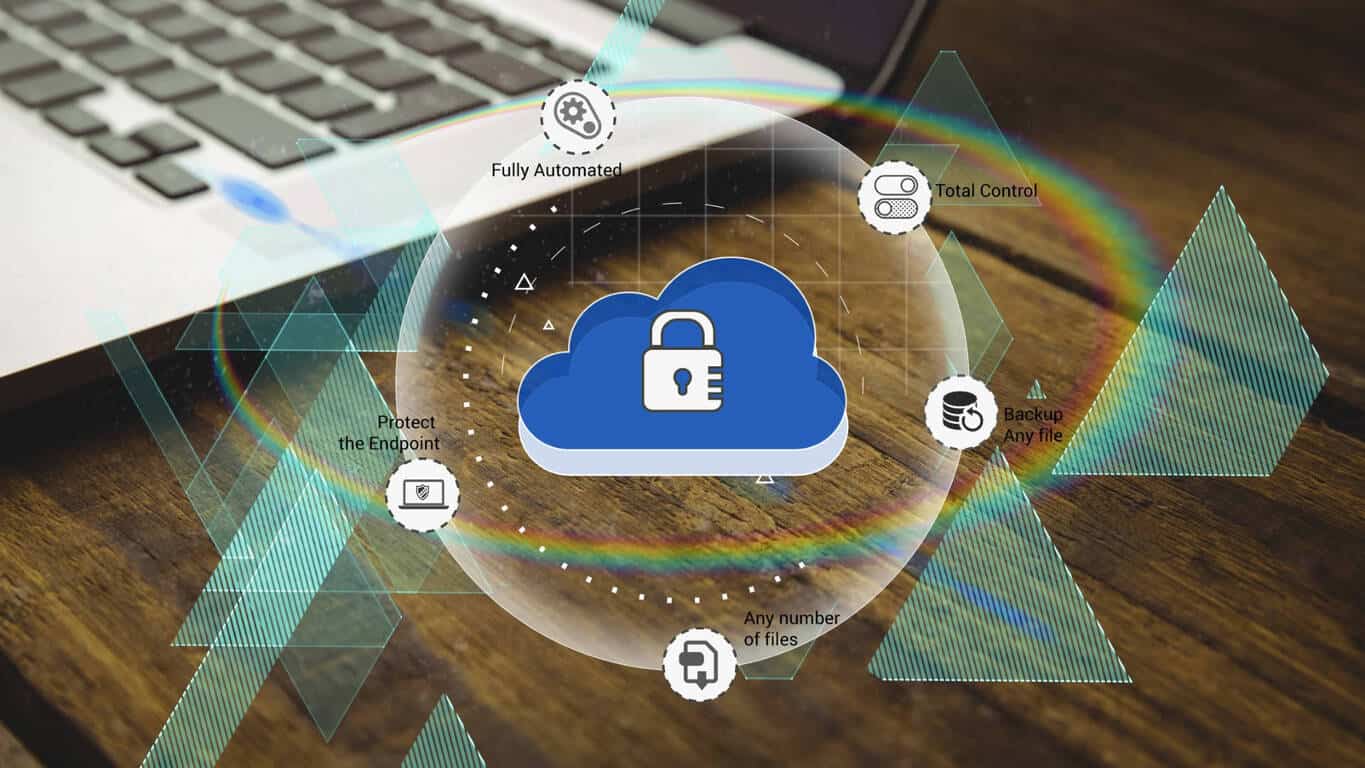
Parablu, a new-age cloud data protection and management solutions provider, has announced the availability of BluVault, a secure endpoint data backup solution for Microsoft OneDrive for Business users.

BluVault is a secure data backup solution in the cloud, designed as a ‘Cloud First’ solution, that helps defend against ransomware by creating reliable, versioned copies of files.

The solution enables enterprises to use OneDrive for Business as a backup target for the endpoints. BluVault automatically backs up user data from endpoints to their respective OneDrive for Business storage accounts. BluVault works in tandem with Parablu’s CASB solution – BluKrypt – which encrypts the data stream using the customer’s encryption keys before writing it to the OneDrive cloud.

“OneDrive for Business make it easy to manage your work files, share them and collaborate from any device. Parablu enriches OneDrive for Business with customizations for backup, security and scalability enhancing the cloud experience for customers.”

– Narendra Bhandari, General Manager – Developer Experience and Evangelism, Microsoft India

According to the company, the Parablu solution, which can be deployed on-premise or hosted in the Microsoft Azure cloud, can reduce endpoint backup costs by as much as 70% as compared to existing solutions. Existing MS Office 365 customers who already have a OneDrive subscription can use the solution without any extra storage cost.

Xbox Academy workshop sessions have begun in Sydney, Australia

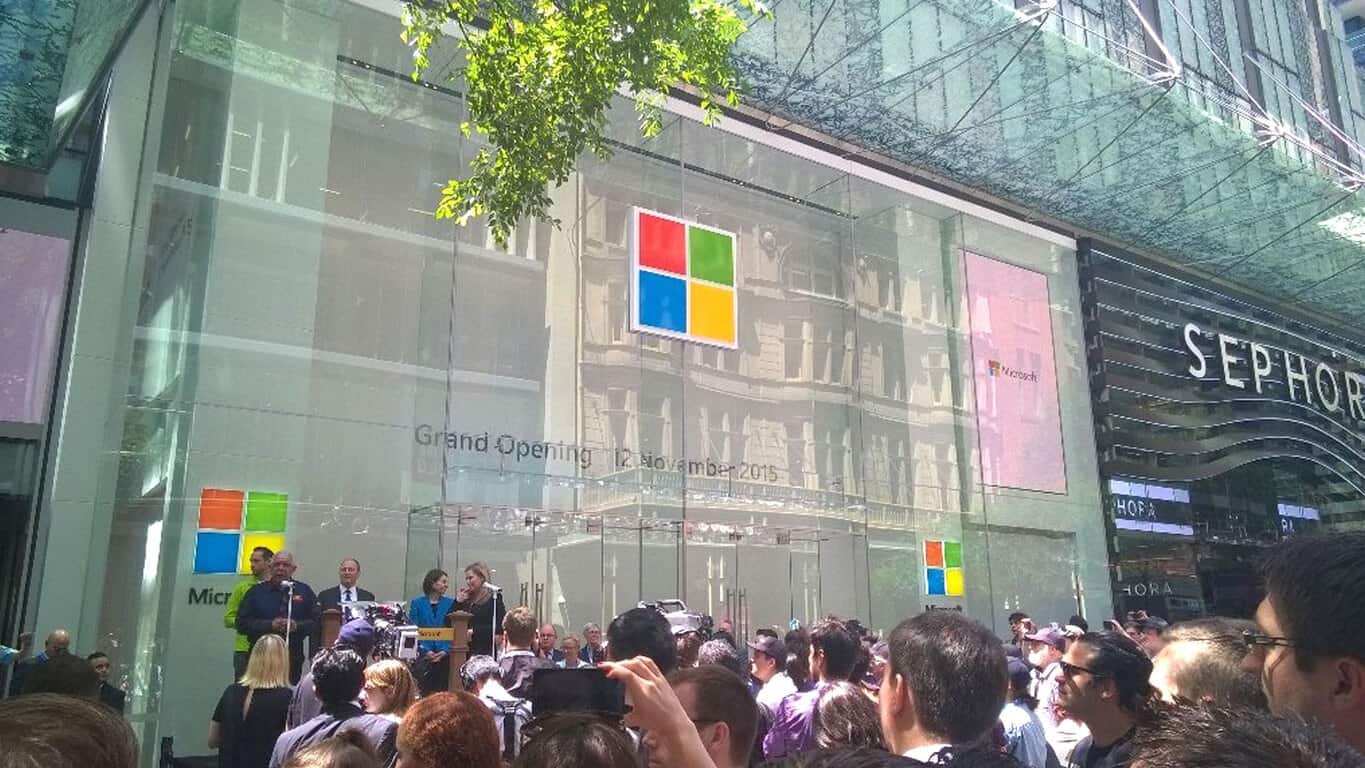
Microsoft’s official Xbox Academy Game Development Workshops began earlier this week in the flagship Microsoft Store in Sydney, Australia. The program is a collaboration between Microsoft and the Academy of Interactive Entertainment (AIE) and aims to introduce participants to the different stages of developing video games for the Xbox platform which now consists of both Xbox One consoles and Windows 10 devices.

Each workshop runs for around three hours and there are different time slots to choose from dates ranging from April 10th through to the 22nd. Participants will receive an AIE approved Certificate of Course Completion and an Xbox Academy gift pack. Registration is open on the official website.

Are you interested in these workshops or have you done one already? Let us know what you think in the comments below.

Microsoft wants to ensure Azure is the best place for containerized work

Microsoft just announced that it has signed an agreement to acquire Deis – a “Kubernetes container-orchestration specialist”. According to the company’s Executive Vice President of Cloud and Enterprise, Scott Guthrie, this acquisition is part of Microsoft’s plan to ensure Azure is the best place for containerized workload.

“At Microsoft, we’ve seen explosive growth in both interest and deployment of containerized workloads on Azure, and we’re committed to ensuring Azure is the best place to run them. To support this vision, we’re pleased to announce that Microsoft has signed an agreement to acquire Deis – a company that has been at the center of the container transformation,” said Guthrie.

Gabe Monroy, Chief Technology officer of Deis also expressed delight about the company’s new business direction and partnership with Microsoft. According to Monroy, the Deis team will continue to contribute to Workflow, Helm, and Steward, as well as keep deep connections with the Kubernetes community.

“From our new home at Microsoft you should expect nothing less. We will continue our contributions to Workflow, Helm, and Steward and look forward to maintaining our deep engagement with the Kubernetes community. The future of open source infrastructure at Microsoft is very bright.”

Kubernetes is an open-source container cluster management tool, that makes it easier to developers to work in this environment, by providing automated deployment, scaling and operations of application containers. Earlier this year, Microsoft integrated Kubernetes into its own Azure Container Service, so acquiring a company like Deis is a logical step.

The new partnership should also make it easier for users to work with Microsoft’s existing container offering, including Linux and Windows Server Containers, Hyper-V Containers and Azure Container Service.

RELATED STORIES YOU NEED TO CHECK OUT:

Global companies can now get access to the three Azure regions in India

In a blog post on the official Microsoft Azure blog, Tom Keane, General Manager, Microsoft Azure, has shared that global companies can now benefit from access to the three Azure regions in India.

The three Azure regions in West India (Mumbai), Central India (Pune), and South India (Chennai) were announced in September 2015 marking the beginning of Microsoft cloud service availability from local datacenters in India.

Initially intended to enable data residency for customers in India, especially to regulated industries, the local datacenters allowed data replication in multiple regions within India for backup and recovery, reduced network distance, lower latency, and the option of a private connection to the cloud.

I’m proud about these expansions, and to see Azure in India enabling our users to deploy dev, test and production workloads closest to their employees, partners and customers anywhere in the world.

However, now global companies can now gain the benefit of data replication across these locations, ensuring business continuity in both pure cloud and hybrid scenarios. Also, some additional services like Power BI and HDInsight, with full features across Windows and Linux, are now deployed in India regions.

My People feature is working in Windows 10 Redstone 3 build 16170, sorta

Last week, Microsoft released the first build of Redstone 3 into the Fast ring with a hidden gem. The My People app originally intended for the Windows 10 Creators Update was pushed back into the next big update, but Insiders are already toying with the app thanks to Build 16170.

My People, found by tinkering in the Registry, has already been found functional for the most part. But it takes some finagling to even see the app and probably for good reason. Once My People is accessed though, users are able to try the current range of features, some of which are maddening according to a post by Rafael Rivera over at  Thurrott.

The app is accessible a Desk Band through the Taskbar, the report says. It opens in a similar style to Windows 10 Mobile, the area showing a list of suggested people to pin to the taskbar lets you add contacts from your People, Skype Preview, and Mail apps.

Clicking on the contact pins the person to the taskbar (or desk band) and opens their details from the People app by default. However, it contains a “Switch app” button on the top left that lets you choose which app to view and interact with the person such as calling them with skype or sending a message via the Mail tile.

Each app seems to be available almost in full when it comes to interacting with MyPeople. The back button reacts as though it was solely the current People focused app that you are viewing as well as the More Options, letting you pin/unpin the person, edit the contact, and even launching the full app if MyPeople isn’t enough for you.

Perhaps one of the more useful features in the current version of My People is the content sharing through Edge and Photos. This will let users pick from priority contacts that have been pinned, making sharing images, videos, links, and files easier between individuals.

Unfortunately, My People still has some kinks to work out. The Thurrott post notes that there isn’t a way to minimize the MyPeople flyout window or notifications, not to mention struggling with navigation thanks to the Back button’s limit of range in each app.

We don’t know how long it will take to see MyPeople become officially unlocked to Windows Insider builds. It’s not recommended to play in the Registry unless you’re experienced, and even then it can cause some further issues. However, if you’re running the Insider builds in Fast ring, it’s likely that you’re willing to take the leap.

Let us know what you think about the My People app with Redstone 3 Preview build 16170 in the comments below.

Microsoft Forms gets more useful for educators with these new updates

It seems educators are still a major demographic for Microsoft as evident by their continued support and development for classroom use. Today, the Office 365 blog announced that teachers will enjoy three new features available for Microsoft Forms and even a new integration for educators using OneNote.

In an effort to build up the already useful Microsoft Forms, commonly used for tests, quizzes, and polls, the Office team has released these useful additions:

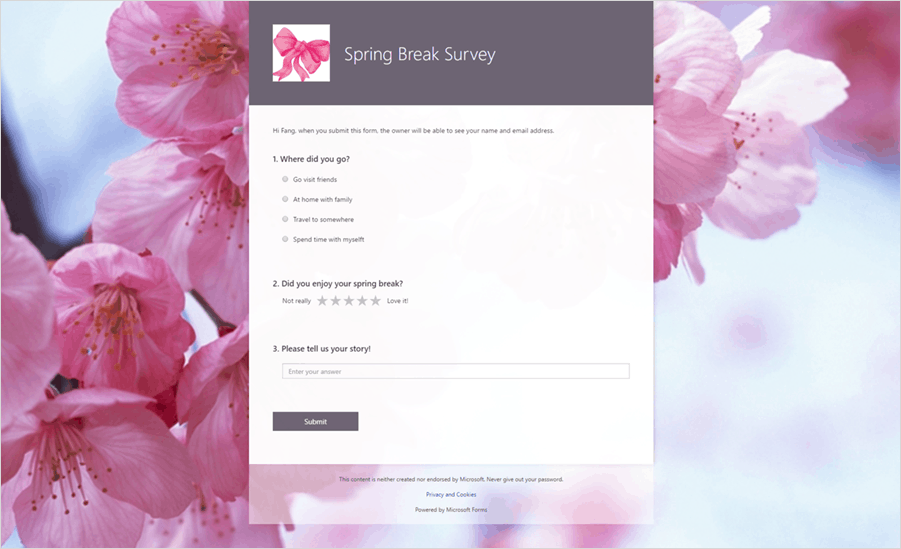
  • Customizable forms and background images – Teachers can upload their own images to the background of forms. The theme colors also automatically adjust to match the background image, similar to the option for Windows 10 desktop themes.
  • Other Forms portal – A convenient hub for collecting forms that have been shared with the user, so links available to them will be easily accessible. These forms will show title, creator name, number of responses, and if they are still active or not.

While these additions are a welcome addition to Microsoft Forms, they pale in comparison to the added ability to embed forms into OneNote Online. While it might appear simple, the ability to create quizzes and integrate them into a OneNote Class Notebook will help teachers compile quizzes and results all in one place, a feature that educators have been begging for.

To embed a form into OneNote Online, go to the Insert menu, click Forms, and select a form from the list.

These are just another example of how UserVoice has been important in the development of Microsoft software. If you have feedback for Forms, don’t hesitate to share your opinion. Who knows what the next feature might be?


Save big on PCs, Xbox games and more with Microsoft’s Spring sale

Microsoft is bringing back its Spring sale this year, and starting tomorrow (April 11) you’ll be able to save big on select PCs, Xbox games as well as apps and entertainment content on the Windows Store. Microsoft’s Spring Sale will last through April 17 and we’ve listed the highlights below the most interesting deals below, please note that some of them are only available online:

  • The Microsoft Store will offer 33% off select PCs, $30 off select Xbox games as well as $15 off Xbox Design Lab controllers (online only).
  • On the Windows Store, you will be able to save up to 50 percent on hundreds of hit movies and TV shows including Arrival, The Big Bang Theory, Ghostbusters and more. You can also expect cool discounts on Windows Store apps including Adobe Photoshop Elements 15 and Drawboard PDF plus select Windows 10 games such as Fallout Shelter, Forza Horizon 3, Halo Wars 2, and Astroneer.
  • For Xbox gamers, the Xbox Store will offer up to 67% discounts on more than 350 Xbox One and Xbox 360 games, including recent blockbusters such as Battlefield 1, Titanfall 2, Call of Duty: Infinite Warfare, FIFA 17, Overwatch and more. Additionally, Xbox Live Gold subscribers will save up to 10% more, and everyone else will be able to upgrade to Gold for just $1 for the first month of membership.

We should have more information about Microsoft’s Spring Sale pretty shortly so stay tuned on OnMSFT to get all the details.

Microsoft enters Monster Energy Supercross, sponsors RCH Racing

After one interesting Monster Energy Supercross event at the Century Link Field in Seattle, Kawasaki’s Eli Tomac managed to cut down on Red Bull Motocross’ Ryan Dungey’s points lead, leaving the event with a tie for the top spot atop 450SX points standings. While the most focus was on these top two riders, eagled-eyed Supercross fans might have noticed that a new sponsor entered the sport right as the series visited Microsoft’s hometown of Seattle.  Indeed, that sponsor is Microsoft, as the company has entered a sponsorship with RCH Racing in the top class of the Monster Energy Supercross series (via mxvice.com)

Details on the deal with RCH Racing are not immediately clear, but some posts from the team on social media have shown that Microsoft logos are present on the various parts of the team’s dirt bikes. The team also posted on Facebook about the sponsorship, remarking that, “rchracing is proud to announce our new partnership with @microsoft. Continue to check social this week to see how you can be a part of the digital transformation through Virtual Reality & Surface”

Other posts circulating on social media show that Microsoft had a booth in the team’s pit at the Seattle Supercross event, showing off the power of Surface and Mixed reality. The “Digital Transformation Station” featured 2 VR experiences, 2 Xbox gaming stations, and 1 Surface Studio Art Station.

RCH Racing fields Broc Tickle’s #20 Eagle/Jimmy John’s/Suzuki Factory Racing RM-Z450 and Jake Weimer’s #12 RCH Soaring Eagle/Jimmy John’s/Suzuki Factory Racing bike. The team is a part of the premier 450SX Class in the Monster Energy Supercross series and competes on 450cc four-stroke motorcycles against the other top riders. Tickle currently sits 8th in 450SX points, and Jake Weimer 14th. You can follow the team on social media to keep up, and also keep it tuned to Fox Sports as the Monster Energy Supercross Series action winds down.

DJay Pro bridges from Mac to Windows 10 with new UWP app

Djay Pro, the award-winning DJ software from developer Algoriddim, is now available to download from the Windows 10 Store (via The Verge). The popular DJing app has been previously released on macOS and iOS, but the Windows 10 app has been optimized for touchscreen PCs and it even supports Microsoft’s Surface Dial. The app also integrates with Spotify, which makes it a great option for users that don’t have an extensive music collection.

The app has been built from the ground up, using Microsoft’s “Islandwood” iOS-to-UWP tool, as a UWP app and provides “low-latency audio, smooth graphics, and plug-and-play hardware support.” Here is the official description:

Djay Pro provides a complete toolkit for DJs of all skill levels. Built specifically for Windows 10, djay Pro seamlessly integrates with your iTunes library and Spotify, giving you instant access to millions of tracks. Pristine sound quality and a powerful set of features including high-definition waveforms, sampler and four decks give you endless creative flexibility to take your sets to new heights.

The app is currently a $49.99 purchase on the Windows Store, but a free trial can also be downloaded on the developer’s website. Djay Pro is a pretty good example of what developers can do by leveraging Microsoft’s UWP platform, and we definitely hope to see more apps like these land on the Windows Store in the near future.

djay Pro (legacy)
djay Pro (legacy)
Developer:
Algoriddim
Price:
$49.99

Everything you wanted to know about YubiKey for Windows Hello

Windows Hello is one of the understated highlights of Windows 10. The ability to use biometrics to validate my identity for access to my Windows 10 devices is what my science fiction dreams were made of.

I use both iris recognition as well as fingerprint recognition in conjunction with Windows Hello on my Windows 10 devices. It’s seamless, and secure. Also, there’s no need to remember complex passwords or worry about someone watching me typing the password over my shoulder.

What is a YubiKey?

Last year, Windows 10 Anniversary Update introduced expanded user verification options and standards-based authentication with Windows Hello. Windows 10 supports both key-based and certificate-based authentication.

Key-based authentication is equal to the FIDO model of public key cryptography while certificate-based authentication relates to public key infrastructure (PKI). The former is a great proposition for enterprises that don’t use PKI or want to minimize reliance on certificates.

Founded in 2007, Yubico introduced YubiKey, a versatile authentication device. It supports many standards-based authentication protocols for host-based and cloud-based services, like Dropbox for example. Now, YubiKey enables the FIDO ecosystem for Windows 10 users.

YubiKey for Windows Hello

Interestingly, to use a YubiKey for Windows Hello authentication, you don’t need to use the built-in Windows Hello settings but download a separate app – YubiKey for Windows Hello – from the Windows Store.

Built on the Windows Companion Device Framework, it’s a pretty straightforward app that takes you step by step to register your YubiKey, and get it working with Windows Hello. Once done, you can just walk up to your device and plug in your YubiKey. It will authenticate your identity and log you into Windows 10. The app allows you to register a maximum of four YubiKeys per account.

While registering for Windows Hello, the CCID mode must be enabled on the YubiKey. CCID is enabled by default on all YubiKey 4 devices. Some older YubiKey NEOs do not have it enabled, and you can enable the CCID mode using the YubiKey NEO Manager.

Using YubiKey on Windows 10 devices

Once set up, YubiKey is recognized as a companion device for Windows Hello. So, it doesn’t just work for logging on to Windows, but also for apps that use Windows Hello authentication, like OneDrive or Enpass. It’s pretty neat, really. It’s also quite handy to allow a friend or colleague temporary access to your machine without sharing the password.

While a YubiKey can be tied to only one account on a device, however, I could use it on multiple devices with multiple accounts. I could use the same YubiKey on my Surface with my Microsoft account as well as on my wife’s laptop with her account.

There are some limitations though. The Windows 10 device doesn’t log off the user if the YubiKey is pulled out. It’s not incorrect to assume that since the key is used to validate my identity on Windows 10, removing it should lock one out. However, that doesn’t happen, and you’d have to lock the system manually or let the Windows 10 lock itself as is configured.

Also, there is no way to compulsorily require YubiKey to unlock the system. You can always access your account using your PIN or password.

Summary

There are several YubiKey variants available. I got the YubiKey 4 ($40) as well the YubiKey 4 Nano ($50). While the Nano variant is obviously smaller in size, and almost doesn’t protrude once it’s inserted in the USB port, it’s a tad inconvenient to pull out. The YubiKey 4 is similar to any slim pen drive out there, and fits just right amongst a bunch of keys in a key ring.

There’s also another YubiKey NEO ($50) that is slower than the YubiKey 4. It’s a known issue, and Yubico recommends users to swipe the screen or press any key rather than tapping the YubiKey.

YubiKey is a very handy device to enable Windows Hello on your Windows 10 devices. The setup is easy, and getting started is seamless. While organizations can sure deploy YubiKeys for their employees, it’s also an affordable and useful authentication device for regular users.

Here are all the differences between Creators Update and Anniversary Update

The Creators Update, Microsoft’s latest update for Windows 10, is almost upon us and brings with it a bevy of changes and improvements for all users of the OS. More specifically, the Creators Update will arrive first on desktops on April 11 and on mobile devices two weeks later. As the name suggests, the Creators Update focuses on helping you become creative with Windows 10. On top of these creativity-focused features, the update also introduces a set of other features for everyone else. Nonetheless, the improvements are mere extensions of what the Anniversary Update has already started last year.

So how does the Creators Update differ from its predecessor? Let’s find out.

New improvements to Cortana

With the launch of the Anniversary Update, Cortana moves beyond the desktop to the lock screen. Users are now able to ask Microsoft’s digital assistant about the weather or to perform certain tasks such as playing a song without having to log into their PC. Thanks to Intel’s wake-on-voice chip, Cortana is able to wake up even when the PC is asleep in order to answer your questions.

The Creators Update adds new tricks to Cortana. You will soon be able to use the digital assistant even when your PC is idle or locked for a long period. With the latest version of Windows, you will also be able to set recurring reminders. The improved Cortana can also scan the Office 365 or your Outlook account for commitments you’ve previously made and set reminders based on those details.

Cortana also learned some new voice commands with the Creators Update. You can now use the digital assistant to turn off or restart your computer, lock your screen, adjust system volume, or put your machine to sleep. Other new Cortana features are also in the pipeline, including the ability to synchronize apps between devices. That means you can pick up where you left off in Edge from another computer through a link in the Action Center.

Microsoft is also working on a new Universal Clipboard feature that will let you copy content from one device’s clipboard to another by using the “Copy to” voice command. Notification sync for Cortana is coming with the Creators Update as well to help you view notifications across multiple devices. The feature will also push notifications from your Windows 10 Mobile device to your PC.

A better Edge

Microsoft’s Edge browser was still in its early phase when the Anniversary Update rolled out, but it nevertheless included support for extensions including Adblock, Evernote, LastPass, Amazon, Pinterest, and Pocket. The Anniversary Update added other features to Edge including the ability to pin tabs in the browser, a history menu, a paste-and-go tool for the address bar, swipe navigation, web notifications, and more.

The Creators Update is expanding on those features. You will soon be able to set aside tabs for later use, save your current browsing session for later, play 4K Netflix videos, and read your ebooks within the browser.

Edge also introduces the new Web Payments API in the Creators Update so that websites can offer a Microsoft Wallet payment option. Flash will also be disabled by default within Edge with the Creators Update in order to beef up your browsing security.

Security

The Anniversary Update allowed users to perform offline scans with the Windows Defender to stop malware from compromising internet connections. The most recent version of Windows also lets you use Cloud Protection and Automatic Sample Submission for faster threat response. Microsoft also added the Windows Defender Advanced Threat Protection to the Anniversary Update for enterprise customers to thwart advanced malicious attacks on networks and Windows Information Protection.

Now, the Creators Update introduces the ability to check the health of your PC through the new Windows Defender Security Center and provides additional notifications about the state of your computer. You can also use the console to control how the PC is used. It also serves up a button called “fresh start” to let you carry out a clean installation of Windows.

Start Menu

Microsoft slightly overhauled the Start menu in the Anniversary Update, though it confused many users. For instance, the original Start menu displayed your frequently used and recently added apps at the bottom of the menu by clicking the All Apps button. In addition, the Anniversary Update moved the power and settings options as the icon status to the left-hand rail. To the right, you can find the tiles and the Action Center button.

The Creators Update is bringing them back to order. Windows 10 will soon let you group tiles on the Start menu into folders. You can do so by dragging and dropping a tile onto another tile to add two or more tiles into a single folder. Clicking or tapping the tile folder will display a drop-down panel that shows its content.

Action Center improvements

Microsoft introduced various tweaks to the Action Center in the Anniversary Update, allowing users to set priority levels for individual apps to control which notifications appear at the top of the Action Center feed. There was also an option to limit the number of notifications a given app could push to the Action Center.

The Creators Update now improves Quick Action icons and adds volume and brightness sliders directly to the Action Center. You can also monitor the progress of notifications. For example, you can see how much time is left for a download in progress.

Other differences

Of course, on top of the differences between the Anniversary Update and Creators Update, the new features coming with the latest version of Windows also set it apart from its predecessor such as Game Mode, Paint 3D, Night Light, Powershell, and others.

PSA: Windows Vista reaches End of Life on April 11th

Windows Vista, a short-lived operating system, is coming to the end of its life. It officially reaches End of Life on April 11th, at which point all support for the operating system comes to an end.

Those who wish to continue to receive support from Microsoft and its partners, as well as software vendors, will need to upgrade to a newer edition of Windows, such as:

  • Windows 7 Service Pack 1 (extended support only)
  • Windows 8.1
  • Windows 10

As part of Windows Vista reaching End of Life, Ubisoft has also announced that its Uplay PC client will cease support for the operating system.

Ubisoft’s Uplay PC to end support for Windows Vista

Ubisoft has announced that its Uplay PC client is set to end support for Microsoft’s Windows Vista operating system. Posted on its help site, Ubisoft says that the reason for ending support is due to Windows Vista becoming end of life soon:

With official support for Windows Vista soon to end, we have decided to end our support of this now legacy operating system. This will allow us to take advantage of newer technologies moving forward and ensure the highest possible security for our users.

For those who are still using Windows Vista, games will continue to be playable, however, future Uplay PC client updates will not be installed, potentially leaving open any security holes that currently exist, as well as any bugs.

It is recommended to upgrade to a newer version of Windows, such as Windows 10, to continue to receive Uplay updates.

Windows 10 news recap: focus turns to design, Creators Update available to download and more

Welcome back to our Windows 10 news recap. We are continuing the trend of our weekly “Windows 10 news recap” series where we go over the top stories of the past week in the world of Microsoft’s flagship operating system.

Diebold Nixdorf announces its ATMs will support Windows 10, migrating from Windows 7

An ATM manufacturer, Diebold Nixdorf, has said that it plans to migrate its ATMs to Windows 10 from Windows 7, with its ATMs already using hardware that supports Microsoft’s latest operating system.

Design follows ‘Creativity’ in Windows 10’s next update with Project Neon

With the Windows 10 Creators Update being available to download and set to officially release shortly, the next big update for Windows 10 will be turning its focus from creativity to design, with improvements to the aesthetics of the operating system on the way, currently known as Project NEON.

You can download and install Windows 10 Creators Update now

The Windows 10 Creators Update is now available for users to download and install if they wish to do so, ahead of the official rollout.

Windows 10 Creators Update

Windows Insiders can now install Windows 10 UWP apps to Xbox One using their PC

Users of Windows 10 have asked several times for the ability to begin downloading apps from the Windows Store to their other Windows 10 devices for some time. Now, we’re starting to see the first glimpses of this in Windows 10, with users now able to install apps on their Xbox One from their Windows 10 PCs.

Microsoft lays out privacy features and tools available in Windows 10 Creators Update

Privacy has always been a hot topic of debate amongst those for and against Windows 10. As part of the Windows 10 Creators Update, there have been several privacy enhancements, which Microsoft’s Terry Myerson explains in a blog post.

That’s it for Windows 10 news this week – we’ll be back next week with more.

How to install Windows 10 Creators Update on a Mac

Mac owners can now install the Creator Update — the latest version of Windows 10 — on their computers, making available a series of fresh Windows features that will make the relationship between the two camps that much more complicated.

It’s not all as simple as it sounds, though. First-time installations of the Creators Update are not compatible with the Boot Camp Assistant on macOS, but the good news is that Apple and Microsoft are working to fix this issue as soon as possible.

Fortunately, you don’t have to wait until the two companies do so. In the meantime, Mac users can install the Anniversary Update using Boot Camp Assistant and then upgrade to the Creators Update.

To make your task easier, we’ll list the steps to follow below.

Installing the Creators Update on a Mac

1.  Install the Anniversary Update using Boot Camp Assistant. You can download the Anniversary Edition directly from Microsoft.

2. Open Boot Camp Assistant from the Utilities folder of your Applications folder.

3. Follow the onscreen instructions to install the Anniversary Update.

4. While running the Anniversary Update, go to the Microsoft download site and click Update Now. Follow the onscreen instructions to install the Creators Update.

You can also wait until the Creators Update is offered through Windows Update, a wise decision right now since many early adopters are reporting various issues with the Creators Update, something we’re sure Microsoft will fix by the time the OS is released to the general public.

Fix Windows 10 Creators Update install issues on a Mac

  1. Press and hold the power button on your Mac until it shuts down.
  2. Turn your Mac on and immediately hold down the Option key.
  3. Release the Option key when you see the Startup Manager window.
  4. Select your Mac startup disk, then click the arrow or press Return.
  5. Log into macOS and open Boot Camp Assistant from the Utilities folder of your Applications folder. Click Restore to remove the Windows partition and restore the disk to a single volume.
  6. When you see a message that the Windows partition was removed, click Quit.

Install the Anniversary Update again and then upgrade to Creators Update. Let us know how it all works out in the comment section below!

RELATED STORIES YOU NEED TO CHECK OUT:

Microsoft releases ReactXP, a framework for building cross-platform apps with React

Microsoft has released a new open-source library to help developers create cross-platform apps. The new library makes use of the React framework, allowing developers to use React in their apps.

Called ReactXP, it allows responsive web pages and mobile apps to be built that feel native to the platform that they’re being used on. This is made possible through the power of ReactJS and React Native.

It is available now via the ReactXP website on GitHub and documentation has been provided to get developers started using it.

Diebold Nixdorf announces its ATMs will support Windows 10, migrating from Windows 7

Diebold Nixdorf, an ATM manufacturer, has announced (via Bankless Times)  that its ATMs will support Windows 10 and, with it, the 64-Bit architecture.

The Senior Vice President, Ulrich Näher, said:

This is a true testament to our company’s ‘future-proof’ development mentality and protecting our customers’ investments – that meet the needs of today and anticipate those of tomorrow.

The company believes that moving its ATMs from Windows 7 to Windows 10 will provide better security, as well as allowing them to make better use of memory and processing features.

This is one of the first big moves we’ve seen a business take from the much-loved Windows 7 to Windows 10.

Zero-day Word exploit allows computers to be infected via e-mail attachments

A new zero-day exploit for Microsoft Word has been discovered that allows attackers to infect a machine with malware through e-mail attachments. Discovered by research firm FireEye, an attacker can send a malicious Microsoft Office RTF file to a user and, if opened, it will execute a Visual Basic script that has malicious code embedded, which then connects to known malware families.

The attack has been found to be being used openly in the wild and Microsoft has been aware of the issue for several weeks. The company has been working with FireEye to discuss a time to publicly disclose the issue and to create a patch, however, FireEye took the decision to disclose it earlier after another company similarly disclosed the same issue.

The only way of staying safe from this attack vector is to not open any suspicious e-mail attachments and, if possible, keep any attachments in the Protected view, as this prevents the arbitrary code from executing on the machine.

H1Z1: King of the Kill issues: Games won’t start, low FPS, and more

H1Z1: King of the Kill is one of those games that pull you in with diverse gameplay within its first hour. With tense PvP and a tactical approach, this is one of the most interesting multiplayer games out today. However, the game is still in the early access stage and as such is incomplete and often unplayable. That leads to mixed opinions and ends up rendering a great concept underwhelming.

For that purpose, we roamed the internet in search for its known issues to help you get an idea of what to expect from the game at this stage. We certainly hope that this will help you decide whether it’s worth your money or not. Moreover, we will provide proper solutions if any are available. So, if you’re already a participant in this multiplayer experience, you may find something helpful too!

H1Z1: King of the Kills known issues and how to solve them

Game won’t start

H1Z1 has many reports about it’s non-starting issue, leading us to believe that something is wrong with its optimization. One player from Steam discussion forum described his problem:

”I just bought the game, and when I click play the little grey box that says “preparing to run” pops up for like 1/10th of a second and then nothing happens. It doesn’t appear to be running in my Task manager either. Clicking the Desktop short cut doesn’t do anything either, and running the launch pad just tells me that it MUST be started from steam. I already re-installed twice and checked the integrety 3 times.”

Our initial thought was that some files are corrupted or incomplete, but an integrity check and reinstallation should resolve t. So, what to do in this case? These are some alternative steps you can take to resolve this issue:

  • Make sure you meet the minimum system requirements.
    • OS: Windows 7, 8, 8.1, 10 (64 bit only)
    • Processor: Intel i5 Quad-Core
    • Memory: 6 GB RAM
    • Graphics: nVidia GeForce GTX 280 series or higher
    • DirectX: Version 10
    • Network: Broadband Internet connection
    • Storage: 20 GB available space
    • Sound Card: DirectX Compatible Sound Card
  • Create a firewall exception or temporarily disable your firewall.
  • Run the game as an Administrator.
  • Run the game in compatibility mode for Windows 7. To do so, right-click the game application, navigate to LaunchPad.exe and open Properties. Under Compatibility tab, set compatibility mode to Windows 7 and try again.
  • Use sfc/scannow in the Command Prompt to fix possible corruption in System files.
  • Update GPU drivers.

Low FPS and lags

If you’ve managed to overcome initial problems and start the game, there’s a chance you’ll experience performance issues. Some players report many FPS issues and lag even though they’re running the game on powerful machines, like this participant on the Steam discussion forum:

‘‘I have been playing a lot of AAA titles smoothly. Eg. Fallout4, Dying Light…And when I play this game, I’m struggling to reach 30fps in 720p. I’m able to reach 40 by turning down/off everything. This fps is gonna drag me down in intense pvp. Is it an optimization problem or sth? My graphics drivers are up to date.
Specs: i5 4210u
840M
8GB DDR3 RAM’‘

There are a few things you can do to improve your overall experience and reduce lag while maintaining playable FPS levels:

  • Again, make sure to meet the system requirements. Even the slightest drawback in the configuration can render the game barely playable or unplayable at all.
  • Update your GPU drivers. Here’s where to find appropriate drivers:
  • If you own a dual-GPU laptop, make sure to run the game with the dedicated GPU instead of the integrated one. You can set that up in the Catalyst/NVIDIA Control Panel.
  • Lower the overall quality of graphics. While in the game, tap Escape, open Settings and reduce the graphics quality under the Graphics tab.
  • Lower the game’s resolution. Navigate to Settings > Graphics and lower the resolution to improve FPS and reduce lag.
  • Decrease Render distance. With this feature lowered, you should be able to moderately increase FPS. Open Settings and, under the Graphics tab, reduce Render distance to Low.

Connection Issues

Connection issues are the thing of its own. Every online game is highly dependent on a stable connection. However, when the game isn’t exactly the best-optimized title ever, your bandwidth may be the last thing to worry about. Nonetheless, we prepared some steps you can take to reduce connection issues. At least the part you can affect.

  • Use a wired connection instead of Wi-Fi.
  • Restart your router.
  • Disable your firewall while playing.
  • Check your ports. These are the ports you should check: HTTP (TCP-80) HTTPS (TCP-443) UDP-20040 through UDP-20199 UDP-5062.
  • Check your PING.
  • Make sure that servers are up.

Keybindings won’t save

Some users report issues with keybindings. Namely, after every fresh start, the game restores the default keybindings instead of custom. This is what one of the members of a Steam discussion forum had to say:

‘‘everytime i start up my game all the keybindings are set back to default its extremely annoying does anyone know a quick fix for it?”

This problem is easily solvable with the few easy steps. This is how to prevent the game from resetting your preset key bindings:

  1. Open the Steam client.
  2. Navigate to H1Z1: King of the Kills, right-click and open Properties.
  3. Open Local Files tab.
  4. Click Browse Local Files.
  5. Withing the game installation folder, locate useroptions.ini file.
  6. Right-click the file and open Properties.
  7. Under the General tab, locate Attributes and uncheck the read-only box.
  8. Click OK and try setting up your key bindings again.

This should resolve this issue and enable you to use custom keys in the game.

‘G’ Errors

The notorious errors with the ‘G’ sign are most common after an update. Namely, before the update, your game may have functioned as intended, but after the latest patch every now and then you get yourself a G15 or G29 error and everything freezes. It seems that there are a lot of probable solutions but we can’t guarantee that they’ll work. Here’s the list of all known errors and possible workarounds:

  • ‘G1 Error

There isn’t enough space on the hard drive to install H1Z1.

  • G2 Error

Update your video card drivers. If the issue persists, check here for the system requirements to run the game.

  • G3 Error

Video card may be insufficient. If updating the video card drivers doesn’t work a new video card may be necessary. Check here for the system requirements to run the game.

  • G4 & G5 Errors

The servers are unavailable right now, please try again in a little while.

  • G7 Error

This error can have multiple causes.

  • Check disk space. Clear some space until at least 20GB are available.
  • Uninstall and reinstall the game. A reinstall will fix any corrupted files that can keep the game from running.
  • G8 Error

A game file is corrupt. Uninstall and reinstall the game.

  • G9 Error

Log out of the game and the LaunchPad, then reopen the LaunchPad and log in again. If the error occurs repeatedly, a full uninstall and reinstall of the game may be required.
You may also want to check your firewall settings: You can find some suggestions here.

  • G10 Error

One or more of your game files may have become corrupted. Run the H1Z1 LaunchPad and log in, but do not press play. Click on the Advanced Tools icon (looks like a gear) in the lower left and then choose the option to open game directory. In the window/folder that comes up, locate and delete the following files:

  • H1Z1.exe
  • UserOptions.ini
  • SoundSettings.xml
  • LoadingScreen.xml
  • InputProfile_User.xml
  • vivoxoal_x64.dll
  • vivoxsdk_x64.dll

Once these files are deleted, close the H1Z1 window/folder and validate your game files using the Steam client.

  • G11 & G12 Errors

These errors codes are the result of a generic error caused by a graphics or an interface related crash. If this issue persists please make sure that your system meets H1Z1’s minimum requirements and that your current graphics drivers are up to date. In some cases this issue may require that your graphics driver be reinstalled to resolve the issue.

  • G13 Error

Update your video card drivers.

  • G14 Error

There is a temporary issue with the game servers. Please wait a few minutes and try again.

  • G15 Error

A firewall or virus protection program is preventing H1Z1 from running. Set any firewalls and antivirus programs to allow H1Z1 (specifically launchpad.exe and h1z1.exe). Find the steps to allow the game to bypass your protection programs here.

  • G16 Error

There is a bug with the firmware for your Netgear router, or the firmware is out of date.

  • G17 Error

There is a problem with your computer’s video card. Please update the drivers and try again.

  • G18 Error

Your character failed to load. Please log out and log in again.

  • G19 & G20 Errors

Your computer appears to be out of video memory. Turn down the game’s graphics settings (shadows, textures, graphics quality, etc.) via the in-game settings menu.

  • G21 Error

Certain files have been corrupted. Uninstall and reinstall the game.

  • G22 Error

H1Z1 cannot find certain files needed to play. Log out then log in again. If this doesn’t work, uninstall and reinstall the game.

  • G23 Error

There was a connection issue when downloading the needed files. Log out and log in again, or retry uninstalling and reinstalling the game.

  • G24 Error

There was an issue starting the game’s video. Update your video card drivers from the manufacturer’s website. If that doesn’t work a new video card may be required. Check here for the system requirements to run the game.

  • G25 Error

Your video card had trouble initializing and may not meet the minimum requirements to run H1Z1.

Update your video card drivers from the manufacturer’s website. If that doesn’t work a new video card may be required. Check here for the system requirements to run the game.

  • G26 & G27 Errors

Your game client is out of date and needs to be patched. Patch the game again (for early access this will require patching through Steam.)

  • G28 Error

The login servers are down (It’s not you, it’s us).

Please try again later. You can also check server status here.

Tip: If all servers have a very low population, they may have just come up or are still locked (In testing mode for Daybreak Games quality testing employees only.)

  • G29 Error

You do not have H1Z1 access on this Daybreak Account. Click here for more information.

Usually caused by connectivity issues with Steam. Check for service updates or try back later.

  • G30 Error

The client failed to receive a session ID from the server. These errors are usually isolated incidents and should not be recurring. Simply close the client and open it again.

  • G31 Error

We’re sorry, we are not able to contact Steam at this time. Also, please make sure you launch H1Z1 via the Steam client.

  • If you are launching H1Z1 using the Steam client, then this is most likely a timeout between us and Steam to verify your features. Usually just trying again in a few moments resolves the issue.
  • Also, you may want to check for maintenance (Steam as well as H1Z1 specific.)
  • G32 Error

We’re sorry, it looks like you are trying to play the game using a different Daybreak Account then what was originally used when you bought Early Access.

  • You are either logged into the wrong Daybreak Account, or the wrong Steam Account.
  • If you are unsure of other Daybreak Accounts, click HERE for instructions on how to recover them.
  • G33 Error

One or more of your game files may have become corrupted. Please validate the game assets through the Steam client. Need help on how to validate assets? Click here

  • G37 Error

There is an issue connecting to the Login server. It may be down for maintenance, in which case please wait a minute or two and try logging in again. While this is the most common cause, there are a few other possible causes that are not on the server end of things. Please try these troubleshooting steps to resolve the problem.

  • G99 Error

There is an issue connecting to the login server. The login server may be down for maintenance. Please try again a little later. Be sure to check the forums for announcements on planned server shutdowns and estimated downtimes.

If there has been no notification of a server shutdown, validate your game files from the LaunchPad and make sure that H1Z1.exe and launchpad.exe are set as exceptions in your firewall/antivirus program(s). The login server may still be shut down without notification, but running through these steps will ensure that the problem is not on your end.

  • G202 Error

Your game has reached an abnormal state. This is caused by one of the following:

  • One or more of your game files may have become corrupted. Please validate your steam files.
  • You are having connectivity issues. A bad connection, large lag spikes, or prolonged packet loss can cause this issue. Please check your connection for issues.
  • Do not disable or edit any part of the game client files nor run any third party programs that are designed to edit the game client.’

What are yours experiences with the game? Are you satisfied with how H1Z1 looks now? We look forward to hearing from you in the comments below!

RELATED STORIES YOU NEED TO CHECK OUT:

Xbox news recap: Scorpio specs unveiled, Xbox Design Lab stuck in North America and more

Welcome to our weekly Xbox news recap series, where we go over the top stories of the past week in the world of Xbox. Let’s get started.

Scorpio specs unveiled

We’ve been waiting for a long time, and it’s finally here: some specifications about Project Scorpio. Just as we expected, the console is going to be an exceptionally powerful piece of hardware, sporting eight custom x86 cores clocked at 2.3GHz, 40 customized compute units at 1172MHz, 12GB of GDDR5 RAM with 326GB/s of memory bandwidth, a 1TB 2.5-inch hard drive, and a 4K UHD Blu-ray player. The info came as part of the Eurogamer info drop this week, and it’s a huge step towards fully understanding the new console.

Xbox Design Lab stuck in North America, for now

Microsoft’s Aaron Greenburg responded to a fan on Twitter recently regarding the status of the Xbox Design Lab, which lets users create their own custom Xbox controllers. The service has been a great way for Xbox users in North America to customize their experiences, but – according to Greenburg – it’s going to stay in North America for now. Greenburg also notes that the team is listening to requests to have it placed in other markets, so you’re going to need to keep asking if you want to get some fancy colored controllers.

Scorpio designed with developers in mind, says Mike Ybarra

We’ve gotten a lot of different explanations for why Project Scorpio came into being, but here’s a new one: It’s apparently a way for Microsoft to “win developers back.” It’s no secret that Sony has been monopolizing the favor of most directors since the launch of Xbox One, so it’s nice to see Microsoft getting back to their roots. Since being the favored platform for developers throughout the lifespan of the Xbox 360, Microsoft has lost their way in quite a few arenas – we’ll see if Scorpio is the start of a new era.

Install Xbox One UWP apps through the Windows Store

In a recent Insider build, Windows 10 users got the option to install UWP apps to their Xbox One from their PC. Just going to the Windows Store and selecting an Xbox One compatible app should give you the option to queue it up for download. While these apps are pretty small and wouldn’t take you long to download through your console, it’s nice to have this capability for people who want to do everything from the Windows Store.

Windows 10, Anniversary Update, Windows Store

Scorpio may push Xbox One ahead of PS4 in sales next year

If you’re one of those people who likes to follow the console race, then Mat Piscatella from the NPD group has some good projections for you. Speaking about how he “remains bullish” on Scorpio’s sales, he mentioned that he things Scorpio may push the Xbox brand ahead of PS4 in sales. While Xbox has been doig just fine, it would be nice to see some more genuine competition rise up between Playstation and Xbox One. Historically speaking, when both consoles are doing equally well, they’re both pushed to do better – which means everybody gets better content.

Thanks for joining us. To keep up to date with all the latest Xbox news, keep a close eye on our Xbox One news hub.

Players confirm that Windows 10 Creators Update boosts game FPS

When Microsoft announced the Creators Update, it made it clear that one of its priorities was to enhance the gaming experience on the PC. Thanks to the new Game Mode and other improvements and features, the company has managed to take the PC gaming experience to a new level. And one of the benefits? Gamers who recently upgraded their computers to the Creators Update now confirm they’re experiencing better FPS.

Boost your game’s FPS wit the Creators Update

With Game Mode enabled, FRAPS recorded a consistent 4% FPS increase in Overwatch. These results were obtained using FRAPS as a performance benchmark with the practice range run on a rehearsed path. Each run was 60 seconds long with an average of 5 runs performed.

Here are the system specs used for the benchmark test:

  • XFX Fury X @ 1050 MHz Core/500 MHz Mem
  • Intel Core i7-4790K @ 4.6GHz
  • 8GB DDR3-1600 RAM
  • AMD Driver 17.4.1
  • Game + OS on Samsung 840 Evo 120GB SSD.

I know its a quick and dirty test but a consistent 4% increase in performance is promising. Interested to see if others are getting similar (or maybe even more?) gains on this new Windows 10. Especially Ryzen users.

This update is not the Windows Insider Build as I used the official Win 10 upgrade tool […] EDIT: Game mode was enabled on the Creators Update

Rise of the Tomb Raider players also confirmed huge improvements thanks to the Creators Update with increases of more than 20 FPS, from 130FPS to 150FPS on 1080p (Lowest Settings preset), and 11FPS from 65 to 76FPS on 1080p (Very High) with both the CPU and GPU at stock speeds. These results were obtained on a 1700X+XFX RX480 machine.

However, some gamers aren’t as lucky. They now do get more framerates on Rise of the Tomb Raider, but can’t play Overwatch because the game crashes on launch.

Tested Rise of the Tomb Raider and Overwatch. Frame rate in RotTR is MUCH more consistent, its very noticeable. Overwatch crashes on startup 🙁

Overall, the majority of gamers should be able to enjoy an enhanced gaming experience after the upgrade. If you’ve encountered various bugs, use the new Troubleshooter Settings page.

Also, before you upgrade, run the checks listed in this article to get your computer ready for Windows 10 Creators Update.

RELATED STORIES YOU NEED TO CHECK OUT:

Microsoft joins the quest to get this guy free Wendy’s chicken nuggets

It appears that Twitter Retweets are becoming a virtual currency, at least in the marketing departments of some companies, such as Wendy’s.

NuggsForCarter

A Nevada high schooler has taken to Twitter to ask Wendy’s how many retweets he would need to have Wendy’s chicken nuggets free for an entire year:

18 million being the result. Now, people around the world are trying to help Carter Wilkerson claim his years supply of nuggets through the hashtag #NuggsForCarter – and, even some companies are getting involved, including Microsoft:

Microsoft then asked Amazon and Google to also get involved. Amazon responded, whereas Google made no comment:

What’s more, Microsoft’s Office team are ready to provide a years subscription to Office 365 if someone can attain 365 million retweets:

https://twitter.com/Office365/status/850477284880461824

Have you taken part in the #NuggsForCarter campaign? It aims to help a high schooler achieve his dream of a years supply of nuggets!

How to turn off share suggestions on Windows 10 PCs

The Windows 10 Creators Update will officially launch next week with new features including revamped share functionality on the display. While previous versions of Windows 10 displayed a share sidebar, the Creators Update will place the share menu at the center of the screen where the share options will be listed in rows.

The new share suggestions will display a few icons by default, including Mail and Cortana Reminders and you’ll also be able to install additional applications.The feature may also suggest apps that you can use to share content of your choosing even if the application is not necessarily installed.

Turning off share suggestions

If, however, you do not find those suggestions helpful or just don’t like them at all, you can easily disable share suggestions on Windows 10 by right-clicking on one of the suggestions and unchecking the “show app suggestions” option.

The process immediately conceals the suggestions in the share menu and helps you easily access the installed options. However, you won’t be able to remove installed applications from the share menu.

If you don’t want to wait until April 11th to be able to disable share suggestions, you can hit the upgrade button right now: the Windows 10 Creators Update is already available on Microsoft’s upgrade website.

However, note that this early OS version is affected by a series of issues, as reported by users. We’re sure that Microsoft’s engineers are working at full speed to patch these issues before the official release day.

RELATED STORIES YOU NEED TO CHECK OUT:

Mass Effect Andromeda Patch 1.05 problems: Crashes, black screen, and more

Mass Effect: Andromeda didn’t live to its expectations — that’s a fact. To try making things better, Bioware quickly released patch 1.05 for the game that includes a handful of bug fixes and improvements.

However, as it appears, the new patch causes even more problems to players who install it. We’ve wandered the internet looking for potential feedback on the patch and we’ve found  that players aren’t so thrilled about it, with various forums flooded with reports about problems caused by it.

In case you haven’t installed the new patch yet, keep reading this article to know what to expect from it.

Mass Effect: Andromeda patch 1.05 issues

Game unable to launch

A few players have reported they’re unable to even launch the game after installing the patch. Here’s what one player said on the Bioware forums:

“Myself and a few others on Reddit seem to be having a catastrophic issue since the patch. After the patch installs the game won’t launch, the executable loads to memory using 59Mb of RAM and then just sits idle (waited 10+ minutes and it refuses to load, despite the fact the .exe is running). Using Repair game didn’t fix it, reboot, etc doesn’t fix it.
 Game was loading fine yesterday and this morning before I installed the patch.”

Loading problems

Some of the players who managed to launch the game haven’t got too far. Namely, there are a couple of players who complain about long loading time after installing the patch. Additionally, the game even crashes on loading for some players. Here’s what they say:

“Very long loading times that could sometimes take up to 5 minutes to load. Occurs often 50% – 99% of the time.”

“The main game works fine but when I try to load into multiplayer, a loading screen comes up and when the bar gets to the end the screen goes black the it goes back to the desktop.  I have tried different graphic settings ex: turning it to window mode, taking the default graphics to medium.  I have also logged off of the companion app.  I had no problems playing multiplayer on 3/21, but now on 3/27 I am having problems.”

Black screen problems

It looks like some people just can’t play the game after the latest patch. One player have recently reported black screen problems, and according to him, there’s no known solution:

“Screenshot attached. This has been happening ever since patch 1.05 was rolled out. I’ve tried a number of fixes (rolling back the gpu driver, setting origin to offline mode and turning overlay off, moving my saves and preferences files from Documents/Bioware/Mass Effect Andromeda, repairing the game through Origin) but none of it has worked. “

Other problems

Here are some additional problems that also bother players who installed the new patch for Mass Effect: Andromeda:

  • Since the new 1.05 patch, it frequently occurs when I leave a battle (or just simply pass by enemies in the nomad) the battle music doesn’t stop playing even when there are no red dots on the hud. Even after saving and reloading, the music can still be playing. At some point (which I can’t determine), it fixes itself or going to the main menu fixes it too.
  • Dialog options seem to be broken for Jaal and Peebee.
  • Dialog wheel does not appear, when trying to skip via spacebar the context info appears in the lower right corner but nothing seems to happen. 
  • It actually takes some time until the dialog options appear (up to 15 minutes – tried with Peebee, but no Audio is playing even as the characters lips are moving).
  • After getting out of such a broken conversation, the game is broken itself:
  • doors are no longer responding – when having the issue with the Peebee-conversation, that actually traps me on the bridge of the Tempest as no other door will react anymore,
  • when trying to get off the ship by landing somewhere the following loading screen seems to take forever (lost my patience after 30 mins to wait any longer to see if it clears on its own)
  • when trying to launch another conversation with Suvie or Kallo on the bridge the game freezes up completely – Screen freezes, when switching to Windows Desktop (Alt+TAB) the game screen goes black with just the two loading circles in the lower right corner cycling around like forever.
  • Game has to be relaunched completely to continue in any way.
  • I recognised that during such a broken conversation the RAM-Usage of the game’s executeable is going through the roof.
  • in case of the PeeBee-conversation the RAM-usage shot from 1.7 GBs up to 7.9 GBs
  • in case of the Jaal-conversation it shot from 1.2 GBs up to 4.9 Gbs until the conversation was finished – finished means just quiting it without triggering any more content (the game was freshly started during that test).
  • Looks like some sort of memory leak that causes the delays itself and is not cleared after that, so the whole game has issues with the vast amount of carried over memory usage after that.
  • tried the repair option from the Origin menu – did not help
  • reinstalled the whole game, did not help.
  • Along with this, a second issue came up, that returning to Windows and still running the Game in the backround tiggers some odd window-behavior from the game:
  • game does no longer minimize correctly but switches to Window-Mode (this is big time * for the video card as it changes resolution of the 3D-rendering and everything during that)  
  • the game window locks in Overlay Modus and catches the mousepointer whenever its hovering over the game window (if the game is not within a Mouse-active-Screen, there is no way of getting the pointer back to your Windows Desktop except by returning to the game and Alt-TAB back out again).
  • if you manage to hit the minimize button of the game window it will go to the taskbar, but any other action on the desktop (even just left clicking onto an empty spot) will bring the game window back. So you can’t even double-click an Icon which is in the area where the game window is locked as the second click will already be on the game window again, which will trap your mousepointer in it, as described before.
  • when returning to the game, the game changes to full-window-mode changing the 3d-resolution again and you have to Alt+Enter to get back to Full-Screen-Mode (which is a third rescaling of the 3d-render)

As you can see, the game is plagued with various bugs and problems so you might want to think twice before installing the new patch.

In case you’ve encountered a problem we didn’t list in this article, feel free to let us know in the comments below.

RELATED STORIES YOU NEED TO CHECK OUT: 
Beam Week on Xbox Wire: a spotlight on partners

Today is the final day of the #BeamThemeWeek takeover of Xbox Wire’s daily posts. This time, the Beam team is focusing on the Beam Partnership program and what makes it unique.

According to today’s blog post, Beam Partners aren’t chosen for their numbers, but for their community involvement. “Each potential Partner is selectively picked and reviewed prior to joining the Beam family – to ensure that Beam’s rich, vibrant community continues to grow in the same way,” it explains. This means that streamers that are looking to gain the perks of being a Partner need to exhibit professionalism, consistent streaming at least three to five times per week, strong community interactions, plans for growth, and clear channel branding.

Of course, the program does have its minimum restrictions which are pretty lax compared to what it takes to monetize videos on Youtube. Partners must have 300+ followers, a viewer count over 30 through the entire stream, 720p+ resolution, a webcam, and obviously, follow the ToS and User Rules of Conduct for Beam.

But what exactly does a partner get for doing all of this work? The FAQ states:

  • A portion of the subscription revenue
  • More transcoding options
  • Sub icon (16×16), on subscribers in partner’s chat
  • Sub emotes (24×24), global use for subscribers
  • Priority feedback & support
  • Testing of new features when possible
  • Partner specific forum board and chat room
  • Beam Pro subscription
  • Monthly codes to give away for Pro and Sub
  • Beam Swag
  • Beam emote support in Discord
  • More to come!

Beam is looking to build up an active and popular Partner program moving forward as it becomes the default streaming app for Xbox One and Windows 10. Even though they highlighted a few of their select partners (Archonaut, Blizzy, QueenOfArt, SIEFE, and TyLuGames), these are only a handful of streamers that have already joined the Beam Partner program.

Today is also the last day to watch these partners and participate in the giveaways during Fancy Friday. All you have to do is chat during a Partner’s stream with the theme in the title.


Windows 10 won’t wake up from sleep after installing Creators Update [Fix]

The Windows 10 Creators Update is finally here. Although we’re still almost a week away from the official release, there are some users who already managed to install the new update through Early Access.

Even though the new update is as young as it can be, there are already some issues bothering users who installed it. One of the most annoying ones t is the problem that causes Windows  to randomly wake up from sleep mode.

We remind you that this was a problem in the Anniversary Update as well. So, the majority of solutions that users applied then are still relevant now. In case you’re experiencing similar issues, check out this article for possible workarounds.

What to do if your PC won’t wake up from sleep after the Creators Update

Run Power troubleshooter

Try running Power troubleshooter, a built-in tool designed for solving problems of this kind. To run it, follow these instructions:

  1. Go to Search, type troubleshoot, and open Troubleshooting
  2. Under System & security, go to Improve power usage
  3. The troubleshooting wizard will start automatically and if the tool detects any issues, it will try to solve them for you.

Using the Power Troubleshooter is the simplest workaround you can apply to this problem. If the issues with waking up remain, move on to another solution.

Run the Unified troubleshooter

Windows 10 Creators Update brings an interesting feature called the Unified Troubleshooter. This feature is part of the Settings app and serves as an advanced tool for solving various system problems, including power problems.

So,  open the Settings app and navigate to Update & Security > Troubleshoot to open the troubleshooter. Find the Power Troubleshooter and run it. If the troubleshooter finds any irregularities, it’ll automatically fix them.

Change power settings

Previous updates can change a user’s default configuration of power buttons and it might as well be the case with the Creators Update. So, it won’t harm if you check your power button configuration once again. Here’s exactly what you need to do:

  1. Open the Settings app
  2. Go to System > Power and Sleep > Additional Power settings
  3. Now, click on ‘Choose what the power buttons do’ from the left pane
  4. Set power configuration to following:
    • When I press the power button: Hibernate
    • When I press the sleep button: Turn Off the Display
    • When I close the Lid: Sleepanniversary update sleep problem power buttons
  5. Now, go back to Additional Power settings (from step 2)
  6. Make sure Balanced is selected under “Plans shown under battery meter,” and click on Change Plans
  7. Now, go to Change advanced power settings
  8. Move down, and expand Power Button & Lid
  9. Make these changes:
    • Lid close: Sleep for both options.
    • Power Button: Hibernate for both options
    • Sleep Button: Turn Off the displayanniversary update sleep problem power buttons
  10. Save all changes, and restart your computer

Turn fast startup off

Here’s what you need to do to turn fast startup off:

  1. Type power options in the search box > select Power options
  2. Select What the power buttons do

customize power buttons anniversary update

3. Scroll down to Shutdown settings > tick the Turn on fast startup checkbox > Save changes.

If you have any comments, questions, or suggestions, just let us know in the comments below!

RELATED STORIES YOU NEED TO CHECK OUT:

Another Neo Geo video game comes to Xbox One

Galaxy Fight: Universal Warriors is the latest classic Neo Geo video game to make its way over to Microsoft’s Xbox One console. Like the original release, the game supports local multiplayer for two people and also comes with new online leaderboards. The game is a fighter in the style of Street Fighter or Killer Instinct. Here’s the official description:

“GALAXY FIGHT: UNIVERSAL WARRIORS” is a fighting game released by SUNSOFT in 1995. In the world that was destroyed by the destructors of the universe, eight warriors challenge to fight each other ‘s speculation. Please enjoy the world view of SF touch and the fight full of speed. The “ACA NEOGEO” series has faithfully reproduced many classic NEOGEO masterpieces. Players can change various game settings such as game difficulty, and also reproduce the atmosphere of arcade display settings at that time. Players can also compete against each other from all over the world with their high scores. Please enjoy the masterpiece that built a generation for video games.
Buy Galaxy Fight: Universal Warriors on Xbox One

Neo Geo games appear to be coming to the Xbox One on an almost weekly basis. Make sure to check out all of the other ones here. Do you have a favorite Neo Geo game? Let us know in the comments below.