Angry Birds developer Rovio ends support for Windows

Microsoft is in a bit of a pickle right now after Angry Birds game developer, Rovio, decided to discontinue development of the game on the Windows platform. This is no doubt a huge blow to Microsoft as the company has been moving to inject interest into its Windows 10 platform going forward.

One of the reasons Rovio decided to place Windows Phone and Windows PCs on the backburner has to do with the company losing money. Rovio appears to be in a terrible situation since it was forced to let go of nearly 50% of its workforce. Despite riding high in the past, it has proven unable to keep that momentum going.

Outside of a game known as Bad Piggies, an Angry Birds spinoff, Rovio has failed to come up with another hit mobile game on the same level. Angry Birds was so popular at one point that the company decided to create a movie that ultimately fared poorly at the box office, only making a little over $300 million at the box office.

Here’s what Rovio had to say in a statement:

Rovio’s games are available on a wide variety of mobile platforms, including iOS, Android, and Amazon. Many of our games are also available on Windows devices, although for commercial reasons this platform is no longer a focus for us, and no further game updates for this platform are planned. However, we continue to provide help to all customers, regardless of their mobile device.

We can only hope Microsoft is able to convince other developers to not jump ship because it’s clear that Android and iOS are where the money is at and that’s not going to change anytime soon.

The whole debacle is bit ironic because earlier this year, Microsoft released a slew of Angry Birds emoji in Skype. So much for that.

RELATED STORIES YOU NEED TO CHECK OUT:

Microsoft launches Stream, a new business oriented video sharing service

Microsoft has just launched Microsoft Stream, a new business-oriented video sharing service. The new service aims to give businesses the ability to share internal videos in the same flexibility of which YouTube already offers, with the security benefits of Azure Active Directory, a recognized leader in identity management systems.

The service is currently available as a free preview, and all you need to sign up is a business email address. The user interface of Stream, meanwhile, is similar to that of preexisting streaming services and involves social features such as compatibility with various devices, uploads, a trending section, comments, and tags. There could also be many uses for this service, with video training and employee communications highlighting the possible uses. Regardless, the aim of the service is to enable business users to harness the power of video to achieve more at work.

Stream Preview Dashboard

Microsoft’s corporate VP of Business Intelligence Products Group compares the service to Office 365 Video and concludes:

Microsoft Stream builds upon the learnings success of Office 365 Video and over time the two experiences will converge with a seamless migration to ensure a consistent experience both within and outside of Office 365.”

Since the service is similar to Office 365 Video (which launched two years ago), it is worth noting that during the preview of Microsoft Stream there will be no changes to the Office 365 Video experience. Over time, however, the two experiences will converge, making Stream the de facto video experience in Office 365. Additionally, Microsoft is noting that more details on future enhancements and user updates closer to general availability of the Microsoft Stream service will be shared over time.

We would love to know how your business might use this service. Will it be used for employee training? Sharing important videos? Let us know your thoughts, comments, or suggestions on this latest Microsoft service by dropping us a comment below!

Microsoft wants to help you Land Your Dream Job

Summer is officially underway, and that means job hunting season has started for fresh out of college graduates. Luckily, for these folks, Microsoft has created a package of resources, inspiration, and advice to help college graduates stand out with recruiters and hiring managers in today’s job market. All the materials are available at office.com/dreamjob, and come after Microsoft commissioned a survey of 1,000 18 to 25-year-olds and asked for their thoughts on the job search process.

Overall, a few highlights of the data from the survey show that,

  • More than one fifth (22%) of those who interviewed over Skype dress professionally on the top and
    casual on the bottom during their interviews – with 3% admitting they go pant-less altogether.
  •  1 in 4 people surveyed think having a “plain resume” could hinder their job search.
  • 43% of respondents are currently looking for a job or internship, but 45% of them aren’t confident.

Additionally, the survey also found that many new job seekers have high hopes of landing a job in hot markets like New York, San Francisco and Seattle.  Of course, those surveyed also expressed the fact that they wanted meaningful work where they could express themselves creatively.

Your-dream-job-is-out-there-2
Templates for Word 2013 and higher

However, as art of the package of resources, Microsoft worked with career expert and inspiration power-house Maxie McCoy to put together tips for how to design a show-stopping resume and how to have an unforgettable Skype interview. The Redmond giant also worked with print on demand company MOO to create new cover letter and resume templates for Word 2013 and higher (seen above.) Lastly, and because online presence is becoming more and more important, Microsoft also created free eye-catching blog post, portfolio and resume templates online templates in the app, Sway.

Will you be using any of these resources? What are your thoughts on these resources? Let us know your thoughts by dropping us a comment below!

Former Microsoft UK VP Michel van der Biel to head up EMEA operations

Microsoft has announced that the company has chosen Michel van der Bel as the new Corporate Vice-President of Europe, Middle-East and Africa. In his new position, he will be leading Microsoft’s business across EMEA which includes 32 subsidiaries incorporating 134 markets and close to 20,000 Microsoft employees.

Michel van der Bel (Photo from Microsoft)

Additional responsibilities for van der Bel include overseeing the marketing, sales and operations across the company’s product and services portfolio in these markets. He also will lead the accelerated transformation of Microsoft into a leading productivity and platform provider for the cloud-first, mobile-first era in EMEA. Lastly, Microsoft is noting that van der Bel will help customers and partners be successful in accelerating their own digital transformation by harnessing the full potential of the Microsoft cloud.

In a statement seen in the official announcement, van der Bel expressed excitement for his new position. He is quoted as saying,

“I am very proud and excited to lead the areas in Europe Middle-East Africa at such a pivotal time in our company’s history. Ever since 1982, EMEA has a very strong Microsoft heritage in both developed and emerging markets and together, we have a great opportunity to accelerate digital transformation with our customers and partners and maximize growth across all aspects of our business”

With over 13 years of experience at Microsoft, Michel van der Bel has had prior leadership at the company. Since 2012 he was the the Area Vice President for Microsoft UK, and prior to that he served as the chief operating officer for Microsoft in Greater China. The company had previously announced that former Vodafone exec Cindy Rose will be taking over Microsoft UK, effective November 1st.

Dream Machine arrives on the Windows Store to take you into a fantasy world of puzzles

Dream Machine, an optical illusion puzzle game developed by GameDigits, has now been released on the Windows Store (via WindowsPhoneApps.es). The game was previously released on iOS and Android just a few months ago, and it’s always great when developers don’t leave the Windows platform behind. If you enjoyed playing critically-acclaimed puzzler Monument Valley, then you should probably give Dream Machine a try. Here is the official description below along with the launch trailer:

Escape a cold, inhumane factory and free yourself into a mind-blowing fantasy world. Manipulate fantastical machinery and solve the many mysterious optical illusions that lie in wait. Use all your ability to survive hazardous levels and fight epic boss battles. Guide your mechanical friend from an oppressive workplace and lead them to freedom.

Is it real or simply an illusion? Drift into the dream of the machine and find the truth.

– Visually Stunning & Pleasant to Play
Amazingly beautiful hand-crafted levels, containing 3D puzzles, impossible geometry and optical illusions. Dream Machine is easy to pick up and play but hard to put down.

– Boss Battles
Fight against your oppressors in daring boss battles. Use all your skill and brainpower to defeat the monsters from this mechanical dream.

– Replayability & Upgrades
Beat your best level completion times to earn Cogs. These allow you to upgrade your mechanical friend, achieve better times and climb Dream Machine’s competitive worldwide leaderboard.

– Hazardous Levels
Exercise your intellect to solve illusional puzzles and use your expertise to stay alive.

You can get the game from the download link below, it’s a $1.29 universal purchase and both Windows 8.1 and Windows Phone 8.1 are also supported. If you like puzzle games, let us know in the comments if you plan to get it.

Dream Machine
Dream Machine
Developer:
GameDigits Ltd
Price:
$1.29

Play Pokemon GO on your Windows 10/11 PC with this guide

Pokemon GO is the hottest mobile game around right now, but it is only available for Android and iOS. That’s a bummer because many Windows 10 Mobile users would love to play the game. However, while Pokemon GO won’t be available for Windows 10 Mobile anytime soon, it can be played on Windows 10 right now.

To get it up and running, you’re required to download Bluestacks and an Android emulator. Furthermore, seeing as Pokemon GO was not designed for Windows 10 in mind, we suggest anticipating problems here and there because they will arise.

How can I play Pokemon Go on Windows 10?

Use Bluestacks and Kingroot

Before getting started, download the following files:

The following is how interested folks can get Pokemon GO running on their Windows 10 computer systems:

  1. Install Bluestacks (If you already have Bluestacks, uninstall it, restart your PC and install the latest downloaded version)
    (as soon as you’re done installing Bluestacks please disable camera by going into REGEDIT on your computer and going to HKEY_LOCAL_MACHINESOFTWAREBlueStacksGuestsAndroidConfig — hit the camera and change the ‘1’ to a ‘0’ exit out of that.
  2.  Add/Install Kingroot to Bluestacks
  3.  Run Kingroot and scroll to bottom and tap Try it. Wait until it gets to 100% and tap optimize.
  4.  Restart Android (Right click cog wheel tp restart Android)
  5. Add/Install Lucky Patcher
  6. Open Lucky Patcher
  7. Hit Grant
  8. Click Rebuild/Install on bottom
  9. Hit SD—] Windows–] Find Fake GPS 4.6 .apk
  10. Install Fake GPS as SYSTEM App using Lucky Patcher (above steps)
  11. Hit yes when it asks you to install as a system app, then hit no when it asks you to reboot.
  12. Close out of everything except the welcome/Android tab above.
  13. Restart Android (using cog wheel)
  14. Add Pokemon GO to Bluestacks (using the APK button on left side)
  15. Launch Lucky Patcher
  16. Hit Search on Bottom
  17. Hit Filter top right and sort as SYSTEM Apps
  18. You should see Fake GPS, click that and launch.
  19. In Fake GPS on the top right, go into settings and make sure EXPERT mode is checked.
  20. Find a place on map you want to start spoofing from. (ex. Central Park)
  21. Hit the Play button or whatever on bottom right when you find a place
  22. The maps should close — that’s fine. Open Pokemon GO (you’ll have to log into your Google account), sign in, and be sure to hit no when it says it wants to use your location.

RELATED STORIES YOU NEED TO CHECK OUT:

Panos Panay and Ben Rudolph take you behind the scenes of Microsoft’s secret Surface Lab in this video

Ever wondered what is happening over at Microsoft’s Surface Lab? Well, now you might have the chance to explore it. ExpertZone released a new video showcasing the Surface Lab featuring Microsoft’s Panos Panay and Ben Rudolph.

The video is roughly an hour long, very detailed and very interesting. It shows some prototype designing techniques and the backstory of many Surface-branded products we’ve come to love.

Panos Panay also mentioned some “confidential stuff,” that they didn’t want to talk about. Those were probably some unreleased prototypes of upcoming Microsoft products and it isn’t surprising that the Surface team didn’t want to ruin the surprise for us. He also mentioned a “hinge that is being prototyped right now,” which means that the Surface Book could come with an improved hinge, which could fix some issues with the previous one or we may see this new hinge embedded in future devices.

Windows 10 news recap: won’t hit 1 billion by 2018, new firmware updates, devices and more

Welcome back to our weekly “Windows 10 news recap” series where we go over the top stories of the past week in the world of Microsoft’s latest operating system. Let’s get started.

Microsoft releases a firmware update for its Surface Book and Surface Pro 4 devices

In preparation of the Windows 10 Anniversary Update, Microsoft has released a firmware update for both its Surface Book and Surface Pro 4 devices. It brings new drivers and fixes that resolve many issues that customers were experiencing, from the touchpad to the audio. With these updates, the devices should be much more stable.

Windows 10 won’t hit its 1 billion devices target by 2018

Microsoft had envisioned hitting 1 billion devices running Windows 10 by 2018, however, in an updated announcement, the company has backtracked, saying that it no longer expects to reach that target as its mobile division has not been its focus this year, leading to less devices than they had anticipated running Windows 10.

NVIDIA releases new drivers for Windows 10, bringing Ansel support and VR improvements

For people running an NVIDIA GeForce GPU, the company has released new Game Ready drivers for its GPUs on Windows 10, which adds Ansel support and brings improvements for Virtual Reality, as well as bringing further performance enhancements for newly-released games and upcoming games.

Intel also releases new GPU driver updates for Windows 10

Following from NVIDIA releasing updates for its GPUs on Windows 10, Intel is also following suit with updates that resolve several graphics issues across Windows 7, 8.1 and 10 devices.

Microsoft will upgrade your laptop to Windows 10 for free or give you a free Dell Inspiron 15

In its continued efforts to get customers to upgrade to Windows 10, Microsoft is now making a bet with customers. You can take your compatible laptop into a Microsoft Store and they’ll upgrade it to Windows 10 free. If something goes wrong, they’ll give you a Dell Inspiron 15 for free.

The Chuwi Vi10 Plus adds to the growing Windows 10 2-in-1s

With the Windows 10 2-in-1 market seeing exponential growth, from both enterprises and consumers, the Chuwi Vi10 Plus will be adding another option to the mix, with it competing in the same arena as the Microsoft Surface Pro 3.

Roku arrives in the UK, Canada and Mexico on Windows 10

For those Roku users out there, its Windows 10 app is now open to users in the UK, Canada and Mexico, allowing a few more markets access to 3000 channels and over 300,000 movies.

Forrester Consulting believes Windows 10 cuts costs across various areas

A study ran by Forrester Consulting has found that Windows 10 cuts costs in a few areas of business, including IT, security and productivity, which shows how Windows 10 can help businesses and push them to upgrade to Microsoft’s latest operating system.

Huawei MateBook Windows 2-in-1 now available in the US

Huawei has made its MateBook Windows 10 2-in-1 available for purchase in the United States from the Microsoft Store, Amazon and Newegg, with prices starting at $699.

Tencent’s WeChat app for Windows 10 appears in the Windows Store

The new WeChat app for Windows 10 has appeared in the Windows Store, however, it appears to be lacking support for Windows 10 Mobile so far, with no word on when, or if, it will be made available for Microsoft’s mobile platform.

For builds and updates this week, we’ve seen quite a few:

That’s all for Windows 10 this week. Let us know how you’re feeling ahead of the Anniversary Update in the comments below!

Microsoft MapPoint Download and Install [How to]

In the past one of the most popular mapping software was Microsoft MapPoint. The software isn’t officially available, but many are wondering if is it possible to download Microsoft MapPoint.

Of course, this isn’t the only map software available, and you’re free to explore alternatives, but if you want to continue using it, keep on reading.

Can I still download MapPoint?

  • The software was discontinued in 2014, and it’s no longer available from Microsoft.
  • You can download it from third-party sources.
  • Keep in mind that third-party sources might not be 100% secure.

How do I install MapPoint 2013 on Windows 10?

  1. Visit MapPoint’s download page.
  2. Click the Continue button.
    microsoft-mappoint-continue
  3. Select if you want to register or not. Registration isn’t mandatory, so you don’t have to register. After you select the desired option, click Next.
    microsoft-mappoint-register
  4. The download should now automatically start. Wait for the download to finish.
  5. Locate the MP2013 file that you just downloaded and double click it to start the setup.
    microsoft-mappoint-mp-setup
  6. Select the folder where you want to extract the setup and click the Install button.
    microsoft-mappoint-install
  7. After the extraction is completed, the setup should start automatically. If you see a warning message saying that certain components will be installed, click the OK button to proceed.
    microsoft-mappoint-warning
  8. After that you should see a welcome message. Click Next.
    microsoft-mappoint-welcome
  9. Enter your Name and your Company’s name. Company’s name isn’t mandatory, so you can leave it blank. After entering all the necessary information click Next.
    microsoft-mappoint-name-company
  10. Select the directory where you want to install MapPoint and click Next.
    microsoft-mappoint-directory
  11. You should see a brief installation summary. If everything is in order click the Install button to start the installation.
    microsoft-mappoint-start-install
  12. Once the setup is completed, click the Finish button.

After you install Microsoft MapPoint, you can start it by doing the following:

  1. Double-click the Microsoft MapPoint shortcut.

    microsoft-mappoint-mappoint-shortcut
  2. You should see software license terms. Read them and click I agree button.
    microsoft-mappoint-agree
  3. Now you’ll see an option to activate MapPoint. If you have a serial number be sure to select Activate now and enter your product key. If you don’t have the key, you can use the 14-day trial version. Click the Next button.
    microsoft-mappoint-activation
  4. The application will now start, and you should be able to use all of its features.
    microsoft-mappoint-main-screen

What did Microsoft replace MapPoint with?

MapPoint was discontinued in 2014, and Microsoft replaced it with Bing Maps and Windows Maps, so feel free to use them instead of this software.

As you can see, it’s not as easy to download Microsoft MapPoint since it’s no longer supported, and we advise you to consider using one of many alternatives.

Speaking of which, we have a great guide on how to download Google Maps for Windows, so be sure to check it out.

Have you used this software before? If so, let us know in the comments section below.

We answer: What is Public folder in Windows 10 and how to use it?

Windows 10 has many useful features that many of us don’t use at all. One simple, but underused feature is Public folder, and if you never used this feature before, today we’re going to explain you how it works.

What is Public folder and what does it do?

You probably noticed a Public folder on your PC at least once, but you never used it before. The Public folder was originally a Windows Vista feature, but Microsoft kept this feature in all future versions of Windows.

So what is a Public folder? Simply put, it’s just a folder that is available to all users on your PC. For example, if you have an Administrator account and several user accounts, both users and Administrators can access this folder. This feature can be useful if regular users have limited access to certain folders, therefore if two users want to share files, or work together on a certain file, all that they have to do is to move that file into the Public folder.

Public folder is located in C:Users folder and any user on a PC can access it without any special privileges. When you open the Public folder you’ll notice several folders available.
public-folder-public-folderThese folders are empty, and you can store any files that you want in them. We have to mention that there are several hidden folders available. To show hidden folders do the following:

  1. Click the View tab.
  2. Once the Menu appears locate the Hidden items option and check it.
    public-folder-hidden-items

After turning on hidden folders you’ll notice that three new folders have appeared. Libraries and Public Account Pictures are usually empty, but Public Desktop folder contain shortcuts to applications that will appear for users, therefore, you might want to change it and add certain applications that you want all new users to have on their Desktop.

public-folder-hidden-folders

In addition to sharing files with other users on your computer, Public folder can be used for sharing files with other users on your local network. This feature is great especially if you have non-Windows computers on your network that cannot join a Homegroup.

Bear in mind that you can change the availability of Public folder in your local network. For example, if you want to share certain files with users that you share your PC with, but you don’t want to share them with other members of your local network, you can disable the sharing of the Public folder by following these steps:

  1. Press Windows Key + S and enter advanced sharing. Select Manage advanced sharing settings from the list of results.
    public-folder-sharing-settings
  2. You should see three groups available: Private, Guest or Public and All Networks. Click All Networks group to expand it.
  3. Under Public folder sharing section you can enable or disable Public folder sharing over the local network. Bear in mind that Public folder will always be available to users that you share your PC with.

    public-folder-all-networks

Public folder is a simple and sometimes useful feature, especially if you share your computer with several other users. If you have an Administrator account and you share your computer with other users that have limited access to files and folders, using the Public folder might be the simplest and fastest way for you to share files with them.

READ ALSO:

Feedback Hub on Windows 10 looks set to support a dark theme in the future

Microsoft has been criticized for the consistency in its latest operating system, Windows 10. A way to feedback and make sure that Microsoft receives it is the Feedback Hub, and ironically the exact same app used to criticize, got criticized.

A Windows Insider submitted the request to make the Feedback Hub follow the system theme, that is either light or dark. Right now, only the former option is available and changing your theme won’t have any impact on the app.  The request got answered by a Microsoft engineer, and they confirmed that it is “on the radar”. This doesn’t necessarily mean that it will happen, but it is a strong indication that it will arrive in a future update.

The addition of a dark theme would be very welcome, especially for AMOLED screen users. Windows phone fans have been in love with the dark theme since its release in Windows Phone 7 and not following the tradition in Windows 10 Mobile upset quite a lot of users, however, this looks set to change in the future.

Terraria brings support for Windows 10 Mobile, download the game now

Terraria is a very popular game that has now come to Windows 10. In Terraria, every world is unique and your main tasks are to explore the environment and battle those villainous bosses along the way.

The game takes you to various environments, from the floating islands in the sky to the deepest level of The Underworld. Dare to adventure to the ends of the earth, and engage in fierce battle against evil bosses.

Other features include:

  • Multiplayer support – Local WiFi games support up to 4 players cross-platform on any mobile device.
  • More than 1360 crafting recipes – weapons, armor, potions, and more.
  • More than 450 enemies to beat. Just when you thought the fight was over, a new enemy appears.
  • Over 100 block types allowing you to build anything you can imagine.
  • More than 30 pets to accompany you.
  • Over 20 evil bosses ready to get you.
  • Over a dozen environments to explore so that you don’t get bored.
  • Dynamic water & lava, day/night cycles.
  • You can create worlds as large as 4200 x 1200 tiles (“Small” worlds on PC).

Do check your phone’s memory before installing the game because the option to create Expanded Worlds is not available on devices with 512MB RAM or less. Also, if your device has less than 1GB of memory, you will experience performance issues.

Terraria is a fun game to play, but it’s far from perfect as crashes have been reported:

Sometimes the gameThis game is sick! Terraria is a massive success on the windows phone mainly because it supports Xbox meaning that you can earn achievements Xbox related. I’ve loved this game since I saw it on the Xbox, and I was so exited to get this game on the PC and this! I was upset when the game didn’t launch last update, but it looks like they fixed it. Aside from a couple of crashes that really affect gameplay.

You can download Terraria from the Microsoft Store for $4.99.

RELATED STORIES YOU NEED TO CHECK OUT:

Here’s what’s changed in Settings with Windows 10 Anniversary Update

The long-awaited Windows 10 Anniversary Update will come with a number of changes and new features. Let’s take a look at some of them.

Settings User Interface

Once you open the Settings app, you will notice the user interface is changed. First, the search box is now front and center, which means that users will be able to find and configure Windows settings with ease. Before this update, the search function was located in the top-right corner.

Settings: What’s New Inside

If you head to Settings->System->App & Features, you will now find a new Advanced Options link which informs you about the storage each application is using. In addition, if an application is not functioning properly, you can always reset it with a single click. Keep in mind that the reset button will permanently delete data from the application, which includes sign-in details or preferences.

If you access Settings->System->Notifications & Actions, you will notice that you have a little bit more control over the “Quick Actions” buttons. You will be able to rearrange all the Quick Actions Buttons by just pressing and holding an icon (button) and dragging it to the desired location. You can also disable all quick action buttons or disable/enable a particular one.

On Settings->System->Battery, you will notice that the Battery Saver is now “Battery”. The Battery saver options have also been moved to the main page, allowing you to configure battery parameters without having to jump between pages.

On Settings->System->Storage, while accessing the storage usage for the main hard drive, you will be able to select the files that you want to delete from Temporarily Files.

While in Settings->System->Tablet Mode, you will notice a new option called “Automatically hide the taskbar in tablet mode”, which means that you will be able to take full advantage of the screen while in tablet mode (as the taskbar will be hidden).

RELATED STORIES TO CHECK OUT:

PSA: Facing any issues in Microsoft Edge? Give a tweet to Jonathan Sampson

The hustle is real over at Redmond on Microsoft’s campus, with team members staying late and working extra days to get fixes out before the Anniversary Update next week. Today is no exception – and yes, it is a Saturday.

Jonathan Sampson, the Program Manager for Microsoft Edge, has sent out a tweet asking people to personally let him know of any issues they’re noticing with website rendering in Microsoft Edge – no matter how big or small the issue is. A simple tweet to let him know and he’ll look into it, as well as reply.

So, go take a look at your favourite sites, and if you notice any problems with how the site looks in Edge vs. other browsers, let Sampson know. We’ll hopefully see many fixes for Microsoft Edge just before the Anniversary Update drops next week.


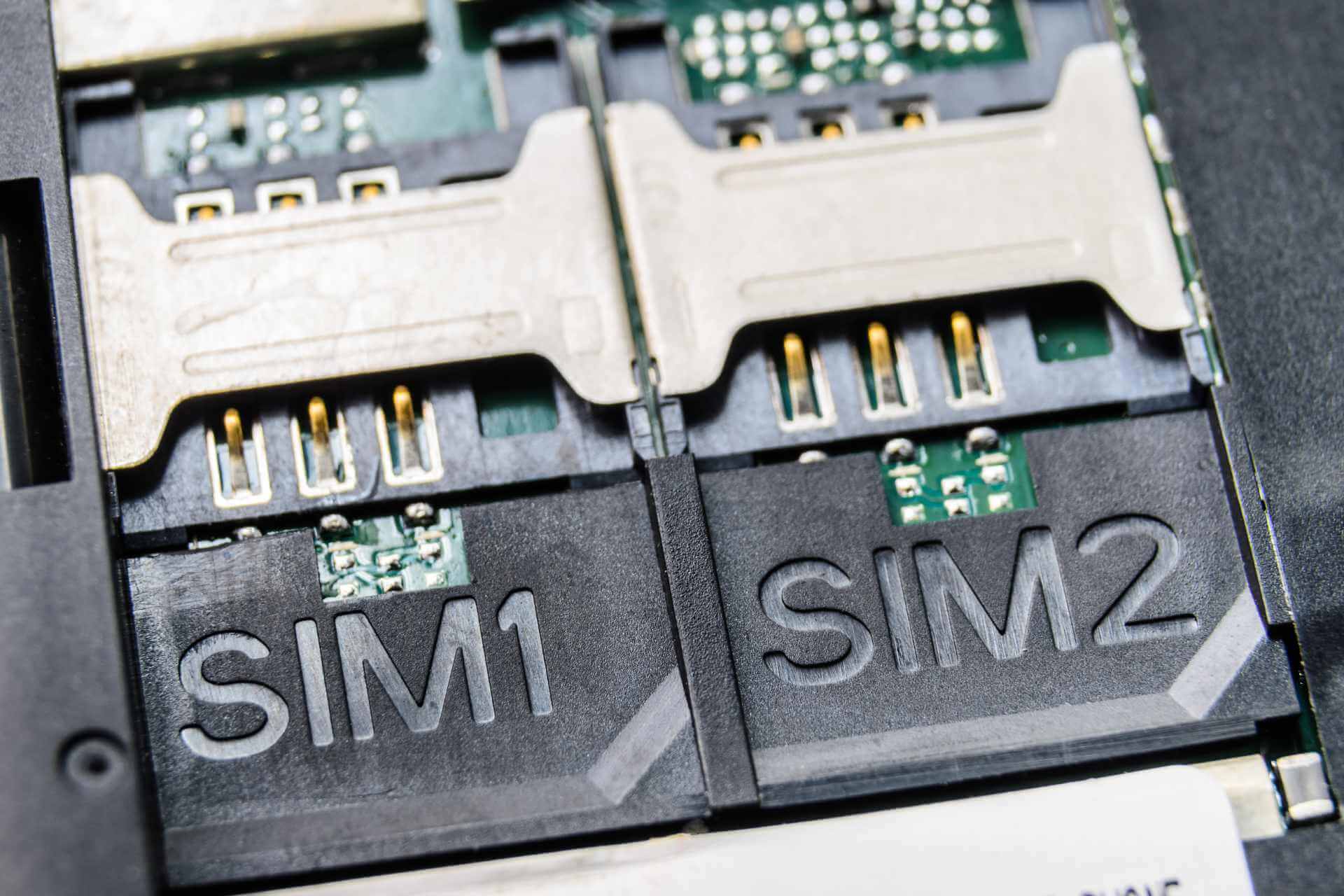
We answer: What is Dual SIM and how to use it?

Over the years our cellphones changed a lot. Cellphones became smarter, and many of them use Dual SIM technology. Since number of Dual SIM cellphones is rising, today we’re going to explain you what is Dual SIM and how to use it.

What is Dual SIM and how does it work?

Dual SIM means that a cellphone can have two SIM cards and use any of them to make calls or send text messages. Dual SIM technology was invented in 2000, but it gained its popularity in late 2000s. Dual SIM is available on both Android and Windows 10 Mobile devices, and the number of Dual SIM devices is on the rise.

We have to mention that there are several versions of Dual SIM, and some of them, such as Passive Dual SIM, don’t allow you to use two SIM cards simultaneously. This type of Dual SIM is usually found on affordable phones, and even though your phone can hold two SIM cards at the time, you’ll have to switch between them manually. This means that only one SIM card will be active, and you can only use that card to receive calls or text messages. In order to use the second card, you’ll need to go to the options menu and activate it manually. As you can see, this is a major limitation since you have to switch between two SIM cards quite often.

Dual SIM Standby allows you to use both SIM cards thanks to the time multiplexing technology. By using this technology both of your cards are active, and you can use both to receive calls and text messages. When you receive a call, one card will become active and the other will become temporarily disabled during the duration of the call. This technology has its benefits because you don’t have to switch manually between the two cards in the options menu, however, some users might find it limiting that you cannot use both cards simultaneously.

Lastly, there’s Dual SIM Active technology that allows you to use both SIM cards simultaneously. This means that you’ll receive calls or text messages on your second SIM card, even if you’re making a call using your first SIM card. Thanks to this technology both of your SIM cards are permanently active. We have to mention that phones with Dual SIM Active technology come with two radio transceivers, and each of these transceivers is in charge for one SIM card. In practice, it means that phones with Dual SIM Active technology consume more power and drain your battery faster. Due to two transceivers, the price of these phones is usually a bit higher.

As you can see, Dual SIM can be extremely useful, especially if you need to use two different SIM cards but you don’t want to purchase an additional smartphone. Many people use Dual SIM phones for business, thus allowing them to use one phone for both business and personal use.

Dual SIM phones are also great if you want to use two different mobile providers. For example, if your mobile provider doesn’t have a suitable data plan but you don’t want to switch to a different mobile provider, you can easily use a SIM card from a different provider that offers a better data plan for you.

Lastly, Dual SIM phones are great for people that travel a lot. If the roaming rates are too expensive, you can just get a local SIM card and use it alongside your main SIM card.

We have to mention that you can use both SIM cards for data connections, but bear in mind that most smartphones come with support for 4G + 2G connection in Dual Standby mode. Models that support 4G + 3G or 4G + 4G are rare since they require a powerful processor in order to achieve that.

Dual SIM technology is great, and we hope that you understand a bit better how Dual SIM works after reading this article.

READ ALSO:

Network Locations in Windows 10: Where are They Stored

Online safety is quite important. Therefore, Microsoft created several features designed to protect Windows 10 users. Network locations are one of these features, and today we’re going to explain to you what network locations are in Windows 10.

Besides, users have been wondering where network locations are stored in Windows 10 or how these actually work. If you are one of them, keep reading to find out the answer to all these questions!

What is the network location on my computer?

Network locations are designed to protect your PC while connecting to different networks. These also help protect your device on a public Wi-Fi network.

Network locations were introduced in Windows Vista, and over the years, Microsoft improved and streamlined that feature. This feature made its way to Windows 10, and it works almost the same as in previous iterations of Windows.

How do network locations work in Windows 10?

Network location is basically a profile with certain settings related to network discovery and file sharing.

When you access a certain network for the first time, Windows 10 will ask you to choose one of the three profiles: Home network, Work network, and Public network. Each of these profiles comes with different settings optimized for certain conditions.

Let’s find out about the network profiles in Windows 10:

  • Home network: Designed for networks that you fully trust. This option has most settings enabled, so you can easily see other computers on the network. You can also create or join Homegroup and share files easily with other devices on your network.
  • Work network: Similar to Home network, and allows you to see other devices on your network. But, you won’t be able to create or join Homegroups.
  • Public network: Doesn’t allow you to see other computers connected to the same network. Since file sharing is disabled, users won’t be able to share any potentially harmful files. Ideal for networks set up in public places.

Where are network locations stored in Windows 10?

Tip icon Tip
Network locations pretty much work the same way in Windows 11. But on the latest iteration, the options are to be configured via Settings instead of the Control Panel.
  1. Press Windows + S, enter network, and select Network and Sharing Center from the list of results.
    network-locations-network-sharing-center
  2. Click on Change advanced sharing settings.
    network-locations-network-sharing-center (2)

Now you should see network settings for all available profiles. You’ll notice that there are two groups of profiles, Private which includes Work and Home network profiles, and Guest or Public group.

Here’s a brief description of options that appear under the Private profile.

  • Network discovery: Allows your computer to be seen by other devices on the network. If you’re on a home network and you recognize all the devices on your network, you can freely turn this feature on.
  • File and printer sharing: This feature allows you to turn on file and printer sharing with other network devices. Again, if you recognize all the devices on your local network, you can turn on this feature.
  • HomeGroup connections: This feature allows you to manage the Homegroup connections. By default, Windows manages the Homegroup connections, but you can use user accounts and passwords to connect to other computers.

Guest or Public group has only two options, Network discovery and File and printer sharing.

network-locations-guest-or-public

Last on our list is the All Networks group, and here are brief descriptions of the options under it:

  • Public folder sharing: Allows other people on this network to access files stored in the Public folder. By default, this option is turned on.
  • Media streaming: Allows other people and devices to access pictures, music, and videos on your PC. In addition, by using this option, you allow your computer to find media on the network.
  • File sharing connections: Allow you to choose the method of encryption for file sharing. By default 128-bit encryption is used, but you can switch to 40 or 56-bit encryption if your devices don’t support 128-bit encryption.
  • Password protected sharing: This is one of the most important options because it allows only users that know your computer password to access the files or printer. If someone doesn’t have the password, they won’t be able to see your public files or any of your shared files.

Network locations are an important feature of Windows 10, and we hope you understand a bit better how network locations work, where are these stored, and how you can make the most out of them for enhanced security.

Before you leave, find out the best security settings to enable for a safer Windows experience.

For any queries or to share what prompted you to look at the network locations in Windows 10, drop a comment below.

We answer: What is Miracast and how to use it?

Wireless technology is constantly developing, and as technology develops we’re getting new standards. One wireless standard that was introduced few years ago is Miracast, so today we’re going to explain you what is Miracast and how to use it on Windows 10.

What is Miracast and how to use it on Windows 10?

Miracast is a wireless standard that allows you to stream content from your all sorts of devices to your TV, monitor, or any other device that supports Miracast. This standard was introduced in 2012, and it allows you to stream 1080p HD video and 5.1 surround sound. Miracast uses peer-to-peer Wi-Fi Direct standard, and it’s secured with WPA2 encryption.

In order to use this technology, you need two devices that have Miracast support. Even if your monitor or TV doesn’t have native support for Miracast, there are all sorts of Miracast adapters available that connect via HDMI. Regarding the support, Android 4.2 and later devices fully support Miracast and Microsoft supported Miracast since Windows Phone 8.1 and Windows 8.1. Unfortunately, Apple doesn’t support Miracast and instead it relies on its own AirPlay protocol.

You should know that Miracast doesn’t rely on your current Wi-Fi connection, instead Miracast creates direct wireless connection between the two Miracast devices. It’s worth mentioning that Miracast allows you to stream any type of content from your device, regardless of its format or protection. As long as you can play the content on your device, you should be able to stream in on any other device that has support for Miracast.

To steam using Miracast you need to have a TV or monitor with Miracast support, but if you don’t have it, you can use an HDMI dongle. All you need to do is to connect the HDMI dongle to your monitor or TV, and plug its USB connector to a USB power port. If you don’t have a USB port on your TV, you can use the power adapter and connect it straight to the power outlet.

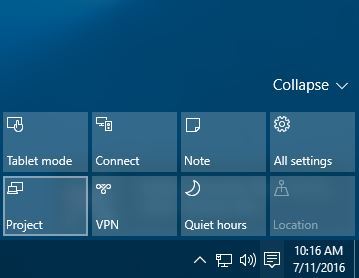
After the Miracast adapter is properly connected, you need to connect to wireless display. To do that, click the Action Center in the bottom right corner and click the Project icon. Click the Connect to wireless display and select the wireless display you want to stream to.
miracast-project

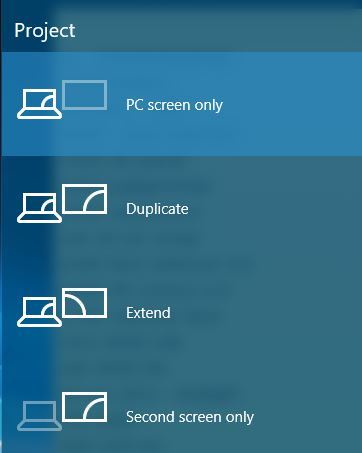
Bear in mind that you can switch between several projection modes while using Miracast. You can switch between these modes by using the Windows Key + P shortcut or by choosing the Project option from Action Center.

miracast -project-options

After you’re done with streaming, you can disconnect from wireless display by going to Action Center > Project and choosing the Disconnect option.

As you can see, Miracast is pretty simple to use as long as you have the appropriate equipment. In addition to simplicity, Miracast doesn’t require any cables, which means that you can stream content from your tablet or smartphone even if you don’t have an HDMI port on it. Since Miracast can work as long as you have the necessary adapter, you can easily connect it to any device that has an HDMI port available. This is great for business presentations, or if you travel a lot, but you want to enjoy in your favorite content on a TV screen.

Although Miracast sounds great, it has its limitations and flaws. One of the first issues is latency, and if you want to stream video games from your PC to your TV screen you should know that some latency issues can occur. Bear in mind that latency may vary depending on the quality of your Miracast devices. There might be also certain connection stability issues while using Miracast, but again, this all depends on the quality of the Miracast devices that you’re using.

Miracast is an amazing technology despite some of its limitations, and we’re certain that we’ll see more Miracast devices in the future. So far, there are more than 5000 certified Miracast devices, and that number is increasing by each day. If you haven’t used Miracast before, now is the perfect time to give it a try.

READ ALSO:

What is a QR Code and How to Use it? All You Need to Know

In recent years, we have seen an increasing number of QR codes. You probably saw these at least once, since QR codes are now one of the simplest ways to share information. So today, we’re going to explain to you what is a QR code and how it works.

Be it the history of QR codes, their generation, or their working mechanism, it’s all vital from a technical standpoint. So, let’s get right to it!

What is a QR code?

QR code stands for Quick Response Code, and it’s a matrix barcode similar to Universal Product Code. Unlike Universal Product Codes that you see on almost any product, these are used for different purposes. QR codes can store more information, and this is one of the main reasons for their popularity.

QR code was invented in 1994 in Japan, and it was used to track vehicles during the manufacturing process. These are simple to use, and since they can store large amounts of data, it’s no surprise to see that QR codes have become a part of everyday life.

How does a QR code contain information?

Regular barcodes are one-dimensional. Thus, they cannot store as much information as a two-dimensional barcode such as a QR code. Speaking of information, QR codes can store about 4,000 alphanumeric characters, which is quite impressive.

Unlike old barcodes that were scanned by a narrow beam of light, QR codes are scanned by the image sensor, and they are decrypted by a programmed processor.

After detecting the QR code, the processor scans the image and the position of the dots and converts them to binary numbers.

To scan one, you don’t need any expensive sensor since any smartphone with a camera can be used to scan and see the information stored inside.

What are QR codes used for?

Since almost any smartphone can scan a QR code, it’s no wonder that these are often used in advertising. These codes can store any text, such as a phone number, email address, or website.

Most commonly, QR codes are used to provide quick access to certain websites or apps. So, for example, by scanning a certain product that has the code on it, you can visit the manufacturer’s website and find more information regarding this product.

In the present day, QR codes can be used for quick online payments. They store the details for the user, and when another person scans the code, it automatically redirects them to the transfer page.

In addition, QR codes can be used to authenticate certain devices or website logins, and in fact, Microsoft included QR codes on Blue Screen of Death errors in Windows 10 in order to show you more information regarding certain errors quickly.

Some restaurants and cafes have, of late, replaced the physical menu with a digital one, accessible via a QR code. So, you sit at the table, take the phone out, scan the code, and order your favorite food. It’s simpler and more convenient!

Possibilities are endless, and this is why QR codes have become so popular!

As we previously mentioned, to scan a certain code, you just need a smartphone with a rear camera and a dedicated application that can decrypt it.

A wide range of applications are available for all mobile platforms that allow you to scan codes, so be sure to download one of these applications.

How can I create my QR code?

If you want to create your own QR code, you can do that easily for free. There are many QR code generators, and you can use any of them to generate your QR code quickly. Some of these are downloadable software, while others are web apps.

After you generate your code, you can share it with others or print it on a sheet of paper. Stick it somewhere, and others can scan it. Some users also create QR codes to share Wi-Fi passwords.

Say, someone asks you for the password. Instead of telling it to them verbally, you can present the code that stores the Wi-Fi password. It’s now a built-in functionality on many mobile phones.

QR codes are one of the simplest ways to store data on a small surface, and the possibilities are endless. It’s certain that we’ll see more of these in the future, and we hope that you understand QR codes a bit better after having spent a few minutes with us.

Before you leave, find out more about the Chrome QR code generator, and use it to quickly create one from the comfort of your browser.

For any queries or to share your feedback on the article, drop a comment below.

Snapchat app for Windows 10 Mobile is not coming

If you’re an avid Windows 10 Mobile user who is young, hip, and managed to experience the likes of Android and iOS, then there’s a good chance you might be looking forward for an official Snapchat app to make it over to the Microsoft platform.

Back in late June of this year, Microsoft support claim Snapchat for Windows 10 Mobile was on its way. This got several users of Snapchat interested in Windows on mobile again, and even overjoyed by the news. The website, DeskModder, originally reveals the information, claiming it had held conversation with Microsoft support and the following was said in regards to Snapchat:

“There are plans to make it available in the future, we’ll give updates when that’s close. But as of now, it is not actually yet at the store app,” Microsoft Support said in the conversation. “I can just say that it will be available soon. We are communicating still with the app developer to verify when we can add it in the store. But for now, there’s still no exact date.”

Rudy Huyn, one of the most well-known Windows Phone developers out there, said one should never trust Microsoft support because they do not have information about which app is coming to the company’s mobile platform. He also said Snapchat is not working on an app in a conversation on Twitter, but that’s just his opinion.

“In my opinion, Snapchat is not coming (contrary to Winter), never trust supports, they don’t have access to this kind of information.”

He’s right about one thing, and that is, Microsoft support does not have information about the apps coming to either Windows 10 or Windows 10 Mobile. However, that doesn’t mean the Snapchat guys are not working on an app, but we may never know for sure until the horses sing.

With most major smartphone apps not coming to Windows 10 Mobile, and with phone revenues shrinking, Microsoft should put the platform out of its misery. We’re not sure if a Surface Phone in 2017 will save the platform, but anything is possible.

RELATED STORIES YOU NEED TO CHECK OUT:

Windows 10 Anniversary Update changes up the Taskbar

The anniversary update for Windows 10 is a major update that will introduce many many new features and changes to the popular operating system, some of them having to do with the Taskbar.

Taskbar: Customization Options

It seems that Microsoft has decided to remove the “Taskbar and Start Menu Properties” page. These customization options can now be found on the Settings app. When you right-click the Taskbar, you will not see Properties anymore. Instead, you will need to click on Settings to open the new Taskbar settings page.

You can also access the “Taskbar Settings” page by heading to Settings->Personalization->Taskbar. As expected, you will find all the options that were previously found in the old Taskbar properties page. If you want to change which icons you want to appear in the notification area, you will have to click the “Select which icons appear on the Taskbar” option. You have also the ability to turn on and off the system icons by selecting “Turn System icons on or off”.

If you are a gamer who prefers to use multiple desktops, you should know that you can change the way the taskbar works with the  “Show taskbar buttons on” and “Combine buttons on other taskbars” options.

For multiple displays, you can also change the behavior of the taskbar using the “Show taskbar buttons on” and “Combine buttons on other taskbars” options.

Windows Ink

The Windows 10 Anniversary Updates also introduces Windows Ink, a new, pen-supported system for devices which touch functionality. As expected, Windows Ink also comes with its own Workspace in which you will be able to use your pen with new features such as Screen Sketch, Sticky Notes and Sketchpad.

Keep in mind that Windows Ink Workspace will be automatically enabled on touch-enabled devices. You will also notice a new Windows Ink Workspace button to be found in the notification area. However, if you don’t own a device supporting touch, Windows Ink will be disabled — but you can always enable it and use the new feature with your keyboard and mouse.

Taskbar Calendar Integration

If you are an organized person, you will surely enjoy the new Taskbar Calendar Integration that the Anniversary Update will bring. The calendar is now integrated into the date and time flyout so that when you will click on the clock button that’s located in the notification area, your daily events will be shown under the calendar.

RELATED STORIES TO CHECK OUT:

Microsoft Research creates fellowship program to support women in computing

Microsoft Research has brought forth great ideas, innovations, and interesting research projects from a wide variety of participants. Over the past couple of years, we’ve reported on several researchers who have brought artificial intelligence, computational thinking and smart road projects to the public.

Among the highlighted researchers, we’ve noticed a growing trend of women who have led advanced exploration in computing and technology, and it seems Microsoft has also made the same observation.

Microsoft Research’s distinguished scientist Susan Dumais is highlighting the recent announcement of the company’s efforts to support women in computing through its fellowship program.

Women are woefully under-represented in computing-related fields.

At Microsoft Research, we’re committed to helping address this imbalance through the Microsoft Research Women’s Fellowship Program. The fellowships directly support female computer scientists as they pursue graduate studies, providing US$20,000 for tuition and conference travel. Also, the program connects recipients with a Microsoft mentor and researchers in their area of study and facilitates recipients to interact with each other in a collaborative peer community.”

In addition to supporting women in computing fields, Microsoft Research will also be supporting other diversity-related initiatives such as the NCWIT Academic Alliance Seed Fund. The NCWIT is a US-based academic institution designed to develop processes for recruiting and training women by enticing them with a financial investment of up to $10,000 per project. Another diversity program Microsoft Research is supporting is its DigiGirlz, a YouthSpark program intended to capture the interest of middle to high school aged girls exploring early computer science programs.

girls who code
Girls who code

As for the fellowship program, Microsoft has already named ten winners of the $20,000 fellowship award for 2016. The ten ladies are all studying various emphasis of computer science that includes human-computer interaction, natural language processing, and computational biology among others.

The list of 2016 winners include:

  • Alane Suhr, Cornell University
  • Avanti Shrikumar, Stanford University
  • Ellen Vitercik, Carnegie Mellon University
  • Erin Grant, University of California Berkeley
  • Helga Gudmundsdottir, University of Washington
  • Jeevana Priya Inala, Massachusetts Institute of Technology
  • KatieAnna Wolf, Princeton University
  • Lucia Marisol Villacres Falconi, Georgia Institute of Technology
  • Natacha Crooks, University of Texas at Austin
  • Rui Yang, University of Illinois Urbana-Champaign

For many, being associated with Microsoft Research in any way is an honor in and of itself, adding a financial incentive can be the cherry on top for women who may have been hesitant or inhibited in exploring computer science as a realistic outlet or career goal.

Microsoft Research Alumni Network launched on LinkedIn as part of 25th Anniversary of Microsoft Research

Microsoft’s executive vice president of technology and research Harry Shum is announcing the MSR Alumni Network today. The announcement comes during Shum and former Microsoft CEO Bill Gates sit down to talk about Future Visions during a fireside chat at the company’s Research Faculty Summit this month.

The launch of the Microsoft Research Alumni Network happens to involve the company’s recently purchased property of LinkedIn as part of its 25th Anniversary of Microsoft Research (MSR) announcement.

The LinkedIn group is dedicated to connecting the thousands of past MSR employees, postdoctoral researchers and interns with us. Together, our alumni and current Microsoft researchers have published more than 20,000 papers — much of it in open collaboration with leading universities around the world. The expertise and ground-breaking work from these researchers represent a rich legacy across many areas such as machine learning, computer vision, systems, theory, quantum computing, formal methods, robotics, networking, human-computer interaction, data visualization, security, privacy, cryptography, and multimedia.”

We’ve reported on several talented individuals who have spurred interesting takes on innovation, research and scientific education as a result of being part of MSR such as Jeannette M. Wing’s highly regarded Computational Thinking publication. Other know MSR leaders include Eric Horvitz’s looking into artificial intelligence, Wolfram Schulte’s work on software verification and Zuzana Kukelova’s take on advancements in computer vision.

The best part about being a part of the Alumni Network is the free membership. Members have access to Microsoft Researches who have become leaders and influencers in their fields, as well as an opportunity to connect via virtual or in-person communications. Connecting with a Microsoft Researcher, alone offers the potential for insights into developing trends and technological evolutions that have yet to be explored by the public.

For more information about the new Microsoft Research Alumni Network, visit Microsoft’s Research Blog or keep it here at WinBeta for developing news about the launch.

Edge extensions no longer coming to Windows 10 Mobile

Microsoft silently changed its roadmap. Now, it appears the tech giant has cancelled Edge extension support for Windows 10 Mobile. In other words, Edge extensions remain on PCs and tablets only.

Users became aware of Microsoft’s decision after the company removed the Mobile icon from the Extension section of its Windows 10 Roadmap. Actually, Edge extensions on Windows 10 Mobile have always been tricky due to limited phone resources and user interface limitations.

microsoft gives up on edge extensions for windows 10 mobile

This decision is surprising when you take into account the fact that Microsoft has repeatedly stated it wants to offer the same Windows 10 experience to all users, irrespective of the device they’re using. So much for Windows 10 being universal.

It wouldn’t be the first time Microsoft breaks its promise. When the Play Anywhere program was first launched, the company promised to let you digitally buy your favorite games once and play it across Xbox One and Windows 10 platforms. After a while, Microsoft changed its mind and decided that not all new Xbox games would come to Windows 10. “Every new title published from Microsoft Studios will support Xbox Play Anywhere” turned into “Every new title published from Microsoft Studios that we showed onstage at E3″.

Microsoft’s decision disappointed many Windows phone users as the extensions currently available for PC users would have come in very handy on phones. For example, Microsoft Translator is much more useful as an Edge Extension on a phone than on PC. After all, when you’re travelling abroad you don’t carry your laptop in your pocket.

Of course, you can live without Edge extensions on your mobile, but what’s most frustrating is that Microsoft offered you a glimpse at what could have been — and snatched it away.

RELATED STORIES YOU NEED TO CHECK OUT:

New update for Xbox One Preview members out now

Microsoft released a new update for the Xbox One to Preview members that introduces some new features and improvements.

This new update allows you to disable Cortana and use the old Xbox commands, while the American multinational technology company headquartered in Redmond, Washington is disabling Cortana for the Xbox One users from Spain, Germany, France and Italy.

Everyone at Microsoft is thanking all users who have helped them to test out Cortana on Xbox One because as a result of the data usage and feedback, the company is now able to improve this feature before it gets released to the public.

If you want to disable Cortana on your Xbox One, the following options will be disabled:

– Headset voice control
– Voice dictation
– Universal Windows App voice features

Only the Xbox One old voice commands will be recognized if Cortana is off. To disable Cortana on your Xbox One, head to All Settings->System->Cortana Settings. This update for the Xbox One should be already available to download, but you will be able to install it on your console if you are a Preview member.

It is just a matter of time until Cortana gets more improvements for the Xbox One console. Hopefully, these features will be available for all Xbox One owners sometime in the near future. As for now, if you live in Spain, Germany, France or Italy, you will not be able to use Cortana anymore, as the company has automatically disabled completely this feature on your Xbox One console.

Are you an Xbox One Preview member? What are your thoughts about the return of the old Xbox commands?

Microsoft is revamping Project Islandwood to make porting apps easier and better

Microsoft announced the Project Islandwood last year, and a steady development has followed the iOS to Windows bridge. Today, the bridge gets new APIs for the UIKit implementation.

iOS user interfaces have always been tricky to bridge over to Windows. Microsoft want’s to let developers reuse as much code as possible and make sure that bridging Objective-C based application is easy and simple. The bridge also includes UIKit that is a framework with hundreds of classes and as the official blog post puts it “re-implementing the entire thing is simply not feasible – not to mention the fact that Windows already offers much of the same functionality in the form of XAML”. XAML has been a part of Windows, and all of its bridges from the beginning, but up until now, there hasn’t been a simple way of bringing UIKit and XAML together.

Microsoft want’s to change that, and will share  a series of technical design documents on GitHub outlining the solution to this problem, starting today.

As a result of these changes, the iOS bridge will be able to offer:

  • Faster bring up of iOS controls, so more of UIKit is available to you
  • An improved touch-input model for more performant event handling
  • Much improved support for accessibility and localization
  • Better test automation, resulting in more stable and high-quality controls
  • Much improved integration with and leveraging of Windows’ UI framework, XAML

In short, UIKit will work on top of XAML from now on, and you can follow Project Islandwood’s development on the official GitHub page.

Office 365 Network opens up with new public preview

These days, Microsoft is enabling a public preview, beta, or technical preview for most of its services. Windows 10 and Xbox One users have the Insider program, Visual Studio and Azure offer technical previews, and now Office 365 Network users will be joining the early access train.

The Office team announced today the public preview of Office 365 Network that should allow even more IT Pros, technical experts, and product enthusiasts access to important Office 365 news, tips, tricks and best practices.

According to a post on the Office Blogs, changes to the current Office 365 Network include hosting of unauthenticated platforms resulting in internet searchable community post.

Currently, the Office 365 Network is hosted as an authenticated Yammer network, which requires registration and sign-in to participate in the community, and makes discussion content searchable and discoverable only by users who are registered and signed into the network. In an effort to make the community content accessible to anyone, the new Office 365 Network will be hosted on an unauthenticated platform, meaning community posts will appear in internet search results, and visitors won’t have to sign in to view content in the network.

Office 365 Network community members can look forward to these specific additions and benefits of the public preview as well:

  • Personalize your home page so it displays community discussions and other content related to topics you select.
  • Earn badges based on your activity in the community, which will be displayed on your profile page along with a summary of your activity—including latest posts, likes given and received, people you follow and community notifications.
  • Search community content to uncover discussions, ideas and other information from across the Office 365 Network.
  • View conversations as threaded conversations and hold private conversations with others using your community inbox.

Above all else, opening up a public preview to Office 365 Network means that new and current members have more access to Office-related material. Eventually, Microsoft would like to move everyone over to the new experience and has set a date to which the current members of Office 365 Network will be redirected to the public preview starting September 1, 2016.

For now, the more technical of the communities will remain hosted on Yammer due to NDA’s and the services ability to enforce authenticated experiences. Microsoft lists Office 365 MVP Network, invitation-only network for Office Server & Services MVPs, Microsoft product teams and Yammer Community Managers as still being hosted on Yammer.

As mentioned earlier, the public preview is rolling out currently, and Microsoft is encouraging those interested testing it out also to offer feedback and suggestions through the Community Ideas Exchange or to visit the Community Discussion Board for more information.

Hacker gets Windows RT 8.1 PE running on unreleased Lumia 650 XL

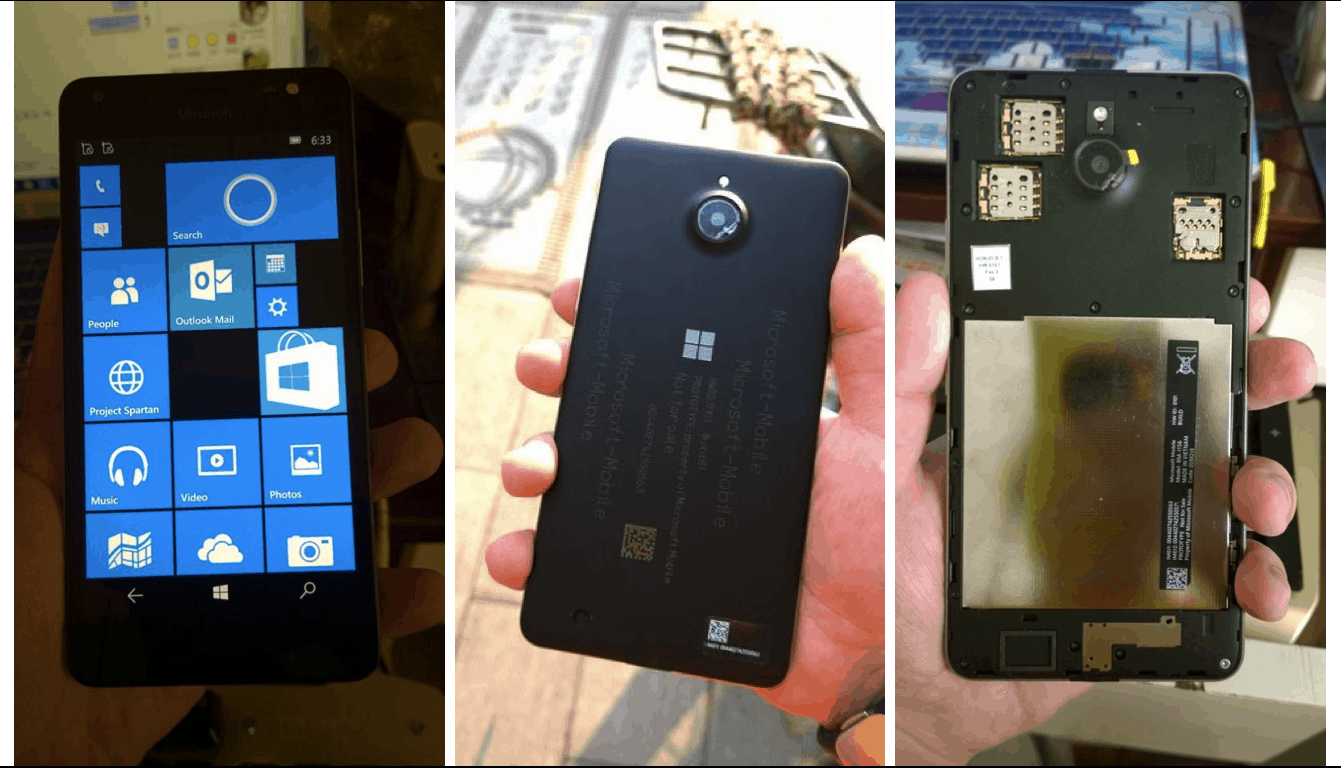
The Microsoft Lumia 650 XL was never released, but numerous leaks have been revealed to the public with some claiming it’s the Lumia 650 XL and some it’s the Lumia 850. The cancelled release of the phone didn’t stop hacker Calyx Hikari from successfully running Windows RT 8.1 PE on the device.

The video below (via WBitalia) clearly shows the device and the software (we recommend that you mute the video):

Aside from the software, this video shows one of the models of the Lumia 650 XL, in this case the RM-1157, that only has one SIM-slot and a non-removable battery. Otherwise, it seems like a bigger version of the Lumia 650, and that is exactly what it should be.

Latest Xbox One Preview update brings mobile carrier payment options

Reddit user CDragon00 was about to add a new card to their account yesterday when they realized that there was a new payment option on his Xbox One. The option to add a mobile phone and carrier listed Sprint as the only source. CDragon00 took a couple of screenshots of it to share, sharing that they were in fact in the latest preview update for Xbox One.

Mobile payment options are useful for consumers that do not wish to use or share their credit card information. The costs are instead added onto your monthly phone bill instead of being charged immediately.

It’s worth noting that the mobile payment option only appears to be in the United States for now. If it’s like other mobile payment options for other services, it will likely build partnerships with other carriers and countries. We should likely see more information soon about this feature now that the cat is out of the bag, so to speak.

The latest preview build for Xbox One also gave gamers a choice between using Cortana or more traditional Xbox One commands.

What else have you found in the latest preview build for the Xbox One? Share them in the comments below!

Windows Insiders treated to updated Movies & TV app with Xbox controls and tighter Store integration

Updates to the now decoupled core Windows apps have been rolling out abundantly over the past few months, many of which appear to be performance tweaks and bug squashes. However, as the Windows team prepares for the Windows 10 Anniversary Update release, some of the core apps are receiving functionality-boosting releases as well.

Take the Movies & TV for Windows 10; the app was updated for Fast Ring Insider participants with added Xbox One controls and tighter Windows Store integration.

The changelog for version update 3.6.2350.0 is as follows:

  • You can now control the Movies & TV app on your console (Xbox Preview Only) using the Xbox app on your PC or phone.
  • We changed the experience when you choose a movie or TV episode that you’ve already partially watched. The app now asks if you want to restart from the beginning or continue from where you stopped last time. This means you don’t have to use the transport controls to get back to the beginning if you’d like to start over again.
  • When searching for content from the Movies & TV app, you can now see Store search results too. This gives easier access of Store content from the consumption app and is especially important for console users who are only using the Movies & TV app to Store playback content. You might notice that they search results aren’t as high quality as they have been in the past within the Store app…that issue is known and is being addressed.
  • We added more telemetry to tell us which codecs you’re using so that we can better understand the types of files you have.

While the update is only rolling out for Insider devices right now, presumably the Windows team is working on getting this new functionality out to all Windows 10 users within the next month.

Fast Ring Insiders are encouraged to head over to the Windows Store or follow the link below to test out the new update.

Movies & TV
Movies & TV
Price:
Free

Tower Git client is coming soon to Windows, sign up for the beta today

Git is one of the most popular version control systems out there, allowing development teams to work in collaboration on a project – sharing code between each other seamlessly and providing a full history of all code changes, through the use of commits. Any software developer is well acquainted with the importance of version control with frequently-updating applications, and those who do their work on Mac have probably heard of Tower. This popular Mac Git client, however, is soon making its way onto Windows 10.

Apart from the fact that Tower is making its way to Windows 10, we don’t really know any details. We have no idea when the Git client will be sending out its beta invitations, much less when the full app is going to make its way onto the Windows store. We’ll be keeping an eye on Tower to see when things start to get a bit more exciting for fans of the client, but the promise of an eventual Windows app should be enough to get some people excited for the future.

Microsoft offers up some productivity tips for making email more efficient

For years now, companies have tried to do away with the seemingly antiquated form of communication that has become email. Services such as Slack, HipChat and even Microsoft’s own SharePoint have attempted to chip away at the necessity of email but most companies are ultimately augmenting their use of modern chat with support for email as well.

Perhaps the negative connotations surrounding email aren’t the fault of the medium but rather how it’s being managed, at least that is what the team behind Office believes.

The folks behind the Office Blog feel that building in analytics tracking into inboxes can help increase user efficiency when using email while also shedding poor performing behaviors that ultimately make navigating an inbox much less of an issue.

email analytics for management

Most individual employees use email as an information dump and as such, managing a landfill of appointment request, attachments and carbon copy replies can often feel daunting and flat-out overwhelming. Thus the firm push for alternative forms of communication and information transfer that have created a multi-billion-dollar business whose sole purpose is to thwart the use of email.

Microsoft’s Office team would like email users to reconsider for just a moment, how they understand, control and reclaim their email inboxes.

Figuring out the best inbox

  • You discover the long hours you spend thoughtfully composing regular updates are going to waste, as your contact isn’t even opening your emails. The takeaway? It’s probably better to limit yourself to vital points—and to communicate them through a different channel.
  • Or maybe you learn that emails sent after 3 p.m. have a high average response time. This knowledge lets you establish precise email windows to maximize effectiveness. The less time you have to spend following up on your ignored messages, the better.

Better scheduling

  • Time Analytics allows you to quickly see how often you experience uninterrupted periods of work time, how much you’re working outside of normal business hours, how many meetings you attend per week—the list goes on. Once you see the full picture, you’ll be able to make decisions about your work habits on a larger scale.

Use of network insights

  • To fully optimize your workday, take advantage of other personal analytics tools. Network insights, for instance, allow you to take the pulse of your contacts. Who are you connecting with most frequently? And with whom do you risk losing touch? Access to this information could help you maintain relationships and keep lower priority projects from slipping through the cracks.
  • Similarly, a meeting quality feature can provide insights that help you understand why certain meetings aren’t as effective as they could be. Too much multitasking? Too much time to fill? Not enough time? Maybe you’ll discover that weekly check-in meeting isn’t even necessary.

For some, it’s easy to throw up hands and seek out an alternative to email, but for others, simply knowing more about email may be the key to finally achieving the highly elusive, inbox-zero.

Microsoft and Ohio’s Cuyahoga Country form partnership to bring technology to education

In the Cuyahoga County of Cleveland, Ohio, residents will be taking part in computer training skill courses that leverage a new partnership that will utilize resources provided by Microsoft. On a site that covers news around the North East Ohio aptly titled Cleveland.com, a new posting highlights the new details of Cuyahoga County’s alliance with Microsoft that includes four different programs that make up the company’s CityNext initiative that it has been pushing across the world.

In particular, Cuyahoga residents will have the following at their disposals:

  • Microsoft’s Digital Literacy Curriculum – a “train the trainer” model on basic technology tools to help residents develop skills required for many entry-level jobs.  The county will partner with organizations such as the Cuyahoga County Public Library to identify and offer residents digital literacy training.
  • Microsoft BizSpark – a program that focuses on start-up organizations by providing tailor-made software and services. The county will partner with entrepreneurial incubators to deliver the program to 300 local start-ups.
  • Microsoft YouthSpark – an initiative that broadens access to science, technology, engineering and math opportunities for students. Hundreds of students will attend YouthSpark Live, where they will take on technology challenges through small-group work and learn more about technology-related careers. Microsoft currently offers YouthSpark events at its store in Beachwood Place.
  • MyCuyahoga Mobile App – an app that will soon launch that will allow residents and visitors to identify issues such as graffiti, trash, and the need for safety escorts, car lockout and jump-start services. Users within the downtown Cleveland area will be able to upload photos and immediately send service requests directly to the Downtown Cleveland Alliance.

Recently, Microsoft elevated its view of competition in the educational sector as being greater than a one-to-one battle between company solutions but rather including competition against social and economic shifts in education. Microsoft appears to be aiming at creating a top-to-bottom stack of solutions for helping teachers and educators guide students and citizens into a competitive employment market.

NVIDIA updates GeForce Game Ready Driver to 368.81 for Windows 10, adds Ansel support and improved VR

If you’re running an NVIDIA GeFore GPU in your Windows 10 machine, then you’ll want to go look for a driver update. The company pushed an update today that provides the usual performance improvements along with some additional changes.

Here’s what’s new in version 368.81 of the GeForce Game Ready Driver:

VR Game Ready
Provides the optimal experience for new and upcoming Virtual Reality titles including NVIDIA VR Funhouse, Everest VR, Obduction, Raw Data, and The Assembly.

Ansel Support
Supports the new Ansel technology now available in Mirror’s Edge Catalyst, which allows you to compose your shots from any angle, capture in 2D, 360° and adjust with post-process filters.

Virtual Reality
VR Ready GeForce GTX 1080, 1070, and 980 Ti customers can download NVIDIA VR Funhouse from Steam today!

Open up your NVIDIA GeForce Experience app and download the latest driver, or head over to the NVIDIA site. Either way, get that update installed and let us know in the comments if it’s fixed anything important for you.

Microsoft releases Visual Studio Tools for Unity 2.3 to for easier cross-platform game development

Unity Technologies makes a popular cross-platform game development tool that makes it easier for developers two write a game once and publish it to multiple platforms. The tool maker is so popular, in fact, that they just announced receiving $181 million in Series C investing funds, meaning they’re now even better equipped to continue making great game development tools.

Microsoft supports game development on Windows machines with the Visual Studio Tools for Unity, which just received an update to version 2.3. VSTU 2.3 offers the following updates:

  • VSTU no longer conflicts with the Xamarin tools, preventing you from debug your Unity game.
  • You can now use the text, XML, HTML and JSON string visualizers when debugging.
  • Support for function breakpoints in Visual Studio 2015 is now included.
  • All of Unity’s MonoBehaviours are now available from our wizards.
  • Multiple issues in the expression evaluation of the debugger have been resolved.

Microsoft recommends users update to Unity 5.3 for best support. More details are available at the blog post, and you can post suggestions at the relevant UserVoice.

Microsoft advises developers to communicate politely with users in Universal Windows 10 Apps

For many, the app-to-customer paradigm might feel like throwing money into an empty void for services rendered. Purchase a new smartphone, load it up with your favorite and sometimes necessary apps, all the while pitching anywhere from 99 cents to $4.99 to unnamed developers for the privilege of a mobile-translated computing experience.

However, Microsoft believes the interaction between customer and app developer should be a bit more nuanced than users chucking a few rating stars to developers while they wait for their app to fix itself magically when its servers go down. In another installment of help tips, tricks and practices Microsoft is recommending its Windows developers take to heart, with the Windows team walking developers through the process of communicating with their users.

While a Universal Windows Platform (UWP) app should be visually appealing, it should also project the voice of the original app creators from time to time. After all, a good user experience is ultimately a human-centric experience.

Communicating effectively with your users requires the following three virtues:

  • be friendly (and compassionate)
  • provide guidance
  • project a gentle tone

Friendliness, helpfulness and a gentle tone should all combine to provide a smoother, more seamless experience for your users even in the toughest situations, such as an app meltdown or user confusion.

App communications
App communications

The Windows team uses several visual examples of how communication between app developer and the customer can be done by the mere tweaking of text, color, and placement of emphasis on particular parts of a message. Playful animations and drawings can also be used to help encourage and walk a customer through an experience such as applying credentials, adding accounts or submitting error reports, according to the Windows team.

Beyond closing the app gap by bringing names and filling the holes for life-focused necessary services to the Windows Store, the Windows team is also looking to raise the bar of customer experiences with providers. Sure, touting “2 million apps now available in the Windows Store” would be a great accomplishment in and of itself, but the Windows team would also like to encourage current and future developers to consider the quality of their apps rather than just contributing to the quantity of an app store.

App developers interested in the Windows teams notes, visit the Windows Developer blog for more insights, tutorials, and references. Let us know in the comments how you think developers can do a better job of communicating with users.

Microsoft Research begins 2-day Faculty Summit

Microsoft Research has started their annual Faculty Summit for a series of talks on how technological innovation can benefit both business and society. The 17th meeting of the summit started with a fireside chat and Microsoft CEO Satya Nadella, who spoke about the key role Microsoft Research has in continuing to deliver breakthroughs capable of making big impacts across multiple industries.

Over 600 leading academics and researchers are in attendance at the summit and they will be discussing ways to collaborate on the most pressing and important research questions in computer science and beyond. As noted by Microsoft in this official blog post, Daron Green, the managing director for Microsoft Research’s Outreach program, also opened the summit with a call for researchers to utilize the newest machine learning and artificial intelligence tools, all publicly and freely available to academia.

If you’re interested in all the details and news from the Faculty Research Summit, you can visit this official Microsoft Website. As always, though, we would love to hear your thoughts on the summit, and so be sure to drop us a comment below!