Some Plaxo Users Can’t Sync the Address Book in Windows 8, 10

Plaxo is one of the best software when it comes to managing your address book and, naturally, there are many Windows 8 users who have downloaded and installing the service. But it has proved to be problematic for some.
plaxo windows 8This morning, while browsing through the Microsoft Community support forums and after being pinged by one of our readers, I noticed that some Plaxo users have troubles with their software on Windows 8. Therefore, I decided to make the issue “more public”, so that those affected could get help for their problem. If you have had similar problems, let us know by leaving your comment and we’ll try to find out a solution together. Here’s how the complain sounds like:

Read Also: askSam in Windows 8.1 Doesn’t Work for Some Users

I have paid for PLAXO but now I can’t sync my address book. I have a new computer with WINDOWS 8 and NORTON. When I try and download the required tools from PLAXO it keeps on wanting to connect to OUTLOOK EXPRESS instead of WINDOWS LIVE MAIL. Can somebody help me please. I am not a computer expert.

So, as we can see, the problem arrives when you have to connect your mail account, and, in this scenario, it weirdly requires Outlook Express and not Windows Live Mail. But, we all know that Outlook Express isn’t supported anymore for quite a long time, so the best thing that you can do is go ahead and perform a clean install of Plaxo. If this doesn’t work, then leave your comment below and let’s figure out a solution together.

askSam in Windows 8.1, 10 Doesn’t Work for Some Users

askSam is a really useful software, which works like a free form database aimed at regular users rather than programmers. And now some have started complaining that it doesn’t work in Windows 8.1. Read below for more details.
asksam windows 8
According to recent posts on the Microsoft support forums, some users have been complaining that the askSam software isn’t working as it should in Windows 8.1, after there have been no problems whatsoever with Windows 8, 7, Vista and even Windows XP. We’re thus reaching out to askSam to let us know whether they have not made the software Windows 8.1 ready. Here’s what the affected user is saying:

The askSam free form database worked perfectly with Windows XP, Vista and, as far as I can recall, Windows 8. However it almost always freezes when I try to access an existing database now that I’m running 8.1. I’m left wondering whether it’s compatible with Windows 8.1 or whether I have some other issue. Any ideas, please?

askSam seems to have compatibility issues with Windwos 8.1

For those who don’t know what askSam is all about, here’s a short description of the software:

askSam is a database designed for users rather than programmers. Once your information is in askSam, you’re ready to search. Not only can you search on the contents of fields, but you can search on free-form text. askSam offers a wider variety of searches than any other database program and some of the fastest and most powerful searches you’ll find anywhere.

If you have been experiencing similar problems, let us know by leaving your comment below, so this way we will be able to help those who have problems. Also, if it doesn’t work, you can try to run it in compatibility mode with a previous Windows version, as that does the trick in many situations.

Read Also: Is Microsoft Really Building a Smartwatch?

Official United Airlines app for Windows 8, 10 Now Available for Download

After having released the official app for Windows Phone 8 users, United Airlines has recently released in the Windows Store the app aimed at desktop and tablet users, as well. Read below for more on this.
united airlines windows 8 app
If you are an United Airlines customers and you also own a desktop or touch Windows 8 device or even Windows RT, then you’ll be happy to hear that the official app has made its way into the Windows Store a few weeks ago. It comes as a free download but the bad part about it is that it works just as a “veil” for accessing the website. However, I hope that in the near future this will be changed with the release of an update and that we’ll have a standalone app.

Read Also: Skateboard Party 2 Brings the Skateboarding fun to Windows 8

United Airlines customers welcome the official Windows 8 app

united airlines windows 8 app

Connect with United Airlines using our new app for Windows 8! You can leverage all of the features of United.com to book travel, get boarding passes, plan vacations and more. Share special offers with friends and family, and pin favorite locations to your start screen.

By using the app, you will be able to get quick access to all features on United.com and also share deals and travel plans by using the share charm. Another useful features includes pinning your favorite locations directly to your start screen. At the moment, the app is only available in English, since it’s naturally aimed at those from North America. So, just follow the link from below and get it on your Windows 8 devices.

Download United Airlines app for Windows 8

Skateboard Party 2 Brings the Skateboarding fun to Windows 8, 10

There are more and more new awesome Windows 8 games getting released on the Windows Store and one of the fresh titles is Skateboard Party 2, which instantly transforms your Windows 8 tablet into a skateboarding device.
windows 8 skateboard game
Skateboard Party 2 is a brand new game which has been released in the Windows Store and it brings the awesome joy of skateboarding straight on your Windows 8 and Windows RT devices. I admit that I have no clue when it comes to skateboarding, but I proved to be pretty good at least inside a virtual game. Skateboard Party 2 comes with a price of $1.99 and a size of slightly less than 300 mb. It also comes with Xbox game controller support, if you want to take the gaming to a whole new level.

Read Also: Telegram: Messenger app for Windows 8 Launched in the Store

Popular skateboarding game now in the Windows Store

This is quite a well-done game, with plenty of features, such as the following: online multiplayer mode, fully customizable control system, over 40 unique tricks, massive skateboard locations, the ability to customize your skater, extended Soundtrack featuring songs from Voice of Addiction, Sink Alaska, Beta, Hitplay!, Moovalya, We Outspoken and Melodic in Fusion. The app is available in the following languages: English, French, German, Italian, Spanish, Russian, Japanese, Korean, Portuguese and Chinese and comes with sharing features, as well.
skateboard game windows 8

Skateboard Party 2 brings all the fun of skateboarding to your mobile device allowing you to ride in 8 completely unique locations. Jump on your board, learn new moves and improve your skateboarding skills to land sick combos. Play with your friends using the new online multiplayer mode or challenge skaters from all over the world using the online leaderboards. Complete achievements, gain experience and upgrade your favorite skater. You can also customize your outfits, boards, trucks and wheels with real brands.

So, if you’re a fan of skateboarding or if you just like sport games on your Windows 8 tablet, then waste no more time and follow the download link at the end of this article.

Download Skateboard Party 2 for Windows 8

Microsoft Research Peter Lee talks about Windows 9, making companies productive and smarter

Windows 9 will have digital-assistant tools to make companies more productive: Peter Lee

We are all well aware that Microsoft is working on the next version of Windows. We learned recently that Windows 9 might be cloud-based, compared to what we have now. We’re beginning to learn just a bit more on what Windows 9 could feature.

Peter Lee, head of Microsoft Research, in an interview with Jeremy Kaplan over at DigitalTrends, hinted on what we can expect from Windows 9. “Using machine learning to extract relationships, entities, key ideas being worked on and bring those to the surface in tools. Maybe even digital-assistant tools to make companies more productive and smarter. That’s one area we’re going at” for Windows 9, Lee said.

So what exactly does that mean? Lee wasn’t clear, but it sounds like he is referring to the cloud and Bing technology being the backend to the operating system. Talk about the operating system becoming smarter!

“If I write a document and I want to say, share this with the appropriate people that work with Vikram from the meeting, or say, ‘what’s trending around me at work,’ not in my personal space but at work … answering questions like that requires a very different kind of machine learning,” Lee added.

If anyone remembers Microsoft’s Satya Nadella’s first interview as CEO, he said “Going forward, it’s a mobile first, cloud first world.” Lee hinted that currently Windows OS doesn’t rely on cloud computing, but that may soon change in Windows 9.

Lee also spoke about Cortana during his interview, and mentioned that Cortana is becoming smarter and ‘a bit more human’ in her responses every day thanks to continuous improvement. 

Bitcoin Miner App for Windows 8, 10 Gets Mining Pool Improvements

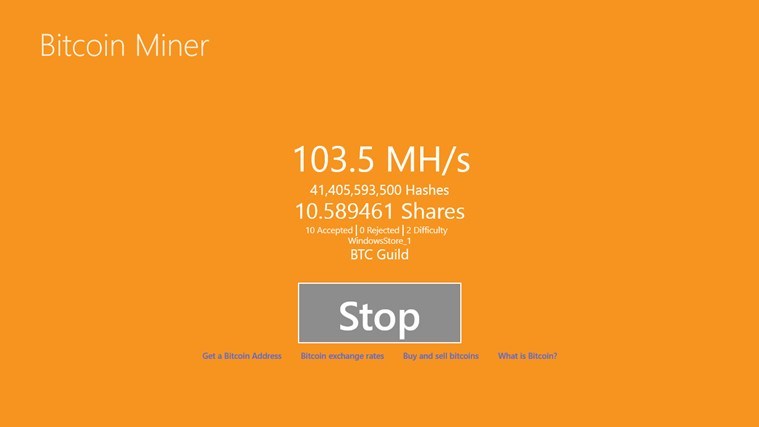
Albeit Windows 8 is a fairly new Windows version, especially Windows 8.1, there are plenty of interesting apps that make use of its potential, such as Bitcoin apps. And one of the best in the Windows Store – Bitcoin Miner, has now been updated with some much needed features.
windows 8 bitcoin miner app
If you are interested in mining Bitcoins from your Windows 8 device, then chances are that you have heard about this app and you will definitely be interested in the latest version and the new features that have been made available. So, long story short, the app now comes with a simplified mining pool setup and there have been added individual mining pool username and password validation features. Besides this, the detection of invalid credential responses has been improved and there also have been added links to the current mining pool when you are mining, so this is a really useful option. Also, links to user address statistics when applicable have been included, as well.

Read Also: Star Wars: Assault Team for Windows 8 Gets a Massive Update

Let your computer make you money with Bitcoin Miner, the free easy-to-use Bitcoin miner! Earn Bitcoin which can be exchanged for real-world currency. Works great at home, work, or on the go. Download Bitcoin Miner and start earning Bitcoin today! Bitcoin miners perform complex calculations known as hashes. Each hash has a chance of yielding bitcoins. The more hashes performed, the more chances of earning bitcoins. Most people join a mining pool to increase their chances of earning bitcoins. Mining pools pay for high value hashes known as shares.

bitcoin miner windows 8 app

The app comes with a size of less than 2 megabytes and is available as a free download from the Windows Store just by following the link from below. The app will also work on your Windows RT device, if you have one.

Download Bitcoin Miner app for Windows 8.1 

How To Use Microsoft Money in Windows 11 &10 [Install Guide]

If you’re wondering whether Microsoft Money still works on Windows 10 or Windows 11, the short answer is yes, but only with the Microsoft Money Plus Sunset edition. Although Microsoft discontinued the product years ago, many users still rely on it for budgeting and personal finance tracking. Luckily, Sunset Edition runs well on both modern operating systems.

microsoft money windows 8.1

In this guide, we’ll show you exactly how to install and use Microsoft Money on Windows 10 and 11, cover compatibility concerns, and link you to additional help if needed.

For any other relevant information or questions, you can always use the comments section below, and we’ll take care to reply to you so you can use this marvelous software.

How to Install and Use Microsoft Money on Windows 10 and 11?

Microsoft Money doesn’t officially support Windows 10, but the Sunset Deluxe edition works perfectly.

✅ Installation Steps for Windows 10

  1. Download Microsoft Money Sunset Deluxe

    Use the official archive or reputable sources to get the installer (usually named USMoneyDlxSunset.exe). For more help, follow this detailed Windows 10 guide.
  2. Install Normally

    Double-click the .exe file. You don’t need to run it in compatibility mode, just follow the prompts.
  3. No Activation Needed

    This version doesn’t require a product key or activation. It’s preconfigured to work standalone.
  4. Start Using It

    Launch Microsoft Money from your Start menu. You can either create a new file or import an existing .MNY file from a backup.
download microsoft money windows 8

💡 You can also explore this article for troubleshooting installation or file compatibility errors specific to older Money files on Windows 10.

🔧 Compatibility Notes and Fixes

  • Works out of the box: No compatibility mode or special setup required.
  • No online services: Microsoft disabled live banking sync, quotes, and bill pay. You’ll need to manually import OFX or QIF files.
  • Best Use Case: Personal budgeting, checkbook registers, offline account tracking.

✅ Installation Steps for Windows 11

Windows 11 introduced some interface and system-level changes, but Microsoft Money Sunset still works reliably.

  1. Download the Sunset Edition Installer

    You’ll need the same .exe file as with Windows 10. You can learn more in this dedicated Windows 11 article.
  2. Run the Installer Without Compatibility Mode

    Windows 11 handles legacy software fairly well, so just install as usual.
  3. Launch the App

    After installation, find “Microsoft Money Plus Sunset” in the Start menu. Launch it and set up your account or open a backup.
  4. Restore or Import Files

    You can import existing .MNY files or transaction exports from your bank.

🔧 Compatibility Notes and Fixes

  • Startup issues?

    If the file doesn’t open or crashes, try running it as Administrator or use compatibility mode for Windows 7.
  • Data not importing?

    Ensure your .MNY or .QIF files aren’t corrupted. Some banks now offer OFX downloads as well.

For more insights and feature limitations in the app itself, this overview of the Microsoft Money app can help clarify your expectations.


FAQs

Can I still use Microsoft Money online features?

No. Microsoft discontinued all online services. You must manually download transaction files (QIF/OFX) from your bank and import them.

Will Microsoft Money work on future versions of Windows?

As long as Microsoft continues to support 32-bit apps and Win32 architecture, Sunset Edition should remain functional.

Is it safe to use Microsoft Money today?

Yes, just don’t rely on it for online syncing or security-critical tasks. Always keep local backups of your .MNY files.

Final Take

While Microsoft Money is officially discontinued, it still holds value for those who prefer offline, simple budgeting tools. Thanks to the Sunset Edition, you can keep using it on both Windows 10 and 11 with minimal friction.

If you’re just starting or recovering from an old setup, follow the guides above and be sure to check the linked articles for troubleshooting and advanced tips.


Get Unlimited Desktop Space on Windows 8, 10 With This Tool

The ability to extend or expand your desktop in Windows 8 and Windows 8.1 has been made possible, just as with previous Windows version, with the use of third-party software. Today we’re going to talk about the GiMeSpace Desktop Extender 3D tool.
unlimited desktop space windowsSometimes, you just have the feeling that your desktop on Windows is just not big enough and that’s why some are looking to extend their desktops, be it on Windows 8, 8.1 or on previous Windows 8 version, to have unlimited space. And, as you can see in the above image, it lets you extend your desktop so that you can fit in as many programs or apps as possible. After a lot of research, I’ve found a single software that I can recommend to anybody, and it is available for a cheap price. Don’t go for copies or software found on torrents, as they will most likely invade you with Trojans and various other viruses.

Read Also: Microsoft Account Hacked: Critical Things to do

GiMeSpace Desktop Extender 3D brings unlimited desktop space to Windows 8

GiMeSpace Desktop Extender 3D is the deluxe version of the Desktop Extenders. It uses the latest Aero theme desktop technology present in windows Vista and 7/8. Like in the standard edition you can scroll left-right, up-down. But now you can also zoom in and out seamless. So you can navigate your desktop in 3 dimensions! Zooming in is usefull to see details on your screen more clearly. Zooming out is usefull to see the whole overview of your desktop and to see a whole window if that window is bigger then your screen. Windows are scaled down but it is still possible to work with your windows while you are in ‘zoomed’ mode! Bonus: Only available in this edition! You can now assign hotkeys to different places in your desktop!

To get the official software, totally secure from a very secure location, on safe servers (the same website that we used to provide links for Outlook Express on Windows 8), then I recommend you to follow the link at the and of the article which will take you directly to the check-out page. Have a look at the screenshots from below to see how its properties look like, along with its main features.

Get more destkop space with this software

windows unlimited desktop space

GiMeSpace Desktop Extender provides a smarter way to use your desktop. It is a small and very simple program for Windows that will allow you to expand your desktop without any limits. When you move your mouse to the edge of your screen you will notice that your desktop extends beyond the borders of your normal desktop. There is a 3D navigator screen where you can see your whole extended desktop and move your windows around, zoom in and out. It provides a cheap alternative for adding more monitors to your computer. You can resize you windows to a size that is bigger then your physical screen. This can be very handy for computers with a small screen like netbook, etc. You can select the autoarrange option to keep your windows next to each other.

It has the option to make your Desktop scroll always when you move the mouse. This way you much more enjoy your extra space while at the same time you don’t have to move your mouse long distances any more! Other options are: Sticky scrolling, no more scrolling when you hit shortly the border. Scroll one screen at a time. And scrolling using the keyboard. There is a tab where you can select windows that you don’t want to scroll, like toolbars etc. You can limit the virtual desktop to the space used by your application windows. And you can save and restore the positions and sizes of all your windows. Only available in the 3D edition. You can now assign hotkeys to different sections of your desktop!

desktop extender windows 8
Before deciding to buy this program, which comes at a really accessible and cheap price, you may want to have a look at this video, as well, which comes directly from the developer of the software. I have been using it myself and am really pleased with it. If, for a certain reason, you don’t want to acquire it yet, then you can go ahead and get the trial version, also, completely secure.

Download and order GiMeSpace Desktop Extender for Windows 7, Windows 8, Windows 8.1 (completely secure server)

Use Bing and Windows apps to keep up with the Indian elections

Use Bing and Windows apps to keep up with the Indian elections

The world’s biggest election is underway in India. Around 814 million people are eligible for voting to elect a government between the two major national parties, Congress and BJP. To cover this mega event, Microsoft has joined hands with Network 18, and released two apps, in addition to the updates, on Bing called Bing Elections.

India Elections

Head over to India Elections and you will find comprehensive coverage of this year’s elections. From the latest news, to voting schedule, to all the information about parties and candidates, Bing has you covered. Plus, there’s an interesting game too which you might like.

Apps for Windows 8 and Windows Phone

To make it easier to keep track of all the election updates, Network 18 Media has released Indian Elections 2014 apps for Windows Phone and Windows 8 (and higher).

The news and updates are provided by IBN Live and Bing. Using the application you can easily search for parties, candidates and constituencies. Find opinion polls and expert analysis. You can also save this information, as well as share it on your favored social networking websites.

Snag the application from the download links below.

Thanks Rizwan for tipping us!

Do Windows build leaks hurt Microsoft or actually help with hype?

Do Windows build leaks hurt Microsoft or actually help with hype?

Leaks are an issue for many companies and institutions. Governments like to keep a great deal of documentation out of the public domain for reasons of national security. Musicians very much prefer that their albums are not leaked ahead of launch because leaks are likely to harm future sales. The likes of Microsoft are also keen to keep their software projects under wraps until they are ready for an official launch. But do leaks really harm software companies?

There are two sides to the argument. The first being that leaks are Bad Things. Leaks are unofficial releases and will usually mean that copyright is infringed, correct licenses are not in use, and other moral and legal boundaries are overstepped. Just as a band will argue that an early album or single leak will mean fewer sales, a lower chart position, and a decrease in income, a software company could argue that if an early build of a product is made available online, there will be fewer sales when the actual launch date comes around.

But it is not just a matter of profits. The security of software is something that developers take very seriously, and if early builds of an application or operating system fall into the wrong hands, there is potential for security problems to be discovered well ahead of launch — and this could have a devastating impact further down the line.

There is also the risk that early code will fall into the hands of competitors, and there are wide reaching possible consequences for is. A rival company getting to try out your product gives them the opportunity to copy ideas, or even better them. Seeing the innovative feature that have been built into a future product could spur them into beating you to market.

On the flipside, it could be argued that leaks actually serve as a great means of advertising a product. Why wait for a company to wax lyrical about an upcoming piece of software when you can just try it out for yourself? If a product leaks ahead of launch there is more time for hype and excitement to build. There is more time for word of mouth recommendations to be made (although there is obviously potential for this to be a negative thing!).

This is something that has served Microsoft incredibly well over the years. For all of the complaining that has been done about leaks, the fact that early builds of Windows have been used by geeks, fans, and the curious long before launch has helped to create a massive sense of anticipation well ahead of the official release date. Remember Nashville and Longhorn? How exciting was it to be able to play with new features of Windows before everyone (well, not literally everyone!)?

The same has been true of the leaks for Windows 8, Windows 8.1 and even Windows 8.1 Update. It’s all well and good being told what’s going to be in a future release, or even see a demonstration, but it’s something else to be able to try it out.

It also gives companies the chance to respond to feedback and tailor a product before it even hits the market — think of it as a form of market research if you like. If it becomes apparent that those people who did manage to get hold of an unofficial pre-release version are not keen on a particular feature, it makes sense to ditch it or change it. If nothing else, it is cheaper than paying for a proper team of alpha and beta testers!

There will always be two sides to the story, but I’d be interested to hear what you think. Are leaks a good or a bad thing?

Web browser Do Not Track settings will no longer be honored by Yahoo

Web browser Do Not Track settings will no longer be enabled on Yahoo

Yahoo has announced today that they are changing their stance on the Do Not Track browser privacy standard. In fact, Yahoo will no longer recognize a users’ Do Not Track setting across any of its services, including Yahoo Search. This type of tracking protection is intended to prevent your browsing information from being sent to third-party content providers on websites you visit.

“As of today, web browser Do Not Track settings will no longer be enabled on Yahoo. As the first major tech company to implement Do Not Track, we’ve been at the heart of conversations surrounding how to develop the most user-friendly standard. However, we have yet to see a single standard emerge that is effective, easy to use and has been adopted by the broader tech industry,” Yahoo stated. 

Google already ignores this setting, as it relies on collecting browsing data to sell targeted ads.

Microsoft, on the other hand, has supported this setting, especially with Internet Explorer. Basically, when Do Not Track is turned on, Internet Explorer will send a Do Not Track request to the sites you visit and to the third parties whose content is hosted on those sites to let the sites know that you would prefer not to be tracked. Microsoft’s Internet Explorer 11 browser offers this option and it is enabled automatically. Microsoft has had this setting enabled by default since Internet Explorer 10.

However, as Microsoft once noted, this setting is only the beginning towards an increased control over user privacy. “We designed this functionality as a good start to enable consumer choice and protection from potential tracking. We provide a tool in the browser, and consumers choose how to use it. As with everything on the web, we expect it to evolve over time especially as the broader privacy dialog continues. We’re communicating about it now as part of our transparency in the software development process,” Microsoft explained in an official blog post.

The Do Not Track setting is only useful if websites and advertisers honor it. Or they can completely ignore it, rendering it pointless to have it enabled. Microsoft has had a concern over online privacy for years and Yahoo’s move today only solidifies the fact that you should be using Bing for your search needs rather than Yahoo. But, if Yahoo is your cup of tea, fear not, as Yahoo stated it would continue to offer tools for managing user privacy – you just wont be able to utilize the Do Not Track setting.

How to Emergency Restart Windows 8, 8.1, 10

Do you need to quickly restart your Windows 8 device, without using the classic shut down sequence? If you do, then you should use the emergency restart feature that is pre-installed on the Windows 8 and Windows 8.1 system.
emergency restart
The Emergency restart feature from Windows 8 and Windows 8.1 can be easily used by any user who wants to restart their device in a minute or less. Of course you should complete this operation only after saving your personal data and info as by emergency rebooting your Windows system you might lose everything that’s running on your device.

Read Also: How to Easily Disable Office 2013 Sign-in Feature

Now, as we all know the emergency restart might be performed by using the hardware power button of your Windows 8 tablet, laptop or desktop. But this operation isn’t recommended since you can end up in damaging or in bricking your handset. Due to same reasons a soft method should be applied and that’s exactly what I will be explaining during the following guidelines.

How to Emergency Restart Windows 8 by using software method

  1. Remember to use this method with caution as you can lose your personal data.
  2. What you need to do for using the emergency restart feature is to bring the logon information window on your device.
  3. In order to do so just press “ctrl+alt+del” at the same time – if that sequence isn’t working, learn how to resolve ctrl alt del not working problem by using a compatible tutorial.
  4. Good; now on the bottom right corner of the logon screen you have the “power off / shut down” button.emergency restart
  5. Initiate the emergency restart feature by pressing the Ctrl key on your keyboard and by clicking on the shut down button on your Windows 8 device.
  6. Windows will prompt you that you are about to do a “immediately restart”; click “ok” and you are done.

And that’s it. Now you know how to emergency restart your Windows 8 and Windows 8.1 device by using a soft dedicated procedure. So, use this feature with caution each time you need to.

Read Also: How to Change Windows 8.1 Sign-in Options

How to Add Features to Windows 8, 8.1, 10 Control Panel

Do you want to improve your Windows 8 or Windows 8.1 device by adding and installing new features into its system? Well, since Windows 8 is a user friendly OS you can use its in built feature dubbed as “add features to Windows 8” in order to do so. If you don’t know how to add features to Windows 8 Control Panel, don’t hesitate and follow the guidelines from below.
wind 8 logo
By using this default Windows 8 and Windows 8.1 feature you can download and install official programs and apps in an intuitive matter and without using unreliable services. This action will also add extra security and safety for your Windows 8 device because you will be able to download only apps released by Microsoft from tested sources and only from official stores. Also, after installing the proper software you will be able to receive updates automatically.

Read Also: Disable ‘You Have New Apps That can Open This Type of File’ in Windows 8, 8.1

Of course, the new features will be added to your Control Panel which means that you will be able to easily access, modify and change the same anytime you want. Anyway, if you want to learn how to add features to Windows 8 and Windows 8.1 Control Panel, take a look below and test the steps described there on your own device.

How to Add Features to Windows 8 Control Panel

This feature can be easily accessed on any Windows 8 and Windows 8.1 based device. All you have to do is to access Control Panel – from your Start Screen press “Wind + R” keyboard keys and type “control”. Now on your Control Panel Window you should notice something like “Get more features with a new edition of Windows”. Just click on that link and then add new features option will be displayed.control panel

A similar way in which you can access this feature is to use the search engine from your Windows 8 / Windows 8.1 computer. So, on the search box type “add features” and from the list that will be displayed choose “Add features to Windows 8”.wind 8 settings

Then you will be asked to choose whether to buy a new software or to register an installed one.add featuresFrom this point just follow the on screen prompts and buy / download the apps that are available for your device. In the end, the installed software will be added to your Control Panel. That’s it; now you know how to easily and safely add new features to Windows 8 Control Panel. Do share your experience with us by using the comments field from below.

Read Also: Block Bing Ads in Windows 8.1 Search: How to do it

Easily Fix Windows 8, 8.1, 10 Update Balloon not Appearing

Windows 8 is a great OS that is smoothly running on desktop, laptops and portable devices like tablets and smartphones. Since Microsoft developed a touch friendly platform, the system is constantly receiving updates that are improving the user experience. So it is more than recommended to apply all the updates especially if you want a secured OS that runs fast and without bugs and lags.
update
As an in built feature on Windows 8 and Windows 8.1 we have a unique notification service that is noticing that a new update has been made available. Of course I am talking about the little balloons which are being displayed on the taskbar. These balloons are quite important if you want to receive in time the latest updates since it represents a great way to announce that something new is going on.

Read Also: Fix ‘You do Not Have Sufficient Access to Uninstall’ in Windows 8, 8.1

But what can you do when the balloons are nowhere to find, even though updates are being available? More and more Windows 8 and Windows 8.1 users are complaining that the ballooning feature has been disabled without their notice, so due to same reasons we have decided to show you how to easily enable update balloons on Windows 8 and Windows 8.1.

How to Easily Fix Windows Update Balloon not appearing

  1. Open Registry Editor on your Windows 8 / Windows 8.1 device.
  2. In order to do so, first go to your Start Screen.
  3. From there press and hold “Wind + R” dedicated keyboard buttons.
  4. On your device the Run box will be displayed.
  5. On the same enter “regedit” and then click on “ok”.win+run
  6. The Registry Editor will be now displayed.
  7. Good; from the left panel of the Editor go to path “HKEY_CURRENT_USER \ Software \ Microsoft \ Windows \ CurrentVersion \ Explorer \ Advanced”.regedit balloons
  8. Now head your attention on the left side of Registry Editor; right click on a blank space and select “New” followed by “DWORD value”.
  9. Name this value as “EnableBalloonTips”. Click on the same and set the value to 0x00000000.enableballoontips
  10. Click “OK” and exit Registry Editor; also reboot your device.

Done; now your Windows 8 or Windows 8.1 should once more display tiny balloons on the taskbar when a new update is being available, so enjoy.

Read Also: Disable ‘This Program Might not Have Installed Correctly’ on Windows 8, 8.1

SkyORB App for Windows 8, 10 Welcomes a Huge Update

SkyOrb is one of the best astronomy apps available for Windows 8.1 users, along with StarChart, along with LunarPhase and others. I’ve been using it on my Windows 8 tablet and am quite pleased by the quality of graphics.
skyorb app windows 8
By using the SkyOrb app on your Windows 8.1 device, you will be able to explore the universe with the 3D star map, 3D planetarium, and other useful features such as notifications, search engine, sun clock, point to sky, weather, and others. Now it has received some more features which those of you who have already downloaded and using will definitely appreciate.

Read Also: Nokia Here Maps App for Windows 8 is Now Faster and More Stable

This is quite an update and here’s what has been made new or updated: improved support for 7″ tablets and portrait mode display and for all Intel Graphics GPU. Also, now, the graphics processor is displayed in the settings page and it’s now easier to retrieve weather and MPC from comets and satellite. The menu and navigation has been improved and various other bugs fixes and improvements have been put in place.

windows 8 skyorb app

SkyORB is a fast and lightweight astronomy app including a 3D star map, 3D planetarium, ephemeris with notifications, search engine, sun clock, point to sky, weather, and more. SkyORB features many functions as a 3D real-time representation of the planets position around the sun, warn the user when a phenomenon is occurs as a full moon, a planet really visible, which is worth the observation. The app also features an interactive 3D visualization of the stellar neighbourhood, including over 100000 nearby stars, and 3D visualization of the Milky Way.

skyorb windows 8 app

So, if you’re an astronomy buff and you like discovering new things about our cosmos and universe or you just want to watch and see it in real-time, go ahead and get SkyOrb right now. And if you will use the same Microsoft account, you can get the app on your Windows Phone device, as well.

Download SkyOrb app for Windows 8.1, Windows Phone

Meme-Generator App for Windows 8, 10 Gets Share Button & New Languages

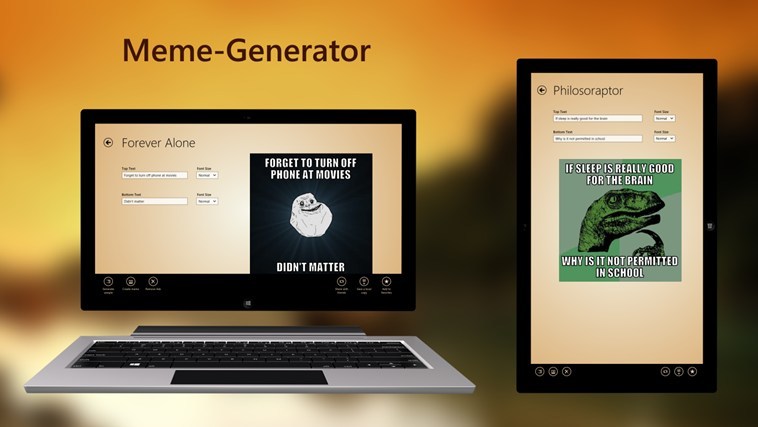
Just as the name suggests it, Meme-Generator is one of the best apps currently available in the Windows Store for creating memes on your Windows 8 tablet, laptop or desktop device. And now it’s received a much needed update.
meme generator app windows 8
Memes are quite a cultural phenomenon and they are used to easily depict your thoughts and ideas by using an image and basic text annotations. There are multiple Windows 8 apps that you can use, but Meme-Generator is one of the best looking and it will also work on your Windows Phone device, as well, once you have downloaded it on Windows 8 using the same Microsoft account.

Read Also: AppyGeek App for Windows 8 Now with Multiscreen Support

The latest version of Meme-Generator brings the following new features – support for the app is now available in Spanish and Portuguese and the much-awaited Share Button has now been added to the appbar to share your memes with friends via social networks. Of course, as always, various minor bug fixes have been put in place in order to stop crashing.

windows 8 meme generator app

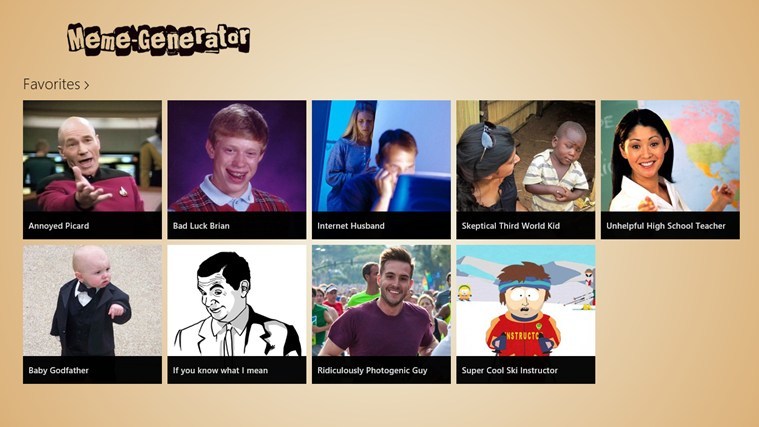
Meme-Generator lets you create your own memes. Add your own images to create custom memes or choose from the available templates. Save the created meme or share it with your friends. Choose from more than 200 meme templates. Create a list of your favorite memes. Search for memes using the Search Charm. Share the meme with your friends via Facebook, Twitter, E-mail or OneDrive (formerly SkyDrive)

meme generator app for windows 8

The app comes with a size of less than 30 megabytes and is available as a free download by following the link at the end of the article, but you can upgrade to the pro version in order to get rid of ads. After you have downloaded, feel free to add here your own meme so that we can all have a good laugh.

Download Meme-Generator app for Windows 8.1, Windows Phone

End of an era: Nokia is a part of Microsoft now, the EUR 5.44 billion acquisition is complete

End of an Era, Nokia is a part of Microsoft now, the EUR 5.44 billion acquision is complete now

Originally announced in September last year, Microsoft has today, acquired Nokia. The deal has reached its completion, and Nokia’s Devices and Services business now belongs to Microsoft.

Nokia and Microsoft share a long history, where the former is the leading partner of the latter’s mobile operating system, Windows Phone. “The opportunity for Microsoft to be both a devices and services company, so that it can deliver the complete proposition to its consumers, is at the heart of this,” Stephen Elop, former Nokia CEO and now executive vice president of the Devices Group at Microsoft, said recently.

“We have been going through and assessing who has the best tools…so we take the best of both worlds.”, said Tom Gibbons, who has spearheaded hardware for Microsoft, and now leads the integration work for Microsoft. “The real value from this integration is bringing two globally sized capabilities in organizations together under one roof, really intimately and much more efficiently.”

The completion of the deal also makes Microsoft a hardware technology giant. The companies believe that this convergence of two tech titans will help to speed up the execution work. “Nokia certainly has a tremendous depth of experience in the design, the manufacturing and delivery of devices,” Elop said. “Nokia over the years has literally delivered billions of devices. Just in the last year alone, some hundreds of millions.”

“Customers should see a bunch of great end-to-end experiences that really empower them to have very enjoyable, very comprehensive solutions to things that they want to get done, whether you’re talking about smartphones or feature phones. The feature phone product family coming to Microsoft will start to have more of the Microsoft services shipped on those phones right out of the gate.”

As we heard yesterday, Nokia’s Chennai-based factory hasn’t been a part of the acquisition deal. However, exclusion of one of Nokia’s biggest plants hasn’t revised the original terms of the deal. Nokia will be operating the plant on a contract to Microsoft.

As Nokia becomes part of Microsoft, “We have to not only evolve to fit into Microsoft in general, but into an evolving Microsoft,” he said. Employees of Nokia’s Devices and Services business are “very excited to be joining Microsoft,” Elop said. “And we look forward to bringing our skills and experiences to Microsoft to do our very best to light up the Microsoft experiences for people all over the world.”

As part of the deal, Stephen Elop, Jo Harlow, Juha Putkiranta, Timo Toikkanen, and Chris Weber will be joining Microsoft. Whereas, the company is expected to announce Rajeev Suri as its next CEO on Tuesday.

WinBeta announcement: $25 Windows Store gift card and a thank you to our readers

WinBeta announcement: $25 Windows Store gift card and a thank you to our readers

Bringing the latest Microsoft news to you is our passion, but we’d like to take a short time out of the busy day to say thanks to our readers. Thanks for helping us grow! We do appreciate our readers. We’re giving away a $25 Windows Store gift card, which you can use towards purchasing an app on Windows Phone or Windows 8.1, in appreciation of you.

First off, I’d like to highlight the top-five commenters on our site. StarEy3 is at the top with 1323 comments so far, while Aaditya Menon, Ray C, Sargon, and arrow2010 round out the top-five list. A special shout out goes to Abster for being our unofficial editor on the site – we appreciate you!

Secondly, we’re giving away a $25 Windows Store gift card to our readers as of right now. Post a comment below telling us why you like our site or what you want improved, and you will be automatically entered for a chance to win the gift card. We’ll randomly select a winner tomorrow evening, April 23rd.

And finally, if you didn’t already know, we are on social media. Follow us on Twitter, Facebook, and Google+ to stay updated on any breaking Microsoft news. If you already follow us, thank you! If you have yet to follow us, use the social media follow buttons below! We’d appreciate it if you did ?

We also ask that readers please unblock ads on the site, as revenue from advertisements help pay for the upkeep of the site. 

Thanks everyone! And we are excited for what the rest of 2014 has in store – especially Windows 8.1 Update 2! We know we are not perfect, but we strive to be the best and we are actively improving our site. Now back to the news..

Deal alert: Amazon is selling Xbox One and PC versions of Titanfall for just $36.99

Deal alert: Amazon is selling Titanfall for just $36.99

If you haven’t bought a copy of Titanfall yet, Amazon has an offer which is really hard to resist. The incredibly popular game title, which usually sells at $59.99 is currently selling on Amazon for $36.99. Both Xbox One and PC platform are getting the discount.

“Prepare for Titanfall. Crafted by one of the co-creators of Call of Duty and other key developers behind the Call of Duty franchise, Titanfall is an all-new universe juxtaposing small vs. giant, natural vs. industrial and man vs. machine. The visionaries at Respawn have drawn inspiration from their proven experiences in first-person action and with Titanfall are focused on bringing something exciting the next generation of multiplayer gaming,” its description reads.

Launched in March this year on Xbox One and PC, Titanfall has already become the most successful game of 2014. It surpassed FIFA 2014, and has sold roughly twice as copies. Click on the Via link to get to the Amazon store. 

Microsoft prepares for big Atari E.T. dig with an opening party invitation

Microsoft prepares for big Atari E.T dig with an opening party invitation

Those who know about gaming history  have likely heard the story of the Atari game E.T. The Extra-Terrestrial. Legend has it that the game was so bad that the company buried all copies in New Mexico in an effort to keep it from the public.

Now a crew is going in search of this — a bit like looking for Bigfoot — and Microsoft plans to be present for the event. In fact, it is even planning a documentary through Xbox Entertainment Studios.

To kick off this big event, a party is planned, and you’re invited. Larry Hryb, Xbox Live chief, announces “This weekend, you’re invited to join us in digging into the greatest mystery in videogame history: are there really millions of E.T. the Extra-Terrestrial Atari cartridges buried in the New Mexico desert?” Here are the details.

  • What’s going on: Prep for  the big dig by playing classic Atari games, courtesy of Gamers Anonymous. Enjoy complementary food and soft drinks, and we’ll be raffling off prizes, including Xbox One games and an Xbox One system.
  • Where: Gamestop 516 1st St, Alamogordo, NM 88310 (map)
  • When: Friday, April 25 from 7:00pm – 9:00pm
  • Please note, the event is free and open to the public.

As for the big dig, that will commence on Saturday morning beginning at 9:30 am, though you are recommended to be there by 8:30. Prizes will be given away to the first 250 people.

Windows Embedded 8.1 Industry Update adds better security, low-cost hardware deployment, and more

Windows Embedded 8.1 Industry Update adds better security, low-cost hardware deployment, and more

Not only did Microsoft roll out Windows 8.1 Update earlier this month, but the company also rolled out Windows Embedded 8.1 Industry Update. This update is available to customers and partners via Windows Update, Microsoft OEM Online, and Volume Licensing Service Center.

Windows 8.1 Update brings along quite a lot of new improvements for non-touch users, but did you know that Windows Embedded 8.1 Industry Update brings along some new improvements for retail, manufacturing, and health devices? Windows Embedded 8.1 Industry Update enables sideloading, easier app development, low-cost hardware deployment, and much more.

Windows Embedded 8.1 Industry extends Windows 8.1 to a range of industry devices across retail, manufacturing, health and any other industries in which powerful line-of-business applications and the ability to perform a specialized function in a secure and reliable way is paramount.

Here are some of the key features of the update:

  • Sideloading will be enabled on Windows Embedded 8.1 Industry – meaning the customers no longer need to purchase a sideloading key through VL
  • Inter-process communication between a modern app and a desktop app will be enabled, allowing developers to take advantage of both the modern app model as well as the existing desktop app model
  • Updated Embedded Lockdown Manager provides a more unified way to manage embedded lockdown features such as unified write filter and gesture filter
  • User interface improvements to help naturally bridge touch and desktop, especially for keyboard and mouse users
  • Enabling Windows on lower-cost hardware (for example: 1 GB RAM and 16 GB SSD), enabling a wider range of industry tablet devices

“For our customers, this update will help them stay current with modern technologies as well as continue to receive future updates, including security updates. For ISV partners, deploying modern apps on Windows Embedded 8.1 Industry will be more streamlined. And OEM partners will have the ability to enable Windows on lower-cost hardware; also note that OEMs will need to apply this update to continue getting future security updates,” Microsoft explained in an official blog post.

Office Mix turns your PowerPoints into interactive online lessons or presentations

Office Mix turns your PowerPoints into interactive online lessons or presentations

Microsoft is looking to revolutionize the classroom experience with a new service called Office Mix. While its not live yet and requires an invite to sign up, Office Mix a new service that turns PowerPoint presentations into interactive, online lessons that you can share with anyone. 

“MIX allows you to turn your PowerPoints into interactive online lessons or presentations. We install an add-in that gives you the ability to record audio, video, and handwriting, and insert interactive elements like quizzes and CK12 exercises. There’s even a screen capture tool so you can record anything on your PC,” the description reads. 

First spotted by @h0x0d, Office Mix sounds like an excellent tool for schools, allowing instructors to distribute presentations to all their students via the web. Instructors can check student progress online and see who actually watched the presentation. 

“Once your presentation is ready just click “Create MIX.” We work our magic to mix in xml for an interactive document complete with analytics, and place it in the cloud. From there, just share the link, and your students can watch it on just about any device with a web browser. You can then check student progress online and see who watched the presentation, and how they did on your quizzes.”

More on this as it develops. You can head over here to sign up to test the service when it becomes available.

Using the Word app for Chrome OS – simple and straight-forward

Using the Word app for Chrome OS – simple and straight-forward

While I love content management systems, I have little faith in any of them, and prefer to write my stories in Word. That isn’t a problem, as I work primarily from Windows 8.1 — both desktop and laptop. However, I sometimes wish to roam around my house, leaving the office for the living room or, as the weather grows warm once again, the porch. For those times, I find the HP Chromebook 11 to be invaluable — it’s light and easy to carry. It even works with a Bluetooth mouse, which is great, as I have an aversion to trackpads.

That presented a minor problem in the past, since it meant I’d have to move to Docs, which I don’t dislike, only find less familiar. That changed when Microsoft finally acknowledged that these notebooks may just be useful, and released its Office Online products as apps for them.

I immediately installed Word on mine, and found both good and bad aspects to it. Really, the bad consists of only one thing — there is no offline mode, which is something Google Docs offers, despite past Scroogled ads claiming otherwise.

Aside from that, I found a quick and responsive word processor that provides a much more familiar environment. Simply opening the app is a welcoming experience.

word for chrome

You have options to create a new document, open an existing one, or choose from an array of templates. Regardless of your choice, you’ll find a scaled-down version of what resides on your desktop, complete with the familiar ribbon interface.

This isn’t really any different from what you can get by visiting the site in the Chrome browser, so temper your hopes. But it does offer a glimmer of hope for the future. Maybe that much needed offline mode may even show up in the future. Perhaps, just maybe, Microsoft will begin working with Google on future innovation, as opposed to simply posting corny videos depicting its rival as the devil

After Windows 8.1 Update, Some Users Report Black Screen, Flickering cursor

We’re back with reporting various issues that Windows 8 users are receiving and also trying to offer some working fixes for this. This time, it seems that the latest Windows 8.1 Update has resulted in a black screen or flickering cursor for some.
windows 8.1 update black screen
There are plenty of annoying issues after installing the latest Windows 8.1 Update, especially during the installation process itself, and also with saved games and slowing down of systems. Now, according to some fresh forum posts on the Microsoft Community website, many have been reporting that they are getting a black screen with a flickering cursor. I remember that I have had this problem when I installed the first Windows 8.1 update to Windows 8. Here’s what one affected user has been complaining about:

Read Also: How to Enter or Change Windows 8.1 Product Key

well windows asked me to update, so i have done so, and i rebooted. i found that after the update has finished, nothing was showing up. so i decided to go to the restore point so i can go back and undo the update and see whats wrong. but that didnt work, saying that it has unspecified errors. tried every other restore point but it seems to not be able to. access the registry. so then i tried to repair my start up, but it also failed, not giving me much details. i assumed it must be the visual drivers issue, so i attempted to go in safemode too. but the result was quite annoying, as i get the same problem as booting it normaly. i can not use the win+p, ctrl+alt+del, and any other combination, as it shows up with nothing.
tried the sfc/scannow, gave me no error, tryied CHKDSK c:/f no errors either. im kinda stuck now, and i dont really want to refresh windows. please give me advice

So, as we can see, this is a pretty experienced user and he has tried some potential fixes to remedy his problem. If you have found yourself in the same situation, you can go ahead and uninstall the KB files which came with the latest Windows 8.1 Update, and then try to perform another install in Clean Boot mode. Also, go ahead and open the Device Manager and from there, try to uninstall video drivers and the download them from the website of your maker. Also, if you are having the issue on a separate monitor, try to uninstall and install drivers separately for it.

Microsoft trademarks a new game title called ‘Screamride’

Microsoft trademarks a new game title called 'Screamride'

Microsoft has apparently filed a trademark application for a new game called “Screamride.” Not much is known about Screamride, except that it will be an online computer game. Could it be for the PC, or the Xbox platform? Who knows! Microsoft won’t offer any details on it.

Microsoft routinely files for trademarks, so this name doesn’t necessarily mean that a game called Screamride is in development. The trademark application was filed on April 9th with the United States Patent and Trademark Office. “Microsoft often acquires various trademarks as part of its ongoing business strategy, but beyond that we have no comment,” the company stated in a statement.

E3 2014 is nearly upon us (it takes place June 10th), so perhaps we might learn more about Screamride then. What could Screamride be about?

Microsoft launches SQL Server 2014, emphasizes importance of a data culture

Microsoft launches SQL Server 2014, emphasizes importance of a data culture

During an event in San Francisco today, Microsoft CEO Satya Nadella announced the launch of SQL Server 2014, a public preview of the Microsoft Azure Intelligent Systems Service, and the general availability of the Analytics Platform System (APS). Microsoft stressed the importance of a data culture during the event, a culture that encourages curiosity, action, and experimentation.

“The era of ambient intelligence has begun, and we are delivering a platform that allows companies of any size to create a data culture and ensure insights reach every individual in every organization,” Nadella said during the event. Microsoft’s data platform includes new “Internet of Things” capabilities and provides the necessary building blocks to connect, refine, and analyze data. Here are the products announced during the event:

  • Launch of SQL Server 2014. The latest version of the world’s most widely deployed database delivers real-time performance with built-in in-memory technology and public cloud scale and disaster recovery with Microsoft Azure.
  • Limited public preview of the Microsoft Azure Intelligent Systems Service. This new Azure service helps customers embrace the Internet of Things and securely connect to, manage and capture machine-generated data from sensors and devices, regardless of operating system.
  • General availability of the Analytics Platform System (APS). APS combines the best of Microsoft’s SQL Server database and Hadoop technology in one low-cost offering that delivers “big data in a box.”

SQL Server 2014 brings in-memory capabilities across all data workloads, offering breakthrough performance for applications in throughput and latency. In-memory technology allows for the manipulation of millions of records at the speed of thought, as well as the ability to scale analytics solutions to billions of records in SQL Server Analysis Services.

You can check out a list of the new features in SQL Server 2014 here.

With Office 365 now under $7 a month, there’s just no reason not to try it

With Office 365 now under $7 a month, there's just no reason not to try it

Microsoft looks set to dominate the tablet office suite market now that Office 365 Personal is available for less than $7 per month. The new name and pricing structure means that there is one less obstacle standing in the way of anyone who is thinking about trying out Microsoft’s office suite. At this price there is simply no excuse not to try it out for a bit!

But this is, of course, much more than a tablet-based office suite. For their money, user are essentially provided with two licenses meaning that the suite can be used on a tablet as well as on a PC. Two copies of Office for $6.99 a month — it’s very difficult to argue with that.

This is a great example of Microsoft reacting to the way people now work — albeit a little late in the game. For too long now, Office has been a behemoth tied to the desktop, and this allowed something of an Office alternatives market to build up for tablet users looking to edit files on the move. Now, at long last, the company has answered the prayers that Office users have been making for years.

For the price of a glass of wine, your Mac or PC can be furnished with a copy of Office, and so can your favorite tablet — be it powered by Android, iOS or Windows. Microsoft may be entering the iPad app game quite late on, but it is going in with gun blazing, making up for lost time.

The new Personal packages are a perfect solution to the low-cost solutions people are now looking for. A plethora of app store has made people get used to the idea of cheap or free apps, and it makes sense that Microsoft would react in this way. For anyone yet to try Office, there has never been a better time to do so. This is not a case of try-before-you-buy, but try-as-you-buy. Don’t like it? Stop using it and stop paying. But the chances are that you will love it.

Anyone who has been an Office users for a number of years but has resisted moving to Office 365 will quickly realize that this is a case of buy one, get one free — a deal that makes sense in anyone’s book.

Office is already a force to be reckoned with, but the new low pricing structure means that usage figure are likely to go up even further. It will also be extremely interesting to see just how many tablet users pop up over the coming weeks, months and years, taking advantage of what essentially amounts to a free copy of Office. 

Office 365 Personal now available for purchase, runs for $6.99 a month

Office 365 Personal now available for purchase, runs for $6.99 a month

You can now purchase an Office 365 Personal subscription, which will run you $6.99 a month or $69.99 a year. This subscription allows for one PC or Mac, and one tablet (including iPad) to be connected to the service, and is the best option for individuals interested in using Office 365. 

“On March 13, we revealed that a new consumer subscription offering, Office 365 Personal, would be coming this spring. Today we’re announcing that it’s available for purchase – $69.99 USD/year or $6.99 USD/month (ERP)1 – online at Office365.com, at Microsoft Stores and through online and retail partners,” Microsoft stated in an official blog post.

If you are looking to utilize Word, PowerPoint, and Excel on the iPad, then this subscription is perfect for you. You can also purchase an Office 365 Home subscription, which runs for a few dollars more, but allows you to run it on up to 5 computers and tablets – perfect for families. Head over to Office365.com to check out the subscription.

Large Indian Bank bids farewell to Windows XP, upgrades 33,000 PCs to newer version of Windows

Large Indian Bank bids farewell to Windows XP, upgrades 33,000 PCs to newer version of Windows

One of India’s largest state-owned banks, Canara Bank, has completely migrated from Windows XP. In the process, the bank upgraded around 33,000 PCs from the 12-year old and now retired operating system to a more modern versions of Windows Operating System.

Last week, on April 8th, the more than a decade old desktop operating system, Windows XP, reached its end of support. Which in simple language means that Microsoft won’t provide any further support to Windows XP (unless the organization pays), leaving its users on their own.

Besides security concerns, Canara Bank says that hardware compatibility was a big factor behind this upgrade. The bank states that the unavailability of driver modules for various new hardware such as printers, scanners, and biometric machines was one of the primary reasons behind this decision.

“We want to ensure smooth and streamlined customer experience without any stoppage in day-to-day banking operations. In addition, by migrating our entire base of around 33,000 PCs to modern Windows, we have overcome potential challenges of compatibility with modern hardware, software and applications. The upgrade will also allow our employees for transition to modern applications leveraging latest work processes and mobility,” said RK Dubey, Chairman at Canara Bank.

According to earlier estimations, until a few months ago, there were over 35 percent of the systems running Windows XP. Realizing the vulnerability and consequences it could have, RBI, nation’s central banking institution, and Indian Banks Association issued several security advisories.

“Running unsupported technology especially in the BFSI sector carries [a] huge risk. Canara Bank is amongst the progressive PSU banks in India that have taken the decision to move off Windows XP. They understand how debilitating and damaging the security breaches can be after support ends. We urge all businesses to complete their migration immediately, if they haven’t already,” said Karan Bajwa, Managing Director, Microsoft India.

By switching to a modern operating system, the banks and other institutions will get better security, reliability and tools that favor productivity. In the past few weeks, we have seen many such institutions making the switch. However, there are still plenty of banks and ATMs that are running Windows XP.

How To Remove Bloatware from Windows 8, 8.1, 10

Is your Windows 8 device running slow and you are thinking in bumping the speeds? If you want to easily speed up your Windows 8 device, then you should start by removing the bloatware. So, because of that, during the following guidelines I will show you how to remove bloatware in Windows 8 in a minute or less.
install-windows-8
But before getting started with our tutorial, you should know what we understand when talking about bloatware. In this way you can be sure that you are using the proper solutions for speeding up your Windows 8 tablet, laptop or desktop. So, before applyingthe steps from below, read all the following lines and make sure that you understand all the aspects that will be detailed.

Is your Windows 8 device installed with bloatware by default?

The answer is definitely yes. Like any other developers Microsoft is having different partnerships with other manufactures and companies, which in our case are providing different tools and programs. Thus, when you first buy a Windows 8 device, you should know that your handset will be coming with various software pre-installed. Well, these programs aren’t required by the Windows system, which means that you can easily and safely remove them without bricking the internal system of your laptop, tablet or desktop.

Why to remove bloatware

Since these programs are not important for the Windows 8 system, which is the purpose of having them installed on your device? Basically, all these pre-installed apps are slowing down your Windows 8 device. So, if you want to speed things up, just learn how to remove bloatware. In that matter you can use different apps and programs and you can also use the options from control panel, from where you can uninstall almost all the programs from your Windows 8 device. Anyway, before starting in removing bloatware, ensure that the programs you want to remove aren’t essential for your laptop, tablet or desktop, as you can end up in bricking your device.

What apps to remove in order to get rid of Windows 8 bloatware?

You should uninstall all the free-trial programs like antivirus, YouTube clients, Amazon dedicated apps and any other tool that isn’t representing direct interest to you. If you think that you won’t need a program, then you should remove it, because each tool is slowing down your Windows 8 device. Also, the RAM memory is being consumed by the same, thus the bloatware isn’t coming with any benefits for your handset.

How to easily remove bloatware from your Windows 8 tablet, laptop or desktop

Uninstall unnecessarily programs right from start page

Windows Control PanelThis method is efficient, though you will not be able to remove all bloatware from Windows 8, since you won’t have access to hidden files and folders from your desktop, tablet or laptop. But the best is that this method can be applied without using a third party app, or without making changes to the firmware default settings. All you have to do for uninstalling the unnecessarily programs from your Windows 8 device is to right click on the appropriate tile for the program you wish to remove, right from the Windows 8 start page. Of course this operation can be anytime completed by using Control Panel and by going to path “Programs – Programs and Features”. Again, this method is quite superficial, but you will be able to speed up your Windows 8 device by removing programs and apps that aren’t used or that aren’t necessarily.

Use Windows 8 “Refresh your PC” and “Reset your PC” features

refresh Windows 8On Windows 8 you can easily refresh the system in order to remove third party apps that are slowing down your desktop, laptop or tablet. By using the refresh your PC or reset your PC features you can flash the default Windows 8 system back to your device without having to manually reinstall the firmware. Therefore, you can choose to go back to stock in a minute, though this will not remove all the bloatware from your Windows 8 device. Unfortunately, Microsoft allows computer manufacturers to customize their Refresh images. Therefore, when installing drivers and essential programs you will also get bloatware apps.

Because of that, you can choose to create your own Refresh images on both Windows 8 and Windows 8.1, by replacing the Microsoft image with a custom one. Of course this method is indicated for the advanced users, as if you are a newbie you can end up in bricking your Windows 8 device before removing its bloatware. Since we are talking about advanced operations, the best will be to reinstall Windows 8 from scratch with installation media from Microsoft and in this way you will be able to enjoy a clean and bloatware-free system.

Use Third-Party Apps

CCleanerA great way in which you can remove bloatware from Windows 8 for speeding up your desktop, laptop or tablet is by using dedicated third party apps. With these programs you can access all the files from your system and you can then choose which tool to uninstall. The removal process is easy to perform, so anyone can safely complete this method. Of course, first you have to get the proper apps and in that matter you should check our recommendations.

The most appreciated and used tools are CCleaner (get it from here) and PC Decrapifier (download the app for free from here). These programs are compatible with Windows 8 and Windows 8.1 systems and can be managed with ease for removing Windows 8 bloatware. You can install the software by using the on screen prompts; also the tools are providing user friendly interfaces so removing unnecessarily programs from your Windows 8 device will be intuitive.

Access and remove in-built Microsoft Apps, or Metro Apps

The best way in which you can remove Windows 8 bloatware is by accessing Microsoft apps or Metro apps. Unfortunately these apps are hidden so you will have to follow a few steps in order to manage to see the proper software list. Also, you will have to gain administrative rights or else you will not be able to change or remove the programs you want. But, in that matter, take a look below and follow the guidelines explained there.

  • Open Folder Options and select “Show hidden files, folders and drives”.
  • Go to C:\Program Files as now you will be able to see the WindowsApps folder.
  • But, if you will try to access the files from there you won’t be able to do so.
  • Gain access to inbuilt files by going to Security tab. From there click on “advanced”.
  • Now, from the Advanced Security Settings select “continue”.
  • Under “owner”, change from TrustedInstaller into your own name.
  • Now you can give yourself various permissions in order to access the inbuilt programs.
  • After doing so you will be able to remove apps from the WindowsApps folder which means that you will be able to remove Windows 8 bloatware with ease.

Conclusions

That was all; as you could notice Windows 8 and Windows 8.1 is coming with various in-built programs that aren’t usually useful on a daily use. So, these programs are only slowing down your Windows 8 device. Due to same reasons it is more than recommended to remove the bloatware in order to speed up your desktop, laptop or tablet and for improving the Windows 8 experience. Now, during the steps from above I have explained you how to easily remove bloatware from Windows 8 by using different methods – just choose the operation you prefer the most. If you have something to share with us on this topic, don’t hesitate and point it out during the comments section from below and we will assist you as soon as possible.

Windows 8, 10 ‘Birthday Reminder’ App Reminds that Everybody Counts

Birthday reminder apps are perfect for those who want to keep personal info about each contact on the same place. Furthermore, these tools are great if you want to separate calendar info from birthday events and if you really want to use your Windows 8 device as your personal agenda. Now, during the lines from below we will review the highly appreciated Birthday Reminder software from Windows Store, so don’t hesitate and check it all out.
Birthday ReminderA great way in which you can plan and manage your daily or weekly schedule is by using a Windows 8 calendar app. Unfortunately, as you know, the most appreciated calendar app is not available on Windows Store as we only have third party Google Calendar tools available and not the official client. Anyway, when talking about birthday reminders, a calendar software might just not be enough, as you might need a personalized and optimized tool in order to properly surprise your friends, family or contacts.

Read Also: How to Change Narrator Settings in Windows 8.1

In that matter, the already mentioned Birthday Reminder tool will be perfect for you. This tool is free distributed on Windows Store and works without any bugs or lags on any Windows 8 based devices.

Don’t miss birthdays with Windows 8 Birthday Reminder App

As the name suggest, by using Birthday Reminder app you can see upcoming birthdays of friends and create reminders for them. Basically this tool is one of the simplest and easiest birthday reminder app available on Windows Store as the software is featuring an intuitive and though impressive user interface. Thus, using this birthday reminder app, you’ll never miss out the birthdays of your favorite people and you can be the first person to wish them everything you want.

windows 8 birthday reminder app

This is a Birthday Reminder Application. It allows you to add your friend’s birthday details and send them your warm wishes with greetings. It will show the coming birthday on Live tile of the app. You can also add contacts from People Hub.

You can use Birthday Reminder in different modes as you can list the birthday events in various ways by using the in-built features provided by the program. You can easily add info about each contact and you can also add contacts from People Hub. Then you can use Birthday Reminder for Windows 8 for sending text greetings through email and if you want to really surprise your friends you can also send an attachment that contains a personalized message.

As mentioned, Birthday Reminder can be downloaded for free from Windows Store and can be installed on any Windows 8 based device. Moreover using the tool is great as you can manage different features and options in order to plan and organize your own agenda. So, don’t hesitate and try Birthday Reminder on your own Windows 8 tablet, laptop or desktop.

Microsoft announces availability of Azure Websites in Southeast Asia

Microsoft announces availability of Azure Websites in Southeast Asia

Azure Websites is now available in four different Asian regions – East Asia, Japan West, Japan East and Southeast Asia – Microsoft revealed in an official blog post. Azure customers will now have the option to create their websites in the new region.

“Since reaching General Availability last year, Azure Web Sites has been expanding to additional regions. It is our pleasure to announce the general availability of Southeast Asia Region for Azure Web Sites,” Microsoft stated in an official blog post.

Windows Azure (now known as Microsoft Azure), for those that did not know, is Microsoft’s cloud platform that enables you to quickly build, deploy and manage applications across a global network of Microsoft-managed datacenters. You can build your applications using any language, tool or framework and integrate them with your existing IT environment.

How to Choose Windows 10 Default Apps

There are many annoying notifications in Windows 8 and Windows 8.1 where you are required to choose with what certain app or program you want to open a new file type. To make sure you don’t get asked anymore, here’s how to set the default apps in Windows 8 and Windows 8.1.
choose windows 8.1 default apps
The procedure of setting the default apps inside Windows 8.1 has remained just the same as it was with Windows 8, so if you knew how to do it in Windows 8, then there’s no need to read this. But if you’re new to the Windows 8 and Windows 8.1 concept, here are all the steps that you need to take to quickly set default apps, along with the explanation. It’s easier to set default apps yourself, as you will save yourself the pain of having to do it manually each time.

Read Also: How to Quickly Check App Size on Windows 8.1

So, here are all the steps that you need to take. Also, if your Windows 8.1 default apps are crashing, as this is a bug that I’ve seen many complain about, I suggest you to update to the latest Windows 8.1 Update, as it’s been reported to take care of that.

1. Press the Windows logo + W key to open the Search function or open the Charms Bar by moving your mouse or swipe the finger to the top right corner.

choose windows 8.1 default apps 1

2. In the Search bar type ‘PC Settings‘ and then click or tap on it.

choose windows 8.1 default apps 2

3. Choose ‘Search and Apps‘ from the menu.

check app sizes windows 8.1

4. Click or tap on ‘Defaults‘.

choose windows 8.1 default apps 4

5. Choose your default apps for the following: web browser, email, music and video player, photo viewer, calendar and maps.
choose windows 8.1 default apps 5

6. You can also change the default apps by file type. This is useful when certain apps have “taken over” certain file types and you want to reassign this to another app or program. Also, whenever you have an unknown file type, it can come in real handy.

choose windows 8.1 default apps 6

7. If you know what you’re doing, then you can go for an even more advanced function and choose default apps by protocol.

choose windows 8.1 default apps 7

Read Also: Fix: Windows 8.1 Update Install Failed: 80070020, 80073712 and 0x800f081f

Is Project Alluvion a new Iowan data center for Microsoft?

Is Project Alluvion a new Iowan data center for Microsoft?

According to documents seen by The Des Moines Register, a new data center in Iowa, known as “Project Alluvion”, could be something to do with Microsoft. After making a public records request, the Register was provided with files that detailed correspondence between employees in Microsoft’s cloud storage and data center services.

As is the case with many other companies, security means the Microsoft usually likes to keep the locations of its data centers secret. Undetailed information in the document obtained by the site suggests that Microsoft may also be looking for a new site in West Des Moines, but the company understandably refused to comment on this.

Similarly, city officials remained tight-lipped about whether “Project Alluvion” was in any way connected with Microsoft, but the involvement of two known Microsoft employees makes it highly likely that The Des Moines Register’s suspicions are correct.

Microsoft has previously revealed that it has data centers in Redmond and Quincy, Wash.; San Antonio, Texas; Chicago; Boydton, Va.; Cheyenne, Wyo.; and West Des Moines, as well as sharing that they are used for, among other things, cloud data services like Azure, Xbox Live and Skype.

US Internal Revenue Service to pay Microsoft ‘millions’ for an extra year of security patches

US Internal Revenue Service to pay Microsoft 'millions' for an extra year of security patches

April 8th marked the day Microsoft stopped providing support for Windows XP, a popular operating system from the Redmond giant which made its debut back in 2001. It turns out that the US Internal Revenue Service (IRS), usually the people who take your money, are now paying Microsoft millions of dollars for an extra year of security patches – they missed the April 8th end of support deadline.

The IRS apparently has approximately 110,000 Windows powered computers, and only 47% of those computers have been upgraded to Windows 7. The rest of the devices still run Windows XP. Unfortunately, due to the budget, the migration was unfinished. John Koskinen, IRS commissioner, defended the unfinished migration, stating that the IRS had $300 million worth of IT improvements on hold because of budget issues – including the Windows XP to Windows 7 migration.

“Windows XP will no longer be serviced, so we are very concerned if we don’t complete that work we’re going to have an unstable environment in terms of security,” Koskinen said, stressing that the migration is necessary and shall continue. The IRS will muster up $30 million out of its enforcement budget to finish the migration, paying Microsoft $11.6 million for “Custom Support” for critical security patches. The IRS will also spend $18.4 million to purchase new PCs to replace the older computers running Windows XP.

The IRS hopes to complete this migration by the end of the year. Don’t worry, according to the IRS, your tax filings are not handled by Windows XP systems. “None of our filing season systems or other major business operating systems for taxpayers use Windows XP,” an IRS spokesperson said Friday. “The IRS emphasizes the situation involving Windows will have no impact on taxpayers, including people filing their tax returns in advance of the April 15 deadline.”

Windows 8 Red Stripe Deals: Asphalt 7, My Trips, Xolitaire [#19]

It’s number 19 of the weekly Windows 8 Red Stripe Deals and this time we’ve got six Windows 8 apps and games that can now be purchased at a discounted price. So, without further ado, let’s see what they Windows Store team has prepared for us this time.
windows 8 red stripe deals
For those who are new to the concept – the Red Stripe Deals is a weekly selection of discounted apps and games from the Windows Store, an idea that has been extended to Windows 8 and RT tablets and desktop devices from Windows Phone. For the past week, we have seen such titles as Halo: Spartan Assault, Where Angels Cry, Swingworm, My Media Center, Note Anytime, Sago Mini Music Box. I hope you have made use of the temporary discount as this week we have new games and apps, here they are.

Read Also: Annoying: Windows 8.1 Update Makes Windows Activation Impossible

Asphalt 7: Heat [$2.49]

asphalt heat windows 8 red stripe deals

Hit the speed of heat in the newest, fastest, most visually stunning edition of the famed Asphalt series. Drive 60 different cars from the world’s most prestigious manufacturers, like Ferrari, Lamborghini and Aston Martin, including the legendary DeLorean.

Eternal Journey New Atlantis [$1.99]

eternal journey windows 8 red stripe deals

Travel from the deepest trenches of the Atlantic Ocean to the awe-inspiring wonders of Mars as you solve the greatest archeological puzzle known to man: the origin of Atlantis. Through stunning production values and cunningly designed puzzles, Eternal Journey: New Atlantis will draw you into an experience unlike any other hidden object adventure.

My Trips [$1.49]

my trips windows 8 red stripe deals

My Trips shows you a list of your upcoming trips, flight, lodging, car rental and other travel plan information. Additionally My Trips will give you detailed flight information such as departure and arrival dates, times and locations, confirmation numbers, airline information, passenger information & much more.

Care Bears – Create & Share [$1.99]

care bears windows 8 red stripe deals

Budge Studios presents: Care Bears – Create & Share! Create your very own Care Bears postcard and share it with loved ones! Try out endless combinations of cuddly bears and rainbow-colored decorations for a different card every time. Then write a sweet message and send it with love – because sharing is caring!

Topsy and Tim Start School [$1.49]

topsy windows 8 red stripe deals

Topsy and Tim were created in 1959 by husband and wife team Jean and Gareth Adamson. Together they created a modern series in keeping with the predominant mood of the early 60s – fresh and bright, with a contemporary feel – that showed children in situations they would actually experience. Now a grandmother, Jean continues to sketch and her work was recently recognized in the form of an MBE for services to children’s literature.

Xolitaire Xtreme [$1.99]

xolitaire windows 8 red stripe deals

Solitaire evolved… welcome to Xolitaire Xtreme. Enjoy over 200 unique games. Choose from 24 languages, changing the language at any time.