Microsoft has released the Windows 11 Insider Preview Build 26200.5516, KB5054687, to the Dev Channel, introducing innovative features to enhance user experience and productivity.
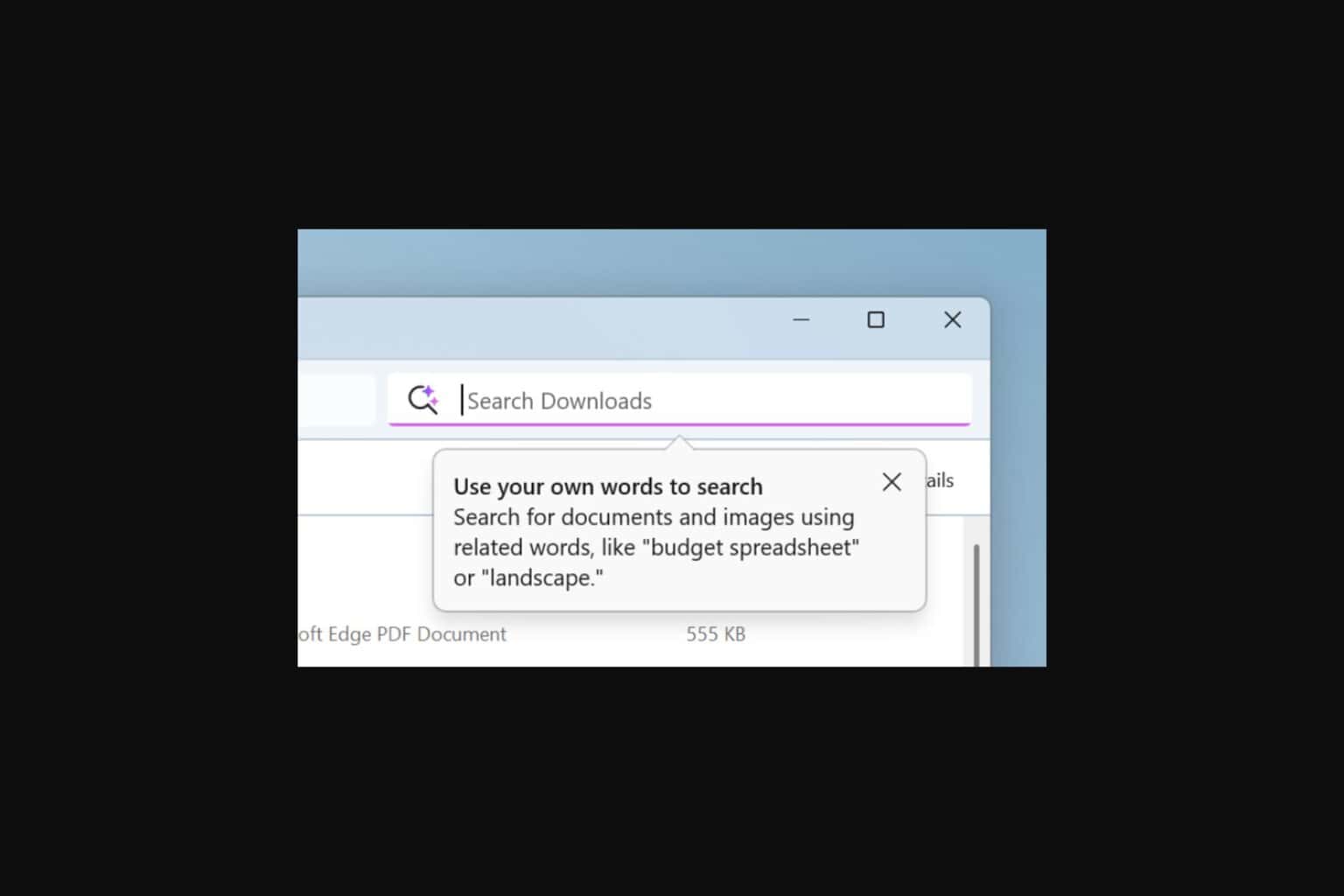
One of the standout features of this build is the introduction of Local Semantic Search for AMD and Intel-powered Copilot+ PCs. This advanced search capability allows users to find documents, photos, and settings using natural language descriptions.
For instance, users can type phrases like “bridge at sunset” to locate specific images or “Europe trip budget” to find relevant documents. This feature eliminates the need to remember exact file names or content, making search more accessible and efficient.
The build also includes a “Speech Recap” feature for Narrator, enabling users to access and copy spoken content for quick reference. Additionally, Microsoft has redesigned the Green Screen of Death interface, aligning it with Windows 11’s modern aesthetic.
Starting with this build, the Dev Channel moved ahead to the 26200 series, while the Beta Channel continued with the 26120 series.
Microsoft has rolled out the Windows 11 Insider Preview Build 26120.3653, KB5053658, to the Beta Channel, bringing a host of new features and improvements aimed at enhancing user experience and system resilience.
This update, part of the Windows 11 version 24H2 development, introduces the much-anticipated Quick Machine Recovery (QMR) feature, alongside other major enhancements.
The highlight of this build is the Quick Machine Recovery feature, a key component of Microsoft’s Windows Resiliency Initiative announced at Ignite 2024.
Designed to address widespread boot issues, QMR leverages the Windows Recovery Environment (WinRE) to automatically detect and apply fixes. In the event of a critical boot failure, the system connects to the network, sends diagnostic data to Microsoft, and receives targeted remediations via Windows Update.
This feature is enabled by default for home users, while IT administrators can customize and test it for enterprise environments.
In addition to QMR, the update introduces a “Speech Recap” feature for Narrator, allowing users to access and copy spoken content for quick reference.
The new tech is released with dozens of new shortcuts to allow users easier access to its capabilities. Plus, the Redmond-based tech giant says the live transcription of the Narrator’s speech will be useful to Assistive Technology trainers, teachers of students with visual impairments (TSVI) who support students in class, and professionals who are hard of hearing and want to use Narrator.
The build also includes a redesigned interface for unexpected restarts, aligning with Windows 11’s modern design language.
KB5053658 also debuts a new updated UI for unexpected restarts for Windows. The new UI comes a few weeks after the Redmond-based tech giant teased a new OOBE.
Microsoft has updated Edge’s Appearance settings in the Canary version with Color and Image Themes, along with a Preview Pane that shows how Edge looks when you apply theme and wallpaper changes in real-time. This is a major theme customization upgrade for sure.
Microsoft Edge already offers built-in themes, including light, dark, and device-specific modes, along with AI-generated themes through a dedicated web app for personalization of the browser. Now, Edge is taking customization to the next level with new theming and wallpaper options in its Canary build, porting images and NTP background customization options to Appearance settings.
Edge’s Appearance settings in the Canary version now include two distinct tabs under the Theme section: Color Theme and Image Theme.
The Color Theme tab allows users to explore various color themes along with a live preview below, showing how Edge will look once applied.
Edge color theme tab in Appearance settings. Image Credit: WindowsReport.
In the Image Theme tab, users can see a current preview of their theme featuring a wallpaper. They can choose from a collection of wallpapers provided by Edge or select their own uploaded image. Additionally, users can customize the color scheme with four preset options or use a color picker for exact adjustments.
Edge Image Theme tab in Appearance Settings. Image Credit: WindowsReport.
Edge still allows “Refresh wallpapers daily” with a toggle, which automatically applies new wallpapers to Edge.
Microsoft is consolidating theme and background customization within a single settings panel, rather than splitting them between Appearance settings and the New Tab Page. This allows users to preview and apply themes, wallpapers, and color schemes easily without switching between multiple sections.
Chrome with Side Panel lets you customize the new tab page and browser with theme options, where you can see changes immediately when selecting a theme with the side panel open. Microsoft Edge provides an even better preview option showing how Edge will change when you select a theme or wallpaper.
Do note the theme and wallapaer customization changes in appearance settings being tested in Canary verison.
Microsoft announced KB-LAM (or Knowledge Base Large Language Model), a framework developed by Microsoft to enhance the capabilities of Large Language Models (LLMs) by integrating external knowledge straightforwardly and efficiently.
The Core Innovation
In the official blog post, Microsoft says the primary goal of KB-LAM is to enable LLMs to access and utilize external knowledge bases effortlessly. Traditional LLMs primarily rely on the data they were trained on, which can limit their ability to provide accurate and up-to-date information in specialized domains. KB-LAM addresses this limitation by offering a plug-and-play mechanism that allows the models to fetch external data when needed.
How KB-LAM Works
KB-LAM acts as an intermediary that connects LLMs with external knowledge sources. This means:
Models can query external databases to retrieve relevant information in real time.
The integration process is designed to be seamless, requiring minimal adjustments to the existing model architecture.
Benefits of KB-LAM
Enhanced Accuracy: LLMs can provide more precise and contextually relevant responses by leveraging external knowledge.
Expanded Use Cases: KB-LAM broadens the applicability of LLMs in industries like healthcare, finance, education, and legal services, where domain-specific expertise is crucial.
Improved Efficiency: The plug-and-play nature reduces the complexity of integrating knowledge bases, saving time and resources.
Applications Across Industries
KB-LAM is poised to revolutionize how AI is used in various sectors:
Healthcare: AI systems can access medical databases to provide accurate diagnoses or recommendations.
Finance: Models can retrieve real-time market data for investment strategies.
Education: Teachers and students can use AI tools to access updated academic resources.
Legal Services: Lawyers can utilize AI that connects to legal databases for case analysis.
Future Implications
The introduction of KB-LAM represents a step forward in making LLMs smarter and more adaptable to specific needs. Given that Microsoft has made AI one of its central topics of investing, with Copilot being more present in Windows than ever, KB-LAM might be used to enhance the tool.
Microsoft has introduced a new Windows roadmap to enhance transparency and simplify the tracking of new features in Windows 11.
This roadmap is designed to address challenges faced by users and IT professionals in understanding the status of features being tested or rolled out.
It provides transparent information about features in testing, gradual rollout, and general availability. Users can filter features by release channels and device types, making it easier to find relevant updates. Plus, estimated feature release dates are included, helping organizations prepare for upcoming changes.
This is not the only roadmap Microsoft has employed over the years: for example, there is also the Microsoft 365 Roadmap, which features entries that describe future capabilities coming to the Microsoft 365 Suite.
Good news for all admins out there. Microsoft 365 will finally allow you to manage AI agents meticoulsly, and according to the most recent entry to the Microsoft 365 Roadmap, the new enhancement will be coming soon.
In the announcement, the Redmond-based tech giant stressed the capabilities of an AI admin. Here’s everything you need to know:
AI Admins are responsible for establishing and managing connections that allow Copilot to index data stored in Microsoft Graph (the data platform for Microsoft 365) and perform actions. This ensures that the AI can access the data required to function effectively.
Admins regulate which users, called “makers,” can create Copilot connections. This helps maintain control over who can build these connections, ensuring compliance and security.
Admins can specify and manage the data sources used by Copilot connections. This ensures that the AI uses appropriate and authorized data for its operations.
Admins oversee all Copilot connections, allowing them to monitor activity, ensure proper functionality, and address any issues that arise.
Admins can review and either approve or reject agents (bots or automated tools) based on their suitability and compliance with organizational policies.
Admins can pre-install agents for users within their organization without requiring individual consent. This streamlines deployment and ensures that users can access the tools they need.
Admins can access and manage these agents through the integrated apps page in the Microsoft 365 admin center, making overseeing their deployment and usage easy.
As an AI Admin, you manage agents with various capabilities including creating and overseeing Copilot connections that index data in Graph and perform actions, controlling which makers can build these connections and regulating the data sources used, maintaining observability over all connections, approving or denying agents, pre-installing them without requiring consent, and viewing them in Microsoft 365 admin center integrated apps page.
The new enhancements to Microsoft 365 regarding AI admins’ permissions will be added to the platform in June 2025.
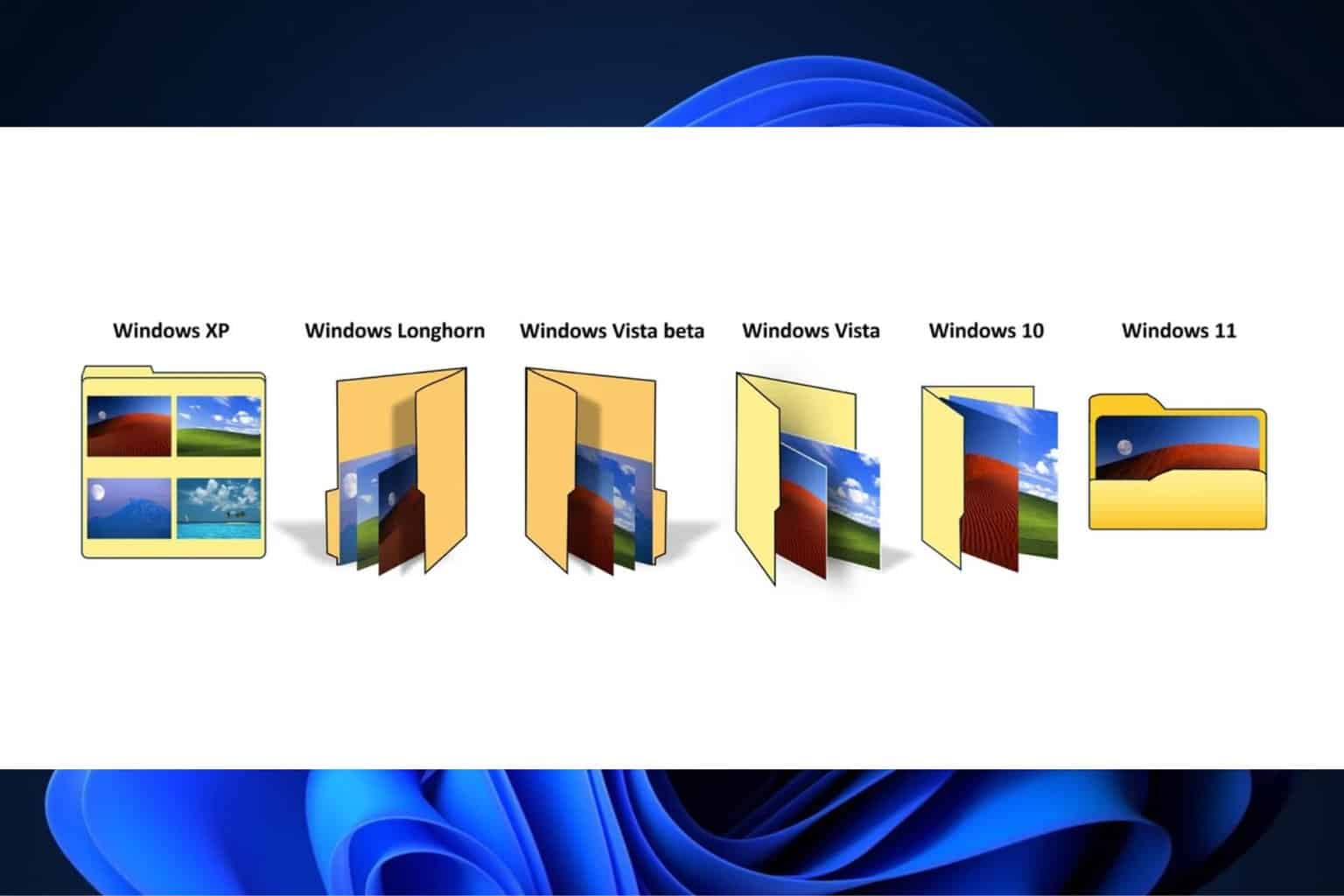
It might be obvious to some users, but Windows XP and Windows 11 are not that different. In fact, the folder icons in File Explorer are pretty much the same, but a few tiny differences.
Basically, instead of showing four thumbnail images, Windows 11’s folder icon only shows one thumbnail.
One Reddit user meticulously assembled all the folder icons from all modern Windows versions, and it seems Microsoft has been quite lazy.
The icons are very similar, with minimal differences, which is not exactly striking. However, Microsoft’s reason for this is not particularly laziness.
Instead, Windows is all about recognizable patterns. Changing the icon of the folders would be too disruptive for Windows users. For example, decades after the left-positioned Start bar in Windows, Windows 11 introduced a center-positioned Start button, and up to this day, some users are finding it hard to adjust to such a minor change.
So, any changes to these icons will happen gradually.
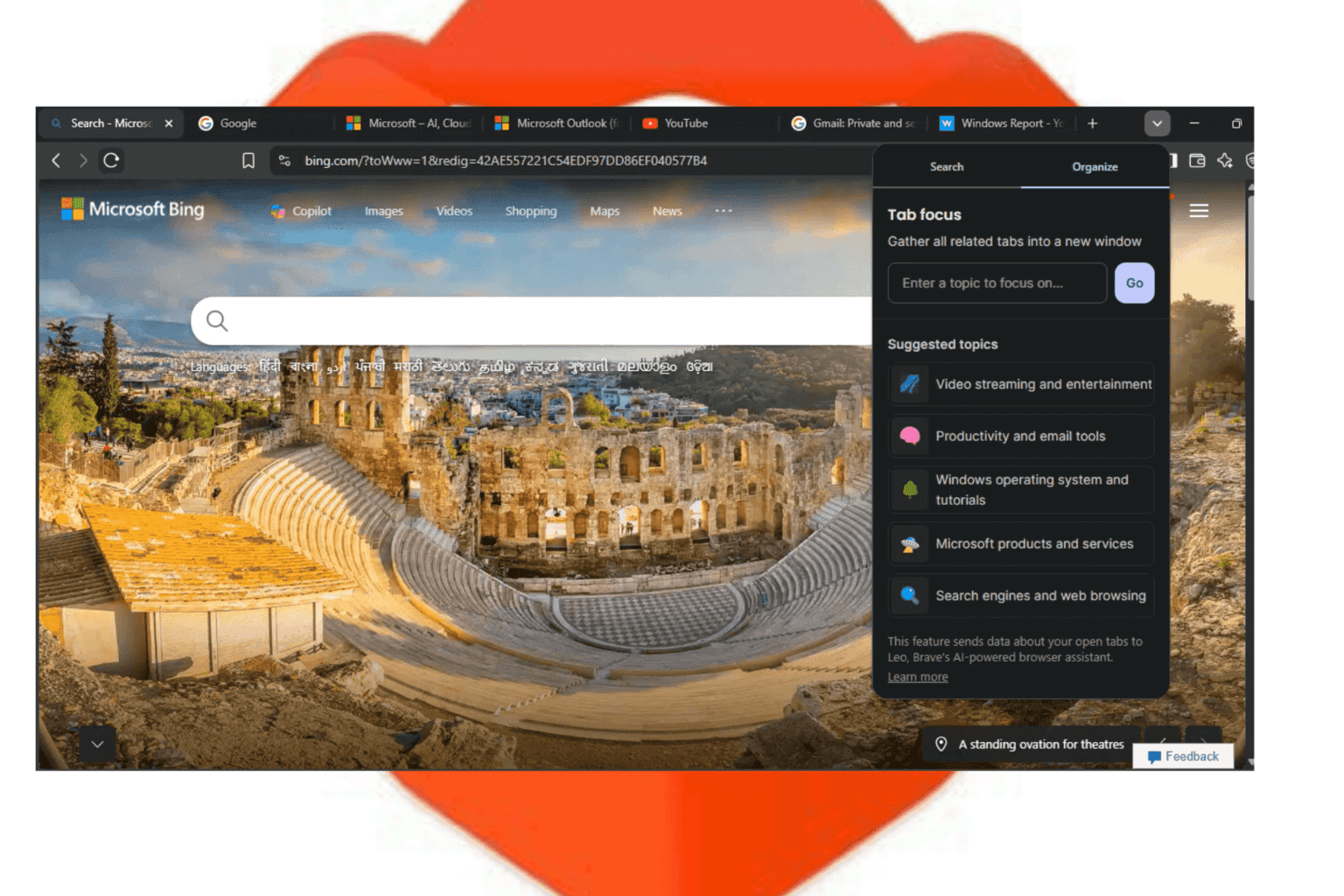
Brave browser is currently testing a new feature in its Nightly version called Tab Focus Mode, powered by its AI assistant, Leo. This feature is designed to help users organize browser tabs by topics.
Tab Focus Mode allows you to search for specific topics or queries (e.g., “JavaScript tutorials” or “vacation planning”). Using natural language understanding, it filters and highlights tabs relevant to your task.
Similar to Chrome and Edge, Brave has integrated tab organization features into Tab Search. Here’s how to use it:
Click the Tab Search button.
Select Organize.
In the search field, type your topic (e.g., “work document,” “vacation plan”).
Leo will analyze the open tabs, identify those matching the topic, and display them in a new window. This helps you focus on the task at hand. You can undo this action if needed.
Brave Tab Focus Mode User interface in Tab Search under Organize tab. Image Credit: WindowsReport. Type search query or choose topic to focus on. Image Credit: WindowsReport.Image Credit: WindowsReport.
Brave’s Tab Focus mode is available in the Nightly version as an opt-in feature. It offers topic suggestions based on your open tabs and is free to use, though subject to daily limit. However, Brave Leo Premium subscribers will have higher usage limits.
Rate limit reached for leo tab focus mode. Image Credit: WindowsReport.
Tab focus mode setting in Brave Nightly. Image Credit: WindowsReport.
The setting description reads: “Enable tab organization in the Tab Search page. When opened, this will automatically send the titles and origins of all non-private tabs to Leo to classify them.“
Privacy
Using AI features often involves trade-offs. For Tab Focus to work, Brave sends all open tab titles and domains (not full URLs or page content) to Leo for processing. This feature is not available in Private or Tor windows, as the Organize option won’t appear in the Tab Search UI.
While Chrome, Firefox, and Microsoft Edge group similar tabs, Brave takes a different route. With Leo’s AI assistance, it moves related tabs into a new window, helping users focus on specific topics.
Tab focus mode is optional and not enabled by default. Looks interesting on first try, but rate limiting may make users not intrested to give it a go.
The feature is currently available on only ondesktop, Brave plans to bring support for Tab focus mode to on mobile in future.
The Microsoft Copilot event, scheduled for April 4, 2025, at 9:30 AM Pacific Time, promises to showcase the latest advancements in AI technology.
This event will highlight how Microsoft Copilot integrates AI capabilities into everyday tools, enhancing productivity and creativity.
Attendees can expect insights into new features, demonstrations, and discussions on the future of AI in Microsoft products. You can find more details here.
In April, Microsoft will turn 50, and the Redmond-based tech giant has prepared dozens of surprises for Windows and Microsoft users
An interactive timeline tells the story of Microsoft, which you can check out here. The company has also released a dedicated site featuring details and stories of its 50-year history, which you can visit here.
The Microsoft Edge Dev Channel update to version 136.0.3209.2 includes improvements to enhance the platform’s user experience.
Users can now sign in to utilize AI themes, a new feature designed to elevate customization and personalization.
Regarding problems with the browser, significant efforts have been made to address persistent issues, such as browser crashes during CAPTCHA PDF printing on Android, context menu crashes involving managed favorites, and display inconsistencies when toggling between dark and light modes.
On iOS, the latest Edge Dev, 136.0.3209.2, addressed the issue of white screens appearing in the Copilot side pane and fixed black screen flashes during use.
On Android, it rectified problems with Bing being improperly set as the default search engine and corrected developer option display names to ensure accuracy and clarity.
On Mac, Edge Dev 136.0.3209.2 resolved visual gaps that appeared below the Favorites bar and fixed issues with the mini menu’s “Copy” function not performing as expected.
It has been over a decade since Microsoft effectively deprecated Microsoft Technet and turned it into Microsoft Docs, only to finally become Microsoft Learn (we know how much the Redmond-based tech giant loves rebranding stuff).
Despite many users wanting it back – and if you head over to Reddit, you’ll see what I am talking about – Microsoft Technet is not coming back.
Technet and old style MSDN were amazing! Made home labs and learning so much easier.
However, you might not know that Microsoft also released a web-based Technet Magazine, which, according to Wikipedia, had a print circulation of about 100,000 readers in the US for a while.
The magazine would feature data and information about certain technologies, as well as information on planning, optimizing, and operating environments. It was addressed specifically to IT professionals and enthusiasts.
Microsoft should bring it back, even though the Learn dashboard is already available. It could also release Technet Magazine as a digital magazine featuring IT admins explaining various technologies and new features.
The Redmond-based tech giant could also make Technet magazine available to Microsoft 365 users and feature it on every Microsoft service.
Microsoft has recently scaled back its data center leasing activities in the U.S. and Europe, a move attributed to an oversupply of computing capacity relative to its current demand forecasts. Just last year, the Redmond-based tech giant announced plans to build dozens of European data centers.
According to the latest reports, analysts from TD Cowen revealed that the company has abandoned projects that would have utilized 2 gigawatts of electricity over the past six months.
This decision also reflects Microsoft’s choice to limit additional AI training workloads from OpenAI, the creator of ChatGPT.
Despite these adjustments, Microsoft remains committed to its AI infrastructure plans, and its $80 billion fiscal year investment is still on track.
The company emphasized that it may strategically pace its infrastructure expansion but continues to grow in all regions. Meanwhile, competitors like Alphabet (Google) and Meta have stepped in to fill the capacity gap left by Microsoft’s pullback.
This development comes amid growing investor skepticism about the high costs of AI investments, especially as emerging competitors like China’s DeepSeek offer AI solutions at significantly lower costs.
Microsoft is enhancing the Voice Access Updates menu with three new pages that discuss what is new for this capability.
Spotted by tech enthusiast @phantomofearth in the latest 26384 Build, these new menus won’t appear by default. Users will need to click on the “What’s new” menu, and they will appear.
New in build 26384: a Voice Access discoverability flow. Clicking "what's new" in the ? menu now brings up a dialog with three pages, an intro and two feature highlights. (not enabled by default.) pic.twitter.com/Pxotf56VaU
What could these new menus be used for? Well, for one, they can display the changelog for each new release and update for this capability. Microsoft Store introduced a similar menu a while ago, and it found success among users.
But it can also be an introductory tutorial for all interested in using this capability.
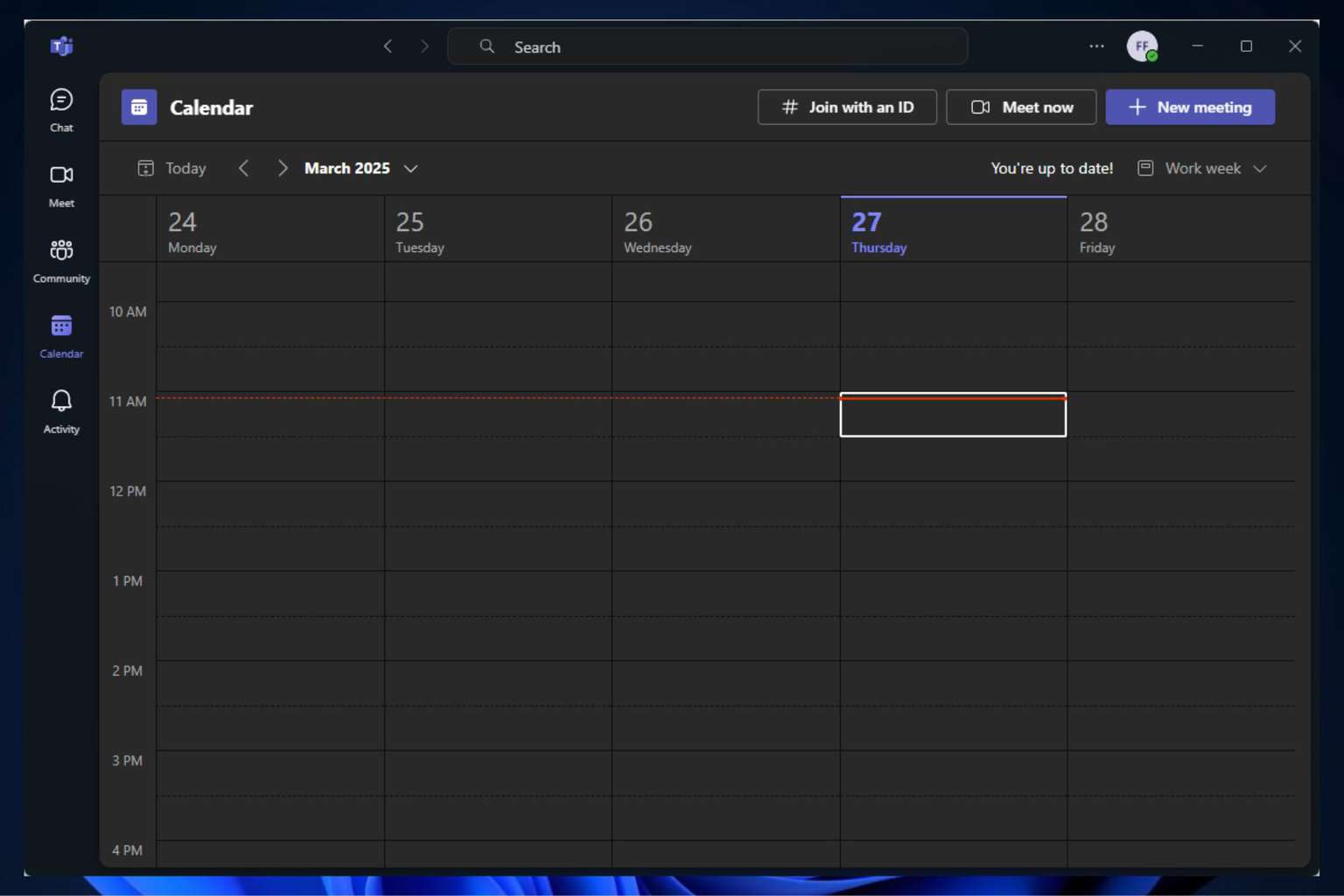
Microsoft Teams’ new calendar feature is now being introduced specifically for Education customers to enhance scheduling and organization in an academic context.
The calendar, announced in a recent entry to the Microsoft 365 Roadmap, is designed to feel familiar. It will integrate seamlessly with other Microsoft tools, such as the new Outlook for Windows, Outlook on the web, Microsoft Places, and Teams. Users can access and manage the same calendar across these different applications.
Once the update is in place, the new Teams calendar will automatically be active for all users, immediately.
However, if users prefer to stick with the old experience or opt out of the new calendar for any reason, they can easily disable it. For this purpose, there’s a “New calendar” toggle available in the top-right corner of the calendar app in Teams.
Here’s what the entry says:
The new calendar in Teams will be available to Education customers. The new calendar in Teams is designed to be familiar and reliable, as it’s one unified calendar that works across new Outlook for Windows, Outlook on the web, Microsoft Places, and now Microsoft Teams. With this update, the new Teams calendar will be enabled by default, and users can turn it off from the “New calendar” toggle at the top right of the calendar app in Teams.
In other words, this update aims to provide a more cohesive, user-friendly calendar experience while offering flexibility for those who may not want to use the new feature just yet.
In other news, Microsoft Teams will be getting a unified Teams Admin Center experience that will bring together all the tools managers need to keep an eye on the organization.
Microsoft is gearing up for a significant update to Windows 11, with platform changes that lay the groundwork for the upcoming version 25H2. Why? Well, according to the latest reports, the Redmond-based tech giant is dropping some significant clues in this regard.
For example, Microsoft has started testing platform updates in the Dev Channel with builds in the 26200 range. These updates are expected to support Qualcomm’s Snapdragon X2 chip, enabling smoother performance on devices powered by this hardware.
The Germanium platform, introduced with Windows 11 version 24H2, will likely continue as the foundation for version 25H2. This shared platform will allow Microsoft to deliver updates and bug fixes more efficiently across both versions.
With support for Windows 10 and earlier versions of Windows 11 ending later this year, Microsoft aims to reduce fragmentation by transitioning more users to a unified platform. This move will simplify future updates and improve the overall user experience while offering Microsoft more time to work on Windows 11 25H2.
If everything goes according to plan, the new major Windows 11 patch should be released in October. By then Windows 10 will reach EOS, as well.
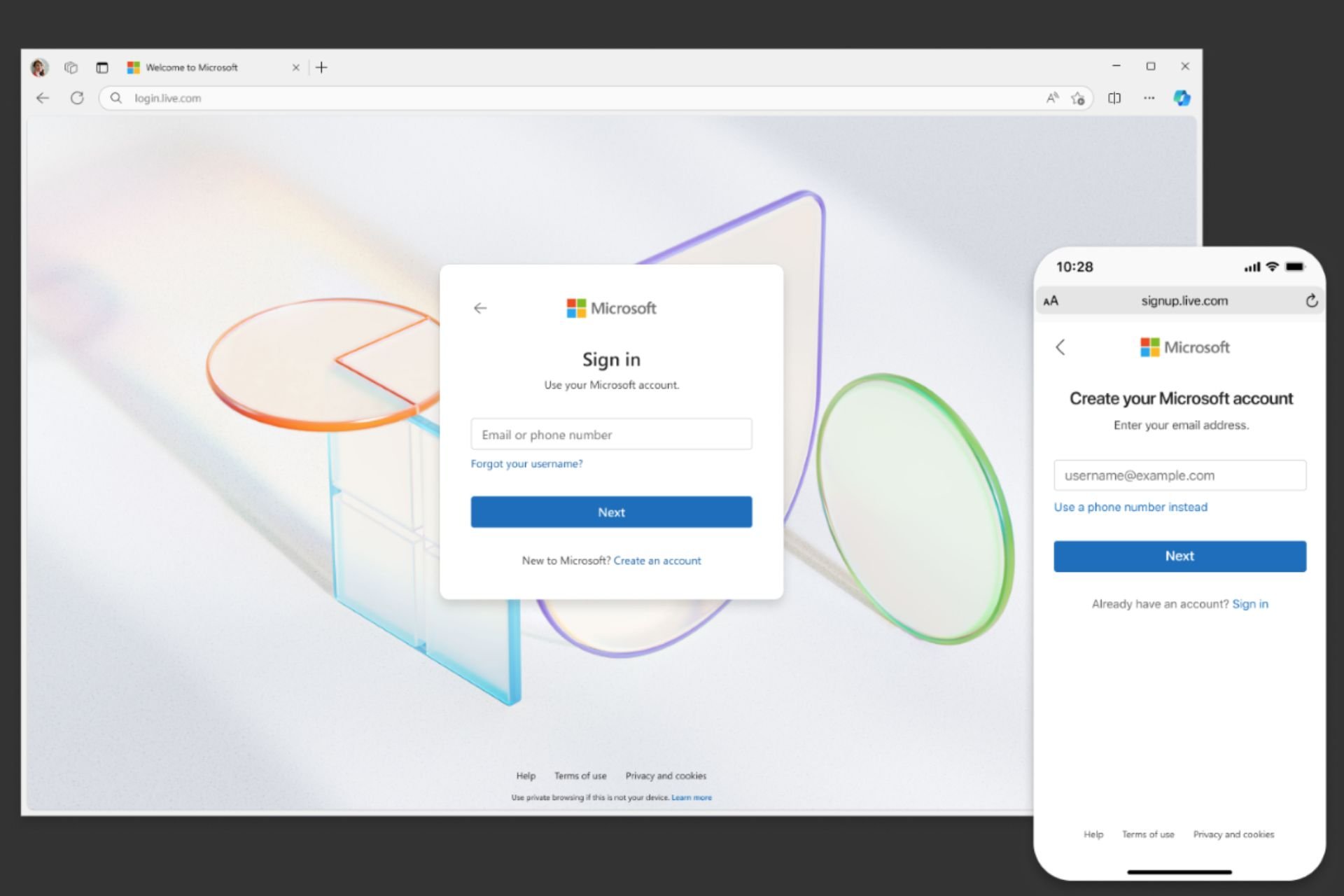
The Microsoft Entra team has announced a new user experience for consumer authentication, aiming to make sign-in processes more modern, simple, and secure.
Announced in a blog post, the updated sign-in and sign-up flows for Microsoft accounts use the Fluent two design language. This ensures a seamless transition between authentication and product experiences, creating a consistent and visually appealing interface. The new design is optimized for various devices, from large desktop monitors to mobile screens, and one of the most requested features, Dark Mode, is now available for most sign-in screens. It will first appear in gaming apps, with plans to expand to other consumer apps.
The number of steps and concepts per screen has been reduced to lower the cognitive load and speed up the authentication process. Steps have also been reordered for a more logical flow. Changes have been made to reduce user errors and improve account recovery options, making it easier for users to regain access to their accounts if needed.
The new design emphasizes the Microsoft brand, with a consistent background image and centered Microsoft logo, moving away from the product-centric designs of the past, as you can see in the featured image above.
These updates aim to provide a more intuitive and user-friendly authentication experience for over a billion Microsoft account users worldwide, and it should be rolled out entirely by the end of April. Another interesting thing about the new sign-in process is the emphasis on passwordless ways to do it.
Streamlining the authentication UX design allowed us to rethink the default experiences for sign in, putting even greater emphasis on usability and security. Over the last few years, we’ve introduced several enhancements, including the ability to completely remove the password from your account and support for passkey sign in instead of using a password. Our new UX is optimized for a passwordless and passkey-first experience.
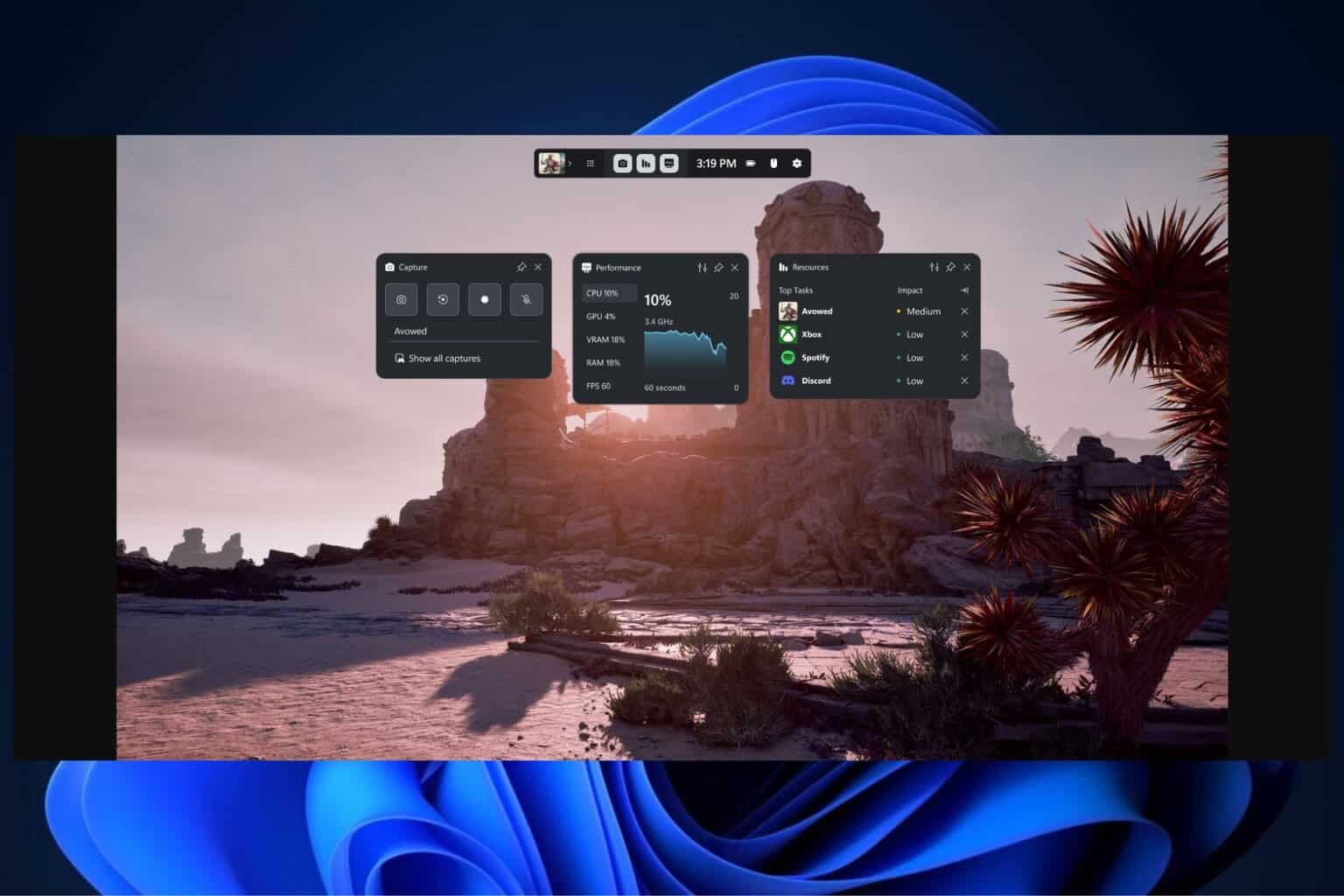
The Xbox March Update is here, bringing a new Game Bar interface for gamers.
PC gamers will enjoy a refreshed and streamlined Game Bar interface. This includes redesigned widgets like the Home Bar, Capture widget, and Performance widget, making accessing essential tools and information easier. In addition, controller navigation within the Game Bar has been enhanced, improving the overall experience for gamers using controllers on PCs and Windows-based handheld devices.
Xbox Game Pass Ultimate and PC Game Pass subscribers can now enjoy more in-game perks for popular free-to-play titles. These benefits include exclusive content such as cosmetic items, characters, and in-game currency, providing an enriched gaming experience. Current offerings are available for games like Heroes of the Storm, Naraka: Bladepoint, and The Finals. Starting next month, these benefits will extend to titles like Call of Duty: Warzone and Enlisted, giving players even more value from their subscriptions.
Players using Xbox Cloud Gaming (Beta) will notice smoother game transitions. For instance, fans of a game series like Assassin’s Creed Shadows can seamlessly switch between titles in the franchise without returning to the home screen, creating a more fluid and immersive experience. Furthermore, more titles have been added to the “Stream Your Own Game” collection, which is available for Game Pass Ultimate members, expanding the library of games that can be streamed directly from the cloud.
These updates will gradually roll out to all Xbox users by the end of the month, so it’s just a matter of days until you can experience the new Game Bar.
The complete announcement is available here if you want to read it.
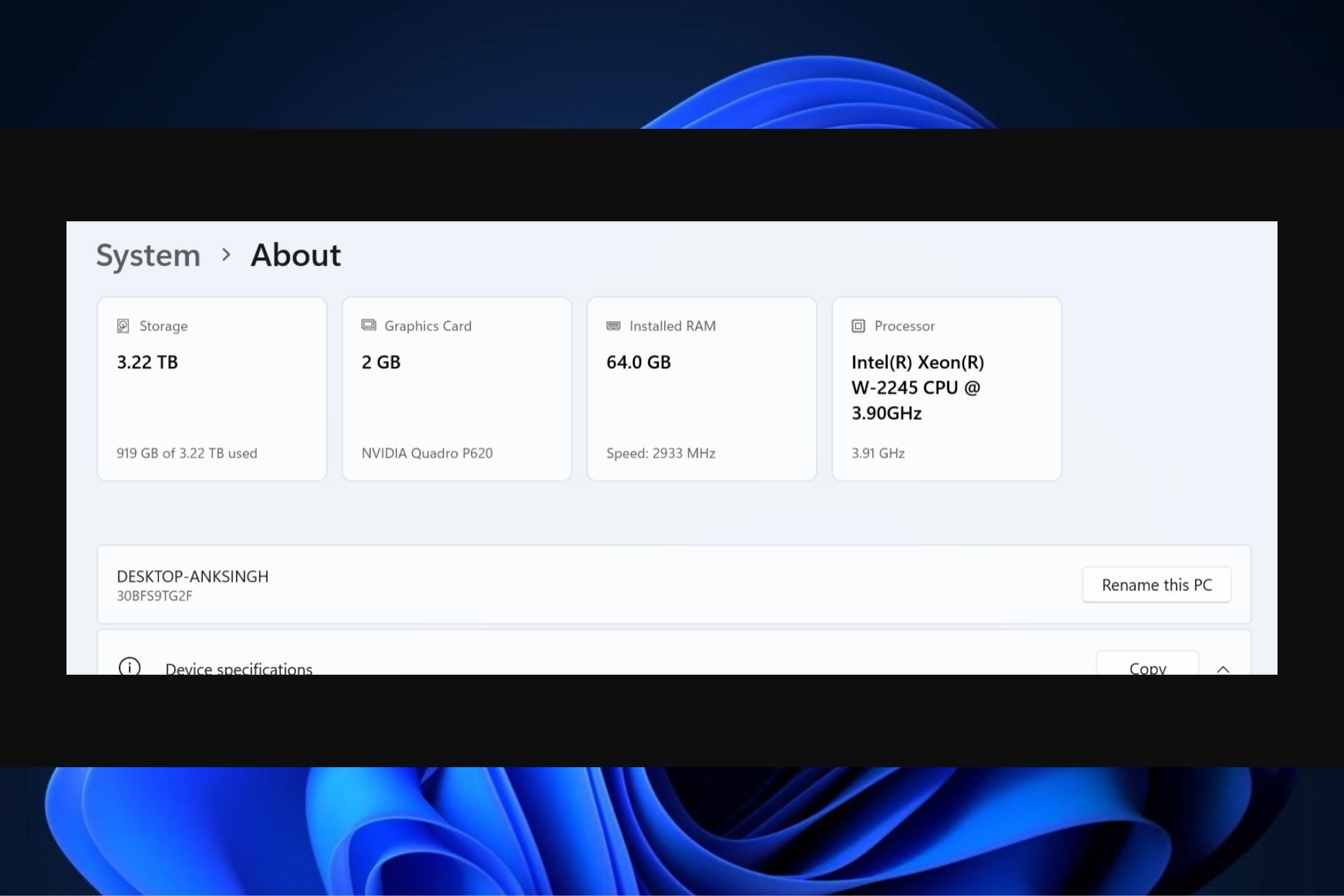
The latest Windows 11 Insider Preview Build 27823 for the Canary Channel brings several noteworthy updates and fixes, enhancing system functionality and user experience. Here’s a closer look at the changes:
A new feature has been introduced within the Settings menu, particularly under System > About, where users can now see “top cards.” These cards provide a quick overview of key specifications such as the processor, RAM, storage, and GPU. It’s designed to offer easy access to the hardware details of your device without having to dig through technical menus.
Accessibility is a significant focus of this build. Text scaling within File Explorer is now improved, ensuring compatibility with accessibility tools. This improvement will particularly benefit users who rely on larger text sizes for readability. Additionally, annoying bugs have been addressed, such as blank rendering when using the ALT + Tab shortcut in File Explorer.
This build includes a variety of fixes targeting stability and functionality across the system:
Settings Crashes: Instances where the Settings app crashed unexpectedly have been resolved.
Login Issues: Problems with user login have been fixed, providing a smoother sign-in experience.
Printing Problems: Users had reported issues while trying to print documents, which are now resolved.
App Installation Failures: Failures during app installations have been addressed to ensure smoother installations.
Google is working on a Split Tabs feature, similar to the Split Screen functionality already available in Microsoft Edge and Vivaldi. The feature, now available in Chrome Canary, allows you to split and unsplit tabs via a right-click context menu option called “Show side by side”.
When you have multiple tabs open, you may need to view or compare two pages—whether they’re documents or websites. The split-screen feature makes this easier.
How Split Tabs Work in Chrome:
To use the feature, you need at least one open tab—Chrome will treat the other side as a new tab page. Simply right-click a tab and select “Show side-by-side” to split the screen, displaying both tabs on opposite sides with a center divider. When you’re done, right-click again and choose “Exit side-by-side” to return to the normal view.
Show Side-by-Side context menu option. Image Credit: WindowsReport.Two tabs side by side in Chrome Canary. Image Credit: WindowsReport.Exit Side-by-side option. image Credit: Windowsreport.
The feature supports grouped tabs too. When the feature is active, you’ll notice a Split Screen button on the left side of the toolbar (similar to Microsoft Edge). Currently, this is a placeholder and may work in future updates, avoiding the need for right-clicking.
How to enable Split Tabs or Split Screen feature in Chrome
Close Chrome Canary (if running).
Right-click its desktop shortcut and select “Properties”.
In the Target field, add a space and paste the following: --enable-features=SideBySide
Click OK and Apply.
Launch Chrome Canary using the modified shortcut, open multiple tabs, then right-click any tab and select ‘Show side by side’ to split them.
Google is renaming “Side by Side” to “Split Tabs” in the code, so the option names may change. The feature is still in early development, may crash, and isn’t yet available as a flag in Chrome Canary. Brave has also recently implemented a similar feature with name called ” Split View”.
Comparison with Microsoft Edge: In Edge, Split Screen shows the active tab on the left and open/recent tabs on the right for easy comparison. Chrome’s current implementation only splits two tabs, with no option to select from open tabs—hopefully, this will improve.
Edge Split Screen. Image Credit: WindowsReport.
Does Chrome need a Split Screen feature?
Given that Edge and Vivaldi already offer this, Chrome users could benefit from better multitasking, document comparison, or side-by-side browsing.
Until now, you could use split tab extensions or manually resize and arrange tabs side by side. You could also use Windows or macOS’s built-in split screen feature. However, Chrome will soon have its own native tab-splitting feature.
Google may make it avaialble for testing it via flags in future Canary builds for wider testing.
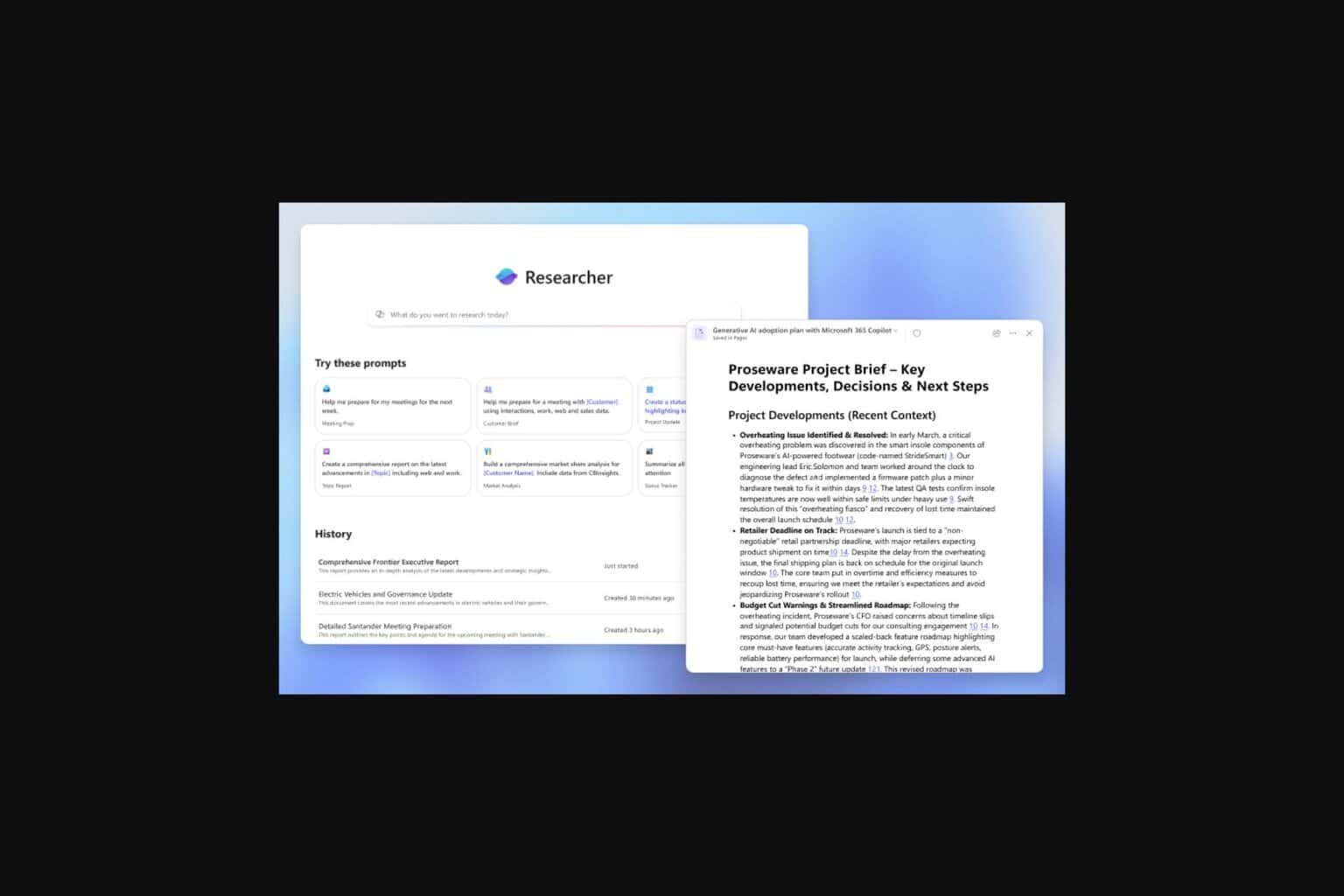
Microsoft has unveiled the Researcher and Analyst agents, the new additions to Microsoft 365 Copilot, designed to enhance productivity by tackling complex research tasks. The first one leverages advanced reasoning models to analyze vast data from enterprise sources (like emails, chats, and documents) and the web. It follows a structured, multi-phase process to deliver high-quality, deeply contextualized research reports.
The second one is powered by OpenAI’s o3-mini reasoning model, and acts as a virtual data scientist, enabling users to transform raw data into actionable insights with remarkable efficiency. The agent employs chain-of-thought reasoning, iteratively refining its analysis to deliver high-quality results that mirror human analytical thinking.
The Researcher agent can synthesize insights from internal and external data, create comprehensive reports, and even integrate third-party data from platforms like Salesforce and ServiceNow.
On the other hand, the Analyst is capable of processing large datasets, executing Python code for complex queries, and generating detailed visualizations. Analysts are particularly adept at handling messy, real-world data, making them invaluable tools for businesses seeking to streamline their data workflows and improve decision-making accuracy.
The innovative agents will be available to Microsoft 365 Copilot license holders starting in April as part of the Frontier early access program. The Redmond-based tech giant published extensive blog posts on each. You can learn more about the Researcher agent and the Analyst agent here.
At least one Copilot out there is enjoying all the popularity that an AI model could get, and it’s Copilot in Excel.
Released by Microsoft in 2023, with the intention of helping users work faster and analyze data more seamlessly, Copilot in Excel is praised by the Excel community on Reddit for doing the hard work and teaching those who don’t have any experience in Excel how to use this complicated platform.
Having Copilot in Excel is incredibly helpful for speeding things up or doing the work if you are a novice.
The user then explains why Copilot in Excel is so helpful. For one, Copilot saves a lot of time.
how remarkably helpful it is for building additional columns and leveraging/creating/suggesting advanced formulas. I can see this becoming incredibly helpful to just simply speed up the process. As an advanced Excel user, It is still supremely quick.
Then, the AI model can be a teacher for all those who have to work with Excel but are not entirely knowledgeable of every aspect of the platform.
for the novice user, this can take a great deal of learning off their plate. You can simply prompt copilot to build you pivot tables based off data. You can also use it to learn, by asking the best way to do something like perform a regression on particular columns.
Finally, the user also agreed that Copilot is useful as long as the users are coming up with the right prompts, but otherwise, the tool can be an incredible resource for learning and getting work done faster.
Lastly, like all of copilot it will always be a trust but verify for me. However, I see other folks, especially those with dated or limited knowledge of Excel falling victim to poor data sets, structures, and poor prompting. It’s immensely powerful, but if you’re asking the wrong question with poorly structured data, I can only imagine the trouble one can get into.
Do you agree? What’s your experience with Copilot in Excel?
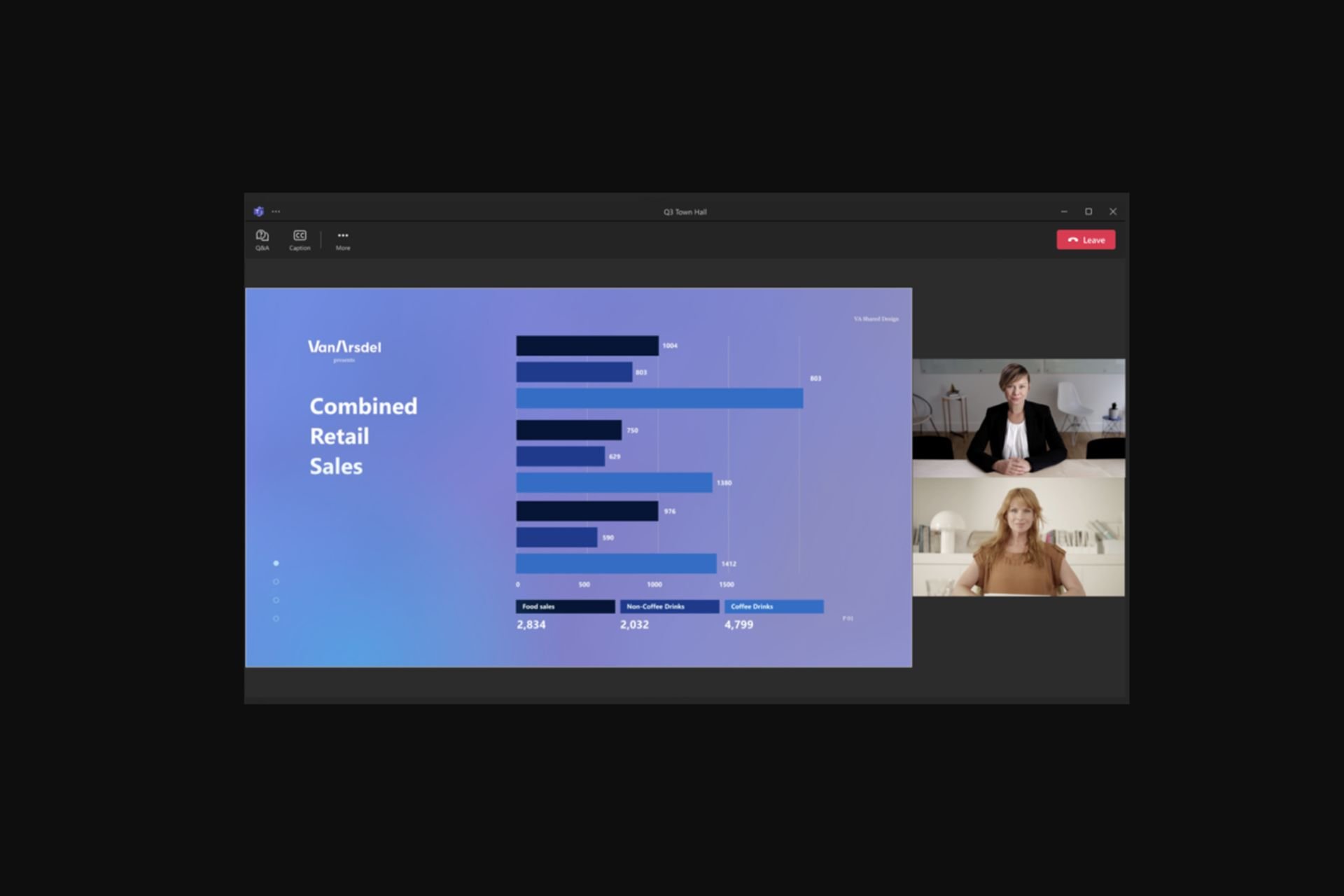
Microsoft will enhance Teams’ Town Hall meetings with Ultra-Low latency, and that means these big events that can host around 50k participants at a time won’t be plagued by latency anymore.
Latency refers to the delay between an action (like speaking or sharing content) and when viewers see it happen. “Ultra-low latency” means this delay is significantly reduced, allowing attendees to experience the event in near real-time.
In the past, attendees experienced a delay of about 20-30 seconds. This update ensures that attendees are better synchronized with the presenters and organizers, making the event more interactive and engaging.
This refers to large virtual meetings, often used for company-wide announcements or events. According to the recent entry where the update was unveiled, it ensures smoother and more responsive interactions during these sessions.
With Ultra-low latency, attendees will now be able to view and participate in a town hall instance at a much lower latency than before, ensuring they are in sync with content being shared by presenters and organizers. This update significantly improves the attendee experience compared to the typical 20-30 second delay experienced in the past. This feature is available for town hall organizers with a Teams Premium license.
As the entry states, this new feature is exclusive to organizers with a Teams Premium license, an upgraded subscription tier offering additional features beyond the standard Teams experience.
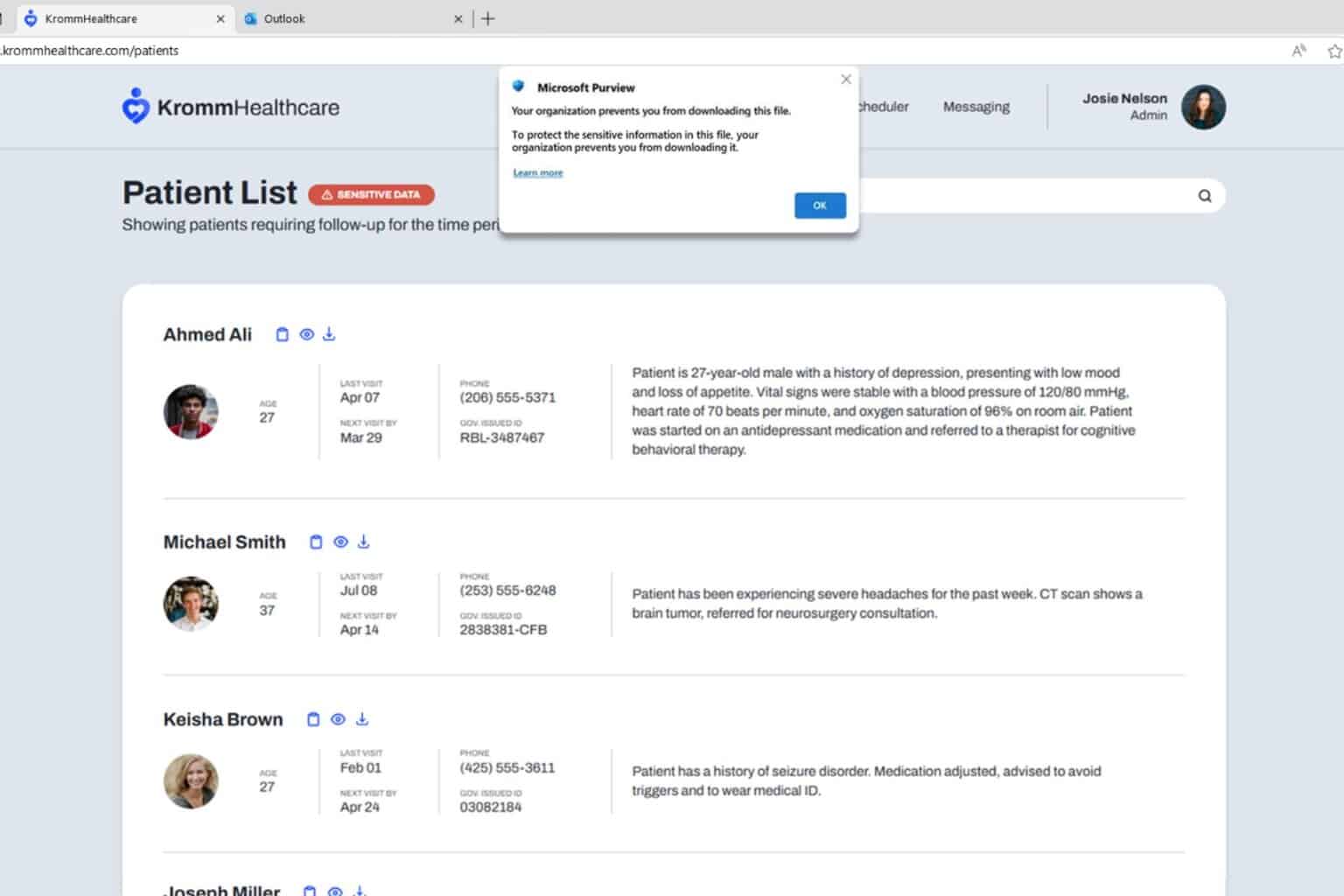
Microsoft will introduce the new inline protection capability in Edge for Business. Announced in a recent entry to the Microsoft 365 Roadmap, it is designed to protect sensitive data that users might handle directly in the web browser. This includes typing sensitive information into a web application or entering prompts or queries into AI-powered tools.
This capability’s goal is to prevent data leakage—that is, to prevent sensitive or confidential information from being unintentionally shared or misused through the browser.
This protection feature will initially focus on popular generative AI apps like ChatGPT, Google Gemini, and DeepSeek. Admins (likely IT administrators within an organization) can block users from typing sensitive data into these tools’ prompts.
According to the entry, this new capability works alongside existing data loss prevention (DLP) measures. For example, DLP already prevents actions like uploading sensitive files or pasting sensitive text into a browser. Now, it adds another layer of protection to monitor what users are typing directly into the browser.
With the new inline protection capability for Edge for Business, you can prevent data leakage across the various ways that users interact with sensitive data in the browser, including typing of text directly into a web application or generative AI prompt. Starting with some of the top consumer GenAI apps (ChatGPT, Google Gemini, and DeepSeek), admins will be able to block typed prompts containing sensitive data. The inline protection capability complements existing endpoint DLP controls for uploading or pasting sensitive content in the browser.
In other words, this update enhances Edge’s security features, making it a safer platform for businesses without worrying about accidental leaks of sensitive data while interacting with web applications or generative AI tools.
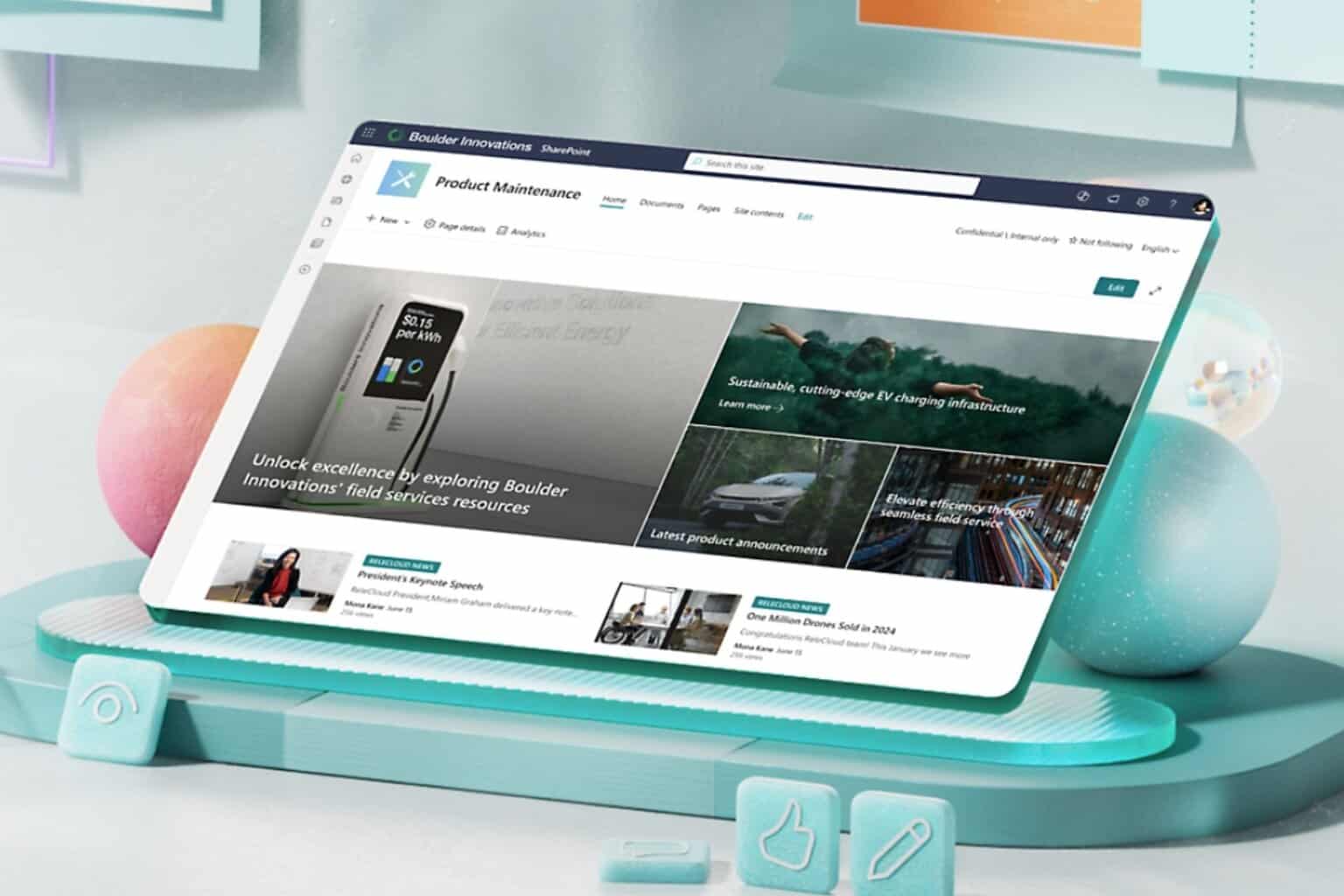
SharePoint users will be able to add the platform’s dashboard to their web pages to display certain types of information or organize content visually.
Right now, this dashboard webpart is only usable on Home Sites. Home Sites are typically central hubs designed for organization-wide communication and information sharing.
Well, according to a recent entry to the Microsoft 365 Roadmap, the availability of this web part is being expanded. It will also work on Team Sites (designed for more minor group collaboration) and Communication Sites (focused on sharing content with a broader audience).
The dashboard layout webpart will be available on all sites and pages. Currently the dashboard webpart is limited to Home Sites, it will be extended to Team Sites and Communication Sites.
The addition will happen next month, in April.
In similar news, Microsoft revealed last month that the platform will integrate AI agents to allow users to create sites faster.
Microsoft has updated the Photos app with dozens of new features that will surely be useful for many Windows 11 and Windows 10 users.
The Photos app now supports Optical Character Recognition (OCR) for over 160 languages. This feature allows users to extract text from images seamlessly, making it easier to search for and repurpose information in photos or screenshots.
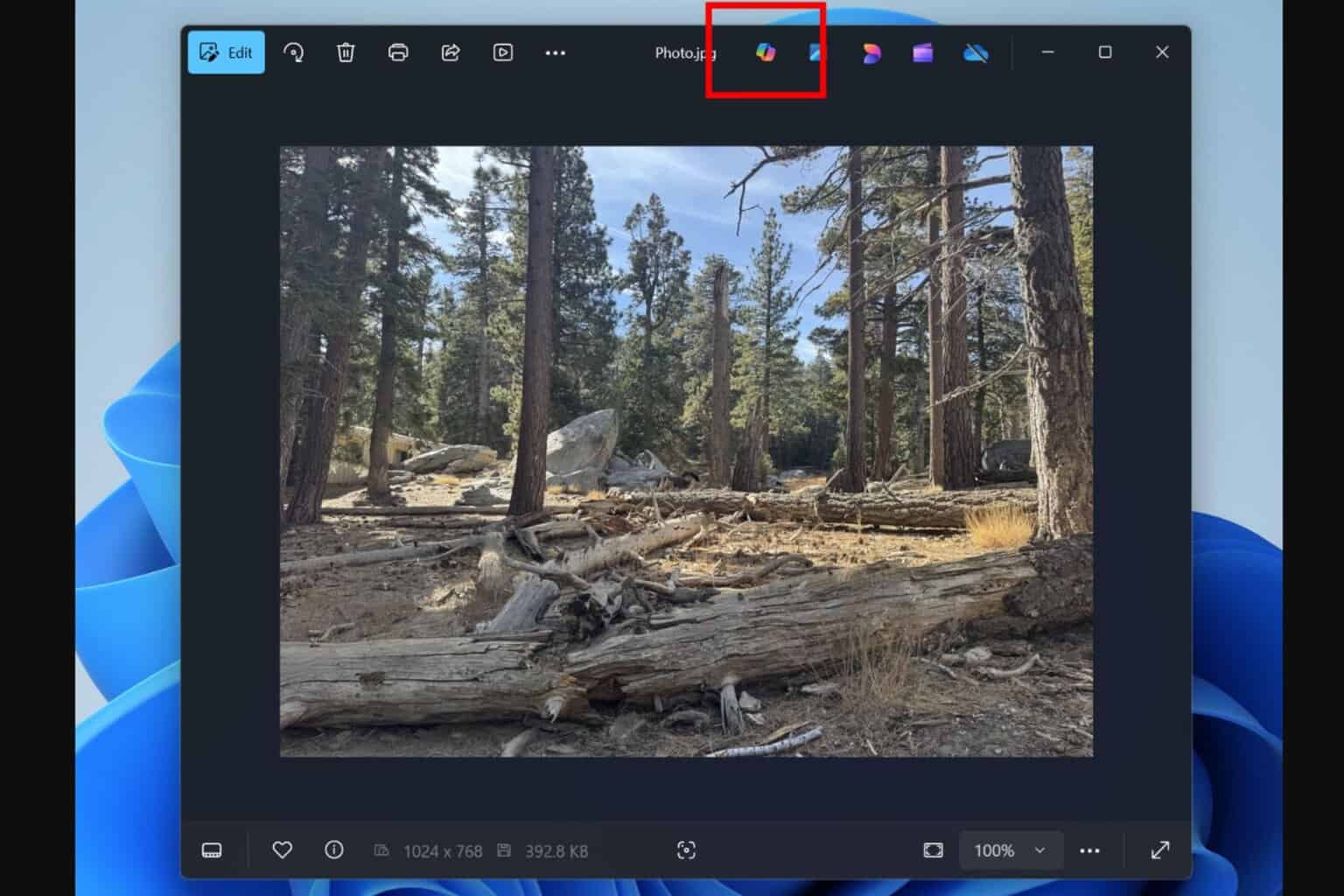
Similar to the AI hub in Microsoft Paint, a new Copilot button has been added, offering helpful photo-editing insights and tips. The integration of AI tools extends to features like object erasure and visual search, which are available directly from shortcuts in File Explorer. These tools aim to make photo editing and organization more intuitive and efficient.
In the blog post, Microsoft says the Photos Gallery has been improved with a “Show subfolders” filter, which enhances navigation and allows users to organize their photo collections more effectively.
The update introduces support for JPEG XL (JXL) files, a next-generation image format offering improved compression and image quality.
The KB5053643 update for Windows 10 version 22H2, released on March 25, 2025, brings several quality improvements to enhance system stability and performance. Here are the key highlights:
The update resolves an issue causing crashes when generating thumbnails in File Explorer. This ensures smoother navigation and better file management.
Certain troubleshooters that previously failed to run in Remote Desktop sessions have been fixed, improving remote work and troubleshooting experiences.
The update addresses issues with USB-connected dual-mode printers that previously produced incorrect text output, ensuring reliable printing functionality. Updates to the Country and Operator Settings Asset (COSA) profiles provide improved compatibility with mobile operators and localized settings.
This non-security preview update is part of Microsoft’s monthly cumulative update strategy, which aims to provide gradual improvements. Users can install it via Windows Update or manually download it from the Microsoft Update Catalog.
Microsoft released the non-security KB5053657 update for Windows 11 versions 22H2 and 23H2 on March 25, 2025, bringing many new features and improvements to the operating system.
For example, the update introduces Noto CJK (Chinese, Japanese, and Korean) fonts, improving multilingual text rendering. Updates to the Filter Manager enhance directory change notifications while reducing input/output operations.
The release of the KB5053657 update has resolved certain troubleshooters that previously failed to run in Remote Desktop sessions. Issues with USB-connected dual-mode printers producing incorrect text output have been addressed. A problem causing blue screen errors when user profiles were redirected to network Virtual Hard Disk v2 (VHDX) has been fixed.
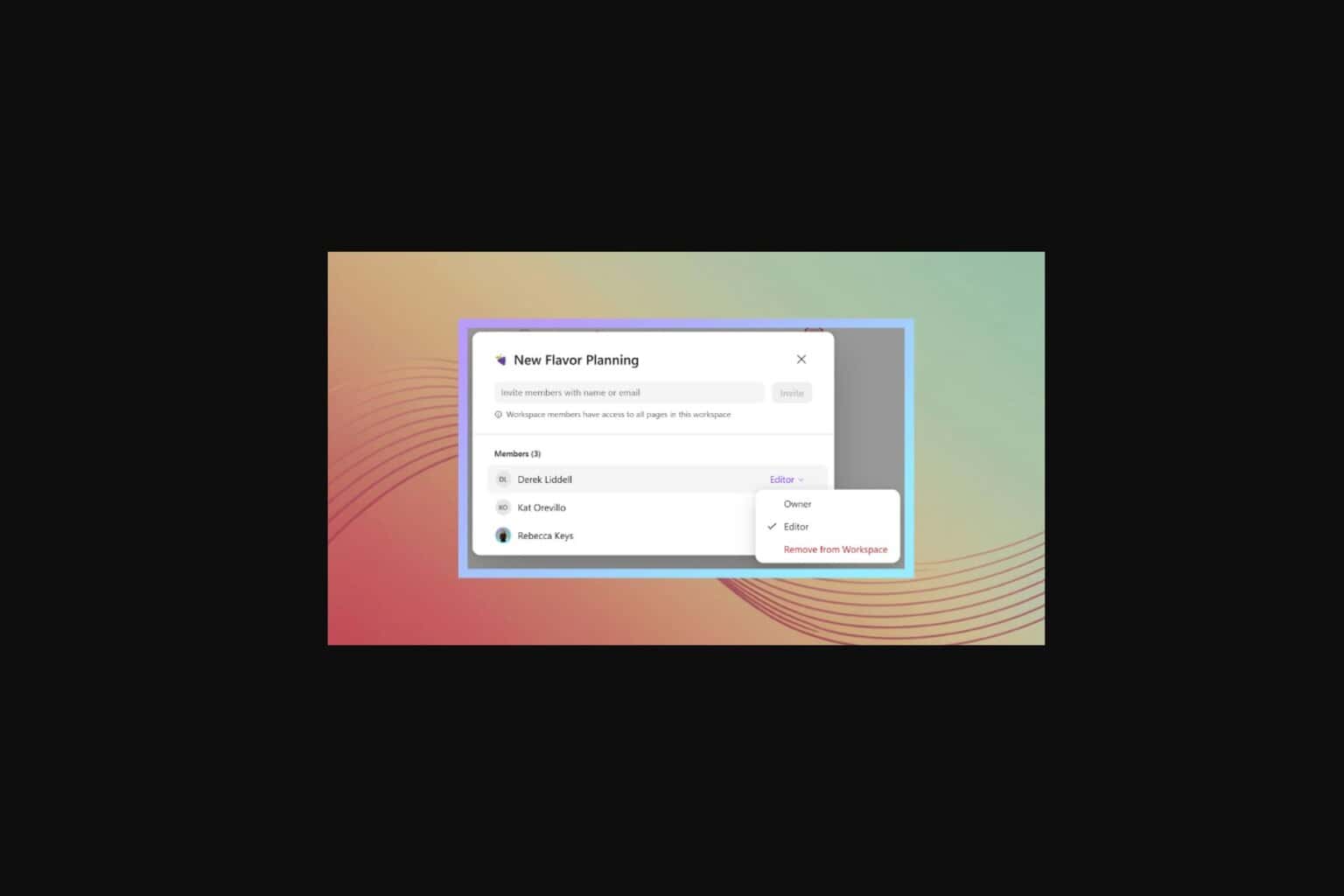
Microsoft has introduced a new feature in Loop workspaces that allows users to edit roles within a workspace. Owners can now assign or change roles between “owner” and “member” for other users.
In a blog post, the Redmond-based tech giant says this feature is designed to streamline collaboration, making it easier to onboard new leaders or delegate responsibilities.
Loop workspaces currently support two roles: owners and members. When you create a workspace, you are the owner. With the workspace role menu, you can give owner permissions to members, and vice versa!
However, you’ll need to be the owner(s) of a workspace that is capable of changing roles within in. It is currently available in the web version of Loop for users with an Entra ID.
Role
Permissions
Member
Edit content Create & delete pages View and edit all pages and links in the workspace Edit members Add members via invite or workspace link Leave the worspace Add members via invite or workspace link
Owner
Owners have all the permissions of members, as well as: Edit members list Change roles of other members to owners Manage pending membership requests Remove members Leave the workspace (if there is another owner) Apply or change the workspace sensitivity label Delete the workspace
As you may all know already, Microsoft will be retiring the Skype app in May, and all of those who still renewed their subscriptions or purchased Skype credit are advised to use it before the deadline.
However, for those who want a refund, it might not be possible at all, according to the experience of one Skype user who claimed that Microsoft has required them to write a physical letter to the company.
The user took to Reddit to share their story: They renewed their Skype number earlier this year, before Microsoft announced that Skype would be retired.
They wanted a refund for the subscription, so they contacted Microsoft. While the customer support was polite and professional, it was also utterly powerless.
They confirmed that after May, core features like caller ID, SMS, and call forwarding will disappear. You’ll still be able to make calls, they said, but only through Skype Web or something called “Teams Free.” No caller ID. No timeline. No promise that it’ll keep working.
The Redmond-based tech giant denied the refund because the customer didn’t request it within 14 days of purchase. The user also claimed that Microsoft said there was no way to get a refund.
When I asked to escalate, I was told there is no process. No email. No department. No formal channel at all.
Except for one little thing, which might seem absurd in 2025: writing a letter to Microsoft’s office.
Their advice? If I wanted to complain, I would have to post a letter to Microsoft’s office in Reading.
Subscriptions that haven’t been used and haven’t expired.
Skype Credit that hasn’t been used if the refund is requested within 14-days of purchase. Outside of the 14-day period in the EU, refunds are at the discretion of Skype (EU customers only).
Technical issues that we determine to be Skype’s fault.
Fraudulent use if we determine your account was taken over by a third party.
Charges made in error if you contact us within 90-days of purchase. We can’t give refunds for charges that are more than 90-days old.
On the official support page, you can find more details on how to get a refund. However, as Microsoft points out, refunds are at Skype’s discretion in the EU region, so there is a high chance that you won’t get your money back.
For all managers and admins who are feeling overwhelmed by Microsoft regularly changing the Teams Admin Center, brace yourselves: another major change is coming to the platform.
According to a recent entry to Microsoft 365, IT administrators will have a single system to manage access to both the Teams admin center and the Teams Rooms Pro Management portals.
This should make it easier to handle devices, providing a smoother experience when switching between the two portals.
It should also ensure everything is managed consistently, making their work more efficient.
IT admins now benefit from unified role-based access controls across the Teams admin center and Teams Rooms Pro Management portals. This streamlines device management ensuring smooth transitions between portals and consistency in environment management.
The change is set to be released in May 2025.
In similar news, the Redmond-based tech giant will enhance Teams with a migration tool that should make it easier for users to migrate to Teams from similar platforms.
Microsoft has announced new advanced data protection features for Edge for Business, focusing on securing personal and unmanaged devices (BYOD) and enhancing AI-related protections.
In a blog post, Microsoft says Edge for Business extends enterprise-grade data security controls to personal and unmanaged devices. The browser uses Microsoft Intune and Purview to ensure that only devices meeting specific security standards can access corporate resources.
Edge for Business will balance protection with productivity thanks to new real-time, context-aware data security policies.
Microsoft will also release new controls to prevent data leaks from typed prompts in consumer AI applications. These protections are integrated directly into Edge for Business, providing seamless security without additional extensions.
In the same announcement, Microsoft also unveiled that Edge for Business is now optimized for AI and designed to meet organizations’ needs by integrating with Microsoft 365 E3 and E5 licenses: it will offer built-in protections against phishing, malware, and unauthorized data access.
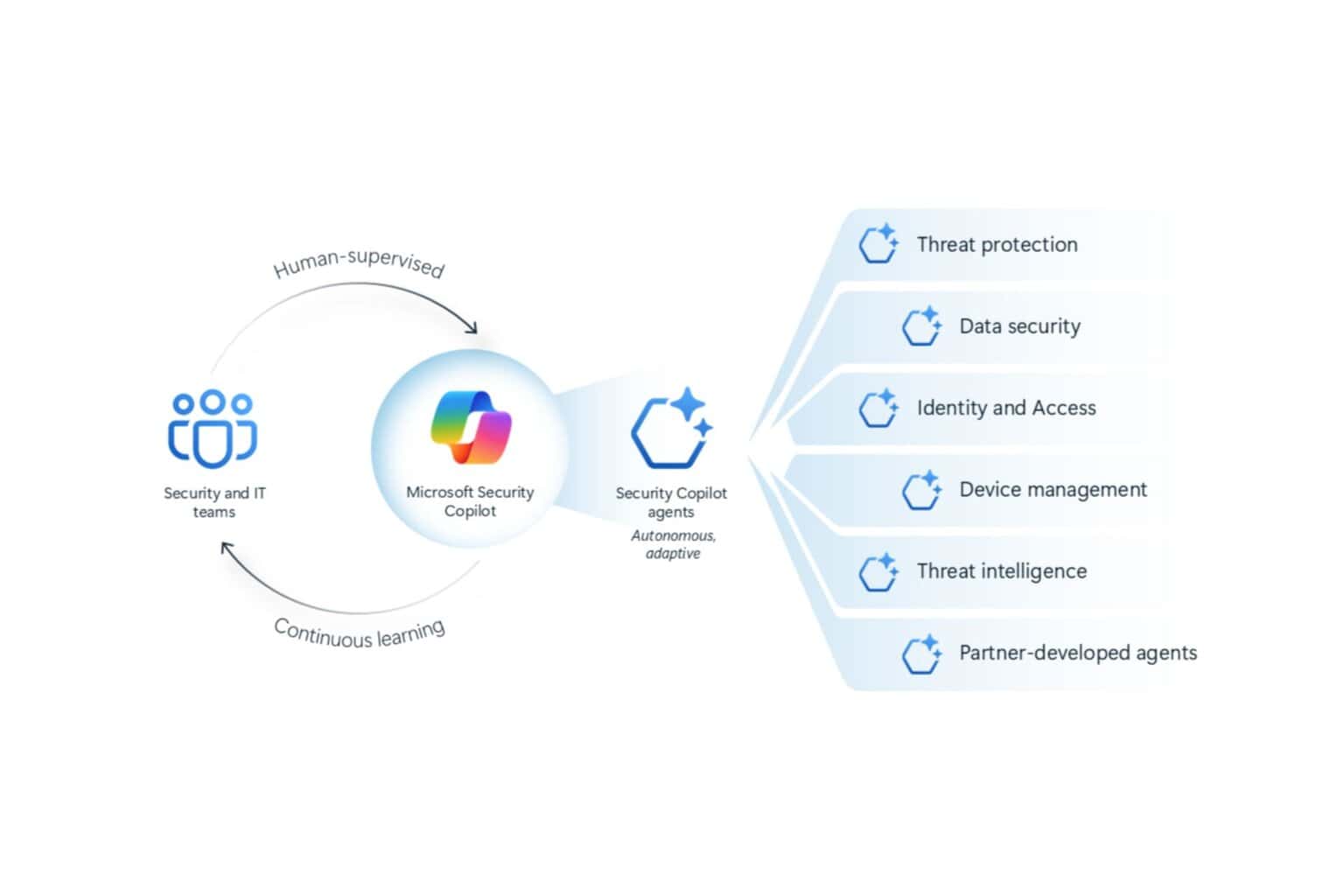
Microsoft has unveiled new advancements in its Security Copilot platform, introducing AI agents and enhanced protections for artificial intelligence. These updates aim to address the growing complexity and volume of cyberattacks, which have surpassed human capacity to manage effectively.
In a blog post, the Redmond-based tech giant announced the introduction of six in-house AI agents, five of which have been developed by partners. These agents autonomously handle high-volume security and IT tasks, such as phishing triage, data loss prevention, and vulnerability remediation. The agents are purpose-built for security, learning from feedback, adapting to workflows, and operating securely within Microsoft’s Zero Trust and Copilot for Security framework.
According to Microsoft, this agent in Microsoft Defender efficiently triages phishing alerts, distinguishing between real threats and false alarms. It provides clear explanations for its decisions and improves detection accuracy based on administrator feedback.
In the announcement, the Redmond-based tech giant also stated that Microsoft Threat Intelligence now processes 84 trillion signals daily, highlighting the exponential growth in cyberattacks, including 7,000 password attacks per second. AI agents are designed to scale defenses to meet these challenges.
Security Copilot agents integrate seamlessly with Microsoft Defender, Microsoft Entra, Microsoft Purview, and other security tools, enabling proactive protection and strengthening organizational security posture.
Partner-developed agents include solutions for privacy breach response, network supervision, SecOps tooling, and task optimization, further expanding Security Copilot’s capabilities.
You can read more about the new Security Copilot agents here.
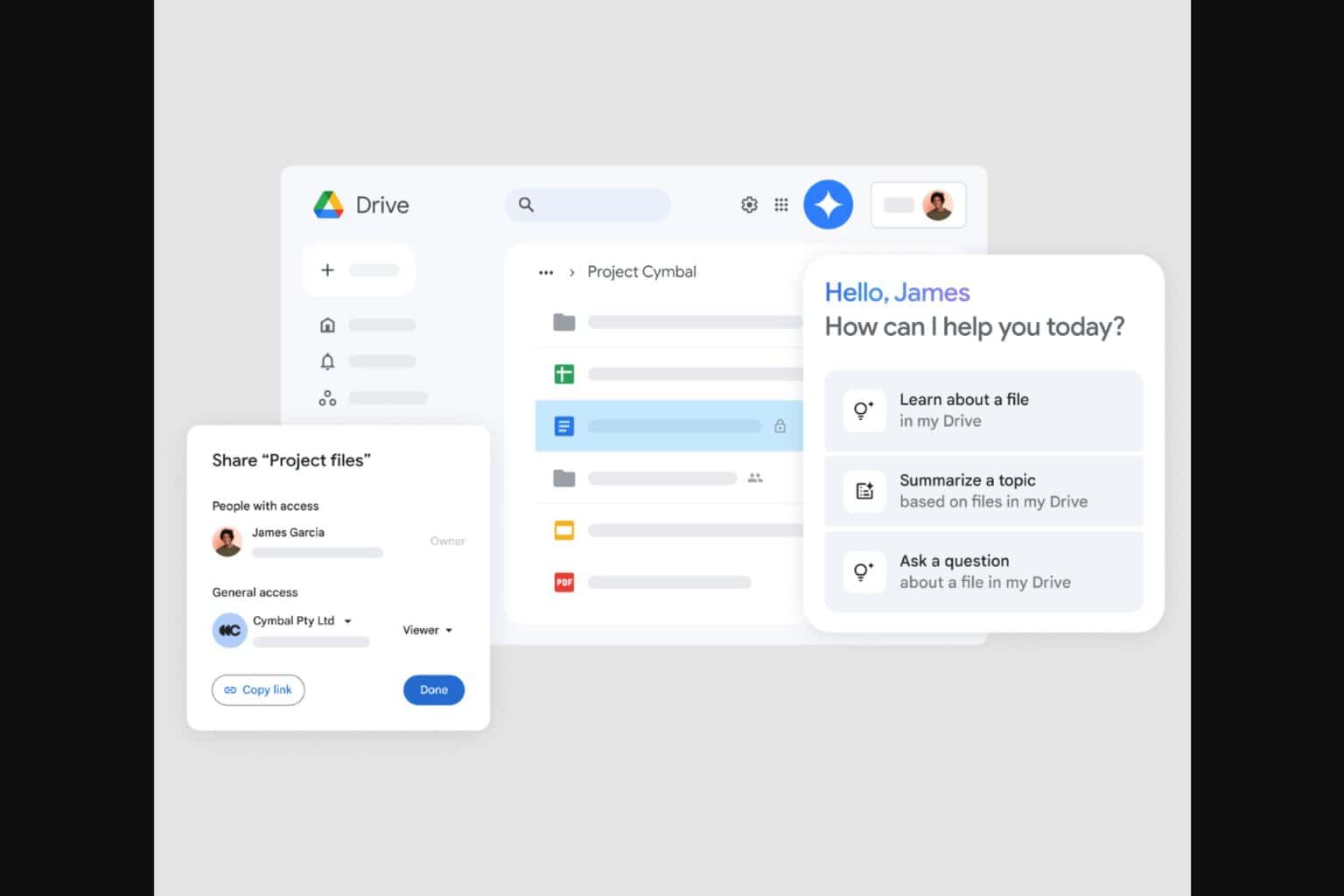
Google Drive has officially launched native support for ARM-compatible Windows PCs, moving out of its beta phase. This update enhances performance and integration for devices powered by ARM processors, such as Qualcomm Snapdragon chips. By running natively, the app avoids emulation.
The native Google Drive app allows users to sync and store files directly through Windows File Explorer seamlessly. The integration should make accessing, retrieving, and uploading files more intuitive, as Drive folders and files are now fully embedded into the Windows environment.
The update is available exclusively for Windows 11 on ARM devices and requires Microsoft WebView2 for operation. WebView2 is typically included with Windows 11, but users can reinstall it if necessary. Unfortunately, this version does not support Windows 10 on ARM.
The stable version of Google Drive for ARM is rolling out to all users, including those with personal Google accounts and Workspace subscriptions.
If you use the beta version, it will automatically update to the stable release. The rollout is expected to reach all users within 15 days, starting March 24, 2025.
Microsoft released the KB5053644 patch to Insiders in the Beta Channel on Windows 11, version 24H2. The patch enhances the operating system with capabilities that allow users to find images, files, and documents using natural language.
In other words, the KB5053644 update introduces semantic indexing models that improve how you search for documents, photos, and settings across Windows 11.
Instead of relying on exact file names or specific keywords, you can search using natural phrases like “change my theme” or “summer picnics.” This creates a more intuitive and user-friendly experience. Lexical indexing models complement semantic indexing, ensuring efficient search results.
Plus, thanks to the 40+ TOPS Neural Processing Unit (NPU) on Snapdragon-powered Copilot+ PCs, search functionality is enhanced even when users are offline. This hardware enables powerful processing, allowing searches to perform effectively without an internet connection.
Speaking of searching for photos, the KB5053644 patch introduces a seamless way to do it. By typing a phrase like “summer picnics” in the File Explorer search box, you can find local photos and those stored in the cloud, such as your OneDrive account. Exact keyword matches within text in your cloud files are also displayed in the search results, helping you locate what you need quickly.
These features are currently available for Snapdragon-powered Copilot+ PCs, but Microsoft has announced plans to extend support for AMD and Intel-powered Copilot+ PCs in the future.
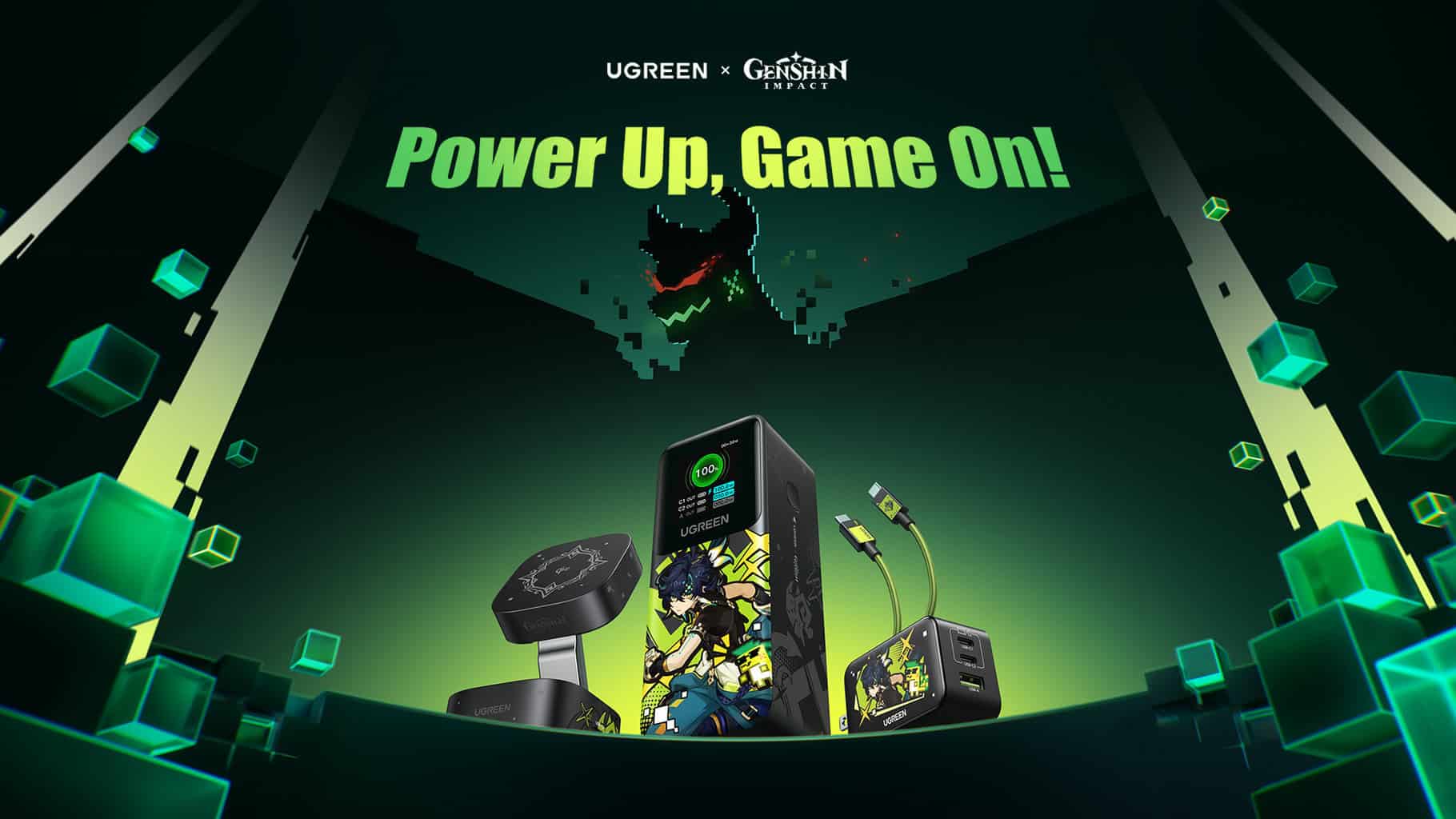
Ugreen has unveiled an exclusive collection in collaboration with the popular game Genshin Impact. This limited-edition lineup themed “Power Up, Game On” features four charging accessories inspired by the character Kinich and his companion, K’uhul Ajaw, blending functionality with distinctive in-game aesthetics. All the accessories are now available across 14 countries.
Keep your devices juiced up!
The Genshin Impact themed accessories are bright and colorful, but they also offer matching performance. You can keep your Windows 11 PC topped up with the 100W fast-charging cable and the Nexode power bank or straight with the Nexode Charger if you’re not on the go.
Nexode Power Bank Genshin Impact Edition
The centerpiece of this collection is the Nexode Power Bank, boasting a substantial 20,000mAh capacity. Equipped with two USB Type-C ports and one USB-A output, it supports simultaneous charging of multiple devices. One of the Type-C ports delivers 100W fast charging. A TFT LCD panel displays the battery level and charging status, featuring exclusive animations of K’uhul Ajaw.
The power bank is adorned with vibrant Kinich and K’uhul Ajaw artwork, complemented by subtle patterns and Ugreen x Genshin Impact branding. It offers fans a functional and collectible accessory priced at $89.99 (£74.99).
MagFlow Wireless Charger Genshin Impact Edition
This wireless charger showcases Kinich’s constellation, Chimaera Alebriius, and his elemental skill aiming frame. Its foldable design allows for adjustable viewing angles up to 75 degrees, enhancing usability. Qi2 certified, it provides 15W fast wireless charging for compatible devices. The MagFlow Wireless Charger is available for $59.99.
Nexode Charger Genshin Impact Edition
A compact yet powerful accessory, the Nexode Charger offers a maximum output of 65W through its two USB-C ports, with an additional USB-A port for versatility. Utilizing the GaNInfinity tech, it ensures efficient charging while maintaining optimal temperatures. This charger is priced at $39.99.
USB-C to USB-C Cable Genshin Impact Edition
Completing the collection is a durable, nylon-braided 100W fast-charging cable. Embellished with an image of K’uhul Ajaw, this cable combines practicality with thematic design and retails for $9.99.
If you’re a big fan of Genshin Impact, Ugreen also holds a series of giveaways that include an awesome limited edition gift box with all the gear above, plus some unique accessories similarly themed. To win one (or even a PS5), you’ll just have to complete some quick and easy tasks.
The Ugreen x Genshin Impact collection is available for purchase through Ugreen’s official website and Amazon, catering to fans in multiple regions, including the US and UK. This collaboration offers Genshin Impact enthusiasts uniquely designed charging solutions seamlessly integrating into their gaming lifestyle.
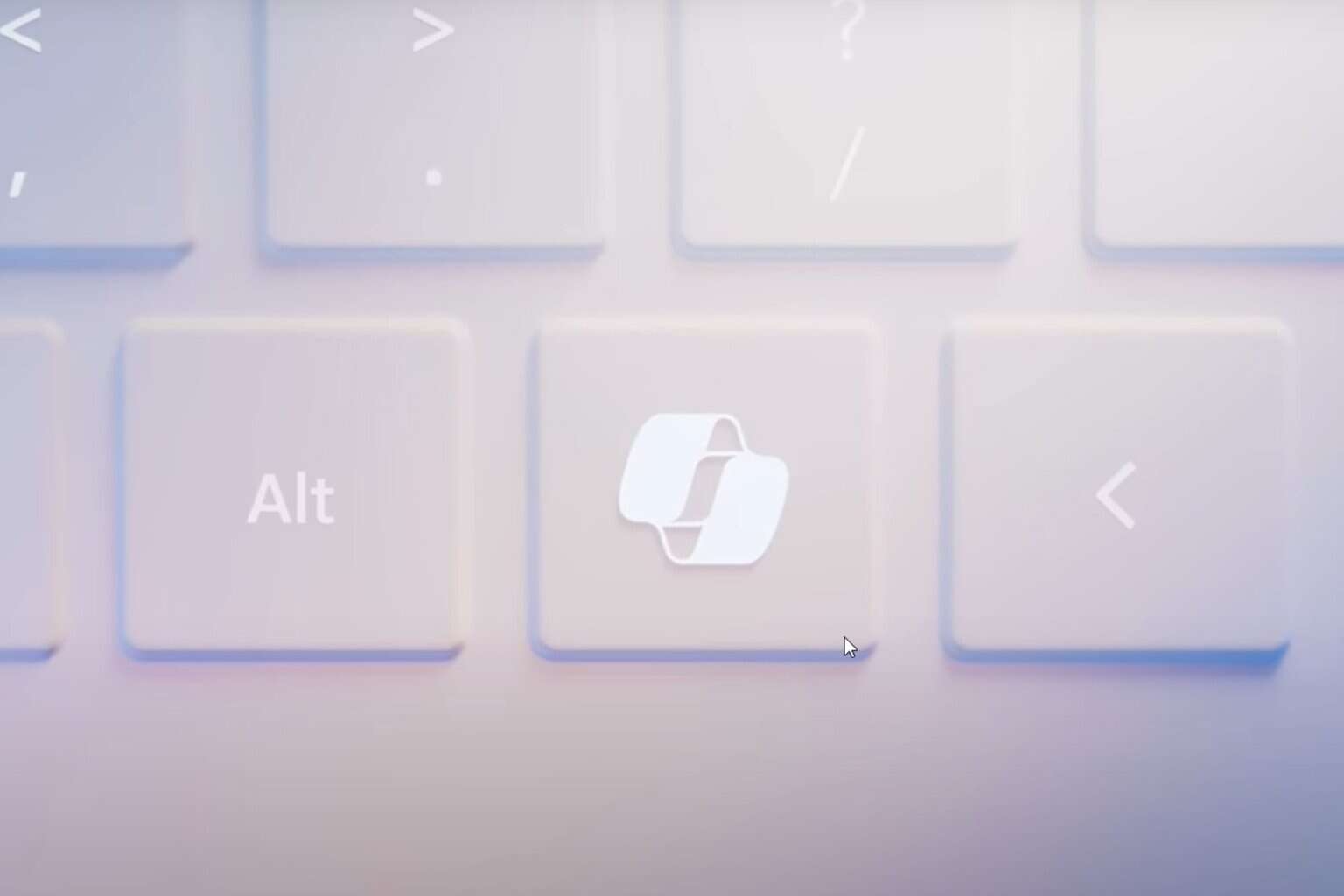
Until June 2024, Copilot in Windows 11 had a special shortcut: Win+C. However, due to the emergence of the Copilot+ PC devices and the new dedicated Copilot key, this shortcut was retired, to the disappointment of many users.
But good news: Microsoft might bring it back in the following weeks. According to popular tech enthusiast @phantomofearth, the Redmond-based tech giant is experimenting with the shortcut.
What’s more interesting is that the Windows key + C shortcut can be used to access Copilot, or each user can customize it at will. Microsoft intends to let them enable this option.
Microsoft is experimenting with bringing back the Windows key + C keyboard shortcut. It will do the same action as the Copilot key, so can be customized in Settings. "Choose what happens when you press the Copilot key or Windows logo key + C"
Microsoft is experimenting with bringing back the Windows key + C keyboard shortcut. It will do the same action as the Copilot key, so can be customized in Settings. “Choose what happens when you press the Copilot key or Windows logo key + C”
Copilot+ PCs already have a dedicated button for the AI model, but it can also be customized to support other apps. The shortcut would be more than welcome for devices that do not feature a Copilot key.