The rumors about Xbox’s next-gen console are all over the internet. However, there seems to be a new addition to the long rumors list. Wccftech reports a new rumor that has been doing rounds online. Per the report, the Xbox Next will be a different gaming device altogether as compared to its predecessors.
Next-gen Xbox console reportedly will serve as a reference for manufacturers to make their own devices
The latest rumor about Xbox’s next-gen console comes from none other than Jez Corden from Windows Central. He says that the next-gen Xbox console will likely be a reference device with a heavy Windows slant for manufacturers making their own devices. Corden adds that it could be like the Surface Pro 11 which is a reference device for AI PCs.
If the claim turns out to be true, this would be a massive jump from previous Xbox consoles as it will be more like a PC that could run Steam games too. Corden’s Surface Pro 11 example is quite interesting since early rumors from this year hinted that the Surface team could lead Xbox Next’s development.
The next Xbox has a heavy Windows slant and will be a reference device for manufacturers making devices like the ASUS ROG Ally most likely. Like Surface Pro 11 is a reference device for AI PCs.
As we write, there’s no major information about Xbox Next. However, multiple reports suggest that the next-gen Xbox console is in the works. And, will be an example of the largest technical leap to date.
It will be interesting to see how Microsoft pulls this off. But one thing is sure that software and storage upgrades will play a crucial role in it. All that said, no official confirmation has been received on this matter, so it is more of Corden’s opinion than any concrete evidence-based report. Therefore, we urge you to take it with a grain of salt.
We earlier reported that many users are showing their concerns over Microsoft’s announcement of the new AI-based Recall feature in Windows 11. Well, that’s understandable totally. For the uninitiated, Recall on Windows 11 is a new feature that takes screenshots of your laptop screen every few seconds. Microsoft says that the feature is exclusive to the upcoming Copilot + PCs.
Although the company says the feature is optional for users and they can turn it off, the new feature seems to have grabbed the attention of regulators.
The Information Commissioner’s Office reaches out to Microsoft to enquire about the privacy risk posed by the Windows Recall feature
According to a recent report by BBC, the Information Commissioner’s Office (ICO), the UK data watchdog, has contacted Microsoft for additional information about the safety of the Recall feature in Windows 11.
Notably, the decision to enquire Microsoft reportedly came after privacy campaigners raised concerns about the new feature and called it a potential privacy nightmare. Speaking with BBC, an ICO spokesperson said:
We expect organizations to be transparent with users about how their data is being used and only process personal data to the extent that it is necessary to achieve a specific purpose. Industry must consider data protection from the outset and rigorously assess and mitigate risks to peoples’ rights and freedoms before bringing products to market.
AI advisors worried about Microsoft’s “photographic memory” feature
Talking about the privacy risks posed by the new Recall feature, Dr. Kris Shrishank, an AI and privacy adviser says:
This could be a privacy nightmare. The mere fact that screenshots will be taken during use of the device could have a chilling effect on people. People might avoid visiting certain websites and accessing documents, especially confidential documents, when Microsoft is taking screenshots every few seconds
Some other privacy experts voiced their concerns about passwords getting screengrabbed with the feature in place. Even Elon Musk has his say about the new feature Recall feature. He took to X and called the recently announced feature a Black Mirror’ episode.
Microsoft says its commitment to the users’ privacy and safety is paramount
Business Insider who reached out to a Microsoft representative says that they didn’t get any response on the matter. However, the company responded to BBC’s inquiry on this matter. Microsoft says the Recall feature is an optional experience and anyone without access to the device can’t see it.
All in all, the new feature certainly has raised eyebrows among privacy experts across the industry. Time will tell if there’ll be any objection from ICO in this matter. If there’s any update, we will update you with a new article.
What do you think about the Windows Recall feature? Please share your thoughts with our readers in the comments below.
Microsoft has finally announced the Windows 11 IoT Enterprise LTSC 2024 this week. To remind you, it earlier got leaked in February. The company has now published the minimum system requirements and categorized them as Preferred and Optional. That’s not all, we also have minimum processor requirements for Windows 11 IoT Enterprise LTSC 2024.
As Tom’s Hardware notes this specification will help decide design decisions for new devices and computers powered by Windows IoT Enterprise. For the uninitiated, Windows 11 IoT Enterprise is the full-fledged version of Windows Enterprise and is there for fixed-purpose devices including ATMs, kiosks, and more.
System Requirements for Windows 11 IoT Enterprise LTSC 2024
Component
PREFERRED Minimum Requirements
OPTIONAL Minimum Requirements
Processor
1 GHz, 2 cores
1 GHz, 2 cores
System memory
4GB
2 GB
Storage size
64GB
16 GB
Storage type
SSD
SSD, HDD, Hybrid Hard Drive, Flash
System firmware
UEFI
BIOS
TPM
TPM 2.0
Optional
Secure Boot
Enabled
Optional
DirectX
DirectX 12
DirectX 10 / none
Display
9-inch diagonal, 720p HD
Custom size / optional
Source: Microsoft
The minimum requirement above highlights that Windows 11 IoT Enterprise LTSC 2024 can run on computing devices with as little as 16GB storage. Plus, the Secure Boot and TPM requirements are optional for this Windows version. Microsoft has also added SSD as a preferred minimum system requirement which was rumored since 2022.
Not to forget, the support for Qualcomm processors was missing earlier in Windows 10 IoT LTSC, although it included support for AMD, Intel, and NXP’s processors. So, if you are interested to know more about the minimum processor requirement, click here.
Recently, Microsoft quietly launched an official end-of-support page for Windows 10 alongside older Windows versions like Windows 7 and 8.1. While Windows 10 is still supported, Microsoft ended support for the other two Windows versions on January 10, 2023.
Microsoft’s new end-of-support page features three different tabs, each for Windows 7, Windows 8.1, and Windows 10. The Windows 10’s end-of-support page gently reminds users about the imminent death of the operating system slated for October 14, 2025.
Microsoft launches an official Windows 10 end-of-support page with several details
The company also details what users can do with their soon-to-be outdated systems. Microsoft simply reminds users to upgrade to Windows 11. One part of the official support page mentions:
Support for Windows 10 will end in October 2025
After October 14, 2025, Microsoft will no longer provide security updates or technical support for Windows 10. Your PC will still work, but we recommend moving to Windows 11.
The page further highlights several links that talk more about Windows 11 and its features. There’s even a comparison chart interlinked on the page that differentiates Windows 10 and Windows 11. Not to forget, there’s a dedicated section on the support page with a laptop buying guide to upgrade to Windows 11.
As you know, Microsoft has announced minimum requirements for Windows 11, so having an outdated system can prevent you from upgrading to the OS. Therefore, you’ll need a laptop that meets the stringent system requirements for Windows 11. That’s where Microsoft’s laptop buying guide will come in handy for you.
You will also find links to visit the Microsoft Store to shop Winsiows 11 PCs within the support page as well as a guide to help you learn about transferring data from Windows 10 to Windows 11. The company further suggests backing up your files in OneDrive if you plan to keep using your Windows 10 PC.
Lastly, there are several FAQs including questions about the Windows 10 Extended Security Updates (ESU) Program. For the uninitiated, ESU is a paid program that allows enrolled systems to receive security updates beyond the end-of-support date for Windows 10. There’s no clarity about the pricing and enrollment criteria for the ESU program. However, Microsoft says that it will be made available near the end-of-support date.
Microsoft’s gaming division Xbox is working towards reducing environmental impact to achieve the company’s goal of becoming carbon-negative by 2030. Last year, Microsoft made Windows Update carbon-aware for PCs running on Windows 11.
And, earlier this year Xbox took some steps to reduce its carbon footprint with the help of multiple new features. These include carbon-aware Xbox game updates and downloads as well as the new energy settings.
Xbox’s new energy settings come in handy to save your electricity bill
This year, Xbox Series X|S consoles were automatically updated with a Shutdown (energy-saving) power option. Microsoft says this one-time energy settings update will decrease energy consumption when your Xbox console is off. The best part is that this won’t impact gameplay, performance, or the console’s ability to receive nightly updates.
Besides, you can use the remote features only when the console is turned on. However, the remote wake feature is not supported when the console is shut down. That said, you can always adjust the settings ensuring what’s best for you.
Notably, the Shutdown (energy saving) decreases power usage by up to 20 times compared to the Sleep feature. Currently, the update is only available to Xbox Insiders. But all Xbox gamers will soon get a chance to update their Xbox console to make it carbon-aware.
The new energy settings update called Active hours is also rolling out for Xbox Insiders. Whereas, Insiders who choose the Sleep power option can set the console’s active hours. During those hours your Xbox will power on quickly and be available for remote wake.
Source: Xbox
However, when the active hours end, Xbox will shut down drawing only 0.5 Watts compared to 10-15 Watts when the device is active. Microsoft in its blog asks all the stakeholders to contribute to the reduction of gaming’s impact on the environment. It says:
We can’t do this alone. We must work together with our players, developers, studios, and the industry if we’re going to help reduce gaming’s impact on the environment. We’re committed to collaborating with our developers, partnering with organizations, and empowering players to make more informed decisions.
Xbox is now the first gaming console to offer carbon-aware game downloads and updates
Xbox now optimizes game updates and downloads to run when the console can use the most renewable energy to become carbon-aware. Microsoft via the Xbox Wire blog explains how this would work. It adds:
When your console is plugged in, connected to the Internet and regional carbon intensity data is available, Xbox will schedule game, app, and OS updates for your console at specific times during the nightly maintenance window that may result in lower carbon emissions because a higher proportion of electricity is coming from lower-carbon sources on the electric grid.
It simply means, your Xbox console will wake up at a time when it can use renewable energy in your local grid rather than waking up during a specific maintenance window, say between 2AM and 6AM. One might wonder what difference does that make? This method decreases the dependency on CO2 emissions and fossil fuels, eventually saving your electricity bill.
You can also read more on what Xbox is doing for sustainability by clicking here.
If you’re eyeing to grab Activision Blizzard games on Xbox, this is the best time of the year. There were reports that over 200 games were added to this week’s Xbox deals as a part of a new Activision Blizzard Sale that just started on the Xbox Store.
The latest sale features popular game titles from franchises such as Call of Duty, Diablo, and Crash Bandicoot.
Grab your favorite Activision Blizzard Games on Xbox at a heavy discount
The Activision Blizzard Sale is set to end on June 8, a day before the Xbox Games Showcase which is scheduled for June 9. Not to forget a few reports are hinting towards the inclusion of some Activision Blizzard titles to Xbox Game Pass around the event. Therefore, if you are an Xbox Game Pass subscriber, it is feasible to wait until that happens.
You can go to the Deals sections of the Microsoft Store app on your Xbox to check all the deals from the Xbox Activision Blizzard Sale. However, the following are some of the best deals from the sale which will end June 8.
You can also check the full list of discounted games by clicking here. Which of the above Activision Blizzard games on Xbox will you pick? Please let us know in the comments below.
The Memorial Day sale is in full swing with jaw-dropping deals on gaming laptops like Razer Blade 15. So, if you are an avid gamer looking for a discounted gaming laptop, grabbing the Razer Blade 15 is a no-brainer.
Best Razer Blade 15 deals to grab today
As TechRadar notes, Walmart currently has the best deals for the Razer Blade 15 Advanced Edition. The premium gaming laptop is now on sale at Walmart for $2,481.95, amounting to a hefty discount of more than $800 from its regular price of $3,291.32. That’s approximately a 25% discount on the usual price of the Razer Blade 15.
If you are an Amazon customer, there’s some superb news. You can get the Razer Blade 15 at an additional discount of $130 (approx.), with a final price of $2350. However, there’s only one model left, so hurry up and grab it before it goes out of stock. Don’t worry if you miss this deal, you can always grab Walmart’s Razer Blade 15 deal right now.
Highlights of the discounted gaming laptop
Razer is one of the top names in the gaming industry with Blade 15 being one of the best portable options out there. This amazing gaming laptop flaunts a stylish design and has all things premium. The Razer Blade 15 Advanced Edition brings the power of an Intel Core i7-12800H processor alongside the Nvidia RTX 3070 Ti graphics card for smooth gaming performance.
The beefy gaming laptop has 16GB system RAM and a 15.6-inch 1440p display with a refresh rate of 240Hz. Plus, the 1TB SSD storage ensures you never run out of space and compromise with your games library. Not to forget, this Razer Blade 15 gaming laptop comes with 8GB of VRAM too. Therefore, you don’t have to worry about blurry textures and choppy frames while playing high-res games.
While these specs could sound underwhelming by 2024 standards, the performance and power brought in by the Alder Lake range processor are worth the money. On top of that, the GeForce RTX 3070 Ti remains one of the speedy GPUs for gaming out there. So, it’s a win-win situation for you, don’t miss this Razer Blade 15 deal after all.
Google is expanding Docs’ voice typing and Slides’ captions feature to Safari and Microsoft Edge. For the uninitiated, these features were previously only available for Google Chrome desktop users.
Voice typing tools for Google Docs and Slides are coming to Edge and Safari browser
The company added that the voice typing feature will be rolling out for all Google Workspace users over the coming weeks. Not to forget, the latest change will also cater to users with personal Google accounts.
Starting today, we’re expanding support for voice typing and captions features to additional browsers, such as Edge and Safari. When a user turns on voice typing or captions, the web browser controls the speech-to-text service, determines how speech is processed, and then sends text data to Google Docs and Google Slides.
Voice typing has been quite beneficial for users
Users can edit documents and speaker notes using voice typing in Google Docs and Google Slides, respectively. Notably, you can access voice typing in Google Docs by going to Tools > Voice Typing. You can choose to edit or format your document using different voice commands.
Besides dictation, you can use voice commands to start/stop voice typing, select items, copy-paste content, add punctuation, etc.
Let’s not forget that you can choose from multiple languages to voice type in Docs in Edge or Safari browser after the latest update. However, you must ensure that the account and document language are both English to use voice commands.
That’s not all, you need to ensure the microphone should be working fine in order is working fine on your Windows PC or Mac. From the users’ point of view, you will see the following notice while enabling the feature for the first time:
Source: Google
The company also says the workspace managing admin will have some control over the voice typing feature. It adds:
Admins can control which web browsers are supported in their domain. Certain browsers may offer browser-level controls for disabling the Web Speech API.
What do you think about the recent update related to voice typing and captions? Please share our thoughts below.
The Read Aloud feature in Chrome Reading mode is getting upgraded. Google is adding two new features to Read Aloud for automatic voice selection based on the webpage language and on-demand language downloads within Read Aloud menus. These features are being tested in Chrome Canary.
Chrome offers a built-in Reading Mode that displays clutter-free content, improving your reading experience while browsing websites. This mode is accessible from a side panel.
Chrome has an experimental Read Aoud feature integrated into Reading Mode for accessibility needs. It allows you to choose from various voices and set voice speed according to your liking.
Chrome adds Automatic Voice switching and Language downloading to Read Aloud
Automatic Voice Switching takes the guesswork out of choosing the best voice for the text being read. This feature analyzes the language of the webpage in Reading Mode and automatically selects the most suitable voice from the available options. This can be particularly helpful for users who frequently encounter articles in different languages.
On-demand Language Downloads: This feature allows users to download language packs directly from the Read Aloud menu within Reading Mode. It eliminates the need to manage voice downloads beforehand and makes sure you have the necessary voice pack for the language you’re encountering.
Benefits:
Users with visual impairments or reading difficulties can access content in various languages with the most natural-sounding voice.
Users can easily switch between languages without interrupting their reading flow.
Comparison with Microsoft Edge:
Currently, Microsoft Edge offers a Read Aloud feature but lacks built-in automatic voice switching or direct language downloading within Read Aloud. While Edge users can choose from pre-downloaded voices, they need to manage these downloads manually.
How to enable new Read Aloud Features in Chrome
Open Chrome.
Visit chrome://flags
Find and enable the following flags: Reading Mode Automatic Voice Switching Reading Mode Language Downloading
ShrinkLocker is the name of the new ransomware that’s affecting Microsoft’s BitLocker. Like most ransomware, it encrypts corporate files, steals decryption keys, and asks you to pay a ransom to retrieve them. So, BitLocker isn’t safe on modern devices.
Global Emergency Response, the maker of the Kaspersky antivirus, discovered and named it. According to them, the ransomware targets steel and vaccine manufacturing companies and governmental institutions from Mexico, Indonesia, and Jordan.
How did the hackers develop the ShrinkLocker ransomware?
Cybercriminals created the ShrinkLocker ransomware using Visual Basic Scripting (VBScript), a deprecated programming language for automated tasks and controlling applications on Windows-based systems. The ShrinkLocker script can verify the current version of your Windows. According to Kaspersky, it can attack new and old systems dating back to Windows 2008.
The ShrinkLocker ransomware will delete itself if your device doesn’t meet the requirements of the wrongdoer. For example, if your domain doesn’t match the target or your device is older than Vista, it won’t affect you.
If your device is suitable for the attack, ShrinkLocker will change your boot settings. Then, it will use BitLocker to attempt to encrypt your partitions. Besides that, it will use the diskpart command to shrink your non-Windows partitions. Afterward, it creates primary volumes using the unallocated space left and reinstalls the boot files on the new partitions.
The ransomware locks you out
ShrinkLocker can lock you out of your device because it removes the security systems of your BitLocker encryption key to prevent you from recovering it. The ransomware removes the key from your device after sending it to the hackers.
When the malware finishes its process, it shuts down your device and leaves you with all drivers locked and without a way to recover what’s lost. Also, it deletes the files and logs that could lead to details about the attack. On top of that, if you attempt to open your device, it shows the following message: There are no more BitLocker recovery options on your PC.
Ultimately, to protect your device and organization from the ShrinkLocker ransomware, you can use an Endpoint Protection Platform (EPP) solution. It will help you find out if anyone tried to tinker with your BitLocker, limit users, and track events related to VBS and PowerShell.
Did you ever encounter a BitLocker malware? Let us know in the comments.
Have you considered what horizontal video suggestions on YouTube on a desktop would look like? Well, it seems that Google is testing this option, as noted by some Reddit users, and quite frankly, it’s not looking good, at all.
The new layout would display video suggestions right below the main video, where the title and its descriptions usually are located, as you can see in the image below.
The title and its descriptions would be placed vertically, in the top right area of the screen, followed by the comments section below it. We have to say: it’s not entirely a bad idea, not at all. This way, you are able, theoretically to read comments while watching the video.
Currently, YouTube on desktops doesn’t allow that: you have to scroll every time you want to read comments while watching, which makes the whole experience a bit frustrating, and annoying, to be honest. Why? Because you miss out on what’s being shown. And yes, I know many of you will say “Well, you shouldn’t read comments while watching YouTube, anyways!”, but oh, well, I do it. I always do it.
So, theoretically, YouTube showing video suggestions horizontally on desktop platforms shouldn’t be the end of the world, and I would like it, eventually. However, when looked at the image posted on Reddit, for the first time, I automatically said: “No, I don’t like it!”.
This is normal: YouTube’s video suggestions have always been vertical, for as long as I can remember, so seeing the platform that way made me think this is not YouTube. The company is testing it, and it could show to users randomly, and then disappear, as noted by many Reddit users:
That appeared for me a couple weeks ago and then went away. Seems like they’re just testing it.
Reddit user
I don’t know when and if YouTube will release this update, and I couldn’t find anything specific about it online, other than the Reddit posts, but I’m hoping the company will release it as optional so that people can go back to the original layout if they don’t like this one.
This is the only way it would work. What do you think?
In other bizarre news, YouTube is now entirely blocking adblockers, but Chrome Store is still promoting them. So, you’re encouraged to download and install them, but they won’t work on YouTube.
European Parliament elections will happen in two weeks, and wrongdoers are using AI deepfakes to manipulate them. As you might already know, they are getting more accurate. Thus, Microsoft wants to provide political parties, campaigns, news organizations, and voters with the right tools to safeguard the democratic process.
Can hackers use Microsoft AI tools to manipulate elections?
The tech giant announced a few months ago that cybercriminals won’t be able to use official tools to generate AI deepfakes. Also, during the Munich Security Conference, Microsoft and other companies such as X, TikTok, Google, Adobe, LinkedIn, Meta, and Amazon signed the Tech Accord to Combat Deceptive Use of AI in the 2024 elections.
The companies are developing tools, like Content Credentials, to prevent AI deepfakes from manipulating elections. Also, they are working on implementing a C2PA standard, using watermarks for AI generations and education campaigns.
Microsoft arranged sessions in Brussels and across the 27 Member States to educate candidates and the political staff about deepfakes and provide effective solutions. One of them is a website that allows us to report deceptive AI-generated content.
The news organizations and election officials also received other Content Integrity tools, such as an easy-to-use web application and a mobile application that will enable them to add Content Credentials to their media. The apps should prevent hackers from using AI to create deepfakes from their photos and videos to manipulate the elections.
Protect your organization with AccountGuard
Human rights and Non-profit organizations, journalists, and political members can now use Microsoft AccountGuard. The tool detects and defends users against high-risk organizations. If you are a Microsoft 365 customer, you can use it without an additional fee. However, it is only available in 23 EU Member States and the European Parliament.
Microsoft recently launched an educational campaign to teach EU citizens from all 27 EU Member States about AI-generated deepfakes to prevent hackers from manipulating the elections. Besides, it promotes trusted official EU sources for voting information and other non-governmental initiatives related to this topic.
In addition, Microsoft and OpenAI launched the Societal Resilience Fund. It provides grants to promote AI education and training among voters and vulnerable communities. Also, the tech giant supports the Use Your Vote campaign.
Ultimately, Microsoft will work on various tools to prevent AI deepfakes from manipulating elections. In addition, we can also contribute by reporting AI-generated content when it spreads misinformation. Hopefully, more companies will sign the Tech Accord to Combat Deceptive Use of AI.
Did you see any AI deepfakes on your feed spreading misinformation about a political party? Let us know in the comments.
So far, there’s no official information available, and this seems more like Jez Corden’s opinion than insider information, so take it with a grain of salt.
According to a leaked contract, repair stores need to notify Samsung when you bring in a device. They have to give details about your problem and send additional information such as your name, contact information, and device identifier. Additionally, if the ones repairing your phone discover an aftermarket part, they will have to disassemble your device. Otherwise, Samsung can nullify their agreement.
The Samsung contract brings new challenges
One of the main problems with the Samsung contract is that independent repair centers won’t receive the Samsung Authorized Service Provider status but will need to sign it to gain authorization to mend phones. Fortunately, according to 404 Media, the service centers from the 30 states where the Right to Repair legislation exists won’t need to sign it.
The Samsung contract will lead to a lot of issues. For example, some of us will stop repairing our devices, which could lead to various safety issues. Besides, we might throw faulty devices, and they will significantly impact the environment.
The contract might increase repair costs
If repair shops sign the Samsung contract, the company could force them to purchase overpriced parts. This decision will increase the repair costs, and if the price to repair a broken screen is one-quarter of the price of the phone, some of us will most likely switch to another company. In addition, the agreement prohibits service centers from performing board-level repairs.
Service centers use aftermarket parts because they are way cheaper. Also, for a phone that lasts just a few years, they are the better option. However, some repair shops might not tell you if they use it. So, your phone might already have aftermarket parts. Also, the new Samsung agreement is a problem for older phones because there is a chance that their parts are no longer supplied.
Some consider the Samsung contract a severe breach of privacy, especially since the company asks for your phone number, address, zip code, region, and email. Besides, the company shouldn’t have access to our private information.
Ultimately, the Samsung contract is inconvenient for repair shops and mobile phone users. Also, it might drive customers away. In addition, the repair costs will most likely increase, and the process won’t be available for older devices anymore.
Will you continue using Samsung devices? Let us know in the comments.
Internet service providers sometimes block streaming apps, websites, and IPTV portals to comply with regional and international copyright treaties. VM also sells TV streaming services, so it definitely doesn’t want you to stream premium satellite TV content for free on your Firestick.
Luckily, I looked into several methods to help you get around these blocks. These will help you bypass Virgin Media restrictions so you can continue streaming on your Firestick.
Why Is My Firestick Blocked by Virgin Media?
VM might restrict your access on Firestick if it suspects that you’re using the device to stream unofficial IPTV sources.
Most importantly, the Firestick itself isn’t blocked. Instead, VM restricts access to certain websites and web apps that facilitate IPTV service for a fractional cost.
Here’s why it happens:
Streaming content through IPTV technology violates regional and international copyright treaties for such content.
VM itself offers streaming services at a premium so it wouldn’t want anyone on its network to use free or cheaper streaming solutions.
Local court orders may ask VM to block Firestick access to its internet network to prevent copyright violations through IPTV streaming.
Virgin Media might have entered agreements with content providers that restrict the use of certain streaming devices.
There are hacks for Fire TV Sticks to access pirated content. If widespread, such actions force Virgin Media to block Firestick to comply with anti-piracy regulations.
Potential security vulnerabilities in Fire TV Sticks might lead Virgin Media to block them to protect its network.
Certain network policies and terms of service might prohibit the use of specific devices to maintain control over network traffic.
How To Unblock Amazon Fire TV Stick
I arranged the fixes by complexity, starting with the simplest ones:
Preliminary Checks
Before trying anything more advanced, perform these basic checks first:
Remove and reconnect the Amazon Fire TV Stick – Disconnect the Firestick from the HDMI 2.1 input source, like a smart TV, PC, Mac, etc. If you’ve been using an HDMI 2.1 extender cable, remove that too. After 10 to 15 seconds of cooldown, reconnect the Firestick device with the display unit. Allow it some time to boot up completely.
Reconnect Firestick Wi-Fi – This will only work if you know the Wi-Fi password. On your Fire TV Stick TV console or GUI, go to Settings>Network. Select your Wi-Fi network on the list, and tap the horizontal three-line button and then the Select button. This should let the Firestick forget the saved network. Again go to Settings > Network and find the best network to connect to. Tap Select and enter the password.
Test the Virgin Media Broadband Service – Check if you can access websites, email clients, Netflix, etc., on your PC, smart TV, or smartphone using the same VM Wi-Fi network.
Check if the Firestick is paused on the VM Hub – Access the VM Hub control panel from Chrome or Firefox. Click on the Connected devices option and look for the Firestick streaming device that’s not connecting to the internet. If you see that it’s paused, unpause it.
Check if the Firestick is paused on the VM Connect App – Open the My network screen and look for the Firestick’s name or model number in the devices section below. Tap on the unpause button near it to activate Wi-Fi for the streaming device.
Additionally, if you connect to your mobile internet and Firestick works this time, it clearly indicates that your ISP, Virgin Media, is blocking the internet access.
If these didn’t work, try the following troubleshooting ideas:
Change the Network DNS From a PC
DNS blocking is the most common route to prevent your Firestick from accessing streaming websites. ISPs use DNS Hijacking, DNS Request Filtering, and Transparent Proxies to analyze specific DNS requests and reply with a block page.
Here’s how to deal with this from the PC level when you’re using your Firestick on a Windows computer:
Press the Windows + I keys together to open the Windows Settings app.
Click on Network & Internet.
Select the Change adapter settings option on the Status screen.
Right-click on the network connection for which you want to change the DNS server.
On the right-click context menu, click on the Properties option.
Now double-click the Internet Protocol Version 4 (TCP/IPv4) in the list of items.
You should now see the Use the following DNS server addresses section. Click on that.
Enter the addresses in the Preferred DNS server field.
Here are some of the options you can choose from:
Google DNS:
Preferred DNS server: 8.8.8.8
Alternate DNS server: 8.8.4.4
Cloudflare DNS:
Preferred DNS server: 1.1.1.1
Alternate DNS server: 1.0.0.1
OpenDNS:
Preferred DNS server: 208.67.222.222
Alternate DNS server: 208.67.220.220
You might also enter an alternative configuration in the Alternate DNS server field.
Click OK to save your changes.
Close the Network Connections window.
Modify the Network DNS From a Mac
Are you using a Mac to stream TV shows and movies through Firestick? You can use these steps instead to counter ISP’s DNS manipulation:
Click on the Apple icon in the top-left corner of the screen.
Choose System Settings or System Preferences from the context menu.
On the System Preferences dialog, click on the Network icon.
Click Advanced.
You should now see the Wi-Fi or Ethernet dialog box.
Go to the DNS tab.
Here, click the Plus icon on the lower left corner of the dialog and enter any of the preferred DNS addresses listed above.
Click the OK button to include the new DNS in the currently active network.
Hit the Apply button.
Edit the Router’s DNS Address
If you’re using your Firestick on a smart TV or console, you must modify the ISP-provided DNS in the router control panel. Here’s how:
Access your router’s console from your web browser.
You can enter the IP address 192.168.1.1 in the browser’s address bar to navigate to the page.
Alternatively, use the bookmarked router web console.
Enter your username and password for the web app to access the actual control panel.
Go to the Advanced tab.
Click on the Network menu in the left-side navigation panel.
Choose Internet in the extended menu.
Click Advanced to expand the dialog box where you can edit the DNS address.
Go to the DNS Address section and click the Use the Following DNS Addresses option.
Enter the previously discussed DNS values in the Primary and Secondary DNS fields.
Click the Save button.
Modify the DNS of the Amazon Fire TV Stick
From the Home Screen of Amazon Fire TV, go to the Settings menu. It’s the cogwheel icon on the right edge of the screen.
On the Settings screen, navigate to the Network button and click Select.
You’ll now see a list of network SSIDs. The connected one should be at the top.
Highlight that SSID and press the Play button on the remote to access the network status screen.
Go to the Advanced option.
You should now see all the network details, like Password, IP address, gateway, DNS, etc.
Take a photograph of this screen and go back to the network list.
Highlight the current network again and press the three-line button on the remote.
Hit the Select button to forget the network.
Now, tap on the same network SSID again to bring up the on-screen keyboard.
Use that to enter the addresses for IP, Gateway, and Network Prefix Length, etc., from the photograph.
Then, you should see the DNS 1 field. Delete the existing one provided by the ISP and use third-party DNS from Google, Cloudflare, etc. I’ve detailed these options earlier in the guide.
Click Next. The DNS 2 field will pop up. Enter the secondary DNS address here and select the Connect button.
This should update the Firestick network configuration with the new DNS values.
Use a Smart DNS Service
You can use smart DNS software to dynamically change the addresses. One popular option is SmartDNS by KeepSolid, available on the Microsoft Store app. Get the app for free and install it on your PC.
Now, follow these steps to set up the tool:
Open the app and create a user ID and password for SmartDNS.
Log in with these credentials.
Validate your account using the link sent to your email or a one-time passcode shared in the same email.
You should now see the SmartDNS Home Screen.
Click on the wrench icon on the left side navigation panel to access the Manage my IP dialog.
You should see the Detect IP button. Click on that.
Once the tool has detected your system’s or device’s IP, click on the Update IP button.
Now, go back to the Home Screen and click on the Disconnected toggle button.
This should activate the smart DNS feature on your PC.
SmartDNSoffers a 7-day free trial. You’ll have to buy a paid plan after that or the smart DNS service will stop.
Disable Virgin Media’s Web Safe Settings
Sign in to your My Virgin Media account.
Click My Apps and choose Web Safe from the list of apps.
Disable the toggle button of the Child Safe option.
Click on the Apply button.
Use a VPN to Stream From Amazon Fire TV Stick
If none of the above works for you, you can use a VPN service for Amazon Fire TV Stick to bypass these restrictions.
NordVPN is a great choice for Firesticks. Once you’ve subscribed to a paid plan, do the following on your device:
Go to the Amazon Appstore from the Firestick app interface on the smart TV and download the NordVPN app.
Navigate to the Fire TV Home Screen.
Visit the Settings screen.
Go to the Applications section.
Find and select Manage and then choose NordVPN from the list.
Log in to the app using the email you used to buy a subscription.
On the NordVPN Fire TV app, connect to the best VPN server.
Go to the Home Screen and open the IPTV streaming app to start enjoying your favorite TV shows.
Here’s why NordVPN is a smart pick for this situation:
Seamless installation on the Fire TV interface via the Amazon Appstore.
Supports up to six Firesticks or other Amazon Appstore-supported devices from one subscription account.
More than 6,300 fast VPN servers.
You can use the subscription in more than 110 countries.
Highly sophisticated encryption prevents ISPs, like Virgin Media from detecting your internet usage behavior.
However, keep in mind that Amazon Fire TV Stick first-generationdevices don’t support VPN apps.
How To Prevent Future Blocks
By following these techniques, you can prevent Virgin Media from blocking your Firestick frequently.
Regularly Update the Firestick Software
Go to the Fire TV Settings.
On the Settings dialog, you should see the My Fire TV option. Navigate to that and tap the Select button on the remote.
Go to the About menu on the My Fire TV dialog.
Scroll down on the next screen until you find Install Update. Click on it.
The Fire TV app interface will now show the Finishing updates screen.
Once the process is over, the device will reboot.
Update DNS as Needed
Don’t just stick to one pair of DNS 1 and DNS 2 addresses. Keep rotating between options like Google, Cloudflare, and OpenDNS periodically.
Keep Your VPN App Updated
If you’re using a premium VPN subscription to bypass Virgin Media restrictions on your Firestick, don’t forget to update the app. Here’s how it’s done:
Open the NordVPN app on your Fire TV Stick user interface.
Navigate to the More Info option and select it.
You should now see the app details screen on Amazon Appstore.
If you see the Update button below the app description, tap on that.
Fire TV will download and install the latest updates.
Monitor Virgin Media Updates and Policies
You should periodically go through the guidelines related to streaming and IPTV on the Virgin Media Terms and Conditions portal. Always try to comply with its terms so you don’t attract account bans and Firestick internet access restrictions.
Summary
Now you know what to do if your Firestick is blocked by Virgin Media. These are the proven methods so you don’t waste time on trial and error.
Try out these tips in the same order as in the guide.
Did the article help? Do you know a better method to bypass these restrictions? Share your thoughts in the comments below.
Announced at the Microsoft Build 2024, earlier this week, Windows Recall has been touted by the Redmond-based tech giant as a Copilot+ PC exclusive feature, and since these devices are only equipped with the Snapdragon Elite X, for now, it’s safe to assume that temporarily, Recall is a Snapdragon-exclusive feature.
However, tech enthusiasts do what tech enthusiasts always do, and they play out with things until they make it work. Such is the case of Windows Recall, which can already be enabled to work on AMD/Intel-based CPU PCs.
At least this is what tech enthusiast, Albacore claims, who has already managed to enable the feature on on current Arm64 hardware.
Making great progress enabling Recall on current Arm64 hardware, no fancy X Elite in sight!
Should theoretically work on Intel/AMD too, OEMs only received Arm64 specific ML model bundles so there’s not much I can do yet.
Albacore
Making great progress enabling Recall on current Arm64 hardware, no fancy X Elite in sight! ✨ Should theoretically work on Intel/AMD too, OEMs only received Arm64 specific ML model bundles so there's not much I can do yet.
On X (formerly known as Twitter), the tech enthusiast posted a sample of how Windows Recall could work on AMD and Intel systems. The capability is quite laggy, and slow, but it gets the job done eventually.
As for enabling, we don’t know the technical parts behind it, so if you’re interested in enabling this feature, you’ll have to ask Albacore. You need to be enlisted in the Windows Insider Program, as well.
However, it is interesting: the exclusivity of the Windows Recall on Copilot+ PC has been a safe net for many of those Windows users worried about its privacy issues. But now, it seems the capability can be easily enabled in regular PCs, as well, so this will only add more fire to the existing concerns.
It’s good to remember that the capability is optional, and can be disabled entirely. For now, Windows Recall is not only unpopular because of privacy issues but also because the app is apparently eating a lot of space to keep the recordings locally. You’ll need at least 50 GB of free space in a device that has 256 GB. That’s very much.
Last week, when Microsoft rolled out KB5037765, many admins using PCs that didn’t have the English (United States) language pack downloaded reported getting a 0x800f0982 update error. At the time, Microsoft quickly acknowledged the bug and confirmed that a patch should soon be released. It’s finally here!
The latest Windows release, KB5039705, addresses this particular bug. The release notes for the update read,
This update addresses a known issue that is related to the English (United States) language pack. If your device does not have it, installing KB5037765 might fail. The error code is 0x800f0982. But this issue might affect devices that do have that language pack. In that case, the error code is 0x80004005.
Given that it’s an Out-of-band (OOB) update, there are no other enhancements or features except the patch. Microsoft recommends that you install it right away and restart the PC for the changes to come into effect. Then, you should be able to install the May’24 security patches, KB5037765, without getting the 0x800f0982 update error.
As for downloading the OOB update, there are three methods:
Windows Update: The KB5039705 update should appear when you search for updates on the PC.
Microsoft Update Catalog: You can manually download the update from Microsoft Update Catalog and then install it.
Windows Server Update Services (WSUS): Another option is to use WSUS for mass deployment of the update.
Did installing KB5039705 fix the update error with the May’24 Patch Tuesday security updates? Share with our readers in the comments section.
After announcing that it would make the meeting time suggestions optional in Outlook, Microsoft has updated the 365 Roadmap with an entry describing major changes coming to the platform’s schedule assistant.
According to the entry, Outlook’s schedule assistant will be enhanced to provide better readability to users, by changing the grid lines, and availability view and adding new elements, such as a combined availability bar to the assistant’s design.
However, these changes will only be released on the new Outlook for Windows and Web. The Redmond-based tech giant hasn’t mentioned anything about bringing these updates to classic Outlook.
We are updating the scheduling assistant view to help users have better readability. Some of these changes are in alignment to customer the feedback. These changes will also improve the grid lines, availability view, adding combined availability bar and much more. These updates will be available in the new Outlook for Windows and web. #newoutlookforwindows
Microsoft
What does this mean for you? Well, you’ll most probably be able to access the schedule assistant more easily from now on. Using it is not complicated, but it’s not done in a straight line either, and several steps have to be followed, as you can see in our guide here.
So, with Microsoft bringing these updates to the schedule assistant, the Redmond-based tech giant is effectively making it easier to use for all.
You’ll be able to schedule important meetings, conferences, webinars, and other corporate events much more intuitively from now on, without wasting time.
The roadmap says these new updates will be implemented in July, and their rollout is expected to take the whole month. As we mentioned earlier, this is only for the new Outlook for Windows and Web users, and I have a feeling this might be Microsoft’s way to encourage users to migrate to the new version of the platform.
We saw some outstanding devices from Samsung over the years, and if you were looking to get them, you’d be pleased to hear that the company is having massive discounts.
The discount includes various devices, including laptops, monitors, and TVs, so let’s see what you can get during this sale.
Samsung is having a major sale through Memorial Day
As PCWorld writes, Samsung is having a sale on most of its items, and you can get the following laptops for great prices:
Galaxy Book4
15.6-inch display
Core 7 120U processor
16GB RAM
512GB storage
Galaxy Book4 Pro 360
Core 7 155H CPU
16-inch fold-back AMOLED screen
16GB RAM
1TB storage
Galaxy Book4 Ultra
Core 7 155H CPU
16-inch fold-back AMOLED screen
16GB RAM
1TB storage
Nvidia RTX 4050 graphics
You can get these models for the following prices:
The sale will last until May 26th, so be quick and don’t miss out on these amazing discounts. In other news, Galaxy Book 4 Edge laptops specs have leaked, so you might want to check them out.
Recently, Microsoft announced that Windows 11’s latest version will allow you to create and extract 7-Zip and TAR files. This is good news for those who don’t need the feature that often. However, if you extract and create ZIP files frequently, you may have to rely on pioneer apps like NanaZip and 7-Zip.
Coincidentally, days after Microsoft added the feature, NanaZip also received an update, upgrading the version to a 3.0 version. The new version comes with a slew of new features, including dark mode support for all GUI components, Mica support, a Windows 11-like UI, and more.
With this version, NanaZip will come in two variants, NanaZip and NanaZip Classic. The difference between the two is that the regular one doesn’t support the 32-bit. Also, NanaZip Classic works for older Windows versions until Vista, but NanaZip works on Windows 10 version 2004 and later.
NanaZip 3.0 and onwards will have two distribution flavors called NanaZip and NanaZip Classic. But NanaZip 3.0 does not have the Classic flavor yet because it’s not ready.
The 32-bit x86 support for NanaZip packaged version is removed because supported 32-bit x86 Windows versions don’t support running on 32-bit only x86 processors.
NanaZip 3.0 and onwards will have NanaZip Sponsor Edition.
NanaZip has introduced the Preinstall Support.
Features
Introducing dark mode support for all GUI components.
Introducing the Mica support. You will enjoy the full window immersive Mica support for all GUI components if you are using dark mode with HDR disabled.
Synchronize the 7-Zip mainline implementations to 24.05.
Make NanaZip Self Extracting Executable stubs use 7-Zip mainline Zstandard decoder instead of Zstandard official’s for reducing the size for binaries.
Use 7-Zip mainline Zstandard decoder instead of Zstandard official decoder for NanaZip.Core project.
Remove 7-Zip mainline XXH64 Hash handler for NanaZip.Core because we have the xxHash-based implementation in NanaZip.Codecs. It will have much better performance, especially for non-x86 targets.
Implement the new toolbar and use it to replace the old menubar and old toolbar.
Refresh the UI layout for About Dialog via following other Nana series project design.
Add the SM3 HASH algorithm from GmSSL.
Improvements
Rewrite and split the implementation of the Core Library and the Self Extracting Executable to the separate NanaZip.Codecs and NanaZip.Core projects.
Ensure the implementation of Core Library and the Self Extracting Executable supports Windows Vista RTM (Build 6000.16386).
Reduce the binary size for the Self Extracting Executables.
Synchronize the 7-Zip ZS implementations to the latest master branch.
Synchronize Zstandard and builtin xxHash implementations to v1.5.6.
Synchronize Brotli implementations to v1.1.0.
Synchronize the RHash implementation to the latest master branch which is after v1.4.4.
Synchronize the BLAKE3 implementation to latest master which is after 1.5.1.
Update to Git submodule version of Mile.Project.Windows.
Update Mile.Windows.Helpers to 1.0.558.
Update Mile.Xaml to 2.2.944.
Use Mile.Windows.Internal package.
Use Mile.Detours package.
Use modern IFileDialog for folder picker dialog.
Launch directly to the settings page of association for NanaZip.
Show NanaZip in Drives’ ContextMenu.
Sync file extension support from https://github.com/mcmilk/7-Zip-zstd.
Add other methods to compression dialog.
Reorder initialization in constructor matching to member declaration order.
Add mitigation policy of disabling child process creation for command line version of NanaZip.
Add Explorer Patcher DLL blocking for NanaZip File Manager for reenabling mitigation policy of blocking loading unexpected libraries from remote sources at runtime for the main thread of NanaZip File Manager without the stability issues.
Fix issue in IEnumExplorerCommand::Next for shell extension.
In a bid to provide high-quality, accurate, and up-to-date cloud and precipitation forecasts and maps globally, Microsoft has announced its new AI weather model.
The new model, 4x bigger than the one previously employed, relies on data from both available satellites and radars. Detailing the changes in the new model, Microsoft’s official blog post reads,
The new model jointly predicts both satellite and simulated radar reflectivity, enabling its predictions to fill data availability gaps. Since the precipitation task is more important than the satellite prediction task, the radar channel was given 6X more weight in the training loss function than satellite channels.
Microsoft explained that precipitation nowcasting models previously relied on data from the radar to verify places receiving precipitation and then extrapolate it to identify how things would evolve. Microsoft’s new Satellite + Radar weather model is better in this aspect!
The new model shows great promise and has been found to deliver enhanced performance when evaluated using available base metrics, even during satellite outages, making it a more reliable option.
Against the prior baseline of radar-only predictions, Microsoft Start’s new model presents a marked improvement in F1-score. Additionally, it was observed that predicted satellite images score better than a persistence forecast after 15 minutes, meaning these predictions can be used when satellite outages last longer than 15 minutes.
The new model, also the latest addition to Weather from Microsoft Start inventory, is now fully integrated and more accurate information should be available to Windows 11, Windows 10, Microsoft Edge, and Bing users. Besides, its integration into Bing and the Microsoft Start mobile app is also complete.
As we have guessed, it seems that Copilot in all Microsoft 365 apps is to be enhanced with the newer and more versatile GPT-4o, as Copilot in Excel will soon feature a chat helper that will accept a wider and less restricted variety of prompts.
According to the latest entry in the Microsoft 365 Roadmap, this chat helper will turn Copilot into a more conversational AI model within Excel, providing users with more ways to get their point across.
That means it will accept natural language, and will use natural language to explain complex Excel formulas, and it will even come out with comprehensive guides on how to use them.
Customers can get more conversational answers to a broader range of Excel-related questions and prompts from Copilot. For example, the customer can ask how to accomplish a task and Copilot will respond with helpful steps that may include formulas to copy and use. In some cases, Copilot may explain a formula error and supply the corrected formula plus additional guidance to ensure the formula works properly.
Microsoft
It’s not entirely fair to assume this could be the GPT-4o-based Copilot, but Microsoft did mention that it will update Copilot with the newer model, eventually, so we’re inclined to believe the new chat helper in Excel is exactly that.
However, we’ll see if this is true in June when the new enhancement is set to be released. Either way, having a more conversational AI is nothing but beneficial for adopting Copilot at work.
Microsoft seems to know it too: the Redmond-based tech giant announced it will release the Curated by Microsoft section within its Viva platform, which is a place where users learn how to talk to Copilot. The new panel will offer courses, webinars, and prompts for users to help them interact with the AI model better.
But if Microsoft enhances Copilot in Microsoft 365, including Excel, with GPT-4o, such a platform might not even be needed, as the AI will be capable of understanding and processing prompts made using natural language.
The other one is a security update for Windows Server 2019, KB5037765. It brought the version to OS Build 17763.5820, but some users complained that when they tried to install the KB5037765 update, it failed with the error code 0x800f0982.
Microsoft acknowledged the issue and said it is happening in France, Germany, Spain, and other countries when trying to install language packs other than English.
The Redmond tech giant released the KB5039705 out-of-band (OOB) update and fixed this issue. The release notes also say that it is only meant to resolve the installation failure issue and doesn’t include security fixes or improvements.
Here is what is mentioned in the release notes:
Important: This update does not contain more security updates than what was available in KB5037765, dated May 14, 2024. After you install this OOB, you must restart your device.
This issue was resolved in the out-of-band (OOB) update KB5039705, which is available via the usual channels. Since this is a cumulative update, you do not need to apply any previous update before installing KB5039705, as it supersedes all previous updates for affected versions. This update does not contain any additional security updates from those available in the 5B update. Installation of this OOB will require a device restart. If your organization uses the affected platforms and hasn’t yet deployed the May 2024 security update yet, we recommend you apply this OOB update instead. To install this update, follow the steps under How to get this update in KB5039705.
This update addresses a known issue that is related to the English (United States) language pack.
Improvements
This security update includes improvements. When you install this KB:
This update addresses a known issue that is related to the English (United States) language pack. If your device does not have it, installing KB5037765 might fail. The error code is 0x800f0982. However, this issue might affect devices that have that language pack. In that case, the error code is 0x80004005.
Known issues in this update
Microsoft is not currently aware of any issues with this update.
Have you encountered the same installation error while updating to KB5037765? If so, install the KB5039705 update and let our readers know if it helped in the comments section below.
Microsoft released Microsoft Edge version 126.0.2592.13 to the Beta Channel for Edge Insiders. This version includes feature updates such as an AI theme generator, which generates images for browser themes.
IT admins can now manage the security of their browsers with ease. In addition to this, you get a copilot summarization notification in Reading mode. You will also see policy updates, bug fixes, and performance enhancement.
AI theme generator. Microsoft Edge will include an AI theme generator, that allows users to input a text prompt and generate a series of images to preview as browser themes. Applying the theme includes setting the generated image on the Edge new tab page and applying the image’s dominant color to the browser frame. Admins can control availability to this feature using the AIGenThemesEnabled policy. Note: This feature is a controlled feature rollout. If you don’t see this feature, check back as we continue our rollout.
Security protection controls in the Microsoft Edge management service. The Microsoft Edge management service will provide admins with a dedicated experience to manage specific settings that help improve the security posture of their managed browser instances. Note: This experience is in public preview and can be accessed by opting in to targeted release in the Microsoft 365 admin center.
Copilot summarization notification. The feature displays an Omnibox notification when users enter into a reading mode eligible page in Edge and offers them the option to open Copilot in the sidebar to generate a summary of the content. Note: This feature is a controlled feature rollout. If you don’t see this feature, check back as we continue our rollout.
Policy updates
Obsoleted policies
MathSolverEnabled – Let users snip a Math problem and get the solution with a step-by-step explanation in Microsoft Edge (obsolete)
You can download Microsoft Edge Beta from the official Edge Insider website. Version 126 is expected to be released publicly in June.
If you encounter any problems while using the new version, you can report them through the Feedback Hub app, which you can open by pressing Windows + F.
In case you want to try the new features before they are released to the general public, you will have to join the Edge Insider Program.
Have you installed the latest version yet? If so, share your experiences with us in the comments section below.
If your Realtek Audio Console cannot connect to RPC, it may be a software incompatibility or a network error issue.
The Realtek Audio Console is a crucial app especially if you want to take your audio to the next level. You can configure your sound settings or even add effects for an immersive sound experience.
Since the program interacts with other apps, ensure you’ve enabled requisite permissions or access rights that may be blocking the RPC connection.
How do I fix Realtek Audio Console cannot connect to RPC?
1. Restart related services
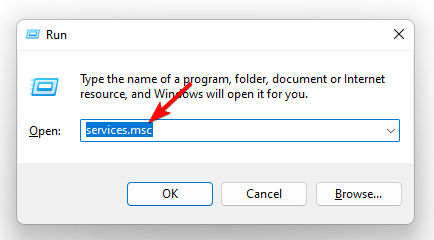
Hit the Windows + R keys to open the Run command.
Type services.msc and hit Enter.
Locate the Realtek HD Audio Universal Service service, right-click on it, and select Properties.
Navigate to the General tab, under Startup type, select Automatic from the drop-down options, and click on the Start button.
Next, click Apply and then OK.
Repeat the same steps for DCOM server process launcher and RPC Endpoint manager then restart your PC.
While these services are running, it is important to note that the RPC is notoriously known for high CPU usage. Your PC may experience frequent crashes and freeze randomly. However, we have a few recommendations to minimize the CPU footprint it causes.
2. Uninstall and reinstall the audio drivers
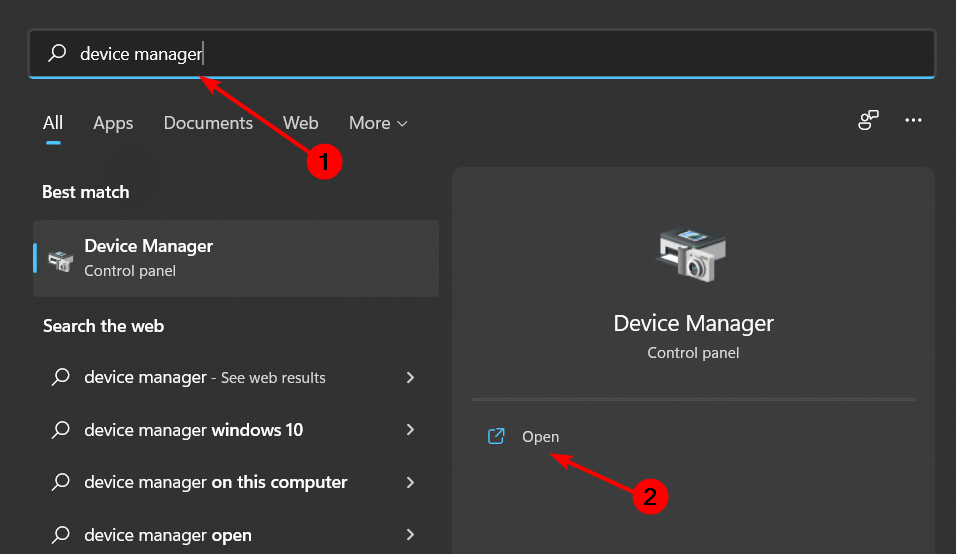
Hit the Windows key, type Device Manager in the search bar, and click Open.
Navigate to Sound, video, and game controllers to expand, right-click on Realtek High Definition Audio and select Uninstall device.
Repeat the same for any Realtek device under Audio inputs and outputs, Software components.
Restart your device and the drivers will automatically reinstall themselves.
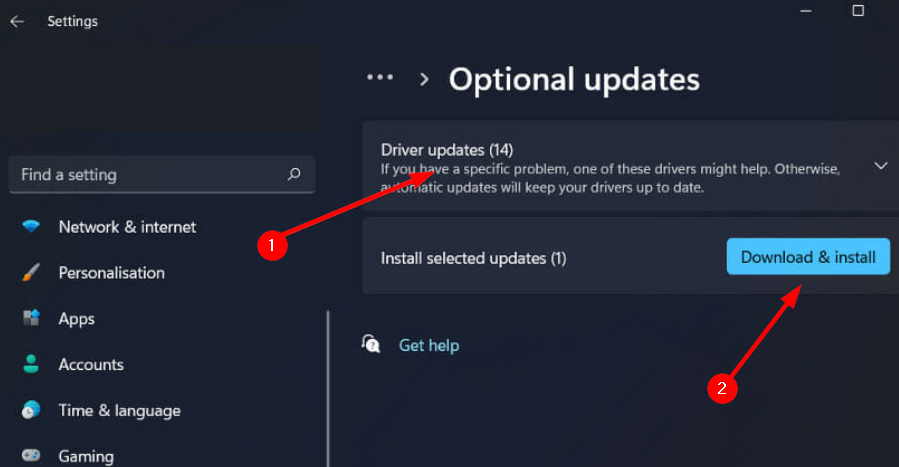
Click on Driver updates and check if there are any from Realtek Semiconductor Corp. MEDIA. If there are any new updates, click Download & install.
Driver updates are usually delivered quietly and hard to notice if you don’t look specifically for them. A specialized tool such as Fortect Driver Updater can make your job much easier, as it will automatically scan for and download any drivers that might have gone out of date in just a few minutes.
Click on Apps on the left pane then Apps & features on the right pane.
Locate the RAC app, click on the three vertical ellipses, and select Advanced options.
Click on Repair.
Go back and click on Reset if the repair option failed.
5. Disable Realtek audio on Startup
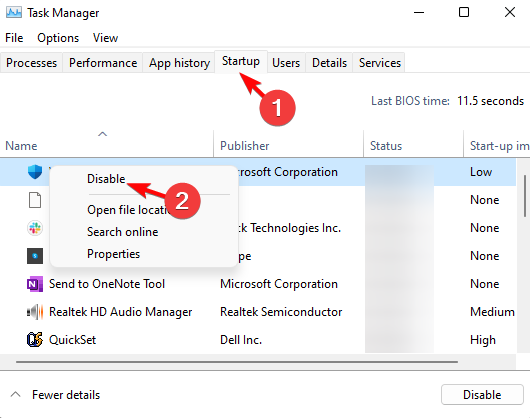
Right-click the Start menu and select Task Manager.
Next, select the Startup tab.
Then right-click Realtek HD Audio Manager and select Disable if it’s enabled.
Close the Task Manager, and restart Windows.
Additional troubleshooting tips
Download the Realtek Audio Console from the official site or the Microsoft Store. Unofficial apps tend to have compatibility issues or missing important features.
Always check your network connectivity and ensure it is stable. Random connection drops can hinder the Realtek Audio Console from establishing a connection.
Verify that your firewall settings or security software does not flag off the Realtek Audio Console as a malicious app and quarantine it. This may end up blocking the RPC communication.
Keep all your drivers and the Realtek Audio Console software up to date. Most updates come with bug fixes and may resolve such issues.
Ensure that the Realtek Audio Console app has the necessary permissions to establish a connection.
While we’re still here, we’d like to point out that Realtek Audio Console is not the only audio manager that allows you to configure your sound settings. You can explore our rich list of other audio enhancers.
I have been a long-time Windows user, always enthusiastic about the new features and upgrades. But there are some changes I don’t agree with. This time around, it is Microsoft pushing PC Manager alongside the KB5037858 update for Windows 11, although the change is currently limited to China.
The problem with PC Manager is that most of its features are already available in Windows. It just redirects you there. For instance, the app runs malware scans using Windows Security or clears space on the disk using Storage Sense. Our detailed review of PC Manager highlights several such aspects!
Not to forget, the PC Manager recently recommended Bing Search as a repair tip for users who didn’t set it as default. When it comes to search engines, Bing is no match for Google. If we look at the data from StatCounter, Google commands a 90.91% market share compared to Bing’s feeble 3.64%. It seems like Microsoft is just promoting native services via the app.
For an optimization tool, PC Manager should do a better job. Besides, there are several more capable third-party PC optimization software already available!
Personally, I feel that PC Manager is better off as an optional app, available for download from the Microsoft Store, as is the case right now. For some, the app may be of utility, but for the rest of us, it’s no more than a bloatware, which, if shipped alongside Windows, would necessitate several uninstall guides. That’s the only way I see it!
I hope that Microsoft doesn’t push PC Manager for Windows 11 in other regions.
In case you, too, are bothered by pre-installed, non-useful software, discover 50+ bloatware in Windows 11 that you should remove today!
What do you think about Microsoft’s native PC optimization tool? Share with our readers in the comments section.
Gaming PCs aren’t always the most affordable, but often a nice discount comes along that allows you to experience gaming in all its glory without breaking the bank.
If you’re looking for a new PC, then you mustn’t miss Lenovo Tower 5 Gen 8 with this special discount.
You can save $700 on a Lenovo Tower 5 gaming desktop with this discount
We saw some amazing devices from Lenovo, and if you need a gaming PC then this is the right model for you. As IGN writes, it’s currently available at a discount, and the PC comes with the following specs:
Finding the best Firestick IPTV Player can greatly enhance your streaming experience. Many IPTV players are available online, but not all of them are compatible with Firesticks. Luckily, this piece will highlight the ones that work reliably.
TiviMate stands out as one of the top IPTV players that works with different platforms, including Firestick. Its integration with Firestick ensures that you can enjoy a smooth and hassle-free streaming experience. Its user-friendly interface makes it easy to browse channels and find your favorite shows.
It also supports EPG (Electronic Program Guide) allowing you to see channel schedules and program details without lag. Moreover, you can add and manage multiple IPTV playlists effortlessly on your Firestick, making it easier to switch between different services.
For those who don’t want to miss their favorite shows, TiviMate provides catch-up and recording options that integrate with Firestick’s storage and playback capabilities (with the premium version).
Pros:
Easy to navigate and browse channels.
Offers in-depth channel schedules and program details without lag.
Allows effortless switching between different IPTV services.
It has Catch-Up and Recording Options (premium version).
Works seamlessly with Firestick.
Cons:
Some features, like recording and advanced EPG, require a premium subscription.
IPTV Smarters Pro is a free IPTV player that allows access to channel playlists from various subscriptions. It also has a paid version with extra features but it doesn’t host channels or playlists. You’ll need login credentials from an existing IPTV service provider to use it.
Furthermore, its Multi-Screen feature lets you watch several channels simultaneously on your Firestick. It’s a great option for sports fans who want to keep track of several games at once.
The app also includes robust parental control options. This ensures your Firestick remains a safe viewing environment for all family members.
Pros:
Offers a free version with essential features.
It allows you to watch multiple channels simultaneously.
Televizo is a free app that’s compatible with Firestick, Fire TV, Android TV/Google TV Box, and mobile devices. The tool allows you to enjoy a smooth, lag-free performance across nearly all devices through its free version.
However, some features are only accessible with the premium version.
With its premium version, you can enjoy watching your favorite content on Firestick without worrying about ads. It also has automatic full-screen viewing, backup/restore options, Parental Controls, and more.
Pros:
It has an adequate free version.
Premium features offer an ad-free experience, automatic full-screen, and backup/restore options.
Keeps content safe for children.
Offer lag-free streaming on most devices.
Cons:
Ads in the free version.
Most advanced features are locked behind a paywall.
GSE Smart IPTV is another top player that works well with Firestick thanks to its cross-platform compatibility. You can download the playlist and EPG to your device, load them locally, or access them via a URL link. Additionally, you can import playlists from an FTP server.
The app includes comprehensive parental control options, so your Firestick remains a safe viewing platform for all ages. In addition, GSE Smart IPTV also works with Chromecast, allowing you to switch devices at any time.
Pros:
Works with Firestick, Chromecast, and more.
Supports multiple formats including local and URL links.
Has detailed parental control features.
You can import playlists directly from an FTP server.
Cons:
Contains ads unless you upgrade to a premium version.
5. Flix IPTV – Highly Compatible With Various Devices
Flix IPTV is available across several platforms, including Android, iOS, Windows, Mac, FireStick, and Android TV. It’s accessible to virtually all users regardless of their device preference.
Furthermore, this app includes parental controls, allowing you to restrict content for younger viewers. It also includes customizable themes to personalize the app’s appearance.
Additionally, it supports M3U links for easy access to several IPTV playlists. Its video player also has subtitles for multi-language support and a sleep timer that automatically stops playback after a set time.
Pros:
Available on FireStick, Android, iOS, Windows, Mac, and Android TV.
While doing my research, I considered the following factors:
Compatibility – I ensured each app worked with Firestick.
Ease of use – I assessed the ease of navigation and user-friendliness for each option.
Functionalities – I compared features like EPG, multi-screen support, and parental controls.
Performance – I tested for smooth, lag-free streaming.
Cost – I evaluated the value of free vs premium versions.
Choosing the best Firestick IPTV player can enhance your streaming experience. The above apps offer smooth performance, user-friendly interfaces, and a range of features to suit your viewing preferences.
It’s understandable why so many users are concerned regarding the new AI-based Recall feature in Windows 11: the capability, slated to be introduced on Copilot+ PCs only, this summer, can record everything you do on Windows 11, to help you find something specific at a later date, should you ever need it.
In many ways, Recall acts like a PC historian, keeping track of your activity, but the capability’s ways of doing so have left many Windows users worried and scared for their privacy and security.
From Reddit users promising to migrate from Windows 11 to Linux, to Windows forums (here and here) being overwhelmed with concerns, everyone in the Windows universe seems to be losing their minds over it.
Their concern is valid, but ultimately Microsoft developed Recall to be an optional AI capability in Windows 11, and the Redmond-based tech giant hasn’t mentioned anywhere that it would make it a mandatory experience in future Windows versions.
Plus, you have to remember that:
Recall will only be available to Copilot+ PCs, and only there. You’ll only have access to it if you get yourself such a PC.
The tool is entirely optional, and it can be easily disabled. You can follow our comprehensive guide on how to do it, to make sure Recall is not on in your device and put your worries at rest.
It doesn’t record anything, and it won’t record private browsing sessions done in Incognito Mode.
Other users won’t have access to your Recall history.
It records everything locally, so your Recall history won’t be sent to Microsoft or any other affiliate companies. However, it also takes up a lot of space in your storage drives, and that makes it instantly unattractive.
Ultimately, it’s up to you to use Recall or not, even though in certain situations, such as developing software, the tool can be a game changer.
However, for now, you shouldn’t worry: Microsoft has not stated anything about making it a mandatory feature or even releasing it as an essential part of the future Windows.
Microsoft showcased the redesigned Copilot app for Windows 11 24H2 during the Microsoft Build 2024 event. The changes are currently limited to Windows 11 Insiders, and many of them have reported that the Copilot app UI closely resembles ChatGPT.
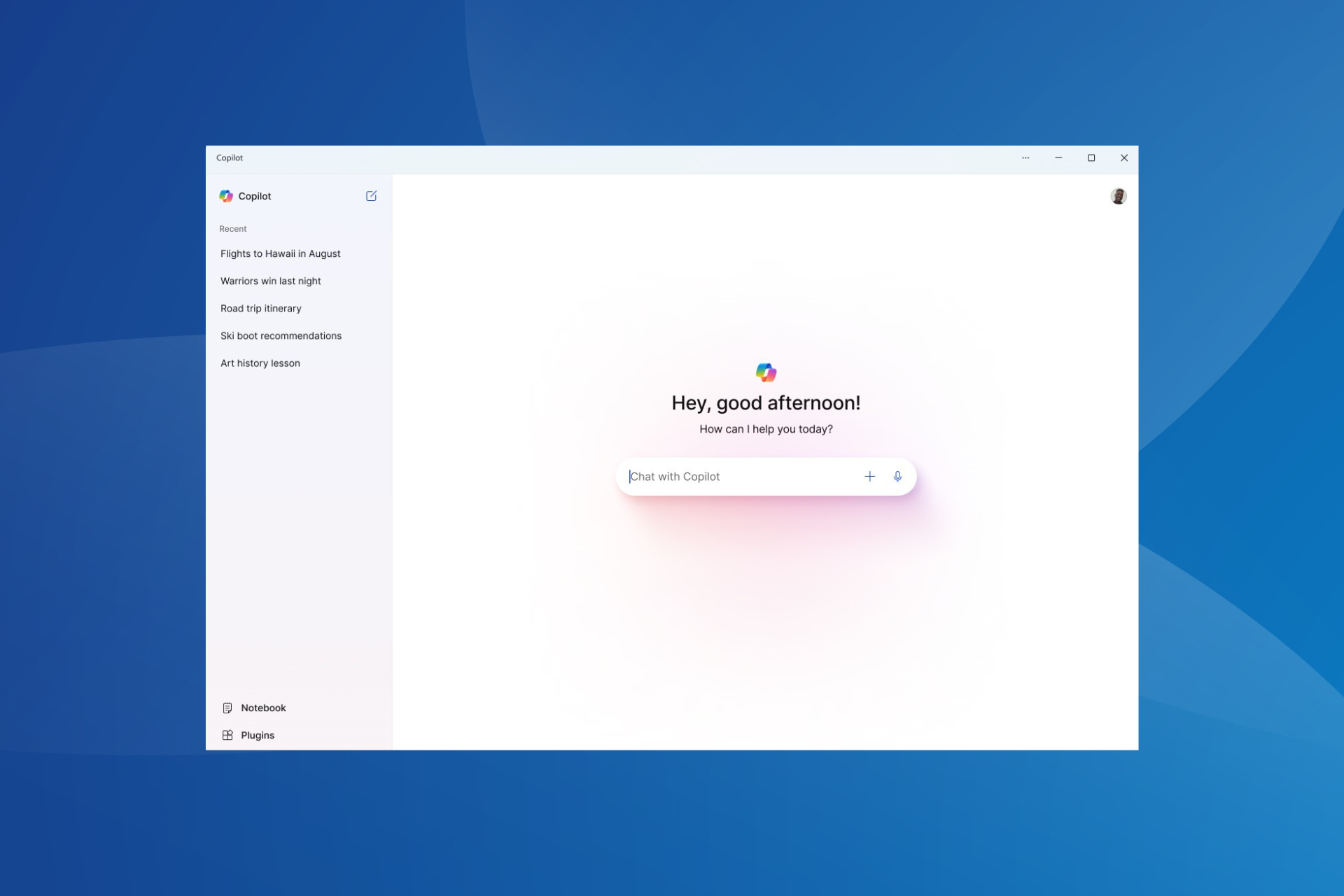
First, about the new app: Copilot is now available as a standalone app, pinned to the center of the taskbar by default, instead of a flyout menu kind of UI, as was the case earlier. You can resize or reposition the window, just like any other app.
You will find a text box in the center, which is where the conversations will take place. Then, the recent conversations are listed in the left navigation pane, with the Notebook and Plugins options listed at the bottom-left corner.
Copilot app in Windows 11 (Image source: Microsoft)
If you have used OpenAI’s AI-powered assistant, the resemblance between the Copilot app in Windows 11 and ChatGPT should be evident right away.
This begs the question, is this a well-thought-out strategy or a random coincidence?
Our research highlights two critical aspects indicating that Microsoft designed the UI on purpose and for all the right reasons. Here’s why:
A familiar interface goes a long way: Imagine users suddenly discovering the new Copilot app on Windows 11. A familiar interface would help them quickly navigate through the various sections, while a new UI would throw them off track, at least in the initial days. So, for Copilot to witness mass adoption, Microsoft went with an interface that resembles ChatGPT.
OpenAI released a ChatGPT app for macOS but not for Windows: Earlier this month, OpenAI released a standalone ChatGPT app for macOS but delayed the Windows release. OpenAI, at the time, attributed this to the fact that its user base lies with macOS, but it’s becoming clearer now. The release of the ChatGPT app for Windows might have been deferred because Microsoft planned to unveil something similar.
It seems that the war between Apple and Microsoft will reach new heights, as Dell unveiled that its Copillot+ PC, the new XPS 13, will be the first among Windows PCs to have a Tandem OLED display, something that Apple devices, especially MacBooks have been shipped with for quite some time.
Dell has confirmed to me that the new ARM-powered XPS 13 has a tandem pOLED display. It's the first to market with this new LG Display panel inside a laptop. I saw many claim Apple had invented tandem OLED, but of course they didn't pic.twitter.com/UQ72738MXn
Either way, the new laptop is expected to come out this summer, but it can be pre-ordered now, and if it’s shipped with the new Tandem OLED, this will be a new era of Windows-based laptops.
What is Tandem OLED?
Basically, Tandem OLED is a unique and specific display technology that stacks two OLED panels on top of each other, resulting in higher image quality, higher brightness, and vivid colors.
The two panels combine light, and together they can achieve between 1000 – 1600 nits of brightness for SDR and HDR content. The system also distributes brightness across the two panels, thus reducing the workload and ensuring the display lasts longer.
The precise nature of the technology, aka controlling each pixel to display accurate colors, not only makes it perfect when watching films, videos, images, or content in general, but it also adapts itself to various circumstances, providing quality experiences no matter the lighting conditions.
They’re considered better than regular OLED displays, due to their efficient workload, burn-resistant quality, and vivid brightness. Apple announced it was going to integrate Tandem OLED into its new iPad Pro devices, earlier this month, under the name of Ultra Retina XDR display.
Tandem OLED coming to Windows PCs would definitely make the new Copilot+ PCs more attractive to users. After Dell, many other OEMs could follow, including Lenovo, Asus, Acer, and even Microsoft itself, on its new Copilot+ Surface laptops.
After all, they should do it: these new devices, announced by Microsoft at its Build conference earlier this week, are already tarnished with a negative reputation: their new AI-based Recall capability is playing the main character – many see it as a useless feature that could be potentially harmful, and it occupies a lot of space for nothing.
— Kayla Cinnamon ☕ @ #MSBuild (@cinnamon_msft) May 23, 2024
This includes the dedicated settings app, the ability to manage distros through the Dev Home app, as well the ability to install WSL through winget which will make deploying easier.
These are welcome additions, and having a dedicated settings application will make the management of distros easier for first-time users without having to use the command line.
Overall, these are some great improvements, and we can’t wait to see them in action.
Microsoft is finally updating Skype to allow users to log in with different accounts and switch between them with just a tap. The new enhancements were added with the release of the Skype Insider build 812, and according to the official changelog, both Android and iOS Skype users have access to it.
The best thing? Switching between your accounts won’t make you lose context or even miss notifications. You’ll still be able to see notifications across all your accounts, regardless of which account received them.
Unified Experience: Enjoy a smooth transition between accounts without losing context or missing notifications. This update ensures you stay connected with a consistent, unified interface.
Skyoe
Skype says the new enhancement will allow users to switch between accounts very easily, without having to log in repeatedly. Think about navigating different Instagram accounts. Well, this is very similar. The current account will appear at the top of the page, and users can easily add or remove other accounts from there, as well.
Simplified Account Management: Effortlessly switch between multiple accounts directly from the Me Control menu. No more signing out and signing in repeatedly.
Enhanced Flexibility: The account selection window now displays the currently logged-in account at the top, separated from other available accounts. Easily add new accounts or remove existing ones.
Skype
The new enhancements will be gradually rolled out to users with Skype 812, so if you haven’t gotten them yet, check it back in a few days.
The platform has been greatly updated to suit mobile users, lately, which leads us to believe Microsoft wants to turn Skype into a dominant mobile communication app in the market, and if it continues this way, then it might just manage that.
A few months ago, Skype started to support Channels, a feature very similar to Telegram and WhatsApp Channels and Communities, where users can subscribe to, and receive specific information about certain topics. The platform also made significant changes to its camera settings, allowing users to quickly open it, and customize it for video calls.
The adoption of AI in the workplace is no secret, with several organizations integrating generative AI into critical processes and tasks. But amidst all this, the importance of Microsoft Office (or Microsoft 365, as it’s now called) remains as high as ever in the workspace!
According to a recent report by IDC titled, Thriving in an AI-driven Future: Defining Critical Skills and Tools as Jobs Evolve, Microsoft Office was picked by 65% of the LOB (Line of Business) managers as the most important tool for the professional success of their teams.
IDC also conducted a survey on key technical skills, and the results are honestly surprising. Amongst the respondents, 50% in IT roles and 66% in LOB roles rated Microsoft Office as the top technical skill over Data Management and Project Management.
Again, Microsoft Teams and Microsoft Office find a place in the top 3 tools to know for work in IT and LOB roles, highlighting how the two streamline tasks in workplaces and facilitate seamless collaboration.
These trends are not just a result of the feature-rich functionality of Microsoft Office but have more to do with how the productivity suite has evolved with time, incorporating workplace-oriented changes. For instance, the availability of Copilot in Microsoft Office!
The report in no way negates the role played by generative AI but explains how a proper understanding of Microsoft Office augments the AI push. Employers are looking for workers with both Microsoft Office and AI skills. According to the report, 44% of employers reported considering generative AI as a critical skill during hiring.
On the flip side, 42% don’t plan to conduct AI-related training for employees in the near future. Remember, it also has to do with the industry. For instance, many sectors haven’t yet witnessed any significant AI integration, and subsequently, there’s no need for training.
The importance of certifications (even if unrelated to Microsoft Office) also finds a mention in the report. According to the report, 74% believe that certificates are important for entry-level and new career applicants, while 45% say that certificates help land more engaging roles with higher pay.
The IDC report, sponsored by Microsoft, sheds light on the changing trends in the workplace and how employees and organizations must realign their strategies to focus on communication, collaboration and productivity in order to thrive. Those are the three aspects where you should aim for improvement!
For the unversed, Microsoft Office 2024, the latest version of the productivity software, will soon be released, but you can try it now!
What do you think about the importance of Microsoft Office? Share with our readers in the comments section.
It’s obvious that Microsoft wants to challenge Apple with this new series of devices, and The Verge made an interesting comparison between the two devices. Both devices offer similar designs with several key differences:
Surface Laptop 13.8/15 inch
M3 MacBook Air 13/15 inch
Thickness:
0.69/72 inches
0.44/0.45 inches
Weight:
2.96/3.67 pounds
2.7/3.3 pounds
Resolution:
2304 x 1536/ 2496 x 1664
2560 x 1664/ 2880 x 1864
Touchscreen:
Yes
No
Screen ratio:
3:2
16:10
Refresh rate:
120Hz
60Hz
Authentication:
Windows Hello face authentication
Touch ID fingerprint scanning
Connectivity:
Two USB 4 Type-C ports, 3.5 headphone jack, USB-A port, microSD card reader (only on the 15-inch model)
Two USB 4 Type-C ports, 3.5 headphone jack
When looking at physical specs, the MacBook Air is lighter and thinner, and it offers better resolution, but it doesn’t have the same refresh rate, touchscreen, or connectivity options as Surface.
As for hardware, here’s a quick rundown:
Surface Laptop 13.8/15 inch
M3 MacBook Air 13/15 inch
Battery capacity:
54Wh/66Wh
52.6Wh/66.5Wh
Battery life:
20/22h of 1080p video playback 13/15h of web browsing
18h of 1080p video playback 15h of video playback
Memory:
16GB (models with up to 64GB available)
8GB (models up to 24GB available)
CPU:
Snapdragon X Elite
M3
NPU:
45 TOPS
18 TOPS
Right off the bat, we can see that the Surface has better battery life than the MacBook Air, but keep in mind that this is according to internal testing, and real-life results might differ.
Memory is also better on the Surface, but Apple is better when it comes to memory optimization. As for NPU, Surface offers better performance, and it even outshines NPU on M4 processors.
The biggest question is the CPU performance, and Microsoft has been boasting that the CPUs they use are more efficient than Apple’s, as reported by 9to5Mac. Executive VP Yusuf Mehdi said the following:
It’s going to outperform any device out there, including a MacBook Air with an M3 processor, by over 50 percent on sustained performance.
It’s also worth mentioning that Surface devices have fans, unlike the MacBook Air, so expect some noise, and perhaps a slight advantage due to it. Some say it’s unfair to compare the two devices, because Surface has fans, unlike MacBook Air.
Tom Warren, an editor at Verge commented on benchmark results:
Except, this time around, the Surface pulled ahead on the first test. Then it won another test and another after that. The results of these tests are why Microsoft believes it’s now in position to conquer the laptop market.
It seems that Microsoft plans to give Apple a run for its money, and these results do look impressive.
It’s safe to say that Surface is a better device in terms of battery life, AI performance, refresh rate, and connectivity. Lastly, Windows on ARM devices support gaming at 30FPS, which is another plus.
Early benchmark results seem to sway in Microsoft’s favor, but we still have to wait and see the real-life performance.
Microsoft released a new version of the Dev Home app, a set of developer-focused facilities for Windows 10 and 11 users.
Dev Home 0.14 includes Hosts File Editor, Quickstart playground, Registry Preview, and Environment Variables Editor from PowerToys, some of which were discussed At the Build 2024 conference. In addition, a few bug fixes were introduced.
Welcome to version 0.14 of Dev Home! In this release, we focused on quality improvements and adding new features!
Accessibility features:
Text on widgets should no longer get cut off when scaling changes.
Dev Home should no longer crash when in high contrast on the Introducing Dev Home page.
The add widget dialog now has tooltips.
Changes
Utilities are now in Dev Home, including Hosts File Editor, Registry Preview, and Environment Variables editor from PowerToys.
Environments is no longer marked as an experimental feature.
Quickstart playground is now available as an experimental feature, providing a containerized way of creating development projects using AI.
Hyper-V VMs in environments are not currently available on ARM.
Bug fixes
Links within Dev Drive insights should now work properly.
Deleting a running Hyper-V VM should no longer cause a crash.
You should now be able to pin widgets after unpinning all of your widgets.
Dev Home should no longer crash when updating environments page.
The preview of Dev Home 0.14 is available in its GitHub repository. You can also download the app from the Microsoft Store. Alternatively, you can launch Windows Terminal and use winget install –id Microsoft.DevHome -e command to install the app.
Have you downloaded the new version of Dev Home yet? If so, share your experience with our readers in the comments section below.