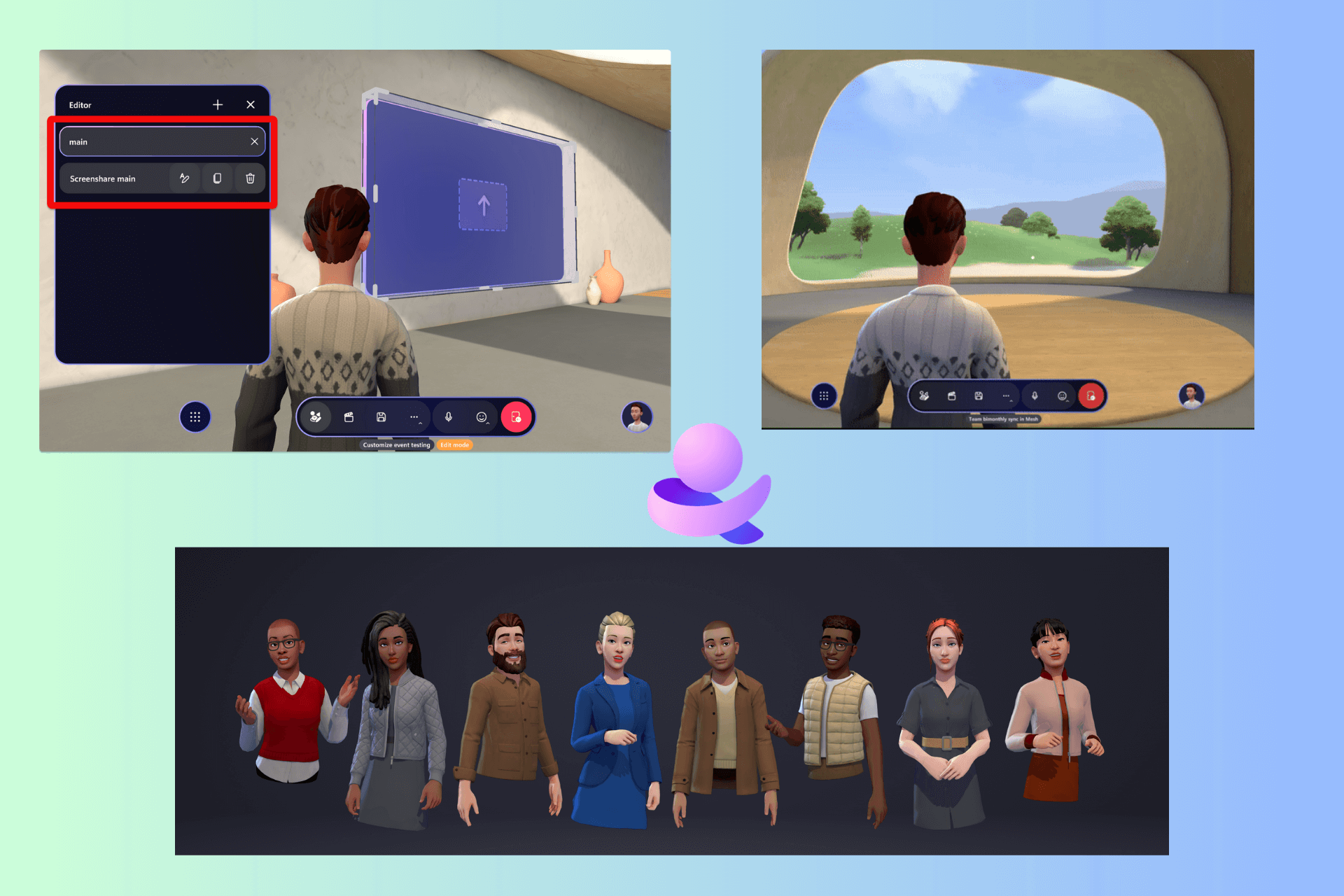
Now, you can share Microsoft Stream videos directly into emails on Outlook

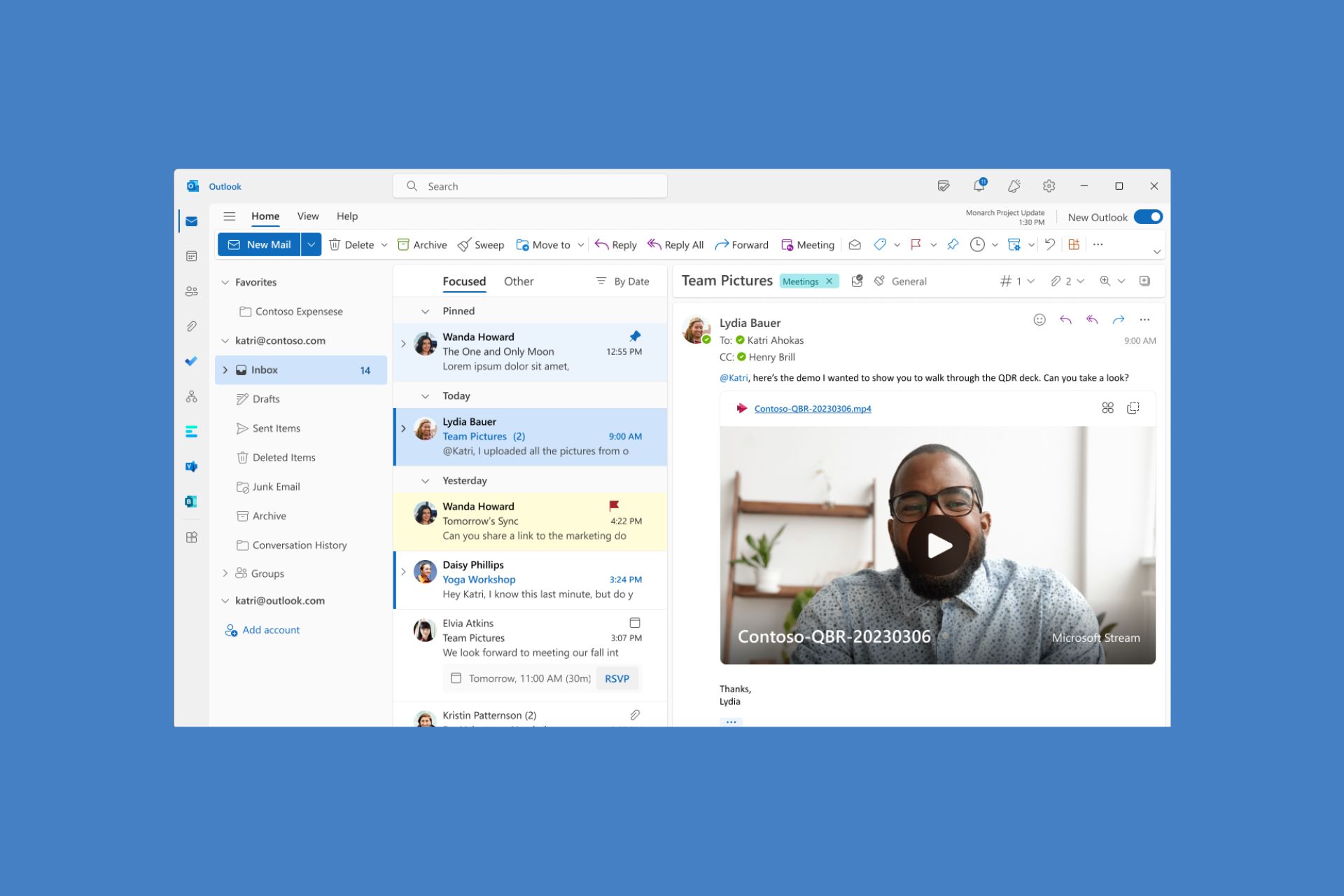
In recent developments, Microsoft introduced an inline video playback feature in the new Outlook for Windows and Outlook on the Web. This feature allows you to share Microsoft Stream videos in your emails, allowing email recipients to watch the embedded videos right in their inboxes.

This step will improve the engagement of media and will make sure your message is seen by the recipients across the company.

How does it work?

Open Outlook on the web on your preferred browser or launch the new Outlook for Windows. Click New mail to start composing an email, then copy and paste a stream video share link into the body.

Another option would be to attach a video from OneDrive or upload & share a video to OneDrive. Once pasted, the link will change to an embedded media player.

In case you want to change the embedded video to a link, right-click the video file name from the inline player, then choose Link Styles>Link

You can also manage the video permissions by right-clicking the video file name at the top of the inline player.

To use this feature, you need to have a reliable internet connection and use the new Outlook for Windows or Outlook on the web. Also, the video you need to send should be saved in OneDrive or SharePoint. Soon, the feature will be available in Outlook for Windows (Classic).

What do you think about the Outlook’s new functionality? Share your opinions with our readers in the comments section below.

Intel introduces Thunderbolt Share, which makes interaction between two PCs easier

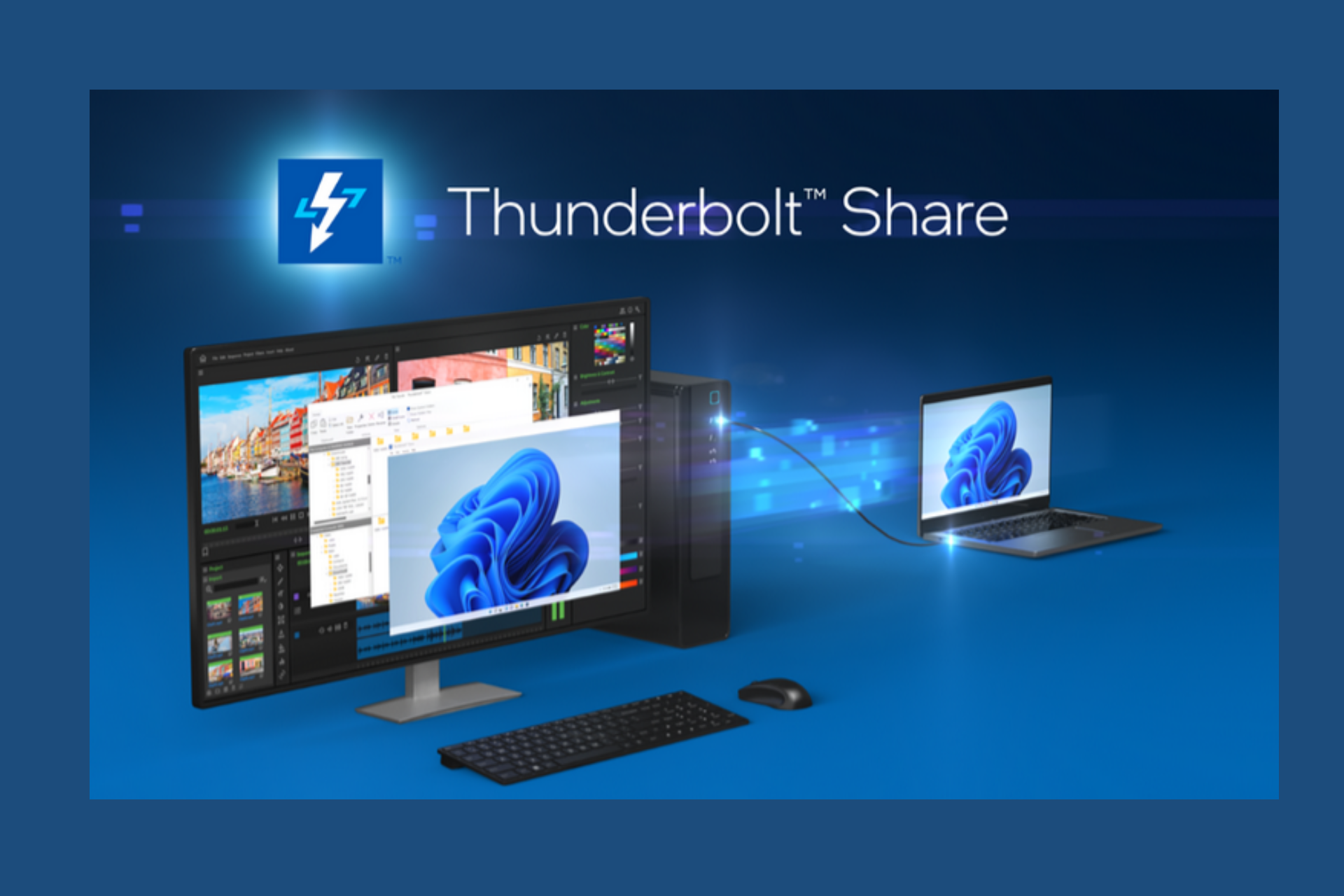
Intel announces Thunderbolt Share, a new software solution that allows screen sharing and quicker PC-to-PC file transfers via PCs’ Thunderbolt ports. This technology could benefit users with multiple PCs.

Intel vice president and general manager of the Client Connectivity Division said:

We are excited to continue to lead the industry in connectivity solutions with Thunderbolt technology. Thunderbolt Share delivers on our aspiration to bring innovative solutions to the market and deliver new experiences for users to get the most out of their PCs. Now users can seamlessly access one PC from another at Thunderbolt technology speeds. It truly changes how users can be more productive and efficient.

Thunderbolt Share is compatible with Thunderbolt 4 or Thunderbolt 5 PCs running Windows OS and uses Thunderbolt technology’s high bandwidth and low latency.

Features of Thunderbolt Share

  • Smooth screen sharing between PCs, with ultra-responsive mouse and keyboard control for a seamless visual experience.
  • Enable fast file transfers between two PCs with a simple drag-and-drop functionality, folder synchronization, and easy file migrations from one old PC to a new PC.
  • Facilitate simple collaboration between users sharing large files.
  • Establish a connection directly between PCs or via Thunderbolt accessories like docks or monitors with multiple ports.
  • A private and secure connection without affecting Wi-Fi, Ethernet, or cloud network performance.
  • Hardware-based security – SMB/commercial friendly

Thunderbolt Share will be available on selected PCs and accessories in the second half of 2024. This technology can be found in devices from various manufacturers, including MSI, Lenovo, Belkin, Acer, Razer, Kensington, Promise, OWC, Plugable, and others.

What do you think about Thunderbolt Share? Share your opinions with our readers in the comments section below.

Latest Chrome update patches zero-day CVE-2026-4947

If you actively use Google Chrome, it’s time to update the web browser. The latest version, Google Chrome 125.0.6422.60, introduces a patch for an actively exploited zero-day vulnerability, CVE-2024-4947!

The vulnerability, assigned a Security Severity rating of High, was reported to Google by Vasily Berdnikov and Boris Larin from Kaspersky. The National Vulnerability Database describes it as,

Type Confusion in V8 in Google Chrome prior to 125.0.6422.60 allowed a remote attacker to execute arbitrary code inside a sandbox via a crafted HTML page.

Type Confusion vulnerabilities are critical and must be resolved immediately. These grant threat actors out-of-bound memory access, allow them to execute code, and might even trigger a crash.

Along with CVE-2024-4947, the latest Chrome update brings security fixes for nine other vulnerabilities, including CVE-2024-4948, CVE-2024-4949, and CVE-2024-4950.

Depending on the operating system, you will need to download the following browser versions:

  • Linux: Chrome 125.0.6422.60
  • Windows/macOS: Chrome 125.0.6422.60/.61

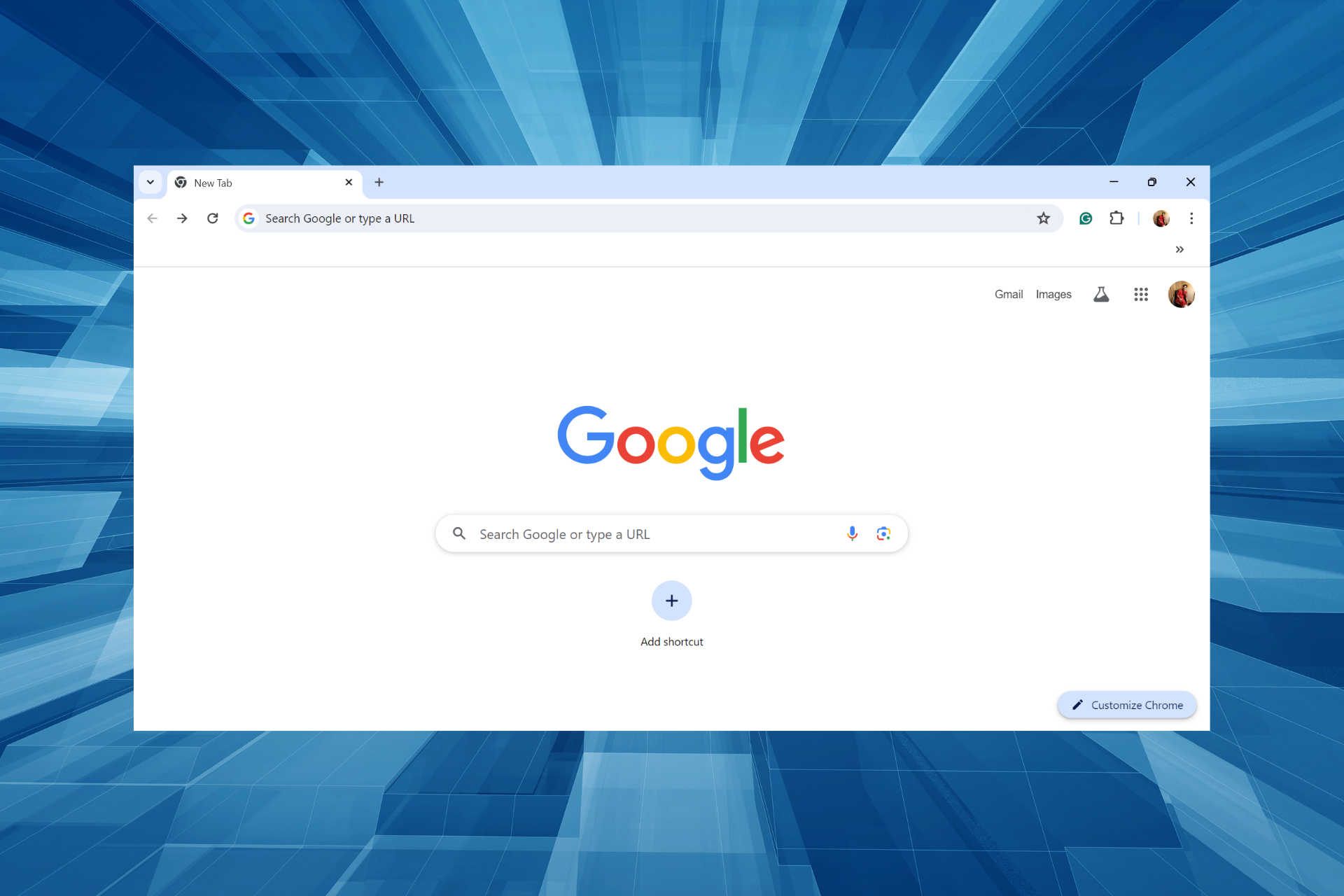
To update Google Chrome > launch the browser > click the Customize and control Google Chrome option (ellipsis) near the top right > hover the cursor over Help > select About Google Chrome > wait for the update to install > then relaunch the browser.

Updating Google Chrome

The update is being gradually rolled out, so it might take a while to show up on your PC. Until then, be careful and don’t let threat actors exploit the CVE-2024-4947 vulnerability to attack your system.

On a similar note, this week, Microsoft fixed over 60 vulnerabilities across its offerings.

How to Play Videos in Outlook With Microsoft Stream

Videos in emails are not a new phenomenon but playing them without leaving your inbox, well, that’s a first and with Microsoft Stream, you can do that in your Outlook mail.

You can still attach videos to your Outlook mail the traditional way but this method proves to be tedious. Further, it is not embedded so you have to view and play it using your local video player. On the other end, the recipient must also download the video to play it.

With Microsoft Stream, all you have to do is copy and paste a video link and you can play it directly without even sending it. And once the recipient on the other end receives it, they a]only have to click play and save storage space.

How do I play videos in Outlook with Microsoft Stream?

  1. Launch your Outlook desktop app or Outlook on the web.
  2. Click on New mail to start writing one and copy a Stream video link.
  3. Paste the link in the email body and it will automatically be embedded to a media player. Now click on the play button and the video will start playing right away.
  4. The same case applies when you receive a new email with the Stream video attached. All you have to do is click and play.

Note that only videos within the Microsoft 365 environment can be copied and pasted to your email and then embedded into a playable video. Videos from your local storage may not meet the requirements and hence will be incompatible and can not be played.

Troubleshooting common issues with Microsoft Stream videos

  • Buffering in videos – An unstable network connection or network congestion can cause throttling so try switching to another network or limit other devices on your network.
  • Video not playing – Microsoft Stream is available on the latest versions of Outlook so ensure your app, browser and OS are up-to-date to resolve any compatibility issues.
  • Unsupported format – Microsoft Stream is only compatible with Microsoft 365 apps so common video formats like MP4 may not be supported. You can however use video conversion tools and try your luck.
  • Insufficient permissions – Most organizations manage Microsoft Streams and have restrictions on who can share and view the videos. If you’re unable to play videos, check with your administrator.
  • Video not embedding – Most email clients have a cap on the size of videos that can be uploaded. If yours exceeds the maximum size allowed, try a video compression tool or trim it. And if it’s the copy-paste function not working on Outlook, we have a remedy for this.

Best practices for video playback

  • Test video playback – Before sharing your Microsoft Stream video, test it out by first sending it to yourself. If you add multiple accounts on Outlook, this will ensure it plays and also confirm it is the right video.
  • Check permissions – Before sharing a video, ensure you configure the set permissions and verify that the recipients can view it. Also, when deleting the video, inform the recipients as they will get a This video is no longer available message. You can also ask them to react to your Outlook mails as a sign that they can lay the video.
  • Optimize video playback – To ensure the recipients enjoy the video shared, ensure the resolution, aspect ratio and file size are well-balanced.

Onto more graphics you can view and play on your Outlook mail, we have an exciting article on how to add and view GIFs in Outlook.

That’s a wrap from us but if you have any additional thoughts, we’re always looking forward to hearing from you so drop us a comment down below.

Microsoft Solitaire gets a Minecraft theme in the latest collaboration

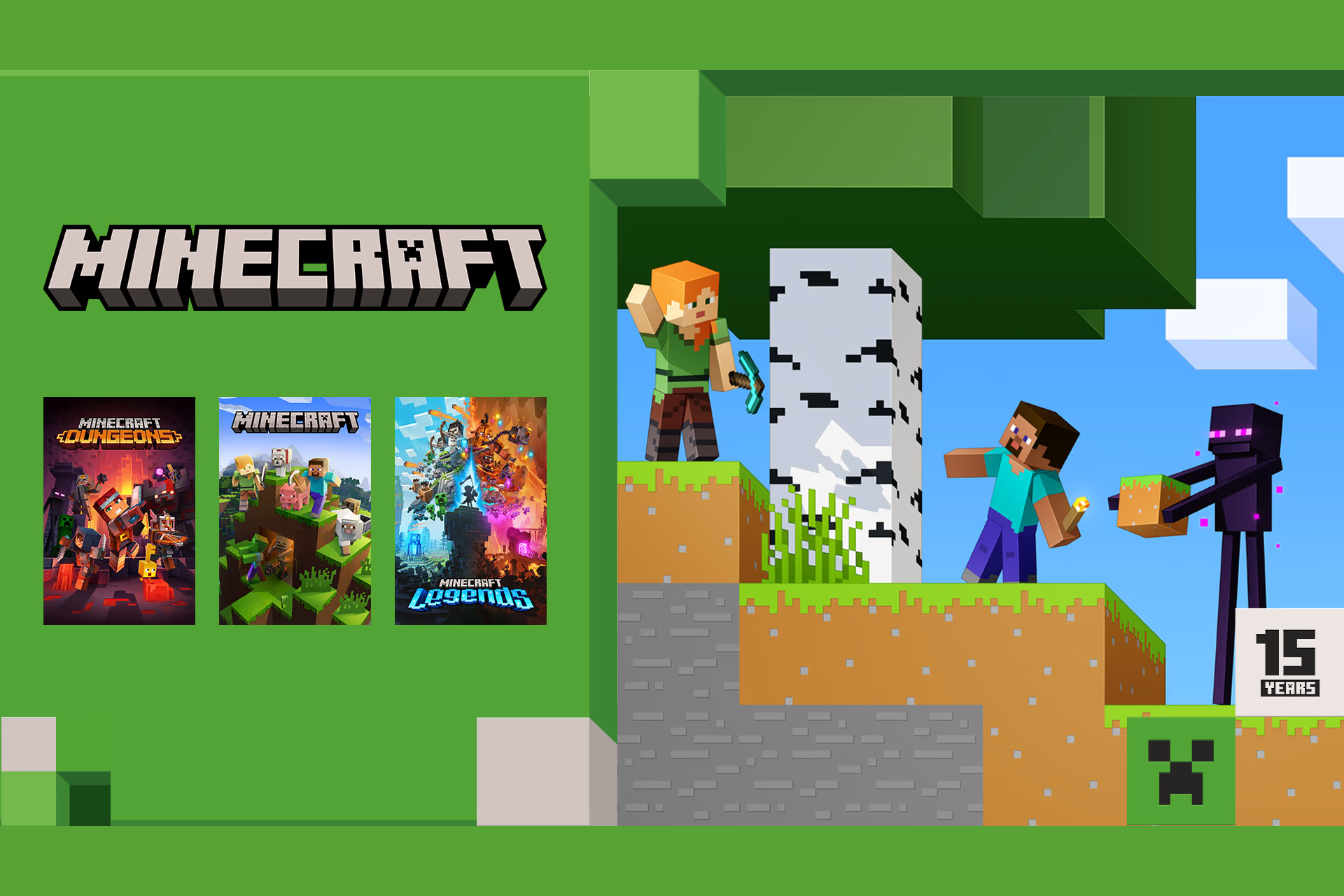
Minecraft is without a doubt one of the most popular games in the world, and the game has celebrated its 15th birthday recently.

In honor of that, Microsoft has a special collaboration between Minecraft and Microsoft Solitaire.

Minecraft deck is now available in Microsoft Solitaire

We know that Minecraft has become a worldwide phenomenon, but many gamers prefer more casual games, and one of those games is Microsoft Solitaire.

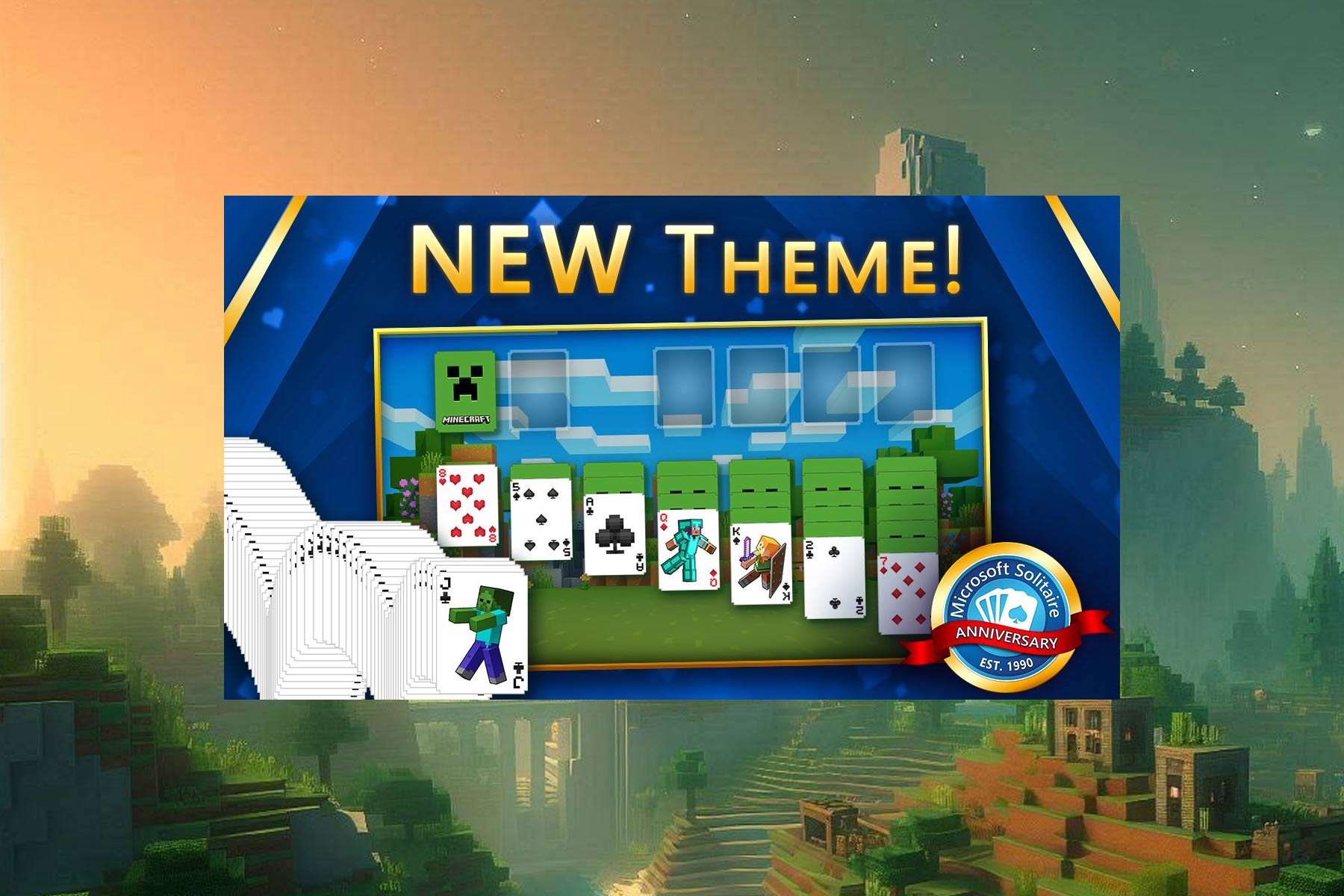
If you’re a fan of the game, you’ll be pleased to hear that the game now has a Minecraft theme added to celebrate the 15th anniversary of Minecraft.

This theme comes with a custom background and a new deck inspired by Minecraft. All cards have a pixelated design that matches the Minecraft aesthetic.

The cards also have a Minecraft logo on the back and characters from the game as face cards. This is a welcome addition to the game, so if you’re a fan of both games, be sure not to miss this new theme.

Also, you might want to check the latest Minecraft Realms Plus update, especially if you want to build a server and play with your friends.

Ahead of Xbox 360 Store’s closure, Microsoft offers up to 90% off on games

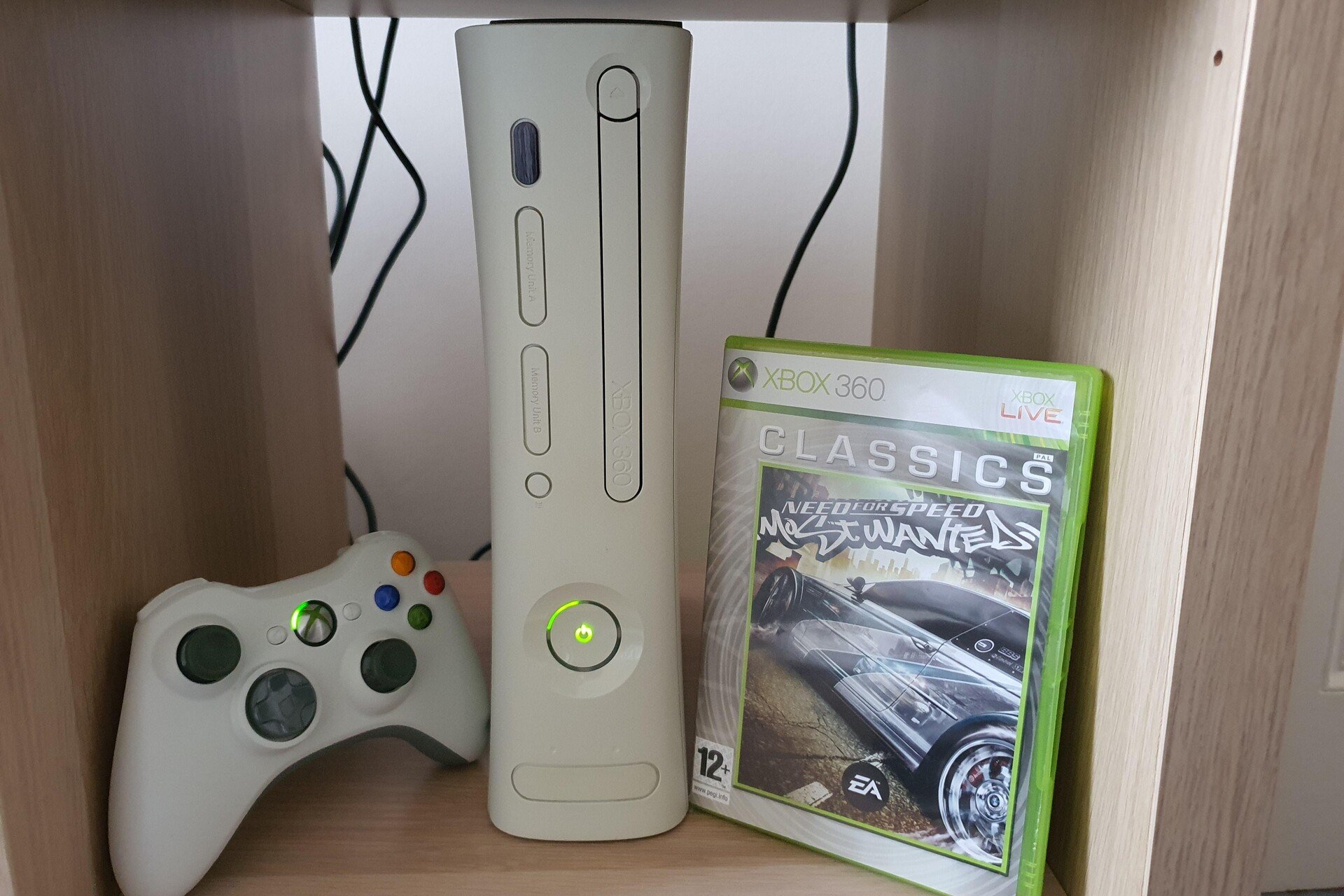
Last year, Microsoft announced the closure of the Xbox 360 Store, 17 years after it was first launched. Now, with the closure set for July 29, 2024, fast approaching, Microsoft has decided to offer steep discounts, as high as 90%, on games in the Xbox 360 Store.

According to a post in the Xbox Wire, 66 games are currently available at discounts, almost all in the 75%-90% range. More games will be added to the list on June 18 and July 16 this year.

To celebrate the legacy of Xbox 360, we’re working with our amazing publishing partners to bring you as many price reductions from our online store or from the Xbox 360 Store on the console. We’ll be updating this list with more games on June 18, 2024, and on July 16, 2024, bringing you as many repriced games as possible before the end of July. These price reductions will remain in place for each game through the 360 store closing on July 29, 2024.

A few of the titles that received a 90% price cut include,

The first list of 66 games focuses on titles that are not backward compatible with Xbox One or Xbox Series X|S in a bid to keep them alive after the Xbox 360 Store closure. We may see similar games being added to the list on June 18 and July 16.

Any games purchased during the limited-period sale will remain playable even after the closing of the Xbox 360 Store. Besides, you will also be able to play supported titles on Xbox One and Xbox Series X|S through backward compatibility

This is the perfect opportunity to expand your Xbox 360 game collection while spending only a fraction of the earlier prices!

For the unversed, Xbox has hiked game prices by up to 300% in some regions.

How many discounted games did you purchase from the Xbox 360 Store? Share with us in the comments section.

Microsoft adds the catch-up experience to Copilot, allowing it to assist users proactively

Microsoft is set to introduce several Copilot-related enhancements this month. Firstly, the Redmond-based tech giant is bringing the helpful Copilot Lab to Microsoft 365 mobile users on Android and iOS devices this month.

Then, Microsoft will also enhance Copilot with a catch-up experience, also coming this month, according to the latest entry in the Microsoft 365 Roadmap.

What is this catch-up experience? Well, let’s say you’ve forgotten about a certain meeting, and you haven’t prepared for it that much.

With this new experience, Copilot will catch up with you on it: not only reminding you of it but also providing you with information and data on a group of cards, which you can use to prepare a presentation or get yourself acquainted with the topic of the meeting. This way, you won’t have to cancel or postpone meetings.

Copilot will also update you with the most important information regarding these meetings, and the new catch-up experience can be used in both Microsoft Teams Copilot and Microsoft 365 Chat. It will have a special tab on the homepage so that users can access it easily.

Catch-up is a new experience in Copilot which aims to proactively help users catch up and take action on important updates. It contains a group of cards. Each card has an update related to an important meeting or document. It will work in M365chat and Teams Copilot. It shows up as a tab on the home page.

Microsoft

The experience will be introduced to all the web versions of Copilot in Microsoft 365, by the end of this month, but the roadmap hasn’t mentioned anything about it coming to mobile devices, which would be a pity, considering the catch-up updates could be quite handy on the go, for instance.

However, many Copilot updates were released on mobile devices as well (such as Copilot Lab), eventually, so the new catch-up experience might be coming to Android, and iOS devices soon.

AI component updates spotted in Windows 11 Build 26217

Windows is always evolving, and Microsoft is frequently testing new features in the Insiders program.

Speaking of which, a new build has been released to the Canary channels and it brings some changes related to the AI.

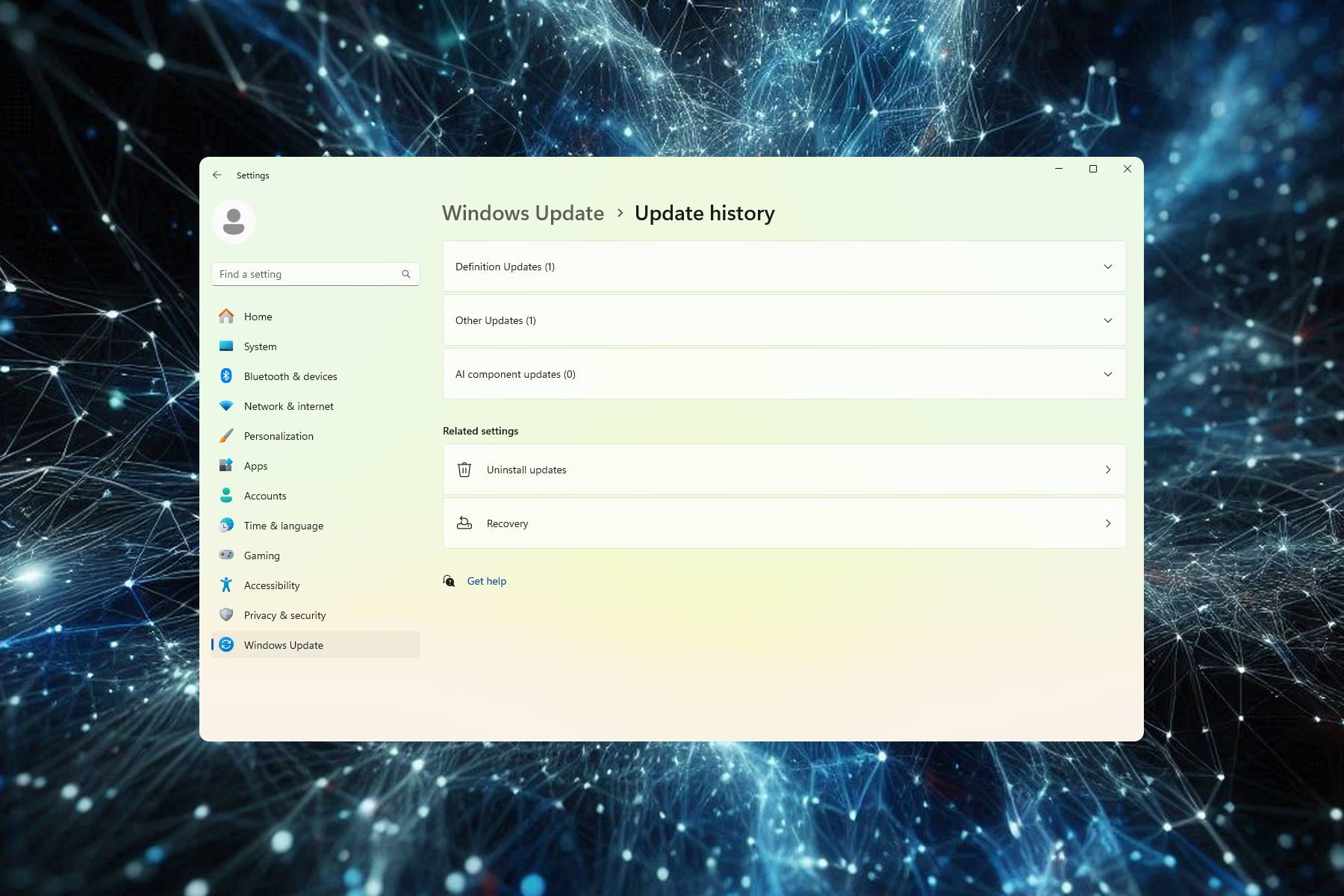
AI component updates have landed in the Update history section

Windows 11 Build 26217 is rolling out to the Canary channel, and with Microsoft focusing more on AI, it’s no surprise to see more AI-related features included.

An X user, PhantomOcean3 has spotted a new option in Windows Update called AI component updates.

As Windows Latest reports, using this option we should be able to see and manage updates for AI components, similarly to the security updates.

That’s not all, as musupdatehandlers2.dll.mui has references to the AI component updates, but this doesn’t reveal any additional information about this feature.

Currently, this page doesn’t show anything since AI components aren’t being updated, but that will change in the future.

This isn’t the only reference to AI in this build, and there’s a new AIHost.exe that is associated with Screen understanding and AIX.

There are also AIXLib\AIXLib.lib and ContextEngineLib.lib files that are associated with the upcoming AI Explorer.

We’re glad to see Windows 11 is getting new features, but for now, the AI components updates section works as a placeholder, but we’re sure Microsoft will put it to good use soon.

This isn’t the only new setting, and new Recall and snapshots settings were spotted in Build 26212. Microsoft is also working on an AI cooler pad that will optimize the cooling of its devices.

Soon, Microsoft will require Azure users to use MFA

Microsoft will require its Azure users to set up their Multi-Factor Authenticator (MFA). The company wants to introduce its new passwordless systems. However, many of us prefer using passwords over MFAs because even if they are less secure, they are faster.

How do MFAs work?

MFAs require you to add two or more methods of authentication. For example, you can use your phone number to receive authentication codes whenever you log in from another account. Additionally, there are various other MFAs like security questions, biometrics, and specialized software.

In addition, the Azure MFA enforcement could be Microsoft’s way to prevent future breaches and protect your data from cybercriminals. After all, even if they get your credentials, they will require access to your phone, codes, or other security measures to use your accounts. Besides, according to a Microsoft report, MFAs can block 99,2% of the account attacks.

Remote and hybrid workers are at a higher risk of being attacked by hackers. On top of that, if you work on a personal device, you increase the chances of getting your work accounts compromised.

When will Microsoft enforce MFA on Azure?

The exact roll-out dates for the MFA enforcement on Azure are unknown. However, the change will take place in July, and Microsoft will send you personalized roll-out dates via email and Azure Portal notifications. The company will gradually roll out MFA enforcement to help users adapt to the changes.

Azure users who don’t want to wait for the MFA enforcement to roll out can immediately set up their authenticators. Doing it comes with plenty of benefits. For example, MFAs add extra layers of security to your accounts. Besides, cloud service providers require them. Also, MFAs are a way to ensure that only authorized users can use the resources and services of your company. 

Ultimately, the MFA enforcement for Azure can prevent future breaches and protect your account. You can easily set it, and it won’t take long. However, some users complain there might be problems with the service accounts. Others are asking if guests in Entra tenants will need to set MFAs. Also, users want to know which MFA methods will be enforced and allowed.

Do you use MFA? Let us know in the comments.

Proteus Controller for Xbox has modular design, snap & play parts and a huge price

Microsoft announced the Proteus Controller via Xbox Wire, a game-changer for Xbox gamers with disabilities. However, if you look at it, you will notice that it’s actually for everyone who wants something different. Designed by ByoWave as part of the Designed for Xbox program, the Proteus Controller stands out with its modular design, featuring small cubes with interchangeable faceplates.

These include all the essentials: controller buttons, a directional pad, and analog sticks. But here’s the kicker: these snap and play parts can be combined in over 100 configurations, offering a level of customization that caters to gamers with a wide range of physical disabilities. The controller is expected to ship in the fall, but for those eager to get their hands on it sooner, a pre-order is available at a discounted preorder price of $255. Now, it’s obvious that Proteus Controller for Xbox is a lot more complex but even the promotional price is five times higher that that of a regular one.

What’s so special about the Proteus Controller?

Proteus Controller can be customized to adapt to the gamer, not the other way around. Whether you’re a one-handed gamer or have other accessibility needs, this controller aims to ensure you can enjoy gaming comfortably and on your terms. The buttons are remappable via a companion app, adding another layer of personalization. However, it’s worth noting that at launch, the Proteus Controller will be compatible with Xbox Series X/S, Xbox One, and Windows 10 and 11, leaving PlayStation 5 and Nintendo Switch gamers to hope for future support.

In addition to the Proteus Controller, Microsoft hasn’t forgotten about its $99.99 Xbox Adaptive Controller, which has been a lifeline for gamers building adaptive setups since 2018. An upcoming firmware update will expand its capabilities, allowing each USB port to support a wider range of accessories. This update is expected to roll out to Xbox Insiders in the coming weeks and to the broader public in the next few months.

As much as we appreciate ByoWave and Microsoft’s endeavor to provide a better controller for people with physical challenges, we just can’t unsee that huge $255 price.

Would you buy Proteus Controller for Xbox? Let’s talk about that in the comments below.

Weird Skype bug prevents users from sending messages, removes them from groups

In the last few days, I have come across countless reports of users being unable to send messages in groups chats on Skype and being constantly kicked out. Even upon rejoining, they are automatically removed from the group within hours.

For some, the recent messages are not visible. Although it’s clear that these are not deleted, since users can manually search for them. Test messages to self are not going through. Besides, even recently read messages are automatically marked as unread.

All these bugs are present on the latest version of Skype, i.e., 8.119.0.201, as confirmed by users.

Typical workarounds like reinstalling Skype, clearing the cache, or switching network connections fail to work!

Microsoft is aware of the issue and is requesting users to share the logs, according to a post by Microsoft employee in the dedicated forum. You could do so from the Skype Insider App, which will prove the most helpful to Microsoft, or even use the regular Skype app.

To submit your Skype logs for assessment, click on the More icon (ellipsis) > choose Settings > go to Help & Feedback > select Report a problem on the right > explain the issue in detail > finally click on Send report with logs.

I recommend you send the logs to Microsoft at the earliest, so that the the bug can be analysed and a patch for it released alongside the next update.

Skype users report being kicked out from group chats, older messages displayed in the left pane

Upon checking the forums, I found almost everyone on Skype version 8.119.0.201 facing a similar set of issues.

This recently happened. I can no longer send messages to group chats I am already added to. When I am added back then after a few minutes, the messages do not get sent.

I have already reinstalled the app on my desktop. I have the app installed on my laptop as well but have not reinstalled on that one. I also have uninstalled the mobile apps on my 2 Android phones thought it might be causing the issue.

Skype version is Skype version 8.119.0.201 on Windows 11 build 22631.3527

My messages can’t be sent, not to groups, not to myself, not to copilot.
I tried on all PC/Web/Android version of Skype.

Same issue with me. When you open the chat it loads the newer messages (or the person messages you) as unread so you have 99+ even after closing it and need to repoen it.

Since the bug has been acknowledged by Microsoft and they are working on a fix, I expect a patch to be out soon, and you should then be able to send messages to groups in Skype.

In case you have a small workforce, consider switching to a Skype alternative in the meanwhile.

Were you unable to send messages to groups on Skype? Share your experience with our readers in the comments section.

Windows Server 2019: Microsoft acknowledges KB5037765 fails to install error 0x800f0982

Microsoft rolled out two important updates for Windows Servers on May 2024 Patch Tuesday. One of them is the KB5037782 update for Windows Server 2022, which fixed the NTLM bug and added a list of quality improvements.

The other one is for Windows Server 2019, KB5037765, which is a security update. It brings the version to OS Build 17763.5820 and also includes quality bug fixes for issues like VPN connection failure and IE mode stopping responding.

What are the issues faced while installing KB5037765?

Some users complained that when they tried to install the KB5037765 update, it failed with the error code 0x800f0982. When WindowsLatest asked Microsoft, they informed them they were aware of the issue, which usually happens in France, Germany, Spain, and other countries.

Also, the server-side issue only appears if the English language pack is not installed, and the Redmond tech giant also mentioned that a fix would be rolled out to everyone in a few hours.

How can I fix the 0x800f0982 error manually?

  1. Installing updates with an internet connection

Press Windows + I to open Settings, then go to Language>Time & language. Select Language from the left pane, and click Add a language from the right pane. Look for English (United States) and click Next.

Now, choose Install Language Pack and click Install to install the US language pack on your device. Once you’ve done this, go to Settings, head to Updates & Security, and click Check for updates.

2. If installing an update without an internet connection

First, download the server ISO file multi-language pack from  Microsoft’s official website. Once downloaded, right-click the ISO file and select Mount. In the mounted file, navigate to x64>langpacks, then locate Microsoft-Windows-Server-Language-Pack_x64_en-us.cab. Now copy & paste the file on the desktop.

Next, press Windows + R to open the Run window, type lpksetup.exe and click OK. On the Install or uninstall display languages window, click Install display languages. Select Browse on the next page, and choose the file you saved on the desktop. Follow the on-screen instructions to complete the process.

Next, download the latest update from either the Microsoft Update Catalog or the official Microsoft website. Double-click the .msu package and follow the on-screen prompt to complete the installation.

What is included in the KB5037765 update?

Here are the improvements mentioned in the release notes:

This security update includes improvements. When you install this KB: 

  • This update affects next secure record 3 (NSEC3) validation in a recursive resolver. Its limit is now 1,000 computations. One computation is equal to the validation of one label with one iteration. DNS Server Administrators can change the default number of computations. To do this, use the registry setting below.
    • Name: \HKEY_LOCAL_MACHINE\SYSTEM\CurrentControlSet\Services\DNS\Parameters\MaxComputationForNsec3Validation
    • Type: DWORD
    • Default: 1000
    • Max: 9600
    • Min: 1
  • This update includes quarterly changes to the Windows Kernel Vulnerable Driver Blocklist file, DriverSiPolicy.p7b. It adds to the list of drivers that are at risk for Bring Your Own Vulnerable Driver (BYOVD) attacks.
  • This update addresses an issue that affects Active Directory. Bind requests to IPv6 addresses fail. This occurs when the requestor is not joined to a domain. 
  • This update addresses a known issue that might affect domain controllers (DC). NTLM authentication traffic might increase.
  • This update addresses an issue that might affect Virtual Secure Mode (VSM) scenarios. They might fail. These scenarios include VPN, Windows Hello, Credential Guard, and Key Guard.

Have you faced the same installation error while updating to KB5037765? Then, try these fixes and let our readers know if they helped in the comments section below.

Microsoft’s Data API builder for Azure Databases is now generally available, bringing easier database interaction

The Data API builder has been in the works for nearly 3 years. The tool is aimed at reducing the friction developers face when accessing databases in their client applications. Fast forward to today, Microsoft announced the general availability of Data API builder (DAB) for Azure.

In broader lines, this tool offers developers a secure, feature-rich way to create REST and GraphQL endpoints over databases without writing a single line of code. And best of all, it’s open-source and free, even for on-prem databases.

Here are some details about Data API builder

The architecture behind it is a dynamic, container-based, configuration-driven runtime. It’s an ASP.NET project crafted in C# and available under the MIT license. The use of ChilliCream’s Hot Chocolate for GraphQL and FusionCache for in-memory caching, among other libraries, makes it a robust solution for API projects. DAB offers REST endpoints with native OpenAPI support and Swagger for developers, ensuring easy access and interaction. It doesn’t stop there; GraphQL endpoints come with automatic schema generation, making it extremely flexible for various solutions.

Whether you’re aiming to expose a data clearinghouse, enable a mobile application, or simply tinker with an Azure database, DAB has got your back. It supports multiple backend stores and databases, making it a pretty good choice for many in the tech community. The container-based approach of DAB means it’s Docker-friendly, stateless, and scalable, fitting perfectly in any environment, cloud or on-prem.

For enterprises, DAB offers features like Microsoft Entra Identity integration and Application Insights, along with CI/CD support. And for those leveraging Azure, DAB integrates seamlessly with Azure Static Web Apps, Azure Container Apps, and more, offering a cutting-edge solution for database and front-end application integration.

The feature-rich nature of DAB means every endpoint comes with a retry policy, comprehensive logging, in-memory cache, and solid documentation. It simplifies the engineering process, reducing codebases, eliminating suites of tests, and shortening CI/CD pipelines. Rapid development is another highlight, with developers able to create APIs in hours and amend endpoints in minutes, leading to significant time and carbon savings during the development process.

Being open source means collaboration and transparency. The Data API builder team encourages feedback and contributions, hosting monthly community standups and managing discussions on GitHub. Their comprehensive documentation and CLI tools make getting started a breeze, enabling developers to spin up endpoints on various platforms with ease.

In conclusion, if you’re a developer, now you can interact with databases a lot more easier and faster. If Microsoft left out some things that you need along the way, let’s talk in the comments below.

Copilot Lab will be available to all Microsoft 365 Mobile users by the end of this month

Copilot Lab is a platform announced by Microsoft last year, where users, especially organizations, can learn how to work with Copilot better and more efficiently. The hub was released last year, alongside Microsoft 365 Copilot, and since then the Redmond-based tech giant has been updating it with hundreds of prompts.

Because yes, Copilot Lab is meant to be a hub, where you can share ideas and suggestions with other colleagues, such as learning to write prompts and come up with new recommendations on how to work with an AI tool.

Initially available to only to the desktop-based users of the Microsoft 365 suite, the Redmond-based tech giant is bringing it to the mobile app by the end of this month, according to the latest entry in the Microsoft 365 Roadmap.

Copilot Lab will allow users to browse and use suggested prompts in Copilot for Microsoft 365 on mobile platforms.

Microsoft

So, now, you’ll be able to have access a variety of Copilot prompts on the go, so that you can use the AI model at the best of its capabilities in any situations. You’ll also have access to dozens of training videos, and tools to understand how Copilot works. This could be quite useful when preparing for presentations, and checking up those last details.

Plus, one of the best features of this platform is the community. Copilot Lab will bring all of your co-workers together, and you can share ideas or get ideas about how to use the AI model from them. Then, based on your needs, you can access Copilot Lab on your mobile to get the best prompts from your colleagues for platforms such as Word, Excel, or PowerPoint.

Copilot Lab should be available to all Microsoft 365 Mobile users on Android and iOS devices by the end of this month.

Firefox finally gets NVIDIA RTX video support, can now enhance any video using AI

Mozilla is constantly releasing Firefox updates and bringing new features, and speaking of which, the new version has been recently released.

To enhance the multimedia experience, Mozilla and Nvidia have teamed up to bring RTX video to Firefox.

Firefox has just added support for AI-powered NVIDIA RTX video

Firefox 126 brought several new improvements, and among them support for NVIDIA RTX video. Using the RTX video, you can improve the quality of videos played using the power of the AI.

Using this feature, you can make videos look sharper and more detailed without using a high-resolution source.

To achieve this, the RTX Video Super Resolution feature upscales the low-resolution video by using AI and deep learning to predict how a high-resolution version should look.

After doing that, RTX Video HDR analyzes video content using AI-neutral networks and adds HDR information thus enhancing the visibility, details, and vibrancy of the video.

According to Nvidia’s blog, this feature is now available in Firefox, and Firefox’s Bobby Holley had to say the following:

Video is a core pillar of the modern web, and we are committed to delivering a great experience for our users.

Mozilla is integrating RTX Video into Firefox to improve video quality for our users with compatible GPUs.

Firefox isn’t the only browser that supports this feature, and Chromium browsers already have support for it.

To use this feature, you need to have the latest Nvidia drivers installed and HDR enabled in your Display settings in Windows.

Lastly, you need to enable Super Resolution and High Dynamic Range in the Nvidia Control Panel. Keep in mind that this feature requires an NVIDIA GeForce RTX GPU and an HDR10-compatible monitor to work.

In other news, Nvidia RTX 5080 & 5090 might be announced on the same day, as leaks claim, so stay tuned for more information.

Microsoft Edge will stop supporting CPUs that lack SSE3

Recently, Microsoft added new information about compatibility changes to the official Edge documentation page on the Microsoft Learn website.

It says:

After version 126, Microsoft Edge will stop supporting CPUs that lack SSE3. Devices with these CPUs will not receive any more updates.

This means that to use Microsoft Edge version 126 or later, you need a processor with the SSE3 instruction set or higher.

So, if you are wondering whether you could use Edge after the release of the 126 version, then you have to ensure you are not using very old hardware.

It is similar to the requirements in the new upcoming version of Windows, 24H2. Intel released SSE3 in 2004 with Pentium 4, Pentium D, and Celeron D, and after that, AMD introduced it in Opteron, Sempron, Athlon 64, and more.

SSE stands for Streaming SIMD Extensions, a series of instructions integrated into the latest CPUs to improve multimedia and mathematical operations.

The software requirements for Microsoft Edge, as mentioned on the official page, are:

  • Windows 11 and Windows 10
  • macOS – Catalina (10.15) and later
  • Android – Android KitKat 4.4 or later with an ARM-based processor
  • iOS –  iOS and iPadOS 14.0 or later
  • Linux

What do you think about this change? Share your opinions with our readers in the comments section below.

Microsoft will update Copilot to generate themes for Outlook users

As you might already know, Microsoft brought Copilot to Outlook a while ago, on both the classic version (which is still going strong, and will still be supported up until 2029), and the new Outlook, giving users access to AI capabilities to edit, compose, summarize, and schedule their emails.

It seems that the Redmond-based tech giant will take things a bit further, and will allow Outlook users to have Copilot generate background themes for them, according to the latest entry in the Microsoft 365 Roadmap.

What does this mean? Well, you can customize your Outlook app just the way you like it, by telling Copilot to generate visuals for you.

According to the roadmap, the new capability will be introduced in July 2024, and it will be available to all Android, and iOS users.

Make Outlook yours with themes generated by Copilot. You will be able to find these themes in Settings.

Microsoft

In case you’re interested in this new capability, but don’t know where to start, if your organization uses Microsoft 365 as the main productivity platform, you can hop in Copilot Lab, where you can learn how to ask Copilot to generate the most intricate visuals properly.

This way, you’ll make sure Microsoft Copilot generates the best Outlook themes for you.

The Copilot Lab is a place where users can learn how to create the best prompts aka the things you say to Copilot, so that you can take the best advantage of what the AI model is capable of. Microsoft announced the platform last year, and made it available to Microsoft 365, as a way to increase the number of Copilot users.

Google Sheets finally adds the table formatting that Microsoft Excel had for years

18 years and thousands of requests later, Google has finally added the much-needed table formatting in Sheets, its native spreadsheet application and a free Excel alternative. It’s surprising that Google took so long to introduce the feature, which had been available in Excel for quite some time.

With table formatting finally available, you can seamlessly structure and format the rather unorganized data within seconds, according to a post by the Google Sheets team.

To convert a set of data into a table, select and highlight the data range > open the Format menu > choose Convert to table.

Convert to table in Google Sheets (Image source: Google)

When converted to a table, the data automatically appears in a more structured form, with separators to easily distinguish between the different rows and columns. And there’s much more to it, including column types, colour coding, filters, and dropdown menus, among other features.

Customizations like changing colours or readjusting row heights are effortless in tables on Sheets. Upon choosing a column type, all the entered data automatically assumes the formatting, and anything that doesn’t fit the formatting throws a warning. Besides, for more macro-level changes, you can directly adjust the table instead of individual rows and columns.

With the new Create group by view option, you can sort the data into different sets based on values in a specific column. Not to forget, there are also pre-built table templates that you can start working on right away.

Pre-built tables in Google Sheets

Table formatting in Google Sheets is being gradually rolled out and is not yet available for everyone. When I checked, it wasn’t there, but Google has confirmed that the feature should be available to all by June 6, 2024!

If you like to keep up with developments at Google, discover all the new features and tools announced during Google I/O.

Have you tried the table formatting in Google Sheets? If so, share your review with our readers in the comments section.

Scammers use Microsoft’s Quick Assist to take over your PC and steal your data

Microsoft issued a Threat Intelligence report to signal an elaborate social engineering scam involving Microsoft’s tech support tool Quick Assist. According to the post, since mid-April 2024, a cybercriminal group named Storm-1811 has been exploiting this tool that facilitates remote assistance between users, to orchestrate attacks and deploy the notorious Black Basta ransomware.

What makes it even more worrying is that Black Basta was also signaled by CISA and FBI to be the culprit in a lot of industry organization attacks.

The Quick Assist scam is not new, but it evolved into something more elaborate, with a more complex mechanism. Some people also complained on Reddit about the same scam over a year ago, and as you will learn, the approach is similar.

How does the Storm-1811 Quick Assist scam work?

Quick Assist, typically a benign tool enabling remote support, has become a Trojan horse in the hands of Storm-1811. By masquerading as trustworthy entities such as Microsoft technical support or IT professionals, these threat actors gain unauthorized access to devices. They are using a blend of voice phishing (vishing) and the delivery of malicious tools, including remote monitoring and management (RMM) tools like ScreenConnect and NetSupport Manager, and malware such as Qakbot and Cobalt Strike, setting the stage for the final act: ransomware injection.

In other words, you may receive emails or direct calls from scammers pretending to represent Microsoft. They will will offer their tech support skills to help you with alleged issues on your PC, asking you to log into a fake interface with your security code and take over your PC to fix the problem.

The narrative doesn’t end with the initial breach. Once inside, the attackers execute a series of maneuvers designed to deepen their foothold within the compromised system. They employ scripted commands to download malicious payloads, leveraging tools like Qakbot for remote access and Cobalt Strike for establishing persistence, all while masquerading their activities as legitimate operations. This meticulous preparation paves the way for the ultimate payload delivery: Black Basta ransomware, a particularly virulent strain known for its stealth and efficiency.

In their warning announcement, Microsoft says that they are enhancing Quick Assist’s security features to thwart such misuse. They’re incorporating warning messages to alert users to potential tech support scams and improving the transparency and trust between users. For those seeking to fortify their defenses, Microsoft recommends blocking or uninstalling Quick Assist if it’s not in use, alongside educating users on the hallmarks of tech support scams and the importance of vigilance.

In the face of this sophisticated threat, organizations are urged to adopt a multi-layered defense strategy. This includes educating users on recognizing and reporting phishing attempts, enabling cloud-delivered protection, and investing in advanced anti-phishing solutions.

How to protect against the Storm-1811 Quick Assist scam?

So, as with any phishing scams, it’s a matter of awareness and lucidity. If someone calls you pretending to be from the Microsoft tech support team, make sure you requested that service in the first place and certainly don’t provide anyone access to your PC.

As usual, we recommend restraining from opening unsolicited emails, downloading the contents of suspicious attachments or untrusted applications.

Have you been targeted by such emails or calls recently? Let’s talk about this in the comments below.

Chrome now knows your default browser on Windows, thanks to Microsoft

Microsoft Windows sometimes keeps the information about uninstalled default browsers in the Registry. This could lead to problems if you uninstall your default browser and don’t set a new one. Clicking on links might result in no action. Microsoft’s proposed change enables Chrome to use a more reliable method to identify the default browser for HTTP and HTTPS links.

For example, if you use Firefox, Chrome, and Edge on Windows with Firefox being the default, uninstalling Firefox and not setting a new default can confuse Windows. Clicking links might then lead to nothing happening.

Microsoft helps Chrome to know your default browser on Windows

Now, Microsoft has proposed a change where Chrome will use a newer, better way to ask Windows which browser is the default. This is done using a modern API (Application Programming Interface) that Windows provides for more accurate results. Chrome using this modern API asks Windows “Hey, which browser should I use for links?” Windows gives the correct answer, and Chrome uses this information to open links correctly.

This change makes Chrome more reliable when you click on links, especially if you’ve changed your default browser or removed it. Chrome double-checks with Windows to ensure you are using the browser you prefer.

In summary, Microsoft has noticed that Chrome’s way of figuring out your default browser is based on outdated registry information in Windows. They suggest using a newer method provided by Windows to fix the issue.

Apart from this, chrome is getting revamped Google Lens Search on desktop powered by Gemini AI, and the browser can show Password suggestions right from the context menu, useful when automatic password generation doesn’t work.

ARM wants to dethrone x86-based processors with a new strategy

ARM Holdings wants to seize a part of the Windows PC market. Yet, the PC industry always focused on Intel’s x86 architecture. Besides, the x86-based PCs were around for longer. On top of that, most PC software, peripherals, and accessories use x86 drivers. However, Rene Haas, CEO of the UK chipmaker and semiconductor designer, believes ARM-based processors will be as successful on Windows PCs as on Apple.

Are Arm-based processors better than their competitors?

According to Canalys Insights, ARM-based processors represent less than 1% of the Windows PC market. However, compared to the x86-based processors, they are more energy efficient and performant. Also, the ARM processors are suitable for cloud computing, edge computing, and AI implementation.

In addition, there are PCs based on ARM processors, but they have some compatibility and pairing issues. For example, most ARM PCs aren’t for gaming because game developers build them for x86 systems.

ARM Holdings plans on bringing more products to chip away the Windows PC Market share from the x86-based CPUs. To do this, the company will work with various suppliers to provide multiple units with ARM-based processors, Stock Keeping Units (SKUs), price points, and experiences to customers. For instance, Windows on Arm started supporting Chrome this year.

Qualcomm and Asus partnered to bring the Snapdragon X Elite SoC (system-on-a-chip) and new gaming ARM-based PCs to the market. However, according to Rene Haas, multiple suppliers will join the race and create new systems with ARM-based processors in the following years.

ARM PCs have better efficiency and performance compared to their competitors. Also, their battery life lasts longer. Besides that, ARM-based devices don’t need an active fan to attain high performance. So, we might get silent PCs in the next few years.

Ultimately, ARM Holdings expects significant growth in the next three years. In addition, based on what Rene Haas said, more manufacturers will start focusing on ARM-based technologies. So, even if the upcoming Snapdragon X Elite SoC is for premium systems, manufacturers could design new ARM-based processors for a larger audience.

Will you get an ARM-based PC? Let us know in the comments.

Nvidia Blackwell superchips can cost up to $70, 000, estimates say

Nvidia is the leading chip developer, and we have seen some high-quality chips from Nvidia over the years. As you know, the company plans to focus on AI, with its Blackwell series.

Speaking of which, we finally have an estimate of how much these chips will cost, and the prices are as high as you might expect.

We finally have the Nvidia Blackwell price estimate

Not that long ago, we wrote about how Microsoft and Nvidia are working on Blackwell superchips and now we finally have an estimate on how much these chips will cost.

As Tom’s Hardware writes, the GB200 superchip that combines CPU and GPUs could cost up to $70,000. With Nvidia selling entire servers, it’s expected that B200 NVL72 servers to cost up to $3 million a piece.

This information comes from the firstadopter on X.

According to the HSBC estimates, the entry model, B100 GPU, will have an average price ranging between $30,000 and $35,000.

As for servers, the GB200 NVL36 server with 36 GB200 superchips is expected to cost $1.8 million. Keep in mind that these are just the entry models, and higher-end models will cost more.

Compared to the previous generation, GB200 superchips are about five times more powerful in terms of performance, which justifies their price.

Do keep in mind that these are just estimates, and the actual prices might differ depending on many factors.

As for availability, we know that NVIDIA’s GB200 will go into production in September, and we might see them in near future.

Ghost of Tsushima Director’s Cut will support crossplay on PC but not on Steam Deck

All set for release on May 16, 2024, Ghost of Tsushima Director’s Cut will have crossplay support, but there’s a catch. Actually, there are three!

First, the game will support crossplay for the PC version but not on the Steam deck. This is due to the multiplayer mode requiring Windows to get features available on the PlayStation Network.

Second, Ghost of Tsushima Director’s Cut will be marked as Unsupported on Steam Deck for the same reason.

Nixxes Software, the game developer, shared the information in a post on X (formerly Twitter).

We know many of you are eager to play Ghost of Tsushima Director’s Cut on handheld gaming devices like the Steam Deck. We’re happy to share that the single player experience, including the Iki Island expansion, can be enjoyed on Steam Deck and similar handheld gaming PCs as we’ve worked extensively to optimize performance and deliver the best possible experience on these devices.

You may notice that Steam marks the game as ‘Unsupported’ for Steam Deck. This is due to the Legends co-op multiplayer mode requiring Windows to access PlayStation Network integrated features.

PSN sign-in requirement also affected Helldivers 2 players, with thousands dropping negative reviews on Steam. The developers ultimately had to cancel the account linking update!

But it seems like that’s not the case with every title. Sony is making PSN account linking mandatory this time around. It even removed Ghost of Tsushima Director’s Cut from regions without PSN access.

Coming to the third and last catch. Crossplay in Ghost of Tsushima Director’s Cut will be in Beta testing and won’t be automatic. So, you can expect changes to the functionality in the coming days based on the feedback.

As for the automatic part, players will have to invite friends on a Windows PC, PS 4, or PS 5 to the PlayStation Network to enjoy crossplay. Nixxes Software explains it in the official post.

As previously announced, Legends co-op multiplayer mode will include cross-play between players on PS4 consoles, PS5 consoles and PC. Legends will be functional on PC at launch, but you won’t be automatically matched with players on different platforms. Cross-play will launch in beta, meaning you can try it out by inviting your PlayStation Network friends. We would love your feedback as we continue to make adjustments in the weeks following launch!

The PlayStation blog has been updated to include the information.

If you are keenly waiting for the PC version of Ghost of Tsushima Director’s Cut, Nixxes Software has shared the launch schedule detailing the exact time it will be released across regions. Although, the game is available for pre-download on Steam.

PC launch schedule for Ghost of Tsushima Director’s Cut (Image source: Nixxes Software)

Besides crossplay support on Ghost of Tsushima Director’s Cut, there’s another feature you should be excited about. PlayStation trophies are coming to PC!

What do you feel about the PSN account linking requirements? Share with our readers in the comments section.

Firefox 126 released, letting you copy links without site tracking

Firefox is a rather popular web browser, due to its privacy features, and if you’re a fan of Firefox, you’ll be pleased to hear that a new version was just released.

That’s right, Firefox 126 is now available to anyone, so without further ado, let’s see what this version has to offer.

Firefox 126 is here, brings the ability to copy URLs without tracking, and more

Not that long ago, we wrote about Firefox 126 beta, and now we’re happy to announce that the final version is here.

The most interesting change in this version is the ability to copy URLs without tracking parameters.  This option is available in the context menu, and it can be found while copying links from the page or the address bar.

The feature can block over 300 tracking parameters from links, so you’ll never share any trackers via links again.

As for other improvements, Firefox now supports Content-encoding: zstd, as well as Catalan language in Firefox Translations.

There is good news for NVIDIA users as NVIDIA RTX Video Super Resolution and NVIDIA RTX Video HDR features are now available in Firefox, thus enhancing the quality of videos.

This version also brings AV1 hardware decode acceleration on macOS for M3 Macs. We also have some good news for developers as the split console feature is here, allowing you to have your console anywhere in the Developer Tools.

The update has also added support for other web development features, and you can find more information about it on Mozilla’s release note page.

This is a decent update, especially if you’re tired of dealing with tracking URLs, so go ahead and download the new version.

In other news, Firefox 127 is testing the ability to close duplicated tabs, and this version will also get Bounce tracing protection as well as a profile manager.

Minecraft turned 15! Expect 15 days of Character Creator gifts and huge discounts

Can you believe it? Minecraft is turning 15 years old and Mojang has been teasing the event since the beginning of the month! It’s still pretty wild to think that this game, which has become a global phenomenon, has been around for a decade and a half. To mark this milestone, Xbox and Mojang Studios are rolling out the red carpet with 15 days of celebrations and gifts that promise to be a real treat for fans.

Now, I’ve seen people stretch their birthday celebrations over a weekend, but dedicating two weeks to celebrate the world’s best-selling video game? That’s on another level, especially when you consider that Minecraft has sold over 300 million copies worldwide.

What can you expect from the Minecraft 15th anniversary?

Starting from May 15th, players are in for a treat with 15 days of deals, themed gifts, and surprises. Imagine logging in each day to find a new Character Creator item waiting for you, totally free! That’s 15 new items to collect, each representing a different year of Minecraft’s rich history. It’s like a mini-adventure every day, wondering what cool new item will pop up next.

And it’s not just about collecting items. The Minecraft Birthday Bonanza teaser has hinted at even more exciting things to come. With words like download, share, watch, and play being thrown around, it feels like we’re on the cusp of something big. Could it be related to the upcoming Tricky Trials Update that’s set to bring new paintings and music to the game? Only time will tell, but the anticipation is definitely building.

Speaking of which, according to Mojang’s 15th anniversary announcement, you will also have up to 50% OFF for a lot of Minecraft games and the Minecraft for Mobile version will have an up to 70% discount in this period.

We’ve saved the best for last. You can also snag 500 minecoins to spend in the Minecraft Marketplace. That’s a nice little bonus to start the celebrations. And the best part? These festivities aren’t just confined to the game. Minecraft’s Instagram page will be buzzing with daily updates, giving players a sneak peek at the items being released each day. It’s a great way to stay in the loop and make sure you don’t miss out on any of the fun.

So, if you’re a Minecraft player, the next 15 days will be all about fun and joy in the pixelated world. Happy birthday, Minecraft!

Valheim’s Ashland update is not available on Xbox yet, here’s how to get it

Valheim’s Ashland update has been garnering a lot of attention, primarily due to the wide array of new weapons, ammunition, building items, locations, and a series of fixes. But many running the Xbox or Microsoft Store versions can’t locate the Valheim Ashlands update, let alone install it!

Developers have already acknowledged the problem in the official blog post. It reads,

Unfortunately there are currently some issues with the Microsoft and Xbox versions of Valheim, which means there will be a slight delay in getting the update properly uploaded there. However, the current version on Xbox Flight is the same as the version coming to live, so crossplay will still be possible between Xbox Flight and Default Steam games.

Although it fails to mention a specific timeline, there’s a vital piece of information towards the end. It states that the latest version, 0.218.15, is already available on Xbox Flight.

For the unversed, Flight here refers to the Xbox Insider Channels. So you can get your hands on the latest Valheim Ashlands update by switching to an Xbox Insider Channel. Many have confirmed that the update is available to insiders!

The process involves joining the Xbox Insider Channel > restarting the console > going to Manage games > choosing Valheim > checking for updates > then downloading the Ashlands update.

After becoming an Xbox Insider, you can also crossplay with PC players. The functionality wasn’t working properly in the recent while!

What’s new in the Valheim Ashland update?

The release notes for the latest update list the following improvements

– 30+ New weapons
– New bombs and ammunitions
– 3 New armour sets
– 2 New capes
– 10+ New creatures
– 70+ New buildable items
– 5 New crafting station upgrades
– 30+ New crafting materials
– 15+ New food items and potions
– New locations
– New music
– New events
– New mechanics

Fixes and Improvements

– Fixed Mead materials
– Standardised texts throughout the game
– Various fixes and improvements

Go ahead and download the Valheim Ashland update. It shouldn’t be a problem anymore. If you don’t want to go through all the trouble, wait for a few days, and the update should be out for stable Xbox channels and the Microsoft Store.

Also, in case you don’t know, there’s a new Xbox feature that will automatically install updates even before they go live!

What’s your favourite thing about the Valheim Ashland update? Share with our readers in the comments section.

Microsoft’s PC Manager promotes Bing Search as preferred repair tip

The Microsoft PC Manager app recently got a slew of new monitoring and repair features that include enhanced file clean up, partition management and suggested Repair Tips that cleverly help to promote Bing Search.

The Microsoft PC Manager app is seemingly endorsing monitoring and repair options that now promote Bing as part of its Repair Tips suggested improvements, following a recent update.

When using Microsoft PC Manager, the app will scan Windows to identify which browser and search engine are being used to determine the best suggested repair option going forward, and it just so happens that Microsoft Edge with Bing Search is the preferred repair option.

If users aren’t particularly scrupulous or detailed oriented, it’s easy to mistakenly switch their default browser and search engine to Edge and Bing with a single click as part of a pre-selected repair option in the Microsoft PC Manager’s menu.

Microsoft has been increasingly getting on the nerves of users sensitive to garish marketing and advertising tactics in Windows 11, and the new self-preferential suggested Repair Tip of Edge and Bing in the Microsoft PC Manager app could feel like another line being crossed by the software provider.

The Edge and Bing suggested repair tip feels especially wrong because it’s also seen by Windows users who already use the platforms.

Just so you know, the Microsoft PC Manager app was developed by company engineers based in China and that an official US launch could be delivered sans Edge and Bing suggestions. Microsoft has habitually attempted to cross the delicate line of advertising versus suggesting and in most instances, swift and vocal feedback from Windows users has won out in the practical application of this new self-promotion effort.

Maybe this new Edge and Bing suggestion will be as short-lived or infrequent as previous attempts. We would appreciate your thoughts in the comments below.

The new GitHub prompt repo can help you use Copilot more efficiently

AI is almost everywhere. Recruiters are looking for people experienced in AI. Companies try to implement this technology. Many of us use AI tools to learn new things. It feels like the world is revolving around AI. That’s why most of us should understand how to craft better prompts. Fortunately, Microsoft shared some Copilot prompts in the GitHub Repo to inspire us.

How can you add prompts in the GitHub prompt repo?

The Copilot prompts repo from GitHub is community-led. In addition, it has some of the samples shared by Microsoft. So, feel free to use them or to look around for new ones. Besides, you can add new prompts, and there are two ways to do that. If you are familiar with the GitHub repo, follow the steps below.

  1. Fork the repository: This first step is easy. You need to open the GitHub Prompt Repository and press the Fork button underneath the search bar. Then, create a copy.
  2. Clone a new branch: Make a copy of the fork repository and create a new branch with a unique name based on its purpose.
  3. Add a new folder: In the samples folder, create a new one but follow the naming method <apphost-functionality-prompt>. For example, if your prompt is for a PowerPoint introduction slide, you will name it ppt-introduction-slide-prompt.
  4. Add a readme file: Copy an existing readme.md file and add it to your folder. Then, change its text to match your prompt’s description.
  5. Create an assets subfolder: In this folder, you should store any images and gifs that refer to your prompt.
  6. Copy the sample JSON file: You can get the file from the sample folders. Then, add it to your assets subfolder.
  7. Update the JSON file: Edit the sample.json file to match the details of your prompt.

Someone else could add the prompt for you

In addition, if you encounter any issues with the instructions above, you can ask someone else to add your prompt sample to the GitHub repo. To do this, open an issue and post an image and prompt. Afterward, someone from the community will review it. Also, you will get full credits for your discovery.

Rabia Williams advises contributors to create a pulled request from their forked repos’ new branch to the main branch. Like this, others from the community could review and approve prompts in their free time.

Ultimately, the GitHub prompts repo could eventually help you, especially if there are a lot of contributors. Besides, the process to add them is not complicated. Also, if you don’t have time to follow the instructions, the community can add your prompt and credit you for it.

Do you have any prompts to add to the GitHub repo? Let us know in the comments.

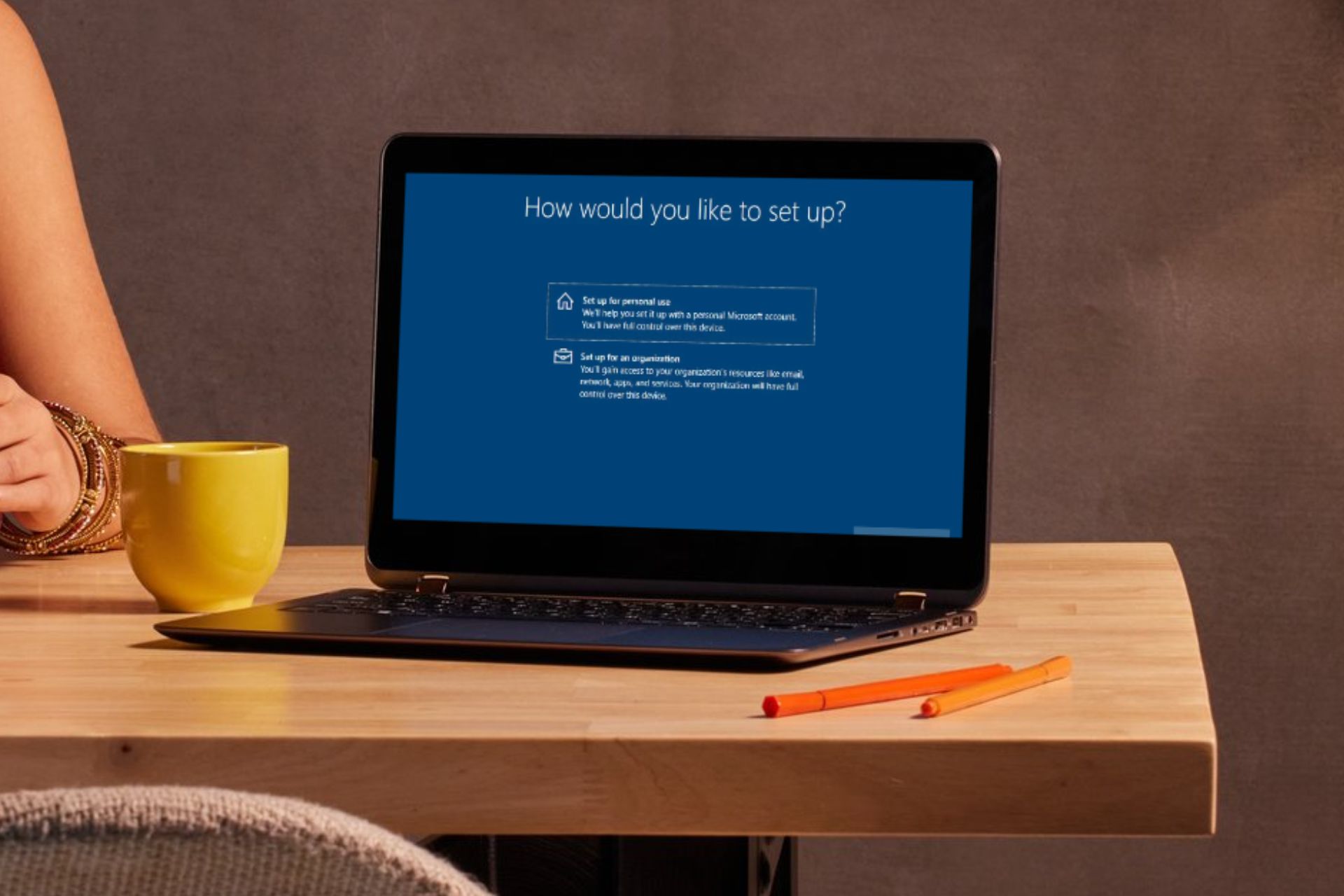
How to Install Windows 11 on a New PC Without an Operating System

A new PC comes as is without an operating system unlike ones that only require an upgrade to the latest Windows 11 OS.

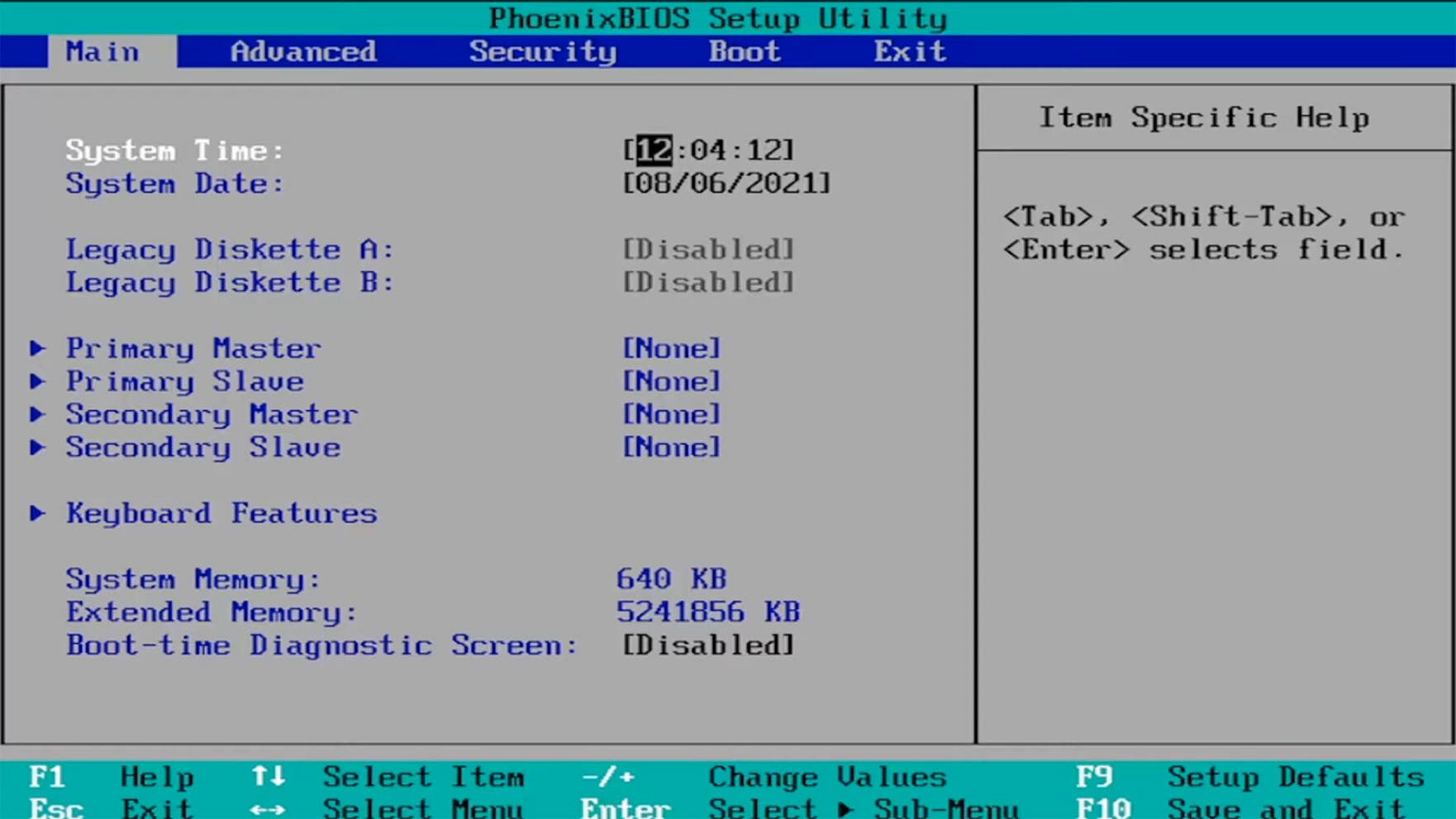
Without an operating system, a PC can only perform basic functions. You may be able to boot it but you’ll probably only be able to access the BIOS menu. To perform other functions, you’ll need to install an operating system so here’s how to start from scratch.

How do I install Windows 11 on a new PC without an operating system?

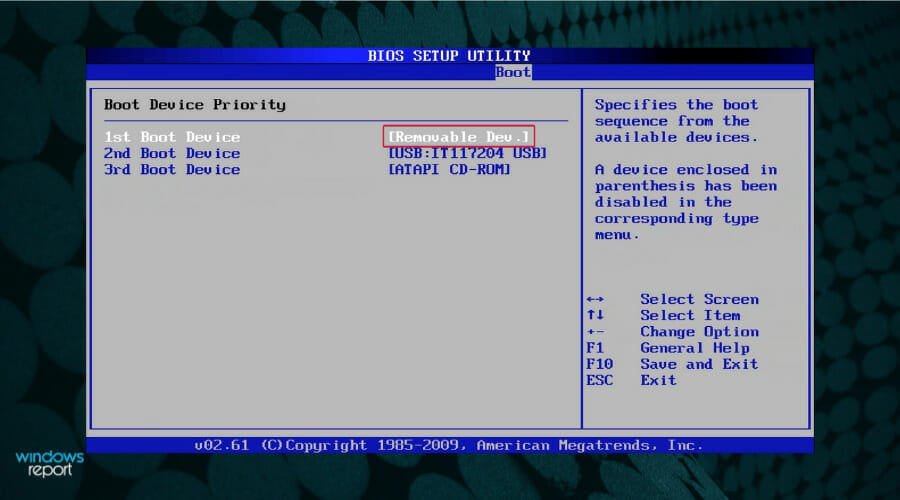
1. Change boot priority

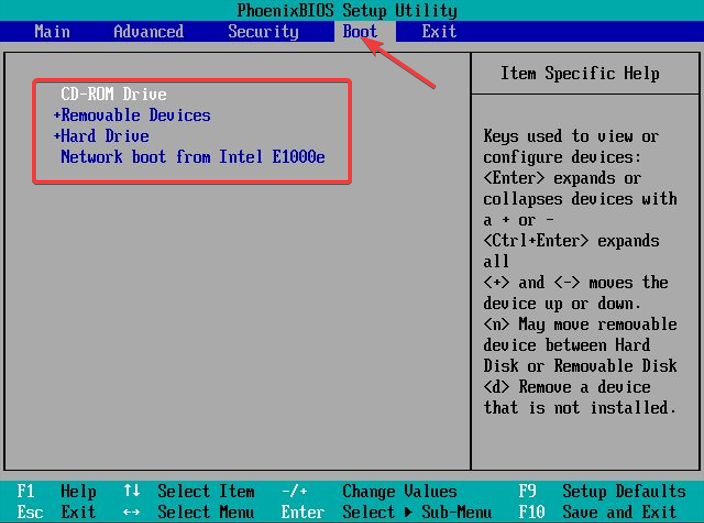
  1. Open the BIOS settings by pressing the F10, F2, F12, F1, or DEL keys constantly when the computer starts.Open BIOS
  2. After that, switch to the Boot tab. Then, under Boot Option Priorities, select Removable Drive s your preferred option and press Enter.

2. Download the Windows 11 Media Creation Tool

2.1 For PCs that meet Windows 11 system requirements

Note icon NOTE
For this procedure, you will need a USB flash drive of at least 8 GB in capacity.
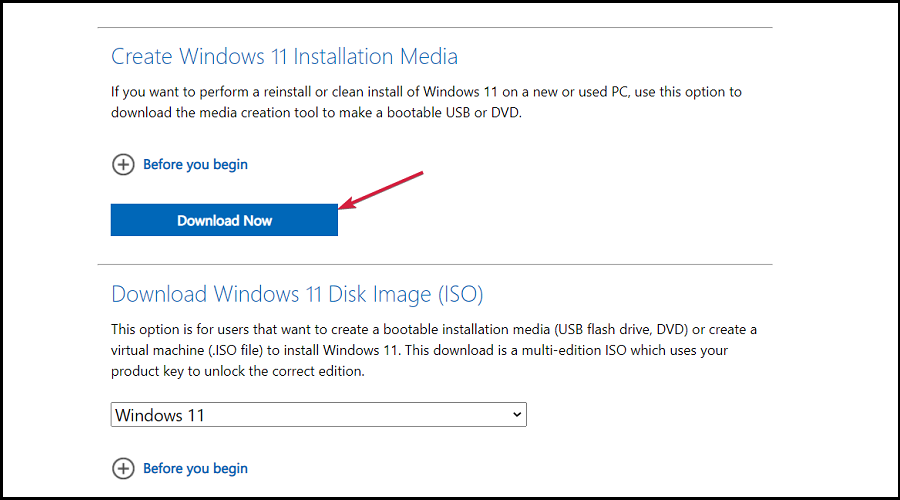
  1. Navigate to your browser and go to the Windows 11 Downloads page and click on Download now under Create Windows 11 Installation Media, to download the Windows 11 Media Creation Tool.
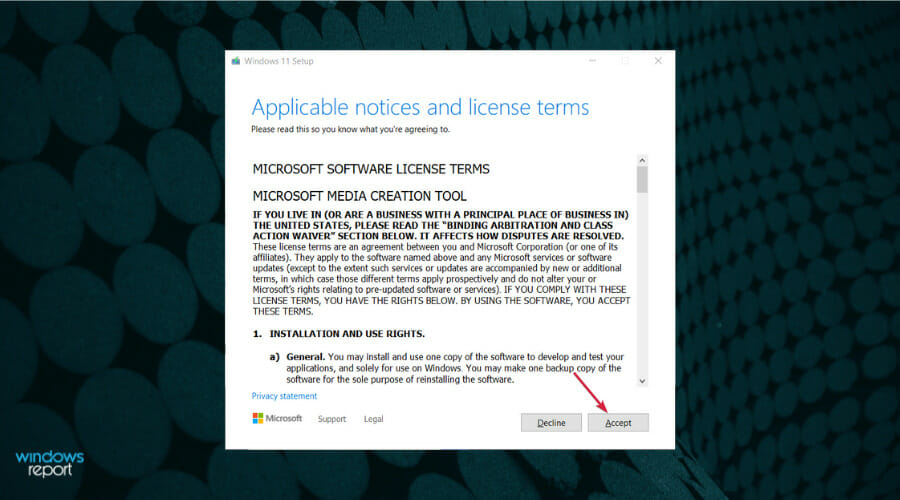
  2. Run the downloaded file to start the Media Creation Tool app. Start by accepting the license terms.
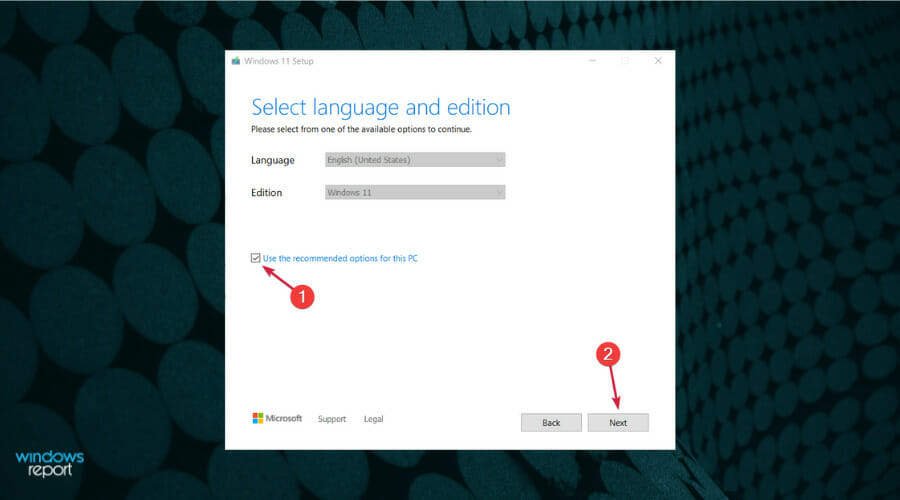
  3. Uncheck the Use recommended box if you want to change the Windows language, then hit the Next button.
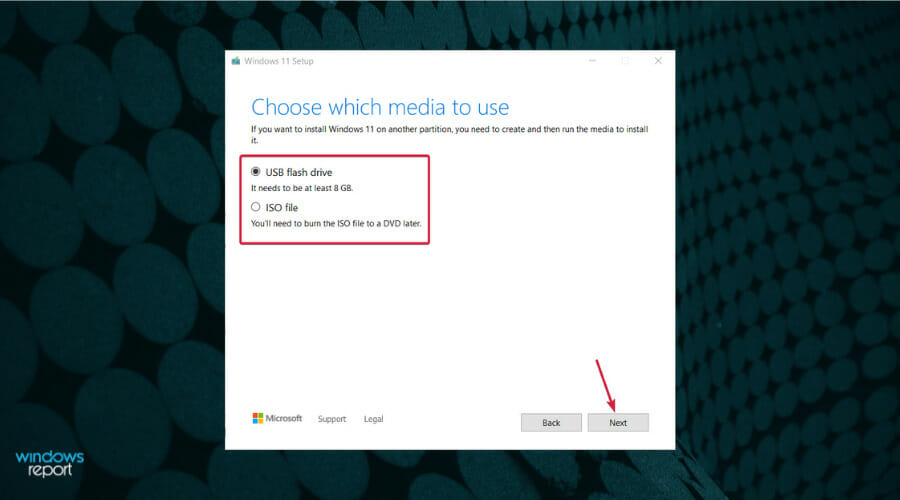
  4. Next, you can choose whether you want to create a bootable USB drive or just to save the Windows 11 ISO and use it later. Insert your USB drive and select the first option then click Next to create a bootable USB drive.
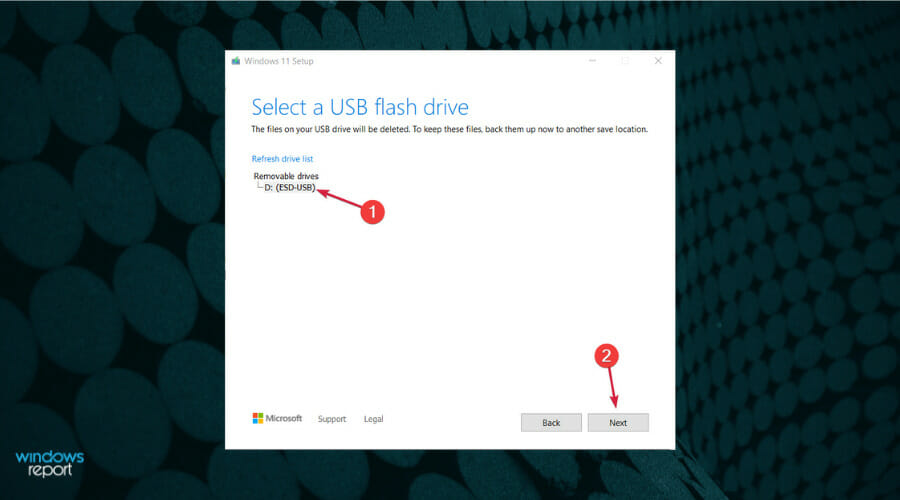
  5. Now select the drive you prepared and hit Next.
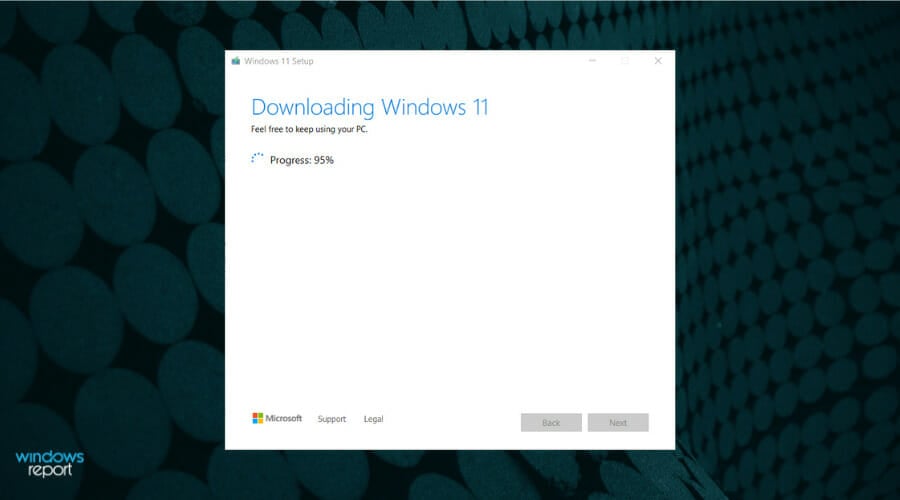
  6. The app will start downloading Windows 11, then verify the download and ultimately creating your Windows 11 bootable media you can use to install the new OS.

If your new PC meets the Windows 11 system requirements, the Windows ISO file from the official Microsoft site is the way to go. This ensures you get the most up-to-date version of Windows.

Need a detailed walkthrough to create the installer? Follow this step by step guide to make a Windows 11 bootable USB drive.

2.2 For PCs that don’t meet system requirements

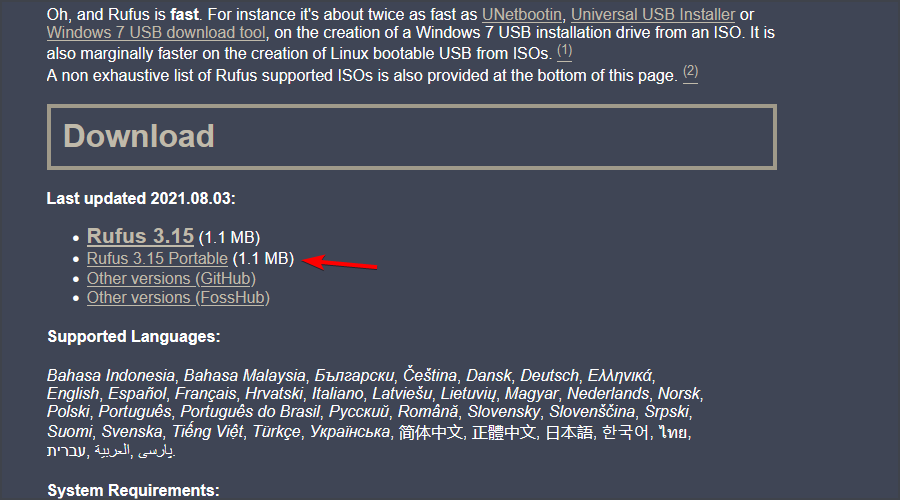
  1. Download Rufus.
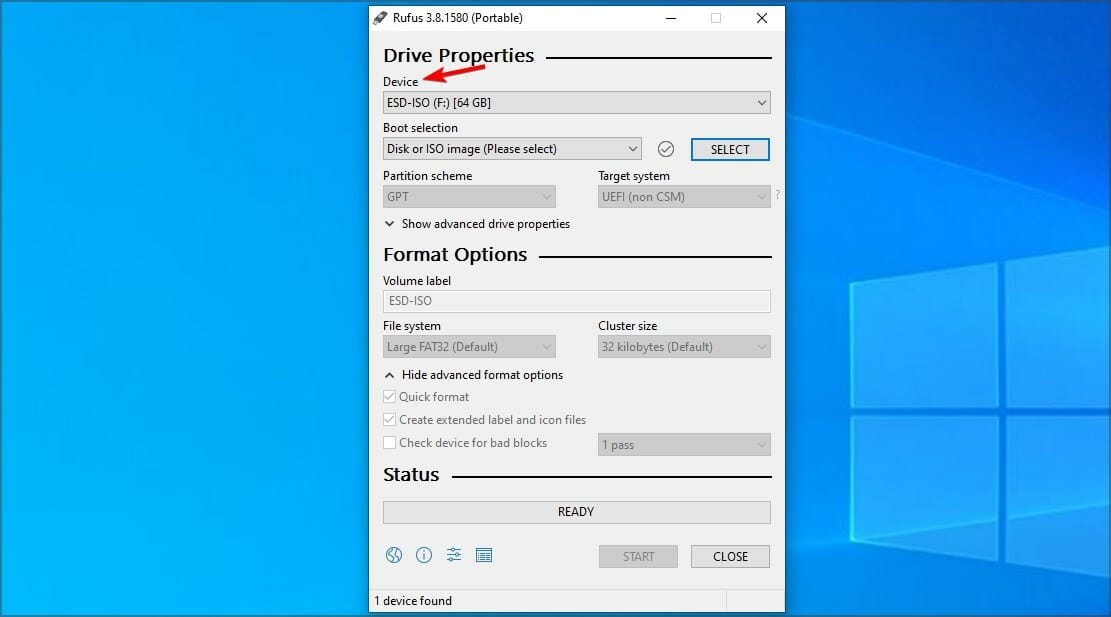
  2. Make sure that the correct device is selected. This is especially important if you have multiple USB storage devices connected to the PC.
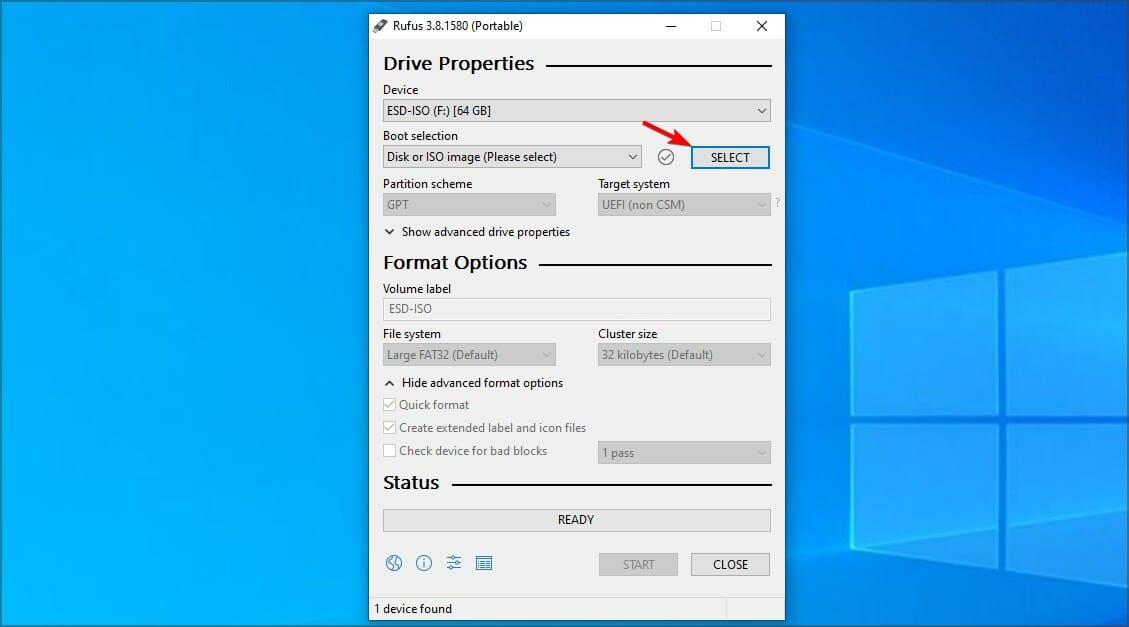
  3. Make sure that Boot selection is set to Disk or ISO image. Now click the Select button.
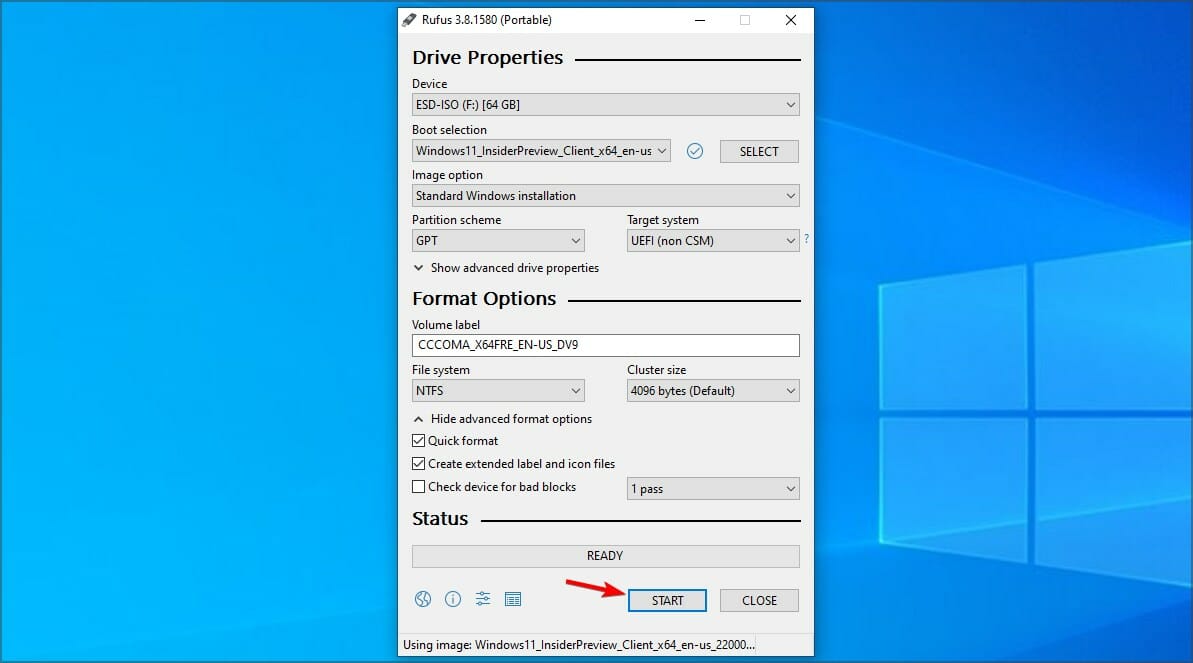
  4. Select the Windows 11 bootable ISO file.
  5. Set Image option to Standard Windows installation. Now set your Partition scheme to GPT.
  6. After doing that, click on Start.
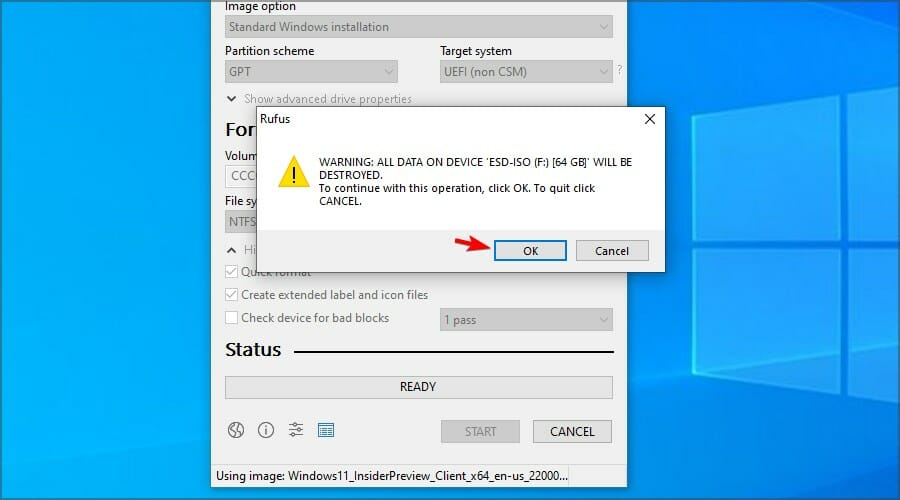
  7. A warning window will appear asking you to confirm that you want to format your flash drive. Select OK.
  8. Wait for the process to finish.

Aside from providing a loophole for when your new PC has failed to meet the minimum Windows 11 system requirements, Rufus also offers advanced features. These include customization options on your new OS like partition styles or even hardware configurations.

Just remember that installing Windows 11 on unsupported hardware may present some limitations.

3. Install Windows 11 on the new OS

  1. Restart your new PC with the bootable USB flash drive which has Windows 11 on it.
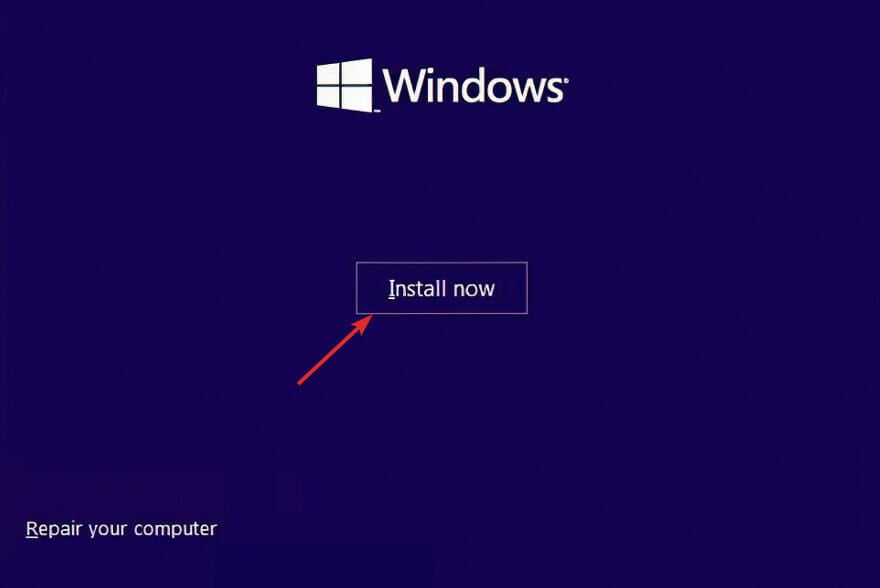
  2. Click on the Install now button then follow the onscreen steps to start the installation process.windows-install-now windows 11 setup without internet
  3. Press the I don’t have a product key button from the bottom side of the window if you don’t have one available.
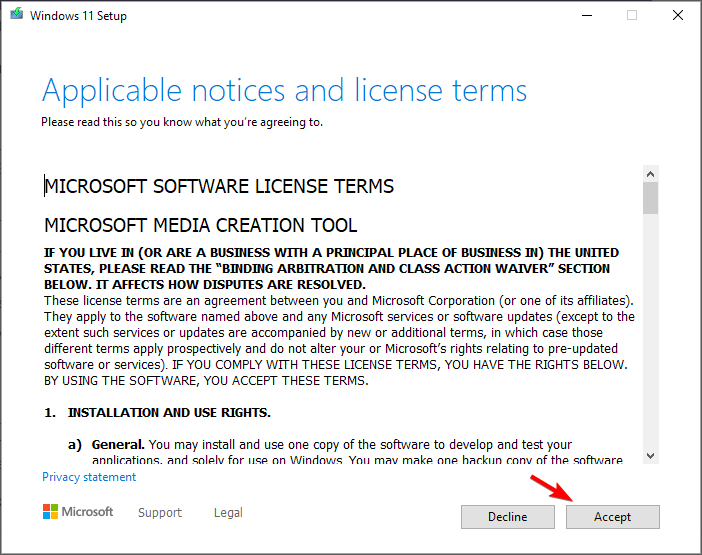
  4. Accept the terms of service and click Next.accept-terms-of-service-w11
  5. Next, choose the Custom installation option when they ask you what type you want to perform.choosing custom windows setup
  6. Select your region, and keyboard layout then once you get the Oops you’ve lost Internet connection screen, press SHIFT + F10 from your keyboard to open a Command Prompt window.
  7. Type the following command and press Enter:OOBE\BYPASSNROoobe windows 11 setup without internet
  8. Your computer will automatically restart and enter the Let’s connect you to a network screen. Here press the I don’t have Internet button. If you have an internet connection, press Next and plug in your Ethernet cable.lets-connect windows 11 setup without internet
  9. Next, click the Continue with limited setup button and proceed with the setup process.
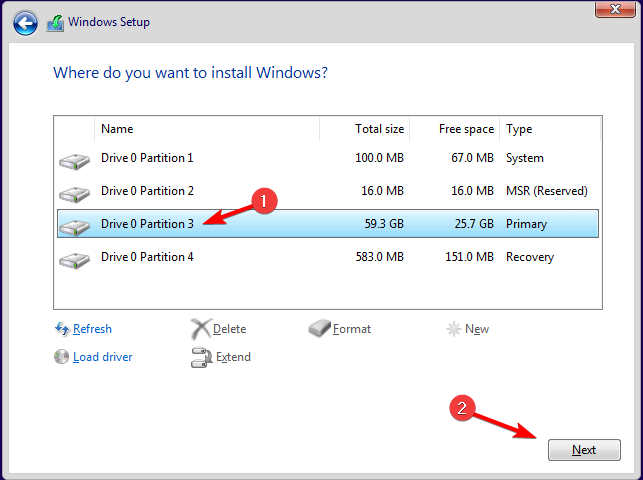
  10. Select the Primary drive and click Next. Double-check to make sure that you’ve selected the correct drive.select-drive
  11. Follow the instructions on the screen to complete the process.

4. Set up user account and password

  1. After the installation, you’ll be directed to the setup screen where you’re supposed to create a user account.
  2. You’ll be asked Who’s going to use this PC page. Enter your preferred name.
  3. From here, enter your security questions and follow the onscreen instructions to complete the installation.
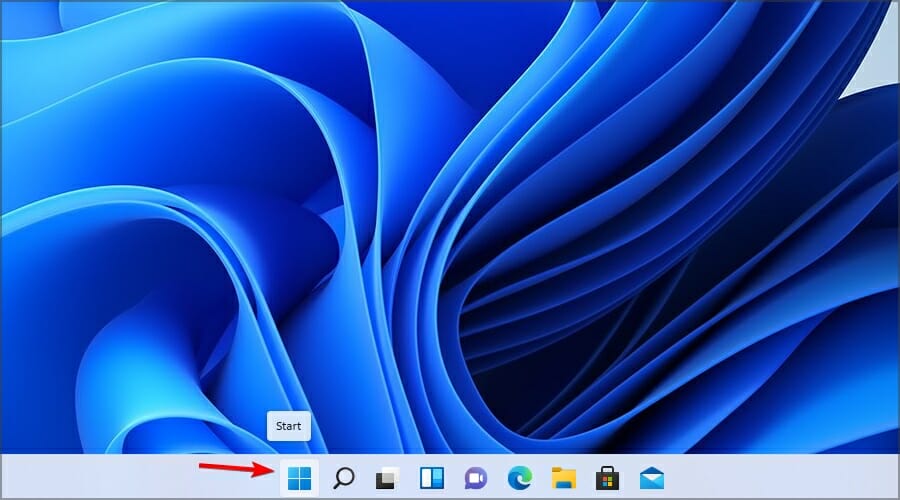
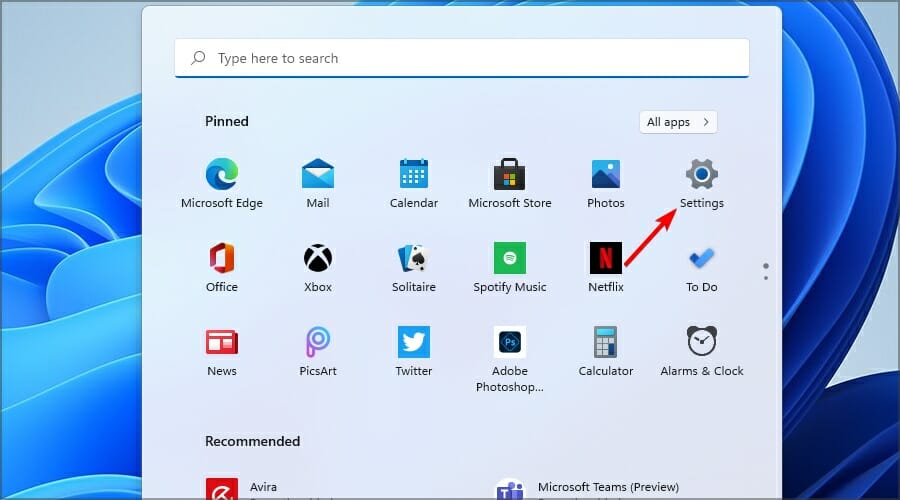
  4. Once you’re logged in, you can proceed to create a new user account or edit the one you logged in with to make yourself the administrator. Click the Start button in the Taskbar.
  5. Select Settings.
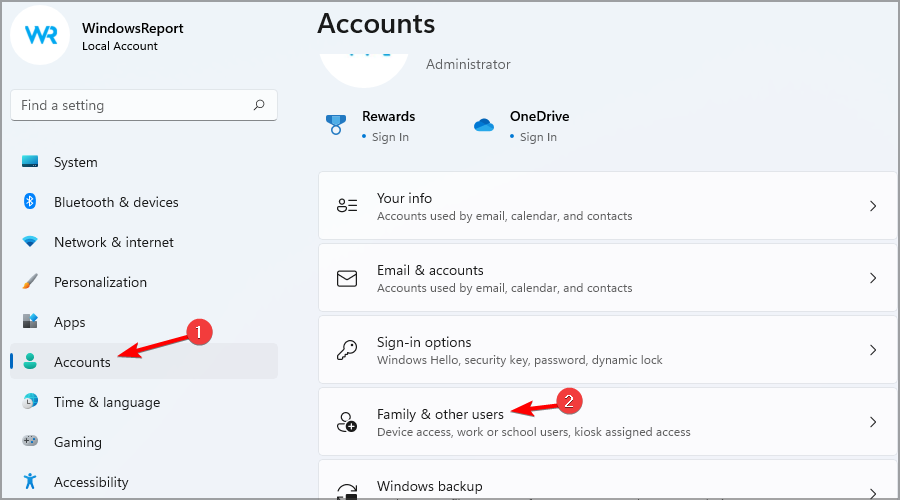
  6. Now go to the Accounts section and choose Family & other users.
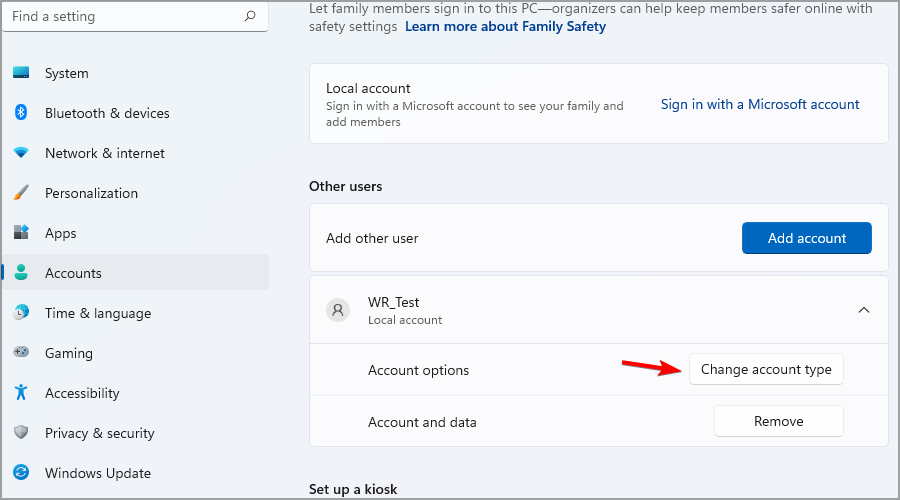
  7. Select the account that you want to change to administrator and click on Change account type.
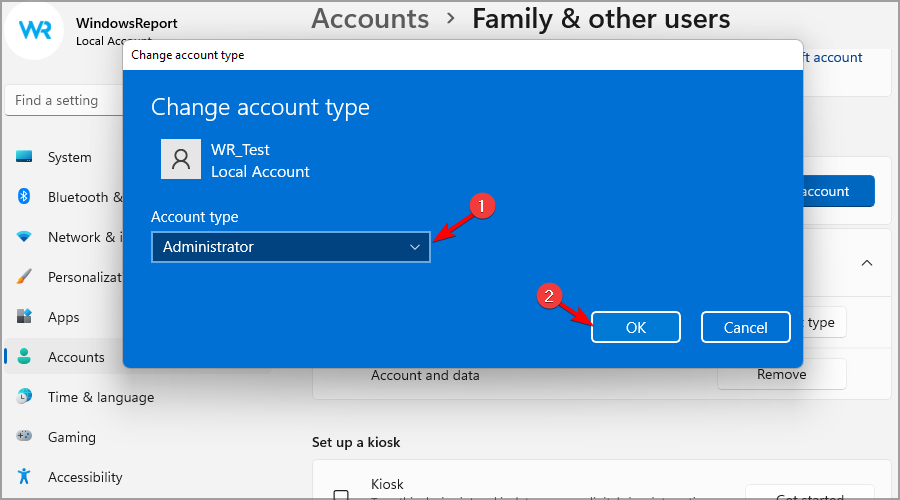
  8. Set the Account type to Administrator and click OK to save changes.

Should you encounter any boot problems, we’ve got answers in our dedicated guide. Once you’re in you’re good to go but we suggest you pass through our checklist for things to do with a new PC.

Since you’ve also installed Windows 11, we have another list on how to customize your PC to work for you.

If you’re new on the Windows 11 group chat, check out all the cool features you probably didn’t know about. You’ll be glad to know that you can transfer your old settings to a new PC as well as move old apps to your new PC.

With a new PC and OS, you’re bound to encounter errors so we came up with some of the most common Windows 11 bugs and how to resolve them.

Hopefully, the installation of Windows 11 on your new pC has been seamless and you can now dive into exploring the best OS yet.

If you’ve successfully installed the OS on your new PC, we’d like to hear about your experience. How easy or difficult was it? We’d like to get your thoughts on this so drop us a comment down below.

Did you know that you can view files in Windows 11 without opening them? Here’s how

When you are looking for a file but don’t remember the name and don’t want to waste your time opening several files to check the content, all you need is a file viewer.

File viewer software can help you view or check your files without opening them and can also help you view files if you don’t have compatible software to open them.

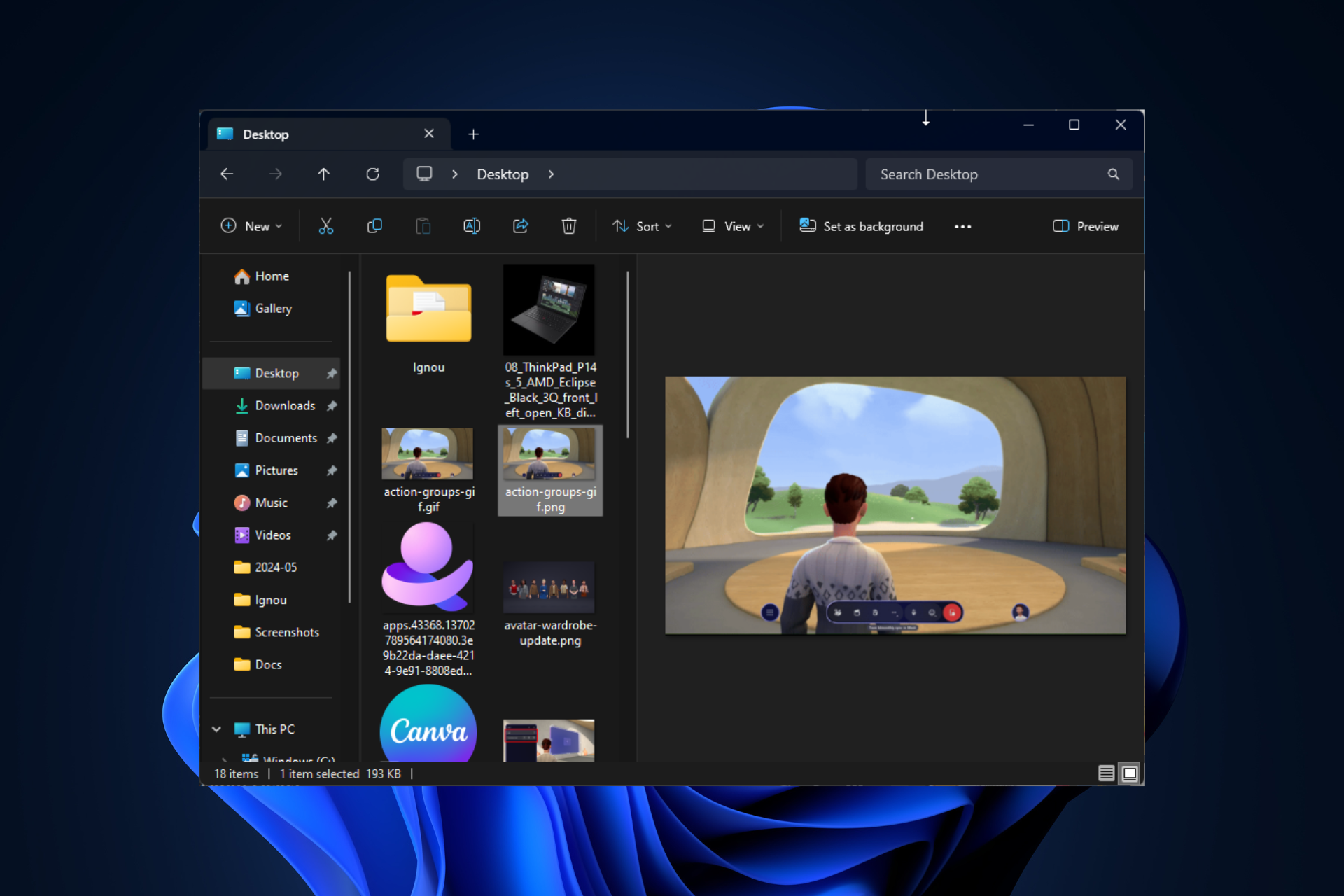
In Windows 10 and 11, File Explorer has a preview pane, saving you from loading a program to view a file. Furthermore, if you are a power user, you must have heard about PowerToys. Let’s discuss them both in detail.

Windows File Explorer Preview Pane

Windows File Explorer comes with a preview pane that acts as an inbuilt file viewer. To use it, press Windows + E to open File Explorer and go to the file you want to view. It could be a Word document, Excel spreadsheet, PDF, PowerPoint, or image.

If you can’t see the Preview pane in the File Explorer window, head to View, then from the drop-down, select the Preview pane.

Now click on the file you wish to view; it will appear in the preview pane. You can drag the separation bar left or right to increase or decrease the file’s width.

PowerToys Peek

If you want a utility with extra functionality to tune your Windows to your liking but don’t prefer third-party apps, PowerToys by Microsoft is just the tool for you. You can download this free tool from the Microsoft Store.

If you have PowerToys already installed, launch it, and from the left side pane, select Peek. Toggle on the switch for Enable Peek and make sure the activation shortcut Ctrl + Spacebar is also enabled.

Once you’ve done this, go to File Explorer, choose a file, and press the activation shortcut. A new window will open, showing you the file’s content.

To conclude, you can choose to either rely on the native features of Windows or the versatility of PowerToys, a utility for power users; you can access and preview different file types within a few clicks without even loading a specific application, thereby saving valuable time and streamlining workflow.

Which file viewer application do you rely on? Share your favorite file viewer software with our readers in the comments section below.

Google I/O 2026 came with announcements about future tools and features

Google I/O 2024 is a company event where executives present the most important announcements. For example, this year, the event focused on artificial intelligence. Thus, Google announced its goal to make AI more accessible to everyone. That’s why the company will bring various tools for developers. On top of that, some of its applications, such as Gmail, Google Maps, and Photos, will get AI enhancements.

What’s new in Google I/O 2024?

According to the announcements made during Google I/O 2024, the new tools are LearnLM, Firebase Genkit, Imagen 3, Veo, and Project IDX. You can find more about them below.

LearnLM is a family of generative AI models. Google partnered with GenMind to build them. Their purpose is to help teachers with lesson planning and content discovery. Also, they can conversationally tutor students. Besides that, LearnLM provides opportunities for active learning, presents information in multiple ways, adapts to the needs of its students, stimulates curiosity, and deepens metacognition.

Firebase Genkit is an open-source framework that allows you to integrate AI into JavaScript/TypeScript and Go applications that use Node.js. With it, you can build AI features in mobile and web apps. In addition, it gives you access to templates, plugins, and simple abstractions to make your development more efficient.

Imagen 3 is Google’s image-generating tool, and this version has better accuracy, creativity, detail, and text rendering capabilities than the previous one. Hopefully, the new model won’t repeat the mistakes of Imagen 2.

Veo is an AI model that generates 1080p video clips from text prompts. The tool could potentially rival Sora AI and other models. Also, it will be available to some creators using VideoFX. So, if you want to try it, join the waitlist.

Project IDX is an AI-assisted workspace that integrates with Google Cloud, Google Maps Platform, Chrome Dev Tools, and Lighthouse. In addition, you can access Gemini from within it, and it can help assist you with coding. Also, it offers templates for frameworks and supports various languages.

New features and enhanced capabilities

Based on the announcements from the Google I/O 2024, there will be new features for YouTube, Google Play, Android, and Google Photos. Also, Google will add enhanced capabilities for its search engine, Circle to Search, Gemini, and Gemma 2.

YouTube‘s new feature brings AI-generated quizzes to its educational videos. As a result, it will be easier to ask questions, receive explanations, and test your knowledge. 

Google Play will have a new immersive app discovery feature and better user acquisition tools. In addition, it will receive some updates for its developer tools like Google Play SDK.

Google Photos will get the Ask Photos feature that uses AI to help you search through your photo collection.

Circle to Search, the AI-powered Android feature, is also getting enhancements and will be better at solving complex math and physics problems.

Scam Detection During Calls is another enhancement for Android. It will use Gemini Nano to scan conversation patterns to detect scams during calls.

Gemini received more improvements than any other tool. The AI assistant will support larger documents, codebases, videos, and audio recordings. Also, the new feature, Gemini Live, lets you converse with the AI. On top of that, it can respond to visual input and adapt to speech patterns.

In a nutshell, these are the most important keynotes from Google I/O 2024. The company also announced the Pixel 8a smartphone and the Pixel Slate tablet. Besides, Google has new Tensor Processing Units (TPUs) that will bring a significant performance boost and better capabilities for AI workloads.

Will you be using any of the new tools from Google? Let us know in the comments.

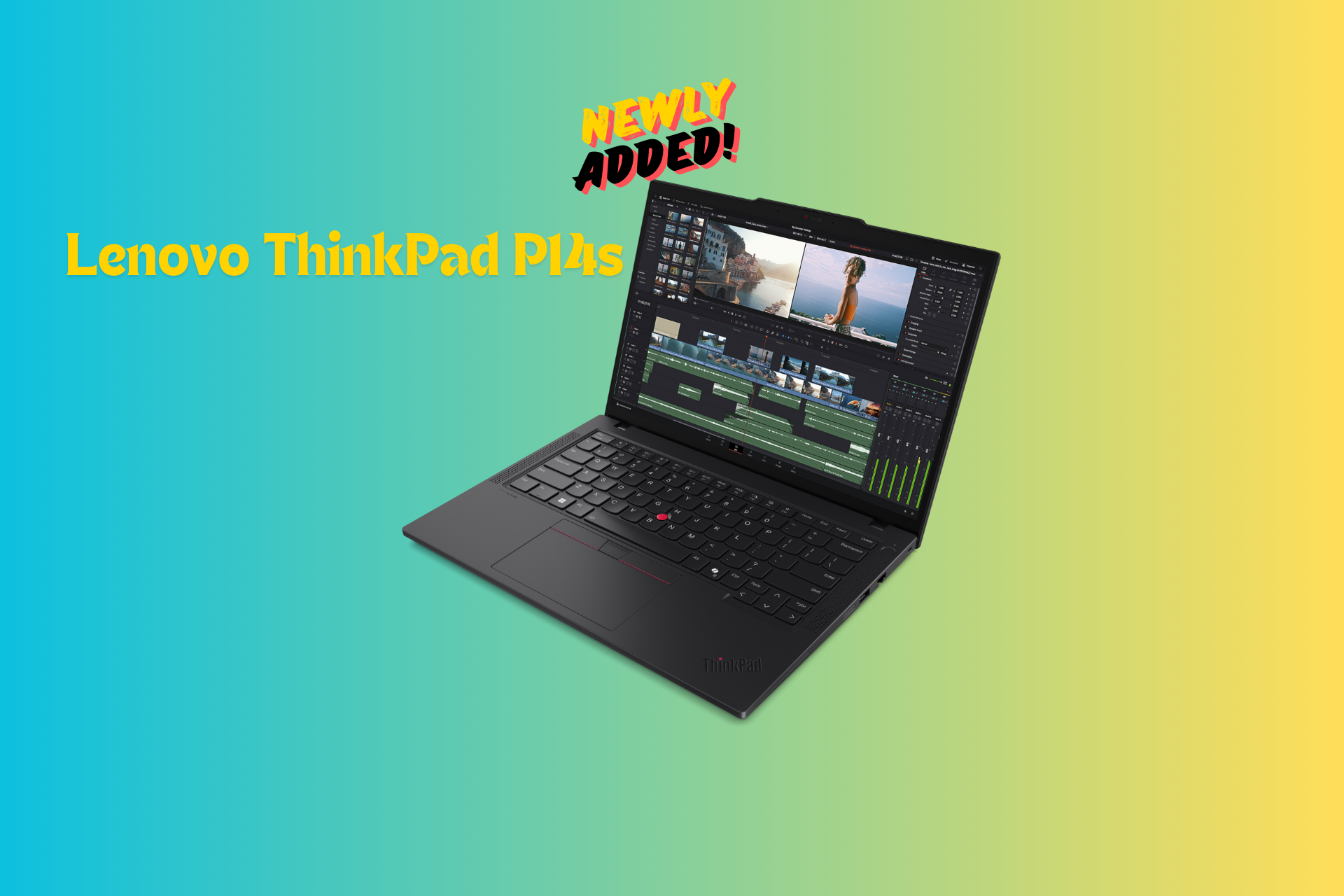
Lenovo ThinkPad P14s now comes with Ryzen Pro 8040 HS processor

The sleek Lenovo ThinkPad P14s Gen 5 notebook will now support the AMD Ryzen PRO 8040 HS processor. It can be ordered with up to 96 GB RAM and 2 TB storage.

Here are the specifications for the device:

Processor AMD Ryzen 7 PRO 8840HS processor with AMD Ryzen AI
Graphics cardup to AMD
Radeon 780M, AMD RDNA 3
Architecture + AMD PRO Graphics Driver
Operating systemWindows 11 Pro
Windows 11 Home
Ubuntu Linux1
Red Hat Enterprise Linux2
Fedora Linux1
Total Memory Up to 96GB DDR5 5600MHz
Memory DIMM Capacity8GB / 16GB / 32GB / 48GB
Storage up to 2TB PCIe 4×4 Performance SSD
Display 14″ 16:10 Display
1. 2.8K OLED (2880 x 1800)
IPS 400nit, 100% DCI-P3, X-Rite FCC,
Anti-Glare/Anti-Reflective, Low Blue
Light, TÜV Eyesafe
2. WUXGA (FHD+) (1920 x 1200)
IPS, Touch, 500nit, Privacy Guard,
100% sRGB, Anti-Glare
IPS, 400nit, 100% sRGB, ICC Template
color calibration, Anti-Glare, Low Blue
Light, TÜV Eyesafe
IPS, Touch, 400nit, 45%
CG, Anti-Glare, 3M Dual Brightness
Enhancement Film 5
IPS, 400nit, 45% CG, Anti-Glare, 3M
Dual Brightness Enhancement Film 5
ConnectivityWi-Fi 6E3 Qualcomm NFA-725A
Bluetooth 5.34
Quectel 5G RM520N-GL
with QC SDX622,5
Quectel CAT16 EM160R-GL
with QC X242,5
Near Field Communication (NFC)
Camera5MP RGB Camera with ThinkPad
Webcam Privacy Shutter
5MP RGB + IR with ThinkPad Webcam
Privacy Shutter and Human Presence
Detection
Ports(2) USB-A (5Gbps)
, 1 Always On
(2) USB-C® Thunderbolt 4
(1) HDMI 2.1 TDMS
(1) Mic/Headphone Combo Jack
(1) RJ-45 Gigabit Ethernet
(1) Smart Card Reader2
(1) Nano SIM2
Battery Life 39.3WHr
52.5WHr
Power Supply65W AC Adapter Type-C
WeightStarting at 1.31kg / 2.89lbs
Starting price$1,379
Availability May 2024

This laptop is designed for professionals who require the best performance in a portable laptop. The processor included is not only fast but also energy-efficient.

As every manufacturer is working on AI PCs, Lenovo has also included AMD Ryzen PRO HS- Series processors, which come with inbuilt artificial intelligence capabilities and a Neural Processing Unit (NPU), making it the next-gen device.

Thanks to integrated AMD Radeon graphics, you will be able to run applications like AutoCAD, Revit, and SOLIDWORKS without problems.

To conclude, Lenovo AI PC ThinkPad P14s Gen 5 Mobile Workstation is ready for the future and recommended for mobile power users.

Would you consider buying this robust, compact AI-powered laptop? Share your thoughts with our readers in the comments section below.

With GPT-4o already released, here’s how you can switch to it for better results

You must have heard about OpenAI unveiling their latest model, GPT-4o, a massive improvement over GPT-4, with better performance and faster speed. The best part is that you can use GPT-4o right away in ChatGPT across all devices, be it mobile, desktop app, or PC.

OpenAI, in the official blog post, has confirmed the immediate availability of GPT-4o to ChatGPT Plus and Team users, in addition to the free ones. However, it will be released for Enterprise customers later.

Even the plans window in ChatGPT has been updated to include the latest model. It now lists Limited access to GPT-4o under the Free plan, Up to 5x more messages for GPT‑4o under the Plus plan, and Higher limits for GPT-4, GPT‑4o… under the Team plan. So, it’s evident that the model is available across the three, albeit with limited access!

ChatGPT plans

How can I use GPT-4o?

1. On the ChatGPT website

If you are eligible for the model, OpenAI will send a prompt asking you to switch to GPT-4o. I, being a free user, received the prompt and quickly switched to the latest model.

On my end, I see a few changes. Now, instead of listing the GPT-3.5 and GPT 4 models, it just says ChatGPT and ChatGPT Plus. The URL, of course, has changed from chatgpt.openai.com to chatgpt.com!

To verify if I was on GPT-4o, I asked ChatGPT a quick question and then clicked on the Change model option at the end of the response. To my surprise, I was using GPT-4o on ChatGPT, and that too as a free user.

GPT-4o as the selected model in ChatGPT

On another account, though, it still didn’t offer GPT-4o, confirming that this is a phased rollout. The interface was the same as earlier, except for the new URL.

GPT-4o not available on the other account

If you are a free ChatGPT user, open the website and see if you are prompted to try out the new model. For Plus and Team users, the GPT-4o should appear alongside the other models.

2. ChatGPT mobile app

Once you have switched to GPT-4o on the web, the changes will reflect for the account in the ChatGPT iOS app. To verify which model you are currently on, simply tap on the ChatGPT option at the top, and the current model will be listed at the top.

For others who haven’t yet switched to GPT-4o, the model should be listed alongside GPT-3.5 and GPT-4 in the dedicated menu near the top right. So, you can always make the switch from there, given the model is available for your account!

3. ChatGPT desktop app

OpenAI has released a ChatGPT app for macOS, and if you have already got that, it’s slightly trickier to use GPT-4o, but nonetheless, shouldn’t take more than a few minutes.

First, when you open the ChatGPT website, it will show you a Download button to get the app. From there on, you will be able to change the GPT model.

Some users also downloaded the app from third-party sources, as shown in several tutorials, but I would recommend waiting for the app to be available for your account.

Even downloading it from other sources doesn’t whitelist your account. If it’s not yet available, you will get an error!

Error in ChatGPT app on macOS

Besides, do not forget that the rollout is gradual, so it might take a while for GPT-4o to be available for use.

In case you are on Microsoft Azure, GPT-4o is now available in Azure AI!

What do you think about the latest GPT-4o model? Share with our readers in the comments section.

Windows Server KB5037782 update brings quality improvements and fixes the NTLM bug

Recently, Microsoft acknowledged that KB5036909, released on April 9, 2024, had bugs that caused various issues, including NTLM traffic spikes in Domain Controllers (DCs) and LSASS crashes.

Microsoft fixed the issue with the latest update, released on Tuesday, 14 May 2024, which is also called the Patch Tuesday update. This update brings the version to OS Build 20348.2461.

As mentioned on the Microsoft Learn website, the NTLM traffic issue was resolved on 2024-05-14, 10:00 PT; here is what the resolution in the notes says:

Resolution: This issue was resolved by Windows updates released May 14, 2024 (KB5037782), and later. We recommend you install the latest security update for your device. It contains important improvements and issue resolutions, including this one.

This issue affected these platforms:

  • Windows Server 2008
  • Windows Server 2008 R2
  • Windows Server 2012
  • Windows Server 2012 R2
  • Windows Server 2016
  • Windows Server 2019
  • Windows Server 2022

Here is the list of other quality improvements added in the  KB5037782 Server update

  • This update addresses a known issue that might affect domain controllers (DC). NTLM authentication traffic might increase.
  • This update addresses an issue that affects IE mode. A webpage stops working as expected when there is an open modal dialog.
  • This update addresses an issue in that affects IE mode. It stops responding. This occurs if you press the left arrow key when an empty text box has focus and caret browsing is on.
  • This update addresses an issue that affects Wi-Fi Protected Access 3 (WPA3) in the Group Policy editor. HTML preview rendering fails.
  • This update addresses an issue that affects a server after you remove it from a domain. The Get-LocalGroupMember cmdlet returns an exception. This occurs if the local groups contain domain members.
  • This update affects next secure record 3 (NSEC3) validation in a recursive resolver. Its limit is now 1,000 computations. One computation is equal to the validation of one label with one iteration. DNS Server Administrators can change the default number of computations. To do this, use the registry setting below.
    • Name: \HKEY_LOCAL_MACHINE\SYSTEM\CurrentControlSet\Services\DNS\Parameters\MaxComputationForNsec3Validation
    • Type: DWORD
    • Default: 1000
    • Max: 9600
    • Min: 1
  • This update addresses an issue that affects a network. An error occurs when credentials expire.
  • This update addresses an issue that occurs when you use LoadImage() to loada top-down bitmap. If the bitmap has a negative height, the image does not load, and the function returns NULL.
  • This update includes quarterly changes to the Windows Kernel Vulnerable Driver Blocklist file, DriverSiPolicy.p7b. It adds to the list of drivers that are at risk for Bring Your Own Vulnerable Driver (BYOVD) attacks.
  • This update addresses an issue that affects a workstation that is not in a domain. When you connect from it to a share and use an IPV6 address, you get the error, “ERROR_BAD_NET_NAME.”
  • This update addresses a known issue that might cause your VPN connection to fail. This occurs after you install the update dated April 9, 2024, or later.
  • This update addresses an issue that might affect Virtual Secure Mode (VSM) scenarios. They might fail. These scenarios include VPN, Windows Hello, Credential Guard, and Key Guard.
  • This update addresses an issue that affects Group Policy Folder Redirection in a multi-forest deployment. The issue stops you from choosing a group account from the target domain. Because of this, you cannot apply advanced folder redirection settings to that domain. This issue occurs when the target domain has a one-way trust with the domain of the admin user. This issue affects all Enhanced Security Admin Environment (ESAE), Hardened Forests (HF), or Privileged Access Management (PAM) deployments.
The resolution or the list of improvements does not mention the LSASS crashes issue, so we are unclear whether it has been resolved.

Microsoft also mentioned a known issue in the update:

SymptomWorkaround
After installing this update, you might be unable to change your user account profile picture.When attempting to change a profile picture by selecting the button Start> Settings > Account > Your info and, under Create your picture, clicking on Browse for one, you might receive an error message with error code 0x80070520. We are working on a resolution and will provide an update in an upcoming release

To install the update, you can simply head to Settings>Windows Update, or you can also download & install the update from the Microsoft Update Catalog website.

Have you installed the update yet? If so, share your experience with our readers in the comments section below.

Microsoft Mesh new update adds new professional wardrobe styles to the Avatar builder

Microsoft released a new update for Mesh, adding features like Action groups, which are now available at the event, and new professional wardrobe styles for the Avatar builder. The update has brought Microsoft Mesh to the 5.2405.0  version. Let’s know more!

What are the new features?

Action groups availability

  • Action groups are available in event or template customization flow, which allows an organizer to control multiple objects in an event with the control panel to change the environment according to the event’s needs.
  • With a push of a button, you can also display several images of your team & play a video or show a ScreenShare screen and show other images simultaneously.

Avatars

avatar-wardrobe-update
  • More professional wardrobe styles will now be available from the Avatar builder.
  • You can customize your avatar and check out all the updated looks available.

ScreenShare

Earlier, event hosts couldn’t check their screen on ScreenShare objects. However, with the new update, you can see your ScreenShare when you share your screen in Mesh. This change can resolve the usability limitation issues and improve the sharing experience for hosts.

Furthermore, if you are using PowerPoint for a presentation on a ScreenShare object, you can now use PowerPoint Slideshow to display content. Mesh will now show the presenter view of a PowerPoint presentation.

Search and filter

customization

If you want to search for objects or controls in a customization session for a template or an environment, you can use search and filter for content in the Editor and Control panel.

The official blog post also mentioned resolved fixes:

In the previous release there was requirement that single room and multi-room events required the same firewall and port configurations. This issue is resolved. For info on the firewall and port requirements, please see Endpoints and firewall ports for immersive spaces in Mesh (Mesh app).

Have you downloaded the latest version of Microsoft Mesh? If so, share your experience with our readers in the comments section below.

AMD Ryzen 7900X3D and 7800X3D are up to 35% off

AMD is well-known for its processor, with the Ryzen series being the most popular on the market due to its performance.

In case you’re looking for a processor that can handle gaming, you’ll be pleased to know that several Ryzen models are available at a discount.

You can get Ryzen 9 7900X3D and AMD Ryzen 7 7800X3D at a discount

AMD Ryzen series is a no.1 choice for many gamers due to its performance, but if you find them too expensive, you’ll be happy to hear that two popular models are now available at a discount as TechRadar writes.

The first model is Ryzen 9 7900X3D, and this model comes with a 12-core processor as well as 3D V-Cache technology.

As for other specs, it comes with 128MB of L3 cache, so it will be perfect for gaming and other demanding task.

The second CPU on our list is AMD Ryzen 7 7800X3D, and unlike the previous model, this one comes with 8 cores as well as 96MB of L3 cache. On the bright side, it also uses the 3D V-Cache technology, so it offers great performance, but not as Ryzen 9 7900X3D.

Both models are available at a discount at Micro Center and you can get Ryzen 9 7900X3D for $385 and Ryzen 7 7800X3D for $350, so if you’re building a gaming PC, don’t miss them.

If you’re a fan of AMD, you should know that AMD Zen 5 CPU architecture won’t support Windows 10 drivers.

In other news, AMD has gained CPU market share in the first quarter of 2024, proving the quality of its products.