Microsoft announces WordPress on App Service free hosting plan is generally available

Microsoft released the public preview of a free hosting plan for WordPress on App Service on September 5, 2023. After months of previewing the service, Microsoft finally made it available to the general public.

Let’s talk about the features and what things you need to keep in mind while using the service.

Features & Limitations of the free hosting plan

Features

  • PhpMyAdmin for database management
  • Easy and Automated deployments from the Azure Portal
  • Accelerated WP Admin utilizing local storage caching
  • Inbuilt Redis cache

Things to keep in mind

  • App Service F1 plan has limited capabilities when compared to Shared, Basic, or Standard plans
  • With the free hosting plan, you don’t get integration with Paid services such as CDN, Blob Storage, Front Door, and Email Service
  • Azure Database for MySQL comes with 750 hours of Burstable B1ms instance for this free hosting plan
  • Local storage caching is limited to 500 MB. Therefore, it is advised not to exceed 500 MB in themes, content, and plugins.

Limitations

  • As you are using a free plan for App Service, you will not support Scale capability and the Always On feature, as they are disabled for F1 SKU.
  • No VNET support is included; therefore, you can’t configure your WordPress site on a free trial within a VNET, but you can configure the database behind the private endpoint to secure your data.

How can I monitor and track free service usage?

First, you will not be charged for the Azure App Service F1 SKU, which is free. In addition, you won’t have to pay for Azure Database for MySQL—Flexible Server services, which are included for free with your Azure free account unless you exceed the free service limits.
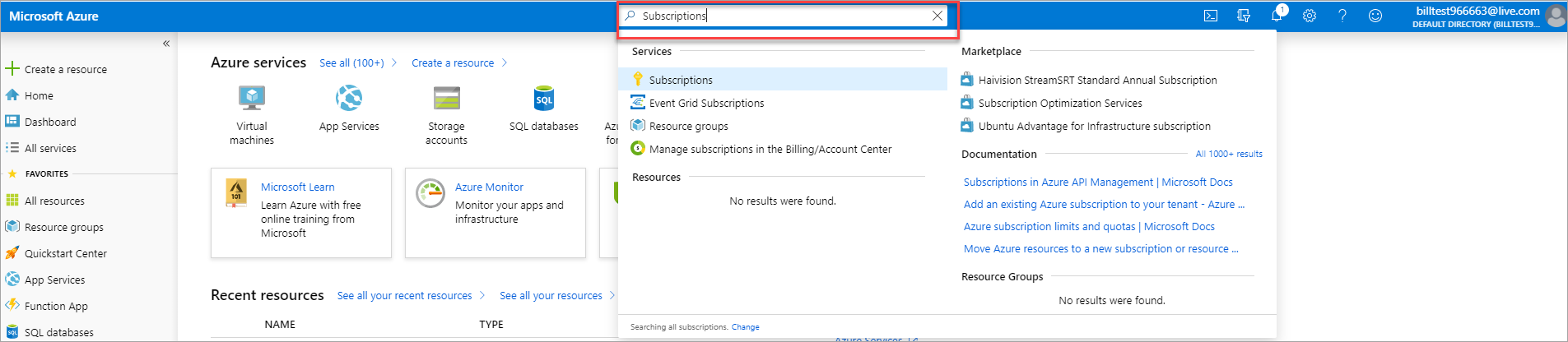
To track it, go to the Azure portal and click on Subscriptions. Then, choose the subscription created when you signed up for the free Azure account.

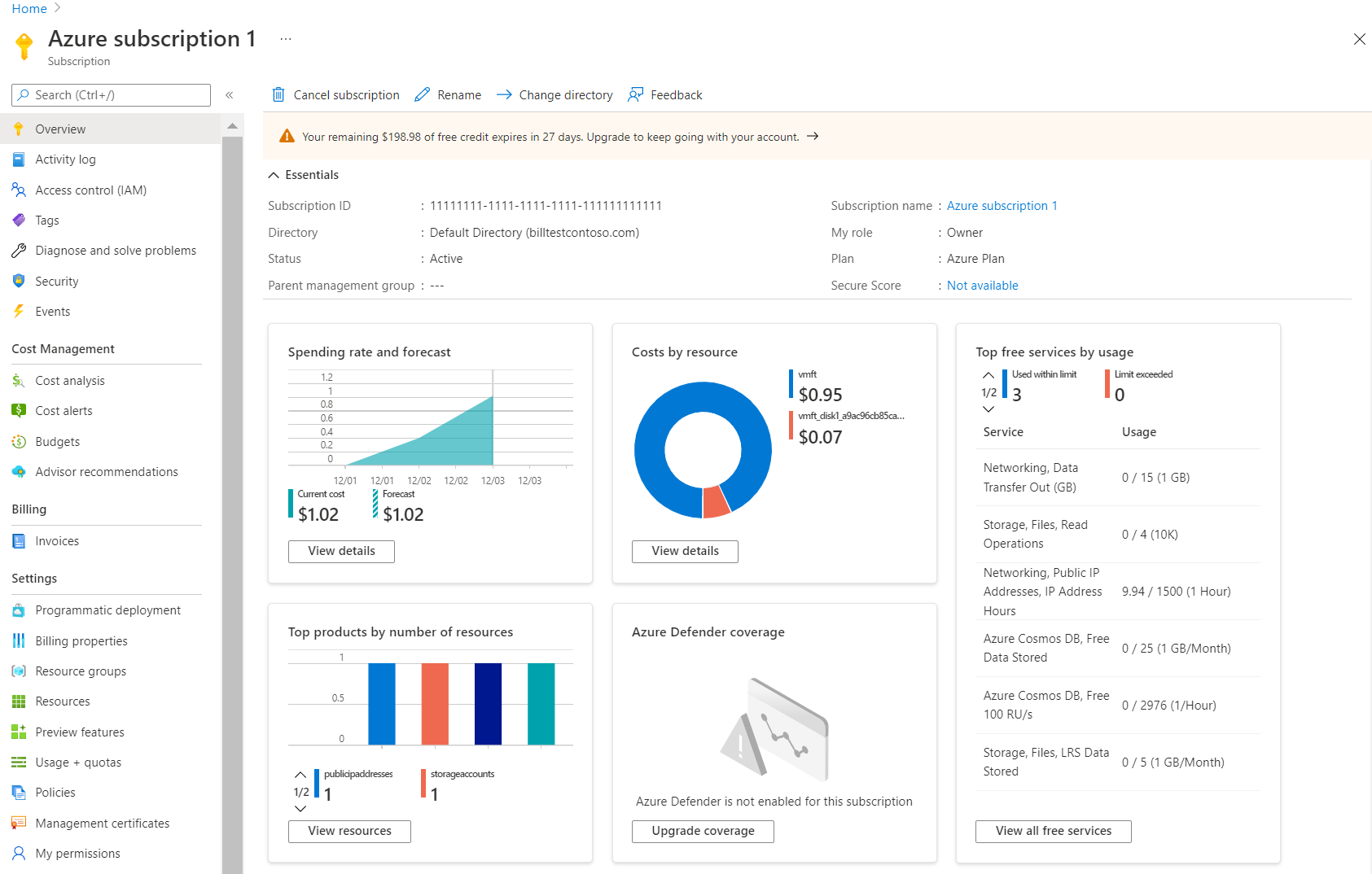
The page below shows your free service usage, including Spending rate and forecast, Cost by resource, Top free services by usage, Top products by number of resources, and Azure Defender coverage.
You can try out the free hosting plan by creating a student account using your college student/teacher/professor credentials. Else, you can create a free Azure account.

Let’s check out the hosting plans:

Hosting PlanWebApp ServerDatabase Server
FreeF1 Free Tier(60 CPU minutes per day, 1 GB RAM, 1 GB Storage)Burstable, B1ms Free trial(1 vCores, 2 GB RAM, 32 GB storage, 396 IOPS)
BasicB1(1 vCores, 1.75 GB RAM, 10 GB Storage)Burstable, B1s(1 vCores, 1 GB RAM, 20 GB storage, Auto IOPS)
StandardP1V2(1 vCores, 3.5 GB RAM, 250 GB Storage)Burstable, B2s(2 vCores, 4 GB RAM, 128 GB storage, Auto IOPS)
PremiumP1V3(2 vCores, 8 GB RAM, 250 GB Storage)General Purpose, D2ds_v4(2 vCores, 16 GB RAM, 256 GB storage, Auto IOPS)

The free hosting plan takes advantage of App Service F1 free tier and Azure Database for MySQL free trial. However, you need to check the eligibility, and it depends on your subscription type. Here is the list:

Subscription TypeApp Service F1Azure Database for MySQL B1ms
Free AccountFree Forever750 hours per month for 12 months
Student AccountFree Forever750 hours per month for 12 months
Pay as you go with Free OfferFree Forever750 hours per month for 12 months
Pay as you goFree ForeverChargeable

What do you think about the WordPress on App Service free hosting plan? Share your opinions with our readers in the comments section below

Get GeForce RTX 4070 Ti SUPER at 28% off for maximum gaming performance

GeForce is well-known in the gaming community for its high-quality GPUs and amazing performance.

Many were excited when the GeForce RTX 4070 Ti SUPER was released, and the GPU is now available with an amazing discount.

Don’t miss this amazing GeForce RTX 4070 Ti SUPER discount

GeForce RTX 4070 Ti SUPER offers amazing performance, and it’s about 10% more powerful than the regular model according to IGN.

Unlike the regular model that has only 12GB RAM, this one has 16GB allowing it to handle any task with ease.

As for gaming, it’s a great graphics card for 1440p resolution, but it can also handle some games in 4K as well. This is a PNY model that comes with triple fans and active cooling with an aluminum backplate.

Regarding connectivity, you can find three DisplayPorts and one HDMI 2.1 port. Dell currently has this card available at 28%, so you can get it for $749.99!

If you’re looking for a complete gaming desktop, then consider getting this HP OMEN 40L while the discount lasts.

If you prefer laptops, you can also get ASUS TUF A17 for $300 off, so don’t miss it!

Chrome is receiving Auto Picture-in-Picture for videos

Google is expanding the Auto Picture-in-Picture (Auto PiP) feature beyond video conferencing web apps to video playback in the Chrome browser on Windows, Mac, Linux, and ChromeOS.

The feature is currently being tested in the Canary channel, you can expect YouTube to support Auto PiP with videos in Chrome.

Auto PiP allows videos to automatically enter Picture-in-Picture mode when you switch tabs, creating a small overlay window that stays on top of other windows. Until now, the Auto PIP feature has been limited to video conferencing web apps but is now being worked on to make it compatible with videos also.

How to enable the Auto picture-in-picture for Video Playback in Chrome

  1. Launch Chrome.
  2. Visit chrome://flags.
  3. Find and enable the following flags:
    •   Auto picture-in-picture for video playbackChrome auto Pip
    •   Auto picture-in-picture video heuristics
  4. Relaunch Chrome.

Note: Auto picture-in-picture video heuristics flag must be also turned on for Chrome to determine appropriate times to trigger auto pip.

Auto picture-in-picture for video playback: Enables auto picture-in-picture for video playback.

It requires chrome://flags/#auto-picture-in-picture-video-heuristics to be enabled, and it is available on Mac, Windows, Linux, ChromeOS, and Lacros devices.

You can also find it with this flag: #auto-picture-in-picture-for-video-playback

Auto picture-in-picture video heuristics: Enables the use of video heuristics for tracking HTMLVideoElement visibility in Mac, Windows, Linux, ChromeOS, and Lacros devices.

The feature is not working right now, here is how it could.

If you switch tabs or navigate away from the video page, Chrome might automatically pop the video into a PiP window.

This PiP window would hover on top of other windows, allowing you to continue watching the video while working on other tasks.

This improves your YouTube experience if the site supports it and allows users to watch videos while multitasking. Users have full control over the auto pip feature for individual sites via site settings. These permissions and settings have been available since the introduction of Automatic PiP for Web Apps.

With the feature enabled, the ‘Automatic Picture in Picture’ permission and setting appear in the tuning icon.

Users can modify permissions for each site to ‘Ask,’ ‘Allow,’ or ‘Block’ by clicking on ‘Site Settings.’.

The main setting for ‘Automatic Picture in Picture’ is accessible via Settings > Privacy and security > Site settingsExpand ‘Additional Permissions’ and select ‘Automatic Picture in Picture.’

By default, Chrome permits sites to enter PiP mode automatically. Users can manage Auto PiP permissions for websites through the settings page.

Microsoft brings its note-taking app, OneNote, to Apple Vision Pro

When Microsoft shared plans to release native apps on Apple Vision Pro, users who often worked on the former’s ecosystem were excited. Now, within months of the announcement, Microsoft brings OneNote to Apple Vision Pro.

According to Microsoft’s official blog post, OneNote can be used alongside other native apps, say Word, Excel, and Teams, on Apple Vision Pro, boosting your ability to multitask.

Image source: Microsoft

The OneNote experience on the revolutionary spatial computer will be similar to an iPad, allowing you to make notes, write memos, and put down your thoughts.

You can also tag important notes or password-protect them while sharing for controlled access. Besides, you can sync notes to OneDrive and access them anywhere and on any device. OneNote on Apple Vision Pro supports hands-free keyboard and trackpad controls.

Microsoft also intends to soon bring Copilot support, the ability to insert from camera and photos, and 2FA (Two-factor authentication) to OneNote on the spatial computer.

Microsoft OneNote for Vision Pro is now available for download on the App Store!

At present, OneNote for Vision Pro doesn’t support work accounts managed by an organization. Only personal accounts and self-managed work accounts can be used to sign in.

Executives at Microsoft have been full of praise for Apple Vision Pro. The device truly is revolutionary, though high pricing makes it unaffordable to many, especially in lower-income regions!

How do plan to use OneNote on Apple Vision Pro? Share with our readers in the comments section.

Microsoft and Google are the top brands impersonated by scammers

In the digital world we navigate daily, the first quarter of 2024 has thrown a spotlight on a concerning trend in cyber security. Microsoft and Google have emerged as the top brands impersonated in phishing attacks, according to the latest findings from Check Point Research. This revelation underscores the evolving and sophisticated nature of cyber threats that prey on the trust users place in these familiar tech giants.

For those who might be wondering, phishing attacks are those sneaky attempts by cybercriminals to trick you into giving away personal information or login credentials. They often do this by masquerading as a trustworthy entity in an electronic communication. It’s like someone dressing up as your best friend to borrow money, only they’re not your friend, and they’re definitely not going to return the money.

Which are the top brands impersonated by scammers?

Source: Check Point

In a surprising twist, Airbnb also made its debut in the list of the top 10 most imitated brands, likely due to the increased travel activity around the Easter season. It’s a clear sign that cybercriminals are constantly looking for new opportunities to exploit, shifting their focus to sectors experiencing seasonal spikes in user engagement.

The report further highlights that the technology sector remains the most impersonated industry, followed by social networks and banking. This isn’t particularly shocking, given our heavy reliance on technology for both work and personal life. It’s a reminder of the lucrative opportunities these platforms offer to those with malicious intent.

One of the more alarming aspects of this surge in phishing attempts is the sophistication and variety of the attacks. From emails claiming to be from DHL, offering shipping updates, to fake Microsoft notifications urging action on a supposed document or invoice – the tactics are becoming increasingly difficult to spot.

It all starts from opening an URL in your email that closely resembles the original. For this, for instance, Edge for Android has now a website typo protection system that can detect such fake websites.

What can you do to protect yourself?

First and foremost, always be skeptical of unsolicited communications. Verify the sender’s information and avoid clicking on any links or attachments from sources you don’t fully trust. Implementing two-factor authentication on your accounts can also provide an additional security layer, making it harder for attackers to gain access even if they manage to phish your credentials.

The rise in phishing attacks highlights a critical need for vigilance and proactive security measures. By staying informed and cautious, we can collectively reduce the risk of falling victim to these cybercriminal tactics. Remember, in the vast ocean of the internet, it’s better to be a cautious navigator than an easy prey for phishing expeditions.

Have you been the victim of a phishing attack? Tell us all about it in the comments section below.

Microsoft Edge May Not Automatically Save Passwords

In the latest Edge Canary update, Microsoft made a big change to the Password Manager, which is related to how it saves passwords to the wallet on the Edge browser.

After this update, Edge will not automatically save passwords, and the settings regarding them will be grayed out by default. First, let us discuss the existing scenario.

When you go to a website that needs you to sign in, after entering the credentials, Microsoft Edge will ask if you want the browser to remember them. Therefore, when you visit the same site, the browser will autofill your username and password the next time. So, the ability to save passwords and the automatically saving password features were enabled by default.

If you wish to change the functionality, launch the Edge browser, click the three-dot icon, and select Settings>Profiles>Wallets.

From now on, Microsoft has decided not to save passwords automatically; ergo, the Automatically Save Passwords option is now grayed out by default.

Don’t get disheartened completely. You can still save passwords manually, and Edge will ask for your preferences when you browse.

You might wonder why this is happening; well, Microsoft has not offered any explanation for this upcoming change.

Some may not like to click that extra button to save the passwords, but Microsoft Edge provides better control over your data by allowing you to choose when you can save them.

Also, if you are working on a shared or public device, you will not want that device to remember your password. In short, Edge wants to make sure that users have full control over what credentials need to be stored instead of the browser making the choice for them.

If we don’t think of it as a hassle and talk about it in terms of privacy, I would say it is a good change that could improve privacy and promote transparency.

To conclude, when the feature is live, Microsoft Edge may not save passwords automatically and will prompt you to save them manually. So, you need to be a bit cautious while creating a new account and should ensure that you save the password if that’s your intent.

If you want to join the Edge Insider program to enjoy the benefits of using new features before general availability, check this guide.

What do you think about Microsoft’s latest development? Share your thoughts with our readers in the comments section below.

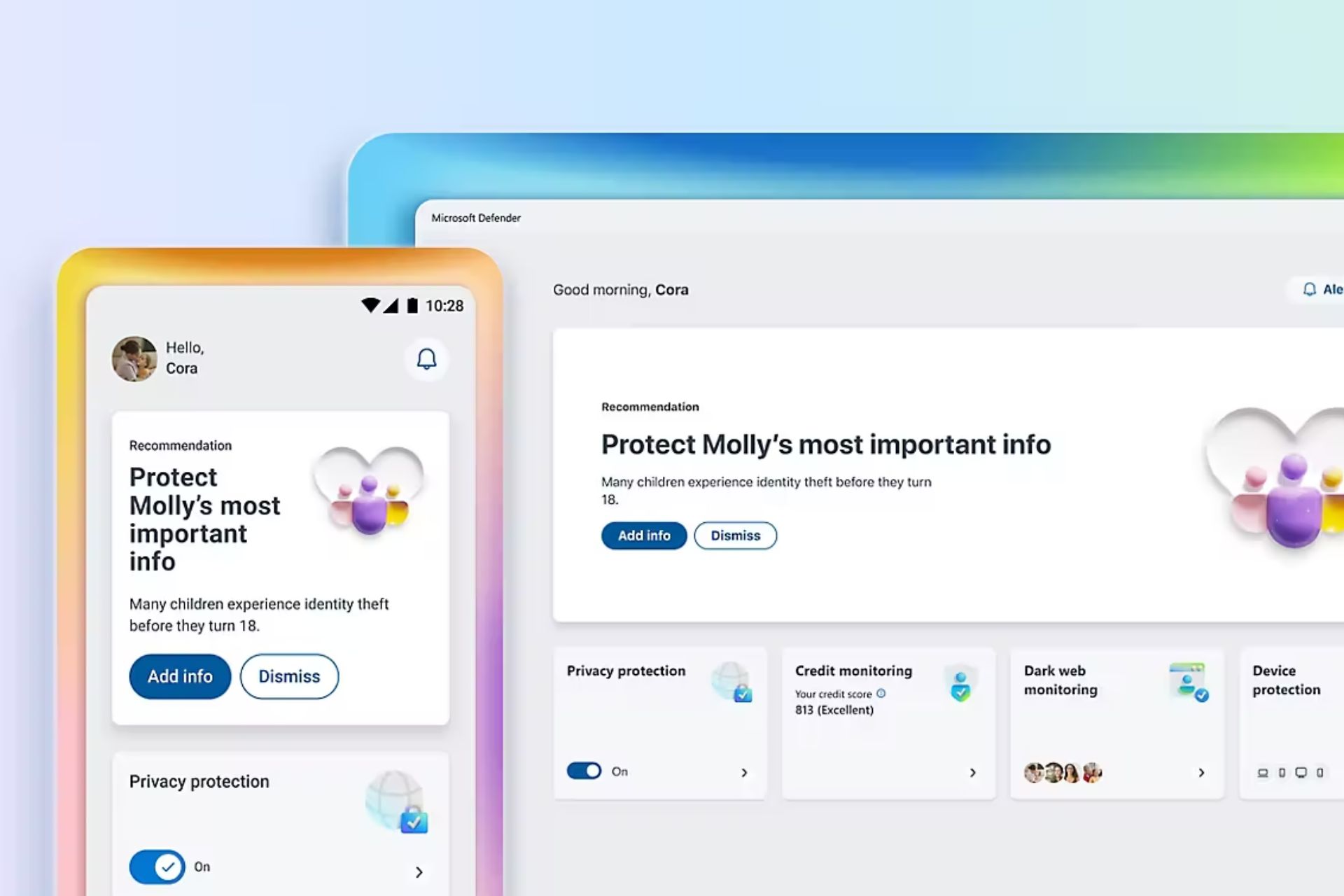
Microsoft Defender will flag AIR fixes as automated actions approved by SecOps

Microsoft Defender for Office 365 provides insights into fixes made by AIR and by the SecOps teams, and to many customers the differences between the fixes implemented by one party, and the other party are hard to tell.

Well, not anymore. According to the latest entry in the Microsoft 365 Roadmap, the Redmond-based tech giant is planning to make a set of changes to the infrastructure of Microsoft Defender’s fixes.

Starting in September 2024, fixes that happen in the platform because of an AIR action approval will be recorded as automated actions approved by SecOps, allowing for a better understanding of the situation.

Currently, Microsoft Defender labels all fixes made by AIR and approved by SecOps as manual fixes in the system. This change will help customers understand better by showing the difference between fixes made by AIR and those made by the SecOps teams on their own.

Here’s what the entry says:

The AIR attribution update will empower customers with enhanced insights by deciphering between remediations produced by AIR versus truly manual remediations initiated independently by SecOps teams. Presently, all actions produced by AIR and approved by SecOps are logged as manual remediations throughout the portal. With this update, messages that are remediated as a result of approval of an AIR action will be logged as SecOps approved automated actions.

Microsoft

The change will be implemented in Microsoft Defender for Office 365, and it’s going to impact all the web versions of the platform.

Aside from changes to its AIR fixes update, the Redmond-based tech giant is currently updating Microsoft Defender for Office 365’s submission results to improve the experience of submitting suspected spam, phishing, URLs, legitimate email getting blocked, and email attachments to Microsoft, by managers and IT admins.

This improvement should also enhance IT admins’ experience and efficiency in managing security tasks, resulting in fewer threats or situations where Microsoft accounts are compromised.

The Cyber Signals report reveals that Microsoft uses AI to detect fake identities

Microsoft recently released a sixth edition of their Cyber Signals, a cyber threat intelligence brief. The company shares its research results and insights about the current threats through it. This edition highlights the importance of securing AI to prevent state-sponsored cyber criminals from misusing it.

Cyber threats are becoming more frequent for various reasons, such as AI and technological advancements. Also, tech companies like Microsoft focus on AI development and features instead of improving their security systems.

As a result, threat actors are more active and keep finding ways to exploit vulnerabilities. Thus, we have to seek proactive measures to defend our data.

How are hackers using AI?

According to the latest Cyber Signals brief, hackers use large language models (LLMs) to enhance their capabilities. For example, they generate more accurate phishing emails, better code, and deep fakes. Also, recently, some researchers created an AI worm that bypasses security systems.

Both attackers and defenders are using AI. So, Microsoft plans to convince AI providers to start sharing their information and be transparent about their security-related findings.

Microsoft states in the Cyber Signals report that they target specific threats such as Advanced Persistent Threats, Manipulators, and Cybercriminal Syndicates.

In addition, the company discovers more than 65 trillion cyber security signals daily. Microsoft uses various AI methods like threat detectors, behavioral analytics, and machine learning to find cyber threats. On top of that, cyber security experts use Zero Trust Models because they need constant verification.

Based on the Cyber Signals report, Microsoft uses AI to detect fake identities and social engineering. On top of that, experts use Copilot to enhance security by helping engineers and analysts work faster and more efficiently.

Due to the lack of cybersecurity experts, we need to learn how to identify cyber threats. After all, hackers started using AI in simple but effective ways that don’t require bypassing complex security systems. Also, according to Microsoft, public awareness campaigns are the fastest way to educate us.

Ultimately, the Cyber Signals report from Microsoft provides many insights about threats, malicious groups like Forest Blizzard, and AI technologies. Also, it showcases the importance of cyber threat awareness and how AI could help us deal with attacks. Thus, consider reading it because it won’t take long.

What do you think? Will you give reading it a try? Let us know in the comments.

Step into Night City with this Cyberpunk 2077 browser mod for Opera GX

Opera GX is a unique browser with several great features and customization options.

If you’re looking to customize your browser, today we have something special for all Cyberpunk 2077 fans.

The new Opera GX mod lets you experience Cyberpunk 2077 in your browser

As you know, Opera GX is a browser dedicated to gamers, and with its gaming-inspired interface, it’s a perfect setting for this Cyberpunk 2077 mod.

As Bleeding Cool writes, this mod will bring animated wallpaper featuring V that you can customize as you want by changing its color, animation speed, music and shaders.

This mod also brings browser and keyboard sounds, so it feels like you’re using a browser in the world of Cyberpunk 2077.

This is a great mod if you’re a fan of Cyberpunk 2077, or if you just want a Cyberpunk theme for your browser. The mod is already available and you can get it from the Opera GX store.

That’s not all from Opera GX, and in case you missed it, the browser got the new Reaktinator feature. Opera also has an AriaScavengerHunt campaign, so you might want to join and try to win a prize.

Get Game Pass 2 months for free with Walmart Plus

Walmart has recently upped the ante for its Walmart Plus members by introducing a fantastic new gaming perk that’s bound to catch the eye of gaming enthusiasts. If you’re a part of this membership program, you’re now eligible to dive into a two-month free trial of Xbox Game Pass Ultimate. That’s right, no cost for two whole months! This is a deal that seems almost too good to be true, especially considering the usual $14.99 monthly fee attached to this premium service.

Xbox Game Pass Ultimate is often likened to a Netflix for games, offering subscribers access to a vast library of over 100 games. These aren’t just any games; we’re talking about a mix of brand-new releases, indie darlings, and timeless classics. Whether you’re itching to explore the galaxies in Starfield, dive into the depths of Diablo 4, or sail the seas in Sea of Thieves, there’s something for every type of gamer. And the best part? You can play these games on your PC, Xbox console, or even stream them to compatible devices like TVs, phones, and tablets.

How do I get Game Pass Ultimate for free?

Now, you might be wondering, how to get your hands on this deal. It’s quite simple. Head over to the offers section on your Walmart Plus membership page, and you should spot the option to claim your two months of Xbox Game Pass Ultimate. After snagging the promo code, all that’s left is to redeem it on your Microsoft or Xbox account, and voilà, you’re all set to enjoy your gaming spree.

But, there’s a tiny catch. This offer is exclusively for those who haven’t signed up for Xbox Game Pass before. And remember, the clock is ticking since the codes are only valid until August 2. Also, don’t forget to cancel your subscription before the trial ends unless you’re planning to continue.

If you’re not a Walmart Plus member yet, don’t worry. You can join now for $12.95 a month and still snag this deal, along with all the other perks Walmart Plus has to offer. From free shipping and fuel savings to early access to sales and a Paramount Plus subscription, it’s a package that’s hard to resist.

So, whether you’re a seasoned gamer or just looking for some new entertainment, this Walmart Plus perk is a golden opportunity to dive into the world of Xbox Game Pass Ultimate. Who knows? You might just discover your next favorite game.

Did you get Xbox Game Pass for free? Tell us if it worked for you in a comment below.

Duo falls victim to phishing, Cisco warns of increased future attacks

In recent months, more and more companies are falling prey to cyberattacks. The latest on the list is Cisco, which was attacked on April 1, 2024!

According to the notification sent out by Cisco, one of Duo’s telephony suppliers was attacked, and the MFA (Multi-factor Authentication) SMS message logs were accessed and downloaded by threat actors. The notification reads,

It is our understanding from the Provider that a threat actor gained access to the Provider’s internal systems, on April 1, 2024, using a Provider employee’s credentials that the threat actor illicitly obtained through a phishing attack and used that access to download a set of MFA SMS message logs pertaining to your Duo account. More specifically, the threat actor downloaded message logs for SMS messages that were sent to certain users under your Duo account between March 1, 2024 and March 31, 2024.

In the notification, Cisco goes on to assure that the stolen logs did not contain any contents but details pertaining to the end user, namely, phone number, carrier, country, and the message’s metadata. Also, the threat actors did not send out any messages after gaining access to the system.

In a statement to The Register, Cisco confirms that only 1% of the total user base was affected by the attack on Duo MFA, which hints at roughly 1000 of the total 100,000 Cisco customers worldwide.

Cisco is aware of an incident involving a single telephony supplier that sends Duo multifactor authentication (MFA) messages via SMS and VOIP to recipients based in North America. Cisco is actively working with the supplier to investigate and address the incident. Based on information received from the supplier to date, we assessed that approximately one percent of Duo’s customers were impacted. Our investigation is ongoing, and we are notifying affected customers via our established channels as appropriate.

Cisco warns of future large-scale brute force attacks

In a published report, Cisco cites the increase in brute-force attacks globally, warns users of similar attacks on its services, and provides a set of mitigations to prevent them and minimize the damage.

When reached out by The Register, an executive at Cisco said,

Cisco is aware of a global increase in brute-force attacks against a variety of targets, including virtual Private Network (VPN) services, web application authentication interfaces, and SSH services. Cisco Talos has noted that these attacks are not limited to Cisco products, but also third-party VPN services. To help keep our customers safe, we have published a Talos blog and Cisco support page with recommended guidance and mitigation steps. Please refer to the Talos blog and Cisco TechNotes support page for additional details.

Cisco highlights that one or more of its following services might be targeted with brute-force attacks, primarily originating from TOR exit nodes, which could lead to unauthorized access or render the service inaccessible to users :

  • Cisco Secure Firewall VPN
  • Checkpoint VPN
  • Fortinet VPN
  • SonicWall VPN
  • RD Web Services
  • Miktrotik
  • Draytek
  • Ubiquiti

Recently, we reported about an increase in cyberattacks driven by AI. Microsoft’s research states that 87% of companies in the UK are at risk of cyberattacks.

Even our cyberattack statistics for 2024 highlight a clear increase in the past couple of years, which is undoubtedly worrisome. Corporations must ramp up their security infrastructure to prevent any loss of data. The Redmond-based tech giant Microsoft is using AI to combat cyberattacks!

What do you think is the best solution for cyberattacks? Share with us in the comments section.

Unbeatable deal alert: $250 Price Drop on Asus ROG Zephyrus G16 OLED – Limited time offer!

Spring season is here, and so is the sale; this time, we will discuss the 16-inch powerful Asus ROG Zephyrus, a mighty gaming machine available at all-time low prices at Best Buy.

Best Buy is offering a $250 or 13% discount on the original price so that you can get your hands on the brand-new device powered by an Intel Core Ultra 9 Processor and NVIDIA GeForce RTX 4070. The original price is $1999.99, and after the discount, it is $1,749.99.

You can also get it with monthly payments of $145.84/mo through the site’s 12-month Financing scheme. Let’s take a look at the specifications of the laptop to help you decide whether it is for you:

ROG Zephyrus G16 (2024) GU605
GU605MY-G16.U94090
ColorEclipse Gray
Operating SystemWindows 11 Home
ProcessorIntel® Core Ultra 9 Processor 185H 2.3 GHz (24MB Cache, up to 5.1 GHz, 16 cores, 22 Threads); Intel AI Boost NPU
GraphicsNVIDIA® GeForce RTX™ 4070 Laptop GPU
ROG Boost: 1655MHz* at 105W (1605MHz Boost Clock+50MHz OC, 85W+20W Dynamic Boost)
8GB GDDR6
Neural ProcessorIntel AI Boost NPU
Advanced Graphics Rendering TechniquesDLSS 3 (Deep Learning Super Sampling), Ray tracing
Display2.5K (2560 x 1600, WQXGA) 16:10 aspect ratio
– DCI-P3:100%
Pantone Validated
– Support Dolby Vision HDR: Yes
Refresh rate: 240Hz
Touch Screen – No
Display typeOLED
Memory8GB*2 LPDDR5X 7467 on board(Rated speed of RAM module. Actual memory speeds may vary by CPU configuration.)
– Max Capacity:16GB
CPU Base Clock frequency – 2.3 gigahertz
CPU Boost Clock frequency – 5.1 gigahertz
Storage1TB PCIe 4.0 NVMe M.2 SSD
I/O Ports1x 3.5mm Combo Audio Jack
1x HDMI 2.1 FRL
2x USB 3.2 Gen 2 Type-A
1x Thunderbolt 4 support DisplayPort / power delivery
1x USB 3.2 Gen 2 Type-C support DisplayPort / power delivery
1x card reader (SD) (UHS-II, 312MB/s)
Keyboard and TouchpadBacklit Chiclet Keyboard 1-Zone RGB
Touchpad
Camera1080P FHD IR Camera for Windows Hello
AudioSmart Amp Technology
Dolby Atmos
AI noise-canceling technology
Hi-Res certification (for headphone)
Built-in 3-microphone array
4-speaker (dual force woofer) system with Smart Amplifier Technology, 2 Tweeters
Network and CommunicationWi-Fi 6E(802.11ax) (Triple band) 2*2 + Bluetooth 5.3 Wireless Card (*Bluetooth version may change with OS version different.)
Battery330 watts, 90WHrs, 4S1P, 4-cell Li-ion
CameraFront-Facing Camera: Yes
Front-Facing Camera Video Resolution: 1080p
Built-In Microphone: Yes
Power SupplyRectangle Conn, 200W AC Adapter, Output: 20V DC, 10A, 200W, Input: 100-240V AC, 50/60Hz universal
AURA SYNCYes
Device LightingSlash Lighting
Weight1.85 Kg (4.08 lbs)
Dimensions (W x D x H)35.4 x 24.6 x 1.49 ~ 1.64 cm (13.94″ x 9.69″ x 0.59″ ~ 0.65″)
Microsoft Office1-month trial for new Microsoft 365 customers. Credit card required.
Xbox Game PassXbox Game Pass Ultimate_3 months
SecurityBIOS Administrator Password and User Password Protection
Trusted Platform Module (Firmware TPM)
McAfee 30 days free trial
Included in the BoxROG Zephyrus G16 Sleeve (2024)
ROG Impact Gaming Mouse
TYPE-C, 100W AC Adapter, Output: 20V DC, 5A, 100W, Input: 100~240V AC 50/60Hz universal

What do you think about this Asus ROG Zephyrus G16 OLED gaming laptop? Share your thoughts in the comments section below.

Teams meeting organizers will be able to choose which participants can allow other attendees to join meetings

Microsoft has announced a bunch of new features specifically designed for meeting organizers and managers. For instance, the platform will soon prevent users from sharing content on externally hosted meetings, unless allowed by organizers and managers.

The same managers will also be able to quickly provide new employees with a list of curated Teams channels to make their onboarding easier.

The latest addition to the Microsoft 365 Roadmap is no exception. According to the entry, starting in June 2024, organizers and managers will be able to designate other participants with the task of allowing attendees to join meetings.

In other words, Teams organizers can be in many places at once, by delegating some of their responsibilities to their subalterns.

Meeting organizers will have options in the meeting settings on who can admit attendees from the lobby into the meeting.

Microsoft

The feature will greatly enhance productivity, especially in situations where the manager can’t be around to take care of certain responsabilities. By allowing them to designate other participants as being able to decide who can participate into meeting, Teams becomes a versatile app capable of offering solutions in any kind of situations.

Most likely, the new Microsoft Teams settings can be enabled/disabled, and organizers can decide if certain meetings can be trusted upon another employee or not.

Either way, the new feature, together with the other ones mentioned earlier in this article, is a good incentive for companies to get Teams for their infrastructure.

YouTube declares war on adblockers… while Chrome Store keeps promoting them?

YouTube and adblockers have been at war for years, and YouTube has tried to block adblockers in the past, but without much success.

However, it seems that the company is changing its policy and it’s going after the apps that violate its terms of service.

YouTube is planning to go after apps that bypass ads

It is no secret that many users are using third-party tools to avoid ads on YouTube, but that might change in the future as PCMag writes.

According to a recent YouTube memo, Google states that they are strengthening its stance on third-party apps that violate terms of service.

Users that continue using these tools may experience buffering issues or errors such as The following content is not available on this app.

We already saw this not that long ago, as the UBlock Origin developer reported slowdowns on YouTube while using adblocker.

It is also stated that third-party apps are allowed to use YouTube API only while following API terms of services. The apps that violate these terms will face a response from YouTube.

Even though YouTube is determined to go after apps and tools that allow users to skip ads, Chrome keeps promoting YouTube ad-block extensions in its store.

While we don’t know why is that, we assume that Google will address that soon. As previously mentioned, this action from YouTube isn’t new, and AdBlock users had issues on YouTube for some time.

What are your thoughts? Will you purchase YouTube Premium to get rid of the ads or will you continue using adblockers? Let us know in the comments!

Latest version of Grounded plagued with multiplayer bugs, game crashes on big saves

The latest version, Grounded’s Fully Yoked update 1.4, has been triggering connectivity issues for many on Xbox, PlayStation and Nintendo. The game was released on the latter two in April’24 after Microsoft brought Xbox exclusives to other consoles.

Major bugs in the latest game version, as stated on Obsidian’s Community Issue Tracker, are:

1. Players are receiving an Account Provision error when they try to login to the game or enable Cross Play.
2. Game crashes on Xbox One console after wandering near big structures in a large world.
3. Some players are unable to join a MP game.
4. Game does not let the player to log into the Xbox Live account after running the game as administrator.
5. Players are reporting crashes when hosting a MP save. They are able to load into single player.

A post from the game’s official X (previously Twitter) handle confirms that the developers are aware of the connectivity issues and are working on a fix.

As per the last available update on 17 April 2024, the connectivity issues on PC and PlayStation 4 have been fixed, and a patch will soon be developed for PlayStation 5 and Nintendo Switch.

We can confirm that the Steam version works fine after installing the latest patch for Grounded. As for PlayStation 5 and Nintendo Switch, you will have to wait for a while to get rid of the connectivity issues. Just keep checking for an update, and once it’s available, proceed with the installation.

Let us know if connectivity issues with Grounded update 1.4 persist on your device in the comments section below.

Samsung Galaxy Book2 Pro 360 for $850? Please, take my money!

The old Please, take my money! meme would work perfectly from this huge $800 discount on the Samsung Galaxy Book2 Pro 360 on BestBuy. This awesome convertible is now only $850 down from $1,650 which is a steal.

Why should I buy Samsung Galaxy Book2 Pro 360?

We’ve covered the Samsung Galaxy Book2 convertible last year, so you should check the highlighted guide for more info, but we will list the main specs right here.

First, Galaxy Book2 Pro 360Galaxy Book2 Pro 360 is ultra slim and light and has a 15.6” AMOLED touch screen that turns 360 degrees and the device becomes a great tablet. The resolution is only Full HD and that could be one of its weaknesses.

However, it comes with a 21-hours battery life and a great backlit keyboard that will turn out very useful at night. But the strong point of the convertible is the Intel 12th Generation Core i7 Evo CPU with a 4.6 GHz base clock frequency. The 16 GB of RAM and the 1TB SSD are not something spectacular, but still great for a convertible that slim (0.47 inches).

Connectivity wise, Samsung Galaxy Book2 Pro 360 comes with 2 USB-A ports, a Thunderbolt 4 video connector, so you will definitely need a dongle or USB hub if you need more. For graphics, the convertible has an onboard Intel Iris Xe Graphics GPU which is OK for video streaming and movie watching, but it won’t be very useful for the latest games.

Overall, Samsung Galaxy Book2 Pro 360 would be great as a second laptop for travel or study and the price is unbeatable for such a convertible. It’s in limited supply so you should hurry up if you have the budget.

If you want a desktop gaming PC instead, check out this HP OMEN 40L deal!

Firefox 126 beta is here, bringing minor UI changes, and new search suggestions

Firefox is a great alternative to Chromium browsers with its approach to privacy and unique features.

If you’re a Firefox user, you’ll be pleased to hear that Firefox 126 has entered beta testing, and it’s coming with some minor improvements.

Firefox 126 enters the beta testing phase, final release coming next month

Firefox 126 brings minor changes according to recent Firefox release notes, and the first thing you’ll notice is the improved dialog for clearing user data.

All options in the dialog are now in a single column making it easier to select the ones you want to remove. It also gives the the size of data that you’ll be removing, which is useful.

Another new feature is the ability to show trending search suggestions. This feature is disabled by default, but if you enable it you can see the browsing trends in your area.

This has been available for a while in the US, but it seems that Mozilla is now rolling it out to other countries.

If you’re a web developer, you’ll be pleased to hear that Firefox 126 lets you toggle Split console in Developer tools.

This version also brings AV1 hardware-accelerated decoding on macOS for Apple Silicon M3 Mac devices, and better support for CSS properties.

Lastly, Cookie Banner Blocker and Quick Actions in the address bar are available in the beta, but no information is available regarding the general availability.

Overall, this is a decent update, and as for availability, we should see this version available on May 14th on the stable channel.

As for other improvements, Firefox will finally get wallpaper support on the new tab page. Mozzila also plans to improve the security as Firefox will start using untrusted integrity level by default.

A new Windows Photos feature will let you use Microsoft Designer directly

Microsoft Designer, a cloud-based design app is coming to Windows Photos. With it, you can create social media posts, digital postcards, invitations, and new visuals with the power of AI. If you haven’t tried it yet, you can access it from the browser version of Copilot or directly.

The new feature will allow you to send an image from Photos to Designer. Yet, it is only available on limited to Insiders on Canary and Dev channels. On top of that, you can only access it if you are from the US, UK, Australia, Ireland, India, and New Zealand.

How do you use the new Microsoft Designer feature from Photos?

It is easy to use the new Designer feature from Photos. You need to click the button that looks like a purple brush while viewing a photo. Afterward, the AI-powered tool will open in your browser and feature the image.

You can use your photo in Designer to create templates, add visuals, and use AI tools to edit it. For example, you can add extra elements to your image by using AI. On top of that, you can change the background or erase it.

To access the latest features from Photos, you need to upgrade its version number to 2024.11040.16001.0 or higher. Also, to access the Designer preview, sign in with your Microsoft account.

Designer has some limitations but it might compete with Canva

There are some limitations to the free AI generator of Designer. For example, AI-generated images come in a predefined size of 1024 × 1024. So, you might need to learn how to create specific prompts. Also, if you decide to use the version that comes with the Copilot browser, you will have a limited number of five AI generations per query.

For example, if you need a particular element and think of generating it with Designer, try a query that centers it and makes it small. In this way, it will be easier to crop it out of the picture without modifying its size. Also, if you are a Canva enthusiast, know this tool is similar. Additionally, you can use them both, especially since Designer has some of the premium features from Canva for free.

Ultimately, the new feature will allow you to access Microsoft Designer from Windows Photos. This option will save you time. Also, Designer is similar to Canva, and you will learn your way around it quickly. Also, you can access it from any version of Windows from your browser.

What are your thoughts? Is the new feature useful? Let us know in the comments.

Microsoft Designer on Edge is now capable of Generative Erase

Remember when the Windows Photos app was updated to support Generative Erase, the feature that allows you to remove unwanted visual elements from images? It seems Microsoft is planning to add it to Edge as well, by enhancing the Designer Image Editor to support it.

According to tech enthusiast, @Leopeva64, Generative Erase was added to Designer in Edge Canary, and the tool is fairly easy to use, and it doesn’t require you more than a few minutes to get it.

Similar to how Generative Erase is used in Windows Photos, users will be able to edit images directly in Microsoft Edge, with Designer Image Editor, and the tool will allow them to choose from 3 AI-powered options: Generative Erase, Remove Background, Blur Background.

The Generative Erase is a walk in the park: the Designer app will prompt users to click on the Quick Select button.microsoft designer generative erase

After selecting the button, they can go pretty much anywhere on the image, and the Designer will automatically highlight the area for removal, according to pictures taken by @Leopeva64.

Once the area is highlit (and in this case, Sam Altam is doomed to be removed from the image), clicking the Erase object button will remove the area.

The interesting thing is that the Designer will use AI to automatically fill the void, and it does so flawlessly. If you’re content with the result, you can click the Looks good button, and you’re done. But you also have other options: for example, you can start over.

As you can see, Altam is entirely gone (from the image, mind you), and the Designer took the job of filling the void. Quite impressive!

For now, the Generative Erase feature is in Microsoft Designer within Edge Canary, so it will take some weeks until the feature is widely released. But once it’s out, it can be a free and efficient way to edit images without having to resort to image editors or Photoshop courses.

For light content creation, this tool could end up being a game-changer.

Samsung announces LPDDR5X memory modules for the next AI laptops and smartphones

After Western Digital surprised everyone with a 4TB SD card, it’s Samsung’s turn to amaze us with new LPDDR5X memory modules touted as 25% faster than the previous versions.

According to Samsung’s press release, the new modules have 30% more capacity and will reach a 10.7 Gbps throughput.

Not only that, but Samsung used the 12 nm architecture for the chip and they say that it’s the smallest among existing LPDDRs. The fact that they’re smaller means that they are higher density and you could eventually see them in 32 GB memory modules.

The new LPDDR5X modules are great for AI

Micron and SK Hynix already have 8.5 Gbps LPDDR5 modules so that makes the Samsung LPDDR5X the fastest right now.

The only issue is that the Coreean manufacturer will put the new modules into production the second half of the year, so you won’t see them very soon into laptops and smartphones.

Samsung also thinks that the new memory modules will be great for AI applications that require intensive processing:

Samsung’s 10.7Gbps LPDDR5X not only improves performance by more than 25% and capacity by more than 30%, compared to the previous generation, but also expands the single package capacity of mobile DRAM up to 32-gigabytes (GB), making it an optimal solution for the on-device AI era that requires high-performance, high-capacity and low-power memory.

Samsung press release

So, actually, the new LPDDR5X memory modules don’t have any other special features for the AI PC or laptop, but they are more powerful so they will help you better for AI-related tasks.

While this is great for the future laptops, it will be more exciting to see them in the next smartphones from Samsung, but also from Xiaomi and Oppo who usually use the Samsung chips. 32GB RAM on a smartphone will really break the power limits for the portable in our pockets.

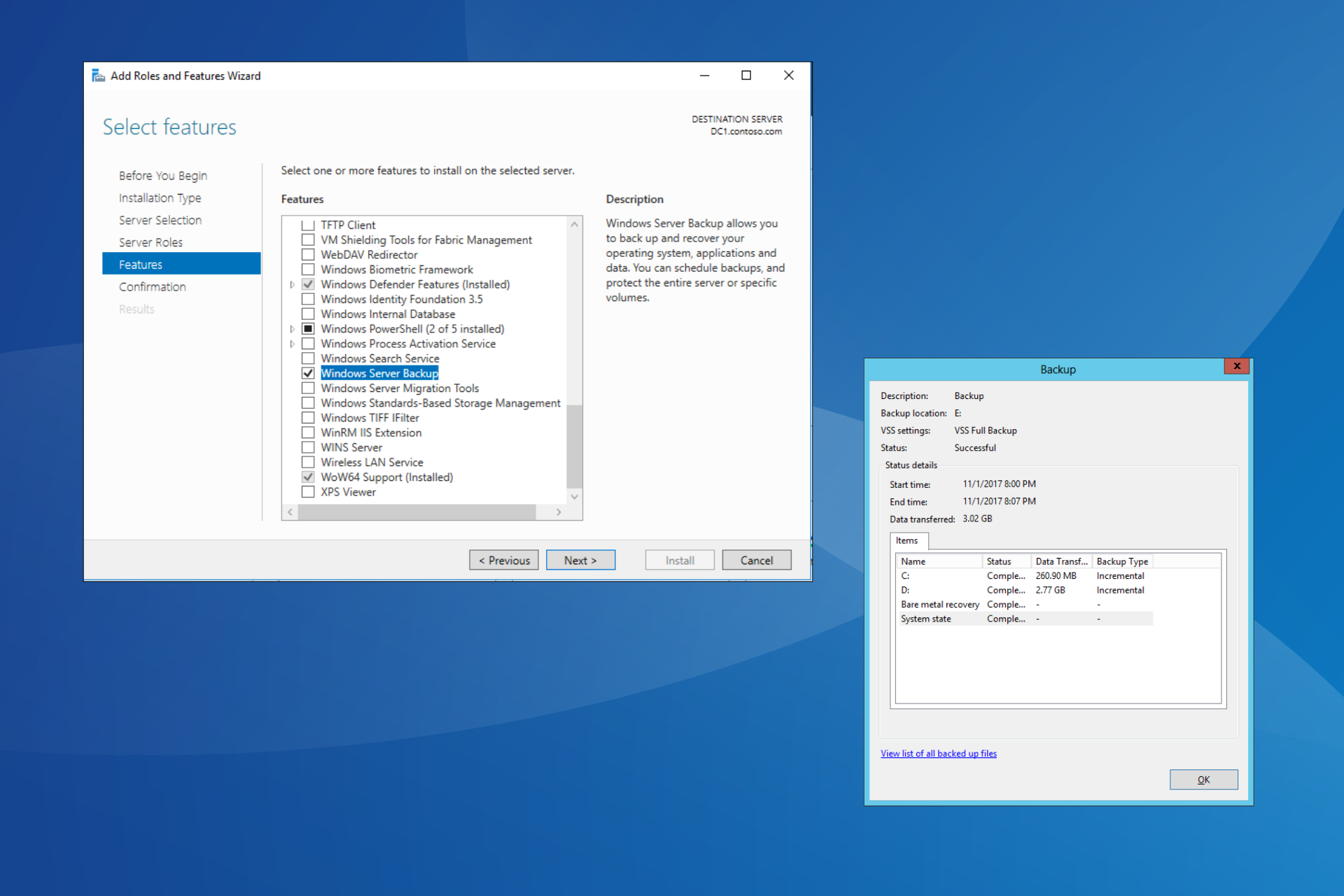
Reviews suggest Windows Server Backup is not the most reliable option, users prefer alternatives

Windows Server Backup, Microsoft’s native solution since 1997, allows you to backup and restore data on a server. However, user reviews suggest that Windows Server Backup comes with the bare minimum functionality and isn’t the perfect solution for most!

The wizard often fails while backing up data, even when both Volume Shadow Copy and SPP services are running. Also, it lacks encryption, leaving the data vulnerable to attacks. Besides, the performance is surprisingly slow for a native Microsoft product, and the support is terrible.

Failed backup report

Users highlight a wide array of flaws in Windows Server Backup

We came across far more negative reviews for Windows Server Backup than positive ones. And it all makes sense!

I’ve used it in the past and found it to be pretty horrible. Very slow, clunky, unreliable. I couldn’t imagine trying to restore an environment from it. With so many amazing options out there, I cannot fathom a scenario where it makes sense to use it over others.

No encryption, no reporting, have to rely on human process (changing external drive and off siting it), no immutability, not application aware.
On top of that, have to deal with it being a Microsoft product.
Why deal with that when Acronis with cloud storage (not saying it’s the best option) starts at like $200/year/endpoint.

Doing a bare metal restore using Windows Server Backup is an exercise in frustration, especially with original Server 2008 where I think it only ever worked once! Use Veeam, make it work for you.

Your backup solution should be the single most reliable part of your entire infrastructure. It should be segmented from your environment so that your backups can’t get caught up in any attacks that hit your office, it shouldn’t require any intervention on your part to operate, and it should notify you immediately if there are any failures. Windows backup can’t meet those standards.

The only good thing about Windows Server Backup is that you don’t have to pay for an additional subscription. It comes with the Windows Server license.

At the same time, several reliable Windows Server backup solutions too offer a free plan with relatively limited functionality, but these still perform better than the native Windows Server Backup.

To share your review of Windows Server Backup with our readers, drop a comment below.

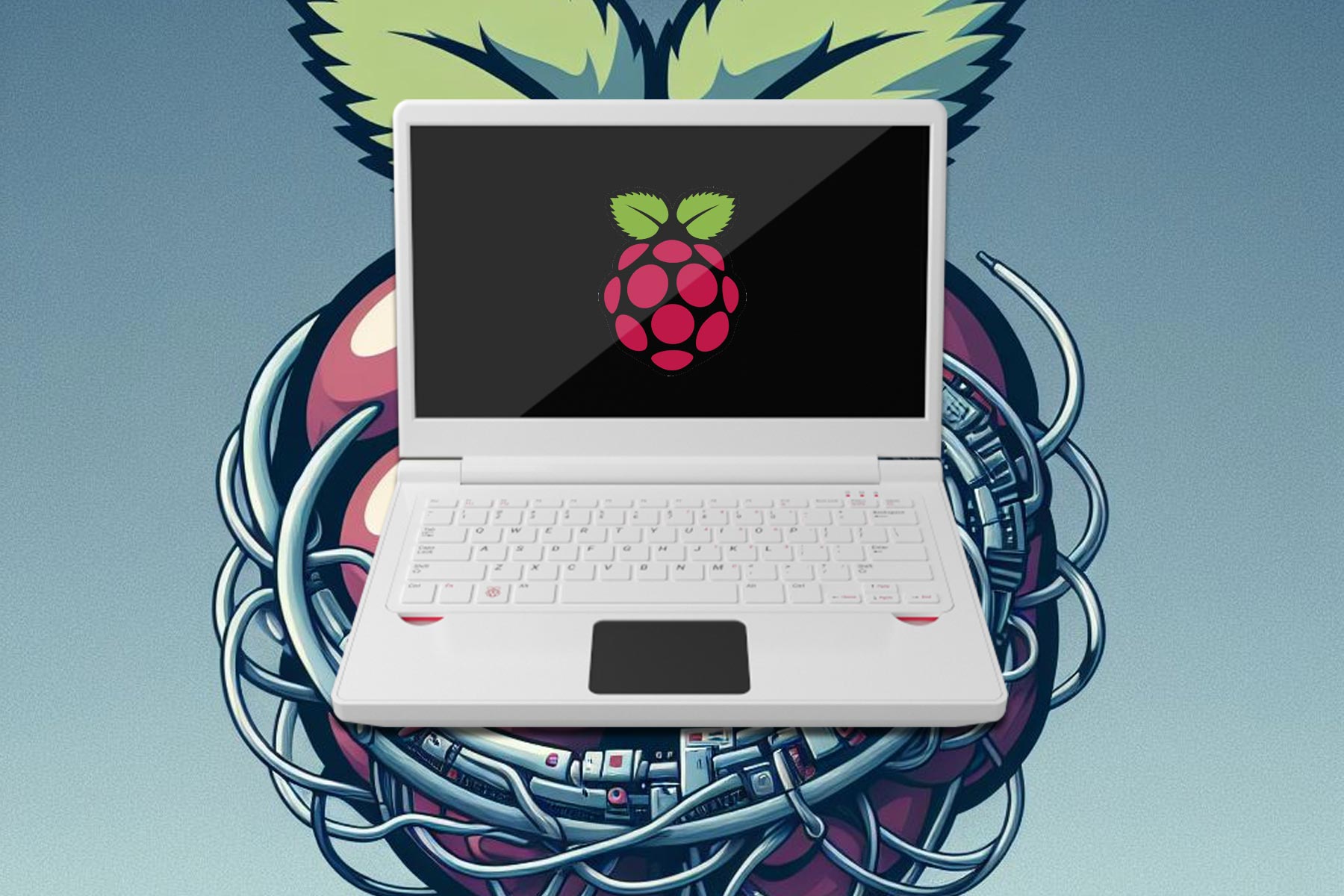
Want to convert Raspberry Pi into a notebook? PiDock 400 has your back

Raspberry Pi is a great device used by tech enthusiasts, and thanks to its power, Raspberry Pi can also work as a desktop PC.

But what if you want mobility? If that’s the case, this dock might be just what you need to turn your Raspberry Pi into a notebook.

Turn your Raspberry Pi into a notebook with PiDock 400

To convert Raspberry Pi into a notebook, you’ll need to use Raspberry Pi 400 and a special PiDock 400, as NotebookCheck writes.

In case you don’t know, the Raspberry Pi 400 is a keyboard that comes with a built-in Raspberry Pi inside allowing you to easily connect it to any monitor and start using it.

It offers the following hardware specs:

  • Quad-core Cortex-A72, 64-bit, ARM 1.8GHz CPU
  • 4GB LPDDR4-3200 RAM
  • Dual-band (IEEE 802.11b/g/n/ac Wi-Fi
  • Gigabit Ethernet, 2 × USB 3.0, and a single USB 2.0 port
  • Two micro-HDMI ports that support 4K resolution at 60fps
  • MicroSD card slot
  • Horizontal 40-pin GPIO header

It’s a solid device for web browsing and other less demanding tasks, and with PiDock 400, you can turn it into a 13.3-inch full HD notebook.

The docking station has a 3.5mm headphone connection and access to GPIO pins is also available allowing you to use this dock for your projects as well.

It’s worth mentioning that this dock doesn’t have a battery, instead, it uses a power supply unit to power both the dock and Raspberry Pi 400.

As for the price, you can get this dock for $239.99, so if you already have a Raspberry Pi 400 and need more mobility, this might be the right dock for you.

In case you need something more powerful, you can get HP Dragonfly Pro One at a discount. If you’re a business user, don’t miss LG Gram 16 with a 35% discount!

Microsoft Edge may lock its Settings on Nonactivated Windows 

In a surprising move, Microsoft is looking to block the Edge Settings on unactivated copies of Windows. The change is currently being tested in Edge Canary.

Microsoft Edge might still work on an unactivated Windows. However, while you can use Windows 11 and 10 without activating them with a purchased license key, there are some limitations you should be aware of.

These include a persistent ‘Activate Windows’ watermark on the desktop.

  • An activation message in the Windows Settings.
  • The inability to change Personalization settings like wallpaper, theme, and colors.
  • Frequent notifications to activate Windows.

Microsoft is looking to lock Edge browser settings when using Unactivated Windows

Now, it seems Microsoft wants you to use its Edge browser on activated or genuine Windows; if not, it may lock Edge settings.Microsoft Edge Settings

We have noticed Edge working on this in Canary gated behind command line switch msEdgeLockSettingsInNonActivatedOS, but we are unable to confirm this as we don’t have unactivated Windows devices.

We see a lot of users still using Chrome on non-genuine Windows those not activated, so Chrome may not lock your settings, but Microsoft has a reason to do the same for the Edge browser as it is now an integral part of Windows and the default browser.

Dangers of using Unactivated Windows:

There are dozens of dangers of using unactivated Windows. You miss out on crucial security updates. These updates patch vulnerabilities in the operating system, protecting you from malware, viruses, and other cyber threats. Without them, your system becomes an easy target for hackers to exploit, potentially compromising your personal information and files.

You’ll encounter limitations and frustrations, as nag screens, such as constant pop-ups reminding you to activate will disrupt your workflow. You’ll also have personalization restrictions: you might be locked out of customizing your desktop background, colors, and themes. You’ll also have limited access to certain features, hindering your productivity.

Some unactivated versions might be tampered with, leading to performance issues and instability. Your system might become sluggish or crash unexpectedly.

And now, with this, browsing on Microsoft Edge on unactivated Windows 10, and Windows 11 devices will seriously be risky to users, as they are more prone to cyber threats, malware, phishing attacks, or loss of sensitive information, which means credit card credentials or any other similar data are at a higher risk of being compromised.

To avoid such issues, activate your legitimate Windows copy with a product key. Consider a free alternative: if the budget is a concern, explore free and open-source operating systems like Linux, and it’s quite a good alternative, as you can see in our detailed article about it.

Invest in a genuine license: If you need the features and security of Windows, consider purchasing a genuine license.

Microsoft will have a new Windows and devices chief designer after Ralf Groene’s retirement

After 17 years of work as head of Windows and devices design at Microsoft, Ralf Groene announced his retirement on LinkedIn. It’s a big thing because for the past ten years, Groen has been the main architect designer for the Surface tablets and Windows OS and apps.

Groene received a lot of praises for his move but his friends who worked with him at Google and Microsoft doubted that he will just enjoy his retirement and he agreed. Therefore, we might see him soon joining another project.

In the meantime, Microsoft named Pavan Davuluri as its Windows and Surface chief, but we don’t know yet who will be responsible for the design part.

As much as we respect Groene’s work, we’ve had a lot of great ideas about Windows 11’s design and a new chief designer might appreciate and consider them for the future Windows 12.

All that considered, we can’t wait to see what Groene will do next and we will keep you posted with new developments.

Who do you think will be the new chief designer for Microsoft products? Let’s talk about that in the comments below.

Firefox improves Reader Mode with custom themes to beat Edge’s Immersive Reader

According to the recent news, Mozilla is working on adding custom themes to the Firefox browser‘s Reader mode.

The new feature is under development and being tested in Firefox 127. It will allow you to personalize your reading space with a variety of color schemes, thereby improving accessibility and visual comfort.

A new color sub-menu for Reader View in Firefox allows you to select custom colors for text, links, backgrounds, and text highlights while using the listen function.

This will allow you to create a better reading environment customized to your preferences, thereby reducing eye strain and making the digital content more readable.

For this, Mozilla is implementing a reusable color picker component and allows you to enable separate color menus and build a custom theme selector.

Unlike Edge’s Immersive Reader, Microsoft Edge offers a variety of page themes and color options to make the content look more digestible. It also comes with several preset themes inspired by Irlen Spectral Filters, which assist people with Irlen Syndrome.

Unlike Mozilla, Edge doesn’t offer the same degree of customization for color schemes in Reader Mode as Firefox, a feature that is under development.

Launch the browser to enable the Firefox browser’s custom themes in Reader mode. Type about: config in the address bar, then click Accept the Risk and Continue. Now copy & paste reader.colors_menu.enabled in the search bar and hit Enter. Select True as the preference value for this option.

Once you’ve done this, visit any webpage that supports Reader Mode, click the Reader Mode icon from the address bar, or press F9 to invoke it.

Next, click the paintbrush icon to launch the Colors Menu, then click Custom. Select the text and other options, then choose & assign a color. If you don’t like the changes, click Reset defaults to restore them to default.

So far, there is no information about the release date of this feature. If Firefox is running slow, and you want to speed up the browser, we have a detailed guide for you to help you with the same.

What do you think about this upcoming feature from Firefox? Share your opinions with our readers in the comments section below.

Microsoft’s Bing banner promotes Edge, recommends against downloading Chrome, Tor, or Vivaldi

Microsoft’s promotional tactics have been under fire for the last few years, be it for Edge, Bing, or other native tools. But when it comes to the browsers, the Redmond-based tech giant takes things to another level. Microsoft shows banners promoting Edge on Bing whenever you try downloading another browser.

When I tried searching for Chrome on Bing, irrespective of the current browser, the banner read,

There’s no need to download a new web browser. Microsoft recommends using Microsoft Edge for a fast, secure, and modern web experience that can help save you time and money.

The same banner appeared when trying to search for Safari, Tor, and Vivaldi. I didn’t find one for Firefox, Brave, or Opera. This is surprising because the latter are just as promising, especially Brave.

Remember, this isn’t new. Microsoft had tried such antics in the past, but none really yielded positive results.

For instance, last year, Microsoft displayed another banner on the Thank You page when you downloaded Chrome Canary from Edge. It basically highlighted that the two browsers run on the same technology, but Microsoft Edge is a more secure and trustworthy option.

edge promotion on downloading chrome canary

A research paper published by Mozilla in January’24 sheds more light on how Microsoft’s actions violate ethics and are unfair to users and other developers. Excerpts from the summary should give you a basic idea of the findings.

In this report, two independent experts investigate Microsoft’s design practices across its core operating systems (Windows 10 and 11), web browser (Edge), and search engine (Bing). Examining these patterns first-hand, and referring to a harmful design taxonomy evolved over many years and supported by academic research, we find Microsoft repeatedly uses harmful design to influence users into using Edge.

We judge that Microsoft cannot justify the use of these techniques, and should stop using them immediately. If they do not, we would welcome – where the law provides for it – regulatory intervention to protect against these harms.

Chrome does pretty much the same thing

Seems like Microsoft is not the only one using unethical ways to promote the native browser. Google also uses its influence to increase Chrome’s user base!

Say, if you visit YouTube from a browser other than Chrome, there will be a popup promoting Google’s native browser.

A similar popup was observed on Gmail.

So, it is not just Microsoft. The two tech giants, Google and Microsoft, have similar tactics to keep users from switching browsers

In this whole Microsoft Edge vs Google Chrome battle, browsers like Opera, Firefox, and Brave are emerging as viable alternatives because they are much less intrusive and offer pretty much the same feature set, if not more.

Besides, we will have to wait another few years to find out if Microsoft Edge’s promotional banners on Bing help because, so far, the browser’s market share has been pretty much stagnant. At present, Chrome dominates the PC browser landscape with a 65.77% market share while Edge stands second at just 12.71%, as per Statcounter.

What do you think of Microsoft’s banners for Edge on Bing or Google following a similar approach? Share with our readers in the comments section.

The Copilot header in Edge can be closed now, but you can’t get it back for now

The Copilot header in Edge Settings is a panel that allows users to further customize their Copilot experience in the browser. Microsoft has recently added it in Edge Canary, and it’s quite useful, as it lets users ask Copilot for a variety of useful tasks, such as managing passwords or switching to vertical tabs.

The header was recently updated to be able to close it, in case you don’t want to see it anymore, but, according to tech enthusiast @Leopeva64, you can’t get it back once you’ve closed it.

There is, most likely, an option to enable the Copilot header to come back, but Microsoft has either not released it yet, or the company has hidden it well enough within Edge’s many settings.

It’s somehow confusing because the panel comes in with interesting settings to customize the Copilot experience, but it’s presented similarly to an ad, which may prompt many Edge users to close it without thinking (sort of like an automated activity, which is how Microsoft has been teaching us to deal with).

If you do, however, want to get it back, there is no direct possibility to do that, for now. But you can try this: close your Edge browser, and open it again, and see if the Copilot header pops out. You can try so, after restarting your device, as well, as closing applications usually resets their behavior.

It’s also worth mentioning that Copilot on Edge for Android was updated to allow users to upload files to it, for processing, but it keeps the 1 MB limit it has on the desktop version, as well. With this feature, users can easily have documents such as images taken with their phone analyzed by Copilot in real-time, which makes it a feature more accessible and intuitive on mobile devices, than on desktop devices.

Can Windows 95 run .NET and other modern apps? A YouTuber found the way

Windows 95 was revolutionary in the 90s because it allowed everyone to operate it without any technical skills. Apparently, there’s a lot of fun in teaching an old dog new tricks and an YouTuber who calls himself MattKC found a challenge in making Windows 95 run thousands of apps that Microsoft deemed obsolete.

However, he first needed to port .NET for everything else to work, and that proved much more challenging than he thought.

In this almost 52 minutes long clip, MattKC almost gave up because he also struggled to install KernelEx and missing DLL files and still couldn’t get .NET Framework to run. For the record, .NET was first introduced with Windows 98 which ran on a Windows NT architecture.

He finally discovered that the ndphlpr legacy driver, which was necessary to .NET to run was also causing it to crash.

MattKC finally found the coding problem behind it using WinDebug, that was also a struggle to install. The YouTuber managed to get the error to appear in a window and he could fix the DLL compatibility. Finally, he got Snipping Tool and Lego Island Rebuilder to run on Windows 95. Victory!

This was only a very short version of the story. You can find more info on Windows Central, and, of course, in his clip. We don’t know how many hours he spent on this troubleshooting almost impossible mission but the video is the very least entertaining, so we encourage it to watch it.

Comparing it to Windows 95, Windows 7 is a modern OS and many are still using it right now. By the way, anyone tried to run Copilot on Windows 7 and maybe confront with Clippy? Tell us what you think in the comments below.

Blast from the past: Windows 11 still uses legacy icons

Windows might have changed over the years in terms of functionality and looks, but some components remained the same.

It seems that Windows 11 is still using visual components that predate Windows XP, and some users and too happy with that.

Legacy icons in Windows 11, lack of consistency, or clever Easter eggs?

Windows 11 brought some massive changes in terms of the user interface, but some legacy visual assets still live inside the latest version of Windows.

This was first spotted by keen-eyed users on Reddit, where a user reported that Outlook is using legacy icons while downloading attachments.

At first, the user who posted thought this was a remnant of the Windows XP era, but it seems to be older than that as users speculate:

It’s even older than XP.

Many speculated that this mystery icon belongs to Windows 95 or even Windows NT4. That’s not all, it seems that Windows 11 still has icons from Windows 95 and even older:

There are still Windows 95 icons and and even older icons dating back to the early-mid 1980s still in Windows 11. Icons for Quattro Pro, Lotus 123, Turbo Pascal, WordPerfect, Paradox 3.0, etc. Some of these icons are older than the first version of Windows (from the MS-DOS days).

Many were quick to point out the inconsistency of Windows icons:

its funny how many icons they changed to the complex XP and Vista styles, but they still didn’t change so many to the not that complex flat design style in the span of like 4 versions since 8 (8, 8.1, 10 and 11) also yes I know the one shown in the picture is a Windows 95 icon

Others were complaining about Microsoft not modernizing these icons:

Can’t they just simply create a modern version of those bitmaps? Once for all.

It’s not all criticism, and few users expressed their fondness for these icons:

I honestly miss the old icons, they were so quaint lol. Wish there was a way to use high-res versions of them system-wide.

It feels strange seeing these legacy icons in modern software such as Outlook, and while these icons don’t follow Microsoft’s latest design, they are still a nice Easter egg for Windows veterans as they don’t affect the quality of the software in any way.

Speaking of older operating systems, Microsoft is still sending alerts regarding Windows XP’s end of support.

As for more modern versions of Windows, the new Moment update is under development and it will be released after Windows 11 24H2.

YouTube tests a new personalized Subscription Feed option, allowing users to access preferred videos faster

YouTube is testing a new personalized Subscription feed setting on mobile devices, according to the latest entry in its features and experiments blog. The feature is called Most Relevant, and enabling it (you should know, it’s optional) will prompt YouTube to show videos that you would most likely enjoy.

In other words, the Most Relevant option makes use of your YouTube video history to come up with personalized recommendations.

For now, this experiment is only available on mobile devices, and there is a chance it won’t make it to general availability.

However, if it makes it there, it could be an easy way to find YouTube videos that you’ve watched before but forgotten specific info about them, such as their titles because they will most likely appear in this new recommended feed.

Here’s what the entry says:

Testing an optional personalized Subscriptions Feed on mobile: We’re testing an optional “Most Relevant” view for your Subscriptions feed so that you can easily find the stuff you’re most likely to ❤️. If you’re in the experiment, simply select the chip or avatar that says “Most Relevant” and your feed will update to show you content from Subscriptions you watch most often or you’ve interacted with recently. Not interested? No problem! Your regular Subscriptions feed will still be there by default. This experiment is rolling out to a small percentage of viewers on mobile and expansion will be based on feedback.

YouTube

Aside from this recommended feature that would allow users to find preferred YouTube videos faster, the platform has been recently caught sending Get Started panels to users, with it displaying the following message: Try searching to get started. Start watching videos to help us build a feed of videos you love.

If you’ve been dealing with this persistent issue, know that you can actually stop it.

Microsoft has avatar etiquette for Teams meetings to avoid awkwardness

Avatars are your digital representation. They are highly customizable and feature various optimizations to favor inclusivity. Additionally, they bring some benefits for you. For example, they can help you reduce anxiety, and you can hide behind them on bad days. However, did you know that there is an avatar etiquette from Microsoft?

The avatar etiquette from Microsoft is more of a list of suggestions. Also, it is a part of the new business etiquette. The tech company made it based on research and findings. So, it is susceptible to change, especially since the technology behind avatars is evolving.

When is it appropriate to use avatars according to Microsoft etiquette?

The first thing you must do before using your avatar on Teams is to think about the meeting type. For example, if it is just a friendly chat, you could ask the host if you can enter with your avatar. Microsoft provides a few examples in their etiquette of when you can and shouldn’t use avatars.

Thus, you can use your avatar during:

  • A meeting with your team
  • A social event for your organization
  • While you are eating in a lunch-and-learn session

Don’t use your avatar in:

  • One-on-one formal meetings
  • Performance reviews
  • Sensitive conversations

Can you use an avatar while you are presenting?

According to Microsoft etiquette, you should check the list of participants before using your avatar to present. Also, depending on the type of presentation, you could encourage other participants to use avatars. However, be careful because some people consider avatars odd or distracting. Thus, it might be hard for them to focus on your presentation.

When can you use animations?

You can use avatar animations during the beginning and end of a meeting but don’t overuse them. In addition, during the presentation, it is best to stand still unless you are the one presenting or if you want to ask questions.

Another rule of Microsoft etiquette is to tell others if you must leave the room while you use an avatar. They can’t mirror your movements yet. So, it will become awkward for someone else to try and contact you over and over again just because your avatar is active.

Are there any mentions of the avatar customization in the Microsoft etiquette?

There are mentions of avatar customization rules in the Microsoft etiquette. For example, you should avoid cultural appropriation or customizing your avatar with features that don’t represent you. After all, you want to avoid not being recognized at the office if you are working in a hybrid system.

If you can’t customize the avatar, ask for help. Also, check our guide on creating avatars for Microsoft Teams. On top of that, if you think there are missing customization options and features, you can provide feedback through the Teams desktop app.

Lastly, take some time to create your avatar. After all, it represents you in the digital world. Also, follow the Microsoft avatar etiquette in your meetings to ensure others are comfortable. On top of that, remember to use animations only when needed. Otherwise, you might distract others during presentations.

What do you think? Is there anything you would like to add to the Microsoft avatar etiquette? Let us know in the comments.

Bill Gates thinks that AI could eventually take over his job

Artificial Intelligence evolves at a fast rate. Its management capabilities are getting more advanced. Also, AI assistants can handle all sorts of tasks, such as form generation, email summarization, and planning. In the future, the AI might take over our jobs. However, it might also lead to a shorter workweek for us.

According to Bill Gates, 2024 is the year of the AI. Also, he said this technology will change the future because many adapt it to their workflows. For example, Copilot has a variety of appliances. You can use it for emails, text and image generation, coding, cybersecurity, and more. Thus, there is a high chance for AI to take over some of our jobs.

Is AI evolving too fast?

Bill Gates was skeptical about the evolution of AI and thought it would take more time to improve this technology. Also, he didn’t expect chatbots to perform complex tasks so soon. So, AI might take over some of our jobs and change our workflows.

AI could help us work less in the future and handle daunting tasks. Also, it could make some of the jobs easier. For example, junior project managers could use AI assistants to do their work faster. On top of that, AI could help people from low-income areas to develop new skills.

Unfortunately, according to Jensen Huang, the CEO of Nvidia, AI might take over coding jobs entirely. After all, this technology can generate software. For example, GitHub Copilot can generate, verify, fix, and explain code.

In addition, the Nvidia CEO recommends jobs in domains like biology, education, manufacturing, or farming as future-proof careers. Also, jobs are starting to revolve around AI technology, and many listings mention working with chatbots as part of the requirements.

Sooner or later, AI will take over more jobs from us. This is a good opportunity to find new ways to use it to benefit us. Also, the technological advancements in this field could reduce the number of daunting tasks. However, it is uncertain what will happen once the AI takes over.

What do you think? Can AI do your job? Let us know in the comments.

Microsoft will add a new limit to bulk emails sent via Exchange Online

To fight spam, Microsoft decided to add a limit to the amount of bulk emails we send through Exchange Online. The restriction will only apply to external recipients. Yet, you can continue sending emails internally. In addition, Microsoft will introduce the new bulk email limit in two phases.

Even though Microsoft didn’t introduce any restrictions on bulk emails previously, spam became a major issue. Also, Exchange Online isn’t for sending bulk emails. However, some users are exploiting it for that purpose. Thus, Microsoft added the 2,000 External Recipient Rate (ERR) to combat this problem.

Will Microsoft change the previous Recipient Rate limit?

The previous Recipient Rate limit of 10,000 emails will remain the same, and the new ERR will be its sub-limit. Thus, even if you send bulk emails, as long as you don’t try to exceed the limit of 2,000 external ones, you won’t have a problem with it.

Microsoft will introduce the bulk email limit in two phases for Exchange Online to help users accommodate the new system. Thus, the cloud-hosted mailboxes of new users joining from January 1st, 2025, will start with the restriction, while older users will receive it between July and December 2025.

If you need to send more than 2,000 bulk emails and bypass the limit, you can use Azure Communication services for email. After all, Microsoft made it for business-to-customer communication, allowing you to send high-volume emails.

Google has some bulk email restrictions as well

On another note, Google implemented stricter thresholds, authentication processes, and limitations for bulk email senders. However, their bulk email limit is 5,000 daily messages. Yet, if you need to send more, you’ll have to set up SPF (Sender Policy Framework), DKIM (DomainKeys Identified Mail), and DMARC (Domain-based Message Authentication, Reporting, and Conformance) email authentication for your domain.

Additionally, there are some bulk email restrictions you should follow. For example, avoid sending unsolicited messages and provide one-click unsubscribe options. On top of that, you have to answer quickly to the unsubscribe requests. Otherwise, Gmail could block your emails.

Ultimately, if you don’t need to send over 2,000 emails externally, you won’t have problems with the new ERR. However, if you need to send more, to avoid the bulk email limit set by Microsoft for Exchange Online, you could switch to the Azure Communication services for email. In addition, if you plan on sending them via Gmail, set up SPF, DKIM, and DMARC.

What do you think? Is this a good way to prevent spammy emails? Let us know in the comments.

Azure HPC helps Microsoft Surface to create cutting-edge products faster

The Microsoft Azure High-Performance Computing (HPC) has the power to speed up the simulation process used by Microsoft Surface. With it, the team can test and implement new features and increase the reliability of their products. On top of that, it is easier to use simulations to find the best design. In addition, the Azure HPC can save time and costs while revolutionizing the development process.

Engineers used Azure HPC to conduct structural simulations to address problems related to robustness and reliability metrics. Prasad Raghavendra, with Pritul Shah and Jarkko Sihvonen, expanded the use of this technology across the company. As a result, they formed a global simulation team. In addition, the Surface IT and Azure HPC teams deployed computing servers in diverse regions.

How does the Microsoft Azure HPC and Surface process work?

The teams built a primary development tool for product design using Abaqus and Azure HPC technology. Afterward, they successfully transferred computer-assisted designs (CADs) in detail into the FEA model. Then, analysts used these detailed models to simulate real-world stress and test the reliability of their products in virtual environments.

If the virtual tests are successful, engineers create physical prototypes. Then, researchers evaluate them in real-world situations. During the last step, analysts check the differences between the FEA and real-world results for model validation before making the final product.

Virtual testing using the Azure HPC and Abaqus saves time and money by reducing the time spent creating physical prototypes. This process works by combining Azure’s capability of running multiple simulations with the Abaqus solver, known for generating accurate virtual high-speed impacts.

This combination of Azure HPC and Abaqus makes the simulation process take hours instead of days. Afterward, analysts review the results and make design updates to make the products sturdier. In addition, engineers execute thousands of simulations weekly to develop cutting-edge products.

Ultimately, Microsoft Azure HPC and Surface teams want to deploy multiple resources for multi-physics modeling. As a result, the engineers from multidisciplinary teams could also contribute to technological advancements. Additionally, Microsoft wants to add AI to improve product design and development. On top of that, they are implementing model-based systems engineering for better efficiency. Also, World-class organizations could benefit from partnering with Azure.

What are your thoughts? Do you own a Surface product? Let us know in the comments.

Hackers can use the Lighttpd vulnerability to target BMCs

Lighttpd is a popular open-source web server. Multiple manufacturers use it for their tools and products because it is flexible, fast, efficient, and compliant. Additionally, it holds well in high-performance environments. Unfortunately, Lighttpd has an unsolved vulnerability that affects over 2000 devices made by Intel, Lenovo, Supermicro, and American Megatrends International (AMI).

In addition, the Lighttpd vulnerability affects baseboard management controllers (BMCs) from Duluth, Georgia-based AMI, or Taiwan-based AETN.

What are the BMCs for?

The problem could become serious because BMCs are responsible for allowing cloud centers and their customers to manage servers remotely. Also, they work even if you turn off your system. Thus, threat actors could remotely invade them using the Lighttpd vulnerability to access and control them anytime.

Lighttpd developers fixed the problem in 2018 without specifying it exclusively in the patch. On top of that, they didn’t assign a CVE to it. Thus, manufacturers continued using the outdated version of the open-source web server.

Hackers can exploit the Lighttpd vulnerability and access the read memory of a server. From there, they can bypass security systems such as ASLR (Address space layout randomization).

Intel and Levenovo will not release a patch to fix the issue. In addition, they claim that they no longer support the hardware that is possibly vulnerable to it. However, the other versions are going to remain at risk forever. For example, Supermico is still relying on Lighttpd. So, consider contacting the manufacturer for a possible fix.

Fortunately, the Lighttpd vulnerability alone is not severe because cybercriminals need a working exploit to use it. On top of that, you need to enable the BMCs only when you need them. Afterward, you should carefully lock them because they allow the control of servers with HTTP requests.

Ultimately, you can manage the Lighttpd vulnerability with some extra care. After all, if you use Intel or Lenovo hardware, there won’t be a fix. Also, you can find the vulnerability in systems using Lighttpd versions 1.4.35, 1.4.45, and 1.4.51. However, you shouldn’t worry much about it because the issue persisted for six years, and nobody did anything about it.

What are your thoughts? Should Intel and Lenovo do something about the issue? Let us know in the comments.

Google Privacy Sandbox will change advertising by removing cookies

Traditional advertisers rely on third-party cookies to track our data and use it to target us with ads. However, this method raises privacy concerns. So, Google implemented the Privacy Sandbox initiative on Chrome. Through it, the company wants to remove third-party cookies and reduce cross-site and cross-app tracking.

During the beta testing phase on Chrome, 1% of the users experienced the Privacy Sandbox. Afterward, according to Stu Colman, there was a 30% decrease in ad revenue for the users without cookies. Thus, if Google doesn’t implement the initiative carefully, it could be the end for many publishers.

How does ad targeting work?

Long story short, advertisers track us across websites by using cookies. They help websites remember our choices and various types of data about us. So, if the Google Privacy Sandbox removes them from Chrome, it will be harder for advertisers to target us with specific ads. As a result, the revenue generated from ads will decrease.

In addition, advertisers use cookies to track ad performance. Thus, it will be harder for them to monitor results and optimize campaigns.

Instead of cookies, the Privacy Sandbox from Google uses a topics system. It works by assigning labels to users. So, based on what you are searching for, you will receive personalized ads. This method could work, but there are some concerns about it.

How does the Google Privacy Sandbox work?

For example, a niche website could assign you a specific label while you browse. However, a Google service like YouTube could give you another label for the same topic.

On top of that, while publishers share their topics with YouTube, the service doesn’t do the same. So, Google-owned services will have more to gain.

Another problem with the Privacy Sandbox from Google is that it might need various API integrations. Thus, it will be harder for publishers to implement it.

For instance, the Android version requires an Attribution Reporting API, a Protected Audience API, and a Topics API to measure campaign outcomes and target relevant audiences. Additionally, it uses the SDK Runtime for secure third-party integration.

Ultimately, the Privacy Sandbox from Google will change digital advertising. Also, it appears to favor Google services. As a result, marketers might choose to advertise on Amazon, YouTube, and Facebook. In addition, various publishers will cease their operations due to the decrease in ad revenue. It feels like the Privacy Sandbox brings a lot of issues.

What do you think? Should Google pause it? Let us know in the comments.