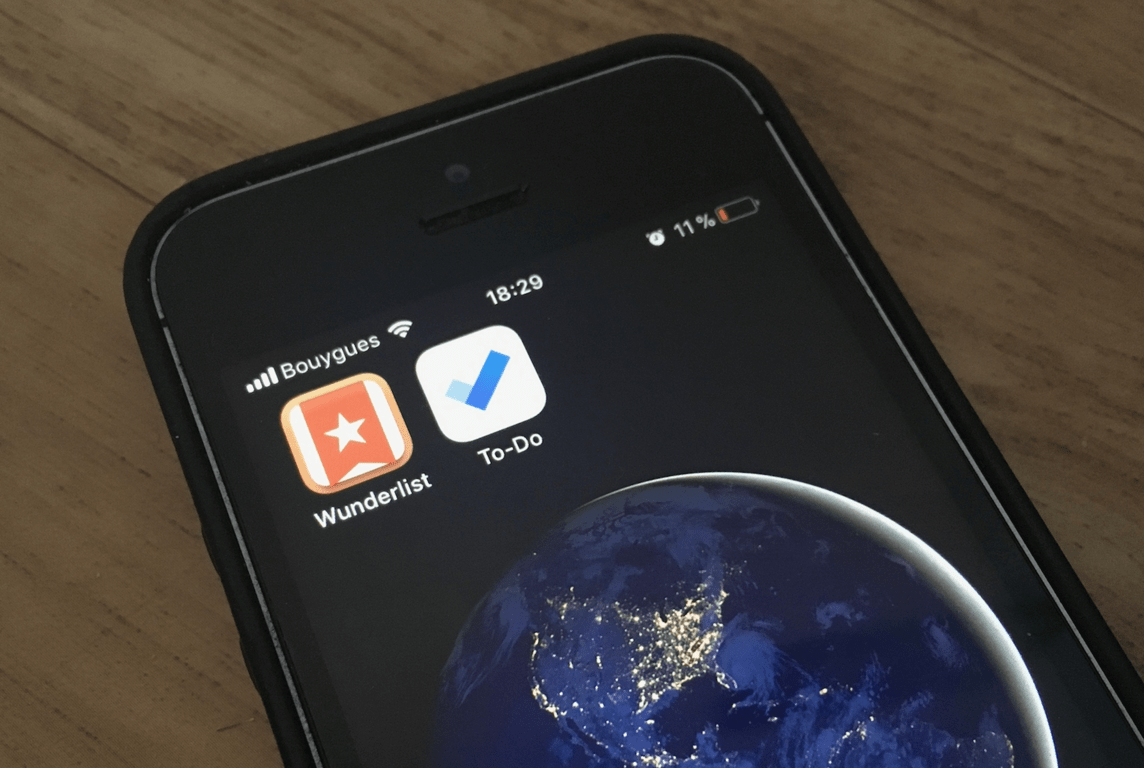
Despite Microsoft acquiring the excellent task manager app Wunderlist three years ago, the company announced last year that it would soon be replaced with a brand new product called Microsoft To-Do. The Redmond giant never really clarified the need to start from scratch, and it’s fair to say that there is still a big feature gap between Wunderlist and To-Do.
Microsoft still plans to bring most of Wunderlist’s features to To-Do, but the process is taking longer than expected. Wunderlist founder Christian Weber, who left Microsoft after the To-Do launch shared some details about the challenging transition process yesterday.
In a series of tweets spotted by German blog Dr Windows (via The Verge,), Weber explained that “Wunderlist’s API runs on Amazon Web Services, and should then be ported to Azure. But that was extremely time-consuming, so everything had to be rewritten.” Weber also explained that the team originally planned to keep Wunderlist alive for a year while getting Microsoft To-Do up and running, but the complicated transition from AWS to Azure eventually led Microsoft to keep Wunderlist alive for the time being.
As of today, Wunderlist still works as usual even though it’s no longer getting new features. However, many power users still prefer using it over Microsoft To-Do, even though the latter better integrates with Outlook.com and Office 365 accounts.
Microsoft may be widely considered as a productivity expert as of today, but you can’t deny that the company probably has too many similar products for managing tasks. Between Outlook tasks, Cortana reminders, Wunderlist, To-Do or Planner (for Office 365 only), it can be hard to figure out what to use and which task management solutions play nice with other Microsoft products. The Redmond giant recently promised new features for To-Do including list sharing and Cortana integration, though you may want to keep using alternatives for the time being.
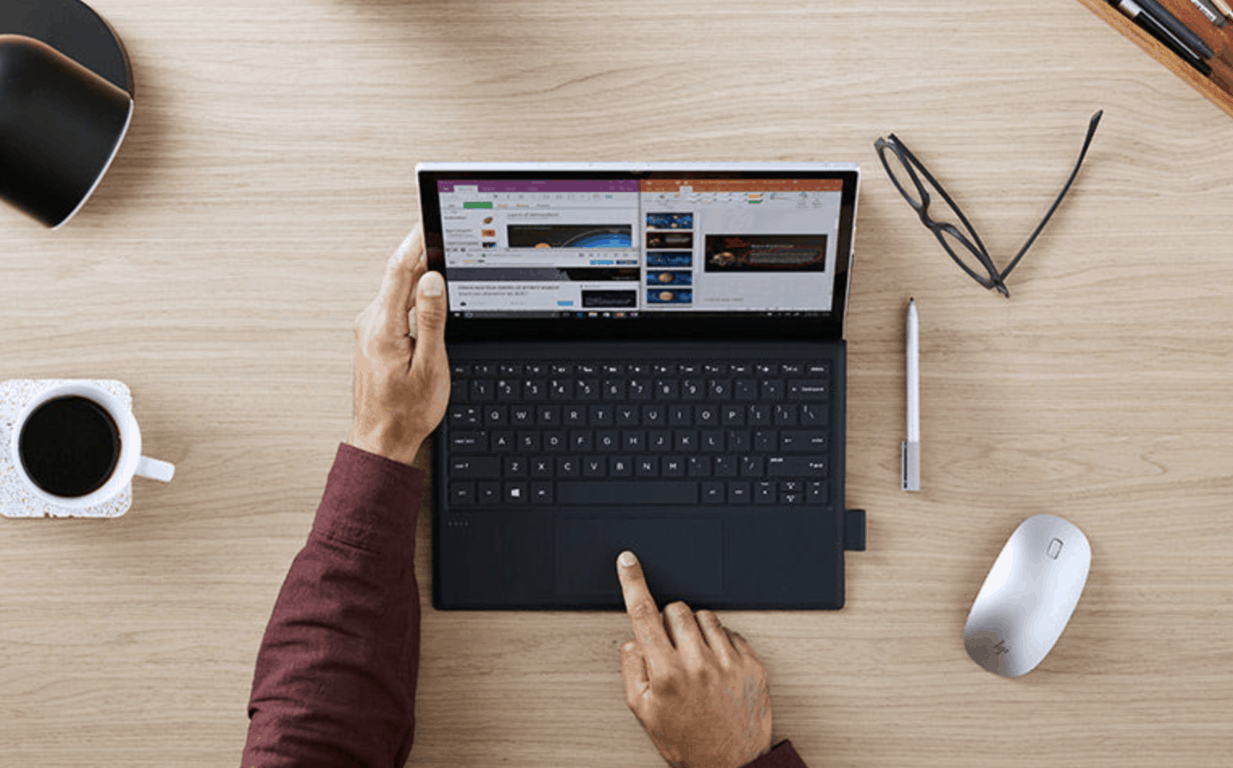
The first Always Connected PCs powered by a Qualcomm Snapdragon 835 are coming this Spring, and the first reviews have been published this week. Laptop Mag looked at the HP Envy x2, and The Verge checked the Asus NovaGo.
Both reviews highlighted the excellent battery life and convenience of having a laptop that’s always connected to the Internet, but the most interesting part of the reviews was performance details. Well, the bad news is that some Win32 apps like Google Chrome are almost unusable on these machines
As you may know, Windows 10 on ARM PCs can run Win32 apps through emulation, though with several limitations (only 32-bits apps are supported). Here is what Laptop Mag had to say about Win32 apps support on the HP Envy x2:
The HP Envy x2’s major weakness is its laggy performance, as its Qualcomm 835 CPU and 4GB of RAM don’t provide a ton of speed, especially when you’re running non-Windows store apps. I first noticed this when I tried to open Chrome from the desktop, but accidentally opened two windows, because the first was taking so long to generate that I had tapped the screen again.
The Verge echoed this sentiment, adding that popular Win32 apps that have been ported to the Microsoft Store with Microsoft’s Desktop Bridge also performed badly on the Asus NovaGo:
The Chrome issues extend to web-wrapper or Electron-based apps, such as Slack, which have abysmal and frustrating performance. I ended up using Slack in a tab within the Edge browser, which performed much better than the Slack app downloaded from the Microsoft Store.
The Asus NovaGo.
The HP Envy x2 is a $999.99 machine, while the Asus NovaGo will start at $599. Both laptops will be available to purchase in the US later this Spring, but it remains to be seen if there will be many early-adopters willing to buy these machines. Being always connected is great, but pricing may be too high when you consider the sub-par performance in certain scenarios.
To be clear, both machines will ship with Windows 10 S, and customers who will stick with Microsoft Edge and other UWP apps should have a good experience. Not everyone needs Google Chrome or legacy desktop apps, and these customers should be pretty happy with a Windows 10 on ARM PC. However, the fact that bridged Win32 apps available in the Store don’t perform well is quite concerning. As The Verge pointed out, these machines are not really meant to be used by power users:
Overall, while there were some definite pluses to using the Windows on Snapdragon computer (long battery life, silent design, and integrated connectivity), I couldn’t wait to go back to using any one of the other Intel PCs I’m used to. Between the app compatibility issues and the general feeling that I was always pushing the machine to the edge and it was barely holding on, using the NovaGo as my primary work computer hasn’t been a very pleasant experience. In fact, it reminds me a lot of using a low-end Chromebook.
Microsoft and Qualcomm deserve credit for making full Windows 10 work on a smartphone processor, and the Snapdragon 835 is definitely no slouch. Of course, first-gen products can never be perfect, and hopefully, future models powered by the Snapdragon 845 will have better performance.
However, Windows 10 on ARM PCs will also have to compete with Always Connected PCs with Intel processors and Qualcomm modems, just like Microsoft’s Surface Pro with LTE. While PCs with Intel chips will always be more expensive than those using Qualcomm’s, full compatibility with x86 desktop apps and drivers should remain a main selling point in the near future.
Sea of Thieves, the much-anticipated pirate game from Microsoft Studios, was finally released on Xbox One and Windows 10 yesterday. The game is a $59.99 purchase, but it’s also the first Microsoft Studios title to launch with Xbox Games Pass, Microsoft’s new gaming subscription service. As a happy subscriber, I was pretty excited to try the game on day one yesterday.
Microsoft has been marketing Sea of Thieves like crazy this past couple of weeks, and I really wanted to know if the company could have a hit on its hands. After trying the game for the first time yesterday, I’m really not sure about that. There are some really great elements in Sea of Thieves, especially the graphics and the navigation. But other than that, I’m afraid it’s much less ambitious than what I thought.
First of all, I’m afraid the first hour of gameplay will be very frustrating for most gamers, and those who have very little patience may give up very quickly. There is zero tutorial when you begin the game, and it took quite some time to figure what to do at the outpost where I began my session.
You have to use the coordinates on the maps to figure out where to go.
For my first playthrough, I chose to play the game alone as I didn’t want any distractions while trying to understand the gameplay. You start the game at a random outpost, where you can speak to merchants and purchase quests from three different factions. At the beginning of the game, the only quests you can do are treasure and animal hunts, and I couldn’t figure out how to complete the second ones.
Once you choose some quests to complete, you can head over to your boat and you and your crew will have to vote for the quest you want to complete. If you choose a treasure hunt, you’ll get a map showing you the coordinates of a buried chest. You’ll then have to check where the coordinates are on the map table below the deck and add a mark on it if you want to. There is no HUD in Sea of Thieves, so you’ll have to do a lot of back and forth between the ship’s wheel and the map table (below the deck) to figure out where you’re going.
Despite its cartoon graphics, Sea of Thieves is a really pretty game.
Navigation is pretty simple in Sea of Thieves: to leave an outpost, you raise the anchor and deploy sails. It’s worth noting that Rare’s water tech is absolutely incredible, and sailing the seas feels very good.
However, the world of Sea of Thieves feels quite empty so far. During my first playthrough, I didn’t see any other pirate ships or players, and I found nothing to do on the different islands I visited. At some point, I came across a place called Skull Keep, which looked like a big wooden fort defended by cannons. I expected to have to fight either pirates or hordes of skeletons, but the whole place was completely empty. I only discovered a door which needs a special key to be opened, but the game gave me no clues about where to find it.
I expected to find lots of enemies in this fort, but it was completely empty.
In some ways, Sea of Thieves seems almost too realistic. You have to figure out everything yourself, and playing the game alone can be quite difficult and frustrating. Overall, I think the lack of a real tutorial is a bad design choice. As an example, I unfortunately sunk my own ship at some point after hitting a rock near an outpost. Actually, I only realized that my ship was sinking once I was on the ground.
After seeing my ship disappear into the sea, I had no idea how I could get another one. After going in circles for about 10 minutes without knowing what to do, I spotted some green smoke leaking from where I had lost my ship. As it turned out, this was actually a mermaid, and these can help you teleport to a brand new ship. Thanks for making that part so obvious for players, Rare.
If you lost your ship, mermaids can teleport you back to a new one.
After 2 hours of gameplay, I finally managed to find a buried chest on an island. Once you find a chest, which will always be protected by skeletons, you’ll have to bring it back to an outpost and collect your reward. You gain reputation points every time you complete a quest, which unlocks more difficult missions. As for the gold you earn, you can only use it for cosmetic items, which for me isn’t exciting at all.
For now, I’m afraid the game can become repetitive very fast. The various fetch quests seem to be pretty much all the same to me, and there’s simply not much else to do in the game once the novelty wears off. Combat isn’t great either, as the game’s skeletons offer almost zero challenge. Worse, there is nothing to loot in the game except bananas, wood planks, and cannonballs, which aren’t hard to find at all.
I feel like the game really lacks an interesting progression system, and there also needs to be more reasons to complete quests than just unlocking cosmetic items. The saving system is also a bit obscure: it looks like you can’t store chests somewhere, and you just start with a brand new ship at a random outpost every time you log in.
There are not a lot of things to do at the game’s various outposts.
Overall, Sea of Thieves still looks like an early-access game, with very little content. $59.99 seems high for what seems to be a slim, though very pretty package. There is also very little dialogue in the game, no documents to read except mission orders, and almost no music. All in all, the world of Sea of Thieves looks very shallow compared to the one from Assassin’s Creed IV: Black Flag, which remains the gold standard for pirate games to this day.
I have yet to try playing the game with a squad, but I’ve also read some bad things about the multiplayer experience. As Polygon pointed out, there are no “safe zones” in the game, and other pirates can wait at outposts to ambush you and steal all your chests. In a game called “Sea of Thieves,” maybe some encounters with actual thieves were to be expected? Anyway, this sounds like a very frustrating experience for gamers, and I hope Rare is aware of it.
Thieves will try to steal your precious chests.
Despite its flaws, it’s probably too early to know if Sea of Thieves could be a hit. Again, I found the lack of real tutorial really annoying, but even with that omission, I think the game is probably easier to understand than Minecraft. The latter became massively popular over the years, even though I never had the patience to learn how to play it.
It’s great that Sea of Thieves is free with Xbox Games Pass, and for now, I wouldn’t recommend anyone to buy the game full price (it’s probably never a good idea to buy games on day one, anyway). If you know what to expect and have some friends to play with, you’ll probably have some fun in Sea of Thieves. However, the steep learning curve and lack of content will probably push casual gamers away really quickly.
Microsoft and Rare deserve credit for trying something different with Sea of Thieves, but I’m not sure the pirate game is what the Xbox really needs right now. It’s been years since Rare last released a hit game, and it doesn’t seem like the talented studio behind the cult-classic shooters Goldeneye and Perfect Dark released the best game it could create. If you’re looking for the ultimate pirate adventure, I’m afraid Ubisoft’s Assassin’s Creed: Black Flag remains much more fun and immersive, for now at least.
While this isn’t a definitive review, you only have one chance to make a good first impression, as the adage says. And to be perfectly honest, I was pretty close to rage quitting after the first 30 minutes of gameplay. It got better when I finally started to understand the game’s core mechanisms, and I do plan to keep playing the game this week. Sea of Thieves seems to be more fun with some friends on board, and this is also something that I’ll have to explore over the coming days. If you already had the opportunity to try Sea of Thieves, I’d love to read what you think about the game so far.
Laptop users are familiar with laptop heat especially when they’ve been using their computers long enough, and it starts to get hot, sometimes it overheats, and eventually shuts down.
The reason it shuts down is so that it prevents permanent damage from happening, or even catching fire. But while the latter may not happen all the time, overheating has been linked to other human dangers such as infertility and even skin problems.
When laptops produce heat, it is generated by the CPU and its graphics card, and different laptops handle such heat differently once it is generated – some blow air using fans, others use the metal chassis as a heat sink to conduct the heat into the air, from your laptop.
Other causes could be a non-functioning fan, blocked air ducts/vents, and these can reduce your computer’s life so you need to resolve it as soon as possible. There are solutions both to manage the temperature and cool your laptop systems, and fix laptop overheating shutdown.
FIX: Laptop overheating shutdown
Table of contents:
General troubleshooting
Change power options
Test hardware failure
Select Power settings to shut off laptop when not in use
Check heat sinks
Minimize background tasks
Check for the latest driver updates/installs
1. General troubleshooting
One of the ways you can cool down your laptop is to raise it in open air on a laptop stand, or use some books under the laptop, so it can get as much air as possible to stay cooler, and help the fans blow without hindrances. You can also turn on power saving options on your computer so it can use less power and thus generate less heat.
Other things you can do include unplugging from the power outlet as the power cord also heats up while doing its work, stay away from hot environments, use a laptop cooling pad, turn it off for some time so it can cool down, and keep it serviced every so often to ensure fans and vents are cleared of dust and hair which clog them up.
Did any of these fix the laptop overheating shutdown issue? If not, try the next solution.
2. Change power options
Click Control Panel and select Hardware and Sound
Click Power option
Go to Change plan setting
Change advanced power settings
Click Processor power management
Go to Maximum processor state and change it to 65-70 percent
Did this help? If not, go to the next solution.
3. Test hardware failure
If laptop overheating shutdown persists after you clean the vents and move to a cooler room, then there’s a likelihood that a hardware component may be damaged. Test your laptop to see if the memory, processor or graphics hardware have failed. Most laptops have diagnostic software to verify hardware failures.
4. Select Power settings to shut off laptop when not in use
Most operating systems allow you to change power settings. Use these settings to turn off the display when you are not actively using your computer. If you frequently leave your computer on when you leave it, then changing the power setting to turn off your monitor when it is not being used can help keep your computer running at a cooler temperature.
5. Check heat sinks
Sometimes laptop overheating shutdown may be due to a loose heat sink or fan that isn’t operating the way it should. You could find that the heat sink on your processor is unattached, or one retaining clip is out of place, so it lodges the wrong way. In this case, clean and re-grease the heat sink or CPU, put the heat sink or retaining clips back in place and you’re good to go.
6. Minimize background tasks
You can also get laptop overheating shutdown problems due to background tasks such as defragmentation and virus scans. You can use the task scheduler to ensure these tasks are executed only when your laptop is not being heavily used.
You can install the latest drivers through Device Manager or going to your device’s manufacturer website and find the latest versions, then uninstall the old, and install the new ones.
Here’s how to use Device Manager to check for driver updates:
Right click Start, select Device Manager
Click Display adapters to expand it
Right click on the driver
Select Update driver software
If you don’t have any driver updates available, right click on the graphics card driver and click Uninstall, then restart your computer, or use Windows Update settings as shown below:
These are professional tools that can find and install the latest driver versions for your hardware. You can set them up to do regular driver scans so you won’t have to worry about outdated or damaged drivers in the future.
Let us know if any of these solutions worked by leaving a comment in the section below.
Assassin’s Creed Rogue Remastered is now available to play on all Xbox One consoles. This game is a remaster of the original Assassin’s Creed Rogue video game which was originally launched on the Xbox 360 back in 2014 and was the final Assassin’s Creed title to made for that console generation.
This new Xbox One version of Assassin’s Creed Rogue features 4K resolution when played on the Xbox One X consoles, an improved graphics engine to create a more immersive world, and bonus content from the Xbox 360’s Deluxe Edition. Here’s the official description.
Created by Ubisoft Sofia, the studio that developed the original Assassin’s Creed Rogue, Assassin’s Creed® Rogue Remastered will offer an even more beautiful and immersive gaming experience that invites fans of the series and new players alike to discover or rediscover Shay’s adventures in 18th-century North America. The darkest chapter of the Assassin’s Creed franchise, now featuring 4K resolution, enhanced graphics with denser crowds, improved environment rendering, shadow resolution upscale, and much more!
Also included: Two bonus missions from the original deluxe edition, two packs full of weapons, outfits and customisation items for your ship, and the Bayek’s Legacy outfit.
Are you excited to play Assassin’s Creed Rogue Remastered on the Xbox One? Let us know in the comments below.
Are you getting Windows Update Error Codeerror 0x8024a112? Read on! This post will address this problem.
Sometimes, after running a Windows update, the system refuses to restart, resulting in the error 0x8024a112, which usually displays with the text:
We’re having trouble restarting to finish the install. Try again in a little while. If you keep seeing this, try searching the web or contacting support for help. This error code might help: (0x8024a112).
The error appears due to factors such as terminated service, corrupted system file, or incomplete update, which requires a restart.
Hence, Windows Report has compiled the following solutions for solving the error problem.
How do I fix error code 0x8024a112?
Before we head to the complex one, here are a few quick solutions to try:
Restart the computer.
Disable any third-party antivirus, firewall, VPN, or similar software running on the PC.
If none work, head to the fixes listed next.
1. Run the Windows Update troubleshooter
Press Windows + I to open Settings, and click on Update & Security.
Select Troubleshoot from the navigation pane, and click on Other troubleshooters.
Select Windows Update and click on Run the troubleshooter.
Click Next to run the Windows Update troubleshooter, then follow the instructions on the screen.
Windows Update troubleshooter is Windows 10’ built-in program that automatically detects and fixes most incorrect settings on your PC resulting in Windows Update 0x8024a112 failure.
2. Run System Restore in safe mode
Tip
Ensure you can identify the restore point date before the error message first appeared. Also, System restore does not affect your files, documents, or personal data.
This solution contains steps that are part of modifying the registry. Please note that serious problems may occur if you do this incorrectly. Ensure you follow these steps correctly and carefully.
Press Windows + S to open Search, type Command Prompt, and click on Run as administrator.
Stop the BITS, Cryptographic, MSI Installer, and Windows Update Services by typing the following commands and hitting Enter after each: net stop wuauservnet stop cryptSvcnet stop bitsnet stop msiserver
Rename the SoftwareDistribution and Catroot2 folders by executing these commands:Ren %systemroot%\SoftwareDistribution SoftwareDistribution.oldRen %systemroot%\system32\catroot2 catroot2.old
Restart the services you disabled earlier with the following commands: net stop wuauservnet stop cryptSvcnet stop bitsnet stop msiserver
Close the Command Prompt and restart the computer.
Try running Windows Updates again to check if the Windows 10 error 0x8024a112 has been resolved.
4. Perform a Clean Boot
Press Windows + R to open Run, type msconfig, and hit Enter.
Go to the Services tab, and then select Hide all Microsoft services checkbox, and click on Disable all.
Go to the Startup tab and click on Open Task Manager.
Select each of the apps here individually and click Disable if the option appears near the corner.
Finally, reboot your PC
Clean boot is a procedure in Windows that starts your PC in a clean state devoid of software conflicts.
These conflicts, most especially related to error 0x8024a112, can be caused by applications and services that start up and run in the background whenever you start Windows normally.
To successfully perform a clean boot on Windows 10, you have to be logged on as the administrator.
You should be able to find and download available updates after trying out any of the solutions we mentioned above without coming across the 0x8024a112 update error in Windows 10.
Before you leave, do check the best Windows Update repair tools and get one today to fix such errors seamlessly.
If you have any questions or suggestions, the comments section is below.
The Windows Server team just announced a first preview build of Windows Server 2019, the latest version of the server OS to be available in the second half of 2018. Windows Server 2019 is built on the foundation of Windows Server 2016, which the company says is the version that saw the fastest adoption ever.
Windows Server 2019 has been designed for hybrid cloud scenarios, with the company saying that “hybrid cloud enables a future-proof, long-term approach.” Project Honolulu, Microsoft’s browser-based solution for server administration will also allow customers to easily integrate Azure services such as Azure Backup.
Project Honolulu’s management dashboard for Azure Backup in Windows Server 2019 Preview.
The next version of the server OS will also bring some new security features, including a native integration of Windows Defender Advanced Threat Protection. “This gives customers access to deep kernel and memory sensors, improving performance and anti-tampering, and enabling response actions on server machines,” the company explained.
Windows Defender ATP will be embedded in Windows Server 2019.
The first preview build of Windows Server 2019 is available today for Windows Insiders. Microsoft says that the new server OS will have the same licensing model as Windows Server 2016, and there will be both a Semi-Annual Channel release and Long-Term Servicing Channel (LTSC) release for customers.
Windows 10 PCs aren’t the only devices receiving new builds today, users in need of updates to Windows Server are in luck today.
Alongside the Windows 10 Insider preview build 17127 for Fast Ring PCs, customers using Windows Server are now getting vNext LTSC build 17623 today.
The LTSC in the title for Windows Server stands for Long-Term Servicing Channel and it combines both Desktop experiences as well as Server Core with support for over 18 server languages and the bits for the next Windows Server Semi-Annual Channel release.
In-place OS Upgrade (from Windows Server 2012 R2, Windows Server 2016)
Application compatibility – please let us know if any server roles or applications stops working or fails to function as it used to
Other tidbits in the release include extending clusters with Cluster Sets, deep platform sensors, and response actions to address memory and kernel vulnerabilities and attacks via Windows Defender ATP. Exploit Guard prevention capabilities, Network protection, Controlled Folder Access, Failover Cluster removal and shielding for virtual machines are also new items for Server customers to play around with this new 17623 build.
Customers can try out the new build via an iSO formatted in 18 languages and download it after registering as an Insider which will then walk through the rest of the download and install process.
As with many Insider programs, testers participate at their own risk and Windows Server build 17623 there are a handful of known issues that still need a little attention from the Server engineering department.
Known issues
In‑place OS upgrade: Domain Controllers. During an in-place OS upgrade, Active Directory (AD) Domain Controllers (DC) might not be upgraded correctly. So, back up any AD DCs before performing an in-place OS upgrade.
Editing or creating policies for AppLocker can cause the MMC snap-in to crash when generated rules for a packaged app.
After upgrading the operating system, the AppX database may have corrupted entries, which causes problems for components that use those entries.
Testing of the Windows core may fail because of a timeout while attempting to load the test libraries.
Microsoft made a pretty big announcement for game developers at the Games Developer Conference yesterday. The company unveiled a new DirectX Raytracing API for DirectX 12, which will be able to supplement current rendering techniques to improve visual quality in video games.
For those unfamiliar with it, raytracing is a technique that is often used for CGI in films, but some games also use the technology for some tasks like pre-calculating the brightness of virtual objects. “DXR will initially be used to supplement current rendering techniques such as screen space reflections, for example, to fill in data from geometry that’s either occluded or off-screen. This will lead to a material increase in visual quality for these effects in the near future,” Microsoft explained.
Raytracing calculates what a pixel would look like if a virtual world had real light.
Leaving some of the technical details aside, you should know that Microsoft’s goal to bring real-time raytracing to video games, with dedicated hardware acceleration and seamless integration with existing DirectX 12 content. According to the company, the new API could “open the door to an entirely new class of techniques that have never been achieved in a real-time game.”
Microsoft said that developers can use existing hardware to get started with DirectX Raytracing, and popular game engines such as Unity, EA’s Frostbite and Epic Game’s Unreal Engine will soon natively support the API. It remains to be seen if DirectX Raytracing can lead to a graphics revolution, but developers now have a powerful new tool to make it happen.
Have you ever curled up under the covers on a rainy day with a good service agreement as your choice of entertainment? I haven’t either, but Microsoft is making some changes and updates to its Microsoft Services Agreement and for the next month you may want to familiarize yourself with the new terms before they become permanent fixtures in your life as of May 1, 2018.
A quick FAQ posted to the Microsoft blog regarding Service Agreements covers some of the items users will need to know about their products going forward, such as which services are and are not covered by the newly adjusted Services Agreement. Another handful of Service Agreement topics are covered including what changes are actually being made, how are parents of children with access to Microsoft services being held accountable, and how users can go about accepting the new terms for their respective services.
Despite many of the adjustments being run-of-the-mill semantic tweaks, we suggest every user of Microsoft products or service take a look at the updated terms located here for their own piece of mind.
Microsoft’s Joseph Conway, a Senior Program Manager on the Windows Fundamentals team, recently took to a blog post to explain the company has acted on a top request from Windows 10 users. Indeed, he says Microsoft worked on the phases of Windows Update to help reduce the “offline time” when Windows 10 is unusable during featured updates.
According to Conway, there are four phases in the installation of a featured update, each of which is done in online and offline phases, with multiple reboots required. An online phase happens in the background while the device and OS are running, and means the user can continue working on a PC. An offline phase, meanwhile, means the OS is not running, and there will be an offline period where the user can’t use their PC.
Here’s how updates word under the old model, with an average offline time of 82 minutes for installation of the Creators Update.
Online Phase of Update:
PC checks for available feature updates (manually or automatically)
Feature update payload is downloaded
PC waits for a required reboot to begin update installation
Offline Phase of Update:
PC reboots to begin update installation process
User content is prepared for migration
New operating system is placed into a temporary working directory
Drivers and other required operating system files are migrated
User content is migrated
PC reboots and completes the update
OOBE begins
Now, with the upcoming Redstone 4 release, Conway says Microsoft has done additional work to reduce the offline time to just 30 minutes. He provided the following explanation, saying Microsoft worked to move portions of the mitigation process from offline phase to the online phase:
Online Phase of Updates:
PC checks for available feature updates (manually or automatically)
Feature update payload is downloaded
User content is prepared for migration
New operating system is placed into a temporary working directory
PC waits for a required reboot to begin update installation
Offline Phase of Updates:
PC reboots to begin update installation process
Drivers and other required operating system files are migrated
User content is migrated
PC reboots and completes the update
OOBE begins
Average Offline time of 30 minutes (Insiders Program)
With these changes, the online portion of a featured update should take longer to complete, but most users will not feel the slowdown. At any rate, these are some welcome changes, helping speed up the update process and make it less infuriating for most Windows 10 users. Do you like these changes? Or do you feel that Windows Updates still take too long? Let us know your thoughts below.
After months of anticipation, the moment is finally here for those who have been waiting for Sea of Thieves. The game is launching 9 PM PDT tonight on March 19 here in the United States, so here is a quick look at what time you can start playing in some other popular regions across the world.
If you’re located in New Zealand, you can start playing at 11:00 UTC on March 19th, 2018. Similarly, if you’re in Australia, you can start playing at on March 19th at 13:00 UTC. Finally, if you’re in India, you can start playing on March 19th at 18:30 UTC. Of course, you can check the full list of launch times for other regions here.
Issues with touchscreens are quite common, especially on Windows 8/8.1 where Microsoft still was experimenting with hybrid input. There are various reported issues, glitches and lackluster performance on Asus laptops powered by Windows 8. But, of course, the gravest issue is when the touchscreen won’t react at all.
For that purpose, we enlisted the most common solutions, so make sure to check them out below. If you’ve encountered any touchscreen issues, these instructions should come in handy.
How to fix Touchscreen issues on Asus laptops in Windows 8/8.1
As we already stated, these sudden touchscreen issues emerge mostly after Windows updates your drivers on its own. There are various drivers in the game, but the best thing to start with is to reinstall graphics drivers.
Nonetheless, it’s recommended to skip the system resources while doing so. What you’ll need to do is to navigate to the official Asus support website, locate your device, and download proper drivers.
In order to ease it on you, here’s how to do it in a few simple steps:
Now, in the Windows Search bar, type Device and open Device Manager from the list of the results.
Expand Display adapters.
Right-click on your GPU and click on ”Update Driver software”.
Choose to browse for drivers on your PC and navigate to the driver package you downloaded and unpacked.
Wait for the installation to complete and restart your laptop.
Update drivers automatically
If you don’t want the hassle of updating drivers manually, we strongly suggest doing it automatically by using a third-party tool. Using a dedicated tool is a time-saver solution and will keep you safe from any PC malfunction.
Solution 2 – Check the HID-compliant touchscreen drivers
While we’re referring to drivers, there’s a chance that the touchscreen drivers are the ones causing the problem. These drivers are mostly generic and Windows Update should be enough to get you going. What you’ll need to do is to look for the exclamation mark beside HID-compliant touchscreen drivers.
If that’s the case, your touchscreen drivers are faulty, hence you won’t be able to use this feature on your Asus laptop/hybrid. Here’s how to check HID-compliant touchscreen drivers and resolve the issue at hand:
In the Windows Search bar, type Device, and open Device Manager.
Navigate to Human Interface Devices and expand this section.
Right-click on HID-compliant touchscreen drivers click on ”Update Driver Software” in the contextual menu.
Here, you can individually update all HID-compliant touchscreen drivers or select the ones with the exclamation point and update only those.
Also, right-click on every respective driver and open Properties.
Under Power Management, uncheck the ”Allow the computer to turn off this device to save power”.
After you’re done, restart your laptop.
Solution 3 – Reset calibration for touchscreen
Another possible resolution for the touchscreen misbehavior is to reset the calibration settings. Namely, it’s not unusual for Windows updates to meddle with your settings, changing them in the process. This can cause a large variety of errors and the touchscreen isn’t an exception.
Follow these instructions to reset calibration settings and, hopefully, address touchscreen issues for good:
In the Windows Search bar, type Calibrate and open ”Calibrate the screen for pen or touch input”.
Under the Display tab, click Reset to restore the default calibration values.
Confirm changes and restart your PC.
Solution 4 – Disable USB Selective Suspend
The previous step covered the power management of the individual devices. However, there’s more to power settings than this. Namely, a lot of users managed to resolve the issue by disabling USB selective suspend, an option which disables USB’s automatically in order to preserve power and add to battery longevity.
This can be done by following these steps:
Click on the Battery icon and open Power options.
Click on ”Change plan settings” under your preferred power plan.
Select ”Change advanced power settings”.
Expand USB settings > USB selective suspend setting.
Set both options to ‘Disabled’ and confirm changes.
Solution 5 – Refresh your system
This isn’t the last resort (a clean reinstallation is still an option), but this way you’ll get to keep your files unharmed while resetting the system to its original values. This procedure is simple to run and it should be safe. However, just in case, we advise you to backup your data from the system partition before starting.
Follow these instructions to reset your Asus laptop to its default values:
Open Settings.
Click Update and recovery.
Click Recovery.
Expand ”Refresh your PC without affecting your files”.
Click Get started.
Finally, if none of the aforementioned steps worked out for you, make sure to send the ticket to the manufacturer. Touch screens are a touchy subject (no pun intended), and most of the time they’re hard to address on your own if the issue emerged due to hardware malfunction.
Also, don’t forget to share your thoughts on the subject or add some alternative solutions. You can do so in the comments section below.
Welcome to our weekly Xbox news recap series, where we go over the top stories of the past week in the world of Xbox. Let’s get started.
Shadow of the Tomb Raider trailer releases
The trailer teasing Shadow of the Tomb Raider has been released, giving us a 20 second look into the world that Square Enix is sharing with us in the Fall of this year. Included in the trailer was the release date for the game, and the announcement that pre-orders are open. Shadow of the Tomb Raider will be launching on September 14th, and we’ll see a full reveal on April 27th.
Xbox Avatars will ship “When they’re ready”
Rumors that the new Xbox avatars would be coming out in April were dispelled by Xbox’s Mike Ybarra this week, when he told us that the avatars will “ship when they’re ready.” The new avatars will look quite a bit better than the ones we’ve been using for so long, and will include a ton of customization options to help people better express themselves.
PUBG crosses 5 million players on Xbox One
Although Fortnite has been overshadowing it in the news lately, PUBG is still a force to be reckoned with. It was recently announced that the Battle Royale giant has surpassed 5 million players on the Xbox One alone, making it one of the most successful non first-party games that Microsoft has put onto the platform.
Xbox One mobile players can now cross-play with Xbox, PC
Fortnite has now been updated in order to support cross-play between Xbox players, PC players, and Mobile players. While it isn’t so easy to get into Fortnite Mobile at the moment (unless you have a friend willing to send you an invite) the community is going to be growing considerably as a result of this some time in the future.
Thanks for joining us. To keep up to date with all the latest Xbox news, keep a close eye on our Xbox One tag.
Feedback Hub is Microsoft’s way of collating user feedback from users of Windows 10. The app not only gives users an avenue to express concern, report bugs, and make suggestions, but it also acts as a useful tool that provides the right diagnostic information at the right time, which is usually necessary for debugging a reported issue. As it’s baked into the OS through an app, obtaining this diagnostic information per report is extremely useful for Microsoft.
However, a Microsoft software engineer on the Feedback Hub team recently took to Twitter to respond to some users’ requests to bring the Feedback Hub to the web, so that it can be accessed in a web browser or while not at your Windows 10 PC.
As noted, Devin on the Feedback Hub team isn’t saying Microsoft will bring it to the web, but that it is listening to requests to make it happen and would like to know why people feel they need the ability to access it from the web.
Having the Feedback Hub on the web would bring some potential benefits to users. If you weren’t at your PC and suddenly thought of the next cool idea, it would be a case of opening your favourite web browser and posting the idea. It would also make it easier to get involved in comments, being able to respond on-the-go, as well as upvoting things while you’re out and about. The only obvious drawback being that, when it comes specifically to bug reports, Microsoft wouldn’t necessarily be able to obtain the diagnostic data for that report.
What are your thoughts on bringing the Feedback Hub to the web? Let us know in the comments!
The .NET Framework 4.7.2 is feature complete and has been available for testing since February 5, 2018, for members of the .NET Framework Early Access community. Now we have the information that it’s about to be released.
The latest stable Framework (4.7.1) was released on October 17, 2017, and it came with changes based on developer feedback. Many improvements were made to accessibility in narration, high contrast and focus control areas, configuration builders, ASP.NET Execution step feature, ASP.NET HttpCookie parsing, enhancements in Visual Tree for WPF applications, performance, and reliability.
Official blog post confirmed the release of .NET Framework 4.7.2.
Microsoft is trying to conceal future update release, but certain details have already leaked which suggest that users will soon benefit from the new improvements. Sneaking information from the official Microsoft blog post, we can share two major updates coming together.
I hope the Release Date is 05.04.2018 for Spring Creators Update, Windows 10 everytime in Dependency with .NET Framework. Now this Framework (4.7.2) is Testphase, is that right ????.
Hi Christian, we don’t have a final release date for the 1803 version yet but it’s probably around this date. Framework 4.7.2 will be most likely be released with RS4.
As you can see, Microsoft is reportedly planning to release both the Spring Creators Update and Framework 4.7.2 at the beginning of April.
Now it’s time to add a new date on the history of .NET Framework release in this overview offered by Wikipedia:
.NET Framework 4.7.2 is the next version of the .NET Framework. As development continues on the original .NET Framework, Microsoft has released build 3052 a preview of .NET Framework 4.7.2 with updates to ASP.NET, ADO.NET, WCF, WPF, and even Windows Forms.
While testing, build 3052 includes improvements in several areas shared in this representative set:
[ASP.NET] Support for SameSite cookie in ASP.NET
[ASP.NET] Support for ASP.NET Dependency Injection
[ClickOnce] Per-monitor support for WPF and HDPI-aware VSTO apps deployed via ClickOnce
[SQL] Always Encrypted enhancements in SQL Connectivity
[Networking & BCL] Enhanced .NET Framework support for .NET Standard 2.0
[BCL] Cryptography improvements
[WPF] Diagnostic enhancements
Wonder if it will come exactly one year after the release of .NET Framework 4.7? Place your best guess in the comments below and keep up to date with recent changes.
Microsoft recently announced that it’s launching a Cloud Gaming division in order to reach as many gamers as possible in the coming years.
Yes, Microsoft believes that cloud gaming is the future of gaming and it definitely doesn’t want to miss this train. This new division will allow the company to further develop game streaming and improve its existing game streaming service – the Xbox Game Pass.
Microsoft wants to break platform barriers
Although there is not much information available about the new Cloud Gaming division, its leader, Kareem Choudhry, revealed that one of its main goals is to bring content to gamers on any device.
Choudhry is a 20-year Microsoft veteran who has a lot of experience when it comes to Xbox-related tasks.
Indeed, the Redmond giant has some bold plans. It is estimated that there will soon be 2 billion gamers in the world, and Microsoft wants to reach as many of them as possible.
Microsoft also wants to convince game developers and game publishers to rely more on its cloud services among other things. This will also improve the multiplayer gaming experience allowing gamers who use different platform devices to play together.
Taking into account the success of the Xbox Game Pass, the company wants to use the same recipe when it comes to cloud gaming. Most likely, the upcoming cloud gaming service will be a subscription-based service.
Despite Microsoft’s good intentions, convincing gamers to choose its cloud gaming platform won’t be an easy task when there are already so many reliable alternatives.
There is also another variable to take into account: Will developers and publishers accept to use Microsoft’s technology and, subsequently, its game streaming service? Or will the company’s cloud gaming service have the same fate as Windows 10 Mobile?
Ever since Microsoft released the first Windows 10 version, users have been criticizing the company for adding a bunch of unnecessary bloatware and suspicious telemetry and privacy features.
However, removing Windows 10 bloatware is not an easy task, especially if you’re not a tech-savvy user. Fortunately, there are quite a few specialized programs out there that help you get rid of unwanted Windows 10 content.
All you need to do is download and install the respective software, run it and wait until it completes the scan and bloatware removing process.
The only downside to using some of these bloatware removing tools is that they tend to specialize. This means that you will only be able to remove particular types of bloatware.
We recently came across an interesting PowerShell script that allows you to block the majority of default bloatware and telemetry features running on Windows 10.
Here are some of the key features that this script disables:
File delete confirmation, Taskbar search box, People icon, tray icons, sync notifications, and more.
At the same time, this script hides a series of documents from PC or Explorer, including: desktop files, documents, downloads, music, pictures, videos, and more.
The script also adds a series of app tweaks to the table that allow you to uninstall various apps and features, such as: OneDrive, Windows Store, Xbox features, Adobe Flash, HyperV, and other such options.
Before you run this PowerShell script, you may want to read it in order to understand what exactly it does.
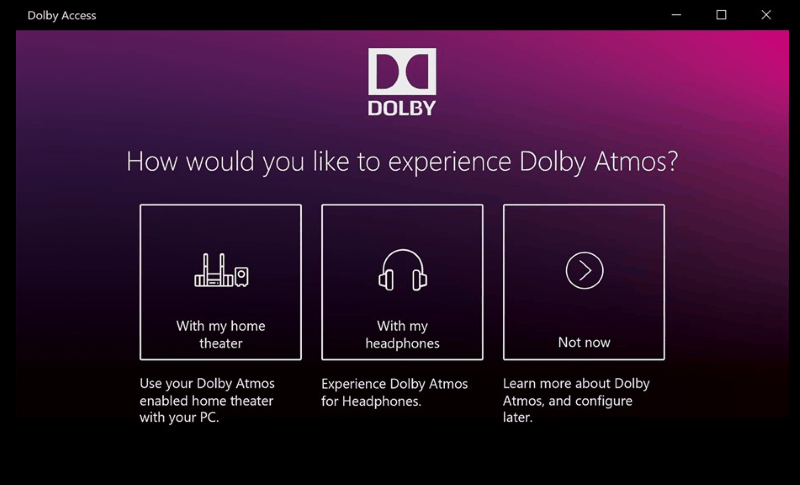
We fixed an issue from the last flight on PCs with the Dolby Access app installed and expired Dolby Atmos license, where the Windows Audio service (audiosrv) would crash with a stack overflow exception and the PC won’t have sound.
We fixed an issue resulting in a bug check with the error message SECURE_KERNEL_ERROR in recent flights.
As of Build 17063, a change was made that may have caused some older drivers to not load properly. This may have caused update failures or bugchecks (GSODs) shortly after the PC was rebooted. This build includes fixes for this that should prevent these update failures and bugchecks from occurring.
Thanks everyone who’s shared feedback about our Embedded Handwriting Panel so far – we’re making a change such that if you clean install, reset your PC, or upgrade straight to this build from the Fall Creators Update this experience will be turned off by default. The setting will remain on for Insiders who have upgraded from previous builds where it was enabled, and can be turned on by anyone with a pen capable device via the “Write directly into text field” option under Pen & Windows Ink Settings.
The previous build for Fast Ring testers was declared to have had no known issues, so the list of fixes and improvements is unsurprisingly short and welcomed for some.
However, there is one issue Insiders might experience with this latest preview, but fortunately, it’s a rather small one relatively speaking.
If you had your phone linked to your PC prior to upgrading, you’ll find it has become unlinked after upgrading. You can relink your phone from Settings > Phone.
We don’t know the numbers on how many people are toying with this option but I think its safe to say it’s probably not going to affect that many testers in any meaningful way.
The Windows Insiders fearless leader has surfaced with a bountiful basket of preview release builds. According to Dona Sarkar’s latest tweet, there is something to test for Insiders on various development rings.
— Dona Sarkar at #MBAS #a11y (@donasarkar) March 16, 2018
As far Windows Insiders on the Fast Ring are concerned, they can look forward to a new high-efficiency image file format as well as some additional tweaks to Windows Mixed Reality platform.
Introducing High Efficiency Image File Format (HEIF) in Windows 10
The High Efficiency Image File Format (HEIF) has arrived for Windows 10 and the Photos app! HEIF is an image container that leverages modern codecs like HEVC to improve quality, compression, and capabilities compared to earlier formats like JPEG, GIF, and PNG. In addition to traditional single images, HEIF supports encoding image sequences, image collections, auxiliary images like alpha or depth maps, live images & video, audio, and HDR for greater contrast. We have heard your feedback that these features and the ability to share photos easily with other platforms is important to you. This release we are delivering essential viewing support (You cannot edit HEIF images in this release).
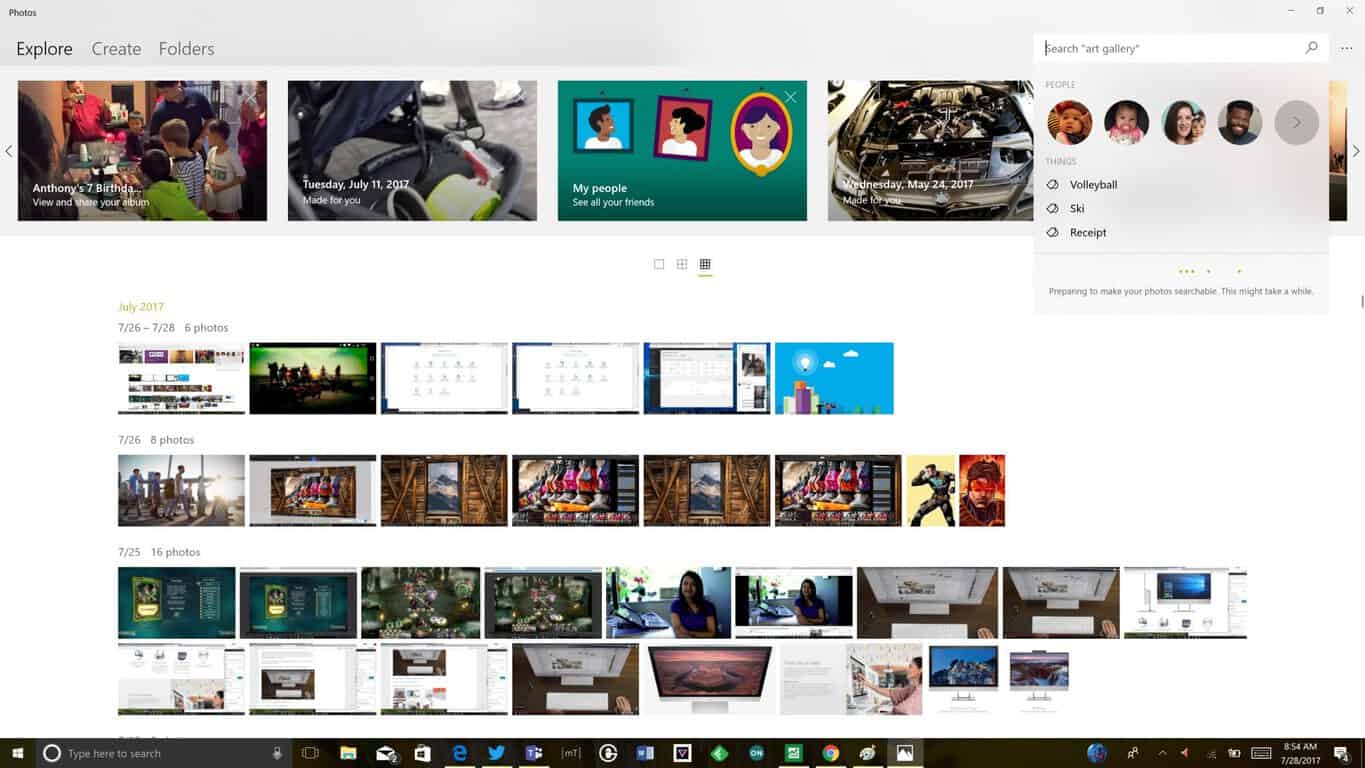
In order to try this out, you need to join the Windows App Preview Program for the Photos app and make sure you are running the March release of the Photos app (Version 2018.18022.13740.0 or newer). This version of the Photos app has been updated for RS4 to support viewing the primary image inside a HEIF file and to guide the install of dependencies like the HEIF and HEVC media extensions from the Microsoft Store. Once installed, these media extensions enable HEIF viewing in Photos as well as thumbnails and metadata in File Explorer.
Click here to open Feedback Hub and send us feedback on the HEIF experience with the Photos app and Windows 10.
Windows Mixed Reality
With this build, the Windows Mixed Reality Team would like to let you know about a few known issues as you try out the new Windows Mixed Reality features:
We’re investigating reports of a performance regression for Windows Mixed Reality on hybrid laptops on this build.
In some cases, the inbox apps will fail to load inside of Windows Mixed Reality and newly placed Holograms may be empty. Restarting Windows Mixed Reality should resolve both issues.
Occasionally there may be a long delay and restart of mixed reality when transitioning to a new place (Skyloft or Cliff House).
Since the last build, the following bugs should now be fixed:
The ambient sound in Skyloft should now the correct volume.
Launching the Store from Movies & TV should no longer crash either app.
360 videos should render correctly inside of the Edge app, and the 360 Viewer can be launched from directly from the Store app.
Seems as though the end is near for the development of Redstone 4 as the list of new and exciting features continues to be widdled down with each passing release. Fortunately, that means an official update should be on its way soon.
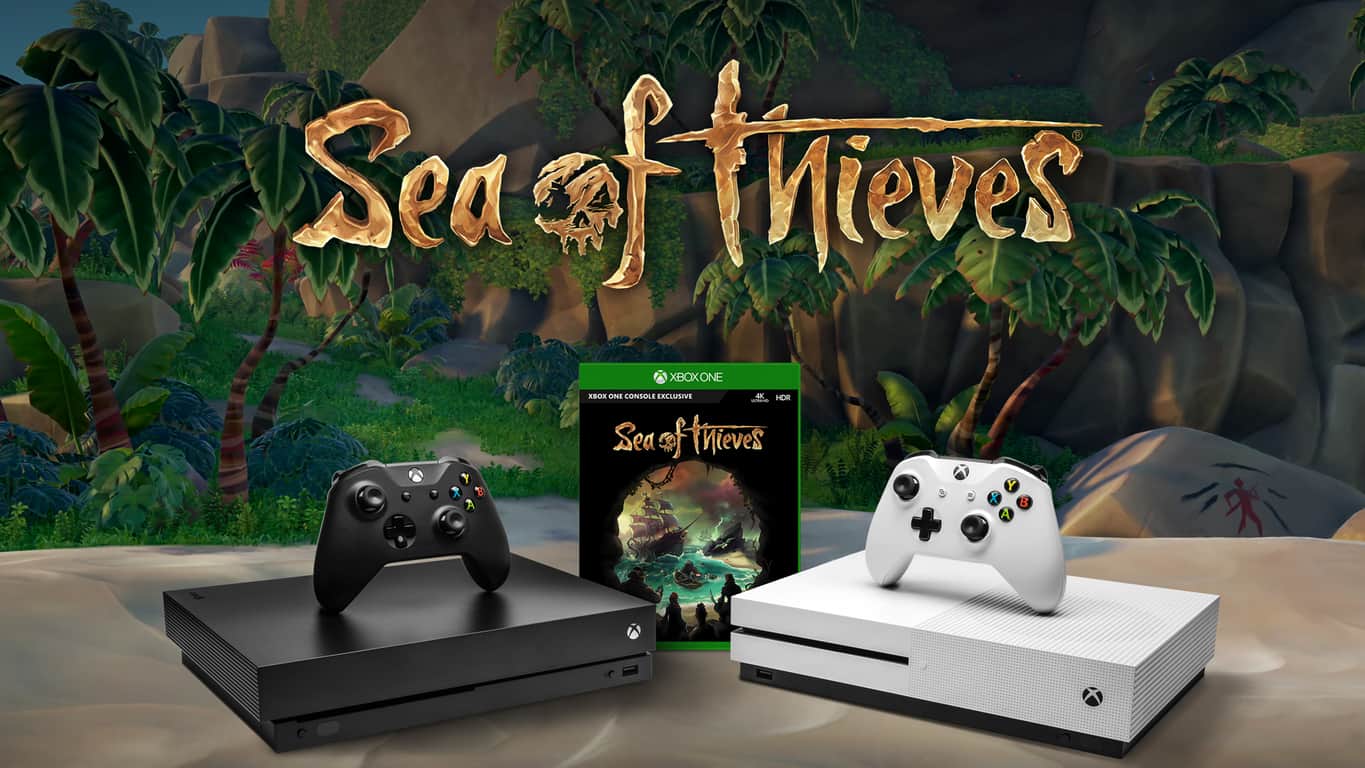
To celebrate the upcoming release of Sea of Thieves on the Xbox One next week, Microsoft will be offering a free digital copy of the game with new Xbox One X purchases. The limited-time offer will kick off on Sunday, March 18 and will last through March 24.
Microsoft notes that the promotion should be available at participating retailers in most Xbox One markets, though start and end dates may vary. Microsoft previously bundled PUBG with new Xbox One X purchases this year, but Sea of Thieves seems to be an even better value. Indeed, the pirate game supports Xbox Play Anywhere as well as cross-platform multiplayer between Xbox One and Windows 10.
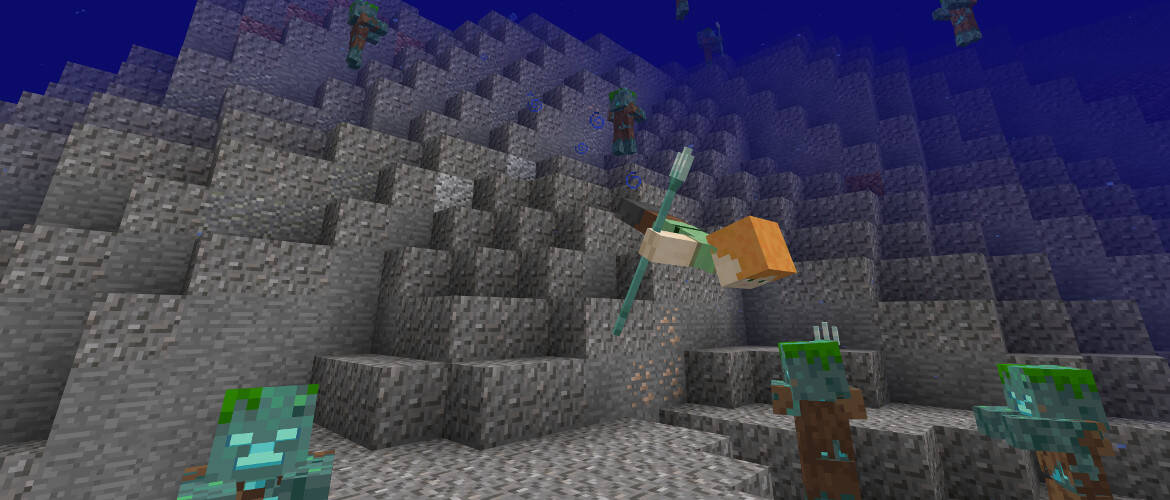
Mojang yesterday announced Minecraft players on Android, Windows 10, and Xbox One can now try out a beta of the Minecraft Aquatic Update. As advertised four months ago, this update includes new swimming animations, dolphins, water biomes, and more.
Players interested in the beta are urged to check out this guide, which explains how you can access the beta on any of the Minecraft Bedrock platforms. Once all worlds are backed up, and the beta is downloaded, you’ll need to check off “Use Experimental Gameplay” in the Game Settings to proceed.
Keep in mind that this beta does not include all the features coming with the Aquatic Update. Mojang mentions most features will come in future betas, and it is best not to toggle the beta off since it may cause problems with your worlds.
Java players are also getting a Snapshot today, and you can learn more about that by checking it out here.
Fortnite Battle Royale updated on Xbox One today with support for cross-platform play with PC, Mac, and mobile versions of the video game.
To start cross-platform play with other users, Xbox One gamers will first need to link their Xbox/Microsoft account with their Epic Games account and enable the option in the game’s settings. Linking the Xbox and Epic Games accounts will also allow for cross-save and access to items between platforms.
The official Fortnite Battle Royale faq page was updated with specific questions Xbox One players may ask. Here are some of the important ones.
If I play Fortnite Battle Royale on Xbox One, can I squad up with friends on PC, Mac, and Mobile?
Yes, as long as you’ve linked your Xbox One account to your Epic Games account, you can crossplay with PC, Mac, and Mobile players.
If I play Fortnite Battle Royale on Xbox One, do I still have access to all my items and will my progress count across PC, Mac, and Mobile?
Yes. As long as you’ve linked your Xbox One account to your Epic Games account, all purchased content is present and all progress is recorded across Xbox, PC, Mac, and Mobile.
If I buy a Fortnite Founder’s Pack on Xbox One, can I play Save the World on PC/Mac? Are my items and progression cross-platform?
Yes. As long as you’ve linked your Xbox One account to your Epic Games account, all purchased content is present and all progress is recorded across Xbox, PC, Mac, and Mobile.
I already bought a Fortnite Founder’s Pack or redeemed a friend code on PC. Why can’t I play Save the World on Xbox One?
Starting in the next couple of weeks, you will be able to play Save the World on Xbox One if you purchased it on PC or Mac.
In the meantime, please do not repurchase.
I’m on Xbox One – How do I squad-up with a friend on PC, Mac or iOS?
Link your Xbox Live account to an Epic Games account.
Download the Epic Games launcher on PC or Mac, or if you have an invite, download the game on iOS.
Add your friend from within the Epic Games Launcher, the game on PC or Mac, or the game on iOS.
When you return to the game on Xbox One, set your Fortnite in-game “Game Privacy” setting to either “Public” or “Friends.”
Select Duos or Squad mode.
Tell your friend to join your party.
I’m on mobile, PC or Mac – How do I party up with a friend on Xbox Live?
You will have to become friends on PC or mobile first.
The Xbox One player then needs to be in a non-solo queue and have the game privacy setting set to either “public” or “friends”.
This will allow you to join your Xbox One friend’s lobby to squad up.
When does the cross-play notification appear on Xbox One?
The notification only appears when you load into Save the World for the first time or a PC or Mobile friend has joined your party.
After it appears the first time, you can change this in the Settings > Game menu.
Fortnite Battle Royale is a free-to-play video game that has become incredibly popular with gamers due to its entertaining multiplayer and zero-fee price point. Are you a Fortnite fan? Let us know what platform you play on in the comments below.
The official Xbox One YouTube app updated earlier this week with a cleaner, streamlined design that loads significantly faster than the previous version and looks a lot better too.
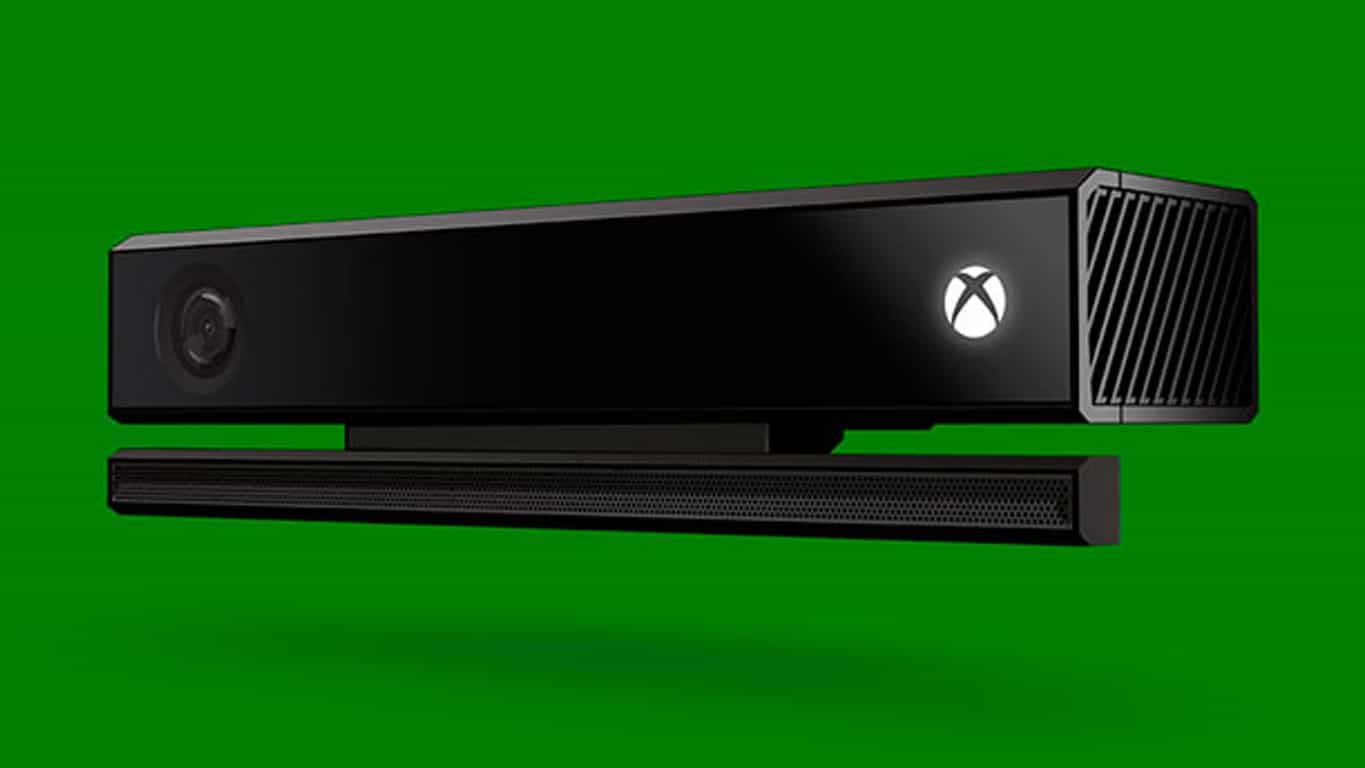
One rather odd addition to the new YouTube app is the option for voice search which can be activated from the Search screen by pressing LT on the Xbox One controller. Once activated, the app prompts for the user to say the phrase they want to search YouTube for and, while this works with a headset, the app can’t detect anything spoken to the Kinect sensor.
Microsoft has been shifting away from the Kinect sensor for a while now but it’s extremely odd that any app with voice functionality would ignore the peripheral considering that owners of it would be the biggest supporters of voice commands in general and would likely use the Kinect to play and pause YouTube videos within the same app (that functionality thankfully does still work with Kinect).
Are you frustrated by this oversight or are voice controls something that you very rarely use anyway? Let us know in the comments below.
Notepad++ is a popular free text editor and source code editor for Windows PC users. Initially hosted on SourceForge.net, the project gradually moved onto the TuxFamily and since 2015, Notepad++ has been hosted on GitHub.
Used by millions worldwide, the software has now been made available for download on the official Microsoft Store. This was made possible through Project Centennial which enables developers of existing.Net and Win 32 apps to convert them to the Universal Windows Platform.
Here’s a bit of history:
Notepad++ was developed by Don Ho in September 2003. The developer used JEXT (a Java-based text editor) at his company but, dissatisfied with its poor performance, he began to develop a text editor written in C++ with Scintilla. He developed it in his spare time since the idea was rejected by his company. Notepad++ was built as a Microsoft Windows application; the author considered, but rejected, using wxWidgets to port it to the Mac OS X and Unix platforms.
Download now NotePad++ for Windows 10
The app is available as a free download here, being developed by NightRisde. Another similar example with NotePad++ is Paint.NET, which was made available for download on the Microsoft Store back in October, last year.
Windows 10 Fall Creators Update KB4088776 fixes a bevy of issues and brings many system improvements to the OS. However, this patch also brings some issues of its own, as many users already reported.
In this article, we’ll list the most frequent issues affecting KB4088776 as well as their corresponding workarounds to help you fix them.
KB4088776 bugs affect many users
1. Download and install fails
Many Windows 10 users are still struggling to install KB4088776 on their computers. Although the download process starts, the update downloads again and again.
Windows-10-update-KB4088776, loads Version 1709, Build 16299.309; however, the same update downloads again and then fails over and over again. This is the same problem with the last update (build 16299.248. This occurs over and over creating a permanent loop. Please fix it.
Other users reported that the update process fails with error 0x80092004:
I am trying to install 2018-03 Cumulative Update for Windows 10 Version 1709 for x64-based Systems (KB4088776) and keep getting Error 0x80092004. I tried downloading it physically and running it, bit it will not install.
If you can’t install the latest updates on your machine, try running the built-in update troubleshooter. Go to Settings > Update & Security > Troubleshoot. Locate the Windows Update troubleshooter and run it.
2. Local network disappears
If you can’t find your local network after installing KB4088776, blame this update. Many users complained they can’t find their drivers and other devices as if these items suddenly became invisible.
After updating with KB4088776 and rebooting my PC, whole local network “disappear”. In the explorer (see img) there are not any ather divice (laptops, PC, NAT server et.) The update rool-over my network drivers from Intel to Microsoft. I rool-back my drivers, than try with newest one, but no result.
3. Shutdown issues
Other users reported that the shutdown process fails to complete, causing various reboot issues and slowdowns. When users hit the Shutdown button, the system hangs for quite a while, failing to power off completely.
after yesterdays installation of KB4088776 which worked ok my 16299.309 desktop workstation doesn’t behave as it normally would. […] Now the system when being restarted uses a processor reset which takes a little longer. To me it seems as if the shutdown isn’t proceeded as normally would and thus the system doesn’t come up itself timely and then uses a processor reset to come up at all. This conforms to the second problem of not being able to shutdown normally. After issuing a shutdown the system hangs and does not power-off. I then have to power-off manually.
Many Windows 10 users heard a strange white noise after installing this update. Despite muting the microphone, the noise is still there.
After the most recent update my computer got,Cumulative Update (KB4088776), my logitech G430 headphones encounter an unusual issue. […] However when the mic is unmuted, I hear white noise and I can hear myself through my headset. […] I’ve tried to isolate the issue to see if it was an voice application running on my desktop or in background, but I discovered it isn’t.
For more information on how to fix white noise issues, check out this troubleshooting guide.
5. Browsers fail to work
If your third-party browser is unresponsive or fails to connect to the Internet, maybe you should simply uninstall the latest Windows 10 updates.
I can no longer access the Internet using either Google Chrome or Mozilla FireFox. Edge and IE continue to work. Both FireFox and Chrome claim to be blocked by the Windows Firewall or Proxy server, but I checked my settings and both are allowed.
These are the most common issues reported by Windows 10 users. If you encountered other problems after installing KB4088776, tell us more about your experience in the comments below.
Three months after its launch on the Xbox One, PlayerUnknown’s Battlegrounds (PUBG) has already crossed 5 million players. So far, securing the hugely popular battle royale game as a limited-time Xbox exclusive seems to have paid off for Microsoft, and the Xbox user base is definitely growing very fast.
“We’re very excited that the community continues to grow – reaching over 5 million players in less than 3 months is a major accomplishment and we’re happy so many of you are enjoying the game, wrote Sammie Kang, Lead Community Manager at PUBG Corp.
To celebrate this new milestone, the Xbox community will be rewarded with an exclusive PUBG5 jacket, which you can see below. The free cosmetic item will be rewarded to all console players who have created a character in the game as of March 22, 2018 at 12:01AM PST.
The Xbox One version PUBG is still in preview, and it receives frequent updates with performance and gameplay improvements. PUBG Corp. recently shared its Spring development roadmap with the community, which includes UI optimizations, improvements to game matchmaking, the new Miramar map, and much more. The developers will need to iterate fast as PUBG competitor Fortnite has just announced support for cross-play multiplayer with PC and mobile.
Microsoft and Apple have long been rivals, but Houston residents may soon have an easier and more convenient way to choose between Macbook or Surface. Indeed, according to the Houston Chronicle, the Microsoft Store in Houston’s Galleria is moving in right next door to Apple’s retail store.
The former Microsoft store in the Houston Galleria was located in a different wing and required a bit of walking to get to. Now, the new and more central Microsoft Store location is close to the Galleria ice skating rink, and the mall’s primary elevators. It also happens to be right next to the Apple Store, with only a Swarovski crystal separating the two tech giants.
A Microsoft spokesperson tells the Chronicle that the new location will have more “customer-facing space.” The statement goes on:
“We identify Microsoft Store locations based on our customers’ needs and preferences and the best shopping destinations. This location ticked all those boxes plus gives us added flexibility for greater in-store consumer experiences”
The new Microsoft Store at the Houston Galleria is set to open on March 23rd. The first 100 customers at the store will receive a $50 gift card, and there will be discounts and giveaways.
50 Sega Genesis games will be coming to Xbox One and PlayStation 4 as part of the Sega Genesis Collection – a library of Sega Genesis classics that was accidentally revealed by Sega. The video showing the collection off was taken down quickly, but it was snagged by some eagle-eyed users and you can watch it right here.
The collection is going to be launching on May 29th, but we don’t know much beyond that. We can definitely expect classics like ToeJam & Earl and Sonic the Hedgehog to make an appearance, as well as many other classics. If the game is anything like the Sega Genesis Classics Collection that came out on Steam seven years ago, it should have a pretty comprehensive list of titles for you to check out.
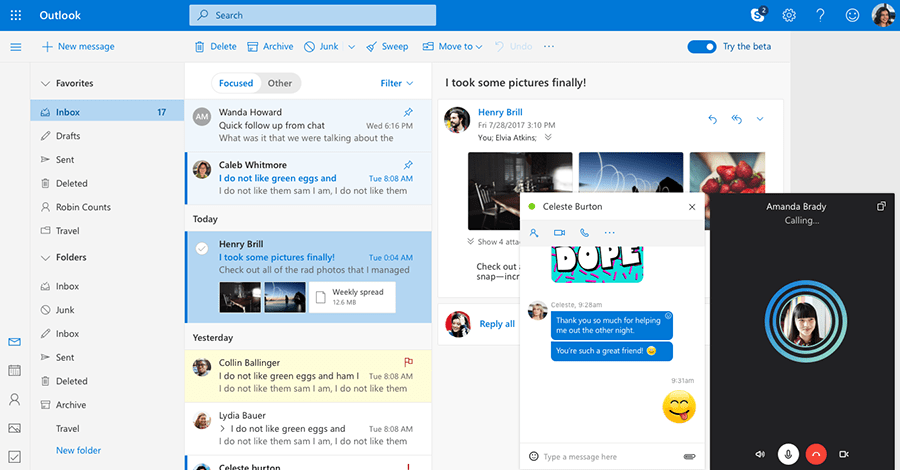
Roughly seven months ago, Microsoft launched Outlook.com beta to help make Outlook inboxes faster, personal, and more efficient. Millions of people enrolled to help shape the experience, and today the new Outlook design will finally be exiting the preview stage (though Calendar and People will remain in beta.)
With the new Outlook.com mail, you can expect all the original features launched in the beta. Microsoft also added an updated Skype integration, easier ways to personalize and access settings, and improved category organization, Here is what you need to know about the new features coming your way:
It’s easier than ever to chat in real-time right from your Outlook.com inbox and see all your contacts. Start an instant message or a free video call and participate in multiple chats at once. Just select the person you want to talk to and your conversation appears in its own chat window.
Now you can assign a name and color to each category and apply multiple categories to a single message, for those situations when emails belong in many buckets. Filtering messages by category is now easier than ever—just type the category name in the search bar or add a favorite category to the very top of your left sidebar
With Quick settings you can access the most popular ways to personalize your inbox in one click. You can change the theme of your inbox, the way conversations are displayed, and manage your Focused Inbox. Click the gear icon on the top right corner of your inbox to display Quick settings.
Additionally, Microsoft has simplified the add-ins experience on the new Outlook.com so you can pin and access them right next to your mailbox. Once a message is open. more add-ins can be found from the drop-down menu in an email by selecting “Get Add-ins.” You can see this it in action below.
If you have yet to check out the Calendar and People beta, here is what you need to know: With Calendar beta, you’ll notice reduced clutter and faster ways to navigate a calendar. Thanks to new event icons, there is now an extra emphasis on TV shows, sports teams, and other events. You’ll also notice simplified event creation, as clicking on “New event” will now allow you to add details without opening a new window.
Lastly, with the People beta, you’ll notice a refreshed profile card, enriched people and mail integration, and expanded contact information. Microsoft updated the look of profile cards to make it easier for you to mark contacts as favorites, and edit your contacts and contact lists. You’ll also notice that you can now see recent conversations and attachments from a specific contact at a glance.
Please be aware you’ll need to toggle the “Try the beta” switch on Outlook.com to try out the new People and Calander experience. Microsoft will roll out the new Outlook.com mail to all users over the next few weeks, so if you don’t see it at first, you might need to keep using the toggle switch. Feel free to check out these new experiences, and let us know your thoughts in the comments below.
Microsoft has announced the availability of a preview for Power BI on Windows Mixed Reality. The app is based on the UWP Power BI program and comes with some cool capabilities that show off the power of both HoloLens and Windows Mixed Reality.
With Power BI on Windows Mixed Reality, HoloLens users can interact with report pages and dashboard right on top of real-world environments. There are also two specific use modes where you can pin Power BI on top of a specific location in the real world, or have it follow you around as you look through different dashboard and reports. See it in action in the image below.
Other features include support for voice commands, meant to complement the gestures mentioned above. There’s also support for opening report pages by using QR codes. “This could be very useful to load and view the digital data relevant for a specific physical object or location in the working environment,” explained Microsoft.
You can learn more about Power BI for Hololens by clicking here. Our own Abhishek Baxi put together a guide on how to get started with Power BI, so you might want to check it out along with the app below.
The annual Game Developer Conference is coming up, and ahead of the moment, Microsoft is announcing 18 new ID@ Xbox titles will be coming soon. The new titles come from a variety of genres and seem to be pretty promising. We’ve highlighted some of the most interesting titles below, but you can check out the full list here.
Apocalypse Cow (Monsters)
A girl, a rapper who can’t rhyme and a redhead enter a bar. The music stops. “Have you seen a giant robotic cow?” the girl asks politely and OMG SHE’S KILLING THEM! Wait, they were ready to talk, WAAAAIT! Explosions, regrets and time bending in a broken digital world; this is Apocalypse Cow, a cinematic arcade adventure that redefines storytelling for platformers.
9 Monkeys of Shaolin (BUKA Entertainment Enterprises & Sobaka Studio)
The true rebirth of iconic brawler genre in vein of old-school video games! As a simple Chinese fisherman Wei Cheng you have to avenge the death of your friends and family slaughtered in a pirate raid at your peaceful village. So get your trusty battle staff ready for a challenging adventure in Medieval China and for merciless fights with hordes of various enemies.
Thief of Thieves (Rival Games)
Based on the best-selling comic by Robert Kirkman, Thief of Thieves: Season One is a story of heists and the people behind them. It’s time for Celia, protege of master thief Redmond, to make the leap from apprentice to master. A new continent and a new team, will you make the cut?
As a reminder, Microsoft has cut the price on some of the best ID@Xbox Puzzle games. You can check out that sale here. The company also today announced the date and venue for its E3 2018 conference, promising the “biggest showing ever.” There are definitely some exciting times ahead for Xbox fans, so be sure to keep tuned to OnMSFT for all your gaming and Xbox related news and information.
Last year, Microsoft teased an exciting redesign for the Xbox Live Avatars, which have barely evolved since the Xbox 360 era. According to what we know, the redesigned avatars will be powered by the Unity engine and will be more inclusive than ever. In the video below, you can see prosthetic limbs, a wheelchair, a pregnant woman and many more customization options.
Microsoft originally planned to ship the new Pixar-looking avatars last Fall, but they have since been delayed to some time this year. Xbox’s head of platform engineering was recently spotted rocking the new avatar design on Xbox Live, and with the Xbox Spring update incoming we could hope that the Xbox team was getting ready to ship them in the coming weeks.
Unfortunately, it looks like this may not happen. Xbox’s Mike Ybarra has just dismissed recent reports saying that the redesigned avatars would arrive in April, adding that “they’ll ship when they’re ready.”
They’ll ship when they’re ready. We have no firm date and ship date will be based on feedback (like most features). https://t.co/yZuxjdFblD
It’s not exactly clear what’s causing the delay, but as usual Xbox Insiders should get access to the new avatars before everyone else. We’ll let you know if we learn more information, but in the meantime there is quite a lot to be excited about in the upcoming Xbox Spring update: between support for 1440p displays, Mixer controller sharing and the redesigned Microsoft Edge browser that can finally download media files, the Xbox One should is getting some much welcome improvements in the coming weeks.
Microsoft today announced they have agreed with the leading Chinese data center services provider, 21Vianet, to extend their cloud services partnership. This agreement means Chinese customers can continue to experience Microsoft’s world-class public cloud services and location operations expertise offered with 21Vianet’s local footprint.
To line up with the extension, Microsoft shared that Microsoft Azure and Office 365 operated by 21Vianet have seen three-digit growth in four consecutive years in China. Microsoft claims this is a “successful method for a legal and compliant operation of international cloud services in China.”
In 2013, Microsoft became the first cloud provider to bring their tech to China. Since then partners such as Haier, Lenovo, Huawei, and Xiaomi have come on board with Microsoft’s services and cloud solutions operated by 21Vianet. In fact, Azure and Office 365 have since won 10 trusted cloud certifications, which make 21Vianet the most trusted cloud service provider in China. Microsoft will now triple their capacity with 21Vianet, hoping to meet the needs of Chinese customers and empower more multinational companies.
After early word got out this morning, Microsoft just made the venue, date, and time for their E3 2018 conference official. The company is promising the “biggest showing ever” once their E3 briefing kicks off on June 10th at 1 PM PT at the Microsoft Theater in LA.
According to Mike Nichols, Xbox Corporate Vice President and Chief Marketing Officer, Microsoft is “creating an entirely new show experience” for E3 attendees. The company will host their E3 2018 events at their own-branded Microsoft Theater in Los Angeles, right across the street from the Los Angeles Convention Center (LACC) where the main E3 event is occurring.
In addition to the E3 2018 Xbox Briefing, the Microsoft Theatre will also welcome Xbox FanFest opportunities, hands-on gameplay, and demos for all E3 attendees. “Not only does the Microsoft Theater allow us to centralize our Xbox presence at E3, but its size enables us to include even more fans and partners in the Xbox E3 2018 Briefing than ever before,” explained Nichols.
Microsoft and Xbox will still have a presence at the main LACC with a Mixer booth where show attendees can stream games, interact with new titles, and catch up on the E3 news live. It is definitely interesting to see this change since it likely will allow for Microsoft to put more spotlight on the games and gamers themselves. As always, we’ll be watching E3 live, so be sure to keep tuned to OnMSFT all summer long for all your Xbox news and information.
Microsoft yesterday announced that it would be adding new data centers and expanding its cloud services in Europe and the Middle East. The expansion is the result of customer demand, showing Microsoft is following their money and further pushing to compete with Amazon and Google in the cloud wars.
Switzerland will get two new datacenters in Geneva and Zurich, which are primarily due to Microsoft’s engagement with financial institutions in the region. Microsoft also said that it plans to deliver its first datacenters in the United Arab Emirates, which will be located in Abu Dhabi and Dubai.
Additionally, the company will offer Germans access to Microsoft Azure, Office 365 and Dynamics 365 from new data center locations, as we reported yesterday. The offerings provide enterprise-grade reliability and complement what was already delivered from outside of Germany and via the Microsoft Cloud Germany. This makes Microsoft the first global cloud operator to introduce cloud regions in the country.
Lastly, Microsoft also opened new datacenters in Paris and Marseille, helping open the Microsoft Cloud to thousands of customers and partners in France. In this region, Azure and Office 365 are now available, with Dynamics 365 coming in early 2019. “We are convinced that this opening is the beginning of a new adventure – one in which we want as many French organizations and companies as possible to embark on, in order to accelerate the digital transformation of our ecosystem,” said Carlo Purassanta, General Manager, Microsoft France.