Xbox Game Pass to pick up Devil May Cry 4: Special Edition and NBA Playgrounds in January

Since Microsoft launched its Xbox Game Pass subscription service back in June, the company has been consistently adding new games to the catalog every month. The first two additions of 2018 will be Devil May Cry 4: Special Edition and NBA Playgrounds, Xbox’s Major Nelson announced last week (via Windows Central).

The first one is a remaster of the original hack and slash game released on the Xbox 360 back in 2008. It will join DmC Devil May Cry: Definitive Edition which has been available in the Xbox Games Pass catalog since launch.

As for NBA Playgrounds, it’s an arcade-style basketball game which was released on the Xbox One back in May. If this second title received a mixed critical reception, it should be a nice complement to NBA 2K16 which was another Xbox Games Pass launch title.

Xbox Games Pass is still a young service but it’s already very good value for Xbox One gamers. For just $9.99 a month, you can play over 100 Xbox One and Xbox 360 games including AAA titles Gears of War 4, Halo 5: Guardians, Metal Gear Solid V: The Phantom Pain, Resident Evil 6 and more. Which other games would you like to see being added to the catalog in 2018? Let us know below.

Microsoft news recap: search for text in images coming to OneDrive, Cortana coming to Microsoft Launcher and more

Microsoft (MSFT) news recap is a weekly feature highlighting the top Microsoft news stories of the past week. Sit back, grab some coffee, and enjoy the read!

Rebuilt Mixer app is now rolling out on iOS and Android

A new Mixer app is now available to Android users, and is rolling out to users on iPhone and iPad. The update delivers a rebuilt app that is hoped to enable faster updates in the future.

Search for text in images coming to OneDrive and Sharepoint in Office 365

If you’ve ever uploaded images that contain text and struggle to find them, Microsoft is working on a solution. Soon, users of OneDrive and Sharepoint in Office 365 will be able to perform a search and it will also search for text within images, rather than just the title or filename of an image.

Microsoft’s Seeing AI iPhone app now available in 35 markets including the European Union

Microsoft’s new iPhone app, Seeing AI, that is designed to assist those who are blind or partially sighted, is now available in 35 markets and the European Union. Initially launched in select countries in July, the app has been downloaded over 100,000 times, helping those using it to complete 3 million tasks.

Cortana is coming to Microsoft Launcher and Cheetah CM Launcher on Android

As Microsoft plans to bring “Cortana everywhere”, the company is teaming up with CM Launcher to bring Cortana to a popular Android launcher. Additionally, Cortana will also be arriving on Microsoft’s own Android launcher, Microsoft Launcher.

That’s it for this week. We’ll be back next week with more Microsoft news.

Xbox news recap: New filtering options on Xbox store, Microsoft launches new Xbox Year in Review and more

Welcome to our weekly Xbox news recap series, where we go over the top stories of the past week in the world of Xbox. Let’s get started.

Xbox Store gets new filtering options

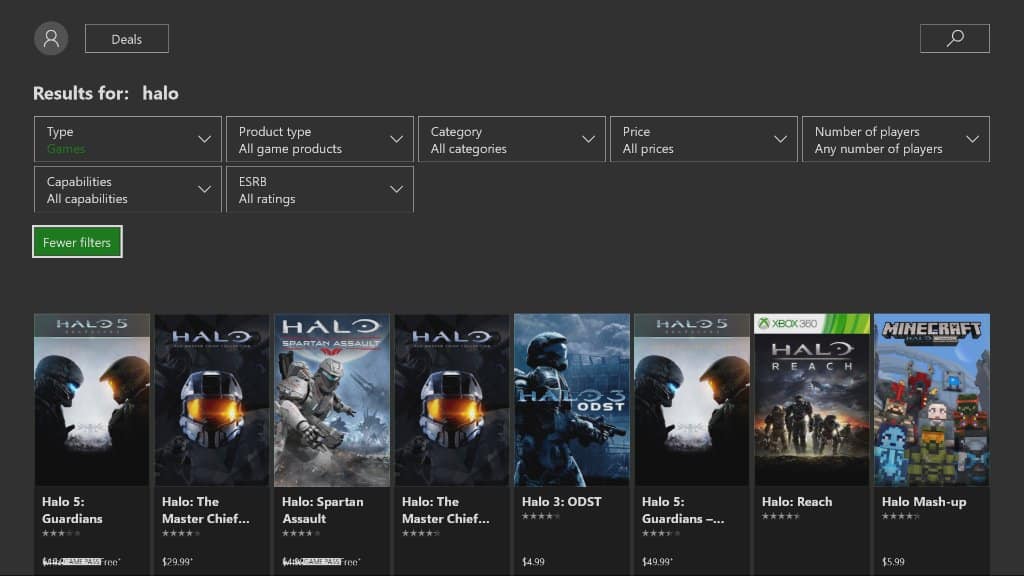
Some big quality of life changes came to Xbox users this week. New filtering options landed on the Xbox Store, letting users start to filter out products by price, star rating, and plenty of other little things that just weren’t there before. The change comes just in time for the Holiday season, and should help people comb through the store to try and find the perfect gift for any gamers in their life.

Microsoft launches the Xbox Year in Review

Microsoft has launched the Xbox Year in Review, an exercise in data tracking for gamers who want to see what they’ve done over 2017. All you need to do is log in to your Xbox account, and the Year in Review will show off how much Gamerscore you’ve earned over the year, what your most played games were, and more. It’s a fun thing to look at if you’re an Xbox fan who’s got a love for data, and the sort of thing that might make you reconsider how many video games you play.

343 Industries partners with MLG

343 Industries, the developers of Halo since Bungie dropped the franchise several years ago, has announced a partnership with Major League Gaming that will help define the future of Halo eSports. The nature of the partnership is so far limited to the Halo Championship Series being hosted through MLG’s “GameBattles” network. With MLG getting its start with Halo: Combat Evolved back in the day, 343 felt that the partnership was a natural progression for the game’s competitive scene.

YouTube on Xbox One gets 4K support

YouTube on Xbox One has been updated to give the app 4K support. The update is only applicable to Xbox One S and Xbox One X consoles, with those being the only consoles in the family capable of 4K output in the first place. While the selection of 4K content on YouTube is currently limited, the 4K support should help future-proof the YouTube app for when 4K becomes more commonplace.

Thanks for joining us. To keep up to date with all the latest Xbox news, keep a close eye on our Xbox One tag.

Emotet banking Trojan: How to protect your Windows PC

Emotet is a banking Trojan that has been around for some time. Recent reports suggests that the malware became even more vicious and can elude most popular antivirus tools.

Security researchers from Bromium Lab warned that its creators repacked the malware’s code into a unique executable for each and every potential victim. In this manner, it avoids any-and-all signature-based detection.

The good news is that there are still some things that you can do to protect your Windows PC against this virus and avoid infection.

Repacked dropped executables on this scale are unprecedented, and this is why application isolation and control is so important. Protect before you detect is the only secure approach.

Although we have seen this with polymorphic documents, repacked dropped executables on this scale are unprecedented. This is why detect-to-protect security approaches won’t work. […] The scale we see on these samples suggests they may be more than just a few steps ahead.

Follow the steps listed below and you should be able to block the Trojan from getting into your computer.

Block banking Trojan on Windows PCS in 2018

1. Install a reliable antivirus

While free antivirus tools come in handy, they only offer limited features. As a result, they are not powerful enough to protect your device in case of a massive malware attack.

On the other hand, paid antivirus software brings a series of additional features to the table that enhances your computer’s security level.

The good news is that you don’t need to shell out hundreds of dollars to get your hands on a really good antivirus.

You can get one for prices ranging from $30.00 to $50.00, or less than $100.00.

When it comes to good antivirus software, we recommend installing tools such as TotalAV, Bitdefender, or Panda.

For more information on the best antivirus to use in 2018, check out the articles below:

2. Use Virtual Machines

A virtual machine emulates your PC providing the same functionality. One of the advantages of using a virtual machine consists of blocking malware and other threats in a closed environment where they can’t escape from.

In this manner, they can’t actually affect your computer.

So, for example, opening malicious email attachments on a virtual machine allows you to isolate the threat and prevent infection.

For more information on virtual machines, check out the following articles:

  • Application Guard lets Microsoft Edge work in virtual machines

3. Avoid visiting fishy websites

block banking virus

Prevention is better than cure. Avoid visiting suspicious websites and don’t download anything from them. Also, keep in mind that free software often come packed with adware and other malware.

Try to download software only from reliable sources or from the developer’s website as much as possible.

4. Don’t open emails or email attachments that you didn’t request

Hackers are resourceful people, and come up with innovative ways to infect your computer. Nevertheless, they often resort to old-fashion methods to install malicious code on your device, including email attachments. Simply ignore these.

5. Beware of public Wi-Fi networks

Connect to public Wi-Fi networks only when absolutely necessary. Since so many people connect to these networks every day, hackers take advantage of that to spread malware.

For more tips on how to stay safe on public Wi-Fi, check out the article below:

6. Install the latest Windows updates

Microsoft regularly rolls out system updates to add new OS features and improvements, and enhance Windows security. The best solution is to set updates on Automatic Mode to make sure that you install them as soon as they’re available.

Keep in mind that prevention is always better than cure. Follow the steps listed above and you should be able to keep banking Trojans at bay.

Get the Xbox One X and PUBG together with this special holiday promotion

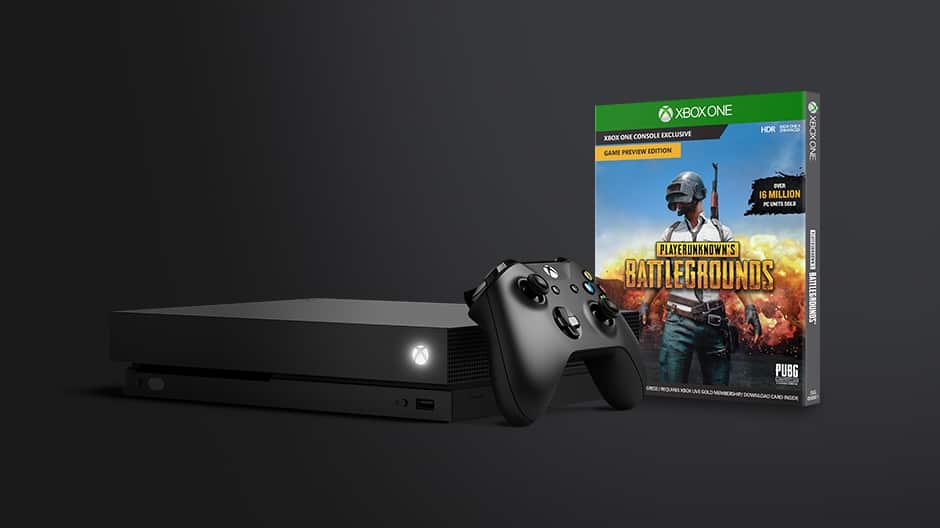
After weeks of teasing, PUBG finally launched on the Xbox Preview Program this week. The battle royale game is definitely one of the most hyped games of 2017, and you can expect Microsoft to continue beating the PUBG drum during the rest of the holiday season.

Today, the company announced a special holiday promotion that will grant everyone who purchases an Xbox One X a free digital copy of PUBG ($29.99 value). The limited time offer will be available in select regions starting Sunday, December 17 through December 31.

“Xbox fan excitement for the launch has been incredible, with more than 1 million players on Xbox One in its first 48 hours alone,” the Xbox team said in a blog post today (a blog post that also appears on news.microsoft.com, which is quite exceptional for Xbox news). It’s true that PUBG was one the most exciting games to launch on the Xbox One this year, and Microsoft is pretty much giving the game the first-party treatment right now.

While we have a yet to see some official Xbox One X bundles, it’s interesting to see that Microsoft has chosen PUBG (which is still in preview) to promote the world’s most powerful console. If the game supports 4K graphics and HDR on the Xbox One X, it’s still pretty rough around the edges: according to our colleagues over at Digital Foundry, the game struggles to consistently reach 30FPS on the Xbox One X, and it’s unsurprisingly not better on the standard Xbox One. PUBG is definitely a fun game, but it’s clearly not the best title to showcase the 6 teraflops of computing power available in Microsoft’s new console.

Do you think giving away PUBG with Xbox One X purchases will help Microsoft ship more consoles during the holidays? Sound off in the comments below.

Windows Insider program to “close the loop” on feedback deemed a success, to be expanded

A couple of months ago, the Windows Insider team acknowledged that it didn’t have a good system in place to let Insiders know when their reported bugs have been fixed. To address this situation, the team came up with three different solutions last month: SIUFs (System Initiated User Feedback, which are pop up notifications telling you that your feedback has been addressed), email notifications and Feedback Hub notifications.

A SIUF notification.

At the time the Head of the Windows Insider Program Dona Sarkar explained that only Insiders who submitted the original feedback would see SIUF notifications, but the team later expanded the pool to Insiders who also upvoted the feedback in question. Today, Dona Sarkar shared an update on this initiative to close the loop on feedback, saying that the team sent 11K SIUFs to Windows Insiders last month. The experiment seems to be a success as over 50% of Windows Insiders responded to these specific pop up notifications. “Getting a few is a good sign that you are filing/upvoting impactful feedback,” added Sarkar in a separate tweet.

Of course, the Windows Insider team will use your feedback to refine this system over the coming weeks and months, but in the meantime, Dona Sarkar is looking for naming ideas for the Feedback toast notifications. Our own Kip Kniskern offered a suggestion, and we’re sure Windows Insiders can find something better than “Close the Loop.”

Did you notice these SUIF notifications after filing feedback recently? If you saw one of these and didn’t react to it, you should receive the same message from the SUIF as an email to the MSA you used to signed up for the Windows Insider Program. Anyway, as Dona Sarkar said, the team is looking to expand the initiative in January so expect to see more of these notifications going forward.

New Xbox Year in Review tool lets you check out your gamer achievements this year

As 2017 is coming to a close, the Xbox team has launched a neat Xbox Year In Review tool which as its name suggests, gives you an overview of all your gamer achievements this year. The personal stats you can check out include how much Gamerscore points you earned this year, your most played games and genres, hours spent playing and how your stats compare to other players in your region. Proud gamers can even share their stats on Facebook and Twitter, which is pretty cool.

Here is a partial look at the data from someone who probably spent way too much time playing games this year:

Unfortunately, the data stops at October 31 so it’s not a complete overview of your gaming activity this year. Still, it’s really great to have this information and we wish Microsoft would make Xbox Year in Review available all the time with frequently updated information. Feel free to share your own gaming stats in the comments below!

Xbox One’s digital storefront gets a cool new filter feature

Microsoft recently released an update to the Microsoft Store on Xbox One, adding a cool new feature to make it easier to find what you’re looking for. Gamers can now filter titles in the store by price, star rating, capabilities, and more.

This same update was tested with Xbox Insiders back in November, but it’s now rolling out to Xbox users everywhere. It definitely is a small feature but can still help those gamers who don’t have the patience to search through the Microsoft Store on Xbox manually. For instance, you can now specifically search the store on Xbox for titles with price over $20 with 4 stars.

There’s definitely more room for improvements in the Microsoft Store on Xbox, but this is one small step forward. How often do you search for titles in the Xbox Store? Do you find it useful or rather slow? Let us know your thoughts in the comments below.

Fix: ”Trust this device” error in Windows 10

Even though Windows 10 resembles Windows 8 in some matters, there are a lot of changes that confuse users after the OS upgrade. In a sea of differences, one that’s quite important is a complete abandonment of  ”Trusted PC” option that was present in Windows 8. Users can run into a prompt questioning whether you trust your current device, but that’s only remotely similar to a ”Trusted PC” option from Windows 8. The bad thing about this? They are unable to confirm the account with the two-step verification.

In order to address this, we prepared a few possible solutions for this problem, hoping that at least one will help you resolve the problem at hand. If you’re stuck with the confirmation or the confirmation window suddenly disappears, this should help you address it.

What’s ”Trust this device” in Windows 10

  1. Try signing in again
  2. Try an alternative verification
  3. Use an alternative account

1: Try signing in again

Let’s try and explain what’s exactly happening with your Windows 10 PC when, immediately after the boot sequence, the ”Trust this device”  prompt occurs. Some would say that this change, in comparison to Windows 8, is a bad move. We can agree to some extent.

Firstly, even though it’s presented as a security improvement, it’s quite hard to understand what’s exactly about. Is there something wrong caused by the latest system changes? Or you’re basically forced to log in with your credentials, even if you don’t want? Maybe both.

On the other hand, this is a valid security measure,  a great way to protect your most important data: passwords, personal credentials and, credit card numbers. Also, it lets you sync various settings and preferences with other devices, just by using single Microsoft account.

It doesn’t refer only to Windows-powered PC’s, but to all devices. So, after you sign in, you’ll be able to make an Android or iOS device trusted, as well. Also, it doesn’t refer to plugged devices, so don’t mix it up with something else.

With that said, let’s move to a problem resolution. The first obvious step is to try to sign in multiple times. Here’s how to do it in a few simple steps:

  1. Press Windows key + I to open Settings.
  2. Open Account.trust this device windows 10
  3. Highlight Your info in the left pane.
  4. Click on Sign in with a local account instead.
  5. Enter Password and your PC will log off.
  6. Now, get back to Settings > Accounts.
  7. Click on Sign with a Microsoft account instead.trust this device windows 10
  8. Enter your Microsoft Account e-mail and password and sign-in.

If that doesn’t help, continue to the steps below.

2: Try an alternative verification

It’s not unusual for Microsoft accounts to mix things up and give you a headache. There are multiple ways to verify an account and make a device trusted. You can use an alternative e-mail address. They send you auto-generated code, you enter it in the dialog box and that’s it. Alternative verification ways are through the phone (call or SMS) and a verification app.

So, we reckon that, if one verification system fails, maybe the others will work in your favor. Here’s how to change your Microsoft accounts verification procedure from one to secondary authentication method:

  1. Navigate to Microsoft Security basics page.trust this device windows 10
  2. Under the ”Update your security info” section, click Update info.
  3. Here, you can add additional info like an alternative phone number or e-mail address. It’s advised to always have at least 3 authentication methods, including the password.trust this device windows 10
  4. Add an alternative e-mail or phone number.
  5. Log into an alternative e-mail account or wait for the SMS with the confirmation code.
  6. Enter the code and confirm changes.
  7. Restart your PC.
  8. When prompted with ”Trust this device” message, press Windows key + I.
  9. Open Accounts.trust this device windows 10
  10. Select Your info from the left pane.
  11. Click on ”Sign with a Microsoft account instead’‘.trust this device windows 10
  12. In the new window, enter your e-mail address related to the Microsoft Account and press Next.
  13. Enter the e-mail password and click Sign in.

Finally, what’s important is to use an alternative authentication method when asked. If you failed with the secondary e-mail confirmation, try with the phone. That should resolve your issue.

That should do it. In case you have questions or suggestions, feel free to post them in the comments section below.

RELATED STORIES YOU SHOULD CHECK OUT:

The new Skype Interviews Scheduler aims to help recruiters simplify the interview process

Microsoft has a new integrated scheduling app that aims to streamline the interview scheduling process.

Scheduling job interviews with multiple interviewers and candidates is a complicated and time-consuming task for any recruiter and the Skype Interviews Scheduler helps reduce the number of steps required to send an invite.

Built on the Skype Interviews platform, the Scheduler is easy to use. Launched earlier this year, Skype Interviews platform allows in-browser group video call and live code execution with syntax highlighting.

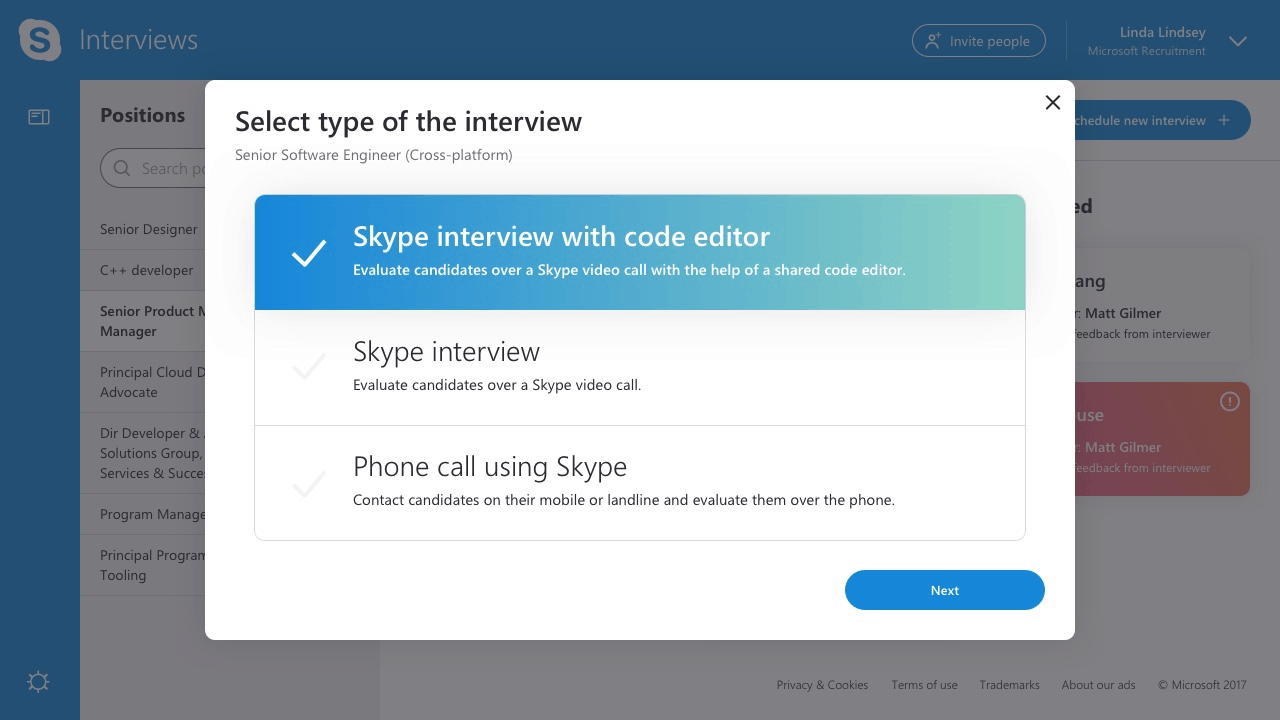
All you need to do is to sign in to Scheduler, click Schedule new interview, and then select the type of interview that is being scheduled. Once you input the candidate and interviewer’s name and email address, you can either enter an agreed-upon time and date for the interview, or select the Smart Scheduler—which will arrange the interviewer and candidate’s interview.

Once a timeslot is fixed, each participant is automatically sent a calendar invite, which they can click to join the interview directly from the email without the need for any download or Skype ID.

Recruiters can use the Skype Interviews dashboard to see what times candidates have selected and make further amendments to interviews if needed.

Microsoft is also looking for platform partners who want to integrate the Skype Interviews Scheduler functionality within their platform to make it part of their recruitment workflow via APIs.

Head to the Skype Interviews website to learn more and try the Skype Interviews Scheduler.

How to become a Pirate Legend in Sea of Thieves: progression details released

Xbox Wire released details on how to level up to become a Pirate Legend in Sea of Thieves on Xbox One. The Sea of Thieves team answered questions from the community in a livestream on Mixer. In the Mixer livestream, there were helpful hints in what players need to do to be a legendary pirate in Sea of Thieves. Here is the Mixer livestream in case you missed it.

Many Xbox players wanted to know how the game progressions works in Sea of Thieves and what players need to do to become a Pirate Legend. The Sea of Thieves team want to engage their community by fielding their questions and listening to their feedback on what they would like to see in Sea of Thieves.

The main goal for the Sea of Thieves team was to create an unparalelled multiplayer experience. This goal is what fuels the Sea of Thieves game progression system, including all the adventures and quests in the Xbox One game. For those interested in becoming a Pirate Legend, here’s what you need to do:

“Becoming a Pirate Legend is the core objective of Sea of Thieves, and players can build their legend by accruing reputation for their exploits and adventures. Reputation is acquired from a set of trading companies, rewarding players for advancing their interests on the high seas. These trading companies offer quests for players to pursue, offering successful brigands reputation and gold as well as improved titles, ranks and cosmetic items used to represent themselves to friends and foes. As players progress within a trading company, they earn access to more varied and unique quests that promise unforgettable adventures and rewards. Once players build their reputation with each trading company, they will unlock their status as a Pirate Legend.”

Additionally, sharing your quests is encouraged in Sea of Thieves. Sea of Thieves was created with an epic multiplayer in mind, and that extends to the game’s progression system. Sea of Thieves players can also share their quests with their friends on Xbox Live, regardless of their rank and reputation.

There are more surprises on the horizon for Sea of Thieves for Xbox One. Look for Sea of Thieves on Xbox One on March 20, 2018. Stay tuned to OnMSFT.com for future updates.
Pre-order Sea of Thieves for Xbox One

Sea of Thieves
Sea of Thieves
Developer:
Microsoft Studios
Price:
Free

Windows 10 Creators Update wrecks Wi-Fi driver [FIX]

The release of the much talked about Creators Update has made many Windows 10 fans happy. The Creators Update improves many areas of the OS, bringing new features to the table, continuing to trend set by the Anniversary Edition and making the platform a more refined and efficient environment.

Unfortunately, the experience hasn’t been all that smooth for many users because certain features won’t work anymore. The situation is bad enough that many users are considering going back to the previous OS build. There have been multiple problems surfacing, including that of a faulty Wi-Fi driver. A user on Microsoft’s online platform has declared that upon installing the Creators Update, his Wi-Fi driver failed to work and resetting it didn’t help at all.

Ran the hardware and devises troubleshooter… it couldn’t fix it.  Suggested reinstalling adapter driver but of course no internet access to do that.

Rebooted several times… didn’t wor. Ran the Network. Reset twice… didn’t work. Ran the Netsh Winsock Reset…. didn’t work. Any suggestions short of restoring Anniversary Edition? This WIFI driver worked perfectly before the upgrade.

According to this messageposted by Rick T_935 on Microsoft’s forum, getting rid of this problem isn’t as easy as it may first appear. The traditional solutions don’t seem to have any effect of the faulty driver.

How to fix Wi-Fi driver issues on Windows 10

Many people have chimed in to help Rick and each tried to add something new to the table in order to find a solution for the problem.

Try the following: Open the Device Manager and right-click the Intel wireless adapter > Uninstall > proceed with the uninstall and then restart the computer.

1. Update your Wi-Fi drivers manually

In the end, a solution has been found in installing the latest driver manually. The user auggy provided the details about the steps to follow to install the drivers manually and make the Wi-Fi connection fully functional again.

Version 19.50.1.5 appears to be the latest version of the driver for the AC 3165  so try reinstalling the driver. Download the driver (32-bit – assuming 32-bit installation of Windows) from the following link on a computer that has internet access:

https://downloadcenter.intel.com/download/26653/Intel-PROSet-Wireless-Software-and-Drivers-for-Windows-10

Transfer the driver file to a USB flash drive and then plug the USB flash drive into the tablet and install the driver that is on the flash drive.

Update drivers automatically

Downloading drivers manually is a process that carries the risk of getting the wrong driver installed, which may lead to serious malfunctions. The safer and easier way to update drivers on a Windows computer is by using an automatic tool.

Driver updater automatically identifies each device on your computer and matches it with the latest driver versions from an extensive online database. Drivers can then be updated in batches or one at a time, without requiring the user to make any complex decisions in the process.


There you go, we hope that this solution fixed the problem for you. If the issue persists, continue the troubleshooting process using the solutions listed below.

2. Disable and re-enable your Wi-Fi connection

In order to fix Wi-Fi driver issues sometimes all you need to do is imply disable your connection and then enable it again. As simple as that.

    1. Open Network and Sharing Center > go to Change adapter settings.
    2. Locate your Wi-Fi connection, right click it and choose Disable.
      disable-network-connection
    3. Right click the same connection again and choose Enable.

3. Check DNI_DNE in Command Prompt

If your Wi-Fi driver fails to work after upgrade, run the following commands:

    1. Open Command Prompt as administrator
    2. When Command Prompt starts, type the following and press Enter to run it:
      • reg delete HKCRCLSID{988248f3-a1ad-49bf-9170-676cbbc36ba3} /va /f
        command-prompt-1
    3. Now enter the following line and press Enter to run it:
      • netcfg -v -u dni_dne
    4. Close Command Prompt and restart your computer.

4. Reset TCP/IP

    1. Launch Command Prompt (Admin)
    2. Enter the following lines and hit Enter after each one
      • netsh int ip reset
      • netsh int tcp set heuristics disabled
      • netsh int tcp set global autotuninglevel=disabled
      • netsh int tcp set global rss=enabled
    3. Restart your computer and Wi-Fi is working now.

If you’ve experienced other Wi-Fi issues after upgrading to Windows 10 Creators Update, use the comment section below to tell us more about your experience.

RELATED STORIES TO CHECK OUT:

Search for text in images coming to OneDrive and Sharepoint in Office 365

Yesterday, Microsoft announced some exciting AI-powered features to be added to Office 365 this month. By the end of December, the company will roll out Intelligent Search to OneDrive and Sharepoint for Office 365 commercial subscribers, which will make it possible to search for words in your images stored in the cloud.

“Using computer vision technology, when you upload the image, the location data (if available) from a photograph (such as Oslo, Norway), and the identification and extraction of text will happen automatically and become searchable,” the company explained in a blog post yesterday. In the image below, you can see how searching for the word “coffee” in Sharepoint or OneDrive can surface a relevant receipt that has been previously captured and uploaded.

Microsoft says that this new intelligent search capabilities will work with 21 different image formats, but English is currently the only supported language for text identification. “In the future, we’ll automatically look at the language set on the SharePoint site that the image was uploaded to and translate the type into that language. In the case of OneDrive, we’ll translate it to the language you have set in your preferences,” the company explained.

Music section starts to disappear from the Windows 10 Microsoft Store

A couple of weeks ago, Microsoft announced two sad news for music fans: not only will the company discontinue its Groove Music Pass service at the end of the year, but it will also stop selling digital music in the Microsoft Store. As noted by MSPoweruser today, the version 11712.1000.109.0 of the Microsoft Store app, now available to download for Fast Ring Insiders has already removed the music section from the store.

The updated Microsoft Store app (right) has removed the Music section and brought back transparency effects on mobile.

On Windows 10 Mobile, this new version of the Microsoft Store app also brings back the sidebar transparency effects that recently disappeared from the mobile app. For now, music buying is still available from the web as well as the non-Insider version of the Microsoft Store app. However, it if you previously bought music from the company’s digital distribution platform, you need to make sure to download it by December 31 otherwise you’ll definitely lose access to it.

Are you disappointed by Microsoft’s decision to stop selling music on its Store, and do you fear Movies & TV and Books could be next on the chopping block? Let us know below.

Windows 10 KB4053578 fixes time zone issues, and more

It’s time for December Patch Tuesday. During this month’s Patch Tuesday, Microsoft released the new cumulative update KB4053578 for Windows 10 version 1511. The new update changes the OS build number to 10586.1295.

Since this is a cumulative update, there are no new Windows features to be excited about. The update just fixes some system issues and bugs caused by some previous updates. Perhaps the biggest highlight of the update is a fix time zone info issues, that some users reported in the past.

Once again, since this is a cumulative upadte, you’ll also get all the bug fixes and system improvements featured in previous cumulative updates that you missed. So, by installing this release, you’ll get your computer fully up to date.

Here’s the complete changelog of cumulative update KB4053578 for Windows 10 version 1511:

  • Addresses additional issues with updated time zone information.

  • Addresses issue that affected some Epson SIDM (Dot Matrix) and TM (POS) printers, which were failing to print on x86-based and x64-based systems. This issue affects KB4048952.

  • Security updates to the Microsoft Scripting Engine, Microsoft Edge, and Windows Server.

Along with KB4053578 for Windows 10 v1511, Microsoft also released cumulative updates for all supported versions of Windows 10, including: cumulative update KB4054517 for Windows 10 v1705 (Fall Creators Update), cumulative KB4053580 for Windows 10 v1703, and cumulative update KB4053579 for Windows 10 version 1607.

For more info about cumulative update KB4053578, and all other updates released this Patch Tuesady, visit Microsoft’s official Update History page.

To download Windows 10 cumulative update KB4053578, simply go to Settings > Updates & Security, and check for updates. Your computer will download and install the update automatically. Or you can download and install the update manually from Microsoft Update Catalog.

Have you installed Windows 10 cumulative update KB4053578 yet? Are there any issues and problems? Feel free to let us know in the comments down below.

Star Wars: The Last Jedi digital pre-orders open on Windows 10/Xbox One

The latest film in the Skywalker Saga, Star Wars: The Last Jedi, is now available to pre-order digitally in the Microsoft Store for Microsoft’s Movies & TV service on Windows 10 devices, Windows phones, Xbox 360 and One consoles, and HoloLens.

The film debuted in cinemas yesterday around the world so won’t be available to actually watch digitally for several months from now but many hardcore Star Wars fans who know they’re going to buy it eventually anyway will probably appreciate the chance to get the purchase out of the way.

The Microsoft Store digital copy of the film will come with most of the special features on the physical Blu-ray release and one of them, the New Head of the Resistance featurette, can be viewed right now. All previous seven Star Wars films including the Rogue One spin-off are also available to watch digitally.

Have you seen The Last Jedi yet and will you be buying it digitally? Let us know (with no spoilers!) in the comments below.

Android Xbox Beta app begins testing Party Chat

The official Xbox Beta app has updated on Android devices. While there aren’t that many changes with this update, is does signify the beta testing for Xbox Live party chat which will allow Xbox gamers to communicate with each other through the app via voice chat.

The Xbox Beta app is used to test new features before they’re perfected and pushed out to the main Xbox app. Users can provide feedback on the app directly to Microsoft which is used to decide what features are prioritized by the company.

Would you ever use party chat via a mobile app? Let us know in the comments below.

Xbox beta
Xbox beta
Price:
Free

Microsoft launches Azure Stack for India

Microsoft, the only provider of all three clouds – private, public, and hybrid – announced the launch of Azure Stack for India on the sidelines of Microsoft Media & Analyst Days 2017 held in Hyderabad at the Microsoft India Development Center.

Azure Stack is an extension of Microsoft’s Azure cloud platform, and brings the agility and fast-paced innovation of cloud computing to on-premises environments and enables entirely new hybrid cloud scenarios.

All the major Azure Stack partners HP, Dell, EMC, Lenovo, and Cisco, have started shipping Azure Stack to customers in India and an Azure Stack ready partner ecosystem has been created with partners such as Netmagic, Embee, and G7CR. Microsoft India has more than 9,000 cloud partners while globally, Microsoft has 64,000 partners — more than any other cloud services provider.

As the pace of digital transformation picks up in 2018, we recognize that many customers prefer to evolve gradually by first moving to a hybrid cloud environment before fully embracing the public cloud. With Azure Stack, we will help our customers move forward in their preferred digital transformation path at a pace they prefer.

– Anant Maheshwari, President, Microsoft India

At the event, Anant shared that 70 of the top 100 Bombay Stock Exchange-listed companies are now using Microsoft cloud to drive their digital transformation.

Satya Nadella to appear tonight on Comedy Central’s The Daily Show

Noted by Jay Greene on Twitter, Microsoft CEO Satya Nadella is set to make an appearance tonight (12/13) on Comedy Central’s The Daily Show at 11:00 PM ET (via Windows Central.) It’s not certain what the CEO will discuss, but we expect him to talk about his new book “Hit Refresh” and what he has accomplished at Microsoft during his tenure.

The Microsoft CEO has been on a media tour ever since his book hit store shelves: he recently spoke at the GeekWire summit and mentioned Microsoft’s hardware efforts, and also sat down with Fast Company to discuss his new book.

We don’t expect Nadella to suddenly reveal the Surface Phone during his time with Trevor Noah on The Daily Show, but we still will keep an eye out for any interesting comments. Will you be watching tonight? Let us know your thoughts in the comments below.

Stats downgrade: less than 1 in 6 Windows 10 users use Edge, says Net Applications

A little more than two years after its launch, did Microsoft Edge manage to get a significant browser share on Windows 10 PCs? Far from it, according to the latest data from Net Applications. The company that provides detailed web usage share statistics has recently modified its methodology to exclude bots from its statistics:

“As bot traffic across the web has risen dramatically, it has been a challenge to detect and remove it from our dataset,” explained Net Applications. “This is a critical issue since bots can cause significant skewing of data. In particular, we have seen situations where traffic from certain large countries is almost completely bot traffic.”

Net Applications modifying its methodology to eliminate bot traffic had a big impact on Edge’s real use worldwide. According to the company’s updated data, Edge’s browser share went from 14.8% in May 2016 to 13.2% in November 2017, but topping at 15.6% in April of this year.

As noted by Computerworld, these are much lower numbers compared to the legacy data from Net Applications, which the company says was biased because of bot traffic:

Before Net Applications’ methodology modification, Edge was the choice of between 28.5% (in May 2016) and 15.7% (October 2017) of all Windows 10 users. While that was ultimately a steeper decline, for most of the period Edge’s share of Windows 10 hovered around the 21% to 22% mark. Only in the last three months did the older data show Edge’s place on Windows 10 start to slide, perhaps a sign that Net Applications’ new data scheme was implemented before the firm made the news public.

It’s interesting to remember that if Edge has been globally bleeding browser share between and April 2016 November 2017 (an 11% decline), Net Applications says that the OS share of Windows 10 went from 23.06% to 31.95% during the same time frame. Obviously, that didn’t help Microsoft Edge gain more users on Windows 10.

So yes, despite all the progress that Microsoft has made on Microsoft Edge over the past two years, the web browser is currently being used by less than one in six Windows 10 users. It remains to be seen if the availability of Microsoft Edge on iOS and Android could reverse this trend, but for now it’s still too early to have an idea. Edge recently reached 1 million downloads on Android, but the web browser should become much more attractive once Microsoft implements tab sync between Windows 10 and mobile devices.

What do you think Microsoft Edge needs to make it more attractive for Windows 10 users? Sound off in the comments below.

Microsoft’s head of Partner programs leaves the company

According to a report from ZDNet, Ron Huddleston, the CVP of One Commercial Partner organization at Microsoft, has left the company. Previously holding positions at Salesforce and Oracle, he joined Microsoft in mid-2016 and is apparently going on an indefinite family leave, with no clear word if he will be returning to Microsoft.

The news comes in the months after Microsoft reorganized their sales division, which the One Commercial Partner Organization is a part of. Taking over in Ron Huddleston’s place will be Gavriella Schuster, who was previously in charge of the Global management of Microsoft’s partner recruitment from May 2014 to June 2016.

Schuster is well seated at Microsoft, being with the company since 1995, and currently listed as the Corporate Vice President of Commercial Partner Channels & Programs. Some may recall Schuster from a keynote at Ignite, and her other work with Windows, Cloud & Enterprise and partner organizations.

According to his LinkedIn Profile, Ron Huddleston previously worked with Salesforce and Oracle. At Salesforce he was the Senior Vice President of IoT Cloud, and he held multiple positions at Oracle.

Poll: Will a Windows Mixed Reality headset make it under your tree this holiday?

Microsoft is having a big sale today only on Windows Mixed Reality headsets, as part of their annual “12 Days of Deals.” We’ve had a chance to play around a bit with one of these devices, the Lenovo Explorer, and our own Arif Bacchus came away impressed.

But it’s still early in the AR/VR game. Microsoft is making big bets on the future of the platform, beginning with the introduction of HoloLens back in January of 2015, and continuing on by building in 3D graphics capabilities and Windows Mixed Reality interfaces all over Windows 10.

So, are you sold? Are you asking Santa for a Windows Mixed Reality device this year? Is it still too early? Take our poll below and let us know where you stand.


Of course, if you’re giving rather than getting, or hoping to get, tell us about that, too. You can head over to the Microsoft Store to pick yourself (or that lucky someone close to you) a great deal on one of these headsets, check out Arif’s posts on the Lenovo Explorer, or just let us know your thoughts in the comments below

Deck out your Windows 10 PC for the holidays with the Ninja Cat Holiday Escape theme

Looking to deck out your Windows 10 PC for the holidays to match the decorations in your home? Well, now you can, as Microsoft recently released a unique Ninja Cat Holiday Escape theme for Windows 10 on the Microsoft Store.

The theme puts Microsoft’s Windows Insider mascot in 13 different winter-themed scenarios, be it with a Yeti, under the Northen lights, or even snowboarding. It’s pretty cute, and joins in as the third entry in the Ninja Cat theme series, following Ninja Cat Beyond, and The Adventures of Ninja Cat.

One of these Ninja Cat themes made an appearance yesterday during the Windows Insider Webcast, and some Microsoft Employees even appear to be using it on their PCs. Great to see Microsoft making these downloadable themes for Windows 10, as it was a prominent interface aspect of the Windows 10 Creators Update.

Do you have a favorite theme which you use in Windows 10? Let us know your thoughts in the comments below!

Okami HD is now playable on Xbox One consoles

Okami HD is now playable on Microsoft’s family of Xbox One consoles. The game is a re-release of the classic Okami video game but has received a graphical upgrade, a new aspect ratio, and 4K support when played on the Xbox One X. Here’s the official game description and link.

Experience the critically acclaimed masterpiece with its renowned Sumi-e ink art style in breathtaking high resolution. Take on the role of Amaterasu, the Japanese sun goddess who inhabits the form of a legendary white wolf, on a quest to defeat Orochi, an eight-headed demon and tyrannical monster responsible for turning the world of Nippon into a ruined wasteland. Players will be able to choose between modern widescreen format or the original release’s 4:3 ratio. Interactive loading game screens from the original game are also included.

Have you had a chance to play Okami HD yet on your Xbox One? Is this your first time playing it? Share your thoughts with the community in the comments below.

ŌKAMI HD
ŌKAMI HD
Developer:
CAPCOM CO., LTD.
Price:
$19.99

CHUWI Lapbook Air review: My travel laptop on a budget

I’ve been testing the CHUWI Lapbook Air extensively for three weeks now so it’s high time that I wrote this review and share my experience on using the device.

CHUWI Lapbook Air review

1. Design

chuwi lapbook air review

As its name suggests, the CHUWI Lapbook Air borrows some elements of design from Apple’s MacBook Air line. As far as the overall design is concerned, I am impressed.

The first thing that stroke me when I unboxed it was its appealing and harmonious design. The laptop has a compact and sturdy design. When I held it in my hands for the first time, I noticed this laptop is not at all fragile. Honestly speaking, I had expected that taking into account its price tag. Once again I was reminded not to judge a book by its cover.

The screen doesn’t bend and the hinges are very strong and durable.

The shiny metal edges around the display, touchpad and the lower part of the “clamshell” add a very professional, business look to it.

The full-sized keyboard with individually spaced keys makes typing on the CHUWI Lapbook Air a very pleasant experience.

chuwi lapbook air keyboard

The laptop is slim, ultraportable, measuring only 13″ x 8.6″ x 0.8″ (33 x 22 x 2 cm) in size and it weights only 3-lbs (1.4 kilos).

2. Display

chuwi lapbook air review 2018

The display is another pleasant surprise. The 1920 x 1080 14.1-inch IPS LCD display renders clear and vivid images. Compared to my good old Intel i7 HP ProBook 470 that I use daily to write on WindowsReport, the difference is significant.

Indeed, when it comes to display and image quality, the CHUWI Lapbook Air gets a big like. The display is one of its strong points.

However, if glare display is not your thing, you may not like that aspect.

3. CPU and performance

chuwi lapbook air specs

The CHUWI Lapbook Air is a budget laptop, so don’t expect it to be the Superman of laptops. The device is powered by an Intel Celeron N3450 processor clocked at 2.2 GHz – this puts it in the mid-range category.

Other key specs include 8GB of RAM and 128 eMMC.

So, if you’re looking for a reliable laptop to complete your school/ college assignments, browse the Internet, watch some movies, connect to your social media accounts, the CHUWI Lapbook Air is powerful enough to help you do that.

On the other hand, if you’re planning to play heavy games, do a lot of video editing work and run tens of apps and programs that usually require lots of computing power, then you should select another laptop model.

The laptop is built and designed for the average consumers, not for gamers and graphics artists.

4. Battery

CHUWI Lapbook Air’s battery can power you for up to 5 and a half hours with the brightness setting set to 100%. If you reduce brightness and run only a few apps and programs, you can extend its battery life by one hour.

Unfortunately, it takes around 4 hours for the battery to fully charge, so there is still room for improvement.

5. Connectivity

The laptop comes with two USB-A ports, one mini-HDMI port, one headphone jack and one micro-SD card slot. Charging is done via Chuwi’s proprietary port.

6. Speakers and sound

chuwi lapbook air sound

Well, as far as sound is concerned, I’ll put it mildly and say it’s satisfactory. However, I recommend that you use headphones or an external speaker if you want to get clearer and deeper sounds.

The built-in speakers aren’t powerful enough to deliver high-quality sounds.

Speaking of sound, there is another thing that I noticed after pairing my Harman Kardon GoPlay speaker to the Lapbook Air via Bluetooth – it tends to overheat.

The good news is that I did not experience any other overheating issues except for that particular case.

Why you should buy the CHUWI Lapbook Air

chuwi lapbook air thin laptop

After my three week experience using this budget laptop, my conclusion is clear: this is going to be my travel laptop.

I no longer play heavy computer games, I play only quick tower defense games that I usually download from the Microsoft Store. I already played Prime World: Defenders for a couple of hours and the CHUWI Lapbook Air was up to the task – no lag, smooth gameplay.

As far as my work is concerned, my main tasks involve word processing, basic photo/video editing and surfing the Internet. The CHUWI Lapbook Air has already proved that it can handle the job well.

If you’re looking for a mid-range budget laptop and display and image quality, alongside design are two of your main criteria, then the CHUWI Lapbook Air is the perfect choice for you.

There is no need to buy the most expensive laptop on the market if you’re not going to take full advantage of its capabilities and features.

CHUWI Lapbook Air summary of the main strong points:

  • Thin, light and ultra portable
  • Stunning design, it actually looks like a laptop costing twice as much
  • The display delivers crystal clear images, good color, contrast, and brightness
  • Large screen-to-body ratio
  • It costs under $450.00
  • Full-sized backlit keyboard
  • Good battery life
  • It doesn’t overheat after long hours of use
  • A good choice for the average consumer

Cons:

  • The charging cable is a bit short, so you’ll have to adapt
  • The trackpad may sometimes behave erratically, so it’s best to use a mouse
  •  You can’t open the laptop using only one hand.

Buy the CHUWI Lapbook Air from Amazon for $429.00.

I enjoyed using the CHUWY Lapbook Air so much that I already ordered one for my younger sister who started college this year. She needs a light laptop that’s easy to carry around from one classroom to another, and I think the Labook Air is perfect for her.

Do you own a CHUWI Lapbook Air laptop? Tell us more about your experience using this device in the comment section below.

If you like CHUWI’s products you can back the company up on Indiegogo and help them fund their upcoming CoreBook.


Keep your fingers crossed for a new build on Thursday, says Jason Howard

It’s been quite a while since Windows Insiders have had a new build to play with, in fact, it’s been since the day before Thanksgiving. There have been many problems with new build candidates, mainly with UWP apps and Microsoft has been busy diagnosing and fixing the issues internally. As explained by Jason Howard during today’s Windows Insider Webcast, Windows Insiders should now be keeping fingers crossed for a new build on Thursday.

Specifically, the candidate build hit Microsoft’s internal Canary Ring this morning, meaning there will be no new builds tomorrow due to the need for some additional testing. Again, it’s not a guarantee, but if all goes right, we can expect a new build on Thursday, perhaps even Friday at the latest.

Today’s Windows Insider Webcast featured a live working demo of Windows Timeline and it went on without issue. So, like Jason Howard said, things should be ready for release soon, and best to keep your fingers crossed and hope for a new build by the end of this week!

Expect Windows Timeline, but not Sets, in Windows 10 RS4

Windows Timeline and Sets are indeed two of the most anticipated Windows 10 features in a very long time. Terry Myerson previously detailed the two features would be coming in future Windows Insider builds, but today during the Windows Insider webcast things were clarified a bit more. Microsoft’s Jason Howard confirmed you can expect Windows Timeline, but not the Sets feature, once RS4 hits the mainstream public.

Though it might be shocking for some, this was in fact previously hinted in the original blog post by Terry Myerson which announced the Sets feature. Windows Insiders can instead expect for the Sets feature to be A/B tested in upcoming RS4 builds, and see the feature get pushed out, then reappear in time for the following RS5 release.

Windows Timeline though, will stand, and Windows Insiders can expect to try out the feature in upcoming new builds. You can tune into the Windows Insider Podcast now for a deeper look at Windows Timeline.

The Better Business Bureau wants to keep you safe from tech scams, with Microsoft’s help

As the average internet user has evolved their search patterns and behaviors so too have the nefarious folks looking to take advantage those developing search trends.

Instead of lacing up fraudulent software upgrades with fiendish code, hackers are now looking to alternative methods to infiltrate the sanctity of the average internet browsing session by running elaborate tech support scams.

Fortunately, Microsoft and the Better Business Bureau (BBB) are teaming up to help give users a heads up on would be scams and help them avoid others in the future.

Microsoft’s Digital Crimes Unit (DCU) is a unique group of cybercrime-fighting investigators, analysts and lawyers committed to combating this type of fraud and protecting consumers from becoming victims. Our DCU team and experts across Microsoft use innovative technology to detect how scammers are operating and make referrals to law enforcement. We also work to raise awareness and educate consumers about tech support scams through partnerships with organizations, including the Better Business Bureau and AARP, among others.

Microsoft is providing several resources to browsers that include the FBI’s most recent Internet Crime Report and a global survey conducted in 2016 which should help to frame the rising threat of tech support scams.

Visiting Microsoft’s On the Issues blog also provides browsers with a few quick tips to avoid being tripped up by the next potential scam such as:

  • Be wary of any unsolicited phone call or pop-up message on your device.
  • Microsoft will never proactively reach out to you to provide unsolicited PC or technical support. Any communication we have with you must be initiated by you.
  • Do not call the number in a pop-up window on your device. Microsoft’s error and warning messages never include a phone number.
  • Never give control of your computer to a third party unless you can confirm that it is a legitimate representative of a computer support team with whom you are already a customer.
  • If skeptical, take the person’s information down and immediately report it to your local authorities.

The above mentions are best practices when receiving unsolicited contact, via the phone or email, as for differentiating between legit support help and scams, Microsoft has a few other blog posts that should help to address those concerns here.

Ex-Microsoft exec Julie Larson-Green lands at Qualtrics

A short two months out of departing her executive role at Microsoft, Julie Larson-Green has found a new position at experience management company, Qualtrics (via Geek Wire.) Larson is taking on a chief experience officer role, helping oversee design of the company and the building of a culture that will help attract employees at Qualtrics.

She had held this very position at Microsoft before. as well as other key positions that helped shaped Microsoft to what the company is today. In fact, during her 20 plus year tenure at Microsoft, Larson helped shape Windows and Microsoft Office. Larson-Green commented on the necessity of her shaping a company’s culture when asked about her new position.

“Culture has such a huge impact on the outcome of the product and the outcome of the business…Putting that more front and center and not having as much of a silo as it’s been in the past is a really exciting opportunity.”

According to their website, Qualtrics makes “sophisticated research simple and empowers users to capture customer, product, brand & employee experience insights in one place.” The company has offices in Seattle, Dallas, Provo, Dublin, and six other cities across the globe. We wish Julie Larson Green well in her new journey, and thank her for her service at Microsoft.

Microsoft opens new Azure Availability Zones in France

Following the opening of two data centers in Paris and Marseille, Microsoft announced today that its Azure cloud computing platform is now available in preview in France. “The new Azure Regions in France are part of our global portfolio of 42 regions announced, which offer the scale needed to bring applications closer to users and customers around the world,” explained Tom Keane, Head of Global Infrastructure, Microsoft Azure.

Microsoft has announced 42 Azure regions so far.

The Azure France Preview is already open to all local customers looking to deploy online services and test workloads in the Microsoft Cloud. ”
“The new regions will offer the same enterprise-grade reliability and performance as our globally available services combined with data residency to support the digital transformation of businesses and organizations in France,” Keane added. You can sign up You can sign up for the Azure Preview in France on this page.

Windows 10 Feedback Hub picks up comment reply feature

Microsoft recently pushed out an update for the Feedback Hub on both Windows 10 and Windows 10 Mobile, adding in a new comment reply for Fast Ring Windows Insiders (via Aggiornamenti Lumia.) This much-needed feature was long requested by Windows Insiders, helping make the Feedback Hub a social hub for users to communicate about issues with Windows 10.

Along with the usual bug and other fixes, the reply feature is rolling out to Fast Ring Windows Insiders in version 1.1711.3412.0, and you can expect it to come to the other rings soon. Have a look at the changelog below, roughly translated from Italian.

  • It is now possible to reply to specific comments: In the feedback section you can now reply to an existing comment and the response will be displayed just below
  • Miscellaneous improvements and fixes
The reply feature

Though the reply feature is much appreciated, it’s one small step forward for a better Feedback Hub. How do you think Microsoft should improve the Feedback Hub? Be sure to check out the update now in the Windows Store, and let us know your thoughts in the comments below.

PlayerUnknown’s Battlegrounds (PUBG) is now live on Xbox One consoles in Game Preview

The incredibly popular PC game, PlayerUnknown’s Battleground, is now live on Xbox One video game consoles in Game Preview. This means that while gamers can buy, download, and play it on their consoles, it’s still being tested for stability and full functionality and some of the graphics likely won’t look as good as they will in a few months after more testing is done. Here’s the official game description.

From the makers of the best-selling PC phenomenon, PLAYERUNKNOWN’S BATTLEGROUNDS drops players into a competitive survival battle where you’ll engage in a heart-racing fight to be the last player left alive. Loot supplies, find weapons and gear-up to take on the competition in a solo or team squad match. Emerge the lone survivor in a thrilling game experience full of unexpected, adrenaline-pumping moments. Game Preview: Game is unfinished and work in progress, may change over time, and may not release as a final product. Game preview information at xbox.com/GamePreview. Xbox Live Gold required to play (sold separately).

PlayerUnknown’s Battleground supports online matches for up to 100 players HDR on compatible consoles and 4K graphics when played on the Xbox One X. Have you had a chance to dive into PlayerUnknown’s Battleground on your Xbox One console yet? Let us know in the comments below.

PUBG: BATTLEGROUNDS
PUBG: BATTLEGROUNDS
Developer:
KRAFTON, Inc.
Price:
Free

The official Moleskine Notes app launches on Windows 10 PCs

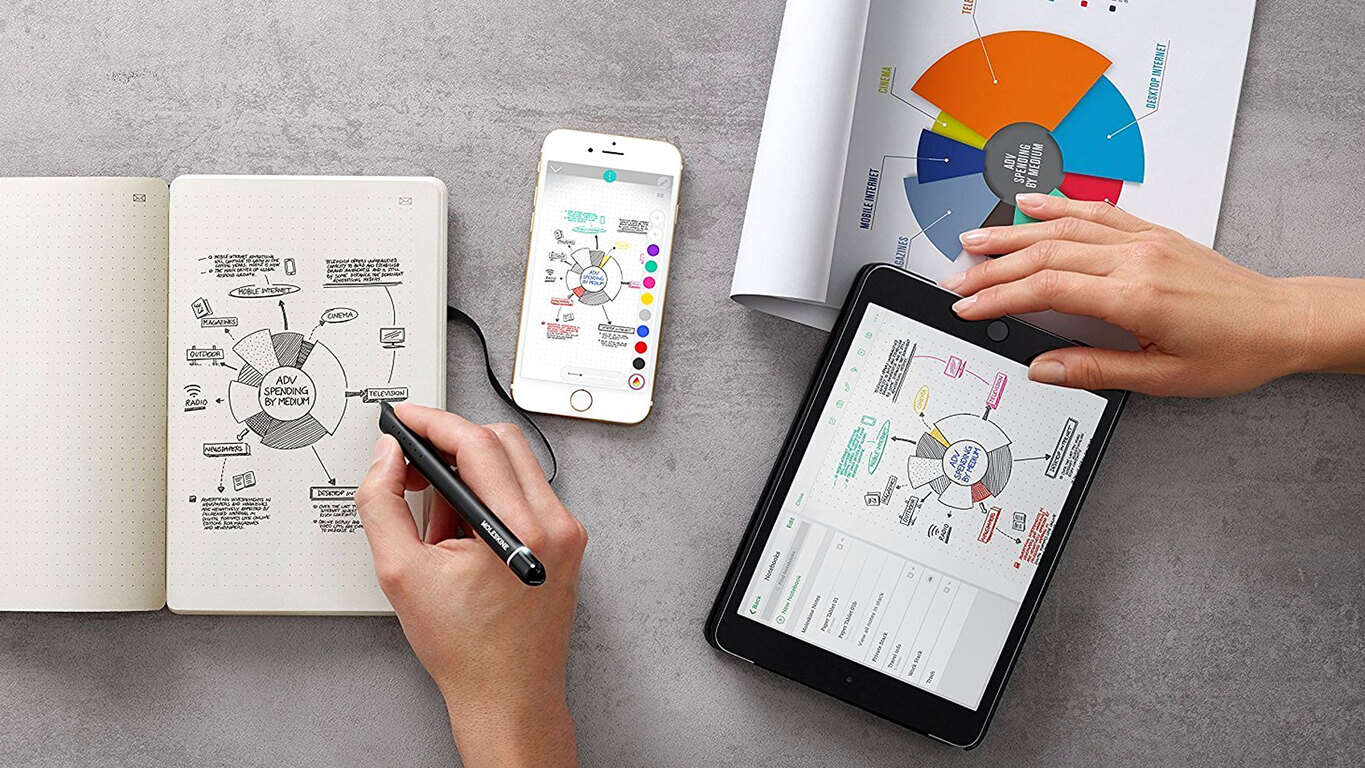
The official Moleskine Notes app has finally launched in the Microsoft Store for Windows 10 devices most major regions. The free app works in conjunction with the Moleskine Pen+ smart pen/stylus device and allows for the digitisation and cloud storage of physical notes as they’re written down or drawn.

The Windows 10 Moleskine Notes app will also sync with Google Drive and the Moleskine mobile apps and content can be pasted into programs like Microsoft Word, PowerPoint, and Evernote. Here’s the official list of app features.

  • Digitalization and storage: Your handwritten notes with Pen+ are digitized and stored on PC. From now keep not only digital documents, but also your handwritten notes on PC.
  • Backup and restore: Backup your important handwriting contents in Moleskine Note Windows to Google Drive. Once you backup to Google Drive, you can edit your handwriting in the mobile App.
  • Full-screen mode: Choose Full-screen mode to see your note pages at a look. What you see on the screen is what you write on the notebook.
  • Export: You can record and save the writing or drawing process as a video. You can also save notes & voice memo while recording.
  • Copy: Copy what was transferred to the app as an image or text file and paste it to Microsoft Word, PowerPoint or Evernote. It will help your work flow better.
  • Ideation: If you want to share your ideas with others, please choose Ideation function. With one PC, you can connect up to 7 Pen+ at the same time and check your writing on the screen in real-time.
  • Tag and search: Place a tag on your important notes. You can search important notes by tags quickly and easily.

Have you been waiting for this official Moleskine app to launch on Windows 10? Let us know in the comments below.

Moleskine Notes
Moleskine Notes
Developer:
Moleskine Srl
Price:
Free

Windows 7 error 80248015 blocks updates [FIX]

Even if Microsoft was pretty aggressive while pushing its Windows 10, it seems that Windows 7 still remains an extremely popular operating system among users. But unfortunately, more and more users keep reporting an issue that pops up with Windows Update in Windows 7. We are referring to the 80248015 error.

The error message displays “Windows Update cannot currently check for updates, because the service is not running. You may need to restart your computer.” The sad news is that you won’t be able to fix the problem with a simple restart of the system.

The error message dates back to 2014

This is not the first time that this error message pops up because it seems that back in 2014 it appeared as well. The same problem was spotted in older versions of Windows, and the fixes that were able to solve the problem back then don’t seem to work this time at all.

How to fix Windows 7 error 80248015

The current issue may be caused by a file -authorization.xml in c:\Windows\SoftwareDistribution\AuthCabs\authcab.cab- that has an incorrect expiration date. To solve the problem, you should head to the settings for Windows Update where you have to disable the option that’s labeled “Give me updates for Microsoft products and check for new optional Microsoft software when I update Windows.”

It seems that this workaround was able to fix the problem for some users, but unfortunately, it’s not 100% guaranteed that it will work for everyone. Because the success rate of this tip is not the maximum, users are advised to wait until Microsoft rolls out a patch to fix the problem or until the company comes up with any other solutions.

Until then, if you happen to get error 80248015, you can try out the solution mentioned above, and if you’re lucky, it will work for you as well.

RELATED STORIES TO CHECK OUT:

You can’t install the latest Windows 10 build? Wait for the next one

There have been reported some troubles by more Insiders while trying to get the latest builds of Windows 10 and this may be due to some internal issues at Microsoft.

Windows 10 users trying to install either the Windows 10 build 17046 on the Fast Ring or build 17025 on the Slow Ring have been receiving error code 800096004 which caused the whole installation process to crash entirely.

More than that, their attempt to download language packs or more features also seems to fail.

Brandon LeBlanc from Microsoft stated that users who have already installed the latest build should not have any problems. On the other hand, users who are planning on installing them may have to wait for the next build to arrive because there’s nothing else they can do.

Causes and potential fixes

Microsoft already addressed the issue on its support page, and describing the bug causing the problems while attempting to install the latest builds. The company provides the information resulted from the investigation, saying that the root cause for this is a bug in the way that Microsoft signs files for builds that are delivered via UUP.

The company states very clearly that there are no steps that are able to be taken on individual PCs in order to bypass this problem. There aren’t any steps required by Windows Insiders to receive and install that next preview build that will be rolled out in the coming days.

Microsoft tells you to wait for the next build

Microsoft didn’t mention that it’s planning to roll out any patches for this bug and the company’s recommendation is to simply wait for the next build to come.

You can check out for yourself Microsoft approach on this matter and go through the company’s investigation and note to Insiders on Microsoft’s forum.

RELATED STORIES TO CHECK OUT:

Skype for Windows 10 gets Fluent design touches, new features with latest update

Microsoft has made some substantial progress on its Skype Windows 10 app over the past few weeks, bringing it more in line with the Skype apps on iOS, Android, macOS, Linux and previous versions of Windows. Today, the Skype team penned a blog post to recap all the new features that recently made their way to the universal app.

Interestingly, the blog post doesn’t mention the addition of some Fluent Design touches, which all Windows 10 users can see in the just released version 12.10.572.0. That’s right, the left sidebar is now slightly transparent, and you can also see the “Reveal” lighting effect when hovering your mouse over it.

You may have missed it, but there is now a Gallery button at the top of all your Skype conversations. This handy feature helps you easily find previously shared content including links, files, pictures and videos.

Other recent additions to the Skype Windows 10 app include the new notification panel, which lists @mentions in group notifications, reactions to your messages and more. The profile page has also been revamped, replacing the toggles for ” Do Not Disturb” and “Do Not share my presence” with a more straightforward “Status” field.

Microsoft still has a lot of work to do to achieve feature parity with other versions of the app, and that includes add-ins support (PayPal, Giphy, etc.). Still, the Skype Windows 10 app is slowly getting better and we hope it will continue to improve over the next couple of months.