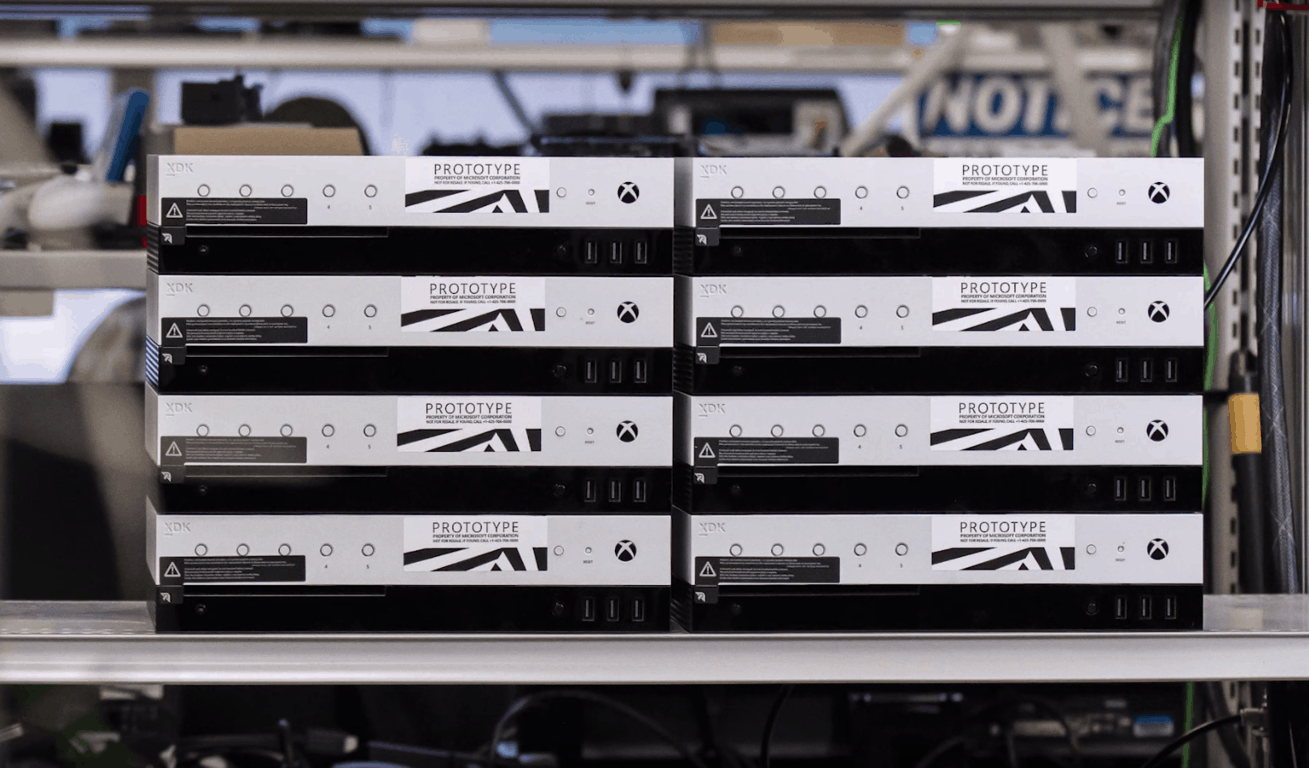
E3 2017, and the reveal of Project Scorpio is just a few days away, and Microsoft is sharpening the appetite of Xbox fans by giving them a tour of a different type of console. Indeed, the company is now showing off the Xbox Project Scorpio development kit which was previously unveiled and started shipping to developers about a month ago.
Seen above, Microsoft’s Kevin Gammill from the Xbox Engineering team recently joined Major Nelson to discuss the power and functionality of theXbox Project Scorpio development kit, and what it means for games and the average consumer. The discussion begins with the revelation that Microsoft choose to create a Project Scorpio dev kit so developers could be enabled to create the games they wanted, with the additional headroom to get games up and running as the retail console gets close to shipping.
Also discussed are the physical differences between the dev kit and retail console. The console has four more CU’s than the retail kit, 12 more GB of RAM, and a 1 TB SSD, so developers can quickly debug something, deploy it to the kit, test the kit, and repeat the process over and over again.
Of course, the extra buttons which are seen on the front of the dev kit are also covered in this discussion. It was revealed that the 5 programmable buttons and front panel display are designed for the development lab, and for scenarios where developers don’t want to have a monitor for each console, and instead use the mini display to change the gameplay.

Interestingly, Kevin Gammill pointed out that the Project Scorpio development kit also has an additional network port, so developers can monitor the debug network traffic, without colliding with the main network. And along with this is the Xbox Transfer device, which many have noticed stick out from the back of the console. It was explained that this transfer device supports the deployment of game builds from a PC to the console in less than 4 minutes.
With Microsoft giving such a powerful dev kit to the developers, there is no doubt going to be great games for Project Scorpio in the months ahead. Again, we invite you to check out the full video above and to let us know your thoughts in the comments below.



















 To start off, open the Settings app and head to the Network & Internet category. On mobile devices, it’s called Network & Wireless. Tap “Data usage” to head to the relevant page.
 You’ll see a graph that illustrates your total data usage for the past 30 days across your different network connections. If you click or tap the “View usage details” link, you can get a breakdown of data consumption by app. This lets you identify apps that might be stealthily consuming data in the background. While the data usage screen won’t let you throttle offenders, you can remove the app or adjust its settings based on the knowledge you’ve acquired.
 If you’re using a phone or tablet with mobile data, you’ll also see an option to set a data usage cap. This lets you define a one-time or recurring limit so you’ll be alerted when you’ve nearly used up your allowance. As you approach the limit, Windows will automatically reduce background app activity to eke your remaining megabytes out for a little longer.