Leaked report reveals interesting facts about Xbox One demographics

According to leaked internal Microsoft documents found exclusively by Windows Central, there are many interesting statistics regarding Xbox gamers.

The Microsoft internal documents were meant to be shared privately with Xbox partners in an effort to help understand the diversity of Xbox One gamers on Xbox Live. Some of the Xbox statistics were obtained via responses from about 2,000 Xbox One owners across the US. Here is a list of the statistics as reported by Windows Central:

“The split in Xbox One ownership between genders is 42 percent female and 58 percent male.
Most Xbox One gamers reside in the 25- to 34-year-old bracket, followed closely by the 35- to 44-year-old bracket.
56 percent of Xbox One owners live with a married spouse or partner, 10 percent live alone, and 23 percent live with their parents.
Many Xbox One owners have an annual income of around $75,000.”

When examining Xbox player behaviors on Xbox Live, Microsoft used a range of categories to label gamers on how they use Xbox One and Xbox Live; 53% of Xbox One owners fit into the “socializing” category because they play an average of 17 hours per week playing multiplayer games on Xbox Live. Microsoft saw the other 50% of gamers are “explorers,” because they use a number of Xbox Live services, such as Game Pass and EA Access and purchase a number of different game titles.

Microsoft report obtained by Windows Central

Windows Central also found that Microsoft Research grouped Xbox One owners through their activities on Xbox Live, finding nine traits of gamers to label how they play on Xbox Live. In another Microsoft document obtained by Windows Central, you can see the nine traits of gamers on Xbox Live and how they play.

Image: Windows Central

Microsoft used the information that they collected on Xbox One owners to build more features and capabilities into Xbox Live to try to increase player engagement and improve Xbox One games and Xbox Live services based on how players play games.

Remedy’s Alan Wake will soon disappear from Xbox, Steam stores, get it 90% off on Steam starting tomorrow

Remedy will soon offer the psychological horror action-adventure video game, Alan Wake for 90% off on Steam from May 13th to May 15th, so you might want to consider grabbing it up before it’s gone forever. The reason why? According to new reports, Alan Wake will soon disappear from Xbox, Steam stores, and physical retail stores due to a music licensing issue.

While the exact details surrounding the licensing issue is not clear, Remedy tells Polygon that the “the licensing for the music will expire on May 15.” With this so, the game can’t be sold after the date, until Microsoft and Remedy manage to renegotiate the licenses. Thomas Puha, the head of communications for Remedy explained to Polygon.

“Microsoft and Remedy are looking into renegotiating the music licenses, but there’s nothing more to comment on that for now…Obviously having to remove the game from stores is rather unfortunate. So, we figured, let’s discount the game heavily and those who have not bought Alan Wake yet, here’s your chance to grab it on Steam.”

The licensing issues do not affect Alan Wake American Nightmare, which Remedy negotiated its own music licensing free for. An official blog post from the developer mentions that Remedy is looking into relicensing the music for Alan Wake, provided no timeframe.

You can head to this link to download Alan Wake at the discounted price once the sale begins.

You can now pre-order Madden NFL 18 on Xbox One

Xbox’s Major Nelson, aka Larry Hryb, announced that you can now pre-order Madden NFL 18 on Xbox One. Xbox Wire posted the Madden NFL 18 teaser trailer, showing New England Patriots’ star QB and five-time Super Bowl champion, Tom Brady, as the NFL superstar that will grace the cover of Madden NFL 18. Considered by many to be the GOAT (Greatest Of All Time) of the NFL, this is Brady’s first time on the cover of a Madden game.

There will be two versions of Madden NFL 18 available for purchase on Xbox One:

  • Madden NFL 18 Standard Edition ($59.99) – This bundle includes the game, plus when you pre-order, receive an Elite player from your favorite NFL team and five Squad Packs in Madden NFL Ultimate Team.
  • Madden NFL 18 G.O.A.T Edition ($79.99) – This bundle includes the game, plus when you pre-order, receive early, full-game access to Madden NFL 18: G.O.A.T. Edition, an Elite player from your favorite NFL team, Uniform Pack, 2,500 Contracts, and twelve Squad Packs in Madden NFL Ultimate Team.

EA Access members get an extra 10% off and get to play Madden NFL 18 a full three days before the game is released on consoles. We should see more Madden NFL 18 game details, features, and more revealed at EA Play on June 10, 2017. Madden NFL 18 will be released on August 25, 2017, on Xbox One.

Pre-order Madden NFL 18 Standard Edition

Pre-order Madden NFL 18 G.O.A.T. Edition

Microsoft has no plans to make Edge browser a true Windows Store app, but “never say never”

Two weeks ago, sources at Microsoft told Neowin that the upcoming Windows 10 Fall Creators Update (aka Redstone 3) would make Microsoft Edge a true Windows Store app. By implementing this change, the company’s new web browser would no longer need to wait for major Windows 10 updates to receive new features going forward

This change seemed to make perfect sense considering that competing web browsers such as Chrome or Firefox have now adopted a fast release cycle. However, it seems that unbundling Microsoft Edge updates from Windows 10 updates is actually not a priority for Microsoft: following a Build 2017 session dedicated to the web browser yesterday, a member of the Edge team told Neowin that there are “no plans for [unbundling] right now, but never say never.”

It’s not exactly clear why the company thinks that Microsoft Edge can thrive with only two major updates per year, but you can still be assured that the Windows 10 Fall Creators Update will bring significant improvements to the web browser. As the company detailed yesterday, you can expect speed improvements, better support of progressive web apps as well as visual improvements inspired by Microsoft’s Fluent Design System. Time will tell if this will be enough to gain more users.

How to run Cortana on Windows IoT Core

Cortana is a personal digital assistant working across all your Windows devices. This tool can help you organize your daily tasks, search for particular information, and so on. IoT Core is a special Windows 10 OS version optimized IoT devices.

The Windows 10 Creators Update allows users to enable Cortana on IoT Core. In this article, we’re going to show you how exactly you can do that.

Enable Cortana on Windows IoT Core

Here’s what’s required to do this:

  1. Your device must have Internet connection.
  2. You must have a Microsoft account that you will use to sign in on the device.
  3. The device must be equipped with a display, microphone and speaker.

 Here are the steps to follow:

1. Install Windows 10 IoT Core Dashboard.
2. Flash your IoT Core device with the correct image. You can go to the Windows Insider Preview Downloads page to find the image for your IoT device.

3. Open the Device Portal and install the available updates:

Enter https://:8080/#Windows%20Update in your browser > click on Check for Updates > apply the updates> restart your device.


4. Set up your peripherals
Connect the microphone and speakers to the USB port > open the Device Portal to adjust their settings:

Enter https://:8080/#Device%20Settings in a browser > go to Audio Control > adjust the volume settings for both within the range of 40-70%.

To enable USB audio on the Dragonboard 410c, you need to disable the Qualcomm audio driver. Launch Powershell and type devcon disable “AUDD\QCOM2468”.

5. Launch Cortana > accept the consent > sign in using your Microsoft account.

With this done, you can now talk to Cortana. Say “Hey, Cortana!” and ask her whatever you want!

RELATED STORIES YOU NEED TO CHECK OUT:

How to manage Windows 10’s built-in network usage monitor

Windows 10 monitors the network bandwidth usage of its apps by default and this turns out to be very helpful in the long run.

Check which apps use most data

Monitoring the network bandwith of your apps can help you spot malware along with which apps are using the most resources. If you’re running Windows 10, you don’t have to install complex software in order to be able to do this: the operating system tracks all this information by default. Here’s how to check it out:

  • Launch the Settings app
  • Click Network and Internet
  • Select Data usage
  • Click View usage details

You’ll get a window with a list of apps sorted by bandwidth used over the last 30 days. In case you are using otherconnection types (Wi-Fi or Ethernet), you can view their usage separately. Note that you can’t change the counting period as it’s always set for “the last 30 days”.

Reset Data Usage

Freeware developer Sordum launched a solution called Reset Data Usage, a small portable tool that allows you to clear the usage stats whenever you want to.

To launch it, just click Reset Data Usage and the app counts are set back to zero.

Running the program from the command line with an / R switch – resetdu.exe / R – will reset the stats of the OS. You can set up a Windows scheduled task and this way you’ll be able to reset the count every day, week, month, and so on. You also have a Data Usage button for launching the report window.

This feature should have already been available in the operating system. Microsoft’s current approach looks like it’s more about removing configuration options than adding some new ones but fortunately, Sordum fills the functionality gap.

RELATED STORIES TO CHECK OUT:

Surface Dial Apps That Work Best with This Tool

Surface Dial is an innovative tool dedicated to the creative process. It is a new way to interact with technology and create, store, customize, access, and edit graphics masterpieces.

Surface Dial is designed to work with any image-based app and relies on scroll, zoom, and undo actions. Some apps have tools specific to Surface Dial.

Surface Dial apps

  • Adobe Photoshop
  • Adobe Illustrator
  • Bluebeam Revu
  • Drawboard PDF
  • Microsoft Excel (Office Win32 version)
  • Groove Music
  • Mental Canvas Player
  • Microsoft Photos
  • MohoTM 12
  • OneNote (Universal Windows App version)
  • Paint
  • PewPew Shooter
  • Plumbago
  • Microsoft PowerPoint (Office Win32 version)
  • Sketchable
  • Sketchpad
  • Spotify
  • StaffPad
  • All Windows apps
  • Windows Maps
  • Microsoft Word (Office Win32 version)

Indeed, Surface Dial also makes your everyday tasks simple and fun especially, with its varied uses. You can use it to adjust the volume of your favorite Groove tracks, scroll through news articles, or wander around your local city in Windows Maps.

Out of the 20 apps listed above, 6 of them are specially optimized for Surface Dial:

  • Sketchable: Surface Dial gives you quick and intuitive access to the brush settings you use most.
  • Mental Canvas: Rotate the device to move through 3D drawings along the artist’s bookmarked views.
  • Drawboard PDF: Use Surface Dial to draw perfectly ruled lines, or freely rotate a single page to suit your writing position.
  • Moho: Rotate it to move back and forth in the timeline, click to play/stop or add new frames, rotate and zoom your canvas, and more
  • StaffPad: Use the device to click to play/stop, rotate left and right to rewind/fast-forward your score, or place it on screen for quick access to symbols.
  • Bluebeam Revu: Place Surface Dial on screen and use its location to split screen and zoom to magnify your PDF.

Do you own a Surface Dial? Share your experience and tell us which apps work best with this tool.

Microsoft responds to 3 unpatched Microsoft Edge vulnerabilities, no fixes available yet

Earlier today, we reported that there are currently 3 unpatched vulnerabilities in the Microsoft Edge browser. These vulnerabilities can be used to steal passwords and other data stored in cookies.

Following the reports, we reached out to Microsoft for comment, to which a spokesperson for the company responded:

Windows has a customer commitment to investigate reported security issues, and proactively update impacted devices as soon as possible. Our standard policy is to provide solutions via our current Update Tuesday schedule. We encourage customers to practice safe computing habits online, including exercising caution when clicking on links and opening unknown files and not downloading content from untrusted sources to avoid this type of issue.

Further to the above comment, we can also confirm that Microsoft’s Security Response team is aware of the reports. While the company has not stated when fixes may be available, the above statement suggests that when fixes are available, the company will roll them out in the usual Update Tuesday fixes, rather than earlier. This is despite recently being applauded for its quick response to an exploit report by a Google security researcher earlier this week.

Forza Horizon 3 Hot Wheels bugs: black screens, FPS drops, and more

Hot Wheels, the latest Forza Horizon 3 DLC, brings a series of exciting new features and improvements to the table. Unfortunately, the expansion is also affected by a series of technical issues.

In this article, we’re going to list the most common Forza Horizon 3: Hot Wheels issues on both PC and console, as well as their corresponding workarounds whenever available.

Forza Horizon 3: Hot Wheels reported bugs

Players can’t back out of the buy screen

I’m unable to back out of the hot wheels screen right after the short video after the new hot wheels update.

To fix this problem, follow these steps:

  1. Load up Forza Horizon 3 and go to the “Buy Now” screen you are stuck at.
  2. Press the Xbox Guide button to go back to the dashboard and open up the Forza Hub App. Do not shut the game down.
  3. Open up the Hot Wheels is Here! Story on the Forza Hub App.
  4. Press the black “Play Now” button on the first page of the story and select Continue when prompted.
  5. Go back to the game. You should now be able to back out of the “Buy Now” screen.

Hot Wheels won’t install

Many players report that they can’t install the Hot Wheel extension because the download process suddenly stops. Sometimes, error 0x87E00005 appears on the screen as well.

Updated FH3 last night, and this morning, I go to install the expansion itself. It gets to just over 1GB, then it suddenly stops […] I’ve restarted my console, and gone to install it again, and it won’t download at all. It gave me an error code: 0x87E00005

If you’ve encountered this issue, try performing a hard reset. First, close all your games and hold the X button down until the system shuts down. Then, disconnect the external power from the wall plug and wait one minute.

Plug the power cord back in, restart the console, and then wait until the device self-checks and fully boots to the dashboard. This time, the Hot Wheels extension should install smoothly.

Low FPS issues

When driving through a Loop-the-Loop alongside multiple cars in an online session, the frame rate dips noticeably.

Players further detail that this issue often occurs only when they are looking forward during sunrise or sunset, or when multiple cars are on-screen at the same time.

Players don’t have access to all their cars

I have gotten 100 medals and completed the goliath race but i only have access to the Rip Rod, the bone shaker, and the twin mill. how do i get the rest of my cars

To get all your cars, simply go to the autoshow and DLC tile, then go to All cars and collect them from there.

Blizzard Mountain won’t load after installing Hot Wheels

after the Hot Wheels Expansion the game won´t let me travel to Blizzard Mountain. I´m always stuck in in infinite loadingscreen.

Turn 10 Studios has already acknowledged this issue and is working on a fix.

These are the most frequent Forza Horizon 3: Hot Wheels bugs reported by gamers. If you’ve encountered other issues, use the comment section below to tell us more about your experience!

RELATED STORIES YOU NEED TO CHECK OUT:

Microsoft shows off Windows 10 on ARM at Build 2017, runs x86 programs outside of the Windows Store

At Build 2017, Microsoft has again shown off its Windows 10 on ARM work and the progress it has made. Last seen in December, the company is now touting that it is able to run x86 programs outside of the Windows Store, as well as those in the Windows Store.

Windows 10 on ARM could be Microsoft’s answer to its mobile woes, allowing an abundance of programs to be installed on a portable, mobile and power-efficient device, derived directly from the top desktop operating system, Windows.

During the display of Windows 10 on ARM, the company shows how effortless it is to install an x86 program on ARM, the same way you would on a standard PC running Windows 10. As an example, they needed to open a Zip folder that was sent to them, so they proceeded to search the internet for a download of 7zip and within seconds, had it fully installed, just like normal, with no development changes required whatsoever.

This simplicity is thanks to the Windows on Windows layer, which handles the x86 emulation, which is currently used for running 32-bit programs on a 64-bit computer.

Microsoft confirms Surface Pro 5 won’t arrive this year

Microsoft’s Surface chief Panos Panay recently said that users should not to expect a Surface Pro 5 anytime soon.

No Surface Pro 5 coming our way

If you have been waiting for Microsoft to announce the Surface Pro 5 tablet, you should take your mind off it as “there’s no such thing as a [Surface] Pro 5,” according to the Surface Chief. This is sad news for many who were hoping that Microsoft would reveal a new Surface Pro device at its forthcoming event in Shanghai. Panay himself gave fans some hints on his Instagram account, saying that it would see some sort of Microsoft Surface hardware unveiling.

When will the Surface Pro 5 arrive?

The fact that Panay said that “there’s no such thing as a [Surface] Pro 5,” is solid proof that Microsoft won’t announce any Surface Pro 5 device this year. However, Panay didn’t say that there never was or would never be a Surface Pro 5. This means that the company could indeed introduce the Surface Pro 5 in 2018. Only time will tell if this guess has a grain of truth in it.

Microsoft’s Surface strategy

This also raises some concerns regarding Microsoft’s larger Surface strategy. The Surface Pro 4 tablet hasn’t received a significant update since it was launched back in 2015. Now, the company is blaming the age of the Surface Pro 4 and increased Windows tablet competition for the 26% fall in Surface business from the end of 2016.

Panay said that Microsoft is looking for some “meaningful change” before it launches another tablet in an interview with CNET pointing to a “experiential change” that would have a bigger impact on the way that people use it, like lower weight or enhanced battery life, for instance. If Microsoft can’t come up with something much bigger, then why bother releasing it?

Whatever Microsoft launches next should be a meaningful upgrade of the Surface Pro 4. Unfortunately, this also means Surface Pro 4 users will have to look elsewhere for a premium Windows 10 tablet for upgrading.

RELATED STORIES TO CHECK OUT:

Here are the specs and pre-order pages for the HP and Asus Windows Mixed Reality Headsets

Mixed reality is coming to the forefront of Microsoft’s game plan as we move onto the next big iteration of Windows 10, and so new mixed reality headsets are taking the stage to grab a piece of that pie. Today, we have two headsets going up for pre-order: The HP and Asus Windows Mixed Reality Headsets.

From a technical standpoint, these two headsets are almost identical. Here are the technical specifications, applicable to both headsets.

Operating systems
Windows 10 – Creators Update (Developer Mode enabled)

Processor
Desktop: Intel Desktop i7 (6+ Core) OR AMD Ryzen 7 1700 (6 Core, 12 threads

Graphics GPU
Notebook: NVIDIA GTX 965Ml | AMD RX 480M (2GB) equivalent or greater | DX12 and WDDM 2.2 capable GPU
Desktop: NVIDIA GTX 980/1060 | AMD Radeon RX 480 (2GB) equivalent or greater | DX12 and WDDM 2.2 capable GPU

Graphics drivers
Windows Display Driver Model (WDDM) 2.2

Thermal design power
15W or greater

HMD connectors
HDMI 1.4 or Display Port 1.2 for 60 Hz HMDs
HDMI 2.0 or Display Port 1.2 for 90 Hz HMDs
1x available graphics display port for HMD

Resolution
SVGA (800×600)

Bit depth
32 bits of color per pixel

RAM
16GB or greater

Storage
>10GB additional free space

USB
1x available USB port for HMD
USB 3.0 Type-A
Note: USB must supply a minimum of 900mA

Bluetooth
>Bluetooth 4.0 (for accessory connectivity)

You can check out the HP Mixed Reality headset here, and its Acer cousin over here. These headsets are meant for developers, so consumers looking to purchase one might want to hold off – they aren’t meant for everybody. If you’re convinced you want to choose one of them to take home with you, keep in mind that the only real difference is in their design.

Third-party Start Menu apps cause black screen issues on Creators Update [FIX]

Brace yourselves: there’s another bug hitting systems attempting to install the Creators Update.

Third-party Start menu apps cause black screen issues

Microsoft recently announced the discovery of a bug on various systems trying to install the Creators Update, with the culprit being select third-party Start menu apps.

According to Redmond, users who are running third-party Start menu apps might not be able to upgrade to the Creators Update. The process ends with a black screen preventing the systems from reaching the desktop.

Microsoft has not revealed which apps are unsupported, but it mentioned that the Creators Update won’t be offered anymore if these are installed on Windows 10 devices.

Some applications that modify the Windows 10 Start button may not be compatible with Windows 10 Creators Update.  These applications may cause Windows 10 to hang at a black screen with a cursor if you install the Creators Update.

To prevent further instances of this problem, Windows Update will no longer offer the Creators Update on Windows 10 devices that have these incompatible applications installed on the system.

How to fix Start Menu app issues

Users who encounter this problem must return to their previous Windows restore point and remove the third-party app before trying to update again. In case you don’t have one available, you could also try booting from recovery media and either remove the app that causes the issue or downgrade to the previous version of Windows version.

RELATED STORIES TO CHECK OUT:

Is your PC compatible with Windows Mixed Reality? Check out these recommended specs

If you’re looking to be on top of the latest app development, exploring into Mixed Reality is likely to be on your ‘to-do’ list. Luckily, Microsoft announced at Build 2017 today that the Windows Mixed Reality dev kit is now available in US and Canada for pre-order starting at $299.

Following up this announcement, a blog post was shared with the minimum PC recommendations for future Windows Mixed Reality app developers.

Processor

  • Desktop: Intel Desktop Core i7 (6+ Core) OR AMD Ryzen 7 1700 (6 Core, 12 threads)

GPU

  • Desktop: NVIDIA GTX 980/1060, AMD Radeon RX 480 (2GB) equivalent or greater DX12 and WDDM 2.2 capable GPU
  • Drivers: Windows Display Driver Model (WDDM) 2.2
  • Thermal Design Power: 15W or greater

Display

  • Headset connectors: 1x available graphics display port for headset (HDMI 1.4 or DisplayPort 1.2 for 60Hz headsets, HDMI 2.0 or DisplayPort 1.2 for 90Hz headsets)
  • Resolution: SVGA (800×600) or greater
  • Bit depth: 32 bits of color per pixel

Memory: 16 GB of RAM or greater

Storage: >10 GB additional free space

Connectivity

  • 1x available USB port for headset (USB 3.0 Type-A). USB must supply a minimum of 900mA.
  • Bluetooth 4.0 (for accessory connectivity)

It’s worth noting that these PC specs are rounded up for app developers. Mixed Reality for consumers may end up being less intensive on your device, but it couldn’t hurt to beef up with an upgrade or two.

What’s new in Windows 10 preview 16193 for PCs includes Story Remix, new UX and discovery bar

Fresh of the avalanche of Windows announcements made during Day 2 of Build 2017, the Windows team has now released a new preview build to Insiders that’s bringing some of the newly sought after features demoed on stage today and scheduled for the Fall Creators Update later this year.

Here’s what’s Insider get to play with today in Windows 10 preview 16193 for PCs:

Tell your story your way: Today at Build we unveiled a big update coming to the Windows 10 Creators Update and the Windows 10 Fall Creators Update. Story Remix is an evolution of the Photos app that makes it easier than ever to relive your memories and introduces video story creation from your photos and videos. Windows Insiders will be the first to try out many of the new features demonstrated today – with more to come!

Videos made easy: Story Remix uses its understanding of your content to find collections of content most relevant to you and automatically brings it together into video stories – each with a soundtrack, theme, and transitions. You can keep these suggested video stories to enjoy and share, remix them with just a click of a button, or edit them yourself in story editor to get it just right. Anyone can get started creating great videos with the help of Story Remix.
Search: Story Remix uses deep learning and AI to automatically tag your content. Now you can search by people, places or things to easily find specific photos in your ever-growing collection so that you can view, edit or create a story.

Updated UX: The Story Remix app now includes elements of Fluent Design like connected animations, conscious scrollbars, and acrylic. The Explore page is the hub for your entire collection of photos and videos, where you can view your content in three different sizes – small, medium, and large. The Create page is the jumping off point for creating new stories.
Discovery bar: The new discovery bar gives you quick access to delight and common tasks, making it easy to create a new story, see stories we’ve created for you, and discover your past memories of people, places, and things.
Share your stories: Upload your video stories quickly to YouTube and Facebook, or share them easily via email or via OneDrive.
Power Throttling Update: Starting with Build 16193, the Task Manager column name has changed from “Background Moderated” to “Power Throttling”. For more information on Power Throttling, read this blog post here.

Individually controlling the volume of your UWP apps: We’ve updated the Volume Mixer to now include UWP apps (like Microsoft Edge, or Groove Music), so you can set their volume without impacting the overall system volume. Appreciate everyone who’s shared feedback requesting this, let us know what you’d like to see next! Note: UWP apps will only appear in the Volume Mixer once they start playing sound. To open the Volume Mixer, right-click on the speaker icon in the taskbar.

As an Insider myself, it’s great to see the windows between announcement and release has being shortened for Insiders.

Happy downloading, Insiders!

Microsoft introduces Timeline for Windows 10, Clipboard and Pick Up Where You Left Off for cross platform sharing

The Windows 10 Fall Creators Update announced at Build 2017 today is the next step for the Microsoft OS. Building on the Redstone 2 release launched earlier this year, this upcoming release will add more accessibility and tools for users across multiple devices.

Here are some of the new features coming to Windows 10 later this year.

Timeline

The Task View for Windows 10 is getting a major update, transitioning to a new Timeline view. If you’ve ever needed a visual timeline of what you were doing on Windows 10, now you will. The feature will show your recent activity along with date and time, letting you jump back into your train of thought easily, even if it’s on another device.

Pick Up Where You Left Off

Perhaps one of the most frustrating parts about moving devices so commonly is the inability to pick up and go. With Cortana, this feature is exactly what Microsoft intends to deliver. With Windows, iOS, and Android devices, Cortana can save a state of documents for you on one end and let you pull it up on another on request.

Cloud Powered Clipboard

Users will be able to click copy on one device and use paste from onto another with the newly updated Clipboard feature. During the demo presentation, Microsoft explained how by using the simple copy function on your PC to an Android device, integrated with Swipe keyboard to instantly copy text from the cloud.

These features aren’t all that’s coming to Windows 10. There’s more to learn as Build 2017 continues, and we’ll have it all here OnMSFT.


PC status: Potentially unprotected [FIX]

Windows Defender can sometimes displays a confusing message — PC status: Potentially unprotected. In order to clear the mystery up, we’ll explain why this message occurs and how to get rid of it.

To start, here’s how one user describes this confusing message:

PC Status: Potentially Unprotected. I don’t know why my windows defender has refused to updated. Please can you help me update my windows defender?

This message appears when a lot of time elapses since your last scan or Windows Defender couldn’t install the latest definition updates. Oftentimes, this message occurs after a third-party program has deleted some of the log files Windows Defender uses to check if your computer has been recently scanned or not. This error can also occur if the Antimalware Service isn’t running.

How to fix the “PC status: Potentially unprotected” error

1. Make sure that Windows Defender’s Real-time protection is turned on.

2. Install the latest Windows Defender definition updates.

3. Uncheck Windows Defender from your registry cleaner or junk file cleaner’s list. Here are the steps to follow for CCleaner, one of the most popular registry cleaners in the world:

Open the Applications tab > go to Utilities > Uncheck Windows Defender.

4. Now, scan your computer using Windows Defender. This action should recreate the log files deleted by your junk file cleaner.

5. Make sure there is only one anti-malware tool installed on your computer. There are many anti-malware programs compatible with Windows Defender, but you should install only one at a time. Running two different anti-malware tools at the same time may trigger software conflicts.

If you’ve come across other workarounds to fix this error, you can list the troubleshooting steps in the comment section below.

RELATED STORIES YOU NEED TO CHECK OUT:

Windows 10 OneDrive placeholders are coming back as Files on Demand, in preview this summer

Microsoft has announced during Day 2 of Build 2017 that file placeholders will return to OneDrive on Windows 10 devices with the Windows 10 Fall Creators Update later in the year.

The new placeholders will work in a similar way to how they worked before they were removed (i.e. simply listing files available in the cloud on a device without actually having to download them) but are being renamed as OneDrive Files on Demand. Here’s the official description of the revamped feature:

OneDrive Files on Demand: Access all your files in the cloud without having to download them and use storage space on your device. You don’t have to change the way you work, because all your files , even online files, can be seen in File Explorer and accessed on-demand whenever they are needed.

File placeholders were a popular feature of OneDrive before they were removed as they allowed for users to free up space on their devices while still having access to their files in the cloud if they ever needed them. Are you happy to see this feature return? Let us know in the comments below.

T-Mobile customers to get a free month of Xbox Game Pass

Microsoft originally announced Xbox Game Pass a few months ago, but it has apparently already gathered the attention of the Seattle-based cell phone provider T-Mobile. A recent post on Reddit shows that T-Mobile customers will get one free month of the gaming subscription service for free.

Free Month of Game Pass to T-Mobile Customers After E3 2017 from xboxone

Seen above, the post from the Redditor shows that “Xbox is coming back” and T-Mobile will be giving away one month of Xbox Game Pass to its customers. As the screenshot suggests, Xbox fans are also urged to tune into the Xbox E3 briefing on June 11th at 2 PM PT for a chance at epic Xbox Prizes.

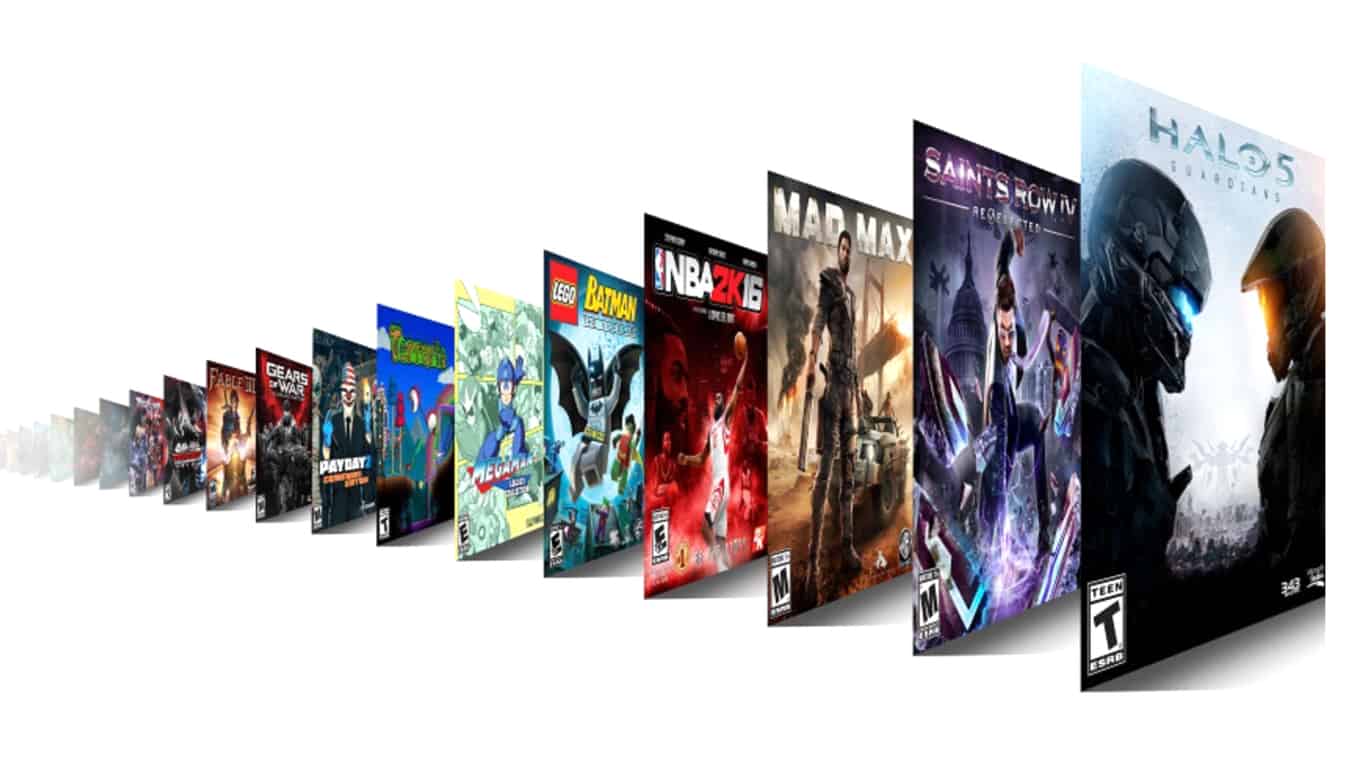
Xbox Game Pass is Microsoft’s upcoming gaming subscription service, which gives Xbox fans access to 100 Xbox One and Xbox 360 games for $9.99 a month. It’s scheduled to be released to the wider Xbox community in Spring of 2017, but Xbox Insiders have already had chances to test out the service.

Games from industry leading publishers such as 2K, 505 Games, BANDAI NAMCO Entertainment, Capcom, Codemasters, Deep Silver, Focus Home Interactive, SEGA, Warner Bros. Interactive Entertainment and Microsoft Studios, will all be included in the service. You will be able to you discover and download the full titles directly on your Xbox One, without the need to stream the games.

6 Best Registry Finder Applications for Windows

If you need to make changes to your registry, the fastest way to do it is to use a registry finder for Windows.

Windows has a built-in Registry Editor, but this tool has some limitations, which is why many are going for specialized software instead.

If you want to find a desired key or value in your registry quickly, we strongly recommend that you try one of the registry finder tools from our list.

How do I find all registry entries for a program?

  1. Open Registry Editor. You can do that by pressing Windows key + R and entering regedit.
  2. Now press Ctrl + F.
  3. Enter the name of the application you want to find and click on Find Next.
     
  4. You’ll get a single result.
  5. Now repeat steps 2 and 3 again to go to the next result.

As you can see, this method is simple but not very effective, which is why many prefer using registry finder software for Windows instead.

What is the best registry finder for Windows?

Registry Finder – Best overall

If you’re looking for a simple registry finder, this tool might be just what you need. The application allows you to browse your registry with ease, but you can also delete and rename both keys and values.

Thanks to the tabbed interface you can easily open multiple keys and make the necessary changes. It’s worth mentioning that all your open tabs will be saved after you close Registry Finder.

As a result, you can always continue working on a specific key even if you accidentally close the application.

In order to quickly navigate to any key you can use the address bar at the top. Simply paste the path to the desired key and you’ll instantly navigate to it.

The application has a powerful search feature that can easily find any value or key in your registry. It’s worth mentioning that the search results are shown in a different tab. Therefore searching doesn’t interfere with your work.

This is especially useful because searching the registry can take a while sometimes, so you won’t have to wait idly while Registry Finder performs the search.

The search supports a wide range of parameters, so you can easily find any value you want. All search results are displayed as a list so you can easily navigate them.

The application will also show you the location where the match occurred along with additional information such as key name, value name, or data value.

In addition, all matched data is highlighted in red, therefore it’s easy to spot. Of course, you can easily navigate to a specific search result simply by double clicking it.

We must mention that this tool has a replace feature that can replace one string with another. The replacement affects only values from the Find Results tab, but if you want, you can perform replacement only for selected values.

Registry Finder also has a powerful history feature that allows you to restore any deleted or replaced entry. This feature is especially useful if you want to revert your registry to the previous state.

Registry Finder is a great application that will allow you to perform changes to your registry with ease. Thanks to the powerful search feature you’ll be able to perform changes to desired values in a matter of seconds.

The application is completely free, and since there’s a portable version available you can run it on any PC without an installation.

Key features:

  • Doubles as registry editor
  • Tabbed interface
  • Searches are displayed in separate tab
  • Matches highlighting
  • String replacement

⇒ Get Registry Finder

RegScanner – Advanced search feature

If you’re not satisfied with the search options in Registry Editor, you might want to consider using this tool.

Unlike our previous entry, this tool doesn’t work as a registry editor, so you can’t make any changes to your registry using this tool.

However, this tool works perfectly with default Registry Editor, so you can use RegScanner to perform searches and find the desired keys with ease. After finding the desired values, you can easily access them with Registry Editor.

RegScanner has an extensive search feature that allows you to customize your search properties. For example, you can choose which base keys to scan, but you can also display keys that are modified during a specific time period.

In addition, you can also display only specific types of data if you want. After performing the search, all results will be displayed in a list, so you can easily navigate to any value simply by double-clicking it.

The list of results is populated in real-time, so you can see the results as soon as they are found. It’s worth mentioning that this application can also search registry on a remote computer.

However, before you can do that, you need to log in to the remote computer using the administrator account.

RegScanner supports exporting, so you can easily export your search results as a .reg file and use that file for backup. In addition, you can also save the list of results as a text file.

Although this tool doesn’t offer registry editing, it allows you to easily delete any value right from the application.

This is rather useful if a specific value or a key is causing a problem on your PC. It’s worth mentioning that deleted keys and values are stored in a .bak file that you can use to restore them.

This file is created in the application directory, so you can easily access it. If the application can’t create the .bak file, the selected item won’t be deleted.

Another feature that you might find useful is the ability to open any registry path from your clipboard. Using this feature you can simply copy a path and open it in Registry Editor with a single click.

RegScanner is a great registry finder tool, but it doesn’t work as a registry editor. This means that you’ll have to completely rely on Registry Editor to make changes to your registry.

This tool offers advanced searching options, so you should be able to find any value with ease. Lastly, this is a completely freeware and portable application, which means that you can use it on any PC without an installation.

Key features:

  • Works great with Registry Editor
  • Advanced search feature
  • Real-time results
  • Supports exporting

⇒ RegScanner

Acelogix Registry Finder – Friendly user interface

Another great registry finder that we want to show you is Acelogix Registry Finder. The application offers powerful search engine, and with the friendly user interface using this tool should be a breeze.

To perform a search simply select the type of data that you wish to search for and the type of hives that you want to scan. We have to mention that this tool also allows you to scan local registry and registry on a remote computer.

You can also use this tool to read and view registry without Registry Editor on your PC.

After selecting the search parameters, you just need to enter the string you want to search for. It’s worth mentioning that the application also supports regular expressions, wildcards, and hex strings.

If needed, you can also search for values modified between a specific time period. Acelogix Registry Finder also has a useful folder tree in the left pane that you can use to sort your search results.

We have to mention that this application doesn’t allow you to modify your registry, so if you want to change a specific value, you’ll need to use Registry Editor. This application offers full integration with Registry Editor, so you can easily access and edit any value.

To edit a value with Registry Editor you have to double-click it in the list of results. The application allows you to delete registry entries, but you can also export your search results and use them as a backup.

Acelogix Registry Finder offers a friendly user interface, so you should be able to easily search your registry.

Although this is a great registry finder, we must mention that this tool isn’t free, so you’ll need to purchase it if you want to continue using it. The application offers a 30-day free trial, so feel free to try it out.

Key features:

  • Friendly user interface
  • Supports both local and remote registry
  • Works great with Registry Editor
  • Support for wildcards, hex strings, and regular expressions

⇒ Acelogix Registry Finder

Registrar Registry Manager – Great bookmark support

Another great tool that can help you search and edit your registry is Registrar Registry Manager. The application uses tabbed interface thus allowing you to perform multiple operations at the same time.

Using this tool you can edit registry on a local computer or on a remote PC. It’s worth mentioning that this tool allows you to back up and restore your registry with ease. This means that you can easily fix any problem that occurs after modifying the registry.

The application offers a powerful bookmark editor so you can easily bookmark registry keys and save them for later use.

Bookmark editor supports categories, and there’s even support for coloring and custom descriptions, thus allowing you to differentiate your bookmarks easily.

We also must mention that this tool supports multi-level undo, so you can easily revert any changes. Speaking of which, we also wrote how to undo registry changes on your PC, so be sure to check it out.

The application supports registry defragmentation, and there’s even a registry monitor available. Thanks to the latter, you can see a detailed log and check which applications have accessed your registry.

Registrar Registry Manager also has a powerful compare tool to easily check the differences between two keys.

The application also offers an advanced search feature that can quickly search your registry. Your search results will be displayed in a new tab so you can do other things while searching your registry.

The search is highly customizable, and you can perform text, binary, and regular expression searches. You can also apply various filters and specify data size, value type, and last write time to narrow your search.

Of course, you can easily modify any registry value or jump right from search results.

Registrar Registry Manager is a great tool, and it offers an advanced search feature that allows you to find any value in your registry.

Thanks to the available features, this tool can also work as a Registry Editor replacement. The application is free to use, but the Free version doesn’t have access to some advanced features. If you want to access all features, you’ll need to purchase the Pro version.

Key features:

  • Tabbed interface
  • Support for local and remote registry
  • Bookmark support
  • Registry monitor
  • Advanced search

⇒ Get Registrar Registry Manager

RegSeeker – For first-time users

RegSeeker is a useful tool that can clean your registry and optimize your PC. The application has a simple user interface so it’s perfect for new users.

Using this tool you can manage startup items, services and drivers. In addition, you can view and uninstall all installed applications on your PC.

The application also allows you to see your system information which is rather useful if you want to learn more about your hardware. In addition, there’s also a Process Navigator and File / Process Monitor.

Using these features, you can easily close any running application right from this tool. We also have to mention that this tool offers a powerful file search feature so you can easily find any application or file on your PC.

The application also supports computer cleaning, thus allowing you to easily clean any recently opened files, Start Menu history, etc.

RegSeeker allows you to easily clean your registry, but you can also manage your backups and restore the registry if needed. Using this tool, you can create registry favorites and access them with a single click.

In addition, the application also allows you to search your registry, so you can use this tool as a registry finder. Searching is rather simple, and you have to enter the desired string select the search options, and the keys that you want to search.

Of course, you can easily open any search result in Registry Editor simply by double-clicking it. In addition, you can also search through your search results to find the desired values faster.

RegSeeker is a solid registry finder, but it can also optimize your PC. If you’re looking for a tool that will allow you to manage your computer and search the registry, we advise you to try RegSeeker.

The application is free for personal use, and since it’s completely portable, it will work on any PC without an installation.

Key features:

  • Offers simple registry search
  • Ability to clean the registry
  • Simple user interface
  • Ability to manage startup items

⇒ Get RegSeeker

Registry Replacer – Offers basic editing

Another application that can search your registry is Registry Replacer. The application allows you to perform a quick search and it even allows you to perform search and replace actions right from this tool.

This tool is simple to use; you just need to enter the desired string and click the Search button. You can also configure search parameters and select what type of data you want to include in your search.

In addition, you can also choose which keys you want to search. Thanks to the Search and replace feature, you can easily edit your registry.

This feature can also create certain issues if you’re not careful, therefore, be extra cautious. We have to mention that you can create registry undo file right from this application, so you should be able to restore your registry if any issues occur.

Registry Replacer also offers basic editing, and you can easily edit any search result by double-clicking it. In addition, you can rename any value or delete it from the results list.

If you need to perform more advanced options, you can open Registry Editor right from this tool.

Registry Replacer is a solid registry finder that can also replace the selected values. Despite the humble user interface, the application has much to offer its users.

This tool isn’t free, so you’ll need to purchase a license if you want to continue using it. The application offers a 30-day free trial, so feel free to try it out.

Key features:

  • Lets you search and replace
  • Offers basic editing
  • Offers backups
  • Ability to delete and rename items

⇒ Get Registry Replacer

Registry finder applications are beneficial if you need to navigate to a certain key or find a specific value in your registry. Several registry finders on our list are free, so we encourage you to try them out.

In case you’re looking to clean the registry, then use one of these great registry cleaner applications.

What is your favorite registry finder for Windows? Let us know in the comments below.

Windows Store now has over 1000 desktop apps converted by Desktop Bridge

During a Build 2017 session called, Bring Your Desktop Apps to UWP and the Windows Store Using the Desktop Bridge, Microsoft’s John Sheehan revealed that over 1,000 desktop apps had been converted to the new Universal Windows Platform (UWP) app format and/or added to the Windows Store since the launch of the Desktop Bridge initiative.

Microsoft’s Desktop Bridge is essentially a way for developers to repackage their traditionally made Desktop (Win32) apps for sale in Windows 10’s Windows Store and allows them to implement certain features such as in-app purchases and pushed updates. Desktop Bridge can also be used to convert the older apps into the newer UWP app style which allows for greater functionality on a wider variety of Windows 10 devices. One recent example of an upgraded app that used Desktop Bridge is the official Kodi app.

Would you like to see more developers taking advantage of Desktop Bridge? Let us know what apps you’d like to see converted in the comments below.

Grab the FREE Minecraft Xbox anniversary skin pack now for Xbox One/360

In celebration of Minecraft’s fifth anniversary on Microsoft’s Xbox consoles, all players of the game on Xbox 360 and Xbox One are being given a free Minecraft 5th Birthday Skin Pack. These free skins, rather interestingly, allow gamers to dress up their characters as individual members of the 4J Studios development team, the people currently working on Minecraft.

Minecraft 5th Birthday Skin Pack should automatically download for Xbox 360 and Xbox One game owners but if for some reason it doesn’t, it can be grabbed manually in the Xbox Store here for Xbox 360 and here for Xbox One.

There’s been a lot happening with Minecraft since Microsoft purchased it and it only looks like it’s going to evolve further with a possible 4K version being rumored for release on Project Scorpio.

Are you a Minecraft fan? Let us know how you play it in the comments below.
Here’s more information about that AI and Microsoft powered virtual golf caddie

Prior to the shuttering of its fitness-focused smartwatch, Microsoft and the PGA were doing some arguably cutting edge collaborative work around golf and movement tracking. When using the Microsoft Band, golfers could track their steps, see a detailed view of the course, measure swings and keep score digitally for convenience.

However, as Microsoft looks forward, the company is placing more bets on AI than hardware and has seemingly come up with a solution to help golfers left abandoned by Microsoft’s departure from the smartwatch world.

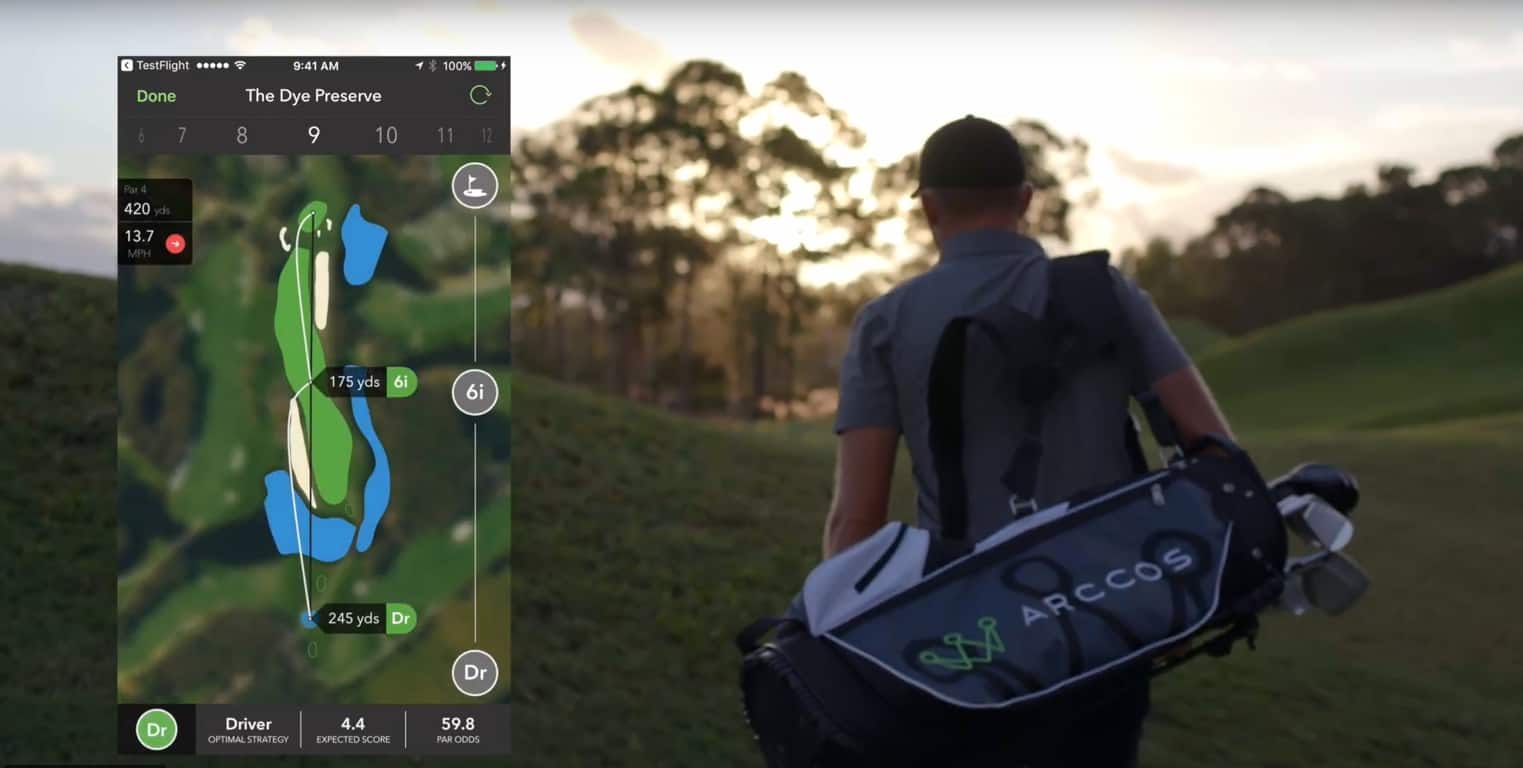
Earlier today, the golf tracking startup from Stamford, Connecticut partnered with Microsoft and its powerful AI platform to create a new pocket-sized caddie like experience for golfers. As Geekwire reports, “say you’re standing on the tee box on a hole at your home course. Arccos Caddie will crunch both your previous round history — your tendencies to hit left or right, your average shot distance, etc. — with the course condition information to give you advice for the optimal shot recommendation. Maybe you think your driver can carry the water and land on a narrow fairway, but the Arccos Caddie may tell you otherwise.”

The driver (pun intended) behind Arccos Caddie is to provides golfers with actual data driven info in a matter of seconds that can help improve someone’s game in a real and tangible way.

Arccos Caddie is not without its faults. Despite the reality of people pulling out their phones every 30 to 45 seconds to look at news, post to social media, play games or simply distract themselves, some golfers have pointed out the troublesome nature of having to always whip out a phone for a shot.

As a golfer myself, I find it a bit troublesome to take out my smartphone for each shot. Syed and his team know this — “golfers are not out there to collect data; they are out there to have fun,” he said — but believe that the value delivered from the app outweighs a behavior change required.

Fortunately, some see the benefits outweighing the drawbacks of having to pull out a phone more often than desired.For those who are interested in the benefits Arccos Caddie has to offer, the service, that is exclusive to Arccos 360 users ($249.99) who have played at least five rounds, will officially launch May 22 and be available for free through the end of the month, after which a subscription based model will be implemented.

New Microsoft patent hints at “smart glasses” to help you stay healthy

A patent for Microsoft was granted this week for ‘smart glasses’, according to CNBC news. The augmented reality glasses would make the wearer aware of nutritional facts and warnings for food related items, encouraging better health choices and keeping the wearer informed of nutritional concerns.

With multiple sensors picking up visual information about the item, the device identifies food items by comparing databases by location. The smart glasses would, of course, be transparent and include a processor and non-transitory computer readable storage.

The smart glasses would  be able to attribute the user’s personal settings for the food item, going so far as to sensing a gesture or sound of consumption. Ideally, if you start to eat something you’re allergic to, it will let you know. It’s even worth noting that ‘friend recommendations’ would be on the menu for restaurants.

As the patent describes:

A system provides a recommendation of food items to a user based on nutritional preferences of the user, using a head-mounted display device (HMDD) worn by the user. In a store, a forward-facing camera of the HMDD captures an image of a food item. The food item can be identified by the image, such as based on packaging of the food item. Nutritional parameters of the food item are compared to nutritional preferences of the user to determine whether the food item is recommended. The HMDD displays an augmented reality image to the user indicating whether the food item is recommended.

Obviously, this isn’t the only utility that such ‘smart glasses’ could be used for. One reason that the HoloLens itself has such bulky hardware is because of the power needed to run higher quality apps. But with simple overlays and item recognition, these smart glasses could be the next step up for the AR market.

As with all patent discoveries, however, these plans aren’t necessarily set in stone for Microsoft as some projects might be set aside or discontinued. Still, it’s interesting to consider how daily life could be improved with such technology.

Bing Fun & Games mini-games available in US, UK, and India

Microsoft has added a new Fun & Games section to its Bing search portal.

Fun & Games section on Bing

Fun & Games is now vailable from the drop down hamburger menu at Bing.com/fun, offering users various web-based mini-games — many of which are the perfect choice during a lunch break or a train ride.

The page should currently offer Puzzle and Games, Trivia and Quizzes and more. It should even teach you how to play some of them.

The feature has been available in the US for two weeks, while now it’s just been made available in the UK and India. It doesn’t yet appear to be available in all markets.

Surprise! You can’t access the new Fun and Games section just yet

In the burger menu, you’ll see the new Fun & Games section, but you’ll get a small surprise when trying to access it. When you click on it in order to visit this new cool page, you’ll be disappointed as it currently results in a 404 error that reads:

Page not found

But here’s something you can always find — theBing homepage.

Or try one of these searches for kitten wallpaper, cute animal GIFs, panda dogs.

As it seems, after leading you straight to Bing.com/fun, the feature is unavailable for now.

It’s not very clear what this page could be for. There are some possibilities, like a way of searching for online games (something similar to Google’s Pac-Man doodle) in a directory format and it allows the user to pick them up easily without needing to work out the search term for rendering them.

We’ll just wait some more time until things become clarified and see what’s this all about!

RELATED STORIES TO CHECK OUT:

Project NEON for Microsoft Photos comes to Windows 10 Insiders

Project NEON is being offered to and downloaded by many Insiders, so it seems that it won’t be much longer before the general Windows population will also gain access to it.

Project NEON adds a more pleasing interface to the latest version of Windows

The Project Neon-centric visual overhaul of Windows 10 has been rumored for quite a while and teased us with a few select app updates recently. Now, it makes an appearance for Windows Insiders in the Microsoft Photos application.

Project NEON is based on a design that plays with transparency and blurring in order to add a more aesthetically pleasing interface design to the newest version of Windows 10 apps.

We first heard rumors about Project NEON back in 2016, but we’ve only seen its first screens this past February as part of a Microsoft developer stream. It seems to b inspired by how Apple’s macOS popularized a more subtle visual style.

Project NEON for Microsoft Photos arrived in the Fast Ring

Now, Project NEON for Microsoft Photos is available to a few select users even if it hasn’t yet been officially announced by Microsoft. It was distributed as part of the new 17.428.10010 version of Windows 10 that only a few Insiders currently have access to. There’s no word on when Slow Ring Insiders are expected to receive the update sometime in the near future.

A softer and more translucent interface

Once users gain access, they’ll be able to see a softer and more translucent interface with a touch of blur added to the overall aesthetic. There is also a new Bing search bar, but this specific feature doesn’t add that much to the experience.

Microsoft Photos is not the only app that received the Project NEON treatment. We’ve also seen similar updates coming to the Groove Music, Movies and TV, and Dropbox.

If you’re thinking about running a fresh install of Windows 10 before gaining access to the fresh looks of Project NEON, you should go for it!

RELATED STORIES TO CHECK OUT:

Microsoft announces planet-scale cloud services with Azure Cosmos at Build 2017

Microsoft took its cloud computing to an entirely new level on Day One of Build 2017 when it revealed Azure Cosmos DB, a first-ever globally distributed database service that promises guaranteed uptime and almost zero latency.

“Azure Cosmos DB, built from the ground up to power planet-scale cloud services and data-intensive applications from IoT to AI to mobile with incredible performance, fault tolerance and support for every type of data, including Graph,” Microsoft says of the new service in its official announcement. “It is the industry’s first globally distributed, multimodal database service to deliver horizontal scale with guaranteed uptime, throughput, consistency and millisecond latency at the 99th percentile. Developers get incredible flexibility with the only schema-free database service, with support for popular NoSQL choices, that also offers five well-defined consistency choices while auto-indexing all your data.”

More information on Azure Cosmos DB is expect to be released over the following days at Build 2017. For all of the latest Build 2017 announcements, make sure to check out all of our posts here and let us know what you think about Azure Cosmos DB in the comments below.
Microsoft announces new Custom Cognitive Services at Build 2017

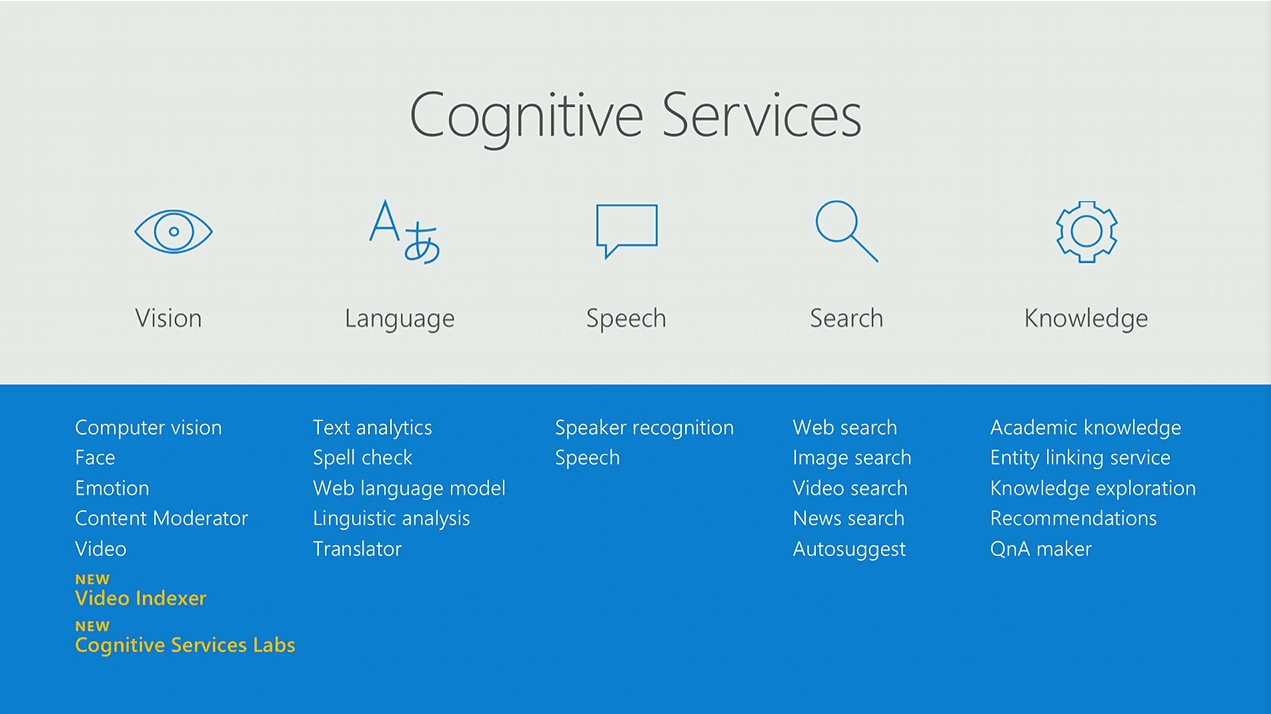
Since its general release in 2015, over 568,000 developers have signed up for Microsoft Cognitive Services in over 60 countries. Announced today at Build 2017, a list of new services joined the fray such as Bing Custom Search, Custom Vision Service, Custom Decision Service and Video Indexer, creating a total of 29 services now available to developers.   But Microsoft wants to take it a step further by making AI even more available to developers as a whole.

Microsoft Cognitive Services Labs will put the creation of AI into developers hands. Through this, custom AIs can be constructed and submitted to the community for further development, expanding the reach of AI services for apps. Furthermore, the new Azure Batch AI Training is now available in preview for training custom deep neutral networks. This includes training their models to use any framework including Microsoft Cognitive Toolkit, TensorFlow, and Caffe. 

It’s the goal of Microsoft to add a bit more humanity​ into computer interactions by giving app developers the ability to make more natural experiences with data. The tech giant is putting AI into every available product and service, fusing AI and Azure together as what they consider ‘the most comprehensive AI platform’ moving forward.

Keep up with this and more Microsoft Build 2017 news here at OnMSFT.

Desktop browsers like Chrome and Firefox won’t be allowed in the Windows Store

When Microsoft officially announced Windows 10 S last week, many wondered if this locked down version of Windows 10 would be really consumer friendly. Windows 10 S is definitely no Windows RT, as the app situation on the Windows Store has gotten much better since 2012. However, Windows 10 S users will have to use Microsoft Edge and Bing as their default browser and search engine, and it’s very unlikely that we see Google Chrome or other popular desktop web browsers being released on the Windows Store in the near future.

According to a report from ZDNet, Windows Store policies currently prevent developers from using Microsoft’s Dekstop Bridge to release their desktop web browsers on the Windows Store. More precisely, Microsoft only accepts third-party browsers that, like Microsoft Edge, are true UWP apps that run in a sandbox environment. Additionally, Microsoft requires third-party browsers to use the same HTML and Javascript engines that Edge uses.

A Microsoft spokesperson shared the following details in a statement with ZDNet:

Windows Store apps that browse the web must use HTML and JavaScript engines provided by the Windows Platform. All Windows Store content is certified by Microsoft to help ensure a quality experience and keep your devices safer. With this policy, instated early this year, the browser a customer chooses in the Store will ensure the protections and safeguards of our Windows platform. If people would like to access apps from other stores and services, they can switch to Windows 10 Pro at any time.

To be fair, Microsoft is not the only company to implement these types of restrictions on its app store: iOS also requires third-party browsers to use Apple’s WebKit rendering engine, and iOS users are not allowed to set a third-party browser as default. Chromebooks are also restricted to the Chrome browser and web apps, but Google is currently working on bringing support for Android apps (including third-party web browsers) on Chrome OS.

The absence of Chrome and Firefox on the Windows Store won’t be an issue for Windows 10 users, but this could well hurt the education-focused Windows 10 S, which is Microsoft’s answer to Chromebooks. Microsoft Edge has some killer features of its own such as digital inking and better battery efficiency, but Chrome and Firefox remain much more customisable thanks to a vast collection of browser extensions.

Do you think the Windows Store needs to have popular third-party browsers to be relevant, and do you hope to see Google release a UWP version of its Chrome browser one day? Let us know what you think in the comments below.
Pre-orders for Microsoft’s HoloLens open in China, launch date announced

Microsoft announced today that their augmented reality headset, HoloLens, would be launching in China and that interested industry parties and developers would be able to pre-order units beginning today from the Microsoft flagship store.

“Microsoft HoloLens launched a new vision of mixed reality,” Microsoft’s head and chief executive of the Greater China Region, Alain Crozier (known as Ke Ruijie domestically), said in a statement. “Chinese businesses and developers have great passion and energy for technology innovation and the area of augmented reality is a very promising market. We have high hopes for Microsoft HoloLens entering the Chinese market and expect it to help more Chinese companies, partners, and developers by inspiring, opening minds, and creating new opportunities in the real world.”

The Chinese HoloLens unites designed for businesses are currently priced at 39,188 Yuan while the developer model is slightly cheaper at 23,488 Yuan. The HoloLens is not currently available to the average Chinese consumer.

How to find the secret UWP version of the File Explorer in Windows 10 Creators Update

With Microsoft having put so much work into its Universal Windows Platform, it’s no surprise there’s also a UWP version of File Explorer. We’ll show you how to find it.

The app is a reminiscent of the Windows 10 mobile version of File Explorer

What’s surprising is how the app is hidden and can only be unlocked using a specially crafted workaround. First, you have to be running the Windows 10 Creators Update to try it out. While it’s not clear how close the app is to its final version, it will be interesting to try it out when it releases.

File Explorer in UWP format limitations

File Explorer in UWP format was first reported by OnMSFT and it’s a bit simpler than the regular version of this tool. There are a few limitations:

  • You are limited to browsing the content of drivers only as there is no way of navigating to network devices unless you mapped a network drive.
  • The app doesn’t support drag and drop.
  • The process of selecting, moving, and copying files is a little difficult to follow.

Accessing the app

If you’re interested in seeing what Microsoft may have planned for the future, follow these steps in order to access the app:

  • Right-click on an empty section of the desktop. Select Now and go to Shortcut.
  • Type the following text in the text field:

explorer shell:AppsFolder\c5e2524a-ea46-4f67-841f-6a9465d9d515_cw5n1h2txyewy!App

  • Click Next.
  • Type an appropriate name for the shortcut and then click Finish and you’re done.

Remember that this is not the final version of the app, so you might experience some stability issues.

RELATED STORIES TO CHECK OUT:

NBA Playgrounds bugs: black screen, fatal errors, and more

NBA Playgrounds is a classic NBA arcade game that lets you show off your basketball skills. You can use your offline basketball skills to perform acrobatic jams and other impressive moves in the online world.

Unfortunately, just like many newly launched games, NBA Playgrounds is affected by a series of technical issues. In this article, we’ll list the most common bugs reported by players, as well as their corresponding workarounds, whenever available.

NBA Playgrounds bugs

Audio settings won’t save

Players report they can’t turn off the game music. It appears that the audio settings won’t save and quickly revert to default.

every time I want to turn the music and announcer off, it reverts back. please fix this.

Black screen on full screen

Other players can’t actually enjoy the game in full screen mode due to black screen issues. They are forced to play in windowed mode in order to get rid of the black screen.

If I set the game to full screen i get stuck on a black screen and i have to alt+enter to get it to go back to windowed to be able to play.

Fatal error

Trying to play my first Exhibition match and the game gets stuck on 10% on the loading screen then crashes and gives a simple “Fatal Error” crash message. My gfx driver is updated and I’ve restarted my computer.

If you’ve encountered this error, verify the integrity of your game files.

Online Match is greyed out

In order to use the Online Match option, you need to unlock it first. Play through the tournament mode, and the Online Match will unlock after you win.

Jumped into the game and “Online Match” is greyed out? Anybody know how to access it? It’s not available.

Controller doesn’t work

If you can’t use your controller to play NBA Playgrounds, rest assured, you’re not the only one. As a quick workaround, unplug and then plug the controller back in.

Controller doesnt work in playgrounds but works in every other game

These are the most frequent NBA Playgrounds issues reported by players. If you’ve come across other workarounds for the bugs listed above, you can help the gaming community by listing the troubleshooting steps in the comment section below.

RELATED STORIES YOU NEED TO CHECK OUT:

Weird bug in Edge prints numbers incorrectly from PDF

If you use Microsoft Edge to print PDF files, you may already be experiencing issues with “Microsoft Print to PDF” in Windows 10. There are numerous complaints about Microsoft Edge’s PDF printing issue on the Edge issue tracker. The Microsoft PDF to Print issue arises when you attempt to print using the Edge browser; what’s displayed on your screen is not always what gets printed out via your printer.
ZDNet found the user (Mathias I.) who first reported the bug via Microsoft Edge bug tracker. In his Microsoft Edge bug tracker submission, Mathias reports that the bug he experiences is in Microsoft Edge 38.14393.1066.0, Microsoft EdgeHTML 14.14393 and Edge 40.15063, EdgeHTML 15.15063.

Some users have been able to reproduce the Microsoft Edge bug, while others have been unable to reproduce Mathias’ bug experience. Mathias posted two PDF files, one that displays a table with text and numbered boxes ranging from 0-143, and the same PDF file after it is printed with Microsoft Print to PDF in Edge. Mathias notes the bug as follows:

“Edge displays PDF correctly but printed content differs notably. Printed content depends on selected printer, on printer settings, and on used computer. Please try a different setup if first result looks correct.” The Microsoft Edge team is aware of the bug report. Another user noted that switching to Adobe Reader appears to fix the Edge bug.

Microsoft highlights a series of affordable premium Windows 10 PCs

The great thing about Windows 10 is that Microsoft has developed a vibrant ecosystem of OEM partners creating desktop PCs, ultrabooks and 2-in-1s for all types of consumers. Some of you may prefer old-school laptops with lots of ports and no gimmicks, others may be more interested in touch screens and stylus support, but in the end everyone should be able to find what they’re looking for.

If this not the case, Microsoft is here to help: this week the company highlighted a few Windows 10 PCs from its partners that should deliver “the perfect balance of cost and capabilities.” Some of them are currently on sale on the US Microsoft Store, which is even better. We’ve selected the most interesting models below:

2-in-1s:

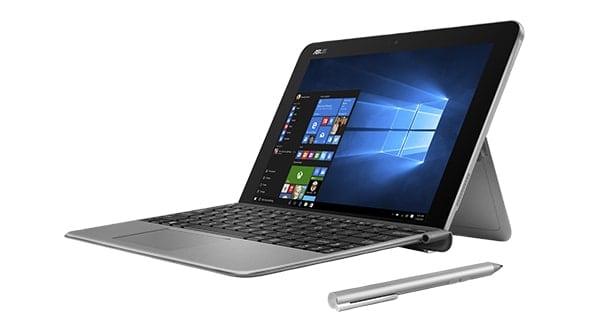
  • At just ($249) $100 off, the ASUS Transformer Mini T102HA is one of the cheapest 2-in-1 PCs you can buy on the Microsoft Store, and it includes a detachable keyboard and pen.
  • Starting at $599, the Acer Switch Alpha 12 has a slightly bigger screen with IPS technology, a faster Intel Core processor and a a 165-degree rotating kickstand.
  • For the same price, you can also get the Samsung Galaxy TabPro S ($300 off), which has a beautiful AMOLED touchscreen plus some synergies with Galaxy smartphones through Samsung’s proprietary Flow technology.
The ASUS Transformer Mini T102HA.

Laptops:

  • Starting at $329.99, the new HP Pavilion x360 is an affordable convertible laptop that is available in three different screen sizes.
  • At just $699 ($200 off), the Dell Inspiron 13 5000 Series 2-in-1 comes with and Intel Core i7 processor, 8GB of RAM and a 13.3-inch full HD touchscreen
  • The ASUS ZenBook UX510 (starting at $999.00) is a premium ultrabook with a 15.6-inch anti-glare display, an Intel Core i7 processor and a discrete GeForce GTX GPU.
The Dell Inspiron 13 5000 Series 2-in-1.

If you’re planning to buy a new PC in the near future, let us know what do you think of these different options in the comments. We also invite you to check the PC Sale on the US Microsoft Store, which is regularly updated with new deals on Windows 10 PCs and tablets.

Microsoft releases fix for the critical Windows Defender vulnerability found by Google

As we reported yesterday, two Google security researchers recently discovered a critical bug in Windows Defender, which they described as “the worst Windows remote code exec in recent memory.” The vulnerability was indeed pretty bad, as the researchers explained that attacks could work against the default install and spread to other PCs.

Fortunately, Microsoft has just announced that a fix is now available to download on PCs running Windows 7, 8.1, RT, 10 and Windows Server 2016.

As the company explained, the remote code execution vulnerability could be exploited when the Microsoft Malware Protection Engine was not properly scanning specially crafted files. You can find more details below:

To exploit this vulnerability, a specially crafted file must be scanned by an affected version of the Microsoft Malware Protection Engine. There are many ways that an attacker could place a specially crafted file in a location that is scanned by the Microsoft Malware Protection Engine. For example, an attacker could use a website to deliver a specially crafted file to the victim’s system that is scanned when the website is viewed by the user. An attacker could also deliver a specially crafted file via an email message or in an Instant Messenger message that is scanned when the file is opened. In addition, an attacker could take advantage of websites that accept or host user-provided content, to upload a specially crafted file to a shared location that is scanned by the Malware Protection Engine running on the hosting server.

The company added that it had “not received any information to indicate that this vulnerability had been publicly used to attack customers,” which is reassuring. The update to the Microsoft Malware Protection Engine should be downloaded automatically on your PC, but you can install it immediately by checking Windows Update.

Mass Effect: Andromeda and Saints Row Xbox games discounted in Deals With Gold

Mass Effect: Andromeda, the fourth entry in the Mass Effect series and the first episode to be released on the Xbox One is the main highlight of this week’s Deals with Gold. If you didn’t buy it following its release in March, the open world action-RPG is currently 35% off for Xbox Live Gold subscribers.

On the Xbox One, Tom Clancy’s The Division and its Gold Edition are 60% off this week, but the Instant Indie Hits bundle (80% off) which includes ten popular indie games is also worth a look. Moreover, all Saints Row games on the Xbox One and the Xbox 360 are also being discounted, but owners of the old gen console may also want to check the tower defense games Dungeon Defenders and Sanctum 2.

You can find more details about our favorite highlights below, and we invite you to check the full list of discounted titles on Major Nelson’s blog post.

Xbox One Deals

Mass Effect: Andromeda ($38.99)

Mass Effect: Andromeda travels deep into the Andromeda Galaxy, far beyond the Milky Way. There, you will lead our fight for a new home in hostile territory where we are the aliens. Take command as the Pathfinder, a leader of a squad of military-trained explorers, with deep progression and customization systems. This is the story of humanity’s next chapter, and your choices throughout the game will ultimately determine our survival in the Andromeda Galaxy.

Tom Clancy’s The Division ($20)

New-York City, today. An unprecedented pandemic has struck the city during the fever of Black Friday. One by one, basic services fail. In only days, without food or water, society collapses into chaos. You’re part of the Division, an autonomous unit of tactical agents trained to operate independently. Your mission: protect what remains and restore hope.

Instant Indie Hits ($20)

Save up to 80% and get 10 amazing games in one bundle! Games included: The Swapper, Thomas Was Alone, Hue, Stealth Inc 2, Stikbold!,The Swindle, OlliOlli, Nova-111, Action Henk, 10 Second Ninja X.

Xbox 360 Deals

Saint Row IV ($8.74, backward compatible)

The epic conclusion to the game that changed all the rules! The Saints have gone from the crackhouse to the White House—but the Earth has been invaded and it’s up to you to free the world from Overlord Zinyak and his alien empire. With homies new and old by your side, and an arsenal of superpowers and strange weapons, you must save the world in the wildest open world game ever!

Sanctum 2 ($2.99)

Sanctum 2 is the sequel to the world’s first Tower Defense/FPS hybrid game. Pick from four unique character classes and embark on a mission to protect the oxygen-producing Cores from hordes of deadly aliens who are threatened by their existence. In Sanctum 2, you will utilize elements from multiple gameplay genres to succeed. Construct towers and walls during the building phase before the enemies attack, then jump into the fray and blast everything to pieces in FPS mode. You can progress through the single-player campaign yourself, or play with up to four friends in co-op to discover the secrets of the planet LOEK III.

Dungeon Defenders ($3.74)

An ancient evil has been unleashed on the land of Etheria and it’s up to you to defend it in this online (and offline) action RPG! Create your own hero from one of four distinct classes to summon towers and traps and fight back hordes of enemies! Customize and level your hero by defeating enemies, looting equipment and upgrading your gear and pets. Take your character through multiple difficulty modes and challenge/survival missions to earn more experience & even better treasure. To top it off, you can do all of this with up to 4 friends on the same console or over Xbox LIVE!

All discounts will be valid through May 15, let us know in the comments if you plan to purchase one of these games on your Xbox One or Xbox 360.