Huawei joins the party with Microsoft, issues new ad comparing Matebook Windows 10 2-in-1 with iPad Pro

Microsoft has made lots of ads mocking the Apple iPad Pro in the past, and now, Huawei joins the fun doing the exact same thing.

The ad shows off the Huawei Matebook, a Microsoft Surface and the Apple iPad Pro on a party where Cortana pokes fun at Siri, again. They talk about the difference of owning a 2-in-1 Windows 10 device and why it is better than the iOS-powered iPad. Take a look for yourself:

This is a pretty funny commercial, that is probably a play on Apple’s “I’m a computer” ad for the iPad Pro. The Huawei Matebook mentions that it has a fingerprint reader, stylus, keyboard and most importantly, an Intel processor allowing it to run full desktop apps.

You can go ahead and grab the Matebook for around $699 and it comes with a free keyboard dock worth $129 if you buy it before the 19th of September.

Skype Preview shows up in the Store on Xbox One, can’t be downloaded just yet

Skype is one of the most widely used messaging systems out there, no doubt about it. While its throne as the undisputed champion of messengers has been challenged recently with the rising popularity of things like Discord, the vast majority of people online still rely on Skype for a good portion of their communications. With Skype being such a huge service for Microsoft, it’s always been strange that Skype hadn’t quite gotten a UWP app that’s compatible with Xbox One. Thankfully, it seems like Xbox One users are going to be able to join in on the UWP Skype fun very soon.

In an interview with Windows Central, Xbox One Platform Chief Mike Ybarra stated that “We’ve seen feedback from the community wanting the updated Skype UWP and we’re bringing that update to Xbox One.” While that comment might otherwise lead us to believe that Skype UWP is coming sometime in the indeterminable future, we actually have reason to believe that the release of the app is imminent. In fact, the Skype UWP is already up in the Xbox store under the name “Skype Preview.”

skypepreview
Skype Preview on the Xbox store

Don’t rush to your Xbox just yet – there’s a catch. While you’re totally free to take a look at Skype Preview on the Xbox marketplace, you can’t actually download it. If you try to grab the app for yourself, you’ll be hit with an error message reading “Try again later, something happened on our end.” All of you Skype enthusiasts are going to have to wait just a little bit longer. Until Microsoft lets us all download Skype’s UWP version, you can still use the service on your Xbox One using the regular, non-UWP version of Skype.

Skype still in transition, closing its London office leaving 400 employees in limbo

.Skype is beginning the process of closing its office in London. Its London office contained developers who worked on Skype’s range of products and services, particularly so when the company itself was created in London in 2003. After Microsoft’s acquisition of Skype, the company delivered new offices to those employees in March 2013.

As part of the offices being closed, 400 of the employees who worked there are uncertain about their future. As reported by Windows Central, via Financial Times, Microsoft confirmed the office closure and explained that it is because of “decision to unify some engineering positions, potentially putting at risk a number of globally focused Skype and Yammer roles,” and that the employees affected are in a “consultation process,” while the spokesperson explained Microsoft’s current stance:

We are deeply committed to doing everything we can to help those impacted through the process

What do you think of Microsoft closing its London office? Let us know in the comments!

Microsoft updates Windows Maps for Fast Ring Insiders with new Traffic Hub and dark theme features

The Windows team released a late-day update to its Windows Map application for Fast Ring Insiders on both PCs and mobile that bring a long awaited tweak and new functional feature for users.

In today’s update to Windows Maps, Insiders get an early look at what will presumably make it into the official release for Maps that includes a new Traffic Hub feature and the addition of system default dark theme.

According to a changelog posted by Redditor and Microsoft employee Dave MSFT, Fast Ring users can look forward to:

  • Enjoy dark or light app colors—they now change to match your system settings. If you prefer your apps to be dark rather than light you can now have the Maps app follow your system setting for theme preference or always be light/dark. Plus you can choose to change the map theme too!
  • Quickly check traffic for your commute, including live cameras, where available. We have always treated your Home and Workplaces special and now you can check the traffic to your Home or Work locations at any time. Just tap on Traffic in the app bar and you can see traffic conditions to Home and Work and your most recently viewed traffic cameras so that you can stay on top of the road conditions along your route.

Over the past two years, Windows 10 users have slowly been welcoming the addition of Dark Theme or System default dark themes choices to more apps, helping to round out the polish of the overall operating system.

With the recent redesign to Maps, users were only given a utilitarian stark color scheme as the Windows team rushed to add back or create new feature sets for the service and apps. With the addition of the Dark Theme, perhaps the Windows team is preparing its app for an AMOLED future where its on-screen presence is minimally felt on the battery life of upcoming devices.

Perhaps, even bigger news than the addition of Dark theme is the new Traffic Hub feature that enables users to tap into traffic cameras and highway alert systems to measure the traffic on regularly accessed routes by users. Now, users can receive a more detail report of traffic to frequently traveled places such as home, gym’s, work and more.

All of this is live for Fast Ring Insiders on both mobile and PCs, head over to the Windows Store to grab the update for your most used device.

Windows Maps
Windows Maps
Price:
Free

Understand Windows error codes with the Error Lookup Tool

There are many people out there who have no clue what some Windows error codes mean. Well, we have good news for this category of users, as the Error Lookup Tool will help you understand better what happens with your computer when you receive a specific error.

The Error Lookup Tool is developed in C/C++ and even if it looks quite minimal and like an extremely lightweight tool, actually, it is very useful. The application comes with an easy interface, which means that you will understand fast enough how it is actually functioning. After you launch this application, you will need to specify the error code that you get and all details regarding that specific error will be explained below.

The tool has a large database of error codes such as: regular Windows error, Windows Internet errors, BSOD errors, STOP codes, NTSTATUS errors, Task Scheduler Service and more. To make things even better you can configure the application to even exclude or include a particular system module by access the applications File->Settings->System modules.

Error Lookup supports a multitude of widely used languages, apart from English, which is, as expected, the default language. You can download this useful tool from the internet and you can install it on any computer that runs on Windows XP SP3 up to Windows 10.

Keep in mind that you will be able to install either the installer file or the portable version, which you will be able to save on a memory stick and use it on a computer that doesn’t have an internet connection. To activate the portable mode, you will need to create an “errorlookup.ini” file in the application folder or move it from “%APPDATA%\Henry++\Error Lookup”.

Do you get Windows errors often? Will you use the Error Tool application on your Windows PC in order to detect the issues that it has?

RELATED STORIES TO CHECK OUT:

Windows 10 builds will no longer reinstall the apps you removed

Windows 10 build 14926 brought an important change to the manner in which builds affect your system’s configuration. From now on, Windows 10 builds will no longer reinstall the default Windows 10 apps you removed.

Many users complained about this unwanted behavior of Windows 10 builds, but up until now they really couldn’t do anything to prevent builds from re-installing the pre-installed apps they had previously removed. It appears their complaints echoed on Microsoft’s ears, as the company decided to change this OS behavior in the current build.

One of the ongoing feedback items we’ve heard is how the apps that come preinstalled with Windows will reinstall after each upgrade – particularly noticeable for our Insiders that receive multiple flights per month. We’ve heard your feedback, and starting with Build 14926, when your PC updates it will check for apps that have been uninstalled, and it will preserve that state once the update has completed.

In other words, if you uninstall any of the Windows 10 default apps, such as the Mail app or Maps app, new builds won’t reinstalled them anymore. This is an excellent step forward towards improving the user experience as Insiders don’t use all the pre-installed apps on Windows. Removing the apps they don’t use helps them to better organize their systems.

Speaking of built-in apps, build 14926 brings some issues of its own. As Dona Sarkar informs, after updating to this build, default Windows 10 apps such as Calculator, Alarms & Clock, and Voice Recorder may not work.  Fortunately, there is also a workaround available to fix this problem: to get these apps working again, go to the Windows Store and reinstall them.

RELATED STORIES YOU NEED TO CHECK OUT:

Microsoft Dynamics 365 price and features revealed

This July, Microsoft made an announcement that made lots of fans glad: Dynamics 365 will merge their CRM and ERP cloud storage offers into one. The result will be on single could service that will embed apps specifically targeted for each essential business process, such as Customer Service, Sales, Finance and so on.

The Dynamics 365 apps are conceived to offer a familiar and at the same time modern experience that will include a better workflow, a built-in intelligence and insights. The company will also be using a consistent platform for the applications and a common data model, ensuring a useful extensibility and a handy interoperability.

Moreover, Microsoft seems to have big plans, since they intend to release two versions of the Dynamics 365: an Enterprise and a Business one. Later this year we are supposed to receive the Enterprise one, created by the coming together of Dynamics CRM and Dynamics AX. On the other hand, the Business version will be based on the Project Madeira, which can currently be previewed by the public.

Encore Business Solutions, which is a company partnering with Microsoft, had initially published a blog post revealing some details about the licenses and the pricing for Dynamics 365. Sadly, they removed the post afterwards, but this doesn’t mean it is off the Internet.

According to the initial post, the Business Edition will be priced at $50/month/user. This cost will include PowerApps, Marketing, Financials and Sales tools. There is also a Team Member Business Edition that will cost $5/month/user. Meanwhile, it seems that the Dynamics 365 Enterprise Edition will be priced somewhere between $40 and $190/month/user, depending on what module the customer chooses.

Apparently, according to the initial post, there is a Plan 1 for the Enterprise Edition, which will cost $115/user/month, a Plan 2 which includes Operations and rises the price to $210/user/month, while the Team Members Enterprise Edition, designed for light users, will cost $10/user/month. Later this year we will be receiving the official prices right from Microsoft.

RELATED STORIES TO CHECK OUT:

Microsoft Personal Shopping Assistant extension is now available for Edge

One of the more welcome additions to Edge in the Windows 10 Anniversary Edition is the ability to run extensions, those add-on applets that extend a browser’s capabilities. While Edge is limited so far in the number of extensions available, particularly compared to Google’s Chrome browser, some popular and useful extensions are available that make Edge far more competitive.

Another extension has been released to the Windows Store, the Microsoft Personal Shopping Assistant. The extension is developed as a Microsoft Garage project, and is also available for Chrome and Opera, and is aimed at capturing and saving information on product pages and making it easier to do your shopping.

Here’s the app description:

Your personal assistant for a smart, productive and enjoyable shopping experience. Automatically organize the various product pages you visit. Add to favorites and get notified on price changes. Make smart choices by comparing products across sellers. Get back to your shopping flow, on the web and on your phone.

This is a Microsoft Garage project. The Microsoft Garage is an outlet for experimental projects. Learn more at https://garage.microsoft.com

The following video provides a walk-through of the extensions functionality:

You can download the extension via the link below. Let us know in the comments if you’ll be using this newest Edge extension, or if you’re still waiting for another.

The Office 365 team rounds up their latest news

Microsoft continues to improve Office 365 services and offerings to provide users with a smooth Office 365 experience across all of their devices, Office applications, and platforms (whether it be Windows 10, Android, or iOS). Microsoft posted a blog post going over some of the more important Office 365 news that happened in the last few weeks.

Recently, Microsoft announced the pre-release of Visio Online, allowing for cross-platform viewing of Visio diagrams and allowing users to collaborate and communicate using their Visio visual content. Visio on iPad was also announced, and Visio Pro for Office 365 also got new updates, including one-step data linking for diagrams, a more advanced design, and enhanced AutoCAD support.

Office 365 Groups got a new update that allows users to add guest access, making it easier to communicate with customers, partners, and other support staff outside of your business, by including them as members of your Office 365 Group. Now Office 365 Groups makes it easier to collaborate and connect with your customers and partners to provide the best customer service possible.

Other Microsoft Office 365 news included improvements to SharePoint Online, OneDrive for Business, and Exchange Online. Outlook also received a handful of calendar improvements, including the Interesting Calendars feature for iOS and Android. Interesting Calendars allows you to add external reminders to add your favorite TV show or sports team schedule to your calendar so you can stay on top of the other things that matter to you besides work.

Lastly, Microsoft added new data centers in the UK to improve Office 365’s global reach to offer customers in the US and abroad the best and uninterrupted Office 365 service available. In addition to the new UK datacenters, Microsoft has data centers in Japan, Australia, India, and Canada.

Microsoft has more upcoming Office 365 news on updates, improvements, and more coming your way, so stay tuned. Let us know in the comments if you’re particularly enjoying any of the most recent Office updates.

NBA 2K17 and Mount & Blade: Warband launch today on Xbox One

NBA 2K17 and Mount & Blade: Warband are both available to buy, download, and play on the Xbox One. NBA 2K17 is the latest in the popular basketball video game franchise while Mount & Blade: Warband is the latest title in the Mount & Blade series and features a larger open-world and a more detailed combat system than its predecessors.

Here’s the official description for NBA 2K17:

Following the record-breaking launch of NBA 2K16, the NBA 2K franchise continues to stake its claim as the most authentic sports video game with NBA 2K17. As the franchise that “all sports video games should aspire to be” (GamesRadar), NBA 2K17 will take the game to new heights and continue to blur the lines between video game and reality.

Buy NBA 2K17 on Xbox One

Here’s the official description for Mount & Blade:

Warband: Mount & Blade: Warband is the iconic entry in the series that brought medieval battlefields to life with its realistic mounted combat and detailed fighting system.

  • Free-form sandbox gameplay. You are free to go anywhere in a world with more than a hundred unique locations including villages, castles and towns.

  • Groundbreaking horseback combat.

  • Highly advanced and intuitive sword-fighting systems.

  • Fight on horseback and foot using a vast variety of medieval weapons, each with unique characteristics.

  • You can become anything from a lonesome adventurer to a ruler of a faction.

  • Varied cultures with unique troop types and equipment.

  • Sophisticated AI will challenge you in combat and in your strategic plans.

  • Freedom to interact with hundreds of characters.

  • Multiplayer battles with up to 32 players. Multiplayer modes include Deathmatch, Team Deathmatch, Capture the Flag, Conquest, Battle, and Siege.

Buy Mount & Blade: Warband on Xbox One

Have you bought any new video games for your Xbox One console recently? Share your recommendations with the community in the comments below.

How to Export Edge Bookmarks in Windows 11

Microsoft Edge now comes with the ability to export your favorites from the browser to an HTML file. This can come in handy as a backup or for when you want to import to another browser.

How do I export all bookmarks from Edge?

  1. Launch Microsoft Edge on your PC and click on the three ellipses at the top right corner and select Favorites.
  2. Click on the three dots then select the Export favorites option.
  3. Select a location you’d like to save in, rename if necessary then hit Save.

The file is saved in HTML format because most modern browsers support HTML and it would be easier to import without compatibility issues.

To import, simply follow the above steps and this time select Import favorites. You can then select the HTML file you exported and your Favorites will be restored.

Troubleshoot common issues when exporting favorites from Microsoft Edge

  • Export option missing – If you cannot find the export option, you’re probably on an older version of Microsoft Edge and you need to update your browser.
  • Unable to export – This could be caused by a range of issues from network errors but usually, it’s some restrictions. If you’re using a work/school account, switch to your personal account and try again.
  • Error during export – If the export stops midway or keeps getting an error, ensure you have enough storage space. Also, ensure your firewall is not blocking the export process.
  • Export file not opening – The export file is saved in HTML format so you’ll need an HTML viewer. If this still doesn’t work, it may be corrupted. Scan your system for viruses then export again.

So, in case you’re changing a browser, computer, or User Account, you don’t need to manually look for all your favorites. All you need to do is export an HTML file from Microsoft Edge and keep it in a folder for later use.

You can also move your saved bookmarks into a different browser by following this guide on how to import favorites from another browser into Edge for a smooth transition.

FAQ

How do I export bookmarks in Microsoft Edge?

Open Edge, click the three dot menu, choose Favorites, select the three dot menu inside the Favorites panel, and pick Export favorites to save them as an HTML file.

Where does Edge save exported bookmarks?

Edge asks you to choose a location. You can save the HTML file to your Desktop, Downloads folder, or any custom folder you prefer.

Can I import the exported bookmarks into another browser?

Yes. All major browsers support HTML bookmark imports. Open the import menu in Chrome, Firefox, or another browser and select the exported file.

Why can’t I export my bookmarks in Edge?

You may be using an outdated version of Edge or a managed device that restricts bookmark exporting. Update Edge or check with your administrator.

You can also restore missing favorites with this helpful guide on how to recover lost favorites in Microsoft Edge.

Some export or import flows from extensions or account pages open sign-in or download dialogs in new windows; see how to allow pop-ups in Edge to ensure the process completes smoothly.

Ensure you’re regularly exporting your favorites and enable syncing across devices so that your files are consistent regardless of the device you’re using. You can also streamline your browsing routine by following this guide on how to set a homepage in Microsoft Edge so your preferred start page loads every time.

While organizing Edge across devices, you may also encounter pages in other languages. But you can learn how to translate a page in Edge to read them instantly.

If you’re on the earlier version of Edge, we also share how to export favorites from Internet Explorer so don’t hesitate to check out our expert article on the same.

And it’s not just your Favorites that can be saved. You can also export your browser history if you regularly clear your cache and cookies. You should also familiarize yourself with the Microsoft Edge collections feature that lets you keep images and other webpage content for later use.

You can also export bookmarks by accessing the Microsoft Edge bookmarks location and copying the Bookmarks file to a different location.

Are there any features that you think are needed in Microsoft Edge to make exporting easier? Let us know in the comment section below.

How to use the new Snooze action in Microsoft Edge

Yesterday, Microsoft pushed the new build 14926 to Windows Insiders on the Fast ring. Since this build is still one of the earliest Redstone 2 Preview builds, it didn’t introduce any major additions, as it’s still early for such features.

However, build 14926 actually brought a few features, that are not considered major, but are still noteworthy. One of these features is the Snooze option for Microsoft Edge. This action gives you to ability to save a certain website in Microsoft Edge as a Cortana reminder.

So, how does it work? Well, you have a website that you don’t need to visit right now, but you’ll have something going on there later today, tomorrow, or whenever. To make sure you don’t forget about visiting that site in the future, you can ask Cortana to remind you it.

Microsoft Edge Snooze action works just like every other type of Cortana reminders. When the time you’ve set for Cortana to remind you comes, the reminder will show up, and you’ll be able to access your site directly from it.

Setting up a reminder like this is quite easy. Here’s exactly what you need to do:

  1. Open a site in Microsoft Edge
  2. Right-click on its tab, and go to Snooze
  3. Cortana window will now pop up, asking you for details about your reminder
  4. You can now set a name, a preferred time, and other details for your reminder
  5. Once you’ve set all the details, just click on Remind

There you go, when the time comes, Cortana will remind you about visiting your site, and the reminder will show up in the Action Center. Tell us in the comments, what do you think about this addition, and will it help you to organize better while using Microsoft Edge?

RELATED STORIES YOU NEED TO CHECK OUT:

Windows 10 build 14926 released for PC and Mobile

Microsoft just released the new build 14926 for Windows 10 Preview. The new build is available on both PC and Mobile, and all Insiders on the Fast ring are now able to download it.

Since Preview builds are still characterized as ‘early Redstone 2 builds,’ they don’t include any major new feature. Build 14926 is not different, but it does introduce a couple of new additions to the system. Along with these fresh features, the build also brings a lot of system improvements, and bug fixes.

The new build mainly focuses on the new features of Windows 10’s default browser, Microsoft Edge. Starting from build 14926, users are able to save websites as Cortana reminders, with a new feature called “Snooze”. Additionally, Microsoft Edge users are now also able to favorites from Microsoft Edge to an HTML file

Speaking of Microsoft Edge, the new build also brought two new extensions for the browser. One of them is TamperMonkey, a popular userscript manager, while the other one is Microsoft Personal Shopping Assistant. We’ve already written about this extension some time ago, and as it was predicted, Microsoft released it shortly after its announcement.

There are also some design and functionality changes on Mobile, where, just like it was mentioned before, Microsoft changed the looks the Wi-Fi settings page, to match its design on PC.

“Improvements and fixes for PC:

  • We fixed the issue causing Adobe Acrobat Reader to crash when you try to launch it.
  • We fixed the issue causing the Settings app to crash when navigating to Settings > Personalization.
  • We fixed an issue where Windows icons and text are not rendered correctly on some devices with Intel Atom (Clovertrail) processors.
  • We’ve improved scaling for full screen games where the aspect ratio doesn’t match the native display resolution, for example, when playing Counter Strike: Global Offensive using a 4:3 stretched resolution.
  • We fixed the issue where some people would experience a bugcheck (bluescreen) after plugging/unplugging certain types of Kindles such as the Paperwhite and Voyage.
  • This build improves the performance on websites with changes to large numbers of HTML Elements containing text by improving spellchecker efficiency. This results in substantially improved performance on websites like TweetDeck.
  • We have addressed the largest cause of reliability issues in Microsoft Edge running on Insider Preview builds. This should improve reliability on major websites such as Facebook and Outlook.com.
  • We fixed an issue resulting in certain links (for example, Facebook) displaying a default favicon in the Microsoft Edge Tab, rather than the logo intended by the website.
  • We fixed an issue where the Wi-Fi icon in the taskbar might show full bars when connected to a Wi-Fi network with low signal.
  • We have fixed the issue which prevented the wireless network adapter in Surface Pro 1 and Surface Pro 2 devices from working. This also fixes the issue with the Xbox Wireless Adapter for Windows not working. and other wireless network adapters from third-parties such as D-Link.
  • We fixed an issue where File Explorer’s “Open Command window here” context menu option was opening set to the C:\Windows\System32 path, rather than the desired directory.
  • We fixed an issue potentially resulting in the taskbar no longer auto-hiding when a full screen window has focus (for example, when watching videos, gaming, or when using Remote Desktop). Note: If there’s an app that is asking for attention, it’s by design that the taskbar won’t hide (so you can see that there’s something trying to notify you).

Other improvements and fixes for Mobile

  • We fixed a scaling issue on devices such as the Lumia 635, 636, or 638 where the bottom of certain apps, like Messaging and Maps, would get cut off and rendered off screen.
  • We heard you and we have addressed the largest cause of reliability issues in Microsoft Edge running on Insider Preview builds. This should improve reliability on major websites such as Facebook and Outlook.com.
  • We fixed an issue resulting in the sound of key presses and lock/unlock being barely audible when the phone was using a moderate volume.
  • We fixed an issue where, if Quiet Hours had been turned on, banner notifications might not start appearing again until Action Center was opened or an interactive notification popped up and was dismissed.
  • We fixed an issue where Cortana would crash when trying to open Reminders page.
  • We have improved the reliability of VPN Settings page via Settings > Network & wireless > VPN.
  • We fixed an issue resulting in the thumbnail for portrait videos displaying with an incorrect aspect ratio in the Photos app when panning through the Camera Roll.”

Of course, just like any other build, this release has its share of known issues, as well. Here’s which problems you should expect upon installing Windows 10 Preview build 14926:

“Known issues for PC

  • While using Narrator and Groove Music, if you navigate to the progress bar while a song is playing then Narrator will continually speak the progress of the song e.g. update with the current time of the progress bar every second. The result is you will be unable to listen to the song or hear any other control you navigate to.
  • You may experience a black screen when signing out and switching to another user account and will be unable to log in to that account. A reboot of your PC should allow you to log in to that account.
  • Oracle VM VirtualBox will crash on launch after upgrading to this build.
  • Optional components may not work after upgrading to this build. To get it working again, go to “Turn Windows features on or off”, scroll down and check the right optional component and click ok.  After a reboot, the optional component will be enabled again.
  • After updating to this build, built-in Windows 10 apps such as Calculator, Alarms & Clock, and Voice Recorder may not work. To get these apps working again, go to the Store and re-download/install them.
  • For keyboard users, using tab to navigate the Settings app will not work in this build. The arrow keys should work as a temporary workaround.

 Known issues for Mobile 

  • Some devices such as the Lumia 650 will fail to install this build with Error 0x80188308. We are currently investigating this issue.
  • Action Center no longer closes if you swipe up on the empty space (area of Action Center that doesn’t show any notifications).
  • Using your phone as a mobile hotspot will work the first time but subsequent attempts to use the feature will result in the inability to enable the hotspot until the phone is rebooted.
  • ADDED: We are investigating small set of isolated reports that after upgrading to Build 14926, the pin pad is no longer visible to unlock the phone even after rebooting the phone. If you have hit this issue, you can follow the steps here for resetting an unresponsive phone (hard reset) which gets your phone back into a working state on Build 14926.
  • ADDED: We are also investigating reports that after upgrading to Build 14926, some phones lose the ability to use their SIM card. A hard reset also fixes this issue as well.”

As usual, the list of actual issues that bother users in a build is actually much longer than Microsoft presented here. So, we’re going to search through forums, find issues reported by actual users, and write an article about it.

For those outside the Insider Program, Microsoft released new cumulative updates. Depending on your Windows 10 version, you can download updates KB3189866  for Windows 10 version 1607, KB3185614 for Windows 10 version 1511, and KB3185611 for Windows 10 version 1507 (initial July 2015 release).

RELATED STORIES YOU NEED TO CHECK OUT:

Microsoft Stores launch SMB Zones to support small businesses

Microsoft has announced today that all of its retail stores across the US, Canada, Puerto Rico, and Australia now have dedicated zones for small and medium-sized businesses. The new SMB Zones will provide business customers tailored resources including access to Answer Desk advisors, business sales specialists, and personal training. Both SMBs and Microsoft Partners will also  be allowed to use the areas to host training or networking events.

Here’s a complete list of the services to be offered in the SMB Zones:

  • Business Sales Specialists – Business sales specialists help guide local business owners and entrepreneurs with their technology needs whether it’s in-Store or on-the-ground at the business.
  • Answer Desk: Advisors at the Answer Desk help small and midsized businesses keep their devices running smoothly. They are on-hand to answer technical questions, make recommendations and offer full service and support on all software and hardware. In fact, they’ll answer questions and attempt to fix PCs, tablets or phones free of charge, regardless of what device you have or where you bought it – it’s like having your very own helpdesk and IT support right in our Store.
  • Surface Membership: A subscription-based program, Surface Membership provides Microsoft Stores’ small and midsized business customers with in-Store, online and phone support, one-on-one personal training, financing, member discounts and more. Small and midsized business customers can now take advantage of lower monthly rates, reduced buyout fees and additional in-Store support with our updated Surface Membership model.
  • Personal Training: Specialists educate customers with tutorials about Windows devices, Office 365, OneNote, Skype, OneDrive and more. Personal trainings are available for $49 for one-hour or $99 for one year of unlimited use.
  • In-Store Events: Microsoft Stores regularly host networking events, workshops, trainings and seminars on topics like “Quick and Easy Online Advertising” and “How to Stay in Touch With Customers” led by both Microsoft and industry experts.
  • Hosting Events: The Community Theater is available at most Microsoft Stores for partners and businesses to host trainings or networking events, free of cost.

Additionally, Microsoft is also launching a new leasing program called Accelerate Your Business. According to the blog post:

This new leasing program is designed to simplify the decision-making process and ensure business owners have access to the latest in business-grade devices, warranty options, and best-in-class in-Store and online training and support.

The Redmond giant currently has over 100 retail locations worldwide, and this new initiative will be a nice complement to the Microsoft Technology Centers that already help business customers to learn more about the company’s offerings. Let us know in the comments if the addition of new SMB Zones makes Microsoft Stores a more attractive destination for your business.

Security update KB3185848 addresses Microsoft Graphics Component vulnerabilities in Windows 10

During this month’s Patch Tuesday, Microsoft released a handful of updates for all supported versions of Windows. Most of these updates are security bulletins that came bundled in various cumulative updates. One of these security updates is update KB3185848.

This security bulletin addresses vulnerabilities found in Microsoft Graphics Component, like code execution  privilege escalation, and information disclosure. If exploited, these vulnerabilities can give an attacker a full control over a user’s computer.

In plain English, if an attacker ‘smells’ this vulnerability, he can break into your computer, create user accounts, install programs, and access all your information. Microsoft warns that a ‘victim’ can be affected by opening a malicious site, or a document.

What’s interesting in this case is that the critical code execution vulnerability is only present in Windows 10 version 1607 (the Anniversary Update), where KB3185848 is listed as a critical patch, and is available as apart of cumulative update KB3189866 . For all other versions of Windows, this update is listed as Important.

“The security update addresses the vulnerabilities by correcting how certain Windows kernel-mode drivers and the Windows Graphics Device Interface(GDI) handle objects in memory and by preventing instances of unintended user-mode privilege elevation.”

So, if you’re running Windows 10 version 1607, we highly recommend downloading cumulative update KB3189866. To download this patch, simply go to the Settings app > Updates & security, and check for updates. In case you have problems installing the update, and some people do, download it manually, and you shouldn’t have any problems.

For more information about this security bulletin, check out TechNet’s support page.

RELATED STORIES YOU NEED TO CHECK OUT:

Global DNS outage hits Microsoft Azure customers

Microsoft’s Azure cloud service has been affected by a global DNS outage this morning (via ZDNet). The outage affected several Microsoft services including API Management, Web Apps, Service Bus and SQL Database and more, and the company has since explained on the Azure Status Page that it was working to resolve the issues.

As of now, most services are back to normal except for SQL Database for customers in Central US. Microsoft posted the following update:

Starting at 11:48 UTC 15 Sep, 2016 a subset of customers using using SQL Database in Central US may experience issues accessing their services in this region, as the result of an earlier DNS issue. Additional impact may also be experienced by customers using HDInsight and Media Services. Engineers have identified a possible underlying cause, and are working to determine mitigation options.

Azure Status page

As an increasingly cloud-focused company, it’s good to see that Microsoft was quick to work on the issue. If you use Microsoft cloud services, let us know in the comments if you were affected by the outage.

“Windows Anywhere” makes an appearance in latest Windows 10 Insider build 14926

Just yesterday, Dona Sarkar and the Windows Insider team pushed out Windows 10 Insider build  14926. While some new features were officially noted by Microsoft, the folks over at WinSuperSite came across an unannounced “Windows Anywhere” feature also in the latest build.

Windows Anywhere
Windows Anywhere

As seen above, “Windows Anywhere” can apparently be found under the “Sync Your Settings” portion of the Windows 10 account settings page. It’s not exactly clear what this new feature is for, but it could possibly be a rebranding of the “Sync Settings” feature. There is, however, still the possibility that this may also be a new feature which could reinvent or bring additional sync options to Windows 10. In fact, as WinSuperSite points out, a Microsoft job listing tweeted out by WalkingCat previously mentioned :

We’re passionate about UX and transforming how users interact with our products…. As a member of our team you will: Design, develop and perfect new ways of interacting with apps and files across all Windows devices.

The job listing, combined with “Windows Anywhere” showing up in the latest build perhaps hints that Windows Anywhere may bring newer sync setting options in the next generation of Windows 10. Regardless, we would love to know what you think of “Windows Anywhere” appearing in this build. Let us know what you think by dropping us a comment below!

Streaming service Beam confirmed for Winter launch on Xbox One

About a month ago, Microsoft announced that it had acquired the live streaming service, Beam. At the time, Microsoft highlighted that the acquisition displayed their commitment to making Xbox Live more social and fun, and bringing watching games and playing games closer together. Now Beam has announced via Twitter that the service will be coming to Xbox One and Windows 10 this winter.

https://twitter.com/Beam/status/776133706029277184

As seen above, the company Tweeted out a winter launch timeline. The timeline is rather vague, and no other details are available at the time. The company, however, noted in a second tweet that more details will be out soon and that support for low latency playback of all streams is in the pipeline for Xbox.

In case you did not already know, Beam  is best known for giving viewers the ability to watch and play games along with their favorite game streamers in real-time, regardless of the platform. Using low latency technology, Beam also makes interactivity easy and is designed to work for any game.

Microsoft Edge fires back, claims even better battery life with Anniversary Update

A couple of months ago, Microsoft posted on some testing it had done on the effects of browser use on battery life, claiming that Edge used significantly less energy than its competitors. Then a few days later, some users started noticing popup notices on their battery icons claiming that “Chrome is draining your battery faster,” and urging users to switch to Edge.

Of course that didn’t sit too well with the likes of Google and Opera, who fired back with rebuttals, but now the folks at Edge are at it again. In a blog post this morning, Microsoft notes that it has made improvements to Edge in the Anniversary Update to make the browser even more energy efficient, and publishes the results of their initial tests, rerun with the latest software:

At the risk of giving away the ending, the results may look familiar! With the Windows 10 Anniversary Update, Microsoft Edge is more efficient than ever, and still the best choice for extending your battery life on Windows 10 – up to 24%-43% more efficient than the competition for general purpose browsing, and lasting up to 23%-69% longer when streaming video.

At the risk of giving away the ending, the results may look familiar! With the Windows 10 Anniversary Update, Microsoft Edge is more efficient than ever, and still the best choice for extending your battery life on Windows 10 – up to 24%-43% more efficient than the competition for general purpose browsing, and lasting up to 23%-69% longer when streaming video.

Microsoft takes an almost gleeful tone when noting the turmoil they’ve created with their competitors, noting that they’re “thrilled” with the response their first rounds of tests inspired, but they don’t waste much time before producing another graph showing a comparison of battery browser efficiency across the latest stable builds of the most popular browsers:

Browser battery efficiency

In response to the initial tests released by Microsoft, Google recently released a test of their own (one that only tested their Chrome browser, omitting any comparisons, so the Edge team went ahead and recreated Google’s test, too, looping a video from Vimeo (Microsoft’s initial video tests used Netflix):

In this test, Microsoft Edge lasted even longer – more than 13 hours! – and still beats Chrome by more than an hour. Microsoft Edge even lasted 62% longer – more than five hours! – when compared to Firefox.

Microsoft has open sourced their lab tests (the full test and the video test) and published their full methodology on GitHub, so if you’re skeptical, you can run the tests yourself.

Microsoft continues to work on Edge, and yesterday’s Windows Insiders Fast Ring update to build 14926 contained a number of improvements to Edge both on PC and mobile.

Are you convinced to try Edge, now that you’ve seen these tests? Let us know in the comments below.

Download Updates KB3189866, KB3185614, and KB3185611 manually to fix the installation problem

We usually write a report article about problems bothering users after every Patch Tuesday, or a new Insider Preview build. This article, however, is going to be slightly different. We’re going to write about one specific issue, not because we’re too lazy to look for more, but because it is a single reported problem, so far.

The issue that bothers some users who tried to install the latest cumulative update for their version of Windows 10 is an installation problem, which prevents the system from downloading the update. This issue has been reported mainly by users of Windows 10 version 1607, who failed to install cumulative update KB3189866 (but users on versions 1511, and 1507 may also face this problem).

More precisely, the installation simply gets stuck at some point (usually at 45% or 49%), making users unavailable to do anything with it. Here’s what some users said on Microsoft’s Community forums:

“Amazing coincidence yesterday I set privacy settings to my liking and today I have this cumulative update  Cumulative Update for Windows 10 Version 1607 for x64-based Systems (KB3189866). stuck at 49% downloaded messing with my day super ugh anyone else have a hard with this update?”

Fortunately, this issue is easily solvable, as there actually are a few possible workarounds. You can try with the Windows Update Reset script, a tool for solving various updates-related problems in Windows 10, or simply reset Windows Update by yourself. But, perhaps the best solution in this case is to download and install the cumulative update manually.

Upon pushing a certain update to users via Windows Update, Microsoft also immediately uploads it to its servers. So, all three updates are available to download.

Here are the direct download links for KB3189866:

  1. 32-bit version
  2. 64-bit version 

Here are the direct download links for KB3185614:

  1. Download 32-bit
  2. Download 64-bit

Here are the direct download links for KB3185611:

  1. 32-bit version
  2. 64-bit version

Once you’ve downloaded a desired update, just install it, restart your computer, and the problem should be gone.

If you’re into Windows 10, and its updates, you probably know that installation and download issues are the most common problems bothering users who try to install a certain patch. There’s almost no update or a new build that goes without such issues, for at least some users.

Although this is a very annoying problem, we can’t throw rocks at Microsoft. These updates and builds are being delivered to millions computers all over the world, so it’s impossible to make the process smooth for every single user, at least for now.

As for cumulative updates KB3189866, KB3185614, and KB3185611, let us know in the comments if manual installing solved the problem for you, and feel free to report more issues, if you stumble upon any.

RELATED STORIES YOU NEED TO CHECK OUT:

Windows 10 KB3178469 update fixes major lock screen vulnerability

The latest Patch Tuesday updates fix a series of critical Windows 10 security vulnerabilities, making your system more secure. One of the most important cumulative updates for Windows 10 is KB3178469, which fixes a major lock screen vulnerability allowing attackers to execute code on a user’s locked computer.

This vulnerability could allow elevation of privilege when Windows improperly allows web content to load from the Windows lock screen. Hackers with physical access to a user’s computer could use two methods to exploit this vulnerability: they can either connect to a maliciously configured WiFi hotspot or insert a mobile broadband adaptor. Once the breach has been exploited, attackers can simply execute malicious code on a user’s locked computer.

However, the attacker would have no way to either force a user to connect to the hotspot or control the default browser selection on the user’s computer. The security update addresses the vulnerability by correcting the behavior of the Windows lock screen to prevent unintended web content from loading.

In other words, Windows 10 KB3178469 changes the behavior of the Windows lock screen to prevent hacker attacks.

To install Windows 10 KB3178469 you can go to the Windows Update Center and search for updates or you can download the stand-alone package from the Microsoft Update Catalog website. There are no workarounds available to fix this lock screen vulnerability, and you should install this Windows 10 cumulative update as soon as possible.

For more information about this cumulative update, you can check out Microsoft’s support page.

Cumulative Update KB3178469 is also available for Windows 8.1 and all the editions of Windows Server 2012.

RELATED STORIES YOU NEED TO CHECK OUT:
Finally an Xbox One video game about conga lines!

The rather unique video game, Conga Master, is now available to buy on PC via the Steam gaming service but it has also been announced for release on the Xbox One sometime in early 2017. The game supports up to four players in simultaneous multi-player and tasks each participant with creating the longest conga line they can.

Here’s the official game description:

The hilarious party arcade game Conga Master sees up to four players each controlling their chosen party-goer in his or her quest to create the most epic conga line ever. Travelling through different nightclub locales during a night to remember, players will find all manner of dancers with different styles and personalities. Shimmy up close to entice them with a successful display of dazzling dancing, and they will join your line. But, with great conga comes great responsibility, and the longer the conga, the harder it will be to maintain momentum and avoid disco downers, like the crotchety custodians or the pigs in disguise who will try to infiltrate your line and stink up your party vibe.

No digital pre-order is available yet for Xbox One but we’ll make sure to post about it once it goes live so check back soon.

Just Dance karaoke spin-off Just Sing launches today on Xbox One

Ubisoft’s Just Dance karaoke spin-off, Just Sing, launches today on the Xbox One. This new video game uses the console’s Kinect camera or users’ smartphones to record video and audio during songs and compiles all of the captured data into music videos. Unfortunately, the game doesn’t have support for Windows phones so some readers may be at a disadvantage.

Here’s the official game description:

Create your own music videos with Just Sing™! Sing or lip sync to your favourite songs – from the hottest hits to all-time classics. A smartphone is all you need to get the party started! Simply download the free Just Sing Companion App to your smartphone, sync it with your console and use your smartphone as your microphone and camera. With Just Sing, easily create memorable videos with up to 3 friends by changing themes and filters as you perform. Save your video locally to keep track of the fun or share it with your friends!


ENJOY A LARGE SONG CATALOGUE: Including hits from Sia, Maroon 5, Shawn Mendes, and many more!


HAVE FUN SINGING OR LIP-SYNCING: Sing and get scored, or just lip-sync and put on a show. Up to 4 players.


YOUR SMARTPHONE IS YOUR MIC AND CAMERA: With the free Just Sing Companion App. No console camera required.


CREATE AND CUSTOMISE YOUR OWN UNIQUE MUSIC VIDEOS: Choose from different themes, filters and effects.


SHARE YOUR VIDEOS WITH YOUR FRIENDS

Buy Just Sing on Xbox One

Just sing can support up to four players simultaneously and all of the music videos can be shared with friends as long as a console is connected to the internet. The game also supports USB mics so those gamers who don’t like to use their smartphones now have an alternative play style to try out. Are you going to give Just Sing a try? Let us know your impressions of it in the comments below.

Slow download speeds in Xbox One S fixed

Customers using the Xbox One S have really been going through issues with performance. Most of the issues appeared when the devices used the instant-on feature, with the console reportedly stalling when it was loading store pages, dashboards, game lists and so on.

To help, switch the energy saver mode on. However, not even this was a permanent solution, since it didn’t work all the time and for everybody. Now, the next build for the Xbox One S will supposedly remedy this problem. The Reddit user who posted this information claims he knows that because he’s been exchanging emails with someone who works in the company, namely the Senior Software Engineer in Microsoft.

Even though this is not an officially confirmed information, in the past this user has given away other pieces of information that turned out to be true.

Other fans on the forum complained that they requested some help from Xbox Support but did not receive any useful answer. This was quite a source of dissatisfaction among gamers. Others complained about upgrading and still encountering the issue.

Today’s Visual Studio Toolbox episode focuses on integrating Power BI into Web apps

It’s time for yet another episode of Visual Studio Toolbox, a podcast that’s been covering some of the intricacies of Visual Studio for a while. Although the podcast might not be great for the general Microsoft fan, developers who consider themselves proficient at Visual Studio might get a kick out of learning a few new things. The latest episode features Microsoft’s Charles Sterling, who’s come on to talk a little bit about Power BI, and how you can use it in your Visual Studio development.

The episode meets the average Visual Studio Toolbox length of around 23 minutes, so it’s good for a sitting of listening. In the words of Robert Green in the episode’s Microsoft blog post, it ought to show how “you can parse, model and transform the resulting JSON to make creating rich interactive reports a snap and integrate this into your development efforts by embedding the Power BI data visualizations into your web applications.” If that sounds like something you might want to learn about, go ahead and give it a watch, or even put it on as background noise.

Microsoft creates a Surface warranty program optimized for schools and education

According to the Microsoft blog post earlier today, the Surface has been sold at nearly double the amount last year to students and educators. The business of providing tools for higher learning is a goal that Microsoft has often had its hand in. That’s probably why they announced a new Surface Complete for Education warranty that appeals to the clumsy hands of students and teachers alike.

The warranty will cover as many accidental claims as the school purchases. For example, if a school purchases 200 Surface devices, they can claim one device of accidental damage up to 200 times instead of a single device being claimed only once or twice. The warranty also includes onboarding resources that will work best for education.

Surface Complete for Education will be priced at $225 for Surface Pro 4 and $359 for Surface Book in the U.S., but prices will vary depending on location and device otherwise. The warranty is available for U.S. customers tomorrow while international partners will need to wait until it’s released at the end of the month, September 30.

Microsoft partners with Ping Identity for more secure on-premises app access through Azure Active Directory

In a post on their Enterprise Mobility and Security Blog, Microsoft announced their newest partnership with Ping Identity. Microsoft’s partnership with Ping Identity will allow for a more secure access experience to on-premises web applications by utilizing Azure AD (Active Directory) Application Proxy and PingAccess.

Currently, Azure Active Directory is being used by tens of thousands of enterprise customers and millions of users to allow a secure single sign-on (SSO) to thousands of cloud SaaS (software-as-a-service) applications. Azure AD Application Proxy provides support for any open standards that are available. On the other hand, Ping Identity developed PingAccess, an enterprise solution for managing access to legacy applications that do not support using open standards.

Here is a video of Loren Russon, VP of product management at Ping Identity, and Alex Simons, Director of program management at Microsoft, discuss their enterprise customers’ benefits of this partnership.

Microsoft and Ping Identity worked together to create “PingAccess for Azure AD,” which will be deployed as a public preview starting in the first half of 2017. Microsoft’s Azure AD Premium customers will be able to use PingAccess for Azure AD to connect to up to 20 on-premises web applications at no additional cost. For enterprise customers that need to use more than 20 applications, Ping Identity will have the full license available for purchase.

Microsoft also decided to add another Ping Identity product, PingFederate, into Azure AD Connect. For those going to Ignite in Atlanta, Microsoft will be holding a special session showing off the benefits of this new Ping Identity partnership.

Here’s how to join the Microsoft Rewards Program and gain points even on Windows Insider builds

Microsoft’s Rewards program has been scheduled for a facelift for some time now. Previously known as Bing Rewards, the new Microsoft Rewards program not only branches out beyond being tied solely to Bing search but also allows participants to earn points by shopping at the Windows Store or providing feedback as an Insider among other avenues.

Alongside the release of Windows Insider preview build 14926, Insiders have been given more details about the program, the rollout, and how to join.

Introducing Microsoft Rewards

There are now more ways to get rewarded with Microsoft. Microsoft Rewards is a new rewards program that just launched earlier this week. It builds on the foundation of Bing Rewards, but with expanded ways to earn. With Microsoft Rewards, you earn points for searching with Bing, shopping at the Windows and Microsoft stores, and browsing the web with Microsoft Edge. As a Windows Insider, you can continue to earn points even on Insider Preview builds. Then you can redeem your points for Xbox or Windows gift cards and pick from thousands of games, movies, TV shows, music, and apps. Or you can use your points to get Microsoft Store discounts, Skype Credits, Xbox Live Gold memberships, and more, or even donate them to charity

For anyone interested in joining the revamped Microsoft Rewards program can get more details here. Hopefully, Microsoft will advertise this updated version and get more Windows, Windows 10 Mobile, and casual shoppers involved.

The first wave of Windows 10 apps using the Desktop Bridge are headed for the Windows Store

A bunch of UWP apps are being released in the Windows Store today, including Evernote, Arduino IDE, PhotoScape, MAGIX Movie Edit Pro, and more. New apps show up in the Windows Store every day, but there is something special about these apps because they aren’t entirely new. What is special about these apps is they are the first wave of Classic Windows apps converted into UWP apps via the Desktop Windows App converter.

The Desktop Bridge was one of the many bridges Microsoft began building to help developers convert their existing apps into UWP apps for Windows 10. The bridges had names like Project Astoria (the now defunct bridge for Android) and Project Islandwood (the alive and kicking bridge for iOS apps). One bridge, called Project Centennial, was developed to convert Classic Windows Apps, such as Win32 apps, into UWP apps.

Terry Myerson talking about Desktop App Converter at Build 2016

Back during Build 2016, Microsoft announced the Desktop App Converter (previously known as Project Centennial) and a 5-step path for developers to convert their Classic Windows apps into UWP apps. Microsoft then started opening up the process of publishing these converted desktop apps in the Windows Store last month. All of this leads to today and the first wave of converted desktop apps starting to appear in the Windows Store.

The first batch of converted Classic Windows apps includes:

  • Evernote
  • Arduino IDE
  • Double Twist
  • PhotoScape
  • MAGIX Movie Edit Pro
  • Virtual Robotics Kit
  • Relab
  • SQL Pro
  • Voya Media
  • Predicted Desire
  • korAccount

Not all of that list is live yet. Microsoft said the apps will appear in the Windows Store over the next few days. At the time of writing this article, it looked like Evernote, MAGIX Movie Edit Pro, and SQL Pro are available to download. You can download these three apps from the links below.

Microsoft had some announcements for developers as well regarding the Desktop Bridge. The Desktop App Converter is now available for free in the Windows Store. Microsoft also announced IntallShield, FireGiant, and Caphyon’s Windows installer technologies will include support for the Desktop Bridge.

While some of the bridges haven’t worked out as originally planned, hopefully, the continued success of the Desktop App Converter bridge will strengthen the diversity of apps in the Windows Store.

Evernote
Evernote
Developer:
Evernote
Price:
Free+


SQL Pro Guide
SQL Pro Guide
Developer:
808 Apps
Price:
Free


Desktop App Converter

Windows 10 build 14926 brings new ‘Snooze’ feature to Edge and other improvements to PCs

It’s been a while since Insiders have had a new Windows 10 Preview release to play with. Well, the wait is over, Insiders are getting Windows 10 Insider preview build 14926.1000 to test and try out today.

As with every build, the Windows team has issued several notes on the build and Insiders are getting a new What’s New list of items to look out for with preview build 14926 for PCs.

What’s new in Build 14926

  • Snooze in Microsoft Edge: We know you all love when we get creative with you, so we have added an experimental “Snooze” action on a tab in Microsoft Edge which provides you with a way to set a Cortana reminder on the website you are viewing. People often keep tabs open in their browser indefinitely as a “to do” list, and do not close those tabs until the action associated with that website is complete. This feature lets you put a site into a Cortana reminder that will show up as a notification and in Action Center, allowing you to quickly open that site in Microsoft Edge when you’re ready to get back to it.
  • Improving your PC upgrade experience: One of the ongoing feedback items we’ve heard is how the apps that come preinstalled with Windows will reinstall after each upgrade – particularly noticeable for our Insiders that receive multiple flights per month. We’ve heard your feedback, and starting with Build 14926, when your PC updates it will check for apps that have been uninstalled, and it will preserve that state once the update has completed. This means if you uninstall any of the apps included in Windows 10 such as the Mail app or Maps app, they will not get reinstalled after you update to a newer build going forward.
  • Making pin login easier: Ever tried to enter your pin, only to discover the numbers you’ve been typing are nowhere to be seen because Num Lock was off? We’re happy to announce that that will no longer happen! With this build, regardless of your Num Lock state, numbers will be input if you’re typing into the pin password field. Let us know what you think!

Other improvements and fixes for PC

  • We fixed the issue causing Adobe Acrobat Reader to crash when you try to launch it.
  • We fixed the issue causing the Settings app to crash when navigating to Settings > Personalization.
  • We fixed an issue where Windows icons and text are not rendered correctly on some devices with Intel Atom (Clovertrail) processors.
  • We’ve improved scaling for full screen games where the aspect ratio doesn’t match the native display resolution, for example, when playing Counter Strike: Global Offensive using a 4:3 stretched resolution.
  • We fixed the issue where some people would experience a bugcheck (bluescreen) after plugging/unplugging certain types of Kindles such as the Paperwhite and Voyage.
  • This build improves the performance on websites with changes to large numbers of HTML Elements containing text by improving spellchecker efficiency. This results in substantially improved performance on websites like TweetDeck.
  • We have addressed the largest cause of reliability issues in Microsoft Edge running on Insider Preview builds. This should improve reliability on major websites such as Facebook and Outlook.com.
  • We fixed an issue resulting in certain links (for example, Facebook) displaying a default favicon in the Microsoft Edge Tab, rather than the logo intended by the website.
  • We fixed an issue where the Wi-Fi icon in the taskbar might show full bars when connected to a Wi-Fi network with low signal.
  • We have fixed the issue which prevented the wireless network adapter in Surface Pro 1 and Surface Pro 2 devices from working. This also fixes the issue with the Xbox Wireless Adapter for Windows not working. and other wireless network adapters from third-parties such as D-Link.
  • We fixed an issue where File Explorer’s “Open Command window here” context menu option was opening set to the C:\Windows\System32 path, rather than the desired directory.
  • We fixed an issue potentially resulting in the taskbar no longer auto-hiding when a full screen window has focus (for example, when watching videos, gaming, or when using Remote Desktop). Note: If there’s an app that is asking for attention, it’s by design that the taskbar won’t hide (so you can see that there’s something trying to notify you).

There it is, the full list of improvements and fixes that are coming with build 14926 for Insiders on PCs.

Head over to the Update Settings page to grab the latest build if you’re on the Fast Ring for Windows 10 Insider Preview releases.

Happy downloading, Insiders.

Microsoft to get serious about Windows Insiders builds expiring beginning October 1st

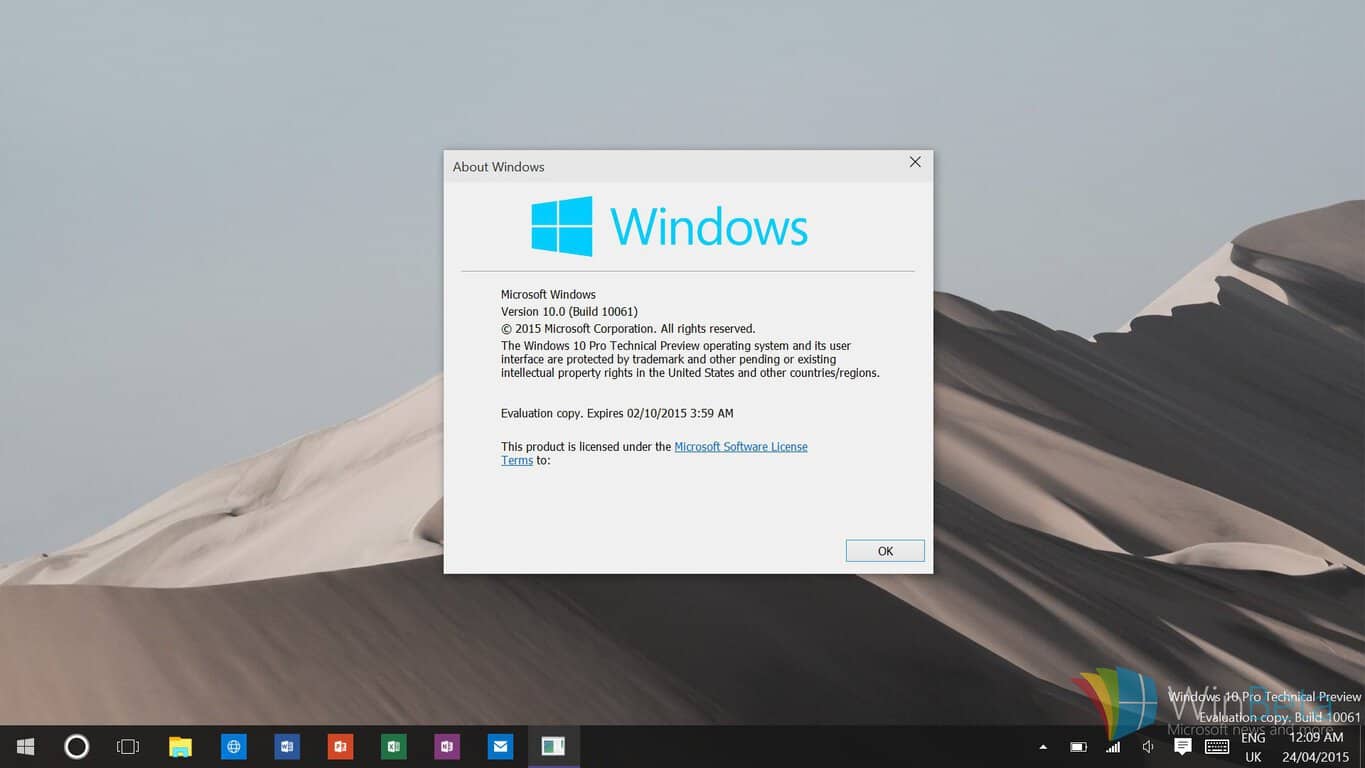
Microsoft has released today the Windows 10 Insider Preview Build 14926 for PC and Mobile, and the new bits come with a warning from the Windows Insider team about expiration dates for old preview builds. If your PC is currently running a “really old Insider build” (Microsoft didn’t share more details, but we guess the company meant old Windows 10 Insider builds version 1511 or earlier), you will start seeing expiration notifications starting tomorrow, September 15th.

If you don’t update your PC to the latest Insider build available on your Insider Ring before October 1st, your PC will then start rebooting every three hours and it will completely stop booting on October 15th. That’s pretty radical but hey, updating your PC to the latest Insider build is a straightforward process: just go to Settings > Update & security > Windows Update and check for new updates.

Here’s how Head of the Windows Insider program Dona Sarkar explained it today:

Just as we’ve always done with pre-release versions of Windows, Insider Preview builds have expiration dates. Starting tomorrow September 15th, PCs running really old Insider Preview builds will start to see build expiration notifications once a day. Then on October 1st, these PCs will start rebooting every 3 hours and then on October 15th – these PCs will stop booting all together. If your PC is running one of these old Insider Preview builds, please make sure you update to Build 14926 via Settings > Update & security > Windows Update. Build 14926 has an updated expiration date of May 1st, 2017. If your PC is running the Windows 10 Anniversary Update (Build 14393) in the Slow and Release Preview rings today – this does not apply to you and you will not be notified of your build expiring.

If you’re on the Insider Fast Ring, we invite you to read our other posts detailing what’s new in the new Windows 10 Redstone 2 build 14926. If you’re still running an old Insider build, let us know why in the comments and tell us if you’re going to update as soon as possible.

Microsoft’s EVP Scott Guthrie is pretty excited about HP choosing MS Dynamics over Salesforce

Earlier this week, HP signed a six-year deal with Microsoft to use the company’s Dynamics CRM solution to handle its daily marketing, sales, and service operations and Microsoft’s executive VP of cloud and enterprise Scott Guthrie is pretty excited about it. HP previously was as Salesforce customer as Guthrie explained during an on-stage interview at the Deutsche Bank technology conference yesterday (via Geekwire):

HP is a very large Salesforce shop — or they were until yesterday. It was a Salesforce takeout. HP Inc. is planning a massive migration and a big bet on Dynamics. It’s one of the more public wins we’ve had.

Winning HP over Salesforce is indeed a pretty impressive achievement for Microsoft. Last week, we reported that the Redmond giant beat Salesforce as the leading Software as a Service (SaaS) provider in a recent study from Synergy Research. Both companies actually have a quite complicated relationship as Microsoft reportedly tried to acquire the CRM and cloud solutions provider back in 2015. This year, Salesforce also reportedly entered in a bidding war with Microsoft to acquire LinkedIn which pushed Redmond to add $6 billion to its purchase price.

According to Guthrie, Microsoft also has big ambitions in the cloud and the company definitely has market leader Amazon Web Services in its crosshair. “We’re number two and aspire to be number one. Sometimes it’s a matter of features. And we focus on hybrid, which is probably our biggest differentiator,” he explained.

Microsoft set to open another Technology Center, this time close to home in Bellevue, WA

Microsoft is opening today a new Technology Center in Bellevue, WA (via The Seattle Times). Earlier this year, the company also opened a similar are in Houston, Texas, and with this new location the Redmond giant now has more than 40 MTCs around the globe. For those unfamiliar, Microsoft Technology Centers (not to be confused with Microsoft Innovation Centers) are dedicated areas where business customers can learn about the company’s growing portfolio of enterprise solutions.

The new 18,000-square-foot space located near the Lincoln Square tower will allow customers to have a hands-on experience with the company’s enterprise offerings. A dedicated server room with five racks of servers will be available for customers looking for live demos of Microsoft’s cloud products, and the Technology Center also features a 100-person conference room. Microsoft Technology Centers are currently not open to everyone (business and government customers must take an appointment with Microsoft’s sales team), but people living in the Seattle area will still be able to attend workshops and other public events.

While Microsoft previously used to invite business customers to its Redmond campus, Mark Perry, Director of the Bellevue MTC told the Seattle Times that the new facility which houses a team 10 technologists and salespeople will provide a better experience to business customers. “Our sales teams are great at telling customers our products features and capabilities, but we actually show it here,” he explained. Additionally, all MTCs try to focus on the needs of local industry and the Bellevue center
will be particularly mindful about the needs of customers in retail, manufacturing and healthcare. According to Perry, the live demonstrations will focus on the customers’ needs “so they actually leave here with a plan to go do it,” he added. You can get more information on the new Microsoft Technology Center over here.

Twitter introduces new streaming apps for Xbox One, Apple TV and Amazon Fire TV

The Twitter experience may soon be rolling out to a big screen near you. The online social networking service has announced in a press release that it will soon launch new streaming apps for Xbox One, Apple TV and Amazon Fire TV.

While it’s not immediately clear how different the new streaming app will be from the already existing Twitter app, the social networking company has said that the free app will feature all live streaming video available on Twitter. Streams of 10 NFL Thursday Night Football games, as well as content from MLB Advanced Media, NBA, Pac 12 Networks, Campus Insiders, Cheddar and Bloomberg News are all apparently part of the app. Other Twitter content such as Tweets and top global Vines and Periscopes are also included in the app as well.

The new app will be available in select world markets, and starting today on Apple TV. The Xbox One version, meanwhile, will soon launch in Australia, Brazil, Canada, Mexico, the United Kingdom, and the United States. Users of the app will not need a Twitter account or a TV subscription to enjoy the experience. 

Xbox One Dailymotion app updated with Facebook and Google connectivity

The official Dailymotion Xbox One app has just updated and in addition to fixing live streaming, remote control support, and a variety of other bugs, this new version of the app also adds sign-in options for both Facebook and Google accounts.

The Dailymotion app is a basic app for consuming videos from the service on the Xbox One. The app itself is in the Universal Windows Platform (UWP) format and features vary depending on which hardware is used to run it. On Windows 10 devices for example, the Daily Motion app supports drag and drop uploads and a mini-player.

Here’s the official app description:

Dailymotion is the best way to find, watch, and share the internet’s most popular videos. Use staff picks and personalized suggestions to discover world class content and creators. Then share your favorites and follow the channels you love to make sure you never miss a moment. You can also share your own videos with the world by uploading directly in app.

Do you enjoy using Dailymotion on your Xbox One? Let us know in the comments below.

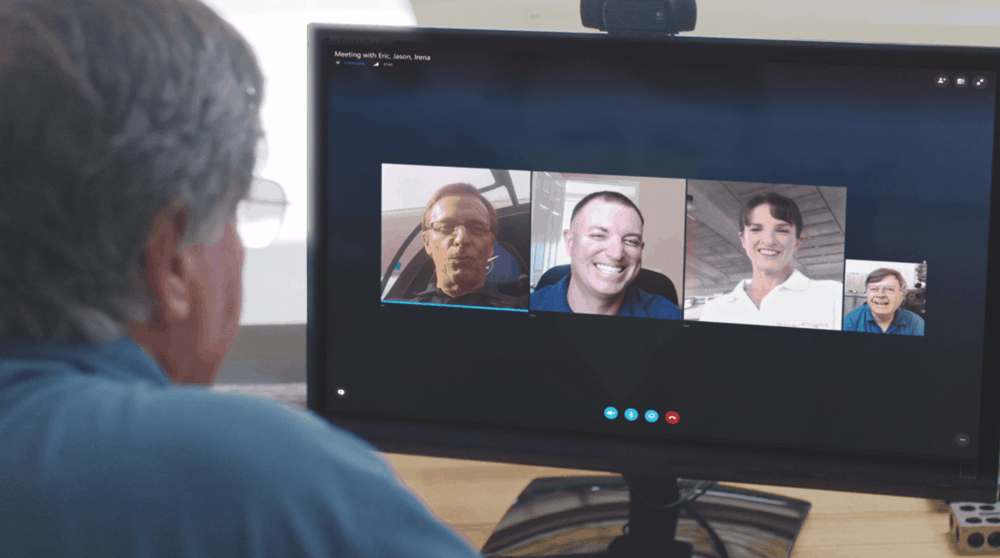
Skype team hosted a questions and answers event today, here’s what they revealed

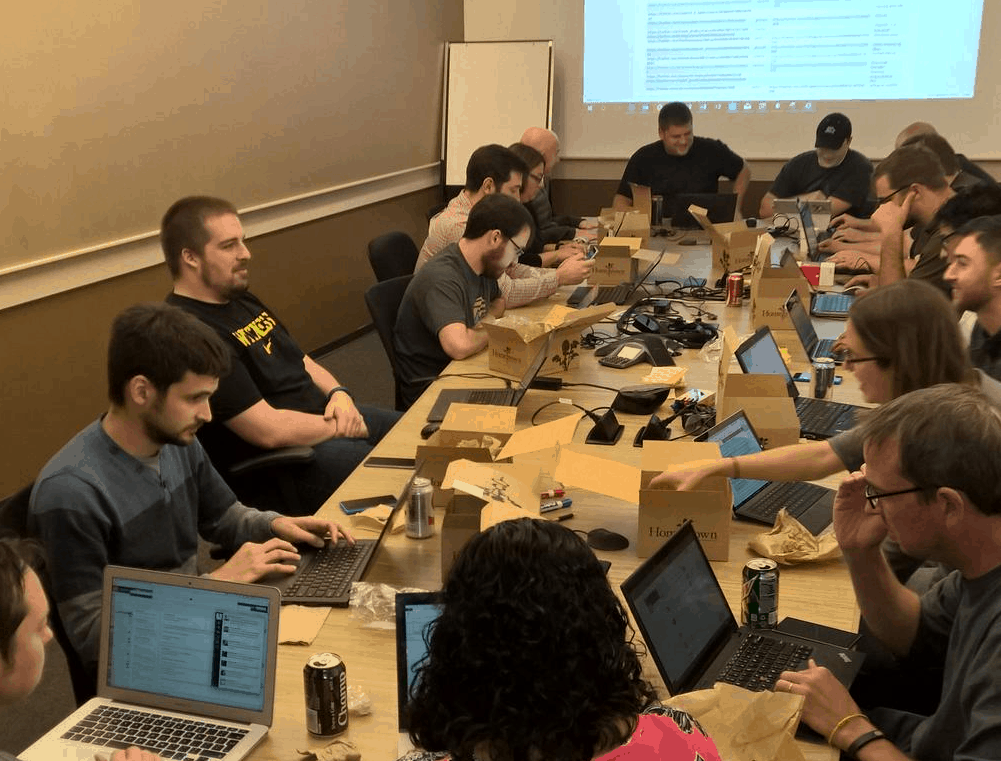
As we reported just a few days ago, the Skype team would host a live Q&A event today. Sure enough, a small group behind the scenes sat down around a conference table and took questions from the community through Twitter and their forum. They answered plenty of questions and even gave us quite a look into what could be in store for Skype in the not so distant future.

  • Audio and video device controls for ways to switch multiple inputs
  • Integration with the Windows Share charm
  • Link previews
  • Skype UWP on Xbox
  • Improved search functionality
  • Displaying contacts from the People app
  • Hide conversation
  • Skype Auto Answer with Video
  • Image pasting and screen clippings
  • Video Voicemails / Video Messaging
  • IM Quoting
  • Mobile app Live Tiles
  • Transparent Live Tiles

There were some features that they mentioned were being investigated for integration, but weren’t necessarily guaranteed to make it in. Of course, nothing is guaranteed until the feature is released, but here are some that they are considering:

  • Support for breaking through Corana’s Quiet hours
  • Location related features such as sharing via Windows Share charm
  • GIF previews
  • Individual window sharing while in a call
  • Supporting USB cameras instead of the phone’s native camera
  • Improved Live Tiles with a text preview and message count
  • Delete conversation
  • Opening conversation in a separate window
  • Creating groups of contacts

It was clear that a lot of the feedback given through the Q&A event left some lingering thoughts for the team to consider. Some even replied that they were inspired by ideas that users had sent in and that they’d look into adding it to ‘the list’. Such as:

  • Cross messaging app communications such as connecting to GroupMe
  • Custom wallpapers
  • Mute for group conversations
  • Moving the self view window

One user on Twitter even asked the team if they were working on a way to prevent “the slew of random ‘Friend Requests’ which are likely spambots.” Team member Meduri assured that they were looking into the issue and might have something up their sleeves for a future release.

Perhaps one of the more exciting features is already being tested internally. According to the Skype team, the SMS integration will be releasing to Windows Insider previews as soon as it’s ready.

Earlier this year we announced native SMS integration (on Windows Phone) and Relay (on Windows PC), this functionality will enable you to send and receive SMS messages from your Windows Phone and Windows PC running Windows 10 Anniversary Update.  We are currently in internal testing of this feature with plans to release to Windows Insider once the quality requirements are met. As for integrated calling, this is good feedback and something we will consider in the future.

They even replied to ensure that Skype will be continually receiving monthly updates with bug fixes and new features. “We know there are some much loved features missing in Skype Preview that are used in the Win32 version of Skype.  We are actively working to close this gap,” they stated, confirming that the name of Skype Preview will indeed be switched back to Skype once it has met the bar.