Get 20% off a Windows Store gift card ranging from $10 to $100

Get 20% off a Windows Store gift card ranging from 0 to 00

Windows Store gift cards are a fantastic way for Windows Phone and Windows 8.1 users to purchase apps, games, and more. Now you can snag a 20% discount on various amount of Windows Store gift cards via Newegg. You can snag a $10 Windows Store gift card for $8, a $20 gift card for $16, a $25 gift card for $20, a $50 gift card for $40, and a $100 gift card for $80.

These gift cards are not applicable for purchases at Microsoft’s online store, rather you can use them to purchase apps, games, and more from the Windows Store or Windows Phone Store, via your Windows or Xbox device. The deal ends March 20th. Enter promo code EMCPGWB87 at checkout for the discount. Head over to the VIA link below to snag the gift cards. Enjoy!

Thanks for sending this in, Anon and James!

Windows 8, 10 Medical Apps: Selection of Best Ones

Do you want to learn how to live a healthier life? Or maybe you need to interpret medical tests, images or medical prescriptions? If you do, then you can now easily manage these medical activities right from your own Windows 8 device.
windows 8 medical apps
How is that possible? Well, by using a dedicated Windows 8 medical app from Windows Store. In order to help you out, I have described the apps from below. So, during the following review you can download and test several tools compatible with any Windows 8 powered tablet, laptop or desktop for being able to plan your schedule in order to achieve the medical results you are aiming at. Moreover, you can use some of these tools for uploading medical images on your own device, for learning what to eat and drink when you are in pain and for accessing medical knowledge and terminology.

Read Also: Download the Latest Desktop Skype Version for Windows 8.1

Anyway, read the lines from below and see which app you need in order to resolve your own problems. The tools reviewed are selected based on user experience, all the platforms receiving 5 or above stars of ratings.

Be your own medical specialist by using Windows 8 medical apps

Medical Dictionary

Medical Dictionary

If you want to have a medical database to use each time you need extra info about medical terms, knowledge and terminology then you need to use Medical Dictionary. As the name suggest, this apps provides definitions and details about everything that’s related to the medical domain. Medical Dictionary is available for free on Windows Store.

HealthVault

HealthVaultAnother free distributed medical Windows 8 app to use on your own device is HealthVault. With HealthVault you can take control of your health and keep your most important health information at your fingertips. You have great options and features to use so don’t hesitate and test HealthVault for further info.

Health Organizer

Health OrganizerA great medical Windows 8 app that received 4 stars of rating on Windows Store is Health Organizer. By using Health Organizer you can easily and safely record and track the medical information for yourself and your loved ones in order to make the first steps towards a healthier life. The tool comes with extremely useful features, but it is priced $1.49 on the Store. Anyway, if you want a great medical software, then you should try Health Organizer on your Windows 8 device.

Active Life

Active LifeWe all know that proper food and daily exercises are meaning a healthy life and fewer visits to the doctor. So, learn how to live a healthier life by using the Active Life tool right on your Windows 8 device. You can create a profile for each person in your family to track their diet, medication, exercise and other health needs for free as Active Life is a free distributer tool on Windows Store.

Read Also: Winamp for Windows 8.1: Download the Latest Version

Health Scope

Health ScopeA highly appreciated Windows 8 app that received only great reviews on Windows Store is HEALTH SCOPE. Learn how to stay in fit and how to be healthy by checking what exercises and yoga to perform and what kind of food you have to take. Don’t worry, HEALTH SCOPE is available for free so you can anytime download and test this new medical app.

Medical Image Vault

Medical Image VaultWith Medical Image Vault you will be able to view and share yours or your family’s medical images right from your phone, tablet or desktop Windows 8 device. Medical Image Vaul can upload, query, receive and display yours or your family’s medical images while being at the doctor’s office or anywhere else. This tool can turn out to be extremely useful in numerous situations, so do test the same by your own.

Secure Health

Secure HealthThe last Windows 8 medical app reviewed is Secure Health; this free distributed tool is quite amazing as by using the same you can easily apply all kinds of home remedies for treating different health problems without using drugs. With Secure Health you can now successfully combat real life stress and become an optimistic person who is living a healthier and better life. Check out the other features included on Secure Health by downloading the software from Windows Store.

The apps detailed above are maybe the best choice to make when needing medical assistance on the go. So, without consulting a doctor you can now learn more about medical terms and you can also learn how to live a healthier life by eating properly and by combating real life stress. Feel free and use the comments field from below if you want to share something related to this topic with us and with other Windows 8 users.

Read Also: Top 5 Windows 8 Shopping Apps for the Best Prices

Design your House With ‘Live Interior 3D’ App for Windows 8, 10

Back in July last year, we shared with you an interesting collection with some of the best interior design apps that you could use on Windows 8. Now the Live Interior 3D app gets launched and it looks absolutely great.
interior design app windows 8
Applications like this one make the Windows Store a great place for those who own especially Windows 8, 8.1 and RT touch devices. Live Interior 3D is a new interior design application for Windows 8 users which has been recently submitted in the Windows Store and can be downloaded absolutely for free. Looking at how much work has been put into the app, I applaud the developer for deciding to offer it for free, albeit many would pay for such quality. But since the app has a “free” word in its title, I guess that there will be a paid version without advertisements.

Read Also: Winamp for Windows 8.1: Download the Latest Version

Probably the best interior design app for Windows 8 currently available

Ever dream of designing the house of your dreams on your Windows 8 device? Live Interior 3D can deliver! And it doesn’t matter whether you’re a homeowner planning some upcoming home improvements or a professional interior designer trying to bridge the gap between ideas and visualization.

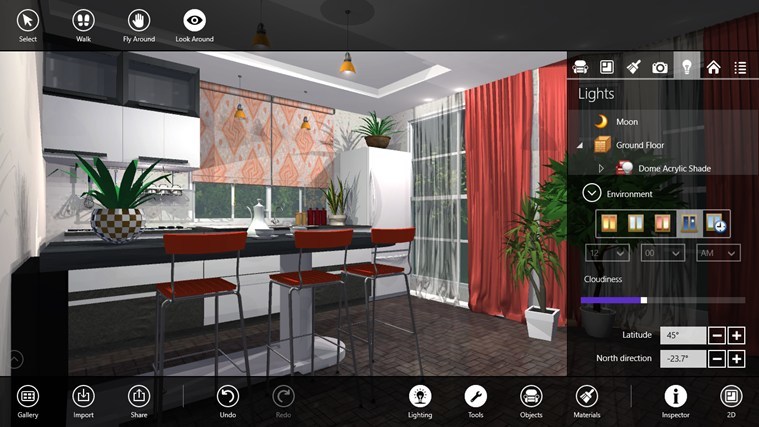
windows 8 interior design appThe single downside, if I can call it like that, is the pretty big size of the app – almost 400 megabytes, but if we have a look at everything that’s inside the app, it makes sense. There are more than than 1,200 objects and 1,500 materials to choose from in order to help you decorate and design your house. The app looks really masterfully crafted, so it can be equally used by those who want to design their own house but even by professional who want to showcase projects to their clients.

The app comes with many useful features, such as the ability to create detailed 2D floor plans, great looking real-time 3D rendering and the option to quickly add and customize a roof. You can build up to two stories with a loft from within the app and you can also apply materials, move objects, adjust light, walk around, and a bunch of other stuff in the realistic 3D environment. If you happen to already have a model in the Trimble 3D Warehouse, then you can import it and modify it inside the app.

There are other features such as interior lighting fine tuning and the ability to adjust natural lighting. Of course, you can easily share images or save them in the Gallery. The will work on touch and desktop Windows 8 and Windows 8.1 devices but also on Windows RT. Follow the link from below to get and also have a look at the Architecture app for Windows 8.1.

Download Live Interior 3D Free app for Windows 8, Windows 8.1

Best Windows 8 App This Week: Animation Desk

When talking about the latest edition of Windows 8 Red Stripe Deals, I told you that we’ll have a closer look at Animation Desk, a really cool new Windows 8 animation app that has made it in our “best app of the week”
windows 8 animation app
If you are really good with drawing on your Windows tablet or just at drawing on modern device – such as this 97-year old who used Paint to create some awesome works of art -, then you will probably be interested in downloading an animation app. From all the apps currently available in the Windows Store, I dare to say that Animation Desk is currently the best Windows 8 animation app that you can download and install. It is available for only $1.99 but the good part is that there’s a free trial option available, as well, so you get to try out the app before paying for it.

Read Also: Kobo App for Windows 8 Receives Important Improvements

Really cool Windows 8 animation app lands in the Store

Animation Desk for Windows8 provides an intuitive drawing environment so that anyone can enjoy creating their own animated works. With an interface that resembles a traditional animation desk, each frame is completed in the working environment of a professional animator.

windows 8 animation desk app

This app can be used by everybody, of course, but only those who are really good at drawing (unlike me), will be able to make the most of it. So don’t give it a poor rating just because you can’t handle it properly. The app is beautifully designed and comes with plenty useful features such as the following – works on desktop and touch Windows 8 and Windows RT devices, you can use your mouse or your fingers to draw; a really nice looking interface which resembles a traditional animation desk, onion skinning and all the right tools needed to make a gorgeous animation.

The application supports layers and you can use different sized brushes with pressure sensitivity. You can adjust the size and opacity of your brushes and also employ the color selection palette. When you are ready to give life to your drawings, there are four sets of frame rates to choose from. When you’re not too happy with your creation, there’s an eraser tool that you can use. You can easily export your project as MP4 file, or choose to play, delete and duplicate it within the app. To know more of the app and see how it feels, go ahead and download it by following the link from below.

Download Animation Desk app for Windows 8, Windows 8.1

Still using Windows XP? We want to know why

Still using Windows XP? We want to know why

Windows XP, an operating system we’ve probably all used at least once in our lives, is old. It was released over 10 years ago now, and Microsoft is finally about to kill support for the OS in favor for its more recent and up to date operating systems. Still, that hasn’t stopped over 29% of the worlds population from using what’s soon going to be a hackers paradise.

On April 8th, Microsoft will kill support for Windows XP as a whole. The operating system will no longer receive security patches and updates, therefore being left out in the cold for any old hacker to write up a quick virus script and set it off on the internet for all Windows XP users to be vulnerable to unless you’re using third party security. This doesn’t seem to be an issue for 29% of the population though, and we’ve heard many people say they WILL not move from Windows XP no matter what.

We want to know why. If you’re a user who uses Windows XP as their daily driver, we want to know why you refuse to upgrade to a more recent version of Windows. Is it because you don’t like change? Perhaps it’s because the hardware you use Windows on is too ancient to run anything newer. Either way, let us know in the comments section below!

Microsoft’s One vision really could be Steve Ballmer’s greatest legacy

Microsoft's One vision is Ballmer's greatest legacy

Branding is important. It may not be quite as important as a product or service, but if the branding is wrong, the message and experience is diluted. Around nine months ago, Steve Ballmer set out a new vision for Microsoft — One Microsoft — and it could be his greatest legacy. It was heralded as “a far-reaching realignment of the company that will enable us to innovate with greater speed, efficiency and capability in a fast changing world”. It’s a process that is still on-going, but the sharpened focus has already paid off.

The singular vision for Windows 8.x, Xbox One and Windows Phone is hugely versatile and helps to create a sense of family, a sense of belonging that has been missing from Microsoft for some time. It is something that Apple users have enjoyed for years, but the One Microsoft vision sees the company successfully catching up in this field, “delivering a more coherent message and family of product offerings.”

One the face of it, there is the interface convergence between the desktop, mobile and gaming platforms, but it goes further than this. Talking to the New York Times, new CEO Satya Nadella said: “One things we’ve talked a lot about, even in the first leadership meeting, was, what’s the purpose of our leadership team? The framework we came up with is the notion that our purpose is to bring clarity, alignment and intensity. What is it we want to get done? Are we aligned in order to be able to get it done? And are we pursuing that with intensity?  That’s really the job.”

Unity, oneness, circularity, singularity — this is what Microsoft is now about.

The company is more streamlined, but this is something that is only really visible from the inside. For the average Microsoft consumers, it is the products that do the talking. The look of software and platforms is important for creating the family of products that Microsoft is so keen to foster.

The One branding is quite important to this. There is an obvious suggestion of a singular vision in the name, and it kicked off with Xbox One. Being forced into changing the name of SkyDrive ended up being a blessing in disguise. It is a strong naming convention that is very powerful on a subconscious level, and it works very well with the 365 brand.

The Office 365 brand is similarly strong. It conveys a sense of being there whenever needed — it exudes reliability, the perfect partner to One. Would it make sense to extend the One branding to create One Office, One Windows? It’s certainly something that could be argued, but 365 is also very powerful. It not only suggests ‘always’ but also ‘everywhere’, tying in beautifully with the gradual move to the cloud and SaaS (Software as a Service).

It would be good to see the One name extending further into Windows Phone — perhaps this is something we’ll see with the release of Windows Phone 8.1 — as the singular vision is still slightly fragmented at the moment. But with the right focus and drive, Microsoft’s One vision really could be Steve Ballmer’s greatest legacy.

Windows 8, 10 FLAC Player App Gets Fixes for Surface 2 Owners

If you are looking to read FLAC music files easily on your Windows 8, 8.1 or Windows RT device, then one of the easiest ways would be to download and install the “FLAC Player” application. Even more that it has now received some needed updates.
flac player windows 8 app
For those who don’t know or simple aren’t aware of this, FLAC stands for Free Lossless Audio Codec which represents a codec for lossless compression of digital audio. It is said that digital audio compressed by FLAC’s algorithm can typically be reduced to 50–60% of its original size, which is why many are interested in this file types, especially those who are dealing with music on a professional level, like DJs or those in recording studios. And here’s some more on it:

Read Also: Plex App for Windows 8 Receives Multiple New Features

FLAC is an open format with royalty-free licensing and a reference implementation which is free software. FLAC has support for metadata tagging, album cover art, and fast seeking. Though FLAC cannot store floating-point data, and playback support in portable audio devices and dedicated audio systems is limited compared to lossy formats like MP3 or uncompressed PCM, FLAC is supported by more hardware devices than competing lossless compressed formats like WavPack.

Use FLAC Player app on Windows 8 to open FLAC music files

windows 8 flac files

The app seems really useful as it is a really clean and simple audio player that everybody can use to play FLAC files. What I don’t like is the fact that there’s no free trial option available, as not everybody will be ready to pay $2.99 for an app without seeing what it’s worth. Among its most important features we find the customizable playlist, background playing and automatic album cover art support if there’s one.

Of course, you can play, pause, seek and there’s some nice audio visualization to “see” sounds. It also supports snapped view on Metro, or the Modern interface, as it’s called now. A really feature is that it allows you to convert FLAC files to other formats like WAV, MP3, WMA, M4A. And according to its latest update which has been detailed in the changelog, a really annoying playback issue that Surface 2 owners have been reporting is now fixed. If you’re interested in such an application, then follow the link from below to get it.

Download FLAC Player app for Windows 8, Windows 8.1

Plex App for Windows 8, 10 Receives Multiple New Features

When it comes to organizing your media files in a single places, you can use the built-in Xbox Music app for such third-party titles as Media Monkey or Multimedia 8. But Plex is also a pretty good alternative and now it’s been updated with more features.
plex windows 8 app
Released not so long ago in the Windows Store for Windows 8, 8.1 and RT users, the official Plex app is now getting a pretty important update. If I recall correctly, the application was initially available for free, and it then required a subcription once you wanted to acess content inside the app; now, it seems that the app has been available for a price of $4.99, but what I’m not sure about is whether or not you’ll be further required to log in. However, my guess is that 5$ is only for its media player abilities.

Read Also: Metro News App for Windows 8 Launched, Canada’s Popular Newspaper

Plex app for Windows 8 receives important update

windows 8 plex app

Plex organizes all of your personal media, wherever you keep it, so you can enjoy it on any device. With Plex, you can easily stream your videos, music, photos and home movies to your Windows device from your home computers running Plex Media Server

The latest version of Plex for Windows 8 brings quite a few new features, as well as bug fixes and various other improves. First of all, the player discovery tool has been seriously fixed and the HTTP Live Streaming stack has been updated. Also, you can now disable the background art and the space bar no longer behaves funny during video playback.

Others fixes include the problem with resuming HLS content, the ability to run the app concurrently by multiple users and many other crashes reported by users. Also, the custom library section icons now appears and more granular video quality bitrates have been put in place, as well.

Just like before, you can use the Plex Media Server to stream your videos, music and photos across your Windows devices. You will be able to control your big screen from your Windows 8 tablet which will act as a remote. Also, many online channels such as TED, Revision3, TWiT, CNN and others will be made available. Follow the link from below to get the app which has less than 3 megabytes.

Download Plex app for Windows 8, Windows 8.1

Top 5 Windows 8, 10 Shopping Apps for the Best Prices

windows 8 shopping apps

Do you want to manage your shopping list with ease? If so, then you can now learn how to plan and organize your shopping schedule right from your own Windows 8 device. In that matter you can now use dedicated apps which can be anytime downloaded, mostly for free, from Windows Store. In order to help you out, I have developed the review from below, so take a look over the following list.

Nowadays, it’s extremely easy to buy stuffs, whether we are talking about clothes, shoes, bags, electronics, high end devices and lot more. You can do all this from the comfort of your home as you can use numerous online market places. Online shopping can now be used on your Windows 8 device too, on Windows Store being a variety of dedicated tools. All the major online retails are offering easy to use platforms from which you can check the latest offers, catalogs and lot more. Moreover you can order your products by using your Windows 8 tablets, laptops and desktops, so do check the review from below for learning which are the most appreciated Windows 8 shopping apps available for your device.

Read Also: VLC Media Player App for Windows 8.1 is Here [Review]

Best Windows 8 shopping apps reviewed

Amazon

Amazon

Amazon is maybe the most popular worldwide online retail and now you can shop your favorite products from Amazon on your own Windows 8 device by using the official Amazon client. The app can be downloaded for free from Windows Store and any use can use it for shopping different products, for comparing prices, reading reviews, share shopping list with friends and lot more.

eBay

eBay

Another extremely popular online market place is eBay. Similar with Amazon eBay is offering different products for online buyers around the world. Now you can download the official eBay client on your Windows 8 tablet, laptop or desktop for free from Windows Store. The app which is available on the Store comes with great features and with stability improvements as recent releases of the tool were buggy, according to users’ reviews.

Zappos.com

Zappos

From Zappos.com online retail you can buy shoes, clothes, bags and many other appreciated products. You can use Zappos for getting a brand selection and for having access to a large database of articles that can be easily purchased from your own Windows 8 device. In that matter you can anytime download Zappos.com client for free from Windows Store.

Victoria’s Secret PINK

Victoria's Secret PINK

Victoria’s Secret PINK dedicated app for Windows 8 devices can now be installed on any portable device, so you can buy your favorite looks straight from your tablet, laptop or even desktop. You will be using the official platform developed by Victoria’s Secret, thus all the products will be available for you, while you will be able to buy different articles from the comfort of your home. You can anytime download Victoria’s Secret PINK Windows 8 app for free from Windows Store.

Coupons

Coupons

A great app that you can use is Coupons. As the name suggest this Windows 8 tool is featuring numerous coupons that can be used for buying discounted products. Wit Coupons you can view and check the latest RedPlum and Amazon discounts so you can organize your shopping schedule. Moreover, by using this software you can save money and you can order different products from one of the most popular market places. Don’t hesitate and check Coupons for free by heading to Windows Store now.

Zara

Zara

Do you want to have access to the latest fashions for women, men and children on your own Windows 8 device? If so, then you must try the official Zara client for Windows 8 platform. With Zara you can buy your favorite clothes online, you can participate to weekly contest and you can keep up with the latest discounts. Try Zara anytime you want, the app being available for free on Windows Store.

Another highly appreciated Windows 8 shopping app is Office Depot. This tool has been previously described and detailed here on Wind8apps, so if you want to learn more about it don’t hesitate and read our review. You

Good; now those were the best shopping apps that are available for the Windows 8 system. The tools described above are being the most popular ones and received good reviews from the users who have used them.

Therefore, download and test the Windows 8 shopping apps on your own device and share your experience with us and with our readers. Some shopping apps like 7-Eleven may not be working but this is universal for any app and the fixes are easy to execute.

These kinds of shopping apps sometimes fail to load or show errors. We explained common fixes in our Flipp app not working guide.

Also, point out any other shopping app you are using on your Windows 8 handset and we will update this review with the same.

Read Also: Top Windows 8 NFC Apps in the Windows Store

VLC Media Player App for Windows 10 is Here [Review]

After a long journey, waiting times, and the certification process needed as part of the official release, VLC is officially here. Read below for more on it and a video overview of its features.

At the very beginning of 2013, VideoLAN already had all the money it needed to continue the development of the official VLC app for Windows 8, as its Kickstarter crowdfunding campaign had even exceeded the goals it has set. But it is finally over, and VLC for Windows 8 is here.

We’re taking it for a ready, and you can see what it looks like in the video below before downloading it (link at the end of the article).

Your favorite media player is now in the Microsoft Store

VLC for Windows 8 is an experimental port of VLC media player for the WinRT platform. VLC media player is an open source application that plays all multimedia file formats, from files, streams and discs on all platform. This application will play most video file formats, including Ogg, FLAC and MKV.

vlc app windows 8

VLC for Windows 10 is currently in Beta, and when you will first enter the application, you will see this mentioned inside the app itself, so bugs and other glitches are to be expected. This means often updates will make their way on the official changelog, and we’ll be here to report on that, as well timely.

Using the official VLC app for Windows 10, you can virtually play every kind of video, even Ogg, FLAC, and MKV.

As you will see in the video below, the app comes with the following sections: Home, Videos, Music, External Storage, and Media Servers. The ‘Last Viewed’ will display the latest videos and tracks that you have played.

However, currently, you aren’t able to add music files to the VLC media player, as only the “open video” command will be available. I’ve tried various audio formats, but no good. I guess that will get included in the future.

When playing a video, you can increase and decrease its playback speeds, go to the next available file, and add the subtitle file. You can choose to disable the soundtrack of a movie or change its tracks if there are some.

Another early bug I discovered occurred when adding a new video file while playing one. The newly added file would wrongly inherit the name of the previous video file, as you can see in the short overview of the app for yourself. This is a minor bug, and I’m sure it will get fixed.

The application is officially in version 0.2.0 and will work for Windows users, as well, because VideoLAN cited the fact that many still haven’t jumped to Windows 8.1.

The app also won’t work on Windows RT devices, as it has been compiled for x86 and x64 devices. Again, this is another feature that will get added with a future release.

VLC for Windows 8 supports the same codecs as the VLC application for desktop, from MPEG-1 to H.265, through WMV3 and VC-1; it also supports multiple-audio tracks selection, embedded subtitles, background audio playback, Live Tiles, removable storage, and DLNA servers, as you have seen in the above video.

Besides the glitches I have observed, VideoLAN also says that the app is currently slow, subtitles support is not very good, and there are some issues with audio.

Nonetheless, it performs the basic jobs quite well, so go ahead and download it from the Windows Store by following the link below.

Get VLC

Microsoft releases infographic on Windows XP end of support, explains why you should upgrade

Microsoft releases infographic on Windows XP end of support, explains why you should upgrade

As most if not all of you know, Windows XP is set to reach its end of support on April 8th. That’s just a few short weeks away. Microsoft’s Services team has put together a cool new infographic showcasing details on why you should ditch Windows XP for a more modern operating system.

In the infographic, you are given reasons as to why Windows XP’s end of support is crucial, meaning there will be more more patches, no more updates, and no more service packs. In fact, Microsoft highlights the operating system infection rate and showcases how Windows XP has a high infection rate, compared to Windows 8, which has the lowest.

“Organizations that continue to retain a Windows XP environment not only are leaving themselves exposed to security risks and support challenges, but also are wasting budget dollars that would be better used in modernizing their IT investiments,” the infographic states.

This infographic is perfect to print out and hand over to your IT department or boss, if your organization still utilizes Windows XP. Hit the download link below to snag the infographic.

Top Windows 8, 10 NFC Apps in the Windows Store

These days using a WiFi connection isn’t the only way possible for transferring data from one device to another. As you know, most of the Windows 8 devices are coming with NFC support, so by using the mentioned protocol you can easily establish a proper connection between different devices like tablets, laptops, or desktops. In case you want to learn which NFC apps works best on the Windows 8 platform, don’t hesitate and take a look over the list from below.
nfc windows 8 apps
NFC or Near Field Communication represents a short-range protocol used for contactless communication between various devices. You can understand NFC as a simplified WiFi connection, though the terms are quite different. In order to establish the mentioned connection both Windows 8 devices must have support for NFC. You can use this connection for exchanging data but only on a short range distance (less than 2 cm). Of course with NFC you can transfer only small amount of data, but the service is quite useful especially when you need to get something quick and by using high-speed data transfer.

Read Also: Windows 8.1 Video & Music Apps Updated: Curated Lists & Playlist Improvements

Anyway, if you want to properly use NFC on your Windows 8 device, then check the list from below and learn which app to download from Windows Store in order to enjoy a stable and proper connection.

Some of the best Windows 8 NFC Apps

Share My Files

Share My FilesShare My Files is a dedicated NFC app compatible with Windows 8 devices, the app bringing important features that can be used for transferring data and for completing other operations. In a few words with Share My Files you will be able to send files to other Windows 8 tablets, laptops or desktops using either NFC or Wi-Fi Direct, while you can also upload your local files to your SkyDrive account, or send them to any other Windows 8 PC using “Tap and send” in the Devices charm, which leverages NFC. Share My Files is priced $1.99 on Windows Store but a free trial can be anytime downloaded for testing the tool by yourselves and for free.

TagWriter

TagWriterThis tool is perfect for those who are new in using the NFC concept. TagWriter is coming with basic features and with advanced options that can be used for managing NFC accounts, transfers and so on. Moreover, TagWriter is available for free on Windows Store so you can test this app without spending any money. You can learn easily how to send files and data using NFC and you can also develop new strategies for improving your NFC experience.

NFC Kits

NFC KitsAnother free distributed Windows 8 NFC app is NFC Kits. NFC Kits is a highly appreciated tool on Windows Store as the software received four stars of ratings and great reviews from the users who have tested it on their own Windows 8 devices. Basicially with NFC Kits you can easily create your own NFC tags, while the tool can be used for reading, or writing messages from proximity devices. Tag format supported: URI, Mail, Telephone, Contact, Launch App, Windows Phone and Printer. If you like it, then don’t hesitate and head to Windows Store and download for free NFC Kits.

That was all for now; this was my review related to the best Windows 8 NFC apps that are currently available at Windows Store. You can anytime test these apps in order to choose the tool that you prefer the most. Also, if you managed to use a better software than the ones described here, don’t hesitate and point that out by using the comments field from below and we will update this review accordingly.

Read Also: March 2014: Best Windows 8 Apps & Games

WWE Windows 8, 10 Apps: Top 5 to Use

Are you a wrestler fan? Or do you want to keep up with WWE events on your own Windows 8 device? If so, then you will probably want to use a proper app on your tablet, laptop or desktop; thus in that matter you can check the review from below where I have described the best WWE Windows 8 apps that are available on Windows Store.
wwe apps windows 8The WWE phenomenon is extremely popular not only among US users, as currently worldwide wrestlers fans are trying to watch all the WWE events, play WWE games and learn more about their favorites wrestlers. But what can you do when you have missed the live episode, or when you can’t have access to your TV? Well, in that case you should use your Windows 8 and Windows 8.1 based device as there are several WWE dedicated apps available on Windows Store. Therefore, if you want to keep up with main WWE events don’t hesitate and learn which app to download on your Windows 8 tablet, laptop or desktop.

Read Also: Best Windows 8 Alphabet Apps for Your Kids

Top WWE Windows 8 Apps from the Windows Store

WWE

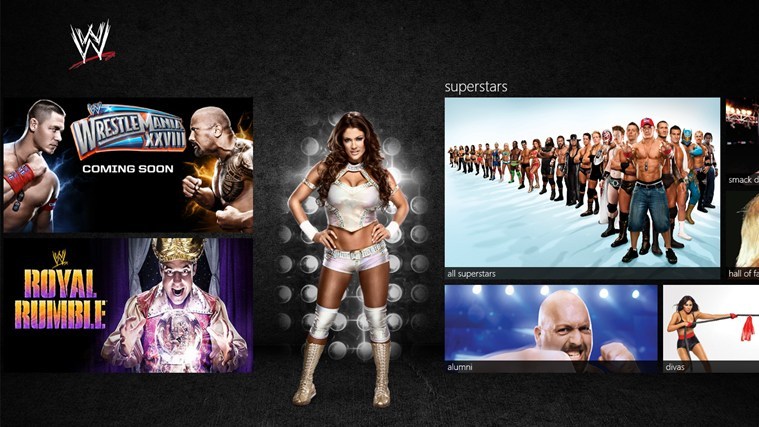
WWEAs the name suggests this Windows 8 WWE is what every wrestler fan needs. First you should know that this is not a game, as the tool can be used only for checking everything that’s new on the WWE community. You can find out spice details about the top five wrestlers that are gaining interest and a brief synopsis of their current storyline, or you can read current news surrounding the WWE and the wrestlers. Furthermore, by using the WWE software for Windows 8 devices you can watch clips from old matches, or recent event you have missed. The app is great and works on any Windows 8 and 8.1 based device. You can download WWE for free from Windows Store, so don’t hesitate and test this awesome tool.

SLAMMED!

SLAMMED!If you want to play a WWE game on your Windows 8 and 8.1 device then you must try Slammed. This is not a classic game with wrestlers as the software features a more unique game plan. Basically you will develop your own wrestler story by becoming yourself one of the best wrestler that exists. You will develop your personality by reading and solving the novel offered by Slammed and also you will learn new and spicy details about the WWE world. This is professional wrestling. And you’re about to change it, forever. Slammed is priced $2.99 on Windows Store, so go ahead and try it out.

Wrestlepedia

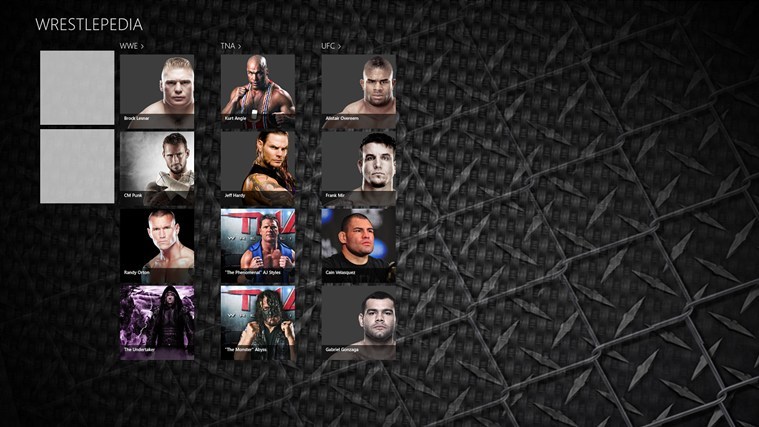
WrestlepediaIf you are a WWE geek, then you need to test your abilities. How? Well, quite easy, as now you can use Wrestlepedia, a Windows 8 app that can be installed on your tablet, laptop or desktop. The tool can be easily used even by a newbie who wants to discover more about the WWE phenomenon as the app is featuring a database that contains precious information regarding various wrestling famous names, their abilities, strength, accolades etc. You can download Wrestlepedia for free from Windows Store.

Legends of Wrestling

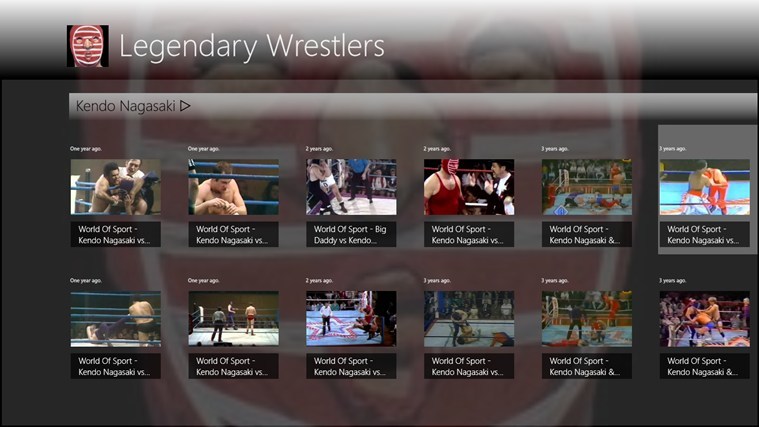
Legends of WrestlingEach WWE fan must know the history and the legends that stand in front on what we currently understand in term of wrestling. In that matter, you can now discover wrestler stars and legends by using the Legends of Wrestling app on your Windows 8 and 8.1 device. By using this tool you can play, rewind, play again (at slow motion if you want) classic clips from British Wrestling’s greats. Legends of Wrestling can be anytime tested as the tool is available for free on Windows Store.

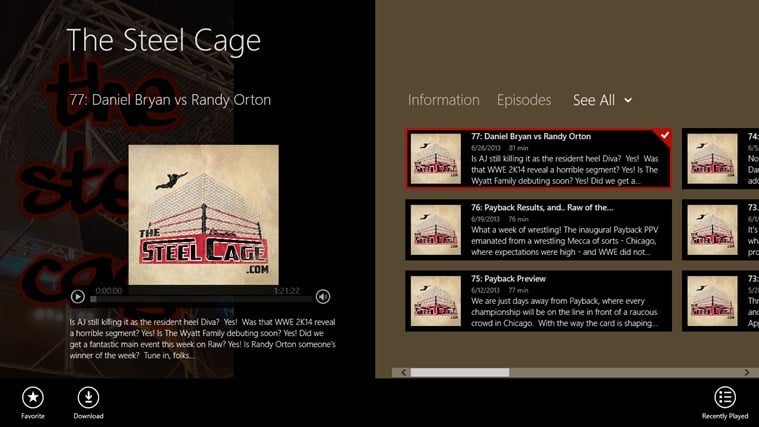
The Steel Cage

The Steel CageDo you want to access The Steel Cage – WWE Podcast? If you want to play episodes right away on your Windows 8 device, then The Steel Cage is the perfect app for you. The tool features streaming access to play episodes from anywhere, an archived back catalog and lot more. Test this app by yourselves; The Steel Cage is priced $1.99 on Windows Store.

So, there you have it; those were the best 5 WWE Windows 8 apps that you can download anytime from Windows Store. Of course, there are many other tools available, so if you have your own list of preferences, don’t hesitate and share your thoughts with use by using the comments field from below.

Read Also: Best Windows 8 Indie Games to Download From the Store

Titanfall launches tonight, watch the live video of the event here

Titanfall launches tonight, watch the live video of the event here

It’s likely that even casual gamers are aware of Titanfall, and the fact it will be released tonight for both the Xbox One and PC. The event, held by Microsoft, will take place at the Austin, Texas SXSW festival — a convergence of music and tech, with a bit film thrown in for good measure.

The festivities kick off at 11pm ET, 8pm PT, and Microsoft has planned a show from its Austin studio, including guests from Respawn, and everything set to be hosted by Larry Hryb, better known as Major Nelson. The game goes on sale at midnight, spreading across local time zones, and will roll out to other, non-US, regions in the next few days. If you don’t wish to go stand in line, and those are already forming, then pre-orders are already available for most major retailers.

If you aren’t going to be at the big event tonight, you can watch the video of all the festivities from the Lone Star State right here on WinBeta. The feed is up and ready, though the event will not kick off until later. Check back with us to see the below video go live later tonight.

Titanfall launches at midnight tonight in North America, while those in Europe will see the game on March 14th.

Watch live video from xbox on www.twitch.tv

Best Windows 8 App This Week: Electric Toolkit

A new week gets a fresh start here so this means we’re ready to share with you what we have hand-picked as the “Best Windows 8 App of the Week”. In the previous week have featured Chronozoom, a nice history tool and now we’re presenting Electric Toolkit.
electric toolkit
I am telling you beforehand that this app is aimed only at select Windows 8 users, especially engineers, electrician and just math lovers. Of course, since the Electric Toolkit app for Windows 8 is described as one to help you with your home wiring project, it is virtually helpful to just about anybody who owns a Windows 8 touch or desktop device who wants to make use of such an application. It was previously available on the Android and iOS platform and now the successful title has made its way into the Windows Store.

Read Also: Doodle Devil Game Released for Windows 8, Download Now

Electric Toolkit for Windows 8 helps in home wiring

Electric Toolkit is an easy to use collection of electrical wiring diagrams, pinouts, and electrical calculators for home wiring projects. Electrical wiring diagrams, including 3-way and 4-way switches. Audio/Video pinouts and basic calculators for NEC, ohms law, and circuit breaker sizing.

windows 8 electric toolkitThis is a really awesome app and comes with many interesting and useful features, such as the following: different switch wiring diagrams like basic light, 7 different 3-way, 4-way, multiple GFCI and wall outlet. Also, there’s a Service Entrance Ground Size Requirements table and a Grounding conductor size calculator. Of course, not everybody will understand what this all means, but those who do, will appreciate.

The app also comes with an Ohms Law calculator, a Sizing a Circuit Breaker calculator, a Voltage drop calculator and Audio/Video Cable pinouts for the following: Component, DisplayPort, DVI, Ethernet, Firewire, HDMI/Mini HDMI/Micro HDMI, LPT, PS/2, RCA, Serial port, S-video, USB 3.0/Mini USB/Micro USB, and VGA.

I actually wanted to try out the app for myself, but couldn’t because there was no free trial option available. And the app isn’t quite cheap at five bucks. However, if you know how successful the app has been on other platforms, then you probably know what you’re paying for. Follow the link from below to the link on the Windows Store.

Download Electric Toolkit app for Windows 8, Windows 8.1

Microsoft gives Windows a Celtic makeover with new themes

Microsoft gives Windows a Celtic makeover with new themes

St. Patrick’s Day is just a few days away — it’s 17th March in case you forgot to mark your calendar — and to help get you in the mood, Microsoft has released a new batch of themes for Windows including one with an Irish leaning. For anyone yearning for the lush green pastures of Ireland, the suitably named “Ireland” theme — complete with Celtic music — is on hand, but there are several others to choose from as well.

Of course it is not just Ireland that has beautiful scenery to offer, and in other themes you’ll find German coastal scenes as well as an interesting mix of fantasy and nature in the cryptically named “GTGraphics 3” theme. For fans of more traditional nature imagery, “Colors of Nature” is a theme that is sure to appeal.

Head over to the Windows Experience Blog where you’ll find links to each of the themes as well as a collection of new wallpapers. There’s sure to be something that takes your fancy, so get browsing and grab a download to give your desktop a new look.

Skype App for Windows 8.1, 10 Gets Ringing Improvements

Skype is one of the most used social and communication tools across the world, and with the launch of Windows 8, it has been redesigned with new features. Now the application has received a new update which improves the ringing features.
skype app windows 8
After Microsoft has bought Skype, it has tried to integrate it in all the services that the Redmond giant could. In Windows 8 and Windows 8.1 there are two ways that you can use the app – in desktop or in touch interface mode. I somehow like the good old desktop mode, as I haven’t managed to “understand” and get accustomed with the new one.

Read Also: Download Bing Wallpapers With ‘Bing Images’ App for Windows 8

Skype for Windows 8 fixes some ringing problems

Stay connected while you shop, read, watch and work. When you do more with Skype, there’s more to talk about. -Connect how you want, when you want. Chat, hear their voice, or get together face to face all within the comfort of one app. -Snap Skype alongside other apps to get more done or play a game together while you chat. -Share everyday things and special moments – files, photos, or even a video message. -Connect with anyone else on any PC, Mac, Android, iPad, Windows Phone, iPhone, Xbox One or more.

skype windows 8 app

According to the changelog of the official Skype app, the new update consists in the fact that Skype will stop ringing in that moment when you answer a call somewhere else. I know that this has been an annoying issue for the desktop version for some years and I’m glad that Microsoft has come up with a fix for the touch version.

Some previous important updates that Skype for Windows 8 had received fixed some crashing problems and also the ability to manage contacts easier and to mute instant messaging sounds has been included. If you somehow lack the Skype app on your Windows 8 and Windows 8.1 device or just to know more about it, follow the link from below.

Download Skype app for Windows 8, Windows 8.1

Download Bing Wallpapers With ‘Bing Images’ App for Windows 8, 10

Bing Images is a cool new application that has recently been made available as a free download in the Windows Store. Those who are looking to download monthly Bing wallpapers can now use this app to do so much easier on Windows 8.
bing wallpapers download
There are many ways that you can take to download those awesome wallpapers featured on Bing’s homepage for its search engine service, but if you are running Windows 8 or Windows 8.1, the easiest way is to download the ‘Bing Images’ app that has recently made its way into the Windows Store. The will work on your Windows 8/8.1 touch and desktop devices and also on Windows RT. I have been using the app myself and I’m really pleased with its quality.

Read Also: Windows 8 Radioline App Launches, Brings Plenty of Radio Stations & Podcasts

Get monthly Bing wallpapers with this app

Shows all the Bing wallpapers for the selected month. Here users can easily navigate to any of the months’ wallpapers. User can select any of the thumbnails to view the full-sized wallpapers.

bing wallpapers pack

You will be able to browse Bing wallpapers that date back to January, 2009, so there’s plenty to choose from. Of course, it’s a pity that you can’t download them all as a pack and that the HD (high-definition) quality is also lacking, but it’s a great way to keep up with the new wallpapers that get released.

Once you have opened a picture, you then have the ability to save the wallpaper to your device or set it as the lock screen. You can easily navigate and see thumbnails of all the pictures previously featured and whenever you want or like something, just click on it. The ad-free version of the app can be unlocked for $1.49. Follow the link from below and download it do your devices.

Download Bing Images app for Windows 8, Windows 8.1

Lazer-Hawk is a Cool New Windows 8, 10 Arcade Aircombat Shooter

Previously we have featured some interesting Windows 8 flight games, such as flight simulator game ‘F18 Carrier Landing‘ and flight combat game ‘Cold Alley‘. Now I’ve discovered another interesting one called ‘Lazer-Hawk’; read below for more details on it.
windows 8 arcade aircombat shooter
Lazer-Hawk is a fresh new game released in the Windows Store for Windows 8, Windows 8.1 users only, as ARM support for Windows RT users is missing at the moment. The game comes with an approximate size of 186.5 megabytes, so this is not your regular casual mobile game which takes a few MBs. While the game is pretty cheap at $1.49 for what it offers, it’s a pity that there’s not a free trial option available, but I hope a future update will make it available.

Read Also: Best Windows 8 Indie Games to Download From the Store

New cool flight game lands in the Windows Store

Lazer Hawk – is next-generation arcade aircombat shooter with stunning 3D graphics and insane Music, awesome effects and unique gameplay. If you like games like 1942 meets 1980, Raptor, After Burner, R-Type, Stargunner, Radiant Silvergun, Sky Target, Siberian Strike, this game is for you.

arcade aircombat shooter windows 8For its initial release, the game comes with 10 missions, 8 different planes, 66 enemies, plenty of pickups, 12 different weapons along with amazing lighting and special effects. The game comes with great background music and high-quality 3D environments. There will be more than 25 bosses that you will encounter in your gameplay, so make sure you master the physics and control of the plan to beat them all.

You can play with your fingers, gamepad (Xbox controllers are also supported), mouse and keyboard. What you pay is what you get – there are no inside app purchases, micro-transactions, hidden costs and advertisements. Follow the link from below to get this interesting new game on your Windows 8 devices.

Download Lazer-Hawk game for Windows 8, Windows 8.1

Best Windows 8, 10 Indie Games to Download From the Store

The Windows Store is said to be competing with Android’s Google Play, though for now we must admit that there are less opportunities when coming to software apps on Microsoft than on Google. But Windows Store is catching up as more and more developers are being “invited” to bring new platforms and apps for the Windows 8 users and fans. In that matter we can notice that for example the number of indie games apps which are available on Windows Store has been significantly increased lately. Due to same reasons, during the lines from below I will try to point out the best 10 Windows 8 Indie Games available for your tablet or laptop.
windows 8 indie games
But what is an indie game and how can we differentiate such app from a classic one? When referring to indie games we think towards independent video games. Basically an indie game represents an app developed by individuals or small teams that has no official financial support. Thus these kinds of tools are made by passion and by users who want to share their passion with the Microsoft community. Unfortunately, as you could notice, on Microsoft and especially on Windows Store we have limited possibilities when coming to independent video games. This is also the main reason why Windows Store has less apps compared to Google Play or iOS, where most of the tools provided are developed by individuals and not by official video games publishers.

Read Also: Kobo eReader App for Windows 8 Launched, Download Now

If you want to test the best Windows 8 indie games that are currently available, then don’t hesitate and check the review from below. I will try to describe only the games that received ratings of 4, or above, stars and apps that impressed me and also my colleagues. The list is randomly completed as it is really hard to say which game is the first on a top 10 list. But, since most of the tools are free distributed ones (or there are trial versions available for each app), test them in order to make a proper idea about the same.

Doom and Destiny

Doom and DestinyThis is one of the most popular indie games available on Windows 8 and Windows 8.1 platform. The game has been recently introduced on Windows 8 and currently is having 5 stars ratings on Windows Store. Doom and Destiny is a fun to play game on which you can spend many ours in playing single player campaigns. You will be fighting more than 300 types of enemies while gaining experience and learning new combat skills. The graphics are of course decent but not outstanding, as after all we are talking about a 2D video game, developed by independent users. If you want to try it, you can download a free trial variant or you can buy Doom and Destiny from Windows Store for no more than $3.49.

Griff Dangers

Griff DangersGriff Dangers in Mettle vs. Metal is a great and awesome indie game released recently on Windows Store. This is a side-scrolling action game where you can control a funny robot that needs to fight with its enemies. Your opponents will grow stronger during each play session, so your combat skills will be hardly tested. You will definitely find this game fun to play and also addictive as there are many missions to complete. You can download Griff Dangers from Windows Store for $1.49, while a free trial variant of the app is also available.

An Indie Game

An Indie GameAs the name suggest, we have another indie game for Windows 8 and Windows 8.1 users. An Indie Game in an addictive auto-runner app where you can run, jump, shoot and swing as you try to eliminate all your enemies. The game is pretty cool as it features great graphics and an easy to manage game play. You will spend many ours trying to beat your own high score and also for unlocking new items, skills and worlds. You can install An Indie Game on any Windows 8 based tablet or device via Windows Store for only $1.99.

Soul Runner

Soul RunnerAn indie game that is quite similar with the previous described app is Soul Runner. So, if you like to run without doing anything else in particular, this app will be perfect for you. The game is somehow stressful as being an auto running kind of tool you will be constantly trying to out-best your performances. So establish new high scores, share it with your friends and try not to spend too much ours on this game. Soul Runner is available for free on Windows Store.

Road Runner Escape

Road Runner EscapeDo you like old fashion cartoons? Then, this game will be perfect for you. Road Runner Escape is a funny game to play on your Windows 8 and Windows 8.1 devices, the app being suitable with all users – with little ones or of course with elder ones. Basically, on this tool your goal is to help Road Runner escape from Wile E. Coyote – how? By running of course; therefore try to use tricks in order to see how Wile E. Coyote is one more deceived and establish new high score on each run. You can download Road Runner Escape for free from Windows Store.

Read Also: Top 10 Windows 8 RPG Games to Play

Crush-A-Zombie

Crush-A-ZombieAnother addictive game, similar with the ones described above is Crush-A-Zombie. Even though Crush-A-Zombie is age restricted (16+) you have nothing to worry about as your task is in smashing zombies by taping on each creature. So, you need to try to whack as many zombies as possible for obtaining new high scores. If you miss more than 3 zombies you will have to start all over from the beginning, so this game is quite similar with auto-runner apps in term of self-motivating operations. Crush-A-Zombie can be anytime downloaded for free from Windows Store.

Indie Bingo

Indie BingoThis is a very simple Windows 8 and Windows 8.1 indie game which can be downloaded for free from Windows Store. You can try this game if you want to play something different in matter of using your own judgment and not your ability of taping for running faster or for smashing zombies. Indie Bingo is therefore somehow similar with Sudoku as you need to pay attention and think on which you next move will be. You will play against the computer, the winner being the one who is first to cross out 5 rows, columns or diagonal.

Falling Sky

Falling SkyFalling Sky is a 5 stars rated arcade game in Windows Store. The game features a simple game play, with basic graphics. Your goal will be to get as high as you can by jumping / climbing the falling blocks – thus this is platform / puzzle game with an endless game play. Also you can play it by using the keyboard or the touchscreen of your Windows 8 tablet or device. Falling Sky is available for free, so you can anytime download it from Windows Store.

Don’t Stop Running

Don't Stop RunningIf you want to play an addictive game, then Don’t Stop Running might be the perfect solution for you. The game features infinite runner game play (which is basically about clicking or tapping the screen to jump up and avoiding in falling into the lava below), so there is not much to say about it. Don’t Stop Running is highly appreciated by the users who have tested it, as the app received 4 stars from the Windows 8 community. Test it on your own and try to out-best the existing high scores – do it for free by heading to Windows Store.

Feed The Zombie

Feed The ZombieThis indie Windows 8 game can be played by the whole family. Don’t worry, it is not age restricted and the graphics isn’t showing inappropriate content like blood or other similar stuffs. You just have to help your zombie in finding its food. In order to do that you need to tap on, or towards the direction of your zombie’s food to help him find it. You have 30 seconds to feed the zombie as many mice as you can. If you like it, then you can download Feed The Zombie from Windows Store; the game is priced at $1.49.

Read Also: Instagram Apps for Windows 8: The Best to Use

Those are the most appreciated Windows 8 indie games that are currently available on Windows Store. Test the games from above and then try to complete the list with your own favorite apps. Also, use our previous reviews for learning which are the best Windows 8 RPG games, or which are the best Windows 8 tablets on which you can play these games.


Windows 8, 10 App MLS MatchDay Gets Major 2014 Update

Here at Wind8Apps we love football (or soccer as Americans call it) apps, and that’s why we have previously talked about Goal.com, FotMob (live score app), and one to follow the 2014 WorldCup from Brazil. Now we’re talking about the official MLS MatchDay app for Windows 8 and Windows 8.1 users which has received an important update.
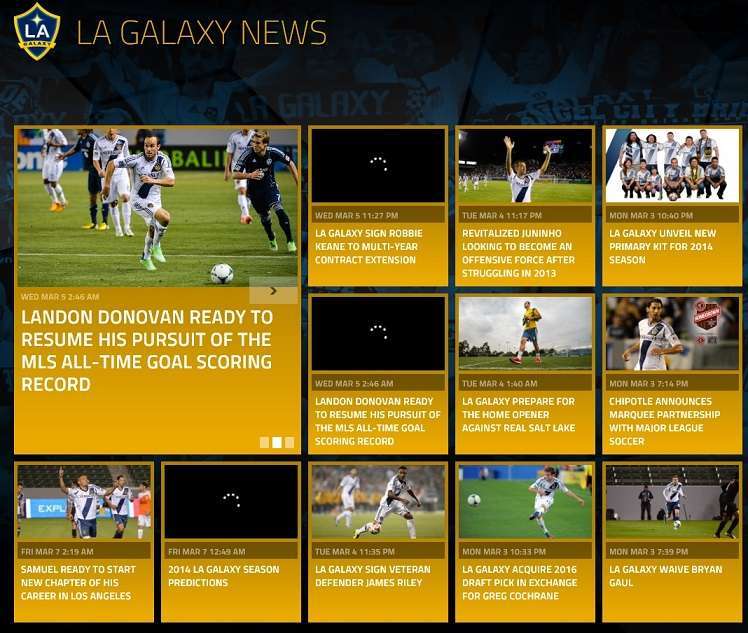
windows 8 mls match day appMLS MatchDay is the official app for Windows 8 and Windows 8.1 users released in the Windows Store by the Major League Soccer. It’s been around in the Windows Store for quite a while now, but now it has received a pretty important update that makes it ready for the 2014 season. So, if you are a soccer player or just love to follow the latest in MLS for the USA championship, then you need to download the app (link at the end of the article).

Read Also: How to Turn Off BitLocker in Windows 8, Windows 8.1

Official MLS app for Windows 8 gets important update

The official Major League Soccer Windows 8 app brings the game to you. Follow the entire 2013 season from anywhere at anytime!

By using the official MLS Match Day app on your Windows 8 and Windows 8.1 tablet or other device, you will be able to follow the latest news stories from the MLS league, watch highlights from MLS, check scores and standings and even follow each and every game of your favorite teams with statistics and highlights of the match.

mls app windows 8
As you can see for yourself, the app comes with top-notch quality and there are no advertisement blocks at all inside the app, which is really cool. Everything feels really fluid and I haven’t had any issues at all. Maybe because the latest update that was put in place has taken care of some ‘pesky bugs’.

The latest version of the app now lets you follow every game with real-time stats, commentary and highlights. Also, you can now use the app and pin it to the start screen, so you don’t need to actually open it but just check the live tile which could also send a notification. Follow the link from below and make sure that you don’t miss anything from this wonderful sport.

Download MLS MatchDay app for Windows8 / Windows 8.1

Best Windows 8 App This Week: Chronozoom, a Cool History Tool

We have been away for a while due to the Mobile World Congress from Barcelona, but now we’re back and so is our weekly selection of one Windows 8.1 app from the Windows Store that we consider to be the best. This edition’s pick – Chronozoom.
windows 8 chronozoom app
For the past edition of the “Best Windows 8 App This Week” we had featured the popular board game Carcassone that has recently been made available in the Windows Store for Windows 8 and Windows 8.1 users. Now, we’re taking for a spin the Chronozoom app, a really cool tool for history buffs that you can use to “put historical events in perspective”. This is one of the best education apps for Windows 8 and Windows 8.1 users, so you should really give it a try.

Read Also: Fix: Hulu Plus PB4 Error in Windows 8

Chronozoom transforms your Windows 8 tablet into a history tool

chronozoom windows 8

ChronoZoom is an educational tool for teachers and students who want to put historical events in perspective. A great many resources have been created already in ChronoZoom for your enjoyment and enlightenment.

The application itself is free to download and has an approximate size of only 3.4 megabytes. When first opening the application, you will be asked to start exploring, browse through new teacher resources, watch featured timelines or see the latest news from the developer of Chronozoom. I picked the Evolution of Vertebrates from the featured timeline and thoroughly enjoyed it.

What I’d love to see in a future update of this application would be the ability to save or export the projects in a file extension that would be readable on other devices easily, so you won’t have to rely on the Chronozoom app to use it. To really understand why the app is so awesome, you need to use the search button from the right top corner. Just type in there anything you can think of and then the app will start zooming to what you’re searching in a really cool way.

For example, I searched for France and it showed me ‘events in France’; it then went from earth and solar system to prehistory, humanity, and some others until it reached important events from the history of France. Really neat.  You can also take a guided tour, see time series and sign up for an account for more features. Follow the link from below to get the app which is absolutely free.

Download Chronozoom app for Windows 8/Windows 8.1

Watch the official gameplay launch trailer for Titanfall (video)

The highly anticipated Titanfall game recently hit Gold and now the official gameplay launch trailer is available for your viewing pleasure. We’ve embedded the video below for your viewing pleasure. Titanfall, which is being developed by Respawn Entertainment and will be published by Electronic Arts, is one of the most highly anticipated games, features giant robots and lots of shooting. Titanfall launches on March 14th in the UK, while those in North America will see the launch on March 11th. The game is set to launch on the PC, Xbox 360, and the Xbox One.

Windows 10 Does Not Connect to Hotspot: How to Fix

Some users have reported problems when trying to connect to their personal hotspots via WiFi. The problem usually occurs when the user has a router / hotspot which he connects to and after updating or upgrading Windows to Windows 8 or Windows 8.1, the connection does not work any more.
how to fix windows 8 wireless hotspot not connecting
The problem in this scenario is pretty easy to solve in most cases, as it most likely is a misconfigured connection or software issue. But if you have already tried the solutions we’re providing here, then you might have a hardware malfunction on your hands. To diagnose a hardware malfunction, run a trace of the network and see where the connection ends, or try your devices (router / hotspot or other components of your network) in a different environment (try to connect to a friend’s network or swap your router with another one and see if it works).

Read Also: Windows 8 App OneDrive for Business Made Available for Download

How to fix a hotspot connectivity problem

If you’ve updated or upgraded Windows 8 and your network isn’t working any more, then your problem might have something to do with either the drivers you have installed on your computer, the firmware of the networking device itself or other third party software you might use to complete the connection.

As you might imagine, the solution in the first two cases is to search online for an updated version of the driver or firmware that you use, install it and restart your network. In most cases, this will fix the connectivity issues and you will once again have a working Internet connection. If you have been having troubles connecting your iPhone 5 or iPhone 5s WiFit hotspot, then read our short guide on that, as well.

If, on the other hand, you are using third party software to connect to your hotspot, then you might have to contact the developer and ask for compatibility issues with your operating system. Although unlikely, some software might be incompatible with Windows 8.1, and that might be the root of your problems.

Last but not least, you can try the Windows Troubleshooter to sort out your network related issues. To access this feature, go to your Search charm and type in Troubleshooter open the utility and from the window which opens, select Network and Internet, and from the list, select the troubleshooter which best describes your problem.

Read Also: Turn Windows 8 Tablet Into a WiFi Hotspot

Windows 8, 10 App OneDrive for Business Made Available for Download

Microsoft was forced to rename SkyDrive into OneDrive, which, we have to agree, isn’t such a bad name, after all. It basically has the same name as OneNote. Now, the official Windows 8 App ‘OneDrive for Business’ has landed in the Windows Store.
windows 8 app one drive for business
For those who aren’t aware of this, the new ‘OneDrive for Business’ app for Windows 8 and Windows 8.1 users has been formerly known as SkyDrive Pro. So, if you are acquainted with the previous service, then most of its features won’t be new for you. You still have to sign in with your Office 365 or SharePoint online account to be able to use it. However, it does bring some updates such as the ability to view photos inside the app, to upload folders and all files, to open and save files from other applications; along with other bug fixes.

Read Also: Which is the Most Sunlight Readable Windows 8 Tablet?

One Drive for Business Replaces SkyDrive Pro

one drive for business windows 8 appEasily view and share your files in a modern, touch-friendly Windows 8 experience. Upload your documents and access them across all of your devices. You will get all of the security and tools that SharePoint offers to help you be more productive at work. If you are not sure whether you have a OneDrive for Business site speak with your organization admin or IT department. You should be able to access the account in the browser using your Organizational ID. This is not the same thing as your OneDrive. OneDrive for Business is for your work files while OneDrive is for all of your personal files.

By using the official One Drive for Business app for Windows 8 and Windows 8.1 users, you will be able to browse through all of your OneDrive for Business files, open the most recently used ones and share them with your colleagues. Of course, there’s the ability to add more files to OneDrive for Business; open documents, photos and videos; as well as edit your documents in Microsoft Office, or online with Office Web Apps.

To be able to use this enterprise cloud storage, you will need to have an account. If you don’t have one, you can sign up from within the app itself. Of course, you can use the app on Windows 8, Windows 8.1 and Windows RT, RT 8.1 touch and desktop devices. Follow the link from below to download and install it.

Download OneDrive for Business app for Windows 8

Which is the Most Sunlight Readable Windows 8, 10 Tablet?

I know that the title of this article might sound a little “dumb” for some, but you get the point – which is the Windows 8 tablet that provides a good, if not the best sunlight readability option? Let’s have a look.
windows 8 sunlight readable tablet
This has been a concern that many tablet users have been facing for always – be it with the iPad, an Android or a Windows tablet. While the use of the best tablets around under direct sunlight is manageable and you can understand what’s shown on the display, you obviously want to know what is the best one to use when exposed to sunlight. Of course, if you’re going to use it at noon, then there are chances you will have more problems than during the day.

Read Also: Top Windows 8 Workout Apps for a Trained Body

Best Windows 8 tablet to be used under sunlight

What you need to look for when buying a new tablet is to make sure that it has a big brightness. This is measured in cd per m2. The pixel resolution and pixel per inch density are great feats, of course, but if you are lacking good brightness, then you will most likely be able to enjoy that great display only indoors or when there isn’t too much light outside.

While it’s pretty hard to say which Windows 8 tablets have the best displays to be used under direct sunlight, since there are more things you need to consider besides brightness, such as display performance in ambient light, reflections, display white spectrum; we have analyzed multiple reviews done by UMC Portal website and reputed DisplayMate firm.

First of all, you should know that sunlight readability on LCD panels is generally poor, but the latest 64-bit BayTrail Windows 8.1 tablets have managed to perform quite well. So, if you are looking to buy a Windows 8.1 tablet and you need to make sure it has a manageable display when exposed to the sun, you will be fine with a Toshiba Encore, Dell Venue 8 Pro or the Lenovo ThinkPad 8. The Lumia 2520 has a much better display, especially created for outdoor use, but, well, it runs Windows RT.

So, in the end, it’s about what you intend to do with your device. Let me know if you know of other Windows 8 tablets that you have taken outside and they made a good impression on you.

Read Also: Hulu Plus App for Windows 8 Gets Enhanced Captions Support

Top Windows 8, 10 Workout Apps for a Trained Body

Do you want to look better, or do you want to build some muscles? Of course you do; so don’t hesitate and read the following review in order to learn which might be the best Windows 8 workout apps that can be downloaded on your Windows 8 tablet, laptop or desktop. If that’s not enough for you, then also read our selection of best Windows 8 health and fitness apps
windows 8 workout apps
We all know that exercises are good for us, especially if we want to have a healthier life and if we want to lose some weight. So, working out good for our health and also for our confidence – you can live longer while looking good. Of course, most of the time it is really hard to make daily exercises especially when you are on a tight schedule, but thanks to nowadays technology, you can easily plan your workout time.

Read Also: Nokia’s ‘App Social’ Lands for Windows 8 Users in the Store

How? Well, by using some of the best Windows 8 workout apps that are currently available on the Windows Store. So, read the review from below and learn what exercises to perform in order to build muscles, when you need to practice your workout and for how long to insist in working a group of muscles by using your own Windows 8 based device, which could be your Windows 8 or Windows 8.1 tablet or laptop.

Some of the best Windows 8 workout apps

Gym Guide

Gym GuideDo you want to have access to a workout database that includes more than 804 exercises? Well, Gym Guide is now offering you even more as by using this Windows 8 workout app you can also watch videos from which you can learn how to get your workout done properly. Gym Guide is rated with five stars on the Microsoft Windows Store and can be anytime downloaded for free – don’t hesitate and try it out.

Bodeefit

BodeefitAnother free distributed workout app for Windows 8 and Windows 8.1 devices is Bodeefit. This tool is featuring workout exercises that can be performed without any kind of equipment. So, these exercises are recommended especially for those who are looking to lose weight fast, by following high intensity workouts. You can find suitable workouts for men and women, travelers and even for 12+ aged children. Don’t forget, Bodeefit can be anytime downloaded for free from the Windows Store and installed on your Windows 8 and Windows 8.1 systems.

Abs Exercises

Abs workoutsIf you want to learn how to perform abdominal exercises without going to the gym then you need to try and use Abs Exercises on your Windows 8 or Windows 8.1 device. This workout app is featuring exercises and videos for everyone who wants to strengthen their abs. You can use 4 min beginner & advanced, 8 min beginner & advanced, crunch combo, plank combo, and 16 min Mix abs exercises that will guarantee high intensity workouts and fast and noticeable results. Abs Exercises is priced $1.99 on Windows Store but you can anytime download a free trial version of the app.

Read Also: Yahoo Finance App for Windows 8 Adds SSL & Gets Rid of Ads

WORKout! Arms

WORKout! ArmsWORKout! Arms for Windows 8 and Windows 8.1 brings the best arm workouts recommended and practiced by experienced bodybuilders around the world. The app is featuring a „how to” section that can be used for those who want to learn how to properly execute a high intensity arm exercise and how to build muscles fast and easy. The tool is age rated and it is highly appreciated by Windows 8 users (rated with 5 stars). You can download WORKout! Arms for free anytime you want.

Your Workout Planner

Your Workout PlannerAnother free and five stars rated workout Windows 8 apps is Your Workout Planner. With this tool you can manage to plan your workout routine. You can plan your exercises depending on group muscles and you can set different exercises on each day you want. Also you can add new workouts, change your schedule and so on. The tool features an intuitive user interface, so you will have no problems in using Your Workout Planner on your own Windows 8 device.

Best Workouts

Best WorkoutsBest Workouts is another Windows 8 and Windows 8.1 workout app that is featuring numerous exercises that can be performed with or without equipment. You will find a database with workouts for every muscle group of your body. You can use this tool for choosing the best workouts for you and then you can plan your exercises by using Your Workout Planner. Test this tool by downloading it for free from Windows Store.

Those were the best Windows 8 Workout apps that are currently available on Windows Store. Our selection is, as always, based on user experience as all the described tools received 5 stars ratings. Also, I have tried to bring you mostly free distributed tools that can be easily installed on any Windows 8 based device. So, what do you think, should I add further workout app to my list? Don’t hesitate and share your own preferences with us and with other Windows 8 users.

Read Also: Xbox One SmartGlass Windows 8 App Updated with New Features

Nokia’s ‘App Social’ Lands for Windows 8, 10 Users in the Store

Are you having troubles in getting the best Windows 8 apps? If you want to install and use only recommended and tested tools that are working without bugs or lags, you should try the App Social software by Nokia, which is now available on Windows Store for both Windows 8 featured devices and Windows Phone based handsets.
windows 8 app social
This social Windows 8 app can be easily used even by a newbie who has just bought a new tablet, laptop or desktop running of course on Windows 8 system. App Social is being developed and offered by Nokia and, as you might know, it was first released only for the Nokia Lumia 2520 tablet. Since the software was highly appreciated by all the users who have used it, now Nokia launched App Social for all the Windows 8 featured devices out there, so you can anytime download this social app from Windows Store (download link at the end) , or from its official web page, appsocial.nokia.com.

Read Also: Yahoo Finance App for Windows 8 Adds SSL & Gets Rid of Ads

Manage and share your Windows 8 apps with App Social

First of all, when you use App Social you see the user friendly interface, that is looking quite similar with the UI featured by Google+. So, in term of user friendly characteristics, this social app should be easy to use by all the Windows 8 users. On the other hand, App Social isn’t a complex social platform as you can use the software only for managing apps and not personal photos or events (such as Facebook or Twitter for example).App Social

Therefore, by using App Social you will be able to browse and download numerous recommended and already tested Windows 8 apps, you can make your own profile and share your own selection of Windows 8 apps and tools, you can get new followers, you can follow your friends and save their apps or list of apps on your own device and lot more. Have a look at our video from below to see the app in action. Of course, to enjoy more of its features, you will need to sign up with an account or sign-in with the existing one.

The app is stable and runs without any problems on any Windows 8 tablet, laptop and desktop and also on Windows Phone devices. App Social can also be downloaded for free from appsocial.nokia.com, so don’t hesitate and try this new software by yourselves. Of course feedback us as soon as you can and share your experience with other users who might need your help.

Download Nokia App social app for Windows 8

Windows XP’s days are numbered and Microsoft is taking action to get users moved

Windows XP's days are numbered and Microsoft is taking action to get users moved

Support for Windows XP is set to expire on April 8th, though Microsoft will continue to update Security Essentials for the operating system for an additional year. However, users should certainly not consider this license to keep using the aging platform — it still won’t be safe. 

Now Microsoft is making a final push to get customers out of what will soon be a dangerous environment. To do this, today the company made a pair of announcements aimed at keeping users safe.

First of all, the company will begin warning customers about the impending end-of-support. “On March 8th, 2014, Windows XP customers using the Home or Professional editions who have elected to receive updates via Windows Update will receive an official notification on their desktop screen via Windows Update informing them that support for Windows XP will end on April 8th, 2014”, states Brandon LeBlanc. Hopefully those still using the OS have at least enabled Windows Update.

The company went further, also releasing a tool to facilitate an easier move from Windows XP to a modern version of the operating system. PC Mover Express will copy files and settings, allowing both to be installed on a new computer, or at least a clean install of Windows. “This tool will copy your files, music, videos, email and user profiles and settings from your old PC to your new device, transferring across your home or work network, and even enables Windows XP users to customize exactly what they want to bring over to their new device”, LeBlanc explains. You can grab this by visiting WindowsXP.com, and there are versions for English, French, German, Italian, Japanese and Spanish and, later this month, Korean, Chinese, Russian and Brazilian Portuguese will be added.

For those not sure about the operating system they are running, a site titled AmIRunningXp has been set up, though hopefully that won’t be necessary for the vast majority of users out there.

Free Windows 8, 10 Dictionary Apps: Top 5 to Use

When having Windows 8 based portable devices like tablets, or laptops you can use numerous apps and tools which can help you out in different situations. For example, if you travel a lot and need a useful dictionary for being able to understand different languages or to communicate with others in their own language, you can access Windows Store and download your own dedicated dictionary tool. Of course, on Windows Store you can get different apps, but not all the tools available are also good enough for daily use (some software might need updates, or stability improvements, while other might be running with bugs or with issues). Because of that, during the following review I will try to describe the best 5 free Windows 8 and Windows 8.1 dictionary apps.
windows 8 dictionary apps
A dictionary app is usually offering different features that can be used for understanding and also for learning a foreign language. As already mentioned, if for completing your tasks you need to travel often, or if you have to communicate with your business partners as a daily basis then a dictionary app will be more than useful. Furthermore, since a Windows 8 and a Windows 8.1 powered tablet or laptop is almost always near you, the best will be to download the required dictionary app on your own device. In order to do so, you need to access Windows Store and choose the tool that suits your demands the most. But which dictionary app is recommended for the business area? Or how do I manage this app if I haven’t used one until now?

Read Also: Pinterest Apps for Windows 8: Six Best Choices

Well, in order to learn which are the best Windows 8 dictionary apps and also for learning how to use these tools, you might need to read a dedicated tutorial. Or, you can choose to take a look over the list from below, where I have described the most popular Widows 8 apps that are currently available for the Windows platform.

TheFreeDictionary

 TheFreeDictionaryThe Free Dictionary app is maybe the best Windows 8 and Windows 8.1 dictionary app available for your tablet or laptop. As you can already tell, the tool can be downloaded for free from Windows Store on any device, as the app has recently received full Windows 8.1 support. As for the dictionary’s features, with Free Dictionary you will be able to search for numerous English dictionaries, use advanced search options for obtaining specialized translation and pronunciation and access other dictionaries for languages like Spanish, French, German, Italian, Chinese, Portuguese, Dutch, Norwegian, Greek, Arabic, Polish, Turkish, and Russian. If I have managed to arouse your attention, then don’t hesitate and download The Free Dictionary from Windows Store, for free of course.

Advanced English Dictionary

Advanced English DictionaryThe Advanced English Dictionary is featuring a user friendly interface that makes this Windows 8 dictionary app extremely popular and appreciated. Due to same reasons this dictionary can be used by both initiated or entry level users like children or students. The best with Advanced English Dictionary is that most of the words that are being explained are also associated with pictures. So, learning new things will be easier than ever, especially if this dictionary is used in schools. The app can also be downloaded for free from Windows Store and I personally recommend it for those interested in using a user friendly Windows 8 app.

Bing Translator

Bing TranslatorAn easy way in which you can obtain quick and often precise translations might be provided by Bing Translator. This app was first available for Windows Phone, but not it can also be installed on Windows 8 and Windows 8.1 devices like tablets and laptops. Bing Translator can be downloaded for free from Windows Store and can be easily used by any type of user. Basically, the app is featuring three menus that can be used for obtaining the translation you need. The most popular feature enables “translation by camera mode”. In that matter you can use your device’s camera for real-time translations of pictures or texts. Furthermore, the tool can be used in off-line mode as you can download the required languages anytime you want – then the translation will be made without using an Internet connection.

Read Also: Goal.com App for Windows 8 Launched, Download Now

WordWeb Dictionary

WordWeb DictionaryWordWeb Windows 8 app is more than a basic dictionary. This Windows 8 tool comes with great features which can be used for obtaining word definitions, spelling suggestions, usage examples, synonyms and related words. WordWeb Dictionary provides instant access to 225.000 word sense definitions, 85.000 words, phrases and derived forms, 85.000 text pronunciations and lot more. All these are being available without using an internet connection, so you can safely use this Windows 8 dictionary app in offline mode. Don’t hesitate and test WordWeb Dictionary as the tool is available for free via Windows Store.

Babylon Dictionary

Babylon DictionaryBabylon is, as you might know, the main provider when it comes to dictionary and translation software. So, if you want to try one of the most appreciated Windows 8 dictionary app, then you have to download Babylon Dictionary. With this tool you will have access to almost all the languages that exists; furthermore you will be able to find explanations for unknown words while reading texts, books or even emails. Basically Babylon Dictionary provides and mixes the best dictionaries that are available in this domain and then shows specialized results and appropriate translations and pronunciations for any text or word implied. Babylon Dictionary is also available for free on Windows Store and can be anytime installed on your device.

So there you have it; those were the best 5 free Windows 8 dictionary apps currently available on Windows Store. These are also the most popular tools, rated with 4 or above stars by the users who have already tested it. Furthermore, I have tried to describe both advanced and basic dictionary tools, so you can choose an app that is suitable with business area, or you can download a tool that can help you in your learning process.

Anyway, on Windows Store you can find many other dictionary apps. So, if you find something worth mentioning, don’t hesitate and feedback us. Use the comments field from below or email us with your research and we will update this review accordingly.

Read Also: Practice Yoga Poses With the New Yoga.com Windows 8 App

Microsoft Jigsaw app for Windows Store makes its debut, gets pulled immediately

Microsoft Jigsaw app for Windows Store makes its debut, gets pulled immediately

Microsoft has been working on a new app for those of you on Windows 8.1 and Windows RT – called Microsoft Jigsaw. This app made its debut to the Windows Store late last night, only to be pulled immediately. Perhaps the app was prematurely given the green light to go live? Either way, lets explore this app and see what its about.

“Introducing the all new Microsoft Jigsaw – the perfect fit for your Windows 8 device! Play hundreds of puzzles in three exciting game modes: Classic Jigsaw, Jigsaw Jam, and Daily Challenges. Intuitive controls make Microsoft Jigsaw great on your mouse & keyboard and excellent on a touchscreen,” the app description reads. Hmm sounds like a fun puzzle game. The game features multiple game modes, downloadable puzzle packs, and the ability to create your own custom puzzles to keep you entertained for hours.

The app also ties into your Xbox Live account, so you can earn achievements, compete with friends, submit scores to leaderboards, and even track your personal gameplay stats. Microsoft Jigsaw features the following modes:

  • Classic Jigsaw Mode – Play a wide variety of traditional jigsaw puzzles in Classic Jigsaw mode. Microsoft Jigsaw includes tons of themes and puzzle images to choose from, and you can select the number of pieces in the puzzle to make it easier or more difficult. You can zoom, automatically arrange pieces, and use special in-game trays to help sort pieces. If you enjoy real jigsaw puzzles, Microsoft Jigsaw is the best PC and tablet classic jigsaw experience you’ll find!
  • Jigsaw Jam – A fun upbeat new game mode that’s excellent for beginners and experts alike! Place pieces one at a time while the timer ticks away – find the right fit for each piece quickly to earn bonus multipliers and get a high score! Jigsaw Jam is very easy to play, but will be challenging to master.
  • Custom Puzzles – Why not turn your favorite memory or funniest photo into a jigsaw puzzle? With Microsoft Jigsaw, you can import your own photos from your device or camera to use in your puzzles! You can even export your custom puzzles and share them with your family and friends.
  • Daily Challenges – The same Daily Challenge experience you know and love from our other Microsoft games on Windows 8 comes to Microsoft Jigsaw! Players receive a set of challenges each day, including fresh Jigsaw variants and new game modes. Complete enough Daily Challenges in a month to earn badges and compete with your friends.

Microsoft Jigsaw app for Windows Store makes its debut, gets pulled immediately

Microsoft Jigsaw app for Windows Store makes its debut, gets pulled immediately

Too bad the app is not available yet, but it sure does sound like a fun and entertaining creation from the devices and services giant. Perhaps the app wasn’t intended to go live just yet and we may hear about it in the coming days. We’ll keep you updated on when a download link becomes available.

Internet Explorer 11 beats Chrome in market share, Internet Explorer 8 still at the top

Internet Explorer 11 beats Chrome in market share, Internet Explorer 8 still at the top

The month of February 2014 has come to a close and its now time to take a look at the browser market share to see which browser reigns supreme. According to new data from NetApplications, Internet Explorer 8 is still the top browser with a 21.73% market share, while Internet Explorer 11, Microsoft latest browser version, climbs to 12.80%.

Internet Explorer 11 has seen a decent increase in market share since its release on both Windows 8.1 and Windows 7. Microsoft has been touting Internet Explorer 11 as the perfect browser for touch, along with the browser’s touch capabilities. Compared to the month of January, Internet Explorer 11 saw a share increase from 11.51% to 12.80%. 

Google’s Chrome 32 browser currently rests in third place behind Internet Explorer 11, and second place behind Internet Explorer in general. Chrome currently holds a 9.86% share, which is up from the previous month’s 6.79% figure. Mozilla’s Firefox 27 browser currently holds a 7.90% share, and sits firmly in third place beneath Chrome and Internet Explorer.

Which browser and what version of it do you use?

Pinterest Apps for Windows 8, 10: Six Best Choices

Do you know what Pinterest is or do you know how to manage it on your Windows 8 device? If you want to learn more about Pinterest, or if you want to check which are the best Windows 8 and Windows 8.1 Pinterest apps available on the Windows Store, check the review from below and test the tools by yourselves.
windows 8 pinterest
First of all, Pinterest is a relatively new concept that is becoming more and more popular among worldwide users. In a few words, Pinterest is a social network, let’s say similar with Facebook or with Twitter, where you can share with your friends everything that’s important to you. In that matter, Pinterest offers a virtual pinboard where you can add new articles or images from the web, according to your own interests. In this way you can organize and plan your web activity and you can also share your favorite articles, pictures and info with your colleagues.

Read Also: 2014 Round-up: Best Windows 8 Tablets

Of course you can anytime take a glimpse over your friend’s Pinterest account and share, like or pin the info you prefer the most. As you can see, Pinterest is somehow similar with all the other existing social media apps, though up to now, Pinterest is not that popular as platforms like Facebook or Google+. Anyway, if you have used Pinterest and want to manage your account easily on your own Windows 8 or Windows 8.1 featured device, then take a look below and choose one of the apps described there. Also, you can test all the apps from the list before choosing your favorite one, as mainly the tools are free distributed via Windows Store.

Use Pinterest on Windows 8 with ease

Pinspiration

PinspirationScrapbook for Pinterest, or more likely just Pinspiration, represents the easiest way in which you can use Pinterest on your Windows 8 or Windows 8.1 tablet or laptop. The app is featuring a user friendly interface and great options that can be easily used even by a newbie who is testing Pinterest for the first time. By using Pinspiration you can manage your interests, pin your favorite images and articles and also share your impressions with other users who are using Scrapbook for Pinterest on Windows 8. The tool can be anytime downloaded from Windows Store for free.

Touch my pInterest

Touch my pInterestTouch my pInterest is another great app for Windows 8 and Windows 8.1, as the app is featuring a redesigned Pinterest UI. With Touch my pInterest you will be able to bring an improved experience of Pinterest on your own Windows 8 based tablet or laptop. The app brings extra shortcuts and new capabilities that are extending the basic Pinterest platform. Thus, through Touch my pInterest you can pin, repin, comment and like pins, modify own pins and boards, modify profile settings, invite or add new friends and lot more. This app is also available for free via Windows Store, so don’t hesitate and try the same.

Read Also: 8+ Best Windows 8 Tablets Under $400

Lucky Pin

Lucky PinDo you want to connect to Pinterest quick and easy even if you are using your Windows 8 or Windows RT device? If you do, then you surely have to install Lucky Pin on your tablet or laptop. Lucky Pin is your Pinterest client for Windows 8, which means that by using this app you can complete all the operations you like including: pin images, explore pins and browse all subscribed categories. The tool runs without lags or issues and can be easily used on both desktop and portable devices. If you want to try Lucky Pin head to Windows Store and download the app for free.

PinterestHD

PinterestHDPinterestHD is just another pinterest client for Windows 8 devices. The tool has been especially optimized for Windows 8 platform, so the software is working without any kind of problems on any device. PinterestHD comes with basis features that can be used for making usual Pinterest activities. So, you will be able to pin, share, browse and explore the info in which you are interested of. Also, you will have access to other Pinterest profiles and you can invite or add friends to your own account. PinterestHD is available on Windows Store for free.

Lucky Social Home

Lucky Social HomeLucky Social Home might be one of the apps that should be installed on all the Windows 8 based devices. This app is perfect for those who want to stay in touch with everything that’s new and also for the social media addicts. Lucky Social Home brings Facebook, Twitter, YouTube, Instagram, Pinterest and LinkedIn together, meaning that you can access any of the platforms mentioned anytime you want, from your own Windows 8 device. Lucky Social Home is easy to use the app offering great possibilities and options that can be used for managing your social media accounts. If you want to use this tool, then access Windows Store and download the same – Lucky Social Home is priced $2.99.

My Pinterest

My PinterestIf you are new to Pinterest and if you are currently getting used with this new social media platform, you can use My Pinterest app. This app has been optimized for the Windows 8 system meaning that it can be installed on any Windows 8 based device. Basically, My Pinterest brings the classic Pinterest platform to your tablet or laptop. This is an easy to use tool, though the features and options are also limited. Furthermore, the app might need some stability improvements and other further updates, but for beginners it should be just fine. My Pinterest is available for free on Windows Store.

There you have it; those were the best Pinterest apps that are currently available on Windows Store for your Windows 8 device. All these apps had received three or above stars of ratings and most of the platforms (beside Lucky Social Home) are free distributed ones. Feel free and use the comments field from below for completing the list from above with your own preferences.

Read Also: Acer Launches Windows 8 Apps Photo, Music, Docs and Remote Files

Microsoft looking for software engineers with cross-platform experience

Twitter user WalkingCat has posted a rather interesting blurb, stating “MSFT creating ‘a modern (game dev) framework that is open source.. and across platforms including W8/WP/iOS/Android.’” A link is included, pointing to a post on the company website which advertises for a software development engineer. The job description supports the claim. In fact, the quote in the tweet is lifted from that page, which also states “your contribution will have [a] direct impact on how we win back our game developers from our competitors.” What exactly the framework is, however, is not mentioned, so things remain just a bit vague. The requirements include experience with C++, C#, Java and shipping a public API. It is an intriguing proposal, though, given that hiring is just beginning, it’s likely something we won’t know much about for sometime.

The fastest growing revenue model in the Windows Store? In-app purchases

The fastest growing revenue model in the Windows Store? In-app purchases

Microsoft has provided some new details and trends about the Windows Store, currently home to 146,395 apps worldwide. These details are based on recent trends in the Windows Store across categories, markets, and much more.

According to Microsoft, in-app purchases account for the main revenue source for monetizing apps, especially games. In fact, Games was the top category with over 40% of downloads during the month of January.

“In January, in-app purchase was the main revenue source for monetizing games, and drove more than 30% of the revenue in Entertainment, Lifestyle, News and Weather, Photos and Productivity apps. Some categories where in-app purchase is used less frequently, for example Tools, Social and Health Fitness, might benefit from in-app purchase opportunities to potentially increase revenue,” Microsoft stated in an official blog post.

The fastest growing revenue model in the Windows Store? In-app purchases

As you can see from the image above, the majority of in-app purchases were from paid games. The Government category provided the least amount of revenue for app developers, while the Entertainment and Lifestyle categories were among the top three. If you want to have the most downloads possible, Microsoft recommends the Social, Photos, Games, and Productivity categories, which offer the highest opportunity for downloads.

Microsoft also showcased the 25 top-grossing Windows Store markets for January and factored in the percentage of revenue generated from in-app purchase in these markets. These 25 markets that offer the best revenue opportunity via in-app purchases are Australia, Austria, Belgium, Brazil, Canada, China, Denmark, France, Germany, Italy, New Zealand, Norway, Poland, Russia, Sweden, Switzerland, and the United States. The Windows Store may be available in over 200 markets, but these are the markets you want to target if you want the most revenue from in-app purchases.

“In January, the top Windows Store markets were the United States and Canada, Germany, France, UK, followed by Western Europe and Latin America. That doesn’t mean, however, that you shouldn’t consider other markets. Your specific app may have characteristics that make it perform differently in these markets,” Microsoft explained.

The fastest growing revenue model in the Windows Store? In-app purchases

As you can see in the image above, paid apps and apps that offer advertising account for 70% of the 2013 revenue, and in-app purchase was the fastest growing revenue model. Why? Because it reached 30% of all store revenue in the year and is growing so quickly, that it surpassed paid apps revenue in January of 2014.

For all you app developers out there, which revenue model do you utilize? If you utilize in-app purchase, how do you like it? Sound off in the comments below.

With licensing cuts and lots of free services, how will Microsoft make money?

With licensing cuts and lots of free services, how will Microsoft make money?

There are very few completely altruistic organizations out there — just about every company that exists is out to make money. There’s nothing wrong with this, it’s just part of the capitalist world we find ourselves in (well, it could be argued that there’s something wrong with this, but this is neither the time nor the place!). Microsoft is no different. The Redmond company did not come into being for the good of anyone’s health. It was money that drive Microsoft, money that keeps the company going, and money that is its aim for the future.

But as Mary Jo Foley points out it is interesting to think about just where this money is going to be coming from. Just like Google, Yahoo and countless other tech companies, Microsoft makes numerous tools and services available completely free of charge — think Outlook.com, OneDrive and Bing to name but three.

In a bid to stop people wandering off to Macs and Chromebooks, Microsoft is slashing Windows 8.1 license costs and more recent reports suggest that Windows Phone could be made available to OEMS completely free of charge. It does make you start to wonder just where the money to keep development going is meant to come from.

Of course there is still money to be made. The likes of Office generate a substantial income stream, and there is also scope for encouraging users into making upgrades to free products — such as a few extra gigabytes of OneDrive storage. But as Mary Jo suggests, users have become accustomed to the idea of getting things for free. No one pays to search online, the spread of the internet has killed out titles such as Encarta and money is generally pretty tight globally — but Microsoft still needs to keep the cash rolling in.

One possible source of income may have been revealed by one of the recent leaks from WZor. A Windows 8.1 build known as Windows 8.1 with Bing is simultaneously revealing and mysterious. It opens up the possibility of sponsored content, or perhaps an ad-driven version of Windows. Online ads are easy to block or just ignore, but if they are built directly into the operating system things are a little different — and it’s something that advertisers would undoubtedly be willing to pay handsomely for.

But the need for money could also mean that while some prices are cut, others may go up. Could we see a hike in pricing for Office and other software, or will service upgrades jump in price.

Where do you think the future income stream lies for Microsoft? Would you be resistant to the idea of ads in Windows if it meant keeping things free?