

Microsoft has put up a new video on it’s YouTube channel promoting Internet Explorer 10. The video shows off some of the popular trends of the 1990s in an attempt to tell you that IE has grown up over the years. “You grew up. So did we. Reconnect with the new Internet Explorer,” the video description reads. Check out the video!
Surface RT users experiencing Windows Update connectivity issues after Jan 2013 Patch Tuesday

It appears that the Surface RT is facing another connectivity issue, aside from the recent WiFi issue that was brought up. This time, some Surface RT users are having issues with connecting to Windows Update. Microsoft is already looking into this and hopefully this is fixed in the next round of updates.
“After applying the patches this Tuesday my Surface RT will not connect to Windows Update. It gets stuck on the progress circle after selecting Windows Update from PC Settings and the circle eventually stops…. When I go to PC settings to check Windows Update I get a spinning progress circle of dots. It never gets to the point where you can select check for updates. If I reboot and check updates, all is well,” one Surface RT user posted on Microsoft’s support forums. Several Surface RT owners are already posting their complaints about this issue on the support forums. Microsoft is already looking into this and hopefully an update is provided soon.
Microsoft released a firmware update during this month’s Patch Tuesday (January 8th). The firmware update provided System Firmware (UEFI) improvements and features improvements to audio playback when in Connected Standby and additional capabilities for handling firmware updates during low battery situations. Unfortunately, January’s firmware update did not resolve an ongoing issue with the device’s WiFi feature and several users became upset and made their feelings publicly known on Microsoft’s support forums.
Windows Store app highlight: Sidebar Dictionary, multi-language translator and dictionary

If you need dictionary or translation support that is unobtrusive, and optimized for Windows 8 and Windows RT, Sidebar Dictionary might be exactly what you’re looking for.
Sidebar Dictionary is a great tool for those who need dictionary or translator support when reading and/or writing while online. Minimalist in design, the app can be minimized to the sidebar on either side of the screen. Although text can entered manually using Sidebar Dictionary’s edit function, it’s typically not necessary to do so. Users simply tap or left click to highlight a word, copy it, and then tap or click anywhere in Sidebar Dictionary’s interface for the word’s definition and/or translation to be displayed.
The app also offers text to voice support, and provides translations for nine languages. English, Spanish, Chinese (simplified), Chinese (traditional), German, French, Italian, Korean, and Japanese. In the settings, the user can change the language, clear the screen, watch a brief tutorial, disable the clipboard capture, and change the theme from light to dark or vice versa.
So, there you have it, Sidebar Dictionary, a simple but powerful dictionary and translator. It’s in the Windows Store, check it out!
Microsoft co-founder Bill Gates has no personal use for money, uses it for the poor

Microsoft’s co-founder and Chairman Bill Gates recently mentioned during an interview that he had no use for money. In fact, Gates wants to take the wealth that he has and give it back to the world. Gates is focusing on “getting the resources out to the poorest in the world.”
“I’m certainly well taken care of in terms of food and clothes. Money has no utility to me beyond a certain point. Its utility is entirely in building an organisation and getting the resources out to the poorest in the world,” Gates stated during an interview. “We’re focused on the help of the poorest in the world, which really drives you into vaccination. You can actually take a disease and get rid of it altogether, like we are doing with polio,” Gates adds.
Gates explains that the vast majority of his money (95%) goes to the Gates Foundation. In fact, the Foundation will spend all of that money within 20 years after Bill and Melinda gates are no longer around. Gates co-founded Microsoft alongside Paul Allen back in 1975 and left the CEO position back in January of 2000. In 2006, Gates announced that he would play a part-time role at Microsoft and the majority of his attention to his Foundation and philanthropic efforts.
Windows Store app highlight: Notepad Classic, a great text editor for your touch device

Looking for a Metro-styled text editor for your Windows 8 or Windows RT system, which allows you to do basic functions such as find, replace, save as, etc. Notepad Classic is a free app available in the Windows Store which offers the classic Notepad experience on your touch device.
“Do you ever wish for a simpler time when the a text editor was just a text editor – well travel back to those fantastic times, now in a amazing new UI, with Notepad Classic,” the app description reads. Notepad Classic supports everything that Notepad does, such as find, replace, save, as well as the ability to adjust display settings such as font size, font color, background color, and on-screen touch keyboard support! Notepad Classic even offers a spell checker!
This app is free and available in the Windows Store. Hit the download link below to grab it.

Convert Currency with XE App for Windows

Although currency converters are nothing new, finding a good one that has all the currencies available is pretty hard, and harder still is finding one that has up to date rates. XE Currency is one of biggest and most trusted currency conversion websites of all, and this is their official Windows 8, Windows 10 app. The app is both reliable and complete will almost any currency anyone would ever need.
It is freely downloadable from the Windows Store and you can use it to convert any currency into any other currency as you wish.
XE Currency for Windows 8, Windows 10

There is not much to talk about in regards to this app, it’s as simple as they come, having one feature and it does it great. You have all the possible currencies you would want and you add your most used conversions to your home screen.
Also, if you use a certain conversion more frequently, you can pin it to the start menu in the form of a Modern UI tile which will show you the daily rate. The settings menu can be accessed via the Charms Bar, and there you will find the option to toggle symbols for all the currencies, the number of decimals to show or the extra information for each currency.

Overall, the app performs very well, having no problems, it updates once every few minutes with the latest rates and it works great. The UI is simple and intuitive allowing users to convert currencies very fast and efficient.
Also check out how to change the Windows 8, Windows 10 Currency in settings if you are looking to do that.
Microsoft Security Essentials 4.1 fails another certification test from AV-Test

According to AV-Test, an independent testing lab in Germany, Microsoft’s Security Essentials security software failed a certification test for the second time. In fact, Microsoft Security Essentials 4.1 failed to earn certification by just one point.
“During November and December 2012 we continuously evaluated 25 home user security products using their default settings. We always used the most current publicly-available version of all products for the testing. They were allowed to update themselves at any time and query their in-the-cloud services. We focused on realistic test scenarios and challenged the products against real-world threats. Products had to demonstrate their capabilities using all components and protection layers,” AV-Test stated on their website.
AV-Test publishes test results every two months and usually looks at 25 different consumer antivirus security programs. Three security programs failed certification, including PC Tools Internet Security 2012, AhnLab Internet Security 8.0, and Microsoft Security Essentials 4.1. The top scoring software programs included Bitdefender Internet Security 2013,
F-Secure Internet Security 2013, Kaspersky Internet Security 2013, Norton Internet Security 2013, and Trend Micro Titanium Maximum Security 2013.
Microsoft’s Security Essentials, which is free for those who didn’t know, lacked protection against 0-day malware attacks and detection of a representative set of malware discovered in the last 2-3 months, according to the test results. You can view the full test results here.
UPDATE: Microsoft has issued a statement regarding the test results here. “We continually evaluate and look at ways to improve our processes. We know from feedback from customers that industry testing is valuable, and their tests do help us improve,” the company stated.
Poker Income for Windows Helps you Keep Track of your Money

Poker players have to keep track of their money in a much stricter manner than others. They need to know exactly how much money they have lost and how much they have won. Also, if they participate in many games or tournaments, they have to have a tight schedule.
Poker Income is a free Windows 8, Windows 10 app, downloadable from the Windows Store and what it does is organize your poker games as well as keep information on each of them. Let’s take a look at what the app can do.
Poker Income for Windows 8, Windows 10
Although the app is very useful and it offers lots of features, it is very simple. You only have to two buttons, one for adding a poker match and one for adding a tournament. The single match feature allows you to set the amount of money that will be played in the game, the type of game, the location and time as well as other relevant data.

For the tournament feature, you can add the type of tournament, what game will be played, the location, buy in amount, the location and time and others. In short, all you need to know about the tournament can be added, as well as notes.

The app also shows you a chart where information on your money is being held and there is another area where you will see reports on your games as well as money. Also, based on those reports and charts, you will be able to see where you will have the best chance of winning.

The prediction is based on your past games, taking into account the types of games you’ve played, and every other bit of information. Although I can’t attest to how well the app will help you improve your poker game, it is still a good poker manager.
Create a story with Stickman in Windows 8, Windows 10

To be honest, I never saw anything interesting in Stickman, they seem so lifeless and boring. After seeing the Draw a Stickman: EPIC app for Windows 8 and Windows 10, the Stickman became funny and entertaining.
The app is available in the Windows Store in both free and paid versions, both of which could be excellent for children who want to use their imagination in order to get past each level of the game.
Draw a Stickman: EPIC for Windows 8, Windows 10
At the start of the game, you will have to draw the main hero of the game and his princess. Afterwards, in a almost Mario-like fashion, you will have to go find the hero’s friend that was taken by a book and thrown into a story.

Each level of the game has a pencil that allows the player to draw different tools that he would need. Fire, rain clouds, thunder clouds or freezing snow are just a few of them. Also, each tool you draw is used by the character and they all have a certain animation.

Overall, the game looks good, and the best part about is the fact that it allows the player to create and give names to the characters in the story. The level menu itself is a open book where the story is drawn and the main character walks from level to level.

There are achievements to be earned in the game, each appearing as a prize in the hero’s own garden. Also, throughout the game there are collectibles that can be found in the form of story pages and puzzle pieces.

The free version of the game only offers three levels and the winter level, for more levels, you will have to get the full version. The game is pretty good, and I imagine that for kids it will be even better!
Download Draw a Stickman: EPIC Free for Windows 10, Windows 8
Practice your Ninja skills with Shuriken Ninja for Windows

Classic physics games are lots of fun, and they have thousands of fans all over the world. Games like Angry Birds have taken the mobile gaming world by storm and they have witnessed a massive success.
Although not as good looking or diverse as Angry Birds, the game we will talk about today is still quite good. I must admit I didn’t think much of it at first, but once I started playing, I noticed that it became quite interesting, not so much for the game’s features or gameplay, but for the satisfaction of getting the highest score.
Shuriken Ninja for Windows 8, Windows 10
The game’s menu does not have out of the ordinary graphics or other content, like the game we’ve reviewed yesterday, Judge Dredd vs. Zombies, but it does offer easy access to all the content of the game. The game’s objective is to hit all the balloons with your ninja stars, and like all other games that are based on the same principle, you have to do it with as few shots as possible.

In terms of content, there are four categories of games. The first three are normal puzzle-shooting, each having 63 different levels that range from easy to impossibly hard! The last category is the Target Challenge, where you have to shoot as many balloons as possible in the time you are given.
Apart from its many levels, the game offers a level creator, where users can create their own unique levels with what elements they want. The creator has different styles for each of three normal categories. Also, users that want to share their creations can upload them to the game’s server, from where they can be downloaded by any other player.

This brings us to the last feature of the game, which is the Level Downloader. Here, players can find a huge number of levels and level packs that they can enjoy. Although the levels are pretty well designed (at least the ones I’ve tried), I did encounter some issues when trying to load some levels and the game crashed. Apart from this, it all worked flawlessly!

Shuriken Ninja is a great way to pass your time, and thanks to its level creation feature and the possibility to download other levels, players can enjoy the game for a long period!
Windows Store app highlight: Metro Pong, a simple Pong game for two players

Looking for a simple Pong game for your Windows 8 or Windows RT device? Metro Pong not only gives you the classic Pong experience but also allows you to play with two players by placing your device on a surface. Pretty cool game for those who want to use their Surface RT as a Pong board.
“A simple pong game. The intent is to play 2-player on a touch device laying flat on a surface, one player on either end. Includes buttons to pause, slow down, and speed up,” the app description reads. Metro Pong also has sounds when the paddle is used. The app is free and available for download by clicking the Windows Store link below.
Microsoft to issue critical patch for zero day flaw found in Internet Explorer 6, 7, and 8 on Jan 14th

A malicious JavaScript was found exploiting a recent found vulnerability in Internet Explorer 6, Internet Explorer 7, and Internet Explorer 8, while Internet Explorer 9 and Internet Explorer 10 are not affected. The zero day flaw came to light after the Council on Foreign Relations website was hacked and was hosting the code as early as December 21st.
Microsoft released a temporary Fix-it patch for IE6, IE7, and IE8 to mitigate risk of being attacked by a infected website nearly two weeks ago and now the company is finally offering a full-fledged security update to fix the remote code execution vulnerability in the older Internet Explorer browsers.
“We recommend that you install this update as soon as it is available. This update for Internet Explorer 6-8 will be made available through Windows Update and our other standard distribution channels. If you have automatic updates enabled on your PC, you won’t need to take any action. If you applied the Fix it released in Security Advisory 2794220, you won’t need to uninstall it before applying the security update,” Microosft explained in an Advanced Notification post.
Microsoft is releasing this patch outside its normal monthly Patch Tuesday cycle and claims to have only seen a limited number of Internet Explorer users affected by this issue. This update will be available January 14th around 1PM Pacific Time.
Killing Zombies at its best: Judge Dredd vs. Zombies for Windows

Most of you have seen the movie Dredd by now, and if you haven’t, I highly recommend it. The movie had such a huge success that game developers have started to make game adaptations of it. One such adaptation is the one we are looking at today.
Judge Dredd vs. Zombies is a free Windows 8, Windows 10 game, and to be honest, it is one of the best games I’ve seen so far. I found it very entertaining and its zombie killing action is awesome. Let’s take a look at the game
Judge Dredd vs. Zombies – Game Impressions
When I first came across this game, I didn’t have too many hopes, but it seems that I was very wrong, and I’ve come to enjoy the game pretty much in the time I’ve tested it. For starters, the graphics look pretty good for a mobile shooter game, although I’ve seen better, this is still pretty good.

The gameplay is very intense, as with all zombie games, and after a few levels you will have hordes of zombies coming from every direction. This aspect is more visible in the Arena gameplay where you have a great number of zombies and not much time to kill them all. The arena gameplay is separate from the regular storyline mode, a feature that mobile games have not had in the past.
The storyline mode consists of different levels all throughout a laboratory, the player’s main objective is to clear all the zombies by moving through each room and killing them off. There are three kinds of zombies (from what I could tell) the regular ones will try to get close to you and eat you, the jumpers are like the regulars, but they have a leaping attack and the big ones will smack you and if killed nearby, they will explode and kill you as well.

What I loved most about the game are the features that the player has. From different styles of gameplay to different weapons that are upgradable, to consumables for each mission. This level of detail has rarely (if ever) been seen in mobile games. One other cool feature is the PSI game mode, where you send your player to solve different crimes and get in-game rewards.

The game is developed for touchscreen devices, but after playing it on a regular keyboard, I found the experience very pleasing, although when attacked by zombies the camera zooms in on the player and it’s very difficult to get anything done afterwards. Apart from this, Judge Dredd vs. Zombies controls very good, it’s very responsive and while the auto-aim function helps, at times it can get pretty hard.

I don’t want to spoil any more of the game for those who want to try it out, but I will say this: if you like shooter games and you want a great one for your mobile device, then try this game out! It is without a shadow of a doubt one of the best mobile shooter games I’ve seen! It’s rich content, three game styles, lots of upgrades and much more make it a must-have game for Windows 8 and Windows 10 users.
Samsung isn’t too confident with Windows RT, will not be releasing a Windows RT device

Mike Abary, the head of Samsung’s PC and tablet business in the U.S., has made it known that Samsung has no plans on releasing a Windows RT device in the United States due to Windows RT not having a strong enough demand nor do consumers know exactly what Windows RT consists of.
Samsung believes it would have to invest in a lot of training to show consumers how Windows RT is beneficial for them. On top of that, Samsung believes Windows RT should be cheaper than Windows 8, but the company does not want to make the trade-offs (limiting memory in the Windows RT devices to bring the price down). “We didn’t necessarily attain the price point that we hoped to attain. It’s not an issue on Microsoft’s side. It’s more an issue of how the product was built and some of the tradeoffs we had to incorporate in it,” Samsung explains. Here is what Abary stated in an interview with CNET:
There wasn’t really a very clear positioning of what Windows RT meant in the marketplace, what it stood for relative to Windows 8, that was being done in an effective manner to the consumer. When we did some tests and studies on how we could go to market with a Windows RT device, we determined there was a lot of heavy lifting we still needed to do to educate the customer on what Windows RT was. And that heavy lifting was going to require pretty heavy investment. When we added those two things up, the investments necessary to educate the consumer on the difference between RT and Windows 8, plus the modest feedback that we got regarding how successful could this be at retail from our retail partners, we decided maybe we ought to wait.
Outlook Fix: Windows Security Keeps Asking for Password

Security-wise, Windows 10 is probably the most secure Windows iteration to date. However, that enforced security something functions without any logic whatsoever.
And even if there’s any logic, they did a subpar job explaining why something happens when it does. Let’s take the Windows Security pop-up that blocks the connection to Wi-Fi networks and asks for your credentials.
To make things even worse, this is the password protection most users never set. Some associate it with Outlook but it doesn’t seem to be the case every time. Fortunately, there’s a solution to this issue.
Few of them, to be exact. So make sure to check them out below.
How to get rid of the Windows Security pop-up in Windows 10?
- Disable Password Protected Sharing
- Change Outlook settings
- Check Credential Manager
- Reset Network settings
1. Disable Password Protected Sharing
It might come as a surprise but there are multiple reasons for this unpleasant occurrence. One that’s common includes HomeGroup sharing. If you have multiple PCs connected via HomeGroup sharing, you’ll need to disable the password protection.
That’s a common bug that bothered users on Windows XP and it seems it found its place in Windows 10, as well. Here’s how to do it easily in Windows 10:
- In the Windows Search bar, type Advanced sharing and open ”Manage advanced sharing settings”.

- Expand All networks.
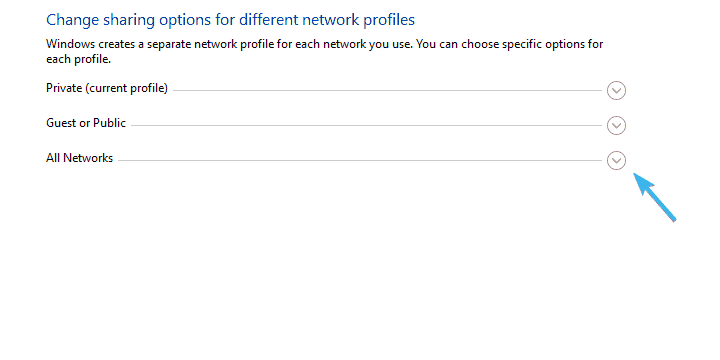
- Navigate to the bottom and select to Turn off password protected sharing.

- Save changes and exit.
2. Change Outlook settings
Outlook security settings are the most common reason for the Windows Security pop-up. Now, there are a lot of variations on the subject and various solutions roaming around. However, the most probable solution is hidden within Outlook’s Account settings.
Here’s what you need to do in order to disable repetitively occurring Windows Security prompts:
- Open Outlook.
- Open ”File” from the main menu.
- Choose Info and then Account Settings.
- Choose the E-mail tab.
- Right-click on the account that inflicts Windows Security prompt and select Change.
- Select More settings.
- Under the Security tab, uncheck the ”Always prompt for login credentials” box and confirm changes.
- Click OK and save changes.
On the other hand, if you’re still constantly annoyed by Windows Security pop-up asking to sign in with who-knows-what credentials, make sure to check the additional steps.
3. Check Credential Manager
Some users managed to resolve the issue at hand by deleting certain credential inputs from the Credential Manager. During the creation process of an Outlook account, you might have made a slight mistake.
It seems that it’s related to credentials check input, forcing the Windows Security pop-up to reoccur frequently. Follow these steps to delete Outlook-related inputs from the Credential Manager:
- In the Search bar, type Credential and open Credential Manager.

- Open Windows Credentials.
- Look at the Generic section for Outlook-related credentials.
- Expand everything associated with Outlook and click Remove.
- Restart your PC and look for changes.
If you need more info on how to add, delete, or edit files in Credential Manager, we’ve prepared a complete guide that will help you understand better what it does and how to navigate it.
4. Reset Network settings
Finally, you can try resetting network settings. For some users, the issues started after small Wi-Fi network issues, which are common for various reasons. It seems that resetting the network fixes relentless credential pop-ups.
If you’re not sure how to reset network settings in Windows 10, follow the steps below:
- Press Windows key + I to summon the Settings app.
- Open Network & Internet.

- Select Status from the left pane.

- Scroll to the bottom and click on Network Reset.

- Enter your Wi-Fi credentials and reconnect.
If Windows 10 forgets your network credentials, check out this simple guide to quickly solve the problem.
That should be it. We hope that at least one of the enlisted solutions helped you address the bothersome Windows Security prompt.
In case you have an alternative solution or questions regarding the ones we posted, make sure to tell us. You can do so in the comments section below.
RELATED STORIES YOU SHOULD CHECK OUT:
Windows RT jailbreak tool released, still needs to be applied every time you reboot
Just recently, we learned about a way to run non-Windows Store apps on a Windows RT device via a circumvention method that requires tinkering with the portion of the RAM that instructs Windows RT on whether it should run unsigned code or signed code.
This jailbreak attempt was brought to Microsoft’s attention and the company issued a statement not only applauding the jailbreak attempt, but also hinting that this circumvention method will most likely be gone in the near future.
Now, a jailbreak tool has been released which is based upon the circumvention method discovered recently. The jailbreak tool is simply a batch file that does most of the work for you so you can run unsigned apps, but will need to be re-applied every time the system is rebooted. Microsoft recently hinted that a patch would be coming soon in an official statement regarding the jailbreak. In response to that, the maker of the jailbreak tool had this to say: “They can patch it through Windows Update, but since we have the ability to reinstall from recovery partitions we can revert any Windows Updates they release.”
This is obviously another step towards a full working jailbreak for Windows RT. Microsoft recently applauded the jailbreak attempt and it is unsure if Microsoft will make a big deal about it. “We applaud the ingenuity of the folks who worked this out and the hard work they did to document it. We’ll not guarantee these approaches will be there in future releases,”Microsoft originally mentioned in an official statement.
Calculator X8 for Windows 8, RT, Windows 10

A good calculator that you can rely on is always a good tool to have handy. Although every operating system comes with an integrated tool to do all your calculations, sometimes these will will not be to the liking of everyone.
Although the integrated Windows 8, Windows 10 Calculator has all the features one could want, its interface is less than appealing, and a good alternative for it comes in the form of Calculator X8, a free app from the Windows Store.
A good tool for day to day use

For normal usage, this tool is perfect, making simple calculations is a breeze, thanks to its awesome interface and fairly big, easy to push buttons. On a laptop or a computer, you can use the number pad for making your calculation, but overall, the app has a pleasant look. It comes with three themes, one being the Windows 8, Windows 10 theme, there is the Windows 7 look and the classic XP theme. These can be changed via the Settings button in the Charms Bar.
On the functionality side, the app offers the basic calculator and a scientific calculator with most of the normal functions that one would need. The interface is split into two areas, one for the scientific functions and one for the number pad, each having the same easy to push buttons.

The only drawback of these otherwise awesome app is the lack of more specialized calculations that are present in the pre-loaded app. Features like unit conversion, programmer calculator or currency converter are not present, but we hope to see them in future updates.

Overall, Calculator X8 for Windows 8, Windows 10 is a pretty decent tool that can appeal to most users who do not need other functions than the simple arithmetic and basic scientific functions. It’s interface is far superior to the pre-loaded Windows Calculator and with the addition of the missing features, we think it could become the perfect replacement.
Microsoft confirms Windows Live Messenger service retirement on March 15th

Just recently, we learned that Microsoft plans to retire Windows Live Messenger in favor of Skype. Microsoft officially announced that Windows Live Messenger and Skype will become one back in November of last year and encouraged all Messenger users to update to the latest version of Skype to begin the transition.
In an email to Windows Live Messenger users, Microsoft confirms that the service will retire on March 15th (except for China, which will continue to see the service for a little while until Microsoft announces further). Microsoft continues to urge Messenger users to make the move to Skype by downloading the latest version of Skype for their instant messaging and video chat needs.
Test your Logo Knowledge with 3D Logo Quiz for Windows 8, Windows 10

3D Logo Quiz for Windows 8, Windows 10 is a game where you see how many logos there are, but don’t go search for easy answers as the best way to play this game is the hard way

This day and age we’re constantly bombarded with information coming from all around us, and much of that information is in the form of commercial of diverse companies that try to promote their products. Because of this, we have come to be familiar with most companies and their logos have imprinted in our minds.
This game is based exactly upon this fact and it puts our knowledge of logos to the test. 3D Logo Quiz is a freely downloadable game from the Windows 8, Windows 10 Store that allows users to compete with their friends and see who knows more companies, of just as a tool to see how much are you affected by today’s marketing.
How is the game?
In just a few taps after opening the game you are ready to play. There are no complicated menus or settings, just open and play the game. Although, there is a options bar at the bottom of the main screen, where you have the possibility to turn the sound on or off, access the website of the developer or reset your progress.
The buttons for Facebook or Twitter do nothing more than open the developer’s pages, but there is no real integration to the game that would allow you to play or compare scores with your friends. You can only create an account on their website so you can appear in the leaderboard. This feature would have great to be available in-game, but we hope that future updates will change this.

Also on the main screen, you can access the Leaderboard, where you can see the top players and their scores and you have your Statistics at the bottom of the screen. For those aggravated by the ads in the game, from the main screen they can access the Remove Ads button which will open the Buy More Coins window, where the option for add removal is also present.
When you get passed the main screen you will see the levels menu, where you can choose what level you want to play at. The game is linear and (I know, strange choice of words for such a game) it does not allow you to play higher levels until you get the necessary number of coins. Keep in mind that this is not that easy, as you will need 300 coins to unlock each level.
At first, you might think that it’s easy to make the necessary coins, but keep in mind that each level allows you to make only 350 coins, and sometimes you will need to use the hints. There are three hints that player can use, the first one costs 10 coins and it gives you a description of the company, the second one gives you the partial name and it costs 20 coins, but it cannot be used until the player has already used the first one, so in a manner, the second hinst costs 30 coins, and the last hint costs 50 coins and it resolves the puzzle for you.

There are 35 logos in each level and you have to correctly type the name of the companies to solve them. Luckily, the game gives you an idea if you are close to the name by showing an “X” for wrong and an approximate sign for names that are almost right.
The logos are not always complete, and for those who incorporate the name of the company within them, you will have only a partial logo to go on, and this can prove quite difficult some times, although most of the time, you will need no help.

One other annoying aspect of the game is the fact that if at any point you complete all the puzzles in one level, but you do not have the necessary 300 coins to advance to the next one, you will have to reset all the progress and start over, or buy coins.

Overall, the game is quite interesting and somewhat entertaining. The graphics are pretty good and to be honest there is not much else we could say. Although I won’t be playing the game regularly, it still is a good game to pass a few minutes of your time while waiting for the bus.
Microsoft’s Visio 2013 to come in three editions: Standard, Professional, and Pro for Office 365
Microsoft has revealed that its 2D-object drawing application Visio will come in three flavors: Microsoft Visio Standard 2013, Microsoft Visio Professional 2013 and Microsoft Visio Pro for Office 365. Microsoft has also provided a summary of the main functions available in each of the editions (as seen in the below image).
Microsoft Visio Standard 2013 is designed for people looking for a powerful diagramming platform with a rich set of built-in stencils. Visio Professional 2013, on the other hand, has all the features of Standard 2013 but also comes with updated shapes and templates; enhanced support for team collaboration; and the ability to link diagrams to data. Microsoft Visio Pro for Office 365 will be available via a subscription through Office 365 and comes with the same features in Professional 2013 and Visio on Demand. Visio Pro for Office 365 can be installed on up to five PCs running Windows 7 or Windows 8.

Windows 95 seen running on Windows RT, BOCHS and more ported to ARM
Well, it looks like the jailbreak community for Windows RT is a go, as today it appears that a hacker by the name of Netham45 on the XDA forums has managed to successfully port PuTTy, TightVNC and BOCHS to Windows RT, which means Windows 95 can be seen running on Windows RT here. While most things work, things like networking do not.

Porting Windows applications to ARM is a tricky job, and requires loading and rebuilding apps (.net 4.5 only) in Visual Studio 2012 with a workaround, it involves a lot of trickery and isn’t recommended you do. Also, since many Windows libraries are missing in Windows RT, some programs won’t even run, even if they are ported to ARM.
Microsoft recently commented on the Windows RT jailbreak, saying that they “applaud the ingenuity of the folks who worked this out and the hard work they did to document it,” however they also stated that the exploit may not be in future versions of the Windows RT operating system, which may be a shame for some.
Dropbox for Windows RT, Windows 10 [Review]

The official Dropbox app for Windows 10, Windows 8, Windows 8.1, and Windows RT users is one of the best cloud storage tools. Read our review from beliew and what are our impressions

It’s been a long wait for the Windows 8, Windows 10 Dropbox app, but it’s been worth it! The app is up on the Store, free to download and use by any user worldwide. Although its competitors have already published apps, it seems that the developers of Dropbox have taken their time for developing the app.
The time was well spent, and the Dropbox app for Windows 10, Windows 8 is up and working perfectly! Although it needs some updates and a few features to be added, it looks and works flawlessly. The base for the future features is rock solid, the first sign of a good app.
General Impressions of the Dropbox App
The Dropbox app for Windows 10 is fairly simple. Its interface is very simple, and the developers have adopted Windows 10. Windows 8 Tile look, but also kept to the traditional Dropbox look and created a balance between the two. The service is still as easy to use as ever, and thanks to its intuitive and simple UI, it can be used by anyone.
The app integrates perfectly with any Windows 10 machine, allowing users to share files from other apps to their Dropbox folder, and also share Dropbox files with their contacts or via email.
Also, the app allows users to open and edit files directly from within the app, although when opening videos, the app will forward users to the Windows 8, Windows 10 Media Player.
Sharing is done via the Windows 10 Charms bar, and also from the Charms Bar, users can search their Dropbox folder with great speed. This shows us that the app is properly developed, and when it will have some other features, it will become one of the best apps for cloud storage.

Unfortunately, there is not much else to talk about regarding the app. Currently, it is still limited in features, for instance, there is no upload feature in the app. Delete function is also missing, and when right-clicking on a file, it does not show any options.

For now, the app could be considered a really good file browser, but with no options for managing your files, such as move, copy or delete. Also, for the moment, there is no “Refresh” option, but we hope that it will be available in future updates, along with the other missing features.
Windows Store app highlight: Box, lets you access, edit, and share your files
Looking for an app that lets you access, edit, and share files, images, and videos? Box is a great alternative to Dropbox and offers you 5GB of free space. Check it out!

Very similar to Dropbox, and Sugar Sync, the Box app lets you share folders with colleagues and turn any folder into an online work space. You can invite people to view, share, edit, and upload files; store multiple versions of a file, download previous versions for reference, and use the same sharing link, even as new versions are uploaded. You can also manage files and folders with batch move, copy, and delete operations, save files from other apps to your box account, and access Box files from within other apps.
To use Box, you will need to set up a Box account at Box.com. The Box account gives you 5 GB free, and offers tiered pricing for other storage needs. It also features a desktop application that will allow you to sync files to and from your desktop.
So, if you looking for great online storage and a whole lot more, get Box! The app is available for free for Windows 8, and Windows RT
Researchers claim they have bypassed Microsoft’s Internet Explorer zero-day fix-it patch
A malicious JavaScript was found exploiting a vulnerability in Internet Explorer 6, Internet Explorer 7, and Internet Explorer 8, while Internet Explorer 9 and Internet Explorer 10 were not affected. The zero day flaw came to light after the Council on Foreign Relations website was hacked and was hosting the code as early as December 21st.
Microsoft issued a temporary Fix-it patch for the vulnerability but now researchers are claiming that they have bypassed the patch and were able to compromise a fully-patched system. “After posting our analysis of the current 0day in Internet Explorer which was used in a “watering hole” style attack hosted on the Council for Foreign Relations website, we decided to take a look at the Fix It patch made available by Microsoft to address the vulnerability. After less than a day of reverse engineering, we found that we were able to bypass the fix and compromise a fully-patched system with a variation of the exploit we developed earlier this week,” the researchers stated.
The researchers have notified Microsoft with details of how they were able to bypass the patch and Microsoft is still working on releasing an official patch.
Steven Sinofsky launches new ‘Learn by Shipping’ blog, over a month after departing Microsoft

We learned recently that former Microsoft Windows head Steven Sinofsky was planning on returning to Harvard University to teach and engage in “new perspectives” as well as “share experiences.” After abruptly leaving Microsoft over a month ago, Sinofsky revealed that he is also launching a blog called “Learn by Shipping.”
“The title comes from something impressed upon me early in my career, which is that learning as an engineer comes from the process of starting, then finishing, and iterating on products–getting products to market and putting the broad feedback loop to work. The teams and processes used to create products are critically important and fun to talk about relative to shipping and learning as we search for the best approaches to use at a given time,” Sinofsky mentions in his blog.
Sinofsky made it easier for the Windows community to engage and learn about new Windows 8 features during the operating system’s development by posting blog entries on the Building Windows 8 blog as well as other blogs. Now, Sinofsky’s new blog “picks up where these blogs leave off” and offers insights and perspectives on product development, management, and the process of bringing new products to market. Hit the source link below to check out the blog.
Credit to @windows4live for noticing the blog!
Internet Explorer 8 beats out Internet Explorer 10 in popularity, according to December 2012 market share

As December 2012 ends, new data from Net Applications points out that Microsoft’s Internet Explorer 8 is still more popular than Internet Explorer 10. In fact, Internet Explorer 9 is second most-popular right under Internet Explorer 8. Google’s Chrome 23 browser comes in third place in browser market share.

As you can see from the image above, Internet Explorer 8 leads the browser market share with 23.29% while Internet Explorer 9 has a 21.35% market share. Google’s Chrome 23 browser comes in at 15.42% share while Mozilla’s Firefox 17 comes in at 10.74% share. Internet Explorer 10, which originally started off as a Windows 8 exclusive browser then made available to Windows 7, only has a 0.96% share. While Internet Explorer 10 has only been in the market for four months, Internet Explorer 9 has been available for over three years. Based on the data provided, Internet Explorers 6, 7, 8, and 9 have more market share than Internet Explorer 10. As the browser matures, we expect to see the share climb fast.
Windows Store app highlight: Craigslist+, an unofficial app for the popular classified ads website

Looking for a Windows 8/RT app for your favorite classified ads website Craigslist? Look no further. Craigslist+ brings you all the classified ads you desire on your Windows 8 or Windows RT device and even automatically finds nearby cities around you as well as the ability to search in multiple cities. This app comes packed with features!
Once you agree with using the GPS position, Craigslist+ will automatically find nearby cities around you. Users can simultaneously search in multiple cities, as well as use filters. Users can also modifiy the search result page to show a grid view, photo view, map view, split view, and detail view. Users can save searches and save favorites as well as the ability to reply directly to posters. On top of all that, users can even post their own advertisement and share postings via the Share Charm. Craigslist+ also supports Live Tile functionality in Windows 8/RT. Overall, a great app for those who love to visit Craigslist. You wont have to visit the site in your web browser anymore thanks to this app.
Hit the download link to grab this app. It is free and available for both Windows 8 and Windows RT. We have also provided a link to the ads-free version of the app called Craigslist+ Pro, which runs for $1.99.
Windows Store app highlight: Search All, lets you search across multiple search engines with ease

Trying to do research or looking for a specific item but dont feel like typing every single search engine URL into your browser? Search All app saves you some time. This app is pretty cool as it allows you to search across multiple search engines with ease!
“All your favorite search engines are present at one place, enabling you to search contents much faster and efficiently. You can search for contents across following websites: Google, Bing, Yahoo, YouTube, IMDB, Dictionary.com, Wikipedia, Facebook, Twitter, Google+, Amazon, eBay, Netflix, CNN, Digg, Tumblr, Flickr, Picasa, Blogger, and WordPress. This app saves you a lot of time. All you have to do is type your search query and pick which search engine or social media site you want to search. Once you find what you are looking for, there is an option to open that URL in your favorite internet browser. This app is free, weighs 574kb, is published by Shadowfax apps, and is available for both Windows 8 and Windows RT. Hit the download link below to grab it.
Expedia Hotels: Windows 8, Windows 10 Hotel Search Engine App

Although Christmas just passed, those late travelers wanting to go somewhere to celebrate the passing to a new year can still get some great offers from hotels around the world. But for this, they need a good and reliable hotel search engine. If this the case, then Windows 8, Windows 10 offers a great solution in the form of a booking app.
The app in question is Expedia Hotels, and from what we’ve seen, it’s one of the most complete apps for searching for accommodations. The detailed information that is contained within the app is incredible, and on top of this, its functioning is beyond reproach.
Expedia Hotels for Windows 8, Windows 10

Expedia offers users the possibility to search and book hotel rooms in any part of the world, and thanks to its detailed information, you can choose the best suited room for you. Also, the app’s simple user interface and very fast responses ensures a flawless and productive search. Also, one thing worth mentioning here is the fact that the app performs very well even on a slower Internet connection.

When opening the app, you will see a simple menu that asks you where you want to go, for what period you wish to stay there and how many people are in your group. After filling out this information, the app will search for the best hotels in the area you have chosen, and it will return you a list of hotels, complete with photos and rates. Now, you can filter the results based on price and rating of the hotel.

When you have picked a hotel, you can search for it on the integrated map, which will show you all the results that the app found, or you can access the hotel and see lots more information about it. The contains a detailed list of facilities for almost all the hotels it lists, as well as photos, user reviews and rooms and rates.

Also, at the end of the page, you will be able to see all the hotels that you’ve recently viewed, if at any point you wish to compare them. If you are decided that you would like to book a room in one hotel, all you have to do is click or tap the button in the upper right corner of the screen, where it shows the price.

This will forward you to the booking page, where the final details of your check-in will be shown (period, rooms, number of guests) and it will calculate the total amount of money you will have to play (also, it will show you how much you pay on each day). All that is left now is to complete the information required for booking and you are all set.
The app has functioned flawlessly throughout our test, giving us relevant results each and every time, as well as rock solid stability, not having any crashes of any nature. Overall, the app is brilliant: easy to use, fast and user friendly, so if you are at any time in need of a Windows 8, Windows 10 booking app, Expedia Hotels is the way to go.
ESPN App for Windows RT, Windows 10 [Review]

ESPN: the best sports news app for Windows 10 users? Sport is a great way to keep fit, but it also consists of one of the world’s biggest entertainment mediums.
Most of you are big sports fans, with favorite teams or players, and because you are so devoted, you want to see the latest news from sports and about your favorite teams.
One of the biggest authorities in the world of sports news is ESPN. This service extends through almost all types of sports and provides coverage for every event, big or small, in the world of sports.
Also, ESPN offers users of Windows 8, Windows 10, or RT the possibility to install the official ESPN app on their devices and be on top of all the news in the sports world.
ESPN for Windows 10, and RT – A great app

Windows 10 and RT users who would like to install the ESPN app must know that they can do so for free, and with only a few taps, they will be able to have one of the most outstanding news apps of all. To put this into perspective, ESPN is for sports like the Financial Times is for investors.

The app’s design is gorgeous, with stunning graphics and a layout that constantly makes you think it is on the move. Also, on the main screen, you can access information on different sports, stories, magazines, videos, and photos.
Of course, you can select only one sport if it interests you the most and see the latest headlines from that area.

By clicking on one particular sport, you can see the national leaderboard and other information, apart from the different stories and videos on the page. Also, here you can access information on a particular team. This information includes team members, recent scores, the next games, etc.

Another very interesting feature of the app is the ability to browse through all the different sports that are available by right-clicking on any part of the screen.
This will bring the options menu up, which I’m pleased to say, is one of the best designed so far, offering lots of options and information like team information or ESPN radio.

If you log in to your ESPN account, you will be able to set your favorite teams, players, or sports, and you will receive customized information about your favorites.
Also, you will be able to see live scores in the options menu and the main part of the screen. These features are all awesome and make this app one of the possible sources of information you could ever wish for.
Every true sports fan should use this app to get the latest and greatest information on their favorite teams. After extensive testing, I can’t find anything wrong with the app, except that the ESPN services are not worldwide but limited to the US.
We hope that the ESPN system will be able to relay information from different countries, and then the app will be even better.
Play Puzzle in Windows 8, Windows 10 With PuzzleTouch App

Puzzle games are always entertaining, and they also make for a perfect family activity. Although puzzles are always fun, one thing that has always bothered me with them is when one piece gets lost and you are left with an unfinished puzzle, not to mention the fact that the pieces can get damaged over time.
Although this tends to happen in real life more often than what we’d like, a virtual puzzle offers the a pretty close experience to what we are used to, and so, they are great alternative. Windows 8, Windows 10 also offers puzzle lovers a game that will allow them to complete puzzles and also create puzzles. The app is called PuzzleTouch and it is available for free in the Windows Store.
PuzzleTouch for Windows 8, Windows 10

The app is pretty straightforward and does not have any complicated menus or settings. Once you’ve entered the app, you will see a list of puzzles, grouped by their difficulty (the difficulty rating is based on the number of pieces a puzzle has), ranging from easy to difficult. Also, by using the Charms bar from Windows 8 and Windows 10, you can share the app with friends and play online (sharing is supported via email, Facebook and Twitter).

One feature of the app that caught my eye is the possibility to create your own puzzle from a picture on your computer or from a picture that you can take with your camera right on the spot. This will give you much more flexibility and it will be much more fun, solving a puzzle created by you.

Apart from this, the app is very simple, once you’ve completed a puzzle, it will give you a rating based on your time and you can advance to the next one. The possibility of creating your own puzzles will make the app much more entertaining because when you finish with the ones that are preloaded on the app, you can start creating your own.

Overall, the app is tons of fun, and for puzzle lovers, it is a great addition to their app collection. The app’s simpleness and fast performance is what makes one of the best puzzle game apps that we’ve encountered. Also, for those interested in other Windows 8, Windows 10 games, you should check out our reviews of:
Download PuzzleTouch for Windows 10, Windows 8
If you are interested to discover more games, you can check out our handpicked lists :
Watch Over Your Pregnancy with MayoClinic app for Windows

MayoClinic app for Windows 10 is very useful when you want to watch over your pregnancy. Having a baby is scary, and for first time parents, it’s harder still. Of course, there are countless means of getting information about the development of your baby, but many times the good information is hard to reach and it is written in medical terms that you or me can’t understand.
A solution to this problem comes in the form of a Windows 8, Windows 10 app, called Mayo Clinic on Pregnancy, which is free to download from the Windows Store and it contains all the information needed by parents. It gives them invaluable information for both early womb development and post birth development of their baby.
Mayo Clinic on Pregnancy has Great Information
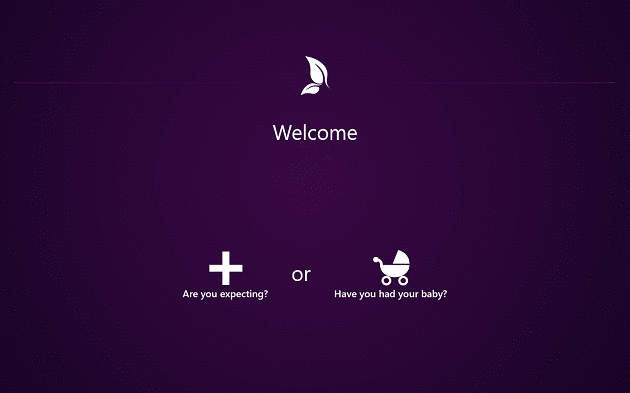
The app is divided in two categories, one give you information on each week of the development of the baby while the baby is still unborn, and the other is based on changes that occur in his or hers body after birth.
The information is presented in a way that anyone can understand, and for those willing to go beyond the description of the processes that occur in that time, there are in-app articles explaining in detail each change the baby undergoes and the changes that the mother will feel.
After birth, the app is still very useful, offering advice and a week-by-week guide that will help you learn some of the information that you will need. There are also detailed articles and images for most of the period that the app covers.
The app will cover the development of the baby for an additional 13 weeks after the birth, and if you read all the information that it gives you, there shouldn’t be any problem for you to understand what is going on.
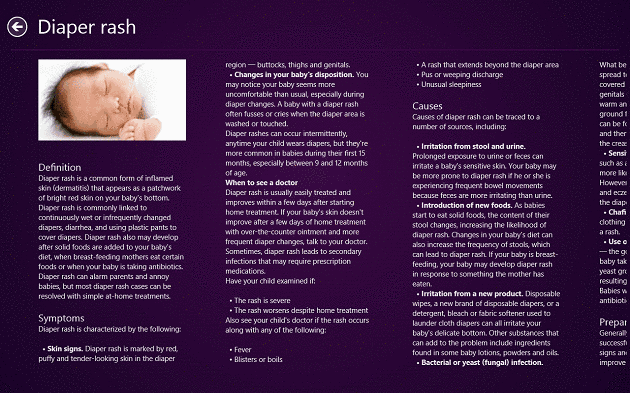
The user interface of the app is very intuitive and easy to use, and the extra information is easily accessible. This makes the app very user friendly and a pleasure to use for young parents. Also, the app allows you to search via the Charms bar for specific information.
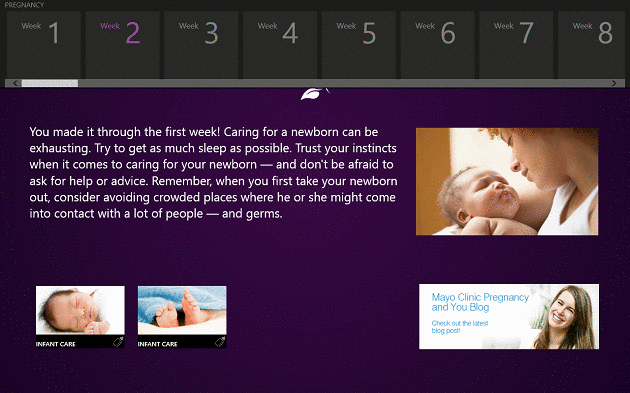
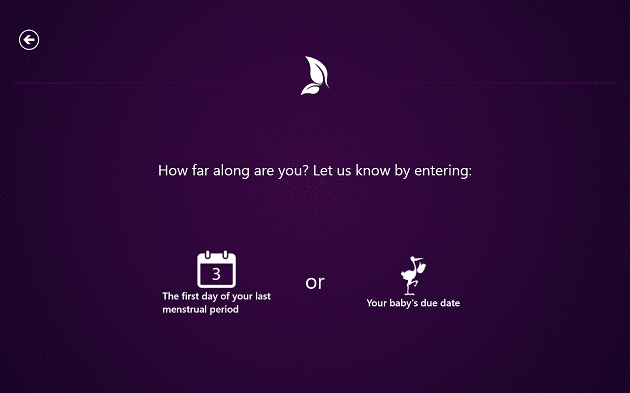
Overall, Mayo Clinic on Pregnancy is a awesome resource for young parents, and because it calculates how long in the pregnancy the mother is (based on the last menstrual period or by the manual input of the due date), it will give you always accurate details about your future baby.
Watch Tom and Jerry Completely Free in Windows 8, Windows 10

Who hasn’t heard about Tom and Jerry? Well, the great news for those of you looking to watch Tom and Jerry’s adventures for free on a Windows 8, Windows 10 tablet is that now you can with the app that we’re reviewing below!
Tom and Jerry was a show that almost everyone from our generation has watched. The two “best friends”, were putting a smile on our faces each day of childhood. I remember, when I was not at the local arcade, playing PacMan and Space Invaders, I was home, watching these two guys, and other awesome cartoons from the time.
Truth be told, even now, when I have the chance, I watch the show, and even after all these years, I still find the old cartoon to be as funny as it was back then. And for fans of this cartoon classic, there is way you can watch all the old episodes on your Windows 8, Windows 10 devices.
Tom and Jerry for Windows 8, Windows 10

The app that allows you to watch Tom and Jerry for free in Windows 8, Windows 10 is called…well, you’ve guessed it: Tom and Jerry. Its simplicity and ease of use are some of its most prominent features, and it allows virtually everyone to watch their favorite episodes, without spending countless hours searching for them on YouTube.
When you first open the app, it will ask you if you want to see the tutorial, which is a 18 minutes long YouTube video, explaining how the app works and how you can use it. Of course, this is what we also will be covering in this review, but nevertheless, a good idea, but it would have been better if users wouldn’t had to exit the app and go to the Desktop to see the tutorial.
When you have gotten passed the initial screen, you will see a list with all the episodes of Tom and Jerry, up to episode 161! Each episode has the name and thumbnail so you can quickly find a particular one if you wish so.

When you enter an episode, it will automatically search for it and start playing it. This will greatly depend on your Internet speed, but it usually finds and loads the episode in a matter of seconds. To make the video full screen, requires you to click or tap once on it. One very annoying thing about the app is the fact that the video is not centered, and even in full screen view, the add on the right side of the screen is visible.
Play and pause button is placed on the left of the screen, but only visible when you exit full screen view, and there are no volume buttons. Of course, these are just minor inconveniences, but the player should receive some upgrades in the future. For now, I’m happy that I can view one of my favorite cartoon of all time!
Get Infinite Cloud Storage with Bitcasa in Windows 8, Windows 10

If you are looking to get unlimited cloud storage in Windows 10, have a look at what Bitcasa is offering. Cloud storage services have been popping up all around these past few years, and they keep getting better and better, with more offers and more space. Today’s cloud storage services are pretty good, and by adding them up, you can make over 100 GB of free storage if you’d like. Although this is good, it is far from perfect, and with more service and more accounts the risk of losing one of them or mixing them up is pretty high.
A solution would be to use only one such service, and each provider offers the possibility to purchase more space on their service, but this can get pretty expensive. There has to be a solution to this problem, and to find it, we turn to the Windows Store, where there is an app that can put an end to all your troubles: Bitcasa – the infinite cloud storage service.
How to get infinite cloud storage in Windows 8, Windows 10

After downloading the Windows 8, Windows 10 app, the user has to sign in to his Bitcasa account, or create one from within the app if needed, and afterwords, download the desktop client, available on the Bitcasa website. Also on the website there are download links for the Bitcasa mobile applications for Android and iOS, as well as the Google Chrome extension.
After downloading and installing the client, the user can start uploading any files to their Bitcasa account, which, after the uploads are complete, they can view in the Windows 8, Windows 10 app. The app itself is very good looking but as far as functionality and general usage goes, it still needs some work until it will be at the level of its competitors.

Note: The uploading service is very similar to the other cloud storage services, such as Dropbox, SkyDrive and Box.com, with a folder on the computer where you can add files and they will be synced to the online account. Also, in addition, uploads can be done via the desktop client itself.
After using the app for a while, we found that it still lacks some basic features, such as account management, the possibility to upload files directly from the app or the ability to manage files (delete, create folders, move items). One other drawback of the app is the relatively slow loading time of images and files, which, by comparison to other services, takes ages, but then again, unlimited storage has got to count for something, right?
The Windows app is still in its infancy, and we very much hope that future updates will give users better performance in loading media and other management features. For the time being, the app supports playback of video and music, and has dedicated buttons for play, pause and playlist.

To sum it all up, Bitcasa for Windows 8, Windows 10 is an excellent idea, one that we are sure it will get pretty far and as soon as more people will start noticing it, it will become a sensation! For the time being, the service still has some issues that need to be resolved, but I say again: unlimited storage has got to count for something!
Update: Until recently, Bitcasa offered free infinite storage for its users. However, nowadays you only have 10 GB/account for free, and in order to benefit from infinite storage, you have to pay $99/year or $10/month. This isn’t a lot for the kind of storage they offer, and I guess it was expected. My personal account has almost 100 GB uploaded to it, and for the time being, the status is “Over Limit“. The service has evolved much, and the integration between the Windows 8, Windows 10 app, Android app and Desktop client is better than ever.

Download Bitcasa for Windows 10, Windows 8
SearchAll: Search With Multiple Search Engines in Windows 8, Windows 10

As far as Internet search goes, there is only one name that really stands out and makes the scale on which every other service is compared: Google. And, as we know in Windows 8 and Windows 10, there is a Google app that users can search with, but sometimes, even the mighty Google does not please, and you need to search elsewhere. Also, there are lots of different search engines for different things, and this is why a service that unites them all is needed.
SeachAll is exactly the service that does this. This Windows 8, Windows 10 app brings all the most commonly used search engines in one app and allows you to search the web like you never did before. The app is free to download from the Windows 8, Windows 10 Store and it provides a must have service that has been long awaited and overdue.
SearchAll for Windows 8, Windows 10 app review
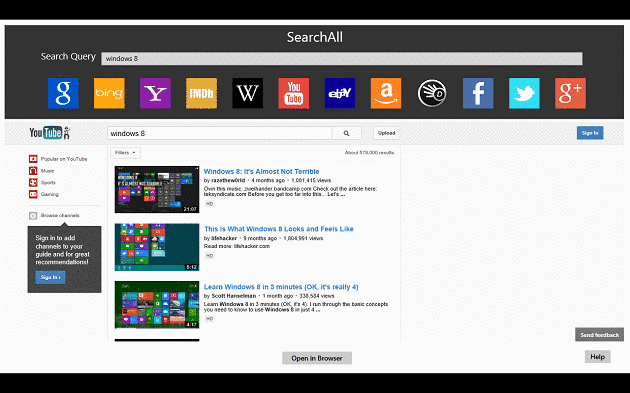
Upon opening the app, you will see a search bar where you can type your search query, and below it there is a list of all the popular search engines and websites that are commonly used. This search bar does not disappear when you browse web pages, being always there in case you need it. However, the option of auto-hide would have been good, as it occupies a great deal of screen real estate, and on smaller screens, you will feel that the web-page is too zoomed out.
Apart from this, the service works like any other web browser, and after some time using it, you will forget that you are using a app and not a dedicated web browser altogether. For those interested in what websites they can search using this tool, here is a list of what you can use:
- Yahoo!
- IMDB
- Wikipedia
- YouTube
- eBay
- Amazon
- Dictionary.com
- Google+
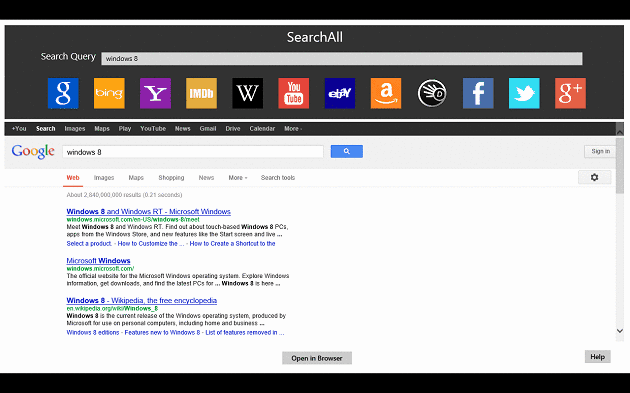
A option that is missing is the ability to add or remove custom search engines, but this may yet appear in future updates, for now, the app is wonderful and it provides an invaluable service for those who search the web frequently. Also, the app moves fairly quick, but this also depends on your Internet connections.
Overall, I am very pleased with the app and what it offers, and I see myself using it for a long time. I would recommend it to anyone in need of a good web searching app!
Christmas Food App Makes Cookie Preparation a Pleasure in Windows 8, Windows 10

This ingenious Windows 8, Windows 10 app will help you prepare delicious, tasty food for Christmas from the comfort of your tablet. Read to get more details!
Christmas is right around the corner and everyone making preparations for the perfect celebration. While some are shopping on Amazon and eBay, others are busy with cooking and creating the perfect Christmas dinner. In the help of those who want a little inspiration for the dinner party, we come with a Windows 8, Windows 10 app that will give them some ideas and tips in making the perfect sweets: Christmas Food.
This app is a great resource for those who want to make some great dishes and drinks for this special occasion. It provides its users with lots of detailed information and with a pretty impressive database of sweets and drinks, Christmas Food for Windows 10, Windows 8 is a great tool for everyone.
Christmas Food for Windows 10, Windows 8

As mentioned earlier, this app is a perfect resource for those who want to create incredible dishes and drinks for their Christmas dinner. The app is very simple to use, and uses the already familiar Modern UI style interface, with a menu extending to the right of the screen and the information grouped in categories.

Also, the different recipes can be sorted by a number of filters (accessible by right clicking in the app or by the filters button in the upper right corner of the app), including ingredients, cooking type, difficulty and many others. Once you’ve found a recipe that you wish to make, you can then watch a video tutorial and read the entire cooking process and of course, the list of ingredients which is shown under the video.

I would have liked to see better quality videos that explain the cooking process, but sadly most of them have poor quality that cannot be changed. Nevertheless, they are still very good and explain the process very well, so if you don’t mind it, you can learn quite a bit from them.

Unfortunately, the app has problems when searching for recipes, there is no in-app search bar but when you click on the “Search” button it opens the Charms bar search, and some times, when you have entered a word and hit “search”, the app creases immediately (although not all the time). I hope the developers will sort out this problem in future updates, but even still with this drawback, the app performs pretty good and it represents a very good resource.
So, this Christmas, you have at your disposal one of the best apps for creating sweets and drinks. Be sure to install it and see for yourself how great the app can be and how many awesome recipes you can make with it!