OneDrive has seen a lot of improvements lately, with Copilot starting to have a real impact on document management. However, the big problem with OneDrive is really locating your actual files within a clutter of data.
Well, according to the Microsoft 365 roadmap announcement, we should expect a fresh update of OneDrive Web version that will provide just that: easier and faster search. Here’s how Microsoft describes this improvement:
OneDrive for web now lets you find your files faster than ever with a new and improved search functionality. Say goodbye to the days of endlessly scrolling through folders to find that one elusive document. With our latest update, locating your files is now faster and more intuitive than ever before. Whether it’s in your personal OneDrive, shared folders, or document libraries, our improved search feature allows you to seamlessly sift through your digital workspace from one centralized location. We’ve added new filters for different file types, ensuring you can pinpoint exactly what you’re looking for and with the date filter, you can narrow down your search results to find files created or modified within a specific timeframe. We understand that searching within a folder or document library is important to you, and for that, we have simplified scoping options that will enable precise searches within folders, sites, or document libraries. We’ve also visually updated the interface with more metadata, ensuring you effortlessly identify the right files every time.
What do you get with the new OneDrive Web?
So, to narrow things down, you will be able to search through all your documents stored on OneDrive from anywhere you’ve uploaded them. Next, you will access new filters for different file types, and sort them based on the date they were created or modified last. Lastly, we can also expect an improved interface that will include more metadata for your files.
The update is scheduled for a June rollout so that means we will see it really soon. We’re talking about the OneDrive Web, so you don’t need to do anything special to get it, just to open the app in a browser.
What do you think about the new OneDrive Web features? Let us know in the comments below.
Have you ever wondered the difference between a Microsoft account and a local one on your Windows device? Microsoft has been nudging users to embrace the Microsoft account for a good reason.
They believe it offers a more integrated and secure experience across their services. But let’s dive into what this means for you and me.
A local account is tied to one device—like having a key to a single room. You don’t need the internet to sign in, and your settings, files, and applications stay on that one device. It’s straightforward but somewhat limiting if you use multiple devices or enjoy the perks of cloud services.
A local account is created on the device and doesn’t require Internet connectivity to sign in. It’s independent of other services, and it’s not connected to the cloud. Your settings, files, and applications are limited to that single device
Microsoft
On the other hand, a Microsoft account is like a master key to several rooms. It’s linked to an email address and password used across various Microsoft services, such as Outlook.com, Hotmail, Office, OneDrive, Skype, Xbox, and Windows.
When you sign in with a Microsoft account, you’re not just accessing your PC; you’re connecting to a cloud service that syncs your settings and files across devices. Plus, it’s your gateway to other Microsoft goodies.
A Microsoft account, on the other hand, is associated to an email address and password that you use with Outlook.com, Hotmail, Office, OneDrive, Skype, Xbox, and Windows. When you sign in to your PC with a Microsoft account, you’re connected to a Microsoft cloud service, and your settings and files can sync across various devices. You can also use it to access other Microsoft services
You might wonder, “What if I use a local account and want to switch?” Microsoft has made it pretty straightforward through the Settings app. They’ve even provided a guide for those looking to switch, emphasizing the benefits of a Microsoft account over a local one.
The process involves selecting ‘Sign in with a Microsoft account instead’ under your account settings and following the prompts.
But what if you’re on the fence and considering the opposite switch? Microsoft has covered that base, too, with a guide on moving from a Microsoft account to a local one.
However, they’re clear: a Microsoft account is recommended for a more seamless, secure, and integrated Windows experience. But the Redmond-based tech giant is making it look bad.
The choice between a Microsoft and a local account boils down to what you value more: simplicity and device-specific use or a more interconnected, secure, and versatile experience. Whichever path you choose, it’s good to know Microsoft has provided clear guides to help navigate these waters.
Connecting peripherals to your Windows 11 PC requires proper management for a seamless connection so here’s a quick guide to manage your devices and printers settings.
A malfunctioned printer can cause issues with your printing and cause your system to slow down. If your printer is not printing, you’ve probably neglected it by not updating its drivers promptly or its printer firmware.
Effective management ensures your print jobs are seamless and an unresponsive printer is not your portion, elevating your overall experience.
How do I manage my devices and printers in Windows 11?
1. Access device and printer settings
1.1 Access device and printer settings
First, click Start on your taskbar to bring up that menu.
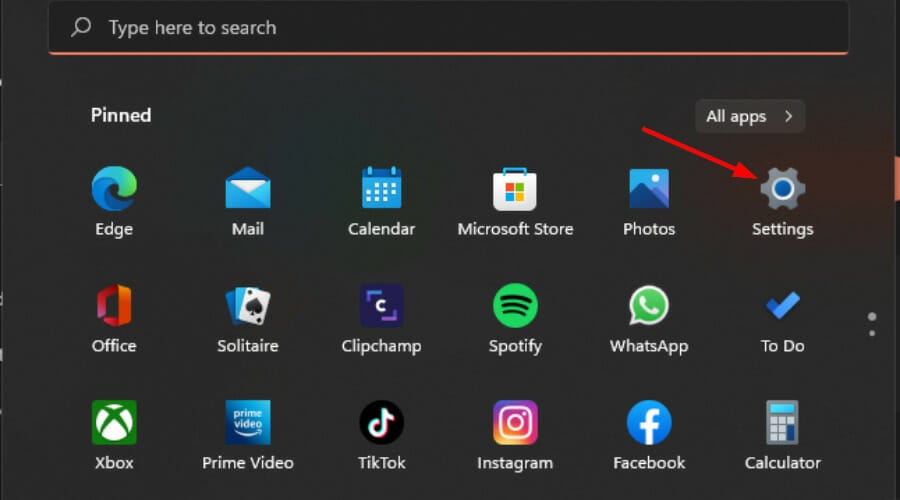
Select Settings on the Start menu.
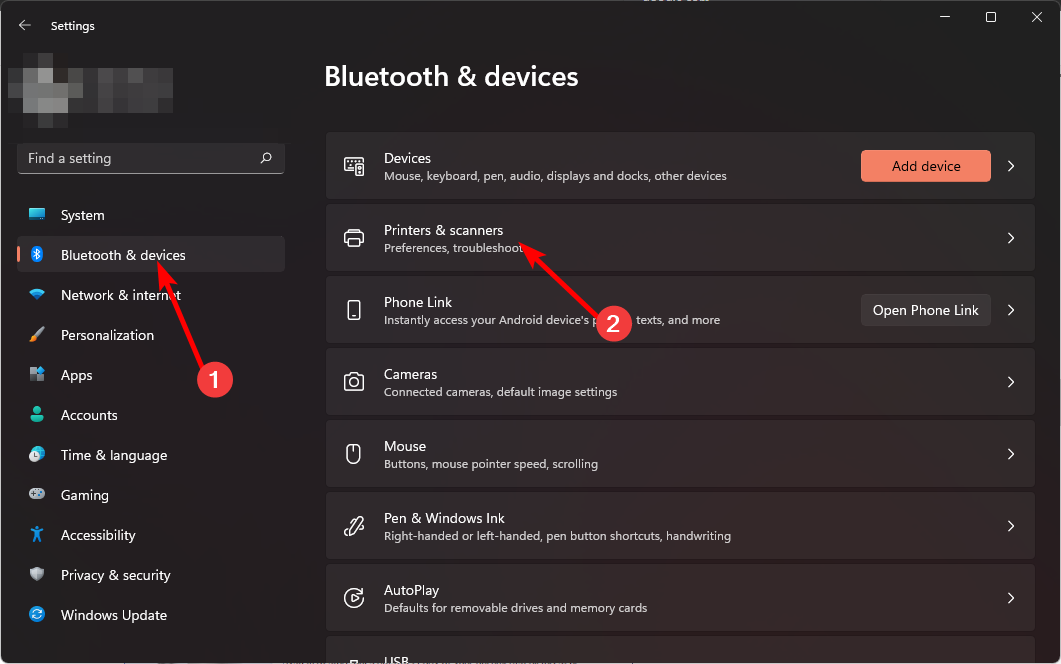
Click the Bluetooth & devices tab in Settings then select Printers & scanners on that tab.
Click on one of your printers and your Printer settings will open. Here, you can run the troubleshooter, check printer properties, adjust your printing preferences among others.
1.2 Update printer drivers
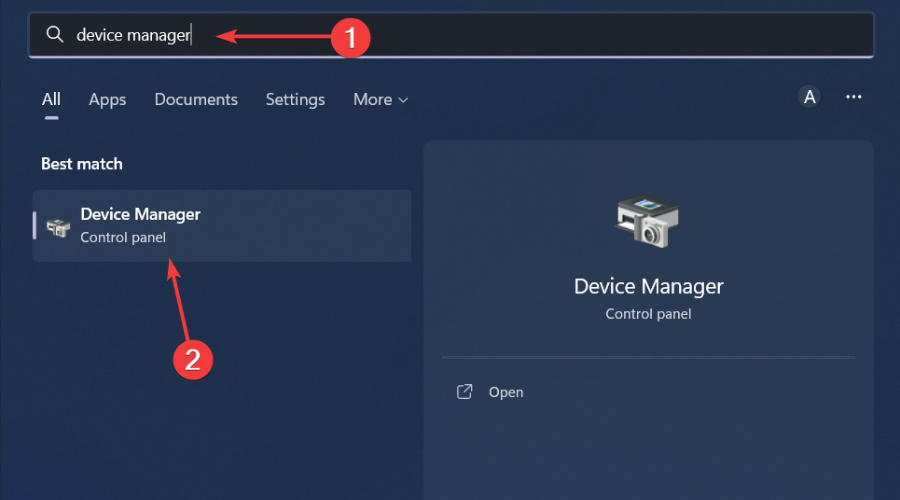
Hit the Windows key, type Device Manager in the search bar, and click Open.
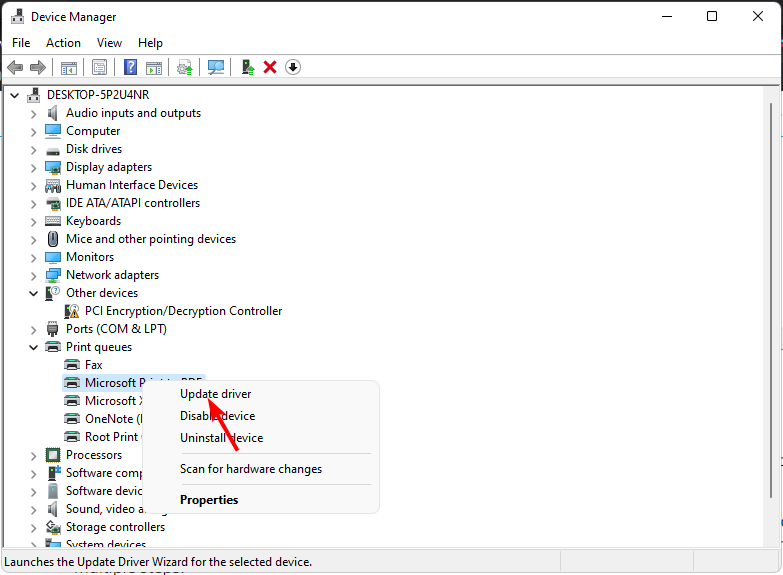
Navigate to Printers and locate your printer.
Right-click on it and select Update driver.
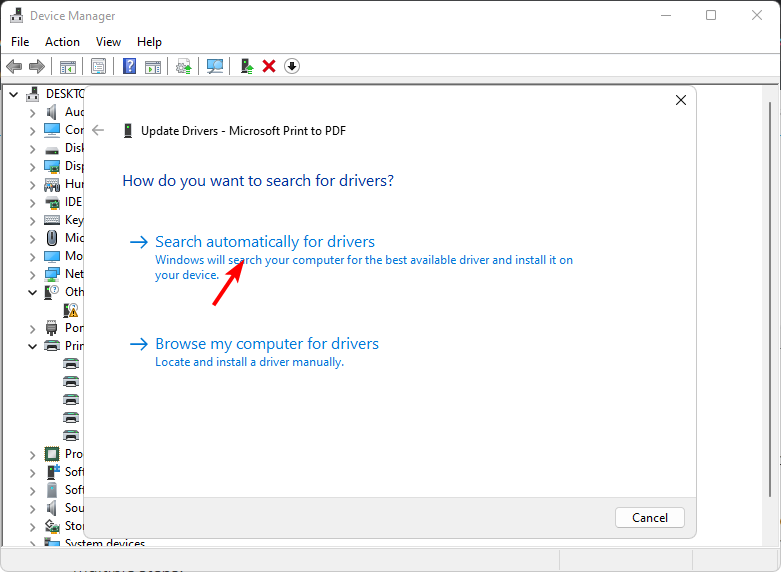
Select Search automatically for updated drivers.
Windows will find the most suitable driver and recommend you install it.
Click on Bluetooth & devices, then select Printers & scanners.
Select the printer you wish to rename.
Click on Printer properties.
Navigate to the General tab, type in the new name, then hit Apply and OK to save the changes.
4.2 By using the Control Panel
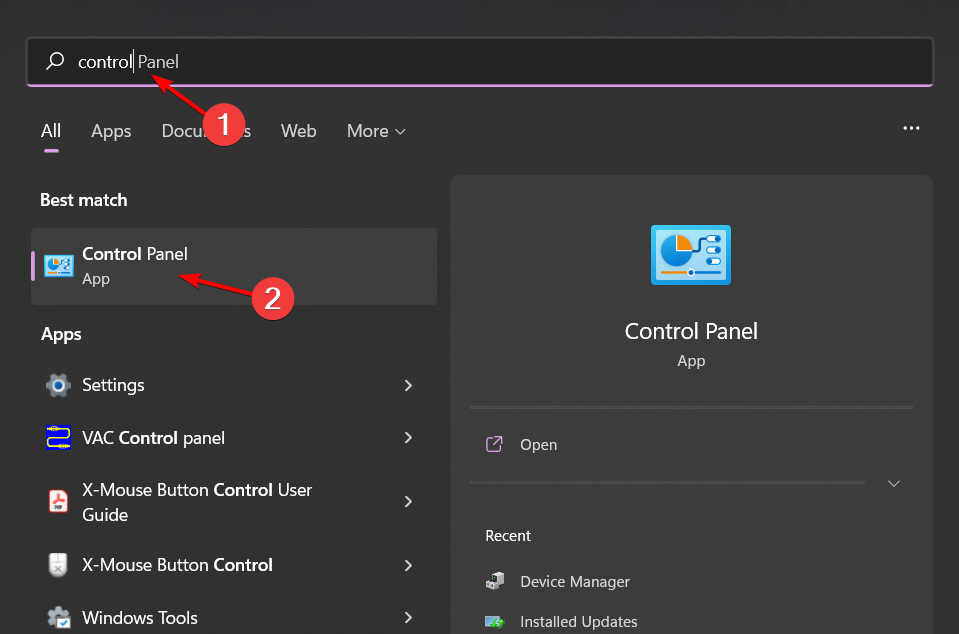
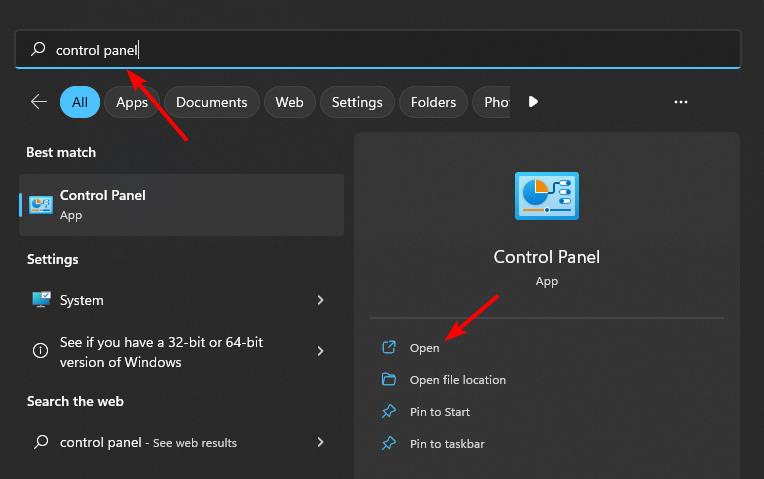
Hit the Windows key, type Control Panel in the search bar, and click Open.
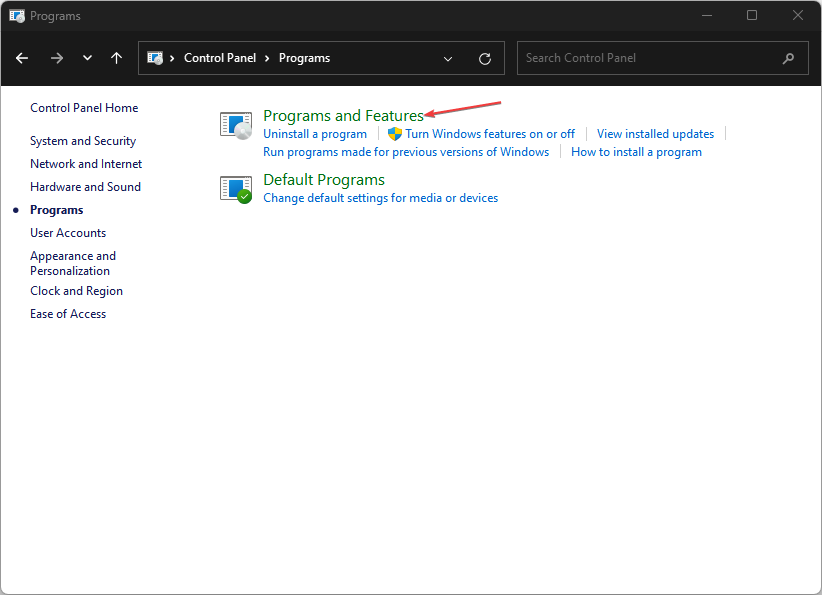
Click on Hardware and Sound >select Devices and Printers.
Right-click on the printer you wish to rename and select Printer properties.
Navigate to the General tab, type in the new name, then hit Apply and OK to save the changes.
5. Install the printer management feature
Press Windows + I to open Settings.
Click on System from the navigation pane, and then click on Optional features on the right.
Now, click the View features button next to Add an optional feature.
Enter Print Management in the search box, tick the checkbox for the tool, and then click on Next.
Click on Install to begin the process.
Wait for Print Management to install on the PC completely.
Once done, restart the computer for the changes to come into effect.
Print management is an optional feature which means it is not added by default. It is also not available on all Windows editions so if it is missing, your edition is probably the issue. For more information on how to manage optional features, check out our detailed article.
Once installed, you can manage your printer, add a new printer and configure its settings. Printer configuration issues tend to occur when you do it manually so try this feature and see if the process is error-free.
How to troubleshoot common issues
You can easily troubleshoot printer problems with Windows built-in printer troubleshooter.
Hit the Windows key and click on Settings.
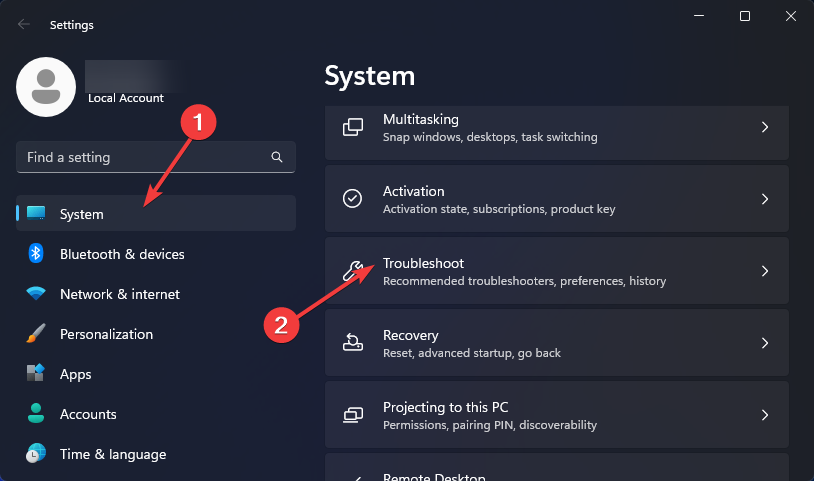
Select System on the left pane, then click Troubleshoot on the right.
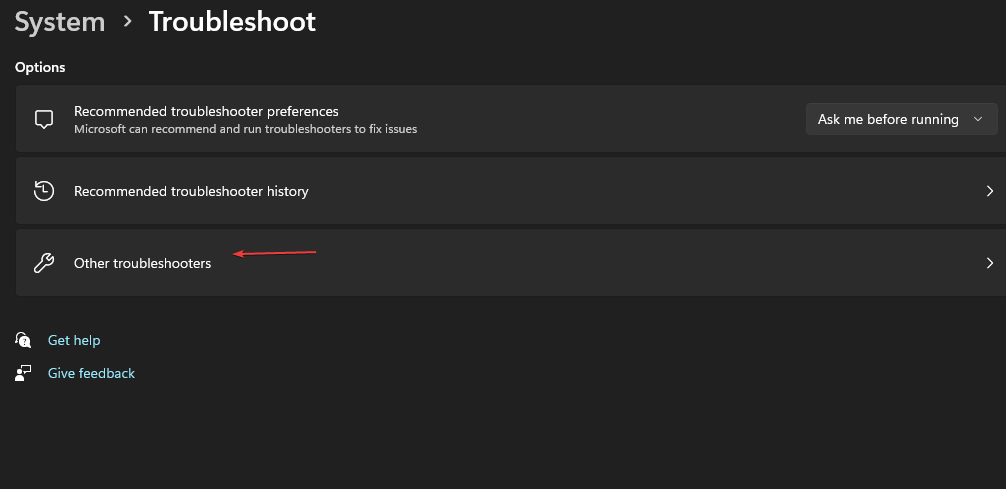
Click on Other troubleshooters.
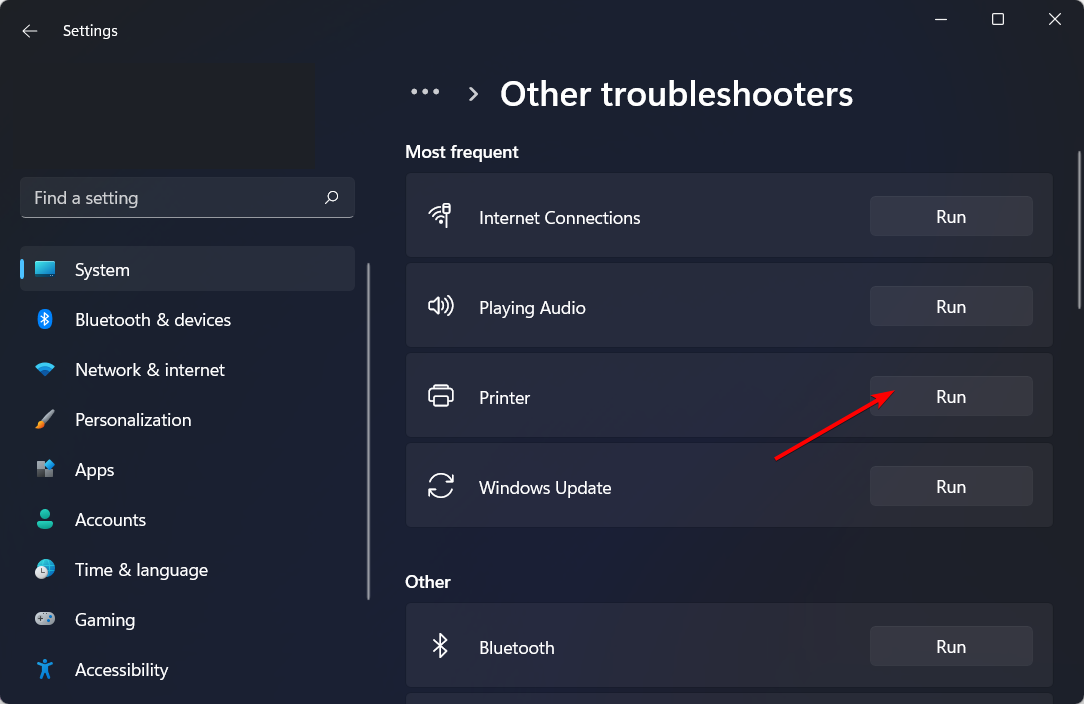
Find the Print troubleshooter and click the Run button next to it.
For deeper diagnostics and automatic fixes, try using the HP Print and Scan Doctor. It quickly resolves printing and scanning errors on Windows 11 devices.
You can quickly confirm that your printer and drivers are working correctly by printing a test page in Windows 11 before starting longer print jobs. You can also review your printer activity, and the guide on how to check print history in Windows 11 helps you confirm that each print job reaches your device correctly.
To ensure your devices and printers are properly maintained, keep our drivers up-to-date, do routine check-ups and keep it clean.
Finally, while all these tweaks are built-in, you may want to ease your load by downloading printer management software. These tools can make your work easier by automating a majority of these tasks. Some even have advanced features that can help you troubleshoot common printer problems.
And in case you’re on the look out for a new printer, we have a collection of all-in-one printers that we think will be a perfect match for you.
Hopefully, with these tips, you can now make your printer work for you and get the most out of it. If you have any additional tips on how to better manage your device and printer settings on your Windows 11, we’re happy to hear them. Drop us a comment down below.
Within the wide and constantly changing realm of technology, myths, and misunderstandings are as frequent as the latest software update. In its latest blog post, Microsoft sought to address some of these myths while making bold statements that will undeniably trigger some Windows users.
Among those myths, the Redmond-based tech giant wants to calm down users who may think the step from Windows 10 to Windows 11 is huge. It’s not, and actually, Windows 11 is just an extension of Windows 10.
From talks with businesses both large and small around the world, certain repeating factors show that accepting Windows 11 along with tools native to cloud like Microsoft Intune or Microsoft Entra ID is not so difficult. The tech giant says moving onto Windows 11 is similar to a normal feature update for Windows 10. Created on an identical base, it provides better security, work efficiency, and user encounters while sustaining app compatibility
The fact is that Windows 10 to Windows 11 is, by design, the same as a Windows 10 feature update. If you’re like most organizations, feature updates aren’t major projects. Windows 11 is built on Windows 10, even carrying a Windows 10 version number for the highest compatibility. So, you can take a more business-as-usual approach to this upgrade.
Another common misunderstanding is that to deploy Windows 11, you must adopt a cloud-native approach. But, the truth is that if your current system runs on any supported edition of Windows 10, moving to Windows 11 can be done using the tools you already utilize. For IT admins, this involves using the current infrastructure to introduce Windows 11 and reduce effort and effects. If you are already involved in a cloud-native approach with Microsoft Intune, it’s an added advantage to keep moving ahead.
Many people worry that upgrading will cause problems with their apps. Yet, for the most part, this is not true for Windows 11. The Redmond-based tech giant says there is a 99.7% app compatibility rate between Windows 10 and its successor system; it’s clear that moving from one version to another won’t be as difficult as some may think. And in case of a hiccup, Microsoft’s App Assure is available to smooth things out.
Another worry is how the new Windows 11 experience may disturb business efficiency. But, in actuality, the fresh user interface, like the Start menu and taskbar, has been planned to improve productivity, particularly on widescreen arrangements. It’s all about improving things for users without compromising performance or familiarity with system navigation.
Finally, there is the concern about different device settings and how they might increase overall cost. Though it’s correct that diverse roles and areas may need distinct setups, shifting to Windows 11 and accepting cloud-native management can make operations more efficient. When you handle your complete property with a “single pane of glass” similar to Intune, you simplify processes and decrease complexity.
It’s worth noting that Microsoft is aware people aren’t upgrading to Windows 11. Even though the company is adding new features to Windows 10, its EOS is still in October 2025. However, getting Windows users to understand that, ultimately, Windows 11 is not so different from Windows 10 is the right thing to do in convincing them to upgrade.
For Chrome users who rely on Google Password Manager (PWM) on their desktop to manage their passwords, Google is introducing a long-awaited feature: the ability to delete all password manager data. This offers a much-needed reset button for your password management within Chrome.
Chrome comes with Google Password Manager (PWM) built-in. It can remember your usernames and passwords for websites and apps and automatically fills them for you. PWM also helps you create strong passwords and syncs your credentials across all your devices where you use Chrome with the same account.
Google PWM also lets you create strong passwords and syncs your credentials across all your devices where you use Chrome with the same account. Google prioritizes the security of your passwords. They are encrypted and stored securely within your Google Account.
Reset or delete Google Password Manager data in Chrome
Now, Google is adding the ability to delete all saved passwords in Password Manager.
Soon, when you visit Settings > Autofill and Passwords > Google Password Manager > Settings, you’ll find the “Delete all Password Manager data” setting with a “Delete data” button.
Clicking it will permanently remove all your saved passwords, passkeys, and other related information from Google Password Manager. This action cannot be undone.
Benefits of deleting Your Password Manager data
If you’ve decided to abandon Chrome or Google Password Manager entirely, this option allows you to securely wipe your credentials. This is particularly useful if you’re concerned about a data breach or simply want a fresh start.
If your saved passwords have become cluttered over time. Deleting everything allows you to rebuild your password database with a more organized approach.
If you’ve ever shared your device with someone and are worried about them accessing your saved passwords, this option provides a definitive way to remove all sensitive information.
What It Doesn’t Do Deleting your password data does not delete any online accounts you’ve created using those passwords. You’ll still need to manage those accounts directly with the respective websites or services.
This functionality is currently limited to Chrome and Google Password Manager. Your passwords saved in other browsers will remain unaffected.
Previously, Google Password Manager lacked a dedicated reset option on desktop Chrome. This addition allows users to take control of their password management and prioritize security. The new feature makes it possible to securely wipe your saved credentials from Google Password Manager in Chrome.
Windows Server Preview Build 26236 is now available for Windows Server Long-Term Servicing Channel (LTSC), as stated by Microsoft. The preview build provides the Desktop Experience and Server Core installation choices in Datacenter and Standard editions, Annual Channel for Container Host, and Azure Edition for virtual machine evaluation.
What are the new Windows Server 2025 features?
The most awaited feature for Windows Server 2025 is finally here: Windows Server Flighting. Until now, you required to download every fresh build manually and do either a clean installation or an in-place upgrade. You may still do that if you want, but Windows Server Flighting allows you to get newer builds as Feature updates, or otherwise known as in place OS upgrades straight from Windows Update within Settings. Also, the Feedback Hub app is now available for Server Desktop users.
Another new feature is Delegated Managed Service Accounts (dMSA), a fresh type of account that permits the shift from typical service accounts to machine-based accounts having managed and completely randomized keys, simultaneously shutting down unique service account passwords. The verification method for dMSA is associated with the gadget identity; this implies only designated machine identities mapped in AD can use this particular account.
Unfortunately, as with many other updates, Windows Server Preview Build 26236 has some known issues. For certain users, there could be problems with the upgrade that causes the downloading process to not move forward from 0%. For this situation, Microsoft suggests you to do an upgrade by making use of ISO media download option for getting a newer build. You might also encounter other documented issues such as access denied error when utilizing Diskpart —> Clean Image on Winpe.vhdx VMs made using WinPE and so on.
You can get the ISO form of Windows Server LTSC Preview in 18 languages and VHDX format in English, while for Windows Server Datacenter Azure Edition Preview it’s only available as ISO and VHDX format in English. Keys for Server Standard and Datacenter are available in preview, with symbols on the public symbol server.
The way you perform searches and consume information online has transformed drastically in the recent while. And in the past few months, we have witnessed the integration of Artificial Intelligence (AI) into the search landscape, a prime example being Browse for Me on the Arc browser!
Browse for Me, in the Arc browser, revolutionizes how we search for information and has been a trending topic of discussion ever since it was introduced. After trying the feature, I was mighty impressed by its capabilities. But not everyone is of the same view!
What is Browse for Me in Arc browser?
Browse for Me is an AI-powered feature that instantly scours the web for information for any query and presents a condensed summary and any vital related information, along with the sources.
Having used it for the last few days, I found Browse for Me a vital addition to the entire search experience, especially when the searches are rather direct. For instance, match scores, product reviews, or informational content.
How can I use Browse for Me in the Arc browser?
If you don’t have it already, download Arc Search from the Apple Play Store.
Once done, go through the initial setup and walk-through.
Now, tap the + icon at the bottom.
Enter your query in the text field, and tap on the Browse for Me button next to the entry that best matches your query or even the exact one.
Wait for a few seconds as Arc Search generates a summary of the information available on the web.
Similarly, I performed a bunch of other searches using Browse for Me on the Arc Search browser, and it delivered surprisingly decent results. Although, I recommend that you don’t blindly follow all the information presented in the summary, because, at the end of the day, it’s an AI-powered tool that can make mistakes.
For simpler queries, Browse for Me will help you save both time and effort and allow you to consume more information in a limited time!
Here’s how Browse for Me divides the information into various sections:
Related images and videos: This section includes several images and videos related to the query, sourced from across the web.
Search results: The section section includes quick links to the top search results, along with a direct option to search on Google.
Summary: This is the AI-generated summary from Browse for Me that includes information presented in the top search results.
Additional information and news: Depending on the query, you will find additional information presented in a condensed form in the next section. This complements the initial summary.
Dive deeper: At the bottom, you will find a list of links to websites that will help you explore the topic in detail.
Is Browse for Me available on Windows and Mac?
Browse for Me is currently available only in the iOS version of the browser, i.e. Arc Search, and is yet to be natively integrated into Mac or Windows.
I am not sure if it’s even under consideration, given The Browser Company’s focus on Arc Explore, a nearly identical feature that uses AI to discover answers to the query and present it in a summarised form.
Perhaps Browse for Me will be limited to Arc’s mobile browser and never make it to the desktop version. But as long as there are built-in alternatives, the user base won’t mind!
Also, I found mentions of web-based alternatives for Browse for Me, basically websites that claimed to perform the same job. Upon checking, most of them turned out to be completely non-functional. So, I would recommend you stay away from these.
If you are on Android and don’t yet have the Arc Search available for download on the Google Play Store, it’s best that you wait. In the meantime, sign up for the waitlist and get updates on the latest developments.
What are the disadvantages of Browse for Me?
While the topic so far revolved around the benefits of Browse for Me, let’s not forget that there are serious limitations as well. Here are the common concerns shared by experts and users:
Limits the scope of search: As opposed to a search engine that lists hundreds of results, Browse for Me presents a quick summary followed by a few links. This limits the amount of information we consume and prevents us from exploring other possible angles or sides to the story, if any.
Information is not always accurate: The quick summary presented by Browse for Me in the Arc Search browser isn’t always accurate because it reportedly doesn’t scour too many web pages but limits the research to the top search results.
Would affect content creators: Several content creators and websites earn through ads running on their websites. With AI-powered features like Browse for Me, the traffic to these websites will fall, thus resulting in reduced income for creators.
Personally speaking, I find Browse for Me to be a user-oriented innovation, even if we take the downsides into account. But, at present, it is only suitable for rather direct and simple queries. For complex ones where there are different sides to the story, I will still recommend a search engine!
Tip
While we are discussing Arc Search, it’s imperative to highlight another useful feature, Summarize. With it, you can summarize the contents of any webpage, including the search results on Google. As expected, it doesn’t work alongside Browse for Me, meaning you can’t summarize the information even further.
Or in case you are still unsure about its utility, read our detailed review of the Arc browser, highlighting all vital functionalities, quick tips, and even the bugs!
What’s your review of Browse for Me in the Arc Search browser? Share with our readers in the comments section.
Did you ever get lost in the twisting 3D pipes on your computer screen, thinking about how this basic screensaver could hold your attention?
There is an interesting story behind Microsoft’s famous 3D Pipes screensaver that many of us may not have heard. This tale dates back to the mid-90s when screensavers were more than just for looks – they were vital in stopping “burn-in” on CRT monitors.
In the past, screensavers were important for safeguarding the screen by maintaining animation when there was no activity. However, what made this particular screensaver? The story began with Raymond Chen and his partner working on the Windows OpenGL graphics programming interface team.
They were grappling with how to demonstrate their new hardware-accelerated OpenGL feature for the upcoming Windows NT 3.5 release.
Time was running out for the OS’s ship date, and the team needed a fast way to show what they could do. So, the idea of a screensaver design contest within the Windows team came up. Screensavers were just right: low-risk and ideal for showing off new technology.
Teams at Microsoft were tasked with making the best 3D screensaver, which was decided through voting throughout the company.
In full force, the OpenGL team created animations such as 3D Text, 3D Maze, and 3D Flying Objects. But their main work was the famous 3D Pipes screensaver. Finally, nearing the end of the contest, an unexpected twist happened.
A marketing team member, impressed by the screensavers, said all entries are good enough for Windows NT. In an instant, the 3D Pipes screensaver and its friends were selected to be seen on many desktops around the globe from just being a test within Microsoft.
Today, screensavers such as 3D Pipes are no longer needed because of progress in display technology. However, the Internet Archive has a solution for people who are sentimental or want an easy background while having a coffee break.
You can download these old files and use them with modern systems to bring back to life an important part of computing history. But if you want something else, know that we have you covered.
Therefore, when you observe those 3D pipes on your computer screen twisting in a pattern, remember the originality and fortune involved in their creation.
You can also experience it in your browser if you want to spend entire hours looking at endless pipes on your screen.
It’s a cue for us all to recall how creativity can arise from anywhere—sometimes, it might be as simple as an unexpected screensaver turning into something innovative!
You won’t get the latest Copilot+ PC for $370, that’s for sure, but if you want a first laptop for a kid or need a backup for school, extra project, or simply watching movies, this brand new deal from Best Buy is spot on.
The HP Laptop 17, which used to have a cost of $550, has been marked down to just $370. This means you save an astonishing $180! However – and this is important – the deal won’t last forever. It’s one of those blink-and-you’ll-miss-it opportunities.
Why would I buy HP Laptop 17?
Initially, it was positioned as a budget laptop yet this label can be misleading. First, 17 comes from the 17.3-inch screen, ideal for watching movies and you can do so at 1080p/60Hz. Also, the Intel i3 CPU that fuels it gives performance better than its budget categorization suggests – making you doubt whether this is cheap at all. Storage is provided by SSD with a capacity of 256GB and it has 8GB RAM.
The HP Laptop 17 gives importance to privacy and security. It has an HP True Vision HD Camera, which includes a physical privacy shutter. This is a clever function that assures you in times when digital privacy is talked about a lot. For people who have concerns about connectivity, this laptop offers Wi-Fi 5 and Bluetooth 5.0 as well as many ports for various peripherals.
Battery life is a typical worry for people who use laptops. However, the HP Laptop 17 wants to ease those worries. It can be used for up to 9 hours when fully charged and with HP’s Fast Charge technology you could complete from zero to fifty percent in just forty five minutes if your laptop is switched off; this indicates that there will be less need of being constantly connected to an electric socket.
In a world where getting a dependable and strong laptop without spending lots of money is like hunting for the Holy Grail, this deal from Best Buy looks good. But keep in mind, such deals are not permanent. This could be the signal you have long awaited if you are in search for a fresh laptop.
Will you get this deal? Write your answers in the comments section below.
Microsoft released the new Skype insider version 8.122.76.100, and there are plenty of new and exciting features that will make you feel it’s a part of Microsoft’s Word text editor.
You’ve probably guest already that the main upgrade is that of the Skype desktop text composer, that will now bring a lot of new formatting options to reduce the clutter and make the conversation look a lot more coherent to be honest.
What are the new Skype features?
So, the first major improvement is that you can structure the text into numbered and nested lists, bullets, indentations, as well as undo and redo buttons for editing. So, basically, you will finally be able to create lists, and they will be neatly grouped, to be easily seen in the chat. The emojis will also be converted straight from its shortcut for more expressivity.
Now comes the best part: when you paste the text from a supported word processor, Skype will respect its formatting and will display it correctly in the content area.
✂️ Seamless Integration: Transfer supported formats smoothly from documents to chat with smart paste options. Copy/pasting rich content from word processors, is streamlined and fully supported, ensuring that all original supported formatting and data are preserved and displayed accurately within the content area.
? RichText Editor options applied inline: Styles applied via the RichText editor are directly embedded inline, ensuring that textual formatting is maintained and consistent wherever the text is displayed.
Formatting Text as Monospace: Easily format text as monospace by wrapping it with a single backtick, like this: `This will be monospaced.`
This is a huge improvement because many times when you paste a text with special formatting or characters, you have all the chances to get some gibberish in the Skype chat.
Skype will also have some useful keyboard shortcuts for Windows and Mac:
⌨️ Enhanced Keyboard Shortcuts:
Windows:
Shift+Enter/Alt+Enter: Inserts a new line.
Enter/Ctrl+Enter: Sends a message outside a list. Within a list, Enter creates a new list item, and Ctrl+Enter then sends the message.
Mac:
Shift+Enter/Option+Enter: Inserts a new line.
Enter/Command+Enter: Sends a message outside a list. Within a list, Enter creates a new list item, and Command+Enter then sends the message.
Skype learned to interact better with the camera
Microsoft also added some needed improvements to the Lenses options of Skype. It activates the camera automatically, and you can easily apply filters.
? Automatic Front-Facing Camera Activation: When you select a chat, then select the camera, and choose the smiley that gives you access to the filters, the camera will now automatically switch to the front-facing camera for the applicability of the filters.
? Effortless Filter Application: With the front-facing camera automatically activated, you can now easily apply and enjoy the wide range of fun and expressive filters available in Skype.
? Improved User Interaction: This update enhances the user interaction with the camera filters, making it easier and quicker to capture the perfect moment or expression.
Well, there are a lot of Skype improvements, but we remind you that these were implemented only in the insider version for the time being. We don’t know yet how many will cross the border to the stable version, but the text formatting options are really needed in Skype.
What do you think about Skype’s new features? Let us know about your thoughts in the comments below.
In the cybersecurity realm, it sometimes appears like a game of cat and mouse is being played. The Black Basta ransomware gang seems to have cleverly outwitted Microsoft using an uncorrected weakness in the Windows Error Reporting Service (CVE-2024-26169).
This flaw provided an opportunity for attackers to enhance their privileges up to the SYSTEM level, meaning they could potentially obtain control over everything within this system. Microsoft put a stopper on this gap during March, but not before Black Basta enjoyed themselves with it.
The Symantec hunters have assembled clues that imply the exploit was utilized in nature as a zero-day, which means it is a weakness that was exploited prior to the vendor releasing a patch.
The exploit takes advantage of an oddity in how Windows manages registry keys, which gives attackers full administrative rights. The interesting part is the timing: Symantec discovered versions of this exploit that have timestamps prior to Microsoft’s patch – one even going back to December 2023.
While times can change, the absence of will to adjust in this situation supports the idea that Black Basta was early on with it.
It’s not a single vulnerability story. This is just the beginning, an introduction to modern ransomware gangs’ clever strategies. Black Basta may have a connection with the well-known Conti group, and their skill in using zero days shows how the danger continues to change.
Windows encourages organizations to apply the most recent security updates and follow the guidance of cybersecurity agencies like CISA to protect against these types of threats.
But what does this mean for us users? It’s a clear message that we need to keep our systems updated. Sometimes, it’s tempting to ignore those annoying notifications about updates, but as the Black Basta campaign shows us, being too relaxed can come with a high price.
Therefore, when you encounter this update notification in the future, perhaps reconsider before choosing “remind me later.” Ultimately, during this era of technological advancement and digital life, we all must fulfill the duty of avoiding harmful entities.
In other news, Microsoft fixed 51 CVEs with this month’s Patch Tuesday updates, so you should update your Windows 11 to the latest version as soon as possible.
YouTube Download for Windows 7 can provide more convenient access to the video platform. However, the Microsoft Store is currently unavailable on Windows 7 after being discontinued in 2020. Luckily, you can install the YouTube app by following these simple steps.
Once on YouTube, tap the three dots on the right corner of your screen.
Click “Install YouTube.”
Tap “Install.”
The app should be available on your desktop.
That’s it! Enjoy easy access to YouTube.
Create a Shortcut
Open your browser, go to YouTube, and click on the three dots in the top right corner.
Tap More tools, and click Create Shortcut.
Check “Open as window,” and tap Create.
The shortcut should be available on the desktop ready for use as an app.
Use a Third-Party Application
You can use third-party applications like BlueStacks to download the YouTube app. Once you get BlueStacks, launch it on your device and search for the app.
The above methods will help you download YouTube on your Windows 7 PC. You can also get it on Windows 10 and 11 and install the YouTube Music app. You can then access it anytime and watch your favorite videos.
Are you interested in the smooth Microsoft Surface Pro 9, but hesitant because of its high cost? Best Buy currently has an amazing discount of $330 from its regular price.
This means that instead of paying $1,100, you can purchase this item for only $770. Now, let’s explore why this deal is too good to pass up.
The Surface Pro 9’s design is a showstopper. It looks good and feels light as a feather, weighing only 1.94 pounds and measuring just 0.37 inches in thickness. It’s almost like the MacBook Air’s sibling from another mother, but it runs on Windows instead of the Apple operating system.
The laptop looks stylish outside, but inside, it is an Intel Evo Platform Core i5 processor. This signifies that you are receiving a device not only for appearance but also has the intelligence to handle your routine workings and even some simple creative tasks along with gaming.
And hold on, there is an additional feature. The Surface Pro 9 presents a keyboard that feels good while typing and can be removed as per your requirement for changing it into laptop or tablet mode when needed.
Moreover, its display is 13 inches, providing enough room to perform tasks and enjoy leisure activities on this device. Now, I understand your thought: “What about the specs?” It has 8GB RAM and 256GB storage—these may appear modest but are somewhat common settings that should work well for most tasks.
Furthermore, if you require more room for content, you can always increase capacity by attaching a separate hard drive.
For anyone who is unsure due to the specs, think about it like this: the Surface Pro 9 finds a good middle ground between performance, easy carrying, and cost. And with Best Buy’s discount on top of that, this becomes an offer that will be tough to match elsewhere.
If you are still not convinced, or if your desire is for something more powerful or a larger screen, do not stress. There are plenty of other laptop deals out there waiting to be discovered.
So, what do you think? Do you see this as a sign to improve your technology? The Surface Pro 9 is good for people who want a flexible, easy-to-carry device that does not compromise performance. And at the price of $770 only, it’s like a robbery.
But like everything good does not remain forever, this deal may vanish soon. You may wish to move quickly. No one can say for sure. This is likely the beginning of a wonderful friendship with your fresh Surface Pro 9.
You can get it from here now. If you need a bigger resolution for that content editing, consider this Lenovo Legion monitor, now under $200.
Microsoft, in this time of continuously progressing technology, has attracted attention by adding features from its Copilot generative AI assistant into the classic Outlook app for Windows. Adding the AI model the classic platform was teased back in 2023, but now it’s generally available to all Classic Outlook users.
This is a recognition to the large amount of users who continue to use and appreciate the “classic” version because they find it more familiar and useful compared to newer versions.
According to the official blog post, the availability of Summarize, Coaching, and Draft provides users with a better email experience without needing to switch off their preferred platform. To demonstrate Microsoft’s dedication towards improving user experience, the company is preparing to bring in additional attributes for the classic Outlook app.
This artificial intelligence (AI) assistant has been created to assist users with managing their emails. You can envision a future where you click once and shorten long email chains or receive ideas about making your email sound better and clearer. Sounds handy, right?
But Microsoft has more in store, they are intending to bring the Copilot for Microsoft 365 chat experience to the classic Outlook app. This denotes that you will shortly be able to draft emails, inquire inquiries, and rapidly summarize conversations across various data types without departing from Outlook.
Starting in June, Copilot for Microsoft 365 chat experience (Microsoft 365 Roadmap ID 388753) is coming to classic Outlook for Windows. Copilot in Outlook allows you to draft emails, ask questions, summarize multiple email conversations, and connect across your enterprise data including chats, documents, meetings, and emails without leaving Outlook. This feature will start rolling out for classic Outlook for Windows in June for Current Channel and August for Monthly Enterprise Channel, when it’s rolled out it will be pinned by default on the left app bar.
Microsoft
And what’s more? These aspects are being introduced in stages: Current Channel users can access them from June onwards while users of Monthly Enterprise Channel will have it available starting August.
But wait, you could be thinking, “What’s the deal?” For these great features to work, a Copilot for Microsoft 365 license is required. Maybe it’s not free of cost but if it helps you work better and faster then why not give it a try. After all, who wouldn’t want an AI assistant to help manage their inbox?
Microsoft’s choice to include Copilot in the classic Outlook app is going to be a game-changer for a lot of people. It shows that the large technology company is paying attention to its users and making adjustments in their latest creations that suit what they require.
So if you are still utilizing the old-fashioned Outlook application, prepare yourself for an enhanced and more effective email experience with this new addition of Copilot.
And keep in mind, staying current with technology doesn’t necessarily require abandoning the tools you are familiar with.
The high FPS is not all you need in a fast pace game, you also need to pair your PC with a high refresh rate monitor to actually get instant results. And if you’re looking for that gaming display, then Lenovo’s flash sale could be your solution.
They are giving away their Lenovo Legion R25f-30 which is a top-quality gaming monitor for only $180 right now. Moreso, if you’re purchasing for the first time, Lenovo also has a $100 coupon reduction.
Why should I buy the Lenovo Legion R25f-30 monitor?
To begin, the Lenovo Legion R25f-30 is notable for its 280Hz refresh rate. This might sound very fast to some people. It signifies that the movement on your screen becomes more fluid, which is ideal for intense gaming situations where speed matters greatly and even a small delay can impact your performance. Think about playing CS:GO or League of Legends, and you can respond even faster than your rivals. But for utilizing the maximum power of this beast, it will require a strong graphics card such as RTX 4080 or maybe RTX 4090.
Now, it’s a bit on the smaller side at 24.5 inches, so you’ll want to keep it close. But in reality this size does help with keeping the price low. And don’t worry about quality; it supports AMD FreeSync Premium for removing any annoying ghosting or tearing and has a 0.5ms MPRT response time for sharp action. Moreover, it has an extensive 90% DCI-P3 color gamut coverage which ensures that your games not only perform smoothly but also appear stunning.
Another downside is the FullHD (1920 x 1080) resolution, but if you’re playing online, you need high performance, not 2K or 4K resolution that is harder to process. On the plus side, there is a DP cable in the box, ready to hook up to your PC.
While looking for bargains, you might also check out this ThinkPad X1 Carbon laptop from Lenovo that is now 45% OFF.
Have you ever been in charge of a Microsoft Form and thought, “I want to tell others about the responses without forwarding emails one by one”? Microsoft appears to have heard this type of feedback because it has now introduced an awaited feature.
This can really change the game for people who depend on Microsoft Forms for their surveys, quizzes, or other data gathering.
In the past, only the person who made the form could receive emails telling them that someone had sent a response. Think about how troublesome it would be to hold all the information yourself, particularly if you are part of a group needing ongoing updates.
Microsoft has taken steps to enhance collaboration and information sharing.
Adding others to the notification list is as easy as diving into the form’s settings and looking for an option called “Get email notification of each response.” Once you locate it, adding the names and email addresses of people or groups to be notified becomes a breeze.
Everyone listed under “Response receipts” will receive an email notification when a new response comes in. They may also examine the outcomes directly or sync them with Excel for more comprehensive scrutiny. It implies no further manual modifications or email forwarding; everyone keeps informed without stress.
But removing recipients is as simple as adding them. To do so, return to the list of recipients in the settings, click on the “…” symbol beside their name, and tap the trash can icon you know well. It’s that simple.
This update is not only about including and excluding recipients. Microsoft Forms has also been improving its functions, as seen in the recent addition of features such as pre-filled links for responses and connection with the Copilot AI assistant.
These enhancements enhance the effectiveness of Microsoft Forms for gathering and handling data.
Therefore, if you need a method to make communication easier and keep your team up-to-date with form responses, Microsoft Forms is ready for use. If you are collecting feedback, conducting surveys, or gathering data for your next important project — these fresh notification characteristics will simplify things in life.
Test the new notification emails in Microsoft Forms, and let us know how it is.
In technology’s ever-changing world, Microsoft’s recent update to the Copilot Dashboard is back in the news. This device was created for businesses to use generative AI, and now it has fresh characteristics.
According to the latest blog post, this update introduces several new aspects to improve how companies interact and gain advantages from Copilot. Thanks to the recent new metrics and interpretation tools, businesses can examine their staff’s use of Copilot more deeply. But how does this work in regular, day-to-day company operations? Let’s take a look.
Firstly, the feature of tracking Copilot’s help in the past 28 days is quite revolutionary. You can see precisely how many hours AI has saved for your team, giving a direct idea of its effect on productivity.
This isn’t only about looking into history; businesses can choose particular dates within this period for analysis, which provides a more detailed perspective on Copilot’s assistance.
The update lets Copilot for Microsoft 365 metrics into custom reports, allowing businesses to personalize their insights. By July 2024, Microsoft plans to provide six-month trendline views on the Adoption and Impact pages in the Copilot Dashboard.
This allows businesses to monitor the changes in Copilot’s usage and its impact on operations as time passes, giving useful information for strategic planning.
For the ones steering a company, sharing entry to the Copilot Dashboard will be ready at the end of June. This characteristic allows company leaders to distribute insights with, for example, their head administrator so that they both understand and use Copilot’s abilities together cooperatively.
Furthermore, including Adoption and Impact PBI templates in Microsoft’s Viva Insights analyst workbench by the end of June is particularly thrilling. This offers a more comprehensive understanding of how Copilot alters employee work methods, providing businesses with a more extensive dataset.
Microsoft’s most recent update to the Copilot Dashboard provides businesses with resources for fully comprehending and utilizing AI advantages in their operations.
The new abilities enable companies to monitor the instant benefits of using Copilot and plan better for upcoming events, guaranteeing they stay ahead in productivity and innovation.
In a world where tech giants are always seeking methods to simplify their operations and reduce expenses, Yandex, the Russian tech behemoth, has thrown a lifeline that could save millions. They’ve revealed an innovative open-source tool named YaFSDP, which aims at enhancing the efficiency of training large language models (LLMs).
YaFSDP, which lowers the GPU resources required for training by a significant amount, shines like a saving and efficient light among the technological expenses.
YaFSDP is about effectiveness and reducing expenses, it assures using 20% less GPU. This claim is significant, especially when we think about the large size of companies such as Microsoft, Google and Facebook.
Picture how much difference this could make to their final results. And this is not only about saving money, it also makes things faster. The time needed for training gets reduced as much as 26% compared to previous methods – it’s like having a weapon that can cut down on both costs and time for these businesses.
How does YaFSDP bring those high improvements?
YaFSDP solves the issue by improving GPU communication and lowering memory usage in the training process. This signifies that AI models are trained quicker and with less expense, while still maintaining high quality standards. It feels as though Yandex has discovered a method to make the machines function more intelligently, not more strenuously.
In the Yandex press release, they also emphasize the potential savings that the new LLM can bring. If you train a model with 70 billion parameters, it can save the resources of approximately 150 GPUs. This indicates an astonishing monthly saving range from $0.5 to $1.5 million according to which virtual GPU provider is used.
However, the real bombshell is that YaFSDP is open source and the Russians have also dropped it on GitHub, so anyone can download and try it out. They have also a detailed paper about the tool (EN -Google Translate) if you want to study their method further.
As a sidenote, the developers show a comparison table with LLama 2 and LLama 3 LLMs using a A100 80G GPU cluster. The LLama LLMs are certainly powerful, but we don’t know if the results are that relevant without a complete pool of training models.
We will surely see a lot of developments in AI training, but right now, this is highly beneficial for large companies that handle training and processing.
What do you think about the new Yandex YaFSDP and training method? Let us know in the comments below.
Have you ever felt like your computer was judging you? If you’re a Windows 11 user, that feeling might not be too far off. Recently, the Redmond-based tech giant rolled out a new feature in Windows 11 Build 26236 concerning Microsoft account management to Insiders in the Canary Channel, and it’s stirring up quite a conversation.
This new feature adds an account manager to the Start menu, showing if you’re subscribed to Microsoft services like Microsoft 365 or Xbox Game Pass Ultimate. But here’s the kicker: it feels a bit like Microsoft is shaming those who haven’t opened their wallets for these subscriptions.
It’s good to be organized and well aware of every subscription at a glance, but does this information need to be front and center every time users hit the Start menu?
It’s like walking into a store and having the cashier shout out what you haven’t bought yet. Microsoft claims that account management in Windows 11 helps users quickly see their subscription statuses and manage account settings, but who asked for this?
It’s not just about the subscriptions, either. The update includes general improvements and fixes, which is always good news. However, some users might be unable to upgrade due to an issue preventing systems from updating from certain previous builds. So, if you’re stuck on an older version, you might miss out on this controversial new feature.
But let’s talk about the elephant in the room: the potential for this to be another way for Microsoft to push its services. We’ve seen ads in Windows 11, from Game Pass prompts in the Settings app to OneDrive notifications. This new Start menu feature feels like it’s part of the same trend. Is Microsoft too pushy with its services?
If you prefer a cleaner, more ad-free experience, you might hope there’s a way to turn this feature off. After all, not everyone needs a constant reminder to sign up for Game Pass whenever they’re looking for an app in the Start menu.
Ultimately, whether this feature is a helpful tool or a subtle nudge (or shove) towards spending more money with Microsoft will depend on how it’s received by users. As this update is still in the Canary Channel, there’s a chance feedback could shape its future. Let’s keep our fingers crossed that user choice remains a priority.
In other news, the build also introduced Generative AI for Windows 11 apps, and although it’s hidden now, this feature might end up being as controversial as Windows Recall.
So, what do you think? Is this a good addition or an unwelcome intrusion?
If you are planning to install the Arc browser, this is the one review you must read. After switching to Arc last week and trying out the wide array of the much-talked-about features, I guess I am now in a position to write this comprehensive review!
In short, Arc definitely scores a perfect ten when it comes to interface and user-oriented features meant to streamline the browsing experience. But some aspects do need to be worked on, because I believe these will ultimately impede the mass adoption, especially in a landscape where Google Chrome enjoys a monopoly-like situation!
Is Arc a good web browser?
NOTE
This review is based on the Arc browser for Windows 11 on a device with 16 GB RAM and an Intel Core i5-1135G7 processor. I haven’t had the opportunity to test the browser’s macOS version.
Countless features to enhance the browsing experience
Let’s start with what first got me to Arc, the ad blocker. The ad blocker in Arc isn’t native to the browser but is facilitated by the uBlock Origin extension, which comes pre-installed. And it does a decent job. All the ads on websites I regularly visit were effectively blocked!
uBlock Origin dashboard
You can configure the ad blocker settings via the uBlock Origin dashboard, add trusted sites, create rules and filters, and do a lot more, which is pretty impressive!
Then comes the ability to split tabs, a feature I would consider a great addition to Google Chrome if that ever happens. By adding the split tabs view in Arc, the developers have surely managed to attract a decent chunk of users.
Opening tabs in Split View on the Arc browser
Another feature I have to mention is Spaces. In simple terms, it’s like managing multiple accounts with different pins, bookmarks, and favourites. But given the effective integration and seamless navigation, it’s way better than anything we have seen so far!
Next on the list is the impressive sidebar, a feature I find extremely useful. It allows me to quickly navigate between tabs and spaces, and view the bookmarks. From an organizational point of view, Arc beats all mainstream browsers, including Chrome, Opera, Firefox, and Brave.
You can also turn on Developer mode for even more features.
Command Bar in the Arc browser
Lastly, another one of my favourite Arc features is the Command Bar, accessible via the Ctrl + T shortcut. With the Command Bar, you can quickly open new tabs, reconfigure settings, manage extensions, and perform a wide array of commands. But it certainly takes some time to get used to it, at least for the command part!
Super-fast performance
When it comes to browsers, performance remains vital, and The Browser Company, the team behind Arc, has nailed this aspect. Arc delivers an incredibly fast performance that honestly took me by surprise at first.
Having used Opera, Firefox, Brave, and Vivaldi, I can say that Arc definitely beats most of them in terms of performance, and that, too, by a big margin. If performance is your primary criterion for a web browser, Arc will make a great pick!
User-friendly interface
Personally, I don’t like switching browsers, or even applications for that matter, because it requires getting used to the new UI, and that’s not time well spent. But with Arc, that wasn’t the case!
Although the interface is significantly different from Google Chrome and quite unique in some aspects, it didn’t take more than a few hours to get up to speed with the Arc browser. My background in tech may have had a role here, but even for regular users, it shouldn’t take more than a day!
The initial setup itself is seamless. The Arc browser has an option to import data from another browser, so you don’t really have to start from scratch. If you miss it during setup, choose the Import from Another Browser option in the Arc menu.
Importing data in the Arc browser
However, one of the aspects I didn’t like was the mandatory account creation. For a browser that claims Your browser, your way, account creation as a requisite isn’t going down well with a massive user base. I have seen several users question the move on forums like Reddit.
The hesitation on the part of users makes sense, especially since data collection is at an all-time high. This is something the developers should look into and allow us to use the Arc browser with a local profile that doesn’t require linking an email account.
Low resource consumption
One of the biggest drawbacks of Google Chrome is the high resource consumption, both CPU and RAM. That often caused my PC to overheat when running multiple tabs. But with the Arc browser, this hasn’t been a problem so far. It takes up minimal resources, thus not affecting the PC’s overall performance!
If not actively used, the CPU usage dropped to 0% while the RAM consumption was roughly in the range of 100-200 MB on my PC.
Arc’s resource consumption in Task Manager
Although I have seen other user-based reviews of the Arc browser talking about high RAM usage. It is a criticism most Chromium-based browsers have to face. For some, the RAM usage touched 1.5-2 GB with only 4-5 active tabs.
If you are facing high RAM and CPU consumption with Arc, I would recommend checking the installed extensions, disabling hardware acceleration, clearing the browsing data, and terminating any inactive tabs. This helps reduce CPU usage in all Chromium-based browsers!
Limited OS compatibility for now
If you are planning to download Arc, we have got bad news. The browser, still in its infancy, doesn’t support several major operating systems, including Windows 10, Android, and Linux.
Arc was first released for macOS, then for iOS, and the latest on the list is Windows 11. According to the developers, an app for Windows 10 and Android will soon be out. They even have online forms so you can sign up for the waitlist.
As for iPad, Linux, and devices running older iterations of Windows, there’s no update from the developers yet.
There are also some hardware constraints that most are not aware of. Arc won’t run on Intel and AMD processors that do not support the BMI2 instruction set.
Besides, it doesn’t support ARM-based processors, according to Arc’s official blog. This has to be fixed soon, as Microsoft is about to release the much-anticipated Copilot+ PC powered by the ARM processor.
It’s high time developers patch bugs plaguing the browser
One of the most infuriating bugs in the Arc browser is the non-functional scroll wheel. Whenever I am on a big enough webpage and want to use the scroll wheel on my mouse to navigate the content, it just won’t scroll. I then have to rely on the scroll bar at the extreme right, which, by default, is hidden, further complicating things.
Scroll wheel often fails to work in Arc
I even looked through available solutions, and a few recommended uninstalling X-Mouse Button Control or any similar mouse click modification software, but there were none on my PC. Honestly, I have yet to figure out a fix for this, forcing me to switch back to Google Chrome until the developers patch this bug!
Another problem I faced was with the full-screen mode. While using Arc in full screen, the sidebar won’t always hide when clicking the Toggle Sidebar button or pressing Ctrl + S. That’s another thing I wanted to highlight in this Arc browser review.
I also found that the Go back and Go forward buttons often failed to work. Thankfully, I could rely on the Back and Forward options in the browser’s context menu when that happened.
Besides, according to reports, Arc has the same issues present in Google Chrome and other Chromium-based browsers, another aspect that needs immediate attention to achieve a high adoption rate.
That’s my review of the Arc browser after a week of use. Personally, I found it quite an upgrade over Google Chrome in terms of organizational abilities and design. As for security, I found Arc to be a completely safe browser, though vulnerabilities will come up from time to time.
The day Arc becomes bug-free or even eliminates the ones highlighted earlier, I would honestly switch to Arc and uninstall Google Chrome.
I have tried to cover as many aspects as possible in this Arc browser review, but if you find any missing, highlight them in the comments section, both the pros and cons of the browser.
In this age of ever-changing technology, Microsoft is introducing a new feature to Windows 11 that could be seen as putting the user in control of generative AI.
This step hints at increasing worries about privacy and ethics related to AI use by providing an answer that balances creativity and user dominance. Generative AI has been a popular subject, praised for its possibilities but also questioned due to privacy concerns, especially about processing via the cloud.
Windows Insider @PhantomOfEarth has discovered a fresh feature in Windows 11 that allows users to determine which apps use generative AI.
Here’s the scoop: A fresh option in Privacy & Security settings, observed by sharp-eyed users within the Insider Preview Build 26236, is not just a general permission. It offers a subtle control where people can select precisely which apps are allowed to use generative AI features.
If you’re enlisted in the Canary Channel and want to enable it, you can do so by enabling the following command in the third-party app ViveTool:
vivetool /enable /id:51407079
This marks an important advancement, given some mixed feelings about how involved we want AI to be in our digital lives.
There is also a “Recent activity” choice. This suggests a certain level of openness regarding when and how generative AI is utilized on your gadget. And what about those times an app decides it wants to dabble in generative AI?
A pop-up could emerge, requesting your permission before proceeding—similar to the usual security pop-ups for User Account Control (UAC).
"Let %1 use generative AI features of Windows?" has been added to consentux.dll.mui(Device Broker Consent Prompt) https://t.co/GMnHHAizSf
It matters because control is at stake. As we give more of our digital life to AI, it becomes essential to have control over its use. Additionally, as the direction shifts towards local processing for AI, this characteristic might be a lifesaver for people who worry about privacy.
However, we must understand that these features are still being tested. It is uncertain if they will be included in the final release of Windows 11. However, we can say that Microsoft listens and adjusts itself, working hard to discover the perfect balance between inventiveness and user data protection.
So, what is your opinion? Can this be the future of AI in our operating systems—a future where we possess the last decision on how to utilize and handle our data? Only time will reveal, but it’s apparent that the discussion about AI and privacy still has a long way to go.
After announcing the new Series X|S models, Microsoft has introduced a fresh update for its Xbox consoles and the Xbox app on PC, which offers many exciting features you will definitely enjoy.
The change, that began its release yesterday, lets you tailor your dashboard even more, handle Wi-Fi networks conveniently, recall up to 10 networks and much else.
At last, Xbox remembers more hotspots!
The most beneficial extra is probably the new function to recall and link with around 10 distinct wireless networks without inputting the password once more. You can also make your Xbox forget networks from Network Settings menu.
Next, we have the update in Xbox Adaptive Controller. This makes controller compatible with more USB accessories. Also, the firmware of Xbox Elite Controller Series 2 has been updated to solve issues and enhance wireless connection.
Another fun option is that you can personalize your Xbox dashboard even further:
If you can’t decide whether to have your Home screen display your fave dynamic background or game art, now you don’t have to choose – you can mix it up to show both. To customize your background by rotating game art with a dynamic theme of your choice, go to Settings > General > Personalization > My Background > Show selected game art. You can also set your your dynamic background color without changing your profile color. Available with Xbox Series X|S consoles.
For Xbox cloud gamers, it brings joy that more games now have support for mouse and keyboard. Additionally, management of game data and saves can be done from the Xbox Cloud Gaming Beta website. Also, changes were made to the Xbox App for PC which includes a fresh Game Pass tab, an innovative method to search and add friends plus many other enhancements.
Microsoft has shared that several trial features are planned to be tested on a portion of Xbox consoles this month. These include fresh methods for exploring the Xbox Game Pass catalog, alterations in Game Pass page layout and style, adding more information in search card results, as well as flashcard store buttons which will let you swiftly visit the store to purchase a game or get a subscription.
For all these changes to take effect, you need to update the console. The new Xbox June update is 10.0.25398.4908. If you want to check if the system updated, go to Profile & system > Settings, select System > Console info. You will find the OS version on the second column.
What do you think about the new Xbox system update? Hit the comments below to talk about it.
Do you feel like you’re at the forefront of Windows 11 advancements? Let us share the latest information from the Windows Insider Blog with you. After Microsoft suddenly retired Windows 11 24H2 from the Preview Channel, a new Windows 11 Insider Preview Build, number 26236, is now available for people in the Canary Channel.
This news is particularly exciting for developers; however, there is a small caveat—they will not release an SDK for these builds for some time.
This update is not ordinary. It brings a small but powerful collection of general improvements that will improve the overall experience for people who are brave enough to run this build on their PCs.
Imagine having a smoother and more dependable system to work on. This update is all about that.
The Start menu has a new account manager. This fresh design is focused on simplifying your life. It shows you a quick view of your Microsoft account from the Start menu. Isn’t it awesome?
Now for the fixes. Have you ever had a problem where your taskbar disappears and won’t return? Yes, they have fixed it. It’s the little things that make a big difference, right?
However, there exist some known issues. For example, certain Insiders are unable to move past older builds. However, a solution requires performing a fresh installation from the newest ISO file.
Also, if you are a fan of dark mode, the colors in the Performance section of Task Manager do not show correctly.
Regarding feedback, the Microsoft Store is also getting an upgrade. The emphasis here is on a speedy and secure checkout experience with Microsoft Wallet, making your digital shopping as smooth as possible.
In the Canary Channel, you are like a special member of an exclusive club who gets to test the newest features and improvements. But this isn’t for everyone. The builds included here are experimental and can change significantly as time passes. Not all features may appear in the final release, but that is part of the excitement as an Insider.
Thus, how do you feel about Windows 11 Canary 26236? Are these updates and fixes interesting to you, or do the known issues seem like a deal-breaker? Let us talk. After all, sharing our experiences helps make Windows better for everyone.
In the lively domain of PC gaming, a fresh gem has arrived at the PC Game Pass, attracting players who love secrets and arcane things. Depersonalization, a game drawing its spooky ambiance from the Lovecraftian universe, is now part of the official collection in the library for the PC Game Pass.
This interesting title developed by MeowNature, a Chinese studio, assures an adventure packed with dice rolls, thoughtful fights, and unavoidable encounters with cosmic horror – all presented through a story-led, engaging, demanding experience.
Depersonalization is not just another addition to the Game Pass experience; it shows how diverse and attractive this platform has become. After its introduction in Early Access on Steam in 2022, the game was quickly met with a “very positive” response due to its intricate mixture of turn-based RPG features alongside a multi-branch narrative that promises no repeated play-throughs.
Players should anticipate a world of unconfined exploration, where decisions they make hold significance and routes leading towards different conclusions are as convoluted as tales about Cthulhu himself.
Another thing that makes Depersonalization unique, besides its Lovecraftian elements, is the strong focus on story development driven by players. The game provides a large variety of characters for you to make and a world that reacts to all your choices. It’s like an area for storytelling where you can try changing destiny and maybe even make your own.
For those familiar with Xbox Game Pass lineups, June is a satisfying month. Depersonalization is the fifth title to join this service, and it makes people excited. But there’s more than just this game coming in; its arrival also represents a wave of announcements and additions following the Xbox Games Showcase 2024 event, which indicates that there will be strong growth for subscription services in the future.
Because it combines the standard RPG features with a deep focus on narrative, providing an interesting variation in this kind of game. The visual style, depicted through pixel art and drawing inspiration from anime, gives it a unique look that sets it apart from other Lovecraftian adventures.
In addition to all these good points, the game has a manageable playtime and provides high replay value. This makes it ideal for people who want to explore a world filled with mystery and madness but don’t have much time for extensive gaming experiences.
The PC Game Pass appears to be a perfect place for gamers who desire variety and excellence. With games such as Depersonalization, it is obvious that this service offers much more than merely a collection of games; it serves as an entrance into experiences that test your courage, amuse you, and occasionally frighten you, too.
So, are you prepared to delve into the abyss of uncertainty with Depersonalization? The journey is dangerous, but if you are ready for an exciting adventure, it’s a tempting offer.
Finding a good Arc browser alternative is a priority for users who appreciate its sleek design and unique features but are exploring other options. If you’re looking for better performance, enhanced privacy, or more customization options, I’ve got just the tools for you.
Opera is among the few browsers with a free, built-in VPN. It can mask your IP address and encrypt your internet traffic. Like Arc browser, it also includes a built-in ad blocker, which can speed up browsing and provide a more enjoyable web experience.
Additionally, you can enable its Lucid mode for sharper videos across different sites.
But that’s not all.
Opera has integrated messaging features for services like WhatsApp and Facebook Messenger. You can chat directly within the browser sidebar.
It also has a Battery Saver Mode. This feature helps extend laptop battery life by reducing the browser’s resource consumption. Moreover, it has a built-in screenshot tool to capture anything on the screen. These features make it a good Arc browser alternative.
Pros:
Free, built-in VPN for enhanced privacy.
Built-in adblocker speeds up browsing.
Integrated messaging features (WhatsApp, Facebook Messenger).
Battery Saver Mode and screenshot tool.
Lucid mode for sharper videos.
Cons:
Occasional compatibility issues with some websites.
Google Chrome is known for its speed and efficiency. It uses the V8 JavaScript engine to ensure fast loading times. Moreover, its extension libraryallows users to customize their browsing experience. You can find an add-on for almost anything, from ad blockers to productivity tools.
It’s also compatible with Windows, macOS, iOS, Android, Linux, and ChromeOS, unlike Arc Browser which only supports Windows, macOS, and iOS.
Furthermore, Chrome has an Incognito Mode. It allows private browsing by not saving your browsing history, cookies, or site data. However, it doesn’t conceal your data from websites, employers, or internet service providers.
You can also use a Google account on Chrome to sync bookmarks, history, passwords, and settings across all your devices. This makes it convenient to switch between your phone, tablet, and computer.
Pros:
Fast loading times with the V8 JavaScript engine.
Extensive extension library for customization.
Syncs across devices using a Google account.
Compatible with multiple operating systems (Windows, macOS, iOS, Android, Linux, ChromeOS).
Microsoft Edge is another Arc browser alternative with a built-in VPN. It has a Secure Network feature that can protect your network connection from hackers, keep your location private, and safeguard your data online.
Additionally, the browser has a video enhancer that lets you view videos at high resolution. Arc browser doesn’t have such a feature unless you download an extension for it.
Furthermore, you can split the screen to use both sides. It’s helpful when you want to use more than one platform on a single PC.
It’s also compatible with more operating systems than the Arc browser, making it one of the best alternatives. Microsoft Edge supports Windows, Mac, Linux, iOS, and Android while Arc works with Windows, macOS, and iOS.
Microsoft Edge has InPrivate windows that work similarly to Chrome’s Incognito mode. You can browse privately without saving your history.
It also has a password monitor that will send you alerts if your password is unsafe so that you can change it on time. Moreover, Microsoft Defender SmartScreen offers more protection while browsing by blocking any malware or phishing attack.
Pros:
Has a built-in VPN with a Secure Network feature.
Includes a video enhancer for high-resolution viewing.
Split-screen functionality.
Compatible with more operating systems (Windows, Mac, Linux, iOS, Android).
InPrivate browsing and password monitor features.
Microsoft Defender SmartScreen for additional security.
Cons:
Less extension availability compared to Chrome.
Can be slower than some competitors on non-Windows platforms.
Brave browser automatically blocks trackers and ads on websites to boost your online privacy. It also has a Brave Firewall + VPN to protect your online activities and safeguard your data against spying eyes.
Furthermore, Brave includes a built-in wallet that lets you manage your cryptocurrency directly from the browser. This secure, browser-native wallet allows you to buy, store, send, and swap your crypto assets without external extensions or apps.
It also has a Brave Talk feature that lets you schedule or start meetings with friends and colleagues.
Pros:
Automatically blocks trackers and ads.
Brave Firewall + VPN for comprehensive privacy.
Built-in wallet for managing cryptocurrency.
Brave Talk feature for scheduling and starting meetings.
Cons:
Smaller extension library compared to other options.
Safari is deeply integrated into the Apple ecosystem. It offers strong privacy features, including Intelligent Tracking Prevention, which helps block advertisers from tracking your online activity. The browser also limits the data shared with third-party search engines.
Additionally, it’s more power-efficient compared to the Arc browser. It’s beneficial for MacBook users who want to extend their battery life.
Furthermore, this browser allows users to save passwords and use the auto-fill feature. This is not the case with Arc, where you must install a password manager extension.
Pros:
Strong privacy features with Intelligent Tracking Prevention.
Power-efficient, extending MacBook battery life.
Deep integration with the Apple ecosystem.
Auto-fill and password-saving features.
Cons:
Limited to Apple devices (macOS, iOS).
Fewer extensions and customization options compared to other browsers.
I considered several key factors to ensure that each alternative offered unique benefits that could appeal to most users. I’ve evaluated:
Performance and speed.
Privacy and security features.
Customization options.
Compatibility with multiple operating systems.
Additional built-in tools and features.
User reviews and feedback.
Integration with other services and platforms.
Each of these browsers offers distinct features that make them a viable Arc browser alternative, depending on what you’re looking for in a browsing experience. Whether it’s speed, privacy, customization, or integration with other tools, at least one tool is likely to meet your needs.
In a time of rapid technology growth, AMD has introduced fresh chipset drivers for Windows 10 and 11. These drivers bring several improvements that are not visible from the surface and can boost the performance of supported motherboards and operating systems.
The details regarding these enhancements are still kept secret because official release notes have not yet been published, but the tech community eagerly awaits them. The new driver version, 6.05.28.016, is currently available, although there seems to be a small problem with the download page, which shows an outdated number of versions still present on it.
However, clicking on the download link exposes the newest addition. While we wait for AMD to provide more specific details, let’s explore what is currently known about this update and its potential advantages for users.
Chipset drivers from AMD are very important to ensure that the different parts of the motherboard and operating system can communicate well. This new update gives you new types of the AMD GPIO Driver, AMD GPIO Driver for Promontory, and AMD SMBus Driver.
It promises to improve the stability and performance of all systems. The urge might be strong to click on download, but AMD suggests waiting until more information is available—this underlines how crucial it is to understand the full effect of these updates on your system.
If you are anxious to determine whether your system will work well with this fresh driver, AMD has made a long list of supported platforms available. This includes all series from A to WRX90, which covers an extensive spectrum of AMD chipset offerings. Compatibility is confined to 64-bit versions of Windows 10 and 11 exclusively, indicating a strong emphasis on AMD’s more recent Windows operating systems.
A Series
B Series
X Series
TRX/WRX
AMD A320 AMD A520
AMD B350 AMD B450 AMD B550 AMD B650 AMD B650E
AMD X370 AMD X470 AMD X570 AMD X670 AMD X670E
AMD TRX40 AMD TRX50 AMD WRX80 AMD WRX90
In an intriguing development, it has been revealed that AMD plans to abandon support for Windows 10 chipset drivers when their Ryzen 9000 Series processors are released soon. This change highlights how fluidly situations can change when backing up different operating systems.
The right chipset drivers are crucial. These drivers are crucial for making sure that the motherboard works at its best, boosting abilities like saving power, sleep mode actions, and system stability.
If you confirm that your system’s setup has support and follow all installation instructions, you can maximize the abilities of an AMD-powered machine.
The 6.05.28.016 update is available for many AMD chipsets, such as those in the 300-series up until the 600-series, thus ensuring various systems can benefit from the latest enhancements.
While we still need more information from AMD, the appearance of chipset driver version 6.05.28.016 reminds us that technology always changes and how important it is to keep our systems updated. If you play games, create content, or just use your computer for regular work, knowing about these improvements becomes very important so that your hardware can perform at its best and last longer, too!
In the ever-evolving landscape of Windows 11, Microsoft has taken a significant leap forward with its AI-powered Paint Cocreator, a feature that’s been making waves since its introduction to Windows 11 Insiders in September 2023.
Fast-forward to now, and it’s not just a select few who can dabble in this innovative tool; Microsoft has rolled it out to all users, albeit with a few prerequisites that might have you raising an eyebrow or two. To start, you’ll need a Microsoft Account (MSA) and a Neural Processing Unit (NPU).
According to the latest blog post, Cocreator in Paint also demands a Copilot+ PC, ensuring that the NPU delivers a performance of 40 TOPS or higher. Sounds like a lot, doesn’t it?
This feature makes use of the Neural Processing Unit (NPU) to generate images locally on your computer. There are no restrictions on how many images you can generate. However, to use Cocreator, you need to sign in with your Microsoft account and be connected to the internet to access cloud services that ensure safe use of AI.
Microsoft
Let’s dive deeper into what this means for you and me. To use the Cocreator in Paint, your PC must be part of the Copilot+ lineup announced by Microsoft this spring. Once you’ve sorted that and your Microsoft Paint app is updated to the latest version from the Microsoft Store, you’re all set to unleash your creativity.
The process is straightforward: open Paint, hit the Cocreator icon, and start sketching your masterpiece with a mouse or stylus. Your text prompts can be as descriptive as you want—think “a cat in a garden” or “a spaceship in the sky.”
As you sketch, AI works its magic in the background, bringing your vision to life with a dash of its creativity, which you can adjust to your liking.
But here’s the kicker: to access this feature, you need to be signed in to your Microsoft account and connected to the internet. Why? The Cocreator leverages cloud services for a safe AI experience, ensuring that the generated content is free from harm or offense.
Microsoft is quite serious about privacy and ethical AI use. It employs Azure’s online services for content filtering. This means that while you’re creating, Microsoft ensures that nothing inappropriate slips through the cracks.
Now, the NPU requirement is particularly interesting for tech enthusiasts wondering about the nuts and bolts of this feature.
NPUs are specialized hardware designed to efficiently process AI and machine learning tasks, which explains why Cocreator can offer such a seamless and responsive experience. However, this also means that not every Windows 11 machine will be compatible with Cocreator, at least not without the right hardware.
In a world where AI’s role in creativity is becoming more prominent, Microsoft’s Paint Cocreator is a fascinating blend of traditional artistry and modern technology. It’s a glimpse into the future of digital art, where the barriers between human creativity and AI’s capabilities blur, offering endless possibilities for artists and hobbyists alike.
Whether you’re a seasoned artist or just like to doodle, the Cocreator in Paint could be your gateway to exploring new horizons in digital artistry, provided you have the right tools.
In the bustling world of technology, where the race to innovate never sleeps, Apple and Microsoft are again at the forefront, pushing artificial intelligence’s (AI) boundaries in their latest offerings. Apple’s On-Device model has been making waves, outperforming Microsoft’s Phi-3-mini, while its Server model stands toe-to-toe with the formidable GPT-4 Turbo.
This development isn’t just a win for Apple; it’s a giant leap forward for consumers and tech enthusiasts, promising more intuitive user experiences and a broader range of AI-powered tools.
April of this year saw Microsoft announce its Phi-3 family of small language models (SLMs), with the Phi-3-mini shining as a beacon of efficiency and capability.
Meanwhile, Apple, not to be outdone, unveiled Apple Intelligence at WWDC 2024. It is powered by multiple generative models, both on-device and server-based, showcasing a commitment to hybrid AI solutions that balance power and efficiency.
But what does this mean for you and me? For starters, Apple’s models are impressively swift and preferred by human graders, indicating that smaller, more efficient models can rival their larger counterparts in certain applications.
This is exciting news, as it suggests a future where powerful, personalized AI experiences are integrated seamlessly into our devices and workflows.
Now, let’s talk about the AI upgrade cycle. With every tech company racing to add AI features to their latest devices, one can’t help but wonder, is it worth upgrading your iPhone for Apple Intelligence? The answer might not be straightforward.
While AI has quickly become a key selling point for new devices, the rush toward AI integration is happening rapidly, perhaps even before the technology has fully proven its usefulness.
For those eager to experience Apple Intelligence, you’ll need one of Apple’s latest iPhone models, which might be disappointing for users of slightly older devices.
However, iPad and Mac users are in luck, as any device running on an M1 chip or newer will be compatible with Apple Intelligence. Apple’s move to gate some of its best new AI software features to specific hardware is not unique in the tech industry but does raise questions about the necessity and timing of upgrades.
Despite these considerations, the allure of new AI features, like creating “memory movies” from your photos with a simple text prompt, is undeniable.
The integration of AI into everyday technology is set to redefine our digital interactions, making tasks more intuitive and personalized. Whether it’s navigating your device, managing notifications, or rewriting text, AI tools are poised to significantly enhance the day-to-day use of your iPhone.
In summary, as Apple and Microsoft continue to innovate and integrate AI into their products, the future of technology looks increasingly promising. With advancements like Apple’s On-Device model and the broader adoption of AI-powered tools, we’re on the cusp of a new era where technology understands our needs and anticipates them, making our digital lives more connected and intuitive than ever.
So, whether you’re a tech enthusiast, a casual consumer, or somewhere in between, the ongoing developments in AI are something to watch closely, as they’re sure to impact how we interact with the digital world around us.
With Windows 11 on Arm it’s possible to install the OS on a mobile and play games. We already reported about Project Renegade that will help you do just that, but apparently, new such apps are starting to show up. The developers just updated Winlator 7 and announced the new version on a Reddit post.
This new version represents a big improvement with many fresh characteristics, better performance and problem solving. Picture yourself plunging into the worlds of Quake 4, Dark Souls II or Oblivion, all from your hand’s grasp. Now, don’t imagine that the experience is like playing on a PC with huge resources, but it’s still something!
With Winlator, the process of migrating your treasured Windows games to Android becomes easier. You only need to install the most recent apk; there’s no more need for OBB files. But remember, you still have to possess the games you want to play because Winlator does not offer them. Put your games in the Downloads folder, and there you go, ready for a big gaming time.
But wait, there’s a twist: all that shines isn’t gold. While Winlator may claim an easy setup, the real challenge lies in making games work well. Performance and game compatibility are the dragons to be fought in this adventure. And we must not overlook the scarcity of games and the time it takes to load them, which can be quite trying.
Winlator is a hope for mobile gaming lovers, even if it has some restrictions. This speaks about how the world of games is changing, where the difference between PC and mobile gaming becomes less clear. You can download the Winlator apk right from the GitHub dedicated page.
Therefore, is Winlator the best and ultimate choice for running Windows games on Android? Maybe not yet. But it’s a progress in a story that is only starting.
What do you think about Winlator 7 and playing PC games on your Android smartphone? Let’s talk about this in the comments below.
Microsoft brought Copilot to the 365 Suite, including Word, with the promise of summarization, editing, correction, and writing suggestions. Now, the Redmond-based tech giant seems to want to take things a bit further and will update the AI model to coach users in Word on how to write.
According to the latest entry in the Microsoft 365 Roadmap, Copilot in Word will act like a writing coach, suggesting and even telling you how to keep your tone, style, and other writing characteristics constant in a text.
The Copilot context menu will include an option for getting AI-generated coaching. Copilot will review the writing and offer suggestions for high-impact areas, such as logical structure, flow, and tone.
Copilot
The update will impact Copilot in Microsoft Word starting July 2024, but the coaching option will also be available to the entire 365 Suite.
This is not the first time Microsoft expressed a desire for such a task. In 2023, at the Microsoft Event in November, the Redmond-based tech giant said Copilot in Outlook would mimic the user’s style when composing emails.
However, the journey from mimicking to actually receiving writing lessons from AI is an entire road, and many people, including human writing coaches, might disagree with it.
Copywriters are specialized writers who focus on short content, such as social media posts, letters, emails, or creative content. With this update, Copilot in Word might replace their jobs, with users being able to quickly create creative posts for their businesses or emails.
But learning how to write a novel from Copilot? Well, that’s a sensitive subject. Sure, the AI might tell you something about structures, tones, styles, points of view, etc. It will also edit your writing and correct it.
I doubt it can tell you how to create your style and approach to topics, characters, actions, etc. So, while Copilot in Word coaching you on your writing is a good idea, take it with a pinch of salt. Appreciate its feedback, but remember, art needs emotions, which is something that Copilot doesn’t have, nor can it mimic.
Microsoft has launched a fresh Defender update that safeguards Windows against malware within initial hours after deployment. This monthly update package contains security intellect and performance fixes.
But maybe, the most crucial part of this update is the antimalware package. It updates Defender binaries in OS installation images just after they’re deployed to avoid them being old-fashioned and therefore open to attacks.
More information about the new Defender updates
The update for Defender is present in Windows 11, Windows 10 (all editions), Windows Server 2022, Windows Server 2019 and also in Windows Server 2016.
Additionally, updates for Defender include important enhancements in performance that will enhance the user’s experience. Devices using Windows’ own antivirus or another safety solution can gain from these updates.
For updating Defender binaries, Microsoft suggests IT pros to service OS installation images every three months. The updates are simple to apply, you don’t need to order them except for the initial Defender update.
Microsoft stated that, This article talks about the antimalware update package for Microsoft Defender in OS installation images (WIM and VHD files). This feature works with OS installation images such as Windows 11, Windows 10, Windows Server 2022. It is also compatible with Windows Server 2019 and Windows Server 2016.
When a fresh Defender package edition comes out, assistance for the last two versions will be limited to technical aid. Versions that are before the previous two, they won’t get any help anymore.
The most recent Defender package version is 1.411.111.0, it includes updates for anti-malware client, anti-malware engine and signature versions in OS installation images to:
Platform version: 4.18.24050.7
Engine version: 1.1.24050.2
Security intelligence version: 1.411.111.0
The package size is approximately 78.2 MB for ARM64, 128 MB for x86 and 132 MB for x64 systems. Microsoft doesn’t acknowledge any issues with this update but we’ll just see about that in that following days.
What do you think about the new Defender updates? Let’s discuss about this topic in the comments below.
Did you ever find yourself swept up in the frenzy of tech updates, feeling a bit bewildered? If so, don’t worry – you are not alone. Microsoft has just released an important update for Windows 11 that focuses on fixing a bothersome BitLocker problem that has puzzled many users.
The bug famously called the “65000” error, was not just a small problem. Starting six months ago, it caused annoyance for many people, making them feel puzzled and irritated.
The newest Patch Tuesday update from Microsoft, KB5039213, has finally arrived, and it is here to save the day. It fixed the BitLocker 65000 error that had been present in Windows 11.
Just so you know, BitLocker is a feature in Windows that is already built-in for encryption purposes. Picture yourself sealing your treasures in a vault that, no matter how brilliant the thief, cannot crack—this is BitLocker.
This error was a topic of conversation when it initially emerged. People, including users and IT experts, were perplexed by the sudden appearance of a “65000” mistake code. This happened particularly when they attempted to apply device encryption settings via Microsoft Intune—it felt like sending an encrypted message that was not being read.
Microsoft, as they strive for openness, guaranteed that this was only a problem in reporting and that no harm occurred to BitLocker’s encryption power. However, the guarantee did not provide much relief to those impacted.
Now, they accepted that there was a problem and advised on what to do temporarily until the patch arrived for those who could not wait. This includes changing how encryption type settings are set up on operating system drives as a workaround method they suggested. It was a band-aid but a necessary one.
Finally, the saga is over. KB5039213 has been set free, and Microsoft has officially declared that the “65000” error has been restated. Now, all Windows 11 users can relax knowing their worries are resolved. This update shows how dedicated Microsoft is to dealing with issues from users and improving how everyone enjoys using it.
Resolution: This issue was resolved by Windows updates released June 11, 2024 (KB5039213), and later. We recommend you install the latest security update for your device. It contains important improvements and issue resolutions, including this one.
So, what does this say? If you use Windows 11, update it to fix the BitLocker 65000 error. It’s about enjoying new features and feeling calm knowing security problems have been fixed, similar to this issue.
To finish, the solution to the “65000” mistake in BitLocker is not just another update. It emphasizes the need to be alert and cautious in the digital era. So, you can proceed with installing that update now. Your data will thank you.
Right after the KB5035857 was released to patch Windows Server, Microsoft acknowledged an issue with Kerberos requests on domain controllers may cause LSASS memory leaks. Now, Microsoft announced that it has fixed this problem with KB5039227 and KB5039217 for Windows Server 2022 and 2019, as part of the June Patch Tuesday update.
More information about the new Windows Server patches
The KB5039217 update is important for those who are managing Windows Server 2019 because it fixes a problem where the LSASS process would crash and restart servers after installing April 2024 updates. Along with solving the LSASS predicament, this upgrade adjusts the version of curl.exe and repairs a memory leak in lsass.exe when LSARPC calls are made.
Now, let’s talk about Windows Server 2022. This KB5039227 update contains all the improvements from the 2019 one and brings thirteen more changes to the table. It handles stuff like boosting SMB over QUIC client certificate authentication and fixing issues with Outlook and OneNote search on Azure Virtual Desktops.
Fixes for things such as Windows Hello for Business, Microsoft Edge UI, Storage Spaces Direct are also included in this update along with a solution for Containers stuck in ContainerCreating status. But, there’s a little disturbance in the smooth water. When you attempt to swap your profile picture, a 0x80070520 error might appear.
This update also fixes a problem with Server Message Block (SMB) over Quick UDP Internet Connections (QUIC), another issue that could lead to network failure when using Storage Spaces Direct (S2D) and Remote Direct Memory Access (RDMA).
We’ll be your eyes on the field when it comes to these updates because oftentimes, although they bring some improvements, they also create new problems anyone never knew existed before. And yes, if something goes wrong after the updates, let us know about this in the comments below.
Arc browser, touted as the perfect Chrome replacement by many, has become immensely popular in a short while. Initially released for macOS, the browser soon made its way to iOS and then to Windows.
The browser consumes minimal resources, so you don’t really need a high-end device, both iPhone and PC. And the steps to download the Arc browser are really straightforward and hassle-free!
How can I download the Arc browser?
1. On Windows
Open any of the installed browsers, go to Arc’s official website, and click the Download Arc for Windows 11 option.
Once downloaded, run the ArcInstaller.exe file and follow the on-screen instructions to complete the installation process.
You should now have the Arc browser for Windows 11 installed on your PC.
In case you want to download the Arc browser for Windows 10, it has not yet been released. Though, the team has confirmed that it is under development and should be out soon. If interested, sign up for Arc browser for Windows 10 updates.
Besides, the Arc browser is not yet available for Windows on ARM and PCs with Intel and AMD processors not supporting the BMI2 instruction set.
Run the setup and follow the on-screen instructions to complete the installation.
3. On iPhone (iOS)
Open the App Store on your iPhone and then search for the Arc browser. Alternatively, you can go directly to Arc’s listing on the App Store.
Click on Get to install the browser and then follow the on-screen instructions.
The Arc browser is available for download on Apple’s dedicated App Store, making the installation all the more seamless. Last I checked, the mobile browser has got some fantastic reviews. Although, for the Arc browser to run, you will need iOS 16 or later.
Besides, the Arc browser is not available for iPad!
However, given the fact that the developers recently released a Windows version of the browser and the ongoing waitlisting for Arc on Android, it’s evident that the Android version of the Arc browser should soon be available in the Google Play Store, albeit after Windows 10.
As a reminder for the not-so-tech-savvy users, when you search for Arc Browser in the Play Store, an app by the same name does come up, but it’s not the browser. Instead, it’s a rom collection browser and emulator to maintain the game database and play them using the desired emulator.
If you haven’t yet downloaded the Arc browser, I would recommend you do it now and experience the improvements over the other browsers and alternatives everyone is talking about. Personally speaking, I liked the ad blocker in Arc!
Do keep in mind that the browser has a few minor issues, and many reported that the Arc browser keeps crashing for them, but that can be easily fixed.
What’s your review of Arc? Share with our readers in the comments section.
Windows 11 comes with features that everyone else uses then there are optional features for those looking for a little more thrill and want to go the extra mile in customization.
When it comes to managing optional features on your Windows 11, this means you can turn them on, tailor them to your preferences and remove them when you no longer need them.
Type optional features in the search bar and click on the matching result.
Alternatively, once you open Settings, click on System then select Optional features on the right.
1.2 By using the Run command
Press the Windows + R keys to open the Run command.
In the Run dialog box that opened, type optionalfeatures, then click OK.
1.3 By using the Control Panel
Press the Windows key, type Control Panel in the search bar and click Open.
Click on Programs > Programs and Features.
Select Turn Windows features on or off.
2. Add optional features
2.1 By using the Settings app
Press the Windows key and click on Settings.
Type optional features in the search bar and click on the matching result.
Alternatively, once you open Settings, click on System then select Optional features on the right.
Click on View features.
Next, place a checkmark on the box to your right next to the feature you’d like to add and hit Next.
Now click on Add.
Wait for the feature to complete installation. This may take some time depending on the size of the feature. Once it’s done, check whether it’s working. If not, restart your PC.
2.2 By using the Control Panel
Press the Windows key, type Control Panel in the search bar and click Open.
Click on Programs > Programs and Features.
Select Turn Windows features on or off.
The Turn Windows features on or off window will open and you can place a checkmark on the box next to the feature you wish to add then hit OK.
2.3 By using Windows Powershell
Press the Windows key, type Windows Powershell in the search bar and click Run as administrator.
Type and Enter the following command. Remember to replace FeatureName with the exact name of the optional feature you wish to add: Enable-WindowsOptionalFeature -FeatureName "FeatureName"
In all these adding optional features on your Windows 11, sometimes, the optional features may be empty. If so, we know how to get them back.
Keep in mind that some optional features may also be missing because of the Windows version you are on. Windows 1 Pro tends to have more than Windows 11 Home so if RSAT is missing in optional features, this might be the reason.
Type optional features in the search bar and click on the matching result.
Alternatively, once you open Settings, click on System then select Optional features on the right.
Click on View features.
Scroll down and locate the feature you wish to remove.
Click on the downward arrow and hit Remove.
If it’s not in the list, scroll down and select More Windows features.
The Turn Windows features on or off window will open and you can remove the checkmark on the box next to the feature you wish to remove then hit OK.
3.2 By using the Control Panel
Press the Windows key, type Control Panel in the search bar and click Open.
Click on Programs > Programs and Features.
Select Turn Windows features on or off.
The Turn Windows features on or off window will open and you can remove the checkmark on the box next to the feature you wish to remove then hit OK.
Unfortunately, Windows PowerShell doesn’t have a command that disables specific optional features.
4. Hide and unhide optional features
4.1 Hide optional features
Launch the Run utility, type gpedit.msc in the Run box, and press Enter.
Select User configuration on the left pane, followed by Administrative Template.
Choose the Control Panel option.
Now, select Programs.
Double-click on the Hide “Windows Features” option.
Tick the radio button for Enabled.
Finally, click Apply followed by OK. Now when you go to Settings or the Control Panel, the optional features will be missing.
You can also hide the Apps feature in your Settings app and the Program and Features option in Control Panel by:
Hit the Windows + R keys to open the Run command.
Type gpedit.msc in the dialog box then hit Enter to open the Group Policy Editor.
Navigate to the following location: User Configuration/Administrative Templates/Control Panel/Programs
Find the Hide “Programs and Features” page option, right-click on it, and select Edit.
A new window will open. Check the Enabled option and click Apply and OK to save the changes.
To revert the changes, simply check the Not configured box, then click Apply and OK to save the changes.
4.2 Unhide optional features
Launch the Run utility, type gpedit.msc in the Run box, and press Enter.
Select User configuration on the left pane, followed by Administrative Template.
Choose the Control Panel option.
Now, select Programs.
Double-click on the Hide “Windows Features” option.
Tick the radio button for Disabled.
Finally, click Apply followed by OK.
Additional tips and considerations
While optional features enhance your experience, it’s also important to limit the number you add because too many expose your system to security vulnerabilities. They can also add bloatware to your system and make it slow.
Now that you have control of your optional features, it’s time to get to know them a little bit more. To kickstart your journey and ensure you’re getting the most out of your Windows 11, we have compiled some of the best optional features that we think will elevate your Windows experience.
To explore all available Windows 11 optional features and learn how to manage them, visit Windows Optional Features for detailed guidance.
Finally, we’d love to know what optional features you’ve enabled and why. Are there any you’ve had to remove? Let us know in the comment section below.
When you think everything is going smoothly with setting up Windows 11, a fresh bug might confuse you and question the system’s stability. Imagine customizing the lock screen by selecting various apps to show their status when, suddenly, the Settings app starts crashing again. Some Windows 11 users are facing this reality today.
A keen Redditor revealed it; others have confirmed they also encountered such an irritating problem. The Windows 11 23H2 build bug creates considerable doubt regarding the internal workings of Microsoft’s newest OS.
Weeks after successfully addressing a famous VPN bug, Microsoft is once again in the bug spotlight. This problem causes the Settings app to crash when you try to change your lock screen, an unusual glitch because there isn’t any real need to regularly toggle between apps on this particular screen.
Yet, it’s worrisome because it suggests possible deeper problems related to the stability of the OS – Microsoft has not yet given any comments about this bug, so users are still unaware of where it comes from or if there’s a solution for it.
The bug found by the community highlights a bigger problem: Windows stable releases can still have bugs that impact user experience. Although insiders and beta testers anticipate encountering problems, regular users may find it surprising to encounter these glitches in what they thought was a refined product.
The recommendation for now? Avoid playing around with lock screen app settings until a fix is announced.
While waiting for some response or solution from Microsoft for this bug in Windows 11 23H2, this incident shows that software development can sometimes be unpredictable and underlines why thorough testing is so significant.
This bug may seem small in the big picture, but its implications are worrying. If a small change, like shifting lock screen apps, results in the Settings app crashing, what does it reveal about Windows 11’s strong stability?
At present, the most suitable response is to avoid triggers for this bug and be watchful for Microsoft’s updates. A solution is expected to be released quickly, restoring trust in Windows 11’s steadiness and dependability.