Mozilla is working to get weather information in Firefox right from the New Tab Page. The company which previously blocked Protect content playback in Private windows, now allows, for instance, it supports Playing Netflix videos in Private browsing mode. These features are being tested in Nightly.
Weather Widget on New Tab Page
Following the recent addition of Wallpapers to the New Tab Page, Firefox is now adding the Weather widget. Yes, whether to become another new tab Page feature in Firefox in addition to displaying most visited sites, recommended stores from Pocket, Acitivy on recent sites, and content.
Firefox is introducing a Weather Widget on the New Tab Page. This feature displays weather information for your region, including the current temperature and conditions. By default, the temperature is shown in Fahrenheit, but you can switch to Celsius if you prefer.
Firefox allows us to hide the weather on the new Tab Page. For that, click the three-dot icon next to the Weather card on the NTP and select “Hide weather on New Tab.”
Alternatively, click the gear icon at the extreme right of the NTP, scroll down, and uncheck the “Weather” option.
How to enable Weather on New Tab Page in Firefox
Open Firefox
Visit about:config
Change the following Preferences values to true browser.newtabpage.activity-stream.showWeather browser.newtabpage.activity-stream.system.showWeather
Firefox 128 to support Netflix video playback in Private browsing mode
Previously, Firefox did not support playing protected content (such as Netflix videos) in Private Browsing Mode. However, starting from version 128, Firefox allows users to watch Digital Rights Management (DRM) content in Private windows. If you’re a Netflix user running Firefox, this is great news! You can enjoy your favorite shows and movies even when browsing privately.
It seems LinkedIn, a member of the Microsoft family since its acquisition in 2016, is next in line to get a taste of this AI magic. Well, in fact, Microsoft already implemented Copilot in LinkedIn since their announcement in January. However, according to an internal document discovered by Business Insider, Microsoft has bigger plans with Copilot on LinkedIn.
How is Microsoft going to change Copilot’s functions in LinkedIn?
Microsoft already presented Copilots that are powered by AI in services such as GitHub, Security and Azure with the goal to automate tasks and make our digital life a little simpler. However, the reference to LinkedIn in this setting is intriguing as it hints that Microsoft may be preparing to elevate the AI abilities of this platform. Think about having an AI helper for writing posts, sales and hiring on LinkedIn. Sounds pretty handy, right?
Over time, Microsoft has been adding more artificial intelligence features to this platform. The idea of a LinkedIn Copilot appears to be quite an advancement in their plans. This has the potential to contribute towards AI research and development that is focused on professional networking. It’s a plan that Elon Musk is currently implementing with his X social-media company, and Meta through Instagram, attempting to improve user engagement and advertising using artificial intelligence.
Recently, Microsoft made known its fresh AI products and services in its yearly developer conference. It includes a Copilot+ series of PCs, as well as Team Copilot for workplace chats and meetings in Microsoft Teams. However, there was no talk about a LinkedIn Copilot yet. The absence of this information causes us to ponder on the details of what is planned for LinkedIn by Microsoft and how it will change the professional networking process.
LinkedIn Copilot could provide personalized writing help, enhance sales and hiring processes, and possibly even give insights into trends for professional networking. But like any AI advancement, there are issues concerning privacy, security of data and proper use of AI in work-related areas.
What is your opinion? Are you enthusiastic about an AI-powered LinkedIn experience, or are you uncertain regarding the consequences of this technology? Microsoft’s step to combine AI with LinkedIn seems quite daring and it will be fascinating to observe its progress.
The Singapore Cyber Emergency Response Team found that hackers have been exploiting a high-severity vulnerability that affects old browser versions, including Google Chrome and Microsoft Edge.
Therefore, they have requested that users and admins update Google Chrome and other Chromium browsers to the latest version.
SingCERT, which comes under the Cyber Security Agency of Singapore (CSA) said in an advisory:
There have been reports of active exploitation of a high-severity vulnerability affecting Google Chrome.
Type Confusion in V8 in Google Chrome prior to 125.0.6422.60 allowed a remote attacker to execute arbitrary code inside a sandbox via a crafted HTML page.
To be secure, Chrome has already patched it; therefore, you need to update the browser to the latest version.
SingCERT further mentioned that the vulnerability is caused by a type confusion bug in the V8 JavaScript engine, which is also affecting other Chromium-based browsers like Edge.
The United States National Institute of Standards and Technology has also asked users and administrators affected by the vulnerability to apply mitigations per vendor instructions or discontinue the use of the product if mitigations are unavailable.
Given the security vulnerabilities being exploited now and then, keeping every software in your computer up to date is important.
How do you keep track of your outdated apps? Share your views with our readers in the comments section below.
Xbox fans will get a new addition to the console’s library as September starts. Aaero2 is a sequel from Aaero that fascinated players in 2021. The people at Mad Fellows made this game and they say it will improve your experience with its special mixture of rhythm and rail-shooting, all wrapped up beautifully for you (Xbox Wire).
Why are gamers so excited about Aaero2?
To start, Aaero2 is a console exclusive for Xbox Series X|S with a time limit. This makes it highly desired by Xbox gamers. The feeling of excitement can be felt greatly, particularly because the original game was included in Xbox Games with Gold and received praise from critics as well as having many fans who liked it too.
The goal of this sequel is to continue this achievement by offering an improved combat system for players and incorporating both cooperative play along with Player versus Player mode into its feature set. Just picture it: you and a buddy partnering together or competing against each other, all while exploring fascinating extraterrestrial realms. Fun-filled joy!
Monstercat has joined hands with the developers to create an amazing official soundtrack. It’s not just about matching the music to the game, but making sure that each level is designed with detail around it. This guarantees a distinct adventure through every stage for players who are keen on experiencing something new in their gaming sessions.
As for those who are eager to start, there is a chance to assist Aaero2 on Indiegogo. By supporting the project, gamers can obtain a restricted Xbox Backer Pack that has the game along with special benefits and even their name in credits. But, with only 30 copies left, swiftness is quite important.
For people who love playing games on their computers, they will not need to worry. Aaero2 is coming to Steam before December finishes and there are plans for it to be released on other platforms too. This plan of release means more people can enjoy this game sooner or later.
In a gaming world where many experiences tend to be solitary, Aaero2 stands out as an opportunity for people to join forces. Whether they’re sitting next to each other on the sofa or linking up from various parts of the planet, it serves as a reminder that cooperative play can bring us together and create joy in tackling obstacles with a companion.
Therefore, when September is near, it’s not only about if you will play Aaero2 but also who will be your partner in this adventure. Are you going to become a special owner of the Xbox Backer Pack, or will you wait for others in gaming community and then join rhythm to shoot your path across alien scenes?
Let’s talk about this exciting new Co-Op Aaero2 game in the comments below.
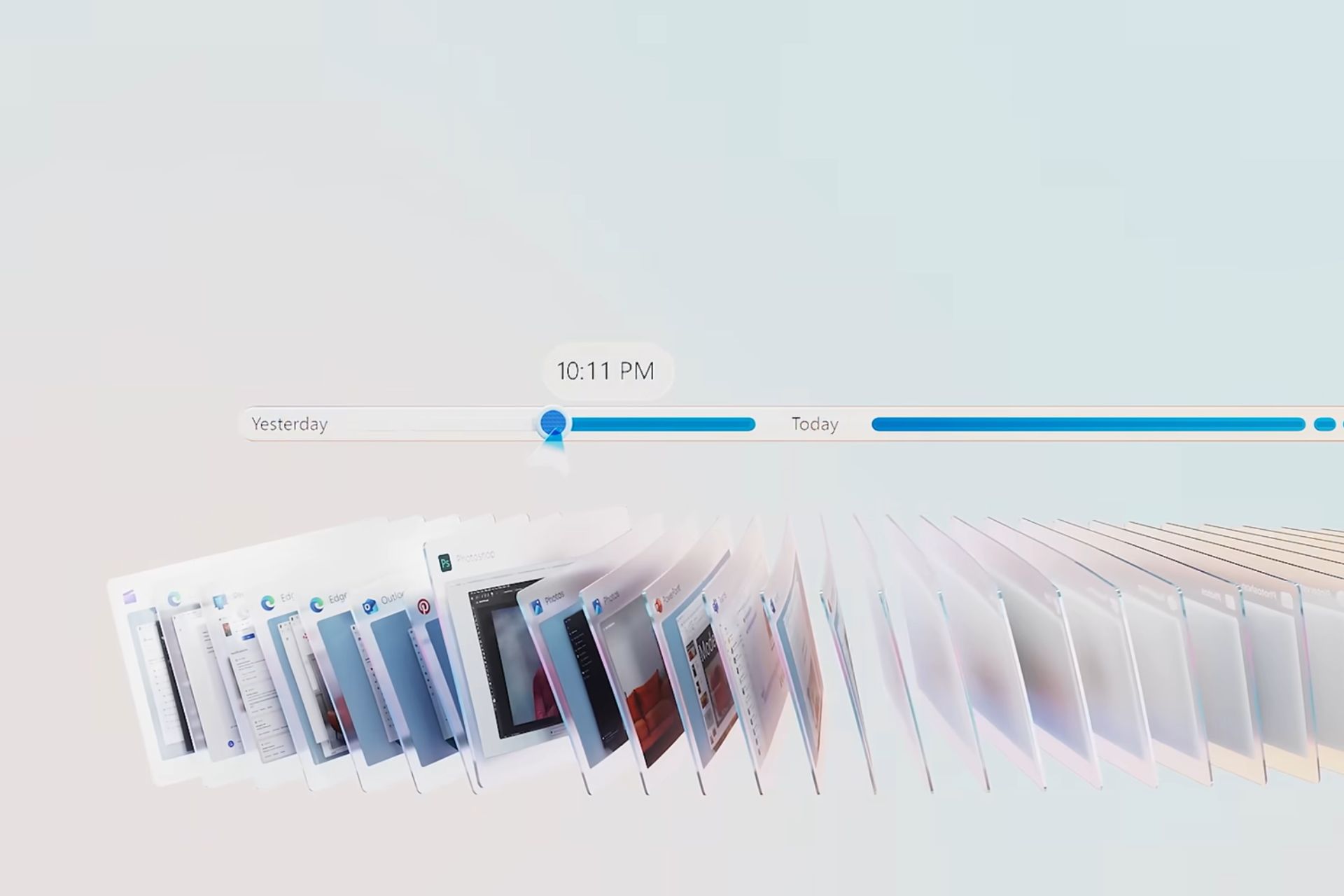
Windows Recall AI, which was arguably Microsoft Build 2024’s most controversial announcement, will be coming on Copilot+ PCs starting this summer. The tool can record everything you do on Windows 11, effectively acting like a PC historian allowing you to have access to the entire of your activity timeline (assuming you’ll have the space for it, of course).
The Redmond-based tech giant has touted it as a Copilot+ PC exclusive, meaning only devices that sport an NPU (so far, the only one is the Snapdragon Elite X), can support it, but Windows enthusiasts out there, like Albacore, already found a way to install it on non-NPU devices, and it works on low-spec devices, as well.
So, theoretically, despite needing an NPU to function, Windows Recall AI can essentially work on any Windows 11 device, which could lead the way for Microsoft to expand it beyond Copilot+ PCs officially.
Ultimately, this only means one thing: more worries for the regular Windows 11 user. Why? Well, the idea of Recall recording pretty much everything is striking a chord with many users, who see it as Microsoft wanting their data to train its AI models.
However, the same Windows enthusiast who discovered that Recall can be installed in non-NPU and low-spec devices also wants to restate the worries: Windows Recall stores everything on the device, allowing users to delete snapshots of their sensitive information.
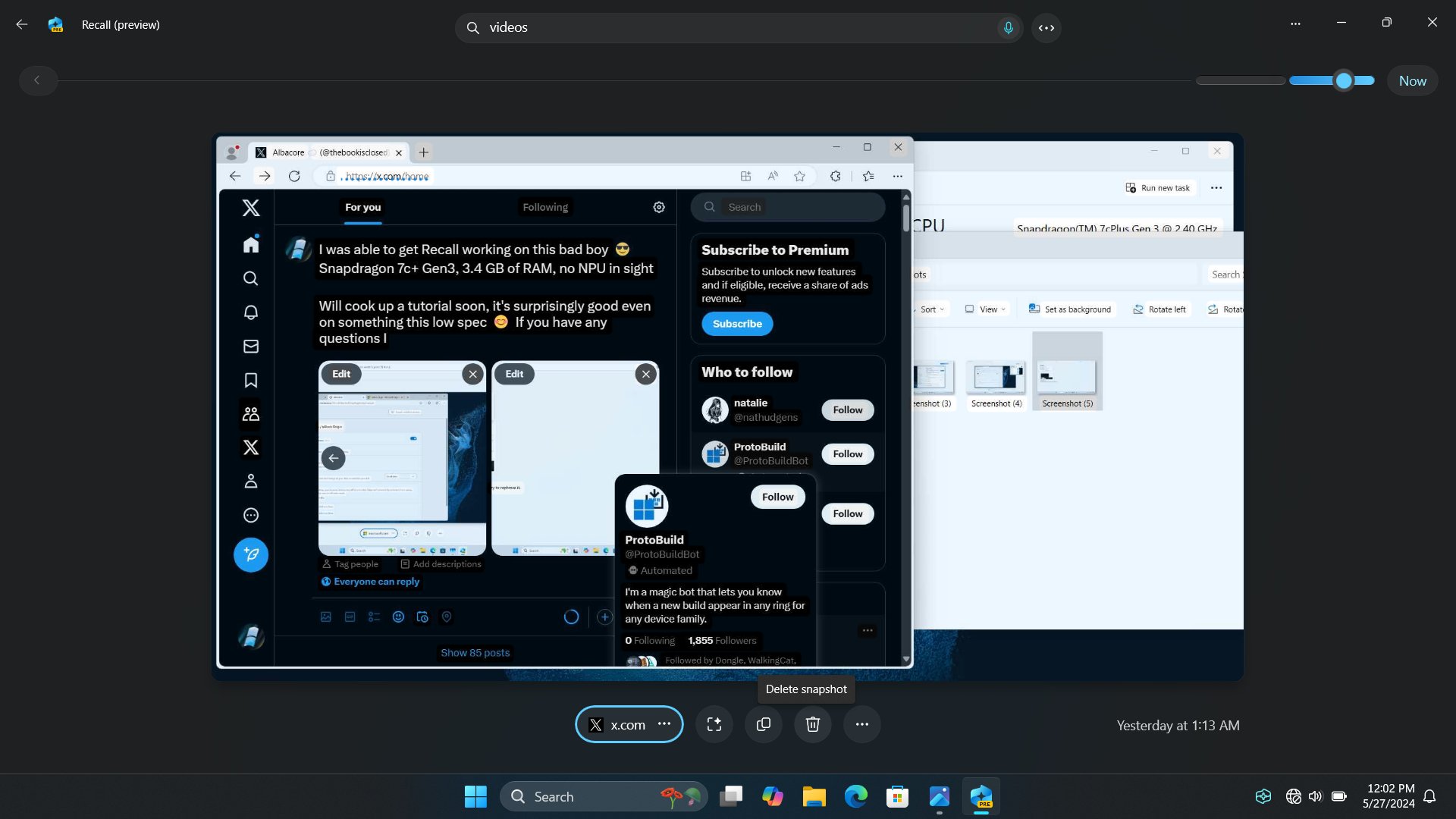
I've seen a few people concerned about Recall and whether all the processing is done locally. That indeed is the case. I am able to save snapshots, OCR them, access the timeline, and perform text as well as visual searches across it, all offline. You can see the ?? icon here.… pic.twitter.com/BPKAfFhOmT
And, Microsoft wasn’t kidding when it said Recall is safe: you can use it entirely while offline.
As you can see in the image above, the Windows enthusiast was able to work on Recall AI while offline, and the platform is displaying several options, such as the ability to delete the snapshot it just took.
One of the biggest concerns about using Recall AI in Windows 11 was that the tool would somehow bypass its security and privacy policies to provide Microsoft with users’ data. Aside from the fact that Recall is entirely optional and can be simply disabled, the tool works just as fine offline.
So, ultimately, the only real concern this app could pose is the gigantic space it will occupy. But that’s a story we already covered.
The Microsoft Launcher app for Android phones and tablets received a beta update in August 2023. This update allows users to ask questions using the Bing Chat chatbot with text prompts. Users can also input the prompts using their voice.
In November 2023, Microsoft changed the chatbot’s AI name to Copilot, but Microsoft Launcher continued using the Bing icon in its search widget. However, this has changed now. As reported by Windows Central, people who signed up for the app’s beta version can now use Copilot in the latest version.
If you are signed in for Microsoft Launcher beta, you can get this version with Copilot integration from the Google Play Store. The new version, as mentioned on the Play Store, is v6.240402.2.1139391.
The UI of Copilot is the same as the app or the web version, which allows you to ask questions by typing, using audio, or uploading photos. However, some of the advanced features of Notebook, Cooking Assistant, and Vacation Planner are unavailable with Microsoft Launcher.
Here is what the release notes say:
Copilot in Your Feed We’re thrilled to enhance your Microsoft Launcher experience with the integration of Copilot right into your feed. This update brings your everyday Al companion closer to you:
Effortless Access: Copilot is now just a swipe away, ready to assist you with answers and content creation.
Creative Power: Generate images and text directly from your mobile feed using simple words.
Pro Performance: For our Copilot Pro users, enjoy a more responsive and swift interaction.
With this, the update also brings optimized performance for Copilot Pro users and has become more responsive.
Currently, the feature is available in beta, and there is no formal announcement about when it will be available to the general masses.
What do you think about the Copilot integration coming to Microsoft Launcher on Android smartphones and tablets? Share your views with our readers in the comments section below.
Ever since the introduction of ChatGPT, all major companies have started developing their language models to compete with it.
OpenAI, creator of ChatGPT, recently stated that they are training a new language model, so let’s see what that means.
The new flagship language model is already in training
As the New York Times reports, OpenAI stated that it has begun training a new AI model that will replace GPT-4.
According to OpenAI, they expect the new model to bring the next level of capabilities while planning to build artificial general intelligence. The new model would act as an engine for various AI products.
The company is also creating a new Safety and Security Committee as Axios writes, that will assess the risk of this technology. OpenAI stated the following:
While we are proud to build and release models that are industry-leading on both capabilities and safety, we welcome a robust debate at this important moment.
The committee is advisory, and it will collaborate with an array of security experts, its first task is to enhance the OpenAI’s processes and safeguards.
It’s great to see that OpenAI plans to push the boundaries of artificial intelligence while seriously taking into consideration all the possible risks that come with it.
Do keep in mind that training an AI model can take months or years to complete. Once the training is finished, there’s a period of internal testing and tweaking before it can be released to the public.
While this announcement has many excited, it will be months before we can see this new model available to the public.
OpenAI CTO stated that a successor to GPT-4 will be unveiled later this year, so we can just sit tight and wait for the official announcement.
In case you missed it, OpenAI announced GPT-4o recently and it brings various improvements, including the ability to recognize voice input and hold conversations.
In an unexpected happening that has the gaming community talking, Microsoft appears to have released the cat from its bag a bit earlier than anticipated. People using Xbox Game Pass app – both fans of iPhone and Android – got a message that must have been intended as secret for more time. The statement was straightforward: Just announced: Call of Duty: Black Ops 6 is coming to Game Pass on day one later this year! This small mistake has started a storm of guessing and excitement.
This is definitely a mistake because according to The Verge, the announcement links to a page that doesn’t exist yet. However, that might also be used in the future as an incentive to get the Xbox Game Pass premium account and get the newest scoop about game launches hours earlier before everyone else.
The leak has come out at an interesting time, with discussions and arguments about the Xbox and Activision Blizzard merger still happening. A main focus of these talks is whether Call of Duty in Game Pass could give Xbox an unfair boost in the console wars. Sony especially has raised worries on how this might affect competition between different gaming systems.
Now, the Call of Duty: Black Ops 6 game official reveal is set to happen in a presentation that lasts for an hour, following the June Xbox Showcase event. This will provide fans with their initial and detailed glimpse into what is coming next.
As FTSE Russell started sharing details about companies about to enter or leave the Russell 3000 and Russell Microcap indexes, the news of Microsoft reclaiming its position at the top in the Russell 1000 (large cap) index after three years became the topic of conversations in business circles.
This comes on the heels of Microsoft increasing its total market cap by 26.7%, from $2,284.6B to $2,893.6B. The top spot was previously held by Apple since 2021, which has slid to the second spot after losing 2% market cap in the last year.
At the third position in the Russell 1000 index is NVIDIA, which climbed 3 spots (previously at 6), fueled by a 215.20% increase in market cap.
Alphabet and Amazon are in fourth and fifth positions, respectively. Both, despite an increase in market cap (47.60% for Alphabet, 68.30% for Amazon), slipped in the rankings this year due to the annual gains made by NVIDIA.
All companies that comprise the magnificent seven (Microsoft, Google, NVIDIA, Alphabet, Amazon, Meta, Tesla) are a part of the top 10 in the Russell 1000 index.
In the 2024 rankings, Tesla slipped two spots to the 10th position. Amongst the top 10, it also posted the second-worst growth in market cap, only next to Apple.
The two new entrants to the list of top-10 companies by market cap are Eli Lilly and Broadcom. In 2023, Eli Lilly was placed at the 15th position and has moved up seven spots in the last year. As for Broadcom, the company, fueled by a 130.7% rise in market cap, has moved to the 9th position, fifteen spots up from the previous year’s ranking.
For the unversed, the Russell 3000 index comprises the top 3000 stocks in the United States. Of it, the top 1000 are categorized as Russell 1000 (large cap) while the bottom 2000 form a part of the Russell 2000 (small cap) index.
This ExitLag vs NordVPN comparison can help you if you’re torn between the two services.
The former is a specialized service designed mostly for gamers. It aims to reduce lag, lower ping, and provide a more stable connection by optimizing your data’s route to the game server.
The latter is a widely recognized VPN service focusing on privacy, security, and bypassing geo-restrictions. But it also has several features to help gamers enjoy their sessions.
So, let’s find out which one suits you better!
ExitLag vs NordVPN: Feature Comparison
Below is a table showing how ExitLag and NordVPN compare:
1 month – $12.99/month (Basic) 1 year – $4.59/month (Basic) 2 years – $3.69/month (Basic)
Customer Support
Live chat, Email/Ticket, Q&As, Discord community, and Social Media
Live chat, Email, and Q&As
Free Trial
3-day free trial
7-day free trial for Mobile
Now, let’s look at them in detail!
FPS Boost
High FPS can lead to smoother and more responsive gameplay.
ExitLag has different buttons in its FPS Boost that claim to help improve your FPS. However, it’s not a helpful feature. Most of the settings don’t result in what ExiLag says about them and you can modify most of them on your own without depending on the app.
Instead of relying on buttons that are vague about what they do, you can try a few modifications on your own to boost the performance. For example, you can check on your CPU/GPU temperatures, update drivers, and avoid using internet and speed boosters.
On the other hand, NordVPN doesn’t offer any tool or settings to improve your device’s graphics performance. Its primary focus is on maintaining a secure and private connection rather than optimizing game performance.
Traffic Sharper
ExitLag’s Traffic Shaper aims to help you manage and prioritize network traffic. That way, important applications receive the necessary bandwidth for optimal performance. It’s beneficial for gamers and streamers as it can reduce latency and prevent lag.
Moreover, ExitLag allows you to pick the gaming applications that shouldn’t be affected when the connection slows down.
NordVPN doesn’t have a Traffic Sharper feature but Split Tunneling works similarly. This feature allows you to select which gaming apps to use for a VPN-encrypted tunnel and which ones to use for regular traffic.
Winner: NordVPN. It supports advanced Split Tunneling similar to Traffic Sharper so you can enable or disable the VPN for selected apps.
Multi Internet
Multi Internet allows users to connect to multiple Internet connections simultaneously to improve network stability and speed. That way, you can balance the load across different networks.
ExitLag’s Multi Internet lets you connect to more than one network. In case one network drops or loses connection, others keep you active on your game.
This feature has some similarities with NordVPN’s Kill Switch. However, a Kill Switch will shut down the internet when the VPN connection drops to avoid leaking important information during online gaming.
Furthermore, it has two types: Internet and App. The Internet one can disconnect you when the connection drops or when you disconnect the VPN manually. The App Kill Switch allows you to quit your gaming apps when you aren’t connected.
Winner: Tie. ExitLag will allow you to continue with your game through the active network while NordVPN will disconnect you for security and privacy purposes.
Speed
Both ExitLag and NordVPN are known to lower ping during gaming. I got a ping of 366.41ms before connecting to either tool on the Roblox racing game.
After connecting to ExitLag, the ping was reduced to 194.40ms.
However, NordVPN was less successful — it reduced the ping to 221.14ms.
Winner: ExitLag. It had a lower ping than NordVPN.
Simultaneous Device Connections
ExitLag only supports one device per subscription. When the platform detects you’re using another device for gaming on the same account, it’ll terminate it. You also won’t receive a refund as per its terms of service. However, you can subscribe to more.
NordVPN supports up to 10 simultaneous connections. You can play your favorite game on your mobile device, PC, or PlayStation without termination issues. If you want to connect to more devices, you can set up NordVPN on your router. Alternatively, you can subscribe for more.
Winner: NordVPN. It allows up to 10 devices on a single subscription while ExitLag only grants you one.
Servers
ExitLag has no exact number of servers but it claims to have hundreds of servers distributed globally. However, NordVPN has over 6,000 servers worldwide spread through 100+ countries.
Winner: NordVPN. It has more servers than ExitLag.
Protocols
A VPN protocol is a set of rules that governs how data is transmitted securely between your device and a VPN server.
NordVPN has NordLynx, TCP (Transmission Control Protocol), and UDP (User Datagram Protocol) protocols. UDP is commonly used in gaming because it prioritizes speed. It’s faster than TCP but doesn’t guarantee that data packets will reach their destination.
TCP is more reliable than UDP as it ensures that all data packets reach their destination in the correct order. However, this reliability comes at the cost of slightly higher latency.
Still, NordLynx combines the best features of both UDP and TCP. It aims to offer the speed of UDP with the reliability of TCP. This makes it ideal for gamers looking for optimal performance while maintaining security and privacy.
ExitLag on the other hand has UDP, TPC, and ICMP Protocols. ICMP (Internet Control Message Protocol) helps gamers troubleshoot network problems and optimize their connection.
Winner: Tie. NordVPN has NordLynx for better speed while ExitLag has ICMP to help with troubleshooting.
Compatibility
NordVPN is compatible with Windows, macOS, Linux, Android, and iOS. It also works with different browser extensions like Chrome, Firefox, and Edge. Moreover, you can use it with Firestick, Xbox, Chromecast, Playstation, and more.
ExitLag is only compatible with Windows and Android. At the time of writing, it also doesn’t work with gaming consoles. However, the company is looking into ways to make it compatible. The team is also working to release the iOS version.
Winner: NordVPN. It’s highly compatible compared to ExitLag which only works with Windows and Android.
Pricing
This ExitLag vs NordVPN analysis wouldn’t be complete without their pricing. Here’s how they compare.
ExitLag has three main subscription plans. It costs $6.50/month for the monthly subscription, $4.33/month for the 2-month plans with one free month, and $3.58/month for the annual package. All these plans are discounted but the discount depends on the location.
ExitLag also offers a 3-day free trial instead of the 30-day money-back guarantee policy.
Meanwhile, NordVPN has monthly, 1-year, and 2-year subscription packages divided into three parts (Basic, Plus, and Complete).
Monthly:
Basic – $12.99/month
Plus – $13.99/month
Complete – $14.99/month
Yearly:
Basic – $4.59/month
Plus – $5.49/month
Complete – $6.49/month
2-Years:
Basic – $3.69/month
Plus – $4.69/month
Complete – $5.69/month
All packages in the 1-year and 2-year have an additional 3 extra months. Also, all plans come with a 30-day money-back guarantee policy to help you ask for a refund if the service doesn’t meet your needs. Additionally, you can enjoy a free 7-day trial but only for mobile devices.
Winner: NordVPN. Despite NordVPN being costly compared to ExiLag, It has a longer free trial and a 30-day money-back guarantee policy. This will help you use the service risk-free.
Customer Support
Both ExitLag and NordVPN have customer support channels to answer questions and guide users. ExitLag has Live chat, Email/Tickets, Discord community, Q&As, and social media to help you with any gaming concerns. However, the live chat support only works during business hours.
The Discord community allows you to chat with other gamers and also start a private conversation with ExitLag experts. Its live chat provided the fastest response of around two minutes and it took five hours for an email response.
NordVPN on the other hand has Q&As, Live chat, and Email channels. The Q&As provide different articles that can help answer user’s concerns. Moreover, the live chat button operates 24/7. You can also reach NordVPN via email but it’s a slower method.
The response time for live chat was less than a minute and around three hours for email. Overall, the support team was knowledgeable and I could get help.
Winner: Tie. ExitLag has more support channels than NordVPN. However, you can only consult them during business hours and most replies took longer than NordVPN.
Verdict – ExitLag vs NordVPN
If gaming performance and latency reduction are your top priorities, ExitLag is the better choice. It performed better than Nord in my ping test. ExitLag can deliver better ping results once configured properly. To learn the full setup process, follow our detailed ExitLag guide.
However, if you’re looking for a VPN solution with strong security, privacy, and multi-device support, NordVPN is superior.
Hopefully, this ExitLag vs NordVPN comparison will help you reach a decision.
If you’ve spotted a yellow border around your screen on your Windows 11 PC, it’s actually a security and privacy measure but we understand it can be annoying or unsightly so here’s how to get rid of it.
You’ll most likely spot the yellow border around the screen whenever you’re doing a screen capture or recording. This is due to Windows Capture API which provides a secure way to capture your screen. It’s basically notifying you that screen recording is in session.
If it wasn’t previously visible, it could be due to a Windows update, misconfigured display or calibration settings or your display drivers are damaged/outdated or missing. If you’re using custom calibration settings, they may inadvertently change your colours and birth the yellow border.
How do I remove the yellow border around the screen on Windows 11?
1. Close screen snipping processes
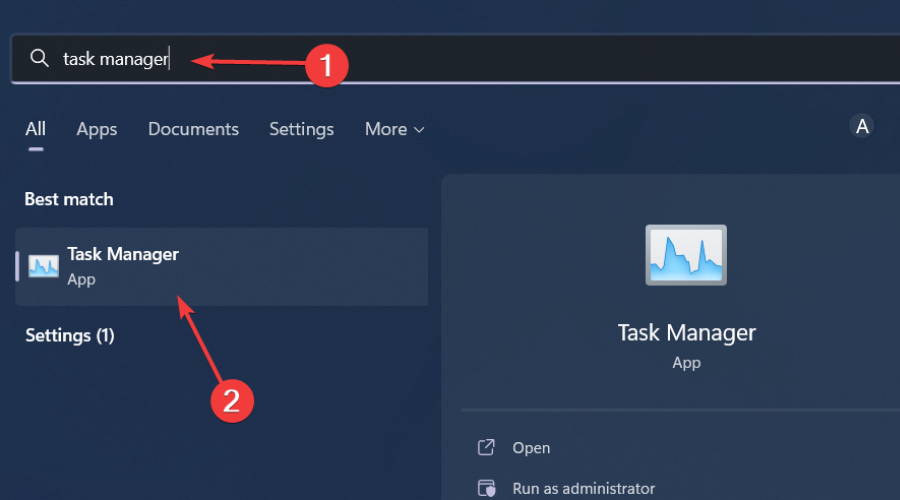
Hit the Windows key, type Task Manager in the search bar, and click Open.
Navigate to the Processes tab, and find the Screen snipping process.
Right-click on it and select End task.
2. Uninstall recent Windows update
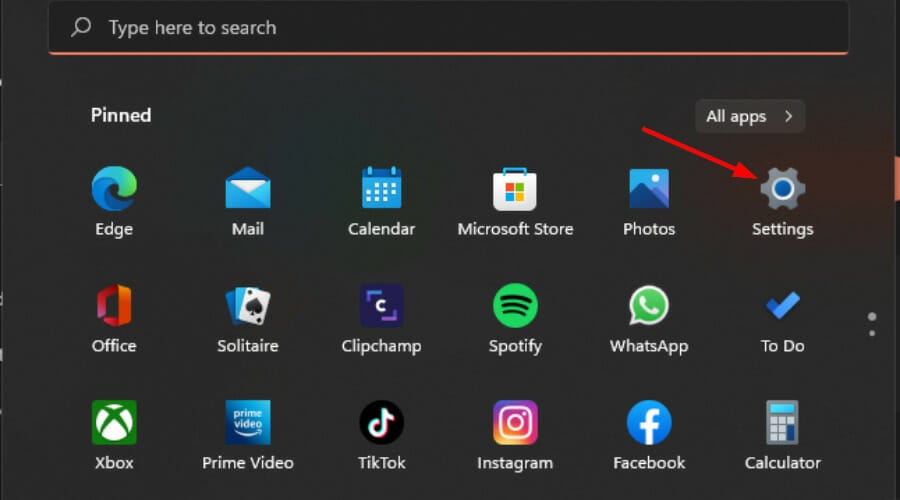
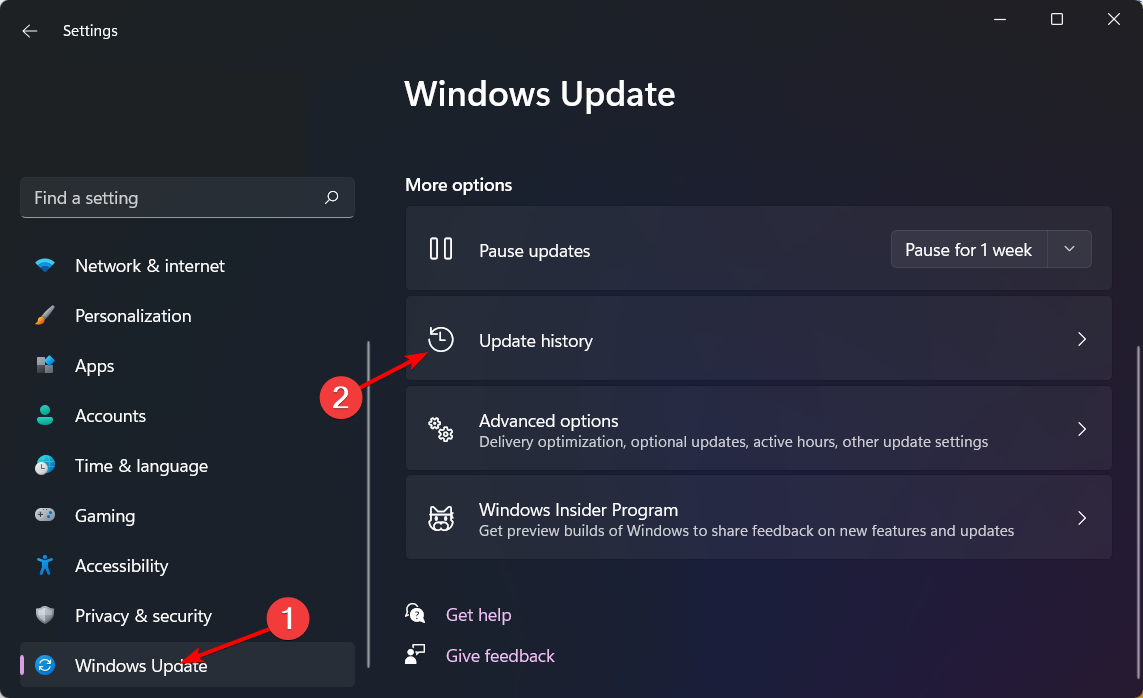
Press the Windows + I keys simultaneously to open Settings.
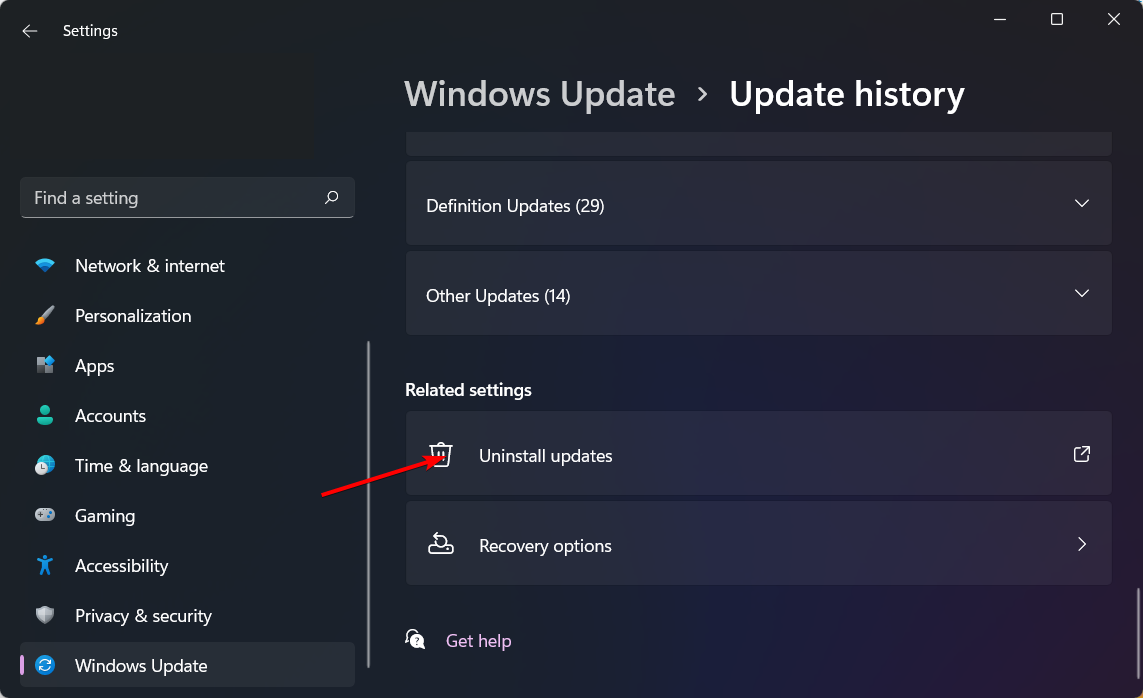
Navigate to Windows Update, then go to Update history.
Click on Uninstall updates.
Select the most recent update, then click Uninstall.
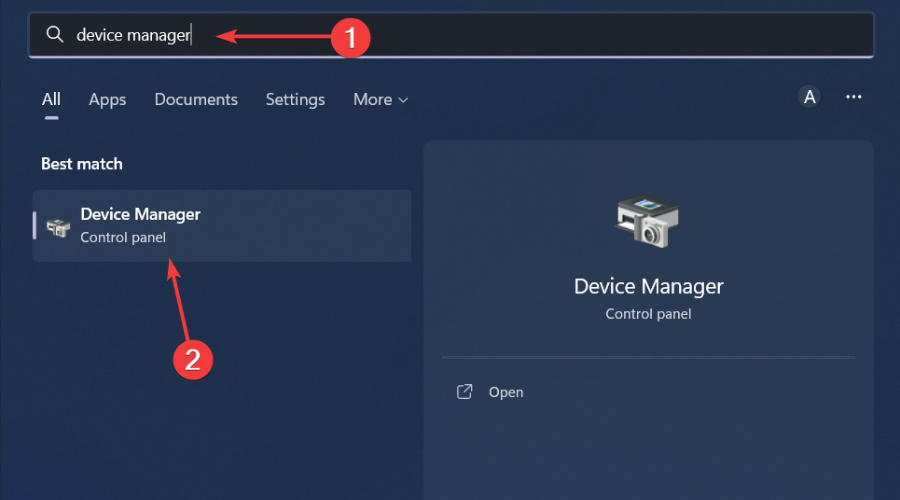
Click the Windows button, type Device Manager in the search bar, and click Open.
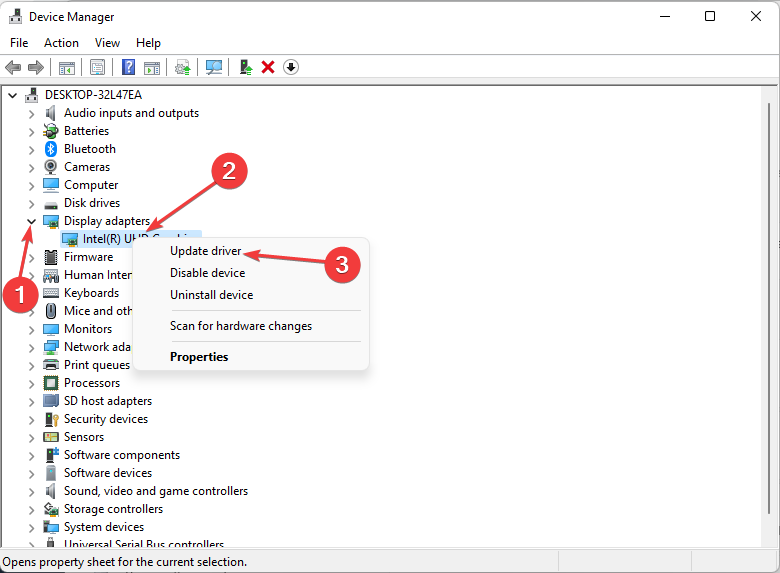
Navigate to Display adapters to expand, right-click on your graphics card and select Update driver.
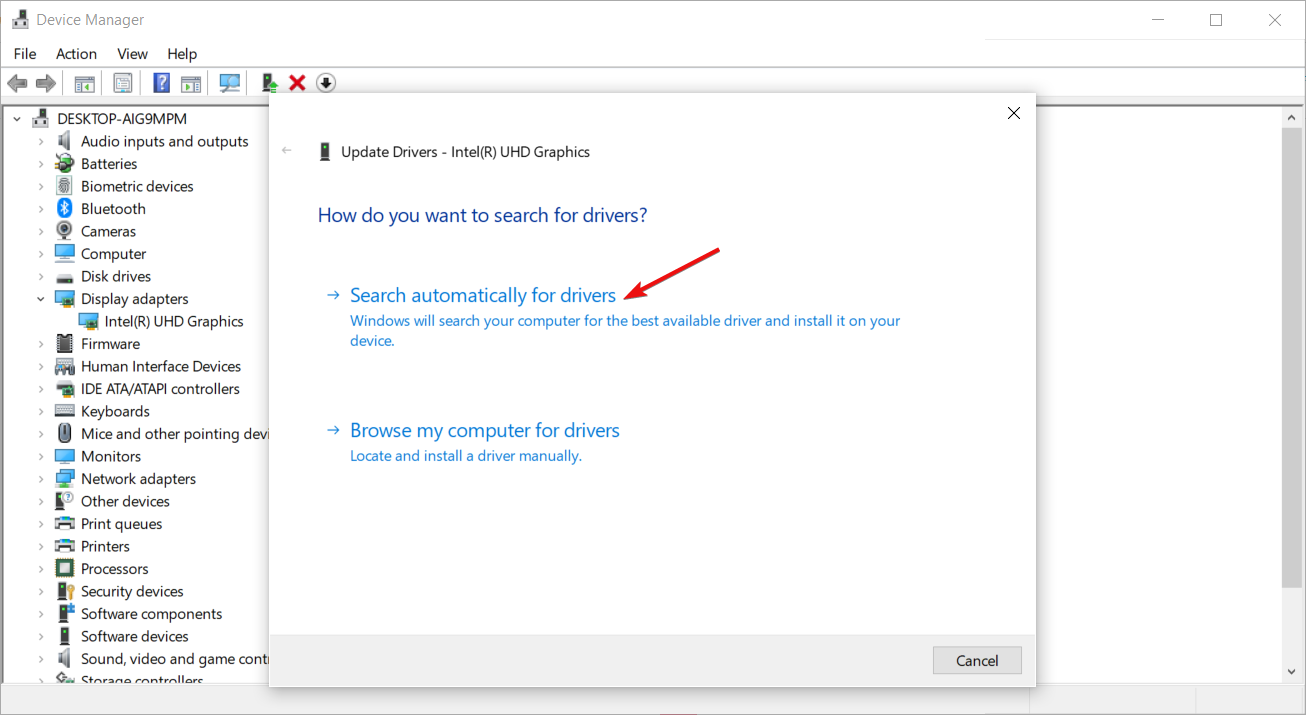
Select Search automatically for drivers.
Additional tips and best practices
Although the yellow border around your Windows 11 screen is not a threat and doesn’t appear on your screen captures, it can be annoying. You can also change your Windows border colour to match the hue and hopefully, it will not be too distracting.
However, in some instances and with frequent use of the snipping tool, your PC’s performance may be affected. Screen capture may start leaving a huge memory footprint, lagging, random crashes and freezes on your PC.
If you notice any of these, consider doing a Disk Cleanup. Further, consider other screen capture tools. The good thing about them is they don’t have a yellow border around your screen and offer more advanced features compared to the built-in Windows snipping tool.
Still on borders, a yellow border on Discord also seems to be another headache for gamers but we’ve already cracked the code on how to get rid of it.
Have you managed to get rid of the yellow border around your screen with any other method that is not mentioned here? If so, we’d love to know about it. Share it with us in the comment section below.
xAI, Elon Musk’s generative AI company recently announced to have secured $6 billion in Series B funding. This announcement is more than just about money; it is a clear sign that Musk doesn’t want to lose sight of the more powerful competitors such as Microsoft, OpenAI, and Google.
The market entrance of Grok, an AI chatbot belonging to xAI, was thei initial step in this area. It started with a small number of users but has grown now. Grok-1.5V is the latest version that has increased its abilities to include vision aspects along with assisting text prompts for more advanced interactions – and there’s much more coming soon from multiple exciting technology updates and products.
Will xAI be able to hold a candle against Microsoft’s AI empire?
xAI doesn’t have the powerful software and hardware behindit, like Microsoft and Google, so it has to build it. It’s not just about the big money and famous support; xAI also plans to create a supercomputer by 2025. This supercomputer will not be like any other; it is believed to use groups of Nvidia H100 GPUs for power, which makes it four times larger than present AI GPU clusters.
The impacts of xAI’s arrival are wide-ranging. It doesn’t just mean a fresh phase in the AI arms contest, it hints at what the future might hold for AI development. Musk’s involvement with xAI could disrupt things as usual, so we might see some surprises.
What kind of reaction can we expect from industry towards this fresh challenge? We have to wait and see, but one thing is sure, we’ll be seeing more from xAI and Grok soon.
If you have any comment about this story, feel free to write it in the dedicated section below.
The new Jump back in feature shows you nine recently played games on the main page, allowing you to quickly launch any of them.
This is rather useful, especially if you’re multitasking and it’s perfect if you want to quickly switch between games.
Of course, launching games is just as simple, and you can do it by pressing the Menu button. We have to mention that this feature only works with games that are obtained from the Xbox app or Microsoft Store.
To make matters worse, Jump back in won’t even show games from Steam or from other platforms, which limits its functionality.
Threats and vulnerabilities go hand in hand with technological advancements. As companies continue to ramp up the security infrastructure, threat actors have always found ways to exploit the existing vulnerabilities, especially in the Microsoft ecosystem.
Recently, in an interview with Edge Middle East, James Maude, Field CTO at BeyondTrust, discussed the changing trends in the landscape, expressed concern about the relative stability in critical vulnerabilities, talked about the role of Microsoft, and highlighted how some third-party vendors are unwilling to engage with security researchers, let alone make amends.
When asked about the key findings pertaining to Microsoft’s vulnerabilities, Maude said,
One of the most notable findings is the plateau in critical vulnerabilities. These used to constitute nearly 50% of all vulnerabilities reported by Microsoft each year. Over the past few years, however, this number has stabilised around 100, with recent figures showing 104, 89, and 84 critical vulnerabilities, respectively.
But he didn’t shy away from acknowledging that Microsoft needs to put in more concerted efforts for us to witness a gradual decline in critical vulnerabilities. Because, at present, the numbers have largely been stable.
The lack of a significant decrease suggests that these measures are not as effective as they could be. This plateau indicates that more must be done to address and mitigate vulnerabilities proactively for a company as significant and influential as Microsoft, which dominates much of the IT landscape.
When asked why the stability in critical vulnerabilities should be a concern, James Maude explained that with Microsoft’s expansion in cloud services and the release of new, more secure products, expectations were high that vulnerabilities would reduce. But that hasn’t been the case because the existing vulnerabilities have not yet been completely patched!
Maude then sheds light on why patching vulnerabilities in legacy products turns out to be a challenge, even for tech giants like Microsoft.
The Print Spooler service, for instance, has been a constant source of vulnerabilities year after year. Despite focused efforts, it has taken years to stem the tide of new vulnerabilities in the Print Spooler. This indicates the broader difficulties in managing and securing legacy systems, which often contain old, complex, and sometimes poorly documented code that can be difficult to update and secure without introducing new issues.
Maude also blamed third-party vendors for this concerning trend. Because not all of them tackle such situations with the same energy.
Some companies lack responsible disclosure programs or are unwilling to work with security researchers. For instance, some vendors do not entertain reports of vulnerabilities unless they come from paying customers, while others might issue legal threats to researchers reporting vulnerabilities.
When asked about the future trends in the security landscape, Maude called for increased focus on identity security.
One of the significant trends we’re seeing is a shift towards identity security. With more data moving to the cloud, attackers find it easier to capture user credentials than to exploit endpoint vulnerabilities. This shift necessitates a focus on identity and privilege access management. This trend highlights the need for robust security measures and a holistic approach to managing and securing identities.
Finally, while sharing his views on the role played by generative AI in the vulnerability landscape, Maude explained that it’s both good and bad for the industry. For instance, the use of generative AI to develop codes often introduces vulnerabilities, which, if not detected, can cause significant damage at a later stage.
He also mentioned how threat actors leverage AI to detect and exploit vulnerabilities. That’s evident, as we have all seen a rise in AI-powered cyberattacks!
On the bright side, security analysts can also deploy AI-based tools to augment the security infrastructure. Microsoft, on its part, is using AI to tackle cyberattacks.
It’s an insightful interview that helped me gain an understanding of what goes on behind the curtains when it comes to vulnerabilities in the Microsoft ecosystem and how we could improve the overall landscape!
What do you think? Share with our readers in the comments section.
Azul, the Brazilian Airline, partnered with Microsoft to launch AzulGPT, an AI platform that uses Microsoft Azure OpenAI Service and Avanade. The AI will increase productivity and deal with processing and data analysis tasks. Also, it will follow the security and privacy rules of the company.
How does AzulGPT improve work efficiency?
AzulGPT greatly helped the Airline company improve its productivity. Now, tasks that used to take a few weeks, such as categorizing Customer feedback and NPS analyses, take a few minutes.
The AI tool facilitates the integration and sharing of information between different teams. The crew members can use the AzulGPT platform to ask questions about the programs and events happening within the company.
The AI from Azul also assists employees with the creation of materials, campaigns, and forms. This feature allows them to save time and focus on more important aspects such as strategic planning and development.
According to Felipe Starling, the airline’s IT Director, Azul is one of the first airlines to have their AI. So, he looks forward to receiving internal feedback and service metrics about AzulGPT. Also, Roberto Sória, vice president of Customer Success at Microsoft Brazil, says the AI platform runs in a closed environment to meet compliance, protection, and security requirements.
What are the challenges of having a custom-made AI?
There are a few challenges that come with AzulGPT. For example, the AI has to be periodically updated to maintain the best security practices and protect the company’s data.
In addition, Azul needs to train its employees on how to use AI, and the process can be time-consuming. On top of that, updating and maintaining it can become costly.
In a nutshell, Azul is one of the first Brazilian Airlines with a personal AI platform. AzulGPT increases the performance of employees and speeds up various processes. Also, it assists crew members to do easier data transfers across different sectors. Besides, the AI helps them create media content and categorize Customer feedback and NPS analyses.
Do you think that more Airlines will implement their GPTs? Let us know in the comments.
YouTube is constantly evolving and it seems that the company is testing a new feature.
The feature in question is related to Super Chat messages, so without further delay, let’s see what’s new.
The ability to reply to Super Chat messages is currently in testing
If you’re not familiar, Super Chat messages are highlighted messages that you can send during a livestream for a certain fee.
While this feature is a great way for streamers to earn money and for the community to interact with streamers, it’s fairly limited. But as PhoneArena writes, that’s about to change.
YouTube is currently testing a feature that lets creators reply to a Super Chat message during a livestream. By doing so, it allows streamers to better interact with their fans.
This is currently in testing and available only to a handful of users. However, the company has plans to bring this feature to more users in the upcoming months, so stay tuned.
The whole point about the new AMD latest-generation Ryzen processor is that it not only can power desktop computers, but also small, yet strong, mini-PCs. And the rumors in tech world say August is important month to note down on our calendars for new such devices powered by AMD’s Strix Point APUs.
Now, let’s get to the main point. As we’ve learned from Videocardz, the excitement comes from AOOSTAR, a name you probably don’t know because they have been quietly operating in the Mini-PC and eGPU markets. They giving clues about new product using latest AMD Ryzen CPU, and it not just any Ryzen. It is the Strix Point series, allegedly featuring the Zen5 architecture. This not only concerns laptops or tablets; it also aims to introduce this advanced technology into Mini-PCs and maybe even new handheld gadgets.
But there’s a catch – buying one of these Mini-PCs might need some waiting. Even though the official release is planned for August, it appears we will have to wait until October before these gadgets are available in stores. It is kind of a waiting game, like what we saw with Intel’s Meteor Lake chips in the mini-PC area.
And just when you think AMD finished showing everything, there is more. AOOSTAR is now testing a new Radeon RX 7650M XT eGPU solution, which should be available in July. This new upgrade aims at making your graphics experience better, using the same Navi 33 GPU but now with power limit allowing up to 130W TGP.
For people who have been watching AMD carefully, this news might not be a big surprise. And with a special keynote coming up at Computex next week, we are very excited and can’t wait to see what AMD will present for desktop and mobile platforms.
I will be very interesting to see how these new Ryzen processors change the Mini-PC world. And what about that eGPU solution – maybe it is the upgrade we all hope for? Let’s see if AMD will make these exciting rumors come true.
In the meantime, we can discuss about all this in the comments section below.
Gaming PCs are slowly gaining prominence, with many new products entering the market. The latest on the list is Lenovo Legion 7000K, a gaming tower that just debuted in China.
The Lenovo Legion 7000K is different from the rest for one reason: it packs a mobile CPU/processor (usually used in laptops) into the PC. The reason is that by adopting a MoDT (Mobile on Desktop) design, the gaming PC can deliver better performance, lower the power consumption, and improve the form factor.
But there’s a significant drawback to the design. You can’t upgrade or replace the processor as it’s soldered to the board, unlike conventional designs that opt for socketing. This aspect may draw seasoned PC enthusiasts away from the Lenovo gaming tower!
We previously discussed the MoDT design in Lenovo Legion 7000K in great detail.
About the Lenovo Legion 7000K
As for the hardware configuration, the gaming tower offers two options, Intel Core i9-14900HX and Intel Core i7-14650HX. There are four choices for the GPU, RTX4060, RTX4060Ti, RTX4070 SUPER, and RTX4070Ti SUPER.
However, there aren’t many storage options, and you are limited to a 1 TB PCIe Gen4 storage that comes built-in with the Lenovo Legion 7000K. Similarly, for RAM, you have a 32 GBDDR5 5600 configuration, according to the official product listing. But the two can be upgraded later!
Lenovo claims that the gaming tower can perform efficient cooling for up to 190W. Having reviewed many different Lenovo Legion gaming PCs, I know that these are designed for effective heat dissipation, so that shouldn’t be a concern.
Lenovo Legion 7000K (Image source: Lenovo)
Connectivity wouldn’t be a problem either with this gaming tower, as it features a wide array of ports on the front and back panels, including USB 3.2Gen1, USB 3.2 Gen2, USB 2.0, and headphone/microphone jacks.
Next on the list is the customizable RGB lighting, which really amps up the whole experience. Unlike the old days, CPUs are no longer placed under or behind the workdesk but usually find a place right next to the monitor and keyboard. In my opinion, the Lenovo Legion 7000K’s design won’t disappoint you!
Besides, the Lenovo Legion 7000K‘s capabilities aren’t limited to gaming but offer seamless multitasking. To facilitate that, a genuine Office Home and Student Edition comes pre-installed with the gaming tower.
Regarding pricing, the Lenovo Legion 7000K starts at $1,303 (8299 RMB) for the i7 14650HX – RTX 4060 model and goes to $2,356 (14999 RMB) for the i9 14900HX – RTX 4070 Ti model.
If you want to discover more similar options, check out our top picks for overclocked gaming PCs!
What do you think about the gaming tower? Share with our readers in the comments section.
Microsoft Phone Link has proven to be a useful tool especially if you want to keep your notifications and pictures synced between the PC and your phone.
Speaking of which, it seems that Microsoft is testing some new features in the Phone Link, so let’s see what’s new.
Phone Link will let you copy text from images soon
As The Verge writes, version 1.24051.91.0 of Phone Link allows you to extract text from synced images.
The OCR feature offers solid results, but it can make mistakes. Compared to other tools it makes more mistakes than Samsung or Apple’s text extractors.
Overall, it’s a small and useful feature, and we hope that Microsoft will reliability improvements to it before it officially launches.
This version of the Phone Link is available in the Release Preview Insider builds, and we expect to see it available soon to everyone.
There’s a whole dispute around the new Windows 11 Recall feature, or the AI Explorer. Some users don’t even want to hear about it due to privacy concerns. As we’ve shown recently, Recall is pretty harmless and you may even disable it. Others are curious to learn more about it and test it but as we know before, the feature was exclusively designed for the latest Snapdragon, or at least for SoCs with NPU on board.
I was able to get Recall working on this bad boy ? Snapdragon 7c+ Gen3, 3.4 GB of RAM, no NPU in sight
Will cook up a tutorial soon, it's surprisingly good even on something this low spec ? If you have any questions I'll do my best to answer them ✍️ pic.twitter.com/zzswm44Hy1
He shared his success in getting the Recall feature to run on a system equipped with a Snapdragon 7c+ Gen 3, 3.4GB RAM, and one again, without an NPU. The developer described the performance as surprisingly good, despite the system’s modest specs. This revelation suggests that Recall might still be functional on lower-end systems, albeit without the NPU, challenging the initial assumptions about the feature’s requirements.
For those who know less about this whole story, Microsoft’s new CoPilot+ PC was designed to bring advanced AI features to the Windows 11 OS, with Recall being one of its flagship functionalities. This feature, aimed at enhancing productivity, allows you to access content you’ve viewed in the past. It was initially thought that Recall would demand high-end specs, specifically new processors like Snapdragon X chips and next-gen Intel and AMD processors, along with a CoPilot+ PC, 16GB RAM, and a powerful NPU.
The ability to run Recall on lower-end PCs without an NPU opens up the feature to a wider audience, but it also raises questions about the balance between functionality and security. What’s your take on this new feature? Do you think the benefits outweigh the potential privacy risks? Let us know your thoughts in the comments below.
With so many AI chatbots available, sometimes it is difficult to decide which one to use. After all, they seem to do the same tasks. Copilot is somewhat of an exception because its free version can generate images. However, most chatbots, such as Gemini, Copilot, Claude, ChatGPT, and Perplexity, are proficient at generating text.
The Wall Street Journal decided to discover where the AI models mentioned previously shine the most. To evaluate the AI models, they tested them in practical scenarios such as health advice, financial guidance, culinary creativity, summarization skills, creative writing, coding, and more.
Which AI chatbot is the most useful?
The most performant AI was Perplexity. If you never used it, try it because it might surprise you. Perplexity has a well-organized UI, a discover feature, and can give you the source of its generations. So, you can always check the accuracy of its answers.
In addition, Perplexity has a deep understanding of specific requirements, great summarization skills, and gives complex health advice. The only downside is that Perplexity can be slower than the other models.
Surprisingly, Copilot was placed in the fifth spot, while ChatGPT, which is somewhat similar to it, got the second place. Also, Gemini is the third one, and Claude is the fourth. The tests done on the chatbots are not that representative, but they give us an idea of which AI model does what better than the others.
Where do the other models excel?
ChatGPT has the best coding skills of all the AI chatbots mentioned and can craft menus and recipes following dietary restrictions. It is the best AI model for coding and provides accurate solutions for JavaScript and web app development.
Gemini is suitable for financial guidance. The AI chatbot gives practical advice on interest rates, retirement savings, and inheritance rules.
Claude is somewhat of a Jack of all trades. You can use it for health and financial advice, but its answers will mostly be less detailed and more general. Also, the AI chatbot struggles at summarizing web content.
Copilot handles creative writing quite well, but it has a lot of shortcomings. Yet, you can use its free version to generate AI images, which is a bonus.
Ultimately, Copilot is the least efficient AI chatbot on the list. You can use it for image generation, but if you need a specific task, you should focus on Perplexity or ChatGPT. Also, when you want financial advice, consider giving Gemini a try.
Which one is your favorite AI chatbot and why? Let us know in the comments.
We’re seeing more handheld gaming PCs, and we already saw some amazing devices from Valve, ASUS, and Lenovo.
Speaking of which, it seems that Lenovo is working on a new handheld that will be aimed towards budget users.
Lenovo might be working on a budget version of Legion Go
Legion Go is a great handheld, but it’s a bit bulky and on the heavier side, and it might get heavy after prolonged gaming sessions.
That might change according to Windows Central, as Lenovo might be working on a new version of the handheld.
The unofficial name of the device is Lenovo Legion Go Lite, and it will use a Z1 processor from AMD with additional refinements.
No information is currently available on this device, but there are speculations that it might come with a smaller screen or without joysticks.
Lastly, it’s expected for the device to be more affordable than the base model. Unfortunately, no concrete information is available at the moment, as Lenovo is keeping this project under wraps.
While this does look impressive, the ASUS ROG Ally X announcement is coming soon, so we’ll see what improvements ASUS will bring to its handheld.
If you are looking for unprecedented computational power without compromising on the form factor, UltraStack 30 is the answer. Unveiled at the recent Dell Technologies World 2024 event, the UltraStack 30 is designed by Liqid, a composable infrastructure company.
According to the company’s official blog post, the new UltraStack system integrates 30 NVIDIA L40S GPUs into a single Dell PowerEdge R760 server, a new benchmark in the industry.
The latest innovation will help data centers meet the ever-increasing demand for computation power as AI becomes mainstream. Besides, Liqid, in the official blog, discusses other viable applications.
Surpassing the limitations of traditional server configurations, the UltraStack 30 is equipped to handle a wide array of datacenter workloads, which not only include AI, but other compute demanding workloads like 3D graphics, rendering, and VDI.
The key benefits of the new UltraStack are:
Energy efficient: Its power consumption is lower than what you expect from a setup that integrates 30 NVIDIA L40S GPUs, saving you a significant sum on the power bills.
GPU density: In its previous UltraStack server, the company managed to integrate 20 NVIDIA L40S GPUs, which have now increased to 30 with UltraStack 30, delivering unparalleled GPU density.
Form factor: It has a compact form factor.
Seamless scaling: Given the flexibility, you can configure and scale UltraStack 30 as required.
Diverse applications: The latest innovation finds applications in a diverse range of workloads, including AI, 3D graphics, and rendering.
(Image source: Liqid)
Talking about the groundbreaking innovation, Scott Sinclair, Practice Director, Infrastructure & Modernization, EnterpriseStrategy Group, said,
In the race to accelerate time to value for AI initiatives, organizations struggle to address the data demand generated by AI while balancing the necessary GPU density and utilization. Fortunately, players like Dell Technologies and NVIDIA working with innovators like Liqid are delivering impressive new configurations and performance benchmarks like the ones achieved with the Liqid UltraStack reference architecture to help organizations keep pace with modern AI demands.
Liqid has also committed to developing more high-performance, low-latency solutions, with composableCXL (Compute Express Link) in the offing.
As AI finds increased adoption in workplaces and industries, there’s undoubtedly a growing need for solutions that can deliver high computational power without significantly affecting the form factor or operational cost to aid future development. And Liqid’s UltraStack 30 looks like a viable option right now!
What do you think? Share with our readers in the comments section.
If you’ve heard about the NVIDIA GeForce RTX 5090, you know that it’s rumored to bring a big change in graphics cards world. Many people excited because it promise very strong performance for gaming and other graphic work. This new card maybe have better speed, more memory, and advanced tech making games look super real.
Everyone waiting to see how good it will be when come out! Let me explain. The main part of this powerful machine is the GB202 Blackwell die. It is huge and solid like one big piece. This is different from before because NVIDIA was trying chiplet designs for other chips. But for the RTX 5090, they keep to a monolithic design as NVIDIA’s Bryan Cantazaro explains in an X post:
Four years ago, we split GA100 into two halves that communicate through an interconnect. It was a big move – and yet barely anyone noticed, thanks to amazing work from CUDA and the GPU team.
Four years ago, we split GA100 into two halves that communicate through an interconnect. It was a big move – and yet barely anyone noticed, thanks to amazing work from CUDA and the GPU team. Today, that work comes to fruition with the Blackwell launch. Two dies. One awesome GPU.
Bryan Cantazaro, VP, Applied Deep Learning Research @ NVIDIA
Why is this new die going to bring?
Why is this important, you wonder? Well, it’s all about performance. The first specs are really very amazing. We see as many as 24,567 CUDA cores. Yes, you read that right. That’s a potential powerhouse capable of delivering unprecedented performance. The design choice is interesting because even though many in the industry are moving to chiplet designs, NVIDIA is choosing a single large piece for its top consumer GPU. This might mean better communication inside the chip and less complicated issues that can come with using multiple small chips together.
Some say they could put two GB203 dies into this big package, even if it does not officially count as a chiplet design. This method can provide benefits from both sides: the efficiency found in monolithic designs and the strength seen in chiplet designs. It’s a smart solution to solve communication delays that sometimes cause problems in systems using chiplets.
NVIDIA has done something similar in past. They have split dies and linked them together to make scalability better, but it did not become big news. The RTX 5090 might be the result of all these hard work, showing a design that is both new and very strong. Also important to mention, it will probably use the TSMC 4NP process node, expecting to give a 30% better density improvement. That’s a big deal for both performance and efficiency.
Now, let’s talk about the exciting parts of the RTX 5090. There are many rumors going around about a 512-bit interface and brand new cooling and PCB solutions to manage this powerhouse. It is clear NVIDIA goes forward strongly, especially since AMD seems to move away from very high-end graphics competition. This can give NVIDIA an open path to lead in gaming area with its Blackwell GPUs.
The launch for the RTX 5090 is much awaited, and it will probably come to stores only a few weeks after the RTX 5080. With specs like these, RTX 5090 will most likely come at a hefty price. We’ve heard about it from Wccftech.
What do you think about the new NVIDIA GeForce RTX 5090? Let’s talk about it in the comments below.
Microsoft announced that the new Sticky Notes experience for Windows is now rolling out to all users globally. The experience was first introduced to Insiders and received a positive response.
On the official blog post, Microsoft explains:
The new Sticky Notes experience is a fresh feature from OneNote to help you remember more seamlessly than ever. With 1-click screenshot capture, automatic source capture and automatic recall of the notes when you revisit the same source, remembering what matters just got easier! You can also access Sticky Notes on the go with your OneNote Android and iOS mobile apps, ensuring that your notes are always at your fingertips.
How can I use the new Sticky Notes experience?
To use it, launch the OneNote app on Windows and click the Sticky Notes button at the top right corner. This will launch the Sticky Notes; you can pin it to the taskbar or press Windows + Alt + S to launch the app anytime. You need to sign in if you want to sync your notes across your devices.
In the future, you will also be able to use the new Sticky Notes experience from the Windows Start menu.
You can click the Note button to create a new note and capture a screenshot using the Screenshot button. Here is how Microsoft explained it:
With the new Sticky Notes, you can create notes or capture screenshots with a single click. If you’ve taken a note or screenshot from a website, you can easily return to the original source by clicking the auto-captured link. When you revisit the same document or website, we’ll conveniently bring up the relevant notes for you. Need to multi-task? You can dock the new Sticky Notes to your desktop for a convenient side-by-side experience while using other apps. Search is versatile, including the text within your notes as well as images (using OCR). You can pop out any Sticky Note and view it in a larger window.
Here’s the scenarios and tips & tricks shared on the official blog:
Scenarios to try
At work
When a presentation is shared in a Teams meeting, take screenshots of important slides with a single click, while staying focused on the meeting.
For a recurring meeting, take notes during the meeting and your past notes will automatically surface to the top when you open the new Sticky Notes experience during the next instance of the same meeting series.
When learning
Save important takeaways while watching an educational YouTube video or reading an article. Your previous notes will rise to the top in the app when you return to the same website later.
At home
When planning a trip, take notes and screenshots of potential destinations. The next time you open your notes, click the source link to go back to the website in question for more details or to complete your booking.
Tips and tricks
Pin the new Sticky Notes experience to your taskbar for easy access in the future—no need to launch OneNote.
If you’re already a signed in Sticky Notes user, all your existing notes will appear in the new Sticky Notes experience.
in OneNote app for Windows (click on the profile picture on the top-right) to switch the account associated with your new Sticky Notes .
Sign in to your Microsoft 365 account to sync your notes across your .
Known limitations
“Dock to Desktop” feature does not work well with extended monitor. We’re working to fix this issue soon.
New Sticky Notes features are available to Current Channel users running Windows 10 Version 1903 (SDK 18362) or later, with OneNote app Version 2402 (Build 17328.20000) or later. If you haven’t gotten the update, you might have to wait sometime, as it is still rolling out.
Recently, Microsoft rolled out improvements to ink annotations in OneNote, read this article to learn more.
Have you tried the new Sticky Notes experience yet? If so, share your experience with our readers in the comments below.
Microsoft launched a new web page to remind Windows 10 users that the end of support date is coming, and the Redmond tech giant will no longer provide tech support or security updates for Windows 10.
Earlier, there were annoying full-page ads or reminders in the Settings app if your hardware meets the requirements.
It also has a What’s New in Windows 11 page, which introduces you to the new features of Windows 11 and explains how they make it easier to use, improve performance and productivity, and provide advanced security.
Here is the list of new and upgraded features you will get once you upgrade from Windows 10 to Windows 11:
New Features
Upgraded Features
New and better user interface
Better touchscreen with true mouse-less and keyboard-less experience
The search bar on Windows 11 finds results on the web on top of local files
The search bar on Windows 11 finds results on the web on top of local files
Smart recommendations in your Start menu and File explorer.
TPM is on by default, which offers next-gen security and privacy for you
You can keep track of your energy efficiency by introducing Energy recommendations.
Advanced network security includes encryption, firewall protection, and built-in Virtual Private Network (VPN) protocols.
Passkeys integrated with Windows Hello
Windows Hello – Better experience with higher security since Win11 TPM are required to be TPM 2.0
Wake on approach & Lock on leave.
Snap assist is now easier to use and find
Smart App Control adds a layer of security by allowing apps with good repos to be installed on your Windows 11 PCs.
Sync your PC and phone is now available for iPhones as well.
Seamless redocking saves you from the hassle of arranging the things when yu connect your PC to a external display.
The Narrator now comes in natural voices
Live captions
Photos app has improved with new features like Memories and iCloud integration
Emoji clipboard
The Snipping tool on Windows 11 comes with an inbuilt Screen Recorder.
The Auto HDR Calibration app increases the control of color
Clipchamp now comes as a native app on Windows 11
Dynamic Lighting menu in Settings makes the game and app integration works seamlessly to react to music or gameplay if you have RGB LEDs in your tower, keyboard or mouse
Window 11 PCs with Qualcomm NPUs provide the latest in video call tech.
Cross Adapter Scan Out (CASO) reduces latency and increases frame rates on gaming laptops
Optimizations for windowed games
Controller bar allows you to jump back into the game you played or the new one
You can find more information about the end of support and Windows 11’s new features on the official page.
Have you tried Windows 11 yet, or are you considering migrating to it? Share your views and opinions with our readers about it in the comments section below
In 2022, Microsoft introduced Outlook Lite for Android smartphones so users could use Outlook’s essential features on low-storage phones. In a year in December 2023, it had 5 million downloads from Google Play Now, the Redmond tech giant is adding an SMS feature to Outlook Lite for all users globally.
With it, you can safely and conveniently send and receive SMS messages from your Outlook Lite app. This app is integrated with your emails, contacts, and calendars, allowing you to stay in touch with all your contacts in a single app.
How can I use SMS on Outlook Lite?
First, you can download the Outlook Lite app from the Google Play Store if you don’t already have it. If you have the app already, ensure you have the latest version.
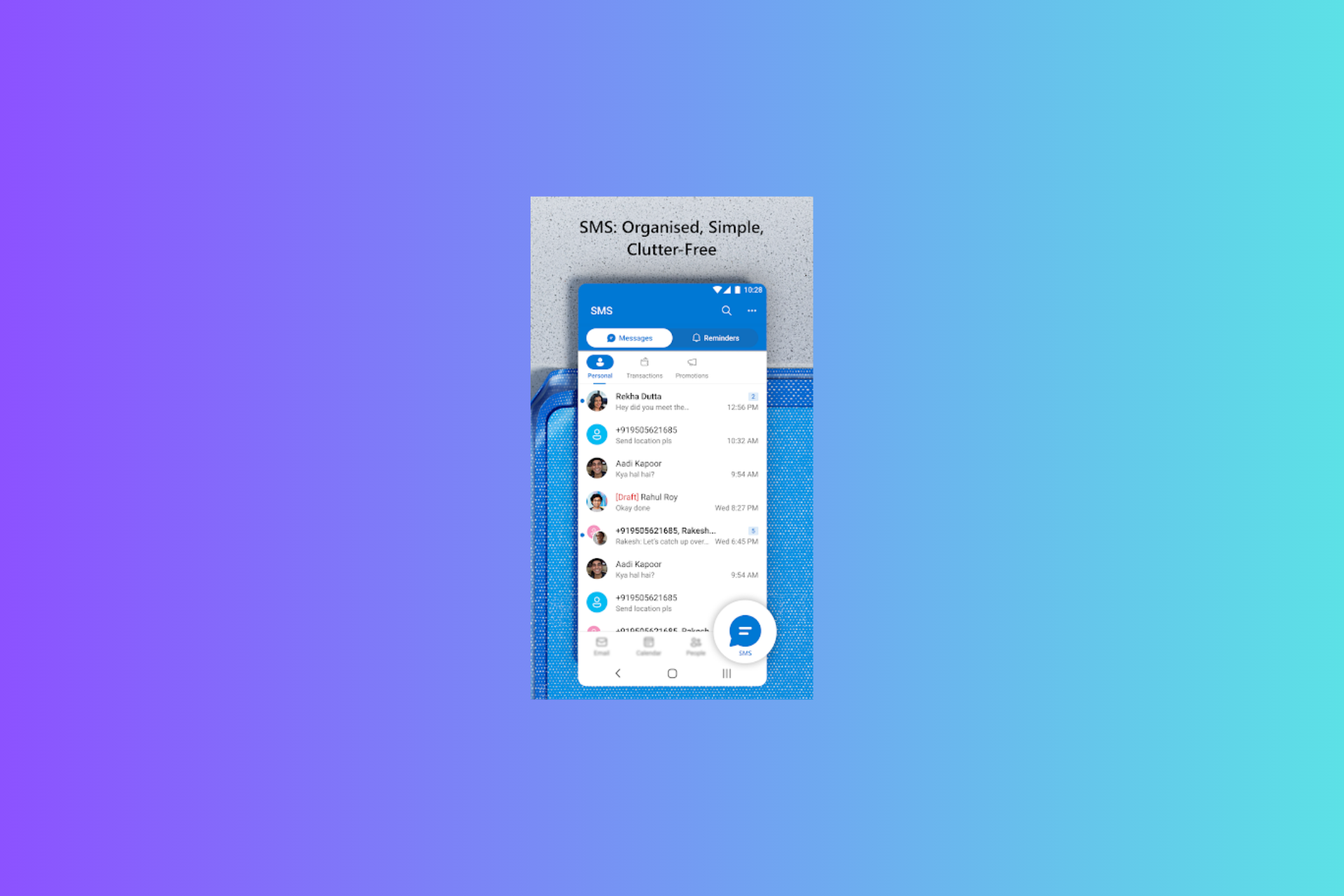
Launch the Outlook Lite app, and click the SMS icon from the bottom. Next, the app will ask you for permission to activate SMS. Now, you can send and receive messages from the Outlook Lite app.
Microsoft also mentioned the features coming in the future:
We are working on adding more features and improvements to SMS on Outlook Lite, such as:
Tighter integration with Email, Calendar and Contacts
Cloud backup of messages
Enhanced Security features.
Also, the Redmond tech giant encourages users to check out the new feature and send suggestions and feedback on the official blog post.
What do you think about the SMS feature on Outlook Lite? Share your views with our readers in the comments section below.
Telegram is a go-to app for secret chats, channels, animated stickers, communications, bots, and sending messages, photos, videos, and files to your contacts without cost.
It has become more powerful since it has been AI-powered with Copilot, which can make your chat experience smarter within Telegram.
You can ask Copilot for the latest game releases, cheat chodes, get information on timeless classic movies and TV shows, get all the sports action, tune into your vibe with customized playlists, and more.
How does Copilot on Telegram work?
This is how Microsoft describes it on the official website:
Copilot is a personal generative AI assistant powered by GPT model and Bing Search, available within Telegram. Copilot for Telegram uses natural language to provide responses on a range of topics, from seeking knowledge to travel tips to sports updates to movie recommendations. Let Copilot enhance your Telegram experience with its quick-witted assistance and endless curiosity.
What can it do for you?
According to the official website, here is what Copilot on Telegram can do:
Information Search: Ask Copilot, to get comprehensive answers on quick facts or detailed research powered by Bing Search.
Travel Planning: Dreaming of your next vacation? Copilot can suggest destinations and even help plan your itinerary.
Fitness Guidance: Want to start a new workout routine? Copilot can provide fitness tips and exercise plans.
Entertainment Updates: Curious about the latest movies or music? Copilot keeps you in the loop with entertainment news and recommendations.
Leisure & Laughs: Need a quick chuckle or a way to relax? Copilot can tell you a joke, share a funny gif, or suggest a casual game to unwind.
Copilot beta for Telegram currently supports only text chat requests.
How can I use Copilot in Telegram?
You can use Copilot on the Telegram desktop, mobile app, and web. If you use the Telegram app, click the link to start interacting with Copilot. However, if you haven’t used it, you can download it from the Microsoft Store and click the link to get started.
Alternatively, you can launch and search for Copilot within Telegram by typing @CopilotOfficialBot in the search bar.
To interact with Copilot on Telegram, you can type your question, instruction, or thought and allow Copilot to give you answers and suggestions.
Currently, Copilot for Telegram is in beta and free for all users. It can be used on various platforms, including Windows, Android, macOS, and iOS. You are limited to asking 30 queries a day.
Have you tried the Copilot for Telegram yet? If so, share your experience with our readers in the comments section below.
Microsoft added Copilot to Forms, which many customers welcome as it makes designing forms easier than before. In an official blog post, the Redmond tech giant has also added the ability to fine-tune forms with Continue Writing and Rewrite features. Let’s explore them.
Continue writing
Once you have created a new form, open it, scroll to the bottom of the form, and click the Copilot icon to add more questions. You can give Copilot the descriptions of the questions you want to add or click the Inspire me button to get suggestions.
Rewrite
If you don’t want to add new questions to your forms, you can use Copilot to rewrite the existing questions and form titles or add descriptions. Click the Copilot icon in the top left corner of any question or title. Copilot will give you various options. You can choose from them and replace them with the original text.
Microsoft will soon also add support for allowing Copilot to draft quizzes in Forms. As of now, this Copilot in Forms is limited to business users, but it will soon be available for consumer users.
When the feature becomes available, you will need to purchase the Copilot Pro subscription, which is $20 per month with a free 30-day trial.
What do you think of these new features? Share your views with our readers in the comments section below.
Copilot was planned from the start to be an accessible AI. The AI assistant allows you to use assistive technologies such as screen readers, magnifiers, contrast themes, and voice input.
Copilot makes our work more efficient, automates various processes, and can be a lifesaver when dealing with deadlines or a lot of data. Besides, it significantly enhances human-computer interactions.
For example, users with disabilities can use their voice to create PPT presentations. On top of that, neurodiverse people can use Copilot to summarize long articles to process information more easily.
In addition, the AI from Microsoft makes other software such as Word and Outlook more accessible by finding and fixing user-made errors. Also, it provides easy-to-use prompt suggestions.
Microsoft motivates developers to create accessible AI
During Microsoft Build, the company announced that the AI startup From Your Eyes won the Imagine Cup student competition. They created a mobile app that uses accessible AI to provide instant visual interpretations to users with impaired vision.
Zülal Tannur, the CEO of From Your Eyes, is an inspiration. The Microsoft Seeing AI initiative helped her to meet various developers with impaired vision who inspired her to learn code.
SeeingAI is a free app from Microsoft that provides enhanced video descriptions and alternative communication methods like the Cboard’s picture board app powered by Azure Neural Voices.
If you struggle with ADHD, try out the AI productivity coach developed by PlanRoadmap. It will assist you by compartmentalizing tasks, providing ways to increase your focus and simplify your decisions.
According to Satya Nadella, the CEO of Microsoft, accessibility should be a built-in feature for most tools and AI models to lead to an inclusive culture. In addition, developers should think about ways to make their software, including AI tools, more accessible.
Microsoft is not the only tech giant that focuses on accessibility. For example, Google added features for Maps, Lookout, and Android. Soon, Maps will be able to offer users walking instructions and screen reader capabilities.
Ultimately, when companies design accessible tools like Copilot AI, they do it to change the world and not necessarily for the return on investment (ROI). Hopefully, more developers will create new AI models with built-in accessibility features.
What are your thoughts? Did you ever use an accessibility tool?
Recently, fake antivirus websites have emerged as the new cybersecurity threat, spreading malware to Windows and Android devices.
These websites impersonate legit antivirus solutions from renowned brands, including Bitdefender, Avast, and Malwarebytes, which could trick you into downloading malicious software.
Which fake antivirus websites are spreading malware?
These are the fake websites that look like legit antivirus programs that are spreading malware:
avast-securedownload[.]com – This website distributes the SpyNote trojan, which impersonates an Android package file (Avast.apk). Once you download and install it, the trojan asks you for permission to access your SMS, call logs, delete apps, track location, take screenshots, and mine cryptocurrency.
malwarebytes[.]pro – Once you click on Free Download, MBSetup.rar, a RAR archive file will be downloaded. This installs the StealC information stealer malware.
bitdefender-app[.]com – Once you click on Free Download For Windows, setup-win-x86-x64.exe.zip, a ZIP archive file is downloaded. This deploys Lumma information stealer malware on your Windows device.
Another threat actor named AMCoreDat.exe, a Trellix binary that is a drop stealer malware has been uncovered. This malware can harvest victim information, including browser data, and send it to a remote server.
Cybersecurity experts are unaware of the distribution methods these fake antivirus websites use. However, similar campaigns in the past have been known to use malvertising and search engine optimization (SEO) poisoning.
With these methods, malicious sites come up higher in the search engine results, which increases the probability of visiting them. There has been an increase in demand for stealer malware, which can harvest information from infected devices. Hence, many new stealers, such as ScarletStealer, Acrid, SamsStealer, and Waltuhium Grabber.
How can I protect myself from these threats?
Here are a few of the best practices that you can follow:
Verify the source – Make sure you download the antivirus software from the official website and avoid clicking the links in your emails or ads.
Beware of pop-ups – Legit or real antivirus software doesn’t use forceful pop-up tactics to scare users into downloading their software. If you see pop-ups from the same brand more than often, it is most likely a scam.
Inspect the URL closely – Even if you end up on a website using a Google search result, always check the URLs and look for slight variations, like spelling mistakes, extra words, or symbols.
Use reliable security software – You must always choose an antivirus tool with anti-phishing and anti-malware features that can detect and block suspicious websites and downloads.
Stay updated – Given the rising number of threat actors, keep an eye on cybersecurity threats and related news so that you always know how to prevent yourself from becoming a victim.
To conclude, these instances of fake antivirus websites distributing malware make it more important to stay vigilant and double-check any software we download and install on our devices. At the same time, we are supposed to rely on antivirus tools for protection, and ensuring the legitimacy of sources is crucial for securing our systems against potential threats.
What do you think about it? Share your views with our readers in the comments section below.
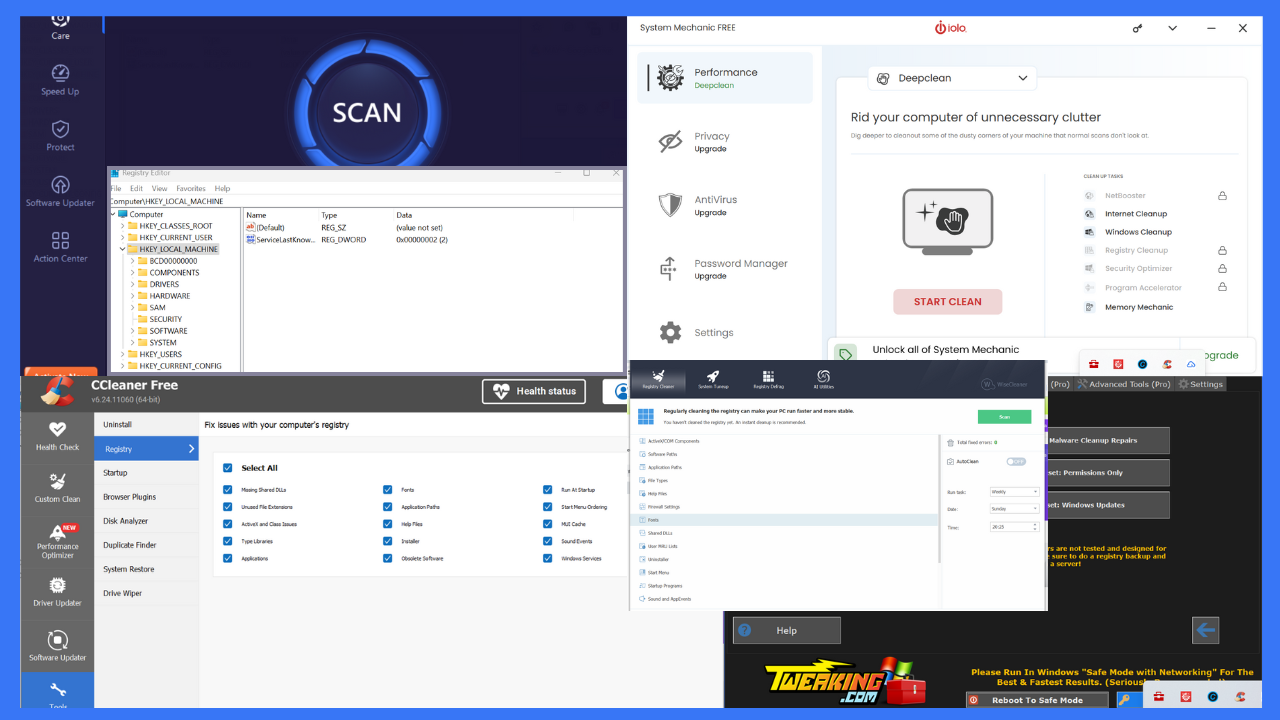
Is there a safe registry cleaner and which one is the best?
After thorough research and testing, I compiled a list of six software that offer a secure and user-friendly registry cleaning experience.
Sound good? Let’s roll in then!
Is There a Safe Registry Cleaner?
Yes, Windows provides a built-in registry editor that allows you to view and modify the registry. Additionally, you can also install reliable third-party registry cleaners on your Windows system, such as:
Tweaking.com Windows Repair
CCleaner
Wise Disk Cleaner
IObit Advanced SystemCare
IOLO System Mechanic.
Although Windows Registry Editor is safe to use, its interface is complex and requires advanced technical knowledge to navigate. Also, it can be tedious to manually search for entries and filter through thousands of them.
However, you can still use it if you’re tech-savvy and confident enough to perform the required operation. Alternatively, consider any of the listed third-party options to automate the registry cleaning process with a more user-friendly interface.
Best Safe Registry Cleaners for Windows
Check out these amazing tools:
1. Windows Registry Editor – Secure Built-in Tool
The default Registry Editor organizes the registry into a collection of keys, subkeys, and their respective values. Specifically, it displays the hierarchical database structure of your system in five hives, where:
HKEY_CLASSES_ROOT includes file extension associations and component object model registrations
HKEY_CURRENT_USER contains information related to current user settings like desktop preferences and environment variables
HKEY_LOCAL_MACHINE contains information related to hardware and system settings like security accounts and device drivers
HKEY_USERS includes information about all user accounts on the system
HKEY_CURRENT_CONFIG contains configuration data for the current hardware profile.
This tool also allows you to manually tweak or delete registry entries in your system.
However, make sure to back it up first. For this, click on the File menu and select the Export option. Then, choose a destination directory, specify the backup file name, and click Save.
Next, navigate to the desired hive and select the problematic registry entry for deletion. Here, I extended the SOFTWARE folder in the HKEY_LOCAL_MACHINE hive and selected the ArtMoneySE folder to delete it along with its sub-keys.
Pros:
It’s built-in and free-to-use
Stores all the initial configurations and their updates
Safer than third-party registry cleaners (if used with caution)
Cons:
It has a complex interface where a newbie can easily make mistakes
2. Fortect – Comprehensive PC Repair and Optimization Suite
Fortect is a powerful tool designed to not only clean your registry but also repair a wide array of system issues, making it a standout option for maintaining your PC’s performance.
Unlike basic registry cleaners, Fortect is also able to repair damaged Windows files, restore missing components, and ensure that your system remains stable and free from crashes.
Fortect scans your system comprehensively and identifies problematic areas within the registry and other crucial parts of your operating system.
The software automates most of the repair processes, saving you time and reducing the risk of manual errors.
Moreover, Fortect’s deep understanding of Windows architecture ensures that it addresses issues safely, without causing further damage to your system.
Before making any changes, Fortect automatically creates backups, allowing you to restore your system if something goes wrong. This feature provides peace of mind, particularly for users who may be hesitant about using registry cleaners due to potential risks.
Pros:
Comprehensive repair features that go beyond registry cleaning.
Automatic backup and restore options for added safety.
User-friendly interface with automated repair processes.
Helps prevent system crashes and restores overall stability.
Cons:
Full functionality requires a paid license.
Scanning and repairs can be resource-intensive.
Fortect
Clean your registry and perform regular maintenance with this powerful solution.
Tweaking.com Windows Repair can assist you in fixing several Windows-related problems. This includes registry errors, malware infections, file permission, and performing automatic registry backup with on-demand restore.
The registry maintenance features are intended to optimize the Windows registry. It helps in deleting invalid entries and improving your default settings.
To clean the registry with Tweaking, first execute a Pre-Scan. This makes sure that your system is all set for a successful cleaning process.
Then, switch to the Repairs tab, select the options where you want to apply the fixes, and click the Start Repairs button.
With invalid entries removal and detection and correction of registry issues, you’ll be in good hands!
Pros:
Easy-to-use interface
Automates the repair process, which saves time
Offers the option to fix broken registry errors and critical OS files
Tweaks and optimizes system performance
Cons:
Risk of removing important registry entries if not selected carefully
The free version may offer limited control over the registry compared to manual editing
Tweaking.com
Automate the repair process and quickly fix windows errors with Tweaking.com.
IOLO System Mechanic, formerly known as Registry Tuner, uses patented registry optimization technology to fix, speed up, and protect your system. More specifically, it cleans, repairs, and optimizes broken registry items within a few minutes.
At launch, it offers a quick scan option that helps you clean out some of the dusty corners of your machine that normal scans don’t look at.
However, the free version offers limited functionality. You may need to upgrade to its paid plan to use the Registry Cleanup tool.
Pros:
User-friendly interface
Improves system performance
Briefly describes the detected PC problems
Supports additional user tools as per the selected plan
Cons:
Its Registry Cleanup tool is included in the premium plan
Its free trial might push you towards paid upgrades
Accidentally removing critical entries may lead to system instability
IOLO System Mechanic
Ensure your computer is safe and clean with this professional solution.
CCleaner is another popular tool that provides several helpful utilities to make the system cleaner, faster, and safer. It includes a Cloud Driver Cleaner, Performance Optimizer, Driver Updater, Software Updater, Registry Cleaner, and more.
Additionally, CCleaner automatically creates a backup of your registry before performing any fixes. So, you can restore it if something unexpected happens.
To use CCleaner, open it and first run the Health Check scan to check if any issues exist across the system.
After completing the scan, navigate to the Tools section. Open the Registry window, select the required options, and click the Scan for Issues button.
When the scan is complete, click on the Review Selected Issues… button.
Click Yes to create a backup of the registry before making changes.
Finally, click Fix All Selected Issues to let CCleaner automatically fix the identified registry issues for you.
Notably, CCleaner also comes as portable software, so you don’t even need to install it to clean the system registry.
Pros:
Simple and clean user interface
Offers automatic updates
Supports Real-time junk monitoring
Effectively removes temporary files, browser cache, and unused data
Its paid version offers additional features, such as driver updates and automatic cleaning
Cons:
Accidentally removing crucial registry entries might make the system unstable
It has been hacked in the past, which raises concerns about data security
Its free version contains ads
CCleaner
Employ the help of this well-known tool to optimize and clean your computer.
Wise Registry Cleaner is a free tool primarily used for cleaning and defragmenting the system registry. It also provides the option to back up and restore the registry. Moreover, you can schedule an automatic scan and clean routine as per your preferences.
When you open Wise Registry Cleaner, it first displays a confirmation dialog box asking you to take a registry backup. Click Yes to do so and then press the Scan button afterward.
As a result, the tool identifies the total number of issues and lets you know about the entries that aren’t safe to delete.
It’s up to you to instantly clean the registry or schedule a daily, weekly, or monthly, AutoClean task routine.
Pros:
Makes automatic backups before cleaning
Clean and uncluttered interface
Simple to use
Unlike CCleaner, it doesn’t include unnecessary features like junk file cleaning
Offers a portable version to use without installation
Cons:
Its free version only cleans the current user account’s registry
Its Pro features appear free until you try to use them
Features in-app ads to promote WiseCleaner tools
Wise Registry Cleaner
Clean computer clutter and optimize your system with this easy-to-use software.
Advanced SystemCare is part of IObit’s official optimization suite. This registry cleaner aims to enhance your system performance, privacy, and security. It has a powerful registry repair engine and a turbo mode to operate quickly.
When you launch Advanced SystemCare, it first runs a scan to identify system-related issues.
After getting a comprehensive scan summary, switch to the Registry entries section. It lists the corrupted registry entries in different categories, like Missing Shared DLL, Missing Help Files, Nonexistent software, etc.
Click Fix to get rid of all of the selected problematic items at once.
IObit Advanced SystemCare is a great tool if you aren’t too tech-savvy. Its interface is pretty good and simple to use. Overall, it operates quickly, no matter how many errors your registry has.
Pros:
Provides a user-friendly interface with a one-click optimization option
Frees up disk space and improves system performance
Health monitor provides system information at a glance
Cleans temporary files and optimizes basic settings for free
Cons:
Its free version frequently promotes paid features and other IObit products
Its Pro version might have necessary utilities that could slow down your system
IObit Advanced SytemCare
Monitor the health of your system and improve performance with just a few clicks.
How I Chose the Best Safe Registry Cleaners for Windows
During my testing, I prioritized the following points to select the safest options for Windows. I picked tools that:
Have a clean and easy-to-use interface
Offer the option to create a registry backup automatically
Target specific registry areas to minimize risk
Support a built-in detailed scanning option
Allow you to review and choose registry entries to fix before applying changes.
So, is there a safe registry cleaner? Yes, there is — just consult my list of recommendations. Feel free to share which one you prefer in the comments below!
A few hours ago, on May 27, 2024, the official X (formerly Twitter) handle of Dragon Quest confirmed the release of Dragon Quest 3 HD-2D Remake.
The post read, The legend of Erdrick draws near, with a 20-second video titled The legacy begins. At the bottom, there was a list of supported platforms for the soon-to-be-released game, which included Nintendo Switch, PlayStation 5, Xbox Series X|S, Steam, and Windows.
The post, however, failed to mention the release date or share other details, leading to some confusion. Many were left wondering whether this was the Dragon Quest 3 HD-2D Remake that was previously announced or a teaser for the remake of the entire trilogy. Because the logo at the top-left corner simply reads Dragon Quest!
For the unversed, Dragon Quest 3 HD-2D Remake was announced three years ago, in May’21. Square Enix, at the time, had said,
In this latest visual iteration of DRAGON QUEST III, long-time fans and newcomers will be invited to experience this HD-2D version of DRAGON QUEST III that provides a unique three-dimensional feel by adding 3D effects to pixel-based backgrounds. DRAGON QUEST III HD-2D Remake is planned for release on console.
It now seems like the developers have scrapped their console-only plans and are releasing the title across all popular platforms.
Forums are buzzing with activity
Ever since the news of the Dragon Quest 3 HD-2D Remake broke, players have turned to forums to share their excitement and look for any updates. Sadly, there are none as of now!
Here’s what a few wrote,
Oh my god I can’t even handle it!!!!!
WOOHOOOOO I’m so happy!!!
I didn’t even know this was happening, I love Dragon Quest, so now I’m excited.
We hope to get more updates soon from Square Enix regarding the Dragon Quest 3HD-2D Remake‘s release date. But at the moment, there’s excitement about the fact that it will be available across devices!
We all use the Microsoft Store as our one-stop-shop for apps but when the Realtek Audio Console is missing, it begs the question whether it is a store issue or an app issue.
From our experience, it seems to be a driver issue. RAC depends on DCH drivers which are the standard drivers compatible with all devices and if they are yet to be installed on your motherboard, the Realtek Audio Console may be playing the disappearing act in the Microsoft Store.
How do I restore the Realtek Audio Console if it’s missing in the Microsoft Store?
1. Install DCH drivers
Hit the Windows key, type Device Manager in the search bar, and click Open.
Navigate to Sound, video, and game controllers to expand, right-click on Realtek High Definition Audio and select Uninstall device.
Repeat the same for any Realtek device under Audio inputs and outputs, Software components.
Next, navigate to your browser and go to the official NVIDIA website. (This will depend on your specific device manufacturer. In this case, we’re using NVIDIA).
Select your OS and other details from the drop-down menus then download the DCH drivers.
Wait for the download to finish then locate the DCH driver installer file. Double-click on it to run the installation wizard.
Accepts the terms and conditions and follow the on-screen prompts to complete the installation process and restart your PC.
Launch the Microsoft Store, search for the Realtek Audio Console and see if it is still missing. If it’s missing, try again later as it may take some time for the Microsoft Store to register and recognize new drivers.
DCH drivers are a universal Windows driver package that works with all devices. These drivers follow modern deployment standards and make it easier to integrate with the UWP framework. This makes it easier for the RAC app to pass compatibility, security and reliability checks.
If you prefer to facilitate this process, we recommend you try a trusted driver updater. For instance, Fortect Driver Updater is a good option, as it will scan your PC for outdated or broken drivers, and find the latest versions from its thorough dabatase.
2. Update the Store manually
Launch the Microsoft Store by clicking the icon from the taskbar.
Click on the three dots in the corner of the screen.
Choose Downloads and updates.
Click theGet updates button.
The system will now check all apps for updates, including the Microsoft Store. Note that after the updating process is complete, the app store will close automatically.
3. Restart the Microsoft Store Install Service
Hit the Windows + R keys to open the Run command.
Type services.msc and hit Enter.
Locate the Microsoft Store Install service, double-click on it, and select Properties.
Navigate to the General tab, under Startup type, select Automatic from the drop-down options, and click on the Start button.
Next, click Apply and then OK.
When you update the Microsoft Store, you may need to re-initialize the install service to detect newly added apps. It also helps trigger the synchronization with Microsoft’s servers so that the store is up-to-date and the Realtek Audio Console should appear.
4. Repair/reset Microsoft Store
Hit the Windows key and click on Settings.
Click on Apps on the left pane then Apps & features on the right pane.
Locate the Microsoft Store app, click on the three vertical ellipses, and select Advanced options.
Click on Repair.
Go back and click on Reset if the repair option failed.
Press the Windows + I keys simultaneously to open Settings.
Type Powershell in the search bar and click Run as administrator.
Enter the following command: Get-AppxPackage -allusers Microsoft.WindowsStore | Foreach {Add-AppxPackage -DisableDevelopmentMode -Register "$($_.InstallLocation)\AppXManifest.xml"
All these solutions can help you find the Realtek Audio Console in your Microsoft Store. However another easier way is to simply search for it on your browser, and when you click on it, you’ll be prompted to open it in your Microsoft Store.
And if your Microsoft Store is blocked, we know just the right way to unblock it. Hopefully, one of the above solutions has enabled you to locate and download the Realtek Audio Console from your Microsoft Store.
Have you encountered this or a similar error before? We’d love to hear about your experiences and the troubleshooting steps you tried. Let’s continue the conversation down below.
The last few days have been very exciting at Microsoft, especially the Build 2024 event, where the company unveiled its flagshipCopilot+ PCs. But there was another announcement that many missed: Microsoft’s collaboration with Cognition AI!
With the partnership in place, Devin, an AI-powered software developer, will now be available to customers. According to Microsoft’s official blog, it will help developers with intricate tasks like code migration and modernization projects.
Reports suggest that Devin is more capable than the available alternatives. It doesn’t just write code but helps troubleshoot coding errors and inform developers of the real-time progress.
Speaking about Devin, Microsoft’s CTO Kevin Scott said,
There are some tedious things you do as an engineer or a software developer, such as replatforming. It’s rare that an engineer really enjoys doing that. Devin is a tool designed to help you with those tasks.
Also, as is the case with most of Microsoft’s recent collaborations, Cognition AI’s Devin will now be powered by Azure, the Redmond-based tech giant’s native cloud computing and AI platform. Recently, Seimens, upon collaborating with Microsoft, moved Xcelerator to Azure.
These collaborations have helped Microsoft Azure emerge as a key player in the cloud computing landscape, outperforming Amazon Web Service and Google Cloud.
Besides, the collaboration comes at a time when Cognition AIclaims a $2 billion valuation after raising $175 million in recent funding. Not to forget, the startup was founded just six months ago in Nov’23. This is a significant feat for a startup still pretty much in its infancy!
What do you think about Microsoft and Cognition AI’s collaboration? Share with our readers in the comments section.
Is Virgin Media blocking NordVPN? Unfortunately, certain internet providers may block VPNs occasionally. On the brighter side, you can easily bypass these restrictions — with the help of this guide.
Below, I’ll show you step by step how to get out of that situation and browse privately again. Let’s begin!
How Is Virgin Media Blocking NordVPN?
ISPs, like Virgin Media, don’t officially state that they block VPN services. In fact, they provide the necessary fields in their router software for configuring VPNs. Still, you might experience significantly throttled internet surfing, streaming, and downloading speeds when you start using a VPN.
Virgin Media may resort to any or all of the following tactics to unofficially block your access to premium or free VPN networks:
Browser SSL Error: You’ll see this error when browsing if the ISP uses DPI (Deep Packet Inspection) via packet sniffing tools to block VPNs. DPI works by examining data packets flowing through the network. If DPI misinterprets the encrypted VPN traffic due to its inspection, it might disrupt the connection, causing the error.
Webpage Connection Reset Error: If the ISP disrupts the successful communication between your device and the VPN server, you might encounter a Webpage Connection Reset Error. This error indicates the connection was abruptly terminated, so you can’t access the webpage through the VPN.
Virgin Media Web Safe: This is a specific service offered by Virgin Media. It’s possible it includes VPN-blocking functionalities. If you’re using a VPN and you keep encountering screens that say “Sorry, Web Safe has blocked this site,” VM is to blame.
DNS Sinkhole Error: This error usually indicates an issue with the Domain Name System (DNS). DNS translates website names into IP addresses. VM might employ DNS redirection to route VPN traffic to a dead end (sinkhole) instead of the intended VPN server. This would disrupt the connection and could cause this error. Your Chrome Browser may display Failed to Connect, Slow Loading or Timeouts, and Error Name Not Resolved.
How To Fix Virgin Media Blocking NordVPN
I’ve arranged the troubleshooting tips in order of complexity. You’ll find the simplest ones at the top:
Preliminary Checks
Give the following steps a try first before moving on to the more technical ones:
Choose the right VPN server: Not all of Nord’s 6,000+ servers are always in their peak performance. Some might face disruptions created by technological and human factors. So, try switching to one that’s close to your location. For example, to stream VM television shows in Ireland, use NordVPN’s Irish servers. Similarly, for the Virgin TV GO app in the UK, use any one of the 440+ servers located in the UK.
Clear browser cache and cookies: Try clearing cache and cookies from your browser by pressing the Ctrl + Shift + Delete hotkey. You should see the Clear browsing data or a similar dialog box. There, navigate to the Advanced tab, checkmark these options, and click on the Clear data button:
Browsing history
Cookies and other site data
Cached images and files
Site settings.
Restart the NordVPN app: Open the app from the Windows System Tray area. You’ll find a cogwheel icon in the lower-left corner. That’s the Settings menu. Click on that to find the Logout button in the lower right corner. Click it and open the Task Manager app by pressing Ctrl + Shift + Esc. Find the NordVPN service under the Processes column, and end it by right-clicking on it. Now, open the app again from the Start Menu and log in with your registered NordVPN email.
Restart the device: Reboot your PC, Mac, or tablet and try connecting with the VPN again.
Were you able to resolve Virgin Media blocking NordVPN so far? If not, continue with the following troubleshooting ideas:
Disable Child Safe on Your Virgin Media Account
Virgin Media Web Safe feature may also prevent some VPN services from working properly or utilizing the full bandwidth of VPN servers.
If you go to the Virgin Media Web Safe portal, you’ll see that the feature claims that it prevents address hiding, which is related to VPNs.
You might need to sign up using your Virgin Media subscription credentials to activate the account if you haven’t done that already.
Now, click on the Sign in button on the right side of the portal. It should be the My Virgin Media block.
You’ll need to log in with your username and password.
On the top of the website, find My apps and click on that to expand the list of services.
Click on the Web Safe hyperlink below the TV Control service.
You should now be on the Manage your Web Safe settings page.
By default, Virgin Media keeps the Child Safe feature enabled. You need to click on the toggle button to deactivate it.
Now click on the Apply button just below the Manage your Web Safe settings header.
Enable PPTP Pass-Through on VM HUB
You’ll have to enable PPTP Pass-Through or set it to default on all physical routers for NordVPN to work. Here’s how to do so on the VM Hub:
Open a web browser tab and enter 192.168.1.1 or 192.168.0.1 to access the Virgin Media Hub control interface.
If prompted, you’ll need to log in with your username and password. These are typically printed on a sticker on the Hub, but if you’ve changed them before you’ll need to use your custom credentials.
Once logged in, you’ll need to find the Advanced Settings section. The exact way to get there depends on your Hub model:
Hub 3 models: Look for Advanced Settings or Network Settings.
Hub 2 models: Try the Firewall option under the Security settings.
Once you’re in Advanced Settings, look for a section related to VPN or Advanced VPN Settings.
Look for the PPTP Pass-Through setting and check the toggle switch.
Click the Save or Apply button to confirm your configuration.
Restart the router.
Restart the NordVPN app.
Now, try to visit a streaming site using NordVPN again on your Virgin Media broadband network.
Use the NordVPN Browser Extension
Nord’s browser add-on allows you to enforce VPN settings exclusively on your web browser.
Click on the Add to Chrome button and then the Add extension button.
Navigate to the Extensions menu in the top-right corner of Chrome.
Click on the Pin icon near the NordVPN extension.
Now, open the NordVPN extension from the Extensions tab on Chrome.
Click the Login button and enter your credentials.
Hit the Quick Connect button to connect to a VPN server.
Uninstall and Reinstall NordVPN App
Open Apps and features from the Start Menu.
Find NordVPN in the list of installed apps.
Click the Uninstall button.
Once the uninstallation is complete, visit this site to get the most recent version of NordVPN.
Download and install the app.
Log in with your NordVPN credentials.
Test the VPN again.
Try Resetting the TCP and UDP Ports
TCP and UDP ports facilitate successful communication between your device and websites, apps, IPTV portals, etc.
Here’s how you can close and reset these ports to fix NordVPN blocks imposed by Virgin Media:
Click on the Start menu and type Command.
On the right side of the Command Prompt result, you’ll see the Run as administrator option. Click on that.
In the Command Prompt window, type the following command exactly as shown here: netsh int ip reset.
Press Enter to execute the command.
The reset process may take a few moments.
Once complete, you’ll need to restart your computer for the changes to take effect.
Try Disabling the Router and Device Firewall
To deactivate Virgin Media Hub’s firewall, follow these steps:
Open a web browser and enter the IP address 192.168.0.1 or 192.168.1.1 in the address bar to access the Virgin Media Hub settings page.
Log in using your admin credentials. The default username is usually admin and you can find the default password on the hub’s sticker.
Navigate to the Advanced settings or Security section, then select Firewall.
Turn off the firewall by unchecking or switching off the firewall option.
Save the changes by clicking the Apply or Save button.
Switch to a Third-Party Router
Instead of using the Virgin Media Hub as the primary router, use another brand’s router. For example, you can go for Cisco, TP-Link, Tenda, D-Link, etc. They’re unlocked routers. That means you can modify their settings any way you want.
Also, you can avoid the risk of Virgin Media embedding programs in the router to disallow VPN servers no matter what you do.
However, you must use the Virgin Media Hub to receive a broadband signal. Here’s how to shift routing to a third-party device:
Use Virgin Media Hub as a Modem Only
Access the Hub console by going to 192.168.0.1.
Log in with your administrative username and password.
You should see the Welcome screen.
Click on the Modem mode link on the left side navigation panel.
Select the Enable Modem Mode radio button.
Click on the Apply changes button.
You’ll see a status page as shown below.
It might take up to 5 minutes to re-configurate the router to modem mode.
Now, if you ever want to enable the modem and router mode of your Virgin Media Hub, you can do that easily by reversing the above steps. Instead of going to 192.168.0.1, this time you need to use 192.168.100.1 as the IP address for the Virgin Media Hub Modem Mode. The remainder of the steps are the same.
Set Up a New Router
Now, follow these instructions to route broadband connectivity from the Virgin Media Hub to your own router. I’m using a Cisco device for the tutorial. However, the steps are similar for any popular make and model.
Take the LAN cable provided by the Virgin Media Hub and connect that to the no. 1 LAN port at the back of the Hub.
Ensure that other Hub cables are connected, like the coaxial cable coming from outside and the power cable coming from the adapter.
Connect the other end of the LAN cable to the third-party router’s Internet or WAN LAN port.
If it’s a Wi-Fi router, connect to that network from your PC.
If it’s an Ethernet-only router, connect the LAN cable provided to the PC’s LAN port.
The other end of this LAN cable should go into the first (no. 1) LAN port on the third-party router.
Open the router control panel and log in.
You should find its IP address and password on a sticker on the back.
For me, the default IP was 192.168.1.1.
Inside the control panel, click on the Network drop-down at the top.
Choose the Interfaces option from the menu that opens.
You’ll see all the usable Interfaces for the Cisco or your own router.
Click on the Edit button for the WAN interface.
Go to the Protocol drop-down menu and change that to DHCP client from PPPoE.
Click the Save & Apply button at the bottom.
It can take up to one minute for the Virgin Media Hub to transfer the public IP to the third-party router.
Once done, restart the third-party router.
Now, try to access a website using NordVPN. It should work this time.
Use a VPN Within the Router
Here’s how you can set up NordVPN at the router level to avoid VPN restrictions imposed by the ISP. I’ve used a TP-Link model for this tutorial. However, you’ll see that the steps are similar for all major router makes and models.
Log in to the TP-Link router console by visiting 192.168.1.1.
Click on the VPN Client menu in the left-side navigation panel.
Checkmark the Enable checkbox for VPN Client.
Bring up the new profile configuration window by clicking Server List and then by clicking Add.
Fill in the fields of the pop-up window that follows:
Description: NordVPN
VPN Type: OpenVPN
Username: NordVPN subscription username
Password: NordVPN subscription password
Visit the Server Tools portal to download OpenVPN client configuration files.
You can download either the TCP or UDP configuration files.
Upload the configuration file in the Add Profile dialog.
Go back to the Server List page and add the newly created profile.
On the Device List page, add the devices from which you want to use the VPN.
Use a NordVPN Alternative
If none of the above work, you can try these alternatives in your VM broadband network:
Browsec
Browsec is one of the best free Chrome Browser-based VPN solutions. In the free edition, you can swap within only three VPN servers from the US, the UK, Singapore, and the Netherlands. Also, the surfing and streaming speed is throttled. You can get a paid plan for unlimited bandwidth and access to more servers than the default four destinations.
The best thing is you can easily check out if the VPN solution will work with Virgin Media. If it works, you can buy it. If it doesn’t, simply skip it.
If you wish to apply a VPN from the system level, you can use Windscribe. You can get its desktop app for macOS, Windows, and Linux devices. It comes with a 10 GB free surfing and downloading quota. The free usage renews every month. It also offers more free VPN servers than Browsec.
I’ve been using it to surf, stream, and download seamlessly on any ISP. I haven’t experienced any ISP-level block on it.
ExpressVPN is a premium VPN tool with no free trial. However, there’s a money-back guarantee if you’re not satisfied with its service.
Moreover, it has servers in 105 countries. When I reviewed this VPN solution, it didn’t disclose how many servers it maintains. You can install it on a desktop, mobile, and Chrome Browser. It allows you to simultaneously run a VPN on eight devices from one subscribed account. Furthermore, you can set up Express VPN within the router as well.
Proton VPN is a Switzerland-based VPN solutions provider. It comes with a no-log policy. That means it won’t log your browsing habits on any server for any reason. Also, it uses AES-256-CBC encryption so ISPs can’t decode your browsing behavior.
Furthermore, you can experience download speeds of up to 10 Gbps. You can run the tool on up to 10 devices with a single subscription. Moreover, it offers an effortless router setup option as well.
Try the free trial and see if it works on Virgin Media before subscribing.