Fixes a flickering or screen flashing issue when the device is connected to Surface Dock 2.
Improves device connectivity to Wi-Fi and addresses concerns regarding Bluetooth pairing when device is on standby.
Addresses security vulnerabilities related to Wi-Fi and Bluetooth to secure devices from a potential threat.
And, it also mentioned the list of new drivers, have a look:
Windows Update Name
Windows Device Manager
Surface – Extension – 6.16.8.0
Surface Dock 2 Firmware Update – Extensions
Intel – net – 23.30.0.6
Intel(R) Wi-Fi 6 AX201 160MHz – Network adapters
Intel Corporation – Bluetooth – 23.30.0.3
Intel(R) Wireless Bluetooth(R) – Bluetooth
Intel – System – 2334.5.1.0
Intel(R) Management Engine Interface – System devices
Intel – SoftwareComponent – 1.70.101.0
Intel(R) iCLS Client – Software components
To update the firmware on your device, you need to have Windows 10 version 22H2 and later or Windows 11 version 22H2 and newer. Also, you can either go to the Settings app, then choose Windows Update to install the latest version.
You can also go to the official Surface Support website, select the language, and click Download. Once downloaded, you can double-click the file to initiate the installation. However, before proceeding, ensure you have 561.0 MB of space available. Once the installation is complete, you must restart your Surface laptop to complete the entire process.
What do you think about the new update for Surface Laptop Go 3? Share your views and experiences with our readers in the comments section below.
In a recent development, the U.S. Cybersecurity & Infrastructure Security Agency (CISA) has added three security vulnerabilities to the Known Exploiting Vulnerabilities catalog.
The vulnerability in Google Chrome, CVE-2024-4761 (Google Chromium V8 Type Confusion Vulnerability) was actively exploited on May 13th, but no technical details have been provided. However, the severity of the exploit is categorized as High, which means it poses a great risk to users’ online security.
CVE-2024-4947
Google Chromium V8 Type Confusion Vulnerability
Description as mentioned in the Catalog
Google Chromium V8 contains a type confusion vulnerability that allows a remote attacker to execute code via a crafted HTML page.
Action
Apply mitigations per vendor instructions or discontinue use of the product if mitigations are unavailable.
To avoid getting victimized by this vulnerability, the agency has recommended updating browsers before using them.
D-LINK | DIR-600 ROUTER (CVE-2014-100005)
Although both routers listed are quite old, they are still actively targeted by threat actors. The flaws in the product let cybercriminals hijack administrator authentication requests, take control of devices, and create unauthorized accounts.
D-Link DIR-600 routers contain a cross-site request forgery (CSRF) vulnerability that allows an attacker to change router configurations by hijacking an existing administrator session.
Action
This vulnerability affects legacy D-Link products. All associated hardware revisions have reached their end-of-life (EOL) or end-of-service (EOS) life cycle and should be retired and replaced per vendor instructions.
Added on
May 16 2024
D-LINK | DIR-605 ROUTER (CVE-2021-40655)
CVE-2021-40655
D-Link DIR-605 Router Information Disclosure Vulnerability
Description as mentioned in the Catalog
D-Link DIR-605 routers contain an information disclosure vulnerability that allows attackers to obtain a username and password by forging a post request to the /getcfg.php page.
Action
This vulnerability affects legacy D-Link products. All associated hardware revisions have reached their end-of-life (EOL) or end-of-service (EOS) life cycle and should be retired and replaced per vendor instructions.
Added on
May 16, 2024
D-Link has provided firmware updates and mitigation recommendations for these vulnerabilities. To reduce the risks posed by those vulnerabilities, CISA has asked the impacted companies in the US to replace infected devices or secure them by June 6.
CISA also stresses the use of newer router models and staying up to date with security updates to avoid security breaches and the loss of sensitive data.
To conclude, with the cyber threat evolving daily, it is important to stay vigilant and proactive to stay secure while online.
Are you using the listed routers, or have you been using outdated browsers? If so, replace them with a newer model and update your browser. Then, in the comments section below, let us know if that helped.
The Microsoft Event 2024 took place earlier today, and Microsoft announced a couple of new Snapdragon-based Surface Laptops, now called Copilot Plus Surface Laptops, officially introducing Copilot + PC devices to the world, as well as upcoming AI capabilities on Windows, such as Live Caption, and Cocreator.
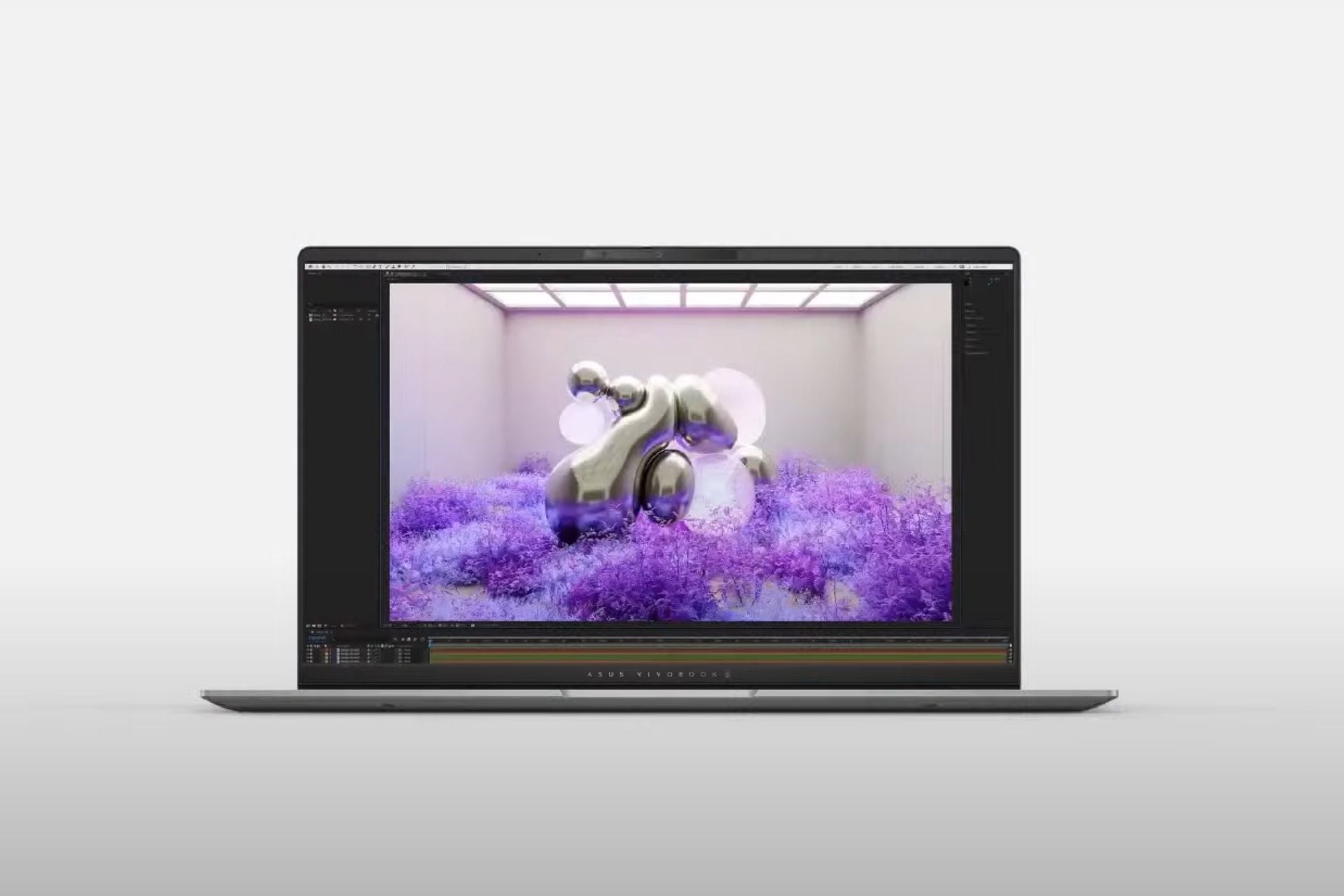
With this occasion, Asus has also officially joined the Qualcomm family by announcing its new Snapdragon-based Vivobook S 15 OLED S5507, As you might have guessed, this is also a Copilot + PC device.
Though hardly a surprise, as the laptop was leaked to a Vietnamese store a while ago, now, according to a post on X, the new Snapdragon-based Vivo laptop from Asus is quite boosted with many impressive specs, as you can see below.
Here's ASUS' first Snapdragon X Elite laptop, that was listed on their vietnamese store for some time. pic.twitter.com/3mCKn0nVto
USB Type-C 2x USB 4.0 2x USB 3.2 Audio jack MicroSD card
Operating system
Windows 11
Price
Starting at $1,299
Release date
2024
The Snapdragon-based Asus Vivo 15 is now available to preorder on the official site. It’s not entirely revolutionary, but it boosts some impressive specs, and it promises to be a perfect Copilot + PC (this is really not an intuitive title for laptops) device for enhanced productivity, mobility, and performance.
The Snapdragon-based Lenovo laptops are coming sooner than expected. At the Microsoft Event 2024, the Redmond-based tech giant announced its first Snapdragon-based Surface laptops, and many other OEMs announced their Qualcomm-powered devices, as well.
From Asus to Samsung, Lenovo is also expected to join the crowd with 3 new Snapdragon laptops: Lenovo ThinkPad T14s, Lenovo YOGA Slim 7, and Lenovo IdeaPad Slim 5.
The new Snapdragon-based Lenovo laptops are part of the Copilot + PC devices, the Redmond-based tech giant unveiled earlier today at the Microsoft Event 2024.
We didn’t have details about their specifications, prices, and possible release dates. However, today, the company unveiled all the specs, which you can read below:
14.5” 3K (2944 x 1840) 90 Hz 16:10 PureSight OLED Touch, 1000 nits peak, Delta E True Black 600, Dolby Vision, TÜV Low Blue Light Certification
Memory
Up to 64 GB LPRRD5X 8533MT/s Dual Channel
Up to 32 GB LPDDR5X 8448 MHz Dual Channel
Storage
Up to 1TB
Up to 1TB
GPU
Snapdragon X Elite Qualcomm Adreno GPU
Snapdragon X Elite Qualcomm Adreno GPU
Connections
Wi-Fi 7, Bluetooth 5.3
Wi-Fi 7, Bluetooth 5.3
Peripherals
1x 3.5 mm jack 1x HDMI 1x Kensington Lock slot 2x USB Type-A 2x USB Type-C
2X USB Type-C (40Gbps, PD 3.1, DP 1.4) 1X USB Type-C (40Gbps, PD 3.1, DP 1.4)
Operating system
Windows 11
Windows 11
Price
Starting at $1,699.
Starting at $1,299.
Release date
June 2024
June 2024
These Snapdragon-based laptops from Lenovo will have access to Windows Recall, Copilot with GPT-4o, Live Captions, and new Windows Studio Effects, and they will be shipped to the world starting June.
What do you think about the Snapdragon-based laptops from Lenovo?
Have you been missing the HP OmniBook laptops? Well, you should know that the tech giant plans to bring it back after an absence of more than 22 years.
After it was leaked on X (formerly known as Twitter), HP officially announced the new OnniBook laptops which are now powered by Qualcomm’s Snapdragon Elite X processors, effectively making them AI-ready.
HP OmniBook is coming back. They're resurrecting the old brand, which first ran from 1993 to 2002, to use it on what looks like their new Snapdragon X ARM based laptops with Windows and AI. Here's a first look: https://t.co/lujw72DdDw
The leaker didn’t have any info regarding the specs of the new OmniBook devices, but HP released them today, moments after the Microsoft Event 2024 took place, which saw the Redmond-based tech giant ushering in a new era of AI computing with its new Surface laptops.
The new OmniBook X AI, as well as EliteBook Ultra AI, are part of the new Copilot + PCs, which are the new AI devices envisioned by Microsoft, capable of productivity, performance, and mobility, all at once.
Take a look at the specs below:
HP OmniBook X AI
EliteBook Ultra AI
CPU
Snapdragon X Elite
Snapdragon X Elite
Display
14 inch; Touchscreen
14-inch; Touchscreen
Memory
Up to 32GB LDPDDR 5
Up to 16GB LDPDDR 5
Storage
Up to 2TB
GPU
Snapdragon X Elite Adreno
Snapdragon X Elite Adreno
Connections
Wi-Fi 7; Bluetooth 5.4
Wi-Fi 7; Bluetooth 5.4
Peripherals
2x USB Type-C® 1x Headphone/microphone combo 1x USB Type-A
1x USB Type-C® 1x USB Type-C® 1x USB Type-A 1x stereo headphone/microphone combo jack
Operating system
Windows 11 Home
Windows 11 Home
Price
Starting at $1,199.99.
Starting at $1,699.99.
Release date
June 18th
June 18th
Both laptops can now be pre-ordered: the HP OmniBook X AI can be pre-ordered from here, and the EliteBook Ultra AI can be pre-ordered from here.
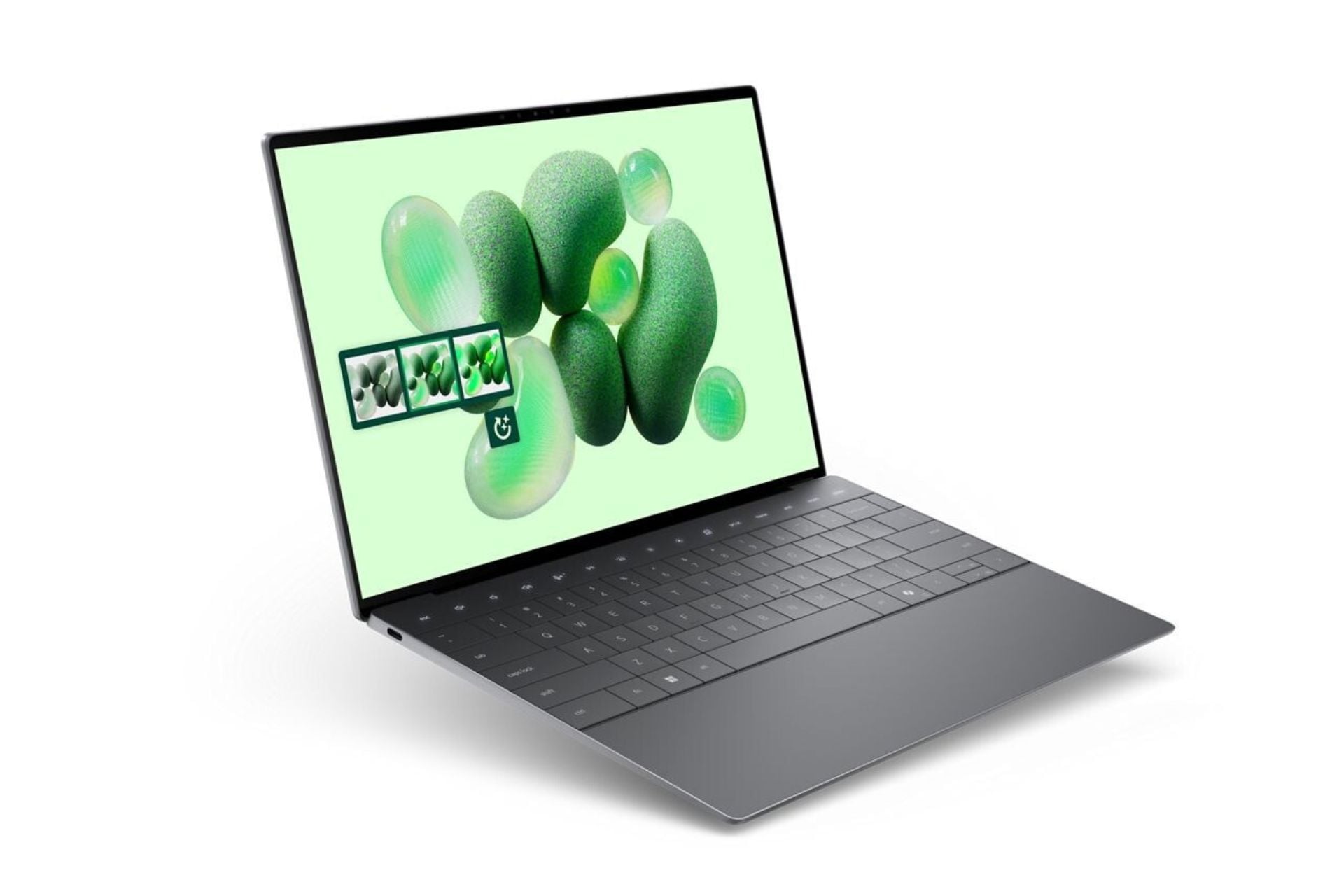
We were the first to release exclusive images of the new AI laptops from Dell, including the new Inspiron 14 7441 Plus, and XPS 13 9345, and today, with the occasion of the Microsoft Event 2024, the company has officially announced them, and just as we predicted they’re scheduled for a 2024 release.
The new laptops are probably the best alternative to the new Surface laptops from Microsoft or the M3-based MacBook Pro from Apple. Both of these will sport the new Snapdragon Elite X, and users will be able to take advantage of AI capabilities to be productive on the go, especially with the new XPS 13 9345.
The AI laptops from Dell will be equipped with the latest Windows 11 update, the 2024 one, which has enhanced Copilot features, and many other AI-based capabilities, from Microsoft Paint to Windows Photos, as well as Windows Recall, Windows Studio Effects, and Live Captions.
Basically, these new features will allow you to use the new Dell AI laptops to new heights of productivity.
Below, you can see the most important specifications.
Inspiron 14 7441 Plus
XPS 13 9345
CPU
Snapdragon X Plus
Snapdragon X Elite
Display
14-inch 2,560 x 1,600 resolution display
13.4-inch 1,920 x 1,200 pixels 2,560 x 1,600 touchscreen 2,880 x 1,800 touchscreen OLED display
Memory
16GB of RAM
Up to 64GB of RAM
Storage
512GB SSD
Up to 2TB of SSD storage
GPU
Qualcomm® Adreno™ GPU
Qualcomm® Adreno™ GPU
Connections
Wi-Fi 7 Bluetooth 5.4
Wi-Fi 7 Bluetooth 5.4
Peripherals
1080p Windows Hello webcam 2x USB4 Type C USB-A 3.2 microSD card reader audio jack
1080p webcam USB4 Type C
Operating system
Windows 11
Windows 11
Price
Starting $1,099
Starting $1,299
Release date
Later in 2024. Pre-orders now.
Later in 2024. Pre-orders now.
You can pre-order the Inspiron 14 7441 Plus here. The XPS 13 9345 can be pre-ordered from here.
Want to watch an interesting video about cars in a foreign language, but you don’t have subtitles to it?
Worry no more, because Microsoft will introduce the AI-based Live Captions to Windows later this year, meaning you can virtually watch any video in any language, and the capability will translate it for you instantly.
At the Microsoft Event 2024, taking place earlier today, the Redmond-based tech giant unveiled the exciting feature as part of the Windows 11 2024 Update (also known as Windows 11 24H2), which is coming later this year.
With it, Live Captions will turn any audio that passes through your PC into a single live translation feature, says Microsoft.
More than 40 languages will be available to select from on Windows devices, including Spanish, Mandarin, or Russian, and the capability will be available across any video calling app, any entertainment app, translated locally across the NPU.
Today, at the Microsoft Event 2024, the Redmond-based tech giant has finally unveiled its most capable Surface laptops yet: the Snapdragon-based Surface Laptop 6, and Surface Pro 10. Only now, they’re out in the world with another name: Copilot Plus Surface Laptop, and Copilot Plus Surface Pro, as the Redmond-based tech giant unveiled a new type of PCs, Copilot + PC.
The new laptops are Microsoft’s first foray into the new AI PC concept and will sport the new Snapdragon Elite X processors from Qualcomm.
Microsoft fanboys should be excited: the new Snapdragon-based Surface laptops have been rumored to take on Apple’s M3-based MacBook Pro devices, then you should know that now they’re officially more than capable of doing so. They are beating MacBook Pro when it comes to battery life as well.
Below you can take a look at Microsoft’s Snapdragon-based Surface laptop specification:
Surface Laptop 6
Surface Pro 10
CPU
Snapdragon® X Elite Qualcomm® Hexagon™ with 45 trillion operations per second
Snapdragon® X Plus Snapdragon® X Elite Qualcomm® Hexagon™ with 45 trillion operations per second
Display
15-inch HDR, Dolby Vision IQ Touchscreen 3:4 IPS 2,304 x 1,536 pixels 2,496 x 1,664 pixels
13.8 inch HDR, Dolby Vision IQ Touchscreen 3:4 IPS 2,304 x 1,536 pixels 2,496 x 1,664 pixels
Memory
Up to 32GB of LPDDR5X RAM Baseline 16GB of LPDDR5X RAM
Up to 32GB of LPDDR5X RAM Baseline 16GB of LPDDR5X RAM
Storage
256GB, 512GB, or 1TB
256GB, 512GB, or 1TB
GPU
Qualcomm® Adreno™ GPU
Qualcomm® Adreno™ GPU
Connections
Wi-Fi 7 Bluetooth 5.4 1080p webcam with Windows Hello
Wi-Fi 7 Bluetooth 5.4 1080p webcam with Windows Hello
Peripherals
2x USB-C/USB4 ports 1x USB-A 3.1 3.5 mm headphone jack microSDXC card reader haptic trackpad 2x Dolby Atmos speakers
Microsoft announced Windows Recall, which is quite similar to the popular AI Explorer, which has been teased out for a while now. The tool can see everything you’re doing on your device and assist you when you need it, and you can interact with it using natural language.
Say you want to search for an older picture: the Windows Recall will do that for you, and you only need to tell it. According to the official announcement, Windows Recall is a local AI, and it watches you permanently by recording everything you do on Windows.
Nothing recorded is sent to the cloud, so users won’t need to worry. The tool is also able to find for you certain things that you looked for a few days ago, but forgotten how they’re called, yet you can describe them. For Windows Recall that is enough.
Recall leverages your personal semantic index, built and stored entirely on your device. Your snapshots are yours; they stay locally on your PC. You can delete individual snapshots, adjust and delete ranges of time in Settings, or pause at any point right from the icon in the System Tray on your Taskbar. You can also filter apps and websites from ever being saved. You are always in control with privacy you can trust.
Microsoft
This means you won’t have to worry about Windows Recall sending sensitive information to Microsoft. As it will occupy space on your device, you’ll be able to choose to delete snapshots and customize them, as you want.
For now, Windows Recall is exclusive to Copilot + PC devices, which are a new kind of PC introduced earlier by Microsoft, and the first such devices will be shipped to consumers starting next month, in June.
Microsoft has developed Windows Recall to allow you to scroll back in time, to find specific files, and the is made out of 40 different AI models and it can help and guide you through almost everything on Windows, even editing images in the Photos App.
What do you think about this new technology coming to Windows? Are you going to use it or not?
Are you ready for a new way of working with computers? Microsoft has just teased the new Copilot + PC devices, and they’re 58% faster than MacBook Air M3.
At the Microsoft Event 2024, the Redmond-based tech giant said AMD, Intel, Qualcomm, Acer, Asus, Dell, HP, Lenovo, and Samsung, are all in for these new devices, with the first of Copilot + PC devices coming out on June 18th. They’re quite affordable too, starting at $999.
So what are Copilot + PC devices?
Well, according to the official announcement, Copilot+ PCs are the fastest, most intelligent Windows PCs ever built.
Here’s what you should know: they’re capable of 40+ TOPS (trillion operations per second). Copilot on these devices will be enhanced with the new GPT-4o, and it will be integrated with Windows 11’s File Explorer, Notifications, Edge, Settings, and more, allowing you to quickly get across the operating system in seconds.
They will also be enhanced with Cocreator, which allows you to instantly create AI-powered images in Microsoft Paint. The new Copilot + PC devices will feature Live Captions, allowing users to virtually watch videos in foreign languages without any worry, as the capability will automatically translate everything.
Users will also have access to the brand-new Windows Recall, which works similarly to how the anticipated AI Explorer would work: with it, you’ll be able to access every part of your PC, and everything that you have done or seen on it. Windows Recall is also a local AI tool, and the snapshots it takes will be stored locally, allowing you to delete them at any time.
You can scroll across time to find the content you need in your timeline across any application, website, document, or more. Interact intuitively using snapshots with screenray to help you take the next step using suggested actions based on object recognition. And get back to where you were, whether to a specific email in Outlook or the right chat in Teams.
Microsoft
Microsoft says the new Copilot + PC’s batteries will last all day, allowing users to get work done more efficiently. In a phone call between users and Copilot, the AI model is able to see anything and make use of every piece of information to provide you with the best solutions.
They are up to 20x more powerful and up to 100x as efficient for running AI workloads and deliver industry-leading AI acceleration. They outperform Apple’s MacBook Air 15” by up to 58% in sustained multithreaded performance, all while delivering all-day battery life. Copilot+ PCs can deliver up to 22 hours of local video playback or 15 hours of web browsing on a single charge. That is up to 20% more battery in local video playback than the MacBook Air 15”.
Microsoft
The new Copilot + PC devices also have natural integration with a variety of productivity tools, such as the entire Adobe flagship (Photoshop, Lightroom, and Express, will be available initially, with Illustrator, and Premiere Pro coming later this summer), but also DaVinci Resolve Studio, CapCut, Cephable, LiquidText, and djPro.
The new Windows Studio Effects will also be available on Copilot + PC devices, allowing users to quickly change the setup of their Windows experience.
With this announcement, Microsoft said that its OEM partners will release dozens of new Copilot + PC devices, and we’ve covered them all up for you below:
Plus, the new Surface laptops are being renamed Copilot Plus Surface Laptops, and they’re quite the beasts. Take a look here, and if you feel like pre-ordering them (beware, they’re quite expensive, you can do so now on Microsoft Store).
Of course, all the Copilot + PC devices will sport the new Snapdragon Elite X processors from Qualcomm, with AMD and Intel releasing chips for these devices later this year.
The best Twitch recording software with zoom lets you focus on gaming highlights, important content, and your reactions.
You’ll often need to zoom in and out during a live stream to emphasize specific graphics, text, images, and more. However, many apps don’t offer this feature out of the box.
Therefore, I’ve tested more than 25 streaming and screen recording tools for a week. Here are my top contenders!
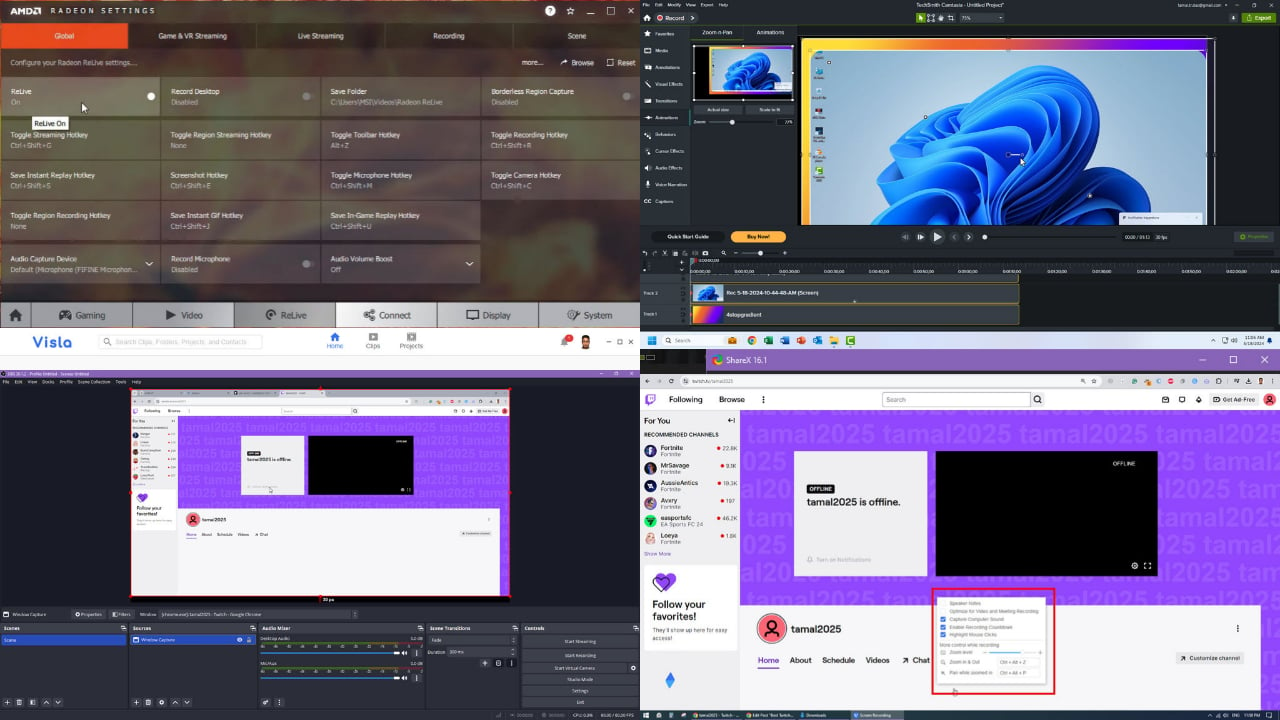
Bandicam is a lightweight and easy-to-navigate Twitch screen recorder that supports desktop overlay recording. When recording tutorials or gameplay walkthroughs, you can activate and use the Glassbrick zooming features. Bandicam will capture the zoom-in and out effects seamlessly.
Additionally, it comes with HDMI video capture support. Therefore, you can record content from an external device, like an IPTV, webcam, Xbox, smartphone, PlayStation, and more. Furthermore, you can use Bandicam for scheduled screen recording.
So, if there’s a webinar coming up during a busy schedule, you can set up a scheduled task for desktop recording on the app to watch or edit the webinar later.
Pricing: Its subscription starts at $2.78 / month for one PC. The basic package lacks a video editing tool. You can pay $49.97 upfront for the whole year for a Bandicam+Bandicut package which includes video post-processing tools.
Pros
Cons
Offers a limited free trial.
Doesn’t offer a dedicated zoom-in effect hotkey.
The annotation toolbar includes standard real-time content highlighting features.
Depends on the system’s zoom-in effects.
Truly a lightweight desktop app as it consumes as low as 70 MB in peak performance.
Camtasia – Best Premium Solution for Professionals
Camtasia is a professional-grade screen recorder for Twitch creators, tech marketers, instructional designers, educators, and more. It allows you to mix content from a desktop screen, webcam, and microphone to create videos that easily explain complex technical processes, business workflows, and gameplay walkthroughs.
It comes with an intuitive zoom-in and zoom-out effect creator module. However, it only works post-recording in the Camtasia Video Editor Canvas. Unfortunately, you can’t zoom in and out in real time. You can use Glassbrick or Windows Magnifier instead. Camtasia captures the entire desktop screen so it automatically records the real-time zoom effects.
Additionally, there are more content annotation functionalities that allow you to make comprehensive tutorials and PC game walkthroughs. You can choose from options like Callouts, Arrows & Lines, Shapes, Blur & Highlight, Sketch Motion, and Keystroke Callouts.
Moreover, Camtasia is suitable for premium monetizable tutorials and gameplay videos. Firstly, you need to invest a hefty budget to buy a premium license. Secondly, you must invest a significant amount of time in perfecting the zoom effects in the screen recording editing canvas.
Leading corporate training companies use this tool to make impactful tutorials and walkthroughs.
Pricing: The Individual Subscription costs $179.88 for a year. This excludes the costs for Camtasia video editing assets. For the premium content creation assets, you must get the Camtasia + Assets + Audiate for $479.86 per year.
Pros
Cons
There’s a free 3-day limited trial of the complete Camtasia app.
Subscription costs are high.
Comes with a dedicated zooming effect.
It comes with a steep learning curve.
You don’t need to rely on system-generated zooming effects.
The built-in zooming effects require advanced knowledge of track editing in Camtasia.
Easy-to-use screen recorder with control features like screen selection, choose region, microphone, system audio, pause recording, and more.
It’s a resource-heavy screen recorder and video editor tool.
Free screen recording templates with pre-configured effects, like Vibrant Windows, Tablet Background, Vibrant Notebook, etc.
Its zooming effect doesn’t work in real time.
Camtasia may interfere with the system performance and crash intermittently.
OBS is an excellent choice for recording and streaming on Twitch. It captures all the desktop screen activitiesalong with screen overlays. Hence, you can use it to record on-screen zoom effects created by Windows Magnifier or Glassbrick.
Moreover, you can create Scenes. Scenes are multiple content sources like window captures, images, text, browser windows, webcams, and capture cards. This feature is useful if you want to switch between different content seamlessly. You can set up an unlimited number of them on OBS.
Most importantly, you can zoom via custom scenes, scaling, and transforming properties. You can plan how many zoom-in and out effects you might require. Then, you can focus on the content by adjusting the OBS bounding boxes.
Furthermore, the modular Dock UI lets you rearrange the layout to suit your video. You can quickly adjust the appearance of zoom effects exactly in the same order you want by dragging and dropping scenes.
The intuitive audio mixer offers audio filters like noise gate, noise suppression, and gain. This ensures your audio is crisp and clear.
Additionally, the customizable transitions and hotkeys allow for smooth and dynamic streams. Studio Mode also lets you preview scenes before going live.
Since the app is free and open source, you can use it without any limits. You don’t need to worry about copyright requirements or content ownership.
Pricing: It’s free but you can contribute to the open-source project by becoming an OBS Patreon member.
Pros
Cons
Free to use commercially.
Doesn’t offer a simple way to zoom in and out when screen recording.
Unlimited Scenes for zoom-in and out effects.
Comes with a moderate learning curve.
Easy to set up screen recording and live streaming on Twitch.
The user interface can be overwhelming to first-time users.
Zoom-in and out effects are crisp and sharp thanks to the active GPU rendering support.
Recorded and streamed content might get distorted if you don’t have a strong GPU.
Pre-plan zoom effects with unlimited Scenes.
There isn’t any phone or email support. You must rely on the Discord channel and forum for community support.
ShareX is an open-source optionfor screen recording for Twitch, YouTube, Facebook, and more. It offers multiple capture areas like window, fullscreen, monitor, region, etc. If you need to zoom in and out when recording tutorials, gameplay, or presentations, you must start with the Screen recording mode.
In addition, it supports recording screen overlays created by Glassbricks and Windows Magnifier. So, by capturing content from the entire monitor, you automatically record zoom effects. The tool is also fully compatible with GPU hardware acceleration and screen overlays so the zoom effects stay sharp and clear.
ShareX comes with a built-in video converter as well. It can change content encoding to 15 different types like H.264, H.265, HEVC, VP8, MPEG-4, AV1, etc.
Another cool feature is that you can upload your videos directly from the desktop to more than 50 video and content-sharing platforms. This includes Imgur, ImageShack, Flickr, Google Photos, VGY.me, Dropbox, OneDrive, Google Drive, Amazon S3, MediaFire, YouTube, and many more.
However, you must pre-configure these websites with your account credentials before uploading videos.
Pricing: It’s a freeware software.
Pros
Cons
Free and open-source.
There are no built-in zoom-in and out shortcut keys.
Offers offline recording and editing.
It depends on the system zoom effects when screen capturing.
If you’ve already been using VLC Media Player to playback video files, you can also rely on it for Twitch recording. It supports the zoom effects created by the Glassbricks and Windows Magnifier tool.
However, VLC is a minimalistic screen recorder. It’ll record the whole screen seamlessly but it doesn’t allow live customizations like video annotating, content highlighting, and more. Therefore, it’s suitable for small-scale and simple personal Twitch channel videos and tutorials.
VLC also offers a few post-processing features like conversion. Using the VLC Convert feature, you can transform an input video file to various other formats, like MP4, Webm, TS, MP4, OGG, ASF, FLAC, iPod SD, Android SD/ HD, YouTube SD/ HD, and more.
Another helpful post-processing tool is the Effects and Filters module. You can use it to access the Video Effects library and configuration interface. It supports options like Crop, Colors, Geometry, Overlay, Motion blur, Denoiser, etc.
Moreover, it has video effects such as Anaglyph 3D, Mirror, Psychedelic, Waves, Water effect, Motion detect, etc.
In summary, VLC is an all-in-one video player and editor for personal Twitch channel content creation along with a zoom feature.
Pricing: It’s a freeware screen recording software.
Pros
Cons
It’s a freeware video player with editing features.
It’s not suitable for creating professional videos.
You don’t need to install additional software for Twitch recording.
Its default video recording encoder produces an incompatible file format.
Supports PC display overlay effects, like those created by the Windows Magnifier tool.
It’s dependent on the system zoom effects during screen recording.
If you’re willing to create Twitch videos and earn a passive income through content monetization, try Streamlabs. It’s a simpler version of the OBS Studio app. You can create zooming effects when recording PC games or presentations using two techniques.
Firstly, you can use a Streamlabs Scene and add the Display Capture option as the Scene Source. This allows you to record the entire PC screen along with any overlays and effects created by Windows tools and third-party apps. Then, you can capture gameplay and other multimedia content.
When you want to highlight important elements in your video, use the Windows Flag + Plus (+) key to zoom in and the Windows Flag + Minus (-) key to zoom out. Alternatively, you can use the Glassbricks app for advanced zoom effects, like colored frames, fast zoom, zoom tracks, and more.
Secondly, you can add the same content in multiple Streamlabs Scenes. Then, adjust the Scene size to create zoom-in and zoom-out effects.
Moreover, Streamlabs assists you in spicing up your streams and video recordings with Twitch overlays. There’s an exhaustive overlay library for Twitch, YouTube, and more. They’re available in different designs and styles, like Anime, Pixel Art, Retro, Among Us, Battlefield, Dark Souls, Dota 2, Halloween, Valentines, Animated, Art, TikTok Friendly, and more.
Another cool feature is a collection of support tools so viewers can donate to your channel. For example, you can set up Goals, Tip Ticker, Tip Jar, Stream Boss, and Sponsor Banner.
Pricing: You can download and install the free version without subscribing. However, you can join the Ultra subscription plan to access premium features. Ultra starts at $19/ month.
Pros
Cons
Both free and paid plans are available.
The built-in zooming feature requires a considerable manual effort.
The freeware app gives you access to basic screen recording and content streaming features.
Dependent on the system zooming effect for hotkeys-based zooming.
There are free monetization tools like Goals, Widgets, Twitch Overlays, etc.
Moderate learning curve.
Intuitive user interface.
Premium screen recording and streaming features are behind a paywall.
Do you regularly stream high-quality gameplay videos on Twitch and need to highlight your amazing stunts? ShadowPlay in GeForce Experience for NVIDIA graphics cards is your best bet.
This screen recording tool allows you to capture thrilling gameplay actions in real-time. Also, you can use it to upload GIFs, screenshots, and videos to your favorite streaming platforms like Twitch, Facebook, and YouTube, without leaving the game.
GeForce Experience ShadowPlay doesn’t offer dedicated keys to zoom into an in-game character or event. However, you can capture zoom-in effects created by in-built or third-party tools. For example, during gameplay, you can use the Glassbricks tool to zoom in, zoom out, pan, and record with ShadowPlay.
The best thing about ShadowPlay is that it lets you record gameplay in 4K and 8K resolutions. The tool has been fine-tuned for NVIDIA graphics cards so it can use NVIDIA Physics, 3D rendering, and hardware acceleration.
Pricing: Available for free for all compatible NVIDIA GPUs.
Pros
Cons
Available for free for compatible NVIDIA GPUs.
Not compatible with all NVIDIA GPUs; requires GTX 600 series or higher.
No need to install any additional software. You can activate the feature in GeForce Experience, the same tool you use for GPU driver and 3D configuring.
Resource-intensive utility.
It can create up to 15-second GIFs from HD videos.
It depends on the system zoom effect for content highlighting or focusing.
One-click live streaming on Twitch, Facebook, YouTube, etc.
Doesn’t have built-in zoom-in and out hotkeys.
Automatically captures special and rare gameplay moments that you can’t reproduce.
You can activate the Radeon ReLive feature in the Radeon Software Adrenalin Edition to record gameplay in HD and UHD definitions. The tool works with select AMD Radeon GPUs like Radeon™ RX Vega Series, Radeon™ RX 500 Series, Radeon™ Pro Duo, and more.
Furthermore, the Record Desktop feature lets you record all the activities on your Windows PC screen including overlays. Therefore, if you zoom in and out using the Windows Magnifier or Glassbricks app, Radeon ReLive will capture that.
Its notable feature is Borderless RegionCapture. Your video recordings will only contain the gameplay and software interface for clarity and maximum viewing area. It won’t include a video frame as a border.
Pricing: Freeware Windows PC screen recorder.
Pros
Cons
Free for compatible AMD Radeon GPUs.
Not compatible with all GPUs.
Several useful hotkeys, like instant GIFs, toggle webcam, toggle mic, etc.
It’s fully dependent on zoom-in and out effects created by the system tools.
Includes the Remote Play feature to stream PC gameplay videos to Head-Mounted Displays and mobile devices via Wi-Fi.
If you’re looking for an effortless Twitch recording software with zoom that works with simple hotkeys, Visla should be your first choice. Also, the tool is highly affordable compared to its competitors.
It comes with dedicated keyboard shortcuts and a settings panel for zooming effects:
Activate Zoom-In: Press Ctrl + Alt + Z.
Pan while zoomed-in:Ctrl + Alt + P.
Zoom level slider: Use this to adjust the magnitude of zooming you want.
While recording your desktop screen, you can press the dedicated zoom-in keys. The tool will create a zoom frame and focus on the content beneath the cursor. So, the mouse cursor position controls the zooming location.
Now, if you need to pan when already zoomed in, you can use the Pan while zoomed-in hotkey. Again, the Visla app will move the pan frame towards the mouse cursor. The Pan frame moves automatically to always keep the mouse cursor in the middle of the frame.
It also includes must-have features, like mixing microphone and webcam content into the screen recording. You can enable or disable recording the mouse cursor, showing speaker notes, and capturing system sound to make your Twitch videos engaging.
Furthermore, Visla automatically creates a shareable link for your screen capture. For this purpose, you get 10 GB to 100 GB ofcloud storage on the Vista cloud server. You can make your videos view-only, editable, downloadable, and more.
Pricing: There’s a forever-free plan. For premium features, you can subscribe to the $24/ month Premium Plan.
Pros
Cons
The free plan offers unlimited screen recording and uploads.
You can’t add multiple scenes to record content from multiple video sources.
You get free 10 GB of cloud storage for free to store your screen recordings.
The video post-processing tool only works online.
Works offline and online.
Easy to navigate and create screen recordings.
Dedicated zoom-in and out keys.
You can pan while in the zoomed-in state.
Supports desktop overlays like zoom effects created by Windows Magnifier.
EaseUS RecExperts is a third-party desktop recording tool with cool features that add value to your Twitch channel content creation. Firstly, you get a dedicated zooming effects feature in its Annotation module. It’s easily accessible with a hotkey or floating toolbar.
Additionally, the built-in zoom feature works in real time. It means that when you’re recording a tutorial or gameplay walkthrough, you can zoom in on specific content or in-game elements.
RecExperts also supports the recording of desktop overlays in the entire display recording mode. It’s compatible with system tools, like Windows Magnifier or Glassbricks.
Moreover, you can display game overlay info effortlessly using the Show overlay information feature. It allows you to display Frame rate, Remaining storage space, Recording duration, Recording file size, and Hotkeys.
Furthermore, you can use its AI Assitant tool to transcribe audio of the content into text for closed captions and subtitles. AI can help you with upscaling HD videos to 4K and 8K as well.
Pricing: Starts at $19.95 per month for one PC. Other license options are also available, like yearly, lifetime, business licenses, etc.
Pros
Cons
Free trial available with limited recordings playback.
The zoom-in and out feature isn’t available in the free version.
Screen recorder for pc without watermark.
When you launch it, it creates a recording frame around the desktop display, which is kind of annoying.
Record video with virtual background.
The user interface is cluttered.
Built-in zoom-in and zoom-out buttons in the floating toolbar.
It comes with a steep learning curve.
Compatible with Windows Magnifier and Glassbricks.
Doesn’t offer free streaming services.
A complete gameplay recording overlay to showcase PC game performance metrics.
You can’t integrate live streaming or broadcasting APIs with EaseUS RecExperts to enhance its capabilities.
Prepare Your Windows PC for Twitch Recording With Zoom
First, you’ll need to install a lightweight and secure Windows UWP app to get the zoom-in and out effect when recording screen content. Glassbrick is free. Also, I’ve tested the software on my Windows 10 PC and have confirmed that it doesn’t install spyware, adware, and malware.
Here’s how you can get it from Microsoft Store:
Open the Microsoft Store on your PC from the Start Menu.
Type Glassbrick in the Search apps field, located on the top.
Click on the Glassbrick – Screen Magnifier app shown in the search results.
Find the Get or Install button in the top right corner and click on that.
Click Open to run the app for the first time.
You’ll see a Windows Notification in the bottom right corner about Glassbrick running on the System Tray.
Although the built-in Windows Magnifier [Winodws Flag + Plus (+) or Minus (-) ] tool can help you, it might fall short on features.
Glassbrick offers advanced zoom-in and out functionalities that can:
Control zoom speed according to your usage habits.
Customize the amount of zooming effect you can create.
Create custom keyboard shortcuts for zooming.
Add a transition color when zooming in and out in the frame.
How I Chose the Best Twitch Recording Software With Zoom
After carefully testing these tools and observing Twitch live streams and recorded videos, I’ve created this master list of requirements your ideal tool should fulfill:
1. Windows MagnificationSupport
Not all screen recording apps can capture desktop overlay activities you can see in Windows On-Screen Keyboard, Windows Game Bar, or Windows Magnifier. I’ve meticulously tested all the tools to ensure they support display overlay capturing so you can create a zoom-in effect using the Windows Magnifier API.
2. Compatibility With Third-Party Screen Magnification Tools
Windows Magnifier comes with very limited zoom-in features. There are better third-party apps, like Glassbrick. So, I tested all the screen recorders keeping this app in mind.
3. Data Privacy and Security
Gameplay walkthroughs, tutorials, live chat, and recordings for Twitch are intellectual properties. I installed and tested the tools to ensure no viruses or malware could harm your PC, content, or identity in any way.
4. Screen Recording UI and UX
I’ve chosen only software that’s easy to use. Even novices can quickly get started with the tools I selected.
5. Affordability
I’ve prioritized freeware apps so you don’t need to invest anything to own the best Twitch recording tool with a zoom feature. I’ve also added a few premium paid apps that you can use if you want to enhance the monetization of your Twitch videos.
6. Screen Recording Content Quality
All of the above options offer HD and UHD screen recording. These apps use advanced lossless video compression technologies to give better display outputs at minimum overall file size.
7. Effective Zooming In and Out for Highlighting
I’ve only included services that a professional would use with or without Windows Magnifier to create effective tutorial videos. The zooming effects available are highly functional and show up on the output videos as well.
8. PC Specs Requirements
I’ve tried to include only options that consume the least possible system resources. These apps won’t slow down your PC noticeably when you run them in the background.
9. Advanced Streaming and BroadcastingCapabilities
Apart from screen recording, I’ve also opted for tools that offer an easy setup of live streaming and broadcasting for free.
10. Offline Content Creation
Since screen recording involves tens and hundreds of GBs of video files, it’s not economical and rational to go for exclusively online tools. Therefore, I’ve chosen apps that offer offline support, as well as select online features for additional editing, post-processing, etc.
11. Minimal Learning Curve
I listed apps that even non-techy Twitch users can grasp quickly. Some of them come with different levels of learning curves only for the advanced and premium features.
12. Twitch OverlaySupport
Most of the apps listed here support overlay screens and scenes, like Twitch overlays for viewer engagement and monetization purposes.
13. Basic Video Post-Processing Features
Once you’ve recorded a video on your desktop, you might need conversion, splitting, cropping, watermarking, and similar features. You’ll find basic and standard video post-processing tools in most of the apps listed above.
Summary
Now you know all about the best Twitch recording software with zoom tools for personal and professional use. And not just Twitch, you can use these apps for YouTube, Facebook, Vimeo, and more. You can also incorporate the Windows Screen Magnification feature in screen recordings and live streaming.
Feel free to give them a try and comment below which one you prefer! If the article helped you or you think it lacks some options, include that in your comment as well.
The future Windows PCs will have an ARM-powered processor and AI capabilities. According to Windows Central, the new devices will enhance gaming performance, translate languages in real-time, improve your webcam capabilities, and generate text and images.
Arm-based PCs are great for those of us who work long hours. They are AI-compatible, have a long battery life, are power-efficient, and don’t affect your performance. So, you might be able to say goodbye to the power-saving mode that makes everything slow.
Windows on ARM PCs will rival their Apple Silicon counterparts
According to The Verge, the upcoming Windows on ARM PCs are referred internally to as CADMUS PCs, and they will most likely rival Apple Silicon devices. After all, they are better at AI acceleration and have faster app emulation.
You can already use Spotify, Chrome, and Photoshop with your Windows on ARM PC. Also, you should expect DaVinci Resolve, WhatsApp, and some apps from Adobe to become available soon. Fortunately, older Windows on ARM devices will also benefit from the newer version of the apps.
Surface Pro 10 and Surface Laptop 6 are part of the project CADMUS, and they will have Snapdragon X Elite processors, which are supposedly better than the M3 MacBook Air at CPU tasks. In addition, the Surface Pro 10 comes with an OLED display, and the Surface Laptop 6 has a haptic trackpad.
In addition, the customer-based Windows on ARM PCs will only feature Qualcomm processors. On top of that, the Snapdragon X Elite processors are better than Apple’s M2 processor and Intel Core Ultra 7 chips, based on the benchmarks.
The new Windows on ARM devices will know what you’re doing. They will have an AI explorer app capable of retrieving anything you’ve seen or done on your device. Hopefully, we can uninstall or prevent it from running on our devices because this feature sounds intrusive.
Ultimately, Windows Arm-based PCs will certainly bring AI closer to us. So, if you want to buy an AI PC, the CADMUS devices could be a future-proof option. However, the Build 2024 conference is just around the corner, and we should wait to hear more about the Windows Arm-based PCs.
Are you going to get an Arm-based PC? Let us know in the comments.
If you are looking for a performance-oriented gaming laptop, the Acer Predator Helios 18 is the perfect pick. And right now, its top-of-the-line model is available for $2649.99!
The gaming laptop is powered by Intel Core i9-14900HX processor and NVIDIA GeForce RTX 4090 graphics. To top it off, the laptop boasts 1 TB of storage and 32 GB of built-in RAM.
These configurations will allow you to run the most resource-intensive games without facing any lags or crashes. Also, the gaming laptop features RGB per-key backlighting to elevate the gaming experience.
The laptop is incredibly quiet, even under high resource consumption, making it perfect for multitasking. Besides, for anyone wanting to replace their gaming PC with a portable laptop, the Acer Predator Helios 18 is a suitable choice!
Upon checking the customer reviews, we found that there’s nothing users are complaining about apart from the bulky size. That, too, is due to the 18″ crystal-clear display. Perhaps carrying around the Predator Helios 18 is a hassle, but if it’s to be used at home, the laptop can beat almost every gaming PC in the price range!
If you have been planning to get Ghost of Tsushima Director’s Cut on Steam, do so right away because the game is already a rage. With an all-time peak of 77,154, Ghost of Tsushima Director’s Cut surpassed Gods of War, which previously held the title.
First released in July’20 for PS5, the game made its way to Steam on May 16, 2024. Over the weekend, it became PlayStation’s most-played title on Steam in terms of concurrent players.
According to SteamDB, the game has been performing exceptionally well, beating all expectations. At the time of writing, Ghost of Tsushima Director’s Cut had 51,612 active players, a massive feat for any game released less than a week ago.
Sony had been receiving tons of requests for years to release the PC version of Ghost of Tsushima Director’s Cut. So, anticipation building around the game before the PC release was a key factor here.
Besides, we can’t ignore the game’s performance on PCs. The graphics are simply breathtaking, and for PCs that meet the system requirements, the gameplay remains seamless!
Players heap praise for the PC port of Ghost of Tsushima Director’s Cut
Ever since players got their hands on the PC port of Ghost of Tsushima Director’s Cut, forums are filled with appreciation posts for Sony, Nixxes Software, and Sucker Punch Productions. Here’s what a few wrote,
I just wish more reviews were taking about the strength of the port. I was waiting to see if it was good or bad. Turns out, on my PC at least, it’s amazing. So happy I finally get to play this game. My only gripe is that the menu flashbangs you every time you open it.
I am blown away from how this game looks and plays, had to knock it down to medium setting but still absolutely beautiful to play. I have had my character just stand still and I just stare at the landscape on my screen in awe.
At the time of writing, Ghost of Tsushima Director’s Cut already has over 9000 reviews on Steam, with 88% being positive. This is massive, considering the game was removed from countries without PSN access.
For the unversed, Ghost of Tsushima Director’s Cut is also the first game to feature the PlayStation PC overlay, a feature meant to streamline your experience.
What’s your review of the game on Steam? Share with our readers in the comments section.
The good news for users who often have to make and extract 7-Zip and TAR files is that now, with the new Windows 11 beta patch, you can do that right from the context menu in File Explorer on your device. This means, you no longer need a third-party app to do that.
Those who have been regular readers on the site must know that Windows enthusiast, @PhantomOfEarth, spotted the feature and tweeted about it on April 27, 2024
We’ve added support for creating 7-zip and TAR archives in addition to ZIP via the context menu in File Explorer. We have also added a new compression wizard that lets you choose even more formats and specify even more details. You can compress individual files with gzip/bzip2 (and more,) or add multiple files to archives in different tar formats with different types of compression. You can also change the compression level and what types of data are stored in each archive.
The Windows 11 KB5037867 beta also added some other features, like support for Emoji 15.1; here is what the changelog said:
We’re adding support for Emoji 15.1 which introduces a small number of brand-new emoji such as head shaking horizontally and vertically, phoenix, lime, brown mushroom and broken chain. Other changes for Emoji 15.1 include Unicode’s decision to revert family combinations to symbol-like shapes. Windows has chosen to stay with our existing style that use people in family combinations. We are also supporting the new directionality updates for person/man/woman walking, kneeling, with cane, running, manual wheelchair and motorized wheelchair. You can now select right facing or the original left facing orientation for these emoji.
Other than this, there were a handful of fixes for those who have the toggle on:
Fixed a few accessibility issues in the Common File Dialog
Fixed an underlying ctfmon.exe crash, which could impact the ability to input text.
Fixed an issue related to showing tabs in Alt + Tab, which could lead to frequent explorer.exe crashes if you had a very large number of tabs.
Here is the list of fixes introduced for everyone in the Beta channel:
Start menu – We fixed an issue believed to be the underlying cause for Start menu crashing on launch or the All apps list not displaying in the previous Beta Channel flight.
This update addresses an issue that might affect domain controllers (DC). NTLM authentication traffic might increase.
This update addresses an issue that might affect Virtual Secure Mode (VSM) scenarios. They might fail. These scenarios include VPN, Windows Hello, Credential Guard, and Key Guard.
Microsoft also mentioned issues related to Internet Information Services (IIS) and Windows Communication Foundation, which could cause them to stop working after the update. The Redmond tech giant also listed other issues; you can check them in the official post.
We saw some interesting devices from ORIGIN PC in the past, and the company has just unveiled several new gaming laptops.
There are four new models, so without any further ado, let’s take a closer look at them and see what they offer to gamers.
ORIGIN PC has introduced new gaming laptops, here’s what you can expect
As TweakTown writes, the company has released four new models EON16-SX, NSX-16, NSL-14, and NSL-16.
EON16-SX and NSX-16 offer the following specs:
Screen:
16-inch 240Hz 2560x1600p, 240Hz display
CPU:
Intel Core Ultra 7 155H 16-core processor
GPU:
NVIDIA GeForce RTX 4070
Memory:
Up to 64GB DDR5
Storage:
Up to 16TB
Connectivity:
One DisplayPort 1.4 over USB 3.2 Gen 2 Type-C Port, one USB 3.2 Gen 2 Type-A, one USB 3.2 Gen 1 Type-A, one HDMI output port, Ethernet port
Other:
Can support up to 3 additional displays, Wi-Fi 6E support
NSL-14 and NSL-16 also share many similarities:
NSL-14
NSL-16
Screen:
14-inch 60Hz 1920x1200p display
16-inch 144Hz 2560x1600p display
CPU:
Intel Core Ultra 7 155U 16-core
Same as NSL-14
Memory:
Up to 40GB DDR5
Same as NSL-14
Storage:
Up to 16TB
Same as NSL-14
Connectivity:
One DisplayPort 1.4 over USB 3.2 Gen 2 Type-C Port, single USB 3.2 Gen 2 Type-A, one USB 3.2 Gen 1 Type-A, and one HDMI output port
One USB3.2 Gen 1 Type-A Port, a single USB 3.2 Gen 2 Type-A Port, one USB 3.2 Gen 2 Type-C Port, one Thunderbolt 4 Combo Port with Power Delivery, and one HDMI port
Other:
Wi-Fi 6E compatibility, can support up to 3 additional displays
Same as NSL-14
These are amazing devices and thanks to the Meteor Lake CPUs and built-in NPU, you can also use AI Boost technology.
Cybercriminals are coming up with new ways to dupe unsuspecting people, and the latest on the list is the Digital Arrest scam.
It’s a scam where fraudsters contact potential victims, impersonating government or law enforcement officials, and inform them that a parcel under their name contains an illegal item, for instance, drugs or arms.
Victims are accused of being involved in activities like drug trafficking or money laundering and are reportedly asked to pay a sum of money to get their names cleared. They may even be forced to download a video conferencing app and remain active on the video call for hours. This creates a sense of fear and urgency, which plays out in the fraudster’s favour.
Fraudsters involved in the Digital Arrest scam have a setup that resembles a government facility, leaving no scope for victims to realize that they are being duped.
Another modus operandi in the Digital Arrest scam entails informing victims that their identities were used in activities like human trafficking and forcing them to pay a huge sum.
Victims often fall for such scams due to the fear of social humiliation. In the last few months, people have reported losing up to $500k or more to fraudsters through the Digital Arrest scam.
The Government of India’s Ministry of Home Affairs (MHA) recently issued an advisory warning citizens about the Digital Arrest scam after several cases cropped up this year alone. The government also worked alongside Microsoft to block 1000+ Skype IDs found involved in such scams.
That certainly won’t put an end to such scams, especially with AI aiding threat actors. Increasing awareness is the only way we can tackle Digital Arrest and other similar scams!
How do you stay protected against Digital Arrest scams?
Never lose your calm: That’s the most important because the moment you panic, you lose the ability to make the right decisions. The ones who panic are easy targets for scammers.
Don’t share confidential information: You should never share confidential information, like bank account details or government IDs, with fraudsters. The more information you give, the better the position they will be in.
Reach out to the relevant authorities: If you are ever contacted by scammers, reach out to the local authorities to verify the information and register a complaint.
While the Digital Arrest scam is presently limited to India, there’s a high likelihood of fraudsters in other regions replicating the modus operandi.
If you’re trying to play Minecraft but can’t get the launcher file to open when you download it, it’s probably an issue related to the Microsoft Store app or the download was corrupt.
Also, ensure you’re downloading the correct Minecraft version for your device. Remember that built-up cache and your firewall settings may also prevent the installation of apps on your PC.
How do I fix the Minecraft error code 0x87E00009?
1. Repair the Minecraft Launcher
Press Windows + R to open Run, type appwiz.cpl, and click OK.
Select the Minecraft installation and click on Repair/Change.
Follow the on-screen instructions to repair the Minecraft launcher.
In case there were any corrupt files related to the Minecraft launcher that were triggering the error 0x87E00009, repairing it should resolve the issue.
2. Disable firewalls and antivirus software
Click the magnifying glass taskbar icon.
Enter firewall within the search box.
Select the Windows Defender Firewall.
Then click the Turn Windows Defender Firewall on or off navigation option.
Click the Turn off Windows Defender Firewall radio buttons, and select OK to confirm.
Try opening the Minecraft Launcher with the firewall disabled.
If your Minecraft launcher installs successfully, your firewall may have been blocking the installation.
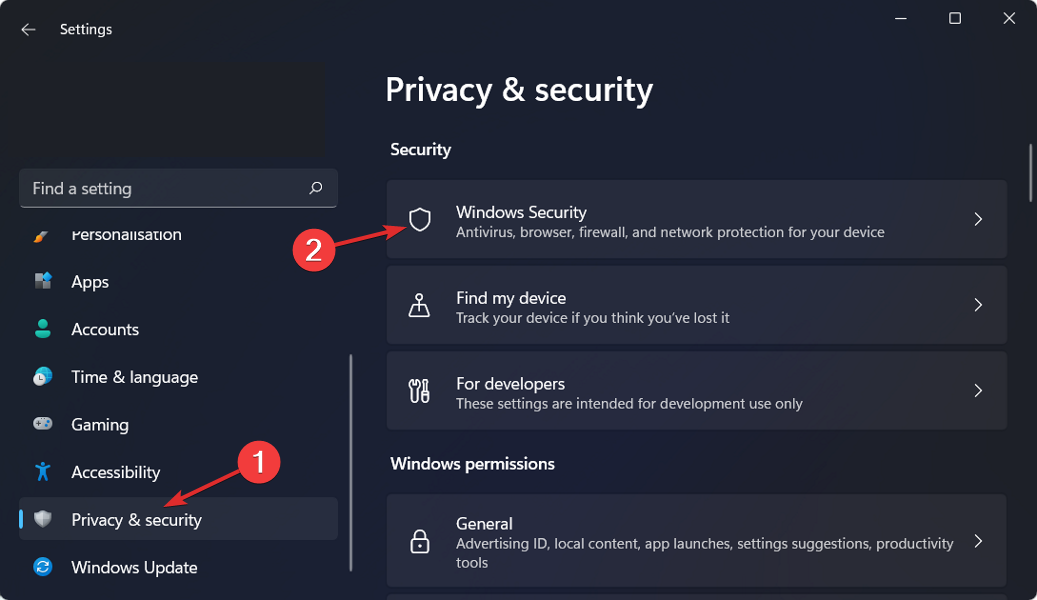
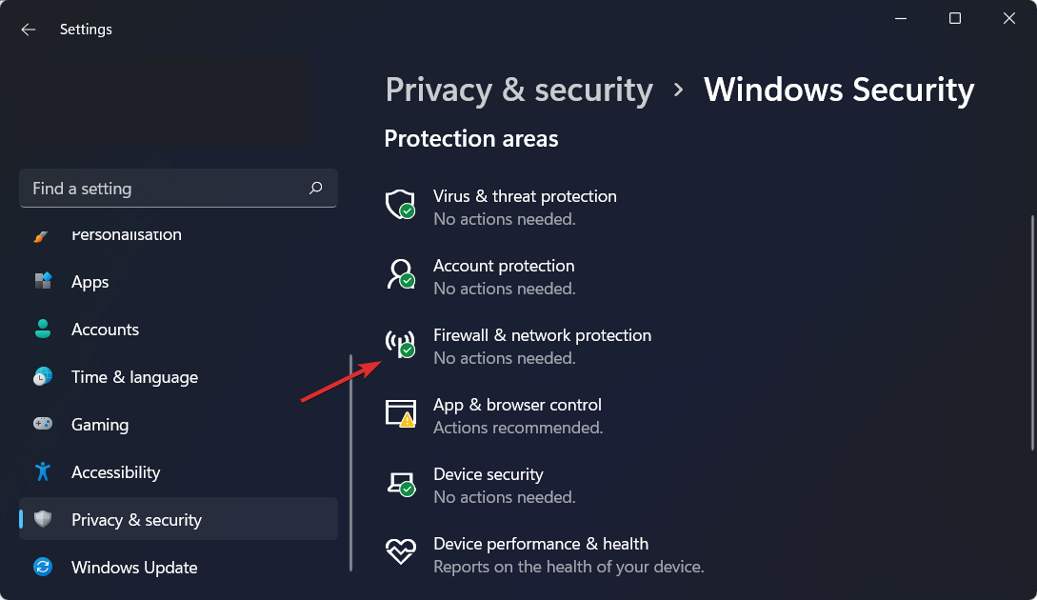
Press the Windows key + I to open the Settings app, and click on Privacy & security from the left menu, followed by Windows Security from the right one.
Now click on Firewall & network protection.
Look for the Allow an app through firewall option and click on it.
If you see that Minecraft is not ticked, it means it doesn’t have access. Click on Change settings to give it access.
Now check the box for Public and Private next to Minecraft and click OK.
Ensure you whitelist all Minecraft-related apps to prevent a re-occurrence of error 0x87E00009.
`Click on the Windows button, type Windows PowerShell in the search button and click on Run as Administrator.
Type the following command and hit Enter: Get-AppXPackage -AllUsers | Foreach {Add-AppxPackage -DisableDevelopmentMode -Register "$($_.InstallLocation)\". AppXManifest.xml"}
Running the above command may take some time depending on the number of apps you have installed but once it is finished, restart your computer and try installing the Minecraft launcher again.
5. Reset the Minecraft app
Press the Windows key, search for installed apps, and launch it.
Click the options icon beside Minecraft Launcher and select Advanced options.
Scroll down and select Reset button.
Click Reset again to delete the app’s data on the device permanently.
6. Reinstall Minecraft
Bring up Run with its handy Windows key + R keyboard shortcut.
Type the following text into the Address bar and hit Enter: %AppData%
Then click the .minecraft subfolder to open it.
Right-click the launcher_profiles.json file and select Delete (the trash can button).
Bring up the Run accessory’s window using Windows + R.
Enter this Run command in the Open box and click OK: appwiz.cpl
Select the Minecraft Launcher within the Programs and Features window.
Click on Uninstall and hit the Yes confirmation options to remove the selected software.
Open the Roaming folder as specified within the first three steps of resolution four.
Erase the leftover .minecraft folder by right-clicking it and selecting Delete.
Click the Power and Restart options that are on the Start menu.
Remember when you delete the Minecraft launcher profile, you’ll be deleting all your settings and configurations. Once they return to their default state and you install the launcher again, it will be recreated. If there were any issues preventing the installation, they should now be resolved.
Microsoft released Edge version 125.0.2535.51 on the stable channel. This release introduces a new Workspaces color display, improves copy/paste controls, and fixes bugs and performance issues. These features of Microsoft Edge 125 were released in the Beta version earlier this month.
The list of changes in Edge 125 is long, but if you want to check out all of them, you can go through these Edge 125 updates from the Dev channel:
Here is the official features list mentioned in the release notes:
Improved user experience for Purview copy/paste controls in Edge. Our Purview cut/copy/paste experience is now more user friendly with self-dismissing dialogs on successful paste. The existing “Paste to supported browsers” setting allows organizations to classify and protect the content that end users can paste – both to specific websites and through supported browsers. You can follow the instructions in Use Endpoint data loss prevention (DLP) to create the DLP policy.
New Workspaces color display: browser window outline. Workspaces each have a dedicated color, and that color is now displayed as an outline on the browser window. The previous experience applied the color across the entire tab strip in horizontal tab orientation, and across the title bar in vertical tab orientation. Note: This feature is a controlled feature rollout. If you don’t see this feature, check back as we continue our rollout.
Full Favorites Bar available in Workspaces. Workspaces now display a user’s full set of favorites in the Favorites Bar, with a dedicated workspace folder accessible from the bar. The previous experience replaced the Favorites Bar with the workspace favorites folder. Note: This feature is a controlled feature rollout. If you don’t see this feature, check back as we continue our rollout.
Along with the new feature updates, there were a few new policy updates introduced:
AllowTokenBindingForUrls – Configure the list of sites for which Microsoft Edge will attempt to establish a Token Binding with (deprecated)
Along with all these, the stable version introduces the Auto-discarding Sleeping Tabs capability, which allows users to automatically discard sleeping or inactive tabs. We talked about this a while ago.
Edge will update itself to version 125 if you use a stable internet connection. However, to update it manually, go to Menu>Help & Feedback >About Microsoft Edge to get the latest version.
What do you think about Edge’s new features and improvements? Share your opinions with our readers in the comments section below.
Google started rolling out the AI Overview feature announced during the Google I/O 2024 conference in the US. You might have already encountered it while browsing. Yet, if this is the first time you have heard about it, all you need to know is that this new feature uses Gemini’s AI generation to answer your queries, but there are chances it might generate inaccurate information.
Users dislike the new Google Search AI feature
Google users also complained that the AI Overview threatens journalists and other people working in media by plagiarizing their work without even giving the sources of its information. After all, the AI Overview only showcases a list of the most relatable articles at the end of its generation.
If you don’t like the AI Overview feature because you prefer the old search, consider it unreliable, or don’t like it, there are a few ways to get rid of it. However, turning off the generative AI features on Chrome won’t work. Some users tried it, but it still shows. So, they changed their search engine or migrated to other browsers like Safari or Microsoft Edge.
How to disable the AI Overview feature?
Google added a “hidden” function to the search bar, and if you press More, one of the options will be Web, but the downside is that you need to do it every time you search for something, and it can become a hassle.
The first method you can try is to block it using an ad blocker with a built-in block element feature. Afterward, right-click on the AI Overview and select the option to block it a few times until it is gone. However, be careful not to block something important. However, the AI feature might reappear after future updates.
According to Tom’s Hardware, you can block the AI Overview by following the steps below:
Open Chrome’s Settings: Press Alt + E to open the menu, then select Settings.
Find the Search Engine tab: Type Search Engine into the search bar, and at the end of the list, you should find Manage search engines and site search.
Look for the Site Search: It should be in the middle. Then, press Add.
Copy the following:Name: Google (Web)
Shortcut: google.com (Chrome made me type out “www.google.com” for some reason)
URL: {google:baseURL}/search?udm=14&q=%s
Make it your default search.
In a nutshell, there are a few ways to disable the AI Overview for now. So, it shouldn’t bother you any longer, and you don’t need to change your browser or search engine. Also, you could try the AI feature for fun. However, it might not show up for every search.
What will you do? Do you find the feature useful? Let us know in the comments.
Although I have never built a custom PC, the idea feels intriguing. Finding the right parts, putting it all together, loading the OS, and then finally booting the PC, every second of the process is an experience I will cherish. However, lately, custom PC prices have been rising, and there isn’t anything one can do!
Had it been the GPU, I would have picked a cheaper alternative. Had it been the display, I would have gone with a smaller monitor. But two of the most critical components, storage (both HDD and SSD) and RAM, have witnessed a massive price hike in recent months.
1 TB SSD now costs roughly $100, as opposed to $50-$75 in the last quarter of 2023. If you believe switching to another manufacturer would help, sadly, it won’t. Everyone is hiking prices.
Samsung SSD
Coming to RAM modules, the price hike in 2024 is in the 10-15% range. If you were looking at 32 GB RAM for the custom-built PC, get ready to loosen the purse strings because you might have to spend an additional $25-$40.
This could be even higher, depending on the preferred RAM speed and the manufacturer.
We haven’t yet considered GPUs, another key component witnessing a 10-15% price hike across regions. If you are a seasoned gamer looking at a decent GPU, add another $30-$50 to the total.
So, in all, you will be forced to spend $75-$100 more on custom-built PCs due to the increase in the prices of RAM, SSD, and GPU. Remember, it’s a rough estimate, and the actual hike may vary!
Earlier this year, our study suggested that PC prices will rise in 2024, and it’s already happening. The worst part is that there’s no relief in sight. On the contrary, rates are expected to increase even further in the coming months.
Would this stop me from building a PC for the first time? Probably not, but it certainly won’t be as pleasant an experience!
How much does the price rise affect your custom PC building experience? Share with our readers in the comments section.
Registry cleaning versus registry optimization is an important discussion if you’re interested in maintaining your PC’s performance and stability. However, despite their similarities, these two approaches serve different purposes. So today, I’ll highlight their differences, benefits, and appropriate usage.
Let’s begin!
Registry Cleaning versus Registry Optimization: What Are These Actions?
Registry cleaning involves scanning the Windows Registry for outdated, invalid, or erroneous entries and removing them. Installing and uninstalling software can cause it to accumulate obsolete keys that may slow down your system. Cleaning helps remove these unnecessary entries and improves system performance and stability.
On the other hand, registry optimization focuses on reorganizing and defragmenting the registry to enhance its performance. This process reduces registry size, consolidates fragmented items, and optimizes its structure for faster access. This can result in quicker application launches and improved system responsiveness.
Here’s a short comparison:
Purpose: Registry cleaning removes unnecessary or invalid entries, while optimization aims to improve its structure and access efficiency.
Process: Cleaning involves identifying and deleting obsolete keys. In contrast, optimization reorganizes and defragments existing entries to streamline registry access.
Outcome: Cleaning reduces clutter and potential errors; optimization enhances speed and efficiency.
When Do I Clean the Registry and When Do I Optimize It?
There are specific times to clean or optimize the registry.
Here’s what to do!
When To Clean the Registry
You should use dedicated registry cleaners in the following situations:
After uninstalling software: Whenever you uninstall a program, it often leaves behind registry entries. Cleaning the registry can remove these remnants so they don’t cause conflicts or slow down your system. CCleaneris one of the most popular tools for this task. It’s user-friendly and effective in removing unwanted entries
Post-malware removal: After removing malware or viruses, you should clean the registry to remove any entries created by the malicious software. This way, you can be certain the malware won’t reappear or leave traces that can affect system performance. You can use Wise Registry Cleaner for deep cleaning. It also comes with a backup feature to ensure safety.
System errors and crashes: If your system is experiencing frequent crashes, blue screens, or errors, cleaning the registry might resolve some of these issues by eliminating corrupt or conflicting entries. Auslogics Registry Cleaner is a reliable tool that focuses on finding and deleting these invalid items.
Performance degradation: If your computer is running noticeably slower over time, you can speed it up by removing unnecessary data.
When To Optimize the Registry
You’ll want to focus on optimization instead, in these situations:
System performance optimization: If you want to boost overall system performance, optimizing the registry can help your operating system read and write data more efficiently. Registry Life offers both cleaning and optimization features, making it a convenient choice for overall registry maintenance.
After heavy software changes: Optimizing can help reorganize and compact the registry if you’ve installed or uninstalled a lot of software recently. Auslogics Registry Defragis specifically designed for this task.
Routine maintenance: Just like defragmenting a hard drive, regularly optimizing the registry can help maintain its performance. Depending on your usage, doing this every few months can be beneficial. Advanced SystemCare is a comprehensive tool suite that covers this during its system maintenance process.
The Limitations and Risks of Registry Cleaning and Optimization
Despite both of these processes being important to your PC, they have some limitations and risks.
Limitations and Risks of Registry Cleaning
You might notice:
Minimal performance gains: Despite common claims, cleaning the registry rarely results in significant performance improvements. Most modern systems are designed to handle registry size and complexity efficiently, so the impact on speed and responsiveness is minimal.
Solves limited issues: Registry cleaning addresses only a narrow range of potential problems. It won’t fix deeper system issues caused by hardware faults, corrupt system files, or complex software conflicts.
Redundant cleanings: Regularly running registry cleaners can be unnecessary. Once you remove invalid entries, frequent cleanings will likely find fewer issues.
Impact on a large scale: Most average users don’t grow their registry to a size where it significantly degrades performance.
Potential for system instability: Incorrectly removing or modifying entries can lead to system instability. This can cause programs to malfunction or the entire operating system to become unbootable.
Loss of important data: Some registry entries might be required for specific software or hardware configurations.
Accidental deletions: Even with advanced tools, there’s always a risk of accidentally deleting critical registry keys. This is especially true for inexperienced users who may not fully understand the implications of this process.
Security risks: Downloading and using untrustworthy tools can expose your system to malware, spyware, or other security threats. That’s why you should only stick to safe and reputable cleaners.
Limitations and Risks of Registry Optimization
You may encounter:
Marginal performance boost: Similar to cleaning, registry optimization offers only marginal performance enhancements. The difference in speed is often not noticeable to the average user, particularly on modern hardware.
Temporary improvements: The benefits can be short-lived. As you continue to use your system, the registry will inevitably fragment again.
Compatibility issues: Some tools may not be fully compatible with all versions of Windows.
Data corruption: Optimization involves rearranging the data in the registry. Any interruption during this process can corrupt it and lead to serious system issues.
Unforeseen consequences: Optimization can sometimes remove even necessary keys. This will also cause apps to fail to start or the loss of settings.
Misleading claims: Some tools make exaggerated claims about their effectiveness. Users may be misled into expecting significant performance improvements, only to be disappointed with minor changes.
System vulnerability: As with cleaning tools, using shady optimization software can expose your system to vulnerabilities.
Verdict
Overall, registry cleaning is best for resolving system errors, speeding up a slow system, and post-uninstallation cleanup. It’s a targeted approach to removing unnecessary clutter and fixing specific issues.
On the other hand, optimization is ideal for regular maintenance and enhancing overall system performance. It’s a broader approach that maintains a smooth and responsive system.
So, now you know which process to prioritize when considering registry cleaning versus registry optimization!
With newer updates, the Windows 11 lock screen now includes some widgets with information that you may or may not find helpful hence the need to remove them.
Although widgets help you keep up with your interests and keep your lock screen experience more interactive, if they are not aligned with your preferences, they can become a bother.
Further, since it’s fairly a new update, users have already raised concerns about the lock screen widgets causing random crashes.
Additionally, some widgets are CPU-hoggers and can tank your PC’s performance. If so, you may have to disable unnecessary widgets.
How do I remove the lock screen widgets on Windows 11?
Press the Windows key and click on Settings.
Click on Personalization>Lock Screen.
Under Lock Screen Status, click on the drop-down menu and select None.
Removing lock screen widgets may clean up your lock screen and quiet down distractions. Further, it may also help you get rid of inaccurate information as some information on the widgets is usually outdated.
Press Windows key + R and enter gpedit.msc. Click OK.
Navigate to Computer Configuration and expand Administrative Templates. Next, navigate to Windows Components and expand Widgets. In the right pane, double-click on Allow widgets.
Alienware is known for its amazing hardware, but such powerful hardware sometimes comes with a steep price.
If you’re looking to get a new Alienware laptop, you’ll be pleased to hear that Alienware m16 is available with a hefty discount.
Alienware m16 has hit its lowest price, so don’t miss it
As reported by NotebookCheck, you can get Alienware m16 for an amazing discount. As for the specs, this laptop offers the following:
Screen:
16″ QHD+ (2560 x 1600), 240Hz, 3ms response time
CPU:
AMD Ryzen 9 7845HX, up to 5.20 GHz, 12 cores, 24 threads with 76MB cache
GPU:
NVIDIA GeForce RTX 4080, 12 GB GDDR6
Memory:
32GB, DDR5, 4800 MT/s
Storage:
1TB, M.2, PCIe NVMe
Ports:
One USB 3.2 Gen 1 port with PowerShare, single USB 3.2 Gen 1 port, two USB 3.2 Gen 2 Type-C ports with DisplayPort, HDMI 2.1 port, RJ45, mini-display port
This sounds like an impressive laptop, but for some high-end users 32GB might not be enough. 1TB storage can also be limiting, but luckily there are other models with more storage and memory.
As for the price, you can get this model for $1,799 from Dell’s website if you use the coupon code 10AMD, so don’t miss it.
If your PC can run Windows 11, but you have been delaying the upgrade all this while because of the negative talks going around, it’s time to reconsider your decision. Because there is no reason you should wait any longer!
Windows 11, the latest iteration from Microsoft, has been facing a lot of flak from users, and the adoption rate hasn’t really picked up since it was released. But I don’t believe Microsoft is to be blamed for all of it. Windows 11, after all, is a significant upgrade over Windows 10 in several aspects.
Why is Windows 11 better than Windows 10?
1. Better user interface and animations
Honestly speaking, I wasn’t too big a fan of Windows 10’s UI. It was all too familiar with the older iterations and hadn’t really evolved with time. To put it simply, the style quotient was missing!
Windows 11, on the other hand, looks more intuitive. Be it the user-oriented Start Menu, a centrally aligned taskbar (similar to macOS), a redesigned File Explorer, a modern-looking Settings app, or streamlined animations, Windows 11 is an upgrade in terms of UI. It exudes a modern vibe!
For instance, if you compare the Settings app on Windows 10 and Windows 11, the latter is easier to navigate. Besides, with a new Home tab, you can quickly access the frequently used sections.
Settings app in Windows 11
Other operating systems, like Android, iOS, and macOS, have all improved with time. So, when it comes to Windows, why pick one that looks outdated?
2. Improved security
The critics of Windows 11 always blame the stringent system requirements as a major reason behind the slow adoption rate and the iteration never really commanding the same market share as Windows 10. While that is true, there’s a reason behind these strict requirements: Security!
While everyone wants their PC to run for 5-7 years, changes in security infrastructure and evolving threats often leave it vulnerable to attacks. Windows 11 plans to counter that with TPM 2.0 and Secure Boot, among other similar software-based checks and barriers.
For improved security, Windows 11 is the answer. Although I wouldn’t say, it’s completely secure. There are still a few aspects Microsoft needs to look into!
3. Enhanced gaming
Gaming on the latest iteration is certainly an upgrade, according to our Windows 10 vs Windows 11 comparison. The settings and the OS as a whole have been designed with gamers in mind. As per many reports, Windows 11 is, so far, the best iteration for gaming.
Although Windows 10 did get Microsoft Copilot, the iteration is still far behind Windows 11 in terms of AI integration. To use the latest AI-powered features, you must upgrade to Windows 11.
5. Receives the maximum focus
If you were to make a choice between operating systems, wouldn’t you pick one that’s more secure and supported for a longer period? When it comes to Microsoft’s native OS, the answer is Windows 11.
Windows 11, on the other hand, is here to stay. Not only will the iteration receive regular support for years to come, but it’s also Microsoft’s centre of attention right now. With Windows 11, your PC will be more secure, deliver better performance, and receive a wide array of new features!
The only problem I see in the latest iteration is that each update introduces a host of bugs. Microsoft should really test out the updates before releasing them to stable channels.
If I had to choose between Windows 11 and Windows 10, I would pick the former in a breath. This, of course, is an opinion you might not agree with. Share your thoughts about the two iterations in the comments section.
Microsoft recently released the KB5037768 patch to Windows 10, and with it the Redmond-based tech giant fixed an annoying bug that stopped VPN from working, potentially endangering the privacy and security of many Windows users.
However, despite this quite useful fix, it seems that for many Windows users, the installation process of KB5037768 has been halted due to a persistent error: Error 0x800f0922. The error would simply stop the patch from installing, causing frustration among many Windows users on Reddit, and official Windows forums.
The Error 0x800f0922 causes the system to reboot, while also showing the following message:
We couldn’t complete the updates. Undoing changes.
What to do then? Well, until Microsoft comes with a more permanent fix to the issue, you can try the following solutions, as many other users tried them and managed to ultimately install KB5037768 on Windows 10.
KB5037768: How to fix Error 0x800f0922
Some Windows users said they fixed the issue by running the native Windows Update troubleshooter.
Control Panel > Troubleshooting > Fix problems with Windows Update
This worked for me after trying everything else. It took about an hour or so with repairing and then updating.
Reddit user
Others suggested turning the App Readiness Service on Manual could do the trick. This is how you can do it.
Open Services in Windows 10’s Start Menu.
Select App Readiness > Startup Type > Manual > Apply > OK.
Now try to install KB5037768 again, and according to many users on Reddit, this should work.
Ultimately, you can also try to reinstall Windows 10 using the Media Creation Tool, and we have a comprehensive guide on how to do it. You can also wait for Microsoft to acknowledge and fix this issue, eventually, as the Redmond-based tech giant might fix it with next month’s Patch Tuesday Updates.
Are you having trouble with this issue? Let us know if any of these solutions worked for you.
Microsoft is working vigilantly on Windows 11, and it’s frequently addressing issues with new updates, but sometimes certain updates can bring new problems.
Many reported issues with the KB5037771 for Windows 11, and here are some of the problems that users have encountered.
KB5037771 update for Windows 11 refuses to install causing Firefox issues and other problems
This was first reported on the Microsoft Answers forum and one user reported that he was unable to download or install the update due to an installation error:
So ive tried updating this multiple times, ive restarted my pc, downloaded the standalone update, which didnt doanload it. i searched it up, and found nothing, this has been going on since around march now. it just says install error. i have a win 11 nvidia rtx 3070 16gb ram
This has been going on for a while, but that’s not the only problem as many had problems with Firefox according to Reddit.
Updated to KB5037771 today. Afterwards, Firefox had trouble opening after being closed due to a Firefox process refusing to close. Even restarting PC would not fix it.
The same user also encountered issues with sound following this update:
I also had a seemingly unrelated issue where my sound was randomly muted after restarting my PC. I then reinstalled my Nvidia driver since that’s what I use as my audio driver and both issues were fixed(at least so far).
It seems that the issue was caused by the Nvidia driver, but after reinstalling it, the issue was gone. While KB5037771 fixes VPN issues, it seems to have created other problems that can be easily addressed.
The most recent issue showed up again on the Microsoft Answers forum. Apparently, the users not only can’t install the update, but the attempt throws out the 0x80070002 error on their PCs.
This time, a moderator suggested using the SFCFix third-party tool to repair the Windows Update problem, then, using the latest cumulative update preview using the offline installer.
Twitter, or X, is one of the most used social networks, however, many users reported that they can’t access it in Firefox.
This is a big problem for Firefox users, so today we’ll take a closer look and see what’s the root cause of this issue.
Firefox users can’t access X anymore due to Enhanced Tracking Protection
This news comes from Cybernews, and according to them, Firefox users aren’t able to access Twitter anymore. When trying to access it, users will be greeted with the following message:
Firefox’s Enhanced Tracking Protection (Strict Mode) is known to cause issues on X.com.
As a workaround, users are advised to temporarily disable Enhanced Tracking protection for Twitter if they want to continue using it.
If you’re not familiar with this feature, it blocks scripts such as social media trackers, tracking cookies, and other content that some websites might use.
So what’s the reason behind this? Developers assume it’s because X has dropped the Twitter domain, but it still uses resources from it, thus triggering Enhanced Tracking Protection.
They have just changed their domain to X(dot)com, and probably referring some resources from older twitter domain. Hence the strict tracking protection fails on Firefox
Firefox support stated that they are working on this issue, and at the time of writing, Twitter seems to be working with Strict Mode enabled in Enhanced Tracking Protection.
Microsoft is set to introduce a new Shared section in the File Explorer on Windows 11. Currently, the section is available in Windows 11 Beta 22635.3640 but is disabled by default. To enable it, you will need to use ViveTools, software that allows you to preview experimental features.
News about this change to the File Explorer was shared by PhantomOcean3, a Windows Insider, in a post on X(formerly Twitter).
File Explorer's Home page will be getting some updates soon! The way sections appear is being updated (complete with fancy visuals if there is nothing in them) and a new "Shared" section is being added. (disabled by default, Beta 22635.3640.) pic.twitter.com/kamy1T4sSN
Also, Microsoft has changed the UI a bit, with the three sections, Recent, Favorites, and Shared, placed horizontally in the same line, while earlier, the first two were positioned under one another.
To get the latest File Explorer view with the Shared section and UI changes, download ViveTool from the official GitHub page, and then use the following command: vivetool /enable /id:45130483
Based on the information provided by users, it seems that the new section is still not fully integrated into File Explorer, and there are some bugs. A user reported that, on enabling the Shared section view, the left pane automatically populates with duplicates of the pinned shortcuts.
Shared section in File Explorer’s Home Page (Image source: PhantomOcean3)
As a result, Microsoft must have disabled the Shared section from the default view, as is usually the case with similar experimental features.
Enable it at your own risk, though we recommend against it. Besides, if other bugs appear, you can always disable the new Shared section view in Windows 11 Beta by replacing enable in the ViveTool command with disable.
During the ISC High Performance event in Hamburg, a server blade from the El Capitan supercomputer was shown.
What type of hardware does this server blade use, and what it can offer to its users? Keep on reading to find out.
The El Capitan server blade revealed, promising outstanding performance
According to Tom’s Hardware, this server blade is dubbed the HPE Cray Supercomputing EX255a accelerator blade.
It’s made from a single-slot 1U blade chassis and it comes with eight AMD Instinct MI300A APUs. To keep the blade cool, there’s liquid cooling with copper cooling blocks and pipes.
Regarding the power, each MI300A APU has a TDP of 550W, and the maximum power can go up to 760W. Each blade has two 4-socket node cards, and each card has two MI300A APUs.
Each blade can also include an additional NVMe SSD, and there are four to eight injection ports available, allowing you to connect to El Capitan’s HPE Slingshot-11 networking system.
It’s worth mentioning that MI300A APU is one of the most advanced microchips in the world, and each comes with 24 Zen 4 CPU cores and a CDNA3-based GPU with 224 Compute Units and 14,592 Streaming Processors.
El Capitan plans to be the world’s fastest supercomputer, with 2 exaflops of computing power, making it twice as fast as its predecessor.
If you have been keeping up with the release ofGhost of Tsushima Director’s Cut, you must have heard about the new PlayStation PC overlay, a feature meant to streamline the gaming experience!
Ghost of Tsushima Director’s Cut is the first PlayStation game to include the overlay on PCs. And given Sony’s increased focus on the PC gaming landscape, you can expect the feature to be a part of future releases.
PlayStation PC overlay, explained
The PlayStation PC overlay, accessible via Shift + F1, lets you seamlessly navigate between five different sections, Search, Friends, Trophies, Profile, and Settings. The first four are a part of the left navigation pane, while the last, Settings, is placed at the bottom left corner.
Search: Use it to find and add new people. You will also find people you have played with under Played together, and friend recommendations under the Players you may know section.
Friends: Lists all your online and offline friends and allows you to view their profiles and all the trophies they have collected. Messaging or voice chat is not available from here.
Trophies: Lists the trophies you have won across the PlayStation console and PC versions of the game and the achieved level. You need to sign into the PSN account to use the feature.
Profile: Also lists the collected trophies across games and basic information about your account.
Settings: Lists quick links for account management, notifications, and to modify the various settings.
Profile section in PlayStation overlay (Image source: Sony)
In my opinion, Sony’s new PlayStation PC overlay is, surprisingly, not that intrusive and can elevate your gaming experience. Besides, given the fact that the PlayStation overlay doesn’t always run in the background, you won’t face issues like high CPU usage or increased RAM consumption.
I do hope Sony allows quick access to more settings via the PlayStation PC overlay or maybe adds a few more sections in the navigation pane because the feature is pretty user-friendly!
Also, while we are on the subject, Ghost of Tsushima Director’s Cut supports crossplay, meaning Windows PC users can play with friends on PS4 and PS5 consoles. The functionality is, however, missing on Steam Deck due to the PSN account linking requirements.
What’s your review of the PlayStation PC overlay in Ghost of Tsushima Director’s Cut? Share with our readers in the comments section.
The European Union (EU) recently published a press release seeking clarity from Microsoft under the Digital Services Act regarding AI risks on Bing. The deadline to respond to the request for information is May 27.
The EU asks Microsoft to provide information on generative AI risks in Bing
It is worth noting that the EU had earlier requested information from Microsoft on May 14. However, the company failed to respond by that date. The EU, in its latest press release, mentions:
The Commission steps up its enforcement actions against Microsoft: after not having received an answer to its request for information from 14 March regarding specific risks stemming from Bing’s generative AI features, notably “Copilot in Bing” and “Image Creator by Designer”, the company now has until 27 May to provide the requested information to the Commission.
We compel Microsoft to provide information under the Digital Services Act on generative AI risks on Bing.
Bing may pose risks linked to generative AI, such as so-called ‘hallucinations’, deepfakes, as well as the automated manipulation of services that can mislead voters.#DSA
— European Commission (@EU_Commission) May 17, 2024
Failing to respond to the request by the deadline could draw a heavy fine
Now, the EU wants Microsoft to provide internal documents and data that the company didn’t share earlier. The Commission also warns Microsoft about imposing a fine of up to 1% of its total annual income or worldwide turnover if it fails to provide information by the deadline.
The same applies if Microsoft gives incorrect, incomplete, or misleading information in response to the latest request by the EU. If the EU’s request is not met by the deadline, there could be additional periodic penalties of up to 5% on Microsoft’s daily income or worldwide annual turnover.
A 1% fine on revenue might not sound big. But in this case, the fine amount could be well over $2 billion. Yes, you read that right. The estimation is based on Microsoft’s self-reported revenue of $211 billion from last year. If the revenue jumps in 2024, the fine amount maybe even more, who knows?
Well, this notice to seek information on generative AI risks in Bing is seemingly a request from the EU. However, Microsoft could face consequences if it ignores the EU’s request this time around as well.
The Galaxy Book 4 series that got leaked last year debuted in early 2024. The laptop lineup has four different models. But, now it seems Samsung could launch one more laptop under the umbrella of the Galaxy Book 4 series i.e. Galaxy Book 4 Edge.
Although it has been reported that there are a total of three variants, the specs and images of only two variants, Galaxy Book 4 Edge and Edge Pro, have been leaked online. Both are Samsung’s only Galaxy Book series laptops to feature a Snapdragon X-powered processor.
Leaked specifications of the Galaxy Book 4 Edge lineup
According to a recent report from WinFuture, the Galaxy Book 4 Edge comes with two screen sizes i.e. 14-inch and 16-inch. As you can guess, the 16-inch is the beefier version of the two and is called Galaxy Book 4 Edge Pro.
It packs a bigger battery, a full-fledged keyboard, and extra USB ports. More importantly, the Snapdragon X Elite chipset powers this laptop.
Galaxy Book 4 Edge 16-inch | Image credit: WinFuture
Whereas, the smaller sibling Galaxy Book 4 Edge packs a low-end chip from the Snapdragon X lineup under the hood. It comes with two USB Type-C ports, possibly USB 4.0, an HDMI port, and a TKL (tenkeyless) keyboard.
Galaxy Book 4 Edge 14-inch | Image credit: WinFuture
The Pro variant on the other hand has an additional USB-A port as well as a microSD card slot. Both the laptops feature backlit keys as well as large trackpads.
Talking of display, both flaunt Super AMOLED screens with 3K resolution and a peak brightness of 400 nits. Not to forget, both will ship with 16GB RAM, a 3.5mm audio jack, stereo speakers, and a dedicated Copilot key on the keyboard.
That said, there’s no mention of the webcam configuration and storage of these Windows 11 laptops. The 14-inch variant will likely cost $1800, the bigger one could cost even more.
Are you excited about the launch of Galaxy Book 4 Edge laptops? Share your thoughts by commenting below.
Microsoft which announced Cobalt 100 chips last November, will launch it for customers as a public preview at the Build 2024 Conference scheduled for May 21, reports TechCrunch.
Scott Guthrie, Executive VP of Microsoft’s Cloud and AI wing compared Cobalt 100 with AWS’s Graviton in an analyst briefing ahead of the conference. Let’s not forget that the Graviton chips from AWS have been available to developers for years now.
Guthrie added that Microsoft’s AI chips will offer 40% better performance than other ARM chips available right now. It is worth noting that Adobe, Snowflake, and more currently use these ARM architecture-based 64-bit chips with 128 cores.
The soon-to-launch Microsoft Cobalt 100 chips can handle general workloads, focusing on performance per watt. During its announcement in 2023, Microsoft said that the chips were used for Azure SQL and Microsoft Teams.
Other than Cobalt 100, Microsoft plans to reveal AMD’s MI300X accelerators for Azure clients starting next week. Microsoft will sell the GPUs via Azure cloud computing service.
The UK government is working on plans to increase transparency of AI training data. The news first spotted by Neowin comes via the Financial Times today’s report that highlights UK ministers are working towards bringing rules on how tech giants train their AI models.
The decision comes as rights holders raised concerns over their work being copied and used without permission or fee. Cultural Secretary, Lucy Frazer, says AI not only poses a huge problem for journalism. But, also for the creative industry in general.
She says the UK government would first bring rules around TV programs, books, and music used by AI companies.
New rules will force companies to be more transparent about AI training data
Once these rules are enforced, companies will need to be more transparent about what content they are using for AI training. Besides, they will have to offer remuneration for data used for AI training. And, give options to users whether to opt in or out of data collection.
While Frazer outlined the general plans, she didn’t mention how right holders would check if companies used their content to train AI models.
As per the report, the government might issue a proposal regarding the new rules before the election which could be held in autumn. Frazer said she is working with industry on all those things when FT inquired about the timing.
Worth noting that the EU could soon introduce similar rules under its AI Act. The rule will force companies to detail a summary of the data/content they used for training AI models. Also, AI companies will have to implement a policy to respect the EU’s copyright law.
As companies are aware of the plans of several governments, they are already securing deals with data providers. OpenAI recently closed deals with Financial Times, Reddit, and Stack Overflow to use data to train its AI models.
While the creative industry would welcome the rules laid by the UK government around AI training data, it could be a bittersweet situation for users going forward. Lack of training data could cause knowledge gaps, eventually, downgrading the quality of results generated by AI. All we can tell now is to wait until the proposed rules turn into law.
What do you think about the UK government’s decision to bring rules around the transparency of AI training data? Feel free to share your thoughts with our readers in the comments below.
Microsoft-owned Activision recently announced the opening of a new game studio Elsewhere Entertainment in Poland. It is Activision’s second game studio after Infinity Ward Krakow in the region.
Activision announces a new game studio focused to build narrative AAA franchise
The new studio headquarterd in Warsaw, Poland, has a new team of story telling experts who worked on games like The Last of Us, Destiny, Tom Clancy’s The Division, Uncharted, The Witcher, Cyberpunk, and Far Cry.
With the opening of Elesewhere Entertainmant, Activision wants to take advantage of growing talent in the region. According to a latest report by IGN, Elsewhere Entertainment is working on something entirely new, but its not related to Call of Duty.
Rather, Activision says that the new studio is exclusively focused on creating a new narrative-based and genre-defining AAA franchise. The Microsoft’s gaming subsidiary in its announcement added:
The new studio has full access to Activision’s resources and tools as it continues to increase production and development. Elsewhere is opening its search for best-in-class talent from across the industry and around the world to help create a state-of-the-art and next generation gaming experience.
Folks over Windows Central reached out to Activision to understand more about the new studio. In response, a spokesperson said Elsewhere Entertainment is working on a narrative-based “AAA” game, and is a completely new franchise, reports Windows Central.
The opening of new studio is surprising as it came right after the recent closure of four Xbox game studios. These include – Arkane Austin, Tango Gameworks, Alpha Dog Games, and Roundhouse Games.
That said, there’s no mention of when will Elsewhere reveal its debut project. However, Activision is looking to grow its team by opening vacancies.