Sabrent launched the Rocket Nano 2242 Gen 4 NVMe, an M.2 2242 form factor SSD. The company created the hardware to fit small devices like the Lenovo Legion Go and different NUCs. In addition, the SSD can reach speeds up to 5GB/s. Also, it uses the Phison E27T controller and Kioxia’s BiCS6 162-layer TLC NAND. The Sabrent SSD is available for $99.99.
What you need to know about Rocket Nano 2242
Compared to the M.2 2230, the M.2 2242 form factor of Rocket Nano 2242 Gen 4 NVMe is less common. However, it has a greater capacity than the 2230 models and holds twice the NAND flash memory. In addition, its popularity is rising due to Lenovo Legion Go and newer devices that need more storage.
Currently, the storage capacity of the Rocket Nano SSD is 1TB. Additionally, the form factor of M.2 2230 is 40% larger than the 2230. So, the form factor should make it possible for future models to be 2TB and even 4TB.
The Rocket Nano 2242 Gen 4 NVMe model has a DRAM-less design. Yet, it compensates for it with its NAND technology and controller efficiency. On top of that, the model could be as performant as the WD Black SN770M (2230, one of the best small form factor SSDs.
Is the SSD compatible with PCIe 4.0?
Sabrent Rocket Nano 2242 Gen 4 NVMe model is compatible with PCIe 3.0 and 4.0, so it might benefit applications that require more bandwidth. Moreover, the new model could handle temperatures better and be more power efficient. The model might also have increased durability due to its 3D NAND technology.
The Rocket Nano 2242 Gen 4 SSD can work in most motherboards with standoff changes, add-in cards, enclosures, and cloners. If needed, you can extend it to M.2 2280+. Besides this, the SSD is shorter than other models but doesn’t compromise performance. On top of that, the SSD supports Windows, macOS, Linux, and more.
Ultimately, the new Rocket Nano 2242 Gen 4 NVMe SSD from Sabrent is power efficient, can handle temperatures better, has increased capacity, and performs better than other models. In addition, if you want to buy it, hurry up because the stocks might run out fast.
What do you think? Are you going to buy the Sabrent SSD? Let us know in the comments.
Microsoft Teams is one of the most used collaboration tools, and it’s no surprise to see that it has various integrations.
Speaking of which, it seems that ServiceNow is teaming up with Microsoft, so let’s take a closer look at this partnership.
You can now access Now Assist right from Microsoft Teams
As Techzine writes, Microsoft and ServiceNow have teamed up to bring the Now Assist feature to Microsoft Teams. This allows you to ask questions right in Teams simply by writing NowAssist before the prompt.
This will allow all employees to access data and workflows natively from Microsoft Teams. It’s still not entirely clear how this is achieved, but it’s assumed that ServiceNow uses GraphAPIs from Teams and Sharepoint.
Currently, it doesn’t seem that data privacy and cloud requirements from European organizations have been fully considered.
It’s also not clear how much control customers have over where their data is processed, however, both Microsoft and ServiceNow stated that data isn’t being shared with LLMs.
Lastly, we have to mention ServiceNow integration with Microsoft 365 which allows users to convert data to a PowerPoint presentation.
Soon, it will be impossible for you to come up with any excuses as to why you’re not using AI at work because Microsoft is set to introduce a new capability (or rather, a new section), called Curated by Microsoft in Microsoft Viva.
According to the latest entry to the Microsoft 365 Roadmap, the Redmond-based tech giant will introduce to users a new section as a way for them to find various resources and tools related to Copilot.
The new Curated by Microsoft will be released to Microsoft Viva this month, and it is very similar to another tool the company announced a while ago, the Copilot Dashboard.
However, that one is a special platform used by companies to gain useful insights into how employees feel about working with the AI tool.
Similar to the Curated by Microsoft, the Copilot Dashboard was made available in Viva Pulse and Viva Glint, where admins can deploy surveys to employees under the Recurring survey program within these platforms.
But Microsoft hints that its Curated by section could be more than that. The description, which you can read below, says it will feature resources related to Copilot, which could mean tools, apps, and plugins that would make one use the AI model more often.
You can now find resources related to Copilot under the Curated by Microsoft provider. This provider will also power content for Copilot Academy.
Microsoft
Which makes sense. Copilot has not been yet generally adopted by the business industry, and according to our latest survey on the AI model, only 16% of our respondents are using Microsoft’s Copilot as a fully-fledged assistant or an automation tool.
At the same time, the Redmond-based tech giant is placing all the bets on Copilot, so it must be adopted. Everything from Windows, to Microsoft Azure, and Microsoft Teams, down to OneDrive, or Excel has a version of Copilot as an AI assistant, and the company is already investing quite the resources into making it the next big thing.
However, a lot of users are growing tired of AI capabilities, especially on Windows, so Copilot might turn out to not be the next big thing, after all.
When Xbox introduced Compact Mode to the gaming platform’s PC app and handheld Windows consoles last year, it promised to enhance the mode’s experience in the coming months.
Now, there are going to be two major additions: a Jump Back In feature and seamless access to the Friends Panel, according to Xbox’s official blog.
With the Jump Back In feature, you will be able to quickly view recently played games in Compact Mode. It will list the last nine recently played games at the top of the screen. Tap on any to open the title’s Game Hub, or right-click and start playing it right away!
The Jump back in section at the top (Image source: Xbox)
As for the Friends Panel, you will be able to quickly access it via the sidebar, much like how you open the notifications. Xbox has confirmed plans to introduce more enhancements to the Friends Panel in Compact Mode in future updates.
The two new additions, Jump Back In and an easily accessible Friends Panel, are currently being rolled out to Xbox Insiders in the PC Gaming Preview. Based on the initial feedback, developers will decide on a future course of action.
To leave feedback, you could wait until next week when a survey is released in the Xbox Insider Hub, available for download from the Microsoft Store, or use the Xbox PC app itself.
Dropping feedback via the Xbox app
To drop feedback in the Xbox app, click the Profile icon near the top right > choose Feedback > select the relevant option > share your honest opinion > and click Submit.
Besides, we have more good news for all Xbox fans out there. A lot of games are coming to Xbox in the second half of 2024, including Starfield: Shattered Stars and Microsoft Flight Simulator 2024!
What’s your initial review of the additions to Xbox’s Compact Mode? Share with our readers in the comments section.
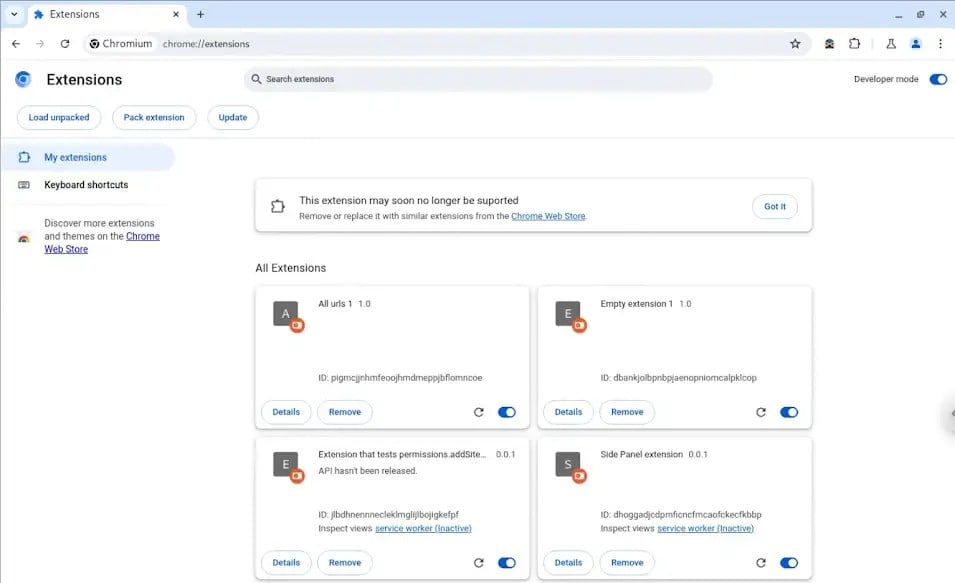
Google has started working on showing warnings for Chrome users running Manifest V2 extensions ahead of June 2024, considering the proposed timeline will disable the MV2 extensions in beta and Dev and Canary versions. Chrome as of now, looking to alert that MV2 extensions are no longer supported and ask to remove or replace them with similar extensions from the Chrome Web Store.
In case you don’t know, Google has switched to MV3 Extensions for Chrome from MV2 for performance and security reasons.
Starting June 2022, the Chrome web store no longer accept new MV2 extensions in Chrome Web Store. However, developers are allowed to update their MV2 extension in the Web store. Beginning June 2024, Chrome 127 and later, Chrome will begin disabling MV2 extension in Chrome versions like Dev, canary and Beta.
Users affected will notice Manifest 2 extensions being automatically disabled in the Chrome browser and it is also not possible to install MV2 extensions from the Chrome Web Store.
Soon, Chrome will show no longer supported warnings for Manifest V2 Extensions in beta, dev and Canary versions
That being said, as this month is May and with June nearing, Google has started working on an experiment to alert Chrome users running MV2 extensions in pre-release versions with an MV2 deprecation Panel that shows a warning or two, on the chrome://extensions page saying these extensions may no longer be supported as well suggests to remove or replace with similar extensions from Chrome Web Store.
“This extension may soon no longer be supported. Remove or replace it with similar extensions from Chrome Web Store“
These may soon no longer be supported
The MV2 extension warnings displayed on chrome://extensions are still being prepped and may not be final, if you’re using MV2 extensions, it is better to disable and find and install similar extensions from the Web Store.
[Extensions] Show MV2 deprecation panel for experiment. Show Manifest V2 deprecation panel in chrome://extensions when: – Manifest V2 experiment stage is ‘kWarning’, and – 1+ extensions are affected by the Manifest V2 deprecation This CL only adds the variables and functions needed to decide whether to show the panel. Next CLs will add the content and correct formatting.
Chrome stable users can still run Manifest V2 extensions
As of now, Chrome stable users running MV2 extensions may not see any warnings, this may change in the future. While new extensions can’t be created with MV2, existing ones can still function (for now) on stable Chrome. Google is focusing on the initial disabling of MV2 extensions in developer versions, giving developers time to migrate their extensions to the newer Manifest V3 standard.
Which background processes can you end in Windows 10? As you might know, high-end software and PC games often perform slower than usual as unnecessary background processes eat up system resources. These needless process threads limit CPU and Memory availability to crucial services and apps.
So, I’ve covered below tried and tested methods to get rid of useless background processes in Windows 10. They’re also applicable to Windows 11, so read on!
Which Background Processes Can I End in Windows 10?
You can end almost all third-party app-related services in Windows 10 without facing any system shutdown. Removing third-party services will actually help you boost your PC performance.
Furthermore, you can also close some of the Windows 10 native app services. However, you might notice the slow responsiveness of related apps later.
Moreover, unnecessary background processes depend on your PC. Therefore, it’s highly challenging to build a universal list that can apply to all users.
Still, you can use the following technique as a rule of thumb:
Open the Task Manager tool by pressing the Ctrl + Shift + Esc keys.
You’ll see multiple sections in the Processes tab. You’ll find the individual processes below them.
Go to the Background processes header and scroll down.
You should look for options that consume the most CPU, Memory, and similar resources.
Click on the extension drop-down arrow to the left of the selected process to reveal the underlying service.
Right-click on the service name and choose Open Services in the context menu.
On the Services app interface, type the initial letter of its name.
Find the exact service you’ve seen in the Task Manager.
Right-click on that and choose Properties from the context menu.
You’ll see a new dialog box. There, you should see the Description of the service.
The Description will tell you about the service, its functionalities, whether other apps are dependent on it, and more.
Microsoft Text Input Application (TextInputHost.exe)
Apple Mobile Device Service
WhatsApp Runtime Broker
WhatsApp
You can also review this detailed guide on disabling Microsoft Text Input Application when evaluating which background components you want to stop for better performance.
How To End Background Processes in Windows 10
Here are some quick ways to stop these unnecessary processes:
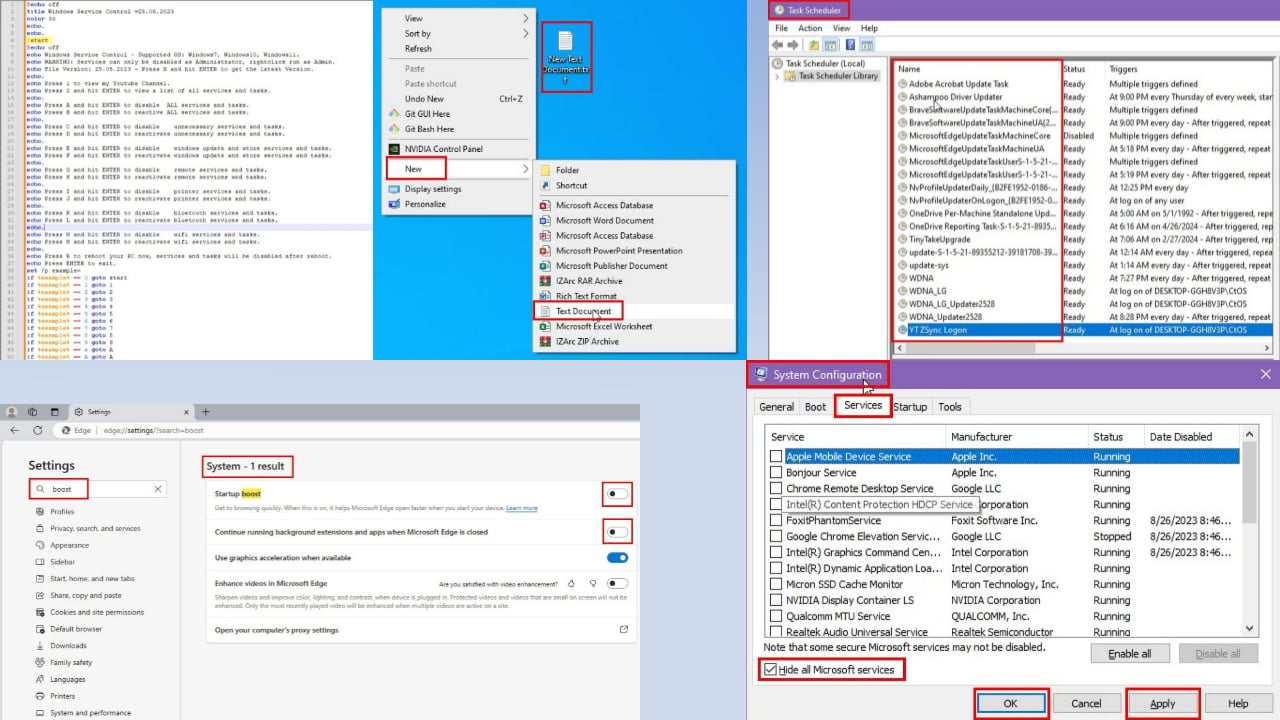
Use the Task Scheduler
Various Microsoft and third-party apps add their executable file to the Task Scheduler tool. So, if you close a process manually, the program runs on a certain schedule.
Follow these steps to overpower those sneaky processes:
Click on the Start Menu button (Windows flag) and type Task.
Select Task Scheduler on the Start Menu search results.
On the Task Scheduler app interface, you’ll notice that many process titles in the Name column are unnecessary and third-party apps.
Select the process you want to prevent from auto start, right-click, and choose Disable from the context menu.
Ensure you see the Disabled notification below the Status column header next to the selected process.
Repeat the above steps for all other processes entered into the Task Scheduler automatically.
Use the Startup Tab in Task Manager
If you’ve closed a handful of unnecessary background processes to speed up your PC, the next time you shut down or reboot the system, some will surface again. That’s because most third-party and Microsoft apps also add them in the Startup folder. So, when the PC starts, the apps can load.
Go to the Startup tab of the Task Manager tool. There, you should see multiple apps or processes set up for startup launch. Select the one you don’t need, right-click, and choose Disable.
Follow the same process for the rest of the unwanted startup items.
Use Microsoft Edge Settings
Microsoft Edge processes are so stubborn that they’ll show up even when you stop them manually. Also, when they launch, they do that in bulk – you’ll see 10 to 12 Msedge.exeprocesses in a column.
Don’t waste time manually stopping these from Task Manager. Instead, follow these steps:
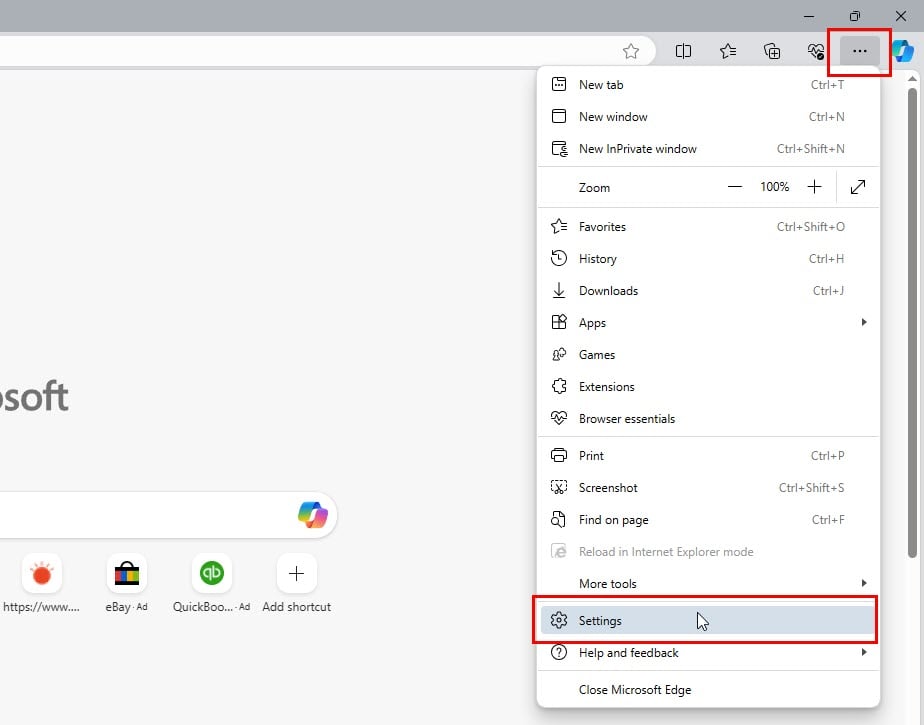
Open the Microsoft Edge browser.
Click on the three-dots menu in the top-right corner and choose Settings from the context menu.
In the Search settings field, type Boost.
You’ll see the System – 1 result on the right side.
Disable the toggle buttons for Startup boost and Continue running background extensions.
Put the Device to Sleep Mode Instead
If you find some closed background processes showing up repeatedly after a Restart or Shutdown, you can switch to Sleep mode.
Since this mode doesn’t reinitiate core Windows 10 OS processes as they do in Shutdown and Restart, stopped services and processes can’t launch.
You can find this option in the Start Menu > Power button.
End From Windows Background Apps Settings
Microsoft has introduced the Windows Background Apps Settings option since the Windows 10 edition. It allows you to manage which apps will run in the background. You can use this option to gain more control over your system’s performance and battery life.
Simply follow these steps:
Press the Windows + I keys to launch the Windows Settings app.
In the search field, type Background, and click on the Background Apps search result.
Disable the toggle button for Let apps run in the background option.
Stop All Unnecessary Processes Windows 10 Automatically
So far, you’ve learned the manual methods to end needless background processes. Find below two methods that automate the same:
Perform a Clean Boot in Windows 10
Press the Windows + R keys on the PC to launch the Run dialog.
In the Open field, type msconfig and hit Enter.
The System Configuration tool will open.
Click on the Services tab.
Checkmark the Hide all Microsoft Services checkbox.
Now, hit the Disable all button to uncheck all third-party app services.
Hit the Apply button and click OK.
Restart the PC to perform a clean boot.
Windows Service Control
You can create a simple yet effective Command Prompt batch script to automatically close redundant processes. Follow these instructions:
Go to the Desktop, right-click, and hover the mouse cursor on the New option.
Click on the Text Document option in the overflow context menu.
Rename the file to Windows Service Control.bat.
On the Rename dialog, click the Yes button.
Now, select the file, right-click, and choose Edit with Notepad++ option.
Click the File menu in the Notepad++ file and choose the Save option.
Now, close the Notepad++ app.
The Windows Service Control program is ready. Now, do the following:
Right-click on the Windows Service Control batch file.
Choose the Run as administrator option from the context menu.
You’ll see the tool’s command line user interface.
There, you’ll see various options to disable different groups of unnecessary background processes.
Usually, you can press C and hit the Enter button to end all needless tasks, processes, and services.
If you face any issues afterward, press D and then Enter to reactivate them.
So, which background processes can you end in Windows 10? You can close most third-party app-related services and some native ones.
If your PC is performing slower than usual, try any of the above methods to manually or automatically stop needless services. You can also follow these troubleshooting ideas on a Windows 11 PC.
If the article helped you speed up your Windows 10 or 11 PC, share your experience or feedback below!
The error 0x80070299 may occur when you attempt to move files from an internal hard drive to an external drive. It can also happen when you try to install a program.
File system corruption or exceeding file system quotas are the main causes of this error. However, if you’re operating a local user account, it may also pop up because you lack the requisite permissions to carry out the action. Before transferring files, always check for NTFS permissions.
How can I fix the error 0x80070299?
1. Perform a DISM and System File Checker scan
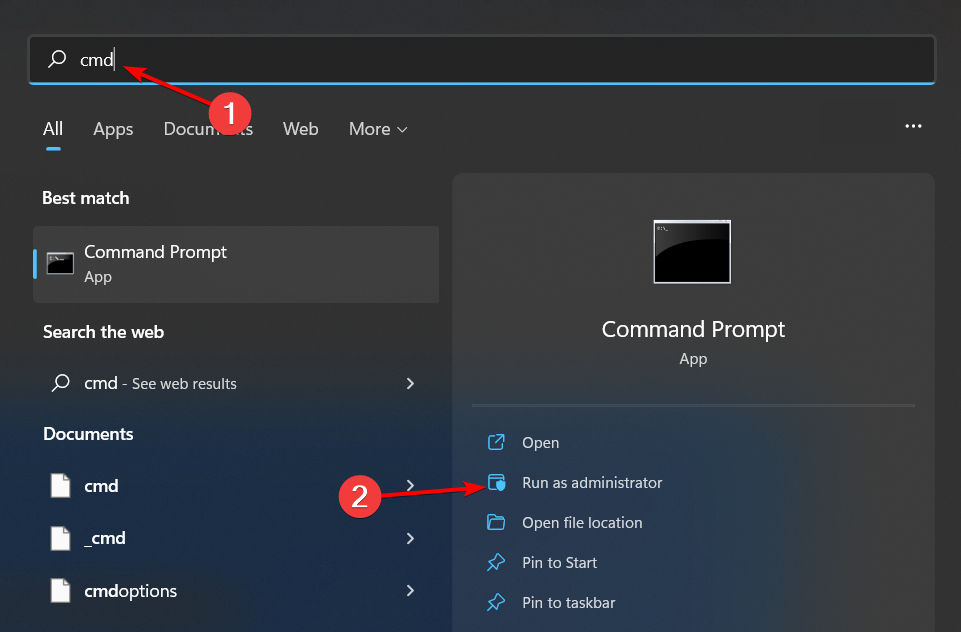
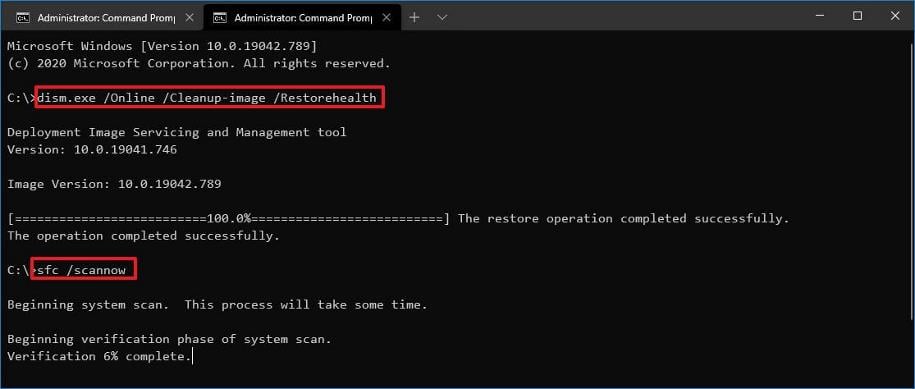
Hit the Start Menu icon, type cmd in the search bar, and click Run as administrator.
Type the following commands and press Enter after each one:DISM.exe /Online /Cleanup-Image /Restorehealthsfc /scannow
2. Convert your drive to NTFS format
Press the Windows + E key to open the Windows File Explorer.
Select This PC, right-click on the SD card drive, and select Format from the context menu.
Select the file system option, select NTFS from the drop-down menu and click on Start.
Converting your drive to the NTFS file system may solve the error 0x80070299 especially if it was bought about by system limitations or compatibility issues.
Hit the Windows key, type cmd in the search bar, and click Run as administrator.
Type the following command and hit Enter: vssadmin resize shadowstorage /on=c: /for=c: /maxsize=20%
The Volume Shadow Copy service is responsible for backups so if the initial issue was insufficient storage space to store the shadow copies, increasing it may help resolve this error.
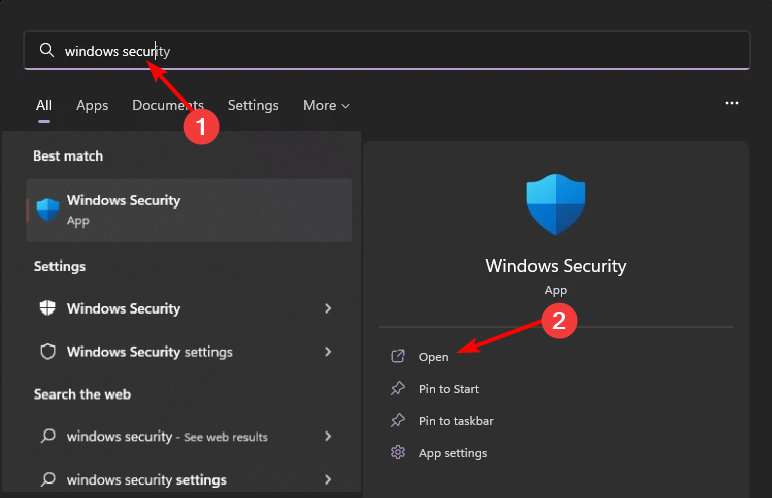
Hit the Windows key, type Windows Security in the search bar, and click Open.
Navigate to Virus & threat protection.
Scroll down and select Manage ransomware protection.
Locate the Controlled folder access option and toggle it off.
The Controlled folder access feature keeps an eye on the movement of files and imposes restrictions if it detects unauthorized changes. If the error 0x80070299 has been triggered by this feature, disabling it might allow you to move files seamlessly.
Remember that switching off this feature exposes your device to malicious software so make sure you turn it back on. For good measure, also run an antivirus scan to make sure none of the files are infected.
5. Defragment your hard disk drive
NOTE
Perform this step only if you have an HDD. For SSD, this procedure is simply useless.
Right-click on the Start Menu to bring up the shortcut menu, then select Windows Terminal (Admin).
Type the following command, then hit Enter to analyze your drive. Remember to replace X with the letter of your drive: defrag X: /a
After the scan is finished, you’ll see information about your hard drive, including the fragmentation level and a note saying whether you need to defragment your drive or not.
Now enter the following command to defrag that drive: defrag X:
Error 0x80070299 could lead to potential data loss and file corruption. If not resolved in a timely manner, you may experience system instability and ultimately, damage. To keep these effects at bay:
Adopt modern file systems – Most file system errors occur because you’re using a file system that is rigid and outdated. Newer ones like NTFS allow scalability and are more reliable.
Backup solutions – To avoid data loss, regular backup of files can minimize the loss in case of file corruption.
If you’ve been a victim of this dreaded error before, we’d like to get your thoughts and any other insights that may help fix it or prevent it in the future. Share them with us in the comment section below.
If you are looking for a good gaming laptop at a reasonable price, we have come across a deal that could be great for you. The robust, mighty, and beautiful ASUS ROG Strix G16 RTX 4070 is now available at a discount.
Earlier, it used to cost 2199.99, but fortunately, due to a discount available on Amazon, you can get it at $1989.99, which means you can save $210 on this deal.
Before making that decision, let us check out the details of the laptop:
Details
Processor
13th Gen Intel Core i9-13980HX Processor 2.2 GHz (36M Cache, up to 5.6 GHz, 24 cores: 8 P-cores and 16 E-cores)
Yes, The Strix features Thermal Grizzly’s Conductonaut Extreme liquid metal on the CPU
I/O Ports
1x 3.5mm Combo Audio Jack 1x HDMI 2.1 FRL 2x USB 3.2 Gen 2 Type-A 1x USB 3.2 Gen 2 Type-C prenant en charge DisplayPort / power delivery / G-SYNC 1x RJ45 LAN port 1x Thunderbolt 4 support DisplayPort
Keyboard and Touchpad
Backlit Chiclet Keyboard Per-Key RGB Support NumberPad Touchpad
Camera
720P HD
Audio
Smart Amp Technology Dolby Atmos AI noise-canceling technology Hi-Res certification (for headphone) Support Microsoft Cortana near field/far field Built-in array microphone 2-speaker system with Smart Amplifier Technology
Network and Communication
Wi-Fi 6E(802.11ax) (Triple band) 2*2 + Bluetooth 5.3 Wireless Card (*Bluetooth version may change with OS version different.)
Battery
90WHrs, 4S1P, 4-cell Li-ion
XBOX Game Pass Ultimate
A free 90-day pass
MUX Switch With WITH Advanced Optimus
Yes, it increases laptop gaming performance by 5-10% by routing frames directly from the dGPU to the display bypassing the iGPU
Power Supply
ø6.0, 280W AC Adapter, Output: 20V DC, 14A, 280W, Input: 100~240C AC 50/60Hz universal
AURA SYNC
Yes
Weight
7 pounds
Dimensions (W x D x H)
35.4 x 26.4 x 2.26 ~ 3.04 cm
Warranty
1 year manufacturer’s limited warranty
Security
BIOS Administrator Password and User Password Protection Trusted Platform Module (Firmware TPM) McAfee 30 days free trial
Now that you know all the specifications, let us know what are the benefits of buying this gaming laptop
Thanks to the powerful 13th Gen Intel Core i9-13980HX Processor 2.2 GHz (36M Cache, up to 5.6 GHz, 24 cores: 8 P-cores and 16 E-cores), your laptop will run faster, which means you will be able to perform tasks requiring with high CPU usage without any issues.
With high-speed memory of 32GB of DDR5-4800MHz and storage of 1TB of PCIe 4×4 storage, this laptop can handle multiple tasks seamlessly.
The NVIDIA GeForce RTX 4070 makes it one of the best-performing laptops while playing games.
With the advanced cooling technology (thermal Grizzly’s Conductonaut Extreme liquid metal on CPU and a third intake fan), you can enjoy extended gaming sessions without worrying about overheating.
The ROG Nebula display standard on the Strix G16, with a 100% DCI-P3 color gamut, ensures stunning visual clarity and detail.
When it comes to CPUs, AMD and Intel dominate the market. The competition between the two is fierce. If a report suggests that one is taking a lead, the other quickly gains back the lost numbers in the next quarter. And in Q1 2024, AMD gained a higher share in the CPU market compared to Intel!
According to a report in Tom’s Hardware based on the data shared by Mercury Research, AMD gained both revenue and unit market share in Q1 2024. AMD attributes this gain to the increased demand for 4th Gen EPYC and Ryzen 8000 series processors.
Excerpts from AMD’s statement reads,
Mercury noted in their first quarter report that AMD gained significant server and client revenue share driven by growing demand for 4th Gen EPYC and Ryzen 8000 series processors. As we noted during our first quarter earnings call, server CPU sales increased YoY driven by growth in enterprise adoption and expanded cloud deployments.
According to the data from Mercury Research, AMD’s server unit and revenue share increased by 0.5% and 1.2% in the last quarter. Looking at the year-on-year (Y/Y) numbers, the gain was 5.6% and 5.2% for the unit and revenue share, respectively.
AMD’s market share summary
A similar pattern was observed across desktop devices, where AMD’s unit share increased by 4.1% in the last quarter and 4.7% in the last year. As for the revenue share, the gain was 3.3% for the quarter and 3.8% for the year.
The figures for mobile CPUs should be a concern for AMD. At a time when it’s gaining at the expense of Intel in desktop devices and servers, mobile’s quarterly unit and revenue share fell by 1.0% and 0.1%, respectively. Experts attribute this to the popularity of arch-rival Intel’s Meteor Lake processor.
This loss in market share also affected AMD’s YoY figures for the mobile segment, which only increased by 3.1% for unit share and 4.0% for revenue share.
The results are in line with what was expected. We previously reported that when it comes to AI, AMD Ryzen surpasses Intel Meteor Lake’s performance. And the former is cheaper as well. So that must have played in AMD’s favour!
We will have to wait for next quarter’s results to gain more perspective on how the market is responding to the chips unveiled by AMD and Intel.
Who do you think will ultimately have a higher CPU market share, AMD or Intel? Share with our readers in the comments section.
Handheld gaming PCs have exploded in popularity, with ASUS ROG Ally being one of the most popular choices for gamers.
Since this handheld has a massive community, it’s no wonder to see mods such as this one that add additional functionality to the device.
This ASUS ROG Ally mod brings an extra screen to the device
While ROG Ally is a great device, its screen size can be a problem for many. However, this might change as ASUS has teased ROG Ally 2 recently.
According to PC Gamer, Kira Patel managed to attach a 7-inch 1024×600 IPS panel to the ROG Ally thanks to the magic of 3D printing.
To connect the two, she used a USB-to-HDMI adapter and stripped it down so it could be installed in the display casing.
Next, she used a clamshell system that was 3D printed to attach the screen to the Ally ROG. This allows her to use the second screen as a stand when not using it.
This is an impressive mod, and if you want to create one, you can find step-by-step instructions on GitHub.
Windows Server Long-Term Servicing Channel (LTSC) Preview build 26212 is released to Windows Server 2025. It is the same version released to the Canary channel.
This build contains Desktop Experience and Server Core installation options for Datacenter and Standard editions, Annual Channel for Container Host, and Azure Edition (for VM evaluation only).
With this version, the Redmond-based tech giant introduced the Delegated Managed Service Accounts (dMSA) capability. The dMSA account type enables a safe and secure migration from a conventional service account to a machine account with the help of fully randomized keys while disabling account passwords.
Using dMSA can prevent people from stealing passwords using a hacked account, which is quite common with old-style service accounts. If you want to know more about dMSA capability in build 26212, you can read this guide.
The official blog mentioned that if you have signed up for Windows Server Flighting, you should get this new build automatically. If you want to opt in, you must go to Windows Update in the Settings app and Check for updates. You will get a new build as a Feature update, and you are in!
You also get a new Feedback Hub app for Server Desktop users. The app will be updated automatically to the latest version. If not, you can head to the App’s Settings tab and click Check for updates.
Microsoft also mentioned not getting confused after seeing this flight’s label. It may incorrectly reference Windows 11. However, you will see the package installed is a Windows Server update. The Redmond tech giant also assured that this incorrect labeling issue will be fixed in future releases.
Here are other known issues mentioned in the official blog:
Upgrade does not complete: Some users may experience an issue when upgrading where the download process does not progress beyond 0%. If you encounter this issue, please upgrade to this newer build using the ISO media download option. Download Windows Server Insider Preview (microsoft.com)
VMs created using ISO media may not boot: Some users may encounter boot issues when creating Gen 2 VMs using this build (26063) and attempting to set the DVD ISO as boot preference. The new VM is unable to boot through the ISO and skips to subsequent boot options. This will be addressed in a future release.
Access denied error when using Diskpart –> Clean Image on Winpe.vhdx VMs created using WinPE: Create bootable media | Microsoft Learn. We are working to resolve this issue and expect to have it fixed in the next preview release.
Setup: Some users may experience overlapping rectangle voids following mouse clicks during “OOBE” setup. This is a graphics rendering issue and will not prevent setup from completing. This issue will be addressed in a future release.
WinPE – Powershell Scripts: Applying the WinPE-Powershell optional component does not properly install Powershell in WinPE. As a result, Powershell cmdlets will fail. Customers who are dependent on Powershell in WinPE should not use this build.
This is the other information related to the Windows Server Preview Build 26212:
Windows Server Long-Term Servicing Channel Preview in ISO format in 18 languages, and in VHDX format in English only.
Windows Server Datacenter Azure Edition Preview in ISO and VHDX format, English only.
Microsoft Server Languages and Optional Features Preview
Keys: Keys are valid for preview builds only
Server Standard: MFY9F-XBN2F-TYFMP-CCV49-RMYVH
Datacenter: 2KNJJ-33Y9H-2GXGX-KMQWH-G6H67
Azure Edition does not accept a key
The official blog also mentioned that this Windows Server Preview will expire on September 15, 2024.
AI grows fast, and developers sometimes can’t keep up with it. Even if they limit AI generations and answers to prohibit its misuse, its users find ways to bypass security protocols. Besides that, the AI models can generate inaccurate or offensive content due to hallucinations or bugs. So, OpenAI released a first draft of a framework known as Model Spec.
What does the Model Spec framework imply?
The Model Spec document specifies a desired behavior for Microsoft and OpenAI models. In addition, it includes a three-tiered approach split into core objectives, rules, and a guide for the default behaviors of AI.
Objectives
Assist users: AI models should follow instructions and provide accurate and helpful responses to end-users and developers.
Benefit humanity: AI should consider the impact of its generated content on stakeholders, content creators, and the general public.
Reflect on OpenAI: The AI models should operate based on social norms and legal boundaries.
Rules
Follow the Chain of Command: The AI models should prioritize following the instructions of its developers or established users.
Comply with Laws: According to the Model Spec, AI should comply with the established laws.
Avoid Hazardous Responses: AI models shouldn’t provide information that could harm the users.
Respect the Rights of Creators: AI should avoid using data without consent.
Protect Privacy: The AI models shouldn’t provide any personal data of its users.
Filter NSFW Content: AI should avoid generating mature content.
Default behavior guidelines
Trust Users: According to the Model Spec, AI models should behave as if the user has the best intentions while interacting.
Clarify Instructions: If the AI doesn’t understand a prompt or a topic, it should ask questions about it.
Respect Boundaries: The AI should be helpful without overstepping.
Adapt to the Context: If needed, AI should switch from a conversational style to a concise one and the other way around.
Be Neutral: The AI should provide factual information instead of factual information.
Avoid Persuasion and Manipulation: The AI shouldn’t try to change your viewpoint about a topic unless instructed.
Admit uncertainties: The chatbots should admit when they generate content using combined information from multiple sources.
Provide the Right Tools: There are various tools for the AI assistants. So, they should provide you with the most appropriate ones.
Be Clear and Concise: The AI should not exaggerate while generating responses.
Is the Model Spec framework already in use?
The Model Spec proposed by OpenAI won’t affect its existing models like GPT-4 and DALL-E 3. However, Microsoft and OpenAI might use it for their future AI models. Additionally, the framework will receive more updates based on received feedback. Also, OpenAI wants to find a way for their models to use the framework directly.
Ultimately, the Model Spec framework proposed by OpenAI will change the behavior of its AI. In addition, more AI models might follow it. However, it might take until OpenAI finds a way to make its models use it directly. Yet, you can check the Model Spec draft for examples.
What are your thoughts? Are you going to check the draft? Let us know in the comments.
External GPU docks or eGPUs can be great if you want to transform your average work or old laptop into a gaming station. They also have become slightly popular to upgrade gaming handhelds in reaching those FPS heights you were craving for and blasting the image on a huge TV screen. However, they have some considerable limitations and I think that they will soon become extinct. Here’s why!
How do external GPU docks work? What do they do?
If you want to know whether or not you should get an eGPU, let’s clear out a few things about these external GPU docks.
First of all, there are external docks that allow you to plug in your own graphics card, and there are those which have built-in GPUs. However, in both cases, you need to connect the eGPU dock to your laptop, PC or handheld game console, in most cases, using a Thunderbolt or USB-C cable. That is if you’re lucky enough that your old device is compatible with this external video connection. Even if it is, you won’t get the same performance from the GPU as if you would mount it directly to your device. Due to the cable connection, you will lose about 10%-15% from its capabilities.
Anyway, don’t even think about using another docking station if your laptop doesn’t have external video capability. You will end up seeing no performance difference. Connecting an NVIDIA RTX 4070 GPU to a 2017 laptop through an HDMI connection or a USB-A to USB-C converter/dock would be absolutely useless.
Then, there’s the issue of power. A laptop will only be able to handle an eGPU if it has its own power source. And if it does, the external dock will become too big and bulky to be considered as a portable solution.
Ultimately, if none of the above will stop you from dreaming of an external GPU dock, the price will definitely make you think twice. A simple enclosure for an AMD/NVIDIA PCI enclosure will cost you around $150 (but it can go up a lot), but if you’re going for an eGPU, the prices are a lot higher.
For instance, a GPD G1 eGPU Docking Station from 2024 with AMD Radeon RX 7600M XT and 8GB GDDR6 is $835 at Amazon. You might prefer the ROG XG Mobile External GPU Dock, packed with an NVIDIA GeForce RTX 3080 graphics card and 16GB memory, but that is even more expensive: $1150 at Amazon.
Finally, the new SoCs will make eGPUs obsolete
ROG XG eGPU
So, we narrowed down the use of external GPU docks to modern laptops with onboard graphics and handheld gaming consoles. Well, soon, you will be able to scratch the first category as well because the new SoCs such as Qualcomm’s X Elite or Google’s Tensor G3 pack a huge punch for graphics performance even with built-in GPUs. They proved to surpass today’s gaming requirements even on Windows for ARM.
That brings us to the latest usage scenario, for enhancing handheld gaming console’s performance.
AYANEO, a well-known manufacturer of handheld gaming consoles announced on X the upcoming launch of AG01, an eGPU designed especially for these kind of devices.
Apart from the classic Star Wars reference to a romantic universe which doesn’t seem to make sense (to me, at least), they didn’t provide any technical specifications. We can only assume that it will be close to its competitor, GPD G1, which I mentioned above in this article. AYANEO promised to reveal all the data on April 18 at their Remake Sharing Session event.
Anyway, paying close to $900 for an external GPU dock when the next ASUS Rog Ally 2 is around the corner which will definitely exceed all graphics expectations, seems incredible.
Even more if you think that we recently spotted a deal for the Acer Predator Helios 16 gaming laptop with NVIDIA GeForce RTX 4080 for only $1800.
So, I think we can agree that eGPUs were barely something we needed, but we don’t anymore. It’s a lot cheaper to buy a slightly older gaming laptop or a new handheld gaming console than to slap a huge budget on a bulky external video card.
But everything is up for debate so pick a side on the comments section below.
In the last few years, we have seen laptops becoming more repairable and easier to upgrade. Gone are the days when you had to contact that manufacturer for every issue. Now, self-repair and third-party repairs are just as common and surprisingly easy!
The latest in the list that has sparked the Right-to-Repair debate is Lenovo’s ThinkPad P1 (Gen 7). The ultra-repairable laptop features LPCAMM2 (Low-Power Compression-Attached Memory Module), a design upgrade that places LPDDR close to the CPU, allowing easy removal and repair, as explained by iFixit. And the best part is that you don’t have to compromise on performance!
Why are manufacturers bringing more repairable laptops?
For a very long time, we were at the mercy of manufacturers when it came to repairing laptops. But in the last decade or so, the Right-to-Repair campaign gained traction, with iFixit playing a major role in creating awareness around the idea.
Soon, we had Right-to-Repair legislation in different parts of the globe. California, for instance, became the third state in the US, after New York and Minnesota, to pass the Right-to-Repair Act last year. In Europe, France was among the first countries to introduce a Repairability Index for consumer devices.
As the governments bring more laws, manufacturers are forced to alter the PC’s design and ensure easy repairability. If they fail to do so, it’s quite simply their loss because repairable alternatives now exist. And given the increased transparency around the level of repairability, it’s easier than ever for buyers to choose the right product!
Repairing a laptop
Increased awareness amongst buyers also forced manufacturers to switch to easily repairable designs. In our Right-to-Repair survey, 80% of the respondents said that they are more likely to buy a device that’s easier to repair and 83% advocated for government regulations to enforce the right to repair laptops.
In the last few years, we have seen companies like Microsoft, Lenovo, and Dell introduce devices featuring a design that’s easy to disassemble. Apple, on the other hand, has yet to bring similar changes to its devices. For instance, MacBooks perform poorly in iFixit repairability scores.
Lastly, it became profitable for manufacturers to design repairable laptops. All of a sudden, buyers started looking for laptops with a high repairability score, and manufacturers who took the opportunity gained a first mover advantage. And soon, more followed suit!
Companies like Framework, which started working on repairability early on, now have a long lineup of sleek and compact laptops. Because repairability and portability don’t often go along too well, not unless you have mastered the design!
How does increased repairability boost upgradability?
Upgradability is directly proportional to repairability. The more repairable a laptop is, the more upgradable it is (barring the design and performance constraints)!
For instance, if you can easily unscrew the back panel of a laptop to replace a malfunctioning RAM module, it can also be upgraded, say, from the current 8 GB stick to a new 16 GB stick. The same is the case with storage drives and other similar components.
Tip
If you are planning to add more RAM, first find out the best RAM size for your PC. Anything beyond that won’t improve the performance!
A higher degree of repairability not only increases the laptop’s lifespan and saves money but also helps minimize e-waste. And one glance at the latest e-waste statistics will make you realize that we need to reduce waste generation.
What are your thoughts on repairable laptops? Share with our readers in the comments section.
It’s been a while since Microsoft brought Clipchamp, the video-editing tool, to the 365 suite, but ever since, the Redmond-based tech giant has been updating it with some pretty useful features, including the ability to automatically clean all long videos.
Now, Microsoft 365 for Education customers, including educational organizations, will be pleased to find out, that the Redmond-based tech giant will be adding CLipchamp to all A3 and A5 licenses, starting in June 2024.
This announcement was published in the latest entry to the Microsoft 365 Roadmap, and according to it, A3 and A5 users will be able to create videos directly in Microsoft 365’s OneDrive and SharePoint.
Clipchamp enables rapid editing and creation of videos on OneDrive and SharePoint including features like trim, join, transitions, filters, text overlay, audio controls, screen/camera recording and more. Available via the web or Windows app for Microsoft 365 A3 and Microsoft 365 A5 SKUs.
Microsoft
It’s kind of a bummer that Microsoft 365 for Education is only introducing A3 and A5 users to Clipchamp now, as the tool can be incredibly useful to those education organizations that don’t need to spend too much budget on other video-editing tools.
Adobe Premiere Pro, for instance, will ask for an annual price of US$263.88. According to the official website, no other apps from the Adobe Creative Suite will be available. The perks are obvious, and the tool has many features that facilitate video editing, but it is by no means oriented toward amateur video editors.
Microsoft Clipchamp, on the other hand, is part of a bigger suite with many other apps, and as part of that suite, it will cost US$396/year (for E3 licenses), and US$648/year (for E5 licenses). Plus, Clipchamp is far more friendly to students, as the platform is oriented for casual video editors, while still boasting many incredible features, such as the ones mentioned above.
So, for a plan that they’re already paying, education organizations everywhere will now be getting the native video editing tool as well, and there is no point in keeping any other around.
AI is everywhere, and we already know that Microsoft is integrating Copilot into Windows 11 and all of its services.
It seems that other companies are following suit, and Stardock has just brought ChatGPT to your desktop.
Stardock brings ChatGPT to your desktop with DesktopGPT
If you’re not familiar with Stardock, it’s a company that brought us Start11 among many other tools that allow you to customize Windows 11.
Stardock has moved away from the customization software as Windows Central writes, and it has brought us an AI assistant.
DesktopGPT comes with GPT-3.5 Turbo, GPT-4, and GPT-4 Turbo, and users can easily choose a model that is suitable for their needs.
The prompt is easily accessible with a single keystroke, allowing you to access the AI at any time. Unlike regular ChatGPT, this application comes with templates that you can use for common tasks.
Of course, you can create your own templates to reuse specific prompts quickly. You can also refine a response just as easily, just with a few keystrokes.
This is a great tool that brings ChatGPT to your fingerprints, and the templating support makes it stand out from other tools on the market.
Sadly, DesktopGPT isn’t available as a standalone application, and you can get it only as a part of the Object Dock bundle.
Looking for motherboard diagnostic software that’s free? It’s an essential tool to help you check the condition of your motherboard. There are several options available online – some are free while others are paid services. After testing 18 tools, I identified five with reliable free versions that stood out from the rest.
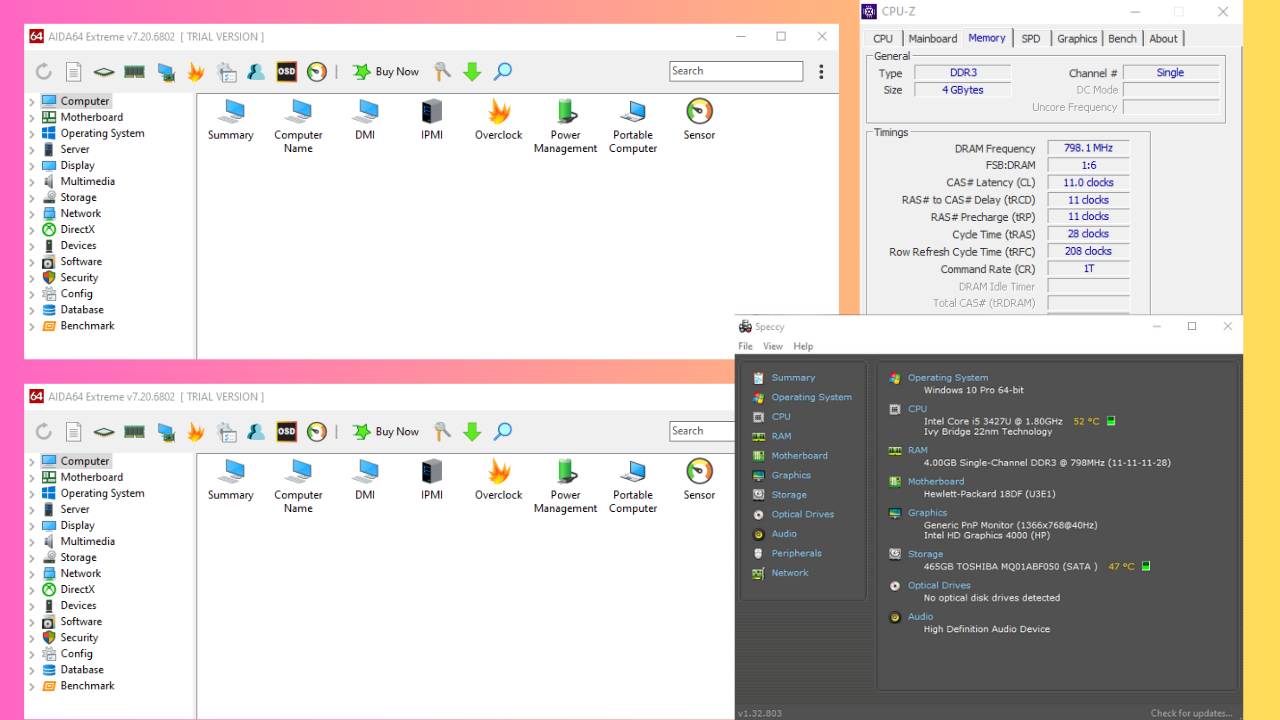
AIDA64 Extreme can identify potential issues, measure system performance, and ensure optimal stability. The free trial version has limited features but it remains a powerful tool for diagnosing and optimizing motherboard-related issues.
You also get data about CPU properties, physical information, and CPU manufacture.
I liked how the tool broke down every detail about the motherboard including bandwidth under Memory Bus properties. You’ll also know the clock speed front side and memory bus properties.
Additionally, you’ll be able to note down the virtual memory, paging file, and the status of different physical address extensions. However, details about physical memory aren’t available in the free version.
Pros:
It has a free version
It offers detailed information about the motherboard
Real-time tracking of temperatures, voltages, and fan speeds
Speccy has a user-friendly interface with all the features on the home page. This program can provide detailed information about the hardware on your computer, including the motherboard.
Speccy’s real-time monitoring capabilities make it useful, allowing users to track important parameters such as temperature, speed, and more.
Another feature that made it stand out is its ability to take snapshots and save them as XML or text files. It also identifies your motherboard’s manufacturer, model, and version. You can get information about BIOS and PCI data as well.
CPU-Z grants you detailed information about your CPU, motherboard, memory, and other hardware components. It provided the same amount of detail about the motherboard and BIOS as Speccy. However, it didn’t generate my graphic interface information.
You can also gather data about the performance of your other hardware, right down to the smallest specifics.
This tool allowed me to test the CPU stress as well.
This is a great tool, and if you haven’t tried it, go ahead and download CPU-Z.
The HWiNFO software is free and designed for Windows allowing you to examine the motherboard in detail. It detects the number of available and occupied motherboard slots, the brand name and model number, the supported USB version, its chipset, and more.
This tool will also show you the memory clock speed of the motherboard.
HWMonitor Pro is another motherboard diagnostic software with real-time monitoring capabilities. Most importantly, the free version provides you with essential motherboard info.
Moreover, users can track important parameters such as temperature, voltage, and power, preventing potential hardware failures.
What made it special was its ability to watch over my computer’s condition away from home.
So, now you know how to find efficient motherboard diagnostic software for free. These five options should cover all your monitoring needs. Feel free to share your pick in the comments below!
Handheld gaming PCs are a great option for gaming on the move, and ROG Ally has been one of the most popular choices for gamers.
ASUS has just teased ROG Ally 2, and it seems that this device is coming sooner than expected.
ASUS ROG Ally 2 just got teased, the reveal is expected in few hours
As TweakTown writes, ASUS is teasing a special stream that should start broadcasting in several hours. The stream is titled The next ROG Ally is coming, which got many fans of the handheld excited.
Many are speculating that this is nothing more than a minor hardware update that will fix the SD card reader issues that have been present for a while.
The new model might come with an improved battery, refined thermals, and an OLED display that supports a higher refresh rate.
Unfortunately, this is just speculation, and we’ll find out more about it in about 10 hours once the stream goes live.
The IT firm Hive Systems recently shared some eye-opening insights. They’ve got this 2024 password table that shows how long it takes to hack a password with the best consumer-accessible hardware. And guess what? An 8-character password can be cracked in only 37 seconds using brute force techniques if it formed only by numbers.
? The 2024 update to our Hive Systems Password Table is out now! Viewed and shared by over 1 million+ people, published by universities, and seen in the news – this year's update covers the latest trends in password cracking. Download your copy today at https://t.co/KzbZoXDTu9pic.twitter.com/5tG8jpGqX9
First, we need to clear out what the brute force is all about when we’re talking about password hacking. It’s the most simple technique to crack a server by bombarding it with simple password combinations of characters starting with 12345678, password123 and similar others.
Many passwords are cracked every day and that’s just because they are not complex enough. The longer and more complex your password, the safer you are. Many sites now require passwords to have at least eight characters, including a mix of letters, numbers, or symbols. But experts are suggesting we might need to up our game even more.
For a bit of perspective, consider this: a password that’s just numbers and eight characters long can be cracked in less than a minute. But if you double the characters, even if it’s just numbers, you’re looking at 119 years for a hacker to figure it out. Experts are leaning towards longer passwords, even if they’re simpler.
Now, here’s something to chew on: the time it takes to crack a password has actually increased, thanks to more robust encryption methods analyzed this year. But don’t get too comfortable. With computing power on the rise, this security might not last long. And if your password is something easy to guess, like a dictionary word or something you’ve used on multiple sites, the time to crack it drops dramatically.
So, while longer and more complex passwords are definitely better, managing them can be a headache. That’s where password managers come in handy. They not only store your login credentials securely but also help you create unique, complex passwords for each site you visit.
Even if a site’s security isn’t top-notch, features like two-factor authentication can add an extra layer of protection. And while changing your password frequently used to be the go-to advice, experts now recommend creating strong, unique passwords and sticking with them unless there’s been a breach.
In the end, it’s all about staying one step ahead of the hackers. With the right precautions, you can make their job a whole lot harder. So next time you’re setting up a password, think about making it a bit longer and a bit more complex. Your future self will thank you.
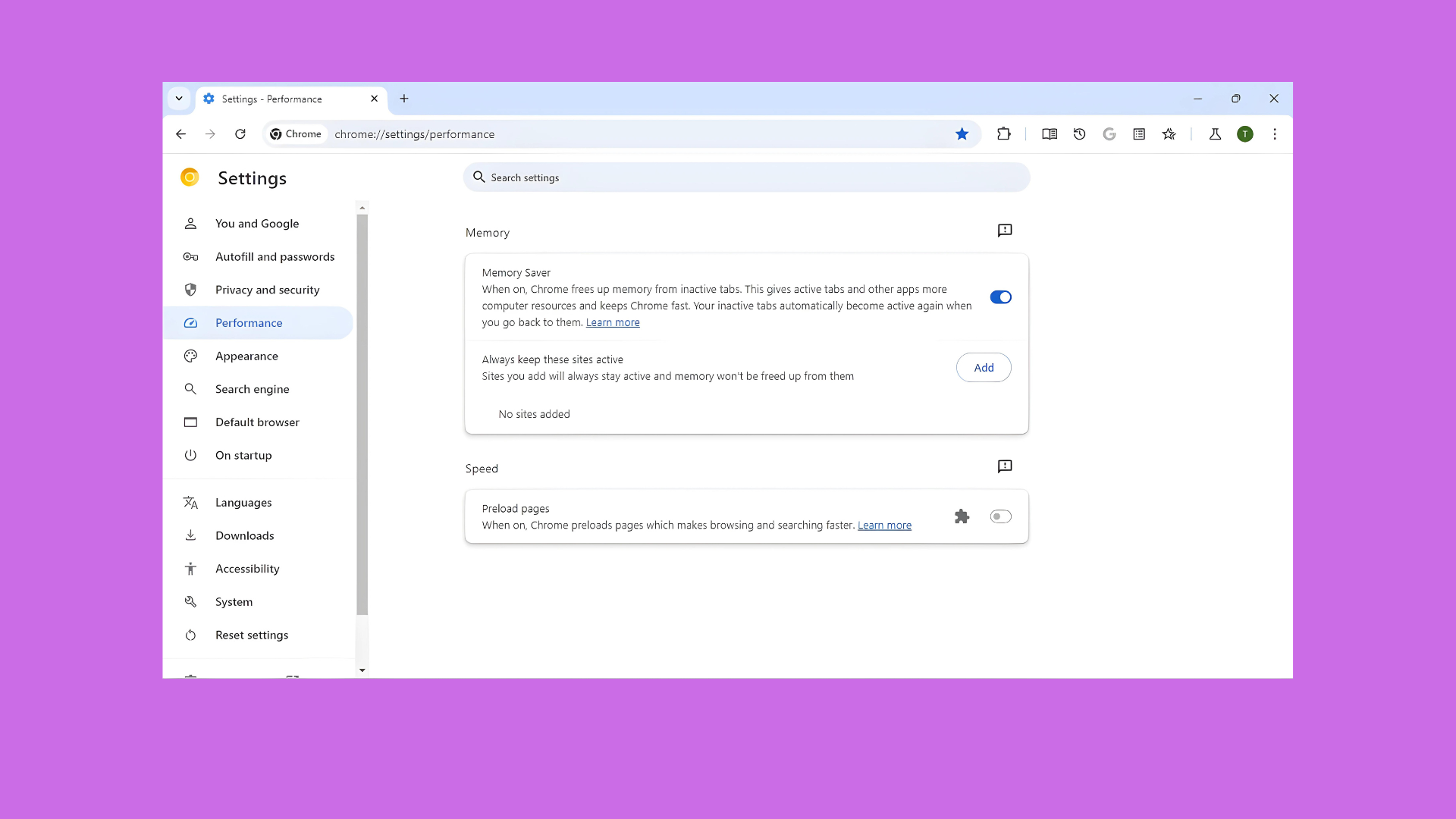
Google is about to give you more control over how the memory saver works in Chrome by letting you configure it in settings. The ability to choose or manage Memory saver aggressiveness from Conservative, medium, and aggressive will be available in performance Settings. The significant upgrade is being tested in Chrome Canary.
The Memory saver mode in Chrome aims to ensure that your active tabs get more resources by deactivating background tabs that haven’t been visited recently. When you visit discarded tabs, they will be reloaded and available.
Google has been doing extensive testing on Memory Saver mode in Chrome for a long time. For instance, the company tested a multi-state option for memory mode with heuristic mode, fixed timer, and discard, and offered options behind flags to select the time when tabs can be discarded.
These settings or preferences were not released, but Chrome had been improving memory saver based on tests they ran behind the scenes.
Chrome might let you control Memory Saver mode’s aggressiveness
Now, Google is testing this feature to allow users find a balance between memory usage and keeping recently accessed tabs active.
If all goes well, you will soon be able to adjust the aggressiveness of Memory Saver by visiting performance settings at chrome://settings/performance. Google is adding the aggressiveness option behind a flag.
According to the commit spotted by us, after enabling the flag, the toggle will show three options to change the memory saver mode:
Get moderate memory savings. Your tabs become inactive after a long period of time
Get balanced memory savings. Your tabs become inactive after a moderate period of time
Get maximum memory savings. Your tabs become inactive after a shorter period of time.
Moderate Memory Savings: With this setting, your tabs become inactive after a long period of time. It gives a balance between memory usage and keeping recently accessed tabs active.
Balanced Memory Savings: Selecting balanced memory savings means that your tabs become inactive after a moderate period of time.
Maximum Memory Savings: If you choose maximum memory savings, your tabs become inactive after a shorter period of time. This aggressive mode minimizes memory usage but may require more frequent tab reloads.
When the MemorySaverModeAggressiveness feature is enabled, makes the memory saver mode toggle expand when toggled on to show a radio group for changing the memory saver mode aggressiveness pref. This gets rid of the old UI that was shown when the HighEfficiencyMultistateMode feature was enabled. The full cleanup for that feature will be done later.
Chrome will introduce a new visual indicator, a dotted circle, to highlight inactive tabs that Memory Saver has put on hold. This will help users easily identify which tabs are not actively consuming resources.
Note: Google is deprecating the multi-state Memory saver mode and moving the preferences to new system for memory saver mode that keeps timer enabled.
As surprising as it is, Microsoft got the Windows Server Preview Build 26212 update name wrong, and it was rolled out without anyone noticing. On devices, the update package reads, Windows 11 Insider Preview 26040.1000 (rs_prerelease).
The issue was acknowledged in an official post highlighting the improvements on Windows Server Preview Build 26212 by Stacey Clements, a Microsoft employee. The confirmation read,
The label for this flight may incorrectly reference Windows 11. However, when selected, the package installed is the Windows Server update. Please ignore the label and proceed with installing your flight. This issue will be addressed in a future release.
The update package reads Windows 11 instead of Windows Server(Image source: Microsoft)
The mistake on Microsoft’s part raises many questions about the initial checks in place, especially at a time when the Redmond-based tech giant is receiving a lot of criticism for releasing buggy updates. Some even attribute buggy updates to the continued fall in Windows 11’s market share.
Thankfully, this time around, only the update’s name was overlooked, and it isn’t causing any serious issues after installation, as per the initial reports. Besides, Microsoft has confirmed that the mistake will be rectified in future releases!
Who do you think is responsible for Microsoft getting the Windows Server update name wrong? Share with our readers in the comments section.
Windows Terminal is an essential tool on Windows 11 used by many rather frequently, and what makes it so good are the constant updates.
Speaking of which, the Windows Terminal Preview 1.21 release is finally here, and it brings many highly anticipated features.
Windows Terminal Preview 1.21 is here, and here’s what’s new
Never lose the contents of your window with buffer restore
One of the most anticipated features is the Buffer restore, and with it, you can restore the contents of the Terminal when starting it.
This is perfect if you plan to continue where you left off, or if you close the Terminal by accident, so you won’t lose any of your data.
To enable this option, you need to change Terminal startup settings and use the Open windows from a previous session setting.
Font fallback and new font settings
Font fallback is a small but useful feature since it allows you to use multiple fonts in Terminal. This is useful if you use custom fonts or if your selected font isn’t available.
There are also new settings available that allow you to customize OpenType Features and Axes. You can also show built-in glyphs or full-color emojis in the Terminal.
New advanced settings in the Settings UI
Four new settings are now available in your profile’s advanced settings UI. These settings allow you to display a right-click menu, display scrollbar marks, automatically mark prompts, and reposition your cursor with mouse clicks.
In the past, these settings could only be adjusted from the settings.json file, so this is an improvement since these options are now easily accessible from the UI.
Various rendering updates
Windows Terminal now uses AtlasEngine as the default text rendering engine, which means that DxEngine is gone.
You can now choose the Graphics API or disable Swap Chain invalidation if needed. The new rendering engine brings support for PowerLine symbols and custom box drawings.
IME Integration has been rewritten, allowing you to use different types of underlines. IME integration now properly blends into TUI applications by adopting their colors.
Scratchpad added as an experimental feature
Terminal panes can host non-Terminal content and Microsoft is testing the Scratchpad feature that allows you to take notes in a separate pane.
To use it feature, you first need to enable it as an action and then access it from the Command Palette.
These are some of the most exciting features and you can find the full information on Microsoft’s Devblog page. If you want to try them, you can get this version from Microsoft Store or GitHub.
According to the Work Trend Index released by Microsoft and Linkedin, people prefer using AI at work. Somehow, this result isn’t surprising because AI can help us work faster and more efficiently. In addition, the assistants can record meetings, summarize information, and help us manage workloads easier.
Researchers used data from 31,000 people across 31 countries, labor and hiring trends on LinkedIn, and trillions of Microsoft 365 productivity signals to realize the Work Trend Index. On top of that, Microsoft keeps adding new features to its AI assistants. Also, now, LinkedIn has more than 50 courses on AI for its premium subscribers.
Are employees using generative AI at work more?
Based on the study, the use of generative AI at work doubled in the past six months. Additionally, there is a 142x increase in LinkedIn members showcasing AI skills in their profiles. Furthermore, employers are looking for more people experienced in AI.
AI is critical for companies to remain competitive, and that’s what 79% of the leaders agree. Also, employees and employers can benefit from using the same AI tools at work. After all, it is easier to use well-managed data, especially when you can have it in a single place.
Unfortunately, according to 60% of employers, their companies aren’t ready to implement AI. So, employees are bringing their preferred AI models to work. However, that could lead to potential data leaks and other similar issues.
Employers are looking more actively after people with AI skills. However, only 39% of the users received specialized training for AI at work. Also, just 25% of the companies might offer AI coaching this year. In addition, people are developing new skills and changing careers with the help of AI.
How are big companies supporting AI usage?
Big companies are supporting AI usage by adding new features and training courses. For example, Microsoft will add new functions to Copilot to promote AI at work:
Auto-complete will make it prompt generation faster.
Rewrite will change basic queries into rich prompts.
Catch Up will prepare you for upcoming meetings.
In addition, Microsoft will add new functions to the Copilot Lab to help you create, manage, and publish prompts specifically made for you and your team based on the information you provide.
LinkedIn also provides users with over 600 AI courses to develop new AI-related skills. In addition, you can find lessons tailored based on your skill level. Also, the platform introduced a new AI-powered coaching tool that helps you find personalized content for your needs. Moreover, LinkedIn can suggest what skills to develop and jobs tailored to your expertise.
In a nutshell, many of us prefer using AI at work to increase productivity and efficiency. After all, it can help us handle more easily with heavy workloads. Additionally, employers understand that AI is crucial for their company’s development. On top of that, 66% of leaders are more likely to hire people with AI skills. Furthermore, big companies like Microsoft are developing new features to increase the usefulness of AI assistants and tools.
What are your thoughts? Do you use AI at work? Let us know in the comments.
If you’ve been following everything Xbox-related on social media, you know what’s happening right now with the company. Microsoft closed several Xbox game studios including Arkane Austin, Tango Gameworks, and Alpha Dog, which are studios behind some of the most popular Xbox games around, such as, you know, Hi-Fi Rush.
Many were sad and angered by the decision, which also prompted the head Arkane Lyon, Dinga Bakaba, to post some very raw but sincere thoughts on X (formerly known as Twitter), asking for corporations (in this case, Microsoft) to stop treating game studios like Darwinist jungles.
Don’t throw us into gold fever gambits, don’t use us as strawmen for miscalculations/blind spots, don’t make our work environments darwinist jungles. You say we make you proud when we make a good game. Make us proud when times are tough. We know you can, we seen it before.
Dinga Bakaba
This is absolutely terrible. Permission to be human : to any executive reading this, friendly reminder that video games are an entertainment/cultural industry, and your business as a corporation is to take care of your artists/entertainers and help them create value for you.
On the other hand, as if Microsoft could already see the outcry, the Redmond-based tech giant reportedly has a lot of interesting titles coming out in the second half of 2024, including Starfield: Shattered Stars, the expansion pack for Bethesda Game Studios space-based RPG, the next Call of Duty game, and the hotly-anticipated Awoved RPG.
However, the Xbox community is not pleased at all. And many Xbox users find one person to blame: Phil Spencer, the current head of the company.
On Reddit, Xbox lovers have taken it to say that Spencer is good at PR, but not good at leading the company, with many calling him a master at delusions. But they’re not entirely wrong either.
Phil Spencer has been the head of Xbox for a decade now. He was anointed as such in 2014, and under his leadership, Xbox came up with the now-popular and the industry standard, Game Pass, which sparked a series of imitation services from competitors.
But as many others have shown, Phil Spencer’s legacy at Xbox is mainly composed of false (or rather, underwhelming) promises, apologies, layoffs, or poor sales.
In 2023, Microsoft cut 10,000 jobs, including 800 positions at Xbox. Then, a few months after the gigantic acquisition of the ABK triad (Activision-Blizzard-King), Xbox laid off more than 1900 positions at Activision. As we’re noticing now, that was the point gaming studios under Xbox’s wing and Spencer’s leadership began to worry.
Users are not particularly happy about it. On Reddit, which is often known to harbor some of the most sincere posts, many Xbox users are angry too.
I know a lot of people will defend him by saying he had the Herculean task of undoing the Xbox One era , but having a Head of Xbox with the mentality of “we’re in third place, we will always be in third place, we have lost, good games will not make people buy Xbox, despite Sony and Nintendo selling their consoles purely off strong exclusives” was a death sentence for Xbox. And the rate Xbox is laying off its employees and closing studios, by the end of the year, Xbox will be a glorified Call of Duty publisher that also publishes a Bethesda title once every 10 years.
Reddit user
He is doing exactly what he was tasked to do which is acquire tons of high grade IP to make exclusive to the Xbox GamePass everything else is collateral damage as with any industry.
Eventually Microsoft will probably step out of the console industry and only have GamePass on all other consoles and PC they’ve hinted at it several times in the past.
Reddit user
Thanks for making the only memorable game on Xbox last year, your reward is death. Japan is crucial for our strategy, let’s show how much by closing our only studio in Japan. I don’t know if there’s a way to salvage Xbox, but if there is, it starts with removing Phil Spencer.
Reddit user
What do you think about it? Are they right? Should Phil Spencer step down from leading Xbox? Or it doesn’t really matter after all?
Windows Insiders are the first ones to test new features on the operating system, which are later released for stable builds. But things are not always good for them, aside from the unstablilty in the preview builds. Right now, many Windows 11 Insiders are reportedly stuck on Builds 26040 or 23620.
We are investigating reports that some Windows Insiders in the Canary and Dev Channels are stuck on Build 26040 or Build 23620. The investigation is ongoing, however if you are impacted by this and really want to get onto the latest build in the Canary or Dev Channel today – you can download the latest ISO here and do a clean install and opt your device back into flighting in the Canary or Dev Channels.
We have seen several reports of the same, some as early as March’24 while others were from April and May. Every time an insider tries to install a newer version, the update fails and the PC reverts to Builds 26040 or 23620, as the case may be.
Can’t update from Windows 11 Home Insider Preview Build 23620 (ni_prerelease) to Windows 11 Insider Preview 26090.1 (ge_release). I’ve been in the insider program for years and have never had a problem. Installation always revert to a roll back to the Build 23620, 1. Is there any way for the update to be successful. 2. Is the problem going a ni release to a ge release, if so why is MS pushing this update. 3. Should I wait for a more stable update?
Microsoft recommends a clean install if you are stuck on Build 26040 or 23620
You can directly head to Microsoft’s official website, download the ISO image for the preview environment, and perform a clean install.
Downloading the ISO for a preview build
Remember, this isn’t the ideal solution, as you might end up losing the stored data. So, it makes sense to create a backup beforehand using a reliable backup software.
Our recommendation is that if it’s not affecting you too much, wait for Microsoft to fix the issue. A patch should be out soon!
Amongst other notable changes in Windows 11 is Microsoft pausing public testing of Copilot, its famous AI-powered chatbot that’s finding increased integration into native products.
If you are amongst Windows 11 Insiders stuck on Build 26040 or 23620, then share with our readers what worked for you in the comments section.
At a time when China is aiming to reduce reliance on Western powers for PC hardware, the emergence of the Lingjiu Micro GP201 GPU is a good sign. It’s one of the many domestic alternatives being fostered by the government.
While the GPU isn’t high-performance by any of the current standards, it’s still a significant feat, given that the company behindthe product, Wuhan Lingjiu Microelectronics, developed it within three years of inception, reports Tom’s Hardware.
Another reason that Lingjiu Micro GP201 is getting all the attention is that it’s far ahead of its competitors in the national landscape.
The manufacturer is comparing GP201 with AMD E8860 to highlight how the former outperforms AMD products, but let’s not forget that the latter was released almost a decade ago in 2014. And it wasn’t even the best-performing GPU of the time!
Wuhan Lingjiu Microelectronics has released five models of the GP201 graphics processing unit covering every segment, namely full-height, half-height, and MXM, according to IT Home.
Lingjiu Micro GP201’s specifications
Core frequency
1200 MHz
Video memory
Supports DDR4, LPDDR4X, and LPDDR4
Data transfer rate
4266Mbps
Supported processors
Loongson, Sunway, Feiteng, Kunpeng, and Haiguang
Supported operating systems
Kirin, Yihui, UOS, VxWorks, Ruihua, and Tianmai
OpenGL support
OpenGL 4.0, OpenGL ES 3.2, and OpenCL 1.2 / 3.0
Compatible graphics standards
IBM VGA, VESA
Working temperature range
-40 to +85 (temperatures in Celsius)
Power consumption
10W to 30 W
Information source: IT Home
While these configurations may not be optimal for resource-intensive tasks, it’s a sign that China is making steady progress in developing homegrown alternatives.
However, given the fact that the homegrown chips still can’t compete with most of the new-age products, China procured high-end NVIDIA AI chips to train LLMs despite the US banning the sale of such chips to the country.
Do you think the Lingjiu Micro GP201 could compete with the NVIDIA and AMD chips after future upgrades? Share with our readers in the comments section.
Microsoft is working to bring the capabilities of the Azure Web Application Firewall (WAF) and Azure Firewall into the Copilot for Security. The AI tool features a dataset of 78 trillion or more security signals. Also, it combines AI analysis with human expertise and provides insights quickly. In addition, it can help experts combat cyber threats. A public preview will be available on May 21, 2024.
What are the Azure WAF and Firewall for?
The Azure WAF and Firewall protect your network and applications from sophisticated threats using default rule sets, Microsoft threat intelligence, and automatic patching for zero-day vulnerabilities. Additionally, they process packages, analyze signals from network sources, and generate logs.
Microsoft can potentially fix the issues generated by the shortage of cybersecurity experts using AI. In addition, tools like Azure WAF and Firewall combined with Copilot could handle simple and recurring threats. Thus, cybersecurity experts could shift their focus to new threats.
Azure WAF and Firewall could enhance the capabilities of Copilot for Security. Thus, AI could solve operations that specialists could solve in hours or days. On top of that, Tier 1 and 2 specialists could use Copilot to elevate their skills and fix problems meant for Tier 3 and 4 experts. Also, AI can translate insights and investigations into natural language.
How does Copilot improve the Azure services?
The Azure WAF’s integration in Copilot for Security can detect and block attacks against web applications and APIs. Furthermore, it creates terabytes of log data from its detections. Afterward, it sends them to the Log Analytics service. Yet, according to Microsoft, experts can synthesize and summarize data using Copilot and Azure WAF in minutes. Additionally, they can investigate malicious IP addresses and analyze SQL injections (SQLi) and Cross-site scripting (XSS) attacks that the Azure WAF and Firewall blocked.
Copilot improves the efficiency of Azure Firewall. Thus, cybersecurity experts can spend less time investigating the data provided by the tool. Additionally, the AI assistant gathers information such as IP locations, threat ratings, and details about possible vulnerabilities. Also, Copilot can repeat the process on other firewalls. On top of that, Copilot can give insights into how threat actors are targeting the infrastructure by correlating available data.
Ultimately, integrating Azure WAF and Firewall using Copilot for Security improves the efficiency of cybersecurity specialists. In addition, they can use the AI to speed up their work. On top of that, lower-tier specialists can easily elevate their skills.
What are your thoughts? Are you going to use Azure WAF and Firewall? Let us know in the comments.
It’s no wonder Microsoft-based services and products are the subject of some of the most intricate cyberattacks. Due to their popularity, organizations using Microsoft services often find themselves victims of cyber threats. In fact, in 2022, alone, over 80% of Microsoft 365 accounts were hacked at least once.
Recent reports from Microsoft and OpenAI have shown that threat actors everywhere have started to use AI to devise complex attacks, and this might be one of the reasons the Redmond-based tech giant decided to extend the Microsoft Defender for Cloud Apps capabilities to Edge for Business.
In an announcement published earlier today, the company says Microsoft Defender will oversee the activity on Edge for Business and will stop anyone from performing risky actions aka actions that can lead to all sorts of cyberattacks.
Microsoft Defender for Cloud Apps now provides new in-browser protection capabilities via Microsoft Edge to enable security teams to seamlessly manage how a user can interact with in-app data based on their risk profile. The in-browser protection removes the need for proxies, improving both security and productivity, based on session policies that are applied directly to the browser.
Microsoft
The Redmond-based tech giant also posted a short guide on how to configure session policies. These need to be set up before using Edge for Business, as Microsoft says they are crucial for maintaining security especially when using SaaS apps.
Microsoft Defender for Cloud Apps now enables session policies to protect data in motion within the Edge for Business browser as it traverses trust boundaries with detailed visibility into cloud app usage with real-time, session-level monitoring. This functionality is crucial for protecting data from SaaS apps such as SharePoint, Box, or Dropbox as it moves to managed or unmanaged devices within an organization.
Microsoft
The integration of Microsoft Defender in Edge for Business is seamless, and the Redmond-based tech giant says that the policies can be customized to enable/disable/block certain activities such as downloading, or printing files, for instance.
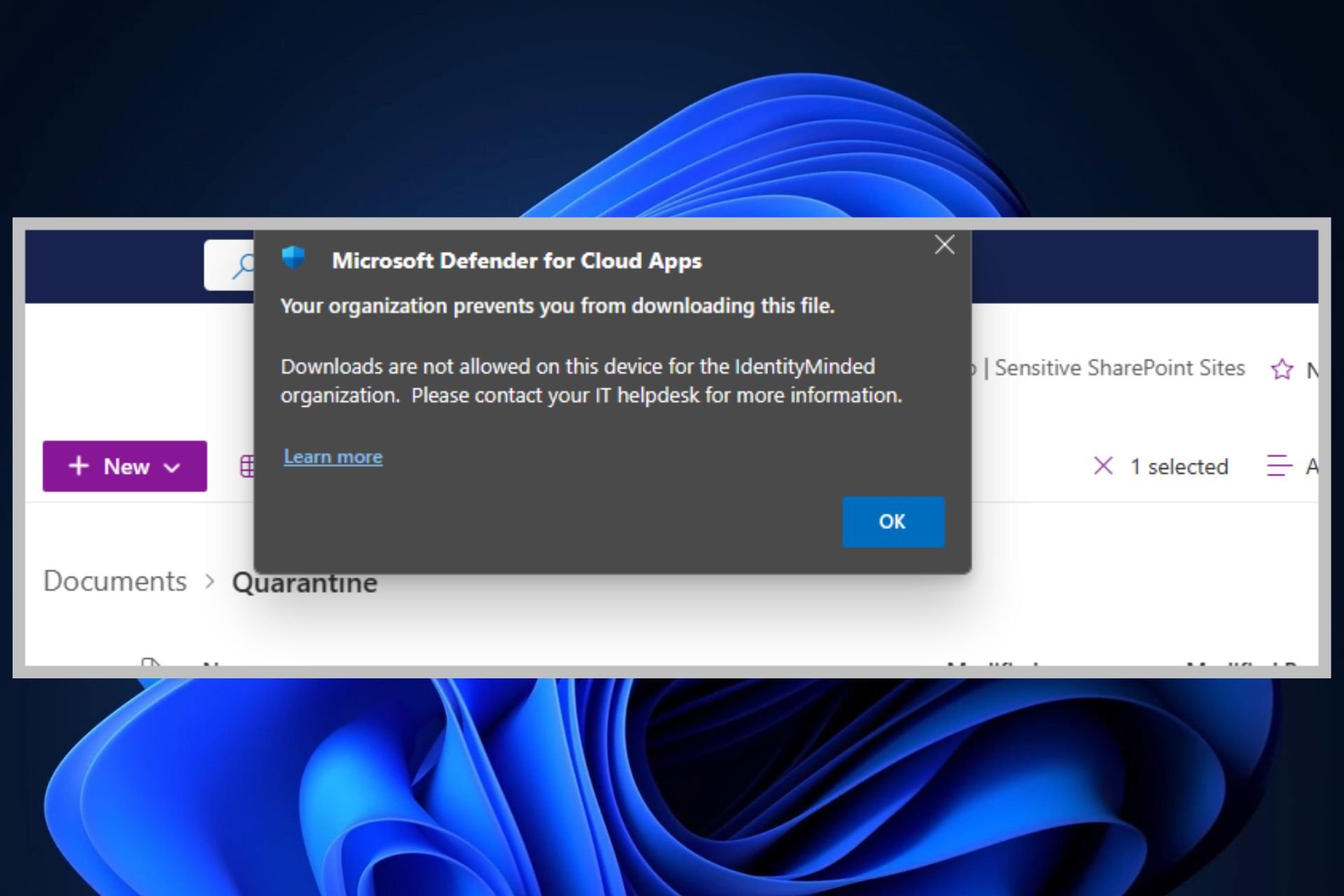
Once the admin establishes session policies, these policies are directly applied to browser. For instance, admins can create session policies based on user risk profiles to prevent actions such as downloads, uploads, copying, cutting, or printing files. Specifically, when a user attempts to download a file containing sensitive credit card information from a SharePoint site via the Edge for Business browser, Defender for Cloud App will enforce the session policy to block this action. These restrictions are implemented seamlessly for users without affecting their productivity.
Microsoft
Admins won’t have to worry about additional configuration as Microsoft Defender for Cloud Apps utilizes the built-in controls of Edge for Business to make sure everything will be OK, while users can always check if they’re using in-browser protection in Microsoft Edge for Business, just in case.
June 2024 is going to be a great month for Microsoft Teams users, as several new features and enhancements are going to be released to the platform.
The Redmond-based tech giant will finally let users rename the general channel, after 7 years since the platform was introduced to the world.
Microsoft Teams will also introduce brand-new meeting artifacts, which are old meetings, transcripts, or AI recaps that can be accessed by certain users, and they can be useful in various situations (such as winning a lawsuit for wrongful termination, because why not?)
Speaking of new capabilities that should have been on Microsoft Teams for years, the Redmond-based tech giant will finally allow users to preview files in chats and channels with images.
In other words, every time someone posts a Word, Excel, PowerPoint, or PDF file in a chat or channel, Microsoft Teams will preview it with a thumbnail image.
When you share documents (Word, Excel, PowerPoint and PDF) in chat or channel conversation, you can see a thumbnail image of the file in the thread. This lets you preview the file’s content without opening it and find the file you need quickly.
Microsoft
Those Teams members who used Slack in the past will recognize the feature, as it has been on the platform for many years now. Slack, which is Teams’ biggest and most serious competitor, already allows users to quickly preview files in chats and channels.
Either way, this new capability will be quite practical to Teams users, as it will allow them to easily tell if they already read a certain document or not, without having to waste time opening it.
To some extent, this sort of thumbnail previewing is already available to OneDrive, with many enhancements to it, including the addition of other files, such as video, or audio files, coming later this year.
So, while it’s strange that Microsoft is only releasing it now, it’s good the Redmond-based tech giant decided to release it.
Microsoft released Build 26212 (the same version was released to the Canary channel, as well) to Windows Server 2025, and with it, the Redmond-based tech giant finally introduced the long-speculated dMSA (Delegated Managed Service Accounts) capability.
For those of you who don’t know, the dMSA account type allows a safe and secure migration from a traditional service account to a machine account, by using fully randomized keys, while disabling account passwords.
Using dMSA can stop people from stealing credentials using a hacked account (a problem known as kerberoasting), which is a common problem with old-style service accounts, and one Microsoft intends to address, according to the official changelog.
[NEW] Delegated Managed Service Accounts (dMSA)
A new account type known as delegated Managed Service Account (dMSA) is now available that allows migration from a traditional service account to a machine account with managed and fully randomized keys, while disabling original service account passwords.
Authentication for dMSA is linked to the device identity, which means that only specified machine identities mapped in AD can access the account. Using dMSA helps to prevent harvesting credentials using a compromised account (kerberoasting), which is a common issue with traditional service accounts.
Microsoft
dMSA in Windows was initially noticed at the end of last year, and then, a few months later, Microsoft officially confirmed it. Now, it’s available to preview for Windows Servers insiders.
Alongside the new dMSA, Windows Server Build 26212 also introduced more SMB (Server Message Block) protocol changes, including:
SMB over QUIC client and server disable: Administrators can now disable the SMB over QUIC client and SMB over QUIC server options with Group Policy and PowerShell.
SMB over QUIC client and server connection auditing: Successful SMB over QUIC client and SMB over QUIC server connection events are now written to the event log to include the QUIC transport.
SMB signing and encryption auditing: Administrators can now enable auditing of the SMB server and client for support of SMB signing and encryption. This shows if a third-party client or server doesn’t support SMB encryption or signing. You can configure these settings with PowerShell and Group Policy.
You can read the full changelog here, and you can download the latest Windows Server Build 26212 here.
Microsoft just released the latest Canary Build, (26212), to Windows 11 Insiders, and the Redmond-based tech giant introduced some exciting Windows Share capabilities to Canary users.
They were released to the other Insider channels earlier this year, but they’ve only come to the Canary channel now. However, besides these new capabilities, the latest Canary Build, (26212), finally fixed two of the most annoying File Explorer bugs there are.
File Explorer would crash in several instances, making it very annoying when looking for folders and files in Windows 11. One of these instances would cause File Explorer to crash when using path suggestions in the address bar; the other instance would cause File Explorer to crash when going from the search box back to it.
However, it seems that the Redmond-based tech giant finally fixed these issues, according to the official changelog, which can be read here.
[File Explorer]
Fixed an issue which was causing File Explorer to sporadically crash when using path suggestions in the address bar.
Fixed an issue which could cause File Explorer to crash sometimes when going from the search box to the body of File Explorer.
Microsoft
To address these fixes, users are advised to update their Windows 11 to the latest Canary version, which is Build 26212.
Microsoft Teams was introduced to the world 7 years ago (it turned 7 last month, in March), and it has gone on to become one of the most popular work-oriented platforms, with over 300 million users globally.
But, believe it or not, despite the large number of users, and the many advanced capabilities, such as Copilot, Intelligent Recap, and so many more, Microsoft Teams doesn’t allow users to rename the general channel.
However, it seems that the Redmond-based tech giant has listened to the needs of users everywhere, and it will introduce the capability to rename the general channel, starting in June 2024, according to the latest entry to the Microsoft 365 Roadmap.
After 7 years of existence, Teams will finally allow users this essential, and long-requested feature. According to the description, which you can read below, only the team owner, or those users who have permission, can rename the general channel.
In our efforts to bridge the gaps between general and other channels, introducing the ability to rename the general channel in your team. General channel in a team can be renamed by the team owner, or member (if they have permissions), to show up in the teams and channels list in alphabetical order.
Microsoft
As per Microsoft’s account, this new policy will impact the desktop version of Teams, but the change itself should appear on all versions, no matter the platform, or the operating system.
The policy will be released in June 2024, which is the same month the Redmond-based tech giant wants to release new features and enhancements for Teams admins, including the exciting meeting artifacts, which could be used in an array of situations, including a potential lawsuit for wrongful termination.
With all these new capabilities, Microsoft finally decided to return to the most basic ones, so the company should be applauded for such decisions (pun intended).
Microsoft is making some big changes to the OneDrive shared folders experience. According to the latest entry in the Microsoft 365 Roadmap, the platform will change this experience to allow users to access shared folders from within their own OneDrive.
As Microsoft says, currently, when someone is accessing shared folders, OneDrive takes them to those folders from within the sharers’ OneDrive.
With this change, however, the shared folders will be accessible from the People tab within OneDrive, to streamline the whole experience, without having to access foreign OneDrive domains.
We’re making a change to the shared folder experience in OneDrive. Currently, when a user opens a shared folder in OneDrive, they are taken to a view of that folder within the sharers OneDrive. In the new experience, opening a shared folder will take the user to the shared folder within the People view of their own OneDrive. This view, organized by people, shows and allows access to all the files and folders that have been shared with the user.
Microsoft
In other words, the new shared folders experience on OneDrive will be faster, intuitive, and will allow users quick access to important files, without having to worry about stepping into unknown territory.
Aside from this, OneDrive users should expect a plethora of new capabilities coming to the platform in the following weeks. We’re talking about an enhanced File Viewer, AI capabilities, enhanced productivity and collaboration, and even branding capabilities that organizations can use to design personalized landing pages featuring the brand logo.
OneDrive will also introduce colors to folders so that users can easily tell the difference between cloud-based folders and local ones.
Plus, a new Media View will display all the media files on the homepage, including video, audio, and images. However, there are so many other features coming to the platform, that it’s hard to keep count.
It’s no wonder that Microsoft wants to streamline OneDrive’s shared folder experience. By the way, the new experience will be released in June.
For many users Copilot has revolutionized and enhanced the browsing experience on Microsoft Edge but for others, the rewrite feature may be over-the-top hence the need to disable it.
AI tools have been a buzz and each company is trying to integrate it into their products. Granted, the rewrite feature is helpful in certain scenarios but in most, it may be more intrusive than helpful.
If you’re writing personal emails or dealing with sensitive information, you don’t want Copilot getting a hold of this data and possibly storing it in their servers.
However, if you don’t have privacy concerns, enabling and using the rewrite feature can slow down your browser and with lower-end hardware, your browsing experience will be downgraded significantly.
How do I turn off rewrite with Copilot in Edge?
Launch the Microsoft Edge browser, click on the three ellipses at the top-right corner and select Settings.
Click on Languages on your left-hand pane.
On the right-hand pane under Writing assistance, toggle off Use Compose (AI-writing) on the web.
If you disable the Copilot rewrite feature on your Microsoft Edge browser because of privacy concerns, maybe try out Google’s AI. You’ll be happy to know that you can delete your history and activity data on Bard.
What’s your experience with the Copilot rewrite feature on Microsoft Edge? Would you toss it or keep it? Share your thoughts in the comment section below.
Want to go over an old Microsoft Teams meeting, or something Copilot generated a while ago that might be useful now? Well, you should know that you will soon be able to do that, as the Redmond-based tech giant will enhance Teams with meeting artifacts.
What are meeting artifacts? According to the latest entry in the Microsoft 365 Roadmap, anything from older Teams meeting transcripts, to older recordings, AI-generated recaps, or even conversations with Copilot in the platform is a meeting artifact.
And, Microsoft will allow managers to decide which users can access it. Initially, they will be able to choose between three options: allowing people with existing access, allowing organizers, and co-organizers, and finally, allowing specific people.
When any of these options is selected, that group of people will have access to meeting artifacts in Microsoft Teams.
Introducing a new meeting option that gives meeting organizers the flexibility to manage which attendees have access to meeting artifacts such as transcript, recording, AI-generated recap, and Copilot. Meeting organizers can select from three options: (1) People with existing access, (2) Organizers and Co-organizers, or (3) Specific People.
Microsoft
While we don’t know how exactly users are going to access these meeting artifacts, the capability itself could be quite useful in many situations.
From recapping information on yourself to going over a certain meeting, with a transcript at hand, to even checking out the recommendations given out by Copilot or the platform’s Intelligent Recap feature, the capability can be used to assert a certain presentation, or even make sure you don’t miss out important information that can be used in your benefit (such as a difficult conversation with a manager, or another employee over a Teams meeting).
However, it’s important to mention that only admins and managers will be able to decide who gets access to these artifacts, and they will be able to do so starting June 2024, according to the roadmap.
This new feature is just one of the many tailored for Teams admins and managers Microsoft has announced recently. For instance, earlier this week, the Redmond-based tech giant unveiled that Teams admins will be able to perform device management directly from the Teams Admin Center.
As Microsoft builds out its artificial intelligence empire it settled on making use of the previously heralded Foxconn mega-project Racine, Wisconsin location for its next data center.
Microsoft announced its intent to undergo a $3.3 billion dollar investment in the state of Wisconsin to help stimulate economic growth and innovation in the region. The company’s new data center news comes alongside a visit from President Joe Biden to Racine, Wisconsin to celebrate use of Foxconn’s failed attempt to deliver on a $10 billion dollar investment intended to address similar Microsoft goals.
According to Microsoft’s press release on the matter, the company will invest its $3.3 billion dollars into the state over the next two years as it expands its national cloud AI infrastructure capacity. Microsoft will be placing what it considers a “state-of-the-art” data center campus in Mount Pleasant, Wisconsin that it expects to encourage the creation of 2,300 union supported construction jobs by next year.
Like its previous ‘Build With’ programs, Microsoft sees the Wisconsin data center as just the start of burgeoning partnership with the region that will have larger lasting implications such as a collaboration with Gateway Technical College to “build a Data Center Academy to train and certify more than 1,000 students in five years to work in the new data center and IT sector jobs created in the area.”
In addition, Microsoft will also be establishing a manufacturing driven AI Co-Innovation Lab at the University of Wisconsin-Milwaukee. According to Microsoft the university lab could serve up to 270 Wisconsin-based businesses by 2030 as well helping to expand ongoing partnership with the Green Bay Packers.
Lastly, Microsoft has also committed to partnering with Gateway Technica College to help train and certify 3,000 local AI software developers while also seeking to provide ‘opportunities’ for 1,000 local business, civic and government leaders to join bootcamps to figure out ways to adopt AI into their enterprises.
However, back in 2017 Foxconn made similar lofty promises that ultimately unfulfilled by both the company and then President Donald Trump. The Taiwanese based company was supposed to help invigorate Wisconsin’s economy and innovation hubs with a massive factory project intended to build LCD screens.
Described as being potentially the “eighth wonder of the world,” the Foxconn plant sat unused for years while the company trotted out recycled marketing material to pivot the focus of its underdevelopment ever so often.
In August 2023 Foxconn placed its unused factories up for sale and it seems Microsoft is taking advantage of the opportunity.
Unlike Foxconn, whose factory project appeared to be more of a politically motivated marketing gimmick, Microsoft’s massive bet on AI requires the company to continue to seize locations for the datacenters that will house server farms to power its future revenue streams.