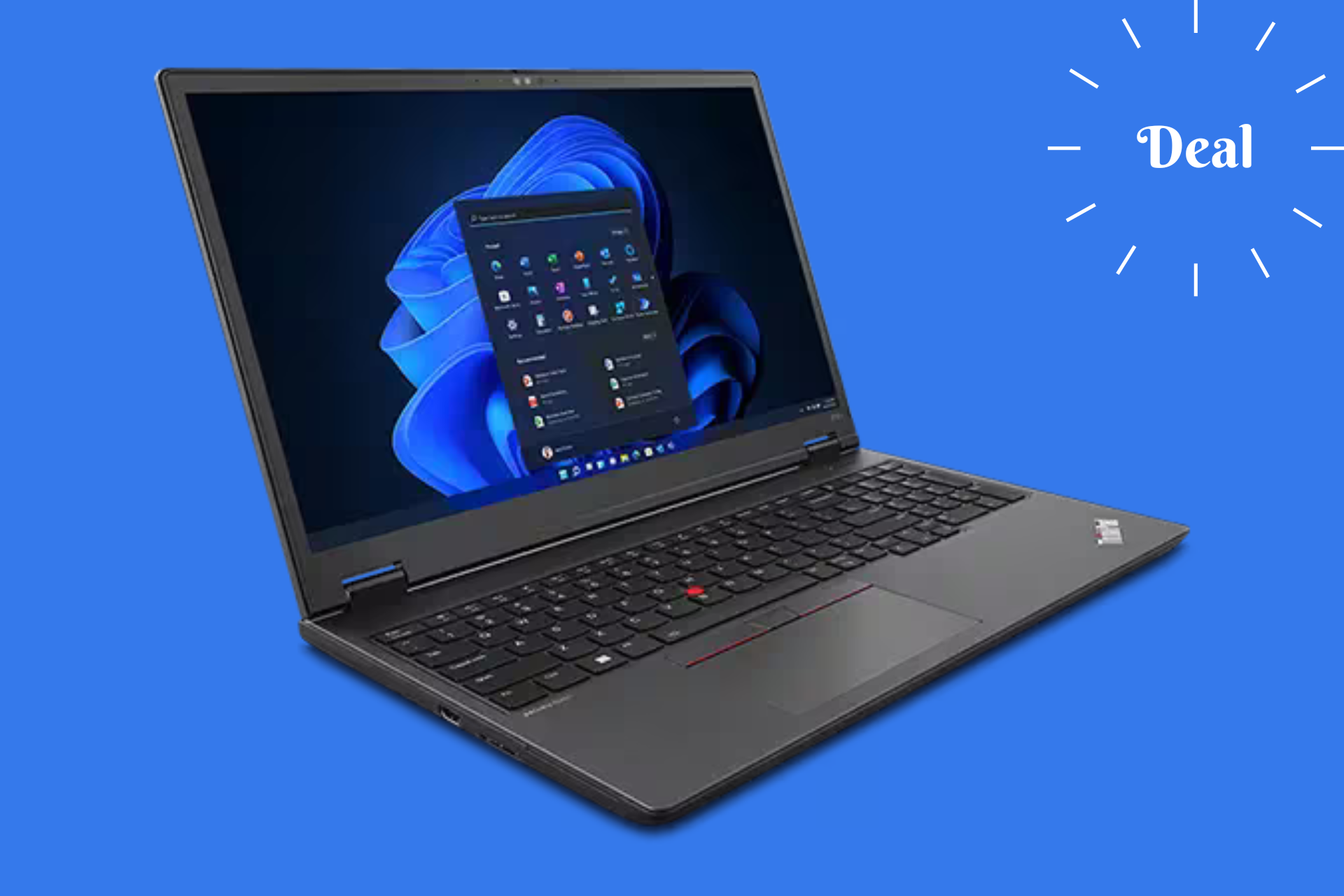
Lenovo drops $1,540 from their ThinkPad P16v Gen 1 AMD mobile workstation

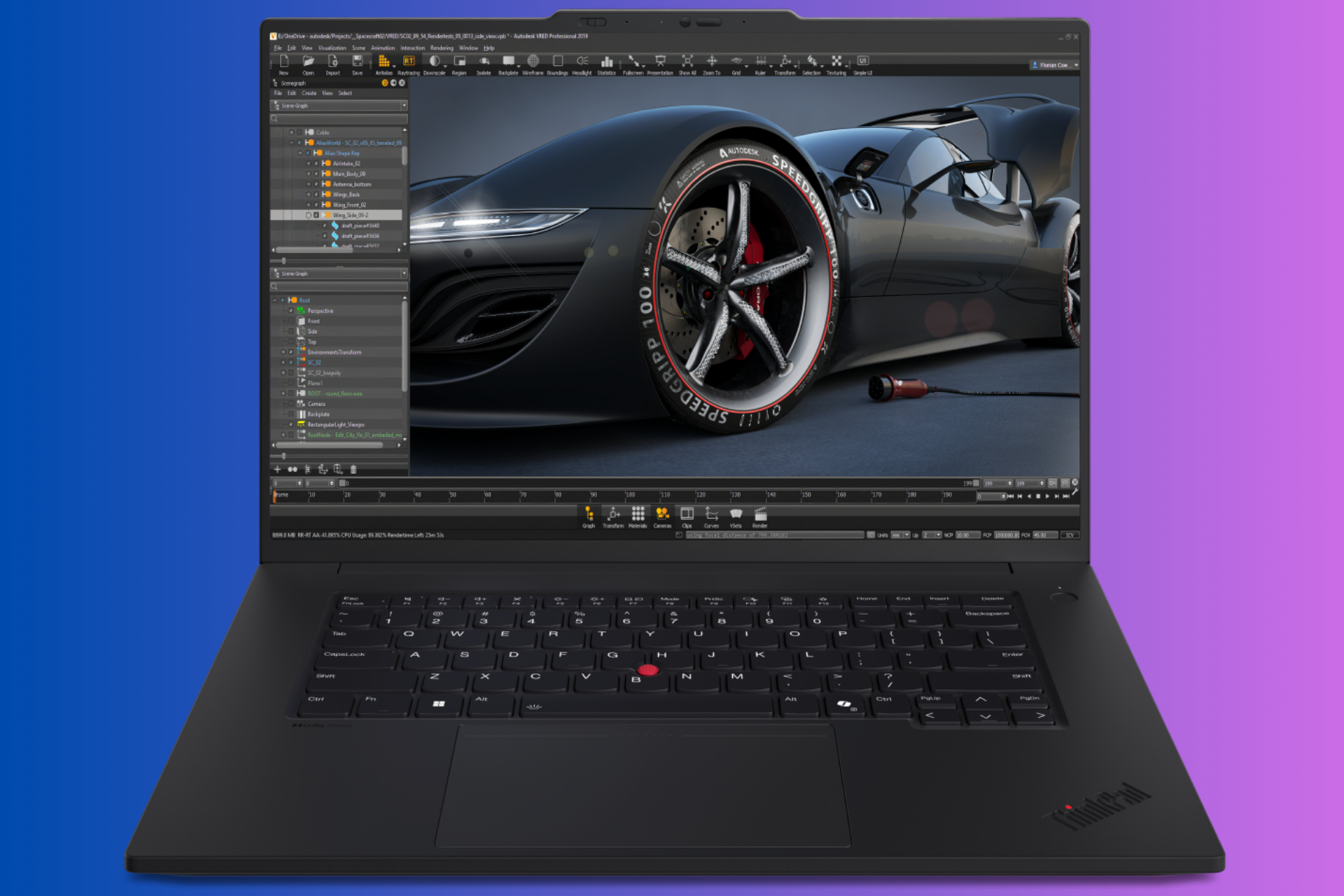
That’s right! Wil Lenovo working on their 2024 lineup, the prices are seriously slashed on the older models. The 16-inch ThinkPad P16v Gen 1 AMD mobile workstation which was $3,079 is now priced at only $1,539 which is a huge, over 50%, price reduction. And that’s not all. If you get an account with your email on Lenovo’s website, you can get another $100 discount!

Why should I buy the ThinkPad P16v Gen 1 AMD laptop?

This is a sweet deal because this laptop packs serious heat even for gaming. It’s powered by an AMD Ryzen 7 PRO 7840HS Processor (3.80 GHz up to 5.10 GHz) and an NVIDIA RTX A1000 GPU with 6GB of GDDR6 memory. That’s not something to look away from, especially if you add up the 16 GB DDR5 memory clocked at 5600MHz.

Actually, the only downside is the storage. The 512 GB SSD might be pretty small for today’s requirements , but that is upgradeable.

We left the best for last, because the 16-inch IPS screen has a 3840 x 2400 pixels resolution, with 800 nits of brightness and a 60Hz refresh rate. That’s pretty good even for graphics design. And all this power is stored into a 4.85lbs case.

When it comes to connectivity, you’ve got two USB-A and two USB-C port at your disposal. Add a HDMI connector and a SD Express 7.0 card reader to the list.

The bottom line is that the ThinkPad P16v Gen 1 has an incredible price right now for its tech specs. The only issue is that if you have the budget grab it right now, before they run out. If you have a bigger budget, you can check out the Razer Blade deals.

Tell us what you think about this offer with a comment in the dedicated section below.

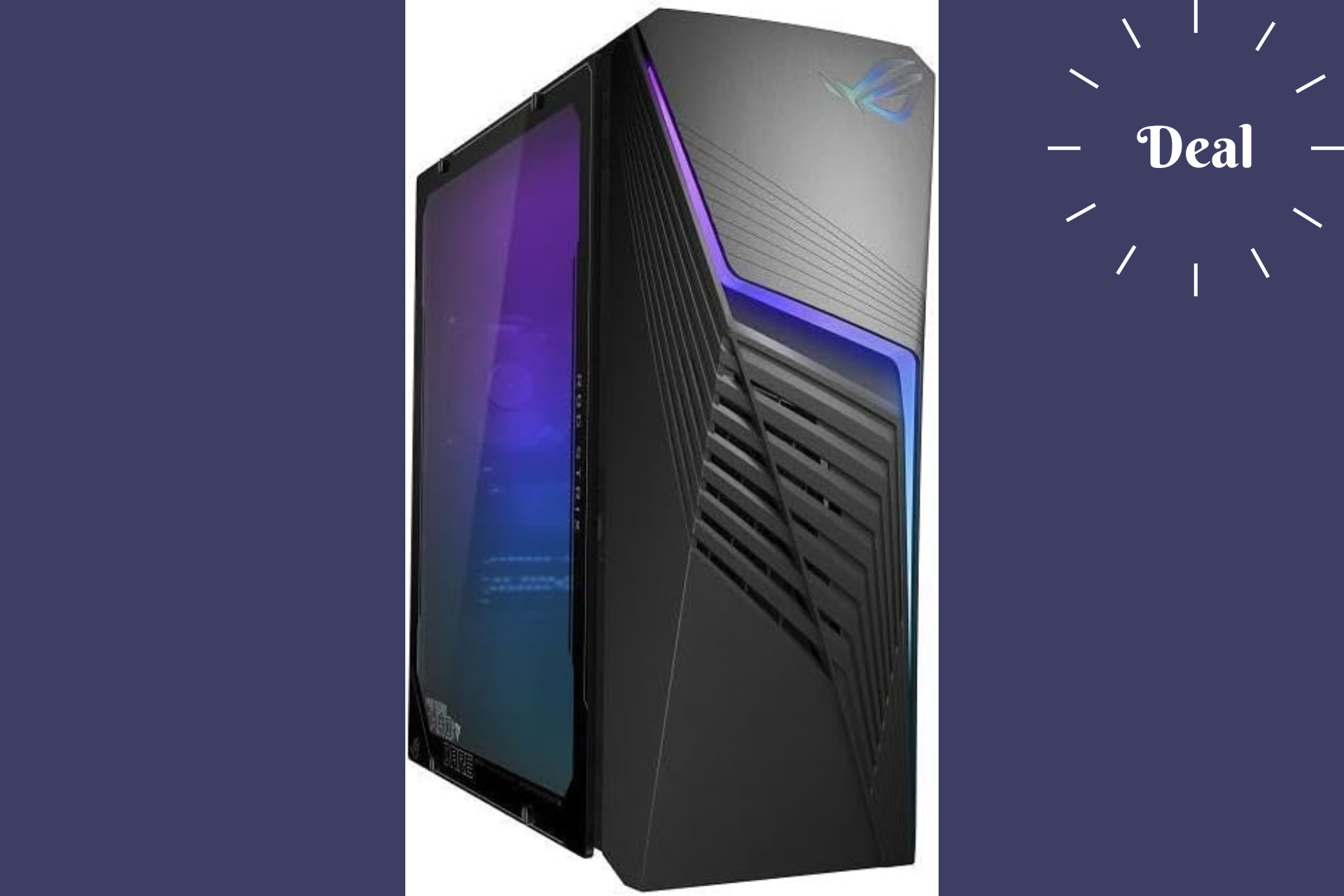
The ASUS ROG G13CH (2023) gaming PC price dropped under $1,000

When most gaming desktops today jump over $2,000, ASUS ROG G13CH (2023) gaming PC comes with a pretty nice deal at only $942. This compact powerhouse promises to deliver a solid gaming experience even though it doesn’t feature top performance specs.

Why should I buy the ASUS ROG G13CH (2023) gaming PC?

At the heart of the ASUS ROG G13CH lies an Intel Core i5-13400F processor. Now, while it might not be the top-of-the-line CPU, it’s more than capable of handling most games you throw at it, ensuring smooth and responsive gameplay. Coupled with an NVIDIA GeForce RTX 3050 GPU, this machine is ready to bring your favorite digital worlds to life with good visuals and smooth frame rates. Whether you’re diving into solo adventures or battling it out in multiplayer arenas, this setup has got you covered.

With 8GB of DDR4 RAM and a 1TB NVMe PCIe SSD, you’re looking at decent performance and reasonably quick load times. Sure, if you’re planning to score in the latest action games, you will need a little RAM upgrade. But hey, with the savings from this deal, you could easily invest in another 8GB module or a 16GB DDR5 one. Plus, with Windows 11 pre-installed, you’re all set with a familiar and intuitive operating system right out of the box.

Now, let’s talk aesthetics. The ROG G13CH isn’t just a workhorse; it’s a show pony too, thanks to its customizable RGB lighting. And with Aura Sync technology, you can synchronize the lighting effects with other compatible devices to create an immersive gaming environment that’s truly your own.

So, is the ASUS ROG G13CH (2023) gaming PC worth your hard-earned cash? For casual gamers or those just dipping their toes into the gaming world, absolutely. ASUS is known for its quality and reliability, and this model is no exception. While it may not boast the highest specs, its build quality, high-end components, and the potential for upgrades make it a solid choice. And with the current discount at Amazon, it’s an opportunity that’s hard to pass up.

In conclusion, if you’re in the market for a stylish, reliable, and affordable gaming desktop, the ASUS ROG G13CH (2023) should definitely be on your radar. With its current price point and the quality it offers, it’s a deal that’s tough to beat.

You might also take a look at this deal for a HP Omen gaming PC as well. Tell us your thoughts in the comments section below.

Microsoft brings Content Integrity tools to EU, aims to combat misinformation

2024 is the election year, with over 60 countries heading to the polls. And this time around, misinformation is at its peak. Fake news, AI-generated images, videos, audio clips, and tampered media have become major problems. This is where Microsoft’s Content Integrity comes into the picture.

Initially released for U.S. political campaigns, Microsoft is now bringing the preview version of Content Integrity tools to the EU. These will help the electorate identify misinformation often found online.

Also, the Content Integrity tools will aid political campaigns and newsrooms, as these help the two verify whether the suspected misinformation available online is from their official channels or has been edited using AI.

Political campaigns and newsrooms can attach Content Credentials to their original media to ascertain the source and identify tampering attempts. Any changes made to the media can be verified through the editing history once Content Credentials are added.

Microsoft’s official blog enumerates the three components of Content Integrity:

1. An easy-to-use private web application available to political campaigns, news organizations, and election officials so they can add Content Credentials to their owned, authoritative content.

2. A private mobile application to capture secure and authenticated photographs, video, and audio by adding Content Credentials in real-time from a smartphone, developed in partnership with Truepic.

3. A public website for factcheckers and any member of the public to check images, audio, or videos for the existence of Content Credentials.

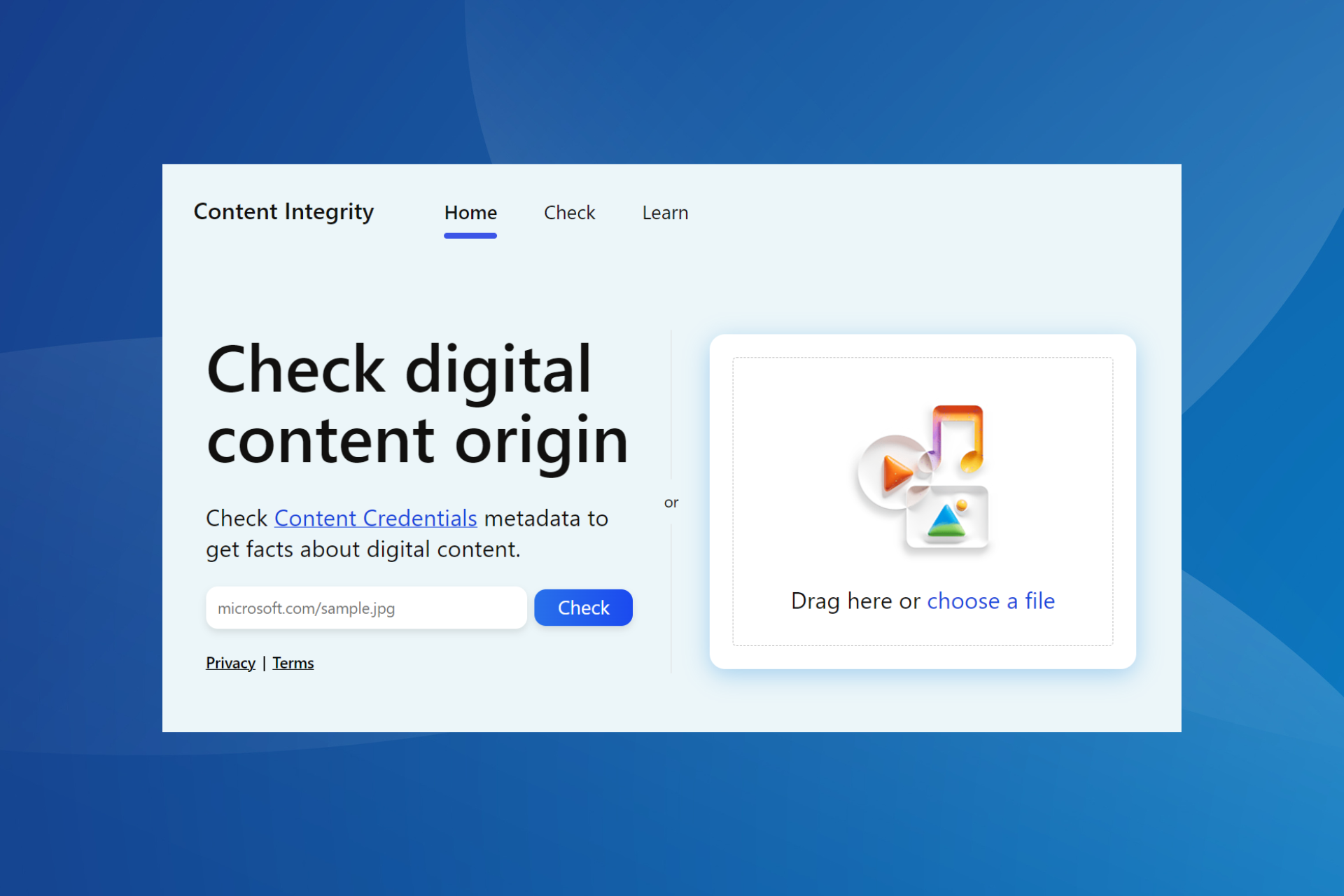
Trying Microsoft’s public Content Integrity website

So, as soon as Microsoft launched a Content Integrity website, we thought of testing its reliability. The results weren’t too impressive. But it was expected initially, given that most political campaigns across the globe have yet to integrate Content Credentials into their official media.

Upon running images from UK PM Rishi Sunak’s and US President Joe Biden’s official X (previously Twitter) handles, the publically available tool read, No Content Credentials found.

Testing Microsoft Content Integrity Tool with Joe Biden's picture
Running Joe Biden’s picture on Microsoft’s Content Integrity

Then, we ran an AI-generated image from Copilot. This time, the tool was able to identify the image’s source and labelled it as, AI generated.

testing AI-generated image with Content Integrity
Running an image generated by Copilot on Microsoft’s Content Integrity

We expect better results from Microsoft’s Content Integrity as more political campaigns, candidates, and newsrooms attach Content Credentials to their media.

Released earlier this year, a report by The Center of Countering Digital Hate (CCDH) explains how Microsoft’s AI-based tools are used to spread misinformation during the elections.

Also, while Microsoft has denied threat actors access to its AI tools, it remains to be seen how effective this would be, especially in the biggest election year!

Have you tried Microsoft’s Content Integrity? If so, share your review with our readers in the comments section.

Valve updates its Steam refund policy, closing the Early Access loophole

Steam had a pretty fair refund policy that allowed users to refund the games if they weren’t happy with them or if they had any issues.

However, some users found a way to exploit this, and Valve was forced to update its refund policy and put an end to this practice.

Valve updates its refund policy, cracking down on freeloaders

As you know, Steam has Early Access and Advanced Access offers that allow you to play games before the official release date.

The company has a policy that allows you to refund a game if you have played it for more than two hours after the release, but since games in Early Access and Advanced Access aren’t released, these limitations didn’t apply.

This allowed some users to play the games for far more than two hours and then request a refund. Valve caught on to this behavior and decided to put an end to it as Ars Technica writes.

Valve has updated its refund policy and now the two-hour trial period will apply as soon as you purchase a game, and not once the game is released:

When you purchase a title on Steam prior to the release date, the two-hour playtime limit for refunds will apply (except for beta testing), but the 14-day period for refunds will not start until the release date.

For example, if you purchase a game that is in Early Access or Advanced Access, any playtime will count against the two-hour refund limit.

It’s good to see that Valve has addressed this issue, but this means that some players will have to be more cautious when purchasing games that are in rough shape during the Early Access stage.

Speaking of Steam, Helldivers 2 is now available at 15% off, so go ahead and grab it.

Microsoft’s latest patent describes a technology capable of hiding parts of the Windows desktop

Windows sorts of allows users to hide applications when doing other things, such as sharing the screen at a presentation, but the hiding doesn’t automatically truly hide these apps.

It just minimizes them in the taskbar, and when there is activity going on, these apps will display notifications, potentially creating anxiety, or even ruining the presentation altogether. (No one wants to receive WhatsApp messages on Windows in the middle of a presentation, trust me.)

Microsoft is somehow trying to accomplish this the Teams, by releasing the new Programmatic Desktop Sharing that allows users to share only specific parts of their apps in presentations. However, it’s not the same as entirely hiding the apps.

The same process goes when sharing your devices with someone else. You might have sensitive information stored on these devices, which can be easily compromised in these situations.

It seems that Microsoft is thinking about it. According to a recently published patent, the company is working on a technology that lets you temporarily hide parts of a computer’s user interface (like windows or tabs), entirely. In other words, you could be able to hide parts or apps on the Windows desktop.

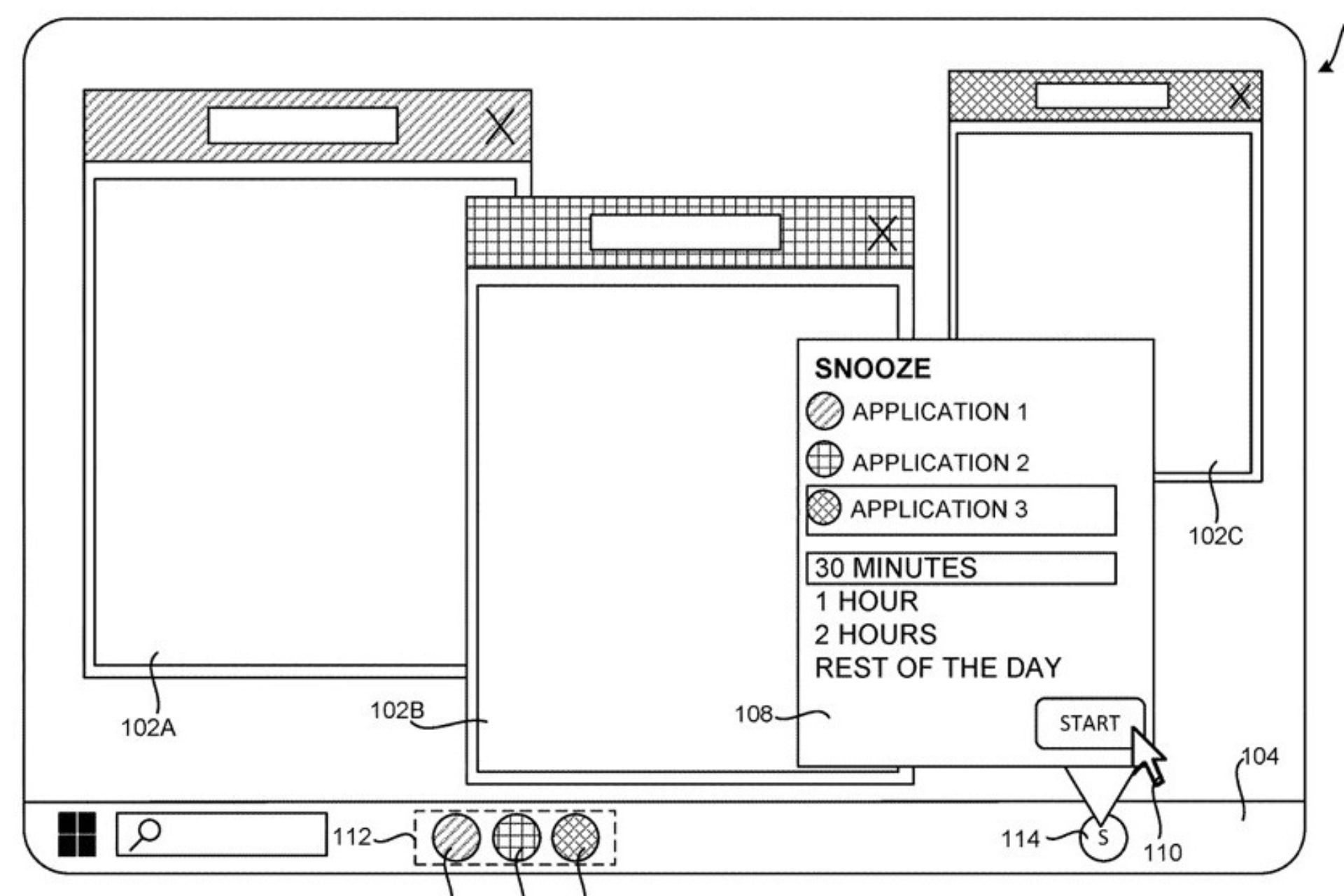
The system snoozes them, while keeping them active, but not really. They won’t be available to access during a designated period, but they won’t be entirely closed, as well.

Here’s how it works: you can ask the system to hide a part of the interface for a certain amount of time.

When you do this, the part you want to hide disappears from the screen. An icon or label that represents this part (called an identifier) is moved from one area of the taskbar to another area.hide windows desktop

While the part is hidden, the application that’s showing it uses fewer computing resources and this will help the computer run more efficiently. It’s also worth mentioning that any notifications related to the hidden part are turned off while it’s hidden.

When the specified time is up, the hidden part reappears on the screen. The identifier is moved back to its original place on the taskbar.

The technology can hide parts of the Windows desktop, but the paper says it’s not limited only to this operating system, and not only to the desktop, as it can be used to hide certain parts of an application, such as an Internet browser.

Examples of tasbars, include, but are not limited to, the taskbar provided by the Windows operating system from Microsoft.

It also has an array of advantages: it saves resources, reduces distractions, and can provide a safer experience of sharing screens in presentations or sharing devices with other users.

There isn’t currently any kind of native Windows technology that would allow this to happen, but the operating system can be carefully set up to not display notifications, and apps, per se, can be minimized.

While it can’t be compared with the technology presented above, it can be a safe and relatively stress-free experience when screen sharing. Not the same thing can be said when sharing the device with others.

There is strong evidence Microsoft might actually release this technology to Windows, due to a similar patent being published earlier this year. That one describes a local dimming technology for gamers, which dims certain areas of the screen to enhance the gaming experience and provide more immersive gameplay.

These technologies are also theoretically environment-friendly, and Microsoft might release them together with sustainable computing, another technology that the Redmond-based tech giant has been working on.

So, Windows could soon be updated to allow users to hide parts of their desktop, and the company should do it as soon as possible: it’s actually a very useful technology (speaking as someone who loves privacy).

If you’re a ROG Ally owner, with a simple update you will get a huge frame rate boost

Asus has a great announcement for gamers: ROG Ally gets a significant boost, thanks to the addition of AMD’s Fluid Motion Frames (AFMF) technology. Asus and Lenovo promised to bring this technology into their handheld consoles and it seems that Asus is taking the first step.

What is AFMF and why do we need it?

AFMF is all about making your games run smoother than ever, with added motion clarity. It’s like giving your gaming experience a turbo boost without having to do much. Just a simple update and voilà, you’re set for an even better gaming session.

With the Super Resolution 3 feature based on AFMF, you can jump from an average of 59 FPS to 169 FPS in Immortals of Aveum which is a huge boost. At least that’s how it shows up in Asus tests from the clip above.

Now, we’ve been following the ROG Ally updates closely, and the ASUS team really made some significant improvements to the console. Last year, they’ve added gyroscope support, tweaking the CPU boost options and bumped up the VRAM to 6G, and most gamers agree that they see a difference in gameplay smoothness.

With the ROG Ally 2 on the horizon, it’s clear they’re committed to pushing the envelope further. However, not long ago, ROG Ally users had a lot of issues due to Windows & AMD driver updates, so let’s hope that it won’t happen again.

If you own a ROG Ally, hit the update button because the update will be issued today, 04.25. And if you’re on the fence about getting one, this might just be the nudge you needed.

Did you get the update? Let us know if you see the improvements that Asus is touting in a comment below.

You will be seamlessly transfer Google Meet calls between devices soon

Many use Google Meet for calls, however, the service has certain limitations, especially when using multiple devices.

Google has decided to address some of these issues by giving users the ability to seamlessly transfer calls from one device to another.

Transferring calls across devices is a breeze after the latest Google Meet update

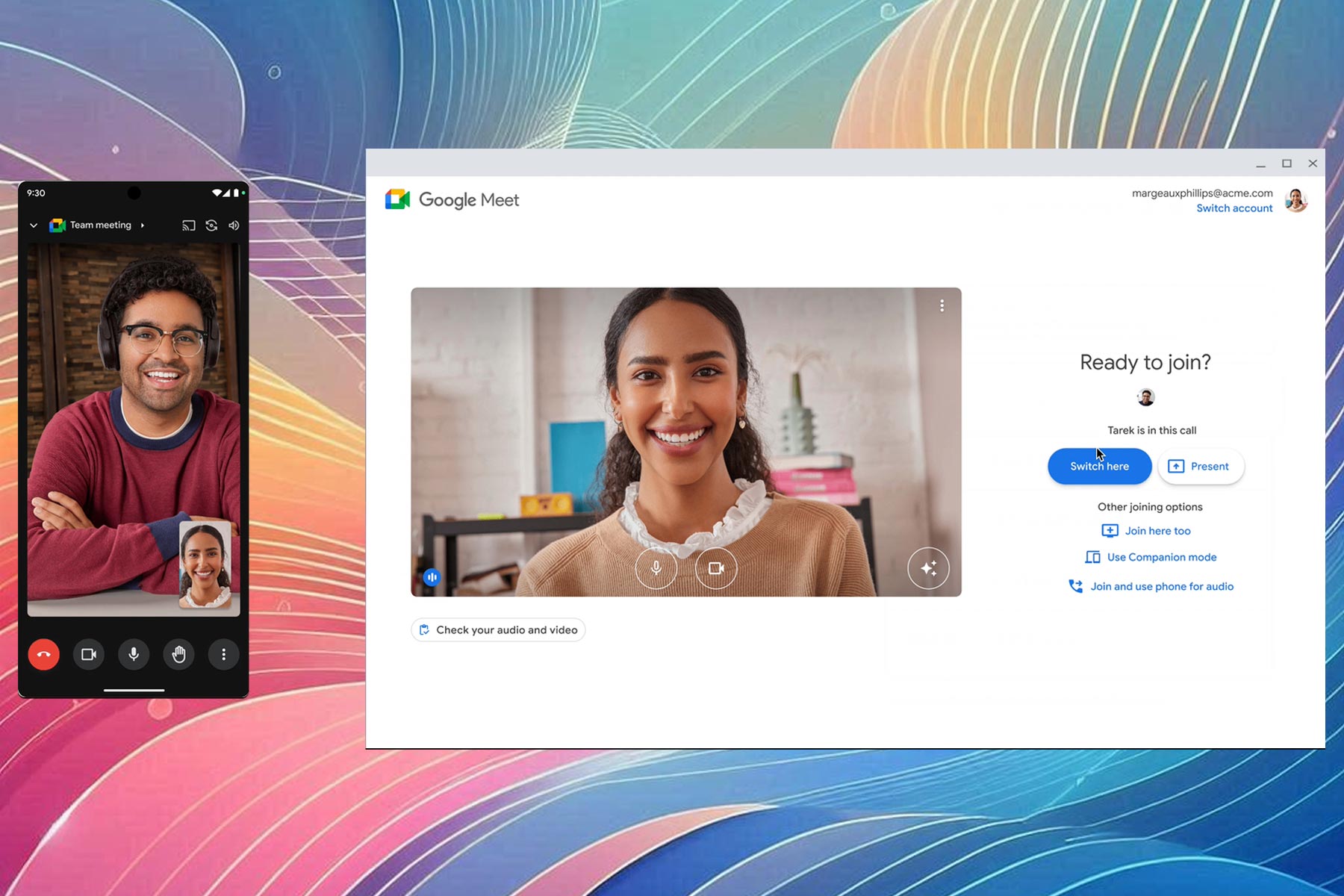
Sometimes during a Google Meet call you need to switch from one device to another, and this usually means exiting the meeting and joining again. Well, not anymore!

According to the Google Workspace page, you can now easily transfer Google Meet calls across devices without having to drop the call.

If you join a meeting with a different device, you’ll see a Switch here option that you can use to transfer the call from one device to another, so you won’t miss out on any important information.

This feature is available to all Google Workspace customers and users with personal Google accounts. Regarding the availability, the gradual rollout has already started for users on Rapid Release domains.

However, most users are on Scheduled Release domains, and the full rollout is expected to start on May 9th.

This is an exciting feature, however, Microsoft is also working on some changes, and Teams presenters will soon be able to drag the toolbar anywhere on the screen.

That’s not all, as Microsoft plans to add Intelligent Call Recap to Teams in the future.

Windows 11’s Caps Lock notification drives people mad, but there’s a way to turn it off

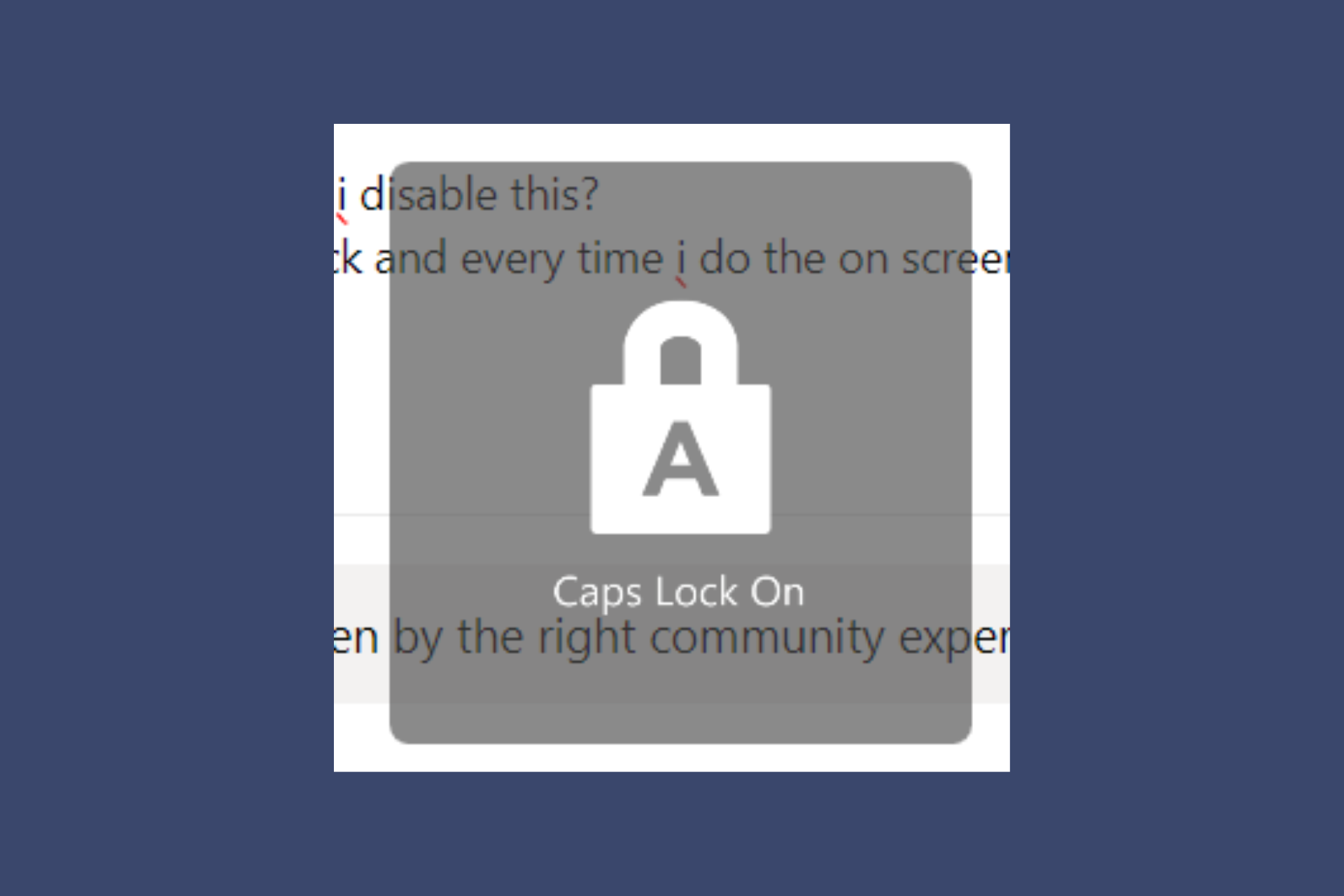
It seems that recently, HP desktop and laptop owners are complaining on Microsoft’s Answers forum that a Caps Lock notification pops up on their screen whenever they press the key. Some pretend that they’ve pressed a combination of keys and some blame it on the latest Windows updates. However, it’s a particular problem for HP desktops and laptops and one user says that after talking with someone from Microsoft support, the specialist confirmed that it’s a bug related to the HP System Utility task:

Hey guys. last night i talked to someone from Microsoft support; it seems directly related to HP. if you go into your task manager and end the HP system event utility task, it will stop. i would also disable it in startup. I’m gonna try contacting hp and telling them about it, the agent told me it seemed like a bug.

How can I get rid of the Caps Lock notification on Windows?

According to the Microsoft specialist, all you need to do is to terminate the HP System Utility task from Task Manager. To do that, right-click the Start button and select Task Manager from the list. Then, look in the list for HP System Utility and click on End task to close it.

However, you should know that after restarting your PC or laptop, the task will reappear. You can uninstall the HP System Event Utility app completely from Settings > Apps > Installed Apps if you want to get rid of this problem permanently.

You may also try our solutions from our complete guide on how to disable the Caps notification on Windows 11. Using this guide, you won’t need to uninstall anything.

You may also try contacting HP support and tell them about this issue so they can patch the app and fix the problem.

Hopefully, now you’re not annoyed anymore about the Caps Lock notification on your HP device and everything is fine again.

If you still didn’t manage to fix the problem, let us know in the comments section below.

You’ll soon be able to ask Copilot to generate quizzes based on your data in Microsoft Forms

Copilot is surely becoming more advanced as time passes. Microsoft is updating the AI model to support a variety of capabilities, including being able to come up with a SWOT analysis that could potentially save SMBs a lot of money.

The Redmond-based tech giant has recently added Copilot to Microsoft Forms, its forms and quizzes-oriented platform. The AI model is capable of filling out forms, which can save managers a lot of time.

But Microsoft is not stopping here. According to the latest entry in the Microsoft 365 Roadmap, Copilot in Microsoft Forms will also generate quizzes based on users’ data, in just a few seconds.

The Redmond-based tech giant will enhance Copilot with this new capability in June 2024, and AI model will make use of every piece of information it is provided with to come up with intriguing quizzes. We’re talking about notes, textbooks, and documents.

The AI model will come up with a draft that can be further edited until it meets the preferred criteria. Users can also type in further prompts to allow Copilot to make further edits to the drafts.

Generating quizzes from provided materials is one of the most commonly requested features in the education industry, and it is now available in Forms. To save time, users can create quizzes from documents, textbooks, or notes using Copilot. Copilot can create draft quizzes based on the provided materials and users’ prompts.

Microsoft

The capability will be released to all versions of Copilot within Microsoft 365, so not only Forms users will be able to use it.

As the entry says, it can be quite useful to teachers, educators, and all those working in the education industry, but not limited to it. The business industries can use it as a form to conduct marketing campaigns, as well.

What do you think about it? Are you excited for it?

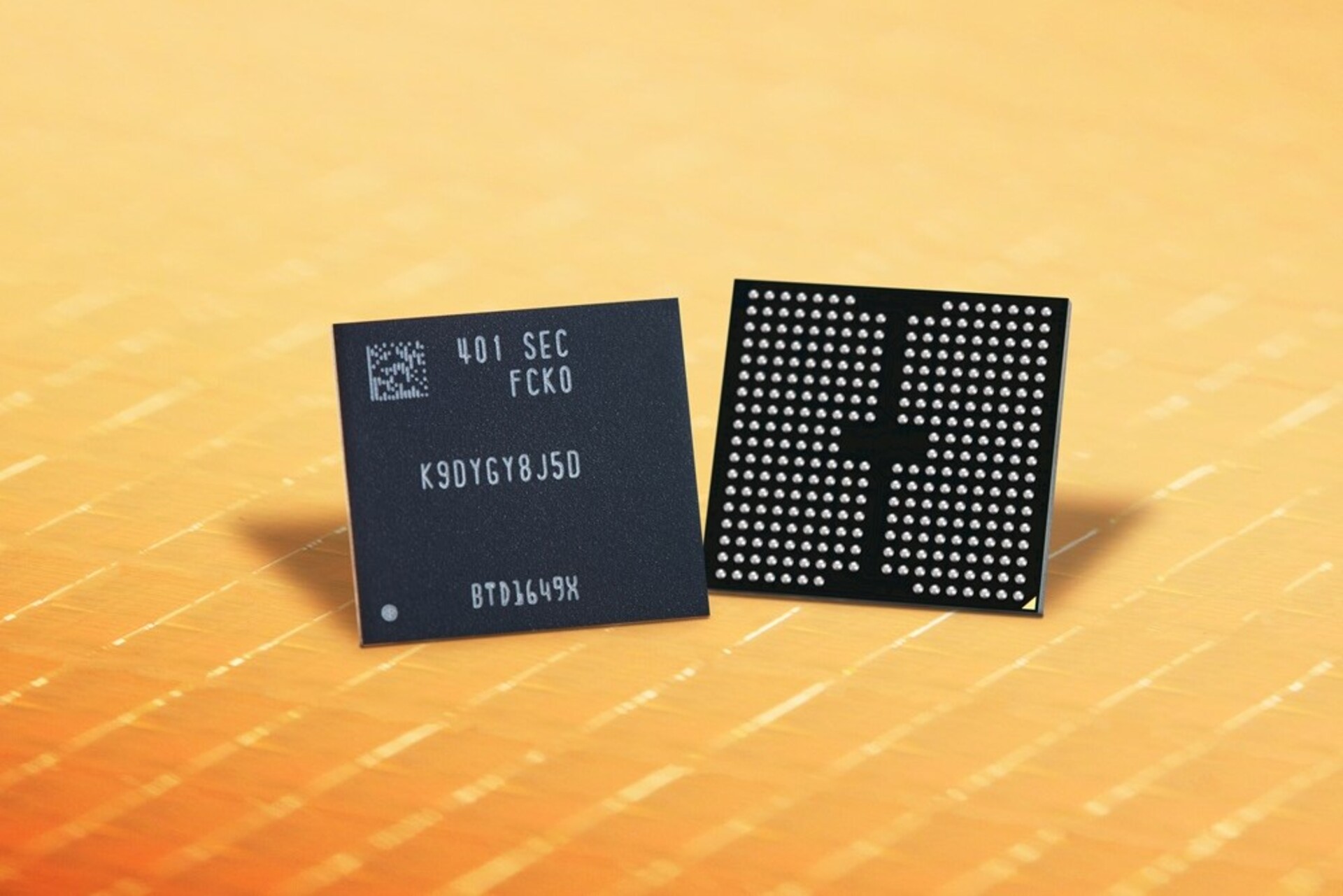
Samsung starts mass-scale production of 9th-gen V-NAND

In a major development in the memory market, Samsung has started the mass production of 9th-generation V-NAND (Vertical NAND) this month, i.e., April’24. It delivers a 50% improvement in bit density over the previous generation and comes equipped with the Channel Hole Etching technology.

According to the official press release, the new generation of V-NAND is more effective, reliable, and long-lasting, given the application of recent innovations like cell interference avoidance and cell life extension.

The 9th-generation V-NAND consumes 10% less power, making it an ideal solution for years to come as concerns regarding carbon emissions are on the rise.

On the release of the 9th-generation V-NAND, SungHoi Hur from Samsung Electronics said,

We are excited to deliver the industry’s first 9th-gen V-NAND which will bring future applications leaps forward. In order to address the evolving needs for NAND flash solutions, Samsung has pushed the boundaries in cell architecture and operational scheme for our next-generation product. Through our latest V-NAND, Samsung will continue to set the trend for the high-performance, high-density solid-state drive (SSD) market that meets the needs for the coming AI generation.
Image source: Samsung

With a new NAND-flash interface, Toggle 5.1, the 9th-generation V-NAND improves the data input/output to 3.2 Gbps, a 33% increase over the previous generation.

Samsung beginning the mass production of the 9th-generation V-NAND comes at the heels of Artificial Intelligence (AI) gaining prominence and finding integration in a wide array of tasks. And with the latest innovation, Samsung aims to create an AI-oriented solution!

It will also be interesting to watch how the 9th-generation V-NAND affects the cost factor, as SSD and HDD prices have increased recently.

The South Korea-based tech giant is also expected to begin production of the QLC (Quad-level Cell) model by the second half of 2024.

Are you excited about Samsung’s latest 9th-generation V-NAND? Share with us in the comments section.

Microsoft Teams admins can now manage the deployment of each app individually

Some big changes are coming to Microsoft Teams next month: the platform will be updated to allow a new app management method. According to the latest entry in the Microsoft 365 Roadmap, there will be a new policy for admins to control who can have specific Teams apps preinstalled, and who cannot have them.

In other words, admins will be able to manage the deployment of each app individually, by using three new policies:

  • Deployed to all users: The app is preinstalled for everyone in the organization.
  • Deployed to specific users and groups: The app is preinstalled only for certain users or groups that the admin selects.
  • Deployed to no users: The app is not preinstalled for anyone.

This feature replaces the current Installed apps section in the Microsoft Teams Admin Center. Here’s what the entry says:

App centric management for app deployment will introduce a new admin setting to control who in the tenant has specific Teams apps preinstalled. Similar to app assignments, admins will be able to select from three options: ‘Deployed to all users’, ‘Deployed to specific users and groups’, or ‘Deployed to no users’. This feature replaces the existing Installed apps section of app setup policies and provides admins with the ability to manage app deployment individually. The Installed apps section of app setup policies for existing customers will be migrated to maintain existing admin settings in the tenant.

Microsoft

The new method will ensure the Teams environment is aligned, while also providing a safer and more secure infrastructure. After all, managers will be able to easily tell if certain suspicious apps were installed in the environment.

We said big changes are coming to Teams, because it’s true: for instance, alongside the new app management method, Teams will also enhance its Do Not Disturb option to allow mobile users to quietly set it up while screen sharing.

But the platform will also change the way users leave feedback on new features. The new updates to the Teams feedback policies will see the Give Feedback/Suggest a Feature app within the platform not using Teams policies anymore. Instead, they will regulated through the Cloud policy service in Microsoft 365.

Google’s plan to block all cookies in Chrome takes a setback after CMA & ICO disagreement

Cookies have been an essential part of the Web since its early days, however, Google has unveiled its plan to phase out cookies for all Chrome users.

Although this sounds like an exciting endeavor that will change the Internet forever, it seems that it has been postponed.

Chrome will not block all third-party cookies, at least not until 2025

While cookies can be useful, they can be used for tracking users and other malicious intents, and Google wants to remove them entirely with features such as Google Privacy Sandbox.

With this feature, you would get targeted ads to Chrome users while limiting cross-site tracking.

This feature has been delayed since Google, the Competition and Markets Authority (CMA) and the Information Commissioner’s Office (ICO) didn’t reach an agreement, as ZDNet writes.

CMA is concerned that Google could benefit from user activity while preventing competitors from accessing the same data.

In such circumstances, Google could control the inclusion of competitors in the sandbox, which could lead to anticompetitive practices.

However, a CMA spokesperson has released a statement:

We welcome Google’s announcement clarifying the timing of third-party cookie deprecation.

This will allow time to assess the results of industry tests and resolve remaining issues. Under the commitments, Google has agreed to resolve our remaining competition concerns before going ahead with third-party cookie deprecation. Working closely with the ICO, we expect to conclude this process by the end of 2024.

Advertisers and industry groups are also concerned since limiting their third-party cookie access in Chrome will negatively impact their business.

Google has also released a statement on its Privacy Sandbox page:

Given both of these significant considerations, we will not complete third-party cookie deprecation during the second half of Q4.

We remain committed to engaging closely with the CMA and ICO and we hope to conclude that process this year. Assuming we can reach an agreement, we envision proceeding with third-party cookie deprecation starting early next year.

It’s not the question if Google will block third-party cookies, it’s when, and according to its statement, we can see this at the beginning of the next year.

In other news, Google is adding new privacy information in Chrome that should allow you to stay informed on how Chrome handles your data.

That’s now all, as the port randomization feature is being tested in Chrome, but we probably won’t see it soon.

Microsoft Copilot will be able to handle SWOT analysis, meaning it can be a business consultant

Microsoft has updated Copilot to be able of many useful capabilities: it can scour the Internet to answer your questions, it can compose texts and edit them, it can summarize data, and it can create images with Microsoft Designer.

But Microsoft users, especially entrepreneurs will be pleased to find out Copilot will be able to act as a business consultant. How? Well, according to the latest entry to the Microsoft 365 Roadmap, the Redmond-based tech giant will update the Microsoft Copilot to be able to generate a SWOT analysis.

SWOT stands for Strengths, Weaknesses, Opportunities, and Threats, and it’s a usual method for asserting the viability of a business by approaching all the general key points. As you can tell, such analysis takes into consideration all the existing data of a company, to which Copilot already has access.

The entry says the SWOT analysis generated by Microsoft Copilot will also come with a pro/con list of actions business owners need to do to make sure their businesses stay afloat and thrive in the long run.

Users can ask for a SWOT analysis or pro/con list of a document or topic that will analyze their document and bring in relevant enterprise and web context to inform the derived analysis.

Microsoft

It’s worth mentioning that, for now, this feature is only mentioned to be available on Microsoft 365, starting next month, in May 2024.

The SWOT analysis can be especially useful to SMBs as these businesses often do not have the necessary budget to hire a business consultant to devise plans of action for them. By purchasing a Microsoft 365 subscription, however, they can get Copilot to devise such plans.

It might not be perfect, of course, but the AI model will take into consideration all existing data and will come up with achievable plans that can be further discussed and improved if needed.

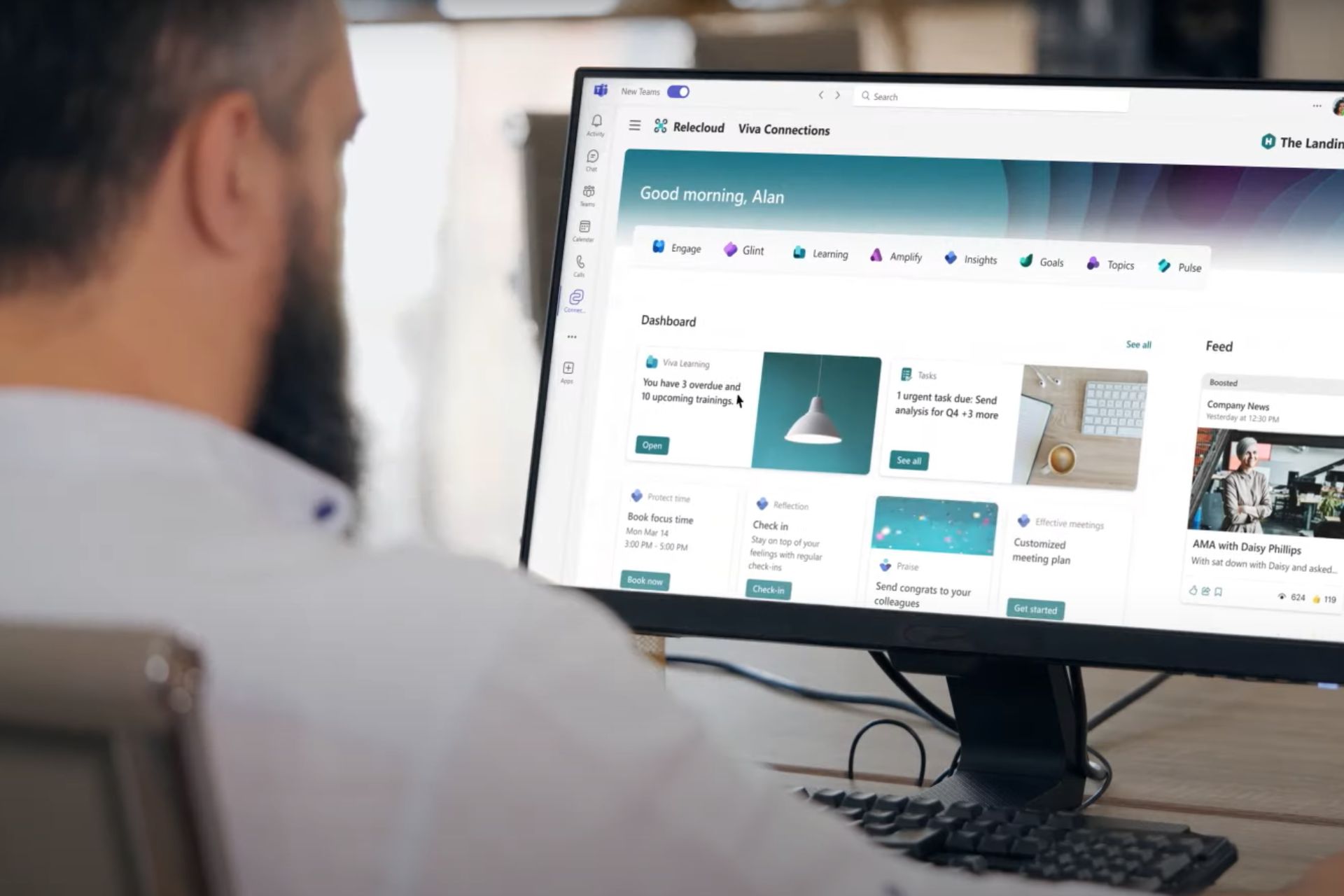
Viva Connections will soon be accessible directly from your Internet browser

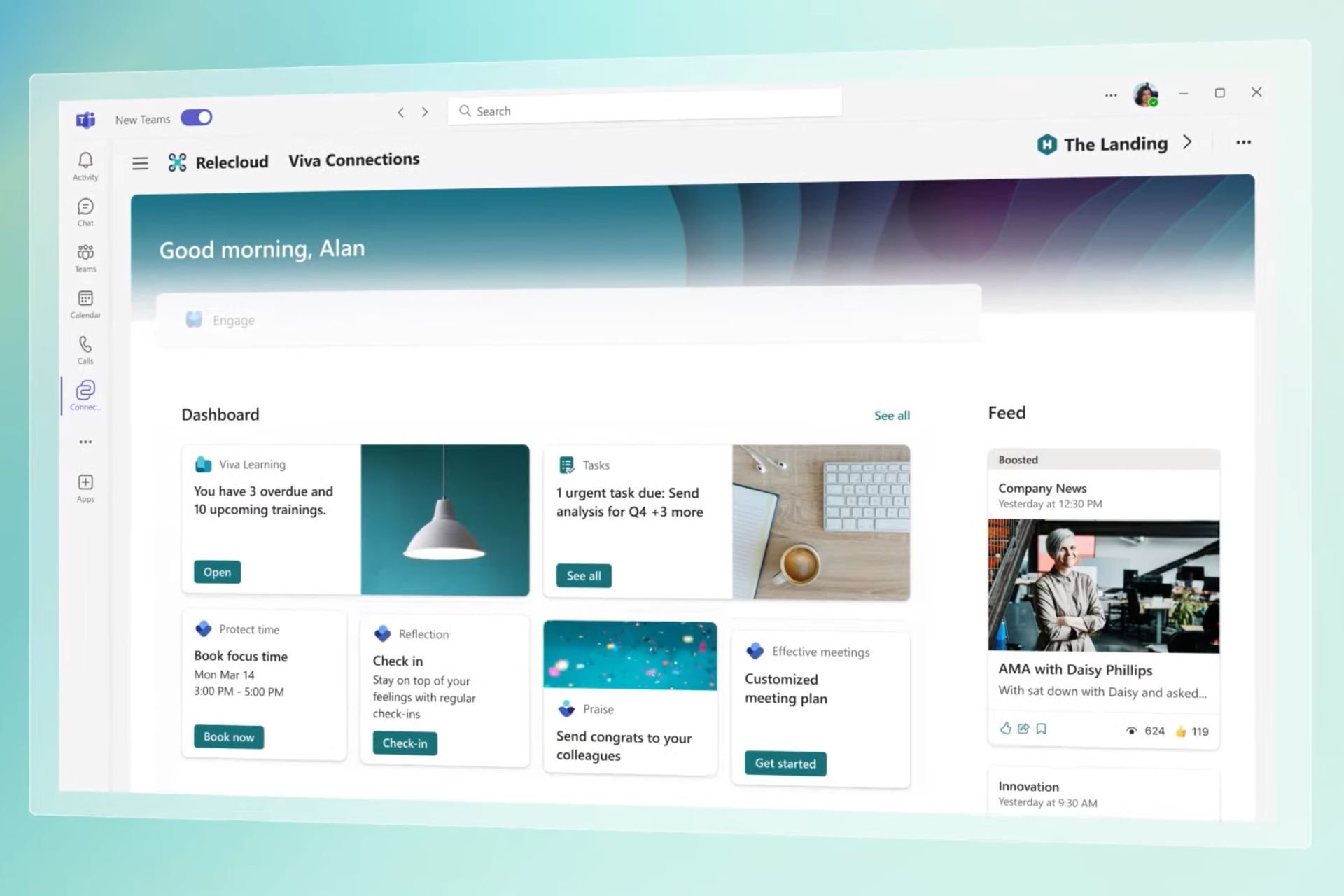
Microsoft has decided to expand the Viva platform outside of its Teams borders. For instance, according to a recent entry to the Microsoft 365 Roadmap, the Redmond-based tech giant will be adding linked content to the platform, allowing managers to add external sources, such as YouTube or Vimeo videos to their learning courses.

But the company isn’t stopping here: another recent entry to the Roadmap unveiled that Viva Connections will soon be accessible directly from the Internet browser, without having to open Microsoft Teams.

According to the entry, the new form of login to Viva Connections will be introduced in May 2024. The Redmond-based tech giant says the web version of the platform will retain all of its existing capabilities from Teams.

Viva Connections is now available directly on the browser. All the same functionalities that exist in Teams now also surface directly in the browser, providing a consistent experience with other Viva Modules.

Microsoft

With Microsoft allowing Viva Connections to be accessible from the Internet, users will have way more flexibility when it comes to engaging with their workmates. For instance, this will allow them to log in to Viva Connections on devices that don’t have Microsoft Teams installed.

While the entry doesn’t mention anything about a mobile version, it’s safe to say you can tweak your way around to log in to Viva Connection from a mobile device, such as a tablet or mobile phone.

This is excellent for those remote or digital employees who are always on the road with limited devices at their disposal. Additionally, the web version of Viva Connections will have all the capabilities of the Teams version one, so employees won’t have to worry about not being able to access certain features.

What do you think about this new Viva Connection version? Are you excited about it?

eScan antivirus compromised, GuptiMiner malware deployed through updates

Malware attacks are becoming more common than ever. The latest in the series is eScan, an antivirus vendor with headquarters in India, compromised by threat actors to sideload the GuptiMiner malware on the end user’s PC.

Threat actors exploited eScan’s update process since it relied on HTTP to deliver updates, instead of the latest and more secure HTTPS protocol, to sideload the malware.

Researchers at Avast were the first to identify the vulnerability and share it with eScan. The latter acknowledged the loopholes in the update process and patched it on July 31, 2023.

Avast describes the GuptiMiner malware as,

GuptiMiner is a highly sophisticated threat that uses an interesting infection chain along with a couple of techniques that include performing DNS requests to the attacker’s DNS servers, performing sideloading, extracting payloads from innocent-looking images, signing its payloads with a custom trusted root anchor certification authority, among others. The main objective of GuptiMiner is to distribute backdoors within big corporate networks.

The report also links the GuptiMiner malware to Kimsuky, a North Korean state-backed hacker group.

Breaking down the GuptiMiner attack through eScan’s updates

Threat actors employed the Man-in-the-Middle (MitM) attack to distribute the malware amongst unsuspecting users. It starts with the antivirus requesting an update package from the server, which threat actors intercept and replace with a malicious one

Although the malicious package contains the relevant updates, it also downloads an infected version.dll file, which has the same permissions as the antivirus. On subsequent reboots, the DLL downloads additional files from the threat actor’s server, at which point the PC is completely compromised.

Image source: Avast

Avast reports that the GuptiMiner malware also checks for any active Wireshark, WinDbg, TCPView, 360 Total Security, Huorong Internet Security, Process Explorer, and Process Monitor processes and terminates any instances of Cisco Talos Intelligence and AhnLab.

While the attack’s real motive remains unknown, it did sideload XMRig, a package for mining cryptocurrency. Other than that, the attack deployed two backdoors, one to scan the network for vulnerable systems and another to scan the PC for cryptocurrency wallets and stored private keys.

When BleepingComputer reached out to eScan for a comment, the latter confirmed receiving similar reports in 2019 and resolving it in 2020. Besides, it started facilitating downloads over HTTPS to utilize the encryption capabilities of the protocol.

If you are an eScan antivirus user, we recommend reaching out to the developers right away and enquire what changes could be implemented on your end for a safer experience.

The whole eScan GuptiMiner incident highlights that even antiviruses are prone to attacks. And while there’s no absolute protection, using an effective antivirus solution can lower the possibility of such attacks.

What’s your take on threat actors deploying GuptiMiner via eScan’s updates? Share with our readers in the comments section.

Latest from Qualcomm: Snapdragon X Plus for Windows ARM PCs announced

Qualcomm is famous for its Snapdragon processors, and we’ve seen its CPUs on various devices in the past.

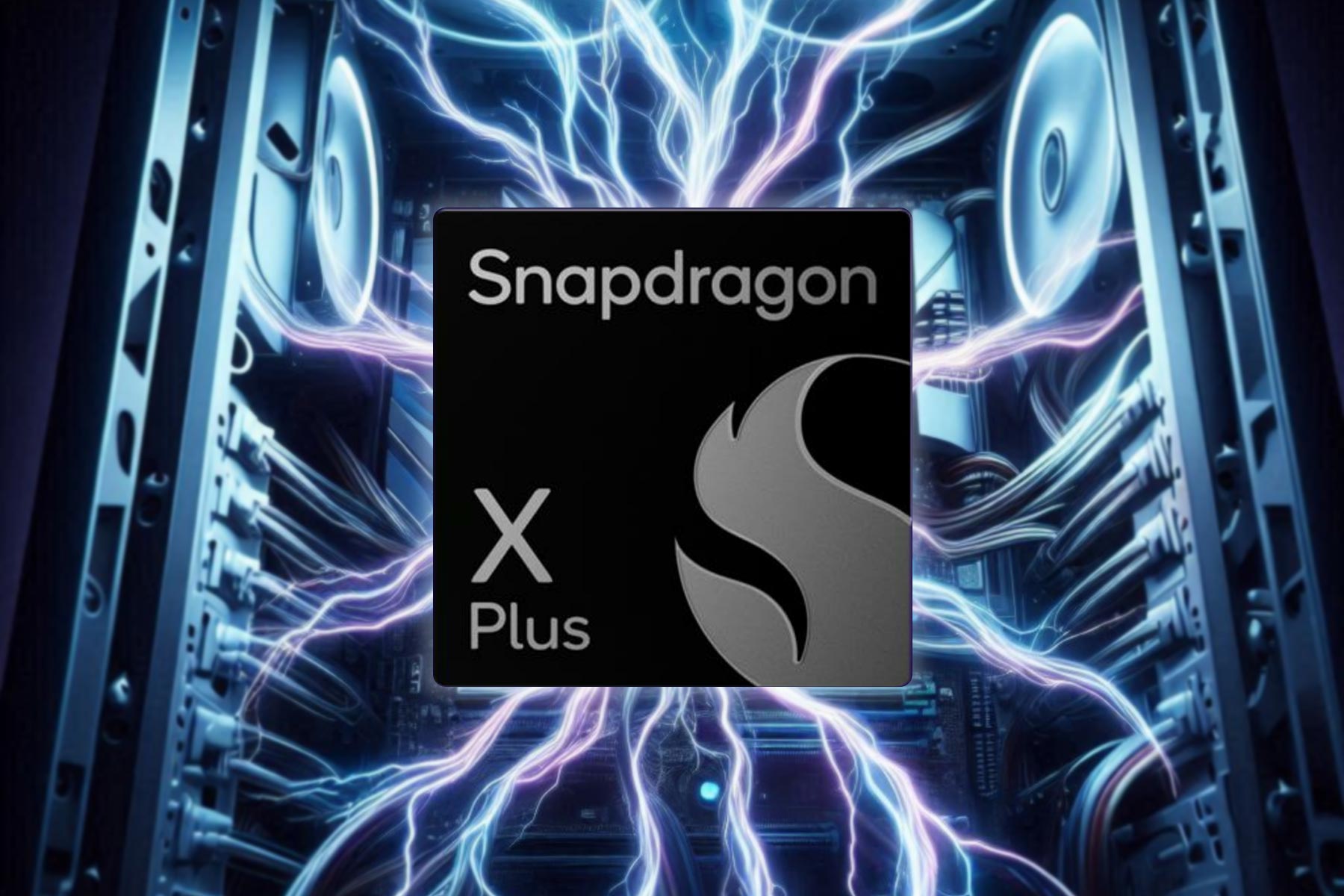
The company has unveiled a new CPU, called Snapdragon X Plus that is intended for Windows ARM PCs.

Qualcomm Snapdragon X Plus announced, has 10 cores and Adreno GPU

This information comes from Neowin, and according to them, the Snapdragon X Plus is a ten-core CPU based on Oryon CPU architecture.

Regarding the cores, this model has six performance and four efficiency cores, and it runs at speeds up to 3.4GHz. Regarding the memory, it can support up to 64GB of LPDDR5X RAM.

The CPU is optimized for AI processing thanks to the Neural Processing Unit. The NPU can output up to 45 TOPs of AI performance which should be enough for all your AI needs.

Regarding the GPU, there’s Qualcomm Adreno that will deliver up to 3.8 TFLOPs. It’s also worth mentioning that the GPU can power three external displays at 4K 60Hz HDR, two at 4K 120Hz, or one at 5K 60Hz.  

This CPU has joined the Snapdragon X Elite lineup, and it offers similar specs as the Snapdragon X Elite X1E-78-100, albeit with 2 fewer cores. However, other X Elite CPUs outshine the X Plus, but not by much.

Regarding the release date, we’re expecting to see the first models available in the middle of 2024. It is rumored that there will be a Surface Pro 10 Snapdragon X Plus variant, but this hasn’t been confirmed yet.

Speaking of Snapdragon, Dell has confirmed that AI Explorer will be exclusive to Snapdragon X Elite CPUs, so maybe this is the right time to consider getting one.

Dropbox announces Microsoft 365 integration, introducing real-time co-authoring of 365 documents

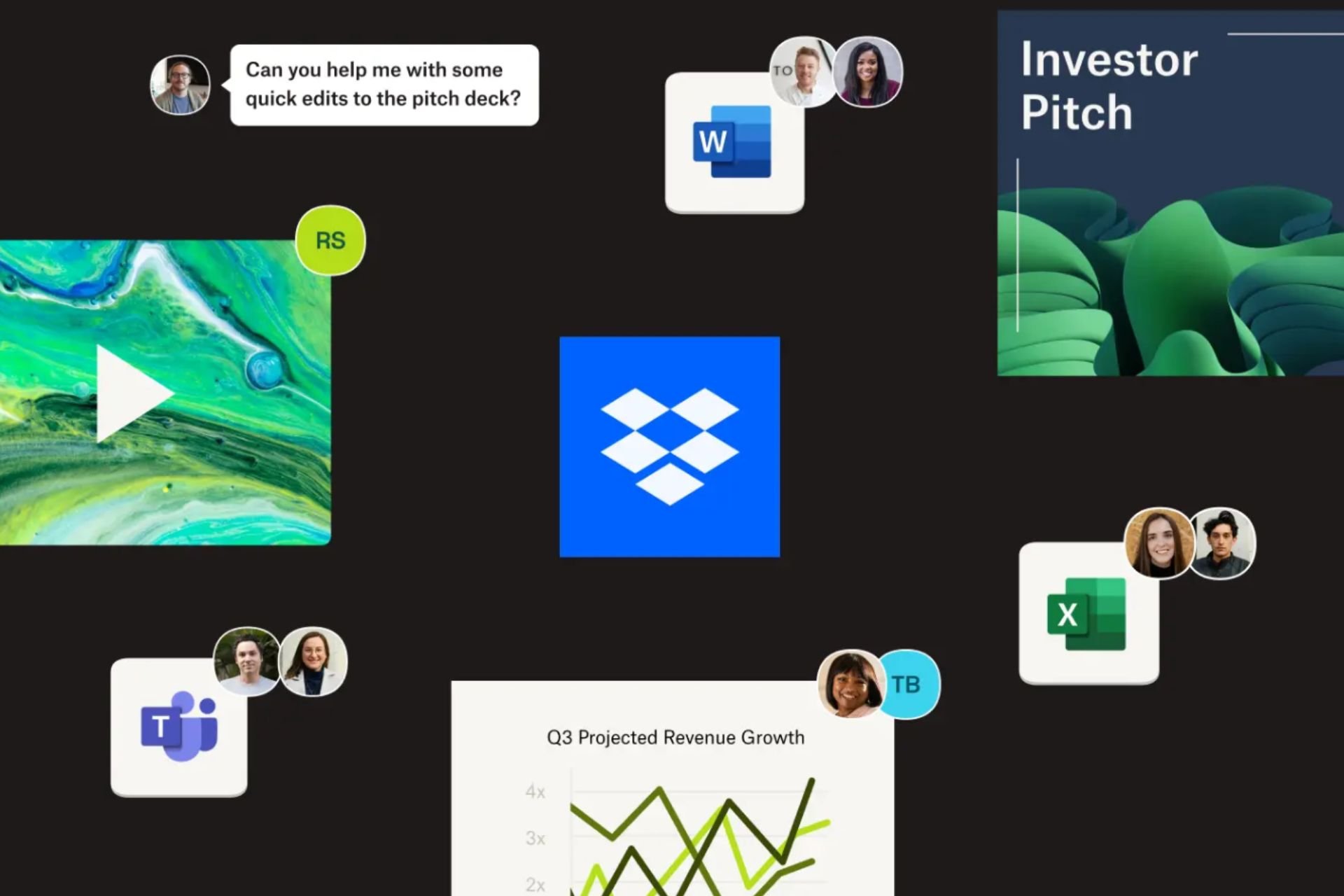
Deemed by the company as one of the most-requested features ever, Dropbox announced the introduction of real-time co-authoring integration with Microsoft 365, earlier today.

What does this mean? Well, basically, according to the official announcement, co-authoring allows multiple team members to collaboratively edit Word, Excel, and PowerPoint files from desktop, web, and mobile, natively within Dropbox.

The co-authoring capability also allows users to see who’s currently editing the document, to make sure everyone is working on the same version.

The Dropbox-Microsoft integration also includes Dropbox Replay for OneDrive, allowing users to access and bring files from OneDrive to Dropbox Replay easily.

The company has been focusing on its partnership with Microsoft for a while now. Months ago, Dropbox launched an integration with Microsoft Teams, that saw users being able to easily preview, upload, and share content in Dropbox without leaving the Teams app.

Copilot for Microsoft 365 was also updated to access those files through a plugin, and users could enable the AI tool to edit, summarize, and even add new ideas to them.

The new Microsoft 365 – Dropbox integration is just one of the many new releases the company announced earlier today. The other include seamless end-to-end encryption, advanced key management, but also new features to Dropbox Replay, and AI-powered universal search.

These new releases alongside the new real-time co-authoring capability are now available in Dropbox Beta, and users can sign up to try them by accessing this link.

Given the new capability has been one of the most requested features ever, according to Dropbox, it might end up increasing the popularity of both platforms. Microsoft 365, although a versatile productivity suite, still faces serious competition from Google Suite.

However, Dropbox deprecated many of its native integrations with the latter, including the integration with Google Docs, Sheets, and Slides

So, the new integration between Dropbox and Microsoft 365 might give the Redmond-based tech giant the edge it needs.

You can read the full blog post here.

Windows 10 updates will be much smaller from now to suit slow Internet speeds

Earlier this week, Windows 10 received the KB5036979 package that installed a series of security updates to the operating system. However, if you’ve noticed a faster download and install process, then you should know that it’s deliberate.

Microsoft just announced that starting with the KB5036979 package, all the Windows 10 quality and security updates will be much smaller. According to the official announcement, this is done to reduce the demands on users’ Internet networks.

Microsoft releases security and quality updates for Windows every month, resulting in a substantial amount of content that can quickly consume the network bandwidth of users operating on slower networks. To reduce the demands on your network, Microsoft is now taking a page from the Windows 11 playbook and reducing the size of Windows 10 update packages.

Microsoft

The Redmond-based tech giant says the updates will be smaller in size starting this month, and users should expect to get even smaller updates as time goes by.

Microsoft is bringing the same functionality to Windows 10, version 22H2, thereby decreasing the size of the monthly Latest Cumulative Update (LCU) package. This feature will be available starting with the April 23, 2024 (KB5036979) monthly release, which helps you and your organization to conserve network bandwidth.

Microsoft

The decision comes with a lot of benefits, including reduced bandwidth usage, faster downloads, minimized network traffic, and improved performance on slow connections. Basically, you can download Windows 10 updates with mobile data, anywhere, without having to worry that it’ll cost you too much.

Speaking of mobile data, you can now install Windows 11, and even Windows 10 on smartphones and even play games, thanks to a new software called Project Renegade. It currently runs on Android-based smartphones, so it’s not available on iOS, and it’s not that easy to install it, but it can be done.

Microsoft Viva will allow managers to add linked content, such as YouTube videos, to courses

Microsoft Viva has been updated to support some quite useful features lately. For instance, back in 2023, with the hype of AI, the platform was enhanced with a brand-new AI summarization capability that helps users understand certain engagement trends within their organization much better.

The Viva Engage network within the platform has also seen some useful updates, with Microsoft adding long-form formatting to it, effectively allowing users to create, edit, and publish long forms of content.

But speaking of content, it seems that Microsoft will expand Viva by allowing managers to add linked content, such as YouTube or Vimeo videos, to their learning course within the platform.

The linked content comes in the form of links that will direct users to content stored internally within the organization’s services like SharePoint and Stream, or to content found online through platforms like YouTube, Vimeo, and other sources.

The new feature is set for a July 2024 release to Desktop and Web users, according to the latest entry in the Microsoft 365 Roadmap.

Here’s what it says:

Global administrators/knowledge administrators can now add links to content sets in Viva Learning. These links can direct users to content stored internally with services like SharePoint and Stream or found online through YouTube, Vimeo, and other sources. The capability to add links to content allows admins to add content found online to featured sets, in addition to formal learning courses from connected providers.

Microsoft

This is quite important for organizations, as it allows managers to create and customize their courses with various internal and external sources.

In cases where internal sources don’t always come up with sufficient information on how to complete certain tasks, managers can use YouTube or Vimeo to search for more videos on the said topic.

It not only saves time and enhances productivity, but it also provides a comprehensive approach to an issue, by allowing you to add as many voices and sources of information as possible.

Microsoft Teams will enhance the Do Not Disturb option to be easily accessible when screen-sharing

It’s been some time since Teams allowed users to log in to the platform but appear offline, and ever since that feature was released, I have always wondered if Microsoft could somehow update the DND (Do Not Disturb) option on Teams to be quietly accessible in certain situations, such as screen sharing.

Well, it seems that the Redmond-based tech giant listened. According to the latest entry in the Microsoft 365 Roadmap, the company will update the Do Not Disturb option to Teams for mobile users to opt out automatically when screen sharing happens.

Even if the option is enabled, and users are presented under the Do Not Disturb status, they can still receive call notifications on Teams, but they won’t have to adjust their presence status anymore.

Here’s what the entry says:

We’re introducing a setting that allows Teams Phone Mobile users to opt-out of your presence automatically transitioning to Do Not Disturb when presenting or screen sharing. When this setting is enabled, users will be able to continue to receive call notifications when presenting, without having to manually adjust their presence status.

Microsoft

It’s quite useful: the update provides more flexibility for Teams Phone Mobile users, allowing them to choose whether they want their presence to automatically switch to Do Not Disturb when they are presenting or sharing their screen.

Additionally, they won’t miss any important calls while doing so, as the option will notify them of any calls when they’re set to Do Not Disturb.

Teams users won’t have to wait for long, as the new change will be released in June 2024: however, initially, only the Teams for Mobile users can enjoy this change.

The change will be generally available to all Teams users, so it won’t be bound by regions. What do you think about it? Let us know in the comments section below.

Microsoft Teams is changing its feedback policies for Desktop & Web users

Microsoft will be changing the way Teams users leave feedback about the platform’s capabilities, starting June 2024, according to the latest entry in the Microsoft 365 Roadmap.

The new updates to the Teams feedback policies will see the Give Feedback/Suggest a Feature app within the platform not using Teams policies anymore. Instead, they will regulated through the Cloud policy service in Microsoft 365.

Teams Desktop and Teams for the Web users will both be impacted by these changes, which aim to unify all of the Microsoft 365 apps under a new feedback umbrella.

Here’s what the entry says:

We are updating the Settings menu for “Help & Feedback” and the in-app “Give Feedback/Suggest a Feature” experience for Teams Desktop & Web clients. Teams Desktop and Web clients will no longer use Microsoft Teams feedback policies for the in-app “Give Feedback/Suggest a Feature” experience, and instead use the Cloud Policy service for Microsoft 365.

Microsoft

The new policies effectively label Microsoft Teams as a Microsoft 365 app, even though in some regions Teams won’t be distributed alongside the 365 Suite, so it will be interesting to see how these new changes will be implemented in those cases.

With this update Microsoft seeks to improve the way feedback is collected and managed in the Teams Desktop and Web clients, to enhance the user experience and ensure that user suggestions are effectively addressed.

Previously, the Teams Desktop and Web clients used specific feedback policies set by Microsoft Teams. However, starting in June 2024, the Teams Desktop and Web clients will use the Cloud Policy service for Microsoft 365, and they have to be aware of the change.

The Redmond-based tech giant will most likely remind Teams users of the change, as the date approaches, so they can prepare for it, and agree to the new terms.

CoralRaider abuses a CDN cache to spread information-stealing malware

Researchers have found a new threat actor who is using a content delivery network (CDN) cache to spread information-stealing malware as part of an ongoing campaign targeting systems in the UK, Germany, the US, and Japan.

According to Cisco Talos, CoralRaider is identified as the threat actor behind it based on similarities in techniques, tactics, and procedures with past attacks. It focuses on stealing credentials, social media accounts, and financial data.

The hackers distribute Cryptbot, Rhadamanthys, and LummaC2 info stealers that are accessible from underground forums from malware-as-a-service platforms for a subscription fee.

How does the attack happen?

The attack chain starts with victims opening an archive consisting of a malicious Windows shortcut file (.LNK). Meanwhile, the delivery method of the archive is not clear, but it could be easily sent through emails, malvertising, or downloads from untrusted sources.

Once executed, the .LNK file sets off the PowerShell commands, which in turn download and execute a heavily obfuscated HTML Application (HTA) file from an attacker-controlled subdomain on the Bynny CDN platform

By using the CDN cache for malware delivery, the threat actor focuses on bypassing network defense and preventing request delays.

The HTA file comprises JavaScript that decodes and runs the PowerShell decrypter script, which then unpacks the second script, which writes a batch script in a temp folder to make changes to the Windows Defender exclusions.

Furthermore, the FoDHelper.exe LoLBin is used to modify registry keys and circumvent User Access Control (UAC) security features.

After this, the PowerShell script downloads and runs one of three information stealers: Cryptbot, LummaC2, or Rhadamanthy, which are already added in locations excluded from Defender’s scanning.

CoralRaider usually uses the latest versions of Rhadamanthys and LummaC2, which are popular because of their advanced features, like reviving expired Google account cookies and capturing RDP logins.

However, in some recent attacks, the latest variant of Cryptbot, released in January, was used. It has enhanced obfuscation, anti-analysis mechanisms, and an expanded list of targeted apps.

Cisco Talos also mentioned that Cryptbot aims at databases for password managers and authenticator app data, with the notion of stealing cryptocurrency wallets protected with two-factor authentication.

CoralRaider has been active since 2023, and according to researchers, it is based in Vietnam. Its primary victims are from Asian and Southeast Asian countries. However, its operations have expanded and victimized users in other regions, including the US, Pakistan, Nigeria, and more.

The researchers have tried to track and reduce CoralRaider’s activities. The threat actor has been evolving its tactics and expanding its reach, but it still poses a significant threat to individuals and companies globally.

What are your thoughts on the matter? Share your opinions with our readers in the comments section below.

4 Easy Ways to Connect Your HP Envy 6055e Printer to WiFi

Wireless printers are the way to go but only if you can set them up correctly. The HP Envy 6055e is an excellent printer and connecting it to your WiFi is a step closer to getting started.

How do I connect my HP Envy 6055e printer to WiFi?

1. By using the HP Smart app

  1. Power on your HP Envy 6055e printer and load paper.
  2. Press the WiFi button on the printer and hold for three seconds.
  3. Wait for a blue light to indicate your printer is ready to connect.
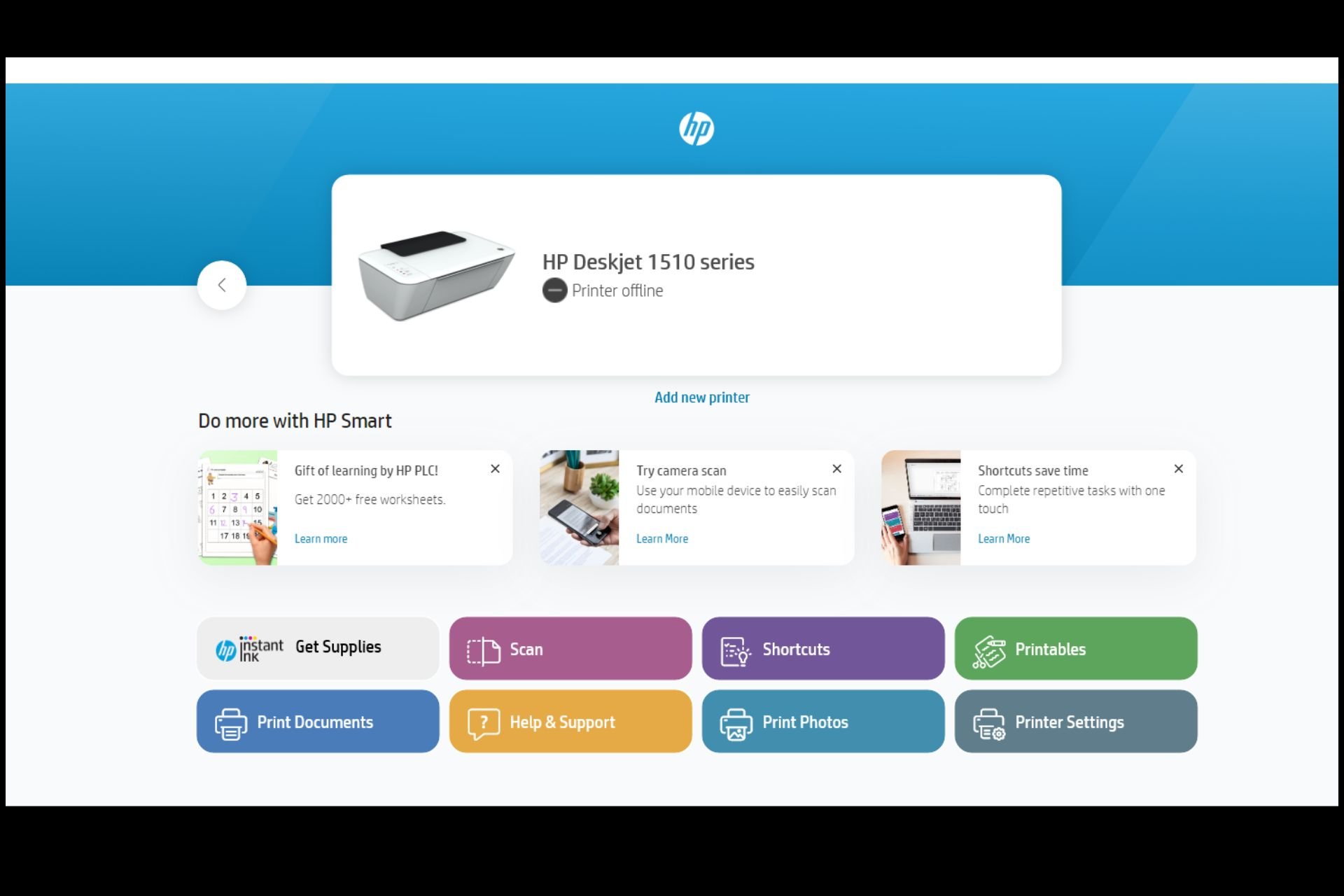
  4. On your phone or PC, launch the HP Smart app. If you don’t have it, you’ll have to download it.
  5. Click on Add printer or Add new printer
  6. Locate the HP Envy 6055e and click on it.
  7. Tap Yes to confirm an automatic connection to your WiFi.
  8. Once it is connected, the WiFi icon on your printer will stop blinking and you should hear a sound.
  9. Now follow the on-screen prompts to complete the setup.

The HP Smart app also comes in handy if you need to cancel printing mid-printing to save on paper.

2. By adding it automatically

  1. First, click Start on your taskbar to bring up that menu.
  2. Select Settings on the Start menu.
    Pinned Settings app wireless printer windows 11
  3. Click the Bluetooth & devices tab in Settings.
  4. Then select Printers & scanners on that tab.
  5. Press the Add device button.
  6. Locate your HP Envy 6055e printer and click on it to add.

3. By adding using the PC’s Control Panel

  1. Click the taskbar’s magnifying glass icon.
    The magnifying glass button wireless printer windows 11
  2. Type Control Panel within the search tool that opens and select Control Panel to open that window.
  3. Next, select Large Icons on the View by drop-down menu.
    Large icons option wireless printer windows 11
  4. Click Devices and Printers in the Control Panel.
  5. Then press the Add a printer button.
    Add a printer option wireless printer windows 11
  6. Choose a printer on the Add a device window, and press the Next button to install it.
  7. Press the Finish button after the HP Envy 6055e printer has been added.

4. By adding it manually

  1. Press the Windows key on your taskbar, type settings in the search bar and click on the first result to open the Settings app.
  2. Navigate to the Bluetooth & devices tab.
  3. Go to Printers & scanners.printers-scanners hp printer won't scan
  4. Press the Add device button.
  5. Click on the Add manually option.add option printers and scanners
  6. Select the Add a Bluetooth, wireless or network discoverable printer option.add a wireless printer to windows 11 control panel
  7. Next, select your HP Envy 6055e wireless printer on the Add a device window and click the Next button.add a wireless printer to windows 11 next button
  8. Thereafter, follow additional instructions in the Add Printer wizard to finish the installation.

Troubleshooting steps when HP Envy printer is not connecting to WiFi

  • Outdated/missing/damaged drivers – Outdated drivers for both the printer and WiFi adapter should be up-to-date to avoid compatibility issues.
  • Misconfigured network settings – If your network settings have been altered, you can reset your network settings to default to re-establish connection.
  • Outdated printer firmware – HP regularly releases firmware updates to improve performance so ensure you update your printer whenever these updates are available for a seamless connection.

Other connection issues such as the printer connected to WiFi but not discoverable on your PC can be resolved by restarting your printer and router, moving closer to your router or resetting your printer. Also, make sure your printer and PC are on the same WiFi connection.

If none of the above solutions seem fruitful, consider contacting HP Support for advanced troubleshooting.

The HP Envy 6055e printer is an excellent choice for a printer but it is not the only wireless printer worth checking out. Your printer may only print in black so it’s worth having a handful of options to choose from.

You can also opt for an all-in-one printer so that when it is not connecting to WiFi, you have the option to use a wired connection.

That’s how easy it is to connect your wireless HP Envy 6055e printer to your WiFi. Have you had any trouble with your wireless connection? Let us know in the comment section below.

Windows 11 will display the date of the latest backup, making it easier to keep track of files

Even though Microsoft is thinking about blistering Windows 11’s Start menu with ads, it seems that the Redmond-based tech giant will also add some useful new pieces of information to the operating system.

We’re talking about Windows 11 displaying the date of the latest backup, as spotted by Windows enthusiast, Albacore. It will happen on the Settings page, where this date will be displayed at the top of the page, making it easier for users to keep track of their backup files and initiate backup plans.

According to the spotter, the new information is currently hidden in the Windows Insider channels, but it can be uncovered by using a special command (ID: 48126226) within a third-party app, such as ViveTool, that enables hidden Windows features.

As it is hidden, Microsoft didn’t intend to release it just now, so the company might officially announce it in the next weeks. This also means that the new addition to Windows 11 might not be the final version, so the information that will released officially might be different.

Either way, it’s quite a useful feature, especially for those Windows users who like to keep track of their files and develop backup plans for them, as this new information is a reminder that new backup plans must be implemented, such as updates, or similar actions.

As you can see below, the information is right at the top of the top of the page, under the device’s name, which is also useful, as it can easily be noticed by Windows users.

In other news, the Windows 11 taskbar will be updated to support a new mute button for the Microsoft Edge media controls menu. The new button will allow users to easily manage dozens of tabs in Microsoft Edge without having to close them. The update should also be released to Windows with the next Edge update.

Microsoft Edge adds a mute button to the media controls menu

Those who use Microsoft Edge, and are also fans of dozens of open tabs (I’m one of them), will be glad to hear that Microsoft will be adding a mute button to the media controls menu in the Windows taskbar.

The new feature was spotted in Windows Canary by tech enthusiast @Leopeva64, and it appears alongside the usual control media buttons.

With the new mute button on Microsoft Edge’s media controls menu, users can easily manage between multiple tabs, and mute the ones they want without having to pause or close them.

This could be interesting when watching live streams in Edge, while also doing something else. The tab displaying the live stream can be simply muted while reading information from other tabs, and when that is done, you can go back, unmute the tab, and continue watching the live stream.Microsoft Edge media control

Microsoft Edge debuted some new media controls shaped from the ones already existing in Google Chrome, allowing you to control media playback directly from the browser toolbar, similar to the experience in Chrome.

However, the new muted button is integrated into the media controls menu available on the Windows taskbar. That means you can easily access these tabs, by hovering over the Windows 11 taskbar and selecting the preferred tab to mute.

The feature is currently available in Edge Canary, and it will released to the stable Edge version in the following weeks. And, as we mentioned above, this could end up being one of the most useful perks around, especially for those who like to keep dozens of tabs open at the same time.

This feature should make it easier to manage different tabs, and it will definitely enhance the browsing experience in Microsoft Edge

What do you think of this upcoming feature? Let us know your opinion in the comments section below.

Microsoft adds a new option in Windows 11 enabling ads in Start Menu

Remember when we told you that Microsoft is adding an option allowing users to see app recommendations from the Redmond-based tech giant in Windows 11’s Start Menu?

Well, buckle up, because the company will be adding ads to this option as well, so, you know, your experience of opening the Start Menu can be fully complete.

Spotted by Windows Insider @XenoPanther, and then confirmed by Windows enthusiast Albacore with a screenshot, Microsoft is not shying away from allowing Windows 11 users to plaster their operating system with ads in the Start Menu.

For now the word ‘ads’ is hidden, but Albacore says it can be uncovered by enabling a special command with the third-party app, ViveTool.

Enabling the command (which we don’t advise if you’re not entirely familiar with the app), will prompt the word to be added to the command which now reads:

Show recommendations for tips, shortcuts, new apps, ads, and more.

Microsoft

Fortunately, the setting is optional, meaning the Redmond-based tech giant lets users do what they want: they can enable/disable it at will, and Windows 11 will act accordingly.Windows 11 start ads

To showcase ads on Windows 11’s Start Menu, Microsoft will make use of Edge, as Albacore mentions that the feature uses the EdgeMicrosoftUserId command, meaning the Redmond-based tech giant will most likely use data from your Microsoft account on Edge to show you personalized ads in the operating system.

It would be quite frustrating if it happened. Currently, the setting is in the Windows Insider Program, so there is no doubt Microsoft will release it to the Stable channel one way or the other.

But with Copilot, and the looming presence of an AI File Explorer, Windows getting plastered with ads will infuriate a lot of users who might migrate to other operating systems.

We’ve heard Linux has been having quite a year, thanks to Microsoft, and if the Redmond-based tech giant continues this way, 2024 could be the Linux year for many Windows users.

Germany has a grant to promote game development, aiming to emerge as a hub

The gaming industry is worth hundreds of billions, and in a bid to tap into the market, Germany started a grant to promote game development in the country. It even began hosting an award show to felicitate developers from across the globe, and it included cash prizes.

The cash prizes are to incentivize and encourage developers in Germany to release exciting titles. According to a report published in PC Gamer, Michael Kellner, Parliamentary State Secretary at the Federal Ministry for Economic Affairs and Climate Action, wants games like Baldur’s Gate 3 to be developed in Germany.

Wide range and creativity of games developed in Germany must be expanded further, and the potential of the industry must be utilized even more. As the federal government, we want to make an important contribution to this through our new games funding. The funding is to help ensure that games such as this year’s best international game also go on to be developed in Germany.

This year, Baldur’s Gate 3 won the Best International Game at the German Computer Game Awards!

A report from Game Developer suggests that Germany will spend €100 million ($106.92 million) over the next three years to promote game development. This year, the government will disburse $36.2 million, one-third of the three-year target!

By pumping huge amounts of money into gaming, the German government wants to develop an ecosystem at par with countries like Canada, the UK, and France, considered pioneers in the gaming space.

Whether Germany succeeds in its plans for a flourishing game industry with the sizable grant will be evident in a few years. But they can still develop a Baldur’s Gate 3 sequel since Larian has stepped away!

Do you think the grant will help Germany gain prominence in the gaming industry? Share with our readers in the comments section.

Here Are The Microsoft Graph Command Line Tools & Their Uses

Microsoft Graph has a set of command line tools that can be integrated into Microsoft 365 to manage users and apps as well as automate tasks. For an organization with a Microsoft 365 tenant, managing users and all the data involved can become cumbersome.

Microsoft has an excellent ecosystem of apps and services that help improve workflow and enhance productivity but separate apps can be tough to manage with lots of data involved. Developers can leverage Microsoft Graph’s framework and cut out the development time of an app.

What are the Microsoft Graph Command Line tools?

1. Microsoft Graph PowerShell SDK

PowerShell as a built-in command line tool in Windows can be used to perform all sorts of advanced tasks. Its capabilities are superior to the Command Prompt and is based on the .NET framework.

As a command line tool for Microsoft Graph, developers can leverage its cmdlets to interact with Microsoft 365 apps by creating scripts and executing them.

For an organization managing a large number of users, setting policies and managing individual users can be a time-consuming task.

For instance, assigning and revoking permissions would require you to update each user individually. However, with Microsoft Graph PowerShell SDK, you can execute some of the predefined cmdlets.

2. Microsoft Graph Command Line Interface (CLI)

This is yet another command-line tool. Almost similar to the PowerShell SDK with some distinct differences. It still has a set of commands that perform various actions all targeted at user and data management.

The commands for Microsoft Graph CLI are however extensive compared to PowerShell SDK and can therefore perform a host of operations across the Microsoft ecosystem.

As for differences, PowerShell is primarily used on Windows. This limits it to one operating system and whereas PowerShell is open-source and can be used on other OSes, the limitations may outnumber the benefits.

The good thing about the CLI is that it is cross-platform and supports a wide range of programming languages. As a developer, each programming language is suitable for a specific project so the CLI being compatible with most makes it highly flexible.

Additionally, if you were ever to upgrade, it is extremely crucial to have a project that can easily adapt to evolving technological changes and advancements without requiring a complete overhaul.

3. Microsoft Graph Explorer

Of all the Microsoft Graph command line tools, the Microsoft Graph Explorer is arguably the most important. As a developer, it is important to test whatever code at endpoints.

If you’ve been creating APIs, before rolling them out or integrating them with apps that contain data, it is important to explore their functionality and verify that it is reliable. Microsoft Graph Explorer is a web based interface that helps developers test Microsoft Graph API endpoints before integrating them into applications. You can also learn more about how it works in this detailed guide on the Microsoft Graph Explorer.

For an organization that stores large data sets, it is important to first test out and check for any security vulnerabilities. If there are any potential risks, the developer will keep working on it to address these loopholes.

Additionally, testing also checks for compatibility and performance. How well does the API perform? Are there any bottlenecks that could impact its performance?

Addressing such issues will ensure you cover all aspects such that even if you were to scale up, you’d already have anticipated its needs and worked on how to accommodate it.

What are the benefits of using Microsoft Graph Command Line tools?

  • Automation – Anyone will tell you how automation lessens the workload so any chance you get to automate your tasks, take it. Complex operations can be time-consuming and have high chances of errors when done manually. With the help of scripts, this increases the level of accuracy.
  • Enhanced efficiency – Microsoft Graph Command Line tools provide efficiency especially, for the Microsoft ecosystem that has several apps and services. Each would require a custom app tailored to cater for its varied needs. However, since these tools are integrated, it makes it easier to manage from one interface.
  • Integration – Because command-line tools are cross-platform, they easily integrate with other tools. This seamless integration allows for continued workflow regardless of the working environment. In turn, it also opens up collaboration opportunities.
  • Development – Command-line tools are powerful which gives developers a chance to explore just how extensive the Microsoft Graph API capabilities are. Continued use can improve operations in a tenant.

Speaking of APIs, especially for teams, we’re sure you’ll be interested in enabling your API key for Microsoft Teams. This will be your passport to accessing Microsoft Teams APIs, creating new experiences and extending the capabilities of the communication tool.

And as a developer, having the right tools is a step closer to achieving your goals so why not work with the best browsers for developers?

Have you explored any of the Microsoft Graph Command Line tools? What was your experience? Let us know in the comment section below.

Epic Games has blocked certain emotes in Fortnite to stop player harassment

Online communities can be toxic and gamers will often find different ways to flame and provoke other players.

Fortnite is notorious for its less-than-admirable community, and Epic Games will try to change that by allowing users to block certain emotes.

You can now block certain emotes in Fortnite to stop other players from flaming

It’s no secret that the gaming community can be toxic, and some players will use emotes or other in-game features to harass others.

Epic Games is aware of that, and it has made some recent changes in Fortnite to prevent that as Ars Technica writes.

This was added in the v29.30 update, and according to the Fortnite blog post, there’s a new setting available called See Confrontational Emotes. You can find this setting in the Social Privacy section.

When enabled this setting will block the following emotes from being shown:

  • Laugh It Up
  • Take the L
  • Whipcrack
  • Make It Plantain

By default, this setting is set only to show these emotes from friends in your party, but you can block them for all players.

If you have this setting enabled, you won’t see other players performing the emote or hear the sound associated with it.

The emotes are still in the game, and everyone can perform them, but players won’t be able to see them by default.

This has sparked a bit of controversy, as some players think they need a refund after buying these emotes.

In other gaming news, the new Xbox console will be more like a PC as the lines between the two platforms are blurring.

Microsoft has teamed up with Meta to bring an Xbox VR headset that will change the metaverse gaming realm, so stay tuned for more news.

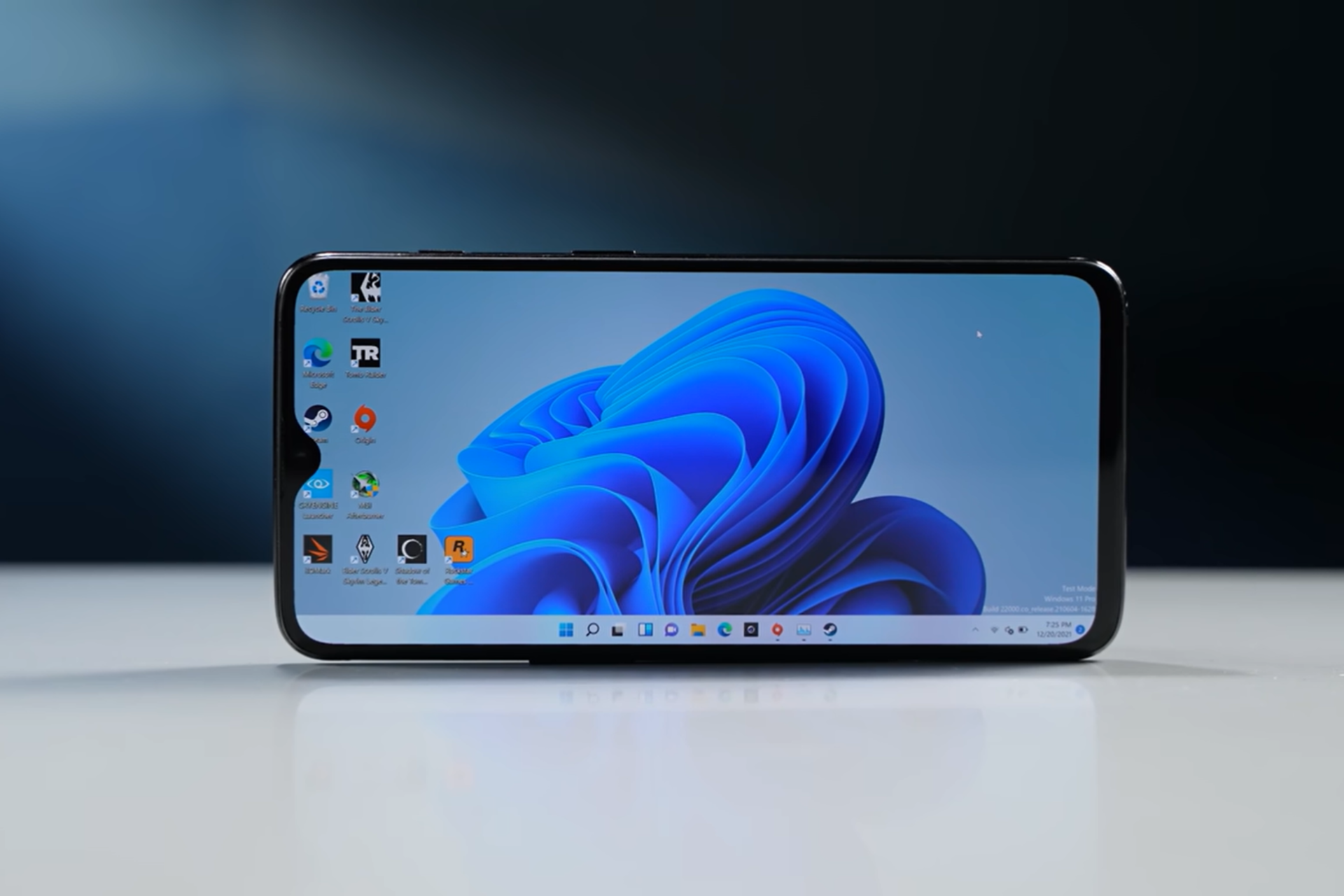
You can install Windows 11 on smartphones and even play games, thanks to Project Renegade

When Microsoft discontinued Windows as an OS for smartphones, many of us were disappointed. Windows on a smartphone is a memory I still cherish!

With all hopes of Microsoft ever reviving a Windows phone slowly dying, Project Renegade came to the rescue. It facilitates installing Windows 10 and Windows 11 on mobile phones and even playing popular games with ease.

While Microsoft builds Windows for ARM-based processors, available on both laptops and mobile phones, the problem with installing Windows on the latter lies in the absence of UEFI. And this is where Project Renegade, an open-source project, comes into the picture!

You will find its files on GitHub, and the Windows installation process for Android smartphones is detailed on the official website.

Several tech enthusiasts and YouTubers, including Geekerwan, have tried out Project Renegade and installed Windows 11 on a smartphone. The results are surprisingly good, though you may encounter constant errors and BSoD (Blue Screen of Death) errors!

Gaming on a smartphone powered by Windows 11

As for gaming, Windows 11 on a decent smartphone should be able to run Crysis 3, one of the most resource-intensive games. When Geekerwan tried Crysis 3 on the OnePlus 6T, it wasn’t the most seamless experience, but the game did run. However, the smartphone started to heat up quickly.

Running Crysis 3 on a Windows-powered OnePlus 6T (Image source: Geekerwan)

For other popular titles like CSGO and Tomb Raider, the gameplay was a lot smoother!

If you are wondering about devices supported by Project Renegade for running Windows, the developers have shared an extensive list.

Image source: Project Renegade

The bad news is that Project Renegade doesn’t allow installing Windows on iOS, as none of the iPhones make it to the list.

Even Android users shouldn’t get too excited because it’s not that simple. You will have to spend hours making rather complex changes to install and run Windows 11 on a smartphone with Project Renegade. Besides, with a small display, low performance, and frequent errors, it might not be worth all the effort, at least for some of you!

In the recent past, a concept Windows 12 phone got users excited about the prospects. Then, there was hype around foldable Windows smartphones due to a bigger display, but Microsoft has yet to confirm any such developments. So far, the community is doing all the work!

What are your thoughts about running Windows 11 on a smartphone? Share with our readers in the comments section.

Join the giveaway for the chance to win this X-Men 97-inspired Xbox Series X

If you were a 90’s kid, you’re probably familiar with the X-Men animated show. The show has been revived recently and released as X-Men ’97 on Disney Plus.

To celebrate the show, Microsoft is collaborating with Marvel on a new giveaway.

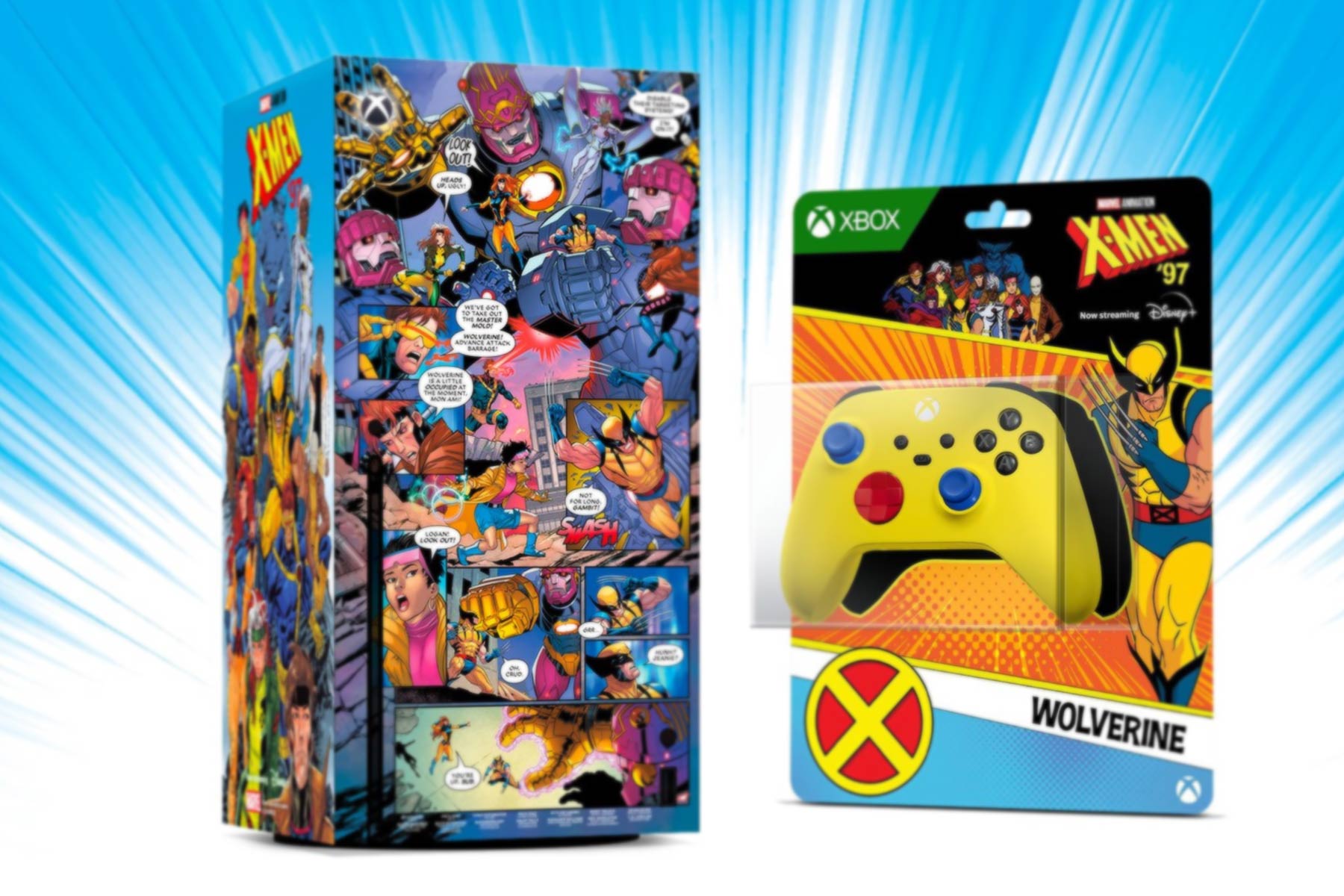
The latest giveaway gives you a chance to win X-Men 97 Xbox Series X

Xbox is collaborating with Marvel in a giveaway that lets you win a unique limited-edition Xbox Series X. The console is wrapped in an X-Men comic book written by Rich Douek and artist Paco Diaz.

The comic tells a 2-page story in which Cyclops leads his team in a battle against Sentinels and Master Mold.

That’s not all, the console is accompanied by a set of controllers inspired by the characters from the X-Men ’97 show.

There are 11 controllers available, and while they are colorful, they look a bit bland compared to the flashy Series X console.

To join the giveaway, you just need to follow Xbox on X and retweet the giveaway post. The giveaway will last until May 19, so don’t hesitate to join. For more information, visit the Xbox Wire page.

In other news, Microsoft and Meta are collaborating on an Xbox VR headset that should revolutionize the gaming realm. In case you need a new controller, why not get an Asus ROG Raikiri Pro? It’s available at 27% off!

Dell has a guide on how to identify an AI PC and confirms that AI Explorer is exclusive to Snapdragon X Elite CPUs

We’re not alone in thinking that the concept of AI PC is still unclear. Dell’s recent support page breaks down what it means for a computer to be AI-enabled, highlighting that it’s not just about having the latest software but also about the hardware that powers those intelligent tasks we’re all excited about. So, let’s dive into what makes a computer smart in the eyes of Dell and how you can check if yours makes the cut.

According to DELL, at the heart of an AI PC lies the NPU, or Neural Processing Unit. This piece of tech is essentially the brain behind the operations, optimized to handle the heavy lifting required by AI tasks like understanding human speech or analyzing images. The NPU works alongside the CPU, making your computer not just smarter but also more energy-efficient when it comes to AI-based tasks.

Now, if you’re wondering if your PC or laptop has an NPU, it’s simpler than you might think to check it. Windows 11 has baked in requirements for certain features like Windows Studio Effects, which include goodies like background blur and voice focus, demanding a dedicated NPU.

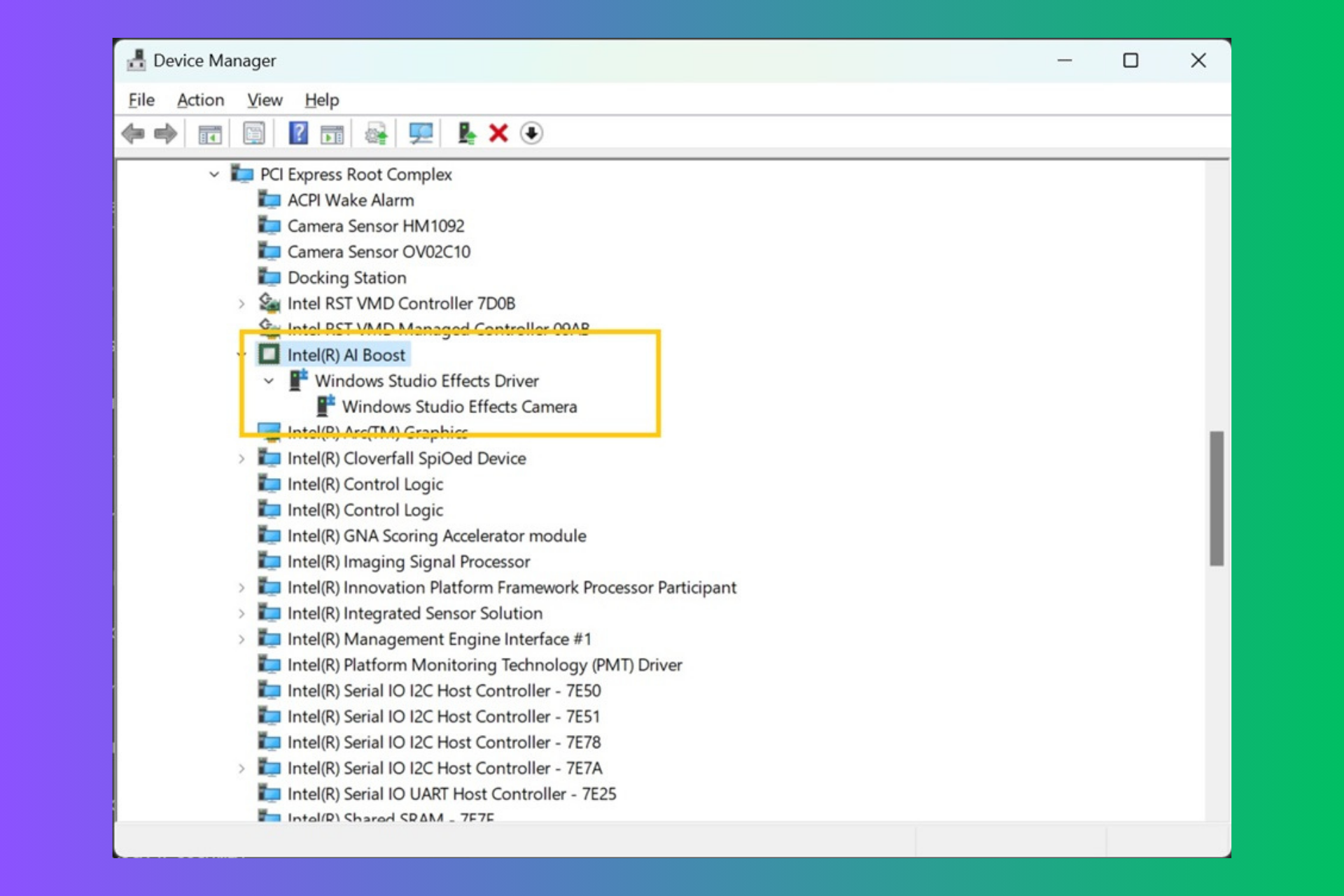
But, fear not, as checking for an NPU’s presence is as easy as launching the Task Manager and heading over to the Performance tab. If you see NPU 0 listed next to your CPU and memory stats, you’re in business. Alternatively, a quick trip to the Device Manager and a look for Intel AI Boost or AMD IPU Device will tell you if your system is equipped with the necessary hardware. And for those on Qualcomm chips, your drivers are already waiting for you via Windows Update. If you have trouble following these indications, we have a dedicated guide on how to check if your PC has an NPU.

Dell isn’t just throwing around the term AI-enabled for the fun of it. Their latest computers, powered by Intel’s Core Ultra processors, boast up to 38% more battery life during Zoom calls by offloading tasks to the NPU. This means less strain on your CPU and a smoother experience during those endless video meetings. Dedicated Neural Processing Units are found in the latest offerings from Intel, AMD, and Qualcomm, ensuring that if you’re buying a new PC, you’re likely getting one that’s ready for the future of AI.

But Dell’s vision doesn’t stop at just making your current tasks more efficient. With the upcoming next-gen Windows 11 features, like the rumored AI Explorer, the role of the NPU is set to become even more central. This aligns with Dell’s broader view that soon, every PC will be an AI PC, whether we realize we need it or not. The push towards AI-enabled devices is part of a larger trend, with manufacturers betting big on AI to drive the next wave of computing.

Dell also confirmed in this guide that Explorer AI is exclusive to computers running Windows 11 on ARM64 PCs boasted by the latest Snapdragon X Elite CPUs. It’s all about TOP’s AI processing speed.

Well, now you know about Dell’s vision about AI PCs, but it doesn’t include a Copilot key into the recipe. Will you get an AI PC or laptop? Tell us all about that in a comment below.

Mechrevo reveals two high-end gaming laptops, both with external water-cooling

Gaming laptops are great if you want to experience the latest games, but don’t have enough space to store a desktop computer.

It’s important to mention that these kinds of laptops are prone to high temperatures, however, Mechrevo has two new models that try to address this issue.

New Mechrevo gaming laptops come with external water-cooling

According to TweakTown, Mechrevo has announced two new laptops, the Kuangshi 16 Super and the Yanshi 16 Super Supreme.

Both models use Intel Core i9-14900HX 5.8GHz Raptor Lake CPU with 24 cores. As for graphics, you can choose between GeForce RTX 4090 or GeForce RTX 4080.

A 16-inch display with 2560 x 1600 resolution and 240Hz refresh rate is available on both models. Regarding the connectivity, there’s HDMI 2.1 and Thunderbolt 4.

As for memory, one model comes with 64GB of DDR5 RAM and 2TB of storage, while the other has 32GB RAM and 1TB SSD.

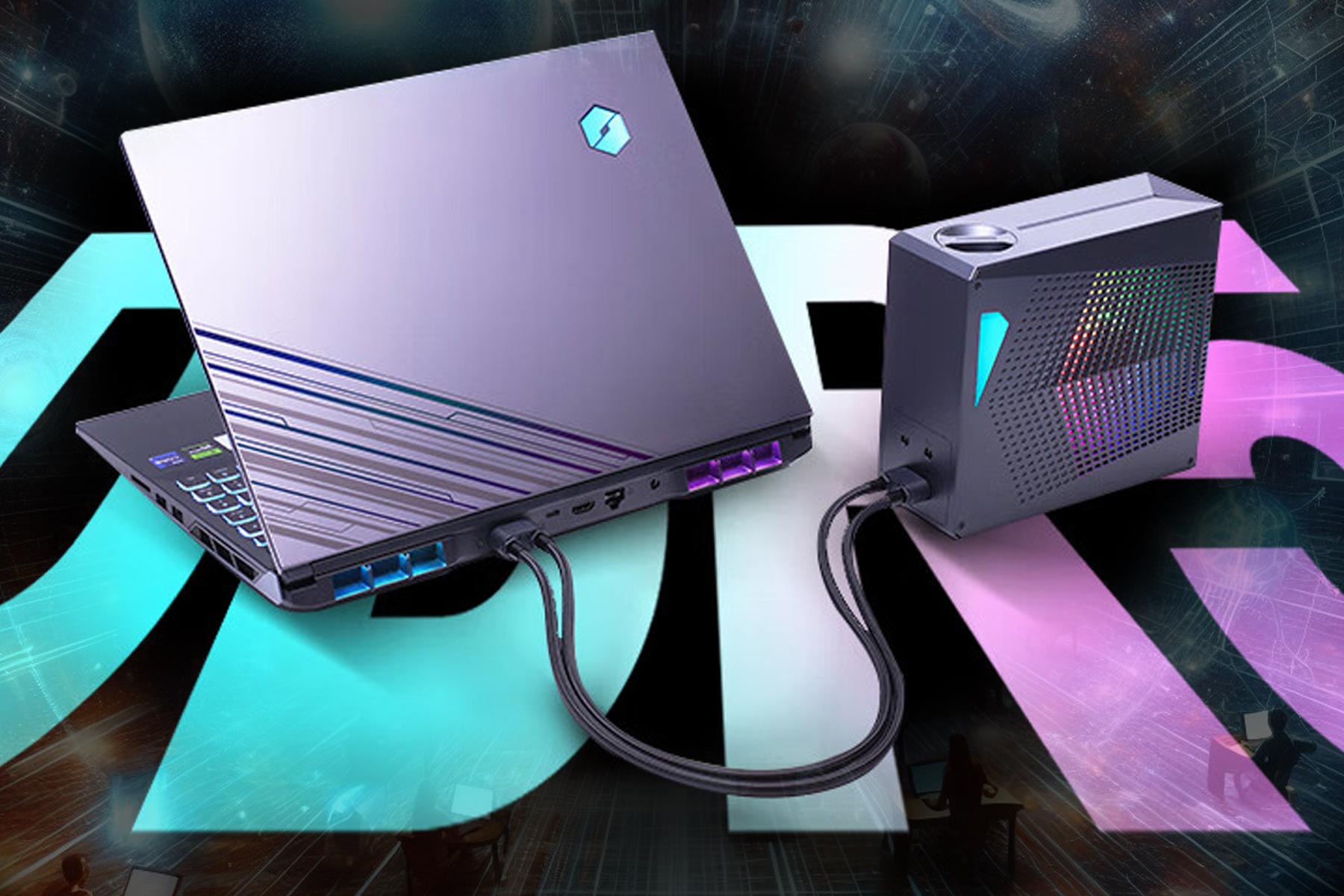
What separates these laptops from the rest, is cooling, and while you can use the dual-fan cooler, there’s an external water-cooling system you can attach to the back of the device.

By doing so, you can rest assured that your device will stay in optimal temperature range even during the most intense gaming sessions.

These are impressive laptops, and you can get a basic model for around $2070, while the other is priced at $2760. These models are available in China, and we doubt that we’ll see them available worldwide.

In case you want something available in your region, you can consider getting the Acer Predator Triton 14 for 38% off, or the HP Pavilion x360 Convertible with a a 42% discount.

Navigating compatibility challenges – Windows on ARM devices and x86-64 software

The hype of Windows on ARM devices is gaining traction, which has also brought questions about their compatibility with x86-64 software.

Although Microsoft has assured that most apps will work perfectly on ARM-based systems, driver compatibility is still a concern.

According to Microsoft’s Windows Arm-based PCs FAQ:

Peripherals and devices only work if the drivers they depend on are built into Windows 11, or if the hardware developer has released Arm64 drivers for the device.

This warning is relevant when you take third-party hardware into consideration, which depends on certain drivers communicating with the operating system.

According to a recent review, running x86-64 software on Windows on ARM devices could cause compatibility issues if the manufacturers don’t compile compatible drivers for the ARM 64 architecture. This could lead the devices not to be able to communicate with third-party hardware, probably hindering necessary functions.

Despite the concerns about potential compatibility issues highlighted, you should not worry too much about using Windows on ARM devices, and there are reasons for this.

First, basic peripherals like wireless printers usually work fine with these devices, and Windows 11 can recognize and work with these devices, thanks to Microsoft’s built-in drivers.

The second thing is even gadgets like colorimeters used for display benchmarking seem to work well with Windows on Arm devices

While some bumps might be in the road, they could be considered the exception instead of the rule. Also, during testing, no serious obstacles could indicate the prevention of using essential accessories in conjunction with Windows on Arm devices.

Having said that, the user must stay vigilant as the absence of ARM64 drivers from manufacturers could lead to unanticipated challenges.

Also, with the evolution of technology, manufacturers will have to emphasize the development of compatible drivers for Windows to have a smooth experience on ARM devices.

What are your views on the matter? Share your opinions with our readers in the comments section below.

Planning to buy a Hisense TV? It’s triggering weird problems on Windows PC

We recently came across another instance validating the statement, Too much of a good thing can be bad, when applied to technology. This time around, it’s a Hisense smart TV conflicting with a Windows PC!

Over the years, a few users have reported a series of mysterious issues with their Windows computers. For instance, problems with network discovery, Settings app not opening, a missing Taskbar and Start Menu, Task Manager persistently hanging, inability to set up Remote Desktop, and screen flickering.

Updating the OS or reinstalling Windows often worked as a short-term solution, but nothing would last for long. And that set of users couldn’t find a solution. No matter what they did, the problem simply reappeared!

Until one day when Priscilla Snow, a musician and composer, tried to get to the bottom of things. This venture of her’s led to a series of mind-boggling revelations!

Unravelling the mystery connection between a smart TV and Windows PC

When Snow set out to uncover what was actually causing the problem instead of, yet again, reinstalling Windows or replacing the PC altogether, she came across a Reddit thread where a Windows user detailed encountering a similar scenario.

This ultimately led her to a Microsoft forum where another user had discovered the underlying cause. And to everyone’s surprise, it was a Hisense Android Smart TV!

Narayan B, the user credited with identifying the problem, explained what caused it in the first place,

The root cause is the TV generates random UUIDs for UPNP network discovery every few minutes. That means it poses as a new device. This caused windows to add it to the device list (Device Association Framework, aka DAF) as a new device. This means now 1000s of devices (which is the same device) filled the device tree causing it to enumerate forever. Thus the “deadlock”.

TaskManager uses DasHost to enumerate devices for some reason, so that hangs.

Bluetooth relies on device discovery, so that also hangs, and Settings app along with it.

Network discovery in file explorer obviously also needs Device discovery, so that also hangs.

And Priscilla Snow had a Hisense 50Q8G- 50″ Smart 4K ULED Android TV!

It also came as a relief that Narayan B already knew the solution and had shared it in detail on the forum. It involved initially disabling the Device Association Service, opening the Registry Editor as with the SYSTEM user, and deleting all DAFUPnPProvider keys under the following path:Computer\HKEY_LOCAL_MACHINE\SYSTEM\ControlSet001\Services\DeviceAssociationService\State\Store

Deleting keys in the Registry Editor

Narayan B discovered similar keys under other locations in the Registry, so you have to delete them all, then reboot the PC, and finally, run the Device Association Service.

Enabling/disabling the Device Association Service
Tip icon Tip
Since the Registry Editor holds critical information, it’s vital to back up the data before deleting any of the keys. Although, you can always restore the Registry without a backup.

Once Priscilla Snow was done with changes, to her surprise, everything started working, be it the Settings app, remote desktop setup, Bluetooth functionality, or the Task Manager. It seemed like her PC had come back to life!

You can read Priscilla Snow‘s experience on Cohost.

But even now, many questions remain unanswered. Why did the Hisense smart TV affect only one of the Windows PCs for every user? Why not the others? Are other devices, like smartphones, also prone to this issue? If yes, what exactly goes wrong with them?

Besides, the whole episode serves as a reminder that devices within the household conflict a lot more than we know. Because we never realize there’s a problem until something stops working altogether!

What’s your take on the Hisense smart TV conflicting with Windows PCs for some? Share with our readers in the comments section.

Lenovo ThinkPad P1 Gen 7 is the first AI laptop to get the LPCAMM2 ultra-fast memory

Lenovo has just lifted the curtain on its latest mobile workstations (a fancy name for powerful laptop), the ThinkPad P1 Gen 7, and it’s nothing short of a powerhouse. And by all means, it’s an AI laptop, because it has an NPU on board. Besides ThinkPad P1 Gen 7, this new lineup includes P16v i Gen 2, P16s i Gen 3, and P14s i Gen 5.

What is so special about Lenovo’s ThinkPad P1 Gen 7?

Well, for starters, it’s powered by Intel’s latest Core Ultra processors, which come with an integrated neural processing unit (NPU) designed to handle AI tasks more efficiently. This, combined with NVIDIA’s RTX Ada Generation GPUs, means you’re looking at a machine that’s not just fast, but smart fast.

But Lenovo didn’t stop there. They’ve also introduced the world’s first LPCAMM2 memory in collaboration with Micron. A LPCAMM2 module can have up to 64GB of memory that consumes up to 61% less power and takes up 64% less space compared to traditional DDR5 SODIMM modules. This means you get a laptop that’s not only powerful but also efficient and slim.

ThinkPad P1 Gen 7 doesn’t disappoint when it comes to the display either. With a 16-inch display boasting a 91.7% screen-to-body ratio and the option for an OLED touchscreen, your visuals will be as stunning as your performance.

Here are the main tech specs from Lenovo:

  ThinkPad P1 Gen 7ThinkPad P16v i Gen 2
PerformanceProcessorsIntel Core Ultra processors up to Core Ultra 9 185H
OSWindows 11 Pro, Linux® certified8
MemoryUp to 64GB LPCAMM2 LPDDR5x 7467MT/sUp to 96GB DDR5 5600Mhz
Storage2 x PCIe 4×4 M.2 2280 SSDP1 Gen 7: Up to 8TBP16v Gen 2: Up to 4TB
Graphics OptionsIntegrated Intel ArcNVIDIA RTX 1000/2000/3000 Ada Generation GPUNVIDIA GeForce RTX 4060/4070 GPUIntegrated Intel ArcNVIDIA RTX 500/1000/2000/3000 Ada Generation GPU
Display Options16-inch 16:10, 91.7% STB ratio·        FHD+ IPS, 400nit, 100% sRGB, Low Blue Light·        QHD+ IPS, 500nit, 165Hz, 100% sRGB, Low Blue Light·        UHD+ OLED Touch, 400nit, 100% DCI-P3, Low Blue Light, HDR400, Dolby Vision16-inch 16:10, 83.9% STB ratio·        FHD+ IPS, 300nit, 45% NTSC·        FHD+ IPS Touch, 300nit, 45% NTSC, Low Blue Light·        FHD+ IPS, 400nit, 100% sRGB, Low Blue Light·        UHD+ IPS, 800nit, 100% DCI-P3, Low Blue Light, HDR400, Dolby Vision
AudioDolby Atmos® Speaker SystemDual MicsDolby Audio®Dual Mics
CameraFHD RGB (P16v i Gen 2 only) or 5MP RGB+InfraRed with privacy shutter
Battery90Whr (Customer Replaceable Unit)90Whr

As you would expect, ThinkPad P1 Gen 7 is not very cheap, starting at $2,619, but it’s not budget-breaking either if you’re looking for a fast AI laptop. Availability is set for May 2024, so there’s some time to save up or convince your IT department that it’s a worthy investment.

Lenovo’s new ThinkPad P1 Gen 7 might get pretty good reviews thanks to the LPCAMM2 memory, but we’ll have to wait and see about that in the near future.