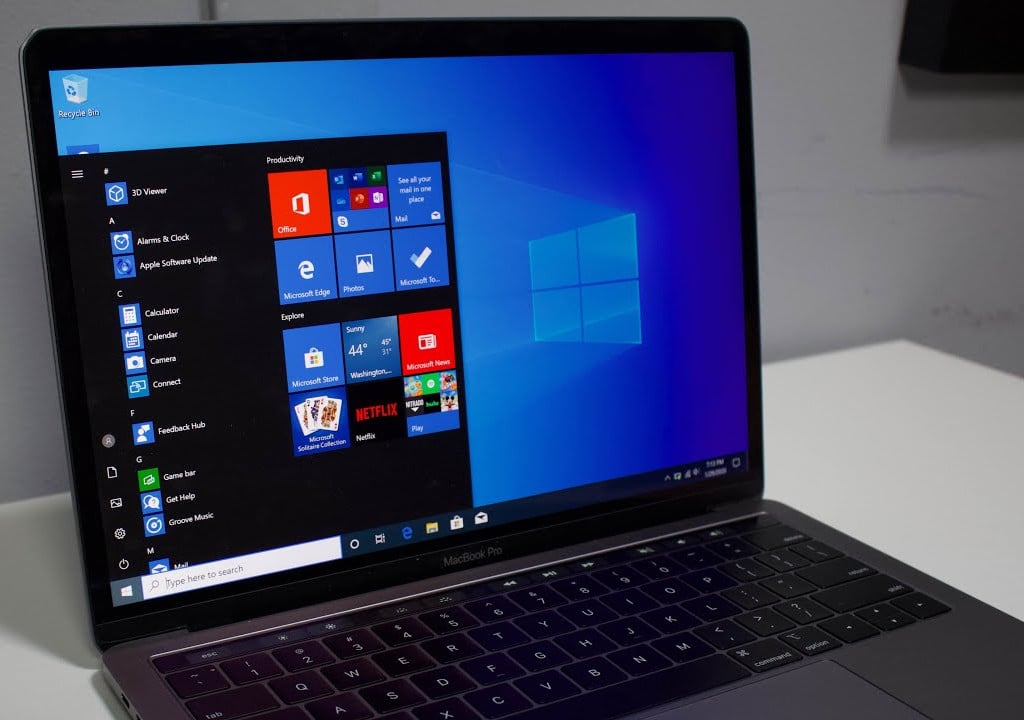
One of the trademarks of the Windows OS is self-sufficiency, and proof of that is how they continuously roll out products that can improve your Windows experience without the use of third-party tools.
For example, one issue that is a significant concern for everyone is cybersecurity. and we all know how malware is pretty much anywhere, and third-party antivirus tools are not cheap.
Well, if you, too, have encountered this issue, we recommend you try the Microsoft Safety Scanner.
Down to the basics, the Microsoft Safety Scanner is a simple tool with only one purpose: to find and remove malware from Windows computers.
How do I download & install Microsoft Safety Scanner?
One of the highlights of this tool is just how simple it is to acquire and use.
Go to Microsoft’s page covering the Microsoft Safety Scanner
Choose and download the version of the product that fits your PC’s architecture: 64-bit or 32-bit
Select the type of scan you want to run and start the scan. You can select between the following:
Quick scan
Full scan
Customized scan
Review the scan results displayed on screen. For detailed detection results, view the log at
%SYSTEMROOT%debugmsert.log
Will running Microsoft Safety Scanner delete unnecessary files?
The short answer would be yes. While Microsoft Safety Scanner will remove any malware infections from your PC, it will not prevent malware from getting into your PC in the first place.
These are the Windows OS versions taht can run the Microsoft Safety Scanner
Windows 10
Windows 10 Tech Preview
Windows 8.1
Windows 8
Windows 7
Windows Server 2016
Windows Server Tech Preview
Windows Server 2012 R2
Windows Server 2012
Windows Server 2008 R2
Windows Server 2008.
Things to remember when using the Microsoft Safety Scanner
Another great thing about the Microsoft Safety Scanner is that it doesn’t require any installation. Once the executable is downloaded, run it, and it will start scanning your PC.
This lack of installation makes it a great choice for those that don’t want to load their PC’s registries and DLLs with additional files. This also means that it won’t appear in your Start menu, so once you download it, try to remember where you saved the executable.
On the flip side, the product cannot be updated like you would a regular antivirus, and you need to download it again if you want a newer version.
On that note, Microsoft recommends that you download a new version about once every ten days to ensure you have the latest supported version.
Closing thoughts on Microsoft Safety scanner
Pros
Portable
Completely free
3 different canning modes
Efficient malware removal tool
Actively updated every couple of days
Cons
Needs to be downloaded manually after every update
It’s been almost a year since the Windows 7 OS has reached the EOL, and many changes have come in terms of what services will and will no longer support it.
One great example is that of major developer Google, who stated that they will guarantee that GoogleChrome will still run on Windows 7 until July 2021.
Windows 7 users need to upgrade by 2022
Google currently has almost 3 billion users, and a few millions still use Windows 7, either in the unsupported version, or in the EOS version.
Whichever the case, know that you will have to upgrade to Windows 10 by January 2022 if you still want to use the latest versions of GoogleChrome.
After assessing the current situation, and based on feedback from our valued enterprise customers, Chrome is extending our support for Windows 7 until at least January 15, 2022.
That’s a 6-month extension from our previously communicated date of July 15, 2021. We’ll continue to evaluate the conditions our enterprise customers are facing, and communicate any additional changes in the future.
This extension compared to the original announcement seems to have been due to the COVID-19 pandemic, so Windows 7 users will still get a 6-month window during which they can switch to the newer OS.
To learn how you can upgrade to Windows 10 easily, simply check out this dedicated guide where we will be showcasing every single step with detailed instructions and screenshots.
Do you use Google Chrome, and if so, will this announcement make you consider upgrading to Windows 10 faster?
Let us know what’s your take on the news by leaving us your feedback in the comments section below.
Microsoft’s Excel is one of the stalwarts of the company’s business tools, used by millions around the world for everything from creating shopping lists to running multi-million dollar businesses. First introduced way back in 1985 (and preceded by another spreadsheet from Microsoft called Multiplan) for the Apple Macintosh, Excel has grown to become as close to a universal business tool as there is.
Excel has been a full featured spreadsheet for quite some time, and while the program has introducing new data types, forecasting tools, and data cards, the basics of Excel have remained largely the same. Recently, however, Microsoft has introduced new tools that go back to the basics, first with the introduction of XLOOKUP, a rebuilt version of the tried and true VLOOKUP, and now today with LAMBDA, a new way to turn Excel formulas into custom functions.
For the first time, Microsoft says, Excel, with the introduction of LAMBDA, is “Turing Complete,” meaning that a system is “able to recognize or decide other data-manipulation rule sets.” Basically, the LAMBDA function allows you to define your own custom functions, and then re-use them throughout your spreadsheet. Up until now, if you had a complex function written in Excel and needed to use it in multiple places in your spreadsheet, you would have to copy/paste the function multiple times. This meant that any changes to the function would have to be recreated in all the places it existed. With LAMBDA, spreadsheet users can now give those complex functions a name, and then call them using a named LAMBDA, not only making management much more efficient, but also allowing for these functions to be recursive (meaning you can now create loops in formulas). You can read the blog post for more on this new function.
LAMBDA is being introduced in the Excel Beta Channel via the Office Insider program, and is still a work in progress, but a welcome one for many spreadsheet users.
We’ll be upfront and tell you that unfortunately, Mullvad VPN doesn’t offer a free trial.
In fact, the company behind this VPN is against free VPN services for a few reasons.
And it does make sense, considering that many free services are not, in fact, free.
Whether making you watch an ad video, collect your data or impose various in-app limitations, free services usually operate like that.
Mullvad VPN is against all of those practices.
However, there might be a way you can test Mullvad VPN for a while, if you need to.
Does Mullvad VPN have a free trial?
No, as we’ve mentioned above, you can’t get any official Mullvad VPN free trial.
The company believes that you get what you pay for, which is why its product will reportedly never go on sale or receive a discount.
In fact, all of Mullvad VPN‘s plans cost €5 per month, regardless of their length.
Whether you want to purchase a monthly, yearly, or 10-year plan, you’ll end up paying the same monthly amount.
So what’s it all about this Mullvad VPN free trial you’ve been hearing about?
Well, for starters, a while ago, Mullvad used to offer 3-hour free trials to its customers shortly after generating their account.
However, probably due to abuse and exploitations of this free trial, Mullvad decided to pull the plug on the offer.
Well, if you really really want to try before you buy, you can purchase a monthly subscription plan, then ask for a refund.
You know, if you’re not completely satisfied with the product.
How to get Mullvad VPN free trial?
Go to Mullvad VPN’s website
Click the Get started button
Jot down your account number
Choose a payment method
Input your payment details
Complete the payment
Ask for a refund in the 30-day timeframe (or don’t, if you like the VPN)
All things considered, this is the only way you can get a (somewhat) free Mullvad VPN trial. However, we believe that the monthly fee isn’t exactly expensive.
More so considering that most VPN services use at least twice this amount for their monthly plans.
Mullvad VPN is one of the most secure, albeit slightly underrated VPNs, on the market.
One thing that’s worth mentioning is that although Mullvad accepts cash payments for its services, it won’t offer cash refunds due to anti-money laundering laws and regulations.
However, if you want a better bargain, you should check out CyberGhost VPN’s deal, as it offers a 1-day completely free, no-credit-card-required free trial.
The Xbox team announced another Free Play Days event today, featuring The Elder Scrolls Online Tamriel Unlimited and Soulcalibur VI, free to play, for Xbox Live Gold and Xbox Game Pass Ultimate subscribers. Just a reminder, Xbox Game Pass Ultimate is the only subscription that includes an Xbox Live Gold subscription too. From now until Sunday, December 6 at 11:59 p.m. PST, players can play Soulcalibur VI; The Elder Scrolls Online Tamriel Unlimited will be available free-to-play until Wednesday, December 9 at 7:00 a.m. PST.
Both games are also heavily discounted during the event, and all your progress will be saved if you decide to purchase them. It’s worth noting that The Elder Scrolls Online is currently free to play with Xbox Game Pass. This is the perfect opportunity for Xbox Game Pass Ultimate subscribers to check out Soulcalibur VI and see if they want to buy it at a discounted price from the Microsoft Store. Both of these games offer great value and will take some time to complete. oF COURSE, The Elder Scrolls Online takes well over 200 hours to complete, while Soulcalibur VI is a more manageable 40 to 50 hours of estimated completion time. The Elder Scrolls Online is available now for Xbox Live Gold subscribers discounted at 60% off at just $7.99 and Soulcalibur VI is available for a whopping 85% off at just $8.99!
Microsoft’s Xbox Free Play Days event have been pretty regular in the past couple of weeks, and the company seems well aware that more people have been playing games at home since the beginning of the coronavirus pandemic. This might be the best time to join Xbox Game Pass Ultimate, which includes an Xbox Live Gold subscription, and more than 200 Xbox games, including the most recent news that Control, Assetto Corsa, and more are coming to Xbox Game Pass for Console in December. Join Xbox Game Pass Ultimate today for just $1.
Microsoft has just released the Windows 10 build 20270 for Insiders in the Dev Channel, which is another minor update with improvements for Cortana, the Settings app, and the touch keyboard. The Cortana app is getting a new File Skill that will let Insiders in the US use the digital assistant to find files saved locally or on OneDrive for Business or SharePoint Online.
Back in October, the preview build 20241 changed the Optimize Drives page (Settings > System > Storage > Optimize Drives) in the Settings apps to add a new “Advanced View” checkbox to list all volumes including hidden ones. This checkbox wasn’t functional in previous builds, but it’s now up and running in today’s build 20270.
Moreover, Dev Channel Insiders using the touch keyboard in portrait posture on 2-in-1 devices will notice that this touch keyboard now supports split keyboard mode in the build 20270. Microsoft previously rolled out this update to Beta Channel Insiders earlier this week via a Windows Feature Experience Pack update, and it’s nice to see the Dev Channel catching up.
Today’s build 20270 also fixes a bug causing certain apps to close when clicking the Maximize button, as well as another bug causing a delay logging in on PCs with a large number of users. You can learn more about changes, bug fixes, and known issues in the build 20270 below:
Other updates for Insiders
File Skill in Cortana
You can now use Cortana on your PCs to translate their thoughts into direct actions to open and find files and save time spent navigating to apps/folders to locate and open files.
Enterprise users, who sign into Cortana with their corporate credentials (e.g., AAD) can search for files saved on OneDrive For Business and SharePoint along with files saved locally on their PCs (this setting is at Settings > Search > Searching Windows). Users using Microsoft account (e.g., ending with Outlook.com or Hotmail.com) can use Cortana to find files saved on their PCs. This feature is currently available to our English-speaking users in U.S.
Alt text: Showing Cortana displaying files in response to a “find recent files” query
Try and use Cortana to open or search files by:
Parts of file names (Example: “Hey Cortana, opening marketing deck.”)
Author names (Example: “Hey Cortana, open budget Excel from Anthony”)
Find a document you have been editing (Example: “Hey Cortana, find my recent files”)
Find a document of a particular type (Example: “Hey Cortana, find my recent pdfs”)
Changes and Improvements
The new “Advanced View” checkbox in Optimize Drives is now up and running and checking it will display volumes previously not visible in this window (for example system and recovery partitions).
We fixed an issue resulting in some dialogs, such as Properties, displaying black text on dark backgrounds in recent flights.
We fixed an issue that could result in certain apps unexpectedly closing when clicking the Maximize button in recent builds.
We fixed an issue resulting in printers with Japanese characters in their names not displaying correctly in Printers & Scanners Settings.
We fixed an issue that could result in some delay logging into your PC on devices with a large number of users.
Known issues
We’re looking into reports of the update process hanging for extended periods of time when attempting to install a new build.
Live previews for pinned sites aren’t enabled for all Insiders yet, so you may see a grey window when hovering over the thumbnail in the taskbar. We’re continuing to work on polishing this experience.
We’re working on enabling the new taskbar experience for existing pinned sites. In the meantime, you can unpin the site from the taskbar, remove it from the edge://apps page, and then re-pin the site.
We’re working on a fix for an issue resulting in some users seeing error 0x80070426 when using their Microsoft account to sign into various apps. If you encounter it, rebooting your PC may resolve this.
We’re working on a fix for an issue where, in recent Dev Channel builds, no drives appear under Settings > System > Storage > Manage Disks and Volumes. As a workaround, you can manage your disks in the classic Disk Management tool.
Earlier this week, the Windows Insider team explained that it would start shipping new features via Windows Feature Experience Pack updates, and “improve certain features and experiences that are now developed independently of the OS.” The team tested this new process first with Beta channel Insiders, and it remains to be seen if the Dev Channel will also be added to the experiment. “By testing this process first with Windows Insiders, we hope to expand the scope and the frequency of releases in the future,” the team said on Monday.
Vertical monitors are VDUs (Visual Display Units) that have portrait modes. They’re landscape monitors that users can rotate 90 degrees to turn into vertical ones.
When a vertical monitor has been rotated vertically, users select the portrait Display orientation option in Windows to enable a portrait view. Check the full guide on how to rotate the screen in Windows 11. Mac users have different commands to rotate the screen on MacBook while using an external display.
Vertical monitors can come in especially handy for users who program or trade stocks.
Their vertical orientations can display more lines of code for programmers and more stocks for day traders. Vertical monitors are also better suited for displaying photographers’ portrait snapshots.
Note: Deals are subject to change. Sometimes, some of the deals listed in our guides may no longer be available by the time you hit the buy button. So, hurry up and grab them while they’re hot.
Best monitors that can turn vertical for coding & trading
This is a decent budget vertical monitor with a 23.8-inch Full HD display that’s more than adequate for programming and trading.
With its IPS panel, this VDU has superior viewing angles and color quality. It also has a bezel-less display, which makes it better for dual-monitor setups.
Aside from its extremely versatile stand, the VH240A doesn’t have that many especially unique features.
However, it does incorporate integrated speakers, which is a good addition. This VDU also includes three viewing modes on its OSD menu for users to choose from.
The ASUS VN279QL is an expansive 27-inch Full HD monitor. This is another monitor with an IPS panel for better color gamut coverage, and its VividPixel tech further enhances picture quality. Like the VH240A, the VN279QL also has a bezel-less display.
The VN279QL’s MHL port is one of its most notable features. That port enables users to connect mobile phones that support MHL to the VDU. Then users can view their mobile phones on the VN279QL with its vertical orientation.
The Ultrasharp U2720Q is a 27-inch monitor with an excellent 4K resolution. That resolution, combined with its superior IPS panel color reproduction, make this a vertical monitor with very decent picture quality.
This monitor comes equipped with the Dell Display Manager. That’s a good productivity feature with which users can select predefined or custom window layouts. Its users can also select Easy Arrange window templates for vertical portrait mode viewing.
This is another 27-inch 4K vertical monitor with excellent picture clarity. The LG 27UK850 has 10-bit color depth and 99 percent sRGB color cover, which enhances its color vibrancy and accuracy.
With a five ms response time, this is a solid VDU for gaming; but its 60Hz refresh rate isn’t top-notch.
LG 27UK850 also has some great features. It includes an HDR Effect option that simulators HDR-quality video. LG 27UK850 users can select four HDR modes and three gaming modes. This VDU’s colors can also be optimized with its True Colour Pro software.
The ProArt PA248QV is a high-performance 24-inch vertical monitor with a Full HD resolution. With 100 percent sRGB and Rec.709 color gamut, this VDU has especially good color reproduction and accuracy. Its 16:10 aspect ratio also raises the ProArt’s resolution to 1,920 x 1,200.
This vertical VDU has been optimized for graphics design and photo editing. It includes an ASUS ProArt Palette with which users can customize various display parameters. ProArt PA248QV users can also select six alternative color-gamut modes, such as Reading, sRGB, and Rec.709.
Those are five of the best vertical monitors that boast some impressive specs and features. Their great ergonomic designs make them ideal monitors for programmers, traders, photographers, and designers who need portrait orientations.
UNICEF and Microsoft have recently announced version two of the collaborative platform Primero, just as cases for domestic and gender-based violence are on the rise.
Key interventions include providing access to lifesaving services, such as family reunification and tracing, while still adhering to physical distancing and movement restrictions due to COVID-19. The launch of Primero X comes amid an increase in the rates of domestic and gender-based violence linked to the COVID-19 pandemic.
Over the past year, Microsoft and UNICEF have been working to improve the “open-source case management web application that helps social service providers coordinate critical support to vulnerable children.”
Now known as Primero X, the improved platform will now enable approved partners and governments to deploy the platform even quicker during humanitarian crises by supporting offline settings from any device.
In addition to quicker deployment, Primero X is also adding new features accessible to service providers including:
Microsoft technical infrastructure and design
Online and offline use from any smart device without interruption
Full-feature web application available on smartphones, resized to fit the screen
Intuitive workflows and embedded help
Enhanced security including two-factor identification
Delivery via the Microsoft Azure cloud service
Primero is currently available in India, Iraq, Jordan, South Sudan, and 25 other locations. However, UNICEF is currently testing Primero X in Ghana as its pilot launch but plans to roll it out to more countries through 2022 with the ultimate goal of the platform active in over 60 countries by 2025.
Desktops with tower cases are by far the most prevalent PCs. However, cube computer cases are a refreshing alternative for users who prefer to build their own PCs from scratch.
Cube cases are smaller, more compact ones that take up less space than standard rectangular tower ones.
Note: Deals are subject to change. Sometimes, some of the deals listed in our guides may no longer be available by the time you hit the buy button. So, hurry up and grab them while they’re hot.
The Core V21 is a good value and stylish cube case for Micro ATX and Mini ATX motherboards. Its case includes a transparent glass window on one of its side panels. One side of its case includes holds that enhance the PC’s cooling, which is further enhanced by its 200mm front panel pan.
This case can fit in expansive 13.5 graphics cards, six storage devices, 7.3-inch tall CPU coolers, and 350mm dual expansion VGA slots. The great thing about the V21 is the stackable design flexibility that enables users to expand it by stacking one V21 case on another.
The Core V1 is a similar, but more compact and cheaper, case to the V21 specifically for Mini ITX motherboards. It has the same chamber concept design and similar grilled panels that optimize its ventilation. Like the V21, the V1 also includes a pre-installed 200mm fan.
The Core V1 can pack in four storage devices, a 140mm tower CPU cooler, 10-inch long graphics cards, and a 260mm dual VGA expansion slot. So, this is a good budget alternative to the V21 for users who don’t need so much case space for their PCs.
If you’re looking for a cube case with visual appeal, the AI Crystal Cube AR is the one for you! This case incorporates five amazing RGB lit fans and RGB LED strips that make it shine. The Crystal Cube AR also has a transparent tempered glass design.
Aside from its visual appeal, this case supports M-ITX, E-AT, larger ATX, and M-ATX motherboards. It can fit in 13.1-inch graphics cards, a 240mm radiator, six 2.5 drive bays, and three 3.5 drive bays.
Node 804 is a cube case for Micro-ATX and Mini-ITX motherboards with a minimalist, yet elegant, aluminum and steel design.
This is a case with a dual-chamber design that enhances its cooling. The Node 804 has strong design and build quality and an especially good liquid cooling support.
This cube case incorporates eight 3.5 hard disk drive positions and two positions for SSD drives. The Node 804 fits graphics cards up to 12.6 inches. With five expansion slots to boot, this case doesn’t lack hardware space.
CORSAIR Carbide AIR 540 is an expansive and sturdy steel cube case that’s compatible with all motherboard form factors. It has an unconventional dual chamber design that gives it enhanced airflow for better cooling. That design and the case’s high-performance fans ensure excellent cooling.
Another good thing about the Air 540 is how it has been designed for a quick and straightforward building. Its tool-free PCI and storage installation, unfettered motherboard access, and huge partition wall cutouts make putting together PCs a breeze.
This is also a spacious cube case with eight expansion slots. It can hold 12.6-inch graphics cards, 170mm coolers, and 250mm PSUs. Furthermore, the AIR 540 has plenty of room for one radiator at the top.
These cube cases are great alternatives to more cumbersome full tower case PCs.
Although they’re smaller cases, you can still set up some serious Windows gaming rigs with them.
Microsoft’s holiday commercial is back again, and, going with the times, is a little bit different. This year, the ad tells the story of Rufus the dog, as he dreams big and finds his own joys and adventures in Microsoft Flight Simulator 2020, calls his buddies in Teams, and a lot more.
Titled “Find Your Joy (A Dog’s Dream)” the roughly 1 minute and 30 second long ad is very adorable, to say the least, and puts some of Microsoft’s top products from 2020 front and center. The ad begins with a (very sad) Rufus the dog wanting to play with his owners. However, they are too busy with things like playing Halo, chatting in Microsoft Teams, playing Minecraft, and even flying in Microsoft Flight Simulator 2020. In these scenes, we get a peek at Microsoft devices like a Surface Laptop 3, the Xbox Series S controller, a Surface Pro 7, Surface Headphones, and even Surface Studio 2.
To end, the ad takes a very funny turn. Rufus ends up calling on his fellow dog friends, and they embark on their own Microsoft-themed adventure. We see Rufus gathering up other dogs and they all begin to dream of flying in Microsoft Flight Simulator 2020, play as dogs in Minecraft, and even chat argue in Teams (Rufus has to hit the mute button!) Even Halo and Windows 10 get a mention, as well as the classic Windows XP Wallpaper, with a shot of the dogs in the bliss fields.
What do you think of the holiday commercial? Do you think it’s better than last year’s? Remember to find your joy this holiday, and do let us know your thoughts in the comments below.
Microsoft is planning to revamp the Microsoft Teams Profile Menu to better separate app settings from everything related to account management. The company announced the change in the Microsoft 365 Admin Center yesterday ahead of the public rollout in early 2021.
The app’s Profile Menu, which currently appears when you click your profile picture on the top right corner of the app will lose Zoom Controls, Keyboard Shortcuts, as well as the About and Check for Update section, and all these settings will move to a new menu in the title bar. You can see how this new menu will look below.
The new Profile Menu will focus on account management going forward, with controls for switching accounts and tenants being front and center. You can see the changes in the pictures below.
Microsoft expects to start rolling out these changes in late January for most Teams users, with Government Community Cloud (GCC) customers to follow in early February. Let us know in the comments if you think streamlining the app’s Profile Menu is a good idea.
The best laptops for DJs and producers need to meet some heavy requirements.
The most important thing to consider when picking a new laptop for mixing is to have the best possible processor, a high amount of RAM, and enough storage space to store all your music files.
In addition to running the Digital Audio Workstation software, if you wish to also play games on your machine, an integrated graphics card will not be enough.
You’ll have to throw in a powerful GPU that can handle any game. Lastly, you need a laptop that is made out of durable high-quality materials.
The Acer Nitro 5 is the most affordable product on our list, but it is still able to do its job without issues.
The laptop is coated in black plastic and a red rear panel, with red-on-black keyboard letters. The keyboard is quiet, comfortable and the buttonless touchpad is smooth.
There is a special key near the keypad that launches a NitroSense utility, displaying the CPU and GPU temperature, usage, and fan speed. It also provides access to Nvidia’s GeForce Experience utility.
You can switch the cooling fans manually to a not-too-noisy max mode or click a CoolBoost button to increase the fan speed in auto mode.
The best product on our list is the Razer Blade 15. It is a multi-purpose laptop that can fit easily and comfortably in any computer bag thanks to its thin CNC aluminum unibody.
It has passable battery life and solid port selection with Thunderbolt 3, and a fast SD card reader for quick file transfer.
Its specs ensure smooth gameplay and software usage, and the RGB colors can be customized. The laptop has a colorful and bright display that has a built-in 720p WebCam.
The Acer Predator Triton is Acer’s flagship 15-Inch gaming laptop. The chassis is all metal, giving the system the premium feel you’d expect for the price, with an appealing black and light-blue color tint.
The laptop is designed for performance, featuring the latest generation of CPUs and one of the most powerful GPUs on the market, as well as giving you multiple options of storage and RAM memory.
Besides the powerful internals, the laptop has a colorful display and a fully customizable RGB keyboard.
The MSI Gl65 Leopard is another powerful machine, excellent for gaming. Its design has a red and black color scheme, with an anti-glare and colorful display. Its specs include a current-generation CPU and a powerful GPU.
The keyboard is equipped with a dedicated button that launches the Dragon Center, a power button, and another one that changes the fan speed.
The keyboard has backlit keys and is manufactured by SteelSeries, so you have special software for it.
Another great product from Acer is the Acer Predator Helios, which is a mid-range oriented choice. The laptop’s case is entirely made out of metal, and the battery is durable.
In addition, its keyboard is RGB backlit and it can be fully customized. Under the front of the chassis, there is a pair of clear-sounding speakers and upgradable storage space.
Lastly, the laptop has good specs for its price, and it is capable enough of doing any task.
Our selection of laptops should be enough to help you make the right decision and buy the laptop that suits your needs. These products have no issues running DAW software or playing the most recent video games.
We hope you found our guide helpful. If you have any other information regarding these laptops that you would like to share with us, don’t hesitate to use the comments section below.
Viruses can be a serious threat to your device, and this is why you must keep your device secure and free from viruses and other malware.
Many users reported Your browser is heavily damaged by Four virus message on their phones, and in today’s article, we’re going to show you how to deal with this issue.
How can I fix Your browser is heavily damaged by virus?
1. Try using a different browser
In case you keep getting apop-up saying that your system is heavily damaged by a number of viruses, try switching to a different web browser, such as Opera One for example.
The browser works on almost any phone working on Android or iOS. It brings a built-in adblocker, so you won’t have to deal with ads ever again.
There’s also an extensive tab management feature so you can find open tabs or organize tabs into workspaces.
Other great features:
Unlimited free VPN
Integrated messenger
Integrated Twitter and Instagram
Native AI
Snapshot feature
Opera One
For secure, fast, and reliable browsing experience on your desktop of mobile devices, be sure to try out Opera One.
Do not click on any links in the message or download any software that the message recommends.
Your system is heavily damaged by four viruses message is a scam, and if you ever encounter this message, you should just ignore it.
The message is designed to trick you into downloading the fake antivirus software or into calling the tech support experts to fix the problem for you, for a small fee.
As you can probably tell, this is just a scam, so the best course of action would be to ignore the message, close the tab that shows the message, or close your browser.
You can also disable the Internet connection and then try to open the browser and close the tab that is giving you this message.
3. Delete history, cache, and cookies
On Safari
On your phone go to Settings > Safari and choose Clear History and Website Data.
Go to Settings > Safari and enable Block All Cookies, Block Pop-ups, and Fraudulent Website Warning.
After doing this, check if the message reappears. Keep in mind that blocking cookies might cause certain websites to not work properly, so you’ll need to enable cookies after you fix the problem.
On Android:
Tap the More icon and choose Settings.
Now navigate to Privacy > Clear browsing data.
Set time range to All Time.
Make sure that Cookies, media licenses and site data option is checked.
Now go to Clear data > Clear.
Once the cookies are cleared, check if the problem is still there.
On PC:
Click the Menu button > More tools and select Clear browsing data.
Be sure to set the Time range to All time.
Click the Clear data button.
This method works in Chrome, but the process is similar for other web browsers.
Your browser is heavily damaged by virus message can be alarming, but you can get rid of it easily. The trick is to refrain from clicking anywhere in that page.
Psiphon is an excellent Internet circumvention tool you can use to hide your IP address when sending emails.
It’s not that different from a VPN. You can download Psiphon for Windows PC, Android or iOS, connect to a server, then compose and send your email.
However, unlike a VPN, Psiphon can’t encrypt your data, so you can’t count on it to protect your sensitive information from hacker decryption.
4. Use public Wi-Fi or switch to mobile data
Another solution to mask your IP address is to simply change your Wi-Fi network.
For instance, if you’re planning to go out, wait until you can connect to an open hotspot before sending your emails.
Or, if you can switch to a 3G/4G mobile data plan, do it since the mobile carrier will assign a different IP address to your device.
However, we can’t advise you to connect to public, unencrypted Wi-Fi without the security features provided by a premium VPN service. Those are honeypots for cyber-criminals.
And, if you connect to a VPN, you already gain a different IP address, which means that you won’t need to switch networks.
Can a Gmail account be traced?
Yes and No. A Gmail account can only be traced in two scenarios: if it’s hacked or if law enforcement requests account data for an investigation. In normal circumstances, Gmail doesn’t share any identifiable info (besides email address) of the sender to the receiver of the email.
If you decide to use a proxy or VPN, neither Gmail nor a hacker will be able to tell what your originating IP address is. So, fo your safety, use these tools all the time.
To recap, you can easily hide your IP address when sending emails by using the solutions we described above: a VPN service, Tor, a proxy tool, Psiphon, or a public Wi-Fi hotspot or mobile data plan.
However, if we had to choose the safest method, there’s no doubt: a VPN.
As you may have heard, PureVPN has recently become one of the few VPNs that offer free trials. But getting a trial isn’t exactly a piece of cake for everyone.
So, by the end of this short guide, you’ll know exactly how to get a PureVPN trial.
However, if you’re expecting all the benefits without any elbow grease, you’re in for a (tiny) disappointment. Don’t fret just yet, we’ll tell you right away what it’s all about.
Spoiler alert: the trial is not exactly free, but it won’t cost you a fortune, either.
Does PureVPN have a free trial?
To answer your question, yes and no. By yes we mean that PureVPN does offer a trial, but it’s not exactly free.
In order to get the trial version of PureVPN’s services, you’ll have to make a small purchase worth precisely $0.99. In exchange for this sum, you’ll get a 7-day PureVPN subscription plan.
The good news is that this plan is unlimited. There’s no bandwidth limit or speed throttling, so you can enjoy PureVPN to its full extent for 7 days.
On the other hand, at the end of this period, you’ll be charged for a 1-year PureVPN subscription if you don’t cancel your trial. But we’ll get to that in just a few.
Unless you’re serious about this VPN commitment and you want a 1-year subscription plan, that is.
Alternatively, you could head over to the pricing page and get a larger subscription plan, such as the 5-year one (which you can currently get for only $79), and request a refund before the 31-day money-back guarantee expires.
In our opinion, it’s best to invest in a larger subscription plan, as you’ll get a much better deal if you reconsider and decide not to cancel it.
If you do plan on getting a larger subscription but the 5-year plan is way past your budget, make sure to check our PureVPN deals page for more awesome offers and promos.
Xbox has launched the Insider app to the general public; the event also marks the separation of the Report a problem feature, now also released as an independent app.
This is the result of months of testing , coding and feedback offered by thousands of users that have joined the Insider program.
On this occasion, Xbox acknowledged the huge contribution users had in the development of these apps.
How to get the new Insider and Report a problem apps?
Both apps can be installed on Xbox One and Xbox Series X generations of consoles.
Although the Insider app was meant only for those enrolled in the same-name program, with this launch, it becomes generally available since the two apps can only be downloaded and installed together.
Those who haven’t used the Insider app before should look in the store for the Xbox Insider bundle. This installs both apps. On PC, just search for Xbox Insider.
How to report a problem on Xbox?
The main change is that problem reporting used to be a feature of the Insider app. With the recent separation, Xbox aims for a more precise follow-up on both features, plus bug separation and coding.
Here’s how to report a problem in the new app:
Access the Report a problem app from the main Xbox menu.
Enter a subject for the problem.
Search through the category and subcategory drop-down menus to find the right ones.
Describe the issue.
Click Submit.
With the new changes, categories and subcategories no longer load horizontally, plus your most recent games will load faster and on the first positions.
Similarly, the Insider app user interface has been simplified and the options have been grouped to come in more handy. Xbox eliminated horizontal scrolling and introduced previews and the option for any user to offer feedback.
So, have you used any of these apps so far? Give us your take the changes that Xbox has introduced.
Laptops with SSD storage not only help in better reading and writing speed, faster opening of apps and improve game loading times, it can also considerably improve your laptop boot time.
If you are looking for a new laptop with SSD storage for multi-core advanced processing, consider buying one with the NVMe (Non-Volatile Memory Express) SSD storage. NVMe can deliver sustained read-write speed over 3500MB/s compared to SATA SSD’s 600MB/s.
Do note that NVMe SSD can come in both M.2 and PCIe card form factors. So, not all M.2 drives are NVMe. For example, the Crucial MX500 M.2 is a SATA drive, while the Samson 970 Pro/EVO belongs to the NVMe standard.
In this article, we take a look at the best NVMe laptop that you can buy today offering excellent performance.
What is the best NVMe laptop to invest in this year?
First on our list is the 2020 edition of the Acer Predator Helios 300. The newer variant is more compelling than ever thanks to the improved looks and excellent battery life.
Acer Predator Helios 300 features a powerful Intel Core i7 10th Gen H series CPU, paired with a beefy RTX 2060 GPU that can take care of your gaming and rendering needs without a sweat.
This gaming laptop also features a 15.6″ Full HD display with a 144Hz refresh rate. Under the hood, it gets 16GB of RAM, 512GB of fast NVMe SSD storage, and plenty of I/O ports. There is a full RGB keyboard with good typing comfort.
Acer’s Aspire series of laptops are known for offering excellent value for money laptops. The new Acer Aspire 5 A515-44 with its simple design, a generous selection of ports, and a beefy Ryzen CPU is an excellent general-use laptop.
This model features the Ryzen 7 4700U processor paired with Radeon graphics for optimal work performance as well as casual gaming. Under the hood, it comes with 8GB of RAM and 512 GB of NVMe SSD.
Acer Aspire 5 A515-44 features a 15.5″ Full HD display with decent color accuracy and gets adequately bright offering decent visibility under bright light conditions.
With a small, slim design, a snappy Intel processor, and super-fast NVMe SSD, the HP Envy x360 13 is for those who are looking for an ultraportable yet powerful convertible laptop.
It features a 15.6″ inch Full HD touch display that is glossy but offers excellent indoor performance. Under the hood, you have an Intel Core i7 10th Gen CPU powering the laptop paired with 8GB of DDR4 RAM and 512GB of SSD storage.
There is no dedicated GPU, but only Intel UHD graphics. The solid hinge mechanism allows for the laptop to be used in tablet mode. HP Envy x360 13 also comes with a fingerprint sensor, backlit keyboard, and usual connectivity features.
The ASUS VivoBook 15 is a premium-looking lightweight laptop featuring decent battery life, good audio quality and a good display at an affordable price tag.
ASUS VivoBook 15 features a 15.6″ Full HD display that is not the brightest in the segment. Powering the laptop is an Intel Core i5 10th gen CPU paired with 8GB of RAM and 512GB of NVMe SSD storage.
Typing comfort from the backlit keyboard is good, and the fingerprint scanner on the touchpad is an added convenience. Asus also offers this laptop in multiple storage and CPU configuration.
MSI Prestige 14 A10SC is a solid workhorse and offers a compact, small-sized laptop without compromising on battery life, performance, or build quality.
MSI Prestige 14 A10SC comes in three color variants – Grey, White, and Pink. The beauty also extends to the screen with a 14″ 4K display on offer, complemented by some serious power under its solid, robust chassis that houses an Intel Core i7 10th gen CPU.
Being an MSI product, you won’t be surprised to find a GTX 1650 MAX-Q GPU under the hood paired with 16GB of RAM and 512GB of NVMe SSD. MSI Prestige 14 A10SC comes installed with Windows 10 Pro with the usual connectivity features.
Having your Windows installation in an SSD drive offers fast boot time, improves app and game loading time, and excellent read and write speed.
However, an NVMe standard SSD can do it all with improved speed and efficiency provided you keep it optimized. One way is to keep your drivers updated so check out how to download the Samsung NVMe driver on your Windows 11.
All the laptops listed in this article offer all-around performance with an NVMe SSD drive as standard storage for the price.
Microsoft has just updated its workplace chat app, Microsoft Teams, with quite a few exciting calling features that are worthy of your attention.
The calling functionality on Teams seems to be getting a complete overhaul. To be more precise, the revamped calling interface will show all contacts, voicemail, and calling history in a single location.
Moreover, Microsoft Teams intends to encourage people to quickly move locations in the middle of an audio or video call with the help of an upcoming feature. That’s what Microsoft reveals:
Starting in early 2021, you will be able to shift your calls between your mobile and desktop endpoints with an easy-to-use interface on the Teams app.
How to transfer calls between mobile and desktop?
When it comes to the ability to make calls anywhere, Microsoft Teams will let users transfer calls between mobile and desktop.
Yes, you will have the chance to move video calls – not just audio. Joining on an additional device or just transferring a call will give you the desired freedom to move around inside your office or home during all video meetings.
Even if this isn’t a feature to take advantage of right away, there are other things that you can do as a Microsoft Teams user.
How to merge calls in Microsoft Teams?
While you’re on a call with another person, you may need to ask someone else a relevant question, so connect to the second call.
Up next, go to the call controls and select More actions.
Then, simply select Call merge and you’ll be good to go.
Those who constantly use Microsoft Teams should know that it also offers reverse number lookup, built-in spam protection, and the ability to merge calls.
That’s ideal for all business users who are constantly looking for a convenient way to replace their desk phone with a more modern solution, so refer to the above steps right away.
Moreover, Microsoft is adding support for CarPlay to Microsoft Teams. Therefore, cars with built-in CarPlay will control Teams, not to mention that all drivers will be able to use Siri to initiate or answer Teams calls.
What do you think of these new calling interface designed especially for Microsoft Teams users? Let us know your opinion in the comments area below.
State of Decay 2 is the latest Xbox Game Studios title to be optimized for Microsoft’s new Xbox Series X and Series S consoles. Today’s update will introduce “lightning-quick loading times” on the new consoles, a more detailed world, better-looking shadows, and a more comfortable 60 FPS gameplay experience at up to 4K on the Xbox Series X.
The open-world survival game is also getting a new Lethal difficulty today, which should represent the ultimate challenge for seasoned players with some new achievements to unlock. Here’s what you can expect:
This difficulty is a brutal new way to play that we’ve tuned right to the edge of impossible. Open-world resources are scarce, meaning that survival has to be earned instead of discovered. Enemies now hit harder, and blood plague is even deadlier. Plague hearts grow like weeds, and destroying one no longer guarantees safety from the hordes around it. And on top of all of that, the special “freak” zombies have been swapped out for their amped-up blood plague variants.
Lastly, all State of Decay 2 players will be able to grab the Stay Frosty pack for a limited time. This new DLC includes several new themed items including exclusive outfits and winter-camouflage weapons to use against zombies.
State of Decay 2 is free to play with Xbox Game Pass for Console and PC, and it’s also available for purchase on the Windows 10 Microsoft Store, Steam, and the Epic Games Store. If you have yet to subscribe to Xbox Game Pass, we remind you that you can get your first three months of Xbox Game Pass Ultimate for just $1.
Perhaps, in lieu of its very public mishandling of Mixer (formerly known as Beam), Microsoft may be intentionally playing down the recent acquisition of eSports networking platform Smash.
Since we started in 2015, our goal has been to build active esports scenes around the games people love to play. Today we’re excited to take the next step in that journey by joining Microsoft to help strengthen our existing relationships and explore new opportunities. Smash.gg will continue as a self-service esports platform available to tournament organizers from all game communities. If you have any questions about existing tournaments please reach out to [email protected].
While Smash appears more than thrilled to announce the purchase by putting it front and center on its homepage, Microsoft has yet to publicly reference the purchase. It could just be a matter of timing, or maybe Microsoft is looking to avoid some well-deserved scrutiny from the gaming community until it has a roadmap and plans to show people.
So this will be their mixer of the series x generation
Presumably, Microsoft will announce the acquisition and perhaps a general overview of how it plays into next-generation gaming. Unlike studio purchases to bolster its first-party exclusive listings or low latency streaming technology for god knows what, acquiring an entire eSports networking platform has broader implications for more than just the company’s Xbox division.
Updated: Microsoft has officially announced the acquisition of Smash.gg.
Big news everyone! @smashgg is joining us at Microsoft. Same great tournament organization features. Same amazing team. Even more support and opportunities. Get ready to play!
Filling in the gaps of the announcement are insiders who spoke with ZDNet’s Mary Jo Foley, explaining that the crux of the deal is less about hosting eSports tournaments themselves but more about gaining web content for MSN and providing the platform with “first-party-sourced eSports content.”
All HDD and SSD have a data connector and a power connector. The old PATA drives had a 4 pin power connector that spawned from the power source.
The SATA driver has a different power connector (wafer-type), that looks like the SATA data connector, but it’s much wider. So when you’re buying a power cable for your drive make sure you’re not buying a data cable instead.
The power cable is essential, so we found the best selection of SATA power cables to help you make an informed decision.
What are the best SATA power cables for SSD & HDD?
Whether you’re installing a new DVD writer, HDD, or SDD, Benfei 15 Pin SATA Power Y-Splitter will be a perfect choice. The connectors have latches to secure the connection and the 8-inch long harness can power 2 drives from the same SATA input.
That’s because it’s a Y splitter perfectly adjusted in length to reach two drive bays with the same cable. With two SATA 15 pin female connectors and one SATA 15 pin male, the cable is constructed with flexible 18 AWG conductors for professional performance. This applies of course when connecting two SATA hard drives to a power supply.
It supports 3.3V, 5V, and 12V power voltages between SATA I, II, and SATA III drives and power supply connections without any degradation of performance.
This is a 2 pack cable so you will be able to power 4 SATA devices while offering compatibility with the most popular SATA equipped devices such as the Apricorn Velocity Solo x2 Extreme Performance SSD Upgrade Kit or the Asus 24x DVD-RW Serial-ATA Internal OEM Optical Drive.
If you’re working with a Micro ATX or Mini ATX case, you can’t afford to use long cables, so the Zheino SATA Power Splitter Cable with work as a charm in tight spaces because of the useful 6-inch length.
Moreover, as this is a splitter cable, so a single cable will be able to power two drives at the same time. It’s a sturdy, braided cable that will ensure the best performance possible over an extended period of time.
Also, the Zheino Y cable is splitting the connection right from the male connector so you will be able to power a drive from the front bay and one from the back bay if you need to and if the bays are close enough, of course.
The pack comes with two splitter cables so you will be able to power up to 4 SSDs, HDDs, or optical drives. One cable has one male 15 pin connector and two 15 pin female connectors.
Of course, you can use these cables if you want to extend an existing SATA power cable to have the Y splitter that you needed on your PC.
If you’re working in tight spaces and small cases, the Startech.com’s SATA power splitter is just what the IT specialist ordered. It may be used as a stand alone cable to power up to 4 drives or it can be used as an extension for an existing cable.
The SATA power splitter cable extends the limit of the number of SATA devices that can be installed in the system, based on the PSU power connections that you already have. You won’t have to pay a lot more to upgrade the power supply to host additional SATA drives.
PYO4SATA features a SATA male power connector that mates with a single computer power supply connector and breaks out into four SATA female power connectors. And the 15.7 in (400 mm) lenght will allow you to reach any drive in any corner of the PC case.
The cable is very sturdy but it’s also extremely flexible so it’s perfect to work with in tight spaces. The only downside is that none of the connectors have latches to secure them. However, they come as a tight fit so you shouldn’t have problems with that.
We trully hope that you found the best SATA power cable in our list.
For more useful guides on this topic, don’t hesitate to explore these subjects:
A few months ago, I purchased the Surface Duo and dubbed it “a dual-screen phone to love, if you give it a chance.” No doubt, I really loved the phone, and I wanted to keep it as my daily phone as the dual screens were a game-changer for me.
Eventually, though I did end up returning my Duo. That was due to issues with the camera quality, as well as the overall performance and bugs, and a problem with the USB-C port. In its place, I picked up an iPhone 12 Pro Max instead, priced just about the same when fully maxed out to 512GB.
As a Microsoft fan, that might sound shocking, but this was a purchase that I was excited about for a couple of reasons. I was curious, what does $1,400 from Apple get you, compared to $1,400 from Microsoft? And, can an iPhone fit in with the Windows and Microsoft ecosystem? Let’s find out.
The design
When I reviewed the Surface Duo, I especially mentioned how much I loved its unique design. I noted that I never quite felt a phone as thin as the Duo and that the phone feels very premium. Well, the same actually applies to the iPhone 12 Pro Max, too.
Coming from the Duo, the iPhone feels just as premium, though there are some things I didn’t like. It sometimes feels “top-heavy” and (without a case) is a bit tough to hold with one hand when compared to my old Duo, which was evenly weighted across both the folded and unfolded modes.
Generally speaking, though, while past and more recent iPhones have featured a curvy and all-glass design, the iPhone 12 lineup is different. It “refreshes” and brings back the squared-off look seen on the iPhone 5 and the iPhone SE (the original.) This means that, much like when you hold the Duo, the iPhone 12 Pro Max feels amazing.
While it’s not as wide or as short as the Duo, the phone feels nice in your palms. And, the polished stainless steel band shines bright, though it is a fingerprint magnet and requires a lot of wipe downs when not in a case. Not to mention the smooth soft-feeling brushed texture on the back of the phone, too. It’s a welcoming feel for such an expensive phone and a change from the all-glass Duo that I used for over a month and a half.
But the key takeaway from the design of the iPhone 12 Pro Max is that it is a big phone. At 228 grams, and 6.33 inches in length, and 3.07 inches in width, it’s not a phone for people with small hands. As someone who prefers bigger phones, it didn’t bother me much, but the Duo is definitely designed to be a bit more compact, I think.
After using both, the Duo definitely feels a bit shorter, and wider than the iPhone, as it’s not a traditional “candy bar” phone, even when it’s closed. For comparison, the Duo measures in at 5.7 inches in length, and 3.7 inches in width when closed, and weighs 150 grams.
The display
One of the best parts of the Surface Duo for me were the displays. Featuring two dual PixelSense AMOLED displays, it opens up to a single 8.1 inch 2,700×1,800 resolution display. The panels are in the 3:2 aspect ratio and come in at 401 PPI. The single screen, when folded, meanwhile, came in at 5.6 inches, with 1,800 x 1,350 resolution and a 4:3 aspect ratio, and 401 PPI. It all meant for some awesome productivity, and different modes of use, as I explained in my review. But I’m not here to rehash that.
The star of this review is the iPhone 12 Pro Max. While it isn’t a dual-screen phone, it does feature a fantastic screen. As someone who owns an iPad, this phone definitely feels and has the look of a mini iPad in your pocket. The OLED display on the 12 Pro Max is one of the largest Apple has ever made on an iPhone. At 6.7 inches and the 2,778 x 1,284 resolution at 458 PPI, it definitely packs a lot of pixels and brightness, even more so than the Duo.
Just take the default blue wallpaper in the image above for instance. Even at low brightness, the blue colors pop up against the yellow in the Snapchat icon, and the red in the Instagram logo. Though this isn’t a 120Hz screen as I want (and as you’d find in most Android phones,) Apple definitely got this panel right in terms of vibrancy, and image quality. So much so that DisplayMate gave it the highest-ever recorded rating. I feel that in terms of image quality, vibrancy, and brightness, the iPhone is much better.
The bezels on the display are also a bit smaller when compared to the iPhone 11 Pro Max, and other iPhones. Even with the infamous notch on the top, it is here where the iPhone makes the Duo’s thick black chins look ugly and embarrassing. That’s because Apple is able to stretch the display further to the edges thanks to the squared-off corners. Do note that there’s also a Ceramic Shield protection on the display, too. This allows for more protection for drops and scratches (which I really think the Duo lacks because of its thinness) but I definitely didn’t want to smash my $1,400 phone on the concrete to test it out.
Despite the large screen, there’s no support for the Apple Pencil on iPhone 12 Pro Max. This is something that the Duo did really well, thanks to its notebook form factor, as well as its dual-screens that can fold out to the iPad. I found myself using a stylus with a rubber tip on the iPhone, just to scribble in OneNote.
But there is one other flaw with this display. While Microsoft has tweaked the Duo with Microsoft Launcher to work well with Android and the dual-screen setup, Apple hasn’t optimized its iOS operating system for this large screen, and at times it feels like wasted space. For instance, the same amount of apps fit on the home screen as on the smaller iPhone 12 Mini. Some apps also don’t scale or take advantage of the big display, and only 1-2 more Tweets or posts on Instagram fit on the big screen. I’ll have more on that later, though.
The cameras
There’s no hiding it. One of the most controversial things about the Surface Duo was its single camera sensor. I was an advocate for the camera at one point and even said that it was “good enough but could be better” and I posted about how you can improve your shots from the Duo, too. However, the minute I saw Apple showcase the iPhone 12 Pro Max cameras during their iPhone event, I was sold on sending back the Surface Duo.
For the same price of $1,400, the iPhone makes the Duo’s single 11-megapixel camera laughable. It is true that the Duo is meant as a productivity phone, and the iPhone is more an all-purpose device, but for me, the iPhone 12 Pro Max Camera system really won me over and made me despise the Surface Duo a lot.
TL;DR, with the iPhone 12 Pro Max, Apple made several camera advancements that the Duo seriously could have used. With a three-camera setup (same as the iPhone 11 Pro Max) the phone really is an amateur photographer’s dream. Not to mention the support for Apple Pro RAW, which will let photographers tweak their photos more. But, I digress. See some sample images below and you be the judge.
With iPhone 12 Pro Max, there’s a standard lens, which comes in at 12 megapixels, a 12-megapixel ultra-wide lens, as well as a 12 megapixel 2.5 telephoto zoom lens (unique to the iPhone 12 Pro Max and the 12 Pro.) I’ll also mention the LIDAR sensor and here, too, which is that little black dot on the bottom of the lens on the 12 Pro and 12 Pro Max. Oh, and the fact that the phone has a 47% larger sensor, a faster f/1.6 aperture lens, too. Bottom line, this camera system knocks the Duo out of the water.
Again, compared to the Duo, the iPhone has a lot of great camera technology in it for the price. Thanks to the LIDAR sensor, the phone takes some amazing portrait shots. The wide-angle lens also lets you fit more into your shot, and the bigger sensor, combined with the LIDAR scanner helps the phone takes night-time shots with lots of detail. This was the biggest area where the Duo struggled in my time with the phone. Do note, too, though that the LIDAR scanner helps in creating 3D models as well, as my Tweet below will show. It’s a new technology, but it’s pretty cool, nonetheless.
Unfortunately, though, the iPhone 12 Pro Max doesn’t improve the front-facing camera. It’s still the same as all other iPhone models. No changes, no extra-wide lens as on the Pixel 3XL. Since the Duo’s main 11-megapixel lens also serves as its front-facing camera, Microsoft wins on this front. Nothing is wrong with the iPhone’s selfie lens, but the Duo is able to capture more detail than the selfie lens on the iPhone, for sure.
The apps, iOS 14, and the use with Windows 10
Now, for the good part. As I mentioned in my Duo review, Microsoft worked with Google to heavily optimize the Android phone for the dual-screen setup. You can read my review for more on why, but it comes down to productivity, multi-tasking, plugging in with Windows 10, and getting more done. That’s what makes the Duo a great buy, especially if you’re a Microsoft fan. But this is also where the iPhone 12 Pro Max falls just a tiny bit short if you’re looking to buy the phone for use with Windows, or general day-to-day productivity, or office work like myself.
You see, Apple hasn’t really optimized the iOS operating system to take advantage of the large-screen on the iPhone 12 Pro Max. Unlike what you see on the Duo, you can’t split-screen apps or use two apps at the same time on this beautiful, big screen. I get that this isn’t a dual-screen phone, but this split-screen is something that’s common on most phablet Android devices, but not on the iPhone.
It’s the missing piece to the puzzle for this $1,400 price. I found myself just swiping up to switch between apps, instead of opening them up side by side, as I did on the Duo or even on my Pixel 3 XL. One day, maybe Apple will add this to iOS 15, perhaps. I really would love to see the split-screen multitasking from iPad OS on iOS, too.
Then, there’s the other side of the story — the apps. With the Duo, Microsoft bundles its own apps onboard the device, allowing you to get the best of Microsoft on Android. As the iPhone 12 Pro Max is an Apple phone, you won’t get the same. You’ll have to download Microsoft apps on the Apple App Store, instead.
Setting default apps on an iPhone and using OneDrive to back up photos
Apple, though, did introduce the ability to set a default email app or browser on iOS 14, and this helps if you want to stay locked to Microsoft-only apps on an iPhone. You can set Edge as the browser, and Outlook as the mail app. OneDrive can also be used as a workaround to iCloud too, and you can sync your photos to OneDrive and your PC, instead. That’s how I’ve been using my iPhone, and well, it just works!
The other thing here is the way the iPhone works with Windows 10. Your Phone isn’t yet optimized for iPhones, and I’m not sure it ever will be. The Duo does great things with Link to Windows, as I explained before, but so can the iPhone. If used with Dell Mobile Connect, you can get texts, photos, and even mirror your phone to your PC, too. I’ve compared Your Phone to Dell Mobile Connect before, It’s not as clean an experience as Your Phone because it requires Bluetooth, but it works well with iPhones and can bring iMessages to Windows, and that’s what matters to me.
Speaking of Windows 10, I’ll touch on connectivity and charging here, too. iPhone 12 Pro Max still sports Apple’s proprietary Lightning Connector. Apple bundles a USB-C to Lightning connector in the box to connect with modern Windows PCs, but there’s no charger included. Microsoft opts for USB-C and gives you a charger, however. The iPhone also sports support for QI charging or charging via Apple’s own “MagSafe” magnetic attachments, too, which is new this year. This is something that the Duo lacked.
The 5G, performance, and battery life
Finally, I’ll end this review by touching on the overall performance, battery life, and 5G on the iPhone. In all these areas (except 5G of course,) the iPhone is just as good as the Surface Duo.
I’ll start first with the performance. iPhone 12 Pro Max comes with Apple’s latest A14 processor, as well as 6GB of RAM (though Apple does not like to report this figure publicly). Still, that means the iPhone performs like a beast. It speeds through everything I threw at it, including games like Mario Kart Tour, or Call of Duty Mobile. I even was able to edit a video on the iPhone 12 Pro Max via iMovie, and it spits out the 1 minute long1080p 30FPS video in under 5 seconds.
It’s hard to truly compare the performance of the iPhone to the Duo, as the iPhone has no real multitasking or split-screen, but I think it really holds up well. Both phones have 6GB RAM, and the Duo is using last year’s Qualcomm chipset. It’s an even match in performance here, though I do feel as though the iPhone has an edge as Apple optimizes the A14 for iOS in the same way it does the M1 on Macs. TL;DR, there are no bugs or need for monthly patches like the Duo gets.
Just made this short movie directly on iPhone 12 Pro Max using imovie and the B-roll that I shot today using my gimbal. It put out this in just 3 seconds. Insane. That A14 chip is amazing. pic.twitter.com/8bGVxGWbUP
Next up is the battery life. As I mentioned in my Duo review, I ended up getting about 4-6 hours of screen on time with the 3,577mAh battery. The iPhone bumps that battery size up to 3,687 mAh, which is a tiny bit bigger, but the overall battery life for me was the same. For my daily use, which is usually 8 AM-12 AM midnight, I get around 6-7 hours of battery. It was enough to last me a day and a half before I had to plug in to charge. I did turn off 5G, though, as I’ll get into next.
Getting good battery out of the iPhone 12 Pro Max. So far it's about 5 or 6 hours of screen on time a day. Last charged this on Weds at 4:30. And it's cycled me through a day and a half. Impressive. I turned off 5G though. Didn't see the point for it. pic.twitter.com/gJ1M7COjUI
Now, a lot of reviewers slammed Microsoft for not having 5G on the Duo, but I always questioned if we really needed 5G. After buying the iPhone 12 Pro Max. I’d say no. Right now, the T-Mobile cellphone towers in my neighborhood do not support the mmWave 5G spectrum. So, sitting at home, I don’t see much speed difference on my iPhone when on LTE vs when on 5G with T-Mobile. It’s a small 10MB/S difference on most days. Traveling to the city, though, bumped the difference up significantly, by maybe 30-50 MB/S. So yeah, depending on where you live, 5G isn’t worth it for now, and the Duo did not miss out on much. It’s great to have it, though as it makes the phone future proof.
So is 5G worth it? I'm not sure what's going on but I am sitting at home inside the deepest part of my house. The 5G speeds on T-mobile are definitely faster than the LTE. Not by much. But it's faster. Bottom was 5G. Top is LTE. pic.twitter.com/iyKD8uz66T
At the end of the day, though, performance, battery life, and connectivity on the Duo and the iPhone 12 Pro Max are relatively the same. It’s not as much of an Apples to Oranges comparison as it is with everything else. Just remember, iOS will be a lot less buggy than Microsoft’s implementation of Android on the Duo.
A purchase I am satisfied with and a phone to keep
Looking at my experience so far, I am very satisfied with the iPhone as a Microsoft fan. Yes, the phone doesn’t plug into Windows 10 or Microsoft Apps as well as the Duo does, but there are workarounds to make that happen with Dell Mobile Connect and setting default apps on iOS 14. The cameras are also superior on the iPhone, too, which is one of the most important things for me. I do believe Microsoft has done great with multi-tasking on Surface Duo, however, as iPhones really do lack in this area, despite the large screen on the 12 Pro Max. But, I think this iPhone will be a keeper.
In a world where the power of the Internet gives banks the ability to exist in an uncentralized manner, Revolut managed to become the king of independent banking services.
Ironically, Revolut first started off as a mobile-only service, but that all changed when it was announced that it will be shifting to an online model, so the 13 million users that it has can now access their account from any PC or desktop around the world, just as long as it has an Internet connection.
Because of the service’s popularity, we’ve decided to create this step-by-step guide where we will be showcasing how you can transfer and use the new web app.
Revolut
Get better control over your finances, trade currency, crypto and stocks faster and easier, and more thanks to Revolut!
In the top-right corner of the screen, select Sign In
Use your phone number as the log-in credentials
You will then have to use your Revolut PIN code
Once you’ve written the PIN, you will need to authorize your access using one of several methods:
Approve the new access through the mobile app
Have a security code sent to your via SMS
Have a security code sent to the email address you registered with when you created your Revolut account
Once you’ve logged into your Revolut account, you will gain access to a dashboard from which you can freeze or unfreeze your cards, block or unblock your PIN and toggle all other card security settings on or off.
Additionally, you can also get a full rundown of all the expenditures made with the Revolut card, allowing better management over your spending habits.
Aside from the above mentioned features and the ability to access your Revolut account via desktop of laptop, there are are no other benefits to using the web app over the mobile app.
That being said, use whichever you find to be more convenient, and make better financial decisions using Revolut.
Are you excited about the new Revolut web app? Let us know what other improvements you may want to see with the new feature by leaving use your feedback in the comments section below.
Are you looking for a song key finder software? Well, if the answer is yes, you’re in the right place. In this article, we’re going to list some of the best tools that allow you to identify song keys so that you can quickly compose mashups.
Being a DJ is a synonym for being creative. In a sense, you’re like a music chef, mixing sounds and songs, stirring in the pot from time to time to make sure that the ingredients blend perfectly.
When mixing songs, you need to make sure that sounds are in the same keys to that the tune sounds similar when played together.
The aim is to create a new song by intermingling different songs and making them harmonically sound as one.
That’s quite challenging and this is where song key recognition software can help you.
Mixed in Key is simply a great software tool that can help you find the key of a song with ease.
The application comes with a friendly and straightforward user interface. As for the actual experience that you are about to enjoy, here are some notable features that this application offers:
Advanced key detection that allows you to easily find compatible songs to mix
Energy Level detection that allows you to combine the songs with a similar tempo
ID3 tag editor that you can use to clean up ID3 tags and make your music library look neater
Customizable ID3 tagging
Ability to automatically add up to 8 cue points
Supports export of cue points to Traktor and Serato
As a songwriter, musician, producer, or DJ, you often find yourself wondering if there’s a way to accurately find song keys. This is where GetSongkey steps in.
For those of you who don’t know, GetSongkey includes millions of song keys for mainstream artists, and can find the key of your samples with ease.
That’s a major step when it comes to getting to know which keys sound well together and surprising your audience. Even more, let us tell you about another unique feature that you’re about to enjoy.
Thanks to the included Song key notation converter, that’s your chance to instantly convert any song key between music key, Camelot wheel, or Open key notation.
Major features that GetSongkey brings to the table:
Intuitive ways to browse the generous catalogue of key data
Circle of fifths and Camelot wheel for harmonic mixing
Song key finder – to easily identify what key a song is composed in
Key transposer feature – to transpose chord progressions into another key
Easy extraction of the song key from literally any chord progression
Moreover, keep in mind that GetSongbpm is the largest database of beats per minute in the world. If you want access to millions of songs tempo and a built-in metronome at your disposal, GetSongbpm is waiting for you.
Traktor is a music software for professionals. If you’re a DJ and you’re looking for a powerful tool that can also quickly identify keys and support harmonic mixing, then you may want to check out this tool.
There is a wide variety of Traktor versions that you can use, all perfect for distinct categories of users.
For example, Traktor LE 2 DJ is perfect for beginners but still offers you all the features and options that you need to mix sounds.
On the other hand, Traktor Pro 2 is a true monster featuring four desks and a bevy of creative features that you can use to unleash your imagination.
At the same time, Traktor’s developers offer users a series of tutorials on how to better take advantage of all the features supported by the tool.
Speaking of song key recognition, they have published a tutorial on this topic. For more information on key detection and harmonic mixing, go to Traktor’s support page.
If you don’t want to download any tool on your computer, try Audio Key Chain.
This online music key and tempo estimation tool allows you to quickly identify the key and tempo of your entire song library in order to find compatible tracks to create your mashups.
Using this tool is very simple: all you need to do is drag and drop your tracks into the dropzone and then click on the Upload Tracks button.
Wait until the analysis process is over and you can then share the results with your friends, as well as edit the track data. You can also save the results to Audio Key Chain’s public collection.
It is worth mentioning that the platform supports only MP3 and WAV files and there is a 15MB file size limit for the tracks that you upload.
KeyFinder is a very interesting tool that can help you really unleash your imagination as a DJ. The code itself is open source and can run on multiple platforms.
This DJ software focuses only on harmonic and tonal mixing and it supports a wide array of codecs. Keep in mind that this tool is a minimalist one: it doesn’t feature library management options nor a media player.
According to its developer, KeyFinder’s algorithm’s is very good, putting it in the same league as paid key estimation software.
It is worth mentioning that the developer no longer offers KeyFinder support for Windows, meaning that you’ll need to download an older version of the tool.
However, we can confirm it still works on Microsoft’s platform, so this small inconvenience shouldn’t stop you.
This DJ software offers advanced sound analysis features, allowing users to detect key, BPM, and beat.
To make things even more interesting, information is presented as frequency-based colored waveforms.
Here are some unique djay PRO key features:
You can access a library of over 20 million songs, create your own playlists where you can add those catchy songs that stood the test of time, as well as add a series of effects on the fly
Designed for Windows 10; it offers support for touchscreen and desktop, native UWP app, as well as enhanced support for Surface Studio and Surface Dial
Advanced audio processing features that include advanced time-stretching of up to ±75%, pitch shifting of up to ±1 octave, audio mixing with adjustable crossfader curves, and more.
Product marketing manager for Microsoft 365 Admin, Scott Schnoll has announced that an update to the UI and settings options for Admins of “very small businesses” will begin rolling out soon.
In his announcement, Schnoll referred to the update as a new “Admin Simplified View,” which scales back the number of Admin accessible options to a more unified experience, encompassing the following directives:
Adding users
Installing Office
Turning on Teams
Adding e-mail and calendars
To help VSBs also focus on the administrative essentials, we are introducing a new experience in the Microsoft 365 admin center called the admin simplified view. This experience can be used by Global admins in any organization that has Microsoft 365, but it is designed primarily for VSBs.
The experience provides you with access to users, teams, and billing information in one view, and it guides you through simplified flows of top actions to take, such as adding users, installing Office, and enabling Teams, email, and calendaring. To revert to the complete admin center experience, you can click Dashboard view.
The more simplified Microsoft 365 Admin should appeal to customers that host applications on dedicated native software versus implementing a more cloud approach to development as well as paying for less than 10 M365 Business subscriptions monthly or annually. Fortunately, Microsoft is not making this an all or nothing situation but plans to allow customers to toggle between the new simplified and the older one, ala Google Ads or the new Facebook desktop UI.
Microsoft is testing its new admin simplified view over the next few months with early versions going to targeted release customers as soon as next month.
Flatbed and feeder scanners have their own advantages and disadvantages. For home, a flatbed scanner, whether it’s standalone or built-in a printer is perfectly fine. If you’re looking to scan a larger amount of A4 documents a feeder scanner is indispensable.
However, if you need a scanner for a library, a bank, or an office environment where you handle a lot of documents it’s a lot beter to opt for a combo scanner with flatbed and feeder.
We did a lot of research and we came up with the perfect selection of options that also feature a feeder and a flatbed.
What is the best multi-page scanner with feeder and flatbed?
Fujitsu SP-1425 is a pretty compact device (17.9 x 13 x 5.1 inches) that can handle all the light scanning work from the office. The ADF can work up to 25 pages per minute and can load documents of up to 120 inches long.
But the most important feature of this feeder is that it’s a duplex. That means that it can automatically scan both sides of the document.
Another important thing is that you don’t need to use its dedicated scan software. The TWAIN driver allows you to scan your documents to most third party applications.
But probably the most important application is the OCR (Optical Character Recognition) software that you can use to easily convert your paperwork into searchable PDF documents and Microsoft Office (Word, Excel, etc) files.
Digitizing your documents can be the ideal way of keeping your documents in perfect order and to have high-quality copies.
Fujitsu SP-1425 also comes with sensitive brake rollers for accurate paper separation, and ultra-sonic multi-feed detection sensors to stop misfed documents and prevent damage to the documents.
Combining an automatic document feeder and a flatbed scanner, Xerox XD-COMBO offers a versatile, multi-purpose solution for all the possible scanning needs.
It is a duplex scanner ideal for small offices and it provides fast scanning for documents and images of up to 25 pages per minute while also improving image quality.
The control panel is extremely easy-to-use, adapted for one-touch scanning to any of the nine available presets. It’s compatible with PC and Mac and thanks to its compact design, it fits easily on any desk or table.
There are no complicated procedures to go through. If the documents that you need to scan are printed only on one side, you just press the Simplex button. There is also a dedicated Duplex button for two-sided scanning.
If the document has poor-quality print, the Visioneer Acuity intelligent image processing technology will instantly improve the visual clarity of scans by using advanced algorithms.
The HP ScanJet Pro 2500 f1 is one of the most compact scanners with an automatic document feeder and flatbed. This great device features and functions recommend it for the education, financial, or even the government sectors.
First of all, this awesome scanner includes I.R.I.S. Readiris Pro OCR technology. In other words, you will be able to convert the scans into fully editable documents, compatible with Microsoft Office, Adobe PDF Reader, and more file types.
Moreover, with I.R.I.S. Cardiris you can scan business cards and update the existing contacts automatically. With this HP scanner, you will also be able to scan files directly to an e-mail address or to Dropbox or Google Drive.
Thanks to the TWAIN and WIA scan drivers you will be able to use any document editing and management software to connect and use the scanner.
The document feeder holds up to 50 pages and that you will scan in 2.5 minutes in Duplex or just a bit over a minute in the Simplex mode.
This was our very informed list with the best combo scanners with feeder and flatbed.
Microsoft Teams channels can be lively places. All that messaging activity makes for a cumbersome experience if you’re trying to revisit something posted weeks, days or even hours ago.
You can save messages to lift them out of the relentless channel feed and keep them safely bookmarked for later reference. It’s a little feature but one that’s buried in a context menu you might not be aware of.
You can hover any message in the Teams UI to display the options overlay. Click the three dots icon to display the menu, then press “Save this message”. The message will be added to your saved list.
You can revisit your saves by clicking your profile icon in the top-right and then clicking the “Saved” item in the menu. Alternatively, can use the “/saved” slash command to jump straight to the Saved list.
The Saved screen works a lot like a bookmarks interface. On the left, you’ll see a list of all your saved items. Clicking one will surface the message within the context of the wider conversation.
This feature allows you to set aside important messages you need to review. You can also keep track of attachments which you’ll need to reference later. Once you’re done, you can remove a message from your saved list by clicking the bookmark icon next to it.
It’s worth noting that saving a message won’t actually affect how the conversation history is retained. Items would be silently removed from your saved panel if a message was deleted back in the original conversation. Keep that in mind when using the feature – it’s intended for short-term quick reference, not perpetual archiving.
Microsoft has released a fresh update for its PowerToys suite of tools, bringing it to version 0.27. This update is mostly focused on multi-monitor support improvements in FancyZones and brings a new look for built-in tools such as Image Resizer and Color Picker.
Today we shipped #powerToys 0.27.0. We have done a lot of accessibility improvements, drastically improved multi-mon support in FancyZones, a more powerful Color Picker and wrapped up about 100 issues too.https://t.co/E5SUA21l2C
The company noted that it skipped version 0.26 for “higher priority work,” and the much-awaited Video Conference Mute utility is expected to launch next week with the experimental v0.26.
“This will be coming in about a week’s time. We need additional work done here to ship this out. It will be 0.28 Experimental and will be 0.27 + The video conference utility. We skipped 0.26’s release for higher priority work,” the company explained.
Here is the full changelog for PowerToys version 0.27:
General
Installer improvements including dark mode
Large sums of accessibility issues fixed.
Worked on localization effort. If you find issues, please [make us aware so we can correct them][loc-bug].
Multi-monitor editor experience now drastically improved for discoverability.
Zones being forgotten on restart
Added in ability to have no layout
Image Resizer
Updated interface
PowerToys Run
Removed unused dependencies
PowerRename
Added Lookbehind support via Boost library
As usual, the new PowerToys version is available to download from the official Github page. If you’re interested, you can also check out our separate post to learn more about the multi-monitor improvements made to FancyZones.
Whether game on your PC, Xbox or PlayStation, reliable and high-speed internet is essential for BR and other online FPS games. If you are dependent on your Wi-Fi connection, it becomes crucial to invest in a good gaming router,
There are plenty of gaming routers under $100. Unlike your gaming PCs and smartphone, routers aren’t exactly specified as gaming-grade.
However, several manufacturers have made attempts to target competitive online gamers with their new line of routers.
In this article, we have listed the best five gaming routers that offer incredible coverage and good bandwidth speed, all for under $100.
The NETGEAR R6700 NIGHTHAWK is a fast and well worth gaming router if you are looking for a router with class leading performance on a budget.
This dual-band router can connect up to 25 devices simultaneously. Be it streaming, playing games, surfing the internet, or connecting your IoT devices, NETGEAR R6700 NIGHTHAWK offers up to 1500 sqft coverage at a max 1750 Mbps speed from its 5GHz and 2.4GHz bands.
It features 4 x 1 gigabit Ethernet ports, 1Ghz dual-core processor, three antennas, 3 x 1 USB ports to share storage drive or connect your printer, and WAP2 wireless security.
Although not the latest of the lot, the Belkin AC1600 still packs some punch offering a decent speed of 600 + 1300 Mbps over the dual-band 5GHz and 2.4GHz network.
Belkin AC1600 comes with a Guest network feature that creates a separate network for your guest, keeping your network secure from sneaky eyes. Additionally, it features 4 LAN ports and a USB port at the back.
Setting up the router is easy and can be done using a smartphone or PC. The proprietary Intellistream QoS service pyritizes video streaming and gaming. With the built-in parental control features, you can restrict what your children watch on the internet.
The TP-Link AC1750 Archer A7 is a bargain-basement router that offers surprisingly good speed and reliability for the price. It is enough for a small to midsize home. If you have kids, the built-in parental controls is a crucial feature offered in the router.
TP-Link AC1750 Archer A7 also features the QoS (Quality of Services) software that prioritizes gaming and streaming data. This dual-band router upgrades to 1750 Mbps combined speed, reducing buffering when streaming 4K videos.
Similar to other routers in this range, AC1750 Archer A7 also comes with 4 gigabit LAN ports, 1 WAN port, and a USB port to connect your external storage device.
AC1900 A9 one of the popular TP-Link router around. With its low price and a great set of features, it is an excellent gaming router to project Wi-Fi signals over a long-range.
TP-Link AC1900 A9 features a three-antenna design and looks identical to the earlier mentioned Archer A7. However, this version comes with MU-MIMO technology, Alexa compatibility, Beamforming for boosting Wi-Fi coverage, and Smart Connect feature.
It offers 600 Mbps on the 2.4GHz band and 1300Mbps on the 5GHz band. Other features in the router include 4 Ethernet LAN ports, a USB port, built-in parental control, Guest Network, and VPN server support.
With its 2×2 MU-MIMO technology, the ASUS Dual-Band 2×2 AC1300 is a solid gaming router that can manage multiple connections at high speeds. Though the maximum claimed speed is only 1267Mbps over the dual-band frequency.
ASUS Dual-Band 2×2 AC1300 is one of the few routers in this segment to have four external antennas that boost the Wi-Fi range in your home. The router is easy to use and can be customized through the web interface or mobile app.
Additionally, it features the Smart Connect feature to switch between bands whenever it is needed automatically. A USB 3.0 port at the back offers high-speed media file sharing with the entire network.
Not all the gaming routers in this list of a similar set of features. However, depending on the user requirement, all the routers offer excellent value for money. Explore the list to find the best router that meets your gaming requirements.
Red Dead Redemption 2’s online mode, Red Dead Online, is now available on Xbox Series X and Xbox One consoles as its own stand-alone title meaning that those interested in exploring the open-world online game can do so without purchasing the full single-player campaign.
Coming in at $19.99, Red Dead Online is significantly cheaper than buying the full Red Dead Redemption 2 game at $59.99 or even $99.99 for its Ultimate Edition. As an extra incentive to attract new players, Red Dead Online has been given a temporary discount of 75% bringing its price down to just $4.99.
Pretty insane.
Here’s the full game description along with trailer and store links:
Step into the vibrant, ever-evolving world of Red Dead Online and experience life across frontier America. Forge your own path as you battle lawmen, outlaw gangs and ferocious wild animals to build a life on the American frontier. Build a camp, ride solo or form a posse and explore everything from the snowy mountains in the North to the swamps of the South, from remote outposts to busy farms and bustling towns. Chase down bounties, hunt, fish and trade, search for exotic treasures, run your own underground Moonshine distillery, or become a Naturalist to learn the secrets of the animal kingdom and much more in a world of astounding depth and detail.
Join millions of fellow players in the American West, and experience a world now packed with years’ worth of new features, gameplay and additional enhancements. Includes Red Dead Online. Red Dead Redemption 2: Story Mode must be purchased separately.
Rocket League, the popular vehicular soccer game that recently became free to play will soon be optimized for Xbox Series X|S consoles. The patch for next-gen consoles will go live on December 9 alongside the game’s second season, which will introduce a new Rocket Pass, a new Arena named Neon Fields, as well as a new Limited Time Mode.
If you got your hands on an Xbox Series X or Series S console, the December 9 patch will introduce new Quality and Performances on the two consoles. Here’s what to expect:
Xbox Series X
Quality: 4K resolution at 60 FPS with HDR
Performance: Game runs at 2688×1512 resolution (70% of 4K) at 120 FPS with HDR
Xbox Series S
Quality: 1080p Resolution at 60 FPS with HDR
Performance: Game runs at 1344×756 (70% of 1080p) Resolution at 120 FPS with HDR
Keep in mind that you’ll need a 120 Hz screen to play Rocket League at 120FPS, and those are going to become more common in the TV market with the new HDMI 2.1 norm that supports 4K gameplay at 120 FPS. There are already a couple of Xbox Series X|S optimized games that support 120 FPS on the new consoles, including Dirt 5, Gears 5, Star Wars Squadrons, and Halo: The Master Chief Collection. We hope to see more games offering a 120 FPS option in the coming months.
Rocket League is one of the rare games that support both cross-play multiplayer and cross-platform progression, and you’ll need to create a free Epic Games account to benefit from these features. While Rocket League is now free to play on all platforms, the Xbox One version still requires an Xbox Live Gold subscription.
In this heightened work-from-home environment, some companies are looking for optimization techniques and tools to stave off would-be extemporaneous employee distractions and Microsoft’s Productivity Score would seem like an ideal solution.
However, the MPS tool has recently come under heavy criticism by privacy advocates claiming the software is a “full-fledged workplace surveillance tool.”
Privacy concerns arose when as Austria-based digital rights researcher Christie Wolfie determined that the MPS feature of Microsoft 365 is essentially a work monitoring tool. By utilizing scores across communication, content collaboration, network connectivity, meetings, Microsoft 365 App health, etc to rank employee productivity admins are privy to a ton of triangulating data about employee behavior that arguably crosses privacy thresholds.
Wolfie’s argument gathers further steam when examining the granular level of specificity MPS offers IT and Microsoft 365 Admins, down to how many days an individual employee has sent emails, used chat the chat, used ‘mentions’ in email, etc.
Employers/managers can analyze employee activities at the individual level (!), for example, the number of days an employee has been sending emails, using the chat, using 'mentions' in emails etc.
At Microsoft, we believe that data-driven insights are crucial to empowering people and organizations to achieve more. We also believe that privacy is a human right, and we’re deeply committed to the privacy of every person who uses our products. As part of that commitment, we’re making the following changes to Productivity Score:
First, we’re removing user names from the product. During the preview, we added a feature that showed end-user names and associated actions over a 28-day period. In response to feedback over the last week, we’re removing that feature entirely. Going forward, the communications, meetings, content collaboration, teamwork, and mobility measures in Productivity Score will only aggregate data at the organization level—providing a clear measure of organization-level adoption of key features. No one in the organization will be able to use Productivity Score to access data about how an individual user is using apps and services in Microsoft 365.
Second, we’re modifying the user interface to make it clearer that Productivity Score is a measure of organizational adoption of technology—and not individual user behavior. Over the last few days, we’ve realized that there was some confusion about the capabilities of the product. Productivity Score produces a score for the organization and was never designed to score individual users. We’ll make that clearer in the user interface and improve our privacy disclosures in the product to ensure that IT admins know exactly what we do and don’t track.
Spataro also highlights that Microsoft 365 App health, network connectivity, and endpoint analytics – do not include user name as an order or precaution and employee privacy. Ultimately, the service looks to perform very similarly to its October debut, with the aforementioned changes. Microsoft continues to stress its data-driven modus operands as it places most of the responsibility on the employer and how much of its analytics gathering it utilizes and for what purposes.
Do you remember Microsoft’s custom “softwear,” the Windows Ugly Sweater? Back in 2018, the company sent out a cool Windows 95-themed holiday sweater to lucky influencers and fans but now is your chance to buy it, too. Microsoft has finally announced that you can now buy one for yourself, with the proceeds helping benefit Girls Who Code.
The new #WindowsUglySweater has arrived — and this year it’s supporting a fantastic cause!
Get yours today (they disappear fast!) and you’ll be supporting @GirlsWhoCode when you do. Good deal, isn’t knit? ????
Available via the Xbox Gear store, you can now pick up the last three Windows Ugly Sweaters online. The first from 2018 features the Windows 95 logo and colors, the second from last year the Windows XP colors, and this year’s is Microsoft Paint. All three are up in the store for prices around $60, and purchases from the sale will help benefit the charity, Girls Who Code. However, it does look as though Microsoft is having a hard time keeping stock. Many sizes are already sold out, so it’s best to act fast.
What do you think of this custom softwear? Will you pick it up for yourself or your family? Let us know in the comments below.
Apple’s M1 silicon continues to hail praise from the industry as being a technology marvel, however, this latest Windows 10 on ARM virtualization feat just reiterates how impressive the new chip really is.
Late last week, an Amazon Web Services (AWS) virtualization engineer tinkered with an M1 Arm-based Mac and Windows 10 on ARM and concocted a result that runs circles around Microsoft’s own flagship WoA device.
While the traditional Apple solution to running Windows on a Mac doesn’t appear to be in the pipeline, AWS principal engineer Alexander Graf used an open-source QEMU virtualization piece of software to emulate Windows on ARM on a new M1 powered Mac.
Graf’s work was the co-opted by another Twitter user who then ran Geekbench 4 and 5 synthetic tests comparing Windows 10 on ARM’s performance between the dedicated Surface Pro X and an M1 Mac. @imbushuo’s results show that Windows 10 on ARM actually performs better in benchmarking on the M1 versus the Surface Pro X snagging a single-core score of 1,288 and multi-core score of 5,685 on the M1 silicon. However, on Microsoft’s co-produced SQ2 ARM silicon for the Pro X, performance was benchmarked at 800 for single-core and a paltry 3,000 in multi-core performance.
Microsoft doesn’t currently license its WoA software but rather makes it available for devices so reproducing these results officially is still a waiting process for the M1 Mac crowd.
However, with Microsoft refocusing on being where its customers are, there could be a future where WoA becomes a licensed product for Mac users.
Two months ago, Microsoft announced that the desktop version of Microsoft Teams is getting a new feature that would allow users to create tasks from their chat or channel messages. As per the company’s Roadmap, the update has now started to roll out gradually and will be generally available in the coming weeks.
Previously, Teams users had to copy and paste the information manually to create a Planner task. Thanks to this feature, the company has now eliminated the need to switch apps or windows, allowing users to quickly assign tasks directly from any chat/channel conversation in Teams.
The process to create a task is relatively straightforward, as you need to navigate to the specific message, select “More Options,” and click on the “Create task” option. A Planner window will instantly appear on your screen. Just fill in the details, and finally, click the “Create task” button. Once created, these tasks will appear in the Tasks app in Teams, as well as in Microsoft Planner.
The new task management capability is likely to be welcomed by employees who struggle to track important messages to report an issue or ask for something to be done. However, it remains to be seen if Microsoft will improve this functionality by providing a similar Microsoft To Do integration in future releases.
Microsoft’s PowerToys is about to receive a new update that should improve its FancyZones utility. In PowerToys v0.27, the company is introducing an enhanced multi-monitor support, which resolves one of its few outstanding issues.
PowerToys is a collection of handy tools to help power users get more out of Windows 10. It includes utilities such as FancyZones, which helps to set up preconfigured windows on their Windows 10 PCs. While FancyZones already supports seamless multi-monitor snap capability, but there’s a catch.
Right now, users need to launch the utility’s editor configuration screen on the appropriate monitor for setup, but this should change soon. Clint Rutkas, Program manager lead on PowerToys, confirmed that one of the new additions in PowerToys 0.27 is a redesigned UI that directly builds it into the editor, making it easier to customize each specific monitor on Windows 10.
At this point, there’s no ETA as to when the upcoming version will go live, but we will keep an eye on the GitHub release page to let you know as soon as PowerToys v0.27 is available for users.

![Microsoft Safety Scanner 32-bit/64-bit [Download & Review]](https://windowsreport.com/wp-content/uploads/2020/12/MSS-Review.jpeg)







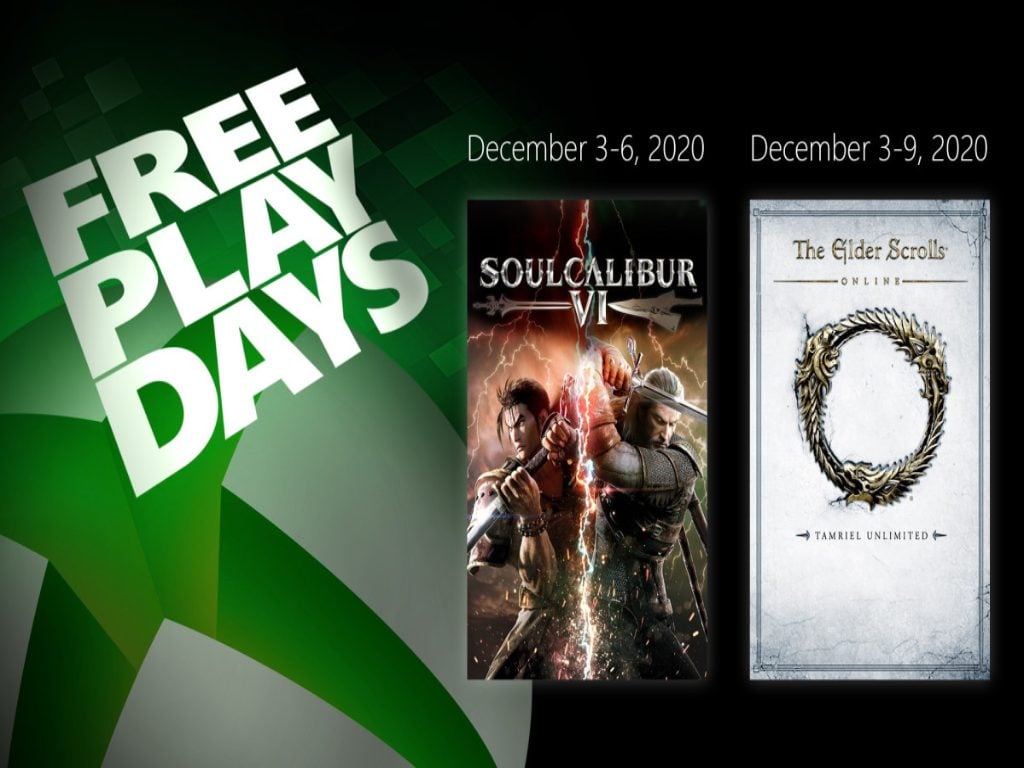


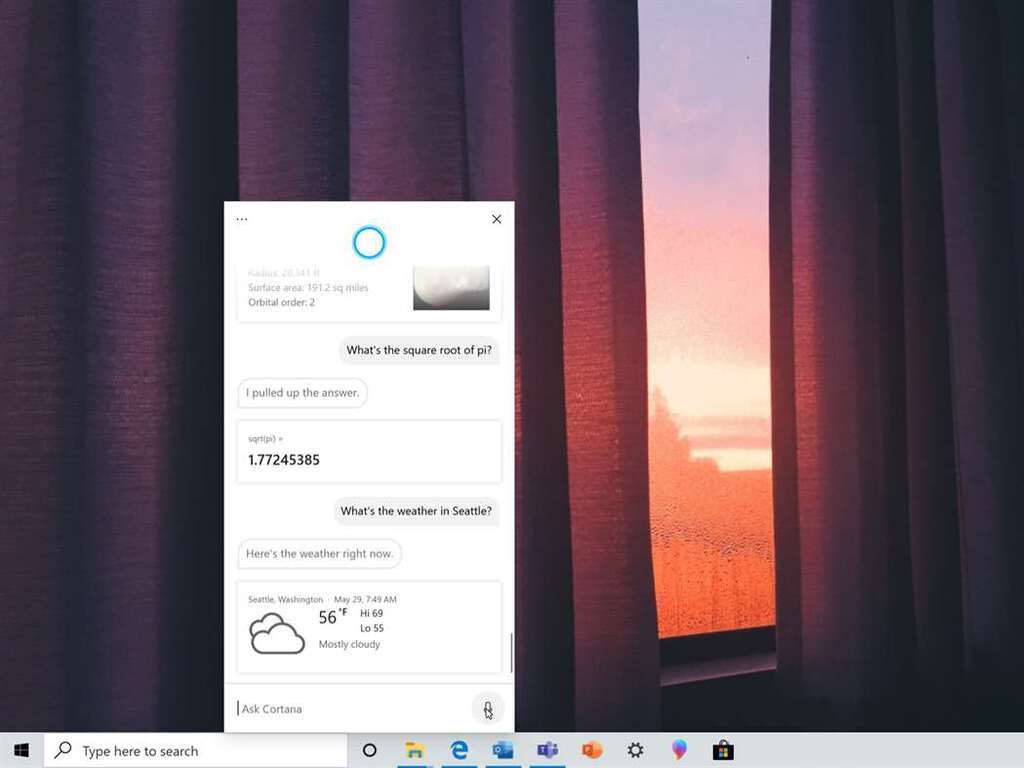

![Best Vertical Monitors For Trading & Coding [2026 Guide]](https://windowsreport.com/wp-content/uploads/2019/11/KVM-switches-for-dual-multiple-monitors.jpg)










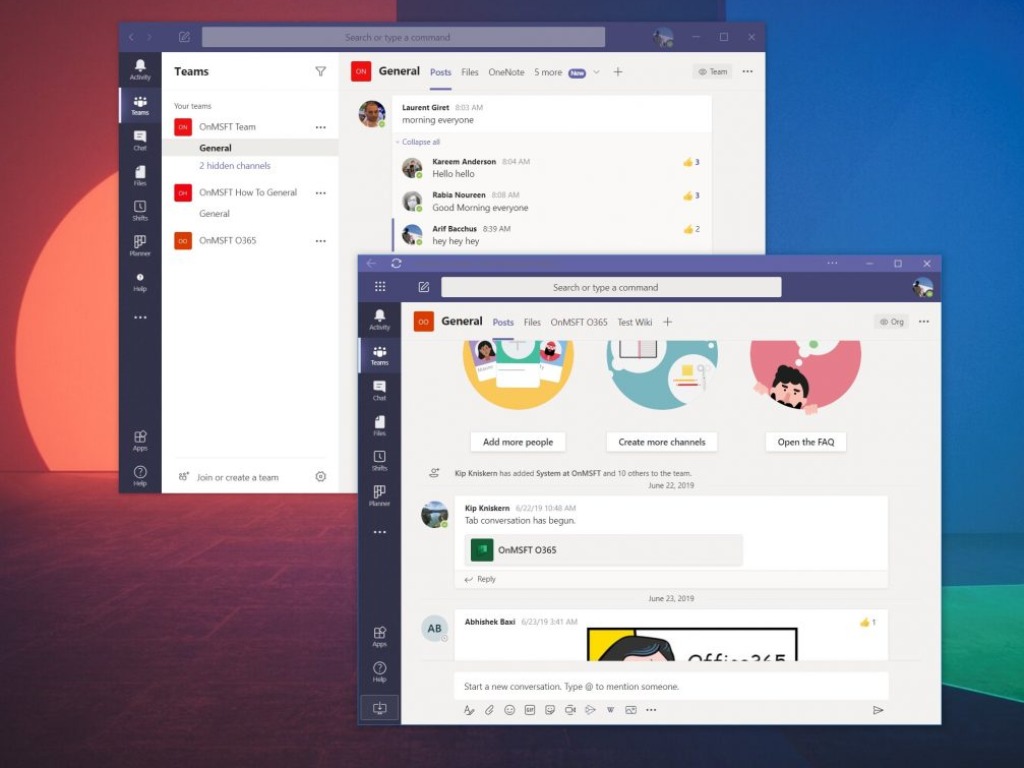
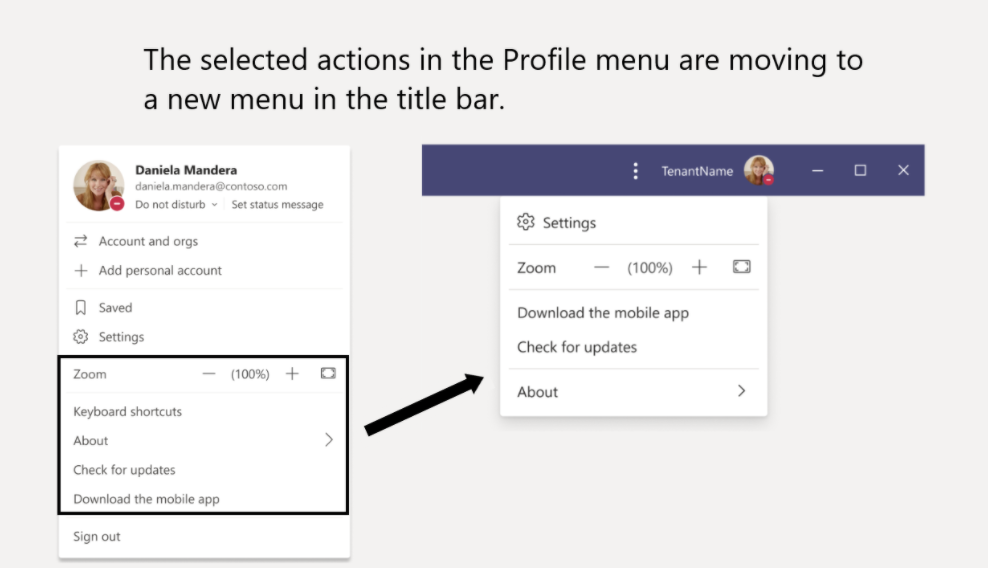
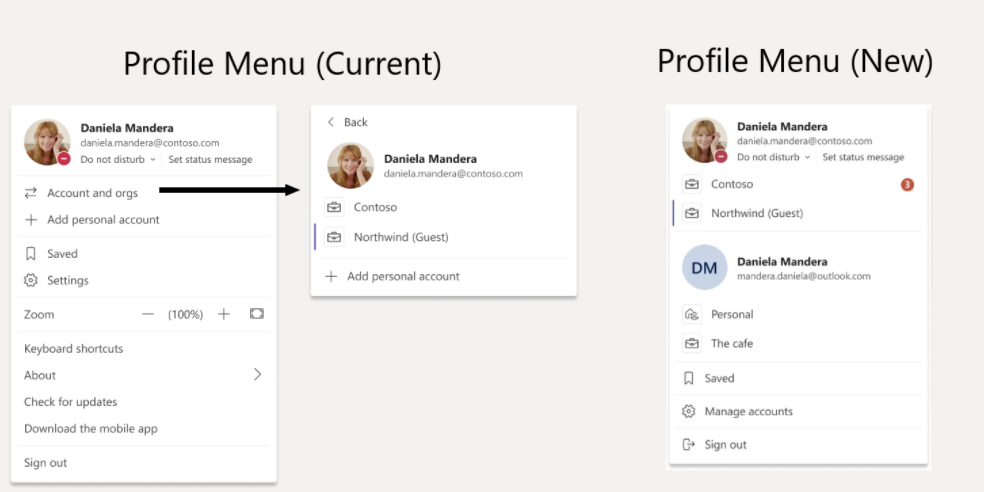
![5 Best Laptops For DJ-ing And Gaming [2026 Guide]](https://windowsreport.com/wp-content/uploads/2020/11/dj-1.jpg)






















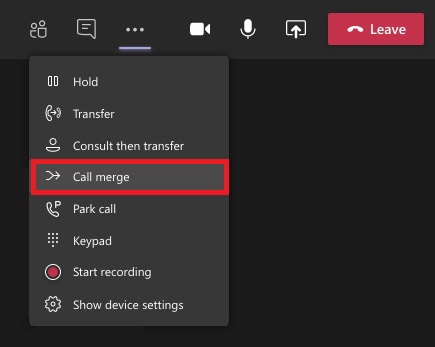



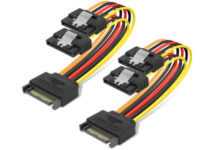


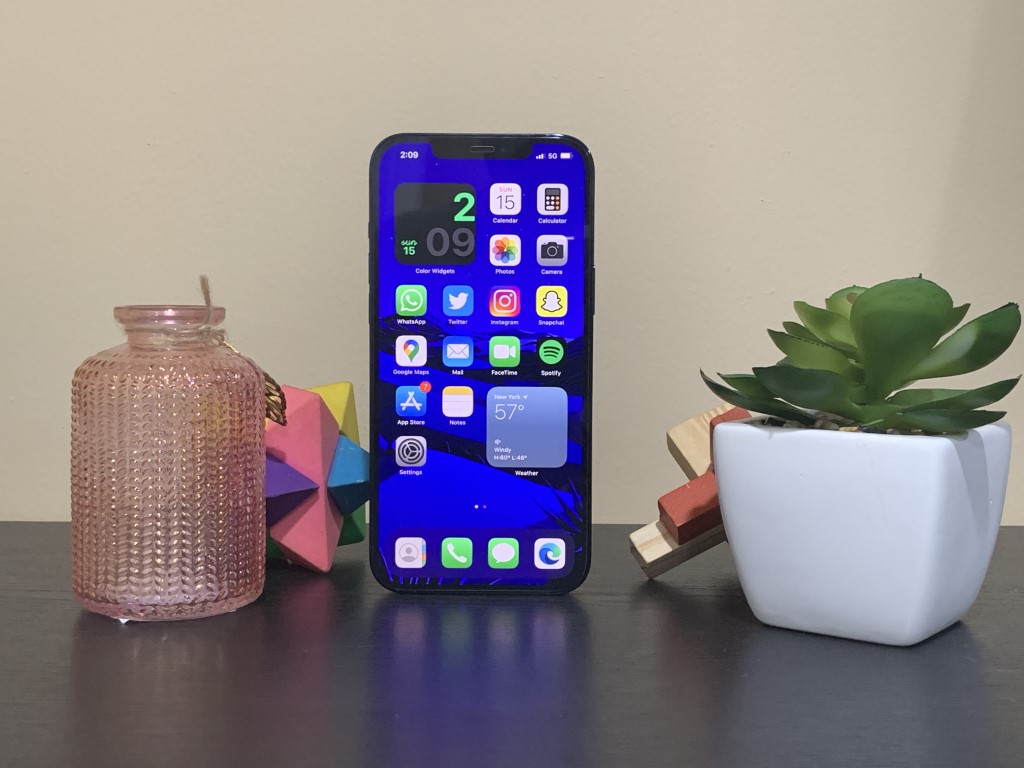
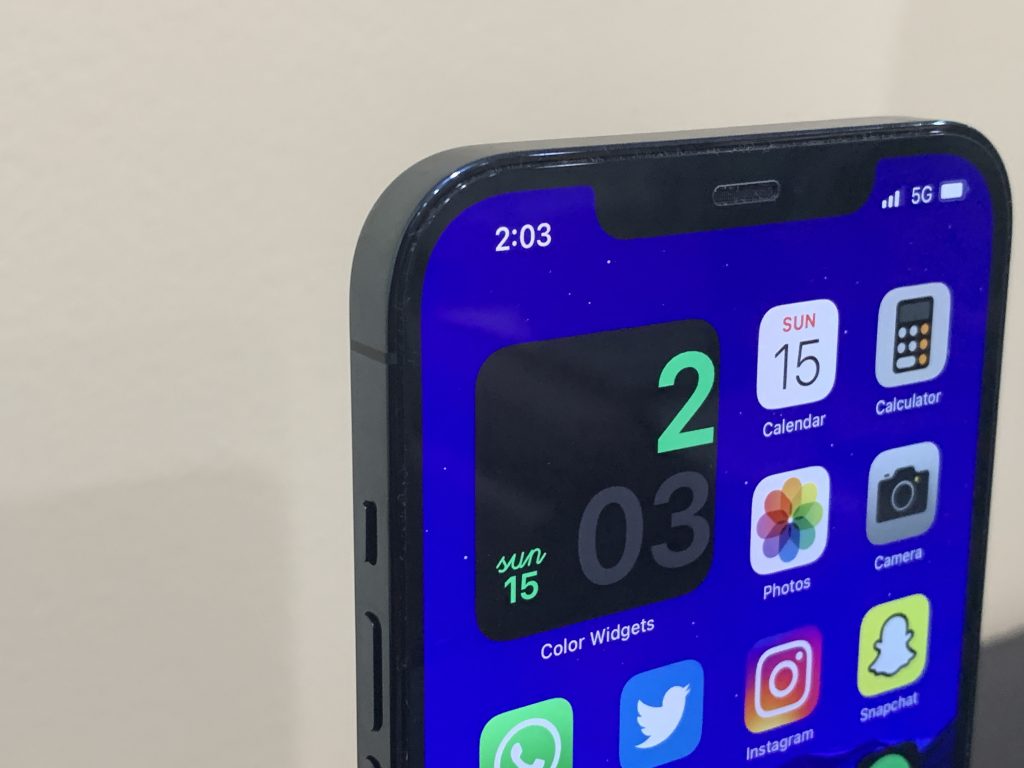
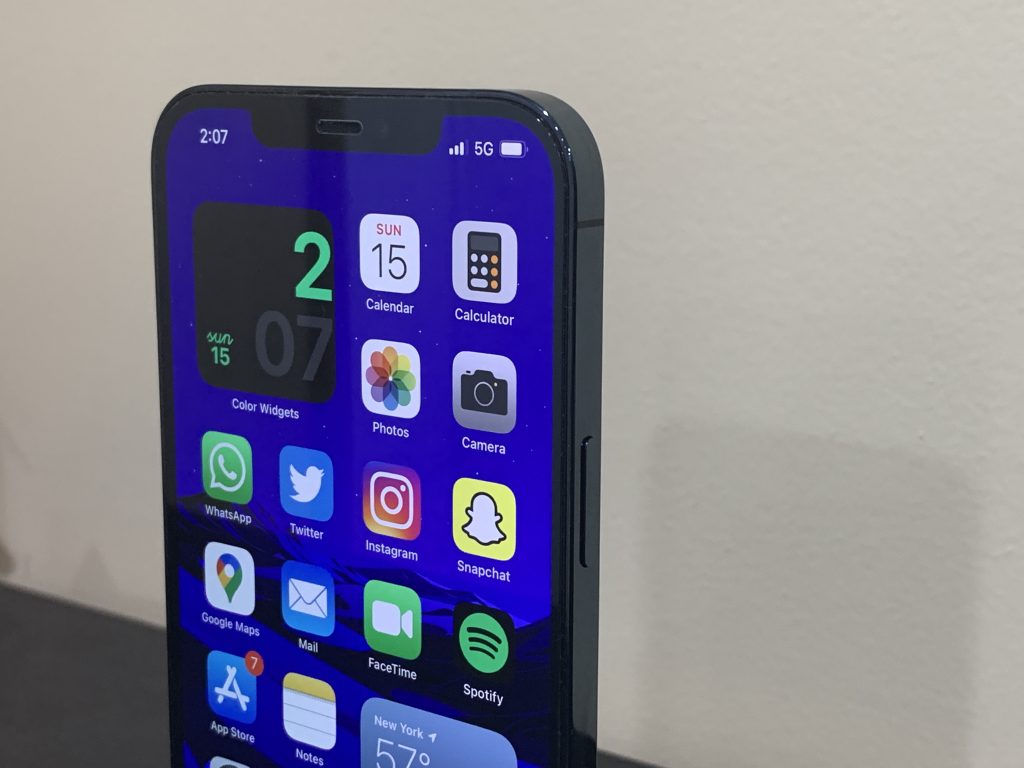
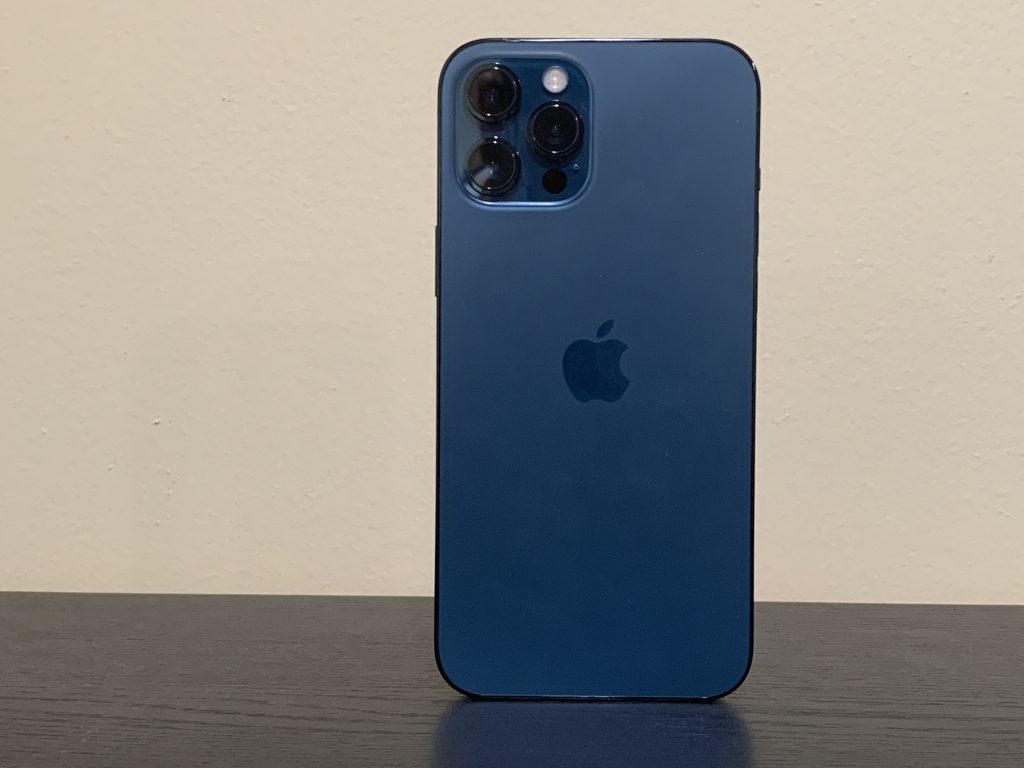
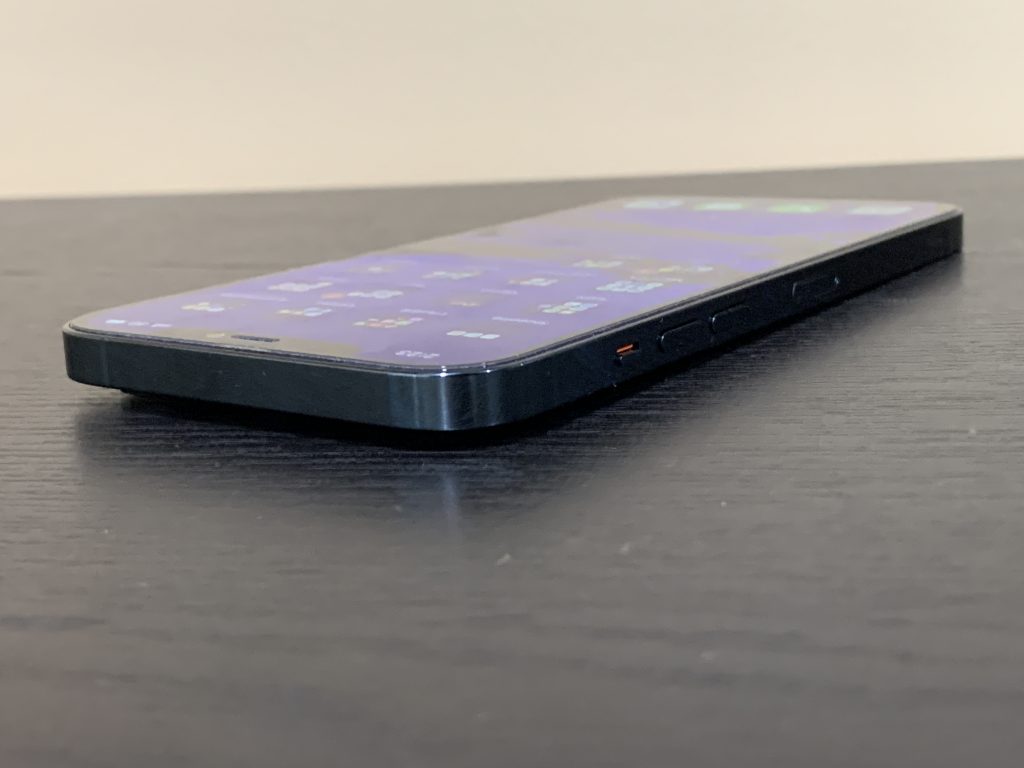
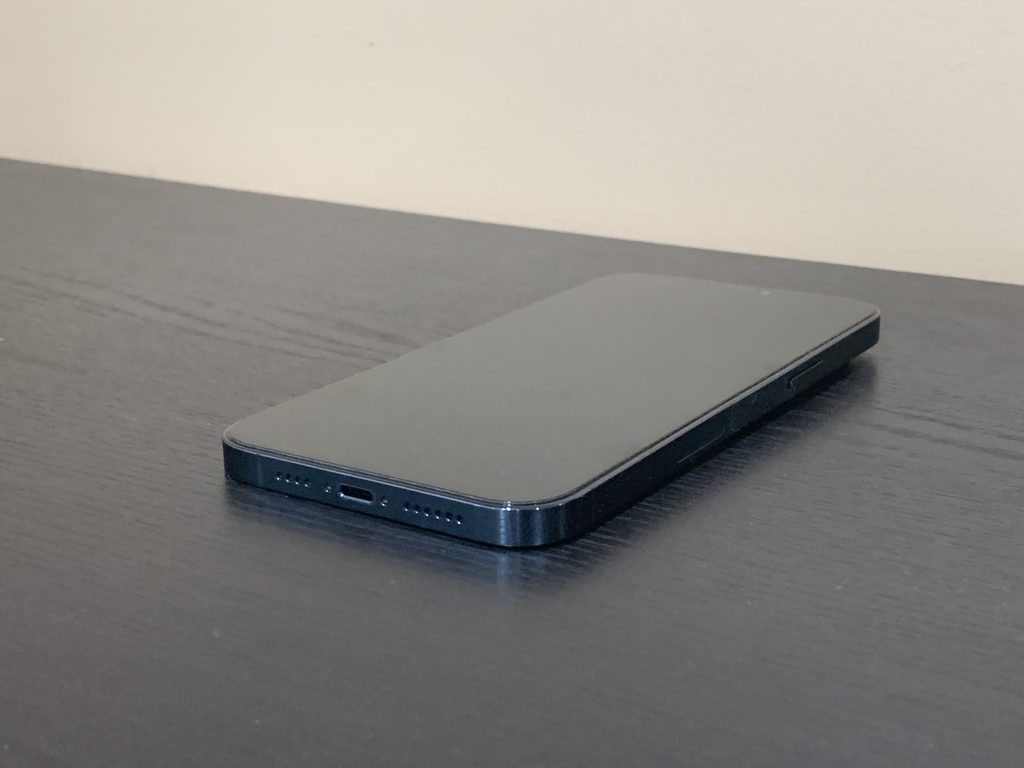
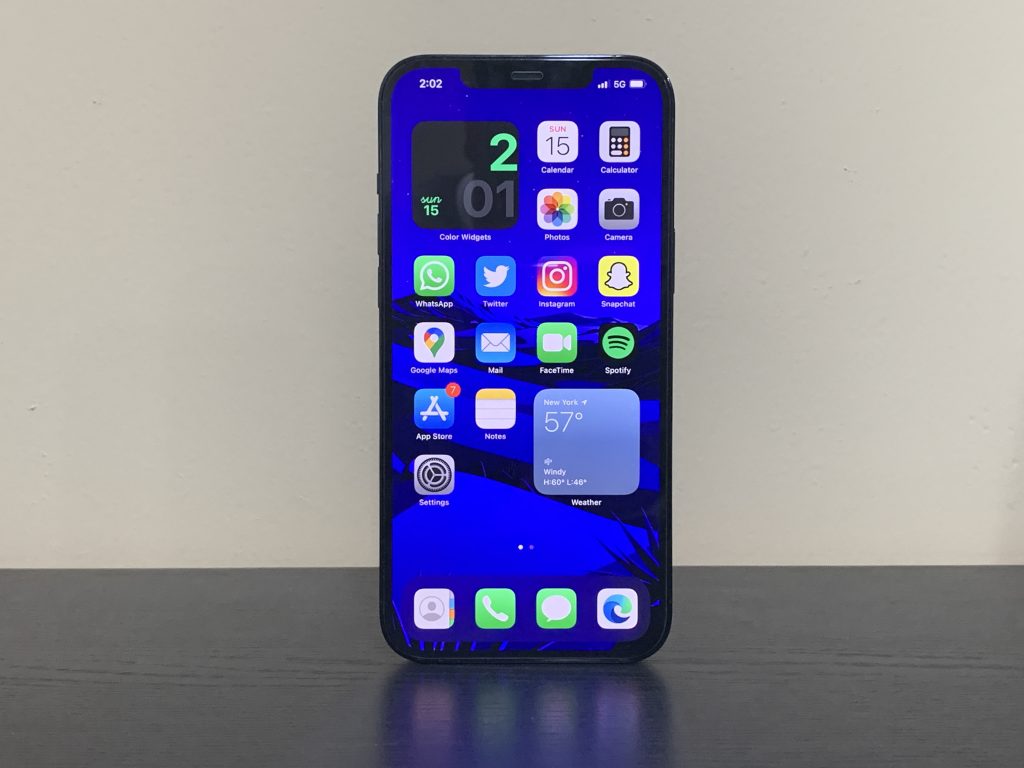
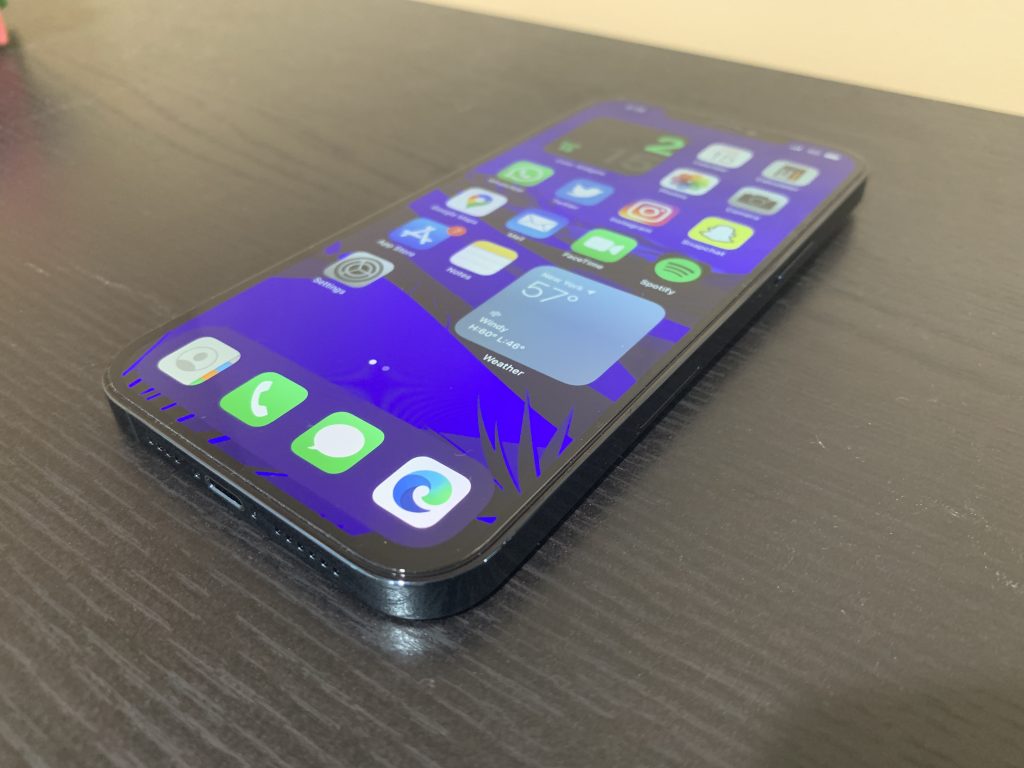
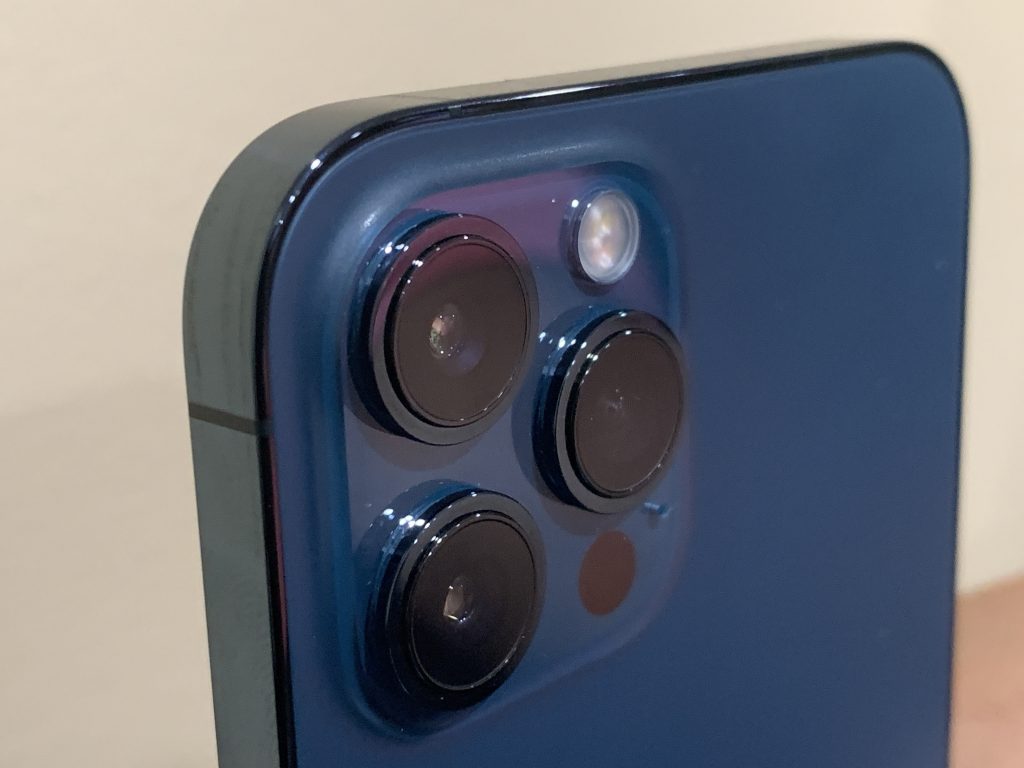








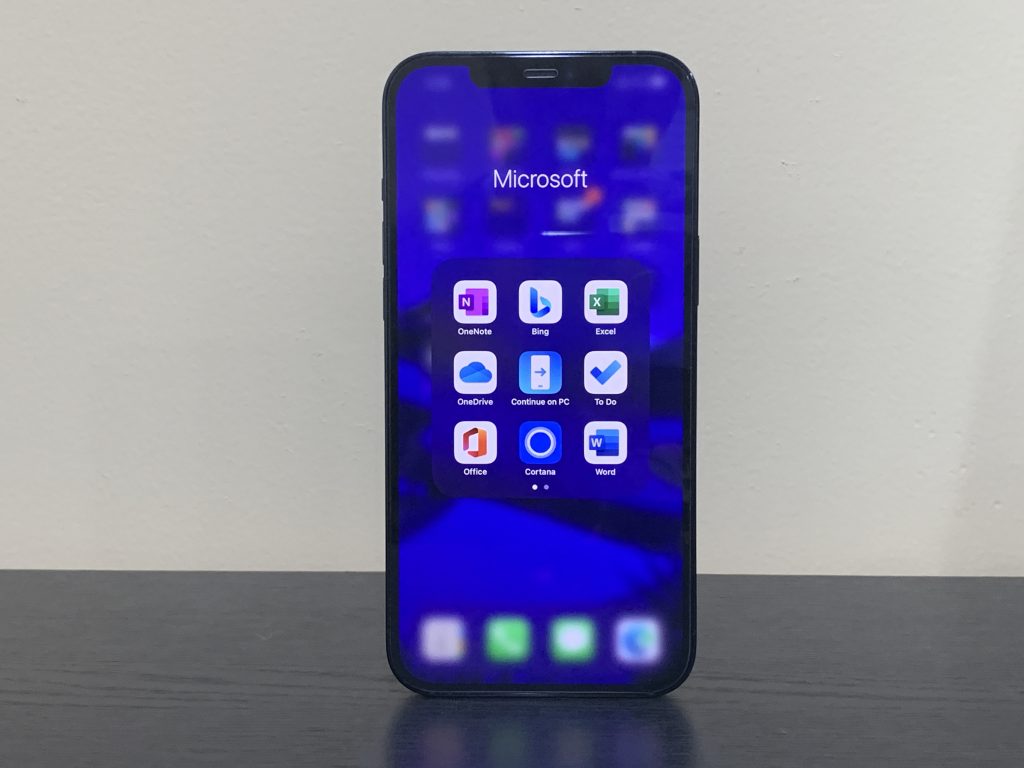
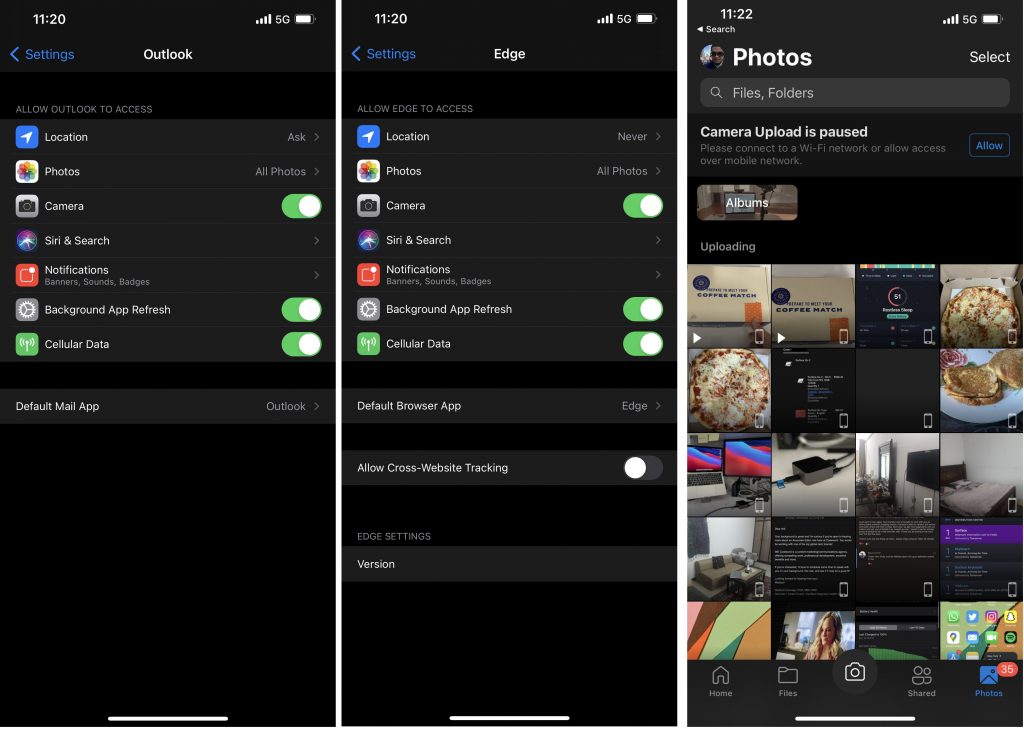
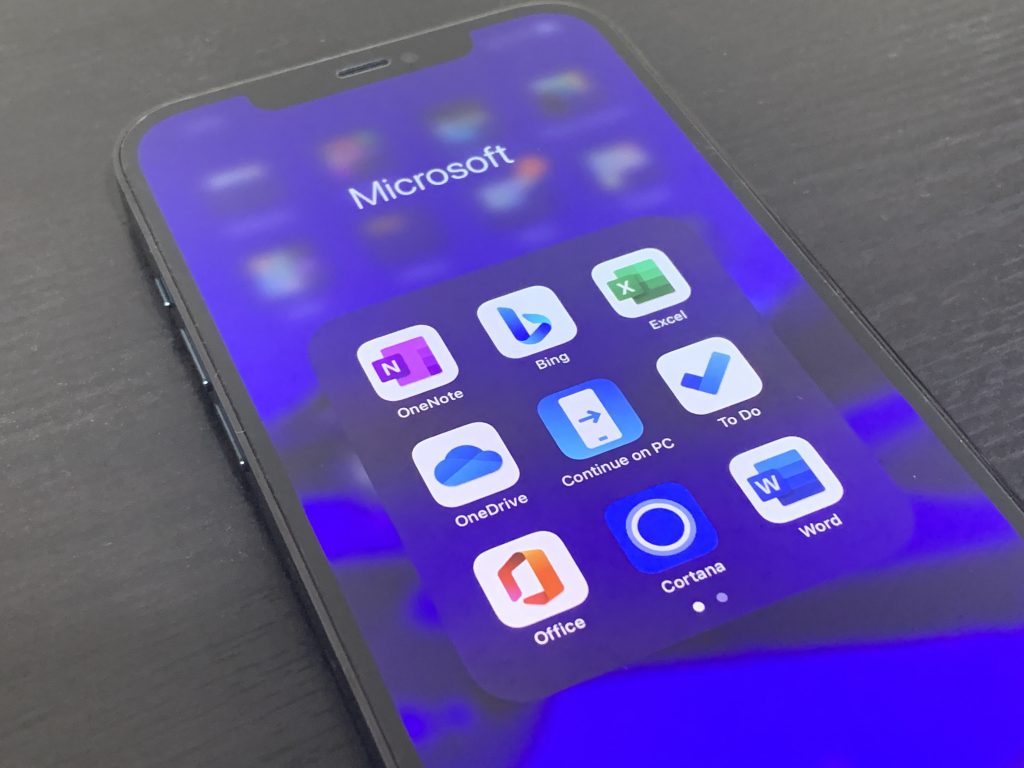







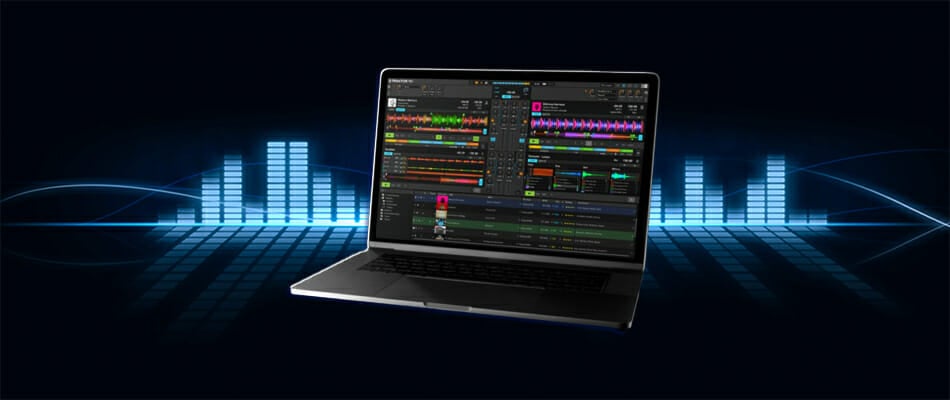



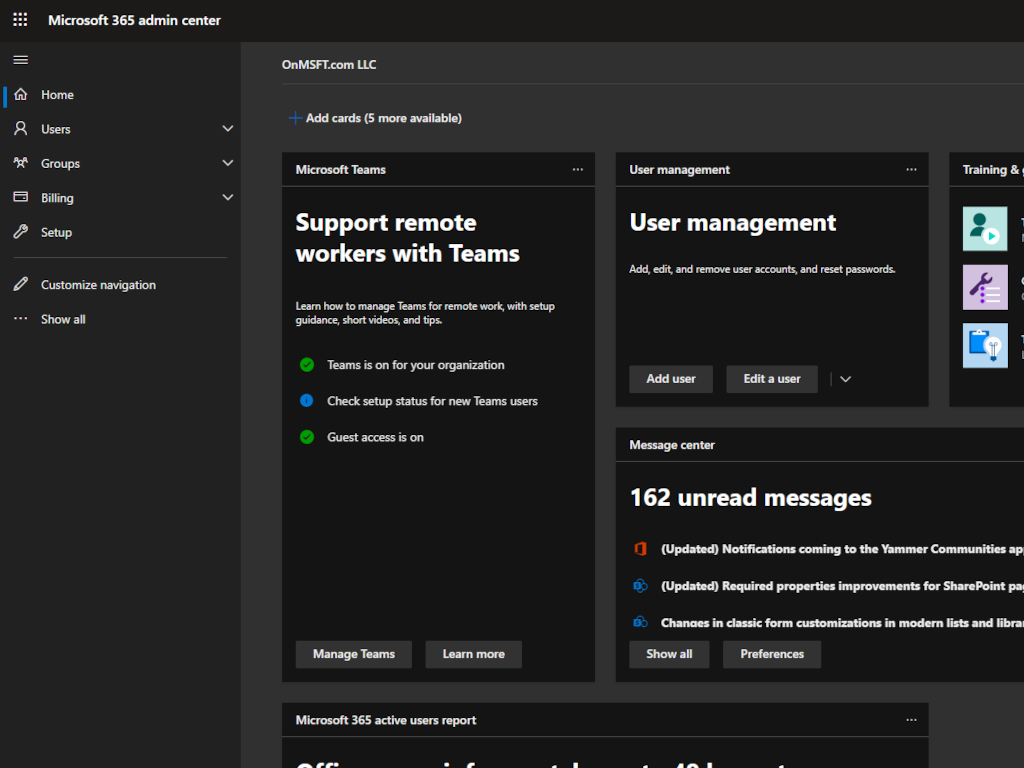



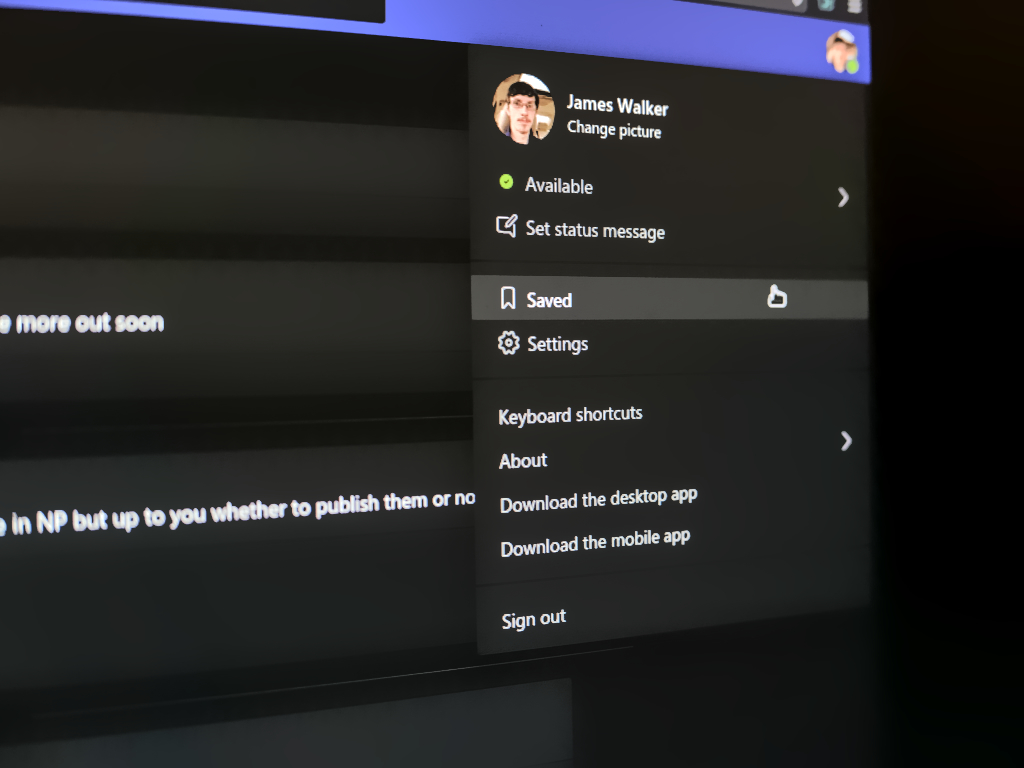

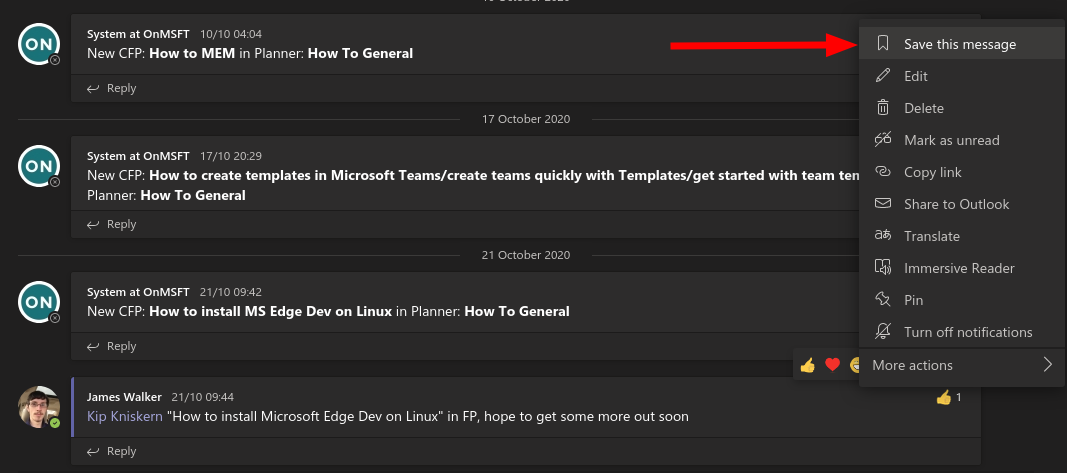
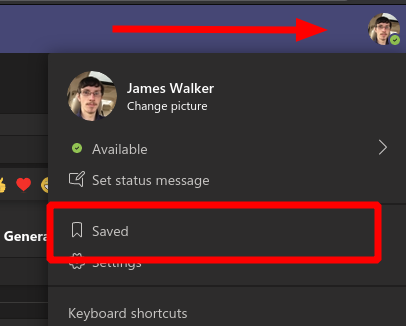
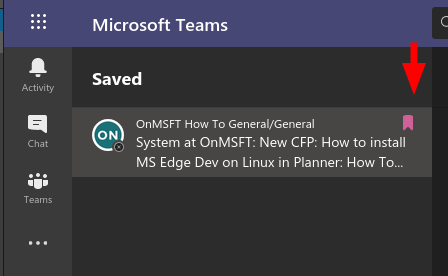
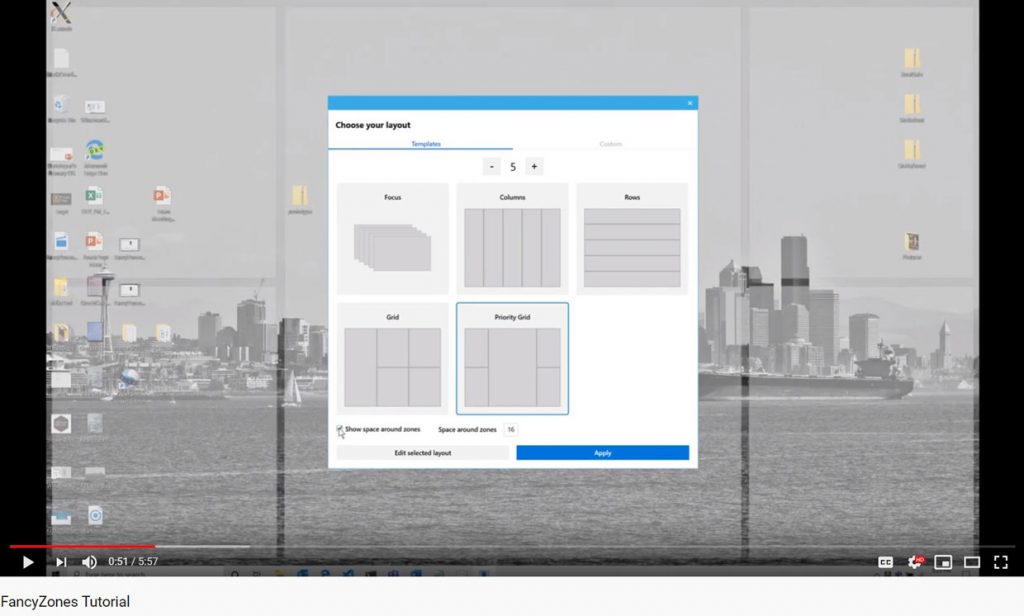
![Best gaming routers under $100 [PS4, Xbox One]](https://windowsreport.com/wp-content/uploads/2020/11/Best-gaming-routers-under-100-PS4-Xbox-One.jpg)