5 Best Budget Laptops For Video Editing [2026 Guide]

Whether you shoot videos using your smartphone or a DSLR camera, 4K videos have become a standard format for many. However, editing 4K videos is a CPU intensive work and requires a capable editing machine that offers adequate storage space and an accurate color display.

If you are on a budget, there are many mid-range laptops capable of running full-blown editing software like Adobe Premiere Pro and Black Magic Design’s DaVinci Resolve.

In this article, we have listed the best budget laptops for video editing that offer excellent performance without breaking the bank.

What are the best budget laptops for video editing?

Best laptop for video editing under $500: Acer Aspire 5 A515-55-56VK

  • Good performance for the price
  • Good built quality
  • Excellent price
  • Plenty of I/O options
  • Limited on storage space

Acer Aspire 5 A515-55-56VK is a winner when it comes to a budget priced workhorse. The latest version of the laptop comes with Intel Core i5 10th Gen CPU that packs enough punch for CPU intensive tasks like video editing.

While the build quality of the device is decent, the 15.6″ display offers good picture quality. It also features a fingerprint scanner on the touchpad and a backlit keyboard.

For storage, there is 8GB of RAM that is expandable and 256GB of SSD storage. It also offers plenty of I/O options, including USB Type-C 3.1 port and WiFi 6.

Acer Aspire 5 A515-55-56VK is an excellent choice for anyone looking for a mid-range laptop that doesn’t cost the earth without compromising the build quality or components.


Best laptop for video editing under $700: Acer Nitro 5

  • Impressive CPU and GPU performance
  • Expandable storage
  • Good battery life
  • Good keyboard
  • Low on storage

The latest edition of Acer’s Nitro 5 budget gaming laptops is the right choice for video editing. A beefy processor and a dedicated GPU offer enough to edit even 4K videos fast.

Under the hood, it comes packed with a Core i5 9th Gen Intel CPU paired with Nvidia GTX 1650 for optimal gaming and video rendering performance. The 15.6″ Full HD display gets decently bright and offers sharp picture quality.

Other features of the laptop include 8GB of RAM, 256 GB of SSD storage, and the usual connectivity features, including WiFi 6. The keyboard is good to type on, and the backlit keys help in the dark.

Acer Nitro 5 is a reliable workhorse that delivers on performance. However, to keep the costs down, Acer had to go short on storage while leaving space for storage expansion.


Best laptop for video editing under $1000: ASUS ZenBook 14 UX425JA

  • Strong performance
  • Light and portable
  • The touchpad can be used as a Number pad
  • Good display
  • Poor quality webcam

If you are looking for an ultra-portable Windows laptop for on-the-go video editing with excellent battery life and premium looks, the ASUS ZenBook 14 UX425JA fits the bill perfectly.

ASUS ZenBook 14 UX425JA comes packed with an Intel Core i7 CPU and integrated Intel GPU. For storage, you have 8GB of RAM that is expandable and a 512GB super-fast SSD drive. Like its 15″ variant, this one also features a touch-enabled trackpad that can also be used as a numberpad.

The 14″ Full HD display is a treat to watch and gets adequately bright when required. It also features the standard set of new-gen I/O ports to accommodate all your accessories.

ASUS ZenBook 14 UX425JA gets three – portability, power, and pricing – right for an ultraportable device that packs some serious power inside. Add to that the stunning looks, and you have the best budget laptop under $1000.


Finding the best budget video editing laptop is a tricky task as you have to find a decently powered laptop that offers great value for money.

All the laptops listed in this article can power through most video projects that you can throw at them. Go through the list and let us know your pick in the comments below.

[wl_navigator]

Audience Response Software: 6 Best to Use in 2026

In the past, audience engagement was usually done only by clapping and cheering but with the advancements in technology, now we can use specialized software designed specifically for this reason.

This type of software allows the crowd to interact with speakers and vice-versa using a simple button. You can use this software for live polling, webinars, gamification, live Q&A, etc. The information provided by such apps can also help speakers and organizers better understand the crowd’s preferences, make the experience more engaging and interactive.

Most of the software options for audience polling require different third-party controllers that allows your crowd to input data.

In this article, we will focus on the crowd polling software that doesn’t require you to buy anything else . People that are part of the audience, can easily use their smartphone to input data or participate in polls.

The speaker/presenter can also use his/her computer or mobile to set up questionnaires, interactive games, polls, get reactions, etc.

What are the best audience engagement tools for live events?

Adobe Captivate

best polling software

Captivate is currently the leading eLearning courses maker, bringing a set of professional features to create trainings quickly and efficiently, and spice them up with video content, interactive sessions, VR walkthroughs, or quizzes.

So the program isn’t a polling software per se but includes the necessary tools to create a polling session via out-of-the-box quiz templates.

Such types of interactions can challenge participants to match multiple choices, fill in the blanks, or provide a short answer.

Additionally, the remediation workflow provided by the app allows users to improve their results by retaking the quiz and better understanding the concepts.

Apart from this quiz-creation feature, Captivate allows you to accomplish the following:

  • Use ready-made templates to create simple or module courses
  • Add video content, motion effects, animations
  • Sync with PowerPoint to easily import presentations and convert them rapidly into interactive trainings
  • Deliver projects that are multiscreen responsive, so they adapt to the users’ device
  • Simultaneously record on-screen + webcam movement and edit for later insert into your slides
  • Bulk edit your objects with copy/paste functions, to save time when working on large projects
  • Access a whole library of attractive fonts via the Typekit integration
Adobe Captivate

Adobe Captivate

Create highly interactive polls and quizzes within minutes, using the ready-made templates this fully customized software offers.
Free trialVisit website

VoxVote

Voxvote - audience polling

VoxVote is a great audience polling tool that allows you to easily manage your crowd no matter how big it is. This software was designed for any speaker or teacher in order to be able to interact with the crowds by creating questions, vote sessions, and also have the ability to discuss the results of the tests live.

This software can reduce the number of paper feedback forms, that are really hard to handle and the response rate is very low. This makes the feedback-obtaining process, more streamlined and exact.

You can also compare the results of your polling/tests by interacting with your crowd before, during, and after the talk.

Key features include:

  • Unlimited audience/projects/events
  • Browser-based voting (Wifi, 3G.4G, https)
  • See the results of your graphs live
  • Audience can receive email summaries
  • Allows the audience to ask questions and moderate
  • Ability to instantly create new questions
  • Can create presentation slides
  • Secure voting
  • Crossing/combining question in result
  • VoxQuiz – calculates the total of points obtained by answering the questions right and exports a list of users to Excel

You can find a good range of tutorials about how to use VoxVote on the official site.

⇒ Try VoxVote


BuzzMaster

Buzzmaster - Polling software

BuzzMaster is a greatly powerful piece of software that was designed in order to make your audience polling experience easier than ever.

This software works with the state of the art interaction technology that can help you easily interact with your audience, find out opinions about different subjects, create tests/polls, and can also help you crowdsource funds for your cause.

The paid versions of BuzzMaster even offer you the services of an interaction specialist, who controls the system, consults with you in the starting stages of the project, and also works as a connection between the speaker and the crowd.

Key features include:

  • Selfie upload – when attendees arrive they can upload a selfie that can be customized by each person
  • Matchmaking – this feature allows you to be matched with different people at the
  • conference/meeting based on similar interests
  • Ability to open questions and comments – find out exactly what your audience’s opinion is and allows them to express their concerns, praises, etc.
  • Multiple-choice questions – allows you to find out data about audience demographics
  • Bar graphs – for easier representation of charts, questions, etc.
  • Pie charts
  • Clusters – groups your audience’s responses into data clusters for easy access
  • Voting features
  • Sorting and grading – can find out what the audience think of the speaker by using grades

The tool comes in three versions. We’ll list the main features of each version below.

BuzzMaster Essential:

  • 250 maximum participants
  • Limited features and slides
  • Customized design
  • Interaction is done by client
  • Full phone customer support
  • Data export – PNG, XLSX
  • GDPR data protection

BuzzMaster Advanced:

This version of the software offers an unlimited number of participants, features and slides, a great number of customized designs. The Control Interaction Tool is managed directly by BuzzMaster, you get full customer support on-site, and all the other features of the Essential version with some additions :

  • Dedicated Wi-Fi network
  • Closed servers
  • Interaction specialist
  • Event program consultant
  • Complete technical support
  • Data DJ
  • Audience intermediary

With the Premium version of this software, you get all the features presented in both Essential and Advanced versions. The Premium version also gives BuzzMaster the power to function as a moderator.

⇒ Try BuzzMaster


Crowdpurr

Crowdpurr - audience polling

Crowdpurr is another great software option that offers great audience engagement features for your events. This app is free to use and offers a wide range of traits that allow you to be in full control of your audience and, at the same time, pick their minds regarding their opinions, discussions, votes, interactive games, etc.

One of the best features of Crowdpurr is the fact that you can interactively add different elements to your hub. You can customize your software to suit your needs perfectly by adding images, questions, answers, brand logos, etc.

Crowdpurr offers users a wide range of features. Some of the most notable ones are:

  • Experience dashboard – friendly design of the user interface that allows you to keep a live overview and control over your data
  • Ability to see fully detailed results
  • Projector view – a reactive pop-up screen that allows you yo share your project with the crowd on any device
  • Real-time response with no refreshing needed
  • Ability to present the final results of your poll, trivia game, etc.
  • Easy to access mobile view – the audience can interact with your polls with no sign in required
  • Multiple and single voting
  • Wide range of question formats
  • Live polling
  • Social media walls

The free version of Crowdpurr has a limited amount of features and is designed for smaller crowds. You can use it with 15 participants/event, can ask only 3 questions, and can produce 3 experiences.

This version includes the experience dashboard, projector view, and mobile platform. The free Crowdpurr also has a logo posted on the screen and ads.

Crowdpurr’s Classroom Plan offers a good range of features that are designed for medium crowds. This plan allows you to use 100 participants, ask 100 questions, and produce up to 10 experiences. You can also upload custom branding logos, create image/GIF based questions, has a fully automatic playback mode, and get free customer support via email and phone.

You can also easily export test results, audience votes, and other participation data to Excel.

The Seminar Plan for Crowdpurr was designed for larger crowds. This version has all the features included in the Classroom Plan, and also adds:

  • 500 participants
  • Can create 25 experiences
  • Can set custom crowd access codes for experiences
  • Collect and export names, emails, phone numbers, etc.
  • Multi-language crowd support

The Conference Plan from Crowdpurr was designed with huge crowds in mind. This version offers all the features of the Seminar Plan, and also adds:

  • 1000 participants
  • Can create 50 experiences
  • Custom background uploading
  • Ability to set brand custom domains and URLs

The Convention Plan offers high-end advertising and was designed specifically for massive crowds. In this version you will find all the features included in the Conference Plan and also adds:

  • 5000 participants
  • 100 experiences
  • Ability to monetize ad space
  • Dedicated servers

The Crowdpurr Custom Plan offers you the possibility to organize specially tailored and branded experiences for high number of events. This version allows you to get high-end interactive experiences directly from the producer, offers support for Ultra HD Live events, and you have unlimited power of customization and deeply branded experiences.

You can also use immersive 3D graphics in your presentations and can get on-site tech support for both training and setup.

⇒ Try Crowdpurr


EventScribe

eventScribe - audience polling

EventScribe is another great audience polling software that was designed specifically for educational conferences and meetings. This software allows planners to control every aspect of the event, and also gives the attendees the power to express their concerns, issues, and opinions.

When it comes to your audience, EventScribe can make note-taking a lot easier. Your attendees have access to the full event program, choose the sessions they want to participate in, and they can also add highlights, annotations, and even draw on your presentation slides.

By using EventScribe Floor Plan app, your audience can take part in live polling, ask questions, connect to social media, add comments during sessions, and can even share notes with other people.

This app is also perfect for meeting planners with its powerful back end tools. You can customize your app with specific branding, and the tile home screen design can easily present you with the possibility of selling sponsorship with full-screen ads, event sponsored content, etc.

EventScribe has been released in 3 different versions that offer specific features for different types of users:

EventScribe Express:

  • 5 maximum menu navigation items
  • Basic pop-ups for your presentation
  • Speaker photos and biographies
  • Email module for communicating with users

EventScribe Standard includes all the features of the Express version and adds:

  • 8 maximum menu navigation items
  • Quick tutorials for users
  • Advanced presentation pop-ups
  • Attendee list

EventScribe Professional contains all the features of previous versions and adds:

  • Unlimited number of menu navigation items
  • Set up customized pop-ups
  • Can hide speakers once the task is completed
  • You can filter the speakers by county, state, and organization
  • Custom pages for speakers

⇒ Try EventScribe


Confrenz

Confrenz - audience polling software

Confrenz is a light-weight audience polling app that allows the speaker/presenter to keep in touch with the crowd’s emotions, and also allows the audience to interact with the speaker by asking and answering different questions, participating in polls and questionnaires, etc.

Even though this app is not as powerful as the other options presented in this article, Confrenz has a good range of features that can simplify the process of organizing and managing events of all sizes.

Key features of Confrenz include:

  • Offers you a complete and interactive event guide
  • Great communication tools that allow you to stay connected to your crowd and vice-versa
  • Tools to get event feedback and info
  • Customized questionnaires and surveys
  • Wide range of interactions both speaker to the audience, and audience to the speaker

⇒ Try Confrenz


Having the possibility to engage the crowd at your events is a crucially important task. This allows you to hold their attention and present/talk with ease, by the use of all the incorporated tools found in the software presented above.

The wide range of tools presented in this article covers all the needs of both speakers/presenters that work with small crowds, and also for events with thousands of people.

Browsing through the features lists presented in these tools will surely make it easier than ever for you to choose the best software option for your needs. With this software, you can engage your audience at a professional level and make decisions on how you are going to continue your talk/presentation, based on live feedback from the attendees.

Let us know in the comment section below what software option you chose and why.

[wl_navigator]


7 Best Laptops For Streaming Media & Games

For many, live streaming has almost become their full-time job while for others is a requirement in their workplace, which in return gives them a lot of movement freedom.

Now it’s easier than ever to get your work done with only a good laptop and a reliable internet connection.

For high-quality streaming, you need high-speed internet with a reliable upload speed. Not to mention that your laptop should be able to handle multiple applications at the same time.

As there are many good laptops out there that could do this job just fine, we took the liberty of trying them out and select them based on the most frequently used streaming options.

Make sure to check out this article for the best streaming laptops you should have.

What is a good laptop for streaming?

Best laptop for live webcam streaming: HP Pavilion Gaming 15-Inch

  • Intel Core i5-9300H
  • Advanced Thermal management
  • 9th Generation intel(r) processor
  • The front edge is super sharp

HP Pavilion Gaming 15-Inch Laptop is a laptop with so many great features that many will become addicted to it.

It comes with a 9th Generation intel(r) processor that will complete your tasks easy and fast. Is a great laptop for live webcam streaming and also fantastic for gaming or watching movies.

The advanced thermal management that comes within will ensure that your laptop is kept cool to the touch at all times and that this is not affecting the acoustics.


Best budget streaming laptop: HP EliteBook 840 G2

  • High-performance technology
  • Comes with 28GB SSD
  • Built-in Bluetooth and WiFi capabilities
  • Does not have HDMI

HP EliteBook 840 G2 is a great budget laptop where you don’t need to make any compromise when it comes to the streaming quality.

It has an Intel Core i5-5200U Processor that ensures a fast and reliable laptop with a battery that will last for longer hours.

Moreover, the 128GB SSD and the powerful Windows 10 Pro comes to add even more stability to this fantastic laptop’s performance.


Best laptop for streaming movies & Netflix: HP 14 inch HD

  • Intel Celeron N4020 processor
  • Windows 10 Home in S Mode
  • Transfer rates up to 2400 MT/s
  • The letters on the keyboard are somehow big

HP 14 inch HD Laptop is fast, reliable, perfect for streaming movies & Netflix and it charges pretty fast compared to other laptops.

The powerful processor will allow you to stream your favorite music as well without having to compromise at all on the sound quality.

The laptop comes with a really lovely travel laptop backpack alongside the USB charging port and the Legendary Mousepad.


Best laptop for streaming Twitch: HP Stream 14-inch

  • Full HD IPS Display
  • Backlit Keyboard
  • Dual-Core Processor (Up to 3.5GHz)
  • The keyboard backlight turns off after a set amount of time

HP Stream Laptop is a slim and lovely laptop, as the description says, and is also the perfect choice for streaming twitch.

The screen is very sharp and with high contrast and is smooth and fast enough for web surfing, streaming video watching, normal office software working.

The keyboard backlit is another convenient addition that makes the typing comfortable especially when you are using the laptop during night time.


Best laptop for OBS streaming: Acer Aspire 1 A115-31-C2Y3

  • Intel Celeron N4020
  • Windows 10 in S mode & Microsoft 365 personal
  • 1-year subscription (activation code included)
  • On the max volume, it's not very loud

Acer Aspire 1 A115-31-C2Y3 is a great choice that will make it easy for you to stream while using OBS.

It’s a lightweight laptop with fast Wi-Fi connectivity and most of all reliable, meaning that you can count on it while doing your projects at work or school or while watching a movie at home.

Thanks to the Windows 10 in S mode you will benefit from a fast start-up and a pretty efficient way to get all things done fast.


Best laptop for streaming music: Acer Aspire 5 Slim Laptop

  • Up to 7.5 hours battery life
  • AMD Ryzen 3 3200U Mobile Processor
  • Fantastic Visuals
  • No Memory Card slot

Acer Aspire 5 Slim Laptop comes with a great balance between the performance it offers and its price.

It is the perfect choice in terms of listening to music, thanks to the Acer TrueHarmony that will allow for a more clear sound with its innovative speaking design.

Its peak performance and mobility and its extensive connectivity will allow you to accomplish more with this laptop than with any other.


Best laptop for streaming to TV: Dell Inspiron

  • 10th Gen Intel Core i7-1065G7
  • Touchscreen
  • Fast 1 TB SSD storage
  • Nothing so far

Dell Inspiron is the last of our recommendations and the best when it comes to TV streaming thanks to the 15.6” HD Touchscreen.

It has been upgraded to 1 TB SSD which will allow you to save data on your laptop at a pretty fast speed.

Thanks to its powerful processor and the substantial bandwidth RAM you will be able to smoothly run your favorite TV programs, play games, work in video editing applications. All this without ever losing performance speed.


It’s not always an easy task finding and selecting the best laptop for your specific needs, considering that there are so many really great options out there.

We hope that our list helped you find the best laptop with which you can watch TV, play games, stream music, or work on other projects.

[wl_navigator]

Fix: Spectrum Access Denied Error (4 Tested Methods)

Spectrum is a popular US-based Internet Service Provider (ISP) that provides its customers with many communication services.

However, as expected, the service is unavailable to non-US residents. Furthermore, merely accessing the Spectrum website outside the United States will prompt you with an ugly Access Denied error.

With that in mind, we’ll teach you how to quickly circumvent this geo-restriction and bypass the Spectrum Access Denied error.

How to fix Spectrum Access Denied?

VPN

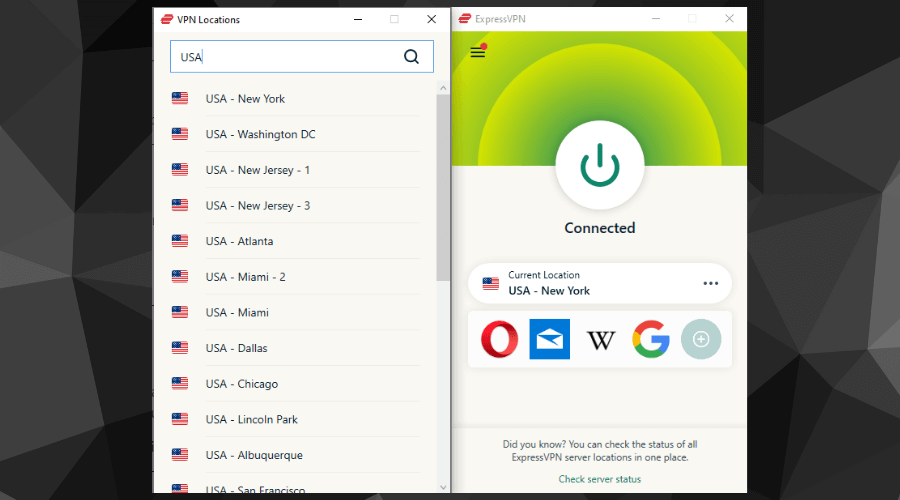
  1. Download and install ExpressVPN.
expressvpn us servers windows
  1. Log into your account.
  2. Connect to a US server.
  3. Try accessing Spectrum’s website.

If done correctly, you should be facing Spectrum’s homepage without breaking a sweat. You’ll gracefully dodge the error you can admire in its entireness below:

You don’t have permission to access “https://www.spectrum.com/” on this server.

Using a VPN will hide your IP address, and re-route your connection through secure servers while encrypting your traffic to prevent it from being monitored.

By the end of it, Spectrum’s website will believe you are located on the US server you connected to.

As a result, you won’t have any problems accessing this US-only service, even from outside of this region.

ExpressVPN

Unlock geo-blocked content and navigate the internet safely with this powerful VPN solution.
Free Trial Visit Website

Proxy servers

Proxy servers are a great alternative to mask your actual location if you’re not ready for a total VPN commitment.

Most of them are free, so you won’t have to spend a dime trying to mask your location and bypass Spectrum’s Access Denied error.

On the other hand, using free proxy servers might significantly slow down your connection, given that many users constantly assault them.

Last but not least, advanced filtering and firewall systems can easily pick up on proxy traffic and restrict you from accessing specific resources.

By comparison, modern VPN solutions have traffic obfuscation features that could help you fly under the radar.

Smart DNS services

Using Smart DNS is perhaps the fastest method. In short, it can hide your location like a VPN but with no speed loss.

Let’s discuss this in more detail: a Smart DNS service replaces your ISP-assigned DNS with a private address hosted in a certain location.

Furthermore, your IP address will stay the same, and your traffic will be visible to your ISP.

As a result, you’ll be able to access resources such as Spectrum’s geo-restricted website quickly, just as long as you select an appropriate location.

Smart DNS services are fast due to their lack of encryption. Thus, if you also care about your privacy as much as you do about bypassing Spectrum’s Access Denied error, you should consider using a VPN.

Tor

Tor is still one of the most popular choices for hiding your online identity. Thus, it makes sense to use it if you want to access Spectrum and bypass the Access Denied error.

Aside from masking your IP address, Tor also hides your actual location and makes it seem like you’re in a different place.

Some of the most commonly known drawbacks of Tor include its slow connection speed and the random factor regarding location spoofing.

To summarize, Tor is free and can effectively hide your location. However, it’s also prolonged, and you can’t choose a specific location like you can with VPN services.

However, suppose you want to land in a specific exit node country. In that case, you can modify some configuration files, which is not intuitive, especially for non-tech-savvy users.

All things considered, if you’re trying to bypass Spectrum’s Access Denied error, there are many ways you can tackle this issue.

VPNs are arguably one of the best ways to go about it, but you’ll have to commit to buying a premium plan, given that free VPNs aren’t as effective.

Surely, you may bypass it successfully by using some of our other suggestions. However, you may experience some drawbacks, including slow connectivity, lack of encryption, and even the inability to choose a specific region.

Once you’re in, accept the terms and conditions to avoid the self-install option not working error. And if you’re looking for quick ways to fix the Spectrum Remote volume not working issue, reprogram your remote, switch between the TV control & cable, or find more tips in our dedicated guide.

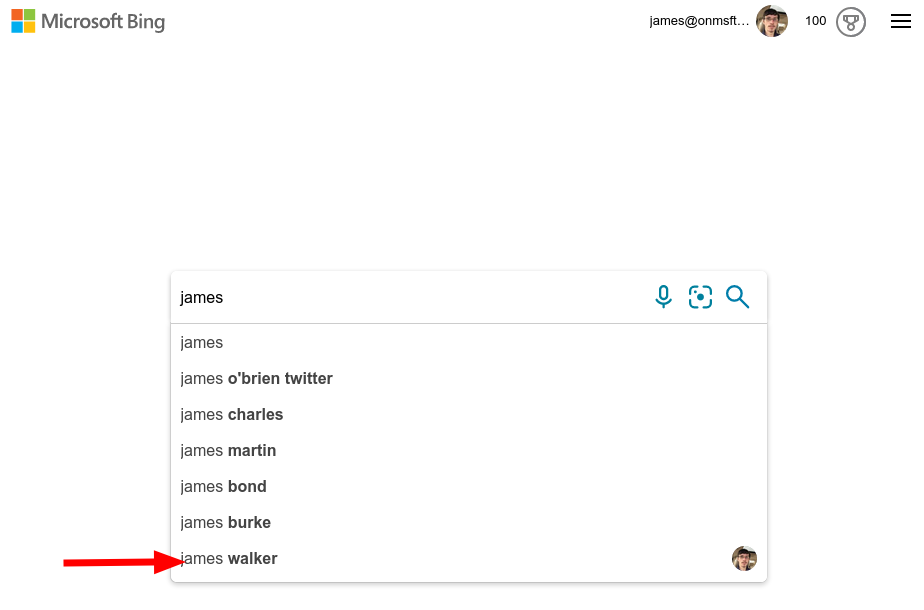
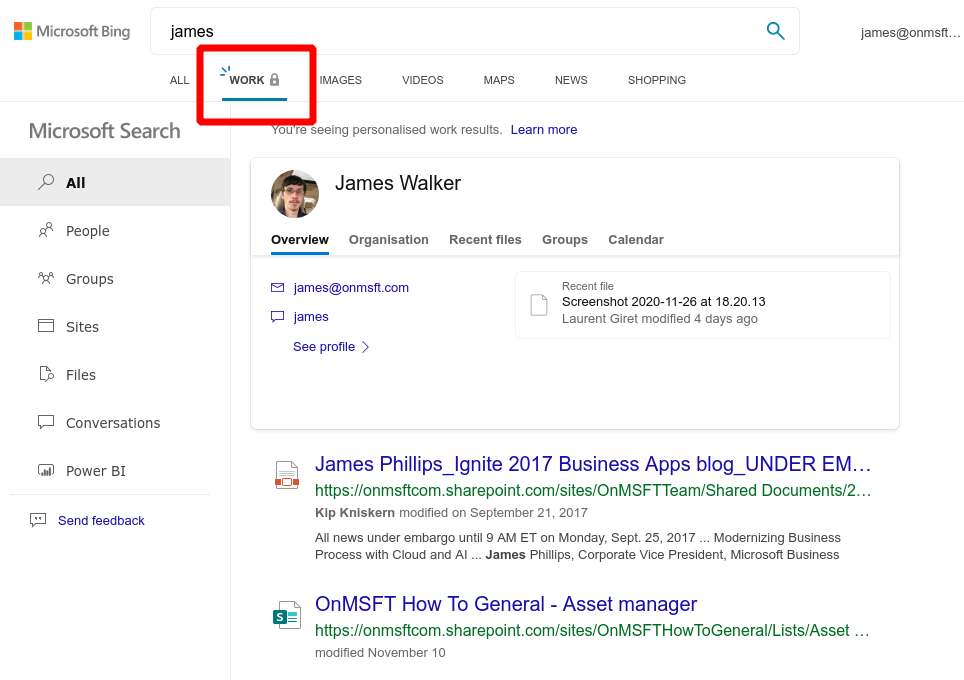
PSA: The “Search in Sidebar” feature is now live in Edge production, letting you see web results to the side of the page

After initial testing with Edge Insiders, Microsoft is finally rolling out the “Search in Sidebar” feature to the production version of the Chromium-based web browser. As long as you’re running Edge version 87.0.664.55 or higher, you can now drag to highlight a word and then right-click on it, then choose Search in Sidebar, and get a contextual search box to the right side of Edge.

Specifically, this new option can be useful for things such as definitions, web links, images, videos. Compared to the “Ask Cortana” feature in legacy Edge, you’re also getting image and video verticals, which show better results related to the highlighted word or phrase. You also can summon it with CTRL+Shift+E, too, without clicking, as an alternate shortcut.

It’s important to note, though that sidebar search is persistent in the tab in which it was opened. You’re going to get the option to close the pane (with the “X) or look up additional information related to other words using the search box from Bing. You’re also able to use the“Open in new tab” button which opens the web results in a new tab.

This feature will definitely be useful for educators, students, and even journalists, too. Perhaps even for shopping, in combination with the Collections and price checking feature in Edge, as well. Let us know what you think in the comments.

Thanks, Bruce Manor for the tip!

5 best Chromebooks under $200

Traditional computers are still going strong, but they no longer detain the monopole. A pool of alternatives is now available on the market and diversity, as always, is a good thing.

One particular alternative that is steadily gaining terrain are Chromebooks, hybrid-like devices that can be used as both laptops or tablets that primarily run on the Chrome OS.

We say primarily because recent years have spiced things up even more and now, we have Chromebooks that can run Android or even Linux apps.

And let’s not forget about the plethora of enhancements such as bigger screens, more computing power, and propers keyboards that were injected into these devices in recent years.

Price-wise, of course, a Chrome will be more affordable than a full-scale PC. But today, we want to show you the very best options for the lowest of budgets.

So, without further ado, here are our top 5 Chromebook recommendations that go for 200$ or so to fit all pockets.

What is the best Chromebook under $200?

HP 4BS38UA HP Chromebook

  • 14-inch IPS HD display
  • Intel Celeron N3350 processor
  • 4GB RAM + 32GB eMMC
  • Dual speakers, built-in mic and cam
  • Some users complained about the keyboard fabric

For those of you who thought that Chromebooks and gaming are no match made in heaven, this device is here to prove you wrong.

With all the rights boosts in all the right places, this Chromebook is perfectly optimized to provide performance even in the most demanding scenarios such as intense gaming sessions.

The device is equipped with a powerful Intel Celeron N3350 processor, a 14-inch IPS HD SVA anti-glare WLED-backlit display, and beautiful Intel HD-powered graphics. To complete the immersive experience, audio is also one stead ahead with B&O play with dual speakers.


HP ChromeBook 11 G4 EE

  • Intel Celeron N2840 Processor with 2 cores
  • 16 GB eMMc SSD + 4 GB DDR3L
  • TPM 1.2 Embedded Security Chip
  • 11.6-inch diagonal HD SVA WLED anti-glare display
  • Integrated Intel HD Graphics
  • The product is refurbished

It may not be brand new, but it looks and acts like one. This HP-manufactured Chromed is powered by a dual-core Intel processor that is guaranteed to deliver performance.

When combined with Intel HD Graphics, you can expect a truly incredible viewing experience that is even further enhanced by the wide display geared with HD, SVA, and WLED anti-glare.

Wifi-ready (not to mention the Bluetooth compatibility) and backed-up by the Amazon guarantee, you simply cannot go wrong with this super-affordable and highly effective product.


HP – 11.6-inch Chromebook

  • 11.6-inch display
  • Intel Celeron processor
  • 4GB Memory + 32GB eMMC Flash Memory
  • Intel HD Graphics 500
  • No HDMI port

Powered by an Intel Celeron processor that clocks at 1.1 GHz combined with 4GB of RAM, this Chromebook is all about boosting productivity as it allows you to open multiple tabs and run multiple apps simultaneously with no lagging.

The Intel HD 500 integrated graphics render fine-textured visuals on the HD display that stretched across 111.6 inches to provide an optimal viewing experience.


ASUS 11.6-inch Chromebook

  • 11.6-inch display
  • 4GB RAM + 16GB eMMC
  • Intel Celeron N3350 processor
  • Lithium-ion batteries
  • No Optical drive

Coming in at approximately 2.2 pounds, this Chromebook is lightweight and portable, but also effective thanks to its Intel Celeron processor that pumps in enough power to support all your daily tasks effortlessly.

Speaking about portability, the device also comes with 2 Lithium-ion batteries included that will keep you juiced up for no less than 10 hours.

Last, but not least, the 11.6-inch display will have you set for a comfortable viewing experience in no time.


Lenovo 80MG0001US-RB-AMZ2 N21

  • Intel Celeron N2840 processor
  • Wifi + Bluetooth connectivity
  • 11.6-inch HD display
  • 16GB of onboard storage
  • The product is refurbished

The Intel Celeron N2840 processor will put both its cores to good use allowing you to use this Chromebook for all your daily tasks, quickly and easily.

Its snappy performance can only be matched by the 11.6-inch display that offers crisp-looking images and is also HD-ready for your convenience.

The device is also highly versatile and Bluetooth-compatible to help you pair all your peripherals while keeping those precious USB ports free for more important devices.

[wl_navigator]

What is the smallest Micro ATX case?

Micro ATX and Mini ATX cases are pretty popular because they combine the power of a full-fledged desktop PC with a small form-factor, easier to store, and, why not, portable!

We tried to find the smallest Micro ATX cases for you but we also considered other features like proper ventilation or ease of access and security.

What are the smallest Micro ATX cases to buy?

  • Dual-chamber Direct Airflow Path
  • Three high-performance Air Series AF140L fans
  • Full side panel window
  • Front dust filter
  • Not the smallest

Corsair Carbide Air 540 is not the smallest Micro ATX cases but it’s one of the best from the smallest cases. It’s certainly the top case for cooling because you can mount up to six 120 mm or five 140 mm fans, with a 280 mm top radiator support and room for a 360 mm radiator on the front panel.

And this awesome case actually includes the 140 mm Corsair Air Series AF140L intake and exhaust fans that will not only ensure a very good airflow but it’s also a very silent solution.

The Corsair case comes with dual 3.5″ hot swap bays and four 2.5″ tool-free SSD drive cages for plenty of drives and storage.


SilverStone CS280

  • Verry small - 8.72 x 11.85 x 6.96 inches
  • Supports 2.5-inch hot-swap 8 HDDs with locker
  • Premium aluminum front door with lock
  • Dual 80 mm intake fans
  • Very little space to wire the disks

The SilverStone CS280 has only a 12 liters volume but it offers incredible storage space and versatility in a very small form factor. This case supports a total of 8 hot-swappable 2.5” SAS/SATA drives, plus a ninth 2.5″ drive internally.

Nobody says you can’t mount so many drives in such a little case, but you probably won’t have any space left for the cables to wire them. It can hold an ITX motherboard, and comes with dual 80 mm intake fans.


Cooler Master MasterBox Q300L

  • Magnetic Design dust filter
  • Transparent acrylic side panel
  • Adjustable I/O and fully ventilated airflow
  • The case can be positioned vertically or horizontally
  • Very low price
  • The airflow is not the greatest

The Cooler Master Box Q300L is a budget-friendly option for a very versatile Micro ATX case. Although the size is very small, this case supports a standard ATX PSU which it’s pretty rare with this size.

The I/O panel can be adjusted to six different locations based on the different system setup, three for each side of the case. Dust is a big problem for any PC but the magnetic dust filters on the front and upper sites not only that ensure proper ventilation but also keep the dust away.


SilverStone SG11

  • Ample space for CPU cooling (82mm in height)
  • Support graphics cards of any length
  • Micro ATX motherboard & ATX PSU compatible
  • Space for up to nine 2.5-inch drives
  • Not too great for gaming configurations

The SG11 is an improvement over the best case design from the SilverStone portfolio, the Sugo SG01. It has the same, classic shoebox proportions, with 10.63″ (W) x 8.35″ (H) x 15.47″ (D).

Although it’s a Micro ATX case, the SG11 can accommodate many standard-sized components like an ATX power supply or graphics cards up to 14.5″ long for instance. This is a great case if you’re looking to build a compact workstation or a powerful small form factor gaming system.


  • Big area air circulation panel with two pre-installed fans
  • Top panel with magnetic dust-proof net
  • RGB strip with 7 colors and 3 lighting modes
  • Two 120 mm black fans are pre-installed at front and rear
  • Supports up to 8 fans
  • Lots of plastic

If you want to build a Micro ATX gaming PC, Montech Flyer can help you all the way. It has two preinstalled 120 mm fans at the front and rear but it can host up to 8 fans.

You’ll be a fan too if you find out that this little tower case can hold Micro ATX, ITX, and Mini ITX motherboards, two 3.5″ HDDs, and also two 2.5″ SSDs.

The front RGB strip will add a touch of wow to the case and the dust-proof net from the top and at the PSU are easy to take off and clean.


This was out selection with the smalles Micro ATX cases for you to buy right now. You have to take into consideration that the small form factor of a case has to be doubled by versatility and intelligent cooling design.

If you have any suggestions, drop us a line in the comments section below.

[wl_navigator]
3 Best SSD Encryption Software [2026 Guide]

If you work with a lot of data and sensitive information, you should avoid that these fall into the wrong hands. Consider, for example, the files and folders stored on a removable hard disk that gets lost or stolen.

The General Data Protection Regulation requires companies to adopt a series of security measures. Those should be applied for the encryption of data stored on notebooks, external hard drives, and other media.

But how is it possible to protect the files and folders stored on hard disks, external HDDs, or removable drives? How can you make sure that the data stored on these devices can only be accessed by the legitimate owner? How to reassure users that any third party will not access the data?

Luckily there are tools that you can use to encrypt HDDs or SSDs and keep any data safe. 

?️  Quick tip:

Before creating the encrypted volume in the chosen unit, it is a good idea to create a backup copy of the unit contents.

This is only as a precaution, should anything happen to your original data. For this purpose, we recommend a free software such as AOMEI Backupper Professional.

This software help with system, disk, partition, and file backup, as well as with file synchronization and mirroring. It is currently one of the best tools to obtain an exact copy of your files.

AOMEI Backupper Professional supports both incremental and differential backups, and there’s also a command-line backup feature for advanced users.

You should store the image or backup on removable support or on another system. In this way, you can easily restore everything in case of problems.

AOMEI Backupper Professional

A simple and powerful solution to back up large files on any local or external drive, as well as in cloud.
Check price Visit website

What software can I use to protect my hard disk?

VeraCrypt

VeraCrypt is a free opensource software considered as the direct successor of the TrueCrypt historian.

As opposed to TrueCrypt, VeraCrypt uses some improvements that allow you to trust on an even higher level of protection.

VeraCrypt allows you to create encrypted containers (volumes) within which you can save personal files and sensitive data. You can create the encrypted volumes on a local hard disk or on any removable hard disk or USB stick. You will only need to take care to mount the container after connecting the outdoor unit and disassembling it before removing it.

So, the application allows you to protect the contents of the hard disk and removable drives by fully encrypting it.

How to encrypt a hard disk with VeraCrypt

  1. Launch the VeraCrypt installer by selecting the Install option.  You can choose the Extract option if you do not intend to protect the system partition or the system disk. Remember that the system partition is the one hosting the operating system. 

By choosing Extract you can still create encrypted containers and protect non-system partitions. In this case, you can save the files necessary for the VeraCrypt operation in a folder of your choice. You will, then, use the program as “portable” software.

In case you decide to install VeraCrypt on your system, the application creates – by default – a recovery point.

2. Connect the removable drive or the hard disk to be protected.

3. Start VeraCrypt.

4. Click on the Create volume button.

5. Click on Encrypt to non-system partition / drive then follow the instructions.

6. Choose between creating a VeraCrypt Standard volume and a hidden VeraCrypt volume.

For example, after you have encrypted the removable drive, nothing will happen when you connect it to your computer. To access the content of the storage unit, you will need to start VeraCrypt and mount it, using the interface.

You can mount or unmount then the encrypted volumes. If you choose the first option, you can to access the respective content. Vice versa, you make it impossible to access by unauthorized persons.

You should choose an encryption algorithm for data and a keyword (passphrase) that you will take care to keep jealously. Why so? To create a container encrypted volume (Create an encrypted file container option) or to protect a removable drive or an external hard drive.

How do I protect the system partition with VeraCrypt?

Alternatively, you can choose to encrypt the system partition or the entire system drive option by installing VeraCrypt. It protects the contents of the hard disk where the operating system is installed by encrypting all the files and folders.

This way, the content of the hard disk will not be readable by third parties that do not have a personal password.

VeraCrypt will encrypt automatically and completely all files, including temporary files, files used to manage the hibernation procedure (automatically turn on and off the computer), swap files, and so on.

Using encryption on the system partition or disk involves activating a pre-boot authentication mechanism.

Before loading the operating system, VeraCrypt asks to specify the passphrase or the personal keyword chosen when encrypting the unit.

Next:

  1. Click the Create Volume button.
  2. Select the Encrypt the system partition or entire system drive.
  3. Select Normal.
  4. Choose whether to encrypt only the partition containing the operating system or the entire hard disk.
  5. Determine whether you want to encrypt the area, if any, located at the end of the hard disk, used by RAID systems, tools for system recovery, troubleshooting, diagnostics, and so on.
  6. Create an emergency disk (Rescue Disk). You can use this disk to restore the startup of the operating system if you forget the passphrase or in case of malfunctions.

⇒ Download VeraCrypt

Windows’ built-in BitLocker

encrypt SSD or HDD

Windows 10, as well as older OS versions such as the Ultimate and Enterprise editions of Windows Vista and Windows 7, in the Pro and Enterprise editions of Windows 8 and Windows 8.1, on Windows Server 2008, you can encrypt and protect your hard disk using a built-in tool, BitLocker.

To enable it on your system, type BitLocker in the taksbar search box, click on Manage BitLocker. Choose to turn on the option on the desired drive.

protect SSD with botlocker

You should know that Windows Vista and Windows 7 do not allow Bitlocker to start without the Trusted Platform Module (TPM) chip.

During the configuration phase of Bitlocker, Windows will ask you if you want to unlock the system by connecting a USB stick or typing a password.

The following steps are quite clear. They allow requesting encryption of the data actually written on the disk or even the encryption of free space.

There you have, two of the best SSD encryption software solutions available on the market. Let us know which one you installed and why.

5 Best Wi-Fi Routers with USB Port [Top Options]

Owning a Wi-Fi router has become a must nowadays, even though you will be using it at home or the office.

It’s always a really nice addition and the good thing about it is that most of routers will work with Windows 10.

In this article, we have put together a list of the best Wi-Fi routers that also come with a USB port, so keep on reading.

What are the best Wi-Fi routers with USB ports I can use?

TP-Link AC1750 Smart

  • Compatible with all Wi-Fi devices
  • 3 external antennas
  • Integrated USB ports
  • WPS cannot be disabled

TP-Link AC1750 Smart WiFi Router has a nice interface and setup and has many capabilities and features.

The main features it comes with are white and blacklisting, port forwarding, integrated USB ports, and many more.

The router has a phone app named Tether, and if needed, you can also generate a QR code in order to connect to the internet, which is a pretty nice feature.

D-Link WiFi Router

  • Dual-band
  • Advanced smart beam
  • Traffic optimization feature
  • Pretty big unit

D-Link WiFi Router, AC2600 MU-MIMO is a powerful router with USB ports that allow you to stream games and enjoy online gaming simultaneously.

Thanks to the Dual Core processor you will benefit from a powerful wireless internet network speed.

Moreover, the Intelligent quality of service feature will help you optimize the internet traffic by delivering seamless performance for your applications.

NETGEAR Nighthawk Smart

  • Up to 1500 square feet wireless coverage
  • Wired Ethernet ports
  • 1GHz dual-core processor
  • Seems to disconnect frequently

NETGEAR Nighthawk is another Wi-Fi router that will ensure you have a powerful signal and fast download speed even when you are some decent feet away from him.

You can connect up to 25 devices without seeing any changes in your streaming quality or the internet speed being affected.

Thanks to the WPA2 wireless security protocols, you are safe and protected while navigating the internet.

Linksys EA5800 AC1000

  • Dual-Band
  • Smart Wi-Fi App
  • Easy to set up
  • The connection is not as strong in larger rooms

Linksys EA5800 AC1000 is a nice, compact, and affordable router that can be installed really easy, in just a few minutes.

If you are not tech-savvy then this is the best router choice, since everything is simple and clear, so that anyone can use it without problems.

You can set up your devices and connect to the internet using this router without seeing any slowness of the internet speed.

TP-Link AX6000

  • Long Range Wi-Fi Coverage
  • 1.8 GHz Quad-Core CPU
  • Advanced security
  • Tech support could be better

TP-Link AX6000 is the last product on our list, but not the least, as this router is strong, reliable, and powerful, which definitely makes it stand out.

Thanks to the strong 1.8 GHz Quad-Core CPU processor, this router will constantly deliver stable performance.

The TP-Link HomeCare­ features offer advanced security to protect your online privacy for all the connected devices.

We hope our list has helped you find the best router with a USB port that will be a nice addition to your home or office.

While we’re on this subject, you might also be interested in the best routers for access points.

Tell us all about your experience with the routers with USB ports in the comments section below.

How to enable new performance metrics HUD in Chrome

Google is constantly tweaking the tools that measure web pages’ responsiveness and now is finally offering a Heads-Up Display (HUD) for the Chrome browser.

This allows users to get a solid grasp on how much impact certain web pages have on the performance of their browser.

Even if that’s only an experimental feature at this stage, it can extend the Core Web Vitals platform that Google launched just a few months ago.

To be more precise, the company has created a built-in HUD that displays real-time performance metrics while using a web page.

Even more, it will also include a smoothness metric called Average Dropped Frame (ADF). That’s what Google reveals:

Chrome now has an awesome rendering benchmark system for GPU and rendering related benchmarks. It works on all Chrome flavors, even Android and CrOS, even in their content_shell forms.

How can I enable the new benchmark HUD in Chrome?

  1. With Chrome Canary installed, type chrome://flags into the Chrome address bar and press Enter.
  2. Up next, with the experiments screen opened, just search for HUD.
  3. When the Show performance metrics in HUD flag shows up, click on the drop-down, and select Enabled.Show performance metrics in HUD
  4. You’ll be prompted to relaunch Chrome. Do so with no hesitation.
  5. Once the browser restarts, you will see the performance metrics HUD while you browse the web.

This new HUD is meant to be placed in the upper right of a web page and will reveal some performance metrics that are needed to offer a good user experience when browsing a website.

The core vitals currently include First Input Delay (FID), Largest Contentful Paint (LCP), as well as Cumulative Layout Shift (CLS). Keeping these in check will ensure that the website is loading within an acceptable amount of time.

As for that ADF smoothness metric, it can measure the GPU and rendering performance of a web page. The lower the ADF, the smoother the page will actually be.

Do you want to try out the new Google Core Web Vitals performance metrics HUD? Let us know your decision in the comments area below.

[wl_navigator]

Credit Card Reader Software: 3 Best to Use in 2026

These days, programs can provide tons of solutions to all kinds of modern problems such as organizing photos, learning a new language, and more.

You can also use a piece of hardware for your PC or mobile device to gain enhanced functionality. For instance, a mobile credit card reader is able to replace clunky, old-fashioned cash registers, and help you start accepting debit or credit card payments right on your computer or mobile device. But, on the other hand, not everyone owns such a mobile credit card reader, and this is where credit card reader software comes into action.

There are lots of credit card reader tools out there, and we picked three of the best ones that you can currently find on the market.

What credit card readers can I use on my PC?

Credit Card Terminal


credit card terminal

With Credit Card Terminal you will be able to turn your PC, tablet, or Windows laptop into a mobile credit card terminal. You will be able to accept payments even when you are on the go. This is an effortless and secure way to make sure that you never miss a sale.

Take a look at the best features that are included in this tool:

  • You can use the USB Credit Card reader on all versions of Windows 8.1 and also on Windows RT for free when you will be setting up a new account.
  • Using Credit Card Terminal, you will be able to swipe or key in credit cards, capture signatures, accept tips, and also collect sales tax.
  • You will also be able to send PDF receipts with a map that will be showing the location of your transaction.

All you have to do in order to be able to use Credit Card Terminale is download it from the Microsoft Store, enter your business information and instantly start accepting MasterCard, Visa, American Express, and Discover. The US-based support team is available to help you whenever you need it.


Credit Card Terminal

Credit Card Terminal

The simplest way to accept online payments on-the-go, from your phone, laptop, tablet or PC and let your business flow.

AnyCard Software


This is a free and also easy-to-use card authorization software. AnyCard Professional is a program that is used in order to authorize credit cards, and it comes with a pretty innovative approach that uses the Internet connection. The processing time is an automated one that runs in one or two seconds.

Check out the best features that are included in this software below:

  • The program was initially priced at $149, but now it is offered for free without any hidden costs involved.
  • The program does not come with any adware built into it.
  • You don’t have to provide your email address, unlike other software that is provided by other companies.
  • To be able to authorize cards, you will have to shop around and set up an account with a card processor, and AnyCard Professional only provides the software that allows you to authorize cards.
  • This program is really easy to use even for beginners.
  • AnyCard Professional states on the official website that is a small and generous way to give back to the community, and this is the reason for which it is free of charge.

The software does not come with support, but it does come with detailed help documentation which is filled with lots of helpful illustrations. This help documentation is built into the program. There is also included a PDF manual that covers the same help information that is found in the program. If you are having troubles while getting your Gateway configured, it’s recommended that you contact IT personnel or a more experienced computer user.

⇒ Get AnyCard Professional


PaySimple

paysimple software

PaySimple provides one of the easiest and fastest ways to handle card transactions. Take a look at the most important features that are included in this program:

  • Using PaySimple, you will be able to accept credit cards on the spot in your store or office from a desktop computer or a laptop running Windows.
  • All you have to do is to plug a reader into your USB drive, and the transactions will sync seamlessly with the account that you have previously created on PaySimple.
  • PaySimple features a sleek website.
  • The software is ideal for users who want to collect and store data about customers.
  • PaySimple is excellent for business owners who need support for both recurring billing and ACH.

Overall, PaySimple is a great payment processor for larger businesses that are really concerned about getting a rich set of features. The merchant account provider includes tiered pricing. In order to find out what the fees are, you will have to negotiate them when you sign up. PaySimple provides merchant accounts for both card-present and card, not present transactions. You can check out the complete set of features on PaySimple’s official website.

⇒ Get PaySimple

These are some of the best credit card reader programs that you can currently find online, and they are all compatible with systems running Windows.

They all come with their unique set of features, and before deciding which one of these programs is the best for you, we recommend that you head over to their official websites to take a closer look at the software.

After you have analyzed their complete sets of features, you’ll be informed enough to make the best decision for your needs.

[wl_navigator]

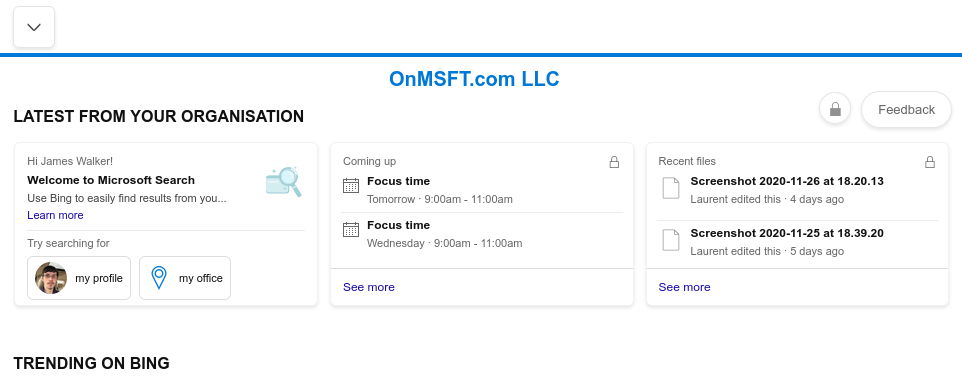
Microsoft pulling back “Windows 10 Team 2020 Update” amid Surface Hub 2S installation issues

The Surface Hub isn’t a device that receives a ton of updates, and for good reason, as it’s designed mostly for communal use where sudden changes in UI, functionality, and features can become detrimental to expediency and productivity.

Perhaps, even worse than getting new UI and features that can disrupt a well-oiled productivity flow, is getting an update that breaks things, like the Windows 10 Team 2020 Update for the Surface Hub 2S.

On October 27, 2020, Microsoft made its  Windows 10 Team 2020 Update for the Surface Hub available. The W10T 2020 Update was intended to help admins “manage installations using Windows Update for Business rings, similar to your standard Windows 10 update rings.”

However, since its release, Surface Hub 2S users have been complaining and sending feedback to Microsoft about the update causing various issues on the device. Microsoft hasn’t divulged the list of specific complaints, but today, it acknowledged the groundswell of Surface Hub users who are experiencing bugs and issues due to the new update rollout.

To date, we have 70% of all eligible devices in Phase 1 and 2 regions updated. While the majority of these devices were updated successfully, we have received feedback from a small number of customers who have encountered post-install issues. To ensure that we deliver an updated experience of the highest quality, we have taken two important actions:

  • We have created a summary of the current list of known issues, solutions, and remediations for transparency and to assist your team in diagnosing and resolving issues.
  • We have paused the Windows Update phased releases. Phase 1 and 2 were released per the schedule below and Phase 3 and 4 will be paused for the remainder of 2020.

In the same press release, Microsoft also offered workarounds for users that include using Bare Metal Recovery images to get around installation issues. In addition, Microsoft also noted that those who are “in a state of transition between Window 10 Team Edition version 1703 and 20H2,” by extending support through March 16, 2021.

Outlook for Windows is getting new translation capabilities next month

Microsoft is currently working on a new set of translation capabilities for Outlook for Windows that will make it easier for users to translate their emails. The translation features will be coming in January 2021, according to an email sent out to Office 365 subscribers.

With this new translation experience, users will be able to automatically translate words, phrases, and full messages on their Windows PCs. More specifically, when a user receives a message in a language that is different than the user’s default mailbox’s language, the app will automatically provide a translation suggestion.

translation features in Outlook

Microsoft says that there’s also an option for users to opt in to automatic translation, where the Outlook app will automatically translate all messages received in other languages. It is important to note that translation is an optional experience, and it will comply with the privacy settings of your respective organization.

The translation functionality is a useful feature that will hopefully make it easier to communicate and collaborate across different languages. As of this writing, it is under development and it’s available for Office Insiders. If you want to get early access to this new Outlook feature, you need to join the Office Insider program before it officially begins rolling out in mid-January.

How to view your notes and tasks within Outlook on the web

The Outlook web app comes with handy convenience features to reduce context switching and help keep you focused. One relatively recent addition is the ability to view notes and tasks from within the web app, avoiding the need to maintain multiple browser tabs or alt-tab across apps.

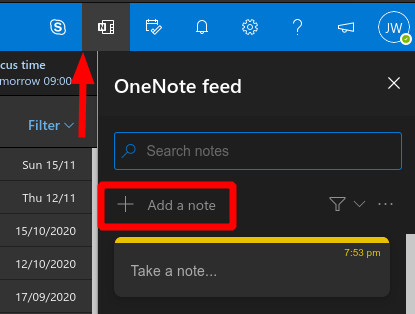
Looking at notes first, click the “N” (OneNote) icon in the top-right toolbar to open the “OneNote feed” pane. Here, you’ll see any existing quick notes you’ve made in Sticky Notes or Outlook Notes.

Screenshot of notes in Outlook web app

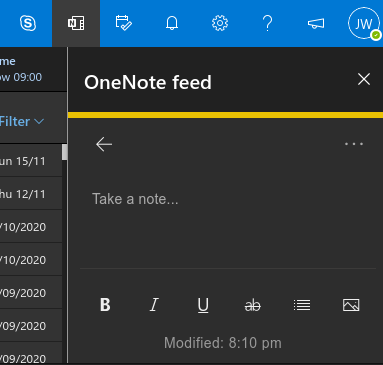
Click the “Add a note” button to create a note. A note authoring page will appear, complete with rich text editing capabilities. This is based on Microsoft’s Sticky Notes app. Once you’ve done creating the note, it will show up back in the OneNote feed and within the Sticky Notes app on the web, Windows and mobile.

Screenshot of notes in Outlook web app

Despite its name, the OneNote feed doesn’t actually support regular OneNote notes yet. At the time of writing, a flyout at the bottom of the pane explains that support for OneNote pages will be added “soon”. Microsoft’s also planning Samsung Notes integration, further extending its support for Android mobile devices.

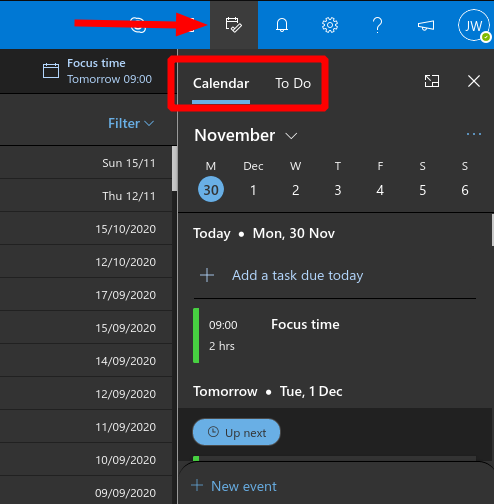
To view your calendar and tasks, click the Calendar icon in the top-right toolbar. The pane opens to a calendar agenda view. You can change which calendars are displayed and switch to a Daily view using the three dots icon next to the month header. To add a new calendar event, click the “New event” button at the bottom of the pane.

Screenshot of calendar pane in Outlook web app

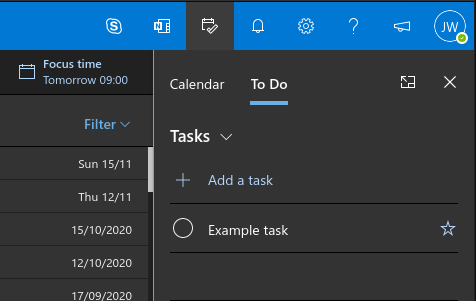
Microsoft To-Do tasks are accessed by clicking the “To Do” tab at the top of the calendar pane. Here, all your existing To Do tasks will be displayed, allowing you to quickly check them off or edit their details.

Screenshot of To Do pane in Outlook web app

Click “Add a task” and start typing to create a new item. You can rearrange tasks and mark them as important. Right-click a task to see more options, such as the ability to set a reminder and due date.

All-in-all, these Outlook flyout panes are handy when making quick notes and tasks while browsing your inbox. As with everything connected to Outlook, changes are fully synced back to your Microsoft account, so events, notes and tasks will show up in Outlook Calendar, Sticky Notes and To Do respectively, irrespective of what you use to create them.

Keep in mind that sometimes Outlook notes are missing, but that can be fixed with ease.

5 Best 13-inch Laptops with 16GB RAM

Finding the perfect laptop for your needs can be troublesome, especially when you must go through so many options.

There are many offers out there, and all of them seem great at first glance. In this article, we will explore some of the best 13-inch laptops with 16 GB of RAM to help you select the one that best suits your needs.

What are the best 13-inch laptops with great RAM capacity?

HP Envy – Best overall

  • 10th Generation Intel® Core™ i7 processor
  • 1 Year Warranty
  • 4-sided, micro-edge FHD
  • Nothing so far

HP ENVY Laptop is the perfect choice for people who love creating amazing things thanks to the Quad-Core 10th Generation Intel® Core™ i7 processor.

The battery lasts a longer period up to 10 hours and 45 minutes, and the video playback battery life can go up to 17 hours.

The laptop comes with an HP Wide Vision HD camera, it’s lightweight and with a very nice design. It also has a 1-year limited hardware warranty.

HP Spectre – Great battery life

  • Windows 10 Home
  • Intel Iris Plus Graphic
  • Fingerprint Reader
  • Is a bit expensive

HP Spectre x360 has a superior design and excellent features that make it worth its price range.

HP Spectre x360 (2020) comes with HP’s Tilt Pen, which brings even more style to the beautiful design and functionalities.

The laptop offers great performance, a stylish keyboard, quiet, prolonged battery life, and speakers that are also really good quality.

Dell XPS 13 – Offers premium features

  • Intel Core I7-10710U
  • 2 Thunderbolt 3 with Power Deliver
  • 4-Cell 52Whr Battery
  • Nothing so far

Dell XPS 13 is a reliable laptop with premium features and design, making it worth its price range.

Thanks to its 10th Gen Intel CPU, the laptop offers excellent performance, and the keyboard and touchpad make it the perfect choice for long work hours.

Moreover, the XPS 13 webcam has some nice improvements. It’s smaller and has a new 4-element lens, which is more than a typical camera’s, which delivers great video quality.

ASUS ZenBook S Ultra-Thin – Has stylus support

  • Touchscreen with Stylus Support
  • Windows 10 Pro
  • Up to 9 hours of battery life
  • Seems to be a bit loud

ASUS ZenBook S Ultra-Thin is a very thin and light laptop, as the name suggests. It is perfect if you often need to carry your laptop with you.

It comes with a UHD 4K monitor that offers a nice contrast. The laptop includes a primary USB port, a USB-C 3.1, and an HDMI port.

The battery life can go up to almost 9 hours, which is more than great for such a light and slim laptop.

Dell XPS 13 Touch – Amazing design

  • 11th Generation Intel® Core
  • Internal Backlit Keyboard
  • Intel® Iris® Xe Graphics with shared graphics memory
  • A bit expensive

The Dell XPS 13 Touch Laptop is made of premium materials and has an aluminum chassis, which offers an elegant overall design.

The laptop is fast, strong, and reliable. It’s also easy to open, use, and carry anywhere.

Don’t let the size of the laptop make you think this is not a powerful one, as the 11th Gen Intel® Core™ processors and up to Intel® Iris® Xe graphics make it fast, smooth, and accessible.

In case you’re looking for something different, why not check Lenovo Thinkpad L15 Gen 4 specs and see if the device suits your needs?

5 Best Printers With Parallel Port

In computing, a parallel port is a type of interface used to connect peripheral devices, like printers. Here is how the interface looks like:

The parallel port was introduced in the 1970s by Centronics Data Computer Corporation and was the standard for printers before USB.

Prior to the USB standard, the computer’s motherboards were built with parallel ports for printers and other devices.

Fortunately, even if the parallel interface has become obsolete, you can still find printers with this connection type in today’s market.

What are the best printers with a parallel port?

Epson Stylus C88+

  • High image quality
  • Individual ink cartridges systems, replace only the one you need
  • Auto-switch between interfaces
  • The average amount of space for paper in the tray

Epson Stylus C88+ is an inkjet color printer, that can print borderless photos at a maximum resolution of 5760 x 1440 dpi.

You can print up to 23 ppm (page per minute) for black & white pages and up to 14 ppm for color. Furthermore, the input paper tray holds put up to 120 sheets at a maximum paper size of 8.5×14 inches.

With Epson Stylus C88+ to is possible to connect 2 computers at the same time, one using the parallel port and the other to the USB port.

This color printer, small and compact, is the best option for use at home, with an older PC and even with a newer one.


Epson LX-350

  • Compact design that fits on any desk
  • Highly resistant to dust and humidity
  • Low power consumption
  • Compatible only with Windows OS

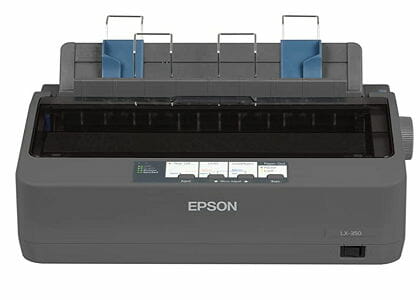
Epson LX-350 is ideal for front and back office environments needing continuous paper or multi-part stationery.

With this printer, you get speeds up to 347 cps (characters per second), allowing you to print bulk amounts of documents in a short time interval. It has a work capacity without failure for up to 10.000 hours, making it very reliable.

If you need a durable printer, easy to integrate with your system, Epson LX-350 is a great choice.


Zebra ZD500t

  • Prints 6 inches/second at 203 dpi
  • Best for large companies
  • Compact design
  • More expensive

 Zebra ZD500t  is another great thermal printer, used for labels, that comes with additional connectivity options.

It works exactly like its sibling, Zebra GX430t, but you can integrate it on your network due to its ethernet port. This is a great feature because multiple users can print labels at the same time.

Except for the ethernet port, it also has a display which gives you some additional configuration options directly from the printer.

If you think that in a near future you’ll connect the printer to your enterprise systems, Zebra ZD500t is the best printer for labels that you can buy.


Lexmark MS310dn

  • Compatible with all popular OS
  • 800 pages in the input tray
  • Great resolution of 1200 x 1200 dpi
  • No Ethernet or Wi-Fi technology

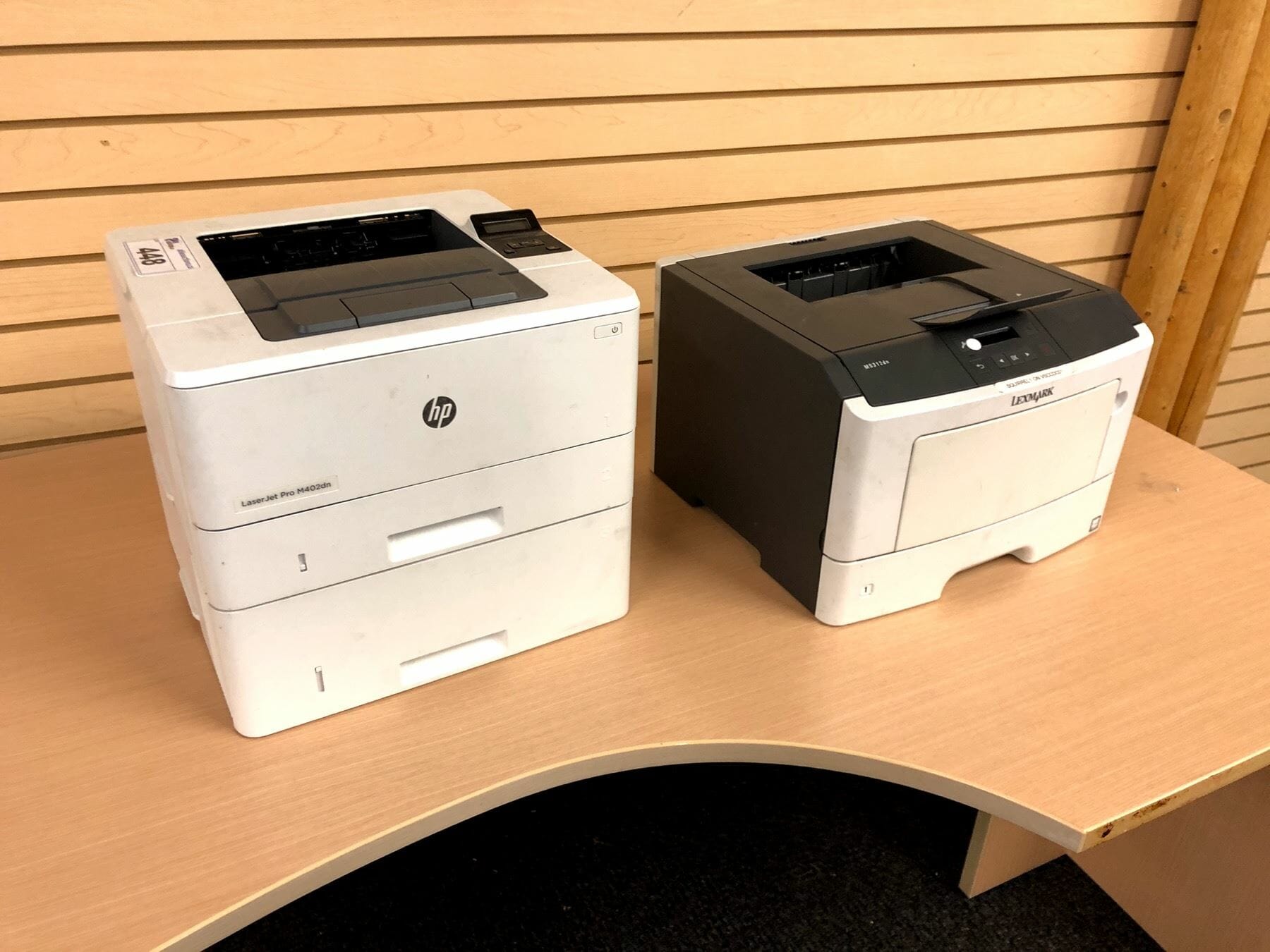
The Lexmark MS310DN printer is an affordable monochrome laser printer that has a lot to offer.

As for print speed, you can print up to 35 ppm thanks to the fast dual-core 800 MHz processor. It is also guaranteed to print 2500 pages per month without breaking.

If you need a printer for your small office, MS310dn is a great candidate because it creates high-quality prints.

Zebra GX430t

  • Prints 4 inches/second at 300 dpi
  • Low running costs
  • Compatible with Windows and Mac
  • Limited to printing labels and small items

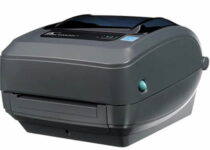
Zebra GX430t is a monochrome printer used for printing labels, barcodes, receipts, and wristbands. 

The printer uses thermal transfer technology, which means that you don’t have to install a toner because it doesn’t use ink to print. It uses a ribbon of either resin or wax, making the cost of printing almost zero.

Due to its small size, it is compatible with media rolls that have a one-inch core, a maximum diameter of 5 inches, and a maximum width of 4.25 inches.

If you want to create labels only, then this printer is one of the best with a parallel port.


The parallel port interface has almost completely been replaced by the newer communication standards like USB, ethernet or Wi-Fi.

However, if you have an older device, this guide will certainly help you to buy a printer that suits your needs.

If you have any suggestions don’t hesitate to contact us by using the comment section below.

[wl_navigator]

6 Best Civil Engineering Design Software in Demand

Some of the projects the modern day engineer is expected to deliver are very sophisticated. It’s therefore imperative that engineers first assemble the right tools.

In civil engineering, many professionals believe that project success begins with choosing a dazzling civil engineering design tool.

But matters aren’t that straightforward because the market is currently flooded with civil engineering software.

On one hand, this can be a blessing since it’s hard to lack a befitting tool. Conversely, it can be a curse seeing that engineers have to spend more time comparing the avalanche of software.

So, which of these software is best for civil engineering?


What To Look For In A Civil Engineering Software

Civil engineering software incorporates a collection of tools to assist civil engineers during every stage in a project’s execution- from design to final construction.

Thus, at a bare minimum, the program should have each of these tools plus they should be running without bugs. The program is also supposed to run faster design iterations in addition to streamlining time-consuming tasks.

Additionally, the software should use visualization and simulation to improve project deliverables and decision making.

Lastly, programs with an intuitive interface are easier to use and help deliver projects smoothly regardless of their scale and complexity.

As mentioned, there are myriad civil engineering programs to help with the design, control, and completion of civil works such as bridges, roads, canals, and more.

Here is a brief look into the proven champions of civil engineering.


What is the best Civil engineering software for Windows 10 PCs?

Civil 3D from Autodesk

civil 3d
civil 3d
civil 3d

Autodesk’s stranglehold on the engineering software market won’t end soon if they continue releasing high-quality programs like the wonderful Civil 3D software.

First, it supports BIM (Building Information Modeling) so professionals are assured of enhanced designs and construction documentation.

Then, it uses advanced simulation, visualization, and water analysis tools to improve decision making so that the end product will be of the best quality.

With its well-constructed collaboration features, Civic 3D expertly eliminates teething team coordination plus workflow challenges and could be a dream for teams in massive civil infrastructure projects.

Amazingly, they keep adding new features.

For example, the latest release has more accurate offset profiles, expanded corridor capabilities, and outstanding 3D virtual views of objects.

Others include automated parcel design, Geotechnical modeling tools, and an ability to produce annotated production plans.

One can download civil 3D for a 30-day free trial then choose to either subscribe for the monthly, annual, or 3-year plans.

AutoCAD Civil 3D

AutoCAD Civil 3D

There’s a reason why AutoCAD products are the best on the market. Get Civil 3D and find out for yourself why right now!
Check priceVisit website

Revit

Extend your BIM (Building Information Modeling) with Revit. You can use it to plan, design and construct buildings and infrastructure elements.

Instead of creating just a drawing of the elements in your projects, with Revit you are building 3D models. For each element in the model, you can attach a lot of information.

Learning how to use Revit, it means you will have the confidence of manipulating the data from a BIM model and you can easily see how one change to one object in a model will automatically impact the rest of the design.

The first version of Revit was released in April 2000 and, since then, it has been developed rapidly.

Now it is a piece of software much more data-intensive than AutoCAD but also less flexible because of its stricter rules necessary for constructing something safe and in coordination with other stakeholders.

Revit

Revit

Download Revit to create higher-quality, coordinated, model-based designs in 3D with integrated automation of repetitive tasks.
Free trial Download now

AutoCAD InfraWorks 360

If you’re not interested in simple house and building designs and are looking to help with projects that are of a more macro scale, such as a city’s infrastructure, then AutoCAD InfraWorks 360 is what you need.

It has the same familiar AutoCAD design although the toolset and built-in templates and features are made to help with projects such as roadway, bridge and drainage designs.

It doesn’t matter whether you are at the transportation phase or if you’re already into the engineering, design and management phase of a large-scale project, InfraWorks has everything you need.

You work can also be shared in real-time using cloud technology, so getting hold of contractors and getting their live feedback has never been easier.

Besides, last minute changes and even new projects can be modified and sketched incredibly fast because InfraWorks lets you create the existing environment using vector data, raster data, and data from other global sources.

All in all, if you work in construction at a much larger scale and need to be in constant contact with your employers, AutoCAD InfraWorks 360 is what you need in your life.

AutoCAD InfraWorks 360

AutoCAD InfraWorks 360

Design the infrastructure of a neighborhood, block, or even an entire city with the help of this incredible CAD tool.
Check priceVisit website

MicroStation

Microstation

MicroStation is another genius civil engineering software and closely rivals civil 3D when it comes to modeling different infrastructure projects.

The software actually edges the rest on several fronts.

Users looking at a program that doesn’t hog system resources like RAM are the first winners since Microstation typically runs pretty light. The system is also a favorite for engineers searching for speedy modeling, viewing, documentation, and visualization of projects.

Microstation is lately very simplified and the interface made so easy that total engineering newbies get the hang of it pretty fast.

Civil engineers need as many technologies as possible to meet the expectations of demanding clients and the program doesn’t disappoint.

It comes with a raft of traditional CAD capabilities supported by a horde of revolutionary inventions including 3D parametric modeling making it a versatile choice for varied infrastructure projects.

The quality of the paper plots, i-models, 2D/3D PDFs, reports, and 3D physical models is up there with the very best.

Unsurprisingly, the software application isn’t that affordable!

⇒ Try MicroStation


SketchUp

sketchup

Because of their diversity and power, not many potent civil engineering applications come cheap.

And therein lays the biggest surprise about Sketchup! Sure, it’s one of the most complete 3D visualization programs for civil works yet, one can virtually do all site modeling with the free Sketchup version.

On the same note, there’re fantastic possibilities in SketchUp and its powerful extension warehouse.

For example, one can utilize pre-built assets from fellow users to speed up the foundational design process. Plus it makes the drawing and design forthright.

One simply draws shapes and lines. Then engineers just push and pull the surfaces to convert them into crisp 3D forms.

It additionally, stretches, copies, orbits, and paints to easily and quickly make anything desired. Better still, it has super-fast rendering performances for even complex designs.

In a nutshell, this could be the real deal for a civil engineer striving to grow into 3D visualization on a shoe-string budget.

⇒ Download Sketchup


AutoCAD

which software is best for civil engineering

Still, from Autodesk, AutoCAD is a reputable 2D/3D CAD program for civil engineers and one of the most widely used commercial design software.

The program intelligently creates basic geometry representing real-life information and is a great software for drawing inch-perfect lines and detailing of elements.

This software also features an impressive array of professional documentation tools not to mention that it supports an awesome drafting workflow, where individual drawings are edited independently.

The robust software provides native support for a DWG file and can easily identify graphical differences between different versions of drawings.

Moving on, it flaunts lots of 2D graphics enhancements such as two times faster zoom plus panning and changing draw orders.

Furthermore, users can import geometry, raster images, SHX font files, and even TrueType text into drawings from a PDF.

Collaboration is seamless now that drawings can be accessed from multiple platforms-desktop, online, and on mobile.

⇒ Download AutoCAD trial instantly


Since there are so many considerations to make, answering the question of which software is best for civil engineering isn’t easy.

Knowing exactly the types of tasks one will be involved in is crucial as is one’s skills and experience with modeling software.

That being said, prices for the commercial tools are a bit on the higher so the available budget may limit the number of options.

But all is not lost since some of the excellent civil engineering software like Sketchup are free. In the end, what matters is that one gets a program that suits your engineering needs.


[wl_navigator]

Windows 10 news recap: Xbox app makes it easier to manage games, Your Phone gains ability to delete photos, and more

Welcome back to our Windows 10 news recap, where we go over the top stories of the past week in the world of Microsoft’s flagship operating system.

Windows 10 Twitter app gains a variety of design and feature improvements

The latest update for the Twitter app has brought a number of improvements and fixes. Changes have been made across the app, including tweaks to the design, accessibility improvements, fixes for DM issues, and more. You can read the changelog here.

Twitter
Copyright Marisa Allegra Williams (@marisa) for Twitter, Inc.

Windows 10 Xbox app adds ‘My Collection’ and Install Management Center with latest update

The Xbox app for Windows 10 has received a new update that aims to make it easier to manage your installed and owned games through a new “My Collection” feature. You’ll be able to see games you own, have installed, those in your Xbox Game Pass ‘Play later’ queue, as well as being able to manage the install queue and turn on or off automatic updates.

Xbox App For Windows 10

Windows 10 Your Phone now lets users delete their smartphone photos

This week has seen the Your Phone app on Windows 10 make it even easier to manage your smartphone photo library, now adding the ability to delete photos via the app on your Windows 10 PC.

Windows 10 Your Phone Surface Duo

That’s it for this week. We will be back next week with more Windows 10 news.

Microsoft news recap: Microsoft Flight Simulator to get free VR update, Microsoft Teams gets new calling features, and more

Microsoft news recap is a weekly feature highlighting the top Microsoft news stories of the past week. Sit back, grab some coffee, and enjoy the read!

Microsoft makes privacy changes to its Productivity Score software as concerns arise

Microsoft’s Productivity Score software has come under flak recently, being claimed a “full-fledged workplace surveillance tool”. In response to growing concern over the tool, Microsoft is going to be making changes, including removing usernames from the data, making it more of an overall score of the entire organisation, rather than individualds.

Ai Employee Monitoring Cropped

Microsoft introduces new calling features for Teams

New calling features are being introduced in Microsoft Teams. Two of the main important new additions is call transfer and CarPlay support, among others. Call transfer allows for transferring a call between different devices, so that you can stay in a call whilst on the move, which is expected to launch in early 2021, whilst CarPlay support will allow users to make and receive calls using their vehicle, though no release timeframe has been announced.

Microsoft Teams calling

Microsoft Flight Simulator to get a free VR update on December 23

Later this month, Microsoft Flight Simulator is to get a free update that adds Virtual Reality to the game. VR headsets from a range of manufacturers will be supported, including HP, Valve, and Oculus.

Microsoft Flight Simulator

Microsoft Forms will soon allow users to collect survey responses from specific people

Microsoft Forms is set to gain the ability to limit form responses to specific users or groups, helping limit who can respond to the form/survey, allowing the collection of responses from particular people/groups for specific purposes.

Microsoft Forms

That’s it for this week. We’ll be back next week with more Microsoft news.

5 Best Overwatch PS4 mouse and keyboards

Overwatch is a great game, and many prefer playing it with a keyboard and mouse. While Overwatch doesn’t support keyboard and mouse natively on PS4, it might offer some limited support.

In theory, almost any keyboard and mouse should work with Overwatch on PS4 as long as you have the keyboard and mouse adapter, and in this article, we’re going to show you the best Overwatch PS4 mouse and keyboard that you can use.

What is the best Overwatch PS4 mouse and keyboard?

HORI PlayStation 4 TAC Pro

  • Officially licensed by Sony
  • LED-backlit mechanical keyboard
  • Snipe Button, Quick Button, ADS Lock, and other features
  • Compatible with PS4, PS3, and PC
  • Doesn’t require an adapter
  • Can be awkward to use

HORI PlayStation 4 TAC Pro Type M2 is an officially licensed keyboard and mouse combo for PS4. The keyboard has LED-backlit, so it’s perfect for late-night gaming sessions.

The keyboard comes with a dedicated HORI Device Manager phone app that you can use to adjust the keyboard layout, DPI settings, and more. Speaking of DPI, the mouse offers up to 3200 DPI sensitivity, for maximum precision.

Regarding the compatibility, HORI PlayStation 4 TAC Pro Type M2 is compatible with PS4, PS3, and PC, and it’s a great Overwatch PS4 mouse and keyboard combo.


MFTEK One Hand Gaming Keyboard and Mouse Combo

  • 35 keyboard keys, palm rest
  • RGB backlight
  • No ghosting
  • Multimedia shortcuts
  • Compatible with PS4, Xbox, Windows, and macOS
  • Can sometimes slide

This keyboard has 35 keys, and it’s made from ABS plastic. All the keys are backlit, so you can easily enjoy nightly gaming sessions. It’s important to mention that the keyboard has a wrist rest, so you won’t experience fatigue while gaming.

The keyboard also has a non-slip rubber on the bottom, so it won’t move even during intense gaming sessions. As for the size, the keyboard measures 6.7×8.6 inches.

MFTEK One Hand Gaming Keyboard and Mouse Combo is a decent PS4 mouse and keyboard combo, so it might be worth checking out.


GameSir VX

  • Compatible with PS4, PS3, Switch, Xbox One, and PC
  • Wireless keyboard, range 32.8ft
  • 5 DPI and 4 polling levels
  • TTC Blue mechanical switches
  • Dedicated mobile app for quick configuration
  • The keyboard might be uncomfortable

GameSir VX is an Overwatch PS4 mouse and keyboard combo, and in addition to PS4, these devices can also work with PS3, Switch, Xbox One, and PC.

The mouse has 5 DPI levels, ranging from 400 to 12000, and you can also adjust the polling rate. The keyboard is wireless, and thanks to the 1000mAh battery, it can last for hours.

GameSir VX can also adjust HIP and ADS sensitivity, and there’s even a dedicated mobile app available for quick configuration, so it’s a perfect choice for gamers.


BlueFinger RGB

  • 13-different backlit modes
  • Blue mechanical keys
  • Four different DPI levels
  • 6-button mouse
  • Backlit mouse
  • Keys might be a bit loud

Another great keyboard for PS4 is BlueFinger RGB, and this model comes with 35 keys, and just like other keyboards, it supports multiple key presses.

The keyboard is backlit, and it has 13 different backlit modes. As for the mouse, it comes with 6 buttons, and it has four DPI levels, up to 2000. Of course, the mouse is also backlit.

BlueFinger RGB is completely plug and play, and it’s compatible with Windows, macOS, PS4, and Xbox One, so it’s a perfect choice if you want to play FPS games on PS4.


ZJFKSDYX C91

  • Compatible with PS4, PS3, Xbox One, and Switch
  • Comes with keyboard and mouse converter
  • Plug and play
  • Customizable
  • Can work with unsupported games
  • The adapter cable is too short

If you need an Overwatch PS4 mouse and keyboard combo, then ZJFKSDYX C91 might be just what you need. This set is compatible with PS4, PS3, Xbox One, and Switch, and it should work right out of the box.

It’s worth mentioning that a keyboard and mouse converter is available, so you should be able to use this keyboard and mouse even with unsupported games.

ZJFKSDYX C91 keyboard and mouse combo has a mechanical feel and the mouse is ergonomic, so it’s a perfect choice for prolonged gaming sessions.

Using an Overwatch PS4 mouse and keyboard combo is easy, but make sure that you have the proper adapter beforehand to ensure maximum compatibility with the game.

[wl_navigator]

FIX: VPN Unlimited internal exception error (6 solutions)

VPN Unlimited is a highly-rated VPN service for various reasons. For instance, it’s one of the few VPNs with a lifetime subscription plan.

Plus, it has a native app that supports all popular platforms, including Windows, Mac, Android, and iOS.

However, since it’s a piece of software, it might occasionally throw errors. A good example is the VPN service not started due to internal exception error found in VPN unlimited.

Normally, we would suggest contacting the tech team. But it might take a while until you get a relevant answer.

If you’re a hands-on PC user who prefers to troubleshoot software issues, keep reading to discover how to fix the VPN unlimited internal exception error in just a few steps.

How do I fix the internal exception error in VPN Unlimited?

Check your firewall

manage Windows Firewall allowed apps
  1. In the Windows Search bar, type Allow an app and open Allow an app through Windows Firewall.
  2. Click Change settings (you must have admin rights).
  3. Make sure that VPN Unlimited is allowed to access Public and Private networks.
  4. Save changes and restart your PC.

If you’re using another firewall than the built-in Windows option, make sure to adjust the above steps accordingly and unblock VPN Unlimited.

Alternatively, you can temporarily disable the firewall to see if it’s responsible for the VPN Unlimited internal exception error.

But we can’t recommend it because you risk compromising your security even in that small timeframe.

If you’re interested in this topic, discover more about VPNs getting blocked by firewalls.

Run VPN Unlimited as admin

run this program as an administrator
  1. Right-click on VPN Unlimited desktop shortcut.
  2. Click Properties.
  3. Switch to the Compatibility tab.
  4. Check the Run this program as an administrator box.
  5. Confirm changes.
  6. Launch VPN Unlimited.

By default, VPN Unlimited should launch with admin rights. But in case it doesn’t, you have to manually perform this checkup.

If you’re not the PC admin, we have an awesome guide about how to run any tool without admin rights.

On the other hand, if nothing happens when you try run as admin, make sure to identify and fix the underlying problem.

Check your Internet connection

  • Restart your router and/or modem.
  • Try using the wired connection (LAN) instead of Wi-Fi.
  • Flush your DNS and reset Winsock.
  • Make sure all network drivers are properly installed and configured.
  • Check router ports.
  • Reset router to factory values.

It’s critical to check the quality of your network connection and make sure that your Internet is stable enough.

Otherwise, it might be the reason why you keep receiving the internal exception error in VPN Unlimited.

Connect to another VPN server

Explore the multiple server locations provided by the VPN Unlimited app, regardless of your device.

If a specific server is down, it could result in connectivity issues. That’s why it’s a good idea to connect to VPN servers from different countries.

Reinstall VPN Unlimited

If VPN Unlimited didn’t install correctly, or if it was affected by a system option, then reinstall it. Perhaps the TAP drivers were not configured properly on your device.

And, if this solution doesn’t work either, you have no choice but to contact the support team and request assistance regarding the VPN Unlimited internal exception error.

Switch to an alternative VPN

Private Internet Access helps you unblock Netflix

We saved this step for last because we know how important it is to try and fix a software problem before dropping it and moving to a better alternative.

It’s possible that VPN Unlimited isn’t a good match for your Internet connection and devices.

If you got tired of dealing with various VPN errors, consider switching to an alternative VPN service, such as Private Internet Access (PIA).

PIA has more than 3,300 VPN severs across 48 countries. You can set it up on all popular devices, including Windows, Android, Linux, Mac, iOS, and even routers.,

More about PIA:

  • 10 simultaneous device connections
  • Use OpenVPN and WireGuard protocols
  • Split tunneling and kill switch
  • 24/7 live chat support
  • 30-day money-back guarantee (no free trial)

Private Internet Access

Use a better alternative like PIA to avoid dealing with errors such as the internal exception kind.
Check price Visit Website

To sum up, you can try fixing the VPN Unlimited internal exception error by checking your firewall or running the app as admin.

You can also try to check the quality of your Internet connection, connect to another VPN server, and reinstall VPN Unlimited.

However, if all these solutions fail, consider dropping VPN Unlimited and switching to a more reliable alternative like Private Internet Access.

FIX: This workbook was opened in read-only mode [Office 365]

When you are trying to edit a workbook shared with you, you may encounter the This workbook was opened in read-only mode error. This prevents the user from editing the workbook in Excel Online and desktop app.

This error can occur due to several reasons, including the original document being maintained in the desktop app on the creator’s computer. It can also be triggered if your company is transitioning to SharePoint.

If you are also troubled by this error, here are a few troubleshooting steps to help you resolve the This workbook was opened in read-only mode error when editing Excel files.

How do I stop Excel from opening in read only mode?

1. Disable Read-only mode

  1. If you can download these workbooks to your local computer, download a copy.
  2. Right-click on the downloaded copy and select Properties.
  3. Check if the Read-Only attribute is checked. Uncheck the Read-Only attribute and click OK to save the changes.
  4. Next, open the Security tab. Make sure you have full control of this file.
  5. Close the properties window, and open the workbook with your Excel app to see if the error is resolved.

If the original document has the read-only attribute enabled, it will prevent the user from editing the file and display the error message. Make sure to uncheck the option to see if that resolves the error.


2. Disable Protected View

workbook was opened in read-only mode

  1. Launch the Excel app.
  2. Click on File and then select Options.
  3. Click on Trust Center and select Trust Center Settings.
  4. Go to Protected View.
  5. Next, clear all the three boxes of Protect View on the right panel.
  6. Close the Settings window and relaunch the Excel app.
  7. Open the workbook and check if the error is resolved.

Protected View is the read-only mode where most editing functions are disabled to protect the users from harmful files. However, this can cause an issue with other documents as well. Make sure to enable Protected View once you have edited the workbook.


3. Close the workbook on local computer

workbook was opened in read-only mode

The latest Excel app comes with the co-authoring feature. However, if you are not running the latest version of Office 365, and if the file owner keeps the file open on their Excel desktop app, you may not be able to edit that file.

Make sure the file is not opened in Excel desktop, and then try to edit the file in Excel Online. Try editing other Office 365 files and see if you can edit with Office Online.


How do I change a SharePoint document from read only?

Protected View office 365
  1. Right-click on the SharePoint document and select Properties.
  2. Open the General tab.
  3. Uncheck the “Read-only” box.
  4. Click Apply and then on OK to save the changes.

Once you have made the changes, open the SharePoint document, and check if the read-only message is resolved.


How do I turn off read only on OneDrive?

Protected View office 365
  1. Open File Explorer.
  2. Right-click on OneDrive and select Properties.
  3. Open the General tab.
  4. Under Attributes, uncheck the “Read-only” box.
  5. Click OK to save the changes. If you see a prompt asking if you want to apply the changes to all folders, subfolders, and files, click OK.

That’s it. This should resolve the OneDrive desktop app changing your documents attribute to the Read-only issue.


This workbook was opened in read-only mode message usually occurs if the file owner has set the document attribute to read-only.

This error can sometimes lead to other issues, such as Microsoft Excel cannot paste the data, but we have a special guide that addresses it, so don’t miss it.

You can resolve the problem by disabling the read-only attribute. If not, try disabling Protected View temporarily to fix the error.

How to enable weak password check in Google Chrome

Passwords are the first line of defense when it comes to your private data and things are no different for Google Chrome users.

Having a weak password leads to security risks that many hackers are eagerly waiting to take advantage of. Many of them end up hacking browsing activities of countless users.

Not all users follow some essential security guidelines like keeping complex passwords. To prevent that from happening, Google Chrome’s Safety check feature will let you know more about the weakness of your passwords.

That’s a nice addition to the previous features that included a safe browsing check and finding harmful extensions installed on your browser.

After all, users are skeptical about Chrome’s Safety check and need more details. Here’s what one of them says:

I’ve always wondered how good the Chrome Safety check is, can it detect adware, unwanted safety issues with Chrome.

How can I enable Chrome’s weak password check?

  1. With Chrome Canary installed, enter Chrome://flags in the address bar and press Enter.
  2. Up next, search for weak, and both Passwords weakness check and Safety check for weak passwords flags will show up. Enable them right away.flags enabled
  3. Restart the browser to keep the changes.
  4. Find your way into Settings > Safety Check > Check Now in order to quickly perform a safety check of your passwords.
  5. Google will automatically highlight the weaker ones. Waste no more time and click on the Review button to solve the encountered problems.

Chrome’s new weak password check functionality isn’t currently available in stable channels. In spite of that, you can already enable it in Chrome Canary by completing the above procedure.

Besides using complex and non-repetitive passwords for all websites, keep in mind that you can also setup 2-step verification.

That’s a great way to make sure that no one else can access your Google account. The rule stays the same even if a member of your family knows your current password.

Have you also enabled Chrome’s weak password check? Knowing that your passwords are complex and not part of data breaches is essential, so use the comments area to tell us your opinion.

[wl_navigator]

Latest Microsoft Edge Canary release brings Chrome-like grouped tab features

Microsoft’s Edge browser Canary development branch is usually updated daily and yesterday the company rolled out version 89.0.722.0 which brings a significant upgrade to the browser with Chrome-like grouped tab features.

The new features were first highlighted by Techdows. Since Grouped tabs features are coming by way of the  Canary development branch and appear to be officially supported in this capacity, we expect to see a full channel log drop later today.

Now Edge users running the canary branch of browser development will be able to test out Tab Groups and Tab Groups Auto-Correct features which supports users labeling their grouped tabs as well as the browser automatically generating tab groups from open tabs pointing at the same domain. As expected, all grouped tabs will be collapsible and function similarly to the way the feature is done in Google’s Chrome browser.

Collpasing Tab Groups In Action In Edge

Aside from being a Canary only release right now, the other catch to utilizing this new test feature is manually enabling it. Grouped tabs is not enabled by default. Users will need to go to edge://flags, search “Tab Groups to turn on the feature after updating to 89.0.722.0, which should be hitting browsers some time today.

How to use Microsoft Search in Bing to find your work data

Microsoft’s Bing now does more than simply search the web. It can also surface results from within your organisation, including files, contacts and conversations. Information is displayed right within the Bing searchbar.

In order for this functionality to work, you’ll need to be signed into Bing with your work or school account. If you’re signed in but don’t see the features we describe, your organisation probably hasn’t enabled Microsoft Search. It’s up to administrators to make the system available to users.

Screenshot of using Microsoft Search in Bing to find work data

When you’re signed in, the Bing homepage will display a “Latest from your organisation” banner. This surfaces recent files and upcoming events within SharePoint sites, Outlook groups and Microsoft Teams.

You can use the searchbar to quickly find content within your organisation. Try searching a person’s name to see related contacts appear as search suggestions.

Screenshot of using Microsoft Search in Bing to find work data

When you press enter to commit a search, switch to the “Work” tab on the search results page to search within your organisation. Content will be displayed in a similar style to regular web search results. Some items, such as contacts, have rich information cards which help to contextualise their relation to your organisation.

Screenshot of using Microsoft Search in Bing to find work data

Use the left search pane to drill down to a specific content type, such as People, Files or Conversations. The available data will vary depending on your organisation’s Microsoft 365 subscription.

Microsoft Search supports natural language search for terms such as “my files” and “conversations about topic”. Microsoft advises you “just ask naturally” instead of trying to learn specific terms – Bing and Microsoft Search will intelligently interpret your query to find relevant data from within your organisation.

Microsoft Teams starts rolling out Breakout Rooms feature to GCC customers

Microsoft is now rolling out the Virtual Breakout rooms feature for its Teams collaboration platform. At launch, the feature is exclusively available to Government Community Cloud (GCC) customers, and the company will expand its availability to all Teams users in the coming days.

The breakout rooms feature, which allows meeting organizers to split participants into smaller groups linked to the main meeting, was announced in July. The functionality has been designed to support simultaneous group discussions such as corporate meetings, projects, brainstorming sessions, and more. Here’s a video showing breakout rooms in action:

Microsoft says that organizers will be able to choose the number of breakout rooms (up to 50) and assign a specific number of participants (manually or automatically) to each room. In breakout rooms, participants will have full access to all meeting features such as chat, Together mode, and Whiteboard. On the other hand, the meeting organizers will have the ability to monitor and participate in these discussions and make announcements.

It is important to note that presenters and attendees can participate, but only the meeting organizer can create breakout rooms using the desktop client. To use virtual breakout rooms, however, IT Admins first need to enable a couple of settings in a Teams meeting policy. This will help to ensure that users can schedule private meetings.

  • Allow scheduling private meeting = on
  • Allow channel meeting scheduling = on
  • Allow meet now in channels = on
  • Allow Meet now in private meeting = on

The breakout rooms experience is one of the highly requested features, and it has been delayed multiple times. This is not entirely new, as Teams’ competitor Zoom has long offered support for breakout rooms. If you’re interested in learning more about how to enable and use it in your Microsoft Teams desktop client, be sure to check out the blog post.

An official John Wick action-strategy video game just launched on Xbox Series X and Xbox One

The first video game based on the hit John Wick movie franchise, John Wick Hex, is now available to play on Microsoft’s Xbox One and Xbox Series X consoles.

The game is a fusion of the action and strategy genres featuring time-based gameplay and a story set before the events of the first film. Voice actor, Troy Baker, takes on the titular role made famous by Keanu Reeves and is joined by film actors, Ian McShane and Lance Reddick.

Here’s the game description and trailer:

Become The Baba Yaga. John Wick Hex is a fast-paced, action-oriented strategy game that makes you think and strike like John Wick, the professional hitman of the critically acclaimed film franchise. Created in close cooperation with the creative teams behind the films, John Wick Hex is fight-choreographed chess brought to life as a video game, capturing the series’ signature gun fu style while expanding its story universe. Players must make quick decisions and choose every action and attack they make, all the while considering their immediate cost and consequences. Featuring a unique blend of strategic time-based action, John Wick Hex captures the feel of the tactical combat from the films and blurs the line between the strategy and action video game genres. Perform well and progress in the main story mode to unlock new weapons, suit options and locations. Each weapon changes up the tactics you’ll use and the manner in which you’ll play. Ammo is finite and realistically simulated, so time your reloads and make the most of weapons you scavenge on the job.

John Wick Hex originally released on Windows PC and Sony’s PlayStation 4 console in late-2019 and picked up the award for Best Strategy Game during the 2019 Game Critics Awards. It also launches on the Nintendo Switch today.

Are you a John Wick fan and are you interested in this title? Share your thoughts with the community in the comments below and then follow us on Pinterest and Twitter for more Xbox gaming news.

John Wick Hex
John Wick Hex
Price:
$19.99

5 Best VPNs with New Jersey servers [Tested]

Looking for VPNs that work best in certain areas is a piece of cake most of the time. Many services boast about their ability to run at their peak in various regions.

Finding a VPN service that has servers in a specific region is a bit trickier, on the other hand.

For instance, if you ever wanted a VPN with servers in New Jersey for whatever reason, we have exactly that just waiting for you.

Why use a VPN with New Jersey servers?

There are a few reasons why someone would need a VPN with servers in New Jersey. For instance, we all know that some services are geo-restricted.

Geo-restrictions are the most common reason why users would suddenly realize they need VPN servers in specific regions of the world.

Therefore, if you have a sporting event you can’t watch, or find yourself unable to access a certain website from outside of New Jersey, a VPN with NJ servers can easily solve these issues for you.

VPNs with New Jersey servers

Private Internet Access

Private Internet Access, or simply PIA, is one of the best VPNs that offer servers in New Jersey. Thus, it can help you access content that is blocked outside of this area without great effort.

What makes it even more impressive is the fact that PIA has not one, but 817 New Jersey servers at the time being.

Therefore, you can rest assured that even if a certain NJ server won’t work as it should, you can always reconnect to a different one in the same area. You have plenty of options.

PIA’s key features:

  • Zero-logging policy
  • Military-grade encryption
  • 817 New Jersey servers (currently)
  • Can bypass geo-restrictions
  • Supports P2P and torrenting

NordVPN

NordVPN is an awesome VPN service that lets you connect to a New Jersey server and enjoy region-based content in no time.

The exact number of NJ servers is not exactly clear, but what we do know is that NordVPN has servers in 15 different US cities, and New Jersey is one of them.

Furthermore, all US servers are fully-featured, meaning that you can establish regular connections, but also enjoy P2P-optimized, obfuscated, dedicated IP, and double VPN servers.

NordVPN‘s main features:

  • Strict zero-logging policy
  • Strong 256-bit encryption against traffic monitoring
  • Obfuscated, P2P, and double VPN servers
  • Circumvents geo-blocking easily
  • More than 5,000 servers worldwide

ExpressVPN

ExpressVPN

One of the more popular names in the branch, ExpressVPN is one of the few VPN services that offer New Jersey servers. In fact, ExpressVPN boasts not one, but three different NJ servers you can switch through.

On the other hand, only one of them has full support for all ExpressVPN protocols: Lightway, OpenVPN, L2TP/IPsec, IPsec, IKEv2, and PPTP. The remaining two don’t support L2TP/IPsec and PPTP, unfortunately.

ExpressVPN‘s key features:

  • Enforces strict no-logging policy
  • Military-grade encryption
  • Can unblock geo-restricted content
  • 3 different New Jersey servers
  • High-speed servers
  • P2P/torrenting support

PureVPN

PureVPN

PureVPN is yet another worthy contender for our best VPNs with New Jersey servers collection. As with other similar services, it’s not exactly clear how many NJ servers does PureVPN offer.

What we do know, however, is that PureVPN’s New Jersey server(s) support PPTP, L2TP, SSTP, IKEV2, IPSec, and OpenVPN protocols.

To put things in perspective, PureVPN has an impressive network of more than 6,500 servers, covering over 140 countries in 180+ locations. So we’re pretty confident that they have more than just one server in NJ.

PureVPN’s main features:

  • Zero-logging policy
  • Strong 256-bit encryption
  • Helps you circumvent geoblocking
  • Multi-protocol New Jersey server(s)
  • Supports P2P and torrenting activities

ProtonVPN

ProtonVPN is famous among VPN users for its free version that has no time limitation. However, it seems that this service also has New Jersey servers that you can connect to.

Again, their precise number is kind of hard to decipher, more so considering that ProtonVPN makes efforts to constantly add new entries to its wide network.

However, judging by the numbering system we’ve noticed on its official website, we can only assume that ProtonVPN offers somewhere around 16 NJ servers at the time being (there are NJ servers numbered #5 to #16).

ProtonVPN’s main features:

  • Enforces strict no-logging policy
  • Offers 1,101 servers in 54 countries
  • Has ~16 New Jersey servers
  • Military-grade 256-bit encryption
  • High-speed connections
  • Its apps are both open-source and audited

Final thoughts on best VPNs with New Jersey servers

All things considered, if you’re in need of a VPN service that has New Jersey servers for any reason, we’ve got you covered. If you want to keep up with local content from other regions, such as Pennsylvania, VPNs are the answer there too.

We’ve tested the services listed above and can confirm that their NJ servers are fully functional, and should not pose any difficulty with unblocking NJ-specific content whatsoever.

Pre Production Software: 5 Best to try in 2026

When creating a movie, you need to organize everything, and this is usually easier said than done. However, there are specialized tools that can help you with that.

In today’s article we’re going to show you the best movie pre-production software that will help you organize and manage everything before you start recording, so let’s get started.

What is the best movie pre production software?

StudioBinder

StudioBinder movie pre production software

StudioBinder is a pre-production software that allows you to organize your movie shooting with ease. The software allows you to create detailed shooting schedules with ease and share them with your team.

Using this software, you can also add custom call times, private notes, and parking directions. If needed, you can view the current weather and the location of nearby hospitals.

StudioBinder also lets you import contacts in bulk, and you can even create cast and crew lists with ease. These are some of the most notable features, but if you need a good movie pre-production software, StudioBinder is a safe bet.

Other great features:

  • Personalized call sheets
  • Script breakdown sheet
  • Collaborative shooting schedules
  • Streamlined workflow
  • Cloud backup and sharing

=> Get Studio Binder


Movie Magic Budgeting

Movie Magic Budgeting movie pre production software

If you need a movie pre-production software, you might want to try Movie Magic Budgeting. The software allows you to access real-time data on the cloud and easily manage your budget.

Support for custom reports is available, and you can easily drag and drop elements, remove columns or exclude categories if needed. Also, you can easily compare cost requirements and scenarios.

Movie Magic Budgeting also offers customizable rule sets, and it’s one of the best tools for movie pre-production, so it’s worth checking out.

Other great features:

  • Intuitive dashboard
  • Cloud-synced libraries
  • Offline and online reports
  • Custom reports
  • Customizable rulesets

=> Get Movie Magic Budgeting


Showbiz Budgeting

Showbiz Budgeting movie pre production software

When it comes to movie pre-production software, Showbiz Budgeting allows you to easily track purchase orders, payrolls, and manage your entire film budget with ease.

The software is easy to use, and it comes with a wide array of budget templates to choose from. The latest version offers an extensive report feature, and you can easily save frequently saved reports for future use.

Showbiz Budgeting offers great features, and we barely scratched the surface, but if you need a professional tool for movie pre-production, be sure to consider this software.

Other great features:

  • Ability to import expenses from PEX cards
  • Ability to track expenses
  • Production reports
  • Built-in templates
  • Macros for Title Grids

=> Get Showbiz Budgeting


Yamdu

Yamdu is another great tool that can help you schedule your projects and manage all project tasks. The software can create a shooting schedule in minutes, and it can automatically create a call sheet.

There’s a powerful Resource Planning add-on available, allowing you to easily create tasks, manage the personnel, rooms, or inventory. You can also import a script, and create a full breakdown in minutes.

Yamdu is great for collaboration so you can easily manage your projects with others, which makes this a perfect movie pre-production software.

Other great features:

  • Ability to add locations and actors easily
  • Works with tools such as Final Draft, Fountain, Google Calendar, iCalendar, etc.
  • Built-in video player, timestamp comments
  • Script tagging
  • Task management and calendar

=> Get Yamdu


Assemble

Assemble movie pre production software

With Assemble you can easily manage your team using the production calendar, and you can even save common tasks to create a video production timeline faster.

With this tool, you can also create production books with ease and track approvals, assets, and phases. As for team management, you can set permissions for each team member, and you can even get private feedback from different teams.

Assemble also has call sheets, creative brief support, and vendor management, and if you need a movie pre-production software, this might be the right choice for you.

Other great features:

  • Reusable common tasks
  • Task assignments
  • Advanced user permissions
  • Sharable review links
  • Call sheets

=> Get Assemble

If you’re working on a movie or a video, it’s important that you keep your team well-organized, and we hope that these tools will be able to help you with that.

[wl_navigator]

iMacros not recording your clicks? Here’s a solution

When you are repetitively doing the same things on your browser, filling in forms, entering passwords, and simply doing the same task over and over again, using iMacros comes in hand.

iMacros will help you automate the most often performed tasks and it is the only web automation software that thankfully enough, works with every website.

There are users though, that are saying iMacros is not recording their clicks. Don’t worry, in this article we will explore an easy way to fix this, so make sure you keep on reading.

How can I fix iMacros not recording clicks?

1. Update iMacros

The iMacros not recording clicks can be really troublesome, especially since users are saying that at times the software works fine while the next day it will fail to record the task as it should.

It seems that checking to see whether or not you have the latest iMacros version, could solve the issue.

Also, is a good thing to bookmark the release notes page, where you can remain updated with the latest changes and fixes that the iMacros developers have been working on.


2. Make sure iMAcros is installed correctly

  1. Open cmd from the Start menu.
  2. Type in the following command and run enter: psexec -i -s cmd.exe
  3. From the System prompt, run iMacros.exe.

Make sure that you keep your laptop open while the iMAcros command runs. Additionally, we would recommend that once it’s finished, you also perform a restart of your device.

Afterward, perform the same iMacros command as before and check out if the issues have been solved.


3. Check out the iMacros wiki

You will find answers and solutions to the most common technical issues and errors on the iMacros wiki page.

Moreover, here, you will also find tutorials and guides that are designed to help you go over the usual steps in using iMacros.

You will easily find their support for the issues you are encountering while using iMAcros.


4. Contact iMacros support

If none of the above solutions helped you fix the iMacros not recording your clicks, then we would recommend that you contact iMacros support via their user forum page.

In order to be able to write your requests to them, you will need to log in using your iMacros username and password.

Moreover, in the iMAcros Support Forums, you have the option to search in the previous discussion and check if your issues have been already solved by the developers.


With this, we will conclude our list of solutions for fixing the iMacros issue, where the web software is not recording clicks.

As you can see the solutions are easy and most of the users say that simply installing the latest iMacros version helped them fix the problem.

Due to the many releases the software has and it’s continuously being improved, it’s also essential that you check the release notes page, and keep yourself up to date.

If you have additional notes and suggestions, please let us know in the comments section below.

[wl_navigator]

Fix: VPN Error 809 on Windows 10 & 11

VPN error 809 is usually caused by the firewall between the client and server, which blocks the ports used by the VPN tunnel.

On top of that, Windows doesn’t support IPsec NAT-T security associations to servers behind a NAT device by default.

When the error appears, the event log too won’t display any related logs because the traffic can’t reach the MX’s WAN interface. But you should be able to solve it on Windows 10.

Here’s the error message we’re talking about.

Windows 10 shows the VPN error code 809

How can I fix VPN error 809 on Windows 10?

Enable the ports on your firewall or router

You need to open the ports on your firewall or router, depending on which VPN protocol you’re using.

  • Port 1723 over TCP for PPTP
  • Port 500 or 4500 over UDP for L2TP/IPsec or IKEv2/IPsec

If this is not possible, deploy the SSTP- or OpenVPN-based tunnel on your VPN provider.

This allows the VPN connection to work across the firewall, NAT, and web proxies.

Find out more about how to fix VPN blocked by Windows Firewall.

Use a VPN client instead of a manual VPN connection

Private Internet Access helps you unblock Netflix

Windows 10 is prone to various problems, including VPN errors like 809. It can be the result of incorrect network settings.

Even if you manage to fix the issue, it doesn’t mean you won’t face it again.

So, if you’re looking for a long-term solution to get rid of VPN errors, we suggest opting for Private Internet Access (PIA).

It has a native VPN app ready for Windows 10 as well as older Windows versions and other devices: Mac, Linux, Android, and iOS, and even routers.

You can use PIA to create a secure tunnel to the public Internet. This way, you can protect your privacy, encrypt your data against any hacker attacks, and unblock content that’s not available to your region.

More about PIA:

  • Support for OpenVPN and WireGuard protocols
  • Native port forwarding
  • Kill switch
  • No logging, no leaks
  • 24/7 live chat support
  • 30-day money-back guarantee (no free trial)

Private Internet Access

Use this reliable VPN app to eliminate any VPN errors and enjoy a secure connection on your device.
Check price Visit Website

Make a small modification to the system registry

  1. Right-click Start and select Run
  2. Type regedit and press Enter
  3. Go to this location: HKEY_LOCAL_MACHINESYSTEMCurrentControlSetServicesPolicyAgent
  4. Open the Edit menu, go to New, and click DWORD (32-bit) Value
  5. Type AssumeUDPEncapsulationContextOnSendRule and press Enter
  6. Double-click the AssumeUDPEncapsulationContextOnSendRule entry
    • Set Base to Hexadecimal
    • Set Value data to 2
    • Click OK
  7. Restart your PC.

Note icon NOTE
Some third-party network apps can cause VPN error 809, like SmartByte, so disabling it can also fix the problem and let your VPN connect again.

Disable Xbox Live Networking services

  1. Type services in the search box
  2. Click on Services from search results
  3. Find Xbox Live Networking Services and disable it
  4. Check if your VPN connection works and if the error 809 disappears

If your anti-malware solution is not compatible with Windows 10, it could break down your IPsec connections.

So you should temporarily disable it to see if it’s the root of VPN error 809.

Discover more about how to bypass VPN blocks on Windows 10 PC.

Check PAP settings

  1. Click Start and select Settings
  2. Select Network and Internet
  3. Click VPN on the left pane
  4. Click Add a VPN connection and use the following:
    • For VPN provider, use Windows (built-in)
    • For Connection Name, write anything you like as this will be shown on the interface
    • For Server name or address, write the external hostname of your VPN
    • For VPN type, choose L2TP/IPsec
    • For Type of sign-in info, select Username and password
    • Click Save
  5. Select Change adapter options
  6. Right-click the connection you created and select Properties
  7. Under the Security tab, click Advanced Settings
  8. Click Use pre-shared key
  9. Enter the PSK and click OK
  10. Set Data encryption to Maximum Strength
  11. Under Authentication, select Allow these protocols
  12. Tick the PAP box only
  13. Restart your computer

In conclusion, you should be able to fix the VPN error 809 on your Windows 10 PC by opening ports in your firewall or router.

You can also make a tiny modification to your system registry and check PAP settings when creating the VPN connection.

However, the surest way to get rid of VPN errors is by using a native VPN app for Windows instead of setting up a manual VPN connection.

And we can’t think of a more suited VPN provider than Private Internet Access.

How to solve high HDD and CPU Microsoft Defender usage

Countless users started to notice the same thing – Microsoft Defender registers an increased usage of the system’s hard disk drive and central processing unit while launching games.

It often happens to take even up to 80% of the system resources, causing the system to slow or completely lock up itself.

MsMpEng.exe can even end up taking 100% of the HDD and CPU when Windows Defender is scanning the system for malware. Here’s what some users say when this happens:

If your game is working, then let the Defender protect your computer.

Microsoft Defender may get stuck on certain files while checking malware, so not taking any action isn’t an option. On the contrary, here’s what you can do about this increased HDD and CPU usage.

How can I fix high HDD and CPU Microsoft Defender usage?

  1. Right-click on the taskbar and select Task Manager.
  2. Up next, go to the Details tab.
  3. Right-click on the process name msmpeng.exe and select Set affinity.Set affinity
  4. Choose the CPU limit that you allow the process to use. For normal CPU usage, you may select 50% for MsMpEng.exe.

In order to solve this issue, don’t hesitate to set the MsMpEng.exe file to use a specific processor in the system.

It may indeed modify the scan speed of the antivirus and make it run slower than usual. However, that’s a compromise that many users are willing to accept in order to forget all about the high HDD and CPU usage.

If the results aren’t as expected, you may also consider disabling Microsoft Defender through group policies on your system. However, make sure you have another great antimalware software ready to install in its place.

We also have a guide on Msmpeng.exe high memory usage, so don’t miss it for more solutions.

Let us know if you also managed to solve high HDD and CPU usage in the comments area below.

[wl_navigator]

5 best gaming mice with side buttons [MMO, FPS]

When you’re playing MMO games, you will notice there are lots of abilities, meaning you need to have lots of button binds if you want to use them optimally.

Games such as World of Warcraft require you to constantly look at your screen and use your skills accordingly.

In the same manner, FPS games require a mouse with fast response times, high DPI, and precision.

If you happen to play both of these types of games, and you want a mouse that can improve your gameplay, you found the perfect guide.

No matter if you’re searching for the best gaming mice with 3 side buttons, or you don’t mind having many more buttons on the side, this guide will surely be helpful.

What are the best gaming mice with side buttons?

Logitech G600

  • 20 MMO tuned buttons, including a unique 12 button thumb panel
  • G shift ring finger button
  • G8 cycle modes with customizable DPI values, up to 8200
  • Total personalization
  • The mouse is heavy

The best mouse for the value on our list is the Logitech G600. It is a wired mouse, made out of durable plastic that doesn’t attract fingermarks.

This is a high-quality mouse, with a silent, responsive scroll wheel, and a minimalist and comfortable design.

The side buttons are specially crafted to be accessed with ease and the cable is coated with protective fabric.

Thanks to Logitech Gaming Software, you can customize the entire mouse. Pick from a multitude of color variants and map all of the mouse’s buttons, including the left, right, and extra mouse clicks.


Razer Naga Trinity

  • High-Precision 16,000 DPI Optical Sensor
  • Fully Modular with 3 interchangeable side panels
  • Up to 19 Programmable Buttons
  • Customizable Chroma RGB Color Profiles
  • Ridged, Rubberized Scroll Wheel for Maximum Accuracy
  • The mouse is heavy and big, not recommended for small hands

The Razer Naga Trinity is our best pick on the list. It is a premium-quality, versatile gaming mouse thanks to its three swappable side panels.

Whether you play MMO or FPS games, one of the side panels will have a button layout perfect for you.

This mouse has a great amount of customization, including fully changeable RGB.

It is a wired mouse, coated with durable fabric and it is very well built, with a comfortable, minimalist design. The mouse is great for people who prefer a wider and taller body.


Logitech G502 Lightspeed

  • Compatible with PowerPlay wireless charging
  • Hero 25K sensor
  • 100 to 25.600 max DPI sensitivity
  • Adjustable weight system
  • Light Sync RGB technology with over 16.8 million colors
  • 11 customizable buttons and hyper-fast scroll wheel
  • Really expensive

The Logitech G502 Lightspeed is our choice of the best wireless gaming mouse with side buttons.

It is a reimagined version of the classic top-of-the-line G502 but completely reengineered for higher precision, more customization, and faster response times.

The new system allows you to adjust the weight of the mouse, making it lighter, heavier or shifting the weight to one side. The batteries are chargeable and claim to last for up to 60 hours.

The Logitech G Hub software allows you to fully program your buttons, customize your DPI and RGB, and store everything on different profiles.


UtechSmart Venus

  • Up to 16400 DPI
  • Multiple programmable buttons including 12 side buttons
  • Can store up to 5 custom profiles
  • Adjustable weight system
  • Stiff and rigid cable

Our first mid-range choice is for the people who still want a good quality product but have a tighter budget. The UtechSmart Venus is a gaming mouse designed primarily for MMO gaming, given its plethora of buttons.

The mouse is covered with a matte finish that feels slightly rubbery and the weight is adjustable. It feels comfortable in your hand and the RGB, DPI, and buttons are customizable.


Redragon M901

  • Up to 12400 DPI via software
  • Programmable backlit LED RGB
  • 18 Programmable buttons, out of which 12 on the side
  • Up to 5 custom profiles
  • 8-piece weight-tuning system
  • The software is mediocre

Redragon M901 is the best cheap gaming mouse with side buttons, and it is coated with matte plastic, and having a comfortable, minimalist design.

The mouse comes with a multitude of side buttons and a rapid-fire button next to the left mouse click.

The mouse also has a customizable RGB and weight system, as well as multiple presets. Overall, the mouse has great precision and high DPI, coupled with a fast polling rate.


Our list covered all the best available options of gaming mice that you can get if you want to have a smooth and great experience while you’re playing your favorite games.

If you have anything interesting to say about gaming mice, feel free to leave a comment in the section below.

[wl_navigator]
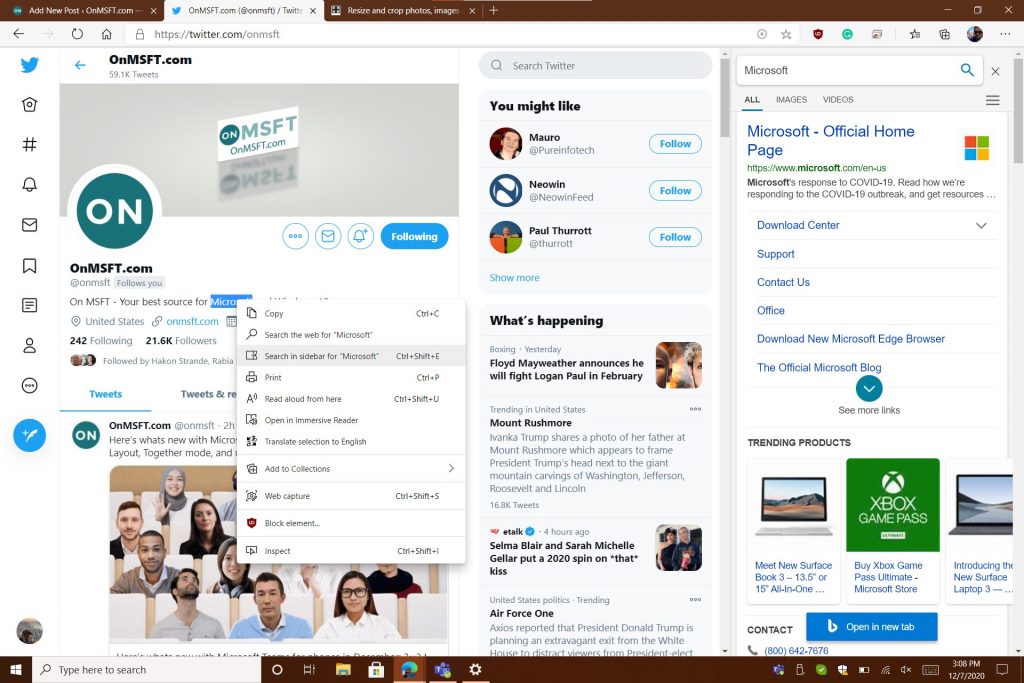
Microsoft’s ‘Find Your Joy’ commercial is sad, but not for reason you think

It is December 3, 2020, and time for major brands and companies to start pulling on the heartstrings of consumers to gently nudge them into engaging with products and services to end the year.

Like clockwork, Microsoft has come out of the gate with its 2020 offering and for many, the company seems to have aimed wide of the customary marketing intentions this year with its new ‘Find Your Joy’ Holiday 2020 commercial.

The commercial, which highlights a family dog seemingly ignored by the people in the house is left to spend the evening dreaming about finding its joy within the confines of its owner’s technology. As some have quickly pointed out, the ad can arguably be doing quite the opposite of its intention in trying to spur ‘joy’ and in turn, a disservice to Microsoft and its product catalog in the video.

As someone who writes about technology daily, perhaps I’m more jaded than others, but I’m rarely moved to make purchases from these sorts of videos, so the ads selling prowess is arguably lost on me.

With that being said, I can still find meaning and appreciate how the message resonates with audiences, and Microsoft’s new ad resonates with me in a way that’s somber and melancholy but that has nothing to do with the dog’s fate.

As the video opens with a lone family member sitting in the living room by themselves, we’re also made aware of mitigating circumstances that would prevent the sort of lively outdoor activity our titular character is accustomed to, an evening snowstorm.

Where there should be some swelling sympathy for the family dog, I see the juxtaposition of confinement and escapism for the gamer instead. While Microsoft may have intended to use the visualization of snow to signify winter, it also doubles as a barrier to outdoor activity by having the backdrop be snow actively falling at night. Neither the gamer nor the dog were going anywhere anytime soon.

Microsoft Holiday 2020 Cropped

The dog makes note of the gamer and game onscreen before moving to the second family member engaged in a Teams meeting with members in different time zones and countries, judging by the accent of the prominent speaker. Once again, the dog is left with little interaction from this family member as she engages in traditional after-hours work.

Again, while the dog may have wanted more than a pet and brief rub, I feel more sympathy for the woman who has to be in a meeting at night and less for the momentarily attention-starved dog. The dog finally moves on to the last two family members who are both playing Microsoft branded games in Minecraft and Flight Simulator, to which both are seemingly too engaged to play with the dog. Clearly, the dog strikes out with each family member in trying an effort to be noticed, but what doesn’t go unnoticed is the eerie silence and isolation each family member is encapsulated in.

Microsoft Holiday 2020.5 Cropped

Lastly, the dog finds kinship with another dog across the way who also sits in an open window seemingly ignored by its family. Where this dystopian reflection takes a turn is when the dog finds solace in being able to dream about the same sort of escapism his family is partaking in. Instead of dreaming of belly rubs, games of fetch or overflowing bowls of food, the dog dreams about being an active participant in the technology its family is using.

Microsoft Holiday 2020.2 Cropped

The joy in Microsoft’s ‘Find Your Joy’ campaign, seems to be less about the dog finding joy in the more traditional forms of interaction we may attribute to a dog, but being able to find it in the escapism like the rest of its family in 2020, due in large part to the COVID-19 pandemic. With a light snowstorm at night symbolizing the families’ inability to interact outside, they’ve all rallied around the technology that’s enabling them to engage with things outside of the confines of their home. While it’s arguable that they should be gathered around a central place or room interacting with one another, Iaughing, talking, and playing with the family dog, the more astute reality is that the family represents a microcosm of our communal technology experiences as of late.

While many would like to believe they’re conscious of their screen activity, a 3rd party recording might show zombie-like attention being paid to our phones, TVs, tablets, and computers with each quarantined passing day. With the pandemic shifting traditional outdoor and in-person activities such as happy hours, weddings, and game nights to online, as a collective, we’re probably more engaged with our screens indoors than we have been at any other point in time.

To me, what Microsoft’s new ‘Find Your Joy’ ad does is shine a light on the multitude of products the company offers to help people to escape the confines of their homes. While some might feel saddened by the dog not getting more traditional forms of engagement from the family, what the ad does effectively shows is that just like the rest of its family, the dog has adapted to isolationism by embracing the escapism of Microsoft products.

Microsoft Holiday 2020.3 Cropped

Should the family or the dog forego the more traditional forms of interacting with one another? No, but the reality is, we’re not in traditional times and we’re increasingly dealing with less traditional circumstances in 2020. If one can’t find joy in the traditional, find joy in the new normal. Happy holidays, everyone!

9 Best Software to Block Websites on PC

If you’re looking for tools to block certain websites on your Windows computer, you’re in the right place. In this article, we will list the best website blocker tools.

You can use them on all the browsers compatible with the Windows OS. There are various reasons why users prefer to block particular websites.

Maybe the content is inappropriate for certain viewers, or the respective websites pop up on your browser all of a sudden, interrupting your work.

Irrespective of why you want to install a software tool that blocks websites, we’re sure you’ll find the right one in the list below.

What’s the best website blocker software?

TotalAV – Can schedule smart scans

TotalAV makes for a great companion in your online sessions when it comes to security. This software comes with real-time protection from viruses, malware, and other online threats that might try to infiltrate your system.

This tool can block unwanted pages, and even more, it can block Ads and in-play video Ads so you are always sure to watch your favorite programs undisturbed.

With this software, you can also block tracking cookies and monitor your email address against data breaches.

TotalAV real-time protection is not only for when browsing the internet, it will actively scan your downloads and installs and make sure you never put your device at risk by mistake.

Here are some more awesome features of TotalAV:

  • Available across Windows, Mac, Android & iOS
  • Schedule Smart Scans
  • Eliminate Malware
  • Bypass geo-restricted websites
  • System Tune-Up Tools

TotalAV

Protect your system in real-time with this amazing security software.
Check Price Visit Website

ESET HOME Security Essential – Complete Internet security

ESET HOME Security Essential is a powerful and complete internet security software that will make your browsing safer and block annoying pages.

This tool comes with features that are very much needed nowadays, it will protect your whole operating system and encrypt your sensitive data, so it is forever out of reach from malevolent hands.

ESET HOME Security Essential, as its name suggests, is not only great for blocking unwanted websites but can also protect against malware, ransomware, and phishing attacks.

You can safely use this software for password management and device control, in case you want to protect children or vulnerable persons’ devices.

Here are some other features of ESET HOME Security Essential:

  • Webcam Protection
  • Gamer Mode
  • Advanced Memory Scanner
  • System Registry Scanner
  • Script-Based Attack Protection

ESET HOME Security Essential

Keep yourself and your loved ones safe from unwanted internet content with this powerful tool.
Free Trial Visit Website

Guardio – Simple to use extension

Guardio is a security extension that was designed to help browse fast and safely. This tool can clean up your browser and speed it up, while also blocking unwanted content.

This software is really easy to use, it will just be added to your browser and then you can start using the internet as you normally would and just let it do everything in the background.

Guardio was created for Chrome, but that in return makes it compatible with all Chromiun-based browsers, such as Opera, Edge, and Vivaldi.

This tool will help you monitor information leaks, and block unwanted notifications and malicious websites.

Some other features of Guardio that you might find interesting:

  • Suspicious site detection
  • Phishing alerts
  • Real-time removal
  • Personal dashboard

Guardio

Access your favorite websites and be protected with Guardio.
Check Price Visit Website

Vipre – Very powerful spam protection

router antivirus

Vipre is a powerful antivirus that keeps your data secure by delivering easy-to-manage malware protection. Even more, it’s the software you need to block websites easily.

Vipre is designed to eliminate viruses, spam, and Zero-day attacks, and not only without impacting system performance.

With cloud-enabled Advanced Active Protection as part of the package and a truly user-friendly interface, it also blocks particular websites that you’d like your employees to stay away from.

Here are some key features that Vipre brings to the table:

  • Easy-to-manage interface
  • Superior protection against spammers, hackers, and cybercriminals
  • Two-way firewall
  • Accurate website blocking
  • Anti-spam protection

Vipre

Vipre is a reliable choice for businesses and home users who want accurate website blocking. Are you ready to enjoy its features?
Check price Get it now

WebTitan – Personalize block pages

get WebTitan

TitanHQ’s WebTitan is the perfect website blocker software for companies and schools. It offers a 360-degree view of how employees or students use the Internet in your company or school and lets you manage Internet usage.

In other words, you can reduce non-work related browsing and access to certain websites that reduce your employees’ productivity or your students’ focus.

You can set up WebTitan Cloud in minutes; its intuitive UI makes it easy to use.

It also provides excellent malware protection for your company and employees, blocking viruses, phishing attempts, and other malware threats. With just a single click, you can block user access to certain websites.

The tool doesn’t cause browsing slowdowns when deployed, and it automatically installs the latest version available, so there’s no need to constantly worry about keeping it up to date.

Moreover, you can also personalize block pages and add a description as to why a particular website has been blocked. You can deploy WebTitan as a cloud or gateway solution.

⇒ Get WebTitan

Barracuda Web Security Gateway – Create policies to control user access

Barracuda Web Security

Barracuda Web Security is a well-known online security tool that you can use to filter web content. The software offers flexible controls to regulate online activity.

You can create policies to control user access to commonly visited websites using 95 content categories such as pornography, violence, hacking, sports, news, dating, shopping, and many more.

Barracuda Web Security is a powerful program that allows you to either restrict specific websites altogether or look for certain patterns and block all those that display them.

At the same time, the software’s image and multimedia safe search option can also block thumbnail images in search results.

The tool also features pre-built English-language dictionaries of keywords and phrases related to harassment, weapons, and more. Of course, you can also add your own keywords and phrases for monitoring.

For more information about the tool’s full list of features, check out Barracuda’s official webpage.

⇒ Get Barracuda Web Security Gateway

InterGuard – Filter web activity

get InterGuard

InterGuard is a powerful web security software that also includes a merciless web filtering and website blocking module.

The tool is suitable for companies and enterprises that want to monitor employee activity and record and filter web activity.

InterGuard features 36 pre-screened and sorted URL lists that allow your IT administrators to easily implement security and web access policies. You can block websites that contain a series of keywords that you selected.

At the same time, the tool can also block Google images. Of course, if you want to whitelist certain websites, you can create your own specific lists depending on your business needs.

Apart from the website blocking feature, InterGuard also allows you to spy on your employees.

More specifically, you can record all the websites visited or blocked and receive alerts when attempts are made to visit the websites or categories previously banned.

You can also see what’s being typed in and searched for across all search engines.

⇒ Get InterGuard

TrueVine’s Website Blocker – Very precise tool

Website Blocker

While the first three websites blocking software listed in this article are suitable for companies or IT admins, the fourth is more family-friendly.

TrueVine’s Website Blocker can help keep your family safe against all the pornography, violence, and vulgar messages plaguing the Internet.

The program is an anti-pornography website blocker and internet filtering tool compatible with any Ethernet and Wi-Fi network.

If you’re a parent who wants to select which websites to block from your child’s eyes, then this is the right tool for you. Besides blocking websites displaying pornographic content, the tool can block most pop-ups.

TrueVine’s Website Blocker is a precise tool, focusing mainly on blocking pornographic content. We also included this program because we wanted this list to be as diverse as possible.

⇒ Get TrueVine’s Website Blocker

The Web Blocker – Block pages with a single click

get The Web Blocker

As its name suggests, the creators of this software want it to be the ultimate website blocker tool.

You can use The Web Blocker to block inappropriate content that your kids may accidentally access and reduce the time your employees spend on websites that have nothing to do with their job tasks.

You can block any website on the Internet per-user basis or block webpages for all users.

If you want to check what websites users have visited lately, you can access the internet browsing history and see if they behaved well.

If your kids spend too much time on social media websites, you can block all these web pages with a single click.

⇒ Get The Web Blocker

These are some of the best tools that you can use to block websites on your browser. As you can see, some programs listed in this article suit companies. If you don’t like any of these tools, be sure to check our guide on how to block a website in Chrome to learn about alternative solutions.

At the same time, others are perfect for parents or small businesses that don’t have the budget to buy an expensive website blocker. Don’t hesitate to let us know your choice in the comments area below.

5 Best laptops with dedicated graphics card

The people who only use their machines for light tasks can get by with minimum specs.

However, those who want to use their laptops for graphic design or to play graphically intensive games need laptops that can handle those tasks. An Integrated GPU will not be able to run games such as Red Dead Redemption 2 optimally.

Fortunately, the manufacturers of gaming laptops try their best to create top of the line products for their customers.

They add dedicated GPUs to their laptops to significantly boost their performance, thanks to NVIDIA and AMD, who push the boundaries of computer graphics every year.

What are the best laptops with dedicated graphics cards?

MSI GL65 Leopard

  • Intel Core i7-10750H up to 5.0GHz
  • Nvidia RTX 2070 with 8GB GDDR6 memory
  • Dual-channel 16GB DDR4 2666MHz RAM
  • 15.6-Inch 144GHz IPS display
  • Fans are extremely loud during full load

The MSI GL65 Leopard is the most budget-friendly powerhouse on our list. It offers high performance at a lower cost.

MSI’s aim with this laptop is to have as much performance as possible with its high-end RTX GPU and the latest generation of Intel CPUs.

The laptop is bigger and bulkier than normal work laptops because it has a more efficient cooling system.

A dedicated GPU needs special cooling not to overhead under load. The laptop has an aluminum lid and a plastic body, and it has a SteelSeries RGB keyboard.


Razer Blade 15 Advanced

  • 10th Gen Intel Core i7-10875H processor with 8 Cores
  • NVIDIA GeForce RTX 2080 Super with Max-Q Design
  • 4K OLED 300Hz touch display
  • HDR 400 True Black
  • 16GB DDR4 SDRAM
  • 1TB SSD
  • Really expensive

Razer Blade 15 Advanced puts together the best components available on the market into a top-class customizable laptop.

The product has a premium look and feel, having a case made entirely out of aluminum with a matte black color.

The CNC aluminum unibody houses incredible performance in the most compact way possible. The 4k display brings visually stunning colors and comes reinforced with Corning Gorilla Glass.


Alienware Area 51M

  • Nvidia GeForce RTX 2070 Super 8GB GDDR6
  • 10th Gen overclockable Intel Core i7-10700K
  • 16GB 2933Mhz RAM
  • 1TB SSD
  • Alienware TactX keyboard
  • 144Hz refresh rate
  • The fans are loud

The Alienware Area 51M has a futuristic design with white and black colors. It is thick and wide, not making any compromises in size in order to offer the best experience.

The laptop has cutting-edge hardware that can benefit from its high refresh-rate display and the speakers produce loud and clear audio.

Both the GPU and CPU can be overclocked thanks to the efficient cooling system.


ASUS ROG Strix G15

  • NVIDIA GeForce RTX 2070 8GB GDDR6 with ROG Boost
  • Current 10th Gen Intel Core i7-10750H Processor
  • 240Hz 3ms 15.6-Inch IPS display
  • ROG Aura Sync System included
  • 16GB DDR4 2933MHz RAM
  • 1TB PCIe SSD
  • No web camera

Our first mid-range choice is the ASUS ROG Strix G15. The laptop features a thick plastic case covered with RGB lights that give it a futuristic look.

It also features a massive chin bezel which means the screen sits up higher when you open the laptop.

The product has plenty of ports, which are positioned on the side and on the back. Lastly, the keyboard has extra function keys such as Turbo Mode, specially crafted for gaming.


ASUS TUF VR Ready

  • Latest AMD Ryzen 7 4000 Series
  • NVIDIA GeForce RTX 2060
  • 16 GB XMP enabled 3200Mhz RAM
  • 512GB SSD with 1TB HDD
  • Only 60Hz refresh rate screen

Another great entry from ASUS is the ASUS TUF VR Ready laptop, a thicker and heavier laptop that doesn’t compromise a better cooling system for more portability.

The laptop has great hardware, featuring an AMD processor and an RTX ready GPU. In addition, the RGB backlit keyboard allows you to enjoy comfortable and accurate typing even in dim lighting.


Dedicated GPUs will completely change how a laptop performs. This list was meant to help you with all the information you need before you buy the laptop that suits your needs.

If you have anything exciting and new to add to the subject, please reach out to us in the comment section below.

[wl_navigator]