Updating your drivers in Windows 10 is now safer

In May, Microsoft was announcing that they will pay better attention to the driver compatibility in Windows 10.

That was great news since the driver problems are one of the most important causes of errors and BSoDs.

A little bit later, Microsoft provided the solution to deliver the drivers which they, together with the manufacturers already tested and validated through optional updates in Windows 10.

It’s a filter that can, of course, contribute to eliminating any such problems but now, it seems like they silently have taken out one method of updating your driver, by using Device Manager.

What can I do if I can’t update the drivers in Device Manager?

Apparently, if you have a Windows 10 version 2004, build 19041.423 or older, you can’t look for a newer driver online using Device Manager.

Everything else looks similar but when you select the Update driver option from the Device Manager menu for a PC component, you will see two options, none on which is offering online help.

The first option, to Search automatically for drivers is only offering the option to search your computer for a driver. The other is to browse your computer for a driver if you already downloaded one.

This can be good or bad news, depending on how you look at it. It’s safer to have the correct driver instead of downloading a possibly unsafe or incompatible driver online.

It can also be a nuisance for users who got used to the process and are looking for improved drivers no matter what.

How can I update drivers in Windows 10?

Well, there are a lot of means to update your drivers and you can’t cross Device Manager from the list just yet because it can still be a valid option to use after you downloaded the new driver.

You can do that by using a software to automatically update your drivers. Here’s a list with the best driver updater software for Windows 10.

Did you use to update your drivers using Device Manager? What do you think about Microsoft’s move? Let us know in the Comments section below.

[wl_navigator]

Microsoft drops monthly “Xbox 20/20” updates commitment and will share news “in a variety of ways”

Microsoft is no longer sticking to the monthly “Xbox 20/20 updates” formula it announced back in May. Indeed, the company has quietly updated its original blog post last week to say that the initial announcement suggested that there would be a monthly Xbox show every month, and there was indeed no big event in June between the May Inside Xbox livestream and the Xbox Games Showcase in July.

“After reassessing our programming for the rest of the year, we’ve decided to stop using the “Xbox 20/20” phrasing as it implied that we would be releasing information in one way only, through a dedicated monthly show,” the Xbox team explained. The first Xbox 20/20 update in May was focused on third-party games coming to Xbox Series X, and that show didn’t really meet the expectations of Xbox fans looking to see real gameplay on Xbox Series X. June passed without an Xbox 20/20 update, and the Xbox Games Showcase in July was also a disappointment for Halo fans after Halo: Infinite failed to blow everyone away.

“We’ve got so much more to share with news about Xbox Series X, new games like Halo: Infinite, and cloud gaming via Xbox Game Pass. We’re going to share that news in a variety of ways. It may sometimes be a dedicated show, YouTube videos, partnering with others, or sharing the latest via Xbox Wire. We want to stay flexible with how we connect with you,” the Xbox team said in the update published last week. The company is expected to finally unveil its Lockhart/Xbox Series S console this month, which is now the worst kept secret in the video games industry, but it remains to be seen how the Xbox team will do it.

After Sony aired a new “State of Play” livestream last week, it would be a bit disappointing to see the Xbox team not using a similar format this month. However, Microsoft announced its Surface Laptop 3, Surface Go 2 and Surface Headphones via a simple press release earlier this year, so it wouldn’t be completely surprising if the Xbox Series S getting the same treatment this month.

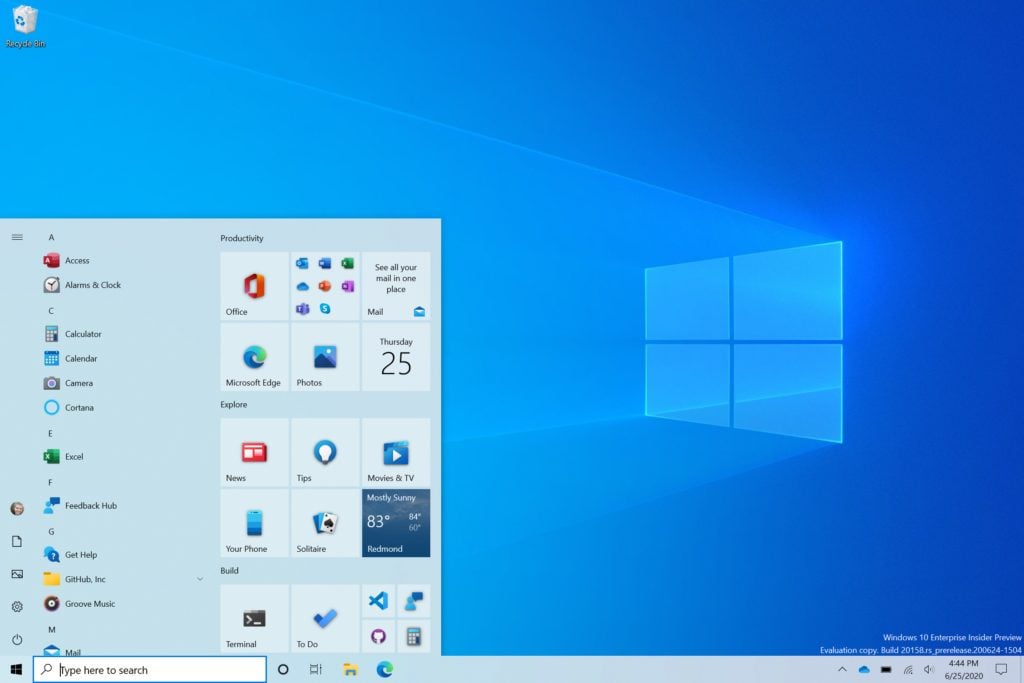
Windows 10X on screen keyboard shows up hidden by default in latest Windows 10 Insider build

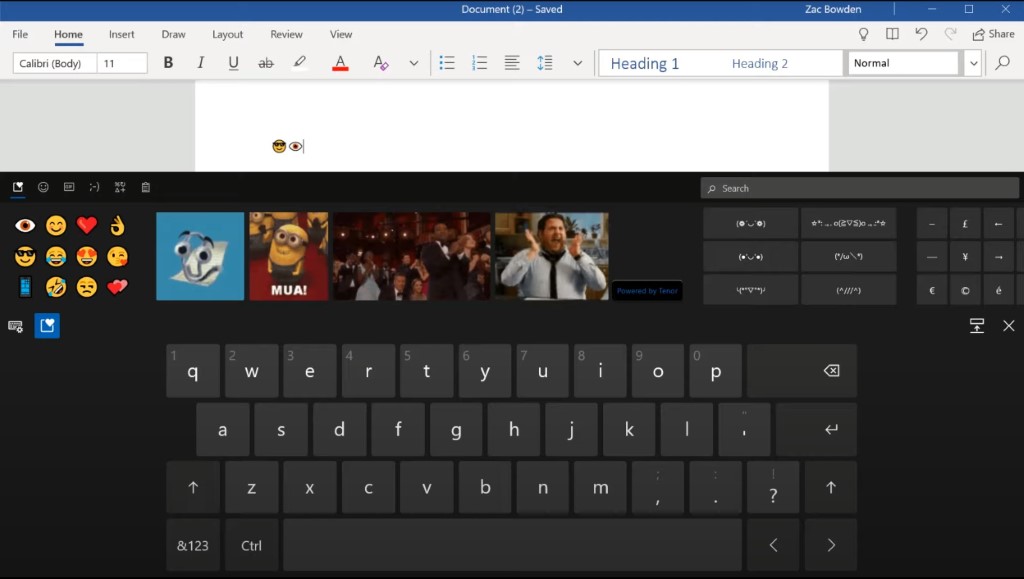
It’s been rumored for some time that elements of the now-delayed Windows 10X operating system could come to regular Windows 10, and we’re now perhaps finally seeing some of that come true. As noted by Windows Central, the latest Windows Insider build hides away the Windows 10X touch keyboard inside the operating system.

Coming as a change from the Windows 8 style touch keyboard that has been in Windows 10 for the last 5 years, this should be quite refreshing. As Microsoft showcased when it revealed Windows 10X, this keyboard comes with transparent effects, touches of Fluent Design, as well as new sounds. There’s even a GIF picker, emoji panel (now above the keyboard,) and fresher animations. Other new elements include a shortcut above the keyboard to see the clipboard.

If you’re eager and don’t want to wait for this feature to officially roll out, you can try this keyboard today at your own risk today. First, install the ViveTool, extract it, open it in PowerShell, and run the following code (without the quote marks) “vivetool addconfig 20438551 2” You should then restart your PC for it to work. Again, we don’t recommend installing such programs to your PC and urge you to wait for Microsoft to roll it out. But, since the code for the keyboard is in the operating system, it might well be coming soon.

Hands-on with Microsoft Sway: Another way to create beautiful presentations, and more

If you own a small business, then generating reports, presentations, training materials, and newsletters are key to your day to day operations. With these types of materials, you not only can keep your employees engaged, but also your audience and customers. You might have already heard about using PowerPoint or other programs like Photoshop and Adobe InDesign for creating these things, but did you know that your Microsoft 365 subscription has a service that also can help out?

That’s right, with your Microsoft 365 Subscription you have access to Sway. This is an app from Microsoft Office that makes it easy to create and share interactive reports, personal stories, presentations, and more. In our latest Microsoft 365 guide, we’ll be going hands-on with the experience for you.

What is Sway?

Before getting into anything, we’ll recap what exactly Sway does for you. Sway lets you compile text, images, videos, and other content into an interactive online format. You’ll be able to use it to apply designer-created layouts and color schemes or let Sway suggest design elements that match your content. You also can search and import relevant content from sources, and then share your Sways on the web.

Sway is available online from the web or from the Microsoft Store in Windows 10. It’s free to use for anyone with a Microsoft Account. However, you can create some more advanced Sways when used with a Microsoft 365 Subscription. You can learn more about that here.

Sway
Sway
Price:
Free

Creating a Sway from a topic or template

Creating Microsoft Sway

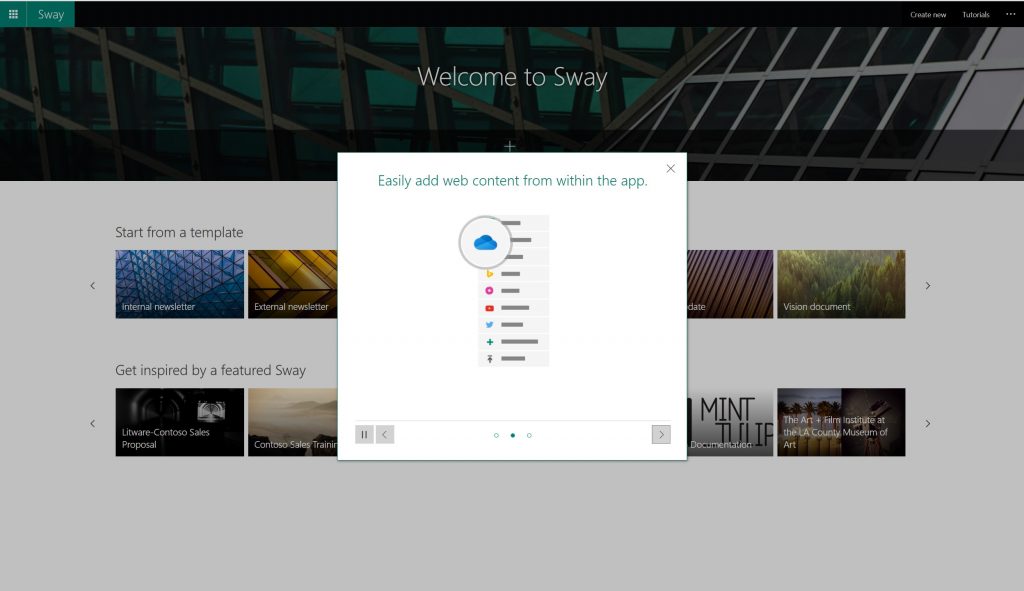
Once you head into Sway on the web, you’ll be able to create a new one from scratch, from an existing file, or a topic. You can click the Create New button to get started with a new Sway from blank. For most novices, though, we recommend starting from a template. For other things like a report, you can start from a topic by clicking Start from a topic. With this option, Sway provides base content for you, powered by Wikipedia.

You can also choose from a variety of common templates such as internal newsletter, external newsletter, How-to, vision document, status update, resume, and more. Scroll through the list with the arrow key. Once you find the one you want, you can edit the template by clicking Start editing this Sway.

If you create from a topic or template you’ll see various pre-populated sections, similar to a Word document or a PowerPoint. You can edit these by clicking on each card or image to put in your own content. When you finish, you can preview the Sway by clicking the Play button at the top. You also can change things around by clicking the Styles tab under Design to change text boxes to different styles for a more unique look. We’ll have more on that later.

Creating a Sway from scratch

Sway Creating Sway

Next up, there’s creating a sway from scratch. If you choose to go this route, you need to be aware of a couple of things. These include: the Storyline, the title, and adding content. We’ll get started by explaining the Storyline, first.

In Sway, the Storyline is where you’ll edit, type, and insert content. The Storyline is organized by cards, and each card has different purposes and content types. These cards include text, images, videos, and also Office documents. You can upload your own images, or you can search for sources using the search box directly within Sway. Just click the Insert button at the top right corner of the screen.

Adding Items Sway

The first card in the Storyline will always be the title. Be sure to make this one stand out. You can drag images saved on your device into the Sway title by clicking and dragging them in from the original location.

Next, there’s your content. You also can add new elements and content to the Storyline by clicking the green + button underneath any previous card. The different types of elements you can add to a Sway can be seen below. We suggest playing around with these as you add them, as each type of content changes the way a Sway looks.

  • Heading
  • Text
  • Images
  • Stack of Images, Text
  • Videos
  • Audio
  • Embed an item
  • Stack of images, slideshow of images, grid of games, and more.

Once you add a card, you can delete it at any time by clicking the trashcan icon in the top right corner of the card. You also can drag storyline cards up and down by clicking and dragging it around, if you need to reorganize things.

Design in Sways

Sway Samples

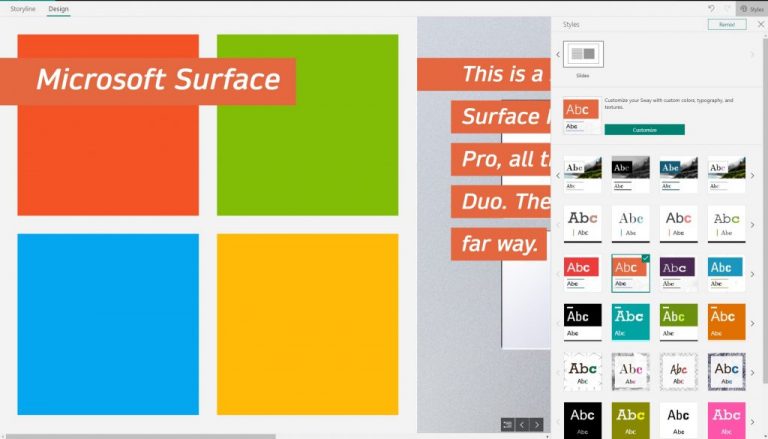
Continuing along, there is another important area to Sway, The Design. This is accessed by clicking the Design tab when editing a Sway. From here, you’ll be able to select designs and layouts. There are various designs to choose from.

Each design will change your backgrounds and text boxes to a different theme. You can cycle through the list to pick one, and then choose the Customize button to change it as you see fit. That customize option will let you adjust a specific part of the currently applied theme, such as color, font choices, and the emphasis of animation.

The Style, meanwhile, can be changed from vertical, horizontal, or slides. These will change how your content scrolls as the user scroll through your content.

Once you’re satisfied with a design, you can preview your way by clicking the Play button on the top menu bar. This will allow you to experience your sway just as the viewer would.

Sharing your Sway and more

Once you design a Sway, the final thing to do is to share it. When shared, your family can view it without signing in or downloading. To share, just click the Share button in the top navigation bar and copy the URL. You can choose three ways to share, with specific people, only within your organization, or anyone with a link. You also can copy an embed code and embed it in a blog, as we have done above. If you’d like you also can add a password to the Sway to protect it. You can learn more about sharing Sways at Microsoft by clicking here.

We hope that you found out guide to Microsoft Sway helpful. If you’re still looking for more information on how to get started with Sway, you can check out Microsoft’s support website, here. Do you like Sway? Get creative, and let us know how Sway works for you by dropping us a comment below.

Outlook for Windows will get cloud syncing capabilities in September

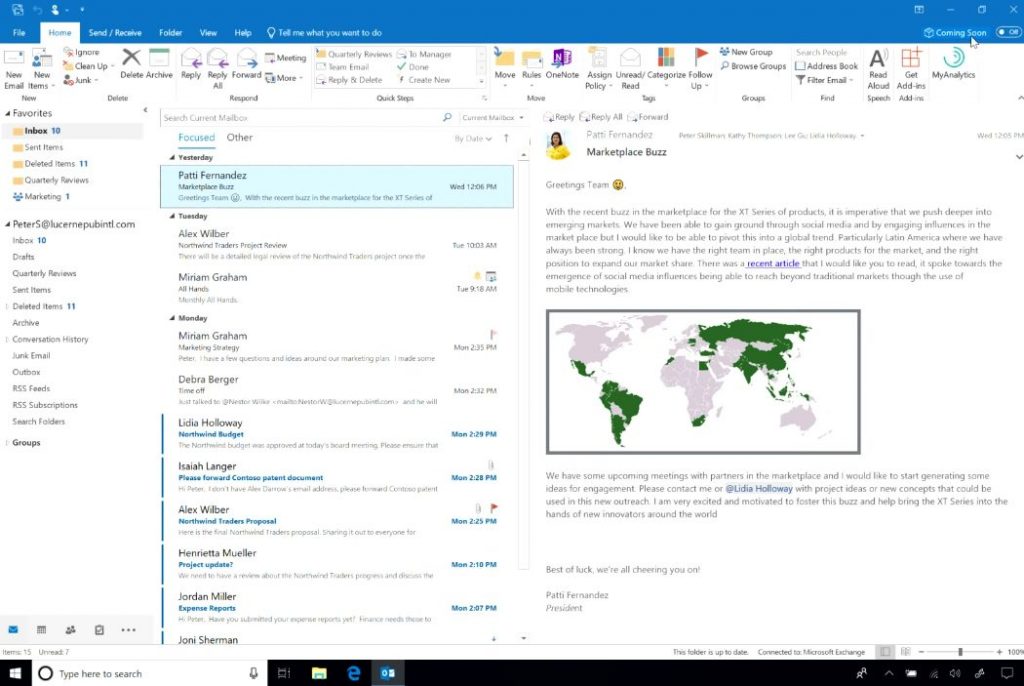
Earlier this year, Microsoft announced that it’s bringing new cloud syncing capabilities to Outlook for Windows in June. However, it seems like the Redmond giant has delayed the release of this feature to the end of September (via Dr Windows). Microsoft has posted a new update in the Microsoft 365 Admin Center noting that the decision has been made based on early feedback received from the users, and some additional changes to the code are required to enable cloud roaming option:

Based on learnings from our early rings, we have made the decision to make additional changes to the code before we proceed with the rollout. We expect to roll this out to the Monthly Channel, Production, in late September (previously late June).

The new cloud syncing feature will deliver roaming profiles that should sync a wide variety of settings in the cloud, and the list includes Advanced, Calendar, Ease of Access, General, Groups, Mail, People, Search, as well as Tasks. The whole point of the cloud roaming option is to ensure a consistent user experience when they access Outlook for Windows on any of their PCs.

Microsoft said that the roaming options will be turned on by default, and it will be up to the Office 365 admins to disable this feature for all Microsoft users in their organization. In case you missed it, Microsoft is also planning to bring cloud support for Windows email signatures, and the rollout is expected in the coming weeks.

Xbox Series S console appears on leaked next-gen controller packaging

Microsoft’s second next-gen Xbox console, which is rumored to be officially announced in August, will apparently be named the Xbox Series S. Leaked pictures of a next-gen white Xbox controller have been published by Twitter user Zak S over the weekend, and the side of the packaging shows that it’s compatible with the “Xbox Series X/S.”Leaked Next Gen Xbox Controller Packaging With Xbox Series S Mention

This is the second time we’re seeing a white next-gen Xbox controller in pictures after a Reddit user briefly posted pictures of a similar controller last week before deleting them. Anyway, The Verge has now confirmed the authenticity of the pictures from Zak S, who apparently purchased the controller from a resale site.

The Xbox Series S name makes sense if Microsoft wants to reiterate the two consoles strategy that led to the release of the more powerful Xbox One X one year after the Xbox One S. This time, Microsoft chose to unveil its more powerful Xbox Series X console first, and the Xbox Series S is expected to be the cheaper “Lockhart” SKU that we’ve been hearing about from quite some time now. Traces of Lockhart/Xbox Series S have recently been found in a new Microsoft Game Development Kit from June.

Compared to the Xbox Series X, the Xbox Series S/Lockhart is expected to come with a similar AMD custom-designed Zen 2 GPU, but a less powerful 4 teraflops GPU for 1080p/1440p gaming. The Xbox Series S is also expected to be a discless console with a form factor that could be quite similar to the Xbox One S/X. Actually, the console could be a good next-gen replacement for the Xbox One X that Microsoft recently stopped manufacturing.

It remains to be seen if pictures of the Xbox Series S could leak before Microsoft officially announces it. Sony opted for a slightly different strategy, announcing a discless PlayStation 5 Digital Edition console alongside the regular PlayStation 5 last month. Microsoft has opted instead for 2 consoles with different specs, and this might cause some confusion for consumers. The company has a new “Optimized for Xbox Series X” badge that will appear on game packaging, but it’s not clear yet if these optimized games will benefit from similar optimizations when running on the less powerful Xbox Series S.

How to Fix Computer or Network Sending Automated Queries Error

Many users reported Your computer may be sending automated queries while using Google. This issue can be annoying since it will force you to fill in Captcha in order to continue using Google search.

However, there’s a way to solve this issue, and today we’re going to show you how to do it.

Why is my network sending automated queries?

Well, the most basic explanation of this error message is that the provider is seeing suspicious activity between your public IP address and its servers.

As a result, an automated query is usually one that comes in rapid succession and in large volume. You may not be blocked outright, but may instead receive a challenge to enter a code.

That being said, know that this could also be the result of a browser issue or malware you might have accidentally downloaded to your device.

What to do if my computer is sending automated queries?

1. Try a different browser

Let us start by saying that there are few things more annoying than your computer or network sending automated queries and Recaptcha requests.

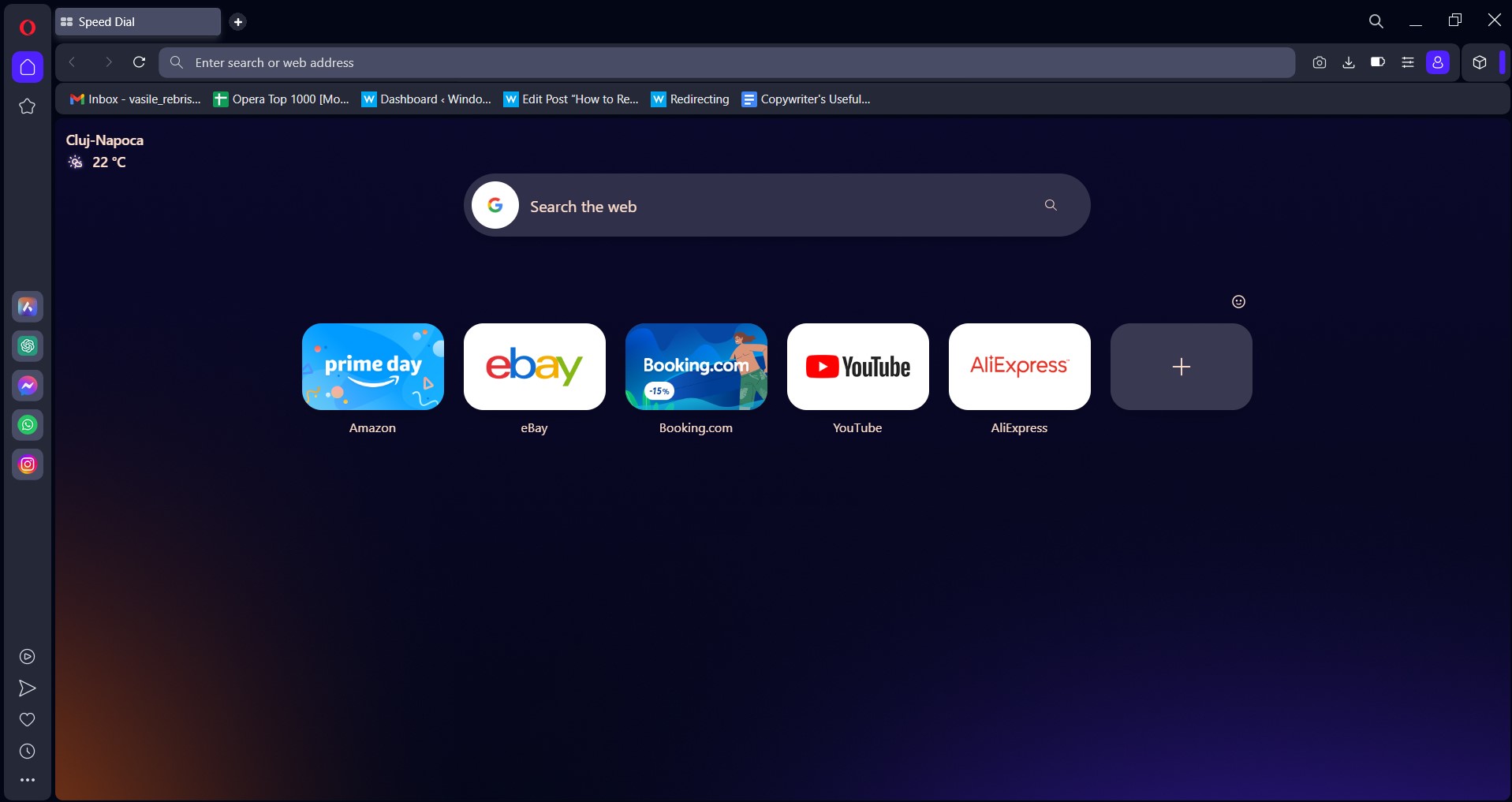
The first thing you should do when encountering this problem is to try a different browser. There are many great browsers on the market, but if you want a reliable and secure browser, we suggest you try out Opera One.

Once installed, you can easily import all your Chrome bookmarks, and it brings extra utilities such as integrated social media, messaging and a native AI.

This browser comes with built-in Ad blocker, anti-tracking features, and even its own VPN, so it’s a great choice if you want to surf the web without any security or privacy concerns.

The VPN can be quite handy since it will change the IP address that Google detects and won’t consider your device or network to be sending automated queries no more.

Opera One

You can start enjoying all the great benefits at a glance and set it up with ease to change your IP.
Free Download Visit website

2. Scan your PC for malware

  1. Scan your PC with your antivirus software.
  2. If any malware is found, be sure to remove it as soon as possible.
  3. Check if the problem is still there.

If you’re looking for a secure and reliable antivirus that can detect all types of malware, you might consider switching to a more effective one.

To do this, you can consider the fittest antivirus for your PC safety from malware, and thus take action choosing from the best antivirus software for Windows 10.

3. Connect to a different network

  1. If possible, connect to a different network.
  2. If the issue doesn’t occur on a different network, it’s possible that the issue is related to your ISP.
  3. Trying waiting for a few minutes or for an hour and check if the problem still appears.

4. Delete cookies

  1. Open your browser and navigate to the three dots at the top right corner of your browser.
  2. Then, select Settings.
    settings chrome your computer may be sending automated queries
  3. Scroll down and click on Advanced.
    advanced settings chrome your computer may be sending automated queries
  4. Now, navigate down and click on Clear Browsing Data.
    clear browsing data chrome computer is sending automated queries
  5. Tick the box on the Cookies and other site data option.
  6. Finally, click on Clear data.
    clear data chrome your computer may be sending automated queries

Users reported their computers or networks sending automated queries for VPNs, Selenium, Rockstar, Tor, Python, and many others.

In order to protect their users, providers have certain protocols in place for such problems. However, if they can’t process your request right now, their help page will surely provide more details.

These are tested and verified solutions. Try out any of them and get your computer may be sending automated queries to issue resolved permanently.

Quick Fix: Gmail Notifications Not Working for Chrome & Desktop

Many users reported that Gmail notifications are not working in Chrome. This is a minor but inconvenient issue, and in today’s article, we’ll show you how to fix it once and for all.

What to do if Gmail notifications aren’t working in Chrome?

1. Try a different browser

If you’re having this issue, it’s advised that you try using a different browser. This is a Chrome issue, so it’s best to use a browser that is based on Chromium engine such as UR Browser.

This browser has the same features as Chrome, so all your Chrome extensions will work. Unlike Chrome, Opera One focuses on user privacy and security, as well as being much more customizable.

It comes with a built-in ad blocker, tracking protection, a VPN with unlimited traffic and even a built-in AI.

In addition, there’s a built-in scanner for downloaded files as well as a VPN. If you want a secure and reliable browser that works perfectly with Gmail and its notifications, Opera One is the way to go.

⇒ Get Opera One Browser

2. Make sure that the notifications are enabled

  1. Open Gmail on your PC.
  2. Click the Gear icon and choose Settings.
    gmail settings gmail notifications won't display chrome
  3. Scroll down to the Desktop notifications and select New mail notifications on.
    new mail notifications gmail notifications won't appear
  4. Scroll all the way down and click on Save changes
  5. After doing that, notifications from Gmail should appear on your PC.

3. Check Windows 10 notification settings

  1. Press Windows Key + I to open the Settings app.
  2. When the Settings app opens, go to System > Notifications & actions.
    notifications & actions gmail notifications not working chrome
  3. Select Notifications & actions from the left pane. In the right pane, make sure that Google Chrome is enabled in Get notifications from these senders.

4. Make sure that notifications are enabled in Chrome

  1. Open Gmail’s website, and click the lock icon just left of the address bar.
  2. Select Site settings from the menu.
  3. Set Notifications to Allow and save changes.
    allow notifications chrome gmail notifications not working chrome
  4. Check if the problem is resolved.

As you can see, this is just a minor problem, but you should be able to fix it by following our solutions. If our solutions helped you feel free to let us know in the comments section below.

Windows 10 news recap: Samsung announces deeper Microsoft integration, Parallels Desktop to bring full Windows apps to Chromebooks, and more

Welcome back to our Windows 10 news recap, where we go over the top stories of the past week in the world of Microsoft’s flagship operating system.

New Surface Pro 7 firmware updates improve power efficiency and Cortana experience

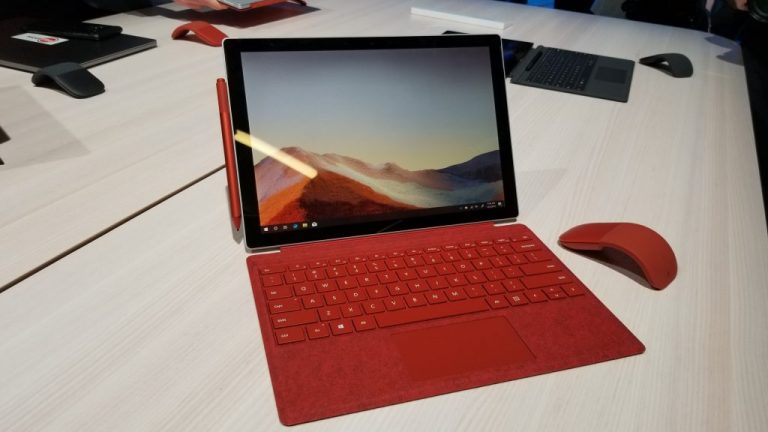
Surface Pro 7 users were sent a new firmware update this week. This latest update improves power efficiency and the Cortana experience. It is recommended to install the updates in order to ensure you’re getting the most out of the Surface Pro 7 battery.

Surface Pro 7 Red
Surface Pro 7 Red

Parallels Desktop for Chromebook Enterprise will bring full Windows apps to Chromebooks later this fall

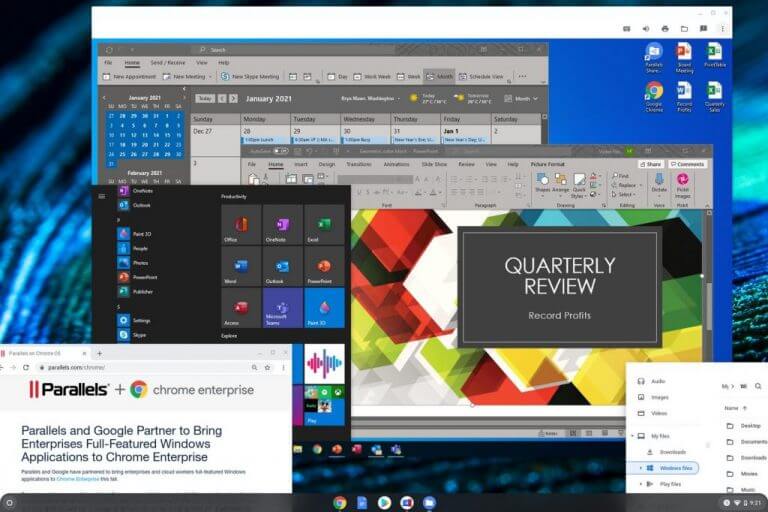
Enterprise users of Parallels Desktop for Chromebook are set to be able to make use of full Windows apps this fall, as part of bringing Windows virtual machines to Chromebooks, much like the case with Mac.

Parallels Desktop For Chromebook Enterprise

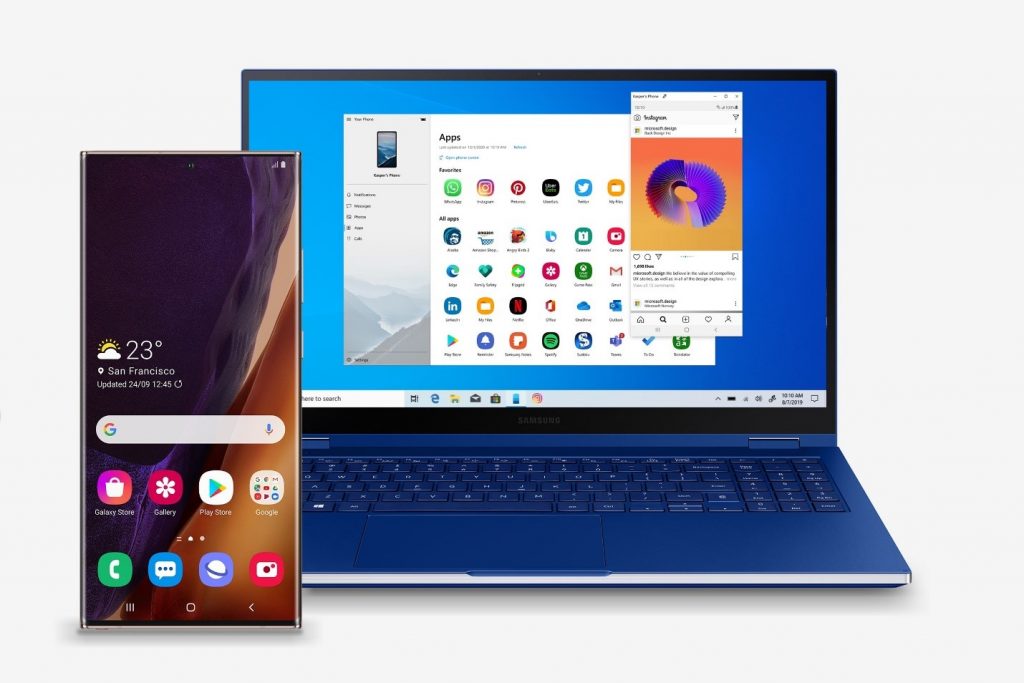
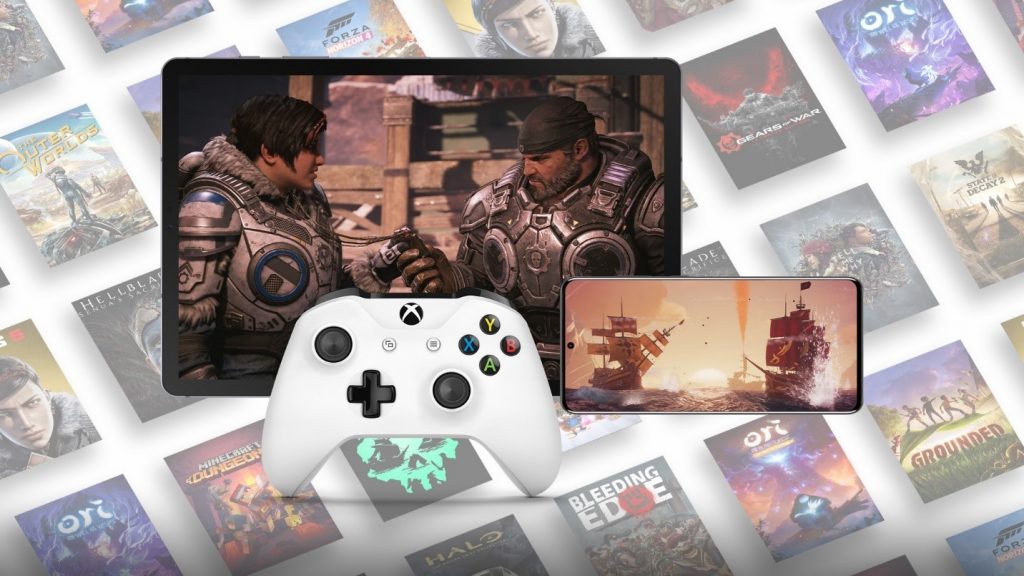
Samsung deepens its partnership with Microsoft with new Office, Your Phone, and Xbox integrations

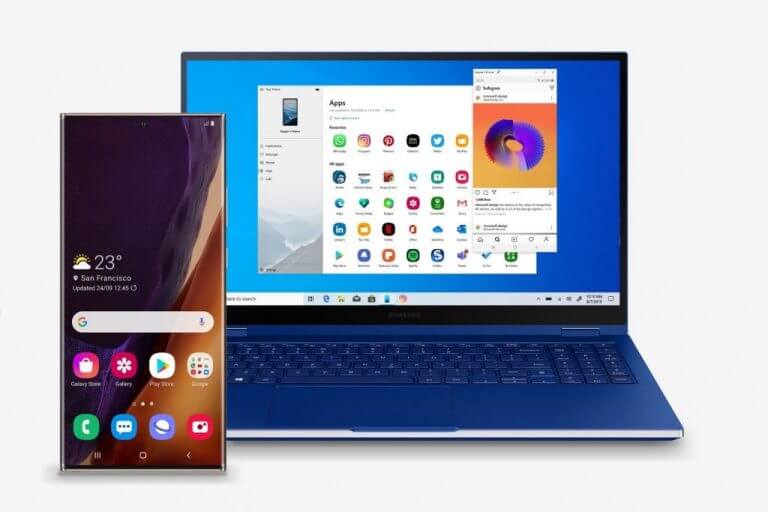
Microsoft’s foray back into the phone market with the Surface Duo dual-screen phone doesn’t appear to have tainted the relationship between Microsoft and Samsung, with Samsung announcing a number of new and improved integrations with Microsoft’s services. Of note for Windows 10 users, Samsung’s Galaxy Note 20 will gain the ability to launch Android apps from your phone on a Windows 10 PC.

You can read about all the announcements by Samsung here.

Microsoft Samsung partnership Windows 10 Galaxy Note20

That’s it for this week. We will be back next week with more Windows 10 news.

5 best VPNs for personal use

Most corporations set up a VPN to allow employees to remotely connect to the workplace. It’s an ingenious method for securely accessing the company’s intranet and using all its resources just as if you were actually sitting in front of the office PC.

However, you can also get the best VPN for personal use. It’s different from a business VPN because you don’t connect to a VPN server to access another network’s resources.

Instead, you reroute your entire network traffic through VPN, thus bypassing your ISP. What does it mean? Your ISP will no longer be able to see what websites you visit, what torrents you download, or what movies you watch online.

Even if you’re not concerned about your online privacy, a VPN stops your ISP from throttling your bandwidth based on your type of activities, like streaming or downloading. In turn, this results in a stable Internet connection that doesn’t slow down.

Here’s what else you can do with a VPN for personal use:

Although it’s tempting to use a free virtual private network solution, you shouldn’t. They are notoriously dangerous for monitoring and sharing your VPN traffic with others. Simply said, you just can’t trust a free VPN with your data.

However, premium VPNs are different because they are actually designed to serve your interests. But not all of them are good, so here are the 5 top VPNs for private use.

What’s the best VPN for personal use?

Private Internet Access

Private Internet Access is the best VPN for private use

Made by Kape Technologies, Private Internet Access (PIA) is a secure VPN that delivers high-speed connections. Optimized for torrenting and streaming, PIA comes with a vast network of more than +3,300 VPN servers in 48 countries.

You can use it to secure your web browsing sessions, host game servers for you and your friends, watch Netflix US, hide your browsing history from your ISP, as well as set up native port forwarding without router setup.

Private Internet Access supports OpenVPN and WireGuard, Shadowsocks and SOCK5, an ad and malware blocker, split tunneling mode, and a kill switch. It runs private DNS servers to protect your DNS requests, and it allows 10 simultaneous connections.

More about PIA:

  • No logs or leaks
  • 24/7 live chat support
  • 30-day money-back guarantee (no free trial)
Private Internet Access

Private Internet Access

Get PIA for personal use to improve your whole Internet experience.
Check priceVisit website

NordVPN

use NordVPN for personal use

Created by Tefincom & Co., NordVPN is one of the most secure VPNs on the market, ideal for personal use. It has a network of over 5,100 VPN servers in 59 countries, which you can use for torrenting, streaming, gaming, and secure browsing.

NordVPN uses the OpenVPN protocol to encrypt your data traffic without taking away from the network connection speed. It comes with a malware and ad blocker called CyberSec, made to protect your browsing sessions from phishing and other Internet dangers.

You can set up NordVPN on all major operating systems, as well as protect up to 6 devices at the same time. It’s capable of unblocking many Netflix libraries, including Netflix US. The tool supports Double VPN, Onion-over-VPN, and obfuscated servers.

More about NordVPN:

  • No logs or leaks
  • 24/7 live chat support
  • 30-day money-back guarantee (no free trial)
NordVPN

NordVPN

Raise your laptop’s security level using one of the best VPNs for personal use.
Check priceVisit website

Surfshark

use Surfshark for personal use

Developed by Surfshark LTD, Surfshark is a highly secure VPN for personal use, especially if you’re not willing to pay too much money. It’s the most affordable virtual private network service on this list, which comes bundled with some cool safety options.

It supports OpenVPN, WireGuard, and Shadowsocks, private DNS on each VPN server, multi-hop connections, split tunneling, kill switch, P2P support, together with an ad and malware blocker for web browsers.

The tool features unlimited simultaneous connections, which means that you can protect your entire household devices with a single Surfshark account. Plus, you can set it up on all major operating systems and platforms.

More about Surfshark:

  • No logs or leaks
  • 24/7 live chat and email support
  • 30-day money-back guarantee
  • 7-day free trial for iOS and Android

Surfshark

Protect all devices in your family using a single subscription to this top VPN for personal use.
Check price Visit website

CyberGhost VPN

use CyberGhost VPN for personal use

Also owned by Kape Technologies, CyberGhost VPN is the best free VPN for personal use. You can install it on all popular platforms and protect up to 7 devices at the same time. The app has the largest network of servers on this list: more than 6,500 in 89 countries.

CyberGhost VPN can defend your router from hackers and connect you to trusted Wi-Fi networks without VPN. It supports exclusive DNS servers and DNS leak protection, split tunneling, and a kill switch.

Furthermore, you can use CyberGhost VPN to watch the most popular Netflix catalogs, including Netflix US, UK, and Canada. It’s the best free VPN for Netflix, delivering a streaming experience with zero buffering.

More about CyberGhost VPN:

  • No logs or leaks
  • 24/7 live chat support
  • Up to 45-day money-back guarantee
  • 1-day free trial for Windows and Mac
  • 7-day free trial for Android and iOS

CyberGhost VPN

Take advantage of the best free VPN for personal use at a discounted price.
Check price Visit website

ExpressVPN

use ExpressVPN for personal use

Made by Express VPN International LTD, ExpressVPN is a popular choice in the VPN community and one of the top VPNs for private use. It has a network of more than 3,000 VPN servers in 94 countries.

The tool runs zero-knowledge DNS servers to preserve your online anonymity and make sure that no information is written about your Internet traffic through VPN servers. Plus, it uses OpenVPN with 256-bit military-grade encryption.

You can install the VPN client on all popular devices, including routers. It also comes with a MediaStreamer feature that allows you to watch Netflix US on devices without native VPN support, such as gaming consoles or Smart TVs.

More about ExpressVPN:

  • No logs or leaks
  • 24/7 live chat and email support
  • 30-day money-back guarantee
  • 7-day free trial for iOS and Android
ExpressVPN

ExpressVPN

Unblock streaming services and download anonymously using one of the top VPNs for personal use.
Check priceVisit website

In conclusion, you can use one of the best VPNs for personal use to significantly improve your Internet connections when it comes to online security and privacy.

Can VPN network traffic be monitored?

One of the biggest concerns of casual VPN users is whether or not can VPN traffic be monitored. When you’re looking for the perfect security and privacy solution, you’re usually promised complete privacy and top-notch protection from VPNs.

So it only makes sense that you’d cling on that sense of security that a VPN provides you with. It’s already common knowledge that a VPN can hide your Internet traffic from your ISP.

You’ll be glad to learn that you can also bypass geo-restrictions with a VPN. More so, if your ISP limits your connection, you can use a VPN to increase your connection speed (and its quality) without an issue.

Yet, people are still concerned that someone can monitor their VPN traffic. So let’s debunk this mystery once and for all.

How does VPN encrypt your traffic?

It all starts on your computer after you deploy the VPN client. The client receives all the requests you make to online services and turns them into encrypted traffic.

The encrypted traffic travels through a secure tunnel that nobody but the VPN has access to (ideally). It then reaches the VPN server you’ve connected to, where it gets decrypted and forwarded.

Once it reaches the destination, the online service you’ve sent the request to sends you a response. However, since the response travels backward, it gets encrypted by the VPN server and decrypted by the client.

However, it travels the same secure tunnel of encrypted traffic that nobody but your VPN can access. Again, this is an ideal scenario and the truth is that some VPNs don’t offer this level of security.

Can VPN network traffic be monitored?

If your VPN hasn’t been hacked and takes all the necessary steps to prevent an attack from ever occurring, then your VPN traffic is safe. Trustworthy VPN providers don’t monitor their customers’ online activity.

Therefore, if an attacker were to break in, it could technically access VPN network traffic, right? Yes, but they can’t link traffic to any specific individual if the VPN does its part right.

If the attacker were to listen to the connection between the VPN server (where data gets decrypted) and the service you’re trying to access, it could figure out what you’re trying to access.

PIA VPN countries

However, since you passed your data through the secure encryption tunnel, your personally identifiable data should be all wiped out from the traffic.

Meaning that your attacker will simply see that the server tries to access some site. It’s not exactly useful data, since anyone connected to that specific server could’ve accessed that website.

Combine that with SSL encryption and the attacker’s got squat on you. Long story short, even if VPN traffic could be monitored, the traffic would still be anonymized.

What about MITM attacks?

They can still happen, even if you’re using a VPN, but not how you’d think. Essentially, VPNs will protect you against MITM (man in the middle) attacks that target the area between you (your device) and the VPN gateway.

Thus, it prevents your ISP (or any other attacker) from running a MITM attack against your device specifically.

However, if an attacker would position itself between the VPN gateway and your destination service (website, email server, etc), you can be affected by MITM.

On the bright side, it’s extremely difficult for the attacker to specifically target you amidst the attack. Thus, the attack would most likely target every user who tries to access that specific service.

What’s the most secure VPN?

If you’re still a bit worried about your VPN traffic being monitored, you should aim to find a secure, trustworthy service that won’t break your privacy no matter what.

We wholeheartedly recommend Private Internet Access, a VPN that’s brought to you by Kape Technologies. This service has passed all of our security, privacy, and speed tests without a hiccup.

Private Internet Access

Private Internet Access

Looking for a VPN that prevents traffic monitoring? PIA might be what you need.
$2.85/mo. Buy it now

However, if you’re not ready to commit to a single VPN service just yet and want to do most research, make sure to check out our recommendations of great VPNs that have zero-logging policies.

Product NameKeeps logs?Company Name
Private Internet AccessNo traffic logsKape Technologies
CyberGhost VPNNo identifying dataKape Technologies
Express VPNNo identifying dataExpress VPN
NordVPNNo logsTefincom & Co., S.A.
Surfshark VPNNo logsSurfshark LTD

Technically, VPN traffic can still be monitored

All things considered, it would be wrong to say that VPN traffic is impossible to monitor. Given the right tools and determination, a skillful attacker could work its magic to listen to VPN traffic.

However, since VPN traffic is anonymized, all the attacker would be able to learn would be the destination of the traffic. There’s no way it could be pinpointed to the user who initiated the request.

All the traffic in the VPN tunnel is anonymized, and once it gets decrypted, it simply looks like the VPN server is making the request to the remote server (service you’re trying to reach).

So, even though VPN traffic could be monitored, it’s probably not worth worrying about.

[wl_navigator]

Can VPN monitor Internet activity?

If you’ve considered using a VPN but didn’t take the leap yet, you’ve probably wondered whether or not can VPN monitor Internet activity. And it’s nothing to be worried about, many of us took VPN with a grain of salt in the beginning.

Let’s put it this way. Are you aware that without using a VPN, your ISP has full control of your traffic? How about the fact that your ISP can see everything you do online?

Ranging from the websites you visit to what files you download and how much time you spend online, your ISP sees it all. Doesn’t that bother you at all?

Well, essentially what a VPN does is take over your ISP’s role in a sense. You’ll still be getting your Internet from your ISP, but they won’t be able to eavesdrop on your connection any longer.

So what happens with your traffic?

How does a VPN work?

In order to encrypt your traffic, a VPN performs a lot of processes. It all starts when you install a VPN client on your PC and connect to a secure server. Remember, the closest the server, the higher the speed you’ll get.

After securing your connection with the VPN, you’ll perhaps try to access a website. Your request goes from your machine, through the VPN client where it gets encrypted, and passes a secure tunnel that hides traffic from your ISP.

The data then reaches the VPN server, where it gets decrypted and pushed forward to the website. The website then generates a response and sends it back to you on the same route.

Only this time, the response gets encrypted by the VPN server and unencrypted by the VPN client. Therefore, between you and the VPN exit point, all your traffic is encrypted.

We’ve already established that VPNs can’t break SSL encryption. So technically there should be no reason to worry about it. However…

Can VPN monitor Internet activity?

You’re not going to like this answer, but the truth is that VPN can monitor Internet activity. More so, some of them actually engage in such privacy-breaching practices.

This is why it’s important to pick a trustworthy VPN and stick with it, no matter how tempting a lifetime free VPN sounds. Providers such as Private Internet Access, NordVPN, Surfshark have strong anti-logging and anti-monitoring policies.

Remember, a VPN can see almost everything your ISP used to see. And if ISPs could see your unencrypted Internet traffic with ease, then so does your VPN.

What is the best no-monitoring VPN?

Even if we’ve burst your bubble with the claim above, you shouldn’t be disappointed. Like in any other industry, VPN also has its fair share of bad apples.

To help you get past potentially monitoring VPN services, we’ve provided a list of services that are guaranteed to respect your privacy and not log or monitor anything you do.

Product NameKeeps logs?Company Name
Private Internet AccessNo traffic logsKape Technologies
Surfshark VPN No logsSurfshark LTD
BullGuard VPNNo identifying dataBullGuard
NordVPNNo logsTefincom & Co., S.A.
CyberGhost VPN No identifying dataKape Technologies

As you can see, there are some subtle differences between the services in our selection. It’s up to you to choose the one that fits your needs the best. Regardless of your choice, you can rest assured that the VPN you are stuck with won’t monitor your Internet activity.

It’s possible for VPNs to monitor your Internet activity

To sum it up, it’s not unheard of for VPNs to monitor their customers’ activity. Some of them collect these bits of valuable information to sell them to various companies or hand them over to authorities if the need arises.

On the bright side, there are also several providers that swear by their no-logging, no-monitoring policies that won’t break your trust and invade your privacy by monitoring your Internet activity.

Uninstalling the new Edge on Windows 10 is a nuisance

According to a Microsoft post on the support page, the company is preparing a phased rollout for the new Microsoft Edge.

The move is absolutely normal as Microsoft invested a lot in the latest developments of Edge, including the latest enterprise features.

However, the announcement comes with an alarming title for some users, the title of the short document is Can’t uninstall Microsoft Edge.

What can I do if I can’t uninstall Microsoft Edge?

Microsoft explains very shortly on how is this going to roll down:

The new version of Microsoft Edge gives users full control over importing personal data from the legacy version of Microsoft Edge. The new version of Microsoft Edge is included in a Windows system update, so the option to uninstall it or use the legacy version of Microsoft Edge will no longer be available.

So the new Microsoft Edge is going to be included probably in a cumulative update and you won’t have the option to uninstall it or to revert to the old, HTML version of the browser.

The reaction was pretty quick as one user posted a link for a petition in Reddit to allow users to uninstall Microsoft Edge.

We already had an episode with Microsoft blocking out other browsers in 2016 but that was listed as a mistake. The bottom line is that if Edge will come as built-in to an update, the uninstall option will be grayed out.

That’s not exactly true because you will still be able to uninstall it using Command Prompt.

How can I uninstall Microsoft Edge using Command prompt?

  1. Type command in Windows search and select Run as administrator.
  2. Now type the following line: C:\Program Files (x86)\Microsoft\Edge\Application\83.0.478.58\Installer
  3. Next, type the following command setup.exe --uninstall --system-level --verbose-logging --force-uninstall

Practically, the first command gets you to the exact place where the installer and the second command will wipe out Edge.

Note: 83.0.478.58 is the version of the Edge. You can navigate using a File Explorer to that exact path and make sure that it’s the right version.

If you do encounter other problems with uninstalling Edge or if you have any other solutions, please share them in our Comments section below.

[wl_navigator]

PowerToys v0.20.1 for Windows 10 is out with stability fixes

It’s been a couple of days since Microsoft released a major update for PowerToys (version 0.20), but the company has already rolled out a maintenance update. Indeed, PowerToys v0.20.1, which was released earlier this week, delivers a couple of critical fixes to improve the overall stability of the app.


“This is patch release to fix a few items for 0.20 we deemed important for stability. The installer, PowerToys Run, FancyZones and ColorPicker. FancyZones had a bug in it which then crashed our hosting app (we refer to as Runner), then that caused us to find a few bugs in PowerToys Run that happen when Runner crashes,” said Clint Rutkas, Program manager lead on PowerToys.

Here’s the full list of improvements and fixes in PowerToys version 0.20.1:

  • #5400 – PT Run doesn’t dispose properly and disposed object trying to be accessed
  • #5555 – ColorPicker trying to always reload a bad settings file
  • #5540 – FancyZones tries to drag an elevated window
  • #5484 – Installer gets stuck installing .NET Core

If you’re still experiencing some issues, you can share your feedback with the PowerToys team on GitHub to help them fix these additional problems. In the meantime, you can head over to the GitHub releases page to get the latest stability improvements.

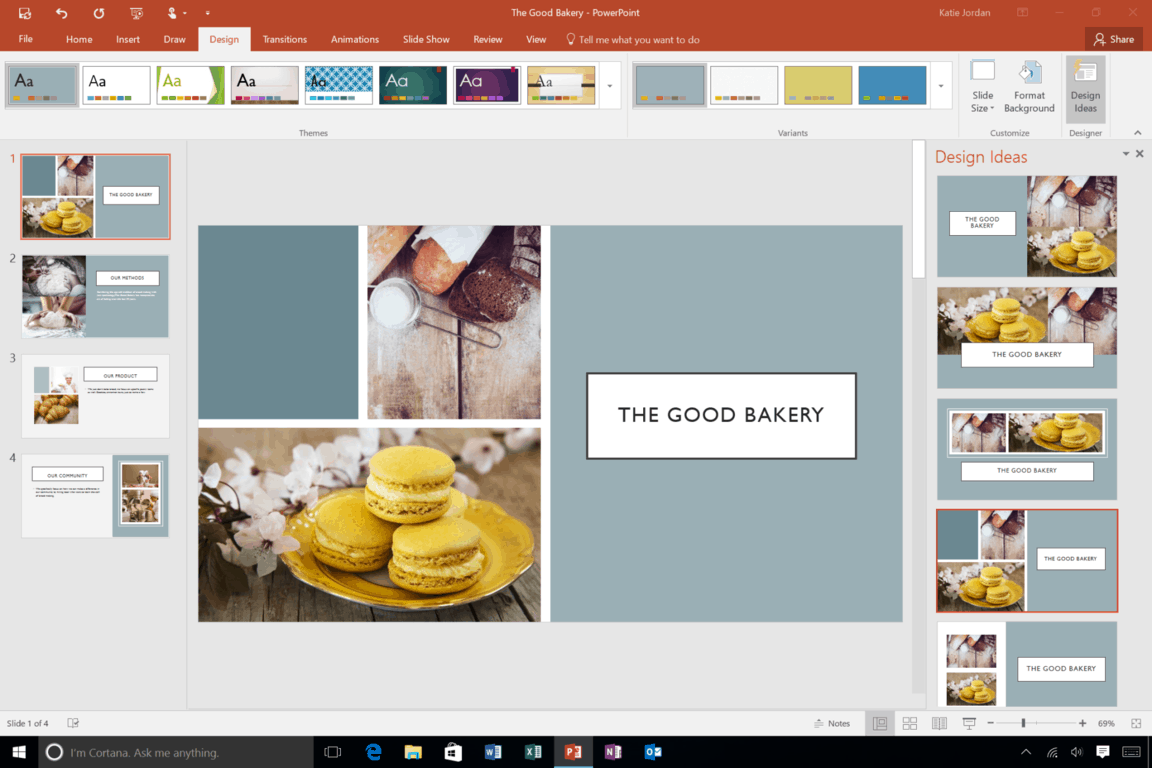
Microsoft starts testing an improved Mini Toolbar in PowerPoint

Microsoft PowerPoint on Windows is getting a new adaptive Mini Toolbar that should help users improve their productivity. The feature is already live in Microsoft PowerPoint for Office Insiders running the Current Channel (Preview) Version 2005 (Build 12723.10000) or later.

The Mini Toolbar, which is a stripped-down version of the full toolbar available near the top of the application window, was first introduced in Microsoft Office 2007. It makes it easier for users to access the commands they need to use most frequently quickly.

With this new Mini Toolbar experience, Microsoft is now working to evolve this feature to meet the evolving needs of users. They will now see three additional buttons at the end of the Mini Toolbar based on the last 20 commands that they used while working on a file. These buttons should automatically update as users will switch between commands and tasks to suggest commands relevant to their current task.

Mini Toolbar feature.

Microsoft plans to release this new adaptive Mini Toolbar experience to Current Channel (Preview) users in August. Still, it shouldn’t be long before the update starts rolling out to all Microsoft 365 subscribers. If you’re an Office Insider who has any suggestions about this new feature, feel free to submit your feedback by heading to Help > Feedback in PowerPoint.

Fix Microsoft Edge Insider builds errors [Download, Install]

Microsoft recently rolled out a new installer for the Chromium-based Microsoft Edge. This was an indicator that we were heading towards the public preview at the time of release.

Now, the Insider program is used as a way to beta test new features and ideas.

Similar to the Chrome browser, you should have the installer to download Microsoft’s Edge Insider setup program. The installer requires an Internet connection to download the complete setup package for Microsoft Edge.

A couple of users are reporting installation and updates errors for Microsoft Edge Insider build.

If you are experiencing such issues, here is a quick guide to help you fix these errors.


Quick tip:


The Opera One browser is also built on top of Chromium, just like Edge is. So they have this in common.

The developers from Opera One, however, added a whole bunch of extra features for free, that users can enjoy.

Here’s what we really like:

  • The built-in adblocker and VPN
  • Sync tabs on all your devices
  • Group tabs together in Workspaces and Tab Islands
  • Native AI and modular AI-ready design

And many more that are waiting to be discovered. There are 3 separate channels: Stable, Beta and Developer.

The Developer channel receives updates daily but is quite unstable. The Beta channel receives them weekly and it’s a good opportunity to test things out sooner.

And the Stable release gets an update twice a month. This is the recommended and default channel.

Opera One

More organized interface, fewer errors, and much more versatility.
Free Download Visit website

How can I fix Microsoft Edge Insider build bugs?

You should check a few things if you face any issues while installing or updating Microsoft Edge Insider build. 

1. Identify the current version of your OS.

Right now, Microsoft Edge Insider builds are only accessible to Windows 10 (64-bit) users. Microsoft plans to support other versions later this year. 


2. Change how you connect to the network

Sometimes the issue can be fixed by changing the way you connect to your network — especially if you get error 403. You can get rid of the error by directly connecting to your domain. 


3. Check your connection settings

Firewall settings, antivirus or parental controls can also be a potential reason behind blocking installation or update. 


4. Update your trusted sites

You should add officeapps.live.com to the list of trusted sites in your browser if you are downloading builds with Internet Explorer. 


5. Download new Edge Insider builds

Occasionally a bad installation is also a cause behind these kinds of issues. You can try downloading the build again after removing your existing Edge Insider build. 


6. Reboot your system

If the problem still persists, reboot your system after fresh installing the Edge Insider build to apply recent changes. 

Microsoft has released the new Edge browser on other platforms in the meantime. The Insider build is used now as a Beta Channel.

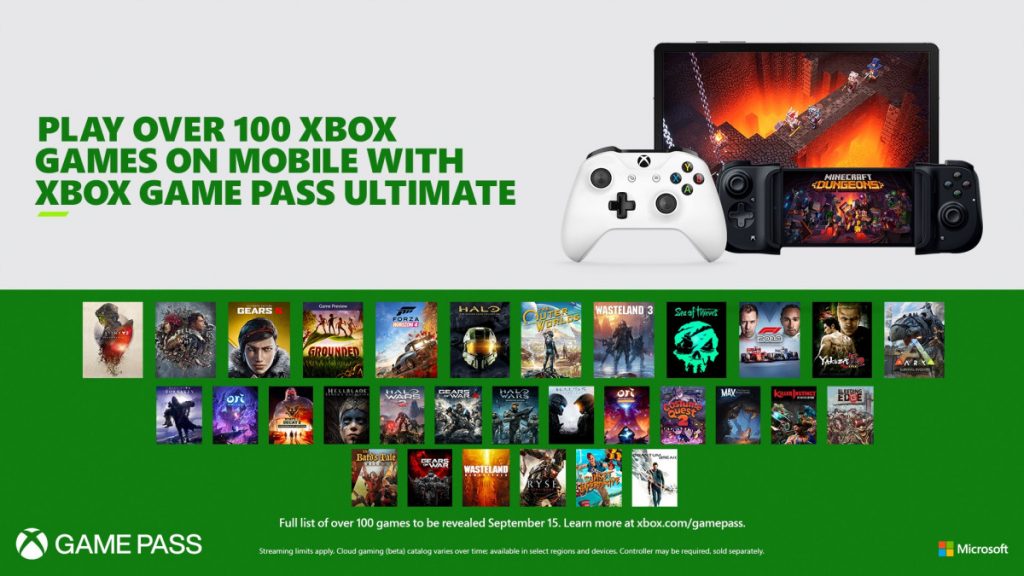
Microsoft fights back, says Apple “stands alone as the only platform to deny consumers from cloud gaming”

Microsoft is fighting back against Apple after the iPhone maker blocked the Xbox Game Pass cloud gaming service (Project xCloud) out of the Apple App Store due to its policies. In a statement seen on Windows Central, Microsoft had some harsh words for its longtime rival, saying that “Apple stands alone as the only platform to deny consumers from cloud gaming.”

In addition to calling out Apple, Microsoft again hinted that, due to these policies, there is now no path to bringing cloud gaming with Xbox Game Pass Ultimate to iPad and iPhone users. “Our testing period for the Project xCloud preview app for iOS has expired. Unfortunately, we do not have a path to bring our vision of cloud gaming with Xbox Game Pass Ultimate to gamers on iOS via the Apple App Store,” said Microsoft to the publication.

In another part of the statement, Microsoft addressed Apple’s policies of treating games on Apple App Store differently. This refers to the policy where Apple doesn’t have to moderate other streaming apps (like songs on Spotify or movies on Netflix) because they consider games as different and “interactive.” On this, Microsoft says to Windows Central, “It [Apple] consistently treats gaming apps differently, applying more lenient rules to non-gaming apps even when they include interactive content.”

Microsoft ended its statement by pointing out that despite what Apple says, all games on Xbox Game Pass are “rated for content by independent industry ratings bodies such as the ESRB and regional equivalents.” Microsoft also hinted at being a cross-platform company, saying that it is still committed to finding a path to bring cloud gaming with Xbox Game Pass to iOS. “The customer should be at the heart of the gaming experience and gamers tell us they want to play, connect and share anywhere, no matter where they are,” said Microsoft.

Indeed, it now seems as though Microsoft has joined the rest of the world in addressing Apple’s unfair App Store policies. This will shape up to be a new controversy, for sure, and we will keep you updated. Do you stand with Apple, or Microsoft? Let us know which side of the controversy you stand on by dropping us a comment below.

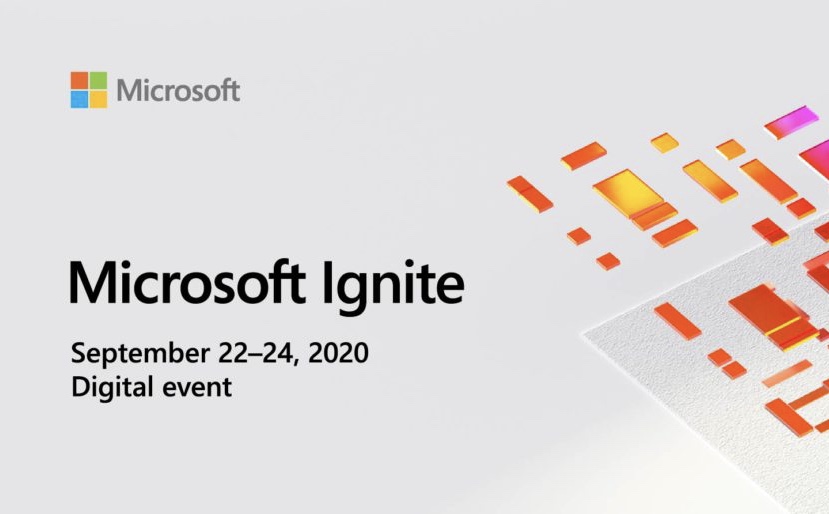
Microsoft announces two Ignite digital conferences in September and early 2021

Microsoft has just announced an update on its upcoming Ignite conference, the company’s annual event for developers and IT professionals. This is quite exceptional, but the software giant says it will be planning Ignite 2020 as two free global virtual events, one in September, and another one to come in early 2021.

According to Microsoft, Ignite has shifted from in-person to two virtual sessions so the company could create “an additional opportunity to connect with our technical communities and share the latest product developments.” The first session will be free 48-hour digital gathering from September 22-24. Registration for this one will be open on September 3rd. The second event will be held early next year, but will not replace Microsoft Build. “We’ll continue to host Microsoft Build as the forum for our developer communities to come together,” said Microsoft.

Microsoft also says it has learned from the global digital events it has already hosted this year. And, by shifting Ignite online, global participants can come together, and get the chance to get skill building with Microsoft Learn and certifications. You can stay up to date on Ignite by checking Microsoft’s events website here.

Can VPN Mess Up Your Phone? Are VPNs Safe on Phones?

Many misconceptions regarding VPN usage float unhindered on the vast Internet channels, such as whether or not a VPN can mess up your phone. It’s already common knowledge that most VPNs aren’t PC-exclusive.

As a matter of fact, you can deploy a VPN on a wide range of devices, including but not limited to your router, tablet, phone, or even your gaming console.

However, one of these is not like the others. Your phone has most likely the most significant chunk of your personal data, so it makes sense that you’d be worried about VPN messing up your phone.

Is it safe to use a VPN on your phone?

Popular VPN providers such as Private Internet Access and CyberGhost VPN have several apps that are fit for various devices. Deploying a trustworthy VPN on your phone should be no different than installing the same service on your PC.

You’ll get more privacy, and your connection’s security will significantly improve. More so, remember those times when you tried watching US Netflix on your phone, and it didn’t work?

Well, if you’re in a non-US location, a VPN can help you bypass the geoblock.

Now about safety. We’re quite aware that installing a VPN on your phone is a huge step, as it requires a lot of permissions. However, rest assured that your VPN only does that so it can be more effective.

How else could Surfshark, for instance, spoof your GPS location without having access to your GPS in the first place? And how could PIA, for instance, secure your WiFi if you don’t grant it access?

Can VPN mess up your phone?

1. If you install it from untrusted sources

This is unfortunately one of the gravest mistakes VPN users do. Please try to always avoid downloading VPNs from shady websites. As a rule, you should especially avoid those with no SSL certificates.

Furthermore, don’t attempt to download cracked VPNs from warez websites.

The odds are not in your favor, and you might end up installing a malware-ridden service that will force your phone into a botnet or grant your attacker full remote rights over your device.

Installing malware on phone

Google’s and Apple’s app stores have various protections that will automatically detect if there’s something wrong with the product in their store.

Moreover, both Android and iPhone devices benefit from built-in scanners that can detect and prevent apps from harming your devices. As long as you don’t mess with the default settings, VPNs shouldn’t be able to mess up your phone.

2. If you use free VPN

This is not by any means an opportunity to discredit free VPNs. There are some trustworthy free VPNs, but most of them are not exactly safe.

Think of it this way: you’re using a service that runs hundreds of servers (which, by the way, cost a lot of money to maintain) for free. If it sounds too good to be true, it probably isn’t.

Most free VPN providers run side operations to afford to run their service for free. More often than not, they implement ads within their service, which you likely have to interact with.

Now, it’s not exactly classified information that many ads are full of malware and/or spyware.

So before gleaming with joy about finding the perfect free VPN, consider it might mess up your phone and harm your privacy rather than protect it.

3. If you root/jailbreak your phone

Rooting or jailbreaking your device isn’t necessarily a bad thing. Essentially it gives you more freedom over your device than you should have. It makes you run things with Admin rights if you want.

On the downside, many users choose to elevate their permissions on personal devices to engage in unlawful behavior, such as installing pirated apps (such as cracked VPNs) or overriding safe, default settings.

Rooted Android phone

If you root/jailbreak your phone, you will most likely stop receiving OTA updates, and your device will be less secure than ever if you don’t have a clue about maintaining its security by yourself.

Now to the main question. Can VPN mess up your phone if it’s jailbroken or rooted? Yes. In fact, if your device has been fully unlocked, it’s easier than ever for malicious VPN apps to take over.

Don’t install sketchy apps on your phone

To sum it up, no, VPN apps can’t mess up your phones without additional assistance. Using official, trusted sources to download VPN apps should pose no risk to your phone.

However, if you plan on rooting/jailbreaking your device, downloading cracked VPN apps, and installing them on your phones, you’re probably going to mess up your phone all by yourself.

Last but not least, you should avoid certain free VPNs that seem to offer a whole lot in exchange for nothing.

Remember, running a VPN operation is pricey, and if you don’t pay for this service with money, you’ll definitely have to pay another way. And if one misconfigures the phone settings, you may encounter the Not connected to network Vodafone error.

Even more, it’s true that you can use a gaming VPN to lower ping and we have all the details that you’re looking for.

Panos Panay begins to put his stamp on Windows with news of org shakeup

In February, former head of Surface devices Panos Panay took over as head of a newly created Windows + Devices team, and today news is filtering out that some major shuffling is taking place within the org. In an email viewed by Petri.com and Thurrott.com, Panay redefines the purpose of the team, especially in light of the rapidly changing tech environment due to the coronavirus. Paul Thurrott quotes Panay from the email:

In taking the next step, our focus is on product-making, aligning experiences across the company, and inspiring our broad and vibrant ecosystem. Our desire is to create end-user pull across all segments of the business. As we move forward, I’m energized and passionate about the incredible opportunity in front of us.

Panay goes on to describe three basic pillars of the business:

  • Deliver iconic experiences across Microsoft, lighting up both modern work and life.
  • Grow the business of Windows and Surface, delivering the best of Microsoft and creating end-user pull.
  • Lead the industry through innovation and technology, enabling our ecosystem of partners to thrive.

To do that, Panay announced a number of personnel changes, including some new members to the team:

  • Jeff Johnson will lead the new Windows, Developers and Experiences (WDX) Engineering team
  • Linda Averett will join W +D to lead the WDX PM team
  • Michael Fortin will join W + D to lead a new team combining a number of teams across Microsoft, including COSINE (Core OS and Intelligent Edge) and 365 Experience and Services. Brad Sams explains that Project Reunion will fall under Fortin, now.
  • Aidan Marcuss will move from Devices COO “to lead Windows product planning, ecosystem (including the Windows Ecosystem Enablement team), Store, and 1st– and 3rd-party apps.”
  • Brett Ostrum will lead Devices product and roadmap, leading “a single point of ownership” for Surface, including Foldables
  • Robin Seiler will elad the Devices Portfolio and Operations (DPO) team, covering end to end business strategy for Windows and Devices

In addition, Mary Jo Foley is reporting that these changes are affecting Azure as well, with part the COSINE team moving over to Windows + Devices, but some of the Windows Core part of the team remaining in Azure under Jason Zander. New to Azure will be a new Azure Core team, uniting Compute and Networking and Storage Services, under Girish Bablani.

With Microsoft set to release the long awaited Surface Duo, and growing indications that it’s finally retaking an interest in consumer with the bombshell news of a pursuit of a TikTok acquisition, and now this renewed focus on product-making, things may be looking up for the Microsoft consumer enthusiast.

Bethesda announces free Xbox Series X upgrades for Doom Eternal and The Elder Scrolls Online

Bethesda is the latest video game publisher to share its plans for next-gen console upgrades. Today, the company announced that gamers who own The Elder Scrolls Online and Doom Eternal on Xbox One and PlayStation 4 will be able to get the Xbox Series X and PlayStation 5 versions for free when they will be available.

We don’t know yet when the next-gen versions of these games will be available, or if Bethesda will leverage the Microsoft’s new Smart Delivery feature that will debut with the Xbox Series X later this year. In the meantime, the publisher is currently “working hard” to make sure that the existing versions of Doom Eternal and The Elder Scrolls Online will run great on next-gen consoles through backwards compatibility.

The publisher also teased more next-gen upgrades for some of its other existing games. “While we don’t have any news to share just yet on our remaining catalogue of titles, we can confirm we are committed to offer free upgrades for current generation console owners of existing Bethesda titles we bring forward into the next generation of consoles,” Bethesda said today.

Microsoft MVPs reportedly invited to a virtual Surface Briefing on August 12, perhaps for the Surface Duo

According to a tweet from Paul Thurrott, Microsoft MVPs have been invited to attend a virtual Surface briefing. The upcoming August 12 event could presumably be for the Surface Duo.

Not many other details were provided, but this timing does make a lot of sense. The Duo has been rumored to ship the week of August 24, which is just 12 days after this event. And, since the COVID-19 outbreak means Microsoft won’t hold in-person events, such a virtual briefing would be the perfect way to introduce the device to Microsoft’s Most Valuable Professionals.

Previously, Microsoft has also invited Surface fans to attend in-person press events ahead of the launch of the Surface Laptop 3, Surface Pro 7. So, this once again hints that the Duo will be coming sooner, rather than later. There might even be a separate event for media, too.

In other news, yet another Microsoft executive has been spotted with the Surface Duo. This time, it’s the Corporate Vice President of Microsoft 365, Jeff Teper. As seen in the featured image above, the exec showed off how he uses dual screen OneDrive on his Duo to look for the best photo his daughter took of him, using the device. He also mentioned how he uses the Duo outside to meet with Surface Chief Panos Panay outdoors on Microsoft Teams.

Xbox Big Gaming Weekend offers free multiplayer for all, Borderlands 3 and more also playable for free

In place of the regular “Free Play Days” events that Xbox Live Gold members enjoy quite regularly, Microsoft has just announced a Big Gaming Weekend for all gamers on Xbox One and PC. Starting today through Monday, Microsoft will unlock Xbox Live multiplayer for all Xbox One owners, and the company will also make a couple of big games playable for free on Xbox One and PC, no Xbox Live Gold required.

If you have an Xbox One, you’ll be able to play Black Desert, Dragon Ball FighterZ, Monster Hunter World, Elder Scrolls Online: Tamriel Unlimited, Borderlands 3, Naruto to Boruto: Shinobi Striker, and the multiplayer mode of Call of Duty: Modern Warfare (available August 7-10). Three Xbox Game Pass PC titles will also be available for free on both console and PC, Gears 5, Subnautica, and Ark: Survival Evolved.

It’s not the first time that Microsoft makes Xbox Live multiplayer free for everyone for a limited time, but the timing is quite interesting following the recent rumors about Xbox Live Gold. Microsoft recently updated its Services Agreement to replace Xbox Live with “Xbox online services,” but the company confirmed yesterday that the language change was to distinguish the cloud services from the paid Xbox Live Gold subscription, which isn’t going away.

Do you think Microsoft will eventually cave and make multiplayer free on Xbox One consoles, maybe just for free-to-play games like Fortnite? Xbox Live Gold still has some value, but the company may want to shake things up ahead of the launch of the Xbox Series X later this year.

Common OneDrive problems and how to fix them

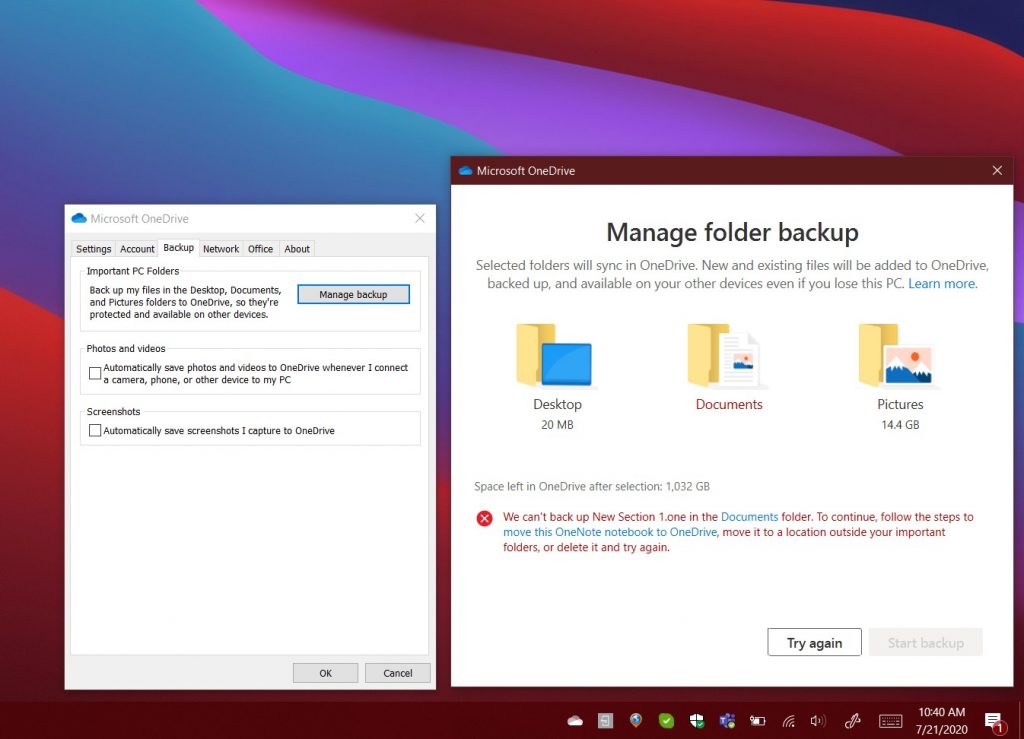
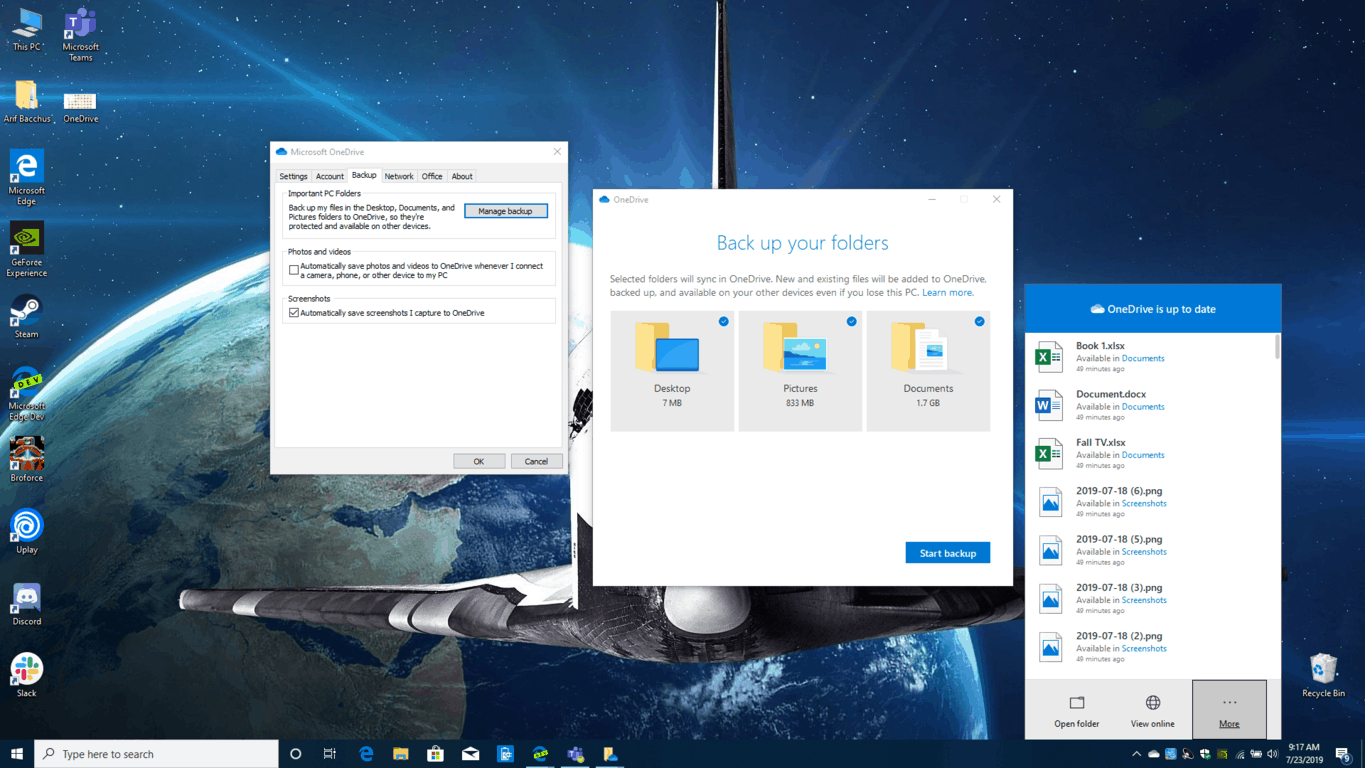
Most times, OneDrive in Windows 10 works in the background and syncs up your files to the cloud. However, there are some rare instances where the app will not work as planned, and you could get an error code or see an error icon. This can be related to a sync issue, or a more serious problem with files going missing. In our latest Microsoft 365 guide, we’ll take a look at some of those problems, and how you can fix them.

My files won’t sync

The most common problem with OneDrive is files not syncing. If this is the case, you’ll want to make sure that the file is not larger than 100GB with a personal account or 15GB with a work or school account. Try zipping the file for it to sync. As a secondary option, you also might want to check to see if you might have saved the files to a location you didn’t intend to, or moved the files by mistake. In this case, it is recommended to go to the OneDrive website and use the Search everything box to find it.

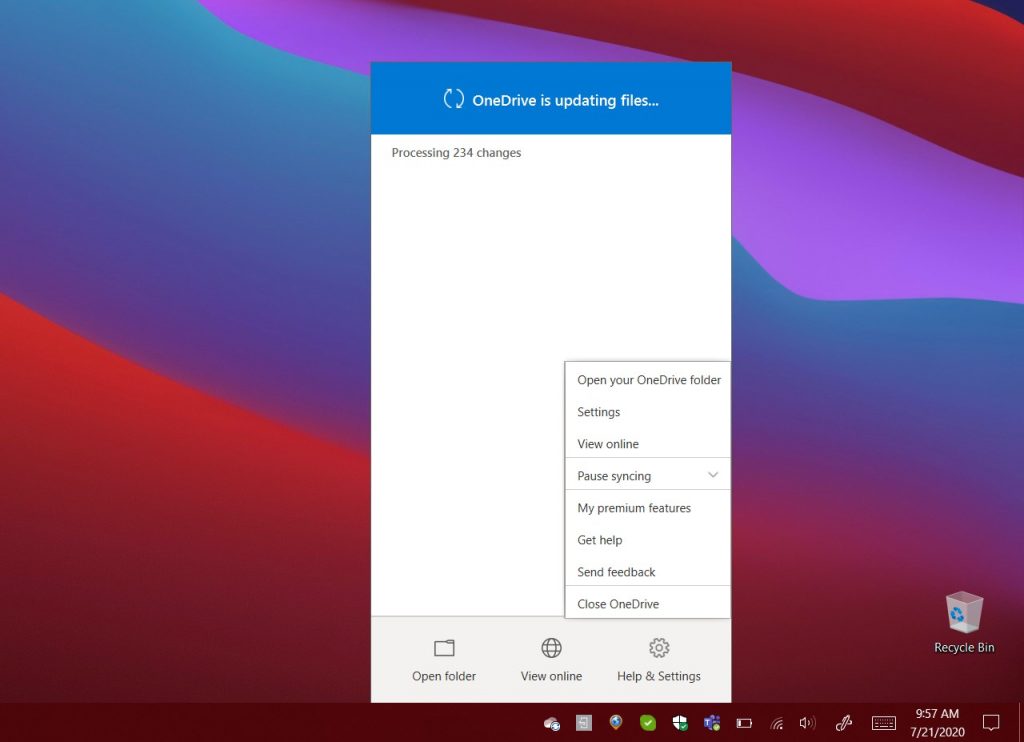
If all else fails, you can try saving your file with a new name, or stop the sync and restart it. Just tap the white or Blue OneDrive cloud icon in Windows 10 taskbar, choose More, and then Pause Syncing. Then, click the icon again, and then choose Resume Syncing.

There also might be situations where your files won’t sync if you’re running close to reaching your OneDrive storage limit. If this is the case, you might see the OneDrive icon in Windows 10 show up with a yellow explanation mark. Try to delete some files and then sync again.

My files are missing or lost

Another common issue with OneDrive is files going missing. If this is a situation that you find yourself in, then you might want to check the Recycle Bin to see if the file is there. You also might want to see if you’re signed in with the right Microsoft Account. Finally, you might also want to check to see if you saved the files to a location that you recently moved. It’s recommended to use the Search Everything box in the upper left corner of the OneDrive website to find the files.

As another option, you might want to open your Personal Vault in OneDrive. Files that go into the Personal Vault will not show up in your search results. Check to confirm that the files are not in here.  If you still can’t find the file, then it is likely that it has not yet synced. We would recommend checking our list above for tips on resolve a syncing issue.

If all else fails, you can have someone from Microsoft Support step in to help you find your file. To do this, have the name of the files or folders you are trying to find handy, as well as the data you last accessed them, and on what device. You’ll also have to give consent for Microsoft to search your history. When you’re ready, email the OneDrive support team here.

OneDrive is stuck syncing

OneDrive Backing up

In another situation, you might get an error or status message showing “Processing 0KB of xMB.” Files might also be stuck for a long time, too. When this happens this could be because you have a lot of files in your OneDrive, or a lot of new files waiting to be uploaded. Typically, this might happen when more than 100,000 files in your OneDrive.

We recommend for you to cancel the sync, and upload your files at a slower pace to avoid this problem. Just tap the white or Blue OneDrive cloud icon in Windows 10 taskbar, choose More, and then Pause Syncing.

Error codes and getting more support

Sometimes you might just end up getting an error code in OneDrive. If this is the case, then you might want to check our chart below. There are quite a bit of error codes but we gathered the most common ones and their resolutions for you below.

Error Code Resolution
0x80070194 Uninstall and re-install the OneDrive app
0x8007018b You’re moving a file that is in use by OneDrive. Wait for it to finish syncing
0x80070005 This is an issue with OneDrive Updates. Uninstall the app, and install the latest version
0x8004def7 This code means you exceeded your storage capacity or your account has been suspended
0x8004de96 This error shows when you changed your Microsoft Account password. Log back into OneDrive with the new password
0x8004de90 This error shows when OneDrive has not been set up fully. Search for OneDrive in Start, and finish the setup.
0x8004de90 OneDrive can’t connect to the internet. Try checking your connection
0x80040c81 OneDrive can’t connect to the cloud. Reset your connection

You can see a full list of OneDrive error codes on Microsoft’s website. If all else fails, you can see support pages for OneDrive here. You also can contact support through your web browser, or if you’re on a mobile device, shake your device while inside OneDrive. Admins, meanwhile, can contact Microsoft 365 for business support.

Xbox Insiders can now test new Game Activity tab in Xbox One Guide

Microsoft is testing new changes for the Xbox Guide on Xbox One consoles. In the latest Xbox Insider build released for Alpha Skip-Ahead and Alpha Xbox Insiders, Microsoft introduced a new Game Activity tab in the Guide that can display useful content about the game you’re currently playing on your console.

The new Game Activity tab will provide quick access to Achievements, Looking for Group Posts, as well Official Club posts and suggested events happening in-game. This new tab will replace the Achievements tab for select Insiders, but the Xbox team emphasized that “Achievements are a pillar of the Xbox ecosystem, and we want to support them alongside promoting different ways to engage with your favorite games.”

Events Guide Experiment 1

Keep in mind that this new Game Activity tab will evolve depending on user feedback, it may not ship in the next system update for the Xbox One. The same can be said for the redesigned Microsoft Store on Xbox One, which is also available for a subset of Insiders installing this latest build. “The experience will be available for more Insiders over time before it rolls out to all users this fall,” the Xbox team said yesterday.

Redesigned Microsoft Store For Xbox One

The Xbox One OS has changed quite a lot since the launch of the console back in 2013, and the current dashboard and Xbox Guide look quite different from the original Metro-inspired design. The upcoming Xbox Series X console will use the same OS as the Xbox One, though Microsoft will probably introduce some new design changes ahead of the launch of the next-gen Xbox in holiday 2020.

Fix: This Page is Trying to Load Scripts Error [Chrome, Edge]

This page is trying to load scripts from unauthenticated sources is an error message that Google Chrome occasionally displays when users open HTTPS:// web pages.

A shield icon at the far right of the URL bar highlights that the browser has detected insecure scripts on the web page. Chrome has detected content from insecure channels, and it blocks certain content from loading on the page to protect your info.

The unauthenticated sources’ error is usually due to mixed page content. This means that the website uses HTTP (Hyper Text Transfer Protocol) images, scripts, videos, and other content on HTTPS pages.

The developer has permitted the website to use both HTTP and HTTPS. Thus, unauthenticated source script issues are something for website developers to fix.

Note that the following solutions are just as good if you have the following issues:

  • This page is trying to load scripts from unauthenticated sources
  • Load scripts from unauthenticated sources
  • Trying to load scripts from unauthenticated sources
  • This site is trying to load scripts from unauthenticated sources
  • This page is trying to load scripts from unauthenticated sources Chrome

How can I fix page script loading errors on Chrome?

Try another browser

Since this issue is mostly caused by access to insecure sites, one go-to solution is to switch to a browser that features plenty of security features.

One such browser is Opera One, and it comes packed with a VPN and an ad-blocker, both of which are equally effective, more so than third-party tools that you would get via extensions.

Simply activate the VPN, make sure that the ad-blocker is enabled. Amongst other unique features, Opera One, also offers you a built in AI and a modular AI-ready design.

Opera One

If you want a web browser that focuses on your privacy above all else, then look no further than Opera One!
Free Download Visit website

How to allow mixed content in Google Chrome?

If a website opens with a shield alert, you can still bypass it. Then the website page will fully open with the insecure scripts included. It’s usually OK to open SSL-protected pages that include insecure content.

However, it’s best not to allow mixed content on e-commerce pages that might request credit card details.

To allow for mixed content and override the alert, click the shield icon at the far right of the URL bar. That will open a dialog box that includes a Load unsafe script option.

Select Load unsafe script if you trust the page’s content. Chrome will refresh the page so that it includes all the content.

this page includes scrips from unauthorized sources This page is trying to load scripts error

How can I block web content in Chrome?

  1. Press the Customize Google Chrome button at the far right of the URL toolbar.
  2. Click Settings to open further options.
  3. Click Advanced to expand the Settings page.
  4. Select Content Settings to open a list of page content.
    content settings This page is trying to load scripts error
  5. Now you can select to block JavaScript, Flash, Images, etc. Each page element has its own configuration option that you can adjust to block the content.

Blocking web content is a potential fix for the unauthenticated sources’ error. Google Chrome includes settings that you can configure to block content for all websites, which will reduce the amount of mixed content on HTTPS:// pages.

How can I fix scripts on my website with Chrome’s Console Developer Tool

  1. Click Customize Google Chrome to open the browser‘s main menu.
  2. Select More tools on the menu that opens.
  3. Select Developer tools to open the panel shown in the snapshot below.
    chrome console This page is trying to load scripts error
  4. Now you can click Console at the top of the panel.
  5. Next, open the website page that you need to fix. The console will now display the open page’s blocked content and insecure scripts so that developers can fix their pages as required.

Chrome includes numerous tools that web developers can fix issues on their sites. To fix the issue of the unauthenticated source, developers need to find unsecured scripts and blocked content on their websites with Console.

Overall, there are not a huge amount Chrome users can do to fix the issue of the unauthenticated source. However, web developers can resolve the error by not using HTTP:// on websites.

If you have any alternative solutions, share them in the comments section below so that other users can try them.

Also, leave there any other questions that you may have, and we’ll be sure to check them out.

Can VPN Cause Lag to Other Players? What Causes High Ping?

VPNs are more than often used to improve gaming sessions (ping reduction, look it up), but can use a VPN cause lag to other players?

If you’re not a selfish VPN user who doesn’t care about anyone else’s needs and you’ve ever considered this scenario, we’re going to debunk this mystery for you once and for all.

What causes high ping?

First things first, we’ve casually mentioned that you can use a VPN if you encounter high ping. And we’re going to explain how it works right away.

Generally speaking, the farther a game server is from your current location, the higher the ping you’ll get. Low-quality servers will make you experience even more severe latency values.

However, high ping can also be caused by a series of factors that don’t have anything to do with the game you’re about to play.

For instance, your ISP might throttle your bandwidth, which in turn slows down your connection speed and has a negative impact on your in-game ping.

Another similar factor is network congestion. If the network you’re on is heavily congested, you will receive a high ping whenever you’ll try to play your favorite game.

Can VPN improve high ping?

Luckily for you, a VPN can solve every issue we’ve mentioned above. If the game server is in another country, just connect to a VPN server that’s as close as possible to it. This could also improve matchmaking.

If your ISP’s bandwidth throttling is the culprit, VPN can also solve it. A VPN can bypass your default connection, routing your traffic through non-restricted servers, thus letting your connection breathe for a while, away from the ISP’s tight grip.

Last, but not least, network congestion. We’ve covered this topic extensively, but we’ll say it again. VPN can bypass your overcrowded network and reduce the harmful effects of network congestion.

Can VPN cause other players to lag?

With that in mind, we’ve heard some rumors that using a VPN while playing a game can cause other players to lag. It’s worth mentioning that in online games, every player influences on others.

Therefore, if a player has high latency (or lag), other players might experience the same issue, regardless of whether the one who lags has a VPN or not.

But given that VPN is actually used to reduce lag, it’s highly possible that the VPN isn’t actually the problem and what’s making everyone else lag.

VPN causing lag in Mobile Legends

We’ve stumbled upon a peculiar case of VPN causing lag to other players, but only with a specific game: Mobile Legends. Although, it seems that it’s not the VPN causing the lag.

In Mobile Legends, a user can invite other players to join a game. Upon their acceptance, the matchmaking process starts. Note that this only applies if you’re playing the game with your friends (i.e. in a party).

Note that using a VPN while playing Mobile Legends might help bypass long waiting times in queues.

If you’re connected to a VPN server that’s in another country while making the invites, you and the rest of your crew will be most likely queued for that specific country’s server.

For you, it’s no problem since you’re already virtually there (switching locations). However, your party members might lag, since they’re most likely playing on a foreign server without any VPN-assisted routing.

But, as we’ve previously said, the problem isn’t likely caused by VPN usage. Poor matchmaking and possibly queueing with players from other countries is probably what’s causing lag issues in this specific scenario.

More likely, the other players‘ connections might be poor, or their ISP might be throttling their bandwidth. These are both more plausible explanations.

VPN can’t increase the latency of other players

Well, we’re pretty confident that using a VPN can’t cause lag to other players. Not a significant amount, that is. It’s a known fact that one player’s high latency can affect the other players‘ lag.

However, using a VPN has been proven to reduce ping. Therefore, it would make sense to say that VPN can actually stabilize the connection. More so, it could help other users have lower latency.

In fact, most of the time lag is caused by improper server management, network congestion, ISP throttling, or low-speed/low-quality Internet connections.

Windows 10 2004 security baseline has 4 settings changes

Applying best practices to your Windows 10 security is no easy task, even with all the antivirus tools available to you, including Microsoft Defender Advanced Threat Protection (MDATP).

But the Microsoft security baseline can make things a lot easier for you when you’re configuring your environment to minimize its attack surface.

Well, Microsoft recently released the fundamental security configuration settings for Windows 10 and Windows Server 2004.

4 configuration settings updates for Windows 10 2004 security baseline

1. Extended Protection for LDAP Authentication

Microsoft has updated the MS Security Guide to make Extended Protection for LDAP Authentication part of Windows. The setting isn’t new though as it came with the Windows Server v1809 Domain Controller baseline.

With the latest security baseline changes, you can use Extended Protection for LDAP Authentication without having to create a custom ADMX. In addition, the policy is available to all Active Directory domain controllers.

The Extended Protection for LDAP Authentication baseline value remains the same though. Only its location has changed.

However, you need to have installed the March 10, 2020 security patch to configure the policy on Windows 10.

2. Microsoft Defender ATP file hash

MDATP users now have the option to turn on file hashing and enhance blocking for custom indicators in the Windows antivirus.

When the new setting is on, Windows computes a file hash for every executable file that MDATP scans.

But there’s a catch—MDATP file hashing may slow down your PC. It’ll certainly take a toll on your machine if you frequently install or develop executables or update your applications.

Microsoft explains:

The scenarios where you may want to test more thoroughly for performance include devices where you frequently create new executable content (for example, developers) or where you install or update applications extremely frequently.

The tool mitigates the performance impact by generating file hashes only once for each scanned executable. Still, you may want to keep the new setting off if you don’t use Microsoft Defender ATP.

If you really have to use the setting, Microsoft recommends that you implement it in a controlled manner. This will allow you to do a thorough performance cost analysis.

3. Windows 10 Account Password Length

Microsoft appears very committed to building systems that require no passwords to access. You can tell that from the latest improvements on features like Windows Hello.

After deprecating the Windows 10 account password expiry policy, the Redmond tech giant introduced two new password security settings.

Relax minimum password length limits is one of the new settings, and it allows admins to enforce user password lengths of up to 128 characters. Before this update, users couldn’t set passwords longer than 14 characters.

Longer passwords are obviously more difficult to guess and are an important safeguard against brute force attacks.

Microsoft says that the new setting may be incompatible with existing systems and processes, however. That’s why there’s the new Minimum password length audit setting.

The additional feature lets you assess the impact of changing your password length policy. Apart from that, it includes three new SAM events for configuration, errors, and awareness.

This way, you’re less likely to change your password length policies oblivious of the damage the changes may cause to other Windows systems.

Nonetheless, the new policy isn’t part of the security baseline for Windows 10 2004.

4. Behavior Monitoring

Microsoft doesn’t think Behavior Monitoring requires enforcement, so it removed it from the security baseline. As a result, the feature is no longer in its usual location.

Microsoft added:

We are removing Computer Configuration\Administrative Templates\Windows Components\Microsoft Defender Antivirus\Real-time Protection\Turn on behavior monitoring.

Besides announcing the security baseline changes, Microsoft revealed that it will be releasing updates for LGPO and Policy Analyzer.

What’s your take on the latest Windows 10 security baseline updates? Please share your thoughts in the comments section below.

[wl_navigator]

Can you keep VPN on all the time? How to always keep VPN on?

It’s a well-known fact that a VPN can solve a wide variety of privacy and security issues, but can you keep your VPN on all the time? Even casual users can appreciate that a VPN can save you from a lot of hassle.

Is your ISP snooping around your connection or throttling your bandwidth? VPN can take care of that. Want to bypass censorship or geographical restrictions? You can count on VPN to circumvent those.

However, some users believe that VPN usage should have a more occasional nature. In turn, they only use VPNs as needed, then turn them off whenever their online activity isn’t worth hiding from authorities.

If you’re curious if it’s possible to keep your VPN on all the time, then the answer is yes. VPNs offer a lot of configuration options that enable you to run the VPN at startup and automatically connect to the best server.

There are even kill switches that turn your default Internet connection off if no VPN is detected. So, yes, there are plenty of ways to make sure your VPN connection stays on at all times.

However, the real concern here is whether or not you should keep your VPN on all the time. Keep reading if you want to find out.

Should you keep your VPN on all the time?

1. If you frequently use public WiFi

VPN and Wi-Fi

Using public WiFi can be both a treat and a real threat. Free Internet is never something to turn down, so many overlook the importance of keeping themselves safe in this type of environment.

Public WiFi networks serve as honeypots to any ill-intended user. The moment you walk in without any means of protection, you’re virtually painting a huge target on your back.

Furthermore, the thrill of using the Internet without having to pay for it might make you forget about using protection.

Therefore, even if you do have a VPN in this case, you might forget to turn it on before you connect.

However, that wouldn’t happen if you had your VPN on, waiting on you to connect to that public WiFi so it can secure your connection and protect your privacy.

2. Does your ISP throttle your bandwidth?

If you remember paying for a lightning-fast Internet plan and you notice that your connection isn’t nearly as fast as advertised, your ISP might be throttling your bandwidth.

This means that even though your connection should take up to 1000 MB/s, your ISP might limit it to, say, 5 MB/s.

The reason your ISP might resort to doing that is usually cost reduction, or to circumvent network congestion instead of fixing the routing or managing subnets properly.

More often than not, bandwidth throttling isn’t occasional and you should be able to notice it all the time. It also happens that your bandwidth might be only limited during traffic peak hours.

Regardless, it’s still unfair and annoying when it happens. If you want to take your mind off of it, just connect to a fast VPN server, leave your VPN on at all times, and forget it even exists.

3. Are you downloading torrents?

torrenting

It’s already common knowledge that downloading torrents could land you a warm spot on many lists. And not the good ones, either. Due to various websites that facilitate pirated content through torrenting.

Whatever the reason is, you’d be better off downloading torrents while behind a VPN. Your ISP might be actively monitoring for torrenting activities and mark you with a red flag, even if your download is legit.

As we’ve said before, the thrill of downloading something fast might blindside you and you may forget about protection. Therefore, leaving your VPN on at all times might spare you the headaches.

More so, we also advise you to keep the kill switch feature toggled on at all times, too.

Your VPN connection might fail and your device will most probably default to a previously known-to-work connection that is not VPN-secured.

A kill switch will prevent this from happening by cutting your Internet access if no VPN connection is detected.

4. Frequently making online payments

shop online

If the stars align all wrong, your payment information can be intercepted by wrongdoers and before you know it, your money might be all gone.

Using a VPN won’t necessarily prevent that from happening all the time, but it will certainly make it infinitely harder for the perpetrators.

If you’re a busy individual who doesn’t like to over-complicate things and keep a clean shop, you should keep your VPN all the time.

It will save you the hassle of manually activating it each time you need to make a transaction.

5. Wanting to unblock geo-restricted or censored content?

censorship

If you feel that online censorship and geo-restrictions are unfair, then you probably learned that VPN can bypass them without a hiccup. Take US or UK Netflix for instance.

If you’re not physically located in the right region, you can’t access either of them. However, a trustworthy VPN can help you bypass these limitations in no time.

In this case, leaving your VPN running all the time can do no harm. In addition to helping you access restricted content, it can also shield you from hackers, your ISP, or any data-seizing government agencies.

6. Worried about your online privacy?

privacy

This should be at the top of the list, but, as we’ve said earlier, most users regard VPN‘s utility as merely occasional. As a result, not many are concerned with their online privacy, when in fact this should be their first concern.

But, to get back on tracks, if you’re worried about your online privacy, then you should definitely leave your VPN running at all times. This will make it way more difficult for anyone to track your every move online.

Sure, VPN might slow down your Internet speed a bit, but in our opinion, that’s a tiny price to pay for regaining what’s rightfully yours: your privacy.

On the other hand, if your ISP also has the unfortunate habit of throttling your bandwidth (see scenario #2), you’ll circumvent it right away. VPNs are popular for curbing packet loss and improving in-game ping without an effort.

How to keep my VPN running all the time?

  1. Launch your VPN client (we used Private Internet Access)
  2. Access its configuration screen
  3. Make sure to enable the VPN to run at startup
  4. Toggle the Connect on Launch feature if available (could be named differently)How to keep VPN always on
  5. Look for the kill switch feature and enable itHow to enable VPN killswitch

Although we’ve used Private Internet Access for our guide, most VPN services have these settings as well. Some of them might have different names or descriptions, but they should basically do the same thing.

Private Internet Access

Private Internet Access

Want a VPN that you can always keep on? PIA might be what you need.
$2.85/mo. Buy it now

All in all, you need to make sure that your VPN runs at startup and automatically connects to a secure server.

More so, you need to enable the kill switch as well, so that your PC doesn’t send out any unencrypted traffic in the split seconds between booting and connecting to the VPN server.

Sure you can keep your VPN on all the time

To sum it up, there’s nothing wrong with keeping your connection secure and your online privacy safe 24/7. As long as you don’t use a VPN that offers limited bandwidth, everything should be fine.

Regardless of what your online activity consists of, keeping a VPN on all the time should only improve the quality of your connection.

You might experience a bit of Internet slow down at times, but all in all, it’s a small price to pay for a better, more secure connection.

[wl_navigator]

Can VPN see your passwords? What about private data?

It recently became common knowledge that a VPN is the safest way to protect against privacy invasions, but users have grown concerned about whether or not can VPN see their passwords or private data.

When you opt for a VPN, you must understand that this service will virtually replace your ISP.

You’ll still receive Internet access from your ISP, but the VPN will always be between you and your ISP, acting as a middleman.

So, instead of your ISP getting to see everything you do online, now it’s your VPN that plays this part. Barely.

Mostly because trustworthy VPNs are privacy-oriented, so they wouldn’t risk jeopardizing their customers’ trust for a sneak-peek. But before we get to the problem itself, we need to understand how a VPN works.

How does a VPN hide your private data?

Normally, your default, insecure connection goes through your ISP’s infrastructure. Since your ISP runs all the servers and routers within that infrastructure, they get to see everything you do online.

Ranging from the websites you visit, to how much time you spend on each website and which files you’ve downloaded from where, your connection is pretty much transparent to them.

Long story short, your ISP can see every bit of unencrypted information you send through their network.

It goes without saying that they can’t see SSL-encrypted data such as usernames, passwords, and anything else you post on HTTPS websites.

A VPN simply shields your regular traffic from your ISP by encrypting it.

Therefore, your ISP won’t be able to see even regular, non-encrypted things such as visited websites or how much time you spend on them, much like they can’t see SSL-encrypted stuff.

However, your VPN can now access to your data. That’s why it’s important to take your time while choosing a VPN since you’ll need to trust it more than you do your ISP.

Can VPN see your passwords?

As we’ve said before, your VPN plays the role of your ISP to a certain degree. Thus, your VPN can now see everything your ISP used to be able to see: visited websites, downloaded files, and such.

However, remember how we told you that your ISP can’t see SSL-encrypted traffic such as usernames and passwords that you submit to HTTPS websites? Well, your VPN can’t see those, either.

So you can rest assured that your VPN doesn’t magically break SSL encryption, even though they can see most of your online activity. Passwords fall under that category.

Therefore, VPN can’t see your passwords. However, if you’re using a sketchy service (most free ones should be avoided), you might put yourself at risk.

Sketchy VPN services might put you at risk

We’ve already established that VPNs are already the middleman in our scenario. If you’re unfortunate enough to land a mischievous provider, your VPN might trick you into accepting a false SSL certificate.

The good news is that such events rarely take place, and they can be easily avoided, too. Just steer away from unknown services, free ones, or generally ones that you don’t know much about.

Simply put, you can’t trust free VPNs with your personal data.

If you don’t know where to start, check out our best VPN recommendations. All of the services there are trustworthy and won’t pull any fake-certificate schemes on you.

[wl_navigator]

How to Enable Microsoft Edge, Chromium, Dark Mode [Answer]

Microsoft Edge decided to switch from Internet Explorer to a  new default browser a long time ago, and it is called Microsoft Edge.

Well, this browser has been through a lot of changes before finally adopting a Chromium-based engine, and now many users have switched to it, allowing it to gain great popularity.

However, one feature that everyone likes, especially gamers and those that browse at night, is the ability to activate night mode.

Well, we will be teaching you exactly how to activate this function on Microsoft Edge.

How to enable dark theme in Chromium Edge browser

  1. Download and install Microsoft Edge if you don’t already have it
  2. Press the 3 dots on the top-right corner of the menu
  3. Go to the Settings page from the drop-down menu
  4. Select Appearance from the settings menu
  5. In the dropdown menu next to Default theme, select Dark
  6. Restart Microsoft Edge

What is the most customizable web browser?


Opera GX is one of the most customizable browsers that you can install on your Windows 10 computer. The long list of available customization options and high browsing speed alongside advanced privacy options makes Opera our browser of choice.

Being built on the Chromium project base, Opera allows for the installation of all Chrome Web Store themes while keeping your privacy untouched.

If you like Microsoft Edge Dark Mode, we are happy to let you know that Opera also has a dark mode since it’s based on Chromium as well. And that’s only the tip of an iceberg when it comes to all the ways you can personalize Opera to your liking.

Besides your usual wallpapers, you can tweak almost everything including enabling sound effects for different actions you take inside the browser.

The browser also comes with a free VPN included, the ability to limit the CPU and RAM opera consumes, and a ton of other great features.

Opera GX

Try out the most customizable browser available today, plus exclusive features of Opera GX.

Full Fix: Microsoft Edge window position issues

Microsoft Edge was introduced in Windows 10 as a default browser, and even though this is a modern browser it has its share of issues. One problem that users reported is that Microsoft Edge doesn’t remember window position, so let’s see how to fix this problem.

Microsoft Edge is a completely new browser and it’s designed as a replacement for Internet Explorer. Even though Microsoft Edge fixed many of the shortcomings that Internet Explorer had, Edge has its own problems.

One of these problems is related to window position and users reported that Microsoft Edge doesn’t remember the position and size of the window once you close it. This isn’t a big problem, but it can certainly be irritating. Fortunately, there are a few potential workarounds available.

How to fix Microsoft Edge window position issues?

Microsoft Edge is a great browser, but some users encountered issues with window position in Edge. This is usually a minor problem, and speaking of Edge issues, here are some similar problems that users reported:

  • Microsoft Edge not retaining window position – Many users complained that Microsoft Edge won’t remember window position on their PC. This can be an annoying problem, but you should be able to fix it by installing the latest updates.
  • Microsoft Edge does not remember window size – This is another relatively common problem with Microsoft Edge, but you should be able to fix it using one of our solutions.
  • Microsoft Edge not filling screen – Sounds like a temporary problem that should clear itself. Otherwise, resetting to default should to the trick.

Solution 1 – Consider using a different browser

Opera browser video pop-out functionality

If window position problems in Microsoft Edge keep appearing, you might want to consider switching to a different browser. This is just a small but annoying problem, and if you can’t fix it, maybe this is the right time to switch to a different browser, such as Opera One.

In terms of features, Opera One is much better than Edge. The differences are so big that is quite strange to compare them.

Top features that Opera One offers:

  • built-in adblocker
  • integrated messengers in the sidebar
  • tab sync from one device to another
  • workspaces and tab islands
  • native AI and modular AI-ready design
  • free VPN

With a focus on privacy and features that are useful to users, Opera One is clearing in the lead here. If you like to learn more about it, see our Opera Review.

Opera One

Enjoy so many great functionalities as you make the switch from Edge to Opera One.
Free Download Visit website

Solution 2 – Use right-click to close Edge

This is a potential workaround and few users claim that it works. According to them, you can make Microsoft Edge remember window position after closing simply by clicking the X button with the right mouse button.

To do that, right-click the X button, keep it pressed and double-click the X button with the left mouse button. This is an unusual workaround, but few users claim that it works, so you might want to try it out.


Solution 3 – Install the latest update

This is a software problem with Microsoft Edge, and since Microsoft is aware of this issue, it should be fixed by downloading a specific update. This is just a minor and harmless issue, therefore it might not be fixed in the near future. Nevertheless, be sure to regularly use Windows Update and keep your Windows 10 up to date.

For the most part, Windows 10 installs the missing updates automatically, but sometimes you might miss a couple of updates due to certain issues on your system. However, you can always check for updates manually by doing the following:

  1. Press Windows Key + I to open the Settings app.
  2. Navigate to the Update & Security section.
    Microsoft Edge not retaining window position
  3. Now click Check for updates button.
    Microsoft Edge not retaining window position

If any updates are available, they will be downloaded automatically and installed as soon as you restart your PC. After the latest updates are installed, check if the problem is still there.


Solution 4 – Reset Microsoft Edge from Settings

Sometimes there might be a glitch with Microsoft Edge, and in order to fix it, you need to reset Microsoft Edge to the default. This is rather simple, and you can do it with just a couple of clicks. You can reset Edge by following these steps:

  1. Open the Settings app and go to the Apps section.
    Microsoft Edge does not remember window size
  2. Select Microsoft Edge from the list and click Advanced options.
    Microsoft Edge not retaining window position
  3. Scroll down to the Reset section and click the Reset button. Click the Reset button once again to confirm.
    Microsoft Edge does not remember window size

After doing that, Microsoft Edge will reset to the default and the problem should be completely resolved.

If this doesn’t work out for you, there’s another way to achieve this but it’s more complex. See our solution down below that uses PowerShell.


Solution 5 – Use the keyboard shortcut to close Edge

Microsoft Edge does not remember window size

According to users, in order to fix window position issues in Edge, you might want to close the application using the keyboard shortcut. This is a strange workaround, but it works according to users.

Simply press Alt + F4 while in Edge to close it. After the application closes, start it again and it will retain its position.

Bear in mind that this is just a workaround, so you’ll need to repeat it every time in order to prevent this issue from appearing again.


Solution 6 – Launch Microsoft Edge using a desktop shortcut

This is another workaround, but according to users, it might be helpful if you’re having problems with Edge and window position. It seems that Edge resets its window position and size if you start it using the Taskbar or Start Menu icon.

However, if you start the application using the desktop shortcut, the application will retain its size and position. This sounds like a strange workaround, but it works according to users, so you might want to try it out.


Solution 7 – Create a new user account

Sometimes this problem can occur due to a corrupted user account. Your account can get corrupted for various reasons, and if that happens, you might encounter window position issues in Microsoft Edge.

Since it’s quite hard to repair a corrupted account, it’s advised to create a new account and move your personal files to it. This is quite simple, and you can do it by following these steps:

  1. Open the Settings app and go to the Accounts section.
    Microsoft Edge does not remember window size
  2. In the left pane, navigate to the Family & other people section. In the right pane, go to Add someone else to this PC.
    Microsoft Edge not retaining window position
  3. Select I don’t have this person’s sign-in information.
    Microsoft Edge does not remember window size
  4. Now choose Add a user without a Microsoft account.
    Microsoft Edge not retaining window position
  5. Enter the desired user name and click Next.
    Microsoft Edge does not remember window size

After you create a new account, switch to it and check if the problem is still there. If the issue doesn’t appear, you’ll have to move all your personal files to the new account and start using it instead of your old one.


Solution 8 – Use PowerShell to reset Edge

According to users, if you’re having Microsoft Edge window position problems, you might be able to solve them simply by resetting Edge to the default.

This is a complex operation and you should first take a look at resetting Edge from settings first.

To continue with PowerShell in order to reset Edge, you need to remove a couple of files by doing the following:

  1. Press Windows Key + R and enter %localappdata%. Now press Enter or click OK.
    Microsoft Edge does not remember window size
  2. Navigate to PackagesMicrosoft.MicrosoftEdge_8wekyb3d8bbwe directory and delete all files from it.
    Microsoft Edge not retaining window position

Now you need to run a Powershell command to complete the process. To do that, follow these steps:

  1. Press Windows Key + S and enter powershell. Right-click Windows PowerShell from the list of results and choose Run as administrator.
    Microsoft Edge does not remember window size
  2. When PowerShell starts, run the following command: Get-AppXPackage -AllUsers -Name Microsoft.MicrosoftEdge | Foreach {Add-AppxPackage -DisableDevelopmentMode -Register “$($_.InstallLocation)AppXManifest.xml” -Verbose}
    Microsoft Edge not retaining window position

After doing that, the problem should be completely resolved and Microsoft Edge should start working again.

Solution 9 – Perform System Restore

If this problem started appearing recently, it’s possible to fix it using System Restore. In case you’re not familiar, System Restore is a great feature that allows you to restore your system to the previous version and fix various issues along the way.

To perform a System Restore, you just need to follow these steps:

  1. Press Windows Key + S and enter system restore. Choose Create a restore point option from the menu.
    Microsoft Edge not retaining window position
  2. System Properties window will now appear. Click System Restore.
    Microsoft Edge not retaining window position
  3. System Restore window will appear. Click Next to proceed.
    Microsoft Edge does not remember window size
  4. If available, check Show more restore points option. Now select the desired restore point and click Next. Follow the instructions on the screen to complete the restoration process.
    Microsoft Edge not retaining window position

Once your system is restored, check if the problem still appears. If not, it’s possible that a system update caused this issue to appear, so keep a close eye on updates.

Microsoft Edge window position issues can be a minor hindrance, but until an official fix is released, you might have to rely on workarounds and third-party solutions.

Windows 10 Insider build 20185 (Dev Channel) brings minor changes to DNS Settings and MDM policies

Microsoft has just released the Windows 10 Insider build 20185 for Insiders in the Dev Channel (previously Fast Ring). This new build is a minor update with a couple of improvements for DNS configuration in the Settings app, as well as new Mobile Device Management (MDM) policies for ADMX files to be configured with Intune Custom profile.

You can find all details about new features, bug fixes, and known issues in this build below:

What’s new in Build 20185

Improving DNS configuration in Settings

We’re making a few changes to the Network section in Settings:

  1. Making DNS settings more easily accessible: Editing your DNS server assignment is now a top-level option when you go into your network’s properties page.
  2. Encrypted DNS controls in the Settings app: Encrypted DNS (DNS over HTTPS, or DoH) can help increase privacy and security while browsing the web. You can now configure DoH directly in the Settings app to more easily take advantage of this feature:
    • For ethernet connections: Go to Settings > Network & Internet > Status. Click Properties, then select Edit IP assignment or Edit DNS server assignment and it will be available in the popup
    • For Wi-Fi connections: Go to Settings > Network & Internet > Wi-Fi. Click the adapter properties link, then select Edit IP assignment or Edit DNS server assignment and it will be available in the popup. Currently you will not see the encryption options if you go to the individual network’s property page

You can add any IP address listed here to unlock the DoH dropdown and choose to use encryption. Once encryption is enabled, you can confirm it’s working by looking at the applied DNS servers in the network properties and see them labeled as “(Encrypted)” servers. If you want to try a custom DoH server we don’t recognize yet, you can configure an IP address to be recognized as a DoH server by using the netsh command documented here at the end of the blog post.

The new Edit Network DNS settings popup in Settings.

As always, appreciate your feedback!

New ADMX Backed Policies for MDM

Starting with Windows 10 Insider Preview Build 20175, we have enabled 647 new MDM policies across 56 ADMX files to enable commercial customers to configure policies that are also supported through Group Policies. Contains ADMX based Policies such as App Compat, Event Forwarding, Servicing and Task Scheduler. These new policies can be configured using Intune custom profile. Intune UX is planned to be available later this year.

ADMX file name:

  • AddRemovePrograms.admx
  • AppCompat.admx
  • AuditSettings.admx
  • CipherSuiteOrder.admx
  • COM.admx
  • Cpls.admx
  • CtrlAltDel.admx
  • DigitalLocker.admx
  • DnsClient.admx
  • DWM.admx
  • EncryptFilesonMove.admx
  • EventForwarding.admx
  • FileServerVSSProvider.admx
  • FileSys.admx
  • FolderRedirection.admx
  • Help.admx
  • HelpAndSupport.admx
  • kdc.admx
  • LanmanServer.admx
  • LinkLayerTopologyDiscovery.admx
  • MMC.admx
  • MMCSnapins.admx
  • MSAPolicy.admx
  • nca.admx
  • NCSI.admx
  • Netlogon.admx
  • OfflineFiles.admx
  • PeerToPeerCaching.admx
  • PerformanceDiagnostics.admx
  • PreviousVersions.admx
  • QOS.admx
  • Reliability.admx
  • Scripts.admx
  • sdiageng.admx
  • Securitycenter.admx
  • Servicing.admx
  • Setup.admx
  • SharedFolders.admx
  • Sharing.admx
  • Shell-CommandPrompt-RegEditTools.admx
  • Smartcard.admx
  • Snmp.admx
  • TaskScheduler.admxtcpip.admx
  • Thumbnails.admx
  • TPM.admx
  • UserExperienceVirtualization.admx
  • W32Time.admx
  • WinCal.admx
  • WindowsAnytimeUpgrade.admx
  • WindowsConnectNow.admx
  • WindowsMediaDRM.admx
  • WindowsMediaPlayer.admx
  • WindowsMessenger.admx
  • WinInit.admx

Changes and Improvements

  • We’re moving the 3D Viewer app into the Windows Accessories folder in the Start menu all apps list.

Fixes

  • We fixed an issue where sometimes the “close all windows” action in the Taskbar wasn’t closing all of the open tabs for pinned sites.
  • We fixed an issue that could result in the network icon in the Taskbar saying there was no internet although there was an active connection.
  • We fixed an issue where dragging and dropping an app from Start’s all apps list over to the tile grid to pin it wasn’t working for certain apps.
  • We fixed an issue where the letter headers in the Start menu’s all apps list had unnecessary left padding when the all apps list was set to hidden.
  • In order to address an issue where the tiles were difficult to read against certain backgrounds when using full screen Start we’re adjusting the background to be slightly less transparent.
  • We fixed an issue where when using a Start menu layout applied by MDM, tile groups may disappear after a few days of uptime without rebooting.
  • We fixed an issue where if a notification included an inline image the app icon would be slightly out of line with it.
  • We fixed an issue where launching an app from its taskbar jumplist wasn’t working for certain desktop bridge apps and instead would result in the app disappearing from the taskbar.
  • We fixed an issue resulting in excessive network traffic when using the Open File dialog to navigate to shared network folders where previous versions where enabled.
  • We fixed an issue that could result in a blank icon displaying instead of a plus button on the main Default Apps page in Settings after uninstalling the app set as default.
  • We fixed an issue where opening Storage Settings then immediately going into one of the sub-pages and then back could result in the page not loading.
  • We fixed an issue resulting in the new Microsoft Edge not being listed in the App History section of Task Manager.
  • We fixed an issue resulting in
  • We fixed an issue impacting touch keyboard launch reliability.
  • We fixed an issue where TextInputHost.exe would enter an unresponsive state, leading to clipboard history, the Emoji Panel, and dictation not appearing when pressing their corresponding keyboard shortcuts.
  • We fixed an issue that could result in not being able to paste the first entry in clipboard history.
  • We fixed an issue that could result in ARM64 devices bug checking when resuming from hibernation.

Known issues

  • We’re working on a fix for an issue where some Microsoft Store games protected with Easy Anti-Cheat may fail to launch.
  • We’re looking into reports of the update process hanging for extended periods of time when attempting to install a new build.
  • We’re working on a fix for an issue where the min/max/close buttons are stuck in their original positions after resizing a UWP app. If you move the app window the position should update.
  • We’re investigating reports that the new taskbar experience for pinned sites isn’t working for some sites.
  • We’re working on a fix to enable live preview for pinned site tabs.
  • We’re working on enabling the new taskbar experience for existing pinned sites. In the meantime, you can unpin the site from the taskbar, remove it from the edge://apps page, and then re-pin the site.
  • We’re working on a fix for an issue where pinned sites don’t show all open tabs for a domain. In the meantime, you can fix this by pinning the site’s homepage rather than a specific page (e.g. pin microsoft.com rather than microsoft.com/windows).
  • We’re working on a fix for an issue where Alt + Tabbing to a browser tab sometimes moves the previously active browser tab to the front of the Alt + Tab list as well.
  • Opening a WSL 1 distribution can result in the error: ‘The I/O operation has been aborted because of either a thread exit or an application request’. Please check out this

In addition to the release of this new build in the Dev Channel, the Windows Insider team also announced today that the next webcast will air on Twitch on August 18 at 10AM PDT. That’s the consequence of Microsoft closing its Mixer live streaming platform last month, but the Windows Insider team will also keep publishing videos on the official YouTube channel as well.

We’ve been getting new Dev channel builds at a regular pace in the past couple of weeks, but these builds are still not labeled “21H1.” Microsoft now uses the Dev channel to test new features that may or may not end up in the next feature update for Windows 10, but recent improvements for the Start Menu, the Settings app, Notifications, and Tablet mode have recently landed in 20H2 builds for the Beta channel.

Samsung deepens its partnership with Microsoft with new Office, Your Phone, and Xbox integrations

If Microsoft is expected to launch its dual-screen Surface Duo phone later this summer, the company isn’t going to abandon its existing partnership with Samsung, one of the biggest smartphone makers in the world. Samsung has just unveiled this morning its latest mobile devices including the Galaxy Note 20 and the Galaxy Tab 7, and the company used this opportunity to unveil new integrations between Galaxy devices and Microsoft services.

First of all, premium Samsung Galaxy smartphones have been enjoying a unique “Link to Windows” integration that provides a seamless way to take calls, check phone notifications, and more from a Windows 10 PC. The new Galaxy Note20 will push things even further with the ability to launch Android apps from your phone directly on your Windows 10 PC. This is different from the existing Your Phone “Phone Screen” feature that mirrors your smartphone screen on your Windows 10 PC.

“When you launch an app, it opens in a separate window, allowing you to multi-task and saving you the time and hassle of sign-in or set up. You can also pin your phone’s Android apps to your Windows 10 taskbar or Start menu for quick and easy access, making things like checking out your social feed or ordering your lunch while you wrap up a conference call even easier, without ever picking up your phone,” explained Yusuf Mehdi, CVP of Modern Life, Search & Devices at Microsoft.

GIF shows Your Phone app, showing mobile apps on PC screen

When it launches on August 21, the new Galaxy Note 20 will only be able to project a single Android app to a Windows 10 PC, but accessing multiple apps side by side will be available later this year, Microsoft said. In addition to providing seamless access to Android apps from a Windows 10 PC, the Galaxy Note20 will also better integrate with Microsoft 365 apps such as OneNote, Outlook Tasks, and Microsoft To Do, and Microsoft Teams.

“Coming soon, notes from Samsung Notes can automatically sync with your OneNote feed in Outlook on the web or OneNote as an image. You can quickly jot down your notes from a meeting or grocery list with your S Pen on Galaxy Note20 and have instant access to the content in your productivity apps like Outlook and OneNote. You will also be able to sync Samsung Reminders from your Galaxy Note20 to your Windows 10 PC across Microsoft To Do, Outlook and Microsoft Teams experiences, so you can view and edit from anywhere, keeping your reminders aligned across your phone, PC and apps,” explained Mehdi.

GIF shows M365 Samsung Notes, sharing a sketch of a bridge from a phone to an email on the PC laptop

Other Samsung devices will also benefit from this Microsoft partnership, with the new Samsung Galaxy Watch3 using Outlook as its native email client. Samsung also demoed its new Galaxy Tab7 being used as a second screen for Windows 10 PC, a capability that will be available later this year. This mirrors the “SideCar” feature that Apple implemented between Macs and iPads last year.

Last but not least, Samsung’s partnership with Microsoft extends to Xbox, with Samsung offering the Xbox Game Pass with cloud gaming on its Galaxy App Store. According to The Verge, this Xbox Game Pass app will be different from the regular app that will be available on the Google Play Store in September, with the exclusive ability to “redeem tokens and make in-app purchases like buying skins or DLC items in the Xbox Store.”

Samsung Galaxy Note20 Project xCloud

Samsung will also offer a Gaming Bundle for its new Galaxy Note20 that will include three months of Xbox Game Pass Ultimate (with Cloud gaming included starting September 15), and a new Power A MOGA XP5-X Plus Bluetooth Controller with an attachable phone clip. This should be a great way to bring Xbox Game Pass and Cloud Gaming to the masses, especially since the Galaxy Note20 will support the ultra-fast 5G networks are mobile carriers are currently developing across the world.

Overall, these new integrations between Samsung devices, Windows 10 PCs, and Microsoft services should be great news for Galaxy fans, but Microsoft’s partnership with Samsung also makes us wonder about the necessity of the Surface Duo. Keep in mind that Samsung was one of the first smartphone manufacturers to launch foldable devices, and the company is also working with Microsoft to optimize the company’s apps for its new Galaxy Z Fold 2.

As of today, Samsung Galaxy devices provide better synergies with Windows 10 PCs through Your Phone and Link to Windows, and it’s not clear if Surface Duo early enthusiasts will enjoy the same seamless experience. Microsoft has yet to really explain why anyone would want a Surface Duo, and this ongoing partnership with Samsung, while great for consumers and Samsung, could make Surface Duo marketing a bit harder.

Samsung Galaxy Z Fold2

More information and launch details for Galaxy Z Fold2 will be available in September, but Microsoft’s Surface Duo will likely need to be cheaper if the company wants it to be an attractive alternative to Samsung’s premium device. In the meantime, the Galaxy Note20 will start at $999.99 and the bigger Galaxy Note20 Ultra at $1,299.99, and both devices will be available in the US starting August 21. Microsoft will likely offer both of them on its online store, as it did for the Galaxy S20 earlier this year.

Microsoft Teams’ new Channel Info button makes it easy to see who’s online

Earlier this year, Microsoft announced that new Channel information pane would come to Microsoft Teams, which should make it easier to find new and relevant information in Teams channels. The company has recently announced that the feature is now generally available in the Microsoft Teams desktop and web apps. The new Channel info pane is now accessible via a new small “Channel info” icon in the channel header. It lets you track key channel details at a glance including a description of a specific channel, system messages, the online presence of all users, as well as a list of recent contributors and members.

Members

First off, the “Members” section in the channel info pane provides a list of all members who have access to a given channel or recently contributed to it. Microsoft Teams users can click the “See full list” option at the bottom to see a complete member list.

Moreover, people who have actively posted or replied to the channel over the last couple of months are listed in the “recently contributed” section. The list could be quiet long for active channels with hundreds of members. There is also a new “Add members” Add people to team button button available in the upper-right corner of the information pane.

Instance of channel info pane featuring members and other info.

About

Additionally, channel owners can use the About section to provide a description of their channel (as shown in the screenshot below). Channel information such as “Discuss Microsoft 365 projects” makes it easier for Team members to post in relevant channels without losing track of their projects.

Microsoft Teams About Section

Updates/System messages

Finally, system messages including recent channel and team updates are listed at the bottom of the information pane. It helps to keep an eye on who has joined or left the team during the last 12 months. Users can also click on the drop-down arrow to see more updates from a specific contributor.


Microsoft Teams Sysem Messages

It should be kept in mind that Channel information pane functionality is a bit different for private Teams channels, and we invite you to check out the Microsoft support document for more details.

How to set up a Microsoft Teams meeting in Outlook

There often comes a time when you need to set up a Microsoft Teams meeting through Outlook. This can be for creating meetings for folks outside of a general channel in Teams, or for creating a meeting for an external user, who can join as a guest. So, here’s a look at how you can set up a Microsoft Teams Meeting in Outlook, without having to go directly into Microsoft Teams.

In Outlook on Windows 10

Teams Meetings Outlook

Setting up a meeting in Outlook on Windows 10 is really easy. To get started, open Outlook and switch to the account you want to start the meeting with. Then, head to the top tab in Outlook. After that, select the Home tab. When you see the down arrow next to New Email, click it. This will give you an option for Teams Meeting. Click it, and a new meeting window will pop out. You can fill out the information fields such as required, optional, the start time, end time, and more.

You also can press the CRTL button and then click the Meeting Options link to control some settings for the meeting. This includes who can bypass the lobby, announcements for when people join or leave, and more. When you finish with your changes, you can click the Save button. Then, when you’re ready to set up the meeting in Outlook, click the Send button.

In Outlook on the Web

Teams Meetings Outlook Web App

Next, there’s Outlook on the Web. It wasn’t always possible to create Teams meetings from the Outlook Web app, but Microsoft added the feature in January of this year. Just like on Windows 10, the process is really easy, too.

To get started, switch to your Outlook Calendar from the Outlook Web app by clicking the Calendar icon. From there, click the New Event button. You can fill out the name and the fields, and invite attendees with their email addresses. Also, choose a time and day for the meeting. When ready to add the Teams meeting, click add online meeting and choose Teams meeting from the drop-down menu. Fill out the message, and then click the Send icon.

Our hub has more!

Creating Teams Meetings in Outlook is just the start of the Teams experience. Over the past few months, we’ve covered Teams extensively. Check out our tips and tricks, or picks for best apps and bots, and so much more. Our Teams hub has you covered, so feel free to check it out. And, as always, let us know if you have your own Teams tips and tricks by dropping us a comment below.