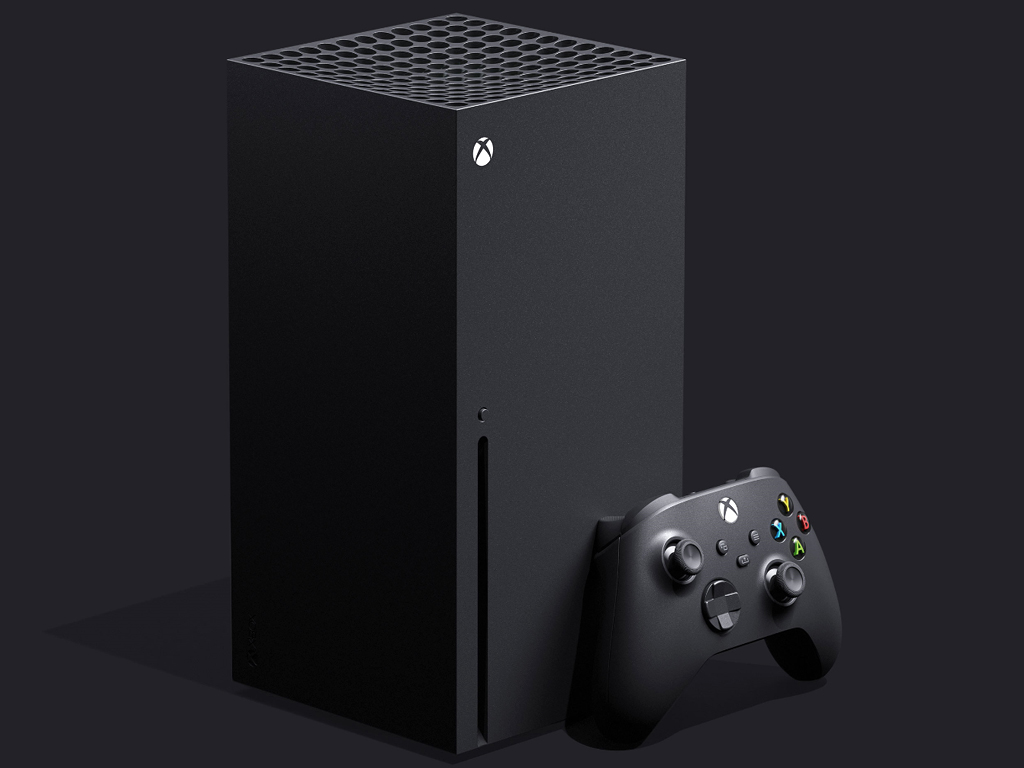
With Halo: Infinite being delayed, Microsoft’s Xbox Series X is now in a tough spot

Halo: Infinite, which Microsoft announced back at E3 2018 was supposed to be a launch title for the company’s new Xbox Series X console. This would have been a great homage to the release of the original Xbox console back in 2001, which launched with the critically-acclaimed Halo: Combat Evolved. Unfortunately, the game has now been delayed to 2021, with the Xbox team citing unexpected development challenges during this ongoing worldwide pandemic.

Halo: CE and Halo 2 were true system sellers for the original Xbox, and Halo cemented its place as one of the most popular Xbox franchises during the Xbox 360 era. Things started to go sour after Microsoft gave the Halo franchise to a new internal studio named 343 Industries. In 2014, Halo: The Master Chief Collection had a disastrous launch on Xbox One with matchmaking issues that persisted for years. A year later, Halo 5: Guardians also failed to woo nostalgics of the old Bungie Halo games, and Bungie’s new Destiny franchise has now become a bigger phenomenon than Halo.

Halo: Infinite was supposed to be a return to form, and a technical showcase for the Xbox Series X’s power advantage over the PlayStation 5. Unfortunately, the gameplay demo Microsoft showed at its Xbox Games Showcase last month was disappointing in many aspects. In addition to a divisive art style, we learned after the show that Microsoft actually showed us an old PC build, and that the Xbox Series X version wouldn’t support ray tracing at launch.

Microsoft could not afford to have its next-gen console launching with flagship game that doesn’t meet fans’ expectations, so the company made the right choice by delaying the game to 2021. Unfortunately, that leaves the Xbox Series X with no exclusive games at launch, and that could really hurt sales this holiday season. Microsoft will still be able to count on third-party blockbuster games such as Assassin’s Creed Valhalla and Cyberpunk 2077, but these are cross-gen games that will also ship on current-gen consoles.

Xbox marketing exec Aaron Greenberg tried to do some damage control on Xbox Wire yesterday, emphasizing ”over 100 optimized for Xbox Series X titles” planned for this year, though the list will include more than 40 old games such as Gears 5 and Destiny 2. Again, Microsoft’s big problem is that the Xbox Series X will launch with no real exclusive games, and we still don’t know when the new Forza Motorsport game, State of Decay 2, Hellblade 2, and Fable will be ready for the next-gen Xbox. Even the new Flight Simulator game, which will be released on PC next week on August 18 still has no release date on the Xbox Series X, and this one could have been a potential system seller.

We all remember the troubled launch of the Xbox One back in 2013, and we hope the Xbox Series X won’t follow a similar trajectory. Things actually started pretty well for Microsoft this time around, and the company surprised everyone by announcing the Xbox Series X back in December at The Game Awards. The move likely caught Sony by surprise, and interest for the Xbox Series X definitely continued to increase in the beginning of 2020.

After the Xbox One X beat the PlayStation 4 Pro on raw power, the Xbox Series X also managed to keep its power advantage over the PlayStation 5, with Microsoft hyping new features such as ray tracing over and over in the past few months. However, we have yet to really see the Xbox Series X’s 12 teraflops of computing power in action, and the flagship game Halo: Infinite really failed to do that last month.

To be fair, Sony also didn’t really impress with next-gen PlayStation 5 games so far, but the company doesn’t really need to. The PlayStation 4 outsold its Xbox One rival by a factor of 2:1 during this console generation, and Sony has also managed to increase brand loyalty by releasing critically-acclaimed games year after year. Spiderman: Miles Morales, one of the few exclusives that will ship on PS5 later this is almost guaranteed to be a system seller.

As of this writing, Sony is giving gamers more reasons to buy a PlayStation 5 this holiday season, thanks to its exclusive games. Horizon: Forbidden West, the sequel to Horizon Zero Dawn is also coming next year, and this one is also guaranteed to be a system seller. On the other hand, Microsoft’s Xbox Series X will have a couple of cross-platform and cross-gen games optimized for Xbox Series X at launch, but Xbox One owners won’t miss much by playing these games on their existing consoles.

Microsoft has acquired several new game studios over the past couple of years, but none of them will be able to create iconic franchises like Halo anytime soon. As a new console generation is about to begin, the “Xbox has no games” stigma is still persisting. Xbox Game Pass remains a great reason to invest in the Xbox ecosystem, but you don’t need an Xbox Series X to take advantage of it. It’s a good thing that Microsoft is no longer interested in selling more consoles than its competitors, because that’s a game Microsoft can’t win.

Do you think the Xbox Series X will have a better launch that the Xbox One seven years ago, or do you think the lack of real exclusives at launch will could hurt sales in a big way? Let us know what you think in the comments below.

Microsoft improves Azure’s security to protect your business

Microsoft Azure is the top business cloud platform right now so it’s pretty clear why the software giant invests heavily in all its capabilities.

Not long ago, they even made an important acquisition to improve Azure’s data model.

With increasing business comes great responsibility and last year, Microsoft made some security improvements in Azure.

Is seems that it’s time for another security update, this time from a partnership with the security provider Recorded Future.

What are the new security improvements in Microsoft Azure?

The clients will be able to use the Recorded Future data in Azure Sentinel and Defender ATP speed up the response and analysis of threats.

The Recorded Future integration with Microsoft Azure has three major components as highlighted by Recorded Future in their press release:

  1. Threat Prevention – This is the first step of protection and implies blocking possible threats before any damage has been produced.
  2. Threat Detection – The next step is to identify the possible attacks if they were not detected in the early stages.
  3. Alert Triage – Lastly, this component is a stage where they speed up and resolve the Azure Sentinel alerts.

Security operations and incident response continue to weigh down security defenders in their daily workflow when they really need to focus on identifying high-priority security gaps and informing business decisions.

This partnership with Microsoft Azure allows clients to become agile defenders through automated processes with consumable intelligence that’s easily integrated with existing security systems.

– Stuart Solomon, Chief Operating Officer, Recorded Future.

How do you feel about this new Microsoft move? Let us know in the Comments section below.

[wl_navigator]

Twitch Not Showing Followed Channels [Solved]

Several Twitch users have reported that they saw the Not eligible for this purchase error message.

This issue appeared whenever the users tried renewing a subscription, no matter if they had used the same payment method before or not.

A purchase error can be caused by many reasons. Here are the most common of them:

  • Twitch is not compatible with the payment method you chose
  • Your bank has suspended your access to your funds
  • The payment service has deemed your account to be of a high risk

In today’s article, we will discuss some of the best methods to try and fix this annoying error message, and get back to streaming content normally. Read on to find out the details.

How can I fix the Twitch not eligible for this purchase error message?

1. Try using a different web browser

Sometimes you might fix the issue by simply switching to a different web browser.

You can use any browser you want, but if you’re looking for a privacy-oriented and secure browser, we suggest you try Opera GX.

This browser offers anti-tracking and anti-phishing features, as well as a malware scanner for downloaded files.

A great thing about Opera GX is that it has a dedicated Twitch integration, so your Twitch streams are just one click away, and you have better tools to control them.

Additionally, anytime someone you follow goes online, you can choose to receive notifications right away. By doing this you make sure that you are at all times updated and you are not missing anything important.

Opera GX

The built-in Twitch integration ensures a seamless gaming experience. Now you can watch your favorite gaming steams, error-free!

2. Try again with the same payment method

The error mentioned above can be caused by a glitch on the Twitch servers.

For this reason, it is recommended that you try to purchase your subscription again by using the same payment method.

If the issue is still not solved, please try the next method.

3. Change your payment method and retry

If the first solution didn’t manage to solve your issue, it is recommended that you change your payment method and try again.

You have the option of using another card or using services like Paypal to process the purchase.

4. Make sure that you have enough funds in your account

No matter what kind of payment method you use, you will need to make sure that your available funds are enough to pay for the subscription.

If you checked and you have enough funds to pay for your purchase, then try the next method on this list.

5. Stop any VPN service on your device


Using a VPN service while trying to purchase a subscription on Twitch will cause the error Twitch not eligible for this purchase to appear.

Twitch servers will need to check your IP address before authorizing the purchase.

This step is required in order to protect you from the possibility of somebody using your account from another location.

Note: Depending on the specific VPN software you’re using, the steps required in order to stop it, will vary. 

6. Contact Twitch Purchase Support

Twitch purchase support - Twitch not eligible for this purchase


If all of the above-mentioned methods have failed to solve your Twitch not eligible for this purchase error, you will need to open a ticket with Twitch Purchase Support.

Make sure to specify all the details of your experience with this issue. This will ensure that you get the most suitable advice possible from the Twitch support team.

In today’s article, we explored some of the best troubleshooting steps you can try to fix the Twitch not eligible for this purchase error message.

Tip icon Tip
We discuss more common issues and how to fix them in our dedicated Browser Hub, so make sure to check it out. If you are a Twitch fan, you may also like to visit our Gaming page as well.

Please let us know if this guide has proved helpful in your situation, by using the comment section below.

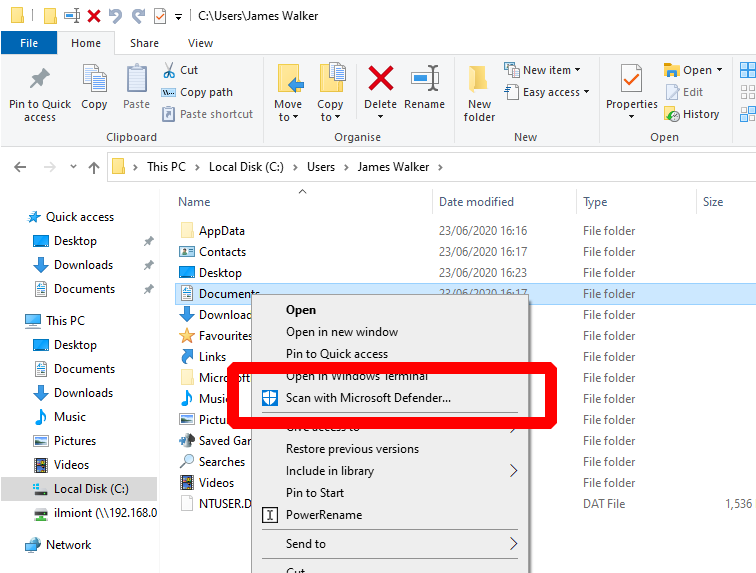
How to scan a folder for threats using Windows Security

Windows Security provides built-in security protections within Windows 10. Although normally best left to its own devices in the background, you might want to manually invoke Security’s scanning from time-to-time.

The quickest way to scan the contents of a specific folder is to find the directory in File Explorer. Simply right-click and choose the “Scan with Microsoft Defender…” option from the context menu. Different versions of Windows 10 may display slightly different terminology, such as Windows Defender or Windows Security instead of Microsoft Defender.

Scanning a folder for threats in Windows Security

The Windows Security app will open and display the progress of the scan. This should only take a few seconds but might last much longer when scanning a large folder. The scan results will be displayed in the Security window and as a notification on your desktop, so you can keep working during the scan.

This right-click-and-scan is ideal when downloading files from the internet or accessing resources on a network share. You can also scan an individual file in the same way, right-clicking it in Explorer and selecting the “Scan with Microsoft Defender” context menu option.

Excel gains support for data import from PDF tables; here’s how to use it

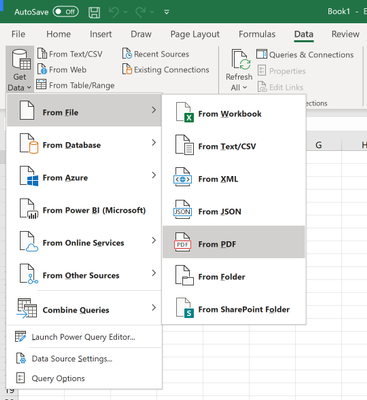
Microsoft Excel recently gained support for a new data import type which has been a long time in coming. Office 365 subscribers with the latest Office updates installed can now import data from tables in PDF files, removing the need for cumbersome intermediary steps.

The feature was announced on the Microsoft Tech Community blog earlier this month. To start using data in a PDF, first open your Excel workbook and switch to the Data tab on the ribbon.

Screenshot of importing PDF table data into Excel

Click the “Get Data” button to the left of the ribbon and then choose the “From File” category. Next, select “From PDF” and select your PDF file in the filepicker which will appear.

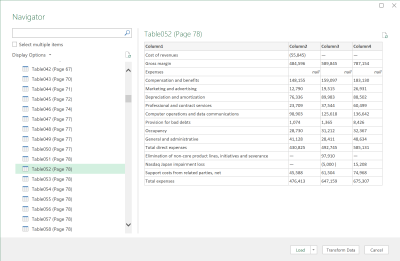
After you’ve found the file, a window will appear displaying all the tables within your PDF document. Use the prompt to select the tables you’d like to import. You can choose to import tables individally or as a multiple selection.

Screenshot of importing PDF table data into Excel

Once you’re done, press “Load” to add the data to your Excel worksheet. Data can also be customised before import using the Power Query Editor (click the “Transform Data” button in the Navigator window). You can find further information on the feature in the Pdf.Tables Power Query documentation.

Ready to buy the Surface Duo? Here’s how to pre-order before the September 10 launch day

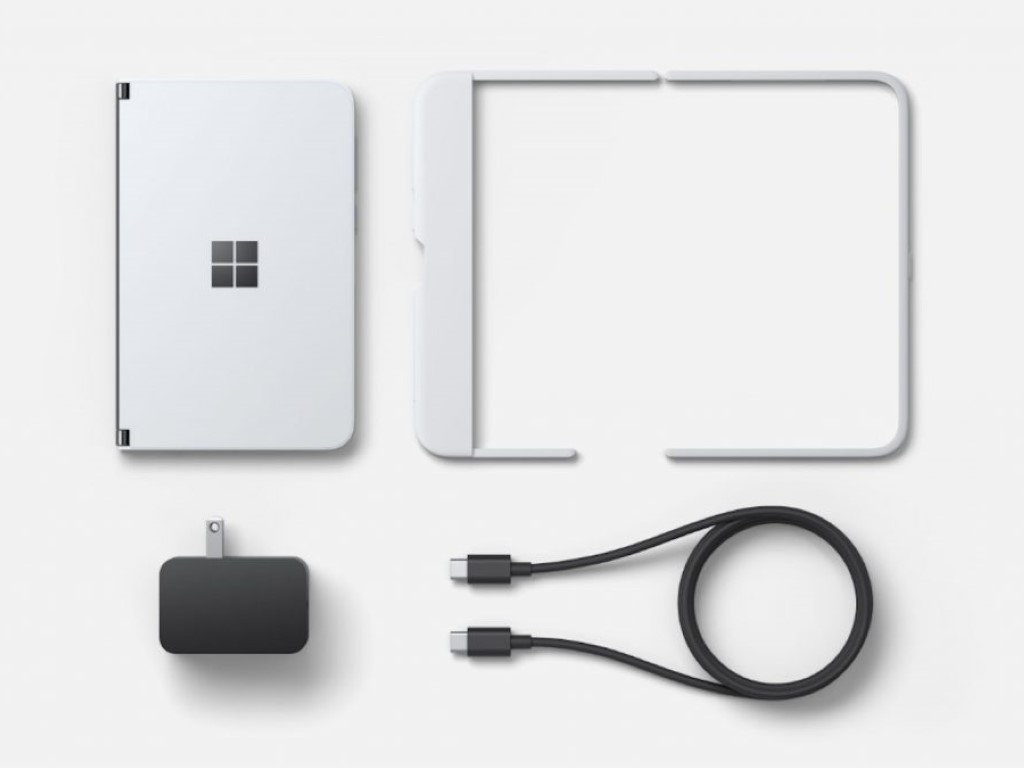
After about a year of anticipation, Microsoft has finally announced a launch date for the Surface Duo. It will be coming on September 10 for $1,400, and pre-orders are now live. So, if you’re looking to buy a Duo for yourself, here’s how you can secure one for yourself today, or save if you buy one later.

Microsoft Store

Buy Surface Duo

The easiest way to guarantee yourself a Surface Duo on September 10 is to pre-order it directly through Microsoft. You can find the Duo through the Microsoft Store online here. Please be aware, though, that since retail Microsoft Stores are now officially closed, the only way to buy and pick up the Duo will be through the online Microsoft Store.

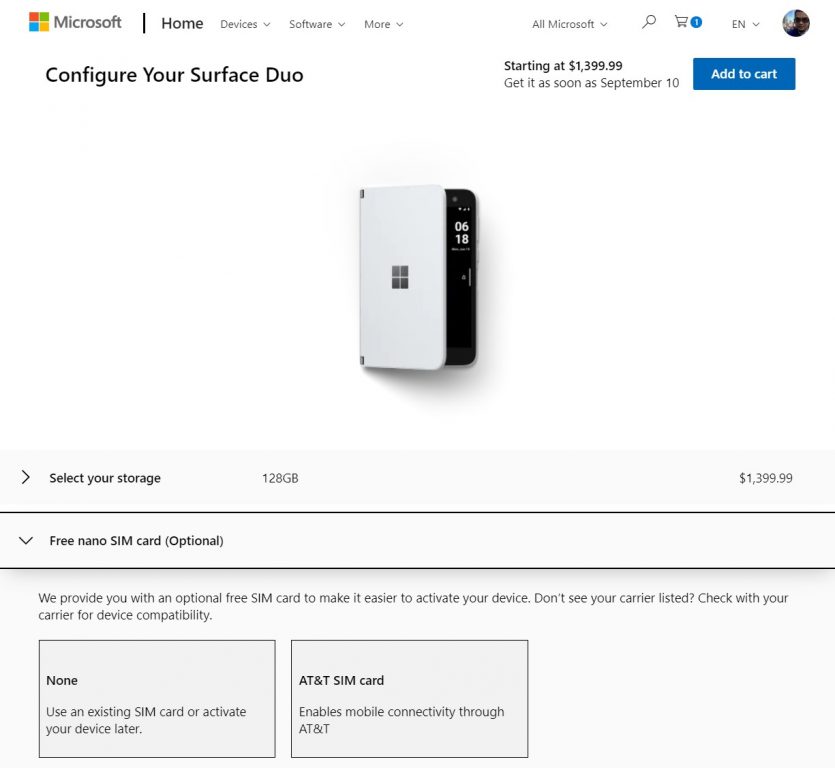
Once you’re on that page, you can choose your storage. The Surface Duo comes in either 128GB or 256GB. Both configurations have 6GB of RAM. However, 128GB of storage will run you $1,399 and 256GB will run you $1,499. Choose one, and press Continue. 

Also, keep in mind that Surface Duo will work on AT&T, T-Mobile, and Verizon networks. It’s best to check with your carrier if the device will work with your cell phone plan before you buy one. As part of the checkout process, you’ll be asked if you want a nano-SIM card. Microsoft will provide you with an AT&T one if you so want, but this is optional if you’re going with Verizon or T-Mobile.

In another part of the checkout, you’ll see some optional purchases. These include a Microsoft Complete Plan and Microsoft 365 subscription. You can also pick up the new Surface Slim Pen, or the Surface Earbuds, or a USB-C to 3.5mm Audio Adapter. These are priced at $111, $200, and $12, respectively.

When ready to secure your Duo, you can click Add to Cart, and enter your payment info and then click Checkout. You’ll then be good to go! Microsoft will email you a confirmation, but funds will only leave your account once the Duo becomes available.

How to save on the Surface Duo when it releases 

Trade In

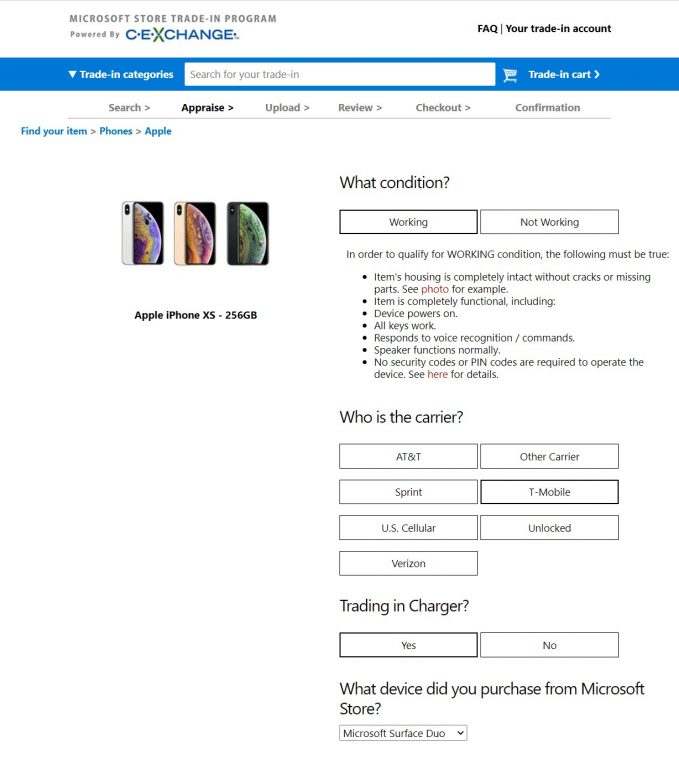
If $1,400 is too much for you to buy the Surface Duo, Microsoft has you covered. The company has a trade-in program where you can get up to $700 cashback (via PayPal or a bank transfer) towards the Duo. To get started, you’ll have to visit Cexchange, a partner of the Microsoft Store Trade-in Program. Keep in mind, though, that the trade-ins will only apply AFTER the Duo releases. From our tests, you can’t trade-in right now to save.

Anyway, from here, you can choose your device, be it a tablet, a phone, or a laptop. We suggest you use the search bar on the top of the page for looking for the device you want to trade-in towards the Duo. Here are some of the most common phones and suggested trade-in prices.

  • Google Pixel 3 64GB (Unlocked and Trade in with charger) $350
  • Google Pixel 4 64GB (Unlocked and Trade in with charger): $400
  • iPhone 11 64GB (Unlocked and Trade in with charger): $550
  • iPhone XS 64GB (Unlocked and Trade in with charger): $550
  • Samsung Galaxy S8 64GB (Unlocked and Trade in with Charger): $250
  • Samsung Galaxy S9 128GB (Unlocked and Trade in with Charger): $400

Once you find your device, click Continue. Since the Duo will be scheduled for release on September 10, trade-ins can only be processed once the device is released. You can enter your email address to save the quote, and process your cash-back trade-in at a later date.

The trade-in process is otherwise quite simple, though. Once the Duo becomes available, you can upload your proof of purchase for your Microsoft Stoe order. You can then ship your traded device in using the shipping label, and then get your cashback in up to 14 days.

Buy through other retailers: Best Buy & AT&T

The Microsoft Store isn’t the only place where you can buy and pre-order the Surface Duo. Microsoft also mentioned that it will be available through Best Buy and AT&T. AT&T has said that pre-orders will begin going live for the Surface Duo at 9PM PT, or midnight ET, August 12. Whenever AT&T’s pre-orders go live, you can find it here. The Best Buy listing for the Duo, meanwhile, can be found here,

Did you pre-order a Surface Duo? Or do you think $1,400 is too much for you to spend? Let us know in the comments below.

Microsoft sells the once-popular SlideShare website and services to Scribd

SlideShare, which was acquired by LinkedIn in 2012 which itself was purchased by Microsoft in 2016, has now been bought by Scribd.

The exact amount spent on the purchase hasn’t been made public but all aspects of the SlideShare business are expected to transition to Scribd on September 24th. An announcement is now live on the SlideShare website informing users of the change and offering two months of free access to Scribe to help put minds at ease.

Interestingly, Scribd CEO, Trip Adler, has told TechCrunch that SlideShare will continue to operate as its own business and will remain integrated with LinkedIn for the near future.

“Nothing will change in the initial months,” Adler told TechCrunch. “We have a lot of experience with a product like this, both the technology stack and with users uploading content. We’re in a good position make SlideShare really successful.”

SlideShare used to be one of the most-talked about digital services in conversations about online education and marketing but it’s since decreased in relevance quite dramatically due to the rise of rival online training platforms such as Udemy and the ever-increasing number of free tutorial videos available on YouTube. SlideShare has also been abandoned for the most part on the Microsoft-owned LinkedIn which now offers its own online training courses under the LinkedIn Learning brand and has only made minor bug fix updates to the SlideShare smartphone apps once or twice a year since 2015.

The SlideShare website does claim that it gets over 80 million users a month but it’s unclear how accurate this stat is as most content on the SlideShare website hasn’t been updated in several years. Even the majority of its featured slides on the site tend to be between two to four years old.

SlideShare website.
SlideShare website.

If Scribd does indeed plan to revive SlideShare for a modern audience, it could be rather exciting to watch. While the service is clearly no longer used as much as it was during its peak, its brand still does hold quite a bit of cachet and could attract a lot of attention if it was revamped properly.

What do you think? Do you predict a SlideShare comeback or do you see it being put out of its misery? Share your thoughts with us in the comments below and then follow us on Pinterest and Twitter for more tech content and news.

‎SlideShare
‎SlideShare
Developer:
Scribd
Price:
Free


SlideShare
SlideShare
Developer:
Scribd, Inc.
Price:
Free

FIX: Browser not displaying special characters

All the modern web browsers try to incorporate all the latest web technologies to offer a smooth browsing experience to the users. However, sometimes you may notice your browser not displaying special characters when visiting a website.

When the website fails to recognize the Unicode data, it will simply replace it with dots. Most of the time these dotted characters include special characters such as `, • — “ ” ‘ ’.

Troubleshooting the browser not displaying special characters issue is easier than you think. Follow the steps in this article to view Unicode and special characters in your web browser.

How to view special characters in a web browser

1. Try a different browser

In case the issue persists, even after updating Google Chrome to the latest version, download another browser to check if the issue is with the website.

You can try Opera One,  a popular browser with the best privacy features, including a built-in ad-blocker, a VPN and native AI.

It is a lightweight browser and uses fewer computer resources. After installing the Opera One, visit the website that does not display special characters and check if the issue is resolved.

If you can view the special characters now, the issue probably is due to Google Chrome.

Opera One

Visit your favorite websites without worrying about errors when displaying special characters with this fantastic browser.
Free Download Visit website

2. Update your browser

Chrome

  1. This problem seems to have affected earlier Google Chrome versions.
  2. Best way to fix this issue is to update your Google Chrome web browser.
  3. Open Google Chrome.
  4. Click on Menu ( three horizontal bars, top right corner).
  5. Go to Help > About Google Chrome.
  6. Google Chrome will check for any pending update. If not, manually check for the update.
  7. Click on Update Now to download and install the latest version of Google Chrome.
  8. Relaunch Chrome and check if the browser can display special characters.

Update Firefox

  1. If you are using Firefox, here is how to update the browser.
  2. Open Firefox.
  3. Click the Menu icon (three horizontal bars).
  4. Go to Help > About Firefox.
  5. Click the Update Now button to download and install the latest version of Firefox.
  6. Relaunch Firefox and check if the browser not displaying special characters issue is fixed.

3. Use Set Character Encoding extension

  1. The latest version of Google Chrome does not come with manual encoding options.
    • However, if you still want to use the manual encoding in Chrome, use Set Character Encoding extension.
  2. This extension offers a right-click Menu to manually set character encoding for web pages.
  3. Install Set Character Encoding extension for Chrome.
    • This will also work with Microsoft Edge (Chromium) browser.
  4. It is a little bizarre that Google chose to get away with manual encoding in favor of auto-encoding, making the developers install third-party extensions.

4. Uninstall and reinstall the browser

  1. If the issue persists, even after installing the latest version of the web browser, try reinstallation.
  2. Press Windows Key + R to open Run.
  3. Type control and click OK.
  4. Go to Program > Programs and Features.Programs and Features
  5. Select your browsers like Chrome or Firefox.
  6. Click on Uninstall.
  7. Once done, download the latest version of the browser from the official website.

The browser not displaying special characters issue mostly occurs on an older version of browsers. Follow the steps in this article to fix them on your computer.

Fix: Error While Accepting Trade on Steam

A large number of users have encountered the Steam Error accepting trade on their PCs. Because of this, a great number of people stormed the official Steam forums complaining about this issue.

There are several causes for this error, and in today’s article, we will explore some of the best methods you need to try in order to fix this.

How do I accept a trade offer on Steam?

When you get a trade offer from someone, you will see that the mailbox icon from the top right corner of the screen turns green.

If you click on it, you will be able to see the pending trade offer. Select it and you will get the option to see the details and accept it.

Some common error variations

There are a lot of variations for the Steam Error accepting trade error and if you see one from the list below, our guide will help you fix it.

  • There was an error accepting this trade offer. please try again later. (25)
  • There was an error accepting this trade offer. please try again later. (11)
  • There was an error accepting this trade offer. please try again later. (16)
  • There was an error sending your trade offer. please try again later. (15)
  • There was an error accepting this trade offer. please try again later. (28)
  • There was an error sending your trade offer. please try again later. (26)

Please follow the steps presented in this guide in the order that they are written (from the least to the most invasive).

How can I fix the accept trade offer error on Steam?

1. Use a browser to process the request instead of your Steam client

  1. Close your Steam client by right clicking the icon inside your taskbar and selecting Exit.
  2. Open up your browser and log into the official Steam website.
  3. Visit your message center by clicking on the message box and try to accept (or perform) the trade here.
  4. If this method didn’t help you, or you’re already using your browser to accept the trade, follow the next methods.

Speaking of which, if you’re using Steam, why not use it together with the world’s first and best gaming browser: Opera GX. It is fast, powerful, and most importantly, it looks like it’s for gaming.

This tool features a gaming-inspired theme with Razer Chroma integration, built-in gaming news and deals like discounts and weekly freebies, a Twitch panel, and more.

Additionally, you can still run it while gaming, even online, since it also comes with a few gaming features, like  RAM and bandwidth limiter.

Opera GX

Visit the Steam homepage and do pretty much anything you want from within the world’s first web browser for gamers!

2. Make sure that the receiver doesn’t have a full backpack

If the user you’re trying to perform the trade with has no more space available in his backpack, then you will not be able to perform the trade successfully.

That’s why you will most likely see the Steam error accepting trade message. If the user still has space in his item list, then try the next methods.

3. Click Accept more than a few times and have patience

Sometimes, because of the overload on the Steam servers, the acceptance process of trade will require you to click the Accept button a few times.

In the case of some users, they managed to perform the trade after clicking the Accept button more than 6 times and then waiting.

4. Restart your Steam client

In the case of some of the users that encountered the Steam error accepting trade, they just had to restart their Steam client in order to be able to accept the transfer.

Just close the app and open it again but if this didn’t work either, then follow the next method.

5. Uninstall and reinstall your Steam client

  1. Press Win + X keys and select Apps and Features.
  2. Inside the Apps list, select the Steam app and click the Uninstall button.
  3. After the process is completed, visit the official Steam download page and download the latest version.
  4. Install Steam to your PC by following the on-screen instructions.

Where I find my Steam trade URLs?

  1. Log into Steam Client and open your Inventory.
  2. Click the Trade Offers button on the right.
  3. Click on Who can send me Trade Offers.
  4. Your Trade URL can now be copied and pasted where you need it.

We hope that our guide helped you solve the Steam error accepting trade issue and the trades have been successful.

If you have problems with connecting to Steam here are 3 ways to fix Steam Verifying Login Information error.

To improve your trading experience in Steam, consider using Steam Inventory Helper for Firefox.

If you have any forward questions or suggestions, you can use the comment section below.

Fix: Chrome Error has Occurred While Checking for Updates

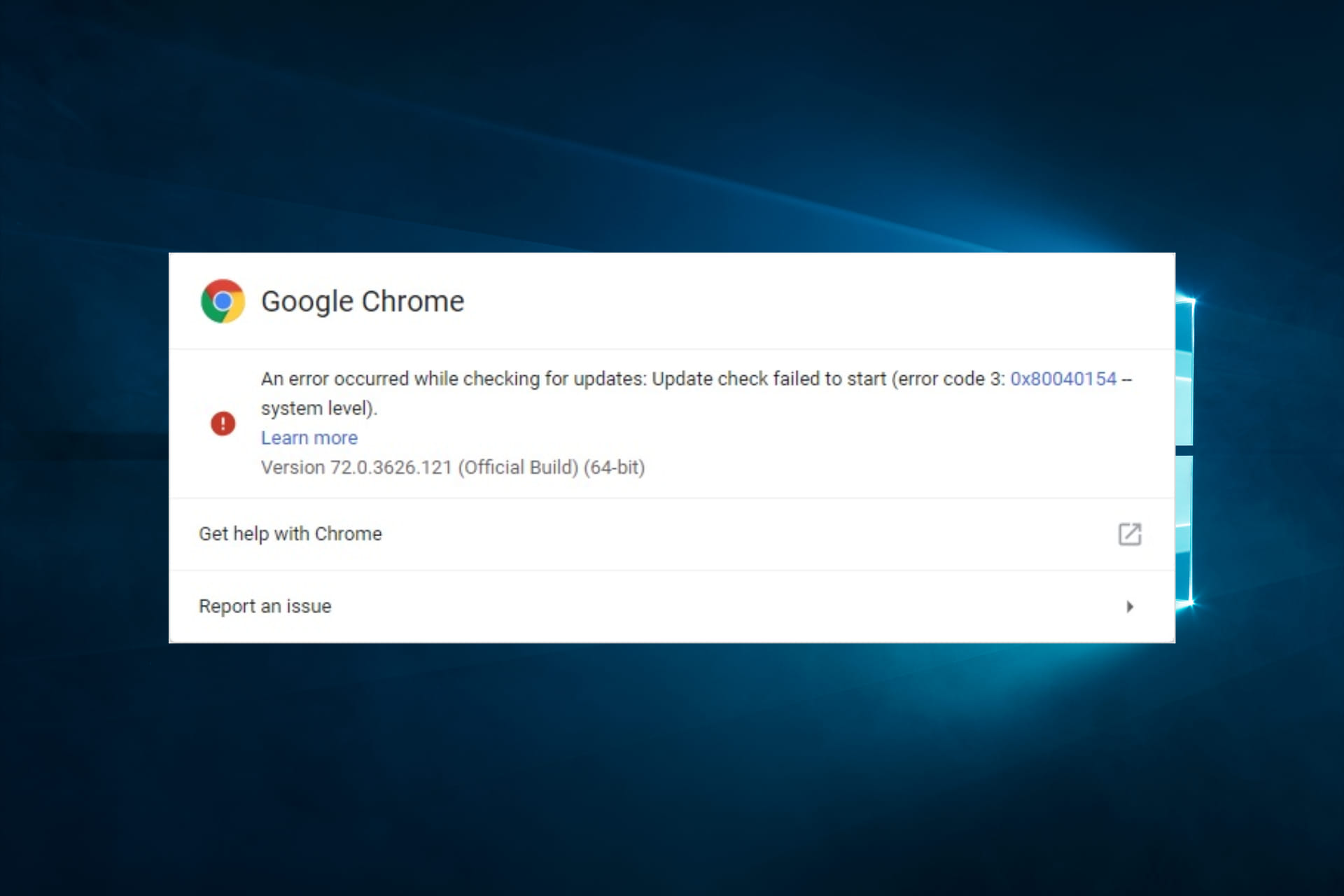
Undoubtedly, Google Chrome is a stable browser and a great tool for surfing the internet. Still, not even this app is issue-free. Some users complain that an error has occurred while checking for updates in Chrome.

As you can see, this user encountered error code 3: 0x80004002 while trying to update Chrome. Moreover, no solution worked for the OP, although he didn’t give any details on how he tried to fix the issue.

Therefore, today we will show you how to fix An error occurred while checking for updates in Chrome.

Why does Error code 3: 0x80004002 — system level appear in Chrome?

Error code 3: 0x80004002 in Chrome typically appears when the browser cannot access certain files or folders due to permission issues or corruption in the system registry. 

The error is often triggered by any one of the following elements:

  • Firewall or antivirus software – Sometimes, security software on your computer may block access to certain websites or services for security reasons. This can lead to Error code 3: 0x80004002 in Chrome. 
  • DNS server issues – If there are issues with your DNS server or the website’s DNS records, you may encounter the error in Chrome. 
  • Proxy server issues – Using a proxy server to connect to the internet can sometimes cause issues with certain websites or services. 
  • Outdated Chrome browser or OS – Running an outdated version of Chrome or your operating system can sometimes cause compatibility issues with certain websites or services. 
  • Corrupted browser data or settings: Sometimes, corrupted browser data or settings can cause issues with Chrome and lead to the Chrome error code.
  • Malware or other security threats – Security or malware on your computer can sometimes interfere with your internet connection and cause Error code 3: 0x80004002 in Chrome. 

Quick Tip

Before going into any of the recommended fixes, consider using a different browser. While this is not a solution, it saves you the troubleshooting stress.

We like to recommend a browser like Opera One because not only that it gets updated twice a month, but it’s also extremely easy to perform this action while remaining stable and error-free.

⇒ Get Opera One

It would be best if you also considered restarting your computer as a reboot would force stubborn processes to shut down and could resolve minor problems.

How can I fix An error has occurred while checking for updates in Chrome?

1. Update Chrome

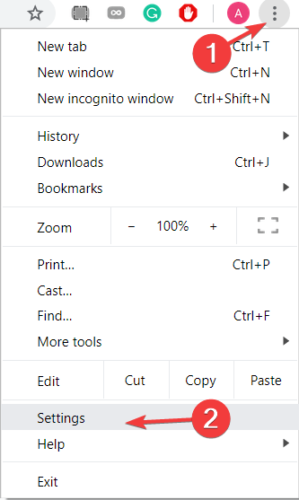
  1. Click on the three vertical dots in the upper-right part of Chrome and select Settings.chrome settings
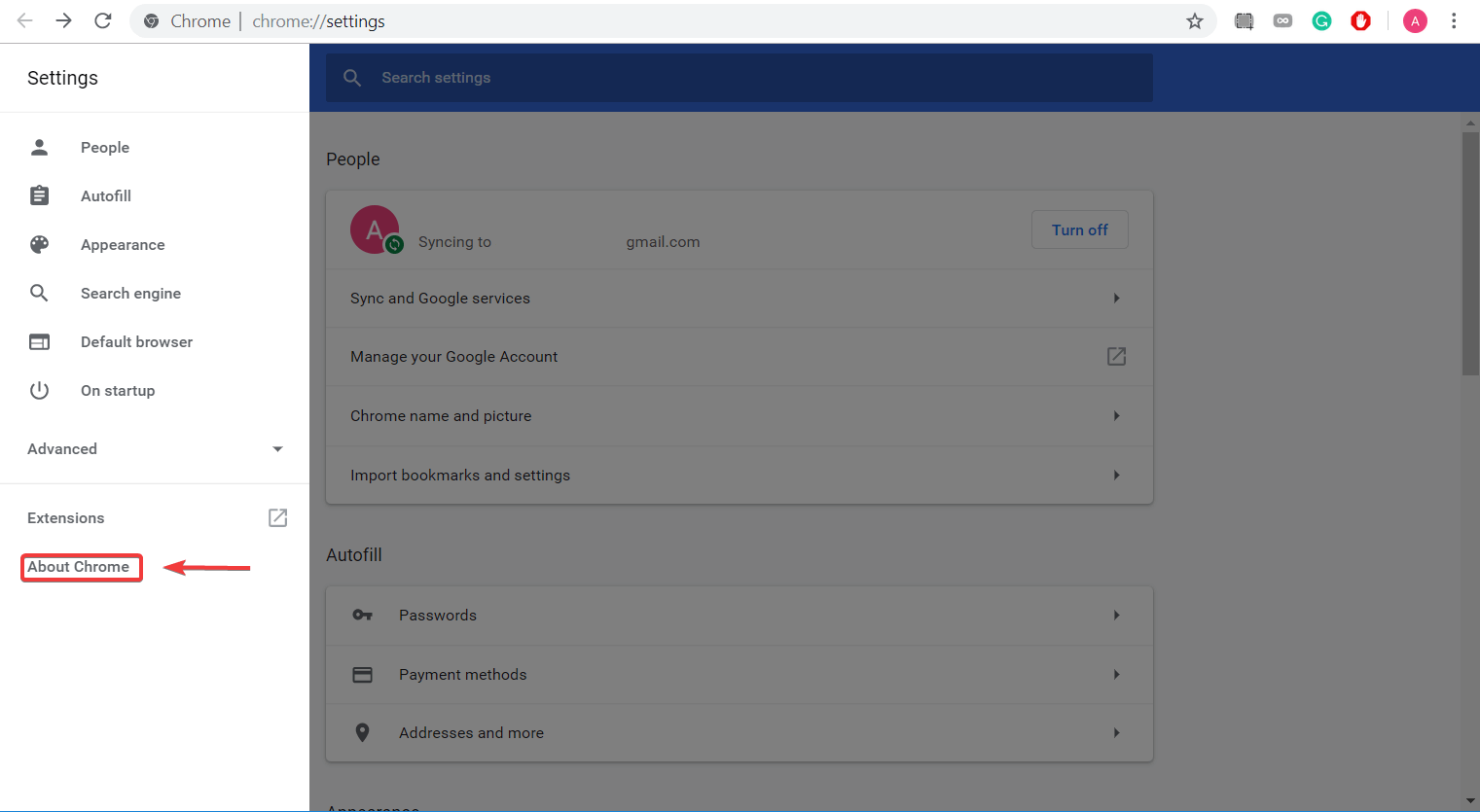
  2. Click on About Chrome.about-chrome-settings
  3. The browser would look for updates and automatically apply them. You may have to restart the browser after that.

2. Enable Google Update service

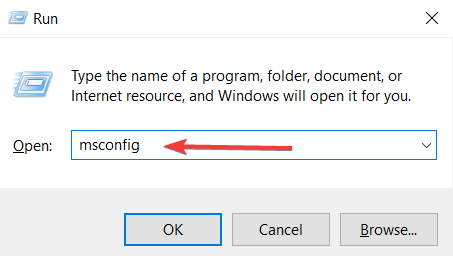
  1. Press Windows Key + R to open Run.
  2. In the box, type msconfig and press Enter.
    msconfig chrome
  3. Click on the Services tab.system configuration google update service
  4. Tick all Google Update-related services.
  5. Click on Apply and OK.
  6. Restart your PC and check if an error has occurred while checking for updates is resolved.

3. Start Google services

  1. Press the Windows and R keys, type services.msc, and hit Enter.
  2. Search for Google Update Service, double-click on it to open the Properties., then click Start.chrome an error has occurred while checking for updates
  3. You should also ensure that the Startup type is set to Automatic.
  4. Retry the update and check if the problem is resolved.

4. Reinstall Chrome

  1. Press Windows + R, type appwiz.cpl, and hit Enter.
  2. Select Google Chrome from the app list and hit Uninstall.
    chrome an error has occurred while checking for updates
  3. Follow the wizard to complete the uninstallation.
  4. Navigate to the official Chrome website and download a new browser version.
  5. Run the installation.

You should use this method as a last resort, but sometimes, reinstalling Chrome could solve An error that occurred while checking for updates error.

Make sure you save your important information before uninstalling the browser. Also, you can use an uninstallation tool to delete the program safely.

Any of the solutions we have mentioned should help resolve update issues with the browser.

Chrome updates are crucial, but many users encountered problems updating their browsers. Still, as you can see from this article, this issue has a few simple solutions.

This isn’t only problem you can encounter, and many app developers reported Chrome-error://chromewebdata/#, but it can be fixed with ease.

Did you find our solutions helpful? Do let us know in the comments section below!

KB4566782 might cause issues with Excel on Windows 10 v2004

For the 8th time this year, Microsoft released its monthly cumulative updates for Windows 10.

These updates are called the August Patch Tuesday updates, and they greatly enrich each major version of the OS, from Windows 10 v1507 to Windows 10 v2004.

However, a handful of cumulative updates have stood out among the others, either to do a special change that they bring that others don’t or because of an unforeseen error.

That’s precisely the case with the cumulative update for WIndows 10 v2004, also known as KB4566782.

KB4566782 may affect Excel for Asian users

Despite being released at the end of May, Windows 10 v2004 has already received 5 different cumulative updates. This is arguably understandable since it is the version with the newest features, and therefore the version most prone to unexpected bugs.

Such is the case with the latest issue detected after installing the latest Windows 10 v2004 cumulative updates which, according to Microsoft:

When using some apps, such as Microsoft Excel, users of the Microsoft Input Method Editor (IME) for Chinese and Japanese might receive an error, or the app might stop responding or close when attempting to drag using the mouse.

For those of you that don’t know, an Input Method Editor (IME) is a software component that enables a user to write a text that cannot be easily achieved when you have a standard QWERTY keyboard.

As with the case above, this is typically due to the number of characters in the user’s written language, like with some Asian languages.

No word from Microsoft as to what users can do to bypass this problem, although using QWERTY-compatible languages might be a good workaround.


To find out more about this month’s cumulative updates, check out our dedicated article where we’ve included changelogs, as well as direct download links for each of them.

Speaking of changelogs, we also have a list of all cumulative updates that have been released for Windows 10 ever since it was first released, so check it out as well.

The Patch Tuesday Updates are among the most important updates that you can ever apply to your PC, so making sure you install them correctly is important.

If you need further information as to why Patch Tuesday is important, check out this detailed guide.

What’s your take on this month’s cumulative updates? Let us know what you think Microsoft should do next by leaving us a message in the comments section below.

[wl_navigator]

Windows 10 August Patch Tuesday [DIRECT DOWNLOAD LINKS]

Microsoft just released the latest monthly updates called the August Patch Tuesday updates, and like always, they bring tons of new OS enhancements.

As usual, the updates come with bug fixes, tweaks, optimizations, and improvements for Windows 10, as well as the occasional new feature.

Additionally, and most likely the most important part of all, the Patch Tuesday updates bring much-needed security updates, as well as a new list of CVEs that needed fixing.

Speaking of which, this month’s Patch Tuesday updates come with fixes for 146 CVEs, and you can read more about them in this article.

Additionally, as you may remember, the last round of Patch Tuesday updates were the first to bring anything of great significance to the new Windows 10 V2004, so many of you are probably wondering what else did this month brings.

Without further ado, here is what this month brought for each major version of Windows 10.

Note: We’ve also included direct download links for each cumulative update, so don’t hesitate to use them.


Cumulative updates included in August Patch Tuesday Updates

Windows 10, version 2004

Windows 10 v2004 is the latest major version of Windows 10, and as such as the most experimental features on it. That being the case you should install this version as soon as possible if your hardware allows it.

Take note that Windows 10 v2004’s system requirements aren’t that high, so don’t worry about compatibility issues.

Cumulative update name:

Improvements and fixes 

  • Addresses an issue in Universal Windows Platform (UWP) apps that allows single sign-on authentication when an app does not have the Enterprise Authentication capability. With the release of CVE-2020-1509, UWP applications might begin prompting the user for credentials.
  • Security updates to the Microsoft Scripting Engine, Internet Explorer, Windows Graphics, Microsoft Graphics Component, Windows Kernel, Windows Input and Composition, Windows Media, Windows Shell, the Windows Wallet Service, Microsoft Edge Legacy, Windows Cloud Infrastructure, Windows Authentication, the Windows AI Platform, Windows Fundamentals, Windows Storage and Filesystems, Windows Update Stack, Windows File Server and Clustering, Windows Hybrid Storage Services, Windows App Platform and Frameworks, Microsoft JET Database Engine, and Windows SQL components.
  • Updates to improve security when using input devices (such as a mouse, keyboard, or pen).
  • Updates to improve security when Windows performs basic operations.
  • Updates for storing and managing files.
  • Updates to improve security when using Internet Explorer and Microsoft Edge Legacy.
  • Updates to improve security when using Microsoft Office products.
  • Updates for verifying usernames and passwords.

Known Issues

  • When using some apps, such as Microsoft Excel, users of the Microsoft Input Method Editor (IME) for Chinese and Japanese might receive an error, or the app might stop responding or close when attempting to drag using the mouse.

[DIRECT DOWNLOAD LINK]


Windows 10, version 1909

Windows 10 v1909 and Windows 10 1903 share a core structure, core operating system, and an identical set of system files, therefore all cumulative updates that apply to one version are available to the other as well.

Cumulative update name:

Improvements and fixes 

  • Addresses an issue in Universal Windows Platform (UWP) apps that allows single sign-on authentication when an app does not have the Enterprise Authentication capability. With the release of CVE-2020-1509, UWP applications might begin prompting the user for credentials.
  • Security updates to the Microsoft Scripting Engine, Internet Explorer, Windows Graphics, Windows Input and Composition, Windows Media, Windows Shell, the Windows Wallet Service, Microsoft Edge Legacy, Windows Cloud Infrastructure, Windows Authentication, Windows AI Platform, Windows Fundamentals, Windows Kernel, Windows Update Stack, Windows File Server and Clustering, Windows Hybrid Storage Services, Windows App Platform and Frameworks, and the Microsoft JET Database Engine.
  • Updates to improve security when using Internet Explorer and Microsoft Edge Legacy.
  • Updates to improve security when using input devices (such as a mouse, keyboard, or pen).
  • Updates to improve security when Windows performs basic operations.
  • Updates for verifying usernames and passwords.

Known Issues

  • Microsoft is currently not aware of any issues with this update.

[DIRECT DOWNLOAD LINK]


Windows 10, version 1903

Windows 10 v1909 and Windows 10 1903 share a core structure, core operating system, and an identical set of system files, therefore all cumulative updates that apply to one version are available to the other as well.

Cumulative update name:

Improvements and fixes

  • Same as Windows 10, version 1909

Known Issues

  • Same as Windows 10, version 1909

[DIRECT DOWNLOAD LINK]


Windows 10, version 1809

Windows 10 v1809 received a new cumulative update that bumps the OS build number to OS Build 17763.1369.

One highlight of this update is that it fixes certain scenarios that would otherwise make Microsoft Excel stop working.

Cumulative update name:

Improvements and fixes

  • Updates to improve security when using Internet Explorer and Microsoft Edge Legacy.
  • Updates to improve security when Windows performs basic operations.
  • Updates to improve security when using input devices (such as a mouse, keyboard, or pen).
  • Updates for verifying usernames and passwords.
  • Updates for storing and managing files.
  • Addresses an issue in Universal Windows Platform (UWP) apps that allows single sign-on authentication when an app does not have the Enterprise Authentication capability. With the release of CVE-2020-1509, UWP applications might begin prompting the user for credentials. 
  • Provides the ability for a Windows Embedded Compact 2013 OS instance and applications to operate on top of Windows 10 IoT Core using Windows CE App Container.
  • Security updates the Microsoft Scripting Engine, Internet Explorer, Windows Graphics, Windows Input and Composition, Windows Media, Windows Shell, the Windows Wallet Service, Microsoft Edge Legacy, Windows Cloud Infrastructure, Windows Authentication, the Windows AI Platform, Windows Fundamentals, Windows Kernel, Windows Storage and Filesystems, Windows Update Stack, Windows File Server and Clustering, Windows Hybrid Storage Services, Windows App Platform and Frameworks, the Microsoft JET Database Engine, and Windows Remote Desktop.

Known Issues

  • After installing KB4493509, devices with some Asian language packs installed may receive the error, “0x800f0982 – PSFX_E_MATCHING_COMPONENT_NOT_FOUND.”
  • After installing KB4550969 or later, when using Microsoft Edge Legacy, you might receive the error,”0x80704006. Hmmmm…can’t reach this page” when attempting to reach websites on non-standard ports. Any website that uses a port listed in the Fetch Standard specification under bad ports or port blocking might cause this issue.

[DIRECT DOWNLOAD LINK]


Windows 10, version 1803

Note: Windows 10, version 1803 has reached the end of mainstream support, and starting last month, there won’t be any more optional, non-security releases for this version of Windows 10. 

Operating systems in extended support have only cumulative monthly security updates associated with them.

Cumulative update name:

Improvements and fixes

  • Updates to improve security when using Internet Explorer and Microsoft Edge Legacy.
  • Updates to improve security when Windows performs basic operations.
  • Updates to improve security when using input devices (such as a mouse, keyboard, or pen).
  • Updates for storing and managing files.
  • Addresses an issue in Microsoft Edge IE mode that occurs when you open multiple documents from a SharePoint site.
  • Addresses an issue in Microsoft Edge IE mode that occurs when you browse using anchor links.
  • Addresses an issue with loading Browser Helper Objects in Microsoft Edge IE mode.
  • Addresses an issue that causes certain applications to stop responding when under load if they rely on the JScript Scripting Engine.
  • Addresses an issue that prevents you from installing some .msi apps. This occurs when a device is managed by a Group Policy that redirects the AppData folder to a network folder.
  • Addresses an issue in Universal Windows Platform (UWP) apps that allows single sign-on authentication when an app does not have the Enterprise Authentication capability. With the release of CVE-2020-1509, UWP applications might begin prompting the user for credentials.
  • Security updates to the Microsoft Scripting Engine, Internet Explorer, Windows Graphics, Windows Input and Composition, Windows Media, Windows Shell, the Windows Wallet Service, Microsoft Edge Legacy, Windows Cloud Infrastructure, the Windows AI Platform, Windows Fundamentals, Windows Kernel, Windows Storage and Filesystems, Windows Update Stack, Windows Hybrid Storage Services, and the Microsoft JET Database Engine.

Known Issues

  • Microsoft is not currently aware of any issues with this update.

[DIRECT DOWNLOAD LINK]


Windows 10, version 1709

Note: Windows 10, version 1703 has reached the end of service for  Home, Pro, Pro for Workstation, and IoT Core editions.

In order to continue receiving quality and security updates, Microsoft recommends that you get the latest possible version of Windows 10 installed.

Cumulative update name:

Improvements and fixes

  • Updates to improve security when using Internet Explorer and Microsoft Edge Legacy.
  • Updates to improve security when Windows performs basic operations.
  • Updates for storing and managing files.
  • Updates to improve security when using input devices (such as a mouse, keyboard, or pen).
  • Addresses an issue that causes certain applications to stop responding when under load if they rely on the JScript Scripting Engine.
  • Addresses an issue that prevents you from installing some .msi apps. This occurs when a device is managed by a Group Policy that redirects the AppData folder to a network folder.
  • Addresses an issue in Universal Windows Platform (UWP) apps that allows single sign-on authentication when an app does not have the Enterprise Authentication capability. With the release of CVE-2020-1509, UWP applications might begin prompting the user for credentials.
  • Security updates the Microsoft Scripting Engine, Internet Explorer, Windows Graphics, Windows Input and Composition, Windows Media, Windows Shell, the Windows Wallet Service, Microsoft Edge Legacy, Windows Cloud Infrastructure, Windows AI Platform, Windows Fundamentals, Windows Kernel, Windows Core Networking, Windows Storage and Filesystems, Windows Hybrid Storage Services, and the Microsoft JET Database Engine.

Known Issues

  • Microsoft is currently not aware of any issues with this update.

[DIRECT DOWNLOAD LINK]


Windows 10, version 1703

Note: Windows 10, version 1703 has reached the end of service for all of its available editions. To continue receiving security and quality updates, update to the latest version of Windows 10.

Cumulative update name:

Improvements and fixes

  • Updates to improve security when using Internet Explorer and Microsoft Edge Legacy.
  • Updates to improve security when Windows performs basic operations.
  • Updates for storing and managing files.
  • Addresses an issue that causes certain applications to stop responding when under load if they rely on the JScript Scripting Engine.
  • Addresses an issue that prevents you from installing some .msi apps. This occurs when a device is managed by a Group Policy that redirects the AppData folder to a network folder.
  • Addresses an issue in Universal Windows Platform (UWP) apps that allows single sign-on authentication when an app does not have the Enterprise Authentication capability. With the release of CVE-2020-1509,UWP applications might begin prompting the user for credentials.
  • Security updates to Internet Explorer, the Microsoft Scripting Engine, Windows Graphics, Windows Media, Windows Shell, the Windows Wallet Service, Microsoft Edge Legacy, Windows Cloud Infrastructure, Windows AI Platform, Windows Fundamentals, Windows Kernel, Windows Core Networking, Windows Storage and Filesystems, Windows Hybrid Storage Services, and the Microsoft JET Database Engine.

Known Issues

  • Microsoft is not currently aware of any issues with this update.

[DIRECT DOWNLOAD LINK]


Windows 10, version 1607

Note: Windows 10, version 1607 has reached the end of service for all of its available editions. Update to the latest version of Windows 10 that your hardware can handle if you want to continue receiving quality updates to your OS.

Cumulative update name:

Improvements and fixes

  • Updates an issue that causes File Explorer to close unexpectedly when creating shortcuts.
  • Updates for verifying usernames and passwords.
  • Updates to improve security when Windows performs basic operations.
  • Updates for storing and managing files.
  • Addresses an issue in Microsoft Edge IE mode that occurs when you open multiple documents from a SharePoint site.
  • Addresses an issue in Microsoft Edge IE mode that occurs when you browse using anchor links.
  • Addresses an issue with loading Browser Helper Objects in Microsoft Edge IE mode.
  • Addresses an issue that causes certain applications to stop responding when under load if they rely on the JScript Scripting Engine.
  • Addresses an issue that causes new child windows to flicker and appear as white squares on server devices that are configured for stark visual contrast.
  • Addresses an issue that causes File Explorer to close unexpectedly when creating shortcuts.
  • Addresses an issue that causes Remote Server Administration Tools (RSAT) to stop working on Windows 10 machines. This occurs when you create or edit a Group Policy Object that contains a Scheduled Task.
  • Addresses a race condition that occurs when you run multiple PowerShell scripts simultaneously.
  • Addresses an issue in Universal Windows Platform (UWP) apps that allows single sign-on authentication when an app does not have the Enterprise Authentication capability. With the release of CVE-2020-1509, UWP applications might begin prompting the user for credentials.
  • Addresses an issue in cluster scenarios that causes handles to .vmcx and .vmrs files to become invalid after storage failover. As a result, live migration and other virtual machine (VM) maintenance activities fail with STATUS_UNEXPECTED_NETWORK_ERROR.
  • Updates the message users receive that tells them to check their phone for notifications from the Microsoft Authenticator application. This message only appears when authentication is done using the AD FS Azure Multi-Factor Authentication (MFA) adapter.
  • Addresses an issue that might cause a stop error (0xC00002E3) at startup. This issue occurs after installing certain Windows Updates that were released on or after April 21, 2020.
  • Security updates to the Microsoft Scripting Engine, Windows Media, Windows Cloud Infrastructure, Windows Authentication, Windows Kernel, Windows Storage and Filesystems, Windows File Server and Clustering, Windows App Platform and Frameworks, Windows Hybrid Storage Services, Microsoft JET Database Engine, and Windows Remote Desktop.

Known Issues

  • After installing KB4467684, the cluster service may fail to start with the error “2245 (NERR_PasswordTooShort)” if the group policy “Minimum Password Length” is configured with greater than 14 characters.

[DIRECT DOWNLOAD LINK]


Windows 10, version 1507

Note: Windows 10, version 1507 has reached the end of service on all editions, and it is also the oldest version of Windows 10 still in use. If you want to continue receiving quality and feature updates, then you need to update to a much newer version of Windows 10.

Cumulative update name:

Improvements and fixes

  • Updates to improve security when using Internet Explorer and Microsoft Edge Legacy.
  • Updates to improve security when Windows performs basic operations.
  • Updates for verifying usernames and passwords.
  • Updates for storing and managing files.
  • Addresses an issue in Microsoft Edge IE mode that occurs when you open multiple documents from a SharePoint site.
  • Addresses an issue in Microsoft Edge IE mode that occurs when you browse using anchor links.
  • Addresses an issue with loading Browser Helper Objects in Microsoft Edge IE mode.
  • Addresses an issue that causes certain applications to stop responding when under load if they rely on the JScript Scripting Engine.
  • Addresses an issue that prevents you from installing some .msi apps. This occurs when a device is managed by a Group Policy that redirects the AppData folder to a network folder.
  • Addresses an issue in Universal Windows Platform (UWP) apps that allows single sign-on authentication when an app does not have the Enterprise Authentication capability. With the release of CVE-2020-1509, UWP applications might begin prompting the user for credentials.
  • Security updates to Internet Explorer, the Microsoft Scripting Engine, Windows Graphics, Windows Media, Windows Shell, the Windows Wallet Service, Microsoft Edge Legacy, Windows Cloud Infrastructure, Windows Authentication, Windows Fundamentals, Windows Kernel, Windows Core Networking, Windows Storage and Filesystems, Windows Hybrid Storage Services, and the Microsoft JET Database Engine.

Known Issues

  • Microsoft is currently not aware of any issues with this update.

[DIRECT DOWNLOAD LINK]


That’s pretty much our entire list of changelogs for all major versions of Windows 10 for the August Patch Tuesday updates. If you want to check out the complete changelog of all Patch Tuesday updates, check out this article.


How else can I download Patch Tuesday updates?

There are plenty of ways you can get the latest Windows 10 Patch Tuesday updates, including:

  • Manually updating via the Windows Update menu
  • Downloading each individual cumulative update from the Windows Update Catalog
  • Using the Windows Server Update Service (WSUS)
  • Have your network administrator set up a Group Policy to update multiple work PCs at once


Editor’s Note: Patch Tuesday updates are incredibly important, so to better prepare for them and ensure an error-free update process, follow this in-depth guide.

[wl_navigator]

146 CVEs were fixed during the August Patch Tuesday updates

The August Patch Tuesday Updates have arrived, and Microsoft has truly outdone itself this time, bringing tones of new fixes, tweaks, and features for the Windows 10 OS.

Of course, the highlight of these monthly updates is the security enhancements that everyone awaits, as it seems that 2020 has become an arms race between vulnerabilities and those that identify and fix them.

Here’s a brief rundown of how the year 2020 has been as far as CVEs are concerned:

Speaking of which, This month precisely 146 CVEs were identified and taken care of for both Microsoft and Adobe products as well.

Over 140 Microsoft and Adobe CVEs were identified

This month brings fixes to a total of 146 CVEs, 26 of which are for Adobe products, while 120 are for Microsoft products and, as usual, they vary in severity.

Adobe-related CVEs

26 CVEs were discovered this past month when it comes to Adobe products, and they affect programs like Adobe Lightroom and  Acrobat Pro DC. These CVEs include common ones like Use-After-Free (UAF), OOB Write, stack exhaustion, and memory corruption bugs.

Compared to other months, only one of the 26 identified CVEs were rated as Critical, and it is called CVE-2020-9712.


Microsoft-related CVEs

A total of 120 CVEs were identified affecting Microsoft products like Microsoft Windows, Edge (EdgeHTML-based and Chromium-based), ChakraCore, Internet Explorer (IE), Microsoft Scripting Engine, SQL Server, .NET Framework, ASP.NET Core, Office and Office Services and Web Apps, Windows Codecs Library, and Microsoft Dynamics

This month marks yet another time when over 100 CVE were fount, bringing the grand total for the year 2020 to 862, already exceeding the number of CVE identified in the entirety of 2019.

The 120 CVEs identified were rated as follows:

  • 13 are rated as being Critical
  • 107 are rated as being Important

Which were some of the most severe CVEs?

For a complete list of all identified CVEs for the August Patch Tuesday updates, head over to this dedicated article.

If you haven’t seen a vulnerability you are aware of on this list, then maybe you should wait until next month on September 8, since that’s when the next Patch Tuesday will be.


  • What is the difference between a CVE and a CVESS?

While a CVE is a common vulnerability and exposure, the CVSS is the overall score assigned to a vulnerability, which showcases how severe it is.

  • Who maintains the CVE database?

The CVE database is maintained by MITRE, as it maintains both the CVE dictionary and public website.


If you have any other suggestions for our articles, leave us your feedback in the comments section below.

[wl_navigator]

Does VPN hide your search history?

If you’re frequently using a VPN to anonymize your Internet traffic, you might’ve wondered at least once if VPN hides your search history.

Although the answer to this question should be quite obvious, there are some implications that need to be taken into consideration.

If you’re only interested in whether or not does a VPN hide your search history, we’ll shoot the answer straight to you: it doesn’t. No VPN can hide your search history, and you can even try it for yourself.

However, a VPN is excellent if you want to keep a low profile while you’re online. Everything you do, including performing searches on your favorite search engines, can be cloaked by an effective VPN.

But we’ll get to that right away.

What does a VPN do?

Essentially, if you’re using a VPN, your entire online activity will be anonymized. Of course, the degree of anonymousness strictly depends on the efficiency of the service.

If you’re using a sketchy VPN app, you can expect little to no protection and privacy. However, reputable services such as Private Internet Access, CyberGhost VPN, and NordVPN can be trusted.

Private Internet Access

Private Internet Access

Looking for a VPN to keep your data private? PIA can help you.
$2.85/mo. Buy it now

The way a VPN works is it encrypts your traffic once it reaches the VPN client, then routes it through a secure tunnel. The data reaches the server you’ve chosen, where it gets decrypted.

Finally, your unencrypted request reaches the website, which generates a response and sends it back to you. However, the response gets encrypted by the server and decrypted by the client. Thus it’s safe to say that it follows a reverse route.

Basically, what happens between you and the VPN gateway remains secret to prying eyes. It’s worth mentioning that a VPN encrypts all kinds of traffic, including but not limited to browsing activity, regular downloads, and even torrenting.

Does VPN hide your search history?

In a sense, a VPN does hide your search history. Meaning that if your ISP or a curious attacker is listening to any data you might submit to your search engine, they won’t be able to figure out anything, since that data is encrypted.

However, if you’re aiming to hide your search history on your default web browser, then no. There are other ways you could achieve that, but using a VPN alone won’t hide anything you input in your web browser.

There’s another scenario. If you have a Google account and you perform regular lookups on Google, your queries might be saved and tied to your account.

Again, if you use a VPN and hope that this will prevent your queries from being linked to your Google account, then you’re in for a huge disappointment.

How to hide your search history?

1. Use incognito mode

Every web browser user is (or should be) familiar with Incognito mode. This type of web browsing ensures that everything you perform inside the browser will be immediately erased upon closing the browser.

Incognito mode has no history, there’s no trace of downloads you’ve performed while using it, and you can’t even restore recently closed tabs if you’re in incognito mode.

oops! we encountered an unexpected error

Basically, everything you do in Incognito mode is erased each time you close your browser. However, note that your ISP can still see everything you access while using Incognito.

Incognito shortcut key combinations:

  • Chrome: CTRL + SHIFT + N
  • Firefox: CTRL + SHIFT + P
  • Opera: CTRL + SHIFT + N

2. Manually delete search history

The way you can delete your search history strictly depends on the browser of your choice. However, the principle is somewhat similar. You can access the browser’s entire history, select the data you want to remove and delete it.

Note that some browsers save cookies and thus you might still be able to see autocomplete text for your unwanted search history.

To make sure that doesn’t happen to you and save yourself the embarassment, consider removing cached content and cookies along with basic navigation/search history data. You’ll thank us later.

3. Use portable web browsers

If you can afford to do that, deploy a portable web browser on a removable storage media such as an external HDD or a USB flash drive. Use the portable web browser only for queries you want to keep private.

Once you’re done with the under-the-radar Internet browsing, simply close the portable web browser and unplug the removable storage media from your PC.

If you want a bit of extra protection, consider password-protecting your removable storage media and even using incognito mode on the portable web browser applications.

4. Use a dedicated operating system

Certain operating systems such as TAILS can protect your browsing history from falling into unwanted hands. TAILS, which stands for The Amnesic Incognito Live System is an OS that doesn’t require installation.

You can simply keep it on a removable storage media such as a DVD or a USB and use it occasionally.

After you’re done using it, you can just shut it down and unplug the removable media from your computer. Every action you performed while using TAILS will be erased and long forgotten.

No, VPN can’t hide search history

Well, it seems we’ve reached the end of our article and we feel like clarifying things again. No, you can’t use a VPN if you want to hide search history data on your favorite browser or keep it from being linked to your Google account.

What a VPN does is hide all of your traffic, including search history, from third-parties such as your ISP, your government, or anyone else who’d be interested in snooping through your private data.

On the bright side, there are several ways you can keep your search history clean. As long as you follow our suggestions, you should be in the clear and potentially embarassment-free.

[wl_navigator]

Warframe packet loss: What is it and how to fix it?

Warframe is a free-to-play fast-paced cooperative third-person game. Part of its popularity likely emerged from the fact that you can play the game for free.

Sure, some of its players are reportedly upset that the game follows a pay-to-win pattern. However, the truth is that most of the game content can be unlocked through grinding, except for a few cosmetic items.

But we didn’t gather here to talk about game economics and micro-transactions. Since it’s an online game, Warframe is subject to the same technical issues as any other game you play over the Internet.

We’re talking about high ping, various bad connectivity issues, and, of course, the much-dreaded packet loss.

What is packet loss in Warframe?

Packet loss already has a bad rap, regardless of where you spot it. This apparently harmless issue can severely affect your in-game experience to the point that you can’t even play the game without the burning desire of rage-quitting.

If you’ve ever seen someone rubberbanding in Warframe, you’d guess that they have a high ping. However, most of the time packet loss is the culprit. But what exactly is packet loss?

On a usual Internet connection, you send and receive packets all the time. Ideally, the percentage of packets you send and/or receive should be as close as possible to 100%.

Packet loss happens when some of the data packets that get transmitted through the connection never make it to their destination, whether the destination point is you, or another bounce in your connection.

In Warframe, packet loss could lead to various other issues, including but not limited to rubberbanding, high latency, or even sudden connection drops.

It’s easy to see why such an issue could have a dramatic effect on your gameplay.

What causes packet loss in Warframe?

There’s no unique culprit when it comes to packet loss, regardless of where you experience it. In Warframe, you can experience packet loss because of network congestion, for instance.

If it is network congestion indeed, the packet loss will come and go. Thus, you can simply fix it by avoiding peak hours. However, sometimes there’s a simpler underlying cause.

For instance, having bad Ethernet cables can trigger a packet leak episode. Even if you prefer using WiFi instead of wired connections you can trigger packet loss.

Thus, it’s easy to see why it’s so difficult to spot the main cause of losing packets accurately.

How to detect packet loss in Warframe?

  1. Launch CMD with Administrator rights
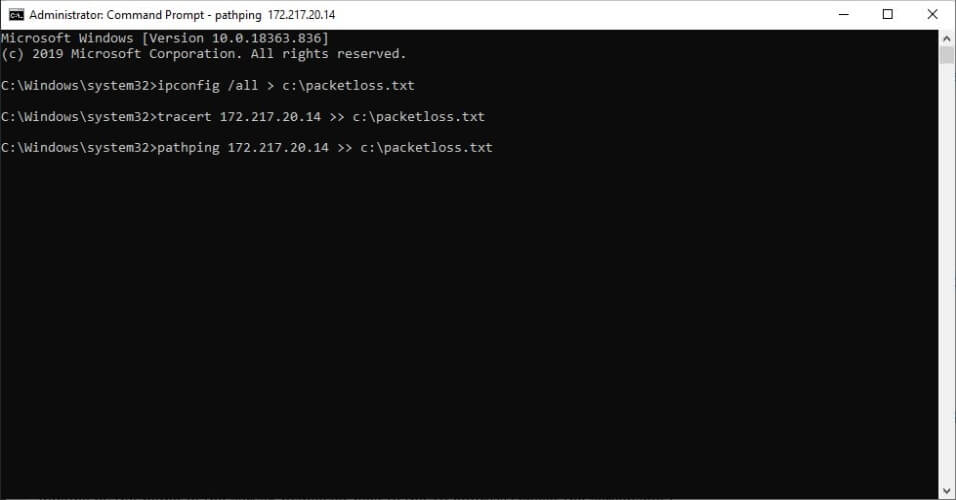
  2. Run a packet loss test as we’ve described in our guide
  3. Wait for the pathping test to come to an endPacket loss analysis Windows with tracert and pathping
  4. Check the number of the hop where you notice packet loss

If you can use a game server’s IP address in the pathping test, the test will yield more accurate results. If not, you can use another external IP address and see if there’s something wrong on your side of the connection.

How to fix Warframe packet loss?

1. Use a VPN

  1. Download Private Internet AccessWarframe Private Internet Access
  2. Deploy it on your PC
  3. Launch it and sign in to your PIA account
  4. Connect to your server of choice
  5. Check and see if the packet loss issue still persists

It’s worth mentioning that if you choose a server that’s far away from your physical connection, you might experience high ping. For this purpose, try connecting to a server that’s nearby.

Private Internet Access

Private Internet Access

Want to reduce packet loss in Warframe? PIA might be of help.
$2.85/mo. Buy it now

On the contrary, if you think that the issue is triggered by the game server, try connecting to a server that’s in the same location as the game server, or at least nearby.

2. Troubleshoot the issue manually

  • Use a wired connection instead of WiFi (WiFi packet loss occurs more frequently)
  • Check and fix any troublesome component on the network, including Ethernet wires, routers, adapters
  • Try to avoid peak hours if possible
  • Contact the game server’s owner if you suspect the packet loss occurs on their side
  • Talk to your ISP if you notice that the pathping test indicates trouble on their side
  • Restart your PC, modem, and router

These fixes are not guaranteed to work, but maintaining your network running at optimal parameters can make sure other issues won’t be as likely.

Warframe packet loss is frequent but can be fixed

All things considered, if you’re experiencing packet loss in Warframe, it’s not the end of the world. Most of the time it’s caused by network congestion and can be easily fixed.

You can use a VPN such as PIA to reduce packet loss. However, this fix should only work if your ISP is throttling your bandwidth or has routed its network in an improper manner.

[wl_navigator]

Halo Online server browser not working? Try our fixes

Halo Online is a canceled free-to-play game, but the game still has an active community and community-hosted servers.

However, many users reported that the Halo Online server browser is not working. This can be a big problem, but there’s a way to fix this issue.

What can I do if Halo Online server browser is not working?

1. Delete the menu directory

  1. Locate the mods/menu It should be in the game’s installation directory.
  2. Now delete the menu directory or just delete everything from it.
  3. Start the game again and check if the issue is still there.

Some users are also suggesting to start the game using the Eldorado.exe to launch the game and not the updater, so you can try that as well.

Alternatively, you can try opening the server browser a couple of times in your web browser and check if that solves the problem for you.

Although you can use any browser for this purpose, for the best results we suggest using Opera GX. This is a gaming-oriented browser, and it’s perfect for all gamers.

The browser has a GX Control feature so you can easily allocate your hardware resources to the browser. By doing so, you’ll ensure that your browser isn’t using your CPU or RAM during gaming sessions.

Speaking of resources, the software also has a Hot Tabs Killer feature that shows you detailed RAM and CPU usage by tab. It also allows you to end tabs that are using too many resources.

The browser offers Twitch integration and a pop-up video feature, so you can keep up with your favorite streamers and watch them while working on other tasks.

Social networking integration is available, so you’ll have Twitter or Instagram available at your fingertips, as well as instant messenger. As for other features, there’s a built-in VPN and extensive customization.

If you’re a gamer and you’re looking for a new browser, Opera GX is the way to go.

Editor's choice
Opera GX browser logo
  • Best gaming browser
  • Resource controller
  • Custom UI
  • Twitch integration
  • Free VPN included
  • Ad-blocker


2. Try opening the server browser in the browser

  1. Go to the scooterpsu GitHub page.
    scooterpsu halo online server browser not working
  2. Select the desired server from there and you should be connected automatically.

Note: For this process to work, be sure to start Eldewrito first and then go to scooterpsu’s page.

If the page isn’t working for you, be sure to disable adblocking and try to open it again.


3. Change the dewrito_prefs file

  1. Locate dewrito_prefs file.
  2. Open it with a text editor.
  3. Now replace the GitHub link in the first line with https://halostats.click/servers
  4. Save changes.

Alternatively, you can visit this link in your browser and pick the server from there.


4. Use the in-game console to connect to a server

  1. Start Halo Online.
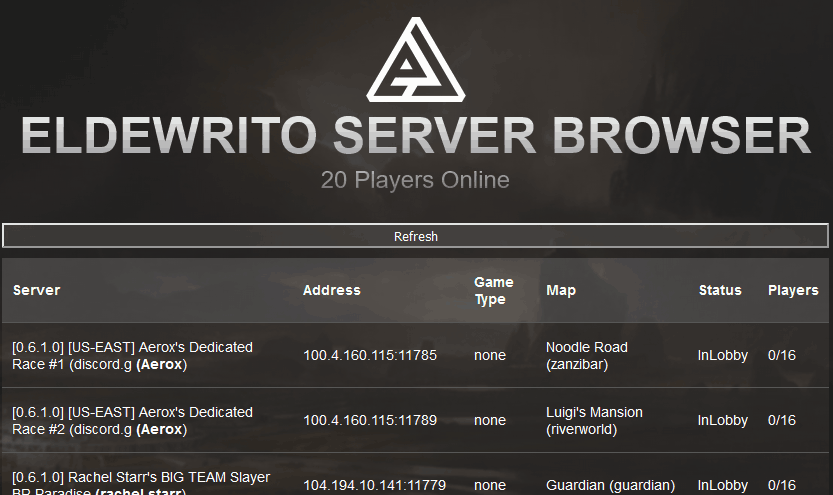
  2. Now open the ELDewrito server browser in your web browser.
    eldewrito server browser halo online server browser not working
  3. Copy the IP address of the server that you want to join and switch back to the game.
  4. Press ~ on your keyboard to open the console and type:
  5. connect server_ip_address

After running this command, you should join the server automatically.

Halo Online servers are up and running thanks to its dedicated community, so it’s no wonder that sometimes the server browser isn’t working.

If our solutions helped you solve the problem with Halo Online, be sure to let us know in the comments below.

[wl_navigator]

Windows 10 20H2 build 19042.450 is now available in the Beta channel

Microsoft has just announced the release of the Windows 10 20H2 build 19042.450 for Insiders in the Beta channel. This is a minor update that only includes security fixes, and you can find more details about what’s new below:

  • We have fixed an issue in Universal Windows Platform (UWP) apps that allows single sign-on authentication when an app does not have the Enterprise Authentication capability. With the release of CVE-2020-1509, UWP applications might begin prompting the user for credentials.
  • Security updates to the Microsoft Scripting Engine, Internet Explorer, Windows Graphics, Microsoft Graphics Component, Windows Kernel, Windows Input and Composition, Windows Media, Windows Shell, the Windows Wallet Service, Microsoft Edge Legacy, Windows Cloud Infrastructure, Windows Authentication, the Windows AI Platform, Windows Fundamentals, Windows Storage and Filesystems, Windows Update Stack, Windows File Server and Clustering, Windows Hybrid Storage Services, Windows App Platform and Frameworks, the Microsoft JET Database Engine, and Windows SQL components.

Windows 10 20H2 is the next system update coming later this year, and previous 20H2 builds introduced several improvements for the Start Menu, the Settings app, toast notifications, and more. We invite you to check out our previous post about the build 19042.421 for more details.

Microsoft is working on a no-code platform for Teams, but it won’t be called Dataflex

After announcing a new Dataflex brand for Microsoft Teams and Power Platforms products last month, it seems that the Redmond giant has now been forced to look for an alternative. As reported by ZDNet today, Microsoft has now edited its previous blog post to remove any mentions of the Dataflex brand, which had already been registered by a company named Data Access Corporation.

“Data Access Corporation has multiple, registered U.S. trademarks for our “DATAFLEX” brand software based on the first use in commerce in 1981. Accordingly, we were totally surprised by Microsoft’s use of our trademark for their new platform to easily build and deploy apps that they call “Microsoft Dataflex,” wrote Data Access Worldwide CEO Chip Casanave on July 21, adding that his company was “consulting legal experts for advice.”

With the new platform, Microsoft wanted to provide Teams developers an easy way to create apps and chatbots using an easy-to-use low code platform. “Users have the power of a built-in flexible database with a range of data types at their fingertips including relational, image, and file, so users can create business apps and processes within Teams without having to deal with back-end tech logistics,” the company explained on its Dynamics 365 blog last month.

Yesterday, Microsoft quietly updated that same blog post previously mentioning Dataflex to note that “A name will be selected which we will share in the coming weeks.” This isn’t the first time that Microsoft ends up in trouble for its choice of brand names. Back in 2014, for example, Microsoft renamed its “SkyDrive” cloud storage service as “OneDrive” after being sued by British television broadcaster Sky UK a year before.

Hyper Scape, Ubisoft’s new free-to-play battle royale game launches on Xbox One today

Ubisoft’s new free-to-play battle royale game, Hyper Scape launches on Xbox One today for Xbox Live Gold subscribers. Hyper Scape’s Season 1, “The First Principle,” also arrives today, adding some background into the Hyper Scape universe as well as adding new game modes and features for Hyper Scape’s interactive Twitch extension, dubbed Crowncast. Check out the Hyper Scape launch trailer below.
Hyper Scape drops you into the virtual city of Neo Arcadia to compete in Crown Rush. Crown Rush pits you in teams of three or solo to compete in Crown Rush, a competition to see who can hold the crown for at least 45 seconds or be the last team left standing. Be careful though, once you grab the crown, everyone will be able to see your location and will get a special bonus if they take you out.

As noted in a post on Xbox Wire, Hyper Scape Season 1 adds a new gun, “the Dragonfly, as well as a new hack, Magnet, for a total of 11 weapons and 11 hacks.” Hyper Scape’s Crowncast extension for Twitch is adding features like “Kudos,” to allow viewers to react to game moments using “Bits” to generate visual effects that appear in a streamer’s game. In addition, Season 1 is adding free and premium Battle Passes with 100 tiers of items to unlock, either through playing or watching streamers using the Crowncast Twitch extension.

Start playing Hyper Scape on Xbox One today!

HYPER SCAPE
HYPER SCAPE
Developer:
UBISOFT
Price:
Free

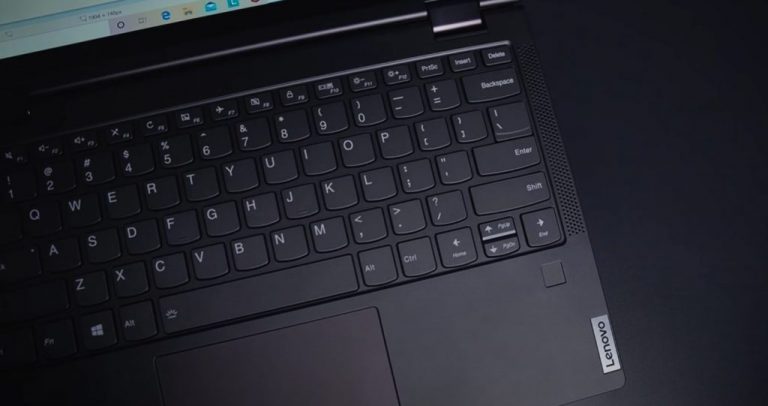
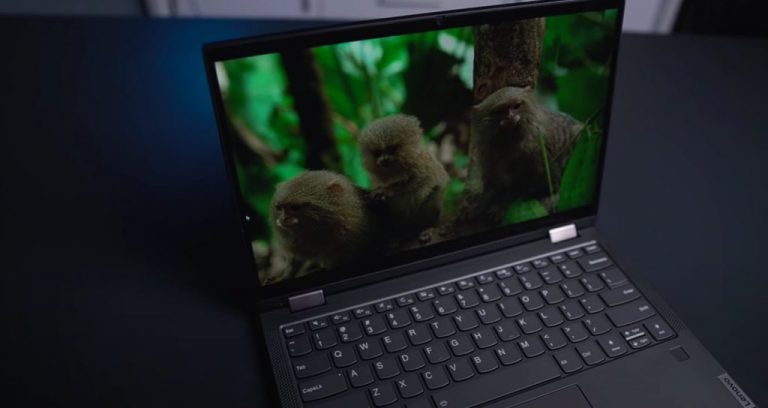
Lenovo Yoga C640: Abandoning Windows on ARM

Back in 2018, Lenovo unveiled the Yoga C630 as a cutting edge ARM-powered concept device equipped LTE connectivity and a Snapdragon 850 processor.

Interestingly enough, Lenovo followed up the C630 with a more conventional Intel-powered C640 in 2020 that forgoes LTE and replaces the loss with a much more processor-intensive Comet Lake experience. Lenovo hasn’t publically disclosed the reason for its Intel retrenchment for the C600 line up but the trade of LTE connectivity for all-day battery life and processing-power during an unprecedented work-from-home wave seemed like serendipitous timing.

A lot of the same

Plainly put, the Lenovo Yoga C640 is roughly identical to the C630 down to the same I/O setup from two years ago. The C640 comes in a bit thicker than its predecessor at 2.98 pounds and about 0.141 inches thicker than last year.

The Visuals

Lenovo has once again chosen to die on the 16:9 display aspect ratio hill, but the C640 manages to shrink the chin bezel on the device a bit to offer a slightly more immersive viewing experience than on the C630. The casing of the C640 has also been tweaked ever-so-subtly with the C640 replacing its former aluminum and magnesium alloy body combo with a more rigid aluminum and fiberglass combo this time around.

Screenshot 2020 08 05 231718

Keyboard

The typing experience on the C640 feels identical to the C630 if memory serves with excellent springiness and response from the iconic U-shape chicklet keys. The keyboard offers a full and expansive typing experience with full-size shift and enters keys that are becoming commodities on some devices. However, Lenovo has annoyingly chiseled away again at the direction keys that sit below the shift key and combined them into basically a three-point footprint button with little space or distinction between up and down keys.

Screenshot 2020 08 05 230020


Speakers and Windows Hello

Once again, Lenovo followed a tried and true mold for both speaker experience as well as bio-authentication down to the treble boosted tinny sound and Windows Hello supported fingerprint reader. Not much has changed from either of those experiences for better or for worse, both are convenient and serviceable when used.

Webcam

The webcam experience on the C640 is still relatively maligned and capped at 720p inexplicably. but it served in pinch for frequent video conferencing during a heavy work-from-home schedule.

16:10 and FHD or 4K

As I mentioned earlier the display aspect ratio remains frustratingly intact at 16:9 rater than 3:2 or even 16:10 but there are options for FHD and 4K with touch support configurations.

The display was perfect for my mediocre number-crunching days spent flipping through Excel docs and Google sheets chalked full of budgets and formulas. For the times I got the test the sRGB and AdobeRGB calibrations creating display ads for clients, I didn’t notice anything off. My only real concern was brightness during working nights, I would have preferred a panel that pushed out more than 200-something odd nits versus the lighthouse blinding display on the Macbook Pro at close to 400 nits.

Screenshot 2020 08 05 233429

Battery Life

The C640’s predecessor in the C630 was known for its long battery life and despite going back to the battery challenged chipset development from Intel, this year’s  Yoga consistently provides best-in-class longevity. I didn’t run any fancy benchmark software but I did make a conscious effort to keep track of time away from the plug and the C640 routinely lasted about  7 hours of heavy usage (Photoshop, 12-18 Chromium Edge tabs, Google Ads/ Google Editor software, two to three Excel books open with Macros, Outlook and Teams running and Spotify)  and almost 11 with moderate usage ( YouTube, Twitter, Chromium Edge, CBZ reader, and Spotify).

Performance

Speaking of battery life, the C640’s new switch to Intel’s 10th Gen Core i3 processor came with a noticeable speed boost in the opening, closing, and resuming of applications and webpages for the C640. Windows still needs to tweak its WOA platform for better native performance and utilization of GPU rendering and this may have been the impetus for the move back to Intel for 2020. Going through my full workload hours on end, it was rare that I run into issues, and I believe many of the ones that I encountered were mainly as a result of my Insider testing wrought with bugs these last few builds.


Who is the C640 for?

Anyone looking to upgrade their home office.

Thanks to stay at home orders during this COVD-19 pandemic, I was able to put Lenovo’s C640 through its paces as a daily driver without having to split time between a home office and office-office settings. Instead, the C640 served as my main computer from eight in the morning until eleven or so at night.

At roughly $750 bucks, the Lenovo C640 is a great mid-ranger posing as flagship and would be a steal for anyone looking to replace their currently aging home office. With an FHD or 4K touch display, all-day battery life and modern specs that include Bluetooth 5.0, Wi-Fi 5 connectivity, and USB-C ports as well as and 10th Gen quad-core Intel-powered chip, the Lenovo C640 is a buy if you can get your hands on one.

Recommendation: Buy

Lenovo Yoga C640: Abandoning Windows on ARM

Back in 2018, Lenovo unveiled the Yoga C630 as a cutting edge ARM-powered concept device equipped LTE connectivity and a Snapdragon 850 processor.

Interestingly enough, Lenovo followed up the C630 with a more conventional Intel-powered C640 in 2020 that forgoes LTE and replaces the loss with a much more processor-intensive Comet Lake experience. Lenovo hasn’t publically disclosed the reason for its Intel retrenchment for the C600 line up but the trade of LTE connectivity for all-day battery life and processing-power during an unprecedented work-from-home wave seemed like serendipitous timing.

A lot of the same

Plainly put, the Lenovo Yoga C640 is roughly identical to the C630 down to the same I/O setup from two years ago. The C640 comes in a bit thicker than its predecessor at 2.98 pounds and about 0.141 inches thicker than last year.

The Visuals

Lenovo has once again chosen to die on the 16:9 display aspect ratio hill, but the C640 manages to shrink the chin bezel on the device a bit to offer a slightly more immersive viewing experience than on the C630. The casing of the C640 has also been tweaked ever-so-subtly with the C640 replacing its former aluminum and magnesium alloy body combo with a more rigid aluminum and fiberglass combo this time around.

Screenshot 2020 08 05 231718

Keyboard

The typing experience on the C640 feels identical to the C630 if memory serves with excellent springiness and response from the iconic U-shape chicklet keys. The keyboard offers a full and expansive typing experience with full-size shift and enters keys that are becoming commodities on some devices. However, Lenovo has annoyingly chiseled away again at the direction keys that sit below the shift key and combined them into basically a three-point footprint button with little space or distinction between up and down keys.

Screenshot 2020 08 05 230020


Speakers and Windows Hello

Once again, Lenovo followed a tried and true mold for both speaker experience as well as bio-authentication down to the treble boosted tinny sound and Windows Hello supported fingerprint reader. Not much has changed from either of those experiences for better or for worse, both are convenient and serviceable when used.

Webcam

The webcam experience on the C640 is still relatively maligned and capped at 720p inexplicably. but it served in pinch for frequent video conferencing during a heavy work-from-home schedule.

16:10 and FHD or 4K

As I mentioned earlier the display aspect ratio remains frustratingly intact at 16:9 rater than 3:2 or even 16:10 but there are options for FHD and 4K with touch support configurations.

The display was perfect for my mediocre number-crunching days spent flipping through Excel docs and Google sheets chalked full of budgets and formulas. For the times I got the test the sRGB and AdobeRGB calibrations creating display ads for clients, I didn’t notice anything off. My only real concern was brightness during working nights, I would have preferred a panel that pushed out more than 200-something odd nits versus the lighthouse blinding display on the Macbook Pro at close to 400 nits.

Screenshot 2020 08 05 233429

Battery Life

The C640’s predecessor in the C630 was known for its long battery life and despite going back to the battery challenged chipset development from Intel, this year’s  Yoga consistently provides best-in-class longevity. I didn’t run any fancy benchmark software but I did make a conscious effort to keep track of time away from the plug and the C640 routinely lasted about  7 hours of heavy usage (Photoshop, 12-18 Chromium Edge tabs, Google Ads/ Google Editor software, two to three Excel books open with Macros, Outlook and Teams running and Spotify)  and almost 11 with moderate usage ( YouTube, Twitter, Chromium Edge, CBZ reader, and Spotify).

Performance

Speaking of battery life, the C640’s new switch to Intel’s 10th Gen Core i3 processor came with a noticeable speed boost in the opening, closing, and resuming of applications and webpages for the C640. Windows still needs to tweak its WOA platform for better native performance and utilization of GPU rendering and this may have been the impetus for the move back to Intel for 2020. Going through my full workload hours on end, it was rare that I run into issues, and I believe many of the ones that I encountered were mainly as a result of my Insider testing wrought with bugs these last few builds.


Who is the C640 for?

Anyone looking to upgrade their home office.

Thanks to stay at home orders during this COVD-19 pandemic, I was able to put Lenovo’s C640 through its paces as a daily driver without having to split time between a home office and office-office settings. Instead, the C640 served as my main computer from eight in the morning until eleven or so at night.

At roughly $750 bucks, the Lenovo C640 is a great mid-ranger posing as flagship and would be a steal for anyone looking to replace their currently aging home office. With an FHD or 4K touch display, all-day battery life and modern specs that include Bluetooth 5.0, Wi-Fi 5 connectivity, and USB-C ports as well as and 10th Gen quad-core Intel-powered chip, the Lenovo C640 is a buy if you can get your hands on one.

Recommendation: Buy

Here’s when Ubisoft’s Hyper Scape battle royale video game goes live on Xbox One in your region

The Hyper Scape battle royale video game will be launching on Microsoft’s family of Xbox One consoles today and details on exactly when it will be going live have been revealed.

The game will activate at the same time the Season 1 content will go live on the PC version at 6 AM PT, 9 AM ET, 3 PM CEST, or 11 PM AEST. A map showing a general visualization of the time has been released which you can see below.
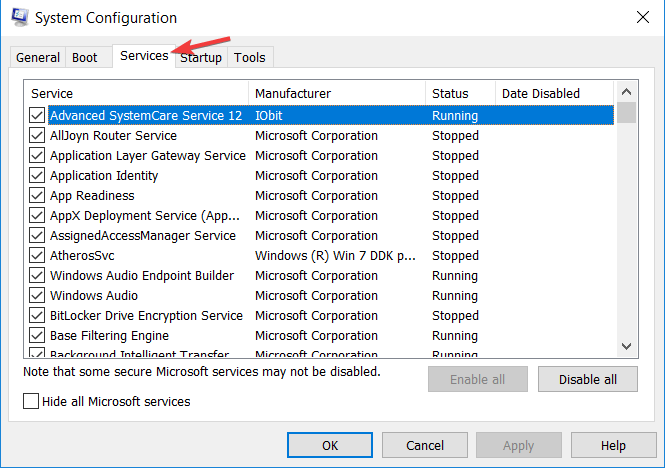
Hyper Scape premiere times on Xbox One.

The Xbox One version of Hyper Scape has been confirmed to come in at 8.5GB in size. The game isn’t available to download yet so it’s likely that many gamers will still be downloading Hyper Scape around the time the servers activate.

Hyper Scape is a free-to-play battle royale game set within a virtual world not dissimilar to that seen in the Ready Player One movie and novel. It’s the latest in the growing battle royale genre and will be competing with the likes of Apex Legends and Fortnite.

Are you going to give Hyper Scape a go on Xbox One? Share your thoughts with the community in the comments below and then follow us on Pinterest and Twitter for more Xbox gaming news.

Microsoft’s head of Xbox to be interviewed in Nintendo’s Animal Crossings: New Horizons video game

Star Wars and The Walking Dead screenwriter, Gary Whitta, has been conducting his own virtual talk show within the Nintendo Switch Animal Crossing: New Horizons video game for a while now and his latest guest is set to be Microsoft’s head of Xbox, Phil Spencer.

While the interview will be conducted within the New Horizons virtual world, a copy of the game and a Nintendo Switch console aren’t needed as the entire interview, as with Whitta’s previous ones, will be streamed live via his Twitch channel.

There isn’t a set time for the interview so interested gamers should either enable notifications for when the channel goes live or just watch it on demand here after it’s finished.

It’s unclear exactly what kind of topics will be discussed during this interview though it’s likely Spencer will be using this opportunity to remind viewers of the upcoming launches of the Xbox Series X (and S) console and Xbox game streaming service and the various Xbox-enabled video games on the Nintendo Switch such as Minecraft.

Let us know what you think of interviews like this in the comments below and then follow us on Twitter and Pinterest for more video game news.

Xbox’s Project xCloud game streaming service to get a limited beta before its launch next month

Microsoft’s highly anticipated Xbox cloud gaming service isn’t set to officially launch until next month on September 15th but gamers with an active Xbox Game Pass Ultimate subscription will soon be able to trial a selection of titles before then to help the tech giant roll out any kinks before the influx of players and the addition of around 100 video games.

“As we approach the launch of cloud gaming with Xbox Game Pass Ultimate on September 15,” Microsoft says, “We’re entering a limited beta period to ensure a smooth transition of the cloud gaming experience to the Xbox Game Pass app on Android. Existing Xbox Game Pass (Beta) app users will get the opportunity to test a subset of the available titles as we ready the experience for broader availability next month. This limited beta is critical to providing the best possible experience for members at launch and should not be considered indicative of the final experience or library.”

Around 30 video games will be available to play during this limited beta. The beta, like the cloud streaming service itself, will also only be limited to those with the officially supported regions.

Xbox cloud gaming (aka Project xCloud) allows gamers to play major Xbox and Windows video games on their Android smartphone or tablet without the need for expensive powerful hardware. All titles are basically run on Microsoft’s servers in real-time and are fully playable just as if they were being played on a console or PC.

The service was originally planned to also launch on Apple’s iOS devices but those plans have since been shelved due to strict Apple Store policies that have also prevented the launch of Google Stadia and Facebook Gaming game streaming on the platform.

A variety of accessories designed for the Xbox cloud gaming experience (see top image) have been announced and are currently available for pre-order.

Are you excited for Xbox cloud gaming on Android phones and tablets? Let us know why or why not in the comments below and then follow us on Pinterest and Twitter for more Xbox gaming news.

Xbox Game Pass (Beta)

Parallels Desktop 16 for Mac brings better DirectX performance, new multi-touch gestures for Windows apps and more

Parallels Desktop 16, the latest version of the popular virtualization software for macOS is available today with several new features. Parallels Desktop remains our favorite way to use Windows apps on a Mac without having to reboot it, and recent improvements such as Coherence mode also allows users to run Mac and Windows apps side by side while running a Windows virtual machine in the background.

This new major release of Parallels Desktop is ready for macOS Big Sur, the upcoming update for macOS coming later this fall. On Big Sur, Parallels Desktop 16 will use native macOS system extensions instead of the deprecated kernel extensions that will not load by default on Big Sur. “Parallels invested more than 25-man-years of engineer programming to take full advantage of the new macOS Big Sur architecture and revamped kernel extensions to deliver our best Windows-on- Mac performance ever for our Parallels Desktop 16 customers,” said Nick Dobrovolskiy, Parallels Senior Vice President of Engineering and Support.

New Parallels Desktop for Mac updates bring performance improvements every year, and Parallels Desktop 16 is no exception. The company says that the app now launches twice as fast, and it’s also 20% faster to resume Windows virtual machines from a suspended state. This major release should bring up to 10 percent longer battery life when Windows runs in Travel Mode, and Parallels Desktop 16 also introduces the ability to reclaim disk space automatically at shutdown, an option that should help users save a lot of space.

Thanks to improved Open GL 3 graphics in Windows, Parallels Desktop 16 can also run even more professional Windows apps that wouldn’t install at all in previous versions. The list includes the lighting design software DIALux evo 9, as well as the live presentation app ProPresenter 6. Compared to Parallels Desktop 15, DirectX performance is also up to 20% faster, and that should benefit Mac gamers interested in running Windows games. Last year, Parallels Desktop 15 introduced support for DirectX9, DirectX 10, and DirectX 11 via Apple’s Metal API, and Metal and DirectX currently work best on macOS Catalina or later.

Parallels Desktop 16 also brings support for Zoom and Rotate gestures for Windows apps that have zoom/rotation functionality, such as Microsoft’s Maps app for Windows 10. This major release also provides full access to all features of Mac printers, including duplex printing and the ability to use more paper sizes. Overall, there’s a lot to like in this release, and Parallels is planning more features for macOS Big Sur later this year including a refreshed design and native macOS virtualization.

Parallels Desktop 16 for Mac is available today at $99.99 for a perpetual license, and owners of a previous edition can upgrade for just $49.99. The upgrade is also free with a Parallels Desktop subscription ($99.99 per year, or $79.99 for new subscribers), which also includes free subscriptions to Parallels Toolbox for Mac and Windows and Parallels Access. If you’ve never tried Parallels Desktop before, Parallels offers 14-day trials for Mac users, and you can use that to install a Windows 10 virtual machine on your Mac in a couple of easy steps.


5 best VPNs for qBittorrent to stay safe & bypass throttling

A VPN can improve your online security and privacy if you’re the type of user who often downloads and uploads torrents using the qBittorrent client.

What it does is spoof your IP address in the torrent swarm to make sure it’s not exposed to the other torrent users. At the same time, it hides the geo-location associated with your IP.

Using a VPN is also an excellent way to stop ISP throttling if your bandwidth is intentionally limited due to a resource-consuming task like torrenting or streaming.

But you first need to find a reliable VPN that perfectly integrates with qBittorrent. We did all the hard work so that you won’t have to. Check out the 5 best VPNs for qBittorrent.

What are the top VPNs for qBittorrent?

Private Internet Access

Private Internet Access is the best VPN for private use

The best VPN for qBittorrent is Private Internet Access (PIA), made by Kape Technologies. It can conceal your IP address and geographical position to make sure that your torrenting activities cannot be traced back to you.

PIA has more than 3,300 VPN servers in 48 countries, static and dynamic IP addresses, and private DNS servers. You can even use it to host game servers for you and your friends, thanks to the fact that it supports native port forwarding.

The tool supports OpenVPN with 256-bit encryption, WireGuard, Shadowsocks, SOCK5, kill switch, an ad and malware blocker, together with 24/7 live chat support.

What else you should know about PIA:

  • No logs or leaks
  • 24/7 live chat support
  • 30-day money-back guarantee (no free trial)
Private Internet Access

Private Internet Access

Remain anonymous in qBittorrent by turning to this trustworthy VPN.
$2.85/mo. Buy it now

NordVPN

use NordVPN for personal use

Designed by Tefincom & Co., NordVPN revolves around security and privacy. You can use it to protect your identity while torrenting and to prevent your ISP from setting bandwidth restrictions.

NordVPN has more than 5,100 VPN servers spread across 59 countries. It’s wrapped in a user-friendly interface and uses OpenVPN with up to 256-bit encryption to secure your data.

You can connect to obfuscated servers to hide the fact that you’re using VPN, use Onion-over-VPN servers to combine the VPN with the Tor anonymous network or connect to two VPN servers at the same time in Double VPN mode.

What else you should know about NordVPN:

  • No logs or leaks
  • 24/7 live chat support
  • 30-day money-back guarantee (no free trial)
NordVPN

NordVPN

Keep your torrenting sessions safe by resorting to this dependable VPN.
$3.49/mo. Buy it now

Surfshark

use Surfshark for personal use

Made by Surfshark LTD, Surfshark is a great VPN for qBittorrent, particularly if you’re looking for a budget-friendly solution. You can use it to maintain your anonymity and prevent your ISP from sending you DCMA letters.

The app supports WireGuard and OpenVPN protocols with up to 256-bit military-grade encryption. You can use multi-hop VPN connections, obfuscation mode, and private DNS on each VPN server.

Surfshark comes bundled with over 1,700 VPN servers in more than 63 countries. You can install it on all popular platforms and supports any number of simultaneous device connections.

What else you should know about Surfshark:

  • No logs or leaks
  • 24/7 live chat and email support
  • 30-day money-back guarantee
  • 7-day free trial for iOS and Android
Surfshark

Surfshark

Use this affordable VPN to protect all your household devices.
$1.99/mo. Buy it now

CyberGhost VPN

use CyberGhost VPN for personal use

If you’re searching for the best free VPN for qBittorrent, look no further than CyberGhost VPN. It has the biggest network of VPN servers on this list: more than 6,500 in 89 countries. It’s developed by Kape Technologies.

You can use CyberGhost VPN to raise your security and privacy level when downloading and uploading torrents, as well as to watch unlimited streaming services, including all the popular Netflix catalogs.

CyberGhost VPN supports OpenVPN with 256-bit military-grade encryption, split tunneling, a kill switch, private DNS servers and DNS leak protection, as well as 7 simultaneous device connections.

What else you should know about CyberGhost VPN:

  • No logs or leaks
  • 24/7 live chat support
  • Up to 45-day money-back guarantee
  • 1-day free trial for Windows and Mac
  • 7-day free trial for Android and iOS
CyberGhost VPN

CyberGhost VPN

Try this powerful VPN for qBittorrent without using your credit card.
$2.75/mo. Buy it now

ExpressVPN

use ExpressVPN for personal use

Created by Express VPN International LTD, ExpressVPN is one of the fastest VPNs for streaming and torrenting. You can use it to remain anonymous and to bypass ISP throttling.

ExpressVPN supports OpenVPN with 256-bit encryption, split-tunneling mode, zero-knowledge DNS servers, and a kill switch. You can set up this VPN app on all key operating systems and protect up to 5 devices at the same time.

What else you should know about ExpressVPN:

  • No logs or leaks
  • 24/7 live chat and email support
  • 30-day money-back guarantee
  • 7-day free trial for iOS and Android
ExpressVPN

ExpressVPN

Get this VPN app to protect your online privacy and identity while torrenting.
$8.32/mo. Buy it now

In conclusion, you can use a VPN for qBittorrent to maintain your online anonymity and stop ISP throttling. Carefully compare your VPN options to decide which is the better fit for you.

[wl_navigator]

VPN for uTorrent: How to use it? 5 best VPNs for uTorrent

If you frequently download or upload torrents with uTorrent, use a VPN to hide your IP address in the torrent swarm and preserve your anonymity.

A VPN for uTorrent is also helpful for bypassing ISP throttling. If your Internet service provider is limiting your connection speed just because you’re torrenting, you can use a VPN to conceal your browsing activity.

Furthermore, if you’re accidentally torrenting something you shouldn’t, such as movies with digital copyright, you can use a VPN for uTorrent to hide your IP address and prevent your ISP from tracking you down in case it receives a DCMA letter.

However, a bit of research if required before you start torrenting with a VPN since not all services do their job the way they should. That’s why we identified the 5 best VPNs for uTorrent.

What are the best VPNs for uTorrent?

Private Internet Access

Private Internet Access is the best VPN for private use

Private Internet Access (PIA) is the top VPN for uTorrent and torrenting. It has a vast network of more than 3,300 VPN servers in 48 countries. At the same time, it delivers great security and privacy features.

Made by Kape Technologies, PIA uses OpenVPN with up to 256-bit encryption to protect your data, but you can switch to WireGuard, too. And, if you need a second layer of security, you can redirect the VPN connection to another location by connecting to a Shadowsocks or SOCKS5 proxy.

Moreover, PIA comes bundled with a kill switch, port forwarding, split tunneling, static and dynamic DNS servers, as well as an ad and malware blocker for browsers called PIA MACE. The VPN doesn’t slow down your Internet connection while torrenting.

More about PIA:

  • No logs or leaks
  • 24/7 live chat support
  • 30-day money-back guarantee (no free trial)
Private Internet Access

Private Internet Access

Preserve your online anonymity when using uTorrent, thanks to this fast and secure VPN.
$2.85/mo. Buy it now

NordVPN

use NordVPN for personal use

NordVPN has some of the best VPN security features for uTorrent we’ve ever seen. Developed by Tefincom & Co., the tool puts safety first. It uses OpenVPN through TCP and UDP with up to 256-bit encryption.

Besides a large network of more than 5,100 VPN servers in 59 countries, NordVPN can bypass VPN blocks using obfuscated servers. You can also join the Tor anonymous network using Onion-over-VPN, or connect to an additional VPN server through Double VPN mode.

NordVPN has an emergency kill switch, private DNS, and custom DNS servers. You can set it up on all major operating systems and platforms, as well as use it to protect up to 6 devices at the same time.

More about NordVPN:

  • No logs or leaks
  • 24/7 live chat support
  • 30-day money-back guarantee (no free trial)
NordVPN

NordVPN

Amp up your security and privacy using a top VPN for uTorrent.
$3.49/mo. Buy it now

Surfshark

use Surfshark for personal use

If you’re not ready to spend too much money on a premium VPN service, you can use Surfshark since it’s affordable, protects an unlimited number of devices, and brings some of the best security features for uTorrent in the VPN industry.

Surfshark doesn’t have as many VPN servers as other apps on this list (+1,700 in +63 countries). But it makes up for it with the OpenVPN protocols with 256-bit encryption, as well as private DNS on each server. It’s operated by Surfshark LTD.

The tool supports WireGuard, Shadowsocks, multi-hop VPN connections, obfuscated mode, and split tunneling. It’s compatible with all major operating systems and optimized for torrenting.

More about Surfshark:

  • No logs or leaks
  • 24/7 live chat and email support
  • 30-day money-back guarantee
  • 7-day free trial for iOS and Android
Surfshark

Surfshark

Get this budget-friendly VPN for uTorrent to stop ISP throttling.
$1.99/mo. Buy it now

CyberGhost VPN

use CyberGhost VPN for personal use

CyberGhost VPN is the best free VPN for uTorrent. You can test its complete set of options and configuration settings at no cost to determine if it’s the right fit for you. It’s also operated by Kape Technologies.

The VPN service has the most impressive VPN server coverage on this list: over 6,500 in 89 countries. You can use it to hide your identity while torrenting and stop ISP throttling. CyberGhost supports OpenVPN with 256-bit military-grade encryption.

The tool has a split-tunneling mode, a kill switch, an integrated malware blocker, exclusive DNS and DNS leak protection, together with trusted Wi-Fi. It allows 7 simultaneous connections and can be installed on all major platforms.

More about CyberGhost VPN:

  • No logs or leaks
  • 24/7 live chat support
  • Up to 45-day money-back guarantee
  • 1-day free trial for Windows and Mac
  • 7-day free trial for Android and iOS
CyberGhost VPN

CyberGhost VPN

Use the best free VPN for uTorrent to protect your online privacy and security.
$2.75/mo. Buy it now

ExpressVPN

use ExpressVPN for personal use

ExpressVPN has a great reputation and it’s one of the most popular VPNs for uTorrent. Created by Express VPN International LTD, the app supports more than 3,000 VPN servers in 94 countries.

ExpressVPN can conceal your true IP address and location in the torrent swarm to make sure that your torrenting activity cannot be associated with you. At the same time, it doesn’t decrease your Internet connection speed.

The app uses OpenVPN with 256-bit military-grade encryption, exclusive DNS servers, split tunneling, and a kill switch. You can set it up on all major platforms and protect up to 5 devices simultaneously.

More about ExpressVPN:

  • No logs or leaks
  • 24/7 live chat and email support
  • 30-day money-back guarantee
  • 7-day free trial for iOS and Android
ExpressVPN

ExpressVPN

Prevent your ISP from forwarding you DCMA letters, thanks to this reliable VPN.
$8.32/mo. Buy it now

How to use a VPN for uTorrent

use uTorrent with VPN

  • Sign up for a VPN subscription plan.
  • Download and install the VPN on your PC.
  • Launch the app and log in with your credentials.
  • Connect to a VPN server.
  • Fire up uTorrent and start torrenting.

To summarize, you can use a VPN to hide torrenting, stop throttling, and hide your online activities from your ISP. However, you need the best VPN for uTorrent to make this happen.

[wl_navigator]

Blank Pages When Printing from Internet Explorer [FIX]

Thousands of users reported that they can’t print pages from Internet Explorer after installing certain Windows updates. More specifically, the printed pages come out blank.

Here’s how one user describes this issue on Microsoft’s forum:

Several of our users got security update KB4022719 last night and are now getting blank pages when printing from our Electronic Medical Records application which relies on Internet Explorer‘s printing functionality. The users who did not get this update are not having this problem. Uninstalling the update fixes the problem. I just want to spread the word that this is happening since I can’t find any other way to inform Microsoft.

This problem seems to affect only Internet Explorer 11, as users of Chrome or Edge did not report the problem. As mentioned, the issue appears to caused by some updates in both Windows 7 and Windows 10.

How can I fix blank pages being printed from Internet Explorer?

  1. Switch to an alternative browser when printing
  2. Uninstall the updates
  3. Repair IE
  4. Update your printer drivers
  5. Disable Protected Mode
  6. Relocate your USER Folders to another drive or location

1. Switch to an alternative browser when printing

This is just a mere workaround but you can also just copy-paste the webpage from one to another browser and print it that way.

If the problem with printing blank pages appears solely on Internet Explorer, you can try and print from an alternative browser.

We recommend using Opera One, as this is a faster and more reliable browser. And, who knows, maybe after you’ve used it for a while, you might also consider switching to it for good.

Because Opera One comes with a lot of useful features that help to improve your productivity and overall web surfing experience.

Besides the common features that you can find in any browser, Opera One offers some exclusive tools such as integrated ad blocker, messenger tools, VPN with unlimited traffic, or battery saver.

Not to mention that you can customize several workspaces or share your browser work between all your devices using a dedicated feature. Plus, it comes it’s won built-in AI.

Opera One

If you’re tired of fixing the errors of your current browser, switch to Opera One in no time to benefit from free exclusive features that improve your browsing experience.
Free Download Visit website

2. Uninstall the updates

  1. Type updates in the search bar.
  2. Go to View update history.uninstall windows updates
  3. Select the Uninstall updates option.

However, if you still want to benefit from the quality improvements brought by these updates, you should keep them.

In this case, follow the rest of the troubleshooting steps listed below.
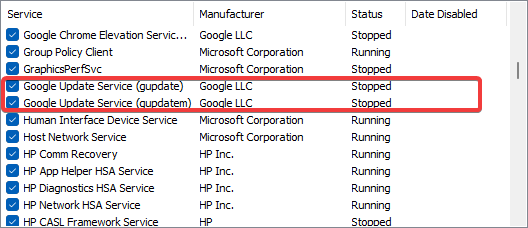

3. Repair IE

  1.  Start Internet Explorer > go to the Tools menu > click Internet options.repair IE to fix printing blank pages
  2. In the Internet Options window, select the Advanced tab.
  3. Click Reset and wait until Internet Explorer finishes applying the default settings.
  4. Click Close > OK > restart Internet Explorer.

4. Update your printer driversupdate printer drive in IE

  1. Go to Start > select Device Manager > expand Printers.
  2. Find your printer in the list > right-click it > select Update Driver.

5. Disable Protected Mode

  1. Click the Tools icon in Internet Explorer, then select the Security tab.
  2. Uncheck the box beside Enable Protected Mode. Click Apply, then OK.
  3. Restart Internet Explorer again. Browse to a website and test print a page while running the browser as Administrator.

6. Relocate your user folders to another drive or locationrelocate your user folders to another drive or location

  1. Close Internet Explorer.
  2. Go to Start and launch  Command Prompt as Administrator.
  3. Type the following command: mkdir %userprofile%AppDataLocalTempLow
  4. Run Command Prompt as Administrator again and, this time, type: icacls %userprofile%AppDataLocalTempLow /setintegritylevel low
  5. Open Internet Explorer, and print some pages. The printed page should come out printed correctly.

We hope that at least one of the solutions listed above helped you fix the print issues affecting Internet Explorer.

If you’ve come across other solutions to fix this problem, feel free to list the troubleshooting steps in the comment section below.
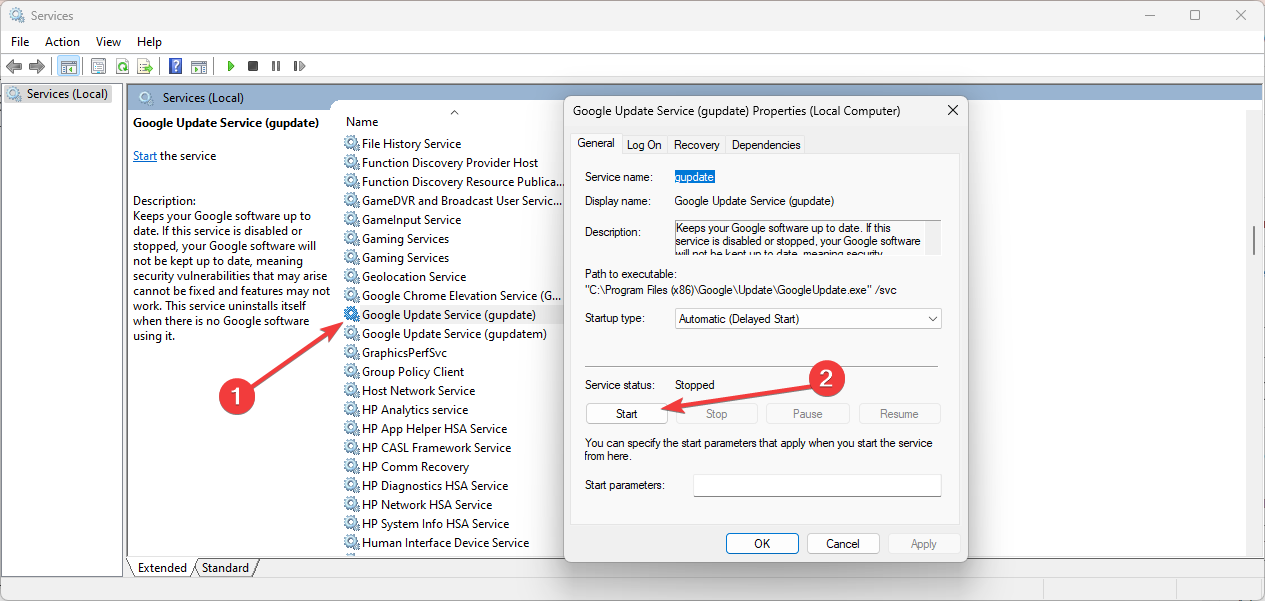
Can NordVPN be trusted? What makes it a safe choice?

The VPN market is oversaturated, but the industry is also booming, so this scenario begs the question: can popular services such as NordVPN be trusted?

NordVPN has filled a leadership position for a long time now in the VPN industry. Thus, it makes sense that new users might take its advertised services with just a grain of salt.

Is it enough to protect your online privacy? What’s the deal with its strict zero-logging and no monitoring policy? Is their service secure enough to prevent various types of attacks?

Stay tuned and we’ll find out together if NordVPN can be trusted or not.

Can NordVPN be trusted?

1. Top-notch security protocols

NordVPN implemented a wide range of security protocols, which means better protection for your data and traffic. You’re also free to choose the protocol you feel most comfortable with.

These are as follows:

  • OpenVPN – this is the default choice for many VPN services, as it is both versatile and secure
  • IKEv2/IPsec – this protocol is technically faster and more secure than OpenVPN and used by default in NordVPN for macOS and iOS
  • WireGuard (NordLynx) – this protocol is still in development, but it’s virtually faster and more secure than both OpenVPN and IKEv2/IPsec. Since it’s in development, it still needs some work to identify and circumvent its vulnerabilities.

As you can see, NordVPN isn’t shy about security features, thus you can bet your money on it when it comes to protection. With a wide range of security features and military-grade encryption, NordVPN can definitely be trusted.

2. A huge network of servers

NordVPN has a whopping ~5200 servers spread all around the world in roughly 59 countries. Thus, you have a broad selection of servers you can connect to, no matter what your needs are.

Having such a rich network of servers can help you circumvent geo-restrictions easily. If you’re trying to access US Netflix, for instance, and the server you’re connected to gets rejected, you can simply switch to another server.

The same goes for any other online activity. You may not know this, but VPN networks can get overcrowded, too. If such a thing happens, you can simply switch the server and you should at least notice some improvement.

As a rule of thumb, the closer the server is to you (physically), the faster your connection will be.

3. Strict zero-logging, no monitoring policy

NordVPN is against the breaching of privacy, and they’re quite vocal about it, too. It enforces a bunch of strict policies against data collection and activity monitoring.

Therefore, not only that NordVPN won’t monitor your every step while you’re online, but they won’t keep records of your activity, either.

NordVPN

NordVPN

Looking for a trustworthy VPN? NordVPN might be what you need.
$3.49/mo. Buy it now

Not so long ago, one of NordVPN‘s servers has been hacked. Reportedly, the attacker could’ve monitored the traffic of NordVPN‘s customers on those servers, although apparently there’s no indication that this happened.

Either way, given that NordVPN doesn’t keep data on their customers’ activity, the attacker couldn’t find anything relevant.

4. No data leaks during its runtime

We’ve put NordVPN to a bunch of tests to assess whether it’s safe or not to keep it on all the time. We were looking for anything suspicious, especially data leaks that might’ve revealed our true identity to third-parties.

Once we’ve connected to a stable server, we used third-party tools to notice if any DNS, IP, or WebRTC data leaked through our connection. We’ve used the following tools:

We’ve noticed absolutely no DNS, IP, or other types of leaks during our tests. This means that from a sensitive data leak standpoint, you can definitely trust NordVPN.

5. The same degree of protection on multiple devices

Whether you’re trying to deploy NordVPN on iOS, macOS, Windows, Android phones or your router, you’ll definitely get the same airtight protection.

You can install NordVPN on up to 6 devices on the same account. Therefore, you don’t need to limit your VPN experience on just a single device if your needs are a bit more complex than that.use NordVPN for iPhone

We’ve also run our battery of security tests on each device we’ve deployed NordVPN on. The results were the same, regardless of the device type: NordVPN doesn’t leak your data and can keep your connection secure all the time.

6. Advanced malware-blocking features and kill switch

NordVPN is one of the few services that offer advanced security features such as a built-in malware blocker and a kill switch.

Now we’re fully aware that the kill switch has become a tad more crucial in VPN development, adware and malware blocking isn’t there just yet.

Thus, the fact that NordVPN has implemented malware-blocking capabilities within its default VPN service is definitely a nice addition.

A quick recap on NordVPN’s features

To wrap it up, NordVPN can definitely be trusted if you’re looking for a service that can keep your connection, your privacy, and your devices safe, private, and secure.

Here’s a quick summary of what NordVPN can offer you:

  • Hides your IP address and keeps it cloaked as long as you use the VPN
  • CyberSec helps you block malware and adware hosts without any third-party tools
  • Double VPN routes your traffic through two VPNs instead of one for added protection
  • Automatic kill switch interrupts your default, insecure Internet connection if no VPN is detected
  • Prevents DNS leaks from occurring and revealing your true online identity
  • Enforces strict zero-logging and no monitoring policies
  • Helps you protect up to 6 devices on the same account
  • Multiple protocols including OpenVPN, IKEv2/IPsec and the experimental NordLynx

Considering all that, it’s safe to say that NordVPN is a VPN service you can trust.

[wl_navigator]

Updating your drivers in Windows 10 is now safer

In May, Microsoft was announcing that they will pay better attention to the driver compatibility in Windows 10.

That was great news since the driver problems are one of the most important causes of errors and BSoDs.

A little bit later, Microsoft provided the solution to deliver the drivers which they, together with the manufacturers already tested and validated through optional updates in Windows 10.

It’s a filter that can, of course, contribute to eliminating any such problems but now, it seems like they silently have taken out one method of updating your driver, by using Device Manager.

What can I do if I can’t update the drivers in Device Manager?

Apparently, if you have a Windows 10 version 2004, build 19041.423 or older, you can’t look for a newer driver online using Device Manager.

Everything else looks similar but when you select the Update driver option from the Device Manager menu for a PC component, you will see two options, none on which is offering online help.

The first option, to Search automatically for drivers is only offering the option to search your computer for a driver. The other is to browse your computer for a driver if you already downloaded one.

This can be good or bad news, depending on how you look at it. It’s safer to have the correct driver instead of downloading a possibly unsafe or incompatible driver online.

It can also be a nuisance for users who got used to the process and are looking for improved drivers no matter what.

How can I update drivers in Windows 10?

Well, there are a lot of means to update your drivers and you can’t cross Device Manager from the list just yet because it can still be a valid option to use after you downloaded the new driver.

You can do that by using a software to automatically update your drivers. Here’s a list with the best driver updater software for Windows 10.

Did you use to update your drivers using Device Manager? What do you think about Microsoft’s move? Let us know in the Comments section below.
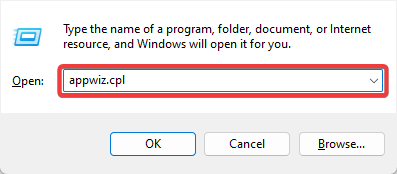
[wl_navigator]

Microsoft drops monthly “Xbox 20/20” updates commitment and will share news “in a variety of ways”

Microsoft is no longer sticking to the monthly “Xbox 20/20 updates” formula it announced back in May. Indeed, the company has quietly updated its original blog post last week to say that the initial announcement suggested that there would be a monthly Xbox show every month, and there was indeed no big event in June between the May Inside Xbox livestream and the Xbox Games Showcase in July.

“After reassessing our programming for the rest of the year, we’ve decided to stop using the “Xbox 20/20” phrasing as it implied that we would be releasing information in one way only, through a dedicated monthly show,” the Xbox team explained. The first Xbox 20/20 update in May was focused on third-party games coming to Xbox Series X, and that show didn’t really meet the expectations of Xbox fans looking to see real gameplay on Xbox Series X. June passed without an Xbox 20/20 update, and the Xbox Games Showcase in July was also a disappointment for Halo fans after Halo: Infinite failed to blow everyone away.

“We’ve got so much more to share with news about Xbox Series X, new games like Halo: Infinite, and cloud gaming via Xbox Game Pass. We’re going to share that news in a variety of ways. It may sometimes be a dedicated show, YouTube videos, partnering with others, or sharing the latest via Xbox Wire. We want to stay flexible with how we connect with you,” the Xbox team said in the update published last week. The company is expected to finally unveil its Lockhart/Xbox Series S console this month, which is now the worst kept secret in the video games industry, but it remains to be seen how the Xbox team will do it.

After Sony aired a new “State of Play” livestream last week, it would be a bit disappointing to see the Xbox team not using a similar format this month. However, Microsoft announced its Surface Laptop 3, Surface Go 2 and Surface Headphones via a simple press release earlier this year, so it wouldn’t be completely surprising if the Xbox Series S getting the same treatment this month.

Windows 10X on screen keyboard shows up hidden by default in latest Windows 10 Insider build

It’s been rumored for some time that elements of the now-delayed Windows 10X operating system could come to regular Windows 10, and we’re now perhaps finally seeing some of that come true. As noted by Windows Central, the latest Windows Insider build hides away the Windows 10X touch keyboard inside the operating system.

Coming as a change from the Windows 8 style touch keyboard that has been in Windows 10 for the last 5 years, this should be quite refreshing. As Microsoft showcased when it revealed Windows 10X, this keyboard comes with transparent effects, touches of Fluent Design, as well as new sounds. There’s even a GIF picker, emoji panel (now above the keyboard,) and fresher animations. Other new elements include a shortcut above the keyboard to see the clipboard.

If you’re eager and don’t want to wait for this feature to officially roll out, you can try this keyboard today at your own risk today. First, install the ViveTool, extract it, open it in PowerShell, and run the following code (without the quote marks) “vivetool addconfig 20438551 2” You should then restart your PC for it to work. Again, we don’t recommend installing such programs to your PC and urge you to wait for Microsoft to roll it out. But, since the code for the keyboard is in the operating system, it might well be coming soon.

Hands-on with Microsoft Sway: Another way to create beautiful presentations, and more

If you own a small business, then generating reports, presentations, training materials, and newsletters are key to your day to day operations. With these types of materials, you not only can keep your employees engaged, but also your audience and customers. You might have already heard about using PowerPoint or other programs like Photoshop and Adobe InDesign for creating these things, but did you know that your Microsoft 365 subscription has a service that also can help out?

That’s right, with your Microsoft 365 Subscription you have access to Sway. This is an app from Microsoft Office that makes it easy to create and share interactive reports, personal stories, presentations, and more. In our latest Microsoft 365 guide, we’ll be going hands-on with the experience for you.

What is Sway?

Before getting into anything, we’ll recap what exactly Sway does for you. Sway lets you compile text, images, videos, and other content into an interactive online format. You’ll be able to use it to apply designer-created layouts and color schemes or let Sway suggest design elements that match your content. You also can search and import relevant content from sources, and then share your Sways on the web.

Sway is available online from the web or from the Microsoft Store in Windows 10. It’s free to use for anyone with a Microsoft Account. However, you can create some more advanced Sways when used with a Microsoft 365 Subscription. You can learn more about that here.

Sway
Sway
Price:
Free

Creating a Sway from a topic or template

Creating Microsoft Sway

Once you head into Sway on the web, you’ll be able to create a new one from scratch, from an existing file, or a topic. You can click the Create New button to get started with a new Sway from blank. For most novices, though, we recommend starting from a template. For other things like a report, you can start from a topic by clicking Start from a topic. With this option, Sway provides base content for you, powered by Wikipedia.

You can also choose from a variety of common templates such as internal newsletter, external newsletter, How-to, vision document, status update, resume, and more. Scroll through the list with the arrow key. Once you find the one you want, you can edit the template by clicking Start editing this Sway.

If you create from a topic or template you’ll see various pre-populated sections, similar to a Word document or a PowerPoint. You can edit these by clicking on each card or image to put in your own content. When you finish, you can preview the Sway by clicking the Play button at the top. You also can change things around by clicking the Styles tab under Design to change text boxes to different styles for a more unique look. We’ll have more on that later.

Creating a Sway from scratch

Sway Creating Sway

Next up, there’s creating a sway from scratch. If you choose to go this route, you need to be aware of a couple of things. These include: the Storyline, the title, and adding content. We’ll get started by explaining the Storyline, first.

In Sway, the Storyline is where you’ll edit, type, and insert content. The Storyline is organized by cards, and each card has different purposes and content types. These cards include text, images, videos, and also Office documents. You can upload your own images, or you can search for sources using the search box directly within Sway. Just click the Insert button at the top right corner of the screen.

Adding Items Sway

The first card in the Storyline will always be the title. Be sure to make this one stand out. You can drag images saved on your device into the Sway title by clicking and dragging them in from the original location.

Next, there’s your content. You also can add new elements and content to the Storyline by clicking the green + button underneath any previous card. The different types of elements you can add to a Sway can be seen below. We suggest playing around with these as you add them, as each type of content changes the way a Sway looks.
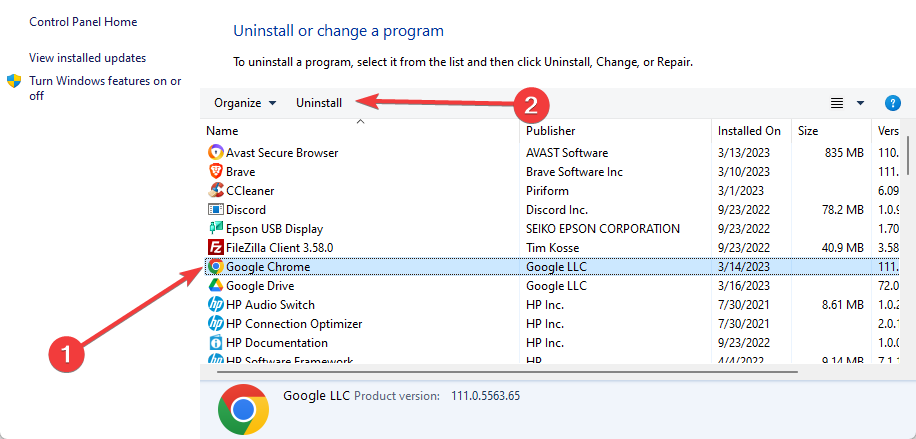

  • Heading
  • Text
  • Images
  • Stack of Images, Text
  • Videos
  • Audio
  • Embed an item
  • Stack of images, slideshow of images, grid of games, and more.

Once you add a card, you can delete it at any time by clicking the trashcan icon in the top right corner of the card. You also can drag storyline cards up and down by clicking and dragging it around, if you need to reorganize things.

Design in Sways

Sway Samples

Continuing along, there is another important area to Sway, The Design. This is accessed by clicking the Design tab when editing a Sway. From here, you’ll be able to select designs and layouts. There are various designs to choose from.

Each design will change your backgrounds and text boxes to a different theme. You can cycle through the list to pick one, and then choose the Customize button to change it as you see fit. That customize option will let you adjust a specific part of the currently applied theme, such as color, font choices, and the emphasis of animation.

The Style, meanwhile, can be changed from vertical, horizontal, or slides. These will change how your content scrolls as the user scroll through your content.

Once you’re satisfied with a design, you can preview your way by clicking the Play button on the top menu bar. This will allow you to experience your sway just as the viewer would.

Sharing your Sway and more

Once you design a Sway, the final thing to do is to share it. When shared, your family can view it without signing in or downloading. To share, just click the Share button in the top navigation bar and copy the URL. You can choose three ways to share, with specific people, only within your organization, or anyone with a link. You also can copy an embed code and embed it in a blog, as we have done above. If you’d like you also can add a password to the Sway to protect it. You can learn more about sharing Sways at Microsoft by clicking here.

We hope that you found out guide to Microsoft Sway helpful. If you’re still looking for more information on how to get started with Sway, you can check out Microsoft’s support website, here. Do you like Sway? Get creative, and let us know how Sway works for you by dropping us a comment below.

Outlook for Windows will get cloud syncing capabilities in September

Earlier this year, Microsoft announced that it’s bringing new cloud syncing capabilities to Outlook for Windows in June. However, it seems like the Redmond giant has delayed the release of this feature to the end of September (via Dr Windows). Microsoft has posted a new update in the Microsoft 365 Admin Center noting that the decision has been made based on early feedback received from the users, and some additional changes to the code are required to enable cloud roaming option:

Based on learnings from our early rings, we have made the decision to make additional changes to the code before we proceed with the rollout. We expect to roll this out to the Monthly Channel, Production, in late September (previously late June).

The new cloud syncing feature will deliver roaming profiles that should sync a wide variety of settings in the cloud, and the list includes Advanced, Calendar, Ease of Access, General, Groups, Mail, People, Search, as well as Tasks. The whole point of the cloud roaming option is to ensure a consistent user experience when they access Outlook for Windows on any of their PCs.

Microsoft said that the roaming options will be turned on by default, and it will be up to the Office 365 admins to disable this feature for all Microsoft users in their organization. In case you missed it, Microsoft is also planning to bring cloud support for Windows email signatures, and the rollout is expected in the coming weeks.

Xbox Series S console appears on leaked next-gen controller packaging

Microsoft’s second next-gen Xbox console, which is rumored to be officially announced in August, will apparently be named the Xbox Series S. Leaked pictures of a next-gen white Xbox controller have been published by Twitter user Zak S over the weekend, and the side of the packaging shows that it’s compatible with the “Xbox Series X/S.”Leaked Next Gen Xbox Controller Packaging With Xbox Series S Mention

This is the second time we’re seeing a white next-gen Xbox controller in pictures after a Reddit user briefly posted pictures of a similar controller last week before deleting them. Anyway, The Verge has now confirmed the authenticity of the pictures from Zak S, who apparently purchased the controller from a resale site.

The Xbox Series S name makes sense if Microsoft wants to reiterate the two consoles strategy that led to the release of the more powerful Xbox One X one year after the Xbox One S. This time, Microsoft chose to unveil its more powerful Xbox Series X console first, and the Xbox Series S is expected to be the cheaper “Lockhart” SKU that we’ve been hearing about from quite some time now. Traces of Lockhart/Xbox Series S have recently been found in a new Microsoft Game Development Kit from June.
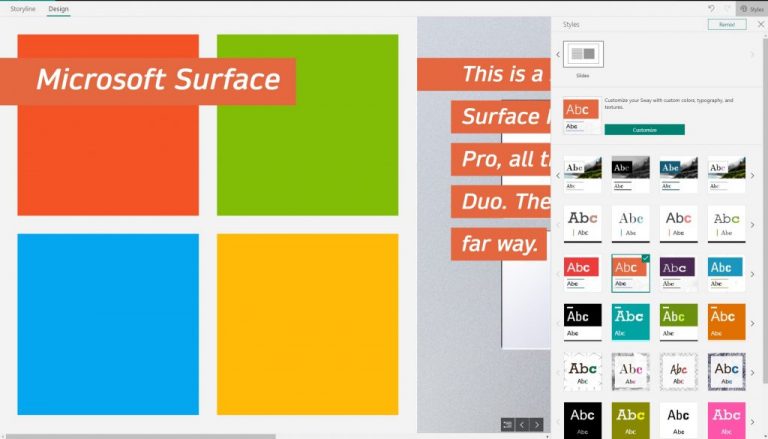

Compared to the Xbox Series X, the Xbox Series S/Lockhart is expected to come with a similar AMD custom-designed Zen 2 GPU, but a less powerful 4 teraflops GPU for 1080p/1440p gaming. The Xbox Series S is also expected to be a discless console with a form factor that could be quite similar to the Xbox One S/X. Actually, the console could be a good next-gen replacement for the Xbox One X that Microsoft recently stopped manufacturing.

It remains to be seen if pictures of the Xbox Series S could leak before Microsoft officially announces it. Sony opted for a slightly different strategy, announcing a discless PlayStation 5 Digital Edition console alongside the regular PlayStation 5 last month. Microsoft has opted instead for 2 consoles with different specs, and this might cause some confusion for consumers. The company has a new “Optimized for Xbox Series X” badge that will appear on game packaging, but it’s not clear yet if these optimized games will benefit from similar optimizations when running on the less powerful Xbox Series S.

How to Fix Computer or Network Sending Automated Queries Error

Many users reported Your computer may be sending automated queries while using Google. This issue can be annoying since it will force you to fill in Captcha in order to continue using Google search.

However, there’s a way to solve this issue, and today we’re going to show you how to do it.

Why is my network sending automated queries?

Well, the most basic explanation of this error message is that the provider is seeing suspicious activity between your public IP address and its servers.

As a result, an automated query is usually one that comes in rapid succession and in large volume. You may not be blocked outright, but may instead receive a challenge to enter a code.

That being said, know that this could also be the result of a browser issue or malware you might have accidentally downloaded to your device.

What to do if my computer is sending automated queries?

1. Try a different browser

Let us start by saying that there are few things more annoying than your computer or network sending automated queries and Recaptcha requests.

The first thing you should do when encountering this problem is to try a different browser. There are many great browsers on the market, but if you want a reliable and secure browser, we suggest you try out Opera One.

Once installed, you can easily import all your Chrome bookmarks, and it brings extra utilities such as integrated social media, messaging and a native AI.

This browser comes with built-in Ad blocker, anti-tracking features, and even its own VPN, so it’s a great choice if you want to surf the web without any security or privacy concerns.

The VPN can be quite handy since it will change the IP address that Google detects and won’t consider your device or network to be sending automated queries no more.

Opera One

You can start enjoying all the great benefits at a glance and set it up with ease to change your IP.
Free Download Visit website

2. Scan your PC for malware

  1. Scan your PC with your antivirus software.
  2. If any malware is found, be sure to remove it as soon as possible.
  3. Check if the problem is still there.

If you’re looking for a secure and reliable antivirus that can detect all types of malware, you might consider switching to a more effective one.

To do this, you can consider the fittest antivirus for your PC safety from malware, and thus take action choosing from the best antivirus software for Windows 10.

3. Connect to a different network

  1. If possible, connect to a different network.
  2. If the issue doesn’t occur on a different network, it’s possible that the issue is related to your ISP.
  3. Trying waiting for a few minutes or for an hour and check if the problem still appears.

4. Delete cookies

  1. Open your browser and navigate to the three dots at the top right corner of your browser.
  2. Then, select Settings.
    settings chrome your computer may be sending automated queries
  3. Scroll down and click on Advanced.
    advanced settings chrome your computer may be sending automated queries
  4. Now, navigate down and click on Clear Browsing Data.
    clear browsing data chrome computer is sending automated queries
  5. Tick the box on the Cookies and other site data option.
  6. Finally, click on Clear data.
    clear data chrome your computer may be sending automated queries

Users reported their computers or networks sending automated queries for VPNs, Selenium, Rockstar, Tor, Python, and many others.

In order to protect their users, providers have certain protocols in place for such problems. However, if they can’t process your request right now, their help page will surely provide more details.

These are tested and verified solutions. Try out any of them and get your computer may be sending automated queries to issue resolved permanently.