More evidence suggests Windows 10 version 1803 will be named “Spring Creators Update”

Despite Windows 10 version 1803 (aka Redstone 4) being in its final stage of development, Microsoft has yet to share the official name for the upcoming Windows 10 release. It’s quite unusual for the company to maintain the mystery this long, but we’re now pretty sure that Microsoft will settle for “Spring Creators Update.”

Last month, the “Spring Creators Update” naming was discovered in the Windows 10 Feedback Hub, though Microsoft quickly removed that mention in the app. Today, the naming was spotted again in the latest Redstone 5 build, which Microsoft released yesterday (via The Verge).

https://twitter.com/warnelidl/status/971692964694188032

This is the first time the naming appears in the OS along with the Creators and the Fall Creators Update, so we hope to get an official confirmation soon. It will be the third time in a row that Microsoft uses the “Creators” theme for marketing a new Windows 10 release, even though there won’t be many new features for creators and digital artists.

Do you like the “Spring Creators Update” branding, or would you prefer Microsoft to use simpler naming conventions going forward? Let us know below.

New Xbox One Avatars spotted in action in Windows Dev Day presentation

While very little news has been given on the progress of the new Xbox Avatars since their initial announcement several months ago, they did make a very brief appearance during yesterday’s Microsoft Developers Day presentation which can be streamed here.

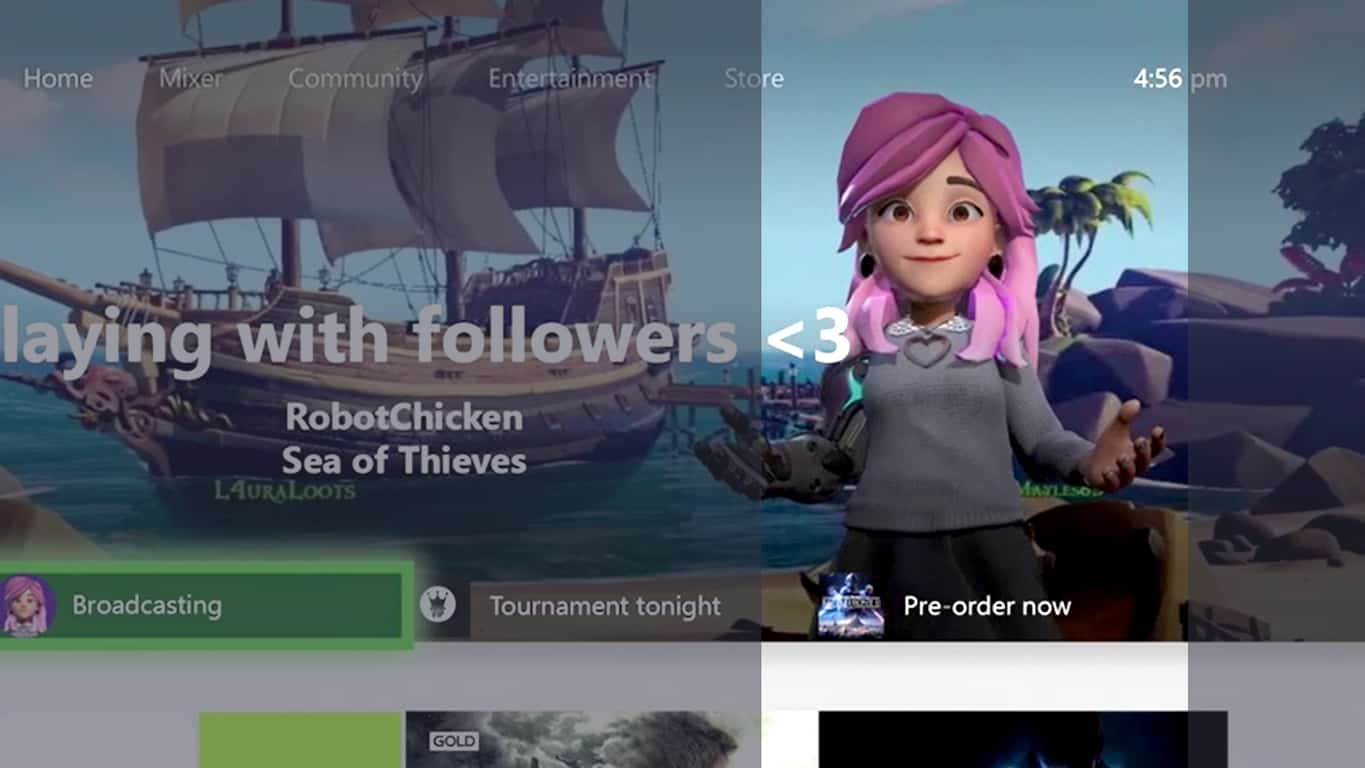
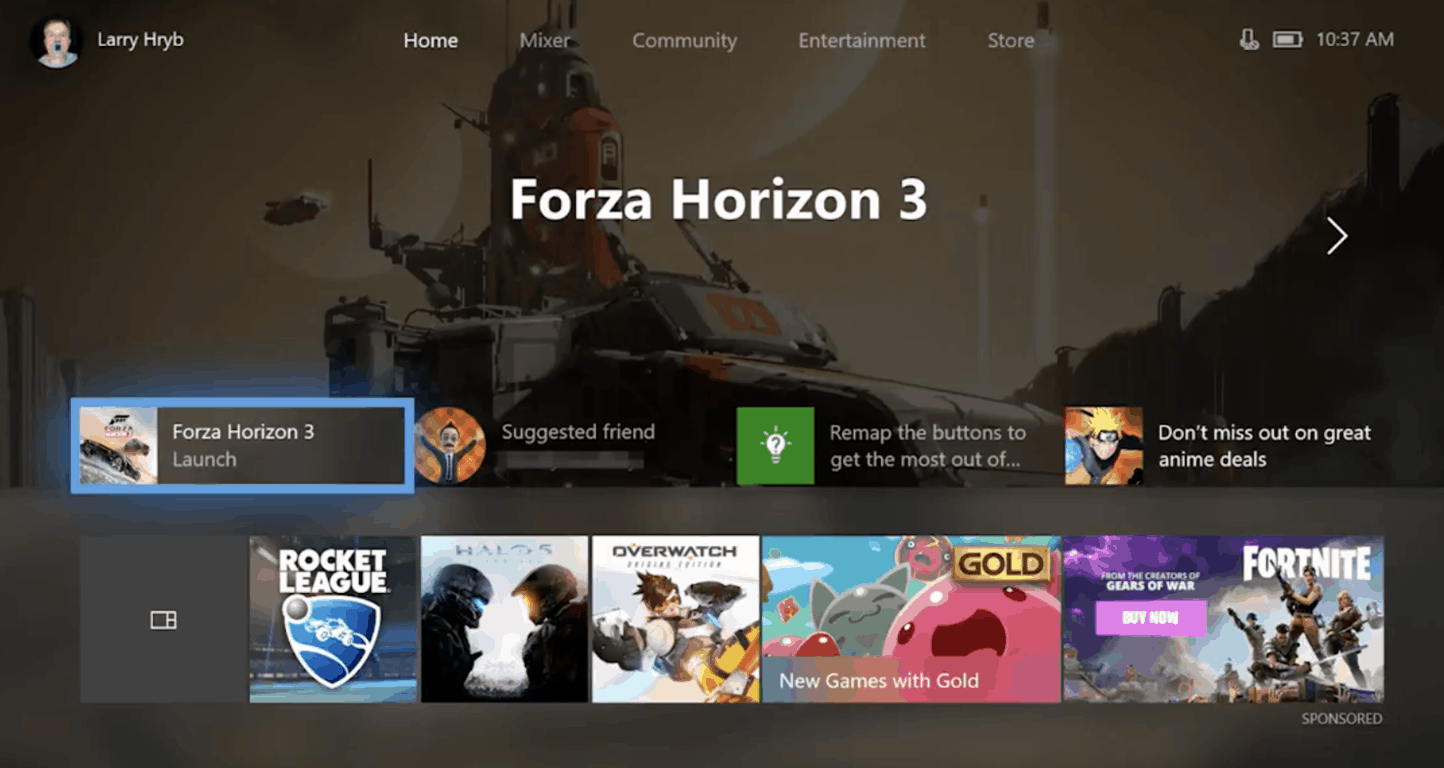
The appearance of the new Xbox Avatars happens within the opening montage and is only seen on screen for a few seconds. What is shown though is a new Xbox Avatar being displayed on the Xbox One’s Dashboard in much the same way that the current iterations are today (see above image).

These new digital characters will be noticeably more detailed than the current version and will feature greater customizability with skin tone, hair color, accessories, and even limbs. The new and improved Xbox Avatars are expected to roll out to Xbox One owners in a system update sometime in early 2018 though no specific date has officially been given just yet. They will also be used within the Xbox app on Windows 10 devices and smartphones.

Do you like the style of the new Xbox Avatars and are you looking forward to them arriving on your Xbox One console? Share your thoughts with the community in the comments below.

Windows 10/11 fix: Error communicating with Kernel

The ‘error communicating with Kernel’ is an alert displayed on Windows 10 when ESET is trying to start a new system scan, or when the security program is loaded by default by the OS.

Thus, you can receive this error message on startup, or when trying to use ESET for scanning your Windows 10 computer. Now, this problem is not a major one, but it can mess up your day.

Anyway, the best is that it can be easily fixed – and the ways in which you can solve the ‘error communicating with Kernel’ issue are being listed and explained during the following guidelines.

‘Error communicating with Kernel’ – Why it occurs

Usually, you end up in experiencing this error after the Windows 10 system is updated. In that case the ESET service might be turned off by default, this being the reason why it won’t perform as expected.

Also, you can receive the same alert if the antivirus program is outdated or if certain internal files are missing, situation during which the overall functionality cannot be successfully performed on your Windows 10 PC.

How to fix the Windows 10 error communicating with kernel

  1. Enable ESET Service on startup.
  2. Apply any Windows 10 pending updates.
  3. Update ESET.
  4. Reinstall ESET on your computer.
  5. Remove a recently installed Windows 10 update package.

1. Enable ESET Service on startup

As already outlined, due to different reasons, the ESET program can get disabled; in that case you need to follow:

  1. Press the Win+R keyboard hotkeys on your computer – this will bring the Run box.
  2. There, type services.msc and press Enter.enter Windows 10 services window
  3. The Services window will be now displayed on your Windows 10 computer.
  4. Find the ESET Service entry (it should be ekrn.exe) and right-click on it.
  5. From the list that will be displayed click on Properties.
  6. Under Startup type the checkbox should be set to Automatic.
  7. Also, under Service Status you should have the ‘started message’; if not, click on Start.
  8. Now ESET service will be initialized.
  9. Save your changes and close this window.
  10. Everything should run without problems at this point.

2. Apply any Windows 10 pending updates

I know that I said otherwise before, but sometimes a system update can automatically address the ESET errors. So, in that matter you need to make sure that there aren’t any system updates pending in the background:

  1. Press the Win+I keyboard hotkeys.
  2. The System Settings window should appear on your device.
  3. From there click on Update & Security.
  4. Next, switch to Update tab.install windows 10 updates
  5. If an update package is available it should be displayed there.
  6. Just follow on-screen prompts and resume the flashing process.
  7. Reboot your device when done and test the ESET functionality.

3. Update ESET

You need to make sure that your security program is running with all the available updates installed. So, run the antivirus program and navigate towards its update engine.

Initiate a search and wait while the program is searching for any new packages. The updates should be downloaded and installed automatically. In the end, restart your antivirus program and check if the ‘error communicating with kernel’ problem is still there or not.

4. Reinstall ESET on your computer

If updating your antivirus isn’t helping you fix the error, try to uninstall and reinstall the program. You can remove ESET from your computer by accessing Control Panel:

  1. Click on the Windows Search field – it should be the Cortana icon, the one located near the Windows Start icon.
  2. There, type Control Panel and click on the result with the same name.run control panel
  3. The Control Panel main window should be now displayed.
  4. From there, switch to Category.
  5. Under Programs click on Uninstall an app.
  6. Find the ESET entry and resume the removal process by following on-screen prompts.

Finally, once ESET is successfully removed, go ahead and reinstall the antivirus program on your computer. Make sure you are using the latest release of the program when you start the flashing process.

5. Remove a recently installed Windows 10 update package

You can also try to remove a recently installed Windows 10 update, if you know for sure that the ‘error communicating with Kernel’ problem appeared right after your device received a new system update. In order to do so, follow:

  1. Access System Settings on your computer and navigate towards Update & Security as already showed above.
  2. From Updates click on View installed update history link.
  3. In the next window click on Uninstall updates.remove windows updates
  4. Choose the patch you want to remove.
  5. Complete this operation and reboot your Windows 10 system in the end.
  6. That should be all.

Final thoughts

Perfect; now ESET should be running without further problems on your Windows 10 device. However, if the ‘error communicating with Kernel’ issue is still there, don’t hesitate and contact us by using the comments field from below.

Try to offer as much information as possible. Based on what you tell us, we will try to find the right troubleshooting methods for your problem. Enjoy and stay close for further tutorials.

RELATED STORIES TO CHECK OUT:

Windows 10 in S mode to debut on new PCs “soon,” disabling it will be free regardless of edition

As we reported earlier today Microsoft’s Joe Belfiore recently tweeted about the future of Windows 10 in S mode, saying it will be available for all versions of Windows 10 next year. A little over 12 hours later the CVP of Windows 10 has taken to the Windows Blog to clarify the matter, explaining that this new S Mode will actually appear on new PCs following the release of the next major Windows 10 update.

According to Belfiore, this decision is coming because Microsoft received feedback from customers and partners on the education and security-focused Windows 10 S. “Customers love the security, faster boot time, better battery life and consistent performance over time. Our partners have brought to market more than 20 devices with Windows 10 S enabled” Belfiore wrote.

Some customers also apparently found that the Windows 10 S naming was confusing, so Microsoft decided to simplify things for its customers. Indeed, Belfiore notes that following the release of the next major Windows 10 update, customers will have the choice of buying PCs with Windows 10 (Home or Pro) in S mode, while commercial customers will be able to deploy Windows 10 Enterprise with S mode enabled.

Belfiore is apparently putting big bets on this new configuration of Windows 10, hoping that customers will “enjoy the benefits of Windows 10 in S mode.” Even with that so, customers still will have options to disable S mode at no charge, regardless of edition. This is an important detail to note as according to previous reports, disabling S mode on Windows 10 Pro would require users to pay a $49 fee.

A recent report showed Windows devices are gaining in the education market, so it will be interesting to see how consumers and OEMs will adapt to this news. More is likely to develop over these next few weeks, so be sure to keep tuned to OnMSFT for more information.

Fix: Skype messages appear in the wrong order

Microsoft’s VoIP application which is one of the oldest of a kind on the market recently got revamped. However, besides the modernization and aesthetic changes, new Skype brought various issues. Today, we’ll put the special emphasis on the issue with Skype messages appearing in the wrong order. This tears up through Skype overall usability like a hot knife through butter.

There are multiple reasons why this delay occurs and why are messages shown in a random instead of the chronological order. In order to help you fix it, we provided a few solutions. In case you’re unable to have a normal chat conversation due to wrong message order in Skype, make sure to check them out below.

How to fix message delay and wrong order on Skype

  1. Make sure your system time is properly set
  2. Sign out and sign in again
  3. Check the connection
  4. Update Skype
  5. Reinstall Skype or try another version

1: Make sure your system time is properly set

First things first. The majority of users resolved the problem by synchronizing system time with Microsoft Servers. Namely, for some reason, the delayed and wrong-ordered messages are caused by the disparity between the system time and the time of the Microsoft’s server. For that reason, we recommend checking both your system time and Skype time.

You should let them automatically configure. This way, you’ll eliminate the disparity or at least reduce it to negligible error trace. If you’re not sure how to address this on your own, we provided the steps below:

  1. Press Windows key + I and open Settings.
  2. Select Time & Language section.skype messages appearing in wrong order
  3. Select Date & Time from the left pane.
  4. Under the Date & Time section, enable ”Set time automatically” and ”Set time zone automatically”.skype messages appearing in wrong order
  5. Exit Settings and open Skype.
  6. Open your Profile by clicking on your name in the window header.
  7. Expand to Full profile.skype messages appearing in wrong order
  8. Under Time, select My Computer’s.skype messages appearing in wrong order
  9. Restart Skype and look for changes.

2: Sign out and sign in again

This one is simple. We all know how much Microsoft’s software is prone to uncalled errors. And this Skype conundrum is just like that. Most users which reported this issue on Skype for Windows also said that the Skype for Android, in comparison to other Instant Messengers and VoIP apps, presents messages in the wrong order, too. So, this is a large multiplatform issue without notable solution provided by Microsoft.

The sign in/sign out sequence might address the temporary stall within the system, but we don’t hold our hopes high in this matter. If you’re not sure how to sign in and out of Skype, make sure to follow these steps:

  1. Open Skype and click on the Skype in the Menu bar.
  2. Click Sign out.skype messages appearing in wrong order
  3. Close Skype and reboot your PC.
  4. Open Skype again and sign in with your credentials.
  5. Try chatting with someone in order find whether messages are sent in the right order.

3: Check the connection

It’s impossible to troubleshoot the issues of the connection-dependent application without checking your connection. The extreme high latency or subpar bandwidth speed can result in message delays. Also, the VPN or proxy server can also slow down your connection or affect the disparity of the time between the system’s and dedicated server’s time.

In order to make sure that everything is properly functioning in this area, we advise you to check these instructions:

  • Try switching to LAN instead of Wireless.
  • Restart your router/modem.
  • Disable VPN, proxy or DNS tweaks.
  • Test your speed and latency.
  • Disable bandwidth-hogging background applications and look for changes.
  • Update router’s firmware.
  • Reset router to factory settings.

4: Update Skype

If you’re using a Metro-like version of Skype for Windows 10, we recommend updating as soon as possible. There were reports in the past few months about a few releases that were appallingly buggy and badly optimized. Luckily, the issues tended to with one of the various patches.

So, before you move to a reinstallation or try switching to an older version of Skype, make sure to update Skype. Since there are a lot of users who enjoy Skype without any issues, the solution might be in the latest Skype version.

Here’s how to update Skype for Windows 10:

  1. Open Microsoft Store.
  2. Click on the 3-dot menu and open Downloads and Updates.skype messages appearing in wrong order
  3. Click on the ”Get updates” button.skype messages appearing in wrong order
  4. Wait until every update is installed and try running Skype again.

5: Reinstall Skype or try another version

Finally, if none of the previous solutions made your Skype behave, we can only recommend reinstalling or trying another version. Microsoft forced through a Metro-like application which is, in our honest opinion, far from perfect. You can try to re-acquire it or, maybe, try downloading older, the standard version of desktop Skype which seems much more reliable.

Follow these steps to reinstall the Skype app for Windows 10:

  1. Press Windows key + I to open Settings.
  2. Select Apps.
  3. Under Apps & features, locate Skype and uninstall it.
  4. Restart your PC.
  5. Open Microsoft Store.
  6. Search for Skype, download and install it.
  7. Start Skype and log in with your credentials.

And this is how to download and install an older version of Skype for Windows:

  1. Remove Skype app from your system and navigate to the official download site.
  2. Download old, standard desktop version instead of the UWP app.
  3. Install it in a standard manner and sign in.
  4. Look for improvements.

Don’t forget that the older version lacks support. Microsoft ditched it for the revamped IM-like version which, for now, appears to provide an underwhelming experience.

That should do it. In case you have any questions or suggestions regarding the wrong order of Skype messages, be so good to share them with us in the comments section below.

RELATED STORIES YOU SHOULD CHECK OUT:

Fixes for Action Center and other issues with Windows Mixed Reality, Microsoft Store highlight RS5 Skip Ahead build 17618

Late this morning Microsoft released Windows 10 Insider Preview Build 17618 to Windows Insiders who have opted into Skip Ahead. This Redstone 5 build brings the return of Windows Sets, but it also carries a bunch of significant known issues and other fixes. Here is what you need to know before installing on your PC.

Known Issues:

  • Windows Mixed Reality runs at a very low frame rate (8-10fps) that could result in some physical discomfort. And there are multiple crashes at startup that will cause Windows Mixed Reality to not work. For Insiders who want to keep Windows Mixed Reality working – you might want to consider hitting pause on taking new Insider Preview builds until these issues are fixed. You can pause Insider Preview builds by going to Settings > Update & Security > Windows Insider Program and pressing the “Stop Insider Preview builds” button and choosing “Pause updates for a bit”.
  • The Microsoft Store may be completely broken or disappeared altogether after upgrading to this build. Please see this forum post for details including a workaround on how to get the Microsoft Store back.
  • If you open Settings and clicking on any links to the Microsoft Store or links in tips, Settings will crash. This includes the links to get themes and fonts from the Microsoft Store.
  • If you try to open a file that is available online-only from OneDrive that hasn’t been previously downloaded to your PC (marked with a green checkmark in File Explorer), your PC could bugcheck (GSOD). You can work around this problem by right-clicking on these files and selecting “Always keep on this device.” Any file-on-demand from OneDrive that is already downloaded to the PC should open fine.

General changes, improvements, and fixes for PC:

  • We fixed an issue resulting in 3 and 4 finger gestures on the touchpad being unresponsive in the last two flights.
  • We fixed an issue that could result in UWP apps sometimes launching as small white rectangular boxes.
  • We fixed an issue where the Settings tile didn’t have a name if you pinned it to Start.
  • We fixed an issue where navigating to Themes Settings crashed Settings.
  • We fixed a typo in Storage Sense Settings.
  • We fixed an issue resulting in all dropdowns in Settings appearing blank until clicked.
  • We fixed an issue that could result in Settings crashing after having navigated to and left Sound Settings.
  • We fixed an issue that could result in the labels for files on the desktop overlapping their icons.
  • We fixed an issue resulting in the hamburger button in Windows Defender overlapping the home button.
  • We’ve updated Start so that it now follows the new Ease of Access setting to enable or disable hiding scrollbars.
  • We’ve updated the Action Center so that notifications will now appear with a fade in animation when you open it.
  • We’ve updated the new notification to fix blurry apps so that it now will persist in the Action Center to be accessed later once the toast has timed out and dismissed.
  • We fixed an issue resulting in some app icons appearing distorted in Task View.
  • We fixed an issue where making a pinch gesture over the open apps in Task View might result in no longer being able to scroll down to Timeline.
  • We fixed an issue where pressing and holding on a card in Timeline would open the corresponding app, rather than bringing up a context menu.
  • We fixed an issue resulting in the title bar overlapping content when you opened your lists in Cortana’s notebook.
  • We fixed an issue resulting in the Windows Defender offline scan not working in recent builds.
  • We fixed an issue where the Japanese IME sometimes wouldn’t turn on correctly.
  • We fixed an issue where the floating dictation UI could be unexpectedly tiny.
  • We fixed an issue where the touch keyboard might stop invoking automatically after locking the PC and then unlocking the PC by using the touch keyboard to enter your PIN or password.
  • We fixed an issue where the touch keyboard number pad would show the period as a decimal separator for countries that use the comma as a decimal separator.
  • We fixed an issue resulting in not being able to turn on and off third-party IMEs using the touch keyboard.
  • We fixed an issue resulting in numbers not being inserted when flicking up on the top row of letters in the wide touch keyboard layout.
  • We fixed an issue where plugging in an external optical drive (DVD) would cause an Explorer.exe crash.
  • We fixed an issue resulting in DirectAccess not working in recent builds, where the connection would be stuck with status “Connecting”.
  • We fixed an issue where all apps in Task Manager’s Startup tab had the status “0 suspended”.
  • We fixed an issue where after upgrading your speaker volume might change to 67%.
  • We’ve updated Microsoft Edge’s Hub to now have an acrylic navigation pane.
  • We fixed an issue where it wasn’t possible to open a new inPrivate window of Microsoft Edge from the taskbar jumplist while in Tablet Mode.
  • We fixed an issue where dragging a Microsoft Edge tab out of the window and releasing hold of it somewhere over the desktop might periodically result in a stuck invisible window.
  • We fixed an issue where the keyboard combo to switch Virtual Desktops didn’t work if Microsoft Edge was open on multiple Virtual Desktops and focus was on the web content.
  • We fixed an issue that could result in tabs hanging and not loading content recently in Microsoft Edge after using the browser for a few days with an adblocker enabled.
  • We fixed an issue where clicking to zoom in on an image in Microsoft Edge would zoom into the top left corner rather than the area where you’d clicked.
  • We fixed an issue from the last few flights where Microsoft Edge might crash if you refreshed a window with a PDF open in it.
  • We fixed an issue in Microsoft Edge where favicons in light theme were unexpectedly getting black backgrounds.
  • We fixed an issue where the buttons on Game bar were not centered correctly.
  • We fixed an issue where in some games—such as Destiny 2 and Fortnite—mouse and keyboard input would still go to the game while Game bar was open.
  • We fixed an issue where keyboard and mouse input might not work correctly in Game bar when playing a first-person game (e.g. Minecraft).
  • We fixed an issue in the text box for Mixer stream title, using non-character keys (e.g. Tab, Delete, Backspace, etc.) might cause the game to hang for a few seconds.
  • We fixed an issue where bringing up Game bar using the Xbox button on an Xbox One controller didn’t work in some games.
  • We fixed an issue where certain games using Easy Anti Cheat could result in the system experiencing a bugcheck (KMODE_EXCEPTION_NOT_HANDLED).
  • We fixed an issue where we had observed seeing longer-than-normal delays during install at the 88% mark. Some delays were as long as 90 minutes before moving forward.
  • We fixed an issue in apps like Movies & TV where if you deny consent to access your library it crashes the app.
  • We fixed an issue where on post-install at the first user-prompted reboot or shutdown, a small number of devices would experience a scenario wherein the OS fails to load properly and may enter a reboot loop state.
  • We fixed an issue where selecting a notification after taking a screenshot or game clip opens the Xbox app’s home screen instead of opening the screenshot or game clip.
  • We fixed an issue where tearing a PDF tab in Microsoft Edge will result in a bugcheck (GSOD).

With the development of Redstone 4 winding down, this build is bound to excite those who are looking forward to playing with Redstone 5. Happy downloading, and do let us know how this new build is going for you by dropping us a comment below!

Windows 10 Insider preview 17618 is here, and brings long awaited ‘Sets’ feature to Skip Ahead testers

While the last two Insider build releases have been of patch-work worthy note, the Windows team has bucked the trend and released a new preview by the title of 17618 into the wild. Windows 10 Insiders on the Skip Ahead release cycle will now be greeted with a preview that’s finally bringing the long-awaited Sets feature to a wider audience than its last go around.

According to the notes for build 17618 published on the Windows Blog, here are the other new features Skip Ahead Insiders will be testing with this release.

Here’s what’s new

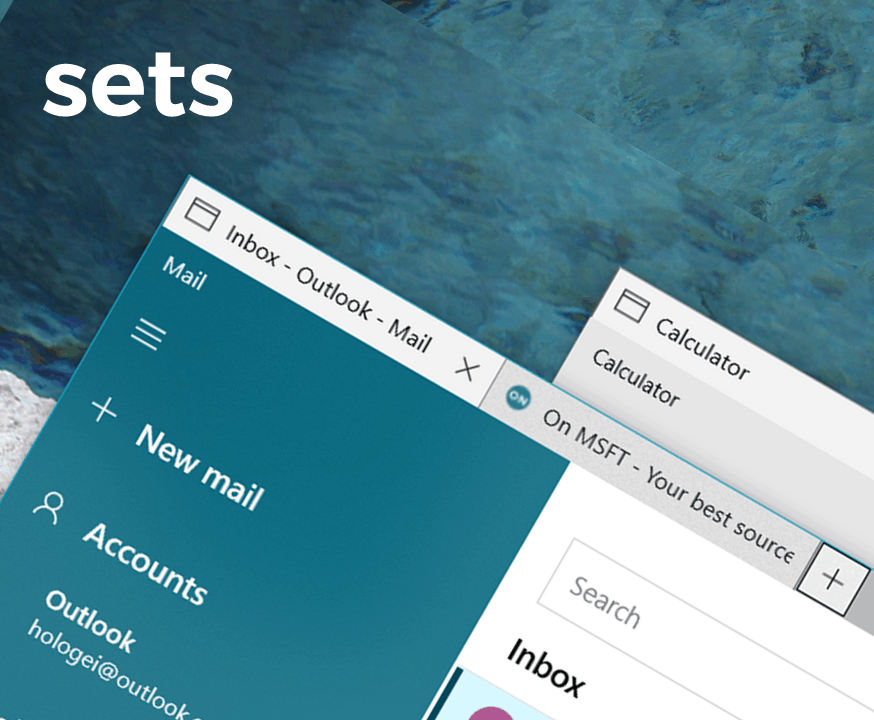
Sets: Sets is designed to make sure that everything related to your task: relevant webpages, research documents, necessary files, and applications, is connected and available to you in one click. Starting today in RS5 builds, we have turned the Sets experiment back on so any Insider who has opted into Skip Ahead will be able to try out Sets. With Sets, 1st party experiences like Mail, Calendar, OneNote, MSN News, Windows and Microsoft Edge become more integrated to create a seamless experience, so you can get back to what’s important and be productive, recapturing that moment, saving time – we believe that’s the true value of Sets. Additional app integration with Sets is expected over time.

Sets supports Win32 apps in addition to UWP apps and websites!

If you are an Insider who was testing out Sets previously, you’ll find the following improvements to the experience:

  • Support for desktop (Win32) apps. Sets now supports File Explorer, Notepad, Command Prompt, and PowerShell. One of the top feature requests by Insiders has been tabs for File Explorer and with Sets you can get a tabbed File Explorer experience! Try it out with these apps and let us know what you think!
  • You can now launch apps from the new tab page by typing the app name into the search box.
  • UWP apps are launched in the same window replacing the new tab page.
  • The tab UI in Sets now shows icons including website favicons and app icons.
  • Resume your project with more control – When restoring your projects you’ll be prompted to restore related apps and webpages. In Timeline you’ll see when a project has multiple activities associated with it.

Here are a few keyboard shortcuts you can try out:

  • Ctrl + Win + Tab – switch to next tab.
  • Ctrl + Win + Shift + Tab – switch to previous tab.
  • Ctrl + Win + T – open a new tab.
  • Ctrl + Win + W – close current tab.

Here are a few things we’re still working on that aren’t quite finished yet:

  • Tab drag-and-drop does not work for re-ordering tabs. You can’t drag a tab to join another window.
  • When launching a supported desktop (Win32) app from a tabbed window, such as protocol/file launch or from the new tab page, it launches in a new window instead of auto-grouping to the existing window. You can work around this for now by holding down the Ctrl key while launching a supported desktop (Win32) app – note, for File Explorer, in particular, you will need to hold down Ctrl until the new tab with File Explorer appears, not just Ctrl + click and immediately release.
  • You may notice some flashes when switching between tabs within a Set.
  • If your display scaling is higher than 100%, using touch to interact with the Sets title bar won’t work.

If needed, you can find a setting to enable or disable Sets under Settings > System > Multitasking. We’re looking forward to your feedback as you try it out in today’s build!

Windows Mixed Reality

There are two issues impacting the usability of Windows Mixed Reality on this build. Windows Mixed Reality runs at a very low frame rate (8-10fps) that could result in some physical discomfort. And there are multiple crashes at startup that will cause Windows Mixed Reality to not work. For Insiders who want to keep Windows Mixed Reality working – you might want to consider hitting pause on taking new Insider Preview builds until these issues are fixed. You can pause Insider Preview builds by going to Settings > Update & Security > Windows Insider Program and pressing the “Stop Insider Preview builds” button and choosing “Pause updates for a bit”.

Reintroducing Sets appears to be the focus of this latest build, while also providing a smoother experience for those being introduced to the feature for the first time today.

Sets appears to still be rather buggy and expectations should be set (pun intended) fairly low for this release. Hopefully, Skip Ahead Insiders will see an uptick in the cadence of their releases to help smooth this new inclusion over.

Xbox could fall to #3 this year as Nintendo Switch continues to soar

Despite Microsoft launching the new Xbox One X last Fall, it seems that the much less powerful Nintendo Switch could have a bigger share of the console market this year. This new prediction comes from IHS Market, which expects spending on Nintendo hardware and services to reach more than $11 billion this year (via Gamesindustry.biz). That’s approximately a $2 billion difference compared to the forecasted spending on Xbox hardware and services, which is expected to dip below $10 billion this year

After the failure of the Nintendo Wii U, the Switch took the video games industry by storm last year, selling 12.8 million units according to IHS Markit. Thanks to an excellent portfolio of first-party games and increasing interest from major developers (Bethesda, Ubisoft and EA, to name a few) Nintendo has proved that consumers care more games and portability than pure computing power. However, market leader Sony is expected to maintain its lead this year with spending on Playstation hardware and services to be over $20 billion.

Of course, a lot can happen between March and the holiday season, when console and video games sales usually soar. Microsoft regularly discounts the Xbox One S, but the company has yet to do the same for the $500 Xbox One X, which remains $100 more expensive than the Playstation 4 Pro. Microsoft is also trying something new with its Xbox Games Pass, letting subscribers play new Microsoft Studios exclusives on launch day. It remains to be seen if Xbox Games Pass can become a system seller in the future, and it will all depends on the quality of upcoming exclusives such as Sea of Thieves.

Microsoft Rewards expands to Italy

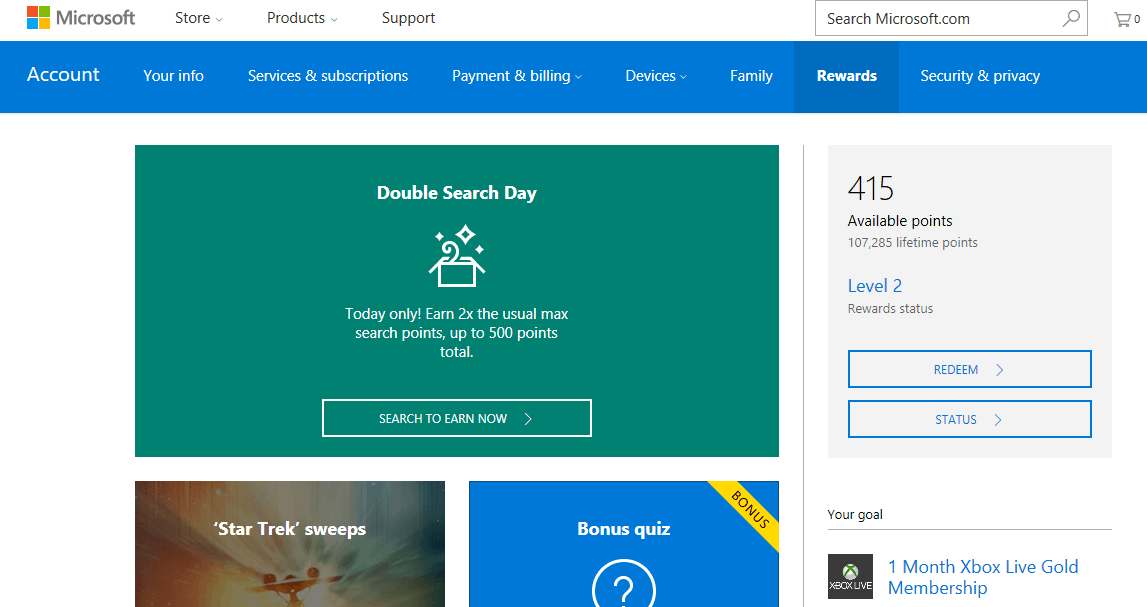
According to a report from the Italian Blog Plaffo, Microsoft Rewards has expanded to Italy. This marks the second recent expansion of Microsoft Rewards, coming several months after it arrived in France, the UK, Germany, and Canada.

The expansion means those living in Italy can now earn 1 rewards points for each Euro spent on shopping at the Microsoft Store on Windows 10. Users can also earn points for completing daily quests or challenges on the revamped rewards dashboard, and for searching on Bing.

Points can eventually be redeemed for cool gift cards, including Xbox GamePass, Skype Credits, or Xbox gift cards. There’s also sweepstakes entries and options to donate points to charity.

If you’ve just signed up please feel free to check out our guide to Microsoft Rewards. We wish you well in your new Rewards adventures and invite you to let us know your thoughts on the experience by dropping us a comment below.

You can now ask Cortana to check Outlook emails on Windows 10 and Harman Kardon Invoke

Microsoft’s Cortana may be a bit behind Amazon’s Alexa and the other digital assistants, but it recently picked up a new feature which may boost your productivity. Indeed, noted by Windows Central, Cortana on Windows 10 and the Harman Kardon Invoke can now check for your Outlook emails.

To get the digital assistant to check your email, all you need to do is ask “Hey Cortana, do I have any new email?” The assistant will then check your Outlook account, and read from the list of unread messages, including the subject line and the name of the person who sent it. See it in action below.

You can also use Cortana to reply, though it is limited to a short reply known as a “short note.” And for further precision, the assistant can even check for older unread messages, from yesterday or before that.

We might still be waiting on the Cortana and Alexa integration but it is great to see the assistant picking up new skills. There’s still no word on if this feature will come to iOS or Android, but we’re hoping it will be added soon.

“S Mode” will be available for all versions of Windows 10 next year, says Joe Belfiore

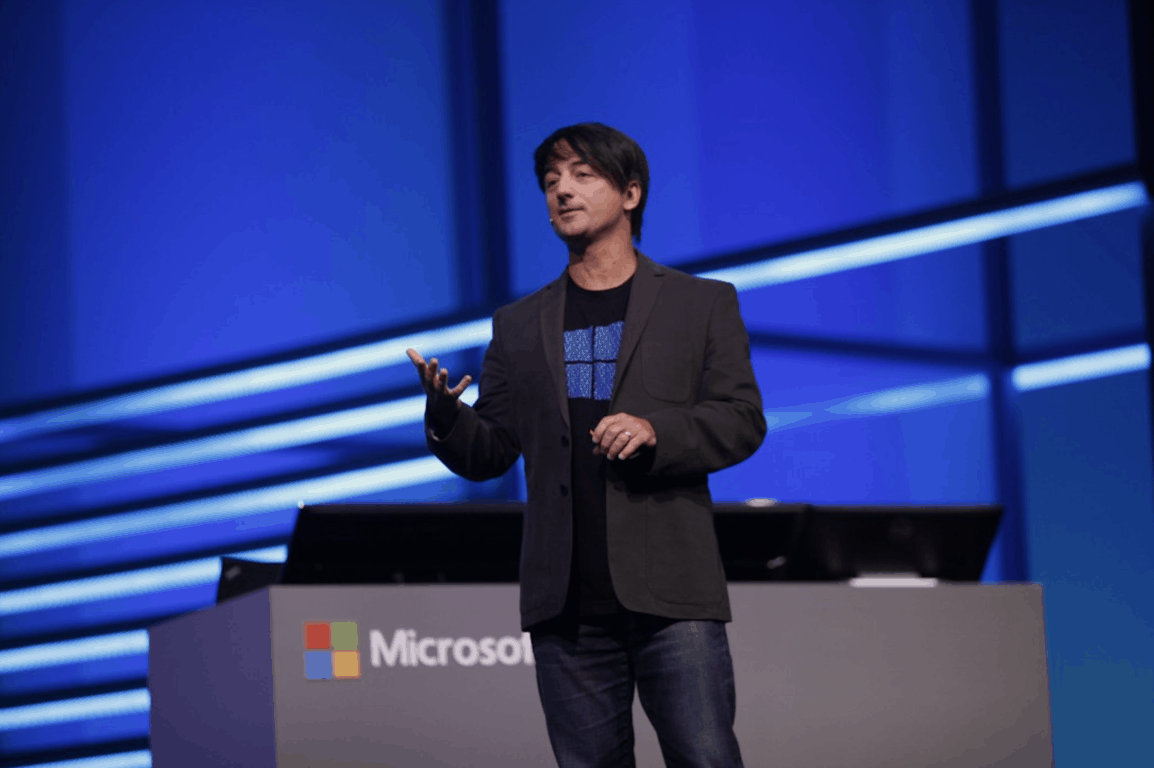
A couple of weeks ago, we learned that Microsoft was planning to replace Windows 10 S, the streamlined and education-focused version of Windows 10 with a new “S Mode” for all versions of Windows 10. Joe Belfiore, CVP of Windows 10 at Microsoft confirmed the news on Twitter yesterday, explaining that this “S Mode” will be available next year for all existing versions of Windows 10 (via The Verge).

Just like Windows 10 S, Windows 10 PCs running in S Mode will only be able to run apps coming from the Microsoft Store. Microsoft is currently marketing Windows 10 S as a more secure and battery efficient version of Windows 10, and we expect the company to do the same with this new “S Mode” next year.

While this new “S Mode” should be available for Windows 10 Home, Pro and Enterprise next year, Belfiore didn’t address the previous reports saying that disabling S Mode would be free for Windows 10 Home users, and a $49 fee for Windows 10 Pro users. It may be too early for Microsoft to discuss these details right now, but we may hear more at upcoming Microsoft events such as Build or Microsoft Inspire.

We still have many questions about this new “S Mode” for Windows 10, including how it will affect PC OEMs and ultimately consumers. After the Windows 10 S experiment, which was mostly education-focused, it does seem that Microsoft sees this streamlined version of Windows 10 as a valuable proposition for all Windows 10 users. For now, though, Windows 10 S will continue to ship on select PCs this year, including the first Always Connected PCs from HP, Asus, and Lenovo.

Debian Linux distribution also makes it way to the Microsoft Store

Yesterday Microsoft announced the availability of Kali Linux on the Microsoft Store in Windows 10. This afternoon, the tech giant followed up by noting the popular and free Debian Linux distribution has also become available in the store (via Thurrott.com).

Debian now joins the Kali Linux, Ubuntu, OpenSUSE, and SLEX Linux distributions in the Microsoft Store. These distributions can all be downloaded manually and can run in developmental environments simultaneously. They are all part of the Windows Subsystem for Linux, which allows native Linux ELF64 binaries to run on Windows 10.

Microsoft has a guide on how to set up these Linux distributions, so be sure to check it out if you so happen to be curious. There is also this Debian getting started manual, which explain how to use Debian with the Windows Subsystem for Linux.

Debian
Debian
Developer:
The Debian Project
Price:
Free

Windows gains ground in US K-12 schools as iPads lose share

With Windows 10 S, Minecraft Education Edition, Office 365 Education, and more, Microsoft hoped to take a big chunk of the education market away from Google and Apple. Today, the company shared an interesting report from Futuresource, showing these initiatives are working in their favor.

According to the Futuresource report, more K-12 schools in the US are choosing affordable Windows devices. Windows share grew an additional 6.5 points year-over-year in US K-12 education for devices under $300. Microsoft says this is the highest share in four years in this price category.

The report also shows that Apple’s iPad shares are down in the education market in the fourth quarter. In the words of Ben Davis, Senior Market Analyst at Futuresource Consulting.:

“Apple’s iPad volumes declined year-on-year after shipments reached a quarterly high of over 1 million units during Q2 2017… The sub $300 price category saw the largest rise in share, growing 6% year-on-year, in part thanks to Microsoft and its OEM partners launching a raft of lower cost education focused Windows devices in recent past.” These devices have been positioned as Chrome compete solutions, providing an alternative to the value orientated Chromebooks.”

Microsoft is claiming that “more than one million new Windows 10 devices” are used by students in K-12 and higher education. The company also holds OneNote has grown more than 75 percent in the last year, with more than 18 million new student notebooks. Learn more about Microsoft Education by checking here.

Hitman: Blood Money and LEGO Star Wars III: The Clone Wars come to Xbox One Backward Compatilibity

Two new Xbox 360 games are joining the Xbox One Backward Compatibility list today, Hitman: Blood Money and LEGO Star Wars III: The Clone Wars. The first one was released back in 2006 as the fourth installment in the Hitman stealth video game series. As for the second one, it’s the third Lego Star Was video game released on Xbox consoles since 2005, and as its name suggests it is based on The Clone Wars animated series.

Both games are currently priced at $19.99 on the Xbox Store, and you can find Xbox Store links, official descriptions and video trailers for both games below:

Lego Star Wars III: The Clone Wars ($19.99)

Laugh your way through an all-new story that takes you through 16 different systems and experience brand new features like massive ground battles, boss fights, and multi-layered space combat. Expanded Force abilities, brand new weapons, characters, environments, and over 20 story-based missions make this the most action-packed LEGO game to date!

Hitman: Blood Money ($19.99)

Hitman’s back, drawing you closer than ever into his deadly world where staying anonymous, being smart and totally ruthless are the key to a perfect execution. Lucrative contracts on the rich and powerful in high profile locations make killing for money good business. But when a rival agency enters the scene it’s war and only the best man will be left standing.

After checking the list today, there are now three Hitman games and six different LEGO games on the Xbox Backward Compatibility list. There are now more than 400 titles on the catalog as of today, and the Xbox team keeps adding new ones every week or so. What are the other Xbox 360 games you would you like to play on the Xbox One today? Let us know below.

Tune in to the next Windows Insider webcast today (3/6) to hear from Cortana team

The next Windows Insider webcast is coming up later today (3/6), and you might not want to miss it. Microsoft’s Cortana team is set to make an appearance, making it the perfect chance to have your questions answered and also hear more about the development process of the digital assistant.

As always, the webcast will be streamed live on Mixer. You can check to see the time zone conversion here, but keep in mind the webcast will be available on demand shortly after it airs.

We’re also hoping we might also get a new build during the webcast, as the team is always full of surprises. Do you think you’re going to tune in to this webcast? Do you normally keep up with the Insider Webcasts? Let us know your thoughts below.

Kali Linux for Windows 10 now available from the Microsoft Store

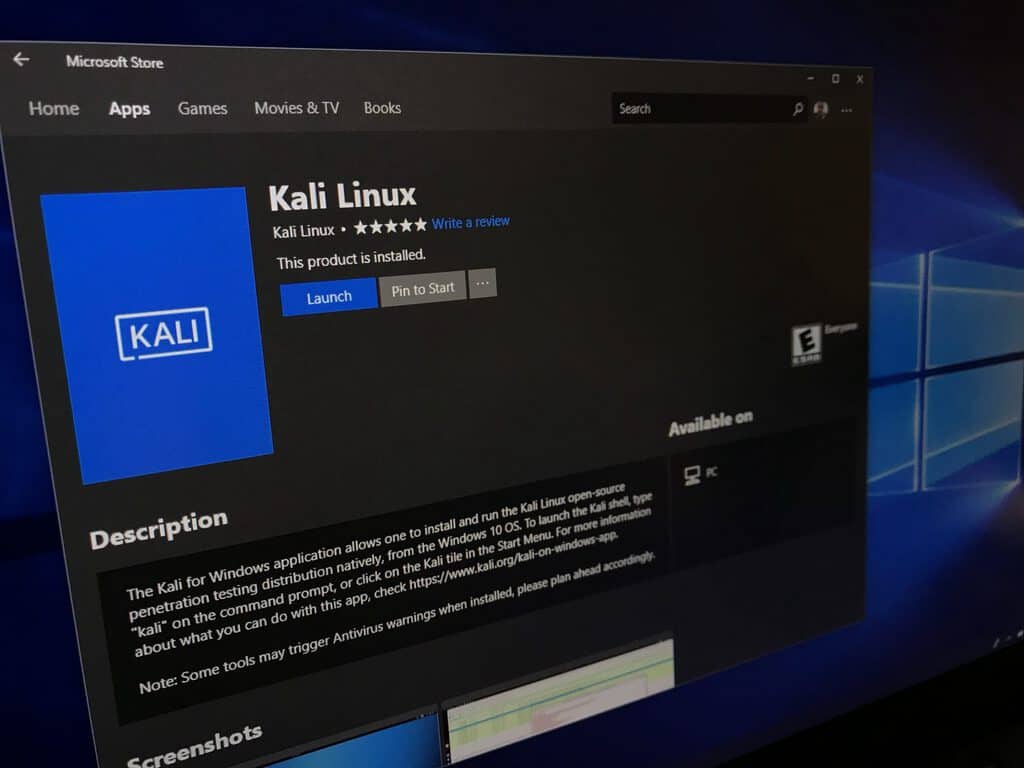
Last year, Ubuntu became available in the Microsoft Store as part of the Windows Subsystem for Linux. Now also available for download on the store in Windows 10 is another popular Linux Distribution— Kali Linux.

Kali Linux for Windows 10 was actually announced over two weeks ago for testing, but only yesterday did Microsoft make things more official with a blog post. At any rate, you can find Kali Linux on the Windows Store via the link below. Keep in mind that this app is based on the Windows Subsystem for Linux, and is primarily meant to be used in development situations on top of Windows 10 in digital forensics and penetration testing.

Installation is straightforward, and you can learn more about the install process by reading Microsoft’s documentation here. Microsoft has been playing nice with Linux, so it will definitely be interesting to see developer feedback and if other Linux distributions will also come to the Windows Store soon.

Kali Linux
Kali Linux
Developer:
Kali Linux
Price:
Free

Microsoft announces first renewable energy deal in India; new Bangalore facility will be solar-powered

Microsoft has announced the completion of its first renewable energy deal in India. The agreement will see Microsoft purchase 3 megawatts of solar-powered electricity to help power its new office building in Bangalore in the southern state of Karnataka. This will meet 80 percent of the projected electricity needs at the new facility.

This is Microsoft’s first solar energy agreement in India, and one of the first in Asia — the company completed a new solar agreement in Singapore last week. The deal is part of a state government program to encourage investments in local solar energy operations, in line with the larger Indian government goal to ramp up solar power generation to 100 gigawatts by 2022.

This project will bring Microsoft’s total global direct procurement in renewable energy projects to nearly 900 megawatts. The deals in Asia follow wind projects in Europe and a substantial portfolio in the United States. Microsoft’s goal is to rely on wind, solar and hydropower electricity for at least 50 percent of its energy usage worldwide by the end of 2018.

Investing in local solar energy to help power our new Bangalore office building is good for Microsoft, good for India and good for the environment. We are proud to be deepening our long history of partnership and investment in India with this agreement. This deal will help us grow sustainably and supports the growth of the Indian solar energy industry, so that the entire country can more easily and reliably access clean electricity.

– Anant Maheshwari, President, Microsoft India

According to Rob Bernard, the Chief Environmental Strategist at Microsoft, the company is not only meeting its local electricity goals by purchasing local solar power but also supporting the growth of local clean energy industries thereby helping India meet its targets for the Paris Agreement.

Windows 10 Spotify app updates with new touch-friendly design

The official Spotify app for Windows 10 PCs and tablets has updated to improve functionality in Tablet Mode and better work with touch controls when a user is using a finger or Surface Pen to navigate the UI.

While the look of the app is mainly the same as before, the program bar which usually runs across the top of most Windows 10 apps and features the close and minimize options, has been removed. Spotify now incorporates these options into the app itself and has shifted several UI aspects, like the username, further up to take better advantage of space.

The Windows 10 Spotify app now also fills up the entire screen when the device is switched over to Tablet Mode and the resizing of different parts of the app is now much easier and fluid with touch controls.

Have you noticed any other changes to Spotify with this update? Let us know in the comments below.

Spotify Music
Spotify Music
Developer:
Spotify AB
Price:
Free+

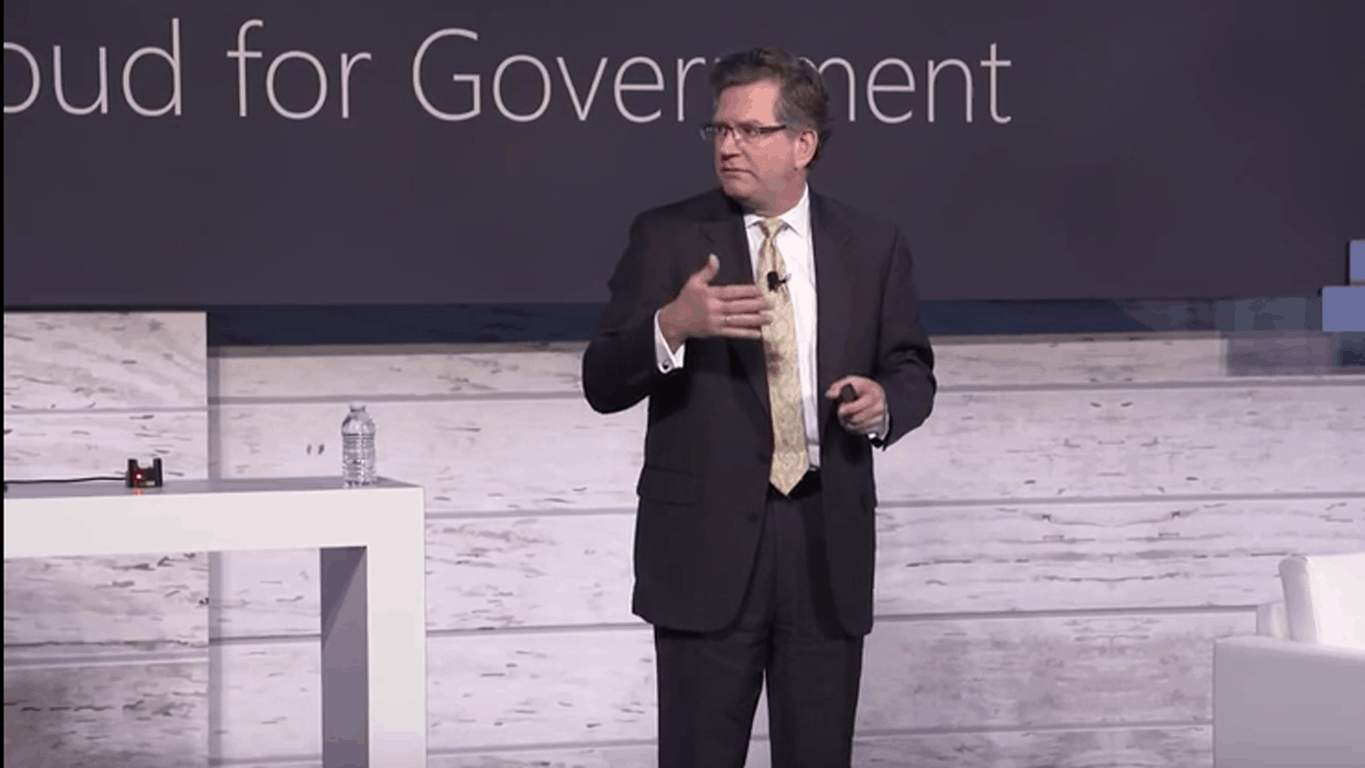
Microsoft continues government cloud push with new announcements

While much of the recent tech punditry revolves around the latest smartphone or the newest Intel and Qualcomm chipset, there is a growing wave of cloud adoption by businesses that seems to be going relatively unaddressed.

As with most trends, governments have been slow to adopt cloud IT modernization, but Microsoft is seeing a giant opportunity for to help seed its Azure solutions to perhaps not only its strongest market but it’s largest customer base as demand for its solutions continues to surge.

According to the Microsoft Enterprise blog which posted a portion of the Report to the president of Federal IT Modernization, here are just a couple of recent examples of some government IT modernizations that are taking advantage of new $500 million central modernization fund to boost adoption

  • The Commonwealth of Virginia is taking on the nation’s opioid epidemic through an extremely sophisticated cloud architecture that marries sensitive public, health, and prescription data to better understand and triage solutions for this important public health crisis.
  • The Small Business Administration (SBA) is planning to adopt all of Microsoft 365 to drive cost savings across mobility, security, and collaboration tool sets while delivering a consistent and modern experience across SBA’s geographically dispersed employee base. The use of technology empowers SBA to achieve its core mission: to help Americans start, build, and grow businesses.
  • US Department of Veterans Affairs (VA) whose Access to Care web-based application enables patients to more easily schedule VA hospital appointments and track likely wait times, creating a better patient experience.
  • The US Air Force, along with the Defense Logistics Agency, leverage Microsoft secure cloud technology to provide the productivity and collaboration services that Service members need to fulfill their mission.
  • The State Department’sAirNow project places IoT sensors on embassies and consulates around the world to capture air quality monitoring data. That data is then analyzed using Power BI insights to foster diplomatic conversations about how the US can help other countries improve air quality and national health.
  • The City of Chicago moved to the cloud for secure productivity services to reduce costs and on-premises infrastructure and found that process automation and information discovery were added benefits. Plus, employees love the mobility that allows them to work anywhere and on any device.

In parallel with its user’s demands, Microsoft is also evolving the cloud stack offering by introducing Microsoft 365 for US Government, Azure Stack on Azure Government, New Regions Dedicated to Secret US Classified Data and New Certifications for Dynamics 365.

Most of these new services come with the backing of Microsoft’s continued partnerships with government customers to attain well over 72 compliance regime support and the most number of certifications to-date of any cloud solutions provider.

During Microsoft’s Government Tech Summit this month, the company went over more details of its Microsoft 365 for US government general availability features which include:

A complete solution for the modern workplace comprised of Office 365, Enterprise Mobility + Security, and Windows 10, Microsoft 365 for US Government provides agencies with tools for mobile productivity and secure collaboration. With this release, Enterprise Mobility + Security is now also generally available for the US Government with deep integration into both Microsoft 365 and Azure Government. It’s core capabilities are designed to meet the requirements of government by mirroring the functions outlined in the NIST cybersecurity framework– identify, protect, detect, respond, and recover.

To learn more about Microsoft 365 for Government, Azure Government Secret, or Dynamics 365, visit the Microsoft Enterprise blog here.

Microsoft to premiere Inside Xbox, a new live webcast, this weekend

Following the success of the Windows Insider Program, Microsoft will premiere a new webcast starting this weekend, dubbed “Inside Xbox.” Inside Xbox will focus on everything Xbox, from what Microsoft is developing for the next generation of Xbox consoles, accessories, games, and more. As noted in a post on Xbox Wire, Inside Xbox will premiere on Saturday, March 10, 2018 at 12:00 PST.

Inside Xbox is the place where Microsoft can provide greater transparency to Xbox fans on everything new that the Xbox Team is creating and developing. Give the Xbox Team a shoutout or question using the #insidexbox hastag on Twitter, Facebook, or Instagram. You may see your question or comment highlighted in a future Inside Xbox episode.

Inside Xbox will be hosted by Larry Hryb (aka Major Nelson), Graeme Boyd, Jeff Rubenstein, Alex Hebert, Lydia Ellery, and more. In the Inside Xbox Premiere, the hosts will discuss Sea of Thieves as well as much more:

“For our inaugural episode, these fine folks will be crewing a ship bursting at the seams with content. We’ll be sitting down with Rare to discuss the incredible energy from fans surrounding Sea of Thieves, including an illuminating conversation on the core design principle that drives the game, how they’ve acted on feedback from the Closed Beta, and what fans can expect from the game at launch (as well as a tantalizing hint of new adventures to come post-launch).”

You can view the premiere episode and all future episodes of Inside Xbox on Mixer, YouTube, Twitch, and Facebook. Be sure to tune in on Saturday for more surpises on Inside Xbox!

Windows 10 news recap: Windows 10 on ARM reportedly ran on Lumia device, Skylake security updates available on Update Catalog and more

Welcome back to our Windows 10 news recap, where we go over the top stories of the past week in the world of Microsoft’s flagship operating system.

Dev reportedly gets Windows 10 on ARM running on Lumia device

As Microsoft has confirmed that there will be no further feature updates for Windows 10 Mobile, one developer is trying to get Windows 10 on ARM to run on a Lumia device, and reportedly has had some success.

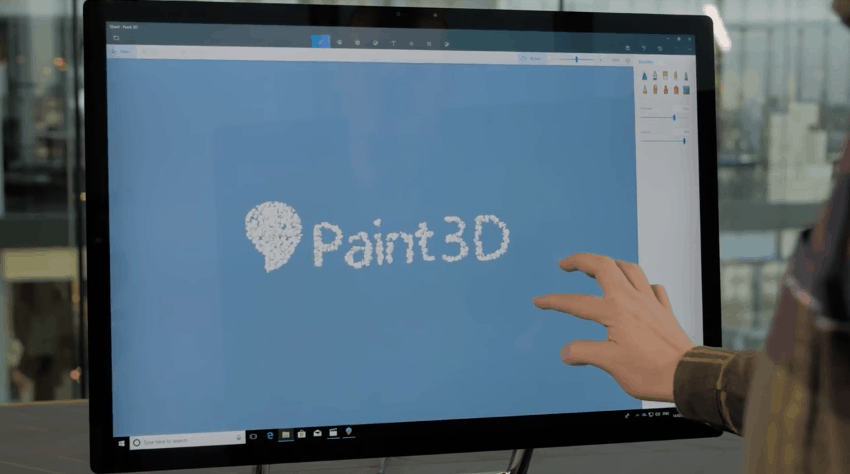
You can now edit 3D objects from any angle in the Paint 3D Windows 10 app

Paint 3D has received an update which now lets you edit 3D objects from any angle with the new 3D View feature, as shown below.

New Windows 10 Insider build 17112 for Fast Ring PCs brings EFI and Recovery fixes

This week’s Windows 10 Insider build, 17112, for the Fast Ring, has brought fixes for EFI and Recovery. The build is the second in a row of late Friday build releases.

Intel’s latest security updates for Skylake processors now available through Microsoft’s Update Catalog

The latest security updates for Intel’s Skylake processors are now available on the Update Catalog, Microsoft’s update repository. These updates help mitigate the Meltdown and Spectre flaws in Intel processors.

That’s it for this week. We’ll be back next week with more Windows 10 news!

Fix: AMD Catalyst Windows 10/11 Crash and Other Problems

Millions of people use AMD graphic cards, and sometimes there could be some issues with graphic cards and operating systems.

Some Windows 10 users have reported AMD Catalyst crashes and other problems with AMD graphic cards, so let’s see what kind of issues are these users having.

How to Fix AMD Catalyst Windows 10 Issues

  1. Black screen at boot
  2. System crash and Internal Power Error
  3. AMD Catalyst error 182
  4. AMD Catalyst failed to install

1. AMD Catalyst Issue – Black screen at boot

The black screen at boot on Windows 10 is a relatively common issue, and it’s caused by particular versions of AMD video card drivers. Luckily for you, there’s an easy way to fix this.

Here’s exactly what you need to do if you face the black screen issue, due to an AMD Catalyst problem in Windows 10:

  1. Go to Settings > System.
  2. Choose Apps and Features tab on the left.
  3. Find AMD Catalyst Install Manager on the list and uninstall it.
  4. If you’re asked to confirm that you want to delete AMD Catalyst Install Manager select Yes.
  5. After the current version of drivers has been uninstalled visit AMD’s website and download version 15.7 drivers.
  6. Run the installation and extract the files to desired location. Remember this location, you will need it again in Step 9.
  7. Go to Device Manager and locate Microsoft Basic Display in the Display drivers section.
  8. Right click the driver and choose Update.
  9. Next click Browse and search for the location where you have extracted 15.7 version of drivers. By default location for drivers should be C:AMD, but you might have changed it in step 6.
  10. Click Okay and the setup wizard should find the drivers in the specified location.
  11. Restart your computer.

Updating drivers manually is very annoying, so we recommend you download a driver updater tool to do it automatically. Thus, you will prevent file loss and even permanent damage to your computer.

2. AMD Catalyst Issue – System crash and Internal Power Error

Once again, this issue is caused by particular versions of AMD display drivers, so the solution is to uninstall them and install an older version of drivers or the one that works for you. Some users even suggest using AMD 15.6 Beta Driver for Windows 8.1.

In addition, uninstall Lucid Virty MVP if you have it installed. This application is usually installed if you’ve upgraded from Windows 8.1 to Windows 10.

You might want to disable automatic driver updates as well since Windows 10 will often automatically update your drivers. To do so follow these steps:

  1. Open System Properties. You can do so by right-clicking on This PC and choosing Properties.
  2. Under Computer name, domain and workgroup settings choose Change settings.
  3. Next go to Hardware tab.
  4. Next choose Device Installation Settings.AMD Catalyst Windows 10 Crash And Other Problems
  5. Next click No, Let me choose what to do and select Never Install Drivers from Windows Update.AMD Catalyst Windows 10 Crash And Other Problems
  6. Click Save Settings and restart your computer.

In addition, you can also download Show and hide updates troubleshooter to hide updates you don’t want to install.

3. AMD Catalyst error 182

Error code 182 usually occurs when the driver install process fails. To fix this issue, you should first delete the content of the C:/AMD folder.

Then, temporarily disable your antivirus, antimalware, and firewall tools and try to install the AMD driver. Don’t forget to turn your security software back on as soon as you’ve installed the driver.

Error 182 may also occur when the AMD driver installer fails to identify your graphics hardware. To solve this problem, use the AMD Driver Selector to locate and download the appropriate driver. If you still can’t identify the correct model of your AMD graphics cards, go to AMD’s Support page and follow the instructions available on the respective page.

If you own a customized AMD graphics card, the best solution is to contact the OEM.

4. AMD Catalyst failed to install

If Windows 10 is preventing you from installing AMD Catalyst by displaying error 1723, there are a few solutions that you can use to fix the problem.

You can uninstall your current driver, download the new driver using AMD Radeon Settings, download and install the new driver manually or use the Device Manager.

If nothing works, you may want to try downloading and installing AMD Catalyst using a dedicated driver updater software. Fortect Driver Updater can help you automatically update drivers and prevent PC damage caused by installing the wrong driver version.

It is a useful program for updating drivers on your computer when you are unable to do so yourself. You only need to scan your machine after installing the app.

It will detect out-of-date drivers and ask for your permission to upgrade them. You may rely on Fortect Driver Updater to make such enhancements to ensure a proper update with the most recent AMD Catalyst drivers.

⇒ Get Fortect Driver Updater

As you can see, AMD drivers can cause issues, but you can easily fix them. We also covered what to do if Windows 10 prevents the installation of AMD drivers so you might want to check that out as well.

If you have any comments, questions, or suggestions, just reach to the comment section below.

Xbox Live still down for thousands of users, 0x87dd0006 resurfaces

If you can’t connect to Xbox Live, rest assured, you’re not the only one. This is actually a major issue that has been affecting tens of thousands of users in the last 24 hours.

Despite recent reports that suggest the issue has already been fixed, this is not the case for many gamers. For example, the website DownDetector is still being flooded with user reports that confirm the issue persists for many of them.

xbox live down

As you can see in the screenshot above, there are three main regions affected by this problem: Europe, the East Coast of the US and parts of South America.

Cant connect to my XB Live account for more then 5 mins. And continuously lags till it kicks me out when i do connect to my account

Also, many users are still getting error 0x87dd0006 when they try to sign in to their Xbox Live account. Fortunately, we do have a dedicated troubleshooting guide on how to fix Xbox error 0x87dd0006, so do follow the instructions available there. Hopefully, if you’re lucky, one of the solutions listed there will help you fix this annoying error.

More issues acknowledged on the Xbox Support page

There is also a series of known issues listed on the official Xbox Support page. The gaming experience is limited for the following games:

  •  Xbox One : STREET FIGHTER IV
  • Xbox One : Monster Hunter
  • Xbox One : SUPER STREETFIGHTER IV ARCADE EDITION
  • Xbox One : SUPER STREETFIGHTER IV

Unfortunately, Microsoft has yet to offer more information on the exact issues affecting these titles.

So, if you’re still experiencing any bugs on your Xbox One console, do tell us more about your experience in the comments below.

We’ll update this article as soon as new information is available. Hopefully, you’ll all be able to enjoy smooth gaming experiences this weekend.

RELATED STORIES TO CHECK OUT:

Here’s what the latest tests reveal about IoT privacy flaws

Smart devices have slowly but surely made their way into our homes. More and more people are using smart security cameras, home management systems, weather stations, baby monitors, thermostats and more. It’s quite difficult to trust this massive wave of new technology.

All these devices require an Internet connection in order to be able to share data. But, on the other hand, they might be sharing the data with the outside world as well against your will.

The latest home tests carried out by the security company ESET have revealed that various smart home devices raise a few privacy concerns.

This is not the first time that a major tech company has warned users about the privacy issues affecting IoT devices. As a quick reminder, Bitdefender issued similar words of warning about security cameras last year.

ESET’s report IoT And Privacy By Design In The Smart Home main findings

ESET’s research was conducted on various devices including Amazon Echo, D-Link cameras, D-Link home hub, motion sensors, weather stations, speakers and more.

The main vulnerabilities of these devices include the following:

  • The login process was not authenticated.
  • Communications with the cloud lacked encryption.
  • Unauthorized access to the cloud service was possible.

Privacy problems

According to ESET’s report, companies can collect more data than what they describe in their policy. Issues such as oversharing data, insufficient protection of personal information and the possibility of intercepting digital traffic also resulted from the research.


In case you want to be secure while surfing the internet, you will need to get a full-dedicated tool to secure your network.  Install now Cyberghost VPN and secure yourself. It protects your PC from attacks while browsing, masks your IP address and blocks all unwanted access.


Voice-activated issues

Each of the tested devices showed security or privacy flaws and voice-activated intelligent assistants such as Amazon’s Alexa also raised a lot of privacy concerns as well. ESET recommends a few steps in its report to avoid these such as deleting past interactions, switching off voice-activated devices when you’re not using them, protecting your accounts with two-factor authentication and more.

Most manufacturers are neglecting security concerns

Security flaws are a sign of an immature organization lacking focus on security. The flaws are showing a considerable lack of analysis and threat awareness, and these are the fundamental causes that result in flaws and vulnerabilities.

Closing words

You are advised to research potential vulnerabilities, the manufacturer’s policy update, and the privacy policy before buying a device. Even if it seems unlikely that a cybercriminal would hack your home, the threat is here to stay.

RELATED STORIES TO CHECK OUT:

Known Issues: Windows 10 Insider preview 17112 for Fast Ring PC experiencing Windows Store dissapearance

As with most Insider releases, there are pros and cons and today’s con for the newly released preview build 17112 for Fast Ring PCs, may be a deal breaker for most testers.

As we inch closer and closer to a Redstone 4 release of Windows 10’s latest update, Insiders have been hit with a major spoiler alert about the latest preview build that includes the possible removal of the Windows Store entirely.

Here’s are the known issues for build 17112 for Fast Ring PCs,

  • IMPORTANT: The Microsoft Store may be completely broken or disappeared altogether after upgrading to this build. Please see this forum post for details including a workaround on how to get the Microsoft Store back.
  • If you try to open a file that is available online-only from OneDrive that hasn’t been previously downloaded to your PC (marked with a green checkmark in File Explorer), your PC could bugcheck (GSOD). You can work around this problem by right-clicking on these files and selecting “Always keep on this device.” Any file-on-demand from OneDrive that is already downloaded to the PC should open fine.
  • Post-install at the first user-prompted reboot or shutdown, a small number of devices have experienced a scenario wherein the OS fails to load properly and may enter a reboot loop state. For affected PCs, turning off fast boot may bypass the issue. If not, it is necessary to create a bootable ISO on a USB drive, boot into recovery mode, and this will allow bypass.
  • When Movies & TV user denies access to its videos library (through the “Let Movies & TV access your videos library?” popup window or through Windows privacy settings), Movies & TV crashes when the user navigates to the “Personal” tab.

Those are some pretty steep prices to pay to play with build 17112 over the weekend. Fortunately, there appear to be work-a-rounds to get your system up to relative parity, but if you plan to use your PC heavily this weekend, it’s probably best to sit out this round unless you like forum-diving.

You can now edit 3D objects from any angle in the Paint 3D Windows 10 app

Microsoft’s Paint 3D Windows 10 app made its debut with the Creators Update last year, giving Windows users the opportunity to create objects in every dimension. To make the creative process a bit easier for users, the company is bringing a new 3D View mode in the app that makes it possible to change your view and edit while in 3D perspective.

“3D View enables you to edit from any angle, which means even more accurate and intuitive 3D creation,” explained Thomas Religieux, Product Manager for Paint 3D. “You can now orbit around your 3D designs and continue doodling, painting or stickering without having to switch back to the 2D camera,” he added. You can see how 3D View works in the video below, which leaked a couple of weeks ago:

To try 3D View in Paint 3D, make sure that you have the latest version of the app on the Fall Creators Update. The feature can be accessed by clicking the dedicated button at the top of your tool bar, and Microsoft made it easy to use it with touch, pen, mouse or keyboard.

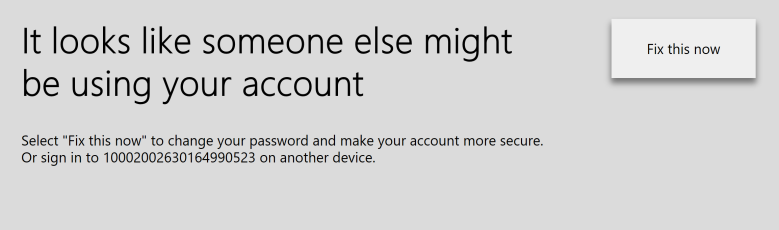
Xbox One gets three new features to help when you lose acccess to your account

To line up with the rollout of the Spring Xbox Update to Alpha Insiders, Microsoft yesterday also announced several new security features for Xbox. The features are now live, and gamers now can get help with remembering their Microsoft account, updating recovery options, and recovering an account right from their Xbox One system.

With the new changes, if a gamer happens to forget their Microsoft Account information, they can press on “forgot your account” to log back in using an alternate email address or phone number associated with their account. This eliminates the need to call Xbox support, the Xbox team noted.

Recovering username on Xbox

Microsoft also added more security options on Xbox, including two-factor authentication and reminders to keep security information up to date. This ensures that you can verify your identity if anyone so happens to access your account, or if you forgot a password or sign-in information.

Final of the features are new account recovery options. This is perfect for when Microsoft identifies suspicious sign in and locks your account. The company now allows users to recover accounts directly from Xbox, without the need to call Xbox Support or use another phone or computer to unlock the account.

Protecting your Microsoft account is important, especially if you don’t want to lose access to your Achievements and collection of digital games. These three new features should definitely be helpful, and you can also check this page for more tips on how to protect your account.

Xbox Spring update starts rolling out to Alpha Insiders with 1440p support, Mixer remote play and more

After a couple of couple of weeks without new Xbox Insider builds, the first Xbox One 1804 build has started rolling out to Alpha Preview members yesterday. As Microsoft detailed in a blog post, the “Xbox Spring Update” will bring some cool new features such as 1440p support for game and media on Xbox One S and Xbox One X.

“1440p resolution, sometimes referred to as “2560×1440” and “QHD,” is a popular choice for PC users,” the blog post reads. “With over a million and a half more pixels than 1080p, this resolution fills the gap between Full HD and 4K displays.” If you have a compatible screen, you can enable 1440p video output in Settings.

1440p Selection Screen

The Xbox Spring update will also bring a fresh new look for Microsoft Edge, which can now be used to download all types of media content on your console. Microsoft has also introduced new system sounds in the Xbox One OS with spatial audio support, as well as a new option for adjusting background music from Groove Music or Spotify when you’re playing games.

On the Xbox Live front, Xbox Live Tournaments will now be available directly in Game Hubs and no longer require gamers to be members of a club. Moreover, the Xbox team is giving new filtering tools to Club owners, with the ability to require certain hours of playtime or Gamerscore levels for candidates.

Club Invite Filters

One of the main highlights of this update is probably the new Mixer feature that allows streamers to share their Xbox controller with a single Mixer viewer. This remote play feature will only work on Mixer.com, and viewers will be able to take control of the gameplay through an on-screen gamepad or an Xbox controller. “Viewer and streamer can work together in the game, or the viewer can cause trouble – resulting in hilarious chaos. It’s your choice,” the Xbox emphasized. This is a pretty fascinating feature which will push Mixer interactivity to the next level.

Share Controller

Last but not least, the Xbox team will test a brand new collection experience for Xbox Live Gold in this update, with a dedicated tab in “My Games and Apps” for quickly checking all redeemed Games with Gold titles. The team tested a similar feature for Xbox Games Pass content last month, and you can expect more of these “experiments” going forward.

This first 1804 Preview build for the Xbox One also has some known affecting Dolby Atmos, the Microsoft Store or certain apps such as Netflix. You can check the full changelog on this separate blog post. Overall, the Spring Update for the Xbox One looks pretty exciting, and it should start rolling out to other Insider rings in the coming weeks.

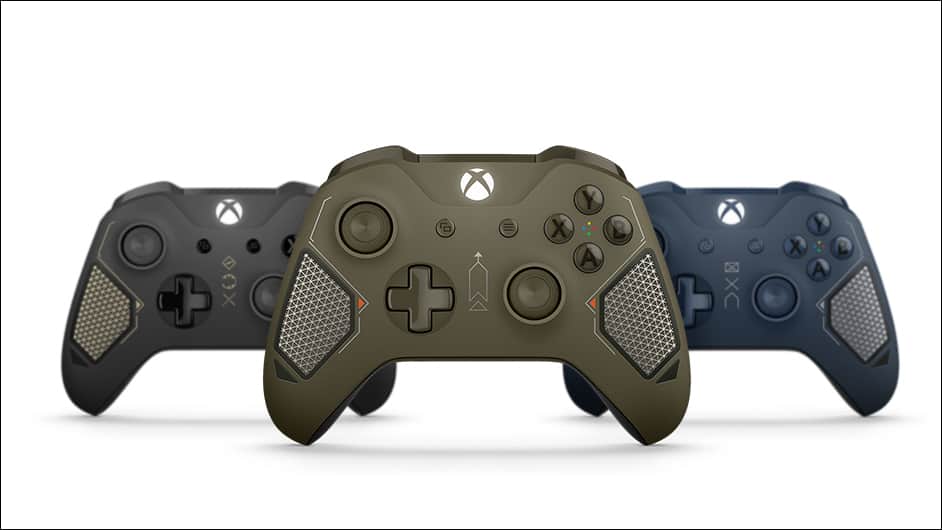
Win a 24-karat gold-plated Xbox One X console with Xbox Game Pass

Microsoft is giving away one limited edition 24-karat gold-plated Xbox One X video game console to one lucky gamer who unlocks at least one Xbox Achievement this month while playing a game via Xbox Game Pass.

In addition to being 24-karat gold-plated, the Xbox One X console will also be a Project Scorpio Edition which makes it even more of a collector’s edition. No photos of the console have been released yet and there are no further details on the competition. It’s assumed that the winner will simply be contacted via DM on their Xbox One console or through the email associated with their accounts.

Xbox Game Pass is a paid subscription service that gives users full access to over 100 Xbox 360 and Xbox One video games. New games are added each month while others are removed, it works in a very similar fashion to Netflix but with video games.

Does this competition entice you to give Xbox Game Pass a try? Let us know in the comments below.

Microsoft’s new Cortana VP wants trust as a differentiator for the digital assistant

During the Consumer Electronics Showcase this year, a battle of artificially intelligent infused tech gadgets took center stage with the brains behind a multitude of hardware being primarily provided by Amazon and Google.

Curiously missing from the showcase was Apple’s Siri and Microsoft’s Cortana digital assistance. For Apple’s part, their presence at CES has remained one of silent imposition, but Microsoft’s seeming misstep in promoting Cortana was noticeable and perhaps the reason for the absence lay in the AI’s shifting of its employee structure.

Reported earlier today, Microsoft’s Cortana has a new corporate VP which will now oversee the development and direction of Cortana for the foreseeable future.

The new Cortana VP, Javier Soltero comes from a background in productivity and enterprise with previous top role among Microsoft’s Office team. Over the past couple of months, we’ve seen Microsoft focus its Cortana efforts in less of a consumer capacity and more of a centralization on business integration and that could be because Soltero has actually been at the helm for a little over three weeks.

Despite being a VP Soltero will report to Microsoft’s head of AI and research, Harry Shum and Cortana’s engineering VP, Andrew Shuman.

While Soltero’s background is in business applications, in an interview with AXIOS, he mentions that voice has always been a passion of his.

“If I was to leave Microsoft and start another company I would be doing something related to voice,” Soltero said.

Going forward, Soltero appears to want to leverage his expertise in privacy protection of Office documents and use that knowledge to help differentiate Cortana from the field of other viable AI assistants.

“The real contest is about which company users will choose and entrust with essentially all of their information or the majority of their information.”

Now, for those of you a bit worried that Cortana will fade into corporate oblivion held behind a wall of security red tape, Soltero also acknowledges that privacy alone isn’t the way to sell what could be the next computing platform battle for Microsoft. He admits that, “A very private but mediocre experince will not win.”

So, it looks like there may be hope and perhaps we’ll hear from Soltero about Cortana and its direction at Microsoft’s developer conference in a few months

FIX: Can’t Copy Files to USB Drive Because It’s Write-Protected

Let’s talk (and solve) about an issue that isn’t connected with any particular Windows operating system, but is equally annoying on each one. This post is about the  Write-Protected USB drive and how to make it useful again.

Write Protected message while copying files to a USB drive? Try one of these solutions

Many of us share files using a USB flash drive, but sometimes we might get Write Protected error message that prevents us from copying files.

Speaking of errors, users reported the following problems related to this error message:

  • Unable to copy files to pen drive in Windows 10 – If you’re unable to copy files to your USB flash drive, be sure to check your antivirus and sharing settings.
  • USB write protected remove cmd – Sometimes your drive might be set to read-only mode. However, you can easily fix that by running few commands in Command Prompt.
  • USB write protection turn off – Write protection is a useful feature, but sometimes it can cause certain problems to occur. If you’re having any problems with your USB flash drive, be sure to try some of our solutions.
  • Your USB is write protected – If you’re encountering this error, you might be able to fix the problem simply by reinstalling your USB flash drive. If that doesn’t work, you might want to try formatting your drive.
  • USB write protected unable to format – Sometimes you might not be able to format your drive due to this error. To fix it, be sure to try formatting the drive from Safe Mode.

Solution 1 – Fix the problem with Registry Editor

You maybe need to perform a couple of tweaks in your Registry Editor in order to be able to copy your files and folders to your USB drive again.

To fix this registry error, do the following:

  1. Press Windows Key and R at the same time, type put regedit in the Run dialog box and hit Enter to open the Registry Editor.
    Unable to copy files to pen drive in Windows 10
  2. In the left pane, navigate here:
    • HKEY_LOCAL_MACHINESYSTEMCurrentControlSetControl
      USB write protected remove cmd
  3. In the left pane of this location, right-click Control key and select New > Key. Name the newly created sub-key as StorageDevicePolicies.
    USB write protection turn off
  4. Navigate to newly created StorageDevicePolicies key, right-click on it, select New > DWORD (32-bit) Value.
    Your USB is write protected
  5. Name the newly created DWORD as WriteProtect. (In some cases, you might find that this DWORD under the sub-key already exists and the DWORD has a Value set to 0)
  6. Double click on the WriteProtect DWORD to open its properties.
    USB write protected unable to format
  7. Change the Value data to 1 and click OK. Close the Registry Editor and check if the “Write-Protect” issue is still present.
    Unable to copy files to pen drive in Windows 10

Windows Registry Editor is not your favorite? Here is a list of registry editing tools that you can use!


Solution 2 – Fix the problem with Command Prompt

If the Registry Editor solution didn’t work, you may try with Command Prompt:

  1. Go to Search, type cmd, and open Command Prompt as Administrator.
    Unable to copy files to pen drive in Windows 10
  2. In Command Prompt enter the following lines and press Enter after entering each line:
    • diskpart
    • list disk
    • select disk # (# is the number of USB drive you want to fix)
    • attributes disk clear readonly
  3. Close Command Prompt and try to copy your files to USB drive again.

Solution 3 – Check your antivirus software

Using an antivirus is important if you want to protect your PC, however, sometimes antivirus can prevent you from copying files.

To fix this problem, open your antivirus configuration menu and look for the USB protection option. If this option is available, make sure that you disable it.

Alternatively, you can also try adding your USB flash drive to the exclusion list and see if that helps.

If the issue is still present, you might want to try disabling your antivirus completely. In the worst-case scenario, you might have to uninstall your antivirus and check if that helps.

If your antivirus is the cause of this problem, you might want to consider switching to a different antivirus solution.

Currently, the best antivirus tools on the market are TotalAV, Bitdefender and Panda Antivirus, so if you’re having any problems while copying files, feel free to try any of these tools.


Don’t let your antivirus become a nuisance and choose the best tools to protect your PC!


Solution 4 – Reinstall your USB flash drive

If you can’t copy files to USB drive due to Write Protected message, the problem might be your drivers. Sometimes your USB flash drive isn’t installed properly, and that can cause this problem to appear.

To fix the issue, it’s advised to reinstall your flash drive. This is rather simple and you can do it by following these steps:

  1. Make sure that your USB flash drive isn’t connected.
  2. Open Device Manager. You can do that quickly simply by pressing Windows Key + X and choosing Device Manager from the list.
    USB write protected remove cmd
  3. When Device Manager opens, go to View and check Show hidden devices.
    USB write protection turn off
  4. Now navigate to the Disk drives section, locate your USB flash drive, right-click it and choose Uninstall device.
    Your USB is write protected
  5. A confirmation dialog will now appear. Click the Uninstall button to remove the driver.
    USB write protected unable to format
  6. Once your driver is removed, connect your USB flash drive and it will be reinstalled automatically.

After your drive is reinstalled, try to copy the files again and check if the issue still persists.


Solution 5 – Check your files

Sometimes you might get Write Protected message when copying files because your files are set to read-only mode.

However, you can fix that simply by changing the file properties. This is relatively simple and you can do it by following these steps:

  1. Disconnect your flash drive from the PC.
  2. Locate the files that you can’t copy. Right-click any file and choose Properties from the menu.
    Your USB is write protected
  3. Locate the Attributes section and make sure that Read-only and Hidden options aren’t checked. Now click Apply and OK to save changes.
    USB write protected unable to format
  4. Now reconnect your USB flash drive.

After making these changes, try to copy the file again. If these two checkboxes are already unchecked, this solution won’t apply to you, so you can just skip it.


Are all your files in read-only mode? Here is how you fix that!


Solution 6 – Enable sharing for your USB flash drive

If you can’t copy files to USB drive due to Write Protected message, the problem might be your sharing settings. To fix this problem, you need to enable sharing by doing the following:

  1. Connect your USB flash drive to your PC.
  2. Go to This PC, locate your flash drive, right-click it and choose Properties.
    USB write protected remove cmd
  3. When the Properties window opens, go to the Sharing tab. Now click the Advanced Sharing button.
    USB write protection turn off
  4. Check the Share this folder box and click on the Permissions button.
    Your USB is write protected
  5. Check Full Control in Allow column and click Apply and OK to save changes.
    Unable to copy files to pen drive in Windows 10

After saving the changes, check if the problem is resolved. Several users reported that this solution worked for them, so feel free to try it out.


Solution 7 – Check if your USB flash drive is locked

Some USB flash drives have a physical switch that can prevent you from copying or removing files. If you’re getting Write Protection error message, it might be because the lock switch is in the Lock position.

To fix this problem, be sure to inspect your flash drive and make sure that the lock switch isn’t in the Lock position.

Keep in mind that many USB flash drives don’t have the lock switch. On the other hand, almost all SD cards have this switch, so if you’re using a card reader, make sure that your SD card isn’t locked.


Make a wise decision by choosing the best USB-C SD card reader devices to access your digital files!


Solution 8 – Format your drive

If you can’t copy files to your flash drive due to Write Protected error, you might be able to fix the problem by formatting your drive.

Keep in mind that formatting will remove all files from your flash drive, so be sure to back up important files beforehand.

You can format your flash drive by doing the following:

  1. Make sure that your flash drive is connected to your PC.
  2. Now navigate to This PC. Locate your USB flash drive, right-click it and choose Format from the menu.
    USB write protection turn off
  3. Select the desired options and click on Start.
    USB write protected remove cmd
  4. Wait until the system formats the drive.

Once the format process is finished, try to copy files to your USB flash drive. Several users reported that they are unable to format their drive due to Write Protected error message.

If this happens, you need to enter Safe Mode and try to format your drive from there.

There are many ways to format your USB flash drive, and if you need a formatting tool that supports advanced features, you might be interested in Mini Tool Partition Wizard or Paragon Partition Manager.

Both applications allow you to manage and format your drive, so if you’re looking for advanced options, be sure to try one of these tools.


Check these formatting tools from our article!


Conclusion

That would be all, if you have any suggestions or comments, please write them down in the comment section below, we would love to hear them.

READ ALSO:

Stop Google and Facebook from collecting your personal data

Did you know that 76% of all websites hide Google trackers and 24% pack hidden Facebook trackers? Well, it’s time you found out.

This is essential data obtained by Princeton Web Transparency & Accountability Project. The impact of these two massive companies on our privacy is immense, and we cannot underestimate it. Hidden trackers usually lurk on websites, and when you’re visiting, they soak up your private data.

Facebook and Google collect massive data on each and every one of us

The data that we are referring to include your interests, searches, purchases, browsing, location history and much more information. They are making our sensitive data available for targeted ads that invade our privacy and follow us all over online.

By doing all this, Google and Facebook are able to offer hyper-targeting much better compared to the competition. As a result, they make up 63% of all digital advertising. They’re a kind of intense advertising duo that shows no plans of slowing down.


In case you want to be secure while surfing the internet, you will need to get a full-dedicated tool to secure your network.  Install now Cyberghost VPN and secure yourself. It protects your PC from attacks while browsing, masks your IP address and blocks all unwanted access.


Google and Facebook also use our data as input for enhancing the AI algorithms. Unfortunately, both giants show little to zero regards for all the potential negative consequences of their actions.

Take action and stop the loss of online privacy

Google and Facebook’s core business models involve the same focus: hyper-targeted advertising based on intrusive personal surveillance.
There’s also a massive need for a legislation that lets people own their personal data. There’an enormous need to block the acquisitions that lead to increased data power and this would also result in paving the way for more competition.

If we don’t do something about Facebook and Google, things will only worsen, and there will be even more hyper-targeting, more algorithmic bias, and less competition. All these will lead to more profound erosion of collateral industries such as the media. We’re on the verge of complete loss of personal privacy, and we should avoid this at all costs.

For more information on how to protect your privacy, we recommend reading the articles listed below:

Microsoft’s newest Combat Tech Xbox Wireless Controllers embraces a traditional army look

On March 27, 2018, Microsoft will be releasing the new Combat Tech Special Edition wireless controller for Xbox One. As noted by a post on Major Nelson’s blog, the Combat Tech Special Edition Xbox Wireless Controller is the third controller in the Xbox Wireless Controller Tech Series, following the Recon Tech and Patrol Tech.

This latest Combat Tech Xbox Wireless Controller features the “Military Green” color, available in the Xbox Design Lab, and a laser-etched, textured grip, perfect for first-person shooters (FPS), including Battlefield 1 on Xbox One. When you purchase the Combat Tech controller in select regions, you are eligible to receive a free 14-day trial for Xbox Live Gold and Xbox Game Pass.

All Xbox Wireless Controllers in the Tech Series are compatible with all the consoles in the Xbox One family, Windows 10 PCs, and Samsung Gear VR headsets. You can use the Xbox Accessories app on Windows 10 and Xbox One to customize your Xbox controller to give you an edge over other gamers.

Pre-order the Xbox Wireless Controller: Combat Tech Special Edition for $69.99.

Xbox Accessories
Xbox Accessories
Price:
Free

Microsoft launches global Bing Ads fan program for the most dedicated advertisers

Microsoft today announced the launch of the Bing Ads fan community program. The initiative is aimed at the most dedicated Bing advertisers and is Microsoft’s way of expressing appreciation for those who help drive the Bing Ads platform.

“We want to ensure we get key info to you, our fans, so you have greater insight into Bing Ads with opportunities to improve product features and solve problems,” the company explained in a blog post. ” We need to hear your feedback and we want to share your success stories—because we only succeed when you do too.”

In addition to insider news and special opportunities to share feedback with the team, Bing Ads fans will also be eligible for some “exciting treats and gifts,” the company said. Bing Advertisers wanting to sign up will have to provide contact information, their social media channels, and their Bing Ads account numbers.

Microsoft is teasing that more details will be coming soon for those who sign-up, so it is best to keep an eye on the Bing Ads Twitter for more information.

Microsoft experiments with haptic feedback on VR controllers

Virtual reality as an overall encompassing industry seems to be in flux as companies look for growth potential in lucrative niche activities, however, since no one seems to have nailed down a market, Microsoft Research is throwing its hat in for differentiation.

Redmond Twitter sleuther, Walking Cat recently found a Microsoft Research Paper that covers a project that adds bimanual haptics to a virtual reality experience.

According to the paper title Haptic Links: Bimanual Haptics for Virtual Reality Using Variable Stiffness Actuation, researchers have found a way manipulate haptic feedback to simulate forces between two individualized sensors.

We present Haptic Links, electro-mechanically actuated physical connections capable of rendering variable stiffness between two commodity handheld virtual reality (VR) controllers. When attached, Haptic Links can dynamically alter the forces perceived between the user’s hands to support the haptic rendering of a variety of two-handed objects and interactions. They can rigidly lock controllers in an arbitrary configuration, constrain specific degrees of freedom or directions of motion, and dynamically set stiffness along a continuous range. We demonstrate and compare three prototype Haptic Links: Chain, Layer-Hinge, and RatchetHinge. We then describe interaction techniques and scenarios leveraging the capabilities of each. Our user evaluation results confirm that users can perceive many two-handed objects or interactions as more realistic with Haptic Links than with typical unlinked VR controllers.

If the language sounds too abstract, the research teams walk through the application of Haptic Links in a quick YouTube video.

https://twitter.com/h0x0d/status/967205072198254593

While this is strictly a research project at the moment, we should expect to see this (or other similar) expansions on the notion of Virtual Reality featured or unveiled by companies  as they continue to develop an answer in search of a question.

Trouble finding the Store app in Windows 10 Insider build 17110? Microsoft is investigating

Following the release of Windows 10 insider build 17110 yesterday, many Windows Insiders have reported that the Microsoft Store app had disappeared after installing the new bits. Microsoft has acknowledged the issue yesterday and said that it was “actively investigating” all these reports.

The Windows Insider Team also explained in a forum thread that Windows Insiders should not attempt to reset the Microsoft Store app. “This will inadvertently remove all visible traces of the application from your PC,” explained Microsoft’s Jason Howard.

In the meantime, some Windows Insiders have found some ways to bring back the Microsoft Store app using PowerShell. This workaround shared by Microsoft MVP Andre Da Costa apparently did the trick for many Insiders:

Press Windows key + X
Click Windows PowerShell (Admin)
At the command prompt, type the following then hit Enter:

Get-AppXPackage *WindowsStore* -AllUsers | Foreach {Add-AppxPackage -DisableDevelopmentMode -Register “$($_.InstallLocation)\AppXManifest.xml”}

Restart, then try launching the Store again.

We’re still waiting for Microsoft to share more details about the issue, and it’s still hard to know if many Insiders have seen the Microsoft Store app disappear after installing the new build. If you’ve been affected by it, let us know if that Powershell worked on your PC.