Tune in to the next Windows Insider webcast, today (1/23) at 10am PST

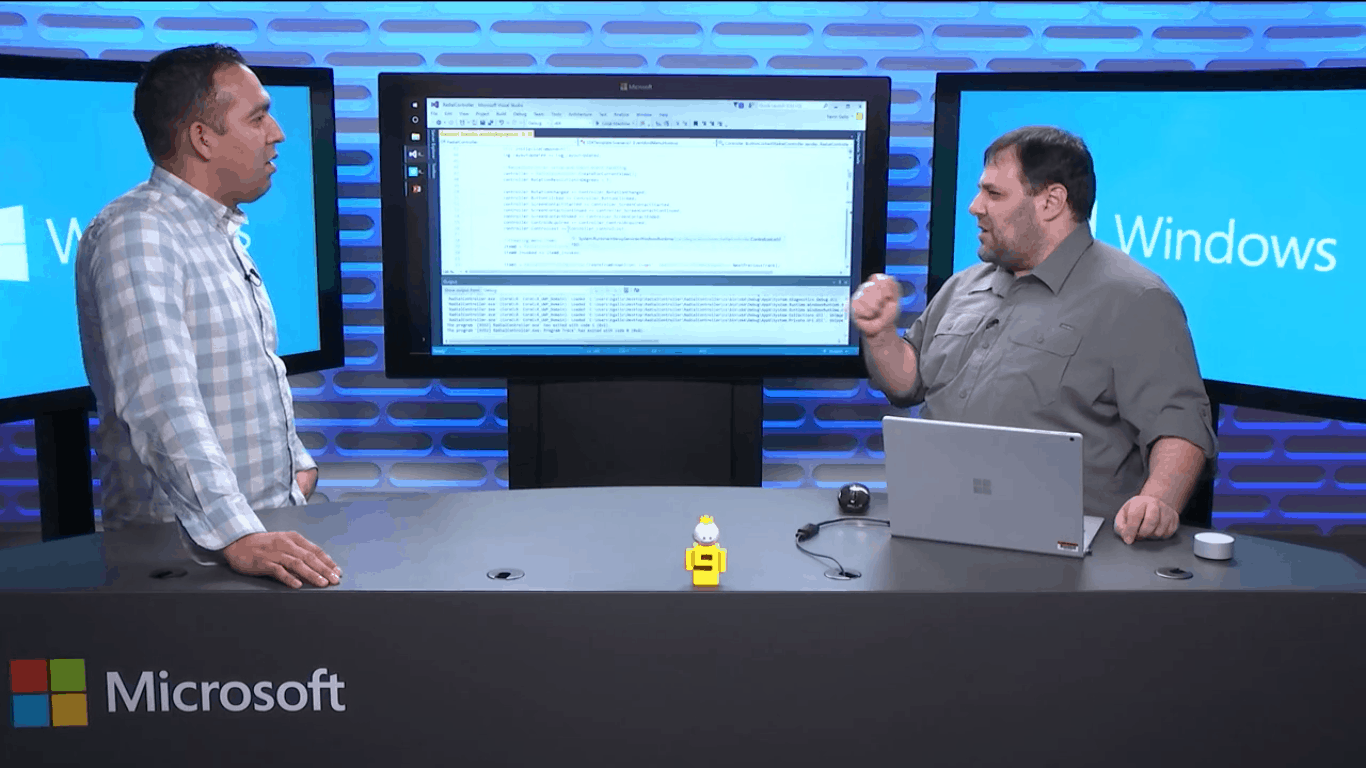
The next Windows Insider webcast is today at 10 AM PST, and you don’t want to miss it. As always, the podcast will be held on Mixer, and you can convert the time to your local time zone by checking here.

We’re hoping to hear more about the next Redstone 4 build during the webcast, but there is no telling what kind of fun you’ll experience while watching. As you may recall, last month’s webcast featured a demo of Windows Timeline, so you might want to watch this month’s webcast as well.

The webcast is also a great way to connect with the Windows Insider team and have them answer your burning questions. And if you happen to miss it live, you always can check later in the day to watch it on demand. Do you think you will be tuning into this month’s podcast? Let us know your thoughts in the comments below!

All future Microsoft Studios titles headed to Xbox Games Pass on launch day, Phil Spencer says

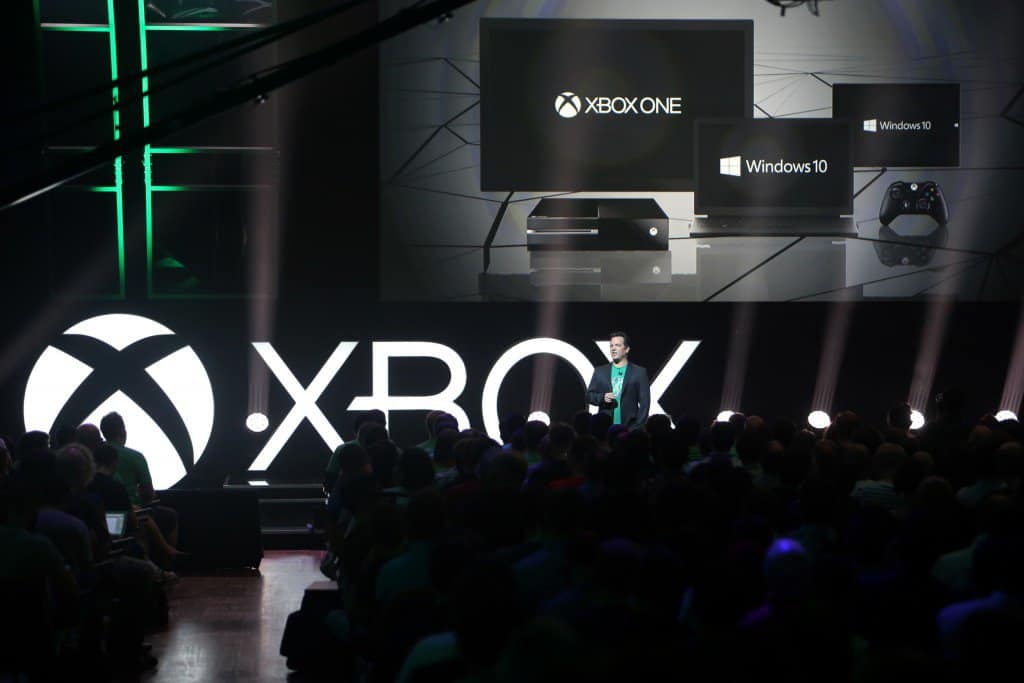
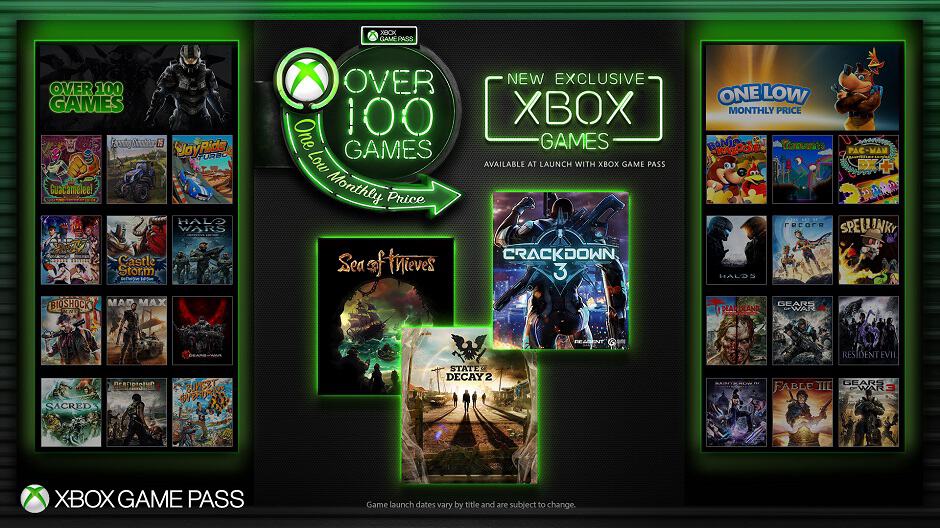
Microsoft’s Xbox Game Pass subscription service has just become much more interesting for gamers. Today, Xbox Head Phil Spencer announced that all future Microsoft Studios titles will be available via Xbox Games Pass on launch day. “This means that when Sea of Thieves launches on March 20, it will be included in Xbox Game Pass to all members,” the exec explained.

Spencer described this news as a “major expansion to Xbox Game Pass that underscores our commitment to deliver our fans the ultimate gaming subscription service.” Indeed, Microsoft is pretty much doing what Netflix and Amazon Video do when they simultaneously release self-produced content in all markets where they operate.

Microsoft has several exclusive first-party games in the pipeline this year including Sea of Thieves, Crackdown 3 and State of Decay 2, and all of them will be available via Xbox Games Pass on launch day. This is pretty great if you don’t want to spend $60 on each of them. Even better, all these games will support Xbox Play Anywhere, which means that Xbox Games Pass is becoming much more interesting for PC gamers this year.

If you’re not very excited by the upcoming games from Microsoft Studios, you may want to reconsider when Microsoft releases new episodes of its biggest franchises such as Halo, Gears of War and Forza. Gears of War 4 and Halo 5: Guardians are already included in the Xbox Games Pass catalog, but it’s still not clear if Forza Horizon 3 and the more recent Forza Motorsport 7 could be added soon.

Last but not least, Spencer announced today that 6-month Xbox Game Pass cards will soon be available to purchase for $59 at select retailers. In the US, GameStop will be one the first retail partners to offer the new cards on March 20. “By working closely with retail partners, Xbox Game Pass will have valuable ambassadors in popular destinations for gamers to discover new and exciting games and enjoy community,” Spencer explained.

Latest Xbox One update, available for everyone, fixes issues with Party Chat, Dolby Atmos, Wi-Fi, and more

Microsoft has released an update for the Xbox One family of systems, focused on fixing issues with Party Chat, Dolby Atmos, Wi-Fi, and more. Though it does not bring any new features, this update is the first Xbox One update for all users since November of 2017, and it definitely will help make things much more stable (via Windows Central.)

As always, if you’ve set up your Xbox to run in Instant On mode, the update should have automatically downloaded to your console. If not, you can head to Settings, System, Console Info and Updates, to manually download the update. See the changelog below for more on the fixes in this release.

OS version: 10.0.16299.4055 (rs3_release_xbox_dev_1711.171203-1700) and 10.0.16299.4059 (rs3_release_xbox_dev_1711.180109-1130)

  • Store: Resolved an issue that sometimes prevented users from pressing B to go back when navigating the Store.
  • Privacy & online safety: Resolved an issue that caused child accounts with family restrictions to retain the restrictions after graduating to an adult account.
  • Party chat: Resolved an issue that caused some users to lose party chat audio and voice quality fixes.
  • Audio: AVRs with HDMI-passthrough should no longer break Dolby Atmos for home theater if the TV and console are turned on before the AVR.
  • Wi-Fi: Resolved an issue that omitted certain wireless networks when scanning for available wireless networks. Resolved an issue that sometimes caused unexpected network disconnections when using a wireless connection.

Microsoft continues to test new Xbox One features with Xbox Insiders, so if you’re eager to try out new Xbox One updates before they hit the public, sign up now to be an Xbox Insider. Let us know your thoughts on this latest update in the comments section below.

Outlook.com beta welcomes back Skype integration

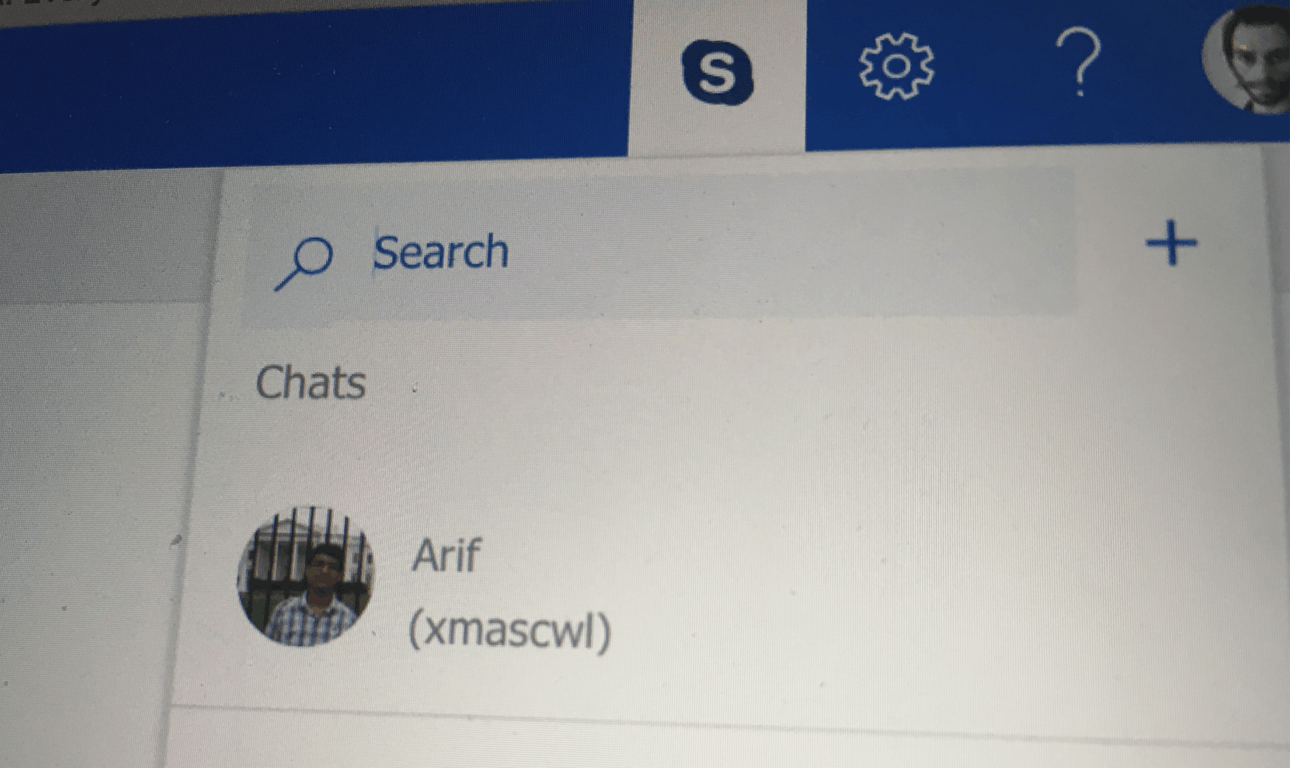
Microsoft has been beta testing a new version of Outlook.com since last year, which dropped the previous Skype integration. Accessible via a dedicated button in the top bar, the built-in Skype app allowed Outlook.com users to access all core features of the messaging app including voice and video calls.

Bringing back the Skype integration to Outlook.com beta was one of the top requested items on the Outlook Feedback website, and Microsoft finally delivered this week. The Skype button is back in the top bar, though the built-in app now looks and works differently.

You can now open multiple chat windows.

You can only chat with your Skype contacts now, and voice and video calls are no longer available. However, it’s now possible to open multiple chats at the same time, which is pretty useful. We also noticed that it’s not currently possible to change your status to “Absent” or “Invisible,” though this will likely be addressed soon. “More improvements to the Skype integration will come in the future, but for now, “please enjoy the upgraded Skype chat experience,” Microsoft said in a message on the Outlook Feedback website.

The Skype button only shows up in the Mail section of Outlook.com, not in the Calendar section which also received a fresh coat of paint this month. If you didn’t like this Skype integration before, be aware that there is still no way to completely turn it off. However, you can mute all notifications in the Settings panel under General > Skype > Notifications.

Deals With Gold: Star Wars Battlefront II is 50% off on Xbox One this week

Microsoft’s new weekly Deals With Gold discounts are now live and there are some usually pretty expensive games up for grabs with significantly reduced prices.

Star Wars Battlefront II on Xbox One has been reduced by 40% this week while the special Elite Trooper Deluxe Edition is now half price. The Elite Trooper Deluxe Edition contains the main Battlefront II video game plus upgrades for all troopers, exclusive alternate skins for Rey and Kylo Ren, plus a variety of Star Cards which are used to enhance characters’ skills in-game.

Other Xbox One games with big discounts worth mentioning are Battlefield 4 (75% off), NBA LIVE 18: The One Edition (75% off), and Titanfall 2: Ultimate Edition (67% off). On the Xbox 360 console, several Street Fighter video games have been discounts as has the Dark Elves add-on for Blood Bowl (33% off). You can see the full list of discounted games here. Note that Deals With Gold discounts are only available to Xbox Live Gold subscribers.

Are you going to grab any of these discounted games? Let us know in the comments below.

Microsoft launches Xbox One X in India

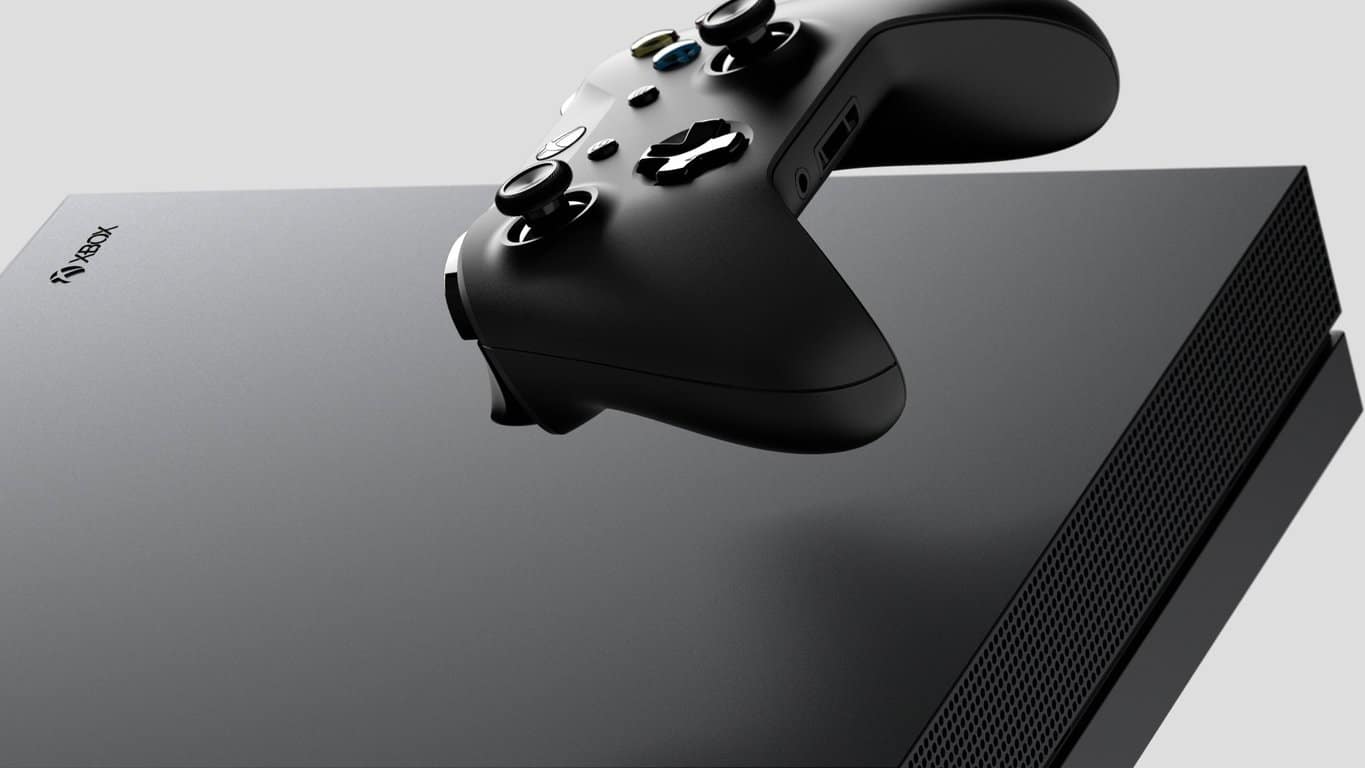
In a press conference in New Delhi today, Microsoft announced the launch of Xbox One X in India. The ‘most powerful gaming console’ – as Microsoft puts it – was launched in November 2017 internationally and is the smallest Xbox console to date.

The Xbox One X is powered by an eight-core custom AMD CPU clocked at 2.3GHz coupled with 8GB flash memory and 12GB of GDDR5 graphics memory. The console packs in 1TB HDD internal storage and comes with a 4K UHD Blu-ray Optical Disc Drive.

We are delighted to offer gamers the world’s most powerful console with access to the largest and most diverse games lineup in Xbox history, including Forza Motorsport 7, Assassin’s Creed: Origins, Cuphead and Super Lucky’s Tale, out of more than 1,300 titles and more than 220 exclusives available on the Xbox One X, just a few short months after the device’s global launch. We’ve listened to our community and are excited to be bringing this new console to Indian gamers.

– Priyadarshi Mohapatra – Country General Manager, Consumer & Devices Sales, Microsoft India


The Xbox One X is available starting today across online (Microsoft Store, Amazon, and Flipkart) and offline stores (Landmark, Croma, and over 100 specialty gaming stores) at a price of ₹44,990 ($705).

The price is almost $200 more than the price in the United States which might irk the gaming enthusiasts in the country, but that’s not an aberration in the electronics scene in the country. It’s good to see the device hitting the shores of India much quicker after the global launch than what has been the case before with Xbox in India. Even PlayStation 4 Pro has had supply issues in India since launch.

Are you looking forward to picking an Xbox One X? What are your thoughts on the pricing? Tell us in the comments!

Windows 10 KB4073291 causes install errors and abrupt reboots

It seems that the annoying boot up issues on AMD computers are here to stay. Microsoft recently pushed three new Windows 10 updates (KB4073291, KB4075199, KB4075200) aimed at providing additional protection against the Meltdown and Spectre CPU vulnerabilities and addressing the issue where AMD computers fail to start.

Windows 10 v1709 KB4073291

This update provides additional protection for 32-Bit (x86) version of Windows 10 Fall Creators Update after you install KB4056892 (OS Build 16299.192). Speaking of this update, keep in mind that you may want to temporarily block it. Many users reported that KB4056892 causes a bevy of issues, ranging from install errors to  PC crashes.

Of course, not installing this patch means exposing your machine to threats. So, choose wisely.

KB4073291 issues

Microsoft listed three known issues on KB4073291’s support page, once of them being quite severe. The update may sometimes cause Windows Update History to report that KB4054517 failed to install due to error 0x80070643. However, despite the fact that Windows Update incorrectly reports that the update failed to install, KB4054517 successfully installs. You can navigate to Check for Updates to verify the installation and confirm that there are no additional patches available.

At the same time, due to compatibility issues with some antivirus versions, KB4073291 may sometimes cause stop errors or abrupt reboots. The best solution is to contact your antivirus vendor for guidance.

KB4075199 and KB4075200

Update KB4075199 is available only for Windows 10 Enterprise and addresses the issue where some users on a small subset of older AMD processors get into an unbootable state.

As far as KB4075200 is concerned, it fixes the issue where old AMD processors fail to boot up and also addresses the bug where certain system parts fail to log off correctly, which leads to unnecessary queries for user credentials.

Have you downloaded KB4073291, KB4075199 and KB4075200 on your computer? Did you encounter any other issues afterwards?

RELATED STORIES TO CHECK OUT:

You’ll soon be able to view and delete diagnostic data in Windows 10

Privacy concerns have been among the many reasons some have stayed away from Windows 10 at all costs. Despite the introduction of a new privacy dashboard last year, many have still claimed that Windows 10 collects too many diagnostics information.

Well, it turns out that you may soon have the ability to view, control and delete diagnostic data in Windows 10 (via ZDNet.) Indeed, there is a new Diagnostic data viewer button in the Diagnostics and feedback settings in Windows 10 Insider Preview build 17063 and 17074. Also in the same area is a button which will presumably give users the ability to delete diagnostic data. Both are just placeholders are at the moment, but you can likely assume the full functionality will come to light soon.

The Diagnostics options in Settings

Microsoft has steadily improved on privacy features and options in Windows 10, and the company recently noted that 71% of Windows 10 users share all of their diagnostics data with Microsoft. The company also said last year that new privacy features in the Windows 10 Creators Update have been positively received by users.

Microsoft software sales in Russia limited by new US sanctions

Seems as though the tit for tat sanctioning between the United States and Russia may be hurting more than international perceptions of its respective leaders. Thanks in large part to the back and forth posturing of the US and Russia, Microsoft has found itself restricted to whom it can sell its software to in the area.

According to a report from Business Insider citing the Moscow Reuters as a source, Microsoft is now being handed down restrictions from official distributors in Russia as to who and where it can sell its software.

Two of Microsoft’s official distributors in Russia have imposed restrictions on sales of Microsoft software to more than 200 Russian companies following new U.S. sanctions, according to notifications circulated by the distributors.

Not only are there restrictions being placed on who Microsoft can sell its software to in Russia but the restrictions come with their own heavy-handed restrictions about how and deadlines accompanying purchase to make sure Microsoft receives payment.

The notification from Microsoft distributor Merlion dated Nov. 29, the day after the new lending rules come into force, said orders would only be fulfilled for financial sector buyers once it had confirmation full payment had been received.

For the defense sector, it said orders would be fulfilled only if partners confirmed payment would be made within 30 days of the software license being activated. For energy sector clients, confirmation of payment within 60 days was required.

“If we do not receive from you documents confirming payment on orders from the defense and energy sectors, the order could be viewed by the vendor as not complying with the processing procedure and rejected,” Merlion’s notification said.

RRC did not spell out the new restrictions in its notification, sent by email last month to its partners.

“In the event that you have buyers from the following sectors of the economy (financial, defense, energy) and they are in the sanctions list, you are requested IN ADVANCE to contact your RRC manager for further instructions.”

“In connection with this, serious restrictions are being introduced on the placing of, and payment for, orders for Microsoft products … placed by these buyers (and also their subsidiaries and affiliated companies),” the notification said.

With restrictions tightening, now would be a perfect time for Russian companies or municipalities to take advantages in gaps of issuance to willfully forego payment of Microsoft software citing sanctions as a convenient deterrent.

While it’s an unfortunate position to be in, Microsoft appears confident that it is doing everything it can to salvage and maintain a working relationship with its partners and buyers without committing to more blatant impositions such chasing civil penalties.

For what’s worth, it seems a handful of companies are distancing themselves from Russian entities on the US blacklist as many may assume this warring of sanctions is a passing phase.

New images of long dead Xbox Watch prototype leak

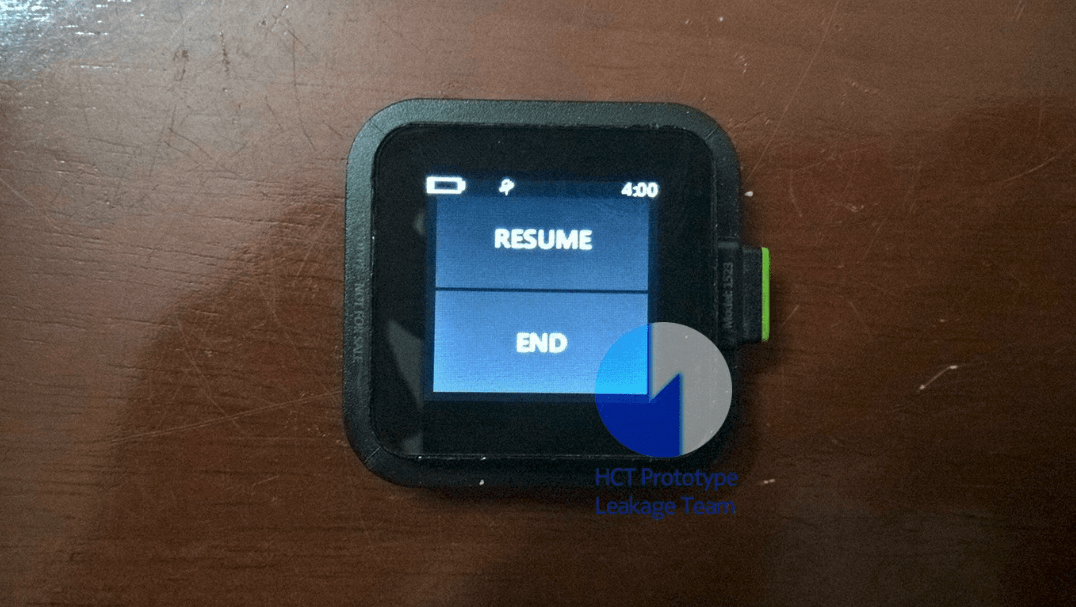
A couple of months ago, leaked images of an Xbox-branded smart watch from Microsoft leaked online, showing the company’s early interest in wearables. Today, Twitter user Hikari Calyx posted new pictures of a working prototype, giving us a first glance at the different features that Microsoft was developing for the wearable device (via Windows Central).

Microsoft’s Xbox smart watch apparently featured a couple of fitness-related apps including an app called “Workouts” as well as a heart sensor. Another picture posted by the leaker shows that the watch had a GPS sensor. Overall, the UI seems to have the same Metro design language that Microsoft was pushing at the time on Windows Phone and Windows 8.

Microsoft apparently killed this project years ago, before it was ever close to release. In retrospect, this was probably a good call: while Xbox is a popular brand with consumers, we’re not sure that putting it on a smartwatch makes a lot of sense. Microsoft tried to do it with Zune, its music streaming service which was rebranded to Xbox Music back in 2012, with very little success. Unless Microsoft was working on deep integrations between the watch and Xbox consoles (we doubt it), using the Xbox brand would have probably created unecessary confusion in the minds of consumers.

The Redmond giant did continue to experiment with wearables with the Microsoft Band, but that didn’t go so well either. After releasing a second iteration back in 2015, Microsoft eventually stopped production a year later. Last year, we saw German company Trekstor create a smartwatch running Windows 10 for IoT, but it doesn’t seem that wearables are a big focus for Microsoft these days.

Microsoft looks to empower students and educators with HoloLens, new Windows 10 devices, Office 365 features

As 2017’s Microsoft EDU event in NYC showed, the Microsoft mission to empower students across the world is very serious. This week at the British Educational Training and Technology Show (BETT,) the company detailed further steps for empowering both students and educators. New Windows 10 devices, new Office 365 for Education features, and new Mixed Reality education and HoloLens incentives highlight the announcements.

On the Windows 10 side, Microsoft unveiled new affordable devices starting at just $189, complete with free professional development with purchase of certain Microsoft 365 Education licenses. The first of the devices is the $189 Lenovo 100e, which is powered by the new Intel Celeron Apollo Lake CPU. There is also the $279 Lenovo 300e, an affordable 2-in-1 convertible PC complete with Windows Ink and pen support.

You can see the other devices from HP and other Microsoft OEMs in the list below:

  • Classmate Leap T303 laptop with Windows Hello, starting at $199 USD
  • Trigono V401 2-in-1 with pen and touch, starting at $299 USD
  • HP ProBook x360 11 EE— $299 USD
  • HP Stream 11 Pro G4 EE PC starting at $225 USD

Keep in mind these devices run Windows 10 and Windows 10 S and are meant to entice educators and students away from Chromebooks. They’re rugged, spill proof, and come with long battery life. IT Pros working in schools can also set them up with ease, thanks to Intune for Education, and Microsoft 365 Education

Lenovo 100e

Next up, with Office 365 Education, Microsoft will add new features to further help students and educators use the software. Examples include dications in Office 365, to help students write more easily via voice, and an expanded immersive reader feature for Word for Mac, iPhone, Outlook Desktop, OneNote iPad and OneNote Mac.

See other features coming soon to Office 365 Education below:

  • OneNote Class Notebook will now include assignment and grade integration with the most widely used School Information Systems in the UK.
  • We are delivering on the number one request from teachers for Class Notebooks, enabling them to lock pages as read-only after giving feedback
  • To enable language learners to engage in classroom conversations, our newest updates to Microsoft Teams will also make it easy to translate any conversation or chat into another language.
  • PowerPoint will now allow teachers to record their lessons including slides, interactive ink, video, and narrations and publish to their Stream channel in Teams classrooms.
Dictation in Office 365

Finally, with Mixed Reality, Microsoft will be working with Pearson to roll out a curriculum that works on both HoloLens and Windows Mixed Reality immersive VR headsets. The company is expanding mixed reality curriculum offerings thanks to a new partnership with WGBH’s Bringing the Universe to America’s Classrooms project. Microsoft will also make available a limited-time academic pricing offer for HoloLens.

HoloLens
HoloLens

Other announcements today include new partnerships in STEM learning. Microsoft will be working with LEGO Education and will offer a free online Hacking STEM lesson plan, and also will allow students to build LEGO bricks from the Simple & Powered Machines set or cardboard to create and visualize an initial transportation plan. Definitely some exciting stuff. Let us know your thoughts in the comments below.


Xbox news recap: Leaks suggest Elite Controller v2 on the way, Xbox One X coming to India and more

Welcome to our weekly Xbox news recap series, where we go over the top stories of the past week in the world of Xbox. Let’s get started.

New leaks suggest Elite Controller v2

A leak on a gaming website named “Reset Era” has leaked out some information regarding the next big piece of Xbox hardware: The Xbox Elite Controller, version 2. The first Xbox Elite controller launched in 2015 and was almost unmatched in quality by all but the most expensive third-party, custom controllers. If the leak is to be believed, this controller will be announced at E3, and feature “Bluetooth for Windows 10”, “3-level Hair Trigger locks”, and “3-Profile Switch”.

Elite v2 knob

Xbox One X on the way to India

If you live in India and want to have the best possible console gaming experience, you’ll get your chance on January 23rd. A few months after its launch stateside, the Xbox One X is releasing in India early next week, at a rather exorbitant price. It’ll be running for ₹44,990 – that’s $700 USD – compared to the $500 USD price point in the States.

Microsoft, Xbox, Xbox One, Xbox One X

BBC America app launches on Xbox One

The BBC America app is available on Xbox One now, for anyone who’s interested. While you’ll need to sign in via your cable provider to watch full episodes on the app, it’ll be the best way to get your fill of The Graham Norton Show, Orphan Black, and more. Like most of these apps, you should be able to watch clips and highlights through the app without a subscription – but that’s what YouTube is for.

BBC America app on Xbox One

Buy 3 months of Gold, get 3 free for a limited time

Up until January 30th, it’s double trouble on Xbox Live Gold. If you choose to pick up a 3 month subscription to the service through the Microsoft Store, you’ll get a code to redeem for an extra 3 months, on top of that. You’ll be free to give this code to a friend, so feel free to share the love with someone you’re planning to squad up with in PUBG.

Thanks for joining us. To keep up to date with all the latest Xbox news, keep a close eye on our Xbox One tag.

Fix status_device_power_failure error in Windows 10/11

The Windows 10 functionality (at least a major part of the platform) is running based on dedicated and specific drivers. These drivers are the ‘interface’ that ensures the virtual connection between the Windows OS and certain internal hardware components.

Shortly, the drivers enable the hardware components so that you can perform your daily tasks – for example, the Bluetooth driver is the software that will enable the Bluetooth functionality when you will want to use this feature.

Anyway, as already obvious, when there are problems with these drivers you will also experience malfunctions when trying to perform certain Windows 10 operations. In that respect, the status_device_power_failure error message might refer exactly to a faulty driver.

Thus, if you recently received the status_device_power_failure error, don’t panic as you can easily fix this Windows 10 common malfunction. In most situations the troubleshooting solutions are implying the following actions: automatically update the drivers that are causing the problems, or if the issues are persistent, manually reinstalling these drivers.

Additionally, the same status_device_power_failure error can appear as a recent update result. Shortly, a Windows 10 system update can mess things up – corrupted files might result or other similar malfunctions can occur, a situation during which you might have to uninstall that update, or look for a new system update that can address all the previous bugs.

Anyway, these troubleshooting solutions will be detailed during the following guidelines.

How to fix status_device_power_failure in Windows 10?

  1. Look for Windows 10 system updates
  2. Remove a recently applied system update
  3. Automatically update drivers
  4. Manually reinstalling drivers

1. Look for Windows 10 system updates

As already explained, a new system update can automatically fix the status_device_power_failure issue, so you need to verify whether you can apply a new patch (it might just wait for your approval):

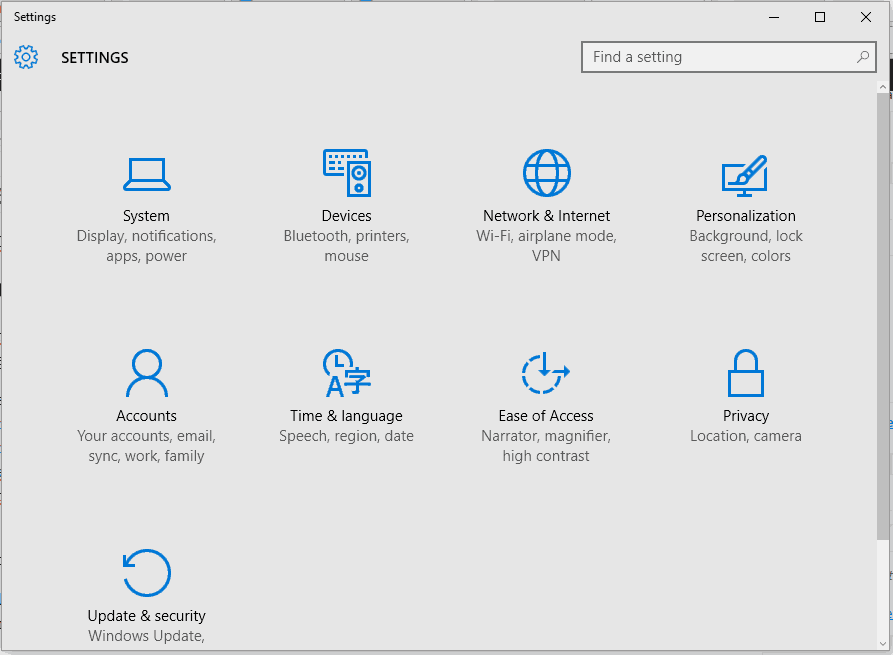
  1. Press the Win+I keyboard hotkeys in order to launch Windows 10 System Settings.
  2. From that particular window click on the Update & Security icon.fix update and security not working windows 10
  3. From the left panel of the main window switch to Windows Update (is the first entry).
  4. Now, on the right panel you should be able to scan for new system updates.check for updates windows 10
  5. If a new Windows 10 patch is available just follow on-screen prompts and complete the flashing process.
  6. When done, reboot your machine and check if the status_device_power_failure error is still there.

2. Remove recently applied system updates

In case you started to receive the status_device_power_failure after applying a new Windows 10 update, a good idea will be to remove this patch. For completing this operation follow:

  1. Press the Win+I hotkeys again and click on Update & Security.
  2. Switch to Windows Update and click on the View installed update history link (from the right field of the main window).remove windows 10 update fix unexpected error database driver
  3. Next, all the patches that were installed on your system will be listed.
  4. Click on the Uninstall updates link.
  5. Just select the update file that you want to remove and complete the associated process.
  6. Reboot your system when that’s done.

3. Update Bluetooth drivers

An outdated device driver might be the reason why you receive the status_device_power_failure error. So, let’s say that you experience this issue when you try to enable Bluetooth. In that case, you need to update the Bluetooth drivers as explained below:

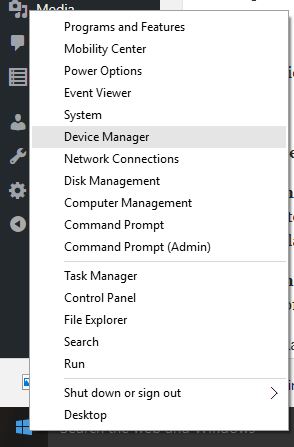
  1. Open Device Manager on your Windows 10 system: right-click on the Windows Start icon and click on the Device Manager entry.device manager windows 10
  2. From Device Manager look for your Bluetooth drivers.
  3. Expand the Bluetooth device entry and right-click on the associated driver.
  4. Choose ‘Update driver’.
  5. Wait while your drivers are updated.
  6. Reboot your PC.

4. Reinstall Bluetooth drivers

If updating Bluetooth drivers isn’t working you should try reinstalling them following these steps:

  1. Go to Device Manager again, just as showed above.
  2. Right-click on the device driver that’s not working properly.
  3. Choose ‘Uninstall device’.
  4. When the process is completed reboot your Windows 10 system.
  5. The drivers should be automatically installed on the first boot.
  6. Similarly, you can manually download the driver from your manufacturer official website (this is the recommended method).

Final thoughts

The methods explained above should help you fix the status_device_power_failure issue. However, if after completing these troubleshooting solutions you are experiencing the same Windows 10 problem, try to update BIOS (you might have an update option within BIOS or you might have to access your motherboard’s manufacturer website).

Anyhow, if these software solutions are in vain, it might be something wrong with your hardware component and you should perform a few tests in order to verify its overall functionality.

Of course, don’t forget to let us know what worked for you – if you applied a solution that wasn’t covered by this tutorial, share it with us and with our readers. We will update the guide accordingly and you will receive the credit for the method your shared with us.

Secure Driver Updater – is it safe or not?

Possible scams or deceptive programs can get downloaded and installed on your Windows 10 system without your consent. Such tools or apps might be flashed alongside other processes especially if you aren’t using a specialized antivirus/antimalware security solution. So, when noticing something with which you aren’t familiar, don’t hesitate and try to find as much info as possible about that certain process, app or program – just use Google since in most situations you will not be the only one who has the same questions.

Anyway, during these lines we are going to discuss about such program: the Secure Driver Updater.

Secure Driver Updater: Should you install it or not?

There are many questions around this tool:

  • Is Secure Driver Updater a virus?
  • How do I remove Secure Driver Updater?
  • Is Secure Driver Updater a malware tool?

Secure Driver Updater is a third-party platform designed to help you search and install the right drivers for your Windows 10 computer. It’s not part from the default Microsoft suit, thus it’s not an essential app available for your PC.

Usually, Secure Driver Updater is installed in the background without asking for your permission – it can be applied alongside other apps or it can be downloaded while you navigate towards suspicious webpages.

The program might automatically start running on your computer, or you might notice its icon near other built-in icons located in the taskbar. Usually, Secure Driver Updater is not dangerous for your Windows 10 device, though its behavior will be quite irritating: it will scan for driver updates prompting you with system alerts, just as a regular malware, and asking you to buy its full software version.

As you can tell, this is a deceptive program, a scam through which your PC might get infected with different viruses. So, the best decision you can make is to remove the Secure Driver Updater from your computer, and here is how you can complete the removal operation.

How to remove Secure Driver Updater from Windows 10

  1. Go to Control Panel: click on the Cortana icon and inside the search engine type Control Panel and click on the first result with the same name.
  2. In Control Panel switch to Category.
  3. From Control Panel, under Programs click on Uninstall a program.
  4. Look for the Secure Driver Updater entry and uninstall the tool.
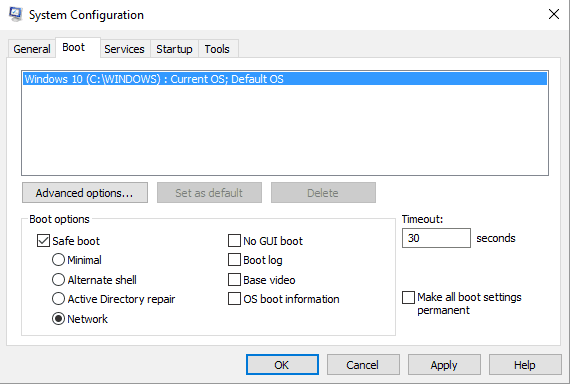
  5. If you cannot complete this process, reboot your Windows 10 system into Safe Mode – in Safe Boot third-party apps are disabled by default.
  6. You can access Safe Boot by: press Win+R keyboard hotkeys and in the RUN box type ‘msconfig’ and press Enter; then, from System Configuration switch to Boot tab and choose Safe Boot; save your changes and reboot your device.safe mode with networking
  7. In Safe Mode access Control Panel again and remove the Secure Driver Updater along with the other files that are associated with this program.
  8. That should be all.

To ensure your OS will remain stable and benefit from the latest drivers, we recommend using professional third-party software that has proved to be efficient without harming your user data or device.

Additionally, we recommend installing an antivirus program on your Windows 10 system – if you use Windows Defender, a good idea will be to download and set a more specialized security solution (read this tutorial and learn which antimalware software to use for better protecting your PC). Then, run a full scan and remove the files which might represent a security breach on your computer.

So, now it should be clear for you if Secure Driver Updater is really safe or not. Overall, you should know better what apps and files you recently installed on your Windows 10 computer. Anyway, the main idea is that you should double-check before choosing what to keep and what to remove from your device; and always set up a dedicated antivirus program for protecting your personal files and other general data.

RELATED STORIES TO CHECK OUT:

Windows 10 news recap: Alexa coming to select Windows 10 PCs, latest Intel CPU firmware updates cause reboot issues and more

Welcome back to our Windows 10 news recap, where we go over the top stories of the past week in the world of Microsoft’s flagship operating system.

Alexa is coming for “select Windows 10 PCs” in Q1 2018, sign up for more info

Select Windows 10 PCs will be receiving built-in Amazon Alexa support in the first quarter of 2018. Those interested are recommended to sign up for further information when it’s available.

Latest firmware updates for Skylake, Kaby Lake CPUs can also cause reboot issues, Intel says

Intel seems to be having a particularly bad start to 2018, and the bad news continues. The latest firmware updates for a number of its processors, including Skylake and Kaby Lake, can cause reboot issues, according to Intel.

Fonts to get their own settings page in upcoming Windows 10 Insider builds

Managing fonts and their respective settings is about to get a bit easier in Windows 10. Windows 10 Insider builds will get their own Fonts settings page in a future build.

Windows 10 Font Settings

Windows 10 FeedLab app updates with new features, Fluent Design and more

The FeedLab app, a third-party Feedly client, has received a significant update on Windows 10, delivering Fluent Design, new features and more. Additionally, three new languages are available in this release. Take a look at all the changes in this update here.

That’s it for this week. We’ll be back next week with more Windows 10 news!

Microsoft Edge Update Deleted My Favorites: How to Restore

Since Windows 10 is a free upgrade for Windows 8 and Windows 7 users it’s no wonder that many users have switched to Windows 10. However, some users have complained that after upgrading to Windows 10 their bookmarks and favorites aren’t available in Edge, so let’s see if we can fix that.

Many of us like to bookmark our favorite websites so we can access them later, but after the Windows 10 upgrade users report that their bookmarks from Internet Explorer aren’t available in Edge, even though Microsoft has said that files and favorites will be transferred from older versions of Windows when you upgrade to Windows 10. So what has happened with our favorites, are they lost, and is there a way to restore them?

How To Restore Missing Internet Explorer Bookmarks After Windows 10 Update

Missing favorites can be a big problem since you won’t be able to access your favorite websites. In addition to missing favorites, users reported the following problems as well:

  • Internet Explorer favorites missing Windows 10 – Many users reported that their Internet Explorer favorites are missing after Windows 10 upgrade. This can be a problem, but you should be able to restore your favorites using one of our solutions.
  • Where are my favorites in Windows 10 – Many users have problems finding their favorites on Windows 10. However, you can find your favorites simply by going to your user directory.
  • Internet Explorer 11 favorites disappeared – According to users, their Internet Explorer 11 favorites disappeared on Windows 10. This is a strange problem, but you should be able to restore them by going to the Favorites directory.
  • Internet Explorer bookmarks registry – Sometimes this problem can occur due to problems with your registry. To fix them, you need to manually make a few changes to your registry.
  • Internet Explorer bookmarks to Edge – If favorites are missing in Edge, you might be able to fix the issue by importing Internet Explorer bookmarks to Edge. This is rather simple, and in this article we’re going to show you how to do it.
  • Edge favorites missing – Your Edge favorites can become missing due to various reasons, but you should be able to fix that problem using our solutions.

Solution 1 – Select Open with Internet Explorer option from Edge

If your favorites are missing after Windows 10 upgrade, you might be able to access them from Internet Explorer. Microsoft Edge and Internet Explorer aren’t the same application, and if favorites are missing from Edge, they are most likely available in Internet Explorer. To access Internet Explorer, you need to do the following:

  1. Start Windows Edge.
  2. In the top right corner click the more actions button represented by three dots and select Open with Internet Explorer option from the menu.
    Internet Explorer favorites missing Windows 10
  3. Now Internet Explorer will open and you’ll have access to all of your bookmarks.

Now you should be able to export your favorites and import them to Edge with ease.


Solution 2 – Import favorites from Internet Explorer

Using Internet Explorer every time when you want to access your favorites isn’t the most practical solution, and this is why it could be a lot better that you import Internet Explorer favorites to Windows Edge.

  1. Start Edge browser.
  2. Select Hub > Favorites.
    Internet Explorer 11 favorites disappeared
  3. Now click on Import favorites button.
    Internet Explorer bookmarks registry
  4. Select Internet Explorer from the list and click on Import button.
    Internet Explorer bookmarks to Edge

Now you just have to wait for a couple of moments while your favorites are imported from Internet Explorer to Microsoft Edge. After the importing is done, you should be able to access your favorites again.


Solution 3 – Check you Favorites directory

If your Internet Explorer favorites are missing, you might be able to access them by going to the Favorites directory on your PC. To do that, you need to follow these steps:

  1. Press Windows Key + R to open the Run dialog.
  2. Now enter %userprofile% in the input field and press Enter or click OK.
  3. Now go to Favorites directory and you should be able to find all your old favorites.
    Internet Explorer favorites missing Windows 10

You can also quickly access this folder simply by navigating to the C:Usersyour_usernameFavorites directory in File Explorer. Once you find your favorites, you should be able to open them in Microsoft Edge and save them once again.

Few users reported that you might be able to fix this problem simply by restoring the previous version of Favorites directory. This is relatively simple, and you can do it by following these steps:

  1. Locate the Favorites directory by following the steps from above.
  2. Right click the Favorites directory and choose Properties from the menu.
    Where are my favorites in Windows 10
  3. Now navigate to Previous Version tab. Select the older version and click on Open or Restore.
    Internet Explorer 11 favorites disappeared

After doing that, you should be able to see all your old favorites.

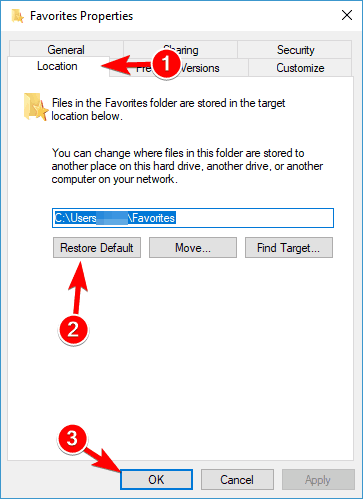
You can also try to restore the default location for the Favorites directory. This is quite simple and to do that you need to follow these steps:

  1. Locate the Favorites directory, right click it and choose Properties from the menu.
  2. Now navigate to the Location tab and click on Restore Default. Click on OK to save changes.
    Where are my favorites in Windows 10

After doing that, check if the problem still persists.


Solution 4 – Check your registry

According to users, if your favorites are missing after Windows 10 upgrade, the problem might be related to your registry. Sometimes certain values aren’t pointing to the correct directories, and that can cause the problem to appear. However, you can fix that by doing the following:

  1. Press Windows Key + R and enter regedit. Press Enter or click OK.
    Internet Explorer bookmarks registry
  2. In the left pane, navigate to ComputerHKEY_CURRENT_USERSoftwareMicrosoftWindowsCurrentVersionExplorerShell Folders. In the right pane locate Favorites and be sure that the path to your Favorites directory is correct. By default it should be C:Usersyour_usernameFavorites. If it’s not, double click it to change it.
    Internet Explorer bookmarks to Edge
  3. Now navigate to the User Shell Folders key and check the Favorites value. It should say %USERPROFILE%Favorites. If the value is different, feel free to change it to %USERPROFILE%Favorites/.
    Edge favorites missing
  4. Optional: Make the same changes in HKEY_USERS.defaultSoftwareMicrosoftWindowsCurrent VersionExplorerShell folders and HKEY_USERS.defaultSoftwareMicrosoftWindowsCurrent VersionExplorerUser Shell folders keys.

Several users reported that sometimes Favorites string can point to the wrong drive or directory causing this error to occur, but as you can see, you can easily solve this problem by using one of our solutions.

We also have a guide on what to do if your Edge tabs disappear, so don’t miss that guide for more information.

That’s about it, now you know how to bring back your bookmarks to Microsoft Edge, even if the system deleted them by accident.

Microsoft announces dates for next Windows Insider webcast plus upcoming meetups in Japan

Following the release of a minor update for the Windows 10 Insider build 17074 yesterday, Microsoft announced some fresh news for Windows Insiders this morning. First of all, the next Windows Insider webcast will air on Tuesday, January 23 at 10AM PST. As usual, the webcast will broadcasted live on the Windows Insider Mixer channel, and we hope to get some new information about the Redstone 4 update during the show.

Next, the team also announced upcoming Windows Insider meetups in Japan next month. There will be separate meetups in Tokyo and Osaka for Windows Insiders and IT Pros, with the first meetup to be held on February 17. Jen Gentleman from the WIndows Insider team summarized everything you need to know in the tweet below:

If you live in the area, you can learn more information about how to register on the company’s Japan Windows blog (in Japanese). This will be the third series of meetups in the country, which seems to have a pretty active community of Insiders.

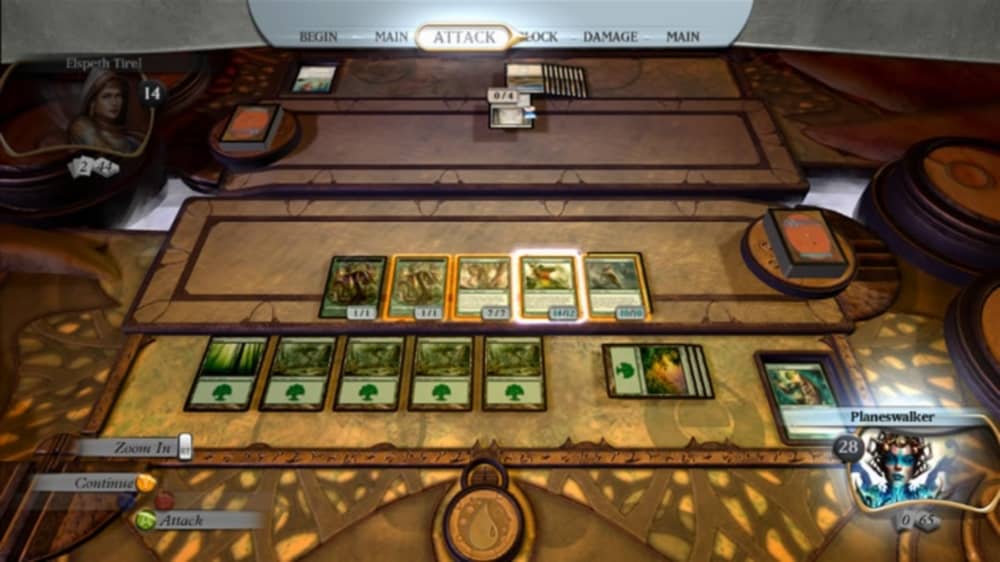
Three games from the Magic: The Gathering series come to Xbox One Backward Compatibility

Three collectible card games based on the popular Magic: The Gathering series have just been added to the Xbox One Backward Compatibility List: These are Magic: The Gathering – Duels of the Planeswalkers and its sequels Magic 2013 and Magic 2014. The three card games have been released between 2009 and 2013 on the Xbox 360 and all of them received positive reviews.

Each of these games is currently priced at $9.99 on the Microsoft Store, and you can read more details about them below:

Magic: The Gathering – Duels of the Planeswalkers ($9.99)

Magic: The Gathering — Duels of the Planeswalkers brings the world’s premier trading card game to your living room! Play single and multiplayer campaign modes, test your skills with unique challenges, and engage online opponents via Xbox LIVE. With multiple game modes, an interactive tutorial, leaderboards, and achievements, Duels of the Planeswalkers has something for everyone!

Magic 2013 – Duels of the Planeswalkers ($9.99)

Face a greater challenge in the latest version of this hit franchise. Play with friends or the AI, take on new encounters and opponents, and face up to three other players in the Planechase multiplayer format. Featuring ten customizable decks, Magic 2013 offers new game items to unlock and introduces the option to choose what lands to tap when you cast your spells.

Magic 2014 – Duels of the Planeswalkers ($9.99)

Ignite your spark with Magic 2014 — Duels of the Planeswalkers! With over 12 million fans, discover what makes Magic: The Gathering the world’s premier trading card game. Become a Planeswalker and travel the planes of existence unleashing a torrent of spells and creatures to devastate your opponents.

In case you missed it, Sniper Elite V2, Far Cry 2 and the racing game Driver San Francisco also became backward compatible on the Xbox One earlier this week. We’re hoping to see more Xbox 360 games join the list next week.

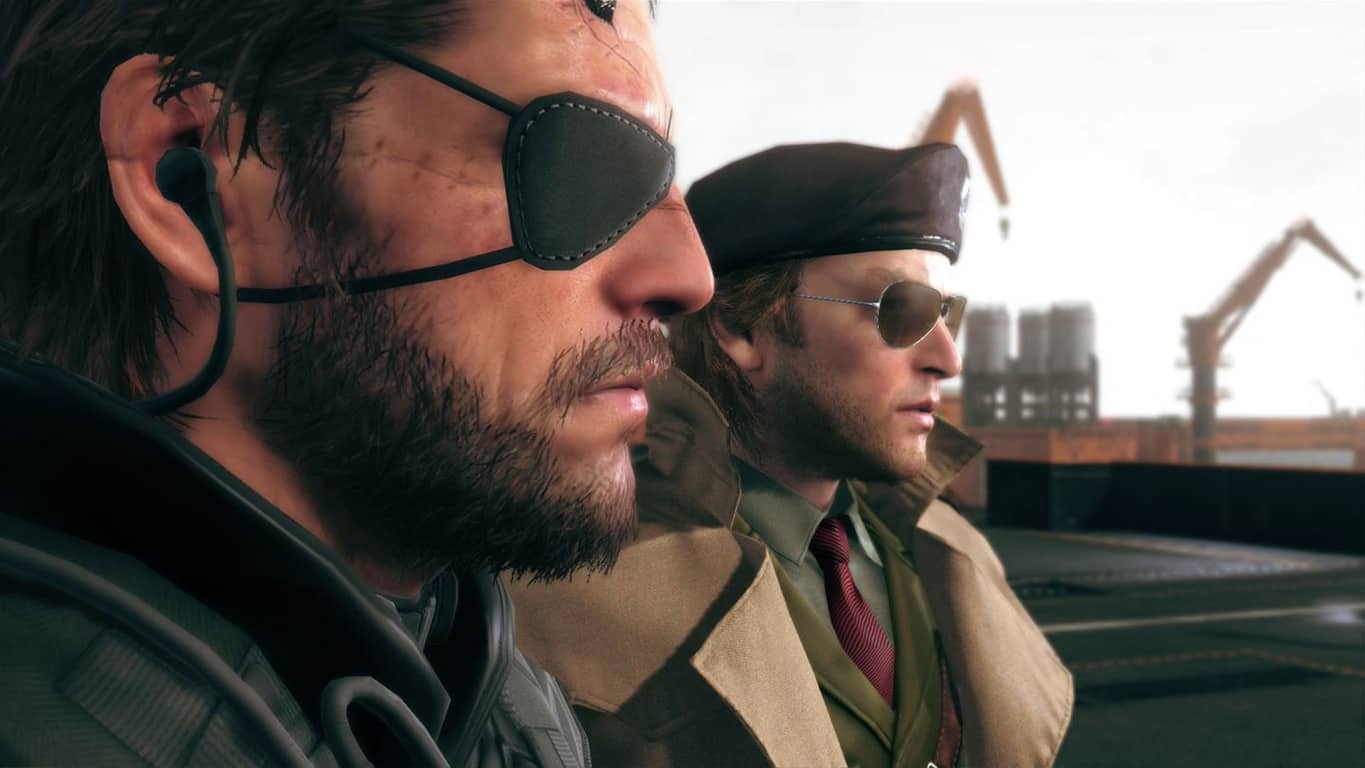
Metal Gear Solid V: The Phantom Pain and WWE 2K16 are leaving Xbox Games Pass on January 31

According to a message that was sent out to several Xbox Game Pass subscribers, (shown off by Reddit user /u/odoggyfresh) Metal Gear Solid V: The Phanton Pain and WWE 2K16 will be leaving the game pass at the end of January. This is a bit of a shame for Game Pass members who were looking forward to subscribing in the future, but were counting on one of these two games as the “killer app” for the service.

The two titles will be replaced by games like Halo Wars 2, Darksiders 2, and NBA 2K17 starting on February 1st, so Game Pass subscribers will have something new to sink their teeth into. If you still haven’t finished Metal Gear Solid V or gotten a good taste of WWE 2K16, you should start doing that now. Only a little over a week remains until these games are out for the count.

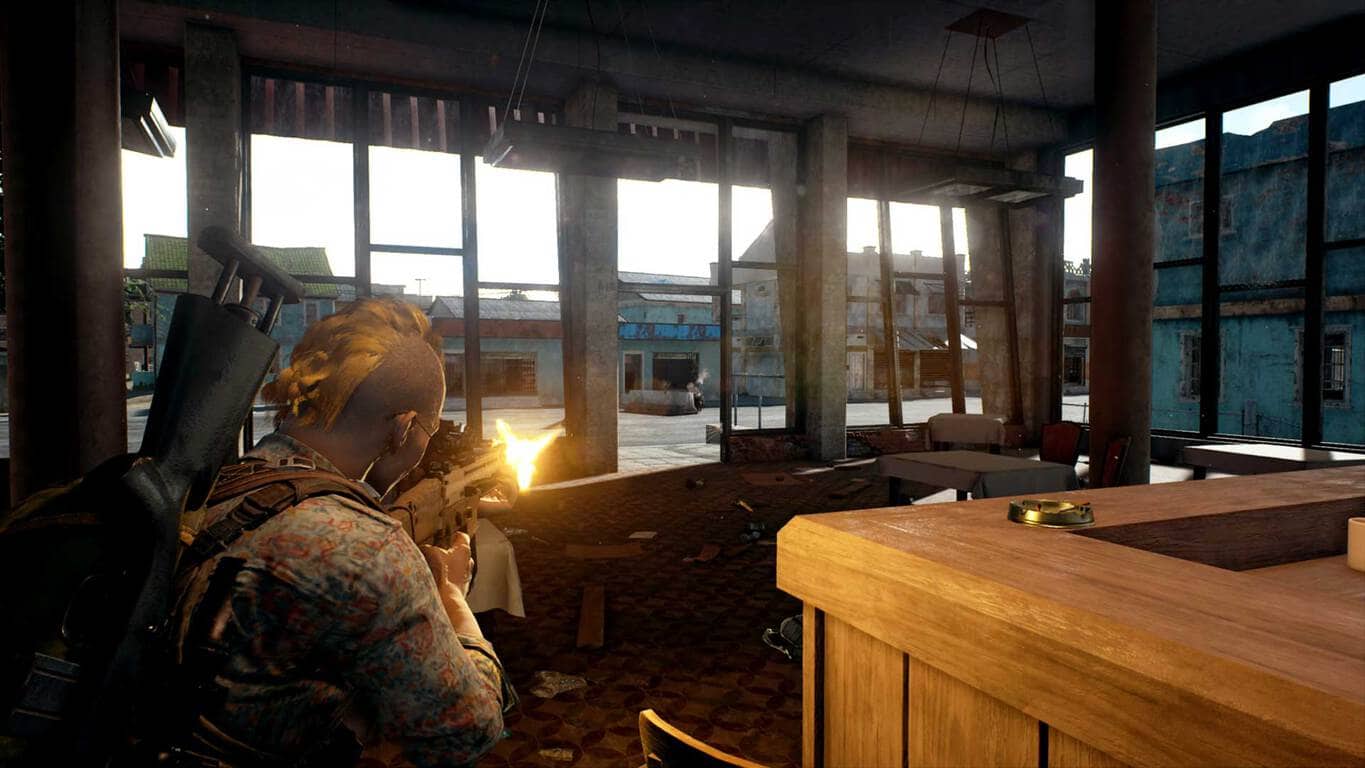
PlayerUnknown’s Battlegrounds (PUBG) outsold Call of Duty: WWII on Xbox One last week

PlayerUnknown’s Battlegrounds (also called PUBG) was the number one selling video game on the Xbox One family of consoles last week according to GfK Chart – Track. This ranking is limited to physical sales so it’s unclear exactly how well the game sold digitally though we do know it’s been doing pretty damn well overall.

PlayerUnknown’s Battlegrounds was one of the biggest video games of 2017 on PC and came to Xbox One in a Game Preview (aka open beta) version in December that same year. PUBG is still in Game Preview but that hasn’t stopped millions of players (literally) buying the game and diving in.

In addition to having a huge following who had been wanting to play it on a home console like the Xbox One, PUBG is also relatively cheap compared to most other major releases. It’s currently almost one third the price of Call of Duty: WWII for example.

Are you surprised to see PlayerUnknown’s Battlegrounds doing so well on the Xbox One? Sign-off in the comments below.

How to transfer Google Drive files with Cyberduck in Windows 10

Cyberduck is one of the best open-source FTP (File Transfer Protocol) software for Windows 10 and other platforms. This is an intuitive program with which you can connect to remote hosts to transfer files. As such, this is ideal software to add new content to your website with.

However, you can also utilize Cyberduck to transfer files to and from cloud storage services. Cyberduck enables you to open Google Drive, Dropbox, OneDrive, Google Cloud Storage and other cloud storage services within its window. This is how you can transfer Google Drive documents via Cyberduck in Windows 10.

  • First, press the Download button on this webpage to save Cyberduck’s installer to Windows. 10.
  • Open the folder you saved the Cyberduck installer to in File Explorer.
  • Launch the Cyberduck installer to add the software to Windows 10.
  • Before you launch Cyberduck, open your default browser (which will be Edge in Windows 10 unless you’ve configured otherwise); and log out of your Google Account if you’re currently signed in to it.
  • Open the Cyberduck software shown in the snapshot directly below.

  • Press the Open Connection button to open the window in the shot directly below.

  • Select Google Drive from the drop-down menu at the top of the Open Connection window.

  • Then enter your Google Account email address in the Google Account Email text box.
  • Press the Connect button on the Open Connection window.
  • When you press the Connect button, your default browser will automatically open. Now you’ll need to sign in to your Google Account.
  • Thereafter, the tab in the shot directly below will open that includes an authentication code. Copy that authentication code with the Ctrl + C hotkey.

  • Next, return to the Cyberduck window; and press the Ctrl + V hotkey to paste the code in the Authentication Code box shown directly below.

  • Thereafter, you can click My Drive in Cyberduck to open your GD cloud storage as in the snapshot directly below.

  • To transfer a file from GD to your hard disk, right-click a document and select Download To.

  • Select a folder to save the document to.

  • Press the OK button to download the file to chosen folder. The window below will then open that includes a progress bar for the file transfer.

  • Alternatively, you can download files to your hard disk by dragging and dropping them from the Cyberduck window to a folder open in File Explorer.
  • When the document is saved to your HDD, press the Show button on the Transfers window to open the folder that includes the file.
  • To save a file on your hard disk to Google Drive, press the Upload button.
  • Select a file or folder to transfer to your cloud storage from the window below, and press the Choose button. The Transfers window will then open again.

  • Press the Refresh button to update Google Drive in the Cyberduck window. Then you’ll find the new file listed there.
  • You can also open documents directly from the Cyberduck window by selecting one and pressing the Edit button. That will open a small list of software from which you can select an application to open the document.

  • Cyberduck will automatically open your GD cloud storage when you launch the software unless you press the Disconnect button. You can quickly re-establish the connection with GD by clicking the History button and then selecting Google Drive.

  • Alternatively, add Google Drive to bookmarks by clicking the Bookmarks button. Then click Bookmark > New Bookmark to save the cloud storage to your bookmarks.

So that’s how you can utilize Google Drive with Cyberduck. Of course, you can also utilize other cloud storage with the FTP software much the same. Overall, Cyberduck is a great alternative to the Google Drive app as it doesn’t require any extra GD File Explorer folder.

RELATED STORIES TO CHECK OUT:

Digital pre-orders open for Attack on Titan 2 on Xbox One

Attack on Titan 2 is now available to digitally pre-order on Microsoft’s family of Xbox One consoles ahead of its March 20th 2018 release date.

This title is a sequel to the first action video game based on the popular anime and manga of the same name and features several pre-order bonuses. Digital pre-orders will get alternate plain clothe skins for the Christa, Ymir, Reiner, and Bertholdt characters while anyone who buys the game before April 16th will get plain clothes for Eren, Levi, Mikasa, and Armin. Here’s the official game description.

Abandon all fear. A.O.T. 2 is the gripping sequel to the action game based on the worldwide hit anime series “Attack on Titan.” Experience the immense story of the anime alongside Eren and his companions, as they fight to save humanity from the threat of the deadly human devouring Titans. Try your hand in operating the omni-directional mobility gear, maneuvering and flying through the sky to counter the Titans, and feel the thrill and satisfaction of battling giant opponents.

Are you an Attack on Titan fan and are you hyped for this game? Let us know in the comments below.

Windows 10 build 16299.201 is out with “additional protections” for 32-bit systems

Microsoft is rolling out today another cumulative update for Windows 10 version 1709, more commonly known as the Fall Creators Update (via Neowin). This is the build 16299.201 (KB4073291), which only brings “additional protections” for 32-bit PCs which have already installed the build 16299.192 released on January 4.

It seems that this update is only available for PCs running the 32-bit version of the Windows 10 Fall Creators Update, as we’re not seeing on our 64-bit systems. More importantly, the support page also mentions a known issue where incompatible antivirus software can cause “stop errors or abrupt reboots,” so be aware of this before proceeding

This month was quite special in terms of Windows 10 updates: following the release of emergency updates on January 4 to address the Meltdown and Spectre vulnerabilities, we didn’t have a “Patch Tuesday” update on the second Tuesday of January. Then this week, the Redmond giant released the cumulative update build 16299.194 for AMD PCs, plus this freshly-released build for 32-bits systems. Hopefully, things will get back to normal next month.

Microsoft Research created a bot that can draw anything you want

Microsoft Research is at it again. Microsoft Research has created a bot that will draw anything you want. While the thought of a bot drawing anything you want sounds great for those that have trouble drawing stick figures, it can be harder to teach AI to do something that comes naturally for some humans.

Microsoft, research, bot, drawing

Microsoft Research describes the new bot technology as such:

“The new artificial intelligence technology under development in Microsoft’s research labs is programmed to pay close attention to individual words when generating images from caption-like text descriptions. This deliberate focus produced a nearly three-fold boost in image quality compared to the previous state-of-the-art technique for text-to-image generation, according to results on an industry standard test reported in a research paper posted on arXiv.org.

The technology, which the researchers simply call the drawing bot, can generate images of everything from ordinary pastoral scenes, such as grazing livestock, to the absurd, such as a floating double-decker bus. Each image contains details that are absent from the text descriptions, indicating that this artificial intelligence contains an artificial imagination.”

Usually, if you wanted to find an image, you would do a web search, but now there’s a bot that can create an image based on what you tell it to draw. This drawing bot uses some other bots to help it draw any requests you might have.

“The drawing bot closes a research circle around the intersection of computer vision and natural language processing that He and colleagues have explored for the past half-decade. They started with technology that automatically writes photo captions the CaptionBot.”

Microsoft Research details the more technical aspects of how the drawing bot works. However, it would be great to see what people come up with when describing images they want to the bot to draw.

Learn more about Windows 10 on ARM, Always Connected PCs from Channel 9, live at 10am PST

Kevin Gallo, VP of Windows Development Platform at Microsoft will be hosting another Windows Community Standup show today at 10 AM PST on Channel 9. Gallo will be answering your most pressing questions involving Windows 10 on ARM, Always Connected PCs, and more.

Windows Community Standup is a monthly online Channel 9 broadcast where Microsoft employees provide informmation on the latest and most exciting things that they are working on in Windows, to provide a more transparent Windows experience with users and developers.

In this newest Windows Community Standup session, Gallo will be joined by guest speakers Erin Chapple (GM) and Hari Pulapaka (Principal Group Program Manager – Windows Base Kernel). Gallo will be looking at The Always Connected PC and how it will bring a new category of computer hardware that mixes the connectivity of a smartphone with the creativity of a full Windows PC.

Gallo will expand upon the Always Connected PC and explain how Windows 10 on ARM works and what Windows 10 on ARM will contribute to the Always Connected PC. In addition, the group will give viewers an overview of the Always Connected PC, and developer tips for developing for Windows 10 on ARM. Those who tune in will be able to ask live questions and the team will answer your questions on the Always Connected PC and Windows 10 on ARM, live!

Tune in to Channel 9 for the new Windows Community Standup, starting at 10 AM PST.

Microsoft’s Xbox One X console now coming to India on Jan 23rd

On January 23, 2018, Microsoft will be bringing the Xbox One X to India. The specific Xbox One X availability date in India comes via a report by Windows Central. While the Xbox One X retails for $499 in the US, the Xbox One X will retail for almost twice that in India, coming in at ₹44,990 ($700 US).

No details have been given on why the price of the console in India is so high, but Microsoft may make an official announcement on the pricing later this month. If you add in the cost to get a 4K TV and you will be paying quite a steep premium to play the Xbox One X if you live in India.

If you live in India, it might make more sense to get an Xbox One S. However, if you are looking to play the most powerful console on the planet, be ready to shell out some serious dough. Stay tuned for more information on pricing and availability.

Windows 10 FeedLab app updates with new features, Fluent Design and more

FeedLab, one of the best third-party Feedly clients for Windows 10, has been updated to version 3.0 this week. The major release introduces many new features including improved Live Tiles, several UI improvements and even Fluent Design touches here and there.

The new version also brings some welcome bug fixes, three new languages (German, Spanish and Bralizian/Portuguese) and more. The full changelog is available on this page.

The app is still free to use with a $2.99 in-app purchase to remove the ads. It’s a solid universal app overall, and probably a must have for news junkies. If you don’t use Feedly and RSS feeds, you can still use FeedLab without signing in and enjoy some curated news in a well-designed app. You can download FeedLab on your Windows 10 PC or phone with the download link below.

FeedLab
FeedLab
Developer:
ClevLab
Price:
Free

Save big on Windows Mixed Reality headsets via Amazon

Last October Microsoft formally introduced a range of Windows Mixed Reality headsets coming from third party manufacturers like HP, Acer, Dell, and Samsung. The headsets, with retail prices running from $399 to $599, require a connection to a Windows 10 Fall Creators Update machine, and mark Microsoft’s first consumer foray into the AR/VR market.

While we saw some significant discounts during the holiday season, Amazon has a number of the new headsets on sale (through third-party sellers). Here’s the list of discounts, via Windows Central:

Acer Windows Mixed Reality Headset – $218.99 (down from $399)
Dell Visor – $219.96 (down from $449)
HP Windows Mixed Reality Headset – $201 (down from $449)
Lenovo Explorer Bundle – $246.99 (down from $399)

If you’re looking into getting into Mixed Reality in the new year, now’s the time to take advantage of these great prices.

Xbox chief hints at “positive changes” coming for E3 show

Xbox chief Phil Spencer indicated in an interview with Digital Trends that E3 2018 will see some “positive changes” this year. No word yet exactly what these changes will be, but Microsoft likely wants to avoid the issues they faced last year at E3 2017. E3 2018 will take place in Los Angeles, CA on June 12-14, 2018.

Looking to the interview, Microsoft’s Phil Spencer indicated some changes coming for E3 2018:

“I don’t think we’ve talked about [it] yet, but I think will be some positive changes at E3. Could be fun for us; it’ll be a nice change.”

Nothing like a vague statement by Microsoft to put the Xbox world in a talespin. Various rumors have been going around, namely a possible Halo 6 in the works. Other rumors include another Gears of War (5), and a possible Fable 4.

The only meaningful changes that anyone wants to see from Microsoft is new Xbox One games, new Windows 10 games, and more Xbox Play Anywhere games. In order for Microsoft to deliver “positive changes,” the company will have to announce Xbox games do more than excite people. Microsoft will have to shock the world at E3 2018 in Los Angeles on their press conference this year. We’ll have to wait and see what these “positive changes” actually are.

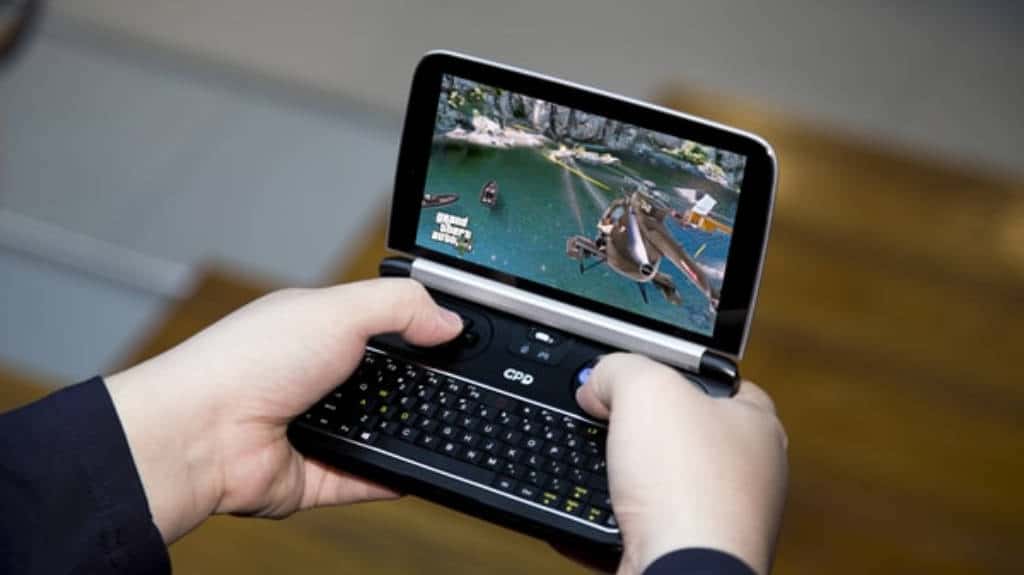
GPD WIN 2 is an upcoming Windows 10-powered handheld game console cum laptop

Shenzhen-based GPD has announced the successor to its experimental handheld GPD WIN launched last year. The WIN 2 comes with upgraded hardware and some design tweaks.

This time around, the company packs a Core m3 processor instead of an Atom processor and doubles the RAM to 8GB. The battery capacity too has been increased.

Although a much better spec’d device on paper, the pitch of the GPD WIN 2 is similar to the first-generation device. It’s a pocket-sized laptop with built-in gaming controls that allows it to double as a handheld gaming console. The company claims much improved gaming performance such as running Grand Theft Auto 5 at 38fps at maximum settings and World of Warcraft with an average of 30fps.

Of course, since it runs full-blown Windows 10, it can run anything you throw at it – within its hardware capabilities, that is. How much productive you can be on a 6-inch display with a tiny keyboard is debatable obviously.

GPD WIN2 Specifications

The GPD WIN2 doesn’t come cheap, and anytime soon. The device will go on sale starting May 2018. The company is running an Indiegogo campaign for crowdfunding, like it always does, and taking orders for the device for $649 – which is $250 off the retail price, as stated.

As we’ve seen with other GPD devices in the past, the retail price usually drops very soon, so we can expect it to be slightly cheaper than what GPD envisions at this point. The GPD WIN2 might be a niche pocket laptop, but with its gaming creds, it might interest a few more gaming enthusiasts.

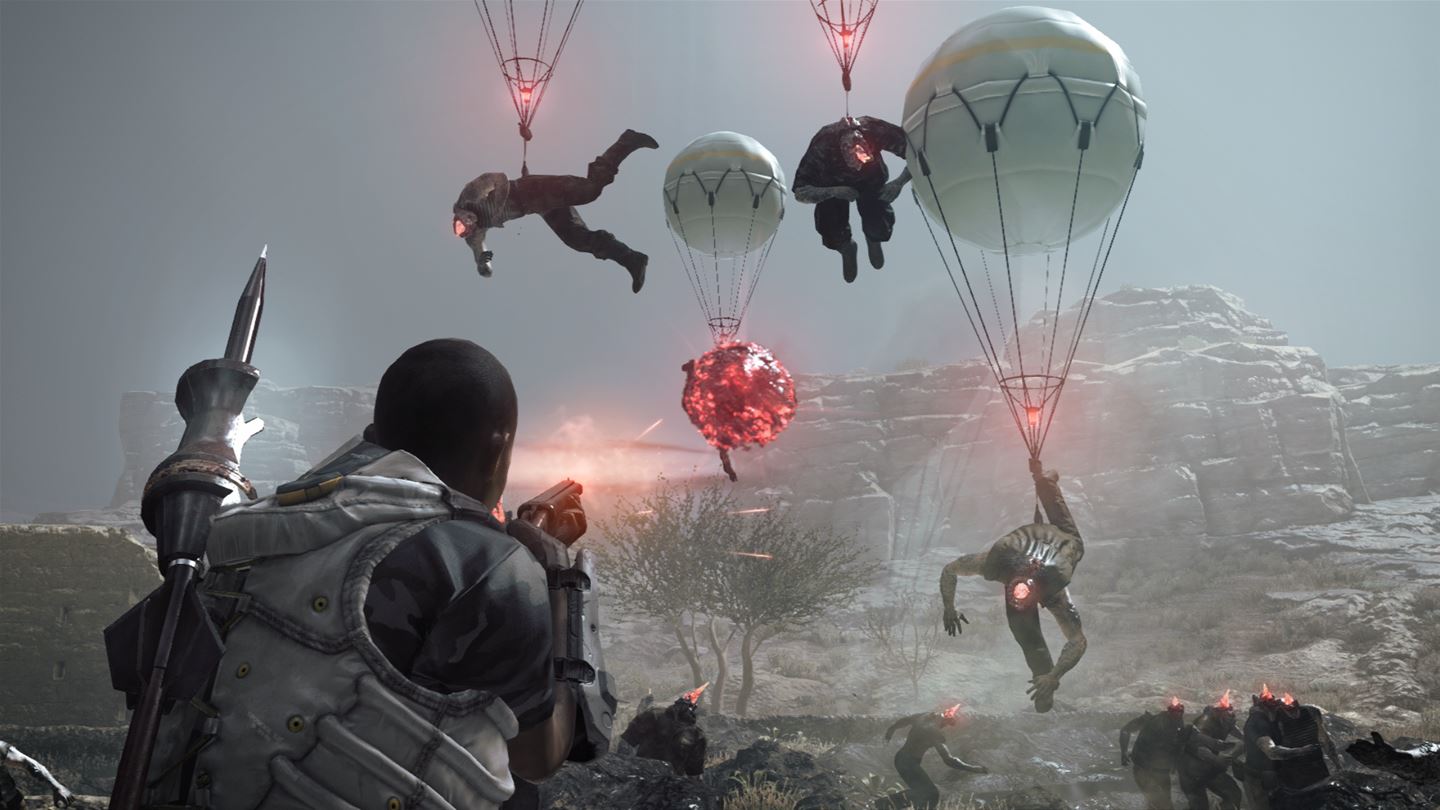
Digital pre-orders for Metal Gear Survive now open on Xbox One

The next installment in the Metal Gear saga, Metal Gear Survive is available now for pre-order on Xbox One. Metal Gear Survive appears to continue the story of Metal Gear Solid V: The Phantom Pain and pits the player against creatures (zombies?) from another dimension. Here is a trailer of single player action available in Metal Gear Survive.

Metal Gear Survive is no longer directed by the legendary Hideo Koijma, Konami has decided to take Metal Gear in a different direction. Whereas, Koijima made Metal Gear about fictional political espionage, Metal Gear Survive looks to focus the player on zombie-like creatures from a different dimension.

Now that Koijima is out of the picture on all things Metal Gear, it is safe to say that Metal Gear Survive will not continue the epic Metal Gear story. Looking at the trailer, it doesn’t look like Snake will play any role in the new Metal Gear-branded game. Still, Metal Gear Survive is modestly priced at $39.99 and is available for pre-order now on Xbox One. Pre-order it today and see if Metal Gear Survive can hold up without Hideo Koijima at the helm.

Microsoft is #1 in new Top 100 Global Tech Leaders list

Microsoft received quite some criticism recently for focusing too much on its enterprise customers and neglecting consumers. It remains to be seen if the Redmond giant could really become the next IBM, but for now it seems to be doing better than ever. The company’s US stock price broke $90 per share earlier this week, and the very serious Thomson Reuters put Microsoft at the top of its new top 100 global tech leaders list today.

The new ranking is described by Thomson Reuters as “a unique evaluation framework that incorporates financial performance metrics alongside supply chain risk, pending litigation, innovation, social responsibility and a number of other factors.” It’s also important to note that the list doesn’t includes companies with 2016 revenue below $1 billion.

The information firm only ranked the companies in the top 10, which includes Intel (#2), Cisco Systems (#3), Apple, Alphabet and IBM. Interestingly, Amazon and Facebook didn’t make the top 10, same for Asian giants Samsung, Sony and Lenovo. The data actually reveals that 47 tech companies from the top 100 are headquartered in North America (45 in the US), 38 in Asia, 14 in Europe and just one in Australia.

“To succeed today, tech companies need not only run their day-to-day operations effectively, but they also must manage a confluence of legal, regulatory, operational, environmental, supply chain and technological variables,” explained Thomson-Reuters. Microsoft may not be the richest and most profitable company in the world, but its CEO Satya Nadella is obviously doing a lot of things right. Still, you may have many reasons to disagree with Microsoft being the top technology leader today. Let us know what you really think in the comments below.

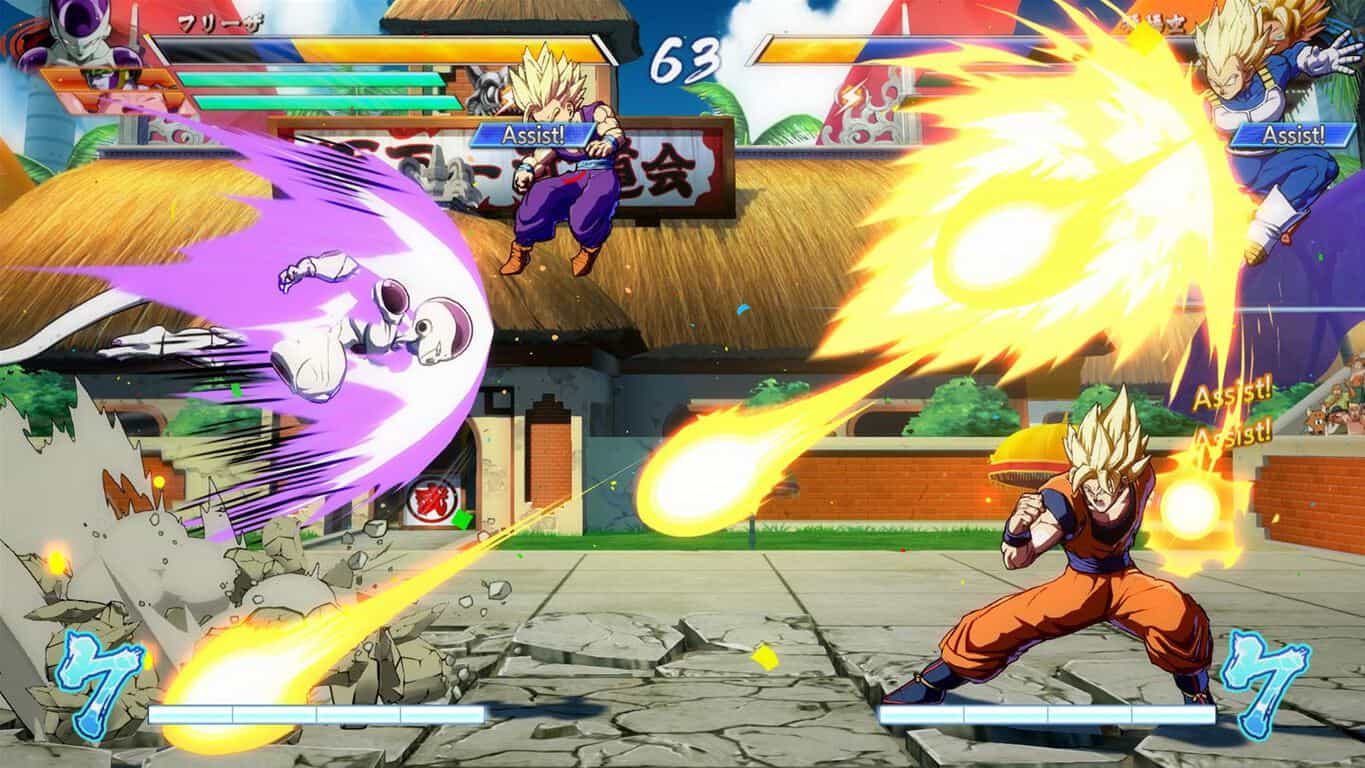
Dragon Ball FighterZ will have another open beta session on Xbox One today

If you missed the open beta for Dragon Ball FighterZ earlier this week, then get ready for another session starting later today. As publisher Bandai Namco revealed a couple hours ago, a new open beta for the fighting game will kick off at 9PM PST today and last for 24 hours.

Dragon Ball Fighter Z will officially launch on January 26 on Xbox One, Playstation 4 and Steam, and the 2D fighting game already has fans of the media franchise very excited. Unfortunately, it seems that many players encountered matchmaking issues during the previous open beta, forcing them to stick with the various tutorials. Bandai Namco first apologized on Twitter before announcing this new open beta session.

If you have already downloaded the Dragon Ball FighterZ Open Beta from the Microsoft Store, you’ll be good to go later today. The game really seems to be a lot of fun so we hope more players will be able to play online this time around.

How to fix Wi-Fi adapter error code 52 on Windows 10/11

Wi-Fi adapters are essential for setting up your Wi-Fi connection. However, sometimes things may go wrong and Wi-Fi adapter error 52 rears its ugly head.

This error code occurs when Windows is unable to verify the digital signature for the Wi-Fi adapter and reads as follows:

Windows cannot verify the digital signature for the drivers required for this device. A recent hardware or software change might have installed a file that is signed incorrectly or damaged, or that might be malicious software from an unknown source.

Fixing Wi-Fi error 52 is not that straightforward. To help you get your Wi-Fi connection back on track, we compiled a series of solutions to help you fix this annoying error in no time.

Fix Wi-Fi adapter error 52 with these quick workarounds

1. Run the built-in troubleshooter

Windows 10 features a series of troubleshooters that you can use to automatically fix particular technical issues. So, if you’re getting error 52, try running the Internet troubleshooting tool. If you’re lucky, the troubleshooter will identify and fix the issue triggering error 52 and you’ll be able to connect to the Internet in less than 3 minutes.

Go to Settings > Update & Security > select Troubleshoot > go to Internet Connections > run the troubleshooter

windows 10 internet troubleshooter

2. Install the latest OS/ driver updates

Another quick way to fix error 52 is by installing the latest Windows updates, as well as the newest driver versions.

Running outdated OS versions can cause various technical issues, including Internet connection problems. Installing the latest updates helps you to eliminate this possible root-cause off the list and make sure that your computer uses the latest patches and system improvements rolled out by Microsoft.

Go to Settings > Update & Security > click on the “Check for updates” button and install the available updates.

check for updates

Restart your computer and check if the issue persists.

3. Reset your network using Command Prompt

Open Command Prompt as an administrator and run the following commands, hitting Enter after each one:

These commands allow you to reset the Winsock protocol (reset the Network Adapter), as well as the IP address of your computer.

4. Turn off your antivirus/ firewall

If error 52 occurs immediately after you try to connect to your Wi-Fi network, try disabling your antivirus and firewall tools.

Sometimes, conflict issues between your antivirus solutions and computer drivers may arise and trigger various error codes, including the error that we’re focusing on in this article.

Don’t forget to enable antivirus and firewall protection afterwards.

5. Disable driver signature enforcement

Since error 52 comes with a description message reading that the digital signature could not be verified, maybe disabling it helps.

Here are the steps to follow:

  1. Go to Start > open the shutdown menu and keep your mouse cursor on it
  2. Press and hold the Shift key > click on the Restart option
  3. Your Windows 10 computer will restart now displaying the Advanced Startup Options screen
  4. Go to Troubleshoot > Advanced Optionstroubleshoot advanced options
  5. Go to Startup Settingsstartup settings windows 10
  6. Hit the Restart button
  7. Windows 10 will restart > the Startup Settings screen should now be available
  8. Press F7 to disable driver signature enforcement
  9. Windows 10 will then boot to desktop.

Keep in mind that this solution allows you to disable driver signature enforcement only until the next reboot.

6. Delete the upper/lower filters from the Registry Editor

Before tweaking your Registry, don’t forget to first back it up. In this manner, you’ll be able to restore a working version of Windows in case anything goes wrong.

  1. Go to Start > type “regedit” > hit Enter to open the Registry Editor
  2. Locate the UpperFilters value under the following key: HKEY_LOCAL_MACHINE\SYSTEM\CurrentControlSet\Control\Class\{36FC9E60-C465-11CF-8056-444553540000}Delete upper lower filters Registry Editor
  3. Go to the Edit menu > Delete > OK
  4. Now locate the LowerFilters value under the same key
  5. Go to the Edit menu and delete this value as well
  6. Quit the Registry Editor > restart your computer > check if the issue persists.

There you go, we hope that these quick workarounds helped you fix error code 52 and you can now connect to Wi-Fi.

If you came across other solutions to fix this error, you can list the troubleshooting steps in the comments below.

RELATED STORIES TO CHECK OUT:
Official BBC America app launches on the Xbox One

An official app for BBC America launched on the Xbox One last month and is available to download for free. Unfortunately, to view full episodes and movies on the app, users will need to be a paid subscriber via a third-party cable or satellite provider but this should be a useful app for those who already pay for the channel. Here’s the full app description:

Get caught up in your favorite BBC America shows with full episodes, video extras, and sneak peeks at upcoming series. Sample trailers and behind-the-scenes clips or sign in with a login provided by your cable or satellite provider to watch full episodes of ‘ Dirk GOrphan Black,’ ‘Top Gear,’ ‘The Graham Norton Show,’ and many more of our programs.

New episodes are available in-season, usually the day after broadcast. Most full episodes require a cable or satellite login, though season premieres are sometimes made available with no login required. Plus you can search the library and track recently-viewed episodes and resume where you left off.

Are you a BBC America viewer and will you be using this app? Let us know in the comments below.

BBCA
BBCA
Price:
Free

Wi-Fi printer not recognized? Fix it with these quick solutions

If you own a printer for your home office, or use one at your workplace, you must have encountered some print job issues that stem either from your connection or the printer itself.

One of these problems is when the Wi-Fi printer is not recognized, yet you are so sure all original settings have not been interfered with or changed, at least not by you.

So what do you do when you get the Wi-Fi printer not recognized error message?

Worry not, we have tried and trusted solutions to fix the issue, and this article covers these fixes.

How to fix Wi-Fi printer not recognized

  1. Check hardware
  2. Use printer troubleshooter
  3. Update drivers
  4. Temporarily disable your antivirus security software
  5. Reboot your computer
  6. Check Default printer settings
  7. Perform a Windows Update
  8. Clear spooler files and restart spooler service
  9. Check with your manufacturer

1. Check your hardware

Do the following checks for your printer and related hardware and/or accessories:

  1. Ensure your printer is turned on and connected.

Check the power switch if it is turned on, and ensure the printer’s power cable is plugged in to an electrical outlet. If you’re on a shared printer or network, ensure all computers and routers are turned on as well. Plug in your power surge protector and turn it on. Plug in the printer’s USB cable properly to your PC. For wireless printers, turn on the wireless option from your printer then run the printer’s wireless connectivity test from the menu option. If these are clear, and you still get Wi-Fi printer not recognized error, then your computer may not be connecting to your wireless network.

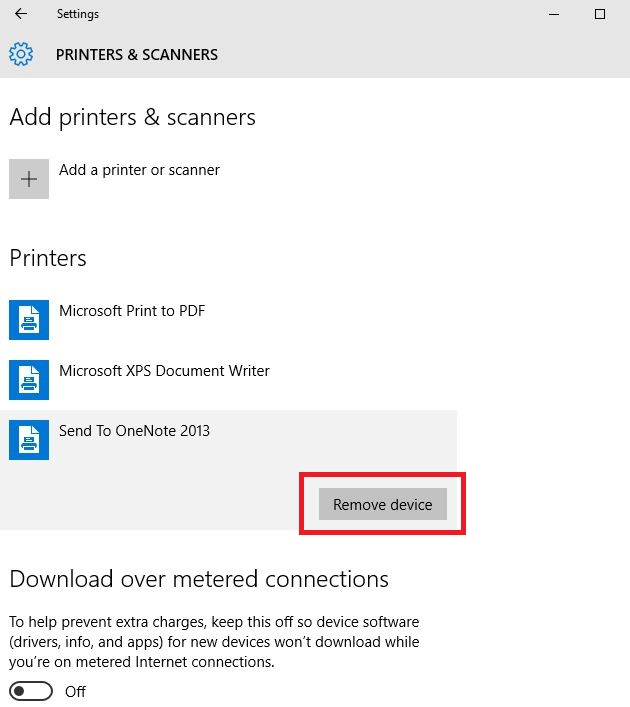
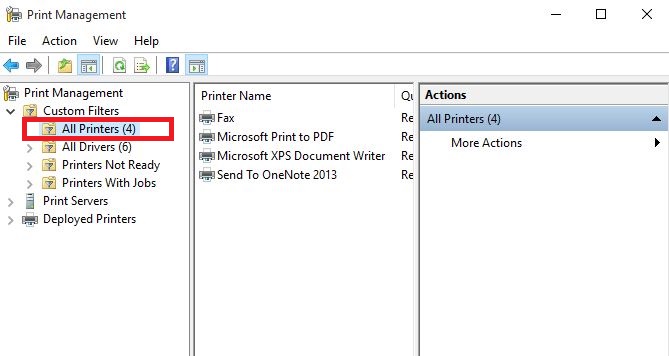
  1. Uninstall and reinstall your printer

Follow these steps to remove your printer:

Wi-Fi printer not recognized

Reinstall your printer (wireless or local) using the following steps:

Wi-Fi printer not recognized

Note: you can print a test page to ensure the printer works correctly. If it is installed but doesn’t work, check the device’s manufacturer website for troubleshooting or driver updates.

To connect to a local printer, plug in the printer’s USB cable to an available USB port on your computer, then turn on the printer.

2. Use printer troubleshooter

A printer troubleshooter is an automated tool that can find and automatically fix some problems with installing and connecting to a printer.

To use this troubleshooter, download and run the printing troubleshooter and follow the instruction prompts.

3. Update drivers

Driver software is needed for most printers to work properly. In the event you updated or upgraded to Windows 10, you may have to update your current printer driver so that it matches or is compatible with the new Windows version.

If you had recent power outages, viruses in your computer, or other issues, the drivers may have also been damaged.

Download and install the latest driver using either of these three ways:

Using Windows Update.

Use the steps below to do this:

Wi-Fi printer not recognized

Downloading and installing the driver manually by yourself. Do this if Windows doesn’t automatically find a driver update for your printer, or you don’t have an installation disk. You can check the manufacturer’s website then find the latest driver for your printer.

Installing the driver software from the printer’s manufacturer. If you have the installation disc, it may contain the software for installing a driver for your printer.

Once you update the driver for your printer, do the following:

Wi-Fi printer not recognized

In case these methods don’t help you or you don’t have enough time or computer skills to use them, we strongly recommend doing it automatically by using a professional tool.

This software detects any outdated, missing or damaged drivers on your PC. When scanning is complete, you will receive a detailed report with all of your drivers. The last thing you need to do is choose which drivers you want to download and install.

⇒ Get Outbyte Driver Updater

4. Temporarily disable your antivirus security software

You can uninstall third party software on your computer such as computer cleaner or antivirus.

Note: For antivirus, temporarily disable it because you need it to prevent your computer from security threats. Immediately after you’re done fixing connection error, re-enable your antivirus and check if you still get the Wi-Fi printer not recognized error message.

5. Reboot your computer

This is the first line of action whenever such an issue comes up (or any other issues with your computer and any other hardware you may be using along with it). However, if you restart your computer and nothing happens on your printer, you can go to the next solution.

6. Check Default printer settings

If your Wi-Fi printer is not recognized, check the default printer settings and change from the current printer to the one that you want to be using.

Here’s how to correct the default settings:

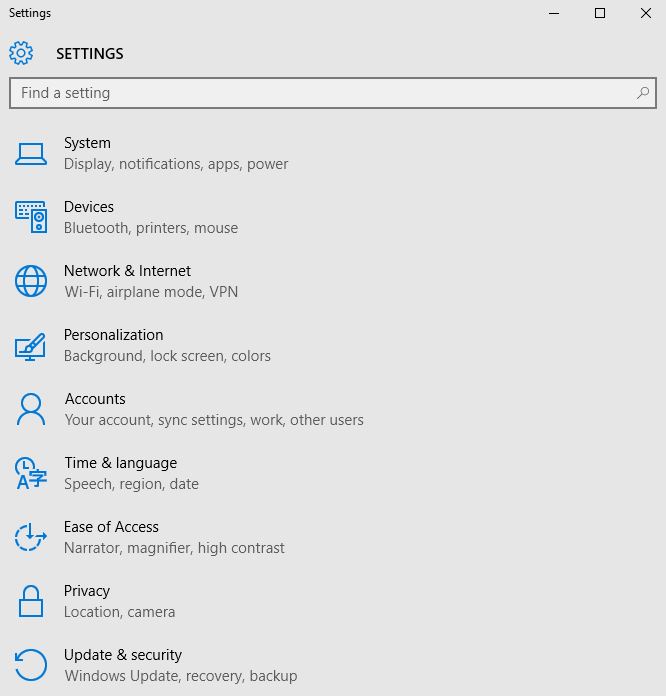
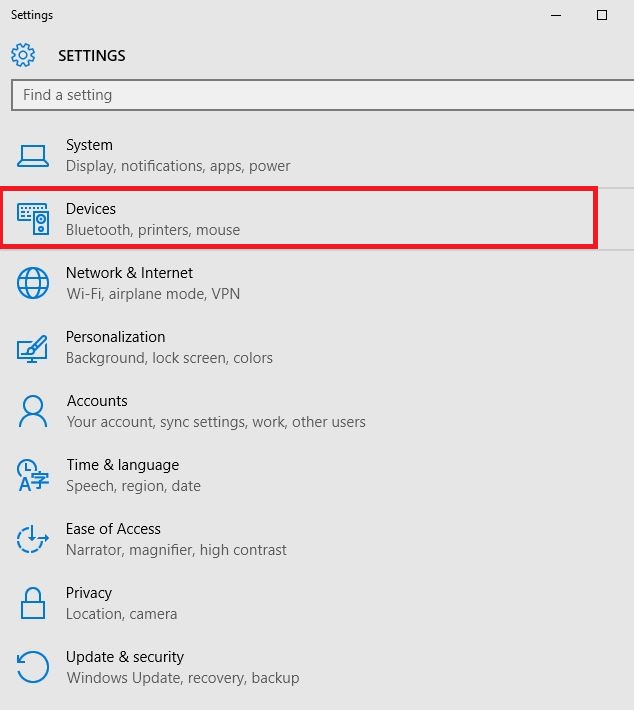
    • Click Start
    • Click Settings
    • Choose Devices
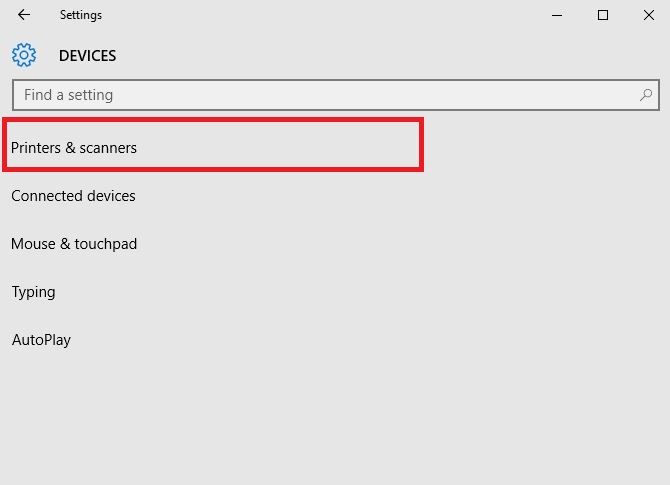
    • Click Printers & Scanners on the left pane
Wi-Fi printer not recognized
    • Scroll to Let Windows manage my default printer
    • Turn the option OFF

7. Perform a Windows Update

For a healthy computer, you need to keep updating Windows with the latest system updates, and drivers. This also helps resolve any issues or difficulties you may be experiencing.

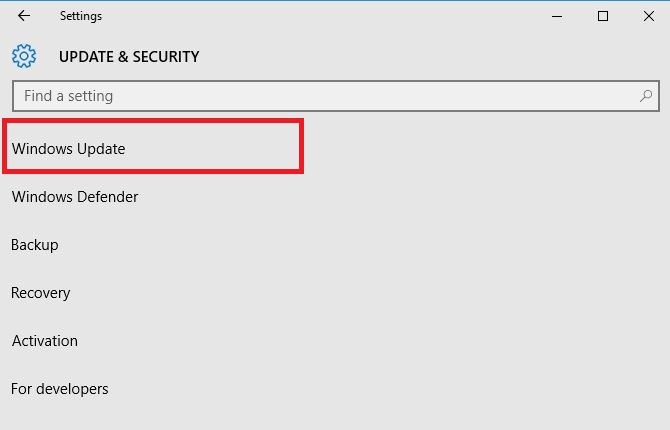
Here’s how to check and install Windows Update (manually)

Wi-Fi printer not recognized

ALSO READ: Windows Update not working on Windows 10 [Fix]

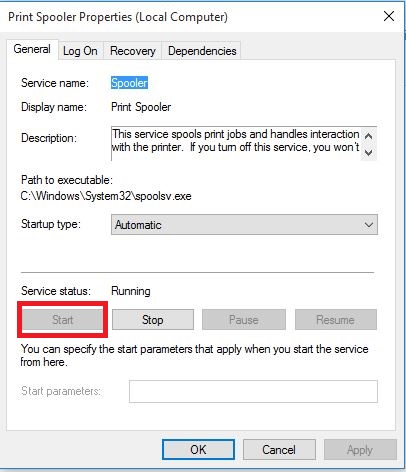
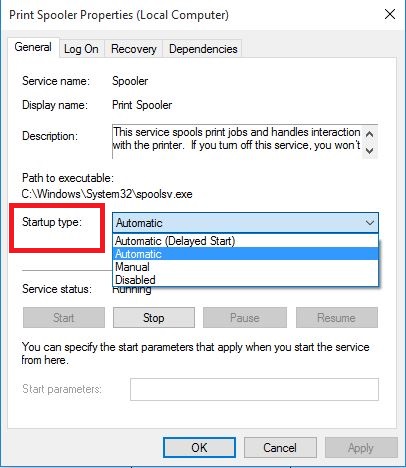
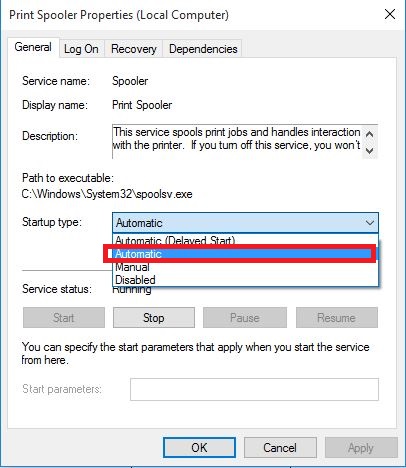
9. Clear spooler files and restart spooler service

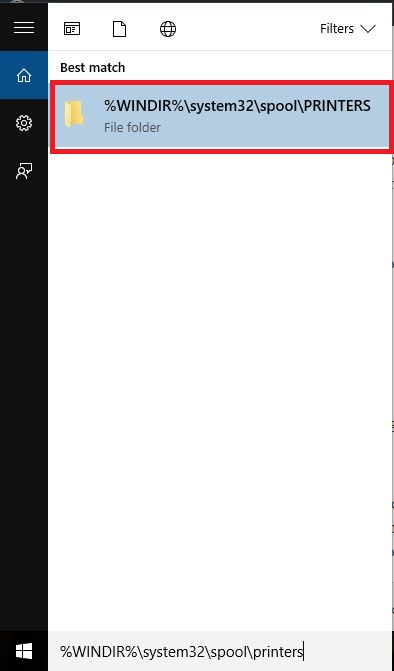
If the previous solutions are unsuccessful, you may need to clear spooler files then restart spooler service.

Here’s how to do this:

    • Click Start
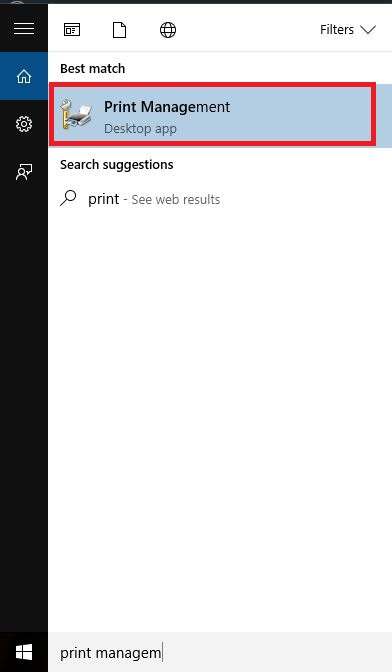
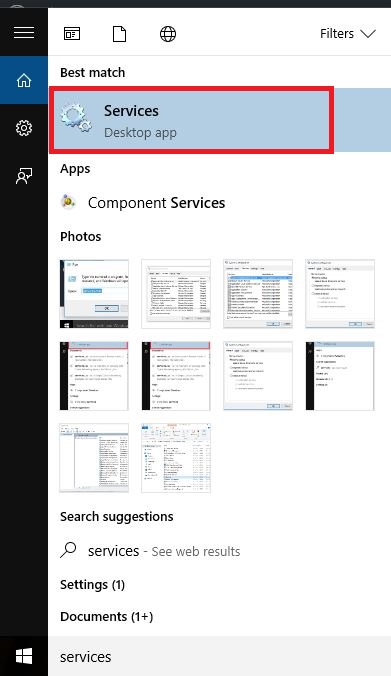
    • Go to the search field box and type Services
    • Click Services from the search results
Wi-Fi printer not recognized
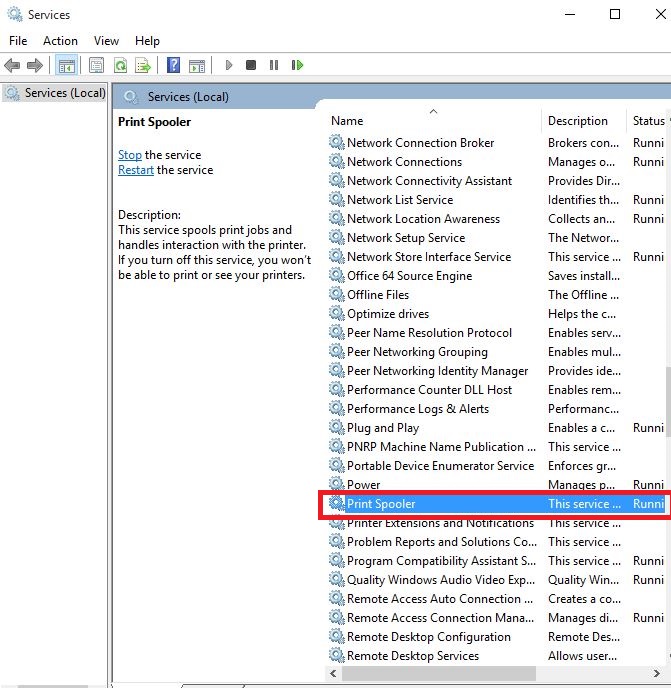
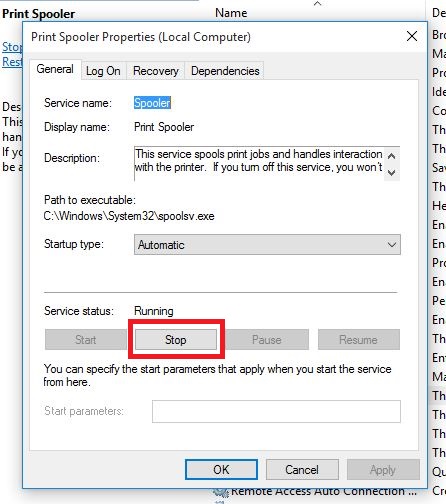
    • Under Services, double click Print Spooler
Wi-Fi printer not recognized
    • Select Stop then Ok
Wi-Fi printer not recognized
    • Go to the search box again and type %WINDIR%system32spoolprinters
Wi-Fi printer not recognized
    • Select the file folder. You need admin privileges to access it.
    • Delete all the folders in the folder
    • Under Services, double-click Print Spooler again
    • Click Start
Wi-Fi printer not recognized
    • Go to Startup Type list
Wi-Fi printer not recognized
    • Select Automatic box
Wi-Fi printer not recognized
    • Click Apply then click Ok

9. Check with your manufacturer

If the other solutions didn’t work, contact your printer’s manufacturer for more troubleshooting and support based on your specific issue.

Did any of these solutions work for you? Share with us your experiences by leaving a comment in the section below.

RELATED STORIES TO CHECK OUT: