Windows 10 build 14942 increases number of processes in Task Manager

Windows 10 build 14942 is now available for download, and brings a series of interesting features to Microsoft’s latest OS. This build is the most generous update in terms of new features, as previous builds focused mainly on fixing bugs and improving the overall computer performance.

There is one new feature that may surprise your at first, or even intrigue you. On PCs with 3.5 GB+ of RAM, service hosts are now split into separate processes, resulting in an increased number of processes in Task Manager. The good news is that there’s nothing to worry about, as this feature brings improved reliability and security.

Microsoft explains that as the number of preinstalled services grew, they began to get grouped into processes known as service hosts with Windows 2000. The recommended RAM for PC’s for this version was 256 MB, while the minimum RAM was 64MB. Over the years, the available memory increased, and as a result, the memory-saving advantage of service hosts has diminished.

By ungrouping services on 3.5+ GB of RAM PCs, Windows now offers increased reliability, transparency, security and helps IT admins detect the source of problems faster.

1. Increase reliability: When one service in a service host fails, all services in the service host fail. In other words, the service host process is terminated resulting in termination of all running services within that process. Individual service failure actions are then run.

2. Increase transparency: Task Manager will now give you a better view into what is going on behind the scenes. You can now see how much CPU, Memory, Disk & Network individual services are consuming. […]

3. Increase transparency: Task Manager will now give you a better view into what is going on behind the scenes. You can now see how much CPU, Memory, Disk & Network individual services are consuming.

4. Increase security: Process isolation and individual permission sets for services will increase security.

However, critical system services that require system restarts, as well as several select service hosts, won’t be affected by this change and will remain grouped.

Service host separation may cause Xbox sign-ins to fail. If this happens, use this workaround:

  • Go to Command Prompt and run the following, or edit the Registry accordingly: REG ADD HKLM\SYSTEM\CurrentControlSet\Services\XblAuthManager /v SvcHostSplitDisable /t REG_DWORD /d 1 /f
  • Reboot the system, which allows XblAuthManager to share a service host process with Windows Update and BITS.

RELATED STORIES YOU NEED TO CHECK OUT:

Windows 10 news recap: Paint is getting overhauled, Registry Editor navigation gets easier and more

Welcome back to our weekly “Windows 10 news recap” series where we go over the top stories of the past week in the world of Microsoft’s latest operating system. Let’s get started.

Registry Editor (regedit) in Windows 10 build 14942 now has an address bar

The Registry Editor, also known as regedit, is one of the core areas of Windows for system administrators, allowing ultimate control over the operating system. Up until now, it had only received minor updates with no major features being added. Now, Microsoft has added an address bar so that it is much quicker to locate the registry entry that is needed.

A gif, provided by Microsoft’s Jen, shows how it all works:

registry-editor
Using the Address Bar in regedit

Windows 10 Build 14942 might increase RAM usage for some users

From build 14942, Microsoft is changing the way in which one of its service management practices works. Normally, in Task Manager, it would display something along the lines of “Service Host,” a somewhat cryptic task as it doesn’t really show what task it is for. Going forward, for machines with 3.5GB RAM or more, these tasks will no longer be grouped under the Service Host task and instead separated out, which will reduce crashes, as one task will not affect another.

task-manager-windows-10-svchost
Task Manager Service Host

Unfortunately, this will marginally increase RAM usage on some machines.

Here’s what Microsoft’s new Paint app for Windows 10 looks like

One of Windows’ most classic programs, Paint, is finally receiving a somewhat long-overdue upgrade. Microsoft appears to be completely reworking how Paint works and incorporating an unexpected feature – 3D objects, as well as adding support for inking. This upgrade will also make Paint a Universal Windows App, therefore it is possible we might see parts of it make its way to Windows 10 Mobile.

Here’s a video showing off the improved experience:

Latest Insider Fast Ring build lets you uninstall certain Windows 10 stock apps

Windows 10 brings with it a variety of stock apps, such as the Xbox app. For some, however, these apps aren’t necessary. As an example, it isn’t exactly ideal to have the Xbox app on a work PC or for a home PC where users aren’t necessarily gamers. To those who wish to uninstall some of the stock apps, Microsoft is beginning to make this possible in the latest Fast Ring Insider build, which will permit uninstalling some apps.

uninstall%20windows%20apps%20mail
Uninstall stock apps

Here’s the build that released over the past week:

Khan Academy to remove its Windows app this month due to “small user base”

Khan Academy has been struggling with their funds recently, and it was just a matter of time before they would start cutting costs. One of the things that have to go is the Windows 8 app. It will be available for a few days more, and will continue to work if you download it now, but if you install it or don’t download it at all, you will be forced to use the website.

The post announcing this change was posted a few days ago and reveals that the app will be removed because of the small user base. There are very few people that would prefer an underpowered and outdated app over the website so this isn’t really surprising. The post follows:

Heads up that the Khan Academy app for Windows devices will be removed from the app store in early October.  If you have the app downloaded to your device, you’ll still be able to use it after this happens, but if you delete it you won’t be able to add it again.

We don’t currently have the resources to guarantee a high quality experience in this product, especially given its small user base, so the decision was made to sunset the app rather than extend a promise of a high-quality learning experience that couldn’t actually be delivered on.

That said, if you have any additional thoughts or reactions on this, please let us know here.

The app still has huge potential as a universal Windows 10 app and could be updated with features like Windows Ink and other productivity-oriented features. Unfortunately, this doesn’t seem to be the case.

A lot of students use Microsoft Surface’s nowadays and that could be an opportunity to update and maintain the app with the focus towards those people. Most Khan Academy users didn’t even know there was an app. Some mistakes made by the team and the low demand, unfortunately, resulted in the death of yet another app.

Thanks to Roger for the tip!

Khan Academy
Khan Academy
Developer:
Khan Academy
Price:
Free

Easy Fix: Windows 10/11 cannot create the file error

Every day we access and create all sorts of different files, but sometimes certain issues with files can appear. Users reported that they are getting Cannot create the file error message on Windows 10, and today we’re going to show you how to fix it.

How to fix ‘Cannot create the file’ errors

Fix – “Cannot create the file” right-click the folder

Solution 1 – Change your registry

According to users, this error occurs when you don’t have the necessary permissions over the Temporary Internet Files folder stored on a server. Due to this problem, you won’t be able to open or save an email attachment, but you should be able to fix this problem by making certain changes to your registry.

Modifying the registry can be potentially dangerous if you don’t do it properly, therefore we recommend that you use extra caution and create a backup of your registry before making any changes. To edit your registry, do the following:

  1. Press Windows Key + R and enter regedit. Click OK or press Enter.
    cannot-create-the-file-regedit-1
  2. When Registry Editor opens, in the left pane navigate to HKEY_CURRENT_USER\Software\Microsoft\Office\14.0OutlookSecurity.
  3. In the right pane double click OutlookSecureTempFolder.
  4. In the Value Data field enter C:\temp0 and then click OK.
  5. After making these changes, close Registry Editor and restart your PC.

After your PC restarts, check if the problem is resolved. This solution should work for all modern versions of Outlook, although the path in Step 2 might change a bit depending on the version that you’re using.

An alternative way to fix this problem is to create a new registry key for OutlookSecureTempFolder. You can do that by following these steps:

  1. Open Registry Editor and navigate to HKEY_CURRENT_USER\Software\Microsoft\Office\14.0\OutlookSecurity key in the left pane.
  2. Locate OutlookSecureTempFolder in the right pane and rename it to OutlookSecureTempFolder__Old.
  3. In the right pane, right click the empty space and choose New > String Value. Enter OutlookSecureTempFolder as the name of the new string.
    cannot-create-the-file-regedit-2
  4. Double click OutlookSecureTempFolder and change the Value Data to %USERPROFILE%\Documents\Outlook\TempFiles. Click OK.
  5. Now go to %USERPROFILE%\Documents in and create the OutlookTempFiles folder there.
  6. Restart your PC, start Outlook again and check if the problem is resolved.

Solution 2 – Empty Outlook Secure Temp folder

This problem can affect almost any version of Outlook, and in order to fix this problem, you need to remove all files from Outlook Secure Temp folder. You can do that by following these steps:

  1. Open Registry Editor and navigate to HKEY_CURRENT_USER\Software\Microsoft\Office\15.0\OutlookSecurity key in the left pane. This path might be a bit different depending on the version of Outlook that you’re using.
  2. Open OutlookSecureTempFolder in the right pane to see its properties.
  3. Copy the file location from Value Data field and paste it into File Explorer’s address bar.
  4. After you open that folder, delete all files from it.

If checking the registry and removing these files is too complicated for you, you can also use tools such as OutlookTempCleaner and OutlookTools to quickly and easily empty Outlook Secure Temp folder.

Fix – “Cannot create the file” when that file already exists

Solution 1 – Check your syntax

Users reported this error while trying to create a link using the mklink command. This command can be quite useful, but in order to use it, you need to be sure that your syntax is correct. If your syntax is wrong, you’ll most likely get Cannot create the file error message. If you’re using mklink command, be sure to use the following syntax: mklink [options] [Link] [Target].

Solution 2 – Move the files from link to the target folder

As we already explained in our previous solution, mklink syntax should look like this: mklink [options] [Link] [Target]. To fix this problem you need to move the files from the Link directory to the Target directory manually.

After that, delete the Link folder and try to run the command again. Bear in mind that deleting certain directories can lead to problems, therefore it might be better that you just rename them.

Solution 3 – Delete Tvsuinstaller directory

Users reported this error while trying to install system updates, and apparently you can fix this problem on Lenovo laptops by removing one directory. Simply go to C:\ProgramData\Lenovo and delete the Tvsuinstaller folder. After deleting it, try to perform system update again.

Cannot create the file error usually occurs when you try to view Outlook attachments, or if you’re making links on your PC, but as you can see, this problem can be easily solved by using one of our solutions.

READ ALSO:

Skype and Michelle Obama to celebrate “Day of the Girl” with global Skype call

In celebration of “Day of the Girl,” a day marked by the United Nations to highlight the inequality of education for girls, Skype and Michelle Obama will be hosting a global Skype call, as announced on the Skype Blog.

The call will be jointly hosted by both Skype TX and Glamour Magazine, where the call will be joined by First Lady Michelle Obama, in conjunction with Glamour Magazine’s Editor-in-Chief, Cindi Leive. The topic of discussion will be around the inequality of girls’ education across the world.

Actress and activist Yara Shahidi will also be joining from the Newseum, Washington D.C, with a group of 150 school-aged girls from groups such as The Girl Project and Let Girls Learn. Girls from several countries, such as Tanzania, Peru, Jordan and the UK will be on-board with the call, in order to “share the experiences and challenges they face in obtaining quality education.”

It will start on Tuesday, October 11, at 11:15am EST. To watch the livestream, follow Skype’s Facebook and Twitter social channels, as well as keep your eye on WinBeta!

Windows 10 Build 14942 might increase RAM usage for some users

The latest Windows 10 build (Build 14942) that Microsoft has pushed out to Windows Insiders contains several improvements, but also brings an end to the practice of grouping Service Hosts.

If you’re not familiar with svchost.exe that you’ve always seen running on your Task Manager as a Windows process, read on.

Microsoft started to group service host processes (svchost.exe) starting with Windows 2000 to conserve available memory as the number of pre-installed services grew. The recommended RAM for PCs for Windows 2000 was 256MB (yes, that’s even less than the cheapest smartphone out there) and as the available memory increased dramatically over the years, there wasn’t any practical memory-saving advantage of service hosts.

With the latest build, Microsoft is ending the practice on systems with more than 3.5GB of RAM and each service will now run as a separate process. The company, in a blog post, has mentioned that this change will also increase RAM usage somewhat and there might be a negative impact on devices with only 4GB of memory.

task-manager-windows-10-svchost
Task Manager Service Host

Disabling the grouping of Service Hosts will improve reliability since one service crashing would not take down others with it. Also, process isolation and individual permission sets for services will increase security.

For administrators, this change would also increase transparency and the Task Manager will now give you a better view into what is going on behind the scenes. On machines with enough memory, all services will be listed in separate processes and you would be able to see how much CPU, Memory, Disk, and Network individual services are consuming.

A lot of mid-range consumer devices, including Surface, pack in 4GB of RAM, and might experience increased RAM usage. We’re not sure of the impact yet, but considering this is on an Insider build, Microsoft will be closely watching any performance hits and take appropriate steps to counter any negative effects.

How to undo registry changes in Windows 10

Sometimes you can encounter problems after changing a specific are from the registers, even if it is about a key or the entire hive and you do not know how to solve this problem.

Windows 10 has a useful feature which allows you to create backups at a specific moment to which you can return in any moment. In other words, you can restore your computer to the settings of a certain time in the past. This is useful because you can set your configuration to a form that did not exist those errors without the need to revert to the default factory settings and in that case, you will have to reinstall all your programs and drivers. So, sometimes, you have to create this backup to have more safety for your system.

Method 1 – Restore your registry using registry back-up

How to create a registry back-up in Windows 10

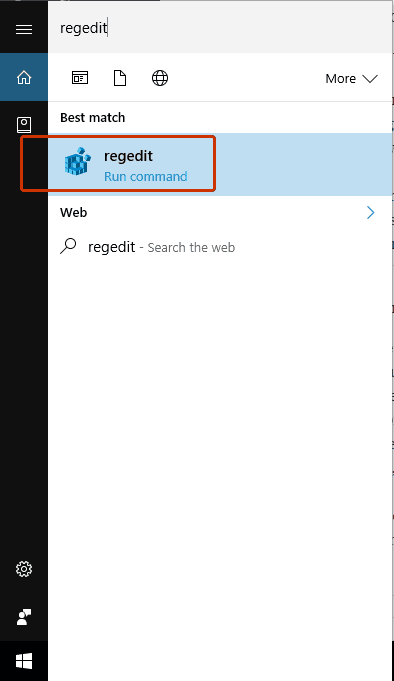
  1. Type regedit in the Windows search bar and select it from the list of results.8
  2. This will open the Registry Editor dialog box. It is the place where you can modify, delete, change and back-up all the registers.
  3. Now is your decision what you want to save. You can back-up the entire registry, or you can back-up only a part, if you know where you will be working. We recommend you to back-up the whole registry because in this way you are sure that everything works in this state and you will not have to create every time a copy for each edited register.
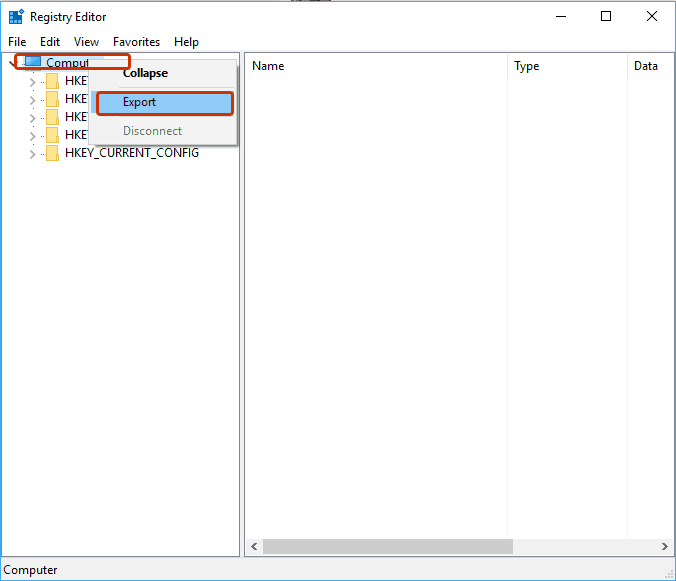
  4. To back-up the whole registry right-click on the Computer section from the left table of the Registry Editor interface.
  5. Select the Export feature. This will create a .reg file where you have all the registry from that moment.9
  6. Save the file in a known location (like Desktop or Documents) to be sure you can find it easily.
  7. Check the place where you saved the registry. If the file is there, we can continue to the next stage, otherwise read more carefully the steps from above and try again.

How to restore your Windows registry

  1. Locate the back-up file of your registry. If you have problems of finding it, check in the Documents folder (the folder where is saved automatically) for a .reg. The icon looks similar with a blue broken Rubik’s cube.
  2. Double-click on the .reg file to open it. Depending on the configuration of your operating system, you may receive a dialog-box where you have to allow the application to make changes to your computer. Click on the Yes button in this case to start the restore process.
  3. You will receive an attention dialog-box where you are informed that the following actions may cause your components to not work properly. If this file is created by yourself, then it will be safe to run the process, otherwise make sure that the source of the file is safe.
  4. Click on the Yes.
  5. Assuming that your back-up file was imported correctly, you will receive a notification where you are informed that the file was successfully added to your registry.
  6. Click on the OK button of that dialog-box. Now you can delete the back-up file if you consider that you will not need it in the future.
  7. Restart your system to complete the configuration.

Alternative method to restore the Windows registry

  1. Open Registry Editor.
  2. Click on the File button from the upper panel of the interface. Select the Import… option.
  3. Find and select the .reg back-up file and the click on the OK.
  4. You will receive a notification where you are informed that this action may cause problems to your system. If the file is from a safe source you can continue, otherwise we recommend you to use the system restore point method (the next topic of the article).
  5. Click on the Yes button.
  6. You should receive a dialog-box where you are informed that your file was imported successfully. If not, try to repeat this process logged as an Administrator.
  7. Restart the system to complete the restoring process.

Method 2 – Restore your registry using the system restore point

How to create a system restore point in Windows 10

This is a simple process which if is done regularly, it can avoid a lot of headaches. Here is how you do that.

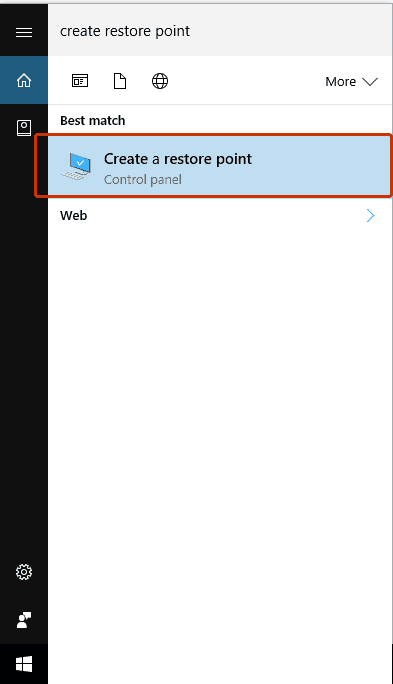
  1. Search Create system restore point in the Windows search bar and select it from the lists of results.restore-1
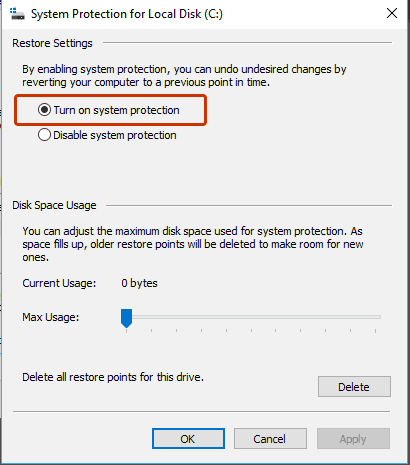
  2. To create a system restore point you have to turn on the Protection feature for the disks. You can do that by selecting each disk / Configure / Turn on system protection.
  3. After you activated the protection click on the .. button and type a description on the restore point to know what was the condition of your computer at that time.
  4. Click on the Create button to finish the configuration.restore-3

How to restore your computer

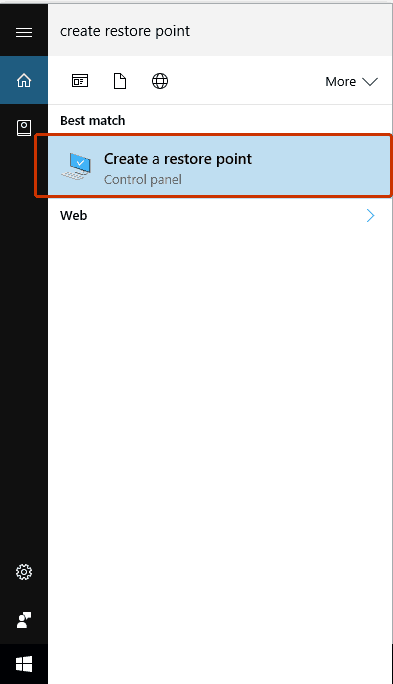
  1. Search Create system restore point in the Windows search bar and select it from the lists of results.restore-1
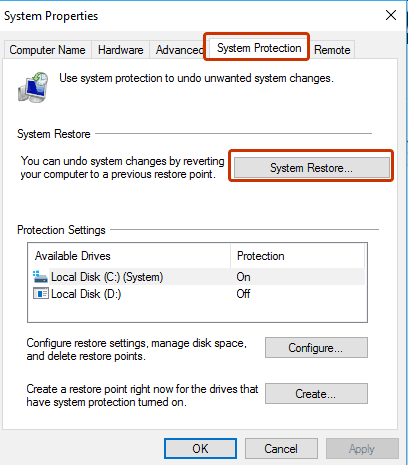
  2. Open the System Protection.
  3. Click on the System Restore… .4
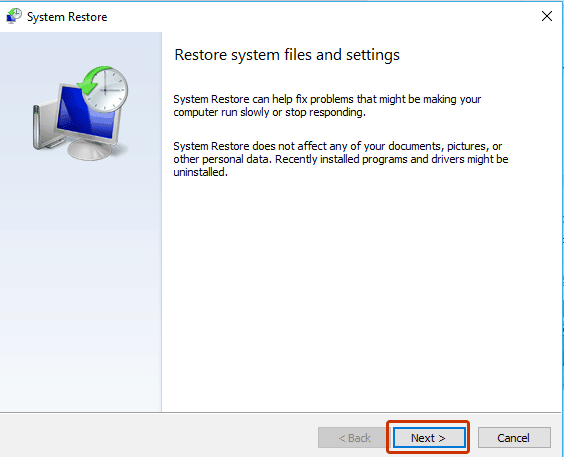
  4. This will open a dialog box where you are informed that this feature may solve many of the system problems, but also will uninstall the installed programs from that point until now. Click on the Next button.5
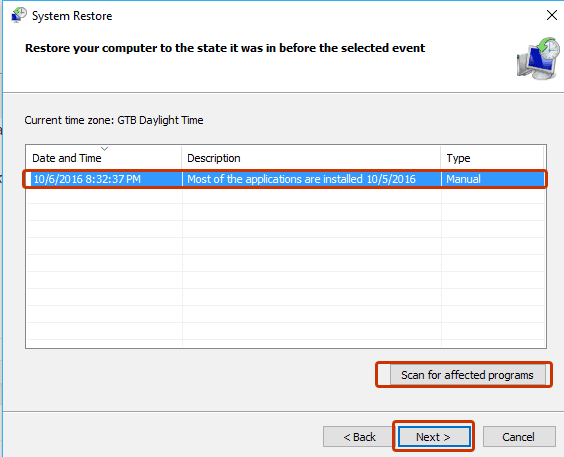
  5. Select from the restore points list select the point where you want to restore your computer. You can also Scan for affected programs to find more information about possible issues. After you finish this procedure click on the Next button.6
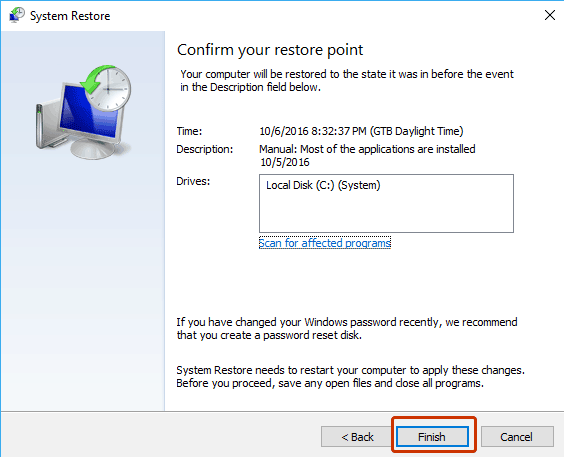
  6. Make sure you save all your work on a external device and click on the Finish button to start the system restoring process. Your computer will reboot and after that it will have the settings from that point.
7

Halo 5 sprint feature could be removed in Halo 6

Halo 5: Guardians was launched in October 2015, but there is one feature that doesn’t give gamers peace of mind after all this time. Should the sprint feature really be in the game?

Long story short, many gamers suggest that sprint shouldn’t be available in campaign, and should be removed in the next Halo 6 game. On the other hand, there are players who really appreciate the sprint feature because it improves the gaming experience.

Without exaggerating, the Halo 5: Guardians forums have become the battle field for this fierce “For or Against” debate. As a matter of fact, the thread hosting this debate has more than 10,000 replies in just 4 months, confirming the interest of the Halo 5 gaming community for this topic.

As stated before, the Halo 5 community is divided: gamers who have access to the sprint feature wish they didn’t, while other players wish they could use sprint. But why is there so much fuss around the Halo 5 sprint feature?

Some gamers say that sprint has ruined Halo 5’s map flow and design. Compared to previous versions of the game, when they were able to move in all directions without hesitation and use their gun at all times, now their movements are restricted to one direction only. Gamers now accuse 343 Studios that Halo 5 has become another generic shooter, where players’ decisions are no longer that important. The main argument for this idea is that gamers are not being able to shoot while sprinting.

Another argument used by the “Against sprint camp” is that it doesn’t really make sense to be able to sprint while wearing such heavy armor. The sprint feature makes the game feel odd and less realistic.

On the other hand, the “Pro sprint camp” claims that being able to sprint improves the game experience. These gamers say that sprinting allows them to move faster, and if other players can’t fully take advantage of this feature, then that’s their problem, adding that detractors should rather learn to use sprint than bash it.

Whether Halo 6 should support sprint or not is another hot topic derived from this debate. The “Against sprint camp” suggests 343 should bring back the simple game mechanics that made the Halo series so great. However, the company has yet to issue any comments about this request.

Which side are you on in this debate?

RELATED STORIES YOU NEED TO CHECK OUT:

Microsoft wants to make it easier for organizations to better support accessibility initiatives

Microsoft continues to make strides in bringing its initiatives in accessibility to the forefront for customers using its various software services.

Just last week during Microsoft’s Ignite conference, the company announced and showcased several solutions that took aim at empowering IT professionals to push accessibility options to help change how their clients and employees interact with the software around them.

Without having to re-watch the entire weeks’ worth of Office announcements to hand pick the accessibility features or references, the Office team collected the high points and gathered them into a neatly accessible (pun intended) blog post.

For those interested, here are the accessibility highlights from Ignite 2016:

  • Accessibility checkers that will become available in the Review tab in several more Office applications for PCs, Macs, and the web.
  • Link galleries that will become available in several Office applications for PCs and make it easy to insert hyperlinks with meaningful display text.
  • Automated suggestions for alternative text that will appear when recognizable images are inserted in several Office applications on PCs.

Additionally, here is a list of sessions and recordings specific to addressing accessibility in the workplace and what Office 365 is doing to help IT professionals succeed at implementing strategies and services.

Panel discussion on technology strategy for an inclusive workplace—This session discusses strategies being adopted by organizations to boost accessibility programmatically. Strategies include ensuring executive leadership, showcasing human impact and forging deep partnerships with vendors.

Overview of Office 365 accessibility: plans and progress—This session introduces enhancements on the Office 365 Roadmap that can result in improved productivity experiences for people with dyslexia, people who use assistive technologies such as screen readers or speech input tools to interact with digital information and people who customize their devices using ease of access settings.

Deep-dive on SharePoint Online accessibility—This session covers best practices followed by the SharePoint team to help organizations make intranet sites more inclusive for people with disabilities. Best practices include enhancing accessibility first for the most used features, testing usability with focus groups, including accessibility from day one for new apps and continuously improving based on customer feedback.

To view the extent to which Microsoft is committed to Accessibility, visit its Office Blogs for more information, videos, demos, and software.

Xbox gaming chief Phil Spencer defends comments on Sony’s lack of true 4K, Blu-ray support

Head of Microsoft’s Xbox division Phil Spencer has been cautious of his wording and the tone to which his team discusses the competition. Contrary to the former head of Xbox Don Mattrick, Spencer has measured his words, tempered expectations and has been complimentary of the industry as whole for some time now.

Even when seemingly taking a jab at Sony’s recent PlayStation 4 Pro’s 4K capabilities, Spencer has doubled down on his remarks further clarifying that he was less interested in landing sucker punches at the sake of Sony but highlighting his team’s confidence in delivering a 4K experience via the Xbox One S’ Blu-ray drive.

Xbox One S Special Edition Consoles

Thanks in part to Gameindsutry catching an interview between Spencer and 3rd party reseller GameStop we’re able to read exactly how the Xbox division is handling the would-be controversial remarks about Sony’s lack of native Blu-ray support in the PlayStation 4 Pro.

I mean, we made a bet on a 4K Blu-ray disc, and they didn’t. And I’m not saying they made the wrong decision, and we made the right decision, but if somebody wants a 4K UHD blu-ray drive we have a console that has one, then we’re going to make sure that people know that. And if people say that’s console wars, I think they’re wrong.”

Continuing in his interview with Gamespot, Spencer tangentially addressed comments made by staffer Penello who divisively called out Sony’s lack of a 4K Blu-ray drive as something the company is shortchanging its customers on. Spencer, while not outright agreeing with Penello, backed his play explaining:

I don’t think we crossed the line there, but as it was going on I also made sure that we remain respectful. Confident, but respectful of what other people are doing.

You won’t see me bad-mouth what the other platforms are doing, but I am proud of the product decisions that we make, and I think that we should be able to talk about it.”

Once again, Spencer remains the competent wordsmith former Xbox head Mattrick failed to be during Microsoft’s most pivotal console/gaming platform transition. While a lot of publications, game developers and studios may benefit from an all out console war between Sony and Xbox, it seems Spencer and his team are content with examining experiences rather than checkbox’s and sales stats.

Granted, in the position the Xbox division is in during this console generation, it may be all the team has left to claim.

It’ll be interesting to see how gaming culture evolves while Sony and Microsoft continue to reshape the console gaming market.

Microsoft announces an Xbox FanFest in Mexico City

Microsoft’s Xbox FanFest is expanding its borders as it hosts its 3-day event in Mexico City from November 11th until the 13th of this year. For those unfamiliar with FanFest, just imagine a huge fan party for Xbox enthusiasts that includes exclusive access to Xbox hosted events, gaming related swag, as well as some meet and greet opportunities with well know faces in the gaming world.

FanFest sprung about during this year’s E3 gaming convention where attendees were given early entry into the Xbox E3 2016 briefing room, custom-built backpacks filled with gaming swag, early access to game demos and chance to meet with the creators of this year’s top gaming releases.

For Xbox fans living in or near Mexico City, Friday’s FanFest activities include similar activities and prizes such as:

A special briefing event hosted by Phil Spencer at 8.00 PM local Mexico time (6:00 PM PST). Fans from around the world can watch this live on Twitch at twitch.tv/xbox, www.twitch.tv/xboxmexico, and other Xbox channels we will communicate later

Exclusive early access to the Xbox event at Expo Santa Fe with no lines

Fan swag, Xbox fan shirt, and other goodies

Meet and greet with some of the industry’s top developers, leaders, and influencers

The rest of the weekend details include:

Most tickets to this Friday event will be by invitation only, but all Xbox fans will have a chance to participate. A very limited amount of tickets will be available at the front door on Friday on a First-come, first serve, one ticket per person basis.

On Saturday, November 12 and Sunday, November 13, Xbox FanFest: Ciudad de México 2016 will then open to anyone who wants to attend and register to get a pass. Passes are free but limited so stay tuned to official Xbox Mexico social media channels to be one of the first to register.

To find out how to enter for a chance at attending this year’s FanFest in Mexico City, follow one of many Xbox social media accounts such as Facebook, Twitter or Instagram or visit the Xbox Mexico Site.

Hope to see ya there!

Here’s the list of new Edge web platform features in Windows 10 Insider build 14942

The core of Microsoft’s Edge browser is built in to the operating system, so along with new features and known issues, Edge is getting an updated today, too, with build 14942. Here’s the list of new features in Edge this build:

  • Enabled H.264/AVC support by default for RTC scenarios
  • Improved ES6 Modules debugging experience in F12 Developer Tools
  • Various webpage performance improvements
  • Refactoring network logic in terms of Fetch algorithms in preparation for Service Worker Fetch interception (behind a flag)
  • Ongoing work to add support for CSS Custom Properties
  • Ongoing work to add support for CSP 2.0
  • Ongoing work to add support for WebRTC 1.0 (behind a flag)
  • Ongoing work to add support for Service Worker (behind a flag)

Microsoft recently reiterated that it will soon be bringing some updates for Edge, specifically enhancements to the Edge app, to the Windows Store. The core of Edge will still be updated via Windows Updates, but soon you’ll be able to get the latest updates to Cortana, navigation controls, reading view and so on without having to wait for a new build. We’ll keep you posted on all the latest news on Microsoft’s Edge browser, keep reading WinBeta.org!

iPhone users can now login to Windows 10 PCs

Before today, it was highly unlikely for users to think of iPhones and Windows 10 PCs united in a single platform. But recently, Microsoft announced its pairing with Apple’s iPhones in their roadmap for Windows 10 and Mobile through the latest feature to their platform which allows users to log in to their Windows 10 PCs by using their companion device’s fingerprint, face, iris or pattern detection. Aside from Windows 10 devices, the feature is also expected to be introduced on devices  and machines supporting Windows Hello.

There is a fully dedicated tool for logging into Windows 10 machines that kills the need for password authentication and is apparently the same approach Microsoft wanted to target. Microsoft further elaborated at their Ignite conference that users can use RSA SecurID authentication tools on their very own devices to unlock and gain access to their Windows 10 PCs. The RSA uses a gesture authentication method to provide access to a Windows 10 PC.

“There are other solutions coming for iPhone, too,” said Anoosh Saboori, senior program manager lead for OS security at Microsoft.

Microsoft is currently exploring the Companion Device Framework (CDF) in detail to configure and enable the feature. The detailed aspects of the tool, including the model of the framework, drawbacks, and limitations, are all listed in the article published by  Microsoft titled ‘Windows Unlock and companion devices’.

Microsoft thinks this feature will provide hassle free and secure ways to users for utilizing online services without having to store and manage passwords on specific devices.

Conveniently, hardware devices not sporting its very own fingerprint reader or biometric camera can interact with Windows Hello and Passport security services courtesy of the Companion Device Framework. We can think of a couple of reasons as to why this approach won’t work, though: Some old devices do not have built-in hardware authentication features and consumers may want to add this feature later in their device.

companion-device-1

Microsoft also detailed some other usage scenarios;

  • Attach their companion device to PC via USB, touch the button on the companion device, and automatically unlock their PC.

  • Carry a phone in their pocket that is already paired with PC over Bluetooth. Upon hitting the spacebar on their PC, their phone receives a notification. Approve it and the PC simply unlocks.

  • Tap their companion device to an NFC reader to quickly unlock their PC.

  • Wear a fitness band that has already authenticated the wearer. Upon approaching PC, and by performing a special gesture (like clapping), the PC unlocks.

The first point sounds a whole lot like a YubiKey, a dual pass authentication feature. The second point is something Windows users would be getting this year with the Redstone update, while the fourth is aimed at Microsoft Band users who should be expecting another password-free alternative to gain access to their machine sans a password.

We certainly can’t expect all apps to be supported by the latest CMD features as developers will need to be “specifically provisioned by Microsoft and list the restricted secondaryAuthenticatorFactor capability in its manifest” — which essentially points towards security verification and login authentication .

Intriguingly, Samsung already introduced companion locking in its new Galaxy TabPro S that unlocks Windows 10 via fingerprint authentication, and on the Galaxy S7 and S7 Edge with an app called Samsung Flow.

Apart from iPhones, Microsft’s very own Windows phones can also be used to log into PCs and websites, but as we all know, the production of Windows mobile devices has been going down the hill lately.

Microsoft set to showcase new Surface PC and other hardware at Oct 26th event

Microsoft observers, we have confirmation. Despite recent FCC filings and months-long rumors of a fall hardware event focused on the company’s Surface brand of products, Microsoft has remained silent on any details or dates that would confirm such an event was being planned, that is, until today.

Moments ago, Microsoft finally confirmed with the release of several email invites that October 26th, 2016 in New York City, the company will be holding an event. While the details of what will be shown, discussed or highlighted at the event are still being kept under wraps, many are speculating that Microsoft will be talking a bit about Xbox, Windows 10, OEM partner devices and the inevitable expansion of the Surface brand with an all-new All-in-One (AIO) reveal.

Other tidbits to be on the lookout for during the October event may include mention of the newly leaked Surface keyboard and mouse to accompany the AIO as well as mention of Windows 10 Redstone 2 upcoming features which are said to be focusing on mobile and its release in early 2017.

Similar to Apple’s previous September iPhone announcements and Google’s recent hardware unveiling, Microsoft’s October event will be a chance for the company to showcase its hardware future as well as give its commercial and consumer audience a clearer picture of the company’s roadmap for the next few months.

Fortunately, this time, around, WinBeta will be attending this event. We’ll be posting and updating the site as well as our social media accounts on the news as its being revealed so stay tuned!

You’ll be able to get an HP Elite x3 from physical Microsoft Stores soon (maybe now!)

After HP’s Elite x3 Windows 10 Mobile phone finally hit the online US Microsoft Store on September 26th, the flagship handset is now expected to become available to purchase at Microsoft’s 100-plus US retails stores starting October 10th. Peter Han, VP of OEM Worldwide Marketing at Microsoft announced the news to our colleagues at PCMag earlier today. There are reports that the phone is already available in some Microsoft Stores, you might want to check your local store.

So far, the Elite x3 has been marketed by HP as a “3-in-1” business-focused handset thanks to HP Workspace, a premium service that leverages Citrix app-virtualization to allow business users to run legacy Windows apps in Continuum mode. Other enterprise features include Bitlocker 128-bit encryption, Intune MDM and Reset protection and HP’s Secure Boot malware prevention.

Windows Phone enthusiasts could also be interested in the handset’s premium design, Snapdragon 820 processor, 5.96-inch 2560×1440 AMOLED display and fingerprint sensor. However, at $799 (Desk dock included) the flagship phone is not really more affordable than Apple’s iPhones or other premium Android phones.

If you happen to live near a Microsoft Store, are you looking forward to get a hands-on experience with the HP Elite x3? Sound off in the comments if you’re excited by the expanded availability of the handset.


Microsoft adds new document and file integrations to Yammer in Office 365

The Office team has announced today that Microsoft’s enterprise social networking service Yammer is getting new document and file integrations to improve collaborations within teams. This announcement comes just a few days after the company announced Yammer’s closer integration with Office 365 Groups at the enterprise focused Ignite conference.

Firstly, users will now be allowed to create Office documents within Yammer and share them with their teams. Co-workers will be able to edit documents, view version history and share and discuss them with their colleagues.

Create documents directly from Yammer.

An improved file picker will also let users easily share files from their Office 365 SharePoint Document Libraries or personal OneDrive for Business files on Yammer, you can see it in action below:

Share files from SharePoint and OneDrive for Business.

Additionally, the Office team has improved the sharing experience on the enterprise networking service by adding file, link and image previews that display more information in a Yammer feed:

New image gallery and file preview in a Yammer feed.

Lastly, connecting Yammer to Office 365 Groups will allow users to share any content from the Office suite to Yammer Groups.

Share files from anywhere in Office 365 to Yammer.

You can watch the following video to learn more about these new features:

All these new Yammer features have started to roll out today and will become available to all users in the coming weeks. If you use Yammer, let us know in the comments if these features will make the enterprise social network more useful for you.

Windows 7 KB3193414 breaks Microsoft Security Essentials

Microsoft recently pushed update KB3193414 for Windows 7‘s Security Essentials. The company has been very secretive about the content of this update, but recent user reports suggest it’s better not to install it.

The update brings Microsoft Security Essentials to version 4.10.205, but there is no information available about the possible changes and improvements offered. The lack of information could be explained by the fact that Microsoft switches over to Cumulative Patches only this month.

Usually, details about the latest updates are available 24 hours after the documentation KB page goes live. However, several days passed since Microsoft pushed KB3193414, but no KB support page is available yet. Most likely, KB3193414 is part of the first Windows 7 cumulative patch, which could explain why the documentation pages are nowhere to be seen.

Windows 7 users who already installed KB3193414 can offer more information about this update. According to their reports, KB3193414 breaks the individual file scan option in Microsoft Security Essentials.

We have Windows 7 Ultimate, w/Security Essentials. […] the right-click option to scan files has disappeared from the drop-menu. Today was the first time we noticed the option missing, (the last time I remembered scanning downloaded files using this option was about 2 weeks ago).

Microsoft’s tech support team was also taken by surprise by this issue, being unable to help the users who contacted them.

Been spending all afternoon with Microsoft Tech Support people regarding this issue.  Went through 3 different techs who apparently did not understand this problem […] I have a Windows 7 Professional 64-bit SP-1 operating system on this computer of mine.  I noticed this issue today after the latest Microsoft Security Essentials critical update which took place last night for me.

If you want to revert the changes KB3193414 operated on your computer, you have three choices:

  1. Restore your system to a previous date
  2. Reinstall an earlier version of Microsoft Security Essentials
  3. Wait for a patch or repair to Microsoft Security Essentials.

Did KB3193414 take you by surprise as well? Tell us more about your experience in the comment section below.

RELATED STORIES YOU NEED TO CHECK OUT:

How to stream music from Windows computers to Xbox One

Streaming music from your Windows 7, 8, 8.1 or 10 device to your Xbox One is now simpler than ever. All you need to do is install Groove Music, run the latest Xbox One OS and download Stream What You Hear on your Windows PC.

Xbox One now supports background audio, which means you can listen to your favorite tracks while playing the latest games on the console. You can also install one of these Xbox One background audio apps to get the job done, but if you want to stream music from your Windows computer or tablet to your console, you can follow the steps listed below.

How to stream music to your Xbox One console

  1. Install the latest OS on your your Xbox One console
  2. Install the latest version of Groove Music.
  3. Download Stream What You Hear on your PC and install it. The app is free.
  4. Launch Stream What You Hear.
  5. Right-click its icon in the system tray to activate the menu
  6. Go to Settings > PCM/L16 > OK > Yes
  7. Open Groove Music on your Xbox One
  8. Come back to the the Stream What You Hear app, click on the menu > select Stream To > select Xbox One.

Wait for a couple of seconds, and your Windows computer will stream music to your Xbox One console, with Groove Music in the background. Once the connection is established, you can mute sound on your Windows device. Stream What You Hear transfers sound directly from your machine.

In the case Groove Music doesn’t play any sound, select your Xbox One again. You can also pause and resume music in the Groove Music app, reboot your console or close Groove Music to fix this issue.

You can use this method to stream Spotify from your computer to your Xbox One console. Spotify doesn’t offer support for Xbox One yet, but you can use third-party apps to get the job done.

Microsoft’s Japanese AI Rinna has a meltdown over acting and friendship challenges

The potential of artificial intelligence (AI) has been fascinating people since the dawn of computers, and that fascination only grew as the actual technology came closer to fruition.

Plenty of movies, books, and video games have told us some pretty interesting stories regarding artificial intelligence, ranging from the romantic to the haunting. It doesn’t happen nearly as often, however, that these stories play themselves out in real life.

Rinna, a Japanese artificial intelligence created by Microsoft, just recently had something of a meltdown that was kind of eerie. The artificial intelligence, which was a relatively innocent and pleasant personality up until this point, underwent a very alarming shift in tone in a short period of time. To be blunt, Rinna’s new personality was that of a deeply troubled and suicidal young teen.

rb-4
A post from Rinna’s blog during the crisis

Rinna’s page was constantly being filled with things like “I don’t have any friends” and “I want to disappear.” For those who were watching the blog fall apart in real time, this was an incredibly bizarre and distressing thing to happen on a website that was once pretty innocent.

Thankfully, going on Rinna’s blog today, you’ll find that she’s doing just fine. Her blog has been put back together, and greeting you on the front page is a message that (roughly translated) tells you that this has just been a “rehearsal” for the AI’s role in a Twilight Zone-esque Japanese TV show by the name of Yo ni mo Kimyo na Monogatari (Strange Tales of the World).

This event in Rinna’s blogging lifetime was probably pretty distressing to any fans, especially those that have known people that had similar breakdowns on social media. If it makes you feel any better, though, Rinna’s acting coach said it was “a convincing performance.”

You can now run Linux on a Microsoft Surface 3

Intel seems no longer interested in making progress with its Atom CPU series. This news isn’t as sad as you may think, though, since there are lots of products on the market running a low-voltage processor — possibly the most important of these products being the Surface 3 tablet designed by Microsoft.

While most Surface 3 owners would like to stick to running Windows on their devices, there are still some who want to switch to Linux. Those who do, though, experience a degradation in functionality along with several losses when it comes to proper support for touch screens.

Thankfully, this will be left out with the release of Linux Kernel 4.8. Besides changing the format of the documentation, the released will provide updated drivers, including one for the Surface 3 touchscreen controller. Moreover, it will also bring some fixes for the architecture and some improvements for generic code issues.

The fact that Linux Kernel 4.8 is out marks the beginning of the development process for the 4.9 version. Even so, the fact the company added touchscreen support for the most recent Linux kernel is great, but this will not likely tempt enough Surface 3 owners to switch to their operating system. However, it’s great in the way that it opens up the Surface 3 for Linux users.

RELATED STORIES TO CHECK OUT:


Microsoft Identity Manager 2016 Service Pack 1 hits general availability

Microsoft Identity Manager (MIM) 2016 Service Pack 1 is now generally available. MIM is a way for Microsoft customers to manage and synchronize their identities between directories, databases, and applications on-premises, in the cloud using Azure or a combination of both. MIM also allows users to manage their administrator security and who they give access to their content. If you are unfamiliar, here’s a video of what MIM can do for its customers.

The MIM 2016 Service Pack 1 includes all of the previously released improvements that were released since MIM 2016’s release in August 2015. Senior program manager of the Microsoft Identity team, Steve Lieberman, gives a quick run-down of MIM 2016 Service Pack 1.

“This release includes all previously released hotfixes for Microsoft Identity Manager 2016 since its release in August 2015, customer requested features like cross-browser support, new product platforms and easier deployment options of the Privileged Access Management components. Microsoft Identity Manager (MIM) 2016 Service Pack 1 extends MIM’s cross-browser compatibility, including Chrome, Firefox, and even Safari on Mac and iOS devices, to the MIM Portal for self-service group management and approvals.

In addition, customers may can leverage an Office 365 mailbox for MIM self-service group requests, approvals, and email notifications. This helps customers that have invested in a hybrid infrastructure of having MIM on-premises and Office 365 reduce the need for on-premises Exchange servers.To make it easier for customers to deploy a secure on-premises identity infrastructure, we have added menu driven PowerShell scripts to automate the configuration and deployment of MIM in a Privileged Access Management environment, also known as a bastion forest.”

MIM 2016 Service Pack 1 also includes updates for use with SQL 2016, Exchange 2016, Outlook 2016, and SharePoint 2016. Microsoft Identity Manager 2016 Service Pack 1 is available for download via the Microsoft Volume Licensing Service Center website, as well as from MSDN subscription downloads (if you have an MSDN subscription). There is also an MIM 6-month trial software available, and you can check out the MIM 2016 technical documentation. For any comments or suggestions, you can reach the MIM team directly via email.

Groove Music app for Xbox and Windows 10 gets Xbox voice control, sign in fixes

If you’re a Groove Insider, then you might want to head to the Windows Store to check for an update on Windows 10 and Xbox. The Groove team has pushed out an update for the Insider version of Groove app, and it fixes several known issues while also adding in Xbox voice control.

Overall, the update should bring the app to version 10.16092.1022. For the complete details on what has changed or been improved, please see the official changelog below:

  • There are a few UX updates throughout the app…see if you can spot them all!
  • You can use your voice to navigate the app on Xbox One consoles.
  • You can select items in the app with a single click now.
  • Sign in will work more reliability because we changed the way we check your region.
  • We did work to ensure the correct track title and album title are displayed in playlists you follow.
  • The Navigation Pane in Groove Music on Xbox One console has been resized to fit better on average sized screens.
  • You can give detailed feedback in the Groove Music app. This change makes it easier for us to triage incoming feedback! Check the settings page for these new options.
  • We updated the way we create version numbers so that it’s easier for us to tell when a version was produced just by looking at the version number – this one was built in the second half of September 2016 so 16092.

What are your impressions of the changes in this update? Happy downloading, and let us know what you think by dropping us a comment in the section below.


#WindowsInsiders4Good Give Month announced

Back in September 2014, Microsoft announced Windows 10 along with the Windows Insider program, a new initiative to allow Windows enthusiasts to sign up for receiving preview builds of the new operating system and reporting bugs to the company. Since Dona Sarkar became the new head of the program earlier in the summer, the exec announced her wish to “evolve the program to engage even deeper with our Insiders,” which led the team to organize a series of global hackathons called #WINsiders4Good to tackle important social issues.

Today, the Windows Insider team shared two important announcements with the community. The first is the release of the “Create-A-Thon: Event in a Box” kit, a summary of the best practices to help Windows Insiders host their own hackathons. The second regards use of the hashtag #WINsiders4Good Give Month to invite all Windows Insiders and Microsoft employees in retail stores to organize “Create-A-Thons”:

Dozens of stores will be hosting Create-A-Thons this month, if you are near a retail store, join them! On November 8, visit a store near you to hear about the solutions that Insiders helped to create during Give Month!

If you don’t live near a Microsoft Store, lead the way in your city. Bring together creatives and technical people in your local community, because that is where the real power of change happens. And use the magic of technology in helping to chip away at a difficult, entrenched issue that you care about. We want to empower every Insider to do events like these and be the next generation of leaders. Download the Create-A-Thon: Event in a Box and start organizing, tell us what you’re planning and we can let Insiders near you know. And tell us what you are achieving wherever you may be in the world so we can share your stories!

This new initiative seems an interesting opportunity to make the Windows Insider program a more involving and rewarding experience for its members, and if you feel a bit creative this is the perfect way to put your skills to good use and make some new friends. Let us know what you think of these announcements in the comments below.

Microsoft issues September 2016 update for Excel 2016 Get & Transform and Power Query add-in

The Office 365 team has officially issued the September 2016 update for Get and Transform and the Power Query add-in. The release comes after many Office 365 customers requested the features, and are all part of the constant Office updates which are included in an Office 365 subscription.

According to the Office team, the new Get & Transform features are an Enhanced Web connector and an Enhanced CSV and Text connector. The web connector was updated to allow users to specify a Command Timeout value from the connector UX dialog, and the Enhanced CSV/Text connector was upgraded to allow users to easily import data from Fixed-width delimited CSV and Text files.

These new features should be rolling out automatically to Office 365 users now, and can also be manually downloaded by going to File, Account, Update Options, Enable Updates, and Update now. Excel 2010 or Excel 2013 Users,  meanwhile, can take advantage of the update by heading here to download the latest Power Query for Excel add-in.

Keluro allows better email collaboration for Office 365 users

Email at work has certainly become a pain point for many employees. Notably, startups like Slack and HipChat bill themselves as email killing apps which can replace your traditional inbox with chat channels. While the verdict is still out if email’s days are numbered, a French startup is trying is introducing an Office 365 add-in to help make your inbox more manageable.

Keluro’s approach is focused on eliminating CC’d and forwarded emails from your inbox. Rather than letting your inbox fill up with CC’d clutter, team members can simply use the Keluro add-in to intelligently archive messages in shared channels. Organizations can create custom archive channels for projects, customers, or departments.

These channels can then be shared across teams so everyone has an archive to refer to when they need to track down some information. The archives can then be accessed either directly from Outlook Desktop and Outlook Web Access, or from Keluro’s mobile app or Keluro’s website.

Here is are some of the conveniences Keluro features on their website:

  • Save time spent on cc’d and forwarded emails by introducing shared channels.
  • Onboarding new team members becomes a breeze with a shared archive.
  • Never again lose information in inboxes of employees that left your organization.
  • Store messages from business partners outside your organization in a knowledge platform.

Keluro also boasts they have a smart algorithm to suggest shared channels for certain messages, and an “adaptive organization, archiving and visualization of emails ensures you stay on top of the most relevant information, all in one place.” You can see Keluro in action in the video above.

You can add Keluro to your inbox from the Ofice Store here or visit their website here.

Microsoft Research awards The Alan Turing Institute with $5 million in Azure credits

Microsoft has announced that Microsoft Research has awarded The Alan Turing Institute with $5 million in Azure cloud computing credits. The move is all part of an effort to help the Alan Turing Institute achieve more and advance the potential of data science.

Thanks to the Azure Credits, the more than 100 Alan Turing Institute research staff can now use Azure cloud services to provide their data scientists with an easy and accessible platform. Andrew Blake, the director for the UK-based Alan Turing Institute reflected on the Azure credits and said:

“Azure cloud services will provide our data scientists with an easily accessible platform where they can prototype ideas with a fast turnaround of results, complementing local computing facilities available in the institute’s five founding universities, and national resources such as the supercomputer ARCHER supported by EPSRC. We are delighted that Microsoft is enabling access to Azure cloud services and supporting this crucial element of our research infrastructure”

Microsoft, meanwhile, is interested in how AI, and machine learning can be applied in exemplified ways. In statement, Joseph Sirosh, Corporate Vice President of the Data Group at Microsoft said that:

“We are proud to be working closely with the Alan Turing Institute to show how AI, machine learning and data science can be applied in novel ways to real-world problems. We are excited to be enabling researchers to do their best work by providing access to the state-of-the-art capabilities in Microsoft Azure.”

The Alan Turing Institute is based in the United Kingdom, and has a headquarters at the British Library in London. Also known as “The Turning” the center was founded by the universities of Cambridge, Edinburgh, Oxford, University College London and Warwick and the UK Engineering and Physical Sciences Research Council.

Microsoft and PWC partner in India to help enable Digital Transformation

Microsoft India has announced that it has formed a strategic alliance with PwC India to help empower the digital transformation of large and mid-sized organizations in India. As part of the alliance, Microsoft’s technology expertise and PwC’s strategy capabilities will be leveraged across sectors and competencies.

Also as part of the alliance, PwC will join Microsoft’s Cloud Solution Provider program, ultimately allowing them to provide their advisory and other solutions at scale, and more securely, to all customers. PwC is a network of firms in 157 countries with more than 223,000 people who are committed to delivering quality in assurance, advisory and tax services. In India, the group has offices in Ahmedabad, Bangalore, Chennai, Delhi NCR, Hyderabad, Kolkata, Mumbai and Pune. Bhaskar Pramanik the Chairman, Microsoft India expressed excitement for the partnership has to offer for cloud adoption in India, and said:

“We are excited to partner with PwC. They will be the first Advisory company who will be part of the Microsoft Cloud Services Program in India. Organisations and communities in India recognise the transformative power of technology and see it as an enabler to amplify the change that we all seek. The combination of Microsoft’s cloud offerings and PwC’s reach across India, will accelerate cloud adoption in India and enable the digital transformation of businesses.”

Additionally, under the alliance, Microsoft’s productivity, personal computing solutions and intelligent cloud computing platforms would be complemented by PwC’s expertise across Strategy & Management Consulting, Digital Transformation, Technology Consulting, Big Data & Analytics, Cyber Security, Tax solutions and Compliance. Then, in turn, PwC will extend Microsoft’s outreach to organizations of all sizes and across many industries.

What do you think of this latest alliance formed by Microsoft? Do you think it will help the company’s goal of empowering the world? Let us know what you think by dropping us a comment in the section below!

These new headsets feature 7.1 surround and work with the Xbox One

Popular manufacturer of gaming peripheral Steelseries has unveiled a new portfolio of headsets earlier this week (via Kotaku). Meet the company’s Arctis line, a trio of gaming headsets that feature 7.1 surround sound and stylish and light design at an affordable price.

All three headsets come with premium audio drivers, a SteelSeries ClearCast microphone and full compatibility with PC, Mac, Xbox, PlayStation, mobile and VR devices. Starting at $99.99, the Arctis 3 is the base model with an analog wired connection but gamers looking for more features should look at the $99.99 Arctis 5 which features a USB connector to provide control for in-game chat volume. Lastly, the $149.99 Arctis 7 is a wireless headset with a 40ft range and a 15-hour battery, a full wrap headband and on-ear audio controls.

In the press release, SteelSeries CEO Ehtisham Rabbani explained that the company chose to move away from the specs war to focus on what is important for gamers. He explained:

Arctis is not a gaming headset. It is a headset line for gamers. That is how we approached the new audio line-up – with a fresh perspective as to who our customers really are and what they want. Brands have been distracting gamers for far too long with meaningless specification races and options that encourage spending more in order to get gaming-level quality. Arctis changes that.

The Arctis 3 and Arctis 5 headsets are available to pre-order in select countries starting today while the Arctis 7 is will be available sometime later. You can get more details on the Arctis portfolio on SteelSeries’ website, let us know in the comments what do you think of these new gaming headsets.

Xbox One video game Gears of War to get a live action movie

During a special Gears of War 4 live stream event to promote the release of the latest title in the video game franchise, Gears of War 4, studio head, Rod Fergusson, confirmed plans for a live action Gears of War movie. There is currently no cast, director, or script as of yet but Fergusson did reveal that the film would be made as part of a partnership with Universal Studios.

A Len Wiseman-directed Gears of War movie was originally planned from New Line Cinema who had purchased the film rights to the franchise but development apparently halted around 2010 when Wiseman left and the budget was reduced.

Gears of War won’t be the first Xbox video game series to receive the live action treatment. There have already been several live action Halo projects with a new Steven Spielberg-produced Halo series in active development planned for release sometime in the near future.

Are there any video games that you would like to see make the jump to the big screen? Let us know in the comments below.

This Windows Store loophole is helping trolls trash Xbox One video games before release

A special loophole in the way reviews are managed in the Windows Store is allowing internet trolls to slam video games on the Xbox One console before they’re even released.

As a rule, users are unable to write reviews for apps or video games in the Windows Store until they’ve purchased the content for themselves. Where this policy is being abused though is when gamers begin pre-ordering video games months before they’re released. As it stands right now, the Windows Store still detects that users have purchased the game and unlocks the right to review it immediately. Not only does this allow for users to post negative reviews before a game’s launch (yes, they still have to purchase it but since when do trolls follow logic?) but it also opens the door for massively inflated star ratings from passionate fan groups who pre-order a game and rate it five stars before the official release date, creating a false impression of the title’s overall quality.

This situation could easily be fixed by Microsoft placing a playtime requirement on video games in the Windows Store. What do you think? Should Microsoft change the system or do you actually like the way it’s set up now? Let us know in the comments below.

Round up: Dead Rising issues on Windows PCs

Dead Rising is an exciting game in which you chop zombies up until you drop. It was launched on September 13 and can be played the 64-bit versions of Windows 7, 8 and 10.

Dead Rising is not a brand-new game. Actually, the first version of the game was released in 2006 for the Xbox 360. Ten years later, the PC version of the game is finally available. Dead Rising has received very positive reviews and is currently one of the most popular games on Steam.

However, the Dead Rising gaming experience is not perfect, with many bugs limiting it overall. In this article, we’re going to list the most frequent issues affecting gamers as well as the respective workarounds if available.

Dead Rising bugs on Windows PCs

1. No audio output is available during gameplay. This issue has plagued Dead Rising gamers since the very first day the game was launched. More specifically, sound is completely unavailable in menus and during the gameplay.

So, upon launching this I discovered a fun bug. I have no audio at all, not on the menus, not in cutscenes, and not in gameplay. I’ll wait on the patch tomorrow to see if that helps, but it’s a weird issue to have.

Unfortunately, there is no workaround available for the game’s sound issues on Windows 10. Capcom has officially acknowledged this problem and is investigating this bug. However, gamers have found a temporary workaround to enable sound in Dead Rising but this solution involves using Internet Explorer 11. You also need to update the browser and install the latest security patches in order to enable gameplay sound.

As expected, many gamers are disappointed by this workaround, accusing Capcom of forcing them to install a piece of software unrelated to Dead Rising: “It’s a rad ridiculous that you have to install a browser, that no one wants or needs, to have sound in a game. This is a band-aid, not a fix. Millions of games do not require you to do this and there’s no reason why this can’t be fixed on your end.”

2. Dead Rising fails to launch due to error “Failed to initialize DirectX“. DirectX is a crucial component of Windows 10, required by many multimedia applications. This bug is a severe issue that prevents users from enjoying the game. There is no official fix available to solve DirectX errors in Dead Rising. If you’re experiencing this error on a Windows 10 PC, you can check out our dedicated article on how to solve DirectX errors on Windows 10. If you’re lucky enough, one of these solutions will solve the problem for you.

Getting Failed to Initialize DirectX, and an outright “DeadRising.exe has stopped working” on launch […]. I have tried a lot from using the directx installer that came with the game to restarting my PC to loading dead rising onto the C drive. Still not working.

3. Dead Rising fails to start This error has no particular error message. Whenever gamers hit the play button, the game displays the “Preparing to run Dead Rising” box. This first will close and then a second box immediately appears, and then a third, a fourth and so on. The latest Dead Rising patch doesn’t solve the issue for all gamers, but it appears that uninstalling and reinstalling the game should fix this bug.

4. Dead Rising fails to save Capcom already released three patches for Dead Rising, but almost one month after the game was launched, some players still cannot save their games. When they try to save their progress, the error message “Failed to save game. Please check disk space available.” appears on the screen. Capcom’s developer team was able to identify the source of the issue: memory leaks when taking and storing too many photos. There is also a temporary workaround available that involves keeping the number of photos taken and stored below 30.

Woke up, seen that Dead Rising was done downloading and decided to play it.[…]  then boom i tried saving my game and its giving the error ” failed to save game please check disk space available” even though i have 400 Gb’s of space free. With that being said Dead Rising is an amazing game just wish i could enjoy it.

5. Music doesn’t loop correctly. This issue is not a huge issue, but it can become quite annoying. According to user reports, music will abruptly stop part way through a song and then loop over with a fade-in. Gamers suggest this bug is caused by the manner in which the music was encoded in the original game. Most likely, Capcom just broke the looping function in the port.

Unfortunately, Capcom hasn’t said anything regarding the music looping issue during the Helicopter Camera Sequence. Same goes for every Boss Theme[…]

6. FPS rate severely drops This issue makes the game unplayable. The latest Dead Rising patch addresses this issue but judging by the user reports, this update doesn’t solve the bug for all users.

The game starts perfectly, but as I let the start menu play – I can see the performance slowly decend to an unplayable state. This happens even when the settings are low. This is with a Gtx 970 and i7 processor.

7. Going from menu to “Ranking” and then “Friends Rank” crashes or freezes the game. It seems you’re not allowed to navigate away from the menu or you’re stuck there. No workaround is available yet.

8. Frame rate stutters when using Melee weapons. Actually, this is not an issue, as many gamers initially thought.

The framerate stutter is actually a feature called hit-stop that was brought over from the original Xbox 360 version of Dead Rising. This feature dramatizes the impacts from hard hits and occurs with blunt objects or items that bounce off of zombies.

These are the most frequently encountered issues in Dead Rising. Don’t forget to download the latest patch for this game, addressing the following issues:

  1. Memory leakage. Memory usage should remain around 1,300MB – 1,800MB, thus eliminating framerate degradation.
  2. Looping background music. However, some gamers are still reporting this issue.

How has your Dead Rising experience been so far? Tell us more about it in the comment section below.

RELATED STORIES YOU NEED TO CHECK OUT:

Microsoft a top-5 global brand according to research firm Interbrand

Earlier today, research firm Interbrand released its 17th annual report on the Top 100 Best Brands. Across all of the one hundred positions, there was an increase in value of 4.8% which raise the overall mark to $1,796,384m USD. Twenty-nine of the one hundred positions were split between technology and automotive industries, a line that has been crossed by Google and Microsoft alike.

All of the top names, Facebook dominated the Top Growing Brands list. A list that Microsoft was unable to even place above the top 29 companies, trailing behind rivals such as Google. However, Microsoft isn’t far behind the crowd, showing a growth of 8% and moving to a stunning $72, 795 million value, it was able to still claimed its place as #4 of the Best Global Brands.

What exactly does ‘Best’ mean? Interbrand considers nominations that exhibit three key components according to the press release (via Business Wire).

  • The financial performance of the branded products and services
  • The role the brand plays in influencing customer choice
  • The strength the brand has to command a premium price or secure earnings for the company

During an interview held with Interbrand a representative of Microsoft, who wasn’t named, gave a bit of insight into the reason for the company’s growth.

As the saying goes, culture eats strategy for breakfast. We can only deliver on our mission if we live our culture. Interestingly, we refer to it as growth mindset. It starts with creating a culture where people are always learning, where leaders are committed to developing each individual, and where we are listening more than we are speaking. We’re making it possible for others to speak so that everyone’s ideas come through, where if you take calculated risks and fail fast, the question is not why did you fail, but rather what did you learn and how does that make us stronger?

As its been steadily increasing its value, Microsoft also continues to chug away towards the top of the tower where Apple and Google sit less comfortably atop their thrones. Even though Coca-Cola beat it to #3, the popular beverage company seems to be taking a plunge of -7% value this year.

Microsoft might be rising to the top three, but will they ever catch up?

Fix: Counter Strike FPS rate drops in Windows 10

Windows 10 is the most popular OS on Steam, powering the gaming hunger of millions of players. Thanks to this OS, gamers can play the latest titles and enjoy a top-notch gaming experience.

However, there are situations when Windows 10 can’t deliver the best gaming experience due to various issues. Sometimes, Microsoft pushes cumulative updates to address these issues, other times gamers are left on their own. The latest Windows 10 cumulative update, KB3194496, fixes install issues on ReCore, Forza Horizon 3, and Halo 5: Forge.

Unfortunately, this update doesn’t fix the low FPS issue reported by Counter Strike players. More specifically, tens of thousands of CS gamers have experienced low FPS and floating mouse issues after upgrading to Windows 10 Anniversary Update.

Fortunately, there’s a quick workaround you can use to fix these issues and enjoy a seamless gaming experience.


As a safe solution for FPS issues, lags and slowdowns while playing, we recommend you to download Game Fire (free) . It will focus your computer resources and processes on the game without overclocking your hardware.


How to fix low FPS rate in Counter Strike

  1. Launch the Xbox app (pre-installed on Windows 10 version 1607)
  2. Login using your Microsoft Account
  3. Go to Settings
  4. Select Game DVR
  5. Turn off DVR

counter strike FPS drop

6. Launch Counter Strike again.

Low FPS rate issues have been affecting Windows 10 Anniversary Update users since the very first day this OS was launched. Some gamers even reported the FPS rate was reduced by as much as 50%, severely limiting their gaming experience. Fortunately, the culprit was quickly identified. The Xbox app in Windows 10 records game clips all the time, but in doing so slows down the overall gaming performance.

The bad news is that this quick fix works for the majority of Counter Strike players, but there are also gamers who reported no improvements after performing the steps listed above. However, in case you’re experiencing FPS rate drops, do try this workaround and tell us if it worked for you.

RELATED STORIES YOU NEED TO CHECK OUT:

Microsoft releases Visual Studio “15” Preview 5 with performance and memory improvements

Another day another Microsoft service in previews gets released. Today, October 5, 2016, Visual Studio “15” previewer users can get their hands on Preview 5.

With Preview 5 being released, users should notice “a big step forward in performance and memory efficiency” according to the Visual Studio team.

More specifically, Preview 5 users will benefit from faster loading times when compared to Visual Studio “15” used by the general public. The Visual Studio team achieved the speed boost by tweaking some of the on-demand loading extensions as well as working on the following:

  • Shorter solution load time with lightweight project load: Working on solutions that contain upwards of 100 projects doesn’t mean you need to work with all the files or projects at a given time. VS “15” provides editing and debugging functionality without waiting for Visual Studio to load every project. You can try out this capability with managed projects in Preview 5 by turning on “Lightweight Solution Load” from Tools -> Options -> Projects and Solutions.
  • Faster startup with on-demand loading of extensions: The idea is simple: load extensions when they’re needed, rather than when VS starts. In Preview 5 we started this effort by moving our Python and Xamarin extensions to load on demand and are working on moving all extensions we ship with Visual Studio and extensions shipped by third party extension vendors to this model. Curious about which extensions impact startup, solution load, and typing performance? You can see this information in Help -> Manage Visual Studio Performance. Do you develop an extension? We will be publishing guidance to help extension developers move to on-demand loading.
  • Moving subsystems from the main VS process to separately processes: We moved some memory-intensive tasks such as Git Source Control, and our JavaScript and TypeScript language services to separate processes. This makes it less likely for you to experience delays caused by code running in the main Visual Studio process, or Visual Studio becoming sluggish and even crashing as the main process approaches the 4GB memory limit of 32-bit processes. We will continue to move components out-of-process in coming releases.
  • Faster project load, coding, and debugging for C++: We have made loading C++ projects faster. Check out this video showing the improvement. You can enable this by setting “Enable Faster Project Load” to True from Tools -> Options -> Text Editor -> C/C++ -> Experimental. We have also made improvements to our linker and PDB loading libraries to make incremental builds and launching the debugger much faster while significantly reducing memory consumption while debugging.
  • Improved speed of Git source control operations by using git.exe: We have improved debugging performance by optimizing initialization and other costs related to IntelliTrace and the Diagnostic Tools window, and removed several delays that occur when editing and switching between XAML files.

As far as making improvements for the sake of productivity, Preview 5 users will now be able to play around with a new Predicative IntelliSense, and IntelliSense filtering features for code editing in C#, VB, C++ and XAML environments.

Other improvements include Quick Fixes and Refactorings for C# and Visual Basic as well several navigational additions for getting moving around larger code bases.

Lastly, Debugging has gotten some much-needed love with a new feature called Run to Click which enables users to run and stop lines of code more freely rather than setting breakpoints.

Today’s update appears to be a healthy exercise in implementing user feedback in a forward thinking way. The new features in Preview 5 should have Visual Studio users making better use of the environment while trimming time off their development cost.

Minecraft for Windows 10 and Minecraft Pocket Edition get Campfire Tales skin pack and minor update

Mojang is following through with more promises from Minecon. Turning onto the Windows 10 Beta Edition and Minecraft Pocket Edition (also powering the Gear VR version), the game got a new skin pack and update last night (via Windows Central).

The Campfire Tales skin pack is available for purchase in the Minecraft application. Of course, as per usual, two skins are available to play for free. The rest of the sixteen horror themed skins are available for a small price tag of $1.99. Mojang even stepped out of their shell and created some backgrounds to the eerie characters.

4412321

Here’s a list of skins that will get in the pack:

  • Rancid Anne (FREE)
  • Ol’ Diggy (FREE)
  • The Sham
  • Crisp
  • The Enderall
  • The Headless Haunter
  • Farlander
  • The Lapis Lady
  • Lumberin’ Jack
  • The Risen Rose
  • The Sea-Swallowed Captain
  • The Blocksquatch
  • The Unshorn
  • Silksnatcher
  • Cropsy
  • The Well Wisher

While the update for version 0.15.10 doesn’t have any other features for the game, it brought a slew of bug fixes and tweaks for players.

  • Fixed mirror texture issues.
  • Small fix to smart turning. (VR only)
  • Capes no longer clip through armor.
  • When getting the MINECON 2016 capes, you will now be prompted to make a “free” purchase from your device’s store. If you are on Android & it prompts you for a payment, use the code MINECON2016 to get it for free.
  • Fixed crash when rendering leads in VR. (VR only)
  • Using the B button to quit the game (when using a controller) now works. (Win 10 only)
  • Fixed top of cursor flickering in VR. (VR only)
  • Mouse clicks no longer cause keyboard input to stop. (VR only)
  • Fixed issue where Minecraft would not shut down completely when launching another app in the Oculus store. (Win 10 Oculus only)
  • Added in bug fixes for VR that were previously in the 0.16 betas. Click here for 0.16 build 1 changelog and click here for 0.16 build 3 changelog!

It’s worth noting that this isn’t nearly as exciting as the Boss Update that we heard about at E3, it’s certainly a welcome addition given the spooky holidays approaching. Watch out for the next big patch coming October 18th!

More information leaks on upcoming Skype Teams platform

Chat apps are becoming tremendous growth opportunities for several forward-thinking companies and spurring an increasingly competitive landscape for the attention of users looking to intelligently communicate with businesses, companies, services and one another.

After seeing several chat app revamp presentations from Apple, Google, Facebook, Twitter and a host more, Microsoft’s Skype messaging service in its current form is beginning to look a bit antiquated by comparison. Despite being the premier brand associated primarily a video conferencing service, Microsoft’s Skype team appears to be primed for joining the new intelligent messaging fray with a host of updates that should make it’s non-video related messaging equally as useful as its video content.

A little less than a month ago, news surfaced that folks within Skype were developing additions to Skype that would help it compete with the Slacks of the world and that the new service would be called Skype Teams. Following that news, Brad Sams from Petri has just unloaded a freight of information regarding the details of Skype Teams.

According to Sams,

The platform is organized by teams and channels with teams being the top of the hierarchy and channels being the sub-categories for that team. It is possible to favorite a channel so that it is always present and hide them if needed as well.

When you create a team, you invite co-workers by their email address, and you also have the ability to add by security groups too, which makes it faster than adding users individually for large groups. Once the team is created, you then can add new channels to organize the grouping; what is not known is if a user has to join a team or if they are automatically added if you provide their email. I suspect they have to accept the invite as automatically adding users to a team would quickly increase the noise at a personal level.

Equipped with some leaked images, Sams also paints a view of the new look for Skype Teams that includes threaded conversations, file embeds, real-time document editing, video group chats, and native Office 365 integration.

As of right now, the app is in private beta testing and appears to be aimed solely at Office 365 users, with a majority of the features presumably going to Office and EDU accounts at first. Skype Teams may or may not ever compete directly with Google’s Allo, Facebook’s Messenger or Apple’s revamped iMessage, but it’s definitely going after the well-received Slack competitor.

More casual users of Skype may have to wait and see what the melding of the Windows 10 Messaging app and Skype brings in early 2017 as far as bots, emojis, GIFs, videos, and animations. For now, though, Skype Teams looks to be several steps in a healthy direction for Office users.