Fix: Windows 10 Mobile phone stuck at Windows logo screen

The recently launched Windows 10 Mobile Insider Preview Build 14342 offers a plethora of fixes for annoying issues, but also brought build install issues. This is not the first time when build install does not go according to plan. Many users could not install the previous Mobile build because of the 0x80070002 error, which has been fixed in the current build.

Thousands of Insiders reported getting stuck at the Windows logo screen after the post-install reboot for build 14342. Although nothing seems to be happening while the Windows logo freezes on the screen, the build is working in the background. Users should simply wait for about 40 minutes and allow the device to finish the install.

We are seeing reports of users getting stuck at the Windows logo screen after the post-install reboot for build 14342.1001.  We’re actively looking into this issue.

Workaround:  although much longer than usual, waiting 30-40 minutes at the Windows logo screen allows the device proceeds as normal with data migration and finishing the install.

If you hit this issue, please wait this extended time and allow the install to complete.  It is also recommended to plug your device into a charger to help prevent excessive battery drain while the update process completes.

For some users, this passive solution did not work and the phone did not complete the install. The second solution for them is to force the reboot.

  • Hold the Power + Volume Down keys for 11 seconds
  • The device will vibrate and reboot
  • Allow the device to reboot
  • Device should continue with installation
  • If the device stops again at the Windows logo screen, leave the device connected to a charger and wait.

This workaround solves the issue, Insiders confirmed:

FYI: My Lumia 950XL also got stuck on the Windows Logo screen. After waiting for approx. 90 minutes no change, so I did the power button reboot sequence. The Phone gracefully restarted and continued installation at step 1 (2?) of migrating data.  It is up and running now and all seem well as far as I can tell. Nice 🙂

The good news is that Microsoft guarantees this bug will not break your phone and patience will eventually solve everything.

RELATED STORIES YOU NEED TO CHECK OUT:

We answer: What is Power User Menu in Windows 10 and how to use it?

Windows 8 made some major changes in terms of user interface, but it also brought some new features, such as Power User Menu. This was such well-received feature that it has made its way to Windows 10, and today we’re going to explain you what is Power User Menu and how to use it on Windows 10.

As you probably know, Windows 8 removed the Start Menu completely, and this is why Microsoft implemented a somewhat hidden feature in Windows 8 called the Power User Menu. Although Power User Menu is no Start Menu replacement, it’s still rather useful since it provides access to some of the advanced features of Windows.

With Windows 10 we got Start Menu back, but since Power Menu turned out to be such a popular feature, it’s still present in Windows 10. In fact, in many of our how to articles we mentioned the Power User Menu, so you might be already familiar with it.

What is Power User Menu and how to use it?

Power User Menu gives users a quick way to access some of the most commonly used tools and features in a matter of seconds. This menu is rather useful, since it makes some of the most popular tools available at your fingertips, and you can easily access them with a single keyboard shortcut.

If you want to access Power User Menu, you just need to right click the Start Button or press the Windows Key + X on your keyboard.

power-user-menu
As you can see, Power User Menu offers quick access to some of the popular tools on Windows 10, and we’ll explain quickly what each of these tools does.

First is Programs and Features, and this tool is used to remove installed software, but you can also use it to view and remove installed Windows Updates or to turn certain Windows features on or off.
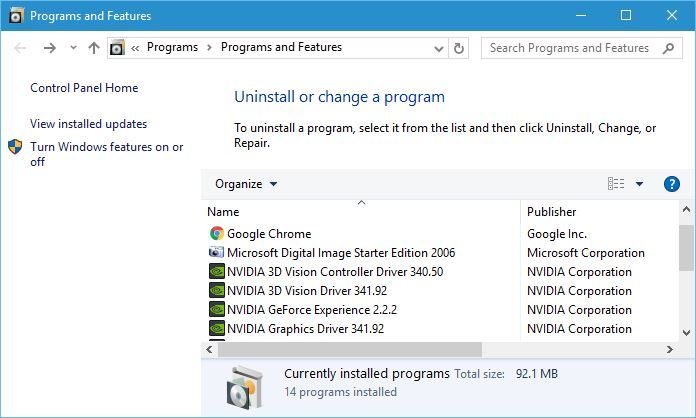
programs-and-features
Next on our list is Power Options. Using Power Options you can change your power plan, which is rather useful if you’re using a laptop, change what the power button does, or set your PC or monitor to turn itself off after a certain time of inactivity.

power-options
Event Viewer is an advanced tool that lets you see log of events that happened on your PC. You can use this tool to see when your PC was turned on or off, or you can use it to see when and why certain application crashed. Event Viewer is one of more complex tools on our list, and it’s and due to its complexity, it might not be suitable for basic users.

event-viewer
Next we have System, and by using this shortcut you can see some of the basic system information, such as the version of Windows 10 that you’re running, amount of RAM or the CPU that you’re using.

system
Device Manager is a tool we mention and use rather often. This tool will allow you to view all your installed devices and uninstall or update their drivers. In addition, Device Manager allows you to change the properties of installed devices, so it can be rather useful tool.

device-manager
Network Connections will allow you to see all network adapters on your PC. By using this shortcut you can easily change the properties of your network adapter or even disable it completely.

network-connections

Disk Management is another advanced tool that allows you to create new partitions or to change the size of hard drive partitions. This tool can delete entire partitions, so be extra careful if you’re going to use it.

disk-managment
Computer Management is a tool that lets you access many hidden Windows 10 features. In fact, you can even use Computer Management to access some tools that are available in Power User Menu. Since this tool can be used to access many other advanced features and tools, you should be careful if you’re going to use it.

computer-management
Command Prompt and Command Prompt (Admin) are the same tool, but they come with different privileges. Command Prompt comes in a form of command line, and you can use it to create files, delete folders, check your network adapter properties, create new users, or even format your hard drive.

command-prompt
There are countless ways you can use Command Prompt, but not all of the advanced features are available in regular Command Prompt, so you’ll have to use Command Prompt (Admin) that has full administrator privileges.

Next on our list is Task Manager, and you are probably familiar with this tool, so we won’t go into much detail. You can use Task Manager to view all your currently running applications and close them instantly if they stop responding. In addition, you can set which applications will start alongside Windows 10 every time you start your PC.

task-manager
If you used any previous version of Windows, you’re probably familiar with Control Panel and you know that you can use it to change almost any setting on your PC.

control panel options
File Explorer and Search options don’t offer access to any advanced features, and instead they work as a shortcuts to File Explorer and Search.

Run option will open a Run dialog that allows you to run almost any application from your PC. You can use this feature to run tools such as Command Prompt or Registry Editor by simply entering the name of the file in the input field.

run
Shutdown or sign out option allows you to quickly turn off or restart your computer, so you might use this option from time to time. Last option on our list is Desktop, and by using this option you will minimize all open windows and instantly show your Desktop.

As you can see, Power User Menu offers shortcuts to some of the most used and most powerful features on Windows 10. It’s also worth mentioning that you can access any of these options by using a simple keyboard shortcut. When you press Windows Key + X shortcut, you should see Power User Menu, and each option on the list will have an underline under a certain character, and you can simply press that character on your keyboard to quickly access a specific tool. For example, if you press Windows Key + X and then press T, you’ll open Task Manager. These shortcuts are available for all options on the list, thus making these features easier to access.

Power User Menu is rather useful and it can be used to access many tools and features of Windows 10 quickly. Bear in mind that some of these tools are rather powerful, so use them with caution.

Startup VNTANA uses Azure and Kinect to project Star Wars-like holograms

Social augmented reality startup VNTANA has partnered with Microsoft to release the HOLLAGRAM, an interactive hologram system with social media integration and data collection capabilities that is leveraging Microsoft’s Azure cloud and the Kinect motion-tracking device. The innovative holographic technology uses standalone hardware and works by combining real-time-time holographic video capture with interactive gesture control, allowing users to experience augmented reality without the need for wearable devices. Here is more technical information from the press release:

Consumers stand in front of VNTANA’s HOLLAGRAM and immediately see their own hologram LIVE on the display. Using gesture control, they can interact directly with holographic objects, such as a celebrity, product or any other object rendered in the digital space simply by moving their hands in front of the display. Immediately after the experience, users receive a branded email with a GIF, video or photo of the experience that they can share on social media.

The startup was founded in 2012 and became a member of Microsoft Early Developer and Microsoft BizSpark programs a year later after the team hacked the Microsoft Kinect and sent Microsoft a video of what they could do with gesture control. VNTANA Co-Founder and CEO Ashley Crowder shared in the press release that “Microsoft has been a huge part of our success, both as a partner and now as a client. Their technology provided us the tools to build the next generation of our products”.

In the following video, you can watch VNTANA CEO and CRO return to their alma mater USC to showcase their innovative technology:

As Microsoft is also exploring different uses cases for holograms with its HoloLens headset, Microsoft Vice President for Developer Experience and Chief Evangelist Larry Orecklin shared the company’s enthusiasm for VNTANA’s technology:

Empowering startups like VNTANA is a main driver for Microsoft. We are always looking for startups and entrepreneurs whose vision is built around innovation of our technology. VNTANA is a story of a startup that had the vision, the innovation, the passion, and we are thrilled to have partnered with them and excited to see what the future looks like for holograms.

What do you think of VNTANA’s use of Kinect?

Windows Store Update and UWP Microsoft Health App now available for download

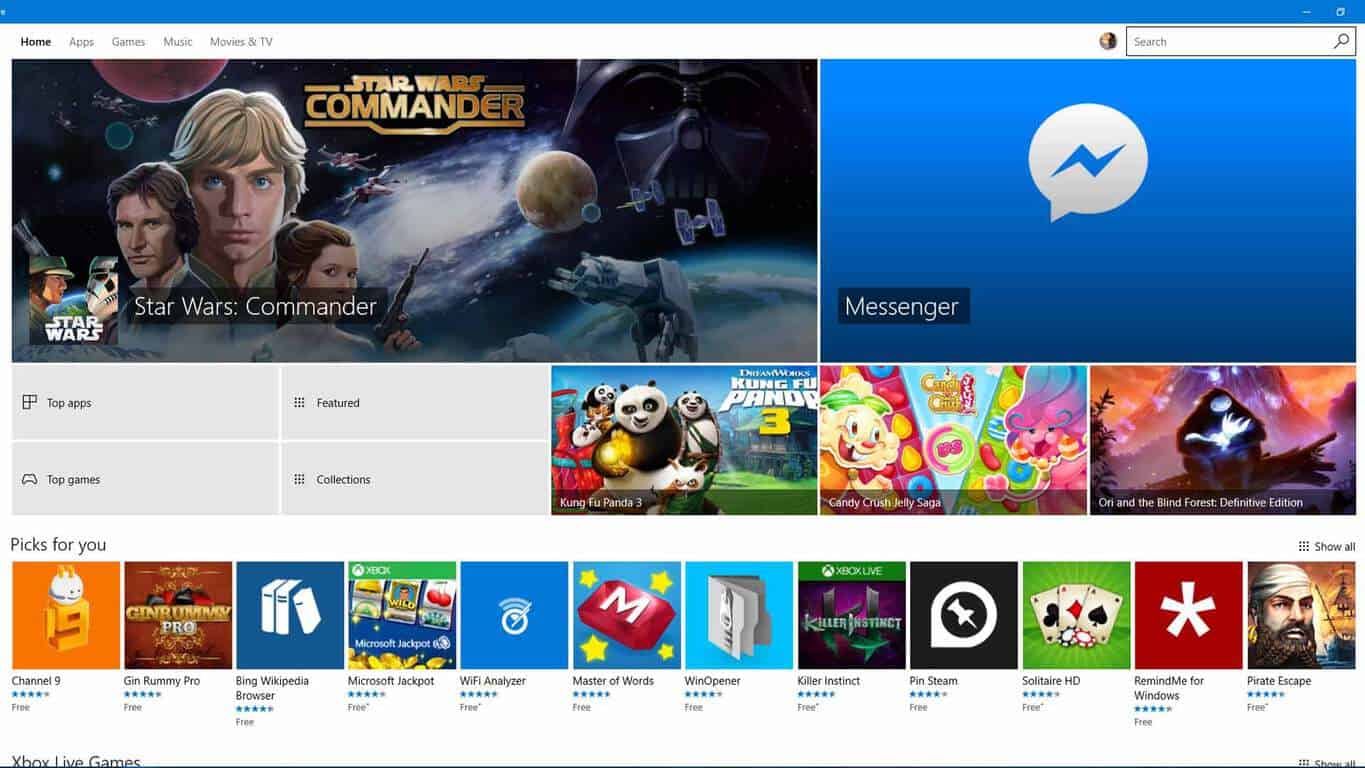
Just two days ago we delivered you some late night news on the new Windows Store rolling out to Windows Insiders on build 14342 on both Mobile and PC.  After a bug on PC’s prevented the Store from properly updating to the new version, today we can report that the update to the Windows Store is now available for all Windows Insiders on the latest builds.

new-windows-store
New Windows Store main page

Just as on Windows 10 mobile, the new Windows Store for PC features a new homepage design (seen above) which better shows off available apps and media. Additionally, the update to the store brings a new individual app listing page design (seen below). Lastly, the downloads and updates page also is seeing updates in the new Windows Store, and it now shows off recent activity with information on recently updated apps, and a new download indicator and the ability to hide apps.

New Windows Store app listing page

However, while the update also overhauled the store, it also squashed another bug which prevented the check for update button on the Windows 10 Mobile version of the Store from working. Now, as part of this update, the button now works successfully for a manual check for updates.

In other Windows Store news, the Microsoft Health UWP app is also now available to download. As we have written previously, with the new Microsoft Health app for Windows 10 PCs, Band owners will be able to sync their Band to their PC or Tablet through a USB cable and be able to “manage tiles, personalize your band, update firmware, and more.” The live Tile for the new app will also display info like your step count and calorie burn in your Start menu.

Microsoft Band
Microsoft Band
Price:
Free

What is your take on the new store? Do you like the new design? Let us know your thoughts by dropping us a comment below.

A remastered Batman: Return to Arkham is coming to Xbox One this July

According to Polygon, Warner Bros. Interactive confirmed that Batman: Return to Arkham will be a remastered bundle of Batman: Arkham Asylum and Batman: Arkham City, set to launch July 26, 2016 on Xbox One and PS4 for $49.99. According to Warner Bros. Interactive, both Batman games included in the Batman: Return to Arkham bundle were remastered using Unreal Engine 4.

Batman: Return to Arkham will allow players to access all of the additional DLC that was released for Batman: Arkham Asylum and Batman: Arkham City, and including all of the content contained in the “Game of the Year” editions as well. Batman: Return to Arkham will also have improved graphics, characters, and environments, as well as improvements to in-game lighting and effects, all powered by the Unreal Engine 4.

Batman: Arkham Asylum took place within the walls of Gotham’s craziest insane asylum, where many notorious villains, like the Joker, called home. The sequel, Batman: Arkham City, followed up on the mayhem that was created when the prisoners escaped, wreaking havoc on the streets of Gotham.

Batman: Return to Arkham will be available to play on Xbox One July 26.

Microsoft patents a Surface Book-like multi-pivot armadillo hinge

From a patent for the “shy user interface” to another patent for a “phone pad,” the folks at the U.S. patent office have probably been very busy documenting and sorting through Microsoft patents. More recently, though, the folks over at Patent Yogi have dug up yet another Microsoft patent, this time, a patent for a multi-axis multi-pivot armadillo hinge.

Screen Shot 2016-05-18 at 9.37.46 AM
Diagrams for the multi-pivot armadillo hinge (Photo obtained from Patent Yogi)

Overall, the hinge seems very similar to the one already found in Microsoft’s Surface Book. Patent Yogi describes it as very flexible and mentions that it “can stabilize an entire device” by allowing the device to recline and fold upward and backwards. The patent for the new hinge, though, also details hinge cover portions which are over the multi-pivot hinges to protect the hinges from foreign objects, and the user from being pinched.

Screen Shot 2016-05-18 at 9.38.16 AM
Detaching or attaching devices from multi-pivot armadillo hinge (Photo obtained from Patent Yogi)

As per Patent Yogi, the patented hinge also includes a quick attach and detach assembly to allow the user to detach primary and secondary portions of an attached device (in order to use the two independent of each other.) Again, this is somewhat similar to the already existing hinge on Surface Book, which features a display that can be pulled apart from the hinge on the keyboard.

Screen Shot 2016-05-18 at 9.38.38 AM
A closer look at multi-pivot armadillo hinge  (Photo obtained from Patent Yogi)

The patent, however, mentions other uses for the hinge, including attaching a first touchscreen to one portion, and a second touch screen to another portion.  In the patent documentation, which was filed back in November of 2014, Microsoft officially describes the hinge as follows.

The description relates to devices such as computing devices that have hinged portions One example can include a first portion and a second portion. This example can also include a multi-pivot hinge unit rotatably securing the first and second portions. This example can further include a set of rigid hinge cover portions that are configured to be able to rotate relative to none another while collectively covering the multi-pivot unit.

While a bit dated back to 2014, the patent is nonetheless very interesting. We would love to hear your thoughts on this patent, so be sure to drop us a comment below!

Tado’s Universal Windows Platform app updated with new features

The official tado app has just updated to version 2.11.12. This new updated fixed several bugs and improved the app’s overall stability and user interface performance significantly, so hopefully it won’t crash or freeze any more for those who have been experiencing those problems.

The tado app is used for controlling tado-branded Smart Thermostat and the tado° Smart AC Control devices and while the iPhone is usually used in tado’s marketing it is good to see the company still supporting Windows phone users.

Here’s the official app description:

The tado° app connects to your tado° Smart Thermostat and your tado° Smart AC Control to control your heating system or air conditioning based on your location. tado° pre-heats or pre-cools before you get home and saves when you leave. The app always shows the current state at home, such as temperature or humidity. Check and adjust settings from anywhere.

Have you noticed any improvements with the app since the update? Let us know in the comments below.

tado°
tado°
Developer:
tado.
Price:
Free

Annoying 0x80070002 error gets fixed in Mobile Build 14342

Many users reported issues when trying to install build 14332 on their Lumia phones. Despite numerous attempts, the same annoying error message kept appearing on the screen: “Update: 10.0.14332.1001 – Error 0x80070002”. In other words, users could not take advantage of the improvements brought by the respective build.

Fortunately, we have a good piece of news for all Lumia phone users. Microsoft has managed to fix this bug in the latest Windows 10 Mobile Insider Preview Build 14342.

Here’s how users first described this installation bug:

Hi I’m trying to install the latest build on my Lumia 930 but I get this error “Update: 10.0.14332.1001 – Error 0x80070002”

I have this same issue with the lastest windows phone update. When i go to install the update it fails and says Update: 10.0.14332.1001 – Error Code 0x80070002  (Lumia 640 ) it tells me to please contact support … Please Help me thanks 🙂

Another user describes the methods he used to fix the error, to no avail:

Same here. Downloads, reboots, updates 0% progress aaaannnnd lets bail on the update and reboot again.

Lumia 930 build 10.0.14328.1000 to 14332.1001

The list of Lumia phones affected by this build installation bug is the following: Lumia 930, 1520 , 640, 730DS, 635, 830, 535, 735 and 950.

Given the huge number of users affected, Microsoft tracked the bug internally thanks to the log files sent by users and managed to provide them with a fix in the latest Mobile build.

Today we are releasing Windows 10 Mobile Insider Preview Build 14342 to Windows Insiders in the Fast ring. […]

We fixed an issue causing installation of mobile builds to fail with Error 80070002.

Indeed, the fix works and all the users who had previously reported build installation issues have successfully installed the current Windows 10 Mobile Insider Preview Build 14342.

I can confirm that once the update to 332 fails and you hit retry, it then finds 342 and starts downloading.

If your Lumia phone cannot install the latest 14342 build, go back to Slow Ring, reboot the phone and switch back to Fast Ring to install it.

Confirm! – My update works fine now!

1) I have change back to slow ring and reboot the phone

2) I have Change again to sfast ring – and click on search update

3) Phone download and install update fine.

RELATED STORIES YOU NEED TO CHECK OUT:

Cooking Fever comes to Windows 10, lets you show off your cooking skills

If you like resource and time management games, then you should probably try out Cooking Fever, a popular cooking game in which you’re tasked with preparing the best recipes, upgrading your restaurants, and attracting more customers.

Cooking Fever allows you to explore international cuisine and cook delicious meals and desserts from all over the world. If it seems simple, it’s not — the clock is always ticking. There are 12 unique locations available, from fast food to Oriental restaurants, and you can practice your skills with a variety of cooking techniques.

Hundred of ingredients and tasty dishes are waiting for you. And the good news is that you can translate some of them into real life. Don’t be shy to use all the kitchen appliances, from coffee makers to pizza ovens, because this time you are not doing the dishes. Feel free to be as creative as you can. If needed, get inspiration from these recipe apps for Windows 10 so that you can do better next time.

Learn how marketing works and decorate your restaurants to attract more clients. Make your customers experience more personal and memorable so that they keep coming back. Go through all the tasks and upgrade your kitchen to create an even greater variety of dishes. In Cooking Fever, there are more than 400 levels are available to complete.

Have fun cooking and share your delicious meals on Facebook. In-app purchases are also available, ranging from $2.99 to $99.99.  The game supports the following operating systems: Windows 10, Windows 8.1, Windows 10 Mobile, and Windows Phone 8.1.

Still not convinced? Players love this game:

I don’t play a lot of games but I love this! Short or long play time, many cool restaurants to unlock, strategy in making upgrades and tons of creative options… I’m addicted 🙂

I really like this game. The fact that there are different restaurants with different foods keeps it interesting but I wish it was easier to get gems especially since you need them for a lot of the upgrades.

You can download Cooking Fever from the Microsoft Store for free.

RELATED STORIES YOU NEED TO CHECK OUT:

Office 365 now supports Concur’s expense and travel booking tools

The Office 365 platform just got another injection of accessible productivity with the addition of Concur travel booking and expense tools. Thanks in part to Microsoft’s push for Office 365’s extensibility as more than just a collection of word processing and number crunching tools, customers can now navigate expense reports and plan travel within the productivity suite.

Specifically, users can now take their Excel crafted expense reports and submit them via the Outlook app if they happen to be on the go or working from a mobile workstation, according to tnooz.com. With the support of Concur’s software tools, expense reports in Office 365 become a one-click send and receive process with receipt notes and payment detail authentication.

Furthermore, Office 365’s Concur’s support will also enable a sort of intelligent booking process that scans a customer’s Outlook Calendar for meetings and schedules trips accordingly. Concur’s travel booking software takes into account a customer’s traveling tendencies and routines such as preferred hotel accommodations, flight, and metro transportation choices and offers tips and suggestions during the booking process that are in line with company traveling policies. Concur’s software also keeps a running list of users choices to reduce time and effort during subsequent booking session in the future.

Concur and Microsoft are not strangers to this level of integration. Back in 2006, Microsoft and a then SAP-renamed Project Mendocino, sought to do a very similar and tightly woven integration that seemingly fizzled. Anecdotally, Mendocino, which eventually became known as Duet, shot out of the cannon with very little focus, attempting to access data stored in SAP’s business applications through Excel and Outlook. Perhaps with ten years of market observations, Microsoft and Concur can execute a much more focused release that customers will be drawn to.

Concur

Beyond bolstering the amount of tools a single Office 365 subscription offers customers, the addition of Concur’s expertise in travel and expense brings the company’s 40 million users to the 70 million and growing user base of professionals using Microsoft’s productivity platform. Microsoft plans to have the Concur support baked into the Office 365 platform by autumn 2016.

Download Windows 10 Clean Install tool

Microsoft is reportedly working on a new tool for clean installing Windows 10. As elaborated on in the Community forums, the new tool will provide users with a simple way to install Windows 10 on their computers.

The Program Manager on the Windows Insider Engineering team, Jason, recently shared the information with forum users:

“Hello Windows Insiders!

Want a simple and easy way to start fresh with a clean installation of Windows?  Looking for an easy way to do this?  We’re working on a tool to make this possible.

Final testing and validation is underway and we will want your feedback once it is ready to go!  Stay tuned for additional information as we work through the finishing touches.

And as always, thank you for being Windows Insiders!

– Jason”

Since Jason mentioned that Microsoft wants user feedback, we assume the tool will be released to Windows Insiders first. Also, as it is in the later development phase, we expect Microsoft to provide more details about the Windows 10 clean install tool very soon.

The Media Creation tool for Windows 10 is already available, and we assume the new tool will be different and will feature a greater number of options outside the ability to mount the Windows 10 ISO image.

We don’t exactly know how the tool will work, we don’t know its name, and its release date is still unknown. As soon as Microsoft provides more info about the tool, we’ll make sure to get you updated.

What do you think: how will the alleged Windows 10 clean install tool work? Tell us your opinion in the comments!

RELATED STORIES YOU NEED TO CHECK OUT:

New Civilization VI trailer sets release date on October 21

The award-winning Civilization franchise is returning again after a long hiatus. The new game, titled Sid Meier’s Civilization VI, is slated to hit Windows PCs come October 21, 2016 — a date the title also shares with Battlefield 1.

The Civilization series is a real-time strategy franchise where in each game, the player must build a powerful empire capable of standing the test of time. Players must become the ruler of the entire world by building an empire from the Stone Age right up to the Information Age.

This won’t be an easy task as several problems will arise along the way. However, it’s not impossible if the player has the mind for strategy. Be prepared to wage war with other factions as you participate in diplomacy with others. Furthermore, you will also get the chance to get to head-to-head with some of history’s well known figures.

Here are some of the cool features to expect from Civilization VI:

  • EXPANSIVE EMPIRES: See the marvels of your empire spread across the map like never before. Each city spans multiple tiles so you can custom build your cities to take full advantage of the local terrain.
  • ACTIVE RESEARCH: Unlock boosts that speed your civilization’s progress through history. To advance more quickly, use your units to actively explore, develop your environment, and discover new cultures.
  • DYNAMIC DIPLOMACY: Interactions with other civilizations change over the course of the game, from primitive first interactions where conflict is a fact of life, to late game alliances and negotiations.
  • COMBINED ARMS: Expanding on the “one unit per tile” design, support units can now be embedded with other units, like anti-tank support with infantry, or a warrior with settlers. Similar units can also be combined to form powerful “Corps” units.
  • ENHANCED MULTIPLAYER: In addition to traditional multiplayer modes, cooperate and compete with your friends in a wide variety of situations all designed to be easily completed in a single session.
  • A CIV FOR ALL PLAYERS: Civilization VI provides veteran players new ways to build and tune their civilization for the greatest chance of success. New tutorial systems introduce new players to the underlying concepts so they can easily get started.

For those who are interested, the game can be pre-ordered right now.

RELATED STORIES YOU NEED TO CHECK OUT:

Microsoft shuts down Project Spark, online services stay up until August

It’s official now: after a lot of speculation in recent moths, Microsoft finally decided to shut down its game creation tool Project Spark for good. Starting this week, Project Spark won’t be available on Windows 10 or Xbox One anymore, and developers who were used to this tool will have to find another platform to create games.

Project Spark Community Manager Thomas Gratz confirmed the game was removed from both Windows 10 and Xbox One Stores, and that all online services will be completely shut down August 12. Once online services are down, users will no longer be able to upload their creations or download additional content.

“This was an extremely difficult decision for our team that we do not take lightly. When “Project Spark” transitioned away from active development last fall, many of our team members moved to other projects within Microsoft Studios. While this means there have been no layoffs at Microsoft, it also means it’s simply no longer feasible to continue the behind-the-scenes work involved with keeping “Project Spark” up and running with meaningful updates and bug fixes, so we have come to this hard decision.” said Gratz.

This probably happened because Project Spark failed to reach its potential. The software maker had high hopes for the project, which allowed users to create a game within a game, but it apparently wasn’t popular enough.

Microsoft also said that it would offer players who purchased “Project Spark Starter Kit” in retail stores some sort of refund. Those who purchased the game in retail outlets will receive a credit, which can be used to purchase other apps or games from the Windows Store or Xbox Marketplace.

RELATED STORIES YOU NEED TO CHECK OUT:

Gears of War: Ultimate Edition now supports V-Sync on Windows 10

Gears of War: Ultimate Edition was recently updated for Windows 10, with its developer bringing to the table several features that were previously released for the Universal Windows Platform. Many of these features are what PC games have been asking for, but even then, the UWP platform is still miles behind the likes of Steam regardless.

V-Sync is probably the most important as it is one of the features thousands of gamers have been asking for, so it is great to see Microsoft listening and delivering on what its customers desire.

Here are the list of fixes and improvements as seen via the official website:

– Added v-sync toggle to video options. Toggle “off” to not be limited by your monitors refresh rate. Note: This requires an OS update that can be found here: https://support.microsoft.com/en-us/kb/3156421

– Added frame rate limit selector to video options. Use to reduce your frame rate if you are getting too much tearing, or choose unlimited to let the game render as fast as possible. Note: This option is best used with v-sync off. With v-sync on, it will force the game onto a refresh interval (render every refresh, every second refresh, etc.).

– Added anisotropic filtering setting to video options.

– Added FPS counter toggle to video options.

– Fixed a bug where post processing could become disabled.

– Fixed a bug where PSO’s could be created on the fly instead of read from the cache, causing hitches.

This is no doubt a huge update, one that should calm the storm if even for a little bit until other UWP features are released in the coming months.

As it stands right now, Microsoft needs to improve Windows 10 in terms of gaming if it wants folks to take the Windows Store seriously going forward. There’s already a strong competitor in the form of Steam, which means gamers have little incentive to purchase games from the Windows Store.

Want more Gears of War? Microsoft announced the release date of Gears of War 4 along with a new trailer. Check it out here and enjoy what the future has in store.

RELATED STORIES YOU NEED TO CHECK OUT:

Office 365 enhanced to simplify the process of eDiscovery

Microsoft’s Office 365 team just announced the release of a new set of eDiscovery enhancements for the productivity suite that include search, hold, export and case management.

Great, so what is eDiscovery and how does it benefit you?

eDiscovery or Electronic Discovery refers to the process of discovery in litigation or government investigations. The discovery aspect of eDiscovery is the result of tirelessly searching and sorting through data that can be identified as potentially relevant by attorneys or paralegals and eventually put on hold. Without assistive tools such as Office 365’s machine learning or predictive coding, the process could invoke unforeseen additional man-hours and cost. The Electronic part of eDiscovery centers around the subsequent exchange of data found and held by the discovery process that pertains to an investigation and is then exchanged in electronic format. Once again, Office 365 is looking to help attorney’s package their discovery in the easiest and most standard compliant ways as possible with its enhanced exporting of review applications.

The Electronic part of eDiscovery centers around the subsequent exchange of data found and held by the discovery process that pertains to an investigation and is then exchanged in electronic format. Once again, Office 365 is looking to help attorney’s package their discovery in the easiest and most standard compliant ways as possible with its enhanced exporting of review applications.

Today, the Office 365 team is making the eDiscovery procedure a tad easier and more compliant for its customers with the addition of:

Enhanced case management and access controls

The eDiscovery page in the Security & Compliance Center now has an option for case management, allowing you to work on eDiscovery cases without leaving the Security & Compliance Center. Use the eDiscovery case management feature to control who has access to the case, place content sources on hold and associate Compliance Searches with the case.

Case management controls

Preserving vital information with Case Management Holds

Preserving information is integral to the eDiscovery process. With Office 365 eDiscovery Case Management Holds, you can select the mailboxes, OneDrive for Business sites, SharePoint sites, and Office 365 groups you want to preserve as part of your investigation. Applying a hold preserves all data in the selected content sources until you release the hold. Content is preserved in place, so people can continue working on their documents and email without any loss in productivity; but behind the scenes, the content is preserved and is available to be searched and exported.

More granular search capabilities with Permissions

Now, in an eDiscovery case, you can create granular searches which allow you to search either a small number of locations or your entire organization. In addition, the searches you create as part of an eDiscovery case are only accessible by people that are part of the case. You can search and export data from mailboxes (active or inactive), public folders, OneDrive for Business sites, SharePoint sites and Office 365 groups.

Above all, the Office 365 team is also tweaking the export functions of its eDiscovery tool. Customers can now export the bulk sum of their search results (upwards of 100 GB) of data in a single PST export. The single PST export should come as a welcomed replacement to the previous exporting practice of sending multiple PST exports to cover related data. Furthermore, PST exports retain the metadata when and if SharePoint documents are downloaded.

The Office 365 team is not done with enhancing the eDiscovery process. The team also have plans in the near future to roll out more improvements and enhancements such as keyword statistics, source statistics, and export de-duplication. Eager researchers can head over to the Security & Compliance Center in their tenant to test drive the newly improved eDiscovery tools.

ID@Xbox Game Fest Week 3: what’s next?

The ID@Box Game Fest, which is all about independent Xbox game developers, is entering the third week, and this means now is your chance to try out the best future and prior program graduate games from the Xbox Game Preview and ID@Xbox programs. After checking out an official Xbox video about the occasion, we’ve given a few of the games a look and have included Microsoft’s descriptions and download links below.

Subnautica: $19.99

This game is a work in progress. It may or may not change over time or release as a final product. Purchase only if you are comfortable with the current state of the unfinished game. Descend into the depths of an alien underwater world filled with resources, creatures, wonder and threats. Craft equipment and submarines to explore lush coral reefs, volcanoes, cave systems, and more – all while trying to survive.

Elite Dangerous: $37.49

Explore, trade, fight and survive in Elite Dangerous’ massively multiplayer galaxy, and challenge the world in CQC: Close Quarter Combat. Become Elite in the interstellar PVP arenas of the ultimate 34th century gladiatorial contest.

The Long Dark: $19.99

The Long Dark is a thoughtful, exploration-survival experience that challenges solo players to think for themselves as they explore an expansive frozen wilderness. Monitor your Condition, search for life-saving supplies, and master survival skills like fire-building, maintaining your gear, hunting, fishing, and landmark-based navigation. There are no zombies — only you, the cold, and everything Mother Nature can throw at you. The hit Steam Early Access sandbox becomes the first survival game available on Xbox One!

Ark: Survival Evolved: $34.99

Stranded on the shores of a mysterious island, you must learn to survive. Use your cunning to kill or tame the primeval creatures roaming the land, and encounter other players to survive, dominate… and escape!

The Solus Project: $14.99

Humanity is on the verge of extinction. You are the last hope, tasked with finding a safe haven for a colony. But now you are stranded on a deserted alien planet and every other member of your crew is dead. The fate of humanity rests in your hands: you must survive… The Solus Project is a first-person survival adventure game by the award-winning Teotl Studios and Grip Digital.

Layers of Fear: $19.99

Dare you help paint a true Masterpiece of Fear? Layers of Fear is a first-person psychedelic horror game with a heavy focus on story and exploration. Delve deep into the mind of an insane painter and discover the secret of his madness, as you walk through a vast and constantly changing Victorian-era mansion. Uncover the visions, fears and horrors that entwine the painter and finish the masterpiece he has strived so long to create.

Sheltered: $14.99

 Sheltered is a deep and emotional survival & post-apocalyptic disaster management game. After a global apocalypse, a frightened family find their way to a deserted shelter, where they try to survive. You take on the role of protecting four family members. Their wellbeing and survival is your responsibility. One mistake, one bad decision and a loved one is gone, forever. Sheltered is a world where death is permanent.

The above-mentioned titles are just a few of the current and best future games from the Xbox Game Preview and ID@Xbox programs. Other titles include Prison Architect, and Ark: Survival Evolved. So, if these titles sound interesting, now is the best time to fire up your Xbox One and download away!

Microsoft takes sides in Brexit debate, says UK should stay in EU

While citizens of the United Kingdom will soon have to go to the polls to decide if their country should stay in or leave the European Union, Microsoft UK CEO Michel Van Der Bel has just shared his perspective on the Brexit debate via an open letter released today on Microsoft UK website (via the New York Times). In the letter, the executive claims that Microsoft currently has more than 5,000 employees in the country and also chose to leverage on the UK’s attractivity by opening its first overseas R&D laboratory in Cambridge.

And so, it’s not so surprising to see Van der Bel publicly take a stance and explaining that “the UK remaining in the EU supports important criteria for continued and future investment by Microsoft and others.” Please find the full letter below:

Ahead of the referendum in June, we’ve been asked by employees, customers and partners about Microsoft’s view on the UK’s membership of the European Union. As a business in an industry which will be affected by the decision we have carefully examined our position.

Ahead of the referendum in June, we’ve been asked by employees, customers and partners about Microsoft’s view on the UK’s membership of the European Union. As a business in an industry which will be affected by the decision we have carefully examined our position.

First and foremost, we want to emphasise that we firmly believe this is a decision for individual voters to make, based on the issues that are most important to them. We appreciate and respect that there are a range of reasons that motivate people on both sides of the debate, but as a business that is very committed to this country, our view is that the UK should remain in the EU.

We have a long history here. It’s where we opened our first international office in 1982 and we have been investing in the UK ever since. We have more than 5,000 highly qualified people working in fields including support, marketing, gaming, communications, cybersecurity and computer science research. We’ve built a global centre of excellence for the development of artificial intelligence and other computing disciplines. We’ve also worked in partnership with innovators, entrepreneurs and people with a passion for technology to help to create a thriving partner network of around 25,000 British businesses.

Historically, the UK being part of the EU has been one of several important criteria that make it one of the most attractive places in Europe for the range of investments we have made. At key moments in our international growth we have specifically chosen to invest in our capabilities here in the UK. Most recently, we announced that we would start offering cloud services this year from new UK-based data centres. And as we’ve grown, so too have the UK technology businesses we work with.

For us, the UK’s membership of a wider EU was also a key reason why we chose to invest in our first overseas R&D laboratory in Cambridge. Why? Because we knew that the world-leading scientists we wanted to attract would want and need to work directly alongside other great researchers from across the region. This flexibility of doing business attracts the best people, and the investment that follows them, to the UK.

Whatever the outcome of the referendum, we respect the decisions made by UK voters. Our commitment to our staff and business here remains firm, but we also believe the UK remaining in the EU supports important criteria for continued and future investment by Microsoft and others.

Your sincerely
Michel Van der Bel
UK CEO
Microsoft Ltd

The UK is set to have its referendum on June 23 and the latest opinion polls have shown uncertain results. Do you think Microsoft’s UK CEO is right to publicly take a stance in the debate? Please tell us what you think below.

SongArc goes Universal, appears in the Windows 10 Store

Ever since the advent of Windows 10, the Windows Store on PC has been slowly populated with more and more quality games in a variety of genres (thanks in no small part to Microsoft’s effort in bringing over Xbox exclusives); one category that it is still sorely lacking, however, is in rhythm games. or those clamoring for a solid musical gaming experience from the Store, we have good news: critically acclaimed Windows Phone game SongArc has become a Universal Windows App.

The name should be no stranger to Windows Phone enthusiasts, or even just general Windows Phone users of years past: SongArc – from the titular is one of the highest-quality games for the platform, with consistent support from the developers, a shining beacon in the proverbial Windows Phone gaming desert (comparatively). That is not to say SongArc is merely “better than nothing”: the game is a phenomenal rhythm game by itself, with great minimalistic graphics, a touch-optimized playstyle reminiscent of Guitar Hero, and the ability to play with music sheets created from existing songs on your device, share your sheets as well as purchase pre-created sheets with in-game coins (more than 140,000 sheets created at this point).

From initial impression, the transition of the game to Windows 10 Store has thankfully not cost it any of its luster: the game is nicely optimized for high-resolution big screens, and still look pin-sharp on a Surface Book. The gameplay is just as addictive as ever; the big screen, however, adds a level of easiness or challenge depending on your view it: consecutively notes are spaced out easier to hit, but there’s more ground to cover. The game’s most unique feature, the Sheet Creator, seems to also be working as intended; unfortunately, there were no songs on my computer to test it on, and  from the video tutorial, it looks like a certain level of musical affinity will be needed.

Overall, the app is a great addition to the list of high-quality Universal Windows Apps games, and should making fans of the game on other platforms, rhythm games enthusiasts, or simply gamers with a creative side, happy for some time to come.

SongArc
SongArc
Developer:
Response
Price:
Free

Xbox Live Gold prices are reportedly going up in select markets

According to a report Gameinformer, Microsoft will soon increase the price of the Xbox Live Gold subscription in Austria, Hungary, Israel, South Africa, Sweden, and Turkey starting June 20 to adjust on currency fluctuation. Our colleagues learned about the price increase after a reader from South Africa sent them the following email from the Xbox team:

Microsoft sent this email to an Xbox Live Gold subscriber in South Africa (credit: GameInformer).
Microsoft sent this email to a Xbox Live Gold subscriber in South Africa (credit: GameInformer).

In the US, the current price of the Xbox Live gold monthly subscription is $9.99 per month (or $59.99 per year). In South Africa, the increased monthly fee (R159) will represent about $10.33. While Microsoft didn’t share the adjusted prices for Hungary, Israel, Sweden and Turkey, it has already told GameInformer that “the new price in Austria aligns with other European markets,” which is currently €6.99.

A Microsoft representative also shared more details about the price increase in a email to Gameinformer:

We occasionally update pricing in a given market to provide a balance of service and value, and in some instances, meet currency fluctuations within the region, and will be adjusting the price of Xbox Live Gold subscription in a small number of markets on June 20, 2016. We do so always keeping in mind that our goal is to offer our members the premium gaming and entertainment service at a fair price.

While this price increase is obviously not good news for Xbox owners in the affected markets, the Xbox Live subscription (which is optional) is still great value for your Xbox One or even your Xbox 360: the subscription will not only allow you to play multiplayer games on Xbox Live and use social features with your friends such as party chat but also grant you free games and exclusive discounts every month. Last, it’s still possible to pay less for Xbox Live Gold  by choosing an annual subscription or by buying a discounted code on the Internets (which are not region-locked). If you’re a Xbox Live Gold subscriber living in one of the markets affected by the price increase, please tell us in the comments if these changes may push you to reconsider your subscription in the coming months.

Microsoft and SAP partner on bringing SAP HANA platform to Azure

SAP announced today at its annual SAPPHIRE NOW conference that it has expanded its partnership with Microsoft to provide more choice for SAP deployments. Following this announcement, Microsoft is now claiming that its Azure cloud platform “offers the most comprehensive platform for running SAP workloads, with a broad range of choice and capabilities for enterprise customers.”

First, the enterprise application software company will get a new deployment option for the SAP HANA cloud platform on Microsoft Azure, and the Redmond giant has detailed on a dedicated blog post on the Azure blog all different deployments options now available for SAP applications :

  • SAP HANA on Azure with multi-node support for deployments capable of scaling up to 32 TBs of memory for SAP HANA Enterprise OLAP applications like SAP BW.
  • SP HANA on Azure with single-node support up to 3 TB each of memory for SAP HANA Enterprise OLTP applications like S/4HANA.
  • SAP HANA One images in Azure Marketplace
  • Controlled Availability of SAP S/4HANA on Azure GS5 [i]

Additionally, the following new scenarios are available today:

  • SAP HANA Enterprise on Azure GS5 for OLAP (single node) in production and non-production scenarios
  • SAP HANA Enterprise on Azure GS5 for OLTP NetWeaver solutions for non-production scenarios

But that’s not all, as both companies have also announced new integrations between Microsoft Office 365 and cloud solutions from SAP to “combine Office 365 communications, collaboration, calendar, documents and other data with cloud solutions from SAP, including Concur, SAP Fieldglass®, SAP SuccessFactors®, and SAP Ariba® solutions, helping employees improve their overall productivity.” These new cloud services integrations will be available in the third quarter of 2016, with plans to release additional integration features in the future.

Last, Microsoft has also announced that it is extending the certification and support of SAP Business Suite, NetWeaver and SAP HANA Developer Edition on Azure Linux Virtual Machines. The Azure team added that “customers can choose to deploy a 2-tier or a 3-tier SAP configuration with various Azure VM sizes available to support SAP workloads ranging from 200 SAPS to 20,000 SAPS capacity.”

SAP CEO Bill McDermott shared the following statement in the press release:

“We believe the IT industry will be shaped by breakthrough partnerships that unlock new productivity for customers beyond the boundaries of traditional platforms and applications. SAP and Microsoft are working together to create an end-user experience built on unprecedented insight, convenience and agility. The certification of Microsoft Azure infrastructure services for SAP HANA along with the new integration between Microsoft Office 365 and cloud solutions from SAP are emblematic of this major paradigm shift for the enterprise.”

Microsoft to host Research Faculty Summit 2016 in Rio de Janeiro on May 18-20

Microsoft has just announced that it will be hosting the tenth annual Microsoft Research Latin America Faculty Support in Rio De Janeiro, Brazil from May 18th- May 20th, 2016.

Overall, the event explores with researchers how innovations in computing, fueled by academic and industry research, can rise to meet the regional scale challenges of today. The three-day event will also be divided up into three sessions, with one for each day. The three sessions include Recent advances in Information Technology, Open source software and industry, and Microsoft Academic: new applications and research opportunities. The full details from each of these sessions, as described by Microsoft, can be seen below.

Recent advances in Information Technology: May 18, 08:30-09:30 PT

In this talk we present an overview of recent developments in information technology, especially in the areas of computer vision, speech and natural language processing, and new computer interfaces, in particular those developed at Microsoft Research. Many of these technologies are the result of the new developments in computer architecture, machine learning and deep neural networks, and big data.

Open source software and industry: exploring the reality: May 19, 04:30 – 05:30 PT

In this talk we shall survey this landscape, present statistics and examples of some of Microsoft Research’s OSS tools, explore the challenges, and make some predictions as to where the most exciting industry OSS developments will launch in the future.

Microsoft Academic: New applications and research opportunities: May 20, 4:30 – 9:30 PT

Microsoft Research is determined to change the way that research information is discovered, analyzed, and exploited. The Microsoft Academic Graph is a new entity graph of research publications, authors, venues, organizations, and topics which is now driving new features in Bing, Cortana, and Microsoft Academic. In addition, Microsoft Research has opened up this dataset to the community new APIs to support further research, experimentation, and development. This talk will highlight how Microsoft is surfacing this information in novel ways, and how the research community can take advantage of these data and APIs to fuel new research opportunities.

Speakers at the event include Paula Bellizia, General Manager of Microsoft Brazil, Rico Malvar, the chief scientist at Microsoft Research, and Judith Bishop, and Alex Wade of Microsoft Research. All the sessions will be streamed live on Channel 9, which can be accessed by clicking here or the links for each of the sessions above.


Microsoft highlights speech and Cortana in Universal Windows Platform Apps

A cool feature of Microsoft’s Universal Windows Platform (UWP) app format is the support it gives for developers to incorporate Window’s Cortana and voice controls into their apps. Microsoft, in an attempt to educate developers on the feature’s potential, have begun a blog series that explores the benefits of using voice and how to implement it into a variety of apps.

This first entry in the series goes in-depth with what specific code to use to incorporate voice-controls in a UWP app, how to choose language and grammar settings, and also how to use specific hardware such as different microphone inputs.

Microsoft admits that not all apps and situations call for voice-controls however and gives the example of how it could be used when driving yet would be impractical when a user is walking through a busy street and may not be able to be heard properly. “Context is king, and it’s not easy to always get it right even with a modern device that’s packed with sensors,” Microsoft’s developer evangelist, Mike Taulty says. “Consider your scenarios carefully and look at our guidance around these types of interactions before getting started.”

Microsoft has been pushing Cortana heavily since the launch of Windows 10 and has been promoting it as one of the operating system’s main features. The company has even launched Cortana apps on iOS and Android and continues to evolve the feature across the board.

Cortana recently updated on Android and gave users on that ecosystem a more convenient way to access the app’s services. A more controversial change to Cortana recently has been Microsoft’s decision to only let it function with the company’s Edge internet browser instead of the various other options such as Firefox and Chrome. The reason given was that Microsoft wanted to essentially improve the user experience but one can’t help but wonder if it was just done to encourage more people to use Edge.

How do you use Cortana? Let us know in the comments below.

Play Homefront: The Revolution now on Xbox One

Homefront: The Revolution is now available to download and play on Microsoft’s Xbox One video game console. The title is a first-person shooter set in an expansive open-world environment. It features both a single player campaign mode and a multiplayer co-op mode. Here’s the official game description:

Four years into the brutal military occupation, America is on its knees. Philadelphia – once the birthplace of Independence – has become a ghetto, where surveillance drones and armoured patrols keep the population at heel, crushing any dissent with savage force.

Her once-proud citizens live in a police state, forced to collaborate just to survive, their dreams of freedom long since extinguished.

But in the badlands of the Red Zone, in the bombed out streets and abandoned subways, a Resistance is forming. A guerrilla force, determined to fight for their freedoms despite overwhelming odds and ignite the second American Revolution.
But Freedom always has a price…

The game is a sequel to the 2011 Homefront game which was released on Windows, Xbox 360, and Sony’s PlayStation 3. This latest entry in the series had been planned for a while but was significantly delayed after Homefront’s publisher, THQ, filed for bankruptcy. Crytek acquired the rights in 2013 and had been working on The Revolution but they eventually sold the rights to Koch Media and development was transferred to Dambuster Studios.

Homefront: The Revolution is being sold in two different versions. The standard release of Homefront: The Revolution comes with just the game but the Freedom Fighter Bundle comes with the game and a host of extras such as rare combat gear, motorbike and pistol skins, weapon unlocks, single player expansions, and special co-op bonuses.

Have you been hanging out for Homefront: The Revolution on Xbox One? Which content excites you the most? Let us know in the comments below.

Buy Homefront: The Revolution Freedom Fighter Bundle on Xbox One

Buy Homefront: The Revolution on Xbox One

Forza Motorsport 6: Apex for Windows 10 gets content update, brings stability fixes and gameplay modifications

Forza Motorsport 6: Apex received its first update, improving on an already incredible game. The update focuses on fixing the stability issues reported by players, introduces new UI features and game modifications, and allows players to disable Vsync.

If you want to disable Vsync, you need to update to a specific Windows version, OS Build 10586.318. Then, follow the following steps:

  1. Select the performance from the Performance Target screen.
  2. Make sure your application matches your screen resolution settings. Set the “Force Resolution” video option to OFF, and this will automatically match your game resolution to your native resolution.

  3. Run your application in full screen.

Other improvements include:

  • Stability and performance updates spanning a number of machine configurations, with specific focus on AMD devices

  • Gameplay/objective modifications to a handful of events in both the Showcase Tour and Spotlight Series

  • Improved integration between Apex and Forza Hub, as well as improved redemption flow for the free Nissan GT-R bonus car

  • Additional UI fixes and general improvements, including: Expiration times for Spotlight Series events are now shown in local time; “New” UI designation now only applies to events that are actually new; Total medals available in Spotlight Series now only counts for active events.

This update also caused the 501 Error Code message to appear on the screen when launching the game. Simply ignore it as this is not a blocking error. To bypass it, hold the “Page Up” button on your keyboard and then click on the “Quit” option in the popup.

Players greeted these updates added a few more on the list, hoping developers will take them into account for the next update:

  • Ultrawide (21:9) support
  • Optimization for hyper-threading CPUs
  • More tracks and cars
  • The possibility to upgrade the engine block, the suspension and make build cars

RELATED STORIES YOU NEED TO CHECK OUT:

Project CARS now fully supports the HTC Vive and Oculus Rift VR headsets

Project CARS is a motorsport simulator racing video game that has been released for Xbox One, PlayStation 4 and Windows PC. The game has been developed by Slightly Mad Studios and published by Bandai Namco Entertainment.

Today we have some good news for the gamers that play Project CARS on their computers, as a new patch has just been released on Steam, which brings full support to the game for HTC Vive headset.

Since Project CARS is now fully supporting HTC Vive, it also supports SteamVR’s room customization option, which will show you the StreamVR room whenever you are inside the game menu.

Project CARS 11.0 patch: Change log

– HTC Vive support;
– Gaze control has been implemented, which means that you will be able to use hands-free interaction in the User Interface;
– The mouse pointer control in HMD view has been implemented;
– The photo mode is now fully working;
– Depth of Field effects are now fully working;
– When you will remove the HMD, the game will retain controller focus;
– The rendering system for Sun flares and Crepuscular rays has been improved;
– The rendering of rain drops and dirt on Helmet visor has been improved;
– The default seat position has been improved;
– The default HUD position has been improved;
– The default camera settings that prevents the car tilting independently from the player at steep inclines has been improved;
– A refresh issue on the User Interface that was caused when returning from a race to the main menu has been fixed.

At the same time, the new update comes with usual performance improvements and bug fixes, which will make the game run smoother and without any issues.

UPDATE: Project CARS is now supporting Oculus Rift as well.

RELATED STORIES TO CHECK OUT:

Newly announced Azure Media Services feature can detect motion in security video feeds

As many of Microsoft’s latest moves and acquisitions indicate, the company is pivoting towards a future led by connected cloud tools, apps, and software. That not-to-distant future Microsoft is betting on also combines the cloud with an ever-increasing dependency on the use of Internet of Things hubs and sensors to encapsulate an always-connected living experience.

Ironically, the Windows Store currently trails market leaders Google Play and Apple’s App Store when it comes to apps that can tap into smart home capabilities. However, the lack of Windows-focused app development isn’t going to stop Microsoft from competing in the market with technological backend support.

Announced today, Microsoft’s Azure Media Analytics will now have support for motion detection. Azure Media Services program manager Richard Li walked developers through what the new motion detection support means in the grand scheme of the company’s IoT efforts.

We are very excited for the free public preview of the Azure Media Motion Detector, and this blog will detail the use and output of this technology. This Media Processor (MP) can be used with static camera footage to identify where in the video motion occurs. Targeted towards security video feeds, this technology is able to differentiate between real motion (such as a person walking into a room), and false positives (such as leaves in the wind, along with a shadow or light changes). This allows you to generate security alerts from camera feeds without being spammed with endless irrelevant events while being able to extract moments of interest from extremely long surveillance videos.”

In an information-packed post on Microsoft’s Azure blog, Li explains that with motion detection support in Azure Media Analytics, users can now eliminate false positive tracking rendered by changes in lighting and shadows.

The details on motion detection in AMA also include:

  • Video format support includes MP4, MOV, and WMV currently
  • Users can access the new service by creating or signing in with a Media Services account or use the company’s REST API/SDK.
  • Lastly, motion detection takes a video and JSON configuration as input and generates a JSON file containing this metadata with timestamps and the bounding region where the event occurred.

For those interested in testing out Microsoft’s new motion detection software, the company is encouraging users to visit the blog or contact them through the mailto:[email protected] email portal.

Halo 5 Guardians Memories of Reach DLC released

Halo 5: Guardians was released on October 27, 2015 for Xbox One, and since then received a number of content updates. Its latest DLC is titled Memories of Reach, which comes with the long awaited Infection game mode, new armor sets inspired by the legendary Noble Team from Halo: Reach, and a new Arena map with Statis.

In addition, some new weapons have also been added to the game, such as Jorge’s Chaingun and the Brute Plasma Rifle, along with character customizations such as weapon skins, assassinations, and emblems. As expected, the new DLC also fixes some of the issues fans have been reporting, one of which will make many gamers happy: the ability to modify the matchmaking search preferences.

If you own Halo 5: Guardians, the next time you launch it will prompt the Memories of Reach Update Pack download, a free, one-time pack. The Memories of Reach REQ Pack will also be available for 120,000 REQ points, or $14.99 USD. With this pack, you will unlock three new permanent REQs.

If you are an eSports fan, the HCS Pro League Online Qualifiers event this weekend will determine who will move on to participate in the Last Change Qualifier on May 21 and 22.

This isn’t it for Halo releases: the Wild Hog update, featuring the Warzone Firefight game mode, is getting ready to be released soon as well.

What are your thoughts about the new Halo 5: Guardians Memories of Reach DLC?

Microsoft announces Quantum computing challenge winners

Microsoft has always attempted to be on the edge of the latest technology advances. It was two years ago that Microsoft made an official statement that their sights had turned inwards to the development of topological quantum computing. The field indeed has made significant leaps since Microsoft has invested their time and vision into it with teams such as the Quantum Architecture and Computation Group (QuArC) leading the way. These scientists and engineers have focused on finding solutions to real-world quantum algorithms and developing software to advance the implementation of quantum computing as a whole.

That is why they introduced the Microsoft Quantum Challenge. Students, some of which have never worked with quantum computer simulators before,  were tasked with resolving real-world solution with the QuArC’s latest release. The Language Integrated Quantum Operations Simulator, also known as LIQUi|> (Liquid), is used to define quantum circuits, render them to graphical formats, then execute them as cross-platform simulations. It can translate high -level programming to lower-level machine instructions for quantum devices. The toolkit being developed by the QuArC includes compilers, optimizers, translators, simulators, and built-in examples.

Today, Microsoft announced the winners of the challenge. There were four runner-up publications:

Johannes Bausch (University of Cambridge, UK) – “Quantum Neural Networks: A Hamiltonian Complexity Approach”

Andras Pal Gilyen (University of Amsterdam, The Netherlands) – “Testing Quantum State Engineering Protocols via LIQUi|> Simulations”

Vojtěch Havlíček (ETH Zurich, Switzerland), Anthony Milne, and Andrew Simmons (Imperial College, United Kingdom) – “Solving Maximally-Constrained 1-SAT Problems with Oracular Access”

Ali Husain (University of Illinois Urbana-Champaign, USA) – “Catching Nature in the Act: Real-Time Imaging of Quantum Systems with LIQUi|>”

The $5,000 Grand Prize winner was given to Thien Nguyen (Australian National University) for his publication titled “Simulating Dynamical Input-Output Quantum Systems with LIQUi|>”. The paper he wrote explained the simulation of complex engineered open quantum systems by discretizing the physical system composition through the use of a dissipation emulator. The judges were impressed by Nguyen’s paper, offering that “Thien extended LIQUi|>’s capabilities by supplementing the existing Hamiltonian simulator with an innovative gadget for simulating dissipation. This clever use of amplitude-damping noise enables a quantum computer to be used to simulate open quantum systems as well as closed systems, and has important applications in real-world situations.”

Nguyen had been aspiring to get his hands on a quantum simulator from QuArC for nearly two years, finally achieving his goal and setting the standards high for other grad students like himself. The team is filing this challenge under a high success not only for the advantage of higher learning but to understand the direction that students want to take quantum computing going into the future. Events like the Microsoft Quantum Challenge are wonderful opportunities for innovators to connect with ideas and projects that will make strides, and it’s likely we haven’t seen the last of them.

If you would like to learn more about how the QuArC team are advancing the future of technology through quantum computing, visit their Microsoft research page.

To get your hands on the LIQUi|> toolkit, download it for free on Github.


Microsoft might be selling its Nokia phone business to Foxconn

It’s no secret that Microsoft’s phone business isn’t going according to plan. Last quarter alone saw a 46% drop in phone revenue, slightly better than the 49% drop the quarter before that. On hearing that news, we suggested that the company put a nail in the coffin and accept that there are bigger players in the smartphone market it cannot successfully compete against.

In the end, it seems that Microsoft is finally realizing this: According to rumors, the tech giant is considering licensing 50% of its mobile business to Foxconn — in other words, the Nokia brand it had purchased for 10 years, until 2024. It appears that negotiations have reached very advanced stages, with Microsoft and Foxconn currently deliberating the final clauses of the deal.

Microsoft does not want to abandon its phone business altogether as it has expressed interest in keeping the Lumia division intact. If the deal does go through, the Lumia department would be integrated with the Surface team. A grim future awaits 50% of the employees working on the Microsoft Mobile project since most of them will have to find work elsewhere if the company cannot find other positions in the company for them.

By merging the Mobile and  Surface teams, Microsoft is searching for a cure to its phone revenue woes. Both the Surface Book and Surface Pro 4 are two of Microsoft’s main revenue streams, bringing in real cash to the company’s coffers. In fact, Surface revenue increased 61% in last quarter after years of constant declines.

[irp posts=”29615″ name=”Microsoft patents low-power tethering Wi-Fi, could make it to its next flagship phone”]

As shocking as this may be, there are some strong arguments in its favor, the most important one being the upcoming Surface Phone scheduled for release in April 2017. Why would Microsoft develop a Surface Phone when it has — well, still has — a dedicated phone division? In addition, Microsoft talked more about Android and iOS than it did about its own mobile offering at Build 2016. Was it because Windows on Mobile is no longer relevant to Microsoft? There are too many signals pointing in the same direction to simply ignore them.

As painful as this may be for many Microsoft Mobile fans, burying a large portion of its Mobile business is the right choice to make. Potential buyers are not interested in Windows Phones while many Windows phone owners are switching sides. Why continue to pump money into a dying project, hoping to miraculously revive something that is visibly on its last leg? Directing resources towards a new project is the wisest decision Microsoft can make.

RELATED STORIES YOU NEED TO CHECK OUT:

Microsoft Store celebrates Military Appreciation Month with matched digital gift card donations

Microsoft has teamed up the United Services Organization (USO) to thank the deployed armed service members throughout the globe for Military Appreciation Month. All May long, Microsoft will be matching any gift card donations, up to $25,000, made to the USO until May 21, 2016. The USO will be sending the gift cards and personalized messages out to service members throughout the states and overseas.

The USO has been in charge in supporting and entertaining service members for over 75 years. USO Northwest will be holding special events at the Microsoft Store in Bellevue and University Village so you can also have an opportunity to meet with service members in the Seattle area and write your own appreciation messages in person.

You can pick your favorite Military Appreciation gift card design, pick any amount you would like to donate to a service member (up to $100), sign into your Microsoft Account and send the gift card to [email protected]. Here is a list of the dates and hours that the Military Appreciation Month event hours for the Microsoft Stores in Bellevue and University Village.

Microsoft Store Bellevue:

May 18 – 19, 1:00 PM – 4:00 PM
May 20, 9:30 AM – 1:30 PM
May 21, 4:00 PM – 9:00 PM

Microsoft Store University Village:

May 18, 12:00 PM – 2:00 PM
May 19, 12:00 PM – 4:00 PM
May 20, 12:00 PM – 8:00 PM
May 21, 10:00 PM – 9:00 PM

If you are interested in learning other ways that you can donate, you can visit the USO on their website.

Microsoft set to re-release nearly 1 million Xbox gamertags starting this Wednesday

This Wednesday, beginning at 11am PDT, Microsoft will be re-releasing nearly 1 million gamertags to Xbox Live Gold members, remnants of the original Xbox era. The gamertags were never migrated to the Xbox 360, and have been inactive for years, but unavailable to new or existing Xbox gamers.

There are a few details, you need to be an Xbox Live Gold member with an active subscription and at least 1 year of Xbox Live Gold tenure. The tags will be released in batches over a 24 hour period, giving gamers around the world an equal chance, so if your dream gamertag isn’t available right at 11am, you should keep trying.

The gamertags fall into a number of popular categories, including:

  • Proper Names
  • Pop culture references (Entertainment, sports, gaming)
  • Types of Food
  • Geography and Travel
  • Science and Technology
  • Math and Numbers
  • Animals
  • Some of the greatest inventions of all time

According to the post on MajorNelson.com, the easiest way to get a new gamertag is via Xbox.com:

Access to these newly-released Gamertags will be available on Xbox.com, which is the most convenient way to make a Gamertag change. Xbox Live Gold members can also access these Gamertags within the Xbox App on Windows 10 and on the Xbox One console. Xbox 360 owners will need to use Xbox.com, the Xbox App on Windows 10, or an Xbox One console to participate given that access to these newly-released Gamertags is not available from an Xbox 360 console. Click here to change your Gamertag on the web.

You can check your subscription tenure status on your profile, and get ready to get the gamertag you’ve always wanted!

Quantum Break joins Gears of War in supporting Windows 10 frame rate and sync improvements

It’s been nearly a week since Microsoft released an update to Windows 10 that finally allows UWP games to run as smoothly as their Win32 counterparts. While developers still need to update their games to enable support for unlocked frame rates as well as AMD’s FreesyncTM and NVIDIA’s G-SYNC technologies, Gears of War Ultimate: Edition was the first UWP game to be updated last week with v-sync options and more.

However, according to a new report from Windows Central, another Microsoft Studios title is next in line to receive a similar update that will likely please gamers on Windows 10 PCs: according to a tweet from Remedy’s Head of PR Thomas Puha, the Quantum Break developer is currently working on an update that will bring support for G-Sync/FreeSync to the game which will help eliminate lag, screen tearing and stutter issues.

While Puha didn’t share an ETA for the update, we can’t wait to see how it will improve the gameplay experience on gaming PCs. As a reminder, the game’s recommended specs are pretty high with an Intel Core i5-4690 3.9GHz CPU, an NVIDIA GeForce GTX970 or AMD Radeon R9 390 and 16 GB of RAM. Did you already tried Quantum Break on your Windows 10 PC? Please tell us about your experience in the comments.

Misfit Link and Misfit Home apps now available for Windows 10

The American wearable technology company Misfit has released two new apps, Misfit Link and Misfit Home, to work with their devices (via Windows Central). Misfit Link connects with the company’s wearable devices including Misfit Shine 2, Flash and Flash Link, allowing users to take control of their devices and perform various functions such as the ability to take selfies with phone’s camera app, control music, manage presentation slides and much more. In fact, users can even make use of Microsoft’s digital assistant Cortana to switch between modes using voice recognition.

Misfit link app description reads:

Misfit Link is a new software experience that makes your wearable an even more powerful tool to control and connect with the world around you. The Misfit Link app lets you use any Misfit Shine 2, Flash or Flash Link to take a selfie with your phone camera app; control your music; advance slides in a presentation and much more. Use Cortana to switch between different modes using just your voice.

On the other hand, the Misfit home works with company’s wireless smart bulb, Bolt. With the app, users can control the smart bulb and transform their room with different lighting effects, design customer lightscapes from your photos, adjust bulb brightness, change colors of the bulb and much more. You can check out the complete list of features Misfit Home has to offer to its users below.

Misfit Home app features:

  • Transform your room using dynamic lightscapes, from a warm glow to an ever changing rainbow.
  • Design custom lightscapes from your favorite photos.
  • Select from millions of colors.
  • Adjust the brightness to just the right level to fit your mood.
  • Create and manage multiple rooms.
  • Wake up to a simulated sunrise.

Head over to the Windows Store to download the Misfit Home and Misfit Link apps using the links below.

Misfit Link
Misfit Link
Price:
Free


Misfit Home
Misfit Home
Price:
Free

Updated Instagram app for Windows 10 gets new icon, simplier design

Last week, Instagram released a new update for Android and iPhone, introducing its brand new design and a new logo to complement it. The reaction received from users were mixed, some liked it while others preferred the old one. It was also confirmed that the new Instagram app will make its way to Windows 10 devices, and it seems the time has arrived.

The company has released the updated Instagram app for Windows 10 devices and can be downloaded from the Windows Store using the link below. The new update brings the new rainbow camera logo introduced last week as well as the simplistic design to make sure browsing the image sharing website is smooth and helps you browse the images in a better way.

The version notes mention:

We have a new look! Our updated icon stays true to the camera and rainbow. The simpler design puts more focus on your photos and videos without changing how you navigate the app.

Let us know about your thoughts if you’ve already upgraded the app on your Windows 10 device.

Instagram
Instagram
Developer:
Instagram
Price:
Free

We answer: What is PowerShell in Windows 10 and how to use it?

Command Prompt has been present on all all versions of Windows, and it’s without a doubt one of the most powerful tools on Windows 10. In addition to Command Prompt, there’s also PowerShell available, and today we are going to show you what is PowerShell and how can you use it.

What is PowerShell and how to use it?

PowerShell is a task automation and configuration management framework that comes in a form of a command line. PowerShell is based on .NET framework, and you can use it to perform all sorts of advanced tasks. PowerShell is far superior to Command Prompt, and it might eventually replace Command Prompt, so let’s learn more about PowerShell.

PowerShell was first introduced in 2003 as a project Monad, but the first official release came in 2006. Over the years, PowerShell was enhanced by new features such as the ability to execute commands remotely from a different machine or to schedule certain commands. These are some of the basic abilities that PowerShell possesses, and thanks to the great level of customization, PowerShell is a perfect tool for network administrators or any advanced Windows 10 user.

PowerShell can be used for a wide range of operations, and most importantly, it supports all the standard Command Prompt commands. For example, you can terminate a certain process directly from PowerShell or you can set a certain task to run in background. In addition, you can use PowerShell to uninstall and reinstall Windows 10 default apps, by using Get-AppxPackage and Remove-AppxPackage commands.

get-appt-powershell

As we previously mentioned, this is rather important tool for network administrators, and if you are a network administrator and you need to perform a single task on multiple PCs, you can set PowerShell script to do it for you. Since you can execute PowerShell scripts remotely, you won’t even have to leave your computer.

PowerShell comes with a learning curve, and you’ll need to spend some time with it before you master it. Fortunately, in Windows 10 there’s PowerShell ISE that comes with graphical interface that makes the scripting process a lot simpler. We wrote briefly about PowerShell ISE in 7 best tabbed command line tools for Windows 10 article, so make sure you read it for more information.

To access PowerShell on Windows 10, you just need to press Windows Key + S, enter PowerShell, and select it from the list of results.

powershell-run-as-admin

PowerShell is extremely powerful tool that can be used to remove Windows 10 core components, files and default applications. Since this command line tool offers so much power, it can also be rather dangerous if you’re not careful, so use this tool responsibly.

For example, you can use PowerShell to add and output data from your Clipboard. Since PowerShell uses principles of object-oriented programming you can perform all sorts of advanced commands. For example, you can add a dir command, a command used for displaying directories, to the Clipboard and call it by doing the following:

  1. Open PowerShell as Administrator.
  2. Enter dir | Set-Clipboard to add it to clipboard.
  3. Enter Get-Clipboard -Format FileDropList and you will call and run dir command from your Clipboard.
    get-clipboard
  4. Optional: You can also use (Get-Clipboard -Format FileDropList).name command to output only folder names.
    get-clipboard-name

Another feature of PowerShell is the ability to list all drivers that are installed on a specific computer. To do that, follow these simple steps:

  1. Start PowerShell as Administrator.
  2. Enter Get-WindowsDriver -Online.
    get-windows-driver

PowerShell can also be used to perform a system scan on a computer using Windows Defender by following these steps:

  1. Start PowerShell as Administrator.
  2. Enter Start-MpScan -ScanType quick.

These are some of the most basic functions PowerShell can do, and currently PowerShell supports more 1285 different commands meaning that you can create advanced automated scripts that you can run on your or any other remote computer. As you can see, PowerShell has unlimited potential, as long as you manage to master it.

For an average everyday user PowerShell might seem intimidating with its interface and scripting language, but for network administrators and advanced users this tool is irreplaceable. Even though PowerShell might seem hard to learn, this tool has unlimited potential, and if you’re an advanced user, PowerShell might be the perfect tool for you.

Windows 10 news recap: New build, cumulative updates, and more

Welcome back to our weekly Windows 10 news recap, in which we recap the top news stories regarding Windows 10 for the week. Let’s dive straight in.

Microsoft releases Windows 10 cumulative update KB3156421, build 10586.318

Kicking things off this week, Microsoft released new cumulative updates for Windows 10 users running the latest public release. Build 10586.318 was released to both PC users and mobile users, which introduced a number of new bug fixes and performance improvements, like most cumulative updates. Here’s what’s new:

  • Improved reliability in a number of areas including Cortana, Bluetooth, Shell, Internet Explorer 11, Microsoft Edge, Miracast, and USB.
  • Fixed memory leak that occurs when opening a portable document format (PDF) form multiple times.
  • Fixed issues with text alignment for right to left languages in Internet Explorer 11 and Microsoft Edge.
  • Fixed issue that affected Bluetooth function when a PC resumes from sleep.
  • Fixed issue where user accounts weren’t locked out after a number of failed sign in attempts.
  • Fixed issue with revised daylight saving time.
  • Fixed issue that sometimes corrupts CompactFlash cards inserted into a card reader.
  • Fixed issue that caused recorded video to be lost when answering an incoming call on some phones.
  • Fixed issue that could result in unexpected battery drain while the phone screen is off.
  • Fixed additional security issues with kernel mode drivers, remote procedure calls, the Microsoft Graphics Component, Internet Explorer 11, Microsoft Edge, Windows Shell, Windows Journal, Virtual Secure Mode, Schannel, and Jscript.


Windows 10 build 14342 now available for Windows Insiders, apparently

Next up, Microsoft released a new Insider build for fast ringed insiders. Weirdly however, the build was accidently pushed a little bit earlier due to an error with Microsoft’s internal staging system. Luckily, Microsoft was planning to release this build anyway and decided to initiate a full rollout.

This new build features new UI changes to the UAC prompt, Action Center and Windows Ink Workspace, Microsoft Edge improvements such as Swipe navigation, and a whole lot more.

Microsoft simplifies Edge extensions installation in latest Windows 10 Insider build 14342

This weeks Insider build also improved the way extensions are installed on Microsoft Edge. Previously, Insiders had to sideload extensions by downloading, extracting and then storing said extension in a safe place before asking Edge to load it up. Now, extensions are downloaded and installed automatically via the Windows Store.

While some Edge extensions such as Pinterest’s Pin It Button have already been released on the Windows Store, the Windows Store is now the official place where Windows Insiders can satisfy their Edge extensions needs. However, Microsoft has also warned yesterday that the Insider build 14342 will erase all preinstalled extensions on an Insider machine, which will force Windows Insiders to visit the Windows Store to reinstall their favorite Edge extensions. Painful, certainly, but the new installation process is straightforward and makes sense.

Windows 10 Anniversary Update to increase the number of Promoted Apps displayed

Finally, this week saw news of changes coming to the Windows 10 Start Menu with the Anniversary Update. Microsoft is increasing the number of Promoted Apps on the Start menu from 6 to 10, which probably isn’t great news for those who dislike ads.

That clutters things up a bit more than presently, and whether or not you like this change depends largely on whether or not you appreciate app suggestions. Who knows, maybe Microsoft will present you will an app that you wouldn’t otherwise know about–and the Promoted Apps are easy enough to uninstall. And certainly, helping developers promote their apps to users is an important step in growing the Windows Store and the Universal Windows Platform.

OEMs can configure this however, so that’s good news.

That’s all for this week, what was your favorite story? Let us know below.