How to Emergency Restart Windows 8, 8.1, 10

Do you need to quickly restart your Windows 8 device, without using the classic shut down sequence? If you do, then you should use the emergency restart feature that is pre-installed on the Windows 8 and Windows 8.1 system.
emergency restart
The Emergency restart feature from Windows 8 and Windows 8.1 can be easily used by any user who wants to restart their device in a minute or less. Of course you should complete this operation only after saving your personal data and info as by emergency rebooting your Windows system you might lose everything that’s running on your device.

Read Also: How to Easily Disable Office 2013 Sign-in Feature

Now, as we all know the emergency restart might be performed by using the hardware power button of your Windows 8 tablet, laptop or desktop. But this operation isn’t recommended since you can end up in damaging or in bricking your handset. Due to same reasons a soft method should be applied and that’s exactly what I will be explaining during the following guidelines.

How to Emergency Restart Windows 8 by using software method

  1. Remember to use this method with caution as you can lose your personal data.
  2. What you need to do for using the emergency restart feature is to bring the logon information window on your device.
  3. In order to do so just press “ctrl+alt+del” at the same time – if that sequence isn’t working, learn how to resolve ctrl alt del not working problem by using a compatible tutorial.
  4. Good; now on the bottom right corner of the logon screen you have the “power off / shut down” button.emergency restart
  5. Initiate the emergency restart feature by pressing the Ctrl key on your keyboard and by clicking on the shut down button on your Windows 8 device.
  6. Windows will prompt you that you are about to do a “immediately restart”; click “ok” and you are done.

And that’s it. Now you know how to emergency restart your Windows 8 and Windows 8.1 device by using a soft dedicated procedure. So, use this feature with caution each time you need to.

Read Also: How to Change Windows 8.1 Sign-in Options

How to Add Features to Windows 8, 8.1, 10 Control Panel

Do you want to improve your Windows 8 or Windows 8.1 device by adding and installing new features into its system? Well, since Windows 8 is a user friendly OS you can use its in built feature dubbed as “add features to Windows 8” in order to do so. If you don’t know how to add features to Windows 8 Control Panel, don’t hesitate and follow the guidelines from below.
wind 8 logo
By using this default Windows 8 and Windows 8.1 feature you can download and install official programs and apps in an intuitive matter and without using unreliable services. This action will also add extra security and safety for your Windows 8 device because you will be able to download only apps released by Microsoft from tested sources and only from official stores. Also, after installing the proper software you will be able to receive updates automatically.

Read Also: Disable ‘You Have New Apps That can Open This Type of File’ in Windows 8, 8.1

Of course, the new features will be added to your Control Panel which means that you will be able to easily access, modify and change the same anytime you want. Anyway, if you want to learn how to add features to Windows 8 and Windows 8.1 Control Panel, take a look below and test the steps described there on your own device.

How to Add Features to Windows 8 Control Panel

This feature can be easily accessed on any Windows 8 and Windows 8.1 based device. All you have to do is to access Control Panel – from your Start Screen press “Wind + R” keyboard keys and type “control”. Now on your Control Panel Window you should notice something like “Get more features with a new edition of Windows”. Just click on that link and then add new features option will be displayed.control panel

A similar way in which you can access this feature is to use the search engine from your Windows 8 / Windows 8.1 computer. So, on the search box type “add features” and from the list that will be displayed choose “Add features to Windows 8”.wind 8 settings

Then you will be asked to choose whether to buy a new software or to register an installed one.add featuresFrom this point just follow the on screen prompts and buy / download the apps that are available for your device. In the end, the installed software will be added to your Control Panel. That’s it; now you know how to easily and safely add new features to Windows 8 Control Panel. Do share your experience with us by using the comments field from below.

Read Also: Block Bing Ads in Windows 8.1 Search: How to do it

Easily Fix Windows 8, 8.1, 10 Update Balloon not Appearing

Windows 8 is a great OS that is smoothly running on desktop, laptops and portable devices like tablets and smartphones. Since Microsoft developed a touch friendly platform, the system is constantly receiving updates that are improving the user experience. So it is more than recommended to apply all the updates especially if you want a secured OS that runs fast and without bugs and lags.
update
As an in built feature on Windows 8 and Windows 8.1 we have a unique notification service that is noticing that a new update has been made available. Of course I am talking about the little balloons which are being displayed on the taskbar. These balloons are quite important if you want to receive in time the latest updates since it represents a great way to announce that something new is going on.

Read Also: Fix ‘You do Not Have Sufficient Access to Uninstall’ in Windows 8, 8.1

But what can you do when the balloons are nowhere to find, even though updates are being available? More and more Windows 8 and Windows 8.1 users are complaining that the ballooning feature has been disabled without their notice, so due to same reasons we have decided to show you how to easily enable update balloons on Windows 8 and Windows 8.1.

How to Easily Fix Windows Update Balloon not appearing

  1. Open Registry Editor on your Windows 8 / Windows 8.1 device.
  2. In order to do so, first go to your Start Screen.
  3. From there press and hold “Wind + R” dedicated keyboard buttons.
  4. On your device the Run box will be displayed.
  5. On the same enter “regedit” and then click on “ok”.win+run
  6. The Registry Editor will be now displayed.
  7. Good; from the left panel of the Editor go to path “HKEY_CURRENT_USER \ Software \ Microsoft \ Windows \ CurrentVersion \ Explorer \ Advanced”.regedit balloons
  8. Now head your attention on the left side of Registry Editor; right click on a blank space and select “New” followed by “DWORD value”.
  9. Name this value as “EnableBalloonTips”. Click on the same and set the value to 0x00000000.enableballoontips
  10. Click “OK” and exit Registry Editor; also reboot your device.

Done; now your Windows 8 or Windows 8.1 should once more display tiny balloons on the taskbar when a new update is being available, so enjoy.

Read Also: Disable ‘This Program Might not Have Installed Correctly’ on Windows 8, 8.1

SkyORB App for Windows 8, 10 Welcomes a Huge Update

SkyOrb is one of the best astronomy apps available for Windows 8.1 users, along with StarChart, along with LunarPhase and others. I’ve been using it on my Windows 8 tablet and am quite pleased by the quality of graphics.
skyorb app windows 8
By using the SkyOrb app on your Windows 8.1 device, you will be able to explore the universe with the 3D star map, 3D planetarium, and other useful features such as notifications, search engine, sun clock, point to sky, weather, and others. Now it has received some more features which those of you who have already downloaded and using will definitely appreciate.

Read Also: Nokia Here Maps App for Windows 8 is Now Faster and More Stable

This is quite an update and here’s what has been made new or updated: improved support for 7″ tablets and portrait mode display and for all Intel Graphics GPU. Also, now, the graphics processor is displayed in the settings page and it’s now easier to retrieve weather and MPC from comets and satellite. The menu and navigation has been improved and various other bugs fixes and improvements have been put in place.

windows 8 skyorb app

SkyORB is a fast and lightweight astronomy app including a 3D star map, 3D planetarium, ephemeris with notifications, search engine, sun clock, point to sky, weather, and more. SkyORB features many functions as a 3D real-time representation of the planets position around the sun, warn the user when a phenomenon is occurs as a full moon, a planet really visible, which is worth the observation. The app also features an interactive 3D visualization of the stellar neighbourhood, including over 100000 nearby stars, and 3D visualization of the Milky Way.

skyorb windows 8 app

So, if you’re an astronomy buff and you like discovering new things about our cosmos and universe or you just want to watch and see it in real-time, go ahead and get SkyOrb right now. And if you will use the same Microsoft account, you can get the app on your Windows Phone device, as well.

Download SkyOrb app for Windows 8.1, Windows Phone

Meme-Generator App for Windows 8, 10 Gets Share Button & New Languages

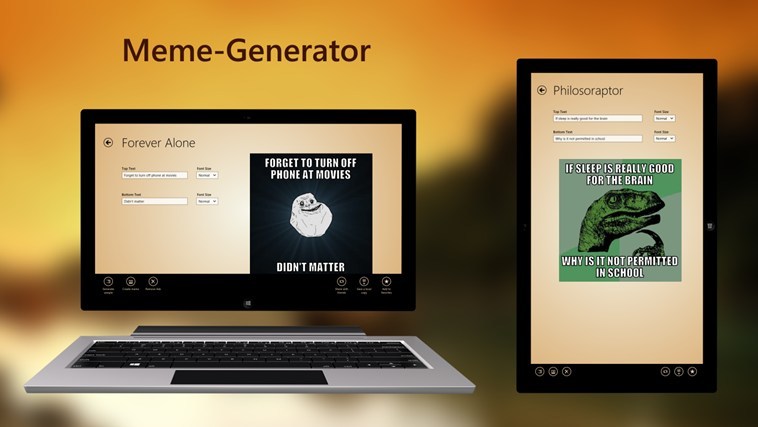
Just as the name suggests it, Meme-Generator is one of the best apps currently available in the Windows Store for creating memes on your Windows 8 tablet, laptop or desktop device. And now it’s received a much needed update.
meme generator app windows 8
Memes are quite a cultural phenomenon and they are used to easily depict your thoughts and ideas by using an image and basic text annotations. There are multiple Windows 8 apps that you can use, but Meme-Generator is one of the best looking and it will also work on your Windows Phone device, as well, once you have downloaded it on Windows 8 using the same Microsoft account.

Read Also: AppyGeek App for Windows 8 Now with Multiscreen Support

The latest version of Meme-Generator brings the following new features – support for the app is now available in Spanish and Portuguese and the much-awaited Share Button has now been added to the appbar to share your memes with friends via social networks. Of course, as always, various minor bug fixes have been put in place in order to stop crashing.

windows 8 meme generator app

Meme-Generator lets you create your own memes. Add your own images to create custom memes or choose from the available templates. Save the created meme or share it with your friends. Choose from more than 200 meme templates. Create a list of your favorite memes. Search for memes using the Search Charm. Share the meme with your friends via Facebook, Twitter, E-mail or OneDrive (formerly SkyDrive)

meme generator app for windows 8

The app comes with a size of less than 30 megabytes and is available as a free download by following the link at the end of the article, but you can upgrade to the pro version in order to get rid of ads. After you have downloaded, feel free to add here your own meme so that we can all have a good laugh.

Download Meme-Generator app for Windows 8.1, Windows Phone

End of an era: Nokia is a part of Microsoft now, the EUR 5.44 billion acquisition is complete

End of an Era, Nokia is a part of Microsoft now, the EUR 5.44 billion acquision is complete now

Originally announced in September last year, Microsoft has today, acquired Nokia. The deal has reached its completion, and Nokia’s Devices and Services business now belongs to Microsoft.

Nokia and Microsoft share a long history, where the former is the leading partner of the latter’s mobile operating system, Windows Phone. “The opportunity for Microsoft to be both a devices and services company, so that it can deliver the complete proposition to its consumers, is at the heart of this,” Stephen Elop, former Nokia CEO and now executive vice president of the Devices Group at Microsoft, said recently.

“We have been going through and assessing who has the best tools…so we take the best of both worlds.”, said Tom Gibbons, who has spearheaded hardware for Microsoft, and now leads the integration work for Microsoft. “The real value from this integration is bringing two globally sized capabilities in organizations together under one roof, really intimately and much more efficiently.”

The completion of the deal also makes Microsoft a hardware technology giant. The companies believe that this convergence of two tech titans will help to speed up the execution work. “Nokia certainly has a tremendous depth of experience in the design, the manufacturing and delivery of devices,” Elop said. “Nokia over the years has literally delivered billions of devices. Just in the last year alone, some hundreds of millions.”

“Customers should see a bunch of great end-to-end experiences that really empower them to have very enjoyable, very comprehensive solutions to things that they want to get done, whether you’re talking about smartphones or feature phones. The feature phone product family coming to Microsoft will start to have more of the Microsoft services shipped on those phones right out of the gate.”

As we heard yesterday, Nokia’s Chennai-based factory hasn’t been a part of the acquisition deal. However, exclusion of one of Nokia’s biggest plants hasn’t revised the original terms of the deal. Nokia will be operating the plant on a contract to Microsoft.

As Nokia becomes part of Microsoft, “We have to not only evolve to fit into Microsoft in general, but into an evolving Microsoft,” he said. Employees of Nokia’s Devices and Services business are “very excited to be joining Microsoft,” Elop said. “And we look forward to bringing our skills and experiences to Microsoft to do our very best to light up the Microsoft experiences for people all over the world.”

As part of the deal, Stephen Elop, Jo Harlow, Juha Putkiranta, Timo Toikkanen, and Chris Weber will be joining Microsoft. Whereas, the company is expected to announce Rajeev Suri as its next CEO on Tuesday.

WinBeta announcement: $25 Windows Store gift card and a thank you to our readers

WinBeta announcement: $25 Windows Store gift card and a thank you to our readers

Bringing the latest Microsoft news to you is our passion, but we’d like to take a short time out of the busy day to say thanks to our readers. Thanks for helping us grow! We do appreciate our readers. We’re giving away a $25 Windows Store gift card, which you can use towards purchasing an app on Windows Phone or Windows 8.1, in appreciation of you.

First off, I’d like to highlight the top-five commenters on our site. StarEy3 is at the top with 1323 comments so far, while Aaditya Menon, Ray C, Sargon, and arrow2010 round out the top-five list. A special shout out goes to Abster for being our unofficial editor on the site – we appreciate you!

Secondly, we’re giving away a $25 Windows Store gift card to our readers as of right now. Post a comment below telling us why you like our site or what you want improved, and you will be automatically entered for a chance to win the gift card. We’ll randomly select a winner tomorrow evening, April 23rd.

And finally, if you didn’t already know, we are on social media. Follow us on Twitter, Facebook, and Google+ to stay updated on any breaking Microsoft news. If you already follow us, thank you! If you have yet to follow us, use the social media follow buttons below! We’d appreciate it if you did ?

We also ask that readers please unblock ads on the site, as revenue from advertisements help pay for the upkeep of the site. 

Thanks everyone! And we are excited for what the rest of 2014 has in store – especially Windows 8.1 Update 2! We know we are not perfect, but we strive to be the best and we are actively improving our site. Now back to the news..

Deal alert: Amazon is selling Xbox One and PC versions of Titanfall for just $36.99

Deal alert: Amazon is selling Titanfall for just $36.99

If you haven’t bought a copy of Titanfall yet, Amazon has an offer which is really hard to resist. The incredibly popular game title, which usually sells at $59.99 is currently selling on Amazon for $36.99. Both Xbox One and PC platform are getting the discount.

“Prepare for Titanfall. Crafted by one of the co-creators of Call of Duty and other key developers behind the Call of Duty franchise, Titanfall is an all-new universe juxtaposing small vs. giant, natural vs. industrial and man vs. machine. The visionaries at Respawn have drawn inspiration from their proven experiences in first-person action and with Titanfall are focused on bringing something exciting the next generation of multiplayer gaming,” its description reads.

Launched in March this year on Xbox One and PC, Titanfall has already become the most successful game of 2014. It surpassed FIFA 2014, and has sold roughly twice as copies. Click on the Via link to get to the Amazon store. 

Microsoft prepares for big Atari E.T. dig with an opening party invitation

Microsoft prepares for big Atari E.T dig with an opening party invitation

Those who know about gaming history  have likely heard the story of the Atari game E.T. The Extra-Terrestrial. Legend has it that the game was so bad that the company buried all copies in New Mexico in an effort to keep it from the public.

Now a crew is going in search of this — a bit like looking for Bigfoot — and Microsoft plans to be present for the event. In fact, it is even planning a documentary through Xbox Entertainment Studios.

To kick off this big event, a party is planned, and you’re invited. Larry Hryb, Xbox Live chief, announces “This weekend, you’re invited to join us in digging into the greatest mystery in videogame history: are there really millions of E.T. the Extra-Terrestrial Atari cartridges buried in the New Mexico desert?” Here are the details.

  • What’s going on: Prep for  the big dig by playing classic Atari games, courtesy of Gamers Anonymous. Enjoy complementary food and soft drinks, and we’ll be raffling off prizes, including Xbox One games and an Xbox One system.
  • Where: Gamestop 516 1st St, Alamogordo, NM 88310 (map)
  • When: Friday, April 25 from 7:00pm – 9:00pm
  • Please note, the event is free and open to the public.

As for the big dig, that will commence on Saturday morning beginning at 9:30 am, though you are recommended to be there by 8:30. Prizes will be given away to the first 250 people.

Windows Embedded 8.1 Industry Update adds better security, low-cost hardware deployment, and more

Windows Embedded 8.1 Industry Update adds better security, low-cost hardware deployment, and more

Not only did Microsoft roll out Windows 8.1 Update earlier this month, but the company also rolled out Windows Embedded 8.1 Industry Update. This update is available to customers and partners via Windows Update, Microsoft OEM Online, and Volume Licensing Service Center.

Windows 8.1 Update brings along quite a lot of new improvements for non-touch users, but did you know that Windows Embedded 8.1 Industry Update brings along some new improvements for retail, manufacturing, and health devices? Windows Embedded 8.1 Industry Update enables sideloading, easier app development, low-cost hardware deployment, and much more.

Windows Embedded 8.1 Industry extends Windows 8.1 to a range of industry devices across retail, manufacturing, health and any other industries in which powerful line-of-business applications and the ability to perform a specialized function in a secure and reliable way is paramount.

Here are some of the key features of the update:

  • Sideloading will be enabled on Windows Embedded 8.1 Industry – meaning the customers no longer need to purchase a sideloading key through VL
  • Inter-process communication between a modern app and a desktop app will be enabled, allowing developers to take advantage of both the modern app model as well as the existing desktop app model
  • Updated Embedded Lockdown Manager provides a more unified way to manage embedded lockdown features such as unified write filter and gesture filter
  • User interface improvements to help naturally bridge touch and desktop, especially for keyboard and mouse users
  • Enabling Windows on lower-cost hardware (for example: 1 GB RAM and 16 GB SSD), enabling a wider range of industry tablet devices

“For our customers, this update will help them stay current with modern technologies as well as continue to receive future updates, including security updates. For ISV partners, deploying modern apps on Windows Embedded 8.1 Industry will be more streamlined. And OEM partners will have the ability to enable Windows on lower-cost hardware; also note that OEMs will need to apply this update to continue getting future security updates,” Microsoft explained in an official blog post.

Office Mix turns your PowerPoints into interactive online lessons or presentations

Office Mix turns your PowerPoints into interactive online lessons or presentations

Microsoft is looking to revolutionize the classroom experience with a new service called Office Mix. While its not live yet and requires an invite to sign up, Office Mix a new service that turns PowerPoint presentations into interactive, online lessons that you can share with anyone. 

“MIX allows you to turn your PowerPoints into interactive online lessons or presentations. We install an add-in that gives you the ability to record audio, video, and handwriting, and insert interactive elements like quizzes and CK12 exercises. There’s even a screen capture tool so you can record anything on your PC,” the description reads. 

First spotted by @h0x0d, Office Mix sounds like an excellent tool for schools, allowing instructors to distribute presentations to all their students via the web. Instructors can check student progress online and see who actually watched the presentation. 

“Once your presentation is ready just click “Create MIX.” We work our magic to mix in xml for an interactive document complete with analytics, and place it in the cloud. From there, just share the link, and your students can watch it on just about any device with a web browser. You can then check student progress online and see who watched the presentation, and how they did on your quizzes.”

More on this as it develops. You can head over here to sign up to test the service when it becomes available.

Using the Word app for Chrome OS – simple and straight-forward

Using the Word app for Chrome OS – simple and straight-forward

While I love content management systems, I have little faith in any of them, and prefer to write my stories in Word. That isn’t a problem, as I work primarily from Windows 8.1 — both desktop and laptop. However, I sometimes wish to roam around my house, leaving the office for the living room or, as the weather grows warm once again, the porch. For those times, I find the HP Chromebook 11 to be invaluable — it’s light and easy to carry. It even works with a Bluetooth mouse, which is great, as I have an aversion to trackpads.

That presented a minor problem in the past, since it meant I’d have to move to Docs, which I don’t dislike, only find less familiar. That changed when Microsoft finally acknowledged that these notebooks may just be useful, and released its Office Online products as apps for them.

I immediately installed Word on mine, and found both good and bad aspects to it. Really, the bad consists of only one thing — there is no offline mode, which is something Google Docs offers, despite past Scroogled ads claiming otherwise.

Aside from that, I found a quick and responsive word processor that provides a much more familiar environment. Simply opening the app is a welcoming experience.

word for chrome

You have options to create a new document, open an existing one, or choose from an array of templates. Regardless of your choice, you’ll find a scaled-down version of what resides on your desktop, complete with the familiar ribbon interface.

This isn’t really any different from what you can get by visiting the site in the Chrome browser, so temper your hopes. But it does offer a glimmer of hope for the future. Maybe that much needed offline mode may even show up in the future. Perhaps, just maybe, Microsoft will begin working with Google on future innovation, as opposed to simply posting corny videos depicting its rival as the devil

After Windows 8.1 Update, Some Users Report Black Screen, Flickering cursor

We’re back with reporting various issues that Windows 8 users are receiving and also trying to offer some working fixes for this. This time, it seems that the latest Windows 8.1 Update has resulted in a black screen or flickering cursor for some.
windows 8.1 update black screen
There are plenty of annoying issues after installing the latest Windows 8.1 Update, especially during the installation process itself, and also with saved games and slowing down of systems. Now, according to some fresh forum posts on the Microsoft Community website, many have been reporting that they are getting a black screen with a flickering cursor. I remember that I have had this problem when I installed the first Windows 8.1 update to Windows 8. Here’s what one affected user has been complaining about:

Read Also: How to Enter or Change Windows 8.1 Product Key

well windows asked me to update, so i have done so, and i rebooted. i found that after the update has finished, nothing was showing up. so i decided to go to the restore point so i can go back and undo the update and see whats wrong. but that didnt work, saying that it has unspecified errors. tried every other restore point but it seems to not be able to. access the registry. so then i tried to repair my start up, but it also failed, not giving me much details. i assumed it must be the visual drivers issue, so i attempted to go in safemode too. but the result was quite annoying, as i get the same problem as booting it normaly. i can not use the win+p, ctrl+alt+del, and any other combination, as it shows up with nothing.
tried the sfc/scannow, gave me no error, tryied CHKDSK c:/f no errors either. im kinda stuck now, and i dont really want to refresh windows. please give me advice

So, as we can see, this is a pretty experienced user and he has tried some potential fixes to remedy his problem. If you have found yourself in the same situation, you can go ahead and uninstall the KB files which came with the latest Windows 8.1 Update, and then try to perform another install in Clean Boot mode. Also, go ahead and open the Device Manager and from there, try to uninstall video drivers and the download them from the website of your maker. Also, if you are having the issue on a separate monitor, try to uninstall and install drivers separately for it.

Microsoft trademarks a new game title called ‘Screamride’

Microsoft trademarks a new game title called 'Screamride'

Microsoft has apparently filed a trademark application for a new game called “Screamride.” Not much is known about Screamride, except that it will be an online computer game. Could it be for the PC, or the Xbox platform? Who knows! Microsoft won’t offer any details on it.

Microsoft routinely files for trademarks, so this name doesn’t necessarily mean that a game called Screamride is in development. The trademark application was filed on April 9th with the United States Patent and Trademark Office. “Microsoft often acquires various trademarks as part of its ongoing business strategy, but beyond that we have no comment,” the company stated in a statement.

E3 2014 is nearly upon us (it takes place June 10th), so perhaps we might learn more about Screamride then. What could Screamride be about?

Microsoft launches SQL Server 2014, emphasizes importance of a data culture

Microsoft launches SQL Server 2014, emphasizes importance of a data culture

During an event in San Francisco today, Microsoft CEO Satya Nadella announced the launch of SQL Server 2014, a public preview of the Microsoft Azure Intelligent Systems Service, and the general availability of the Analytics Platform System (APS). Microsoft stressed the importance of a data culture during the event, a culture that encourages curiosity, action, and experimentation.

“The era of ambient intelligence has begun, and we are delivering a platform that allows companies of any size to create a data culture and ensure insights reach every individual in every organization,” Nadella said during the event. Microsoft’s data platform includes new “Internet of Things” capabilities and provides the necessary building blocks to connect, refine, and analyze data. Here are the products announced during the event:

  • Launch of SQL Server 2014. The latest version of the world’s most widely deployed database delivers real-time performance with built-in in-memory technology and public cloud scale and disaster recovery with Microsoft Azure.
  • Limited public preview of the Microsoft Azure Intelligent Systems Service. This new Azure service helps customers embrace the Internet of Things and securely connect to, manage and capture machine-generated data from sensors and devices, regardless of operating system.
  • General availability of the Analytics Platform System (APS). APS combines the best of Microsoft’s SQL Server database and Hadoop technology in one low-cost offering that delivers “big data in a box.”

SQL Server 2014 brings in-memory capabilities across all data workloads, offering breakthrough performance for applications in throughput and latency. In-memory technology allows for the manipulation of millions of records at the speed of thought, as well as the ability to scale analytics solutions to billions of records in SQL Server Analysis Services.

You can check out a list of the new features in SQL Server 2014 here.

With Office 365 now under $7 a month, there’s just no reason not to try it

With Office 365 now under $7 a month, there's just no reason not to try it

Microsoft looks set to dominate the tablet office suite market now that Office 365 Personal is available for less than $7 per month. The new name and pricing structure means that there is one less obstacle standing in the way of anyone who is thinking about trying out Microsoft’s office suite. At this price there is simply no excuse not to try it out for a bit!

But this is, of course, much more than a tablet-based office suite. For their money, user are essentially provided with two licenses meaning that the suite can be used on a tablet as well as on a PC. Two copies of Office for $6.99 a month — it’s very difficult to argue with that.

This is a great example of Microsoft reacting to the way people now work — albeit a little late in the game. For too long now, Office has been a behemoth tied to the desktop, and this allowed something of an Office alternatives market to build up for tablet users looking to edit files on the move. Now, at long last, the company has answered the prayers that Office users have been making for years.

For the price of a glass of wine, your Mac or PC can be furnished with a copy of Office, and so can your favorite tablet — be it powered by Android, iOS or Windows. Microsoft may be entering the iPad app game quite late on, but it is going in with gun blazing, making up for lost time.

The new Personal packages are a perfect solution to the low-cost solutions people are now looking for. A plethora of app store has made people get used to the idea of cheap or free apps, and it makes sense that Microsoft would react in this way. For anyone yet to try Office, there has never been a better time to do so. This is not a case of try-before-you-buy, but try-as-you-buy. Don’t like it? Stop using it and stop paying. But the chances are that you will love it.

Anyone who has been an Office users for a number of years but has resisted moving to Office 365 will quickly realize that this is a case of buy one, get one free — a deal that makes sense in anyone’s book.

Office is already a force to be reckoned with, but the new low pricing structure means that usage figure are likely to go up even further. It will also be extremely interesting to see just how many tablet users pop up over the coming weeks, months and years, taking advantage of what essentially amounts to a free copy of Office. 

Office 365 Personal now available for purchase, runs for $6.99 a month

Office 365 Personal now available for purchase, runs for $6.99 a month

You can now purchase an Office 365 Personal subscription, which will run you $6.99 a month or $69.99 a year. This subscription allows for one PC or Mac, and one tablet (including iPad) to be connected to the service, and is the best option for individuals interested in using Office 365. 

“On March 13, we revealed that a new consumer subscription offering, Office 365 Personal, would be coming this spring. Today we’re announcing that it’s available for purchase – $69.99 USD/year or $6.99 USD/month (ERP)1 – online at Office365.com, at Microsoft Stores and through online and retail partners,” Microsoft stated in an official blog post.

If you are looking to utilize Word, PowerPoint, and Excel on the iPad, then this subscription is perfect for you. You can also purchase an Office 365 Home subscription, which runs for a few dollars more, but allows you to run it on up to 5 computers and tablets – perfect for families. Head over to Office365.com to check out the subscription.

Large Indian Bank bids farewell to Windows XP, upgrades 33,000 PCs to newer version of Windows

Large Indian Bank bids farewell to Windows XP, upgrades 33,000 PCs to newer version of Windows

One of India’s largest state-owned banks, Canara Bank, has completely migrated from Windows XP. In the process, the bank upgraded around 33,000 PCs from the 12-year old and now retired operating system to a more modern versions of Windows Operating System.

Last week, on April 8th, the more than a decade old desktop operating system, Windows XP, reached its end of support. Which in simple language means that Microsoft won’t provide any further support to Windows XP (unless the organization pays), leaving its users on their own.

Besides security concerns, Canara Bank says that hardware compatibility was a big factor behind this upgrade. The bank states that the unavailability of driver modules for various new hardware such as printers, scanners, and biometric machines was one of the primary reasons behind this decision.

“We want to ensure smooth and streamlined customer experience without any stoppage in day-to-day banking operations. In addition, by migrating our entire base of around 33,000 PCs to modern Windows, we have overcome potential challenges of compatibility with modern hardware, software and applications. The upgrade will also allow our employees for transition to modern applications leveraging latest work processes and mobility,” said RK Dubey, Chairman at Canara Bank.

According to earlier estimations, until a few months ago, there were over 35 percent of the systems running Windows XP. Realizing the vulnerability and consequences it could have, RBI, nation’s central banking institution, and Indian Banks Association issued several security advisories.

“Running unsupported technology especially in the BFSI sector carries [a] huge risk. Canara Bank is amongst the progressive PSU banks in India that have taken the decision to move off Windows XP. They understand how debilitating and damaging the security breaches can be after support ends. We urge all businesses to complete their migration immediately, if they haven’t already,” said Karan Bajwa, Managing Director, Microsoft India.

By switching to a modern operating system, the banks and other institutions will get better security, reliability and tools that favor productivity. In the past few weeks, we have seen many such institutions making the switch. However, there are still plenty of banks and ATMs that are running Windows XP.

How To Remove Bloatware from Windows 8, 8.1, 10

Is your Windows 8 device running slow and you are thinking in bumping the speeds? If you want to easily speed up your Windows 8 device, then you should start by removing the bloatware. So, because of that, during the following guidelines I will show you how to remove bloatware in Windows 8 in a minute or less.
install-windows-8
But before getting started with our tutorial, you should know what we understand when talking about bloatware. In this way you can be sure that you are using the proper solutions for speeding up your Windows 8 tablet, laptop or desktop. So, before applyingthe steps from below, read all the following lines and make sure that you understand all the aspects that will be detailed.

Is your Windows 8 device installed with bloatware by default?

The answer is definitely yes. Like any other developers Microsoft is having different partnerships with other manufactures and companies, which in our case are providing different tools and programs. Thus, when you first buy a Windows 8 device, you should know that your handset will be coming with various software pre-installed. Well, these programs aren’t required by the Windows system, which means that you can easily and safely remove them without bricking the internal system of your laptop, tablet or desktop.

Why to remove bloatware

Since these programs are not important for the Windows 8 system, which is the purpose of having them installed on your device? Basically, all these pre-installed apps are slowing down your Windows 8 device. So, if you want to speed things up, just learn how to remove bloatware. In that matter you can use different apps and programs and you can also use the options from control panel, from where you can uninstall almost all the programs from your Windows 8 device. Anyway, before starting in removing bloatware, ensure that the programs you want to remove aren’t essential for your laptop, tablet or desktop, as you can end up in bricking your device.

What apps to remove in order to get rid of Windows 8 bloatware?

You should uninstall all the free-trial programs like antivirus, YouTube clients, Amazon dedicated apps and any other tool that isn’t representing direct interest to you. If you think that you won’t need a program, then you should remove it, because each tool is slowing down your Windows 8 device. Also, the RAM memory is being consumed by the same, thus the bloatware isn’t coming with any benefits for your handset.

How to easily remove bloatware from your Windows 8 tablet, laptop or desktop

Uninstall unnecessarily programs right from start page

Windows Control PanelThis method is efficient, though you will not be able to remove all bloatware from Windows 8, since you won’t have access to hidden files and folders from your desktop, tablet or laptop. But the best is that this method can be applied without using a third party app, or without making changes to the firmware default settings. All you have to do for uninstalling the unnecessarily programs from your Windows 8 device is to right click on the appropriate tile for the program you wish to remove, right from the Windows 8 start page. Of course this operation can be anytime completed by using Control Panel and by going to path “Programs – Programs and Features”. Again, this method is quite superficial, but you will be able to speed up your Windows 8 device by removing programs and apps that aren’t used or that aren’t necessarily.

Use Windows 8 “Refresh your PC” and “Reset your PC” features

refresh Windows 8On Windows 8 you can easily refresh the system in order to remove third party apps that are slowing down your desktop, laptop or tablet. By using the refresh your PC or reset your PC features you can flash the default Windows 8 system back to your device without having to manually reinstall the firmware. Therefore, you can choose to go back to stock in a minute, though this will not remove all the bloatware from your Windows 8 device. Unfortunately, Microsoft allows computer manufacturers to customize their Refresh images. Therefore, when installing drivers and essential programs you will also get bloatware apps.

Because of that, you can choose to create your own Refresh images on both Windows 8 and Windows 8.1, by replacing the Microsoft image with a custom one. Of course this method is indicated for the advanced users, as if you are a newbie you can end up in bricking your Windows 8 device before removing its bloatware. Since we are talking about advanced operations, the best will be to reinstall Windows 8 from scratch with installation media from Microsoft and in this way you will be able to enjoy a clean and bloatware-free system.

Use Third-Party Apps

CCleanerA great way in which you can remove bloatware from Windows 8 for speeding up your desktop, laptop or tablet is by using dedicated third party apps. With these programs you can access all the files from your system and you can then choose which tool to uninstall. The removal process is easy to perform, so anyone can safely complete this method. Of course, first you have to get the proper apps and in that matter you should check our recommendations.

The most appreciated and used tools are CCleaner (get it from here) and PC Decrapifier (download the app for free from here). These programs are compatible with Windows 8 and Windows 8.1 systems and can be managed with ease for removing Windows 8 bloatware. You can install the software by using the on screen prompts; also the tools are providing user friendly interfaces so removing unnecessarily programs from your Windows 8 device will be intuitive.

Access and remove in-built Microsoft Apps, or Metro Apps

The best way in which you can remove Windows 8 bloatware is by accessing Microsoft apps or Metro apps. Unfortunately these apps are hidden so you will have to follow a few steps in order to manage to see the proper software list. Also, you will have to gain administrative rights or else you will not be able to change or remove the programs you want. But, in that matter, take a look below and follow the guidelines explained there.

  • Open Folder Options and select “Show hidden files, folders and drives”.
  • Go to C:\Program Files as now you will be able to see the WindowsApps folder.
  • But, if you will try to access the files from there you won’t be able to do so.
  • Gain access to inbuilt files by going to Security tab. From there click on “advanced”.
  • Now, from the Advanced Security Settings select “continue”.
  • Under “owner”, change from TrustedInstaller into your own name.
  • Now you can give yourself various permissions in order to access the inbuilt programs.
  • After doing so you will be able to remove apps from the WindowsApps folder which means that you will be able to remove Windows 8 bloatware with ease.

Conclusions

That was all; as you could notice Windows 8 and Windows 8.1 is coming with various in-built programs that aren’t usually useful on a daily use. So, these programs are only slowing down your Windows 8 device. Due to same reasons it is more than recommended to remove the bloatware in order to speed up your desktop, laptop or tablet and for improving the Windows 8 experience. Now, during the steps from above I have explained you how to easily remove bloatware from Windows 8 by using different methods – just choose the operation you prefer the most. If you have something to share with us on this topic, don’t hesitate and point it out during the comments section from below and we will assist you as soon as possible.

Windows 8, 10 ‘Birthday Reminder’ App Reminds that Everybody Counts

Birthday reminder apps are perfect for those who want to keep personal info about each contact on the same place. Furthermore, these tools are great if you want to separate calendar info from birthday events and if you really want to use your Windows 8 device as your personal agenda. Now, during the lines from below we will review the highly appreciated Birthday Reminder software from Windows Store, so don’t hesitate and check it all out.
Birthday ReminderA great way in which you can plan and manage your daily or weekly schedule is by using a Windows 8 calendar app. Unfortunately, as you know, the most appreciated calendar app is not available on Windows Store as we only have third party Google Calendar tools available and not the official client. Anyway, when talking about birthday reminders, a calendar software might just not be enough, as you might need a personalized and optimized tool in order to properly surprise your friends, family or contacts.

Read Also: How to Change Narrator Settings in Windows 8.1

In that matter, the already mentioned Birthday Reminder tool will be perfect for you. This tool is free distributed on Windows Store and works without any bugs or lags on any Windows 8 based devices.

Don’t miss birthdays with Windows 8 Birthday Reminder App

As the name suggest, by using Birthday Reminder app you can see upcoming birthdays of friends and create reminders for them. Basically this tool is one of the simplest and easiest birthday reminder app available on Windows Store as the software is featuring an intuitive and though impressive user interface. Thus, using this birthday reminder app, you’ll never miss out the birthdays of your favorite people and you can be the first person to wish them everything you want.

windows 8 birthday reminder app

This is a Birthday Reminder Application. It allows you to add your friend’s birthday details and send them your warm wishes with greetings. It will show the coming birthday on Live tile of the app. You can also add contacts from People Hub.

You can use Birthday Reminder in different modes as you can list the birthday events in various ways by using the in-built features provided by the program. You can easily add info about each contact and you can also add contacts from People Hub. Then you can use Birthday Reminder for Windows 8 for sending text greetings through email and if you want to really surprise your friends you can also send an attachment that contains a personalized message.

As mentioned, Birthday Reminder can be downloaded for free from Windows Store and can be installed on any Windows 8 based device. Moreover using the tool is great as you can manage different features and options in order to plan and organize your own agenda. So, don’t hesitate and try Birthday Reminder on your own Windows 8 tablet, laptop or desktop.

Microsoft announces availability of Azure Websites in Southeast Asia

Microsoft announces availability of Azure Websites in Southeast Asia

Azure Websites is now available in four different Asian regions – East Asia, Japan West, Japan East and Southeast Asia – Microsoft revealed in an official blog post. Azure customers will now have the option to create their websites in the new region.

“Since reaching General Availability last year, Azure Web Sites has been expanding to additional regions. It is our pleasure to announce the general availability of Southeast Asia Region for Azure Web Sites,” Microsoft stated in an official blog post.

Windows Azure (now known as Microsoft Azure), for those that did not know, is Microsoft’s cloud platform that enables you to quickly build, deploy and manage applications across a global network of Microsoft-managed datacenters. You can build your applications using any language, tool or framework and integrate them with your existing IT environment.

How to Choose Windows 10 Default Apps

There are many annoying notifications in Windows 8 and Windows 8.1 where you are required to choose with what certain app or program you want to open a new file type. To make sure you don’t get asked anymore, here’s how to set the default apps in Windows 8 and Windows 8.1.
choose windows 8.1 default apps
The procedure of setting the default apps inside Windows 8.1 has remained just the same as it was with Windows 8, so if you knew how to do it in Windows 8, then there’s no need to read this. But if you’re new to the Windows 8 and Windows 8.1 concept, here are all the steps that you need to take to quickly set default apps, along with the explanation. It’s easier to set default apps yourself, as you will save yourself the pain of having to do it manually each time.

Read Also: How to Quickly Check App Size on Windows 8.1

So, here are all the steps that you need to take. Also, if your Windows 8.1 default apps are crashing, as this is a bug that I’ve seen many complain about, I suggest you to update to the latest Windows 8.1 Update, as it’s been reported to take care of that.

1. Press the Windows logo + W key to open the Search function or open the Charms Bar by moving your mouse or swipe the finger to the top right corner.

choose windows 8.1 default apps 1

2. In the Search bar type ‘PC Settings‘ and then click or tap on it.

choose windows 8.1 default apps 2

3. Choose ‘Search and Apps‘ from the menu.

check app sizes windows 8.1

4. Click or tap on ‘Defaults‘.

choose windows 8.1 default apps 4

5. Choose your default apps for the following: web browser, email, music and video player, photo viewer, calendar and maps.
choose windows 8.1 default apps 5

6. You can also change the default apps by file type. This is useful when certain apps have “taken over” certain file types and you want to reassign this to another app or program. Also, whenever you have an unknown file type, it can come in real handy.

choose windows 8.1 default apps 6

7. If you know what you’re doing, then you can go for an even more advanced function and choose default apps by protocol.

choose windows 8.1 default apps 7

Read Also: Fix: Windows 8.1 Update Install Failed: 80070020, 80073712 and 0x800f081f

Is Project Alluvion a new Iowan data center for Microsoft?

Is Project Alluvion a new Iowan data center for Microsoft?

According to documents seen by The Des Moines Register, a new data center in Iowa, known as “Project Alluvion”, could be something to do with Microsoft. After making a public records request, the Register was provided with files that detailed correspondence between employees in Microsoft’s cloud storage and data center services.

As is the case with many other companies, security means the Microsoft usually likes to keep the locations of its data centers secret. Undetailed information in the document obtained by the site suggests that Microsoft may also be looking for a new site in West Des Moines, but the company understandably refused to comment on this.

Similarly, city officials remained tight-lipped about whether “Project Alluvion” was in any way connected with Microsoft, but the involvement of two known Microsoft employees makes it highly likely that The Des Moines Register’s suspicions are correct.

Microsoft has previously revealed that it has data centers in Redmond and Quincy, Wash.; San Antonio, Texas; Chicago; Boydton, Va.; Cheyenne, Wyo.; and West Des Moines, as well as sharing that they are used for, among other things, cloud data services like Azure, Xbox Live and Skype.

US Internal Revenue Service to pay Microsoft ‘millions’ for an extra year of security patches

US Internal Revenue Service to pay Microsoft 'millions' for an extra year of security patches

April 8th marked the day Microsoft stopped providing support for Windows XP, a popular operating system from the Redmond giant which made its debut back in 2001. It turns out that the US Internal Revenue Service (IRS), usually the people who take your money, are now paying Microsoft millions of dollars for an extra year of security patches – they missed the April 8th end of support deadline.

The IRS apparently has approximately 110,000 Windows powered computers, and only 47% of those computers have been upgraded to Windows 7. The rest of the devices still run Windows XP. Unfortunately, due to the budget, the migration was unfinished. John Koskinen, IRS commissioner, defended the unfinished migration, stating that the IRS had $300 million worth of IT improvements on hold because of budget issues – including the Windows XP to Windows 7 migration.

“Windows XP will no longer be serviced, so we are very concerned if we don’t complete that work we’re going to have an unstable environment in terms of security,” Koskinen said, stressing that the migration is necessary and shall continue. The IRS will muster up $30 million out of its enforcement budget to finish the migration, paying Microsoft $11.6 million for “Custom Support” for critical security patches. The IRS will also spend $18.4 million to purchase new PCs to replace the older computers running Windows XP.

The IRS hopes to complete this migration by the end of the year. Don’t worry, according to the IRS, your tax filings are not handled by Windows XP systems. “None of our filing season systems or other major business operating systems for taxpayers use Windows XP,” an IRS spokesperson said Friday. “The IRS emphasizes the situation involving Windows will have no impact on taxpayers, including people filing their tax returns in advance of the April 15 deadline.”

Windows 8 Red Stripe Deals: Asphalt 7, My Trips, Xolitaire [#19]

It’s number 19 of the weekly Windows 8 Red Stripe Deals and this time we’ve got six Windows 8 apps and games that can now be purchased at a discounted price. So, without further ado, let’s see what they Windows Store team has prepared for us this time.
windows 8 red stripe deals
For those who are new to the concept – the Red Stripe Deals is a weekly selection of discounted apps and games from the Windows Store, an idea that has been extended to Windows 8 and RT tablets and desktop devices from Windows Phone. For the past week, we have seen such titles as Halo: Spartan Assault, Where Angels Cry, Swingworm, My Media Center, Note Anytime, Sago Mini Music Box. I hope you have made use of the temporary discount as this week we have new games and apps, here they are.

Read Also: Annoying: Windows 8.1 Update Makes Windows Activation Impossible

Asphalt 7: Heat [$2.49]

asphalt heat windows 8 red stripe deals

Hit the speed of heat in the newest, fastest, most visually stunning edition of the famed Asphalt series. Drive 60 different cars from the world’s most prestigious manufacturers, like Ferrari, Lamborghini and Aston Martin, including the legendary DeLorean.

Eternal Journey New Atlantis [$1.99]

eternal journey windows 8 red stripe deals

Travel from the deepest trenches of the Atlantic Ocean to the awe-inspiring wonders of Mars as you solve the greatest archeological puzzle known to man: the origin of Atlantis. Through stunning production values and cunningly designed puzzles, Eternal Journey: New Atlantis will draw you into an experience unlike any other hidden object adventure.

My Trips [$1.49]

my trips windows 8 red stripe deals

My Trips shows you a list of your upcoming trips, flight, lodging, car rental and other travel plan information. Additionally My Trips will give you detailed flight information such as departure and arrival dates, times and locations, confirmation numbers, airline information, passenger information & much more.

Care Bears – Create & Share [$1.99]

care bears windows 8 red stripe deals

Budge Studios presents: Care Bears – Create & Share! Create your very own Care Bears postcard and share it with loved ones! Try out endless combinations of cuddly bears and rainbow-colored decorations for a different card every time. Then write a sweet message and send it with love – because sharing is caring!

Topsy and Tim Start School [$1.49]

topsy windows 8 red stripe deals

Topsy and Tim were created in 1959 by husband and wife team Jean and Gareth Adamson. Together they created a modern series in keeping with the predominant mood of the early 60s – fresh and bright, with a contemporary feel – that showed children in situations they would actually experience. Now a grandmother, Jean continues to sketch and her work was recently recognized in the form of an MBE for services to children’s literature.

Xolitaire Xtreme [$1.99]

xolitaire windows 8 red stripe deals

Solitaire evolved… welcome to Xolitaire Xtreme. Enjoy over 200 unique games. Choose from 24 languages, changing the language at any time.

Interactive Windows Live Tiles shown off, could it be a part of Windows 9?

Interactive Live Tiles shown off, could it be a part of Windows 9?

Microsoft researchers in Asia are apparently experimenting with interactive Live Tiles in Windows, according to research videos which were uploaded (and subsequently removed) by Microsoft. Is this a sign of things to come with Windows 9? 

“This project features an Interactive-Tile UI system that enables users to access and manipulate Live Tiles in an interactive way with touch gestures. Interactive Tile’s UI is responsive and flexible to an app’s content and function. Users can provide quick input to the Interactive Tile on the Start screen. With a perception of Start as an entrance page, Interactive Tiles were introduced to empower the start screen with an intermediate access level to applications,” the project description reads.

In the demonstration, which we have embedded below for your viewing pleasure, Human-Computer Interaction Group researcher Jiawei Gu shows off the Interactive Live Tiles research project and how you can drill down a Live Tile to get more information on the app.

The idea is to allow for “parallel tasking.” For example, the Interactive Desktop Tile lets you interact or even open apps from the tile! As ZDNet points out, this can “help Windows 8 users who find moving between the Desktop and Metro-Style environments less than smooth and intuitive.”

Of course, this is just a research concept and there is no guarantee that this feature will ever make it to a future version of Windows. Microsoft has apparently pulled the demonstration videos as well, but thankfully the internet was able to snag them before they disappeared. Hey Microsoft, were we not supposed to see this just yet? 

You can take a look at the Interactive Tiles below. Do you find this useful?

Thanks for the tip, @Steveo!

Fix: iPhone, iPad, iPod not syncing with iTunes on Windows 10

If you own an iPhone or iPad, it doesn’t mean that you neglect Microsoft’s products. As a matter of fact, there are plenty of Windows 10 users who own an iPhone or iPad, but they too are experiencing the well-known glitches of Windows. We try to offer some fixes for annoying syncing iTunes problems.
iphone ipad not syncing itunes
If you’re interested in how you can move easily files from your iPhone or iPad to the Windows 8, Windows 8.1 and the other way around, you can have a look at the guide that we have created for that. However, if you have set your mind on iTunes and you want to sync your iPhone or iPad to the Windows 8, 8.1 system and you’re experiencing problems, then you can follow the tips that we’re going to share here with you. If your Windows 8 system won’t connect to the iPhone 5, 5s WiFi hotspot, we’ve also included some tips to that, as well.

Besides the iPhone and the iPad, iPod users as well have been experiencing iTunes syncing problems on Windows 8. But, hopefully, by following the steps from below, you will be able to remedy your problem. Here’s what one affected iPhone user is saying:

I’ve tried numerous times to add my iphone to itunes, but it does not recognize my device.  I’ve even deleted itunes and reinstalled it, but it still won’t work.  Can anyone help me figure this out ???

So, without further ado, let’s have a look at some potential fixes.

How to make iPhone, iPod or iPad sync with iTunes on Windows 10

What I have discovered is that issues with iOS syncing problems with iTunes are more frequent on Windows 8, so the immediate advice would be to upgrade to Windows 8.1. Better yet, why not make the jump straight to Windows 8.1 Update, since it’s been recently released. Another funny thing is that, albeit officially compatible with Windows 8, we can see in the below image that iTunes 11 especially has been given a downvote by so many.

Also, before proceeding with syncing your iOS device with iTunes, make sure that you’ve also downloaded the latest iTunes version and iOS, as well. Another “dumb” advice would be to switch the method that you try for syncing – from WiFi to USB or the other way around. If you’re still having syncing issues, let’s move on. Therefore, if your iPhone, iPad, or iPod don’t appear under Devices in iTunes, then you will be getting one of the following errors: “the device cannot be restored in iTunes”, an exclamation point, question mark, plug symbol, or “X” appears. Here’s some more solutions on how you can try to fix it:

  • First of all, you need to make sure that there are no damages to your connecting cable, like debris, and that the USB port on your Windows 8 or Windows 8.1 is also working
  • You need to make sure that you have Apple Mobile Device Support installed. For that, simply open the search bar and type there its name. Try uninstalling it again and getting the latest version, as this could help. If it is not listed, the remove iTunes, QuickTime, Apple Software Update, Apple Application Support in this order and the reinstall iTunes and the software. ios itunes not syncing windows 8
  • Next, try and restart Apple Mobile Device Support by closing iTunes and then disconnecting your iPhone, iPad, or iPod. Type”View local services” on the Search charms bar and make sure you search under Settings. Pick Apple Mobile Device and then click “Stop the service”. After that, click on “Start the service“, then open iTunes and connect your iOS devices.
  • If you’re still having troubles, try to make sure that the Apple Mobile Device Service has the latest USB driver installed. For that, run the Device Manager in Windows 8 or Windows 8.1 and from the Universal Serial Bus controllers list locate the one you need. If you see some suspicious signs, then disable/enable the driver, uninstall and install it again.

I really hope that this has solved your annoying problems with syncing the iPhone, iPad or iPod with iTunes on Windows 8, 8.1. If you’re still facing troubles, then you can also try and run iTunes in compatibility mode with Windows 7. Also, try and run Windows 8’s troubleshooter tool, as well, as it can do wonders in some situations. Also, just in case you have overlooked this, when installing iTunes, make sure you are logged in with your administrator account.

Also, you can go to program and features and find the same Apple Mobil Device Support from there and try to repair it. Maybe you are lucky! Albeit it doesn’t have an immediate correlation, some users have been reporting that getting the latest Quicktime version also helped – go figure. Let us know by leaving your comment below is all of the above advices have helped you or not. If you happen to know a working fix, do share it with the community, we’ll greatly appreciate it.

READ ALSO: 

Microsoft invests in patent company Intellectual Ventures

Microsoft invest in patent company Intellectual Ventures

Patents today seem to have a bad name, mostly due to some companies giving the entire system a black eye and launching the term “patent troll” into the technology lexicon. Regardless of personal views on this, Microsoft, along with Sony, have invested in Intellectual Ventures.

The report from Reuters tells us that both Apple and Intel declined investment in the venture. However, both companies have previously invested in the patent firm. The pass during this round of fundraising is considered significant, as past investments suggested support that now is perhaps lacking.

None of the companies involved, including IV itself, would comment on this. This all comes on the heels of possible patent reform on the horizon. It’s a thin line to walk, as patents offer insurance for the cost of innovation, but have also served as a beacon for the problems in today’s market, as shadow companies randomly buy up the rights to these patents and sue smaller companies over similar innovations.

According to Reuters, “The investment decisions by four iconic technology companies comes in the midst of a heated debate over whether it is too easy for patent owners to extract large royalty payments, and whether patent buying firms spur or stifle innovation”.

Should companies like Microsoft invest in such ventures? It’s certainly a hot topic in today’s technology world, which is filled with news of lawsuits, notably Apple and Samsung’s high-profile court battles.

Microsoft Ventures launches ‘JumpStart’ to help Indian startups and entrepreneurs

Microsoft Ventures launches 'JumpStart' to help Indian startups and entrepreneurs

Microsoft Ventures today announced the launch of a new initiative in India called ‘JumpStart’. It is a toll free helpline which will provide startups and entrepreneurs with resources to ask business and technical questions. The service will be open during business hours from Monday-Friday between 9AM to 5PM IST.

Microsoft Ventures is the global technology giant’s initiative designed to attract and nurture top entrepreneurs through its fund, accelerators, and community programs. “Microsoft Ventures supports startups at every stage of maturity by providing them with the tools, resources and expertise they need to succeed,” said Joseph Landes, General Manager, Developer & Platform Evangelism, Microsoft India.

“Our experience has shown that a major pain point for startups across the ecosystem in India, irrespective of their stage of maturity, is the lack of real-time support for various critical queries they face. JumpStart fills a major gap and ensures that startups get professional advice that enables them to make smart business decisions,” he continued.

Microsoft Ventures has tied up with thousands of lawyers, tax and human resources service providers, and chartered accountants to help startups and entrepreneurs find solutions to queries. These queries will be answered by professionals who have been trained by Microsoft. As of now, there is just one call center in Delhi to handle the queries. The company says it will soon extend it to satisfy the needs. It anticipates about 500 to 1,000 calls per week.

The initiative has received overwhelming response by the government and industry leaders throughout the nation. Microsoft held a launch event this morning at Microsoft Ventures Accelerator in Bangalore, India. “So many great ideas are born every day. While some are nurtured by the industry, many face a short lifespan because they go unnoticed and end up making wrong decisions due to lack of proper guidance or information. By availing this critical support through JumpStart, startups will have the opportunity to be heard and have access to informed decision-making support, a critical component in their journey. We are delighted that this service will also be available shortly through the Karnataka MobileOne Platform, our new mobile governance system,” said Srivatsa Krishna, Secretary, IT, Biotechnology, Science & Technology and Secretary E-Governance, Karnataka.

The service is currently available in English and Hindi, but the company may add more languages depending on demand going forward.

Microsoft partners with Lenovo and Tencent to provide Windows XP support in China

Microsoft partners with Lenovo and Tencent to provide Windows XP support in China

Microsoft will continue to offer tech support for Windows XP users in China. The software giant has partnered with Lenovo Group Ltd and Tencent Holding Ltd to provide security services to the 13-year old, and now retired, operating system.

After 13 years of service, Windows XP finally reached its end of support earlier this week. The operating system is used by over 27 percent of users across the globe. In China, around 200 million, or 70 percent, still use Windows XP, according to data from Zhongguancun Online.

One reason people are not upgrading is the expense. While $140 for Windows 8 doesn’t seem huge, for some, such as students, it may be out of reach. Plus, there may be added expense if the existing hardware can’t handle the new operating system.

Microsoft has shook hands with Lenovo Group Ltd and Tencent Holding Ltd to continue providing support to XP users. “For domestic users who continue to use Windows XP before upgrading to a new operating system, we have made it a priority to provide safety protections,” Microsoft told Reuters. The support will include services such as information protection, post-virus repairs and upgrades to the newer Windows 7 or 8.

Similarly, Tencent has promised that it will keep two 24-hour hotlines running to help out Windows XP users. Besides these giants, another firm, Qihoo, also promised that it will support Windows XP users. “Qihoo 360 will continue to provide Windows XP support to Chinese users as long as there are still XP users in China,” Alex Xu, Qihoo 360 co-chief financial officer, told Reuters.

Editors note: Story has been edited to reflect that security services, not security updates, will be provided in China. Thanks to our reader Abster for pointing this out!

Fix: Windows 8.1 Update Install Failed: 80070020, 80073712 and 0x800f081f

One of the biggest problems that Windows is facing is the fact that there are always errors and issues, no matter what. And, of course, with the release of the latest Windows 8.1 Update (1), users have been getting plenty of various error codes.
windows 8.1 update failed
Luckily for me, I haven’t had any problems installing the latest Windows 8.1 update and right now I’m enjoying all that’s new in Windows 8.1 Update. However, many readers have sent in their complaints and I’ve also seen numerous posts on the Microsoft community forums of Windows 8.1 users complaining of getting various error codes when their Windows 8.1 Update installation process has failed – 80070020, 80073712, 0x800f081f and others. Problems are more often encountered by those who have chosen to install the updates manually on their own, than those who have waited silently to get it via Windows Update.

Read Also: Enhance the Windows 8 Clipboard Manager with These Tools

Therefore, my immediate suggestion would be to install the Windows 8.1 Update, if you haven’t done it yet, via the Windows Update option. It might sound dumb, but if you have experienced problems by using this method, then try downloading the KB files manually. Of course, to do that, you will need to revert from Windows 8.1 Update to Windows 8.1, and here’s how to uninstall it. Here’s what one affected user is saying about these issues:

windows 8.1 update install failed

I’ve been trying to get the Windows 8.1 Update 1 to install for a couple hours now. I installed a series of files using windows update earlier in the day. Later I tried installing the update file (KB2919355) that popped up in the Windows Update window. The downloading process look over 45 minutes for a 800 MB file even thought I have an internet connection over 20 MB/s. After that it spent 20 minutes installing the update until it failed giving an error code of 80070020. From that I restarted the computer to see if I could try another stab at it, nothing changed or improved.

Now I looked in the Windows update history to see if the other required updates like KB2919442, KB2932046, KB2937592 and KB2938439 were installed and they aren’t in the update history. I thought they were installed already for KB2919355 to be installed. Are all of these update files included in the KF2919355 update that pops up in the windows update? Also, my update history can is only up to date in the control panel and doesn’t show any updates installed in the modern PC settings app. Did windows update fail to properly install updates required before trying to install later updates? What can and can’t I install right now?

Besides the fact that the installation process of Windows 8.1 Update failed, some users have reported that their Modern Windows 8 apps are not working, and even built-in ones like Mail-Calendar-Messaging-People; they crash and the user gets the 0x80070002 error. Also, if you feel like the download or the install takes an awful lot of time, even some few good hours, than just be patient. It’s been reported by others, as well.

Some potential fixes for failed Windows 8.1 Update installation

First of all, what you need to make sure is that you install the KB files in the right order, as follows: KB2919442, KB2919355, KB2932046, KB2937592, KB2938439, and KB2934018. Also, pay attention that KB2919442 is a prerequisite for Windows 8.1 Update and it thus should be installed before trying to install KB2919355. You can try and repair or restore your Windows 8.1 system by following this:

  1. Open command prompt – in the search box type “command”
  2. Right-click and Run as administrator
  3. Type the following commands: dism.exe /online /cleanup-image /scanhealth; dism.exe /online /cleanup-image /restorehealth and after that press enter

If this doesn’t work, here’s another solution that has apparently worked for some:

  1. Run command primot as admin
  2. Type the following command and then press enter:
  3. DISM /online /get-packages /format:table | findstr KB2919355 or Package_for_KB2919355~31bf3856ad364e35~amd64~~6.3.1.14 if you are on AMD
  4. Insert the above command again with this DISM /online /remove-package /packagename:<Name of the package you got from step# 3> 
  5. Restart
  6. Run the following command: DISM /online /cleanup-image /restorehealth
  7. Install KB2919355 and restart

An easier fix would be to try the Windows Update troubleshooter, just in case you haven’t done it already. Also, it could happen that you are missing some Windows Update components or they might be broken or corrupt, so follow this tutorial from Microsoft on how you can fix it. If you’re still having troubles, then you can also try and perform a Clean Boot install of the Windows 8.1 Update, just to make sure that there aren’t any software conflicts at all. Another funny fix that has been reported by the community is to create a new Microsoft user account and perform the install by using it.

I guess you have tried this already, but let the suggestion be here for those who might’ve overlooked it – you can  try to fallback to a previous recovery point and then resume the update. As last advice, you can try and performing the following guide, which is apparently what Microsoft support engineers are trying to fix on affected devices.

Let us know by leaving your comment below if any of this helped.

Read Also: How To Uninstall Windows 8.1 Update 1

How To Uninstall Windows 8.1 Update 1

When Microsoft released the first big update to Windows 8 in the form of Windows 8.1, there were many who wanted to uninstall it. Now, after Microsoft has started rolling out the first big update to Windows 8.1, naturally, there are still many out there who want it gone from their systems. We share the tips.
uninstall windows 8.1 update
We made the title of the article “How To Uninstall Windows 8.1 Update 1” instead of “How To Uninstall Windows 8.1 Update” to avoid the confusion between the Windows 8.1 update to Windows 8 and the update Windows 8.1 received. I know it’s all a little bit of nonsense, but that’s what it is. And since Microsoft hasn’t called it “Update 1”, but just “Windows 8.1 Update”, then probably there will be a Windows 8.2 next.

Before sharing the basic tips on how to uninstall the Windows 8.1 Update, you might want to have a look at the options you have when choosing how to install updates on Windows 8. There’s no point search for it in the well-known “uninstall programs” sections as it isn’t there. Just like we have previously told you, you can install the Windows 8.1 Update via the Windows Update function or by manually downloading certain KB files. Thus, what you need to do is go ahead and remove these KB files that you have installed:

  • KB2949621
  • KB2938439
  • KB2937592
  • KB2932046
  • KB2919355

You need to follow this path to find them – Control Panel > Programs > Programs and Features > View installed updates. You can uninstall them all once and then reboot, but a safer and much more reliable solution would be to install one, then reboot and so on. It’s up to you.

uninstall windows 8.1 update 1.

If you are not able to uninstall those updates using the Control Panel options., then you can try to uninstall Windows 8.1 Update using the command prompt and wusa utility. You will need to open the command prompt as Administrator and then type and execute the following commands, in the right order, as you can see in the above screenshot:

  • wusa.exe /uninstall /kb:2949621
  • wusa.exe /uninstall /kb:2938439
  • wusa.exe /uninstall /kb:2937592
  • wusa.exe /uninstall /kb:2932046
  • wusa.exe /uninstall /kb:2919355

Buy a very important thing that you need to know before proceeding with the removal of the Windows 8.1 Update is the fact that it will become a mandatory update for everyone running Windows 8.1. So, if you won’t install or will choose to uninstall it, then you will no longer receive patches via Windows Update as of May 2014. What’s funny is that those running on Windows 8 and haven’t made to jump to Windows 8.1 won’t be affected. But trust me, there’s nothing wrong with the Windows 8.1 Update and there are plenty of new interesting features, actually.

Read Also: How to Keep Using Windows XP after 2014

Choose How to Install Updates on Windows 8

There are certain updates that you’d rather not want installed on your Windows 8, 8.1 or Windows RT system, or you just need to have more control over them. Here’s a brief explanation on how you can choose to install or not install certain updates on your Windows 8 devices.
how to install updates windows 8
There are certain big updates that are regarded as “mandatory” by Microsoft, for example – the first release of Windows 8.1 for all Windows 8 and Windows RT devices. Once installed, it was pretty hard, if not, almost impossible to uninstall it. So, the best scenario in that case would’ve been not to get the update, even if you were being prompted with all kind of system messages. What you can do to make sure that you have control over how you install updates is to understand how exactly these are being installed.

Read Also: Top Six Windows 8 Geocaching Apps for Your Fun

To do this, you need to go to the Search charm bar (or you can press Windows logo key + W) and type there “install updates” like in this screenshot from the install updates windows 8right. From there, choose the following “Choose whether to automatically install Windows updates“. Once you will get into that settings, you should have in front of you something like in the above screenshot. From here on, things are pretty much self-explanatory and all you need to do is select the option that suits you better.

Understanding how to install updates on Windows 8

Let’s briefly explain all choices:

  • Install updates automatically (recommended) – this is the easiest way to go about installing updates to your Windows 8 system, as it will automatically download and install whatever is new when the right time comes. The big drawback, of course, is that you can’t undo certain updates, or that it might not be as easy as you imagined.
  • Download updates but let me choose whether to install them – this seems like a solution that lets you control updates, but its drawback consists in the fact that it will occupy quite a lot of storage space in time. Especially if you’re running a Windows 8 or RT tablet, then storage might become a concern.
  • Check for updates but let me choose whether to download and install them – as you can see, this is my preferred method, because it doesn’t eat up my storage space, and it lets me know what exactly the update is all about. So, this way, I can control everything that I install on my Windows 8 system.
  • Never check for updates (not recommended) – just like I mentioned, if you don’t like the idea of switching to Windows 8.1 or Windows 8.1 Update, then this is the option that you should go for. If you’re pleased with your current operating system version, then you can keep it. However, you will be exposed to security attacks as these are always targeting Windows.

Also, there are two other options there – recommended updates: give me recommended updates the same way I receive important updates and Microsoft Update: give me updates for other Microsoft products when I update Windows. You can enable the first one as it’s only for your own good. As for the second one, it might force you to make the jump to new versions of third-party software. If you prefer to install them manually, then leave this unchecked.

Read Also: Seven Best Windows 8 White Noise Apps

Top Six Windows 8, 10 Geocaching Apps for Your Fun

Do you want to use your Windows 8 device in an interesting and quite unique way? If you want to discover new places, meet new peoples and have fun, then you must get familiar with the geocaching concept. In that matter, during the following review I will describe you the best Windows 8 geocaching apps that are available on Windows Store.
windows 8 geocaching apps
As you might know, geocaching is a worldwide outdoor game, which uses your Android, iOS, Windows (and so on) based device in order to provide a great experience that can help you relax, have fun and bound new relationships. How does it work? Well, quite easy: all you have to do is to download a geocaching dedicated app and to follow the directions you receive on your Windows 8 device. By using a GPS connection you will then travel in order to discover the “secret treasure” that is placed somewhere out there – the place will be indicated by using the GPS receiver.

Read Also: Seven Best Windows 8 White Noise Apps

Anyway, if you want to learn more about the geocaching community, about the proper game and how to participate to the same, check the official geocaching web page. Now, if you want to install a dedicated geocaching app on your Windows 8 device, don’t hesitate and take a look over the review from below.

Best Windows 8 Geocaching apps to use on your device

Compass +

windows-8-compass-app

Compass + is just great for outdoor navigation and geocaching. The app can be used for geocaching purpose or for having an helpful support on your travels and it is free on Windows Store. You can anytime learn more about this tool by checking our detailed review.

GCExplorer

GCExplorerMaybe the best geocaching client to use on Windows 8 is GCExplorer. Even though the app is priced $3.99 on Windows Store you will get useful features that can be used on your geocaching trip. The tool is also offering a 15 days trial possibility, so you can test GCExplorer with ease and without spending your money.

OutdoorMaps

OutdoorMapsDo you want to travel alone or do you need a helpful app to assist you on your journey? Then you definitely have to try OutdoorMaps, which is a great Windows 8 app that can be also used on geocaching purpose. The tool is priced $4.99 and can be downloaded anytime from Windows Store.

Geocaching Plus Beta

Geocaching Plus BetaGeocaching Plus is a client for geocaching.com, opencaching.com and geocaching.su services and offers great features to use in order to participate on the geocaching community. Geocaching Plus Beta is a must have (it is also free on Windows Store) if you want to start playing this outdoor treasure hunt game.

Read Also: Download Windows 8.1 Update User Guide as PDF

Geocaching Helper

Geocaching HelperIf you need help on your quest or if you want technical assistance on your geocaching trip then you should try the Windows 8 dedicated Geocaching Helper tool. The app will cost you $1.49, but as you will see, without using it your job will be lot harder.

Caching8

Caching8Another highly appreciated Windows 8 geocaching app available on Windows Store is Caching8. With this tool you will be able to add Caches by simply adding the coordinates; after that you will see them on your map. Of course GPS connection will be required. Caching8 can be downloaded from Windows Store for only $1.99.

So, there you have it; those are the best Windows 8 geocaching apps available on Windows Store. Thus, now you can easily begin your own treasure hunt, but don’t forget to have fun on your way, as after all this should be your main goal. Feel free and share your geocaching experience and stories with us and with other users who might want to participate by using the comments field from below.

Read Also: How to Play Old Games in Windows 8 That Really Work

Full Windows 8 Tablets Under $100 on the Way

Right now, there are already plenty of cheap and good Windows 8 tablets, with prices between $200 and $300, but it seems that even cheaper slates are on their way. According to a recent report, a not so popular Chinese company, called Emdoor, could be the first one to release full Windows 8 tablets under $100.
cheap windows 8 tablets under $100
This might seem like an overreach, but shortly after the Build 2014 event, Intel has announced at the IDF conference that they are going to use their low-end Baytrail solution for Windows tablets at the $99 pricetag. Hermann Eul, a top executive at Intel, said Windows tablets could cost only $99 by lining up low-cost processor models up with the removal of Windows licensing costs. He also said that there are already more than 90 tablet designs coming to the market, with prices ranging from below $100 to $500.

Read Also: Nokia MixRadio App for Windows 8 Gets New Features

Most likely, cheap Windows tablets around the $100 price range will be aimed at emerging markets, such as China or India, and according to Endmoor’s  product roadmap, a small known Chinese OEM, the company plans to come with some incredibly cheap Windows 8 tablets. If Google Translate isn’t missing something here, then we could see as early as this summer a $99 Windows 8 tablet with built-in 3G. What’s really hard to believe is that Endmoor says there will be an even cheaper version at only $60.

cheap windows 8 tablets $100

The purported cheap Windows 8 tablet is said to arrive with a 7-inch screen, 1024 x 600 pixel resolution, 1GB of RAM and 16GB of internal storage. Yes, these are the minimum requirements need to barely sustain the Windows operating system and let you access the Windows Store. It hasn’t been mentioned whether they would be running on Windows 8.1 or Windows RT, but since the system requirements for Windows 8.1 have become so low, it’s no point on going on with Windows RT.

The idea of releasing a free Windows version for smaller tablets coupled with Intel’s dirty cheap low-power kernels might be the winning bet against the rising number of cheap Android tablets. The ability to run desktop apps at such an unbelievably low price will definitely drive consumer pull. And imagine that these cheap tablets come with a USB port or even HDMI, to attach a keyboard, mouse or second display – then it becomes a really interesting proposition to the user.

Nokia MixRadio App for Windows 8, 10 Gets New Features

Nokia has recently released its official Nokia MixRadio on the Windows Store for Windows 8, 8.1 and Windows RT users. It is one of the best music and video players and media center apps, and now it has been update with a new interesting feature.
nokia mix radio app windows 8
Nokia MixRadio is the third Nokia app which has been released on the Windows Store, after Nokia Here Maps and Nokia AppSocial. If you have been using Nokia MixRadio on other platforms, then you know what you’re getting for in Windows 8 and Windows RT. It can act as your own personal radio station, letting you create your own playlists of songs, of course, if you have a Nokia MixRadio+ subscription required. But there’s a free trial available to see if this service is for you. And if you own a Nokia Lumia tablet, then youcan enjoy Nokia MixRadio free-of-charge.

Read Also: World’s Most Hated Browser Gets the Axe

Nokia MixRadio for Windows 8.1 is a complete playback and discovery experience for Nokia MixRadio+ subscribers and Nokia Lumia tablet owners. Nokia MixRadio is your own personal radio station. It will learn your taste in music and give you just the right songs at just the right time. Fancy something a bit different? Choose from hundreds of hand-crafted Mixes (playlists of songs created by our Mix Masters) or create your own simply by telling us a few of your favorite artists. And if you want to save your internet connection or even enjoy music when not connected, Mixes can be downloaded to your PC or tablet for listening when you’re out and about.

nokia mixradio app for windows 8

According to the release notes, the latest version of Nokia MixRadio app for Windows 8 brings the “brand-spanking new Play Me button”. By using it, you can tweak the personalized music profile Play Me which lets you skip songs and add your favorite artists. The app comes with the same features as before, and here are some of the most important:

  • Hundreds of hand-crafted playlists
  • Offline Mixes
  • New Releases From Your Favorite Artists
  • MP3 Playback
  • Artist Mix: Tell us up to three of your favorite artists and we’ll make you a mix featuring those and other similar artists
  • Artist Page: Found someone new? Learn all about them with our artist pages. Biogs, featured mixes, tweets, gigs, similar artists and artist image galleries.
  • Play To: send what you’re listening to directly to many smart TVs or DLNA-enabled devices

Download Nokia MixRadio app for Windows 8, Windows 8.1