World’s Most Hated Browser Gets the Axe

Today marks the day when Microsoft puts an end to extend support for Windows XP, and along with its death, we’ll also see the “world’s most hated browser” finally getting the axe – Internet Explorer 6.
internet explorer 6 death
Today Windows XP officially dies and Windows 8.1 update is also being rolled out in the same day. Another product which gets the axe is Internet Explorer 6, the “most hated browser” in the world for which even a “funeral website” has been created with a countdown until its final day. The sixth version of Internet Explorer has been criticized for its security issues and lack of support for modern web standards. Nonetheless, with all the campaigns which were urging users to ditch and stop using it, at the end of March, this year, Internet Explorer 6 had a IE market share of 4.15%.

Read Also: Skype App for Windows 8 Gets Sign-Out Improvements

If you recall, the most important reason why Internet Explorer 6 became so hated and infamous was because it lasted for so long – it took more than 5 years for Internet Explorer 7 to finally arrive. And until then, users’ security had been compromised. That was the moment when Internet Explorer started to being perceived as “the browser that you use to download other browsers”. But with Internet Explorer 11, things are finally looking much better, and it seems that it took Microsoft quite a while to learn its lesson.

Along with Internet Explorer 6, we also wave goodbye to IE 7 which, curiously enough, has a lower market share among Internet Explorer versions, at only 0.80%. Maybe time stopped for somebody on our planet. Albeit Internet Explorer 8 is scheduled to receive extended support until January 14, 2020, its life ends today for Windows XP. Microsoft reached out to TheNextWeb with the following

Internet Explorer follows the support lifecycle of the Windows operating system on which it is installed. This means users on Internet Explorer 6, 7 and 8 on Windows XP will also end support. We encourage you to upgrade to a modern OS like Windows 7 or Windows 8/8.1 to receive the full security and performance benefits of a modern browser like IE10 and IE11.

Why do You Really Hate Windows 8?

While running a blog dedicated to Windows 8 apps, I’ve always faced a big problem – everybody keeps complaining about Windows 8. So, now I invite you all to express your real opinion and sound off in the comments section – why do you hate Windows 8?
why you hate windows 8
It’s almost the middle of 2014 and yet there are still many haters to Windows 8. Today is the official day when Window XP will stop getting support, which means many will make the switch the a newer Windows version. While Window Vista is obviously out of the question, as everybody knows it was pretty much a flop, Windows 7 and Windows 8 are the next potential upgrade. But many aren’t switching to Windows 8 because, well, they hate it.

Read Also: Android, iOS File Transfer to Windows 8: Apps and Solutions

So, the point of this article is to gather as many opinions as possible and understand why many still hate Windows 8. But please, don’t just say you hate it because you don’t like touch, that’s not a valid point. Or, that you hate it just because it’s different. However, if you happen to enjoy Windows 8, let us know your opinion on this, as well. Personally, I like the Windows Store and the idea that it brings mobile apps to your desktop or touch Windows device.

That’s actually the reason why I started this website – I believe that apps from the Windows Store are great and that they will become more awesome in time. And the idea of Windows 8 is interesting – combining touch and desktop environments under the same roof. Sure, it’s not an easy task, and that’s why there are so many updates rolling out – to find a compromise between desktop and touch users. But, in the end, Microsoft will succeed.

They’ have a great Build 2014, where they also took the mobile world by storm with the release of Windows Phone 8.1, and with the new CEO, we’ve seen that cross platform products are becoming more important to the company. But, let’s get back to my question – what does Windows 8 have that makes you cringe and hate it? Sound off below.

Fix Coming for Surface Pro 2 WiFi Slowdown Caused by Bluetooth

The Surface Pro 2 is a great Windows 8 system, but it’s been plagued with some problems for users. Apparently, the WiFi connectivity is slowing down when Bluetooth is enabled; but now, a Microsoft representative said this issues is being looked into and will get fixed in the near future.
surface pro 2 wifi bluetooth issues
In the past, we have reported about numerous other bugs and glitches that were affecting Surface Pro 2 users, like problems with the time which wasn’t updating or the fact that Microsoft has been shipping lately models with the wrong processor inside. But we’ve talked about good things, as well, like the recent firmware update which the Windows 8.1 tablet received in order to boost its battery. Now we’re talking about some annoying WiFi problems which have been reported by Surface Pro 2 owners who had Bluetooth turned on.

Read Also: Download Windows 8.1 Update User Guide as PDF

This problem has been affecting users for quite a while now, and complaints have been posted in Microsoft’s community forums dating from the beginning of this year. After many discussions, only recently a Microsoft support engineer has finally reached out to the affected users and said that a fix is coming soon. Here’s what folks have been complaining about:

I have bluetooth wireless audio receiver from logitech which used to work great with my viao laptop, but when using it on my new surface the wifi connection goes really really slow (seems to me it’s not transmitting or receiving anything)! I’m very happy with my new Surface Pro 2 but since I have all my music on my Surface I find this a very annoying problem! Hopefully I gets fixed soon! Also some feedback whether this isssue is being investigated would be nice!

Somebody seems to be having this problem from fall, last year:

I recently purchased a 256G Surface Pro 2 and a docking station. I noticed very poor WIFI, it was only capable of downloading at around 3 MBs (megabytes per second) on my internal LAN. My laptop gets at least 3 times that speed at the same distance from my wireless router (about 6 ft). After doing a bit of searching, I noticed that a number of other people are complaining of similar issues. I discovered that if I turned off Bluetooth, the WIFI speed almost tripled. I have tried modifying the power settings for the WIFI, Bluetooth adapter and USB, installed the latest drivers and patches. The Bluetooth devices that I have are the Arc Touch Mouse Surface Edition and the Surface Wireless Adapter for Type Covers. I can confirm I am running the latest .150 drivers. I’m really annoyed by this. I spend extra to get a Bluetooth LE mouse only to have it cripple the WIFI speed when I use it.

By looking to the official page with the Surface Pro 2 update history, we can see that some fixes have been put in place in March, 2014, which could solve these problems, or at least some of them. These include wireless network connectivity fixes for Wireless Network Controllers, but Bluetooth updates are missing. We will keep an eye on the page and let you know if and when the necessary fix takes place.

Read Also: Windows 8 Red Stripe Deals: Halo Spartan Assault, Note Anytime [#18]

Best Windows 8 App this Week: My Media Center

After a short pause during the previous week, we’re back with our weekly selection of a single Windows 8 app or game that we want to highlight. This time we’re turning our eyes to ‘My Media Center’, which we’ve spotted during this week’s Windows 8 Red Stripe Deals.
my media center
It’s quite interesting that Microsoft has allowed the existence of such an app in the Windows Store, and, naturally, it’s now wonder why it has become so popular. “My Media Center” app for Windows 8 comes with plenty of useful features which makes it the best companion remote app for your Media Center media files. By using it, you can manage and control your Windows Media Center experience from your Windows 8 device and have access to tecorded TV, scheduled recordings, movies, universal search, remote control, and much more.

Read Also: Bring PlayStation Network to Windows 8 with FoulPlay App

The app is currently available for only $2.49, but since it’s the single app which offers such awesome functionality, it will return to its usual price, which is probably double. So, if you were looking for a Windows 8 app to remotely access your Windows Media Center files, you now have it. All you need to do is to install My Media Center Services on a separate Windows 7 or 8 PC and run Windows Media Center. The app has also been updated multiples times, bringing many useful features and updates, such as customizable Live Tiles, UI tweaks, enhanced support for large collections and various other bug fixes, along with user interface enhancements and performance improvements.

windows media center remote app

If you love Windows Media Center you’ll REALLY love My Media Center for Windows 8. As a companion to Windows Media Center, My Media Center allows you to manage and control your Windows Media Center experience from your Windows 8 device, whether you’re inside or outside the house. Recorded TV, scheduled recordings, movies, universal search, remote control, and so much more the Ultimate Windows Media Center app is here.

What you need to know, however, is that the Windows 8 My Media Center app does not stream recorded or live tv to your Windows 8 device, but it allows to start playback on your HTPC or Extender. The main features of the app include the following: universal search across all of your content, manage Scheduled Recordings, manage Series Recordings, browse Program Grid Guide, use On Screen Remote Control to control HTPC or Extender, automatically generate local movie metadata & cover art, nrowser recorded & local movies in a beautiful gallery, browse list of movies on television tonight, wake on LAN ability and many others.

Download My Media Center app for Windows 8 

Bring PlayStation Network to Windows 8, 10 with FoulPlay App

At the moment, there isn’t an official PlayStation Network app available on the Windows Store for Windows 8, 8.1 or Windows RT users, but there are some third-party developers that have come up with a solution for those in need of something similar.
play station network windows 8 app
With not quite an appropriate name, FoulPlay is a new Windows 8 app that lets you unofficially access the PlayStation Network through your desktop or touch Windows 8, 8.1 or RT devices. But since this is an unofficial application and it makes use of Sony’s trademark, I guess it could be pulled any moment now, so if you were on the lookout for such a service, then you definitely should hurry and download the app by following the link at the end of the article.

Read Also: ING Bank app for Windows 8 Rebranded to Tangerine

Of course, this app is no match for how an official PlayStation Network app should look and feel like for Windows 8 users, but it’s pretty reliable, considering it comes from a third-party developer. So, since it’s a fresh release, if it remains live on the Windows Store, then most likely future updates will bring even more features and will fix bugs and glitches that will appear as more and more Windows 8, 8.1 users will download and install the app.

windows 8 app play station network

Envious of your iPad and Android owning friends, who have their own mediocre, HTML Based, official Playstation Network app? Well, envy no more! FoulPlay is the first Windows 8 app to allow you to connect to the PSN.

“FoulPlay: The Unofficial PlayStation Network App” for Windows 8 comes with four main features: the ability to send and receive messages, to compare trophy lists and to view recent activities. Also, you can see and respond to game invites and with live tile and toast notification support, you will be updated with the latest activities in your PSN account or whenever someone on their PlayStation is trying to contact you. And with just a size of 1 megabyte, it’s pity not to download this one, if you own a PlayStation.

Download FoulPlay: The Unofficial PlayStation Network app for Windows 8, Windows 8.1

Crossing 1000+ Posts on Wind8Apps: Thank You!!!

When I first started this website, back at the end of October, 2012, I didn’t know it would have become so popular, nor that it could manage to produce such a big quantity of good content. Thank you all for reading Wind8Apps!
wind8apps
Last week, we have crossed the 1000 posts barrier, and this is an unbelievable feature to achieve in 2.5 years since Wind8Apps has started to exist. It’s been mostly a one-man blog, which makes the effort even bigger. However, I’ve been helped by many folks to get to this point and I’m very grateful to all of them. Those of you who are actively following Wind8Apps, I’m glad you still have faith in Windows 8 and the power of the Windows Store, because back when I started, around 1000 days ago – interesting coincidence, right ? -, Windows 8 was just a tiny baby. Now, as we face the death of Windows XP, it will definitely pick up.

Read Also: Cortana on Windows 8.1 PC and Tablet: Give it Time

I can now proudly say that we are THE NUMBER ONE WEBSITE when it comes to reviewing Windows 8 apps from the Windows Store and keeping you notified of the latest most important updates they have received. We’ve created a lot of awesome content here, and we have also covered some of the most interesting and objective Microsoft news, not just dull, mundane reporting of other Redmond loving blogs. So, I hope that’s why you keeping on reading Wind8Apps.

We’ve been featured and linked from such big websites as TechCrunch, PC World, InfoWorld, WP Central, WinBeta and many, many other websites from all around the world. Our stories have been getting the front page of social sharing website wwww.slashdot.org and overall, we’ve managed to build a reputable name. So, thank you for all that and I hope you’ll keep on reading our stories and stay update to date with the latest Windows news.

Thank you.

Lenovo Thinkpad 8 vs Asus Vivotab Note 8: Which is Better?

If you are planning in buying a new Windows 8 based tablet and want great performances in specs and features matter, then you should head your attention towards the Lenove Thinkpad 8 and Asus Vivotab Note 8. Now, in order to help you out during the following lines I will try to compare these tablets in a detailed versus review.
asus vivotab note 8
Both, Lenovo Thinkpad 8 and Asus Vivotab Note 8 are coming with similar hardware performances, though each Windows 8 tablet is bringing unique features and capabilities, but we will discuss about this a little bit later. Of course, leaving aside the performances we must also talk about the pricing offers of each tablet. Usually when you are on a budget you try to find a device that comes with decent performances on an affordable price tag, so of course we will have to compare the Lenovo Thinkpad 8 with Asus Vivotab Note 8 from this point of view too. And at the same time, you will have to choose the handset that is more “good looking” as a styled Windows 8 device is always better than a boring tablet that isn’t impressive when it comes to its design.

Read Also: Toshiba Encore vs Dell Venue 8 Pro: Head-to-Head Fight

But, in that matter we should talk about accessories and personalization possibilities along with what the Lenovo Thinkpad 8 and Asus Vivotab Note 8 are already offering to its future users. Anyway, as I have already mentioned we will talk about all this along with many other things during the lines from below, so don’t hesitate and check our versus review in order to make a proper view about the Lenovo Thinkpad 8 and Asus Vivotab Note 8. You can also have a look at

Lenovo Thinkpad 8 vs Asus Vivotab Note 8

Design

We will begin our versus debate with the design of each tablet. It’s important to know if your future Windows 8 device will be impressive or not, or if you will have to buy different accessories in order to offer a personal touch to the same.

asus-vivotab-note8The Lenovo Thinkpad 8 is if you want a little bit similar in design with the iPad Mini. The tablet comes with a black mate metal case on the back and with a high quality glass on the front, all for unveiling a compact 8.3 inch Windows 8 powered tablet. Unlike the Lenovo Thinkpad 8, the Asus Vivotab Note 8 features a plastic case with slightly rubberized insertions; don’t worry, the plastic taste can be rarely noticed as you will be enjoying how the rubberized case feels in your hand. Since both tablets are featuring an 8 inch display, the devices can be hold in one hand only but only for a short period of time and while typing or writing messages and emails you will have to use both hands at the same time, which is not a bad thing after all.

Lenovo Thinkpad 8The Thinkpad 8 weighs only 0.95 pound, being 0.35 inches thick (on this matter the Vivotab Note 8 is 0.45 inches thick and weighs only 0.80 pound) so it can fit in any pocket though the best will be to buy an additional sleeve in order to protect it from scratches and other unwanted/destructive events (this can be applied for both devices).

Display

When buying a new Windows 8 tablet you need to check the display and its quality in order to make the best choice. Now, on our debate we will have to declare the Lenovo Thinkpad 8 our winner, even though Asus Vivotab Note 8 is featuring Wacom digitizer and stylus pen. Anyway, both tablets are featuring 8 inch display, though on Thinkpad we might have a better user experience thanks to 1200 x 1920 pixels density – compared with 1280 x 800 pixels on Asus Vivotab Note 8. Of course, the Note 8 will be the best choice if you are planning to use its stylus pen, though remember that there are only few apps compatible with the same.

Read Also: Dell Venue 8 Pro VS Lenovo Miix 2: Who Wins?

Processor

When having a Windows 8 device it is all about performances. So, after checking which tablet is more eye-friendly, now let’s see which is the best one when it comes to specs and hardware performances. In that matter, the Asus Vivotab Note 8 is coming with Intel Atom Z3740 chip and with a quad core processor clocked at 1.3 GHz. On the other side the Lenovo Thinkpad 8 is coming with a better processor (same quad core with Intel Atom Z3770 chip set) clocked at 2.4 GHz. So, in term of speeds and processor performances, again the Thinkpad 8 is our winner.

Memory

lenovo thinkpad 8

Both, the Lenovo Thinkpad 8 and Asus Vivotab Note 8 are coming with 2 GB of RAM memory, so we might say we have a tie on this aspect. Furthermore, both tablets are bringing 32 GB of internal storage memory along with a micro SD card slot that can be used for extending the storage memory for up to 64 GB. So, when talking about memory we can be satisfied by the performances revealed on both Thinkpad 8 and Note 8 Windows 8 device.

Camera

Taking pictures is not representing something to be proud when talking about these two Windows 8 tablets. Of course, if you are an entry level user who is not looking for high res pictures and videos, then both devices can be used in that matter. Anyway, it worth mentioning that Thinkpad 8 is once more better than Vivotab Note 8. Lenove equipped its tablet with an 8 MP rear facing camera, while Asus choose only a 5 MP shooter. The front facing cameras are decent but don’t expect high performances here either.

Battery life

Even though both tablets can be equipped with different accessories for improving the battery life, you should know what you will get with the standard Lenovo Thinkpad 8 and Asus Vivotab Note 8. The first is promising more than 8 hours of battery life support while the second is stating a full day support for daily activities. So, in conclusion as far as the battery life we have a tie.

Prices

The last subject that will be reviewed here is related to the price tagged for these two Windows 8 based devices. The price should be among your first criteria especially if you are on abudget so we will make sure that you will take the best decision in buying an affordable tablet with great specs and features. In that matter, you should know that the Lenovo Thinkpad 8 is priced $399 which is a great deal when talking about a high end Windows 8 powered tablet. On the other hand the Asus Vivotab Note 8 with its Wacom digitizer and stylus pen will cost you around $329, so if you want to get a cheaper device, than this should be your perfect choice.

Conclusions

In conclusion to our versus debate we must say that both Lenovo Thinkpad 8 and Asus Vivotab Note 8 are great Windows 8 tablets that are aiming the budget friendly market. From what we have already pointed out during the review from above, the Thinkpad 8 is a better device compared with the Note 2, though its price is also a little bit more expensive. Anyway, the Note 8 it’s coming with something that we can’t find on Thinkpad 8 and that’s the Wacom digitizer and stylus pen, which of course might be a big plus for some users or an inconvenience for others. So, in the end, have you decided? Do tell us which tablet you consider better and share your own thoughts by using the comments field from below.

Read Also: Official Links: Download Windows 8.1 RT Update [ARM]

Windows 8.1 Update: How to Make Sure You Don’t Miss it

Microsoft has officially announced the Windows 8.1 Update and it comes with some much needed features. You can have a look at our updated article on how to download it right away, but here’s a quick tip on how you make sure you get it when the right time comes.
windows 8.1 update spring
When Microsoft released the first big update to Windows 8 – Windows 8.1, there were many who wanted it uninstalled. So, if you will dislike the latest Windows 8.1 Update, you can follow the same tips on how to uninstall it. What I want to highlight is that all the updates have been made available using the built-in Windows Update feature, so this will be the case with Windows 8.1 Update. So, you need to know that Windows 8.1 Update will start appearing from April 8, so make sure you don’t miss it.

Read Also: Microsoft Makes Windows Free on Phones, Small Tablets and IoT Devices

The Windows 8.1 Update will be available through the Windows Update, so, if you want to make sure you don’t miss it, you need to turn off automatic updates, and on April 9, because that’s when the update will definitely be there, go ahead and search for updates manually. After that, look for “KB2919355“, this is the internal codename of the update which you need.

Install Windows 8.1 Update manually to get it immediately

If you won’t turn off Automatic updates, you will have to wait until Windows will prompt you to install the pending updates, so, if you want to speed that up, check for updates manually and install them right away. After you do that, let us know what you think of the new features, especially if you’re on a non-touch Windows 8.1 devices.

Another important thing that you need to understand is that you won’t be able to update to Windows 8.1 Update if you don’t have Windows 8.1. So, in other words, jumping from Windows 8 to Windows 8.1 with Update isn’t possibly by this way, and only by downloading directly the entire operating system.

What’s New in Windows 8.1 Update

When Microsoft released Windows 8 back in 2012 we all thought that nothing could be better than Windows 7, especially if we consider that the new OS was designed mostly for portable and touch based devices. But, of course, Microsoft managed to develop a great firmware, that we have to admit was also a little bit surprising for those used with the classic Windows user interface. Anyway, today Windows 8.1 update has been release, so we should check out what’s new.
Windwos 8.1 update
Now, as you might had already found out, Windows XP will no longer receive official support starting from this year (learn how to keep using Windows XP anyway) so a new update for the Windows 8 platform has been already rumored and also expected by all of us. Of course when talking about an OS update we are talking about new features, stability improvements and other capabilities designed to make the firmware more stable and also better. In that matter, during the following review I will detail the features which have been added to the Windows 8.1 system.

According to Microsoft, the new features are coming to improve the Windows 8 user experience and for adding new capabilities for the same. All the new improvements are based on users reviews, as since Windows 8.1 first release the devs tried to gather all the opinions left by both entry level and advanced Windows users. Thus, the new update is aiming to smooth up the features dedicated to the touch based devices, as after all this is the future when talking about upcoming gadgets; we see that on each platform that is available out there either we are talking about Android, iOS or Windows.

So, with that being said, let’s actually see what’s new in Windows 8.1 release.

Windows 8.1 Update available, new features officially detailed

Improved accessibility

Shutting down your computer will be easier with the new update of Windows 8.1. Furthermore, accessing and searching for your favorite apps and programs can now be made from the main Windows 8 panel. The new user interface is placing near upper-right corner – just near your account picture, the Power and Search keys. Moreover, using your apps is easier and faster since you can pin your tools (both desktop and Windows store programs) right on your taskbar, which can be accessed with ease by placing the mouse to the bottom edge of your screen.

Great features for the mouse and keyboard Windows 8 experience

On the new Windows 8.1 update Microsoft added new features for those who are using their devices along with a mouse and keyboard. These improvements are including classic “close” and “minimize” buttons near each app you cross with your mouse. Of course, now by using the mouse you can access the taskbar and your apps which are being already saved there. Furthermore, with your mouse you can decide what to do with the start screen apps – un-pin, uninstall, add to taskbar, resize and so on. There are many other features added in order to improve the mouse and keyboard user experience, so don’t hesitate and test the same in order to make a proper idea about it.

Find and install new Windows 8 apps using the Windows Store default icon

By using the new Windows 8.1 update you can access Windows Store faster and easier. By default the firmware is placing the Windows Store icon on your taskbar, from where you can choose anytime to un-pin it if that’s what you want. The best is that after installing a new app, the same will be pointed out in a short alert message displayed at the lower-left corner of the Start screen.

Internet Explorer is now more “intelligent”

With new Windows 8.1, Internet Explorer has been also updated. With IE 11 you will be able to use an intuitive user interface that adapts depending on the device you are using – for example, on a Windows 8 powered tablet, Internet Explorer will be modified in order to provide better touch-based features, while on laptops the platform will offer great support for mouse and keyboard.

New features for the business field

Even though most of the features added on Windows 8.1 are dedicated to regular users, there are some important improvements that aims the business field. In that matter we must mention Enterprise Mode Internet Explorer (EMIE) and extended Mobile Device Management (MDM). With EMIE you can run apps which are compatible with Internet Explorer 8 on latest version of the web browsing platform – thus you will be able to run and use older apps on your Windows 8.1 device. MDM is basically introducing new policy settings that can be used by enterprise companies in order to develop and manage their own market strategies.

Windows 8.1 on affordable devices

Yes, that’s true; from now on you will be able to buy affordable Windows 8.1 powered devices, since the new platform can smoothly run on laptops, desktops or tablets with lower performances. So, now starting from now Microsoft will try to address its firmware for more customers and will try to keep this customers up to date – another reason for you to forget about Windows XP and another market strategy implemented by Microsoft in that matter if you ask me.

Of course there are lot more features added on the Windows 8.1 update, but these are the most relevant improvements which were also officially revealed on Microsoft’s official webpage. In order to conclude our review, we must mention that the new Windows 8.1 system is coming to satisfy the needs of the users who are used with the classic features of Windows while the others will still use the same Windows 8 user interface that has been designed especially for the touch based devices. Of course, if you want to point something out, don’t hesitate and use the comments field in that matter.

Microsoft reveals windowed Modern UI apps and Mini Start

Windows 8.1 Mini Start

Well, this is interesting. Microsoft has officially unveiled two new features coming soon to Windows 8.1, which is set to make the operating system even easier to use on desktops. We’ve heard the rumors, and it appears they are true. Windows 8.1 will soon receive more updates which enable a Mini Start, with Modern UI apps and Win32 programs, along with windowed Modern UI apps.

It’s currently unclear when Windows 8.1 will receive these new features, we’re pretty certain Windows 8.1 Update 1 won’t include it. It’s possible that we’ll see the new Mini Start and windowed-UI for Modern UI apps in a later update later this year. In the mean time, take a look at the Mini Start in action below.

Microsoft’s advertising pubCenter gets a much needed makeover

Microsoft's advertising pubCenter gets a much needed makeover

Microsoft’s pubCenter, for those who did not know, is the central hub for your monetization program. It gives you control of the advertising units displayed in your Windows Phone or Windows 8.1 app.

Unfortunately for developers, the pubCenter was a tad bit hard to navigate around and was sometimes slow. Microsoft has rolled out a new design, offering a modern interface and an easy way to see stats about your app. With the new design, you can quickly monitor your app performance and track your revenue.

Head over to the pubCenter to check out the new design. Let us know if you like it!

Microsoft starts a robot invasion with coffee mugs and wearable tech

Microsoft to supposedly expand Windows over to robots, coffee mugs and wearable technology

Microsoft’s annual developer conference Build is about to kickstart in a couple of hours. While the focus is expected to be pointed at Windows Phone, Windows 8.1, and Office, it appears that Microsoft also has an eye on bringing Windows to other devices as well. Microsoft has quietly launched a website, called Windows On Devices, ahead of its keynote at the Build conference. The website (which redirects you to an Azure website for now) hints that the software and devices maker might just be looking at “bringing Windows to a whole new class of small devices”.

There is an array of devices which are being speculated on for being paired up with the Windows software. The most pronounced ones are robots, coffee mugs, and a speaking bear! The site doesn’t reveal much concrete information at the moment, but a prolific Microsoft watcher, who goes by the name of hoxod, has speculated that Microsoft might be releasing a Software Development Kit for Windows on Intel Quark and Galileo platforms for the “Internet of Things”. For a refresher, Intel Galileo is the first product in a new family of Arduino-certified development boards based on the Intel x86 architecture. Intel is encouraging designers and the education communities for hands-on engineering teaching.

We have known for a while that Microsoft is working on wearable and various other technologies. Google recently announced Android Wear, its operating system for smartwatches. Microsoft has also said that it will release a software development kit in the spring which will enable integrated cloud services among other things.

Is it possible that Microsoft too is looking at venturing into smartwatches, once again? And if so, will it be announcing that at Build 2014? Stay tuned to WinBeta, as we will have everything from the event covered.

Microsoft releases SQL Server 2014, a foundation for the company’s cloud-first data platform

Microsoft releases SQL Server 2014, a foundation for the company's cloud-first data platform

As promised, Microsoft has released SQL Server 2014 today to MSDN subscribers, as well as a trial download on TechNet. SQL Server 2014 is considered the foundation of the company’s cloud-first data platform.

“SQL Server 2014 delivers breakthrough performance with new and enhanced in-memory technologies to help customers accelerate their business and enable new, transformational scenarios. In addition, SQL Server 2014 enables new hybrid cloud solutions to take advantage of the benefits of cloud computing with scenarios such as cloud backup and cloud disaster recovery for on-premises SQL Server installations,” Microsoft stated in an official blog post.

SQL Server 2014 offers industry-leading business intelligence capabilities though integration with Excel and Power BI for Office 365, offering faster insights. Microsoft is also releasing SQL Server Backup to Microsoft Azure Tool, which allows customers to backup older versions of SQL Server to Azure storage.

Hit the download link below to be taken to the TechNet download center. You can also head over here to see what’s new in SQL Server 2014.

Thanks for the tip, Andrew!

Satya Nadella Makes First Management Shakeups at Microsoft

The 2014 Build event kickstarts tomorrow (follow these links to watch it live) and we’re expecting to see some important announcements there. To prepare for a new Microsoft, Satya Nadella has made some important changes to the top management structure over at Microsoft.
Microsoft CEO Satya Nadella speaks at a Microsoft event in San Francisco
In his first ever press briefing, the new Microsoft CEO Satya Nadella has announced the much awaited Microsoft Office suite for the world’s most popular tablet – the iPad. Now, at the upcoming Build event, we’re expected to see the Windows 8.1 Spring Update and also the unveiling of Windows Phone 8.1. Apparently, to make sure that Microsoft is ready for the new things that Satya and his team have in store, some important changes have been announced in the top management of the company through a public email.

Read Also: Users Start Asking for a Windows 8 Wattpad App

Nadella remains true to his focus on mobile and cloud, as the new namings also reflect that. Natya Nadella’s first management shakeups include the following changes, along with excerpts from his email:

  • Scott Guthrie has been promoted to head of the cloud and enterprise group, a $20 billion division where Nadella himself was the leader before replacing Steve Ballmer as CEO

Scott has been a very public and passionate evangelist for many of our most important developer and infrastructure businesses. Since joining Microsoft in 1997, he has made critical contributions to .NET and other pivotal technologies that help power the Microsoft ecosystem today, and most recently has been the driver behind the unprecedented growth of Microsoft Azure. As a leader, Scott has shown incredible energy and insight into how we create technology that others can build on, and which can be built on what others have created.

  • Former Nokia boss Stephen Elop will officialy join Microsoft as executive vice president of the devices group after Microsoft closes its $7.2 billion acquisition of Nokia. Elop will also play an important role in developing the Xbox platforms

I look forward to working with Stephen as a key member of the senior leadership team and welcoming the Nokia Devices and Services employees to the Microsoft family. The mobile capabilities, hardware design expertise, and world-class manufacturing and supply chain operations they bring will help us drive innovations in devices to delight our customers. Stephen will partner closely with Phil and Terry on Xbox and will bring together many of the top leaders from his existing Nokia Devices and Services organization as well as the current leaders of the Devices and Studios team.

  • Phil Spencer will now lead the Xbox operation, combining the Xbox and Xbox Live development teams with the Microsoft Studios team and reporting to operating systems group chief Terry Myerson.

In this new job, Phil will lead the Xbox, Xbox Live, Xbox Music and Xbox Video teams, and Microsoft Studios. Combining all our software, gaming and content assets across the Xbox team under a single leader and aligning with the OSG team will help ensure we continue to do great work across the Xbox business, and bring more of the magic of Xbox to all form factors, including tablets, PCs and phones. Phil will continue his close partnership with Yusuf Mehdi, who leads business strategy and marketing for Xbox, George Peckham, who heads up third-party partnerships and Mike Angiulo, who will continue leading Xbox hardware. Over the years, Phil’s team at Microsoft Studios has helped build a community of more than 80 million Xbox owners and 48 million Xbox Live members through blockbuster game franchises such as “Halo,” “Gears of War,” “Kinect Sports,” “Fable,” “Forza Motorsport” and many others

It’s quite a shakeup, as we can see that important divisions have been refreshed with new namings. This is part of Nadella’s vision of a “unique Microsoft”, so let’s see if the new boss manages to make Microsoft cool again and not a place where you need to take antidepressants.

Read Also: How to Keep Using Windows XP after 2014

Windows Embedded Compact 2013 update release now available for Visual Studio 2013

Windows Embedded Compact 2013 update release now available for Visual Studio 2013

Microsoft has rolled out an update release to Windows Embedded Compact 2013, now offering access to the new Visual Studio 2013, with an updated platform builder and application builder. The update also adds a new inbox WiFi driver for TI SDP44xx chipset, and more.

“As announced recently on the Windows Embedded blog, the Windows Embedded Compact 2013 product is now generally available. This update release includes integration to the latest Visual Studio 2013 through updated platform builder and application builder, inbox WiFi device driver for TI SDP44xx and debugging features,” Microsoft stated in an official blog post. Other improvements include bootloader availability on microSD, the ability to download the operating system over Ethernet and USB, and the ability to debug the kernel over Ethernet and RNDIS layers.

For those who are not familiar with Windows Embedded Compact 2013, it is an operating system platform that powers some of the smallest industry devices, such as programmable logic controllers and human-machine interface panels used to monitor processes in manufacturing, RFID scanners in retail environments, and portable ultrasound machines and diagnostic lab equipment in healthcare settings.

“With all these new improvements, we are continuing to make Windows Embedded Compact 2013 even better and easier for creating differentiated and connected devices and enabling our customers get them to market faster at lower cost,” Microsoft explained.

Windows 8, 10 Maps Apps: Best 6 to use

We all know that when having a portable device, a GPS receiver is a must have. Moreover since we need accurate and real time info about routes, traffic, distance and worldwide maps, on our Windows 8 based device we need to download and install a dedicated map app.
Bing Maps
By default all Windows 8 and RT based tablets and handsets are coming with Bing Maps pre-installed. Of course since Google’s service is the most popular map client, most of the users will rather use Google Maps instead, but unfortunately we don’t have an official app available on Windows Store in that matter. So, because of that you need to download and use third party apps, or tools developed by other companies, such as Nokia for example.

Read Also: Download Latest Java Version for Windows 8.1 [32-bit, 64-bit Links]

In order to help you out in finding the best Widows 8 Maps apps from Windows Store I have developed the review from below where I have listed some of the best tools you can install for free on your Windows 8 device. All the tools described in this article are stable ones and from our own experience the platforms are running without lags and without other issues. Therefore, you can safely try all the maps apps which are being mentioned during the following lines.

Best Windows 8 Maps Apps available for free on Windows Store

Bing Maps

Bing Maps

As I have already pointed out, Bing Maps represents the default map app installed on your Windows 8 device, so we must place it on top of our review. Now, if you are using Bing Maps you probably know that the app has been recently updated and there are new features available for you. Bing Maps is not a great app but it is good enough for those who want to use a stable and smooth GPS receiver on their Windows 8 device.

gMaps

gMaps

Google Maps is the best real time app that you can use on a portable device, but unfortunately we don’t have an official release of the software on Windows Store. So, instead you can use a third party app that is based on the official Google Maps software. gMaps is available for free on Windows Store so you can anytime test it by yourself, but until then you can read a proper review of gMaps by checking the link from above.

Here Maps

Here MapsA great alternative to Bing Maps and also to Google Maps is Here Maps. The app is developed by Nokia and comes with great features and with real time traffic info which can easily be used on your Windows 8 device. Here Maps is also available for free on Widows Store and I recommend you to try it out – it is stable, works without lags, gives accurate info and has an intuitive user interface.

Maps App

Maps AppAs the name suggest, Maps App provides a map client on Windows 8. You can use this tool for receiving business information, including business locations, and driving directions. Maps App is based Google Maps API so ported features will be added on your Windows 8 tablet. You can anytime test this tool on your own device as Maps App is available for free on Windows Store.

Read Also: How to Keep Using Windows XP after 2014

Offline Map

Offline MapThe best when using this app is that you don’t need to have an internet connection enabled. Offline Map can be your best friend in travel matters, with searching and routing capabilities of course. You can anytime download and use map packages which cover the EU and US countries / states, so don’t hesitate and download for free Offline Map app from Windows Store.

Open Map

Open MapAnother great and free alternative to default Bing Map is Open Map. The app comes with interesting and useful features that can be used for receiving real time traffic details on your Windows 8 device. You can also enjoy a platform that connects to various third-party services to download and display map images, and process search and route queries. One Map is also available for free on Windows Store.

So, that was all for now. Those were what we believe that are the best Windows 8 maps apps currently available on Windows Store. All the tools which have been reviewed received 4 or above stars of ratings and are representing stable platforms that can be safely installed for daily use. In case you are using other tools, don’t hesitate and feedback us; of course we will then update our post accordingly.

Read Also: Windows 8 Security Apps: Selection of Best From Windows Store

Google Docs, Gmail and YouTube Apps for Windows 8, 10 Lie in Chrome

At the moment of writing this, Google has only a single touch enabled app in the Windows Store for Windows 8, 8.1 and RT users and that is Google Search. But there’s a simple way to run Google Docs as an app on Windows 8.
google docs app windows 8
So, as I have mentioned above, the single true touch optimized Google app for Windows 8 devices and currently available on the Windows Store is Google Search. However, Google has recently updated its Chrome browser to allow it to launch in “Windows 8 mode”, which makes it feel more or less like a touch version would do. So, all you need to do is to open your Chrome browser on the desktop interface and then go the settings and then choose to launch Chrome in the Windows 8 modern user interface.

Read Also: Download the Latest Version of LibreOffice for Windows 8.1

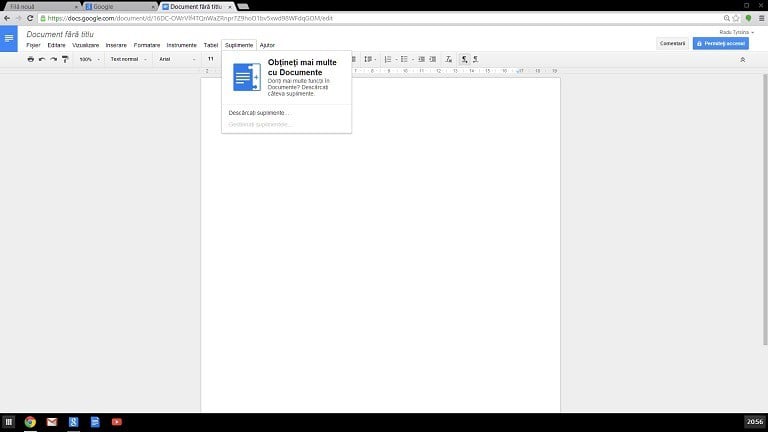
From there, you can choose to launch Google Docs and YouTubeas an “app” in the Windows 8 interface. As you can see in the above screenshot, it’s google docs app windows 8.1identical as the web app that you can access on docs.google.com, so the single app feature here is the fact that Chrome runs in the Modern user interface and allows you to switch between Google Docs, YouTube, Chrome or Gmail. All your favorite Google apps are now in a single location, as you can see in this screenshot from the right and it’s thus much easier to switch between all of them.

Thus, you can make use of the snapping features and launch Google Docs, YouTube or your Gmail account from a single app location in the Windows 8 touch interface. You can choose that panel with Google apps where you want. The real key to somehow mimicking the feel of a Windows 8 app per se is to run whichever app you want in full screen mode. Thus, especially on Windows 8 tablets, it will like it’s a standalone app.


WordPad in Windows 8, 10 Becomes Cool With Spell Check Functions

WordPad is a basic text editor, with just a few more features than NotePad, but it’s definitely far from reaching the features of Microsoft Word. Many are complaining that it lacks spell check and word count functions, but there’s a workaround for that. Read below.
wordpad windows 8.1
Unfortunately, WordPad and NotePad don’t have touch enabled version in the Windows Store that you could use on your touch Windows 8, Windows 8.1 and Windows RT devices, as these two basic text editors that have been there since the birth of Windows, are glued to the desktop interface. For that, I recommend for you some of the best touch enabled writing apps from the Windows Store. In this article we’ll focus on WordPad, a writing tool that many of us choose when we don’t have the Microsoft Office suite or when we don’t like cloud solutions.

Read Also: Star Wars: Assault Team Game Launched for Windows 8

I like WordPad and for the basic needs, it’s the perfect tool. You can create and edit text and then save it in the following formats: plain text, rich text, OpenDocument or Office Open XML. You can also have a look at our review of the OpenOffice desktop app for Windows 8, while you’re here. You can also print and send your text in the form of an email from WordPad. There are plenty of fonts to choose from and you can even attach some images and do some basic picture editing.

But, naturally, there are some features that WordPad is missing and many have been requesting Microsoft to add them, but with no luck. Yes, even in Windows 8 and Windows 8.1, the spell checking and word count functions are obviously missing. And this will probably be the situations for years to come. So, the single solution we have at our disposal is to make use of third-party software. From all the currently available solutions, tinySpell seems to be the best one to use, and it will work also with NotePad, not only WordPad.

You can see in this right aligned screenshot how tinySpell works in WordPad. It’s a very small program and will indicate how to correctly spell words not only in WordPad and Notepad, but just about any other application that you’re currently on. Alas, there’s no such easy fix for the word count problem, but you can just take the whole text and use an online tool, such as this one. Or, if you know of one, leave a comment and let us know.

Read Also: Windows 8 Security Apps: Selection of Best From Windows Store

Microsoft Office Finally Comes to the iPad

Just like expected, at its first press briefing, Satya Nadella and his team has finally unveiled the much awaited and perhaps overdue Microsoft Office suite of products for the iPad. It’s not a standalone product and yes, of course, it does require subcription
microsoft office ipad
Microsoft has released Office Mobile for iPhone users back in June, last year, and now Redmond has just unveiled the Microsoft Office suite for the world’s most popular tablet – the iPad. This morning, in San Francisco, at an event focused on discussing the intersection of cloud and mobile, the Microsoft Office suite for iPad has been released and it is free to download, but requires a subscription if you want to edit files, naturally. Just as expected, it comes with the traditional trio of apps: Word, PowerPoint and Excel.

Read Also: FIFA 14 Game for Windows 8 Released in Windows Store [Review]

Just like Office Mobile for iPhone, you’ll need to sign in with a OneDrive or SharePoint account to retrieve your documents, and if you want to modify a document or create one, you’ll need an Office 365 subscription. There’s now a cheaper solution, as Microsoft will launch the cheaper Office 365 Personal plan later this spring. But if you want only to try out Microsoft Office on your iPad, you can always use the 30-day trial at Office.com.

ipad microsoft office

You will be able to use Office for iPad on as much as five tablets and at the moment it appears that you can use any version of the iPad, but once the app goes live in the App Store, we’ll see whether or not this is limited to iOS7. But considering the fact that Apple offers its iWork suite for free on iOS devices purchased on or after September 1st, 2013, it will be interesting to see how many will choose to have an Office 365 subscription just for the sake of having Word, PowerPoint and Excel on their iPads. Of course, it will be a much welcome upgrade for those who already own a Office 365 account.

Microsoft said that it took advantage of the iPad’s extra screen space, so it’s not just a beefed up version of Office Mobile for the iPhone. The iPad edition comes with advanced features like Sparklines and includes some useful formatting options like custom text colors, plenty of PowerPoint transitions and a full suite of fonts. PowerPoint comes with a presenter mode for remarks in “white board mode” and you can also use your finger as a laser pointer.

All three apps have now become available for download in the iTunes Store (download links at the end of the article) and all of them require iOS 7 to run. But according to some fresh reports coming from Apple, more than 85% of iOS devices already are on iOS 7, so this shouldn’t represent a big problem. Two of the biggest downside of  the Microsoft Office suite for the iPad are the following:  you can’t use other cloud storage services besides OneDrive and SharePoint and you can only insert Camera Roll photos into documents.

Download Microsoft PowerPoint for iPad
Download Microsoft Word for iPad
Download Microsoft Excel for iPad

Windows 8, 10 Security Apps: Selection of Best From Windows Store

When having and using an Windows 8 device is all about portability, multitasking and great apps and programs to use for making your daily activity easier (see calendar apps to use on your device) and your life healthier (learn how to live a healthier life by using a dedicated health Windows 8 tool). But at the same time you need to concern about security as your personal data, info and accounts might be in danger.
windows 8 security appsWe all know that when using an Internet connection and when downloading content and apps from web, we might also get a malware that can then damage our Windows 8 device. In that matter you should know which security apps to use in order to protect your Windows 8 tablet, laptop or desktop. You also need to protect your passwords and website accounts and at the same time you need to protect your accounts and personal information. In order to help you out, during the lines from below I will try to review the best Windows 8 security apps that can currently be downloaded from Windows Store.

Read Also: Top Free Windows RT Apps You Need to Download

Of course beside this you should also consider in applying parental control for restricting your kid’s access to Windows Store and to websites with inappropriate content, while you should use Firewall protection along with in-browser security, spyware detector and so on. Now, most of the antivirus programs reviewed below are coming with great features that can protect you and your data from malware and viruses infection so don’t hesitate and learn which Windows 8 security app to use.

Best Windows 8 security apps

LockIt

LockIt
If you want to secure your accounts easily then LockIt should be perfect for you. With this Windows 8 security app you can store your passwords and secret information; the app features strong cryptography to secure your data and keep hackers out thus the tool can be used for storing credit cards, bank account information, software keys and more. LockIt is available for free on Windows Store.

McAfee

McAfeeOne of the best antivirus platforms to use on your Windows 8 device is definitely McAfee. This is a great app with an easy to use user interface and with useful features that can keep you safe and secure. You can use McAfee for web browsing security and also for scanning your Windows 8 device in order to remove malware and viruses. This app is also available for free on Windows Store.

Norton Satellite

Norton SatelliteAnother popular antivirus is Norton. This app which can be anytime downloaded for free from Windows Store is great for the users who love to socialize. Thus with Norton Satellite you can scan your Facebook and Twitter feed for malicious links, as well as files from your Dropbox, SkyDrive and local PC for malware. In addition to Norton Satellite you can also use Norton Studio in order to enjoy full protection on your Windows 8 device.

Kaspersky Now

Kaspersky NowIf you want an alternative to McAfee and Norton, then Kaspersky Now should be the perfect choice. This app can run without lags or bugs on any Windows 8 device and can be used for protecting your device against malware and aggressive viruses. Kaspersky Now can be anytime downloaded for free from Windows Store.

Last Pass

Last PassA great password manager that you can use on your Windows 8 device is Last Pass. As the name suggest with Last Pass you can store and manage all your logins securely, so you can access your accounts and services from anywhere. The app is free distributed on Windows Store and you can read a proper review of Last Pass by checking the link from above.

RoboForm

RoboFormRoboForm is another password manager. When you have and use multiple accounts on a daily basic you need to use a proper password manager. Thus RoboForm is automatically saving your passwords so you’ll never have to remember or type your passwords again. The too is also secure so you don’t have to worry that someone else instead of you will have access to your accounts or to your web browsing history. RoboForm is of course available for free on Windows Store, so don’t hesitate and test the same.

Well, that was all for now; don’t worry as we will update the list with new security apps as soon as we find out something that is worth mentioning. At the same time, don’t hesitate and use the comments field from below and point out your own favorite security app and we will update this review accordingly. Also, stay close for further Windows 8 news, tips and tricks and lot more.

Read Also: Collection of Best Windows RT Games for 2014

Calendar Apps for Windows 8, 10: Some of the Best to Use

Our life is getting more and more stressful due to our daily busy schedule and we tend to complicate it even more. We don’t manage to find time for ourselves or for our beloved people so we end up in being alone, sad and depressed. But now you can forget all about that, as you can learn how to properly plan and organize your life by using dedicated calendar apps on your own Windows 8 device.
calendar apps windows 8
It’s really important to know how to plan your busy schedule and how to make time to do other activities than the ones from your work. Also, it’s healthier to learn how to make things different each day and how to complete all the tasks with ease and without dealing with stressful activities. As mentioned before, now you can organize your life by using a dedicated calendar app on your Windows 8 device. I know that it is hard to believe, but actually these programs are quite useful; of course not all the programs are good for you, so because of that during the following lines I will review the best calendar apps for Windows 8 that can be anytime downloaded from Windows Store on your tablet, desktop or computer.

Read Also: RoboForm Releases Windows 8 App for Password Management

Don’t forget though, that on Windows 8 you have a built in tool – the Calendar App, which can anytime be used without any kind of problems; but if you want more features and better results, then try the tools described below. Unfortunately, at the moment, there isn’t an official Google Calendar app in the Windows Store, so we have to rely on the desktop utility only.

Top Windows 8 Calendar Apps from Windows Store

Cazendar

CazendarThe best way in which you can start planning your daily schedule is by using a dedicated app that comes with a feature like “Subscribe Google Calendar”. Well, with Cazendar this is exactly what you will get, this Windows 8 calendar app being recommended for both advanced and entry level users due to the numerous options and features that are made available. Cazendar can be downloaded for free from Windows Store. It’s nice that it tries at least to mimick some features of the Google Calendar software.

gTasks HD

gTasks HDA great task manager to use as a Calendar app on your Windows 8 device is gTasks HD. This tool brings features that can be used for planning your work activities and for managing your free time with ease. gTasks HD is coming with an intuitive interface that can be easily used by anyone. This app is also free distributed on Windows Store, so don’t hesitate and try it on your own tablet, desktop or laptop.

Good Plan

Good PlanAs the name suggest, Good Plan offers a great possibility to use on your own Windows 8 device for planning your busy schedule. In fact Good Plan combines a lesson plan / timetable with calendar and reminder app. So this is a mixed tool that is featuring important and useful options and capabilities that can be easily accessed due to the intuitive UI. Of course, Good Plan is available for free on Windows Store.

Read Also: Top Free Windows RT Apps You Need to Download

WinPIM Calendar

WinPIM CalendarWinPIM Calendar might be the best choice for you, especially if you want a Windows 8calendar app that is similar with the Google dedicated calendar app. In that matter, WinPIM Calendar tool can be synced with Google, iCloud, Yahoo Calendar and supports SkyDrive Backup along with other useful features and capabilities. Unlike the other calendar apps reviewed here, the WinPIM Calendar software is priced $4.99 on Windows Store.

Now, we all know that the Google Calendar is maybe the best and most popular and used Calendar app and this even though we don’t have a dedicated app on Windows Store, which means that you cannot install Google Calendar on your Windows 8 device. But, as you could see above, you can use a Windows 8 calendar tool in order to sync with the Google, iCloud and Yahoo Calendar. Also, you can go to Windows Store and download the Gmail calendar app which automatically syncs with gmail-calendar. Therefore, even though we don’t have the Google Calendar client available for our Windows 8 and Windows 8.1 devices, we can anytime choose a third party app that can sync with our Gmail and Google account, thus getting a similar Google Calendar experience on our own handset.

All the apps which were described here received 4 or more stars of ratings from the users who have already tested and used it on their own Windows 8 devices. Also, these Windows 8 calendar apps are working without lags or bugs, so you can safely install the software on your device without dealing with any kind of problems. Also, feel free and add your own favorite calendar tools for Windows 8 and Windows 8.1 by using the comments field from below and we will also update our review accordingly.

Read Also: Collection of Best Windows RT Games for 2014

Top Free Windows RT Apps You Need to Download

Finding dedicated apps for your Windows RT device should be an easy task to do, though it seems that there are users who are still having problems in downloading proper tools from Windows Store. Because of that I have decided to review the best Windows RT apps that are currently available on the Store.
top windows rt apps
Using optimized tools is ideal, even if we are talking about Windows 8 or Windows RT based devices. But unfortunately, on Windows Store we don’t have separate sections for both platforms and all the apps are being available at one place only, being if you want mixed all together. As we all know, the apps that are optimized for Windows RT are those software which are also compatible with ARM. So, the best way in choosing your apps will be in checking if the software is suitable with ARM. Also, you can use this article where we will constantly update the list from below with the best Windows RT apps that can be downloaded from Windows Store.

Read Also: Collection of Best Windows RT Games for 2014

Best 8 Windows RT Apps to use on your device

Kindle

KindleIf you want to download and read great books on your Windows RT tablet then you need to install the Kindle client for your Windows RT device. Kindle is a great app that is compatible for both Windows 8 and RT systems and which can be anytime downloaded from Windows Store for free. You can read a proper review of Kindle app right here on Wind8apps, so don’t hesitate and learn everything about this eBook Reader tool.

Netflix

NetflixI bet you know what Netflix is and why we recommend this app. The best is that Netflix is compatible with Windows RT devices too, so you can anytime download the tool from Windows Store. The app is free distributed and can be used for watching TV episodes and movies right on your own tablet. Check the link from above for the proper Netflix app review.

Remote Desktop

Remote DesktopRemote Desktop is an extremely useful app that can be used especially by the advanced Windows 8 users. With Remote Desktop you can basically connect your tablet with your computer or desktop. In that matter you can use this app for getting your work done wherever you are and in any conditions as all you need to use is a Windows RT based device. You can download Remote Desktop from Windows Store for free.

iHeartRadio

iHeartRadioA great radio app for Windows RT devices is iHeartRadio. By using this tool you can listen to music for free, you can keep in touch with the latest news talk, sports and lot more. iHeartRadio features an easy to use user interface while it gives access to Thousands of real radio stations playing pop, country, hip-hop and R&B, rock and so on.

Read Also: Best Windows RT Games For You to Play

Comics

ComicsComics are always a great way to spend your free time. Comics are also appreciated by kids and adults on the same matter, so having and using a dedicated app on your Windows RT device will be quite useful and great. In that matter you can anytime use Comics by ComiXology, which is a free distributed app on Windows Store.

Khan Academy

AcademyDo you want to have an eciclopedia of anything and everything right on your Windows RT device? In case you want to read new stuffs and learn things easier and faster, Khan Academy is the perfect tool for you. The software covers a massive number of topics, including K-12 math, science topics such as biology, chemistry, and physics, and even the humanities with tutorials on finance and history. Thus, don’t hesitate and try Khan Academy for free on your own Windows RT device.

Wikipedia

WikipediaI think that Wikipedia is a platform that doesn’t need any kind of review or introduction. Each one of us have used Wikipedia for at least once, so we all know how it works and why it is so useful. Therefore, you must download and install Wikipedia on your Windows RT tablet as soon as possible – the app is free distributed on Windows Store.

That was our selection of Windows RT apps. Of course the review can anytime include many other tools, so feel free and participate in expanding this article and in helping other users in finding proper apps for their Windows RT tablets. In that matter, use the comments field from below and feedback us with your own favorite apps, which are of course optimized for the Windows RT platform.

Read Also: Top Windows 8 Wallpapers Apps with Awesome Images

Best Windows 8 App This Week: 3D Human Anatomy

Another week is off to a start and here at Wind8Apps we’re ready to talk about what we think is the best new Windows 8 app that has been released in the Windows Store – 3D Human Anatomy. Just like the name suggests, the app lets you explore the human anatomy in a interactive 3D environment.
anatomy app windows 8There are a couple of anatomy apps in the Windows Store for Windows 8 users, but one that really stands out is ‘3D Human Anatomy‘, a new title that has been recently submitted and comes with some impressive features which make it a must-download app for everybody out there, not only biology afficionados. The app comes with a size of less than 17 megabytes and can be downloaded for a price of $4.49; if that seems a little bit too expensive, since we’re used to cheaper apps, you can use the free trial and see whether it deserves its price or note. It’s a good thing that besides touch and desktop Windows 8 and Windows 8.1 devices, it will also work on Windows RT.

Read Also: Download All Angry Birds Games for Windows 8, Windows 8.1

The application isn’t necessarily new to the Windows Store, but the latest 2.0 version is, as its has received new textures to all muscles, some major nerves, have been added, along with the spleen and the overall user interface has been improved. So what are you seeing right now is an update version of the initial release. All the information inside this anatomy app for Windows 8 users is taken from Wikipedia and Gray’s anatomy textbook.

One of the best Windows 8 anatomy apps

This app’s primary use is as a learning tool but can also be used for any professional who needs the occasional reminder. Additionally, this app is ideal for physicians, educators or professionals, allowing them to visually show detailed areas to their patients or students – helping to educate or explain conditions, ailments and injuries.

windows 8 anatomy app

3D Human Anatomy comes with detailed information about all the bones in our body, shoulder and knee ligaments only, 145 muscles, circulation system consisting in arteries, veins and heart, nervous, respiratory, reproductive system and urinary systems. There are more than 400 3D position quizzes that you can take to make sure you learn more about the human body in a interactive mode.

There are multiple actions that you can engage inside the app, such as rotating body models to any angle, peel layers of muscles, search the name of a certain anatomical structure and see its 3D location and enable or disable different anatomy systems to make it easier to find what you’re looking for. There are both the male and female reproductive systems, so nobody gets upset. This is definitely one of the best medical apps for Windows 8 users, as well. Follow the link from below to download it and let us know what you think of it.

Download 3D Human Anatomy app for Windows 8, Windows 8.1

Download All Angry Birds Games for Windows 10/11

Angry Birds has proved to be a gaming phenomenon especially on mobile devices and it basically created the concept of casual gaming. Unfortunately, on the Windows Store, at the moment, there are only some Angry Birds games, so this article focus on how you can download the desktop versions of Angry Birds for Windows 8 and Windows 8.1
download angry birds games windows 8
The reason why I decided to do this article was because I recently was playing Angry Birds Go game on my Android smartphone and realized that many Angry Birds sequels are missing from the Windows 8 Store, as there are currently available only the Angry Birds Star Wars and Angry Birds Space games. Of course, the absence of the whole suite of Angry Birds games is affecting Windows RT users only, as Windows 8 and Windows 8.1 owners can download the desktop versions the links to which we will provide below.

Read Also: Manage your Wine Collection with Windows 8 VisualCellar App

First of all, what I need to tell you beforehand is to avoid “cracking” Angry Birds games for your Windows 8, Windows 7 or any other PC. It’s better to pay for the game, than to realize your computer has been filled with unwanted malware. Also, from what I’m aware of, there’s only a single way to play Angry Birds for free on your Windows PC, and that is by installing this Chrome extension. This is free because it is the very first edition of the game. So, follow the links from below to directly download all the Angry Birds games currently available on your Windows 8 and Windows 8.1 devices. We will also provide links to the touch versions, as well, when they are present.

Angry Birds on Windows: the official download links

download angry birds rio windows 8

Download Angry Birds Rio

download angry birds seasons windows 8

Download Angry Birds Seasons

Download Angry Birds Space

download angry birds space windows 8

Download Bad Piggies

download bad piggies for windows 8

Download Angry Birds Star Wars

download angry birds star wars windows 8

Download Angry Birds Star Wars II

download angry birds star wars 2 windows 8

Nokia and Microsoft to complete acquisition deal in April

Nokia and Microsoft to complete acquisition deal in April.

On Sunday, Microsoft announced that its acquisition of Nokia will be completed by next month, that is April. The $7.2 billion buyout which was announced last September was originally stated to be completed by the end of the first quarter of 2014.

“Both the companies still seek approval from several authorities. While the two giants have received approval from US and European Union jurisdictions, some Asian authorities are still reviewing the buyout. We are nearing the final stages of our global regulatory approval process,” says Brad Smith, General Counsel and Executive Vice President, Legal and Corporate Affairs, in a blog post. “To date we have received approvals from regulatory authorities in 15 markets on five continents. Currently we are awaiting approval confirmation in the final markets.”

Nokia also confirms that this delay has got nothing to do with its ongoing disputes with the Indian government. “Nokia reiterates that ongoing tax proceedings in India have no bearing on the timing of the closing or the material deal terms of the anticipated transaction between Nokia and Microsoft”, states Nokia in a blog post.

Earlier, in September last year, Microsoft announced that it was buying Nokia’s devices and services division for a whopping sum of $7.2 billion. Nokia however, will retain its network infrastructure, HERE location and mapping unit and an intellectual property licensing division from the deal.

Collection of Best Windows RT Games for 2014

Do you want to play perfect optimized games for your Windows RT based device? If you do and if you want to use only dedicated apps without testing tools that aren’t working properly on your Windows RT tablet, then check the review from below and learn about what games to download from Windows Store for your Windows RT and RT 8.1 device.
best windows rt games
Windows RT dedicated apps are not hard to find even though on Windows Store there isn’t a special category of such tools. When talking about games you should know that you can choose from a variety of tools, depending on your preferences. You can find free or paid apps and you can choose RPG, strategy, puzzle, racing types of games and lot more. But in order to help you out I have developed the following review where I have listed the most appreciated Windows RT games that are currently available on Windows Store.

Best 8 Windows RT Games from Windows Store

Cold Alley

Cold AlleyIf you want to play a great and addictive action game then you need to try Cold Alley. The graphics on this Windows RT game are great, the game play and the plot are well written and developed, so you will spend many ours playing this air combat game. Anyway do note that Cold Alley is priced $6.99 on Windows Store and it is compatible with both Windows RT and Windows 8 based devices.

Read Also: SmartUse is a New Professional Windows 8 Construction App

Into the Dead

Into the DeadIn case you want to try a great horror game, then Into the Dead will be the perfect choice. Into the Dead unveils a word ruled by Dead, where you are still alive – what to find out for how long? Well, just try to survive this amazing first person shooter game. Into the Dead is of course compatible with Windows RT platform and it is priced at $1.99 on Windows Store.

Despicable Me: Minion Rush

Despicable Me: Minion RushDespicable Me is one of the best and most popular game on Android and iOS and now you can play the same on your own Windows RT and Windows 8 based device. Playing Despicable Me is fun and quite catching as you will try to outbest your old scores, to reveal new characters and unlock new missions. You can also share and compare your game results with your friends and with the Despicable Me community. The game is available for free on Windows Store so you can anytime test the same.

Asphalt 8: Airborne

Asphalt 8: AirborneIf you are a racing game addict, then you must play Asphalt 8: Airborne on your Windows RT tablet. This game is featuring amazing graphics, great cars and best tracks where you will try to finish the race first in order to receive points and money for unlocking new cars and events. The best is that Asphalt 8: Airborne is available for free on Windows Store, so don’t hesitate and download the same on your Windows RT or Windows 8 based device.

Doom and Destiny

Doom and DestinyA great and classic 2D action game that you can try on your Windows RT device is Doom and Destiny. This game is fun and also interesting as you will be able to enjoy more than 25 hours of fun, 200+ skills to defeat the 300+ enemies and over 500 between items and equipment to unlock. Doom and Destiny is priced $3.49 on Windows Store and can be installed on both Windows 8 and Windows RT based device.

Read Also: Best Windows 8 Indie Games to Download From the Store

Angry Birds Star Wars

Angry Birds Star WarsWe all know what Angry Birds is, how to play it and also why is this game so appreciated by all the users who have tried it on smartphones, tablets, laptops and desktops. Because of that we must include the Windows RT compatible Angry Birds Star Wars on our list. So, without any other reviews, try the game on your own device – on Windows Store Angry Birds Star Wars is priced $3.49.

Dungeon Hunter 4

Dungeon Hunter 4If you have liked Into the Dead, then a similar action and horror Windows RT game for you is Dungeon Hunter 4. Unlike Into the Dead, Dungeon Hunter is a RPG where you can experience great characters, powerful abilities and amazing skills. All these are of course used for killing your enemies while trying to survive in a fantasy and dangerous world. Dungeon Hunter 4 can be downloaded for free from Windows Store.

Six-Guns

Six-GunsThe last game which will be reviewed here is Six-Guns. This free distributed Windows RT game unveils a great Wild West story where you can discover your favorite cowboys and bandits along with unnatural enemies, all in a well-developed first person shooter. The graphics are also quite impressive so, you have all the reasons for trying Six-Guns on your own Windows RT and Windows 8 device.

That was all for now, but we will keep updating the article, so do keep checking and have a look at another list that we did a few months back. Those were what I believe to be the best Windows RT games that you can try on your own device. Of course, there are many other apps available on Windows Store, so if you find something interesting, don’t hesitate and point it out by using the comments field from below and we will update this review accordingly.

Read Also: Top 10 Windows 8 RPG Games to Play

Exploring the arrest of Windows leaker Kibkalo: what happened and whats next

Microsoft

Microsoft kept a close eye on who had access to Windows 8 during its development phase, and even went so far as to personalizing the development builds which enabled Microsoft authorities to quickly and easily track down leaks via a unique hash ID built with the operating system. 

This hash ID made it more difficult, but not impossible for a leak to occur, as Microsoft could pretty much instantly find out where the build came from. Windows 8 and Windows 8.1 are the first Windows operating systems in a long time to not have leaked as frequently. 

Windows 7 had countless builds leak, as did Windows Vista and Windows XP. This was because the operating system was never personalized to an individual or group during its development phase, meaning it was pretty much impossible for Microsoft to identify a source of the leak. 

A total of four Windows 8 builds leaked during its development phase, and seven Windows 8.1 builds. The amount of builds leaked during the Windows 8/8.1 development phase compared to older Windows operating systems is shocking, but it showed how much Microsoft was cracking down on leaks. 

Although Microsoft is making it harder to leak information regarding Windows during its development stages, it’s still able to happen. With Windows 8, we got a lot more information/screenshot leaks rather than actual builds, which is still a good thing. 

Microsoft can’t really track a leak if the screenshot is edited by the leaker to hide the unique hash ID, which was often the case with screenshot leaks. Blogs such as WinUnleaked and WZOR.net always made sure the hash ID was hidden from view to protect their sources. 

With the recent news claiming that a Microsoft Employee who had been arrested for supplying development builds of Windows 8 to a French Blogger, it’s got us all wondering what actually went down inside the walls of Redmond and with the French Blogger. 

Firstly, let’s take a look at the damage this news has caused. A known leaker by the name of WZOR has shut down his blog and Twitter account which was dedicated to leaking information regarding Windows. 

WZOR claims he is ceasing activities due to personal factors, which is interesting. Alex Kibkalo, the former Microsoft Employee who was supplying the leaks, hasn’t worked for Microsoft for a long time, so WZOR couldn’t have possibly been receiving the leaks from him. 

Let’s jump back in time, shall we? During the development of Windows 8, a leaker came to fame rather quickly by the name of ‘Canouna’, and even launched his/her own blog dedicated to leaking information regarding Windows 8. The blog went by the name of WinUnleaked, and was literally the go-to place for all Windows 8 leaks. WinBeta frequently reported on leaks from that blog, along with others such as Neowin and The Verge. 

We understand that Canouna was French, and according to the report regarding the Microsoft Employee, he was supplying the leaks to a ‘French Blogger’.  

At some point in 2012, Kibkalo was caught in the act. He was questioned by Microsoft and we assume he was fired soon after. Around this time, Canouna literally disappeared from the internet. WinUnleaked went with it, and nothing was said on the matter. 

Looking at it now, WinUnleaked disappeared for a reason. Kibkalo was caught, meaning Canouna didn’t have a source anymore, and Microsoft were onto him too. 

Kibkalo also leaked an SDK, in which the blogger went to another an outside source to confirm it’s legitimacy. The the outside source did the right thing on his/her standard by going to a Microsoft Executive, who at the time was Steven Sinosfky to tell them that someone outside of Microsoft had gained access to the SDK. This is what got the ball rolling.

Soon after, Microsoft went ahead and dived into the account in which the blogger used to contact the Microsoft Employee. Microsoft could do this, as the blogger used a Hotmail account, a rookie mistake indeed. 

This is most likely how Kibkalo was caught. Within the account, the Microsoft team in charge of searching the bloggers account found emails from Kibkalo containing things such as hotfixes for Windows 8. At the time, Windows 8 had not been released. 

They also found a chat log between him and the French blogger, which confirms that the Windows 8 Enterprise N leak that happened in 2012 was indeed from Kibkalo. August 2nd, 2012 was the date in which our first Windows 8 RTM build leaked. We covered the news as it happened, and the leak came from WinUnleaked/Canouna. 

Kibkalo: I would leak enterprise today probably 
Blogger: Hmm 
Blogger: Are you sure you want to do that? Lol. 
Kibkalo: why not? 
Blogger: 1st time I speak with a “real” leaker since Zuko era 
Kibkalo: mm 
Kibkalo: To be honest, in nwin7_rtm and win7_sp1 I leaked 250GB ? 

Microsoft also found emails in which Kibkalo described himself sneaking into Building 9 at Microsoft and copying files from a secure server. Yes, apparently it’s that easy. 

But, what does this mean for future leaks? Well, this news has made everyone with access to development builds quiet regarding the matter. WZOR completely shut down all operations with it, and we assume others will do the same soon. 

As of this moment, we’ve still got leakers from China, and websites like WinClubl may or may not return with future leaks. But for now, the main leakers have gone into hiding. 

What’s interesting is that Microsoft didn’t really care about screenshots of Windows 8 leaking, it was more the SDK which Kibkalo attempted to leak. The SDK never got around to leaking publicly, but we can see why Microsoft got worried about it. 

Unfortunately, I have a feeling we’re going to hear a lot less regarding the development of Windows 9 now that leakers are going quiet. We’ll have to wait and see what happens. What are your thoughts on this?

For the fourth year running, Microsoft appears on World’s Most Ethical Companies list

For the fourth year running, Microsoft appears on World's Most Ethical Companies list

The 2014 version of the World’s Most Ethical Companies (WME) list features Microsoft for the fourth year running. Appearing, unsurprisingly, in the Computer Software category, Microsoft is recognized as one of the “companies that truly go beyond making statements about doing business “ethically” and translate those words into action.”

The WME is a list dominated by US companies, and is put together by the Ethisphere Institute, “an independent center of research, best practices and thought leadership that promotes best practices in corporate ethics and compliance.”

Writing on the Microsoft on the Issues blog, Dan Bross, Senior Director, Corporate Citizenship at Microsoft says: “We are proud to be included in the 2014 list… Ethical and responsible business practices are the bedrock of our corporate governance practices.”

He goes on to say: “We work diligently to meet our responsibility to serve the needs of the communities in which we live and work, and to manage our business with the utmost integrity. At Microsoft, we are committed to applying our technology, ingenuity and collaborative spirit to help solve critical social and environmental challenges and create fulfilling opportunities for people around the world.”

But Microsoft is not ready to rest on its laurels. “While we are very grateful and highly appreciative of this honor, we recognize there is more work to be done, and we commit ourselves to ongoing improvement.”

SmartUse is a New Professional Windows 8, 10 Construction App

The Windows Store is growing day by day and I’m happy when I see awesome apps getting published. One such really professional application is Smart Use, a new app that you are invited to download right away on your Windows 8 tablet if you happen to work and deal with construction.
windows 8 construction app
SmartUse is a new addition to the Windows Store that I spotted during this week and I finally got a moment to talk about it. This is a really professional application that will help those working in the construction field and even amateurs with their projects. The can be downloaded completely for free and has a size of less than 4 megabytes. To be able to enjoy all of its features and to decided whether you’ll be interested in buying the paid app, you have at your disposal a free 30-day trial with full features and 100 sheets of storage.

Read Also: Fix: Cursor Jumping While Typing in Windows 8

After that, it will be either a monthly fee of $49 or a one time payment of $749. It might seem as too much, but since it’s aimed at a niche audience, it makes sense to price it premium. Plus, their product is professionally made and deserves this prices. Since this app is obviously aimed at Windows 8 tablets thanks to their portability and ease of use in the workfield, the developer has decided to include Windows RT support, as well, so if you own a Surface or a Nokia Lumia 2520 tablet, you will be able to use the app in all its grandeur.

Manage construction projects on your Windows 8 tablet

construction app windows 8

The best app to handle your construction projects. Manage and redline your plans, create and track your punch lists, collaborate with your team and partners from anywhere with the fastest solution available. With an intuitive and touch-friendly user interface, SmartUse runs on all Windows devices and iPads, and they can all communicate together. Work smarter and take a step forward with SmartUse.

Aimed at tablets, SmartUse is also available on iPads, but rest assured that information is correlated and synchronized across all devices – a really useful features for teamwork. By using the SmartUse construction app for Windows 8, you will be able to  manage much easier your construction projects – redline plans, create and track punch lists, collaborate with colleagues and track progress of your goals and goals.

The app comes with plenty of useful features, such as the following – fast PDF viewing; the ability to quickly share markups, new revisions, pictures, videos, notes and more; the option to track and complete punch lists directly from the jobsite; auto-hyperlinking of your detail callouts; the ability to easily navigate between documents; comparison tool between sheets and much more.

The Windows Store is quite poor when it comes to apps related to homes, construction or architecture, but we’ve managed to write about some, such as Electric Toolkit to manage your house wiring projects, Live Interior 3D for interior design and others. If you’re interested in SmartUse, go ahead and follow the link from below to download it on your devices.

Download SmartUse construction app for Windows 8, Windows 8.1 

Windows XP users can save $100 upgrading hardware through MicrosoftStore.com

Windows XP users can save 00 upgrading hardware through MicrosoftStore.com

There are just two and half weeks to go until support for Windows XP officially ends. In spite of the deadline drawing ever-nearer, there are still a lot of people running the aged operating system. Microsoft is keen for user to migrate away from XP to Windows 8 and the company has already saved as number of incentives in front of the noses of would-be buyers. Now there is a new deal on the table — $100 off a new system.

The offer can be redeemed in bricks and mortar Microsoft Stores as well as online at MicrosoftStore.com. Take an old XP device into a store and customers can save $100 off a number of qualifying systems priced at $599 and above.

If you don’t happen to live near a Microsoft retail store, you can visit the online version from your Windows XP computer. The site will detect that you’re still running XP and will display the offer. So if cost has been a stumbling block holding you back from moving to Windows 8, this obstacle has now vanished (at least partly).

Many people are concerned about losing access to their valuable data after buying a new computer, but Microsoft has a solution. A free data transfer service is available so a Windows 8 system can be up and running complete with personal files in next to no time.

Microsoft explains why it accessed private emails without a court order

Microsoft explains why it accessed private emails without a court order

Privacy is of the utmost importance to all of us these days — it’s one of the reasons we password-protect all of our online accounts, after all. As you’ve probably heard, a Microsoft employee has been arrested for leaking information about Windows to a third party as well as the activation SDK. There has been something of a furore following the revelation that Microsoft was able to hone in one the source of the leaks by accessing the email account of the third party (“the third party’s Microsoft operated accounts”).

Ordinarily it would be reasonable to expect a court order to be required for such action to be taken, but Microsoft has made it clear that it feels this is not the case. Whilst maintaining that “we believe that Outlook and Hotmail email are and should be private,” the company explains that it “took extraordinary actions based on the specific circumstances [in this case]”.

But this does little to assuage the fears of those who now have concerns that their accounts could be accessed at any time; the revelations about the activities of the NSA have put many people in a state of high alert. Microsoft says that “our actions were within our policies and applicable law”

The statement goes onto say that “courts do not … issue orders authorizing someone to search themselves,” — the implication being that searching through the emails stored in a Hotmail or Outlook.com account equates to Microsoft searching through its own data as these are both Microsoft services. This is the part that many people have a problem with, as it opens up the possibility that anyone’s account could be accessed in the same way. Microsoft explains that its “terms of service make clear our permission for this type of review”.

To help allay these concerns, there is the caveat that this happens “only in the most exceptional circumstances”. It is possible to understand where Microsoft is coming from here. Just as the NSA can justify some of its actions by saying that surveillance was only carried out with a view to preventing crime and catching terrorists, so Microsoft is able to fall back on its terms of service documentation and the fact that user accounts were only accessed with a view to obtaining legal redress.

But while Microsoft’s position is something many people will be able to empathize with, there will still be ongoing concerns. The defence that: “In this case, there was a thorough review by a legal team separate from the investigating team and strong evidence of a criminal act that met a standard comparable to that required to obtain a legal order to search other sites” is slightly difficult for some to digest. It almost sounds as though Microsoft has taken the law into its own hands.

Microsoft is keen to be seen to do the right thing, and to this end the company has announced four procedures and promises that will be implemented:

  • Customer accounts will not be searched unless it could be justified by a court order.
  • A separate legal team will be used to assess the evidence collected by the investigating team. The skills of an outside attorney who is a former federal judge will also be called upon.
  • If searches are conducted, only data relevant to the investigation will be included.
  • The number of account searches that are performed will be published in Microsoft’s bi-annual transparency report.

What do you think of Microsoft’s actions? Is the terms of service documentation sufficient to permit search user data without a court order? Have you even read through the policy documents that grant Microsoft permission to access your data when circumstances demand it?

It is, of course, worth pointing out that Microsoft is far from being alone in having these clauses in their policies. If you were to take the time to sift through the policies of other companies’ services, you will find numerous similar paragraphs in the user agreements you have signed up to.

Download Ezvid for Windows 8, 10 [Latest Version]

When it comes to screen capture software, one of the best tools that you have at your disposal is the Ezvid software, a well known product in this market. The software is also known because it is a really easy tool to upload directly to Youtube
download ezvid windows 8
I have been using myself the Ezvid software to quickly upload videos to Youtube with my own blog, so I can gladly recommend it to anybody who is looking for a hassle-free screen capture tool. The software can be downloaded absolutely for free (download link at the end), but you can donate to the developer if you want to support their work. One of the reasons why Ezvid is so popular is that it is really easy to use by everybody, as its commands are very basic and easy to understand.

Read Also: Windows 8 VLC App Updated to Fix Crash on Start & Other Glitches

Albeit Ezvid doesn’t mention this officially on their website, the software works flawlessly with Windows 8.1 10, and I can confirm this myself. When starting your first project with Ezvid, you will be able to capture the screen separately and then add your own audio or your voice. It also comes with some basic editing tools, such as the ability to add text, pictures or more videos.

When recording your own video, you can also add your watermark, if you want to further brand and protect your creations. When you are finished recording, you can easily upload to Youtube and you get to choose the quality that you want. I always choose the 720p version, despite the fact that it takes longer, at least I know I will be getting the best quality. The single downside is the fact that Ezvid always adds its logo at the beginning, so you will have to go to Youtube an trim it from there.

Get Ezvid software for Windows 8, 10

Ezvid 1.003

This update dates from August 19, 2015 and has fixed a false ezvid already open warning. Furthermore, the Google API libraries have been updated, as well.

Ezvid 1.002

Released in April 24, 2015, it brought bug fixes to YouTube uploader and fixed installer errors, as well. The previous 1.001 update only contained a couple of minor bug fixes.

Ezvid 1.0

This was released in April 13, 2015 and comes with the following features:

  • SHA256 code signing certificates for maximum security
  • Massive number of new video file formats supported
  • Transcoding performance increases
  • Improved support for x64 Windows
  • Improved screen recording performance
  • Improved multi-core support and multi-threaded cpu support
  • YouTube V3 API support
  • Improved non-English support
  • Improved screen capture stability
  • Improved YouTube upload reliability

ezvid latest version download

Download Ezvid for Windows 8, 10 [Size 1.3 MB, Version 0.9.8.2, Updated November 8, 2013]

We can see that Ezvid hasn’t been updated in quite a while, but this means that the latest version is just great as it comes with some important improvements in their security certificates. Also, Ezvid has replaced a screen drawing stamp” to appease society’s gorgonizing effect on our senses of humor”. We will keep you informed when the next version of Ezvid gets launched, so stay tuned.

Windows Store finally reaches the 150,000 app milestone, but are you impressed?

Windows Store finally reaches the 150,000 app milestone, but are you impressed?

The Windows Store, home to apps and games for Windows RT and Windows 8, has finally reached the 150,000 app milestone. To put things in perspective, the Windows Store hit the 100,000 app milestone back in July of 2013. The Store passed the 40,000 app milestone back in January of 2013.

According to data from MetroStore Scanner, the Windows Store has finally reached the 150,000 app milestone, worldwide. Microsoft has been working very hard as of late, offering developers new app availability settings and simplified certification requirements so apps can be published faster. Microsoft even recently revealed that in-app purchases account for the main revenue source for monetizing apps, especially when it comes to games. Microsoft is trying to make it easier for developers to create Windows Store apps.

While the Windows Store continues to see improvement as the months go by, the app count has struggled to climb. The Windows Store has seen a slow climb in apps since July of 2013, having only jumped up by 50,000 apps in just eight months. Of course, of all these new apps that have been made available, a lot of them are crap or spam apps. Only a handful of the 150,000 apps are actually considered “quality apps” – apps that have a balance between design, content, and usefulness. An example of a quality app would be the Facebook app, or a game like Asphalt 8 Airborne.

But its not all grim for the Windows Store. We are beginning to see a gradual influx of new quality apps being added to the store. In fact, VLC Beta, Tapatalk, Flipboard, Tweetium, Rayman Fiesta Run, and much more were made available to the Windows Store over the recent months. Microsoft themselves are quite proud of this achievement.

“Many new great apps are added each day every day to the Windows Store, now with downloads growing 49 percent in the last six months. We are proud of the quality apps that are available and the interest consumers are showing. The majority of top apps have joined our platforms – over the last 7 months, 16 high profile apps or portfolios joined either the Windows Store, the Windows Phone Store or both, such as Facebook, Flipboard, Instagram, Vine, Mint, Trip Advisor and Asphalt 8: Airborne. And the number of visitors to the Windows Store alone has quadrupled,” a Microsoft spokesperson told WinBeta.

But are you impressed with the 150,000 app milestone? What can Microsoft do to help boost interest in the Windows Store? Sound off in the comments below.

Official: Download Windows 8.1 Update 1 [x86, x64 and ARM Links]

Microsoft is said to release the first update to Windows 8.1 this spring, and it could be called “Windows 8.1 Update 1” or just “Windows 8.1 Spring Update”. After having taken down download links, Microsoft has now released them again. Brows below for the links and more details
download windows 8.1 update 1

Update 2

It’s 8 April here, which means Windows XP dies and we get official links for Windows 8.1 Update 1 that everybody can go ahead and download. The easiest way is just go to Windows Update and search for the latest updates. However, if for a certain reason you’re not getting the latest Windows 8.1 Update, you can go ahead and follow the official links from below to download for your x86, x64 or ARM devices. What you need to remember is that these need to be installed in the right order that we put below.

Download links for Windows 8.1 Update x86

Download links for Windows 8.1 Update x64

download windows 8.1 update 1

Download links for Windows 8.1 Update ARM

Update

Download Windows 8.1 update from MSDN

If you can’t wait for April 8, when the official Windows 8.1 update will be available, (as the KB2919355 Windows Update), then you can go ahead and download it from the MSDN website. All Windows version have been updated (not the new Windows IoT one), so just go to this link and choose what is the version that you need. Here are all the versions currently updated and available:

download windows 8.1 update

  • Windows 8.1 Update  New!
  • Windows 8.1 with Update  New!
  • Windows 8.1 Enterprise with Update  New!
  • Windows Server 2012 R2 Update  New!
  • Windows Server 2012 R2 with Update  New!
  • Windows Embedded 8.1 Industry Update  New!
  • Windows Embedded 8.1 Industry Enterprise with Update  New!
  • Windows Embedded 8.1 Industry Pro with Update  New!
  • SQL Server 2014  New!

You would think that the Windows 8.1 update was enough to fix the problems and frustrations that Windows 8 was causing for some users, but apparently it isn’t like that. Microsoft is now expected to release yet another update which will ugly be called “Windows 8.1 Update 1” or “Windows 8.1 Spring Update” which is said to bring some really useful features for users. At the beginning of March, some leaks have appeared online and they brought official links to the download files. Also, with some tweaks to the registry, users were able to get the Windows 8.1 update 1. However, if you have missed those tricks, you now have another occasion, as official downloads links for x86, x64 and ARM devices have been made available once more.

Read Also: Top Windows 8 Wallpapers Apps with Awesome Images

x86, x64 and ARM download links for Windows 8.1 Spring Update

Microsoft hasn’t officially confirmed the links yet, obviously, so we don’t know 100% if they are genuine. But since those who have used the registry tweak have reported to get the new features which Microsoft itself has been talking, it makes sense to assume this is the real thing. It might not be the final for, but it’s definitely an almost final build, as March is coming to an end and Microsoft is said to release the Windows 8.1 Spring Update during this April. I download the updates myself and can confirm that Windows 8.1 looks different indeed. So, here are the download links, grab them while they’re hot!

Windows 8.1 Update 8.1 links for x86 devices

  • kb2919442
  • kb2919355
  • kb2932046
  • kb2937592
  • kb2938439
  • kb2939087

Windows 8.1 Update 8.1 links for x86 devices

  • kb2919442
  • kb2919355
  • kb2932046
  • kb2937592
  • kb2938439
  • kb2939087

Windows 8.1 Update 8.1 links for Windows RT 8.1 ARM

  • kb2919442
  • kb2932046
  • kb2937592
  • kb2938439
  • kb2939087

In my case, the kb2919442 update was already there, so this might be the case with you, as well. You will need to download and install them in the exact order as arrange above. The updates will require multiple reboots, so don’t get scary that it will somehow crash or even brick your system, it’s a natural behavior.

windows 8.1 spring update download

Update: and that was it, folks, download links are already down, so I hope you were swift enough to download. We’ve been approached and asked to remove the links, so you can try your luck and search for the specific updates online, maybe somebody has uploaded them to another server. We’ll keep you updated if and when they are made available again.

Top Windows 8, 10 Wallpapers Apps with Awesome Images

The best thing when having a Windows 8 device is that you can choose from endless personalization possibilities. You can use numerous apps that can customize the looks of your tablet and of course you can set any wallpaper or background image you want or prefer the most.
But if you want to use only the best Windows 8 Wallpapers apps available on Windows Store for receiving HD pictures and live wallpapers you should check the review from below. The following list is revealing only the most appreciated tools that can be downloaded from Windows Store, all the software described here being free distributed ones. As you will see, you can easily choose to set live seasons wallpapers, background images with cars, celebrities, nature, pets and lot more. All these apps are featuring HD wallpapers that are compatible with any Windows 8 device, whether we are talking about tablets, laptops or desktops. Therefore, don’t hesitate and learn which Windows 8 wallpaper app to your on your device and also don’t forget to share your favorite tool with your friends and family.

Read Also: Download the Latest Desktop Skype Version for Windows 8.1

Best Windows 8 Wallpapers Apps

Backgrounds Wallpapers HD

Backgrounds Wallpapers HDWith this dedicated app you can have your own source of high-resolution Backgrounds, Wallpapers, Photos and Images for your Windows 8.1 device. The app is featuring an easy to use UI and comes with great options and capabilities that can easily be used for managing your own private gallery of HD wallpapers. Backgrounds Wallpapers HD can be downloaded for free from Windows Store, so don’t hesitate and try it now.

Wallbase 8

Wallbase 8If you want to have instant access to a database that contains over a million HD wallpapers for you Windows 8 device then Wallbase 8 should be perfect for you. You can choose or select wallpapers by tags, popularity, random or by your own query. Moreover you ca download and set images of dogs, cats and other pets along with cars, celebrities and much more. You can anytime download for free the Wallbase 8 app by going to Windows Store.

Explore HD Wallpapers

Explore HD WallpapersAnother great Windows 8 app that you can use on your tablet, laptop or desktop is Explore HD Wallpapers. By using this tool you can easily personalize and customize the looks of your Windows 8 device by using high resolution images. You have numerous possibilities on a distance of a „tap” therefore test Explore HD Wallpapers by downloading the software from Windows Store (the app is free distributed).

Read Also: Winamp for Windows 8.1: Download the Latest Version

FunUtilities

FunUtilitiesUse FunUtilities for having access to more than 4500 wallpapers and use this Windows 8 tool for downloading your favorite images right on your device. Also use FunUtilities and change the way your handset looks like by seting and managing new and amazing wallpapers, profile pictures, lock screen and so on. FunUtilities is available for free on Windows Store, so go ahead and test it by yourself.

Explore HD Cars Wallpapers

Explore HD Cars WallpapersExplore HD Cars Wallpapers is a great Windows 8 app that can be downloaded for free from Windows Store. This tool will be the best for those who loves cars and everything related to car racings, drifting and so on. You can download and use numerous and amazin wallpapers with the most popular and unique cars for personalizing your Windows 8 based tablet, desktop or laptop.

So, those were the most appreciated Windows 8 wallpapers apps that are currently available on Windows Store. The tools described above received 5 or above stars of ratings, so you can safely test each software you want. Moreover, the tools are also available for free, meaning that you don’t have to pay anything for being able to download the wallpapers you prefer the most on your Windows 8 device.

Read Also: Download the Latest Version of Opera Browser for Windows 8.1

MyEnel App for Windows 8, 10 Released for Romanian Users

At the end of February this year, we’ve seen RCS & RDS network launch in Romania their official Digi Online Windows 8 App. Romanian Windows 8 users now have  a new app – the official MyEnel app to manage your account and pay your bills with the electricity provider. Below are more details
myenel windows 8 app
Those of you who have installed the Android version of MyEnel will notice that the Windows 8 application comes with exactly the same structure. I tried searching the Windows Store on my browser to offer you a download link, but somehow I wasn’t able to find it. So, I’m afraid that you’ll just have to go to the Windows Store for yourself and just type there “enel” or “MyEnel” and you should be able to find it. Of course, the app is absolutely free to download and is perhaps the easiest and most comfortable way to manage your account with the Enel electricity provider.

Read Also: Download the Latest Version of Opera Browser for Windows 8.1

Pay your electricity bills on time with MyEnel for Windows 8

Now you have MyEnel account in your pocket. Save time with the new mobile app that we have included all features that you found in our website. You can access all the information you need in real time, right from your phone. All you have to do is enter your username and password in MyEnel section. You can always view invoices, track your payments or consumption evolving, history of indexes, and during the reading period you can even submit the index.

enel windows 8 app

By using the official MyEnel app for Windows 8, you can view invoices, track your payments and the evolution of your electricity consumption evolving. The app also comes with a history of indexes, and lets you even submit the index during the reading period, which is usually between the 25th and 5th of the next month. However, the app does come with some glitches and mainly the fact that in the bills section you will see that the status for some of them is “unpaid” even if you’re sure you have paid them.

The app also has contact numbers where you can reach Enel, news relevant to Enal, promotions and other offers. A really cool feature is that you can have a look at how the weather is going to be for the next days. To be able to use the app, you will just have to login with the same username and password that you have used to login to their website, as well.

Read Also: Windows 8 Medical Apps: Selection of Best Ones