Mozilla has started implementing the Mica effect in the Firefox browser toolbar on Windows 11. We managed to get the feature working in Nightly version 141, without the need for custom CSS tweaks. It activates automatically when using the system’s Light or Dark theme.
Mica is a Windows 11-exclusive visual material that adds a soft, blurred, and slightly transparent background to application windows. It’s part of Microsoft’s Fluent Design system and helps apps feel more native to the OS.
Microsoft describes Mica as: “An opaque, dynamic material that incorporates theme and desktop wallpaper to paint the background of long-lived windows such as apps and settings.”
While Firefox already supported Mica in context menus and the tab bar, this latest change brings the effect to the toolbar itself — the section containing the address bar, navigation buttons, and extension Menu icons.
Until now, the toolbar had retained a flat, opaque appearance, even as other UI elements adopted Fluent Design. With Mica now applied natively to the toolbar, the entire top chrome of Firefox adopts a unified, translucent look that blends beautifully into Windows 11.
Mozilla is working on improving the backdrop tint behavior for the toolbar to reflect theme settings and wallpaper colors better. These improvements are being tested and are targeted for full implementation in Firefox 141.
What’s your take on this? Do you like that Firefox Nightly now supports Windows 11’s mica material effect in its UI? Let us know in the comments below
Seeing Trojan:PowerShell/DownInfo.BA warnings from Windows Defender? This malware uses PowerShell scripts to harm your PC, affecting internet access and overall security. Follow these simple, structured steps to fully remove it from Windows 10 or 11.
✅ Step 1: Disconnect from the Internet
Immediately disconnect to stop further infection or data theft.
✅ Step 2: Update and Run Windows Defender Full Scan
Open Windows Security.
Select Virus & threat protection.
Click on Check for updates and then perform a Full scan.
✅ Step 3: Perform a Second Scan with Malwarebytes
Download and install Malwarebytes (it catches malware Defender might miss).
Run a full system scan and remove detected threats.
✅ Step 4: Check and Remove Malicious Scheduled Tasks
Press Win + R, type taskschd.msc, press Enter.
Inspect and delete suspicious PowerShell-related tasks.
✅ Step 5: Reset PowerShell Execution Policies
Open PowerShell as Admin (right-click Start > PowerShell Admin).
Open Run (Win + R), type %temp%, press Enter, delete all files here.
Check and clear unwanted scripts from shell:startup.
✅ Step 7: Restart and Verify
Reboot your computer.
Run another quick scan with Windows Defender to confirm the threat is gone.
Trojan:PowerShell/DownInfo.BA can cause serious issues but is easily removable with the right approach. Always double-check your PC afterward with a secondary scan to be completely safe.
If you’re seeing the message “Refunds aren’t available for digital purchases that have been played or used” when requesting an Xbox refund, here’s exactly what’s happening and how you might still be able to fix it.
✅ Why Xbox Is Denying Your Refund
Xbox’s official refund policy states clearly:
You must request the refund within 14 days of purchase.
The content should not have been significantly played or used.
However, the definition of “significant use” isn’t clearly outlined by Xbox, causing confusion among players. Even briefly downloading or starting the game can be considered “used.”
✅ How to Successfully Request an Xbox Refund
Follow these steps carefully:
Act Quickly
Request refunds within 14 days of purchase.
Don’t Open the Game if Possible
If you’ve just downloaded the game without launching it, mention clearly “downloaded but never played” in your request.
Provide Clear Reasoning
State performance issues, accidental purchase, or incorrect version clearly and honestly in the refund request form.
Escalate If Denied Initially
If your initial refund is denied, reapply immediately or escalate through Xbox’s live chat or phone support.
Provide Evidence
Screenshots or transaction timestamps can sometimes help overturn the decision.
✅ Alternatives if Xbox Refuses Your Refund
If Xbox won’t budge, consider these future solutions:
Purchase from other platforms (like Steam or Epic), which typically have clearer refund policies.
Buy physical copies of games—these can usually be returned or resold.
Wait for reviews and demos before committing to digital purchases.
✅ Why the Policy Feels Unfair
Xbox’s unclear wording causes confusion.
Refund approvals appear inconsistent—some players report refunds after minimal playtime; others get denied immediately.
Many users report frustration on forums and community boards due to inconsistent enforcement.
Xbox’s refund denial message – “Refunds aren’t available for digital purchases that have been played or used” – is frustrating, but sometimes reversible. Act quickly, be clear in your request, and escalate if needed. If refunds matter, consider alternative purchasing strategies moving forward.
Getting the NSIS error when installing Ubisoft Connect on Windows? It’s usually due to a corrupted installer or antivirus interference. Follow these easy steps to resolve the issue quickly:
✅ Step 1: Completely Close Ubisoft Connect
Press Ctrl + Shift + Esc to open Task Manager.
Find UbisoftConnect.exe, right-click it, and select End Task.
✅ Step 2: Temporarily Disable Antivirus or Firewall
Turn off Windows Defender Real-time protection or your antivirus briefly.
Antivirus programs often mistakenly block Ubisoft’s installer.
✅ Step 3: Use an Older Ubisoft Connect Installer (Recommended)
Download and run the January 2025 Ubisoft Connect installer (trusted by the community).
After installation, Ubisoft Connect will automatically update itself.
✅ Step 4: Run Installer as Administrator (Compatibility Mode)
Right-click the Ubisoft installer → Properties → Compatibility tab.
Check “Run this program as administrator”.
If problems persist, select compatibility for Windows 8 or Windows 10.
✅ Step 5: Install from Microsoft Store (Alternate Method)
Open the Microsoft Store, search “Ubisoft Connect”, and install directly from there.
Following these steps will resolve the Ubisoft Connect NSIS error quickly and reliably. If you still encounter issues or need further assistance, reaching out to Ubisoft Support or exploring community forums like Reddit can provide extra help. Happy gaming!
After installing the May 2025 Cumulative Update (KB5058411) for Windows 11, many users have spotted a mysterious ZTHelper service appearing in their Task Manager or services list. Is it malware – or a new Windows component?
Let’s explore what it actually does and whether it’s safe.
📌 What Is ZTHelper?
According to an answer on the Microsoft community forum, ZTHelper.exe is a legitimate, newly introduced Windows component tied to Microsoft’s Zero Trust DNS initiative – part of its enhanced security efforts.
✅ Is ZTHelper Safe?
Yes. The executable is digitally signed by Microsoft, and forums like Reddit confirm it’s authentic and linked to the Zero Trust DNS feature rollout in Windows 11.
✳️ Other Theories?
One Reddit comment suggested it might relate to the discontinued Maps app, but most evidence and Microsoft’s digital signature point clearly toward Zero Trust DNS – especially since Maps is already deprecated.
🔐 What Is Zero Trust DNS?
Microsoft is gradually rolling out Zero Trust DNS, a security model that verifies every connection regardless of network trust. Though currently available only in private preview, this service likely began appearing in the update mentioned above.
To understand more about safe network connections and domains used by major tech companies, check out our detailed guide on gstatic.com, which explains its purpose and safety in your browser.
⚙️ Can You Disable ZTHelper?
While it’s technically possible to disable services via services.msc or tools like Glary Utilities, it’s not recommended – especially since ZTHelper supports Microsoft’s security layer. It runs on-demand and doesn’t consume significant resources.
🔻 How to Disable (If You Must)
If you’re sure you want to disable it:
Press Windows + R, type services.msc, and press Enter
Find ZTHelper in the list
Right-click → Properties → set Startup type to Manual or Disabled
Click Stop, then OK
⚠️ Note: Disabling system services may reduce security. Only proceed if you understand the potential impact.
Minecraft’s new Vibrant Visuals feature brings immersive lighting, volumetric fog, and reflections to Bedrock Edition. But many users report the option being greyed out – even on capable devices. We investigated community feedback and official guidance to help you access and customize this visual upgrade.
🔍 What Is “Vibrant Visuals”?
Part of the Chase the Skies update (June 17, 2025), Vibrant Visuals adds shader-like effects – realistic shadows, directional lighting, and improved torches – without changing gameplay or world compatibility.
🛠️ Why the Vibrant Visuals Option Is Greyed Out
Common reasons include:
Hardware or platform limitations
Only Bedrock Edition is supported. Java, older consoles, or unsupported devices (like early Switch models or certain Chromebooks) won’t show the option
In‑world settings vs main menu
You must enable Vibrant Visuals before entering a world. Doing it in‑world will appear greyed out.
Texture or resource pack conflicts
Non‑vanilla packs—including official ones like “Programmer Art”—can disable the option
Need “Allow In‑Game Graphics Mode Switching” enabled
This lets you toggle graphics modes from the world menu; if it’s off, options stay greyed out reddit.com.
✅ How to Enable Vibrant Visuals
Follow these steps:
From the main menu, go to Settings > Video
Set Graphics Mode to Vibrant Visuals
Ensure Allow In‑Game Graphics Mode Switching is turned ON
Disable or remove any resource/texture packs
Then enter your world—the option will no longer be greyed out
💬 From Reddit:
“Try leaving your world and change the video settings from the main menu (not in-world options). Turn on ‘Allow In-Game Graphics Mode Switching’…”
🌍 Realms-Specific Fix
If Vibrant Visuals is greyed out in a Realm, ensure it’s not overridden by global resource packs—you may need to disable conflicting resources in Settings > Global Resources
⚙️ Performance Tips
Features like volumetric fog and resolution scaling are FPS-intensive—especially on high-end rigs. Users recommend adjusting these rather than disabling Vibrant Visuals entirely reddit.com.
Many players who own Gears of War: Ultimate Edition are wondering why they haven’t received their Gears of War: Reloaded access code. Whether you own the game on disc or digital, this guide covers what’s going on, who’s eligible, and what steps to take.
🔍 Who Is Eligible for the Gears of War: Reloaded Code?
Microsoft and The Coalition confirmed that eligible players will receive a code via Xbox messages. You’re eligible if:
✅ You pre-ordered the digital Ultimate Edition
✅ You have Xbox Game Pass Ultimate or PC Game Pass
✅ You owned the Ultimate Edition before May 5, 2025
Note: Game Pass subscribers don’t need a code — the game should appear automatically in your library.
📦 What About Physical Disc Owners?
If you own the disc version of Gears of War: Ultimate Edition, you may still receive a code. Several users have confirmed receiving theirs via Xbox Message Center, though the rollout seems slower and less consistent for disc-based editions.
🕐 When Are Codes Being Sent Out?
Codes began rolling out on June 11, 2025, in waves — so not everyone will get them at once.
If you’re eligible and haven’t received yours yet:
Be patient — delays are common
Double-check that your Xbox account region and game ownership are valid
✉️ Where to Find Your Code
Check your:
Xbox console – Messages or Notifications
Xbox mobile or PC app – same inbox syncs across devices
Look for a message from Xbox Live or Microsoft
That’s where your code will appear if issued.
❗ Still No Code After June 13?
If it’s past June 13–15 and there’s still no code:
Want to upgrade your PC to Windows 11 without waiting for the automatic rollout or creating a bootable USB? The Windows 11 Installation Assistant is the simplest and safest way to get started.
This free tool from Microsoft lets you manually trigger the upgrade process while preserving your files, settings, and apps. Here’s everything you need to know – from downloading the tool to running the installer.
🟦 What Is the Windows 11 Installation Assistant?
The Installation Assistant is an official Microsoft utility that helps users upgrade eligible Windows 10 PCs directly to Windows 11. It checks system compatibility, downloads the latest OS version, and launches the upgrade no ISO or USB drive needed.
Under Windows 11 Installation Assistant, click Download now
Save the .exe file to your PC
💡 Tip: Make sure your PC is eligible for Windows 11 – use the PC Health Check Tool first.
🚀 How to Use the Installation Assistant
Run the downloaded file as Administrator
Follow the on-screen prompts to begin the upgrade
The tool will check for compatibility, then start downloading Windows 11
Once ready, your PC will restart and complete the upgrade
🕒 Installation time: 30 minutes to 1 hour depending on your internet speed and device specs.
❓ FAQs
Q: Is the Installation Assistant safe to use? ✅ Yes. It’s an official Microsoft tool — no third-party risk.
Q: Will I lose my data? No, unless you choose a full reset. Your files and apps will remain.
Q: Is there a Windows 11 Installation Assistant for unsupported PCs? No. The tool only works on officially supported hardware. For unsupported devices, consider using the Media Creation Tool or an ISO workaround.
If you’ve ever had to dig through the Control Panel just to set a second time zone, you won’t need to do much longer. Microsoft is finally bringing some of those clock features into the main Settings app.
You can now add up to two additional clocks, label them as you wish, and adjust the AM/PM display—all without affecting the legacy UI.
Image: X/@phantomofearth
These changes are now located under Settings > Time & Language > Language & Region > Regional Format.
The new clock setup supports dark and light modes, with larger UI elements and better accessibility. Basically, it works the same as before, but it actually looks like it belongs in Windows 11. Windows tipster @phantomofearth spotted the change in builds 26200.5651 and 26120.4441.
Image: X/@phantomofearth
Other features like keyboard settings are also starting to move over, though Microsoft hasn’t made a formal announcement yet. So yes, slowly but surely, Control Panel is fading.
If your OneDrive search isn’t turning up the files you know are there, you’re not imagining it. Microsoft has confirmed a new bug affecting search in OneDrive on Windows, iOS, Android, and the Web. macOS appears to be unaffected.
The issue shows users blank or missing results, even though the files still exist in storage. That means you might need to dig through your folders manually to find what you’re looking for.
This isn’t a universal issue. According to Microsoft, it only affects “a subset of users.” Unfortunately, there’s no fix or workaround right now.
Microsoft says it’s working “with urgency” to resolve the problem. You can view the full list of known OneDrive issues on Microsoft’s support site.
If Twitter/X won’t let you log in, first check your username and password, ensure your internet connection works, and try again. If it still fails, clear your browser or app cache, update the app or browser, and disable VPNs or extensions. You can also reset your password or use a backup login method.
Mistyped login details are the #1 cause. Click Forgot password? if needed.
3. Clear browser cache and cookies
Corrupted cookies can block login sessions. Go to browser settings > Privacy > Clear browsing data.
4. Disable VPNs or extensions
VPNs and ad blockers sometimes block Twitter’s login systems. Turn them off and try again.
If your login finally works but UI elements still won’t respond (for example, the Show button won’t expand tweets), check this related fix: Twitter Show Button Not Working.
5. Try a different browser or incognito mode
This bypasses any saved data or session conflicts.
6. Update your browser
Make sure you’re running the latest version of Chrome, Edge, Firefox, etc.
7. Contact Twitter Support
If all else fails, visit Twitter Help Center and submit a login support form.
📱 How to Fix Twitter Login Problems on Mobile (iOS/Android)
1. Restart your phone
This clears temporary glitches that may block app logins.
2. Update the Twitter app
Go to App Store or Google Play → Update Twitter (now called X).
iOS: Delete and reinstall the app (iOS doesn’t allow direct cache clearing)
4. Reinstall Twitter
A fresh install can fix corrupted app files.
5. Check your time settings
Go to Settings → Date & Time → Enable “Set Automatically.” Incorrect time can block logins or 2FA.
6. Switch networks
If Wi-Fi fails, try mobile data—or vice versa. Also try toggling airplane mode.
7. Try logging in from a browser
Go to twitter.com using Chrome or Safari on your phone.
Seeing Twitter error 467 when trying to log in or load tweets? Troubleshoot rate limits, network settings, and app cache with this step by step guide: Fix Twitter error 467.
🔐 How to Fix Two-Factor Authentication (2FA) Login Issues
If you’re stuck on the verification screen:
Use a backup code you saved when you set up 2FA
Open your authenticator app and enter the latest code
Make sure your device time is correct
If using SMS, wait 60 seconds and request a new code
If you can’t access any method, submit a recovery request on Twitter’s support page
⚠️ What If My Twitter Account Is Locked or Suspended?
Fill out the appeal form and follow the instructions
Twitter will notify you via email once your case is reviewed
💡 Tip: If your account is locked but you’re logged in on another device, you can still access settings and download data.
FAQs
Why can’t I sign in even with the right password?
Autofill may use an old password; type it manually or use Forgot password. If you registered with Google/Apple, sign in with the same method.
Two factor codes aren’t working. What now?
Sync device time, check signal, try an authenticator app or backup codes. If all else fails, start account recovery.
App won’t log in but the website works. How do I fix it?
Update the app, clear cache/data, then retry on Wi-Fi and mobile data; temporarily disable VPN/proxy/private DNS.
I see “account locked” or “suspicious activity.” What should I do?
Complete the verification, change your password, review connected apps; if still blocked, file an appeal in the Help Center.
🧠 Common Twitter Login Error Messages and What They Mean
Error Message
What It Means
What to Do
“Incorrect password”
Wrong login details
Try again or reset password
“Account locked”
Suspicious activity detected
Follow steps in Twitter email or appeal
“Oops, something went wrong”
Generic error (cache, network, etc.)
Refresh, clear cache, or try later
“Invalid code”
2FA issue or time mismatch
Sync device time and re-enter code
For a stronger browser experience while you troubleshoot the app, you can switch to TweetDeck and follow this guide on how to use TweetDeck to manage your X account from a multi column dashboard.
Looking for Windows Media Player in Windows 11 or Windows 10? Here’s exactly how to find it, reinstall it, or switch to the new Media Player app.
✅ Quick Answer:
To open Windows Media Player in Windows 11, press Windows + S, type Windows Media Player, and hit Enter. If it’s missing, you can reinstall it from Optional Features.
📍 Where to Find Windows Media Player in Windows 11
Windows Media Player is still available in Windows 11, though it’s hidden behind newer apps like Groove or the new Media Player Legacy.
To find it:
Press Windows + S to open Search.
Type Windows Media Player.
Select it from the results.
If it doesn’t show up, it may not be installed. See below.
🔄 How to Reinstall Windows Media Player on Windows 11
If you can’t find Windows Media Player, it might have been removed. You can add it back easily:
Open Settings → Apps → Optional Features.
Click View features next to Add an optional feature.
Search for Windows Media Player.
Click Install and restart your PC if prompted.
🎵 Windows Media Player vs. New Media Player App
Feature
Windows Media Player
New Media Player App
Interface
Classic (Windows 7 style)
Modern, Fluent Design
Format Support
MP3, WMA, WMV, etc.
Broader modern codec support
Available on
Windows 10/11
Windows 11 only
Recommended for
Legacy users
Modern users
To install the new Media Player:
Go to Microsoft Store → search for Media Player by Microsoft → click Install.
🧩 Can You Still Use Windows Media Player in 2025?
Yes, it works well for basic audio and video playback. However, for new features, better UI, and better format support, Microsoft recommends using the new Media Player app.
🛠️ Troubleshooting: Media Player Not Working?
If you face issues:
Make sure it’s enabled in Optional Features.
Run the Windows Media Player troubleshooter:
Open Settings → Troubleshoot → Other troubleshooters.
Try using the System File Checker: bashCopyEditsfc /scannow
Or install a modern alternative like VLC Media Player.
📝 Final Thoughts
Windows Media Player is still available in Windows 11 — you just need to know where to look or how to bring it back. For most users, the new Media Player is a better option. But for those who love the classic interface, it’s still just a few clicks away.
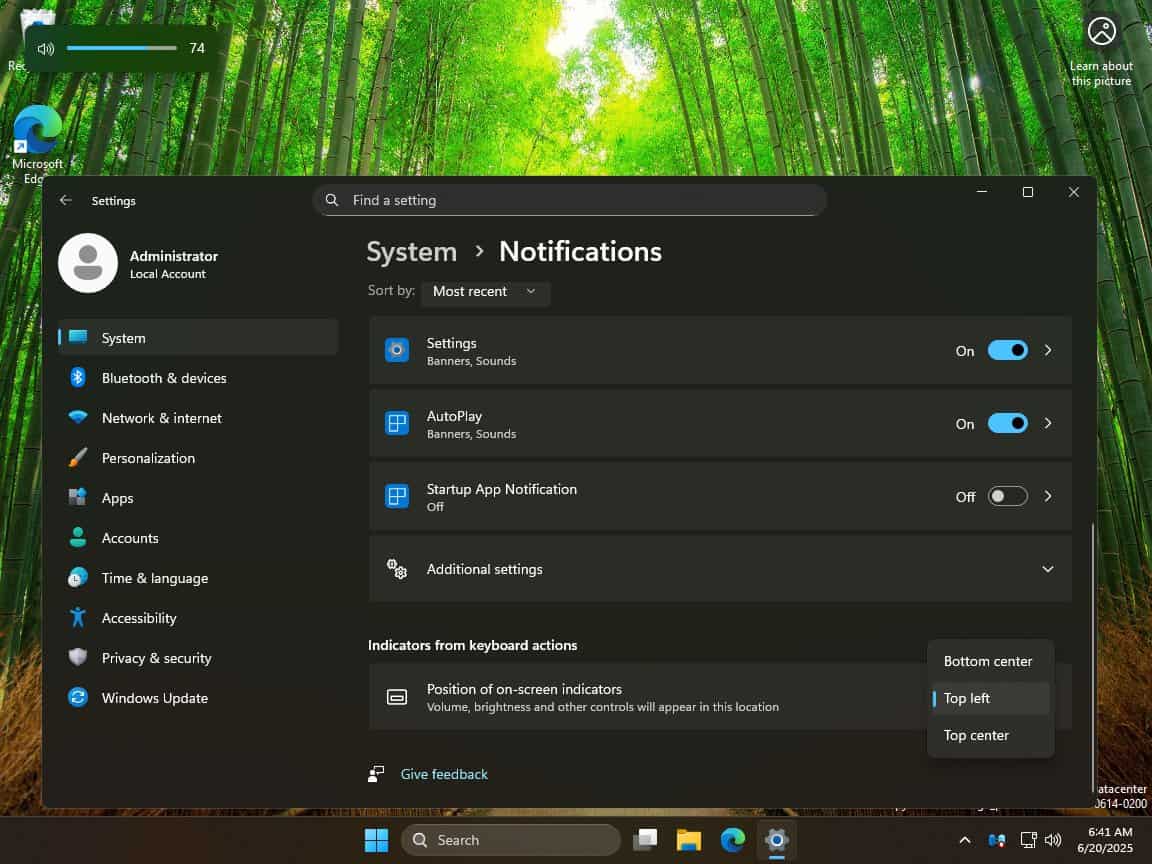
Microsoft has experimented extensively with personalization in Windows 11. Well, the company isn’t stopping just yet. A recent tweet from popular Windows tipster @phantomofearth shows an early version of the on-screen indicator’s position customization in Windows 11.
Yes, the feature will enable you to choose how the indicators, like volume and brightness, are visible on your PC. Windows 11 currently always shows the on-screen indicators at the bottom center.
However, the new customization option would let you move them to the top left, as in Windows 10, or top center. You can also keep them at the bottom center if that’s what you prefer.
Image: X/@phantomofearth
If you’ve used a PC for more than a few years, you probably remember the old-school flyouts in the top left corner. Windows 11 kept them centered at the bottom, and while they do look modern, there wasn’t any way to move them, until now.
Once available, you can view the on-screen indicators customization option in Windows 11 by going to Settings > System > Notifications > Position of on-screen indicators. It covers more than just volume and brightness.
The feature’s short description also mentions “other controls.” So, you might also get to reposition other system indicators like camera access or virtual desktops.
Microsoft hasn’t officially confirmed the setting, but it’s already showing up in preview builds. So, it could be a hint that it might hit public Insider channels soon.
If your child’s Chrome browser suddenly won’t open on a Windows PC, you’re not alone. Microsoft Family Safety, which is designed to protect kids from inappropriate content, is mistakenly flagging Google Chrome as unsafe. Not to mention, it’s causing major headaches for families and schools.
Following the release of Chrome versions 137.0.7151.68 and 137.0.7151.69, users have reported that Microsoft Family Safety immediately shuts down the browser and prevents it from reopening. Strangely, Microsoft Edge works fine under the same settings.
The issue is mostly affecting Windows 11 users, though some reports mention Windows 10 and macOS as well. As The Verge notes, the first report about the issue began surfacing on the Microsoft forum earlier this month.
There’s a workaround—for now
Some users have had success by renaming chrome.exe to something like chrome1.exe. But that’s more of a hack than a fix. A Google Chrome community manager, Ellen T, confirmed that Microsoft Family Safety is the root cause. The good news is that she has shared a fix for the issue, which is as follows:
Windows 11 is finally within reach of becoming the most used desktop operating system. According to StatCounter’s June 2025 report (via Windows Central), it gained 4.44% market share last month, jumping from 43.22% to 47.66%.
At the same time, Windows 10 slipped from 53.19% to 49.03%, a 4.16% drop. That leaves just a 1.4% gap between the two, making a Windows 11 takeover likely as early as next month.
Windows 11 jumps to 47.66%, Windows 10 falls to 49.03%
StatCounter’s numbers don’t guarantee a trend, but this is one of the clearest signs yet that Windows 11 is on track to take the lead.
Meanwhile, Windows 7 still holds 2.21% of the desktop market. That number has barely moved this year, showing some users remain loyal to the now-retired OS.
Windows 10 may not disappear quickly, though. Microsoft is offering a paid support extension in 2026, which may keep its numbers from collapsing too fast.
Microsoft is reportedly ready to walk away from its ongoing negotiations with OpenAI, according to the Financial Times (via Reuters). Talks have stalled over key issues, including how much of a future stake Microsoft will hold in the company.
If the two sides can’t reach a deal, Microsoft may pause discussions and instead rely on its existing commercial agreement with OpenAI. That contract gives Microsoft access to OpenAI’s technology until 2030.
Microsoft–OpenAI alliance under pressure amid stalled talks
The partnership, which helped cement Microsoft’s lead in AI, has recently come under strain. Earlier this week, a report by the WSJ suggested that OpenAI executives have even considered accusing Microsoft of anticompetitive behavior.
Both companies are now discussing possible changes to the terms of Microsoft’s investment. That includes revisiting Microsoft’s future equity share in the ChatGPT maker. At the same time, OpenAI still needs Microsoft’s approval to transition into a public-benefit corporation—something it sees as critical to securing future funding.
In response to the WSJ report, both companies said, “Talks are ongoing and we are optimistic we will continue to build together for years to come.”
Microsoft’s multibillion-dollar investment has played a central role in giving it an edge in AI infrastructure and applications. But with negotiations stuck and tensions surfacing, the future of the alliance may depend on how much control each side is willing to give up—or keep.
Samsung is expanding its Gaming Hub lineup by adding EA SPORTS FC 25 through Xbox Cloud Gaming. The feature is now available on supported Samsung TVs and monitors using the Xbox app, no console required.
To play, users need a compatible controller and an Xbox Game Pass Ultimate subscription, which includes EA Play. “We are delighted to bring EA SPORTS FC 25 to Samsung TVs and monitors through cloud gaming on Samsung Gaming Hub,” said Hun Lee, EVP of Visual Display at Samsung Electronics.
EA SPORTS FC 25 launches on Samsung Gaming Hub
The deal comes with a two-month Xbox Game Pass Ultimate offer for new subscribers. It’s available to both existing Samsung TV owners and those buying eligible new models. To redeem it, users can open the Samsung Promotions app on their TV, click the Xbox banner or scan the QR code, then follow the on-screen steps.
EA SPORTS FC 25 lets players team up in 5v5 Rush, manage clubs, and compete with over 19,000 athletes, 700+ teams, and 30 leagues. The game focuses on tactical control with a system called FC IQ and emphasizes authenticity with real-world teams, players, and stadiums.
Samsung Gaming Hub launched in 2022 and supports cloud-based games directly on TVs and monitors. That includes the 2025 series of Neo QLED 8K, Neo QLED 4K, OLED, QLED, The Frame, and The Frame Pro. These devices feature Samsung Vision AI for enhanced visuals and sound.
Microsoft is starting a routine cleanup of outdated drivers on Windows Update. The company says that it wants to tighten security and improve overall system stability across the Windows ecosystem.
The company confirmed this strategic move in a notice to its hardware partners, explaining that drivers with newer replacements already available on Windows Update will be the first to go.
Microsoft says this won’t be a one-time process. It’s the beginning of a recurring effort to optimize the driver pool that ships through its update channel.
Microsoft begins cleaning legacy drivers from Windows Update
The cleanup process, as Microsoft describes it, involves “expiring” drivers. That means those drivers will no longer be assigned to any device audience via the Windows Hardware Development Center. Once expired, Windows Update stops offering them entirely.
Partners can still choose to republish any expired drivers, but they’ll need to justify the move. If no action is taken, the expired drivers will be permanently removed after six months.
Microsoft says this move is all about maintaining a stronger security posture. Outdated or duplicate drivers can pose compatibility issues or create unnecessary risk. By narrowing the driver pool to only those that are current and widely needed, Microsoft hopes to improve reliability across devices.
This initial wave focuses only on legacy drivers with newer versions already available. However, the company plans to broaden the scope of future cleanups. Each round will be announced in advance, giving partners time to respond or update their publishing practices.
Microsoft encourages vendors to review and manage their driver listings proactively, suggesting this new routine may influence future publishing guidelines.
A new rumor served by Xbox leaker eXtas1s hints that Xbox is working with the Xenia Canary emulator team to revive original Xbox and 360 games. Microsoft apparently wants to bring them to PC, Game Pass, xCloud, and modern consoles with performance upgrades.
This initiative, reportedly part of a “Classics” program, would launch around Xbox’s 25th anniversary in 2026. Games will reportedly roll out in phases, starting with fan favorites like Fable 2, Skate 3, Gears of War 3, and Batman: Arkham Asylum.
Older titles like the original Ninja Gaiden and its sequel are also under review. Microsoft is reportedly sorting out technical and licensing hurdles before finalizing the lineup. The program would allow players to access Xbox legacy games natively on PC—something not possible for many titles today.
While this all sounds plausible given Microsoft’s push for backward compatibility, it remains unconfirmed. Xbox hasn’t issued any official statement just yet. Thefore, we recommend you take this news with a grain of salt.
After the claims made by the tipster went viral, Windows Central’s Jez Coden refuted this rumor. Replying to a post on X, which cites these claims, Corden noted, “Xbox is gunning to bring Xbox games to more devices, but this particular scenario isn’t a thing at the moment.”
Meanwhile, Microsoft is focused on future hardware. The company is working with AMD on next-gen chips built for higher fidelity graphics and AI-driven enhancements.
The European Commission is reportedly in talks to move its cloud services away from Microsoft Azure, according to Euractiv. Per the news outlet, the information came via three senior sources familiar with the matter. Apparently, France-based OVHcloud is the front-runner in these discussions. While other European cloud service providers like IONOS, Scaleway, and Aruba are also being considered.
Well, this isn’t just about performance or pricing. It’s part of a broader push for European digital sovereignty. In simpler words, the European Commission wants tighter control over where its data is stored and who can access it.
The urgency has been shown by the Commission after a U.S. executive order reportedly led to Microsoft shutting down access for an EU institution employee. Since then, concerns about relying too heavily on U.S. cloud services have grown louder in Brussels.
As Euractiv points out, once the Commission switches its cloud service providers, national public administrations may follow, funneling contracts toward European tech firms.
Two of the Commission’s key departments—DG CNECT and DG DIGIT—are now overseen by one Commissioner, Henna Virkkunen, whose portfolio includes tech sovereignty. That’s reportedly also helping speed up talks and coordinate priorities across policy and infrastructure.
An OVHcloud spokesperson confirmed the news outlet about ongoing talks to the news outlet. The spokesperson said:
Discussions are indeed underway, both with the Commission and with other public and private institutions and organisations that are evaluating projects to migrate to a sovereign cloud.
A Commission spokesperson also reportedly confirmed that it “has a contract with OVHcloud.” However, there was no confirmation whether the European Commission would replace Microsoft Azure. More recently, there were reports about Denmark moving away from Microsoft 365 and Windows in favor of open-source software.
Ubisoft has teased what’s next for The Division 2, and it looks cold—literally. The game’s official Twitter account shared a new image of Washington, DC’s Capitol Building covered in snow, a major seasonal shift from the game’s usual summer setting.
Image: Ubisoft
Alongside the above image, the post on X notes:
Agents, thank you so much for joining the Battle for Brooklyn. The team is working on the next update, as well as starting something entirely new in The Division 2…
No other details were revealed, but the winter setting and “entirely new” tease hint at a bigger shift.
Fans just wrapped up Battle for Brooklyn, a compact 6-to-10 hour expansion that brings players back to New York to track the Cleaners and their brutal tech. It also reintroduces familiar faces like Theo Parnell and Aaron Keener—with a surprising twist.
There’s no release date for the new content yet, but with that winter backdrop and narrative tease, something larger may be brewing. Let’s keep the hopes high!
Star Citizen has released Alpha 4.2, dubbed Storm Breaker, for all backers in the Live channel. This update adds survival mechanics, radiation zones, dynamic weather, and a new narrative-driven sandbox mission.
Storm Breaker is also the name of the new in-game event. It continues the Regen Crisis storyline across Pyro 1 and 4. Players investigate secret experiments by the Associated Sciences & Development group while surviving harsh new conditions.
Irradiated areas now appear across planets. Players must wear protective gear and monitor radiation levels to survive. If ignored, exposure leads to injury or death. New visual cues and HUD elements track radiation buildup in real time.
This is the first version of the new Genesis: Dynamic Weather system. Rain now appears randomly on Stanton and Pyro. It comes with atmospheric effects, sound, and plans for future improvements like lightning and wet clothing shaders.
The update also improves missile and torpedo tracking for better space combat. There are new explorable locations and dangerous irradiated juvenile sandworms. Cloud Imperium has also fixed space station clipping and other landing zone glitches.
If you’ve ever wanted to turn a quick screen recording into a GIF without using a third-party tool, Snipping Tool is finally getting the feature you’ve been waiting for. Microsoft has started rolling out GIF export support in the app’s screen recording feature, and it’s live for Windows 11 Insiders in the Dev and Canary channels.
You can now record, then save as a GIF
The new option shows up once you finish a screen recording. Simply click the GIF button in the editor’s top-right corner. Here, you’ll see basic options to choose quality and check the file’s duration, resolution, and frame rate. After that, you can either Export it as a file or Copy it to your clipboard.
Image: X/@phantomofearth
There’s a limit, though. GIFs only work for recordings that are 30 seconds or shorter. If your video goes over, Snipping Tool will automatically trim it down.
Not seeing the feature just yet? You can enable it manually
The feature is included in version 11.2505.21.0, but it’s rolling out gradually. If you’ve updated and still don’t see the GIF button, you can enable it using ViVeTool.
First, download it from GitHub, then open Command Prompt as Administrator, and run the following command (credit for ID goes to @phantomofearth):
vivetool /enable /id:47081492
Snipping Tool is gradually turning into a more complete screen capture tool, and this long-requested GIF export option brings it closer to that goal.
Windows 11 Build 26100.4482 (KB5060829) is now live in the Release Preview Channel for version 24H2, and it’s packed with fresh features. Most of the changes focus on usability, personalization, and accessibility, though some will roll out gradually. Here’s everything included in the update.
Windows 11 Start menu gets admin-friendly tweak with KB5060829 update
The taskbar now automatically shrinks app icons when space runs tight, so everything stays visible. You can change this behavior in Taskbar settings with three options: always small, never small, or only shrink when full.
The indicator below open apps is also more visible, and Quick Settings now describes assistive tools like Narrator and Voice Access. Additionally, admins can configure Start menu pins to apply only once at first sign-in, allowing users to customize their layout after that. This feature rolls out later.
Voice access upgrades, Narrator adds privacy
Voice access now supports Simplified and Traditional Chinese and lets users add custom words. The narrator introduces a “Screen Curtain” feature that blacks out the display for privacy while reading aloud—a handy option in public spaces.
Sharing and migration tools get better
The Windows share window now shows link previews and includes new image compression levels—High, Medium, and Low. File Explorer sees faster performance when extracting large .7z and .rar archives.
There’s also a first look at a new PC migration tool in the Windows Backup app. Once fully live, it’ll let you move files and settings during setup.
Moving on, in the EEA, new browser defaults will now also set PDF file handling and auto-pin the browser to Start and Taskbar—unless you opt out. As per usual, the update fixes a bunch of bugs and issues. You can check them here.
Microsoft has released Build 27881 to Windows 11 Insiders in the Canary Channel. It’s a small update, but it delivers helpful upgrades across voice typing, accessibility, and file sharing. Here’s everything included in the update.
Build 27881 brings a profanity filter toggle for voice typing in Windows 11
You can now choose whether voice typing filters profanity. Just press Win + H, click the Settings icon, and you’ll see a new Filter Profanity toggle. You can turn it off, and Windows will stop censoring your speech input.
Image: Microsoft
Narrator adds “Speech Recap”
The Narrator feature now keeps a transcript of the last 500 things it reads aloud in the Windows 11 Build 27881. Press Narrator Key + Alt + X to open it. If you need to copy the recap, press Narrator Key + Ctrl + X to save it to your clipboard.
Image: Microsoft
Smarter sharing and taskbar feedback
Windows 11 Build 27881 adds a pill-style alert to the taskbar for apps that need your attention. The Share menu has also been improved. You can now right-click a file and choose Share with to send it directly to supported apps. The share interface also includes a basic image editor.
Image: Microsoft
There’s also a reorganized accessibility flyout with feature categories, a refreshed UI for renaming printers, and a new FAQ section in Settings with info about your PC’s hardware and software.
Quickly checking files in File Explorer just got easier, thanks to a PowerToys utility called Peek. Designed for Windows 10 and 11, this tool lets users preview images and other files without fully opening them in separate programs.
Instead of double-clicking and waiting for apps to load, Peek shows a lightweight pop-up window directly from File Explorer. You can trigger it with a simple keyboard shortcut, “Ctrl + Space” by default.
Once open, users can scroll through multiple files using the arrow keys, making it especially useful when comparing or reviewing content.
Peek is part of the PowerToys suite, a free collection of productivity tools built by Microsoft. While PowerToys was originally aimed at advanced users, features like Peek are helpful for anyone who works with lots of files and wants to speed things up.
To try it, users need to install PowerToys, enable the Peek module, and use the shortcut while browsing files. The utility supports various file types, including images, PDFs, and text documents.
For people who manage content regularly—like journalists, editors, or designers—Peek can streamline repetitive tasks and reduce interruptions during work.
Scams are rampant online these days—fake stores, crypto schemes, even popups claiming your PC has 42 viruses. DuckDuckGo wants to shut that noise down.
Scam Blocker already handled malware and phishing threats, but this latest update makes it a much broader defense tool. Here’s how it works: every time you try to visit a site, DuckDuckGo scans the URL locally using a threat list that updates every 20 minutes.
Well, that list is powered by a cybersecurity firm called Netcraft. If the threat looks suspicious but isn’t already known, it’s checked via an anonymous system that keeps your identity private, even from DuckDuckGo itself.
Image: DuckDuckGo
If something sketchy is detected, you’ll see a full-page warning with the option to back out or proceed at your own risk. Scam Blocker has been part of DuckDuckGo’s browser since it launched, and it’s always on by default. You don’t need any account to get it to work.
Privacy Pro users get one extra benefit. With DuckDuckGo’s VPN turned on, Scam Blocker works across all internet apps on their device, not just the DuckDuckGo browser.
There’s a fresh batch of cloud-streamable games rolling out on GeForce NOW this week. Thirteen new titles have joined the service, and as long as you own a copy—or have access through PC Game Pass—you’re good to go.
The entire Borderlands series is now playable through NVIDIA’s cloud. That includes the Game of the Year edition of the original, Borderlands 2, Borderlands: The Pre-Sequel, and Borderlands 3. Perfect timing, considering Borderlands 4 was just announced.
If you’re in the mood for something brand new, Remedy’s FBC: Firebreak is now available, too. It’s a cooperative shooter tied to the Control universe, and it’s already live for PC Game Pass members and Steam or Xbox buyers.
Also out this week is Rematch, which landed today on Xbox Game Pass. It’s a soccer game without rules, and it just launched for standard edition owners. Cloud support via GeForce NOW is live for PC Game Pass folks, too.
Here’s a quick look at the full GeForce NOW additions:
REMATCH (Steam, Xbox, PC Game Pass)
Broken Arrow (Steam, June 19)
Crime Simulator (Steam, June 17)
Date Everything! (Steam, June 17)
FBC: Firebreak (Steam, Xbox, PC Game Pass)
Lost in Random: The Eternal Die (Steam, Xbox, PC Game Pass)
Architect Life (Steam, June 19)
Borderlands series (Steam, Epic)
METAL EDEN Demo (Steam)
Torque Drift 2 (Epic)
Just a reminder—GeForce NOW isn’t a game subscription. You’ll still need to own these titles (or have Game Pass access) to play.
There’s something fun about trying new games over the weekend without paying a dime. If you’re an Xbox Game Pass subscriber, the Free Play Days promo is back with a new batch of titles, and this time, it’s a pretty diverse lineup. From survival horror to sandbox racing and a rhythm royale full of pigeons, there’s a bit of everything.
Free Play Days lineup now live through June 22
First up, Dead by Daylight drops you into a four-versus-one horror survival setup. One player takes on the role of a killer, and the rest try to escape. It’s been a staple in the genre for years, and if you don’t finish everything this weekend, no stress—it’s already part of the Xbox Game Pass library.
Then there’s Headbangers: Rhythm Royale, where you compete as a pigeon in music-themed mini-games. It’s weird, fast, and kind of addictive. Plus, if you like it, it’s currently 80% off, making it an easy pickup.
Sci-fi shooter fans might want to dive into SYNDUALITY Echo of Ada. It’s a third-person futuristic action game with mechs, mystery, and some promising world-building. This one’s 25% off if you decide to stick with it after the weekend.
Lastly, Trailmakers lets you build, race, and crash ridiculous vehicles in a sandbox-style world. Like Dead by Daylight, it’s also included in Xbox Game Pass. All four games are free to try until late Sunday, June 22. Just make sure you’re subscribed to Game Pass Core, Standard, or Ultimate before you dive in.
The game combines frantic movement, competitive action, and unique roles that make each position—from striker to goalkeeper—fun to play. While the gameplay holds up well, early sessions have shown some server issues.
Not to forget, lag can affect the experience, but it hasn’t stopped players from enjoying casual games with friends. For now, it’s a solid pick for Xbox Game Pass members, though some might want to wait for server improvements before diving in deeply.
It’s worth noting that Rematch does not include crossplay at launch. So Xbox players can’t yet squad up with friends on PS5 or PC. That feature is planned for a future update.
Achievement hunters will find a relatively easy completion list, with an estimated 20–30 hours needed. Most achievements can be earned quickly, especially by setting up custom games with friends. Only a few, like the one for reaching level 30, require more of a grind.
If you’re still chasing online achievements in FIFA 23, now’s the time to act. EA has confirmed it will shut down FIFA 23’s online servers on December 12, 2025, across both Xbox Series X|S and Xbox One versions.
Once the shutdown hits, all online modes will stop working, and 23 Xbox achievements tied to Volta, Pro Clubs, and FIFA Ultimate Team will no longer be unlockable.
On Xbox One, 22 achievements will go offline, including On The Way Up and Momentous, which are already discontinued.
Not to forget, FIFA 23 has also been delisted from the Microsoft Store, so you’ll need a physical copy if you plan to jump back in before it’s too late.
Microsoft is rolling out two security changes for newly provisioned and reprovisioned Windows 365 Cloud PCs later this year. Clipboard, drive, USB, and printer redirection will be disabled by default to reduce data exfiltration and malware risks. These defaults apply to newly created host pools in Azure Virtual Desktop as well.
A dismissible banner will appear in Microsoft Intune to notify admins of these new default security settings. Redirection defaults only apply to new or reprovisioned Cloud PCs, not existing ones with active provisioning policies. Admins can override defaults by creating Intune device configuration policies or Group Policy Objects (GPOs).
USB mice, keyboards, and webcams are unaffected, since they use high-level redirection, not the disabled low-level redirection. To apply the new defaults to shared mode Cloud PCs, reprovision from the provisioning policy page, not from the device overview. Scheduling reprovisioning before defaults go live won’t enable the new settings unless timed properly.
Image: Microsoft
Admins can manually re-enable redirections using the Intune Settings Catalog or Group Policy after provisioning completes. Using built-in Intune device groups and filters is the fastest way to manage redirection policies at scale. Microsoft recommends informing users and offering a way to request redirection features if needed.
All Cloud PCs using Windows 11 gallery images will now enable VBS, Credential Guard, and HVCI by default. VBS uses virtualization to secure memory and protect critical processes from advanced threats. Credential Guard uses VBS to isolate and protect login credentials from theft and reuse.
Image: Microsoft
HVCI ensures only verified kernel-level code runs, blocking common malware and rootkit attacks. These defaults require no user action and align with Microsoft’s Secure Future Initiative (SFI).
Microsoft is introducing a new feature for enterprise customers called Windows 365 Cloud Apps. It lets IT admins deliver individual apps—like Word or Outlook—from a Cloud PC without assigning full virtual desktops to every user.
With this update, organizations using Windows 365 Frontline licenses can stream apps in shared mode. That means multiple users can connect to shared Cloud PCs, but only one user at a time per PC. This allows companies to support frontline, seasonal, or remote workers more efficiently.
To get started, admins will set up a provisioning policy in Microsoft Intune using a new “app-only” experience type. This setup controls Cloud PC location, provisioning scale, and who gets access. Apps published this way are streamed securely to users through the Windows App interface.
Image: Microsoft
Image: Microsoft
Image: Microsoft
Image: Microsoft
According to Microsoft, security policies on the Cloud PC will also apply to streamed apps. For now, only apps discovered from the Start menu of gallery or custom images are supported. More app sources will be added over time.
Users won’t see a full desktop. Instead, they’ll see only the specific apps pushed by IT, integrated directly into their local environment. Apps will run from the same Cloud PC and pull from a shared pool of Windows 365 Frontline licenses.
Microsoft says this feature simplifies management, reduces resource usage, and supports migration from on-premises virtual desktop infrastructure to the cloud. Do note that the feature is currently in private preview. Broader rollout is expected as Microsoft expands its Windows 365 platform.
As first reported by Bleeping Computer, this move targets protocols like Relying Party Suite (RPS) and FrontPage Remote Procedure Call (FPRPC), which are still used in some older tools and services to authenticate and open Office files in a browser. Microsoft says both are too easy to phish or brute-force and no longer meet today’s security standards.
Once the rollout begins in July, apps using RPS or FPRPC won’t be able to access files unless they switch to modern authentication methods. Microsoft expects to finish this transition by August. There’s no licensing change required, but organizations will need to ensure their apps or third-party tools comply.
Following the update, Microsoft 365 will also require admin approval before any third-party app can access files or connected sites. IT Admins can set up these workflows using Microsoft’s published guidance.
This update is part of Microsoft’s broader Secure Future Initiative (SFI), a push to harden security defaults across its products. Moreover, Windows 365 received a similar update earlier this week, with new security defaults rolling out in parallel.
Valve has quietly rolled out a big update to Steam’s in-game performance monitor, now available through the Steam Beta Client. The once-minimal overlay that only showed frame rate has been revamped with new detail levels, customization options, and hardware insights.
Players can now choose between multiple views in the updated monitor. The simplest still shows a single FPS number. But users can scale up to versions that display frame graphs, CPU/GPU utilization, and even RAM usage. The most detailed view covers just about everything, including generated frames and real-time performance graphs.
It’s not just the data that’s new. You can now tweak where the monitor sits on screen, change contrast and saturation, and adjust background opacity — all directly from Steam’s overlay settings.
Designed to help spot performance issues
Valve says the new monitor aims to help players “understand your frame rate” better, including both base and frame-generated rates. It can also reveal if your CPU or GPU is the bottleneck, or if you’re low on system or video memory.
For now, the full feature set is limited to Windows. While some reports suggest that it won’t appear on other platforms just yet, Valve says more support is coming. If you want to try the new tools early, you’ll need to opt in to the Steam Beta Client via Settings > Interface. Then head to Settings > In Game to pick your preferred performance monitor level.
Valve has also published a detailed FAQ explaining each setting and how to troubleshoot issues like micro stutter or memory limits using the new overlay. Not to forget, the recent update follows the announcement of a native app for Apple Silicon Macs and accessibility upgrades.
In a new blog post, Microsoft says Copilot is now context-aware in Excel. That means it can figure out what you’re working on—even without you manually selecting cells.
You can now ask things like “Show me insights about the data I was just analyzing” or “Sort the table in the top-right,” and Copilot will understand what you mean. It’s a significant change from the old behavior, which relied entirely on selected cells.
Image: Microsoft
Image: Microsoft
Image: Microsoft
This new intelligence comes from combining what Microsoft calls “cell signals” with your chat history. Basically, Copilot now builds a bigger mind map of your activity and the layout of your workbook.
That’s not all; Excel will now highlight the data Copilot is using to generate answers. So if something feels off, you can adjust the dataset or steer Copilot in a better direction.
These upgrades are already live on the web and on desktop versions for Windows and Mac. Here’s what to look for: