If you’re using Teams for SMS, get ready to switch to Phone Link

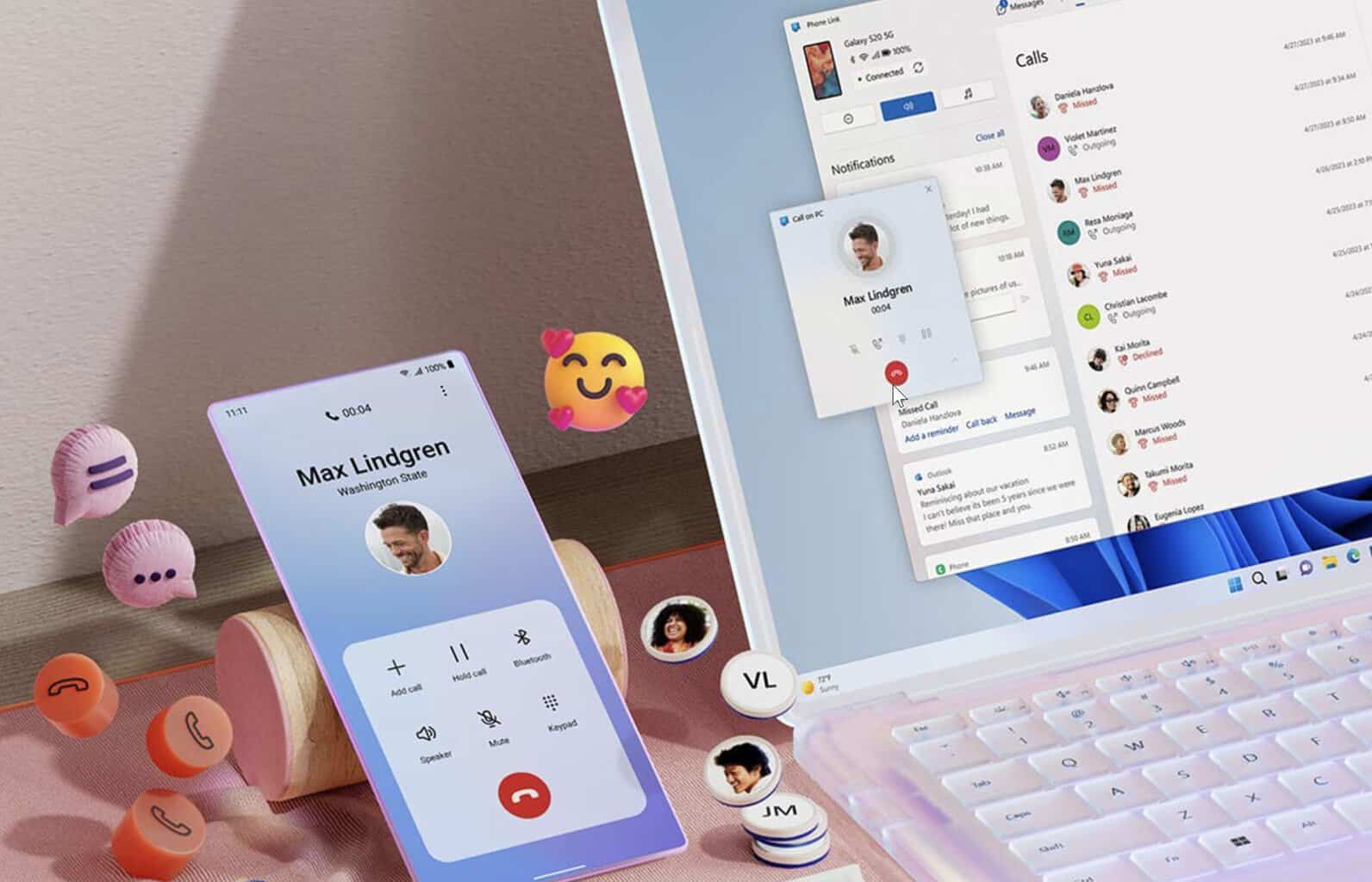
Microsoft announced it will discontinue the Android SMS integration feature in Microsoft Teams for Windows 11 as of April 2025. The integration, known as “Link your phone,” allowed users to sync SMS messages from Android phones in the Teams app, enabling them to receive text messages and reply without switching to their mobile phones.

The feature isn’t entirely removed, just relocated

Users attempting to view synchronized SMS messages in Teams are being warned that the feature will soon be removed. Microsoft is notifying users to switch to the Phone Link app to maintain SMS message management for Windows PCs. The Phone Link application offers similar features, including the ability to connect Android phones to Windows 11 and display SMS messages and notifications, among others.

To set up the Phone Link app, users will require a PC with Windows 11 installed and an Android device with Android OS version 7.0 or higher. The “Link to Windows” application can be downloaded from the Google Play Store for Android phones. After the application is downloaded, users can link their phones using the in-app guide, giving them easy access to SMS messages and other phone features through their computer with Windows 11.

This transition is one way Microsoft is streamlining its offerings and encouraging the use of specialized apps, such as Phone Link, for specific features, creating a more unified user experience across its platforms.

Using a VPN to get cheaper Xbox game prices may get you banned

Some Xbox users are finding themselves in hot water for using VPNs to snag games at cheaper prices from different regions. Microsoft doesn’t explicitly ban VPN use, but it seems they’re cracking down on folks exploiting regional pricing differences.

So, what’s the deal? Well, some gamers have been using VPNs to switch their Xbox Store region to countries where games are often cheaper. This trick has landed a few users with indefinite bans. As reported by Game Rant, one user, Rho_tter, shared on X that their account was banned for this very reason.

They even posted a screenshot of the email from Xbox support, which mentioned exploiting extreme regional pricing differences as the cause.

Interestingly, the Xbox Community Standards don’t explicitly mention VPN use or regional pricing exploitation, which has left some users frustrated, accusing Microsoft of taking this new rule from its hat. Another user, Alex_Gezonex, faced a similar ban but got their account reinstated after a few days.

The situation has sparked a debate on social media, with many calling for Microsoft to clarify its VPN policies. While using VPNs for privacy and avoiding ISP throttling is common, exploiting them for cheaper game purchases is a gray area that Microsoft seems to be addressing more strictly now.

Xbox-Now also investigated this issue inviting users to notify them about other instances of this problem and nobody else came forward. This makes us believe that we might be facing an isolated incident.

Nevertheless, if you’re thinking about using a VPN to buy games from other regions, you might want to think twice. It could save you some cash, but you risk getting banned from the Xbox platform.

Microsoft removes Android SMS integration from Teams, but you can use Phone Link instead

Microsoft has announced that it will remove the Android SMS integration feature from Microsoft Teams on Windows 11, effective April 2025. This decision marks the end of a lesser-known feature that allows you to send and receive SMS messages directly from a linked Android phone within the Teams application.

The Android SMS integration, known as the Link your phone feature, enabled you to sync your Android SMS messages to the Chats section under Recent in Microsoft Teams. This functionality allowed you to view and respond to SMS messages without needing to access the Android device. The feature operated independently of the Phone Link app, providing a seamless experience for managing SMS communications within Teams.

As spotted by Windows Latest, Teams is also displaying an alert when you try to view the synced Android SMS or respond to one of the SMS via a connected phone. The alert states a warning that the SMS integration in Teams will be removed in April 2025.

Users are encouraged to transition to the Phone Link app, which offers similar SMS syncing capabilities. The Phone Link app allows users to link their smartphones to their Windows PCs, enabling them to view and respond to text messages, start new conversations, and even make calls from their smartphones via their PCs.

The removal of the Android SMS integration feature is part of Microsoft’s broader strategy to streamline its services and encourage the use of dedicated applications like Phone Link. While the Link your phone feature provided a convenient way to manage SMS messages within Teams, the transition to Phone Link is expected to offer a more comprehensive and integrated experience for users.

Edge Game Assist now supports ad blockers, and it work with even more games

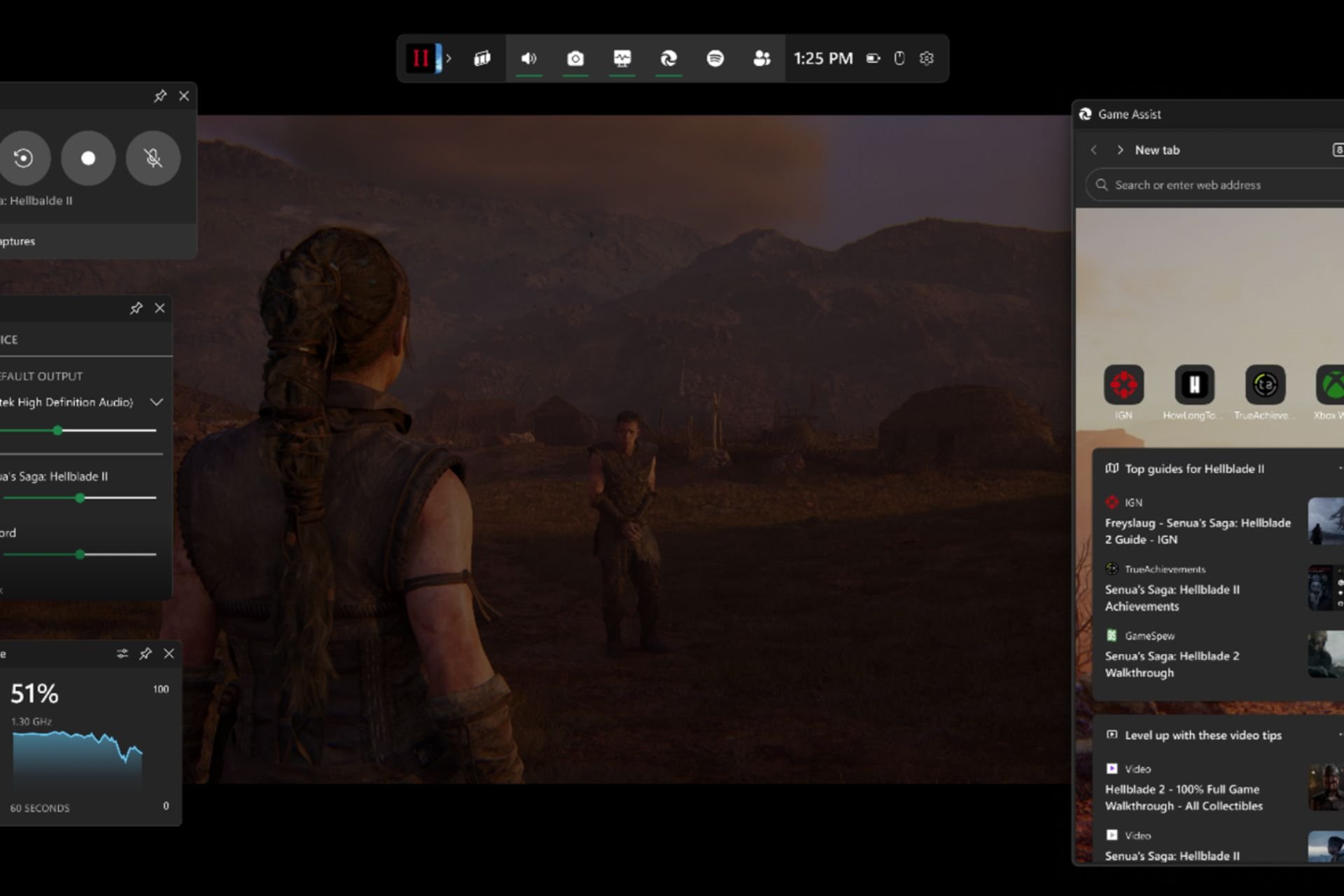
Microsoft did not release anything for Edge Game Assist in February, but the company returned in March to release the biggest patch for the tool yet, since it was released.

The Redmond-based tech giant has released updates for Game Assist on Edge Stable and a different set of updates for Game Assist on Edge Canary/Dev. One of the most important enhancements is the ability to install extensions on the tool the same way you would install them on Edge.

This includes, of course, ad blockers, as Microsoft specifies in the official release notes. What does this mean? Game Assist will be able to block any ads that might pop up during gameplay. But you can also install other extensions to use with the tool.

Elsewhere, the March update for Game Assist adds support for more games, including Call of Duty: Black Ops 6, Avowed, Civilization VII, Grand Theft Auto V, and Rocket League, as well as an array of improvements and enhancements to the tool’s overall functionality.

For example, the browsing history will be correctly saved to users’ profiles, the Game Assist widget has been redesigned to fit better on the screen, and the tool can open links from sidebar apps.

You can read the full release notes for the March update for Game Assist here.

Microsoft seeks developer feedback about controlling performance of embedded content on Edge

Microsoft has announced a new feature proposal aimed at giving developers more control over the performance impact of embedded web content. The company is seeking feedback from developers to refine and enhance this feature, which is designed to improve the overall performance of websites and native applications.

Source: Microsoft

The new feature introduces DocumentPolicy configurations that allow developers to constrain the performance impact of embedded content, such as third-party iframes or shared components from other teams within an organization. By minimizing the performance impact of embedded content, developers can enhance the user experience and ensure their applications run smoothly.

The proposal includes three main categories of document policies:

  1. Basic: This category encompasses fundamental web development best practices to ensure websites are optimized for performance across various environments. Constraints include limits on oversized assets, flagging unzipped assets, and uncompressed resources.
  2. Early-Script: This category focuses on JavaScript development best practices to minimize performance issues before user interaction begins. It includes capping JavaScript resources loaded initially, serving JavaScript with constrained content-length headers, and requiring animations to run on the compositor thread.
  3. Globals: This category entails imposing limits on overall media and system resource usage during interactions to help prevent websites from over-consuming resources and degrading user experiences.

Microsoft aims to achieve two primary goals with this proposal: to make it possible for developers to control the performance impact of embedded content easily and to provide information on performance violations so developers can improve the user experience.

The company is encouraging developers to provide feedback on this new feature to help refine and enhance its capabilities. For more information and to share feedback, visit the Microsoft Edge Dev Blog.

Starfield will be getting ‘a lot of exciting things’ this year, according to Bethesda

According to Bethesda’s latest post on X (formerly known as Twitter), Starfield will most likely receive a major update this year. When asked by a fan of the Starfield community why there have been few announcements regarding the game’s next update, the studio said the team has been hard at work, and there are a lot of exciting things planned for 2025.

However, Bethesda hasn’t specified anything, so we’re open to speculation. The studio might unveil a new expansion in the following months, with a release at the end of the year.

Even though the game was released in 2023, its first expansion came out last year, and if we take this approach, Starfield will see an expansion every 1 to 2 years.

Shattered Space, the game’s first expansion, was released in October 2024, a year after the original release. It introduced new areas, ships, and a new campaign to the game. The expansion was free for all Premium users, and the following expansions will most likely be free.

Here’s what the studio said:

We know you’re eager for an update, and we truly appreciate your passion for Starfield. The team has been hard at work, and while we’re not ready to share specific details just yet, we have a lot of exciting things planned for the game this year that we can’t wait to talk about when the time is right. We’re always listening and taking your feedback to heart. Thanks for being part of this journey with us.

So, it’s safe to say we’ll know more about Starfield’s next expansion in the following months. Are you excited for it?

Microsoft is finally enhancing Copilot with a Stop button

According to a recent entry in the Microsoft 365 Roadmap, Microsoft will finally enhance Copilot with a Stop button.

The Stop button will be added to Copilot in Teams. This lets you stop its response before it starts or while it’s generating. After stopping, you can give a new prompt if you want.

Here’s what the entry says:

Copilot in Teams will now have a ‘stop’ button after sending a prompt. This will allow the user to stop Copilot’s response either before the response has started to generate, or even after the response is generating. The user may then start a new prompt if they wish.

The new button will be added to Copilot in Teams starting in April. If it’s a success, Microsoft will most likely expand the button beyond Teams.

Speaking of Copilot, the Redmond-based tech giant is working hard as the company is developing new ways to promote the AI model. Now, it’s showing up on Bing when searching for other AI models, and you can even spot it on the browser’s Settings page.

Microsoft finally issued fix recommendations for an ancient Microsoft Store bug

If you’re using Windows, you are probably familiar with the 0x80131500 error in Microsoft Store, also known as Try that again error. It’s older than Windows 11 (first spotted in 2019) and still occurs randomly. Before you get too excited, know that Microsoft didn’t actually fix it.

However, as Tech Radar has spotted, the software giant published a troubleshooting guide to fix this issue. So, what’s the fix? Microsoft has proposed four ways to tackle this error:

  1. Reset the Microsoft Store app: This can help clear out any issues and give the app a fresh start.
  2. Check for updates: Make sure your Microsoft Store app is up-to-date to avoid any compatibility issues.
  3. Run the Microsoft Store troubleshooter: This is available for Windows 10 users and can help identify and fix problems.
  4. Update your internet’s TLS settings: Ensure that TLS 1.2 and TLS 1.3 are enabled in your Internet Properties to avoid any security protocol issues.

So, resetting the Microsoft Store app is the top solution to fix the Try that again error message. To do that, press Win + R, type or paste wsreset.exe, and then select OK.

If you’re still having trouble after trying these fixes, you can always reach out to Microsoft Support for more help. Hopefully, Microsoft will find a way to eliminate the problem completely, not only issue troubleshooting recommendations.

Outlook for Windows will soon change the way users move around emails and messages

According to a recent entry to the Microsoft 365 Roadmap, Microsoft will enhance the Move To option in Outlook for Windows and Web and add it to the pop-out menu in the platform.

This update should make managing emails smoother and more consistent. It makes it easier to organize your emails because you can move messages to any folder without having to go back to the main window.

Here’s what the entry says:

The “Move To” option is now available in the pop-out ribbon in New Outlook and Outlook for Web, making it easier to organize emails. Quickly move messages to any folder without switching back to the main window. This update ensures a seamless and consistent email management experience. #newoutlookforwindows

However, as the entry mentioned, this feature is only available to the new version of Outlook, and users will have to wait until June, when the Redmond-based tech giant will roll it out.

Windows users should have access to the new Outlook, as Microsoft made it the default client for this operating system in January.

Microsoft Teams will let users edit their Display Name in virtual meetings

Microsoft has announced a new feature for its Teams platform: allowing users to edit their display names during meetings. This update, which enhances user experience and personalization, is now available for members of the Teams Public Preview or Microsoft 365 Targeted release.

With this new feature, meeting organizers can enable participants to change their display names by selecting “Meeting options” and allowing name edits.

According to the official blog post, participants can then hover over their names in the Participants pane, select “More options,” and choose “Edit display name.” This allows users to tailor their display names for specific meetings, whether for privacy, conciseness, or adding context such as job titles or nicknames.

Edited names will be marked with an “(Edited)” label to notify others of the change. However, these changes will only apply to the duration of the meeting and will not affect the original names on participants’ People cards. Permanent meeting artifacts like attendance reports and transcriptions will also retain the original names.

Organizations must enable this feature in the Teams admin center to access it, as it is turned off by default. Users must also use the new Teams client on Windows, Mac, or the web.

In other news, Microsoft Teams will also allow meetings’ organizers to choose the right time to share shared content with participants.

Microsoft 365 Apps will advise users to back up files to OneDrive

Starting mid-March 2025, Microsoft will begin prompting users of its Microsoft 365 apps for Windows to back up their files to OneDrive.

These prompts will be displayed in Word, Excel, and PowerPoint, encouraging users to enroll in OneDrive Known Folder Move (KFM). The company announced this feature in a recent Microsoft 365 Message Center entry.

The rollout will first be available in public preview until early April 2025 and will be made generally available worldwide by early May 2025.

The message, “BACK UP THIS DOCUMENT: Share and work with others in this and other files using OneDrive,” will encourage users not yet enrolled in KFM to do so while using familiar desktop apps.

After selecting the “Open OneDrive” button, users can choose the folders they want to back up in OneDrive.

Microsoft has stated that these OneDrive backup prompts will not be displayed for users whose organizations have blocked OneDrive KFM.

The company advises admins to notify users of this change and provides the option to block KFM to ensure the rollout does not reach their endpoints.

This initiative is part of a broader effort to increase the number of Microsoft customers using the company’s OneDrive personal cloud storage service. Recently, Microsoft also started testing ad-supported versions of its Office desktop apps, allowing Windows users to create and edit documents with limited features, including only saving documents to OneDrive.

Microsoft should fix Edge on Xbox app ASAP, agree users

Even though Edge has become one of the fastest and most capable browsers on the market right now (and our editors agree), it seems Microsoft still hasn’t taken time to make it work properly on the Xbox app.

We have known for a while that Edge is not working as it should on Xbox. While there are solutions to fix it on certain Xbox consoles, on newer consoles, such as Xbox Series S and X, Edge seems to appear as a blurry browser with low resolution, causing frustration to many users.

On Reddit, for example, after one user reported the issue, several others said they were affected by the same problem, and no matter the workarounds: restarting the app, then the console, and so on, nothing would work.

Every single other game I’ve played works very well, and Netflix, Disney+, etc works with no problem. However, the Microsoft Edge app is super blurry and just impossible to use. I’ve configured the display settings correctly already, and I’ve also restarted my Xbox who knows how many times. Please help

Some users insist that Microsoft must solve this issue because anything else just doesn’t work. Others agree that users should try installing a different browser.

Either way, the issue seems to have spread and is affecting many people at this point. Maybe Microsoft should do something about it.

The new JPEG XL image format promises better compression and higher quality

Microsoft has quietly rolled out support for the JPEG XL image format in the latest Windows 11 24H2 update. This new feature, available through an extension in the Microsoft Store, promises to enhance image quality and compression capabilities, which makes it great for photographers and web developers alike.

JPEG XL, a royalty-free image format, offers significantly better image compression than traditional JPEG files while maintaining high quality. Unlike newer image formats such as HEIC, AVIF, and WebP, which originated from video codecs, JPEG XL was specifically designed to give photographers more control over their images. The format supports a wider color gamut, faster encoding and decoding times, and can save up to 75% of storage space.

To enable JPEG XL in Windows 11, you need to download the JPEG XL Image Extension from Microsoft Store. This extension is currently only compatible with Windows 11 version 24H2, but it only works if your Windows 11 version is 26100 or higher.

In tests conducted by Windows Latest, images in the JPEG XL format were found to have nearly the same quality as their JPEG counterparts but with a file size reduction of approximately 47.90%. However, it was noted that the Photos app does not yet support opening JPEG XL files, although thumbnails and file previews are visible in File Explorer.

Microsoft and Bladee, the enigmatic Swedish rapper, released a horror-like video game, partially made by AI

Bladee, the mysterious Swedish rapper who has been gaining a huge following thanks to his ethereal music, has partnered with Microsoft to develop Sanctuary, an immersive AI project that resembles a horror video game.

In the latest blog post for Unlocked, the Redmond-based tech giant has released a video blog that features Bladee, in a rare appearance, and James Ferraro, talking about Sanctuary and the possibilities of AI in creating moving pieces of art.

Not much is revealed other than Sanctuary is an immersive experience, that features a shifting labyrinth where mythic archetypes and technology intertwine, per Microsoft’s description.Microsoft Bladee

Step into an endless digital labyrinth where mythology and technology collide, blurring the lines between ancient archetypes and modern storytelling. Bladee partnered with experimental artist James Ferraro to create Sanctuary, an interactive world designed to challenge perceptions of artificial consciousness and symbolic representation. Participants engage with digital entities that reflect deeper cultural and historical narratives allowing for philosophical interactions. “I think that is like the point of the game—being interactive lets people access this vast body of material and extract meaning from it,” Bladee explains.

Based on the material posted in the blog, Sanctuary looks like a horror video game similar to the legendary Silent Hill 2, where AI translated Bladee’s poem into uncanny, and terrifying 3D spaces.

You can watch the interview below.

At the same time, if you’re interested in playing Sanctuary, you should know you can already do it, for free, by just accessing the game here. You’ll be asked to type in your email, and once the game is loaded, you can play it.

It’s creepy, and quite terrifying at times, and as any other horror-like game, it might be worth playing it at night, for a whole immersive experience. You can play it directly in your browser and move around using your mouse and keyboard. You might also want to put in your headphones, but beware, the atmosphere can creep you out. If you’re a fan of the Silent Hill franchise, you should give Sanctuary a try.

And, of course, let us know your experience with it.

New Outlook for Windows makes encrypted emails even harder to access

Microsoft will enhance the new version of Outlook for Windows with a new feature called “2-click view” for encrypted emails.

This means that before you can open an encrypted email, you need to click twice to confirm that you want to see it. This helps keep your email secure by ensuring only you can open encrypted messages.

Announced in a recent entry to the Microsoft 365 Roadmap, the Redmond-based tech giant says admins can set this up so that everyone has to confirm before accessing these secure emails.

Here’s what the entry says:

New Outlook for Windows will now support 2-click view for encrypted emails. This feature enables admins to require user confirmation before allowing access to encrypted emails. #newoutlookforwindows

It’s an extra layer of protection to keep sensitive information safe. Starting in April, it will be generally available in the New Outlook for Windows.

In more recent news, Microsoft will enhance Outlook for Mobile with delivery and read receipts for Android, and iOS devices, allowing senders to see if their emails have been read.

The latest update for Edge Dev finally fixes a long-standing issue with Guest Mode

Microsoft has rolled out the latest update for its Edge Dev Channel, bringing the version to 135.0.3168.2. This update introduces several new features and improvements, enhancing the overall user experience across various platforms, including Windows, macOS, iOS, and Android.

One notable addition in this update is the inclusion of the browser icon in the update menu item, making it easier for users to identify and access updates. Additionally, the Adjust campaign has been added to the extension hub, providing users with more options and flexibility when managing their extensions.

The update also addresses several issues that have been affecting users. For instance, a problem where a saved tab group caused the browser to crash has been resolved.

Similarly, the browser will no longer crash after clicking on the Feedback icon in Guest Mode. Other fixes include resolving issues with clearing data when logging out of an MSA account on iOS, and crashes occurring while loading FRE/Soft FRE in incognito mode.

Regarding behavior changes, the update ensures that the Copilot side pane will close when the new tab page is closed without interacting with the auto-opened side pane. Additionally, the Game Assist browser can close tabs by clicking the mouse scroll wheel.

The update resolves issues related to VPN reconnection, landscape mode spacing, and the reading aloud feature for iOS users.

Android users will benefit from smoother zooming in and out of online PDFs, and the browser will no longer automatically switch to the user’s work profile.

Mac users will see improvements in the flash welcome page experience and the correct display of ‘Create account’ instead of ‘Sign in to sync’ during FRE when no account is detected.

You can read Edge Dev Channel 135.0.3168.2’s full release notes here.

In similar news, Edge Dev is also testing a new way to promote Copilot: if you’re searching for any other AI model on Bing, the search engine will let you test Copilot. On the other hand, Edge Canary plasters Copilot ads in the Settings page.

Microsoft helps you stop those disruptive Windows updates

Microsoft has issued a reminder to users on how to prevent automatic random updates on Windows 11 and Windows 10, addressing a common concern among users who find these updates disruptive.

Automatic updates are designed to keep systems secure and up-to-date with the latest features and security patches. However, they can sometimes occur at inconvenient times, causing interruptions to work and other activities. To mitigate this, as spotted by Neowin, Microsoft published a support article with several methods to control when and how updates are installed.

1. Pause updates temporarily: You can pause updates for up to 35 days. This can be done by navigating to Settings > Update & Security > Windows Update and selecting Pause updates for 7 days. This option can be extended multiple times.

2. Set active hours: By setting active hours, you can specify the times when you are typically using your device, preventing updates from occurring during these periods. This can be configured in Settings > Update & Security > Windows Update > Change active hours.

We also have a complete guide that can help you stop updates on Windows 11 and Windows 10.

We recommend keeping systems updated to ensure security and performance, but you can always do it on your own time and terms. Disabling your Windows updates completely could leave your system vulnerable to security threats.

Chrome Scraps Plans to Ship Auto Dark Mode for Pages, Flag will remain ‘Indefinitely’

Google Chrome has officially scrapped its plans to ship “auto dark mode” for web pages as a standard browser feature. Instead, the experimental flag that enables this feature will remain available indefinitely, due to its overwhelming popularity among Windows users. Google states that removing the flag would be “non-trivial.”

What’s happening?

The “Auto Dark Mode for Web Contents” flag, introduced as an experimental option, aimed to automatically render web pages in a dark theme, even if the website didn’t natively support dark mode. The feature was particularly useful for users who preferred a uniform dark mode experience across all websites, regardless of their design.

Auto Dark Mode for Web Contents flag. Image Credit: WindowsReport.

Chrome Auto Dark Mode won’t be a Feature, will Stay as a flag Forever

Initially, the flag was designed to test a similar functionality widely used in WebView, a system component for rendering web content in Android apps. In WebView, the feature is available as an API and has been well-received by developers and users alike.

However, Google’s attempt to integrate this functionality directly into Chrome was not successful. The company confirmed in a commit message that there are “no long-term plans to expose this more widely on the web.”

Despite its experimental nature, the “Auto Dark Mode for Web Contents” flag became one of the most popular flags among Chrome users, especially on Windows. Its widespread adoption made it a steady feature for many users who rely on it to reduce eye strain or prefer a darker browsing experience.

Originally, like most experimental flags, this one was set to expire. However, Google has now decided to extend its availability indefinitely, citing: “This is one of the top enabled flags on Windows, which makes removing it non-trivial.”

For now, users can continue to enable the “Auto Dark Mode for Web Contents” flag by navigating to chrome://flags and searching for the feature.

While forcing dark mode on unsupported websites can sometimes lead to rendering issues, the flag remains useful for those who prefer a darker browsing experience. However, it’s worth noting that the flag’s indefinite availability doesn’t mean it will receive updates or improvements. Google’s focus remains on encouraging websites to adopt native dark mode support.

That’s not all. Google is testing third-party cookie blocking in Chrome Incognito, and a new delete browsing data dialog is on the horizon. Additionally, Chrome will soon use AI to change your compromised passwords.

Microsoft’s might want to turn Copilot into a multi-modal AI chatbot

Microsoft recently unveiled that Copilot, its AI model, will become native on Windows, and it will rely on NPU systems to complete tasks, which is excellent news, as the tool might finally become popular amongst users; however, there is good reason to believe that the Redmond-based tech giant might turn Copilot into a multi-modal AI chatbot, and we have found evidence for it in a recent published paper that talks about a tool capable of communicating with users through all sorts of media-based responses.

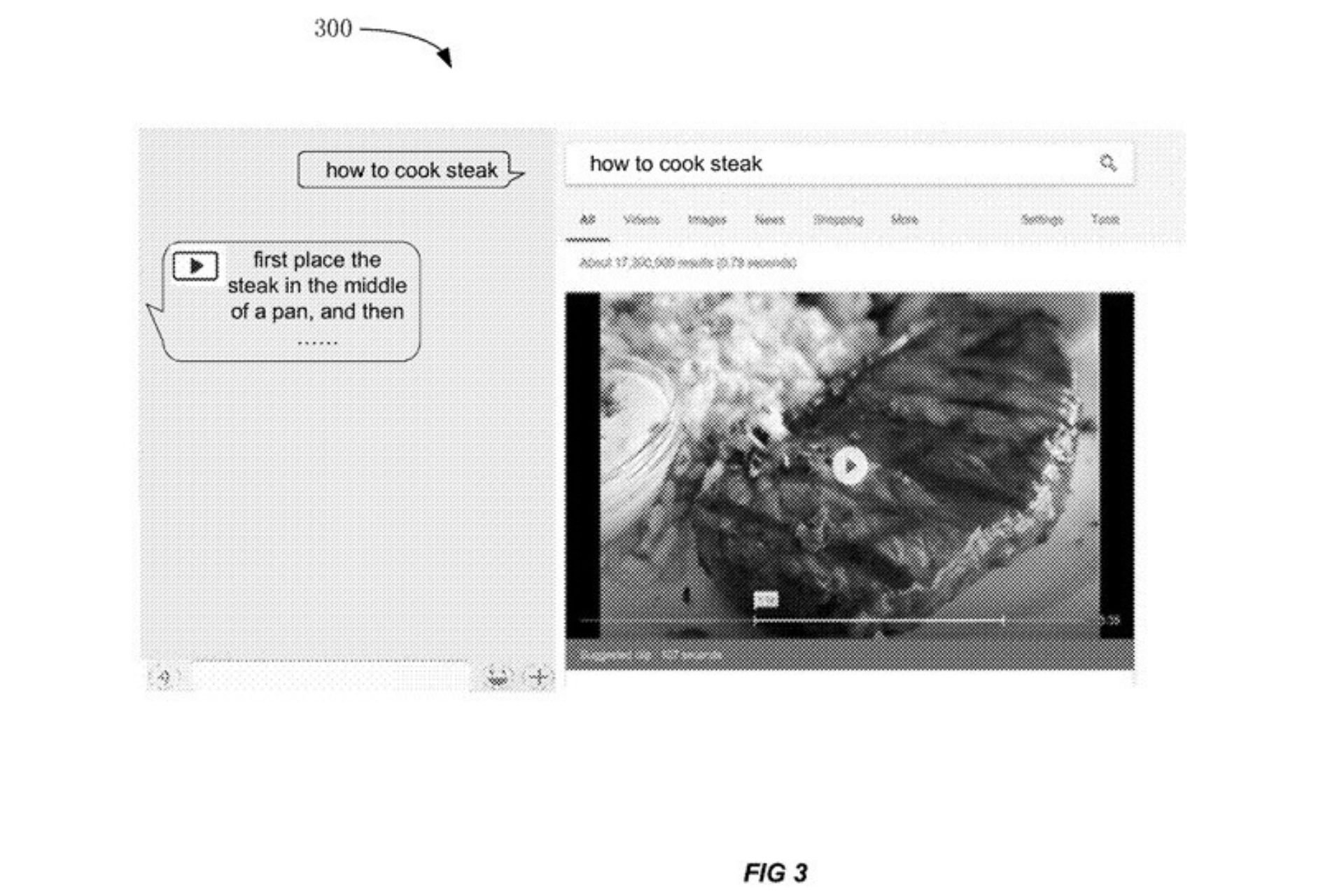
The paper, called Videochat, discusses a new chatbot technology called “multi-modal chatting.” This technology allows chatbots to interact with humans using different responses, including text, images, videos, and sounds.

Instead of replying to users with text (but it can still respond with it, if the users want to), Microsoft envisions this multi-modal chatbot capable of communicating using various types of media (like pictures, videos, etc.).

The goal? First, Copilot could express itself in more diverse and affluent ways using different responses. This would make the conversation more engaging and enjoyable for users and easier for them to get along.

Second, a Copilot capable of multi-modal responses in a natural way would make it more practical in the context of an operating system, such as Windows. The way the paper describes the videochat-based multi-modal chatbot is similar to a search engine, such as Google, or Bing, but capable of understanding the user.

For example, the tool uses a video search engine to take users’ queries and respond to them accordingly when communicating through videos.

Could it be possible? Surely, so. The technology could potentially open dozens of opportunities for Microsoft: the AI model can become Windows’ de facto search engine, without having to access Google. It can also act as a video aggregator, showcasing videos, and other forms of content.

What do you think about this?

You can read the whole paper here.

Microsoft’s new AI Sales Agent is disturbingly autonomous

Microsoft has announced the introduction of two innovative AI agents, Sales Agent, and Sales Chat, aimed at revolutionizing sales processes within organizations. These new agents are designed to enable sales teams to focus on higher-value activities and drive sales success.

According to Microsoft, the Sales Agent operates autonomously, performing tasks such as researching leads, setting up meetings, and reaching out to customers. For low-impact leads, the Sales Agent can even complete a sale independently. By leveraging data from CRM systems, the web, and Microsoft 365, including emails and meetings, the Sales Agent personalizes every response to potential leads.

The Sales Chat agent assists sales representatives in preparing for new account customer meetings by providing information based on CRM data, presentations, discussions, emails, and the web. Sales reps can use natural language prompts to request actionable insights, such as identifying deals at risk of falling through or creating plans to close deals.

Both AI agents will be available in public preview in May 2025 for Dynamics 365 and Salesforce. They can be accessed through Microsoft 365 Copilot and Microsoft 365 Copilot Chat, allowing sales teams to nurture and close deals without needing to open their CRM systems.

In addition to the new AI agents, Microsoft has announced the AI Accelerator for Sales program. This program aims to help customers transform their sales organizations using Microsoft 365 Copilot and agents, as well as migrate from legacy CRM system vendors. The program includes prebuilt agents for common sales processes, custom agents with Microsoft Copilot Studio, and model fine-tuning by Microsoft AI experts.

The AI Accelerator for Sales program will be available for select customers starting April 1, 2025. Although the news might seem disturbing, if you’re a salesperson reading, know that an AI tool will not replace you. At least not entirely. However, it will help you with many tasks, finding leads and managing potential clients.

Copilot for Sales is already out there. The new agents are only a continuation of automating sales processes. If you’re using AI sales tools, let us know what you think in the comments below.

The new YouTube Premium Lite subscription is cheaper, but doesn’t block all ads

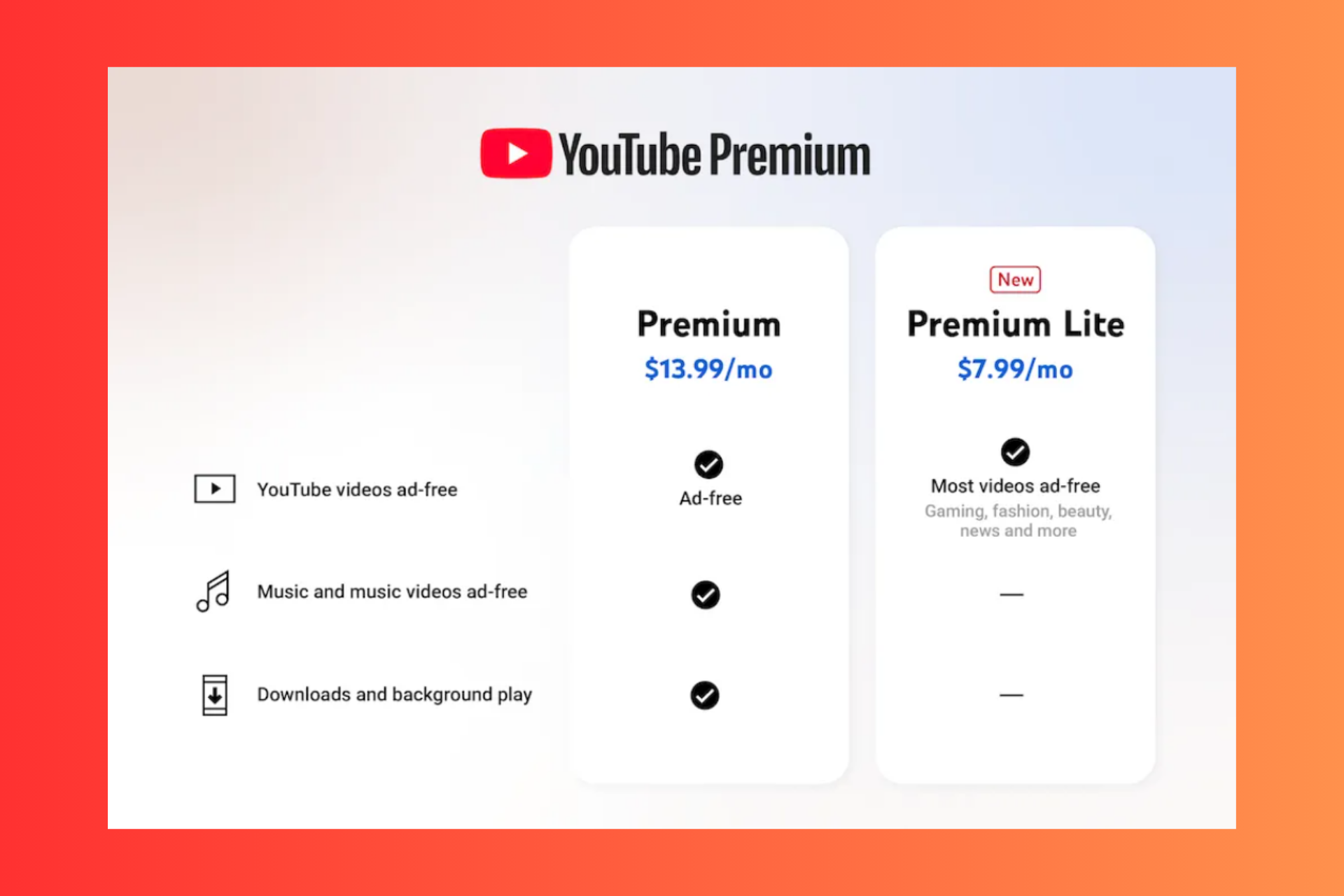
Google just launched a new YouTube subscription plan called YouTube Premium Lite in the US. It offers an ad-free experience on most videos for just $7.99 a month.

So, what’s the deal with Premium Lite? Well, it’s a more affordable option compared to the regular YouTube Premium, which costs $13.99 a month. Now, the part with most videos is not really clear. Google mentions gaming, fashion, beauty, news, and more. You won’t have free access to YouTube Music so, you’ll probably still see ads on music content, music videos, and Shorts.

Another thing to note is that Premium Lite doesn’t include some of the perks that come with the full Premium plan. For example, you won’t be able to download videos for offline viewing or play videos in the background.

Google has been testing Premium Lite in a few countries, and now it’s finally available in the U.S. They’re also planning to expand it to more regions, including Thailand, Germany, and Australia, in the coming weeks.

So, if you’re looking for a cheaper way to enjoy YouTube without some of the ads, Premium Lite might be worth checking out.

Black Basta and Cactus attackers gang up on Teams users with new techniques

You certainly remember the Black Basta hacker group exploits. Well, according to a new Zscaler security experts report recorded by Bleeping Computer, they discovered links between the Black Basta and Cactus ransomware gangs, with both groups employing similar social engineering tactics and utilizing the BackConnect proxy malware for post-exploitation access to corporate networks.

In January, Zscaler discovered a Zloader malware sample containing a new DNS tunneling feature. Further investigation by Walmart indicated that Zloader was deploying a new proxy malware called BackConnect, which contained code references to the Qbot (QakBot) malware. BackConnect acts as a proxy tool for remote access to compromised servers, allowing cybercriminals to tunnel traffic, obfuscate their activities, and escalate attacks within a victim’s environment without detection1.

Both Zloader, Qbot, and BackConnect are believed to be linked to the Black Basta ransomware operation, with members utilizing the malware to breach and spread through corporate networks. These ties were further strengthened by a recent Black Basta data leak that exposed internal conversations, including those between the ransomware gang’s manager and an individual believed to be the developer of Qbot1.

In a new report by Trend Micro, researchers found that the Cactus ransomware group is also utilizing BackConnect in attacks, indicating a potential overlap in members between both groups. In the Black Basta and Cactus attacks observed by Trend Micro, threat actors employed the same social engineering tactic of bombarding targets with an overwhelming number of emails. The attackers then contacted the targets through Microsoft Teams, posing as IT help desk employees, and tricked victims into providing remote access via Windows Quick Assist.

Right now, no one knows whether Cactur ransomware is a distinct group or just a branch of Black Basta. Coincidently or not, we also recently reported about a massive botnet attack on Microsoft 365 attacks. We’re going through hard times when cybersecurity is of high-level importance for any organization.

Microsoft Teams’ organizers will be able to decide when to show shared content to attendees

Teams will finally allow managers and organizers of webinars and virtual meetings to choose the right time to show shared content to participants.

According to a recent entry to the Microsoft 365, an improvement to the ‘Manage what attendees see’ feature lets organizers and presenters decide when to show shared content to attendees. This feature works for Meetings, Webinars, and Town Halls.

In other words, organizers and presenters now have better control over when attendees can see the content shared during different events.

Here’s what the entry says:

An enhancement to the ‘Manage what attendees see’ feature, allowing organizers and presenters to control when shared content is visible to attendees. This capability is available for Meetings, Webinars and Town halls.

The new enhancement will be rolled out to Microsoft Teams in April 2025, and it’s quite useful for preventing uncomfortable situations, such as sharing the wrong content in webinars.

In other news, some major UI changes that should make it easier to install apps and AI agents will impact the whole platform.

Microsoft Edge will let users log into password-protected websites without seeing the actual password

Microsoft will enhance Edge with a new way to deploy and manage organizational passwords. According to a recent entry to the Microsoft 365 Roadmap, the secure password deployment feature in the Edge management service helps administrators (admins) give encrypted shared passwords to a group of users.

This allows users to easily log into websites without seeing the actual passwords, reducing the chance of unauthorized access and making the organization more secure overall.

Here’s what the entry says:

The secure password deployment feature in the Edge management service enables admins to deploy encrypted shared passwords to a set of users, allowing them to log into websites seamlessly without ever seeing the actual passwords. This reduces the risk of unauthorized access and enhances the organization’s overall security posture.

The enhancement will be previewed this month, and in April, Microsoft plans to roll it out generally to all users.

The enhancement should make the case for Edge to become the preferred browser for organizations: it will be harder for phishing actors to hack corporate infrastructures.

Coupled with another recently released enhancement that makes the browser 40% faster, Microsoft Edge is now on par with Chrome in terms of performance.

Allegedly, the new Snapdragon X2 will pack 18 Oryon V3 CPU cores, challenging Intel and AMD

After Qualcomm launched its Snapdragon X and X Elite CPUs, everyone expected a revolution around the ARM, but it was more like a gust of wind, not a storm. The chips didn’t prove to be that great on gaming, and they had a few shortcomings running Windows native apps.

Recently, Qualcomm announced their cheapest SoC, to be installed on $600 budget laptops. Now, everyone is waiting for their new generation of processors, taunted as Snapdragon X2. The first rumours of the newest chips came from Windfuture. According to their sources, the next-generation Snapdragon X2 chips are expected to feature up to 18 Oryon V3 CPU cores. Obviously, it’s a substantial increase from the 12 cores offered by the first-generation Snapdragon X Elite for PCs.

Allegedly, the new Snapdragon X2 processors will employ a System-in-Package (SiP) configuration, integrating memory and storage into a single package. The new design is anticipated to enhance the chips’ performance in both single-threaded and multi-threaded applications.

According to reports, the flagship chip in the Snapdragon X2 lineup will boast 18 CPU cores, 48GB of SK Hynix RAM, and a 1TB SSD, all within a single package. This configuration is expected to provide Qualcomm with a competitive edge against industry giants AMD and Intel in the high-end PC market.

Apparently, the Snapdragon X2 chips are part of Qualcomm’s broader strategy to expand its presence beyond the laptop segment and into the desktop market. The company is reportedly testing the SC8480XP chip with an all-in-one liquid cooler, indicating its potential use in desktop PCs.

What we do know for sure is that the latest rumors are to be taken with more than a grain of salt. It would be clearly a step forward for Qualcomm to venture into the desktop PC area, but competing with AMD and Intel on gaming looks like a tiny spot on the horizon.

We have learned about this from TechSpot. Tell us what you think about the latest Qualcomm Snapdragon X2 rumors in the comments below.

Microsoft Designer will use Copilot to create presentations in PowerPoint

Good news for PowerPoint users: Microsoft Designer will use Copilot to create complex PowerPoint presentations based on all the data the AI model has access to. The new enhancement was announced in a recent entry to the Microsoft 365 Roadmap.

Microsoft Designer is a tool for creating slides and presentations by suggesting layouts, designs, and templates. Its integration with Copilot means Copilot can use Designer’s features to help you even more.

For example, the AI model can suggest different slide layouts and templates when working on a presentation. This makes it easier to create visually appealing slides without spending too much time on design.

These suggestions from the Designer are displayed in a vertical gallery, making browsing the options simple and choosing the ones you like.

Here’s what the entry says:

Designer is now part of Copilot. Copilot Suggestions now brings you familiar Designer slide layout and presentation template suggestions in a vertical gallery, along with new capabilities.

The new enhancement is rolling out to users this month, and it should be generally available to all by the end of March.

In similar news, Copilot is now a native app in Windows and should run locally on devices. However, that doesn’t mean it will help users navigate the operating system more easily.

Microsoft now shows a Copilot ad on Bing, when searching for other AI models

Thanks to a new ad, Microsoft is letting users experience Copilot in Bing when searching for other AI models on this engine. We noticed the new trend in Edge Dev, and every time we looked for other models, such as ChatGPT or Claude, Bing would pop up a separate box at the top of the page, allowing us to ask Copilot a question.

However, Microsoft doesn’t stop here. We also discovered Edge plasters Copilot ads in the browser’s Settings page. We spotted it on Edge Canary, so it seems that the strategy is to attract as many users as possible to try out Copilot.

Given Microsoft’s ways of forcing its customers to bump into ads for its services and products, this shouldn’t be a surprise.

This method, though, is new and also quite frustrating for promoting this AI model. Just like Microsoft has done it with Edge in the past through all sorts of bad-positioned ads, the Redmond-based tech giant is now doing it on Bing, and it might hurt the chances of this search engine becoming more popular.

Users might realise that Bing will first focus on ads and then show relevant search results. As Google’s main competitor, Microsoft should consider toning it down, at least in Bing.

If the newly discovered ad in Edge Setting is acceptable, the one in Bing could backfire, making users turn away from it.

What do you think about this new Copilot ad in Bing?

Notepad can turn any text into poetry, even a BSoD troubleshooting guide

Microsoft introduced the Rewrite feature in Notepad in November last year, but back then it was only available in selected countries for Copilot Pro subscribers. In February, Microsoft decided to offer this feature for free to anyone.

Recently, I wrote a story about Notepad’s Rewrite feature and its ability to collect data for safety purposes in you log into the app with your Microsoft account. Rewrite uses Copilot to summarize your text, or make it longer, change the tone (even to humor) and the format.

Going through the format option, I stumbled upon an interesting one: Poetry. And what better test for a poet than to transform a utilitarian, pragmatic, and technology-oriented text into poetry?

So, I went ahead and pasted a passage from our guide about the causes of BSoD to test this amazing feature and I was not disappointed. Here’s what Copilot wrote in Notepad as a result:

The Blue Screen of Death, a sight so grim,
Stops your PC from going out on a whim.
Drivers and hardware that just can’t cope,
Leave you staring, devoid of hope.

When this screen pops up, your work’s in the bin,
Ignoring it now? Well, that’s a sin!
Here are some tips to banish despair,

Restart your PC, give it some air,
A quick reboot might tidy the mess,
Fixing the error, reducing the stress.

Update or ditch those drivers gone bad,
For many a BSOD, this makes you sad.
Faulty hardware can also be a pain,
Tossing the trouble can make it all gain.

If you made changes and the screen showed up,
A system restore might fill your cup.
Scan for malware, those pesky little bugs,
Can make your system feel like it’s been mugged.

In desperate times, when files start to flee,
A clean install might just set you free.

To be fair about Copilot’s effort, I also changed the tone to Humor, to make things even more entertaining for you. Probably the verses In desperate times, when files start to flee, a clean install might just set you free, will permanently remain stuck in my head for days.

Of course, when you’re facing a BSoD, the least you want at that moment is to decipher a poem on how to fix it. It can only be filed as a humorous application for this purpose, but you must agree that Copilot did the absolute best with what it was tasked with. Not only that, but it provided no less than 6 versions of the poem to choose from.

What would you transform into poetry using Notepad? Leave your thoughts in the comments section below.

Microsoft Edge may soon slap you with Copilot Ads

Following Chrome, Microsoft has begun highlighting its AI Assistant, Copilot, within the Edge browser. An advertisement at the bottom of Edge’s Canary settings prompts users to seek Copilot’s assistance to find solutions when encountering problems.

Microsoft has integrated Copilot into the Edge browser. You can ask it questions and generate page and video summaries anytime by clicking on its icon at the upper right of the Edge browser. Copilot will open in the sidebar where you can submit your queries and get answers.

Recently, we reported that Google Chrome has started nudging users to open Gemini from the tab bar with notifications. This could be a coincidence, or Microsoft wants users to know and ask about the AI Assistant available in the Edge browser.

At the bottom of the settings page in Edge Canary, you’ll now see an ad that says, “Running into a problem? Ask Copilot to offer known solutions.”

Clicking “Ask Copilot” opens Copilot in the sidebar with a pre-filled query regarding Edge Copilot AI assistance for the WebUI2 version of Edge settings, which Microsoft recently began rolling out.

Copilot further informs users that it will limit the current session to providing specific guidance on questions related to Microsoft Edge and will wait for user input before responding.

Copilot, powered by advanced AI, is designed to provide real-time assistance by offering solutions based on commonly known browser issues. While this could be a convenient feature for some users, the direct promotion of AI assistance in a settings menu raises questions about Microsoft’s approach to integrating ads within the browser’s interface.

Given Microsoft’s strong focus on AI integration, including recent tests on the inclusion of AI History Search, Microsoft may push even more ads to make users aware of Copilot’s presence in the Edge browser.

Why do we call this an ad or Microsoft’s promotion of Copilot in the Edge browser? Because, Copilot has been deeply integrated, appearing on the sidebar and in the right-click context menu for highlighted text as “Ask Copilot.” Microsoft has indeed shown Edge Copilot prompts in settings to educate users about Edge settings via Copilot, but this one is a targeted ad.

What do you think of Microsoft showing Copilot Ads in Edge Settings? Do you use Copilot? Let us know your thoughts in the comments below.

Despite being a native Windows app now, Copilot still doesn’t open apps on its own

As you might know already, Copilot is now a native Windows app. This means it won’t be based on the Cloud to complete tasks; instead, it will rely on the device’s NPU systems to respond faster and generally get things done more easily.

However, as tech enthusiast @TheBobPony smartly noted, Copilot cannot open Windows apps independently. After being asked to open the Notepad app, Copilot came up with the classic answer of guiding users to open it themselves.

Or, wouldn’t it be cool for Copilot to complete this kind of task? I remember when Microsoft first introduced Copilot in Windows, back in 2023. In the trailer for it, the Redmond-based tech giant showcased how Copilot can automatically set the dark theme in Windows 11 on.

I have always assumed a native Copilot could complete such tasks. Why? Because it would make the AI model truly useful. Imagine just how useful it would be to have Copilot enable options or open apps in Windows, especially if you’re not knowledgeable of the Windows infrastructure.

The tool could actually end up being a popular tool inside the operating system, and it would make Windows users appreciate AI more than they do now.

Let’s not forget that Microsoft’s actions are turning AI into a nuisance for many users. From raising the price of Microsoft 365 plans only because they included AI to plastering the technology everywhere, the Redmond-based tech giant’s actions are counterintuitive: they’re not introducing this technology naturally, in a way that combines its capabilities with practicality, and instead, the company trusts its users to know what to do.

It doesn’t work that way. Let’s hope Microsoft will learn this soon.

XenonRecomp, a new tool that makes Xbox 360 games available on all platforms, has been released

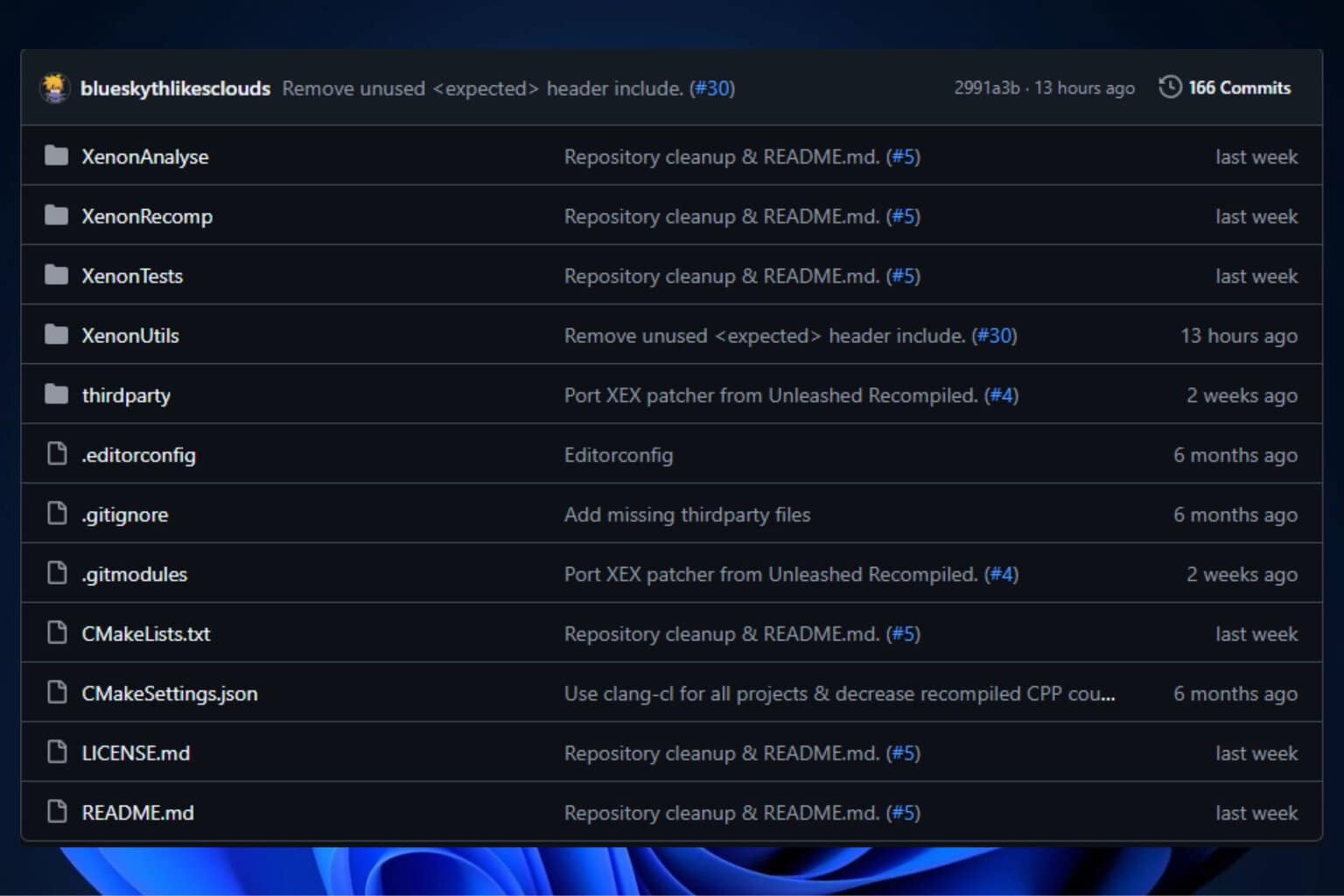
We have some good news for the gaming community: XenonRecomp, a cutting-edge tool developed by hedge-dev that converts Xbox 360 executables into C++ code, enabling them to be recompiled for any platform, has been released. This innovative project, inspired by N64: Recompiled, aims to bring Xbox 360 games to a broader audience by making them accessible on various platforms.
XenonRecomp is designed to convert Xbox 360 executables into C++ code, which can be recompiled for any platform. The tool currently supports x86 platforms due to the use of x86 intrinsics. Why should gamers be excited about it? It has the potential to breathe new life into classic Xbox 360 games.

The tool directly converts instructions without making them resemble decompiled code. The CPU state is passed as an argument to every PPC function, including definitions for every PPC register and their current values at execution. The second argument is the base address pointer, as the Xbox 360 CPU uses 32-bit pointers.

One of the key features of XenonRecomp is its handling of memory loads and stores. Since the Xbox 360 is a big-endian machine, the memory load instructions swap endianness when reading values, and memory store instructions reverse it to big-endian before writing. This ensures accurate emulation of the original hardware.

While the tool is still in development, many PPC instructions have already been implemented. Some instructions, like the D3D unpack/pack instructions, do not support all operand types. A warning is generated when a missing case is encountered, or a debug break is inserted into the converted C++ code.

XenonRecomp is a promising tool that has the potential to revolutionize the way Xbox 360 games are experienced on modern platforms. The team behind it also promises the tool will be further enhanced and improved in the following weeks.

For more information, visit the XenonRecomp GitHub page.
Speaking of Xbox 360, a new ultra-rare version of the console was spotted on the Internet, and it looks strikingly similar to today’s PlayStation 5.

This rare Xbox 360 console from 2009 looks like today’s PlayStation 5

Xbox 360 is arguably Microsoft’s most popular console. During its lifetime, the Redmond-based tech company produced three versions that were available to purchase: the original Xbox 360, released in 2005, the redesigned slim model Xbox 360 S, released in 2010, and the final model, Xbox 360 E, released in 2013.

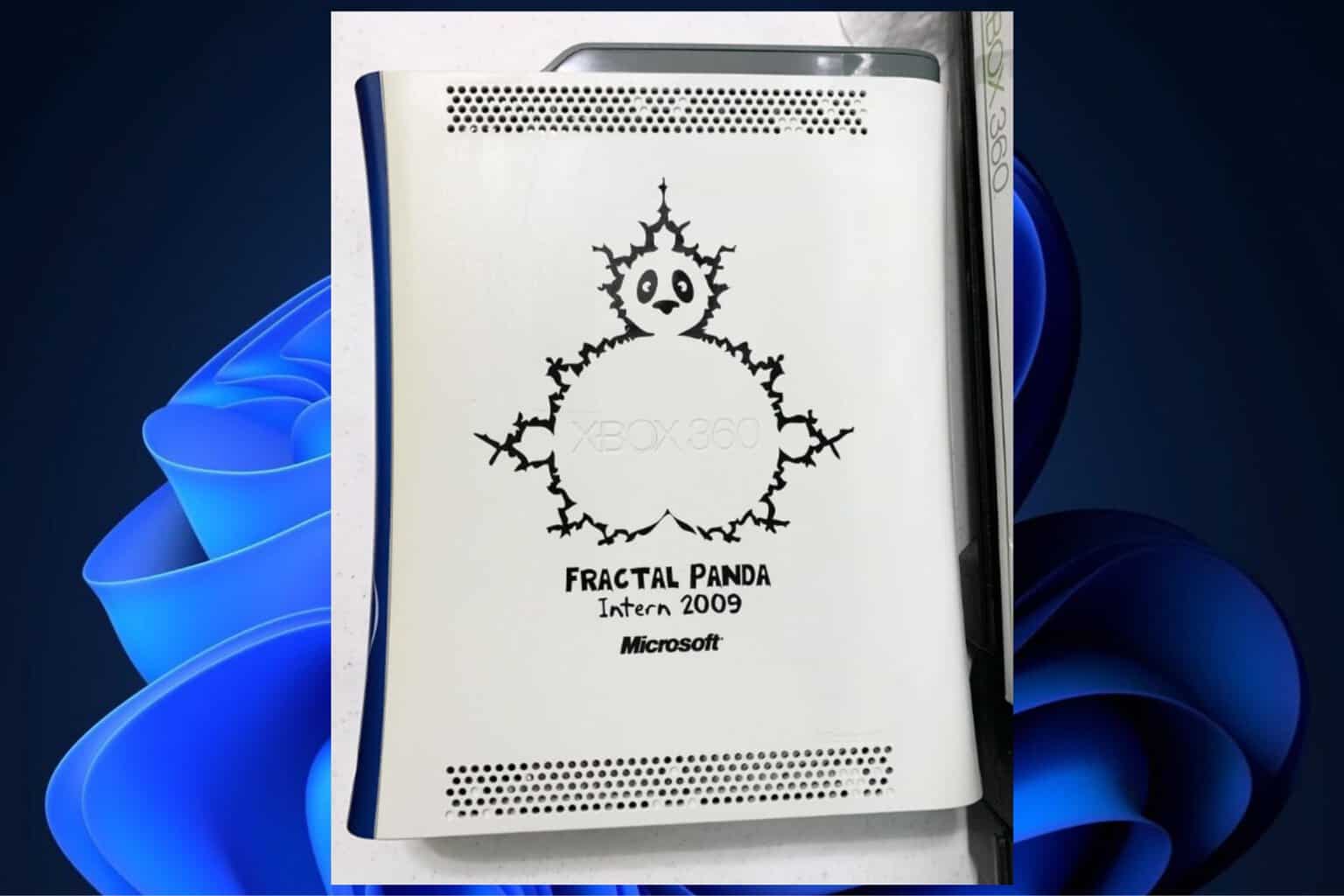
However, most people don’t know that Microsoft also released rare versions of the Xbox 360 consoles, including one called Fractal Panda, which was made explicitly for Microsoft interns and released in 2009.

The console resembles the PlayStation 5 of today in many ways: it is slim, with rounded angles and a similar port design. The Fractal Panda Xbox 360 console has a unique logo: Fractal Panda Intern 2009 Microsoft.

The console is quite rare, with a score of 76 on Console Variations. According to the site, between 100 and 500 such consoles were produced in the US. The Reddit user claims that these consoles were specifically made only for Microsoft interns, and they are one of the rarest versions of the Xbox 360.

There were about 150 of us in the program. About 25 people left the program early. More than half aimed for jobs at Microsoft instead of Xbox, so only about 50 people ordered the special edition system. I’ve been told this is one of the rarest versions of the xbox 360.

Take a look at it. What do you think, does it look similar to PlayStation 5?

It’s worth noting that you can still play on the Xbox 360 console, if you have one, but as you might know already, Microsoft retired the Xbox 360 Marketplace over a year ago.

D3dx11_42.dll Not Found: How to Fix it

D3dx11_42.dll is a component of DirectX which is critical especially when playing games. You may be unable to launch or play games if this DLL file is missing.

How do I fix d3dx11_42.dll not found error?

1. Perform DISM and SFC scans

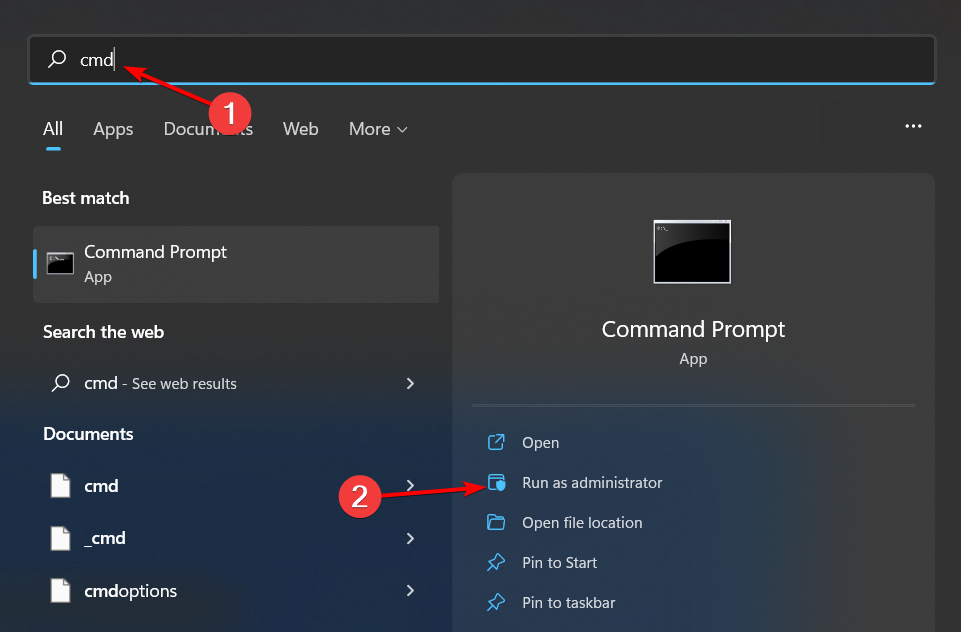
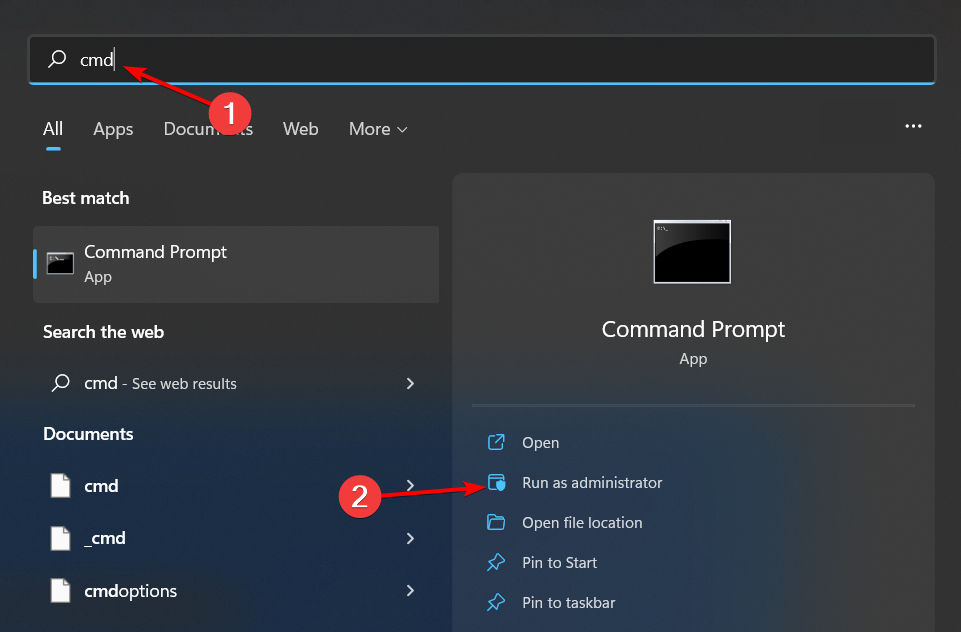
  1. Hit the Start Menu icon, type cmd in the search bar, and click Run as administrator.cmd-run-admin-w11 unexpected kernel mode trap windows 11
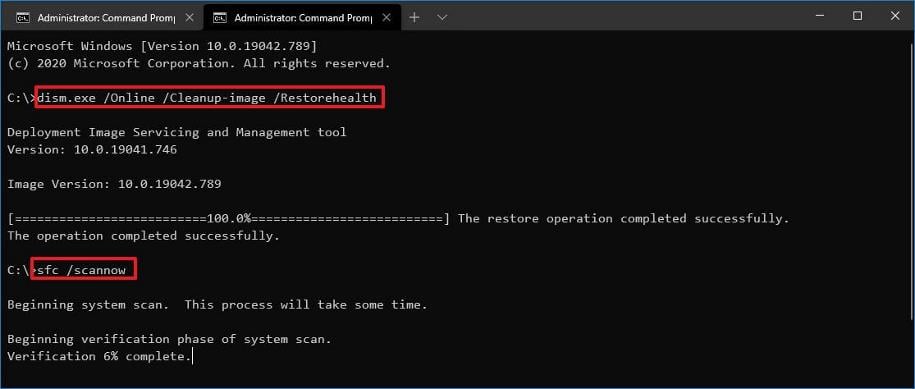
  2. Type the following commands and press Enter after each one:DISM.exe /Online /Cleanup-Image /Restorehealth sfc /scannow

2. Reinstall DirectX11

  1. Press Windows + R to open the Run window.DirectX - directx 12 initialization failed
  2. Type dxdiag and click OK to open DirectX Diagnostic Tool.
  3. Go to the System tab and check the DirectX Version; it should be DirectX 11.Check the version
  4. If not, you need to update it; visit the Microsoft official page for DirectX.
  5. Select your preferred language and click Download.Download - directx 12 initialization failed
  6. A file will be downloaded, double-click it, and initiate the installation of DirectX11.
  7. Follow the on-screen instructions to complete the process.

If you’re unable to install DirectX on your device, we have ways to go around it.

3. Update video card driver

  1. Press the Windows key + X and select Device Manager.
    device manager
  2. Double-click the Display adapters option to expand it and right-click the device there.
  3. Now, select Update driver.
    update driver
  4. Finally, click Search automatically for drivers and install any available updates.
    search auto

4. Verify game files

  1. Press the Windows key, type steam or in the search box, and click Open.Steam - open - dev error 12744 mw3
  2. Go to Library, right-click the game, then select Properties from the context menu.Properties of game -dev error 12744 mw3
  3. From the left pane, click Installed files, then click Verify Integrity of Game Files.Verify integrity of files
  4. The scan will start, and all the missing or damaged game files will be replaced with healthy files.

5. Re-register the DLL file

  1. Hit the Windows key, type Command Prompt right-click on it, and select Run as administrator.
  2. Type the following command and press Enter:
    regsvr32 d3dx11_42.dll
  3. This command registers the missing DLL file. However, if more than one DLL file is not registered, you can use the following command:
    for %1 in (*.dll) do regsvr32 /s %1

6. Download the DLL file manually

  1. Visit the DLL-Files website, search d3dx11_42.dll, choose an appropriate option, and click Download.
  2. Double-click the downloaded folder to open, locate, and copy the .dll file.
  3. Press the Windows + E keys to open the File Explorer.
  4. Navigate to the specific game’s folder and paste it there
  5. Close your File Explorer and try to launch the game and see if the error persists.

7. Reinstall the game

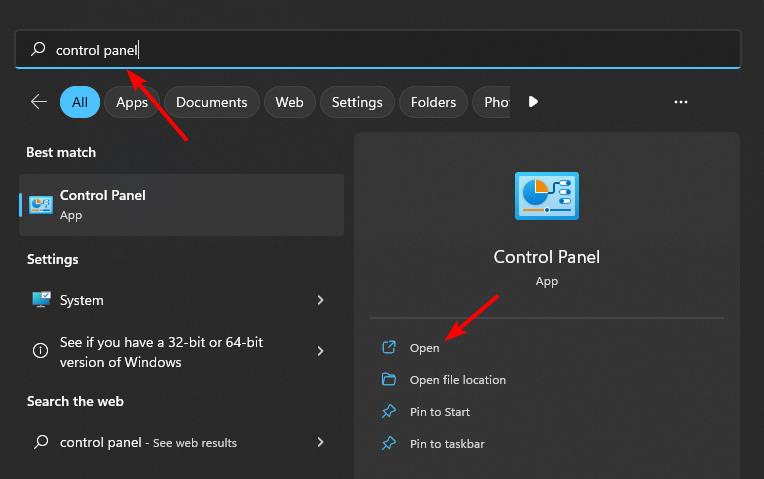
  1. Go to the Windows Search Bar and type in Control Panel.
  2. Under Programs, select Uninstall a Program.
  3. Find the problematic game, right-click on it, and select Uninstall.
  4. After the game has been successfully uninstalled, install it again.

Also, ensure your OS is up-to-date to resolve any compatibility issues that may be causing the d3dx11_42.dll file not to be found. For any other DirectX errors, we have compiled a comprehensive list to resolve them.

Further, if your device specs allow, we recommend getting DirectX 12 Ultimate for extra features to enhance your gaming experience.

That’s all we had from this article but do let us know if you tried any other solutions not mentioned here but worked for you in the comment section below.

Someone reimagined Windows 8, 10, and 11 based on the Aero style and they’re looking interesting

Windows 7’s Aero style is probably one of the most popular aspects of the now-gone operating system. The translucent UI made the operating system look like something out of a science fiction movie.

Nonetheless, the Aero style had and still has many admirers. There are so many of them that some even took the time to reimagine Windows 8, 10, and 11 through the lens of the Aero style, and to be honest with you… it’s looking interesting, to say the least.

The reimagined versions were posted on Reddit, and it was a matter of days, the post gained thousands of reactions, meaning Windows users are pretty nostalgic about this particular style.

Here’s how Windows 8 would have looked if enhanced with the Aero style.windows 11 aero style

Windows 10, below:

And, finally, Windows 11:windows 11 aero style

Of course, Windows users are excited about these possibilities, and many wish Microsoft would bring back the popular style.

I’m drooling, these images seem like a dream.

Dear God, I want that fullscreen start menu it’s so cool.

This probably would have saved windows 8

This is not entirely news, as every year, the nostalgia hits. Last year, for example, people were excited about the possibility of Windows 11 being enhanced with the Aero style. This year, however, that includes Windows 8, and 10, as well.

We have to admit, Windows 8 looks quite good. The rest of them, maybe not. But what do you think?

Microsoft enhances Outlook for Mobile with Delivery and Read Receipts

Microsoft has announced the rollout of delivery and read receipts in Outlook for Android and iOS, enhancing the email experience for mobile users.

This new feature allows users to track their emails’ delivery and reading status, providing greater transparency and control over their communications.

Delivery receipts confirm that an email has been successfully delivered to the recipient’s mailbox, while read receipts indicate that the recipient has opened the email.

These features are useful for those who must ensure that their intended recipients have received and read important messages.

To enable delivery and read receipts in Outlook for Android and iOS, users can navigate to the settings menu and select the appropriate options under the “Tracking” section. Once enabled, users will receive notifications in their inbox when an email is delivered or read.

The new feature is available to Outlook Android and iOS users as part of the latest app update. Microsoft continues to innovate and improve its suite of productivity tools, ensuring that users have access to the best possible email experience on their mobile devices.

Outlook for Mobile was recently enhanced to recall accidental emails. Users can now unsend emails if they want to.

For more information, visit the Microsoft 365 Insider Blog.

Microsoft Copilot will become a local native app in Windows

Microsoft is turning Copilot in Windows into a native app, which could run locally very soon. The enhancement was discovered in the Windows Insider Program, and shared on Reddit, with tech enthusiast @phantomofearth confirming it too.

Copilot will have a fully native WinUI UX, including the chat and all of its abilities, which means the AI model should be much faster from then on.

Being a native app means the app should also be able to run locally without having to rely on the Cloud for the job. It will instead rely on the device’s NPU to complete tasks and provide answers—all of these, of course, at a formidable speed.

For now, the enhancement is only available to Insiders, but Microsoft should release it to all Windows users later this year.

However, the AI model will not help you with all tasks. For example, Copilot was recently updated to stop providing ways to illegally activate Windows and Office after users found out it could do so.