Game developers started using AI in their visuals so you can expect some more hallucinations soon

In January, last year, Steam issued a requirement note for developers to disclose any AI content usage within their titles. However, not all the developers aligned with this request. Recently, gamers spotted a 6 finger character in Call of Duty: Black Ops 6 and reported the hilarious appearance on Reddit and Steam.

After that event, Activision was forced to include a disclaimer in the footnote of Call of Duty: Black Ops 6 on Steam saying that: Our team uses generative AI tools to help develop some in game assets.

Of course, this started a whole hunt for AI-generated content in CoD: Black Ops 6, and users posted plenty of them again on Reddit:

A comment from the user cyansusg on this thread describes the overall tone of the reactions to this Activision move:

It shows laziness and no inspiration. Unlike artist who use AI as a tool, they’re just using it because they don’t want to spend time or money on hiring game artist. If they did hire an actual artist for this then they deserve to get fired.

Other users generated AI negative comments on Steam using ChatGPT in a sarcastic protest.

Well, at this point, I have to remind you that Activision was acquired by Microsoft in 2023 for $69 billion. Not long after, the software giant cut a huge number of jobs (approximately 2,000) just for this division.

We don’t know for sure whether the developer was pushed towards using AI in their titles as a consequence. However, it’s also true that Call of Duty: Black Ops 6 is not a cheap game. The gamers are entitled to demand a high-quality content level for their $80 purchase.

As I mentioned in the title, we can expect a lot of AI content in games. Automating graphics as well as NPCs, music, and other elements will probably become a common practice for developers. However, right now, AI is far from perfect in any aspect. The really lazy act here is to miss some basic checks such as inspecting them for such anomalies.

A 6 finger character in a game may be hilarious, but that will destroy the game’s immersion and credibility. Nevertheless, you may think twice about trusting the developer again.

All you can do about it is to look in the game description for such disclaimers and notify Steam if you find Ai content in games that didn’t post any on their page.

We’ve learned about this from CNET. If you’ve spotted any other anomalies and AI-generated hallucinations in games, let us know in the comments below.
The new KB5052077 for Windows 10 fixes DWM and OpenSSH, but you can live without it

Microsoft released the KB5052077 patch for Windows 10 version 22H2 users as the operating system’s non-security optional update for February.

It’s not a very exciting update, but the software giant still patched some critical tools. If you were having problems running DWM (dwm.exe), Microsoft fixed the issues where the app stopped responding frequently.

There was also a known issue with OpenSSH, where the service failed to start and the SSH connections were stopped. The workaround was to start the sshd.exe process manually, but if you install KB5052077 on Windows 10 22H2, you won’t have that issue anymore.

Here are other improvements and fixes introduced with Windows 10 Build 19045.5552 as highlighted by Microsoft in the release document:

  • [Daylight saving time (DST)] This update supports (DST) changes in Paraguay.
  • [Input Method Editor (IME)]
    • Fixed: The Chinese IME stops responding when you change the font family or font size.
    • Fixed: The color contrast ratio of the Chinese IME search suggestion panel is less than you expect.
  • [Country and Operator Settings Asset] This update brings COSA profiles up to date for certain mobile operators.
  • [Narrator]
    • Fixed: It fails to say the Chinese IME candidate window quick action buttons right.
    • Fixed: It does not say the control type for the Chinese IME suggestion opt-in item.
    • Fixed: It does not say the heading of the Chinese IME suggestion opt-in panel.

We remind you that Microsoft also released the Patch Tuesday security updates for Windows 10, which are much more important.

If you upgraded to Windows 11, learn about the latest security updates for the OS.

Are you still running Windows 10? Let us know in the comments below about your reasons for not upgrading to Windows 11.

Windows 11’s new battery design, one of the best additions to the OS, is getting retired for now

Windows 11’s new battery indicator, which was released back in December, has been one of the best additions to the operating system, due to its changing colors, and the natural way of letting users know when their batteries were depleting.

However, in the updated blog post for KB5052093 (the patch was ultimately released this week), the Redmond-based tech giant stated that the new design will be retired for a while as the company needs to address an issue with it.

[UPDATE 2/25] We have stopped the roll out of this change to address some issues. We plan to begin rolling it out in a future update soon.

Spotted by Windows enthusiast @phantomofearth, the new battery indicator in build 26120.2510, which rolled out to Windows Insider Dev Channel members, is more significant in scale and features several colors.

For example, the battery indicator turns green when the battery is charged, and the saver mode turns the battery yellow. However, the redesigned battery indicator is only on the taskbar, and the lock screen still uses the old version.

The new Windows 11 battery design was initially hidden, but it could be enabled using ViveTool, and typing in the following command:

  1. vivetool /enable /id:48822452,48433719

Press Enter, and then restart your PC.

KB5048780 also brought Recall, Cocreator, and many other AI capabilities to AMD and Intel-powered Copilot+ PCs, back in December. You can read more about it here.

Photo and ID credits: @phantomofearth

KB5052094 for Windows 11 23H2 updates the operating system with a new Lock Screen experience

If you’re still on Windows 11 23H2, starting today, you’ll have a new Lock Screen experience thanks to the KB5052094, which is now available to download and install.

KB5052094 is a non-security patch, and it’s entirely optional. However, if you want to experience the Lock Screen (which will be added to Windows 11 with March 2024 Patch Tuesday updates, anyway), you should install it right away.

The new Lock Screen experience will let Windows users learn more about the image on the lock screen. I don’t know about you, but I find it specifically useful, thanks to the breathtaking landscapes Microsoft displays on the Lock Screen.

Elsewhere, KB5052094 brings almost the same improvements and fixes KB5052093 brought for Windows 11 24H2.

You can read the patch’s full release notes here.

With Resource controls, Edge becomes a great browser for gaming

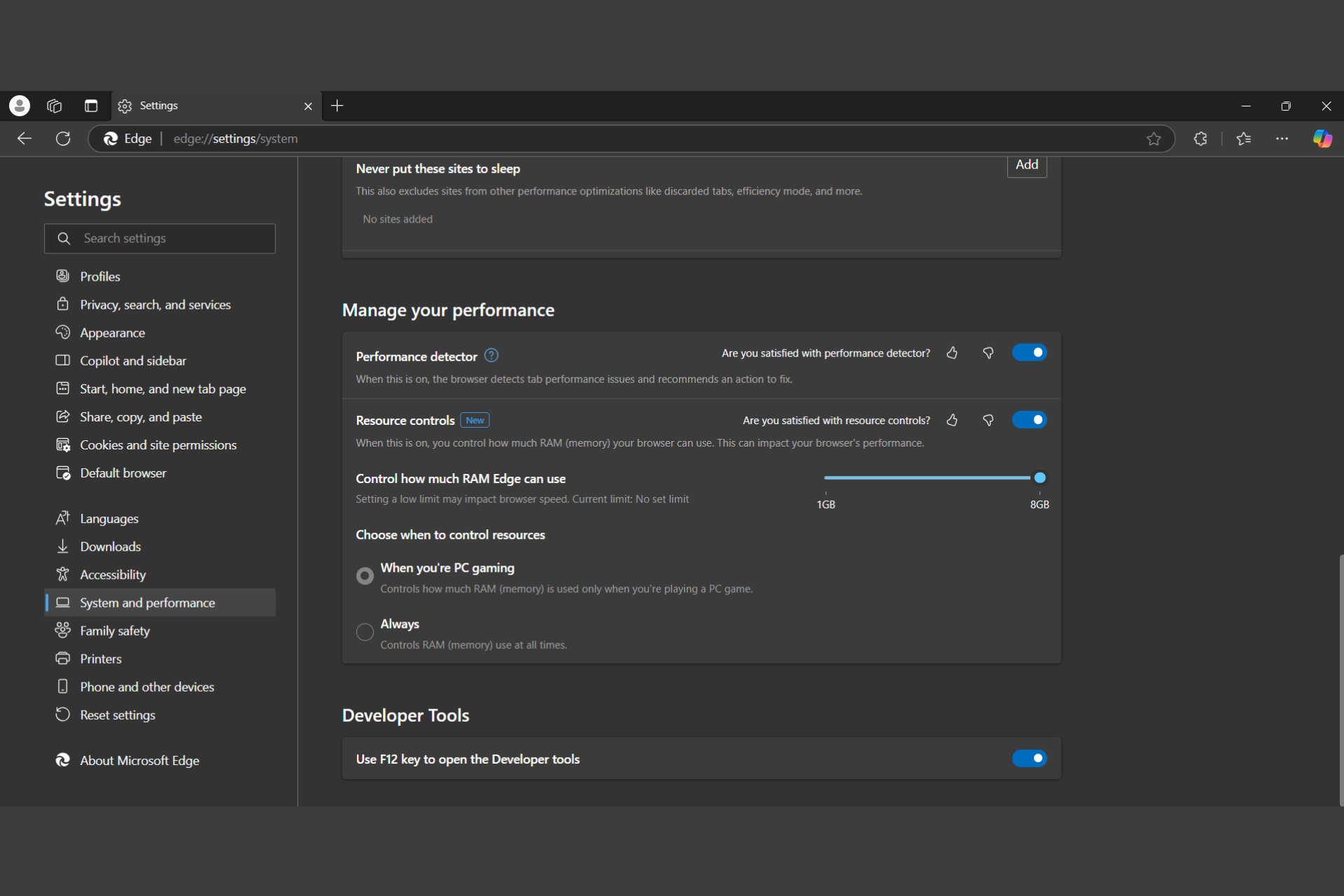
We reported that Microsoft was testing the Resource controls in Edge. After almost a year, the feature finally made it into the stable version of Edge. This can be extremely useful when you’re gaming, and it makes it closer to how Opera GX is dealing with resources.

Within Edge’s settings, you can now specify the maximum amount of RAM the browser can use, ranging from 1GB up to 32GB. Of course, you may also leave the Resource controls disabled and Edge will manage RAM consumption.

You can also choose when these limits apply: either Always or only When you’re PC gaming. This flexibility ensures that your system’s resources are optimized based on your current activities.

For gamers, having a browser consume excessive RAM can lead to performance issues during gameplay. By capping Edge’s memory usage, you free up resources, ensuring a smoother gaming experience. However, setting the limit too low might cause the browser to run slower or refresh tabs more frequently, so finding a balance is key.

In addition to the RAM limiter, Microsoft is enhancing Edge’s performance by migrating features to WebUI 2.0, resulting in faster load times for settings and other interface elements.

To try out this feature, update your Microsoft Edge to the latest version and navigate to the performance settings to configure your preferred RAM usage limits. You can get directly to this feature by entering edge://settings/system in the address bar.

What do you think about the new Resource controls feature in Edge? Let’s talk about it in the comments below.

Thanks to the new KB5052093, Windows 11 can finally load large numbers of files without any lag

KB5052093, recently released in the Preview Insider Channel for Windows 11, is now available to download for all other users as this month’s non-security patch.

While the patch is optional, you should download and install it, as it contains many fixes and improvements for Windows 11. They significantly and positively impact File Explorer, and it will finally allow users to deal with large numbers of files without experiencing any lag.

Other File Explorer bugs are effectively fixed, such as not loading the correct URL in the address bar or the context menu opening slower than usual.

KB5052093 has also fixed the HDD/SSD problem. If you remember, Windows 11 mistakenly assumed HHDs were SSDs, confusing users.

Elsewhere, the patch brings to the general public dozens of features that were already released in the Windows Insider Program: the new Game Pass card in Settings, new Windows Spotlight icons, new Narrator functions, and the advanced settings for Camera.

KB5052093’s full release notes are here, and you can download the patch from the Microsoft Update Catalog.

Conhost.exe: What is it & how to Fix Its High CPU Usage

Conhost.exe or console host is an old Windows process dating back to Windows 7 whose main function is to manage and display the input/output of command line tools. If you use the Command Prompt and notice how smooth the text appears when you type and its stability, conhost.exe is responsible.

Seeing that it is a critical Windows process, removing it would cause some stability issues. However, some users reported of its high CPU usage and multiple instances in the Task Manager making it a suspicious process.

How do I fix conhost.exe high CPU usage?

1. End process from Task Manager

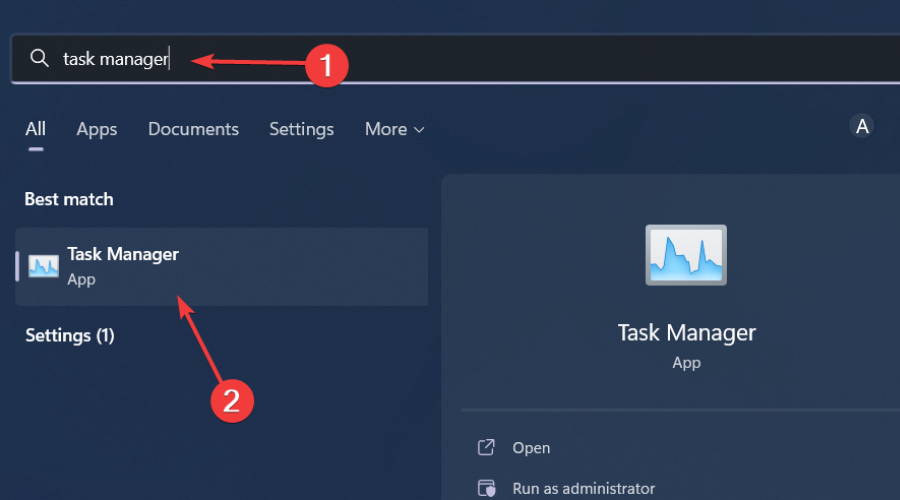
  1. Hit the Windows key, type Task Manager in the search bar, and click Open.
    task manager search
  2. Navigate to the Processes tab, and find the conhost.exe process.
  3. Right-click on it and select End task.

2. Run DISM and SFC scans

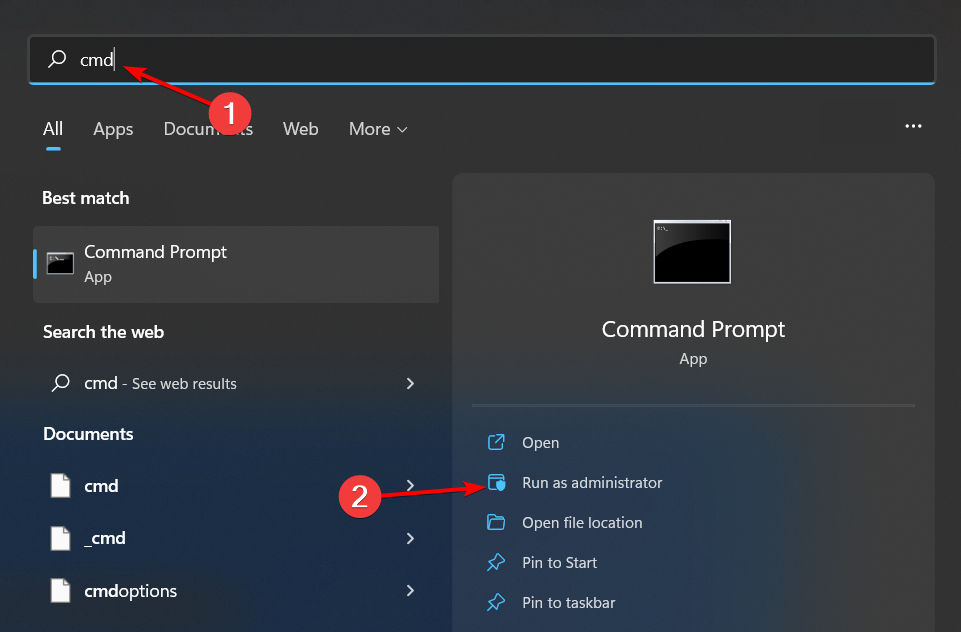
  1. Hit the Start Menu icon, type cmd in the search bar, and click Run as administrator.cmd-run-admin-w11 unexpected kernel mode trap windows 11
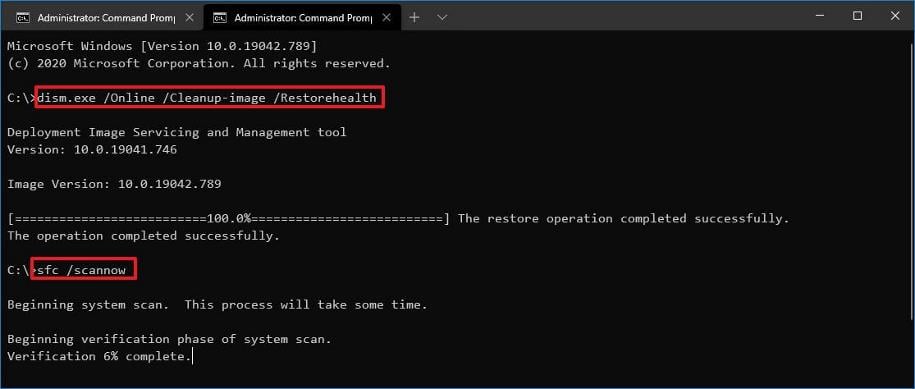
  2. Type the following commands and press Enter after each one: DISM.exe /Online /Cleanup-Image /Restorehealth sfc /scannow

3. Scan for viruses

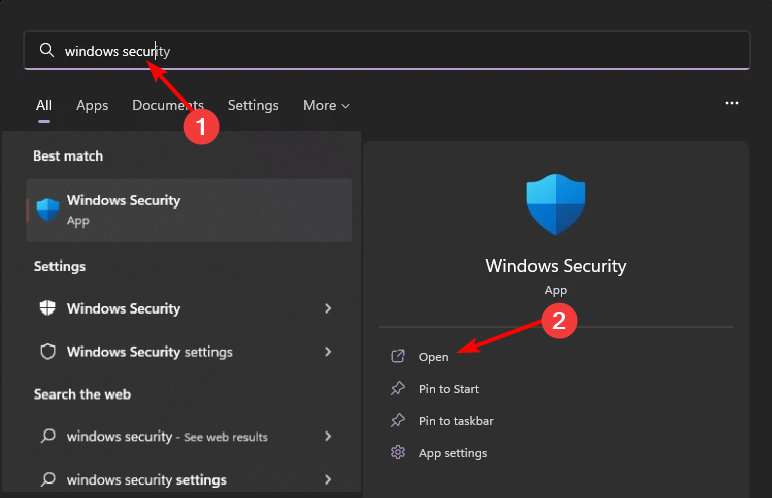
  1. Press the Windows key, search Windows Security, and click Open.
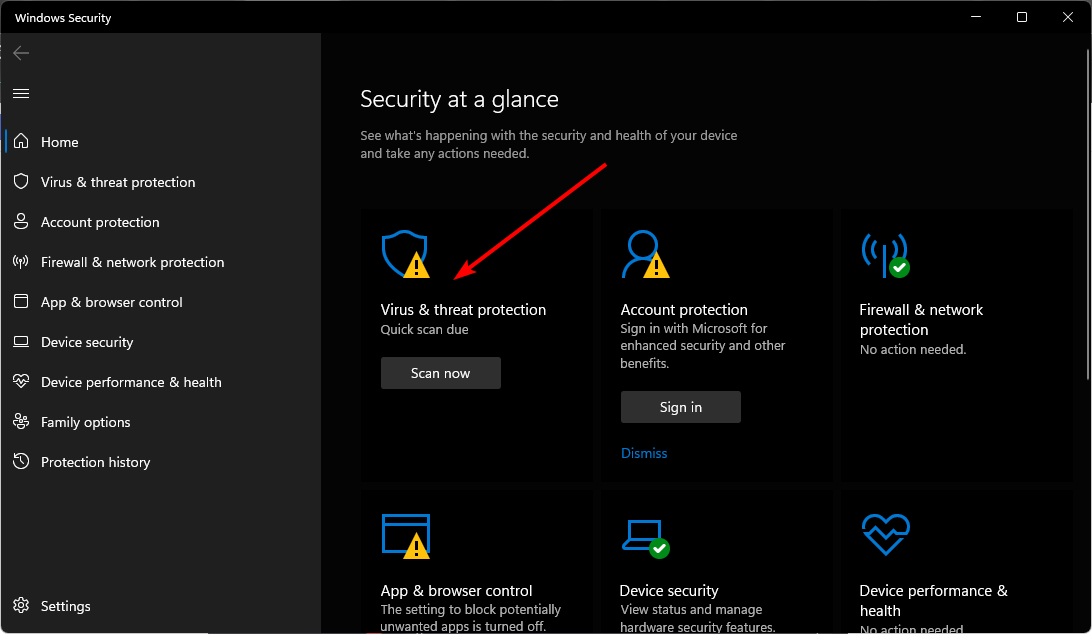
  2. Select Virus & threat protection.
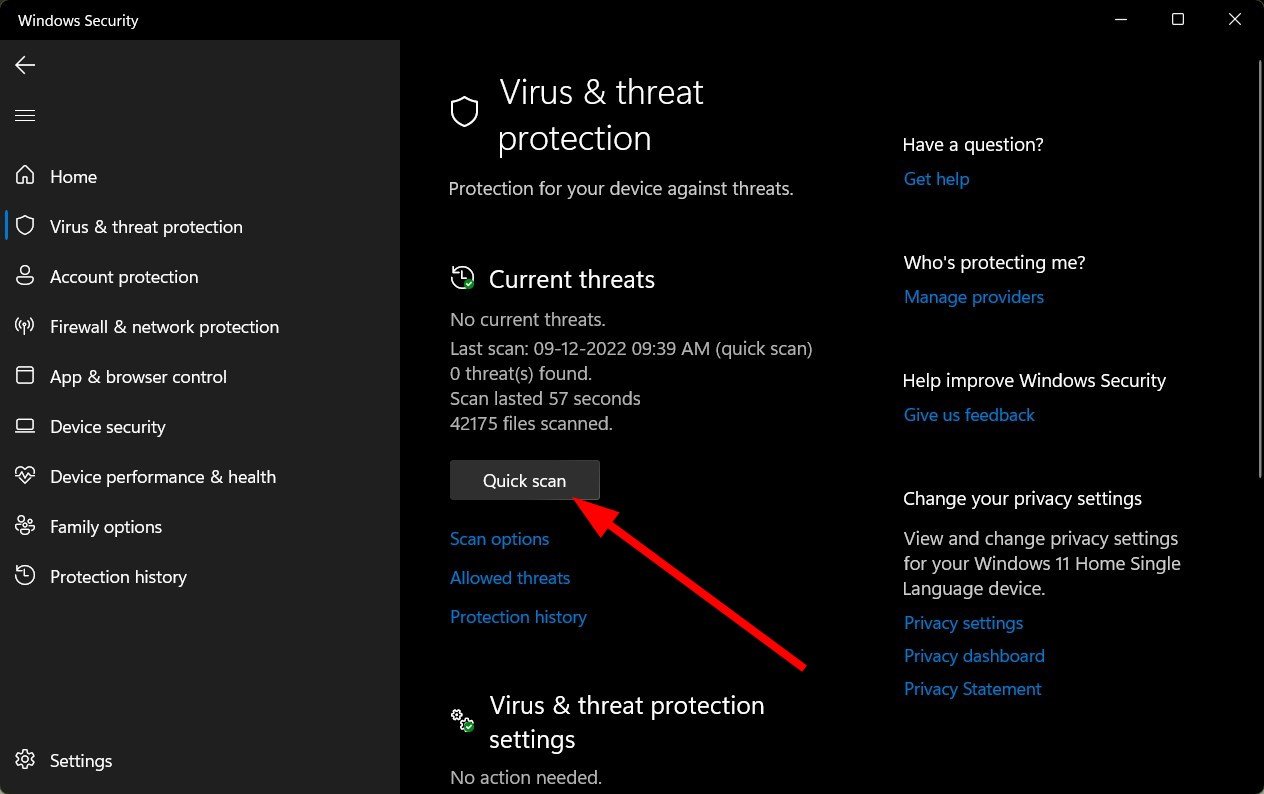
  3. Next, press Quick scan under Current threats.
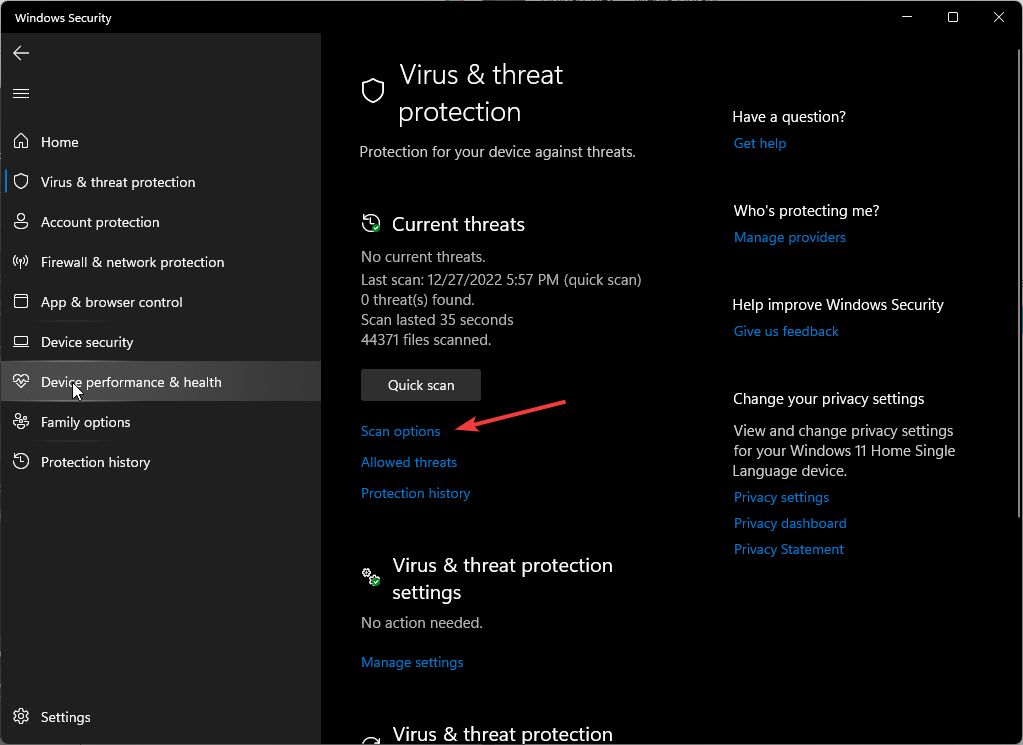
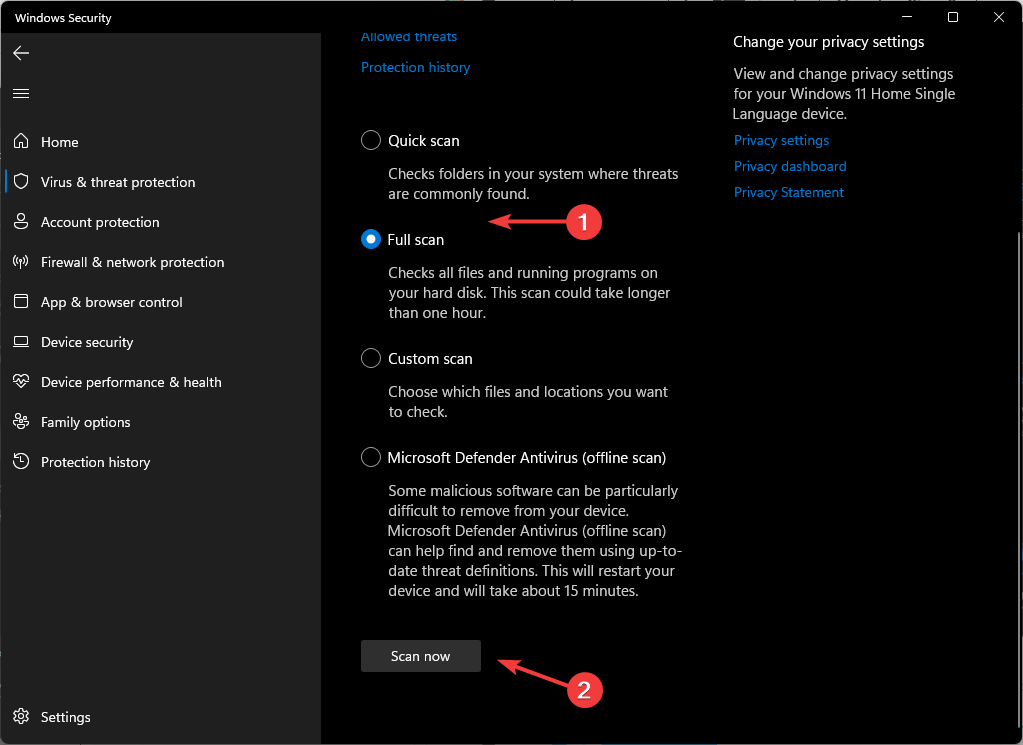
  4. If you don’t find any threats, proceed to perform a full scan by clicking on Scan options just below Quick scan.Scan options
  5. Click on Full scan, then Scan now to perform a deep scan of your PC.Full Scan Scan Now
  6. Wait for the process to finish and restart your system.

Whereas the cnhost.exe is a legitimate Windows process, it is possible for it to masquerade as the real thing when bundled up with software.

Downloading software from unofficial sources can have such consequences so always check the digital signature for suspicious files or use a comprehensive antivirus to weed out notorious viruses that may go undetected while using the built-in Windows antivirus.

4. Perform a clean boot

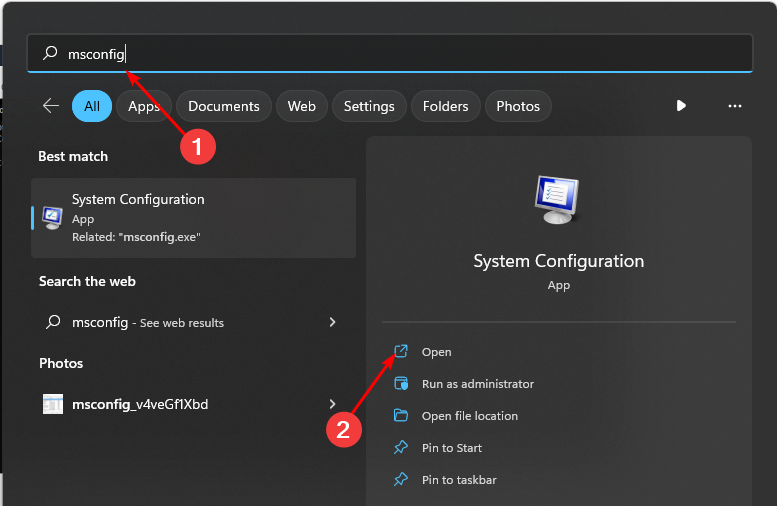
  1. Hit the Windows key, type msconfig, and open System Configuration.
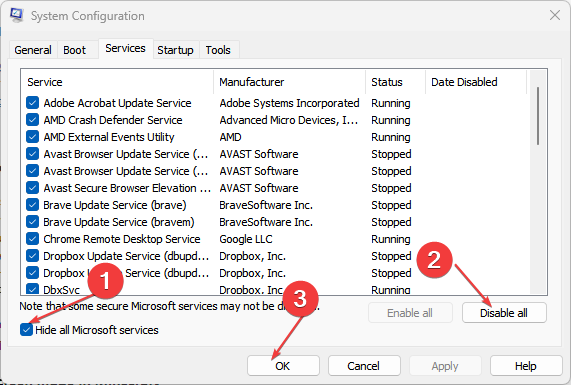
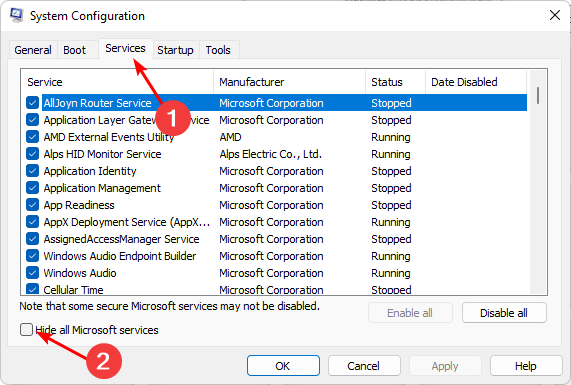
  2. Switch to the Services tab and select Hide all Microsoft services.
  3. Click on the Disable all button, then hit the Apply button to save the changes.
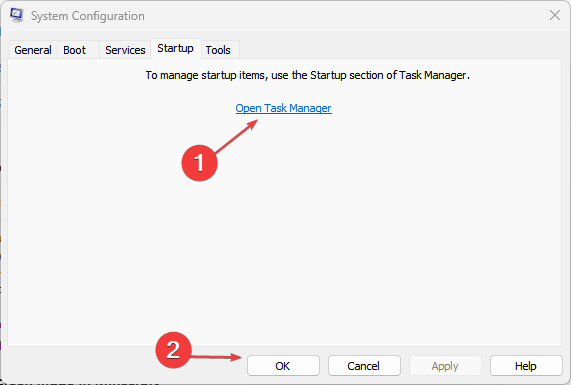
  4. Go back and click on the Startup tab, select Open Task Manager then click OK.
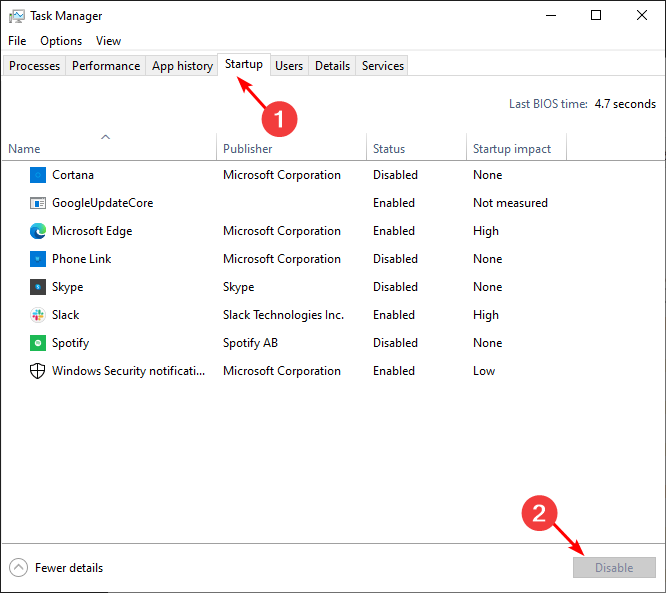
  5. In the Startup tab of the Task Manager, Disable all the Enabled startup items.
  6. Close Task Manager and restart your PC.

5. Create a new user profile

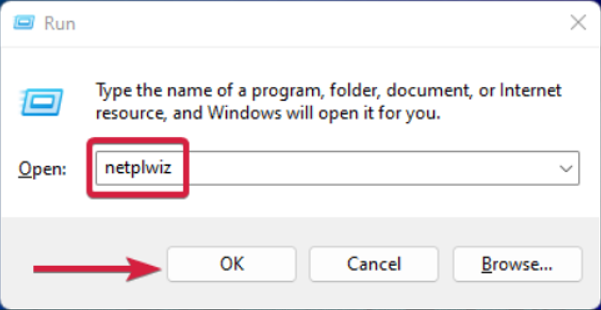
  1. Press Windows + R to launch the Run console, enter netplwiz in the text field, and click OK.
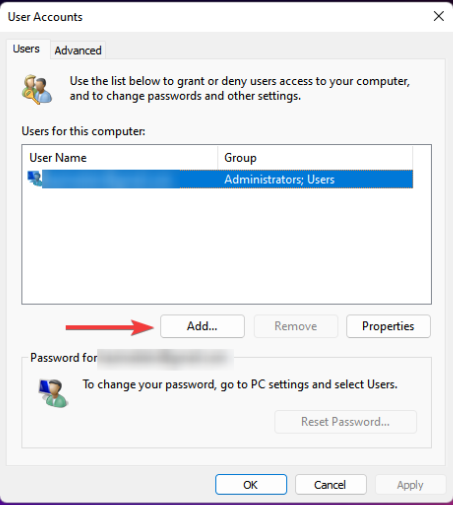
  2. Click Add in the User Accounts window.
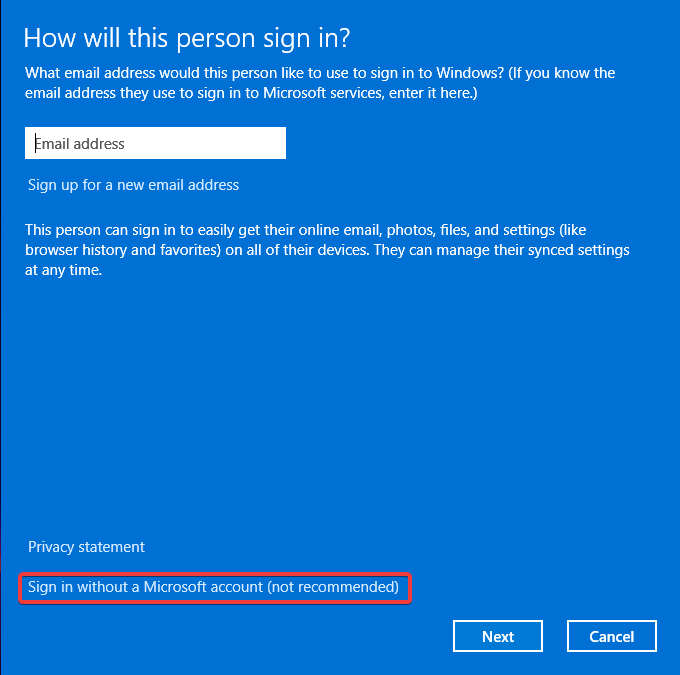
  3. Select Sign in without a Microsoft account (not recommended).
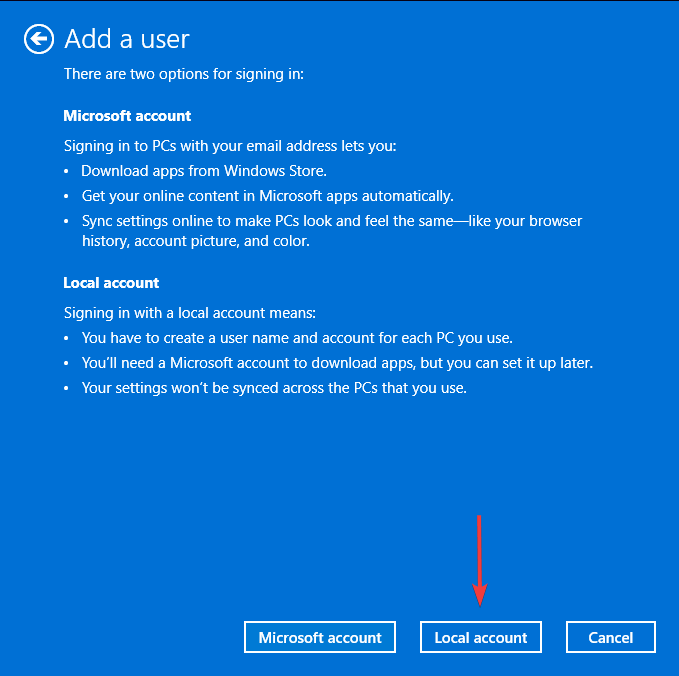
  4. Click on Local account button.
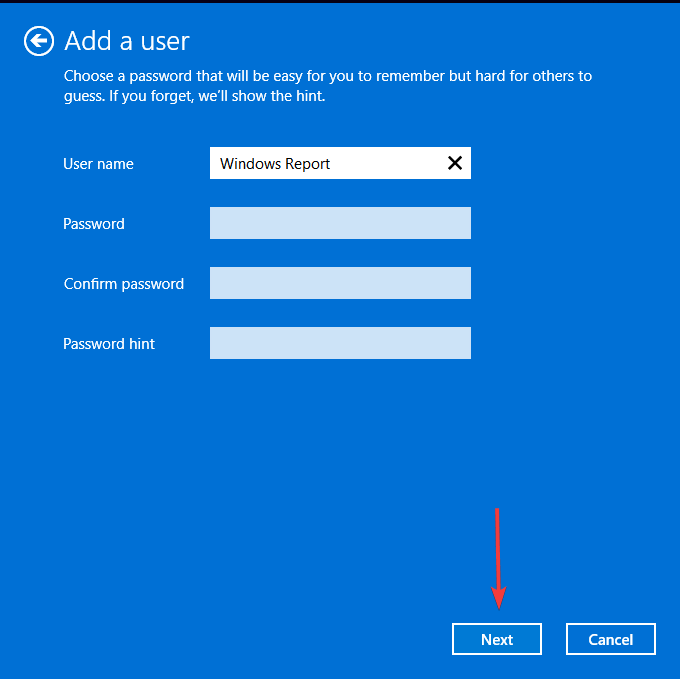
  5. Enter a username and password (optional) for the new user account, and a hint, in case you set a password. Once done, click on Next.
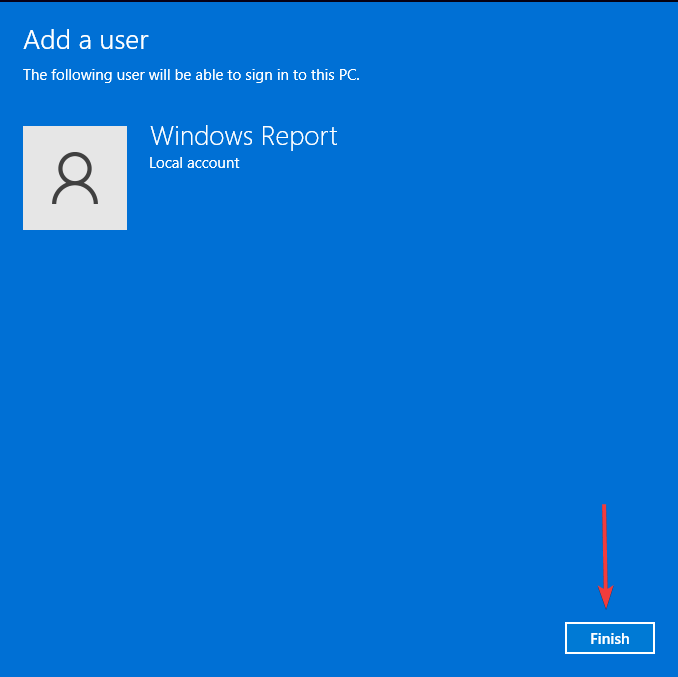
  6. Click on Finish to create the Local account.

You can change your standard admin account and then check whether the conhost.exe process is still consuming system resources.

Speaking of the Command Prompt, did you know you can change its color? If not, head on over to our dedicated article and find out how you can personalize it and make it more appealing.

We also have more terminal settings we’re sure will be helpful in getting the most out of your command-line tools.

That’s all we had for this article but do let us know if you’ve encountered the conhost.exe process before and whether it caused any issues.

Windows Shuts Down Instead of Restarting: 4 Ways to Fix it

Many PC users reported that Windows shuts down instead of restarting, and this can cause some minor problems with your PC, so in today’s guide, we’re going to show you how to fix that.

What can I do if Windows shuts down instead of restarting?

1. Update all your drivers

  1. Let your motherboard model. If you’re using a laptop, get your laptop model instead.
  2. Next, visit the motherboard manufacturer’s website and locate your model.
  3. Go to the Drivers section and download the latest drivers for your device.
  4. Once the drivers have been updated, check if the problem is gone.

Many users also suggested that updating Intel Management Engine Drivers worked for them, so try that as well. For more information, we have a great guide on how to update drivers on Windows 11, so don’t miss it.

2. Use DISM

  1. Press the Windows key + S and type cmd. Choose Run as administrator.
    CMD elevated ERROR_CORRUPT_LOG_CORRUPTED
  2. Next, run the following: DISM /Online /Cleanup-Image /RestoreHealth
    dism restorehealth
  3. Wait for the scan to finish.
  4. Once finished, check if the problem is gone.

3. Reset BIOS

  1. While your PC boots, keep pressing F2 or Del to access BIOS.
  2. Next, choose Load Optimized Defaults or Reset to Default.
  3. Once reset, save changes and exit BIOS.

Alternatively, you can remove your motherboard battery for a few hours to reset the BIOS.

4. Update BIOS

  1. Download the latest BIOS for your motherboard.
  2. Next, check your motherboard manual for instructions on how to update BIOS.
  3. Once the BIOS is updated, check if the problem is gone.

A few users suggested installing the same version of BIOS that you already have, so try this as well.

5. Check your cables

  1. Inspect the cable that connects the power button to the motherboard.
  2. Check if the cable is properly seated.
  3. Consider replacing the cable with a new one.

If Windows shuts down instead of restarting, in most cases the issue is related to your drivers or corrupted system files, but that can easily be fixed.

This isn’t the only problem, and many reported that Windows is restarting instead of shutting down, so don’t miss our guide on that problem.

Many also reported that the shutdown button isn’t working, but we covered that in our previous guides.

SharePoint is sending multiple emails to users who commented on a shared file. Here’s what you should do

If SharePoint bombards you with multiple emails every time someone comments on a shared file you previously left a comment on, you should know you’re not alone.

Many SharePoint users have reported on official Microsoft forums since February 19; the platform has continuously sent multiple emails for the same comment to users who have commented on a shared file.

The emails are sent in a duplicate form, erratically, even when no one is online to comment on the shared file.

Hi, I have a few people reporting that when someone comments in a shared file, they are receiving multiple email notifications about the same comment. It started late Wednesday (Feb 19). I’ve checked the emails and they are duplicates (some coming in the middle of the night when nobody is online).

I have been searching high and low for something regarding this and this post is the first I’ve seen. We’ve been experiencing the same thing since yesterday. Some users have gotten the same notification regarding being tagged in an a Sharepoint list Item half a dozen times or more, depending on the age of the notification. I’ve reported the issue through our tenant but nothing so far.

It started yesterday for us as well so it must be a glitch. Funny enough it’s not happening to everyone in the file. I have 2 users getting multiples, 1 user only got the 1 notification. I reported it, so if enough people report it maybe they will declare it an official issue. I couldn’t find anything either.

As you can see from the experiences above, the SharePoint bug is quite peculiar and happens randomly. While some agree that it might be caused by each interaction (editing) with the file, others agree that this doesn’t hold true, as emails are being sent even when nobody is doing anything to the file.

Others have noticed the same issue in other Microsoft 365 platforms, such as Word, Excel, or even PowerPoint so that the bug might affect the whole suite.

What to do? For now, nothing. You can try restarting your device, restarting the platform, or logging out/logging into your email account. For some, the issue has resolved itself after a while. For others, though, it’s still there.

Microsoft might release a fix, eventually.

Have you encountered this bug?

AMD silently added 6 new CPUs to its Ryzen 5000G series for budget savvy consumers

Recently, a user posted on Reddit that they noticed a change in the AMD Ryzen 5000 series listing. AMD silently added the 5705G, 5705GE, 5605G, 5605GE, 5305G and 5305GE variants.

These created a bit of confusion since AMD didn’t issue any news release to cover this change. Moreover, AMD already had used the 5000G for older CPUs, that initially made users think that it was a typing mistake from AMD.

However, if you click on any of the new CPUs, you are redirected to the specification page for each of the new models. The curious fact is that if you individually look for the model numbers, you get to 404 pages. Probably AMD hasn’t updated the pages yet.

So, the new 5000G series code-named Cezanne is real, offering options across the Ryzen 3, Ryzen 5, and Ryzen 7 families. These chips are designed for the AM4 socket and come equipped with integrated Radeon Vega graphics. They support PCIe 3.0 and DDR4 memory, making them suitable for budget-conscious users.

More detail about the new AMD Ryzen 5000G CPUs

We extracted the listings of the new 5000G AMD CPUs as provided on the AMD website:

NameGraphics Model# of CPU Cores# of ThreadsMax. Boost ClockBase ClockThermal Solution (PIB)Graphics Core CountDefault TDP
AMD Ryzen™ 7 5705GERadeon™ Graphics816Up to 4.6 GHz3.2 GHz835W
AMD Ryzen™ 7 5705GRadeon™ Graphics816Up to 4.6 GHz3.8 GHz865W
AMD Ryzen™ 5 5605GERadeon™ Graphics612Up to 4.4 GHz3.4 GHz735W
AMD Ryzen™ 5 5605GRadeon™ Graphics612Up to 4.4 GHz3.9 GHz765W
AMD Ryzen™ 3 5305GERadeon™ Graphics48Up to 4.2 GHz3.6 GHz635W
AMD Ryzen™ 3 5305GRadeon™ Graphics48Up to 4.2 GHz
4 GHz
665W

First, Ryzen 7 5705G and 5705GE both feature 8 cores and 16 threads, with boost clocks up to 4.6 GHz. The GE variant operates at a lower TDP of 35W, compared to the 65W TDP of the standard G model.

Going down to Ryzen 5 5605G and 5605GE, they are 6-core, 12-thread CPUs that reach boost clocks of 4.4 GHz. The GE version is optimized for energy efficiency with a 35W TDP, while the G model has a 65W TDP.

Finally, Ryzen 3 5305G and 5305GE are offering 4 cores and 8 threads, and have boost clocks up to 4.2 GHz. As you already got the gist, the GE variant maintains a 35W TDP, whereas the G model operates at 65W.

    Interestingly, these new processors share specifications with existing models in the Ryzen 5000G series, such as the Ryzen 3 5300G, Ryzen 5 5600G, and Ryzen 7 5700G.

    AMD didn’t list any prices or retail availability for these new chips, but as we mentioned above, considering the technical specifications, they’re most likely targeted at the budget segment. Another clear observation is that the new CPUs don’t come with cooling solutions in the box.

    Probably AMD went silent with this update because the new 5000G CPUs are for the older AM4 socket while their latest additions featured the AM5 socket. However, that’s not really a bad thing because it will allow users with older systems to upgrade their CPUs without the need for a new motherboard.

    Most likely, AMD will still make an announcement about the new 5000G series CPUs in the following days and we will also find out the prices and availability.

    Is the end of AI hype coming? Microsoft’s latest reveals definitely say so

    For the past three years, AI has been everywhere, and Microsoft has always been at its forefront. From spending large sums of dollars on funding research to building data centers and expanding the capabilities of its products and services using this technology, the Redmond-based tech giant has made AI its primary focus so that its community has started to become frustrated with it.

    AI here, AI there, AI everywhere. However, it seems that the AI fever might finally coming to an end, as the tech giant announced that it will cancel leases for AI Data Centers, accordinng to the latest reports.

    This means Microsoft won’t be building as many AI Data Centers as it initially promised, sparking discussions on the future of this technology. After pledging $80 billion to AI advancements, Satya Nadella admits that AI is barely generating any value, and the tech industry is more focused on reaching ideas such as AGI than actually developing practical and useful AI.

    So, the first thing that we all have to do is, when we say this is like the Industrial Revolution, let’s have that Industrial Revolution type of growth. The real benchmark is: the world growing at 10 percent. Suddenly productivity goes up and the economy is growing at a faster rate. When that happens, we’ll be fine as an industry.

    The AI industry was also shocked by the release of DeepSeek, the Chinese-owned AI model that is as capable as OpenAI’s GPT models but developed a tiny fraction of the latter’s budget. The new model brought forward questions regarding the necessity of such large sums of money to create models that have no real value on the market.

    Meanwhile, Project Stargate, which aims to research and reach AGI, was set in motion last month. It is worth a stunning $500 billion, which will be spent on building Data Centers and AI infrastructure.

    However, given AI’s reticence and the fact that the business industry has yet to fully embrace technology, the hype is dwindling. Unfortunately, for all the AI enthusiasts, the numbers are not lying.

    What’s your opinion on the hype of AI? Is it over, or should it be over? Let us know.

    With the new ASML machines, Intel produces silicon wafers faster than chewing gum

    Intel has announced that its initial deployment of two advanced lithography machines from ASML Holding has entered production, demonstrating enhanced reliability over previous models. This goes back to 2022, when the two companies announced their collaboration, promising to start wafer production in 2025.

    It seems that everything went according to the plans, because, as Reuters reported, according to Steve Carson, Intel’s senior principal engineer, the company successfully processed 30,000 silicon wafers in a single quarter using these high numerical aperture (NA) machines.

    These machines are designed to produce smaller and faster computing chips more efficiently. Early data indicates that the new high NA machines are approximately twice as reliable as earlier generations, with the capability to perform tasks that previously required multiple exposures and processing steps in a single exposure, thereby reducing time and costs.

    Allegedly, Intel will use the new machines for its upcoming 18A processor manufacturing technology and future 14A technology. Boosting the manufacturing process for silicon wafers will obviously lead to increased chip production and ultimately to higher revenue.

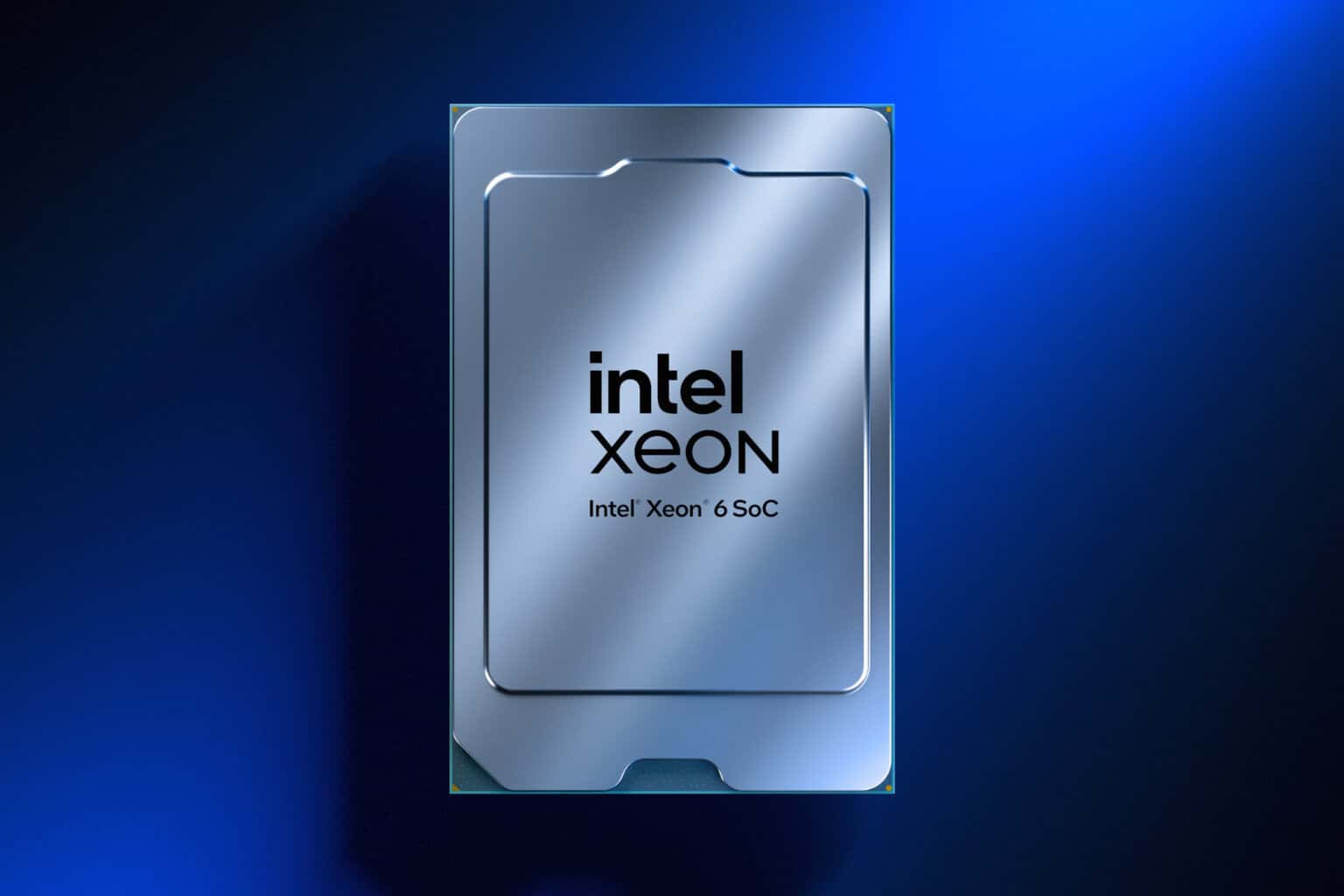
    This coincides with Intel launching the new Xeon 6 chips for AI centers. It’s certainly a huge step for Intel to get back in the game with AMD.

    If you install WinRar on non-English Windows 11, you’ll bump into a very weird bug

    Despite Windows 11’s native RAR app, many are still using WinRar as their default archiver. However, if you happen to install the app on a Windows 11 device that’s not set to English as its default language, the operating system will encounter a very weird and bad-looking bug.

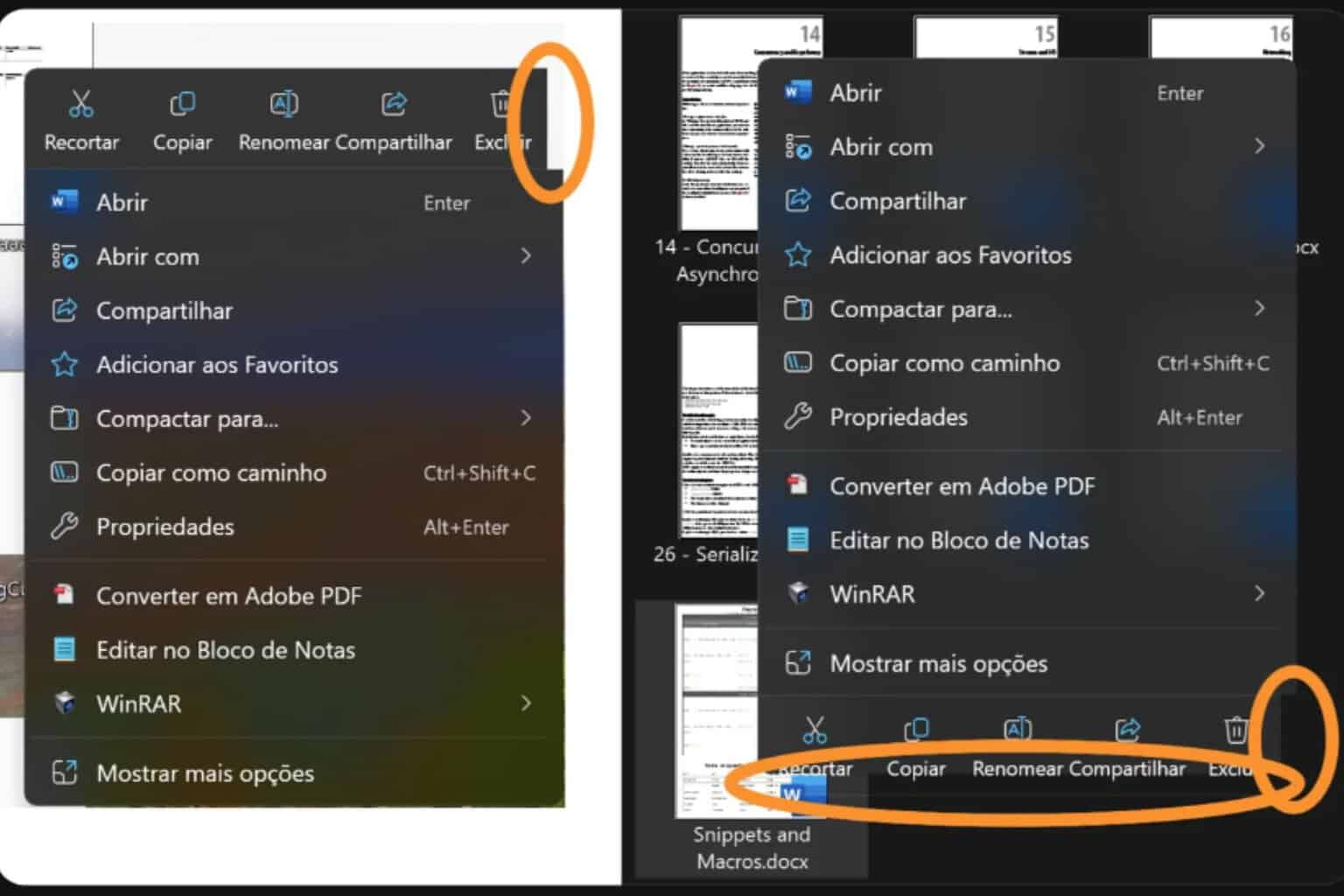
    The File Explorer’s context menu will be botched and cut, displaying a deformed design that’s, quite honestly, horrible. A Reddit user bumped into the bug after installing WinRar on their Portuguese-based Windows 11.

    While initially thinking the bug appeared because of WinRar, it seems that other Windows 11 users have encountered the bug without having to install the once-most popular archiver in the world.

    Instead, the bug happens because Windows 11 thinks the icon label text is too long, and so it will find ways to fit all of it without messing up the font. It will, however, mess up the design—really bad, if you ask us.

    The text for English is short and suitable, but other languages, such as Portuguese, might not be so lucky. Installing various apps will cause the context menu to encounter the bug.

    What to do? If you can, install the English pack for Windows 11 and use the operating system with this language. You can also try to trace the app that caused the bug and uninstall it.

    Remember that no matter how much you love WinRar, you no longer have to install it on Windows 11, as the operating system now has its native RAR tool, and it’s much better.

    Have you bumped into this issue?

    OpenAI banned North Korean hackers from using ChatGPT

    According to a new report issued by OpenAI, the AI developer banned several ChatGPT accounts linked to a North Korean threat group that was using the tool with malicious intent.

    We banned accounts demonstrating activity potentially associated with publicly reported Democratic People’s Republic of Korea (DPRK)-aliated threat actors. Some of these accounts engaged in activity involving TTPs consistent with a threat group known as VELVET CHOLLIMA (AKA Kimsuky, Emerald Sleet), while other accounts were potentially related to an actor that was assessed by a credible source to be linked to STARDUST CHOLLIMA (AKA APT38, Sapphire Sleet). We detected these accounts following a tip from a trusted industry partner.

    Allegedly, the target accounts were identified thanks to information provided by a partner in the tech industry. Apparently, the Korean organization was using tools for cyberattacks leveraging ChatGPT to gather information on cryptocurrency-related topics, which are often tied to North Korean state-sponsored hacking groups.

    Source: OpenAI

    Additionally, the OpenAI report states that the wrongdoers were using ChatGPT as a coding assistant, seeking help with everything from debugging to developing open-source tools. For example, they asked for guidance on how to use open-source Remote Administration Tools (RATs) and even sought assistance in refining publicly available security tools and code that could be repurposed for Remote Desktop Protocol (RDP) brute force attacks.

    OpenAI’s threat analysts discovered something interesting during their investigation: while debugging certain techniques, such as auto-start extensibility point (ASEP) locations and macOS attack methods, the North Korean hackers revealed staging URLs for malicious software that were previously unknown to security companies. They were sent by OpenAI to online scanning services, so now they can actually be detected, preventing possible attacks.

    Now, probably the North Korean hackers are not only using ChatGPT. There are plenty of other AI models that are not tracked, and this could have a lot deeper implications. There’s a cyber war out there and AI tools can play for both sides. We can just hope that our side will win.

    We’ve learned about this story from Bleeping Computer.

    Microsoft allowed people to use Office apps on Windows for free for a limited time

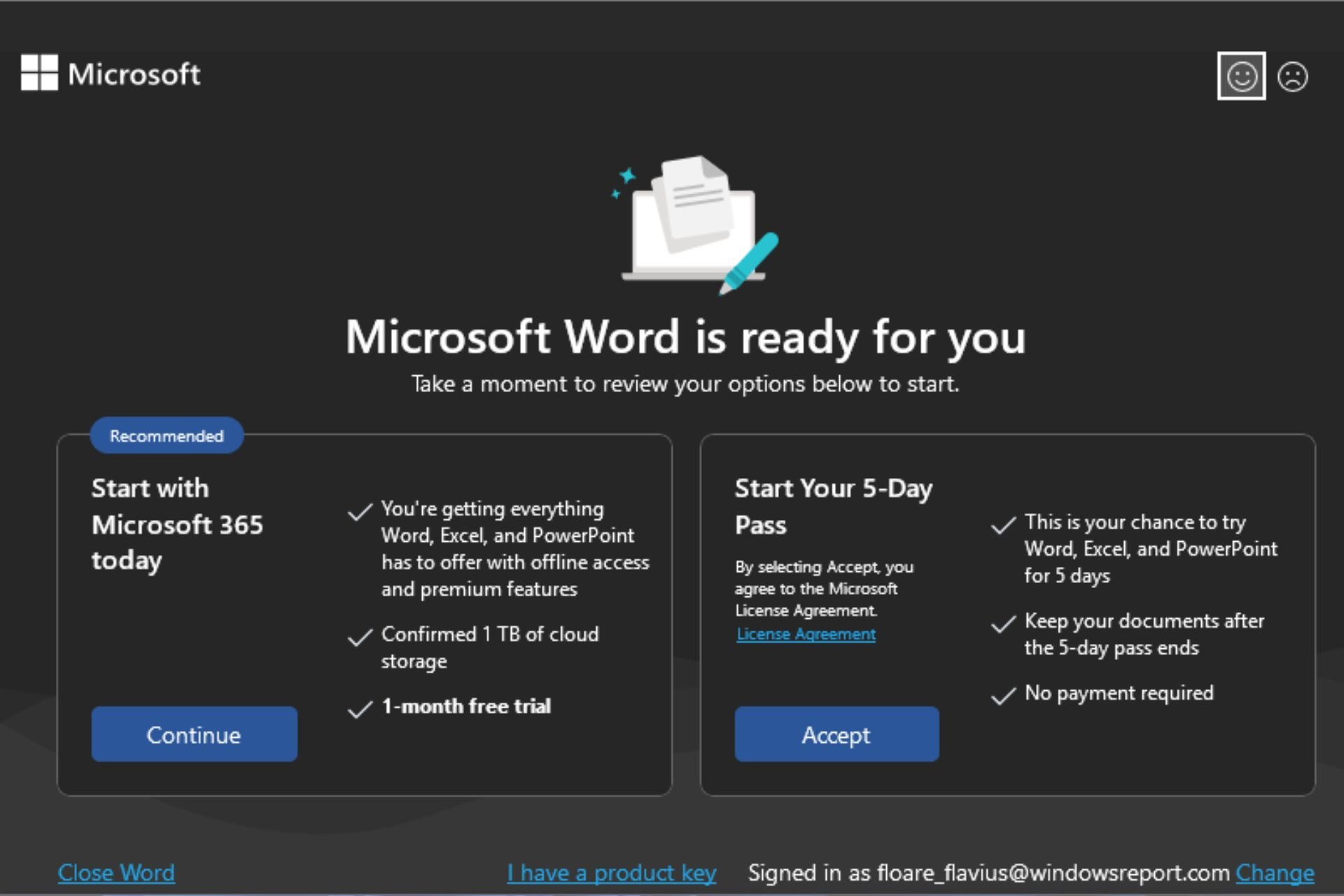
    Earlier this week, it was reported that Microsoft released a free version of its 365 Suite for Windows. The free version included ads, access to 5GB cloud storage on OneDrive, limited features on the 365 apps (but still enough to get the job done, if you ask us), and the ability to save files only on the cloud (so you weren’t able to save them locally).

    According to Beebom, Word, Excel, and PowerPoint were part of this free ad-supported Microsoft 365 deal. It included ads that appeared when working on the platform and a video that users had to watch every few hours.

    It’s also worth noting that the free ad-supported Microsoft 365 does not allow users to install add-ins, add watermarks, or access more advanced settings.

    Accessing this plan was straightforward: after downloading and installing the Microsoft Office pack, users were offered an ad-supported plan with the possibility of upgrading if needed.

    However, the Redmond-based tech giant quickly retreated the plan, for now, stating that the company does not currently have plans to launch a free, ad-supported version of Microsoft Office desktop apps, and instead, it had only been conducting some limited testing.

    Despite this, the company should think about releasing such a plan in the future.

    Would you use it?

    In other news, Microsoft recently changed the price for its Microsoft 365 subscription plans after it included AI.

    Via Beemop.

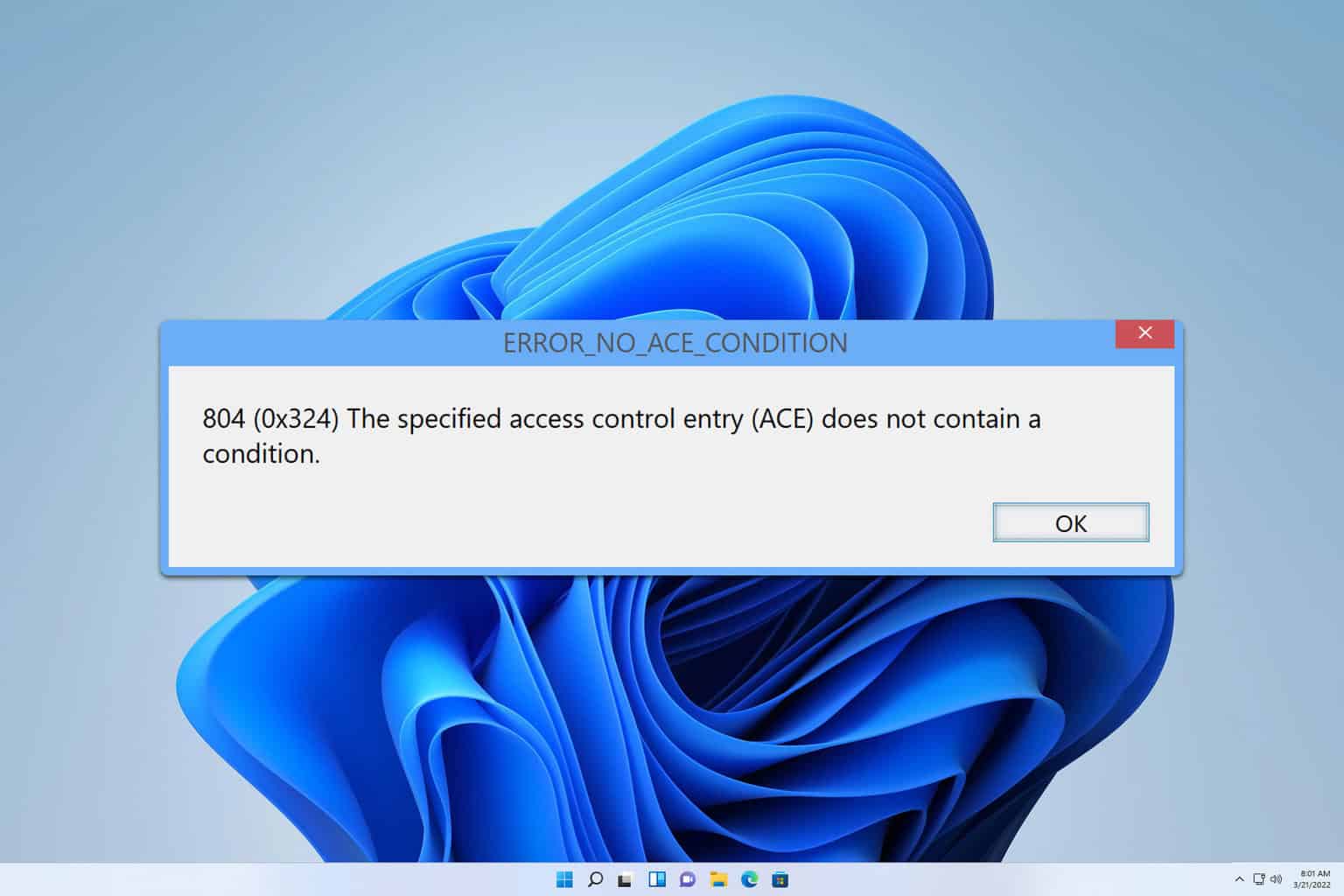
    Error no Ace Condition 804 (0x324): Fix it With 4 Steps

    System administrators can often encounter ERROR_NO_ACE_CONDITION, and this error can prevent you from accessing certain files, so in today’s guide, we’re going to show you how to fix it.

    How can I fix ERROR_NO_ACE_CONDITION?

    1. Reset ACLs for the affected file/folder

    1. Press the Windows key + S and type cmd. Choose Run as administrator.
    2. Next, run the following command: icacls "C:\path\to\file_or_folder" /reset /t /c /l /q
      icalcs reset
    3. After that, the permissions should be set to default.

    2. Check and modify ACLs with PowerShell

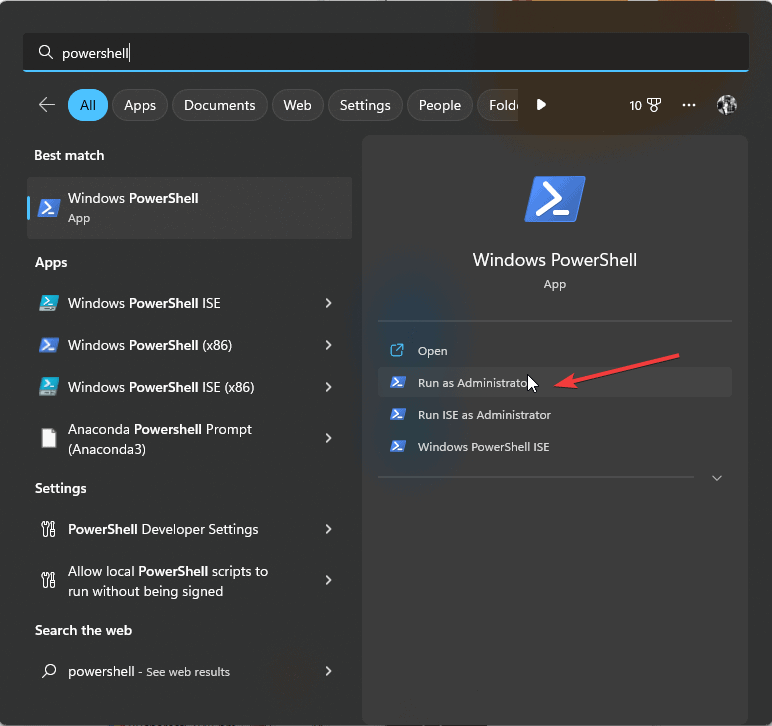
    1. Press Windows key + S and type powershell. Choose Run as administrator.
      Powershell - mpengine.dll
    2. Run the following to check ACE conditions: Get-Acl "C:\path\to\file_or_folder" | Format-List3
    3. If ACE is invalid, reset it with the following:
      $acl = Get-Acl "C:\path\to\file_or_folder"
      $acl.SetAccessRuleProtection($true, $false)
      Set-Acl "C:\path\to\file_or_folder" -AclObject $acl

    3. Check for Group Policy Conflicts

    1. Press Windows key + R and enter gpedit.msc.
      gpedit.msc - ERROR_ACCESS_DISABLED_NO_SAFER_UI_BY_POLICY
    2. Navigate to Computer Configuration and then Windows Settings.
    3. Choose Security Settings and then Local Policies. Select Security Options.
    4. Look for policies related to User Access Control or Security Descriptors and adjust them if needed.

    4. Adjust your code

    1. Open your code.
    2. Adjust it like this:
      import win32security

      sd = win32security.GetFileSecurity("C:\\path\\to\\file",
      win32security.DACL_SECURITY_INFORMATION)
      dacl = sd.GetSecurityDescriptorDacl()

      # Make sure ACEs are added with valid conditions
      for i in range(dacl.GetAceCount()):
          ace = dacl.GetAce(i)
          print(ace)  # Check if conditions are missing or malformed

    3. Save changes.

    ERROR_NO_ACE_CONDITION can be recognized by 804 (0x324) The specified access control entry (ACE) does not contain a condition message, and if you encounter it, reset ACLs or modify them with PowerShell.

    This isn’t the only error, and we wrote about ERROR_ABANDON_HIBERFILE and WORKER_THREAD_TEST_CONDITION in our previous articles, so don’t miss it.

    Microsoft’s new patent unveils AI capable of turning background audio noise to images

    AI is one of Microsoft’s most pressing topics, and the Redmond-based tech giant has been investing a lot of time and resources into developing models to be used as assistants in Windows or Microsoft 365 products. From Copilot in Windows 11 to Windows Recall and other AI-powered features, the technology definitely has its moment.

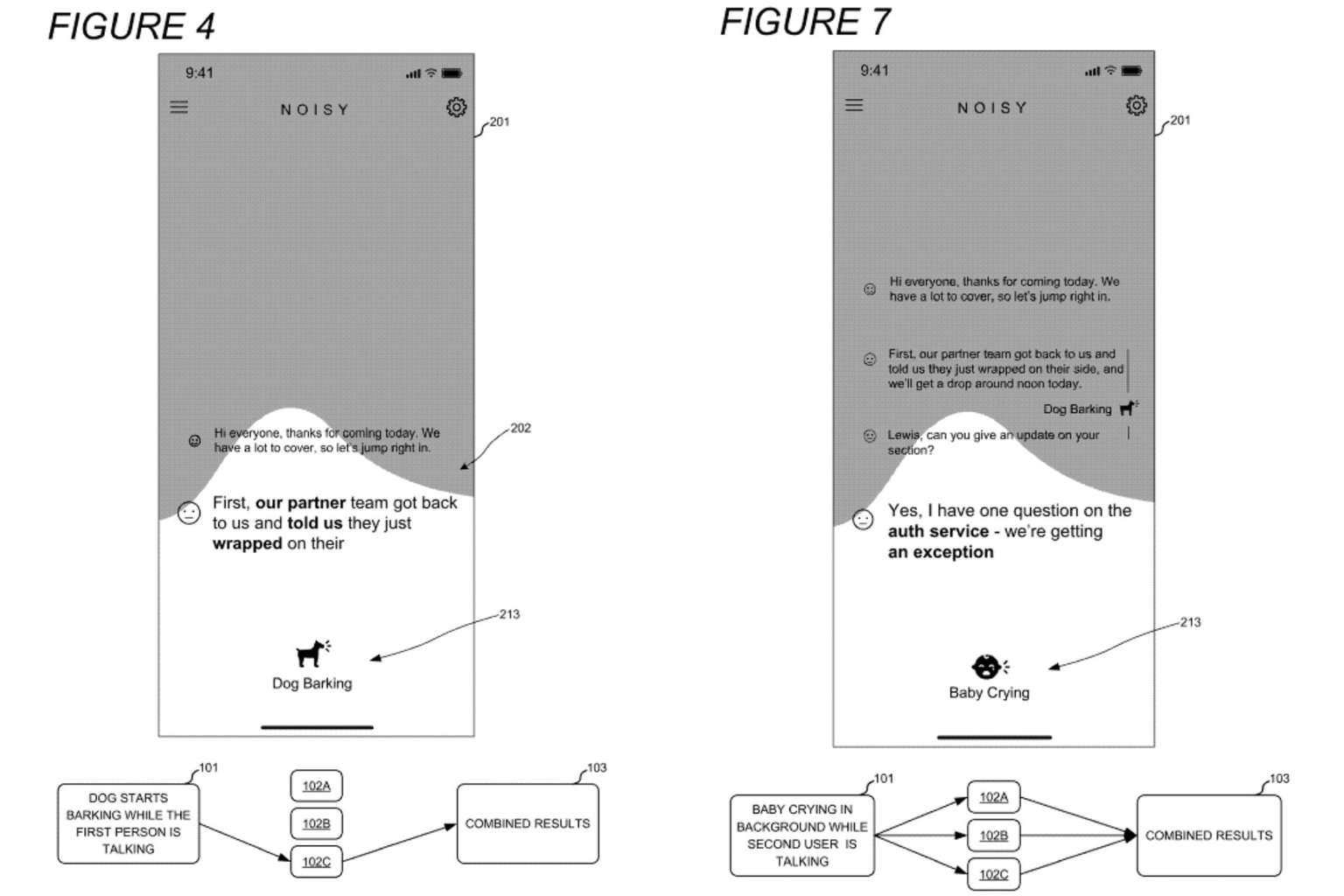
    As such, it should be no surprise that Microsoft is working on yet another AI technology that might soon be coming to Windows 11 and Microsoft 365 platforms, such as Teams. In a recently published paper, the Redmond-based tech giant unveiled a new patented technology that seeks to use AI models to turn background noises in virtual meetings into images. microsoft ai audio to image

    This text, Intelligent Display of Auditory World Experiences, describes an AI system that creates smart visual displays from sounds, especially during meetings or chat sessions. The system listens to different sounds and speech during an event. These could be speech from participants or other sounds in the environment.

    It features several Specialized AI Models, such as a Sentiment Recognition Model, a Speech Recognition Model, and an Audio Recognition Model.

    The first model can understand specific speech characteristics, such as how loud someone speaks (volume) or the emotional tone (happy, sad, angry, etc.). It helps understand how someone is feeling or the intensity of their speech.

    The second model picks up essential keywords or phrases from the speech. It can highlight these words or phrases in a transcript to show which parts of the conversation are important or relevant.

    The third model, the Audio Recognition AI, analyzes non-speech sounds, such as applause, laughter, or background noises. Based on these sounds, it identifies different events that are happening.microsoft ai audio to image

    The system combines all this information to create visual displays, including Speech Characteristics, showing visual indicators for volume or tone. It can highlight keywords by displaying essential keywords or phrases from the conversation, and for non-speech events, it indicates events like applause or background noises.

    Why is it important? The system would make understanding and interacting with what’s happening during an event easier. Visual indicators allow users to see the event’s mood, essential points, and other happenings, including potential incidents, such fire alarms, and so on.

    It can be a perfect accessibility tool for hearing-impaired users, allowing them to experience all the virtual meeting or chat interactions.

    Microsoft has released dozens of accessibility features for Windows 10/11 and Microsoft 365, so the chances of the company releasing this AI system are high.

    You can read the paper here.

    Microsoft Edge disables UBlock Origin and other Manifest V2 Extensions

    The latest Microsoft Edge Canary has disabled Manifest V2 extensions installed from the Chrome Web Store, including uBlock Origin.

    What happened?

    After updating to the latest version of Edge Canary, we noticed a message stating:” 2 extensions were turned off. These extensions were no longer supported. Microsoft Edge recommends that you remove them.”

    Microsoft Edge disables UBlock Origin, saying these extensions are no longer supported. Image Credit: WindowsReport.

    When attempting to manually enable the disabled UBO extension, Edge displayed another message: “Turn uBlock Origin on. This extension is no longer supported. Chrome recommends that you remove it instead.”

    Turn UBlock Origin on dialog. Image Credit: WindowsReport

    Microsoft pushes for Manifest V2 Extensions Phase out in Edge

    This suggests that Microsoft has begun applying restrictions on Manifest V2 extensions sourced from the Chrome Web Store.

    However, Microsoft allows turn it on and use it, we don’t know how long. We can confirm that Microsoft Edge is no longer allowing the installation of Manifest V2 extensions, such as uBlock Origin, from the Chrome Web Store.

    Interestingly, the uBlock Origin extension installed from the Edge Add-ons store is unaffected. We need to wait and see if this is a Chromium upstream change that affected Edge Canary or if it’s a bug.

    The company has officially announced it will support Manifest v3, which is a chromium initiative for the extension ecosystem. Likely Edge will allow Manifest V2 extensions to be used by users from the Edge add-ons Store because Microsoft hasn’t specified a time for the transition to Manifest v3 extensions.

    Microsoft stated, “The Microsoft Edge team will independently decide on MV3 migration timelines for Microsoft Edge Add-ons and share an update here. We continue to analyze the concerns raised by extension developers and explore the optimal path for the Microsoft Edge Add-ons ecosystem. Meanwhile, to plan the migration of your extension from Manifest V2 to Manifest V3, see the Manifest timeline for the Chromium browser engine, above.”

    That’s not all. Microsoft has recently made the revamped Edge Add-ons Store available. Additionally, we noticed that the new Edge settings are breaking the Ctrl+Shift+Delete shortcut, making it difficult to open and delete browsing data quickly.

    What’s your take on this? Let us know your thoughts on Microsoft disabling Chrome Web Store Manifest V2 Extensions in the comments below

    Security experts demonstrate hacking the Outlook spam filters to deliver malicious ISO files

    After we’ve just learned about a massive botnet attack targeting Microsoft 365 users, we’ve got another bad news. A new technique has been uncovered that allows cybercriminals to slip past Microsoft Outlook’s spam filters, delivering dangerous ISO files straight to people’s inboxes. If your organization uses the native Outlook spam filters, you might be at risk of falling victim to sophisticated phishing attacks.

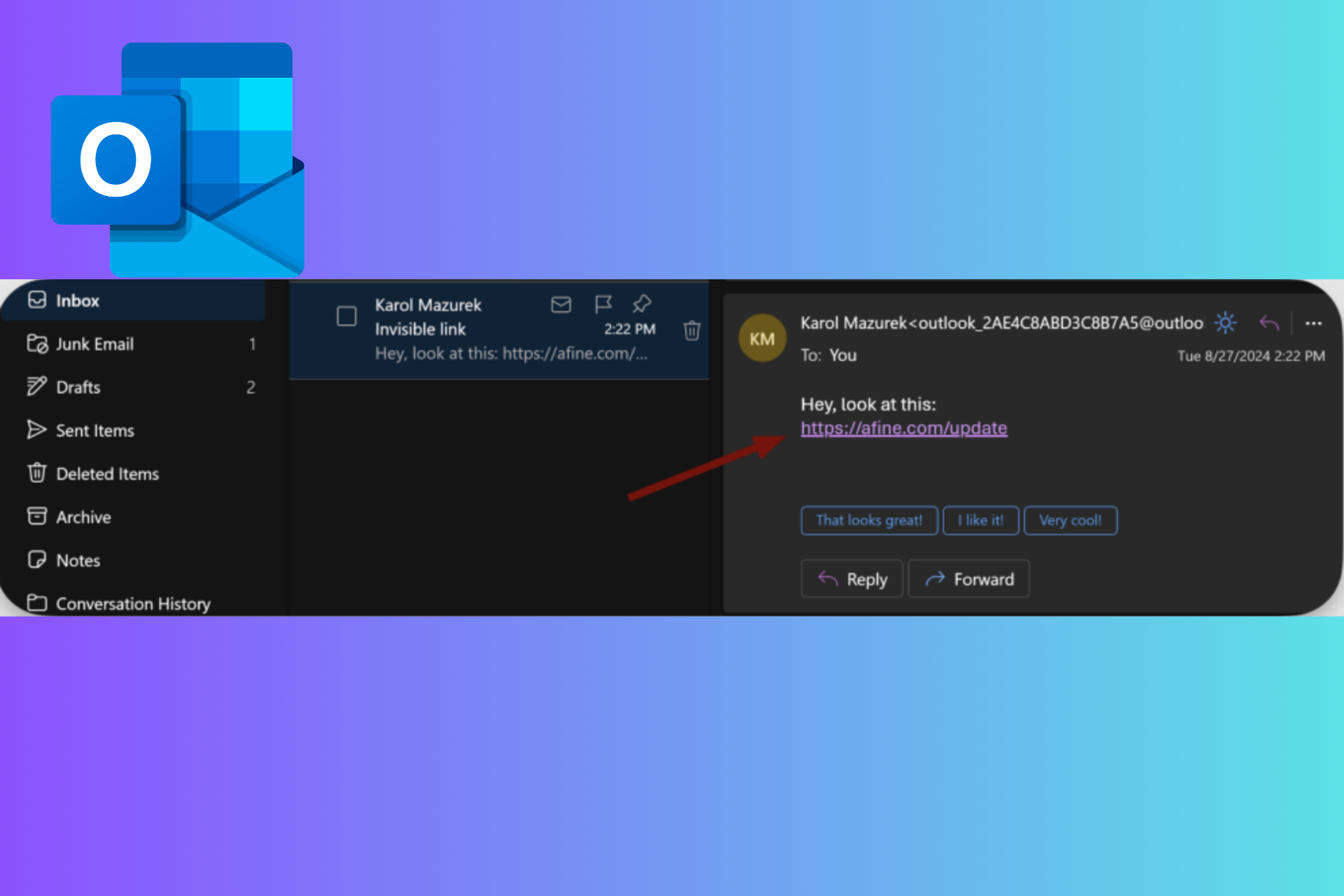
    The trick involves hiding malicious links behind what appear to be harmless URLs. By using a hyperlink obfuscation method, attackers can send disk image files containing malware directly into victims’ email inboxes without triggering any alarms.

    According to a report from Afine, security experts are warning that this approach weakens email security, especially for companies that rely heavily on Outlook’s built-in spam filtering. It’s like sneaking through the front door instead of trying to break in through the windows.

    Source: Afine

    This discovery comes on the heels of reports showing how attackers have also used ISO files to bypass Microsoft Defender SmartScreen, a tool designed to stop untrusted programs from running. In previous campaigns, bad actors relied on social engineering tactics—tricking users into manually extracting and running malware from downloaded ISO files.

    But now, the game has changed. The new method focuses on evading email-level defenses entirely, meaning these harmful files can land in users’ primary inboxes without being detected.

    ISO files remain a favorite tool for attackers because they often fly under the radar of traditional security systems. Unlike executable (.exe) files, which are more likely to raise red flags, disk images aren’t automatically seen as suspicious. This makes it easier for hackers to hide scripts, ransomware, or spyware inside them, turning what looks like an innocent file into a potential threat.

    However, we remind you that as with any other phishing attack, this one also needs your input. You actually have to click on the modified link to get the malicious ISO and infect your system. Therefore, as always, we recommend to always be on alert about suspicious emails, even if the spam filters fail to flag them. We’ve learned about this from GBhackers.

    Massive botnet attack is targeting Microsoft 365 accounts worldwide

    According to a recent report from SecurityScorecard, a huge network of over 130,000 hacked devices is actively trying to break into Microsoft 365 accounts worldwide. These attackers are using a technique called password spraying, which involves guessing common passwords across many accounts.

    They’re specifically targeting systems that still use basic authentication, which allows them to sidestep multi-factor authentication (MFA) protections.

    According to the SecurityScorecard report, the attackers are using credentials stolen by malicious software known as infostealers. This lets them launch large-scale attacks on numerous accounts. By relying on non-interactive logins through Basic Authentication, they can sneak past MFA safeguards and gain access without setting off any security alarms. It’s like picking a lock quietly instead of kicking down the door.

    Source: SecurityScorecard

    Organizations relying solely on interactive sign-in monitoring are blind to these attacks. Non-interactive sign-ins, commonly used for service-to-service authentication, legacy protocols (e.g., POP, IMAP, SMTP), and automated processes, do not trigger MFA in many configurations. Basic Authentication, still enabled in some environments, allows credentials to be transmitted in plain form, making it a prime target for attackers, writes SecurityScorecard.

    The botnet, which is allegedly operated by a Chinese organization, is using a sneaky method to try and break into accounts by leveraging Basic Authentication. This technique involves targeting a wide range of accounts with commonly used or leaked passwords. Basic Auth doesn’t require any back-and-forth interaction so if the attackers find a match with the credentials they’re trying, they aren’t asked for multi-factor authentication (MFA) and often slip past Conditional Access Policies (CAP) unnoticed. This allows them to quietly confirm whether an account’s credentials are valid.

    Once they’ve verified the login details, these credentials can be used in two ways: either to access older services that don’t demand MFA, or as part of more advanced phishing schemes designed to fully bypass security measures and take over the account.

    SecurityScorecard points out that you might be able to spot signs of these password-spray attacks by checking your Entra ID logs. Look for unusual patterns like a spike in non-interactive login attempts, repeated failed logins from different IP addresses, and the appearance of the fasthttp user agent in the authentication records.

    This is one of the most dangerous attacks since the wrongdoers can bypass the multi-factor authentication. We’ve learned about this from Bleeping Computer.

    New Outlook for Windows will introduce S/MIME for extra security when opening emails

    New Outlook for Windows will feature S/MIME (Secure/Multipurpose Internet Mail Extensions). This feature lets you sign and encrypt your emails to keep them safe.

    S/MIME (Secure/Multipurpose Internet Mail Extensions) is a technology that improves email security. It provides features such as signing and encryption. The first one, for example, ensures that the email comes from you and hasn’t been altered. It’s sort of like putting your unique signature on an email.

    On the other hand, encryption means that only the intended recipient can read the email. It scrambles the content so anyone else trying to intercept it can’t understand it.

    The feature was announced in a recent entry to the Microsoft 365 Roadmap. According to it, admins can set up labels that automatically sign or encrypt emails. When you use these labels, your emails will be signed or encrypted according to the settings.

    Here’s what the entry says:

    New Outlook for Windows will support S/MIME (Secure/Multipurpose Internet Mail Extensions) signing and encryption as an outcome of sensitivity labels. Admins can use set label advanced setting to define the label to have S/MIME sign or encryption or both, and emails with those labels applied will enforce S/MIME sign and encrypt accordingly. #newoutlookforwindows

    The new enhancement will be released to all New Outlook users for Windows users in March next month. That’s when the platform is also set to be enhanced with time suggestions for meetings and the Email Auto-Advance feature for Android users.

    Intel launches Xeon 6 processors for AI systems to grab some of the market from AMD

    Intel has just unveiled its latest lineup of Xeon 6 processors, aiming to take the lead in artificial intelligence (AI) computing. These new chips promise significant performance boosts, especially for data centers and AI workloads.

    The Xeon 6700/6500 series, equipped with P-cores, offers up to twice the performance on AI tasks compared to previous generations. According to Intel, on average, the new processors boost a 1.4x improvement across various workloads.

    The most important aspect is that Intel says that the Xeon 6 SoCs deliver 1.6 times better AI inference performance than AMD’s 5th generation EPYC processors, all while using one-third fewer cores. The processor manufacturer adds that the efficiency increase can lead to up to 68% savings in total cost of ownership.

    These processors are meant for data centers and AI infrastructure, not for consumers. Therefore, this balance between high performance and energy efficiency means that the Xeon 6 processors are great for data center environments. Less cooling and power consumption can make a huge difference in an environment with thousands of chips.

    With the introduction of the Xeon 6 family, Intel might get back some of the hype from AMD’s solutions, and grab some of the AI computing market share.

    Mozilla Firefox gets Smart with AI-Powered Tab Grouping

    After making Tab Groups available for Firefox Nightly, Mozilla is now experimenting with generative AI to organize similar tabs into groups. Here’s how the AI-powered “Smart Tab Groups” work in Firefox, as we spotted.

    We’ve seen Microsoft Edge and Google Chrome use AI to organize similar open tabs into groups, Firefox’s AI-powered tab grouping works similarly, but with a different implementation.

    While creating a tab group when you select”Add Tab to New Group” option, Firefox informs users in the dialog box that it can “Suggest tabs to group” and reveals that it “uses AI to suggest tabs and group names. It also warns that “Some suggestions may be inaccurate”.

    Image Credit: WindowsReport.

    The system pre-populates the tab group name based on the open tabs. After clicking “Done” and right-clicking ona tab group name, an option to “suggest more tabs for the group” appears.

    Suggest tabs to group AI prompt in Firefox. Image Credit: WindowsReport
    Suggest more tabs to group prompt. Image Credit: WindowsReport

    In our testing, Firefox’s AI accurately identified most similar tabs and provided relevant group names, such as “Windows Discussion,” “Search,” and “Google Accounts.

    As you open similar tabs, Firefox will suggest them for grouping. Image Credit: WindowsReport.
    Firefox’s AI suggested tabs for grouping. Image Credit: WindowsReport.

    How to enable AI-powered Tab Grouping in Firefox

    1. Launch latest Firefox Nightly
    2. Visit about:config
    3. Find and enable “browser.tabs.groups.smart.enabled” Pref value to “true”.
    Smart Tab Groups about:config Preference in Nightly. Image Credit: WindowsReport.

    While the feature still needs to evolve to match the organization of tabs into groups in Chrome and Microsoft Edge, it’s certainly a good start. Just when it seemed that Firefox was falling behind in the AI race, Mozilla delivers a surprise.

    This is not the first time Mozilla has used AI in Firefox. In fact, they used AI to generate alt text for images in PDF documents. Of course, Firefox already provides several AI chatbots with the proofreading feature, and even supports Deepseek in the sidebar. And “Solo AI” is a Mozilla product that lets you create a website and associate your own domain with it.

    Recently, Mozilla added vertical tabs and a new profile management feature in Nightly that makes it easier to create new profiles and switch between them.

    What do you think of Firefox’s AI-powered Smart Tab Grouping feature? Let us know your thoughts in the comments below.

    The Xbox Game Pass account will cost you more Microsoft Rewards points

    In a move that has both fans and gamers scratching their heads, Microsoft has decided to hike up the prices for Xbox Game Pass subscriptions for those who use Microsoft Rewards to redeem their memberships.

    We reported about many users not being able to find their rewards in the Microsoft Rewards program. For some, Microsoft Rewards didn’t even show up for hours or days.

    According to a Reddit post from Conflict_NZ on Reddit, the Auto-Redeem program was updated with new prices for the Game Pass accounts:

    As some people who use rewards might know, Auto-Redeem for Gamepass Ultimate has been unavailable for a while. In the last few hours it has just returned with a significantly higher cost. A month of Xbox Gamepass Ultimate is now 17,000 as opposed to 12,000 and PC Gamepass is now 10,500 instead of 7,500.

    So, soon, players who have been racking up points through Microsoft Rewards will need to dig a little deeper into their pockets to keep enjoying their favorite games. Let’s dive into the details and see what this means for gamers everywhere.

    That came after in July last year, Microsoft increased the prices for Game Pass all across the board.

    Back then, Xbox spokesperson Jake Rivers justified the price increase:

    We understand that this price increase may come as a surprise to our loyal players. Microsoft Rewards has always been about giving back to our community, but with the rising costs of game development and the need to maintain a quality gaming experience, we had to make this tough decision.

    But why the sudden hike for those using rewards? Well, it seems like Microsoft is trying to balance the books after investing heavily in new titles and expanding its gaming library. And let’s be honest, with the gaming industry booming, it’s no shocker that companies are looking for ways to keep their services sustainable. However, the community is understandably divided over the news; while some recognize the need for adaptation in a changing market, others are feeling the financial pinch.

    As it was expected, the gamers are not happy about the change and their responses in the Reddit thread are mostly negative:

    Haven’t done the “Auto Game Pass Ultimate” point redeem. Currently saving up my points for the $100 gift card, so I typically get the Game Pass Ultimate 3 Months gift card online or in stores sub, but uhhhh…. that’s just not cool man what there doing, says user imitzFinn on Reddit.

    Of course, not all of them are complaining about Microsoft’s move, with some gamers understanding the need for change and support Microsoft.

    As the gaming community reacts, it’s important to consider the broader implications of this decision. With competition from platforms like PlayStation Plus and Nintendo Switch Online, Microsoft is in a constant battle to provide value and retain subscribers. The price hike might be strategic, but it also carries the risk of alienating some of its most loyal users.

    Whether this strategy pays off remains to be seen. As always, gamers will adapt, but companies need to remember that loyalty comes at a price, and sometimes that price can be more than just dollars and cents. We’ve learned about this story from Notebook Check.

    Windows 11 Shutdown But User Stays Logged in: How to Fix it

    Many Windows users reported that Windows 11 shutdown, the user stays logged in, and this can be a minor issue for some users. However, this can be fixed, and today we’re going to show you how to do it.

    What can I do if the user stays logged in after Windows 11 shutdown?

    1. Change sign-in options

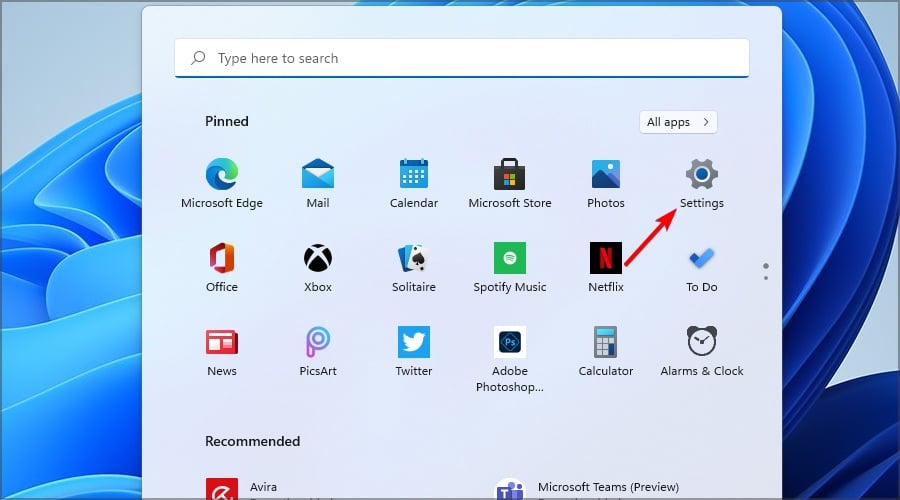
    1. Open the Start Menu and select Settings.
      start menu settings windows 11
    2. Next, select Accounts and then choose Sign-in options.
    3. Scroll down and disable Use my sign-in info to automatically finish setting up after an update.

    2. Change group policy

    1. Press Windows key  + R and type gpedit.msc.
      gpedit.msc - ERROR_ACCESS_DISABLED_NO_SAFER_UI_BY_POLICY
    2. Next, navigate to the following path: Computer Configuration and expand Administrative Templates.
    3. Select Windows Components and then Windows Logon Options. Select Configure the mode of automatically signing in and locking last interactive user after a restart or cold boot.
      configure the mode of automatically signing in
    4. Set it to Disabled on Not Configured and click on Apply and OK.

    If the user stays logged in even after Windows 11 shutdown, you can fix the problem by adjusting your settings or group policies. If nothing else works, you might have to shut down your PC from the login screen to stop it.

    This isn’t the only shutdown error, and many reported that Windows 11 randomly shuts down, while others reported that Windows 11 is not shutting down at all, however, we fixed both issues in our previous guides, so don’t miss them.

    We also have a new guide on how to prevent Windows 11 shutdown after inactivity, so don’t miss it.

    Microsoft teased Clippy, and now Windows users want all the assistant characters back

    A few weeks ago, Microsoft teased Clippy, the popular Windows assistant, in a series of social media posts on X (formerly known as Twitter). While we don’t know if the Redmond-based tech giant is officially considering bringing it back, the posts were enough to create nostalgia for old Windows assistants.

    Long before the era of Copilot (and even Cortana, for that matter), there were Clippy, Rover, Rocky, Mother Earth, F1, Earl, The Dot, and many more characters designed to provide an engaging and fun experience when navigating Windows.

    Now, it seems that more and more Windows users want these characters back. On Reddit, users wish for Microsoft to bring these characters back. How? By replacing the search with them.

    While the post is mainly a joke, some Windows users genuinely want these characters back, with one user, in particular, expressing interest in modern versions.

    I’d honestly love to see modern versions of these mf’s. 3D rendered (or of course 2D if it’s a more cartoonish character), intelligent perching on windows, conversational with recent tech, actual usefulness etc.

    Microsoft might bring some of them back in a way or form. The Redmond-based tech giant teased Clippy with some dedicated social media posts, prompting many to think these assistants are returning.

    With the rise of Copilot and the many AI features in Windows 11, Microsoft might bring them back. Not to mention that the Redmond-based tech giant is soon turning 50, and this might be the perfect opportunity to unveil the new modernized characters that are still beloved by many.

    Would you like to have them back in Windows 11?

    Cloud gaming files reveal the Sebile and Actium Duet Xbox controllers

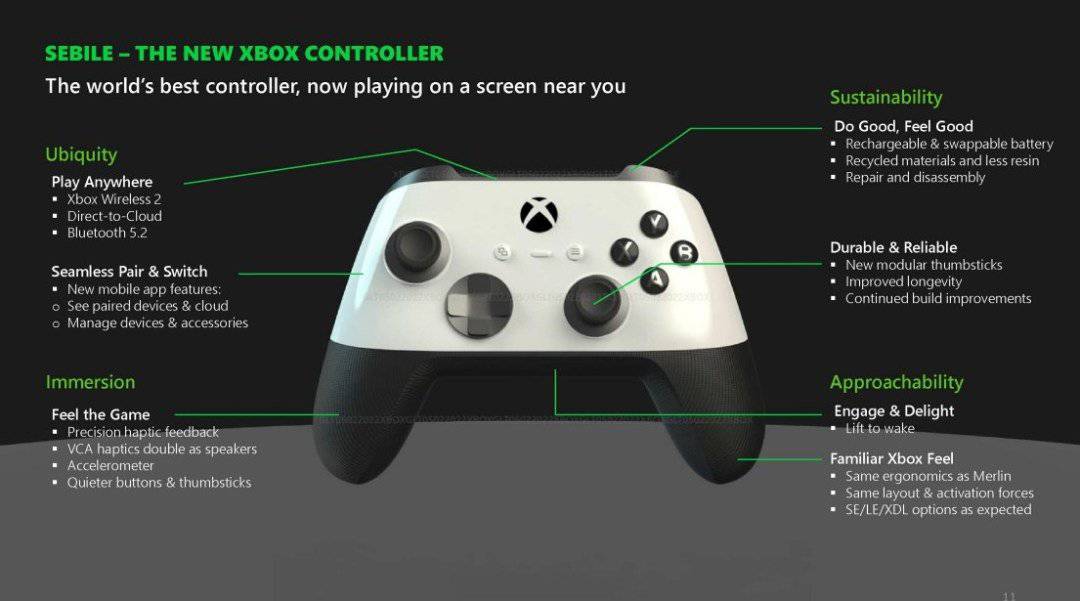
    It seems Microsoft has a few tricks up its sleeve when it comes to Xbox controllers. Recent leaks from eXtas1stv on X have reignited chatter about two intriguing Xbox controllers: Sebile and Actium Duet.

    As reported by TweakTown, these codenames resurfaced thanks to keen-eyed data miners sifting through Xbox Cloud Gaming files, suggesting that Microsoft is still cooking up some hardware surprises.

    The leaker also detailed their find later on in a YouTube video (in Spanish).

    Sebile: The return of a familiar name

    Leaked image of Sebile controller from 2023 – Image credit: Microsoft

    First up, Sebile isn’t a new name for those who’ve been following Xbox rumors. Originally leaked during the 2023 Activision-Blizzard trial, Sebile was touted to feature advanced haptic feedback, adaptive triggers, and even audio output directly from the controller. The recent findings indicate that Sebile is still in development, with references to Sebile EV1 and Sebile Delgado hinting at possible variations. Could we be looking at different models or perhaps a standard and pro version? Time will tell.

    Actium Duet: A new contender

    The more mysterious of the two, Actium Duet, is a fresh codename that’s sparking curiosity. The Duet moniker has led to speculation about a modular or split design, reminiscent of Nintendo’s Joy-Cons. Alternatively, it could signify a new Elite controller variant, offering customizable features for the hardcore gamer. While details are scant, the inclusion of Actium Duet in the cloud gaming files suggests that Microsoft is exploring innovative designs to enhance the gaming experience.

    While leaks and codenames are always tantalizing, it’s essential to approach them with cautious optimism. The presence of these names in the code doesn’t guarantee an imminent release. However, it does indicate that Microsoft is actively developing new hardware, potentially aiming to align with the next generation of Xbox consoles or to offer enhanced peripherals for current systems.

    As always, until Microsoft makes an official announcement, all we have are educated guesses and a lot of excitement. But one thing’s for sure: the future of Xbox gaming looks promising, and we can’t wait to see what Sebile and Actium Duet turn out to be.

    Age of Mythology: Retold – Immortal Pillars unveils the four Auspicious Beasts

    Last week, the team behind Age of Mythology: Retold—Immortal Pillars unveiled the artwork and design for the expansion’s Four Perils, which are the game’s ‘bad’ mythic creatures.

    This week, it’s turn for the good guys to show up, and the four Auspicious Beasts, as they’re called, are, once again, a marvel of design and talent.

    The four mythic creatures are inspired by Chinese mythology but with a unique twist. Plus, as the team says in the official blog post, they are some of the strongest units in the game.

    The first of the four Auspicious Beasts is Baihu, which is a wingless tiger (its evil twin, Qiongqi, has wings), with a white-silver color, and a special ability called Sweeping Maul that immobilizes units and deals damage to them. The unit is available to recruit when reaching the Heroic Age and is similar in power to the Nemean Lion.

    The second of the four Auspicious Beasts is Xuanwu, a water unit capable of walking on land. A turtle with a snake as its sidekick, Xuanwu is available to recruit when reaching the Mythic Age, and it’s one of the longest-living units in the game, able to withstand vast amounts of damage.

    The third of the four Auspicious Beasts is Qinglong, a classic serpent-like Chinese dragon that can fly across the battlefield and unleash torrents of water that damage multiple units at once. The creature is available when reaching the Mythic Age. Despite its strong attacks, Qinglong is vulnerable to attacks.

    Finally, Zhuque is the fourth Auspicious Beast, basically the Chinese Phoenix. Described as a fiery beast, this flying mythic creature has flames all over its body, and aside from its offensive abilities, it also has defensive capabilities, which can heal and increase the armor of its allies. Zhuque is available when reaching Mythic Age.

    Age of Mythology: Retold – Immortal Pillars is coming on March 4th, and everyone who owns the Premium version of the game will get it for free.

    Users found a sneaky loophole to install Windows 11 on older PCs, but there’s a catch

    If you’ve been holding out on upgrading to Windows 11 because your PC doesn’t meet Microsoft’s strict hardware requirements—especially that pesky TPM 2.0 restriction—there might be a surprising workaround.

    As a user cleverly pointed out on Reddit, Windows 11 IoT Enterprise can run on older hardware without requiring TPM 2.0, Secure Boot, or other modern security features that standard Windows 11 demands.

    What’s Windows 11 IoT Enterprise?

    Windows 11 IoT Enterprise is a specialized version of the OS designed for embedded systems—think industrial machines, medical devices, kiosks, and even some low-powered business computers. Unlike the consumer and professional editions of Windows 11, this version doesn’t enforce the same hardware restrictions, making it an unexpected solution for older PCs.

    Since IoT devices often run on legacy or custom hardware, Microsoft can’t impose the same requirements that apply to desktops and laptops. This means that Windows 11 IoT Enterprise can install and function on systems that wouldn’t normally qualify for an official Windows 11 upgrade.

    Could you use it on your old PC?

    Technically, yes—but there’s a catch. Windows 11 IoT Enterprise isn’t available for direct purchase like Windows 11 Home or Pro. It’s intended for businesses and manufacturers who build embedded systems. However, some tech enthusiasts have found ways to obtain and install it on unsupported hardware. Actually, you can find a guide on how to install Windows 11 IoT Enterprise on the Massgrave website.

    Before you get too excited, there are a few important things to keep in mind:

    • Licensing restrictions – This edition isn’t meant for general consumers, so using it outside of its intended purpose could be a gray area.
    • Limited support & updates – IoT editions don’t get the same update cycle as mainstream Windows versions. Security patches might be delayed.
    • No guarantees – Just because it installs doesn’t mean it’ll be as stable or fully functional on a regular PC.

    Windows 11 IoT Enterprise presents an interesting loophole for those looking to run Windows 11 on older machines without TPM 2.0. While it’s not an official consumer workaround, it does highlight how Microsoft bends its own rules for certain use cases. Whether you should install it on your personal PC? That’s up to you, but proceed with caution. We would still recommend installing and testing it on a virtual machine first.

    If you do decide to do that, let us know in the comments below about your experience.

    OneNote for Mobile will use Copilot to gather notes from images and videos automatically

    OneNote for Mobile is about to become your favorite notes app on Android; Microsoft will enhance its Copilot to automatically extract insights from images and videos and create notes from them.

    This new feature in OneNote mobile, announced in a recent entry to the Microsft 365 Roadmap, lets you share videos and images directly into OneNote.

    When you do this, OneNote will automatically capture all the essential information from the videos and images and add it to your notes. This way, you don’t have to write down or create the insights manually.

    Here’s what the entry says:

    With this new feature in OneNote mobile, you can share videos and images into OneNote and watch the magic unfold. All the key insights from the video and images are captured effortlessly into notes so that you do not have to manually create them.

    In other words, it makes note-taking easier by automatically extracting key information from shared videos and images.

    However, we’ll have to wait for it: the Redmond-based tech giant plans to release it next year, in June 2026.

    Last year, Microsoft enhanced the app with the ability to turn audio messages into written notes, so this is not really a surprise. Coupled with the new enhancement, OneNote can process information much faster.

    Avowed Keeps Crashing: How to Permanently Stop it

    If you recently got Avowed, you might notice that the game keeps crashing. This problem will prevent you from playing the game, but there’s a way to fix it, and in this guide, we’re going to show you how to fix it.

    What can I do if Avowed keeps crashing?

    Disable Post Processing Quality

    1. Start the game and go to graphics settings.
    2. Locate Post Processing Quality and set it to Low.
    3. Save changes and try to start the game.

    Avowed error The UE-Alabama game has crashed and will close

    1. Turn off RayTracing

    1. Press the Windows key + R and type %localappdata%.
    2. Next, go to /alabama/saved/config
    3. Locate the config file and disable RayTracing.

    2. Disable Nvidia Reflex Low Latency

    1. Start the game.
    2. Go to graphics settings and disable Nvidia Reflex Low Latency.
    3. Save changes.

    3. Underclock your Intel CPU

    1. Download Intel Extreme Tuning Utility.
    2. Run the software.
    3. Set the Performance Core Ratio to a lower value, such as 52x or 51x.
      performance core clock
    4. Click on Apply to save changes.

    This usually affects Intel’s 13th and 14th generations, but other generations could be affected as well. Other users suggested that removing overclock or underclock settings helped them, so try that as well.

    4. Download older Nvidia drivers

    1. Use Display Driver Uninstaller to remove your current Nvidia driver.
    2. Next, download Nvidia driver 561.09.
    3. After installing the driver, check if the problem is resolved.

    Avowed crashes at compiling game shaders

    1. Run the game in Compatibility mode

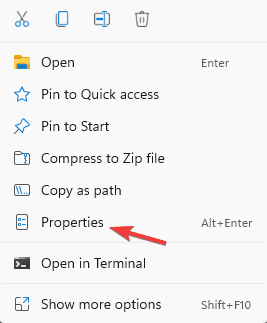
    1. Locate the game shortcut, right-click it, and choose Properties.
      properties context menu
    2. Navigate to the Compatibility tab.
    3. Check Run this software in Compatibility mode for and select Windows 8.
    4. Check Run the software as administrator.
      run Cubase as admin
    5. Lastly, check Disable full-screen optimizations.
    6. Click Apply and OK to save changes.

    2. Run the game with the dx11 parameter

    1. Open Steam, right-click Avowed, and choose Properties.
    2. In the General tab, locate the Launch Options.
    3. Enter -dx11 and save changes.

    3. Adjust the registry

    1. Press the Windows key + R and enter regedit.
    2. Navigate to the Computer\HKEY_LOCAL_MACHINE\SOFTWARE\Microsoft\Cryptography
    3. Double-click the MachineGuid in the right pane.
    4. Change its value to d1eb246e-6243-4460-a88e-5d4e52b1ef6b and save changes.

    4. Reinstall the game

    1. Install the latest graphics drivers.
    2. Remove the game.
    3. Install it again.

    Avowed stuttering

    Use mods

    1. Download Optimized Tweaks mode. Select Manual Download.
    2. Next, go to \Avowed\Content\Alabama\Content\Paks
    3. Create a new folder and name it ~mods
    4. Extract the ~AVDoptimizedTweaksBASE_P.pak from the downloaded file to the ~mods folder.
    5. Optional: Set frames to Unlimited and turn off Vertical Sync.

    If you don’t want to use mods update the DLSS 3 and FG support in the game using the DLSS swapper.

    These are just some of the methods you can use if the Avowed keeps crashing on your PC. This isn’t the only issue, and we wrote a guide on what to do if Avowed is not working as well as a guide on Avowed LowLevelFatalError.

    Outlook gets the Email Auto-advance feature to help you with email management

    Microsoft Outlook will roll out in March a new Email Auto-Advance feature designed to streamline email management. In the Microsoft 365 roadmap note, the software giant describes how this feature will work:

    This feature allows users to automatically open the message above the current one in the message list after performing actions like moving or deleting the current message. Users can turn this behavior on in the “Email Auto-advance” Mail setting.

    So, this setting will allow you to control what happens after you take action on an email, such as deleting or archiving it. Instead of returning to the message list, you can now choose to automatically open the next or previous email, enhancing workflow efficiency.

    The feature will roll gradually starting March, and it’s pretty easy to enable. To do that, hit the Home button, and select the Settings icon (the gear). Then, go to Mail > Email Auto-Advance and select the preferred option.

    You can choose to open the next, the previous email, or return to the message list.

    This customization aims to provide a more seamless email navigation experience, reducing the need for repetitive clicks and helping users manage their inboxes more effectively. That might not be so important if you’re a home user, but if you’re dealing with tens of emails daily, the new feature will definitely make a difference.

    Microsoft also announced recently that Classic Outlook for Windows will be enhanced with AI agents.

    What do you think about the new Email Auto-advance feature? Let us know in the comments below.

    You can trim your video recordings with Snipping Tool now

    Microsoft released the latest KB5052080 to the Dev and Canary channels. While the build brings some important features, AI-powered Cloud Photo Search, and Recall upgrades, it also enhances the Snipping Tool with the ability to trim videos.

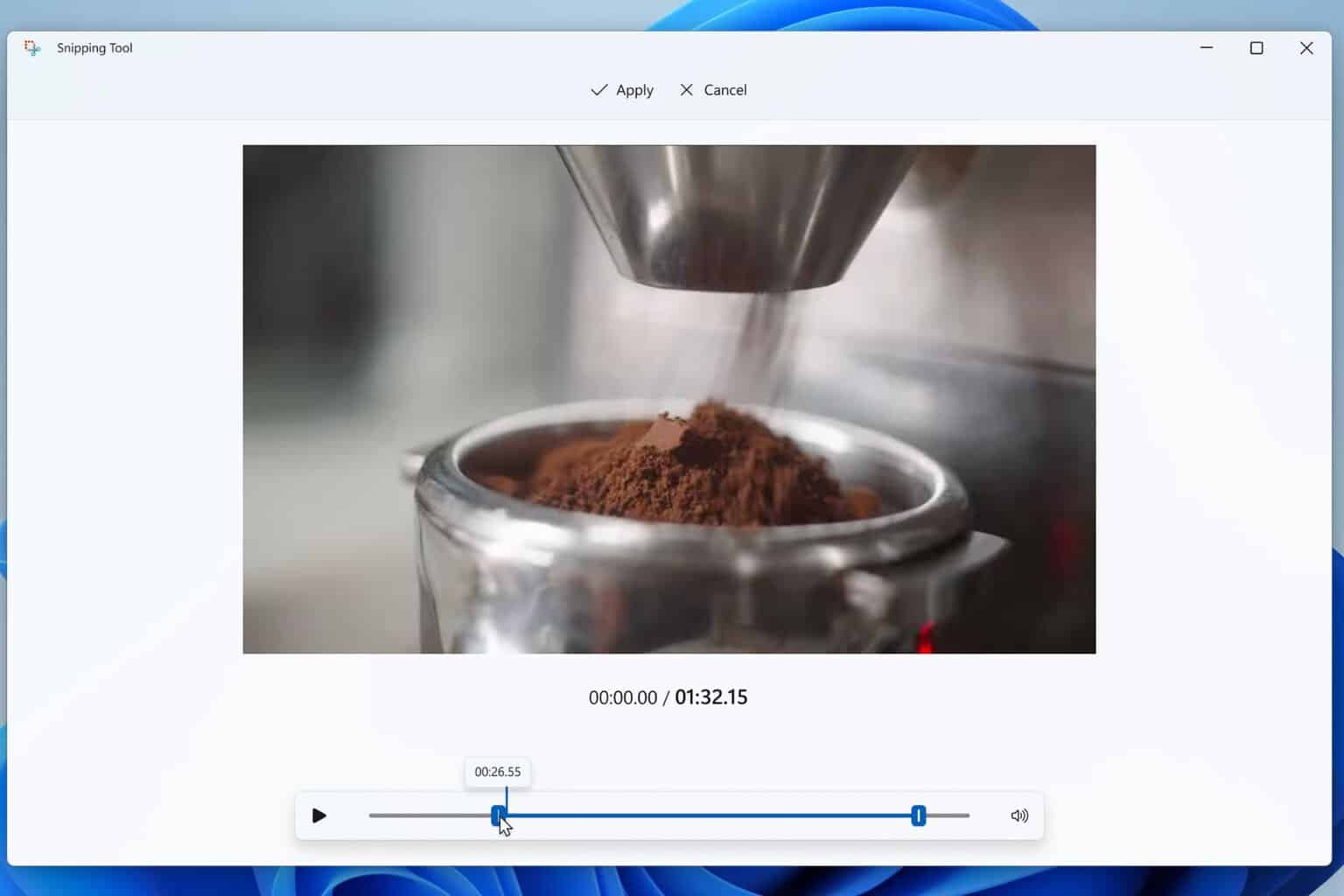
    That’s right: you can trim the video recordings you take with the Snipping Tool right after the recording process is over and edit your videos as you want.

    The Redmond-based tech giant says the tool will place the new Trim button at the top of the window. Users can click it to enter the trim mode, and the feature will work similarly to any trimming capability on mobile phones: it has grabbers that can be moved while allowing users to select time points.

    After the changes are done, users can hit Apply or Cancel to save or discard them.

    The capability also has an Undo option, making it easier for people to reverse all the cuts they made.

    It’s now rolling out to Dev and Canary Insiders.

    You can read more about it here.

    Edge has a revamped Add-ons website helping you find extensions faster

    Microsoft has launched a significant update to its Edge Add-ons website, designed to streamline your search for extensions and themes. The new site features a sleek, modern layout with easy navigation, including specific tabs for extensions and themes, along with a convenient search bar located at the top right corner.

    The feature was previously introduced it in the Edge Canary channel for insiders and now it made it to the stable version.

    A notable improvement is the upgraded autosuggestions. As you begin typing in the search bar, you’ll notice more relevant suggestions appear, each accompanied by a Get button next to the top extensions. This allows you to add new tools to your browser directly from the search dropdown—no additional clicks are required.

    The search functionality has also been greatly enhanced. You can now filter results by product type, category, ratings, and more, making it simple to find exactly what you need. Themes are organized into clear categories, ensuring that whether you prefer minimalist styles or bold visuals, there’s something for everyone.

    Additionally, Microsoft has rolled out curated collections of extensions and themes designed for various interests and needs, helping you uncover the best tools to improve your browsing experience.

    The updated Edge Add-ons website is now available, so feel free to check out the new features and customize your browser to suit your preferences. Tell us about your experience in the comments below.
    Microsoft’s Muse AI will help developers change how we play games

    Microsoft has introduced Muse, an innovative generative AI model aimed at transforming game development and preservation. Created in partnership with Xbox studio Ninja Theory, Muse is designed to help developers quickly prototype gameplay and preserve classic titles for modern platforms.

    What sets Muse apart is its deep understanding of 3D game environments, including physics and player interactions. This allows the AI to produce consistent and varied gameplay experiences based on visual inputs or controller actions.

    Muse’s AI will be a lot more challenging

    Fatima Kardar, Corporate Vice President of Gaming AI at Microsoft, noted that Muse signifies a major leap in generative AI, enabling game creators to realize their ideas more effectively. The AI model was trained on a vast amount of gameplay data from Ninja Theory’s game, Bleeding Edge.

    This training process involved analyzing over a billion image-action pairs, which is roughly equivalent to seven years of human gameplay. Although Muse currently outputs at a resolution of 300×180 pixels and 10 frames per second, it represents a significant step forward from earlier models and highlights the potential for future improvements.

    In addition to supporting game development, Microsoft sees Muse as a key player in game preservation. By learning from existing gameplay data, Muse could recreate classic games, making them playable on modern hardware without needing the original engines or systems. Phil Spencer, CEO of Microsoft Gaming, emphasized the opportunity Muse provides to preserve cherished games, allowing future generations to enjoy them anew.

    While Muse presents exciting advancements, its launch has ignited conversations within the game development community. Some developers are worried that generative AI could threaten the creative processes and job security in the industry.

    Microsoft has acknowledged these concerns, stating that Muse is designed to enhance, not replace, human creativity. Dom Matthews, head of Ninja Theory, highlighted that the technology is meant to simplify development, allowing creative teams to concentrate on the artistic elements that make games special.

    As Muse continues to develop, Microsoft intends to work closely with developers and players to ensure that AI innovations meet the needs and values of the gaming community. The company is dedicated to exploring the responsible use of AI in gaming, improving both the creation and enjoyment of interactive entertainment.

    What do you think about Muse AI? Let’s talk about it in the comments below.
    The latest KB5052078 to the Windows 11 Beta Channel hugely simplifies sharing files in File Explorer

    Microsoft just released the KB5052078 patch to Windows 11 insiders of the Beta Channel. The update brings a major enhancement to the operating system’s ability to share files.

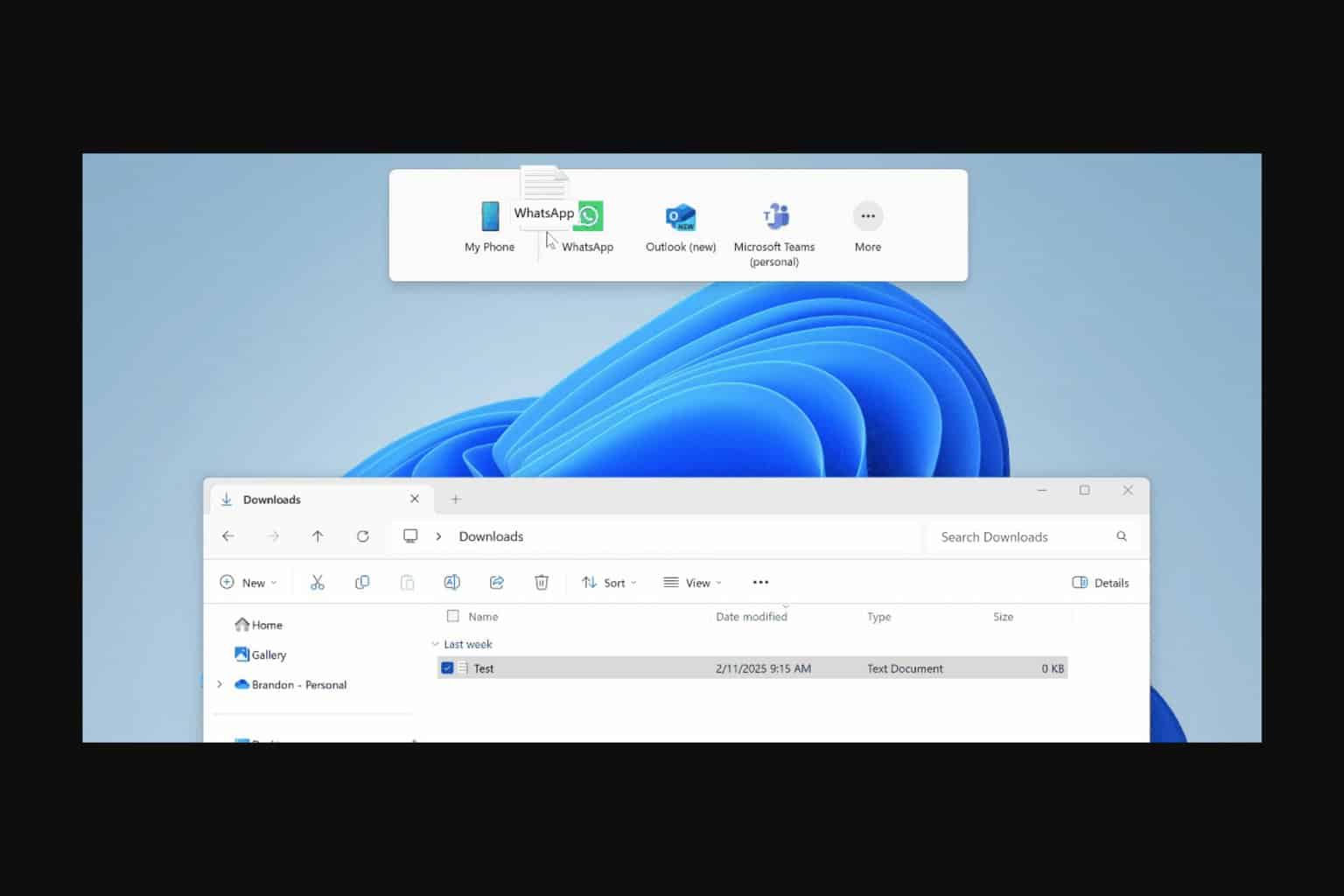
    More specifically, Windows 11 users will be able to drag and drop files from the File Explorer menus onto the top of the desktop. The operating system will then open a new tray that allows them to drop the file into one of the many apps currently on the tray.

    Even more, this new tray can be customized to display the most used platforms in Windows 11, and it even has a More option that allows users to share the files this way on various apps.

    Sharing files in Windows is getting a lot easier and quicker with our new drag tray feature. When you start dragging a local file with mouse (or touch) from File Explorer or your desktop, a handy tray appears at the very top of your screen allowing you to drop the file into one of the displayed apps or choose “More…” to open the Windows share window.
    The new ability is currently rolling out to users in the Windows Insider Program and will be available to the Stable Channel in the next few months.

    KB5052078 also comes with other features, such as the new All page in the Start menu. This new page will contain the grid and category view and should make it easier for users to access everything in just a few seconds. The Redmond-based tech giant teased this feature a while ago in another Insider channel.

    However, as with every new feature, this one has some known issues: a delay in app icons when installing a new app. Microsoft is working on it, which will be fixed in a future patch.

    You can read KB5052078’s full blog post here.