Azure Stack HCI: Everything You Need to Know

Azure Stack HCI is revolutionizing the way we think about hyperconverged infrastructure, blending the best of on-premises and cloud capabilities. Whether you’re a seasoned IT professional or just diving into the world of hybrid cloud, Azure Stack HCI offers a robust, scalable solution for modern workloads.

What is Azure Stack HCI and what I can use it for?

1. What is Azure Stack HCI?

Azure Stack HCI is a hyperconverged infrastructure (HCI) solution from Microsoft. It provides hosting for Windows and Linux VM or containerized workloads along with their storage. This product functions as a hybrid one, linking the local server to Azure so that you can access services in the cloud as well as monitor and manage everything from there.

A system of Azure Stack HCI includes a server or group of servers that operate on the Azure Stack HCI operating system and have connection with Azure. Through the Azure portal, you can oversee and control each separate Azure Stack HCI system as well as observe all your deployments for this technology. Management is possible with existing tools such as Windows Admin Center and PowerShell.

For getting the servers to operate Azure Stack HCI, you have two. First is purchasing Azure Stack HCI integrated systems from a hardware partner of Microsoft that comes with operating system already installed. Second choice involves buying validated nodes and then installing the operating system on your own. You can look at the Azure Stack HCI Catalog for various hardware choices and utilize the Azure Stack HCI sizing tool to estimate how much hardware would be needed.

2. Best features of Azure Stack Hyperconverged Infrastructure (HCI)

  1. Use software-defined compute, storage, and networking – Azure Stack HCI uses Windows Server Datacenter edition to offer built-in virtualization (Hyper-V), data storage (Storage Spaces Direct), and enhanced networking (Software-Defined Networking).
  2. Run Windows and Linux VMs – Azure Stack HCI supports running both Windows and Linux virtual machines seamlessly in your datacenter or at the edge. This capability allows you to work with diverse workloads and applications, giving your infrastructure greater flexibility.
  3. Flexible Hardware Options – Choose from integrated systems, validated nodes, and repurposed hardware from multiple vendors like Dell, HPE, and Lenovo. It enables you to tailor the hardware to your specific needs and optimize costs and performance.
  4. Extend to Azure Services – Azure Stack HCI can connect to various Azure services such as Azure Backup, Azure Monitor, and Azure Security Center. This feature ensures that your on-premises workloads benefit from cloud capabilities, improving your disaster recovery, monitoring, and security posture.
  5. Azure Consistent Management – Use Azure portal, Azure Resource Manager templates, and Azure Arc to manage your on-premises HCI deployments.
  6. Familiar Windows Server management tools – Manage your HCI deployment with tools you already know, such as Windows Admin Center, PowerShell, and System Center. This eases the learning curve and allows for seamless integration into existing workflows.
  7. Automated and Scriptable Tasks – Automate management tasks using Windows PowerShell, providing a cross-platform scripting environment.
  8. Comprehensive monitoring and insights – Use Azure Monitor and Insights for Azure Stack HCI to track performance, health, and usage metrics. This enables proactive infrastructure management and quick identification and resolution of any potential issues.
  9. Built-in security features – Utilize security measures like BitLocker encryption, SMB signing, and Windows Defender Application Control. These features ensure that your data and workloads are protected against threats and meet compliance standards.
  10. Security baselines – Azure Stack HCI includes a tailored security baseline with over 300 security settings configured and enforced. This helps maintain a secure environment and reduces the attack surface by adhering to strict security practices.
  11. Compliance certifications – Azure Stack HCI meets various regulatory requirements, including HIPAA and FedRAMP, ensuring that your deployment is compliant with industry standards.
  12. Scalable node deployment – Support from 1 to 16 nodes per cluster allows for flexible scalability depending on your needs. This feature lets you start small and grow your infrastructure as your business requirements expand.
  13. Simplified deployment – Use Azure Resource Manager templates and guided setup wizards for quick and efficient deployment.This reduces the complexity and time required to get your HCI environment up and running.

These features collectively ensure that Azure Stack HCI provides a comprehensive, flexible, and secure hyperconverged infrastructure solution, bridging the gap between your on-premises data center and the Azure cloud.

3. How to deploy and manage virtual machines with Azure Stack HCI

  1. Go to the Azure portal and log in with your credentials.
  2. In the search bar at the top, type Azure Stack HCI and select it from the dropdown list.
  3. Click on Create a resource and then choose Azure Stack HCI. Follow the prompts to set up a new cluster.
  4. Add the nodes that will form your HCI cluster. These nodes should meet the hardware requirements specified by Azure.
  5. Once your cluster is set up, navigate to the cluster dashboard and select Virtual Machines to deploy new VMs.

This solution helps you set up and manage your virtualized resources efficiently, extending your on-premises infrastructure with cloud capabilities.

4. How to integrate Azure Stack HCI with Azure Services

  1. In the Azure portal, go to your Azure Stack HCI resource.
  2. On the left menu, click on Azure services. Here you can add integrations like Azure Backup, Azure Monitor, and Azure Security Center.
  3. Follow the setup wizards for each service to configure them to work with your Azure Stack HCI environment.
  4. Use these integrated services to monitor and manage your on-premises and cloud resources from a single pane.

Integrating Azure services like backup and monitoring allows for a seamless hybrid cloud experience, enhancing security and operational efficiency.

5. Continuous deployment with Azure Kubernetes Service (AKS)

  1. In your Azure Stack HCI cluster dashboard, select Kubernetes Service and then Install AKS. Follow the installation steps.
  2. Once AKS is installed, create new Kubernetes clusters by going to Kubernetes Clusters and clicking Create.
  3. Use the Kubernetes dashboard to deploy and manage containerized applications, scaling them as needed.

This solution simplifies deployment and management of containerized applications, making it easier to run modern, cloud-native workloads on your HCI infrastructure.

6. GPU partitioning for AI workloads

  1. In the Azure Stack HCI settings, navigate to GPU Management and enable GPU partitioning.
  2. Assign GPUs to specific virtual machines based on your workload requirements. You can do this from the VM settings under Hardware Configuration.
  3. Deploy your AI models on these VMs to take advantage of the shared GPU resources.

GPU partitioning reduces costs and simplifies AI deployment by allowing multiple VMs to share GPU resources, making it ideal for machine learning applications.

7. Centralized management and visibility

  1. In the Azure portal, navigate to Azure Stack HCI and select Management and Visibility.
  2. Use the centralized dashboard to monitor the performance and health of your HCI clusters across different locations.
  3. Manage software updates for your Azure Stack HCI infrastructure from this centralized interface, ensuring that all nodes are up-to-date with the latest security patches.

Centralized management reduces complexity and improves operational efficiency by providing a single interface to manage multiple HCI clusters.

8. How to migrate workloads to Azure Stack HCI

  1. In the Azure portal, go to Azure Migrate and install the necessary tools.
  2. Use the Azure Migrate assessment tool to analyze your current workload and get recommendations for migration.
  3. Follow the migration steps provided by Azure Migrate to move your workloads to Azure Stack HCI.

This solution simplifies the process of moving your workloads to Azure Stack HCI, reducing downtime and ensuring a smooth transition.

So, now you know everything you want to know about Azure Stack HCI and how to use its main features.

We hope that our article offered all information needed. If you have any other questions, don’t hesitate to drop a comment in the section below.

The CrowdStrike outage affected more than 8 million Windows devices worldwide

In what seems to be one of the most significant tech outages in recent history, a small mistake from CrowdStrike has created big waves affecting numerous people around the planet. On July 18th, 2024, this well-known cybersecurity company released an upgrade for its Falcon Sensor agent on Windows; however, rather than improving security, it caused many disruptions.

Banks, airlines, and media companies worldwide discovered that their Windows PCs were stuck in continuous restart mode, with a blue screen displaying error codes like 0x50 or 0x7E. The problem was huge; according to Microsoft, 8.5 million devices were affected.

While software updates may occasionally cause disturbances, significant incidents like the CrowdStrike event are infrequent. We currently estimate that CrowdStrike’s update affected 8.5 million Windows devices, or less than one percent of all Windows machines. While the percentage was small, the broad economic and societal impacts reflect the use of CrowdStrike by enterprises that run many critical services. 

Microsoft

CrowdStrike provides security for many sectors, such as emergency services in the United States, mass transit systems within New York City, and even healthcare establishments, and they were all affected by the outage.

Microsoft, entering the scene with a feeling of emergency, verified that the effect is broad, underlining that while these impacted devices were less than 1% of all Windows machines, effects on society and the economy were notable. To manage this crisis, Microsoft energetically cooperated with CrowdStrike and other cloud bigwigs, such as Amazon AWS and Google Cloud, to create a solution promptly.

David Weston, vice president of enterprise and OS security at Microsoft, thought about the event. He talked about how significant it was to have secure ways of putting things to use and having a strong plan for recovering from disasters.

Since this event began, we’ve maintained ongoing communication with our customers, CrowdStrike and external developers to collect information and expedite solutions. We recognize the disruption this problem has caused for businesses and in the daily routines of many individuals. Our focus is providing customers with technical guidance and support to safely bring disrupted systems back online.

David Weston, Microsoft

The incident clearly showed us what might happen when we make mistakes with our software updates. It also reminded us how much we rely on each other in this industry—not just for creating technology but also for fixing occasional problems.

When different companies in the tech field joined forces during these difficult moments, it made clear how they could recover together – showing their ability to bounce back from even unexpected disturbances collectively.

As our planet increasingly depends on digital systems, CrowdStrike’s situation is a warning sign. It reminds us of the fragile equilibrium between progress and steadiness. This event shows how crucial it is to stay watchful, cooperate, and be ready when encountering technological problems.

(Photo Credits: Wikipedia)

Stream Prime Video on Discord Without Black Screen [How to]

Many are wondering how to stream Prime Video on Discord, and today’s guide is going to show you how to properly do that on your PC, so let’s get started.

How can I stream Amazon Prime Video on Discord?

1. Disable hardware acceleration

  1. Open Chrome.
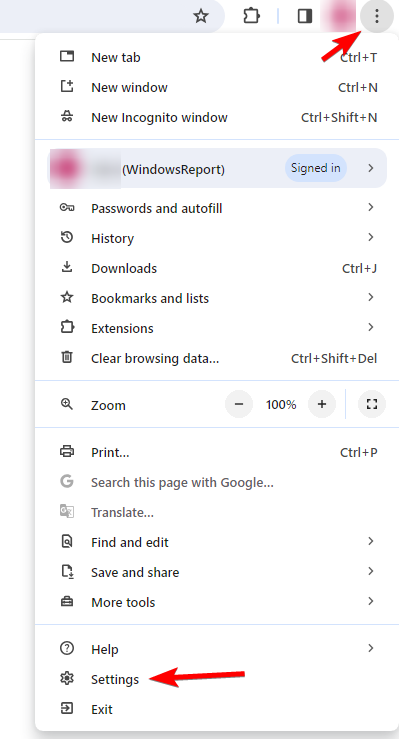
  2. Click the Menu icon in the top right and choose Settings.
    chrome settings
  3. In the left pane, go to System.
    chrome system settings
  4. In the right pane, disable Use graphics acceleration when available.
    use graphics acceleration when available

The process is the same for all Chromium browsers, but it might be slightly different for Firefox.

2. Set up Disord

  1. Open Prime in your browser.
  2. After that, open the Discord desktop app, and open your settings.
     settings discord
  3. Next, select Game Activity or Registered Games and click on Add it.
    add it discord
  4. Select Amazon Prime from the list and click on Add Game.
    amazon prime add game discord
  5. Next, click the Stream icon in the sidebar.
    amazon stream button
  6. Check if you’re streaming Amazon Prime, and select the desired channel, resolution, and frame rate. Click on Go Live once you’re ready.
    discord stream settings

How to stream Amazon Prime on Discord without a black screen?

To stream Amazon Prime without a black screen, you need to disable hardware acceleration in your browser.

Does Amazon Prime block screen sharing?

Yes, Prime does have DRM protection that prevents screen sharing, but it can be circumvented.

Now you know how to stream Prime Video on Discord, and as you can see, it’s incredibly simple as long as you turn off hardware acceleration.

Do keep in mind that there might be issues with this feature, and many reported that Discord live viewing is not working in the browser or that Discord screen share is not working at all.

If you wish to stream other services, we have a guide on how to stream Disney Plus on Discord, so don’t miss it. While you’re improving your streaming setup, you can also learn how to remove Continue Watching on Amazon Prime to keep your homepage clutter-free.

Chrome’s one-click Fix button will unload resource-hungry tabs to boost performance

Google continues to work on improving Chrome’s performance. We previously reported on Memory Saver, which offers three modes to maximize memory savings. In addition, Chrome will show performance issue alerts when certain tabs use more CPU.

Now, Google is taking a step further by allowing you to take action on resource-intensive tabs by turning them inactive on demand to free up more resources. Here’s how you can experience and use the new “Performance Issue Alert” in Chrome Canary to make the browser more responsive and faster.

Google is wary of Chrome performance issues or wants to ditch the “memory hog” tag. The company is working on identifying tabs that use more resources (similar to how it already shows each tab’s memory usage in a hover card) and triggering a notification for the user to click a “Fix” button.

This is a great feature, but the notification will only appear when tabs start using a certain CPU threshold. Since Google may not be entirely confident in the natural trigger, it provides another way to force an alert. Windows Report, which spotted the bug and flag first, verified the feature worked fine.

How to trigger “Performance issue Alert” in Chrome right now

  1. Visit chrome://flags.
  2. Find and enable “performance intervention UI” and “Enable Performance intervention demo mode.”
  3. Restart Chrome.
  4. Visit chrome://settings > Performance > General and ensure the “Performance Issue Alerts” Setting is enabled.
  5. Visit chrome://discards.
  6. Click “Trigger performance CPU intervention.”
Enable Performance intervention Demo mode flag. Image Credit: Windows Report
Performance intervention UI flag

A notification will appear on the right side of the toolbar, stating

“Performance issue alert. These tabs are using extra resources. To improve your performance, let Chrome make them inactive” with “Fix Now” and “Dismiss” buttons.

A performance issue alert was triggered on the Chrome Discards page. Image Credit: Windows Report

All resource-hogging tabs will be immediately unloaded when you click the “Fix Now” button. You can verify this fix by checking their status under “Loading Status” on chrome://discards, where they should be listed as “Unloaded.”

Performance Intervention Demo mode flag, when enabled:

” CPU thresholds and rate limiting will be ignored, so performance intervention UI may be easily triggered through natural browser usage or force triggered in chrome://discards. All suggested actionable tabs will meet the normal discard criteria except for needing to stay in the background for a set minimum time”, the flag description reads.

This feature offers a one-click solution to improve Chrome’s performance. Notably, Google is also working on boosting background tab performance, fixing out-of-memory errors caused by the process-per-site feature, and proactively developing a feature to show notifications about Chrome tips and features on Windows.

That’s not all, Chrome is making users aware about Dangerous download warning with a new interstitial.

3 Quick Ways to play MOV files on Windows 10

The Windows Media Player in Windows 10 is a handy tool but it won’t play MOV files. If you’re lucky, it will play audio alone, but this beats the essence if you want to enjoy video playback as well.

MOV files are developed for Apple devices but you can also play them on Windows 10 and 11. Most MOV files are encoded with codecs hence why they won’t play on Windows Media Player. However, with a few tweaks, you can install the necessary codecs and get them to play.

How do I play MOV files on Windows 10?

1. Download necessary codecs

1.1 HEVC codecs

  1. Press Windows + S to launch the Search menu, enter Microsoft Store in the text field at the top, and click on the relevant search result that appears.
  2. Now, type HEVC Extension in the Microsoft Store search box, and hit Enter.Search for HEVC extensions
  3. Click on the HEVC Video Extensions search result.HEVC Video Extensions to fix hevc extension not working on windows 11
  4. Next, click on the option where the price is mentioned to get the codec. Verify that the extension you are installing has been released by Microsoft Corporation since there are a bunch of other software programs with the same name and a similar thumbnail. Download to fix hevc extension not working on windows 11
  5. Complete the payment to download the HEVC extension in Windows 10.Complete payment

Once done, you can now play the MOV files on the Windows Media Player. Unfortunately, the HEVC codecs pack from the Microsoft Store is limited and may not be compatible with all MOV files. If not, proceed to download a comprehensive codec pack.

1.2 K-Lite codecs to play MOV files

  1. Open your browser and visit the K-lite official download page.
  2. Next, go to the Downloads section and select Server 1, Server 2, or Server 3 to download the codec pack. download codecs from K-lite
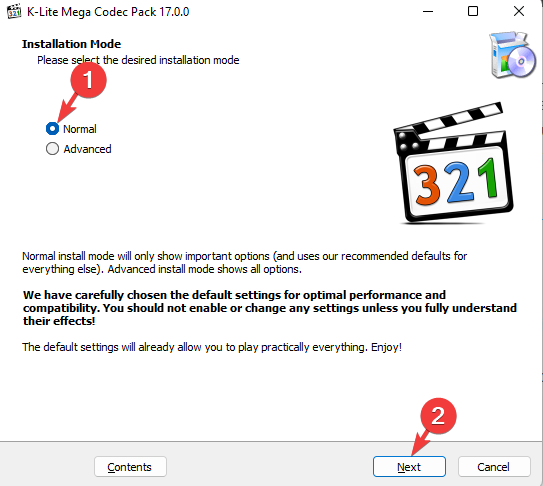
  3. Now, click on the downloaded file to open the setup wizard. foloow the on-screen instructions on K-Lite installer
  4. Follow the on-screen instructions to finish installing the codecs.

And it’s not just for MOV files. We have a comprehensive guide on how to install codecs on Windows 11 to play other types of video formats on all built-in players.

1.3 Play using Windows Media Player

  1. Click on the Start button, type Windows Media Player and click to open the player. search for windows media player
  2. Navigate to the Organise tab at the top left, click to expand, select Manage library, and then click on Videos.Select Organize and then videos in manage libraries in WMV
  3. It will open the Video Library Locations window. Click on Add. click on Add in Video Library Locations
  4. Select the folder that contains the MOV file, not the file itself, and click on the Include folder. select mov file and press Include folder
  5. Back in the Video Library Locations, press OK to save the changes. Press OK in Video Library Locations
  6. Now, click on Videos on the left, and on the right, find and open the .mov file to play. Play video in WMV

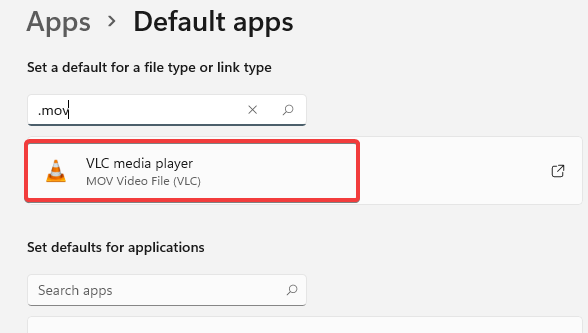
2. Play the MOV file using the VLC media player

  1. Go to the VLC Media Player official download page, click on Download VLC and select the package to download the video player for Windows 11. download VLC media player
  2. Once downloaded, install it on your Windows 10 PC.
  3. Navigate to the MOV file extension you want to be run by VLC.
  4. Right-click on the file and choose Open with > Choose another app from the contextual menu.can't change windows 10 default apps
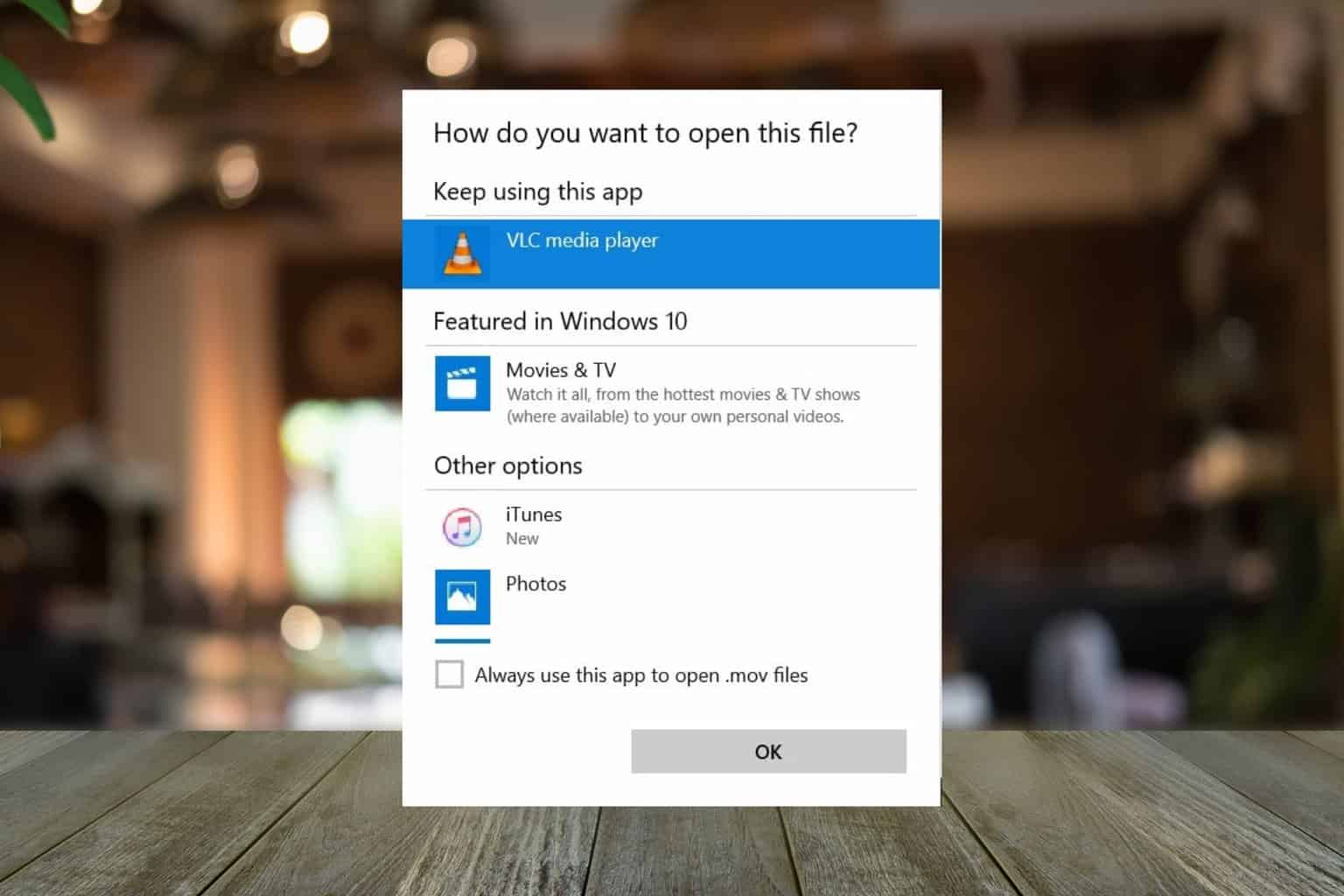
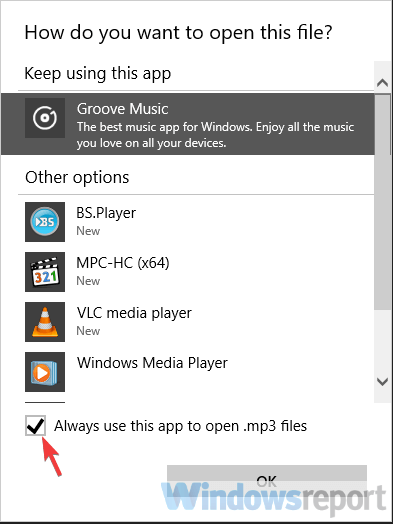
  5. Select the default app you want to associate with that file format and check the Always use this app to open files box.

3. Convert the MOV file to MP4 using a third-party video converter

  1. You can pick one video file converter and use it.
  2. Now proceed to set up the software and run the converter.
  3. Next, add the MOV files you want to convert to the interface. third party video converter - add files
  4. For this guide, we chose the Wondershare UniConverter because it’s very easy to use but the conversion process is very similar to other products as well.
  5. Click on Choose format. Select WMV on the left and on the right and select the video quality. select WMV format and choose video quality
  6. Back on the interface, click on Convert. Convert the select file to WMV

Once done, go to the file location and you can now play the newly converted .mov file in the Windows Media Player. You can also check out other ways to convert your MOV files to MP4. There are also lots of cross-platform media players you can try out if VLC fails to do the job.

Additional tips to avoid issues with MOV files

  • Verify file integrity – Some MOV files may fail to play not because of the absence of codecs but because of file corruption. You can always check for file corruption before playback and attempt repairs where necessary using an MOV file repair tool.
  • Keep your graphics card updated – Your graphics card is responsible for displaying videos so ensure it is up-to-date.
  • Back up files – As you convert your MOV files, the chances of corruption are high so ensure you have a backup of the file to restore in case things don’t go as planned.

Should you experience any issues playing MOV files on Windows 10, refer to our article on how to fix it. And if you’d like to play MOV files on Windows 11, we also have a dedicated article.

That’s all for this article but do let us know which of the above solutions you found easiest to play MOV files on your Windows 10.

Google Chrome to bid goodbye to Out of Memory Errors soon

Google Chrome, even though is the world’s most popular browser, it is also prone to some issues. In particular, it can suddenly trigger the dreaded “Aw snap, Something went wrong while displaying this webpage. Error code: Out of Memory” message while you’re trying to visit a website. Thankfully, Google is actively working on a solution to these Out-of-Memory (OOM) crashes.

Google constantly work to optimize Chrome’s memory usage. Recenly, the company started working on showing browser feature notifications on Windows and also replacing dangerous downloag warning for files with interstitial.

Chrome’s Process Per Site feature assigns multiple tabs from the same website to the same process for efficiency. However, this approach can have drawbacks if too many memory-hungry tabs share a process, leading to OOM crashes.

Chrome says something went wrong while showing out of memory error code

The good news, as spotted by Windows Report in a bug report titled “[ProcessPerSite] Provide an alogirthm for avoiding out of memory” and document titled “Process Reuse avoiding OOM”, is that Google is developing a new method (algorithm) to estimate the memory size of a tab.

This estimation will determine whether a new tab can be safely placed in the same process as existing tabs. This new solution aims to strike a balance between process reuse and crash prevention.

The browser cleverly estimates how much memory each website uses and groups them together when possible to save space. It also sets limits to prevent any single website from hogging all the memory. This update will help you browse smoother and for longer!

There are a few things this new system can’t handle yet. For example, it doesn’t track memory used by ads or other content embedded in webpages (iframes). It also needs to be improved for situations where there’s no main content area (top-level frame).

In the future, Chrome might use a new tool called “Memory Boxed Isolates” (MBI) to get even better at guessing how much memory tabs and those little boxes inside them (iframes) need. This would involve the main Chrome program and the tab-running parts working together more closely, though

This new system in Chrome is like a smarter way to manage memory. It helps prevent crashes and keeps Chrome running smoothly, so you can browse the web without those annoying “Out of Memory” errors appearing.

5 Best Microsoft Azure Face API Alternatives to Use

If you’re a developer that is using facial recognition, and you want to stay away from Microsoft’s ecosystem, keep on reading to learn more about Microsoft Azure Face API alternatives.

What is the best Microsoft Azure Face API alternative?

1. Inferdo – Best overall

Inferdo slpashscreen

This API has several functions, and you can use it to detect human faces in images. You can also use the Face Details API to detect face, gender, age, and other facial features.

The service also offers Labeling API so you can easily detect objects on pictures and add labels to them. Lastly, there’s Content Moderation API that can be used to detect inappropriate content.

Overall, Inferdo offers great features, and the basic subscription is more than enough for smaller projects or testing, so don’t hesitate to give it a try.

Other great features:

  • Face detection, the ability to give you information on facial features
  • Object detection and labeling
  • Inappropriate content detection
  • Affordable

⇒ Get Inferdo

2. Face ++ – Fast and accurate

Face ++ landing page

This service can recognize an unlimited number of faces, and it’s incredibly fast. It can also compare faces, so it will protect you against fake face attacks.

The service can also find similar faces if needed. That’s not all, with Face ++ you can detect a body, body parts, and body outline.

As for integration, this service offers its Web API, and Mobile SDK so you can integrate it into both web and mobile apps with ease. Overall, it’s a great service, that is worth checking out.

Other great features:

  • Offers face detection, comparing, and searching
  • It can recognize the body, body parts or body outline
  • Image beautification
  • Web API and Mobile SDK available

⇒ Get Face ++

3. Amazon Rekognition – For professionals

Amazon Rekognition landing page

Amazon Rekognition can ensure the validity of users thanks to its face detection feature so it’s perfect for authentication since it’s fast and accurate.

The service can determine the orientation of the face in both images and videos, and it can detect various facial features as well as compare faces.

That’s not all, Amazon Rekognition can also detect inappropriate content, custom labels, text, and label objects. It’s an incredibly powerful service, so it’s a perfect choice for professionals.

Other great features:

  • Can detect and compare faces
  • Provides face analysis
  • Celebrity recognition
  • Ability to detect inappropriate content
  • Object labeling

⇒ Get Amazon Rekognition

4. Seventh Sense – Powered  by OpenCV

Seventh Sense landing page

OpenCV provides liveness and anti-spoofing protection, which allows you to use it for security purposes.

The reliability of its face recognition makes it a perfect choice for access control, public safety, or other purposes.

Thanks to its API, this service can be used on any device with access to the Internet, so if you’re a developer, you might want to give it a try.

Other great features:

  • Built on open-source OpenCV
  • Offers face recognition and face matching
  • Great security
  • Useful for public safety and access control

⇒ Get Seventh Sense

5. Cloud Vision – Can detect various objects

Cloud Vision  landing page

Google Vision has an API that you can use to detect faces, but it might not be the best tool for detecting and verifying faces.

However, it makes up for it with the ability to detect image properties, labels, landmarks, objects and more. It can even detect and block explicit content.

Overall, if you need a simple API that can detect faces and more, then Cloud Vision might be just what you need.

Other great features:

  • Ability to detect faces
  • Landmark detection
  • Label detection
  • Ability to detect logos and multiple objects

⇒ Get Cloud Vision

How accurate is Microsoft Face API?

The Face API has an accuracy of 90-95%, so it’s considered to be rather accurate.

Is Face API free?

Yes, Face API is available for free, but you’re limited to 20 requests per minute and 30,000 requests per month.

These are some of the best Microsoft Azure Face API alternatives that you can use, so if you’re a developer don’t hesitate to try them.

Speaking of facial detection, many reported that Windows face recognition is not working. If you’re not a fan of this feature, you can turn off face detection in Windows with just a few clicks.

You can explore related Microsoft developer tools in this guide on the Microsoft Graph Explorer, which helps you test and understand API behavior inside the Microsoft ecosystem.

Xbox Game Pass Standard is a degraded product, says FTC in a new document

Microsoft’s Xbox Game Pass is a popular service among gamers who enjoy unlimited game access for a fixed monthly charge. However, the Federal Trade Commission (FTC) has shown interest in Microsoft’s recent changes to its Game Pass subscriptions. If you remember, Microsoft changed its subscription service this month, which worried many users.

The prices of the PC Game Pass and Xbox Game Pass Ultimate have increased since they stopped offering the Xbox Game Pass Console plan to new subscribers. The gaming community is now discussing these changes made by Microsoft with increased attention from FTC.

Microsoft is also preparing to unveil a new tier called the Xbox Game Pass Standard. It will provide online play and allow entry into hundreds of games, excluding the Day One title. These titles are now set to be only accessible via PC Game Pass and Xbox Game Pass Ultimate subscriptions.

The FTC’s concern comes after Microsoft bought Activision Blizzard in October 2023. The regulatory body states that removing high-quality games from Microsoft’s new service and increasing prices for current users is a big disadvantage for consumers—something directly caused by this merger, which the FTC had earlier opposed. It calls the new Xbox Game Pass Standard a degraded product.

Microsoft’s plan seems like a two-sided sword. It wants to simplify its services and attract more people with the Xbox Game Pass Standard. However, this effort could upset some of its current users, who might not be happy about losing Day One releases and experiencing changes in pricing structure. The involvement of the FTC and continuous legal activities might help reveal more about what these changes mean for people who use games and the bigger gaming business.

Now, the gaming world is closely observing what decisions will be made about this disagreement. This might create a pattern for how large companies manage mergers and alter their services. The equilibrium between growing an attraction to service and keeping the faith and happiness of current clients is very delicate.

Microsoft’s recent actions have certainly challenged this equilibrium. We still don’t know whether these alterations will be good or bad for the Xbox Game Pass service, but one fact remains clear: the gaming community pays much attention to it now.

App Access Blocked Outlook Error – Here’s How To Resolve It

Did you get the App Access Blocked Outlook error on your smartphone?

It may prevent you from viewing emails, attachments, contacts, calendars, and more from your work Outlook account.

App Access Blocked Outlook iOS

You’ll also see the same message if you try to log in to the same Outlook email using any mobile browser, like Microsoft Edge.

App Access Blocked Outlook edge

This error is often linked to the Microsoft Intune app management service. It’s a cloud-based system that allows company admins to restrict an organization’s data from being copied or accessed over insecure networks.

Luckily, I’ve reproduced the issue and discovered some fixes. I’ll show you how to resolve it below, so let’s get into it!

How To Fix App Access Blocked Outlook

Here are a few troubleshooting ideas to try before contacting your organization’s Microsoft 365 administrator or the IT admin. I arranged them based on complexity.

Perform Some Initial Checks

The Intune MDM app and service are there to protect an organization’s sensitive data and prevent unauthorized access to such data. Before troubleshooting, confirm the following:

  • You’re not using insecure Wi-Fi or public Wi-Fi to go online to check Outlook emails or calendar events.
  • Microsoft 365 admins can use the Microsoft Intune app management service to launch, secure, and manage apps for specific groups in the organization. Is it possible that you’re no longer in a certain group that gives you access to Outlook through a specific email ID? You should ask your supervisor or the human resources team.
  • Location, device compliance, and user risk could also prevent you from accessing business Outlook emails, especially when set up using Intune MDM and MAM.
  • Automatic app updating attempts failed multiple times through Intune MAM and hence you’re being blocked from the Microsoft Enterprise domain where your employer hosts Outlook.
  • You’re using a VPN service to go online but the Outlook app was configured to run using a specific local or regional IP.
  • You’re not using a VPN while your employer specifically told you to use an IP from another country through a VPN service.
  • You’re using broadband or mobile internet from a service provider that your organization’s IT admin has blacklisted.
  • You’re not using any jailbroken iOS or bootloader-unlocked Android smartphones.

Clear Cache and Cookies

If you’re attempting to open Outlook on an iPhone or iPad, swipe up from the bottom of the screen and let go of it in the middle of the screen.

You’ll see a carousel of apps. This is the App Switcher for iOS devices.

Scroll the app carousel left or right to find the Outlook app. Tap on the app card and swipe it up.

App switcher

This will force close the app and all of its cache and cookies.

Now, open the app from the Home Screen.

Should you need to wipe the cache and cookies data of Outlook on Android, perform these steps instead:

  1. Go to the App info screen for Outlook by long-tapping its icon and then selecting the (i) icon on the context menu.
  2. Select Storage & cache on the App info page and tap Clear cache on the next screen.
clear cache

Update Outlook

Intune MDM and MAM-managed apps require updating when a new version is available. Though the Intune app automatically downloads and installs the latest updates, it might not work if you don’t allow updating via mobile data.

Try these steps now on an iOS device:

  1. Open the App Store.
  2. Tap on your profile picture in the top right corner.
  3. Scroll down to the Upcoming Automatic Updates section.
Upcoming Automatic Updates
  1. If there are any pending Outlook updates, find the app and tap Update.

If you’re on an Android device, open the App info screen and find Outlook.

Now, scroll to the bottom and tap on the App details menu.

app details

The Google Play home screen for the app will open.

If there’s a new version, you’ll see the Update button. Tap on that.

location for update

Scan For Viruses and Malware

  1. Open the smartphone antivirus app you’re using. In this example, it’s Avast Security.
  2. Tap on the Run Smart Scan, Scan, or any similar buttons.
antivirus scan
  1. Wait for the scanning process to complete.
scan progressing
  1. If the scan results show few issues, tap the Resolve or similar button on the antivirus to fix those.
resolve

Now, try to access the Outlook email client or web app again.

Review App Permissions

Managed devices running company apps through the Intune app require full access to the following app permissions;

  • Device Administrator Permissions
  • Location Access
  • Camera Access
  • Contacts Access
  • Phone Access
  • Storage Access
  • SMS Access
  • Network Access
  • Device Information.

If you or the smartphone settings make any changes to the required permissions, the security features of the Intune MDM and MAM might not let you access any assigned apps, including Outlook. Do the following to fix this issue on an iPhone:

  1. Go to Settings, find Privacy & Security, and tap on that.
privacy and security
  1. Now, access each permission item on the list according to Intune’s requirement for the Outlook app.
  2. Ensure the toggle button for Outlook is set to On.
photos access
  1. Alternatively, some permissions items may show Private Access, Full Access, etc.
  2. You should choose Full Access when possible.

On an Android device, long-tap on the Outlook icon and then tap on the (i) icon in the top right corner of the context menu.

app info

On the App info page, tap on the Permissions menu.

permissions app info

Now, you can browse through the necessary permissions and grant them.

permission allow

Remove the Account and Sign Up With Intune

Sometimes you may attempt to sign in to Outlook using a work account. However, your company might need you to do that through the Intune Company Portal.

In that case, tap Remove Account on the error screen to delete the work email. Now, follow these steps:

  1. Install the Intune Company Portal app from the App Store (for iOS) or Google Play (for Android)
  2. Log in to the app using your work email.
  3. You might need to approve the sign-in using the Microsoft Authenticator App.
  4. You should see the welcome screen of the Intune Company Portal app. Here, you won’t find any assigned apps or managed devices yet.
welcome screen intune
  1. Once signed in, navigate to the Notifications tab.
  2. Tap on the This device is not managed message.
Notifications
  1. You should now see the Set up MSFT access screen.
  2. Tap Continue to access the privacy policy.
Continue
  1. Now, tap Continue again to get the management profiles assigned to your account.
  2. Depending on the configuration created by the IT admin, the device sign-up process will change here. So, follow all on-screen instructions carefully to complete the device onboarding process.

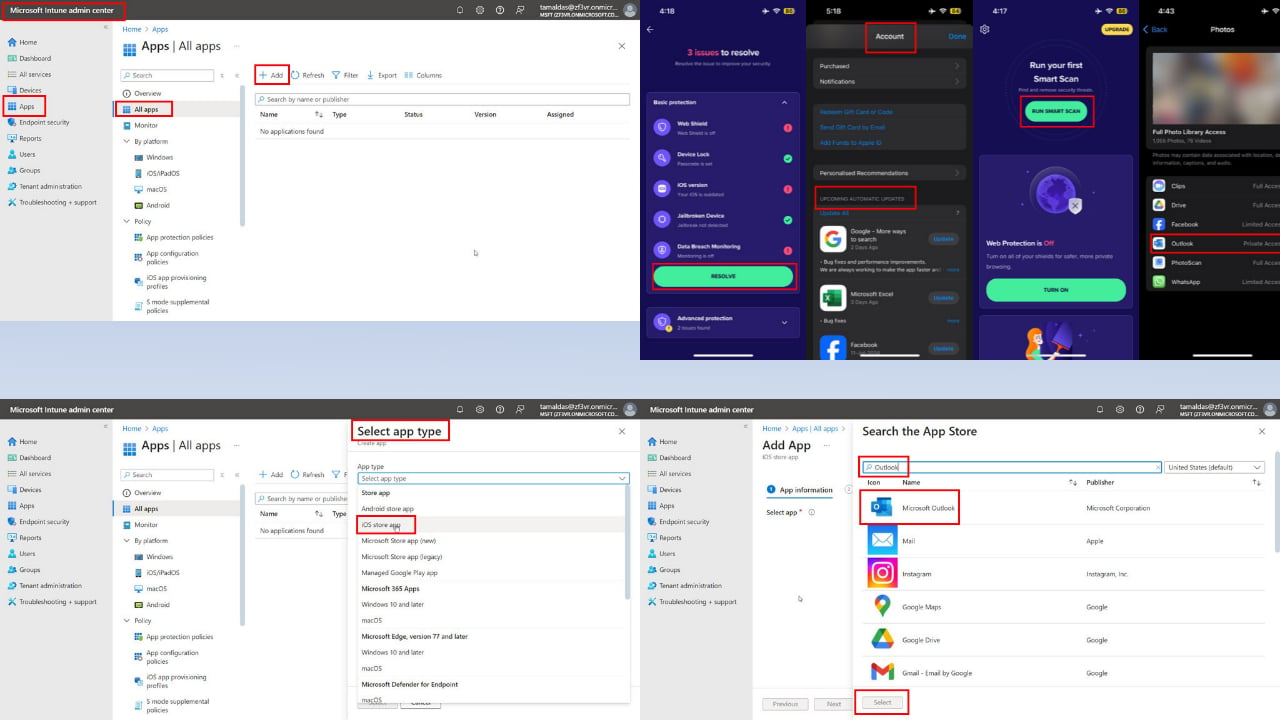
Add the Outlook App to the Intune Console

It’s likely that Outlook isn’t available in the approved or whitelisted app list in the Intune portal. As the Microsoft 365 admin or IT admin, you can perform these steps to fix the issue:

  1. Log in to the Intune portal on a PC or Mac.
  2. Click on the Apps menu in the left-side navigation panel.
  3. Go to the All apps folder.
  4. Click on the Add button at the top menubar.
add apps
  1. The Select app type sidebar will open.
  2. Click on the Select app type drop-down and choose the iOS store app or Android store app. Click Select.
select app type
  1. You’ll see the Search the App Store link. Click on that.
  2. In the search field, type Outlook.
  3. Select Microsoft Outlook from the top search result. Click Select again.
select outlook
  1. Click Next on the App information tab.
  2. Click Add group, Add all users, and Add all devices links in the Assignments tab one by one and select inputs as required. Click Next to save.
add users
  1. On the Review + create tab, click on the Create button.
review and create
  1. Go back to the All apps folder to find Outlook.
added app

It might take a few minutes for the changes to take effect globally in your Microsoft 365 domain. Ask your tenant users to test their Outlook app now.

Summary

So, now you know how to fix the App Access Blocked Outlook issue on your Intune-managed smartphone. Try these methods in the order they appear in.

You can share your thoughts and feedback in the comments below! Also, if you’re having trouble with Google Workspace sync or encrypting messages not working, we can help out.

Microsoft, Nvidia, Google, and many others create CoSAI, to oversee the safe development of AGI

To ensure artificial intelligence (AI) technology is developed and utilized safely and securely, Microsoft, NVIDIA, Google, and many other renowned tech companies have aligned to establish the Coalition for Secure AI (CoSAI).

CoSAI aims to guarantee that AI systems operate within boundaries defined by human values while promoting technological advancements that benefit everyone.

According to the announcement, the purpose of CoSAI is to create an open-source place where developers can get help and tools for creating secure AI systems from the beginning. The goal of CoSAI is simple: ensure that artificial intelligence (AI) systems are safe, ethical, and fair for everyone who uses or interacts with them.

CoSAI envisions a world where safety measures in AI development are not just an afterthought but a fundamental aspect – something like how we build houses with sturdy foundations right from the start. The idea is simple: if we want all people across this planet (and beyond) to benefit from powerful future technologies like Artificial General Intelligence (AGI), then it must be guaranteed they will always remain beneficial rather than harmful no matter what happens during their creation process… even if they become superintelligent!

CoSAI has one main goal: to ensure that every AGI system developed will benefit everyone. They aim to prevent any possibility of using these technologies in ways that may harm humanity or lead to unfair concentration of power. AGIs could potentially be much smarter than humans in almost every field. Thus, there’s an urgent need for caution when developing AGIs. Without enough safety measures initially ensured by researchers worldwide, such AIs might not act according to our best interests once they surpass human-level abilities.

But what is CoSAI’s plan to make this happen? First and foremost, they emphasize improving the security of the software supply chain for AI systems. This implies stronger monitoring of what is incorporated into your AI applications, ensuring they are as free from alteration as possible.

Another crucial area is to prepare defenders for the changing cybersecurity landscape. As AI and classical systems become increasingly connected, the difficulties of incorporating them securely also rise. CoSAI is taking on this issue to create a pathway that developers and organizations can follow without problems.

Also, we cannot ignore AI security governance. Standard methods and risk evaluation models must be created to deal with the complicated field of AI security. CoSAI’s objective is to simplify this procedure, making it understandable and simpler for all to implement the required precautions.

Guiding this daring effort are professionals from industry and academia, united to direct CoSAI toward its objective of forming a more secure AI future. Supported by the big players in technology and led by experienced individuals, CoSAI is prepared to create noticeable changes in handling safety for AI systems.

In our world, where AI has great possibilities but also serious dangers, creating CoSAI is a positive step. It shows how much the tech industry wants to ensure that the future of AI not only looks promising but also remains safe and protected. At this moment, when we are about to enter a new era for AI, CoSAI’s efforts give us hope, like a guiding light showing us the path towards an upcoming period where AI can grow without any worries about security threats.

How to fix CrowdStrike BSOD issue on Windows PCs

A nasty surprise has often attacked Windows PCs with CrowdStrike’s Falcon Sensor. It causes the feared Blue Screen of Death (BSOD) boot loop. This BSOD issue is troublesome and surprising because CrowdStrike is a well-known name in cybersecurity, defending many types of organizations across the globe.

Normally, their Falcon platform protects against attacks, but this instance makes it an issue. An update that did not go well has caused problems in different sections, such as airlines and healthcare. CrowdStrike has stopped the update, but this raises the question—what happens next?

When you are in this mess, do not worry. There are some ways to fix the CrowdStrike BSOD issue:

  1. You should start by booting your computer into Safe Mode or the Windows Recovery Environment.
  2. Afterward, go to the C:\Windows\System32\drivers\Crowdstrike folder.
  3. Delete any file named “C-00000291*.sys”.
  4. After that, you should be able to boot normally.

If the first method does not help, you can try to stop CrowdStrike from starting. To do this,

  1. Go to Command Prompt in Recovery options and
  2. Change the name of the CrowdStrike folder to Crowdstrike_Old.

Another path to follow is editing the Windows Registry and preventing agents. sys from loading.

  1. Boot your Windows PC into Safe Mode or Windows Recovery Environment.
  2. Get to Windows Registry.
  3. Edit the following key to disable the csagent.sys from loading.
    • HKLM:\SYSTEM\CurrentControlSet\Services\CSAgent\Start from a 1 to a 4

Windows on cloud platforms like AWS EC2: The solution is to detach and attach the EBS volume to a new instance, fixing the problem with the CrowdStrike driver folder. This method also works on instances from the Google Cloud Platform.

It is difficult, but you might make your system work again using these solutions. Let us know if any of these solutions worked for you, and stay close, as we will update this article as soon as new info comes out.

Dev Home 0.16 is now out with big changes for visually impaired people

Microsoft has released an update for the Dev Home app, but it’s not just any update: it’s about version 0.16, which includes many improvements, fixes to bugs, and some new features that will catch your attention.

First of all, the accessibility upgrades are a victory. The Narrator has been enhanced to help you comprehend the app better, giving you progress bar notifications and loading screen messages when installing apps. It’s not a significant change, but for users who depend on screen readers, this is an important step toward making things more accessible.

Also, you can now directly add external tools to Project Ironsides from the list of your installed apps. This includes .bat, .cmd, .ps1, and .msc files, too.

Moreover, there are improvements in the overall system and virtualization feature settings within Windows customization. The Dev Drive insights folder path is prepopulated now. WSL is an environment type for those working with various environments. Very useful!

Dev Home 0.16 also fixes dozens of bugs, including when the extension was disabled, but its widgets would not disappear from the dashboard. The error that appeared every time someone tried adding a user to the Hyper-V administrators group was also fixed.

You can get the Dev Home 0.16 app from its GitHub store or search for it in the Microsoft Store. If you have Windows 11 version 23H2, which is now widely available to all Windows users out there, a built-in Dev Home is available when you use it.

Create Skype Account [Quick Guide]

Want to know how to create a Skype account?

It remains one of the leading platforms for video calls and messaging, and millions worldwide use it for personal and professional communication. The first step to joining the Skype community and connecting with friends, family, or colleagues is creating an account. 

I’ll show you how so that you can make video calls, send messages, and share moments with others.

How To Create a Skype Account

Follow the below steps:

  1. Go to your favorite browser and visit the official Skype website.
  2. Tap Sign in at the top right corner of your screen, then click Sign up from the drop-down menu.
Sign up
  1. Add your email address.
Add email
  1. Create a password you’d like to use.
Create password
  1. Add your first and last name.
Add your name
  1. You’ll receive a confirmation code through your email. Enter the code, then tap Next.
Enter confirmation code
  1. You’ll be asked to solve the puzzle. Tap Next, then follow the on-screen instructions.
solve the puzzle
  1. After solving the puzzle, you’ll be asked if you want to stay signed in. Tap Yes.
Confirm signed in
  1. Choose a profile picture or skip it.
Add profile picture
  1. You’ve just created a Skype account. You can start making video calls, attending meetings, sending messages, and sharing files with friends, family, or colleagues. 
Account created

That’s it! Simple, right?

Skype allows you to connect with people worldwide through video calls and messaging. Follow these steps to create a Skype account and enjoy its personal and professional communication features. Also, if you want to record a meeting or recover deleted messages, we can help you out!

Keep your chat list tidy from day one with our step-by-step guide How To Archive Conversation in Skype.

Moreover, you can cancel your Skype subscription if you don’t feel like using the service anymore.

Microsoft updated the KB5038603 patch in the Dev channel with new features for Paint and Store

The Redmond-based tech giant released KB5038603 last week, the first build to the Dev channel in a while. A week later, Microsoft decided to update the Dev Channel with new updates now available to all Windows Insider program members.

First, there is the new Microsoft Store update. You will see this improvement if your version is 22406.xxxx.x or later. As you look for content in the Store Search box, there is now a fresh fly-out at the end recommending content that interests you.

It feels like having a small assistant show you around the big ocean of apps and games. According to the updated blog post, the new update will make it very simple to navigate the various game categories. This function is being tried in the US, UK, and CA. So, if you are from these places, this works for you.

The Paint app also received an update. For people in the Canary and Dev Insider channels, an interesting update is coming for Paint (version 11.2406.34.0 and newer). This fresh update brings in pen back button eraser support, allowing smooth toggling between drawing and erasing.

Moreover, using the pen support lasso select feature lets you swiftly select anything on the canvas through the side button of your stylus pen.

The twist in this tale is that they didn’t mention when all Windows 11 users will get these updates, but they will most likely get them in the following months.

The new modifications enhance the user experience and simplify navigating the system. What do you think about them? Let us know in the comments section below.

You can read KB5038603’s updated changelog here.

How To Send a GIF in Slack in 5 Easy Steps

Wondering how to send a GIF in Slack? It’s a fun way to express emotions, reactions, and humor in workplace communication. Best of all, it’s pretty easy to do on Slack.

Whether you’re completely new to the app or looking to spice up your messages, I’ll show you how below!

How To Send a GIF in Slack

  1. Log into Slack and go to the channel or direct messages. Tap on the smiley face icon on the message field.
Smiley face icon
  1. Click the GIFs button.
GIFs button
  1. Here, you can select the available GIFs or search for one you have in mind. Select the GIF you want to use by tapping it.
Select the available GIFs
  1. The GIF will appear in the message field. You can also add a message on top of it and then tap the send button in the bottom right corner of your screen.
Tap the send button
  1. Your GIF will appear in the messages.
GIF sent

That’s it!

The steps are also similar when using a mobile phone.

So, now that you know how to send a GIF in Slack, you can add some fun and expressiveness to your workplace conversations. Remember to consider the context and audience to ensure your GIFs are well-received. You can also check out our guide on creating a poll, setting up reminders, and quoting messages.

Fix: You don’t have privileges to perform this in Salesforce

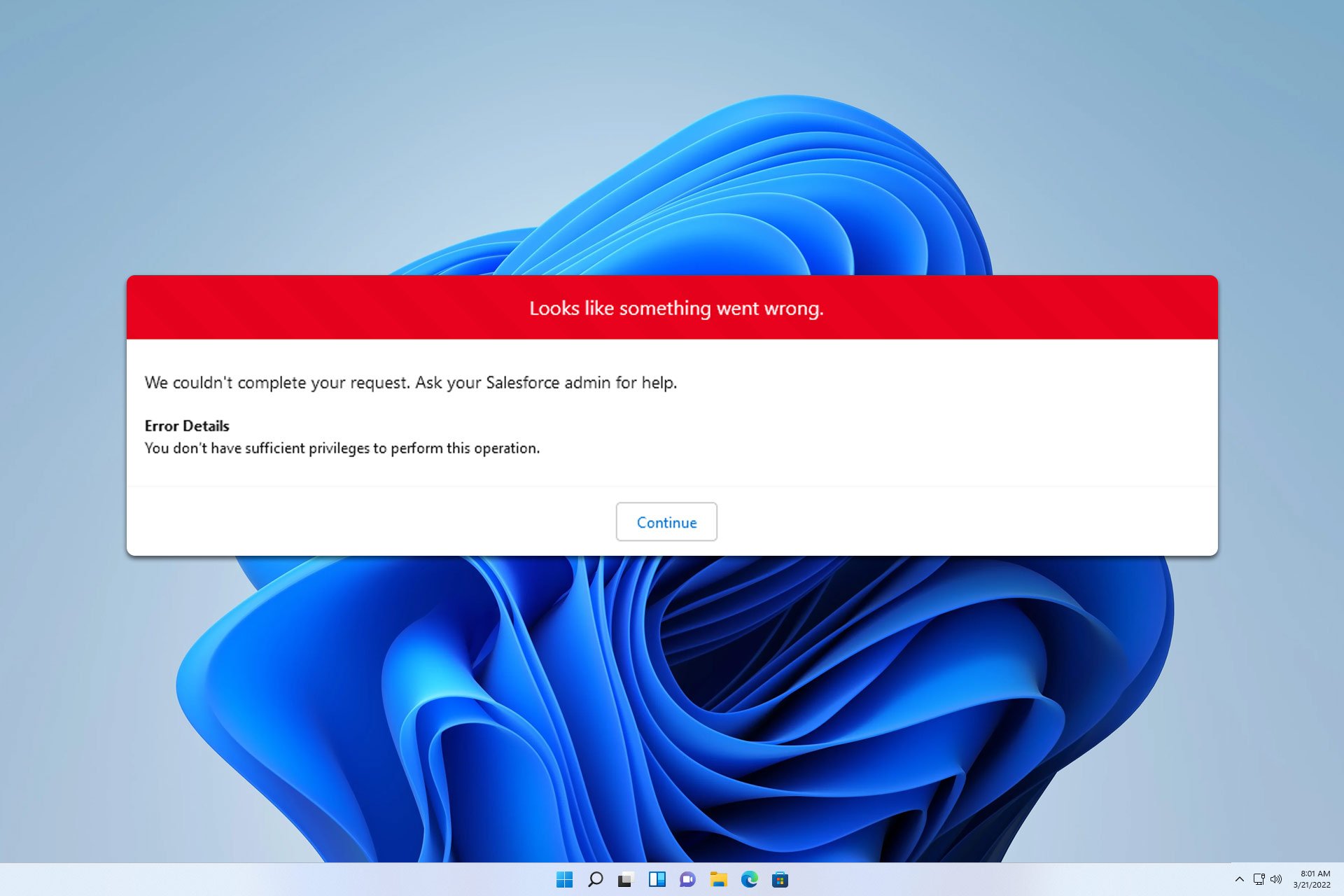
Many users encountered You don’t have sufficient privileges to perform this operation error in the Salesforce report, so today we’re going to take a closer look at this error.

What is an insufficient privilege error in Salesforce?

This error appears if the users don’t have the necessary privileges or due to other security settings.

How can I fix You don’t have sufficient privileges to perform this operation in the Salesforce report?

1. Change security settings

  1. Open Setup and go to Manage Users.
  2. Next, navigate to Profiles and select the profile that is having issues.
  3. Go to Visualforce Page Access and make sure that the selected user has access.
    visualforce page access

2. Enable external sharing

  1. Go to Setup and choose Security.
  2. Next, go to Sharing Settings and enable external sharing.
    sharing settings salesforce
  3. Save changes.

3. Other tips

  1. Make sure that your Report Type is set to Deployed. Ensure you have access to the Report Folder.
  2. Ensure that you have Read access to all the Objects in the Report references. If any objects are a part of a Managed Package that requires a license, check if you have the necessary license.
  3. When viewing Administrative reports, verify the View Setup and Configuration permission on your profile.
  4. Be sure to check the Field Level Security of the Lookup or Master-Detail Relationship field. This will ensure your profile can see this field.
  5. If the report uses multiple objects, ensure that the Lookup field between two objects isn’t hidden by Field Level Security.
  6. If the report type is set to Opportunities with Products, double-check if you have read access to the Price Book object.
  7. For Communities, Customer Portal, or Partner Portal Users the external access for the objects on which the report is based needs to be Private. Also, make sure that the appropriate sharing rules are defined.

How do I give permission to users to access reports in Salesforce?

  1. Click the Cog icon and then choose Setup.
  2. Search for profiles and select Profiles.
  3. Next, click on the Program Management Standard User profile or another profile.
    standard platform user
  4. Head to the System section click System Permission and then choose Edit.
  5. Select the desired level of access and click on Save.

As you can see, You don’t have sufficient privileges to perform this operation in the Salesforce report is caused by improper configuration, but that can be easily fixed.

This isn’t the only issue, many reported that the Salesforce report failed to be saved and that report is not visitable to user in Salesforce, so be sure to check these guides.

Also, some users reported that Salesforce isn’t working in Chrome, but we covered that issue in another article.

A security error made Windows PCs around the world cause a global tech outage, but there is a temporary fix

Picture this: you’re having your morning coffee, prepared to begin the day with a burst of work, and suddenly, your computer screen turns blue. It’s not simply any blue, though; it is what everyone fears – the Blue Screen of Death (BSOD).

Now multiply that annoyance by thousands, even millions, as an unsuccessful security update from CrowdStrike causes Windows PCs around the globe to go haywire with crashes and boot loops in a worldwide outage. This recent nightmare scenario has disrupted companies of all sizes, from large banks and airlines to small TV channels.

The cause was a cyber attack. A faulty update led to Windows PCs crashing and displaying a blue screen and the mysterious error code csagent.sys (PAGE_FAULT_IN_NONEPAGED_AREA), in a global outage.

The cybersecurity giant Crowdstrike swiftly acknowledged the error and reversed the update. But it was too late—machines that had already experienced the update were now broken down and couldn’t function well anymore.

One hopeful Reddit thread proposed a solution: start the system in Safe Mode and remove a certain file from the CrowdStrike directory. It sounds simple, but it becomes difficult to do this on many machines – maybe hundreds or even more.

CrowdStrike Engineering has identified a content deployment related to this issue and reverted those changes.

Workaround Steps:

  1. Boot Windows into Safe Mode or the Windows Recovery Environment
  2. Navigate to the C:\Windows\System32\drivers\CrowdStrike directory
  3. Locate the file matching “C-00000291*.sys”, and delete it.
  4. Boot the host normally.
Reddit user

The mess was not confined to one place; it spread worldwide. Businesses from Malaysia to the UK reported big problems. Sky News had to apologize for stopped broadcasts, and Ryanair had to deal with flight delays. Even the US Federal Aviation Administration confirmed this problem, stating that flights from big airlines were halted because of it.

Reports say banks in Australia were affected, and many companies there reported that their devices were suddenly offline. As working hours started to happen in Europe, companies reported the same issue, with many airports and hospitals experiencing it. Even more, the Windows PC outage has heavily impacted airports in Alaska and India.

George Kurtz, CEO of Crowdstrike, posted on X:

CrowdStrike is actively working with customers impacted by a defect found in a single content update for Windows hosts. Mac and Linux hosts are not impacted. This is not a security incident or cyberattack. The issue has been identified, isolated and a fix has been deployed. We refer customers to the support portal for the latest updates and will continue to provide complete and continuous updates on our website. We further recommend organizations ensure they’re communicating with CrowdStrike representatives through official channels. Our team is fully mobilized to ensure the security and stability of CrowdStrike customers.

George Kurtz

The entrepreneur says that the issue is not a security incident or a cyberattack but a bug, which will be fixed. However, dealing with affected devices will be a long day for IT admins.

On Reddit, there are already several workarounds that IT admins can try, and we have gathered them all in this article.

Developing story…

Firefox tests dedicated Address Bar button for easier Search Engine Switching

Mozilla continues to work on adding new features to Firefox, such as HTTPS-First Mode and vertical tabs, which improve user experience and security. The company is now testing a new search button in the address bar for Firefox Nightly that lets you change search engines on the fly while browsing websites in tabs.

Firefox offers multiple default search engines, these may vary depending on your location or region. While a major source of revenue for Mozilla comes from Google, the company offers other options like Bing, Wikipedia, DuckDuckGo, etc. while keeping Google the default for most users worldwide.

If you have a reason to use different search engines for a search query, you can by using the options provided at the dropdown in the URL bar from “This time search with:” row, but this is hardly noticeable and most users may not be aware of that.

Current design of search engine buttons at bottom of address bar in Firefox

Mozilla seems to be working to address this and is adding a dedicate search button to the address bar for changing engines. This makes it easier to do temporary searches for one-off queries without modifying your default search engine. The company is removing the search engine buttons at the bottom and making them available with one click next to the default search icon’s down arrow button.

This feature could potentially allow for temporary search engine changes for a single tab like before. Here is how it might work:

  • Clicking the search button in the address bar reveals your default search engine’s icon and a down arrow.
  • Tapping the down arrow displays a list of available search engines.
  • Choosing a different engine from the list could be used for that specific search only, without altering your default settings.

Here’s how you can enable the new feature in Firefox

  1. Launch Firefox
  2. Open about:config
  3. Click “Accept the Risk and Continue”
  4. Find and change the following preference value to true
    browser.urlbar.scotchBonnet.enableOverride

Ensure you’re using the latest Firefox version to avoid bugs that prompt you to use the browser every time you restart your computer. Mozilla has also taken a U-turn by supporting Firefox on Windows 7, Windows 8/8.1, which Chrome no longer supports.

Copilot in Forms is now available to commercial Microsoft 365 users

Do you remember when we told you that Microsoft wants Copilot in Forms to generate complex quizzes using your inputs? In the latest blog post, the Redmond-based tech giant showcases how this new feature generates quizzes, forms, and step-by-step solutions for quiz questions.

Available to all commercial Microsoft 365 subscribers, Copilot in Forms makes this easy – say what you want, such as the subject of your test, who it’s for, and what kind of questions there should be. Or, if you feel unsure about how to start, try clicking on ‘View prompts’ and see some suggested ideas. Copilot then proceeds to take in your inputs and produce a draft quiz that aligns with your requirements.

You can supply it with content from different places. Imagine you have a page from some biology textbook; maybe it’s one that you consider as your best quiz test. Copy and paste this content into the Draft with Copilot part on Forms. A draft quiz has been created for you to review and make changes if needed.

Copilot is special because it can include correct answers in the quiz draft. This allows you to focus more on improving and customizing your quiz instead of worrying about getting every detail right. You still have control – you can change these answers, add or delete questions, or modify the questions before launching your quiz.

This characteristic is being made accessible to commercial Microsoft 365 subscribers such as Enterprise, SMB, and EDU customers at first, but more users might get access to it in the future.

Nvidia GeForce NOW Priority or Ultimate memberships are now 50% off until Aug. 18

If you have looked at the Nvidia GeForce NOW cloud gaming service and thought it was expensive, we have great news: Nvidia is cutting the costs of their Priority and Ultimate memberships by a huge 50 percent. Now, you can plunge into top-quality gaming by paying half the price. For a short period until August 18, you can get the Priority membership for just $4.99 per month or choose a six-month deal at $24.99.

Take advantage of a special new discount — one-month and six-month GeForce NOW Priority or Ultimate memberships are now 50% off until Aug. 18. It’s perfect for members wanting to level up their gaming experience or those looking to try GeForce NOW for the first time to access and stream an ever-growing library of over 1,900 games with top-notch performance.

Nvidia

In a blog post, Nvidia says the memberships can handle resolutions of up to 1080p and play games at 60 FPS, with RTX effects switched on for six hours daily. Want more strength? The Ultimate membership costs $9.99 monthly or $49.99 for half a year and gives access to GeForce RTX 4080 GPUs. It allows eight hours of gameplay in one day and offers luxury like up to 4K resolution and frame rates that reach as high as 240 FPS.

Yet, more comes. Nvidia is not only offering hot summer deals but also growing its game library. Just this week, they are adding nine new titles to the collection. Two of them – Dungeons of Hinterberg and Flintlock: The Siege of Dawn- can be enjoyed by Microsoft PC Game Pass subscribers.

And for folks who want to get into the action, Microsoft has made it simpler. On Xbox.com game pages, you can launch and play games straight away for supported Nvidia GeForce NOW titles. It acts as a smooth link to your preferred Xbox PC games, making it quicker than before to start playing.

This summer sale is a chance of a lifetime to enhance your gaming experience with GeForce NOW’s cloud service. There’s no better time than now, whether you’re an experienced gamer or just starting in cloud gaming; these deals have been made specifically for accessing more than 1,900 games and experiencing unbeatable performance while playing them all.

Remember that the time for these reduced prices is running out, so take advantage of them before August 18.

Adobe Illustrator v28.6 Crack Free Download 2026

Features

  • Vector Graphics Editing: Create and edit scalable vector graphics with precision.
  • Advanced Pen Tool: Draw and manipulate paths with detailed control.
  • Custom Brushes and Patterns: Enhance your designs with a variety of brushes and pattern options.
  • Color Management: Utilize advanced color controls to achieve accurate and vibrant results.
  • Typography Tools: Access a range of text tools and fonts for professional typography.
  • Artboard Variations: Work on multiple artboards simultaneously for efficient design.
  • Integration with Adobe Creative Cloud: Seamlessly integrate with other Adobe apps like Photoshop and InDesign.

System Requirements

For optimal performance with Adobe Illustrator v28.6, ensure your system meets the following requirements:

  • Operating System: Windows 10 (64-bit) or macOS 11 (Big Sur) or later
  • Processor: Intel Core i5 or equivalent, or Apple M1 (for macOS)
  • RAM: 8 GB (16 GB recommended)
  • GPU: 2 GB of VRAM
  • Storage: SSD with 4 GB of free space for installation
  • Display Resolution: 1920×1080 or higher
  • Internet: Internet connection required for installation and updates

Pros and Cons

Pros:

  • Powerful vector editing capabilities for detailed graphic design.
  • Wide range of tools and features for diverse design needs.
  • Strong integration with Adobe Creative Cloud and other Adobe apps.
  • Regular updates and improvements.

Cons:

  • Steep learning curve for beginners.
  • High cost for full version and subscription.
  • Requires a robust system for smooth performance.
  • Cracked versions pose security risks and legal issues.

FAQ

1. Is Adobe Illustrator v28.6 available for free? Adobe Illustrator v28.6 is not available for free legally. You can access a free trial, but for continued use, a subscription or purchase is required.

2. Can I use Illustrator v28.6 on both Windows and macOS? Yes, Adobe Illustrator v28.6 is compatible with both Windows and macOS operating systems.

3. What are the advantages of using Adobe Illustrator over other graphic design software? Illustrator offers advanced vector editing tools, precise color management, and seamless integration with Adobe Creative Cloud, making it a top choice for professional graphic designers.

4. How do I get updates for Adobe Illustrator v28.6? Updates are provided through the Adobe Creative Cloud desktop app, which manages software updates and installations.

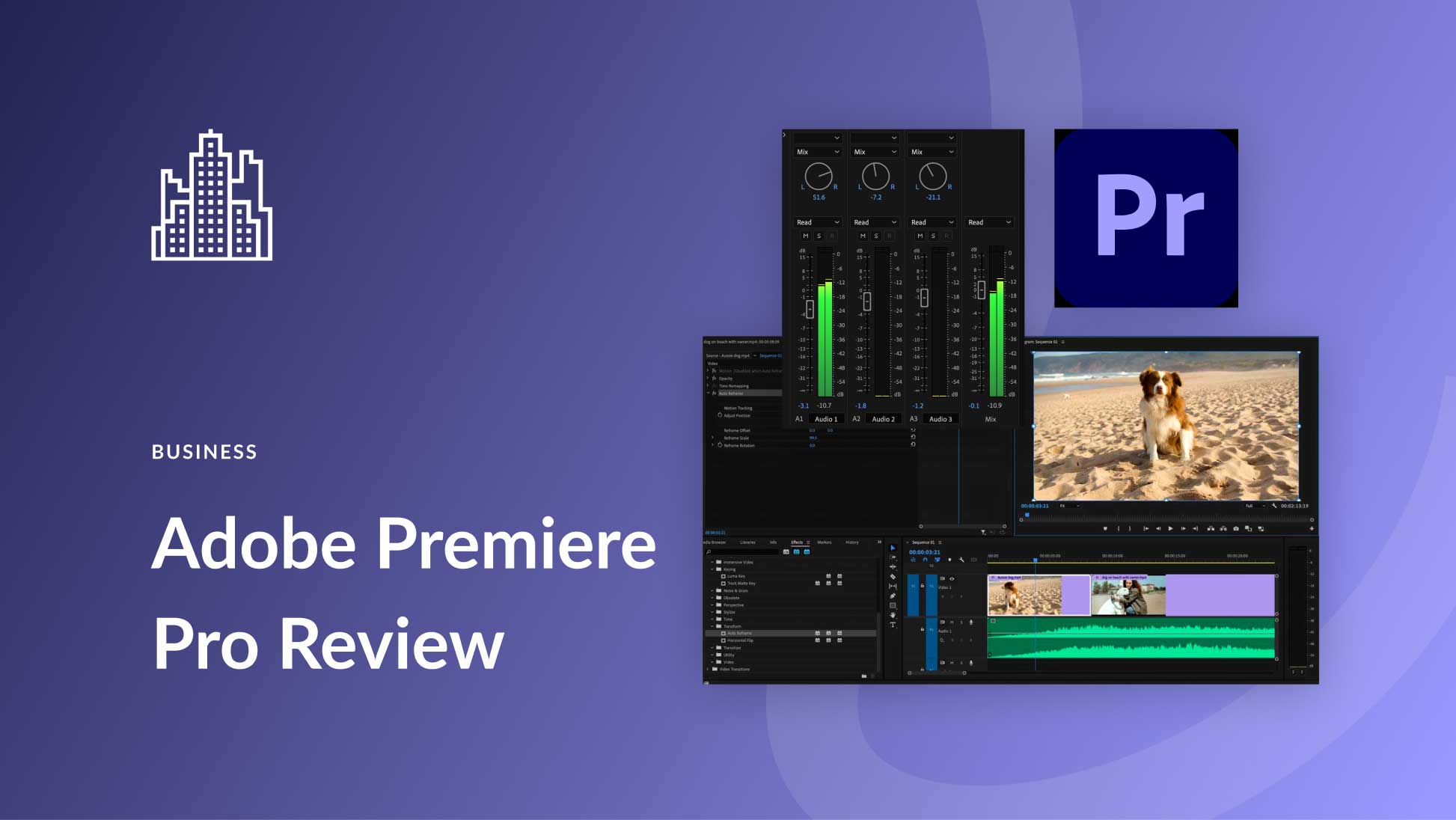
Adobe Premiere Pro Free Download for Windows 10/11

Overview

Adobe Premiere Pro Crack is one of the industry-leading video editing software used by professionals and enthusiasts alike. Whether you’re creating a short film, editing a YouTube video, or crafting a full-length feature, Premiere Pro offers a powerful set of tools that cater to all your editing needs. From advanced color grading to seamless integration with Adobe Creative Cloud apps, Premiere Pro provides a comprehensive solution for video editing.

Features

  • Multi-Track Editing: Edit videos across multiple tracks to arrange clips, add effects, and manage complex edits.
  • Advanced Color Grading: Take full control of color correction with the Lumetri Color panel, offering a wide range of tools to enhance your footage.
  • Motion Graphics Templates: Easily add professional graphics and titles to your videos with customizable templates.
  • Audio Editing Tools: Premiere Pro comes equipped with features for fine-tuning audio, including volume leveling, background noise reduction, and syncing with video.
  • Integration with Creative Cloud: Seamlessly work with Adobe After Effects, Photoshop, and Audition, enhancing workflow efficiency.
  • Support for Multiple Formats: Edit videos in a wide range of formats, from 8K footage to virtual reality video content.
  • Custom Keyboard Shortcuts: Increase productivity by assigning and customizing keyboard shortcuts tailored to your workflow.

System Requirements

To run Adobe Premiere Pro smoothly, your system needs to meet certain specifications:

  • Operating System: Windows 10 (64-bit) or macOS 11 (Big Sur) or later
  • Processor: Intel 6th Gen or newer CPU, or Apple M1 (for macOS)
  • RAM: 16 GB (32 GB for 4K or higher resolutions)
  • GPU: 4 GB of VRAM for HD media; 6 GB of VRAM for 4K or higher
  • Storage: SSD with at least 8 GB of free disk space for installation
  • Display Resolution: 1920×1080 or higher
  • Internet: Internet connection is required for software activation and accessing online services

Pros and Cons

Pros:

  • Comprehensive set of video editing tools suitable for all skill levels.
  • Seamless integration with other Adobe Creative Cloud apps.
  • Constant updates and new features.
  • Wide support for multiple file formats and codecs.
  • Highly customizable and scalable for various types of projects.

Cons:

  • Steep learning curve for beginners.
  • Requires a powerful computer to run smoothly.
  • Subscription-based pricing model, which can be expensive for some users.
  • Occasional stability issues or crashes, especially with large projects.

FAQ

1. Is Adobe Premiere Pro available for free? Adobe Premiere Pro offers a 7-day free trial. After the trial, you’ll need to purchase a subscription through Adobe Creative Cloud.

2. Can I use Premiere Pro on both Windows and macOS? Yes, Adobe Premiere Pro is compatible with both Windows and macOS operating systems, and you can switch between platforms if needed.

3. Does Premiere Pro support 4K video editing? Absolutely! Premiere Pro supports 4K, 8K, and even VR footage, provided that your system meets the necessary hardware requirements.

4. How do I get updates for Adobe Premiere Pro? As part of Adobe Creative Cloud, updates are automatically pushed to Premiere Pro users. You can check for and install updates through the Creative Cloud desktop app.

How to Create And Add a Poll in Slack

Many users are wondering how to create a poll in Slack, and while the application doesn’t have native support for polls, you can still create them by following these steps.

How do I create a poll in Slack?

1. Download Simple Poll

  1. In Slack, click on Browse Slack and then choose Apps.
    browse slack apps    
  2. Search for a simple poll, and click the Add button next to Simple Poll.
    simple poll add
  3. Click on Add to Slack.
    add to slack
  4. Next, click on Allow.
    allow simple poll
  5. Enter your information and click on Continue.
    continue slack information
  6. Next, click on Continue in Slack.
    continue in slack button

2. Create a poll using Simple Poll

  1. In Slack, navigate to Simple Poll in Apps.  Select Home and then Create a poll.
     create a poll button simple poll
  2. Select the desired channel, question, and poll options. Once done, click on Preview.
    poll options in slack
  3. If you’re pleased with the results, click on the Create poll.
    create poll button

Is Simple Poll free in Slack?

Yes, Simple Poll is free, but it has limitations in the number of surveys, polls, and responses that you can make monthly. For smaller teams that don’t frequently use polls, this is more than enough.

Can you edit a Simple Poll in Slack?

Yes, it’s possible to edit Simple Poll in Slack, however, this option is available only to Premium or Enterprise subscribers.

How do I add a simple poll to a private Slack channel?

  1. Type @Simple Poll in a private channel.
  2. Click on the Invite Them button.
  3. After that, you should be able to use Simple Poll without any restrictions.

As you can see, it’s easy to create a poll in Slack, but you need to use third-party apps to achieve it. To learn more, we have a great guide on how to edit, delete, or archive Slack channels or our article on how to create a shared Slack channel. You can also find out how to send GIFs and quote messages.

If you’re having too many notifications in Slack, we have a useful guide on how to mark all as read in Slack, so check it out.

Polls aren’t the only elements you can create, and we have a great guide on how to create or delete reminders in Slack, so don’t miss it.

Microsoft will enhance the New Outlook with automatic meeting artifacts

Remember a while ago when we told you that Microsoft Teams users will have access to a set of meeting recaps and meeting artifacts?

Well, you should know the feature is also coming to Microsoft Outlook. In a recent entry to the Microsoft 365 Roadmap, the Redmond-based tech giant unveiled that the company will enhance Microsoft Outlook to support these artifacts in August.

Participants will only have to get into the meeting. After the meeting ends, they will automatically receive a set of artifacts in the calendar for the new Outlook on Windows and the web.

The set will include a recap page for the meeting, the recording, the transcript, and all the files shared in that meeting. Those accessing the Intelligent Recap feature will also get a document containing all the important notes, such as name mentions, number of speakers, suggested tasks, etc.

Shortly after a meeting ends, meeting participants will automatically get a set of all the meeting artifacts in the calendar for the new Outlook in Windows and web. Included in this set is a quick entry point to the meeting recap page, the transcript, the recording, and any files that were shared. For users with access to intelligent meeting recap, in addition to the entry point to intelligent recap in Microsoft Teams, users will also see highlights like number of speakers, number of name mentions, and suggested tasks directly within Microsoft Outlook.

Microsoft

The feature will be more than useful to those who don’t want to take the extra steps to get the same documents from Microsoft Teams.

With it, Outlook will present them to you instead, sparing you the time wasted looking for them. This could greatly improve and streamline productivity and collaboration.

Since the new feature is also tied to Outlook Calendar, it’s good to know that the section will be easier to navigate around the same time, thanks to a series of changes Microsoft plans to release.

It seems like Microsoft Outlook is getting better with every update, right? Don’t forget that this new meeting artifacts feature is coming to Outlook for Windows and web.

Thanks to the new firmware updates, Surface Pro 8 will transfer files much faster

Surface Pro 8 just received a major firmware update. The eighth generation of Surface Pro is an Intel-based Windows tablet known for being flexible and strong; this update improved its overall performance.

Connectivity has been improved. If you have had troubles with Wi-Fi or Bluetooth not functioning as desired, particularly when your device is in sleep mode, this change will help to overcome those problems.

The Surface Thunderbolt 4 Dock also received an enhancement. The update enhances interoperability, solving the problems that prevented audio devices from being recognized by the system.

Now, let’s move on to the Surface Slim Pen’s update. Its new firmware update includes auto-pairing and improved auto-binding to create a smoother workflow.

There is also good news for those who worry about security: the update improves device security, especially by updating certificate processes so that they offer stronger protection and simpler authentication.

On the fixing side, this update fixes problems with camera performance triggered by low memory or insufficient storage, guaranteeing you can keep taking pictures smoothly.

For those who like technical details, the update can be applied to Surface Pro 8 devices running on Windows 10 October 2022 Update, Version 22H2 or higher. If you are curious about its size, it is a big one, with 742 MB for manual installations. But no need to fret—updating is easy regardless of whether it is done through Windows Update or by visiting the Surface Support website directly.

Even though the Surface Pro 8 is two generations behind, it will continue to receive support for many years. Microsoft has agreed to a six-year lifecycle for this device, meaning they promise assistance until October 5th, 2027.

You can check out the firmware’s official changelog here.

Microsoft says Octo Tempest is ready to attack servers with new weapons

In today’s world, where the dangers of cyber attacks are growing, Microsoft has warned about a very risky cybercrime group called Octo Tempest. This group is known for its complex assaults on VMWare ESXi servers, and according to an X thread, it has now added two fresh ransomware payloads: RansomHub and Qilin. These occurrences indicate a major increase in the field of cybercrime, presenting an increased danger to organizations all over the globe.

In the second quarter of 2024, financially motivated threat actor Octo Tempest, our most closely tracked ransomware threat actor, added RansomHub and Qilin to its ransomware payloads in campaigns.

Microsoft

The organization is not new. Microsoft made Octo Tempest public in October 2023, and its members aren’t just your average hackers—its members boast an impressive skill set that includes high-level social engineering techniques, identity compromise strategies, and unwavering persistence in their attacks. First, they used BlackCat ransomware. However, as BlackCat is no longer active, they have switched to RansomHub and Qilin, which is a big change in how they carry out cyber extortion.

The switch to this fresh ransomware tool happened because Octo Tempest broke into Change Healthcare through an affiliate, getting a payment of $22 million. But unexpectedly, the people who maintain BlackCat took control of the ransom and disappeared into internet spaces without leaving any trace behind them – only chaos and gigabytes full of sensitive information were left as evidence of their actions. This event caused the birth of RansomHub, which later became known for being involved in serious attacks against well-known places such as Christie’s, Rite Aid, and NRS Healthcare.

The way it’s used is especially concerning. RansomHub is frequently deployed during post-compromise situations, usually arranged by Manatee Tempest after Mustard Tempest acquires initial access through FakeUpdates/Socgholish infections. This multi-layered attack approach highlights the complex and organized actions of Octo Tempest.

Now, what can organizations do to protect themselves from these changing threats? Microsoft provides basic yet important guidance: keep systems updated and patched to block vulnerabilities, establish strong access controls, teach workers about the risks of phishing and social engineering, and ensure complete security solutions in place that can discover and stop attacks before they cause harm. Also, keeping regular data backups in safe places is vital for recovering from a ransomware attack.

The cyber threat environment is always changing; lately, it has adopted AI to strengthen its attacks. Octo Tempest represents a new wave of cybercrime that keeps pushing the limits. More than ever, it’s crucial to be aware and take action with cybersecurity methods to protect against these constantly changing risks.

Microsoft introduces an AI-enhanced Photos app in the Windows Insider Program

Windows Insiders can now use the AI-enhanced Microsoft Photos app that directly incorporates AI-supported editing characteristics from their Designer application

According to the latest blog post, the update, now open to all Windows Insider Program members, brings a smooth method for photo editing. Users need to click on the “Edit with Designer” button, and this application will use AI to identify objects in their image smartly so that they can personalize it effortlessly. There is no need to change apps or web pages; everything is available within the Photos app.

The app is available in English, Spanish, French, German, Italian, and Portuguese. These are the only languages supported for the translation feature, but they are available in many countries worldwide. Users must have a free Microsoft account and ensure their Photos app has been updated to version 2024.11070.12001.0 or later.

Microsoft also wants people excited about these fresh features to give feedback through the Insider Feedback hub. This is a good method of participating in the app’s growth.

Microsoft hasn’t specified a release date for the new AI-powered Photos app for people not included in the Windows Insider Program. It will take more time before these exciting editing tools become generally available. However, outside the Windows Insider Program, the Photos app has finally been fixed after being plagued by an annoying bug for weeks.

Again, update the app from the Microsoft Store to prevent the glitching error. If not, wait until Microsoft automatically updates it for you.

How to View Audit Logs in Slack?

If you need to track message edits, app integrations, or user permissions, you need to access and interpret Slack’s audit logs. This can help you maintain security within your Slack workspace and allows the admins to access detailed record of user actions so that they can monitor changes and ensure compliance with organization policies.

 You can check the audit logs directly in Slack or export the information as CSV or use the Audit logs API to develop customised monitoring tools.  In this guide, we’ll walk you through the steps for all.

How do I check audit logs on Slack?

1. View audit logs in Slack

  1. Launch Slack, then click your organization name from the sidebar.click organisation name in the sidebar. View Audit Logs in Slack
  2. Go to Tools & settings, then click Organization settings.
  3. From the left sidebar, click Security, then select Audit logs.
  4. You can filter the log entries by Acting user, Event, Affects or Date range from the drop-down menus and review the log entries as you like.

2. Download a CSV file

  1. Launch Slack, then click your organization name from the sidebar.
  2. Navigate to Tools & settings, then select Organization settings.
  3. From the left side pane, click Security, then choose Audit logs.
  4. Now, filter the log entries by Acting user, Event, Affects or Date range from the drop-down menus and review the log entries as you like.
  5. Click Export logs from the upper-right corner, then choose the formatting option from the drop-down menu to download the logs on your device.

3. Use the Audit Logs API

Note icon NOTE
The audit logs can be accessed by organization owners, administrators who have e Audit logs admin system role. Also, you need an Enterprise Grid subscription.

To monitor the audit events happening in an Enterprise Grid organization to make sure continued compliance and safeguard the workspace from any misuse.

To collect the Audit logs, you need a slack User token with auditlogs:read scope. And, to get this token, an application needs to be installed by the Owner of an Enterprise Grid organization .

Once the app is created and installed on the organizarion, you need to grant the auditlogs:read scope. Then, you can get Slack User Token from the apps OAuth page. You can get the detailed instructions on  Slack API Documentation.

In case you have issues like Slack won’t open on your device it could ne due the Slack servers, missing data files or outdated app; read this guide to learn more.

If you are not able to send a message from Slack, the reason could be corrupt cache file, or firewall interference; check out this guide to get quick solutions.

Were you able to get the audit logs on Slack? If so, share your experiences expressing how it was helpful for the ogranization in the comments section below.

EA Play Early Access: Here’s How to Get it

Many users are looking to get EA Play for early access, and if you’re not familiar with the service, in this guide we’ll explain to you everything you need to know.

What do I need to know about EA Play early access?

Do you get early access with EA Play?

Yes, getting EA Play will get you early access to the upcoming titles.

Does EA Play have a 10-hour limit for early access?

Yes, there’s a 10-hour limit on early access with the basic license. Users will PlayPro subscriptions don’t have any time restrictions.

What is the difference between EA Play and EA Play Pro?

The main difference between the two subscription models is the availability of games. With Play Pro you get access to a library of premium edition EA games.

On the other hand, the regular subscription just gives you access to a specific collection of selected games. It’s worth mentioning that the regular subscription has a 10-hour limit for early access while the Pro version doesn’t have any time limitations.

How do I get EA Play early access on PS5?

  1. Navigate to the PlayStation Store.
  2. Next, head to the Subscriptions tab.
  3. Locate EA Play’s banner and choose Learn more.
    learn more ea play ps5
  4. Follow the instructions on the screen to set up your subscription.
  5. Once the subscription is set, you should be able to use early access.

Does EA Play get early access to College Football?

Yes, an EA Play subscription will get you early access to College Football and other EA titles.

What’s the difference between EA Access and EA Play?

There aren’t any differences, since EA Access has changed the name to EA Play, so all the functionality remains the same.

Do you get full access to games on EA Play?

Yes, you get full access to games even during the early access period. This also means that all your progress will be saved once the early access period ends.

This is everything you need to know about EA Play and its early access. Don’t forget to keep your ports open for EA Sports games unless you’re ready for networking issues.

You should also know that certain issues can occur, and we already wrote about 0xa3ea00c9 EA Play error and EA Play trial error in our previous guides, so don’t miss them.

Windows 11 23H2 is now broadly available to users all over the world

The much anticipated Windows 11 23H2 update has been broadly released, ending the waiting for many users worldwide. In a blog post, Microsoft confirmed that this update is now available to all, ensuring every eligible device can smoothly transition to the newest version.

Windows 11, version 23H2, also known as the Windows 11 2023 Update, is now broadly available to all users with eligible devices who Check for updates. In addition to annual updates, devices running version 23H2 receive new features and enhancements more frequently using servicing technology.

Microsoft

You need to access the Settings app and hit the ‘Check for updates’ button to get it. This simple move will ensure you have Windows 11 23H2. This update improves your personal computer’s performance and security features.

This is an important reminder for those still holding onto Windows 11 22H2: its support will end soon. Microsoft is preparing to roll out automatic updates for PCs to version 23H2, ensuring that users are not left behind and exposed to security risks.

The 23H2 update brings more than just security for your PC; it is full of exciting features. From taskbar regrouping and a new volume mixer to controls over RGB lighting – many things are waiting to be discovered. Also, native support for 7Z and RAR files is listed in the update if you pay attention to small details. These enhancements are designed to improve your computing experience significantly.

If you are worried about compatibility, don’t worry. The 23H2 update keeps the system needs the same as its previous ones, so there won’t be any issues with shifting from one to another.

The 23H2 update has many exciting new features. You can better manage your taskbar, adjust app volumes easily, and customize your PC’s lighting.

If you haven’t updated yet, you can now, and you should do it.

Microsoft releases permanent fix for annoying bug in Windows Photos

Suppose you’ve experienced the annoying bug that would crash the Microsoft Photos application on your Windows 11 device every time you open it up. In that case, you should know that Microsoft finally fixed it.

Earlier this week, the Redmond-based tech giant released a temporary fix for the bug, asking users to download and install the new version of the WinAppSDK and promising a permanent solution would soon be available.

According to the latest update in the health blog, Microsoft has acknowledged and fixed this problem, which was especially problematic for users with established group policies.

This issue was resolved by Photos app version 2024.11070.15005.0 and newer, released to the Microsoft Store on July 17, 2024. Windows devices will automatically download the updated Photos application over the following weeks without user or admin interaction. You can also download the latest version of the Photos application immediately either by visiting the Microsoft Photos app page or by selecting Get updates option from the Microsoft Store. 

Microsoft

Microsoft investigated an irritating bug with the Windows 11 Photos app one month ago that would cause it to crash. The problem was discovered to be caused by a disagreement between it and a group policy or CSP (configuration service provider) policy that was not based on administration rights.

An enhancement to the Photos app with an update from the Windows store on or after June 4th (version 2024.11050.29009.0 or higher) caused this glitch. The app displayed a spinning circle before vanishing away like a magic trick.

However, Microsoft has taken action to solve the problem. On July 17th, the Redmond-based tech giant released version 2024.11070.15005.0 of the Photos app, which effectively fixes this annoying bug.

All Windows devices will receive this new edition automatically; no more steps are needed from users or admins, but if you want to hurry up the process, go to the Microsoft Store and update the Photos app now.

With the new GeForce Now – Xbox partnership, you can play PC games on your console

Microsoft has partnered with Nvidia to integrate the GeForce NOW service into its Xbox.com game pages. The announcement, one of the most important in gaming, was made on X (formerly known as Twitter) this week.

The Xbox—GerforceNow partnership allows gamers to start and enjoy their chosen PC games straight from Xbox.com on high-performance servers provided by Nvidia. This will allow gamers to play anytime and anywhere they like without being limited by hardware restrictions.

Microsoft and Nvidia announced their first major partnership back in February 2023. The goal was to make PC Game Pass games available on the GeForce NOW cloud gaming service. This happened in May 2023, and many more titles have been added.

The new announcement doesn’t just show an expansion of the Xbox world beyond regular platforms but highlights how strong cloud gaming has become. People who play games can use GeForce NOW and its powerful Nvidia GeForce RTX 4080 GPUs for a monthly charge to have a smooth gaming experience on different devices.

If you are already paying for a PC Game Pass subscription, this offer becomes more interesting because it gives access to many games at no extra expense.

This is not the first move Microsoft has made into cloud gaming. In a previous effort, they partnered with Amazon to bring an Xbox app for the Amazon Fire TV Stick 4K and Fire Stick 4K Max – expanding opportunities even more. The bundle during Amazon Prime Day contained one Xbox Wireless Controller, an Amazon Fire TV Stick 4K Max, and a month’s subscription to Xbox Game Pass Ultimate, which was being sold at a special price. This showcases how Microsoft envisions future gaming as accessible and interconnected.

Blending GeForce NOW with Xbox.com pages signifies a future where distinctions among various gaming platforms fade away. This will make top-quality gaming experiences available for all, regardless of their preferred device.

Have you tried cloud gaming via GeForce NOW or Xbox Cloud Gaming? If so, please let us know your experience with it.

Microsoft Designer is now available to all users. Here’s what you need to know about it

Microsoft has made its graphic design tool, Microsoft Designer, available to the general public. At first glance, this might not seem more than just another app for making social media posts, invitations, and digital postcards.

Today we’re announcing that the Microsoft Designer app is now generally available with a personal Microsoft account, with new features that help you create and edit like never before. You can express yourself in brand new ways and bring your most creative ideas to life in seconds—all with the help of AI. A blank canvas no longer has to be intimidating—just describe what you want to see, and Designer can create it for you. And if you’re not sure what that is, Designer can help you get started. 

Microsoft

However, over time, it might evolve into something more significant: an application with strong image editing features that can be used on mobile platforms, thus becoming a flexible instrument for personal accounts in Microsoft services.

If you want to make AI-generated pictures or modify them smoothly, Microsoft Designer is the best choice for you because it gives 15 free boosts each day. And if you want more creative power, a Copilot Pro subscription will offer 100 daily boosts.

In a blog post, the Redmond-based tech giant says Microsoft Designer doesn’t work only on one platform. It is designed to be used with different Microsoft products such as Word, PowerPoint, and Microsoft Photos, which run on Windows. This gives users a smooth creative experience across all your devices. It’s accessible in over 80 languages via the web, ensuring language differences don’t stop your creativity process.

Through its new prompt templates, Microsoft Designer makes it easier to start designing by giving you ready-made ideas, styles, and descriptions that can be edited according to your preference. For example, if one wants to design custom stickers or emojis, the job becomes simple with this tool; similarly, making greeting cards is simple.

But what about those moments when you look at an empty canvas, not knowing where to begin? Microsoft Designer also solved this problem. Any picture can become a work of art with the characteristic Restyle image.

You can choose from various styles and add your own twist. Moreover, the app has the amazing feature of designing unique frames for images and creating collages, which can help you maintain a consistent style throughout your photos.

Looking to the future, Microsoft is developing a Replace background feature. This will offer a new way for users to change backgrounds in photos on the app, making it more straightforward and creative.

Acer Predator Helios 500 Review: The Game-Changer in Gaming Laptops

In the last few years, gaming laptops have become increasingly popular as gamers switch to more portable devices. And while many manufacturers have gone with slim, sleek models, Acer Predator Helios 500 was one that went with the conventional design, offering unmatched performance at the time of release!

The laptop features the GeForce RTX 3080 GPU and the 11th Gen Intel Core i9 CPU, key components behind its power-packed performance. The two are also responsible for the bulky design, apart from the display.

But is bulkiness worth it? Let’s find out in our detailed review of Acer Predator Helios 500!

A comprehensive review of Acer Predator Helios 500

A performance like none other

Performance is one of the key aspects that drives gamers to Acer Predator Helios 500. Be it games or other resource-intensive apps, the laptop won’t disappoint you in any way!

Upon running some of the popular recent titles, I enjoyed excellent gameplay with high framerate and absolutely no lag. However, this might change with future game and OS updates since the laptop was released in 2021.

But given the powerful specifications, you won’t have to worry about it for another few years!

Acer PredatorSense app
PredatorSense app (Image source: Acer)

With four built-in modes, Quiet, Default, Extreme, and Turbo, you can quickly configure things based on the task at hand. With the Quiet profile, the CPU fans make minimal noise without compromising too much on the performance, while if you are on the Turbo profile, be ready to expect some disturbance.

Also, the pre-installed PredatorSense app allows you to monitor the laptop’s performance, overclock the system, customize the lighting, control the CPU fan, or switch between profiles. And it’s surprisingly seamless and straightforward. Overclocking has been made really simple on Acer Predator Helios 500, negating the need for third-party apps, which are often a necessity on other computers.

The full-sized keyboard and touchpad perform very well. The key placement is optimal, making the gaming experience all the more better.

I wouldn’t get into the various benchmarks as those have been extensively covered, and detailed reports are available on the web. But, in short, the performance of Acer Predator Helios 500 is simply extraordinary!

A huge display for the ultimate gaming experience

As gaming laptops become compact and feature the more common 15″ displays, the Acer Predator Helios 500 still boasts of a huge 17.3″, 4K, 120Hz screen.

It’s not just the size that’s to be appreciated but the quality. The visuals are crystal clear, and the gaming experience certainly goes up a notch on the Acer Predator Helios 500 for this very reason!

The excellent display is also an added advantage for anyone planning to run video editing apps or rendering software.

Also, with a high NITS, the display is bright enough to be used outside or near direct sunlight during the daytime. The display on Acer Predator Helios 500 undoubtedly scores a perfect 10 in our testing!

An upgraded design

The earlier models of Acer Predator Helios 500 were just as fast but not as aesthetic. While there haven’t been many changes in the latest model, even the small ones seem to make a difference.

For instance, you would earlier find the Predator branding underneath the display in the Acer Predator Helios 500, 17″, AMD model, which has been replaced with a logo, giving it a much more elegant look. Similarly, the latest model features fewer bezels, making the screen look all the better.

acer predator helios 500

As for the body, it features an all-plastic interior and a metallic exterior, both choices perfectly suited for their job. The plastic interior prevents smudge marks, while the metallic exterior gives it a premium feel. Also, going with a plastic interior would have helped Acer reduce the laptop’s weight, which is already a little over 8 pounds!

The design, if you ask me, is akin to a conventional gaming laptop, featuring RBG lighting for the keyboard as well as the body.

The feature I liked the most about Acer Predator Helios 500 is the swappable WASD keys, powered by the MagForce technology (has to be maually enabled in the PredatorSense app). Basically, you can replace these keys with ones that function like a joystick. The swappable keys respond to pressure, meaning that the more pressure you apply, the more pronounced the response!

As an example, in supported games, the intensity with which you accelerate/decelerate the vehicle or make a turn will depend on how you press the key and the increase in pressure.

Decent RAM and storage capacity

When we talk of gaming laptops, or even laptops for that matter, storage remains a concern. As opposed to desktops, most laptops don’t feature an upgradable storage option, often putting you in a tight spot. The good news is that this is not the case with Acer Predator Helios 500.

In addition to the 2 TB built-in disk in the top model, you get an additional slot to expand the storage. Similarly, while you have 32 GB RAM, it can be expanded to 64 GB if you multitask!

As for most gamers, the built-in storage should suffice, given that many have now moved to cloud gaming, which significantly reduces the local storage requirements. And for those who still prefer downloading all their favourite games, the expandable storage option will be an added advantage.

A not-so-good battery life

Battery life has never been a strong point of gaming laptops, with a few exceptions of course. The same is the case with the Acer Predator Helios 500!

On a full charge, you can expect 2-4 hours of uninterrupted gaming. For less resource-intensive apps, video streaming, or web browsing, the laptop will run for an additional hour or two, depending on the task(s) at hand.

For a laptop this bulky, I would have hoped for a better battery backup. But it’s understandable, given the kind of power-packed performance it delivers. Amongst all the key parameters in this Acer Predator Helios 500 review, battery backup is one where the laptop doesn’t score too well!

If you work for extended periods, take a look at our curated list of laptops with the best battery life.

Effective cooling

For seasoned gamers, system temperature remains a key aspect as it directly affects the experience. This has been given special consideration on Acer Predator Helios 500, which features the 5th Gen AeroBlade 3D Fan Technology for seamless airflow.

The cooling system is too good, effectively dissipating heat from the processor while keeping the laptop’s body temperature under check with Vortex Flow. Even upon running high-end games, the temperature was nowhere near the critical levels, which directly improved the overall performance!

But with the Turbo mode during extensive gaming, the fans start to make noise. It’s something I would put in the cons column.

Acer Predator Helios 500 specifications

ProcessorIntel Core i9-11980HK
GPUNvidia GeForce RTX 3080
Storage2 TB SSD (expandable)
RAM32 GB DDR4-3200
Display17.3″, 4K, 3840 x 2160 px
Weight8.77 lbs (3.98 kg)
Battery74 Wh, 330 W power adapter

Factors to consider before buying Acer Predator Helios 500

While writing a review for Acer Predator Helios 500, it’s also critical to mention the key factors you must consider:

  • Bulky design: If you plan to carry the laptop around, this might not be the best choice, given the reduced portability.
  • Poor battery backup: The Acer Predator Helios 500, released a few years ago, doesn’t offer the best battery backup. Modern-day gaming laptops, on the other hand, can deliver 10 hours+ of seamless gameplay.
  • Price range: The pricing is a little on the higher side. Many gaming laptops launched in recent years deliver the same performance but are more economical on the pricing front!

That’s a simple and straightforward review of a gaming laptop that was designed to redefine the segment. And the Acer Predator Helios 500 succeeded in doing so to a great extent!

But over the years, powerful and user-oriented gaming laptops have emerged to be the top favourites amongst the community.

What’s your review of the Acer Predator Helios 500? Share with our readers in the comments section.

5 Best OneTab Alternatives for Firefox to Use

Dealing with dozens of open tabs can be a hassle, and this is why many are looking for a OneTab alternative for Firefox. In this guide, we’re going to show you several popular extensions that you can use to achieve similar results, so let’s get started.

What is the best OneTab alternative for Firefox?

1. Simple Tab Groups – Best overall

simple Tab Groups extension open

Managing tabs is incredibly simple with Simple Tab Groups. The extension allows you to create several workspaces. You can switch to a workplace with a shortcut or right from the extension.

The extension also has a tab that lets you manage all open tabs between workspaces, allowing you to easily move or close tabs or configure workspaces.

Speaking of workspaces, they can be configured to unload tabs if you switch to a different workspace, to save memory. Overall, it’s an extremely powerful extension for tab management, so don’t miss it.

Other great features:

  • Ability to organize tabs into workspaces
  • Easy switching between workspaces
  • Ability to unload tabs on closed workspaces
  • Powerful workspace and tab management

⇒ Get Simple Tab Groups

2. Tabs Aside – Simple but powerful

tabs aside extension open firefox

This extension is rather similar to OneTab since it allows you to save your session and restore tabs when needed thus saving your resources.

With it, you can have several different sessions, and you can easily restore a session in a new window if needed. Tabs can be added to a session by right-clicking them, but you can also assign tabs to a session and close them immediately to save resources.

With Tabs Aside, all your sessions will be shown in the sidebar, and you can easily switch between them or set the session aside and its tabs. This is a great extension, so don’t hesitate to give it a try!

Other great features:

  • Easy to use
  • Ability to have multiple sessions
  • All sessions are available in the sidebar
  • Can move tabs to session with or without closing them

⇒ Get Tabs Aside

3. Get Tab Session Manager – Easy to use

tab session manager extenion firefox

Another great extension that can help you organize your tabs and sessions is Tab Session Manager. The extension will save all your open tabs in a session so you can easily restore them when needed.

Of course, you can quickly remove a tab from a session, and you can have as many sessions as you need and switch between them with a single click.

There are few limitations, and when you create a session all open tabs will be added to it. You also can’t add individual pages or move them across a session which might be an issue for some users.

Other great features:

  • Ability to create multiple sessions
  • Easy session switching
  • Ability to open closed sessions
  • Simple to use

⇒ Get Tab Session Manager

4. Sessionic – Manages your sessions easily

Seassionic extension firefox

Another great OneTab Firefox alternative is Sessionic. This extension is pretty similar to the previous one in terms of functionality, and it will create a session from all your open tabs.

Of course, you can have multiple sessions, but you can’t easily move tabs within sessions or add individual tabs to the session.

Overall, the extension looks and works great, and if you want to minimize the number of open tabs, give this extension a go.

Other great features:

  • Simple user interface
  • Ability to have multiple sessions
  • Quick switching between sessions
  • Ease of use

⇒ Get Sessionic

5. SessionPaw – Great for tab management

seassionpaw extension firefox

SeassionPaw is great if you need to have multiple windows open and manage or move tabs between them. The extension has a friendly and simple user interface, and moving tabs between windows is simple using the drag-and-drop feature.

There’s a session manager available that lets you easily restore previously saved groups or sessions. However, this feature isn’t easily accessible and it requires you to open the extension in Side View to access it.

Overall, SessionPaw has some outstanding features for tab management, allowing you to quickly close and put tabs to sleep. However, using it isn’t as simple since some features aren’t easily accessible, so there’s a learning curve that some users might not like.

Other great features:

  • Great tab management features
  • Ability to highlight tabs
  • Drag and drop support for easier tab management
  • Session support

⇒ Get PessionPaw

If you want to learn more about Firefox, we have a great guide on tab reloader extensions for Firefox, as well as an article on the Steam Inventory Helper extension for Firefox.

If you’re not a fan of extensions, you can achieve similar features if you list all tabs in Firefox, but this option offers only basic tab management.

These are some of the best OneTab alternatives for Firefox that you can use. What is your extension of choice? Let us know in the comments below.

Edge Dev 128.0.2708.0 finally fixes the drag-and-drop function

Microsoft released version 128.0.2708.0 to Edge Dev, loaded with features to boost user enjoyment and ease of use.

It enhances the Super Drag and Drop function and introduces a new closing mechanism when the browser becomes stuck during the shutdown process. There’s bug-fixing, minor alteration, and other things.

To start with, Microsoft has put in a toast view for the Super Drag and Drop feature to handle this issue of over-triggering. If you’ve ever been annoyed that your browser doesn’t close correctly, you should know the Redmond-based tech giant has fixed it. The update adds a code to end the process of a browser stuck in shutdown, ensuring it stops completely and gives an easier, less annoying experience.

As for the browser’s reliability, Microsoft has fixed a problem where toggling dark mode while using the picture-in-picture feature could cause crashing. After selecting a suggestion, they’ve also resolved a crash in the browser narrator and tackled crashes related to auto grouping on Android, navigating certain webpages, and the browser’s shutdown.

Additionally, any crashes when the ‘Settings & More’ button was clicked on Xbox have also been fixed.

But what about the user experience? The update has made progress in this area, too. For example, they have fixed a problem where pressing the ‘split screen’ button did not move the keyboard focus inside that particular section of the ‘split screen,’ making navigation difficult.

Editing captured screenshots is easier now. A keyboard input problem has been fixed. The toggle button appears correctly in the Tab actions menu for people who use vertical tabs.
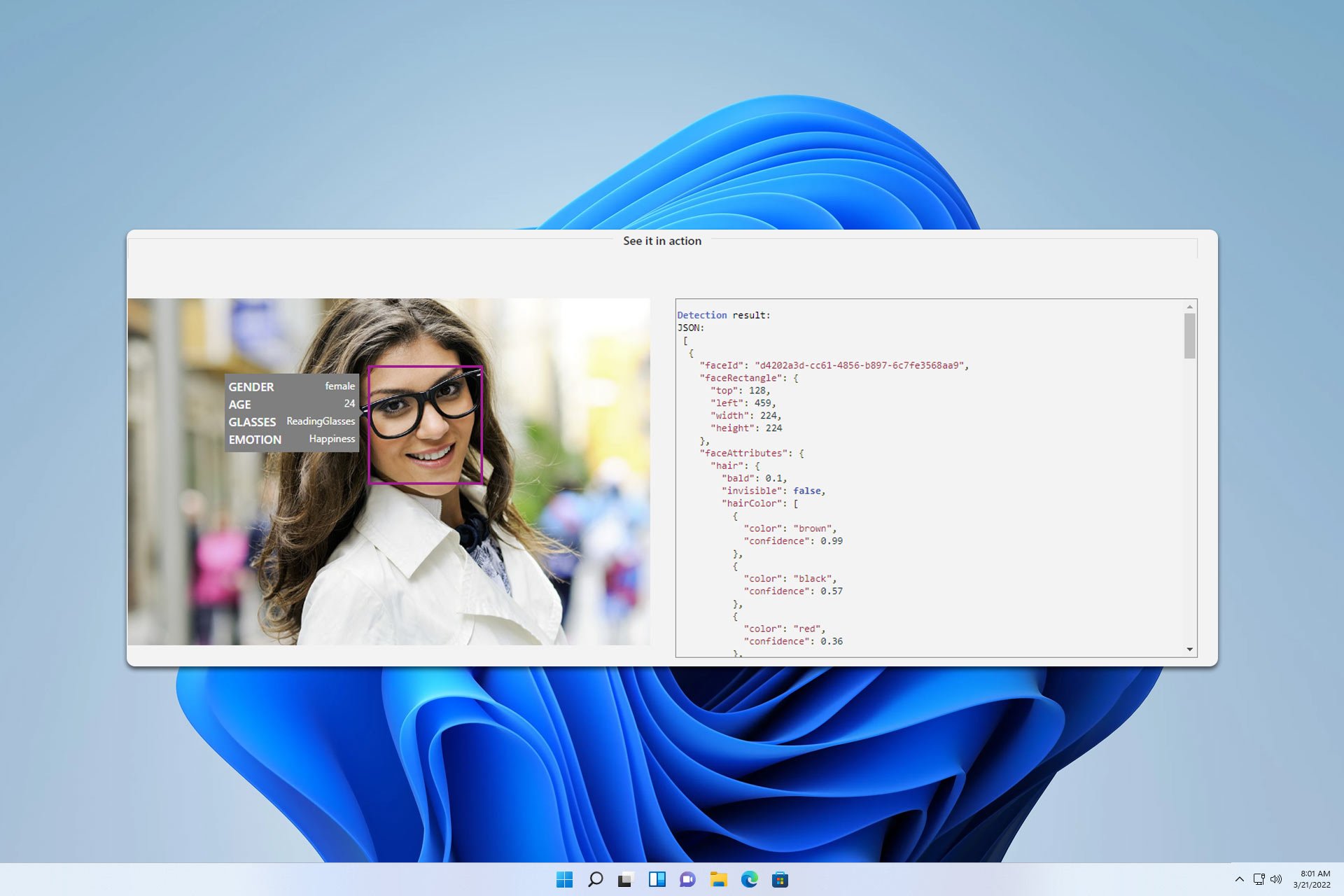
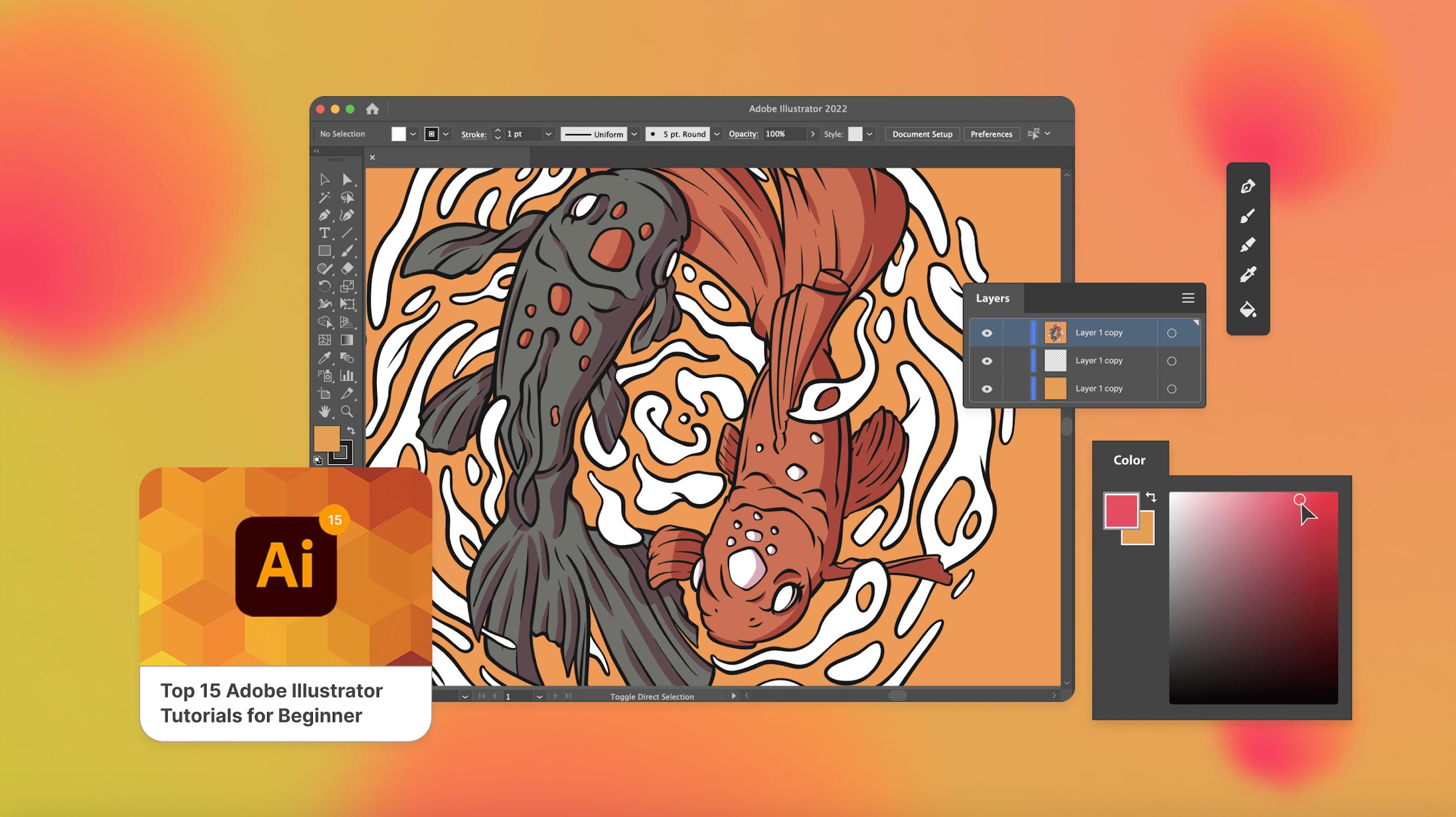
For Android users, the icons and names for top sites are now shown correctly. Also, the browser will not open duplicate tabs if you click on a link from another app while in Shared Device Mode.

For those who use iOS devices, they haven’t been forgotten: Microsoft fixed a problem where the keyboard stayed active when popping up to edit the top site; additionally, the edit bar no longer unexpectedly moves while renaming top sites.

The latest Edge Dev version, 128.0.2708.0, can be downloaded on multiple platforms, such as Windows 10, 11, macOS, Linux, and Android. So why not try it and experience the changes yourself?

Speaking of Microsoft Edge on Android, mobile browser users will soon be able to access workspaces directly from their phones, making it easier to work from basically everywhere. Plus, let’s not forget about the exciting SVG support, which allows users to seamlessly transfer images of this format from Edge to other Chromium-based browsers.

You can read the version’s full changelog here.