Path of Exile 2 is coming to consoles, developers confirm

Path of Exile has been a spiritual successor of Diablo 2 for a while, so it’s no wonder that the game has achieved tremendous popularity.

When the sequel was first announced, the fans of the game were pretty excited, and today we have some good news for console owners as well.

Path of Exile 2 will be available on Xbox Series X|S and PlayStation 5

This Path of Exile 2 information comes from One Esports, and in a recent showcase video, the developers shared the information regarding the console release.

Grinding Gear Software now has a dedicated team for console development that managed to create a new interface that will make the game more accessible on consoles.

The interface allows you to easily assign skills and items for quick access with the controller. The inventory system has been redesigned and it uses full-screen view on the consoles.

It allows you to manage items the same as before, but it offers shortcuts that allow you to quickly equip or unequip items.

Another feature that deserves a mention is couch co-op so you can play the game with your friends on the same device. Last but not least, is the full support for cross-play and cross-progression, so you can play with your friends regardless of the platform.

The game will be released for PC, and next-gen consoles on the same day, and if can’t wait to try it, it will be available for early access later this year.

Path of Exile 2 isn’t the only game confirmed to be released on console, and recently Marvel Rivals console release was confirmed.

In other news, Call of Duty: Black Ops 6 won’t require a new Xbox Game Pass tier, so everyone with a subscription will be able to play it.

Azure Update Delivery will be deprecated, and Azure Firewall will be impacted

Do you know about future changes to the Azure Update Delivery service tag? If you use Azure Firewall to handle Windows updates, there is significant news that you should be aware of. From July 1st, 2024, the Azure Update Delivery service tag will no longer exist, according to the official blog post published by the Redmond-based tech giant last week.

This signifies that if your setup depends on this service tag for receiving Windows updates, now is an ideal time to alter course and employ Azure Firewall application rules. Let us delve deeper into what this implies and how you can shift seamlessly without interruption.

Using Azure Firewall service tags has helped make firewall configurations easier to handle. These tags are like groups containing IP addresses and ranges linked with certain Azure resources; they automatically update whenever a change occurs.

This feature proves very handy when ensuring Windows devices can connect securely to Microsoft Windows Update services without constantly adjusting the firewall rules. For instance, the AzureUpdateDelivery service tag has allowed devices to scan for updates like operating system enhancements and driver and application patches by recognizing IP addresses used by Microsoft’s scanning services.

But change is happening. The method of content downloads is changing, too. Downloads are now more often coming from reliable third-party Content Delivery Networks (CDNs), which don’t have service tags, and this might interrupt the update process at a stage when content gets downloaded.

The answer is to stop using service tags such as AzureUpdateDelivery and AzureFrontDoor.FirstParty, and start using Azure Firewall application rules with Fully Qualified Domain Name (FQDN) filtering.

It is time to take action if you have explicitly used these service tags in your Azure Firewall rules. You should review your Azure Firewall policy network rules to verify their usage and begin planning the migration.

For affected individuals, the action suggested involves establishing Azure Firewall application rules set for the Windows Update FQDN tag.

This method ensures that your firewall recognizes precisely which hosts are reliable to scan and get update content from, maintaining security without needing you to manually update IP addresses.

But what if I’m using my own firewall or proxy services? Don’t worry; Microsoft assists with setting up these services to work well with Windows Update services.

For people who like to limit updates only inside the network boundary, there is another option called Windows Server Update Services (WSUS). This lets devices search and get updates without touching the internet at all.

The deprecation date is near, so it’s necessary to start moving forward with these new methods. The reason for this change isn’t merely to keep pace; it’s about guaranteeing that your environment stays safe and current.

In other news, Microsoft also released the capabilities of the Azure Web Application Firewall (WAF) and Azure Firewall into the Copilot for Security last month in a public preview.

Discord ditches the download links for the Windows 7 and 8 clients on June 15

We know for a while now that Discord dropped their support for their Windows 7 and 8 client on 15 March. However, they still had the direct distro download link on their website, as we’ve learned from one of the latest X posts of Bob Pony.

Discord also announced a while ago that they are are also deprecating their client for all 32-bit Windows systems, hinting at the Windows 10 users who are still using the 32-bit version on July 15.

What will happen on June 15 with Discord?

You’re wondering what’s the big deal, right? Well, past June 15, Discord will get rid of the download links for the Windows 7/8/8.1 clients and after July 15, the links for the Windows 32-bit clients will vanish as well.

So, if you’re running Windows 10 64-bit or Windows 11, you have nothing to worry about. However, if you’re still, for some reason, hung up on Windows 7, 8, 8.1 or Windows 10 32-bit, download the installer now and keep it safely if you still want to use Discord after a reinstall or some other issue.

The problem is that even if you will still be able to use the software, you won’t get any updates and the app will be vulnerable to who knows what attacks some hackers are planning right now.

Better more, you should think about upgrading to at least a 64-bit version of Windows 10 to enjoy the latest updates from Discord. If you want to know if you’re on a 32-bit or a 64 bit Windows 10 OS, press Win + I to start the System Settings and look for System Type. There, you will see what type of version you have.

What are your thoughts about Discord discontinuing the download links for the old Windows versions? Let us know in the comments below.

Microsoft and Broadcom announce partnership, which includes a license portability for VMware

Microsoft and Broadcom have agreed to collaborate, a development that will likely thrill IT departments and those enthusiastic about the cloud.

This collaboration allows VMware Cloud Foundation users even more flexibility by making licenses portable between on-premises data centers and Microsoft Azure VMware Solution. Customers can shift their workloads into the cloud without buying new licenses. Pretty cool, right?

The news comes days after Broadcom announced in a blog post published last month that VMware Workstation Pro and Fusion Pro are free for personal use.

For those who may not know, VMware Cloud Foundation is similar to a Swiss Army knife for cloud infrastructure. It provides an all-inclusive range of software-defined services in computing, storage, networking, security, and cloud management.

And Azure VMware Solution? This is Microsoft’s fully managed service that allows you to run VMware directly on Azure. So, merging these two is essentially the expression of “having your cake and eating it too,” combining the advantages of each side.

But why is this important? It allows businesses to adjust without being tied down by one deployment type. If you’ve ever had to manage licenses and think about following rules while shifting applications onto the cloud, you understand the headache involved.

This collaboration intends to do exactly that, alleviate this pain and facilitate the transition of workloads into Azure without the need for a complete VMware environment shift.

Additionally, the positive news is that Microsoft has also introduced license portability. They have set up the VMware Rapid Migration Plan to assist you in moving to the cloud with greater ease and at a lower cost.

In addition to the new VMware license portability benefit, the VMware Rapid Migration Plan provides an additional and comprehensive set of licensing benefits and programs to reduce the cost and time it takes for organizations to migrate to Azure VMware Solution.  

Microsoft

It offers Price protection, Windows Server and SQL Server savings, migration support, and Azure credits. It’s like a bundle that will improve your experience with Azure VMware Solution without hassle.

Now, you may be asking, “When can I begin?” VMware Cloud Foundation license portability to Azure VMware Solution is expected to be ready for use later this year, so now is the ideal time to initiate your migration plan.

If you need to expand your existing VMware setup on-premises into the cloud or want help updating and transforming your IT infrastructure, this collaboration provides all these solutions.

The future for cloud migration seems more promising now with this partnership between Microsoft and Broadcom.

Microsoft Teams will soon automatically hide inactive channels

Microsoft is testing a new feature, titled Hiding of inactive channels, which will automatically detect and hide the inactive channels where there has been no interaction for a while in Microsoft Teams.

The feature’s description in the Microsoft 365 Roadmap says,

Easily keep your channels list relevant. Teams will automatically detect inactive channels you haven’t interacted with in a while, and automatically hide them for you. You have the option to review the list of channels and unhide some or all of them, opt out of automatic hiding from settings, or initiate this process on demand.

The Hiding of inactive channels feature, added to the roadmap on May 31, 2024, will be available for the desktop, web, and Mac versions of the Microsoft Teams app. It’s under General Availability and is expected to roll out by July 2024!

However, there’s a lack of clarity from Microsoft’s end as to what entails an inactive channel. It failed to mention the maximum duration of inactivity, after which Teams will automatically hide a channel. Perhaps it will all be available in the feature’s dedicated settings.

The good news is that you can always review and unhide inactive channels, manually initiate the detection of inactive channels, and disable the feature altogether.

Last month, during Microsoft Build 2024, the Redmond-based tech giant announced a wide array of improvements in Microsoft Teams.

What do you think about the Hiding of inactive channels feature in Microsoft Teams? Share with our readers in the comments section.

Rumors suggest that Bethesda is preparing something big for Starfield fans

With the summer sun becoming warmer, it feels like a gaming heatwave is on its way too as we near Microsoft’s Xbox Games Showcase announced for June 9. But wait, there is more action in the pot—the Steam backend has been active, suggesting that something significant is coming up for Bethesda’s Starfield.

Now, the exciting part begins. A Reddit user saw a lot of updates in Starfield’s backend on SteamDB. We’re talking about changes that are happening more frequently than ever before since this game was launched. It feels like a spaceship is being constructed back there with all these updates. What can be happening? It’s difficult to know exactly, but when you observe so much activity, it indicates that something significant is forthcoming.

But what is coming now? This is the million-dollar question. We can’t see the SteamDB’s changelogs, so we need to know exactly what’s happening. However, the large number of updates suggests something exciting awaits us. Also, considering the upcoming Xbox presentation, it is likely that we could see a preview of what’s to come. For example, we might witness the first expansion for this RPG called Shattered Space.

While we wait to hear more news, let’s remember the main point. Starfield is not only getting a change in map but also important alterations before the massive Shattered Space expansion. It appears as if developers have listened to our group’s sighs for new content and given us an opportunity with this game-changing update. And if you want more Fallout, Todd Howard suggests that Bethesda is thinking about increasing production. So, there are many things to anticipate.

In the bigger picture, this rush of news and the expectation for more serves as a lively reminder that gaming is an always active and changing scenery. It doesn’t matter if you are constructing massive mechs in Starfield or impatiently waiting for the next big update, there’s constantly a reason to feel thrilled about games. We’ve learned this from VG247.

What do you expect from Bethesda’s Starfield? Let’s talk about it in the comments below.

Windows 11’s popularity on Steam is growing slowly

We don’t know exactly if Windows 11’s slight downfall from the latest months is due to Microsoft’s aggressive push for AI, but now we know that gamers are more prone to adopt the latest version, thanks to the latest data from Valve’s Steam.

According to their latest May 2024 report, Windows 11 gained almost one percent off from Windows 10, Windows 7 and other OSes. Just to be clear, we’re talking about Windows 11 popularity among users on Steam, not global market share.

Even so, the most popular OS on Steam is the old Windows 10 with 50.35%, following a slight decline on 0.67%.

So, gamers are definitely starting to favor Windows 11, and you might think that those 0.93% popularity increase might be insignificant. In fact, according to the latest data, Steam has surpassed 132 million active users. That means that roughly 1.22 million Steam users switched or upgraded to Windows 11, which is not a small number.

We also have some other interesting data we can chew on. For instance, the data about graphics card usage. NVIDIA is leading all across the board with GeForce RTX 3060 being the most popular, with 6.01% of the gamer’s choices.

Another fun fact is that 58.08% of the gamers on Steam still enjoy their titles on the old, FullHD resolution (1920×1080 pixels). About the same percentage of users also have drives of 1TB or larger.

So, if you’re a PC gamer, it seems like all the roads converge to the same outcome, a Windows 11 upgrade.

Opera Mini’s new Locked Mode adds an extra layer of protection for all of your browsing sessions

In a time when digital tracks are as important as physical ones, Opera Mini has made big progress in protecting user privacy on devices that many people use together.

Picture giving your phone to someone else—with Locked Mode from Opera Mini, where you can browse with a PIN lock; this becomes possible without any worry about your private tabs or browsing history being seen by them.

This new aspect allows users to establish a special PIN unrelated to their device’s primary lock code. This indicates that any tabs, past, and information saved while in Locked Mode are reachable only after inserting the correct PIN.

It’s similar to having a personal safe inside your browser, and you are the sole person who can unlock it. Be it the papers on your money matters or health details, Locked Mode guarantees they are only for you to see.

Jørgen Arnesen, the EVP of Mobile at Opera, highlighted that this change focuses on what users require most—privacy and security. It shows how committed Opera Mini is to changing how we use shared devices by creating a base for trustworthiness and dependability in mobile browsing.

Opera Mini’s new PIN-Locked Browsing and Private Downloads redefine how users experience the web on shared devices, ensuring that personal information remains personal. By focusing on what users need most – privacy and security – Opera Mini is setting new standards in mobile browsing. This commitment is transforming user interactions on shared devices, building a foundation of trust and reliability that stands at the forefront of the mobile industry.

Jørgen Arnesen

Getting Locked Mode working is easy. You can turn it on from the O-Menu or tabs switcher view, which lets you switch between normal and secure browsing modes with just a click/tap.

PIN-locked browsing is not simply a feature but a solution for the widespread issue of unauthorized entry on shared devices. This characteristic guarantees that private information remains confidential, which answers the worries of 94% of mobile users who requested improved password protection features.

Opera Mini’s Locked Mode could change how we use mobile browsing on shared devices. It guarantees that personal data stays private and protected, representing a significant advancement in making the digital realm more secure and confidential.

Opera Mini’s new Locked Mode comes days after the company integrated Google’s Gemini into its AI-powered Aria browser, which allows users to generate images using their voices.

It’s a good time to be an Opera user.

Microsoft may disable Recall in Windows 11 OOBE, suggests report

When Microsoft first introduced Recall in Windows 11, concerns were raised about the security side of things, with many threatening to quit the OS. Soon, people who installed Windows 11 24H2 discovered that Recall is enabled by default in OOBE and had to be manually turned off later in the dedicated settings!

That was a serious issue, given that a significant part of the Windows’ user base would have a tough time reconfiguring the settings if they somehow managed to discover the feature, the possibility of which alone is bleak.

But reports coming in suggest that Microsoft is reconsidering its initial stance and might, for a change, make a user-oriented decision. Zac Bowden, Editor at WindowsCentral, in a post on X (formerly Twitter), tells us that Microsoft might reconfigure OOBE and have Recall disabled by default on Windows 11 24H2 around the time Copilot+ PCs enter the market.

A week ago, UK’s data watchdog, ICO (Information Commissioner’s Office), started an enquiry into the AI-powered Recall feature. The watchdog has reached out to Microsoft regarding the ongoing security concerns pertaining to the new feature, and asked for an explanation.

Besides, in the past few weeks, organizations and educational institutes that rely on Microsoft’s software and services, too, have raised apprehensions about Recall in Windows 11 24H2, citing violation of data protection laws.

Perhaps it the fear of losing a major user base or the thought of massive fines in the EU that forced Microsoft to reconsider. Whatever the reason, the step will be widely appreciated!

Nevertheless, there’s another bigger concern regarding Recall in Windows 11, the fall in available storage for anyone who enables the feature!

What’s your take on Recall in Windows 11 OOBE and as feature in general? Share with our readers in the comments section.

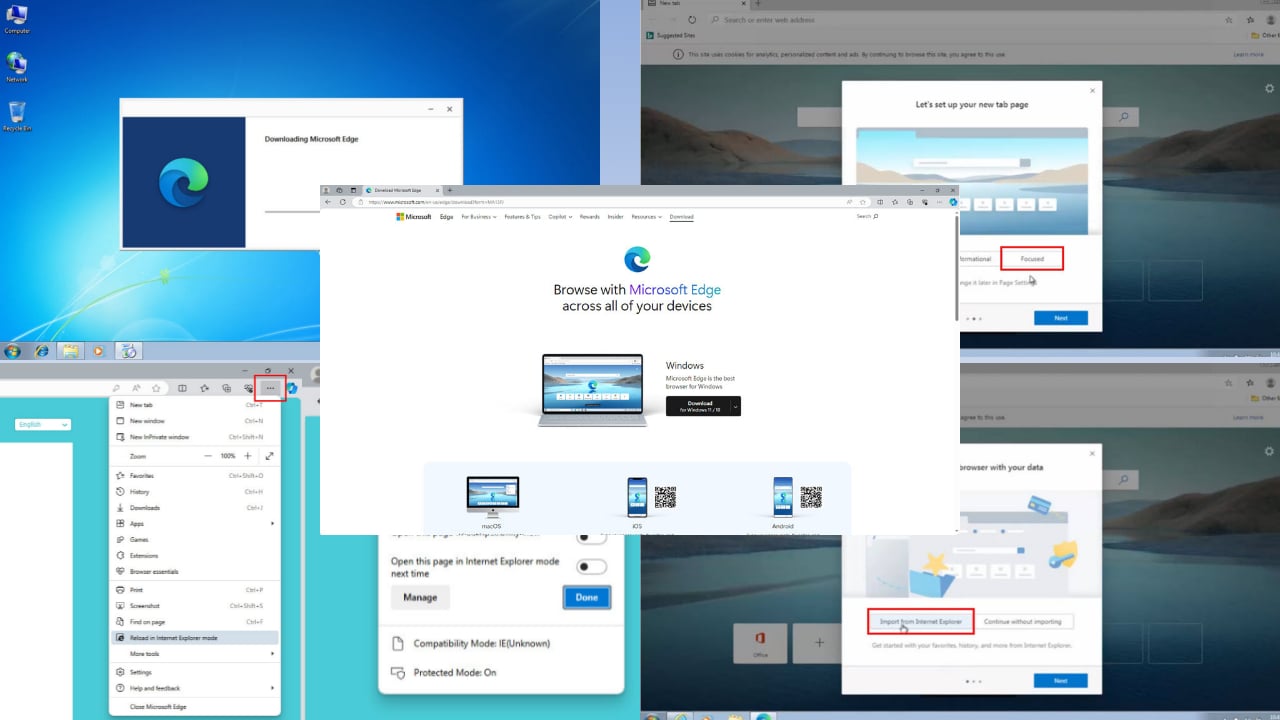
Download Microsoft Edge for Windows 7 64-Bit – How To Install It Easily

Do you want to install Microsoft Edge for Windows 7 64-bit as an alternative to the dated Internet Explorer web browser? Just follow the step-by-step guide below.

How To Use Microsoft Edge for Windows 7 64-Bit

Simply follow these instructions:

Download and Install Microsoft Edge for Windows 7 64-Bit

  1. Visit the Microsoft Edge download portal.
  2. Click on the drop-down arrow and choose the Windows 8.1/ 8/ 7 option.
  3. You’ll get the file in your Windows 7 Downloads folder.
Downloading edge
  1. Open it to install Microsoft Edge.
  2. Once the installation is over, you’ll see the Microsoft Edge welcome screen.
  3. Now, you can use the Import from Internet Installer button and follow on-screen instructions to import your browsing data.
Import from Internet Installer
  1. On the new tab theme page, choose any one from options like Inspirational, Informational, and Focused.
Focused
  1. That’s it! You’ve completed the setup process.

Enable IE Mode in Microsoft Edge

If you’re still using Windows 7, you’re probably obligated due to organizational and IT infrastructure needs. For example, your intranet websites have been optimized for IE 8 or IE 11 from the server side so you need Internet Explorer to access them.

Now, when you’re moving on to Edge, you can activate the IE mode in Edge to keep working with those intranet web portals. Here’s how:

  1. Navigate to an intranet portal that requires IE 8 or better web browsers on the Edge.
  2. Click on the three-dot menu in the top right corner of the browser.
  3. In the context menu that opens, click on the Reload in Internet Explorer mode option.
Reload in Internet Explorer mode
  1. You should see the Compatibility Mode: IE notification in the top-left corner.
Compatibility Mode IE
  1. Now you can surf the internet in IE mode via Edge.

Installing Microsoft Edge from an Offline Installer

Sometimes, Edge’s online installer on Windows 7 may fail. That’s because Microsoft has stopped supporting Windows 7 since January 14, 2020. You might face this problem depending on your ISP and location.

To avoid such bottlenecks, you can get the offline downloader from the Edge business download portal.

Microsoft retired its popular web browser Internet Explorer 11 on June 15, 2022. It means you can still use it on your Windows 7 PC, but without getting any more quality and security updates from Microsoft.

Summary

Microsoft Edge for Windows 7 64-Bit

Since using an outdated web browser is risky, you should move on to another service like Microsoft Edge. Here’s why:

  • All of your e-commerce transactions will be at risk on Internet Explorer.
  • Internet banking websites might prevent you from accessing their portals from IE 11.
  • Modern website graphics, animated elements, etc., might not work on this browser.

So, now you know how to upgrade to Microsoft Edge for Windows 7 64-bit from Internet Explorer 11. Give the browser a try and feel free to share your experiences.

Old File Explorer is still available in Windows 11, here’s how to access it

Windows 11 brought a massive overhaul in terms of user interface, and we got a whole new Start Menu as well as a new File Explorer.

While the interface was updated, some remnants of the previous version remain, and this allows you to bring back the old File Explorer.

You can access old File Explorer without any registry tweaks

This information comes from XDA Developers, and unlike with other components, you don’t even have to modify your registry or download anything to bring back old File Explorer.

To activate it, you just need to do the following:

  1. Open Control Panel.
  2. Select Windows Tools.
     
  3. Next, select any folder from the left pane.
  4. The window will now transform to the old File Explorer with all its features.

This happens because Windows Tools starts the old File Explorer for some reason, thus allowing you to use it.

This is a pretty interesting find, and since it doesn’t require modifying the registry, it won’t hurt your system in any way, so go give it a try before Microsoft removes it.

Speaking of File Explorer, the KB5037853 update finally allows you to drop files to the address bar, and it also brings other improvements.

This isn’t the only component you can restore, as you can easily swap the Windows 11 shell and restore the old Taskbar using old Windows Explorer files.

KB5037874 to the Dev Channel is out, and it has some major improvements for Android users

Microsoft released the Windows 11 Insider Preview Build 26120.751 (KB5037874) last Friday. This update, designed for the Dev Channel insiders, is part of the Windows 11, version 24H2 lineup. What’s thrilling here is an enablement package that’s being released, which pledges a host of updates and characteristics for those who choose to participate in it.

If you enjoy being at the cutting edge of technology, then it’s easy to flick the toggle in your settings to get these updates as they come out. It feels like receiving a VIP ticket into the upcoming world of Windows 11.

And for those liking gradual change, leaving the toggle off means that new features will still arrive but with less speed.

One change that stands out is how the Copilot experience has changed into a more regular app shape. It is getting its place on the taskbar, making it easier for users to find and use it without needing special shortcuts like WIN + C.

Although this shortcut will no longer work, people who have the new Copilot key or those who know how to use WIN + (number) can still easily access Copilot.

For people like me who use many devices, the new Linked Devices page in Settings is very useful. If you are logged in with your Microsoft account, it helps you manage your PCs and Xbox consoles in a single place. This feature is a nice addition for those wishing to simplify their device management.

On the fixed side, KB5037874 fixes certain minor problems. For example, the WIN + W shortcut does not work well with the Widgets board, and there are some small difficulties in installing that could happen when doing Windows updates.

KB5037874 also brings something cool for Android users, although the feature was already released in the Canary channel when it made it to the Dev channel: Suggested Replies within the Phone Link app.

This characteristic, created with assistance from a suggestion model that lives in the cloud, is meant to simplify answering messages. Providing three replies related to context allows for smoother and quicker communication.

Thanks to the KB5037874 patch, we have a feature called Suggested Replies for Android phone users in the Phone Link app. This feature is powered by cloudy suggestion models and is all about making it easy to respond to messages quickly. This function aims to make communication more effective with three suggested replies related to context.

But be aware that the Dev Channel is a kind of testing place. Characteristics and experiences may alter, be substituted, or remain exclusively within this channel.

So, what do you think? Did you anticipate these updates and features, or is there something else you hope for in future builds? Let’s chat about it!

You can read the full changelog for KB5037874 here.

JAIS 30B Chat, the first Arabic Large Language Model, is now available in Microsoft Azure

Core42, which belongs to G42, a company known for its AI-empowering solutions, has recently introduced its newest Arabic Large Language Model (LLM), JAIS 30B Chat, which can be used on Microsoft Azure.

This partnership is a big step forward, bringing high-level AI to millions of Arabic speakers across the globe.

This significant announcement was made by Satya Nadella, the top executive at Microsoft, during Microsoft Build 2024.

The breakthrough aims to simplify AI deployment for developers and industries using Azure AI Model-as-a-Service. The first cool thing about JAIS is that it comes pre-trained, so you don’t need to start from scratch.

It’s like a ready-to-use model for understanding the Arabic language. However, what makes JAIS even more interesting is its customizability.

This means that once you have the base model, you can fine-tune it to match specific tasks or industries—such as finance, healthcare, or legal—while keeping the essence of the Arabic language intact. JAIS offers an essential connection for 422 million Arabic speakers to interact with end-users through localized solutions.

G42 says about the model:

Jais-30B is significantly larger and trained on an extensive dataset therefore necessitating the optimization of computation efficiency. In the pre-training phase, Maximal Update Parametrization enabled efficient search of hyperparameters. Rather than sweeping Jais-30B, we performed the search against smaller models and transferred these parameters to larger one. For fine-tuning, we experimented with the packing of smaller sequences into the same context length ensuring computational resources are fully utilized by avoiding padded tokens per sequence. These optimizations enabled faster training of the Jais-30B and Jais-30B-chat models.

It’s not only about breaking down language barriers; this tool also opens new doors in market opportunities and drives multilingual innovation.

JAIS 30B Chat is not an average model. It has a special strength in generative AI and is especially good at tasks like cross-lingual conversations and content creation.

This model is designed with the Arabic language’s unique difficulties in mind. It aims to promote inclusivity and fill important tech gaps. It improves logical thinking in Arabic and English, making a mark for high-quality outcomes with 1.63 trillion tokens, especially many Arabic ones.

But what does all this imply in everyday applications? JAIS 30B Chat is changing industries. It improves communication and workflow efficiency in fields such as education and healthcare.

Picture language assistance for learning or content translation plus patient management within healthcare—everything runs on this AI model. It’s about making services more efficient and creative endeavors more engaging.

Talal Al Kaissi from Core42 and Ali Dalloul of Microsoft have similar visions. They want to use AI to empower people and organizations, create positive effects on society, and advance the technology of AI to make it available for everyone.

Their dedication shows that they pledge to have an all-encompassing model catalog on Azure AI, rendering JAIS 30B Chat a landmark in innovation and reachability.

So, what’s the final answer? The JAIS 30B Chat on Microsoft Azure is not just a technology breakthrough; it represents a link to the future where AI dominates all parts of our existence, adapted for human languages and cultures.

It’s an interesting period for developers, industries and everyone anticipating the upcoming stage in AI evolution.

Windows 11 24H2 won’t let you create a local account in OOBE, but there’s a workaround

Microsoft is making it increasingly difficult to sign up via a local account on Windows during OOBE (Out of Box Experience). You can no longer use the oobe\bypassnro command to create a local account on Windows 11 24H2 during OOBE!

First reported by Zac Bowden and confirmed by Boby Pony in a post on X (formerly Twitter), the changes seem to kick in with Windows 11 24H2, both the Home and Pro editions. Even upon executing the command, there are no changes to the OOBE.

Previously, you could simply input a blocked, bogus email address, like [email protected], and a random password, and the OS would then let you create a local account. But, earlier this year, Microsoft removed the functionality.

Now, it’s going one step ahead and phasing out the oobe\bypassnro command in an effort to get more users to switch to Microsoft accounts. Although Microsoft accounts are more secure, many use a local account on Windows 11 to prevent data collection and minimize Microsoft’s influence on the PC!

Workaround to create a local account on Windows 11 24H2 in OOBE

You have two options right now: completely disconnect from the Internet while running the oobe\bypassnro command or use a bootable USB creation software like Rufus, which automatically creates a local account if you choose the option while creating the bootable USB.

Creating a local account with Rufus

This has been confirmed by Bob Pony and other Windows enthusiasts. In a subsequent post on X, Bob Pony wrote,

So an update seems like you have to make sure that you have to entirely disconnect it from the internet for the bypassnro trick to actually work.
Wouldn’t be surprised if it somehow gets patched out in the future.

The claim was corroborated by many, even for Windows 11 24H2. Here’s what another Windows enthusiast said in a post on X,

I installed w11pro yesterday and bypasnro without internet works just fine… btw Rufus still bypass this creating a local user for you.

Microsoft putting in efforts to eliminate local account creation on Windows 11 in OOBE makes sense if we look at it from the tech giant’s point of view. I mean, the company gets to promote its services on registered accounts. Additionally, it gets crucial insights from registered users.

However, even if it were to remove the functionality altogether, you could still switch from a Microsoft account to a local account after installing Windows 11. That, as an option, will always be there!

A few months ago, Elon Musk expressed concerns about the absence of local accounts during OOBE in Windows 11.

Do you think Microsoft will revert the change? Share with our readers in the comments section.

You can pin the Edge AI theme generator to the Copilot sidebar easily

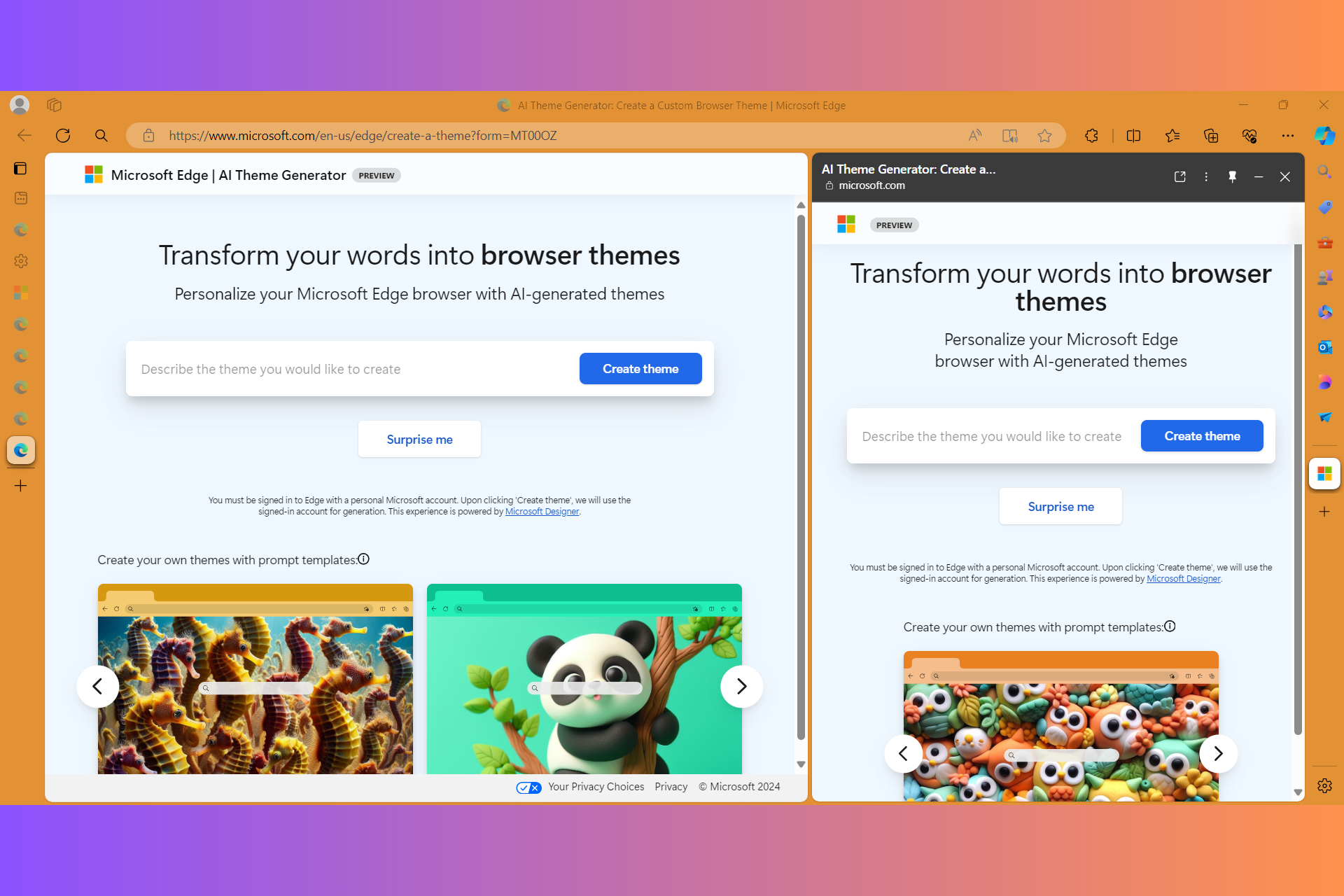
Recently, Microsoft announced that will include an AI theme generator in the Edge Browser. The feature works right now if you’re logged into Edge with a Microsoft account. However, the feature is available in a separate page, not into Edge directly.

However, Leopeva64 spotted the fact that you can pin the actual page to the Copilot sidebar and use its functions right there instead of opening the actual page from Microsoft.

How do I pin the AI theme generator on Edge’s sidebar?

Leopeva64 demonstrated how the AI theme generator can be used straight from the sidebar, and the trick is pretty simple.

After you do a search on the AI theme generator from the right, you just pin it from its menu above. Next time you want to use the tool, you will have the shortcut right on the sidebar and it will open right there, without the need to open an additional tab.

Otherwise, the tool is pretty simple to use as well. Just type the description of how your theme and apply it to your browser with two clicks.

As a side note, Chrome has the AI theme generator built into the browser directly, so you don’t need to make any additional steps apart from accessing its customization menu. We hope that Microsoft will also include this feature right into the browser but until then, you can add an AI theme pretty easily as it is.

What do you think about the new AI theme generator in Edge? Let’s talk about it in the comments below.

VPN for Linksys Router: Top 5 Picks for Network-wide Protection

It’s best to get a VPN for a Linksys router if you own one. Cyber threats and privacy concerns are on the rise and using a Virtual Private Network (VPN) has become a necessity. Once you set it up on your router, it’ll safeguard all devices connected to the Wi-Fi network.

So, which services work the best with Linksys routers?

Read on to learn more.

5 Best VPNs for Linksys Router

Here are my picks!

ExpressVPN – Best Overall for Linksys Models

ExpressVPN Website

ExpressVPN offers specialized firmware and setup instructions on its website for various Linksys models, such as the WRT32X, WRT1200AC, WRT3200ACM, WRT1900AC 13J2, WRT3200ACM, etc.

It has servers in 105 countries globally to allow you access to geo-restricted sites. Also, it protects your internet traffic with secure tunneling protocols and AES-256 encryption. 

This VPN service also has automatic obfuscation on all its servers to make your connection look like regular traffic. This will help you unblock more websites that have a VPN detection system.

Additionally, ExpressVPN has the Lightway Protocol, which is faster and more reliable than other protocols. It’s especially great for streaming.

To set up ExpressVPN on the Linksys router:

  1. Get the ExpressVPN firmware.
  2. Connect the router to the internet.
  3. Load the firmware onto the router.
  4. Connect your device to the VPN router.
  5. Finish the router setup.

Pros:

  • It’s compatible with Linksys.
  • ExpressVPN is fast thanks to its Lightway protocol.
  • It has servers in 105 countries.
  • Offers automatic obfuscation on all its servers.
  • 24/7 customer support.

Cons:

  • It’s a pricey option.

Get ExpressVPN

NordVPN – Best for Security and Privacy

NordVPN Website

NordVPN is compatible with Linksys routers (WRT32X and WRT32XB AC3200 models) because it supports the OpenVPN protocol. However, you’ll need to flash your router with Tomato, DD-WRT, or OpenWRT firmware. 

It allows users to set up a secure connection directly on their router. Moreover, it has over 6,000 servers in 60+. 

NordVPN also has specialty servers including Double VPN,  Onion over VPN, obfuscated servers P2P-optimized, and Dedicated IP. Additionally, it has the Nordlyx protocol for faster and more secure VPN connections on your Linksys router. 

Here’s a quick guide to set it up:

  1. Flash your router with Tomato, DD-WRT, or OpenWRT firmware.
  2. Log into your router.
  3. Find and click the VPN client tab.
  4. Follow the instructions provided to complete the setup.
  5. Check your VPN protection by searching “What is my IP” on Google to see if your virtual location has changed.

That’s it! However, note that flashing your Router might lead to damage if you aren’t careful.

Pros:

  • You can set it up on a Linksys router.
  • Offers strong security and privacy.
  • Has dedicated IP addresses.
  • Its connections are reliable and speedy thanks to its Nordlyx protocol. 

Cons:

  • It doesn’t work with certain built-in Linksys router firmware.

Get NordVPN

Surfshark – Supports Unlimited Simultaneous Connections

Surfshark website

Surfshark is a reliable VPN provider that uses the OpenVPN protocol with Linksys routers. However, you must flash the router using DD-WRT or Tomato firmware beforehand. Luckily, the VPN provides detailed setup instructions on its website to assist with the process.

Furthermore, it has over 3,600 servers in over 100 countries for global access to geo-blocked content. Also, it allows you to connect to unlimited devices on a single subscription.

Moreover, this VPN offers several protection features including DNS, WebRTC, and IPv6 leak protection, a customizable kill switch, and industry-standard encryption. Additionally, Surfshark provides camouflage and NoBorders modes, CleanWeb, and Bypasser for additional security.

Here are the steps to install it on your Linksys router:

  1. Flash your router with Tomato or DD-WRT.
  2. Open the router configuration panel.
  3. Click the VPN client tab.
  4. Follow the guidelines on your client.
  5. Make sure your connection is VPN-protected.
  6. Enjoy your VPN router.

Pros:

  • Utilizes OpenVPN protocol with Linksys routers.
  • Wide server coverage with over 3,600 servers in 100+ countries.
  • Allows unlimited device connections on a single subscription.
  • Offers reliable protection features.
  • It’s pocket-friendly.

Cons:

  • Requires flashing the router with DD-WRT or Tomato firmware, which may be too technical for some users.

Get Surfshark

CyberGhost VPN – Large Server Network

CyberGhost website

CyberGhost VPN is compatible with WRT1200AC, WRT1900ACv2, WRT1900ACv1, WRT1900ACS, and WRT3200ACM Linksys models flashed with DD-WRT firmware. It boasts over 11,000 servers in 100 countries including China.

Furthermore, it has specialized servers for streaming, torrenting, and gaming. They’re optimized for speed and security. Also, it has a 45-day money-guarantee policy if the service doesn’t impress you. 

Moreover, CyberGhost VPN has NoSpy servers in Romania’s secure data center.

Follow these quick steps to set up CyberGhost VPN on a router:

  1. Flash your router with DD-WRT firmware.
  2. Log into your VPN account on your browser.
  3. Select “VPN” under advanced settings.
  4. Tap “VPN Client,” select “Add profile” then fill in the boxes.
  5. Hit the Activate button to establish a connection.

Pros:

  • It works with Linksys routers.
  • Offers over 11,000 servers in 100 countries.
  • Has dedicated servers for streaming, torrenting, and gaming.
  • This provider has a 45-day money-back guarantee policy.
  • It delivers high-quality and uninterrupted streaming experiences.

Cons:

  • It doesn’t have a free plan.

Get CyberGhost VPN

Private Internet Access (PIA) – A Budget-Friendly Option

Private Internet Access website

Private Internet Access is compatible with Linksys routers. However, you must flash it using either Tomato or DD-WRT firmware. It’s among the pocket-friendliest VPN services, with the highest number of servers globally. It also offers unlimited simultaneous connections.

What’s more, PIA has RAM-only servers designed to erase all data on every reboot. It doesn’t retain any residual data, even during potential service breaches.

Additionally, it has a zero-logs policy to ensure the app doesn’t retain any personal information like IP addresses, browsing histories, or geographic locations. Moreover, it offers an Identity Guard. It monitors your email for potential breaches and notifies you accordingly.

To set up Private Internet Access (PIA) on Linksys routers, follow the below steps:

  1. Flash your router with Tomato or DD-WRT firmware.
  2. Log in to your router’s web interface using its IP address.
  3. Go to the VPN section (often under Advanced settings) and enter your VPN provider’s details.
  4. Save the settings, restart the router, and test the VPN on a connected device.

Pros:

  • It’s compatible with Linksys routers.
  • Offer unlimited simultaneous connections.
  • Has over 35,000 servers.
  • It has a MACE feature for additional security.
  • Budget-friendly.

Cons:

  • It can’t unblock popular streaming sites like Hulu and Amazon Prime Video.

Get Private Internet Access

How I Chose a VPN for Linksys Router

While testing the services, I considered the following factors:

  • Compatibility: I ensured each option works with Linksys routers.
  • Protocols: I opted for VPNs supporting OpenVPN, IKEv2/IPsec, or L2TP/IPsec.
  • Server locations: I chose VPNs with servers in relevant locations.
  • Security: I checked for AES encryption, DNS leak protection, and a kill switch.
  • Logging policy: I chose VPNs with a strict no-logs policy.
  • Customer support: I opted for providers with 24/7 support.
  • Price and plans: I compared the pricing, payment options, and guarantees.
  • User interface: I prioritized user-friendly interfaces for account and settings management.

Setting up a VPN on a Linksys router will protect all devices connected to it. The above services all work perfectly with various router models. They offer different features, so pick the one that meets your needs and budget.

Additionally, if you need to protect your Asus router, I’ve got you covered as well.

Get 3 months of PC Game Pass for free with GeForce Rewards

NVIDIA was at Computex 2024 and it showcased many new features, but that’s not all, as the company is offering a few freebies as well.

NVIDIA users can now get PC Game Pass for free, and here’s what you need to do to get it.

NVIDIA offers a 3-month PC Game Pass subscription for free to its users

Xbox and Nvidia have partnered and they are giving 3 months of access to PC Game Pass to their users. According to NVIDIA, you can get access to numerous titles that support NVIDIA DLSS, NVIDIA Reflex, and ray tracing.

Even if your PC can’t handle the latest games, you can stream over 130 games from PC Game Pass on GeForce NOW. Keep in mind that you’re not limited just to your PC, as you can stream games to your phone or any other smart device.

To claim a PC Game Pass subscription, you need to do the following:

  1. Log in with your NVIDIA account and check if you’re enrolled in GeForce Rewards.
  2. Next, download and install GeForce Experience or NVIDIA app beta. Alternatively, go to the GeForce NOW Rewards page and follow the steps on the screen.
  3. Start GeForce Experience or NVIDIA app beta and log in with your account.
  4. Navigate to the Redeem section and select PC Game Pass GeForce Reward.
  5. Follow the instructions on the screen to complete the process.

This sounds like a great deal, but keep in mind that you need a GeForce GTX 10 Series or newer GPU for this to work. As for availability, this promotion starts on June 4th, so don’t miss it.

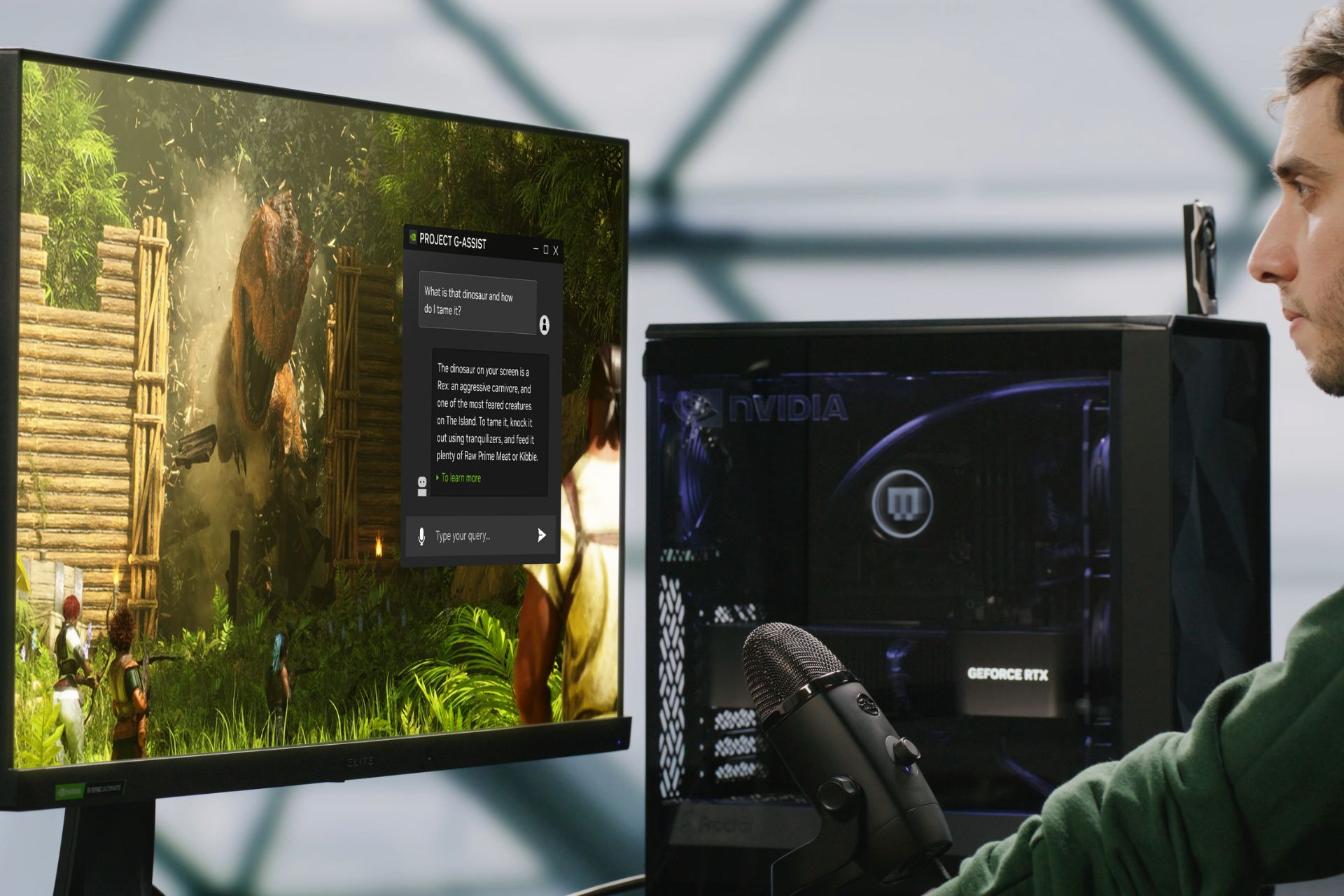
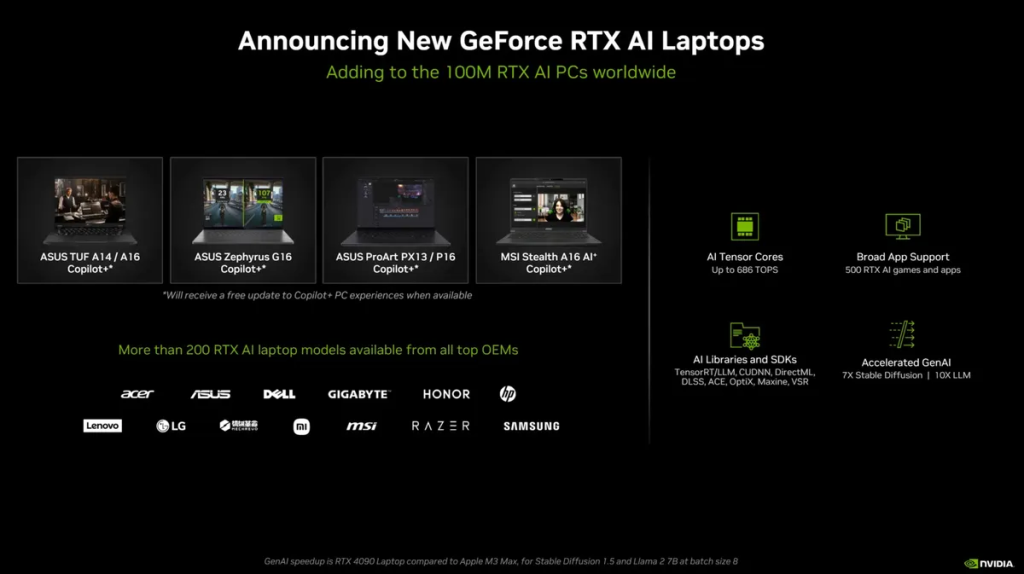
In other news, NVIDIA will soon bring Copilot + PC experience to RTX AI laptops. That’s not all, the company also showcased a G-Assist AI bot that can tweak your PC and give you live information while in the game.

Test Drive Unlimited: Solar Crown will arrive in September

Test Drive Unlimited Solar Crown (TDUSC) is almost here. For those who don’t know, the game is somewhat like Forza Horizon, Gran Turismo, Need For Speed, and The Crew. So, if you are a fan of racing games, head to Steam and put this one on your wishlist. The release date of TDUSC is September 12, 2024, and it will be available on PC, Xbox Series X/S, and PS5.

Test Drive Unlimited Solar Crown comes after 13 years

There hasn’t been any TDU game since 2011. In addition, according to Racinggamesgg, the previous release date for Test Drive Unlimited Solar Crown was September 22, 2022. So, hopefully, this time, publishers won’t delay it further.

From the trailer, we can see what the graphics of the game look like. On top of that, the game seems to focus on the multiplayer factor, which means that the game will most likely be an MMO.

Test Drive Unlimited Solar Crown takes place on a 1:1 replica of Hong Kong Island. You can explore the city and its off-road surroundings. Also, you will have plenty of races to do with the same cars because it will take around 100 hours to get to your first hypercar class.

If you don’t feel like racing, you can also cruise around the town at your leisure. In addition, you can visit hubs, buy clothes, customize your avatar, and interact with others. You won’t be able to buy houses from the beginning of the game, but the game devs already have this feature planned.

There are 14 dealerships across the island, and you can meet players while browsing for cars. Also, you can access workshops to personalize and tweak them. Combustion-powered cars will have 13 customizable parts across six categories, while electric cars will have 12, but some of the options will be locked behind reputation.

You can play the game earlier

Test Drive Unlimited Solar Crown will be available in four editions: Standard, Silver Streets, Silver Sharps, and Gold. The Standard Edition is $60. The Silver Streets and Silver Sharps are around $80, and besides bonuses, they give you a 2-day early access. Lastly, the Gold Edition is around $90 and comes with VIP beta access and a 7-day early access. So, if you are competitive, you can start earlier.

Ultimately, Test Drive Unlimited Solar Crown might exceed our expectations. After all, it focuses on the relationship between the players and their cars. On top of that, with every race, you will improve your character’s lifestyle as well. However, the game will have strong competition because Forza Horizon 6 is also on the way.

Are you excited to play the game? Let us know in the comments.

LinkedIn can be opened straight from your Windows 11 desktop, but the shortcut is really weird

Microsoft owns LinkedIn since 2016, so it’s not really unusual to have a quick way to open the LinkedIn profile directly from your Windows 11 desktop. However, as we discovered recently, the shortcut for that is more like a longcut that uses almost all the fingers from your left hand.

What is the LinkedIn shortcut from Windows 11?

Are you ready? The shortcut is Ctrl+Shift+Alt+Win+L. We have tested it and it works. It opens the LinkedIn page on your default browser so at least it doesn’t force it on Microsoft Edge.

We don’t know why Microsoft did that, because it’s absolutely useless. It’s a lot less time consuming to just open a browser (if it’s not already open) and type linkedin in the page or just hit a bookmark if you’ve created it.

And yes, we’ve read your thoughts, there are some other such shortcuts you didn’t probably know about. For instance, to open Microsoft 365, quickly hit Ctrl+Shift+Alt+Win+W, or if you’re late on that Teams meeting, press Ctrl+Shift+Alt+Win+T.

You’ve got it! Just change the letter at the end and see what happens. For example, with X, you will open Excel and with P, here comes PowerPoint on your browser. O is, of course, reserved for the Outlook browser version.

Another unusual fact is that we’ve browsed through the Windows 11 shortcuts on the Microsoft dedicated page and didn’t find the one for LinkedIn. Probably it wasn’t updated.

In the meantime, you can check our collection of the most useful shortcuts on Windows 11 and see if you haven’t spot one that you would actually need.

Will you use the Windows 11 LinkedIn shortcut to open your profile? Tell us about that in the comments below.

Clearance sale: Save $210 on the Lenovo Legion Slim 7i gaming laptop

The Lenovo Legion Slim 7i is one of the best gaming laptops in the price segment, and at a $210 discount during the limited-period deal, it’s an unbeatable option. You can get the laptop for only $1,889.99 right now!

Powered by an Intel 13th Generation Core i9 13900H processor and the NVIDIA GeForce RTX 4070 graphics, the laptop can easily run even the most resource-intensive games. And the gameplay is smooth and stutter-free, even at the max settings.

The battery life is exceptional for a gaming laptop, delivering up to 12 hours of backup for an uninterrupted gaming experience!

As for the display, the Lenovo Legion Slim 7i features a 16″ screen with a 2560 x 1600 resolution. It’s not just ideal for gaming but also for streaming videos and running editing apps.

The larger display may affect portability if you often have to carry the laptop around. Although, in my opinion, the battery backup makes up for it!

While many have expressed concerns about the limited 16 GB RAM, the good news is that both the RAM and storage are expandable on the laptop.

When I checked the user reviews, most appeared satisfactory with the purchase. Aspects that received the maximum positive ratings include display, battery life, performance, and speakers.

Lenovo Legion Slim 7i’s specifications

ProcessorIntel 13th Generation Core i9 13900H
GraphicsNVIDIA GeForce RTX 4070
Storage1 TB SSD
RAM16 GB, DDR5, 5200 MHz
Operating systemWindows 11 Home
Display16 inches, 2560 x 1600, 240 Hz refresh rate, 500 nits
BatteryUp to 12 hours

If you are interested, get the Lenovo Legion Slim 7i from BestBuy today since it’s a limited-period deal!

With the purchase, you get a free 6-month subscription to Norton 360 with LifeLock Identity Advisor and a VPN, boosting security and privacy.

In case you are looking for budget options, discover our top picks for gaming laptops under $800!

What are your initial thoughts about the Lenovo Legion Slim 7i gaming laptop? Share with our readers in the comments section.

6 Ways to Check Your Graphics Card in Windows 10

Regardless of the type of user you are, knowing and checking your graphics card on your Windows 10 PC can help elevate your visual experience or even keep it at peak performance.

How do I check my graphics card on Windows 10?

1. By using the Task Manager

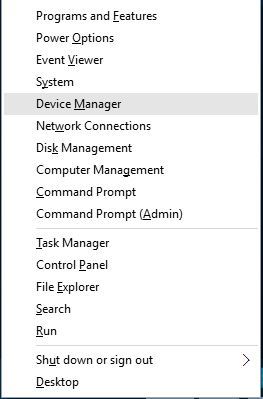
  1. Press the Windows key + X and select Task Manager to open the Processes tab.
  2. Click on the Performance tab.
  3. Details about all the GPUs, i.e., the integrated and the dedicated graphics card will be listed.
  4. Both will be listed under GPU 0 and GPU 1 in the sidebar.
  5. Click on the one that you want information for.

2. By using the Settings app

  1. Press Windows + I to open Settings, then go to Display.display-settings pixelated screen windows 10
  2. Go to Advanced display settings.advanced-display-sett pixelated screen windows 10
  3. Next, click Display adapter properties for Display 1.disp-prop pixelated screen windows 10

3. By using the GPU-specific Control Panel

Note icon NOTE
Most GPUs have their control panel used to fine-tune GPU settings, update drivers and check GPU info.

3.1 NVIDIA GPU

  1. Right-click the blank space on your desktop top to open the context menu and select the Nvidia control panel from the options.
  2. Select the System information menu and navigate to the Video BIOS version.

3.2 AMD GPU

  1. Press the Windows button, type AMD Radeon Software, and press Enter to open it.
  2. Navigate to Settings and click on System.
  3. Click the Hardware details drop-down button and the graphics card details will be listed.

4. By using the SysInfo tool

  1. Press the Windows + S and enter system information in the search box.
  2. Select System Information from the list of results.
  3. When System Information window opens, select Components in the left pane.components update graphics driver windows 11
  4. Select Display from the list.
  5. Here you will all information about the graphics card on your Windows 10 PC.

5. By using the Device Manager

  1. Press the Windows + X keys and choose Device Manager.
    device-manager
  2. When Device Manager starts, go to Display Adapters section and locate your graphic card driver.
  3. Your graphics card will be listed.
  4. To know more about it, double-click on the desired GPU to view detailed info in a separate window.

6. By using the DirectX Diagnostic tool

  1. Open the Windows search bar.
  2. Type in dxdiag and select it.
  3. Navigate to the Display tab, check to see your GPU model.
  4. Here you can find all information related to your graphics card installed on your Windows 10 PC.

Importance of knowing your graphics card

  • Program compatibility test – Each app or program you download has its own minimum system requirements and your graphics card is almost always part of the list. This way if an app is failing terribly say a game lags, you’ll know it’s your graphics card that fails to meet the requirements.
  • Driver updates – Although most driver updates are part of the Windows updates, sometimes you may encounter driver install problems or they fail. You’ll need to download them from the manufacturer’s site. Knowing your exact graphics card can help you check and install it with ease.
  • Upgrade graphics card – With time, as you install more apps and engage in resource-intensive tasks, you may have to upgrade your graphics card. Knowing yours will help you choose your next one depending on its suitability, how well it has served you and compatibility with software and hardware.
  • Performance optimization – Your graphics card comes with default settings so knowing its capabilities can help you tweak some configurations for better performance when it comes to certain tasks like gaming.
  • Troubleshooting – Each graphics card is different so when you’re facing certain display problems, your troubleshooting will be tailored to your specific graphics card.
  • Resource management – Depending on your daily tasks, some can take a toll on your GPU. When it’s under too much pressure, it can generate heat and your Windows 10 PC can start random shutdowns. You may find your GPU usage is high when playing a game so knowing its specifications and limits will help you keep your graphics card in shape.

You can apply the same steps used for Windows 10 to check your graphics card in Windows 11 with some slight variations. If the steps above seem lengthy or somewhat technical, you can always rely on the Internet.

All you need is to check your PC model number and search for it. You’ll find all its specifications including your graphics card.

For the more advanced users who would like an all-in-one tool that gives a little more information plus troubleshooting tips, a GPU Info and Diagnostics tool will come in handy.

And it’s not just your graphics card that you need to know about. Your PC hardware has so much more information that you may need so you can always check other PC specs.

It’s a wrap from us but if you have any additional comments on this topic, we’d love to hear from you. Feel free to leave them in the comment section below.

3 Easy Ways to Fix Dev Error 5433 in Modern Warfare 3

The Dev error 5433 can be spotted in Call of Duty Modern Warfare 3 or Warzone. The effects include a screen freeze and the inability to play in multiplayer mode.

The Dev error 5433 is mostly a memory error but it can also be a compatibility issue. Some integrated graphics cards are limited and cannot accommodate certain texture sizes or memory allocations hence why your screen freezes or the game crashes.

How do I fix the Dev error 5433 in MW3?

1. Change the allocated texture size

  1. Open SETTINGS on Call of Duty Modern Warfare or Warzone and switch to the GRAPHICS tab.
    Cod settings
  2. Next, click on the Display sub menu and scroll down to select ON-DEMAND TEXTURE STREAMING.
    On demand texture settings
  3. Toggle off ON-DEMAND TEXTURE STREAMING and restart the game.

Memory hoggers like Modern Warfare can put undue pressure on your system especially if you have insufficient resources. Your game may be having a hard time allocating and loading textures hence why you keep getting kicked out or your game keeps freezing.

Lowering the texture quality or turning it off can help reduce the amount of memory required. In turn, you’ll notice the game has stabilized. You can observe how it behaves and later turn it on if you need this feature in your game.

2. Verify game files

2.1 Steam

  1. Press the Windows key, type steam or in the search box, and click Open.Steam - open - dev error 12744 mw3
  2. Go to Library, right-click the game, then select Properties from the context menu.Properties of game -dev error 12744 mw3
  3. From the left pane, click Installed files, then click Verify Integrity of Game Files.Verify integrity of files
  4. The scan will start, and all the missing or damaged game files will be replaced with healthy files.

2.2 Battlenet

  1. Press the Windows key, type battlenet in the search box, and click Open.
  2. Go to the Games tab, select Call of Duty, and click the Settings button located next to the Play button.
  3. Now choose Scan and Repair.Scan and Repair  - dev error 12744 mw3
  4. Click Begin scan and wait for the process to complete. This scan will repair the damaged game files, and it may take some time.

3. Reinstall the game and game launcher

  1. Press Windows + I to open the Settings app.
  2. Go to Apps, then click Installed apps.Apps, installed apps - dev error 12744 mw3
  3. Locate the game, click the three dots icon and select Uninstall.Uninstall
  4. Click Uninstall again.
  5. Now locate the game launcher Steam or Battle.net and remove it too.
  6. Go to the official website of Steam or Battle.net and click Download to get the exe file.
  7. Double-click the file and follow the on-screen instructions to complete the process.
  8. Once done, launch the game launcher, locate Library, locate the game, and click Install.

Best practices to prevent the reoccurrence of Dev error 5433

  • Keep the game simple – Moder Warfare 3 may come with in-game settings such as overlays. Sometimes, these can interfere with rendering and cause such errors. Disabling them will stabilize your game.
  • Run the game as an admin – Most games require certain permissions so always run it with your administrative privileges to bypass these restrictions.
  • Minimize superfluous processes – A game like Modern Warfare 3 that is resource-intensive will leave a large memory footprint on your system. To ensure you’re not running out of resources, keep your background processes to a minimum leaving only the essential ones.
  • Update your game and drivers – An up-to-date game, OS and drivers will ensure you pass all compatibility checks ensuring your device meets the system requirements and minimizes errors like dev 5433.
  • Play with different settings – If you notice your game has issues, try experimenting with different settings. For instance, texture sizes. Adjust the configurations and take note of how the game behaves. The best performance is what’s most suitable for your system’s hardware capabilities and will keep the errors at bay.

Unfortunately, fixing this error does not put an end to such issues. You may also encounter the dev error 5523 where your game fails to launch or dev error 841 where the game keeps on pausing.

If you’ve attempted our recommended solutions, try contacting Activision support. They may have an update or a tailored solution for you.

That’s all we had for this article but we’d like to hear of any other interesting solutions you might have that are missing from our list. Drop us a line below. But before you go, you might want to check our newest article on the Dev error 5820 for more solutions.

Qualcomm says that the Copilot+ PC is now all about power consumption

If you watched Qualcomm’s keynote presentation at Computex 2024, you already know that they marched on with their X Elite chips covering all the Copilot+ PC options with all the big manufacturers crowding to bring devices featuring their new SoC.

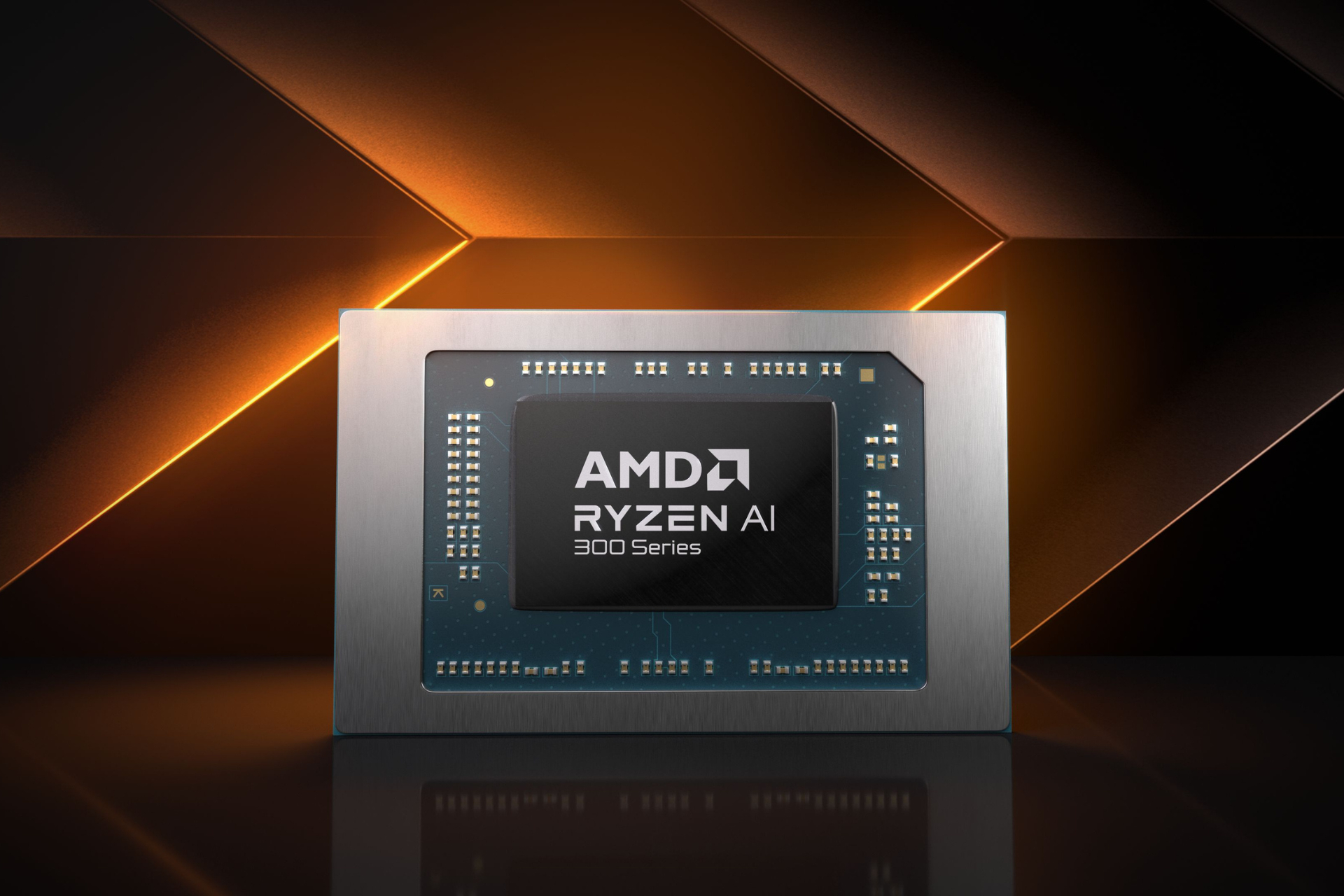
We knew and covered most of the topics way before Qualcomm’s representatives came to the stand, but one thing we didn’t discuss in particular was wattage and power consumption. We now know that AMD’s Ryzen AI-300 series tops Qualcomm X Elite with 50 TOPs vs. 45 TOPs. That’s great, because we finally have an AI-laptop alternative that can power Copilot+ PCs without the Arm architecture.

Qualcomm’s X Elite brings consumes 65% less power

However, now, the top selling point for the Qualcomm X Elite laptops is the power consumption. On their keynote presentation (go to 30:50), Qualcomm compared the X Elite CPUs to Intel’s Core Ultra 9 185H, saying that their chipset brings up to 51% more computational CPU performance, and that it matches the competitor’s performance with 65% less power consumption.

That is one of the most important features you need from such chipsets and the reason is obvious. Power consumption translates to longer battery autonomy. If now, a (real scenario) laptop battery life ranges somewhere from four to eight hours, Qualcomm’s X Elite laptops, thanks to the SoC architecture, can go to multi-day battery life.

That would actually mean that you might go on a weekend-long holiday and forget your charger at home. These are just words until we get the clear numbers.

We couldn’t find data about Wattage consumption for the Qualcomm X Elite in the product documentation. However, we do know the consumption rate from the new AMD Ryzen AI-300 series CPUs and the peak power consumption is touted at 54W.

So, the battle will be in this department. If you’re reaching for an AI laptop in the following months, take a look at the battery life category in the tech specifications because they might be significantly different for AMD Ryzen or a Qualcomm X Elite laptop.

Will you buy a Qualcomm or an AMD laptop? Let’s talk about this in the comments below.

Microsoft brings back nag screens again, urging users to switch to Windows 11

Windows 10 support is coming to an end next year, and Microsoft is determined to force as many users as it can to switch to Windows 11.

To do that, Microsoft is employing one of its oldest tricks, a nag screen that will remind you that it’s time to upgrade.

Users are getting bombarded with Windows 11 upgrade nag screens

Not that long ago we wrote about Windows 11 nag screen, and it seems that it’s back in full force as Windows Latest writes.

In the past, Microsoft would show a nag screen asking you to get or schedule a Windows 11 upgrade on eligible PCs, but they went overboard this time.

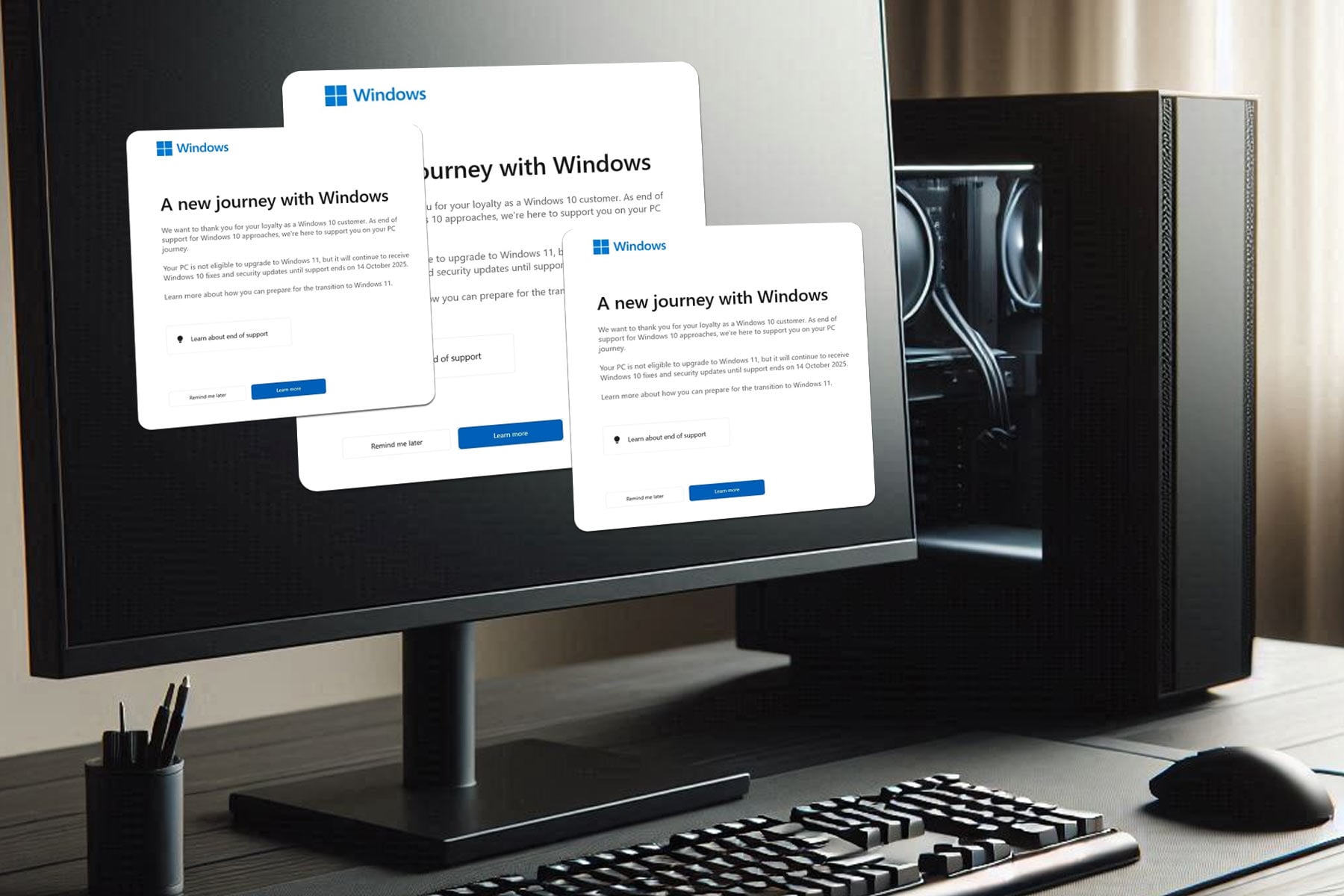
Even if your PC can’t handle Windows 11, you’re not off the hook, and you’ll get a nag screen that informs you that your device isn’t eligible for an update, and that support for Windows 10 is ending in October 2025.

If your device can handle Windows 11, you’ll get the same message that we covered a few months ago. Users who choose to keep Windows 10 will get an additional screen asking them to decline the update or download it.

And this isn’t a one-time suggestion, as you’ll most likely get a reminder again in a few weeks. The nag screen seems to be a part of the May or June 2024 update and bundled with mandatory security updates, so you can’t avoid it.

Microsoft is determined to retire Windows 10, and it has even launched a new end-of-support page. This isn’t the only system being retired, and Windows 10 21H2 Enterprise and Education editions will reach the end of support in a couple of days.

Microsoft announces the Datacenter Community Pledge, which promises more sustainable data centers

In a time where technological progress keeps speeding up, Microsoft has made an important step forward with its Datacenter Community Pledge.

This move is not only about exploring the limits of artificial intelligence and digital structure; it’s also about ensuring that these advancements have positive impacts for all, particularly those communities that are essential to this tech-centric environment.

Microsoft recognizes that these communities form their foundation by giving nearby help, materials, and collaboration necessary to construct and manage the worldwide system of state-of-the-art data centers.

At the center of Microsoft’s promise is the goal of contributing to a sustainable future. The company isn’t only making statements; it is taking action by planning to achieve carbon neutrality, become water-positive, and eliminate waste by 2030.

Picture a future where data centers benefit our Earth rather than harm it. Microsoft is aiming for that future, too; they aim to buy all their energy from renewable sources by 2025 and are making designs that use less water.

The new Datacenter Community Pledge is in light of AI’s immense power consumption, which also led the Redmond-based tech giant to promise that its new European data centers will be sustainable and climate-friendly. To put it into perspective, Microsoft backed AI up with over 22 billion liters of water in 2022, which was not sustainable for the environment.

Yet Microsoft is not solely concerned with the environment. It is equally committed to boosting community growth and welfare. Through collaborations with nearby groups, Microsoft guarantees that its data centers aid in educational activities, employment creation, and digital abilities teaching.

It’s concerning ensuring people have the tools for a digital future, preparing them to seize opportunities in the coming times. Moreover, their support into local sustainability initiatives and enhancements of public infrastructures signifies improved life quality for all.

With the Datacenter Community Pledge, Microsoft commits to functioning in a manner that considers and values the nearby environment and the communities it is associated with.

This implies following sustainable development techniques, decreasing noise and light pollution, establishing connections, and fulfilling promises. To sum up, Microsoft’s approach is not only about using technology for good but also focuses on creating positive change and uplifting communities.

Hence, what is the outcome of all these tasks? In simple words, Microsoft doesn’t just want to construct data centers. They aspire to have a positive impact on community life, the environment, and the economy.

With their work comes a commitment to being a good force—not just for their surroundings but also for local societies in general.

A reminder that technology can and must serve to enhance our world. A future we should aspire to, don’t you agree?

You can find more here.

Save $700 on the elegant, powerful Dell XPS 16

If you are looking for a stylish and performance-oriented laptop, the Dell XPS 16 would be the perfect pick. Currently available at $2,849 during the limited-period deal, you will save $700 or roughly 20% on purchasing the Dell XPS 16!

The Dell laptop features a 16.3″ OLED UHD+ touch display, streamlining tasks and facilitating productivity. When it comes to design, it has an all-metal exterior with a spectacular finish and is incredibly sleek and lightweight in its segment.

The Dell laptop is powered by the Intel Core Ultra 9 processor 185H processor and the NVIDIA GeForce RTX 4070 GPU. And with the 1 TB built-in SSD, you will not run out of storage space any time soon.

As for the performance delivery, Dell’s testing suggests a 2x improvement in performance and battery life. On the AI front, the Dell XPS 16 can deliver up to 2.3x faster AI video editing!

I personally find the keyboard design and touch controls to be of great value. The keys aren’t spaced out, ensuring seamless and efficient typing. And with the touch controls at the top, you can easily toggle between media and function keys, depending on the task at hand.

The best part is that the Dell XPS 16 has a dedicated Copilot key, which aligns with Microsoft’s idea of an AI PC!

Upon checking the reviews, I found that Dell XPS 16 users were quite surprised with the performance delivered by the sleek and stylish laptop. And even under extensive load, the system temperature remained steady, highlighting efficient cooling capabilities.

Dell XPS 16’s specifications

ProcessorIntel Core Ultra 9 processor 185H (24MB Cache, 16 cores, up to 5.1 GHz)
GraphicsNVIDIA GeForce RTX 4070, 8 GB GDDR6
Storage1TB M.2 PCIe NVMe SSD
RAM32GB, LPDDR5X, 7467MT/s
Operating systemWindows 11 Home
Display16.3″ OLED UHD+ (3840 x 2400) Infinity Edge, Touch, Anti-Reflective and Anti-Smudge, 400-nits
Battery lifeUp to 28 hours
Weight4.8 lbs
Information source: Dell

If interested, get the Dell XPS 16 from the official website today. Hurry up, it’s a limited-time deal!

Or, if you are looking for cheaper alternatives, discover our top picks for Windows 11 business laptops!

Do you think the Dell XPS 16 at $2849 is a value-for-money deal? Share with our readers in the comments section.

Nvidia’s stock market has almost reached $2.8 trillion, very close to Microsoft and Apple

In a world where the news and our lives are filled with brand names such as Apple or Microsoft, it is interesting to imagine that Nvidia – not really a company we all know so well – might soon outshine these tech giants.

The story of Nvidia’s path from being unknown to potentially becoming the world’s most valuable company seems like something out of a Silicon Valley fairy tale.

Although this firm may not be what comes first in people’s minds when they think about buying things for their homes or personal use, its stock has gone up significantly in value. Nvidia’s stock market is worth nearly $2.8 trillion, surpassing bigwigs like Amazon and Alphabet while also nearing Apple and Microsoft. And what is pushing this sudden growth?

It’s mainly about the chips, especially those that give energy to AI.

Nvidia’s graphics chips, once reserved only for gamers and computer lovers, have a fresh and profitable role. They are central to the AI revolution, powering everything from data centers to clever devices like smart speakers or game controllers.

This market niche may not be as widely desired as an iPhone or Windows PC, but it brings high profits. In the previous year, Nvidia’s revenue more than doubled to reach $61 billion, and net income grew almost seven times over, so Nvidia’s stock market will surely grow even more. When we compare this with Apple’s slower growth, it becomes evident why investors are putting their money on Nvidia.

But now, something more fascinating is happening. Microsoft, Meta, and Intel are joining forces to compete against Nvidia’s control of the AI chip industry. The three companies have declared their creation of Ultra Accelerator Link, which aspires to be a fresh standard for aiding communication among AI data systems.

This action is like a swoop into Nvidia’s territory, as they have around 80% control over the AI chip market. The teamwork between these big tech companies shows how important AI chips are in the technology world, and they won’t let Nvidia enjoy it all alone.

So, why does all this matter to you and me? This is a reminder that there are hidden powers behind our digital world. Even though we might use products from Apple or Microsoft (with Copilot+ PC being the latest trend) every day, companies such as Nvidia silently influence the future of technology.

Nvidia becoming a common name in households could be a future development. If it keeps working quietly or takes center stage, we can say for certain that Nvidia is a tech giant to watch.

Microsoft introduces Personal Data Encryption, which protects devices from sophisticated cyber attacks

If you’re a developer who constantly seeks methods to enhance the security of data managed by your application, Microsoft has introduced something that could spark your interest: Personal Data Encryption (PDE).

This clever feature, combined with BitLocker, already familiar to many users, promises an enhanced safeguard for Windows devices’ contents.

BitLocker is commonly used for encrypting complete volumes, which is useful to avoid dangers connected with misplaced or stolen devices.

However, in the cybersecurity world, there always seems to be a “but.” Particular situations such as TPM bus sniffing and Direct Memory Access (DMA) attacks might put at risk BitLocker shielded data. Also, as apps and browsers use AI in recommendation engines, it is very important to keep users’ private data.

PDE enters the scene, bringing an extra layer of security when your device is locked but still turned on. This helps to protect it from advanced physical attacks. The interesting part about PDE is that it uses Windows Hello for Business, which directly connects data encryption keys with user credentials.

So, once a person signs in using Windows Hello for Business, their encrypted data can be accessed. If you are thinking, Personal Data Encryption and BitLocker can be separate or together. However, having both is strongly advised for added assurance.

PDE is more than just a single feature. It provides a full API for developers to encrypt users’ end data, with encryption keys kept safe by using their Windows Hello details. It’s worth mentioning PDE only exists in Windows Enterprise and Education versions.

As far as securing content-generating applications, the PDE API supports two security levels: L1 (AfterFirstUnlock) and L2 (WhileUnlocked), where data protection depends on device lock status.

For developers ready to start, starting with Personal Data Encryption means turning it on your device through a Microsoft Device Management solution such as Intune. When you have enabled PDE, you can protect files, folders, and buffers at different levels of security and unprotect them when needed.

The whole process—from protecting a folder to unprotecting buffers—is described in the documentation, including code pieces and samples.

So, whether you are making applications for defense, banking, health care, or insurance areas – adding PDE to your projects might greatly improve the safety of important data. And for people who want to dig deeper into it all, the full code and more materials can be found on GitHub. They are prepared for you to include them in your future Windows application project.

In a world where data breaches are common, tools such as Personal Data Encryption could be highly appreciated. What do you think of it?

You can read the full blog post here.

Microsoft Cobalt will be compatible with Windows 11 Cloud

Amid cloud computing and artificial intelligence revolutionizing various industries, Microsoft has made a daring move with its ARM-based CPU named Cobalt. This new development signifies Microsoft’s initial foray into the world of homegrown CPUs, and it’s gaining considerable attention.

Cobalt is now available in the cloud, providing a mix of power and adaptability that demands recognition. If you’re a developer who wants to use Windows 11 in the cloud or an enterprise seeking strong cloud solutions, then Cobalt could be what you need.

Cobalt by Microsoft is not an ordinary CPU; it has been touted as a game-changer at the Microsoft Build 2024. Made to back up several Linux distributions for high-performance uses, it offers a surprise: Microsoft Cobalt is also Windows 11-compatible.

This step is interesting because earlier, we used x86 chips from Intel and AMD for Windows 11 on Azure. Now, the tech world is very soft on native Windows 11 backing on ARM-type CPUs with Cobalt. Is this the start of a new era for Windows in the cloud?

But what makes this even more intriguing is that Microsoft Cobalt is not only about using Windows 11; it’s a new definition of performance. Microsoft says that Cobalt 100 VMs can provide up to 40% better performance than other ARM-based VMs. Indeed, it is quite a daring claim.

However, Cobalt is already being utilized for tasks such as video processing in Microsoft 365 and driving conversations on Microsoft Teams, which shows its worth in practical scenarios.

Microsoft is not just doing that. The big tech company is also strengthening its AI infrastructure by adding more GPU power, and it has made AMD’s MI300A GPU accessible through Microsoft’s cloud service.

This action shows not only Microsoft’s dedication to strong computing performance but also positions it as a top figure in developing AI infrastructure.

Thus, what is the significance of this for the tech industry? It shows a change towards more adaptable and high-performance cloud computing solutions.

Microsoft’s Cobalt doesn’t simply question current methods; it establishes a fresh norm. The cloud will shift in the coming days, and Microsoft’s Cobalt highlights this change.

NVIDIA’s G-Assist AI bot tweaks your PC and helps you with live info during play

Where is that AI bot when I need it to guide me through that skill set in complex games, or when I don’t find the right strategy to complete a mission? Well, look no further because NVIDIA made it, and it’s called Project G-Assist.

While sometimes we may use the term game-changer in a lot of contexts that have nothing in common with gaming, this bot showcased at Computex 2024 is literally that. It’s designed to provide context-aware help for PC games and apps, helping you navigate through the vast and intricate mechanics of modern games. Whether you’re a seasoned gamer or someone who’s just starting, the idea of having an AI companion to help navigate through games and system settings is undeniably appealing.

How does the NVIDIA Project G-Assist work?

Project G-Assist works by taking voice or text inputs, along with a snapshot of your game window, to offer personalized advice based on what’s happening in your game. It’s like having a gaming guru by your side, ready to offer insights on quests, items, lore, or even the best strategies to tackle bosses.

This AI doesn’t just stop at game advice; it extends its expertise to optimizing your PC’s performance for a smoother, more immersive gameplay experience. Imagine pressing a hotkey and instantly getting recommendations on game settings, system tweaks, or even overclocking options to enhance your gaming session.

The partnership with Studio Wildcard for a tech demo using ARK: Survival Ascended is a perfect example of Project G-Assist’s capabilities. It demonstrates how the AI can provide real-time advice on weapon choices, crafting materials, and strategies for dealing with the game’s challenges. This level of interaction opens up new possibilities for gaming, making it more engaging and less frustrating, especially for new players.

But the benefits of Project G-Assist don’t stop at gaming advice. It’s also a powerful tool for performance tuning. With a simple prompt, it can analyze your system’s configuration and performance, offering optimizations to enhance your gaming experience. From applying NVIDIA’s optimized game settings to enabling features like NVIDIA Reflex for reduced system latency, Project G-Assist ensures your gaming rig is running at its best. For instance, you can ask G-Assist to overclock your PC to reach 60FPS or change the graphics setting to improve the game’s performance.

The vision for AI assistants in gaming and app interaction is ambitious. NVIDIA envisions a future where AI coaches offer strategies for competitive matches, and context-aware assistance simplifies complex creative workflows. While Project G-Assist is currently a tech demo, its potential to transform gaming and app interaction is immense.

Let’s face it: For some games, we spend hours online learning about intricate information that is not readily available in the game—or it is, but we just haven’t found it through all the clutter yet. G-Assist will do that and a lot more and will become the personal gaming assistant you need.

AMD finally announces Ryzen 9000 series with Zen 5 architecture

AMD has been dominating the CPU market with its Ryzen series, and the company shows no signs of slowing down.

New Zen 5 CPUs have been announced, and the new lineup looks extremely promising, so let’s see what’s new.

AMD announces new Ryzen 9000 series of processors

As The Verge reports, AMD is planning to launch its Ryzen 9000 series, and the series will include the following models: Ryzen 9 9950X, Ryzen 9 9900X, Ryzen 7 9700X, and Ryzen 5 9600X.

The star of the show is the flagship model, Ryzen 9 9950X, and it comes with the following specs:

  • 16-core, 32-thread CPU
  • 80MB of L2+L3 cace
  • 5.7GHz boost clock
  • 170W TDP

According to AMD, we can expect around 16% more instructions per cycle compared to the previous generation. We were expecting AMD Zen 5 to improve gaming performance, and we’re happy that AMD managed to deliver this.

Compared to Intel 14900K CPU, the new Ryzen 9 9950X offers 56% improvement in Blender, and up to 21% in Cinebench 2024.

The same can be said for gaming, and 9950X outperforms Intel by 23% in Horizon Zero Dawn and 4% in Borderlands 3.

Even though this CPU uses the new Zen 5 architecture, it still utilizes AM5 sockets with PCIe Gen 5 and DDR5. This means that AM5 sockets will be present throughout 2027 and maybe even longer.

Here’s what AMD’s Donny Woligroski had to say about the AM5 socket:

It’s the real advantage of having a commitment from your CPU supplier that says we’re in this for the long haul — if you want to upgrade at some time, you don’t have to throw your system away and start from scratch.

As for performance of Zen5, Woligroski stated:

It’s a really impressive difference, and this delivers up to twice the instruction bandwidth, up to twice the data bandwidth, and up to twice the AI performance of the last gen.

As for other models, you can expect the following:

Ryzen 9 9900X12 cores, 24 threads5.6GHz max boost76MB cache120W TDP
Ryzen 9 9700X8 cores, 16 threads5.5GHz max boost40MB cache65W TDP
Ryzen 9 9600X6 cores, 12 threads5.4GHz max boost38MB cache65W TDP

While the pricing remains unknown, the four new CPUs will be launched in July, and we can’t wait to see them in action.

Do keep in mind that Zen 5 CPU architecture won’t support Windows 10, so if you want to use these CPUs, you should consider an upgrade.

Windows 11 24H2 to impact drive mapping with NAS using SMB, confirms Microsoft

When Windows 11 24H2 was first released in the Insider channels, most of us focused on AI integration and features like Windows Recall and AI Explorer. But as we got more insights into the security-related upgrades, it became apparent that drive mapping on Windows 11 24H2 is set to undergo a major change!

Microsoft’s Ned Pyle, in an official blog post, outlined the two changes that might affect drive mapping to NAS (Network Attached Storage) when using the SMB (Server Message Block) protocol,

1. By default, SMB signing is required on all connections: This increases your security by preventing tampering on the network and stops relay attacks that send your credentials to malicious servers.
2. Guest fallback is disabled on Windows 11 Pro edition: This increases your security when connecting to untrustworthy devices. Guest allows you to connect to an SMB server with no username or password. While convenient for the maker of your NAS, it means that your device can be tricked into connecting to a malicious server without prompting for credentials, then given ransomware or having your data stolen.

This improves the security manifolds in two critical aspects: it protects your data and files from tampering and theft, and prevents threat actors from deploying malware on the device via an unsecured server.

Depending on whether the configuration conflict lies with the SMB signing requirement or Guest fallback, you can encounter a host of different errors. Common ones include STATUS_INVALID_SIGNATURE, The cryptographic signature is invalid, 0x80070035 The network path was not found, or System error 3227320323 has occurred, according to Microsoft.

0x80070035 error

Microsoft’s recommended solutions for drive mapping errors in Windows 11 24H2

Microsoft suggests that you verify whether the NAS supports SMB and enable it via the management software. Similarly, disable Guest Access and add a username and password in your NAS. The steps for all three should be available on the manufacturer’s official website.

If that’s not a possibility, Microsoft recommends installing any available firmware updates or replacing the NAS altogether. Because that’s the secure way!

However, if you are willing to take the risk, there’s a way to disable SMB client signing and guest fallback protection (not recommended), according to Microsoft.

Tip icon Tip
You can make these changes both via the Local Group Policy Editor (gpedit.msc) and Windows PowerShell. Go with the former if you have the Pro edition of Windows 11, and use the latter on the Home edition. Although, you can manually install gpedit.msc on Windows 11 Home.

Disable SMB client signing requirement

  • Via Group Policy Editor: Open the Local Group Policy Editor > go to Computer Configuration/ Windows Settings/ Security Settings/ Local Policies/ Security Options > expand the Microsoft network client: Digitally sign communications (always) policy > select Disabled > click Apply and OK to save the changes.
  • Via PowerShell: Execute this command in an elevated (run as administrator) Windows PowerShell: Set-SmbClientConfiguration -RequireSecuritySignature $false
Disabling SMB client signing requirement

Disable guest fallback protection

  • Via Group Policy Editor: Open the gpedit.msc console > go to Computer Configuration/ Administrative Templates/ Network/ Lanman Workstation > double-click the Enable insecure guest logons policy > select Enabled > click Apply and OK to save the changes.
  • Via PowerShell: Execute the following command in an elevated Windows PowerShell: Set-SmbClientConfiguration -EnableInsecureGuestLogons $true
Disabling guest fallback protection

While these changes will allow you to perform drive mapping with NAS using SMB on Windows 11 24H2, they will render your device vulnerable and expose it to threats. That’s the reason Microsoft made the security upgrades in the first place!

If you haven’t yet been able to try out the latest version of the OS, discover how to install Windows 11 24H2 in the Release Preview channel.

What do you think about the changes to drive mapping in Windows 11 24H2? Share with our readers in the comments section.

AMD’s new Strix Point chips are a better alternative to Snapdragon’s to run Copilot Plus

Everybody talked so much about Snapdragon’s X Elite like the only alternative to run Copilot Plus and its AI complex features. And for a short while, it was, but AMD just offered a new alternative at Computex 2024. The company has just rolled out its new Strix Point laptop chips and guess what? They’re packed with support for Microsoft’s Copilot Plus features, including Recall and Live Caption. So, take a long breath and don’t just make that jump to a Snapdragon PC yet.

What can we expect from the new Strix Point offering?

AMD is stepping into the ring with its Strix Point Ryzen processors, boasting a new NPU (Neural Processing Unit) that’s all about elevating AI performance. And when I say elevating, I mean it—AMD is claiming this NPU can hit 50 TOPS (trillions of operations per second). To put that into perspective, it’s said to outperform heavy hitters like the Snapdragon X Elite and even the Apple M4.

But here’s where it gets really interesting. AMD is touting this as the first block floating point NPU. It’s a big deal and here’s why! The chip achieves top-notch AI performance without the need for quantization. If you’re not familiar, quantization is a technique often used to shrink down AI models on devices, especially smartphones. So, AMD’s approach could mean smoother, more efficient AI processing without the usual compromises.

The AMD Ryzen AI 300 series processors push the limits on what’s possible featuring the fastest APU performance6, the world’s most powerful NPU with 50 TOPs, and the world’s first block floating point NPU doubling the performance of 16-bit applications without sacrificing accuracy.

Jack Huynh, senior vice president and general manager, Computing and Graphics Group at AMD

For those of us who love our Windows laptops but aren’t quite ready to dive into the world of Arm-based machines, this news is a breath of fresh air. And it’s not just the tech enthusiasts who should be excited. Gamers and anyone who’s been on the fence about upgrading their tech might find this development particularly enticing. After all, who doesn’t love having more options?

The first laptops sporting these Strix Point Ryzen processors are set to hit the shelves next month. Brands like ASUS, HP, and Lenovo are already on board, which means we’ll have plenty of choices. So, if you’ve been holding off on getting a new laptop because you wanted those Microsoft AI features but weren’t sure about the hardware, it looks like your wait might just be over.

Now, we wouldn’t be too excited about that new Windows Recall feature. As we’ve found out recently, the app stores everything you do on your PC in pretty much plain sight, where any rookie hacker can grab it. But the important thing is that you don’t need to get that Snapdragon laptop if you want to master your AI skills.

What do you think about the AMD Strix Point alternative? Let us know about your thoughts in the comments below.

Call of Duty: Black Ops 6 won’t require a new Xbox Game Pass tier

After months of rumors, speculation, and accidental leaks, Microsoft finally confirmed that Call of Duty: Black Ops 6 will be released on day one on Xbox Game Pass. Also, if you are already a subscriber, there’s pretty good news for you.

As per the latest report, you don’t have to spend extra money as Microsoft won’t announce any new Game Pass tier specifically for the title. Therefore, you can enjoy Call of Duty: Black Ops 6 worry-free as it releases day one on Game Pass.

Microsoft won’t hide Black Ops 6 behind a new Xbox Game Pass tier

In a statement to Eurogamer and Geoff Keighley, a Microsoft spokesperson said the upcoming Call of Duty 2024 game will be available on Xbox and PC for Xbox Game Pass Ultimate, PC Game Pass, and Xbox Game Pass for Console members.

Looks like one tier (Game Pass Core) is missing in there, right? Well, that’s evident since it doesn’t include major titles available in the subscription’s games library.

Geoff Keighley even tweeted that the Game Pass tier won’t be seeing any price hikes for now. Earlier renowned industry insider Tom Warren in his last month’s report for The Verge wrote that Microsoft could beef up the price for Game Pass. He was pretty specific about one tier i.e. Xbox Game Pass Ultimate.

However, the latest report suggests that it won’t be happening for the time being. Elsewhere, there were rumors about Microsoft planning to launch a brand-new Game Pass tier which was said to feature ads. So, it is safe to assume that the said report doesn’t go hand-in-hand if we consider Activision titles specifically.

That said, Microsoft could make some changes to the Xbox Game Pass. And, it could be a tier-specific price hike but it is not happening any time soon. It is quite possible that Microsoft could introduce some changes later down the line.

Overall, the announcement of Call of Duty: Black Ops 6 launching on Xbox Game Pass day one will go down as one of the highlights of 2024 for Xbox gamers.

Are you excited for the Black Ops 6? Please share your thoughts in the comments below.

NVIDIA to soon bring Copilot + PC experiences to RTX-powered AI laptops

Taking center stage of Computex 2024, NVIDIA announced that RTX AI laptops will soon include Copilot + PC experiences. At the keynote, NVIDIA briefly mentioned a total of six RTX AI laptops (five notebooks from ASUS and one from MSI) would be supercharged with Copilot Plus PC features via an update down the line. 

NVIDIA announces RTX-powered laptops will be supercharged by Copilot + PC features

Talking to The Verge, Nividia even confirmed that the said laptops will feature AMD’s latest Strix CPUs. It is worth noting that AMD hasn’t said a word about the Strix CPUs. However, it could do so in the keynote scheduled on June 3rd, 9:30 AM Taipei Time (UCT+8). 

Image credit: NVIDIA

In its recent blog post, NVIDIA hinted that the upcoming Copilot PCs powered by AMD Strix CPUs might not include AI features at launch. It adds these Windows 11 AI PCs will receive a free update to Copilot+ PC experiences when available. 

It is possible that Microsoft might delay the launch of Windows Recall and other AI features it discussed at Build 2024 on AMD chips. While this could be the case, we can’t rule out the existence of an exclusivity period Microsoft might have for Qualcomm hardware set to launch on June 18. 

It is worth mentioning that NVIDIA is also launching an RTX AI Toolkit in June which includes SDKs for customization, optimization, and deployment of AI models.

Image credit: NVIDIA

The GPU giant further says that it is partnering with Microsoft to help developers bring new generative AI capabilities to native and web apps for Windows. 

This collaboration will provide application developers with easy application programming interface (API) access to GPU-accelerated small language models (SLMs) that enable retrieval-augmented generation (RAG) capabilities that run on-device as part of Windows Copilot Runtime.

NVIDIA also showed off Project G-Assist which will help you while playing PC games

Alongside the announcement of RTX-powered Copilot PCs, NVIDIA also teased Project G-Assist. Yes, the same G-Assist that NVIDIA pranked you all with on 2017’s April Fools’ Day. It showed off a real demo of the AI Assistant but said it might not make its way to customers.

Although NVIDIA just showcased G-Assist, one can tell by the demo how AI assistant could revolutionize the gameplay experience. In the demo itself, you can see that AI assistant can even configure optimal settings based on chat inputs.

It can help you with performance increment recommendations during gameplay. And, even help overclock the GPU if you ask for it. G-Assist also responds to voice queries and even understands what’s happening on the screen during the gameplay.

As you may know, Microsoft recently showed off a similar demo where the Copilot AI assistant could be seen helping a Minecraft player during gameplay. 

ASUS ROG Ally X is now official with better battery life, increased RAM & more

As promised, ASUS Republic of Gamers (ROG) has finally unveiled the full specs of ROG Ally X today. For the uninitiated, ASUS teased ROG Ally X with an announcement video on May 9, 2024, and promised that it would reveal detailed specs on June 2. Now we have all the details that you were impatiently looking for.

For starters, the new Windows 11 gaming handheld packs double the battery capacity of the original ROG Ally. Besides, it comes with increased 24GB RAM and 1TB SSD storage. As far as the color of the casing is concerned, you will find this gaming handheld in black color as opposed to the original ROG Ally’s white body.

Early reports are in line with today’s announcement as ROG Ally X packs an AMD Z1 Extreme processor under the hood. However, it is priced at $100 more than the original ROG Ally we saw in 2023. Although the ROG Ally X is a new model of ROG Ally and isn’t the next-gen ROG Ally 2, it comes with seriously improved features.

ASUS ROG Ally X comes with double battery life, better thermals & increased RAM and storage

The display specs of the ROG Ally X are similar to the original Ally. It still flaunts similar a 7-inch 120Hz FHD display with a 16:9 aspect ratio with AMD Freesync Premium support. While you are not getting the goodness of OLED, the screen still is pretty good for gaming.

Talking of other specs, the ROG Ally X offers 80Whr battery life, double of 40Whr that you get with the original one. On paper, this does look good, but you still want to wait for test results to be out there before you get too excited.

ASUS ROG Ally X specs
Image source: ASUS

The ROG Ally X comes with 24GB RAM which is an upgrade over 16GB RAM of ROG Ally. Also, you get roughly double SSD storage of 1TB than the original handheld making it a no-brainer for someone who plays a lot of games.

One thing that troubles most gamers is the generated during the gameplay. Well, worry not. The ROG Ally X now has better thermals than the original model, thanks to the additional vent and 50% thinner fan blades.

ASUS says the panel will be up to 6 degrees Celsius (~42.8 degrees Fahrenheit) cooler with all that combined. In short, this means you can run your games smoothly without worrying about the heating issues.

ROG Ally X design changes and controls

Talking of design, some minute changes in the ROG Ally X might go unnoticed easily if not told. Well, there are not one but two changes in terms of design. First, the Ally X ditches the XG Mobile connection port for a second USB-C port. You can use the same to plug in any other gaming accessory.

ASUS ROG Ally X design and controls
Image credit: ASUS

Besides, you can charge the handheld using the other USB-C port with Thunderbolt 4 support. Secondly, you’ll notice that the position of the MicroSD card slot, audio jack, and volume buttons has been changed.

Sadly, you’ll still have to wait for a Hall-Effect joystick since ASUS hasn’t upgraded it this time either. Rather, joysticks are much more durable and rated for 5 million rotation cycles. Besides, Ally X’s D-Pad has been redesigned and now offers an 8-axis wheel to prevent stickiness while performing circulation movements.

ASUS ROG Ally X specs at a glance

MSRP$799
Operating System Windows 11 Home
CPUAMD Ryzen Z1 Extreme
GPUAMD Radeon Graphics
Display7-inch FHD (1920 x 1080) 16:9 touchscreen, 500 nits peak brightness, 120Hz refresh rate, 7ms response time and AMD FreeSync Premium support
Memory (RAM)24GB LPDDR5-7500
StorageUp to 1TB M.2 2280 NVMe PCIe 64×4 Value SSD
Battery80Whr
Power supplyUSB-C 65W AC Adapter
Ports1x USB-C Thunderbolt 4, 1x USB-C 3.2 Gen 2, 1x microSD card reader, 1x audio combo jack
Network and CommunicationWi-Fi 6E(802.11ax) (Triple band) 2*2 + Bluetooth® 5.2
Audio2x Dolby Atmos speaker, AI noise canceling, Hi-Res Audio certification, and built-in array mic
Dimensions11.02″ x 4.37″ x 0.97” (279.9 x 111.0 x 24.6mm)
Weight1.49 lbs (678g )
Source: ASUS

Overall, the ROG Ally X looks like a superb upgrade over the original model. The ASUS ROG Ally X is available for pre-order starting today and is priced at $799.99. If you want the new model, visit Best Buy.