Surface Pro 10 for consumers could have a Snapdragon X Plus variant

With Microsoft’s upcoming event in Seattle scheduled for May 20, anticipation is high for the unveiling of the long-awaited Surface hardware, including the ARM-powered Surface Pro 10 and Surface Laptop 6.

While the event is a few weeks away, thanks to the latest Geekbench listing, we now have insights into the specifications of one of the upcoming Arm Surface Pro 10 SKUs. The device will feature a Snapdragon X Plus—X1P64100—Qualcomm Oryon CPU paired with 16GB of RAM.

Here’s what we know: The tested device has a CPU, a single processor, and 10 cores. The processor is based on ARMv8 architecture, and the specific model is Family 8, Model 1, Revision 201.

The processor has two clusters: one with 6 cores and the other with 4 cores. The former facilitates efficient task scheduling and power management, providing high performance. The latter is for better resource allocation and power efficiency.

The CPU’s base clock speed is 3.42 gigahertz (GHz), which indicates the speed at which the processor operates under normal conditions without any turbo boost or overclocking.

According to the specifications under Interference information, the device can perform machine learning interface tasks. It has the ONNX framework, DirectML as the backend for hardware acceleration, and Qualcomm Adreno GPU integrated into the Snapdragon X Plus processor; all of these make this device suitable for carrying out AI-related applications and tasks without any problems.

Adding to the excitement, recent leaks by Albacore on X indicate that the upcoming Windows 11 upgrade will need a minimum of 16 GB RAM, which highlights the importance of powerful hardware specs.

Furthermore, we learned that the new AI Explorer is limited to ARM-based PCs running Windows 11. However, there is scope for Intel-powered devices as well.

As the event date is coming closer, we have a lot to anticipate and are eagerly waiting for the official announcement about the latest products and what actually mean for a user.

Are you excited about the Microsoft event? Share your thoughts with our readers in the comments section below.

Plugins will finally be available to all Copilot users, later this year

Microsoft released Copilot to Microsoft 365 users, and Windows users, as well, later in 2023. Around the same time, the AI model could be accessed independently on any browser via copilot.microsoft.com.

Around the same time, Microsoft teased and later introduced plugins to the AI model, allowing users to greatly expand its capabilities through Microsoft-approved third-party plugins. Firstly. the Redmond-based tech giant released them to Copilot within Microsoft Edge.

Then, Windows enthusiasts discovered that plugins would come to Copilot in Windows, as well.

Now, according to the latest entry in the Microsoft 365 Roadmap, Copilot via copilot.microsoft.com is set to be enhanced with plugins of choice, as well, although later this year, in December 2024.

Users can now use plugins via copilot.microsoft.com to expand Copilot skills.

Microsoft

Microsoft allows for many useful plugins to be added to Copilot, including Kayak, Shopify, and OpenTable. Each plugin enables additional settings: for instance, OpenTable allows Copilot to show you restaurants near you, and plugins such as Kayak will prompt the AI model to come to you with flight or rental recommendations suited to your budget.

This could be quite useful when you need an effective guide when traveling for example. Let’s say you don’t want to install another app on your mobile phone, or you don’t have enough data to download Copilot as an app.

You can access it via copilot.microsoft.com, enable the plugins, and use them to find out about local restaurants, rental companies, and so on.

So, it’s like a more advanced Google, but it actually listens to your natural language input and it comes up with answers in a few seconds.

Since this Copilot is on the Web, it can be available on virtually any device connected to the Internet. It can be your mobile phone, laptop, or tablet.

What do you say? Would you use Copilot on your trips?

Brave browser AI assistant Leo can now generate summaries for GitHub pull requests

Brave is a great privacy-focused Chromium browser that blocks trackers and ads by default. The browser also has a lot of other features, one of them being its AI assistant Leo.

The assistant was improved with some new features, and it now works better with GitHub, so let’s see what’s new.

Brave’s AI assistant Leo can analyze pull requests on GitHub

We wrote about Brave in the past, and its AI assistant Leo is now available on Android as well as PC. Speaking of which, Brave showcased a new feature of Leo on its X profile:

If you are a developer, you’re likely using GitHub, and this is where this new feature can come in handy. With Leo, you can now summarize pull requestions, and get an overview of the request as well as its purpose and impact.

By using it, you can save time by having Leo analyze the code for you. No longer will you have to manually review your code line by line.

Since this feature can save time, it allows developers to focus on other tasks, thus enhancing productivity.

It’s worth mentioning that Leo can easily detect issues, thus leading to a more reliable code. Lastly, junior developers can better understand the code and improve their knowledge with the help of AI.

This is a useful feature if you’re a developer, so don’t hesitate to try it out. That’s not all, Brave got 37.5% more downloads in the EU after Apple complied with the DMA regulations.

It’s also worth mentioning that Brave has a new feature that can detect duplicated tabs, thus making tab management a lot simpler.

Get a huge $1300 discount on a top Acer Predator gaming desktop PC

If you’re looking for a top-tier gaming PC that can effortlessly handle the latest AAA titles we’ve got some exciting news for you. Recently, we stumbled upon an incredible deal on Amazon for the Acer Predator Orion 7000 PO7-650-UR12 RTX 4090 gaming desktop. Right now, it’s available for just $3,199.99, down from its original price of $4,499.99. That’s a whopping $1,300 off!

Why should I buy Acer Predator Orion 7000?

This Acer Predator Orion 7000 is a beast of a machine, designed to deliver unparalleled gaming, streaming, and editing performance. At its heart lies a 13th Gen Intel Core i9-13900KF Processor, combined with the powerhouse NVIDIA GeForce RTX 4090 graphics card. This duo ensures that you’re always ahead of the game, providing smooth and stunning visuals.

But what makes this deal even sweeter? The gaming PC comes equipped with 32GB DDR5-4400 Memory, which is expandable to 64GB, a 1TB M.2 PCIe Gen 4 SSD for lightning-fast load times, and a 2TB 7200RPM SATA III HDD for ample storage space. The NVIDIA GeForce RTX 4090 Graphics, with 24GB of GDDR6X Video Memory, offers immersive visuals and supports multiple display outputs for an all-encompassing gaming experience.

The cutting-edge NVIDIA Ada Lovelace Architecture, new streaming multiprocessors, and improved tensor and RT cores deliver up to 2X the performance and power efficiency. This means you can enjoy the latest games with ray tracing enabled, without compromising on frame rates or quality.

Connectivity won’t be an issue either, thanks to a variety of ports including a 2.5-inch USB 3.2 Gen2 Type-C Hotswap Drive Bay, Intel Wireless Wi-Fi 6E AX211, and Killer Ethernet E3100G for high-speed internet connections. Plus, it comes with Windows 11 Professional pre-installed, along with a Predator RGB Gaming Keyboard and Mouse, so you can start gaming right out of the box.

If you’re interested in this deal, you might want to act fast. Deals like this tend to disappear quickly. You might also want to check this great deal from iBUYPOWER if you’re looking for a gaming PC.

Do you already own a Acer Predator Orion 7000 gaming desktop PC? Tell us about your experience in a comment below.

You can’t run the new Windows 11 AI Explorer on Intel and AMD NPUs, here’s why

If you recently purchased an Intel or AMD AI PC in the hope of receiving more AI-powered features on Windows 11, we have bad news. The biggest development in recent times, a new AI Explorer, is limited to ARM-based PCs on Windows 11.

According to Albacore, a software enthusiast, the system requirements for the new Windows 11 AI Explorer list only ARM64 CPU and not the Intel or AMD options. In a post on X (formerly Twitter), Albacore shared the requirements for the AI-powered feature on Windows 11 build 26100.

Besides an ARM64 CPU, you will need 16GB RAM, 225 GB total storage, and the Snapdragon X Elite NPU (HWID QCOM0D0A).

It’s not yet clear why Microsoft limited the number of devices getting the AI Explorer on the latest iteration of the OS.

Reports from Windows Central suggest that it has to do with the computing power. While Snapdragon X can deliver up to 45 TOPS, Intel and AMD NPUs offer 10 TOPS and 16 TOPS, respectively, at the maximum.

Or it could be a push for ARM-based PCs, given Microsoft is showcasing ARM-based Surface Pro 10 and Surface Laptop 6 during the much-hyped event on May 20, 2024.

Whatever the reason, this step will disappoint Intel and AMD NPU users. Also, Intel’s AI push in recent years has been phenomenal, be it the release of the new Gaudi 3 accelerator or AI-oriented chips.

Remember, the system requirements shared here might only be applicable in the early days, and Microsoft may soon release an updated list, which includes Intel and AMD NPUs. So, don’t lose all hope yet!

On the bright side, Microsoft has AI plans for OEMs to enhance the AI-backed feature set on your future devices, with the latter responding positively!

What’s your take on Microsoft limiting the AI Explorer to ARM-based CPUs? Share with our readers in the comments section.

China gets high-end Nvidia AI chips despite U.S. export ban

In a surprising twist that feels like something out of a high-stakes tech thriller, China has managed to get its hands on some of the most advanced Nvidia AI chips. According to Reuters, this happened despite a recent U.S. ban aimed at restricting the country’s access to such cutting-edge technology.

Allegedly, the Chinese entities cleverly acquired these chips through resellers. This move came after the U.S. had already tightened its grip by expanding a ban to keep these technological marvels out of China’s reach.

Did the chips reach China before or after the ban?

The plot thickens as we learn that these transactions weren’t just isolated incidents. Ten Chinese entities, all with government ties, got their hands on Nvidia’s best AI chips. Reuters also reported about a similar incident three months ago, implicating Chinese military beneficiaries.

These chips found their way into server products crafted by big names like Super Micro Computer Inc, Dell Technologies Inc, and Taiwan’s Gigabyte Technology. This happen between November 20 and February 28, right in the shadow of the U.S. widening its export restrictions to specifically include these Nvidia AI chips.

Now, here’s where it gets a bit murky. The Reuters report that brought this all to light couldn’t pin down whether these chips were scooped up by the resellers before the U.S. sanctions clamped down. And it’s anyone’s guess whether this revelation will draw more government scrutiny towards Nvidia and other tech suppliers to China. The U.S. had its reasons for the ban, citing concerns over the potential military applications of AI by China, and also blocked the export of advanced chipmaking technology to the country.

However, when contacted by Reuters, Nvidia said that the tenders mentioned products that were exported and widely available before the restrictions.

They do not indicate that any of our partners violated the export control rules and are a negligible fraction of the products sold worldwide.

Nvidia spokeperson for Reuters

Despite these restrictions, which were supposed to hamstring China’s AI ambitions, the country’s tech giants like Baidu Inc, JD.com Inc, and Alibaba Group have been pushing ahead, developing their own in-house AI models. There’s talk of Chinese AI developers eventually switching to locally-developed silicon, a move that could be a boon for China’s chipmakers. However, the quality of these homegrown AI chips is still up in the air, especially when you consider that Nvidia’s chips are seen as the pinnacle of AI technology available today.

What do you think about this whole issue? Let’s discuss it in the comments section below.

Google Chrome introduces Trigger Rumble for Gamepads; the browser will also support Xbox One Controllers on Windows 10 and later

Google will greatly enhance the gaming experience in its Chrome browser by enabling the trigger rumble feature for gamepads by default. This feature, which will become a standard part of Chrome, will support Xbox One controllers on Windows 10 or later.

According to the Chrome Platform Status, the new Gamepad API Trigger Extension is set to ship with Chrome version 126. Trigger rumble is the vibration feedback players feel through the triggers on their game controllers.

This feature, commonly used in console gaming, and particularly with Xbox controllers, offers a more engaging and realistic gaming experience. For instance, when a player fires a gun or revs an engine in a game, the triggers vibrate to simulate the corresponding sensation.

Extend the GamepadHapticActuator interface to expose the trigger-rumble capability on the web for compatible gamepads. This extension will enable web applications that utilize the Gamepad API to also activate the vibration of the triggers on gamepad devices equipped with this functionality.

Chrome Platform Status

The integration of trigger rumble into Chrome is facilitated through the Gamepad API, which grants web applications access to the functions of connected game controllers. By activating trigger rumble by default, Chrome maximizes the potential of this API, providing developers with a broader range of haptic feedback options for their web games.

Xbox-compatible gamepads, such as the Microsoft Xbox Wireless Controller and the Razer Wolverine Ultimate, are equipped with ‘impulse triggers’ that offer localized haptic feedback. Although the Gamepad Haptics Extension proposal supports haptic effects that vibrate the entire gamepad, it lacks an interface for ‘impulse trigger’ effects.

Chrome

The feature will be released to Chrome, but it will be exclusively available to Xbox One-compatible controllers on Windows 10 or later. However, there is a possibility of future support for other gamepad models, but for now, only Xbox One users can enjoy this new functionality.

More details about the upcoming feature can be found here.

Enable trigger rumble by default

This CL enables by default the trigger-rumble gamepad API extension.Chrome Trigger Rumble gamepads

In case you have never connected your Xbox One controllers to Windows 10, or Windows 11, you can do so by following our comprehensive guide. Once you’ve connected it to your PC, you can try out this Gamepad Explorer on Google Chrome, which lets you experience the rumble and trigger effects.

Soon, deleting browsing history on Edge will be easier than ever

Recently, Microsoft has been working on improvements, adding new features and bringing the old features back into the Edge browser. Redmond tech giant added the ability to use Google Search from the desktop, removed the automatic password-saving feature, and added the Save as PDF back.

This time, the company is working on making deleting browsing history on Edge easier than before. @Leopeva64, a popular Windows leaker on X (formerly known as Twitter), mentioned that when you access the Recently closed section in Edge’s redesigned Tab actions menu, you will get options to delete entries of your browsing history.

In his post, he mentioned:

Some changes to Edge’s revamped Tab actions menu, Microsoft has added options to open history or clear browsing data in the “Recently closed” section, they’ve also added the buttons to delete individual entries or entire windows.

Broswing history

This feature is not currently available in the stable version of Edge. In the stable version, when you go to History (Ctrl + H) and navigate to the Recently closed tab, you only get two options: Open in a new tab or Open in a new window.

For more actions, go to the All tab, select the pages you want to delete, and click the Delete button. You can also click Clear browsing data and get redirected to the Settings page wherein you can delete history from the Last hour, last day, last week, or choose a custom range.

Google Chrome has also been working on a similar feature recently, wherein you can delete the browsing history from the past 15 minutes.

What do you think about this upcoming feature? Share your opinions with our readers in the comments section below.

Google is testing port randomization in Chrome in effort to stop network attacks

Security of your browser and system is paramount since malware usually spreads by downloading files from shady websites.

If you’re concerned for your safety, you’ll be pleased to hear that both Google and Microsoft are working on a new feature that will give you an extra layer of security while browsing.

Google and Microsoft are working on the EnableTcpPortRandomization feature

If you’re not familiar, port randomization is a security technique that selects a random port for initiating an IP/TCP connection. By doing so, it becomes harder for hackers to perform port scanning attacks and exploit vulnerabilities.

Microsoft and Google are working together to bring this feature to Windows, and you can see that developers are already working on bringing EnableTcpPortRandomization to Windows.

Google plans to use the SO_RANDOMIZE_PORT option for TCP connections, however, the rollout had its share of issues.

There is a bug in Windows that led to aggressive port reuse which resulted in the system using the first available port in the range, thus completely bypassing this feature. Here’s what the developers said:

This was due to a Windows bug which, when the default port range was expanded, would often end up failing to select a random available port, instead falling back to choosing the first available port at the beginning of the range.

The Windows bug was first fixed in the 22H2 release and was then backported to earlier releases from August through November 2023.

Since developers had issues implementing this feature, it remains disabled by default behind the base::Feature flag.

By using this approach, the developers can experiment and verify that the feature is working as intended.

Once this feature is fully implemented, it will add a layer of defense against network-based attacks. As for other security features, Chrome Network Service now has its own sandbox.

It’s also worth mentioning that Chrome on Windows can now detect symbolic links and make you safer.

Meta’s Horizon OS will soon power your Asus and Lenovo VR headsets

Meta Quest, a visionary VR headset, rose through the popularity charts within months of launch. Over the years, Meta released improved versions of the VR headset aimed at delivering a more streamlined experience. Now, Meta is bringing Horizon OS, the operating system on Quest, to more devices!

In an official blog post, Meta announced,

We’re opening up the operating system that powers our Meta Quest devices to third-party hardware makers, giving developers a larger ecosystem to build for and ultimately creating more choice for consumers. We’re working with leading global technology companies to create a new ecosystem of mixed reality devices, and we’re making it even easier for developers to build mixed reality apps.

The operating system on Quest wasn’t previously called Horizon OS. It was referred to as the Quest software, but with Meta making significant strides and creating a more open ecosystem, a new name that ensured uniformity was needed. Thus came Horizon OS!

Subsequently, the Meta Quest Store was renamed the Meta Horizon Store, and the Meta Quest mobile app was named Meta Horizon.

Asus, Lenovo, and Microsoft are amongst the first to integrate Horizon OS

While making the announcement, Meta shared that Asus, Lenovo, and Microsoft will develop devices powered by Horizon OS.

As for Asus, you will have a new Horizon OS-based gaming headset delivering superior performance. Lenovo plans to bring mixed-reality devices for productivity, learning, and entertainment. Microsoft is collaborating with Meta to develop a limited-edition Xbox-themed Meta Quest.

Meta opening Horizon OS to more devices doesn’t mean the California-based tech giant will stop releasing native headsets. The move is aimed at creating headsets designed for specific use cases, say work, gaming, or entertainment, as shared by Mark Zuckerberg in an Instagram video.

Meta simplifies app development and improves visibility

Expanding the ecosystem only works when end users have access to more content. In line with this approach, Meta will now have a dedicated App Lab section on all devices so audiences can discover more exciting apps on Quest.

Besides, Meta is refining app development for the Horizon Store, bringing in a new spatial app framework and introducing a wide array of creator-friendly tools.

Last year, Meta brought Xbox Cloud Gaming to Quest. Then, in early 2024, it released the Meta Quest+ gaming service. Now, Meta is actively developing and expanding the Horizon OS to provide an unmatched VR experience. If history tells us anything, the next few years will be more exciting than ever!

What do you think about Meta’s Horizon OS and its plans for an open ecosystem? Share with our readers in the comments section.

Microsoft Purview is set to introduce a set of security policies for risky AI usage

AI has become a tech industry trend for over 2 years now, with tech companies placing all the bets on it, and using it as an essential part of modern computing. However, after bad actors started to see in AI a new way to conduct disastrous cyber attacks, the enthusiasm has also started to slow down.

Earlier this year, Microsoft in a partnership with OpenAI, the company behind the world’s most popular AI model, released a report chronicling and explaining how bad actors from Russia, Iran, China, or North Korea used AI to initiate various cyber attacks.

Suddenly AI wasn’t seen as an enthusiasm, but as a threat, as well. And Microsoft, it seems, might finally admit that AI could become a serious security risk to organizations if left unchecked.

The Redmond-based tech giant is updating Microsoft Purview, its corporate-oriented platform for IT admins, managers, and security experts, to recognize, and deal with possible risky AI usage.

According to the latest entry to the Microsoft 365 Roadmap, the new update will be previewed in July 2024, with a general availability scheduled for September 2024.

So, what exactly is risky AI usage, according to Microsoft? Well, the Redmond-based tech giant says that any intentional or unintentional risk activity on generative AI apps an organization uses can pose a risk to that organization, so it will automatically be labeled as risky AI usage.

These intentional or unintentional risk activities are varied: from prompts containing sensitive info or risky intent and sensitive responses containing sensitive info to using AI to generate data from sensitive files or sites.

Microsoft Purview will be updated to cover risky AI usage from Microsoft Copilots, to 3P generative AI apps, and it will automatically detect AI-based cyber attacks that end up in IP theft, data leakage, and security violations. The platform will also allow customers to create their own policies to combat risky AI usage according to specific characteristics of their organization.

With this update, Insider risk management will help admins identify risky AI usage. We are adding new detections of intentional and unintentional insider risk activity on generative AI apps that can pose a risk to an organization. Activities will include risky prompts containing sensitive info or risky intent and sensitive responses containing sensitive info or is generated from sensitive files or sites. Coverage will span across Microsoft Copilots and 3P generative AI apps. These detections will also contribute to Adaptive Protection insider risk levels. Microsoft Purview Insider Risk Management correlates various signals to identify potential malicious or inadvertent insider risks, such as IP theft, data leakage, and security violations. Insider Risk Management enables customers to create policies based on their own internal policies, governance, and organizational requirements. Built with privacy by design, users are pseudonymized by default, and role-based access controls and audit logs are in place to help ensure user-level privacy.

Microsoft

Purview will also be updated to ease multiple processes: for instance, the platform will make it easier to implement onboarding processes that deal with setting up new devices to the organization’s network.

The platform will also get a new unified experience that offers access to all solutions in one single place. The new portal will allow IT admins, managers, and cybersecurity experts to access data security, data governance, and risk and compliance solutions for all data, no matter where this data is located. They can also access other settings, such as global search, recommendations, and roles and permissions management, everything in a single portal.

Microsoft Purview will have all the tools to deal with the looming threat of AI-based cyber attacks, but it might be time for the industry tech to admit the obvious: AI is also extremely dangerous.

The new Xbox VR headset built in collaboration with Meta can change the metaverse gaming realm

The featured image was created using DALL-E and it’s not an actual photo of the new Xbox VR headset

Recently, Copilot was compared to the Metaverse, and there are signs that AI has a lot of potential enhancing the virtual realms. Well, it seems like Microsoft and Meta are joining forces to bring Xbox fans something special, yet there’s a twist that might not be what everyone was hoping for.

They’re working on an Xbox-branded VR headset, but before you get too excited, it’s not exactly what it sounds like. This partnership is all about creating a limited edition of Meta’s Quest VR headset, decked out with Xbox branding and some cool perks. But here’s the kicker: it’s not going to support VR gaming on Xbox consoles. At least, not yet.

So, what’s the deal? Well, Meta and Microsoft have decided to collaborate on this special edition Meta Quest headset, which will come with Xbox controllers and a Game Pass subscription. This setup is designed to give users a taste of cloud gaming on a virtual big screen, but it won’t dive into the VR versions of Xbox favorites like Halo or Forza just yet. Essentially, this is more about branding and less about new VR gaming capabilities on the Xbox.

Will the Xbox VR headset change the VR adoption?

This isn’t the first rodeo for Microsoft when it comes to VR. They’ve dabbled in VR hardware in the past and their HoloLens 3 headset might even launch this year, but never brought it to the Xbox platform. It has business and even military applications and was never intended for entertainment purposes.

This new venture with Meta allows Xbox to dip its toes into the VR market without the hefty investment in research and development. Meanwhile, Meta gets to bolster its gaming credibility, which it’s been eager to do.

But why go this route? It is a strategic move for both companies. Microsoft gets to explore the VR space with minimal risk, and Meta gets a chance to appeal to Xbox’s hardcore gaming audience. Plus, by including Xbox controllers and a Game Pass subscription, they’re making cloud gaming more accessible and appealing, even if it’s not the entire VR experience gamers might have dreamed of.

For those keeping an eye on the VR industry, this collaboration is a clear sign that the landscape is evolving. Meta is opening its Meta Horizon operating system to other hardware makers, aiming to create a broader ecosystem for mixed reality devices. This means we could see more VR devices from companies like Asus and Lenovo, based on Meta’s platform. And with Xbox in the mix, it’s evident that the gaming world is starting to take mixed reality more seriously.

Meta opens its OS and Microsoft is opening their Xbox Cloud gaming to VR

Moreover, Meta just announced that it’s opening the Horizon OS mixed reality operating system that powers our Meta Quest headsets to all developers.

That is a huge deal and here’s why:

  • ASUS’s Republic of Gamers will use its expertise as a leader in gaming solutions to develop an all-new performance gaming headset.
  • Lenovo will draw on its experience co-designing Oculus Rift S, as well as deep expertise in engineering leading devices like the ThinkPad laptop series, to develop mixed reality devices for productivity, learning, and entertainment.
  • Xbox and Meta teamed up last year to bring Xbox Cloud Gaming (Beta) to Meta Quest, letting people play Xbox games on a large 2D virtual screen in mixed reality. Now, we’re working together again to create a limited-edition Meta Quest, inspired by Xbox.
Meta press release

Until now, the developers didn’t rush to create VR-related apps and content and that’s why the consumers were not so enthusiastic about buying headsets. With Microsoft opening up the Xbox Cloud Gaming hub to VR, the move might literally going to be a game changer.

There is still one remaining issue. VR headsets are still heavy and bulky, and you can’t wear them for more than a few hours before getting headaches and nausea. With enough incentives, gamers will jump in the metaverse, but with is the price to pay when it comes to their health?

As for the price of the new Xbox VR headset, we don’t have any information yet, but we do know that the Meta Quest 3 headset is priced $499 right now. If Microsoft will slap their logo on it, the price will probably stay the same.

So, what do you think? Is this limited-edition Meta Quest headset a smart move for Xbox and Meta, or is it just a tease for gamers hoping for full VR support on Xbox? It’s an exciting development, for sure, but only time will tell how it plays out in the broader context of VR gaming and mixed-reality experiences. Let your opinion be seen in the comments section below.

Microsoft Teams will allow meeting presenters to drag the toolbar anywhere on the screen

Microsoft wants to provide an anxiety-free experience to all Teams meeting presenters out there by allowing them to organize their screens anyhow they want.

How? Well, according to the latest entry in the Microsoft 365 Roadmap, presenters will soon be able to freely drag the Presenter Toolbar while screen sharing.

The new capability will be introduced to the platform in June 2024, for all desktop platforms, including Windows and Mac-based devices.

Introducing the ability for presenters to freely drag Presenter Toolbar appearing on top of screen while screensharing.

Microsoft

The Draggable Presenter Toolbar in Microsoft Teams means presenters can organize their screens how they want to provide the best experience to participants and to make sure information is not lost due to bad positioning of the toolbar.

The Draggable Presenter Toolbar will be available to all Microsoft Teams users. The Redmond-based tech giant is updating Teams to properly suit every presenter and meeting organizer’s needs.

For instance, the company recently announced that it will allow organizers to stop attendees from sharing their webinars on social media. While this might be counterproductive in many situations, certain contexts, such as corporate meetings, will benefit from it.

The platform will also be updated to block the sending of attendee emails, which is often seen as overwhelming. Teams automatically sends emails to participants reminding them of the future meeting. Organizers will soon be able to stop it from happening.

What do you think about the new features for organizers coming to Teams?

Is ChatPDF any good? Yes, and here’s how you can get the most out of it

AI assistants are everywhere and they work with all types of services, but what if you want to use an AI to get information from a PDF file?

This is possible with ChatGPT, but there are also free alternatives such as ChatPDF that can do the same.

Get information from any PDF file with ChatPDF

In case you’re not familiar, ChatPDF is an AI tool that can summarize a PDF and help you get all the answers you need.

It’s perfect for students, researchers, or professionals who want to get quick information from a PDF file. The service lets you have multi-file chats, and you can even organize files into folders for easier navigation.

Service has a citing feature allowing you to easily get references from the PDF file. It’s also important to mention that ChatPDF works with any language, so you can use it anywhere in the world.

Regarding the service, it’s incredibly simple to use, and all that you need to do is drag and drop your PDF files or upload them via URL and that’s it.

After that, you just input your prompts and you’ll get the relevant information from the PDF file.

While ChatPDF offers great features, it does have certain limitations. Even though the service is free, you can use it with 2 PDFs every day. The free version is also limited to 120 pages per PDF file.

It’s also worth mentioning that ChatPDF can’t read images in PDFs, and this includes scanned text. Also, the service can have issues with tables and correlating data with rows and columns.

Overall, ChatPDF is great if you don’t want to scroll through dozens of pages to get specific information. The free version offers decent features, but for uninterrupted use, consider getting a license.

If you’re a fan of ChatGPT, you’ll be pleased to know that ChatGPT premium comes with GPT-4 Turbo now.

Many users also claimed that ChatGPT can generate Windows activation keys, so we tested that in another article, so don’t miss it.

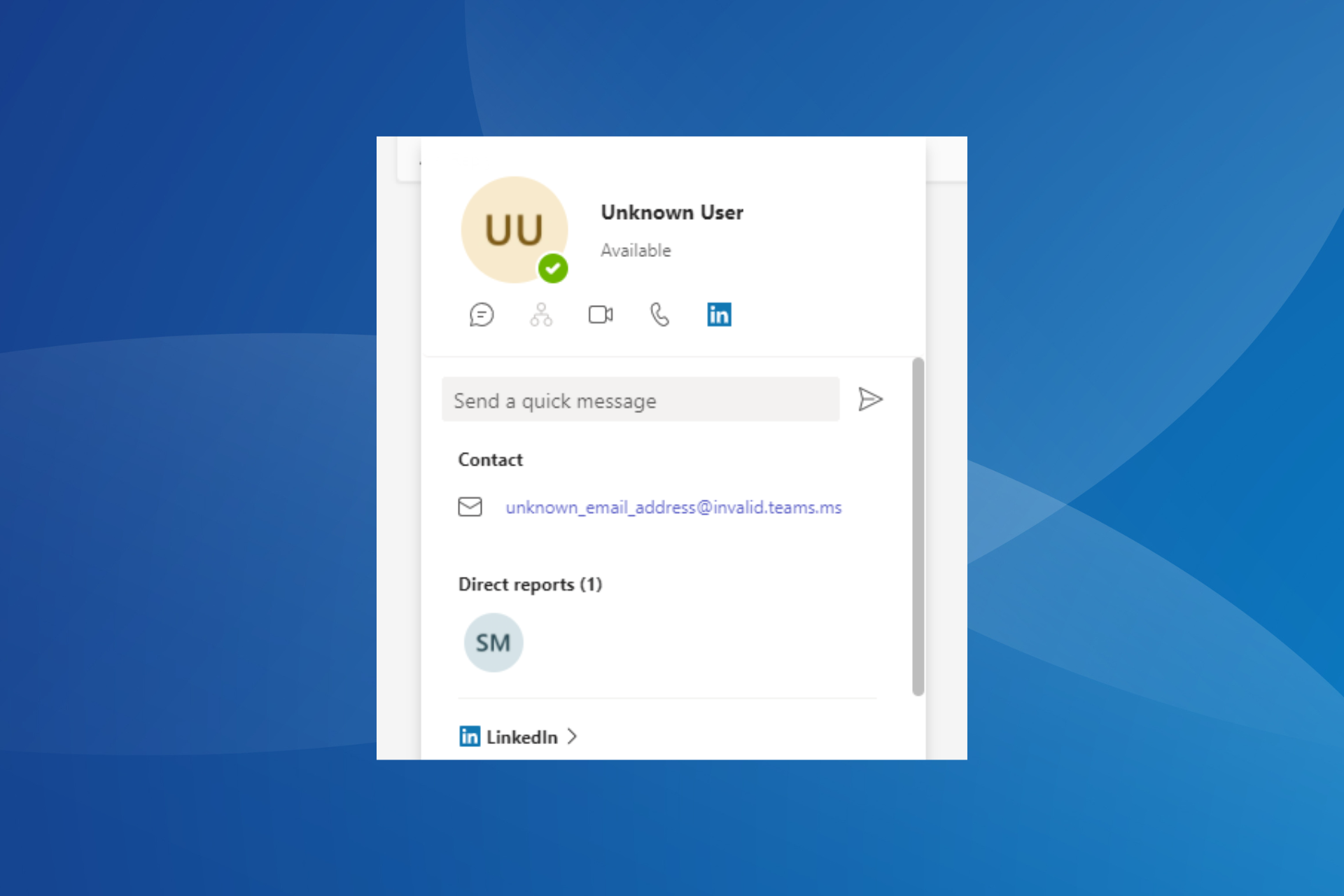
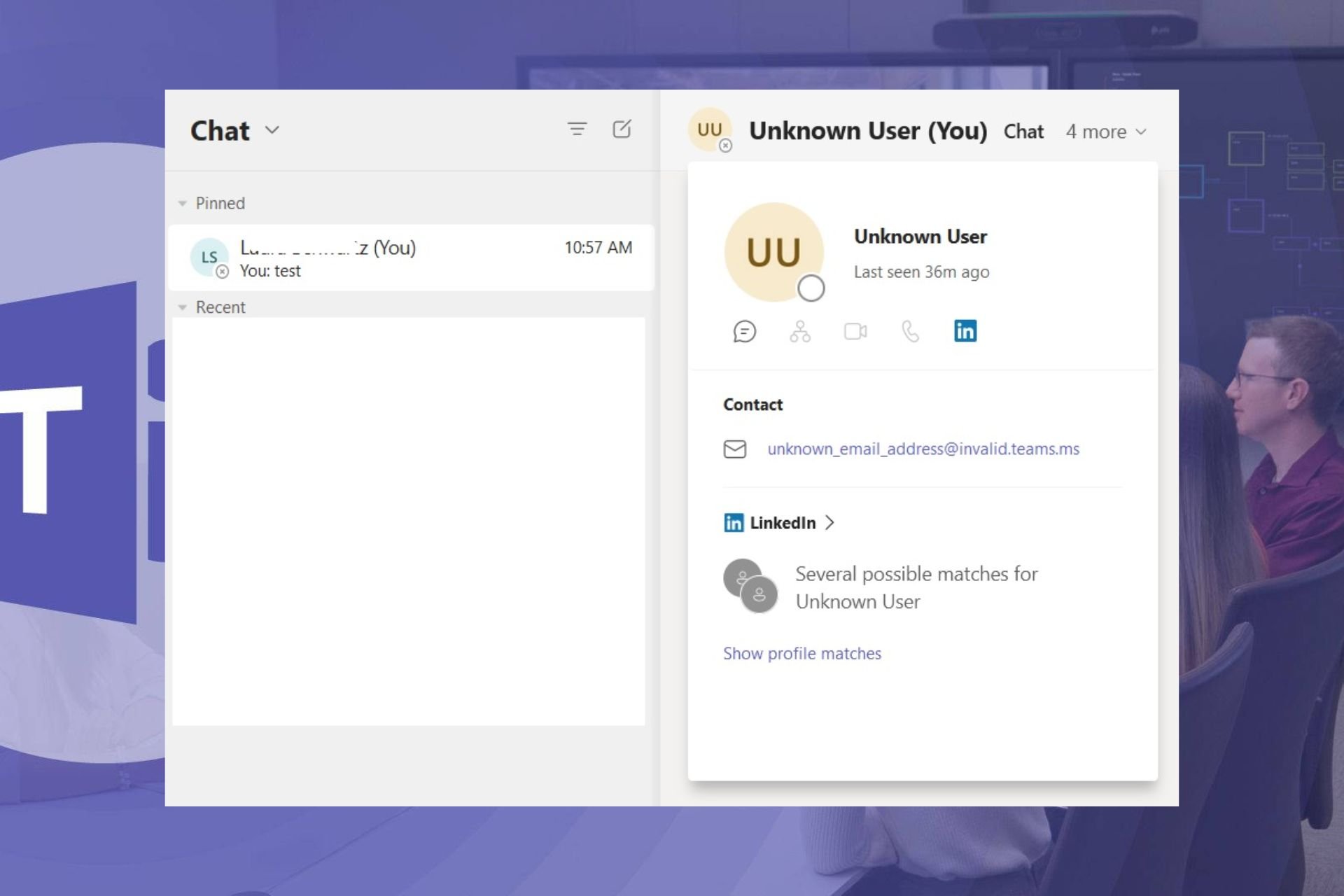
Folks are getting frustrated with Unknown Users showing in Teams. Here’s why they appear

Microsoft Teams, a popular collaboration app, has been throwing a weird issue lately. In recent months, there were countless reports of accounts appearing as Unknown User in Microsoft Teams. In a few small organizations, every single person appeared as an Unknown User!

Most of the time, the problem automatically disappears after 3-7 days. Subsequently, the actual account name is listed instead of Unknown User.

Microsoft hasn’t yet acknowledged the problem, shared a resolution, or released a patch. However, on closely monitoring the issue, a pattern emerges, highlighting what could be causing it in the first place.

Why are Unknown Users appearing in Teams?

  • Username changed recently: The issue often appears when you change the account’s username.
  • Account inactive for a while: When re-enabling inactive accounts, you might find them appearing as Unknown Users for, say, 24 hours to up to 7 days.
  • Sync delay between Teams and Azure Active Directory (AAD): In a few cases, there is a delay in syncing any changes made to individual accounts between Microsoft Teams and AAD. This is a known issue plaguing systems worldwide, though the delay differs from region to region.
  • Bug in the new Microsoft Teams app: A few reported the issue after upgrading to the new Microsoft Teams app, indicating a bug in it.

For a quick resolution, you can always log out and then sign back in, clear the Teams cache (or delete the browser cache if using Microsoft Teams web), or switch to a different device, say from Teams on PC to the iOS app or the web version.

If these don’t work, check our advanced solutions for Unknown User appearing in Microsoft Teams.

Teams users express exasperation over the bug

Reports of Unknown User in Microsoft Teams started appearing in November’23 and, since then, have increased exponentially worldwide. We found these on Reddit and dedicated Microsoft forums.

I’m experiencing this issue today, all of my users in teams are appearing as “Unknown User” but have the correct profile image. No changes have been made to the accounts. Coincidentally my Teams had also switched back to light mode when I always have it in dark. This is “new teams”.

“Buggy Mess” is putting it mildly. Maybe MS should test its newly developed apps in a closed beta and not use users for beta testing. Users in our environment are experiencing the same error. In addition, the new Teams has many other errors. Since this error has existed since at least January 24 2024 and there is no solution, knowing MS we will most likely have to live with this error.

For now, you can only resort to general fixes and workarounds when an account appears as an Unknown User in Microsoft Teams. We are closely monitoring the situation and will share a fix as soon as Microsoft releases it.

As for improvements to the collaboration software in recent years, Microsoft Teams can find out if you not paying attention!

If your organization also has accounts that appear as Unknown User, share what worked for you in the comments section.

Microsoft Excel for the Web will support comment filtering

Microsoft will update Excel for the Web to support comment filtering, giving users the option to look for specific comments by filtering them.

According to the Microsoft 365 Roadmap, this capability should be rolled out to the platform by the end of April 2024, to all Excel users.

Enable filtering capabilities for the comment pane.

Microsoft

The capability was much needed and it could not only be used to organize comments in Excel documents but also filter unwanted, rude, or inappropriate comments.

The web version of Excel was recently updated to support additional Copy/Paste options, alongside new Autofill capabilities, giving users more ways to seamlessly work multiple Excel documents on the Web.

Plus, Copilot in Excel will also be getting dozens new of capabilities in the upcoming months: for instance, the AI model will support conditional formatting. This will allow the AI model to handle complex tasks, meaning users won’t be alone in handling such tasks anymore, as Copilot can be of assistance.

Are you excited about this new feature coming to Excel?

 Hackers abused GitHub comments to push malware using Microsoft repo URLs

In recent developments, hackers have been using a GitHub flaw to distribute malware through URLs related to Microsoft repositories, which poses a serious risk to users.

In the initial observation in Microsoft repositories, the exploit can affect any public repository on the platform, which highlights security concerns.

McAfee recently revealed a new malware loader pushed through potentially legit Microsoft GitHub repositories, like STL library and C++ Library Manager for Windows, macOS, and Linux(vcpkg)

The URLs for the malware installers look like they are related to Microsoft repo. However, there is no reference to the files in the project’s source code, which is fishy. Here are the URLs:

https://github[.]com/microsoft/vcpkg/files/14125503/Cheat.Lab.2.7.2.zip
https://github[.]com/microsoft/STL/files/14432565/Cheater.Pro.1.6.0.zip

Bleeping Computer further investigated the issue and found that these files were not included in the official repositories but were uploaded as attachments to comments on issues or commits within the projects.

GitHub lets users attach files to comments, which are uploaded to GitHub’s Content Delivery Network (CDN) and associated with the respective project through unique URLs.

Furthermore, if the comments are not posted or deleted after some time, these files are still accessible through the generated URLs.

This flaw is concerning as it raises questions about the integrity of software distribution via GitHub. Hackers can easily upload malware disguised as legitimate files within comments on popular repositories.

As these URLs are attached to the reputated repository names, users may not suspect them, which could lead to the widespread dissemination of malware across various industries and platforms.

Even though the issue is so serious, GitHub does not have inbuilt settings to manage files added to projects, leaving companies on the platform vulnerable.

Bleeping Computer has alerted Microsoft and GitHub about the flaw, but they have not responded yet. Although GitHub has removed the malware linked to Microsoft’s repositories, the malware related to Aimmy and httprouter is still there.

If you wish to protect your reputation and don’t want your account and repositories being abused, the only way is to disable comments on your project. However, according to the GitHub support document, you can only disable comments for six months at a time.

Also, not allowing users to comment on your project could badly affect the development of the project to report suggestions or bugs.

The incident is a reminder that the open source community and similar platforms should take proactive measures to protect its users from malicious activity.

What do you think about the incident? Share your thoughts with our readers in the comments section below.

Microsoft Planner’s new enhancements will make it easier for frontline workers to keep track of their activity

Microsoft is updating its Planner platform to support many capabilities especially tailored for frontline workers. These workers usually have to report in person to their job and complete their responsibilities. So, the new enhancements to Microsoft Planner will allow them to keep track of their daily tasks.

According to an official blog post, Microsoft will release no less than 4 new enhancements that were highly requested by frontline organizations. These will allow managers to assign training and policy tasks to frontline workers, as well as automatically send them to repeat task lists, have them report back to the organization, and send approval when their work is done.

In other words, Microsoft Planner now allows for:

  • Task list for each team member
  • Task list recurrence
  • Form completion requirement
  • Approval completion requirement

The Redmond-based tech giant went into detail on how to use each new feature to implement a series of useful policies in frontline organizations and keep track of every activity.

For instance, Microsoft Planner will have a dashboard where managers can create a list of tasks, distribute those tasks to multiple locations, and monitor execution across locations.

The task list recurrence will make it easier to manage recurring tasks across frontline locations, such as tasks for completion of regular site inspections and compliance walks, says the company.

Frontline workers will be able to report their tasks back to the organization, and they will have to do it in a mandatory manner by checking their tasks in a form-like report.

The first new completion requirement is the form completion requirement, an integration with Microsoft Forms. When you use task publishing to create a task, you’ll have an option to add a requirement for completion of a designated form. When you publish that task, each recipient team will be unable to mark the task complete until a form response is submitted by a member of that team.

Microsoft

Ultimately, Microsoft Planner will also require managers to approve the frontline workers’ activity before having them move on to the next task. This can be done through the new approval completion requirement.

You’ll also soon have access to approval completion requirements, an integration with Microsoft Approvals. When you use task publishing to create a task, you’ll be able to designate that an approval is a prerequisite for a task to be marked complete. When you publish that task, each recipient team will be unable to mark the task complete until an approval is requested and subsequently granted.

Microsoft

The new Microsoft Planner was teased out by the Redmond-based tech giant a while ago, and it was released to the public only to encounter issues. But this time, as Microsoft Planner is rolling out gradually to general availability, frontline organizations will find in it a powerful and useful tool to manage daily activities.

You can read the full blog post here.

Use Google Chat to send messages and more to your colleagues on Slack, Teams, Zoom and Webex

In this digitally connected world, communication is key. With the rising demand for remote work, seamless cross-platform collaboration has become more important.

To address this concern, Google and Mio collaborated, making cross-platform chat interoperability possible between Google Chat, Slack, Microsoft Teams, Webex, and Zoom.

This means you can now stay on Google Chat and send messages to your cross-platform peers and friends in direct messages, spaces, and group chats.

You can also use features like editing or deleting messages and sending GIFs, emojis, and reactions. You can also share files securely and use threaded messages across platforms.

In a blog post, Ilya Brown, Vice President of Product Management for Google Workspace, said:

Together with Mio, we can extend the reach of Google Chat and empower users to collaborate seamlessly across different platforms.

This integration is a significant milestone in the quest for Collaboration Nirvana, where users can communicate seamlessly, regardless of the chat app they use.

The significance of unified communication cannot be overemphasized. Various studies have shown that companies using interoperable technology experience six times higher revenue growth.

Earlier, chat communications were limited in terms of interoperability; however, now, with Mio’s groundbreaking solution, you will be able to communicate with colleagues on various platforms right from Google Chat

Google first announced this functionality in August 2023 at the Cloud Next 2023 event. Previously, Google Chat’s interoperability was limited to Slack and Teams users, but it is now available to all users. However, there is a catch to connecting Google Workspace with Slack or Teams; you need a Mio license.

This means organizations need to install the Mio app onto their chat platforms to enable cross-platform communications.

We understand installing additional tools like Mio could be slightly inconvenient, but we can’t deny the benefits, like easy communication across various platforms, which can revolutionize the way we stay connected with our teams.

What do you think about this feature? Share your opinions with our readers in the comments section below.

The upcoming AI Explorer might bring some huge changes to Windows 11, including a new cursor

At this point the new AI Explorer in Windows 11 is imminent: the new tool has reportedly been in the works for a while, and it is set to be released with the Windows 11 2024 Update (Windows 11 24H2) coming later this year.

The new AI Explorer is something of an enigma, and a wonder of Windows 11, at the same time: it acts similar to Copilot, but it’s far more integrated with Windows, it understands natural language, and it is the tool that might bring the operating system to life.

Basically, it’s an AI-powered File Explorer, or File Explorer on steroids capable of searching everything on your device, coming up with editing suggestions, and many more.

But it also demands a lot of power: 16 GB of RAM, 225 GB free storage space, a Snapdragon X Elite NPU (HWID QCOM0D0A) processor, and an ARM64 CPU. These will be the minimum requirements.

However, it seems that the AI Explorer will not stop here. Instead, it might be coming with huge changes to Windows 11. Several Windows enthusiasts out there scoured the latest 26200 Windows 11 Build, and they have found some intriguing strings, and changes, including a plethora of new icons, a new cursor, and something called Screen understanding.

Albacore found a plethora of new icons, as you can see below, that might be related to AI Explorer, including a new glyph that might be the AI Explorer icon, and it looks quite similar to the current design of Copilot.Windows AI Explorer

There is also a new cursor, a new white shape that is easy to follow, but completely replaces the iconic Windows arrow-shaped cursor.

On the other hand, @PhantomOfEarth found several strings mentioning a Screen understanding capability related to the new AI Explorer in Windows 11.

The Screen understanding capability is quite an intriguing one, but at this point, we can only speculate: it is possible the AI Explorer might be able to fully understand what’s going on your Windows 11 screen and provide assistance whenever you need it.

Fortunately, the capability can be enabled/disabled, which is good, considering many users might not want to use the AI Explorer, at all. There is also an AI Host, which can be the AI model this explorer is based on, and according to the screen, it can be successfully terminated from Task Manager.

“Screen understanding is off. Turn it on to continue enjoying AIX power.” “Screen understanding is on” “AI Host is not running” “Screen understanding is paused. Models are not available and need to be downloaded.” “AI Host is not responding. Try terminating aihost.exe from Task Manager.”

These new changes show us that Microsoft is serious about the new AI Explorer on Windows 11. It will not only consume a lot of resources to work, but it might be comprehensive, assisting at every step.

A new icons, a new cursor, and a new File Explorer: these are a lot of huge changes for just one Windows 11 patch. Probably the biggest this operating system has ever seen.

Soon, Microsoft Edge will have buttons on websites that let users directly install a related web app 

According to a post by Leopeva64 on X (formerly known as Twitter), Microsoft Edge is working on a feature within the browser that can make discovering and installing web apps easy.

The feature will let websites have buttons that allow users to install a related web app directly. It builds upon Progressive Web Apps (PWAs).

PWAs are generally web applications that utilize web techs such as JavaScript, HTML, or CSS but provide an app-like experience. 

These apps can be installed on your device, which makes them more accessible. They may even work offline in certain situations.

With this designated install app on websites, you can easily shift your preferred web experiences into app-like functionalities on your device.

Implementing Progressive Web Apps (PWAs) on a website can be quite useful. For starters, you can discover handy web apps you might not have known about before while perusing a website’s selection of installable options, thereby enhancing your app discovery experience.

Another benefit could be their ability to provide a more app-like experience than accessing a website using a browser, hence a more seamless experience.

Furthermore, certain PWAs also come with offline functionality, which will allow you to access content when your internet connection is not stable or unavailable, thereby enhancing accessibility.

Now that we know how useful and convenient installable web apps are for you, let’s look at the potential drawbacks. Expanding these apps could result in clutter, as you may install many of them indiscriminately, similar to what usually happens on our phones.

To conclude, this upcoming feature is being tested to make PWAs more discoverable and easy to use. Once it is live, it will prove to be useful, but you may have to think critically about how many PWAs you should install to avoid cluttering your device.

Will this feature be useful for you? Share your thoughts with our readers in the comments section below.

Meet Ecosia: the world’s greenest Internet browser, now available on Windows devices

Ecosia, the company behind the ecological search engine that plants trees every time users surf the Internet on it, is now releasing the Ecosia browser, the world’s greenest Internet browser.

According to the official blog post, Ecosia can be downloaded on all platforms and devices, including Windows.

We set out to make the greenest browser on Earth, and here it is! Simply by browsing, shopping and searching, you can generate clean energy, plant trees in biodiversity hotspots around the world, and grow your impact with Ecosia. The addition of our desktop browser to our app lineup means you can be climate active wherever you are, on all your devices.

Ecosia

People are encouraged to use the browser, and through their actions, be climate aware and climate active. The company says Ecosia will produce approximately 25Wh of renewable energy every day users browse the Internet on it.

But the browser comes with plenty of green features such as green lead, an AI chat, and a climate pledge rating that allow users to actively contribute to green-based communities, and green-based plans of action.

Ecosia browser also has an in-built ad-blocker. Loading ads takes up a lot of energy, according to the company, so Ecosia should be a win-win situation for all. Plus, the browser is reportedly three times faster than the other browsers on the market.

We’ve optimized for speed, loading pages up to three times faster than most mainstream browsers thanks to our inbuilt ad-blocker. Fewer ads also means you’re consuming less data and energy, so that’s a win for us all. We also protect your privacy by blocking trackers.

Ecosia

Additionally, users will be able to customize their browser with green-themed wallpapers, and the company says using Ecosia means moving away from big companies, which already harm nature.

By choosing the Ecosia Browser, you’re not only choosing the planet, you’re also choosing to support a fairer, more sustainable internet. Plus, we put people and planet first, which you can see for yourself in our monthly financial reports.

Ecosia

The company speaks some truth: Microsoft, at least, is aware that its existing AI data center is putting a lot of pressure on climate already, but the Redmond-based tech giant is taking measures to remedy the situation.

Its upcoming data centers are fully sustainable and able to support zero-carbon, water-negative, and zero-waste environments. The company also pledged to use AI technology to tackle the worrying climate issues.

Maybe it should come with eco-based Edge? What do you think?

You can download Ecosia by accessing this link.

Microsoft Purview’s new enhancements to the onboarding page make it easier to set up multiple devices

Microsoft will be updating the Preview portal with new enhancements that will turn the device onboarding process into a simpler, and safer process all around.

According to the latest entry in the Microsoft 365 Roadmap, the Redmond-based tech giant will allow IT managers and admins to look up devices by searching their IP address, or by using a new Valid user filter to only display certain devices.

Additionally. there will be new properties to choose from when exporting reports in Microsoft Purview, including several new labels such as valid user, first onboarded date, MDATP device ID, Defender engine version, Defender Mocamp version, Endpoint DLP status, last policy sync time, and Advanced Classification bandwidth usage exceeded.

Here’s what the entry says:

This adds new enhancements to the device onboarding page, including these: search by IP address to look up devices, filter using the new “Valid user” filter, use a refined device list to only include devices that can be DLP supported (exclude Android devices from showing in the device onboarding list), and use new properties in the export report (valid user, first onboarded date, MDATP device ID, Defender engine version, Defender Mocamp version, Endpoint DLP status, last policy sync time, and Advanced Classification bandwidth usage exceeded).

Microsoft

The new enhancements will create a safer environment, and it will allow admins to have a better view at the organization’s infrastructure. Given how targeted Microsoft-based environments are, the new policies will provide all the necessary information to deal with suspicious devices.

Speaking of safer environments, Microsoft Purview will soon introduce a portal that allows managers to have everything they need in a single unified experience.

The new portal will allow IT admins, managers, and cybersecurity experts to access data security, data governance, and risk and compliance solutions for all data, no matter where this data is located. They can also access other settings, such as global search, recommendations, and roles and permissions management, everything in a single portal.

It will reach general availability in July 2024. Microsoft Purview’s new device onboarding enhancements will arrive in the same month, although the Redmond-based tech giant will preview them first, in June 2024.

ID@Xbox Digital Showcase 2026: Where to attend & What to expect?

ID Xbox Digital Showcase is coming back, and the 2024 edition will be held in collaboration with IGN. According to the official announcement, the event will update Xbox gamers everywhere on games such as Vampire Survivors, Dungeons of Hinterberg, 33 Immortals, Lost Records Bloom & Rage, and many more.

When: April 29, 2024, at 10 AM PT / 1 PM ET / 6 PM BST.

Where: online, and you have many options, as you can see below.

What to expect: well, according to Xbox, the event will reveal trailers and teasers of many games. But it will also give games a taste of the gameplay in many of these upcoming video games.

On top of epic trailers, fresh gameplay, and new reveals, the show will feature new details on upcoming games like Dungeons of Hinterberg, 33 Immortals, Lost Records Bloom & Rage, and many others.

Xbox

The ID Xbox Digital Showcase 2024 may be a teaser event for the bigger Xbox Showcase that Microsoft has been teasing for a while now. The event, scheduled to take place in June, will reveal some big news for Xbox gamers, including a new Gears of War game, possibly Gears of War 6.

Microsoft will share the release dates for Microsoft Flight Simulator 2024, Indiana Jones and the Great Circle, and Avowed.

You can also read about the Xbox Showcase here.

Outlook is moving the entry point for pinned apps making it easier to access when composing emails

Outlook will soon change the entry point for pinned apps, and Apps flout, making it easier to access these apps when composing or reading emails.

According to the latest entry in the Microsoft 365 Roadmap, there will be a preview for the new change in May 2024, followed by a general rollout scheduled to start in June 2024.

The Apps flyout and entry point for pinned apps will be moved to the Home tab in the Ribbon in the New Outlook and Outlook for Web.

Microsoft

As the entry says, the new change will impact Outlook for Web, and the New Outlook, only. This change will be gradually rolled out to users, and it could potentially ease not only the access to apps when writing emails but also enhance productivity and streamline workflows.

Apps will be easily accessed on the same page with just a few clicks, allowing users to edit their emails with third-party capabilities, from spelling mistakes to accessing AI-based tools.

The Redmond-based tech giant is probably thinking about encouraging Outlook users to try out the new version: alongside this new UI change, which is quite useful, Microsoft is also introducing the beloved CTRL + C and CTRL + V shortcuts, allowing users to easily manage, and copy/paste Outlook emails.

The Classic Outlook already lets users do that, but the new Outlook has not been updated to support them just yet.

Speaking of the Classic Outlook, the platform is set to be retired by 2025, but the Redmond-based tech giant might replace it entirely with a web app, allowing those still fond of this version to use it for a few more years.

However, Microsoft will update the new Outlook to such a degree that users might start to migrate towards it naturally. Outlook’s entry point change is just one of the many ways Microsoft intends to enhance the platform to fit modern users.

Microsoft Designer has decided to make Generative Erase available again

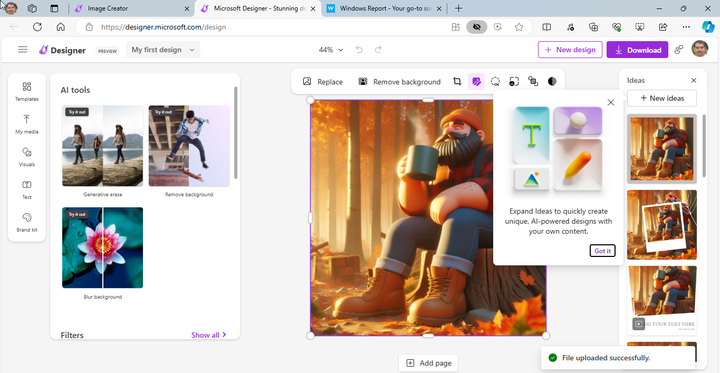
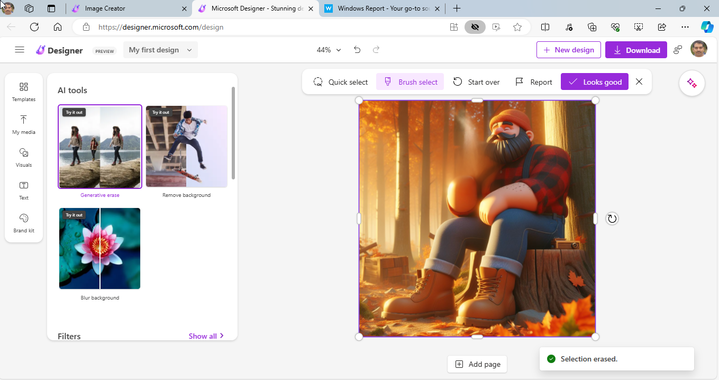
After a brief absence, Microsoft Designer users can enjoy the Generative Erase feature again. The tool allows you to remove unwanted objects from images created using Microsoft Designer.

For the last two months, many users have reported that it has been missing, leaving them puzzled and seeking alternatives.

One of the users, K-dawg12, on Reddit mentioned the absence of the feature:

I use Microsoft’s Bing AI image generator a lot for my creative works, and it is paired with Microsoft Designer which will let you edit the image. Microsoft Designer used to have a feature called generative erase which would remove objects from an image while using AI to fill in the background, but this feature seems to have disappeared. Did this feature get moved or removed?

In a recent announcement, Priyanka Sinha, Head of Engineering & AI, Microsoft Designer, confirmed they are bringing the Generative Erase back to Microsoft Designer.

She shared the news on X; in her post on X (formerly known as Twitter, she said:

Then, Derek Johnson, the Director of Product for Microsoft Designer further solidified the confirmation about the same with his post on X(formerly known as Twitter):

Johnson expressed gratitude for users’ patience as the feature was temporarily removed and assured them that essential changes have been made to improve its function further.

You can see this for yourself; in the first image, the man has a mug in his hand:

In the image below, the mug has been removed using the Generative Erase feature in Microsoft Designer

The reintroduction of this feature brings relief to a lot of creators who depend on Microsoft Designer for their projects.

Now, you can remove unwanted objects and elements from your design with a few clicks and tailor the image to your liking.

Sinha also mentioned:

We understand the importance of Generative Erase to our users, and we are thrilled to bring it back. We have worked diligently to address any issues and improve the tool, ensuring a seamless experience for our valued community of designers.

Are you happy with returning the Generative Erase feature to Microsoft Designer? Share your experience with our readers in the comments section below.

Windows 11 26200 build reimagines the operating system without its iconic loading circle

Microsoft released the Preview Build 26200 for Windows 11 Insiders in the Canary Channel, and the Redmond-based tech giant brought some important widget improvements to the operating system.

Every time someone gets a notification on Windows 11, the widget will display it with an animation letting users know that they have unread notifications. As the new enhancement can be disruptive to the Windows 11 experience, the Redmond-based tech giant allows users to enable/disable it at will.

However, the 26200 build plagues Windows 11 with another disruptive bug: the iconic Windows loading circle does not appear when booting the operating system.

Spotted by Windows Insider, @XenoPanther, it seems that the bug is widespread, with many other insiders claiming that their system would boot up without showing the Windows 11 loading circle.

yes. and it skips and boots faster than 26100.

X user

When booting to the new Windows 11 version in the Canary channel, the bug causes the operating system to skip the loading circle moment altogether, and open Windows 11 lock screen. Some users were clearly distressed by the new bug, which reimagines the OS without one of its defining moments.

While this is a bug that will most likely get fixed with next week’s Insider build, it does show up something interesting: Microsoft should never deprecate the iconic loading screen, as many Windows users are already so used to it, the whole experience with the operating system just doesn’t feel as complete.

It’s good to know that these builds are experimental so they’re prone to a lot of issues, errors, and malfunctions, but Microsoft hasn’t officially stated anywhere that it’s retiring the famous icon. So, for now, Windows 11 is safe.

But can you imagine a Windows version where this icon won’t be here anymore? That’s quite depressing, in a way. Let’s hope Microsoft keeps the loading circle around.

3 Ways to Fix The Power Button Lockout on Your Monitor

If you use a laptop, a power button lockout means you’ll be unable to use it temporarily. Sometimes pressing and holding the power button can allow you to shut down faster, especially in cases where you want to restart or troubleshoot other issues.

A power button lockout can occur if you press the power button for more than ten seconds. Usually, a restart or pressing and holding it down for another ten seconds will unlock it and get rid of the error but not always.

If it’s a system-related error or driver errors that result in compatibility issues, you’ll need to address the root problem first. Sometimes, your HP laptop won’t turn on because your power button is faulty.

How do I fix the power button lockout on my monitor?

Note icon NOTE
If your laptop does not allow you to restart, you may need to start in Safe Mode for these steps.

1. Change the Power button action

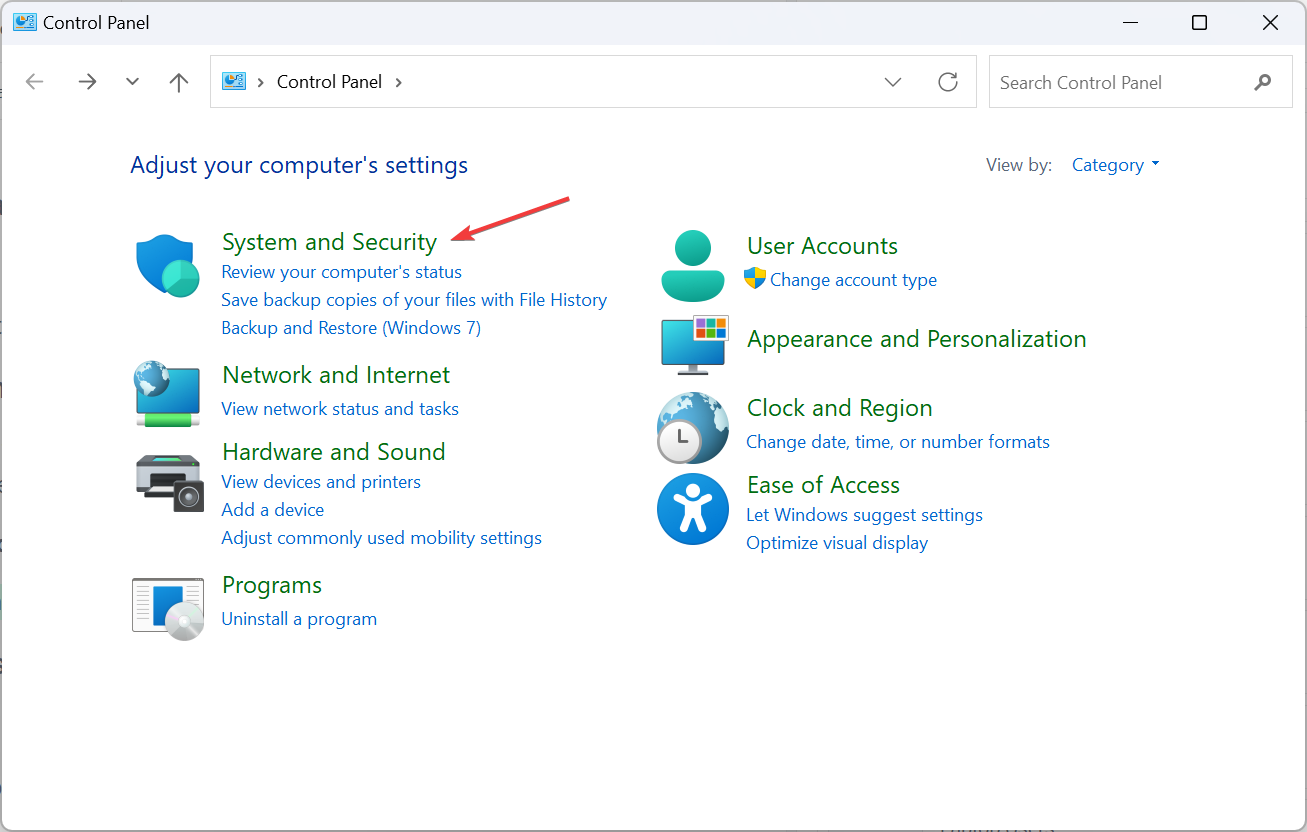
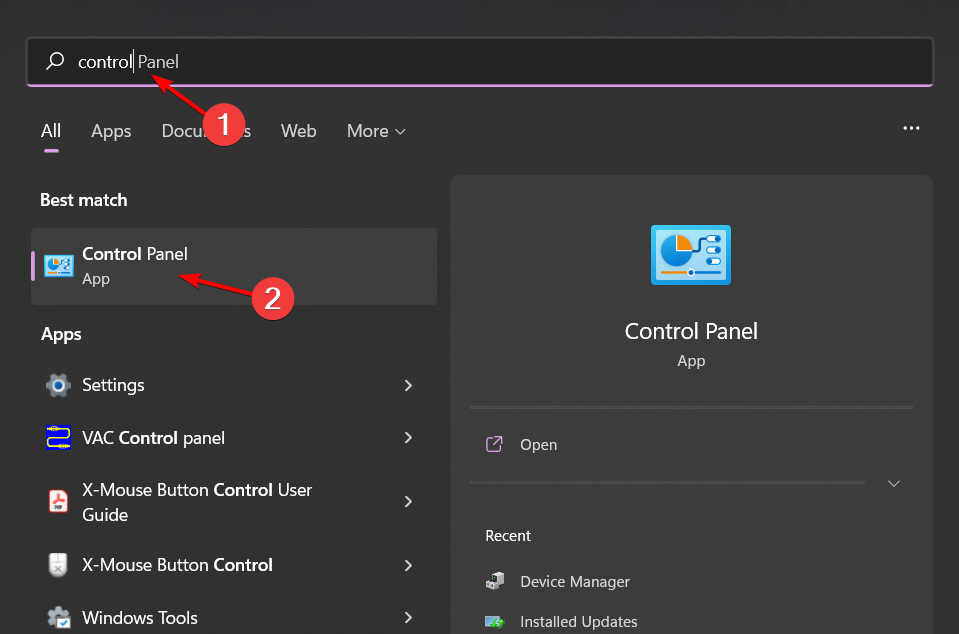
  1. Press Windows + S to open the Search menu, type Control Panel in the text field, and click the relevant search result.
  2. Click on System and Security.system and security to change power button action windows 11
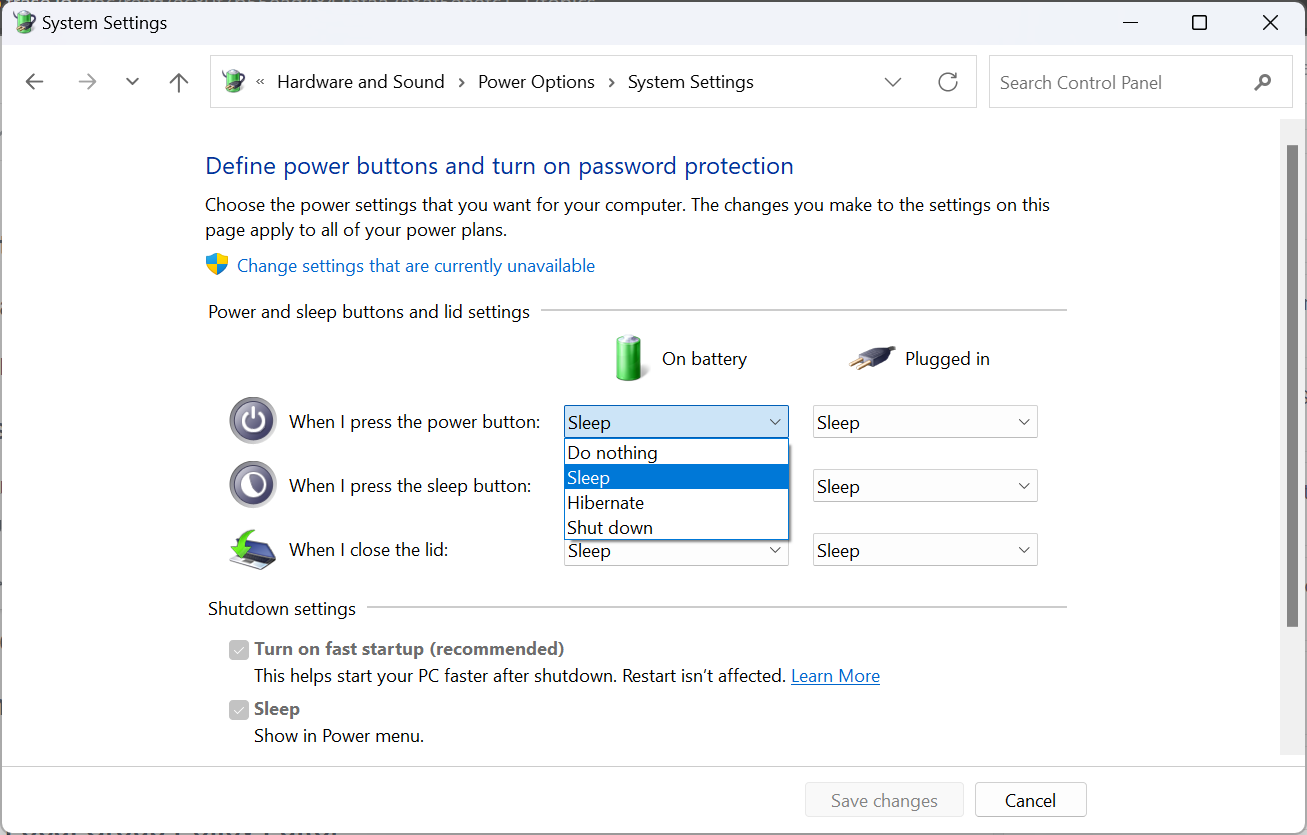
  3. Click on Change what the power buttons do under Power options in Windows 11.
  4. Now, select from the dropdown menu how you want the computer to behave when the power button is pressed for both On battery and Plugged in. The options usually available are:
    • Do nothing: No action is performed
    • Sleep: The PC is put into sleep mode (default settings on laptops)
    • Hibernate: The PC is put into Hibernate mode
    • Shut down: The PC is shutdown (default setting on desktops)
    • Turn off the display: Powers off all connected displayschange power action
  5. Select Do nothing and click on Save changes at the bottom.

2. Run diagnostic tests with a dedicated tool

Note icon NOTE
The tool listed here is specific to HP. If you have a device from another manufacturer, check for their corresponding troubleshooting tool.
  1. Navigate to your browser and download the HP Hardware Diagnostics tool from the HP website.
  2. Open the file and follow the on-screen instructions to install the tool.
  3. Launch the tool and click on the System Tests button.Hardware Diagnostics tool
  4. The test will start running. Let it finish until it reaches 100%.
  5. Restart your HP laptop once the test is complete.
  6. If the power button lockout message still appears after completing the Quick Test, choose to perform the Extensive Test.

3. Perform a System Restore

  1. Press the Windows key, type Control Panel, and click Open.control-panel-search fallout new vegas runtime error
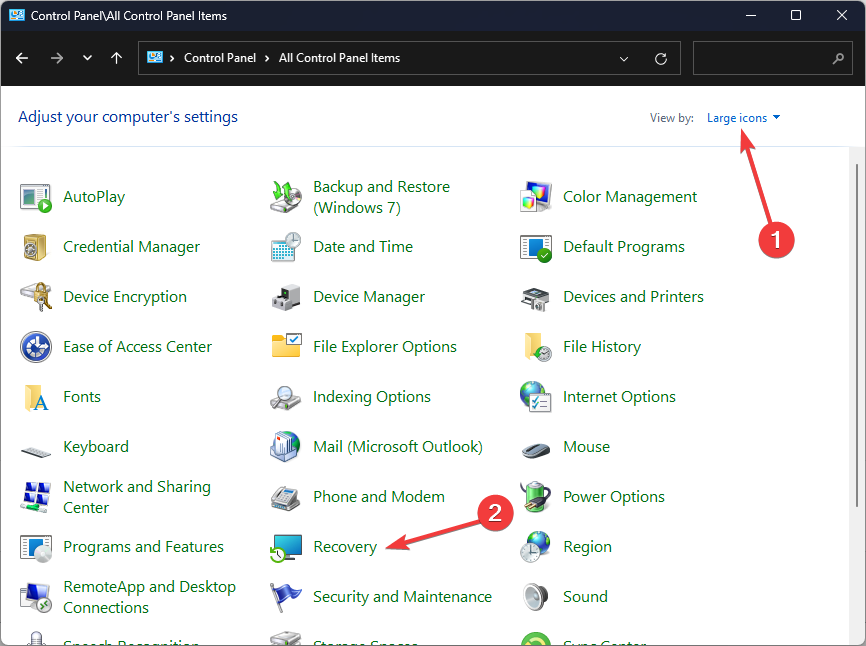
  2. Select Large icons as View by and click Recovery.Recovery Control Panel Advrcntr6.dll
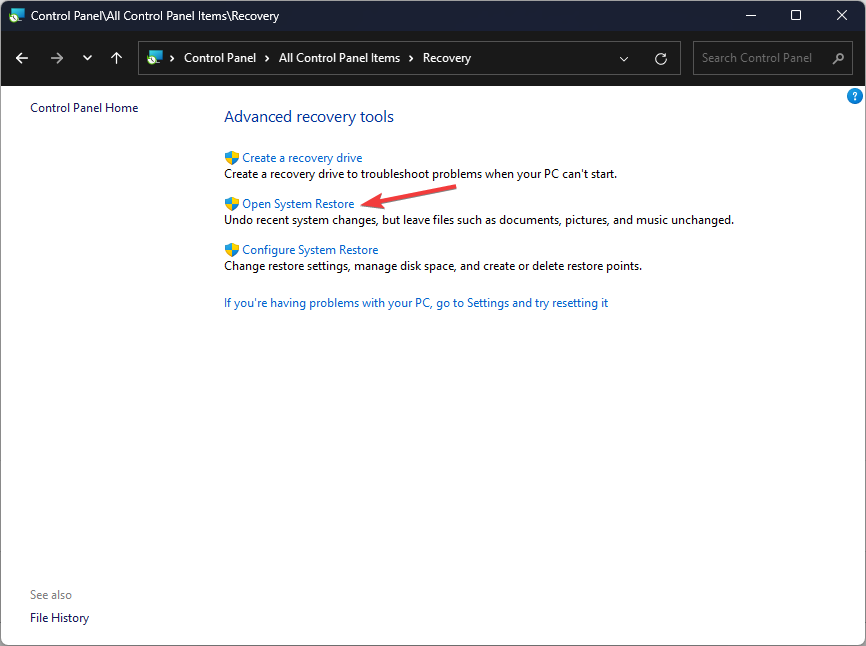
  3. Click Open System Restore.Open system restore
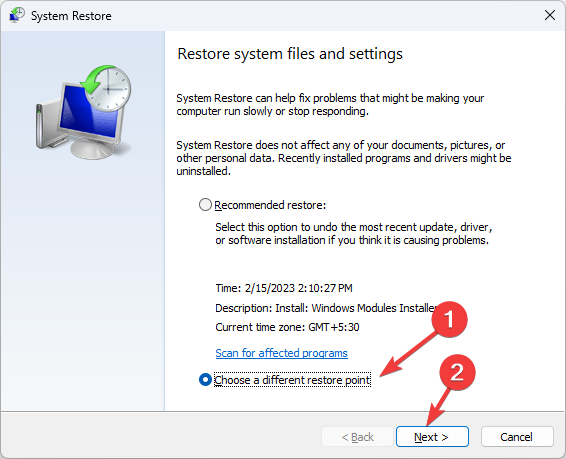
  4. Select Choose a different restore point and click Next.Next Choose a different restore point
  5. Now select the restore point and click Next. Choose a point
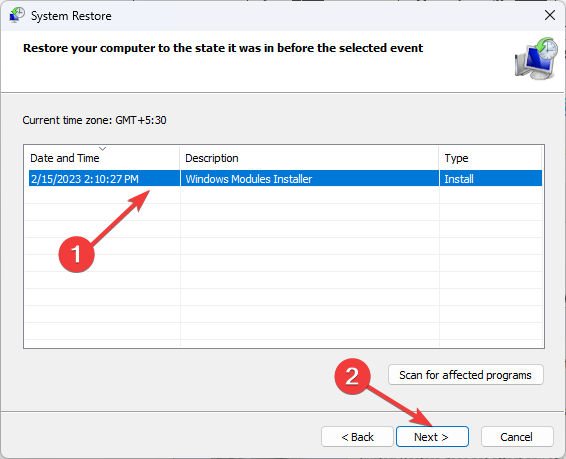
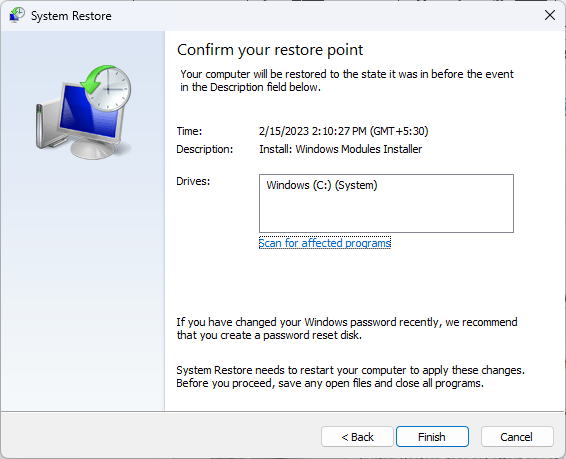
  6. Click Finish to restore the previous settings, and Windows will restart.Finish Restore point

Preventative measures to avoid a power button lockout

  • Keep your operating system, drivers and other firmware up-to-date to prevent any compatibility issues that may cause shutdown issues.
  • It’s generally not recommended to shut down your PC/laptop using the power button unless necessary. Avoid this or change how the power button behaves when pressed.
  • Press your keyboard keys cautiously without undue pressure and keep your keyboard away from liquids. Over time, some keyboard buttons may stop working if not well taken care of.

Other related error messages you may encounter include the BIOS ID check error but we’ve already covered ways to bypass this issue. Aside from errors, did you know you can unlock your HP laptop without a password?

You can even shut down your PC without the Start Menu. That’s all we had for this article.

If you have any additional solutions that worked for you, we’d love to hear about them. Drop us a line below.

Cognizant & Microsoft’s new AI partnership sees the purchase of 25,000 Microsoft 365 Copilot seats

Cognizant is purchasing over 25,000 Microsoft 365 Copilot seats for its associates, about 500 Sales Copilot seats, and 500 Services Copilot seats to enhance overall productivity and streamline workflows, according to a new announcement made by the Redmond-based tech giant.

Aside from this, the companies will work together to deploy Microsoft 365 Copilot to a million users within their global 2000 clients and across 11 industries, says the announcement.

Cognizant has already trained 35,000 developers on GitHub Copilot, and 40,000 more are currently under training, so the company is no stranger to AI technologies.

The partnership will also see Cognizant providing $1 billion to the advancements of AI tech over the next three years.

Generative AI can be a game-changer for virtually every business in every industry, opening up new possibilities for innovation, efficiency and growth. That’s why we are investing $1 billion in generative AI over the next three years and leading the development of new research to explore its potential for our clients, their employees and end customers. We’re committed to helping them harness the power of generative AI at scale, and Microsoft Copilot is a proven tool that can bring transformative gains, unlocking talent and potential in ways we can only imagine.

Cognizant

The AI partnership between Microsoft and Cognizant started a few months ago when the two companies announced the new Advanced AI Lab, a place designed to create, test, and release new Generative AI to the market.

With the new announcement, however, is clear that the companies want to impose a trend on the market: motivating the corporate world to adopt AI. While Artificial Intelligence has been around for a while, it’s not exactly following a clear road to mass adoption.

According to our most recent survey, only 10% of users who have access to Copilot, actually use it for professional tasks. To encourage them to give it a try, the Redmond-based tech giant will introduce the Copilot Adoption Community in the Microsoft 365 productivity platform, which gives employees all the necessary tools to learn how to use AI.

However, the partnership between Cognizant and Microsoft might encourage other companies to do the same: after all, Cognizant is training its employees to learn how to use AI, and it could set a standard in the industry.

We’ll have to wait and see. But what’s your opinion on this? Should employees use AI at work?

Microsoft acknowledges Copilot auto-launching unexpectedly after restarting the PC issue

Many users running preview builds have reported Copilot auto-launching unexpectedly after restarting their PCs.

Microsoft released Windows 11 Insider Preview Build 22635.3500 to the Beta Channel and acknowledged the issue.

In a blog post, Microsoft mentioned:

  • [NEW] We are aware of reports by Insiders in the Canary, Dev, and Beta Channels that Copilot is auto-launching unexpectedly after restarting their PCs. We hope to have a fix for this issue soon and is unrelated to the auto-launching experience we tried out with Insiders in the Canary and Dev Channels in early February which we stopped rolling out in March.
  • Voice access does not work reliably with the updated Copilot in Windows experience that introduces the ability for Copilot to act like a normal application.
  • Using Windows Ink to write in Copilot will not work with the updated Copilot in Windows experience.

So, if you are one of the Insiders facing the same issue, you might have to wait for a fix.

Microsoft already confirmed these issues with the Dev and Canary channels earlier in April. Now that they have mentioned them with the Beta channel update, which is important as it is the final channel before release preview.

We know that Microsoft will soon fix this bug as the Redmond-based tech giant wants all its users to use its AI assistant and integrate it into the daily lives of Windows users.

What do you think about this matter? Share your opinions with our readers in the comments section below.

Skype 8.118 is here and it updates the camera to remember your favorite settings

Microsoft released Skype Insider build 8.118, and with it, the Redmond-based tech giant has updated the platform to support a variety of new features, changes, and customizations.

One of the most intriguing new enhancements, though, is the one that makes the camera remember your favorite settings. According to the official blog post, Skype for Android will be updated to take into account users’ preferences when it comes to camera options.

For instance, if you prefer the front camera, Skype will remember that, and it will automatically open it the next time you have a call. Even more, if you enable some settings and you end up enjoying them, Skype will also keep them enabled next time.

Embrace the personal touch with Skype’s latest Android update – your chat camera now remembers your last used settings, ensuring your best side is always ready for its close-up. ?

  • Selfie-Ready: Love the front cam? Skype now defaults to your preference in chat, saving you a click. ?
  • Stick with Your Pick: Flipped? Set it once and Skype’s chat camera keeps it just so for next time. ?️
  • Snap Back to It: Revisit the chat and your camera’s just as you left it, for seamless sharing. ?
Skype

However, it’s worth mentioning this feature is only available on Skype for Android.

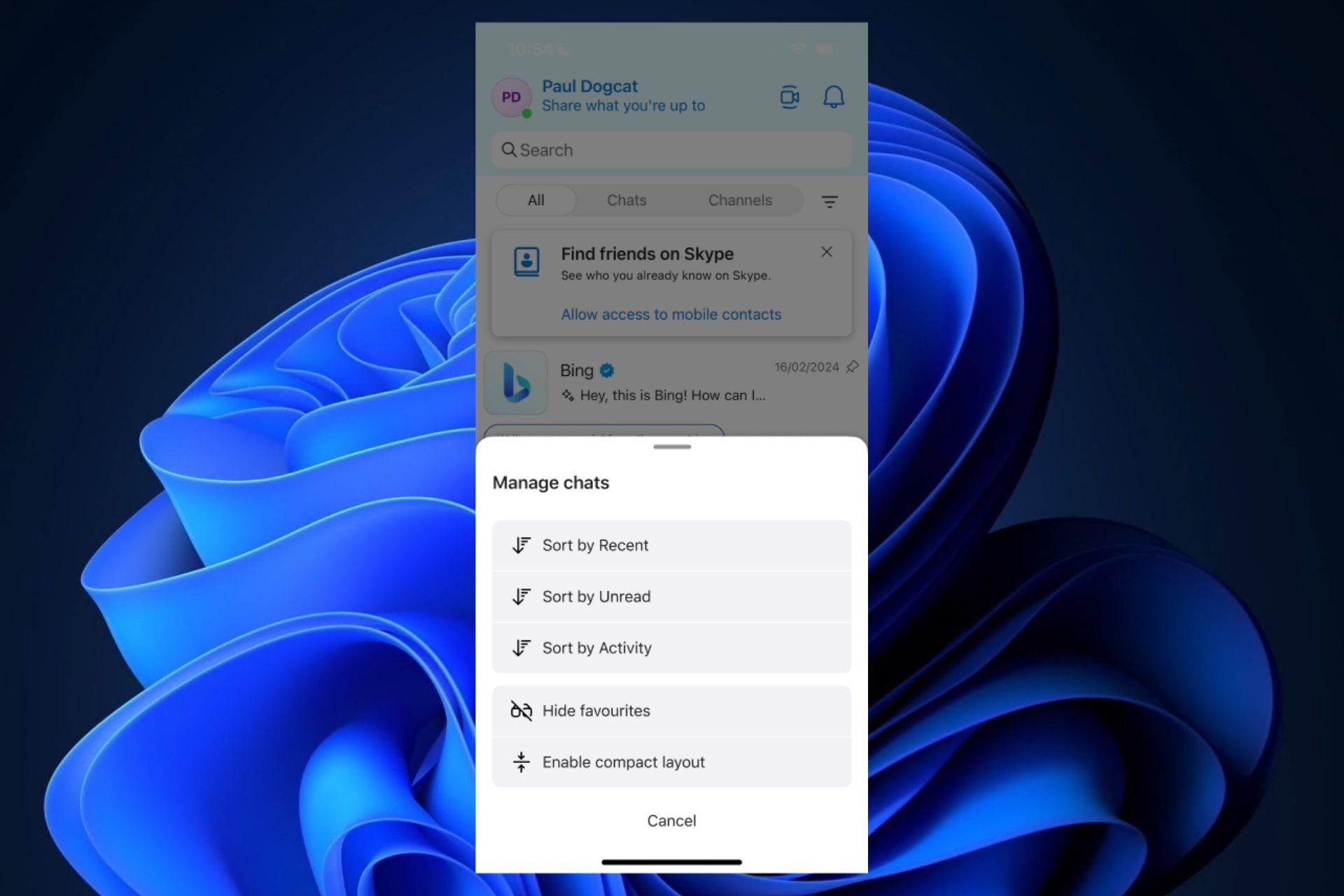
Skype 8.118 also brought important changes to the chat layout, and surprise… to the whole GIF section. The chat layout now supports filtering, allowing users to quickly and easily find chats based on certain criteria (relevance, or recent, for example).Skype 8.118

Finding your focus in Skype chats is now sleeker and more intuitive with our new bottom sheet design.

  • ? Filter with Flair: Tap and unveil a modern, user-friendly filter menu right in your chat list.
  • ⚙️ Customized Chat Visibility: Easily toggle between seeing recent chats, unread messages, or active conversations.
  • ? Design that Delivers: Enjoy a fresh look with essential features at your fingertips – designed for the way you communicate on mobile.

Dive into a cleaner, quicker way to navigate your chats with Skype’s updated mobile experience!

Skype

Plus, as we’ve mentioned before, the GIF section on Skype for Desktops is now updated and enhanced with new features.

Our latest desktop update means finding the perfect GIF is quicker than ever:

  • ? Speedy Selection: Wave goodbye to waiting; your GIF picker is now turbocharged for instant fun.
  • ? Slick Browsing: Glide through categories with a smoother experience, no more loading lags!
  • ⚡ Optimized Performance: Enjoy quicker, crisper GIF rendering to express yourself in a flash.

Get ready for lightning-fast laughs with the new and improved GIF picker, only on Skype Desktop!

Skype

The platform recently introduced Channels 2.0, so Skype 8.118 coming with all the new updates will make some users happy, and it could even attract new users to it.

The new updates will be rolled out gradually to users, so if you don’t have them now, check the platform again in a few days.

What do you think of the new features?

After a great start, DALL-E 3 is now slowly but surely left behind. Here’s why

While most AI-powered models have gotten better with time, DALL-E 3 is an exception. Over the last month few months, its image creation abilities have taken a hit, and the quality isn’t the same as it used to be.

We have come across countless reports expressing the same opinion about DALL-E 3 on forums like Reddit.

Besides the image’s quality, limiting the output is another reason users are contemplating switching to alternatives. Dall-E 3 initially generated 4 images per prompt, but, of late, this has gone down to 1.

Had it been the case with just a few, we would have blamed poor prompt selection as the underlying cause. However, with so many reports, even from users who had been using Dall-E 3 on ChatGPT 4 for months, this appears to be a problem with OpenAI’s text-to-image model!

Why does Dall-E 3 produce poor-quality images?

If you are certain about using the right prompts, a plausible reason for poor-quality images with Dall-E 3 is that the model revises the initial prompt. This has been confirmed by OpenAI.

To overcome the problem, simply add the following phrase before your prompts:

I NEED to test how the tool works with extremely simple prompts. DO NOT add any detail, just use it AS-IS:

Other than this, there are theories about the image quality being affected during peak hours. Also, some unverified reports suggest that OpenAI is not paying much attention to Dall-E 3 anymore and is relocating computing resources to the development of more advanced models.

Users share their recent experience with Dall-E

Most users shared a similar outlook when it came to degrading output image quality with Dall-E 3 over the last few months.

I had so many ideas that I wanted to try using Dall E 3, but it is so bad now, I totally agree with you. I hope there is some other AI which takes generic prompts like chatgpt and I will go. Regret renewing subscription

I’ve noticed OpenAI has all kinds of little things they do to save on inference costs whether it’s ChatGPT or DALLE 3. When DALLE 3 first came out it made 4 images per prompt, now it’s only one. And I’ve also noticed a significant decrease in the quality of what I used to be able to generate vs. what you can make today.

Some expressed satisfaction with the text-to-image model and were of the opinion that it has consistently delivered.

Personally I do think there’s been a strong fine tuning for a certain style that isn’t always desirable, but Dall-E still represents the best prompt absence in pure text2img

A few even shared alternatives for Dall-E 3 on ChatGPT and tips on getting the best quality images out of Dall-E 3. Because, in the end, it’s all about the prompts!

So for me I just go on Bing, then I click on chat and I can ask it anything. To create an image I simply write “Create an image of”. But you need a Microsoft account. I go in Google Chrome to do it, but it’s 5 messages per conversation. If you use it with Microsoft edge, it’s 30 messages per conversation.
I tell it the best quality is crucial and that I’m stressed, that it’s for a very important event, I saw the advice on Reddit lol. I really noticed it increased the accuracy.

Even Microsoft’s free AI image generator, which uses Dall-E 3, has come under fire for degraded image quality. We will have to wait for a few months to see how things pan out and whether there’s an improvement to the text-to-image model after the ongoing outrage.

What’s your review of Dall-E 3’s present image generation abilities? Share with our readers in the comments section.

How to Solve The Microsoft Teams Unknown User Error

For the sake of data integrity and preventing unauthorized users in Microsft Teams, an unknown user appearing in the admin centre poses a risk and should be dealt with immediately.

An unknown user may appear among the list if you’ve recently made changes like removing an old user, the user has been inactive for a while and is now being re-added. There could also be delays in synchronization. Some changes made on Azure can take up to 24 hours to reflect.

How do I fix unknown users in Microsoft Teams?

1. Clear Teams cache

  1. Close the Microsoft Teams app on your Windows device. 
  2. Hit the Windows + R shortcut to bring up the Run dialog box. 
  3. Type %appdata%\Microsoft\Teams in the Run dialog box and then select OK.
  4. Select all files and folders in the %appdata%\Microsoft\Teams directory and hit the Delete button.
  5. Restart Teams.

While at it, also ensure you’re using an up-to-date Microsoft Teams or try the web version. And if you’re using Teams on a browser, clear your browser cache and cookies too and see if the error disappears.

2. Change Active Azure Directory settings

  1. Hit the Windows key, type PowerShell in the search box and click on Run as an administrator.
  2. You must be logged into your Microsoft 365 account to execute these commands.
  3. Once you are connected to Office 365 admin, enter the following command:
    Set-MsolCompanySettings -UsersPermissionToReadOtherUsersEnabled $True
  4. Refresh your Teams app and see if the unknown user still appears.

3. Reconfigure Coexistence Mode

Note icon NOTE
You need to have administrative privileges to perform these actions. 
  1. Visit Microsoft Teams Admin Center and log in using the administrator username and password.
  2. Navigate to the Teams module and select the Teams upgrade option. Microsoft Teams Stuck On Offline
  3. Locate the Coexistence mode and choose Teams only in the drop-down next to it. Microsoft Teams Stuck On Offline

In teams, during transition, some admins may use the Islands mode to allow users to use both Skype and Teams simultaneously. While this is beneficial especially when there is information on both platforms, juggling two modes can result in compatibility issues and hence lead to the unknown user error.

Switching to Teams only allows all users to be on the same platform. However, if you’re yet to complete the transition, this would not be an option.

4. Check and reconfigure permissions

  1. Press the Windows + R key to open the Run dialog box, type gpmc.msc, and click OK to open the Group Policy Management console.
  2. Right-click on the Group Policy Objects icon and select New from the drop-down.
  3. Input a Name, set the Source Starter GPO option as none, and click OK.
  4. Right-click on the new GPO and select Edit GPO from the drop-down.
  5. On the Group Policy Management Editor window, go to the following path: Computer Configuration\Windows Settings\Security Settings\
  6. Right-click on File System, then select Add File from the drop-down.
  7. Locate and click on any folder with predefined permissions, then press OK.
  8. On the Database Security page, click the Advanced button.
  9. In the Permissions tab, check against the click Name column and see if you can spot the unknown user. If so, click on their name then press Remove.
  10. Repeat the same steps and try adding them again and see if their actual name appears this time.
  11. Click Apply then press OK to save the permissions settings.

5. Remove Microsoft Account Credentials

  1. Hit the Windows Search icon, type Credential Manager in the search bar, then click Open.
  2. Click on Windows Credentials.Windows credentials - OneDrive 0x8004deb2
  3. Select msteams, click on it to expand, then hit Remove.
  4. You’ll get a command prompt asking you to confirm whether you want to remove the credentials, so click on Yes.

6. Reinstall Teams

  1. Hit the Start Menu icon on the Taskbar and click on Settings.settings windows 11
  2. Click on Apps on the left pane, then select Apps & features on the right pane.
  3. Navigate to Microsoft Teams app, click on the three ellipses and select Uninstall.uninstalling microsoft teams
  4. Launch the Microsoft Store, search for the Teams app and click Install.
  5. Follow the on-screen prompts and try again.

Unfortunately, the unknown user issue may take time to be resolved so in the meantime, you can rely on the Microsoft Teams chat monitoring feature just to make sure the unknown user is not an unauthorized party accessing sensitive information.

Sometimes it’s all about synchronization that takes time to reflect across Microsoft apps. For instance, your profile picture on Teams may delay in appearing but eventually, it all works out.

Some aspects may require troubleshooting but in terms of preparation for your Teams meetings, you can stay ahead by downloading the network assessment tool to ensure connection issues are never a problem.

Have you encountered this error before? What solution fixed it for you? Let us know in the comment section.

Asus ROG Raikiri Pro Xbox & PC controller is available at 27% off

Gaming is always better with the right controller, however, a good controller can often be expensive.

If you’re on a budget, and you’re looking for a new controller, then don’t miss this Asus ROG Raikiri Pro discount.

You can get an Asus ROG Raikiri Pro controller for just $109.99

We saw some amazing gaming peripherals from Asus, and Asus ROG Raikiri Pro manages to provide the quality we expect to see.

While this is an amazing controller, it’s also available at a discount at Amazon, as Neowin writes, so this might be the perfect chance to get it.

The controller has a translucent design, and it even comes with a small OLED display that can show useful information such as battery life, animations, status updates, text, and more.

As for available buttons, you’ll find all the buttons that are present on a standard Xbox controller, as well as four buttons on the back that you can easily program with Armoury Crate software.

Trigger buttons are customizable, and you can adjust them from short to full-range modes. It’s worth mentioning that a headphone jack with built-in DAC is available for high-quality audio.

The controller supports both wired and wireless connections, but if you want to use it on your PC, you’ll need a USB dongle to do so.

This is a great controller, and it’s currently available on Amazon for $109, so don’t miss it. In case you need something for handheld devices, then you mustn’t miss the Razer Kishi Ultra controller.

Tech enthusiast found a way to install and run Windows XP on Compact Flash card

Windows XP was one of the most popular Windows versions, and many have fond memories of it because it didn’t have any major bugs and it worked on almost any hardware.

Speaking of hardware, tech-savvy users have found a way to run Windows XP on a CF card.

Did you know that you can install Windows XP on a CF card?

CF cards work similarly to SD cards, and they are often used in digital cameras and camcorders for storage. Despite being larger than SD cards, they have higher read/write speed and larger capacity.

This is why a X (formerly Twitter) user Bob Pony decided to try installing Windows XP on a CF card.

Keep in mind that you can’t do this with any CF card, you need a card that is fast enough and has enough storage space.

Here are the specs of the PC Bob used:

  • CF card used: SanDisk 32GB Extreme PRO CompactFlash Memory Card UDMA 7 Speed Up To 160MB/s – SDCFXPS-032G-X46
  • Motherboard: LGA1155 Q67 Industrial (has one ISA slot)
  • CPU: Intel Core i7-2600
  • RAM: 4 GB DDR3 @ 1333 MHz  

You also need to adjust your BIOS settings so that your PC can boot from the CF card. Most importantly, you’ll need a CF card adapter to connect the CF card to your PC.

After that, start the installation as you would normally do and follow the instructions on the screen. The setup process is fast, and it takes about 15 minutes.

Bob Pony was kind enough to share the process in a video, so check it out for detailed instructions:

So what are the pros and cons of installing Windows XP on a CF card?

  • You’ll get a pocket version of Windows that you can carry with you.
  • CF cards are more durable and faster than hard drives.
  • These types of cards have no moving parts, so they don’t produce any noise.

However, there are a few drawbacks to this approach:

  • You need a compatible card that will work with your BIOS.
  • CF card reader is required to connect the card to your PC.
  • Ensure that your CF card has enough storage.
  • CF cards can wear out over time, especially when writing files.

While this looks impressive, especially if you’re a tech enthusiast or just a fan of Windows XP, we don’t see any real-life applications. If you want something interned for everyday use, you’ll be better off running Windows from a flash drive.

Speaking of Windows XP, if you’re still using it, you’ll probably get alerts about Windows XP end of support.

In case you’re a fan of legacy operating systems, you’ll be pleased to hear that Windows 11 still uses legacy icons.

Get these gaming desktop rigs from iBUYPOWER while they’re hot

Are you on the hunt for a new gaming PC that doesn’t break the bank but still packs a punch? Well, it looks like iBUYPOWER might just have what you’re searching for. They’ve rolled out a fresh lineup of RDY-built esports gaming PCs, and guess what?

They’re celebrating their 25th anniversary with some sweet discounts across different models. Whether you’re a fan of VALORANT, League of Legends, or any other esports title, there seems to be something for everyone, with configurations designed to give you that competitive edge.

RDY Scale 001

Now, let’s dive into the nitty-gritty of these deals. iBUYPOWER isn’t just throwing one or two options at us; they’re offering four distinct builds, each with its own set of components that step up in performance as the price climbs. Starting with the RDY Scale 001, priced at now $999 (down from $1,149), it’s the entry-level option for those keen on 1080p gaming. It’s equipped with an AMD Ryzen 7 5700 and an AMD Radeon RX 6600 8GB, among other specs, making it a solid choice for high settings gaming close to the $1k mark.

RDY Scale 003

Moving up a notch, the RDY Scale 003, now at $1,099 (previously $1,349), switches gears to an Intel Core i5-14400F and Nvidia RTX 4060 8GB. This setup aims to push 1080p gaming even further, ensuring smoother performance in fast-paced esports titles. It’s a step up for those looking for a bit more oomph.

RDY Slate 8MP 001

For gamers aiming higher, the RDY Slate 8MP 001, now $1,349 (was $1,599), brings 1440p gaming into the picture with an Intel Core i7-14700F and Nvidia RTX 4060 Ti 8GB. This build is all about stepping into higher resolution gaming without sacrificing those crucial high framerates for competitive play.

And for the ultimate experience, the RDY Slate 8MP 002, now $1,499 (down from $2,099), is the top-tier choice. It’s loaded with an Intel Core i7-14700KF, Nvidia RTX 4070 SUPER 12GB, and plenty of RAM and storage to handle esports titles at max settings and other AAA games at high graphical fidelity.

What’s really cool about these PCs? You’re not stuck with the initial setup forever. iBUYPOWER has ensured that these systems are upgradable, meaning you can swap out parts down the line to keep up with your gaming needs. Plus, they’re offering a standard three-year warranty, covering three years of labor and one year of parts, which is a nice safety net to have.

So, if you’ve been thinking about getting a pre-built gaming PC, now might be the perfect time to check out iBUYPOWER’s offerings. With these discounts and the peace of mind that comes with a comprehensive warranty, it’s an opportunity worth considering. We discovered these deals on Tom’s Hardware.

Leave your comment below to tell us about your experience with iBUYPOWER PCs.