Discount alert: Save 38% on the Acer Predator Triton 14 gaming laptop

If you are looking for power-packed gaming laptops in the $1000-$1500 range, your search ends here. For all the Acer fans out there, the Predator Triton 14 gaming laptop is available for just $1,249.99 on Amazon, down $750 from its regular price of $1,999.99!

Powered by the 13th Gen Intel i7-13700H processor and the ‎NVIDIA GeForce RTX 4070 graphics, the laptop boasts high performance and AI-powered graphics. With Ray Tracing support, the gaming laptop also offers DLSS 3 for enhanced, high-quality frames.

As for cooling, a critical aspect in gaming laptops, the Acer Predator Triton 14 is equipped with 5 Gen Aeroblade 3D Fan technology, rapid cooling with liquid metal thermal grease, and airflow optimizations. Besides, it’s a highly portable and lightweight device you can carry along on trips and vacations.

The gaming laptop also features a per-key RGB backlight, easily customizable via the PredatorSense app.

Customers highlight the PC-like performance packed into the compact Predator Triton 14, exceptional graphics for the price range, and lag-free gaming across all major titles!

Acer Predator Triton 14’s specifications

Processor13th Gen Intel i7-13700H
GraphicsNVIDIA GeForce RTX 4070
RAM‎16 GB LPDDR5
Storage‎1 TB SSD (Solid State Drive)
Operating SystemWindows 11 Home
Display‎14″, ‎2560 x 1600 pixels
Weight‎3.75 pounds

If you are interested, get the Acer Predator Triton 14 from Amazon today since the discount is only for a limited period!

Some buyers did report issues with the gaming laptop, ranging from overheating to abrupt shutdowns to the device making a lot of noise. It had a 4.1/5 rating on Amazon.

If you are looking for more budget-friendly options, discover our top picks for gaming laptops under $800.

Do you find the Acer Predator Triton 14 gaming laptop a value-for-money deal at $1,249.99? Share with our readers in the comments section.

How to Email Windows Share to Gmail

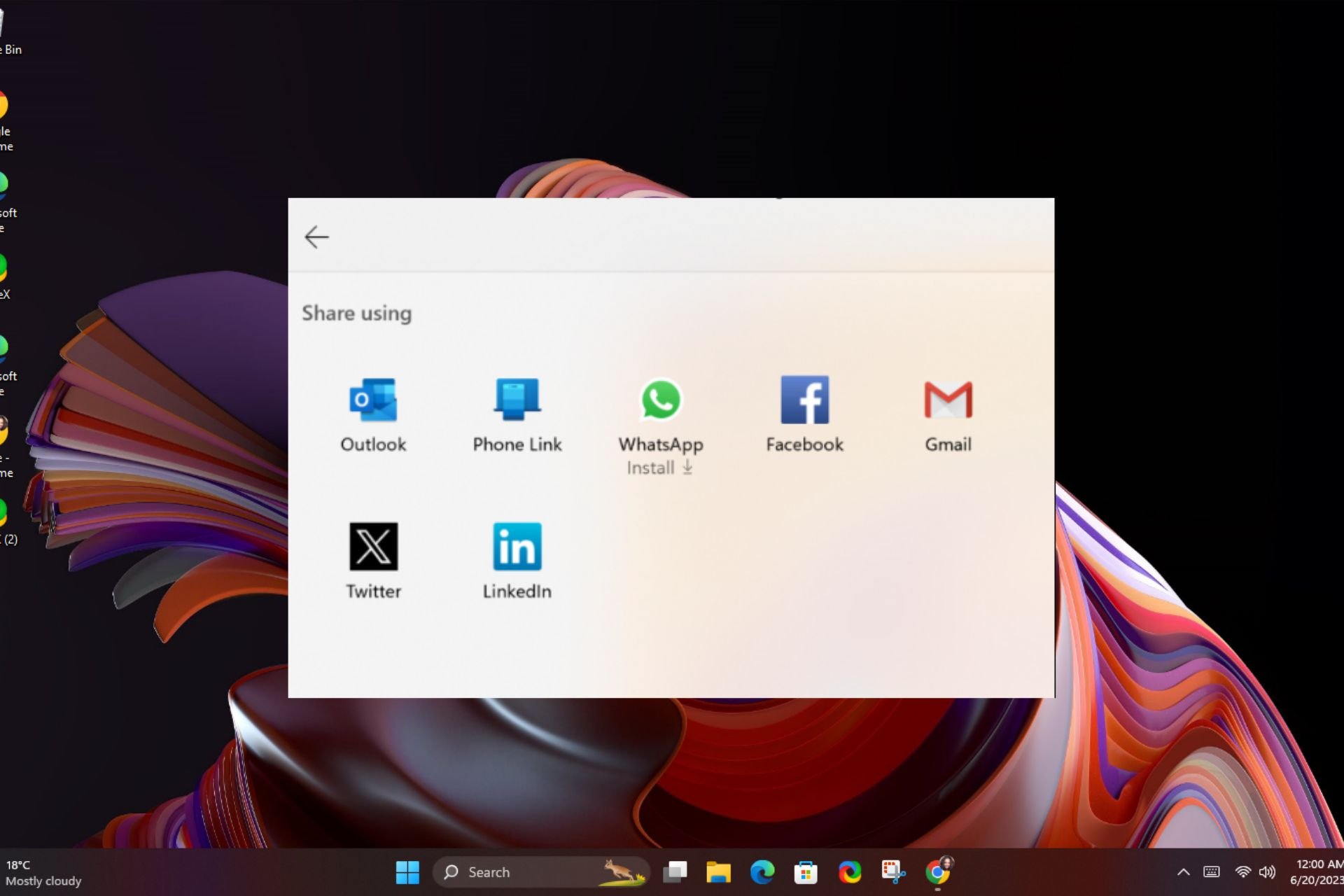
Microsoft has for a while had features like Nearby sharing and link sharing to other apps but the ability to email Windows share to Gmail is new and will greatly improve your workflow.

Although there are other network transfer methods of file sharing, Windows Share is advantageous because it is within Microsoft’s environment and doesn’t need you to download additional software. It is also convenient as you don’t have to copy and paste links.

How do I email Windows Share to Gmail?

  1. Launch your Microsoft Edge browser and open the site or link you’d like to share.
  2. Click on the three ellipses at the top right corner then select More tools > Share > Windows share options.
  3. Next, select Gmail from the list. (If unavailable, you’ll have to install it).

What’s even better is that you’re not just limited to Gmail. Windows Share also extends to Teams so you can work seamlessly.

As always, sharing of files and links across the internet exposes your device to potential risks so ensure you’re taking extra precaution. Ensure you have a comprehensive antivirus solution and that it is up-to-date.

Establish clear guidelines on who has folder access on your computer. Features like Windows Protection or password-protecting your folders will come in handy to secure confidential information.

For your email, you can set security settings that block email attachments so that you can review them if they’re safe before opening them.

That’s it with Windows Share to Gmail. The feature is currently on preview for Insiders so it’s only a matter of time until it is publicly available. However, if you’ve already given it a spin, we’d like to hear your thoughts. Share them with us in the comment section below.

Favicon alignment bug triggered due to disabling Chrome Refresh 2023 UI, fix is coming

Chrome is always changing, and recently Google has introduced a new redesign called Chrome Refresh 2023.

However, this design led to certain issues with favicons, however, Google is already fixing them.

Favicon alignment issues in Chrome will be addressed soon

As previously stated, Google introduced a new design that is based on Google Material 3 design principles. However, some users didn’t like the UI changes they used the chrome://flags page to disable them.

The changes were introduced in Chrome 123, but when version 124 rolled out, users who have disabled certain flags noticed issues with favicons. For many, favicons aren’t aligned with the tab titles.

Of course, users were quick to point out this issue on Google Support forums and Reddit while searching for a solution.

The good news is that Google is looking into this issue, and it has been confirmed that disabling these flags causes issues on Windows 10.

Since it is possible to turn off ChromeRefresh2023 in M124, the calculations for frame height and favicon positioning must be added back.

The issue also appears on Windows 11, but only after disabling the Customize Chrome side panel and not Chrome Refresh 2023 flags.

Google has already fixed the alignment issue in another Chrome 124 branch, however, there’s no information on when this change will be available in the stable version.

That’s not all from Google, as the company is testing a new feature in Chrome that will let you annotate PDFs with ink signatures.

If you’re looking for more UI features, Tab Groups improvements in Chrome will let you organize your workflow better, and you can test this feature in the Canary version.

Savings alert: Get the HP Pavilion x360 Convertible at 42% discount

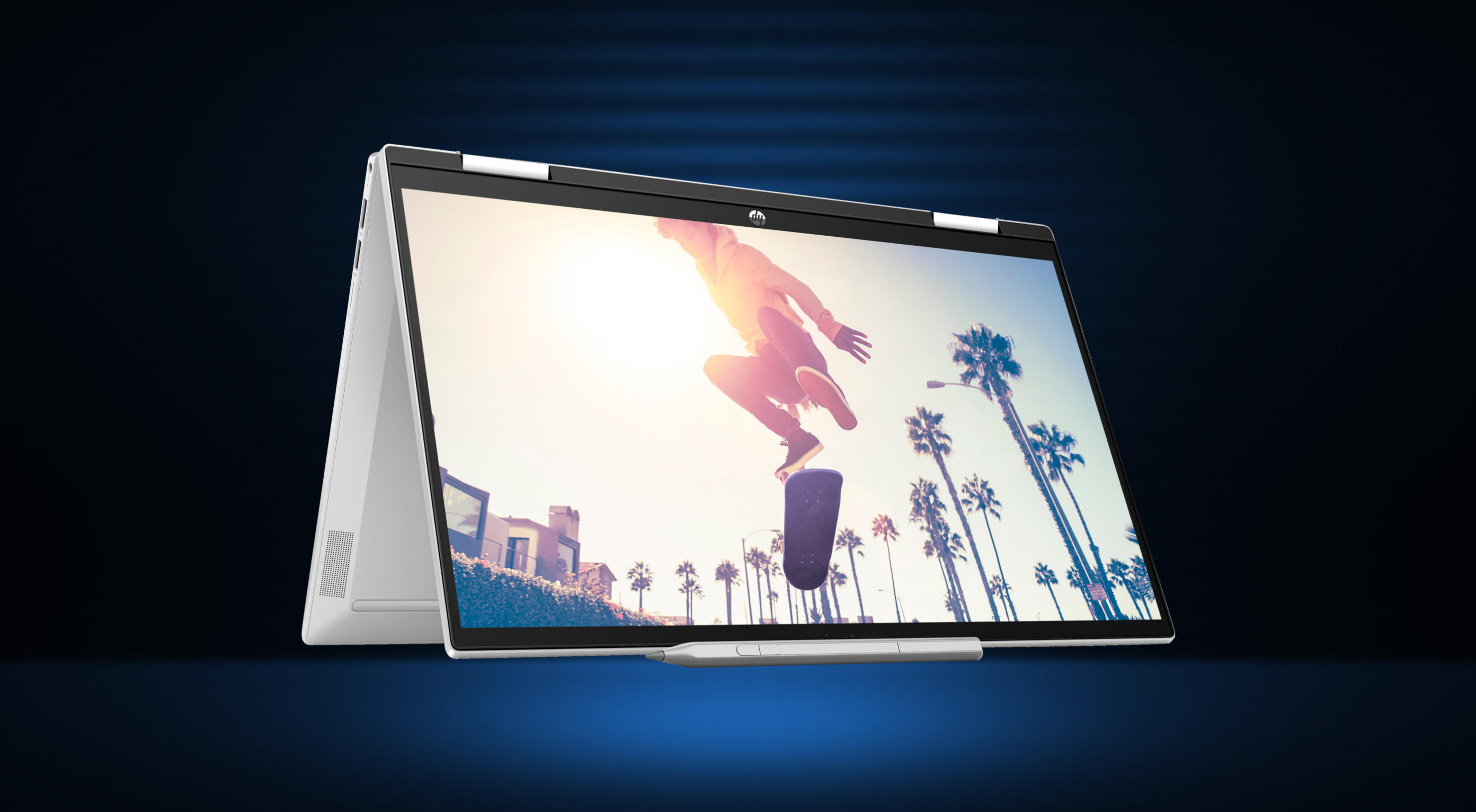
If you are a fan of 2-in-1s, this is the perfect opportunity to get a budget convertible laptop. The HP Pavilion x360 convertible is available for just $459.99, down $340 from its regular price of $799.99!

Equipped with a multitouch display, the 2-in-1 HP Pavilion x360 boasts decent performance with 8 GB RAM and an Intel processor. It’s one of the top convertible laptops in the price range and the best after the $340 discount.

The 2-in-1 laptop features a sleek and compact design and is easy to carry around, given the low weight. Also, it’s got an exceptionally good battery for the price range.

We even came across reports of the 2-in-1 HP Pavilion x360 delivering decent performance when multitasking and on a multi-display setup with up to 4 monitors. Rotatable across the hinges at different angles, you can use it both as a laptop and tablet, when needed.

Our take is that the HP Pavilion x360 convertible would be a steal deal in the $400-$500 range at the discounted price!

HP Pavilion x360 Convertible – 15-er1000’s specifications

ProcessorIntel Core i5-1235U (up to 4.4 GHz, 12 MB L3 cache, 10 cores, 12 threads)
GraphicsIntel Iris Xe Graphics
RAM8 GB DDR4-32 SDRAM
Storage256 GB PCIe NVMe M.2 SSD
Operating SystemWindows 11 Home
Display15.6″ diagonal, HD (1366 x 768), multitouch, edge-to-edge glass, 250 nits
PenComes with an HP rechargeable MPP2.0 tilt pen
KeyboardBacklit keyboard with numpad
(Information source: HP)

Get the HP Pavilion x360 convertible from the official website right away since the deal ends soon!

As someone who has been using a 2-in-1 convertible laptop for the last two years, I can vouch that it’s the best purchase, given that you handle it carefully because these models are somewhat fragile around the hinges. I learnt it the hard away!

As for the HP Pavilion x360 convertible, a few did report issues with the display being blurry, ports not working, or inadequate backlight on the keyboard. For the first two, perhaps updating the drivers will do the trick!

If you are looking for a more performance-oriented option, discover our top picks for Windows 11 gaming laptops.

Do you believe the HP Pavilion x360 convertible laptop is a value-for-money buy in the price range? Share with us in the comments section.

Developers found a way to break or opt out from Microsoft Store Web installers if forced on their apps

Microsoft just announced they are experimenting with a new Microsoft Store web installer for apps, where the download and install experience will be improved when users download apps from the Microsoft Store website.

However, Rafael Rivera, who made the app Ear Trumpet, wasn’t happy with Microsoft. He said on X  that Microsoft is using a new method to package apps that he thinks look suspicious and collect too much data. He also mentioned that Microsoft is not using the version of .NET he designed his app for.

Even though Microsoft said the new method was optional, Rivera felt it was forced on him without his choice.

Well, it turns out that all this is a misunderstanding. Rudy Huyn explained how developers can avoid using the new installer by changing a setting in their app’s code.

Rivera later found out from Microsoft’s website that if developers don’t specify a certain setting, their apps will automatically use the new download method. He suggesteed a way for developers to make sure they’re not using the new installer if they don’t want to:

To opt-out, ?mode=mini or ?mode=full must be added to your app URIs/badges. No mode or ?mode=direct will currently send you down this EXE path.

Rivera also mentioned another unofficial method to interfere with the new installers, involving placing certain files in a specific folder.

It’s not clear if Rivera was the only one affected by this change or if other developers were too, but you should check if your app is in perfect order. Also, now you know how to opt out of the new web download mode and how to get your DLL files in.

Have you had any similar experience with the Store web installer? Let’s talk about that in the comments section below.

Full Windows 11 23H2 installation using Autopilot took more than 15 hours. How is that possible?

Recently, Windows Autopilot became generally available and out of preview. In case you’re not familiar with it, is a self-deploying mode that helps you install Windows automatically on endpoints with little to no user interaction.

Here’s Microsoft’s description on how Windows Autopilot works:

Once the device connects to network, the device provisioning process starts automatically: the device joins Microsoft Entra ID, enrolls in Intune, and syncs all device-based configurations targeted to the device. Self-deploying mode ensures that the user can’t access desktop until all device-based configuration is applied. The Enrollment Status Page (ESP) is displayed during OOBE so users can track the status of the deployment. 

Microsoft Learn

Now, we’ve got a testimonial of a user who actually use the latest available Windows 11 23H2 image and installed it on a PC by using Autopilot.

Windows 11 complete installation took 15 hours!

Although he described the installation went smoothly, without any major issues, the process took more than 15 hours with all the updates in place.

I downloaded the latest Windows11 23H2 image (with 2024-04 CU) from MS. Installed new device with Autopilot. It is amazing how many sw Windows Update agent downloads & installs during the process: 7 Updates 28 Store app updates 35 Drivers

In a later post, the user says that the 30+ updates took about five hours after the installation and still there were some missing such as the new Notepad. Strangely enough, that is caused by the fact that Microsoft didn’t update the OS image to contain the latest versions of the apps to avoid this issue.

After another nine hours, the final Store app updates were downloaded and installed. The user reported that the original Windows 11 install started at 13:00 and the full process ended at 04:30. Of course, that also depends on the system itself, the internet connectivity and the update server accessibility.

But we will still address the elephant on the server: why is the OS image not updated to include the latest version of the apps? We don’t have an answer here and the problem is not present only on that particular image. A commenter on the thread said that the latest Enterprise edition 23H2 comes with a two year old version of Edge.

A reason might be that some users would like to keep the old version of certain apps and block the updates right after the OS installation, and Microsoft want to provide them with that opportunity. However, it might be just the time and effort it takes to actually provide the newest version of the image.

Have you had a similar experience with Windows Autopilot? Write your thoughts in the comments section below.

Game Pass recommendation card lands in the Settings homepage in the latest build

Windows 11 has gone through various changes since it was first released, and the company is always testing new features in the Beta and Dev channels.

Speaking of new features, a new Game Pass recommendation card was spotted in the newest build, so let’s see what it does.

Insiders Build 22635.3500 now has Game Pass recommendations

The Build 22635.3500 for Windows 11 has just been released to the Beta channel and it brings some changes, such as a hidden Sign out button in the Start menu.

Sharing has been improved as well, allowing you to email yourself from the Share window. That’s not all as Microsoft has introduced a Game Pass recommendation card.

You can find this card on the Settings app homepage, and it will appear to you only if actively play games on your PC. We still don’t know exactly how this feature will work, but currently, it works as an ad for Game Pass.

Do keep in mind that the Settings homepage will only appear if you’re on Home or Pro edition and signed in with a Microsoft account, which means the majority of personal users.

Not too many users are pleased with this feature since it’s essentially a giant link for Game Pass. This feature is slowly rolling out to the Beta channel, and we hope that in the final release, Microsoft will give us the option to hide it.

This update also has certain issues, and many reported that the Settings app crashes when copying text, but Microsoft is already looking into it.

Legos on the outside, MSI on the inside: The bizarre yet powerful gaming PC

Innovation knows no bounds! The phrase has, yet again, been validated by a group of enthusiasts and experts who set out to build a gaming PC with Legos on the exterior and MSI components on the interior.

Together, a team from NAG and the ZA Lego User Group developed a classic Batman-themed gaming PC after MSI approached them with the challenge, as shared by Regardt Van Der Berg, Editor at NAG.

In the process, they faced several unanticipated challenges. Building a gaming rig can be called manageable, but if you couple it with an all-Legos exterior, you have taken things to a different level altogether.

MSI Lego gaming PC (Image source: NAG)

Cavan Rorke from the ZA Lego User Group, when asked if he had any tips for others trying to build a Lego PC, shared an insightful piece of information.

So when it comes down to the two differentiators in Lego, you have got your Techinque Lego, which sort of looks like a strong beam that’s perforated. The other side is the System Lego, which is, kind of, what you see from the outside that makes things look cosmetically appealing. When it comes down to the roots or the foundation for the computer case, we find that best components was definitely building it out of a technique frame, and I would suggest that to anybody based on the fact that it’s scalable and you can make it extremely strong.

While the exact MSI Lego PC configuration has not been officially shared, a screengrab from the video shows 3DMark, a GPU comparison tool, running on the PC.

Based on this, we were able to ascertain that the MSI Lego PC runs on Windows 11 and uses the NVIDIA GeForce RTX 4060 GPU and a 13th Gen Intel Core i5 CPU. It’s got a Graphics Score of 6072, which falls in the Good bracket.

For more information and to watch the team sharing their experience, check NAG‘s official blog.

Wouldn’t you love to build a Lego PC, and if so, what configuration would you aim for? Share with our readers in the comments section.

After two decades, World of Warcraft console version is under consideration

World of Warcraft has been present for twenty years, and the game has received various expansions and improvements over the years.

After being a PC exclusive for years, it’s possible that World of Warcraft might hit other platforms someday in the future.

World of Warcraft console version is under consideration

According to Tech Times, World of Warcraft executive producer, Holly Longdale, was asked about bringing the game to consoles, and apparently, this idea is under consideration.

Here’s what she said:

Of course! Yeah, we talk about it all the time.

She also stated that portioning the game to console is not impossible stating that Blizzard is “pretty well positioned” to do that in the future.

World of Warcraft has been a dream of many console gamers, however despite speculations, there was never any official information about it.

This is the first time that Blizzard officials ever mentioned the console version of WoW, and while this isn’t a confirmation, it’s great to see that Blizzard is considering porting WoW to consoles.

Whether or not this will come true, remains to be seen, but we can still hope.

In other news, Microsoft isn’t interfering with the development process at Blizzard, so maybe there’s hope for a WoW port.

Microsoft uses AI to design better Surface products

As you imagine, AI bots are not only good for chatting and generating images or text, but also in a lot of other areas like product design. According to a recent article, Microsoft is actively working towards with its Surface devices. The tech giant has been utilizing its own Azure High-Performance Computing (HPC) to revolutionize how products are designed, making the process faster, more efficient, and smarter.

Prasad Raghavendra Principal Engineer at Microsoft told the story in detail on how all this unfolds. Allegedly, Azure HPC began around 2015 when it started implementing Abaqus FEA software into their computing service. By 2016, the Surface Pro 4 and the original Surface laptop had their product-level structural simulations fully migrated to Azure HPC from on-premises servers. This move transformed how products are designed and tested.

How does designing work with AI?

Raghavendra says that the design process involves creating CAD (Computer-Aided Design) models to create the digital drawings of a product and all its components. These models are then translated into FEA (Finite Element Analysis) models, which can simulate various physical forces, like what happens when you accidentally drop your laptop.

But here’s where it gets really interesting. Microsoft’s Azure HPC allowed for these simulations to be executed on a scale previously unimaginable. We’re talking about hundreds of simulations in just a few days, evaluating various design ideas to ensure the device is as robust as possible. And the hinge design of a Surface laptop? It was optimized to perfection with just one iteration, thanks to these simulations. This not only saved precious time but also significant costs in tooling, prototyping, and testing.

Microsoft: Using AI to optimize the Surface hinge for strength

Microsoft isn’t stopping here. The company is looking to deploy more scalable simulation and Azure HPC resources for multi-disciplinary teams and multi-physics modeling. The goal is to enable machine learning and AI in product creation, driving large-scale innovations at a rapid speed. This means we can expect even more Microsoft Surface products designed with a little help from AI.

This is not only cutting costs for manufacturers, but also provides an easy way to create more practical and durable products. However, as with all other AI-related applications, you can’t just tell the LLM to design a better product because it doesn’t have a clue on how a real person would use that device.

So, what do you think about living in a world where your next laptop or tablet could be designed with the assistance of artificial intelligence? Tell us your opinion in the comments section below.

Windows 11 Settings crashes when you copy text, but you can use other tools for that

Microsoft launched the Windows 11 Insider Preview Build 22635.3500 in the Beta channel and it has some interesting new features and fixes. However, as you would expect, it also features a few annoying bugs.

For instance, Microsoft acknowledged that the Windows 11 Settings app may crash when you’re copying text.

We’re working on the fix for an issue causing Settings to crash when copying text in certain cases. As a workaround, please use the extract text option in Snipping Tool for the time being if you are impacted.

Microsoft blog

What can I do if Settings crashes when I copy text?

As Microsoft mentioned, they are still working for a permanent solution to fix this issue but until then, there is a workaround to copy the certain text.

First, if you’re using the right-click context window to copy the text, try using the Ctrl + C key combination instead and see if Settings keeps crashing.

If that doesn’t work, you may also use the Extract text option from Snipping Tool. To do that, open Snipping Tool and caption the portion of text that you want to copy.

Now, click the Extract text button from the menu above and select Copy all text. Now, paste the text into the destination of your choice. You may also press Win + V to check if your selection is in the Clipboard app.

Also, you may check our guide on how to fix the Clipboard history if it isn’t working properly.

Well, it’s pretty inconvenient to go through Snipping Tool captioning every time you need to copy a text, but hopefully, Microsoft will soon come with a permanent solution for Windows 11 Insider Build 22635.

Have you witnessed Settings crashing in Windows 11 when copying text? Tell us all about that in a comments below.

White House cyber policy director calls Microsoft a security threat

In recent years, Microsoft’s actions have come under scrutiny globally, be it acquisitions, eliminating competition, or reportedly unfair practices. And a recent statement by a White House cyber policy director calling Microsoft a national security threat has been getting a lot of attention.

In an interview with The Register, AJ Grotto, a former senior White House cyber policy director, claims that Microsoft owns 85% of the market for federal government’s productivity software service and an even higher share when it comes to operating systems, making them a dominant supplier of IT services for the federal government.

Grotto goes on to say,

It gives them an awful lot of leverage over the government when it comes to negotiating terms because the government can’t easily walk away from a vendor it’s so reliant upon. You know, Microsoft, in many ways, has the government locked in. And so, it’s able to transfer a lot of these costs associated with security breaches over to its customers, including the federal government.

When asked if Microsoft is at all concerned about the recent episodes and is willing to change, Grotto highlighted that the Redmond-based tech giant has a lot of leverage. He recalled the SolarWinds episode and Microsoft’s actions that followed.

If you go back to the SolarWinds episode from a few years ago, Microsoft was essentially up-selling logging capability to federal agencies. As a result, it was really hard for agencies to identify their exposure to the SolarWinds breach.

For the unversed, Microsoft’s default security and service package for federal agencies didn’t include logging capabilities earlier. This led to an 18-month-long negotiation between Microsoft and the government, which ultimately led to the former providing default logging.

Grotto believes that it shouldn’t have taken Microsoft this long, given it’s the largest cyber security service provider globally and reported $20 billion in revenue in security services last year, double from the year before. He calls providing default logging capabilities to the federal agencies a non-concession.

When asked if he believes Microsoft is a national security threat, Grotto said,

Given Microsoft’s dominance not just within the federal governemnt but really in, sort of, the broader IT market place, I think it is fair to say that systematic compromises that affect Microsoft and its products do rise to the level of national security risk.

Government must focus on encouraging and catalyzing competition

Former White House cyber policy director AJ Grotto believes the government must encourage and catalyze competition.

What has enabled Microsoft to pass more risk than it should on to its customers is that fact that it has, in many cases, the customers locked in, with the federal governemnt being no different because switching costs are just so high.

Grotto goes on to underline the security benefits of having a diversified software base as opposed to relying on a single or dominant vendor. With the latter, you always run the risk of facing massive issues if a problem emerges with the vendor’s products as it scales up.

But switching to alternatives also comes at a cost and isn’t as straightforward as many would imagine. First comes the price of the new product, followed by the time and expense of training the workforce, and many would have a hard time with the transition.

While elaborating on what changes could help get Microsoft to improve the security infrastructure, Grotto called for higher scrutiny of Microsoft’s actions and holding it to account through media or Congressional action hearings. And then he goes on to highlight another side of the situation,

At the end of the day, Microsoft, any company, is going to respond most directly to market incentives. Unless this scrutiny generates changed behavior among its customers who might want to look elsewhere, then the incentives for Microsoft to change are not going to be as strong as they should be.

Everything AJ Grotto revealed is in line with the information already available in the public domain, and cyber experts have repeatedly raised concerns about it. Recently, we reported about the US government not sanctioning Microsoft for its security failures.

Although some government customers have moved away from Microsoft, the bigger picture remains pretty much the same. It will be exciting to see how things pan out, whether Microsoft benefits from the leverage it holds or the government finally sees more potential in the alternatives.

What do you think about Microsoft being called a national security threat? Share with our readers in the comments section.

New Windows 11 Build makes sharing a breeze, lets you email yourself more easily

Microsoft is always testing new features in the Insiders program, and speaking of which, a new build was recently released.

The new version comes with various features, and one of them is an improved sharing feature, so let’s dive into it and see how it works.

Build 22635.3500 lets you send emails to yourself right from the Share window

How many times did you have to send yourself an email to share something? We know that we have, and while this isn’t the most elegant solution, many use it since it’s readily available.

Microsoft is aware of this, and the company decided to test a native feature in Build 22635.3500 that lets you do just that.

Currently, the share option is somewhat limited, and while it’s possible to send emails to yourself, it involves entering your email address, copying the link or data, and sending the email.

In this build, there’s now an option to send email to yourself right from the Windows share window. However, this feature seems to be limited to Gmail as Windows Insider Blog states.

This is a small quality-of-life improvement that will make sharing a bit simpler and faster, so don’t hesitate to try it if you’re a member of the Beta Channel.

As for other new features in this Build, the Sign out button is now hidden in the Start menu on Windows 11.

You can’t install Windows 11 24H2 if you don’t have a SSE 4.2 CPU

The new Windows 11 24H2 is coming soon, but Insiders got to test it in various iterations, including the LTSC version for OEMs. However, according to a few users who’ve tried to boot it, there are some issues to deal with from the start.

Bob Pony reported on X that Windows 11 Build 26080 now requires a CPU with SSE 4.2 to run, otherwise, the system will loop reboot indefinitely.

What is SSE 4.2 and why does Windows 11 requires this feature?

As you might have imagined, SSE is an acronym for Streaming SIMD Extensions, a set of instructions embedded into the latest CPUs to enhance multimedia and mathematical operations. Some applications such as Adobe Creative Cloud require SSE 4.2.

The problem is that Windows 11 requires SSE 4.2 because it has a component called POPCNT (Population count – a string of bits, not the actual people count). Intel implemented POPCNT beginning with the Nehalem microarchitecture and AMD implemented it starting with the Barcelona microarchitecture.

Nehalem architecture was introduced by Intel in 2008 and AMD has it in AMD 10h CPUs from 2007 so, if you have a relatively new machine, your processor comes with SSE 4.2 and you can relax.

However, you can still check if you have it. To do that, open System Information and find the Processor section. Then, check the CPU specifications online for your processor to see if it is SSE 4.2 compatible.

For instance, I looked up my Intel CPU of the official website and found out that it is SSE 4.2 ready. You may also use a dedicated tool for CPUs such as the Intel Processor Identification Utility or any other such tool.

Now, we don’t know exactly if Microsoft knows about this exclusion or if Windows 11 really needs this feature to run, but right now, it seems that the new update won’t boot without it.

However, there are a lot of chances that if you have an older PC with a 2006 or older CPU, it won’t boot Windows 11 anyway because of other system requirements.

Do you have an older PC? Tell us your thoughts in the comments section below.

No more restrictions as Tiny11 Builder can now debloat any version of Windows 11

Windows 11 is a great operating system, but it comes with applications and services that many tend not to use. This is why many are using Tiny11 or similar tools to debloat their Windows 11 installation.

Speaking of which, the new version of Tiny11 was just released, and it makes debloating Windows easier than before.

The new version of Tiny11 Builder works with any version of Windows 11

In case you don’t know, Tiny11 Builder allows you to convert a specific Windows 11 ISO into a lightweight version by removing unnecessary applications.

While this was useful, it only worked with certain versions of Windows 11, but that’s not the case anymore, as XDA Developers writes.

According to the tiny11builder Github page, the new version was just released, and now the tool works with any version of Windows 11, language, or architecture.

This is all possible thanks to the improved scripting capabilities of the PowerShell:

You can now use it on ANY Windows 11 release (not just a specific build), as well as ANY language or architecture. This is made possible thanks to the much-improved scripting capabilities of PowerShell, compared to the older Batch release.

According to the developer, it can remove the following apps:

What is removed: Clipchamp, News, Weather, Xbox (although Xbox Identity provider is still here, so it should be possible to be reinstalled with no issues), GetHelp, GetStarted, Office Hub, Solitaire, PeopleApp, PowerAutomate, ToDo, Alarms, Mail and Calendar, Feedback Hub, Maps, Sound Recorder, Your Phone, Media Player, QuickAssist, Internet Explorer, Tablet PC Math, Edge, OneDrive

While this sounds great, there are some minor issues such as remnants of Edge in the Settings. Also, Outlook and Dev Home might reappear after some time.

If you’re concerned about safety, this is an open-source project, so anyone can inspect the code and the developer stated that the tool does use non-Microsoft utilities:

My main goal is to use only Microsoft utilities like DISM, and no utilities from external sources. The only executable included is oscdimg.exe, which is provided in the Windows ADK and it is used to create bootable ISO images.

However, if you want to be 100% safe, it’s always best to use unaltered Windows 11 ISO files. To learn more about this tool, visit our guide on Tiny11 vs Bloatynosy on Legion GO for more information.

Surface Pro X and Surface Studio 2 latest update includes new firmware and stability fixes

Microsoft released updates for Surface Pro X Wi-Fi and the second-generation Surface Studio, which include new firmware, improvements and fixes to the known issues.

Surface Pro X

Here are the changes introduced in the April 2024 firmware update for Surface Pro X:

  • Addresses potential security vulnerabilities and improves system stability.
  • Extends device security certificate authority.

And the list of new drivers:

Driver VersionWindows Device Manager
10.703.140.0Surface UEFI – Firmware
1.0.2020.0Qualcomm(R) Bluetooth Radio Driver – Bluetooth
1.0.2020.0Qualcomm(R) Bluetooth UART Transport Driver – Bluetooth

This update is for Surface Pro X Wi-Fi. To download it, you must have Windows 11 version 22H2 and newer on your device. You can install the update using the Windows Update feature. The update doesn’t include extra steps before or after installation and doesn’t have any known issues.

Surface Pro X Wi-Fi will get firmware updates for three more years as Microsoft plans to end its support on October 5, 2027.

Surface Studio 2

The update is available for Surface Studio 2 devices that have Windows 10 November 2021 Update, version 21H2 or higher and Windows 11 version 21H2 & newer.

To get the update, you need to install it manually. It is 629.1 MB in size. As of now, no known issues are included in this update.

Here is the improvement included in the update:

This update addresses a potential security vulnerability related to Intel Security Advisories INTEL-SA-00923

The release also included the following components:

Windows Update NameDevice Manager
Intel – System – 2334.5.1.0Intel(R) Management Engine Interface #1 – System devices
Intel – SoftwareComponent – 1.70.101.0Intel – SoftwareComponent – 1.70.101.0
Surface – Firmware – 11.8.95.4551Surface ME – Firmware
Surface – Firmware – 536.902.768.0Surface UEFI – Firmware

As for the end of life support, Surface Studio 2 is approaching it, and the official documentation says it will no longer be supported by October 2, 2024.

Have you installed the recent release? If so, share your experience with our readers in the comments section below.

Microsoft highlights advantages of running Linux on Azure, reliability and security are the key aspects

A few years ago, we reported that Linux is more popular on Azure than Windows Server, with over 50% of VM Cores running the former. The number has gone over 60% since then, given the fact that Linux systems are more cost-effective, customizable, and straightforward to manage on Microsoft Azure.

Now, Microsoft shared an official blog post detailing the benefits of using Linux on Azure, a cloud computing platform often used for the development and deployment of applications. It reads,

Run Linux workloads on Azure for reliability, security, and innovation. Build your entire app in Azure, using Linux and open source services. Choose from a wide range of Linux distributions, leverage cost-saving benefits with Azure Hybrid Benefit, and get seamless integration with distros like SUSE, Ubuntu, and Red Hat.

Microsoft emphasizes security, performance, cost-savings, and innovation as the key benefits of Linux on Azure, in addition to the wide array of open-source services.

For all-around security, you have Microsoft Defender for Cloud, which is now powered by AI (Artificial Intelligence). Microsoft has emerged as a key player in the landscape, integrating AI with its native tools and services.

Microsoft Defender for Cloud
Microsoft Defender for Cloud (Image source: Microsoft)

The blog post then goes on to highlight Microsoft’s contributions to the open-source Linux platform and examines how applications can developed and deployed on Azure without any resource constraints. For more information, read the complete blog post.

A recent study concluded that Microsoft Azure is the best managed AI-powered cloud service. Microsoft is also working on enhancing the AI-backed feature set in Azure, with the recent $2.1 billion deal with Mistral a step towards it.

What’s your first thought about Linux on Microsoft Azure? Share with our readers in the comments section.

OpenAI hits back at Elon Musk, denies lawsuit allegations

OpenAI has recently denied all the allegations made by one of its early investors Elon Musk in his lawsuit. In March, Musk filed a lawsuit against OpenAI and its CEO Sam Altman over the violation of its foundation principles by partnering with Microsoft.

OpenAI’s lawyers deny Elon Musk’s lawsuit allegations in the recent court filing

Now the legal team of OpenAI hits back at Elon Musk in their recent filing. OpenAI’s lawyers said that the allegations made in the lawsuit are nothing more than “revisionist history.” They claim it’s Musk’s effort to boost his AI company, xAI, which recently unveiled Grok-1.5 Vision.

Talking of the same in the recent court filing seeking dismissal of the lawsuit, OpenAI’s legal team stated:

Years ago, plaintiff Elon Musk abandoned OpenAI when his bid to dominate the venture failed. Now that he has launched a competing artificial intelligence firm, Musk seeks to leverage the success OpenAI has achieved and to direct OpenAI’s affairs for his commercial benefit.”

OpenAI’s lawyers further dismissed the claims made by Musk about OpenAI’s promises not to monetize its technology. Previously, Musk said that the OpenAI’s certificate of incorporation quoted a pledge to make its product available to the public.

However, OpenAI lawyers also refuted such claims. They said that the billionaire Elon Musk had failed to show any evidence related to such a contract. Interestingly, OpenAI says that the pledge wasn’t open-ended. Talking about the same in the recent filing, OpenAI’s lawyers added:

In its certificate of incorporation, OpenAI, Inc. expressed its intention to ‘seek to open source technology for the public benefit when applicable,’ thus recognizing from the outset that its mission required ‘an ongoing conversation about what work should be open-sourced and what shouldn’t.

It is worth mentioning that the next hearing will take place on April 24, 2024. So, it will be interesting to see if the court dismisses the lawsuit filed by Elon Musk or not.

The new Microsoft Store web installers allow downloading app executables with fewer clicks

Microsoft has announced Microsoft Store installers for the web. The newly announced installers for the web make it easier for you to install apps directly from the web version of the Microsoft Store.

Microsoft has been focusing on improving the app store lately. More recently, the company introduced a new home page design for the Microsoft Store app to prioritize new apps over installed ones.

However, the latest introduction of Microsoft Store installers changes how the web version of the company’s app store works down the line. Now, you can download app executables right from the Microsoft Store website, thanks to the new installer for the web.

The new Microsoft Store web installers ensure faster app downloading with just two clicks

Rudy Huyn from Microsoft announced the change through a lengthy post on X (formerly Twitter). Apparently, the new Microsoft Store web installer ensures faster app downloading without requiring extra actions as before.

Earlier users had to make three clicks to install an app from the web version of the Microsoft Store. First on the website, second on the deep-link dialog, and third on the mini-window of the Store. 

Although the process was cumbersome, Microsoft always had it to mitigate malicious scripts. However, user experience was the one thing that it impacted. Notably, the same has changed with the new undocked version of the Store. Talking of the same and the benefits it brings for the users, Huyn wrote:

We built an undocked version of the Store using the same logic and code as the larger app, managing prerequisites, entitlements, downloads, and installations in the same way. However, this time, it was packaged in a much smaller and undocked executable.

Benefits of the new web installers

Huyn further outlines the benefits of the new Microsoft Store installers for the web which are as follows: 

  • Now, downloading an app will only require two clicks, one for downloading the package and the other to launch it. 
  • The lightweight installers work much faster than the Microsoft Store app and are up-to-date.
  • It has all the latest features and supports all products even on systems with older versions of Microsoft Store or without it.
  • Lastly, new web installers let you get multiple apps at once. 

He mentioned positive feedback from users and developers who participated in the initial three rounds of the test is the main reason behind the official announcement.

As per the testing data, the new method of installing apps from the web version of Microsoft Store saw an average 12% installation increase. Whereas, the percentage for the number of applications launched after installation stood at 54%.

What do you think about the new Microsoft Store installers for the web? Let us know your thoughts in the comments below.

Microsoft brings some widget improvements in Windows 11 with the latest build release

On April 19, 2024, Microsoft released the Preview Build 26200 for Windows 11 Insiders in the Canary Channel bringing some improvements to the Windows 11’s widgets in the taskbar. The latest build release also fixes a few known bugs and issues.

Canary Channel Preview Build 26200 brings improvements to widgets in the taskbar of Windows 11

The build 26200 brings two major improvements relating to widgets in Windows 11. Firstly, this build allows developers to send notifications from their widgets to the taskbar button. In short, if something happens and you want to see it, the widgets will pop through an animation from the taskbar to let you know. 

While this sounds like a change, many of you might not want widgets to act this way. Therefore, Microsoft has added an option to turn off such widget behavior.  

Not to forget the rollout of widget improvements in Windows 11 is limited and not all can see the changes yet. Microsoft has only made this feature available for users in the European Economic Area (EEA). However, if the feedback is positive, the Redmond giant might widen the rollout in the coming days.

With the build 26200, Microsoft is also reverting the energy-saver icon in the system tray that changed in the previous build release. Now, you will see the old look with the popular leaf icon.

Fix for Copilot auto-launching restart issue is coming soon

Besides talking about improvements to widgets in Windows 11, Microsoft noted that it is investigating an issue related to Copilot auto-launching after the restart. It also said that the rollout of auto-launch behavior on boot it introduced with the previous build isn’t related, which stopped in March.

The software giant says that it is working on the fix and might release it soon. The Redmond giant also addressed other issues related to voice access and writing through Windows Ink in the updated Copilot.

In a recent blog post, Microsoft mentioned that Canary Channel Build 26200 fixes a few known issues. You can check them out below.

Fixes for known issues

Taskbar & System Tray

  • Fixed an issue that caused a dead zone you couldn’t click inside of next to the notification center.
  • Fixed an issue that was causing the page icons in quick settings to not work in secondary settings pages.
  • Fixed an issue where keyboard focus wasn’t shifting to the top item of the new page correctly after switching pages in quick settings.

Input

  • Fixed a tabtip.exe crash, which could impact the ability to input text.

Windowing

  • Fixed an issue which could cause RemoteApp windows to get cut off when using 200% scaling.

Multiple Desktops

  • Fixed an issue where the option to set a different wallpaper on each desktop wasn’t working.

Do you find the widgets improvements in the taskbar of Windows 11 handy? Let us know your thoughts in the comments below.

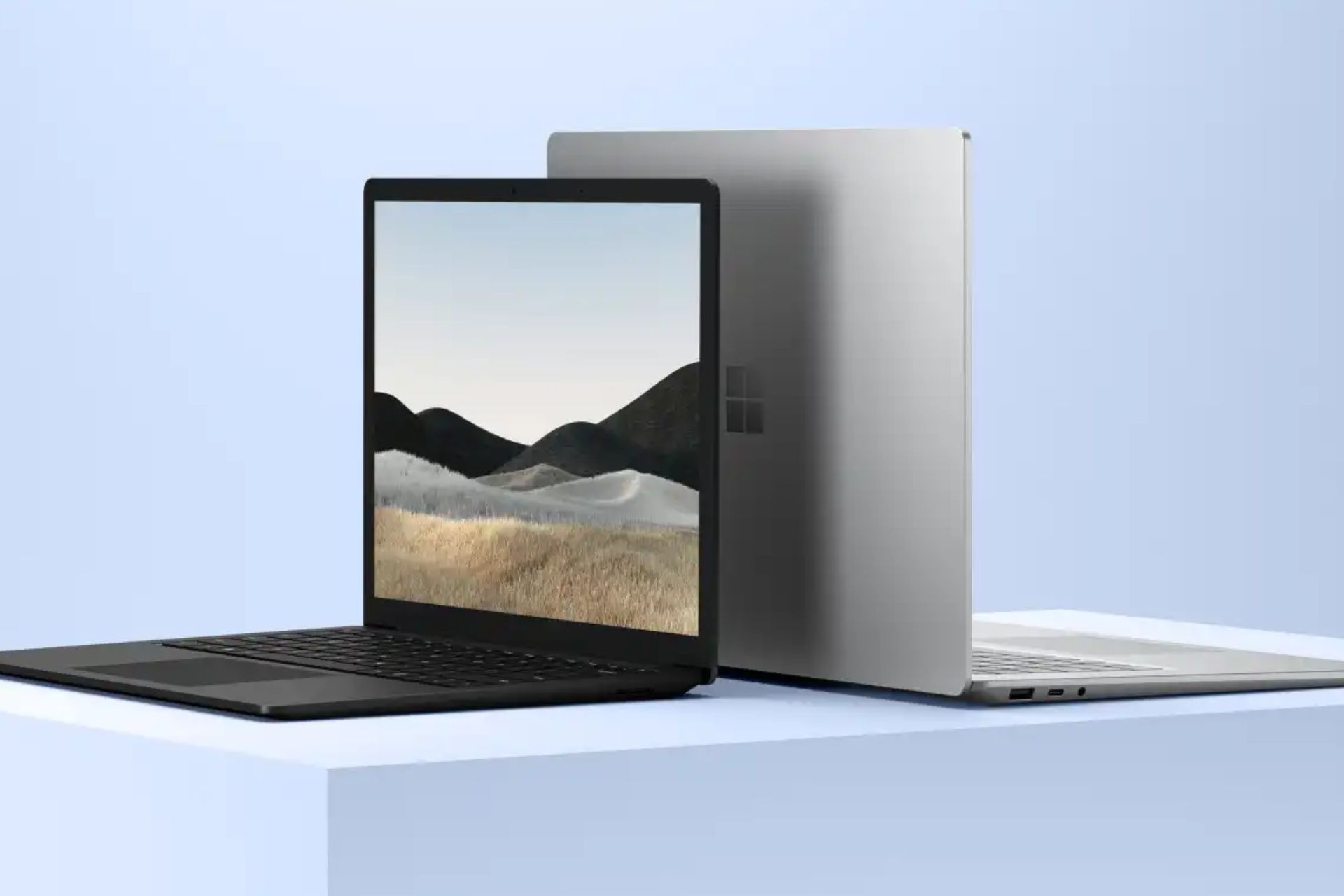
Surface Laptop 4 gets fixes for display and USB-C charging issues

Microsoft recently released the April 2024 firmware update to fix multiple issues on the Intel-based Surface Laptop 4. The latest firmware update is available for the Surface Laptop 4 with Intel Processor running on Windows 10 November 2021 Update, Version 21H2, or greater.

The April 2024 firmware update fixes USB-C charging and display issues in the Surface Laptop 4

The latest release fixes bugs that affected the USB-C charging and display output of the Surface Laptop 4. It also improves the audio stability in the Surface Laptop 4 and addresses potential security vulnerabilities.

The Redmond giant recently updated the Surface Laptop 4 update history page with all the improvements, which reads:

Improvements and fixes:

  • Addresses the issue that prevents charging when system is connected via USB-C and goes into hibernation.
  • Resolves scenario that lead to display issues when the device is connected to Surface Dock 2.
  • Addresses potential security vulnerability and improves system stability.
  • Improves audio stability and reliability.

Besides fixing multiple issues in Surface Laptop 4, the latest update also brings new drivers for the device. You can check them out below.

Windows Update NameDevice Manager
Intel Corporation – Bluetooth – 23.30.0.3Intel(R) Wireless Bluetooth – Bluetooth
Intel – net – 23.30.0.6Intel(R) Wi-Fi 6 AX201 160MHz – Network adapters
Surface – Extension – 6.16.8.0Surface Dock 2 Firmware Update – Extensions
Realtek Semiconductor Corp. – MEDIA – 6.0.9561.5Realtek High Definition Audio(SST) – Sound, video and game controller
Surface – Firmware – 8.300.139.0Surface System Aggregator – Firmware
Source: Microsoft

Let’s not forget that both Intel and AMD-based Surface Laptop 4 will continue to receive driver and firmware updates for at least six years. This means that Microsoft will end support for the device on April 2027 given its April 2021 launch. If you prefer manual installation, visit the firmware and driver download page for Surface Laptop 4.

Did the recent firmware update fix the display or charging issues on your Surface Laptop 4? Please let us know in the comments below.

Microsoft now hides the Sign out button in the Start menu of Windows 11

As if showing app recommendations in the Start menu weren’t weird enough, Microsoft now hides the Sign out button in Windows 11 behind a three-dot menu of the new Account Manager. Not to forget, Microsoft’s decision to show app recommendations in the Start menu was criticized by a former employee and Windows 11 users.

The recent Windows 11 Insider Preview Build 22635.3500, under KB5036985, released for the Beta channel users brings this change. Microsoft mentions the new thing as Account Manager in its recent blog post.

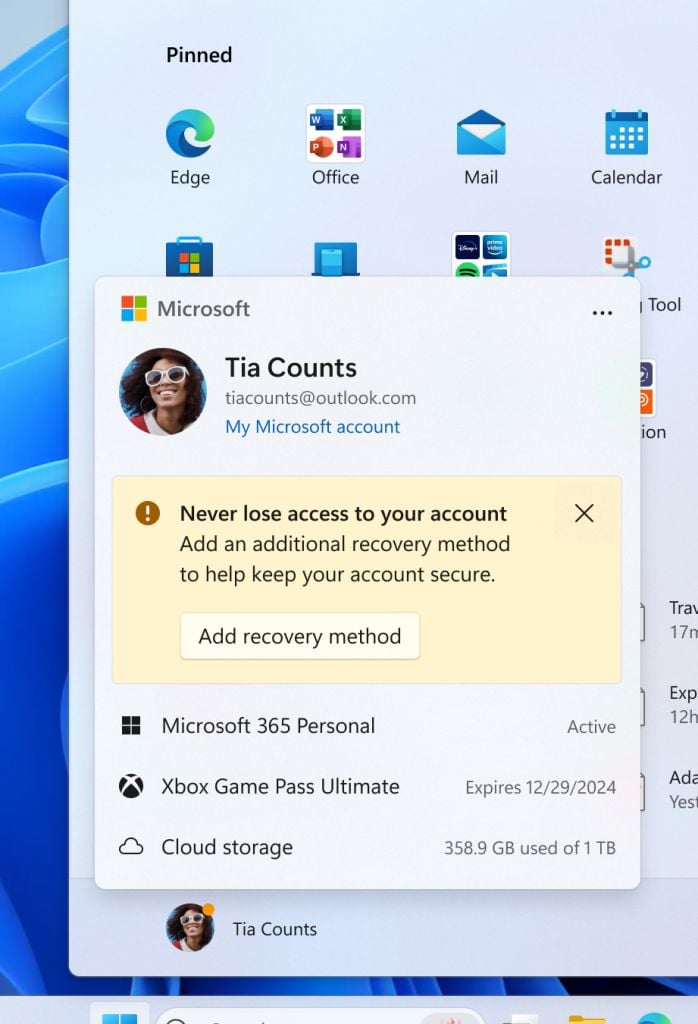
The new design change gives you a glanceable view of your current subscriptions. You’ll also see a few account-related notifications and a prompt to add a recovery method. Microsoft says that the new design makes it easy to manage account settings.

Microsoft hides Sign out button in Windows 11 behind a three-dot menu

Well that all sounds like a change, but something is missing in there that will make you go mad over Microsoft. Now, the Sign out and Switch User buttons are missing with this update. You will have to access the Sign out button from the submenu hidden behind a three-dot menu.

What’s more ridiculous is Microsoft thinks that displaying OneDrive storage and an Xbox Game Pass subscription expiry date is okay.

Although Microsoft hasn’t mentioned the hidden Sign out button in Windows 11, it has outlined changes it made to the Start menu. Here’s what Microsoft mentioned in the blog post:

This update starts the roll out of the new account manager on Start menu. When you sign in with a Microsoft account, the new design gives you a quick glanceable view of your account benefits and makes it easy to manage account settings.

Besides hiding the Sign out button, Microsoft also gives the Lock button a new home. You can find the Lock button in the power menu with the Shut down, Restart, and Sleep options.

Sign out option hidden in three-dot menu in the new Account Manager
Image credit: Microsoft

From the users’ point of view, the so-called Account Manager doesn’t seem to add any value since the Subscription data and account notifications are already there on the Settings app’s home page. If you thought that enough, well there’s more.

The Settings homepage has a new banner that asks you to subscribe to Xbox Game Pass. If you’re already subscribed, you’ll see game recommendations as if that’s what users look for in the Settings app.

Not sure what Microsoft has been doing recently, but it is another thing that might get criticized. What do you think about Microsoft’s move to hide the Sign out button in Windows 11? Please pour in your thoughts in the comments below.

TikTok is reportedly working on an AI voice-cloning feature for its app

After rolling out TikTok Notes, the company is reportedly readying a new AI feature for the app that can clone your voice in only 10 seconds. TheSpAndroid which first reported TikTok’s upcoming AI voice-cloning feature, spotted a few code strings that point towards the feature.

During the code digging, the news outlet found two references – TikTok Voice Library and Create Your Voice with AI. So, it is clear that TikTok doesn’t have a specific name for the AI voice-cloning feature.

It also accessed the initial UI of the feature within the app and saw the terms and conditions for TikTok Voice Library. An alleged screenshot of the feature shared by the news outlet reads:

Create an AI version of your voice in just 10 seconds! You’ll be able to use it with text-to-speech in TikTok videos. 

TikTok’s new AI voice-cloning feature will require you to record your voice in the app

It is worth noting that the AI voice-cloning will require recording your voice. As per the source, you’ll need to read out some text provided by the app to record your voice.

Notably, TheSpAndroid couldn’t create any voice samples since no texts appeared in the app during the initial testing of the feature. When trying to record the voice manually by pressing the record button, the news outlet faced some unknown errors. 

Your generated AI voice will remain private and can be deleted anytime from the voice library within the TikTok app. This will ensure your voice stays safe and no one can misuse it. That said, there’s no information on the official launch of the feature as we write.

Not to forget, TikTok recently asked for support from its users as the latest bill might end its existence in the US. While the company is battling for its existence in its biggest market, it seems that isn’t stopping it from experimenting with new things in its app.

Are you excited about the upcoming AI voice-cloning feature on TikTok? Share your thoughts about the same in the comments below.

Mozilla finally announces Firefox Nightly for Linux on ARM64

Mozilla announced that Firefox Nightly is now available for Linux on ARM64. This means users can now download the Firefox browser as binary for ARM64 (AArch64) architecture on Linux.

When Mozilla launched the Firefox Nightly .deb packages, users demanded the same for ARM64 builds. Users can access the Firefox browser as both .tar archives and .deb packages depending on their installation requirements and liking.

If you favor the traditional way, you can access the .tar.bz2 binaries on the Mozilla downloads page. To do so, you need to select the option that says Firefox Nightly for Linux ARM64/AArch64.

Whereas, for updates and installation via Mozilla’s APT repository you can follow instructions to install the firefox-nightly package.

It is worth noting that Mozilla has been quite transparent about the stabilization and development of the ARM64 builds. In a recent announcement post, Mozilla mentioned:

Although we are confident in the quality of Firefox on this architecture, we are still incorporating comprehensive ARM64 testing into Firefox’s continuous integration and release pipeline. Our goal is to integrate ARM64 builds into Firefox’s extensive automated test suite, which will enable us to offer this architecture across the beta, release, and ESR channels.

Mozilla encourages users to download, test, and provide feedback about the new ARM64 Firefox Nightly binaries. If you find any bugs or issues while testing Firefox Nighty on ARM64, report it to Mozilla’s Bugzilla.

Doing this will aid the development process and ensure the final stable release for the ARM64 users. More recently, Mozilla strengthened security with untrusted integrity in Firefox Nightly on Windows.

LG Electronics to meet Microsoft to discuss the prospects of AI integration into its products

LG Electronics will meet Microsoft to discuss AI business in the upcoming month. Cho Joo-wan, the CEO of LG Electronics, and Microsoft CEO Satya Nadella are reportedly up for discussing future AI collaboration. It is worth noting that in February Cho and Meta’s CEO Mark Zuckerberg discussed AI collaboration.

Cho, then, said that the discussion was around the prospects of LG Electronics utilizing Meta’s large language model, Llama. So, LG Electronics’ meeting with Microsoft makes it pretty clear that the South Korean electronics giant is stepping on the pedal to catch up with the ongoing AI race.

The CEOs of Microsoft and LG Electronics will meet at the MS CEO Summit in May

According to industry sources, Cho Joo-wan will attend the MS CEO Summit on May 14 in Seattle. There Cho will meet Nadella for the first time. Besides, sources add Cho and Nadella will discuss plans to integrate AI into LG Electronics products. Notably, both CEOs can also discuss new ways to improve LG Electronics’ productivity.

Not to forget, LG Electronics is popular for its manufacturing capabilities in different sectors like TVs, ACs, home appliances, and more. Therefore, the collaboration with Microsoft is undoubtedly beneficial for the electronics giant.  

Talking to Pulse News Korea, an unidentified industry source shared the potential benefits of AI collaboration between Microsoft and LG Electronics. The source said: 

LG Electronics sells millions of appliances, wearables, and IoT devices worldwide. By integrating generative AI into LG products and collecting and analyzing data, synergy can be achieved.

Another industry insider commenting on the future of Microsoft and LG Electronics AI collaboration said:

If LG Electronics’ products and data converge with Microsoft’s technological prowess, both companies could lead in future businesses, including AI.

Moreover, Cho will also be participating in LG Electronics Tech Conference and Non-Deal Roadshow (NDR) events in the U.S. Worth mentioning that this is the very first time the CEO of LG Electronics is directly taking part in such corporate events.

GitHub Copilot hits milestone with 1.3 million users; indicating rapid growth in AI coding sector

Microsoft’s GitHub Copilot, an AI-powered code suggestion tool, became generally available to all developers at 10 USD/month or $100 USD/year on June 21, 2022. The tool was initially previewed in 2021 before becoming generally available.

This AI pair programmer is becoming popular, and its number of users has reached more than 1.3 million. When you type code or comment, GitHub Copilot can efficiently suggest the next line of code. Not only this, but it can also suggest complete methods, whole unit tests, boilerplate code, and complex algorithms.

GitHub Copilot is developed in collaboration with OpenAI, uses advanced generative AI to improve coding accuracy and efficiency.

Many developers have mentioned that GitHub Copilot has sped up the coding process with accuracy. Here are some reviews:

Enhance Your Data Science Projects With Generative AI
For past few months, I’ve been personally using several generative AI products, and GitHub Copilot is one of them, I mainly used it to assist me to code my Data Science projects, and I can say that it really helpful for someone like me who learned Python coding in a non formal way. It helped me a lot in terms of refactoring my code that align with the best practice, another thing that amaze me is the ability of understanding the context of the code that i wrote, so the suggestion can be more accurate to my needs, not to mention that i can easily integrate it to my main IDE (Visual Studio Code) in a simple click.

One of the Reddit user, genitor says:

Definitely worth it, and it seems to be getting better all the time. It’s great for generating code that follows patterns that already exist in your code, and for generating helpful comments/messages/etc.

It’s also getting spooky good at generating the code that you were about to write, too. Just make sure to double check it.

I personally feel like the productivity increases it creates are well worth the $10/month.

Another Reddit user, k3liutZu mentioned:

I just love when it autocompletes my test boilerplate, and once a test is done it autocompletes my other tests which follow the same pattern.

However, there are a few people who don’t quite like the service as they have mentioned rather than writing the code, they are spending time verifying the code that the AI assistant suggested.

Some advised that Junior developers should not use the service, as they need to learn and skill up on their own and then use the AI assistant to speed up their work.

Despite differing opinions about the product, the numbers of active users is increasing for GitHub Copilot, despite the occasional inaccuracies, and majority of developer community seems to like it.

With Microsoft commitment to integrating AI in its products has surely revolutionized the way we work, and we expect the company will continue to enhance its products for the betterment of technology and people around.

Have you used the paid version of GitHub Copilot? If so, share your opinions with our readers telling howu useful you find it in the comments section below.

How to Stop the Xbox App from Automatically Signing in to Windows 11

The Xbox app has an auto-sign feature where it automatically signs into your Windows 11 device using your Microsoft account.

While this can be convenient for most gamers, sometimes when it signs into the wrong account, it can be problematic especially if you’re on a shared computer and would like to keep your sign-in credentials private.

How do I stop Xbox from automatically signing in to Windows 11?

1. Disable Xbox automatic sign in

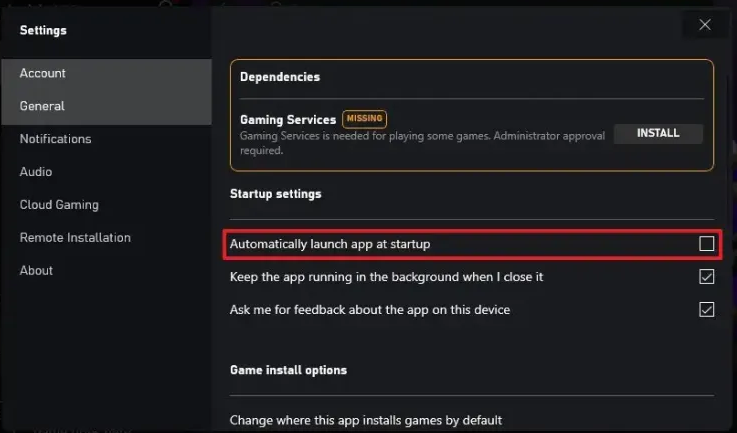
  1. Launch your Xbox app and go to Settings.
  2. Go to General.
  3. Uncheck the Automatically launch app at startup option under Startup settings.

2. Delete accounts and cache folder

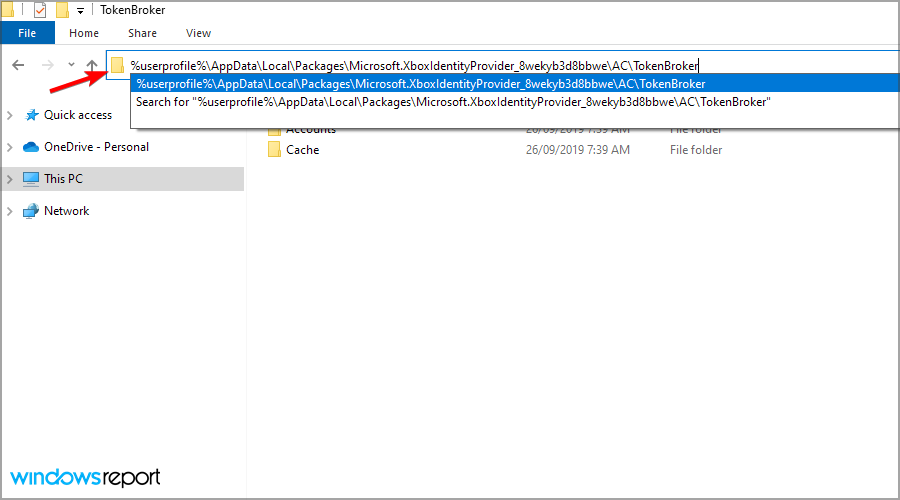
  1. Open File Explorer using the Windows key + E shortcut. In the address bar paste the following line:
    %userprofile%\AppData\Local\Packages\Microsoft.XboxIdentityProvider_8wekyb3d8bbwe\AC\TokenBroker
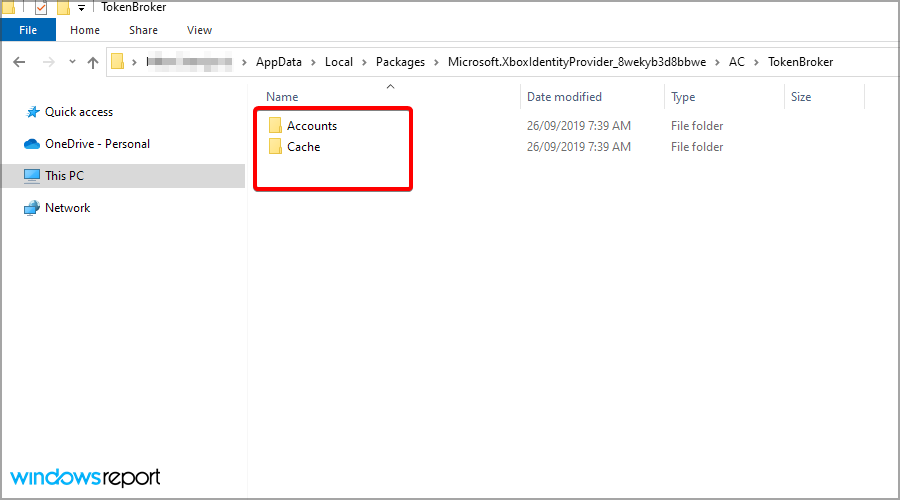
  2. If there are Accounts and Cache folders available make sure that you delete them.
  3. After removing the cache, log out of your Xbox app, restart your PC and see if it automatically signs in to your Windows 11.

Clearing this information means deleting all associated passwords and any other credentials tied to your Xbox account. You’ll have to log in afresh the next time you start up Windows.

3. Remove your password from Windows Credential Manager

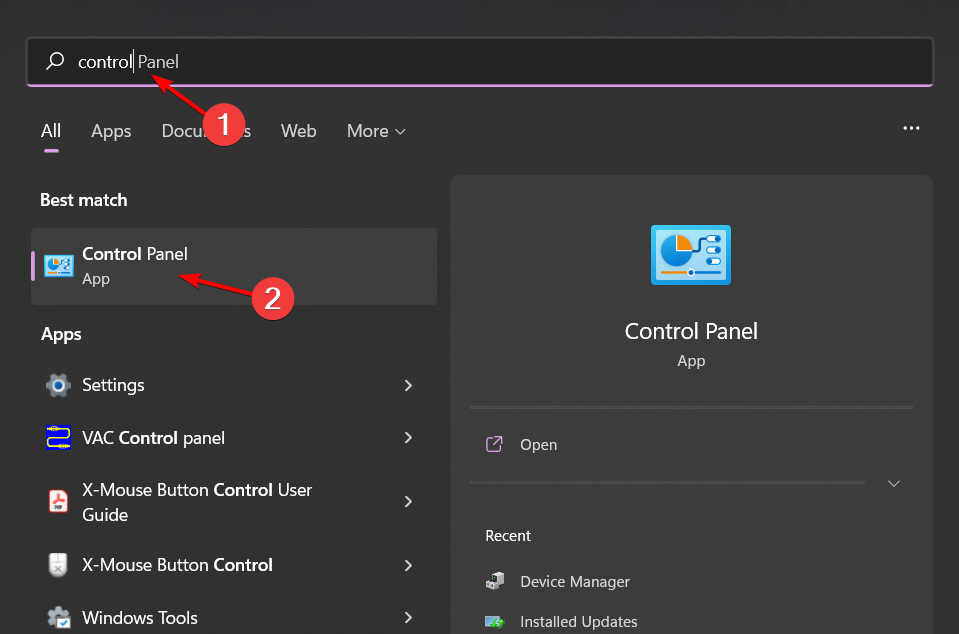
  1. Click on the Windows Search icon on the taskbar, type Control Panel and click Open.control-panel-search fallout new vegas runtime error
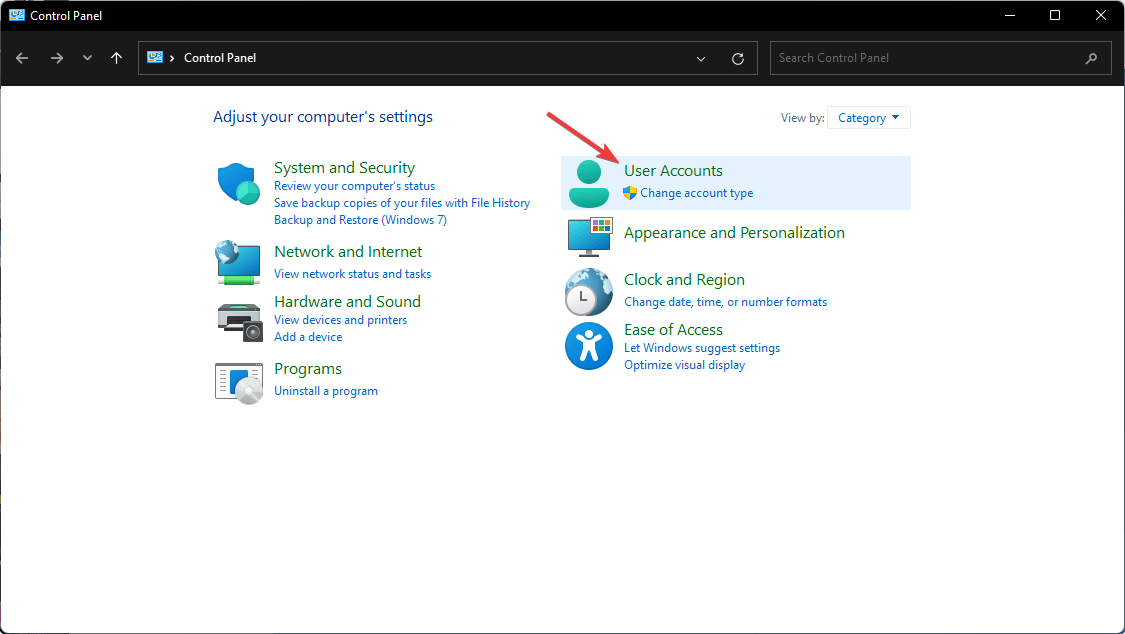
  2. Select User Accounts.going user accounts control panel
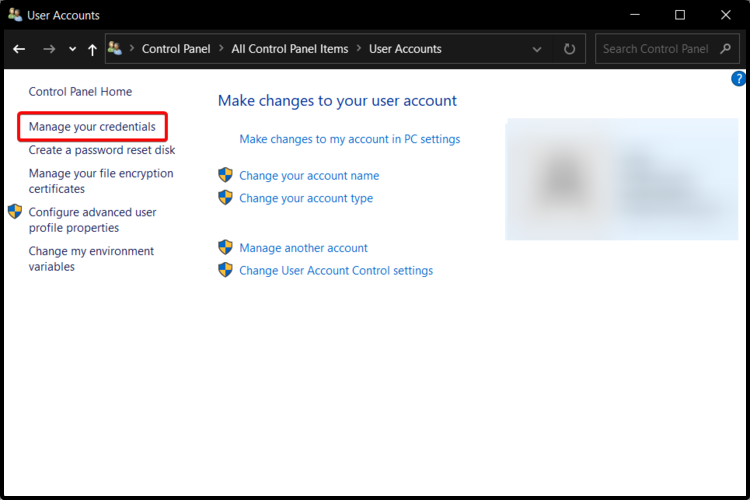
  3. Click on Manage your credentials on the left-hand side.Open Manage your credentials
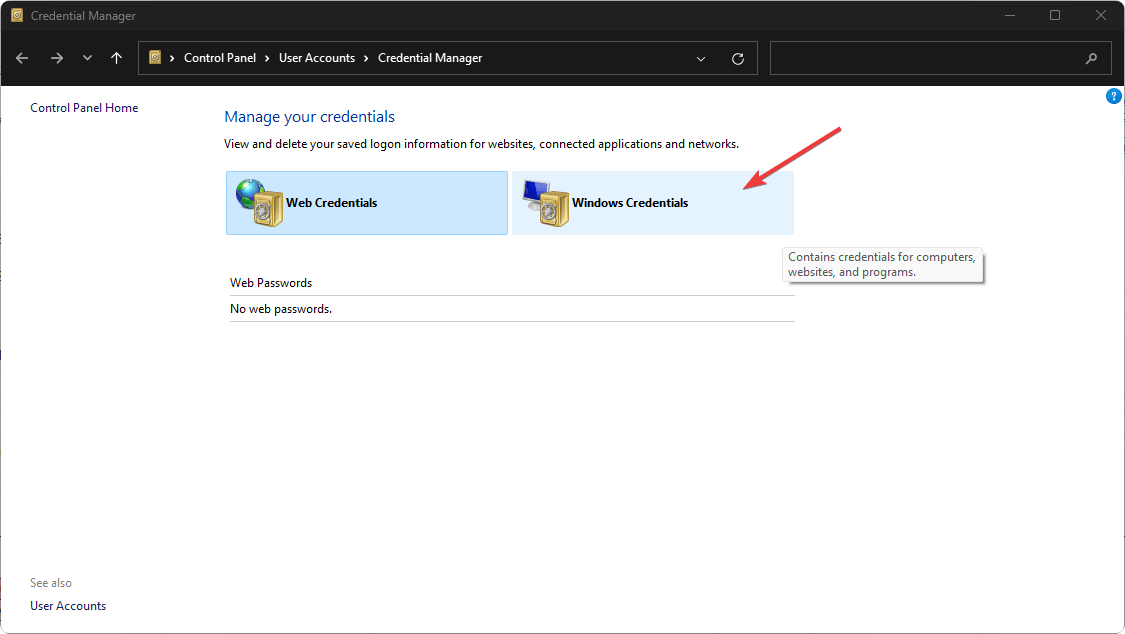
  4. Select Windows Credentials in the new window.going windows credentials windows 11
  5. Expand the unfamiliar user account, and in the drop-down menu, click Remove to get rid of that user.
  6. Next, press the Windows + E keys to open File Explorer.
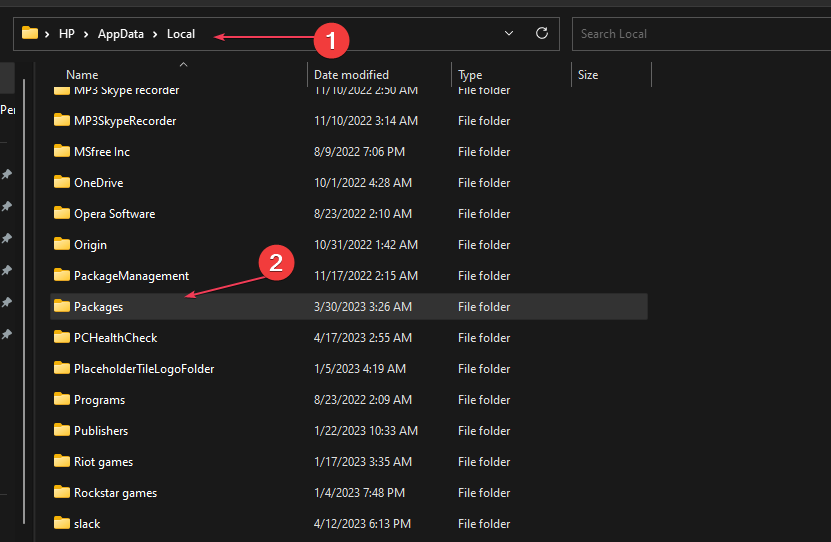
  7. Navigate to the following path: C:\Users\username\AppData\Local\Packages (change the Username to the name of your user account).
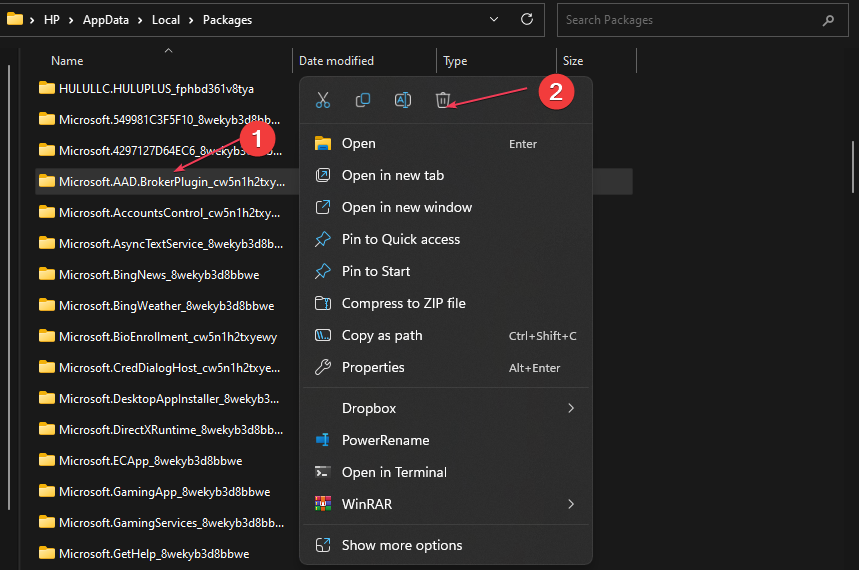
  8. In the Packages folder, locate Microsoft.AAD.BrokerPlugin_cw5n1h2txyew and right-click on it. Select Delete from the context menu and restart your PC.
  9. Sign in with the Xbox Console Companion.

4. Enable 2FA Authentication

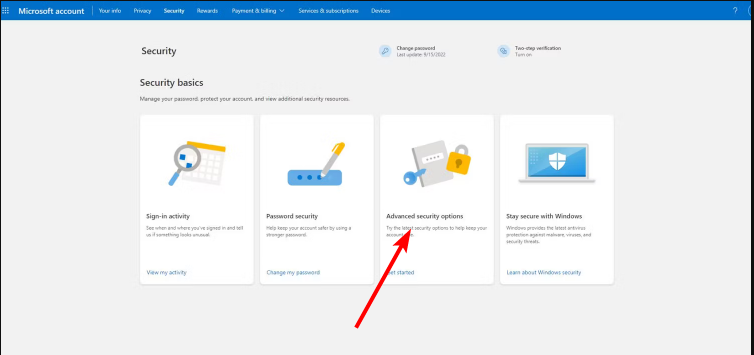
  1. Navigate to your browser and go to your Microsoft account. 
  2. From the top-right corner, click My Microsoft account.
  3. Go to the Security tab. Then, on the next page, click Other ways to sign in.
  4. Click Use my password.
  5. Select Advanced security options.
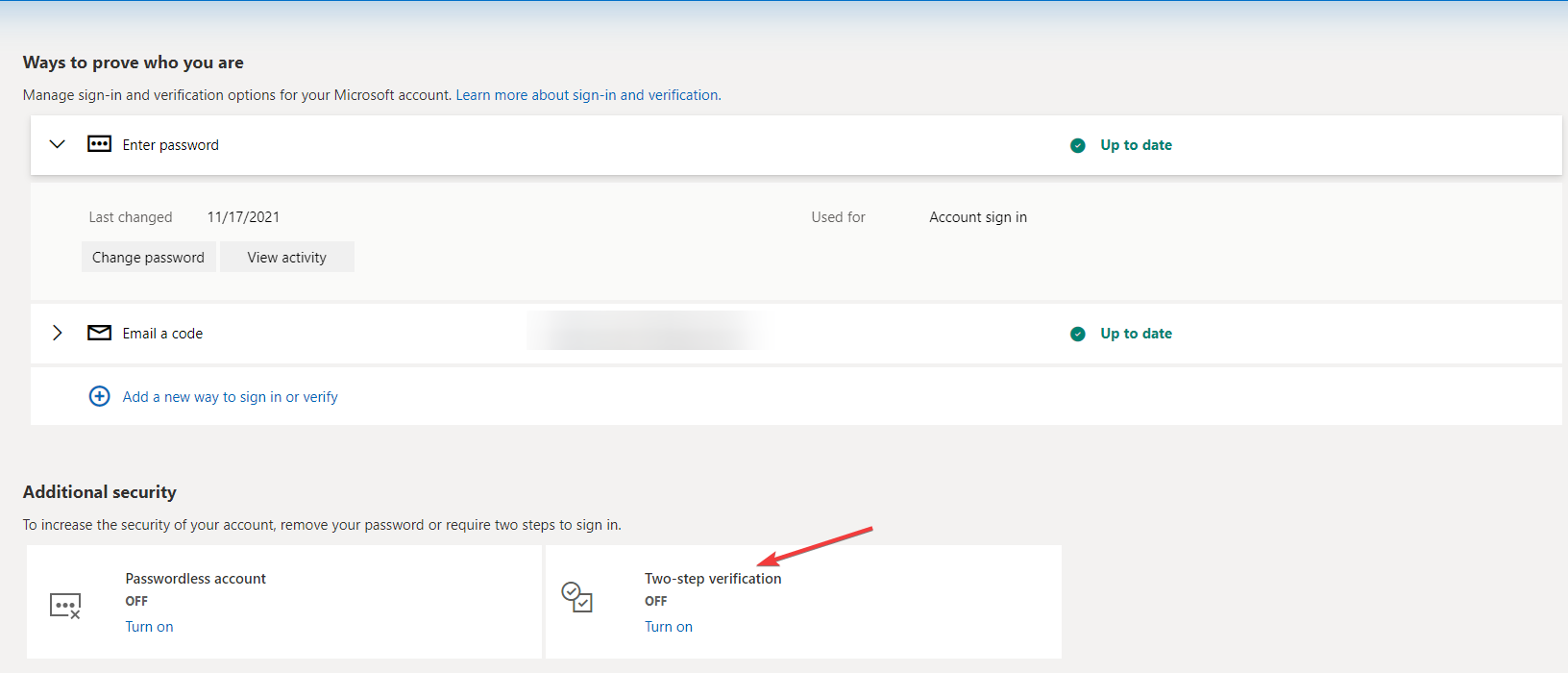
  6. Under Additional security, click Turn on for Two-step verification.Turn 2FA -microsoft authenticator wrong code

After removing your password, enabling the two-factor authentication for your Microsoft account will not only add an extra layer of protection but also lock out unauthorized devices and apps from signing in without a verification code.

This in turn will prevent the Xbox app from automatically signing in to your Windows 11.

5. Reinstall the Xbox app

  1. Clean your registry with a reliable registry cleaner.
  2. Log into your Microsoft Store with your desired Xbox account, install a game, and launch it.
  3. Close the game.
  4. Now go back to the Microsoft Store, install the Xbox app.
  5. Next, press the Windows+ I keys to open the Settings app.
  6. Type Windows PowerShell (Admin) and select the matching result from the list of options.
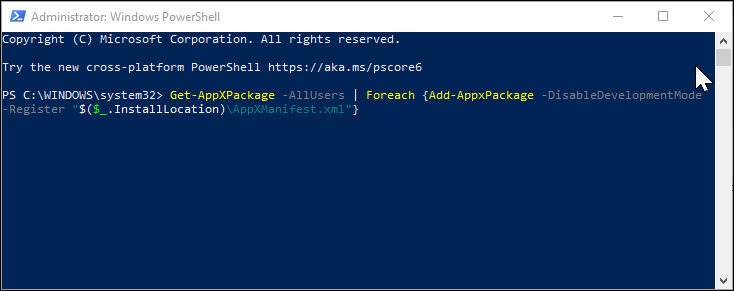
  7. In the PowerShell window, enter the following command and hit enter to execute:
    Get-AppXPackage -AllUsers | Foreach {Add-AppxPackage -DisableDevelopmentMode -Register "$($_.InstallLocation)\AppXManifest.xml"}
  8. Wait for the command to execute, and then restart your PC.
  9. After the restart, check whether the Xbox app is automatically signing in to your Windows 11.

6. Reinstall the Gaming services app

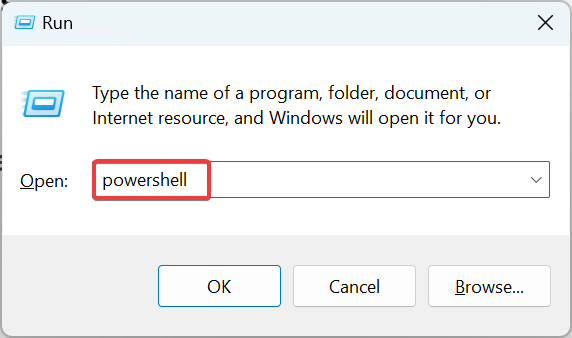
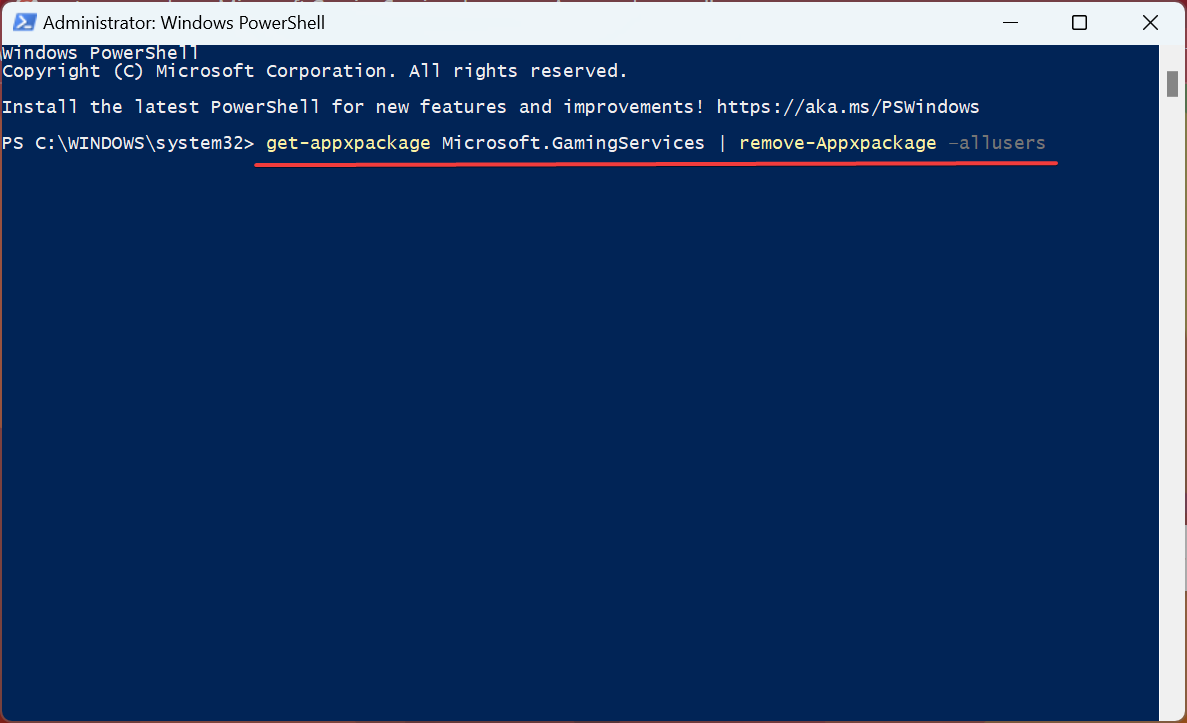
  1. Press Windows + R to open Run, type powershell, and hit Ctrl + Shift + Enter.powershell
  2. Click Yes in the UAC prompt.
  3. Now, paste the following command and hit Enter:get-appxpackage Microsoft.GamingServices | remove-Appxpackage –allusersreinstall gaming services to fix windows 11 xbox app not downloading games
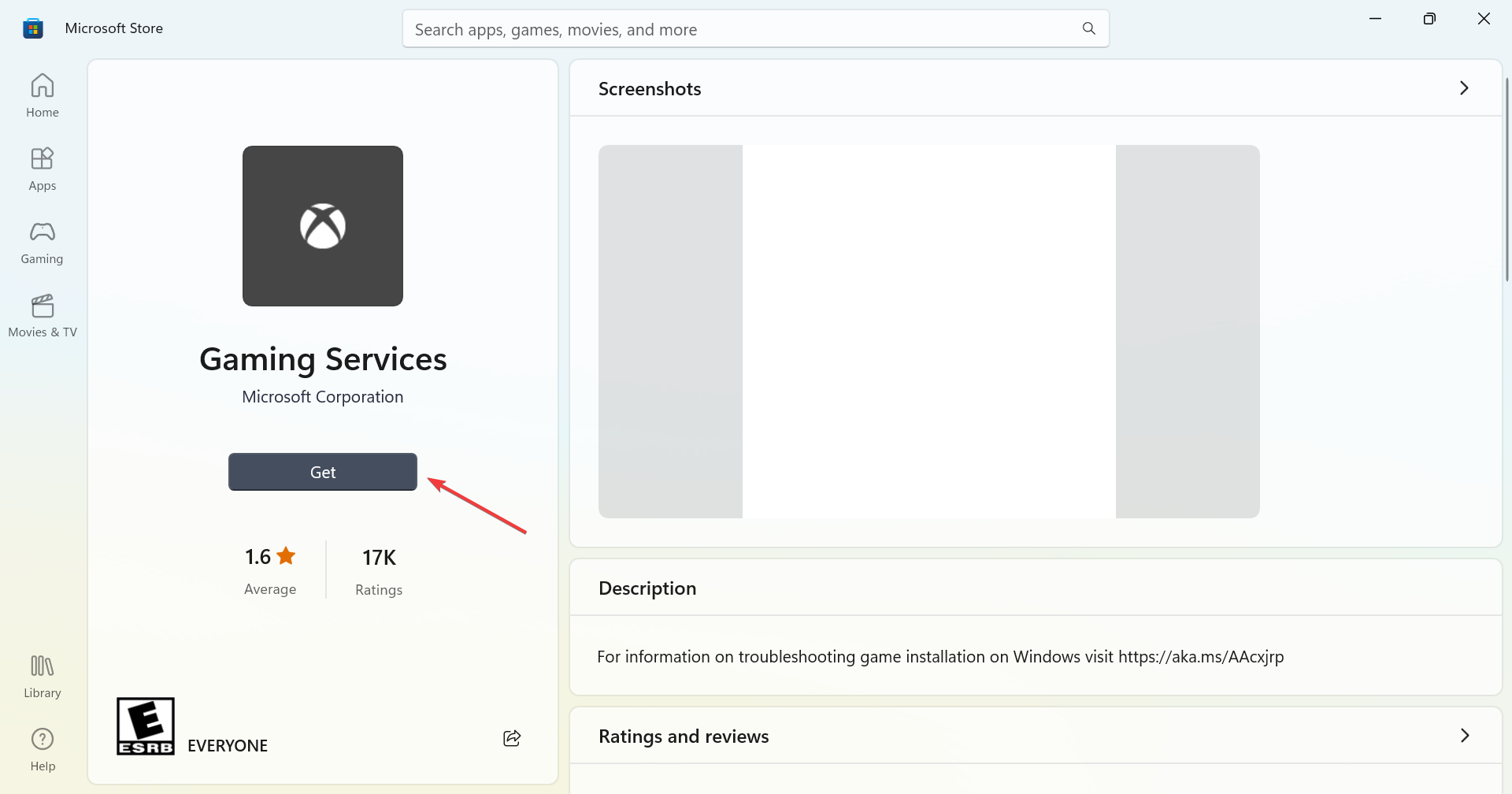
  4. Next, execute the following command:start ms-windows-store://pdp/?productid=9MWPM2CQNLHN
  5. Finally, click on the Get button to reinstall the Gaming Services.get

Finally, the Xbox app automatically signing into your Windows 11 may not be a huge problem per se especially if it is the right account. However, for the sake of your privacy and security, it is important to disable automatic sign-in and exercise more control.

And if none of the above steps have been helpful, another option would be to create a local account temporarily. Alternatively, you can also copy your user profile to a new one and see if this resolves the problem.

Aside from automatic sign-ins, Xbox may also fail to sign in at times but nothing a Windows update can’t fix. However, if the Xbox app is not working on your Windows PC, that may require more muscle like resetting the app to default settings.

And it’s a wrap from us but we’d like to know whether you’ve managed to stop Xbox from automatically signing in to your Windows 11. Which solution worked for you or do you have any other not mentioned above? Drop us a line in the comment section below.

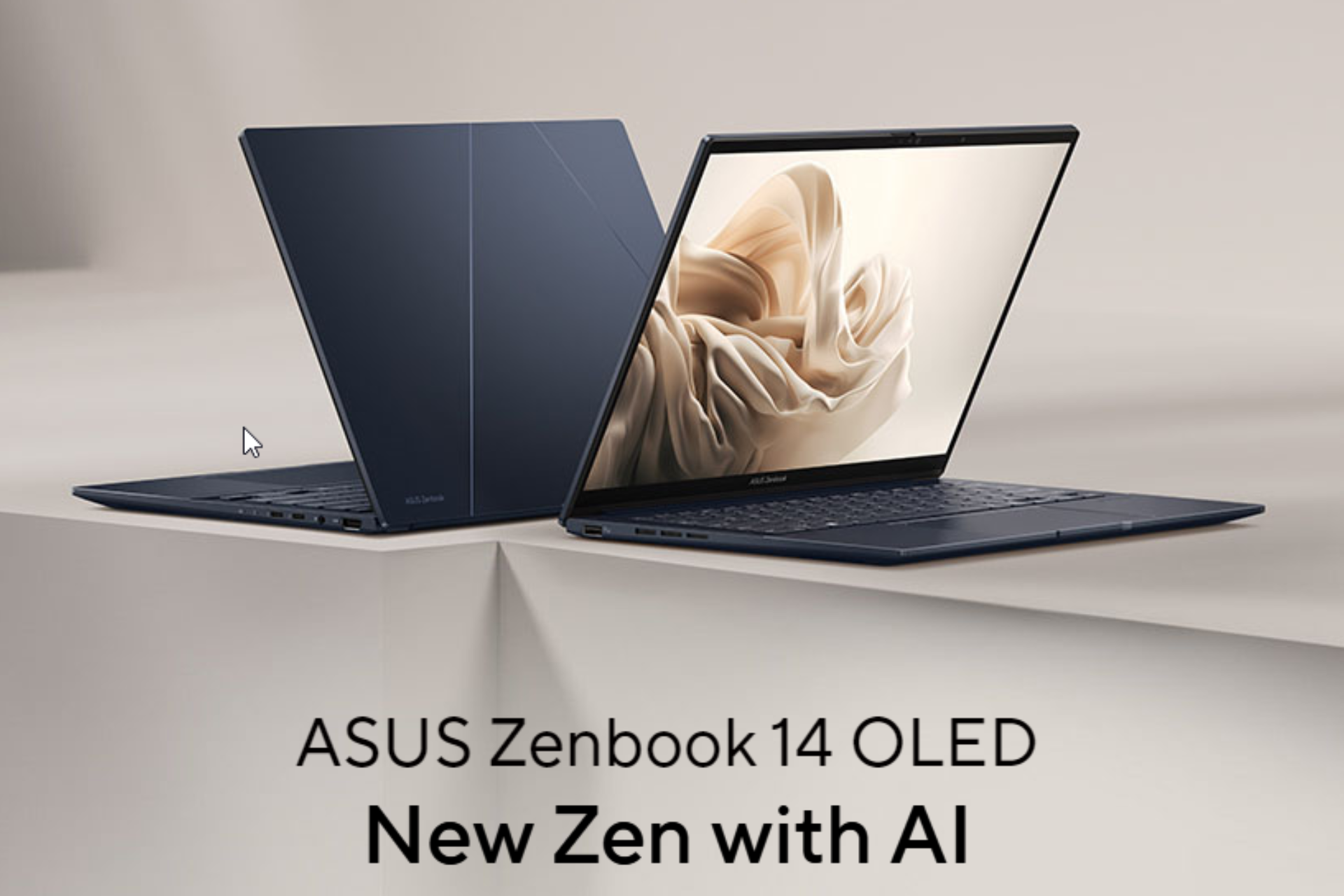
Irresistible deal alert: Get Asus Zenbook 14 OLED powered by Intel Core Ultra 7 CPU at $799

ASUS – Zenbook 14 OLED 14 WUXGA touch laptop, powered by Intel Core Ultra 7, designed for power users and multitaskers, released in March 2024 is now available for $799.99 on Best Buy. You can also get it for $66.67/mo suggested payments with 12-Month Financing. The original cost for this laptop is 1049, as of now you can save up to $250.

This machine is ideal for casual gamers as it has Intel Arc graphics plus it is portable due to its 14 inches screen and small size, so you can easily carry it around.

ASUS Lumina OLED touchscreen, powerful new Super-linear speakers with sound by harman/kardon, AI Engine and FHD 60 Hz OLED, you can immerse your sense and get lifelike visual experiences

Here are the detailed specifications of the laptop

CategoryTech specs
Operating systemWindows 11 Pro
Touch screenYes
Color Jasper Gray
Processor Intel Core Ultra 7 Series 1
Up to 5.1 GHz
with a total of 16 cores
CPU base close frequency 1.4 gigahertz
Graphics Intel Arc
Memory16GB
Storage 1TB storage
NPUIntel AI Boost
CPU TDP28 W
Battery life75Wh, 15+ hours
Battery typeLithium-ion
DisplayASUS Lumina 3K 120 Hz OLED (1920 x 1200 (WUXGA))
HDR brightness: 500-night peak
Aspect ratio: 16:10 
Screen-to-body ratio – 87% 
HDR display
Corning Gorilla GlassYes
Thickness14.9 mm
Weight 2.82 lbs / 0.59″
Refresh rate 60Hz
Sound Dolby Atmos
Sound by harman/kardon
Anti-fingerprint touchpadYes
Emoji hotkeyYes
Quiet Keyboard technologyYes
AiSense cameraYes
Two-Way AI Noise CancelationYes
Windows Hello Infrared (IR) cameraYes
Backlit KeyboardYes
2-in-1 DesignNo
I/O Ports 2 Thunderbolt 4 USB-C
Audio combo jack
HDMI 2.1
USB 3.2 Gen 1 Type-A
Physical webcam privacy shieldYes

With this stunning sturdy build laptop, you also get two freebies:

  • Microsoft – Xbox Game Pass Ultimate 1 Month Membership – Activation Required [Digital]
  • Norton 360 (3 Device) with LifeLock Identity Advisor (1 Adult) Internet Security Software + VPN (6 Month Subscription) – Android, Apple iOS, Mac OS, Windows [Digital]

What do you think about this laptop and Best Buy’s deal? Share your thoughts with our readers in the comments section below

How to Stop the Xbox App if it Keeps Pinning Itself on the Taskbar

We all love the convenience of the Windows 11 taskbar to reach out for our frequently used apps but when an app like Xbox keeps pinning itself without your intervention, it can be annoying.

The Xbox app or any other program may keep re-pinning itself on the Taskbar after you’ve removed it if it is corrupt or its registry files have been modified.

If space is the main issue and your Taskbar items appear squeezed, you can always increase your Taskbar’s size. Otherwise, you can just remove it.

How do I keep my Xbox app off my taskbar?

1. Disable Xbox from Startup programs

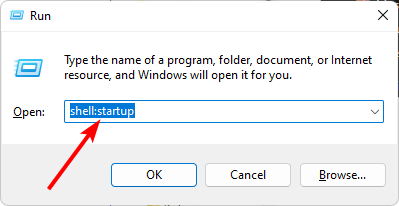
  1. Hit the Windows + R keys to open the Run command.
  2. Type in shell:startup in the dialog box and hit Enter to open the Startup folder.
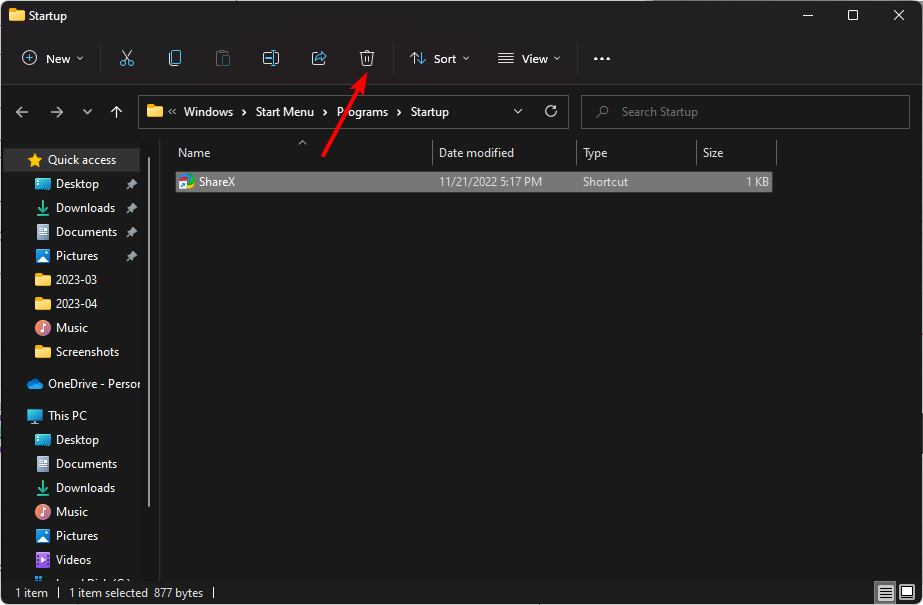
  3. Select the Xbox app you want to disable then click on the trash icon to delete.

2. Adjust the Default Layout settings

  1. Hit the Windows + E keys to open File Explorer.
  2. Click on View>Hidden items and navigate to the following path: C:\users\Yourusername\AppData\Local\Microsoft\Windows\Shell
  3. Right-click on the LayoutModifications file and select Edit.
  4. Delete the following line: taskbar:UWAAppuserModeIID=”Microsoft.GamingApp_8wekyb3d8bbwe!Microsoft.Xbox.App”/>
  5. Unpin the Xbox app then restart your PC.

3. Disallow pinning of programs from the Group Policy Editor

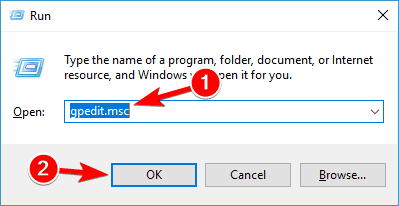
  1. Hit the Windows + R keys to open the Run command.
  2. Type gpedit.msc in the dialog box and hit Enter to open the Group Policy Editor.gpedit.msc virus & threat protection
  3. Navigate to the following path: User Configuration\Administrative Templates\Start Menu and Taskbar
  4. Double-click on Do not allow pinning programs to the Taskbar.
  5. Click on the Disabled box then click on Apply then OK to effect the changes.
  6. Restart your PC and check whether the Xbox app is still pinning itself on the taskbar.

4. Reinstall the Xbox app

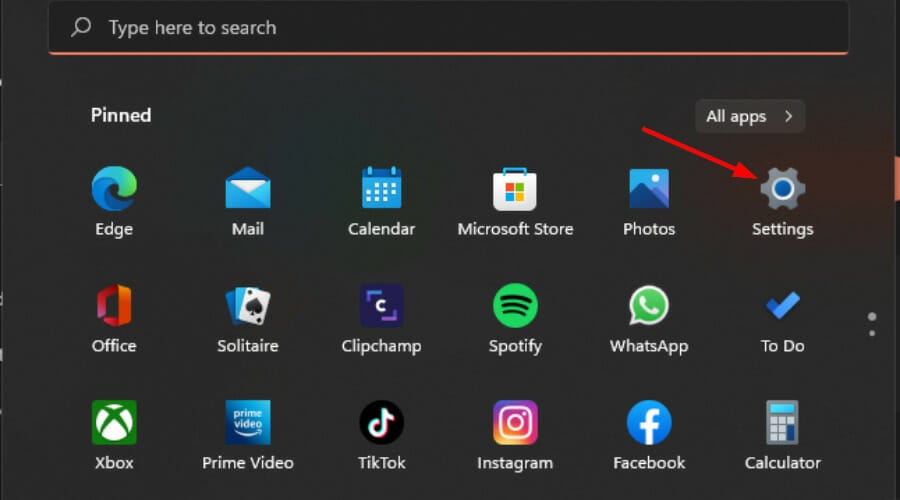
  1. Hit the Start Menu icon and click on Settings.settings windows 11
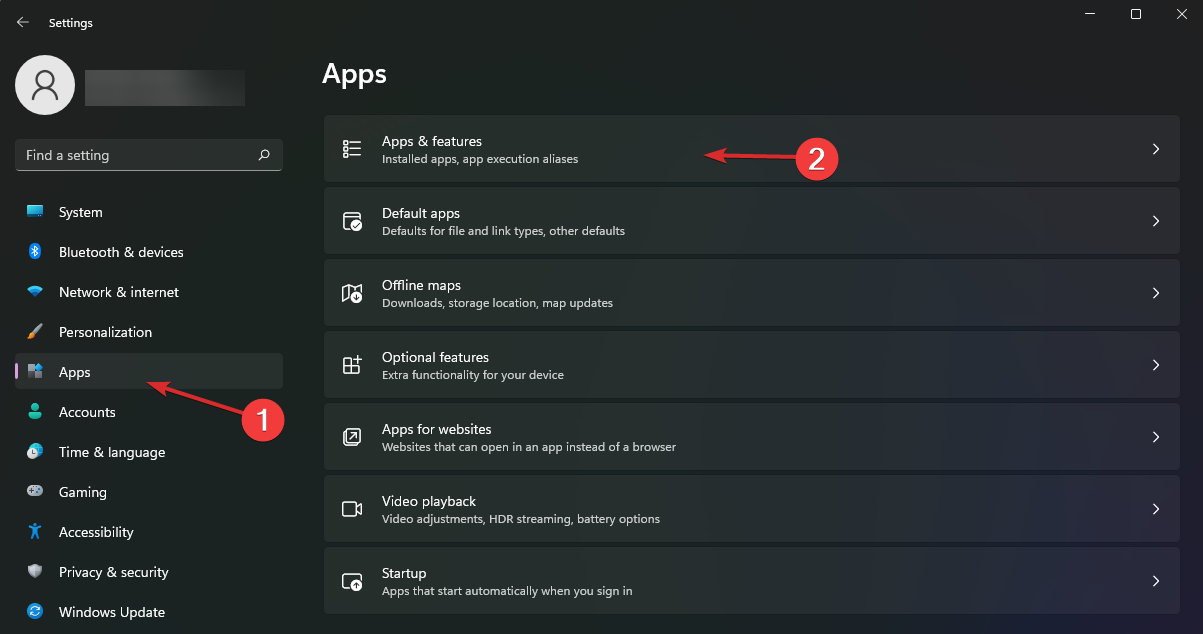
  2. Click on Apps on the left pane then select Apps & features on the right pane.
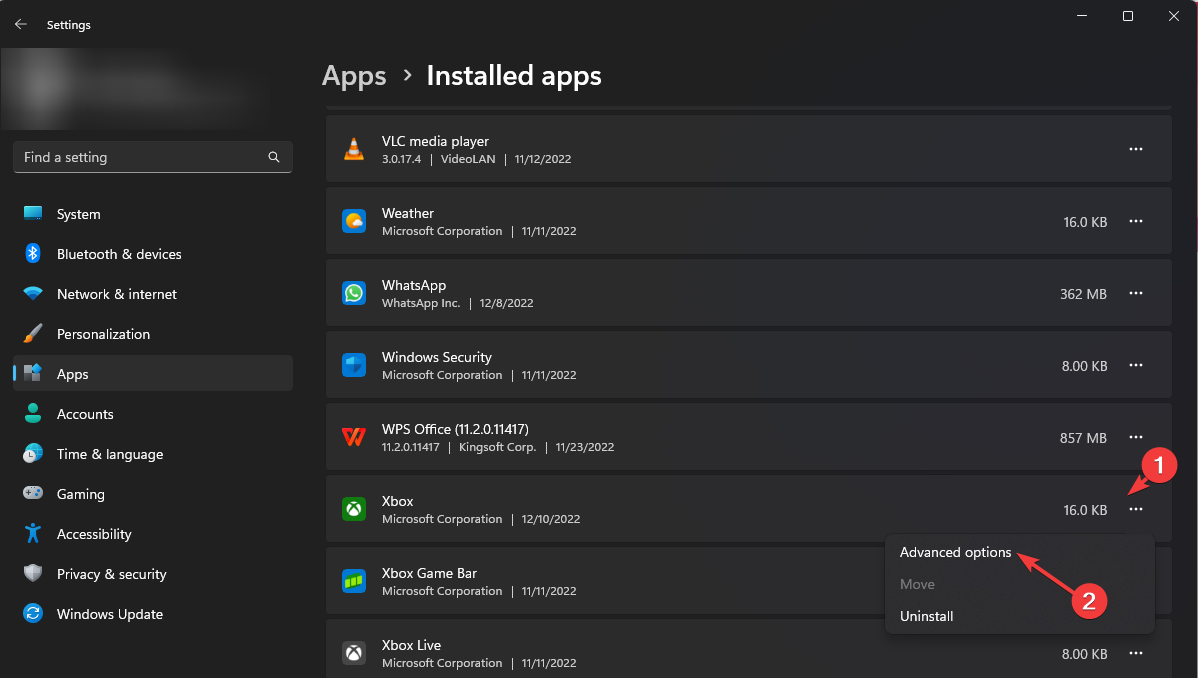
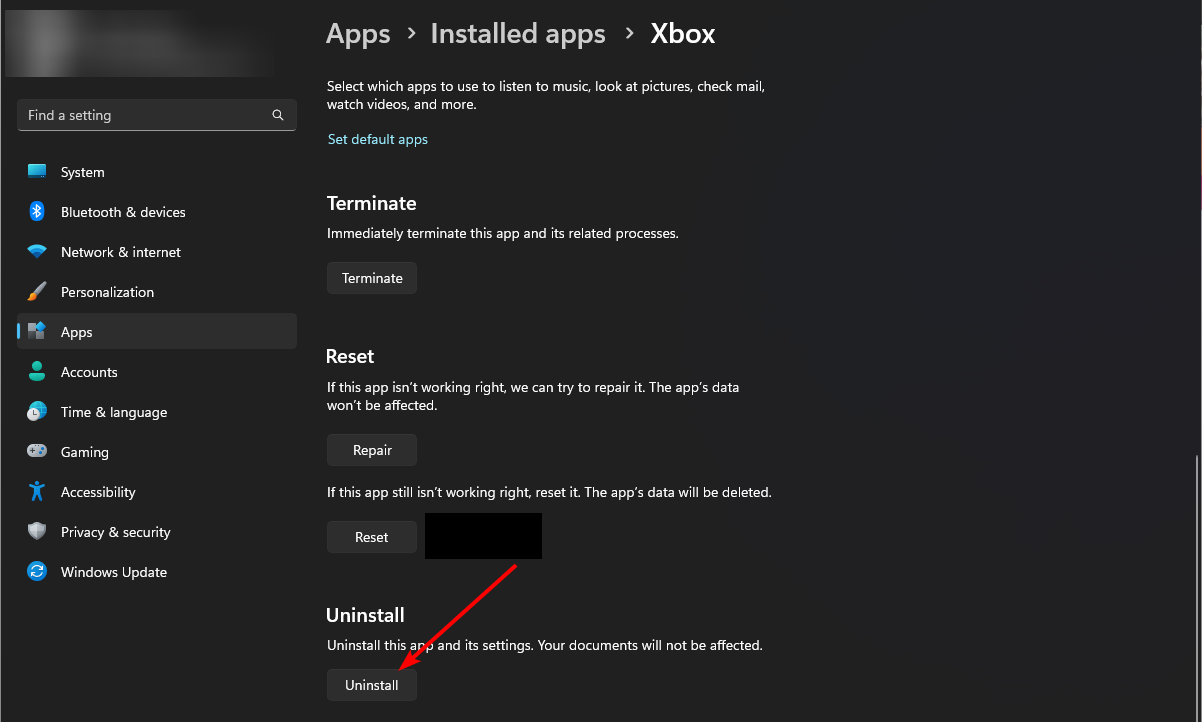
  3. Locate the Xbox app, click on the three ellipses, and select Advanced options.
  4. Click on the Uninstall button.
  5. Go to the Microsoft Store, search for the Xbox app and install it.

If there was a problem with the initial installation of the Xbox app, a fresh install can resolve these issues. Just remember to clean up any remnant files before installing again to prevent replicating the same issue.

5. Create a new user profile

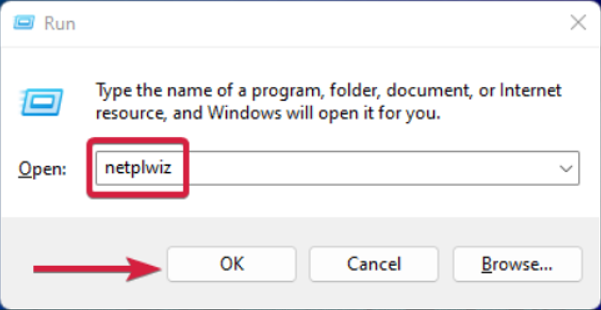
  1. Press Windows + R to launch the Run console, enter netplwiz in the text field, and click OK.
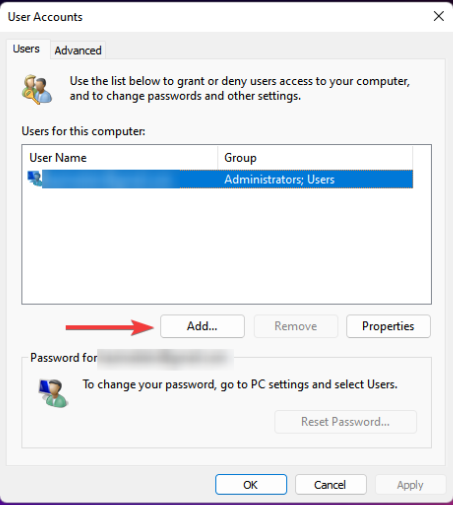
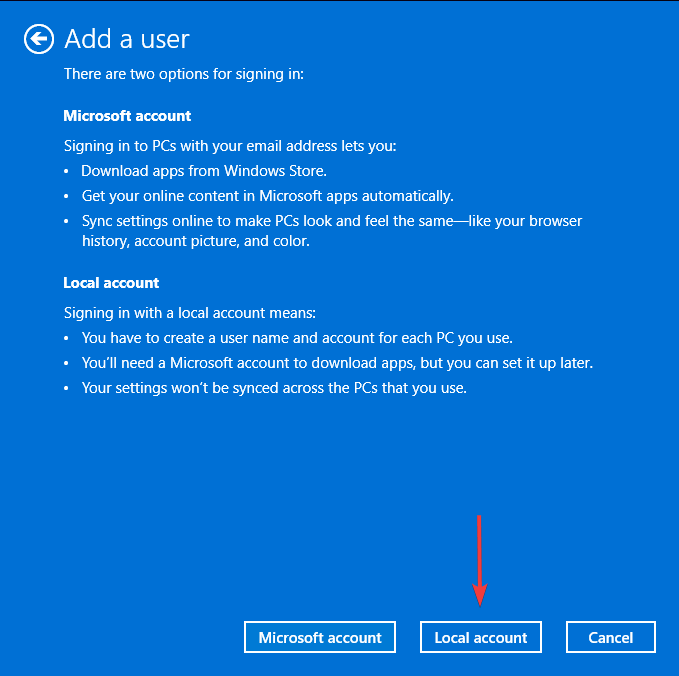
  2. Click Add in the User Accounts window.
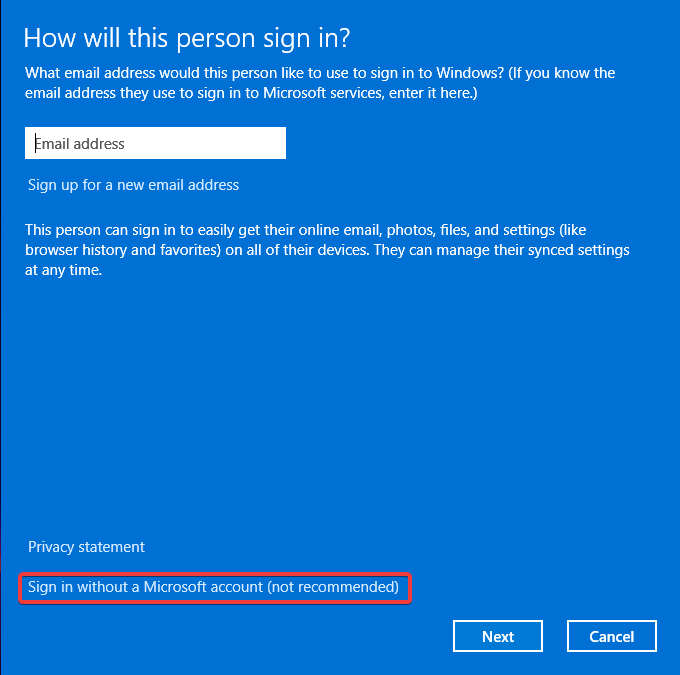
  3. Select Sign in without a Microsoft account (not recommended).
  4. Click on Local account button.
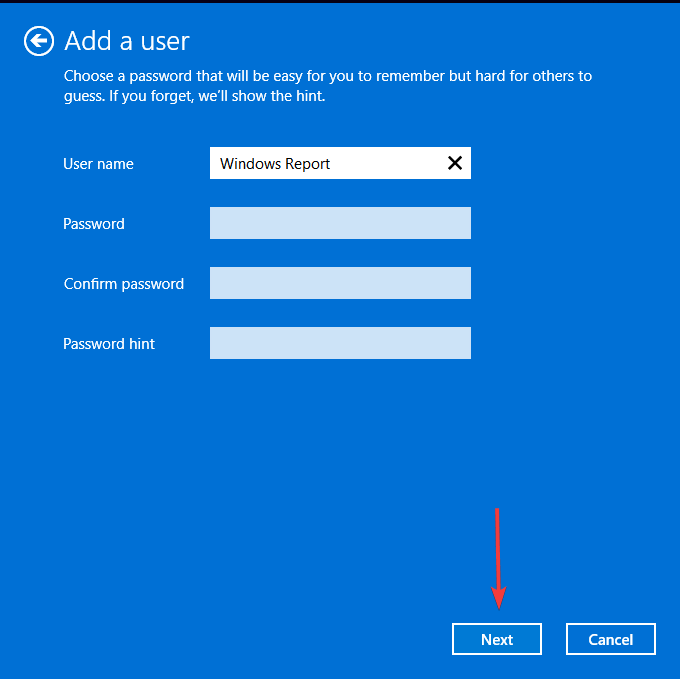
  5. Enter a username and password (optional) for the new user account, and a hint, in case you set a password. Once done, click on Next.
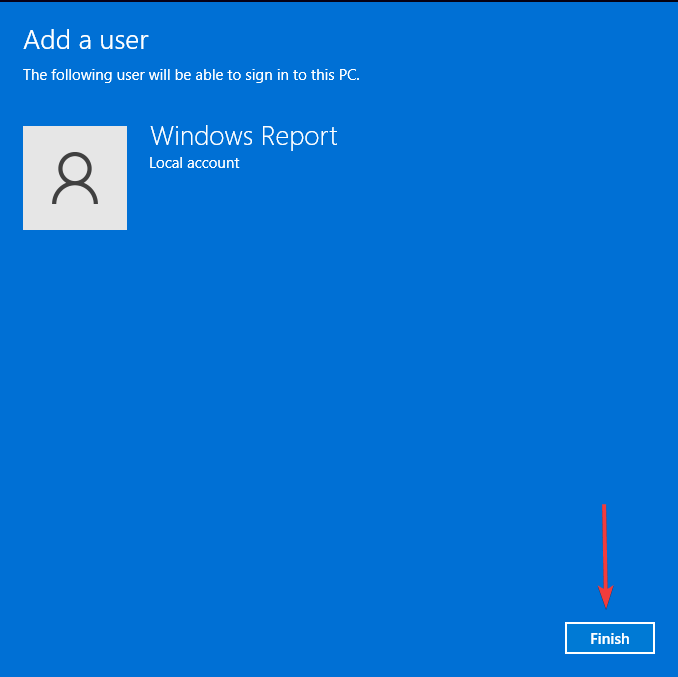
  6. Click on Finish to create the Local account.

The purpose of a new user profile is to isolate the issue and see if it’s a profile-related problem. If your user profile is corrupt, some apps or functions may behave abnormally, so the Xbox app keeps pinning itself deliberately even after you unpin it.

Aside from the Xbox app that keeps pining itself on the Taskbar, you may also find that your pinned apps are not showing. If so, we have the answers on how to get them back.

And if the icons are too small, you can increase your taskbar icon size. Elsewhere, if you don’t like a cluttered desktop look, you can always hide your taskbar permanently.

That’s all we had for this article but if you have any other solution we may have missed, feel free to share it with us in the comment section below.

Analyze pages more efficiently with Ask Copilot and tagging in Edge

Edge and Copilot have a deep integration, and Microsoft plans to expand it further with additional features.

So, what are these new features, and when can we expect to see them in action?

Microsoft is testing Ask Copilot in Microsoft Edge

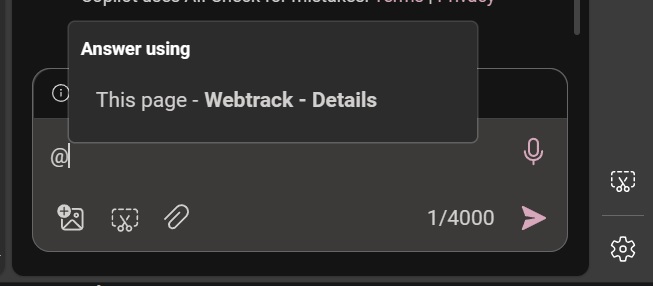
These two features were spotted by Windows Latest, and the first feature is dubbed tagging since it allows you to tag the page you want for Copilot to scan for data.

Often Copilot will crawl the web instead of the currently opened page or document thus giving you incorrect information.

This feature fixes that since it allows you to select the source that you want Copilot to use. You can choose between This page or Relevant sources.

In addition to providing correct information, Copilot is also about 30% faster since it needs to process and analyze only a single page.

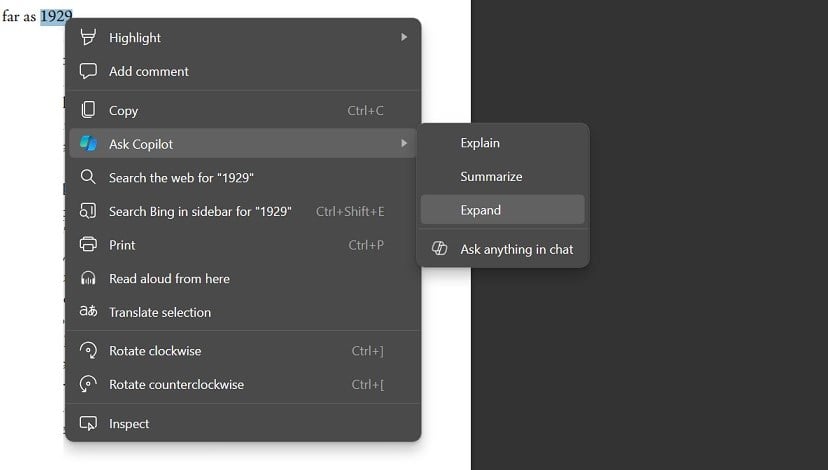
Another new feature is the Ask Copilot, it’s a menu that will appear when you right-click selected text or page.

From this menu you can choose one of the following options: Explain, Summarize, Expand, or Ask anything in the chat.

After that, the Copilot will analyze the selected text and apply the chosen command. The feature works with web pages and PDF files alike.

Regarding availability, tagging is already available, while Ask Copilot is currently being tested in Edge Canary.

This isn’t the only news regarding Microsoft’s AI assistant, as the company is currently testing Draft with Copilot in Edge.

As for other software integrations, Copilot in Excel will get support for conditional formatting soon.

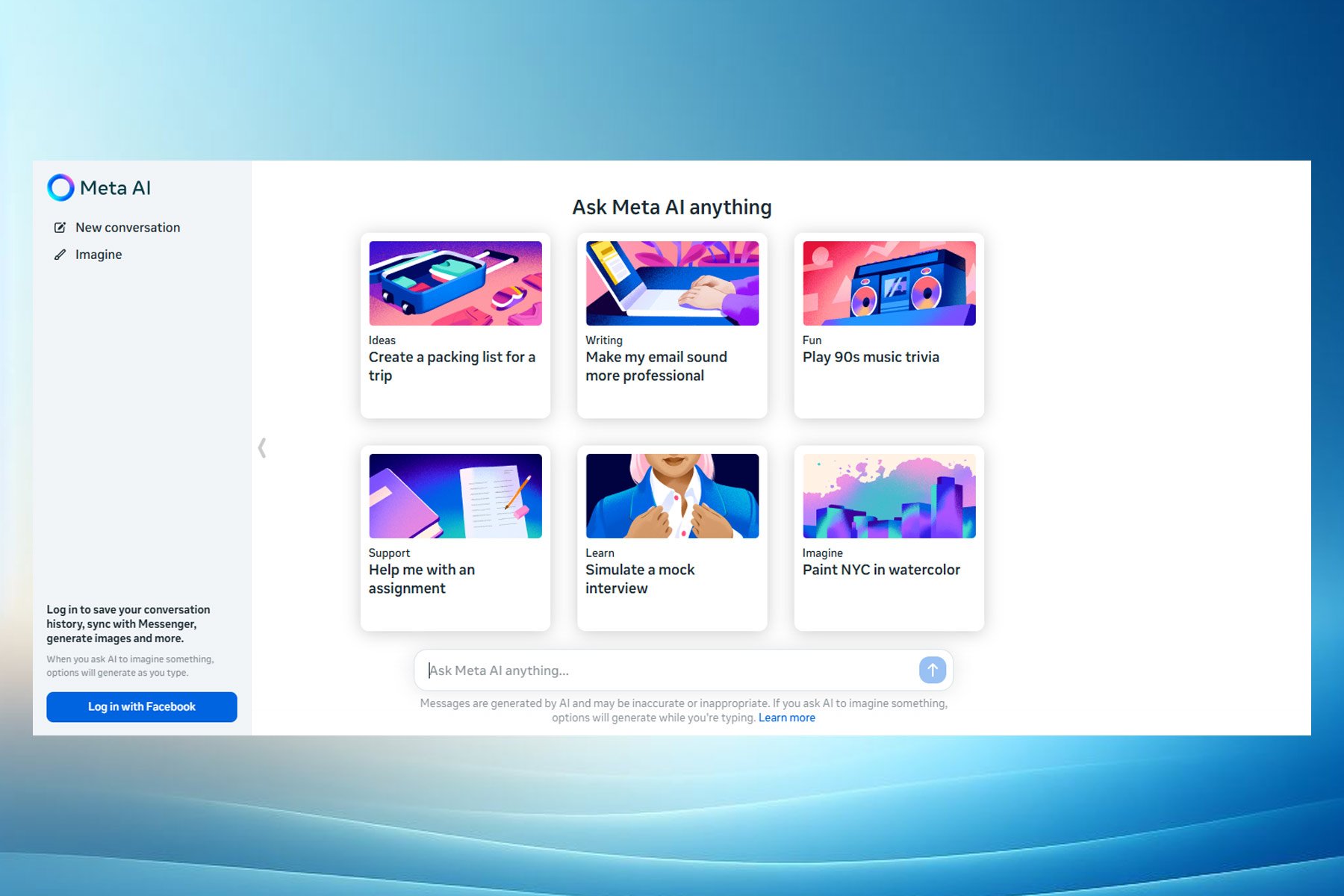
Meta is determined to win the AI race with its new free assistant

At this point, it feels like most AI companies are releasing new AI assistants capable of surpassing the previous ones. Sometimes, it is hard to keep up with them and decide which one to use. A few months ago, ChatGPT was on top, then Gemini, then Copilot, and the list goes on with other models. Now, Meta brings a new AI assistant powered by their Llama 3 model, which could be better than ChatGPT.

Meta will add the new AI assistant to Facebook, WhatsApp, Instagram, and Messenger. In addition, you can access it through the Meta.AI website.

Is the Meta AI assistant better than its competitors?

According to The Verge, the Llama 3 model used for the AI assistant outperforms its competitors in benchmarks. Also, the tech giant claims that it is better at coding too. On top of that, two of the Llama 3 models available are open source. Additionally, Meta will release a third multimodal version in a few months.

One of the models has 8 billion parameters available, while the other has 70 billion. Also, they will both be accessible on major cloud providers. Meanwhile, the upcoming third Llama 3 model has 400 billion parameters and over 15 trillion tokens.

The new Llama 3 has a seven times larger training dataset and four times more code than Llama 2. So, once available, it will improve the Meta AI assistant. However, Mark Zuckerberg says it won’t be open-source for safety reasons since the tech giant trained it on AI and public data and has a larger corpus than the Common Crawl.

The new assistant offers premium AI features for free

Meta wants to create the most intelligent AI assistant that people can freely use. So, the new model can use both Google and Bing searches. Furthermore, its image generator can create gifs, short animations, and high-resolution images faster than other models.

The new AI assistant from Meta might surpass others because the company tries to give it most of the existing features of other models. Thus, if Meta succeeds, we might stop using other assistants since this one offers premium AI features for free. However, there could be a usage limit to prevent overcrowding.

Even if OpenAI will release the new GPT-5, it won’t be a problem for the company. According to Zuckerberg, the main goal of Meta is to be the leading AI in the world. So, the tech giant is already planning Llama 4 and 5.

Unfortunately, the new AI assistant from Meta is only available in the U.S. and Australia, Canada, Ghana, Jamaica, Malawi, New Zealand, Nigeria, Pakistan, Singapore, South Africa, Uganda, Zambia, and Zimbabwe. So, it will take some time until it is globally available.

In summary, the new AI assistant from Meta could become the most used on the market. After all, it offers premium features for free, has a giant database, uses both Bing and Google, and generates images and short animations faster than other models.

What are your thoughts? Are you eager to use it? Let us know in the comments.

Microsoft Office 2026: Things we know so far

Microsoft announced the release of the commercial preview of Microsoft Office LTSC 2024 for Windows and Mac devices, which could help us understand what we can expect from Office 2024.

We know that Microsoft has announced that Office 2024 will be available this year and will replace Office 2021. So far, there is no official release date for this version.

In the tech blog post by Microsoft, we got to know that Office LTSC 2024 will include all the features present in the previous Office version and some new features available in Microsoft 365 Apps for Enterprise.

The company also mentioned:

 Office LTSC is built for specialized use cases that require a long-term servicing channel such as regulated devices that cannot accept feature updates for years at a time, manufacturing process control devices that are not connected to the internet, or medical testing equipment running embedded apps that must stay locked in time.  

Although the LTSC version is different from the Office Home version, it provides us with some clues about the latter. The upcoming version will replace Office 2021 and will also be a one-time purchase version that will have Word, Excel, and PowerPoint.

This servicing channel will be supported for five years under the  Fixed Lifecycle Policy, in parallel with Windows 11 LTSC, which will launch this year.

The Redmond tech giant mentioned earlier that Office 2024 would be supported for five years and that the price wouldn’t be different from the previous iteration, which was $150 for a license on a single machine.

The Windows for Office 2024 LTSC version will include Excel, Word, Access, OneNote, PowerPoint, Outlook, and Skype for Business; the Mac version has Word, Excel, OneNote, PowerPoint, and Outlook. However, this version does not include all the AI and cloud-based collaboration features.

As of the Office 2024 Home version, we will get all the apps except Skype for Business. As for Outlook, the availability is uncertain due to the fact Microsoft has made Outlook for Mac and Windows (not the classic one) a free app.

What are you expecting from Office 2024? Share your thoughts with our readers in the comments section below.

Microsoft’s strategy worked: Its games on PlayStation Store top the popularity chart

When Microsoft first started focusing on the software side of gaming and subsequently released Xbox exclusives on other consoles, many were skeptical, calling it the end of Xbox. But as it turns out, things look promising for Microsoft, with its games outselling Sony-owned titles on the PlayStation Store.

First reported by Derek Strickland on Tweaks Town, Microsoft presently has 7 titles compared to Sony’s 5 in the top 25 best-selling games list. This includes games from studios recently acquired by Microsoft, such as Activision Blizzard, a deal valued at $69 billion.

Games from Microsoft-owned studios on the top-selling list include

  • Call of Duty
  • Overwatch 2
  • Fallout 4
  • Sea of Thieves
  • Minecraft
  • Fallout 76
  • Grounded

Sea of Thieves and Grounded were two Xbox exclusives recently released on PlayStation.

As for Sony, the five titles that made it to the top 25 best-selling games are:

  • MLB The Show 24
  • Helldivers 2
  • Destiny 2
  • Stellar Blade
  • Rise of the Ronin

Remember, the rankings change every day, and the data used is for April 18, 2024.

Microsoft’s recent acquisitions play a key role in scoring this win

Even though Microsoft is losing the console war, with PlayStation outselling Xbox, Microsoft-owned games performing way better on the PlayStation Store shouldn’t come as a surprise. Microsoft’s recent strategies in gaming, from acquiring studios to bringing Xbox exclusives on other platforms to going all digital, have paid off!

Sony, on the other hand, has not shown much interest in bringing its exclusive titles to the Xbox console, although games like Helldivers 2 did make it to the PC.

Concerning the future of Xbox, reports suggest that the next Xbox will be more like a PC, allowing users to play a wider set of games from different platforms. This will surely be something to look out for and may help Xbox reclaim the lost share in the console market!

Which Microsoft game on the PlayStation Store is your favourite? Share with our readers in the comments section.

Meta AI got powered up by Llama 3, now available in other countries

As you may know, Meta has released the Llama 3 model recently, and the new model offers new features and amazing performance.

The model is available for testing, and you can try it by using Meta’s chatbot web page.

Meta AI is now available in 13 additional countries

Following the launch of the new LLM model, Meta has decided to extend the availability of its chatbot to more countries as MSPowerUser writes.

The chatbot is available now available in the following:

  • Australia
  • Canada
  • Ghana
  • Jamaica
  • Malawi
  • New Zealand
  • Nigeria
  • Pakistan
  • Singapore
  • South Africa
  • Uganda
  • Zambia
  • Zimbabwe

The AI was previously limited to Meta’s mobile apps such as Facebook, Instagram, WhatsApp, and Messenger, but now it’s available in web browsers.

At the time of writing, we weren’t able to use the service in Firefox, but it worked perfectly in Chrome without a Facebook account.

If you’re located in one of the countries that supports Meta AI, be sure to give it a try. As for global availability, we expect to see it soon although no official information is available.

Microsoft’s latest patent describes a sustainable computing technology that can be integrated with Windows

Sustainable computing is a concept that has been gaining ground in the tech industry over the last few years. With movements such as the Right to Repair advocating for serviceable devices gaining traction, and our survey confirming people everywhere agree with legalizing and turning it into a law, it’s clear that many of us want devices that can last longer, and that can be repaired in case they go south.

However, a vital part of these devices’ longevity is their ability to manage resources in a way that doesn’t overstimulate them.

In other words, all of our devices cannot consume just the right amount of computing power necessary for different tasks, but they are equipped with software that regulates consumption, such as battery-saving settings. These are limited in their rights, and once enabled an array of other options won’t be available to use.

But Microsoft is working on a solution. The company, which already supports the Right to Repair movement and has designed its upcoming Surface devices to be highly serviceable, is working on a sustainable computing technology that can be theoretically integrated with Windows.

The patent calls the technology a Sustainability-aware computing device behavior management, and it’s a system that helps manage how a computer device behaves in a way that’s good for the environment.

The way it works makes it quite intriguing, as it can automatically detect just how sustainable your energy provider is: the platform gets information about how sustainable an energy grid is from a data provider.

Then it makes a forecast about sustainability, which a computer device can receive and store. The device uses this forecast to manage its functions.

It can do certain things at times that are less harmful to the environment, which means it uses less energy when the environmental impact is predicted to be high.

The device can update the stored forecast regularly or when it finds out that its location (and maybe the energy grid it’s connected to) has changed.

One of the most intriguing parts of this technology is its ability to cache the sustainability forecast, and it uses that cache to initiate further sustainable actions, instead of consuming more energy to get the information from the data provider.

The computing device may cache the sustainability forecast for the time period, thereby potentially reducing the amount of sustainability forecast requests that is received in aggregate from a population of computing.

According to the patent, the technology can be implemented in an array of devices, from laptops to desktops, mobile phones, or tablets, and even Internet-of-Things devices, as it could be part of operating systems, such as Windows, Android, and so on.

It will be appreciated that the disclosed techniques may be applied to any of a variety of computing devices, inclduing, but not limited to, mobile computing devices, tablet computing devices, laptops computing devices, desktop computing devices, server computing devices, and Internet-of-Things (IoT) computing devices.

This sustainable computing technology would also manage peripherals connected to devices, automatically, using the same process. The patent describes a situation where an external hard drive would be put to sleep automatically, to consume less power.

A computing device may have an associated peripheral device, such that usage and/or behavior of the peripheral device is similarly managed based at least in part on a sustainability forecast. During a period of comparatively high impact, the external storage may be put into a lower power state and/or backups may be deferred until the forecasted impact associated with energy grid use decreases.

Given Microsoft’s goal to be as sustainable as possible (after all, the company did promise the upcoming AI data centers are designed to be sustainable and carbon-negative), this technology will most likely see the light of day in a future version of Windows, but maybe as a stand-alone technology, as well.

Speaking of light and sustainable computing, Microsoft patented another technology, a while ago, which focuses on dimming each pixel of a display individually. The technology would allow for a selective dimming option: one part of the display could be brighter, while another part would not be affected, all at the same time. It creates a more immersive experience when gaming, and it also, inadvertently, is sustainable, as it consumes less power than it has to.

So, Microsoft clearly thinks sustainable computing is the future.

Vivaldi started updating their browser for the upcoming fleet of ARM-basted laptops

Recently, Google released a Chrome version for ARM and now, Vivaldi released what they call an ARM64 architecture preview package for testing. However, the publishers say that you should proceed with caution because they didn’t test it on actual ARM64 devices:

As an extra bonus we also include Windows arm64 “architecture preview” packages for those of you with suitable hardware. These builds are not yet part of our automated test system and have only been lightly tested on one piece of hardware. Serious issues may exist and should be expected. Nonetheless, any testing and feedback would be greatly appreciated!

Vivaldi news

What’s new from Vivaldi browser?

For those of us who love staying on the cutting edge of tech, this is pretty exciting news. But what does it mean for the average user? Vivaldi’s update is not just any ordinary tweak. It’s a step forward into a territory that’s gaining traction due to the upcoming wave of Windows laptops powered by Qualcomm’s Snapdragon X Elite CPUs.

These processors are designed to compete with the likes of Intel, AMD, and Apple’s M1 chips, boasting 12 high-performance cores and impressive clock speeds. The promise of better performance on ARM architecture is tantalizing, but Vivaldi cautions that this version is in its infancy. Expect some bumps along the road.

If you’re someone who’s always looking for the best performance and efficiency from your devices, this update could be a game-changer. Imagine your browser running smoother and faster, making your online experience more enjoyable.

The release of ARM-compatible versions by both Google Chrome and Vivaldi signals a growing interest in catering to ARM-based hardware. This isn’t just about making apps run; it’s about optimizing them to take full advantage of the hardware’s capabilities. And with major PC makers like Acer, ASUS, Dell, and Lenovo gearing up to release notebooks equipped with the Snapdragon X Elite chip in 2024, the future looks promising. The tech world is clearly gearing up for an ARM-powered revolution.

In conclusion, the ARM architecture is slowly but surely claiming its place in the tech ecosystem, and with Vivaldi’s latest update, we’re getting a glimpse of what’s to come. Tell us what you think about this in a comment below.