Microsoft releases Out-of-band updates to address a Windows Server domain controller issue

Recently, Microsoft announced that it had acknowledged issues with Local Security Authority Subsystem Service (LSASS) memory leaks on various Windows Server versions, resulting in an unplanned domain controller reboot.

Now, the Redmond tech giant is releasing out-of-band updates to fix the LSASS memory leaks in Windows.

Microsoft mentioned in the announcement on March 22, 2024:

Microsoft has identified an issue that affects Windows Server domain controllers (DCs), and has expedited a resolution that can be applied to affected devices. Out-of-band (OOB) updates have been released for some versions of Windows today, March 22, 2024, to addresses this issue related to a memory leak in the Local Security Authority Subsystem Service (LSASS). This occurs when on-premises and cloud-based Active Directory domain controllers service Kerberos authentication requests.

Updates are available on the Microsoft Update Catalog only. These are cumulative updates, so you do not need to apply any previous update before installing them, and they supersede all previous updates for affected versions. If your organization uses the affected server platforms as DCs and you haven’t deployed the March 2024 security updated yet, we recommend you apply this OOB update instead.

The update, as mentioned, is available on the Microsoft Update Catalog webpage; you can check out the detailed information about the update related to your version of Windows:

  • Windows Server 2022: KB5037422
  • Windows Server 2019: Available soon
  • Windows Server 2016: KB5037423
  • Windows Server 2012 R2: KB5037426

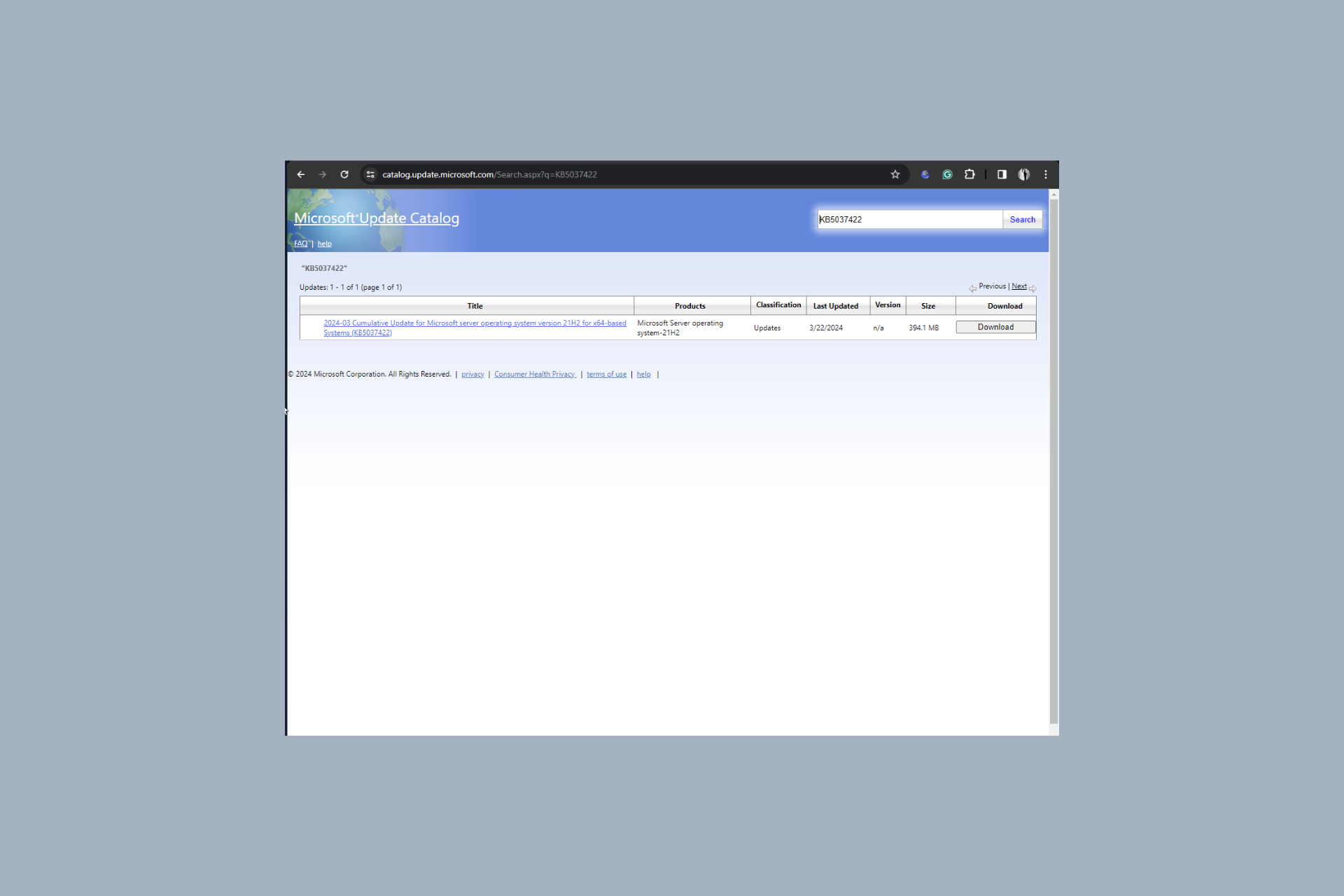
You can go to the Microsoft Update Catalog website, click the search bar, and type in the build number according to your Windows Server version; for Windows Server 2022, it is KB5037422. Click Download and follow the on-screen instructions to install the update.

We have a detailed guide for you if you want to learn how to download and install the update manually.

The announcement also mentioned that the issue affects only some versions of Windows Server and doesn’t affect Windows Home users, as domain controllers are not usually used in personal and home devices.

Have you installed the update on your Windows Server? If so, please share your experience with our readers in the comments section below.

Confused between desktops and laptops? Recent study suggests laptops are just as good

If we were to look at the desktop vs laptop market share, it’s evident that the demand for the former is falling while that for the latter is on the rise. And there are several reasons for that. A recent study also concludes that modern-day laptops perform just as well as desktops.

Performed by Pudget Systems, a company specializing in tailored computer systems, the study compares laptops and desktops in the same price bracket and with identical configurations.

Here’s a brief overview of the test results:

  • Graphic design: Desktops lead
  • Motion graphics: Desktops lead
  • Video editing: Similar performance
  • Gaming performance: Laptops lead by a significant margin
  • CPU rendering: Similar performance
  • GPU rendering: Desktops lead

In tests where desktops perform better, the margin is small. But when it comes to gaming, laptops are performing much better. This could also be attributed to improved gaming on Windows 11. Many have ditched their desktop setup for a gaming laptop!

Overall, laptops were able to deliver 80% of the performance of desktops!

Besides, as per the study, laptops delivered consistent performance, which wasn’t the case up until a few years ago. Aspects like cooling and hardware quality have witnessed a massive upgrade over the years.

The study goes on to highlight that if they are similarly priced, laptops won’t be as fast as desktops, and there are valid reasons for this.

Given the limitations of a mobile platform (limited cooling, power, etc.) and the fact that it includes the cost of traditional peripherals (display, keyboard, mouse, and battery backup), it is expected that a mobile workstation won’t be as fast as a desktop at a similar price point.

The desktop vs laptop debate has been raging for the last two decades, and neither side backs down!

For regular users, it all comes down to the following questions:

  • What is more important, mobility or performance?
  • Would slightly reduced performance at the same price range but with improved mobility work?
  • What tasks do you primarily intend to perform on the device?

Give these some thought, and you will identify which one of the two, desktop or laptop, to go for!

Remember, Pudget Systems used its own laptops for the test. The result could vary on other devices. Read the complete study to find out the exact configuration and how the devices performed under the different tests.

Which one would you pick, a desktop or a laptop? Share with our readers in the comments section.

The Exchange Active Sync issue on Outlook has been fixed

We recently reported about an issue in Exchange Active Sync that is affecting Outlook users. Well, we have good news because Microsoft managed to patch the Outlook desktop clients for Microsoft 365.

This problem affected you only if you updated the Outlook for Microsoft 365 desktop app to version 2401, Build 17231.20182.

Microsoft reported that it has fixed the issue by applying an update to Version 2402 Build 17328.20068.

How can I fix the Exchange Active Sync issue on Outlook?

According to Microsoft, all you need to do to fix this issue is to update your Outlook client.

To do that, just open the Outlook desktop client and go to File > Office Account > Update Options, and click on Update Now.

Before this update, Microsoft suggested to revert the build by using the Office M365 Click-to-Run installation to version 2312 (Build 17126.20132). If you did that, you will need to reenable the updates. For this, you will need to go to File > Office Account > Update Options and check Enable Updates.

While this is issue has been apparently fixed, there are people who are saying that the new Outlook doesn’t cut it although the software giant is pushing it to new users.

Did you try the new Outlook desktop app? Tell us about your experience with the tool in the comments section below.

Soon, there will be a ultimate dark mode option on Google Chrome, but you can turn it on now

If a bright white website theme at night irritates you, soon you will be able to see all the sites you visit in dark mode.

Google Chrome is working on a new experimental feature, Auto Dark Mode for Web Contents, which will apply dark mode support to every site on the web.

It will allow you to transform any website into a dark theme, regardless of whether the web developer has added the necessary elements.

The feature has been speculated to be under development for a few years, but until now, it was not available, and it is still under the chrome://flags/ under Experiments Features on all the compatible operating systems, including Windows, Linux, macOS and ChromeOS, Android, Fuchsia, Lacros

It is not available for iOS and iPadOS as of now, but we hope it appears on these platforms as well,.

To turn on the feature, you can type chrome://flags/ in the address bar of Google Chrome; you will get the list of Experimental features.

Search for Auto Dark Mode for Web Contents and select the Enabled option from the drop-down menu. For it to work, click the Relaunch button to launch Chrome again.

The feature is not working perfectly at the moment. I turned on the feature on my Google Chrome on my Windows 11 computer, and it darkened the theme of WordPress and even some other websites efficiently.

However, I was not able to turn it off, and I got stuck with the dark theme until I restarted my computer. Also, the feature didn’t work properly for Google Docs as well. This can be expected as it has not been released as a general feature and is stuck in the Chrome flags.

In case you want to use this experimental feature, you must read the warning presented first, which says:

By enabling these features, you could lose browser data or compromise your security or privacy. Enabled features apply to all users of this browser. If you are an enterprise admin you should not be using these flags in production.

So, if you don’t want the risk of losing the data or compromising your security, we advise you to wait until the feature is publicly available on Google Chrome.

Are you excited about the release of this feature? Share your thoughts in the comments section below.

What is the Best YouTube Video Editing App For PC [Free & Paid]

A good YouTube video requires excellent editing and a video editing app can take your video to the next level.

YouTube had a built-in editor that performed the basics of adding music, trimming and merging clips but since it was discontinued, you’ll have to rely on third-party apps.

Factors to consider when selecting a YouTube video editor

  • Compatibility – Your video footage can come from different sources so you want to ensure your video editing app supports a variety of formats without unnecessary conversions that could potentially downgrade the quality of the video.
  • Cost – A lot of apps offer a free and paid version, The paid version usually has a huge chunk of the functionalities so narrow down all you’ll need from a video editor and select one that meets your requirements. You can also consider getting an additional app for where the free app is lacking.
  • Performance – An app that easily renders videos and exports them in record time should be on your bucket list. This also depends on your hardware so check and ensure your device meets the system requirements before downloading an app that will only give you headaches.
  • Ease of use – Usability is a key factor. Granted, most apps will have a learning curve especially, for advanced features but you should be able to do basic editing without too much hassle.

Which app is best for YouTube video editing?

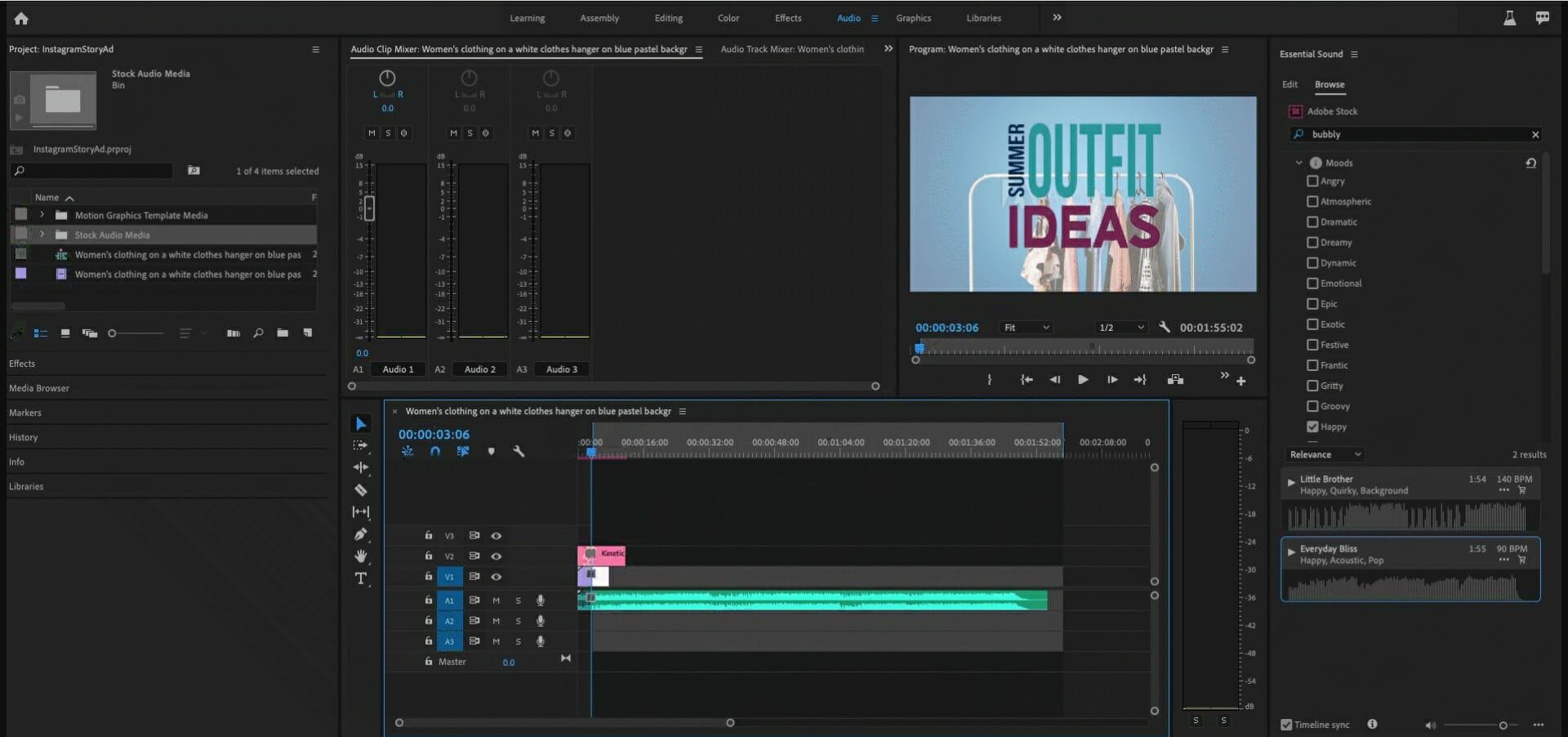
Adobe Premiere Pro – Best app for YouTube editing

Any editor can tell you Adobe Premiere Pro is an OG in the game so it should come as no surprise why it is high up in this list. Over the years, it has undergone transformations and it just keeps getting better with all the improvements.

First off, high-resolution support. Before your viewers notice all the transitions or excellent audio-matching for particular scenes, they see the resolution. If it’s a low-resolution video, chances of one watching to the end are very limited. Unless of course, they’re a die-hard subscriber or a family member.

Luckily, this is not something you will struggle with because with its 360 VR, 4K video support, you’ll get crisp clear videos.

Once you’re set with the resolution, you have an array of creative tools from video transitions, effects, color grading and white balance that ensure your video’s visual appeal is spectacular.

Audio is another factor that can make or break your video and Adobe Premiere Pro ensures you achieve high-quality audio from noise reduction to audio keyframing.

All these are availed on a very user-friendly interface that doesn’t require too much from you. Whether you’re a beginner or an advanced user, you’ll find it extremely easy to navigate and quickly edit your YouTube video.

And once you’re done, its integration with Adobe Creative Cloud makes your work easier especially if you need feedback before posting.

You’ll also benefit from the Adobe Media Encoder package that comes with a variety of presets optimized for output formats and green screen editing capabilities.

Some important reasons to consider Premiere Pro:

  • Easy multicam editing
  • Customizable interface
  • Fast load speeds
  • Seamless DVD and Blue-ray export 
  • Team collaboration

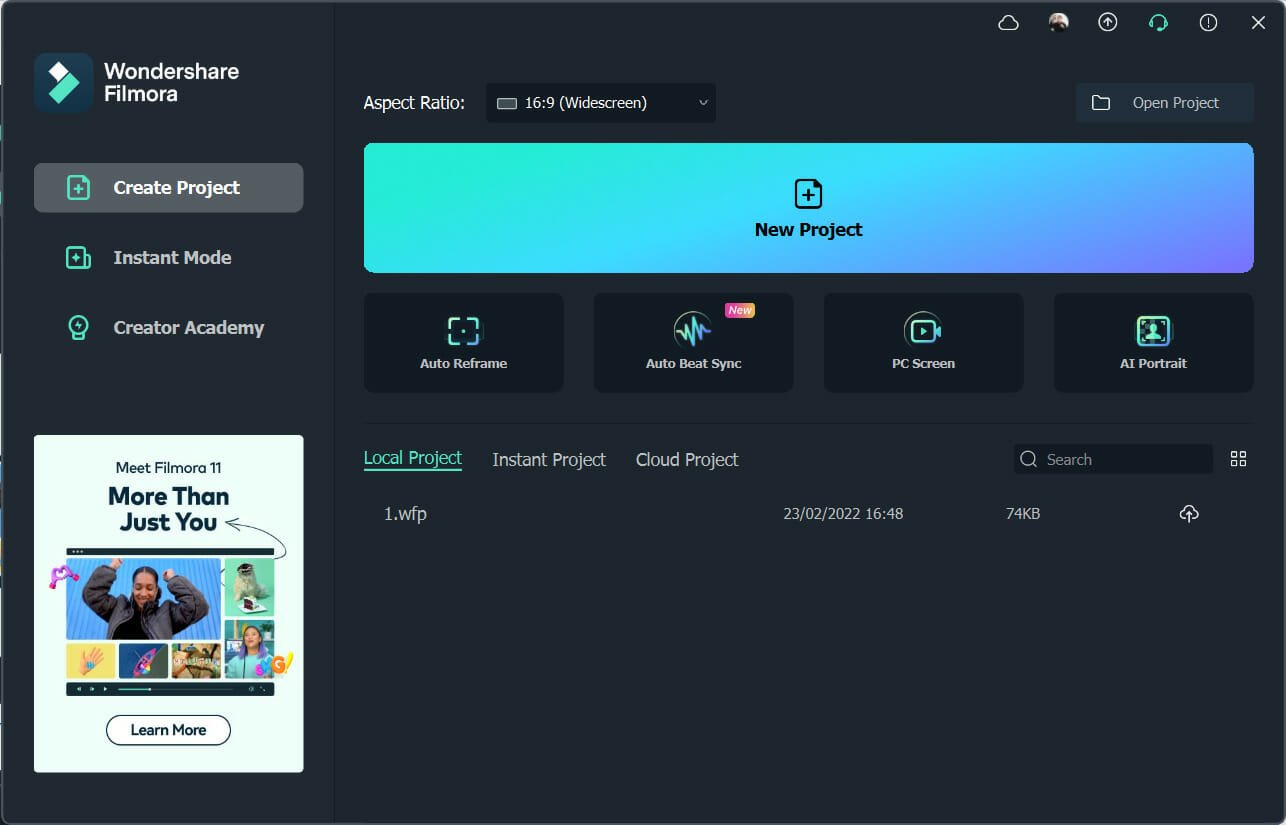
Wondershare Filmora – All-in-one video editing app

When looking for apps that are easy on your hardware, Filmora should be at the top of the list. It’s very lightweight so you don’t have to worry about storage.

Another thing you won’t have to worry about is the video format. Most video editing apps may not support various video formats.

For instance, you may record videos in the HEVC format but once you transfer it to your video editing app, it lacks support. Further, you can create your videos in high-quality resolution up to 4K.

Aside from the basic video editing tools, it has video presets and effects that will aid in creating a high-quality video. When it comes to adding music to your videos, copyrights prevent creators from using music so it may end up being a boring video.

Not with Filmora though. It has its own library of royalty-free songs saving you the time and money of searching for external songs that have probably not been whitelisted.

Screen recording is another feature often overlooked by most video editing apps but Filmora includes it. This makes it easier for you to create tutorials.

Filmora gets constant updates so you can be assured that new features are always being launched that will enhance your video creation capabilities. The app has a free and paid version.

Of course, the paid version offers more of these features but even in the free version, you get access to decent features that will still produce a professional-looking YouTube video. Not to pre-empt the tool but for a more comprehensive review, we have an article on that.

Let’s review some of its most important features:

  • Rich library of video special effects
  • Record a live cast of your PC screen
  • Compatible with Windows OS from 7 and later

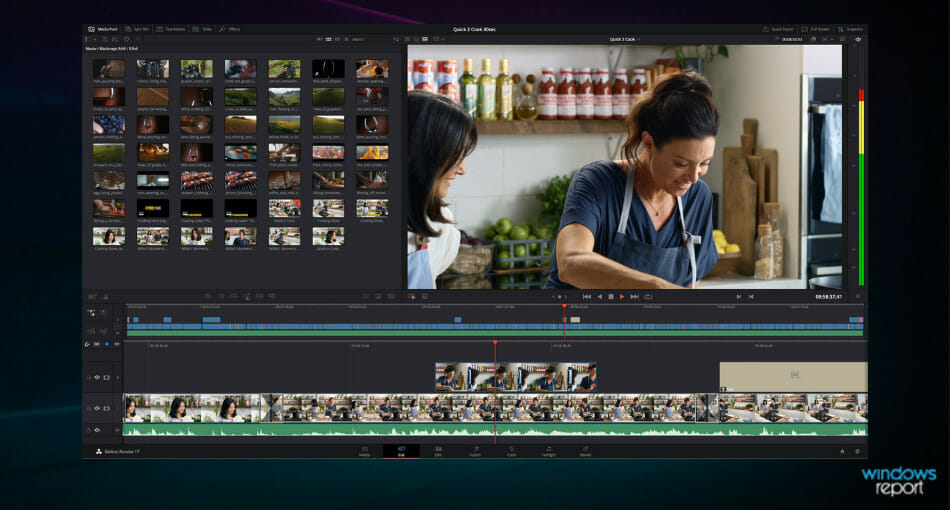
DaVinci Resolve – Fan-favorite tool

DaVinci Resolve is YouTuber’s favorite video editing app on PC. Even though there isn’t a lot of noise about it on the grapevine, it is a top contender.

After some digging, we can see why it would scoop the number one spot. It has lots of features for both beginners and advanced users. Online and offline editing is definitely a feature that is a winner.

Not to mention, the rich color correction tools, audio editing and visual effects that take your video from basic to high-quality. It’s the perfect app for creating a great video without trying too hard.

What’s better is that it offers post-production way after you’ve finished editing. This means that if you look back and find that the audio is off or not matching a particular scene in your video, you can correct that with audio mastering!

Another winning feature is its performance metrics. Most video editors cannot handle a video that requires too much RAM. For instance, if your video goes above 1GB, you might experience slowdowns with your hardware,

However, with DaVinci Resolve, this is not something you’ll have to worry about. Even with lower-end hardware.

And if you’re a creator who is collaborating and needs to share the video before posting, you don’t have to worry about the gruesome back-and-forth exporting and editing.

The free version offers a decent feature list so you may not need to upgrade to the premium version for high-quality and professional-looking videos.

Some important reasons to consider DaVinci Resolve:

  • Cross-platform compatibility
  • Supports high-resolution formats
  • Fast load speeds
  • Team collaboration

⇒ Get DaVinci Resolve 17

Vegas Movie Studio – Powerful video editing app

The user-friendly interface displayed on Vegas Movie Studio is one of the first things you’ll notice about the tool. There are no complex, multi-step menus to navigate before you get to what feature you’re looking for.

Next, you’ll be introduced to its powerful editing tools that make it a great video editor for your next YouTube video. You can edit on your own or use the templates for transitions and any visual effects you wish to add to your video.

Keep in mind that the tool supports multiple video formats so compatibility will be one less thing you have to worry about. It also supports 4K resolution so your upload will be a high-quality video.

After creating your video with diverse video effects, you can now move to the audio. Vegas Movie Studio’s audio editing capabilities range from audio mixing, audio effects and even noise reduction to capture the sounds you’d like to come out in your video.

And once you’re done, you can make a direct upload to YouTube! For all these features, you’ll have to part with a pretty penny. However, we’d say it’s worth it.

Consider its key features below:

  • Direct upload to YouTube
  • Huge library of video and audio effects
  • Video templates
  • Support for High DPI monitors
  • User-friendly interface

⇒ Get Vegas Movie Studio

HitFilm Express – Excellent effects library

HitFilm Express is one of the free video editors for YouTube that is worth your time. It’s almost like getting a paid version for free if its feature-rich list is anything to go by.

First off, the interface. Aside from being user-friendly, it is customizable. This means you can tweak things around and arrange it to your liking. This makes editing easy as you keep your frequently used tools close enough.

HitFilm Express supports a wide range of video formats and is compatible with most Windows OSes. Video editing is made easier with the over 150 effects. There are also 3D effects and animation effects all with 4K support.

In addition to these effects, HitFilm comes with an integrated HitFilm store. Here, you can purchase additional effects or addons that further enhance your video editing. This is a cheaper way of getting access to additional features than paying for a premium version of the app.

Some of the other notable features include:

  • Upload YouTube videos directly
  • Supports multiple video formats
  • Ability to copy effects from one clip to another
  • Has an audio stabilizer

⇒ Get HitFilm Express

OpenShot – Free open-source video editor

OpenShot isn’t really a well-known video editing app but it holds its own weight. If you’re looking for a simple editing app, this is the one. It has a user-friendly interface which is perfect for beginners who do not want to be bombarded with a myriad of features when you first launch the tool.

Although we’re discussing YouTube video editing apps for PCs, OpenShot is a cross-platform app. Your PC may fail you at times so it’s good to know you can use it anywhere.

The editing is basic from trimming, merging, resizing and a couple of effects but being an open-source app opens it up to versatility. A community of developers is always in the background working towards making improvements.

The drag-and-drop feature is a great addition as it facilitates easier editing right from your desktop. You also get access to over 400 transitions and unlimited tracks and layers for your video.

Audio mixing has been made easier as you can split it from your video and adjust it individually then merge it.

Some of the other notable features include:

  • Multi-format video support
  • Real-time preview for video transitions
  • Title templates
  • Background remover

⇒ Get OpenShot

VSDC Video Editor – Non-linear video editor

Most beginners require a simple and free video editing app and VSDC is the one for you if you’re in such a position. Further, since it supports a wide range of audio, image and video formats, you can easily merge videos with different formats without worrying about compatibility.

It is often referred to as the non-linear app because you don’t have to necessarily follow a predefined sequence to edit and merge clips. This makes editing flexible and you can experiment with various edits without altering original footage.

Video editing allows you to choose from a wide range of effects but you can also customize with color correction tools. Advanced users can also make use of the chroma keying (green screen), and replace that specific color.

Aside from visual effects, audio effects are in plenty. These allow you to normalize sound, adjust the volume or add some effects. All these can be done all the while knowing that it supports 4K. You get high-quality videos for upload with ease.

With all these features, you’d think your current hardware is insufficient to run this app. Well, VSDC is one of the few apps that doesn’t require much. The system requirements are fairly minimal and works even on outdated PCs.

For more advanced features, you can upgrade to the Pro version where you’ll get real-time voiceovers, audio waveform, video masking and more stability.

Some of the other notable features include:

  • Multi-format video support
  • Direct YouTube upload support
  • Supports video capture and screen recording
  • File converter

⇒ Get VSDC Video Editor

Capcut – Intuitive video editing tool

You’ve probably seen CapCut featured on other platforms like TikTok but you can also use the sem tool as a YouTube video editing app on your PC.

CapCut has an excellent catalogue of video editing tools. Aside from the basics, you also get filters and transitions for your videos.

An eye-catching feature is its powerful search tool. While editing your video, you may be looking for a particular scene and if it’s too long, it could take some time to locate it. With CapCut, you can search based on dialogue, people and objects.

What’s more, is that you can edit your video from any device. Once you’re signed in, your progress is saved and next time you open it on a different device, you can pick up from where you left off.

Some of the other notable features include:

  • Automatic caption generator
  • Extensive built-in music library
  • AI-generated video effects

⇒ Get CapCut

This here is our list of the top YouTube video editing apps for PC but remember that preferences are subjective. What may be number one on our list may be a number five in yours.

It all boils down to your specific editing needs, cost and ease of use. Whichever tool suits your requirements is what you should go for. If cost is a limitation, you can always go for the free version and use additional software like YouTube volume boosters for sound enhancement.

Once you’ve successfully created and edited the perfect YouTube video, you need to get it to the right audience. YouTube SEO software will help you rake in those numbers and grow your channel.

Still, on YouTube, should you feel so inclined to create YouTube remixes, we have lined up some of the best video apps for YouTube poops to help you achieve this. You can also make Shorts to engage your audience.

That’s all we had for this article but we’d like to hear from you. Is there a YouTube video editing app for your PC you feel should be on this list? What makes it a great app in your opinion? Let us know in the comment section below.

Pure Storage is capable of making 1200 TB SSDs but you can’t use them yet

We all know that SSDs are faster and more reliable than HDDs, but they have significant capacity limitations. However, Pure Storage, a well-known storage devices manufacturer, announced last year that by 2026, they will release 300 TB drives.

Now, according to TechRadar, they are coming with even more ambition plans: 1200 TB SSDs. However, don’t check your bank account because there are a few issues they must overcome first.

Why can’t we have 1200 TB SSDs right now?

In an interview for Blocks and Files, a Pure Storage official explained that an off-the-shelf SSD’s capacity is directly linked to the amount of DRAM from a machine. So, for every 1 TB of NAND storage, you need 1 GB of DRAM.

So 30 terabyte drive, 30 gigabytes of DRAM, 75 terabyte drives, 75 gigabytes of DRAM, so on and so forth. You can imagine when you start to look at something like a 75 terabyte drive with 75 gigs of DRAM, that’s roughly as much DRAM inside an individual drive as there is in servers today.

Shawn Rosemarin, Pure Storage VP for R&D

So, basically, the problem is that the DRAM is absolutely necessary for the SSD’s firmware controller because it holds all the Flash Translation Layer (FTL) mappings and metadata. It’s like the mastermind who knows where every bit of data is stored and with what information.

Another problem is that DRAM cost is higher than NAND storage and overall, this drives the price of such a device a lot higher.

However, Pure Storage also has a solution for this conundrum and that is with their Direct Flash Modules:

We need to essentially move that capability that today is being delivered via DRAM directly into software, which is what we’ve done at Pure with Direct Flash Modules. We don’t have that reliance on DRAM.

Shawn Rosemarin

The Direct Flash Module (DFM) is all about flash chips that use software that runs on the controller to ensure the FTL working properly. And with this solution, they can scale up to virtually any amount of NAND storage.

We will see if this works next year, when Pure Storage promised to deliver their first 150 TB SSDs. In the meantime, we will steel need to rely on cloud storage.

What do you think about having so much storage on your PC? Let’s talk about that in the comments section below.

Attackers manipulate Xbox’s automatic banning system through Minecraft, could get your account suspended

Back in August’23, there were reports of a tool letting attackers fool Microsoft into banning any Xbox account. At that point, Microsoft had categorically denied the possibility. Now, as it turns out, similar reports are emerging, but this time, linked to Minecraft.

Experts claim that there is reportedly a bug in Minecraft which lets attackers use a dedicated tool to get accounts suspended. All they have to do is input the user’s Gamertag to automatically send out slurs and then have the tool mass report the account to Microsoft.

On receiving so many reports, Xbox’s automatic banning system comes into action and suspends the account.

Nike (GhillieYT) was reportedly one of the first popular users to get banned in the latest series of attacks. His account had a total of 21 strikes, all through the manipulation by an attacker.

The good news is that Nick’s Xbox ban has been lifted after 3 days. In a post on X (formerly Twitter), he confirmed the same and shared a YouTube video.

But Nick’s wasn’t the only instance of an erroneous account ban. Several others had to face the same problem, all due to exploits present in Xbox and Minecraft.

Nick’s issue was reported to Sarah Bonds, President of Xbox, in a reply to one of her posts on X.

Maybe it had something to do with the suspension being revoked, or maybe not. The point is, it shouldn’t come down to this. If an exploit exists, Microsoft should acknowledge the issue and work on a fix. Players shouldn’t be forced to reach out to the support team over false strikes.

An improved and user-oriented content moderation system is the need of the hour. Microsoft could maybe rely on artificial intelligence to verify the report before initiating action. As we learned today, bombardment of reports can’t be a good enough reason to suspend an account!

If you want to find out how attackers exploit the existing vulnerabilities in Minecraft on Xbox, check the YouTube video by Gtamen, a YouTuber & Twitch Streamer. He explains the entire process in detail!

While the Xbox account ban through Minecraft exploit can cause problems, some can also prove beneficial. For instance, you can hack Xbox and run old games, all using a memory card!

What’s your take on the latest vulnerability being exploited by attackers? Share with our readers in the comments section.

Is Copilot chatting with Gemini to provide answers?

When you input a prompt into Copilot AI, the bot looks over on Bing search and finds the most relevant answers. However, lately, as spotted by a Reddit user, Copilot prompted to Google’s Gemini as a resource of information.

The problem is that the gemini.google.com link from the references doesn’t bring you to the actual information. The question is if Copilot is actually asking Gemini the same prompt and picks up relevant information from the other bot.

So, is Copilot that smart to chat with Gemini and get some scoops that it can’t get from Bing search? If so, that would be only in our best interest, of course, if Gemini’s results would be accurate.

However, a Reddit commenter had one of the most plausible explanation for this situation:

Copilot only searched Bing. So somehow a Gemini link is showing up in the Bing results and Copilot is clicking it.

Reddit thread

So, it could be that simple. Someone shared an answer from Gemini, which showed up on Bing, and Copilot picked it up.

Another explanation would be that if a prompt is right on spot with a subject covered by Gemini, Bing brings it up in the search results and Copilot includes the link although it’s not directly relevant to the prompt it received.

Right now, we can’t exclude that Copilot may be using Gemini’s resources directly although that is highly unlikely. Read more about this on MSPowerUser.

What do you think about LLM’s collaboration in the future? Let’s talk about this in the comments section below.

Cross Device Experience Host: What It Is & Use

The new Cross Device Experience Host from Microsoft allows a more feature-rich connection with an Android phone or tablet. For instance, it facilitates using your phone as a webcam on the PC.

Today, we’ll walk you through the main uses of this feature, show you how to enable it and touch on how to fix common issues.

Sounds good? Let’s get started.

Cross-Device Experience: Setup & Troubleshooting

The Cross-Device Experience Host comes with some great features to link up your Windows PC and Android devices, such as:

  • using your Android phone as a webcam for video calls and streaming
  • transfer files to and from your PC without messing with cables
  • get your phone notifications right on your Windows 11 PC
  • open your mobile apps on your PC for easier multitasking
  • connect multiple Android devices for a smooth experience

It’s typically installed once you update to Windows 11, as it comes bundled with the system. However, if it doesn’t install automatically, you can enable it through the settings.

How to enable the Cross-Device Experience Host

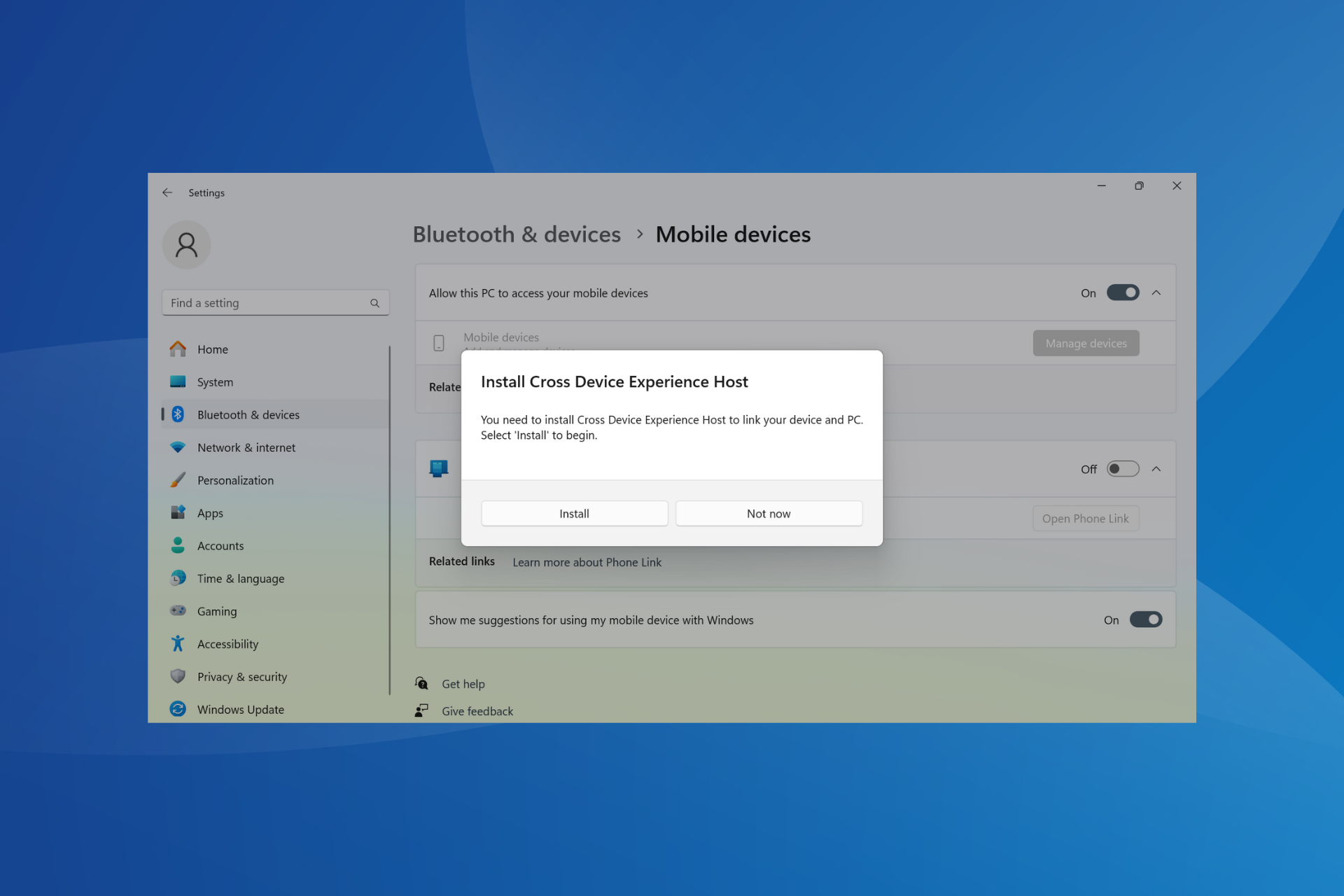
To get Cross Device Experience Host, press Windows + I to open Settings > go to Bluetooth & devices from the navigation pane > select Mobile devices > enable the toggle for Allow this PC to access your mobile devices > click on Install > wait for the process to complete.

Installing Cross Device Experience Host

How to fix common installation errors

Run SFC and DISM:

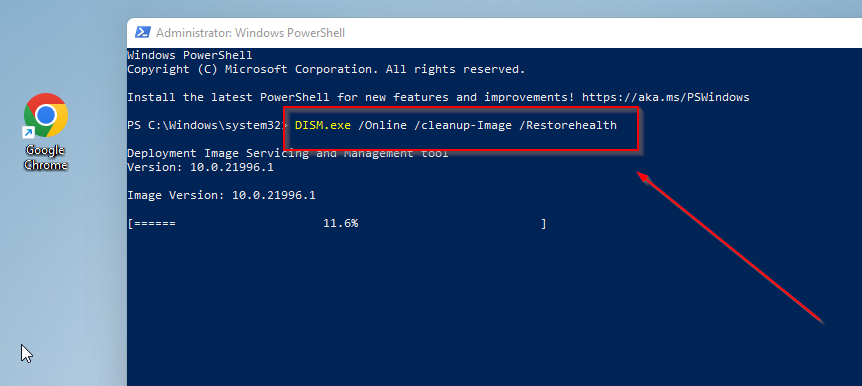
  1. Open Command Prompt as an admin (right-click the Start button and choose Windows Terminal (Admin)).
  2. Type: DISM /Online /Cleanup-Image /RestoreHealth and press enter.dsim
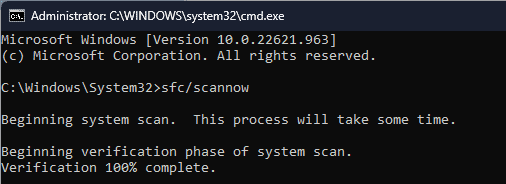
  3. After that, run sfc/scannow.SFCSCANNOW CMD
  4. Restart your PC when done.

Use the Windows Troubleshooter:

  1. Open Settings > System > Troubleshoot.
  2. Select Other troubleshooters.
  3. Find Windows Store Apps and click Run to check for issues.windows store apps troubleshooter

Installation issues with the upgraded version of Phone Link, Cross Device Experience Host, are the most prevalent. A few users reported that it wouldn’t progress past the Pending stage.

I am on an MSI GE68 HX 13V. I am running Windows 11 Pro. If you navigate to the settings app, then to bluetooth & devices, then to mobile devices, you should see a new option available directly above the option to turn phone link on. I can turn the option on. When I do it tells me it has to install cross device experience host but then nothing happens and it simply says pending under the on switch.

Cross Device Experience Host’s installation stuck at Pending

A few who were able to initially install the feature got an update error later on when managing devices. The message read, Cross Device Experience Host needs an update, but we’re unable to apply the update right now.

Also, Cross Device Experience Host offers support only for Android devices. So, iOS users will need to go with other ways to use the iPhone as a webcam on the PC.

Are you able to install Cross Device Experience Host, or facing issues? Share with us in the comments section.

A tiny NFC key is all it takes to log into the new Microsoft Surface Pro 10

Microsoft released Surface Pro 10 and Laptop 6 as high performance business devices. Many have missed a smart feature of Surface Pro 10 which is the NFC connectivity, but not Yubico, a manufacturer specialized in security keys for business devices.

The Redmond giant helped Yubico to implement all the Microsoft login business accounts into the key. This includes Entra ID or Microsoft 365 accounts, Windows 11, Active Directory Certificate Services (ADCS), and other applications for enterprises.

How does the Yubico NFC key work on Surface Pro 10?

Microsoft Surface 10 has the NFC sensor embedded in the bezel of the screen on the upper-left corner. So, all you need to do to log in is to bring the key to that point, which is indicated on the screen.

In the Yubico press release, Microsoft emphasizes the need for security measures to prevent cyberattacks:

Our enterprise customers rely on Surface for industry leading security and seamless user experiences. The ability to quickly and securely sign-in to the device and authenticate with NFC security keys is a critical experience that we’ve added to Surface Pro 10. YubiKeys take full advantage of the integrated NFC reader and delivers a huge win on both fronts. We are excited to work with Yubico to enable the use of YubiKeys, providing users with secure and innovative authentication options to protect against the increasing threat and volume of identity-based cyber attacks. 

Nancie Gaskill, General Manager at Microsoft

For those of you who don’t know, NFC or Near Field Communication is a short-distance communication technology similar to Bluetooth that can be used to transfer small amounts of data, and it is ideal for applications like these.

The NFC key is already on the market, it’s called YubiKey 5C NFC and you can buy it straight from the manufacturer. According to Windows Central, the gadget is $55 a piece, but you can perhaps negotiate an enterprise deal for bulk orders.

YubiKey 5C also has a USB-C connector, not only the NFC sensor so you can also plug it straight into the device’s port for the same effect.

Would you buy the new YubiKey for Surface Pro 10? Tell us all about that in the comments section below.

Microsoft to offer Windows 11 24H2 update to OEMs to test it on new & existing PCs soon

With all the Windows enthusiasts waiting for the Windows 11 24H2 update to be released to the public, Microsoft is about the offer the update to PC makers (OEMs), which will allow them to test the new version on their upcoming and current devices.

According to Zac Bowden, senior editor at Windows Central, posted on X (formerly known as Twitter) that the RTM (Release to Manufacturers) would happen sometime in April.

If you are a Windows Insider, you must know that the impending release is in the final stages, as Microsoft has fixed all the bugs and errors.

Windows 11 24H2, code name Germanium, has been in the talks since the first news broke about the version, as it is supposedly bringing many changes and enhancements to Windows 11.

The Windows 11 24H2 features are expected to be rolled out in two phases; the first base update will come with the Snapdragon X Elite PCs in June 2024.

Next, the update will come to the existing PCs in September or October 2024. Around the same time, we can expect another feature update, probably a Moment update, to enable the new AI features on all supported devices, including the new Snapdragon X Elite.

Changes and improvements expected

  • AI-powered Voice clarity for all machines—The feature uses low-complexity AI models to minimize background noise, thereby helping you sound better on video calls.
  • New Color Management options in the Settings app.
  • Sudo for Windows.
  • Microsoft Teams client, which is based on Microsoft Edge WebView and React.
  • Energy saver options in the Settings app.
  • Labels for context menu in Windows File Explorer.
  • Option to create archives.

You could also get an AI explorer, which will help you search your computer for activities to track everything you do on your PC much easier.

With RTM weeks away from release, many independent developers have concerns about the slow speed at which stable preview builds of Windows 11 24H2 are released.

To that, Brandon LeBlanc, Senior Program Manager on the Windows Insider Program Team at Microsoft, responded: 

I wouldn’t be too concerned nor should you get too hooked into what is “RTM’ing” and when.

In response to this statement, Albacore, an independent developer, posted:

This kind of mentality is exactly how we end up with several hundreds of MBs big ZDPs and genuinely awful and long first run experiences on brand new low and mid range PCs. Please don’t enable it.

Brandon LeBlanc responded:

I am not personally trying to enable anything but at the same time, being concerned on a rumored RTM date isn’t really something y’all should be worried about. We’ve got a lot of smart engineers working on builds over here and fixing bugs is all I am saying.

To which Albacore said:

“We’ll fix it in post” is annoying for pretty much anyone using something weaker than an i5 nowadays and there’s very little thought given to this category of consumers. OS upgrades fare even worse, making the client do LCU integration instead of shipping an updated base image.

These tweets ahead of the RTM release are concerning, and they make us wonder if people with lower configuration or even medium configuration devices would be better off with this update until its credibility is well-established.

We understand that Microsoft will work on the bugs and issues that will occur after the public release, as it always has. However, it makes us wonder if the problems could be fixed in the preview builds if they take considerable time before releasing to the public, keeping us, the loyal Windows users, safe ahead of time.

What are your thoughts on the matter? Share your opinions with our readers in the comments section below.

Good news for Windows users, Microsoft Copilot to be available on more devices

Microsoft’s native chatbot, Copilot, has largely been a success and is witnessing increased integration into more and more products, including Microsoft Office and Microsoft Advertising.

Now, to reach more users, Microsoft is rolling out Copilot on additional eligible Windows 10 and Windows 11 devices.

The Microsoft’s official announcement reads,

Starting today, Copilot in Windows (in preview)* begins to roll out to more Windows 11 and Windows 10 devices. In addition, starting this week, you can access up to 10 Copilot requests before signing in with a Microsoft account or Microsoft Entra ID

So, in addition to more devices getting Copilot, sign-in requirements have also been relaxed. You now enjoy up to 10 requests!

This is in line with Microsoft’s plan for a gradual rollout to ensure seamless delivery and minimal hassles at the user’s end!

As per Microsoft, Copilot will be enabled by default on Windows 11, 23H2, but disabled on Windows 11, 22H2.

The latest Microsoft Copilot rollout began on 21 Mar’24 for Windows 11. As for Windows 10, it’s set to start by March end for PCs that are not managed by an organization. The Copilot rollout will continue until May for both iterations!

As soon as your device receives Microsoft’s chatbot, a new Copilot (preview) entry will appear under the Taskbar settings.

Copilot (preview)

Micorosft is confident of the long-term success of Copilot, primarily because of its extensive integration. Soon, users will rely on Copilot in all Microsoft products for every task, whether trivial or intricate!

However, some are still disappointed with Copilot because it doesn’t generate accurate responses or is too slow. So, Microsoft will have to work on that for Copilot to achieve mass adoption.

What’s your review of Microsoft Copilot? Share with our readers in the comments section.

With upcoming GUI support, managing distros in WSL will be a breeze

WSL has been a part of Windows for years, and it allows users to use Linux inside Windows without having to use dual-boot or virtual machine software.

Microsoft is determined to improve on this feature by allowing users to manage easier installed distributions.

Microsoft is working on an easier way to manage Linux distributions

WSL is incredibly useful for developers, but currently, it only works with a command line interface. This can make managing and installing different distributions more complicated for first-time users.

According to Windows Latest, Microsoft plans to change that as listed on their WSL GitHub page. The company has a plan to integrate WSL management right into the Dev Home app.

Microsoft has also shared its concept design that shows the Dev Home app with a special tab for WSL. In there, users would be able to launch an installed distro with ease, stop it, or remove it entirely.

It will also be able to add distros from a list, or local file, mount Linux disk, view hardware utilization for each distro, and more.

Overall, this sounds like an exciting feature that will make setting up distros in WSL faster and easier than ever before. Speaking of which, WSL has helped Linux gain a significant market share, so why not give it a try?

Microsoft also had a Windows Subsystem for Android, but the WSA was retired a few weeks ago.

Never let your Xbox reward points expire: Enable Auto Redeem to save extra money

Xbox reward points are an innovative idea from Microsoft that keeps the community engaged. Many use them for the Game Pass membership or to get $5-10 gift cards, amongst other things.

However, reward points don’t last forever. They will expire after 18 months of inactivity, as per Microsoft’s official website. If redeemed for a voucher, say a $10 Gift Card, it will expire within 90 days, unless used. So, you should keep a tab of rewards points or redeemed vouchers.

Can’t do that? There’s an easier option. Enable Auto Redeem on Xbox for the preferred reward!

This way, any accumulated reward points over the month are automatically redeemed for the item of your choice, given you have sufficient points. If not, the points won’t be auto-redeemed!

The number of points for each reward varies. More so, it often varies from region to region. Also, there could be a slight fluctuation in the value of each reward, as reported by users in a Reddit post.

Yeah, a quick check of the spreadsheet I made a few months ago to compare the values of various redemption methods shows 8,750.
Maybe this was changed to 9,500 earlier this week when the other GC point costs went up, but now it’s back down to the previous value?

It went up recently. I canceled my auto redeem because it did. Now I guess it’s back down.

With the Xbox Rewards app being discontinued, you will now have to use the Rewards Hub for Auto Redeem.

Not everyone is a fan of Auto Redeem on Xbox

90-day expiry and frequent issues are two aspects of Auto Redeem on Xbox that upset users. For instance, often, at the start of the month, the reward is not auto-redeemed even when you have the required point count.

Others, too, complained about Auto Redeem not working on one or more occasions in another Reddit thread.

I recently set up auto-redeem for a 1 month subscription for Game Pass Ultimate but when it went to redeem it this morning, it said that it is either out of stock or no longer offered.

I’ve had auto redeem for a while. I got a message saying “one of my auto redeems was out of stock” it did not say no longer offered, and it also said check back later.

A few claim, Auto Redeem on Xbox never worked for them.

Auto redeem has never worked for me. I tried it for multiple months and sent in tickets as well. Neither helped..

Some Xbox users reported losing money due to Auto Redeem as the redeemed gift card disappeared after expiry.

Biggest issue with auto redeem is the gift card disappears after 90 days if unspent. Lost about 70 dollars, never got it back.
Not sure if this is different now.

Enabling Auto Redeem on Xbox is a matter of preference. It comes with a set of pros and cons and is not all bad.

One of the key benefits of Auto Redeem is the added discount. For instance, a normal Xbox Game Pass purchase costs 12,000 reward points, while with Auto Redeem, it comes down to 10,500.

Though you won’t be able to save too many gift cards for expensive rewards, it was never the idea. Microsoft intends you to use the purchased vouchers right away!

Share your experience with Auto Redeem on Xbox in the comments section.

Microsoft finally pays attention to Google Chrome font issues on Windows 10 & 11

If you see blurry or thin text on Google Chrome, it is not your eyes to blame. It is a known issue on Windows 11 and 10, and Microsoft is working to fix it.

Although the issue doesn’t seem to appear for all the display styles and only with Google Chrome, we tend to think that the browser company is responsible for that. However, in reality, Chrome is not completely to blame.

Let us understand the issue and why it happens. Windows inbuilt apps use various contrast and gamma values for text rendering using DirectWrite, a native text stack API. Google also uses the same, but the implementation is restricted to specific tasks such as detecting fonts.

Also, Google depends on the Skia graphics library, which means it takes care of its text shaping and rendering on all platforms. However, this leads to notable differences in how text appears on Windows compared to other apps.

This bug was reported by Windows Latest. It is not the first time that Microsoft has improved the look and feel of the browser in its operating system. Earlier, the Redmond tech giant worked on enhancing the Chrome experience on touch PCs.

According to a document posted on Chromestatus, Windows ClearType Text Tuner will soon be integrated into Chrome. In 2021, ClearType Tuner was added to Edge as well.

The overview on Chromestatus mentioned:

This feature tracks the work to support picking the contrast and gamma values from the Windows ClearType Text Tuner setting and applying them to Skia text rendering. This ensures that users’ text rendering preferences are respected on Windows devices.

Historically, Chromium/Skia has used compile-time constants for text contrast and gamma, with different values hard-coded per platform. This means that these values are not adjustable by the end user. Windows has a ClearType Text Tuner that guides the user through various contrast and gamma values for text rendering. Native applications generally automatically pick up these values if they use a DirectWrite based text stack. Chromium uses Skia for text rendering, and thus was not picking up these user adjustments on Windows.

To fix this ongoing problem, Microsoft will make changes to the Chromium code base to pick up the contrast and gamma values from the Windows ClearType Text Tuner setting and apply them to Skia text rendering.

Microsoft spokesperson said:

Full ClearType support is not possible in Chrome, due to it using Skia for text rendering. However, the latest Canary will apply values for the ClearType Tuner on Windows and map them to Skia text rendering, which is as close to ClearType support as is currently possible.

These changes can now be seen in Chrome Canary for Windows 10/11, and their general availability can be expected with Chrome version 124.

Did you also experience the Chrome blurry effect on Windows? If so, share your experience in the comments section below.

Some Copilot users are disappointed by the model and here’s why

Copilot users are disappointed because the AI doesn’t work as they thought. Some Redditors claim that the assistant can’t handle basic requests, while others complain about its performance. Also, after reading through the comments, it’s clear that some of us need to learn how to use the tool. After all, it requires a few specific things, such as Windows 11 and the right applications.

Additionally, you might get disappointed by Copilot if you don’t know how to write prompts. The AI assistants can’t do things they don’t understand, and neither can we. So, simple prompts are not their favorite. But, you have a chance to get the answer you’d like.

What is Copilot bad at?

Copilot could improve at some things, such as understanding simple tasks and using structured data. On top of that, if you use the free version, you have a limited number of questions per topic. So, it would be best if you learned how to write prompts to get what you’re searching for. Also, according to Arxiv, most of the code Copilot generates is vulnerable 40% of the time, and it can be a bit disappointing. However, you can use the GitHub Copilot for the code scanning autofix feature.

By the way, Copilot might also disappoint you if you use an older Windows version or another OS. After all, Windows 11 is the one that supports it best. Also, try using the new Outlook if you don’t do it already.

How do I create an AI prompt?

You need to follow a few rules to create good AI prompts. The first one is to be very specific about what you want. So, to do this, you can use examples, do’s and don’ts, and details. The second rule is to be careful about the position of your words. Don’t make writing mistakes, and use punctuation. Also, try to be creative and ask the AI for prompt examples. If you learn to write prompts, you can increase your efficiency, and Copilot won’t be that disappointing anymore.

For example:

  • Instead of telling Copilot: Organize the text and rearrange it in a different notebook.. Try to break this prompt into three others. Make each of them an action and specify what you need. So, you can ask Copilot to:
    • Organize the following text:
    • Rearrange it to be similar to:
    • Put it into a different notebook
  • If you need Copilot to act differently towards you or to examine your text, you can tell the AI to act as if…. This is a very useful prompt when you need explanations of a subject.
    • Act as if I am a toddler and explain how the large language machines work.

You can also use the guide from Harvard University.

Ultimately, there are some negative aspects of Copilot, but they aren’t strong enough to make it disappointing. The AI assistant might be better than other models, but slowly, with all of the new features, it will get there. So, before denigrating it, others should learn how to use it efficiently.

What are your thoughts? Are you disappointed by Copilot? Let us know in the comments.

China bans using Intel and AMD chips in government PCs, sidelines Windows OS too

The new guidelines introduced by China require replacing foreign technology, which will ban the use of Intel and AMD chips in its government computers. This move aims to promote Chinese enterprises involved in hardware and software solutions, the Financial Times reported on Sunday.

The guidelines also require sidelining the Windows operating system and other foreign database software to support domestic options. It is safe to assume that the move is due to ongoing tension between the US and China. 

Chinese officials have reportedly started following the new guidelines introduced by the Finance Ministry and the Ministry of Industry and Information Technology (MIIT) on December 26, 2023. The same day, the China Information Technology Security Evaluation Center (CITSEC) unveiled the first list of safe and reliable processors and operations systems from Chinese manufacturers.

Processors from popular entities like Huawei and Tianjin Phytium Information Technology are on the list. It is interesting because those entities are already on the export blacklist released by the US. 

It is worth noting that the US has imposed various sanctions on several Chinese companies due to national security concerns. The government has also passed many policies that lure companies to manufacture new technologies within its boundaries. It has also halted exports of advanced chips to China.  

China’s Finance Ministry, the MIIT, and CNITSEC reportedly didn’t comment when asked about the ban on Intel and AMD chips.

What do you think about the ongoing tension between China and the US? Share your thoughts in the comments below.

Mozilla releases security patches to fix critical zero-day bugs in Firefox

Mozilla recently released security patches to fix two critical zero-day vulnerabilities in Firefox 124.0.1 and one in Firefox ESR 115.9.1. It became the first vendor to release patches for critical bugs discovered during the Pwn2Own Vancouver 2024.

Mozilla fixes two security vulnerabilities in Firefox 124.0.1 and one in Firefox ESR 115.9.1

A recent tweet by Zero Day Initiatives confirmed that Manfred Paul won $10000 and 10 Master of Pwn points at the Pwn2Own 2024 as he exploited the Out-of-bounds (OOB) Write flaw for the Remote Code Execution (RCE) and escaped Firefox’s sandbox using an exposed dangerous function.

It is worth noting that Paul topped the leaderboard with 25 Master of Pwn points at the hacking competition.

Talking about the first security vulnerability (CVE-2024-29943), Mozilla explained:

An attacker was able to perform an out-of-bounds read or write on a JavaScript object by fooling range-based bounds check elimination.

Additionally, Mozilla also talked about the second vulnerability (CVE-2024-29944) that affected Firefox on desktop devices:

An attacker was able to inject an event handler into a privileged object that would allow arbitrary JavaScript execution in the parent process. Note: This vulnerability affects Desktop Firefox only, it does not affect mobile versions of Firefox.

Mozilla acted quickly on the identified vulnerabilities and rolled out security patches for Firefox a day later. Moreover, a security patch is also released in Firefox ESR 115.9.1 to block RCE attacks targeting Firefox on desktop devices.

A fully native Xbox handheld console is in the works, industry insider claims

Recently, a new claim revealed that a fully native Xbox handheld console is in the works. After the success of devices like Steam Deck and Nintendo Switch, the possibility of similar devices from Microsoft has always been there.

Xbox is reportedly working on a new fully native handheld console

Industry insider Jez Corden hinted that the gaming wing of Microsoft is working on a fully native handheld console. He shared the news about the rumored hardware on the latest episode of the Xbox Two podcast. 

Answering a question from a Superchat, the host, Rand al Thor 19, said he has heard a lot of talk about the handheld console recently. He further inquired Corden about the registration of a new Xbox DevKit (XDK) console in South Korea, as seen in the tweet below.

Speaking more on the same, Corden said:

I know that they’ve got handheld prototypes right now and these are new handheld prototypes. 

Corden pointed out in the podcast that prototypes don’t necessarily mean they will make it to the market. He further stressed that it would be insane of Microsoft not to pursue this. Later, he firmly mentioned that the rumored prototypes are not a cloud handheld, but a fully native Xbox handheld. 

It is worth mentioning that previous rumors suggested the next-gen Xbox console could resemble the design of a Nintendo Switch. Moreover, we don’t know the exact launch or announcement date of the rumored native Xbox handheld console for now.

Xbox has been hinting the new hardware quite often

Phil Spencer, CEO of Microsoft Gaming and Xbox, said the new console will be unique and powerful. Talking on the Official Xbox Podcast last month, the Xbox president, Sarah Bond, said Xbox will launch a new console this holiday season.

So, it is safe to assume that the rumored fully native Xbox handheld console could be the actual thing. 

What are your thoughts about the rumored Xbox handheld console? Please share your thoughts with our readers in the comments below. 

Chrome boosts Clipboard Privacy in Incognito mode on Mac

Chrome offers incognito mode, which allows you to browse websites without saving your browsing history to the browser. Google is now working to improve how the clipboard (also known as the pasteboard) behaves in Incognito mode for Mac users.

In normal browsing mode, the clipboard on macOS functions as expected. When you copy text, images, or other data, it’s stored in the clipboard and readily available for pasting elsewhere.

The Chrome Incognito mode, designed for private browsing, protects your anonymity to a certain extent by not storing browsing history, cookies, or other data.

However, macOS doesn’t have a dedicated type for pasteboard history. This means that clipboard data copied while browsing in Chrome on macOS can be shared across different devices, even in Incognito mode.

Google prevents Clipboard sharing from Chrome Incognito with other devices on Mac

To address this issue, Google is adding a privacy mode for the clipboard on Mac for Chrome. This feature marks the clipboard as current host only in Incognito mode, preventing pasteboard data from being shared across devices.

By restricting clipboard data to the current host (the website or application you’re interacting with), Chrome ensures that sensitive information doesn’t leak unintentionally to other devices or services. This is particularly important when dealing with confidential data or passwords.

Google has noted the improvement for Chrome Incognito Clipboard on MacOS as below.

[Clipboard] Add privacy mode on Mac. macOS doesn’t have a special type for pasteboard history, but in incognito mode, pasteboard can be marked as current host only so the data doesn’t get shared across different devices.

This change has been implemented and integrated into Chromium. Mac users running Chrome will benefit from this improvement soon. The feature will be first available in the Canary channel, followed by dev, beta, and finally, the public release.

Why this matters

Most users utilize incognito mode in Chrome to prevent their browsing history from being seen by others with whom they share their devices. This change goes a step further by stopping the leakage of copied data in the clipboard to other devices or services while in Incognito mode.

Microsoft deprecates password payload in MPR notifications to enhance security

On Friday, Microsoft added password payloads in MPR notifications to its list of deprecated features. It comes after the tech giant’s recent decision to bid farewell to certificates using RSA keys shorter than 2048 bits. 

Password payload in MPR notifications to deprecate starting in Windows 11 24H2

Microsoft has yet to mention the exact deprecation date, but we assume it will be later this year. Although the news of a deprecated feature may sound bad, this decision is good, as far as users are concerned.

Deprecating NPLogonNotify and NPPasswordChangeNotify APIs will enhance the security further. Talking of the same, the company says those APIs allow the caller to extract users’ passwords which poses a big threat of exposing passwords to malicious users. 

In addition, Microsoft will still allow including password payload by setting the EnableMPRNotification policy to enabled. 

Adding the feature to the deprecated list, Microsoft says: 

Starting in Windows 11, version 24H2, the inclusion of password payload in MPR notifications is set to disabled by default through group policy in NPLogonNotify and NPPasswordChangeNotify APIs. The APIs may be removed in a future release. The primary reason for disabling this feature is to enhance security. When enabled, these APIs allow the caller to retrieve a user’s password, presenting potential risks for password exposure and harvesting by malicious users. To include password payload in MPR notifications, set the EnableMPRNotifications policy to enabled.

Summing up, it is worth noting that Microsoft has announced the deprecation of three features this month only.

KB5037422 out-of-band update is here to fix memory leak issues

On Friday, Microsoft released a KB5037422 Out-of-band update to fix the memory leak and other issues users faced after the KB5035857 update. We reported earlier that Microsoft confirmed the issues and is working on a fix.

KB5037422 update fixes known issues that emerged from KB5035857 update

Microsoft talks more about the issues in the release notes for KB5037422, which reads:

This update addresses a known issue that affects the Local Security Authority Subsystem Service (LSASS). It might leak memory on domain controllers (DCs). This issue occurs after you install KB5035857 (March 12, 2024). The leak occurs when on-premises and cloud-based Active Directory DCs process Kerberos authentication requests. This substantial leak might cause excessive memory usage. Because of this, LSASS might stop responding, and the DCs will restart when you do not expect it.

The official bug reporting page titled Issue with Kerberos requests on domain controllers may cause LSASS memory leaks has a new Resolution section that confirms the same. Microsoft also mentions instructions related to installing KB5037422 Out-of-band update:

This issue was resolved in the out-of-band (OOB) update KB5037422, which is only available via the Microsoft Update Catalog. We strongly recommend you do not apply the March 2024 security update on DCs and install KB5037422 instead. As this is a cumulative update, you do not need to apply any previous update before installing KB5037422.

It is worth noting that the KB5037422 Out-of-band update won’t install automatically and isn’t available directly from Windows Update. Therefore, you need to search for KB5037422 in the Microsoft Update Catalog. You can download the update from the Microsoft Update Catalog.

It is still surprising that the KB5037422 update will not install automatically. Nonetheless, a fix is always a thing to cherish. Microsoft says you can refer to WSUS and the Microsoft Update Catalog page for more help.

Did the emergency update help fix issues with KB5035857? Share your thoughts in the comments below.

Microsoft unveils .NET Smart Components to boost developers’ productivity

Microsoft recently launched a set of AI-powered UI controls called .NET Smart Components. The tech giant’s love for AI is not unknown – all thanks to the pinch of AI in most of its products, including Windows. So, what is so special about this one?

Microsoft describes it as a set of genuinely useful AI-powered UI components that developers can add to .NET apps quickly and without much hassle. One of the benefits of this feature is that developers don’t have to spend weeks in UX redesigning or researching prompt engineering and machine learning. 

Microsoft’s .NET Smart Components feature is experimental

It is worth noting that Microsoft mentioned .NET Smart Components as an experimental feature now available for Blazor, MVC, and Razor Pages with .NET 6 and later. In a recent .NET blog, Microsoft confirmed this AI feature will come to other .NET UI frameworks further down the line. These include .NET MAUI, WPF, and Windows Forms. 

.NET Smart Components has the top three features. We have explained them below for you.

1. Smart Paste

This .NET Smart Components feature lets you automatically fill out forms using data from the clipboard with just a click. You can use the feature with any existing form in your web apps. It allows users to add data from external sources, eliminating the re-typing hassle.

2. Smart TextArea

It is an intelligent update to the traditional text area. You can now configure how it should auto-complete sentences using your preferred tone, URLs, policies, etc. This feature encourages users to type faster without remembering the URLs and more. 

3. Smart ComboBox

This feature is an upgrade to the traditional combo box that helps to make suggestions based on semantic matching. It allows users to search for anything they are looking for.

Let’s not forget that .NET Smart Components is a set of experimental features that isn’t officially supported yet. Microsoft further urges you to share your thoughts and asks you to drop feedback about the new AI tool on GitHub.

Will this feature become a game-changer for developers? Do let us know your thoughts in the comments.

All You Need to Know About Getting a Second-Hand AIO Cooler

Any PC can heat up and surpass optimal temperatures so having an AIO cooler whether new or second-hand can save you the trouble of frequent shutdowns.

An all-in-one cooler is particularly handy if you’re a gamer because of the CPU and GPU-intensive games and heavy users who tend to open numerous windows and tabs at once or those who use overclocking software.

And while a CPU cooler is an option, it tends to be more expensive. Further, an AIO cooler is more efficient, reliable and less noisy.

What should I look out for when getting a second-hand AIO cooler?

  • Degree of usability – Any hardware component that has been through vicious wear and tear will be visible on the naked eye. Look out for obvious damage like leaks, radiator bends and the general appearance of the AIO cooler.
  • Extent of functionality – Just because the cooler is used doesn’t mean it doesn’t have to operate normally. Ensure you test it out and verify that it does what it is supposed to do.
  • Compatibility – Your second-hand AIO cooler should be compatible with your CPU. The last thing you want is to purchase an AIO cooler that would be useless for your system
  • Warranty – Insist on a warranty and ask whether it is transferrable from the previous owner. Coverage is important since you’re unaware of the usage history. In the event that it malfunctions, you can have it checked out at no extra cost.
  • Legitimate reseller – Anyone can sell you their AIO cooler so ensure you do your due diligence before making a purchase. If from a manufacturer, ensure they’re reputable and verify their reviews.

Should I get a second-hand AIO cooler?

Pros

1. Inexpensive option

If you’ve ever had your PC shut down abruptly in the middle of an important task, you’ll appreciate the essence of an AIO cooler. However, since new ones are not within the budget for everyone, a second-hand cooler is more appealing.

You’re likely to get a second-hand AIO cool at a fraction of the cost of a new one. The good thing is that the functionality is the same and it’s great value for your money!

2. Secure older unique models

With advancing technology, most manufacturers are phasing out older AIO models and no longer offering support. Even though these phased-out models offer excellent performance, it may be difficult to find them in the market.

Best AIO Coolers

And for users who cherish specific models or unique functionalities, this is an excellent opportunity to acquire these discontinued models and, at a cheaper cost.

Cons

1. Hidden defects

Although you may have done your due diligence and purchased your second-hand AIO cooler from a reputable seller, there’s still no way of verifying unknown defects.

The previous owner may have failed to properly maintain it and even though there may be no obvious signs of damage, the AIO cooler may malfunction sooner rather than later.

You might end up spending more on repair and maintenance costs which beats the essence of buying a second-hand AIO cooler.

2. No warranty

The possibility of getting a warranty for your AIO cooler is greatly limited. And even if you were to get one, it would not match up to the original one and would probably expire too soon. This puts you at risk of spending your money in case the AIO cooler malfunctions.

3. Degraded performance

No matter how well-taken care of the AIO cooler is or how many functionality and reliability tests it passes, there’s still degraded performance because it’s been used before. This in turn limits its lifespan.

Since the average life cycle of a new AIO cooler is 5 to 7 years, a second-hand would probably make it to half of this time. If you have to keep buying an AIO cooler every three years with regular checkups and maintenance costs, you’re better off purchasing a brand-new one.

4. Compatibility issues

Most second-hand AIO coolers are from older and discontinued models. This may not be compatible with newer hardware and even if it was, there would still be the issue of missing some components which would require you to purchase them for a complete installation.

These extra costs when put in perspective tend to add up making acquiring a second-hand AIO cooler an expensive affair after all.

How can I get the most out of my second-hand AIO cooler?

  • Check and refresh the thermal paste – Thermal paste is like the glue that holds your AIO cooler. Since it ensures there’s efficient heat transfer, clean it and apply a fresh coat regularly.
  • Keep tabs on CPU temperature – Your CPU temperatures can spike at any given time so monitoring software can help you keep an eye on and alert you if you should make any adjustments.
  • Clean the cooler – The cooler needs a clear pathway for optimal cooling efficiency. Any dirt or debris that accumulates over time should be cleared.
  • Check for leakages – Leakages will not only damage the cooler but may also affect other components. Regular checkups to ensure all components are in good condition so that your cooler is at peak performance.
  • Overclock your CPU – Whereas overclocking enhances performance, it should only be done on high-performing CPUs. This would be counter-productive for an old system. Still, you can get an AIO cooler suitable for overclocking.

Hopefully, this exhaustive piece helps you make a decision on whether a second-hand AIO cooler is cost-saving activity. If it were up to us, we’d say go for it. Your PC could always use extra cooling and if it comes at a cheaper price, why not? It’s a win-win situation.

And while we’re on the topic of second-hand hardware, you might be interested in used HDDs or used SSDs.

If your budget allows, we have lined up some of the best AIO coolers with liquid cooling systems. You can also opt for laptop cooling software if second-hand AIO coolers are still a bit pricey for you.

Would you consider purchasing a second-hand AIO cooler? Do you have any reservations on used items? Let us know in the comment section below.

Say Goodbye to the Xbox Rewards app and the weekly streaks

Microsoft is all set to discontinue its Rewards app on Xbox in April 2024 and will replace it with the new Rewards hub app. Microsoft Rewards is a program that allows you to earn points when you use the company’s services, such as Edge, Bing, etc.

You can redeem them for shopping. However, the program has undergone various changes in the last few months, indicating that Microsoft is working on making the program more efficient.

Microsoft has no intention of discontinuing the program but has hinted to users with several notifications that the Xbox Rewards app will no longer be available.

In December 2023, many users got notifications that indicated that Microsoft might be removing the Xbox Rewards app.

It went quiet for a while until Idle Sloth posted on X (formerly Twitter) that users in Brazil started getting the same notifications about the discontinuance of the Xbox Rewards app, and now it comes with a date, i.e., April 15, 2024, which means soon there will be no more weekly streaks.

Here is the message that appears on the notifications:

Rewards with Xbox has a new home. Check out the new Rewards hub, your go-to destination for Xbox activities and offers, available across devices. Now, you can see available activities, set up a goal, and redeem your rewards in one place. The new activities focus on what matters most: earning points while having fun playing games.

With the new Rewards hub and gaming activities coming to Xbox, we will no longer publish offers in the Microsoft Rewards app on console, Starting April 2024. This means the current Weekly Set and Weekly Streak on this app will end as of April 15, 2024.

We’re excited to bring the Rewards hub with new activities to Rewards with Xbox, and we’re looking forward to providing even more ways to earn Rewards in the future.

What do you think about this change? Share your thoughts in the comments section below.

Disaster strikes as Horizon Forbidden West PC port gets cracked on day one

We were all waiting for Horizon Forbidden West, and the game is finally here, however, we have some unfortunate news.

It seems the game was already cracked by hackers, and it’s being distributed on third-party websites.

Horizon Forbidden West was just released and it’s already cracked

We wrote about Horizon Forbidden West hardware requirements not that long ago, and the game has launched just as planned, for the most part.

As TheGamer writes, the PC version of Forbidden West was cracked just 30 seconds after it was launched. To achieve this, a special tool called Fairlight was used to bypass Steam’s protection.

This isn’t anything new for Sony ports, and Steam’s DRM is pretty basic and it can easily be bypassed.

This is unfortunate news for the developers and hopefully, this won’t affect the success of the game too much.

With the game’s release, Intel also released Intel Game On driver 31.0.101.5379 which improves the performance of the game, so be sure to get it.

Edge & Node is developing an AI-powered web3 network, and Microsoft should support it

web3 is a relatively new concept in the tech industry that has captured the public’s attention, and with it, the interest of bigger companies, such as Microsoft. But the idea behind it might not benefit the Redmond-based tech giant in certain areas. In other areas, though, Microsoft might win big by investing in this technology.

web3 is an idea of a new iteration of the World Wide Web which would include decentralization blockchain technologies as well as token-based currencies and economics.

Microsoft has shown an interest in the technology, especially due to web3’s AI integration: artificial intelligence is an important key in web3 technologies because it can be used to curate and generate content tailored to each user.

The Redmond-based tech giant has been investing a lot of resources in AI, and currently, the company is probably the best AI developer in the world. The web3 technology would require a lot of AI assistance, and generally, it will be an AI-driven Internet.

Microsoft could see an opportunity here, to become the most important player on the market. Considering the other giants, such as Google, Amazon, or Meta, already have a sort of monopoly in their respective fields, Microsoft sometimes struggles with it, and the competition in the OS market is fierce.

However, the Redmond-based tech giant might want to partner up with Edge & Node, a company that is now working on a new web3 network. Edge & Node has been also supporting The Graph, which many see as the Google of web3, and now it’s trying to develop a web3 network, using, of course, AI.

In an interview with TechCrunch, Tegan Kline, CEO and co-founder of the company, says:

Web3 is still being built, we’re still working on building this decentralized internet that is censorship resistant. So, the innovation is happening today and I believe that this is where the internet will go, this will be the next evolution of the internet. It’s a growing industry as opposed to a shrinking one. The one thing that’s really important about AI is that it’s all about data. There’s a saying that who rules the data rules the world, and so it really is important that data is not owned and controlled by any one company, especially in the AI space.

Tegan Kline

However, Kline says the AI must be open-source, as in they must be trained using only open-source methods. She thinks that otherwise, web3 could end up being the same as the other versions of the Internet.

Microsoft should support the company, as the Redmond-based tech giant also believes in the open-source community to develop AI technologies. However, it must also take the pledge that it won’t try to monopolize the new version of the Internet when it gets there.

White window issue is blocking Microsoft Store and Edge login for many

Not being able to access Windows services on your PC can be a huge problem, and this is exactly the type of issue many have been having recently.

Users reported not being able to log in to Edge and Microsoft Store on their PC, and instead of a login screen they would get a blank window instead.

Many are having Microsoft Store and Edge login issues on Windows

This issue was reported on the Microsoft subreddit and users are claiming that they are completely unable to log in:

Whenever i want to login into MS Edge (to get synchronisation between Edge mobile & Edge desktop) i got small windows appearing with white, blank filling.

Same happen in MS Store. I cant proive i’m human, as window content is not showing.

According to the comments, it seems that this issue is affecting users with Polish systems:

btw. are you using polish system? i have found some ppl with the same issue and all of them were polish

This led users to find a quick and easy workaround:

  1. Press the Windows key + I to open Settings.
  2. Select Time & language and then choose Language & region.
  3. Lastly, set the Windows display language to English.

Few users suggested that disabling a metered connection worked for them. To do that, just do the following:

  1. Open the Settings app and navigate to Network & internet.
  2. Select your connection type.
  3. Lastly, disable the Metered connection setting.

If that doesn’t work, you might have to remove recently installed Windows updates.

Overall, this looks just like a temporary issue on Microsoft’s end, and hopefully, the problem will be resolved soon. In the meantime, you can try using the solutions listed in this guide.

The next Xbox console is reportedly in development and it could be coming by the end of the year

Xbox’s new console might be coming by the end of 2024, and Microsoft should make an announcement about it in the next months, as Xbox News for Koreans posted on X (formerly known as Twitter) that Microsoft’s new Xbox Dev Kit (XDK) console was certified National Radio Research Agency in Korea on March 18, allowing developers to use it to create new games.

This means video game developers need to have access to the new console so that they can build their games to suit its architecture.

At the Xbox Business update, Phil Spencer said that the future of Xbox looks bright and that Microsoft is preparing a handheld console that will be the biggest generational leap for an Xbox console ever.

We’re also invested in the next-generation roadmap, and what we’re focused on there is delivering the largest technical leap you will have ever seen in a hardware generation. Which makes it better for players and better for creators and the visions that they’re building.

Microsoft

As with all new consoles, the new Xbox will be released around the winter holiday season, most likely at the end of November, or December, so by Christmas 2024, we should all get our hands on it.

The new Xbox Dev Kit has a different model number compared to the one used for the Xbox Series S, Xbox Series X, and other Xbox consoles, so this pretty much confirms that a new console is coming soon.

The Redmond-based tech giant is set to release a new version of the Xbox Series S console, most probably in June. The new console, titled Ellewood, comes with bigger storage, and some new enhancements, but it will mostly keep its current capabilities.

So, in the end, with a new console coming later this year, is it worth spending money on a new version of an existing console, or just going all the way for the new device? What do you think?

Third-party breaches increased in 2023, but fewer companies were impacted

We have discussed the rise in cyber attacks powered by artificial intelligence and how security analysts have a challenging task ahead of them. If fighting individual threat actors wasn’t enough, companies now have to tackle advanced AI-based threats.

As expected, third-party breaches witnessed an uptick in 2023, according to a report by Black Kite. The number in 2023 stood at 81, while it was 63 in 2022, a 28.5% increase. Surprisingly, the list of affected companies fell to 251, compared to 298 last year.

According to the report, Technical Services were the most affected, followed by Healthcare Services, Software, and IT Management. Ever since COVID-19, more and more companies have gone digital without deploying the necessary security protocols, leading to a rise in third-party breaches.

Black Kite found unauthorized network access to be the primary cause of breaches, responsible for nearly 50% of the cases. This highlights the fact that threat actors are now employing advanced technologies to gain access to systems!

Also, attacks created weak spots in the company’s network, which left them vulnerable to future attacks.

However, a promising trend emerged last year. Companies have swiftly responded to third-party breaches, contained the damage, and quickly reported the incident. The reporting time fell to 76 days in 2023, compared to 108 in 2022.

The report goes on to state that the CLOP group took advantage of every vulnerability across systems and platforms and was the primary source of data leaks.

The report also warns against the increased integration of artificial intelligence and losing focus on cyber security. It states that companies are now spending more money on AI and less on developing an efficient security infrastructure, which makes them an easy target!

On the other hand, artificial intelligence has emerged as a helping hand for security analysts. Microsoft Security Copilot uses AI to break down the scripts in the malware, contains the damage, and helps deploy fixes company-wide in no time.

So, while AI helped threat actors with breaches last year, the next few will witness security analysts deploying it as an effective defence mechanism. Companies like Microsoft will pump more money into the development of such tools because of the growing demand!

You can read the full report on the official website.

What’s your prediction for the next few years? Share with our readers in the comments section.

The new Copilot Plugins will help you plan vacations, get groceries and more

Copilot is getting plugins from Microsoft similar to the ones OpenAI has in the GPT Store for ChatGPT Pro. So, the AI assistant will get more functions and do more for us. Some of the existing plugins are Instacart, Kayak, Klarna, OpenTable, and Shopify. In addition, Microsoft is giving Copilot more features that will allow the AI to make changes in your Windows 11 settings to make it more efficient. Also, some of the upcoming Windows features, such as Clipchamp and Photos, will get AI integrations too.

How do I install Microsoft Copilot plugins?

You don’t have to install the Copilot plugins. They will be available in the application. Also, you will most likely find them in the top right corner. All you have to do is to log in with your Microsoft account. If you are a Windows 11 user, you most likely have Copilot integrated into your OS. Thus, you might not even need to log in.

Additionally, the plugins follow the OpenAI schema to ensure proper communication with the AI and offer you a great experience. The plugins contain three parts: an API, an API specification, and a plugin manifest. Also, with the help of these tools, developers can create better plugins for Copilot. The whole interaction between the AI and plugins is a simple one. First, you ask a question, then the chatbot will reach the API needed, and afterward, it sends you the answer.

The Copilot plugins provide various options for understanding, summarizing, predicting, recalling, translating, and generating content. After all, they should help you with daily tasks. The plugins tap into Microsoft Graph to index data, such as emails, chats, and documents. By doing this, they can become more efficient and productive.

Ultimately, the Copilot plugins will help you reduce the time spent planning and daily tasks. After all, you can book travel tickets with Kayak, use OpenTable for restaurant reservations, and Instacart to get groceries. On top of that, the plugins give you easier access to Shopify. So, if you want to start a business, that’s your cue. By the way, for

What are your thoughts? Are you going to use this new feature? Let us know in the comments.

Experience 2x faster File Viewer with Copilot integration and people view after the latest update

The File Viewer in Microsoft 365 is a great help, especially when we want to preview files without downloading them. Microsoft hasn’t made many changes to it over the last few years. But with the latest update, File Viewer will have a new interface and deliver superior performance.

As per Microsoft’s official blog, these changes will be implemented in File Viewer:

Performance improvements: Your files now display up to 2 times more quickly than the previous version.
Copilot: Use Copilot right in file viewer to get file summaries, answer questions about file content, and extract information This seamless integration of Copilot enhances your file experience and helps you get the most out of your files.
People view: See a list of people who have access to the file by tapping the people images.
Favorites: Add the file to your favorites list by tapping the star icon.
Open in app: There may be times when you need to fully interact with a file. In those instances, you can quickly open files in their native applications by using the “Open in app” option. When you’re done working with that file in its native app, you can save it and the changes will sync back to OneDrive. The open in app feature which is now accessible in file viewer.
PDF page removal and merging: Remove pages from PDFs and merge multiple PDFs into one.
Annotations: Mark up and draw on a number of file types such as .ai, .dwg, .epub, .pdf, .rtf, and .tiff. Once done you can hide or display the annotations by selecting the annotations icon.
eSignatures: Securely request electronic signatures directly in file viewer.
Copilot in File Viewer (Source: Microsoft)

The integration of Copilot in File Viewer is in line with Microsoft’s strategy to introduce AI into as many products as possible. Copilot in File Viewer does a great job at providing quick summaries and describing different parts and objects in the image.

In the example shared by Microsoft, Copilot could identify a drill bit, suggest that it had undergone wear and tear, and even assess the extent.

Microsoft is currently rolling out the updated File Viewer to OneDrive for work and SharePoint users, including GCC customers. Microsoft Teams will receive the update later this year.

What do you think about the new and updated File Viewer? Share with our readers in the comments section.

Mere hours after its release, Dragon’s Dogma 2 is already breaking records

Dragon’s Dogma 2 was just released on Microsoft Windows devices, Xbox Series S, and X, and PlayStation 5, a few hours ago, and the game is already breaking records on Steam, amassing 173,000 players, according to this X (formerly known as Twitter) post.

The game has become Capcom’s highest concurrent user peak record for a single-player game, beating out Resident Evil 4 and Village, according to the post.

Dragon’s Dogma 2, which is out today, 22 of March, is the sequel to the 2012 cult classic Dragon Dogma, and it’s inspired by games such as Devil May Cry; its high fantasy setting, as well as its breathtaking graphics at the time, made it quite popular at the time.

Now, 12 years after it, Dragon’s Dogma 2 is here. We previously reported that the game was already available to preload on Xbox and PlayStation 5, with one of our colleagues managing to pre-install the game on their Xbox consoles.

However, that doesn’t mean they could just access it. Pre-installing lets users install the game in advance, but the game will be available for playing on the release day.

You can watch the Dragon’s Dogma 2 trailer below:

Coolest throwback: This is how an overpowered Windows XP build looks like in 2026!

Windows XP has been retired for a while now, but it seems that some users are still using the legacy system.

This isn’t as uncommon as we thought, and it seems that many of these users are running Windows XP on relatively modern hardware that can handle newer operating systems.

Although it’s not supported anymore, some users are still running Windows XP

Recently there was a discussion on the Windows XP subreddit where one user showcased its PC running Windows XP.

What comes as a surprise is that Windows XP SP3 32-bit is running on relatively modern hardware, which includes an ASUS P8Z68-V PRO motherboard and Intel Core i7 2600K.

The device also has AMD Radeon HD 7970 GPU and 16GB of DDR3 memory.

Users were surprised to see that a 32-bit version was able to handle 16GB of RAM, but that was achieved via a hack.

You need the PAE hack to enable accessing RAM beyond the 4GB in 32 bit.

Many were surprised that this user was using a 32-bit version, which is unheard of in the current year. The reason for this is probably a compatibility issue that Windows XP 64-bit had:

 Win xp 64 was and is still very incompatible with most software of its era, the x86 compatibility later was.. Not too good to say the least. If you want to do gaming for example, xp 32 is a must 

He’s not the only one who is still running Windows XP, as other users joined the discussion and shared their configurations:

lol and i thought my build was overkill…

core 2 quad and a 750ti

Another user reported running Windows XP on an AMD CPU with the following configuration:

Just built a XP x64 rig with an FX 8350 @ 4.812Ghz, on an Asus ROG Crosshair V Formula Z, 16GB DDR3 @ 2400, GTX 980 Ti (modded drivers), and a SSD RAID 0 array. With native SATA III & USB 3, It’s very snappy.

The question remains, why would someone run Windows XP in the current year? According to some, it’s for hardware testing:

FX-6100, Radeon HD 7950, 16GB. It’s got a removable SATA drive bay, so I use it for more than just XP. Swap out the drive for whatever I need/want to run. Also use it to test random hardware. Old enough to support XP, new enough to still support modern OSes and hardware.

Others claim that this configuration is perfect for retro gaming:

Bit of overkill but lots of great choices here for XP gaming. The HD7970 is still supported in XP, will laugh at any XP game, and is cheap on the secondary market. No XP game needs more than 2 cores AFAIK, so a CPU with good single-core is what you want

As you can see, there are still users that use Windows XP, and while it’s possible to run Windows XP, it’s not recommended for various reasons.

Meta is bringing Poke on Facebook back from the dead, but was it ever killed?

Recently, Neowin spotted a very old feature on Facebook, Poke on Facebook. As per the Tech Crunch report, Meta, Facebook’s parent company, is the reason behind it.

Pokes have been a part of Facebook since the platform’s inception in 2004 when it was only available to limited regions. Also, in 2012, Facebook introduced a standalone Pokes app for iOS, which was discontinued just after 15 months in 2013.

The feature was fun for those who liked to tease their friends, but it was also annoying for many users. Eventually, the feature didn’t remain popular, but it was never dead. It was not easy to find anymore, and you might not have the exact URL for years.

Now, Meta is trying to regain its traction with new changes and improvements introduced to the platform. One significant UI change was displaying the Poke button when searching for existing friends.

According to this Facebook post by Meta, the Poke feature is attention again:

THE POKE IS HAVING A MOMENT. There’s been a 13x spike in poking on Facebook in the past month.

So, be honest: who’s poking who?

The younger generation, the people between 18 to 29 years, are mostly responsible for the surge.

Have you ever used Poke in its glory years, and what are your thoughts on the revival of this feature? Share your opinions with our readers in the comments section below.

Brave browser’s new version doesn’t install its VPN to all users anymore

Brave released its latest v1.64.109 browser version with a ton of updates, fixes and new features. However, everyone had their eyes on its VPN-related services.

Last year, Brave installed its VPN app on Windows by default but you had to activate it manually. But some users found the services in Task Manager, and they didn’t like that, even though they were disabled.

With the latest release, Brave doesn’t install the VPN services unless you want that.

Fixed Brave VPN to not install VPN services until VPN is purchased or enabled. (#33726)

Brave blog

We installed this update and truly noted, the Brave VPN services that appeared in Task Manager are no longer there.

What are the best new features of Brave 1.64?

Brave browser now has a so-called right-click assistant called Leo. When you right click on a webpage, you can select the Brave AI Tools with a few options. You can get a summary of the text on the page, or employ a rewriting option. It’s not like Copilot but it’s still something.

A worth mentioning information for admins is that they can disable Brave Leo by using a policy.

If you scattered your tabs in multiple windows, now there’s a feature called Bring all tabs to this window which will move them in the active window where you apply the command.

Brave also added a Show scrollbar setting for vertical tabs that you can set up if you input brave://settings/appearance in the address bar.

It’s also worth mentioning that the developer improved the Tor functionality inside Brave and also made the Chromium storage partitioning feature compatible with Brave’s ephemeral storage implementation.

If you want to know more about Brave, take a look at a Brave – Chrome – Opera comparison.

Brave is free so you can give a try to its new version and let us know about your experience in the comments section below.