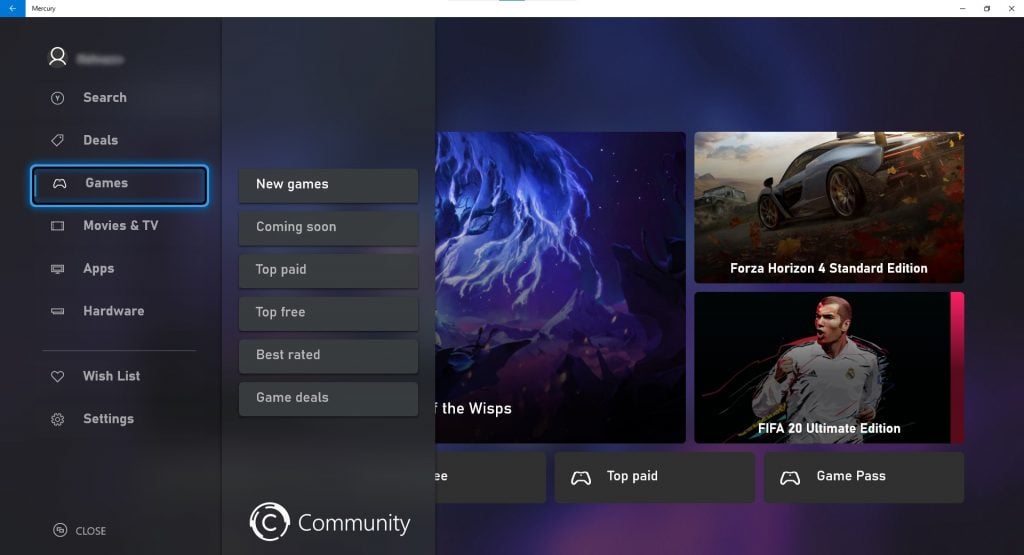
Microsoft’s redesigned Xbox Store gets revealed in leaked screenshots

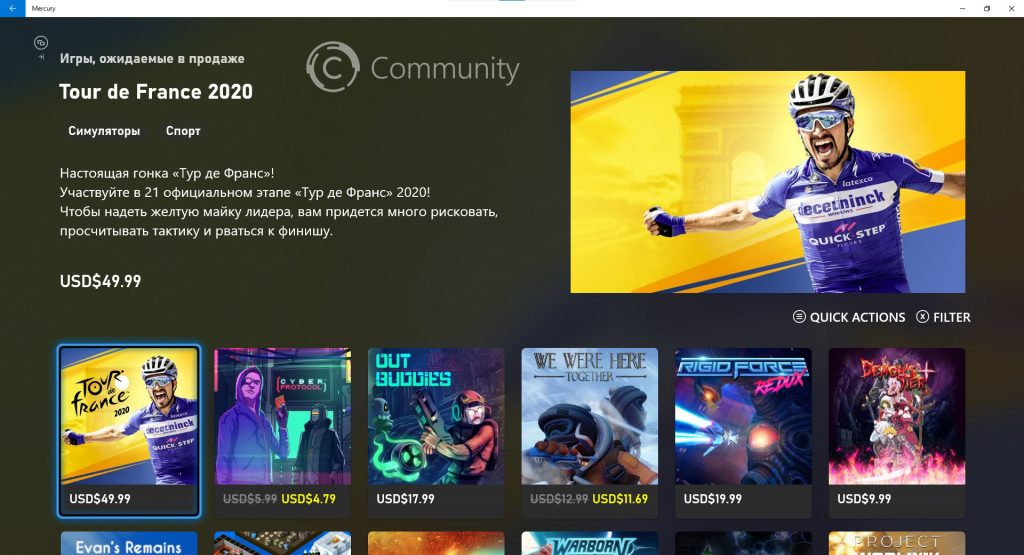
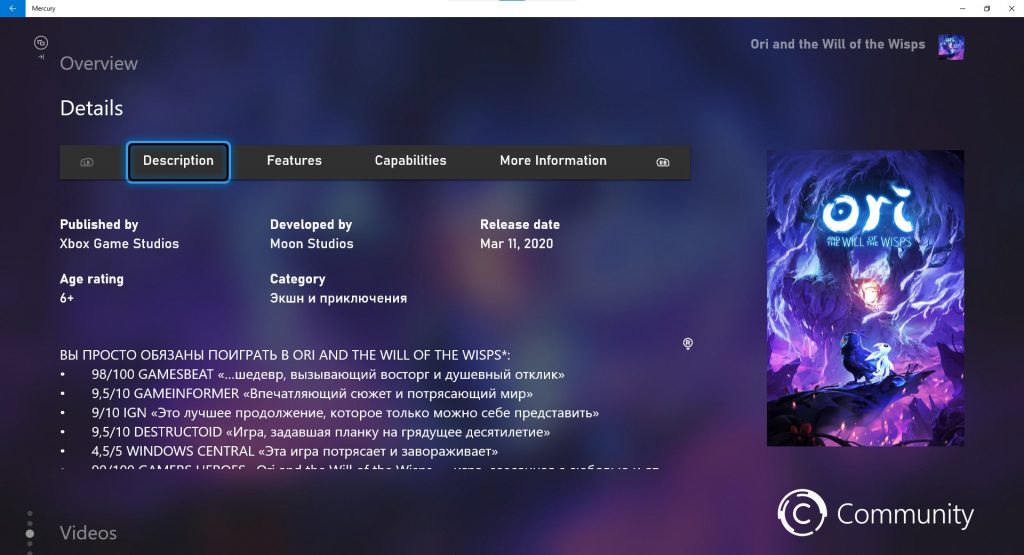
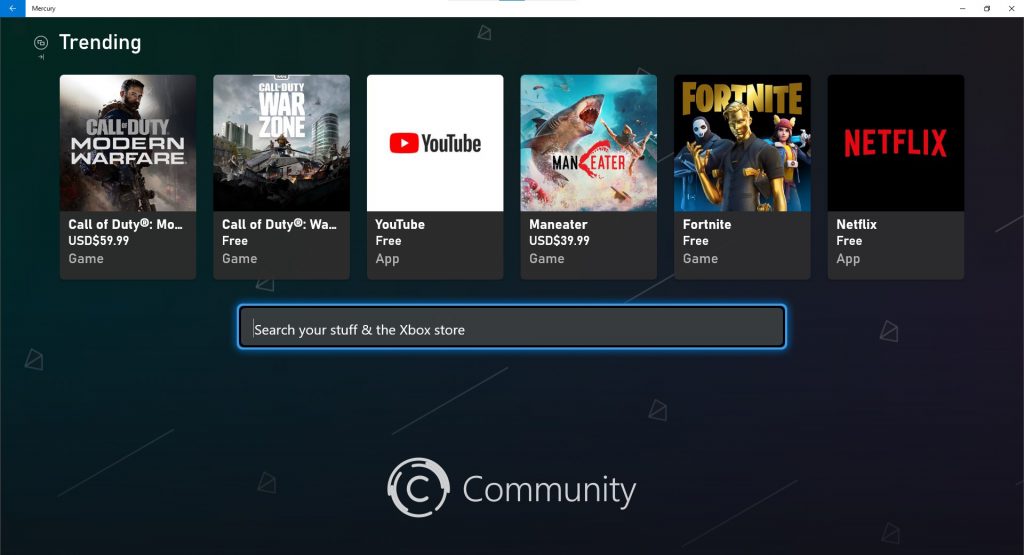
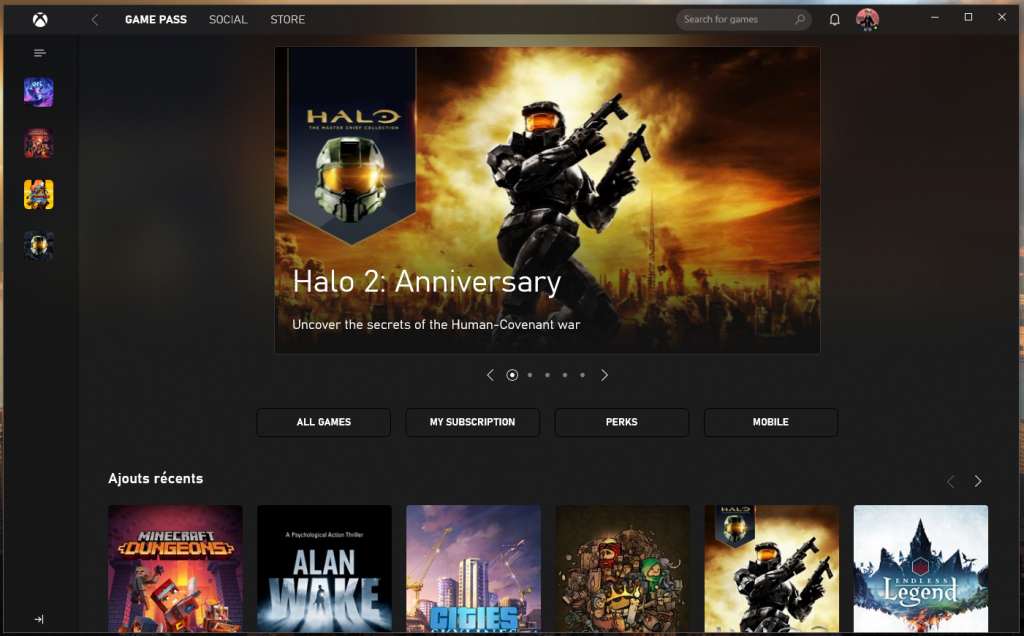
Microsoft is apparently working on a revamped Xbox Store that uses the same design language as the new Xbox app on Windows 10. If the new Store codenamed “Mercury” could soon be available in preview for select for Xbox Insiders, Russian website Community managed to get early access to it and published some screenshots of the redesigned storefront today.

Windows Central, which previously reported on the “Mercury” app, confirmed the authenticity of the screenshots today. The redesigned Xbox Store is apparently running on a Windows 10 PC, but it shows Xbox One games as well as other sections dedicated to Movies & TV and Xbox One apps.

Overall, this new design looks much better than the current Xbox Store on the console, with a better Fluent Design implementation and rounded corners that are consistent with the new Xbox app on Windows 10. We’re glad to see Microsoft starting to harmonize Xbox experiences across platforms, and it would actually be great if the Windows 10 Microsoft Store could get a similar revamp.

In addition to a fresh coat of paint, we also hope that this revamped Xbox Store will be faster to navigate than the current version, which could use some performance improvements. Anyway, there are some exciting times ahead for Xbox enthusiasts, and Microsoft may have more to share soon during the June Xbox 20/20 Update, which will be dedicated to Xbox platform improvements.

Microsoft Edge to preload some web pages for faster search

Legacy Microsoft Edge had a good run, little wonder the new Windows 10 version 2004 ditched it. Meanwhile, its successor, the Chromium-based version, continues to get new features with the old ones receiving important improvements.

More improvements came to the Edge browser with the release of version 85 to the dev channel. The build also fixes issues that would cause the browser to crash.

Microsoft Edge 85 enters the dev channel

The latest Edge build to arrive in dev has a notable new feature: the ability to preload certain web pages.

While preloaded content may make a web page heavier, it speeds up the search process. So, there’ll be a setting in Edge that lets you activate the improved search experience.

In addition, build 85 brings fixes to multiple problems affecting Edge users. These include:

  • Crashing of new Edge installations on Mac upon launch.
  • Edge crashing if you closed it too soon after importing data from a different browser.
  • Pasting content with the Information Protection setting on would cause the tab to crash.
  • Some Mac users got a bug alert upon restarting the browser to apply an update.

Similarly, Microsoft Edge version 85 introduces changes to certain browser behavior. The update affects the following features and more, according to its release notes:

  • Fixed an issue where tabs sometimes appear at their minimum width, even when there’s space for them to be larger.
  • Fixed an issue where scrolling down a page sometimes causes it to jump back up to the top.
  • Fixed an issue where unpinning and re-pinning Edge to the Taskbar sometimes creates a shortcut to the wrong profile.
  • Fixed an issue where the … menu button sometimes disappears at small window sizes.
  • Fixed an issue on Mac where Shy UI sometimes disappears while being interacted with.

Is there a particular browser feature you’d like fast-tracked to Microsoft Edge stable release? As always, you can lets us know in the comments section below.

[wl_navigator]

Microsoft Edge Canary gets new flag to run PWAs on startup

Microsoft is currently working on a new Microsoft Edge feature that will run Progressive Web Apps (PWAs) at startup on your PC. First spotted by Techdows, the feature is currently hidden behind an experimental flag on the Microsoft Edge Canary channel, and once enabled will bring an option in the installation prompt of the PWAs to automatically run them on your system’s startup.

If you’re running the latest version (85.0.535.0) of Microsoft Edge Canary, you can access this experimental flag by heading to edge://flags, search for the “Desktop PWAs run on OS login” flag and enable it. Finally, you need to restart your browser to apply the latest settings. Once you enable this flag and check the PWA installation prompts, Microsoft Edge will automatically move your PWAs to the startup folder located on your PC. Apparently, this feature will work on all platforms including Windows and Chrome OS.

Microsoft Edge startup PWA

Considering that some PWAs are now just as good as native apps, this new feature should be pretty handy for Microsoft Edge users. Do you think that having a couple of PWAs that automatically launch when you first boot your machine will eventually improve our workflow? Sound off in the comments down below.

Xbox Console Companion UWP app to be replaced with the new Game Pass-focused Xbox app

If you’ve been using Microsoft’s Xbox Console Companion UWP app this week, you may have noticed that the latest update added a giant ad for Microsoft’s new Xbox app that launched with Xbox Game Pass for PC last year. The message mentions that “the new Xbox app is replacing the Console Companion,” so it looks like the days of the old UWP app are now numbered.

Microsoft’s Xbox Console Companion app debuted as the universal “Xbox” app on Windows 10 and Windows 10 Mobile back in 2015. This app has been pretty much neglected in recent years, though it still has some exclusive features such as the ability to stream games from your Xbox One to your PC.

The Xbox Console Companion app also integrates Xbox Lives features that the new Game Pass-focused Xbox app lacks, such as Clubs or Looking for Groups. However, the new Xbox app remains a better experience overall, adopting the same design language previously seen in the new Xbox Game Bar. The app also received a speed and performance boost earlier this year after dropping the Electron framework in favor of React Native.

It’s not clear yet when the Xbox Console Companion UWP app will be officially replaced by Microsoft’s new Xbox app. The latter still has to be installed manually via the Microsoft Store, and even if it recently dropped its “beta” tag, it still lacks some of the Xbox Live social features still present in the Xbox Console Companion app. Anyway, it’s nice to see Microsoft consolidating its Xbox experiences on Windows 10, and the new Xbox app is already a pretty solid game launcher and digital store for Xbox Game Pass subscribers.

Xbox
Xbox
Price:
Free

Forget Animal Crossing, Minecraft Dungeons is the new gaming sensation for me

Like the rest of the (quarantined) world, I’ve been playing Animal Crossing: New Horizons quite obsessively the past few months. Decorating my island and home with furniture and items, talking to my favorite island residents, digging up fossils, and catching bugs and fish has been quite addicting for me.

Admittedly, that means I’ve spent over 100 hours in the game. But, it also comes at the neglect of my Xbox and other game consoles. Games I’ve meant to finish like Tom Clancy’s The Division 2 were all put to the side. With the release of Minecraft Dungeons, though, that changed.

My colleague Laurent recently reviewed the game, and with it being part of Xbox Game Pass, I thought I’d give it a try, too. It helped me put down Animal Crossing for a while, and make Minecraft Dungeons my newest gaming addiction.

A satisfying game, just like Animal Crossing: New Horizons.

I’ll admit it, I’ve never been a fan of Minecraft. The game’s mechanics were always hard for me to understand. Gathering materials and pushing a combination of buttons to craft was a bit too frustrating for me. I never found myself going too far in the game. Minecraft Dungeons, though, changed that. It’s the Minecraft game for the rest of us that is satisfying to play.

Although the genres of the two games I am comparing are completely different, just like Animal Crossing: New Horizons, it doesn’t take much understanding to play Minecraft Dungeons. This is what makes it so fun and addicting. You can just pick it up, play, and enjoy yourself.

Indeed, as Laurent said in his review, the game is all about accessibility and simplicity. This is a dungeon crawler without complex RPG mechanics, and there is no class system for your character. Defeating dungeons in the game is as simple as moving the analog stick, pressing the A button to melee, and using arrows and timing your moves to defeat enemies. You’ll get different loot from defeating certain enemies, and you’ll also get certain artifacts that will help boost your powers. As you level up, meanwhile, you’ll unlock better weapons and get enchantment points to power up these weapons to make the game easier to play.

For me, someone who played Animal Crossing: New Horizons for the past few months, that’s what is most satisfying about Minecraft Dungeons. As you progress through a dungeon and clear enemies, you get to visually see the progress you make. A bar on the bottom of the screen will even fill up and show you your status to your next level up.

This is all similar to the satisfaction of playing Animal Crossing. In that game, you get to make friendships, add items to your home, and island, with the goal of getting a 5-star island rating and an increasing score from the Happy Home Academy every week.

The second point is that as you level up in Minecraft Dungeons you get better weapons and more enchantments. That’s similar to the Nook Miles program in New Horizons where, as you spend more time playing the game, you get Nook Miles to redeem for certain items to decorate your island — or a pass for Nook Miles adventures for finding fruit, bugs, and more. Both games reward you as you play more.

The idea of the comparison is that Minecraft Dungeons is a game that is easy. Just like Animal Crossing, there’s not much to it. Anyone can play it, there’s a co-op mode with friends, and you get satisfaction and fun exploring dungeons and leveling up your character without worrying about crafting and the complicated mechanics of the other Minecraft games.

I play it anywhere my laptop goes
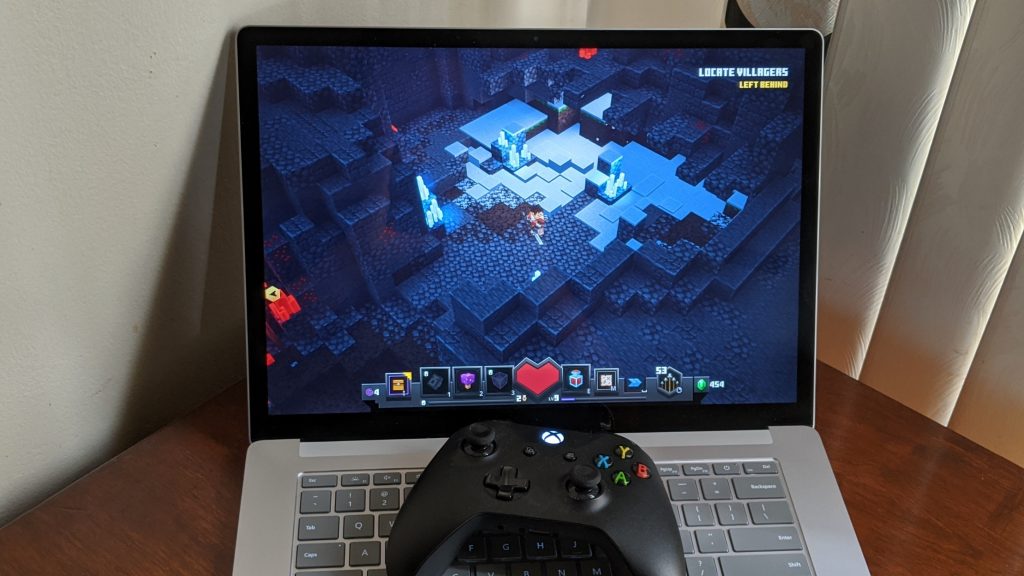
One of the biggest selling points of Animal Crossing and the Nintendo Switch is being able to play the game anywhere you go. As a portable console, the Switch is able to go everywhere you do. Well, for me on Xbox and Windows 10, the same applied to Minecraft Dungeons, too.

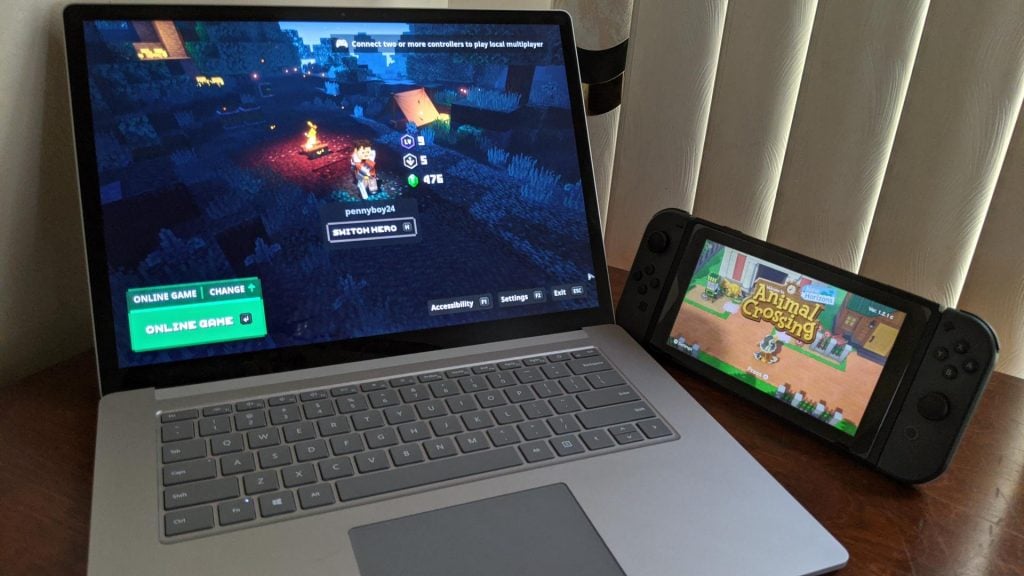
Being an Xbox Game Pass Ultimate subscriber ($15 per month,) I have access to the game on both my PC and my Xbox, for no additional cost or extra purchase. At night, I explored the game’s mysterious dungeons while sitting in bed and playing on my Xbox One. During the day, and after work, I played the game on my Surface Laptop 3. The game still doesn’t support Xbox Cloud Sync, though, which means I had to replay some levels between switching devices, but it’s not something that ruined the experience since I’ve been playing the game slowly and haven’t gotten too far.

It’s this level of accessibility that made Minecraft Dungeons quite great for me, and fun to play. I didn’t have to sit in front of a TV to enjoy the game. Plus, the game isn’t that graphically demanding and runs great on a Surface Laptop 3 — getting about 20-30 frames when the settings are turned down, and a playable 15-20 when setting to high settings. It’s plenty playable, even without a dedicated graphics card.

The game that keeps on giving

Animal Crossing doesn’t really have a story mode, and it’s rather about replaying the game consistently and repeating the same tasks each day to get satisfaction and reward of building up your island to a 5-star rating. This gives it big replay value, and oddly enough, this is another area where Minecraft Dungeons gets me.

Although Minecraft Dungeons does have an underlying story of putting an end to the Arch-Illager’s reign of terror, there’s a lot of replay value to the game, too. You can replay certain missions at higher levels and get better weapons and loot. I found myself trying the higher levels just to challenge myself and to get some higher weapons. I also went looking for hidden entrances to secret dungeons, where you can find the best loot.

Though I slowly played the game, I am close to finishing the main story in less than seven hours of playing. It’s a far cry from the hundreds of hours I’ve put into Animal Crossing, but I do find myself trying to beat all the difficulty levels in Dungeons before trying new levels. There’s still a lot of replay value and it’s the game that keeps giving.

More DLC on the way, and I am glad

As you probably heard, there’s more DLC on the way for Minecraft Dungeons, soon. This adds additional replay time and new levels to the game, and I am glad. These will be included at no additional cost with the $30 Hero Edition of Minecraft: Dungeons, too.

It’s a bit like how Nintendo treats Animal Crossing: New Horizons, this means they’ll always be something to do in the game. For no extra cost outside the $60 of the game, Nintendo is adding seasonal events to Animal Crossing each month. So far, this includes the Bunny Day event, International Museum Day stamp hunt, and Wedding Season. Each of these events offers new items and new gameplay opportunities, just like the DLCs in Minecraft offer new worlds to play.

Looking at everything all together, Minecraft Dungeons is quite enjoyable. It’s really fun to pick up and play, and it will likely become your next addiction. With $15 per month GamePass or the game’s low price of $20, there’s also the added bonus of being able to play it on most modern PCs — without having to go out and buy a console, like the Nintendo Switch.

Give it a try and play today by buying it via the links below, but you can also get it on the PlayStation Store here and Nintendo Switch here.

Minecraft Dungeons
Minecraft Dungeons
Developer:
Xbox Game Studios
Price:
Free


Microsoft rolls out gallery support for Outlook on Android

The Outlook mobile app is super useful because you can sync email, contacts, calendar, and files from Microsoft 365, Exchange Online, Exchange Server, Outlook.com, Gmail and Yahoo! Mail.

Outlook for iOS and Android is also connected to OneDrive, OneDrive for Business, Dropbox, Google Drive & Box.

How can I add pictures and videos from my Gallery in Outlook?

The default way of adding media in Outlook for Android is to tap the paperclip from the bottom right corner of the window and select Choose from photo library.

The problem is that it doesn’t start the Gallery app that you’re probably so accustomed to but it’s own file manager that digs into the media gallery.

With the new Outlook version 4.1.94 for Android, after you tap the paperclip and Choose from photo library, you can tap the three horizontal lines from the top left corner, and tap the Gallery app.

Of course, you will be able to add any media files from there.

How to join events from Outlook

Another interesting new feature from the new Outlook version for Android is the ability to join events from the app.

When you will see an event from an online meeting provider like Zoom, WebEx, BlueJeans, and Go ToMeeting, you will see a Join button and you will be able to tap it to join.

You can download the new version from the Google Play Store.

Do you use Outlook on your smartphone? What do you think about the new improvements? Leave us your thoughts in the comments section below.

This article appeared first on WindowsReport.com

[wl_navigator]

Microsoft Teams will get Zoom’s killer feature and show 49 meeting participants on screen

The ongoing coronavirus pandemic led to increased competition between Microsoft Teams, Slack, and the video conferencing app Zoom. The latter clearly outshined Microsoft’s own Skype app due to a killer feature: the ability to display up to 49 participants in a single screen of the gallery view.

Microsoft recently updated Teams and Skype to make them display up to 9 thumbnails during video calls, but Microsoft Teams will soon match Zoom’s ability to show up to 49 participants at a time. Jared Spataro, CVP of Microsoft 365 announced the news to the Wall Street Journal, though there’s no ETA for this feature yet.

Zoom’s gallery view can show up to 49 meeting participants at once.

If Microsoft will likely keep iterating fast on Microsoft Teams in the coming months, The WSJ report included other interesting details about Microsoft’s attempts to outclass its Slack and Zoom rivals. As an example, Microsoft reportedly sent a team of 50 staffers to help the New York School district, which was already an Office 365 customer, transition from Zoom to Microsoft Teams.

A team of 50 Microsoft staffers worked around the clock with administrators and teachers across New York’s school district, the nation’s largest, to convert them to Microsoft Teams, the company’s rival conferencing and collaboration software. Microsoft also gave the district expedited access to features that made Zoom so instantly popular, such as the ability to show more people on the screen at once and a raise-your-hand button. Microsoft counted more than 110,000 Teams users inside the district a month later, when the department allowed Zoom access again.

Slack’s CEO recently complained that Microsoft was “unhealthily preoccupied with killing us,” though really Microsoft isn’t the first company to copy a popular feature from a competitor. Facebook infamously copied Snapchat’s popular Stories format after failing to acquire the company a couple of years, and this wasn’t the end of Snapchat. However, Microsoft’s key advantage with Teams is that the app is bundled with several Microsoft 365 subscriptions, so commercial customers already using Office 365 apps have no reason to use Slack or Zoom when they have a free, versatile alternative with Microsoft Teams.

Outlook for Windows is getting a cloud syncing option this month

Microsoft has started to roll out an update for the Outlook for Windows client that will let you store some settings into the cloud. According to an update posted in the Microsoft 365 Admin center (via Petri), this new feature will bring the possibility to configure your Outlook settings, save them in your cloud profile, and get them synced to the other Windows devices connected with the same account. Starting this month, the rollout has begun with Microsoft 365 Monthly Channel, and the feature will go live for all Windows desktop clients in late June.

The feature, once it finally arrives on Outlook on your PC, will bring cloud syncing support for a handful of settings including, Calendar, Ease of Access, General, Groups, Mail, People, Search, and Tasks. To enable this feature on your machine, you’ll need to head over to File > Options, and then click General under Outlook Options. Finally, you’ll need to check Store my Outlook settings in the cloud, and hit the OK button to get started. However, once the rollout process completes within the next few weeks, this feature would be enabled by default for everyone, and it will be up to IT admins to disable it manually via roaming settings in the Outlook group policy template.

Last month, we reported that Microsoft is also working on syncing Outlook signatures to the cloud, and the feature was expected to release this month. However, the software giant has now delayed this feature to the end of July for the Microsoft 365 Monthly Channel, and everyone else should get it in late August. Once it becomes available, Outlook will read your existing default local signatures to make them available across devices. Moreover, the capability will be enabled by default, and third-party add-ins that provide a similar functionality will no longer work.

Fix Windows Update Error 0x80070bc2 [Full Guide]

If you can’t complete the installation process of new cumulative updates in Windows 10, then this post is for you. Many users are in your shoes too.

They simply can’t download and install the latest updates on their machines due to various errors that block the install process.

This is indeed annoying, but before you give up, just take a minute and keep reading this guide. You’ll learn what are the steps to follow in order to correct this issue in no time.


Looking for the best tools to fix Windows update issues? Here are our top picks.


How can I fix Windows Update Error 0x80070bc2?

  1. First of all, launch Command Prompt (Admin).
  2. Then, just type the following commands hitting Enter after each one:
  • SC config wuauserv start= auto
  • SC config bits start= auto
  • SC config cryptsvc start= auto
  • SC config trustedinstaller start= auto

By far, one of the most common errors affecting Windows 10 updates is error 0x80070bc2. Apply the above steps and then restart your PC before installing the latest updates again.

This time, the whole process should work without any problems. The error 0x80070bc2 should no longer occur, as this user confirms:

This solved my issue with the endless circle of the update failing to install. It installed both the KB4093112 update and the KB 4093110 (update to Adobe flash) after 14 trys. So I been able to free up the memory involved in constantly trying to update these.

Of course, if you still can’t enjoy the latest cumulative updates, you can always download the standalone update package from Microsoft’s Update Catalog website.

Oftentimes, update errors are related to corrupted users profiles, so you should also try to create a new administrator account.

Once you’ve signed in to your new profile, perform a clean boot, and then check for updates. Are things any better now?

[wl_navigator]

Most common Windows 10 v2004 bugs and issues

Windows 10 version 2004 was released for a live audience on 27 May 2020, and it brings an entire host of new features that many users are just eager to try out.

This update has been a long time coming, having been the first announced back in 2019.

Of course, things got off to a rocky start when the update was first released since many users encountered error messages that prevented them from applying the update.

Several fixes were eventually uncovered, so everyone finally managed to get the new update. Unfortunately, problems occurred right after performing the update as well, as many users reported seeing BSoD error messages.

There are also those that were fortunate enough to have managed to update their PCs to the latest version without encountering any fatal BSoD errors at all. However, even they have swarmed the Internet various issues with the new update.

The list below contains just some of the latest issues found with this new version of Windows 10.

Additionally, since new bugs are still surfacing, we will be expanding this article with new entries accordingly.


What are the most common issues with Windows 10 v2004?

1. Bluetooth issues with Mac users

Several users using Mac hardware reported having connectivity issues via Bluetooth after installing the Bootcamp version of the new Windows 10 update:

[…] Just a bluetooth problem was left. I used the original bluetooth Apple Keyboard, Mouse and Trackpad before. Not working at all. Used USB connection for Keyboard and a different Mouse for Login. Completely unexpected, if I am honest, everything else seems to work!

Fortunately enough, USB connectivity was unaffected so they were still capable of using peripherals, just not the wireless ones. This was indeed revealed to be an expected issue, but only for Realtek Bluetooth devices, not Mac devices.


2. Sleep issues with XPS 15 9570 laptops

Dell laptops are also affected by this new OS version. More precisely, users report that XPS 15 9570 devices randomly wake, draining the battery, and even heating up in certain situations:

All was fine until a few days ago when Microsoft dropped another one of their amazing updates […]
Modern standby seems to be back with a vengeance and this time not only cant you disable it, the issue is not just about my system waking, it is now crashing on sleep. 

This isn’t the first time XPS 15 9570 laptops have this issue, but it was apparently fixed a couple of months ago.

However, it seems that something in Windows 10 v2004’s coding has made the issue return, and now in an even more powerful version.


3. HDR turns grey since upgrading

It seems that drivers aren’t safe from this update either, as users have reported issues with their HDR after the update. More precisely, it seems that it is now displayed in a grey hue, to the point where color is indistinguishable:

Since updating to 10 may 2020 update 2004 HDR has become to be almost mono. Nvidia Geforce RTX2060 and BenQ PD2700U. Latest graphic card and Monitor drivers installed. Turn HDR off and all is OK.

There is no further information regarding what particular graphics cards or devices are affected besides the aformentioned Nvidia Geforce RTX2060 graphics cards and BenQ PD2700U laptops.


4. Compatibility issues with games

Speaking of graphics cards, gamers are also hit by issues with the new update, since many reported encountering compatibility issues with their favorite titles since installing the latest update:

I have experienced some bugs since I upgraded my desktop pc to Windows 10 2004 version. I have fond some compatibility bug (as crash) and input bug (only English chatting available) on Destiny 2 after the latest Windows 10 2004 update.

Whether these particular issues are to be handled by Microsoft or the game developer has not been yet revealed.


5. Upgrade issues from Windows 7

As you most likely know already, Windows 7 has reached the end of its life back in January 2020. Ever since users have been slowly but surely migrating to Windows 10 more and more.

In fact, some even attempted to jump straight from Windows 7 to Windows 10 version 2004 via upgrade. Unfortunately, things didn’t go too smoothly for them:

For those considering it, I upgraded the following ThinkPads to W10 Pro 2004:

P43s: Was successful without a hitch.
x201: Tried from W7 Ultimate 64 to W10 Pro 2004, was nasty outcome.

Fortunately enough, this one issue has already been taken care of, since a clean install apparently lets you bypass it easily.


6. Windows 10 loses audio after update

Another vital driver component that seems to be affected by the latest feature update is the audio driver, as more and more users report that they no longer have sound after installing the latest update:

I did a clean installation of Windows 10 2004 32-bit. Everything works perfectly except that there is no sound. In the device manager, the sound card is found as Intel I2S and I could not replace it with Realtek I2S.

So far, it seems that only those that have certain Acer laptop models have been affected. No word from either Microsoft or Acer support has yet to be revealed regarding the issue.


7. Processes lock up randomly

probably the most serious of all the issues reported so far, users have been reporting that they are experiencing random application lock-ups ever since they installed Windows 10 v2004:

Since updating to Windows 10 2004, I’ve been having a strange issue with processes locking up. I’ll be using my computer and suddenly all of the programs I’m using will suddenly become very slow and unresponsive and the only way to correct this is to reboot

More so, it seems that the latest update may also affect the overall speed of PC systems, as even the process of rebooting itself seems to be affected.

However, one detail seems to give away possible reasoning behind these particular issues:

The only case in which it consistently occurs is when I’m trying to use Rufus to make a Windows 10 bootable flash drive from the Windows 10 2004 ISO.


These are just some of the most common issues found in Windows 10 v2004.

If you’re aware of any other bugs plaguing this new version of Windows 10, don’t hesitate to notify us by leaving a message in the comments section below.

[wl_navigator]

New Microsoft Edge Dev channel build (85.0.531.1) adds website preloading

Build 85.0.531.1 rolled out to Edge Insiders in the Dev Channel earlier today. This build mainly contains fixes and refinements but does add a new setting that allows the browser to predownload websites so that they load faster when visited.

Here’s the release notes:

Added features:

  • Added a setting to enable preloading of certain webpages for faster searches and browsing.

Improved reliability:

  • Fixed an issue on Mac where new installations of Edge sometimes crash on launch.
  • Fixed an issue where closing the browser too soon after importing data from another browser sometimes causes a crash.
  • Fixed an issue where pasting content when Information Protection is enabled sometimes crashes the tab.
  • Fixed an issue where attempting to restart Edge on Mac to apply an update gives an error message instead of updating the browser.

Changed behavior:

  • Fixed an issue where tabs sometimes appear at their minimum width, even when there’s space for them to be larger.
  • Fixed an issue where scrolling down a page sometimes causes it to jump back up to the top.
  • Fixed an issue where unpinning and re-pinning Edge to the Taskbar sometimes creates a shortcut to the wrong profile.
  • Fixed an issue where the … menu button sometimes disappears at small window sizes.
  • Fixed an issue on Mac where Shy UI sometimes disappears while being interacted with.
  • Fixed an issue where the highlighted word sometimes doesn’t match what’s being dictated when reading PDFs aloud.
  • Fixed an issue where printing a PDF sometimes doesn’t center the content on the printed page, leading to cut-off content.
  • Fixed an issue where the default printer is sometimes forgotten or reset.
  • Fixed an issue where the Immersive Reader toolbar sometimes disappears when the window isn’t wide enough.
  • Fixed an issue where translating content in Immersive Reader sometimes leaves grammar markings from the previous language on the page.
  • Fixed an issue where Youtube videos embedded on webpages aren’t shown in Immersive Reader when they should be.
  • Fixed an issue where clicking the “Complete sign in” button sometimes doesn’t enable sync until the browser is restarted.
  • Fixed an issue where Application Guard windows sometimes don’t get proxy settings applied properly.

Known issues:

  • Users of the Kaspersky Internet Suite who have the associated extension installed may sometimes see webpages like Gmail fail to load.  This failure is due to the main Kaspersky software being out of date, and is thus fixed by making sure the latest version is installed.
  • Some users are seeing favorites get duplicated after we made some previous fixes in that area. The most common way this is triggered is by installing the Stable channel of Edge and then signing into it with an account that has already signed into Edge before.  Fixing this should be easier now that the deduplicator tool is available.  However, we’ve also seen duplication happen when running the deduplicator on multiple machines before either machine has a chance to fully sync its changes, so while we wait for some of the fixes we’ve made to come to Stable, make sure to leave plenty of time in between runs of the deduplicator.  We hope that this will be improved now that version 81 is released to Stable.
  • After an initial fix for it recently, some users are still experiencing Edge windows becoming all black.  Opening the Browser Task Manager (keyboard shortcut is shift + esc) and killing the GPU process usually fixes it.  Note that this only appears to affect users with certain hardware and is most easily triggered by resizing an Edge window.
  • Some users are seeing “wobbling” behavior when scrolling using trackpad gestures or touchscreens, where scrolling in one dimension also causes the page to subtly scroll back and forth in the other.  Note that this only affects certain websites and seems to be worse on certain devices.  This is most likely related to our ongoing work to bring scrolling back to parity with Edge Legacy’s behavior, so if this behavior is undesirable, you can temporarily turn it off by disabling the edge://flags/#edge-experimental-scrolling flag.
  • There are some issues where users with multiple audio output devices sometimes don’t get any sound from Edge. In one case, Edge becomes muted in the Windows Volume Mixer and unmuting it fixes it.  In another, restarting the browser fixes it.

Edge Insiders are basically volunteer testers that opt-in to try out new Microsoft Edge features before they’re added to the public version. Are you an Insider? Let us know what you think of this latest build in the comments below and then follow us on Pinterest for more Microsoft content.

World of Warships won’t update [BEST FIXES]

World of Warships is an amazing game, but many users reported that World of Warships won’t update. This can lead to various problems with your game, but in this article, we’ll show you how to fix this issue once and for all.

What to do if World of Warships is unable to download updates?

1. Reinstall your game

  1. Open your Start Menu and click on Settings.
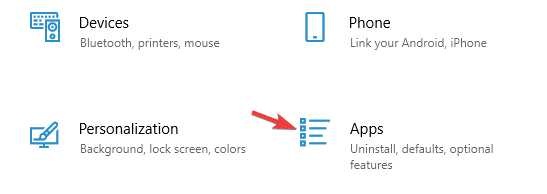
  2. Now click on Apps.
     apps World of Warships won't download updates
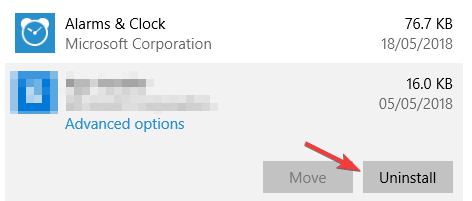
  3. Select World of Warships and click the Uninstall.
    uninstall World of Warships won't update
  4. Once you remove the game, download from the official link and reinstall it.
World of Warships

World of Warships

A very good free-to-play tactical game with an intelligent mix of mechanics and balanced ships. Easy to learn, hard to master.

2. Steam client fix

  1. Launch Steam.
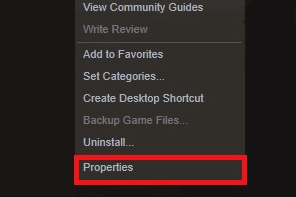
  2. From your Library section, right-click on the game and select Properties from the menu.
    properties steam World of Warships cannot update
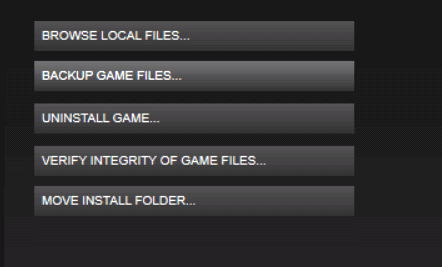
  3. Select the Local files tab and click the Verify integrity of game files.
    verify integrity of game files World of Warships update problem
  4. Steam will now verify your game’s files.
  5. Once it’s done launch World of Warships.

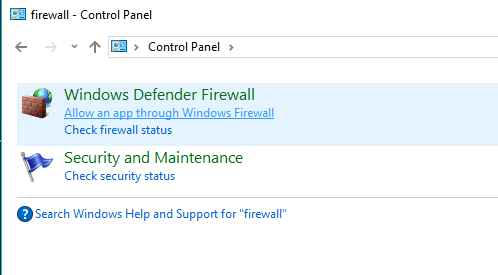
3. Firewall fix

  1. Open your Start Menu.
  2. Now select Control Panel.
  3. Then click on Windows Firewall.
    allow an app through Windows Firewall World of Warships update issues
  4. Now, click on Allow an app or feature through Windows Firewall.
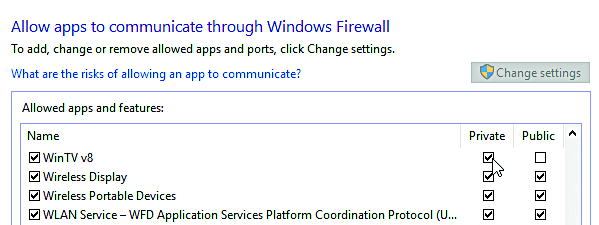
    allow apps to communicate through World of Warships cannot update
  5. Now, the Allowed App windows will open.
  6. Click on the Change Settings.
  7. Check both Private and Public boxes next to the apps or programs you want to allow through Windows Firewall.
  8. Click OK to save your new settings.

4. Register your DNS

  1. Open Command Prompt.
  2. Type ipconfig /registerdns, and then press Enter.
    command prompt World of Warships update not downloading
  3. After the operation has been completed, type in exit in Command Prompt, and then restart your machine.

If you’re having trouble accessing Command Prompt as an admin, then you need take a closer look at our guide.


5. Update or reinstall your network drivers

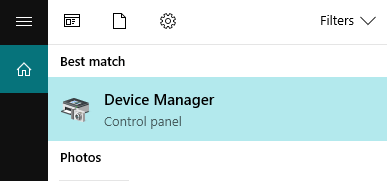
  1. Start Device Manager.
    device manager search World of Warships can't download updates
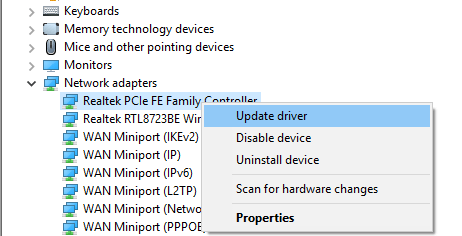
  2. Locate the network driver and right-click it.
    update driver World of Warships can't install updates
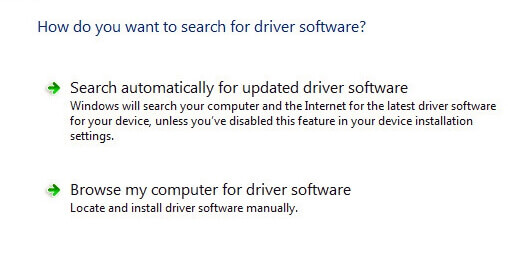
  3. Select Update driver.
  4. Now click on Search automatically for updated driver software.
    search automatically for updated driver software World of Warships update problems
  5. Once it’s done updating you’re all set.

To reinstall your network drivers, follow these steps:

  1. Repeat the first step from the previous workaround.
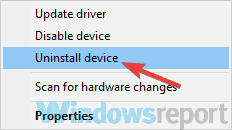
  2. Right-click on the name of the device, and select Uninstall.
    uninstall device World of Warships won't update
  3. Now restart your machine.
  4. Windows will attempt to reinstall the driver at start-up.

There you go, a few solutions that can help you if World of Warships won’t update. Feel free to try them all and let us know in the comments section which solution worked for you.

[wl_navigator]

Images of Microsoft Edge on dual-screen Surface Duo emerge

Microsoft has pretty much finished up developing hardware specs for its upcoming Surface Duo. Also, the company has severally showcased how it wants applications designed for dual-screen experiences.

For example, earlier this year, Microsoft demonstrated on live video how applications like Google Maps can work on an actual Surface Duo.

However, little is known about how each type of software, from media players to browsers, will look like and function on the new form factor.

Now, the folks at Windows Central have done a great job showcasing images of Android apps that Microsoft is developing for the Surface Duo.

Microsoft Edge on the Surface Duo

The new Chromium-based Edge, which recently got a built-in spellchecker, is the default browser on Surface Duo.

As you may already know, one of the joys of using a dual-screen gadget is the ability to span content across both displays.

So, you’ll obviously be able to use Microsoft Edge in multiple screen modes on the upcoming foldable device.

If you span the browser across the two screens, the address bar appears on the left display. The other screen displays the favorites section in an icon to the far right.

According to Windows Central’s Zac Bowden, spanning Edge will lead to spreading the web page you’re on across the two screens.

But the device’s bezel may block some of the content you’re trying to view. As such, multi-screen mode may not be ideal for some websites.

Spanning Edge will also span websites, but most websites will be left with the Surface Duo’s bezel cutting into the content. Web developers can choose to support dual-screens, but not every website will.

Also on Surface Duo, Edge users will be able to drag and drop items like text, links, and images from web pages to any Android software that supports the feature.

What are your views about using Microsoft Edge on the upcoming Surface Duo? Feel free to share your opinion in the comments section below.

[wl_navigator]

Microsoft admits drawing WinGet inspiration from AppGet

The recent launch of WinGet in preview was largely successful, except for the controversy regarding where Microsoft drew inspiration for its new Windows Package Manager.

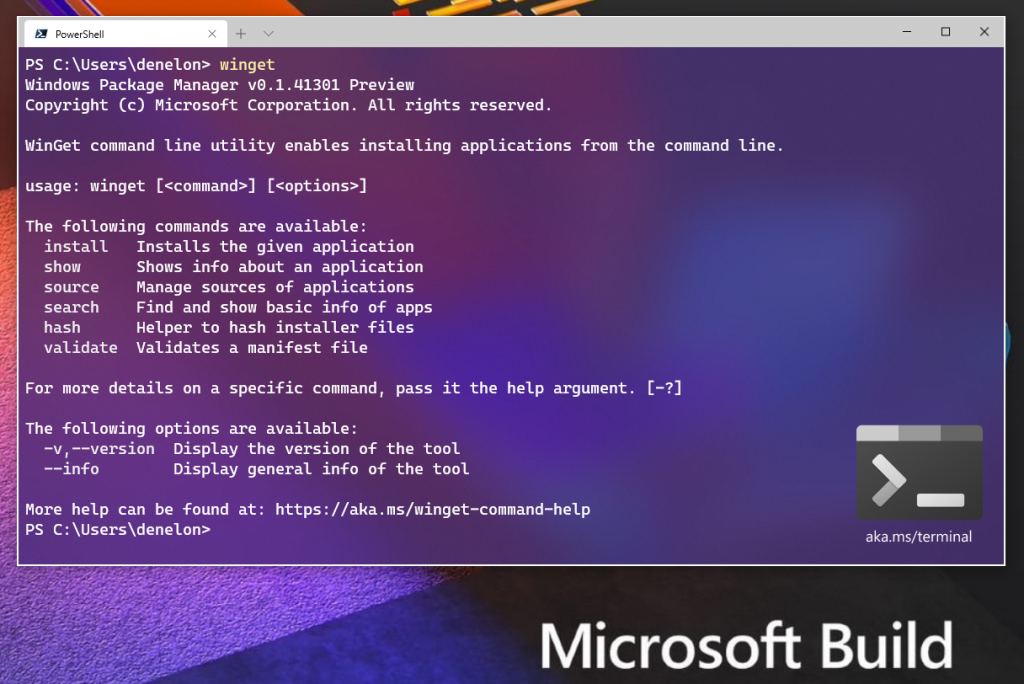
WinGet enables developers to quickly locate and install their devtools, but it’s not entirely an original Microsoft idea. So, the company has finally admitted to borrowing some critical functional concepts for the app from rival AppGet.

Microsoft copied some WinGet ideas from AppGet

AppGet is also a Windows Package Manager that serves them same goal as WinGet.

But after Microsoft released WinGet, AppGet creator, Keivan Beigi, published a post claiming that the company had stolen his ideas without giving him proper credit.

To support his claims, the developer gave a detailed account of email correspondence between him and Microsoft.

Apparently, the company had shown interest in his open-source AppGetproject on GitHub. The two parties were even in discussions that should have led to the developer working for Microsoft.

Instead, the company stopped engaging Beigi at some point, only to announce later that it was launching a rival app.

Beigi says that he expected people to borrow his ideas, and that’s why he put the entire project code on GitHub. But he also anticipated recognition, especially if the party copying his inventions is a tech giant like Microsoft.

Acknowledgment from Microsoft

Well, the Redmond-based company has finally acknowledged the role Beigi played in building WinGet.

They’ve even gone ahead and listed specific app features that borrow heavily from how AppGet fundamentally functions. These are:

  • No scripts during install – something that we completely agreed with and don’t allow with MSIX
  • Rich manifest definition within GitHub – the power of being open combined with rich declarative meta data about the app is so important to meet goal #1
  • Support all types of Windows applications installers
  • Seamless updates for applications in the repository

Microsoft has also thanked Beigi, who is now pulling the plug on AppGet.

It’s not uncommon for tech giants to render third-party apps obsolete by copying them and building their core functionality into their bigger and more popular flagship platforms.

What do you think about established technology firms like Microsoft undercutting third-party apps this way? Feel free to share your thoughts in the comments section below.

[wl_navigator]

Mozilla Firefox may get built-in password export capability

A Bugzilla thread indicates that Mozilla Firefox is getting a built-in password export capability in the future. The feature should enable users to export their browser-saved security credentials in the form of a CSV file.

Right now, you cannot export your passwords natively within the browser. You’d have to use a third-party extension if you wanted to do that.

Exporting password in Mozilla Firefox

About 16 years ago, a user posted to the Mozilla Bugzilla forum a request to build a password export capability into Firefox.

It should be nice if a button shows in the password manager that gives the functionality to export/backup saved passwords to a file.

Well, developers at Mozilla are finally working to satisfy that request, although it’s not clear why it took them this long. Probably, very few people have been asking the company to add that feature over the years.

Anyway, very soon, Firefox Nightly will get the ability to natively export saved passwords. Regular users may have to wait a little longer before they can use the feature though.

Why export saved passwords?

Do you usually save your website passwords in your browser? Doing that allows your browser’s password manager to quickly autofill your credentials every time you log in.

What about backing up your login details just in case of data loss? Exporting your saved user name and secret combination as a CSV file is one of the most reliable ways to do that.

Also, you may want to export passwords for use on another platform or even password manager.

When the stable version of Firefox gets the update, you’ll not need to install an extension to transfer your login data to any other platform.

Firefox has a host of other features and enhancements coming to it, including the ability to view blocked internet resources.

What’s your experience with third-party tools for exporting passwords in Mozilla Firefox? You can always let us know in the comments section below.

[wl_navigator]

How to Use Snip & Sketch to Capture, Edit, and Share Images

If you used to make any captions with the old Snipping Tool, you can still use it even in the latest Windows 10 versions.

However, as for the last years, Snipping Tool will display the message saying that Snipping Tool will move to a new home and the recommendation to use Snip & Sketch or to try the new shortcut Win + Shift + S.

If you read the Microsoft page about what’s new in the new Windows 10 version 2004 update, they say that Screen Sketch is now called Snip & Sketch.

How can I use the new Snip & Sketch?

So, if you want to capture a screen, an image, or just a portion of the screen, press the Windows key, then the Shift key, and then the S key.

If you do that, you will see a captioning toolbox just like in the picture below.

Snip and sketch controls

The first, and default option is to capture a rectangular screen. You just need to left-click and drag with the mouse the perimeter you want to caption.

After you release the left-click, the caption will be copied into the clipboard for you to paste wherever you need it.

The second option is for a freeform snip and the third option is for capturing the active window. The last one is for capturing the whole screen.

How to open and use the Snip & Sketch app?

To open the app, just search for Snip & Sketch in the Windows Search and click on it from the results.

You can also open the app by clicking on the notification you receive after you capture an image.  If you do that, you will get an image with your caption like the one below.

How to edit a caption with Snip & Sketch

To edit the caption, Snip & Sketch offers options to save, copy, or share and includes a pen, highlighter, and an eraser, all with variable line widths.

How to change the settings in Snip & Sketch

To get to the settings options of Snip & Sketch, click on the three horizontal lines from the top right corner of the screen and select Settings from the drop-down menu.

How to change the settings in Snip and sketch

From the Settings menu, you can change how Snip & Sketch behaves after you capture an image.

You might also be interested in reading our guide on how to crop images on Windows 10.

It’s a pretty basic app with basic features. Did you try it? Tell us about your experience in the comments section below.

Picture-in-picture mode coming to Your Phone app for Windows

Looking at the Your Phone app for Windows today and comparing it with what it was when it debuted, many can barely recognize it. It’s undergone something of a dramatic transformation, getting more powerful with each new feature it receives.

The tool, which lets you pair your Android device with your Windows 10 PC, is getting multiple new features. According to a discovery by the folks at Windows Latest, picture-in-picture support is coming to the app.

Your Phone app getting picture-in-picture capability and more

The picture-in-picture mode for Your Phone app is still under development, according to the finding.

Microsoft likes to call the picture-in-picture feature in Windows 10 apps Compact Overlay. It lets you view an app in a small window while looking at something else in other parts of the screen.

When an app is running in this mode, it floats on top of other bigger windows. That way, you can still do other things like watch a video.

Your Phone app getting picture-in-picture support means that it will let you pop out a chat in a separate smaller screen. Doing that undocks the smaller window from the rest of the app screen, allowing you to move it around at will.

Additionally, the pop-out windows are resizable, letting you organize your screen with a little more flexibility.

Other features coming to Your Phone

Reports indicate that Microsoft is also developing a feature that may enable you to manage or view your installed apps via the Your Phone app.

Maybe the feature will let you move apps between your PC and the app? Nobody can tell that for now, but it’d be nice to have a capability like that.

Currently, users of certain Samsung smartphones can move photos between Your Phone and your PC via the cross-device copy and paste function.

Also, Windows 10 insiders in the Fast ring are now testing the ability to control music and audio from inside the Your Phone tool.

What cool features do you think Microsoft should add to the Your Phone app? Feel free to share your thoughts in the comments section below.

[wl_navigator]

Microsoft is recommending Edge through Windows 10 Search

As with the Windows 10 version 2004, Microsoft is retiring the old Edge in preference for an improved Chromium-based version.

That calls for a new marketing campaign and it apparently starts with a kind recommendation from Microsoft.

Try the new browser recommended by Microsoft

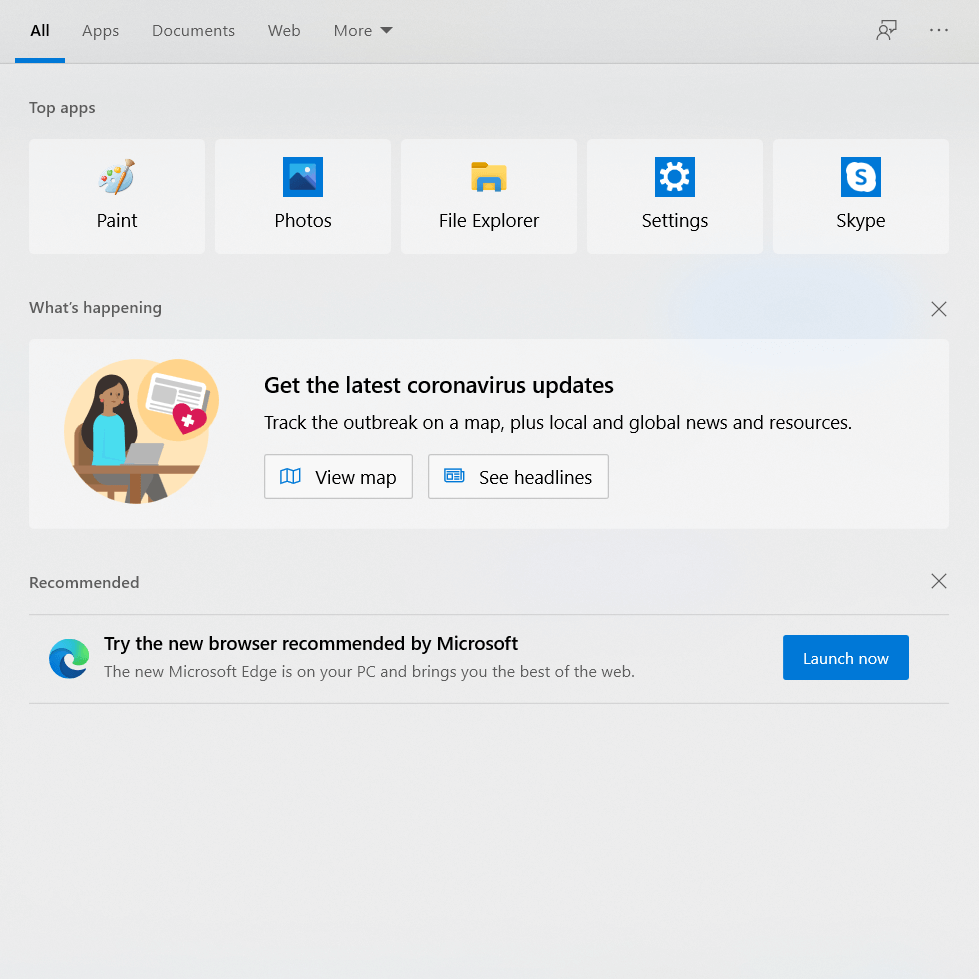
If you updated to the new Windows 10 version 2004, and you try to use the Windows Search function, you will see a line in the Recommended section below saying Try the new browser recommended by Microsoft.

try the new Edge browser recommended by Microsoft

That only appears if you already downloaded the browser. If you didn’t, you will see a Get the new Microsoft Edge message and a download link for it.

Fortunately, it’s very easy to get rid of the recommendation simply by clicking on the X from the Recommended section.

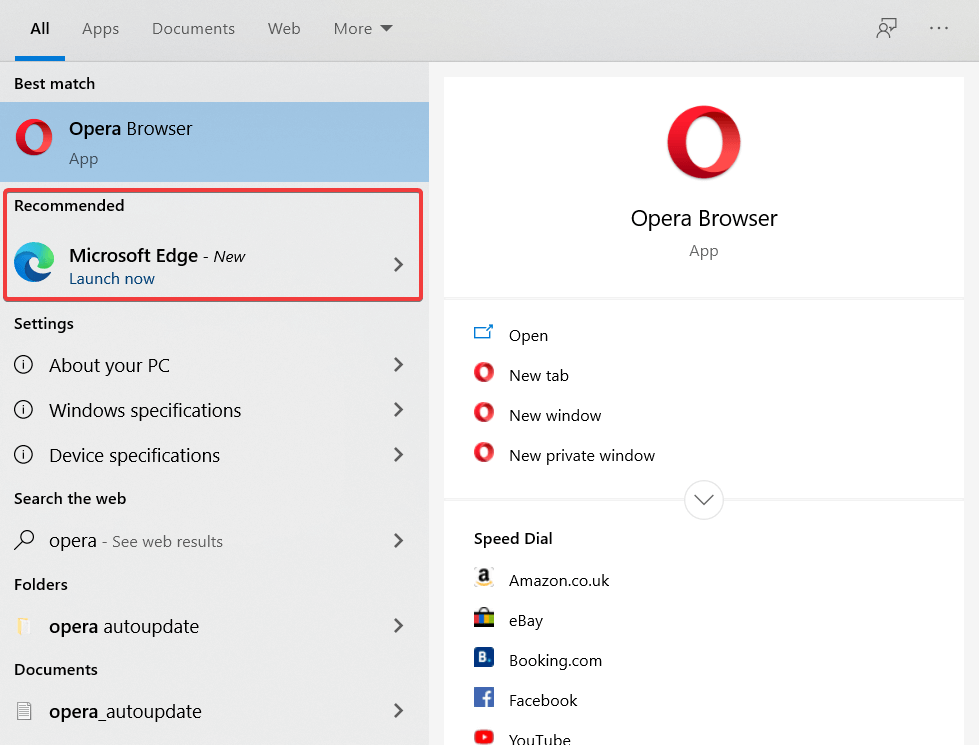
Microsoft Edge is recommended when you search for other browsers

Apparently, the Edge recommendation also appears if you try to search for a browser like Chrome, Opera, or Firefox.

Edge recommended when searching for Opera

Unfortunately, you can’t get rid of these recommendations but we have to agree that they are not so invasive. After all, not only Microsoft is trying to advertise its browser.

If you’re using the Google services in Microsoft Edge, you will probably get a pop-up advert with Chrome recommendation for a browser.

Moreover, the Microsoft recommendation is somehow welcome as Windows 10 version 2004, also known as the Windows 10 May 2020 Update, no longer supports the legacy version of Microsoft Edge.

Also, Microsoft Edge grew up significantly in the last years and it slowly starting to close the gap to Google Chrome.

Leave us your thoughts about this recommendation in the comments section below.

[wl_navigator]

How to block Cortana from starting in Windows 10

Cortana is a virtual assistant bundled that comes with Windows 10.

If you’re logged in with your Microsoft account, Cortana will help you to keep track of what interests you, search for information, or collect it from your other devices and many more.

Since the Windows 10 version 2004, you can block Cortana to start up automatically and play with its startup options.

If you are one of the users who always wanted to do that, read our guide on how to block Cortana from starting in Windows 10 very easily.

How can I block Cortana to start up automatically?

There are a few ways to get rid of Cortana from the startup list but first, are you sure you want to disable it?

Microsoft made a few changes to Cortana in Windows 10 version 2004 that might increase your productivity.

1. How to block Cortana from the Task Manager

  1. Open Task Manager by right-clicking on the taskbar and selecting Task Manager from the list.
  2. Click on the More details from the bottom left of the window.more details from Task Manager
  3. Now click on the Startup tab, then click on the Cortana app from the list and finally, click on the Disable button from the bottom right corner of the window.how to disable cortana from startup

2. How to block Cortana using the App Settings

  1. Open the Settings menu by clicking on the start button and the cogwheel just above the Power button.
  2. Go to Apps, then click on the Startup option from the left pane.
  3. Find the Cortana app from the right pane and toggle the startup button to Off.how to disable cortana from settings

3. How to block Cortana using the Advanced Settings

  1. Open the Settings like in the previous solution, then go to Apps and click on Apps & features from the left pane.
  2. Look for the Cortana app from the list and click on it to expand.
  3. Now click on the Advanced options under it.Cortana advanced options
  4. Scroll down until you find Runs ad log-in option and toggle the button to off.how to disable runs at login

Either method you’re using, you will have the same result. Of course, if you change your mind you can perform the same steps to enable it back.

Please leave us your thoughts in the comments below.

[wl_timeline]

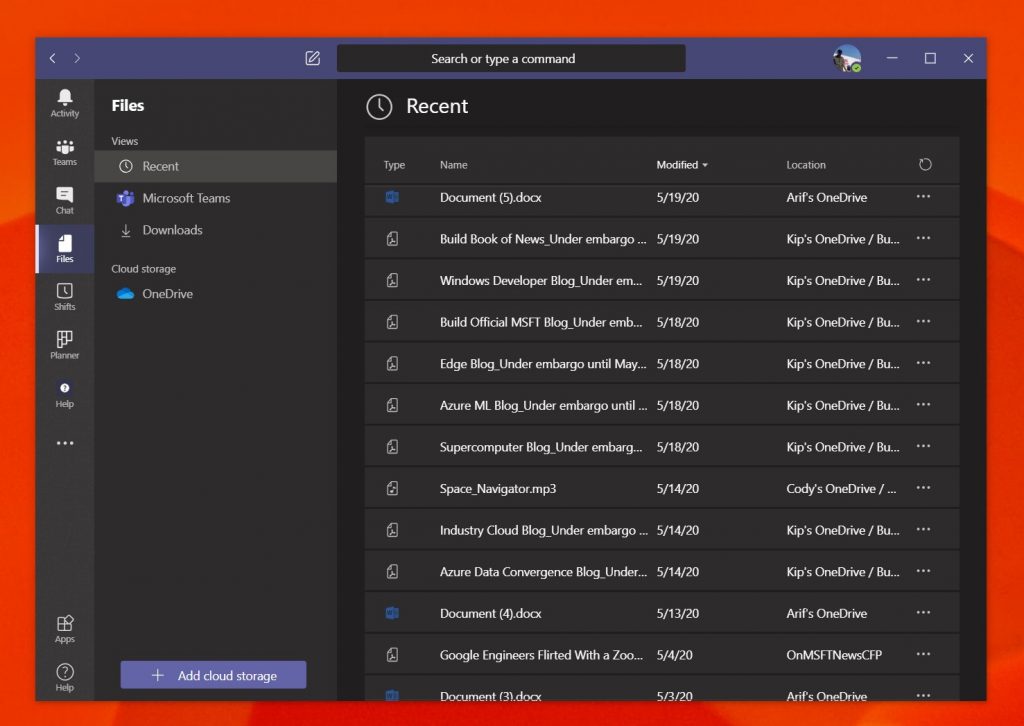
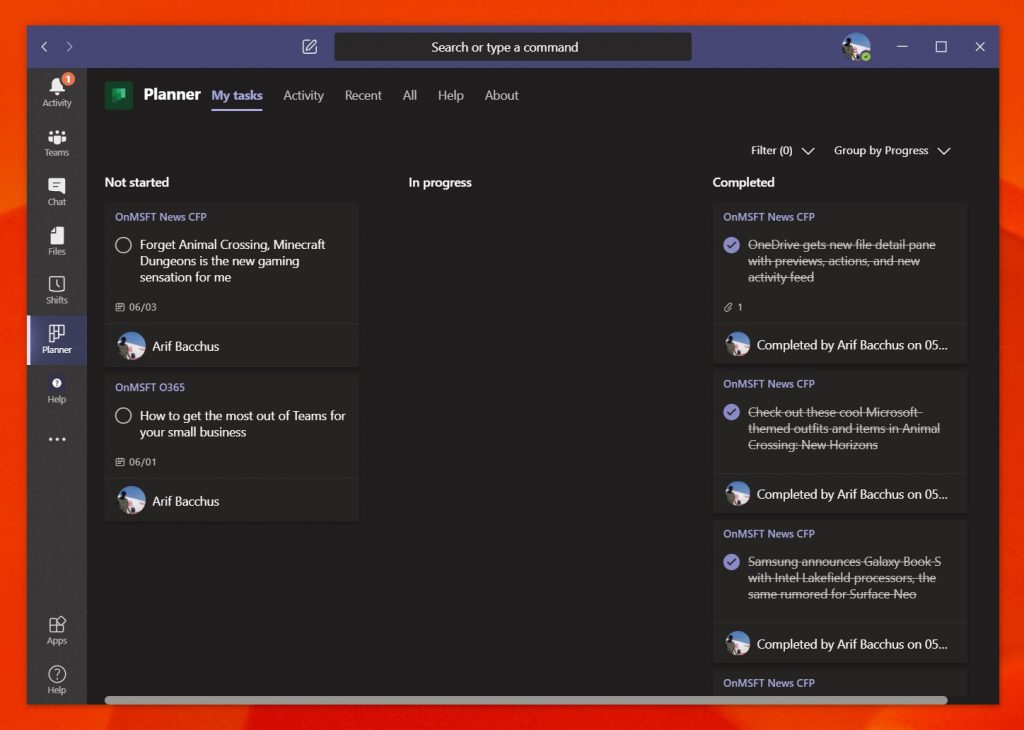
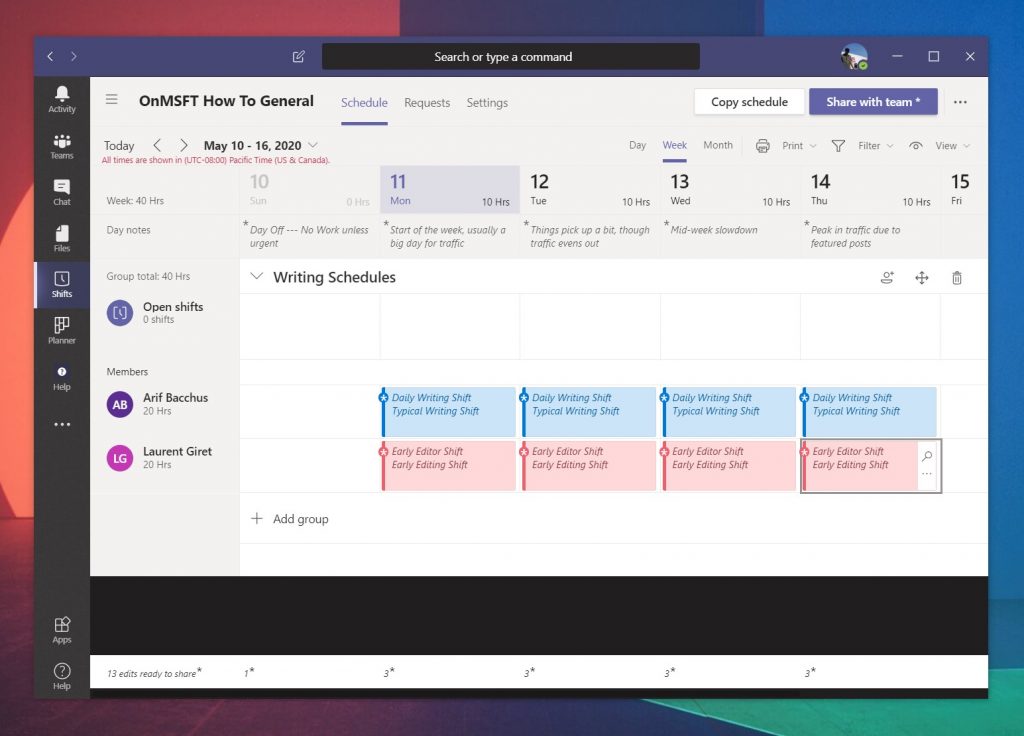
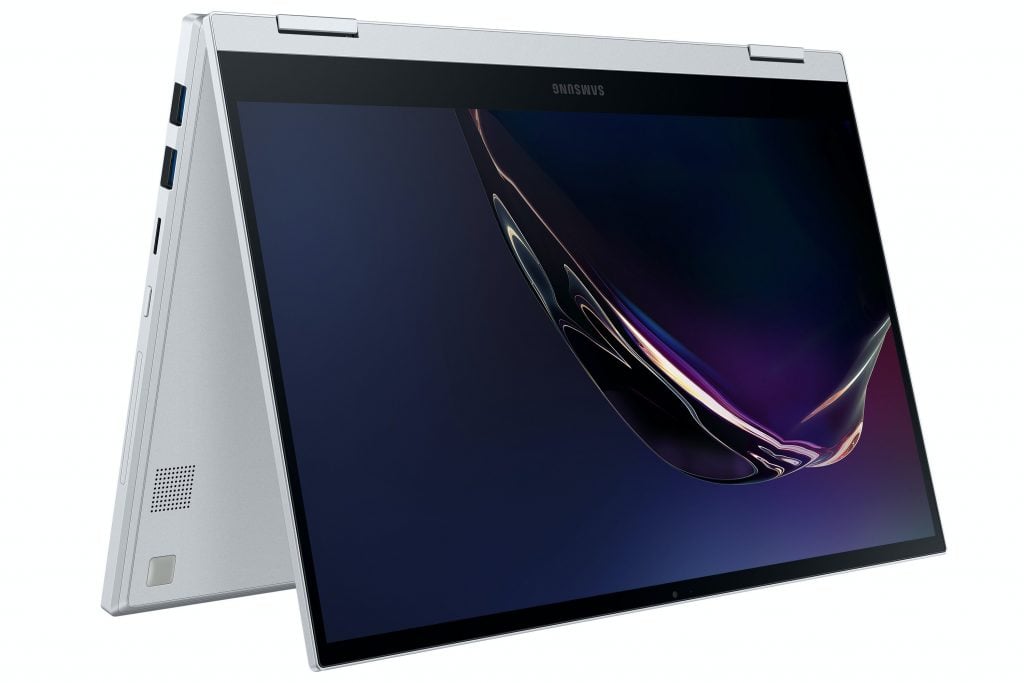
Here’s some of the new productivity tools coming soon to Teams, Microsoft 365

One of the best parts of the Microsoft 365 subscription for businesses and enterprises is that Microsoft is always updating the core apps and improving them. This was on showcase at Build 2020, where the company made multiple announcements around Microsoft Teams, and more. Here’s a look back at some of those announcements, and the new productivity tools coming your way soon as part of Microsoft 365 (via ITProToday.)

Updates to Microsoft Teams

We’ll be starting first with Microsoft Teams, which is the biggest part of Microsoft 365. On this front, there were a lot of improvements discussed for developers, but we’ll be going back and looking at the stuff which will make a difference in your productivity. These include a new experience for apps, templates, contextual search, and more.

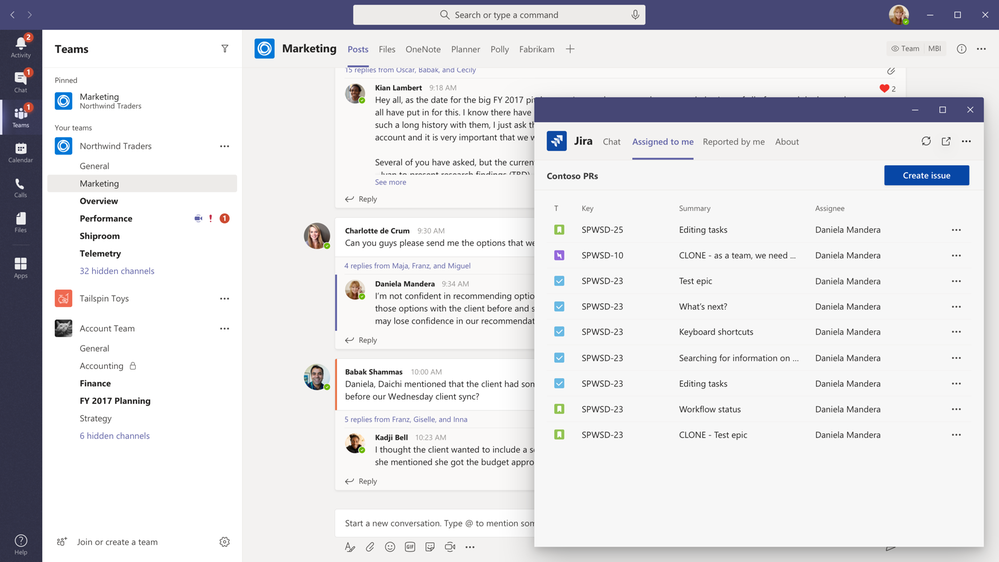
First off, Microsoft said it is working to improve the app search and app suggestions in Teams. Coming later this year, users will be able to “pop-out” their personal apps, so they can still access Teams while working. The option will be available via a right-click and will put apps in a floating window, similar to pop-out chat.

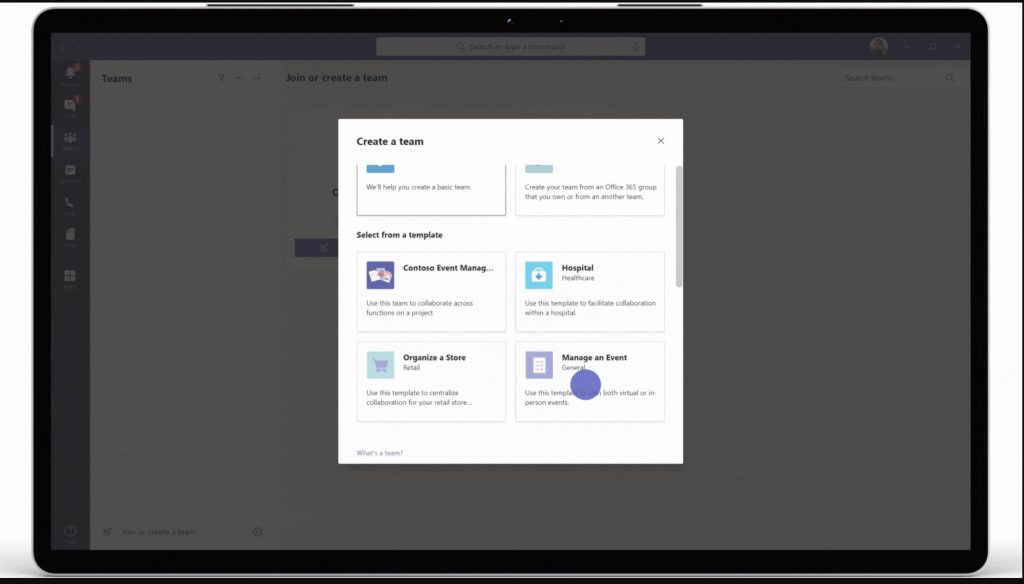
Additionally, there is a new template ability in Teams, coming in the next few months. Thanks fo this feature, admins creating teams will have different types of templates to choose from. These include event management, crisis response, hospital ward, and bank branch. Microsoft says each template will come with pre-defined channels, apps, and guidance on how to utilize and customize the team.

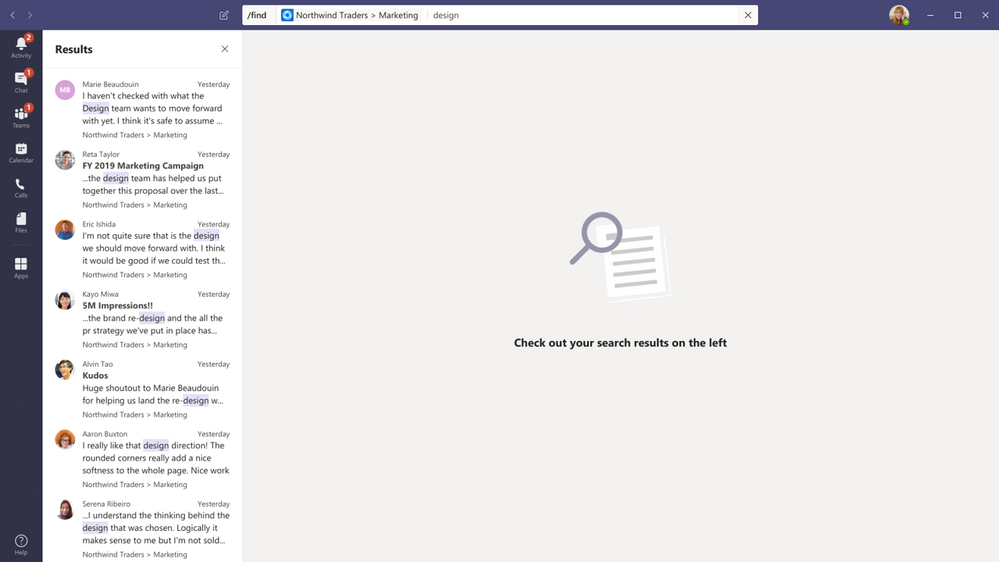
Finally, there is contextual search in Teams. A long-requested feature, Microsoft says it will be coming “soon.” Thanks to this, you’ll be able to search your chats and channels more easily and find a specific message, chat, file, and more. It’ll be accessed by clicking CTRL+F, and search results will be much more refined.

Some other smaller updates for Teams include a jump in the limit in users in meeting chat from 250 to 350 people.

Microsoft Lists

Secondly, there is a new Microsoft Lists app coming to Microsoft 365. Set for release later this summer, Lists isn’t to be confused with Microsoft To-Do, which is a consumer product. Lists is rather similar to SharePoint lists and is designed for the work-life.

The new app will help you track information at work and get it at quick glance. Such situations include tracking laptops, inventory, and more. Users will have full control and can review items, add details, track issues, and more. It will be available on the web via an app, and also in Microsoft Teams. They’ll also be multiple views available, such as a gallery view, a calendar view, and grid. Each of these views is designed to put emphasis on your list, and give you a customized experience.

Yammer, and more

Wrapping things up will be Yammer. Looking just at Yammer, it will get deeper integration with Outlook, allowing people to interact with Yammer notifications directly through Outlook on the web and emails. This will be available in the coming months.

There are also updates to products outside the Microsoft 365 scope that fall under the Microsoft umbrella but still relate to productivity. That includes Microsoft Edge. It will get some features like contextual search, better PWA support, Pinterest and OneNote in Collections, and more.

This all shows that once you buy into Microsoft 365, you’re getting plenty of value. Microsoft has your back and is always improving on the subscription service. Keep it tuned to OnMSFT as we continue our Microsoft 365 coverage and dive deeper with featured stories, how-tos, guides, and more.

Microsoft’s now acknowledges its new Windows Packet Manager was inspired by third-party AppGet app

Last week, Keivan Beigi, the developer of AppGet, provided a detailed account of how Microsoft copied the core operation of his package manager to create their own Windows Package Manager (Winget). Microsoft has now finally responded to the controversy regarding whether the company drew inspiration from AppGet to build its new Windows Package Manager, or not.

In a recent blog post, the software giant has acknowledged that WinGet is largely inspired by the open-source tool, and the company has borrowed some critical functionality for the package manager from AppGet. In addition, Microsoft has credited Beigi for the role that he specifically played in developing WinGet. Even though the Redmond giant didn’t issue an official apology, the company readily admitted that AppGet “helped us get to a better product direction” and that Microsoft had “failed to live up to this with Keivan and AppGet”.

Andrew Clinick, Microsoft’s program manager who is currently overseeing Windows Package Manager, has even listed some features borrowed from the core functionality of AppGet:

  • No scripts during install – something that we completely agreed with and don’t allow with MSIX
  • Rich manifest definition within GitHub – the power of being open combined with rich declarative meta data about the app is so important to meet goal #1
  • Support all types of Windows applications installers
  • Seamless updates for applications in the repository

Clinick has also admitted that he had a meeting with Beigi last year, where they had an initial discussion about the fundamental functionality of WinGet. He has even gone ahead to thank Beigi and acknowledged that Microsoft’s Windows Package Manager was inspired by their conversation held last summer at Microsoft HQ.

In a comment on GitHub, the Canadian developer says that he is currently in discussions with Microsoft over this matter. “Thanks @aclinick for the blog post, it means a lot. There are a few areas Andrew and I have been discussing, hopefully we’ll have something to share with you guys soon,” the comment reads.

FuboTV is now available on Microsoft’s Xbox One video game consoles

The fubotv streaming service finally launched an official app for Microsoft’s Xbox One consoles this week. The app is completely free to download however users will need to have an active fubotv account to access its content.

Fubotv offers a wide variety of on-demand and live content and boasts cloud DVR support which allows users to save live content for viewing at a later time. 4K content is also available for those that own a 4K television and an Xbox One S or Xbox One X console.

Here’s the full app description:

NFL, NBA, MLB, NHL, NCAA, college football, European and MLS soccer. Plus acclaimed TV series, live news and award-winning movies. Enjoy Cloud DVR and dedicated sports navigation to watch what you want, when you want.

  • 100+ LIVE CHANNELS: The most sports for the least money.™ fuboTV has over 100 channels. More than 30 of them have live sports. Get CBS, CBS Sports Networks, FOX, TNT, NBC, regional sports networks, FS1, NBCSN, NFL Network, NFL RedZone, NBA TV, beIN Sports networks, Golf Channel, Pac-12 Networks, Big Ten Network, Olympic Channel and beyond. More are always being added.

fubo has over 100+ channels. More than 30 of them have live sports. Get CBS, CBS Sports Networks, FOX, NBC, regional sports networks, FS1, NBCSN, NFL Network, NFL RedZone, NBA TV, beIN Sports networks, Golf Channel, Pac-12 Networks, Big Ten Network, Olympic Channel and beyond. More are always being added.

  • EXTENSIVE SPORTS COVERAGE & MAJOR EVENTS: NBA, MLB, NHL, NCAA, PGA, NASCAR, NFL, you name it, we got it. That’s over 30,000 pro and college events — regional to international. Super Bowl, World Series, Stanley Cup Playoffs, FIFA World Cup, the Winter Olympics and more. Stream it all live. We have the industry’s best regional sports coverage!
  • NEW SPORT ALERT: BINGE-WATCHING: fuboTV has over 10,000 hours of on-demand TV shows and movies. So you can catch up on acclaimed series and blockbusters from SHOWTIME®, FX and more. PLUS with a fuboTV account you can log in and stream entertainment from 25+ other apps. Including CBS, TNT, FOX, NBC, beIN, Bravo, E!, FX, Nat Geo and USA.
  • NEVER MISS ANOTHER PLAY: 30 hours of Cloud DVR space are included with every account. Need even more? Upgrade and get up to 500 hours of Cloud DVR space. Record anything, start watching on one device, and finish on any other. Forgot to hit record? No problem. You can replay nearly any game, show or movie that aired in the last 3 days with 72-hour Lookback.
  • WATCH ON ALL YOUR DEVICES: fuboTV is compatible with all your devices including iPhone (excluding NFL games), iPad, Apple TV and many more. Log into as many devices as you want. Up to two devices can stream at the same time on one account.

Fubotv joins an ever-growing library of Xbox streaming apps which include the likes of Disney+, Netflix, YouTube, Mixer, Twitch, Amazon Video, and the recently launched HBO Max.

What streaming apps do you use on your Xbox One console? Share your recommendations with the community in the comments below and then follow us on Pinterest and YouTube for more tech news.

Fubo: Watch Live TV & Sports
Developer:
fuboTV Inc.
Price:
Free

FIX: Windows 10 Explorer deleted files still show

In Windows 10 users can permanently or temporarily delete folders. That said, many users have reported that Windows 10 keep restoring the deleted files regardless of the location.

After deleting the file, the files show up in File Explorer after a refresh. Here’s how one user described this peculiar issue:

I have several empty folders on my desktop.  When I delete them, they immediately re-appear.  They also re-appear if I rename them…

Delete the re-appearing files or folders for good with the steps below.

What can I do if deleted files keep showing on Windows 10?

1. Remove the files with a third-party uninstaller

  1. First of all, run CCleaner.
  2. Choose the location you want it to scan or let it scan your whole PC.
  3. From the results, select the data you want to permanently remove.
  4. Click Run Cleaner and then Continue.
  5. Wait until the procedure finishes and make sure the files have been completely removed from your PC.

CCleaner has a free version that can save you a huge amount of effort if you want to get rid of files that are often left behind even after you’ve supposedly deleted them.

It is clearly one of the best tools of this kind because it’s light, easy to use, and encompasses tons of useful features to keep your PC cleaning and running as new.

CCleaner can help you uninstall apps directly from the app, clean your browser, clean your registry and remove unnecessary junk files that only take up space.

On top of all these, it not only uninstalls pesky programs but also easily cleans up the leftovers in folders and registries of any kind.

⇒ Get CCleaner

2. Use Shift-Delete to delete the files

  1. Open the File Explorer and navigate to the location where the problematic files are located.
  2. Select all the files you want to delete.
  3. Now press and hold the Shift Key on your keyboard and press the Delete key simultaneously.
  4. This should delete the file or folder permanently.
  5. Check if the files re-appear again.
  6. If this resolves the error, it could be because of some permission issue that Windows restores the files from the Recycle bin. However, since you permanently delete the files, Windows will not restore the files again.

3. Scan for Virus / Malware

  1. Any malware-infected PCs are known to show such abnormal behavior where the deleted files start restoring automatically to avoid the removal of a harmful threat.
  2. If you have an antivirus installed, perform a complete scan , and remove any threat detected by the security program.
  3. If you don’t have any antivirus installed, download and install Malwarebytes Premium. It comes with a free 7 days trial and is very capable of removing any harmful files from your system.
  4. Make sure you empty the quarantine to avoid restoration in the future.

Additionally, if you look for other effective antiviruses and don’t know where to go or what criteria you should consider, we recommend using the best antivirus software with the highest detection rate.

4. Repair files and folders automatically

Windows File and Folder Repair Tool
  1. Go to Windows File and Folder Diagnose page.
  2. Download Windows File Folder Diagnose tool by clicking the Download button.
  3. Run the file and click Next.
  4. It will scan the system and ask you to select the problem you are facing. Select Problems with deleting files and folders and click Next.
  5. It will again check for any problem with the Recycle Bin and system files responsible for removing the file.
  6. It will show all the programs that were fixed in the process. Close the repair tool.
  7. Try to delete the problematic files and folders again and check if the error is resolved.

5. Repair the Recycle Bin

  1. Type cmd in the search bar.
  2. Right-click on Command Prompt option and select Run as Administrator.
  3. In the command prompt, type the following command and press Enter: rd /s /q C:$Recycle.bin
  4. Wait for the command to execute successfully.
  5. Type exit to close Command Prompt.
  6. Now try to delete the folder or file again and check if the issue is resolved.

Were the above solutions helpful? Let us know in the comments area below.

Take a closer look at our Windows 10 section if you’d like to find the latest news and guides.

For similar fixes from tech experts, just bookmark our PC Software Troubleshooting Hub. 

Browser local storage: Here’s what you need to know

Local browser storage is a new feature in browses and it was added in HTML5. This feature has been incredibly useful to web developers, and it has improved the way web apps work.

So, what is local browser storage and how does it work? In today’s article, we’ll try to explain that.

What is browser local storage and how to use it?

1. What is local browser storage?

Local browser storage works similarly to cookies, and it allows web app developers to store data in your browser.

Cookies are added to all requests and available for both client and the server, while the local storage is available only in your browser, which is one of its advantages.

Local browser storage can have no expiration date, or it can last just for a single session. As for the storage, local web storage can take 5-10MB of your browser’s cache.

2. How to use local browser storage?

Local browser storage usually holds some mundane data that allows web applications to work properly.

While local browser storage is useful, it’s not the safest method for data storage, so developers aren’t using it for storing sensitive information.

Regarding the support, all web browsers support local browser storage. However, Opera One offers better support for local browser storage and HTML5 in general.

Opera One is also light on your resources, so it can handle web apps and multimedia with ease. The browser also has tracking protection that will block tracking scripts and speed up website loading.

The browser also has a built-in ad blocker, as well as its own free VPN with unlimited bandwidth for extra protection. Features such as advanced tab management and a pop-out video player are also there.

Opera One is a solid browser for both casual users and web developers, and it’s available on all major platforms, so be sure to try it out. Plus, it comes with it’s own AI.

Opera One

Don’t worry about trivial matters like local storage and HTML5 in general thanks to Opera One’s constantly updated architecture.
Free Download Visit website

Local browser storage is a big part of our web apps, and we hope that you understand what local browser storage is a bit better after reading this article.

Some Windows 10 2004 users get compatibility block alert

Just like earlier OS updates, big and small, the latest Windows 10 2004 update had some not-so-pleasant surprises for some users. It failed to install.

In turn, Microsoft put a compatibility hold on some of the affected Windows 10 PCs, just as it usually handles similar situations. That has left some users confused as to why they’re unable to upgrade to an OS they couldn’t wait to explore a few days ago.

Fortunately, Microsoft is at least trying to explain the issue to affected users through a Windows Update banner.

Why you may not install Windows 10 2004 yet

When Microsoft puts a compatibility hold on a device, it stops offering it the update that caused the problem in the first place. That’s what’s happening to users that can’t install the Windows 10 May 2020 update.

According to one Reddit user that experienced the problem, Windows Update is displaying a banner explaining the reason for the compatibility hold.

The notification reads:

The Windows 10 May Update is on its way. We’re offering this update to compatible devices, but your device isn’t quite ready for it. Once the device is ready, you’ll see the update available on this page. There’s nothing you need to do at this time.

Up to nine compatibility holds are right now preventing users from receiving the May 2020 update. However, there may be a temporary workaround for some of the known issues.

PCs with Hypervisor-protected code integrity (HVCI) on are unable to upgrade, for example. Affected users can circumvent the problem by updating their display drivers before trying to install Windows 10 version 2004.

They may also disable HVCI, which would allow the new OS to install. But they’d be compromising kernel-mode code integrity in so doing.

Other driver compatibility problems affecting Windows 10 2004 installation include:

  • Intel iGPU
  • Realtek Bluetooth radios
  • Conexant HDAudio Driver
  • Nvidia display adapters

Have you successfully upgraded to Windows 10 2004? Or are you looking at a compatibility block? Please let us know in the comments section below.

[wl_navigator]

Microsoft shipped Edge password tracker to Canary testers

Microsoft Edge password tracker is already live in the Canary channel. According to a report by Deskmodder, the feature has been available there since March, although some insiders haven’t yet seen it.

On March 30, Microsoft announced multiple features that coming to Edge. The promised changes included better research organization with Collections, tracking prevention, and password monitor.

Edge password tracker comes to Canary

The report suggests that users can activate the password monitor in Edge Canary build 85.0.531.0.

The writer of the article has not received the feature yet. As such, that’s probably because it’s on a gradual roll out.

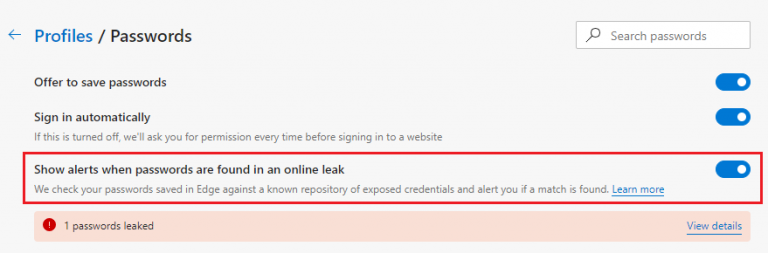
If you’re an insider in the Canary channel, you can activate the credentials tracking feature by going to Settings, Profile, and Passwords.

Who needs to use the new security feature?

Password monitoring in Edge is a security feature meant to alert users in case of the theft of their website sign in credentials.

It’s particularly useful to users that love the convenience of saving their passwords and usernames in their browsers.

Microsoft said that the feature would be alerting users whose website credentials have been stolen by hackers.

When enabled, Password Monitor is a feature that notifies you if the credentials you’ve saved to autofill have been detected on the dark web. If Microsoft Edge uncovers a match with any of your saved username + passwords, you will receive a notification from within the browser prompting you to take action.

Usually, some bad actors steal passwords and sell them to other parties on the dark web.

It appears that Microsoft has found a way to breach the defenses of (or otherwise access) the ever-secretive and heavily guarded darknets.

So, Edge will have the ability to search stolen password databases on that part of the web. If it encounters a password or username match, it will notify the affected Edge user.

Tell us what you think about the Edge password tracker by leaving a message in the comments section below.

[wl_navigator]


Most Windows 10 2004 issues still unresolved to date

Users started reporting Windows 10 2004 issues hours after the OS update became available for download. Most of these issues are still pending, with some of them preventing users from upgrading their OS.

As such, Microsoft is still looking to resolve glitches ranging from Bluetooth connectivity to driver compatibility.

Pending Windows 10 2004 issues

Hours before the Windows 10 May 2020 Update went live, Microsoft created two support pages for the OS. Well, today is the 6th of June 2020, and the known issues page is still replete with unfixed bugs.

Unfortunately, the other page for resolved Windows 10 2004 problems is still empty. The situation isn’t all doom and gloom, though. That’s because the company has acknowledged the pending problems and is working to resolve them.

The latest item to enter the list of unresolved problems is a DISM reporting bug.

After using the Deployment Image Servicing and Management (DISM.exe) command /restorehealth to detect and correct system corruption, you might receive a report from the tool that corruption is still present. This can occur even when it has been repaired. An example for using the /restorehealth command is: DISM.exe /Online /Cleanup-image /Restorehealth.

The glitch has a temporary workaround, however. According to Microsoft, only the first scan gives an incorrect status of system corruption.

Therefore, any subsequent DISM diagnostics should deliver an accurate report.

Meanwhile, Microsoft expects to deliver a permanent resolution to the DISM issue about two weeks from today.

The only not-so-optimistic news is that some users are still unable to update their PCs to Windows 10 version 2004. Worse still, Microsoft has put a compatibility hold on their devices.

Affected users may, thus, not install the latest OS until the company has solved the problems preventing them from doing so.

Have you had any Windows 10 2004 issues worth writing home about? Has Microsoft fixed the problems, if any?Kindly reach for the comments section below to share your experience.

[wl_navigator]

Xbox One Guide user interface gets structural improvements

Microsoft made changes to the Xbox One Guide interface that makes it a lot easier to navigate the feature. In February 2020, the console’s dashboard got a significant UI facelift too.

Then, the Xbox One Home screen is got a quicker way to access your favorite content. Now, the latest changes to the console come when it’s only a matter of time before Microsoft’s next-gen Xbox Series X launches.

New Xbox One Guide is easier to navigate

Microsoft has reorganized some items on the Xbox One Guide, which is part of the console’s user dashboard. Some of the changes impact the way you access system notifications, while others improve the social experience.

The new left-to-right tab order is one of the latest notable updates to the console’s Guide UI.

 The new Guide is designed to be cleaner and easier to read. We’ve reduced the total number of tabs by combing related experiences and introduced a new default, left-to-right tab order, making it simpler to move around. App and system notifications are now found with the rest of your Alerts, right when you open the guide.

Apart from that, the update reorganizes the People tab.

Also, when you want to make new friends, you can do that by going to Find Someone, and then choosing Friend Suggestions. This change should help expand your social outreach across Xbox Live.

In addition, if you’re a fan of Xbox clubs, be happy for you can now find and join more of those much quicker. Simply go to the Clubs page and use the Discover Clubs feature. There, you’ll get plenty of suggestions to get you started on your social engagements on the platform.

Will the new Guide UI improvements be available on the upcoming Xbox Series X? Most probably yes. The console is coming out holiday 2020, according to Microsoft’s plans.

So, what do you think about the new Xbox One Guide update? Feel free to let us know in the comments section below.

[wl_navigator]

Satya Nadella addresses employees on Black Lives Matter protests, says “Microsoft will continue to advocate to have voices heard and respected”

On LinkedIn, Kathleen Hogan, the Chief People Officer at Microsoft, shared some of Microsoft CEO Satya Nadella’s remarks to employees on the Black Lives Matter protests, unrest, and the situation ongoing here in the United States.

In the May 28 remarks, Nadella mentioned to employees how believes that while everyday racism is not new, it is “far too often the experience and reality in daily lives, particularly for the Black and African American community.” The SEO also mentioned reading an Op-ed from the New York Times and opened up on how the situation is “not something to just leave behind when you log in to work.”

Although the quoted segments are careful and do not mention it specifically, Nadella hinted at the death of George Floyd while his neck was facing the knees of a white police officer in Minneapolis. On this, Nadella said to employees, “It’s not just any one incident, but it’s all the things that have led to the incident that absolutely need to change.” The CEO also mentioned how it is incumbent to use platforms for change. Segments of these are below.

“Our identity, our very existence is rooted in empowering everyone on the planet. So, therefore, it’s incumbent upon us to use our platforms, our resources, to drive that systemic change, right? That’s the real challenge here. We can’t do it alone. I’m grounded in that, I realize that, but together I think we can, and we will drive change.”

“We need to recognize that we are better, smarter and stronger when we consider the voices, the actions of all communities, and you have my assurance that Microsoft will continue to advocate to have all those voices heard and respected.”

As for how this impacts employees directly, Nadella called for employees to come together. He wants employees to check in with each other, ask how they’re doing, and to have empathy for what other are feeling. These remarks are seen below.

“My ask to each of you is to come together. Ask a colleague how they are doing today. Give each other grace as they’re navigating unseen circumstances. “Have empathy for those who are scared and uncertain, and join me and everyone on the senior leadership team, in advocating for change in our company, in our communities, and in society at large.”

Nadella’s remarks also make it clear that Microsoft is interested in partnerships and programs for the good. He points to the company’s Criminal Justice Reform Initiative, which invests in partnerships that are focused on reforming policing.

Nadella is not alone in his remarks and plenty of other big giant corporate voices have gotten behind the Black Lives Matter movements. Apple SEO Tim Cook sent a letter to employees on Sunday. and Google SEO Sunda Pichai mentioned on Twitter that Google “shares our support for racial equality in solidarity with the Black community.”

Microsoft begins Bing and Azure Maps migration to TomTom

Last year, Microsoft and TomTom announced an expansion of their existing partnership to bring TomTom’s maps and traffic data into various mapping scenarios across Microsoft’s cloud-based services including Bing Maps and Azure. In a blog post this week, Microsoft has finally announced that the transition of Bing Maps data will finally begin today, as previously announced. The change affects all regions with the exception of Japan, China, and South Korea.

With this broadened integration, TomTom is now a leading location data provider for Bing Maps and Microsoft Azure. However, Microsoft indicates that all applications that use the Bing Maps API will continue to function normally, except for older versions of Windows 10 (released before Windows 10 v1703).  Microsoft notes that the drastic change should make the service even better.

Microsoft has already rolled out these changes to Bing.com users, as well as Microsoft’s first-party products back in March 2020. Today, the Redmond giant has officially started the migration process for all the Bing Maps “Basic” and “free” accounts, and Microsoft plans to automatically migrate all “Enterprise” consumers to the new data source (TomTom’s mapping data) by the end of August.

Top three ways to get the most out of Microsoft Teams for your small business

Communication is the heart of any business operation both big and small. But if you’re a small business that has employees based out of different locations, or are now depending on remote workers and operation due to the Coronavirus, it is especially important. That’s where Microsoft Teams comes into the picture.

From its chat-based interface, integrations with other Microsoft apps, or other services, here’s a look at how you can get the most out of Teams for your small business.

Manage your small business documents

The number one way that you can get the most out of Teams for your small business is to use it to manage your documents. With Teams, Microsoft is using its SharePoint service to create Teams sites, which as we’ve previously explained, are document libraries for all things shared in Teams. This is because Teams is designed for groups, allowing anyone to see shared documents and files.

For you, this means that anyone you’ve added to a Team channel can upload files and documents to a channel in Teams, and then have the team access it via the “Files” tab in the right side of the app. This makes it easy to find files and documents without worrying about hunting for links or manually visiting a website to get the files. Even if you prefer to use other non-Microsoft storage solutions, you also can add additional cloud services by clicking the Add cloud storage button on the bottom of the sidebar.

There are also other “apps” you can add to Microsoft Teams, too. These can be from outside of Microsoft and include YouTube, Zoom, Evernote, Adobe Creative Cloud, and so much more. Apps can be added by clicking the Apps icon in the sidebar. Once added, apps will either appear in a tab in a channel, in the sidebar itself. We’ve explained the process before, so give it a read for a more in-depth explanation. These apps will plug nicely into Teams if you’re still using non-Microsoft services before making the jump to Microsoft 365 or Teams.

Manage your tasks from Teams using Microsoft Planner

Other than documents, another core area of a business operation is planning and organizing. If it’s things such as handling pickups, drop-offs, and more, you’ll need to keep track of who is doing what task, and how the task is progressing. Much like with managing documents, this is another area where Teams has your back with its integration with Microsoft Planner.

In Microsoft Planner, the experience is centered around “Plans” that are tied to Office 365 groups. So, if you create a new plan, you’ll get a new Office 365 group for it. You also can create Plans based on existing groups, too. Plans will also have their own SharePoint website and OneNote notebook to help set it apart and make it easier to find certain attachments.

To get started, you can log into Planner from tasks.office.com and then create a new plan. Give it a name, and then you’ll be sent into the user interface. The Planner is organized in vertical columns, with bucket lists. You can add items to the bucket list, and assign tasks, choose dude dates, add notes, and more. There are even metrics available, to show you a schedule for tasks, and more.

Once you’ve set up Microsoft Planner, you can easily find it in Microsoft Teams. Just click to it in the sidebar of the app, or find it by clicking the … in the sidebar, followed by Planner. This will open up planner directly in Teams, without having to open a new tab in your web browser.

Manage your workforce from Teams with Microsoft Shifts

Finally, there is Shifts in Microsoft Teams. Being a small business, you might not have the funds to invest in payroll services like ADP. Teams, though, has integration with “Shifts” a service from Microsoft designed for managers and first line workers to keep track of work hours, and more. When enabled in the Microsoft 365 Dashboard and given the right permissions, your Teams users will be able to use the Teams app to clock in and out of shifts.

Managers, meanwhile, can schedule shifts, add details, swap out shifts, keep things organized, and even download reports. Teams users also have the power to use Shifts to request time off. While it is not as comprehensive as paid payroll services, it does get the job done right, when needed.

Teams can do so much more

These are only the top three ways in which you can get the most out of Microsoft Teams for your small business. We’ve covered Teams extensively over the past couple of months. Be it Yammer, and so much more, there’s a lot to like about Microsoft Teams. If you want to learn more, our news hub has you covered.

Microsoft Edge’s new Password monitor feature starts rolling out on the Canary channel

Microsoft has introduced a new feature in the Microsoft Edge Canary channel to make it easier for you to protect your online accounts from hackers (via Deskmodder). The new built-in Password Monitor, a feature that was announced during the March 30 Microsoft 365 event, constantly checks your passwords for potential data breaches.

enable Microsoft Edge password monitor

Those running the latest version of Microsoft Edge Canary (85.0.531.0) can access the Password Monitor setting “Show alerts when passwords are found in an online leak” by heading to Settings > Profile > Passwords. Once enabled, your browser may take a couple of minutes to scan and immediately display a notification (as shown above) if your credentials are listed in a database of compromised passwords.

Microsoft Edge password monitor

You can then click the “View details” option to open a dashboard in Settings, which lists all your leaked credentials and directs you to the respective websites to change your password. Once you change the password and save the new credentials to autofill, you can now continue browsing with the peace of mind that your password is no longer compromised.

It is worth noting that the feature is gradually rolling out for all Microsoft Edge Canary users, so there is a possibility that you may not see it today. As of this writing, there is no ETA for Password Monitor to land in the Stable channel, but the feature should go live on the Dev channel soon.

What to do if FedEx package status is not due for delivery?

There are four main statuses that delivery services, FedEx included, use to inform clients about the whereabouts of their parcel: New, In Transit, Delivered, Delivery Exception.

But there’s another status that clients sometimes get when trying to track down their shipment: Parcel not due for delivery.


What does FedEx status Package not due for delivery mean?fedex not due for delivery status

In short, it means that your package has arrived, but FedEx will not deliver it until it is due.

To the surprise of many FedEx customers, the service keeps to the schedule and doesn’t deliver something earlier than expected. Or, as some clients protested:

Fed Ex is basically saying (…) we have your package and we could deliver it but instead, we are going to sit and stare at it for a couple days because it’s not due yet.

But things are not that simple. According to the protocols, even if packages arrive earlier, the priority is with whatever is due for delivery on a certain day.

If the truck is loaded, no other packages get inside. But if there’s still space, for sure they will include other parcels.

On the other hand, whenever you see the Package not due for delivery status, feel free to go to the local station and get it yourself.


[wl_navigator]

Tinder Error 5000? Fix It in 5 Easy-to-follow Steps

Tinder is a dating app for Apple and Android mobiles, which you can also utilize in web browsers. The Tinder 5000 error is an issue that arises for its mobile apps.

When that error arises, users can’t log in to the Tinder Android or iOS app.

How do I fix Tinder error 5000?

1. Check if Tinder is down

Downdetector page tinder error 5000

Tindererror 5000 can often be a server issue. To check if Tinder is down, open its DownDetector page. You can select your country on the menu by the search box.

Downdetector will tell you if Tinder is down in your region or not. If it is, wait a few days, and then try logging in again.

2. Reinstall the Tinder app

Android

  1. Reinstalling the Tinder app will ensure you’re utilizing the most updated version. To uninstall the Tinder Android app, tap Settings.
  2. Tap Apps on the left of Settings.
    Settings tinder error 5000
  3. Select the Tinder app.
  4. Select Uninstall to remove it.
  5. Next, open Tinder’s Google Play page. Tap the Install option there to reinstall the latest app version.

Apple iOS

  1. Tap and hold the Tinder app on an Apple mobile until it jiggles. In iOS 13, you’ll also need to select Edit Home Screen.
  2. Tap the X for the Tinder app to delete it.
  3. Press the mobile’s Home button.
  4. Log in to Apple Store if you’re not already.
  5. Thereafter, open the Tinder App Store page.
    Tinder App Store page tinder error 5000
  6. Tap the Get button to add Tinder to the mobile.

3. Remove VPN apps

The Tinder login error 5000 issue can be due to VPNs. So, disabling the VPN on your mobile might resolve the issue. You can do that by uninstalling your VPN app as outlined within resolution two.

VPN apps tinder error 5000

4. Clear Tinder’s app cache

  1. Android users might be able to fix Tinder login error 5000 by clearing their Tinder apps’ caches. To do that, open Settings.
  2. Tap Apps on the left of Settings.
  3. Select your Tinder app.
  4. Tap the Storage button to open the options shown directly below.
  5. Tap the Clear Cache option.Clear cache button tinder error 5000
  6. After that, turn off your mobile.
  7. Turn the mobile back on, and try logging in to Tinder again.

This can also help resolve the Grindr registration error.

5. Log in to the Tinder web app

Remember that there’s also a Tinder web app you can open in browsers on mobiles and PCs. So, you don’t need to log in to your Tinder mobile app. Try logging in to the Tinder web app if the resolutions above don’t resolve the issue.

Tinder website tinder error 5000

As previously stated, however, Tinder error 5000 might be a server issue. Thus, the resolutions above won’t resolve that issue when the app’s server is down. If you need further fixes for Tinder login error 5000, send a troubleshooting request on the app’s Submit a Request page.

If this guide has helped you resolve the error 5000 on Tinder, don’t hesitate to share your experience with us. You can do so by simply using the comment section below.

Item too large for the volume’s format? Try these solutions

When trying to transfer large files from your computer or Mac to a flash stick, an external hard drive, sd card, or similar, you sometimes get an error saying that that the item can’t be copied because it is too large for the volume’s format.

Still, you know that you have plenty of space on your stick or hard drive. So why does this happen?

This limitation is due to the formatting type of your external storage device, which is almost always (MS-DOS) FAT32. Files larger than 4GB can not be stored on a FAT32 volume.

The solution, in this case, is to format the device as exFAT (Extended File Allocation Table) or NTFS (NT File System).


How can I avoid the item too large for the volume’s format error?

Format as exFAT format as exfat

  1. On your computer, open My Computer or File Explorer.
  2. Right-click on the flash drive or memory card, then select Format.
  3. In the File System list, click exFAT.
  4. Click Start.
  5. Click OK to start formatting.

OR

  1. On your Mac, search Disk Utility to open the disk utility tool.
  2. Under External, select your device.
  3. Click the Erase icon at the top.format exfat on mac
  4. From the Format drop-down list, select exFAT.
  5. Click Erase, then Done.

Before proceeding, you should back up or copy the files stored on the respective device elsewhere, and then copy them back, because formatting the device will delete the information on it.

Note that the exFAT file system allows a single file larger than 4GB to be stored on the device. 


Looking for the best external hard drive to store your files? Here are our suggestions.


Format as NTFS

The steps are the same as above, but only if you have a PC. NTFS format is only readable on Mac, but it can’t be written.

Before beginning, back up your files, as advised, and also optimize the flash drive for performance using the following steps:optimize external drive

  1. In the search bar, type Device Manager.
  2. Expand Disk Drives.
  3. Right-click on your external device, choose Properties, then click on Policies, and select Better Performance. After this, just click OK to complete the process.

As notified, after performing these steps and formatting your device, you should only remove it from your computer using the Safely Remove Hardware option from the quick menu. Otherwise, you could damage the device.


We hope you found the article useful. Any suggestion or comment is welcome in the comments section below.


[wl_navigator]

LastPass Free VS Premium [Reviewed by Pros]

If you are reading this article, you most likely have used the free version of LastPass and now wondering if upgrading to the premium version of the popular password manager tool is worth it. The short answer is yes, it does.

The premium version offers advanced features that include added security features like Yubikey integration, sesame, and high-priority tech support.

That said, not everybody is willing to pay the price that LastPass is asking for a password manager, which as of writing this article, stands at $3/mo and $8/user for personal and business plans, respectively. While businesses can justify the pricing, regular users do not.

In this article, we take a look at the LastPass premium and compare it against its free offering to see what both of these account types have to offer. And also, if you can trust LastPass free to keep your credentials safe.

What is the difference between LastPass free and LastPass premium?

LastPass Free

Pros:

  • Access on all devices
  • One-to-one sharing
  • Auto-fill forms and password generator
  • Security challenge
  • Multi-factory authentication

Cons:

  • No emergency accesses
  • Low priority support
  • Lack of one-to-many sharing
  • No advanced multi-factor options

LastPass free offers all the basic and essential features of the program. With the free version, you can generate strong passwords, store them, and access them across all devices and browsers.

The auto-fill forms option makes it easy to access the stored credentials for all the websites. Other features of LastPass free include multi-factor authentication, security challenge that allows you to audit and tweak the weak password, one-to-one sharing, and LastPass Authenticator.

The biggest disadvantage of LastPass free is the lack of emergency access and priority tech support that the premium users receive. If you lost access to your account, this can be a problem.

LastPass Premium

lastpass free vs lastpass premium

Pros:

  • Everything in the free plan
  • Emergency Access
  • One-to-many sharing
  • Support for YubiKey, Sesame, and fingerprint access
  • 1GB encrypted file storage
  • Windows 10 app integration

Cons:

  • No monthly plans
  • Only one user

LastPass Premium is available in multiple plans. The premium plan starts at $3/mo for a single user and $4 for the family plan that accommodates up to 6 users.

LastPass Premium offers all the features that are included in the free plan, plus a number of advanced features. The Emergency access feature allows you to ensure someone always has access to your most important information in case of any emergency or crisis.

Priority tech support puts the premium user’s request at the top of the queue for a quicker response. The premium plan also offers advanced multi-factor authentication options that include support for YubiKey, Sesame, and fingerprint authentication.

Included 1GB encrypted file storage offers a safe digital vault to keep a backup of critical documents like passport, membership cards, and other important documents safe and accessible from any device.

On the flip side, the premium account offers access to only one user. If you want more licenses, opt for the Family plan that supports up to 6 users on a single plan and costs a $1 extra.

LastPass Premium is surely worth it!

LastPass is an excellent password manager with its free plan offering the most essential features a password manager must have. The fact that the LastPass free users can access the program across all devices puts it ahead of its competitors.

The premium plan again brings some advanced security and convenient features like advanced multi-factor authentication, desktop app integration, and cloud storage space that can not only keep your credentials safe but also makes them easy to manage.

LastPass may lack flashy features offered by its competitors like Dashlane, but for what it costs, it is a fantastic password manager.

Does LastPass Enterprise include a free personal Premium account?

Lastpass Enterprise does not include a free personal Premium account, unfortunately. Some users have said that transferring their data from their Premium account to the Enterprise version prompted them with a message saying that they started a 10-day trial period.

If you encountered the same issue, it is best that you contact the LastPass team for assistance.

Can LastPass be hacked?

lastpass free vs lastpass premium

LastPass experienced a security breach back in 2015, which the company claims to be the only instance in its 10-years history. According to LastPass, no encrypted vault data was compromised.

LastPass operates on a zero-knowledge security model in which LastPass never has your master password or access to the data within your vault. You can see the flow of the chart below to understand how LastPass protects your data.

LastPass

Enhance the password management of your device and get the best security with LastPass.
Check price Visit Website

In this guide, we explored the features contained in the  LastPass Free vs Premium versions, and we also discussed some details about how this software works and what it can do.

If you found this information helpful, don’t hesitate to let us know by using the comment section below.