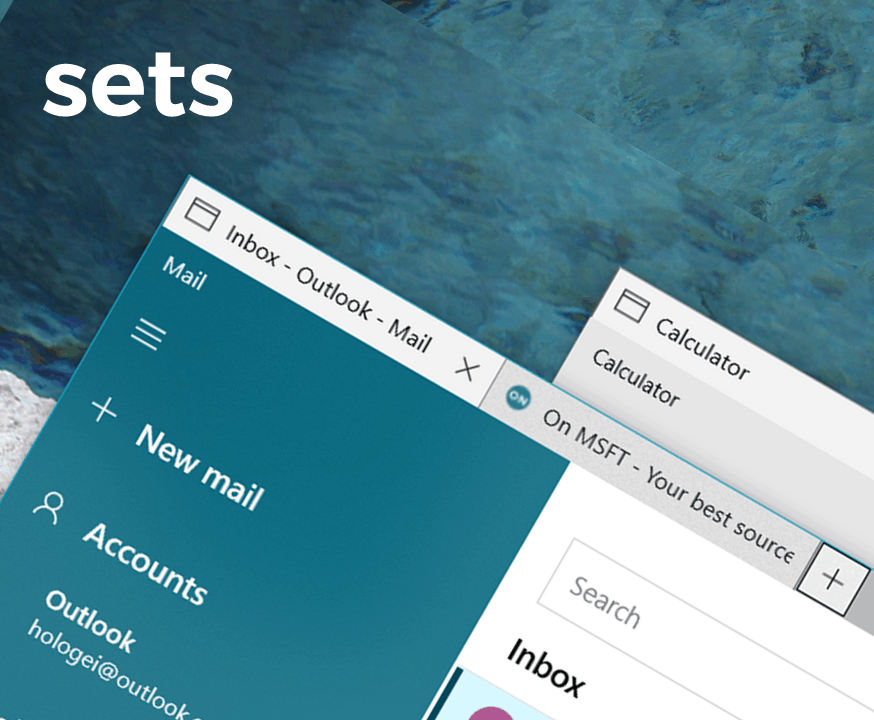
Issues with Windows Mixed Reality, fixes for OneNote, touch keyboard highlight Windows 10 Insider Preview Build 17120

Early this morning Microsoft released Windows 10 Insider Preview Build 17120 for PC. As always, this build is not perfect, but it does pack some improvements and a few known issues with Windows Mixed Reality which you need to take note of. Here’s what you need to know.

Known Issues:

  • With this build, the Windows Mixed Reality Team would like to let you know about a few known issues as you try out the new Windows Mixed Reality features:
  • We’re investigating reports of a performance regression for Windows Mixed Reality on hybrid laptops on this build.
  • In some cases, the inbox apps will fail to load inside of Windows Mixed Reality and newly placed Holograms may be empty. Restarting Windows Mixed Reality should resolve both issues.
  • Windows Mixed Reality will crash if you launch the Store from Movies & TV, and then close both apps.
  • The ambient sound in Skyloft is louder than it should be.
  • On laptops with hybrid GPUs the video doesn’t render for 360 videos rendered directly in the Edge app although you can still hear the sound.
  • The 360 viewer fails to launch from the Store app when you click on the “Launch” button after installing the 360 Viewer Edge extension. To workaround manually launch Edge and then enable the 360 Viewer extension.

General changes, improvements, and fixes for PC:

  • When a process in Task Manager is suspended, or has suspended child processes, you’ll now see an icon indicating as much in the Status column of the Processes tab.
  • We fixed an issue resulting in the UAC dialog potentially not rendering correctly in the last few flights.
  • We fixed an issue resulting in OneNote crashing when using touch to drag and drop elements in recent flights.
  • We fixed an issue resulting in the touch keyboard crashing when focus was moved to certain password fields.
  • We’ve improved the performance of Bluetooth mice when the system is under load.
  • We fixed an issue resulting in the Amharic keyboard not working in Win32 apps.

Microsoft will be adding more known issues as they are reported, so be sure to install this build and keep the feedback coming via the Feedback Hub. Happy downloading, and do let us know how this new build is working by dropping us a comment below.

Office Insiders on Windows can now ditch the keyboard, use voice dication across Word, Outlook, PowerPoint

Are you an Office Insider on Windows? If you are, you might want to move your fingers away from your keyboard and consider using your voice more often thanks to a new “Dictate” feature.

Indeed, Microsoft has added voice dictation in Word, Outlook, and PowerPoint with the latest Office Insider build for Windows. According to Microsoft, the Dictate feature is powered by Office Intelligent services and brings the power of state of the art speech recognition to the Office 365 apps. This a pretty cool addition, and it may well be a threat for premium voice dictation apps on Windows.

To enable the feature, you’ll first need to ensure you’re an Office Insider and connected to the internet. Keep in mind it is only available if you have an active Office 365 Subscription here for the English Language in the United States. If you pass those initial requirements, you can then enable the Trust Center Privacy Options by going to File > Options > Trust Center > Trust Center Settings > Privacy Option. You can then open Word, Outlook, or Powerpoint, turn on your Microphone, and click Dictate and speak to have your voice turned into words.

Certain phrases will be required for punctuation, and you can say “period, comma, question mark” to add these to your document. This is definitely a cool feature, so be sure to tinker with it and let us know your thoughts in the comments below.

Microsoft Teams wins Best of Enterprise Connect 2018 award

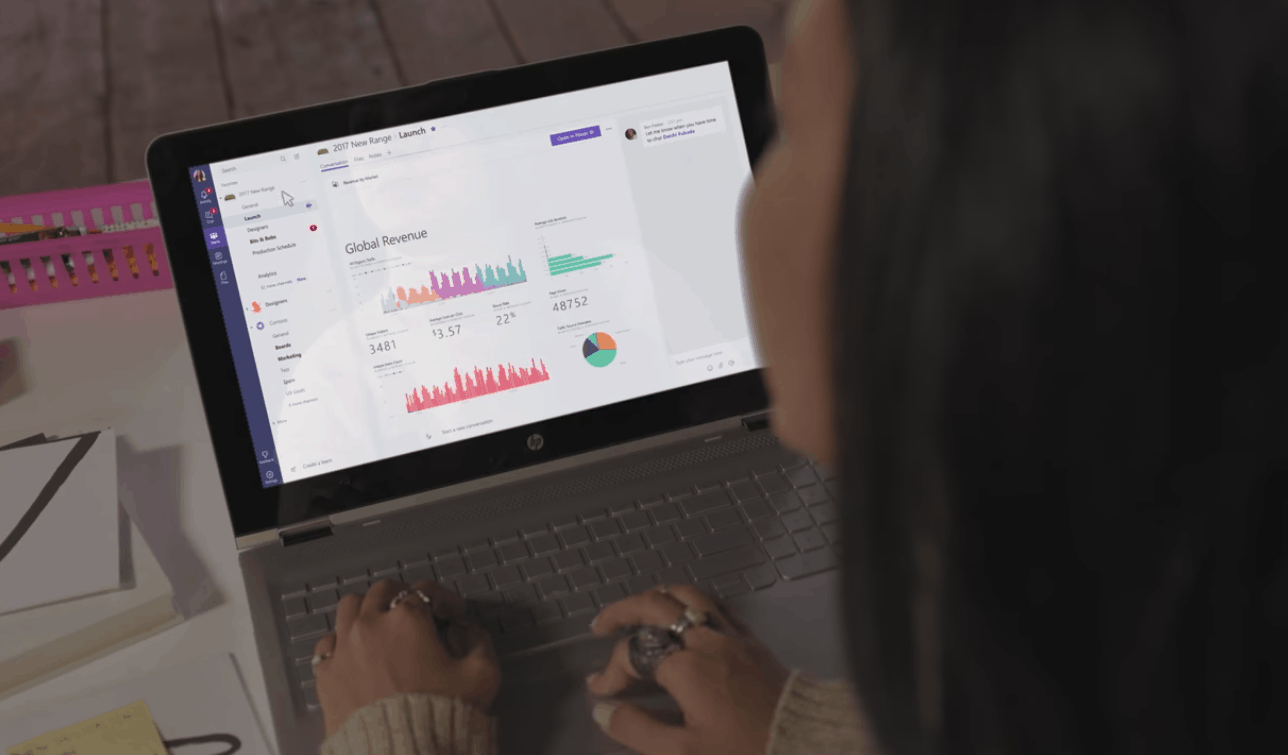
Microsoft Teams has just won a new award at Enterprise Connect 2018, the largest conference/exhibition in the U.S. devoted exclusively to enterprise communications. The team collaboration app has been awarded the Best of Enterprise Connect 2018 award, beating competing products from Cisco, Oracle more at the annual competition that celebrates the best enterprise communication apps.

In the panel of four independent judges, Marty Parker, principal consultant, UniComm Consulting and co-founder, UCStrategies, said that Microsoft Teams was “delivering a significantly advanced user experience” for the workplace:

“When all the new features are evaluated and are compared to the collaborative workspace offers of other UC and UCaaS vendors, it’s clear that Microsoft has delivered a significantly expanded level of communications-centric capability to support the roles and tasks needed to succeed as a knowledge worker, information worker, or manager of those groups.”

It’s been a year now since Microsoft Teams became generally available for Office 365 customers, and Microsoft has iterated fast to make it one of the best team collaboration apps on the market. The app is now being used by over 200,000 organizations worldwide, and it should soon be embraced by more companies after Microsoft finally enabled Guest Access for consumer accounts. In addition to new AI-powered features, the Redmond giant is also reportedly working on a freemium version of Microsoft Teams, which should help to make it even more competitive on the market.

Microsoft confirms April launch of Windows 10 1803 (Redstone 4)

Microsoft today on their Windows Developer Blog officially confirmed an April launch of the Windows 10 Version 1803 (Redstone 4) release (via Neowin). This is one of the first official documentation, coming several days after the “Spring Creators Update” naming initially leaked and suggested a final release timed for the spring.

Seen below, a table originally posted in February to the Microsoft blog was updated today, showing that the Redstone 4 release will come in April of 2018. The table also shows that Redstone 4 support will continue through October of 2019, falling in line with Microsoft’s current support schedule. Interestingly, it lists the “initial build” (meaning RTM) as 17115, which is the most recent build pushed out to Slow Ring and Fast Ring Windows Insiders.

Microsoft is still working on finalizing Redstone 4 with Windows Insiders and it is best not to take the “initial build” part too seriously for now. April is also still a few weeks away, and more is likely to develop in the remaining days of March. Best to keep tuned for more information in the days ahead.

Microsoft reportedly opening two new data centers in Germany

According to a report from Reuters, Microsoft is opening two new data centers in Germany. Aimed at allowing Microsoft customers in the region to keep their data in Germany, the total cost of the centers comes up to $120 million USD.

Previously, the Redmond giant offered cloud services in the region via a partnership with Deutsche Telekom and also other European data centers. Microsoft did not specifically comment on the new German data centers but pointed to those partnerships, telling Reuters the company is happy for offering both German and international cloud services.

“Many customers with particularly sensitive needs, for example in the public sector, prefer our German cloud offering. We give customers the choice” said the spokesperson.

Germany is just the latest country to get new datacenters and Microsoft has rapidly been expanding its presence in regions across the globe. Recently, the company announced it was planning on tripling its Azure presence in China in the next six months.

Toshiba’s enterprise AR headset has a Windows 10 PC attached to it

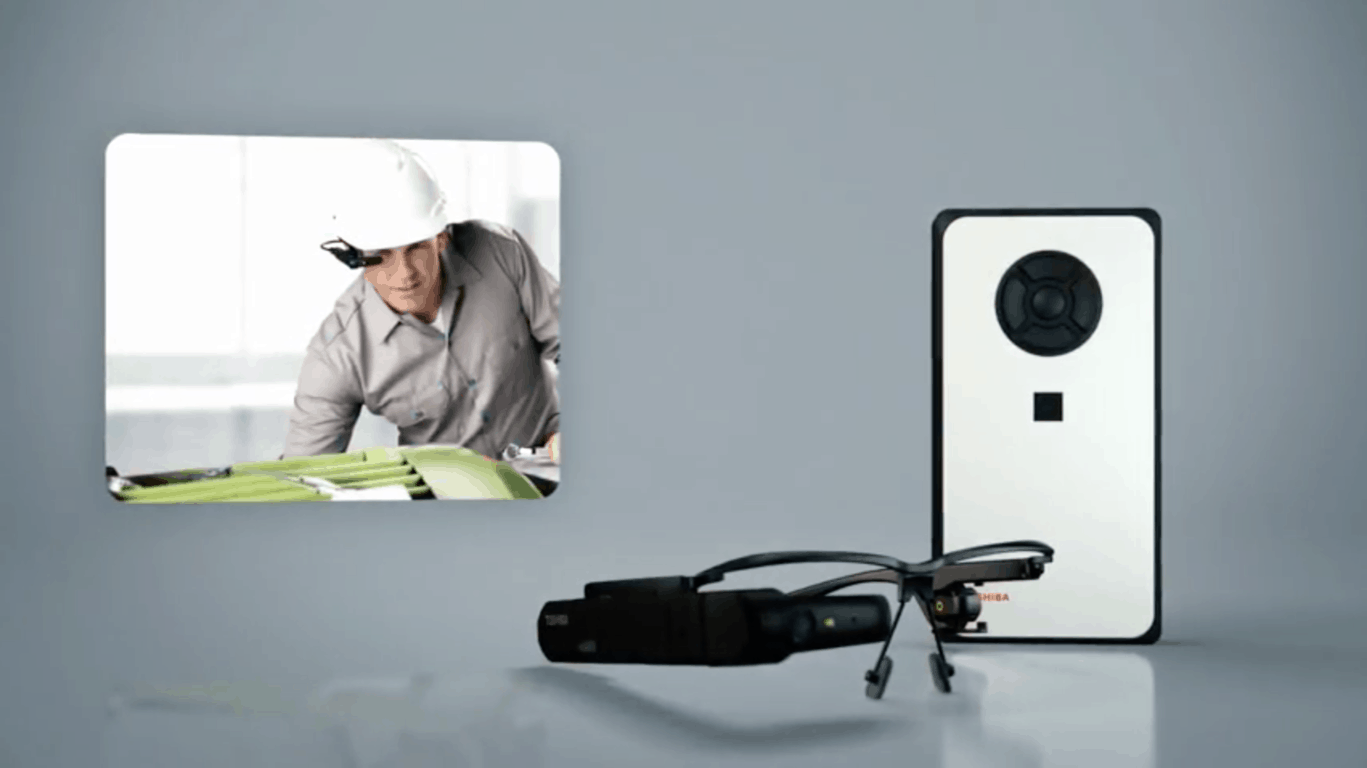
Augmented and virtual reality are slowly becoming big players in the workplace, and yesterday Toshiba unveiled the enterprise-focused dynaEdge AR Headset (via Techcrunch). This “assisted reality” headset is tethered to a battery-powered Windows 10 Pro PC, it and comes in at $1,899 in price.

The headset looks similar to Google Glass, with a single heads-up display fitting over one eye that can out of the way at any time. Other features on the arm of the headset include a touch sensor, camera, proximity sensor, ambient light sensor, LED light, GPS, a compass and a gyroscope.

The Windows 10 PC which powers the headset, meanwhile, is tethered to the display arm via a USB-C connection. It features a five-button on-device Navigation system, a USB 3.0 port, a microSD card slot and a headphone/mic combo port. The whole thing is powered by a 6th gen Intel Core processor, and a removable battery that should last up to six hours.

The dynaEdge AR Headset is primarily for frontline workers and for factory related tasks. It can be used in a variety of ways as glasses, or on a hard hat, for navigating through documents, or live streaming videos and scanning QR codes. Toshiba hopes this will give enterprises improved productivity and flexibility, higher quality standard, and more efficient use of resources.

Since the PC on the dynaEdge is tethered via USB C, this is still a far cry from Microsoft’s HoloLens, which has Windows 10 built right in. At any rate, it still is cool, so be sure to let us know your thoughts in the comments below.

New Microsoft research points to the declining interest of girls in STEM, ways to close the gender gap

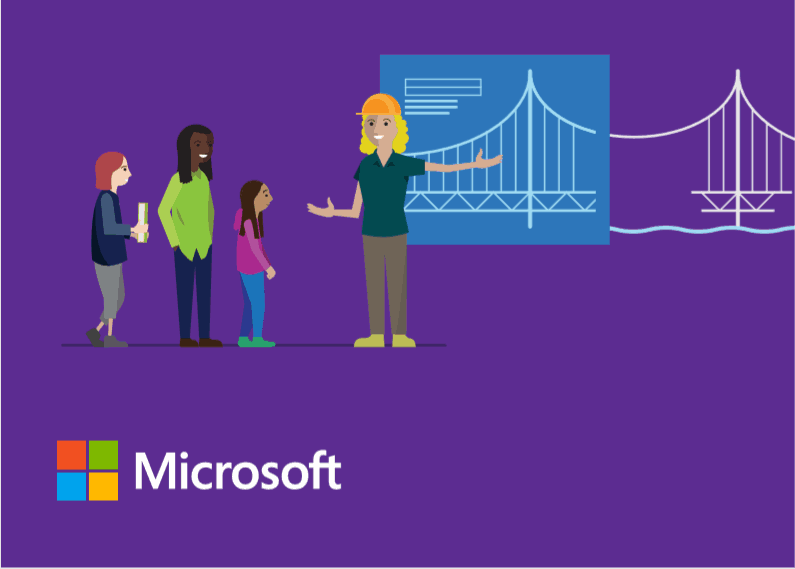
Microsoft today released new data uncovering the gender barriers facing girls who are interested in the STEM fields. The company’s research suggests five ways to generate more interest in STEM, but also finds society is not showing girls how STEM careers can change the world.

This study was conducted by Microsoft in partnership with KRC Research. The survey included more than 6,000 girls and women between the ages of 10-30 across the US and was fielded online between January 31st and February 7th, 2018.

According to the results, only 36% of girls know a woman in the STEM field. To resolve this problem, Microsoft believes society needs to provide more role models and generate more excitement for the field. The company also believes in encouraging a growth mindset that can help battle gender stereotypes, and provide more hands-on experience in the STEM fields.

Results from the study also showed that 72% of girls want a job that “helps save the world.” Unfortunately, it also revealed only 3 in 5 (60%) girls understand how STEM subjects are relevant to their lives and the types of jobs and things they could do with STEM knowledge. And when it comes to hands-on, only 31% of girls participate in extracurricular STEM activities. Other key results from the study are listed below and detailed in the infographic.

  • Girls who are encouraged by a parent are 81% more likely to say they’ll study Computer Science in high school
  • Girls are more than 2X as likely to say they’ll study Computer Science in high school and 3X as likely to study Computer Science in college when both a teacher and parent support them.
  • Although 50% of girls view themselves as one of the hardest workers in their STEM classes, only 37% of girls view themselves as one of the smartest students in their STEM classes – showing that girls often believe they can work hard, but aren’t as smart as boys.
  • 32% of middle school girls and 35% of high school girls don’t feel supported by teachers and classmates.
  • 27% of middle school girls and 21% high school girls feel embarrassed to ask questions showing students need more supportive and encouraging environments.

This issue is important for Microsoft’s Dona Sarkar, who is the Principal Program Manager and Head of the Windows Insider Program. She noted her father was the person who encouraged her to pursue STEM, and even when things got hard, he refused to let her give up. “I believe that STEM are the MOST creative professions on earth, absolutely boundary-less and it’s vital that we have people of ALL different backgrounds participating in creating products for all 7.5 billion people on earth, and that includes the 51% of people who are female,” said Sarkar. You can learn more about the STEM gap by visiting this Microsoft website.

Microsoft’s Mike Ybarra is already using a new Xbox Avatar

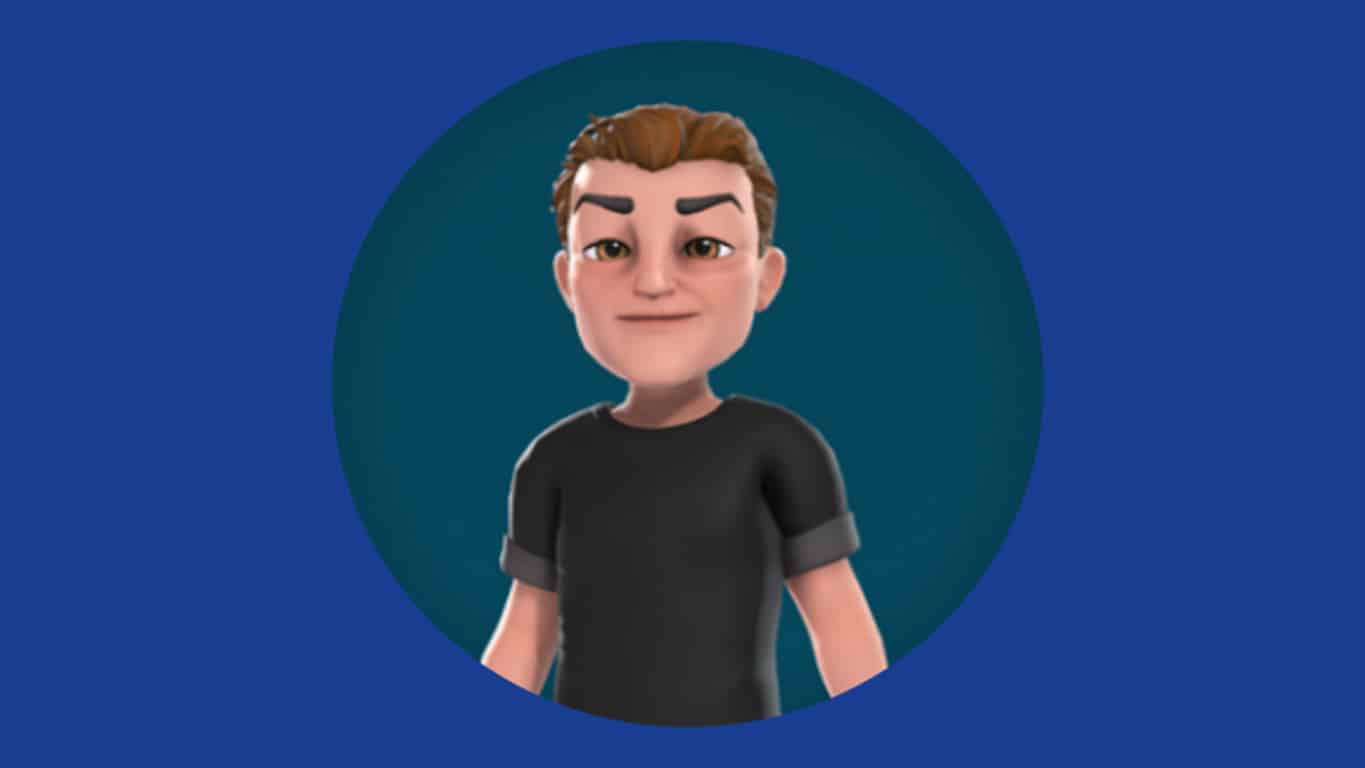
A Twitter user by the name of Rand al Thor 19 noticed yesterday that Microsoft’s Mike Ybarra, who is the company’s corporate vice president of gaming, has updated his Xbox profile to include a representation of himself in the new, yet to be released, Xbox Avatar style.

Because the new Xbox Avatar system hasn’t rolled out yet, Ybarra is simply using a saved screenshot of his own custom Avatar. What’s cool though is that this avatar (see screenshot in the embedded tweet below) provides a sneak preview of some of the clothes that the new system will support as well as a potential new pose.

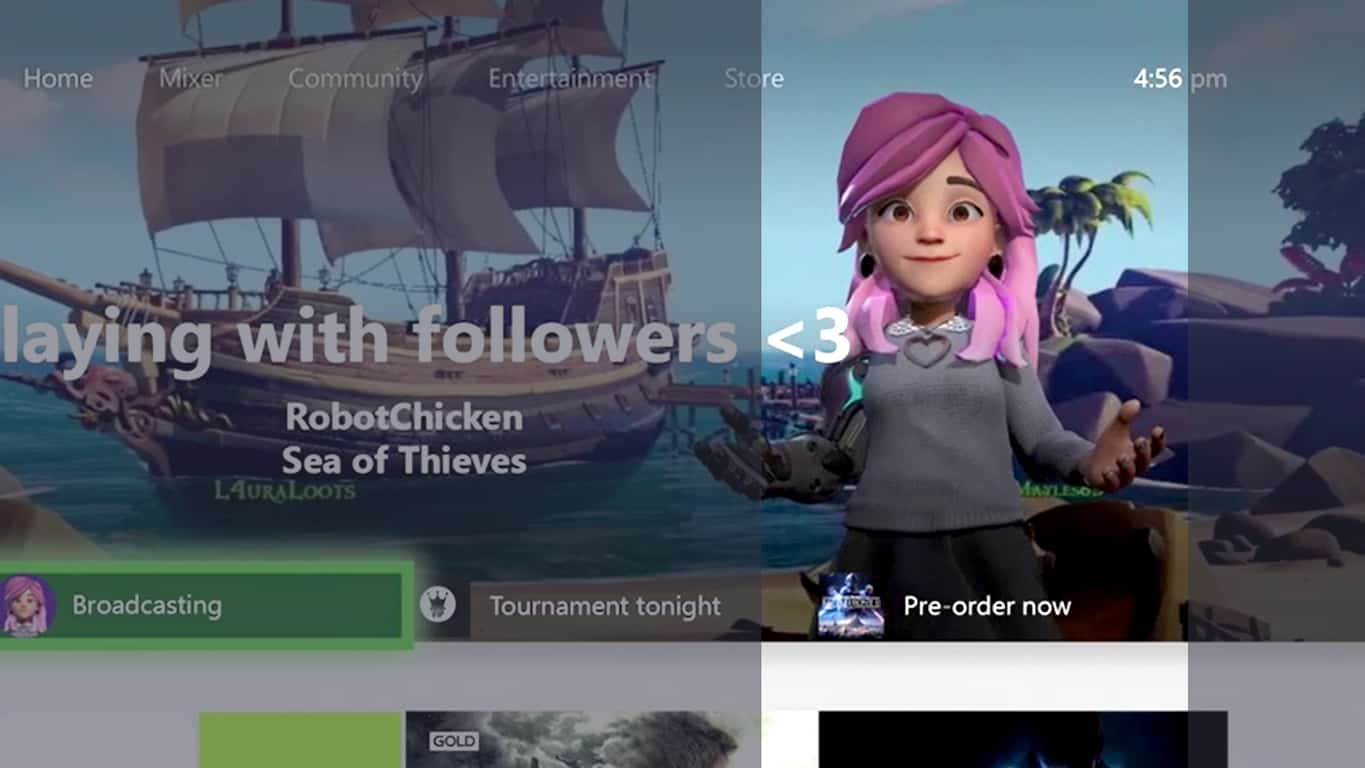
Ybarra has since updated his Xbox Avatar yet again (see featured image) and appears to have remodelled the face a little bit, possibly due to the number of people who replied to the initial tweet claiming that he looked Asian. Of note in this second Avatar is the hair which is significantly more detailed than current Xbox Avatar options.

The new Xbox Avatar system is expected to roll out in the very new future though no specific date has been announced yet. Another preview of the new style was spotted recently in Microsoft’s Dev Day presentation.

Are you excited for the new Xbox Avatars or do you prefer the current style? Let us know in the comments below.

Xbox One users given 60 days of AnimeLab Premium for free

Australian and New Zealand anime streaming service, AnimeLab, is offering new users the chance to experience their Premium subscription service for free for two months on their Xbox One console.

AnimeLab is available to use for free however the Premium upgrade, which usually costs AU$6.97 a month, enables HD quality streaming, and removes ads and delays. This 2-month free offer is redeemable on their official website for members who haven’t yet tried the Premium service.

AnimeLab is the Australian equivalent of Crunchyroll (which is also available Down Under). It offers a wide range of anime movies and series to watch and has apps across a wide range of devices.

Are you an Xbox One AnimeLab user? Let us know what you’re watching on it in the comments below.

AnimeLab
AnimeLab
Price:
Free

Here’s all the news from this weekend’s Inside Xbox episode

The very first episode of the monthly “Inside Xbox” webcast premiered without a hitch as Team Xbox talked about everything Xbox. Inside Xbox delved into Sea of Thieves, PUBG, Far Cry 5, and more in the inaugural episode. Just in case you missed it, you can review everything that was discussed on Inside Xbox in the YouTube video below.

Some of the highlights from the Inside Xbox episode featured the latest updates coming to Xbox One now and later this Spring. These Xbox One updates include:

  • Xbox One S and Xbox One X support for variable refresh rate on AMD Radeon FreeSync displays.
  • The ability to share Xbox One screenshots and game clips to Twitter, complete with hashtag content.
  • Auto Low Latency Mode on supported TVs (coming later in 2018).
  • Further updates to the Microsoft Edge on Xbox One to bring it to the browser experience on Windows 10.
  • Mixer streamers on Xbox One will be able to share their controller directly with their viewers on Mixer. For the time being this experience is only available for viewers via Windows 10 PC. This Mixer controller experience is now only available for testing on the Xbox Insider Alpha ring.

Next month, more Xbox update goodness is surely on the way, and we can’t wait to see what’s next for Inside Xbox in April 2018! Stay tuned!

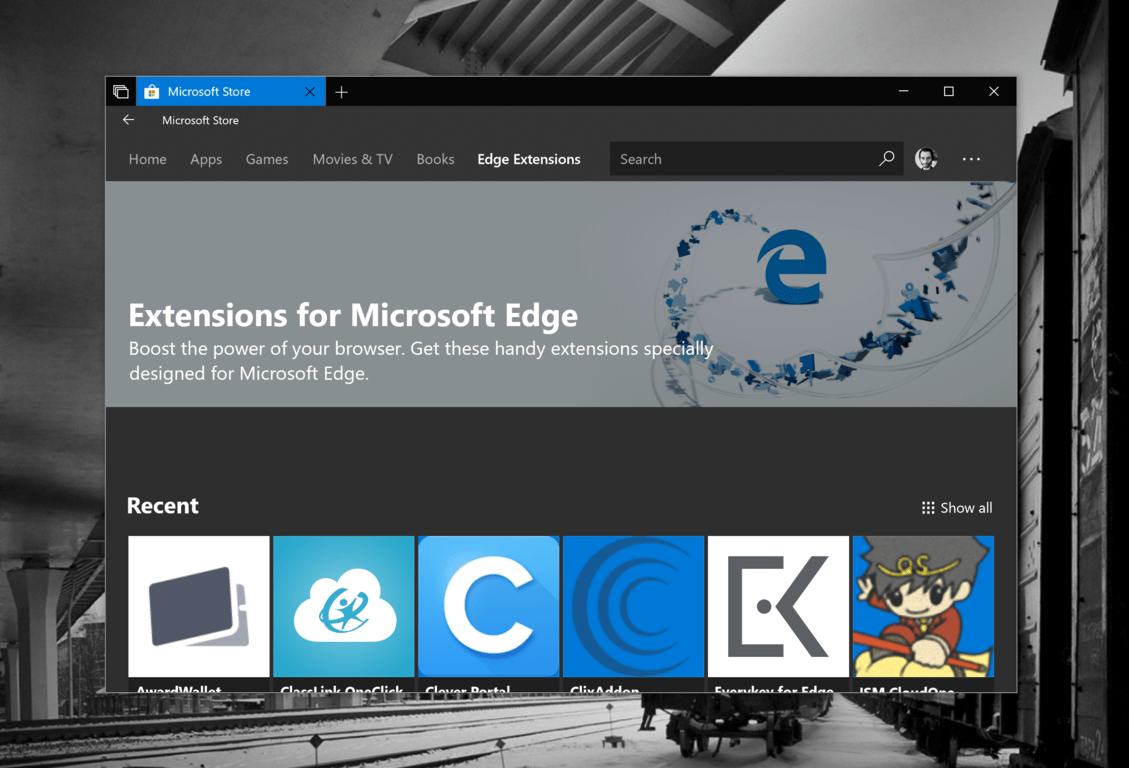
Dedicated Edge Extensions tab shows up in the Microsoft Store for some users

Microsoft appears to be testing a new Edge Extensions tab in the Microsoft Store that should improve discoverability for Microsoft Edge users (via Windows Central). For now, Microsoft is apparently doing some A/B testing as we only saw the new tab on one of our “Skip Ahead” PCs. However, it seems that Fast Ring Insiders and even non-Insiders are also seeing the new tab in the version 11802.1001.8.0 of the Microsoft Store app.

Making Edge extensions front and center in the Microsoft Store should be a positive change for both developers and Windows 10 users. As you can see in the featured image above, Microsoft put a “Recent” category at the top, and some curated categories below including Adblockers and Password Managers, Productivity, Shopping, Social and Entertainment and For Developers. Overall, we’re counting 98 extensions for Microsoft Edge as of today.

It’s not clear if Microsoft will roll out this new tab to all Windows 10 users going forward, and it may also disappear at some point. If you do see it in the Microsoft Store app today, let us know your thoughts about it in the comments below.

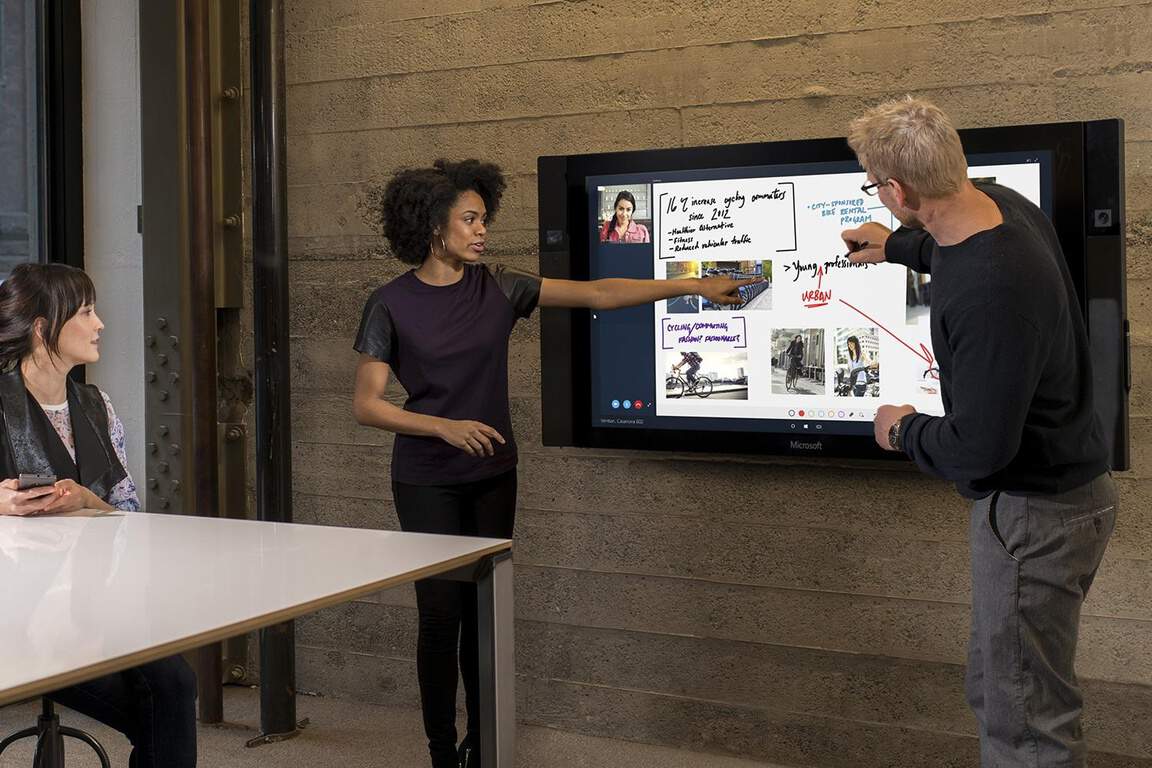
Microsoft’s Composable Shell for Windows devices will debut this year on next gen Surface Hub, says new report

This year is expected to be pretty special for the Windows team. Nearly four years after Microsoft introduced Windows 10 as an OS that could run across PCs, phones, tablets, IoT devices, and other form factors, the company is expected to push its Windows Everywhere ambition even further in the coming months.

Last year, we learned that Microsoft was working on making the Windows Shell the next universal element of Windows 10. This new universal shell, known internally as “Composable Shell” (or C-Shell) will be able to scale across different devices and form factors, replacing all the existing customs shells for Windows 10 PCs and tablets, phones, the Xbox One and even HoloLens.

According to a new report from The Verge, this new Composable Shell will make its debut with the next generation Surface Hub coming in the first half of 2018:

Microsoft’s existing Surface Hub is already powered by Windows 10, running its own custom shell. The second-generation Surface Hub will give us an early look at how Microsoft further adapts Windows 10 for different screen sizes, scenarios, and hardware. The changes will be subtle at first, but Microsoft’s vision should lead to single devices that can adapt (just like Surface) to form factors and hardware that doesn’t even exist today.

The report also explained that C-Shell will allow Microsoft to create different modes for Windows-powered devices, such as a gaming mode, a quiet mode for productivity and even a kids mode with a simpler UI. “These different modes are designed to scale across a variety of hardware, including hardware that has not yet been released yet,” the report says.

If C-Shell will reportedly first show up on the next generation Surface Hub, we should also see it on the rumored “Surface Phone,” also known under the codename Andromeda. “Microsoft is also expected to unveil its mystery Andromeda Surface device this year, and it will set the stage for similar hardware from PC makers with adaptive modes,” the same report added.

Overall, it seems that the Redmond giant definitely has a lot of stuff in the pipeline that could impact the Windows ecosystem in a pretty big way this year. In addition to C-Shell and Andromeda, Microsoft is also reportedly working on a new lightweight version of Windows 10 codenamed Polaris. That’s a lot of different codenames to remember, but in the end, all this is about is pretty simple: streamlining Windows 10 so it can run on any device, with a UI that can scale across different form factors. That’s a huge undertaking, but Microsoft really needs to pull it off if it wants Windows to stay relevant in the technology market.

Xbox News recap: Fortnite getting crossplay between Xbox and mobile, Crash Bandicoot coming to Xbox and more

Welcome to our weekly Xbox news recap series, where we go over the top stories of the past week in the world of Xbox. Let’s get started.

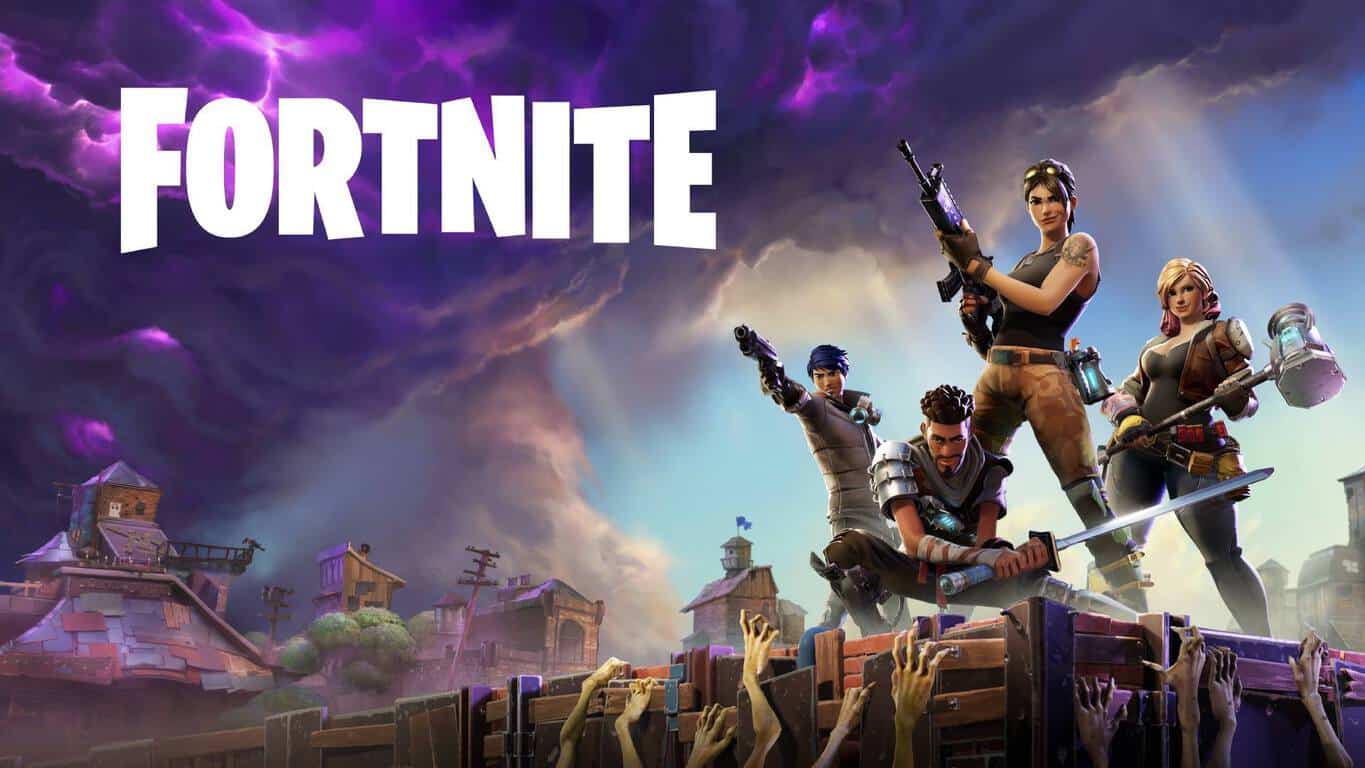
Fortnite getting crossplay between Xbox and mobile

Here’s an unexpected one: Fortnite, the massive battle royale game that’s been giving PUBG a run for its money, is coming out on mobile devices. The game will be coming out to mobile users in waves as they test it out, and it’s going to have a cross play feature with Xbox and PC. Mobile players will be able to opt in to queuing with Xbox and PC players, but Xbox/PC players won’t be able to opt into playing with mobile players, in order to keep it fair.

Crash Bandicoot coming to Xbox

The impossible is happening – Crash Bandicoot, one of the biggest Playstation exclusive franchises, is coming to the Xbox One in July. The N. Sane trilogy will be coming out on both Xbox, PS4, and PC on July 10th, giving everyone who hasn’t gotten a chance to try out the Playstation classic series their shot at some old school gaming, with a new coat of paint.

Microsoft premieres Inside Xbox

Microsoft has premiered Inside Xbox, a new monthly stream that’s going to be covering the hottest topics in the future of Xbox. The first episode came out great – it was nearly two hours long, and had some interesting interviews and other bits of coverage that were a great watch for any Xbox fans. If you miss old TV shows like X-Play, it felt almost like an homage to them. Keep an eye out!

New avatars teased in Windows dev day presentation

During this week’s “Windows dev day” presentation, we got a few frames of the new avatars that Microsoft has been subtly teasing. The peak at the new avatar showed us more of what we already knew: the new models are a huge upgrade over the old ones. They have more defined features, some shadow mapping, more subtle colors – they’re just better in every way.

New Xbox Avatar

Thanks for joining us. To keep up to date with all the latest Xbox news, keep a close eye on our Xbox One tag.

Microsoft news recap: Microsoft Rewards arrives in Italy, Translator gains six new text-to-speech languages, and more

Microsoft news recap is a weekly feature highlighting the top Microsoft news stories of the past week. Sit back, grab some coffee, and enjoy the read!

Microsoft Rewards expands to Italy

Microsoft’s latest expansion of its Rewards program brings it to Italy, following its initial expansion outside of the US to the UK, France, and Germany. Those in Italy are now able to earn Microsoft Rewards points by performing searches on Bing, or shopping through Microsoft’s stores, such as the Windows Store or Xbox Store.

Microsoft Translator adds six new text to speech languages including Vietnamese and Tamil

Microsoft’s cross-platform translation app, Microsoft Translator, has added text-to-speech translation support for an additional six languages, which include Vietnamese and Tamil. They’re available now in the Android app, and coming soon for iOS and Bing, as well as developer APIs.

Microsoft Launcher for Android beta adds custom daily backgrounds

Microsoft’s custom Android launcher has received a new update for beta users which adds custom backgrounds that change daily from a selection of backgrounds you set, as well as options to set backgrounds to scroll, and more customisation options.

Microsoft introduces new Azure For Students plan for university youths

A new Azure plan, specifically for students, has been launched by Microsoft. The plan offers 25+ free Azure services to students, while also providing $100 credit towards use of paid services, with no payment information being needed.

That’s it for this week. We’ll be back next week with more Microsoft news.

SOLVED: Windows 10/11 Quick Access error

Quick Access is a new feature that replaced what was previously known as Favorites, and in Windows 10, this feature can be found in the File Explorer navigation pane.

The good thing about this feature is you can navigate faster to locations you frequent the most, as well as those you recently visited. In fact, by default, File Explorer launches into Quick Access, though you can change this to suit your preferences.

This feature’s convenient way of accessing folders helps a lot especially when some folders or files cannot be easily located or you cannot remember how you saved the file as.

But there are times when Quick Access may not work, either it gets stuck or you cannot remove or unpin it, and other times it loses track of target folder(s), while still pointing to the old location.

If you encounter a Windows 10 Quick Access error, try the solutions below to resolve it.

FIX: Windows 10 Quick Access error

  1. Preliminary troubleshooting
  2. Disable Quick Access and then reset the data
  3. Perform a system reset for your PC
  4. Customize the folder options

1. Preliminary troubleshooting

The first thing to do is restart your computer, but if that still doesn’t help, try running the Windows built-in troubleshooter on your computer, which can automatically fix some common problems like the Windows 10 Quick Access error, and others like networking, hardware and devices, and program compatibility.

Here’s how to run the troubleshooter:

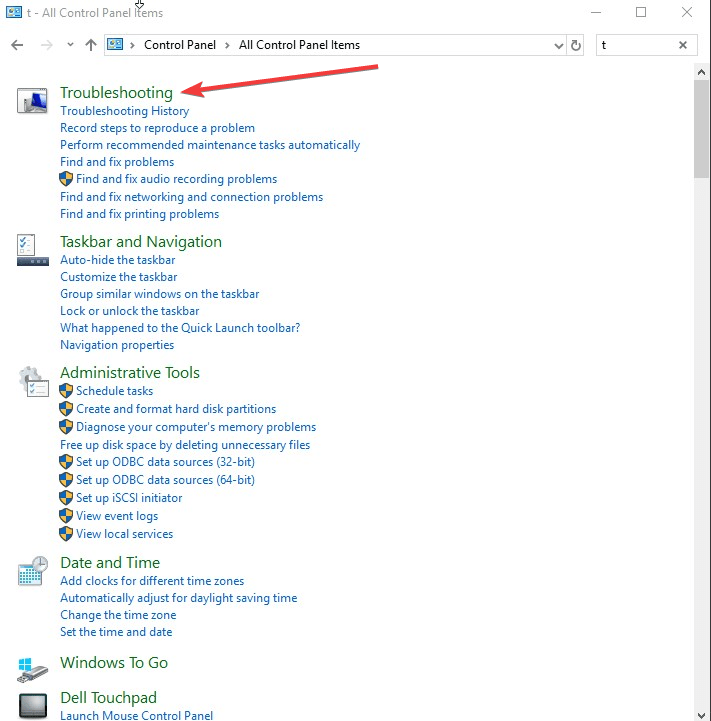
  • Click Start and select Control Panel
  • Type Troubleshooting in the search box of the Control Panel, and select Troubleshooting

Windows 10 Quick Access error

  • Go to System and Security

Windows 10 Quick Access error

  • Click System Maintenance

Windows 10 Quick Access error

  • Click Next

You can also perform an SFC scan by using Command Prompt as Administrator, then check whether there are any corrupt files that may be causing the problem.

  • Right click Start and select Command Prompt (Admin)

Windows 10 Quick Access error

  • Type the commands below:

dism /online /cleanup-image /restorehealth

sfc /scannow

  • Close the window once you’re done

If this doesn’t help, try the next solution.

2. Disable Quick Access and then reset the data

In order to disable Quick Access, you can disable showing of recent and frequently used files and/or folders. If you want to remove the frequent or recent files/folders, open File Explorer, click View tab, click Options and then click Change folder and search options to open the Folder Options.

Next, uncheck the Show recently used files in Quick Access box, and the Show frequently used folders in Quick Access boxes, under Privacy, then click Apply and exit. This removes the two sections from Quick Access in File Explorer.

The Windows 10 Quick Access error may come up due to corruption among data which your system stores for frequent folders record. So you need to reset the data to resolve the issue, after disable Quick Access by doing the following:

  • Right click Start and select Command Prompt (Admin)

Windows 10 Quick Access error

  • Type the following command:

del /F /Q %APPDATA%\Microsoft\Windows\Recent\AutomaticDestinations\*

  • Press enter
  • Close Command Promptand reboot your system

If this doesn’t help, try the next solution.

3. Perform a system reset for your PC

Performing a reset allows you to choose which files you want to keep, or remove, and then reinstalls Windows.

Here’s how to get started:

  • Click Start
  • Click Settings

Windows 10 Quick Access error

  • Click Update & Security

Windows 10 Quick Access error

  • Click Recovery on the left pane

Windows 10 Quick Access error

  • Click Reset this PC

Windows 10 Quick Access error

  • Click Get started and choose an option either Keep my files, Remove everything, or Restore factory settings

Note: all your personal files will be deleted and settings reset. Any apps you installed will be removed, and only pre-installed apps that came with your PC will be reinstalled.

If this doesn’t help, try the next solution.

4. Customize the folder options

Sometimes, folder locations on remote file system files may find their way into the Quick Access cache, thus the remote systems may become inaccessible so File Explorer waits for them to time out before rendering.

One way to deal with this is to delete them from the Quick Access panel but you can also customize the folder by doing the following:

  • Open File Explorer

Windows 10 Quick Access error

  • Right click Downloads folder and select Properties
  • Click Customize tab


Windows 10 Quick Access error

  • Choose Optimize this Folder for

Windows 10 Quick Access error

  • General Items

Windows 10 Quick Access error

  • Click Also apply this setting to subfolders

Windows 10 Quick Access error

  • Click OK. Do the same for your Documents folder.

This will let File Explorer handle files without trying to generate snapshot images for them.

Did any of these solutions help? Let us know by leaving a comment in the section below.


New Xbox One Preview Alpha build delivers direct Twitter sharing, some bug fixes, and a number of known issues

Members of the Xbox One Preview Program who are signed-up for Alpha builds will be receiving the latest build, 1804.180307-1900, when they sign in to their consoles.

This latest build brings 2 new features – the first allows direct uploading of content to Twitter, making it even easier to share gaming content with friends. The second feature, which is more a change, is that Microsoft have now replaced the Store button in the Guide with a Search button, making it easy to search not only through the Store, but also through the library of games already owned.

Here is what the official changelog had to say about the new features:

Share directly to Twitter!

  • You can now also upload content directly to Twitter. This means your screenshot and footage captures will now display and play directly in your Twitter feed, and it will also appear as part of your Twitter media. We’ll even help you get your clips discovered by suggesting hashtags! To do so, just go to your Recent captures, pick an item and Share to Twitter!

Guide Search Button

  • The Store button in Guide will be replaced with a Search button, which brings up a dialog that allows users to search through their installed content, Settings, and Store games and apps.

In addition to the above features, there a some bug fixes which will hopefully deliver a smoother experience:

Casting from the Xbox – Apps such as YouTube

  • Automatic discovery over WiFi  is resolved.

Pins

  • If Microsoft Edge was pinned prior to downloading the 1804 update, attempting to launch Microsoft Edge from the existing pin will now succeed.

My Games and Apps

  • We resolved an issue in which Games and updates are installing to non Home consoles even if you have selected to not keep games and apps up to date.

Upload Studio

  • We resolved an issue in which Upload Studio would fail uploading.

In terms of known issues, which are always good to look out for, there are a large number, so be weary of that if you’re to stay in the Alpha ring:

Settings

  • When accessing the Language & location page in Settings, it may take a long time for the page to load.

Pi-Hole

  • Pi-hole users may encounter issues signing in, creating, or recovering accounts upon downloading the 1804 update. This is due to a new configuration file which is downloaded from a URL Pi-hole blocks by default.
  • Workaround: Add clientconfig.passport.net to the Pi-hole allowed IP address list.

Audio Issues

  • We are aware that some Spatial Audio users will experience unexpected game volumes and are working on a fix.
  • We are aware that the Mono output feature is not working as expected in latest builds. The team has identified a fix and is testing. Please turn off the feature if you are using an audio receiver with less than 7.1 audio channels.
  • We have identified an issue with Dolby Atmos for Home Theater and certain AVR models that will result in random sound cut outs. If a sound cut out ever occurs you can change your audio format settings to something else and then back to reset it.
  • Some users have reported that HDMI in volume is lower for TV Input and some media apps.  We are actively investigating.  Workaround : Start Background Music and goto the Audio Settings and set the volume slider to 50% rather than 0% and the volume issue is fixed.

Now TV

  • In the Now TV app some UI elements are disappearing during playback.

Plex App

  • In the Plex App some users are experiencing buffering.  We are actively investigating this issue.  Workaround – You can back out of the Plex app to home then go back into the Plex app and playback continues.

Netflix

  • The Netflix team are updating the app as it is crashing for some users.  Workaround – Please check for an update for the Netflix app.
  • Netflix on Monitor only works at 1080p and does not support 1440p – Netflix is aware of the issue.  Workaround : If watching Netflix on a Monitor/LCD please set the display output to 1080p.

System

  • We are investigating an issue in which some users are experiencing the console shutdown after you turn it on.  Workaround – Simply turn the console back on.

Vudu

  • We are investigating why some users are unable to play 4k content in the Vudu app.

Virtual Keyboard

  • The virtual keyboard disappears randomly when inputting text.Workaround – Plug in a wired or wireless keyboard

HDR Issues

  • Some users are discovering that some games are not showing in HDR – Please file feedback when you encounter this to help in the investigation and please provide the make and model of your TV and the firmware version.

Game Install Progress

  • We are aware of an issue in which the Game Progress status shows over 300%.  Please note that this is a different scenario to the fix in this build referenced above in fixes.

Spotify Search

  • Some users are discovering that the search function in Spotify is not working. Please file feedback when you encounter this to help in the investigation.

Store app

  • Some users are experiencing a problem in which the Store App is failing to update. Please file feedback when you encounter this to help in the investigation.

Settings

  • We are aware that the Schedule details is missing after you re-select your schedule from Dark or Light in Theme.

Settings – Accessory App

  • Some users may experience a problem not being able to assign controller configurations in the Xbox Accessory app.

The official announcement by the Xbox team can be read here.

Those who are part of the Alpha ring will be prompted to update when turning on their console, or the console will automatically update in the background, if in always-on mode.

Fortnite to gain cross-platform play on Xbox One between PC and phones

In a sudden twist, yet possibly expected turn of events, Fortnite developer, Epic Games, has announced that Fortnite will be gaining cross-platform play between Xbox and other platforms.

As part of this change, players of Fortnite will see cross-platform play, cross-progression, and cross-purchase across all of the below platforms:

  • Xbox One
  • PC and Mac
  • iOS and Android

Fortnite on Xbox One cross-platform play

Announcing the news, Epic Games’ Fortnite team said:

Contrary to what may have been implied, Microsoft has long been a leading voice in supporting cross-platform play, connecting players across PC, mobile and all consoles. We’ve been working together with them over the last several months to make this possible, and will bring this functionality to Fortnite players on Xbox right along with other platforms.

So, it won’t be long until those on Xbox will be able to play their favourite ‘battle royale’ game alongside their friends who have chosen other platforms.

Are you excited for this change? Let us know your thoughts in the comments below!

Get ready for Windows 10 v1803 in early April 2018

The latest Windows 10 builds, 17115 and 17618 to be more precise, focus primarily on fixing the bugs and issues reported by Insiders. The build release notes confirm that making the OS as stable as possible has now become Microsoft’s priority.

Indeed, the builds released in January and February were packed with new features to Insiders’ delight. As the clock is ticking, Dona Sarkar’s team is now working at full speed on fixing the bugs affecting the OS.

As its name suggests, the Spring Creators Update, aka Windows 10 v1803 is scheduled for release this spring. However, there is no official confirmation yet as to the exact release date.

Windows 10 v1803 to land in the first week of April 2018

Well, we expect the Windows 10 Spring Creators Update to arrive in the first week of April and this is more than a gut feeling.

Take a look at the table below (courtesy of Wikipedia):

windows 10 release date history

As you can see, a pattern can be extracted. Take a look at the version number and then look at the official release date. The first two digits of the version number stand for the year that the update was released. The next two digits stand for the month that the RMT version was  released.

As a quick reminder, the RMT version is the OS version released to manufacturers, so that they can identify and fix any bugs the OS might encounter with their hardware devices.

Usually, the OS is released one month after the official RTM version. According to recent Insider reports, Redstone 4 will have version number 1803.

In other words, Microsoft’s Windows 10 Update schedule suggests that the Spring Creators Update RTM should land in March — possibly mid-March or the last week of March — while the public OS version will arrive next month, meaning in April.

Since Microsoft’s Windows 10 release pattern suggests that new OS versions usually land in the first week of the month, we dare day that users will be able to install the Spring Creators Update by the first week of April or the second week in the worst case scenario.

Once again, there is no official confirmation yet as to the exact release date, but this is what the existing release pattern suggests.

Place your bets now: use the comments below to tell us when you think Microsoft will roll out the Spring Creators Update.

RELATED STORIES TO CHECK OUT:

Native Windows 10 notifications could soon hit Chrome, but hold your horses

Well, well, well, it seems that Windows 10 and the Chrome browser could become good friends in the future. According to a feature request update on Chromium’s project page, it appears that users will soon be able to display Chrome notifications in Action Center on Windows 10.

It seems that our predictions from 2016 are coming true.

Although this is only a feature request at the moment, recent posts indicate this could soon change.

Like it says in the summary, this is strictly a feature request (and one with something of a limited audience at this time). Still, it has the potential to make Chrome notifications significantly more convenient on this OS.

Many Chrome users already backed up the idea, suggesting this definitely should happen, as it’s “the logical progression of things“.

As we already stated, although this thread goes back to 2015, recent posts suggest that Google finally agreed to integrate this feature in its upcoming browser versions:

Thanks for your interest everyone! We’ve got a chain of changes that are landing in Chromium to allow it to integrate with the Action Center.
Please save your feedback until the feature launches. Once it launches, you’re welcome to file bugs if you encounter any issues with the implementation.

This new feature is currently available only on Chromium. However, users expect it to land in Chrome Canary in a few hours or days’ time. This means that Chrome beta could support this feature in the coming months.

Google didn’t rush to take this decision

chrome notification windows 10

This piece of news made many Windows 10 users who use Chrome as their default browser very happy. However, some criticized Google for taking so long to implement this feature.

I’m subscribed to the bug tracker for this one and boy did it take a long time

Over to you now: What do you think about this feature? Do you think that some websites will abuse it? Share your thoughts in the comments below.

RELATED STORIES TO CHECK OUT:

[Updated] Microsoft won’t put their own spin on a Samsung S9/9+ purchased from the Microsoft Store

Update 9 PM EST: A Microsoft spokesperson reached out to us to explain that the Galaxy S9/S9+ won’t come with any preinstalled Microsoft apps. Instead, Microsoft retail employees will offer assistance to customers who purchased the handsets and want to install Microsoft apps on it. We’ve edited our original post to reflect this.

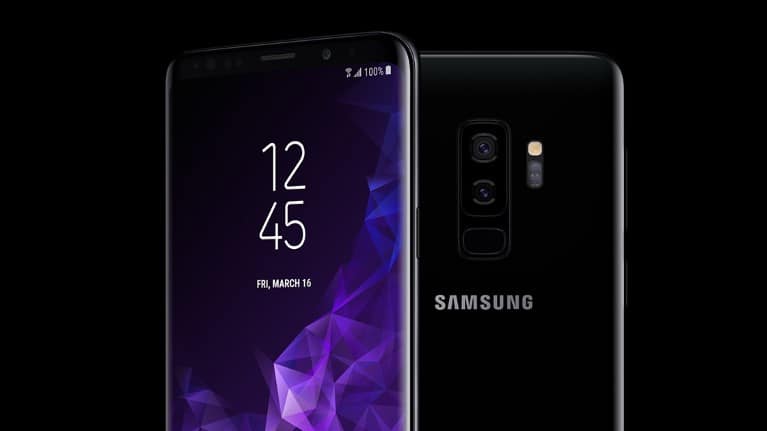
Pre-orders for Samsung’s Galaxy S9/S9+ are now open at the US Microsoft Store, and both Android flagships will start shipping by March 16. The store listing makes it clear that the high-end phones are great for running Microsoft Android apps such as Office, but until now it wasn’t clear if Microsoft was actually selling a customized edition of the S9/S9+.

In a statement shared with Trusted Reviews today, a Microsoft spokesperson initially said that “a Microsoft customization is applied to the Samsung Galaxy S9 and Galaxy S9 Plus Microsoft Edition when the devices are unboxed and connected to Wi-Fi” (via The Verge). As you may recall, Microsoft used a similar “Microsoft Edition” wording last year when it starts selling the Galaxy S8 and S8+, even though Samsung later confirmed that “there is not a ‘Microsoft Edition’ brand of any Samsung Galaxy products.”

Despite what the previous Microsoft statement said, the company has since confirmed that it isn’t selling a “Microsoft edition” of the Galaxy S9/S9+. A Microsoft spokesperson shared the following statement with us:

The Samsung Galaxy S9 available at Microsoft Store is the same phone you can purchase elsewhere. Microsoft applications including Office, OneDrive, Cortana and Outlook do not come preinstalled, but when you purchase from a Microsoft Store, our experts can personalize the device with Microsoft’s productivity applications so every customer is able to work, play and connect on their device when they leave.

With the addition of the Galaxy S9/S9+, there are now six different Android handsets available to purchase at the US Microsoft Store. This was completely unimaginable a couple of years ago, but Microsoft can no longer ignore that Android is the most popular mobile OS on the market and that Samsung’s Galaxy phones are incredibly popular.

Windows Defender protected thousands of Windows PCs from massive coin mining attack this week

Earlier this week, Microsoft claimed that its Windows Defender antivirus protected thousands of Windows PCs from a massive coin mining attack. According to the company, cybercriminals used a variant of Dofoil, a trojan which uses a customized mining application to mine coins in the background.

Microsoft says that the outbreak first spread in Russia, Turkey and Ukraine on March 6, and Windows Defender blocked more than 400K instances of the trojan after 12 hours. Here’s a summary of the events:

Just before noon on March 6 (PST), Windows Defender Antivirus blocked more than 80,000 instances of several sophisticated trojans that exhibited advanced cross-process injection techniques, persistence mechanisms, and evasion methods. Behavior-based signals coupled with cloud-powered machine learning models uncovered this new wave of infection attempts. The trojans, which are new variants of Dofoil (also known as Smoke Loader), carry a coin miner payload. Within the next 12 hours, more than 400,000 instances were recorded, 73% of which were in Russia. Turkey accounted for 18% and Ukraine 4% of the global encounters.

Fortunately, the layered machine learning defenses in Windows Defender protected all Windows 10, Windows 8.1 and Windows 7 users from the attack. “Within milliseconds, multiple metadata-based machine learning models in the cloud started blocking these threats at first sight,” the company noted, adding that the company became aware of a potential outbreak “within minutes.”

Given the rising interest of cybercriminals into cryptocurrencies, we can expect more and more trojan-based coin mining attacks in the future. “These types of malware employ various techniques to stay undetected for long periods of time in order to mine coins using stolen computer resources,” Microsoft explained. The company says that Windows 10 remains its most secure OS for now, but Windows Defender Advanced Threat Protection will also come to Windows 7 and Windows 8.1 this summer. This should help keep these older versions of Windows more secure against modern cybersecurity threats.

Game mods could be coming to the Xbox One according to new job listing

Many Xbox One games like Fallout 4 and Farming Simulator 17 offer a modding system separate from Xbox Live which allows players to further customize their in-game experience. As great as this is, according to a report from Windows Central, a recent job listing suggests Microsoft may be adding Game Mods directly to Xbox Live sometime in the future.

The listing calls for someone with the skills set to help “drive support on Xbox Live for game mods” and work with game developers “bring to market a new set of services, tools, and experiences.” It is rather detailed, even though Microsoft has yet to acknowledge any plans for adding Game Mods to Xbox One:

You will have a unique opportunity to shape and bring to market a new set of services, tools and experiences allowing game developers to easily integrate mods into their games, communities of passionate fans to create and share awesome and engaging content for the games they love, while keeping everyone on the network safe from abusive content. You will work both within Xbox and across organizations, collaborating with UX design teams, experience teams, and service engineering teams from Xbox, first party studios, Universal Store, CELA, Policy Enforcement, and more.

As always, more is likely to develop as time progresses. The game mods will likely be appreciated by many, so be sure to keep tuned for more in the months ahead.

Microsoft Translator adds six new text to speech languages including Vietnamese and Tamil

Microsoft announced yesterday that its Microsoft Translator app now supports six new text to speech languages, for a total of 36 languages. The latest additions are Bulgarian, Croatian, Malay, Slovenian, Tamil and Vietnamese.

The company says the six new text-to-speak languages are currently available in the Translator app for Android (they’re coming soon in Translator for iOS and Bing), as well as the Microsoft Translator Text and Speech APIs for developers. With text to speech, users can translate a sentence into one of the 36 supported languages and listen to it by pushing the speaker button in the app.

“You can use text to speech to quickly communicate with others, or to learn how to pronounce foreign words and phrases,” the company explained. In addition to 36 text to speech languages, Microsoft Translator also supports more than 60 languages for text translation, as well as 10 different languages for conversational translation. You can check the full list of supported languages on this page.

How to easily fix Wi-Fi error 401 on Windows 10/11

The Wi-Fi error 401 can be experienced when you try to access a certain webpage or when you want to launch an app such as YouTube. So, overall, the alert is not quite a Wi-Fi-related problem but an HTTP status code that describes blocked internet access. Why are you receiving this error code? Well, mainly because you try to log in with an invalid user ID and password.

When you see the error code 401, you need to verify your credentials. For example, if you are trying to access the Wi-Fi router settings or your router management page and you are prompted with the 401 error message, you should verify if you are using the right ID and password.

In that case, you can also try to refresh the webpage or try another web browser client. Anyway, the actual troubleshooting steps will be detailed during the following guidelines so don’t worry and just check all the lines that are explained below.

Fix Wi-Fi error 401 on Windows 10

  1. Try to use different web browser software
  2. Verify your credentials
  3. Refresh the webpage
  4. Verify the URL you entered
  5. Set up your account
  6. Log out and then re-enter your credentials through an incognito webpage
  7. Clear cache for certain apps
  8. Reinstall the app that is causing this problem

1. Try to use a different web browser software

Another thing that can be tested: try to launch a different web browser client and access the webpage that was showing the error code 401. For example, if you were using Microsoft Edge, try to run another browser different than your default Windows 10 web browser service.

We recommend trying Opera because it uses less processing capacity than other browsers and it has a built-in ad blocker that helps pages load faster.

Opera

Switch to Opera and start enjoying browsing while preserving your privacy and security with the free VPN!
Try it now Visit website

2. Verify your credentials

Since the error code 401 is an HTTP response code and means ‘authorization required’, you need to start the troubleshooting process by verifying your credentials. Make sure you use the right info during the log in process.

Of course, if you don’t have an account for that webpage or app, complete the sign-in form first. Thus, do that and then try to access the page again, as everything should be working without problems at this point.

3. Refresh the webpage

Another thing to try is a refresh. Yes, by refreshing the webpage you can fix the issue – if the error code was caused by the webpage itself. I recommend you to apply the refresh without loading cache: for example, on Google Chrome you can do that by pressing, at the same time, the Ctrl + Shift + R keyboard hotkeys.

So, a refresh can help you address this HTTP status code if the 401 error was caused by a webpage internal malfunction.

4. Verify the URL you entered

The ‘authorization required’ error can be caused by an invalid URL. If you missed a certain character, or if a misspelling occurred, you can easily end up in experiencing the 401 message. So, take a closer look at the URL and try to re-enter it before refreshing the webpage.

5. Set up your account

Try to find the sign-in section on that particular webpage. Most likely, you have to create an account (if you’re visiting the page for the first time) or log in with your existing credentials. If you cannot find that path, try to contact the webmaster and report the problem, as there might be something wrong with the actual webpage.

Note icon NOTE
If you cannot log in even though you enter the right data, try to create a new account as this might help you fix the 401 error; then, from the new account report your problem.

6. Log out and then re-enter your credentials through an incognito webpage

If you received the Wi-Fi network 401 error message while you were logged in, then you should log out and re-enter your credentials. At this point, try to refresh the webpage without loading cache just as explained above.

Hint: When you try to log out and re-enter your credentials use an incognito webpage. In this case, the browser will not load your internet history or other similar data that are normally saved by default. An incognito file can be easily reached – for example, on Google Chrome you have to press, simultaneously, the Ctrl + Shift + N keyboard hotkeys.

7. Clear cache for certain apps

This is another way in which you can fix the 401 ‘authorization required’ error. Depending on the app that’s causing the problem, you need to follow the instructions listed below.

Note: The next steps are explained for YouTube but you can follow them for any other tool.

  1. Click on the Windows Search icon: it’s the Cortana icon, the one located next to the Windows Start icon.
  2. In the search field type ‘apps & features’ and click on the result with the same name.access apps and features windows 10
  3. The list of all your installed apps will be displayed.
  4. Find the YouTube entry (or any other app you want).
  5. Click on it and select Advanced Options.
  6. The click on Reset.
  7. Note that some apps cannot be reset from Apps & Features. For those apps you need to access the installation folder and delete the %APPDATA% directory.

8. Reinstall the app that is causing this problem

If by choosing to reset the app you cannot address the 401 network error, then you can also try to manually uninstall the app and reinstall it afterward. For uninstalling a certain app, you can use the steps explained during the previous section above — instead of choosing Advanced Options, you should just click on the Uninstall button. Of course, you can easily remove certain programs through Control Panel:

  1. Click on the Windows Search icon, enter Control Panel and click on the result with the same name.run control panel
  2. In Control Panel switch to Category tab.
  3. Under Programs click on the Uninstall a program link.
  4. Now, find the app that you want to remove and do so.
  5. In the end, reboot your computer and reinstall that app.

So, that’s how you can fix the Wi-Fi error 401 on Windows 10. Remember this app is in fact an HTTP status code that describes a blocked internet access. So, the ‘authorized require’ alert can be easily solved if you manage to enter the right credentials.

If you still have questions, contact our team by using the comments field available below.

Xbox Preview Alpha build 1804.180305-1900 fixes several annoying bugs

Build 1804.180305-1900 is rolling out to Preview Alpha Xbox Insiders today and it fixes a range of issues from Wi-Fi connectivity, Blu-ray Player glitching, and 4K HDR display issues.

Here’s the official release notes.

Fixes

Wi-Fi Lag Issues: We have resolved the issue in which your Wi-Fi connection would lag for 3-4 seconds and reoccur after 30 minutes.

Blu-Ray Player: We have resolved the issue sin which the Blu-ray app may experience visual glitching after a few minutes of playback.

Game Install Progress: We have resolved this game install progress bar showing over 100% status.

My Games and Apps – Some Games missing from your collection

We have resolved an issue in which some games and apps are missing from your collection.  You will no longer see the tabs in your My Games and Apps show no titles/and or some titles missing in your (1) Game Pass collection and (2) EA Access collection.

Display: We have resolved issues with RGB colors when displaying in 4K HDR mode when playing a UHD disc.

Settings – Accessory App

We have fixed the issue of not being able to assign controller configurations in the Xbox Accessory app.

Known Issues

Pins: If Microsoft Edge was pinned prior to downloading the 1804 update, attempting to launch Microsoft Edge from the existing pin will fail.

Workaround: Delete the old Microsoft Edge pin and re-pin Microsoft Edge.

Settings: When accessing the Language & location page in Settings, it may take a long time for the page to load.

Pi-Hole: Pi-hole users may encounter issues signing in, creating, or recovering accounts upon downloading the 1804 update. This is due to a new configuration file which is downloaded from a URL Pi-hole blocks by default.

Workaround: Add clientconfig.passport.net to the Pi-hole allowed IP address list.

Audio Issues

We are aware that some Spatial Audio users will experience unexpected game volumes and are working on a fix.

We are aware that the Mono output feature is not working as expected in latest builds. The team has identified a fix and is testing. Please turn off the feature if you are using an audio receiver with less than 7.1 audio channels.

We have identified an issue with Dolby Atmos for Home Theater and certain AVR models that will result in random sound cut outs. If a sound cut out ever occurs you can change your audio format settings to something else and then back to reset it.

Some users have reported that HDMI in volume is lower for TV Input and some media apps.  We are actively investigating.  Workaround : Start Background Music and goto the Audio Settings and set the volume slider to 50% rather than 0% and the volume issue is fixed.

Now TV: In the Now TV app some UI elements are disappearing during playback.

Plex App: In the Plex App some users are experiencing buffering.  We are actively investigating this issue.  Workaround – You can back out of the Plex app to home then go back into the Plex app and playback continues.

Netflix: The Netflix team are updating the app as it is crashing for some users.  Workaround – Please check for an update for the Netflix app.

Netflix on Monitor only works at 1080p and does not support 1440p – Netflix is aware of the issue.  Workaround : If watching Netflix on a Monitor/LCD please set the display output to 1080p.

System: We are investigating an issue in which some users are experiencing the console shutdown after you turn it on.  Workaround – Simply turn the console back on.

Vudu: We are investigating why some users are unable to play 4k content in the Vudu app.

Virtual Keyboard: The virtual keyboard disappears randomly when inputting text.Workaround – Plug in a wired or wireless keyboard

HDR Issues: Some users are discovering that some games are not showing in HDR – Please file feedback when you encounter this to help in the investigation and please provide the make and model of your TV and the firmware version.

Game Install Progress: We are aware of an issue in which the Game Progress status shows over 300%.  Please note that this is a different scenario to the fix in this build referenced above in fixes.

My Games and Apps: We are aware of an issue in which Games and updates are installing to non Home consoles even if you have selected to not keep games and apps up to date.

Spotify Search: Some users are discovering that the search function in Spotify is not working. Please file feedback when you encounter this to help in the investigation.

Store app: Some users are experiencing a problem in which the Store App is failing to update. Please file feedback when you encounter this to help in the investigation.

Casting from the Xbox – Apps such as YouTube

Automatic discovery over WiFi  is currently not working correctly. The YouTube app relies on this to make pairing seamless (Link with Wi-Fi). There is a known issue with uPnP and state separation that is being investigated. In the meantime, please use the second pairing method in the YouTube app. Launch the YouTube app then go to Setting à Link TV and Phone à Link with TV Code. Follow the directions on screen.

Settings: We are aware that the Schedule details is missing after you re-select your schedule from Dark or Light in Theme.

Xbox Insiders are chosen Xbox One console owners who have opted in to test builds of operating systems and apps before they’re rolled out to the average user. Are you an Xbox Insider? Let us know if you’ve installed this latest build in the comments below.

Here’s what happens to your Xbox Insider feedback

Similar to the Windows Insider Program in Windows 10, Microsoft builds the future of the Xbox based on the feedback of gamers enrolled in the Xbox Insider Program. Today, Microsoft took to their blog to explain how exactly Xbox Insider feedback is considered.

Feedback is primarily considered via the Xbox Feedback website. According to Microsoft, gamers can use this website to share suggestions and then have others vote on it. The feedback here is ranked based on vote count, shared internally at Microsoft all year round, and grouped into various categories of suggestion types. Comments are also appreciated and highly important.

Starting in the next few months, Microsoft will be looking for suggestions and feature requests on the Xbox Feedback Website. The company wants gamers to submit suggestions based on new features, and anything that involves core goals. “When you make a suggestion on Xbox Feedback, what we really want to see is your vision for the future and direction of Xbox. But what do you do if you want to help out with the console and games you want,” explained Microsoft.

Other ways feedback are considered are via the Xbox Insider Hub, the Windows Feedback Hub, and the company’s support channels. Do you have any suggestions for the Xbox Team? Be sure to check out the Xbox Feedback website and let Microsoft know.

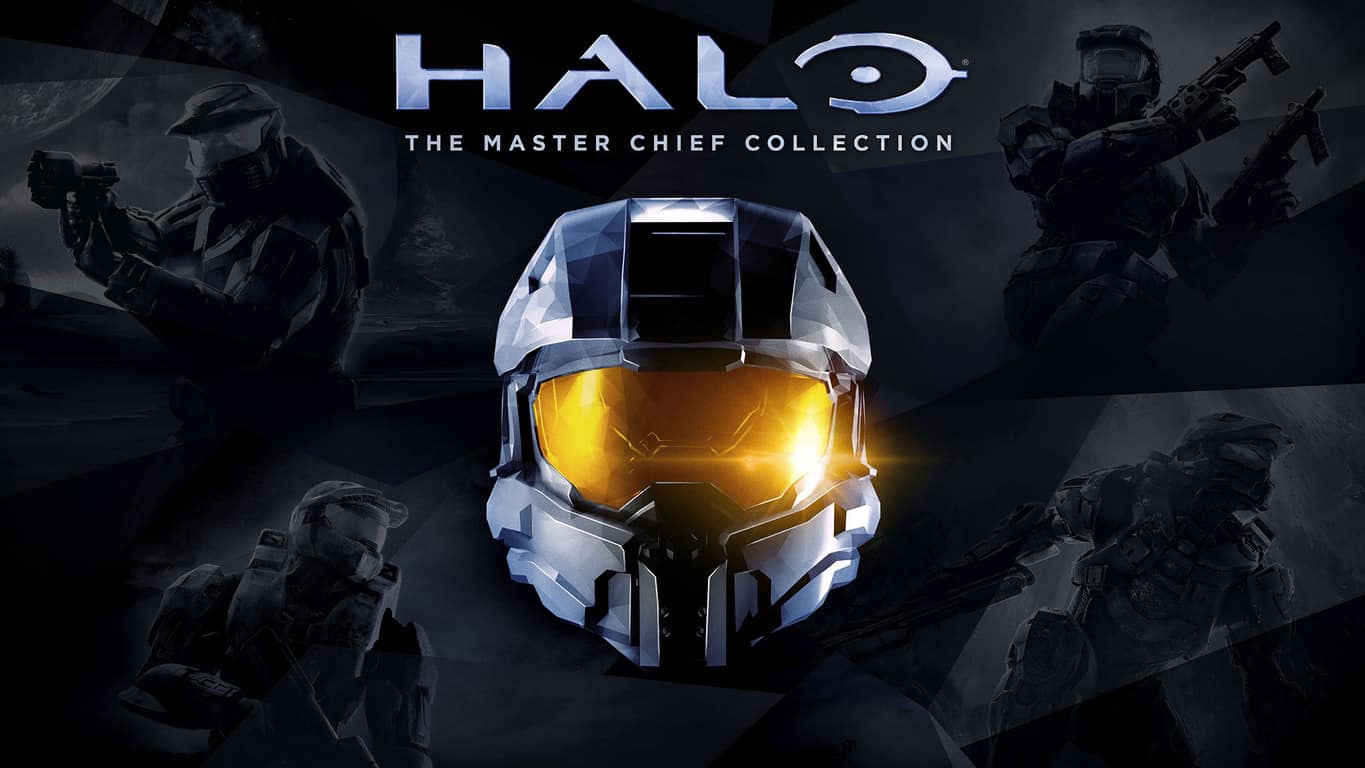
Halo developer discusses The Master Chief Collection update project, Windows 10 and Xbox Games Pass availability

Last Fall, 343 Industries announced an exciting update for Halo: The Master Chief Collection, the anthology released on the Xbox One back in 2014. Not only will the collection be enhanced for the Xbox One X, but the team will also update the core game to fix bugs and remaining matchmaking issues that continue to affect the game.

In addition to graphic enhancements for the Xbox One X, the team revealed yesterday that it’s currently working on an “Intelligent Delivery feature” to allow players to prioritize their MCC download. Additionally, work is being done to improve the game’s networking features, including a new “continuous matchmaking” system that will automatically put players into next game sessions once a match is over.

A public flighting program for Xbox Insiders is still planned for later this year, though the team didn’t share an ETA yesterday. “The moral here is that the team is going to take the time needed to do this right. The project overall is quality driven, not schedule driven,” the developer explained.

343 Industries also took the time to answer some burning questions from Halo fans yesterday, such as an eventual Windows 10 release. “Currently our priority is updating and improving MCC for Xbox and there’s still plenty of work to be done on that front. While we have no official plans to announce at this time, we’ve heard you loud and clear,” the team explained.

Since Halo 5: Guardians was one of the biggest launch titles for Microsoft’s Xbox Games Pass, many Halo fans are probably wondering when the anthology will be added to the catalog. “We have nothing to announce today but it’s something we’re definitely thinking about,” the developer said.

Microsoft introduces new Azure For Students plan for university youths

Seems as though the cloud isn’t just for big business or overly convoluted big data research experiments any longer.

Microsoft recently announced that it’s making its Azure cloud services available for students looking to take advantage of the building tools for tomorrow’s advancements.

Today, we’re excited to announce Azure for Students. Designed uniquely with student-focused cloud usage in mind, this offer gives verified students full access to 25+ free Azure products as well as US$100 monetary credit for use toward our paid products with no credit card requirement. If you’re seeking to grow your cloud dev skills – you’re in the right place.

As is the case with most students, a free option to Microsoft’s cloud services would be preferred and fortunately, the company has a solution for just that request. According to Microsoft’s Imagine blog, the company has listed a few ways pupils can get started with Azure with no money down or without having to use Microsoft’s $100 credit.

  • Discover the flexibility of Azure through our vast library of open source services.
  • Deploy Azure Virtual Machines including powerful GPUs with support for Linux, Windows Server, SQL Server, Oracle, IBM, and SAP. Azure gives users the flexibility of virtualization for a wide range of computing solutions.
  • Build Web and Mobile Apps quickly using .NET, .NET Core, Java, Ruby, Node.js, PHP, and Python. Integrate Azure App Service into existing frameworks and get unparalleled developer productivity with cutting-edge capabilities such as continuous integration, live-site debugging, and the industry-leading Microsoft Visual Studio IDE.
  • Artificial Intelligence and Machine Learning infuses apps, websites, and bots with intelligent algorithms to see, hear, speak, understand, and interpret a user’s needs through natural methods of communication. Enabling computers to learn from data and experiences and to act without being explicitly programmed.
  • Harness Big Data by analyzing all data in one place with no artificial constraints with Azure Data Lake Store. Data Lake Store can store trillions of files and a single file can be larger than one petabyte in size—200 times larger than other cloud store options.

Microsoft’s ambitions for its cloud services seemingly has outgrown its original intent for its legacy operating system goals. No longer does the company seemed focused on a having a computer on every desk but rather having every service, science project, homework assignment, big data repository, app development tools and a host of other tangibles, resting on its Azure cloud.

More evidence suggests Windows 10 version 1803 will be named “Spring Creators Update”

Despite Windows 10 version 1803 (aka Redstone 4) being in its final stage of development, Microsoft has yet to share the official name for the upcoming Windows 10 release. It’s quite unusual for the company to maintain the mystery this long, but we’re now pretty sure that Microsoft will settle for “Spring Creators Update.”

Last month, the “Spring Creators Update” naming was discovered in the Windows 10 Feedback Hub, though Microsoft quickly removed that mention in the app. Today, the naming was spotted again in the latest Redstone 5 build, which Microsoft released yesterday (via The Verge).

https://twitter.com/warnelidl/status/971692964694188032

This is the first time the naming appears in the OS along with the Creators and the Fall Creators Update, so we hope to get an official confirmation soon. It will be the third time in a row that Microsoft uses the “Creators” theme for marketing a new Windows 10 release, even though there won’t be many new features for creators and digital artists.

Do you like the “Spring Creators Update” branding, or would you prefer Microsoft to use simpler naming conventions going forward? Let us know below.

New Xbox One Avatars spotted in action in Windows Dev Day presentation

While very little news has been given on the progress of the new Xbox Avatars since their initial announcement several months ago, they did make a very brief appearance during yesterday’s Microsoft Developers Day presentation which can be streamed here.

The appearance of the new Xbox Avatars happens within the opening montage and is only seen on screen for a few seconds. What is shown though is a new Xbox Avatar being displayed on the Xbox One’s Dashboard in much the same way that the current iterations are today (see above image).

These new digital characters will be noticeably more detailed than the current version and will feature greater customizability with skin tone, hair color, accessories, and even limbs. The new and improved Xbox Avatars are expected to roll out to Xbox One owners in a system update sometime in early 2018 though no specific date has officially been given just yet. They will also be used within the Xbox app on Windows 10 devices and smartphones.

Do you like the style of the new Xbox Avatars and are you looking forward to them arriving on your Xbox One console? Share your thoughts with the community in the comments below.

Windows 10/11 fix: Error communicating with Kernel

The ‘error communicating with Kernel’ is an alert displayed on Windows 10 when ESET is trying to start a new system scan, or when the security program is loaded by default by the OS.

Thus, you can receive this error message on startup, or when trying to use ESET for scanning your Windows 10 computer. Now, this problem is not a major one, but it can mess up your day.

Anyway, the best is that it can be easily fixed – and the ways in which you can solve the ‘error communicating with Kernel’ issue are being listed and explained during the following guidelines.

‘Error communicating with Kernel’ – Why it occurs

Usually, you end up in experiencing this error after the Windows 10 system is updated. In that case the ESET service might be turned off by default, this being the reason why it won’t perform as expected.

Also, you can receive the same alert if the antivirus program is outdated or if certain internal files are missing, situation during which the overall functionality cannot be successfully performed on your Windows 10 PC.

How to fix the Windows 10 error communicating with kernel

  1. Enable ESET Service on startup.
  2. Apply any Windows 10 pending updates.
  3. Update ESET.
  4. Reinstall ESET on your computer.
  5. Remove a recently installed Windows 10 update package.

1. Enable ESET Service on startup

As already outlined, due to different reasons, the ESET program can get disabled; in that case you need to follow:

  1. Press the Win+R keyboard hotkeys on your computer – this will bring the Run box.
  2. There, type services.msc and press Enter.enter Windows 10 services window
  3. The Services window will be now displayed on your Windows 10 computer.
  4. Find the ESET Service entry (it should be ekrn.exe) and right-click on it.
  5. From the list that will be displayed click on Properties.
  6. Under Startup type the checkbox should be set to Automatic.
  7. Also, under Service Status you should have the ‘started message’; if not, click on Start.
  8. Now ESET service will be initialized.
  9. Save your changes and close this window.
  10. Everything should run without problems at this point.

2. Apply any Windows 10 pending updates

I know that I said otherwise before, but sometimes a system update can automatically address the ESET errors. So, in that matter you need to make sure that there aren’t any system updates pending in the background:

  1. Press the Win+I keyboard hotkeys.
  2. The System Settings window should appear on your device.
  3. From there click on Update & Security.
  4. Next, switch to Update tab.install windows 10 updates
  5. If an update package is available it should be displayed there.
  6. Just follow on-screen prompts and resume the flashing process.
  7. Reboot your device when done and test the ESET functionality.

3. Update ESET

You need to make sure that your security program is running with all the available updates installed. So, run the antivirus program and navigate towards its update engine.

Initiate a search and wait while the program is searching for any new packages. The updates should be downloaded and installed automatically. In the end, restart your antivirus program and check if the ‘error communicating with kernel’ problem is still there or not.

4. Reinstall ESET on your computer

If updating your antivirus isn’t helping you fix the error, try to uninstall and reinstall the program. You can remove ESET from your computer by accessing Control Panel:

  1. Click on the Windows Search field – it should be the Cortana icon, the one located near the Windows Start icon.
  2. There, type Control Panel and click on the result with the same name.run control panel
  3. The Control Panel main window should be now displayed.
  4. From there, switch to Category.
  5. Under Programs click on Uninstall an app.
  6. Find the ESET entry and resume the removal process by following on-screen prompts.

Finally, once ESET is successfully removed, go ahead and reinstall the antivirus program on your computer. Make sure you are using the latest release of the program when you start the flashing process.

5. Remove a recently installed Windows 10 update package

You can also try to remove a recently installed Windows 10 update, if you know for sure that the ‘error communicating with Kernel’ problem appeared right after your device received a new system update. In order to do so, follow:

  1. Access System Settings on your computer and navigate towards Update & Security as already showed above.
  2. From Updates click on View installed update history link.
  3. In the next window click on Uninstall updates.remove windows updates
  4. Choose the patch you want to remove.
  5. Complete this operation and reboot your Windows 10 system in the end.
  6. That should be all.

Final thoughts

Perfect; now ESET should be running without further problems on your Windows 10 device. However, if the ‘error communicating with Kernel’ issue is still there, don’t hesitate and contact us by using the comments field from below.

Try to offer as much information as possible. Based on what you tell us, we will try to find the right troubleshooting methods for your problem. Enjoy and stay close for further tutorials.

RELATED STORIES TO CHECK OUT:

Windows 10 in S mode to debut on new PCs “soon,” disabling it will be free regardless of edition

As we reported earlier today Microsoft’s Joe Belfiore recently tweeted about the future of Windows 10 in S mode, saying it will be available for all versions of Windows 10 next year. A little over 12 hours later the CVP of Windows 10 has taken to the Windows Blog to clarify the matter, explaining that this new S Mode will actually appear on new PCs following the release of the next major Windows 10 update.

According to Belfiore, this decision is coming because Microsoft received feedback from customers and partners on the education and security-focused Windows 10 S. “Customers love the security, faster boot time, better battery life and consistent performance over time. Our partners have brought to market more than 20 devices with Windows 10 S enabled” Belfiore wrote.

Some customers also apparently found that the Windows 10 S naming was confusing, so Microsoft decided to simplify things for its customers. Indeed, Belfiore notes that following the release of the next major Windows 10 update, customers will have the choice of buying PCs with Windows 10 (Home or Pro) in S mode, while commercial customers will be able to deploy Windows 10 Enterprise with S mode enabled.

Belfiore is apparently putting big bets on this new configuration of Windows 10, hoping that customers will “enjoy the benefits of Windows 10 in S mode.” Even with that so, customers still will have options to disable S mode at no charge, regardless of edition. This is an important detail to note as according to previous reports, disabling S mode on Windows 10 Pro would require users to pay a $49 fee.

A recent report showed Windows devices are gaining in the education market, so it will be interesting to see how consumers and OEMs will adapt to this news. More is likely to develop over these next few weeks, so be sure to keep tuned to OnMSFT for more information.

Fix: Skype messages appear in the wrong order

Microsoft’s VoIP application which is one of the oldest of a kind on the market recently got revamped. However, besides the modernization and aesthetic changes, new Skype brought various issues. Today, we’ll put the special emphasis on the issue with Skype messages appearing in the wrong order. This tears up through Skype overall usability like a hot knife through butter.

There are multiple reasons why this delay occurs and why are messages shown in a random instead of the chronological order. In order to help you fix it, we provided a few solutions. In case you’re unable to have a normal chat conversation due to wrong message order in Skype, make sure to check them out below.

How to fix message delay and wrong order on Skype

  1. Make sure your system time is properly set
  2. Sign out and sign in again
  3. Check the connection
  4. Update Skype
  5. Reinstall Skype or try another version

1: Make sure your system time is properly set

First things first. The majority of users resolved the problem by synchronizing system time with Microsoft Servers. Namely, for some reason, the delayed and wrong-ordered messages are caused by the disparity between the system time and the time of the Microsoft’s server. For that reason, we recommend checking both your system time and Skype time.

You should let them automatically configure. This way, you’ll eliminate the disparity or at least reduce it to negligible error trace. If you’re not sure how to address this on your own, we provided the steps below:

  1. Press Windows key + I and open Settings.
  2. Select Time & Language section.skype messages appearing in wrong order
  3. Select Date & Time from the left pane.
  4. Under the Date & Time section, enable ”Set time automatically” and ”Set time zone automatically”.skype messages appearing in wrong order
  5. Exit Settings and open Skype.
  6. Open your Profile by clicking on your name in the window header.
  7. Expand to Full profile.skype messages appearing in wrong order
  8. Under Time, select My Computer’s.skype messages appearing in wrong order
  9. Restart Skype and look for changes.

2: Sign out and sign in again

This one is simple. We all know how much Microsoft’s software is prone to uncalled errors. And this Skype conundrum is just like that. Most users which reported this issue on Skype for Windows also said that the Skype for Android, in comparison to other Instant Messengers and VoIP apps, presents messages in the wrong order, too. So, this is a large multiplatform issue without notable solution provided by Microsoft.

The sign in/sign out sequence might address the temporary stall within the system, but we don’t hold our hopes high in this matter. If you’re not sure how to sign in and out of Skype, make sure to follow these steps:

  1. Open Skype and click on the Skype in the Menu bar.
  2. Click Sign out.skype messages appearing in wrong order
  3. Close Skype and reboot your PC.
  4. Open Skype again and sign in with your credentials.
  5. Try chatting with someone in order find whether messages are sent in the right order.

3: Check the connection

It’s impossible to troubleshoot the issues of the connection-dependent application without checking your connection. The extreme high latency or subpar bandwidth speed can result in message delays. Also, the VPN or proxy server can also slow down your connection or affect the disparity of the time between the system’s and dedicated server’s time.

In order to make sure that everything is properly functioning in this area, we advise you to check these instructions:

  • Try switching to LAN instead of Wireless.
  • Restart your router/modem.
  • Disable VPN, proxy or DNS tweaks.
  • Test your speed and latency.
  • Disable bandwidth-hogging background applications and look for changes.
  • Update router’s firmware.
  • Reset router to factory settings.

4: Update Skype

If you’re using a Metro-like version of Skype for Windows 10, we recommend updating as soon as possible. There were reports in the past few months about a few releases that were appallingly buggy and badly optimized. Luckily, the issues tended to with one of the various patches.

So, before you move to a reinstallation or try switching to an older version of Skype, make sure to update Skype. Since there are a lot of users who enjoy Skype without any issues, the solution might be in the latest Skype version.

Here’s how to update Skype for Windows 10:

  1. Open Microsoft Store.
  2. Click on the 3-dot menu and open Downloads and Updates.skype messages appearing in wrong order
  3. Click on the ”Get updates” button.skype messages appearing in wrong order
  4. Wait until every update is installed and try running Skype again.

5: Reinstall Skype or try another version

Finally, if none of the previous solutions made your Skype behave, we can only recommend reinstalling or trying another version. Microsoft forced through a Metro-like application which is, in our honest opinion, far from perfect. You can try to re-acquire it or, maybe, try downloading older, the standard version of desktop Skype which seems much more reliable.

Follow these steps to reinstall the Skype app for Windows 10:

  1. Press Windows key + I to open Settings.
  2. Select Apps.
  3. Under Apps & features, locate Skype and uninstall it.
  4. Restart your PC.
  5. Open Microsoft Store.
  6. Search for Skype, download and install it.
  7. Start Skype and log in with your credentials.

And this is how to download and install an older version of Skype for Windows:

  1. Remove Skype app from your system and navigate to the official download site.
  2. Download old, standard desktop version instead of the UWP app.
  3. Install it in a standard manner and sign in.
  4. Look for improvements.

Don’t forget that the older version lacks support. Microsoft ditched it for the revamped IM-like version which, for now, appears to provide an underwhelming experience.

That should do it. In case you have any questions or suggestions regarding the wrong order of Skype messages, be so good to share them with us in the comments section below.
RELATED STORIES YOU SHOULD CHECK OUT:

Fixes for Action Center and other issues with Windows Mixed Reality, Microsoft Store highlight RS5 Skip Ahead build 17618

Late this morning Microsoft released Windows 10 Insider Preview Build 17618 to Windows Insiders who have opted into Skip Ahead. This Redstone 5 build brings the return of Windows Sets, but it also carries a bunch of significant known issues and other fixes. Here is what you need to know before installing on your PC.

Known Issues:

  • Windows Mixed Reality runs at a very low frame rate (8-10fps) that could result in some physical discomfort. And there are multiple crashes at startup that will cause Windows Mixed Reality to not work. For Insiders who want to keep Windows Mixed Reality working – you might want to consider hitting pause on taking new Insider Preview builds until these issues are fixed. You can pause Insider Preview builds by going to Settings > Update & Security > Windows Insider Program and pressing the “Stop Insider Preview builds” button and choosing “Pause updates for a bit”.
  • The Microsoft Store may be completely broken or disappeared altogether after upgrading to this build. Please see this forum post for details including a workaround on how to get the Microsoft Store back.
  • If you open Settings and clicking on any links to the Microsoft Store or links in tips, Settings will crash. This includes the links to get themes and fonts from the Microsoft Store.
  • If you try to open a file that is available online-only from OneDrive that hasn’t been previously downloaded to your PC (marked with a green checkmark in File Explorer), your PC could bugcheck (GSOD). You can work around this problem by right-clicking on these files and selecting “Always keep on this device.” Any file-on-demand from OneDrive that is already downloaded to the PC should open fine.

General changes, improvements, and fixes for PC:

  • We fixed an issue resulting in 3 and 4 finger gestures on the touchpad being unresponsive in the last two flights.
  • We fixed an issue that could result in UWP apps sometimes launching as small white rectangular boxes.
  • We fixed an issue where the Settings tile didn’t have a name if you pinned it to Start.
  • We fixed an issue where navigating to Themes Settings crashed Settings.
  • We fixed a typo in Storage Sense Settings.
  • We fixed an issue resulting in all dropdowns in Settings appearing blank until clicked.
  • We fixed an issue that could result in Settings crashing after having navigated to and left Sound Settings.
  • We fixed an issue that could result in the labels for files on the desktop overlapping their icons.
  • We fixed an issue resulting in the hamburger button in Windows Defender overlapping the home button.
  • We’ve updated Start so that it now follows the new Ease of Access setting to enable or disable hiding scrollbars.
  • We’ve updated the Action Center so that notifications will now appear with a fade in animation when you open it.
  • We’ve updated the new notification to fix blurry apps so that it now will persist in the Action Center to be accessed later once the toast has timed out and dismissed.
  • We fixed an issue resulting in some app icons appearing distorted in Task View.
  • We fixed an issue where making a pinch gesture over the open apps in Task View might result in no longer being able to scroll down to Timeline.
  • We fixed an issue where pressing and holding on a card in Timeline would open the corresponding app, rather than bringing up a context menu.
  • We fixed an issue resulting in the title bar overlapping content when you opened your lists in Cortana’s notebook.
  • We fixed an issue resulting in the Windows Defender offline scan not working in recent builds.
  • We fixed an issue where the Japanese IME sometimes wouldn’t turn on correctly.
  • We fixed an issue where the floating dictation UI could be unexpectedly tiny.
  • We fixed an issue where the touch keyboard might stop invoking automatically after locking the PC and then unlocking the PC by using the touch keyboard to enter your PIN or password.
  • We fixed an issue where the touch keyboard number pad would show the period as a decimal separator for countries that use the comma as a decimal separator.
  • We fixed an issue resulting in not being able to turn on and off third-party IMEs using the touch keyboard.
  • We fixed an issue resulting in numbers not being inserted when flicking up on the top row of letters in the wide touch keyboard layout.
  • We fixed an issue where plugging in an external optical drive (DVD) would cause an Explorer.exe crash.
  • We fixed an issue resulting in DirectAccess not working in recent builds, where the connection would be stuck with status “Connecting”.
  • We fixed an issue where all apps in Task Manager’s Startup tab had the status “0 suspended”.
  • We fixed an issue where after upgrading your speaker volume might change to 67%.
  • We’ve updated Microsoft Edge’s Hub to now have an acrylic navigation pane.
  • We fixed an issue where it wasn’t possible to open a new inPrivate window of Microsoft Edge from the taskbar jumplist while in Tablet Mode.
  • We fixed an issue where dragging a Microsoft Edge tab out of the window and releasing hold of it somewhere over the desktop might periodically result in a stuck invisible window.
  • We fixed an issue where the keyboard combo to switch Virtual Desktops didn’t work if Microsoft Edge was open on multiple Virtual Desktops and focus was on the web content.
  • We fixed an issue that could result in tabs hanging and not loading content recently in Microsoft Edge after using the browser for a few days with an adblocker enabled.
  • We fixed an issue where clicking to zoom in on an image in Microsoft Edge would zoom into the top left corner rather than the area where you’d clicked.
  • We fixed an issue from the last few flights where Microsoft Edge might crash if you refreshed a window with a PDF open in it.
  • We fixed an issue in Microsoft Edge where favicons in light theme were unexpectedly getting black backgrounds.
  • We fixed an issue where the buttons on Game bar were not centered correctly.
  • We fixed an issue where in some games—such as Destiny 2 and Fortnite—mouse and keyboard input would still go to the game while Game bar was open.
  • We fixed an issue where keyboard and mouse input might not work correctly in Game bar when playing a first-person game (e.g. Minecraft).
  • We fixed an issue in the text box for Mixer stream title, using non-character keys (e.g. Tab, Delete, Backspace, etc.) might cause the game to hang for a few seconds.
  • We fixed an issue where bringing up Game bar using the Xbox button on an Xbox One controller didn’t work in some games.
  • We fixed an issue where certain games using Easy Anti Cheat could result in the system experiencing a bugcheck (KMODE_EXCEPTION_NOT_HANDLED).
  • We fixed an issue where we had observed seeing longer-than-normal delays during install at the 88% mark. Some delays were as long as 90 minutes before moving forward.
  • We fixed an issue in apps like Movies & TV where if you deny consent to access your library it crashes the app.
  • We fixed an issue where on post-install at the first user-prompted reboot or shutdown, a small number of devices would experience a scenario wherein the OS fails to load properly and may enter a reboot loop state.
  • We fixed an issue where selecting a notification after taking a screenshot or game clip opens the Xbox app’s home screen instead of opening the screenshot or game clip.
  • We fixed an issue where tearing a PDF tab in Microsoft Edge will result in a bugcheck (GSOD).

With the development of Redstone 4 winding down, this build is bound to excite those who are looking forward to playing with Redstone 5. Happy downloading, and do let us know how this new build is going for you by dropping us a comment below!

Windows 10 Insider preview 17618 is here, and brings long awaited ‘Sets’ feature to Skip Ahead testers

While the last two Insider build releases have been of patch-work worthy note, the Windows team has bucked the trend and released a new preview by the title of 17618 into the wild. Windows 10 Insiders on the Skip Ahead release cycle will now be greeted with a preview that’s finally bringing the long-awaited Sets feature to a wider audience than its last go around.

According to the notes for build 17618 published on the Windows Blog, here are the other new features Skip Ahead Insiders will be testing with this release.

Here’s what’s new

Sets: Sets is designed to make sure that everything related to your task: relevant webpages, research documents, necessary files, and applications, is connected and available to you in one click. Starting today in RS5 builds, we have turned the Sets experiment back on so any Insider who has opted into Skip Ahead will be able to try out Sets. With Sets, 1st party experiences like Mail, Calendar, OneNote, MSN News, Windows and Microsoft Edge become more integrated to create a seamless experience, so you can get back to what’s important and be productive, recapturing that moment, saving time – we believe that’s the true value of Sets. Additional app integration with Sets is expected over time.

Sets supports Win32 apps in addition to UWP apps and websites!

If you are an Insider who was testing out Sets previously, you’ll find the following improvements to the experience:

  • Support for desktop (Win32) apps. Sets now supports File Explorer, Notepad, Command Prompt, and PowerShell. One of the top feature requests by Insiders has been tabs for File Explorer and with Sets you can get a tabbed File Explorer experience! Try it out with these apps and let us know what you think!
  • You can now launch apps from the new tab page by typing the app name into the search box.
  • UWP apps are launched in the same window replacing the new tab page.
  • The tab UI in Sets now shows icons including website favicons and app icons.
  • Resume your project with more control – When restoring your projects you’ll be prompted to restore related apps and webpages. In Timeline you’ll see when a project has multiple activities associated with it.

Here are a few keyboard shortcuts you can try out:

  • Ctrl + Win + Tab – switch to next tab.
  • Ctrl + Win + Shift + Tab – switch to previous tab.
  • Ctrl + Win + T – open a new tab.
  • Ctrl + Win + W – close current tab.

Here are a few things we’re still working on that aren’t quite finished yet:

  • Tab drag-and-drop does not work for re-ordering tabs. You can’t drag a tab to join another window.
  • When launching a supported desktop (Win32) app from a tabbed window, such as protocol/file launch or from the new tab page, it launches in a new window instead of auto-grouping to the existing window. You can work around this for now by holding down the Ctrl key while launching a supported desktop (Win32) app – note, for File Explorer, in particular, you will need to hold down Ctrl until the new tab with File Explorer appears, not just Ctrl + click and immediately release.
  • You may notice some flashes when switching between tabs within a Set.
  • If your display scaling is higher than 100%, using touch to interact with the Sets title bar won’t work.

If needed, you can find a setting to enable or disable Sets under Settings > System > Multitasking. We’re looking forward to your feedback as you try it out in today’s build!

Windows Mixed Reality

There are two issues impacting the usability of Windows Mixed Reality on this build. Windows Mixed Reality runs at a very low frame rate (8-10fps) that could result in some physical discomfort. And there are multiple crashes at startup that will cause Windows Mixed Reality to not work. For Insiders who want to keep Windows Mixed Reality working – you might want to consider hitting pause on taking new Insider Preview builds until these issues are fixed. You can pause Insider Preview builds by going to Settings > Update & Security > Windows Insider Program and pressing the “Stop Insider Preview builds” button and choosing “Pause updates for a bit”.

Reintroducing Sets appears to be the focus of this latest build, while also providing a smoother experience for those being introduced to the feature for the first time today.

Sets appears to still be rather buggy and expectations should be set (pun intended) fairly low for this release. Hopefully, Skip Ahead Insiders will see an uptick in the cadence of their releases to help smooth this new inclusion over.

Xbox could fall to #3 this year as Nintendo Switch continues to soar

Despite Microsoft launching the new Xbox One X last Fall, it seems that the much less powerful Nintendo Switch could have a bigger share of the console market this year. This new prediction comes from IHS Market, which expects spending on Nintendo hardware and services to reach more than $11 billion this year (via Gamesindustry.biz). That’s approximately a $2 billion difference compared to the forecasted spending on Xbox hardware and services, which is expected to dip below $10 billion this year

After the failure of the Nintendo Wii U, the Switch took the video games industry by storm last year, selling 12.8 million units according to IHS Markit. Thanks to an excellent portfolio of first-party games and increasing interest from major developers (Bethesda, Ubisoft and EA, to name a few) Nintendo has proved that consumers care more games and portability than pure computing power. However, market leader Sony is expected to maintain its lead this year with spending on Playstation hardware and services to be over $20 billion.

Of course, a lot can happen between March and the holiday season, when console and video games sales usually soar. Microsoft regularly discounts the Xbox One S, but the company has yet to do the same for the $500 Xbox One X, which remains $100 more expensive than the Playstation 4 Pro. Microsoft is also trying something new with its Xbox Games Pass, letting subscribers play new Microsoft Studios exclusives on launch day. It remains to be seen if Xbox Games Pass can become a system seller in the future, and it will all depends on the quality of upcoming exclusives such as Sea of Thieves.