Microsoft will launch Windows 10 Redstone 3 in September

As Microsoft sticks to its twice-yearly feature releases for Windows 10, it will launch Redstone 3 later this year in September. We have already seen a few Windows 10 Redstone 3 builds after the release of Windows 10 Creators Update.

Microsoft’s twice-per-year feature release schedule

Microsoft has announced plans to align the feature releases of Office and Windows in order to ease the experience for enterprise users. The releases are scheduled for March and September and the next essential for Windows 10 has a September date.

All Microsoft’s releases are going to receive support for 18 months, and the fact the system is in place for both Windows and Office will be very useful for everyone, not only for enterprise customers.

Most users gladly welcome the fact that Microsoft has committed to this twice-per-year feature release schedule.

Predictability & simplicity

Bernardo Caldas, general manager for Windows Commercial Marketing, said on the Windows blog that Microsoft’s customers are assured that “Windows 10 is the most secure version ever released” and they can now see the great economic impact of their investments. He says that “a key part of that economic impact is staying current with Windows 10 with feature and security updates. This approach has made large-scale, costly wipe-and-replace Windows deployments every few years a thing of the past.”

Microsoft’s customers desire more predictability and simplicity from the company’s services in order to enjoy even more. Caldas confirmed that Microsoft is “aligning the servicing models for Windows 10, Office 365 Plus and System Configuration Manager for our customers, particularly those with Secure Productive Enterprise”.

Even if an exact date isn’t known, it’s a pretty sure thing that Redstone 3 will be launched this fall in September.

RELATED STORIES TO CHECK OUT:

Original PlayStation emulator is available on Xbox One

Many emulators that gave gamers the opportunity to play Nintendo titles have been accessible on Xbox One, but there hasn’t been one which could do the same thing for PlayStation games.

WinPDFReader

WinPDFRReader by JarlStudio is a functional PDF reader which also allows you to execute PlayStation emulator code. Its functionality was tested and the result was successful. Even if the performance is not that perfect, games such as Crash Banditcoot work really well on Xbox One using WinPDFReader.

The Spanish outlet Generatcion Xbox has conducted a detailed test and it found out that a lot of games ran between 35-60 FPS. You can load a ROM from an external source, a flash drive or OneDrive, for instance, and it works on the console perfectly.

Microsoft might have not known about this in the past, but it sure knows now, because this story is widely and quickly spreading across the Internet. You can find WinPDFReader for $10 on the Xbox Store but if you want to get it, you should hurry up as it might be taken down soon.

It’s good to know that like any emulator, it might stop working on Xbox One because of the fact that it violates Microsoft’s terms and conditions. Even if you might not get banned for using the emulator, you might loose those $10, if Microsoft is going to decide to remove the emulator from its servers. If despite all of this you still want to get it, you just have to search for WinPDFReader and get the program.

JarlStudio is currently working on more emulators for Xbox One and Windows 10. WinPDF is another PDF reader that is available on Xbox One and it’s a Nintendo 64 emulator. The developer team from JarlStudio is also planning a PlayStation Portable emulator for the console.

Windows can write cached data to a disk using FFB freeware tool

If you run a Windows program that writes to a disk, the changes will not be saved immediately because the operating system holds them in its cache for some time. After that, the OS will write them all at once for improved performance.

While this can seem like a smart move to speed things up, it can cause some issues. If you unplug a USB key before all the changes have been written, this can also cause the drive to be corrupted.

How FFB works

FFB is a small geeky console-based tool. This 26KB download tells Windows to flush the write cache of one or more storage volumes right away. You don’t even have to learn complicated command-line syntax. Rather, all you need to do is tell the program which drives it needs to flush. The program will not care how these drives are described. No matter how you are going to describe them, they’ll work properly. You can specify the drive letters or the mount points: it’ll work anyway.

Look at the examples below:

FFB C

FFB C D E

FFB C: E:

FFB D:\ E:\

FFB C:\CardReader\SD

FFB \\?\Volume{16b5dd59-158f-11e1-b349-00166f0dc865}

The drive can as be dismounted with some switches as well, and these are going to turn it into an eject tool in the most efficient way.

The following command asks Windows to dismount a drive if it is possible:

FFB E: -d

The next command tells Windows to dismount a drive regardless if it is being used or not:

FFB E: -f

This last move is a drastic one and will invalidate open handles. Such a thing could lead to all sorts of issues, even to severe crashes. If a program is hanging on to the drive and it cannot be closed, you could give it a try because it’s worth the risk.

FFB is compatible with Windows 2000 and later versions.

RELATED STORIES TO CHECK OUT:

Windows 10 news recap: Windows 10 Mail to get improved Gmail support, Redstone 3 arriving in September and more

Welcome back to our Windows 10 news recap. We are continuing the trend of our weekly “Windows 10 news recap” series where we go over the top stories of the past week in the world of Microsoft’s flagship operating system.

Focused Inbox, more coming to Gmail accounts in Windows 10 Mail and Calendar

The built-in Windows 10 Mail and Calendar app is adding additional features for Gmail account holders. Gmail users, currently in the Windows Insider program, are now able to use Focused Inbox, as well as track packages and travel, as well as improved inbox search.

Windows 10 “Cloudbook” minimum specs leaked

Microsoft is working on a competitor to Google’s Chromebooks, known as Windows 10 Cloudbook’s for now. Now, the minimum specs for these new Windows 10 devices have been leaked, showing that they’ll be slower than Google’s equivalent.

Dropbox UWP app gets Project Neon redesign on Windows 10

With Project Neon design flowing through apps such as Groove Music, Dropbox has now brought the new design language to its UWP app.

Redstone 3 coming in September; Microsoft commits to Windows 10, Office releases twice a year

Microsoft has announced that Redstone 3, the next major iteration of Windows 10, is to arrive in September. In addition to this, the company has committed itself to 2 major releases of Windows 10 and Office per year, arriving in March and September of each consecutive year.

That’s all the top Windows 10 news for this week – we’ll be back next week with more!

The new Google Earth becomes Chrome-exclusive

Google has revealed a new version of Google Earth and this time, it’s is a web app unlike the previous version. Even if you can run Google Earth without installing an app first or any other software, there’s still a problem as the new version is limited to Google Chrome. On the official site, users can still find the desktop version of Google Earth, which means that non-Chrome users can download and use the app in its older form.

Google said that the new Google Earth is supported on Chromebook devices, but it is not available for users running non-Chrome desktop browsers.

Google Earth for Chrome

The new Google Earth doesn’t yet feature all the functions of its desktop counterpart. Its functionality and interface are quite similar to the ones found in Google Maps, but users will quickly notice that various features and some tools are lacking.

On the start page, you’re going to find various options on the left side:

  1. Search

Using this, you’ll jump to a location. You just have to type the name of a location and you’ll get a list of suggestions.

  1. Voyager

This features highlights interesting places and locations” from all over Earth.

  1. I’m Feeling Lucky

This takes the user to a random location.

  1. My Places

This option lets the user add places, KLM. and KMZ files.

  1. Share

You can share your current location to Facebook, Twitter and Google+. You can also share it as a direct link for other services and messaging formats.

The new Google Earth is still in progress, so you might get some error messages when using some of its features.

RELATED STORIES TO CHECK OUT:

Xbox news recap: possible Project Scorpio price leaked, Xbox Game Pass “close to launch” and more

Welcome to our weekly Xbox news recap series, where we go over the top stories of the past week in the world of Xbox. Let’s get started.

Possible Project Scorpio price leaked by retailer

Spanish retailer Xtralife.es may have leaked the price of Project Scorpio – and it’s a whole lot lower than expected. Microsoft has been telling us that Scorpio is “Premium console” – something that’s going to be pumped full of strong hardware to give gamers the absolute best performance – and we were expecting some serious pricing to reflect that kind of power. The projected price tag give to us by the leak was just about $420 USD, which is actually pretty reasonable compared to the average launch price of a console. We’ll see if this number holds up.

Xbox Game Pass launches later this Spring

The Xbox Game Pass is ending its testing phase on April 28th, giving Insiders about another week to test it out and enjoy some of the games that are on offer. In the announcement that the test session is ending, it was mentioned that they’re “getting close to launch” and that the Xbox Game Pass will be available “later this Spring.”

Xbox Game Pass

Beam partnership standards raising

As Beam gains popularity as a streaming service, tnhe requirements to get partnered are going to be raising quite a bit. The first change happened this week, as Beam raised the standards for prospective partners’ follower count and active viewers. The change shouldn’t make a huge difference for people who are already serious about streaming on Beam, but it should help to keep out some of the people who get partnered before making a meaningful commitment to their channel, and to Beam as a whole.

Microsoft's Beam Video Game Streaming Service

ID@Xbox releases its 500th game

ID@Xbox was a risky move when it launched so many years ago. It was an attempt to give indie developers a way to stay independent while still getting access to the sorts of premium tools that are necessary to really get a project moving. This week, the ID@Xbox program celebrated its 500th release, and put out a few videos to commemorate it. If you love indie games as much as we do, you should really go take a look at them.

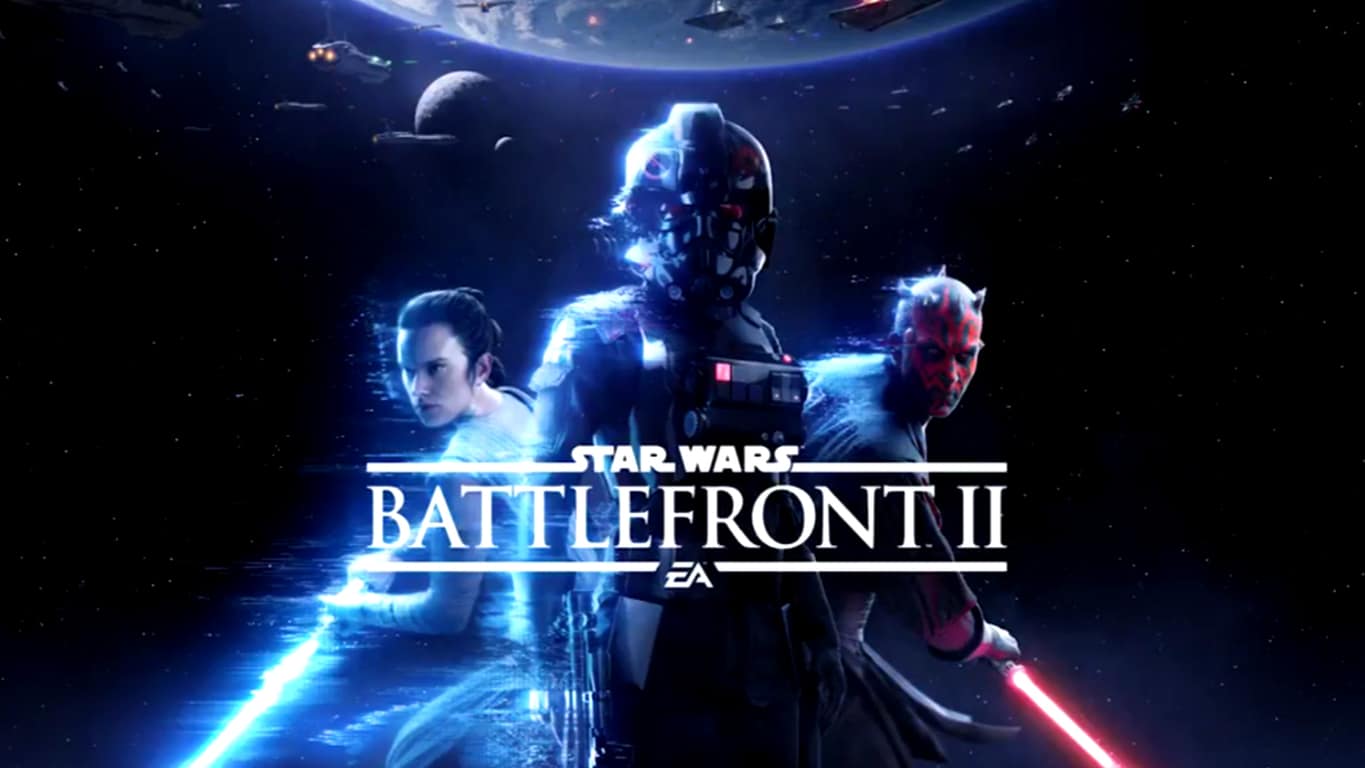
Battlefront 2 won’t have a Season Pass

Gamers tend to not approve of the Season Pass model of DLC sales, and for good reason. Potentially, they’re exceptionally predatory and ask consumers to buy something they don’t even know about yet. In response to the negative response of Battlefront’s Season Pass model, the team at DICE has confirmed that no Season Pass will be coming for the sequel.

Star Wars Battlefront II on Xbox One

Thanks for joining us. To keep up to date with all the latest Xbox news, keep a close eye on our Xbox One news hub.

How to install Windows updates on Kaby Lake and Ryzen CPUs

Microsoft has locked the ability to receive updates for Kaby Lake and Ryzen owners on Windows 7 and Windows 8.1, a controversial move for those who want to upgrade to Windows 10.

Now, Microsoft is providing support only for Intel’s Kaby Lake and AMD’s Ryzen that work on Windows 10. The company says that this decision is purely business, and not a technical one to force users to upgrade to Windows 10. Despite that, a large number of users are not happy at all with this situation.

In this article, we’re going to show you a trick in order to bypass this limitation and install all updates including the ones that are currently prevented from being installed on these CPUs.

A GitHub developer named “zeffy” has decided to change things with the ability to install the “locked” update packs on modern hardware after patching some files.

On his page, the developer explained in detail the way he discovered some special programming functions: ‘IsDeviceSerciveable(void)’ and ‘IsCPUSupported(void)’, both of which can be found in the wuaueng.dll DLL library from the OS. These two functions perform a hardware check and are the ones responsible for locking the CPS and preventing updates from being installed.

There are some easy ways for killing this CPU check presented on zeffy’s GitHub page:

Patch wuaueng.dll and change dword_600002EE948 which is at file offset 0x26C948, from 0x01 to 0x00. This makes IsDeviceServiceable(void) jump over its entire body and return 1 (supported CPU) immediately. This is my preferred method. Note: These offsets are only for the Windows 7 x64 version.

Patch wuaueng.dll and nop out all the instructions highlighted in IsDeviceServiceable(void), this will enable the usage of the ForceUnsupportedCPU of type REG_DWORD under the Registry key HKEY_LOCAL_MACHINE\SOFTWARE\Microsoft\Windows\CurrentVersion\WindowsUpdate\Test\Scan (you will most likely have to create this registry key). Set this value to 0x00000001 to force unsupported CPUs, and back to 0x00000000 to change the behavior back to default. You will probably need to restart your PC or restart the wuauserv service in order for changes to apply. This behavior is undocumented and could be removed in future updates.

To grab the patches, simply go to zeffy’s GitHub page.

These solutions are only temporary as we’re pretty sure that Microsoft is going to also “fix” this ability soon and lock the Windows Update ability with even more complicated implementations.

RELATED STORIES TO CHECK OUT:

ID@Xbox reaches 500 titles across Xbox One and Windows 10

Microsoft’s ID@Xbox program, which allows Indie developers to get support from Microsoft in developing their game, as well as the opportunity to publish on the Xbox and Windows 10 platforms, has hit a milestone of releasing its 500th title since the program’s inception.

In the video below, some of the Xbox team members, such as Larry Hryb (aka, Major Nelson) take a look at some of their favourite titles:

Billions of hours have been spent playing ID@Xbox titles on Xbox One and Windows 10, showing the interest in title’s released through the program. Many great games have come to fruitition as a result, both those in the video above, but also many more fan-favourites. As the program continues to expand, we expect to see more great titles arising from Indie developers around the world looking to publish their game on one of the largest gaming platforms.

What’s your favourite ID@Xbox title? Let us know below!

Killer Network Manager won’t work on Windows 10 Creators Update [FIX]

Many Windows 10 Creators Update users report that Killer Network Manager’s network bandwidth control doesn’t work after the upgrade. More specifically, the tool launches but there is no data usage information available on the screen.

Here’s how one user describes this issue:

I just installed the Windows 10 Creators Update and now Killer Network Manager’s network bandwidth control isn’t working. It doesn’t show any data usage like it should. Any suggestions?

How to fix Killer Network Manager bugs

Usually, outdated versions of Killer Network Manager fail to properly work with Creators Update. The good news is that the latest Killer Network Manager update should fix all the bugs affecting this tool.

Killer Network Manager version 1.1.69.1774 improves the tool’s compatibility with the Windows 10 Redstone 2. Go to Killer Network Manager’s official website and download version 1.1.69.1774. Installing the latest version of the Killer Network Manager should fix all the bugs affecting the tool on Windows 10 Creators Update.

It is worth mentioning that version 1.1.69.1774 also brings an issue of its own. More specifically, users may encounter occasional disconnects in Call of Duty: BO III with Doubleshot/Triple Shot configurations.

For more information about the latest version of Killer Network Manager, you can read its patch notes on the tool’s official website.

If you’ve encountered other network issues after upgrading to Windows 10 Creators Update, use the comment section below to tell us more about your experience. If you’ve come across any workarounds to fix these bugs, feel free to list the troubleshooting steps as well.

RELATED STORIES YOU NEED TO CHECK OUT:

How to disable Windows Defender’s maximum brightness warning

The maximum brightness warning does not only show up in the Device Performance & Heath window: some users are also seeing the message in Windows Defender after the Creators Update. You read correctly: Microsoft’s native security software is warning some users about maximum brightness and performance.

One Reddit user lamented that the warning message does not go away at all. Currently, there is no option to turn off the warning. To address the issue, some users have decided to switch to Linux.

Whoever was the guy that proposed this in the first place should be fired! It’s idiotic to include such things into an AV program. Because it might be a weak one, but it’s what it is.

The problem seems to be rampant among laptop users who have upgraded to the Creators Update. Fortunately, for others who use desktop machines, the issue does not affect their devices. That is probably because the system requires a battery to monitor battery-draining conditions.

It is also possible that the issue exists because some users might be running third-party antivirus apps. Other security tools must have a toggle that should prevent it from registering with the Action Center.

If there is one thing that many Windows 10 users want implemented is the option to disable the warning message about screen brightness set to maximum. Until then, you can use the following temporary workaround to disable the annoying Windows Defender maximum brightness warning.

How to remove maximum brightness notification in Windows Defender

  1.  Launch Task Manager and go to the Startup tab
  2. Right-click the Windows defender notification icon and select Deactivate

Are you having the same trouble with the Creators Update as well? Let us know!

RELATED STORIES YOU NEED TO CHECK OUT:

Microsoft acknowledges Bluetooth bugs caused by the Creators Update

Microsoft started rolling the Creators Update out to the general public on April 11th. Early adopters quickly reported various Bluetooth issues, but Microsoft has yet to fix these problems.

The good news is that the Redmond giant officially acknowledged that the Creators Update breaks Bluetooth. The company should roll out a hotfix as soon as possible.

We are aware that some users with Broadcom radios may experience Bluetooth LE device connection issues (while Settings is open) after upgrading to Windows 10 Creators Update. We are working to resolve this issue as quickly as possible.

For various Bluetooth issues, Microsoft recommends running the new Bluetooth Troubleshooter, a new troubleshooting tool you can find on the Settings page. Go to Settings > Update & security >Find and fix other problems > Troubleshoot.

After running the Bluetooth Troubleshooter, close the Settings page and give your device some time to reconnect. Bear in mind that this may take longer than usual.

If you’re still experiencing Bluetooth issues, install the latest driver updates for your Bluetooth devices. Then disconnect them, plug them back in, and check if the issue still persists.

Now, it these steps didn’t help, you can share your feedback in the Feedback Hub. There are plenty of Bluetooth bug submissions and you can either add your vote to a known issue experienced by others or submit your own so that others can add their vote to yours.

Don’t forget to provide Microsoft with additional details about your issue in order to help Windows engineers figure out what’s causing it.

As a quick reminder, the most common Bluetooth issues on Windows 10 Creators Update are the following:

  • Bluetooth mouse stops working after an idle period
  • Bluetooth LE devices are unresponsive
  • No sound on Bluetooth headphones.

Have you encountered any Bluetooth issues after upgrading to Windows 10 Creators Update?

RELATED STORIES YOU NEED TO CHECK OUT:

Copy and paste doesn’t work on Windows 10 Creators Update [FIX]

The Windows 10 Creators Update is here, but there are a couple reasons why you should put off upgrading. For example, the Creators Update is preventing some users from copying text to the clipboard, meaning the update may have disabled the copy and paste tool in Windows 10.

Here is how the problem is affecting one Windows user who took to the Microsoft Community page in search of a solution:

I have upgraded to the latest Windows 10 version today (Creators update/Anniversary Edition). Since then Copy/Paste does not work (my suspicion is that the copy fails, and I cannot paste something that is not there). I have trawled the internet for solutions, but none I have found matched my problem (so far).

This happens in Notepad as well as everywhere else. The keyboard shortcuts do not work. The mouse menu options do not work. I have checked and applied all the latest updates, and reboot as well (a number of times). I don’t have any third party clipboard management tools installed. After keyboard copy (Ctrl-C) or Mouse Menu (Copy), the Paste option is never enabled.

How to fix copy and paste issues

According to a Microsoft representative, the problem may lie in outdated drivers after the Creators Update. To install drivers and other optional updates from Windows Update, follow these steps:

  1. Click the Start button and open Windows Update. In the search box, type Update and click Windows Update in the list of results.
  2. Select Check for updates in the left pane and wait while Windows looks for the latest updates for your computer.
  3. If there are any available updates, click the link in the box under Windows Update to see more information about each update.
  4. Find the updates for your hardware devices on the Select the updates you want to install page and select the check box for each driver that you want to install. Hit OK.
  5. Click Install updates on the Windows Update page. Administrator permission required If you’re prompted for an administrator password or confirmation, type the password or provide confirmation.

Note that Windows Update will tell you if an update is important, recommended, or optional. You may also need to reboot your PC after an update. Then, Windows Update will let you know if the updates were successfully installed.

Did you experience the same problem after upgrading to the Creators Update? Let us know!

RELATED STORIES YOU NEED TO CHECK OUT:

Windows 10 Cloud features: Here’s what to expect

Do you want to learn more about the new Windows 10 Cloud? In this article, we’re going to list the main elements that make this tool so special.

Windows 10 Cloud is the latest Windows 10 edition created for Chromebooks in the education area. It’s pretty similar to the Windows 10, but it has a few features of its own. Let’s check them out.

Windows 10 Cloud  is not a Cloud OS

Even if its name is Windows 10 Cloud, it’s not any different than the other versions of Windows 10. There is no real cloud-element, apart from the usual OneDrive sync support.

Hardware manufacturers could get Windows 10 Cloud for free

Microsoft might offer the Windows 10 Cloud as a free version for hardware manufacturers to preload it on their low-end devices or, who knows, even on their high-end ones.

The same strategy was used by Microsoft with the Windows 8.1 with the edition called Windows 8.1 with Bing which was the same thing as all other versions of Windows 8.1 aside from the fact that hardware manufacturers had to set Bing as Internet Explorer’s default search engine. The hardware makers got a free edition which came with their affordable low-end devices.

Windows 10 Cloud won’t let you install third-party apps

Windows 10 Cloud is locked to the Windows Store for all games and apps. In other words, if you download programs from the web, they won’t work because Windows 10 will not install software, unless it comes from Windows Store.

Due to the fact that the Windows 10 Cloud is locked to the Windows Store, users think that it’s a “lite” version of Windows 10. This is nothing but a misconception, as the Windows 10 Cloud has the ability to run full Win32 programs, just like any other version of Windows 10.

It looks like Windows 10 only with a different wallpaper

Windows 10 Cloud is similar to any other Windows 10 edition you can find on today’s market, but it features a slightly different default wallpaper when it’s being set up for the first time.

Windows 10 Cloud adds extra-security

When using the Windows 10 Cloud, you’re going to have more security, because app installers can’t execute from outside the Windows Store. And we all know that everything in Windows Store is safe as it’s screened by Microsoft’s app approval system.

Office is an essential area of Windows 10 Cloud

Microsoft is probably going to push the full version of Microsoft Office 2016 on Windows 10 Cloud. Currently you’ll find Word 2016, PowerPoint 2016, Excel 2016 and OneNote pinned to the Start menu. They’re not installed by default, but clicking on them will automatically take you to Windows Store, and you’ll be able to download them.

Microsoft is probably going to reveal Windows 10 Cloud at the spring event, on May 2, together with the Surface hardware.

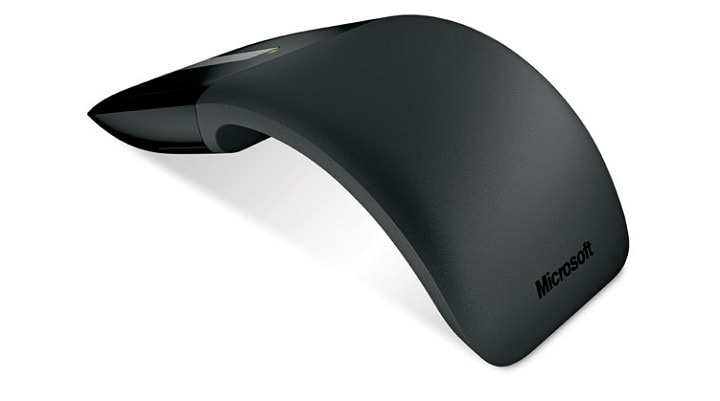
Microsoft Arc Touch mouse won’t work on Windows 10 Creators Update, fix incoming

Many users have reported that they can’t use their Bluetooth Arc Touch mice after upgrading to Windows 10 Creators Update. More specifically, Microsoft’s Arc Touch mouse is visible on the Settings page and appears to be connected, yet won’t respond.

Here’s how one user describes this issue:

I recently installed the Windows 10 Creators Update and now my Bluetooth Arc Touch mouse isn’t working properly. It appears to be connected in Settings, but it’s not usable. Any suggestions?

The good news is that Microsoft has officially acknowledged the issue and its engineers are working to fix this problem as quickly as possible. The company will soon roll out a dedicated update to fix all Microsoft Arc Touch mouse bugs caused by the Creators Update.

We are aware that some Microsoft Arc Touch Mouse Surface Edition and Arc Touch Bluetooth Mouse users may experience Bluetooth connection and disconnection issues after upgrading to Windows 10 Creators Update. We are working to resolve these issues as quickly as possible.

If you can’t use your Microsoft Arc Touch mouse after upgrading to Windows 10 Creators Update, try running the Bluetooth troubleshooter. Go to Settings > Update & security >Troubleshoot under Find and fix other problems > Bluetooth.

If the troubleshooter doesn’t help, try turning your mouse off then on again. Try to pair it again and see if this does the trick. If your Microsoft Bluetooth Arc Touch mouse is still unresponsive, continue using the Creators Update with another mouse. However, if you must use this mouse, roll back to the Windows 10 Anniversary Update.

Have you encountered similar issues with other mouse models? Use the comment section below to share your experience.

RELATED STORIES YOU NEED TO CHECK OUT:

Local User Account disappears after Creators Update [FIX]

The Windows 10 Creators Update has been plagued with many issues, one of which concerns the Local User. More specifically, some users were surprised to see their local user accounts disappear after upgrading to the latest version of Windows 10.

A Windows 10 user posted the following on the Microsoft Community page:

Last night, I upgraded to the Windows 10 Creators Update. After the upgrade, when the splash screen is presented with a login, my local user (John) is nowhere to be found. The only two users that are presented are my Microsoft account and a new user named ‘limitedadmin’.

I only used my Microsoft account when upgrading from Windows 7, but never actually log into my Windows 10 PCs with that account, however, I had no choice but to do so, this time, because my local user was not available to log in with, and I have zero idea what the password is for this new ‘limitedadmin’ user.

My saga gets stranger once I did log in with my Microsoft account. Once logged in, I am presented with what looks like the desktop of my local user account, not my Microsoft account’s desktop. When I look at my documents or downloads or pictures, it is my local account’s stuff. When I look at the properties of those items, they all point to my local user’s directory.

So, it appears that my Microsoft account has been crossbred with my local user account.

How to fix Local User bugs

A Windows Insider was quick to offer a solution to the problem. You can restore a local account by selecting Start > Settings > Accounts > Your info. Then, sign in with a local account instead.

As for the redirected folders, you can recover them by opening Start > Settings > System > Storage > scrolling down then clicking Change where new content is saved. Then, click each list box for your personal folders.

Let us know if the fix works for you if you have encountered the same problem with the Creators Update.

RELATED STORIES YOU NEED TO CHECK OUT:

Wireless Display Media Viewer issues on the Creators Update [FIX]

Many users haven’t been able to install the Wireless Display Media Viewer after upgrading to the Windows 10 Creators Update. More specifically, the app won’t completely install and when users try to launch, only a blank window opens.

What’s worse it that there is no uninstall option available. Actually, the Wireless Display Media Viewer is installed under the name “Miracast view” as an app package, but Microsoft denied users access to remove it.

Here’s how one user describes this issue:

I updated to the Creator’s Update today, and now I’ve got a half-installed (?) app called “Wireless Display Media Viewer” stuck on my apps list. It looks like it’s stuck in installation purgatory, and when I click on it, it just opens a blank black window. There is no option to uninstall, and a Microsoft tech actually tried to uninstall it through PowerShell with no success. Has this happened to anyone else?

Fortunately, there are a few solutions to fix this problem. So, if you are experiencing various Wireless Display Media Viewer issues after upgrading to the Creators Update, follow the troubleshooting steps listed below.

How to fix Wireless Display Media Viewer bugs

Solution 1 — Update your drivers

After installing the Windows 10 Creators Update, don’t forget to update your drivers. If Windows doesn’t find a new driver, try looking for one on your device manufacturer’s website and follow their instructions.

Solution 2 — Refresh, reset, or restore your system

Refreshing your PC reinstalls Windows, keeping your personal files, settings, and apps intact. Resetting your PC reinstalls Windows but deletes all your files, settings, and apps except for the apps that came with your PC. Restoring your PC allows you to undo recent system changes.

Users confirm that performing a reset does the trick. However, we recommend you first perform a refresh or a restore. In this manner, you won’t delete your files and apps. If this doesn’t help, perform a system reset but bear in mind that this action will permanently delete a series of files and programs.

For a step-by-step guide on how to refresh, reset, or restore your system, check out Microsoft’s support page.

Solution 3 — Uninstall Wireless Display Media Viewer using Psexec and DB Browser for SQLite

Many Creators Update users confirm the following solution offered by Insider Alex Appleton does the trick. Here are the steps to follow:

1. Download Psexec and DB Browser for SQLite and install them

2. Launch Command Prompt and run psexec as system using this command: psexec.exe -i -s -d cmd.exe

3. Open the DB Browser for SQLite as system and launch the executable under command prompt using this command:

C:\Program Files\DB Browser for SQLite\DB Browser for SQLite.exe

This is the location if you installed the app to its default path. If you installed it elsewhere, change the command accordingly.

4. Go to the “Open Database” button at the top and open the following database file:

C:\ProgramData\Microsoft\Windows\AppRepository\StateRepository-Machine.srd

5.  Click on the “Browse Data” tab and change the table to “Package”

6. Under the PackageFullName column of Windows.MiracastView_6.3.0.0_neutral_neutral_cw5n1h2txyewy, change the value under the IsInbox column from a 1 to a 0 and save the changes.

7. Remove the Wireless Display Media Viewer with PowerShell using the following command:

get-appxpackage -allusers | where {$_.name -like “*mira*”} | remove-appxpackage

We hope that the solutions listed above help you fix the Wireless Display Media Viewer issues that you encountered. If you’ve come across other workarounds, feel free to list the troubleshooting steps in the comment section below.

RELATED STORIES YOU NEED TO CHECK OUT:

Office UWP apps make brief appearance in Windows Store as “Soup” and “Sandwich”

A couple of months ago, rumors came through the grapevine about Microsoft using its recently released Desktop App Converter tool for its own Office suite. According to reports, the tech giant wanted to produce the ever classic Microsoft Word, Excel, and more on its Universal Windows Platform via the Windows Store.

Today, WalkingCat may have uncovered the first visible steps of this transition.

https://twitter.com/h0x0d/status/855468598881431552

The well-known enthusiast pointed out some peculiarly named apps on Windows Store available from Microsoft Corporation. Introducing, Microsoft Soup and Microsoft Sandwich (links only work(ed) in Edge).

These deliciously named apps only have images of multiple Office suite software including OneNote, Word, Excel, PowerPoint, and Outlook. Both pages note that they are “currently not available” yet oddly had a couple of generic comments.

Unfortunately, not long after I snapped the screenshots the app pages disappeared from the store.

While there isn’t any official source about these mysterious applications from Microsoft, it’s safe to say that Office could very well be looking to make a home on the Windows Store. Now, it’s time for a lunch break.

Microsoft to present first ever Windows Developer Awards at Build next month

Next month, Microsoft will hold its annual Build developer conference in Seattle, and this year’s edition should be pretty special for Windows developers. Indeed, the company has just announced on its developer blog that it will present the first-ever Windows Developer Awards, which will celebrate the creativity of UWP developers who released “exciting UWP apps” on the Windows Store last year.

The awards will be given in four main categories:

  • App Creator of the Year: this first category will honor apps that leverage the latest Windows 10 features such as Windows Ink, Dial, Cortana and more in innovative ways.
  • Game Creator of the Year: this one will be restricted to first-time publishers that released “innovative, engaging and magical games” on the Windows Store
  • Reality Mixer of the Year: As you can expect, this category will recognize the best mixed reality apps for Microsoft’s new Windows Mixed Reality platfrom.
  • Core Maker of the Year: this award will honor “those who go beyond the traditional software interface to integrate Windows in drones, PIs, gardens, and robots to get stuff done,” explained Microsoft.

Last but not least, Microsoft also created a special Ninja Cat of the Year award that will “celebrate the developer or experience that we believe most reflects what Windows is all about, empowering people of action to do great things.” This one will be selected by Microsoft’s Windows team, but all other awards will be chosen by the community: the company has just set up a dedicated awards website where developers will be able to pick the winners through Thursday, April 27. Microsoft’s Build conference is all about developers, so it’s great to see that the company will put them under the spotlight this year.

Xbox Fanfest to try again next week with ticket giveaway after failed first attempt

Earlier this week, Microsoft invited Xbox fans to register to win one of 400 tickets for the E3 Xbox FanFest, which will run from Sunday, June 11 through June 13. Unfortunately, after opening registrations on Wednesday, the company discovered that an error caused the system to accept more registrants than the number of tickets.

As a consequence, Xbox’s Major Nelson explained today that “voiding all of Wednesday’s registrations and wiping the slate clean would help make things as fair as possible for all fans.” In other words, everyone who previously registered (including the lucky ones who won a ticket) will have to do it again next week.

If you’re still interested in the event, get ready to submit your new registration on Wednesday, April 26 at 9AM PST. Major Nelson shared the following details:

To streamline our approach after yesterday’s error, all 400 tickets will be available, all at once, starting at 9am PT.  Tickets remain first-come, first-serve, one ticket per-person.  Additionally, all requirements (21+ years old, credit card required to hold) remain exactly the same.  Stay glued to @Xbox, @MajorNelson and #XboxFanFest on Twitter for when the link to the registration site becomes available on Wednesday, April 26th at 9am PT.

As a reminder, the company has also kept 100 other tickets that will be distributed through a variety of other promotions/giveaways. “Xbox FanFest will give 500 lucky fans a one-of-a-kind, up-close-and-personal experience to the gaming industry’s biggest showcase,” teased the Xbox team earlier this week, so let us know in the comments if you’re ready to register again next week

Windows 10 “Cloudbook” minimum specs leaked

It’s been a little more than a week since Microsoft released the last major update to Windows 10 (aka the Creators Update), but next month should bring much more interesting news to Windows enthusiasts. Indeed, Microsoft will kick off its annual Build developer conference on May 10, but the company will also hold a much-anticipated Education event on May 2 in NYC.

We’ll be attending the event, but we already have a good idea of what it will be about: Microsoft is expected to introduce Windows 10 Cloud, a new Windows 10 SKU which will be tarteget at the education market. From what we’ve learned, the new OS is a locked down version of Windows 10 that can only run Windows Store apps, including Win32 apps that have been ported with Microsoft’s Desktop App Converter. More importantly, Windows 10 Cloud will be able to be upgraded to Windows 10 Home or Windows 10 Pro, for users that want full access to Win32 apps and other power user features.

Overall, Windows 10 Cloud, is expected to be Microsoft’s most serious response to Chromebooks, which are becoming increasingly popular in the US Education market.

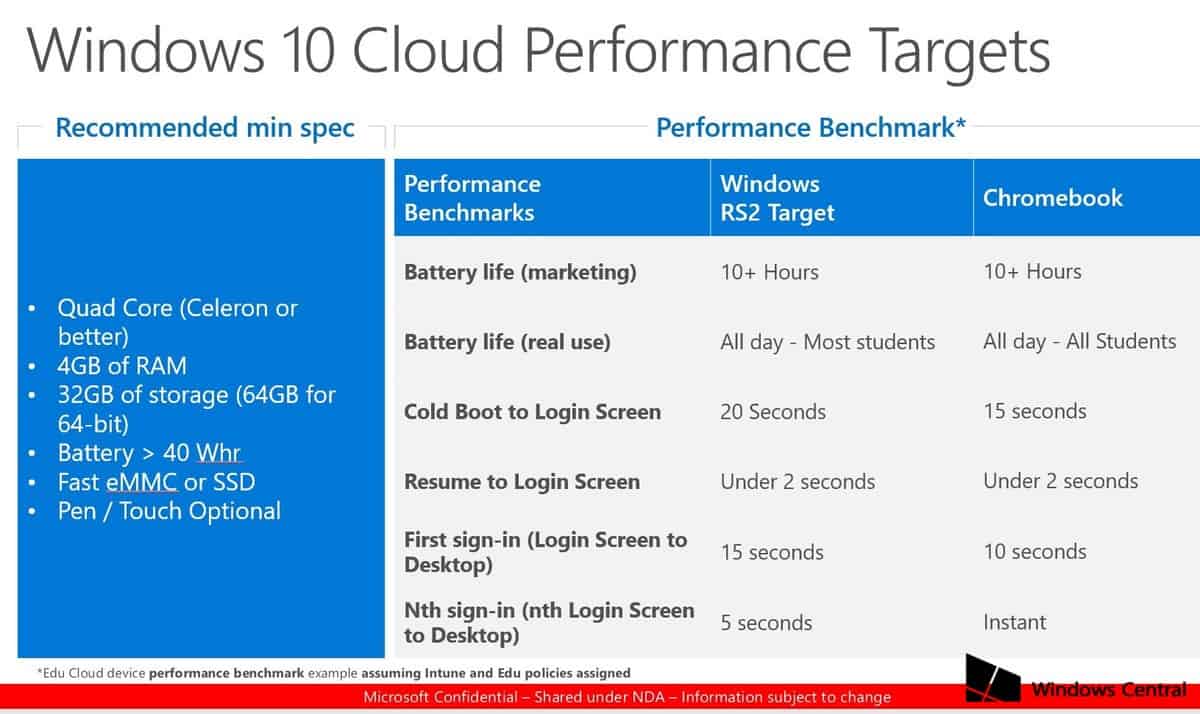
It’s not clear yet if Microsoft or its OEM partners will introduce new hardware running Windows 10 Cloud at the May 2 event, but today a new report from Windows Central gave us more details about the minimum recommended specs for the new OS. And according to the following internal document, Microsoft made it clear that Chromebooks are the real target:

As you can see, the minimum recommend specs for Windows 10 Cloud are quite low: a quad core Celeron processor, 4GB or RAM and 32GB of storage (fast eMMC or SSD) should be enough to have a good experience. However, it’s worth noting that according to Microsoft, Chromebooks will still have an edge in certain areas such as battery life and the time from cold boot to Login Screen.

Windows Central also reported that Windows 10 Cloud may actually be named “Windows 10 S” (maybe a nod to “School,” who knows?) which certainly sounds less confusing. But now, the “Cloudbook” question still remains: does it make sense for Microsoft to release first-party hardware running Windows 10 Cloud, or will the company let its OEM partners bring the first new devices to the market? Windows 10 Cloud could make sense for a successor to the Surface 3, though Microsoft seems much more interested in high-end hardware like the Surface Studio these days.

We’ll see what happens on May 2, but one thing is already clear: Microsoft is really serious about the education market, and the company wants Windows 10 devices to match the strengths of Chromebooks, which are cheap, secure and fast PCs. And Windows 10 Cloud may well be a success if Microsoft and its OEM partners market it better than the now deprecated Windows RT.

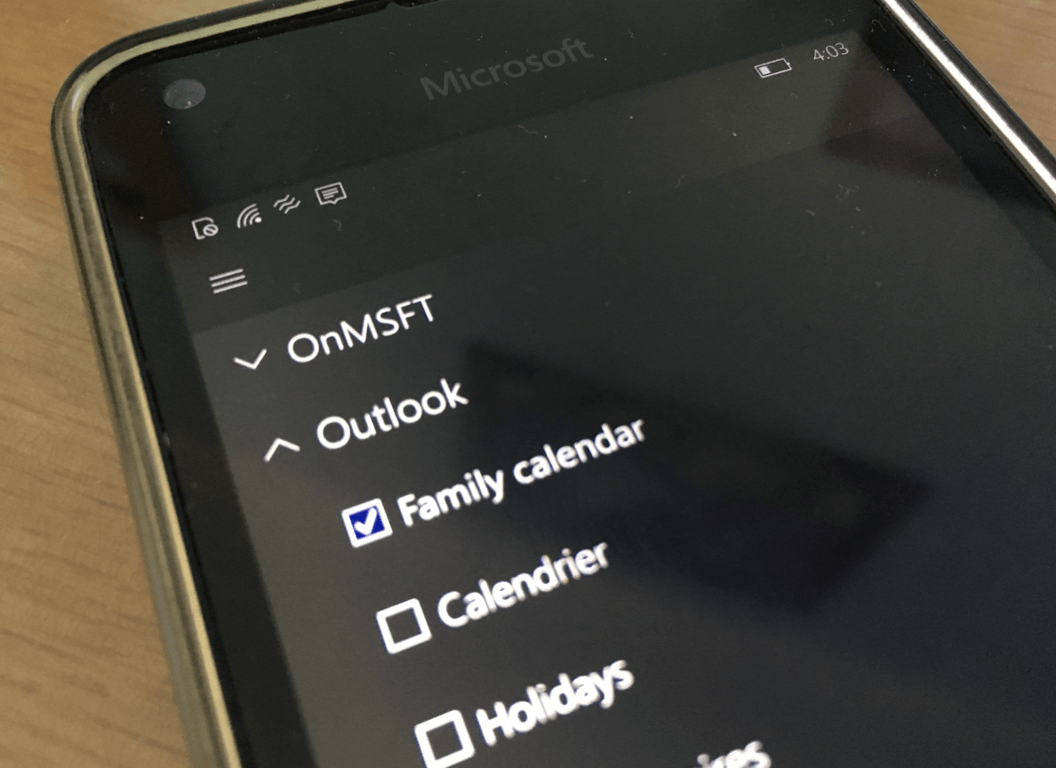
Microsoft adds Family Calendar, available from anywhere via Outlook.com

If many members of your family use Outlook.com as their main account for emails, contact and calendars, you may know that Microsoft has introduced some useful family features to manage your kids’ activity. By configuring a family on account.microsoft.com/family, parents can manage screen time on kid’s devices, web browsing activity, Windows Store purchases and more.

However, if you always wanted to configure a shared calendar with other family members, you’ll be pleased to learn that this feature is currently rolling to all users who have set up a Microsoft family (via MSPoweruser). Microsoft MVP Ian Dixon tweeted the following email from Microsoft announcing the new feature:

Microsoft has already updated its Microsoft Family FAQ to detail how Family Calendars work:

  • It’s an Outlook calendar for your Microsoft family.
  • Everyone in your family gets automatic access to it, and can view and setup events.
  • Access the shared family calendar on any device (Windows, iOS, Android) when you add your Microsoft account to that device.
  • If you don’t see a family calendar just yet, sit tight. We’re still rolling out this new experience, and we’ll send you an email once we create your family calendar.

We just tried to create a Microsoft Family with a personal Outlook.com account, and the new Family Calendar appeared immediately. You can check this calendar on Outlook.com or any Outlook app, and this looks like a very welcome feature overall. As Microsoft explained, users who already created a Microsoft Family will receive an email when their Family Calendar is ready to use.

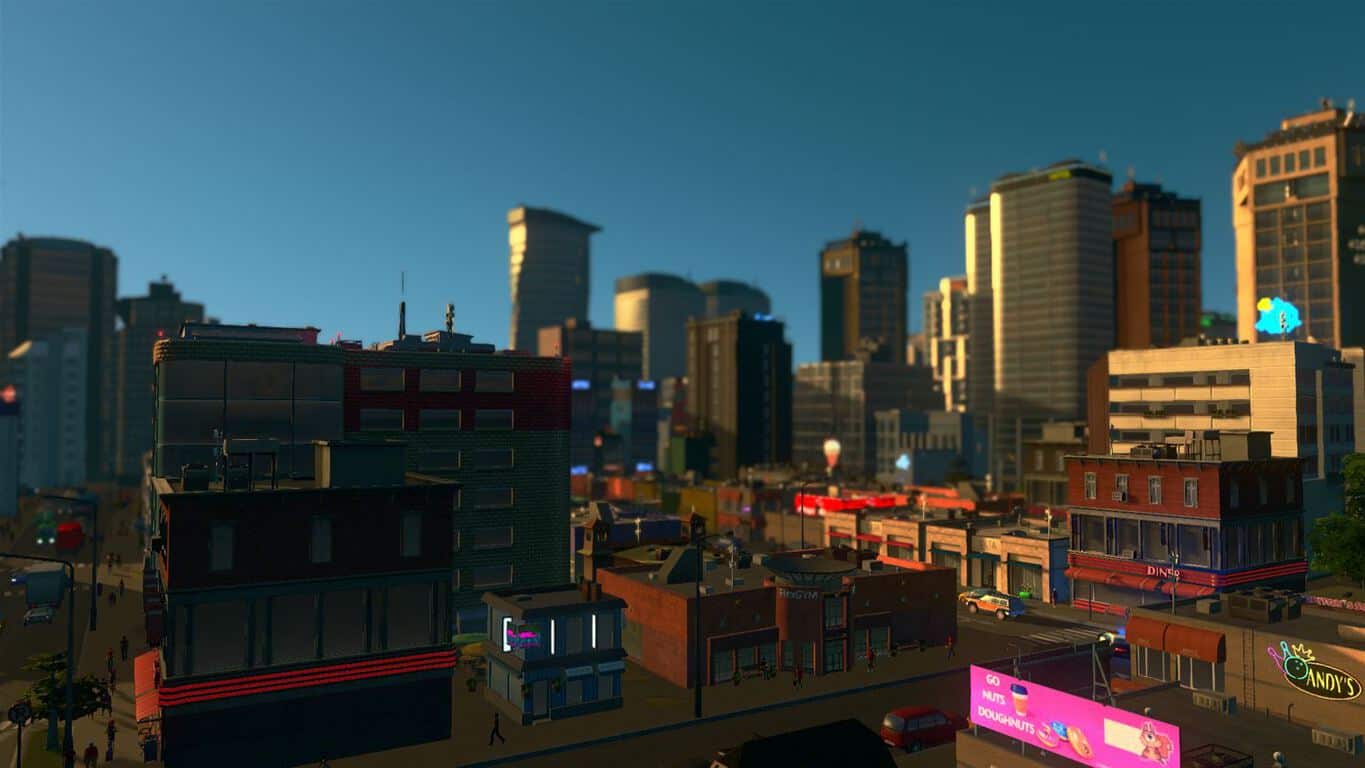
Popular city building game Cities: Skyline is now available on Xbox One

Cities: Skyline, the popular city building game from developer Colossal Order, is now available on the Xbox One. The game has been redesigned to work with the Xbox One controller, and it’s the first game of its kind to launch on the gaming console.

The game is a $39.99 purchase on the Xbox Store, and it includes the After Dark expansion which improves the gameplay with the addition of a day-night lifecycle. Here is the game’s official description:

Cities: Skylines – Xbox One Edition puts you in charge of a growing city – from the ground-breaking of its first streets to the ever-changing needs of thousands of citizens. Design, build, and manage the city of your dreams, from public services to civic policies, and challenge yourself to grow from a simple town to a bustling metropolitan hub. Cities: Skylines is an award-winning, best-selling management game, now available for the Xbox One with all of its robust city-simulation gameplay and unique charm along for the ride. The Xbox One Edition includes the base game and the popular After Dark expansion, allowing players to plan and design for their cities’ nightlife and tourist attractions.

Publisher Paradox Interactive has just kicked off a Twitch live stream to celebrate the game’s release, and you can watch it here. Let us know in the comments if you plan to buy the game on your Xbox One.

Xbox gamers unlock over 700 million in Gamerscore last week

Since the beginning of this latest console generation, Microsoft’s Xbox One has been trailing behind Sony’s Playstation 4, which is why the company has stopped reporting Xbox One sales a few years ago. The company now prefers to focus on Xbox Live engagement, and it seems that this is a much more satisfying metric for Redmond.

Yesterday, Xbox exec Mike Ybarra asked its Twitter followers to guess how much Gamerscore Xbox Live users earned over the last seven days, and here was his answer:

700 million Gamerscore points in just a week is quite a massive number, if you ask us. Xbox fans were also impressed by the passion of Xbox fans, and some them think that the Xbox team should share more hard data about Xbox Live engagement going forward:

Back in January, Microsoft revealed during its FY2017 Q2 results that Xbox Live now has 55 million active users, compared to 48 million during the same time last year. And if you’re wondering, “Stallion83,” the first player to reach a one million Gamerscore three years ago has managed to kept his crown to this day: at the time of our writing, the incredibly dedicated gamer currently has a 1,528,810 Gamerscore according to TrueAchievements’ leaderboard. Truly inspiring.

Microsoft releases Windows 10 build 16179 for Insiders in the Fast ring

Microsoft has just released the new Windows 10 Preview build 16179 for both Windows 10 PC and Windows 10 Mobile Insider Preview. The new build is, for now, only available to Insiders in the Fast ring of Windows 10 Insider program.

Since this is one of the earliest Redstone 3 builds for Windows 10, it’s not so feature-rich. However, it does bring a few new additions to the system.

Perhaps the biggest novelty is the new Power Throttling feature, that debuts in Windows 10 with this Preview build. This feature is part of Microsoft’s efforts to provide better battery saving options for Windows 10 users. According to the company, when enabled, Power Throttling can save up to 11% of CPU power consumption.

Windows 10 Preview build 16179 known issues and bug fixes

Just like it’s the case with every Windows 10 Preview build, Microsoft revealed the list of the known issues and improvements in build 16179.

Here’s what has been improved in Windows 10 Preview build 16179:

“Changes, improvements, and fixes for PC:

  • We fixed the issue causing apps that use the Desktop Bridge (“Centennial”) from the Store such as Slack and Evernote will cause your PC to bugcheck (GSOD) when launched with a “kmode exception not handled” in ntfs.sys error.
  • We fixed an issue where adding Hindi to your language list and downloading the on-demand language resources would result in Microsoft Edge crashing on launch and file search returning no results via Cortana or Windows Explorer.
  • We fixed an issue where desktop icons would sometimes move around unexpectedly when “Auto arrange icons” was set to On and “Align icons to grid” was set to Off.
  • The existing Group Policy to disable the lock screen is now available for those on the Pro edition of Windows 10. Appreciate all who shared feedback on the subject. Note, the Group Policy text has not yet been updated to incorporate this change, that will happen with a later flight.
  • We fixed a rendering issue from previous flights where specific multi-monitor and projection configurations could fail depending on the hardware used. This could have impacted all Surface (Surface Book, Surface Pro, etc.) devices as well as other devices using similar chipsets. Another symptom may have been to see screen flickering and potentially being logged out when any screen mode change occurred.
  • We fixed an issue resulting in the location icon being continually on in the taskbar after the first time the Action Center was opened if the night light quick action was visible.

Changes, improvements, and fixes for Mobile:

  • We fixed the targeting issue that caused some variants of the Alcatel IDOL 4S to not receive Build 15204 last week. All variants of the Alcatel IDOL 4S should receive Build 15205.
  • FYI: We fixed the issue where supported Windows 10 Mobile devices were showing the update to the Windows 10 Anniversary Update as “not yet available” in the Upgrade Advisor app.
  • We fixed an issue where Continuum would stop working when HP Elite X3 case is closed.
  • We fixed an issue where Continuum would hang or render incorrectly after disconnecting on devices like the Lumia 950.
  • We fixed an issue with Microsoft Edge where you might get into a bad state after opening a new Microsoft Edge windows and screen off with the JIT process suspended.
  • We fixed an issue with where the device screen might stay black when disconnecting from a Continuum dock after screen has timed out normally.
  • We fixed an issue with backup and restore which impacts users with slower network connection.
  • We fixed an issue around Microsoft Edge reliability.”

Here’s the list of known issues in Windows 10 Preview build 16179:

“Known issues for PC:

  • Some Insiders have reported seeing this error “Some updates were cancelled. We’ll keep trying in case new updates become available” in Windows Update. See this forum post for more details.
  • Double-clicking on the Windows Defender icon in the notification area does not open Windows Defender. Right-clicking on the icon and choosing open will open Windows Defender.
  • Surface 3 devices fail to update to new builds if a SD memory card is inserted. The updated drivers for the Surface 3 that fix this issue have not yet been published to Windows Update.
  • Pressing F12 to open the Developer Tools in Microsoft Edge while F12 is open and focused may not return focus to the tab F12 is opened against, and vice-versa.
  • exe will crash and restart if you tap any of the apps listed in the Windows Ink Workspace’s Recent Apps section.
  • Insiders who use Simplified Chinese IMEs or the Traditional Chinese Changjie or Quick IME to input text will find that the candidate window doesn’t appear when typing into certain apps. If you press space, the first candidate will be finalized. Using the number keys will not finalize any other candidate. If the candidate you need is not the first one, for now you will have to enter your text into an app where the candidate window appears, such as Notepad, and copy it into the desired text field.
  • Navigating to Settings > Update & security > Windows Update may crash Settings app. You can simply re-open the Settings app again and it should work again.
  • The “Save” dialog appears to be broken in several desktop (Win32) apps. The team is investigating.

Known issues for Mobile:

  • A small percentage of devices may experience text message backup loss related to backup and recovery of the messaging database.
  • For Insiders who have upgraded from a prior 150xx build to this build, the “Add Bluetooth or other devices” Settings page and the Connect UX page may fail to open.
  • The copyright date is incorrect under Settings > System > About. It shows as 2016 when it should be 2017. Thanks to the Windows Insiders that reported this!
  • Insiders may experience random shutdowns on some devices.”

To obtain the new build, just go to the Settings app > Updates & security, and check for updates. Of course, you have to be in the Fast ring.

In case you’ve already installed the new build, and encountered some issues afterward, make sure to let us know in the comments below.

RELATED STORIES YOU NEED TO CHECK OUT:

Marvel’s Guardians of the Galaxy: The Telltale Series reported issues

The first episode of Marvel’s Guardians of the Galaxy: The Telltale Series is now available for download. The Telltale Series challenges players to get their hands on an artifact of unspeakable power. However, this is not an easy task as a ruthless enemy who is the last of her kind also wants to get her hands on that mysterious and powerful object.

This five-part episodic series puts players in the rocket-powered boots of Star-Lord. Think twice before your act as your decisions and actions will drive the path of the story you experience.

Unfortunately, the gaming experience hasn’t been that smooth for some players due to a series of issues.

Marvel’s Guardians of the Galaxy: The Telltale Series bugs

White screen

The whole computer screen sometimes goes white, preventing gamers from actually playing the game. The game music still plays in the background.

I changed the graphics settings so my pc could handle it better and now whenever I start up the game The whole screen goes completely white and I cant play now.

Controller won’t work

Many gamers can’t use their controllers to play The Telltale Series. Nothing happens, no matter which buttons they press. It appears that the Xbox One and Steam controllers are the ones mostly affected by this issue.

I’m using Xbox One controller with the wireless dongle (on W10) and menu and gameplay worked up until the actual start of Episode 1, when you’re supposed to look around. Then no matter what I try, nothing happens (except bringing up pause menu, that and navigating inside it works no problem).

FPS drops

Some players are getting only 20-30 FPS.

Anyone else getting some ♥♥♥♥ poor performance from this game? My fps is at a constant 20-23 fps in the menu and in game. I’m running this on a 6700k + 980ti so this should not be happening

Game screenshots are unavailable

Players also report that game screenshots don’t appear in the activity field.

Posted sreencs and they didnt apeer in feed. Frined have the same proble. Anyone noticed this?)) any thoughts what it can be?))

Of course, these are not the only issues affecting Marvel’s Guardians of the Galaxy: The Telltale Series. If you’ve encountered other bugs, you can use this Steam page to provide the game’s devs with more details about the issues that you’re experienced.

RELATED STORIES YOU NEED TO CHECK OUT:

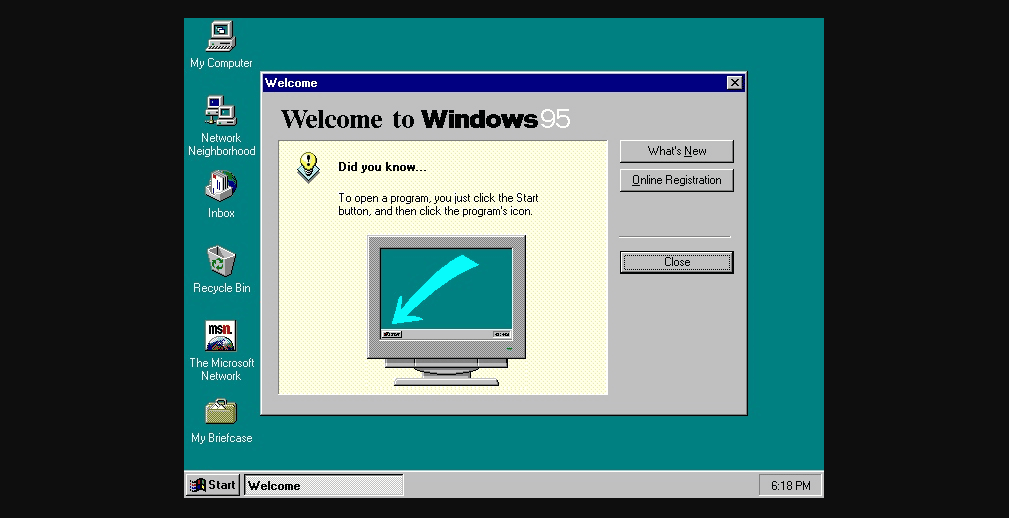
Throwback Thursday: Watch this Windows 95 Launch Video

If you were around in the 90’s, then you’ve likely encountered this sound. Microsoft Windows 95 was released on August 24, 1995, and support for it ran until the turn of the century. But in its time, Windows 95 was the game-changing operating system that, unlike its predecessor Windows 3.1, became the foundation we’ve come to love today.

As you can see in the launch trailer for Windows 95, Microsoft had quite the ambition for a consumer-oriented desktop. Then brand new, the OS redesigned the essential desktop with shortcuts and taskbar. It also replaced the 3.1 File Manager with the smoother Windows Explorer. Under the hood, the transition to 32-bit architecture and ‘plug-and-play’ capabilities set Windows 95 as a flagship for its future iterations.

Even as ground-breaking as Microsoft Windows 95 was for PCs, one commenter called out the ridiculous scenes in its ‘Start Me Up’ launch commercial. “Sitting in a coffee shop with a desktop computer. #winning,” they teased. Yet in this case, it was just another example of the vision for technology just a little (or a lot) before its time.

While we may not be clamoring to bring our bulky CRT monitors out of the garage, it’s always nice to look back. What is your fondest memory of using Windows 95? We’d love to hear your stories in the comments below or tweet us @OnMSFT.


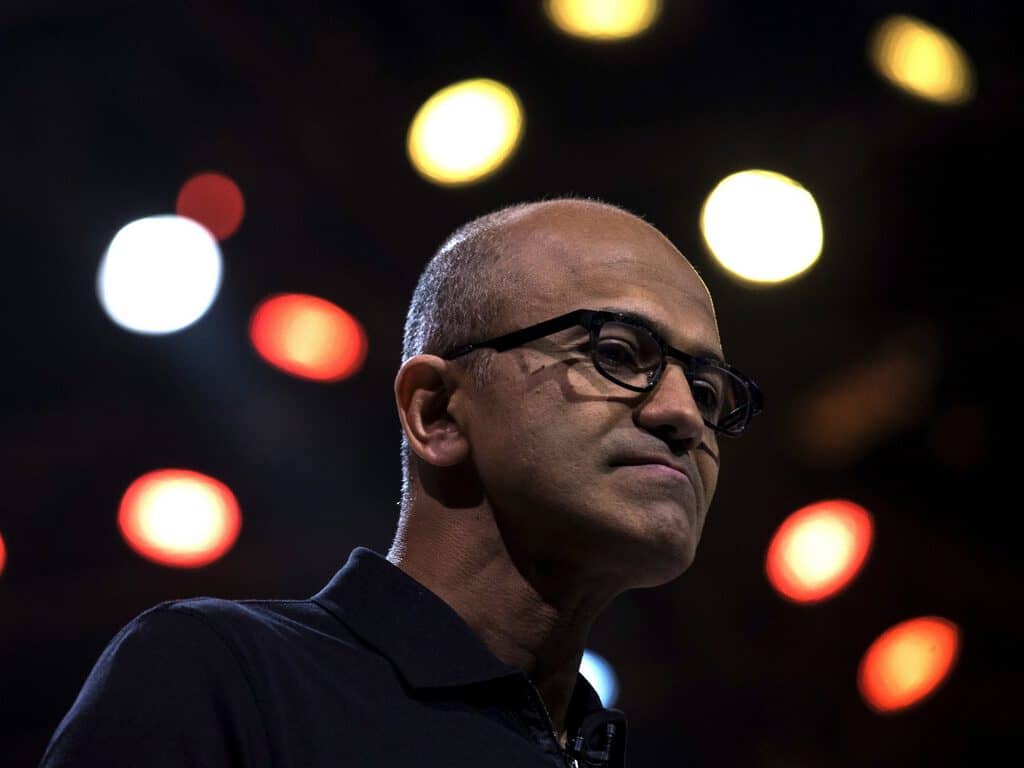
Satya Nadella wants to build “the new forms of computing” for consumers, see Windows 10 as an OS “for all of your devices”

It’s been a little more than three years since Satya Nadella became the new CEO of Microsoft, and you can tell that the former EVP of Microsoft’s Cloud and Enterprise group has already left his mark on the company. Under Nadella’s reign, we’ve seen the Redmond giant successfully introduce Windows 10 and “Windows as a Service,” double down on Office 365 and Azure, and turn the young Surface division into a billion dollar business.

Microsoft stocks were also recently trading at all-time highs, something that Nadella is probably very happy about. Overall, the new CEO has good reasons to be proud of what Microsoft has achieved over the past three years, even though the poor state of Windows Phone is still an obvious black mark. But if this can reassure you, Nadella is already looking at what is coming after the smartphone revolution.

Today, the folks at Business Insider published a lengthy interview of Nadella where the CEO discussed the past, present, and future of Microsoft. The full piece is well worth a read, especially the forward-looking bits. But before getting to that part, Nadella explained his vision of leadership, which he sees as the art of articulating new ideas, capabilities, and culture:

One of the key things in the tech business in particular is that you need to be able to push boundaries. In other words, for example, when you’re a successful company, you have this amazing lock between the idea, concept, your capability and culture. If you are successful, that means you’ve gotten the idea right, you’ve built right capability to go after that idea and your culture reinforces it.

Now, the challenge is that at some point, the concept needs to be replaced by a new idea. Otherwise, how do you renew yourself? And in order to build a new concept, you need to build a new capability and that’s where your culture can get in the way. So one of the key challenges of leadership is to be able to recognize: When is the time to push for new ideas, and how do you build new capability long before you even have a new idea?

To illustrate this, Nadella gave the example of Microsoft hiring silicon engineers years ago, who later went to work on breakthrough innovations such as HoloLens or the FPGA (Field Programmable Gate Array) chips that Microsoft now uses in its data centers. “It’s one of the fundamental challenges of leadership and you got to get it right: you can’t be too far ahead, you can’t be too far behind. To be able to yet see those corners is all it is about,” added Nadella.

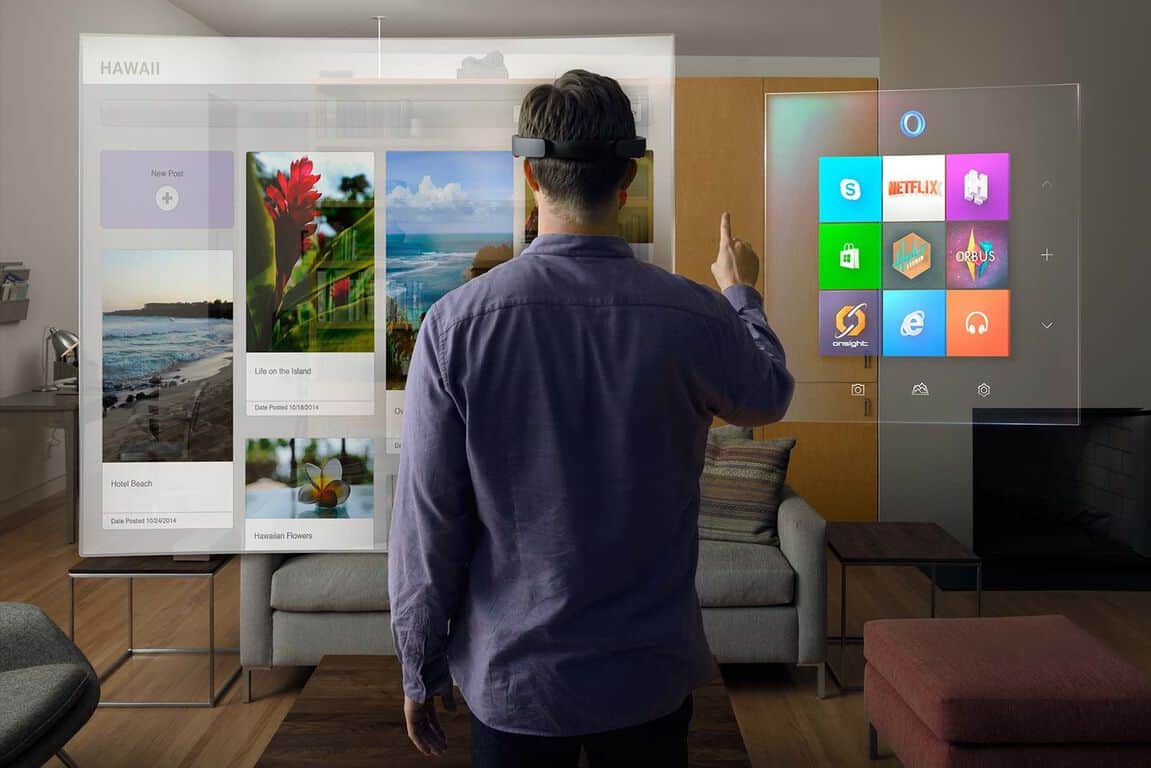
HoloLens is definitely one of Microsoft’s best recent innovations.

The CEO also had some interesting words about future computing devices, explaining that Microsoft definitely participates in this conversation. And more importantly, Nadella thinks that the future of computing is having different devices that work in synergy:

We were excited to create the 2-in-1 category, which is the fastest-growing amongst PCs. We are very excited about Surface Studio and what it means to reimagine what the desktop computer is. We are also very excited about Surface Hub as a computer for meeting rooms, of course also about HoloLens and the whole mixed-reality world. So for me the new forms of computing is what we want to build for consumers. But it is important that, instead of thinking that each one of these works as an independent computer, we think they have to form a fabric of devices for you.

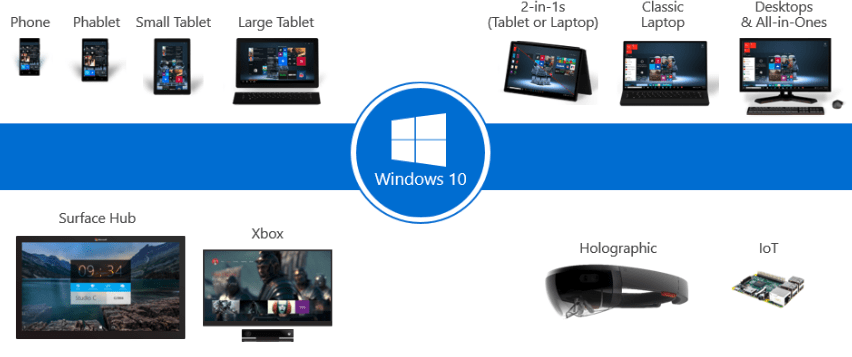
What does this mean for the future of Windows 10? “When we talk about Windows 10, it’s not about a device operating system anymore, it’s an operating system for all of your devices,” explained Nadella. “That’s how we’re trying to not only tackle the innovative challenge of bringing new things to life, but also deal with the social complexity of a lot of devices in your life,” he added.

Windows 10 ecosystem
Microsoft’s original vision for Windows 10.

There are 400 million devices running Windows 10 as of today, but it’s safe to assume that most of them are PCs. The phone user base is still very fragmented (the majority of users are still running Windows Phone 8.1), and you could even consider Xbox One consoles as part of a niche market. Nadella initially forecasted 1 billion devices running Windows 10 in 2018 before eventually backtracking, and it’s still hard to see how the ecosystem can continue to grow by just counting on PC sales.

There is still Windows 10 for IoT and Windows Mixed Reality, but we’re probably years away from mass market adoption. Microsoft is also developing its Connected Vehicle Platform for car manufacturers, but the company is completely absent in other markets such as wearables or smart TVs. So, could Nadella be thinking about new product categories? The CEO gave this optimistic statement:

Every time you think all the technology that had been created already, all you have to do is look around and then there’s someone new who’s born with a new idea. I can say one thing for sure: that there’s going to be more innovation in our lives than what has happened in the past.

In the coming weeks, the company is expected to unveil Windows 10 Cloud as well as a first Cortana-powered speaker from Harman Kardon. Build 2017 is also very close, and we should more learn about the company’s plans to push Windows 10 forward this year. We would very much like to share Nadella’s optimism for the future of technology, and we hope to hear some blockbuster announcements during this year’s Build developer conference.

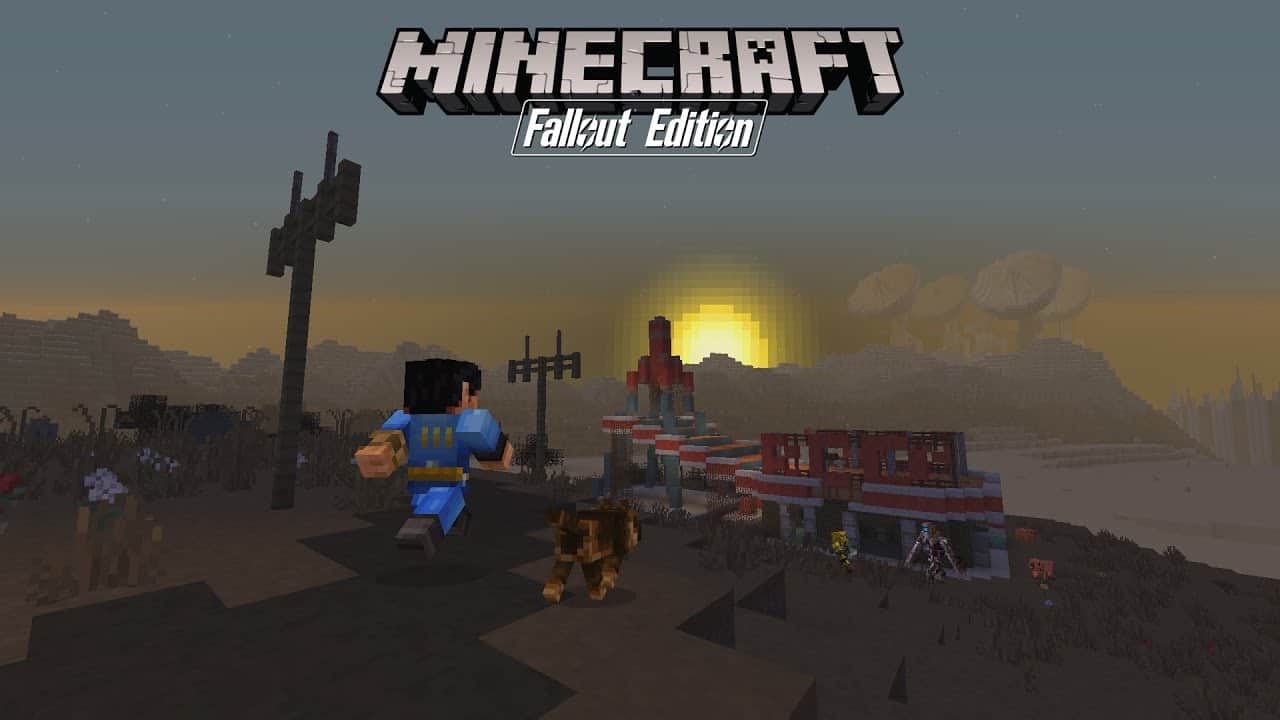
Minecraft’s Fallout Mash-Up Pack comes to Windows 10 and Pocket Editions

Last December, the Minecraft teams announced that it would be adding a Fallout Mash-Up Pack to consoles leaving fans of the franchise on PC feeling a little left out. Today, Mojang announced that the same blocky Fallout pack is now available to Pocket and Windows 10 editions.

Similar like stepping out of the vault, Minecraft is a completely different world. It’s pre-made in fact, even donning its own soundtrack with music from the series. You’ll encounter mobs and textures that you’ll find familiar such as the two-headed cows, gruesome ghouls, outsized scorpions. “Wait until you see what’s happened to the poor llamas!” the team teased.

Fallout fan favorites combine in this DLC with over 44 skins to choose from including Nick Valentine, John Hancock, Jangles the Moon Monkey, and more characters from the wastelands.

The Fallout Mash-Up Pack is available to purchase with the in-game store for the usual $5.99 USD price.

Minecraft for Windows
Developer:
Microsoft Studios
Price:
Free

Xbox Game Pass to end Insider testing next week, getting “close to launch”

Ever since Microsoft unveiled Xbox Game Pass back in February, those in the various rings of the Xbox Insider program have had chances to test out the new subscription service. Now, according to a new report from gamezone.com, the service is “close to launch” and Microsoft will end insider testing next week on April 28th.

According to the report, some Insiders have a received a message about the latest status of the service. Microsoft has also reportedly confirmed that the service will leave the Xbox Insider program on April 28th.  This would make sense, given that Xbox Game Pass was recently opened up to those in Preview Ring 3 of the Xbox Insider program (which other than Ring 4 is the second slowest ring with somewhat more stable builds.)  The message reads:

“Thank you for participating in the Xbox Game Pass Alpha Preview… You feedback has been invaluable and will make the service better for all gamers….We’re getting close to launch and Xbox Game Pass will be available for all gamers later this Spring.”

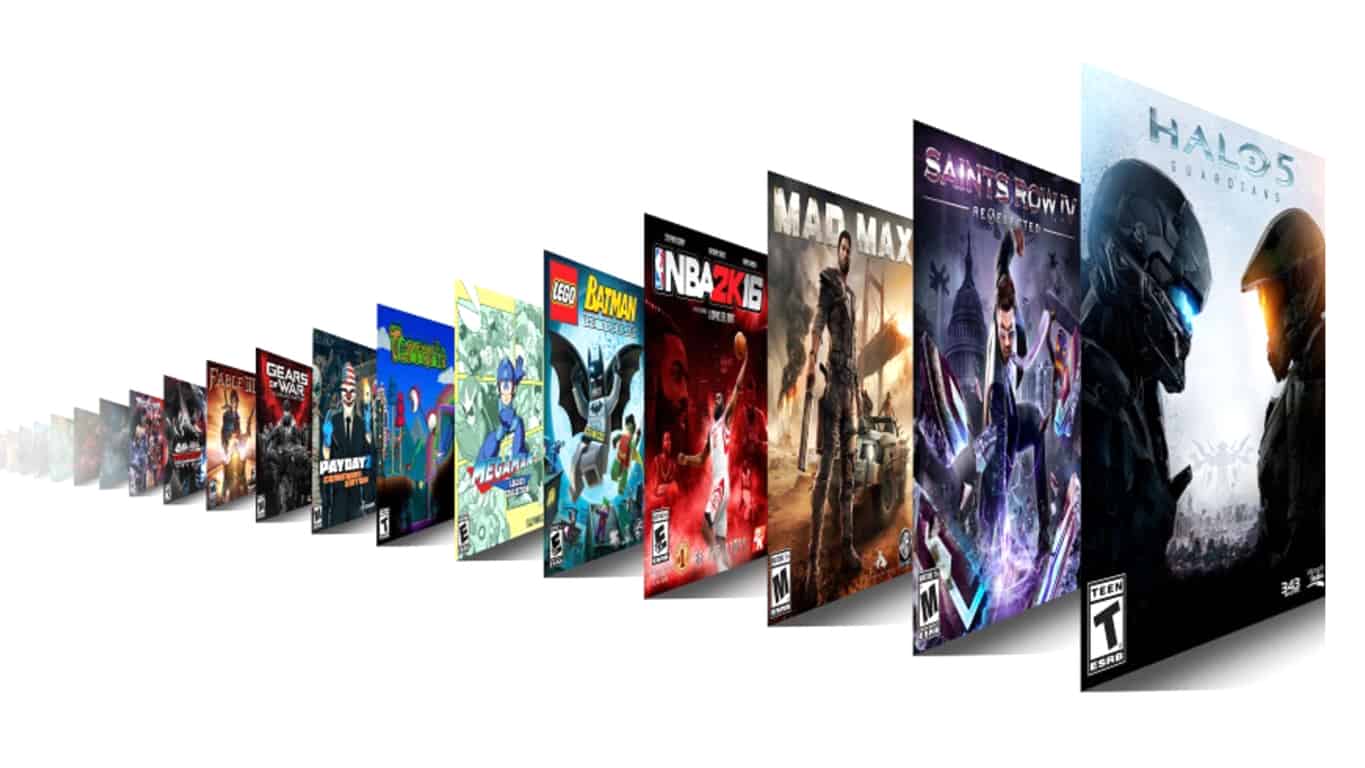
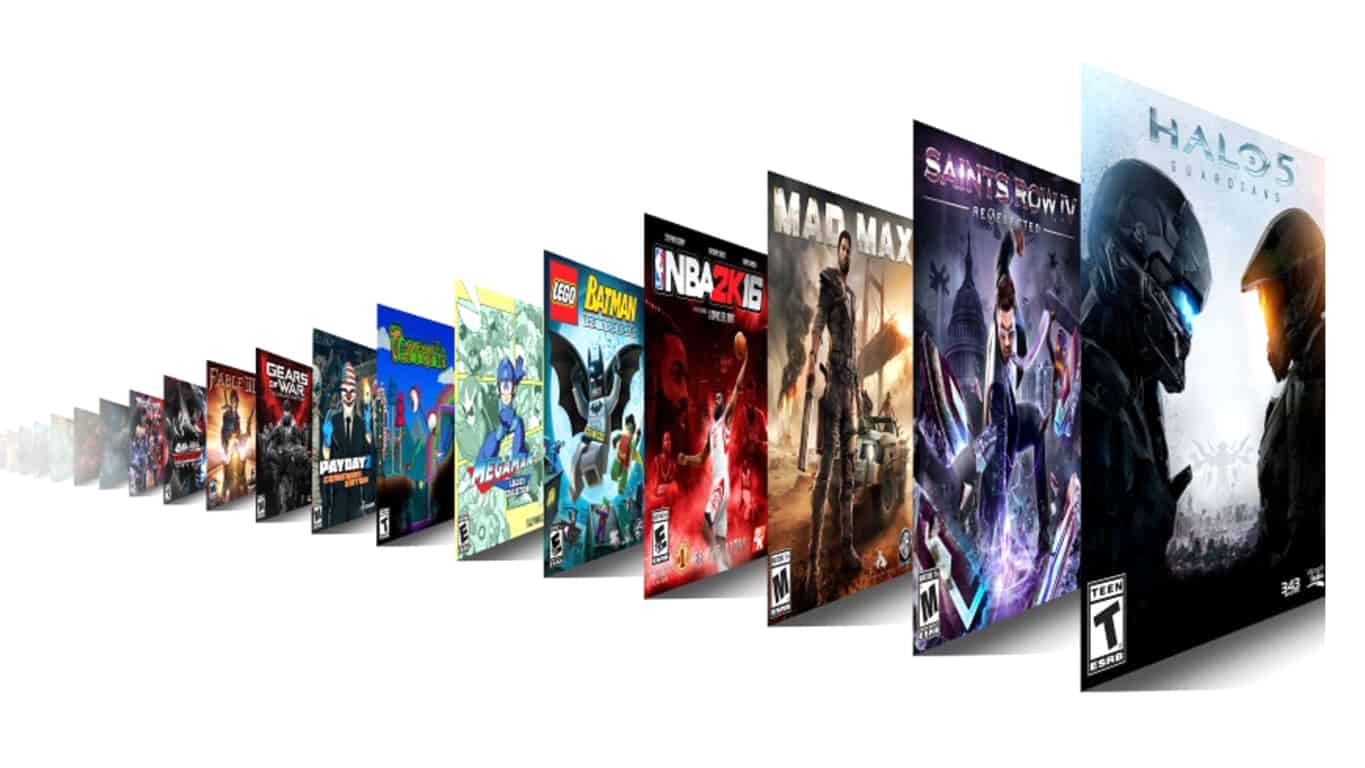
Xbox Game Pass is a gaming subscription service, which will give Xbox fans access to 100 Xbox One and Xbox 360 games for $9.99 a month. Games from industry leading publishers such as 2K, 505 Games, BANDAI NAMCO Entertainment, Capcom, Codemasters, Deep Silver, Focus Home Interactive, SEGA, Warner Bros. Interactive Entertainment and Microsoft Studios, will all be included in the service. You will be able to you discover and download the full titles directly on your Xbox One, without the need to stream the games.

Latest Minecraft Snapshot build crams in features before 1.12 release

The next big update for Minecraft on PC is closing in and 1.12 wouldn’t be complete without a few final touches. Announced last month, the World of Color Update is planned to add new colored blocks, parrots, brighter banners, dying options for beds, and more.

This week, Mojang released snapshot 17W16A to fit the last few features in. Here’s what they’ve added:

  • An Illusioner! What are you hiding?!
  • Added tutorial hints, they only show in survival mode & only once
  • Fixed the output log for the server. Sorry about that!
  • Hide all toasts during F1 (hidden UI)
  • Added a message whenever the Narrator isn’t available
  • Added keybinding options for creative toolbar saving
  • Added anti-stick coating to Glazed Terracotta
  • Renamed Hardened Clay to Terracotta
  • Optimized chain command blocks
  • Technical: Improved NBT parsing in commands – please let us know if there’s issues!
  • Technical: Added ‘group’ to recipe json format, to clump similar recipes together
  • Technical: Added new ‘keybind’ text component, to refer to the player’s keybindings
  • Fixed bug MC-9565 – Fences and Cobblestone Walls connect to Fence Gates, which are facing the other direction
  • Fixed bug MC-114889 – Parrots on shoulders disappear when flying up in creative or spectator mode
  • Fixed bug MC-115336 – Closing crafting menu drops or deletes items in some cases
  • Fixed bug MC-115528 – Local client crashes when using the new shift click recipe book in a server
  • Fixed bug MC-115603 – Shift clicking recipe deletes other applicable items with different meta data
  • Fixed bug MC-115797 – Server output shows errors and nothing else
  • Fixed bug MC-115802 – Crash when going to Statistics/items-blocks or trying to customize Superflat settings
  • Fixed bug MC-115805 – Fences/panes/walls/bars/torches connect to a number of non-solid blocks
  • Fixed bug MC-115806 – Clicking on coloring white bed recipe selects creating bed recipe (placing planks in armor slots of player)
  • Fixed bug MC-115807 – Game crash if right clicked on the underside of block with torch in hand
  • Fixed bug MC-115809 – Advancements/recipes notifications don’t show correctly in F1 mode.
  • Fixed bug MC-115812 – Shift + F3 crashes the game
  • Fixed bug MC-115837 – Gap between advancements and recipe toast
  • Fixed bug MC-115873 – Can’t drop items by clicking outside of inventory
  • Fixed bug MC-115938 – Toasts darken in some GUIs and while some tooltips are displayed
  • Fixed bug MC-115942 – Parrots imitating mobs causes null pointer exception
  • Fixed bug MC-116004 – “Parrot” isn’t translatable in the “imitates” subtitle
  • Fixed bug MC-116136 – Parrots are invisible when on shoulder
  • Fixed bug MC-116213 – Parrots on your shoulder change color when the player is wearing an enchanted elytra
  • Fixed bug MC-116314 – Bows destroy other bows while crafting using recipe book
  • Added some new bugs!

Now the team will begin focusing on bug bashing, polishing the new features, and getting update 1.12 ready for full release. Unfortunately, we still don’t know when that will be, but it can’t be too far away now. If you want to try these out ahead of time, go to your Minecraft launcher and enable snapshot builds. Be careful to backup any saves since the beta snapshots can have unwanted effects.

Microsoft celebrates Earth Week, provides the Nature Conservency with Azure services grant

Microsoft today announced that the company would be providing The Nature Conservancy with an Azure services grant. This grant is part of Microsoft’s focus on its nonprofit partners and a commitment to bringing cloud computing resources to nonprofit organizations around the world.

With the Azure services grant, Microsoft hopes that The Nature Conservancy Organization can “do even more to conserve the lands and waters on which all life depends.” The grant will be distributed over the next three years and will allow The Nature Conservancy to expand its Natural Solutions Toolkit to inform real-time, science-based decision-making at the local level.  Microsoft details what the grant means for The Nature Conservancy.

This will make it easier for communities everywhere to build coastal resilience strategies, fight pollution and provide clean water for people around the world. The Toolkit is the Conservancy’s largest suite of geospatial tools and web apps for climate adaptation and resilience planning across land and sea environments.

The Nature Conservancy describes Costal Resilience as a program which “examines nature’s role in reducing coastal flood risk.” The program also “consists of an approach, a web mapping tool, and a network of practitioners around the world supporting hazard mitigation and climate adaptation planning.” Here is how Azure will be used in Costal Resilience projects.

As part of the new Microsoft grant, these tools and this learning will be expanded and applied to new types of projects, including a pilot project already underway right here in Washington state. The Nature Conservancy will migrate specific programs and projects within the Natural Solutions Toolkit, including Coastal Resilience in Washington, to Microsoft’s Azure cloud platform and expand it to include:

  • Historic, real-time, and climate projection analysis and data processing across social-ecological system
  • Decision support tool and app design, usability testing, and effective use analytics
  • Business opportunities that address local and global environmental challenges and nature-based solutions

The grant builds on the long-standing collaboration between Microsoft and The Nature Conservancy and comes after the company detailed its plans for Earth Week. You can learn more about The Nature Conservancy projects and the latest grants by visiting the Microsoft Green Blog.


New firwmare update for Surface Pro 3 released, improves stability between power states

A few weeks ago Surface Pro 3 users were treated to a firmware update in preparation for Windows 10 Creators Update. Microsoft has now followed up to release a newer firmware update, which is aimed at improving  stability and performance between power states (via Neowin.)`

Released on April 18th, the latest firmware version number is 38.12.70.0, and it should appear in Windows Update as “Surface – Firmware – 38.12.70.0.” As noted by Microsoft, the firmware update “improves system stability and performance when you change between power states.” The Device Manager name for this firmware, meanwhile, is “Surface Pro Embedded Controller Firmware,” so be sure to head to Windows Update now to check to see if it is available for your device!

With an AdDuplex report showing a 26.7% popularity of the Surface Pro 3, it’s great to see that Microsoft is still supporting the older generation Surface device, even though it no longer lists the device in the online store. How is the battery life on your Surface Pro 3? Let us know in the comments below!`

Homegroup problems after installing Windows 10 Creators Update [Fix]

HomeGroup feature, since introduced back in the days, is probably the best way to create a homogenous private network and share your sensitive data between the multiple PCs. A lot of users were enjoying all the benefits of Windows HomeGroup until the Creators Update completely crashed it.

Namely, numerous users reported various issues related to HomeGroup. Some users lost all of the settings, while others are unable to connect to an already created homegroup. To make the things even worse, they were unable to create a new group with a new password or, if they managed to do so, they were incapable of joining.

Luckily, we gave our best to acquire some of the possible workarounds for this issue. So, in case, you have any of the above-mentioned problems, make sure to check out the list below.

How to resolve Homegroup issues after installing Creators Update

Run the Windows Homegroup Troubleshooter

With the Creators Update, Windows 10 received a unified page for troubleshooting. Besides the standard features that may give you a hard time, this list covers some less frequent Windows features. One of those is Homegroup. So, your first step in order to resolve any issues is to use a built-in troubleshooter and hope for the best.

Have in mind that this procedure must be repeated on all of the available PCs that are the part of the network. And this is how to do it:

  1. Open Windows Settings under Start Menu or press Windows key + I for an instant access.
  2. Under Settings, open Update & Security.
  3. Open Troubleshoot from the left pane.
  4. Scroll down until you reach the HomeGroup.
  5. Click on HomeGroup and then click on the Run the troubleshooter.
  6. Now, wait until the troubleshooter scans and hopefully resolve issues.
  7. On some occasions, it may give you insight into further steps.

If the problem is still persistent, move on to the next steps.

Delete files from the Networking folder

In some cases, a less subtle and more to the point approach is needed. And that brings out the Networking folder and its content. Namely, you may need to delete the shared files that were stored in this folder prior to Creators Update. On some occasions, those can cause an interference and prevent you from establishing the HomeGroup.

Follow these steps in order to delete the files from PeerNetworking folder:

  1. Navigate to C:\windows\serviceProfiles\LocalService\AppData\Roaming\PeerNetworking.
  2. Under PeerNetworking folder, delete all files. You can try deleting only the idstore.sst file, but the total wipeout is the better choice.
  3. Now, go to the Network Settings and leave the pre-created homegroup with all PCs.
  4. Restart your PCs (all within the group) and disable the connection for all but one.
  5. Use that one PC to create a new group and save the generated password.
  6. Connect the remaining PCs, insert the password and you should be good to go.

Allow Full Control to MachineKeys and PeerNetworking folders

Another worthy workaround is related to security and control of certain HomeGroup features. Namely, the latest update may have changed your permissions without your knowledge. Since the service is quite security-sensitive, without the proper permissions, you won’t be able to use it.

But, luckily, there’s a way to take a full control of the HomeGroup features. Follow these instructions to do so:

  1. Navigate to C:\Program Data\Microsoft\Crypto\RSA\MachineKeys.
  2. Right-click the MachineKeys folder and open Properties.
  3. Under the Security tab, open the preferred group and click Edit below.
  4. In the list, select Full Control and confirm changes.
  5. Now, go to C:\Windows\ServiceProfiles\LocalService\AppData\Roaming\PeerNetworking.
  6. Repeat the procedure that you already used on MachineKeys.
  7. Do this for all available PCs that are the part of the network.

Roll back to the previous version

At the end, if you’re still unable to resolve homegroup related issues, you have two choices. Either you’ll wait for the official fix for your issue or you can perform a rollback to the previous version. If you’re impatient you can roll back to a previous version and that should hopefully resolve any homegroup related issues.

This is the way to restore your Windows 10 to a previous version:

  1. Open Windows Settings under Start Menu or press Windows key + I for an instant access.
  2. Open Updates & security.
  3. Choose Recovery.
  4. Click on Get Started under Reset this PC.
  5. Once you’ve provided mandatory feedback to Microsoft, the roll-back process will start.
  6. After it’s finished, try connecting to your Homegroup like before the Creators Update.

You may as well try to reinstall the Windows 10 Creators Update, but we are not sure it will serve you right.

Hopefully, Microsoft will address this issue in the upcoming patches. It’s hard to round-up all of the strengths of the Creators Update with the problems like this. Either way, the presented workaround should help you resolve your issues. At least temporarily.

In case you have any suggestions or questions, please share them with our readers in the comments section below.

RELATED STORIES YOU NEED TO CHECK OUT:
Error voids Xbox E3 FanFest ticket giveaway entries, contest restarting

Microsoft’s E3 FanFest competition which had begun earlier this week has been cancelled due to a system error that began awarding prizes to too many entrants at once. The competition will restart as soon as the error has been fixed and all those who entered the first time will have to do so again.

“Fan enthusiasm overwhelmed our Xbox FanFest: E3 2017 registration website today, and unfortunately resulted in an error – causing the system to accept more registrants than we had tickets for the event in total,” Microsoft’s Larry Hyrb explained. “We determined voiding this morning’s registrations and starting over would help make things as fair as possible for all fans. So, if you were one of the fans who successfully registered this morning, you’ll need to re-register, and Xbox is emailing something special to you for the inconvenience.”

Up to 500 tickets for the E3 Xbox FanFest are up for grabs in this competition in addition to a variety of Xbox-related prizes. Are you going to enter? Let us know in the comments below.

Radeon RX 500 Series graphic cards with Polaris Architecture announced by AMD

AMD has announced the new series of graphic cards – Radeon RX 500 – based on Polaris architecture.

Radeon RX 500 series graphic cards feature various last-gen technologies, including DirectX 12, Radeon Chill, Vulkan gaming, Radeon FreeSync 2 and much more.

Optimized DirectX 12 and Vulkan gaming

The Radeon RX 500 series is going to perform amazing with low-level, next-gen APIs like DirectX 12 and Vulkan, and it will provide outstanding VR and gaming experiences. The GPUs also feature higher clock speeds, multi-monitor efficiency and improved idle. Gamers will enjoy some new fine-grained controls for tuning their hardware.

Radeon Chill – Increased efficiency, improved response time and cooler operation

Radeon Chill is an advanced framerate controller that is going to automatically work in the background to regulate framerates in the most dynamic way.

Radeon FreeSync – smoother, stutter-free gaming

Radeon FreeSync 2 features high-brightness pixels, and an excellent color gamut for displaying HDR content and for featuring LFC. This will offer gamers a plug-and-play stutter-free experience.

Radeon ReLive – awesome streaming and gameplay capture

This software suite allows gamers to enjoy both smooth gaming and recording at the same time, supporting recordings at 4K resolution at 30 and 60 FPS using HVEC and H.264 codecs.

Radeon RX 500 series graphics gards:

  1. Radeon RX 580 – smooth 1440p gaming

It delivers 57% better performance compared to the Radeon R9 380X in the following areas: testing, smooth gaming in AAA games, and VR experience. The Radeon RX 580 8GB GDDR5 is about $229, and the Radeon RX 580 4GB GDDR5 is $199.

  1. Radeon RX 570 – 1080p gaming

The Radeon RX 570 with 4GB GDDR5 boasts an average of 2.3X better overall performance than the Radeon R7 370, and it’s $169.

  1. Radeon RX 560 – 1080p gaming

The Radeon RX 560 delivers 57% more performance that the Radeon R7 360. With 2GB of GDDR5 memory, you’ll find it at $99.

  1. Radeon RX 550 – a doorway to PC gaming

The Radeon 550 features 2GB of GDDR5 memory, and it’s ideal for home theater PCs supporting HDMI 4K60, 4K playback and HEVC content. It also supports Radeon FreeSync tech for an amazing gaming experience.

Radeon RX 580 and 570 are already available on sale, the RX 550 will be available these days, and the RX 560 will be available starting from this May.

RELATED STORIES TO CHECK OUT:
Microsoft’s Clippy comes to Killer Instinct with #ClippyForKI

The creators behind the Xbox One and Windows 10 fighting game, Killer Instinct, have been having some fun on Twitter today and have begun sharing some concept artwork that feature’s Microsoft’s Clippy within the game.

The artwork reintroduces the annoying/loveable digital assistant to users as a guardian character who assists players in fighting through Killer Instinct’s Shadow Lords story mode. The game’s creative team even decided to create complete dossiers (character profiles) for Clippy.

Unfortunately it seems as if there are no plans to include Clippy in the game for real and that these images were made just for fun. The idea has garnered a bit of interest on Twitter though and the official Killer Instinct Twitter account has encouraged followers to tweet with the hashtag #ClippyForKI.

Unlike other characters on fans’ crossover wish lists, Clippy could actually make an appearance in Killer Instinct as the game is published by Microsoft Studios and it’s likely that Microsoft still has the rights to Clippy (unless they sold the character to a movie studio as part of a multi-picture film deal that is. They probably didn’t though). Clippy could also add some much-needed humor to Killer Instinct which is often criticized as being too dark and serious.

Would you like to see Clippy as a guardian or playable character in a future Killer Instinct update? Let us know in the comments below.