Phonos app brings Sonos support to your living through an Xbox One app

For those of you with a houses outfitted with Sonos speakers, you may be pleased to find out that another app has entered the Xbox One library to help you manage your sound system. The Sonos app – dubbed Phonos – currently has a preview version available right now on the Xbox Store, ready to go. The interface is relatively clean, matching up to what you’d expect from the Phonos app that’s already made a home on Windows 10 PCs and Windows 10 Mobile.

phonos

Some of you may feel using your phone to control your Sonos speakers just isn’t cutting it, but having this app running on your Xbox One can now give you an excellent way to manage your sound system from a centralized hub – your TV. So, if you’re one of the people who could get some use out of this, go ahead and search up “Phonos” on your Xbox One and you’ll be able to grab it. Keep in mind, however, that this is a preview version and you’re likely to run into a few bugs along the way.

Screenshots of the Xbox One version of XCOM 2 appear via Twitter

XCOM 2 is coming to the Xbox One pretty soon and its arrival will introduce console gamers to the game that’s been praised by PC players for quite a while now. If you’ve been itching to see more of the game, the folks behind XCOM’s Twitter account have released a few new screenshots for you to fawn over. While newly released shots don’t show much that we haven’t seen before from the PC version, we do get a look at the interface that Xbox One users are going to be navigating.

The new interface looks exceptionally clean, using the bumpers to switch between targets and a few buttons to scroll through to allow users to choose their actions. Commands like “overwatch” that you tend to use often are tied to face buttons on the gamepad, so you can quickly move through turns where you’re setting most of your soldiers on alert. Beyond the interface, XCOM 2 is looking gorgeous on Xbox One, matching the high graphical fidelity and exceptional style that the PC version set back in February.

Download August 2016 Patch Tuesday with nine security updates

This month’s Patch Tuesday includes nine security bulletins, with five of them rated critical. We see a smaller number of patches because, according to Michael Gray, Vice President of Technology at Thrive Networks, “Microsoft may have kept things simple so as not to over-shadow the release of their Windows 10 Anniversary update.”

Critical

Two of the cumulative monthly fixes are for Internet Explorer (MS16-095) and Microsoft Edge (MS16-096). The first one resolves five memory corruption vulnerabilities and four information disclosure flaws, while the former fixes eight bugs (four memory corruption flaws, three information disclosure holes, and one Microsoft PDF RCE vulnerability).

The third critical fix is MS16-097 and is a security update that addresses RCE vulnerabilities in Microsoft graphics component. MS16-099 fixes three Office memory corruption vulnerabilities, one Microsoft OneNote information disclosure bug, and one graphics component memory corruption vulnerability. Finally, MS16-102 fixes one RCE flaw in Microsoft Windows PDF library and Core Security principal software engineer Jon Rudolph has explained that it’s important to keep an eye out for CVE-2016-3319 aka “Microsoft PDF Remote Code Execution Vulnerability.

Important

According to the change log, MS16-098 fixes four elevation of privilege vulnerabilities in Windows kernel-mode drivers; MS16-100 gets rid of a security feature bypass bug in Windows Secure Boot which would allow attackers to disable code integrity checks and to load test-signed executables and drivers into a target device. The third patch, MS16-101, fixes two elevation of privilege vulnerabilities: a Kerberos EoP flaw and a Netlogon EoP bug.

As for MS16-103, this patch addresses an information disclosure flaw in ActiveSyncProvider for Windows 10 and Windows 10 Version 1511. Microsoft stated that “The vulnerability could allow information disclosure when Universal Outlook fails to establish a secure connection,” adding that “The update addresses the vulnerability by preventing Universal Outlook from disclosing usernames and passwords.”

RELATED STORIES TO CHECK OUT:

Microsoft highlights how one attorney uses his Surface Pro 4 to practice both law and art

While Microsoft has often been mocked for its product placement of its Surface line, whether it be showing up on the sidelines of the NFL or in seemingly contrived displays of functionality on TV shows, it’s the real-life niches’ the device fills that has it gaining consumer interest. Take, for instance, attorney Doug Passon who uses his Surface Pro 4 help power his many creative, productive outlets. Passon is not only a lawyer by day but also adds award writing filmmaker, writer, musician, teacher and father to his list of accolades.

The folks over at Surface Product management are reaching out and highlighting real-life Surface users and came across Passon and his multi-faceted lifestyle being powered by a Surface. The marketing team found that not only does the Surface cover Passon’s many productive needs but it is also fostering a sense of community among users.

Thanks to a little influence from his sister who works at Microsoft, Passon has been using a Surface to manage and power his business called D-Major Films. D-Major Films is a passion project of Passon’s the was birthed from his decade-long career as a defense attorney. The intent behind D-Major Films is to teach lawyers the added value of using photos and film in cases while also crafting time-tested storytelling technique that helps create empathy for their clients if necessary.

Doug Passon presentation

However, Passon’s Surface use isn’t limited to just aiding in the courtroom or at his film company; he also makes use creative music-specific apps the built-in Bluetooth to replace a traditional music stand and sheet music.

Instead of a traditional music stand with sheet music, I mount my Surface on a tripod and use a wireless foot pedal to turn the pages during live performances.”

Thanks in part to its appeal as a Windows 10 gaming platform, Passon also finds himself defending his Surface from his avid gaming sons who find the device more powerful than either of their current computers.

Beyond the focus on productivity and versatility, the Surface is also resonating with individuals on sub-culture of distinction. While Microsoft would love to have iPad-like sales of its device, the seeming rarity of seeing a Surface in the wild engenders a level of wow and community from others.

I remember when I was younger, and a friend got a Corvette. I learned that there is this thing between Corvette owners that when one passes another on the street, the driver’s nod at each other. The same kind of thing happens with the Surface. Then the talk inevitably turns to what cool gadgets we use with it, like the Arc Mouse, the wireless adapter, etc.”

Another example Passion uses is the moment he explained to his son about Windows Hello’s facial recognition software built into his Surface Pro 4, “he thought that was about the coolest thing ever.”

Whether intended by design or a pleasant happenstance involving a confluence of evolving mobile computing behaviors, Microsoft’s Surface line of devices (specifically the Pro series) continues to find purpose in the expanding niches of flexible productivity. Passon’s stories echo a similar list of anecdotal experiences the Surface line has engendered from its users and as time goes on, the list continues to grow.

Lenovo provides a sneak peak at its 2016 holiday product launch in new video

Lenovo is one of the premier makers of Windows 10 machines of all kinds, from desktops to notebooks to various hybrids. Their Yoga series ranges from affordable ultrabooks to high-end 2-in1s, and the ThinkPad line that the company purchased from IBM years ago continues to offer some of the best-made Windows machines around.

Lenovo has a press event scheduled on August 31 during the IFA 2016 event being held later this month (via Windows Central). In preparation, the company has released a video providing a glimpse at some upcoming devices. Of particular interest are flexible screens, a “new chapter in tablets” to a “whole new kind of intuitive keyboard”–all centered around the theme of “different for the sake of better.”

The video is well worth your 49 seconds in gaining a look into Lenovo’s near future. Let us know in the comments if you think Lenovo will be announcing anything particularly interesting to Windows 10 users.

Fix: Battery drain in Windows 10 Anniversary Update

Microsoft promised that the Anniversary Update will drastically improve Windows 10’s battery life. While it was indeed the case for some users, for others the new update for Windows 10 did the opposite.

We found a lot of reports on Microsoft’s forums about battery draining issues in Windows 10 version 1607. Users say that upon installing the update, their devices started draining battery way faster than in the previous version. Here’s what some of people who encountered this problem said:

“After updating to the Anniversary Windows 10, the battery life on my Surface Book has dropped dramatically.  Anyone else notice this? Thanks!”

“Yes. My Dell XPS 13 went from an estimated 13 hours full charge to less than 4 after the update.”

“I have a brand new Surface book and the first 3-4 days of use I was able to get 10-12 hours easily of web browsing and using office products.  In the two days since I updated to Windows 10 Anniversary Update my battery life has been cut in half.  Now after only 6 hours at work my battery is down to 19% with only 45 minutes estimated remaining.  Any help in restoring battery life to normal?”

Although Microsoft used to acknowledge battery drain issues in the past, and actually released a few patching updates for previous versions of Windows 10, that doesn’t appear to be the case with this issue. Since the company said nothing about the battery drain problem, we don’t know if a fixing patch will be released at all.

So, users who experienced battery drain problems in Windows 10 Anniversary Update can’t rely on Microsoft’s help, at least for now, but they can try a few things on their own, to get the battery usage on their computers back to normal.

How to deal with battery drain problems in Windows 10 version 1607

Solution 1 – Check your battery saving settings

There’s a chance that the Anniversary Update somehow changed your battery saving settings. And if your battery settings are changed, logically your device is going to consume more battery. So, before doing anything else, go and make sure your battery saving settings remained the same after the Anniversary Update.

To make sure your battery saving settings are same, do the following:

  1. Go to the Settngs app
  2. Now, go to System > Battery anniversary update battery drain1
  3. Make sure everything is as you left it before the Anniversary Update

Once you make sure your battery saving settings are okay, it won’t hurt if you quickly check the brightness level of your screen. To check your brightness settings, stay in Settings > System > Battery, and just go to Display.

anniversary update battery drain2

If you determined that the Anniversary Updated did nothing to your battery saving settings, try with some of the solutions listed below.

Solution 2 – Check your power plan

Just like the Anniversary Update could change your battery saving settings, it might do the same thing with your current power plan. So, the next thing you’re going to do, in order to increase the battery life of your device is to check if your power plan is alright.

To see your current power plan in Windows 10, do the following:

  1. Go to Search, type power plan, and go to Choose a power plananniversary update battery drain3
  2. Make sure your power plan is same as you left it before the Anniversary Update (if you want your battery to last longer, we recommend the Power saver plan)

Solution 3 – Check if your drivers are updated

If a driver of a certain hardware is outdated, battery drain issues might occur. So, if you checked your power saver settings, and power plans, go and check if all your drivers are updated. To find the list of every driver installed on your computer, go to Search, type device manager, and open Device Manager.

Battery drain issue can also be caused if some drivers are not fully compatible with the Anniversary Update. So, it’s important to have all your drivers updated, not just because of the battery drain issue, but to prevent other problems, as well. We recommend you to download this driver updater tool to automatically download all the outdated drivers on your PC.

Solution 4 – Find out which programs drain most battery

Since the Anniversary Update is a brand new version of Windows 10, some programs and apps might just behave different than in the previous version. And by ‘behave different,’ we mean drain more battery. So, go and see which program or app drains the most battery on your system, and either stop using it, or accustom yourself to it.

It would be even better if you have access to a computer that’s still running Windows 10 version 1511, so you can compare two results. Here’s what you need to do, to check which program or app drains the most battery on your system.

  1. Go to the Settngs app
  2. Now, go to System > Battery
  3. And go to Battery usage by appdrain battery windows 10

You’ll now see the list with every program installed on your computer, and how much battery it consumes. Practice has shown us that Google Chrome is actually the biggest battery eater in Windows 10, so if you can’t find another solution for the battery drain problem, try using another browser.

That’s about it, we hope that at least some of these solutions helped you to solve the battery drain problem caused by the Anniversary Update. However, due to various factors that can influence the battery usage on one’s system, we still can’t guarantee that any of these solutions will work for you.

In case you have another solution for this problem, please share it with us in the comments, we’re sure other users who encounter this issue will be thankful.

RELATED STORIES YOU NEED TO CHECK OUT:

Third-party Hitbox app for Windows 10 update adds Chat and ability to select Bitrate

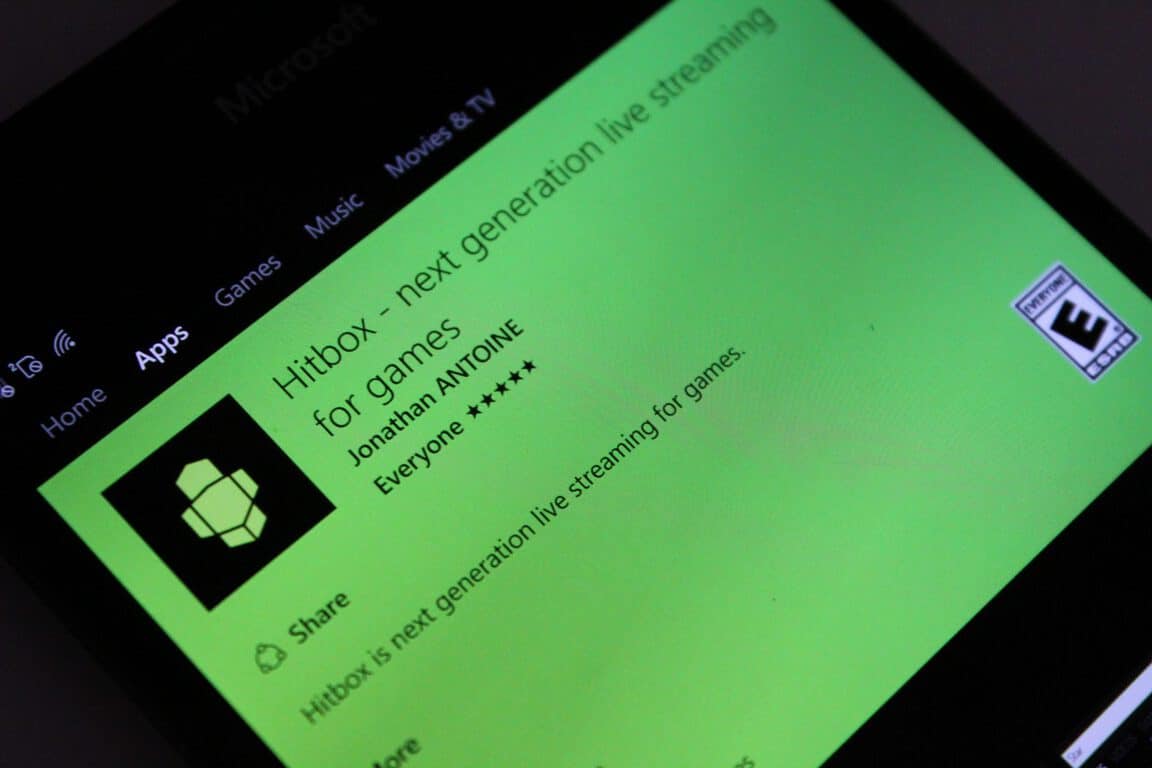
When the third party HitBox app hit the Windows Store it marked the first moment Windows users could use the streaming platform to watch live broadcasts of the games you love straight from their favorite Windows device(s). Ever since then, we have extensively covered the app and the multiple updates delivered by the hands of developer Jonathan Antoine.

Today, another update has been released that further improves the HitBox on Windows experience.


As seen above, Hitbox developer Jonathan Antoine mentioned to our editor Jack Wilkinson on Twitter that the app has just been updated with chat and a bitrate and play section. These are just the latest features, as the app was previously updated a few weeks ago with support for Hitbox accounts and followers.

And so, if you’re using the app please head over to the Windows Store now and press the update button! Even if not, we have done you a favor and have included a download link for you below.

New video provides a look at the upcoming Microsoft Azure Technical Preview and other updates

Microsoft Azure continues to be an important and growing element in the company’s transition to focusing on “cloud-first, mobile-first” productivity. Azure revenues jumped 102% year-over-year in Microsoft’s last quarterly financial report, and it’s clear that the cloud services platform will become ever more important in maintaining the company’s profitability and revenue growth.

Today, the Azure blog posted a video that provides a look at the upcoming Azure Stack Technical Preview and some other updates. According to the Azure team:

We have also heard questions around the integrated systems hardware strategy, with concerns around flexibility, cost, and size. So, we asked Vijay Tewari to sit down with us and provide some insights behind our vision and rationale for integrated systems in this short video. The video provides insight into their top engineering design goals, the value of having software tightly connected with specific hardware, and how they ultimately think about lifecycle management of this system. One point worth reemphasizing is the prioritization of integrated systems from Dell, HPE, and Lenovo, as a starting point. As we have done in other cases in the past, we will continue to broaden our support for a diverse hardware ecosystem that allows customer choice and configuration from a certified catalog of solutions.

If you’re interested in Azure or responsible for its use at your organization, then you’ll want to check this video out. Let us know in the comments if you come across anything particularly helpful.

Power BI introduces real-time dashboard tiles to visualize streaming data

Microsoft’s Power BI software is adding real-time streaming of data to its list of analytical features today. Power BI program manager Sirui Sun announced that Power BI customers can now use a preview version of real-time data streaming to Power BI that allows users to “quickly gain insights from data of all shapes, sizes, and velocities.”

The move to enabling real-time data streaming comes off the back of Microsoft’s analysis of a growing IoT and social media trends that lend themselves to quicker information monitoring. As more IoT devices, sensor hubs, and social media accounts pull in various data at almost lightning speed, service providers are seeking to not only monitor the data more accurately but respond in accordance.

Recently, we’ve seen an explosion of powerful real-time use cases – from factories using IoT sensors to monitor their equipment, to media agencies monitoring their social media campaigns as they go viral.”

Power BI’s new real-time dashboard tile preview is intended to be a lightweight application that fits snugly in a customer’s dashboard allowing quick access to up-to-the-minute data. Similar to other Power BI controls, creating a real-time tile can be as granular or templated as a customer desires with the entire process taking only minutes to produce.

Real-Time data tile
Real-Time data tile

Sirui offers a step by step process on how to create a new real-time tile that explains the getting started in the Power BI REST APIs developed in PubNub and how customers can navigate the new services once completed.

To add a streaming dataset via PubNub, choose “Add streaming dataset” and select the PubNub option. In the next dialogue, provide your PubNub Dataset name, Sub-key, Channel name, and PAM Auth Key (if applicable). if you’re not sure what these are, sign into your PubNub account, and go to the PubNub Admin portal.”

On top of the new real-time tile preview, the Power BI team has also made some improvements to its existing Power BI REST APIs. The new set of improvements is intended to work in conjunction with the new real-time preview, thus making the entire experience easier to manage as a whole. Creating a streaming data set now seems to be even easier than before.

For anyone interested in taking the real-time dashboard and tile for a spin, the Power BI team is offering sample streaming datasets at GitHub. New to the entire process, but still interested? Sign up for either the Power BI’s newsletter or visit the Microsoft Power BI blog for more information.

Microsoft reverses course, extends Windows 7 and 8.1 support for Skylake-based hardware

Microsoft previously stated that it would not be supporting devices running Windows 7 or Windows 8.1 past 2018. However, it appears Microsoft has had a change of heart. Today, Microsoft announced that it will extend support for Windows 7 and Windows 8.1 devices that are running 6th generation Intel Core (Skylake) processors.

Microsoft is changing their 6th generation Intel Core (Skylake) support policy. Instead of ending the Skylake support period on July 17, 2018, Microsoft will extend the Skylake support dates for Windows 7 and Windows 8.1. Microsoft will also provide all necessary security updates for Windows 7 and Windows 8.1 too. Microsoft made the policy change based primarily on user feedback from their enterprise customers.

Please note that this policy only applies to enterprise customers and does not affect customers that are already running Windows 10. Here is a list of the changes for enterprise customers still running Windows 7 and Windows 8.1:

  • Today Windows 7 is in extended support and support will end for Windows 7 on January 14, 2020, and support for Windows 8.1 will end January 10, 2023.
  • 6th Gen Intel Core devices on Windows 7 and Windows 8.1 will be supported with all applicable security updates until the end of support for Windows 7 and Windows 8.1.
  • This change is made possible through the strong partnership with our OEM partners and Intel who will be performing security update validation testing and upgrade testing for 6th Gen Intel Core systems running Windows 7 and Windows 8.1 through the end of support dates.
  • As previously communicated earlier this year, future silicon platforms including Intel’s upcoming 7th Gen Intel Core (Kaby Lake) processor family and AMD’s 7th generation processors (e.g. Bristol Ridge) will only be supported on Windows 10, and all future silicon releases will require the latest release of Windows 10.

Relying mainly on user feedback, Microsoft will continue to provide its customers the best Windows experience possible. Changing their Windows 7 and Windows 8.1 support policies will allow enterprise customers extra time to buy more modern hardware and prepare to deploy their current systems to Windows 10.

Check the Microsoft lifecycle support policy FAQ for more information.

Microsoft enables copying files and folders from OneDrive for Business to SharePoint

If you belong to an organization that uses both SharePoint sites and OneDrive for Business, then you might have had a need in the past to copy files and folders directly from the latter to the former. Until now, that’s not been possible, but Microsoft today announced on the Office support site that files 50MB or smaller can now be transferred directly between the company’s cloud storage solution and its content management platform.

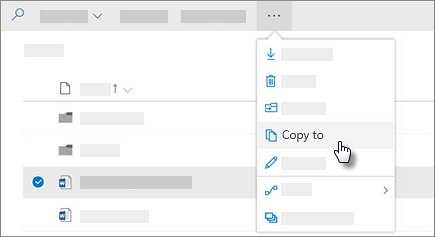
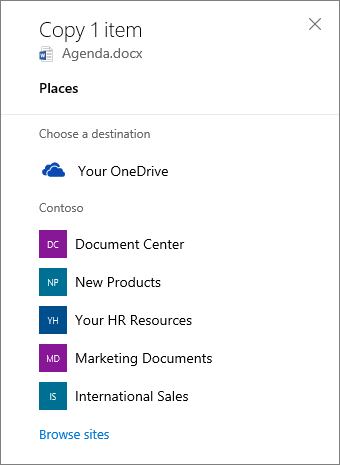
The process is as simple as selecting “Copy to” via the options for a file and selecting a SharePoint Team Site as the place to copy. You can do the same for folders.

Screenshot of the Copy to command in OneDrive for Business
Files and folders can now be copied to SharePoint sites.
Screenshot of the Choosing a destination when copying a files from OneDrive for Business to a SharePoint site.
Simply select a SharePoint Team Site as the destination for a copied file or folder.

Microsoft makes note of two limitations for the feature:

  • 50MB file limit Currently, the size of files and folders you can copy at one time is limited to 50MB. Support for larger files is coming.
  • Scripting must be turned off for personal sites If scripting is turned on for personal sites in your organization, the Copy command is restricted to copying within your OneDrive.

In addition, scripting for personal sites must be turned off in SharePoint in order for the copy feature to be available. Generally, Microsoft recommends turning scripting off as a security measure to protect sites from cross-site scripting attacks.

Microsoft continues to integrate their various services to provide the best “cloud-first, mobile-first” productivity solutions for their customers. Let us know in the comments if the ability to copy files from OneDrive for Business to SharePoint will be welcome in your organization.

HP Workspace virtualization app for Elite X3 shows up in the Windows Store

While the HP Elite x3 Windows 10 Mobile phone won’t be available for purchase in the US until September 5, the company has already started to tease the device in a series of promotional videos. That’s not all though, as Iranian website Winphone.ir has also spotted that HP Workspace, the premium service that will allow business users to use virtualized Win32 apps when the handset is connected to HP’s Continuum dock, has appeared on the Windows Store (via Windows Central).

While the app is not available to download yet, here is the official description:

HP Workspace enables users to run their Windows desktop apps (x86 and x64) when docked on a Windows Mobile device with Continuum. Using HP Workspace, users can bring the Windows desktop experience, with large-screen, keyboard and mouse support, to their Windows 10 Mobile device, and without the cost of server hardware and IT administration challenges of traditional app virtualization services. A subscription is required to access this service.

Earlier this week, we had the chance to ask some questions to HP’s Vice President and General Manager of the Mobility and Retail Solutions GBU Michael Park, who explained why this app virtualization technology can make the Elite x3 a “3-in-1” device that could meet all of the computing needs of business customers. We invite you to read our full article to get more details about HP’s Windows 10 Mobile strategy with the Elite x3.

HP Workspace
HP Workspace
Developer:
HP Inc.
Price:
Free

Microsoft acquires live streaming service Beam

Microsoft has announced that the company has signed an agreement to acquire the Beam interactive live streaming service.  This marks Microsoft’s commitment to make Xbox Live more social and fun, and also marks the momentous occasion of bringing watching games and playing games closer together.

A Seattle based company, Beam is best known for giving viewers the ability to watch and play games along with their favorite game streamers in real-time, regardless of the platform. Beam also makes interactivity easy and is designed to work for any game.  For instance, using low latency technology, challenges can be created from within Beam and real time choices can be made which affect game play.

While Microsoft may have acquired the service, Beam’s CEO Matt Salsamendi notes in a blog post that Beam remains committed to its mission. He also notes that Beam and will now be better positioned to grow and give more back to the community.

“As part of the Xbox team, we’ll be able to scale faster than we’ve ever been able to before… We’re expanding the team, bolstering our infrastructure, and, most importantly, continuing to grow the amazing community we’ve been lucky enough to build at Beam.”

In what can be seen as a celebration of the moment, Microsoft Studios will be streaming games throughout the day on Beam. So, if you’re interested in checking out Beam, click the link above or click here to sign up! The service is pretty fun and brings interactive gaming to an entire new level.

Refugees with Marco Polo cycling team use Skype Translator for directions and encouragement

Over the last 16 years, a dutch amateur cycling team named the Marco Polo Cycling Team has been welcoming many refugees from non-traditional cycling countries who aim to reach the elite level in cycling. The team already competed in many pro races around the world and allowed 20 amateur cyclists to reach the top level, with one rider winning a world champion title and another one being qualified for the Beijing Olympic Games in 2008.

Today, a new blog post on the Skype Blog explains how members of the Marco Cycling team and their coach Gudo Kramer use Skype and Skype Translator to communicate and encourage themselves wherever they are. If you’re not familiar with it, Skype Translator leverages Microsoft’s artificial intelligence algorithms to provide real-time voice translation in eight spoken languages (English, Spanish, French, German, Italian, Brazilian Portuguese, Chinese Mandarin and Arabic) as well as text translation in more than 50 written languages.

Skype Translator is indeed the perfect tool for the team’s coach to communicate with team members of different nationalities. He explained:

I think it can be a strong tool in getting messages across that need a certain level of detailed understanding. Often, when two non-native speakers communicate in English, a lot gets lost in translation. It is always easier to get the message in your own language! Skype Translator is great for clarifying what someone is saying, and feeling more at home in an international environment.

According to Kramer, the ultimate goal of the Marco Polo Cycling team is to disappear, but that won’t happen until refugees get as many chances as others cyclists to join mainstream racing teams in their new countries. He added:

I think that the background of the riders is a big disadvantage for them. They were not able to train and race for a long time; must get used to a totally new environment; miss their family and friends, etc. But they can use it to get through the suffering and hardship that is required in cycling.

In the meantime, the Marco Polo Cycling Team continues to reach new milestones: one rider is currently competing in the Rio Olympic games, and another one recently won a gold medal in the last World Cup race in Bilbao, Spain. “We hope to see one or two of our other riders active in Tokyo in 4 years,” shared Kramer.

For the Skype team, this story represents everything the new Microsofts aims for, which is to empower everyone and every organization to achieve more:

We hope that through Skype Translator, we can help people achieve their goals through relationships and human connections that would have previously been impossible. Just thinking about the possibilities for this unique team of cyclists makes us want to cheer them on to their highest potential. To us, these guys are already winners.

The Skype team definitely deserves credit for achieving a technology breakthrough with Skype Translator that has yet to be matched by competing messaging apps. For now, the technology is only available in Skype for Windows desktop but we hope it won’t be too long before the team releases it on mobile devices. You can learn more about how to use Skype Translator by visiting the dedicated FAQs.

Xbox One Preview updated once again, includes Groove Music fixes

If you’re a member of the Xbox One Preview program, Microsoft has released another new preview build for you to test on your Xbox One (via Windows Central). This latest update comes just a few days after a previous release that brought a Paypal payment option plus various fixes to the Xbox One System software.

Yesterday’s update was once again announced by Microsoft’s Brad Rossetti on Twitter, and the latest preview build (rs1_xbox_rel_1608.160808-1700) should improve game stability, fix localization issues and bugs in the Groove UWP app. Here is the full changelog below:

Fixes

  • Groove Music: Resolved issues which could sometimes cause Groove Music to crash.
  • Localization: Resolved an issue which could sometimes cause the titles of universal apps (Movies & TV) to not appear in the console’s selected language.
  • Miscellaneous: General stability improvements for games.

Current known issues

  • My Games & Apps: If a universal app version of an app is available, the version which is not currently installed may appear under Ready to Install (causing what appears to be the same app both installed and in Ready to Install).

If you’re a member of the Xbox One Preview program, you can download this latest build on your console by heading over to All Settings > System > Console info & updates. Let us know in the comments if this latest build runs better than the previous one.

Microsoft names Sriram Rajamani as new head of its India Research Lab in Bangalore

Microsoft has announced that the company has appointed Sriram Rajamani as the new managing director of its India research lab, effective August 1, 2016. Sriram Rajamani will be replacing 2 year manager of the lab Chandu Thekkath, and will be responsible for the lab’s continued focus on research, innovation, and collaboration.

Sriram Rajamani is very experienced as was the co-winner of the Computer Aided Verification in 2011 for his research in bringing formal verification of computer programs to industrial practice. He also has experience in multiple areas of computer science such as hardware and software verification. Additionally, he once was head of the Software Productivity Tools group within Microsoft’s Redmond research lab, and was also previously the assistant managing director of Microsoft’s India research lab. Sriram Rajamani, nonetheless, expressed honor for his new position, and said:

“It is an honor to lead Microsoft’s India research lab, with its abundance of top-notch talent. I look forward to leading and expanding Microsoft’s  commitment to world-class research and innovation in India, and deepening our partnerships with our academic partners.”

So, congrats to Sriram Rajamani! As always, please let us know what you think of this latest change in position as Microsoft India Lab by dropping us your thoughts in the comment box below!

Microsoft rolls out new Windows Store visual design for web

Microsoft appears to have completed its rollout of the new visual design for the web version of the Windows Store. The new look boasts a unique background image for each store item, larger text, a newer touch-friendly layout, and the new hardware icons which indicate where an app, media file, or game can be played such as a Windows 10 PC, mobile device, Xbox One, Microsoft Band, or HoloLens (Windows Holographic).

Editor’s note: An unexpected side effect of this Windows Store web update appears to be the breaking of the Windows Store app plug-in we use on Winbeta (hence the broken app boxes on some of our app articles). We expect this to be fixed soon.

The Windows Store also received a similar redesign recently on the Xbox One and on Windows 10 PCs with the Anniversary Update which added Xbox One video games and apps to the store in addition to Edge browser add-ons. Windows phones are expected to receive a similar update before the end of the month but no official date has been released as of yet.

Do you like the new look of the Windows Store? Let us know in the comments below.

Grab this $8.99 Windows 10 note app for free

The rather pricey Windows 10 note-taking app, Nebo, which usually retails for around $8.99, is currently being given away for free until the end of the month. The app is similar to Microsoft’s OneNote app wherein it lets the user create notes by keyboard or stylus, convert content into digital files, organize notes in folders, and is optimised for the Windows 10 operating system.

Here’s the official app description: Nebo is the best way to take notes. Handwrite, draw, edit and format your notes quickly. Instantly convert and transport them as digital documents. Designed for Windows 10 with active pen and validated with Microsoft Surface Pro and Book with Surface Pen. Structure your notes using titles, paragraphs, and bullet lists. Add interactive diagrams, editable equations, freeform sketches, and annotate pictures. Finally convert your captured ink to digital typeset document on demand. Nebo documents can be viewed on any device using practically any Internet browser and opened directly in your email client or Microsoft Word. Powered by MyScript Interactive Ink – Work better with your active pen!

It may be difficult to compete with Microsoft’s free OneNote app but since this is also free for the time being, users may as well give it a shot, especially if they’re looking for something with a different design sensibility in their apps than Microsoft’s.

Have you downloaded Nebo on your Windows 10 device yet? Let us know what you think of it so far in the comments below.

Grab Nebo for free here

Nebo
Nebo
Developer:
MyScript
Price:
$9.99

Microsoft is working on bringing more apps to Continuum, asks Windows Insiders for the apps they want

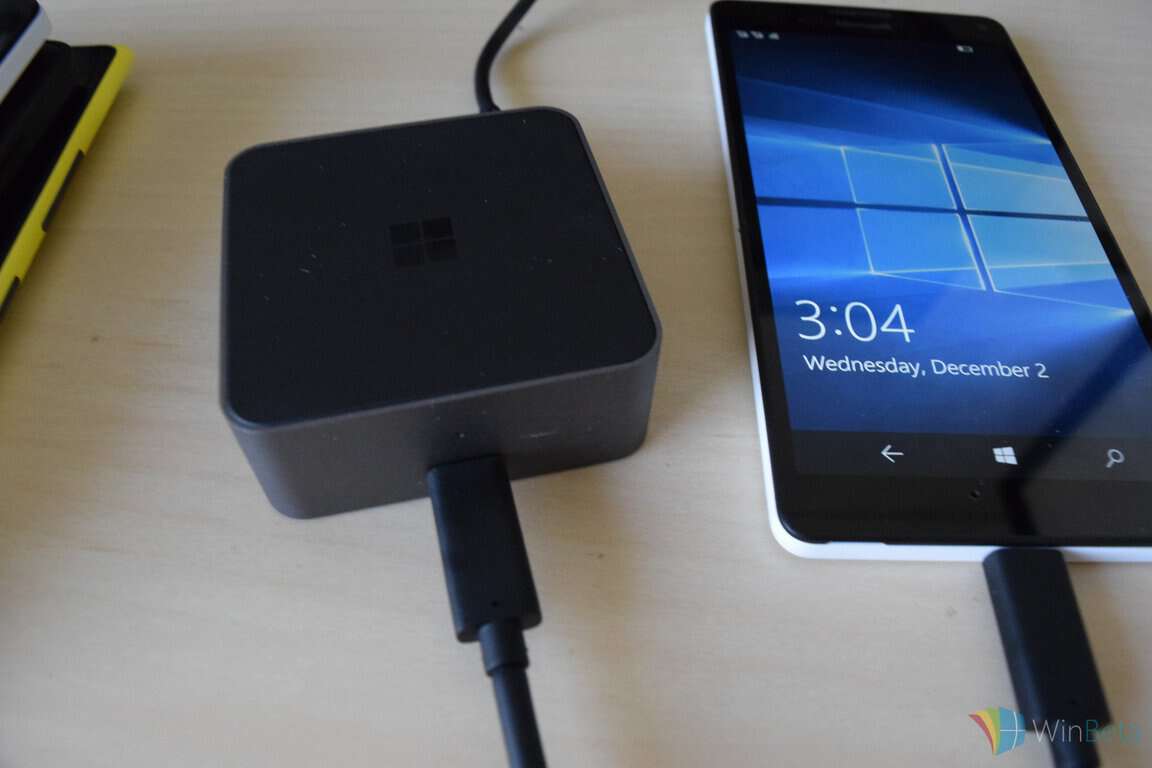
Around a year ago, Microsoft offered a package of its latest Windows 10 Mobile kit to some Windows Insiders, the kit included a Lumia 950XL and a Display Dock. The idea behind giving these items to selected Windows Insiders was to get feedback on Windows 10 Mobile, the apps and the new features from those who are invested in the platform or deep supporters of it, to speak to the fans. Since giving out the devices, Microsoft hasn’t asked for too much in the way of feedback, however, that is beginning to change. As Microsoft prepares to ramp up its Windows 10 Mobile support for Redstone 2 and beyond, the Redmond giant is now looking to Windows Insiders to help shape the future of the platform.

In an email to the Windows Insiders who were selected to receive the package, Microsoft is specifically asking them to state the importance of 5 categories of apps, as well as give the names and a description of the apps they want to see make their way to Continuum, and by virtue, Windows 10 Mobile. The 5 categories were:

  • Apps for productivity at work
  • Apps for productivity at home
  • Apps for entertainment
  • Apps for social media
  • Games for Continuum

It asked to rate the categories on importance from 1 to 5, with 1 being the most important and 5 being the least. After that, it gave options to state the app name and why it should be on Continuum and Windows 10 Mobile.

According to Microsoft, the survey will help them “understand which apps are important,” to its users.

It is interesting to see Microsoft send such an email to Insiders, asking only about apps and to state the apps they want to see. Could Microsoft be evaluating the results it receives and working with the companies that see a big interest from the community to make their app available on the platform? We’ll have to wait and see as the company begins its journey to focus on mobile.

Let us know which apps you’d like to see in the comments below!

Valley confirmed for August Xbox One release

The first-person adventure Xbox One video game, Valley, is now available for pre-order ahead of its August 24th release date. The game is developed by the same studio who made Slender: The Arrival, Blue Isle Studios. Here’s the official description:

Explore the vast and beautiful world of Valley using the power of the L.E.A.F. suit: a fierce exoskeleton that grants exceptional speed and agility along with the phenomenal ability to manipulate the life and death of all living things. Experience the adventure of a lifetime.

Valley is a First-Person adventure unlike any other. Hidden deep within a remote region of the Rocky Mountains, you find yourself bewildered within a secluded valley. With the power of a recently discovered L.E.A.F. suit (Leap Effortlessly though Air Functionality), run and jump your way through beautiful forests, dangerous ruins and vast environments; all the while utilizing the power to control life and death to uncover the startling secrets of the mysterious valley.

Pre-order Valley on Xbox One

Have you pre-ordered Valley yet? Let the community know in the comments below.

Fix: Windows 10 Anniversary Update causes 100% disk usage

System resources are valuable, and in order to achieve maximum performance users tend to minimize resource usage. If you’re concerned about your PC’s performance, you should know that number of users reported 100% disk usage after installing Windows 10 Anniversary Update.

Anniversary Update causes 100% disk usage, how to fix it?

As we already mentioned, system resources are extremely valuable, and sometimes certain updates or third-party applications can cause increased resource consumption. If certain Windows 10 process is using 100% of your hard disk, you might experience performance issues such as slowdowns, freezes and in some cases crashes.

If you’re not running any demanding application, it’s rather unusual to see that a system process is using 100% of your hard drive constantly. Due to increased disk usage you might not be able to run more demanding applications, and you’ll experience decreased performance. This is especially important for gamers that play the latest video games on their computer because high disk usage can drastically influence the performance of a certain video game.

Some users reported that Windows 10 Anniversary Update actually fixed the disk usage problems, but unfortunately many reported lower performance due to the high disk usage after installing the Build 1607. As you can see, 100% disk usage can be a major problem, but fortunately there are few solutions that you can try.

Solution 1 – Use Resource Monitor to find the problematic application

Resource Monitor is a useful Windows tool that allows you to see a detailed report regarding your computer resources. With this tool you can see how much CPU, memory, disk or network is certain process using. This tool is perfect for finding the problematic processes and applications, and in order to do that, you need to follow these steps:

  1. Press Windows Key + S and enter resource. Select Resource Monitor from the list.
    anniversary-update-100-disk-usage-resource
  2. When Resource Monitor opens, go to Disk tab.
  3. Sort the processes by number of Total bytes used.
  4. Locate the process that is using most of your hard drive resources. You can also check it if you want to see only process that are related to it.
  5. In Disk Activity section sort the processes by Total bytes used.
    anniversary-update-100-disk-usage-monitor
  6. After finding the problematic process, you can easily see which application is using it, so you can remove it from your PC.

Some users reported problems with TiWorker.exe, and since this application is related to Windows Update, the problem with TiWorker.exe was fixed after installing the latest updates. On your PC the problematic process probably won’t be TiWorker.exe, so you’ll have to do some research before you can remove the application that is responsible for it. Bear in mind that you shouldn’t remove any files that are related to core Windows 10 processes unless you want to cause stability issues.

Solution 2 – Stop the problematic application from starting

Sometimes the best way to fix the disk usage problems is to find the problematic application and prevent it from starting. Simplest way to do that is to disable it from startup by using Task Manager. To do that follow these steps:

  1. Press Ctrl + Shift + Esc to open Task Manager.
  2. When Task Manager starts, go to Startup tab, find the problematic application, right click it and select Disable from the menu.
    anniversary-update-100-disk-usage-disable

You can also disable any services that are related to that application by following these steps:

  1. Press Windows Key + R and enter msconfig. Press Enter or click OK.
    anniversary-update-100-disk-usage-msconfig
  2. When Windows Configuration window opens, go to Services tab.
  3. Check Hide all Microsoft services.
    anniversary-update-100-disk-usage-services
  4. Locate the service that is related to the problematic application and uncheck it.
  5. When you’re done, click Apply and OK buttons.

Users reported that MSI Command Center was causing high disk usage on their Windows 10 PC, but bear in mind that almost any third-party application can cause this error to appear.

High disk usage can negatively impact your PC performance, and if you’re having 100% disk usage after installing the Anniversary Update, be sure to try some of our solutions. If none of these solutions fixed your problem, you might want to uninstall Windows 10 Anniversary Update and switch back to the previous build.

READ ALSO:

BlueStacks emulator won’t open in Windows 10 Anniversary update

The Anniversary Update is not an emulator-friendly OS, according to the latest user reports. BlueStacks users are complaining they can’t get their emulator to work after installing Windows 10 version 1607 on their machines.

Bluestacks is one of the best Android emulators for Windows, allowing Windows users to run Android applications and games on their Windows devices. Although Windows users can request compatible apps from Android developers, the latter is not really interesting in Microsoft’s platform. In other words, the best way for Windows users to experience Android apps is by using emulators.

Users are complaining BlueStacks won’t open in Anniversary Update

I use the Bluestacks app (an android emulator) on my Surface Pro 3.  It works great – or at least it used to.  After build 1607, it will not open and my best efforts cannot resolve the problem.  Does anyone have a suggestion on how this might be fixed?   I use this app a lot and am considering uninstalling the latest build.

For the time being, uninstalling the latest Windows version and rolling back to the previous OS version seems to be the best solution. Uninstalling and then reinstalling BlueStacks doesn’t solve this problem for all users, although some were lucky and managed to get their emulator to work after uninstalling it.

In case you really need an Android emulator, there are plenty of emulators for Windows you can choose from, such as Droid4x, AMIDuOS, Andy, or Windroy. Read the description and select the emulator which meets your needs.

As always, in case you’ve found a permanent fix for this BlueStacks issue, you can help the Windows community by sharing it in the comment section below.

RELATED STORIES YOU NEED TO CHECK OUT:
Installing KB3176493 update for Windows 10 seems impossible for some

Microsoft pushed three cumulative updates on Patch Tuesday, but it appears that installing KB3176493 is really an impossible mission for Windows 10 users. This update brings reliability improvements, bug fixes, and security patches, so installing it is a must if you want to better protect your system against threats.

Unfortunately, thousands of users haven’t been able to install KB3176493 because the installation process suddenly stops. The bad news is that apparently there is no fix for this bug, as users confirm they’ve already tried all the workarounds they could find on the mighty internet.

Users are complaining they can’t install cumulative update KB3176493

I have tried all the methods I can find online but this update still wont install. Since this has been happening my computer is taking 15 min to start up because it is constantly trying to install the update and failing. I know I cant turn off auto updates but this is getting ridiculous. I have even set a specific date to attempt the install and the update still doesn’t work. I don’t want to revert to the preious operating system of 8.1 if I don’t have to. Please help.

In this situation, the best solution would be for Microsoft to officially acknowledge the issue and push out a hotfix as soon as possible.

This is not the first time users have reported severe issues after they installed the Anniversary Update. Some users have been luckier, managing to install all three cumulative updates — but soon finding out these updates break the Start Menu and Cortana.

We’ll keep on searching for a fix to help you install KB3176493, and we’ll update this article as soon as possible.

RELATED STORIES YOU NEED TO CHECK OUT:

Windows 10 Anniversary Device Manager issues reported

Many users were anxiously waiting for the Windows 10 Anniversary Update, but it seems that part of them are now regretting their decision to install this major update on their computers.

A user by the name of mccainmw reported that after installing the Windows 10 Anniversary update on three machines, only one seems to have updated without issues. One of the machines experienced an issue causing the lock screen to go black when returning from sleep. He also said he already posted about the two issues on other forums and noticed that other users who are dealing with them.

However, the third computer that received the Windows 10 Anniversary Update experienced another issue he didn’t find in forums. According to mccainmw, once the update finished installing, he noticed that “#2” was added to the network adapter display name in the Device Manager. He has no idea why this happened, and doesn’t know how to remove the #2 from the end of the network adapter display name. The user also claimed he tried to uninstall it, but that didn’t change the name, and the #2 designation repeated after the adapter was re-installed.

It seems that a Windows Insider by the name of thecreator found a fix to this issue and we’ll explain his method below:

  • Boot in Safe Mode
  • Click on Start->Run, type “regedit” and press Enter button
  • Once Regedit opens you will need to search Local Machine for the exact name of the connection and rename it (or delete it)
  • After that, restart your computer, let it boot normally into Windows 10 OS and the problem should be fixed.

The same Windows Insider added this issue occurred often in Windows XP and this fix was the same even with that version of Windows.

RELATED STORIES TO CHECK OUT:

Fix: KB3176495 install fails or remains stuck in reboot loop

Microsoft has rolled out the first public cumulative update for the Anniversary Update, under the code name KB3176495. This security update brings important improvements and fixes for Windows 10 Version 1607, addressing a series of vulnerabilities in the OS.

KB3176495 patches severe Internet Explorer and Edge security vulnerabilities allowing remote code execution, as well as Windows authentication weaknesses allowing elevation of privilege. Taking into account the severity of these threats it’s vital that users install this update on their machines.

Unfortunately, many users are reporting they can’t install the cumulative update KB3176495 because the installation process fails or simply remains stuck in a reboot loop.

 Users are complaining KB3176495 download fails, installation remains stuck in reboot loop

  • “The KB3176495 began to download and it is now stopped at 61% and not advancing. I tried closing and then going back into Settings and it still shows the same 61%.”
  • “I allowed KB3176495 to install on one of my machines today, a very new Z170 chipset machine.  Upon reboot, the machine would immediately go into attempting auto repairs, but fail that and reboot again with no stop to that cycle. [..] saw the error on “aistora.sys”.
  • “I have tried all the methods I can find online but this update still wont install. Since this has been happening my computer is taking 15 min to start up because it is constantly trying to install the update and failing.”

Fix KB3176495 download and installation fails

Solution 1 – Run the Windows Update Troubleshooter

Download the Windows Update Troubleshooter, run the tool and then try to install KB3176495 again.

Solution 2 – Delete the content of the SoftwareDistribution folder

  1. Go to C:WindowsSoftwareDistributionDownload folder and delete everything in that folder.
  2. Launch Command Prompt Admin > run the command wuauclt.exe /updatenow
  3. Wait for the command execution to complete > go to Control Panel > Windows update > Download Windows 10 update.

Solution 3 – Perform a clean boot

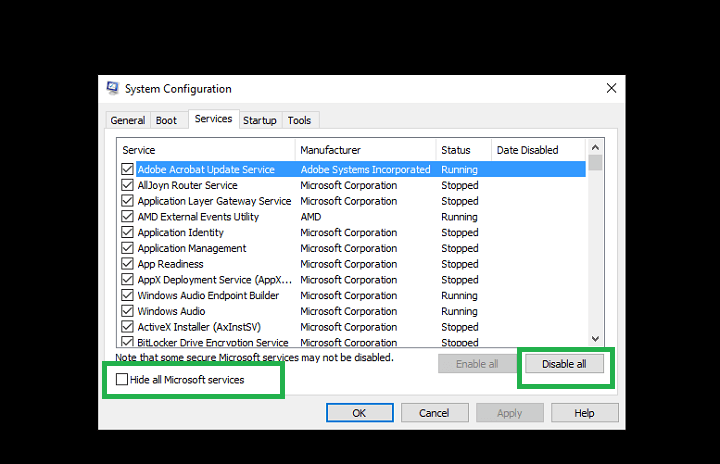
  1. Type System Configuration in the search box > hit Enter
  2. On the Services tab >  select the Hide all Microsoft services check box > click Disable all.

hide all microsoft services windows 10


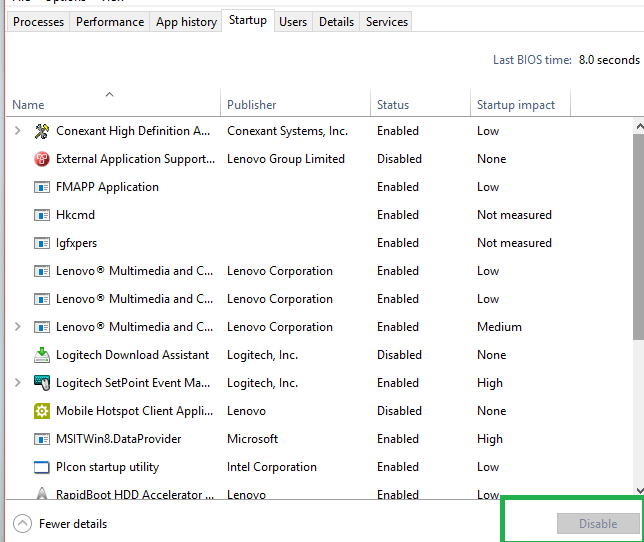
3. On the Startup tab > click on Open Task Manager.

4. On the Startup tab in Task Manager > select all items > click Disable.

disable start up items windows 10

5. Close the Task Manager.

6. On the Startup tab of the System Configuration dialog box >click OK > restart your computer.

Solution 4 – Restart the BITS, Cryptographic, MSI Installer and the Windows Update Services.

  1. Launch Command Prompt (Admin)
  2. Type the following commands to stop the BITS, Cryptographic, MSI Installer and the Windows Update Services. Press ENTER each command.

net stop wuauserv
net stop cryptSvc
net stop bits
net stop msiserver

3. Type the following commands to rename the SoftwareDistribution and Catroot2 folder. Hit ENTER after you type each command.

ren C:WindowsSoftwareDistribution SoftwareDistribution.old
ren C:WindowsSystem32catroot2 Catroot2.old

4.Type the following commands to restart the BITS, Cryptographic, MSI Installer and the Windows Update Services. As always, hit ENTER after you type each command.

net start wuauserv
net start cryptSvc
net start bits
net start msiserver

5. Type Exit > restart your computer > try again to install the cumulative update KB3176495.

RELATED STORIES YOU NEED TO CHECK OUT:

Fix Windows 10 Anniversary Update mouse and keyboard lag

After installing the Windows 10 Anniversary Update, many users started experiencing various problems and they complained on Microsoft’s forums, where they asked for help. A user named Aindriu80 who installed the AU on the 2nd of August on his laptop has noticed that the device slowed down and he got regular freezes that lasted ten seconds. His biggest concern is related to the mouse and keyboard, which are very laggy and he wanted to know if there’s a solution to his problem.

Aindriu80 said that he owns a Dell XPS 15 laptop with 16GB Dual Channel DDR4 2133Mhz (8GBx2), an NVIDIA® GeForce® GTX 960M with 2GB GDDR5 and 512GB PCIe Solid State Drive. Like any other Windows 10 user, he was anxious to install the new Windows 10 Anniversary Update and enjoy its new features and improvements, but instead, his laptop feels now like a five-year old machine. “My mouse and keyboard are very laggy.

I have to move the mouse a while before it responds and when it does its like I am trying to run a massive graphical game.  I can nearly finish a word on my keyboard before it appears on screen. It feels like Windows 10 Anniversary Update was not designed to run on my laptop.” He asked the guys from Microsoft if there’s a way to stop the crashes and to improve the responsiveness of his keyboard and mouse.

His problem came to the attention of Vashi, Microsoft Support Engineer, who offered him two solutions. The first method involves running the system maintenance troubleshooter by:

  • pressing Windows Key + R to open the run command;
  • typing control and press enter to open control panel;
  • typing troubleshooting in the control panel search box to open it;
  • then clicking “view all” on the left panel.

If this method fails, then there’s the second solution: to place the system in Clean Boot, in order to identify if any third party applications or startup items are causing the issue.

Another guy named NGWin got rid of this problem by simply rolling back the AU using windows recovery and he said that everything is back to normal now. He believes that the Windows AU/incompatible Nvidia driver is the culprit.

RELATED STORIES TO CHECK OUT:

Fix: Anniversary Update causes high CPU temperature

A week has passed since Microsoft rolled out the Windows 10 Anniversary Update, yet user complaints keep on coming in. As intriguing as this may sound, some Windows users are still struggling to install the update, while others are so disappointed they’ve decided to uninstall Windows 10 version 1607.

Recent user reports have also revealed the Anniversary Update causes a rise in CPU temperature, slowing down overall system performance. High CPU temperature doesn’t occur only on the day of install, but rather it’s a constant issue.

Users are complaining about high CPU temps on Windows 10 version 1607

Anyone noticing hotter computer temps since updating to the Anniversary update? I was running in the 30/40’s according to Core temp prior and now I am in the 50’s. I also noticed higher temps when I was a beta tester for 10 but never figured out what caused them. Any ideas?

High CPU temperatures constitute a serious issue as they can damage your computer in time. You should fix this issue as quickly as possible to avoid potential consequences to your system. Before performing any troubleshooting, first check your CPU fan and clean it because high CPU temperature issues are often triggered by specks of dust caught there.

Fix high CPU temperature in the Anniversary Update

Solution 1 – perform a clean boot

  1.  Type System Configuration in the search box
  2. Go to the Services tab > check the Hide all Microsoft services check box > click on Disable all.

system configuration anniversary update

3. Go to the Startup tab > click on Open Task Manager.

task manager anniversary update

4. For each startup item> select the item > click on Disable.

disable task manager item anniversary update

5. Close Task Manager.

6. On the Startup tab of the System Configuration, click OK > restart the computer.

 Solution 2- Upgrade your computer

Not all hardware is compatible with the Anniversary Update. In this case, the best solution would be to roll back to your previous Windows version or upgrade your computer. To see if your computer is ready for the Anniversary Update, check out this article.

RELATED STORIES YOU NEED TO CHECK OUT:
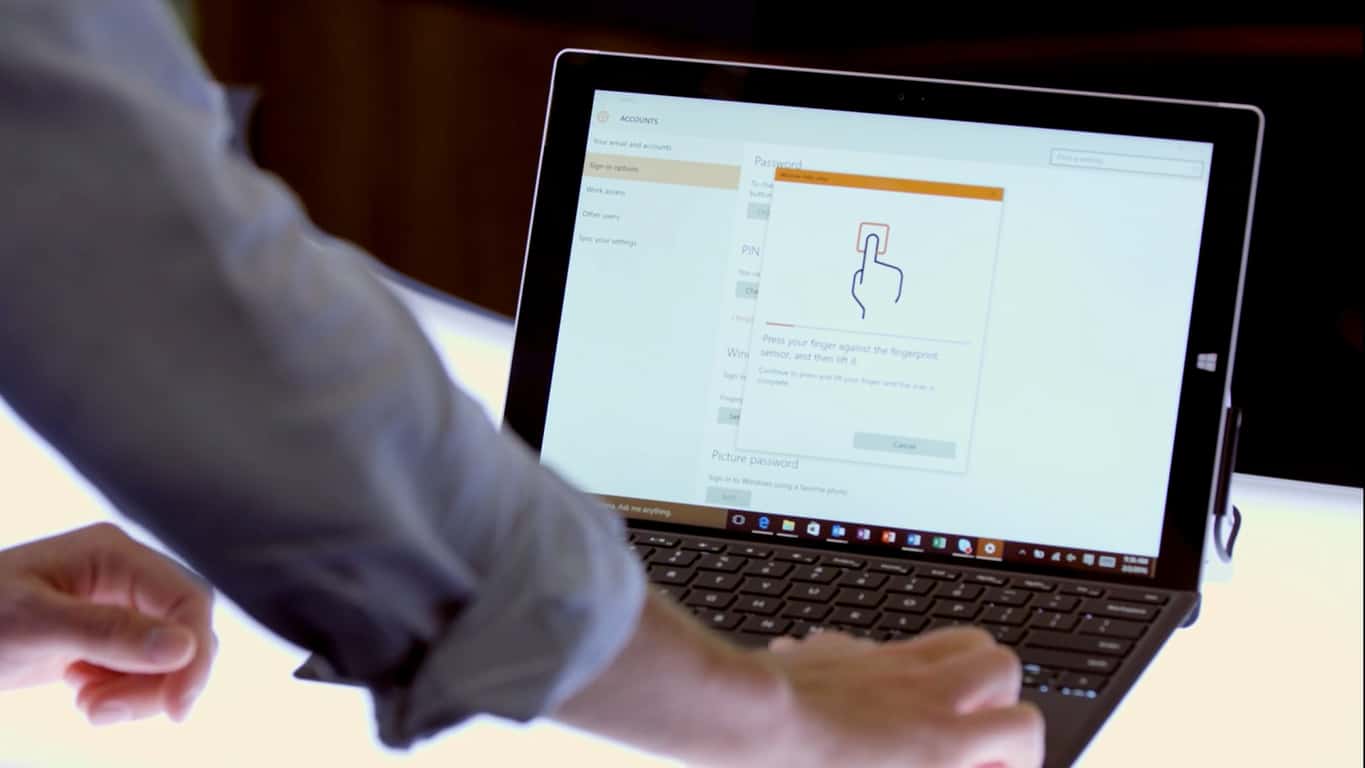
Fix: Windows 10 Anniversary Update slowing down internet speeds

Microsoft  finally released the Windows 10 Anniversary Update, but it seems that more and more issues are being found by users after installing it on their computers. Today, we will talk about the internet speed issue being caused by the new major update and how you can fix it.

In concordance with GHacks, the Window Auto-Tuning feature been introduced in Windows Vista (which is also available in Windows 10) might be responsible for this issue. To fix this problem, you will need to disable it.

The Window Auto-Tuning feature handles programs receiving TCP data over a network in order to improve the performance of processes in charge of these transfers. Unfortunately, the Windows 10 Anniversary Update is messing up this feature and this is causing the internet speed to be very slow.

How To Disable Windows Auto-Tuning Feature

Keep in mind that in order to disable this feature, you will just need to type in a simple command in the Command Prompt window (using administrator privileges) as follows:

  • Press Windows key+X and select “Command Prompt (admin)”
  • Once the command prompt opens, you will need to write the following command: netsh interface tcp show global
  • After you type this command, look for “Receive Window Auto-Tuning Level” and in case it is “normal”, you will need to disable it
  • To disable it, type the following command: netsh int tcp set global autotuninglevel=disabled

After doing this, perform an internet speed test to see if you notice any improvements. If after disabling the “Receive Window Auto-Tuning Level” you don’t notice any improvements, you can enable it by typing the following command in the Command Prompt (admin): “netsh int tcp set global autotuninglevel=normal” (without “).

If this doesn’t fix your internet speed issue after updating to Windows 10 Anniversary Update, you should look for processes that are using more network connection than usual (such as torrents applications), firewalls or security software.

RELATED STORIES TO CHECK OUT:

Top 5 Windows 10 Ultrabooks to Buy in 2016

Laptops are a much more productive piece of equipment than a tablet, but unlike a tablet they can get quite heavy at times. That’s where Ultrabooks come in. An Ultrabook is merely a specification guideline by Intel that manufacturers can follow, but make no mistake though,: these guidelines are extremely strict and push the boundaries of what can be achieved with current manufacturing technologies. This is why Ultrabooks can get quite expensive, which is why you need to separate the good ones from the bad. This list will help you do so.

Dell XPS 13

windows ultrabooks-dell xps 13

Looking at the laptop, the first thing you will notice is the screen: how thin the bezel is and how big the screen is for the size of the laptop. Dell has managed to fit a 13” screen in what is usually an 11-inch laptop size. The laptop itself is only 0.6 inches thick and weighs only 1.2 kg while giving you an experience of a Core i7 CPU and an NVME SSD — three times faster than a normal SATA SSDs. That thin bezel 13” screen is Full HD as well, and the battery is big enough to last for 12 hours. All in all, if you have $799 lying around, it is quite a beauty.

Lenovo Yoga 900

windows ultrabooks- lenovo yoga 900

Lenovo might not have much of a reputation after the recent privacy fiasco, but they still do make gorgeous hardware. The Lenovo Yoga 900 is the laptop equivalent of a convertible. One moment it is a laptop, the next moment you have a Windows 10 tablet. It features a 4K13.3-inchh screen and an Intel Core i7 powering a 512 GB SSD. This is quite possibly the best convertible Ultrabook you can buy at a price of $1,199. It will run eights hours on a full charge.

(READ ALSO: This Windows 10 tablet has a built-in gaming controller, retails for 150 GBP)

Razer Blade 2016

windows ultrabooks-razer blade 2016

Ultrabooks are already cutting edge technology, but the Razer Blade pushes these boundaries further and sets a new bar for other manufacturers. The Razer Blade is a gaming ultrabook that features a Core i7 6700HQ CPU with 16GB of DDR4 RAM and an Nvidia 970M GPU with 6GB of VRAM: top of the line specs while weighing a mere 2kg.

It also features an individually backlit full RGB keyboard. Every key has an LED lighting it up, and each LED can produce any colour for any individual key. While this might be the best ultrabook you could buy in terms of sheer performance, it also costs you $2000, so it might not be within the budget of a lot of people.

One thing about the Razer Blade unique to it is its Thunderbolt 3 port which you can use to attach another Razer product known as Razer Core, or a housing for an external graphics card. You can connect a full desktop-sized graphics card to the laptop via the Razer Core and further boost your performance — albeit at the cost of portability and price.

(READ ALSO: Windows 10 Business Laptops Unveiled: VAIO S And VAIO Z)

Asus ZenBook UX305

windows ultrabooks-asus zenbook ux305

The Asus ZenBook UX305 does not have a catchy name, but it comes with an aluminium body and a 13.3-inch Full HD display that can be powered for nine hours on a full charge battery. The laptop runs on an Intel Core M and you get a 256GB SSD. It weighs only one kilogram and has a sleek aluminium finish that makes the laptop look more premium than it is.

Compared to other laptops on this list, this one is a bit underpowered. It doesn’t even have a backlit keyboard, and the speakers seem a bit underpowered considering they were made with the help of Bang & Olufsen. But it’s the price that differentiates this one the most from others on this list. It costs only $699. That price might seem a lot if you are looking for a good laptop, but it is very affordable if you are looking for a good ultrabook.

(READ ALSO: What to do if Your Laptop is Plugged In, But Not Charging)

Lenovo ThinkPad X1 Carbon 3rd Gen

windows ultrabooks-lenovo thinkpad x1 carbon 3rd gen

Anyone who has used the ThinkPad keyboards of the old knows of the little red dot that controls the mouse cursor, otherwise TrackPoint. It’s something unique to the ThinkPad and something fans of it are willing to pay anything for. The Lenovo ThinkPad Carbon 3rd Gen might not have the best names but it stays true to it: its body is built with carbon fiber, it features a 4K 14-inch screen, and weighs 1.3kg while packing enough battery to last you 10 hours.

It also runs off of a Core i7 processor using 8GB of DDR3 RAM. Granted, the specs aren’t the most amazing, but it’s the price you have to pay for the little red nub for the mouse and the carbon fiber body. It’s priced at $1199.

These were five of the best Ultrabooks money can buy for you. While Ultrabooks aren’t the most affordable laptops out there, they deliver a better experience. A thin and light laptop that packs a punch is what an Ultrabook strives for, and Intel keeps the specification as tight as possible to keep the innovation going, so you know you are getting the best whenever you buy one.

Fix: Windows 10 Anniversary Update destroys boot loader in dual-boot config

If you’re running a dual-boot system, you should think twice before installing the Windows 10 Anniversary Update. Users are reporting that Windows doesn’t boot after Windows 10 version 1607 is installed, as their computers simply display an error message informing them the file system is unknown.

According to user reports, after the download is completed, Windows doesn’t boot in the first re-boot phase. Instead, a message appears, informing users the system is going to enter the GRUB rescue mode:
error: unknown filesystem.
Entering rescue mode …
grub rescue>

At the end of the process, the GRUB rescue utility lists the partitions, but shows them all as “unknown filesystem”. Many users would rush in to say it’s normal to have this error message since Linux and GRUB Boot Loader are not supported in dual boot configurations with Windows. In reality, many users have been running Grub with Linux and Windows for years.

Anniversary Update is destroying boot loader in dual-boot config

My laptop upgraded to the Anniversary update last night. The download took 7 hours! […] After the download completed, and it got to its first re-boot, Windows would no longer boot.[…]

My system was set up with a single drive, a 160GB SSD, with Windows 10 Home Edition installed in one partition, and Ubuntu 16.04 LTS in a separate partition. When Ubuntu is installed, it installs the GRUB bootloader, which up till now has had no problem handling Windows and Ubuntu installed on the same drive; it gives me a boot menu that allows me to select which OS to boot (Ubuntu selected as the default). However, after the Anniversary update, all I got was the above ‘unknown filesystem message’.

Fortunately, all hope is not lost as the boot-repair Ubuntu utility can fix this issue. You can download this free tool from Ubuntu’s website.

How to repair boot loader error in Linux and Windows dual-boot configuration

  1. Install the Boot-Repair tool in Ubuntu from an Ubuntu live-session or from your installed Ubuntu session
  2. Connect to the Internet
  3. Open a new Terminal > type the following commands and press Enter after each line:

sudo add-apt-repository ppa:yannubuntu/boot-repair
sudo apt-get update
sudo apt-get install -y boot-repair && boot-repair

4. Launch Boot-Repair from either the Dash or by typing boot-repair in a terminal.
5. Click on the Recommended repair button. When the repair process is finished, note the URL (paste.ubuntu.com/XXXXX) on a piece of paper.
6. Reboot > check if your dual-boot OS has recovered.

RELATED STORIES YOU NEED TO CHECK OUT:
Excel files won’t open in Anniversary Update

The Anniversary Update can generate many errors, starting from the moment users download it. If your Windows 10 version 1607 is running properly, consider yourself lucky: some users are still trying to install the update on their machines while others can’t use any apps.

According to recent user reports, Excel files have also been plagued by various errors triggered by the Anniversary Update. Judging by the volume of user complaints we see every day, we’re starting to think that it’s better to delay the Anniversary Update install.

For one, users are reporting they can’t open xls. files due to a strange error message:

The file could not be accessed. Try one of the following:

– Make sure the specified folder exists.
– Make sure the folder that contains the file is not read-only.
– Make sure the file name does not contain any of the following characters: < > ? [ ] : | *.
– Make sure the file/path name doesn’t contain more than 218 characters.

The dot from the third item on the list is the classic error displayed for files longer than 255 characters. However, the users who have reported this bug also confirm their files have less than 255 characters.

According to user experiences, it appears this error is triggered by missing licences for RAMDisk apps. The app creates a tmpfile in RAM and directs the TMP and TEMP variables there. When the anniversary Update is installed, it drops the licence and the system no longer finds the tmpfile location. Installing the licence into the RAMDisk software should fix this problem.

RELATED STORIES YOU NEED TO CHECK OUT:

Microsoft already testing new features in latest Windows 10 “canary ring” builds

Yesterday was quite a busy day for Windows Insiders as the company released two cumulative updates for Windows 10 Anniversary Update aka Redstone 1. As you may already know, cumulative updates only bring bug fixes and improvements to your current Windows 10 version, which means that they’re not always the most exciting kind of updates to install for Windows enthusiasts wanting to play with new features.

However, if you’re still enrolled in the Windows Insider Fast Ring, you will soon be allowed to test the first Redstone 2 build, which is the next major iteration of Windows 10 to be released in 2017. In the meantime, we guess that many Microsoft employees are already testing internal builds and Carmen Crincoli, Storage IHV partner manager at Microsoft just shared a quick tease of what’s to come:

If you’re not familiar with it, the “Canary” ring is one of Microsoft’s internal testing rings along the “Operating Systems Group” (OSG) and “Microsoft” rings that the company uses to test Windows 10 builds internally. As we previously reported, Microsoft employees who are members of the Canary ring have opted in to test anywhere from daily to slower monthly released and validated builds. Once this “dogfooding” is done, preview builds which are considered good enough for the Windows Insider program are then pushed to Windows Insiders enrolled in the Fast ring.

It’s still not clear what cool features Crincoli is talking about in his tweets, but while we can’t wait to learn what’s coming in the next Windows 10 major upgrade, you should be aware that the first Redstone 2 Insider builds are not expected to be that exciting. Head of the Insider program Dona Sarkar explained yesterday:

With the new builds we release from our Development Branch, you won’t see any big noticeable changes or new features just yet. Just like we did after the release of the November Update, we are focusing on making some structural improvements to OneCore. If you recall – OneCore is the shared core of Windows across PC, tablet, phone, IoT, Hololens and Xbox. It is essentially the heart of Windows.

Let us know in the comments if you’re still excited by the upcoming Redstone 2 builds and stay tuned to Winbeta to get all the details in the coming weeks!

SSX available now for free on Xbox One via EA Access

EA Access is a good way to play some games without laying out a bunch of extra cash. A number of titles are available on EA Access for no additional cost above and beyond the $4.99 monthly (or $29.99 annual) subscription. Today, according to reddit (via Windows Central), another title, namely the snowboarding game SSX, is available on the service even though it’s not been officially announced.

According to our description of SSX when it was added to Xbox One Backward Compatibility:

SSX is the 2012 reboot of the 2000 game of the same name, and marked the return of a beloved franchise when it hit store shelves. Featuring thrilling snowboarding gameplay with a bit of over-the-top action, SSX revolves around tossing the player into massive tracks in places like Antarctica and the Himalayas, focusing its gameplay on doing tricks to rack up points. If you’ve got a copy of SSX lying around or want to pick one up from a bargain bin, it’s well worth blowing the dust off and spending a night in the snow.

It’s Backward Compatibility that EA is using to make the game available on the Xbox One via EA Access, and Windows Central was able to verify that the game does indeed install for free. Let us know in the comments if you’re an EA Access subscriber and will be pulling out your snowboard.

How to prepare for Windows 10 Redstone 2 Insider build updates

The Windows 10 Anniversary Update is here and has left Windows Insiders a bit on edge since there hasn’t been an update in quite some time due to the release of the new update and Microsoft working on Redstone 2.

We know that Redstone 2 is set to hit Windows 10 devices in early 2017 and should address many problems facing Windows 10 Mobile. After that, Microsoft aims to release Redstone 3 in the same year around August or September.

This has led many to wonder when Microsoft will begin releasing Redstone 2 builds to Windows Insiders. Well, we do know there are plans to kickstart the release of Redstone 2 builds within the next two weeks or so, meaning by the end of August or some time in September the first Redstone builds will be sent out to the Fast Ring.

How to prepare for Redstone 2

Go to Settings>Update & security>Windows Insider Program, then click the Get Started button. After doing that, follow the instructions then restart your system when prompted. Finally, once your system is up and running again, return to the same window and make sure you are set to receive updates from the Fast Ring.

Enrolling now should allow you to receive the first wave of Redstone builds early. Enrolling on the day will make it so that it will take a while before the build is available for download. This is because Microsoft must first provision your system, and this takes a few days at most.

Note that Insider builds are usually not fully stable, so do not enroll a computer used for work or personal use. Instead, use a computer that won’t cause you to lose your mind if things go awry.

RELATED STORIES YOU NEED TO CHECK OUT:
Want to design body parts, or collect space junk? Microsoft report identifies 10 jobs of the future

If you ever turn back the clock by taking a trip down memory lane, you will probably realize that technology has come a very far way since your younger days.  It turns out, apparently, that jobs are going this way too, and will become more technologically advanced as time progresses. So, in line with this, Microsoft Surface teamed up with The Future Laboratory to look at and report the creative jobs which modern students will be chasing after by the year 2025.

Overall, the “Tomorrow Jobs” report finds 10 new job titles for the future, ranging from Spacejunk Archaeologists,  Memory Storage Specialists, Battery Innovators, and even Human Parts Designer. We’ve given a few of the most interesting titles a look and have included Microsoft’s descriptions for you below.

  1. Space Junk Archaeologists will locate and explore debris orbiting our planet. These specialists will conduct guided tours of abandoned spacecraft and defunct satellites, while also collecting, archiving and deciphering each recovered item.
  2. Memory Storage Specialists will help people to use these systems to increase the storage capacity of their over-stretched minds, providing services that allow them to dip in and out of treasured memories and experiences at will.
  3. Rewilding Stategists will reintroduce plants and animals that have been extinct in a region for centuries – so wolves and beavers could make a comeback in Britain – and manage assisted migrations in order to create resilient and vibrant landscapes in the face of advancing climate change.
  4. Human Parts Designers will combine a design aesthetic and skill set with bio-engineering know-how to create a huge range of customised human limbs, either to perfectly match the existing skin tone, musculature and colour of the rest of a person’s body, or to provide new fashionable looks or enhanced functionality for particular jobs or sport.

For the complete list of future fields of work, you can check out the official Microsoft post by clicking here. The list is rather intriguing and also includes the necessary skills for these jobs, so be sure to let us know your thoughts by dropping us a comment below.

Fix Windows 10 error 0x80070019

Microsoft Windows has always managed to fascinate professionals with its outstanding Work/Office functionality and productivity. Microsoft is planning to take over the mobile market with Windows 10 Mobile. In the recent update pushes, Microsoft had played hard on the code which resulted in the breakdown of Apps like Alarm/Clock, WhatsApp and Messaging services.

The affected apps would gray off and give a code 0x80070019 on updating. If you are having a similar problem as stated here, then you are just at the right place. In this post, we will guide you to fix the most annoying 0x80070019 error in Windows 10 Mobile.

Basically, we have 3 fixes. If you don’t get it right with the first fix proceed with the next one.

How to fix Error Message 0x80070019

Solution #1: Updating from Old Store

  • Go to Store Beta app and tap on the Settings icon.
  • Disable Auto Updates by tapping on the option
  • Make sure you are on working Internet connection so that your settings get saved in the setting’s synchronization process.
  • Then, open old Store app and install the updates which failed in Store Beta. If the app still gives update bug, then simply uninstall and install it afresh.

Have you tried this process and if it still didn’t bust your issue, then follow the soft reset method as mentioned below.

Solution #2: Performing a Soft Reset

Soft Reset is the quickest possible method to fix all around system bugs with minimum to no data loss.

  • To Soft Reset, you just have to press Power Off + Volume Down button and hold it for a moment. Once you feel the vibration, let your device rest for a bit.
  • Now what you need to do is leave your device alone for a good amount of time, say 10-20 minutes. It has just encountered a trauma. Give it space.
  • After a while, it should boot up and ready to rock and roll as it were before.

Most of the cases might be fixed at this point. If you still didn’t get a way around this bug, then the ultimate method is posted just for you. Never say Never.

Solution #3: Performing a Hard Reset

Oh, well. Here we are on the edge. A Hard reset always settles things around. Make sure you have backed up the data well before you go for this mobile-nuclear deterrent. Back up your photos, important files and to mention that expressively adorable selfies.

Note: In case you just rolled your eyes over the paragraph and landed on this note. It’s just to inform you that all your data will be wiped off via following method. The Author won’t hold any responsibility regarding data loss and Mad Max Fury device behaviors.

  • To perform a Hard Reset, go to Settings and tap on About.
  • Then Select, Reset your phone and Yes after reading the warning.
  • After Hard Reset completes you can set-up your phone all over again.

That’s all for now. If you have queries then post them in the comments below. Also, don’t forget share this post among your fellow mates. Happy Bug fixing!