If you’re using Azure, there’s a good chance you’re a big fan of its new and efficient ways to read data. Azure Diagnostic Logs, which provide insight into the operation of resources, are now going to be able to be streamed through Event Hubs. Up until now, you were only able to store Azure Diagnostic Logs in your storage account, but the addition of Event Hubs support gives users a lot more in the way of options.
Stream logs to 3rd party logging and telemetry systems – Over time, Event Hubs streaming will become the mechanism to pipe your Diagnostic Logs into 3rd party SIEMs and log analytics solutions.
View service health by streaming “hot path” data to PowerBI – Using Event Hubs, Stream Analytics, and PowerBI, you can easily transform your diagnostics data into near real-time insights on your Azure services.
Build a custom telemetry and logging platform – If you already have a custom-built telemetry platform or are just thinking about building one, the highly scalable publish-subscribe nature of Event Hubs allows you to flexibly ingest diagnostic logs.
This isn’t a major change, but it frees up some options for people who consider themselves data hounds. Event Hubs is a service that’s already constantly streaming information to its user, so adding the data from Azure Diagnostic Logs just makes sense. If you want to learn a little bit more about what Event Hubs has to offer, you can check out its official site here.
Microsoft is committed to improving its Windows Transmission Control Protocol and will soon roll out a series of improvements to this platform via the upcoming Anniversary Update. These improvements have two main goals: increase TCP startup speed and decrease time to recover from packet loss.
The TCP update for Windows 10 and Windows Server 2016 includes five new features:
TCP Fast Open (TFO) for zero RTT TCP connection setup
Initial Congestion Window 10 (ICW10) by default for faster TCP slow start
TCP Recent ACKnowledgment (RACK) for better loss recovery
Tail Loss Probe (TLP) for better Retransmit TimeOut response
TCP LEDBAT (Windows Low Extra Delay BAckground Transport) for background connections
More specifically, TCP Fast Open generates a TFO cookie during the first three-way handshake (3WH) connection setup to achieve a zero RTT connection setup time. All the subsequent connections to the same server can use the TFO cookie to connect in zero-RTT.
TFO is one full Round Trip Time (RTT) faster than the standard TCP setup which requires a three way-handshake. This leads to latency savings and is very relevant to short web transfers over the Internet where the average latency is on the order of 40 msec.
The Initial Congestion Window 10 default value in Windows 10 and Server 2012 R2 is 4 MSS. Once the new improvements are rolled out, the default value will be 10 MSS.
This change in Windows TCP’s startup behavior designed to keep pace with the increased emission rates of network routing equipment used on the Internet today. The ICW determines the limit on how much data can be sent in the first RTT. Like Windows TFO, IW10 mostly affects small object transfers over the Internet. Windows IW10 can transfer small Internet objects up to twice as quickly as ICW4.
The new TCP Recent ACKnowledgment feature uses the notion of time instead of counting duplicate acknowledgments to detect missing packets for TCP Fast Recovery. A packet is considered lost if it was sent “sufficiently later” and has been cumulatively or selectively acknowledged.
The new Tail Loss Probe improves Windows TCP’s behavior when recovering from packet loss. TLP converts Retransmit TimeOuts (RTOs) into Fast Retransmits for much faster recovery.
TLP transmits one packet in two round-trips when a connection has outstanding data and is not receiving any ACKs. The transmitted packet (the loss probe), can be either new or a retransmission. When there is tail loss, the ACK from a loss probe triggers SACK/FACK based fast recovery, thus avoiding a costly retransmission timeout.
The TCP LEDBAT feature is aimed at enabling background transport that does not interfere with other TCP connections.
Windows LEDBAT is implemented as an experimental Windows TCP Congestion Control Module (CCM). Windows LEDBAT transfers data in the background and does not interfere with other TCP connections. LEDBAT does this by only consuming unused bandwidth. When LEDBAT detects increased latency that indicates other TCP connections are consuming bandwidth it reduces its own consumption to prevent interference.
For more details about the upcoming Windows 10 and Windows Server 2016 improvements, check out Microsoft’s blog post.
Is getting an internship at Microsoft your dream job? The company asked their social media followers exactly what they would ask a university recruiter. Many of the questions were combined into a convenient blog post over at Microsoft Jobs.
The FAQ answered common questions that some potentials might find themselves confused about. Microsoft encouraged applicants to apply earlier in the year, rather than later, and to make sure to include all important dates and information–a mistake that many people seem to forget! The FAQ also covers topics such as interning from out of the United States, how to follow up on the status of an application, and how to get in touch with a recruiter.
Microsoft has always had a soft spot for expanding education for the youth of today. Throughout the UK, Microsoft and Risual teamed up to bring five new academies to bridge the digital skills gap. Likewise, the company put together a list of resource, inspiration, and advice to help college graduates aiming for their dream job in technology.
DirectX 12 is the future of computer gaming to many as the API promises to deliver low-level game development similar to that of consoles, meaning developers will be better able to squeeze more out of both new and old graphic cards like never before.
At the moment, DirectX 12 is only available for Windows 10, so gamers interested in seeing what their graphic cards can really do will have little choice but to upgrade to the new Microsoft operating system.
Before playing a DirectX 12 supported video game to see what the fuss is all about, we recommend doing some benchmark tests first. Futuremark recently updated its 3DMark benchmarking tool with a new demo known as Time Spy made specifically for Windows 10 computers for gamers to test out their DirectX 12 capable machines.
With its pure DirectX 12 engine, built from the ground up to support new features like asynchronous compute, explicit multi-adapter, and multi-threading, Time Spy is an ideal benchmark for testing the DirectX 12 performance of the latest graphics cards.
Time Spy is free and only available with the newest version of 3DMark. If you want to unlock custom settings for Time Spy, you’ll be required to purchase 3DMark Advanced Edition.
The advanced edition at this moment costs only $9.99, but the price will rise to $29.99 after July 23, 2016. Visit the Steam Store to purchase 3DMark Advanced Edition right now.
With Rise of the Tomb Raider now supporting DirectX 12 with improvements and Oculus deciding to support the API as well, things are definitely looking up for the platform.
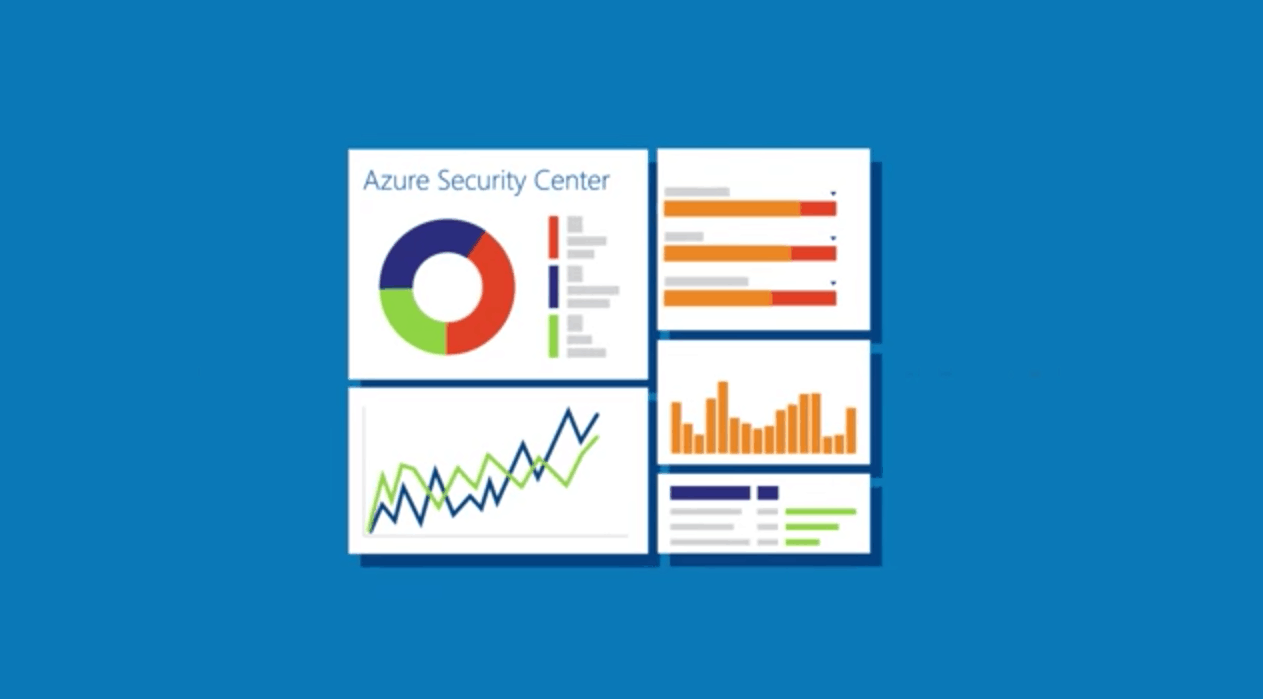
Microsoft’s Azure Security Team announced today that the Azure Security Center is now generally available to Azure customers. Azure Security Center gives Azure customers a central view of the security state of all of their Azure resources. The dashboard was introduced in preview last December, and Principal Program Manager for Azure Cybersecurity Sarah Fender highlighted today how Azure Customers leveraged it to manage their Azure resources:
During its preview period, Azure Security Center helped customers such as Chronodrive, Jet.com and Metro Bank gain visibility into the security state of their Azure resources, let them take control of cloud security policies, and monitored security configurations while helping them detect and respond to active attacks.
Azure Security Center provided customers more than 500,000 recommendations to improve the security health of their resources. It used advanced analytics, including machine learning, and Microsoft’s vast global threat intelligence, to detect more than 140,000 threats per month – providing actionable alerts and dramatically reducing detection and response times.
Now that Azure Security Center is out of preview, Microsoft is also adding the following new features :
Log integration. A new connector for Azure streamlines the process of getting security data, including Azure Security Center alerts, into security information and event management solutions, such as HP ArcSight, IBM Qradar, Splunk, and others.
Support for more Azure resource types. Security Center can now more extensively monitor the security of RedHat and many more Linux distros, including system update status, OS configurations, and disk encryption. It can also monitor security health for Cloud Services (Web and Worker Roles) and recommend outdated OS instances be updated.
Email notifications. Respond to threats more quickly with email notification when a new high severity security alert is detected.
New detections. Security Center now has improved ability to detect lateral movement, outgoing attacks, and malicious scripts, and researchers are constantly adding new capabilities.
Security incidents. By using analytics to connect the dots between distinct security alerts, Security Center can now provide a single view of an attack campaign and all of the related alerts so you can quickly understand what actions the attacker took and what resources were impacted.
REST APIs. For customers who want to integrate with their existing change management or security operations systems, we published REST API documentation.
Integrated vulnerability assessment. In the coming weeks, customers will be able to deploy vulnerability assessment solutions from partners like Qualys in just a few clicks.
To get started with Azure Security Center, we invite you to go on the dedicated website to learn how the tool can help you to understand your cloud security state. The service is offered in two tiers, Free and Standard, with a 90 day trial for the Standard tier. If you already tested the service during the preview period, let us know in the comments what do you think of the new features introduced today.
Throughout the last few months we’ve been closely following the Surface Hub news. From demo videos of the device, to it being used in the coverage of the U.S. Presidential primaries, it has been a busy few months since the device launched. Today, however, we have learned (Via Neowin) that Microsoft has sold over 500 Surface Hubs, exceeding the company’s initial forecasts.
The news comes from a Microsoft statement seen at Petri, after the website asked the Redmond Giant about the availability of the device. Microsoft tells Petri,
“Demand for Surface Hubs is very strong and exceeded initial forecasts. To date, we’ve shipped to over 500 customers worldwide and that number continues to grow. We are ramping up production to meet this strong demand via our partner reseller channel as soon as possible. Customers are encouraged to speak with their sales representative if interested in ordering Surface Hubs.”
This is some very interesting news, as the Surface Hub device is priced at $8,999 for the 55inch model and $21,999 for the 84 inch model. Obviously out of budget for the average consumer, the device is fit for companies, and shows Microsoft’s interests in moving companies on from using white boards to evoleve the landscape of business boardrooms.
Microsoft has just announced that Microsoft Translator now supports Cantonese text translation. This is just the one of the latest languages to be added to Translator and shows Microsoft’s commitment to permanently breaking down the language barriers that separate us.
The Redmond Giant is noting that with the new language, governments, communities and, people will be able to communicate back and forth across borders for both business and personal purposes. Cantonese, nonetheless, is spoken by about 55 million people in China, and another 20 million globally, so this is a very important move.
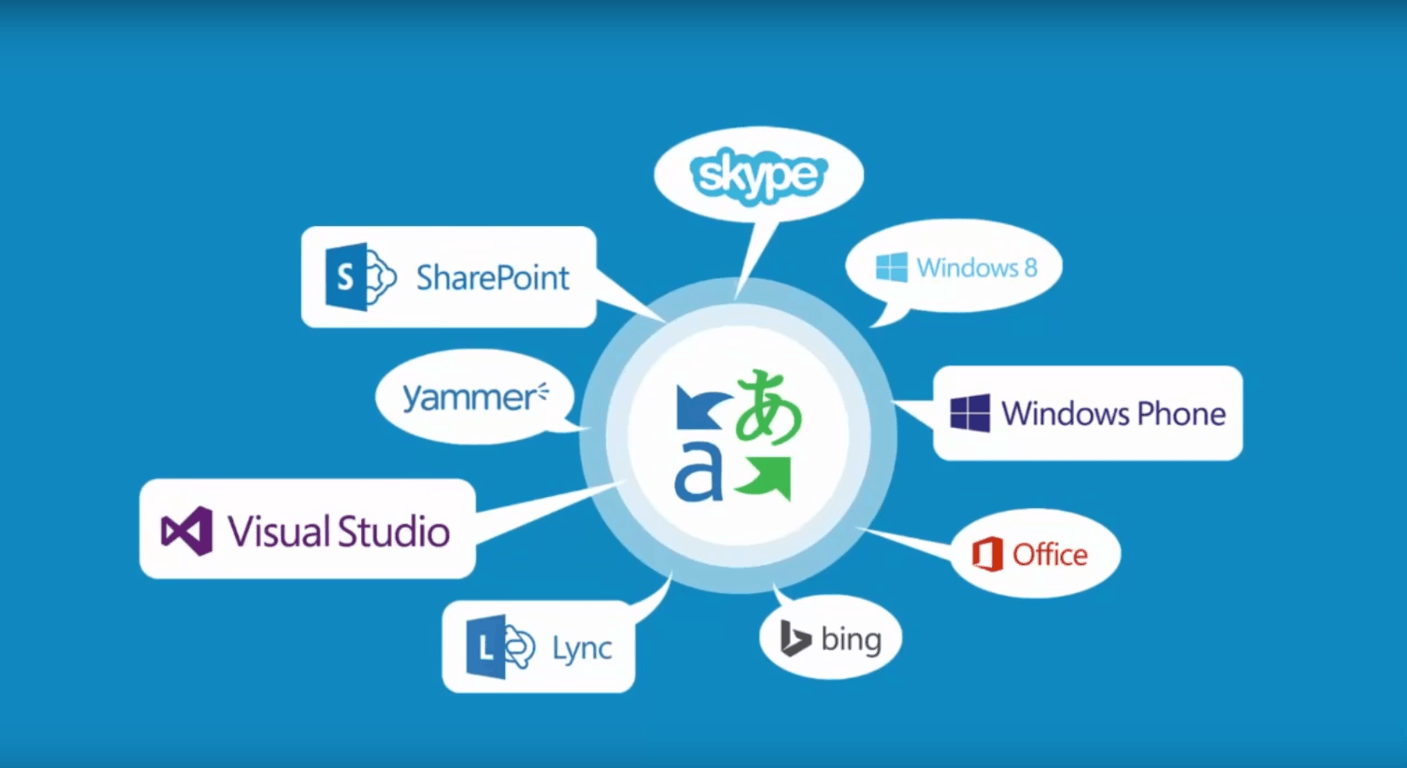
A very wide range of Microsoft Products currently support Microsoft Translator. Bing, Microsoft Office, SharePoint, Cortana, and Yammer all have support for translation. There are also a full suite of Microsoft Translation apps for PC’s including Windows, Windows Phone, Android, Android Wear, iPhone, iPad, and Apple Watch. So, in line with these products and apps, Microsoft is also noting that Cantonese will also be available as an instant messaging language in Skype for Windows desktop so that you can communicate in real time around the world.
Soon you will be able to see what it means to transcend the line between man and machine and solve puzzles only a human can solve. It’s all a part of The Turning Test, a new Xbox One Game from Bulkhead Interactive and Square Enix Collective which will be heading your way on August 30th, 2016.
After discovering the truth of Humanity’s research base on Europa, in The Turning Test you will you wrack your brain trying to solving puzzles. You will do so using your EMT (Energy Manipulation Tool) to transpose power out from one object and into another. You will also power up and take control of artificially intelligent machines, manipulate giant structures, and solve complex tasks. All of this is even woven into a multi-layered story based on the human struggle for power, which can only be experienced through the interactive medium of video games.
So, what are your thoughts on The Turning Test? Do you think you will pick this game up once it launches? Let us know your reactions by dropping us a comment below!
Earlier this month, we reported that the Windows 10 Anniversary Update would soon bring background music on the Xbox One. As the feature had been previously implemented on the Xbox 360, background music has been one of the most asked features on the next generation gaming console, to say the least.
According to a new report from Windows Central, Microsoft is currently teasing a “new app experience” on the Groove Music app on the Xbox One that will include background music playback. Twitter user Christian Schröer shared a picture of the announcement yesterday:
This new Groove Music app may well be available to members of the Xbox One Preview programs before the public roll out of the Anniversary Update in August. Over the last few days, Microsoft has been delivering several new Xbox One Preview builds to members of the program, and we also reported this morning that the UWP MSN Weather app was one of the first UWP apps to appear on the Xbox One. We’ll let you know as soon as we learn more about this new background music experience on the gaming console, in the meantime let us know in the comments if you’re can’t wait to get the feature on your Xbox One.
Over the years Microsoft released many great and useful tools, but unfortunately, the development of certain tools had to be canceled, including Windows Media Encoder.
The industry has changed and many switched to H.265 encoder software, but if you still want to use it, we’ll show you how to do that.
What is Windows Media Encoder?
Windows Media Encoder is a freeware media encoder that allows you to convert and record both live and prerecorded audio and video.
This tool encodes videos by using Windows Media Video version 7, 8, or 9.
Regarding audio, this application uses Windows Media Audio version 9.2 or version 10
It supports two-pass encoding in order to enhance the quality of on-demand content.
Another useful feature of this tool is the variable bitrate that can be used for high-motion sequences in order to ensure the highest quality.
This application supports scripted encoding with wmcmd.vbs VBScript file thus allowing users to encode a large number of media files.
Does Windows Media Encoder work on Windows 10?
This is a discontinued software, and as such, it has compatibility issues with Windows 10.
After the removal of Windows Media DRM in Windows 10, the software is no longer fully compatible as of May 2017.
How do I install and use Windows Media Encoder on Windows 10?
Find the WMEncoder file that you just downloaded and run it.
Setup welcome screen will now show. Click Next.
Read the License Agreement, select I accept the terms in the License Agreement and click Next.
Select the installation folder and click Next.
Click Install button to start the installation.
Wait for the installation to complete.
Once the install is completed, click Finish.
How can I use Windows Media Encoder?
Once the setup process is completed, you can start the application by clicking its shortcut.
Once you start the application, a New Session window will appear. From here you can choose between several predefined presets or you can create your own custom session.
If you choose to create your own session you can change a wide range of options including audio and video sources, output, compression rate, etc.
By choosing a certain preset, you’ll start a New Session Wizard. In our example we used Capture audio or video preset and the preset wizard allowed us to choose between different audio and video sources.
In addition, there’s an option to configure both audio and video source.
After selecting the source, we choose the destination directory.
After that you need to choose the method of distribution. By choosing any of these options the software will automatically use certain encoding settings.
In addition, there’s an option to change the quality and encoding settings.
Now you just need to enter relative information regarding your recording such as title, author name and description. Lastly, you just need to review your settings before you start recording.
To start recording just click the Start Encoding button.
During the recording session you’ll see all the necessary information such as remaining disk space, CPU load, etc.
Windows Media Encoder is perfect if you’re planning to broadcast content, and with a built-in screen recording feature this tool is great if you want to create a video tutorial.
In addition to Windows Media Encoder, there are two more applications available. First is Windows Media Stream Editor which allows you to add source files and mix and match audiences.
Next tool is Windows Media Profile Editor, and using this tool you can edit both audio and video profiles. After editing a certain profile, you can export it and create a completely new profile for you.
What replaced Windows Media Encoder?
Unfortunately, there’s no official replacement for Windows Media Encoder from Microsoft, and the company decided to focus on different tasks.
The MSN Weather app is one of many newly designed apps created in the Universal Windows Platform (UWP) app format that are being made available on the Xbox One. Apps have been available on the Xbox One console since it first launched but after the transition to the Windows 10-powered operating system a few months ago, the console gained the ability to run UWP apps and many developers have begun the process of converting their existing apps to the format or have started the creation of all-new apps.
UWP apps essentially allow developers to create one app that can be run on multiple devices. This concept cuts back on development costs and time as previously a company would have needed separate apps for PC, smartphone, console, and even Microsoft Band and HoloLens. The aim of this new app format is to increase the number of apps on devices that have been suffering from an app shortage such as Microsoft’s Windows phone.
While all updated Xbox One consoles currently have the ability to run UWP apps, none have launched publically yet. Microsoft is currently testing the apps with the small group of Xbox One users enrolled within the Xbox One Preview Program. This program allows for Microsoft to test future versions of operating systems, features, and apps before rolling them out to the general public. Feedback is often gathered from participants and features are changed based on the user experience. One example of this happening would be the testing of Cortana on the Xbox One. Microsoft initially replaced the origin “Xbox One” voice commands with “Hey, Cortana” but after negative feedback from Preview Program members, Microsoft allowed for both old and new voice commands to be used.
Are you looking forward to using more apps on your Xbox One? Let us know which ones you’d like to use in the comments below.
For the next 24 hours, the Windows 10 app ScreenShot Tool Pro is being given away for free in the Windows Store. The app is a desktop screenshot app but also features a variety of camera and image editing features that earn it the “Pro” in its title.
Here’s the official app description: It is the best ScreenShot Tool Pro ever! Try it once and you’ll never go back. Quick and easy ScreenShot Tool Pro has everything you need to make high-quality screenshots and indicate the important details in them. Also you can share created images to your friend, classmates or colleagues. ScreenShot Tool Pro is simple and at the same time it is a really useful! Try right now! ?
And here’s its complete list of features:
Support for Windows 10 features: Cortana, Ink tool, Windows Hello.
It has a lot of things to draw and indicate the desired places on your screenshots:
pencil to draw (you can change the color, thickness and transparency);
lines and geometric figures – square, circle (you can change the color, thickness and transparency);
text (you can change size and color).
Ability to share screenshots.
Ability to take a photo by the device’s camera and then edit it.
Edit any image on your device.
Edit photos from the gallery.
Undo / Redo operations.
Adaptive style on the edit page to the theme of user.
Do you use ScreenShot Tool Pro and would you recommend it to other Windows 10 users? Let us know in the comments below.
Minecraft is a very popular sandbox game developed by Mojang, bought by Microsoft for $2.5 billion back in 2014. Many Minecraft fans thought that Microsoft would use its power to release new versions of Minecraft only on Windows, Xbox 360 and Xbox One consoles, but soon enough, the company confirmed it wouldn’t change anything and that Mojang would keep releasing updates for this game for the all supported platforms.
One of the more popular results from this purchase has to be Minecraft: Story Mode, a game developed by Telltale Games, a developer famous for The Walking Dead: Season Two and The Wolf Among Us, among others.
The first episode of Minecraft: Story Mode is called “The Order Of The Stone” and was released back on October 13 2015 for Windows, OS X, PS3, PS4, Xbox 360 and Xbox One. Two days later, the episode was also released for Android and iOS. Below is a list of every episode and their release date.
– Episode 2: Assembly Required (October 27, 2015)
– Episode 3: The Last Place You Look (November 24, 2015)
– Episode 4: A Block and a Hard Place (December 22, 2015)
– Episode 5: Order Up! (March 29, 2016)
– Episode 6: A Portal to Mystery (June 7, 2016)
Now, Telltale has announced that the seventh episode of Minecraft: Story Mode will be named “Access Denied” and will be released for Windows, OS X, PS3, PS4, Xbox 360 and Xbox One on July 26, 2016.
Below you can see a trailer of the upcoming Minecraft: Story Mode – Access Denied episode:
Microsoft will release the Windows 10 Anniversary Update on August 2, and Skype Preview will be the new application replacing replace the existing Skype and other messaging applications introduced last year in Windows 10. The new Skype Preview is currently being tested by users who registered for the Windows Insider Program and those who own a Windows 10 Mobile device.
According to the Skype Garage Blog, “This release brings one of our most requested Skype features to your Windows 10 phone: the ability to make group video calls. You can have up to 25 friends and family come together on a free group video call, talk face-to-face with a 1:1 call, message your friends in an instant to share photos, video messages, your location and even send emoticons and Mojis to liven up your conversation. You can also quickly reply to Skype messages – no need to open Skype.”
Recently, Microsoft pulled the Messaging Everywhere feature from the Anniversary Update Preview for both Slow and Fast Ring Insiders, saying the company has bigger goals of introducing SMS messaging into the Skype app. While no specific date was set for the release of this feature, some users have expressed their indignation at the decision.
Gurdeep Pall, Corporate Vice President of Skype, explained why it’s in the user’s benefit to embrace the unified experience: They will rely on Skype app for Windows 10, which will still be linked to the People and Messaging apps. With the introduction of unified Skype client, Messaging Everywhere will be also extended to other platforms. The application itself has gone through many changes lately, now supporting 300MB file transfers, bots, and SMS relay, which will help Skype become more popular than before.
Just now, we received an email with a response from Microsoft Vice President and General Counsel David Heiner:
“Earlier today Microsoft received a notice from the French data protection authority, the Commission Nationale de l’Informatique et des Libertés or CNIL, raising concerns about certain aspects of Windows 10. The notice gives Microsoft three months to address the issues.
We built strong privacy protections into Windows 10, and we welcome feedback as we continually work to enhance those protections. We will work closely with the CNIL over the next few months to understand the agency’s concerns fully and to work toward solutions that it will find acceptable.
“The CNIL noted that the Safe Harbor framework is no longer valid for transferring data from European Union to the United States. We fully understand the importance of establishing a sound legal framework for trans-Atlantic data transfers, and that is why Microsoft has been very supportive of the efforts on both side of the Atlantic that led to last week’s adoption of the Privacy Shield.
“As the European Commission observed, Microsoft’s January 2016 Privacy Statement states that the company adheres to the principles of the Safe Harbor Framework. Microsoft has in fact continued to live up to all of its commitments under the Safe Harbor Framework, even as the European and U.S. representatives worked toward the new Privacy Shield. As we state in our privacy statement, in addition to the Safe Harbor Framework we rely on a variety of legal mechanisms as the basis for transferring data from Europe, including standard contractual clauses, a data transfer mechanism established by the European Commission and approved by European data protection authorities, to cover data flows from the European Union to the United States.
“Microsoft will release an updated privacy statement next month, and that will say Microsoft intends to adopt the Privacy Shield. We are working now toward meeting the requirements of the Privacy Shield.”
In short, Microsoft is committed to preserving the privacy and security of its customer’s data and has built Windows 10 around protecting that data, and will be working with the CNIL to address their concerns. An updated privacy statement will be coming from Microsoft in August, confirming Microsoft’s intention to adopt the European Commission’s Privacy Shield for which the company has already expressed support.
We’re happy to see Microsoft address this issue head-on, and will be following it over the next few months. Clearly, the company is concerned about how Windows 10 is perceived, and privacy and security remain important. Let us know in the comments what you think of Microsoft’s response to the CNIL, and how you think things will shake out as Windows 10 continues to grow.
It’s hard to imagine a situation more stressful than being a parent caring for a child with a potentially mortal illness. One such illness that has been the cause of great tragedy for many parents is Hypoplastic Left Heart Syndrome (HLHS), which is a severe cardiac issue that causes a child to be born with only one ventricle in their heart. Children afflicted with HLHS need to be kept under constant supervision with every aspect of their life being recorded, and even under the best care, 25% of babies don’t make it to their second surgery.
In one of Microsoft’s most recent blog posts, they tell the story of the Cardiac High Acuity Monitoring Program, also known as CHAMP. CHAMP, conceived in 2012 by pediatric cardiologist Dr. Girish Shirali, is an app that lets parents plug in pertinent figures every day in order to keep their medical team informed. If any of the numbers are outside of the norm or if the parent decides something is amiss, the team gets alerted on the spot. CHAMP runs on a Surface Pro 3 with Windows 10, using the power of the Microsoft cloud for good.
“Maybe with smarter analytics, we’ll realize there are softer thresholds that will let us treat the baby quicker and even avoid hospitalization altogether,” Shirali says. “Rather than the analysis simply telling us that saturation is low, it could instead tell us that the risk of an adverse cardiac event in the next three days just went from 2 percent to 40 percent, and tell us why.”
So far, babies that are being taken care of with the use of CHAMP have a 100% survival rate, and the parents of those children are reporting that they feel somewhat safe because of the safety net that the app has to offer. While no software could ever put the minds of these parents at ease, CHAMP’s ability to give doctors a consistent and comprehensive idea of their patient’s well-being helps to avoid much of the risk that children afflicted by HLHS tend to face – especially given that 75% of HLHS fatalities happen unexpectedly.
The team behind CHAMP is hoping to bring the app to other children’s hospitals soon, and even get it working for other diseases. It’s very possible that the time will come when CHAMP is being used widely as an early detection service for patients of all ages with any number of medical complications. For now, however, it’s evident that the use of the app has saved several lives, and will continue to do so.
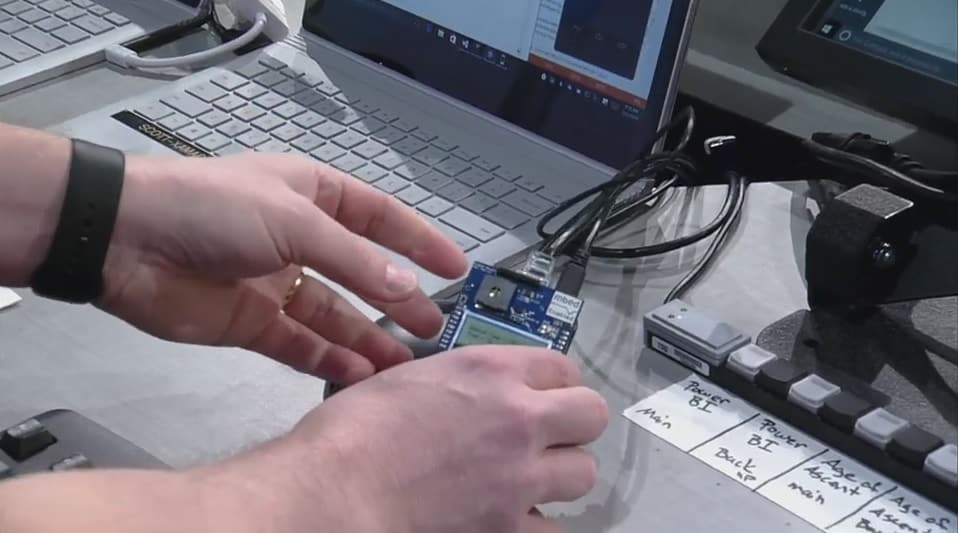
“Calling all Internet of Things researchers…” the Microsoft Research blog post starts. Released earlier today and written by the Kenji Takeda and Arjmand Samuel, the Microsoft Research team post is putting out feelers for experienced parties that are interested in bringing about the emerging reality of the Internet of Things (IoT).
IoT is expected to have a significant impact across the world in many different industries. It could very well redefine the way our cultures interact with technology on a brand new scale. The reach of IoT lumps together everyday home use such as security systems and extends as far as industry equipment and devices. The expanse of the Azure IoT Suite can scale up to millions of devices and that number is growing quickly.
With the Microsoft Azure for Research program, Microsoft is searching worldwide to recruit researchers to develop solutions, discover new applications, and explore challenges as they come up for the IoT. Free cloud computing resources are given to the program participants to support their efforts.
Some of the potential research topics are:
System design for E2E deployment of scaled IoT infrastructure
Security and privacy for IoT scenarios
Machine learning models to detect anomalies and other insights from IoT data
Data visualization to gain insights from large IoT data sets
IoT infrastructure design and deployment challenges in a variety of domains, such as industrial automation, connected cars, smart cities, healthcare, etc.
Graduate and undergraduate curriculum for teaching cyber physical systems and Internet of Things technologies
This is a wonderful opportunity to join the ‘Invisible Revolution’ by teaming up with Microsoft Azure to connect the world around us. If you have a project proposal for Microsoft Research, check out the program details page. Researchers interested in the program must be affiliated with an academic institution.
According to the application instructions, projects pertaining to the public health are of special interest to Microsoft at this time. To submit a proposal, submit the online application form on or before August 15, 2016.
Observers have simplified Microsoft’s single operating system yet multi-platform experience to three primary consumer-facing categories that include PC, Mobile, and Interactive whether it be HoloLens or Xbox.
However, Microsoft’s cohesive OS strategy involves a fourth larger prong rarely discussed and that is IoT. Perhaps due to Microsoft’s seemingly laissez-faire handling of the topic or the public’s limited interest in understanding the underpinnings of IoT infrastructure, the discussion appears to be a tempered one.
The post is a bit lengthy but very informative. Interested developers will find answers to questions such as what cryptographic protocols are best used when validating an identity, or how using Azure leads to better protection of security-sensitive information.
Other highlighted points of interest could also include a brief tutorial on device provisioning with Azure, using the inherent Windows 10 Trusted Platform Module to offer enterprise-level security to IoT devices and finally reconfiguring devices using Windows Device Portal.
Storing secure information, such as a password or a certificate, on a device could make it vulnerable to exposure. A leaked password is a surefire way to compromise the security of a device or an entire system. Human operators take pains to avoid divulging secret information and IoT devices should too, but they must do it better than humans.”
Also included in today’s blog post walkthrough are several step-by-step examples that include snippets of test code and links to Microsoft.Devices.Tpm libraries as NuGet package. Developers are encouraged to grab an SAS token to create a DeviceClient to begin testing the security aspects of Windows IoT Core.
DeviceClient.Create code
For those who read the above as a bunch of acronyms and gobbly-goop, the simple takeaway is that Microsoft is treating its IoT service similar to its Windows 10 operating system for the desktop. With the promise of Windows 10 everywhere, it’s no wonder that security (to which Windows has had an arguably checkered past with) is put front and center of the company’s focus on the devices that contain user’s most sensitive data.
According to today’s blog post by the Azure team, Microsoft’s Big Compute product team will be there to highlight its partner ecosystem that leverages Azure to shift rendering and simulation workloads to the cloud. The team will showcase Azure’s N-Series Virtual Machines, which uses NVIDIA GPUS to provide visualization and compute capabilities in the cloud.
But that’s not all:
At the Microsoft booth we’ll also be talking about other recent announcements such as the availability of Avere on Microsoft Azure and showcase Azure capabilities such as our flagship HPC as a Service offering, Azure Batch, which helps customers scale to thousands of VMs for large scale rendering projects. Additionally, we’ll talk about how Azure is MPAA compliant. Some of our customers will also be sharing their experiences, such as Jellyfish Pictures who are a BAFTA award winning VFX studio based in London, bursting into Azure for their rendering needs, scaling up to tens of thousands of cores.
If you plan to attend the conference, you may visit Microsoft’s Big Compute product team at booth 843. Moreover, the team will also hold 2 exhibitor sessions:
“Why you should be rendering in the cloud” on Tuesday, July 26 at 2:00 PM at room 304C
“Leveraging Microsoft’s Azure N-Series for Rendering Workloads and Visualization” on Wednesday July 27 at 10:30 AMat NVIDIA’s Theatre.
Let us know in the comments if you plan to attend Siggraph 2016.
Microsoft has ruffled a few feathers over the last year or so with a number of practices around Windows 10, including what some perceive as overly aggressive upgrade activities and passing too much information back to Redmond. Apparently, the French government agrees about the latter, as that country’s National Data Protection Commission (NCIL).
Following the launch of the new operating system, Windows 10, in July 2015, the CNIL was alerted by the media and political parties to the possibility that Microsoft Corporation was collecting excessive personal data. Meanwhile, a Contact group was created within the G29 (working party including national data protection agencies in Europe) to examine the issue and conduct investigations in the various member states concerned. It is within this context that the CNIL carried out seven on-line observations in April and June 2016 and questioned Microsoft Corporation on certain points of its privacy policy to check that Windows 10 complied with the French Data Protection Act.
This has revealed many failures :
Irrelevant or excessive data collected:
The CNIL found that the company was collecting diagnostic and usage data via its telemetry service, which uses such data, among other things, to identify problems and to improve products. To this purpose, Microsoft Corporation processes, for instance, Windows app and Windows Store usage data, providing information, among other things, on all the apps downloaded and installed on the system by a user and the time spent on each one. Therefore, the company is collecting excessive data, as these data are not necessary for the operation of the service.
A lack of security:
The company allows users to choose a four characters PIN to authenticate themselves for all its on-line services, notably to access to their Microsoft account, which lists purchases made in the store and the payment instruments used, but the number of attempts to enter the PIN is not limited, which means that user data is not secure or confidential.
Lack of individual consent:
An advertising ID is activated by default when Windows 10 is installed, enabling Windows apps and other parties’ apps to monitor user browsing and to offer targeted advertising without obtaining users’ consent.
Lack of information and no option to block cookies:
The company puts advertising cookies on users’ terminals without properly informing them of this in advance or enabling them to oppose this.
Data still being transferred outside EU on a “safe harbour” basis:
The company is transferring its account holders’ personal data to the United States on a “safe harbour” basis but this has not been possible since the decision issued by the Court of Justice of the European Union on 6th October 2015.
The CNIL has therefore issued a formal notice to Microsoft to comply with French law, along with a three-month deadline. According to the CNIL, the issues affect “more than ten million Windows users on French territory,” which is an interesting statistic all by itself. The formal notice brings no further action by itself, but failure to comply within the designated timeframe could bring a formal investigation and potential sanctions.
So far, we haven’t seen any reaction from Microsoft, but we’ll be looking into this to see if the company has any plans to respond. In the meantime, let us know in the comments what you think about Microsoft’s Windows 10 data collection and if the French government has legitimate reason to be concerned.
Microsoft released a new build for Windows 10 Preview and Windows 10 Mobile Insiders yesterday. Just like all newer releases, build 14393 doesn’t introduce any new features but instead fixes some issues in both versions of the system. If you follow what’s going on at Microsoft and Windows 10, you’re probably not surprised by the lack of new features with the Anniversary Update near and Redmond needing to polish it before release.
Even when it comes to bug fixes and improvements, build 14393 actually doesn’t enhance many aspects of the system like in previous builds. Additionally, the build also doesn’t have a lot of its own known issues, which indicates that the Anniversary Update is indeed near. Because all of that, a lot of people actually think this build could be the RTM release, which is completely reasonable to think.
Here’s what Microsoft fixed in Windows 10 Preview build 14393:
Improvements and fixes for PC
We have improved the reliability of Start, Cortana, and Action Center.
You should now be able to mount iPods as USB mass-storage devices.
Improvements and fixes for Mobile
We fixed an issue resulting in rapid battery drain when Visual Voicemail syncs voicemail messages on Dual SIM devices like the Lumia 950 XL.
We also fixed an issue causing some battery drain on older devices like the Lumia 535, 640, 735, 830, 930 and Icon.
We fixed the issue causing Voice Recorder to not show up consistently as an option for Call Recording. A app update was released last Friday that fixes this issue. Make sure you have the app version 10.1607.1931.0.
We fixed several issues impacting Dual SIM capabilities. Using a device with two SIMs should work as it should.”
Here are the known issues in build 14393:
Known issues for PC
We are aware of certain cases in which Surface Books and Surface Pro 4’s may bugcheck (bluescreen) due to a camera driver issue. An updated driver will roll-out via Windows Update soon that will fix this.
Known issues for Mobile
We are continuing to investigate W-Fi issues on certain devices.
Wallet users are prompted for a PIN twice when using tap to pay from a locked phone. You can enter their PIN twice and tap as usual once the phone is unlocked. A fix for this will come as a Wallet app update via the Store.
REMINDER: We have changed the backup format for Windows 10 Mobile devices to reduce the size of the backup stored in OneDrive. As a result, if you do a backup on a device running the latest Windows 10 Mobile Insider Preview builds and move back to the released version of Windows 10 Mobile (Build 10586) and restore from your backup – your Start screen layout won’t restore and remain the default Start layout. Your previous backup also gets overwritten. If you need to go back to Build 10586 temporarily, once you are on Build 10586 you should disable backup so it doesn’t overwrite the good backup from Windows 10 Mobile Insider Preview builds. We will stop noting this going forward.”
Of course, users are most likely experiencing even more issues in this build than Microsoft originally revealed. So, we’re going to write our round-up article with all the problems in Windows 10 Preview build 14393 as reported by actual users to let you know what to expect.
If you already installed build 14393 and encountered some problems that Microsoft hasn’t listed as a ‘known issue,’ feel free to let us know in the comments so we can include it in our report.
In the meantime, if you’re still running Windows 7/ Windows 8.1 and did not decline the free upgrade offer since Microsoft finally allowed users to do it following months of complaints, you may have spotted that Microsoft’s “Get Windows 10 program” may have slightly changed over the the last few days. According to a new report from Neowin, the shortcut to the GWX program in your Windows system tray now displays a yellow alert icon over the Windows logo. The upgrade prompt has been updated as well and now displays a countdown to July 29, you can see a screenshot of it below courtesy of Neowin:
The “Get Windows 10” program now features a countdown to July 29 (credit: Neowin).
While Microsoft already claims that 350 million devices are currently running Windows 10, the company may still hope that this new upgrade prompt finally pushes the last remaining Windows 10 opponents to give it a try (remember, you will still have 30 days to roll back to your previous Windows version). If you don’t upgrade before July 29, then the GWX program is expected to disappear from all eligible PCs following the end of the deadline. However, if you change your mind about Windows 10 after July 29, upgrading your PC will cost you: a Windows 10 Home license runs for $119.99 (plus tax) and Windows 10 Pro runs for $199.99 (plus tax).
If you’re still considering upgrading your PC, we invite you to read our top 9 reasons to upgrade to the new operating system. Additionally, let us remind you that if you live in the US or Canada, you can bring your old PC to an Answer Desk at a Microsoft Store and the employees will take care of the upgrade process for your for free. Even better, if your old computer could not be upgraded before the end of the day, then you will be offered a free Dell Inspiron 15 laptop.
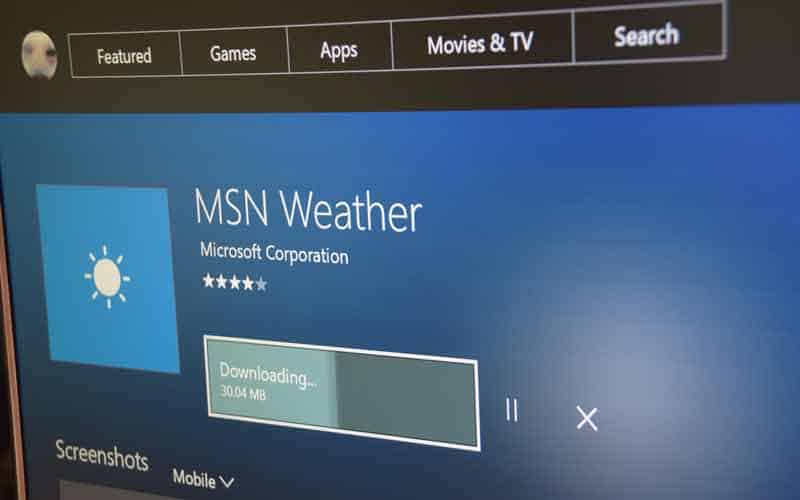
While it is already very much well known that Universal Windows 10 Apps will be heading over to the Xbox One, a very eagle-eyed Redditor has just spotted MSN weather in the Windows Store on the latest Xbox One Preview Update.
According to the Reddit user, the app apparently shows up in the “Ready to Install” list on the console, but can not be installed. Windows Central, however, managed to download and install the app, but received multiple errors when tying to launch it. Regardless, this is not the first time in which this has occurred. Back in June, Redditor p4n0pt1c0n noticed what when he installed certain apps on his Windows 10 laptop (running the latest Redstone build) he got a popup on their Xbox One saying the app was ready.
This is still doubt a very interesting find ahead of the August 2nd launch of the Windows 10 Anniversary Update. We would love to know your thoughts on this, so be sure to drop us a comment below!
The PC version of DOOM is receiving support for the graphics API known as Vulkan. If you’re using an older graphic card, support for this API should give the game a boost, ultimately making the experience better for the player. This is great news for gamers, but not so much for Microsoft seeing as a major developer, id Software, is putting more effort behind Vulkan instead of DirectX 12.
Not only should the Vulkan update give players an improved experience, but DOOM itself should be smoother with better frames per second among other things.
Here’s what id Software and Bethesda have to say about this major shift via a blog:
“When we were looking to adopt Vulkan for DOOM, the main question we asked ourselves was: “What’s the gamer benefit?” Ultimately the biggest benefit will be high framerates. There are a number of game-focused reasons super-high framerates matter, but primarily its movement and player feel. The game just feels amazing running that fast, so we made it a priority to try to really exploit the available hardware on PC.”
DOOM is one of the many games that do not take full advantage of DirectX 12, but instead push forward with Vulkan as its main graphics API. Microsoft will have to contend with this reality in the months and years to come as the Khronos Group, the folks behind Vulkan, will want to convert most game developers to the platform.
It should be noted that Vulkan supports Windows, OS X, Android, and many Linux-based operating systems. Even folks running Windows XP can expect to play games with Vulkan support. DirectX 12 on the other hand, is designed to support Windows 10 and Windows 10 Mobile. We do expect Microsoft to support other platforms in the future due to company’s mindset when it comes to its multiplatform strategy.
Still, the software giant can rest easy seeing as DirectX 12 is being adopted faster than any other version, so that’s a good sign. Furthermore, the Oculus Rift SDK has been updated with DirectX 12 support, so expect some great looking VR games in the future.
The reason for the increase is the seemingly unexpected performance of Microsoft’s transition from being packaged software and arguably failed hardware manufacturer to lean and focused cloud company which also happens to steadily deliver a device in high commercial demand.
The nuts and bolts of Microsoft’s earnings report amount to a company-wide revenue increase of $22.6 billion, which tops last year’s delivery of $22.18 billion and bests market expectations of the marginal increase of $22.14 billion. As it pertains to more finite financials, investors saw an increase or earnings per share to the tune of $0.69 after adjustments, again beating expectations of a decline from last years $0.60.
While the overall picture for Microsoft’s continued ascension to the cloud appears rather buoyant at the moment, investors are eying the company’s pace during the move. There have been rumors that Microsoft board members are seeking a quicker push into the cloud to compete with the likes of Amazon, IBM and Google.
For now, Microsoft appears content to highlight its growing revenues in several foundational businesses its cloud growth will require in the coming months and years.
Microsoft’s quarterly business highlights include:
Productivity and Business Processes
Office commercial products and cloud services revenue grew 5% (up 9% CC) driven by Office 365 commercial revenue growth of 54% (up 59% CC)
Office consumer products and cloud services revenue grew 19% (up 18% CC) with Office 365 consumer subscribers increasing to 23.1 million
Dynamics products and cloud services revenue grew 6% *up 7% CC) with Dynamics CRM Online paid seats growing more than 2.5x year-over-year.
Qi Lu executive VP of Office 365
Intelligent Cloud
Server products and cloud services revenue increased 5% (up 8% CC) driven by double-digit annuity revenue growth
Azure revenue grew by 102% (up 108% CC) with Azure compute usage more than doubling year-over-year
Enterprise Mobility customers nearly doubled year-over-year to over 33,000 and the install base grew nearly 2.5x year-over-year
Azure ISV meet up
More personal computing
Windows OEM non-Pro revenue grew 27% (up 27% CC), outpacing the consumer PC market and Windows OEM Pro revenue grew 2% (up 2% CC)
Surface revenue increased 9% (up 9% CC) driven by Surface Pro 4 and Surface Book
Phone revenue declined 71% (down 70% CC)
Xbox Live monthly active users grew 33% year-over-year to 49 million
Search advertising revenue excluding traffic acquisition cost grew 16% (up 17% CC) with continued benefit from Windows 10 usage.
E3 2016 Xbox One S announcement
There we have it, all the good and a little bit of the bad from Microsoft’s FY16 Q4 earnings report. The overall consensus appears to be that, while many journalists continue to harp on the company’s missteps in mobile, its transition to becoming a cloud staple is fully underway. Led by Office 365 becoming a platform unto itself and continually adding to the amount of contracts under Azure, Microsoft is quickly leaving behind its legacy dependency on Windows and side stepping mobile hardware competition to b-line it straight to the next embattled computing landscape.
Microsoft has officially acknowledged that turning off Bluetooth radio in its Windows 10 Mobile build 14393, crashes or resets your Windows phone. The tech company has promised that its working on developing a fix for this annoying issue.
Microsoft also explained why this happens. If the phone’s UI freezes, this is because the UI is waiting for the radio to be turned off in the background. If your phone freezes, leave it for a minute, and it should recover. If this doesn’t happen, you’ll need to reset your phone.
Thanks to your feedback we’ve found an issues that when Bluetooth is turned off, the phone crashes, freezes, or resets. There are two ways to hit this.
Turning Bluetooth off through the toggle in the Settings App
Turning Bluetooth off via Quick Action toggle
We apologize for any inconvenience this may cause and are actively working on a fix and servicing it as soon as possible. If you have hit this, please file feedback through the Feedback Hub.
Although this is not a critical issue, as it can be solved by resetting the phone, users appreciate Microsoft’s effort to fix this bug as it can become very annoying sometimes.
Insiders have also reported two other issues which could be related to the current Bluetooth bug. More specifically, Bluetooth also crashes when using Maps guided direction in the car. Secondly, when there are multiple devices connected via Bluetooth, Cortana’s ability to clearly listen is affected.
On the other hand, Insiders report that when they switch off the Bluetooth music device, Cortana hears clearly and responds immediately.
The current Windows 10 Mobile build has three known issues on the list: the Wi-Fi issues on certain devices, the double PIN issue on the Wallet app and the phone freezes caused by turning off the Bluetooth. Hopefully, all these issues will get fixed before the Anniversary Update is released, and no new bugs will emerge.
Some OneDrive users have are receiving emails stating as much. While those who have more than 5GB of data stored on OneDrive will still be able to access their files, they won’t be able to upload anything new. Also, this will only last until April 2017. At that time, Microsoft will delete all extra data until every account is under the free limit.
As Microsoft stated, these limitations are the result users who abuse the system by storing enormous amounts of data on the cloud. So, in order to prevent further system abuses, Microsoft decided to set a limit for all users of the free tier.
There are still options to increase the amount of storage, but you’ll need to pay for them. Microsoft currently offers 50GB of additional storage for $1.99 a month, and a package with OneDrive and Office 365 with an additional 1TB for $6.99 (personal use) or $9.99 (for five users).
In addition, the 15GB of free storage dedicated to the Camera Roll will be completely erased, so stay aware.
With all this in mind, OneDrive users only have three options. They can reduce the amount of data uploaded to under 5GB, purchase additional storage, or simply switch to another cloud storage service.
Tell us in the comments below: What do you think about these limitations? Is 5GB of free storage enough for you?
RELATED STORIES YOU NEED TO CHECK OUT:
Windows 10 Anniversary Update further updates the Start Menu
In case you’re looking for a good yet simple text-to-speech app, the Talkinator is now available in the Windows Store. This app will definitely come in handy for anyone who wants their computer to read to them and itis so simple that basically anyone can use it.
The developer of the app, Ikargo, stated the following:
“Talkinator is a simple Text-to-Speech-app that was made in a lost afternoon. While simplistic by design, the app can still be quite useful for those who want to have some lines of text spoken by an computer.”
All you need to do is to write a few words in its text box and Talkinator will read it for you. Of course, due to its simplicity, the app doesn’t offer a lot of options as you can’t change the voice of a narrator, for example.
Talkinator is a UWP app, which means it works perfectly on both Windows 10 and Windows 10 Mobile. There’s no mention of any cross-platform features just yet.
If you want to download Talkinator to your Windows 10 or Windows 10 Mobile device, you can do so for free from the Windows Store.
Don’t forget to let us know whether or not you enjoyed the app in the comments below!
RELATED STORIES YOU NEED TO CHECK OUT:
Windows 10 Anniversary Update further updates the Start Menu
Microsoft is obviously well aware of the power of its brand, and the company’s top marketers are working hard to help the brand stay relevant in both the consumer and business spaces. Kathleen Hall, Microsoft Corporate Vice President, Gloval Advertising and Media gave an interview to Marketing Week to explain how the company improved its brand image since Satya Nadella became its new CEO two years ago. She explained:
Satya is all about the growth mindset. The old Microsoft was about being right, the new is about learning and admitting sometimes we don’t know everything and listening to diverse perspectives as opposed to being the smartest person in the room and dictatorial.
You can probably appreciate this new mindset in several ways: first, the company has been making real efforts to promote workforce diversity in the tech industry. Last year, the company ran a “Girls do science” campaign to encourage more young girl students to pursue careers in science or tech, with Hall adding that “we have a lot of really committed women in Microsoft who want to see it change, as well as our management.”
Microsoft’s engineering team is also doing something unprecedented with the Windows Insider program, which is one of the biggest crowdsourcing efforts worldwide. So far, the data and feedback gathered from Windows Insiders allowed the company to iterate faster, as the company will have shipped three major Windows 10 releases over a year on August 2 (Threshold 1, 2 and Redstone 1).
But Microsoft’s marketing team is also interested in data to improve its advertising efforts. According to Hall, the Redmond giant sets up a “war room” every couple of weeks where she shows everyone in the company how customers respond to the company’s ads:
We have a huge team of engineers so we have to be data literate or they go into subjective land telling me how their wife didn’t like an ad and that is why we should pull it. And so we have forecasts for recall and brand metrics and we’ll show how the ad is performing and how its performing versus Apple and Samsung. We have that ammunition. It’s not like we are on the defensive all the time but it means we don’t become subjective.
Hall also explained that data analysis from the marketing team is the reason why the company has been trying to appear more human through its Windows 10 upgrade campaign: you may recall the series of #upgradeyourworld videos featuring young people all over the world using Windows 10 devices as a “more human way to do stuff.”
The marketing exec added:
The idea of humanizing Windows 10 really resonated with people. We look at recall, the message landing, branding metrics and all that was the best we could have hoped for. And the upgrade data is all where we want it to be.
In the end, Hall thinks that “Satya brought a new era of Microsoft and you feel it.” The company has definitely changes how it operates, and its brand image is definitely better than ever. Even Facebook, which recently moved to Office 365, recently acknowledged that Microsoft got cool again. Now, we’ll see later today if this improved brand image leads to positive quarterly financial results.
Response time: 14ms typical (gray to gray) w/o OD, 8ms typical (gray to gray) w/OD
Viewing angle: 178° vertical / 178° horizontal
Color support: Up to 16.7 million colors supported (true 8-bit panel)
Pixel pitch: 0.232 x 0.232mm
Pixels per inch (PPI): 110
Backlight technology: LED
Brightness: 350 nits (typical)
Signal input connectors:
2 HDMI ports. One HDMI is also an MHL input
DisplayPort
HDCP
Audio via USB, DisplayPort, or HDMI
2 Integrated USB 3.0 hub with downstream ports with BC 1.2 battery charging capability
1 upstream port to the PC
Input signal: DisplayPort 1.2, HDMI 2.0/1.4, MHL/HDMI; HDCP supported on all digital inputs
USB
Dimensions (W x D x H): Unpacked with stand: 33.9 x 7.04 x 20.5 inches
Tilt: -5 to +23 degrees; Detachable
Eco Solutions: LED backlight, TCO, ENERGY STAR, EPEAT Silver and low halogen
So, there you have it, a few excellent HP monitors to go with your new Xbox One S or Windows 10 PC. If any of them strike your fancy, then get your credit card out and get buying. Let us know in the comments if you plan on picking up any of them.
Windows 10 is one of the most successful iterations released by Microsoft, but problems with it are not uncommon. Also, some reported issues with their PC after installing Windows 10. But when they try to go back to the previous version, the option is missing in Windows 10.
The problem affects the ability to roll back Windows, but things are easy to fix. Let’s find out!
Why is my Windows rollback option not available?
If you upgraded to Windows 10, there’s a feature to revert back to the previous version of Windows. We should mention that option to revert back is available only for a month or 28 days.
So, if you don’t revert back to the previous version of Windows within that time period, you’ll have to continue using Windows 10.
It’s also worth mentioning that the old version of Windows is stored on your hard drive in the $Windows.~BT and$Windows.~WS folders. if you delete these folders, you won’t be able to go back to the previous version of Windows.
You should know that these folders can be deleted by third-party applications such as various cleaners and optimizers. In fact, you can even delete these folders if you perform a Disk Cleanup.
How can I roll back Windows 10 to the previous version?
Now, click on See more recovery options near the bottom.
Click on System image recovery.
Select a system image, if one exists, and follow the on-screen instructions to complete the process.
If you’re unfamiliar with hard drive images, you probably don’t have a backup image on your hard drive. Basically, a backup image is a backup of your hard drive that allows you to revert to it and fix any potential problems that occurred after creating the image.
It should also help when you find that the Go back option is no longer available on this PC or is greyed out in Windows 10.
Although hard drive images are extremely useful, if you have already upgraded to Windows 10, but you didn’t create a hard drive image prior to it, you won’t be able to use this feature to revert to the previous version of Windows.
2. Restore to factory settings
Certain computers come with media that allows you to restore them to their original factory settings and previous operating systems. Though, you could employ the built-in factory reset option when the option to go back to the previous version of Windows 10 is missing.
This solution isn’t available for all computers, and if you decide to use this solution bear in mind that this process will delete all files from your computer, therefore, be sure to create a backup.
Sometimes the simplest solution is to reinstall the version of Windows that you were previously using.
This isn’t always the best solution because it will delete all the files from your C drive. So, if you decide to reinstall Windows, we strongly suggest that you back up your important data if you don’t want to delete them permanently.
If the option to roll back or go back to the previous version is missing in Windows 10, it’s usually because the available period has passed or because you accidentally deleted the folders with the files for the older version of Windows. And one of these solutions should help!
The Internet is a great source of information, but at the same time it can be quite harmful, and this is why many users want to install Microsoft Family Safety on their PC.
This is a great service, and in today’s guide, we’re going to show you how to properly set it up and use it.
What is Microsoft Family Safety?
This is a parental control service available in Windows.
It allows you to limit app and game time.
Using it you can set screen time limits.
It allows you to block harmful apps, games, and online content.
Ir provides location sharing for family members.
How do I enable Family Safety on Windows 10?
How do I add a device to Microsoft Family Safety?
Open the Settings app.
Go to Accounts > Family & other users. Click Add a family member.
Select Add a child option and enter that user’s email address. To use Family Safety on Windows 10, both you and your family members have to have Microsoft accounts. Once you enter the email address, click the Next button.
Click the Confirm button.
In order to enable Family Safety, the new user needs to accept your request for it. To do that, that user needs to check their email and accept your invitation by opening the invitation email and clicking Accept Invitation.
The new browser tab will now open and explain to you what Family Safety does for you. Click Sign in and join.
After doing that you’ll get a notification that a new person joined your family.
Change family member settings
Open the Settings app and go to Family & other users.
Click Manage family settings online.
New browser window will now open and you’ll be able to change various settings related to family accounts.
The first option is Recent Activity, and by using this option you can view the browsing activity for a child account.
In fact, you can even get weekly emails with detailed reports regarding your child’s internet activity.
Bear in mind that this feature only works in Microsoft Edge or Internet Explorer, since third-party web browsers aren’t supported.
The next feature is Web browsing and you can use this feature to block inappropriate content from search results.
In addition, you can also block specific websites, or you can allow only certain websites to be accessed.
Apps, games & media feature will block mature movies and games so that your child cannot download them from Windows Store.
If you want, you can even set age restrictions for content that your child can download from Windows Store.
Next option is Screen Time and using this option you can set limits for computer usage. For example, you can set specific time frames for days of the week, and you even set limits for daily computer usage.
Purchase & spending option allows you to add a certain amount of money to a child’s account thus allowing him to buy products from Windows and Xbox Store.
In fact, you can even see all purchases in the last 90 days, so you can always keep track of your child’s spending.
If you want to keep an even closer eye, there’s an option that will notify you every time your child gets an app or a game.
You can also allow your child to get only free apps and games, or block downloading applications and games completely.
The last option is Find your child, and using this option you can easily see your child’s whereabouts on a map.
To use this feature, your child needs to have a Windows 10 Mobile device and it should be signed on to it with his Microsoft account.
What devices are supported by Microsoft Family Safety?
The following devices have the Microsoft Family Safety app available:
Windows
Xbox
Android
iOS
Keep in mind that not all features are available on all platforms. For example, you can set app and game time limits on Windows, Xbox, and Android, but device screen time limits are available only for Windows and Xbox.
As for content filtering, it only works on Microsoft Edge, regardless of the platform.
Is Windows Family Safety free?
Yes, this feature is completely free since it’s a core component of Windows.
Using it, you can monitor up to 6 devices in your household, which should be more than enough for most users.
As you can see, it’s easy to install Microsoft Family Safety since it’s already available on your computer, but other platforms might need a dedicated app.
In case you don’t want to use this feature anymore, we have a great guide on how to disable Family Safety, so be sure to check it out.
Have you ever used this feature? If so, let us know in the comments below.
Computer problems can occur once in a while, and if you’re in a similar situation, it’s recommended that you use appropriate software in order to diagnose and fix them. Many users tend to install and use Sysinternals.
But it’s usually considered to be a tool for experts. That’s not the case, though. Anyone with a decent understanding of Sysinternals can install, access, and use the tool to eliminate problems quickly and effectively. Keep reading to find out!
What is Windows Sysinternals suite?
Windows Sysinternals is a part of Microsoft’s TechNet website that offers all sorts of utilities for fixing Windows problems. Sysinternals tools were created in 1996 by a company called Winternals.
In 2006 Microsoft acquired Winternals, and Sysinternals tools became a part of Microsoft’s TechNet.
Sysinternals Suite is a collection of applications that you can download and install for free right from the Sysinternals’ website. Bear in mind that you can download the entire archive, or you can get each of the applications individually.
In fact, you don’t even have to download any of these tools since you can access them from any computer remotely.
How do I get to Sysinternals?
Press Windows + R to open Run, type the following command, and hit Enter:\\live.sysinternals.com\
Go to the Tools folder, and you should see all Sysinternals applications available.
You can use all of these applications remotely, but for your convenience, we suggest that you download them and run them locally.
What are the tools in the Sysinternals suite?
AccessChk
This is a console program, and you can use this tool to see what kind of access to files, directories, registry keys, and Windows services users have.
AccessEnum
It is a tool that allows you to quickly see security permissions that users have regarding certain folders or registry keys.
Performing this process manually requires that you check each folder’s permissions, and that can be quite a long process, especially if you need to check the permissions of several different folders.
With AccessEnum, you just need to select a certain folder, and you’ll see all the permission rights. In addition, you’ll also see permission rights for all its subfolders.
AdExplorer
It is an advanced Active Directory editor and viewer. Using this Sysinterals tool, you can easily navigate through the AD database, define favorite locations, and view object properties and attributes.
In addition, you can create snapshots of an AD database to view or compare them offline.
AdInsight
It is a real-time monitoring tool designed for troubleshooting Active Directory client applications.
Using this tool, you can monitor Active Directory client-server communication and solve authentication and all sorts of other problems.
AdRestore
It is a command line tool that shows you the deleted objects in a domain, and allows you to restore each of those objects easily.
Autologon
It is a small tool that allows you to configure and use the built-in autologon system. If you don’t want to enter your username and password every time, you can just use Autologon. This tool will store and encrypt your data in the registry and use it when required.
Using this tool, you can easily enable or disable automatic logon, or temporarily prevent it by holding the Shift key before the system performs it.
Autoruns
It is a tool that shows you all the applications and services that are starting with your PC. This tool allows you to sort startup applications by different categories, but it also allows you to disable applications or services from starting up.
Autoruns shows the location of a startup application or a driver. Therefore, if a certain startup application is causing problems, you can easily delete it or disable it using Autoruns.
Autoruns is one of the most useful Sysinternals tools for managing startup items, and you can learn how to use it in detail by reading the Autoruns Sysinternals guide which helps you diagnose slow boots and unwanted background apps more efficiently.
BgInfo
This tool is designed to show important information regarding your PC on your desktop. You can customize the look of your data by changing its style, font, or color, and you can also add all sorts of fields to show relevant information.
In addition to adding certain fields, you can even create your custom fields as well.
After you set which fields you want to use, just click the Apply button, and relevant information will be displayed on your desktop.
Bear in mind that this tool doesn’t run in the background, instead, it creates a new background image with the necessary information and uses it instead of your desktop image.
Cacheset
It is a small tool that allows you to change the size of your cache. This tool allows you to set new minimum and maximum sizes for your cache and reset them to default values with just a single click.
Contig
It is a command-line utility that allows you to defragment specified files. Once you install sysinternals in Windows, this tool will be the perfect choice to speed up the execution time of the frequently used files.
Coreinfo
It is another command-line utility that shows you information regarding the processor. For example, this tool will show you the mapping between logical processors and physical processors as well as the model of the socket that your processor uses.
Debugview
It allows you to monitor debug output on your local computer or any computer you can access via TCP/IP.
Desktops
It is a simple and lightweight application that adds up to four virtual desktops on your PC. You can easily switch between desktops using the shortcut key or by clicking the Taskbar icon.
Disk2vhd
It is a tool designed to create virtual hard drives from your physical hard drive. Unlike other similar tools, this one allows you to create virtual drives on a system that’s online.
You can even save virtual hard drives on your local PC, even on the drives that you’re currently converting.
Disk Monitor
It is an application showing all hard disk activity on a Windows system. This tool will show you what hard drive is currently active as well as which sector is being used.
DiskView
It is a tool designed to show clusters on your hard drive. You’ll get a visual representation of the clusters, but you can also double-click a certain cluster in order to see which files occupy it.
ListDLLs
It is a command line utility that shows all DDLs that are loaded into processes. After installing sysinternals, you can use this utility to show all DLLs for every process or configure it to show DLLs only for specific processes.
LoadOrder
This small application will show you when the driver is loaded, the name of the service or the device that uses this driver, and the location of this driver.
Portmon
It is a utility that monitors and displays all the activity related to a serial and parallel port on your system. If you don’t use these two ports, you probably won’t have much use for this application.
ProcDump
It is a command line utility that is designed for monitoring certain applications for CPU spikes. Every time a CPU spike occurs, this application will generate a crash dump, and users should be able to use the information from the crash dump to fix the problem.
Process Explorer
It is one of the most beneficial tools users get access to after installing sysinternals This application allows you to see which program has a specific file or directory open.
In fact, this application can show you all sorts of information regarding the currently running applications. Process Explorer also works as Task Manager, so you can use it to change the priority of certain applications or close them.
Process Monitor
This little tool allows you to see real-time file system, registry, and process activity. This application provides extensive information, and it’s great for finding and removing malware.
RAMMap
This little application will show you all the necessary information regarding your RAM. Just like in Task Manager, you can see which processes use the most RAM, but you can also see RAM consumption based on process priority.
In addition, you can see how much RAM certain files use, and verify what physical address a certain process occupies.
ShareEnum
It is a simple tool that allows you to see all shared folders easily. If you’re sharing files over your local network with other members, we highly suggest you use this tool to easily see all the shared folders.
TCPView
It is an application that shows you detailed information regarding all TCP and UDP endpoints on your computer. After you install sysinternals, use the tool to see local and remote addresses and the state of TCP connections.
VMMap
It is a process and memory analysis tool. The application allows you to see committed virtual memory as well as the amount of physical memory that is used by a single process.
ZoomIt
It is a screen zooming application that allows you to zoom in with a single hotkey quickly. In addition, this application allows you to draw on zoomed images, which makes it perfect for presentations.
These are just a few of the applications you get access to after installing the Sysinternals Suite. To deepen your Windows monitoring toolkit, check our Sysinternals Sysmon guide and learn how to log detailed system events for faster threat detection.
While some of these applications are simple to use, we advise that you visit the Sysinternals website and read the instruction manual if you wish to better understand how certain applications work.
Sysinternals Suite offers some amazing applications for free, and we’re happy to inform you that most of its applications work without any problems on Windows 10. And with a proper understanding of each, you can employ the tools to fix a wide array of complex issues.
Before you leave, find out the best PC repair tools and use these to automatically eliminate critical errors.
For any queries or to share how you use the Sysinternals suite, drop a comment below.
The slow motion capture feature for the Windows camera app has been available for Windows Insiders since November of last year but has never been a fully functional stand-alone app since users had to set their video to slow motion before filming. The disadvantage of this was that any videos filmed with that setting enabled also meant that sound was unavailable for the duration of the clip.
Fortunately, the latest Windows 10 build introduces an improvement to the slow motion capture feature. Insiders can now use this mode using whatever setting is convenient, with the ability to add slow motion effects later in the editing stage using the Photos app. The update is available for both PC and Mobile and should become available for all Windows users next month when the Anniversary Update is rolled out.
The Windows 10 Photos app recently received another useful update as the app can now handle mouse actions better. However, despite Microsoft’s efforts to upgrade its photo editing app, users don’t seem to be too happy with Microsoft’s ideas. Many users criticized Microsoft for not adding useful features for viewing, editing and organizing photos, accusing the tech giant of ignoring the main purpose of the app. Other users suggested that Microsoft should give them the option to browse the photos by folders or by tags. They also added that Microsoft should upgrade the Photos app so as to allow them to view the next image in the directory.
Their comments reflected disappointment as many features were long been requested by users, but it appears their suggestions have fallen on deaf ears. However, users shouldn’t lose hope as Microsoft still has enough time to upgrade the app before the Anniversary Update.
You might notice OneDrive hiding in your update queue today with a sneaky bugfix update. The recent update is rolling out across all Windows devices with some minor performance improvements. Some of our users have noticed the application loading just a little quicker through Windows 10 Mobile. Unfortunately, the version notes haven’t been updated on the Windows Store yet to let us know what else Microsoft is sneaking in today.
It’s not a surprise though. Microsoft continues to foster their “cloud first, mobile first” creed as they continue to pump out more and more updates for the storage service. The company prides OneDrive as one of the major cloud storage providers available, excelling in a secure and effective service. It wasn’t that long ago that they slipped in the Data Loss Prevention Tips into the mobile app.
Have you found anything else new in the update? Let us know in the comments below.
Huawei’s MateBook is the company’s newest 2-in-1 tablet that bears striking similarities to the Microsoft Surface Pro 4. The device runs Windows 10 and can be purchased right now from the Microsoft Store, Amazon, and Newegg.
Back in June, Huawei began taking pre-orders for the tablet via the Microsoft Store, but there’s no need to do that anymore seeing as it is fully available now. For those unaware, the MateBook comes packed with a full HD 12-inch touchscreen display.
Consumers can choose between four versions of the MateBook, ranging from 4GB of RAM to 8GB. Internal storage goes up to 512GB SSD, which is not too bad seeing as there are USB ports to add regular hard drives. The MateBook can run up to nine hours on a single charge.
The MateBook begins at $699 and ends at $1199. The following is a rundown of its four versions and their prices:
Core m3, 4GB of RAM, 128GB SSD – $699
Core m5, 4GB of RAM, 128GB SSD – $849
Core m5, 8GB of RAM, 256GB SSD – $999
Core m5, 8GB of RAM, 512GB SSD – $1199
The MateBook Portfolio Keyboard, seen in the picture above, can be purchased via retailers for $129.
We like what Huawei has done with the MateBook, but we’d prefer to have a device with a much better processor than the Core M. If Microsoft can do it with the Surface Pro 4, then we see no reason why Huawei is unable to do the same.
Huawei first unveiled the MateBook 2-in-1 tablet at MWC 2016 to a warm reception. Time will tell if the Core M decision will turn out to be a good one.