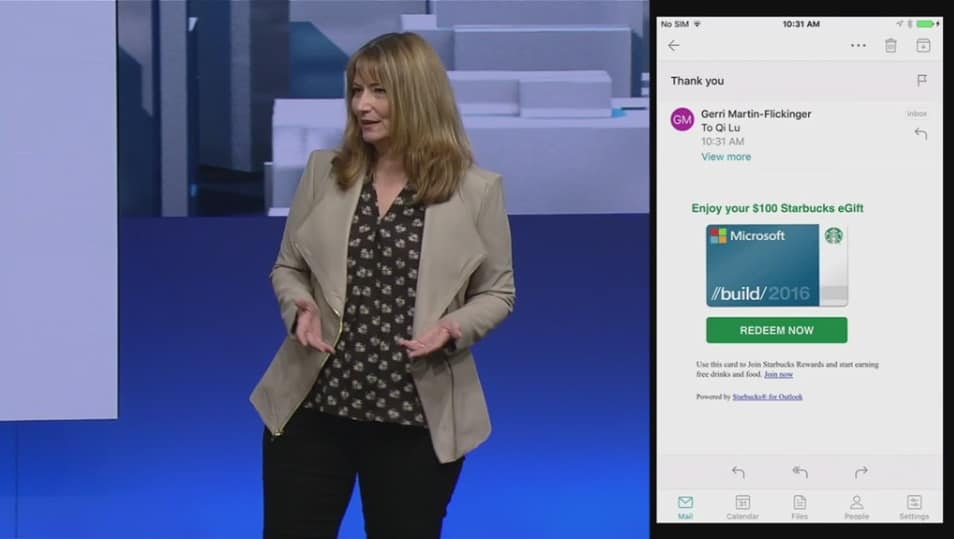
During Build 2016, Microsoft demoed an interesting Starbucks add-in for its Outlook email app that could be used to co-ordinate meetings around local Starbuck locations or sending Starbucks eGift cards to express thanks right from the app. In a blog post on the Office blog, the Outlook team has announced today that this Starbucks for Outlook add-in is finally available in Outlook on select platforms.
Outlook now makes it easier for you to have that personal connection by enabling you to meet your customers, business partners or study group at your favorite Starbucks location, all with a few clicks from your Outlook inbox. Simply click the “Meet at Starbucks” command from the ribbon when creating a new meeting request, search for your favorite Starbucks store, and add it as the location of your upcoming meeting.
The Starbucks for Outlook add-in is free to install and use, and you can get it right now from the Office Store if you’re using the new Outlook.com as well as Outlook 2013, Outlook 2016 and Outlook on the web with Office 365 or Exchange 2013 or Exchange 2016 mailboxes. Microsoft adds that it’s working to make the add-in available in Outlook for Mac and mobile “in the coming months.”
Good to know, you don’t need a Starbucks account to use the “Meet at Starbucks” feature though you do need one to purchase and send a Starbucks eGift Card. However, for a limited time. Microsoft will send you a free $5 eGift card when you send a Starbucks eGift Card using Outlook, which is a pretty good incentive to try the add-in.
To get started, you can simply download the add-in from this link if you’re using Office 365 or the new Outlook.com. However, if you are using Exchange 2016 or Exchange 2013 on-premise, Microsoft is inviting you to follow the steps below:
In Outlook 2013 or Outlook 2016, click Store from the Home tab on the ribbon. In Outlook on the web click the gear icon (top right) and select Manage Add-ins.
Type in “Starbucks” in the search bar on the top right.
The search will return the “Starbucks for Outlook” add-in, then set the toggle to “on” to install the add-in.
The add-in will appear in the command bar ribbon on the top.
Note: Some users in Outlook 2013 may not see the new in-client store UI above. For these users, follow the steps below:
Click Store from the Home tab on the ribbon-> click Manage Add-ins.
In the Manage Add-ins page, click the + sign and then select the “Starbucks for Outlook” add-in from the Office Store.
Click the “Add” button to begin installation.
Do you think this Starbucks for Outlook add-in is a welcome addition to the Outlook app? Let us know what you think in the comments below.
Xbox One gamers have the opportunity to test out Halo Wars 2 open beta for a whole week until June 20. We reported that the game would be playable during the E3 event, but we never thought the developer would be so generous so as to offer Windows 10 gameplay images as well.
This multiplayer game can support up to six players on the Xbox One console. The developer promises that Halo Wars 2 will offer an all-new Halo story for the Xbox One and Windows 10, and will also bring back interesting memories for those who played the original game.
Halo Wars 2 allows players to take the role of the Master Chief, humanity’s best defense against the evil Covenant forces, but they can also assume the identity of the Covenant Elite known as the Arbiter. Players can now use previously undiscovered Covenant armaments and pilot new vehicles as they fight against an all-new alien army in new environments.
The game’s developer, 343 Industries, says the decision to bring Halo Wars 2 to PC was the best decision they’ve ever made, adding that it was fueled by gamer demand.
To tease PC gamers, the developer revealed gameplay footage from the first mission of the game running on Windows 10. The images sports impressive graphics and fluid gameplay.
Halo Wars 2 on Windows 10 traces fire very well, so you can clearly see who’s shooting at you and what you’re shooting at. The images also show impressive scenes when things are blown up: explosions are spectacular and overall, visual effects will definitely hook you.
The developer team heavily focused on making the game look beautiful, offering gamers as much control as possible over the game action. Players should expect to see classic RTS modes on Windows 10 as well as brand new styles that 343 Industries will reveal as the official game release draws near. Some of these new modes are created especially for RTS newbies, so don’t be afraid to dive into Halo Wars 2 if you’ve never played a real-time strategy game before.
Halo Wars 2 will be released for Xbox One and Windows 10 PC on February 21, 2017.
A few days after releasing the official announcement trailer for its upcoming fighting game, Injustice 2, Warner Bros Interactive released the first gameplay trailer of the game. In it, characters and fighting techniques are all put in the spotlight.
The trailer shows of well-known characters like Superman, Batman, Aquaman and Supergirl in action, as well as some new faces, like the Red Lantern Atrocitus. It also shows some abilities of the main characters, like a shark summoned by Aquaman or Supergirl’s durability. Of course, it wouldn’t be a real deal without a new legendary fight between Batman and Superman.
You can watch the full Injustice 2 gameplay trailer here:
Injustice 2 will be released some time in 2017, but its exact release date is still unknown. NetherRealms Studio will be present at this year’s E3 conference in Los Angeles where it’s expected to reveal more details about the game alongside some more gameplay videos.
The game will be released on the Xbox One, PlayStation 4 and hopefully to Windows PCs, but there’s still no confirmation about that. We remind you the previous Injustice game arrived for Windows PCs about a year after its debut on consoles, so we expect Injustice 2 to actually come to PCs sooner or later.
What do you expect from the new Injustice game? Will it be a worthy successor to the previous title? Tell us your opinion in the comments below!
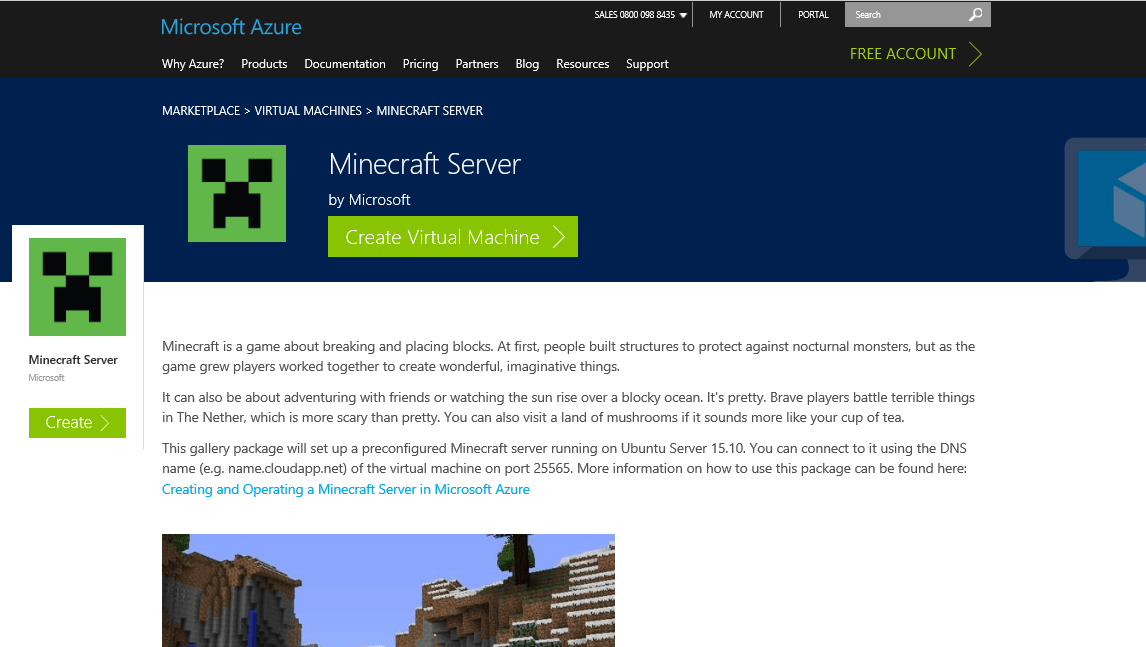
You can choose a preconfigured Minecraft server virtual machine to launch from the Azure Marketplace – no installation required.
Choose from a range of a VM sizes to meet your performance and cost requirements.
Running a server on your own physical machine means choosing between limiting access to your home network, or dealing with the security risk of exposing your home network to the internet.
Avoid hardware costs – pay for a VM when you need it and shut it down when you don’t.
Whitelist trusted players to connect from anywhere without wrestling with firewalls and port forwarding.
Freedom from worry about losing data to hardware failure with disks backed by Azure Storage Service.
If you mess up the whole machine no big deal, delete it and deploy another. If you back up your world from time to time you can restart from where you left off.
Now that you have the reasons to use Azure, let’s take a look at what steps you need to complete how to set up your own Minecraft Server.
1. Buy Minecraft and set up a Mojang account. You need these in order to play Minecraft and to be successful in actually setting up a Minecraft Server.
2. Get a Microsoft Azure account. There’s a free trial, plus some free credits for your first month on Microsoft Azure.
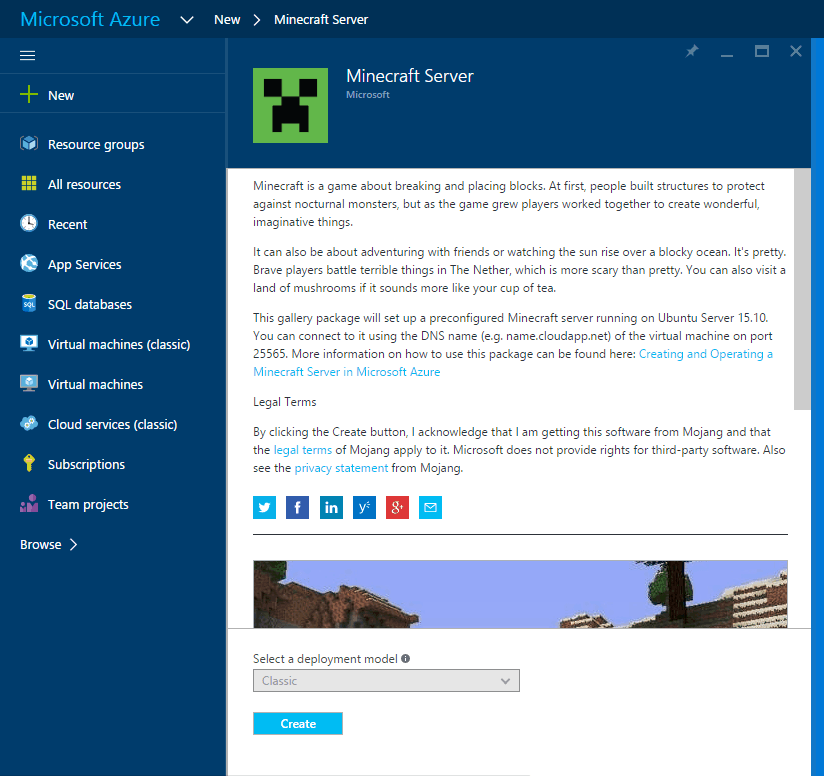
5. Next, you will need to log in to your Microsoft Azure Account and click “Create”
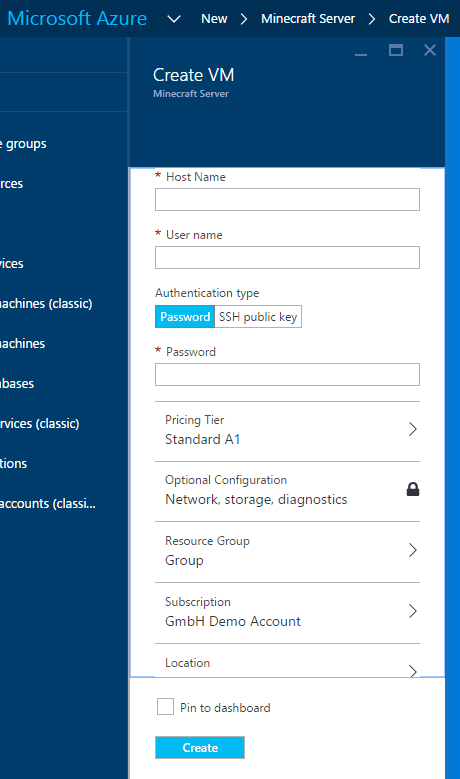
6. Here, you’ll have to do some important configuration steps (some are optional):
Pick a name for your server (the url for your server will be name.cloudapp.net)
Enter a username to use as an administrator
Define a password or upload an ssh key you will use to access your server
Select a server size / pricing tier, A1 will be a good size to start with
Optional: Configure Network, Storage and Diagnostics
Optional: Select or define a name to group your Azure resources
Optional: Select the subscription to use if you have got multiple
Select a location / data center to host your server, pick a location close to your users
7. Click “Create” to have Azure create your Minecraft Server (May take several minutes to finish, so hang tight!)
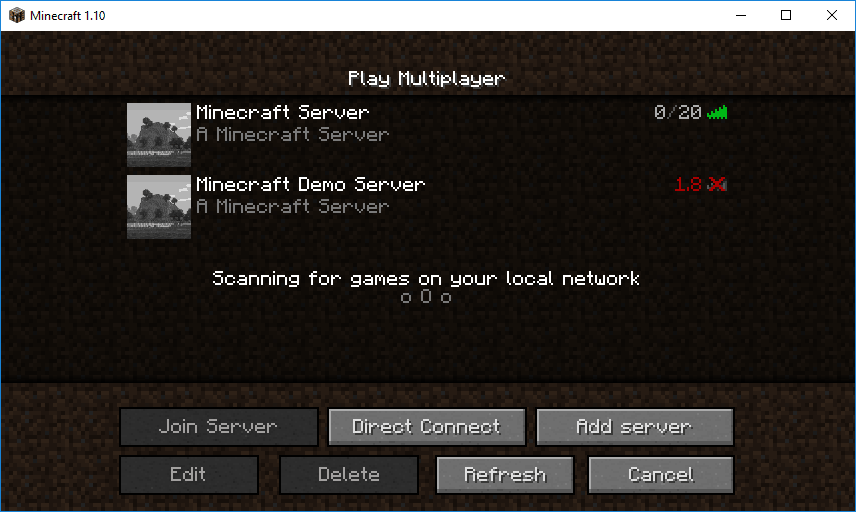
8. After that’s done, your Minecraft server will be ready. In order to connect to your server in Minecraft, use the URL and Port 25565 like this: Minecraftservername.cloudapp.net:25565
10. In order to update your server, as well as manage some additional settings, log into your server using SSH (available on Linux or Mac) or a tool like PuTTY (available on Windows). Bash and SSH will be coming to Windows 10 later this summer in the Windows 10 Anniversary Update.
11. After logging into your Minecraft server with you username and password, go to the folder of your Minecraft Server “cd /srv/minecraft_server”.
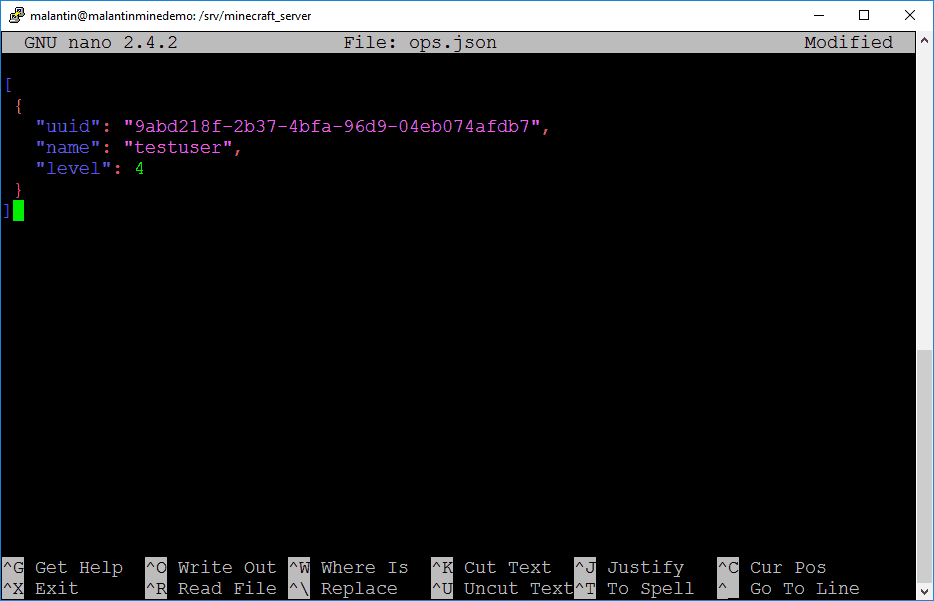
13. While in the correct folder, you can update the ops.json file so you have the correct permissions to modify the game while you are logged into our server. You can edit the file using nano like this: “sudo nano ops.json”. Edit the file like shown below using your Minecraft username and unique ID. Go here to find your Minecraft unique ID.
14. Now all you have to do is save the file. Save the file by using “CTRL + o” and exit Nano using “CTRL + x”. You can also edit your “server.properties” file in order to further manage different configuration settings on your server. More details about your Minecraft server properties can be found at the Minecraft Wiki.
15. In order to use the current version of Minecraft Server that you downloaded, you need to edit the service configuration using Nano like this: “sudo nano /etc/systemd/system/minecraft-server.service”. You will need to reference the new version of the Minecraft Server here (see below).
16. Now, all you have to do is save the file and exit Nano.
17. Next, you will just need to stop and restart the Minecraft Server service. You may also need to reload the systemd state before using “systemctl daemon-reload”. Run “systemctl restart minecraft-server” to restart the service.
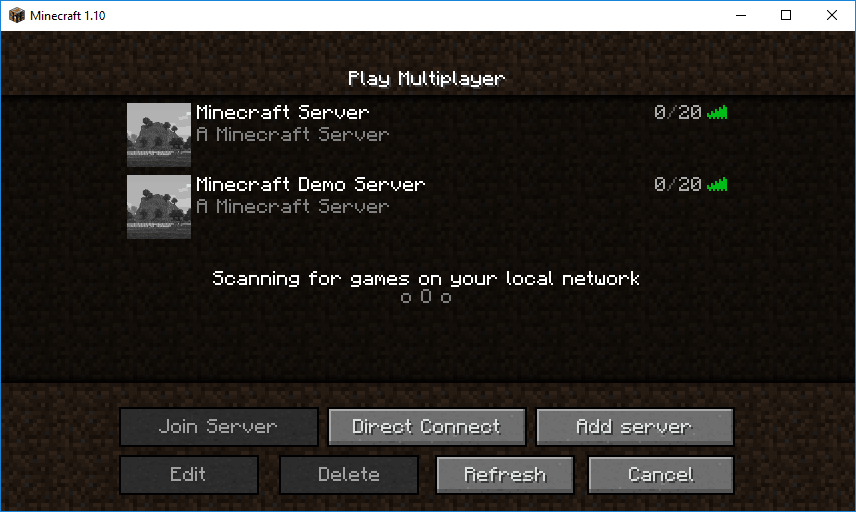
18. After you’ve restarted the service, it may take a minute or two to restart. Afterwards, you can refresh your server in your Minecraft client and connect your server to start creating on your very own Minecraft Server.
19. Hooray! You have now set up your own Minecraft Server using Microsoft Azure.
It has been a while since the last wave of brand new and official Windows 10 UWP apps (such as Twitter, Facebook, and Instagram) were released. Today, though, Microsoft is adding in a brand new set of apps to the Windows Store collection. My USPS, Expedia for Windows 10, and The Weather Channel for Windows 10, are all just a few of the new apps which are now being highlighted my Microsoft in a new Windows Experience blog post. So, as always we’ve given the apps a look and have included download links and descriptions for you below.
Expedia for Windows 10
A look at the Expedia app for Windows 10
Update for Windows 10: The Expedia app has been specifically enhanced to take advantage of all the unique possibilities of Windows 10 to deliver a more seamless travel experience across Windows 10 devices. We’ve also made key performance improvements and enabled faster launching for our Universal Windows Platform app.
Search with Cortana: With Cortana integration, you can book trips with simple, natural conversations and get helpful travel notifications and status updates for all of your upcoming Expedia-booked trips.
Interactive Device Notifications: Receive important travel alerts and changes to your itinerary with Expedia emails
Deeper Integration: The new Expedia app is native to the Windows platform, which gives our team tremendous opportunity to further enhance the Expedia experience on Windows 10 devices.
Note: An official download link is not yet available for this app. Stay tuned, once it’s available we will update you!
My USPS
A look at the MYUSPS Windows 10 App
Preview the My USPS™ package tracking dashboard on your Windows 10 computer using Cortana. The My USPS™ application offers an alternative to typing in package tracking numbers every time you want to see the status of a delivery. The My USPS™ application proactively scans the USPS mail-stream looking for packages heading for your home address and automatically populates your dashboard with a package’s status. The My USPS™ application allows you to easily track the status of outbound packages as well; either, by scanning the package barcode with your smart phone or by manually typing in a tracking number on your dashboard.
Get hourly and 15-day forcasts in Celsius or Farenheit
Amazing background photos match your current weather conditions.
Easy to use and beautiful in its simplicity.
Get your current conditions and the high/low temperatures for your favorite locations in a glance.
More than temperatures, get “feels like” weather, humidity, dew point, sunrise, sunset, moon phases, wind speed, UV index, visibility and barometric pressure.
Fast-loading radar maps show past and future radar. Map layers show rainfall, snowfall, road or satellite views, traffic, wind speeds, and more.
Severe Weather Alerts: Stay safe with National Weather Service notifications of severe weather, and know the moment tornado or severe storm watches and warnings are issued.
Breaking News Alerts: Keep informed with national weather news updates.
Lightning Alerts: Get real-time alerts for your GPS location, and know where lightning strikes near you. • Rain and Snow Alerts: Never get caught in the rain again with real-time alerts for your GPS location and morning rain reports for your favorite locations.
Pollen Alerts: Know the pollen counts near you.
Simply activate Cortana (by saying “Hey, Cortana”) and say or type “Show me,” followed by your question. For example, you could say “Hey, Cortana! “Show me”, when will it rain?” to learn when it will rain in your precise location.
So, what do you think? Will you download any of these new apps? Are you looking forward to using them in your life on your Windows 10 device? Let us know by dropping us a comment below!
An AI bot is coming to Office 365 to help take the work out of scheduling work meetings, but it isn’t Cortana. New York based startup x.ai announced today (via Business Insider) that their AI personal assistant Amy Ingram, and ‘her’ brother Andrew, will be integrated with Outlook.com and Microsoft Office 365 calendars.
Amy and Andrew are essentially bots that work simply by CC’ing their addresses in an email exchange when you are trying to schedule a meeting with someone. At which point Amy or Andrew take over the conversation, and take all the work out of trying to negotiate the best time to meet. Once Amy or Andrew work out a time with the other person, they add it to your calendar.
Previously, Amy could only work with Google Calendar. In a press release by x.ai, the company explains the service was limited to Google calendar because they wanted to focus on training their personal assistant first and foremost to work correctly before working on support for other calendars. CEO and Founder Dennis Mortensen says that from the start on of their first goals was “enabling Amy and Andrew to work across the Outlook.com and Office 365 calendars.” Now that they feel they have trained the personal assistant to schedule meetings autonomously, they have enabled support for Outloook.com and Office 365 calendars.
Mortensen says that their goal is nothing short of wanting Amy and Andrew to be “schedul[ing] every single one” of the meetings that nearly 90 million knowledge workers makes in the US, a figure he cites as roughly “10 billion meetings a year.”
The service is still in beta, but the press release says it will be ready for prime time later this fall. It will be interesting to see how this new digital assistant complements Office 365 and Outlook.com’s services as Microsoft has been working hard to open up Office 365 as a platform for developers to enhance its capabilities with add-ins. You can read the full press release below:
New York, NY, June 15, 2016—x.ai, inc., an artificial intelligence company, today announced that its AI personal assistant can operate across Microsoft Outlook.com and Microsoft Office 365 calendars to schedule meetings. Now businesses and individual professionals who run on these Microsoft products can also enlist x.ai’s personal assistant, Amy Ingram.
x.ai launched a beta version of its AI personal assistant in June 2014. (All you do is cc [email protected], and she takes over the job of scheduling your meeting.) Since then, Amy and her brother Andrew have scheduled hundreds of thousands of meetings and processed millions of scheduling-related emails.
For the past two years, x.ai has supported only one calendar type—Google calendar—as it focused product development on the arduous task of training a machine to understand scheduling-related conversations. During this time, one of the most requested features has been support for Microsoft calendars.
“We knew from the start that enabling Amy and Andrew to work across the Outlook.com and Office 365 calendars would be one of the first things we did, once we had trained the machine to schedule meetings nearly autonomously,” said CEO/Founder Dennis R. Mortensen. “We want all of the nearly 90 million US knowledge workers to be able to take advantage of this technology. That represents roughly 10 billion meetings a year, and we want to schedule every single one of them.”
x.ai’s beta customers include small business owners, product managers, salespeople, marketers, designers, startup CEOs, teachers, students, journalists, and many others across nearly every industry.
“This AI personal assistant can schedule your meetings, saving our joint customers hours each week, enhancing productivity and unleashing creativity,” said Rob Howard, director, Office 365 Ecosystem, Microsoft.
x.ai will come out of beta this fall.
While Microsoft’s acquisition of LinkedIn isn’t expected to be completed until sometime later this calendar year, Kara Swisher from Recode.net is reporting today that Microsoft could soon welcome LinkedIn co-founder and Executive Chairman Reid Hoffman to its Board of Directors. As a partner at Greylock Partners, Hoffman has many ties with Silicon Valley and has been nicknamed “The Startup Whisperer.” Additionally, Swisher reports that Hoffman has been instrumental to make this week’s blockbuster deal happen:
Hoffman was a key behind-the-scenes figure in this deal, which several sources said had its seeds planted many years ago in discussions between Hoffman and Microsoft co-founder Bill Gates. Hoffman was also an active participant in the current discussions, along with LinkedIn CEO Jeff Weiner, and it was finally shoved over the finish line last Sunday at his home in Silicon Valley.
Earlier this month, we reported that Microsoft’s Board of Directors was pushing a faster move to the cloud as the company has been trying to lessen its reliance on traditional software and switching focus to cloud-based products in recent years, so this new addition to the board would make perfect sense. Furthermore, Hoffman would join other Silicon Valley board members such as Chairman and Former Symantec CEO John Thompson as well as former Cisco exec and Next EV CEO Padmasree Warrior who joined the Board in late 2015.
Microsoft’s current Board of Directors.
According to Swisher’s report, “no official offer has been made to Hoffman as yet, due to fiduciary issues, and the many-step process has not been set in motion either.” Furthermore, the process could be complicated by the fact that Hoffman is currently a board member of Mozilla Corporation whose Firefox browser is a direct competitor to Microsoft offerings. However, Swisher adds that “if it moves forward as many expect, Hoffman would be voted on as a director at the end of the year”. Both Microsoft and LinkedIn declined to comment on Swisher’s report. Let us know in the comments if you think adding the longtime tech investor to Microsoft’s Board of Directors could help the company reinvent itself in a mobile-first, cloud-first world.
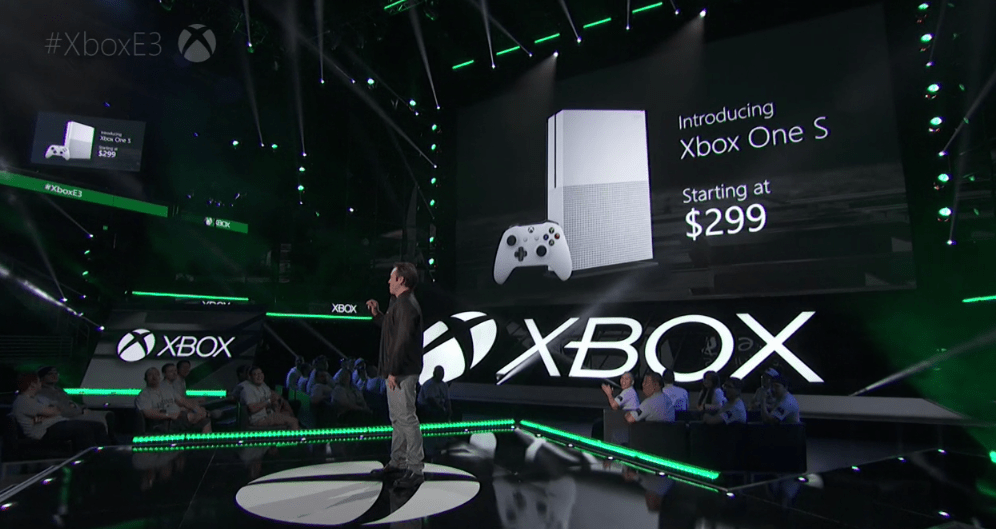
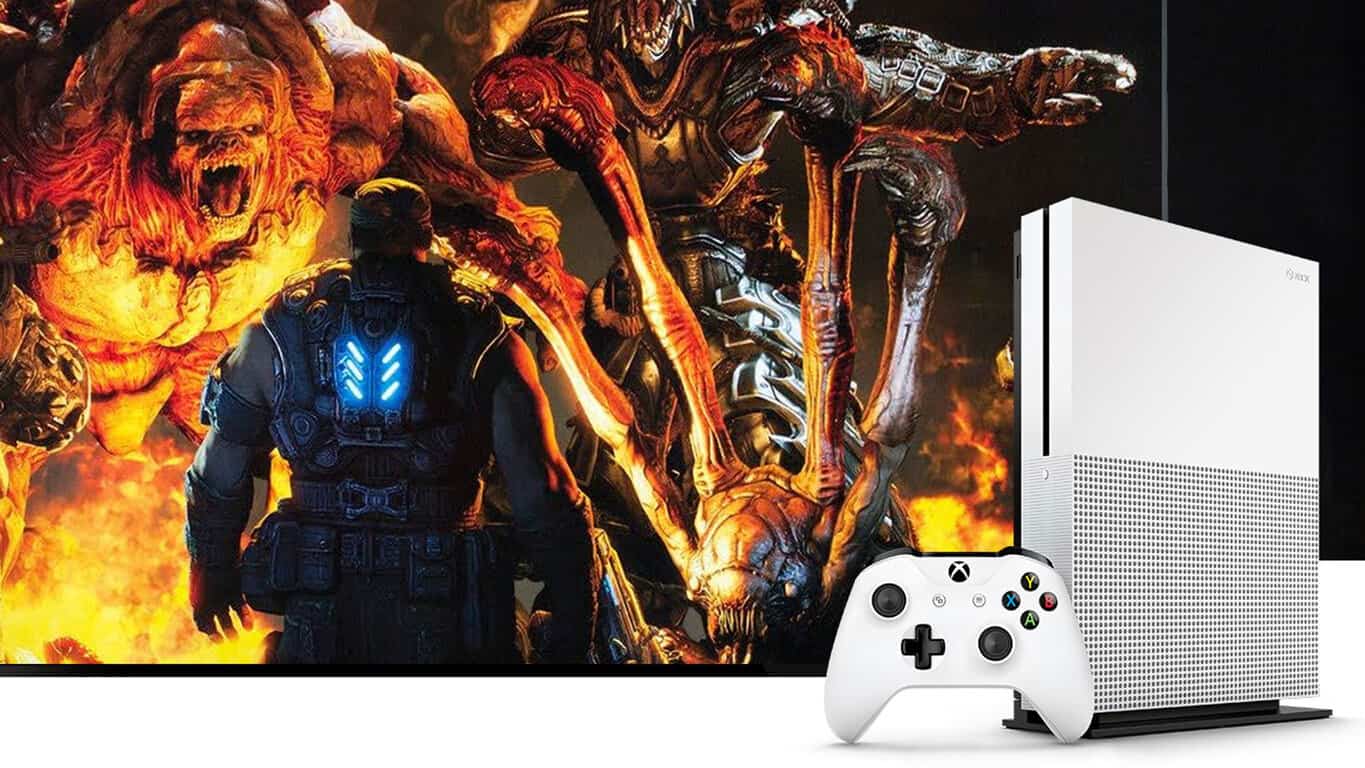
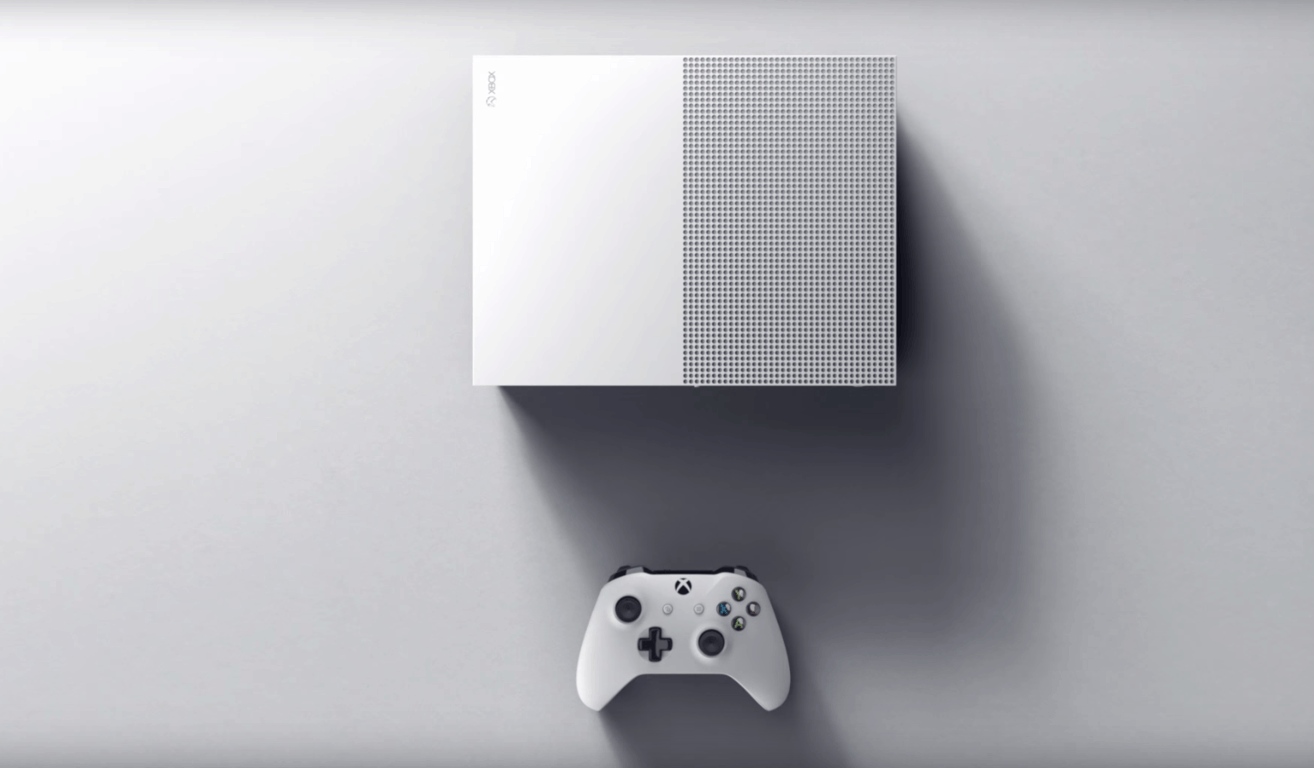
Microsoft recently unveiled a new, slimmer version of its Xbox One console at E3, dubbed the “Xbox One S”. Among the added capabilities in the new model is one that would be a boon for gamers with a serious lack of space: the ability to stand vertically; a necessary accessory for this function – the vertical stand – may not come with all Xbox One S, however.
Specifically, the vertical stand has been found by Reddit users to be listed on the Amazon Store Canada for pre-ordering, which begs the question of why it can be purchased separately if the thing comes with every machine, and every machine needs only one. The cool Canadian $39.99 price does not help with the speculations as well (words say that it will cost $19.99 in the US).
Canadians got it tough with their dollars.
Not all is lost of course: other sources suggest that the vertical stand will only come with the 2TB model of the Xbox One S, which will come before lower-storage options in early August at $399. The next version in line, 1TB, will reportedly retail for $349, which means for 50 dollars more you get double the storage and a vertical stand.
Microsoft Translator already supports over 50+ languages, but today, one more language is being added to the list. The Microsoft Translator team has just taken to their blog to announce support for the Afrikaans language.
A derivative of Dutch, the language will be available in all of Microsoft’s products with translation features powered by Microsoft Translator. Such products include the Microsoft Translator apps for iOS, Android, and Windows 10, Microsoft Office, Share Point, the Microsoft Translator Web Widget, and IM Translation in Skype for Windows desktop. Additionally, and for developers, the Microsoft Translator team is also nothing that those who use Microsoft Translator text translation API now also have access to the new language in their apps and products.
This support can be seen as good news for the 7 million people worldwide who speak Afrikaans as a primary language. It is, however, just the latest move by the Microsoft Translator team. Back in March, the team released a new version of a Microsoft Translator API which added real-time speech translation capabilities to the existing text translation API.
The Bug Bash for the Windows 10 Anniversary update is under way and with that means we’re in the final stretch to that update being signed off. We’re eleven months in since the launch of Windows 10 and there’s only one month left of the free upgrade offer. This week’s poll is a straightforward two parter, are you running Windows 10 and are most people you know running it?
Windows 10 has well over 300 million users at this point and seems to be gaining traction but the free upgrade offer ending may affect the uptick of upgrades. Personally, I really like Windows 10. I can’t imagine going back to Windows 8 or 8.1 and I like Windows 10 more than Windows 7 for a variety of reasons. But that doesn’t mean there aren’t people who want to stay on older systems for a while.
For example, enterprises and workplaces often choose to wait to upgrade. Same goes with some people who have complicated networks with admin controls. Other people just plain like an older operating system more. Another factor is that some people dislike change. Whatever the reason, other versions of Windows are still popular.
The podcast is on a break for now so we won’t discuss the results in an episode but I’ll be in the comments over the next few days and am really curious who is running what. Please share this week’s poll around with your less tech centric friends so we can get broader results.
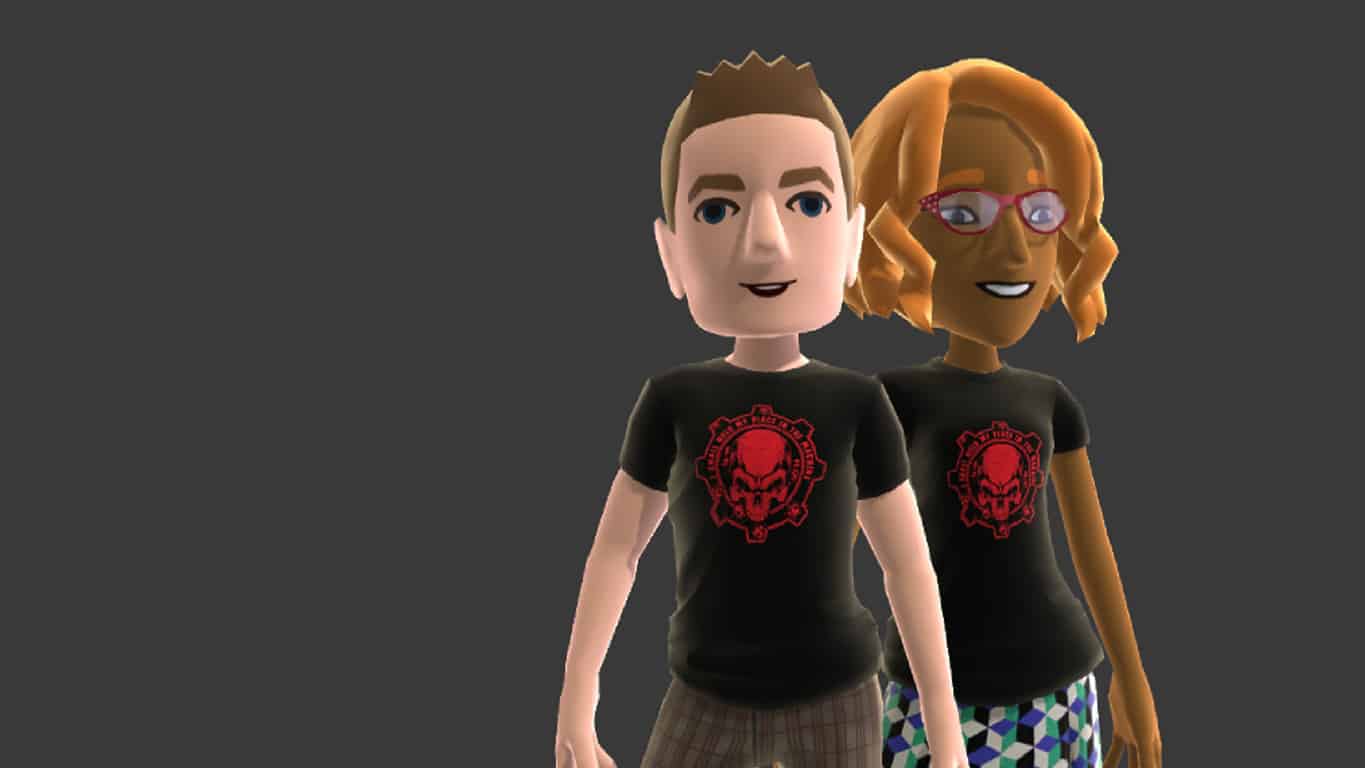
Microsoft is giving Xbox One owners a free Gears of War avatar t-shirt when they watch the first episode of the Xbox Live Daily show via the Xbox One XBL Events Player app.
During the episode, users will have to actively select an option that will appear on screen and a week later, they will receive the item as a direct message in their Xbox Live inbox.
Here’s the official information:
Gears avatar shirt offer available only by viewing Xbox Daily Live @ E3 2016 Episode One on Xbox One between Tuesday June 13th 4pm (PST) and June 15th 4pm (PST). Token sent via system message the following week to users who selected the shirt during the video. Offer available in all Xbox Live countries. Xbox Live account and broadband internet required.
The XBL Events Player is an interactive media app that Microsoft uses to stream live event footage and video on demand of previous recordings. Console owners can currently catch up on Microsoft’s E3 news by using it and links are often incorporated into the experience to encourage viewers to purchase games or visit websites for more information.
Microsoft’s Larry Hryb made a guest appearance on the GameSlice YouTube channel today and performed an unboxing of the newly announced Xbox One S video game console.
Throughout the video, Hryb recapped a lot of information about the Xbox One S and clarified other stats that some fans may have found ambiguous during the initial reveal two days prior at the Microsoft E3 2016 conference. He confirmed that, unlike the Xbox One, the power source on the Xbox One S has been relocated to within the console itself. He also reassured viewers that the new controller that was shipping with the Xbox One S console would also be the same one used in the new Xbox Design Lab. You can watch the video below.
The Xbox One S was formally revealed at Microsoft’s E3 2016 conference. It is very similar to the original Xbox One model but is 40% smaller in physical size, requires no power brick, is slightly more powerful with 4K image capability, and makes use of High Dynamic Range technology to display graphics in more optimized fashion. In addition to one of the new controllers, the Xbox One S console also ships with a stand which allows for it to be positioned vertically, and contains a USB slot and a IR blaster on the front side.
The new Xbox One controller shipping with the Xbox One S and being sold separately from September onwards is a slight remodel of the current Xbox One controller with improved grip on the underside and Bluetooth capability which enables it to be used with a PC as well as an Xbox One console. Previously, gamers would have to purchase a special controller with Bluetooth or a wired connection to play games on the PC.
Both the Xbox One S and the new controller are now available for pre-order. Will you be upgrading to these new models or are you thinking of waiting to see what Project Scorpio looks like? Share the hype with the community in the comments below.
Electronic Entertainment Expo, the annual video game soiree, will kick off tomorrow and will be held at the Los Angeles Convention Center. At a press conference, Bethesda has announced that two of its games, Fallout 4 and DOOM, will undergo the VR treatment with the former coming next year to the HTC Vive. The company also brought VR demos of the games to the event that participants were able to try out.
Todd Howard, director and executive producer at Bethesda Game Studios, talked about the company’s projects and announced that Fallout 4, would receive more DLCs: two more wasteland workshop addons as well as a new story DLC titled Nuka World.
Fallout Shelter will be also updated and starting July, players will explore new locations alongside teams of dwellers and they will take on quests in the game. Fallout Shelter will be also released for PC which will allow players to enhance their gaming experience. As for the VR version of Fallout 4, players should expect it to be released in 2017, but they will need a HTC Vive headset to play it.
DOOM is another game that will receive an important DLC. Unto the Evil will be packed with three new multiplayer maps named Offering, Cataclysm and Ritual, a new player-controlled demon called Harvester, a new weapon (the UAC EMG Pistol) and new equipment (the Kinetic Mine), as well as new hack modules.
Players will be able to customize their marine with additional armor sets, patterns, colors and taunts and multiplayer will also come with free additions such as Exodus (a capture the flag mode) and Sector (a hold mode). Bethesda hasn’t announced which platform the VR version of DOOM would be released on, but like the VR version of Fallout 4, it will be released in 2017.
Microsoft’s expansion of its beta programs into Insider previews have arguably been a success for the company. Going from a few hundred testers to millions of real-world participants finding bugs and issuing feedback has been the bread and butter of several Microsoft experiences that have ranged from Windows to the Xbox One console.
As the teams from several divisions within Microsoft feed on the feedback lifeblood from Insider participants, the company has been tooling and retooling the ways to encourage even more participation. Beyond power users or IT professionals, Microsoft is looking to deputize any and everyone interested in working backstage to help build its services and software.
Perhaps the most highlighted, if not the poster child for Microsoft’s Insider preview programs, is Windows 10. Becoming a Windows Insider is as easy as ever these days.
Being a Windows Insider on any of Microsoft’s platforms is a marathon, not a sprint. While the company has made it somewhat easier to backtrack from messy builds, most Insider programs are fraught with long waits and broken functionality. Those who participate must be ready with either a secondary machine or seemingly unlimited patience.
Step 2. Make it official
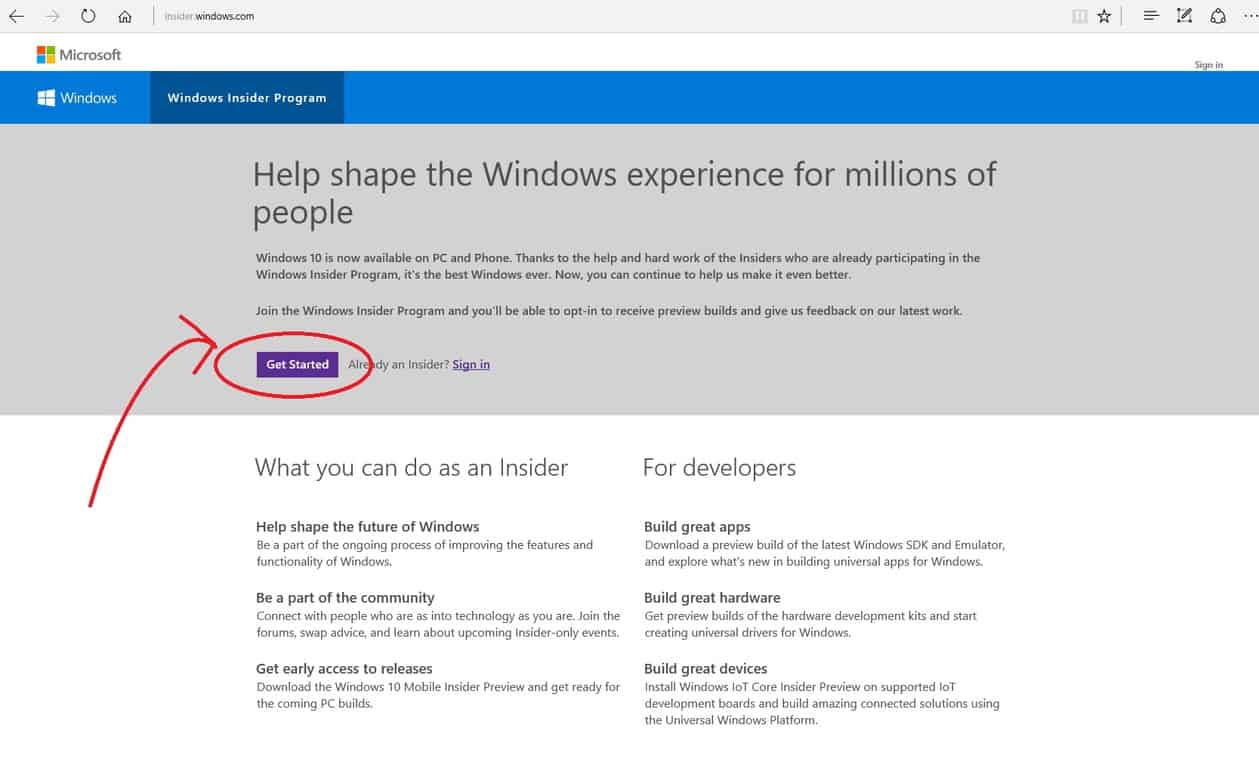
Visit the official Microsoft Windows Insider site. The site can be found with a simple Bing, Google (Yahoo or any other search provider) using the keywords Windows-10-Insider.
Once on the page, click the Get Started button to begin the process.
Windows 10 Download page
Step 3. Choose your platform
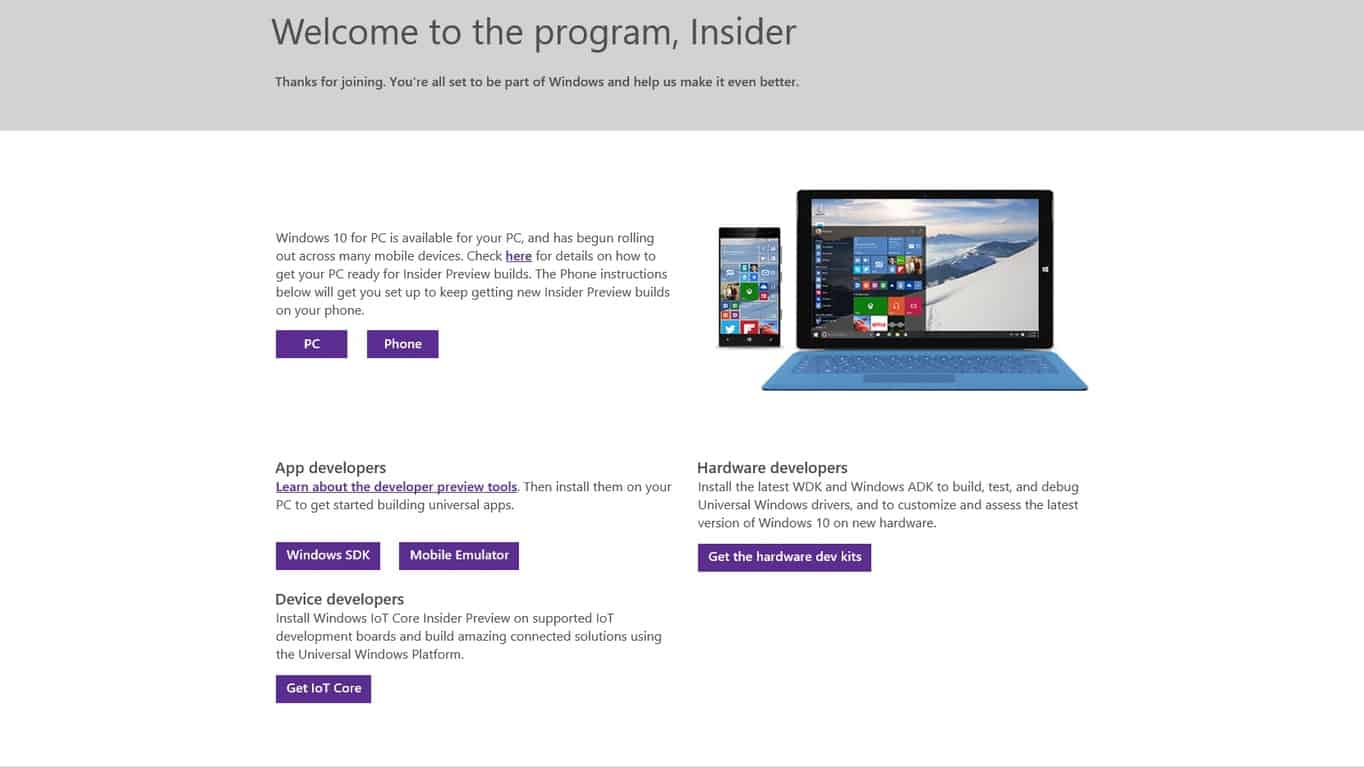
While there is only one Windows, there are still several Windows platforms Insiders can opt to be a part and choosing the Insider program through the official Windows 10 Insider site will offer participants several options.
For most consumers
PC
Phone
For developers
Windows SDK
Mobile Emulator
IoT Core
Hardware developers
Hardware Dev Kits
Several Windows Insider Previews
Step 4. Select your download method
Avoid the rush to click the big blue Upgrade Now button as participating in the Windows 10 Insider preview already gets you an upgraded copy of Windows 10 and will only delay your Insider participation as you wait through an official upgrade cycle.
There are several ways to get a copy of the Windows 10 Insider preview onto your system. For most, choosing Download Tool Now should suffice.
Warning: Make sure to read the before you begin section listed above the Download Tool Now. Hell, here it is to save you time:
Make sure you have:
An internet connection (internet service provider fees may apply).
Sufficient data storage available on a computer, USB or external drive for the download.
A blank USB or DVD (and DVD burner) with at least 4 GB of space if you want to create media. We recommend using a blank USB or blank DVD because any content on it will be deleted.
Check these things on the PC where you want to install Windows 10:
64-bit or 32-bit processor (CPU). You’ll create either the 64-bit or 32-bit version of Windows 10 that’s appropriate for your CPU. To check this on your PC, go to PC info in PC Settings or System in Control Panel, and look for System type.
System requirements. See the system requirements before installing Windows 10. We also recommend that you visit your PC manufacturer’s website for info about updated drivers and hardware compatibility.
Language in Windows. You’ll need to choose the same language when you install Windows 10. To see what language you’re currently using, go to Time and language in PC settings or Region in Control Panel.
Edition of Windows. You should also choose the same edition of Windows. To check what edition you’re currently running, go to PC info in PC Settings or System in Control Panel, and look for Windows edition. Windows 10 Enterprise isn’t available here. Please see the Volume Licensing Service Center for more information.
Microsoft Office products. If you just purchased a new device that includes Office 365, we recommend redeeming (installing) Office before upgrading to Windows 10. To redeem your copy of Office, please see Download and install Office 365 Home, Personal, or University on your PC. For more information, check How to upgrade to Windows 10 on new devices that include Office 365.
If you have Office 2010 or earlier and choose to perform a clean install of Windows 10, you will need to locate your Office product key. For tips on locating your product key, check Find your Office 2010 product key or Enter the product key for your Office 2007 program.
Step 5 Congratulate yourself
As mentioned before, the Windows team has tweaked and evolved the entry into the Insider preview enabling average joes to participate at the click of a button. Hitting the Download Tool now button is the last thing to do.
A few seconds for the tool to install on your device or (Virtual Machine – check older WinBeta post for that info) and once installed, a series of prompts walk most Insiders into the fray. There is the topic of which Insider Ring to participate in. As mentioned, Fast Ring participation indicates a speedy release of testable builds equipped with bugs, glitches, and breaking points. Slow Ring Participation is for users who want to still be ahead of the curve but would prefer a more stable experience at the expense of getting new features and fixes as quickly as the Fast Ring.
Windows 10 Insider update (old) update screen
Whatever your selection, you’ve already joined the seven million and counting, individuals who are helping to shape Windows 10, welcome.
Valve, the owner of Steam, is a staunch supporter of virtual reality. This is evident with their collaboration with HTC to bring to life their Vive VR headset. Valve must realize the potential here and as such, has decided to create and a release VR world building software.
Dubbed Destinations Workshop, it is designed to help users create their own virtual reality world with several examples to help creators get started. Furthermore, it should work well with all headsets that support Open VR.
One great yet totally non-surprising move by Valve is its decision to have Destination support the Source 2 video game engine, one of the most popular game engines for amateur developers on the PC platform.
“Content creators will be able to use the Source 2 game engine, the same engine that Valve uses to create its own games and experiences, to create and share their own worlds with the VR community using the Destinations Workshop,” said Valve, writing on Steam.
“A few example scenes made via photogrammetry will be available at launch. The application supports motion controllers as well as x-input to teleport within each world on both the HTC Vive and the Oculus Rift.”
The toolkit in its current form is not yet complete. For now, it is in beta but will be available via Early Access on Steam soon. One user said he found several references to Half-Life Life 3, though whether or not that means Valve will announce the game soon is still left to be seen.
For the first time in decades, it appears as if commercial VR is about to takeoff in a big way. Microsoft is rumored to reveal the Xbox Scorpio, a new gaming system with Oculus Rift VR support, while MSI is championing an awesome looking backpack computer to allow for mobile VR experiences.
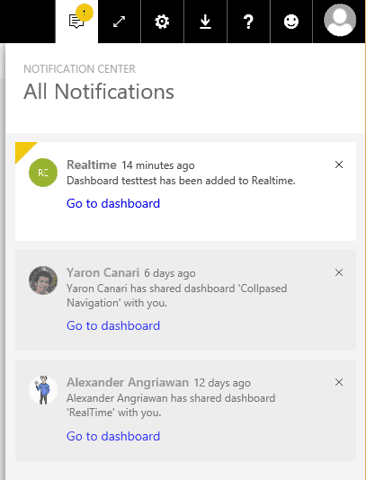
Power BI, Microsoft’s data visualization software, has been receiving plenty of support in the past couple of months. The latest update brings up some good quality of life changes to users of the Power BI app, primarily the addition of a full notifications page. The notification center does precisely what you expect it to do – it shows off the things that you need to know, and it does that at a glance. With the addition of the notification center, users can check out everything that’s going on in their Power BI experience – and not miss a thing.
Power BI Notification Center.
On top of the notification center addition, the blog post making the announcement also told us what’s coming up next for Power BI. They told us that data-driven alerts are on their way, and more “product level notifications” on the way soon. These include new feature announcements, special offers, and Power BI-related activities.
For businesses that prefer more time to integrate, train, and support new builds, Microsoft Office releases updates on its Deferred Channel. New features only come to the Deferred Channel three times a year: February, June, and October. This month, Office 365 accumulated a long list of features and security updates. For a full list of the new features, visit Office 365 client update channel releases.
More interesting to note, administrators and developers will notice that the Deferred Channel version numbers will be syncing easier with Windows 10’s. The year and month numerals will determine the version number with a build number afterward to distinguish it. For example, May 2016 would be called version 1605.
The May 2016 Office 365 build will be made available on the Deferred Channel in October, and so make sure to begin testing as soon as possible.
The ability to travel while maintaining an online business is extremely rewarding. Especially for Allison Harlow of CURIO Design Studio. For Allison, not only does Skype allow her personal time to communicate with her friends and family, but it is the base that her business is built on.
CURIO Design Studio is an interior design created by Harlow after she and her husband moved to Norway. Picking up and going was easy, but maintaining a lifestyle wasn’t. With Skype, she was able to take on her clients and consult with them no matter where she was.
With a look at the space through video calls, discussion with her clients, and a fact sheet on hand of measurements and styles, Allison is able to conduct her interior design almost the same as she would do so at home–perhaps even better given the nearly limitless reach of online clientele. She boasts,
As long as I have my laptop I can work. I have worked from the United States, Canada, Germany, Kazakhstan, Japan, Norway, Denmark, Poland… the list goes on.
Learn more about Allison Harlow and check out CURIO Design Studio, just another example of moving forward towards a more accessible business design.
On November 23, Microsoft announced that they were going to be releasing a lot of improvements to build up the Enterprise Mode tools for Internet Explorer 11. Today Microsoft is releasing a cumulative update for Windows 7, Windows 8.1, and Windows 10 (version 1507) to bring these tools to a wider audience.
With the Enterprise Mode XML Schema and Enterprise Mode Site List Manager tool, Internet Explorer 11 site administrators were able to import and manage their lists easier. Furthermore, the tools have been tweaked here and there to improve performance and use. For example, the v.2 XML schema is easier to read and manage than the previous version.
Also available today, the about:compat page on Microsoft Edge and Internet Explorer 11 is made available on the same Windows versions.The about:compat page is what helps businesses manage the Enterprise Mode Site List by showing the capability features that are currently applied to the site on the client machine.
As the team moves forward to update the Enterprise tools in Windows, all site lists will be using the v.2 XML schema. This means that developers will need to take the opportunity to convert their lists via the Enterprise Mode Site List Manager tool once the v.2 XML scheme is available on all devices.
The removal of screenshots and the ability to share links to apps from within the Windows Store has been a rather quiet omission from the Windows team over the past couple of build releases.
Perhaps, Insiders have accepted the often break-repair cycle of build releases and chalked up the omissions as “soon to be fixed,” or maybe some users simply didn’t notice, but over the past few weeks there has seemed to be little outcry for removal. Whatever the explanation for the removal of screenshots and sharing features from the Windows Store, it has now become old news, the Windows team is re-implementing the features in a new Store app update.
Rolling out to Windows Insiders on both Mobile and PC devices is a new build, 11606.1000.43, that brings back both screen shot and sharing functionality to the Windows Store.
The goodies have arrived at E3: Bethesda revealed the official gameplay trailer for Dishonored 2.
In Dishonored 2, gamers can choose between two characters: the original game’s protagonist, Corvo Attano, or his daughter Emily Kaldwin. Both are supernatural assassins who live in a world where mysticism and industry collide. You can stalk your way through the game unseen or pursue a more visible line of play using brutal combat skills. At some point, you’ll have to use both and be an iron hand in a velvet glove as the game blends combat, stealth, and ultimate mobility, offering you many pathways and approaches.
Bethesda also revealed some of Emily’s special skills:
Domino, links together human targets, forcing them to share the same fate. She can set traps, and use Domino to take out multiple foes in one blow.
Shadow Walk, lets Emily sneak toward and incapacitate a target.
Mesmerize, which enthralls several humans and/or hounds, allowing Emily to easily bypass or eliminate foes.
How the story unfolds depends on your actions and how you combine your character’s unique set of powers, weapons, and gadgets to eliminate your enemies. The story responds to your choices, leading to intriguing outcomes as you play through each of the game’s hand-crafted missions.
The game’s action now takes place in Karnaca, Corvo’s birthplace, in a Victorian-inspired world. The game’s imagery carries a real sense of place, depicting a virtual world based on the local economy and people, where even the food and songs seem real. The team used a technology called the Void Engine to create multi-layered game scenarios and successfully transition between fast-combat scenes and stealth strategies.
According to Bethesda, Dishonored 2 is a game that goes way beyond its predecessor, launched four years ago. The original Dishonored won more than 100 game awards, meaning Dishonored 2 will have to offer more impressive gameplay and graphics to overcome its predecessor.
Dishonored 2 will be released on the Xbox One and PCs on November 11.
There was once a time when Windows and Mac OSX were separate operating systems that would not get along with each other. In 2006, though, Apple introduced a “Boot Camp” feature for Intel-based Macs, which allowed the user to install Windows XP alongside Mac OSX. Now, in 2016, this feature still exists in the most recent versions of Mac OSX and allows users to Install Windows 7, Windows 8, and even Windows 10 on certain Mac models. What follows is a step by step guide on how to run Boot Camp on your Mac to install Windows.
Step One: Gather the materials
To run Windows on your Mac, you will need an Intel-based Mac with 55 GB Free Space on the HDD, a blank 16 GB or larger USB flash drive and an official Microsoft Windows installation media or disk image. The installation media or media disk should contain a version of Windows Vista, XP, 7, 8, (or Windows 10 if your Mac supports it.) It is also smart to check this page to make sure that your Mac supports the version of Windows you would like to install.
Each Mac has support for different 32 bit or 64-bit versions of Windows, and so it is smart to make sure you check with Apple that your Mac supports the desired version first. For this instructional post, we will install Windows 7 on a 13 inch MacBook Pro from Late 2011.
The required materials to begin the Boot Camp process
Step Two: Prepare an ISO for installation
If your copy of Windows is on a disk, or if you’re installing newer versions of Windows, you will need to prepare for installation by creating an ISO copy of the Windows Install Disk. To accomplish this, you can follow these steps from Apple below. However, if you already have a Windows 10 ISO readily available, you can skip this step.
While your Mac starts from OS X, insert the Windows installation DVD in an external optical USB drive or connect your Windows USB drive to a USB port on your Mac.
After the installation media mounts in the Finder, open Disk Utility from the Utilities folder (choose Go > Utilities).
Select the USB optical drive or Windows flash drive so it’s highlighted in the Disk Utility window.
Choose File > New Image, and then select your Windows DVD or flash drive from the submenu.
Choose DVD/CD Master from the Image Format menu, then choose None from the Encryption menu.
Give the new file a name, then click Save. If prompted, enter an administrator username and password. A progress bar appears while the image file is created (it might take some time to create the image file).
After imaging is done, eject your Windows installation disc or flash drive. If you’re using an external optical drive, disconnect it from the USB port after the disc ejects.
From the Finder, locate the disk image file you created earlier. Single click on it to select it, then press the Enter or Return key on your keyboard to rename the file. Change the disk image file extension from .cdr to .iso. When prompted, click “Use .iso” to verify this change.
Note: In some cases, if you have an older MacBook with a built-in CD drive, or if you’re installing an older version of Windows, you can bypass these steps completely by inserting the CD. This will also help you skip to step three, and going to the Boot Camp assistant to download or copy the Boot Camp support files to a USB stick. The installation of newer versions of Windows on newer Macs, though, will require the above-mentioned steps for Boot Camp to properly dispatch the Windows installation files.
Step Three: Use Boot Camp Assistant
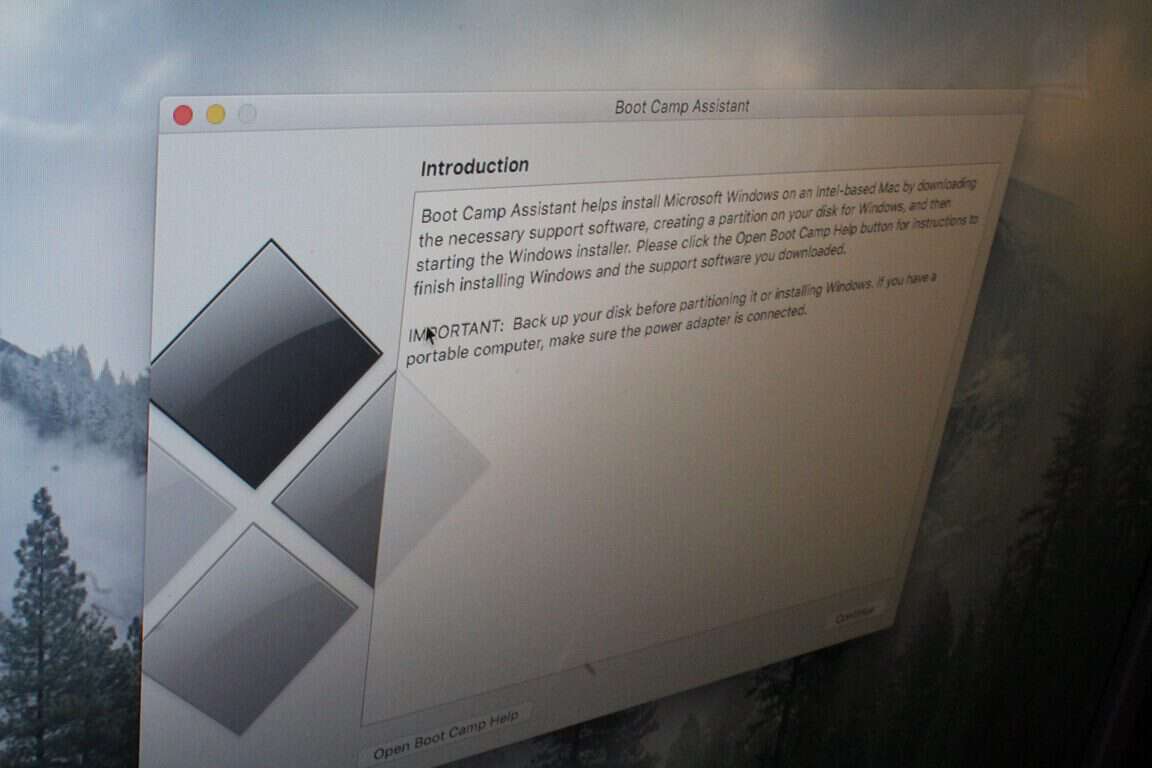
For this step, navigate to the Utilities folder your Mac and open up the Boot Camp Assistant and follow the simple step by step instructions in the wizard on how to repartition your start-up disk for Windows. In this initial step, you must make sure that the all the available boxes are checked.
Next, you will be asked to find the location of the ISO you created, and then you will be directed plug in a USB Drive so your Mac could download the proper Boot Camp support drivers files for your Mac and version of Windows. Be sure to continue along, and then choose how you would like to partition your hard drive for Windows.
After the partition, your Mac will then restart to the Windows Installer. In the event that this restart does not happen, you can power off your Mac and then hold the Option Key and select the CD or USB Drive that has the Windows install files.
Partitioning the HDD for Windows
Note: If you’re one of the folks with an older Mac, who us using a CD to run the install, make sure that you’ve got the proper Bootcamp Support files copied onto the root of a USB Drive. You will need these files later to install the proper Apple drivers for your camera, keyboard trackpad, once you’ve installed Windows.
Step Five: Let your Mac boot into the Windows installer and then run It
After step four, your Mac should now have automatically booted into in the Windows Installer. This initial boot up might take some time, so don’t worry if it is slow at first. Once you’re booted into the installer, though, be sure to select a custom installation, and choose the BOOTCAMP partition, then click Format when you’re asked where you would like to install Windows.
Note: DO NOT select any other disk partition other than the one titled “BOOTCAMP.” Installing Windows onto any of the other listed partitions will delete your OSX partition and result in the loss of your files, and your OSX operating system.
After the format, highlight the just formatted partition, and press next. The installation process will then begin, and it will be time to relax and grab a cup of coffee while your Mac does its magic. Your Mac will restart a few times to complete the installation, so don’t worry if your screen goes blank. Just be sure not to press any keys when asked if you would like to boot from a CD.
Be sure to select the BOOTCAMP Partition
Step 6: Restart your Mac into the new Windows Partition.
After a successful Install, your Mac will restart into Windows. Again, if it does not happen automatically, hold down the option key at startup and select the Windows partition from the list of available drives. Upon this initial boot, The Bootcamp control panel will then pop up, and your Mac should automatically installing the required Apple drivers for your keyboard, display, Bluetooth, and so on.
If this fails to happen, and things look weird, simply navigate to the USB drive which the Boot Camp assistant saved the Boot Camp support files and run the “Setup” file. This will install all the proper drivers for your Mac.
Be sure to run the “Setup” file if things don’t look right on your Mac
Step 7: Learning how to switch between OSX and Windows
Once everything is as good as it should be, you will probably want to switch out of Windows and back into OSX. To change the default OS, you can click on the Boot Camp icon (a small black diamond shape) in the system tray as seen below. From here, you can then choose which operating system you would like to use to start your Mac, and you can also customize the controls for your Keyboard and mouse. However, to switch in between operating systems outside of Windows, you can hold down the option key on your keyboard right as your Mac boots up, and choose either Windows or OSX.
Boot Camp Control panel prompt
So, there you have it, that is how you install Windows on a Mac using Boot Camp. Have you ever installed Windows on OSX? Let us know what you think of this by dropping us a comment below!
Microsoft’s new browser for Windows 10 is finally rounding out some of its rough edges (pun intended) by implementing, at last, an extension platform. Over the past couple of months, Microsoft’s Edge browser has steadily been adding extensions to its web browsing experience and as of last week, Windows 10 Insider build 14361 for PCs finally brought in a well-established password security service.
While the Edge team has ways to go before its stable of extensions are as robust as its competition, the group has been working hard at making the installation process of the extensions it does support, rather seamless.
For those looking to give the extensions a try, the LastPass installation process is, fortunately, a straightforward process.
Step 1. Find a source
Before worrying about .exe files or unzipping packages, first, find a source to the LastPass Edge extension. A few options include:
Search for it using the Windows Store Search option (not recommended, Microsoft’s Store Search still needs work)
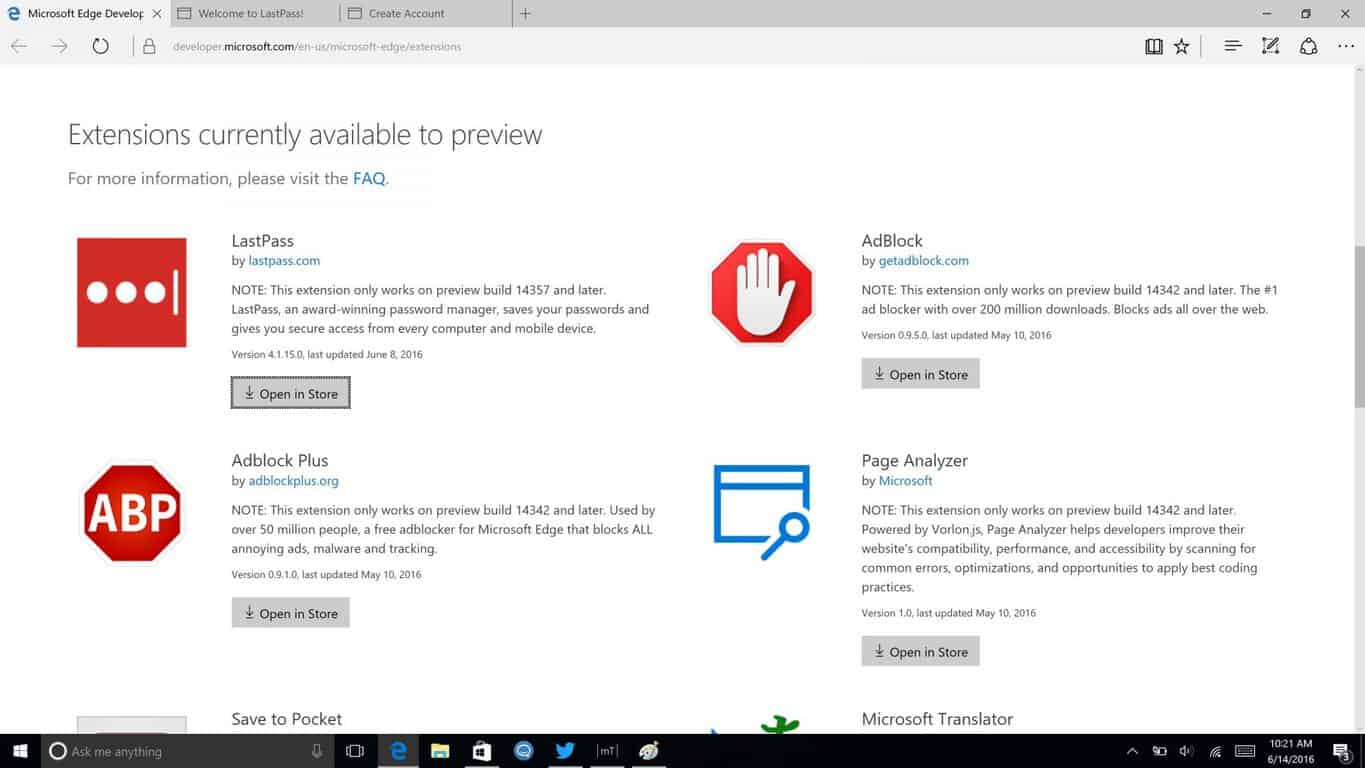
Going through the Edge: This is perhaps the most direct and least error prone route.
LastPass Extension source
Step 2. Download
Using the recommended route of using Edge as a source to the LastPass extension, users can now follow the link to Microsoft’s Developer Technologies site for Microsoft Edge. At the very top of the list should be the LastPass Edge extension as Microsoft has ordered its extensions from most recent to older releases.
Hit the open in Store link.
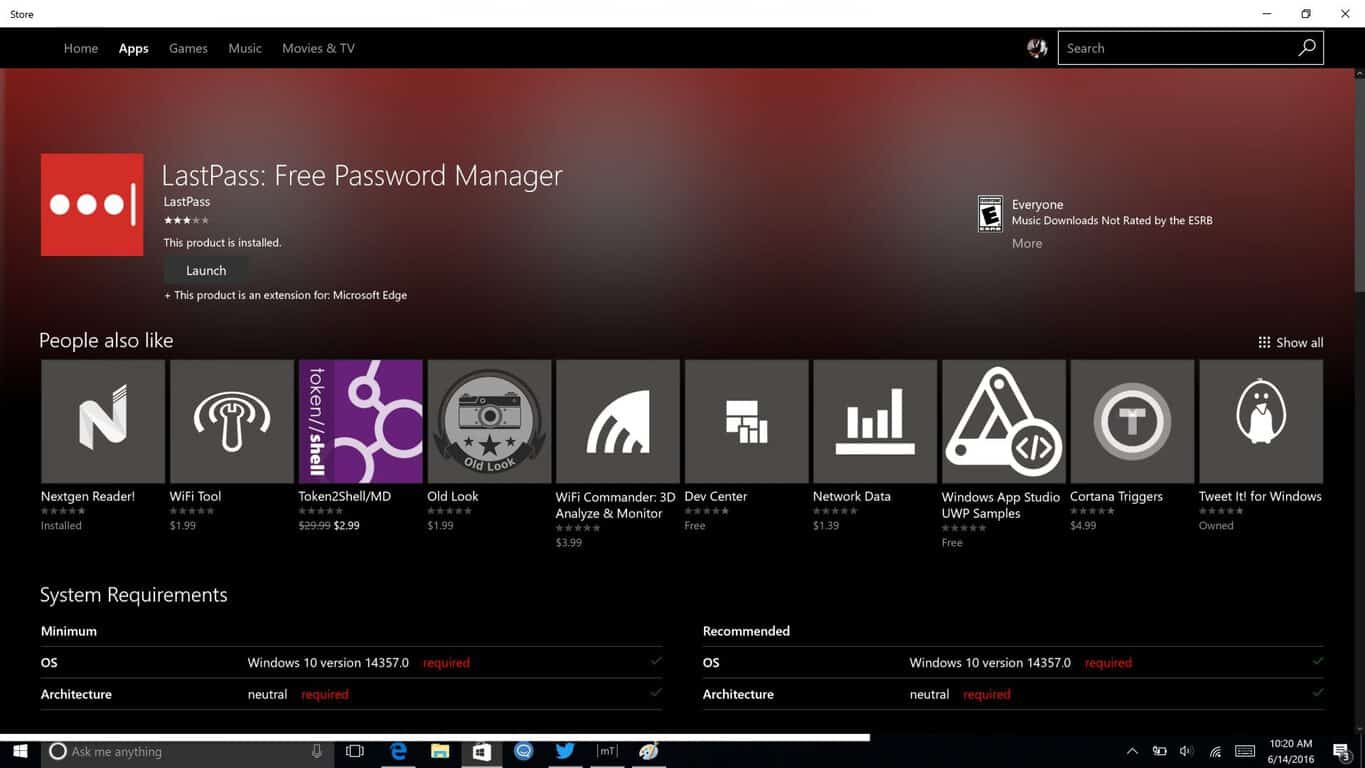
The Link will take the user to the Windows Store to download.
Download.
LastPass Widnows Store
Step 3. Launch the app
Once the app takes its minute to two to download, users who already have a LastPass account are free to begin enjoying the app.
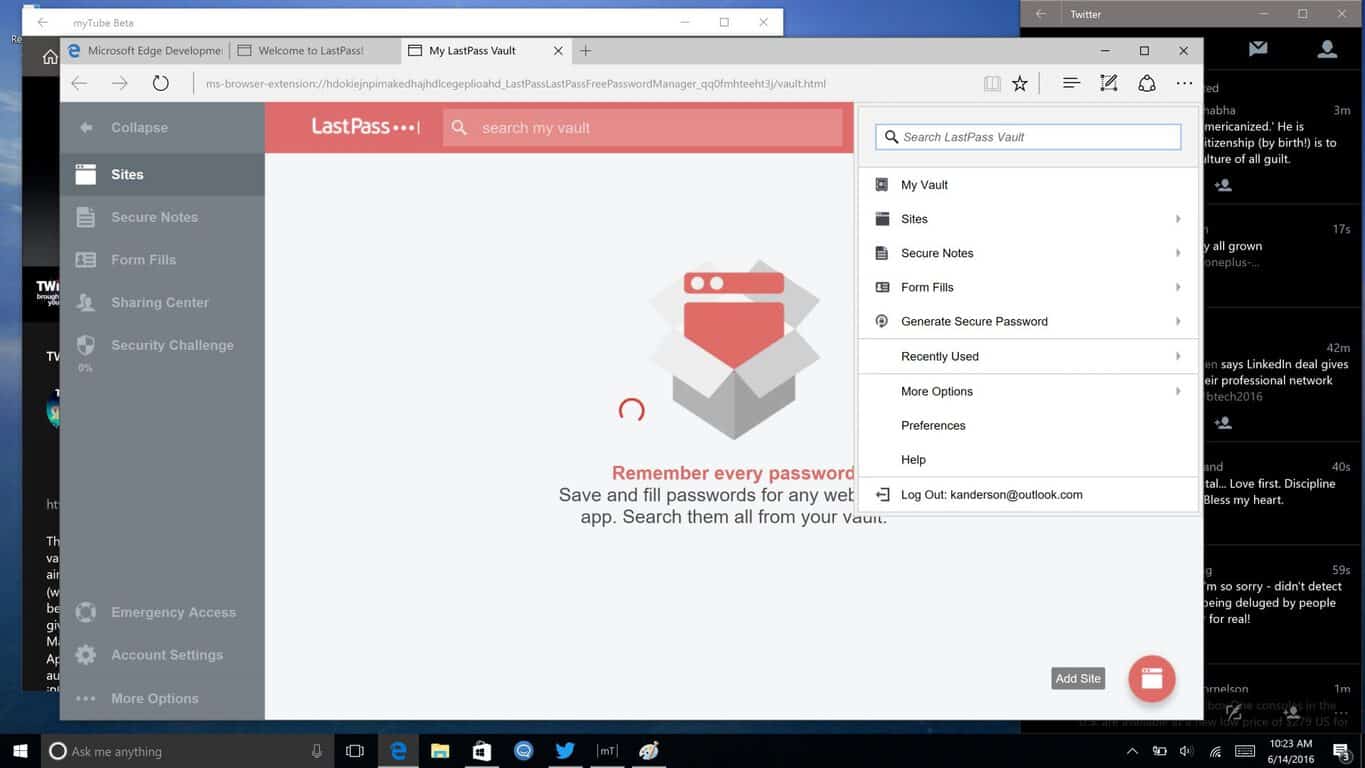
The Microsoft Edge browser will prompt users to launch the app in the upper left corner of the browser and to find out exactly where the app is nestled for continued use; users can click on the ellipses and find a new LastPass icon resting among other extension icons at the top.
LastPass Edge extension
Step 4. Enjoy
For those who already have an account, clicking on the extension icon in the extensions tray will prompt a login credentials page.
For those who do not yet have an account, a free one can be granted at the LastPass.com website or by using the red link at the bottom titled: Create an account now.
Once a user has entered in their credentials, the extension icon will switch from dark grey to red to let users know it’s active. The functionality of the extension is, well, extensive. From the mini browser windows, users have access to:
My Vault
Sites
Secure Notes
Form Fills, Generate Secure Password
Recently used
Print
Import/Export
Preferences
LastPass extension features
Judging by the level of execution, the LastPass extension seems to have been under development for some time. When the Windows 10 Anniversary Update releases later in July, users who have been hesitant to try out Edge may find themselves with one less reason to not try out this evolving web browsing experience.
Microsoft delivered a very interesting E3 2016 keynote yesterday, even if many announcements had already leaked in the press a few days before the annual gaming show. However, while we already knew that the company would announce a slimmer Xbox One as well as a way more powerful hardware revision for late 2017, we’re still impressed by what Microsoft has achieved with the new Xbox One S: at a $299 price tag, the gaming console features a 40% smaller body, a 500GB internal HDD, an internal power supply, an IR Blaster and a redesigned controller with bluetooth support.
You’ll now be able to watch Blu-ray movies and stream video in stunning 4K Ultra HD video, with content from partners like Netflix and Amazon Video. Xbox One S also offers High Dynamic Range (HDR) support for video and gaming, so you can experience richer, more luminous colors in games like Gears of War 4 and Scalebound. With a higher contrast ratio between lights and darks, HDR brings out the true visual depth of your games and media.
On the official product page for the Xbox One S, Microsoft clarified that HDR functionality will be “available with supported games and TVs” which means that it’s up to developers to implement it into their games. Furthermore, according to what The Coalition studio head Rod Fergusson explained yesterday to Polygon it’s up to developers optimize their games for the Xbox One S :
According to Fergusson, the Xbox One S has additional raw GPU and CPU power compared to the Xbox One, and The Coalition’s engineers have been able to take advantage of that to reduce the frequency of frame rate or resolution penalties in more demanding sections of the game.
While Microsoft has clarified yesterday that all existing games and accessories will work with every Xbox One console going forward, some questions still remain. How many upcoming games will leverage the improved performance of the Xbox One S? Could developers patch their existing games to improve performance on the new console? Lastly, could existing Xbox One games still run marginally better on the new hardware without any optimization work from the developers? We can’t wait for Microsoft to answer those questions as it seems the landscape of Xbox One games could soon become fragmented.
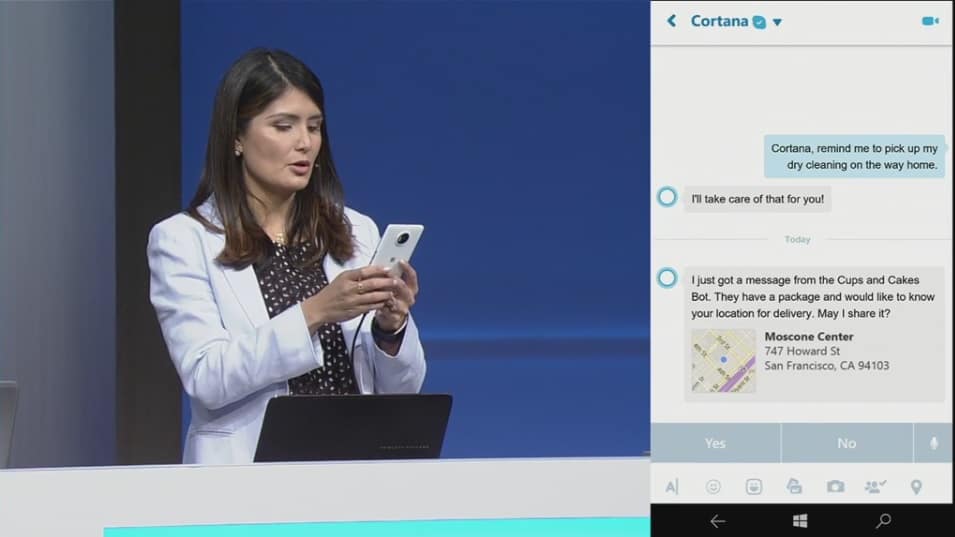
A little more than two months ago, Microsoft announced the Microsoft Bots Framework, a new initiative that will allow developers to create their own intelligent bots to enable natural language interaction with users across many digital services such as its Skype messaging app. To make developers and consumers more familiar with this new interaction model, the Redmond giant has also already introduced a few Skype bots in preview which currently work like a limited search engine that respond to your search queries. You can check out our hands on preview of the Skype messaging bots below:
While these Skype bots are still only available in select markets (Australia, Canada, England, Ireland, India, New Zealand, Singapore, and the US), the Skype team shared in blog post today that there have been “thousands of conversations with bots over Skype, as well as a huge amount of interest from bot developers building all kinds of fun, interactive and intelligent bots.” As the company now seems ready to push its bots platform to the next level, the Skype team is now inviting developers to a Skype bot hackhaton in Palo Alto in June 21-22. Even better, there will be prizes for the most innovative and engaging bots:
We’re inviting you to come and build an awesome bot at Skype Palo Alto on June 21-22, with the help of the Microsoft bot team and AI experts from Cortana, Bing and Microsoft Research. We’ll have sessions on bot best practices, early access to our latest development tools, great food to keep you going and plenty of swag. Plus, the most innovative and engaging bots will compete for the chance to win $5,000.
Microsoft seems clearly convinced that bots are the future, and the company previously announced that it is also working on Skype video bots to give users the opportunity to interact with characters and businesses via a virtual personality through Skype video. You can sign up here to register your place for the event, let us know in the comments if you think bots and artificial intelligence can make Skype a better messaging app.
With a little more than a month until the Anniversary Update, Microsoft slowly transforms Windows 10 with every new Preview build. The latest release, build 14361 for Windows 10 Preview, introduced one interesting change that demonstrates that Windows 10 is almost Anniversary Update-ready .
If you dig into the latest Preview build’s system information, you’ll notice that its version number was changed from 1511 to 1607, the number of the Anniversary Update. With this, it’s safe to say that build 14361 is a real Redstone build, even if it didn’t introduce any major features.
To check your system version, go to Settings > System > About.
Will Microsoft repeat a Threshold 2 scenario?
The new version number clearly shows us that the Anniversary Update is in its final stage of development and that Microsoft should meet its deadline of July 29th. However, we can’t for sure say that everything will go as smoothly as users are hoping.
Even the latest Windows 10 Preview build, and the first build with the Anniversary Update version number, contains a big number of issues and bugs. Of course, people will say it’s normal in the Preview version of the system and they’re right, but what if Microsoft doesn’t manage to polish everything before the update is released?
As a reminder, the November update for Windows 10 gave many users headaches due to a huge number of problems. So, if Microsoft doesn’t focus on fixing all present issues from the Anniversary Update Preview builds, we can easily end up with another troublesome update — something neither Microsoft nor users want.
But not everything is lost for the Anniversary Update. Microsoft has a solid amount of time to work on all its possible issues and get everything in its place for the premiere. Because of that, we don’t expect Microsoft to release any notable new features in the coming Preview builds but instead focus on enhancing the system.
Tell us in the comments below: What do you expect from the Anniversary Update? Will Microsoft release yet another buggy update or it will be different this time?
Not too long ago, there was a pricing error on Xbox Store that had Fallout 4 priced at $0. As expected, gamers jumped at the ability to grab the game for free, but it didn’t take long for Microsoft to realize what was going on. Soon after, the company fixed the issue and made it impossible for gamers to play the game once it was installed making sure to remove the game from all Xbox One systems it was installed on.
According to Xbox support, the pricing error had to do with server maintenance being done at the time. Pricing errors appeared on several other items as well, but outside of Fallout 4, the other games affected are not known.
Because of this, Microsoft decided to give users who downloaded Fallout 4 $10 to smooth things over and should be expected in their Microsoft account by the end of June 2016. While there’s not much $10 alone can buy on the Xbox Store, it can certainly be of help with the purchase of a new game.
Would it be possible to keep playing Fallout 4? We’re not sure, but there might be an option that could work. You see, for Microsoft to brick the game and remove it from your Xbox One, the system must be connected to the web. Simply means, if you haven’t yet connected your Xbox One to the web since then, then don’t and enjoy your brand new Fallout 4 — without Xbox Live access to show off to your friends, of course. So, play and enjoy the game for a while, then allow the software giant to do what it wants and claim your $10. Bear in mind that mods are now available for the Xbox One version of Fallout 4, a move that breathes new life into the game.
With E3 upon us, this $10 from Microsoft could help with the purchase of games such as the recently leaked Halo Wars 2, Watch Dogs 2, or even FIFA 17.
Injustice: Gods Among Us was one of the best video games released back in 2013, managing to do what most fighters fail to accomplish time and time again: offer a compelling story. We’re hoping the newly announced sequel, Injustice 2, can live up to that.
Before the release of its trailer and official announcement, a poster was leaked that gave fans their first glimpse of the game. It appears after that, Warner Bros. and NetherRealm Studios had little choice but to officially announce the game and release the trailer well before E3 2016.
The trailer showed our heroes fighting each other as violently as we’ve come to expect. However, there’s one major change here: each character can be outfitted with armor—even Superman himself. We’re not sure why Superman would need armor, but it looks great nonetheless.
Here’s what Warner Bros. had to say in a statement:
Injustice 2 offers the latest DC fighting game experience that expands on the previous title’s larger-than-life showdowns. Every battle defines you in a game where players personalize iconic DC characters with unique and powerful gear earned throughout the game. For the first time gamers can take control of how their characters look, fight and develop across a variety of game modes.
Injustice 2 continues the epic cinematic story introduced in Injustice: Gods Among Us as Batman and his allies work towards putting the pieces of society back together while struggling against those who want to restore Superman’s regime. In the midst of the chaos, a new threat appears that will put Earth’s existence at risk. Players can play from the biggest DC roster ever offered in a fighting game, from classic fan favorites such as Batman, Superman, Supergirl and Aquaman, to astonishing new villains like Atrocitus and Gorilla Grodd. Battles will take place across arenas that have evolved in scale and span across iconic locations such as Metropolis, Gotham City and Atlantis.
Injustice 2 is set to release on the Xbox One come 2017, though there’s no word if it will ever come to Windows PC. The original was released on Windows PC a year after it came out on consoles.
There’s one thing we have to say: the original game had terrible character facial designs. We hope Warner Bros. and NetherRealm Studios can address this issue with Injustice 2.
E3 2016 should be an interesting affair as several games are expected to be announced during the show. Microsoft is expected to officially unveil the leaked Halo Wars 2, along with an Xbox One Slim and a possible upgraded Xbox dubbed ‘Scorpio‘.
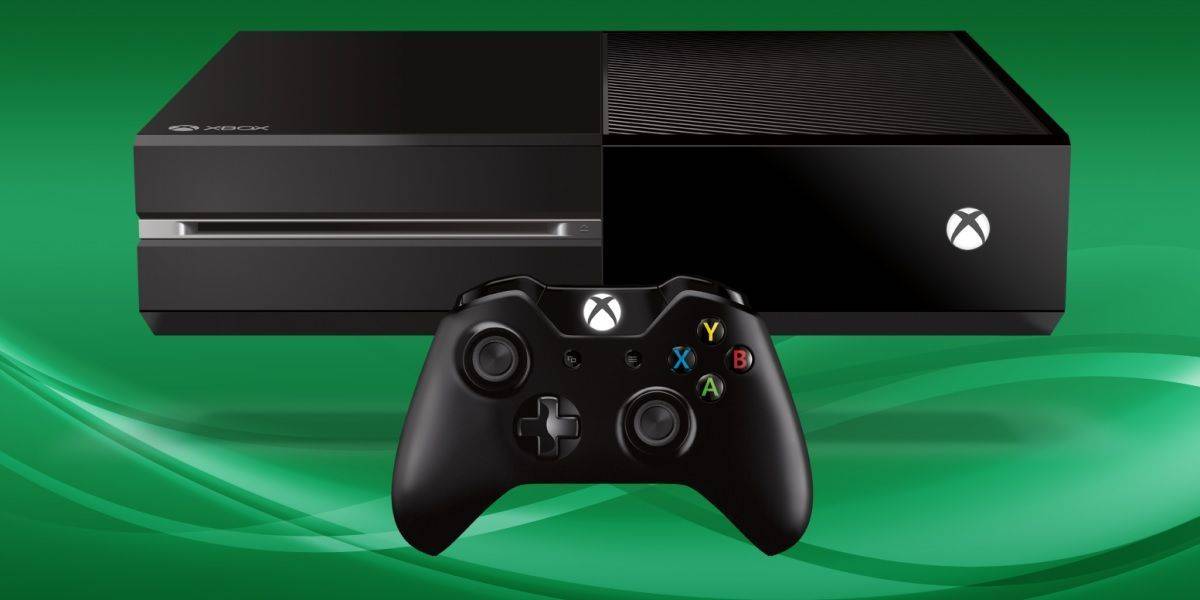
Some sad news for those who take advantage of the TV features on the Xbox One and were hoping Microsoft would transform the device into a complete DVR experience: Microsoft confirms that the DVR feature that was in development has been placed on hold. We’re not sure if this move means the feature will never see the light of day, but it would seem as if it won’t make it to the current Xbox One but instead to a newer device in the future.
Here’s a statement a Microsoft spokesperson made to The Verge:
After careful consideration, we’ve decided to put development of DVR for Over-the-Air TV on hold to focus our attention on launching new, higher fan-requested gaming experiences across Xbox One and Windows 10.
We’re always listening to fan feedback and we look forward to bringing more requested experiences on Xbox One, Windows 10 and Xbox Live this year.
We cannot rule out the possibility of the DVR feature coming to the console at a later date. Chances are, the limitations or overall design of the Xbox One’s architecture did not bode well for a DVR feature, but who knows: the rumored Xbox ‘Scorpio’ could change things.
As it stands right now, Xbox One users need to remove the thought of having DVR functionality on their preferred gaming console and move on for now. We hope the software giant gives a better explanation of why the feature was canned because its statement to The Verge is not good enough from our point of view.
Stay tuned to Microsoft’s Xbox E3 2016 press conference on Monday for the possibility of learning more.
If you’re looking for an app to help you take your music everywhere, check out Style Jukebox. This free music streaming platform allows you to upload your music collection from your computer on the cloud and listen to your favorite songs on your Windows phone on the go, both online and offline.
Style Jukebox helps conserve your phone’s storage to avoid low memory messages when you want to take pictures and videos.
This app is particularly useful when traveling, on a daily commute to work, or at those annoying parties where nobody has good music. Your favorite music is safely stored in the cloud and you can access it at any moment.
To create a Style Jukebox account, all you have to do is install the app on your computer and import your music collection from there. The good news is that the app is compatible with Windows Phone 8 and Windows Phone 8.1 versions, so you can also use it even if you’ve decided not to upgrade your operating system.
There are also premium versions of the app, with prices ranging from $8.99 for a 3-month premium subscription to $79.99 for a one year 1TB Pro version.
Here is a full list of its features:
Upload up to 10 GB of music for free.
All your music and playlists are automatically synced.
Download songs on your phone for offline playback or to reduce data plan usage.
Store music bought online, music imported from CDs, even music you create.
Control music with your voice. Play, queue or search songs using Cortana, your personal DJ.
Instant access to your entire music collection at High-Fidelity sound quality (including FLAC and M4A ALAC formats).
Create a temporary song queue.
Import your music from Dropbox, OneDrive and Google Drive.
Users love this app and suggest it’s better that the Google Music alternative:
Excellent alternative to Google Music, easy to use and excellent playback. Better than the rest.
Feeling the urge to runMS-DOS on your Windows 10 computer? Now you can with the MS-DOS Player emulator. This program enables lets users run simple commands in DOS, but doesn’t support more complex programs. However, it is a very good alternative to the lack of MS-DOS support on Windows 10 and the classic “this app can’t run on you PC” error.
You can run the MS-DOS Player on both Windows 10 32 or 64-bit versions. As stated previously, the program doesn’t emulate hardware like graphics or sound cards, so your options are limited.
MS-DOS Player has eight binaries, and each one emulates a separate processor supporting 32, 64 or both Windows 10 versions. If you’re not sure which version you need, go to the i86_x86 folder and select the only msdos.exe file there is.
If you want to test it, copy the file to the folder containing your DOS executable file, and launch it from a command line.
If this doesn’t work, you can use the troubleshooting switches. They allow you to ignore invalid memory instructions, tweak memory handling, set the DOS version, and more. To see the options, launch msdos.exe with no program name, or double-click it from Windows. For more information, go to the developer’s page.
Speaking of emulators, in case you have friends who are on the fence about upgrading to Windows 10, you can recommend them this Windows 10 emulator. This way, they can see with their own eyes what Windows 10 has to offer, and possibly helping them decide to upgrade for free while they still can.
When using technology, users somehow take off their virtual clothes and reveal more than they would normally do. Apps need to access private information such as the content of your emails or your contact list in order to deliver the best possible user experience. Unfortunately, many users are not even aware of the amount and type of information that companies such as Microsoft collect on them, since very few read terms and conditions before using a particular service.
A service like Cortana constantly gathers information about you, but the good news is that you can edit permissions. Even your Windows 10 computer camera may be spying on you without you even being aware. If you want to limit the data various apps and services collect, we suggest you check out these Windows 10 privacy apps and choose the one that best suits your needs.
As if this wasn’t enough, Microsoft is now caught in the middle of another privacy scandal. This time, the leading role is taken by the company’s Visual Studio 2015 C++ Compiler, in which users have discovered two hidden codes that add telemetry function calls to binaries as they are compiled: telemetry_main_invoke_trigger and telemetry_main_return_trigger.
Coder became extremely angry after they detected the codes, especially because Microsoft didn’t mention anything about their existence in its documentation. Steve Carroll, Development Manager for the Visual C++ team, claims that the telemetry function is entirely innocent, and users have nothing to worry about.
Our intent was benign – our desire was to build a framework that will help investigate performance problems and improve the quality of our optimizer should we get any reports of slowdowns or endemic perf problems in the field.
We apologize for raising the suspicion levels even further by not including the CRT source, this was just an oversight on our part. Despite that, some of you already investigated how this mechanism works in nice detail. As you have already called out, what the code does is trigger an ETW event which, when it’s turned on, will emit timestamps and module loads events. The event data can only be interpreted if a customer gives us symbol information (i.e. PDBs) so this data is only applicable to customers that are actively seeking help from us and are willing to share these PDBs as part of their investigation. We haven’t actually gone through this full exercise with any customers to date though, and we are so far relying on our established approaches to investigate and address potential problems instead.
Microsoft promises to remove these events in Update 3 and also offers a solution for users to disable telemetry function calls in the current Visual Studio 2015 C++ compiler version. To disable this dependency, you can add notelemetry.obj to your linker command line.
What’s your take on this event? Do you think this was only a slip from Microsoft, or is there more to it than meets the eye?
The Titanfall 2 team has been very generously divulging details about the upcoming game lately, recently releasing a second teaser ahead of the game’s official release. The game launch is scheduled for June 12 for the Xbox One, PC, and PlayStation 4.
The first teaser was rolled out in April and revealed impressive images alongside a very vague game introduction. The recent teaser is shorter at only 12 seconds and brings images shot from the same angle as in the first teaser.
We don’t have much information about Titanfall 2 but it seems the game is in many ways similar to the Call of Duty franchise. One of the main differences in Titanfall 2 is its far-off setting where humans have settled on several planets. Some of these planets are home to dragons and other scary creatures, so this game is more science fiction and that’s a great differentiator.
Leaked gameplay images also reveal new tactical plays and bigger multiplayer maps, a feature often requested by players. Presumably, the player count has been increased since maps theoretically can now accommodate more players. Rumors also suggest the game will bring new pilot abilities, such as the addition of a grappling hook. Tactical plays such as pulling enemies while they’re in mid-air should also be available.
Apparently, there will also be a pre-order bonus: a handgun called the Violator. While these rumors should be taken with a grain of salt, we won’t have to wait too long to see if they’re true or not.
A Titanfall companion app is also available for Windows 10, which offers notifications with the latest information and updates to Titanfall so you don’t have to constantly follow the news. Detailed information on Titanfall characters, weapons, maps, modes and controls is available, too.
Microsoft introduced a lot of improvements to Windows 10 Preview with the latest build 14361. A feature that probably received the highest number of changes is Bash on Ubuntu on Windows 10. Microsoft revealed a huge list of improvements for the Ubuntu Bash console of the Subsystem for Linux feature that will help Linux developers do an even better job now.
Here’s what’s fixed and improved in Bash on Ubuntu in the Latest Windows 10 Preview build 14361:
“DrvFs is now case sensitive when running in Bash on Ubuntu on Windows.
Users may create case.txt and CASE.TXT on their /mnt/c drives
Case sensitivity is only supported within Bash on Ubuntu on Windows. When outside of Bash, NTFS will report the files correctly, but unexpected behavior may occur interacting with the files from Windows.
The root of each volume (i.e. /mnt/c) is not case sensitive
More information on handling these files in Windows can be found here.
Greatly enhanced pty / tty support. Applications like TMUX are now supported
Fixed install issue where user accounts not always created
Optimized command line arg structure allowing for extremely long argument list.
Now able to delete and chmod read_only files from DrvFs
Fixed some instances where the terminal hangs on disconnect
chmod and chown now work on tty devices
Allow connection to 0.0.0.0 and :: as localhost
Sendmsg/recvmsg now handle an IO vector length of >1
Users can now opt-out of auto-generated hosts file
Automatically match Linux locale to the NT locale during install
Added the /proc/sys/vm/swappiness file
strace now exits correctly
Allow pipes to be reopened through /proc/self/fd
Hide directories under %LOCALAPPDATA%\lxss from DrvFs
Better handling of bash.exe ~. Commands like “bash ~ -c ls” now supported/li>
Sockets now notify epoll read available during shutdown
lxrun /uninstall does a better job of deleting the files and folders
Corrected ps -f
Improved support for x11 apps such as xEmacs
Updated initial thread stack size to match default Ubuntu setting and reporting the size correctly to the get_rlimit syscall
Improved reporting of pico process image names (e.g. for auditing)
Implemented /proc/mountinfo for df command
Fixed symlink error code for child name . and ..
Additional bug fixes and improvements”
Additionally, Bash also received support for the following syscalls low-levelw level APIs:
GETTIMER
MKNODAT
RENAMEAT
SENDFILE
SENDFILE64
SYNC_FILE_RANGE
Bash on Ubuntu is currently available to Windows Insiders running Windows 10 Preview only. However, Microsoft will release it to the public with the Anniversary Update, making it available to even more Linux developers who want to work on their scripts in Windows 10 without running a virtual machine.
Microsoft changed a few aspects of the Settings app in Windows 10 Preview with the latest build, aspects mostly focused on design improvements.
From now on, the navigation pane will be white or black depending on the selected theme. As a reminder, you can change the default theme in Windows 10 Preview by switching between the light or the dark mode. If you’re not sure how to change the default user interface theme, check out this article.
Additionally, Microsoft added a small block of color which highlights the settings page you’re currently on. Similar to the navigation pane, a highlighter picks up your accent color so it fits better with the environment.
And finally, the last change is the small Home icon, which, as its name says, takes you to the home page of the settings app when clicked. The home icon is located in the upper-left of the window, and it appears above the navigation pane on every page of the Settings app.
After a lot of anticipation and speculation, the Microsoft Edge version of the popular password manager LastPass was finally released with the latest Windows 10 Preview build. LastPass is now available in the Windows Store and Insiders running the latest Windows 10 Preview build can install it.
LastPass appeared in the Store with the previous build for Windows 10 Preview, but its release wasn’t officially confirmed. However, while users were able to download and use it, they faced many unexpected errors that made using it almost impossible.
As Microsoft said, even the official version of LastPass extension for Microsoft Edge has its share of issues. Of course, this isn’t a big surprise, since this version of LastPass Edge is the very first version available in the Store. We expect developers to drastically improve it in the future releases.
Here are some known issues with LastPass:
“Copying with keyboard shortcuts does not work in the LastPass extension popup
Creating a new profile from the LastPass popup may crash the browser
LastPass Vault fails to load when there are no items in the vault
LastPass icons overlap the default placeholder glyphs for credential textboxes
Password import is not currently supported”
LastPass is one of the most popular password managers in the market. It also has extensions for other browsers, like Google Chrome and Mozilla Firefox, so it was just a matter of time before its would debut on Microsoft Edge.
LastPass, just like other extensions for Microsoft Edge, is for now available to Windows Insiders running the latest build only. Regular users should get this feature with the Anniversary Update for Windows 10.
If you’re running the latest Windows 10 Preview build and already managed to install LastPass Edge, feel free to share your experience using it with us in the comments below. How does it perform? Have you dealt with any of above-mentioned errors?