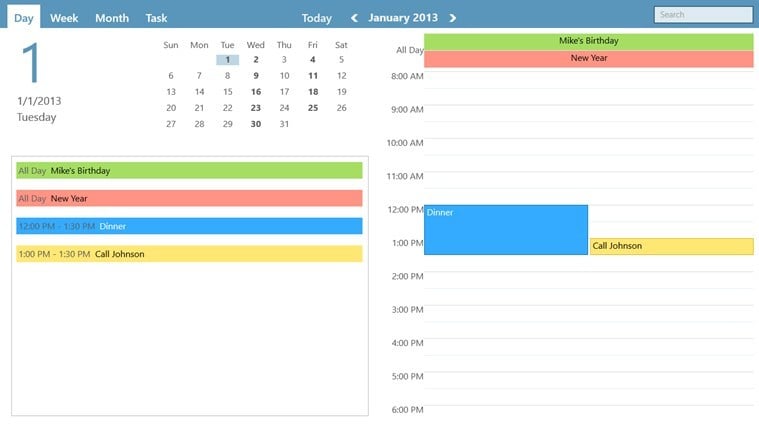
Interactive Windows Live Tiles shown off, could it be a part of Windows 9?

Interactive Live Tiles shown off, could it be a part of Windows 9?

Microsoft researchers in Asia are apparently experimenting with interactive Live Tiles in Windows, according to research videos which were uploaded (and subsequently removed) by Microsoft. Is this a sign of things to come with Windows 9? 

“This project features an Interactive-Tile UI system that enables users to access and manipulate Live Tiles in an interactive way with touch gestures. Interactive Tile’s UI is responsive and flexible to an app’s content and function. Users can provide quick input to the Interactive Tile on the Start screen. With a perception of Start as an entrance page, Interactive Tiles were introduced to empower the start screen with an intermediate access level to applications,” the project description reads.

In the demonstration, which we have embedded below for your viewing pleasure, Human-Computer Interaction Group researcher Jiawei Gu shows off the Interactive Live Tiles research project and how you can drill down a Live Tile to get more information on the app.

The idea is to allow for “parallel tasking.” For example, the Interactive Desktop Tile lets you interact or even open apps from the tile! As ZDNet points out, this can “help Windows 8 users who find moving between the Desktop and Metro-Style environments less than smooth and intuitive.”

Of course, this is just a research concept and there is no guarantee that this feature will ever make it to a future version of Windows. Microsoft has apparently pulled the demonstration videos as well, but thankfully the internet was able to snag them before they disappeared. Hey Microsoft, were we not supposed to see this just yet? 

You can take a look at the Interactive Tiles below. Do you find this useful?

Thanks for the tip, @Steveo!

Fix: iPhone, iPad, iPod not syncing with iTunes on Windows 10

If you own an iPhone or iPad, it doesn’t mean that you neglect Microsoft’s products. As a matter of fact, there are plenty of Windows 10 users who own an iPhone or iPad, but they too are experiencing the well-known glitches of Windows. We try to offer some fixes for annoying syncing iTunes problems.
iphone ipad not syncing itunes
If you’re interested in how you can move easily files from your iPhone or iPad to the Windows 8, Windows 8.1 and the other way around, you can have a look at the guide that we have created for that. However, if you have set your mind on iTunes and you want to sync your iPhone or iPad to the Windows 8, 8.1 system and you’re experiencing problems, then you can follow the tips that we’re going to share here with you. If your Windows 8 system won’t connect to the iPhone 5, 5s WiFi hotspot, we’ve also included some tips to that, as well.

Besides the iPhone and the iPad, iPod users as well have been experiencing iTunes syncing problems on Windows 8. But, hopefully, by following the steps from below, you will be able to remedy your problem. Here’s what one affected iPhone user is saying:

I’ve tried numerous times to add my iphone to itunes, but it does not recognize my device.  I’ve even deleted itunes and reinstalled it, but it still won’t work.  Can anyone help me figure this out ???

So, without further ado, let’s have a look at some potential fixes.

How to make iPhone, iPod or iPad sync with iTunes on Windows 10

What I have discovered is that issues with iOS syncing problems with iTunes are more frequent on Windows 8, so the immediate advice would be to upgrade to Windows 8.1. Better yet, why not make the jump straight to Windows 8.1 Update, since it’s been recently released. Another funny thing is that, albeit officially compatible with Windows 8, we can see in the below image that iTunes 11 especially has been given a downvote by so many.

Also, before proceeding with syncing your iOS device with iTunes, make sure that you’ve also downloaded the latest iTunes version and iOS, as well. Another “dumb” advice would be to switch the method that you try for syncing – from WiFi to USB or the other way around. If you’re still having syncing issues, let’s move on. Therefore, if your iPhone, iPad, or iPod don’t appear under Devices in iTunes, then you will be getting one of the following errors: “the device cannot be restored in iTunes”, an exclamation point, question mark, plug symbol, or “X” appears. Here’s some more solutions on how you can try to fix it:

  • First of all, you need to make sure that there are no damages to your connecting cable, like debris, and that the USB port on your Windows 8 or Windows 8.1 is also working
  • You need to make sure that you have Apple Mobile Device Support installed. For that, simply open the search bar and type there its name. Try uninstalling it again and getting the latest version, as this could help. If it is not listed, the remove iTunes, QuickTime, Apple Software Update, Apple Application Support in this order and the reinstall iTunes and the software. ios itunes not syncing windows 8
  • Next, try and restart Apple Mobile Device Support by closing iTunes and then disconnecting your iPhone, iPad, or iPod. Type”View local services” on the Search charms bar and make sure you search under Settings. Pick Apple Mobile Device and then click “Stop the service”. After that, click on “Start the service“, then open iTunes and connect your iOS devices.
  • If you’re still having troubles, try to make sure that the Apple Mobile Device Service has the latest USB driver installed. For that, run the Device Manager in Windows 8 or Windows 8.1 and from the Universal Serial Bus controllers list locate the one you need. If you see some suspicious signs, then disable/enable the driver, uninstall and install it again.

I really hope that this has solved your annoying problems with syncing the iPhone, iPad or iPod with iTunes on Windows 8, 8.1. If you’re still facing troubles, then you can also try and run iTunes in compatibility mode with Windows 7. Also, try and run Windows 8’s troubleshooter tool, as well, as it can do wonders in some situations. Also, just in case you have overlooked this, when installing iTunes, make sure you are logged in with your administrator account.

Also, you can go to program and features and find the same Apple Mobil Device Support from there and try to repair it. Maybe you are lucky! Albeit it doesn’t have an immediate correlation, some users have been reporting that getting the latest Quicktime version also helped – go figure. Let us know by leaving your comment below is all of the above advices have helped you or not. If you happen to know a working fix, do share it with the community, we’ll greatly appreciate it.

READ ALSO: 

Microsoft invests in patent company Intellectual Ventures

Microsoft invest in patent company Intellectual Ventures

Patents today seem to have a bad name, mostly due to some companies giving the entire system a black eye and launching the term “patent troll” into the technology lexicon. Regardless of personal views on this, Microsoft, along with Sony, have invested in Intellectual Ventures.

The report from Reuters tells us that both Apple and Intel declined investment in the venture. However, both companies have previously invested in the patent firm. The pass during this round of fundraising is considered significant, as past investments suggested support that now is perhaps lacking.

None of the companies involved, including IV itself, would comment on this. This all comes on the heels of possible patent reform on the horizon. It’s a thin line to walk, as patents offer insurance for the cost of innovation, but have also served as a beacon for the problems in today’s market, as shadow companies randomly buy up the rights to these patents and sue smaller companies over similar innovations.

According to Reuters, “The investment decisions by four iconic technology companies comes in the midst of a heated debate over whether it is too easy for patent owners to extract large royalty payments, and whether patent buying firms spur or stifle innovation”.

Should companies like Microsoft invest in such ventures? It’s certainly a hot topic in today’s technology world, which is filled with news of lawsuits, notably Apple and Samsung’s high-profile court battles.

Microsoft Ventures launches ‘JumpStart’ to help Indian startups and entrepreneurs

Microsoft Ventures launches 'JumpStart' to help Indian startups and entrepreneurs

Microsoft Ventures today announced the launch of a new initiative in India called ‘JumpStart’. It is a toll free helpline which will provide startups and entrepreneurs with resources to ask business and technical questions. The service will be open during business hours from Monday-Friday between 9AM to 5PM IST.

Microsoft Ventures is the global technology giant’s initiative designed to attract and nurture top entrepreneurs through its fund, accelerators, and community programs. “Microsoft Ventures supports startups at every stage of maturity by providing them with the tools, resources and expertise they need to succeed,” said Joseph Landes, General Manager, Developer & Platform Evangelism, Microsoft India.

“Our experience has shown that a major pain point for startups across the ecosystem in India, irrespective of their stage of maturity, is the lack of real-time support for various critical queries they face. JumpStart fills a major gap and ensures that startups get professional advice that enables them to make smart business decisions,” he continued.

Microsoft Ventures has tied up with thousands of lawyers, tax and human resources service providers, and chartered accountants to help startups and entrepreneurs find solutions to queries. These queries will be answered by professionals who have been trained by Microsoft. As of now, there is just one call center in Delhi to handle the queries. The company says it will soon extend it to satisfy the needs. It anticipates about 500 to 1,000 calls per week.

The initiative has received overwhelming response by the government and industry leaders throughout the nation. Microsoft held a launch event this morning at Microsoft Ventures Accelerator in Bangalore, India. “So many great ideas are born every day. While some are nurtured by the industry, many face a short lifespan because they go unnoticed and end up making wrong decisions due to lack of proper guidance or information. By availing this critical support through JumpStart, startups will have the opportunity to be heard and have access to informed decision-making support, a critical component in their journey. We are delighted that this service will also be available shortly through the Karnataka MobileOne Platform, our new mobile governance system,” said Srivatsa Krishna, Secretary, IT, Biotechnology, Science & Technology and Secretary E-Governance, Karnataka.

The service is currently available in English and Hindi, but the company may add more languages depending on demand going forward.

Microsoft partners with Lenovo and Tencent to provide Windows XP support in China

Microsoft partners with Lenovo and Tencent to provide Windows XP support in China

Microsoft will continue to offer tech support for Windows XP users in China. The software giant has partnered with Lenovo Group Ltd and Tencent Holding Ltd to provide security services to the 13-year old, and now retired, operating system.

After 13 years of service, Windows XP finally reached its end of support earlier this week. The operating system is used by over 27 percent of users across the globe. In China, around 200 million, or 70 percent, still use Windows XP, according to data from Zhongguancun Online.

One reason people are not upgrading is the expense. While $140 for Windows 8 doesn’t seem huge, for some, such as students, it may be out of reach. Plus, there may be added expense if the existing hardware can’t handle the new operating system.

Microsoft has shook hands with Lenovo Group Ltd and Tencent Holding Ltd to continue providing support to XP users. “For domestic users who continue to use Windows XP before upgrading to a new operating system, we have made it a priority to provide safety protections,” Microsoft told Reuters. The support will include services such as information protection, post-virus repairs and upgrades to the newer Windows 7 or 8.

Similarly, Tencent has promised that it will keep two 24-hour hotlines running to help out Windows XP users. Besides these giants, another firm, Qihoo, also promised that it will support Windows XP users. “Qihoo 360 will continue to provide Windows XP support to Chinese users as long as there are still XP users in China,” Alex Xu, Qihoo 360 co-chief financial officer, told Reuters.

Editors note: Story has been edited to reflect that security services, not security updates, will be provided in China. Thanks to our reader Abster for pointing this out!

Fix: Windows 8.1 Update Install Failed: 80070020, 80073712 and 0x800f081f

One of the biggest problems that Windows is facing is the fact that there are always errors and issues, no matter what. And, of course, with the release of the latest Windows 8.1 Update (1), users have been getting plenty of various error codes.
windows 8.1 update failed
Luckily for me, I haven’t had any problems installing the latest Windows 8.1 update and right now I’m enjoying all that’s new in Windows 8.1 Update. However, many readers have sent in their complaints and I’ve also seen numerous posts on the Microsoft community forums of Windows 8.1 users complaining of getting various error codes when their Windows 8.1 Update installation process has failed – 80070020, 80073712, 0x800f081f and others. Problems are more often encountered by those who have chosen to install the updates manually on their own, than those who have waited silently to get it via Windows Update.

Read Also: Enhance the Windows 8 Clipboard Manager with These Tools

Therefore, my immediate suggestion would be to install the Windows 8.1 Update, if you haven’t done it yet, via the Windows Update option. It might sound dumb, but if you have experienced problems by using this method, then try downloading the KB files manually. Of course, to do that, you will need to revert from Windows 8.1 Update to Windows 8.1, and here’s how to uninstall it. Here’s what one affected user is saying about these issues:

windows 8.1 update install failed

I’ve been trying to get the Windows 8.1 Update 1 to install for a couple hours now. I installed a series of files using windows update earlier in the day. Later I tried installing the update file (KB2919355) that popped up in the Windows Update window. The downloading process look over 45 minutes for a 800 MB file even thought I have an internet connection over 20 MB/s. After that it spent 20 minutes installing the update until it failed giving an error code of 80070020. From that I restarted the computer to see if I could try another stab at it, nothing changed or improved.

Now I looked in the Windows update history to see if the other required updates like KB2919442, KB2932046, KB2937592 and KB2938439 were installed and they aren’t in the update history. I thought they were installed already for KB2919355 to be installed. Are all of these update files included in the KF2919355 update that pops up in the windows update? Also, my update history can is only up to date in the control panel and doesn’t show any updates installed in the modern PC settings app. Did windows update fail to properly install updates required before trying to install later updates? What can and can’t I install right now?

Besides the fact that the installation process of Windows 8.1 Update failed, some users have reported that their Modern Windows 8 apps are not working, and even built-in ones like Mail-Calendar-Messaging-People; they crash and the user gets the 0x80070002 error. Also, if you feel like the download or the install takes an awful lot of time, even some few good hours, than just be patient. It’s been reported by others, as well.

Some potential fixes for failed Windows 8.1 Update installation

First of all, what you need to make sure is that you install the KB files in the right order, as follows: KB2919442, KB2919355, KB2932046, KB2937592, KB2938439, and KB2934018. Also, pay attention that KB2919442 is a prerequisite for Windows 8.1 Update and it thus should be installed before trying to install KB2919355. You can try and repair or restore your Windows 8.1 system by following this:

  1. Open command prompt – in the search box type “command”
  2. Right-click and Run as administrator
  3. Type the following commands: dism.exe /online /cleanup-image /scanhealth; dism.exe /online /cleanup-image /restorehealth and after that press enter

If this doesn’t work, here’s another solution that has apparently worked for some:

  1. Run command primot as admin
  2. Type the following command and then press enter:
  3. DISM /online /get-packages /format:table | findstr KB2919355 or Package_for_KB2919355~31bf3856ad364e35~amd64~~6.3.1.14 if you are on AMD
  4. Insert the above command again with this DISM /online /remove-package /packagename:<Name of the package you got from step# 3> 
  5. Restart
  6. Run the following command: DISM /online /cleanup-image /restorehealth
  7. Install KB2919355 and restart

An easier fix would be to try the Windows Update troubleshooter, just in case you haven’t done it already. Also, it could happen that you are missing some Windows Update components or they might be broken or corrupt, so follow this tutorial from Microsoft on how you can fix it. If you’re still having troubles, then you can also try and perform a Clean Boot install of the Windows 8.1 Update, just to make sure that there aren’t any software conflicts at all. Another funny fix that has been reported by the community is to create a new Microsoft user account and perform the install by using it.

I guess you have tried this already, but let the suggestion be here for those who might’ve overlooked it – you can  try to fallback to a previous recovery point and then resume the update. As last advice, you can try and performing the following guide, which is apparently what Microsoft support engineers are trying to fix on affected devices.

Let us know by leaving your comment below if any of this helped.

Read Also: How To Uninstall Windows 8.1 Update 1

How To Uninstall Windows 8.1 Update 1

When Microsoft released the first big update to Windows 8 in the form of Windows 8.1, there were many who wanted to uninstall it. Now, after Microsoft has started rolling out the first big update to Windows 8.1, naturally, there are still many out there who want it gone from their systems. We share the tips.
uninstall windows 8.1 update
We made the title of the article “How To Uninstall Windows 8.1 Update 1” instead of “How To Uninstall Windows 8.1 Update” to avoid the confusion between the Windows 8.1 update to Windows 8 and the update Windows 8.1 received. I know it’s all a little bit of nonsense, but that’s what it is. And since Microsoft hasn’t called it “Update 1”, but just “Windows 8.1 Update”, then probably there will be a Windows 8.2 next.

Before sharing the basic tips on how to uninstall the Windows 8.1 Update, you might want to have a look at the options you have when choosing how to install updates on Windows 8. There’s no point search for it in the well-known “uninstall programs” sections as it isn’t there. Just like we have previously told you, you can install the Windows 8.1 Update via the Windows Update function or by manually downloading certain KB files. Thus, what you need to do is go ahead and remove these KB files that you have installed:

  • KB2949621
  • KB2938439
  • KB2937592
  • KB2932046
  • KB2919355

You need to follow this path to find them – Control Panel > Programs > Programs and Features > View installed updates. You can uninstall them all once and then reboot, but a safer and much more reliable solution would be to install one, then reboot and so on. It’s up to you.

uninstall windows 8.1 update 1.

If you are not able to uninstall those updates using the Control Panel options., then you can try to uninstall Windows 8.1 Update using the command prompt and wusa utility. You will need to open the command prompt as Administrator and then type and execute the following commands, in the right order, as you can see in the above screenshot:

  • wusa.exe /uninstall /kb:2949621
  • wusa.exe /uninstall /kb:2938439
  • wusa.exe /uninstall /kb:2937592
  • wusa.exe /uninstall /kb:2932046
  • wusa.exe /uninstall /kb:2919355

Buy a very important thing that you need to know before proceeding with the removal of the Windows 8.1 Update is the fact that it will become a mandatory update for everyone running Windows 8.1. So, if you won’t install or will choose to uninstall it, then you will no longer receive patches via Windows Update as of May 2014. What’s funny is that those running on Windows 8 and haven’t made to jump to Windows 8.1 won’t be affected. But trust me, there’s nothing wrong with the Windows 8.1 Update and there are plenty of new interesting features, actually.

Read Also: How to Keep Using Windows XP after 2014

Choose How to Install Updates on Windows 8

There are certain updates that you’d rather not want installed on your Windows 8, 8.1 or Windows RT system, or you just need to have more control over them. Here’s a brief explanation on how you can choose to install or not install certain updates on your Windows 8 devices.
how to install updates windows 8
There are certain big updates that are regarded as “mandatory” by Microsoft, for example – the first release of Windows 8.1 for all Windows 8 and Windows RT devices. Once installed, it was pretty hard, if not, almost impossible to uninstall it. So, the best scenario in that case would’ve been not to get the update, even if you were being prompted with all kind of system messages. What you can do to make sure that you have control over how you install updates is to understand how exactly these are being installed.

Read Also: Top Six Windows 8 Geocaching Apps for Your Fun

To do this, you need to go to the Search charm bar (or you can press Windows logo key + W) and type there “install updates” like in this screenshot from the install updates windows 8right. From there, choose the following “Choose whether to automatically install Windows updates“. Once you will get into that settings, you should have in front of you something like in the above screenshot. From here on, things are pretty much self-explanatory and all you need to do is select the option that suits you better.

Understanding how to install updates on Windows 8

Let’s briefly explain all choices:

  • Install updates automatically (recommended) – this is the easiest way to go about installing updates to your Windows 8 system, as it will automatically download and install whatever is new when the right time comes. The big drawback, of course, is that you can’t undo certain updates, or that it might not be as easy as you imagined.
  • Download updates but let me choose whether to install them – this seems like a solution that lets you control updates, but its drawback consists in the fact that it will occupy quite a lot of storage space in time. Especially if you’re running a Windows 8 or RT tablet, then storage might become a concern.
  • Check for updates but let me choose whether to download and install them – as you can see, this is my preferred method, because it doesn’t eat up my storage space, and it lets me know what exactly the update is all about. So, this way, I can control everything that I install on my Windows 8 system.
  • Never check for updates (not recommended) – just like I mentioned, if you don’t like the idea of switching to Windows 8.1 or Windows 8.1 Update, then this is the option that you should go for. If you’re pleased with your current operating system version, then you can keep it. However, you will be exposed to security attacks as these are always targeting Windows.

Also, there are two other options there – recommended updates: give me recommended updates the same way I receive important updates and Microsoft Update: give me updates for other Microsoft products when I update Windows. You can enable the first one as it’s only for your own good. As for the second one, it might force you to make the jump to new versions of third-party software. If you prefer to install them manually, then leave this unchecked.

Read Also: Seven Best Windows 8 White Noise Apps

Top Six Windows 8, 10 Geocaching Apps for Your Fun

Do you want to use your Windows 8 device in an interesting and quite unique way? If you want to discover new places, meet new peoples and have fun, then you must get familiar with the geocaching concept. In that matter, during the following review I will describe you the best Windows 8 geocaching apps that are available on Windows Store.
windows 8 geocaching apps
As you might know, geocaching is a worldwide outdoor game, which uses your Android, iOS, Windows (and so on) based device in order to provide a great experience that can help you relax, have fun and bound new relationships. How does it work? Well, quite easy: all you have to do is to download a geocaching dedicated app and to follow the directions you receive on your Windows 8 device. By using a GPS connection you will then travel in order to discover the “secret treasure” that is placed somewhere out there – the place will be indicated by using the GPS receiver.

Read Also: Seven Best Windows 8 White Noise Apps

Anyway, if you want to learn more about the geocaching community, about the proper game and how to participate to the same, check the official geocaching web page. Now, if you want to install a dedicated geocaching app on your Windows 8 device, don’t hesitate and take a look over the review from below.

Best Windows 8 Geocaching apps to use on your device

Compass +

windows-8-compass-app

Compass + is just great for outdoor navigation and geocaching. The app can be used for geocaching purpose or for having an helpful support on your travels and it is free on Windows Store. You can anytime learn more about this tool by checking our detailed review.

GCExplorer

GCExplorerMaybe the best geocaching client to use on Windows 8 is GCExplorer. Even though the app is priced $3.99 on Windows Store you will get useful features that can be used on your geocaching trip. The tool is also offering a 15 days trial possibility, so you can test GCExplorer with ease and without spending your money.

OutdoorMaps

OutdoorMapsDo you want to travel alone or do you need a helpful app to assist you on your journey? Then you definitely have to try OutdoorMaps, which is a great Windows 8 app that can be also used on geocaching purpose. The tool is priced $4.99 and can be downloaded anytime from Windows Store.

Geocaching Plus Beta

Geocaching Plus BetaGeocaching Plus is a client for geocaching.com, opencaching.com and geocaching.su services and offers great features to use in order to participate on the geocaching community. Geocaching Plus Beta is a must have (it is also free on Windows Store) if you want to start playing this outdoor treasure hunt game.

Read Also: Download Windows 8.1 Update User Guide as PDF

Geocaching Helper

Geocaching HelperIf you need help on your quest or if you want technical assistance on your geocaching trip then you should try the Windows 8 dedicated Geocaching Helper tool. The app will cost you $1.49, but as you will see, without using it your job will be lot harder.

Caching8

Caching8Another highly appreciated Windows 8 geocaching app available on Windows Store is Caching8. With this tool you will be able to add Caches by simply adding the coordinates; after that you will see them on your map. Of course GPS connection will be required. Caching8 can be downloaded from Windows Store for only $1.99.

So, there you have it; those are the best Windows 8 geocaching apps available on Windows Store. Thus, now you can easily begin your own treasure hunt, but don’t forget to have fun on your way, as after all this should be your main goal. Feel free and share your geocaching experience and stories with us and with other users who might want to participate by using the comments field from below.

Read Also: How to Play Old Games in Windows 8 That Really Work

Full Windows 8 Tablets Under $100 on the Way

Right now, there are already plenty of cheap and good Windows 8 tablets, with prices between $200 and $300, but it seems that even cheaper slates are on their way. According to a recent report, a not so popular Chinese company, called Emdoor, could be the first one to release full Windows 8 tablets under $100.
cheap windows 8 tablets under $100
This might seem like an overreach, but shortly after the Build 2014 event, Intel has announced at the IDF conference that they are going to use their low-end Baytrail solution for Windows tablets at the $99 pricetag. Hermann Eul, a top executive at Intel, said Windows tablets could cost only $99 by lining up low-cost processor models up with the removal of Windows licensing costs. He also said that there are already more than 90 tablet designs coming to the market, with prices ranging from below $100 to $500.

Read Also: Nokia MixRadio App for Windows 8 Gets New Features

Most likely, cheap Windows tablets around the $100 price range will be aimed at emerging markets, such as China or India, and according to Endmoor’s  product roadmap, a small known Chinese OEM, the company plans to come with some incredibly cheap Windows 8 tablets. If Google Translate isn’t missing something here, then we could see as early as this summer a $99 Windows 8 tablet with built-in 3G. What’s really hard to believe is that Endmoor says there will be an even cheaper version at only $60.

cheap windows 8 tablets $100

The purported cheap Windows 8 tablet is said to arrive with a 7-inch screen, 1024 x 600 pixel resolution, 1GB of RAM and 16GB of internal storage. Yes, these are the minimum requirements need to barely sustain the Windows operating system and let you access the Windows Store. It hasn’t been mentioned whether they would be running on Windows 8.1 or Windows RT, but since the system requirements for Windows 8.1 have become so low, it’s no point on going on with Windows RT.

The idea of releasing a free Windows version for smaller tablets coupled with Intel’s dirty cheap low-power kernels might be the winning bet against the rising number of cheap Android tablets. The ability to run desktop apps at such an unbelievably low price will definitely drive consumer pull. And imagine that these cheap tablets come with a USB port or even HDMI, to attach a keyboard, mouse or second display – then it becomes a really interesting proposition to the user.

Nokia MixRadio App for Windows 8, 10 Gets New Features

Nokia has recently released its official Nokia MixRadio on the Windows Store for Windows 8, 8.1 and Windows RT users. It is one of the best music and video players and media center apps, and now it has been update with a new interesting feature.
nokia mix radio app windows 8
Nokia MixRadio is the third Nokia app which has been released on the Windows Store, after Nokia Here Maps and Nokia AppSocial. If you have been using Nokia MixRadio on other platforms, then you know what you’re getting for in Windows 8 and Windows RT. It can act as your own personal radio station, letting you create your own playlists of songs, of course, if you have a Nokia MixRadio+ subscription required. But there’s a free trial available to see if this service is for you. And if you own a Nokia Lumia tablet, then youcan enjoy Nokia MixRadio free-of-charge.

Read Also: World’s Most Hated Browser Gets the Axe

Nokia MixRadio for Windows 8.1 is a complete playback and discovery experience for Nokia MixRadio+ subscribers and Nokia Lumia tablet owners. Nokia MixRadio is your own personal radio station. It will learn your taste in music and give you just the right songs at just the right time. Fancy something a bit different? Choose from hundreds of hand-crafted Mixes (playlists of songs created by our Mix Masters) or create your own simply by telling us a few of your favorite artists. And if you want to save your internet connection or even enjoy music when not connected, Mixes can be downloaded to your PC or tablet for listening when you’re out and about.

nokia mixradio app for windows 8

According to the release notes, the latest version of Nokia MixRadio app for Windows 8 brings the “brand-spanking new Play Me button”. By using it, you can tweak the personalized music profile Play Me which lets you skip songs and add your favorite artists. The app comes with the same features as before, and here are some of the most important:

  • Hundreds of hand-crafted playlists
  • Offline Mixes
  • New Releases From Your Favorite Artists
  • MP3 Playback
  • Artist Mix: Tell us up to three of your favorite artists and we’ll make you a mix featuring those and other similar artists
  • Artist Page: Found someone new? Learn all about them with our artist pages. Biogs, featured mixes, tweets, gigs, similar artists and artist image galleries.
  • Play To: send what you’re listening to directly to many smart TVs or DLNA-enabled devices

Download Nokia MixRadio app for Windows 8, Windows 8.1

World’s Most Hated Browser Gets the Axe

Today marks the day when Microsoft puts an end to extend support for Windows XP, and along with its death, we’ll also see the “world’s most hated browser” finally getting the axe – Internet Explorer 6.
internet explorer 6 death
Today Windows XP officially dies and Windows 8.1 update is also being rolled out in the same day. Another product which gets the axe is Internet Explorer 6, the “most hated browser” in the world for which even a “funeral website” has been created with a countdown until its final day. The sixth version of Internet Explorer has been criticized for its security issues and lack of support for modern web standards. Nonetheless, with all the campaigns which were urging users to ditch and stop using it, at the end of March, this year, Internet Explorer 6 had a IE market share of 4.15%.

Read Also: Skype App for Windows 8 Gets Sign-Out Improvements

If you recall, the most important reason why Internet Explorer 6 became so hated and infamous was because it lasted for so long – it took more than 5 years for Internet Explorer 7 to finally arrive. And until then, users’ security had been compromised. That was the moment when Internet Explorer started to being perceived as “the browser that you use to download other browsers”. But with Internet Explorer 11, things are finally looking much better, and it seems that it took Microsoft quite a while to learn its lesson.

Along with Internet Explorer 6, we also wave goodbye to IE 7 which, curiously enough, has a lower market share among Internet Explorer versions, at only 0.80%. Maybe time stopped for somebody on our planet. Albeit Internet Explorer 8 is scheduled to receive extended support until January 14, 2020, its life ends today for Windows XP. Microsoft reached out to TheNextWeb with the following

Internet Explorer follows the support lifecycle of the Windows operating system on which it is installed. This means users on Internet Explorer 6, 7 and 8 on Windows XP will also end support. We encourage you to upgrade to a modern OS like Windows 7 or Windows 8/8.1 to receive the full security and performance benefits of a modern browser like IE10 and IE11.

Why do You Really Hate Windows 8?

While running a blog dedicated to Windows 8 apps, I’ve always faced a big problem – everybody keeps complaining about Windows 8. So, now I invite you all to express your real opinion and sound off in the comments section – why do you hate Windows 8?
why you hate windows 8
It’s almost the middle of 2014 and yet there are still many haters to Windows 8. Today is the official day when Window XP will stop getting support, which means many will make the switch the a newer Windows version. While Window Vista is obviously out of the question, as everybody knows it was pretty much a flop, Windows 7 and Windows 8 are the next potential upgrade. But many aren’t switching to Windows 8 because, well, they hate it.

Read Also: Android, iOS File Transfer to Windows 8: Apps and Solutions

So, the point of this article is to gather as many opinions as possible and understand why many still hate Windows 8. But please, don’t just say you hate it because you don’t like touch, that’s not a valid point. Or, that you hate it just because it’s different. However, if you happen to enjoy Windows 8, let us know your opinion on this, as well. Personally, I like the Windows Store and the idea that it brings mobile apps to your desktop or touch Windows device.

That’s actually the reason why I started this website – I believe that apps from the Windows Store are great and that they will become more awesome in time. And the idea of Windows 8 is interesting – combining touch and desktop environments under the same roof. Sure, it’s not an easy task, and that’s why there are so many updates rolling out – to find a compromise between desktop and touch users. But, in the end, Microsoft will succeed.

They’ have a great Build 2014, where they also took the mobile world by storm with the release of Windows Phone 8.1, and with the new CEO, we’ve seen that cross platform products are becoming more important to the company. But, let’s get back to my question – what does Windows 8 have that makes you cringe and hate it? Sound off below.

Fix Coming for Surface Pro 2 WiFi Slowdown Caused by Bluetooth

The Surface Pro 2 is a great Windows 8 system, but it’s been plagued with some problems for users. Apparently, the WiFi connectivity is slowing down when Bluetooth is enabled; but now, a Microsoft representative said this issues is being looked into and will get fixed in the near future.
surface pro 2 wifi bluetooth issues
In the past, we have reported about numerous other bugs and glitches that were affecting Surface Pro 2 users, like problems with the time which wasn’t updating or the fact that Microsoft has been shipping lately models with the wrong processor inside. But we’ve talked about good things, as well, like the recent firmware update which the Windows 8.1 tablet received in order to boost its battery. Now we’re talking about some annoying WiFi problems which have been reported by Surface Pro 2 owners who had Bluetooth turned on.

Read Also: Download Windows 8.1 Update User Guide as PDF

This problem has been affecting users for quite a while now, and complaints have been posted in Microsoft’s community forums dating from the beginning of this year. After many discussions, only recently a Microsoft support engineer has finally reached out to the affected users and said that a fix is coming soon. Here’s what folks have been complaining about:

I have bluetooth wireless audio receiver from logitech which used to work great with my viao laptop, but when using it on my new surface the wifi connection goes really really slow (seems to me it’s not transmitting or receiving anything)! I’m very happy with my new Surface Pro 2 but since I have all my music on my Surface I find this a very annoying problem! Hopefully I gets fixed soon! Also some feedback whether this isssue is being investigated would be nice!

Somebody seems to be having this problem from fall, last year:

I recently purchased a 256G Surface Pro 2 and a docking station. I noticed very poor WIFI, it was only capable of downloading at around 3 MBs (megabytes per second) on my internal LAN. My laptop gets at least 3 times that speed at the same distance from my wireless router (about 6 ft). After doing a bit of searching, I noticed that a number of other people are complaining of similar issues. I discovered that if I turned off Bluetooth, the WIFI speed almost tripled. I have tried modifying the power settings for the WIFI, Bluetooth adapter and USB, installed the latest drivers and patches. The Bluetooth devices that I have are the Arc Touch Mouse Surface Edition and the Surface Wireless Adapter for Type Covers. I can confirm I am running the latest .150 drivers. I’m really annoyed by this. I spend extra to get a Bluetooth LE mouse only to have it cripple the WIFI speed when I use it.

By looking to the official page with the Surface Pro 2 update history, we can see that some fixes have been put in place in March, 2014, which could solve these problems, or at least some of them. These include wireless network connectivity fixes for Wireless Network Controllers, but Bluetooth updates are missing. We will keep an eye on the page and let you know if and when the necessary fix takes place.

Read Also: Windows 8 Red Stripe Deals: Halo Spartan Assault, Note Anytime [#18]

Best Windows 8 App this Week: My Media Center

After a short pause during the previous week, we’re back with our weekly selection of a single Windows 8 app or game that we want to highlight. This time we’re turning our eyes to ‘My Media Center’, which we’ve spotted during this week’s Windows 8 Red Stripe Deals.
my media center
It’s quite interesting that Microsoft has allowed the existence of such an app in the Windows Store, and, naturally, it’s now wonder why it has become so popular. “My Media Center” app for Windows 8 comes with plenty of useful features which makes it the best companion remote app for your Media Center media files. By using it, you can manage and control your Windows Media Center experience from your Windows 8 device and have access to tecorded TV, scheduled recordings, movies, universal search, remote control, and much more.

Read Also: Bring PlayStation Network to Windows 8 with FoulPlay App

The app is currently available for only $2.49, but since it’s the single app which offers such awesome functionality, it will return to its usual price, which is probably double. So, if you were looking for a Windows 8 app to remotely access your Windows Media Center files, you now have it. All you need to do is to install My Media Center Services on a separate Windows 7 or 8 PC and run Windows Media Center. The app has also been updated multiples times, bringing many useful features and updates, such as customizable Live Tiles, UI tweaks, enhanced support for large collections and various other bug fixes, along with user interface enhancements and performance improvements.

windows media center remote app

If you love Windows Media Center you’ll REALLY love My Media Center for Windows 8. As a companion to Windows Media Center, My Media Center allows you to manage and control your Windows Media Center experience from your Windows 8 device, whether you’re inside or outside the house. Recorded TV, scheduled recordings, movies, universal search, remote control, and so much more the Ultimate Windows Media Center app is here.

What you need to know, however, is that the Windows 8 My Media Center app does not stream recorded or live tv to your Windows 8 device, but it allows to start playback on your HTPC or Extender. The main features of the app include the following: universal search across all of your content, manage Scheduled Recordings, manage Series Recordings, browse Program Grid Guide, use On Screen Remote Control to control HTPC or Extender, automatically generate local movie metadata & cover art, nrowser recorded & local movies in a beautiful gallery, browse list of movies on television tonight, wake on LAN ability and many others.

Download My Media Center app for Windows 8 

Bring PlayStation Network to Windows 8, 10 with FoulPlay App

At the moment, there isn’t an official PlayStation Network app available on the Windows Store for Windows 8, 8.1 or Windows RT users, but there are some third-party developers that have come up with a solution for those in need of something similar.
play station network windows 8 app
With not quite an appropriate name, FoulPlay is a new Windows 8 app that lets you unofficially access the PlayStation Network through your desktop or touch Windows 8, 8.1 or RT devices. But since this is an unofficial application and it makes use of Sony’s trademark, I guess it could be pulled any moment now, so if you were on the lookout for such a service, then you definitely should hurry and download the app by following the link at the end of the article.

Read Also: ING Bank app for Windows 8 Rebranded to Tangerine

Of course, this app is no match for how an official PlayStation Network app should look and feel like for Windows 8 users, but it’s pretty reliable, considering it comes from a third-party developer. So, since it’s a fresh release, if it remains live on the Windows Store, then most likely future updates will bring even more features and will fix bugs and glitches that will appear as more and more Windows 8, 8.1 users will download and install the app.

windows 8 app play station network

Envious of your iPad and Android owning friends, who have their own mediocre, HTML Based, official Playstation Network app? Well, envy no more! FoulPlay is the first Windows 8 app to allow you to connect to the PSN.

“FoulPlay: The Unofficial PlayStation Network App” for Windows 8 comes with four main features: the ability to send and receive messages, to compare trophy lists and to view recent activities. Also, you can see and respond to game invites and with live tile and toast notification support, you will be updated with the latest activities in your PSN account or whenever someone on their PlayStation is trying to contact you. And with just a size of 1 megabyte, it’s pity not to download this one, if you own a PlayStation.

Download FoulPlay: The Unofficial PlayStation Network app for Windows 8, Windows 8.1

Crossing 1000+ Posts on Wind8Apps: Thank You!!!

When I first started this website, back at the end of October, 2012, I didn’t know it would have become so popular, nor that it could manage to produce such a big quantity of good content. Thank you all for reading Wind8Apps!
wind8apps
Last week, we have crossed the 1000 posts barrier, and this is an unbelievable feature to achieve in 2.5 years since Wind8Apps has started to exist. It’s been mostly a one-man blog, which makes the effort even bigger. However, I’ve been helped by many folks to get to this point and I’m very grateful to all of them. Those of you who are actively following Wind8Apps, I’m glad you still have faith in Windows 8 and the power of the Windows Store, because back when I started, around 1000 days ago – interesting coincidence, right ? -, Windows 8 was just a tiny baby. Now, as we face the death of Windows XP, it will definitely pick up.

Read Also: Cortana on Windows 8.1 PC and Tablet: Give it Time

I can now proudly say that we are THE NUMBER ONE WEBSITE when it comes to reviewing Windows 8 apps from the Windows Store and keeping you notified of the latest most important updates they have received. We’ve created a lot of awesome content here, and we have also covered some of the most interesting and objective Microsoft news, not just dull, mundane reporting of other Redmond loving blogs. So, I hope that’s why you keeping on reading Wind8Apps.

We’ve been featured and linked from such big websites as TechCrunch, PC World, InfoWorld, WP Central, WinBeta and many, many other websites from all around the world. Our stories have been getting the front page of social sharing website wwww.slashdot.org and overall, we’ve managed to build a reputable name. So, thank you for all that and I hope you’ll keep on reading our stories and stay update to date with the latest Windows news.

Thank you.

Lenovo Thinkpad 8 vs Asus Vivotab Note 8: Which is Better?

If you are planning in buying a new Windows 8 based tablet and want great performances in specs and features matter, then you should head your attention towards the Lenove Thinkpad 8 and Asus Vivotab Note 8. Now, in order to help you out during the following lines I will try to compare these tablets in a detailed versus review.
asus vivotab note 8
Both, Lenovo Thinkpad 8 and Asus Vivotab Note 8 are coming with similar hardware performances, though each Windows 8 tablet is bringing unique features and capabilities, but we will discuss about this a little bit later. Of course, leaving aside the performances we must also talk about the pricing offers of each tablet. Usually when you are on a budget you try to find a device that comes with decent performances on an affordable price tag, so of course we will have to compare the Lenovo Thinkpad 8 with Asus Vivotab Note 8 from this point of view too. And at the same time, you will have to choose the handset that is more “good looking” as a styled Windows 8 device is always better than a boring tablet that isn’t impressive when it comes to its design.

Read Also: Toshiba Encore vs Dell Venue 8 Pro: Head-to-Head Fight

But, in that matter we should talk about accessories and personalization possibilities along with what the Lenovo Thinkpad 8 and Asus Vivotab Note 8 are already offering to its future users. Anyway, as I have already mentioned we will talk about all this along with many other things during the lines from below, so don’t hesitate and check our versus review in order to make a proper view about the Lenovo Thinkpad 8 and Asus Vivotab Note 8. You can also have a look at

Lenovo Thinkpad 8 vs Asus Vivotab Note 8

Design

We will begin our versus debate with the design of each tablet. It’s important to know if your future Windows 8 device will be impressive or not, or if you will have to buy different accessories in order to offer a personal touch to the same.

asus-vivotab-note8The Lenovo Thinkpad 8 is if you want a little bit similar in design with the iPad Mini. The tablet comes with a black mate metal case on the back and with a high quality glass on the front, all for unveiling a compact 8.3 inch Windows 8 powered tablet. Unlike the Lenovo Thinkpad 8, the Asus Vivotab Note 8 features a plastic case with slightly rubberized insertions; don’t worry, the plastic taste can be rarely noticed as you will be enjoying how the rubberized case feels in your hand. Since both tablets are featuring an 8 inch display, the devices can be hold in one hand only but only for a short period of time and while typing or writing messages and emails you will have to use both hands at the same time, which is not a bad thing after all.

Lenovo Thinkpad 8The Thinkpad 8 weighs only 0.95 pound, being 0.35 inches thick (on this matter the Vivotab Note 8 is 0.45 inches thick and weighs only 0.80 pound) so it can fit in any pocket though the best will be to buy an additional sleeve in order to protect it from scratches and other unwanted/destructive events (this can be applied for both devices).

Display

When buying a new Windows 8 tablet you need to check the display and its quality in order to make the best choice. Now, on our debate we will have to declare the Lenovo Thinkpad 8 our winner, even though Asus Vivotab Note 8 is featuring Wacom digitizer and stylus pen. Anyway, both tablets are featuring 8 inch display, though on Thinkpad we might have a better user experience thanks to 1200 x 1920 pixels density – compared with 1280 x 800 pixels on Asus Vivotab Note 8. Of course, the Note 8 will be the best choice if you are planning to use its stylus pen, though remember that there are only few apps compatible with the same.

Read Also: Dell Venue 8 Pro VS Lenovo Miix 2: Who Wins?

Processor

When having a Windows 8 device it is all about performances. So, after checking which tablet is more eye-friendly, now let’s see which is the best one when it comes to specs and hardware performances. In that matter, the Asus Vivotab Note 8 is coming with Intel Atom Z3740 chip and with a quad core processor clocked at 1.3 GHz. On the other side the Lenovo Thinkpad 8 is coming with a better processor (same quad core with Intel Atom Z3770 chip set) clocked at 2.4 GHz. So, in term of speeds and processor performances, again the Thinkpad 8 is our winner.

Memory

lenovo thinkpad 8

Both, the Lenovo Thinkpad 8 and Asus Vivotab Note 8 are coming with 2 GB of RAM memory, so we might say we have a tie on this aspect. Furthermore, both tablets are bringing 32 GB of internal storage memory along with a micro SD card slot that can be used for extending the storage memory for up to 64 GB. So, when talking about memory we can be satisfied by the performances revealed on both Thinkpad 8 and Note 8 Windows 8 device.

Camera

Taking pictures is not representing something to be proud when talking about these two Windows 8 tablets. Of course, if you are an entry level user who is not looking for high res pictures and videos, then both devices can be used in that matter. Anyway, it worth mentioning that Thinkpad 8 is once more better than Vivotab Note 8. Lenove equipped its tablet with an 8 MP rear facing camera, while Asus choose only a 5 MP shooter. The front facing cameras are decent but don’t expect high performances here either.

Battery life

Even though both tablets can be equipped with different accessories for improving the battery life, you should know what you will get with the standard Lenovo Thinkpad 8 and Asus Vivotab Note 8. The first is promising more than 8 hours of battery life support while the second is stating a full day support for daily activities. So, in conclusion as far as the battery life we have a tie.

Prices

The last subject that will be reviewed here is related to the price tagged for these two Windows 8 based devices. The price should be among your first criteria especially if you are on abudget so we will make sure that you will take the best decision in buying an affordable tablet with great specs and features. In that matter, you should know that the Lenovo Thinkpad 8 is priced $399 which is a great deal when talking about a high end Windows 8 powered tablet. On the other hand the Asus Vivotab Note 8 with its Wacom digitizer and stylus pen will cost you around $329, so if you want to get a cheaper device, than this should be your perfect choice.

Conclusions

In conclusion to our versus debate we must say that both Lenovo Thinkpad 8 and Asus Vivotab Note 8 are great Windows 8 tablets that are aiming the budget friendly market. From what we have already pointed out during the review from above, the Thinkpad 8 is a better device compared with the Note 2, though its price is also a little bit more expensive. Anyway, the Note 8 it’s coming with something that we can’t find on Thinkpad 8 and that’s the Wacom digitizer and stylus pen, which of course might be a big plus for some users or an inconvenience for others. So, in the end, have you decided? Do tell us which tablet you consider better and share your own thoughts by using the comments field from below.

Read Also: Official Links: Download Windows 8.1 RT Update [ARM]

Windows 8.1 Update: How to Make Sure You Don’t Miss it

Microsoft has officially announced the Windows 8.1 Update and it comes with some much needed features. You can have a look at our updated article on how to download it right away, but here’s a quick tip on how you make sure you get it when the right time comes.
windows 8.1 update spring
When Microsoft released the first big update to Windows 8 – Windows 8.1, there were many who wanted it uninstalled. So, if you will dislike the latest Windows 8.1 Update, you can follow the same tips on how to uninstall it. What I want to highlight is that all the updates have been made available using the built-in Windows Update feature, so this will be the case with Windows 8.1 Update. So, you need to know that Windows 8.1 Update will start appearing from April 8, so make sure you don’t miss it.

Read Also: Microsoft Makes Windows Free on Phones, Small Tablets and IoT Devices

The Windows 8.1 Update will be available through the Windows Update, so, if you want to make sure you don’t miss it, you need to turn off automatic updates, and on April 9, because that’s when the update will definitely be there, go ahead and search for updates manually. After that, look for “KB2919355“, this is the internal codename of the update which you need.

Install Windows 8.1 Update manually to get it immediately

If you won’t turn off Automatic updates, you will have to wait until Windows will prompt you to install the pending updates, so, if you want to speed that up, check for updates manually and install them right away. After you do that, let us know what you think of the new features, especially if you’re on a non-touch Windows 8.1 devices.

Another important thing that you need to understand is that you won’t be able to update to Windows 8.1 Update if you don’t have Windows 8.1. So, in other words, jumping from Windows 8 to Windows 8.1 with Update isn’t possibly by this way, and only by downloading directly the entire operating system.

What’s New in Windows 8.1 Update

When Microsoft released Windows 8 back in 2012 we all thought that nothing could be better than Windows 7, especially if we consider that the new OS was designed mostly for portable and touch based devices. But, of course, Microsoft managed to develop a great firmware, that we have to admit was also a little bit surprising for those used with the classic Windows user interface. Anyway, today Windows 8.1 update has been release, so we should check out what’s new.
Windwos 8.1 update
Now, as you might had already found out, Windows XP will no longer receive official support starting from this year (learn how to keep using Windows XP anyway) so a new update for the Windows 8 platform has been already rumored and also expected by all of us. Of course when talking about an OS update we are talking about new features, stability improvements and other capabilities designed to make the firmware more stable and also better. In that matter, during the following review I will detail the features which have been added to the Windows 8.1 system.

According to Microsoft, the new features are coming to improve the Windows 8 user experience and for adding new capabilities for the same. All the new improvements are based on users reviews, as since Windows 8.1 first release the devs tried to gather all the opinions left by both entry level and advanced Windows users. Thus, the new update is aiming to smooth up the features dedicated to the touch based devices, as after all this is the future when talking about upcoming gadgets; we see that on each platform that is available out there either we are talking about Android, iOS or Windows.

So, with that being said, let’s actually see what’s new in Windows 8.1 release.

Windows 8.1 Update available, new features officially detailed

Improved accessibility

Shutting down your computer will be easier with the new update of Windows 8.1. Furthermore, accessing and searching for your favorite apps and programs can now be made from the main Windows 8 panel. The new user interface is placing near upper-right corner – just near your account picture, the Power and Search keys. Moreover, using your apps is easier and faster since you can pin your tools (both desktop and Windows store programs) right on your taskbar, which can be accessed with ease by placing the mouse to the bottom edge of your screen.

Great features for the mouse and keyboard Windows 8 experience

On the new Windows 8.1 update Microsoft added new features for those who are using their devices along with a mouse and keyboard. These improvements are including classic “close” and “minimize” buttons near each app you cross with your mouse. Of course, now by using the mouse you can access the taskbar and your apps which are being already saved there. Furthermore, with your mouse you can decide what to do with the start screen apps – un-pin, uninstall, add to taskbar, resize and so on. There are many other features added in order to improve the mouse and keyboard user experience, so don’t hesitate and test the same in order to make a proper idea about it.

Find and install new Windows 8 apps using the Windows Store default icon

By using the new Windows 8.1 update you can access Windows Store faster and easier. By default the firmware is placing the Windows Store icon on your taskbar, from where you can choose anytime to un-pin it if that’s what you want. The best is that after installing a new app, the same will be pointed out in a short alert message displayed at the lower-left corner of the Start screen.

Internet Explorer is now more “intelligent”

With new Windows 8.1, Internet Explorer has been also updated. With IE 11 you will be able to use an intuitive user interface that adapts depending on the device you are using – for example, on a Windows 8 powered tablet, Internet Explorer will be modified in order to provide better touch-based features, while on laptops the platform will offer great support for mouse and keyboard.

New features for the business field

Even though most of the features added on Windows 8.1 are dedicated to regular users, there are some important improvements that aims the business field. In that matter we must mention Enterprise Mode Internet Explorer (EMIE) and extended Mobile Device Management (MDM). With EMIE you can run apps which are compatible with Internet Explorer 8 on latest version of the web browsing platform – thus you will be able to run and use older apps on your Windows 8.1 device. MDM is basically introducing new policy settings that can be used by enterprise companies in order to develop and manage their own market strategies.

Windows 8.1 on affordable devices

Yes, that’s true; from now on you will be able to buy affordable Windows 8.1 powered devices, since the new platform can smoothly run on laptops, desktops or tablets with lower performances. So, now starting from now Microsoft will try to address its firmware for more customers and will try to keep this customers up to date – another reason for you to forget about Windows XP and another market strategy implemented by Microsoft in that matter if you ask me.

Of course there are lot more features added on the Windows 8.1 update, but these are the most relevant improvements which were also officially revealed on Microsoft’s official webpage. In order to conclude our review, we must mention that the new Windows 8.1 system is coming to satisfy the needs of the users who are used with the classic features of Windows while the others will still use the same Windows 8 user interface that has been designed especially for the touch based devices. Of course, if you want to point something out, don’t hesitate and use the comments field in that matter.

Microsoft reveals windowed Modern UI apps and Mini Start

Windows 8.1 Mini Start

Well, this is interesting. Microsoft has officially unveiled two new features coming soon to Windows 8.1, which is set to make the operating system even easier to use on desktops. We’ve heard the rumors, and it appears they are true. Windows 8.1 will soon receive more updates which enable a Mini Start, with Modern UI apps and Win32 programs, along with windowed Modern UI apps.

It’s currently unclear when Windows 8.1 will receive these new features, we’re pretty certain Windows 8.1 Update 1 won’t include it. It’s possible that we’ll see the new Mini Start and windowed-UI for Modern UI apps in a later update later this year. In the mean time, take a look at the Mini Start in action below.

Microsoft’s advertising pubCenter gets a much needed makeover

Microsoft's advertising pubCenter gets a much needed makeover

Microsoft’s pubCenter, for those who did not know, is the central hub for your monetization program. It gives you control of the advertising units displayed in your Windows Phone or Windows 8.1 app.

Unfortunately for developers, the pubCenter was a tad bit hard to navigate around and was sometimes slow. Microsoft has rolled out a new design, offering a modern interface and an easy way to see stats about your app. With the new design, you can quickly monitor your app performance and track your revenue.

Head over to the pubCenter to check out the new design. Let us know if you like it!

Microsoft starts a robot invasion with coffee mugs and wearable tech

Microsoft to supposedly expand Windows over to robots, coffee mugs and wearable technology

Microsoft’s annual developer conference Build is about to kickstart in a couple of hours. While the focus is expected to be pointed at Windows Phone, Windows 8.1, and Office, it appears that Microsoft also has an eye on bringing Windows to other devices as well. Microsoft has quietly launched a website, called Windows On Devices, ahead of its keynote at the Build conference. The website (which redirects you to an Azure website for now) hints that the software and devices maker might just be looking at “bringing Windows to a whole new class of small devices”.

There is an array of devices which are being speculated on for being paired up with the Windows software. The most pronounced ones are robots, coffee mugs, and a speaking bear! The site doesn’t reveal much concrete information at the moment, but a prolific Microsoft watcher, who goes by the name of hoxod, has speculated that Microsoft might be releasing a Software Development Kit for Windows on Intel Quark and Galileo platforms for the “Internet of Things”. For a refresher, Intel Galileo is the first product in a new family of Arduino-certified development boards based on the Intel x86 architecture. Intel is encouraging designers and the education communities for hands-on engineering teaching.

We have known for a while that Microsoft is working on wearable and various other technologies. Google recently announced Android Wear, its operating system for smartwatches. Microsoft has also said that it will release a software development kit in the spring which will enable integrated cloud services among other things.

Is it possible that Microsoft too is looking at venturing into smartwatches, once again? And if so, will it be announcing that at Build 2014? Stay tuned to WinBeta, as we will have everything from the event covered.

Microsoft releases SQL Server 2014, a foundation for the company’s cloud-first data platform

Microsoft releases SQL Server 2014, a foundation for the company's cloud-first data platform

As promised, Microsoft has released SQL Server 2014 today to MSDN subscribers, as well as a trial download on TechNet. SQL Server 2014 is considered the foundation of the company’s cloud-first data platform.

“SQL Server 2014 delivers breakthrough performance with new and enhanced in-memory technologies to help customers accelerate their business and enable new, transformational scenarios. In addition, SQL Server 2014 enables new hybrid cloud solutions to take advantage of the benefits of cloud computing with scenarios such as cloud backup and cloud disaster recovery for on-premises SQL Server installations,” Microsoft stated in an official blog post.

SQL Server 2014 offers industry-leading business intelligence capabilities though integration with Excel and Power BI for Office 365, offering faster insights. Microsoft is also releasing SQL Server Backup to Microsoft Azure Tool, which allows customers to backup older versions of SQL Server to Azure storage.

Hit the download link below to be taken to the TechNet download center. You can also head over here to see what’s new in SQL Server 2014.

Thanks for the tip, Andrew!

Satya Nadella Makes First Management Shakeups at Microsoft

The 2014 Build event kickstarts tomorrow (follow these links to watch it live) and we’re expecting to see some important announcements there. To prepare for a new Microsoft, Satya Nadella has made some important changes to the top management structure over at Microsoft.
Microsoft CEO Satya Nadella speaks at a Microsoft event in San Francisco
In his first ever press briefing, the new Microsoft CEO Satya Nadella has announced the much awaited Microsoft Office suite for the world’s most popular tablet – the iPad. Now, at the upcoming Build event, we’re expected to see the Windows 8.1 Spring Update and also the unveiling of Windows Phone 8.1. Apparently, to make sure that Microsoft is ready for the new things that Satya and his team have in store, some important changes have been announced in the top management of the company through a public email.

Read Also: Users Start Asking for a Windows 8 Wattpad App

Nadella remains true to his focus on mobile and cloud, as the new namings also reflect that. Natya Nadella’s first management shakeups include the following changes, along with excerpts from his email:

  • Scott Guthrie has been promoted to head of the cloud and enterprise group, a $20 billion division where Nadella himself was the leader before replacing Steve Ballmer as CEO

Scott has been a very public and passionate evangelist for many of our most important developer and infrastructure businesses. Since joining Microsoft in 1997, he has made critical contributions to .NET and other pivotal technologies that help power the Microsoft ecosystem today, and most recently has been the driver behind the unprecedented growth of Microsoft Azure. As a leader, Scott has shown incredible energy and insight into how we create technology that others can build on, and which can be built on what others have created.

  • Former Nokia boss Stephen Elop will officialy join Microsoft as executive vice president of the devices group after Microsoft closes its $7.2 billion acquisition of Nokia. Elop will also play an important role in developing the Xbox platforms

I look forward to working with Stephen as a key member of the senior leadership team and welcoming the Nokia Devices and Services employees to the Microsoft family. The mobile capabilities, hardware design expertise, and world-class manufacturing and supply chain operations they bring will help us drive innovations in devices to delight our customers. Stephen will partner closely with Phil and Terry on Xbox and will bring together many of the top leaders from his existing Nokia Devices and Services organization as well as the current leaders of the Devices and Studios team.

  • Phil Spencer will now lead the Xbox operation, combining the Xbox and Xbox Live development teams with the Microsoft Studios team and reporting to operating systems group chief Terry Myerson.

In this new job, Phil will lead the Xbox, Xbox Live, Xbox Music and Xbox Video teams, and Microsoft Studios. Combining all our software, gaming and content assets across the Xbox team under a single leader and aligning with the OSG team will help ensure we continue to do great work across the Xbox business, and bring more of the magic of Xbox to all form factors, including tablets, PCs and phones. Phil will continue his close partnership with Yusuf Mehdi, who leads business strategy and marketing for Xbox, George Peckham, who heads up third-party partnerships and Mike Angiulo, who will continue leading Xbox hardware. Over the years, Phil’s team at Microsoft Studios has helped build a community of more than 80 million Xbox owners and 48 million Xbox Live members through blockbuster game franchises such as “Halo,” “Gears of War,” “Kinect Sports,” “Fable,” “Forza Motorsport” and many others

It’s quite a shakeup, as we can see that important divisions have been refreshed with new namings. This is part of Nadella’s vision of a “unique Microsoft”, so let’s see if the new boss manages to make Microsoft cool again and not a place where you need to take antidepressants.

Read Also: How to Keep Using Windows XP after 2014

Windows Embedded Compact 2013 update release now available for Visual Studio 2013

Windows Embedded Compact 2013 update release now available for Visual Studio 2013

Microsoft has rolled out an update release to Windows Embedded Compact 2013, now offering access to the new Visual Studio 2013, with an updated platform builder and application builder. The update also adds a new inbox WiFi driver for TI SDP44xx chipset, and more.

“As announced recently on the Windows Embedded blog, the Windows Embedded Compact 2013 product is now generally available. This update release includes integration to the latest Visual Studio 2013 through updated platform builder and application builder, inbox WiFi device driver for TI SDP44xx and debugging features,” Microsoft stated in an official blog post. Other improvements include bootloader availability on microSD, the ability to download the operating system over Ethernet and USB, and the ability to debug the kernel over Ethernet and RNDIS layers.

For those who are not familiar with Windows Embedded Compact 2013, it is an operating system platform that powers some of the smallest industry devices, such as programmable logic controllers and human-machine interface panels used to monitor processes in manufacturing, RFID scanners in retail environments, and portable ultrasound machines and diagnostic lab equipment in healthcare settings.

“With all these new improvements, we are continuing to make Windows Embedded Compact 2013 even better and easier for creating differentiated and connected devices and enabling our customers get them to market faster at lower cost,” Microsoft explained.

Windows 8, 10 Maps Apps: Best 6 to use

We all know that when having a portable device, a GPS receiver is a must have. Moreover since we need accurate and real time info about routes, traffic, distance and worldwide maps, on our Windows 8 based device we need to download and install a dedicated map app.
Bing Maps
By default all Windows 8 and RT based tablets and handsets are coming with Bing Maps pre-installed. Of course since Google’s service is the most popular map client, most of the users will rather use Google Maps instead, but unfortunately we don’t have an official app available on Windows Store in that matter. So, because of that you need to download and use third party apps, or tools developed by other companies, such as Nokia for example.

Read Also: Download Latest Java Version for Windows 8.1 [32-bit, 64-bit Links]

In order to help you out in finding the best Widows 8 Maps apps from Windows Store I have developed the review from below where I have listed some of the best tools you can install for free on your Windows 8 device. All the tools described in this article are stable ones and from our own experience the platforms are running without lags and without other issues. Therefore, you can safely try all the maps apps which are being mentioned during the following lines.

Best Windows 8 Maps Apps available for free on Windows Store

Bing Maps

Bing Maps

As I have already pointed out, Bing Maps represents the default map app installed on your Windows 8 device, so we must place it on top of our review. Now, if you are using Bing Maps you probably know that the app has been recently updated and there are new features available for you. Bing Maps is not a great app but it is good enough for those who want to use a stable and smooth GPS receiver on their Windows 8 device.

gMaps

gMaps

Google Maps is the best real time app that you can use on a portable device, but unfortunately we don’t have an official release of the software on Windows Store. So, instead you can use a third party app that is based on the official Google Maps software. gMaps is available for free on Windows Store so you can anytime test it by yourself, but until then you can read a proper review of gMaps by checking the link from above.

Here Maps

Here MapsA great alternative to Bing Maps and also to Google Maps is Here Maps. The app is developed by Nokia and comes with great features and with real time traffic info which can easily be used on your Windows 8 device. Here Maps is also available for free on Widows Store and I recommend you to try it out – it is stable, works without lags, gives accurate info and has an intuitive user interface.

Maps App

Maps AppAs the name suggest, Maps App provides a map client on Windows 8. You can use this tool for receiving business information, including business locations, and driving directions. Maps App is based Google Maps API so ported features will be added on your Windows 8 tablet. You can anytime test this tool on your own device as Maps App is available for free on Windows Store.

Read Also: How to Keep Using Windows XP after 2014

Offline Map

Offline MapThe best when using this app is that you don’t need to have an internet connection enabled. Offline Map can be your best friend in travel matters, with searching and routing capabilities of course. You can anytime download and use map packages which cover the EU and US countries / states, so don’t hesitate and download for free Offline Map app from Windows Store.

Open Map

Open MapAnother great and free alternative to default Bing Map is Open Map. The app comes with interesting and useful features that can be used for receiving real time traffic details on your Windows 8 device. You can also enjoy a platform that connects to various third-party services to download and display map images, and process search and route queries. One Map is also available for free on Windows Store.

So, that was all for now. Those were what we believe that are the best Windows 8 maps apps currently available on Windows Store. All the tools which have been reviewed received 4 or above stars of ratings and are representing stable platforms that can be safely installed for daily use. In case you are using other tools, don’t hesitate and feedback us; of course we will then update our post accordingly.

Read Also: Windows 8 Security Apps: Selection of Best From Windows Store

Google Docs, Gmail and YouTube Apps for Windows 8, 10 Lie in Chrome

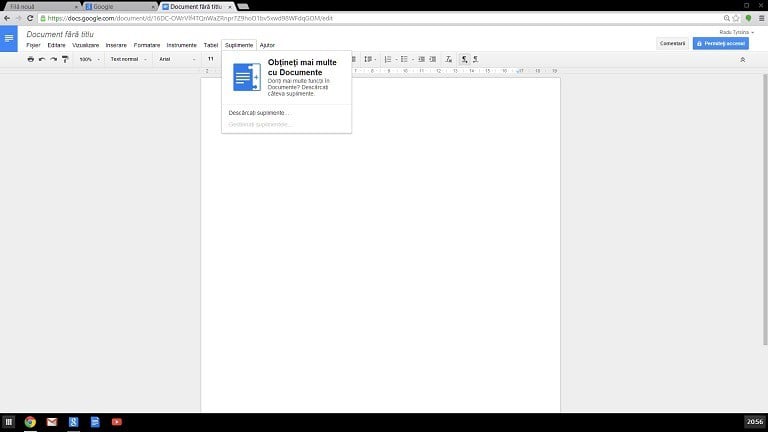
At the moment of writing this, Google has only a single touch enabled app in the Windows Store for Windows 8, 8.1 and RT users and that is Google Search. But there’s a simple way to run Google Docs as an app on Windows 8.
google docs app windows 8
So, as I have mentioned above, the single true touch optimized Google app for Windows 8 devices and currently available on the Windows Store is Google Search. However, Google has recently updated its Chrome browser to allow it to launch in “Windows 8 mode”, which makes it feel more or less like a touch version would do. So, all you need to do is to open your Chrome browser on the desktop interface and then go the settings and then choose to launch Chrome in the Windows 8 modern user interface.

Read Also: Download the Latest Version of LibreOffice for Windows 8.1

From there, you can choose to launch Google Docs and YouTubeas an “app” in the Windows 8 interface. As you can see in the above screenshot, it’s google docs app windows 8.1identical as the web app that you can access on docs.google.com, so the single app feature here is the fact that Chrome runs in the Modern user interface and allows you to switch between Google Docs, YouTube, Chrome or Gmail. All your favorite Google apps are now in a single location, as you can see in this screenshot from the right and it’s thus much easier to switch between all of them.

Thus, you can make use of the snapping features and launch Google Docs, YouTube or your Gmail account from a single app location in the Windows 8 touch interface. You can choose that panel with Google apps where you want. The real key to somehow mimicking the feel of a Windows 8 app per se is to run whichever app you want in full screen mode. Thus, especially on Windows 8 tablets, it will like it’s a standalone app.


WordPad in Windows 8, 10 Becomes Cool With Spell Check Functions

WordPad is a basic text editor, with just a few more features than NotePad, but it’s definitely far from reaching the features of Microsoft Word. Many are complaining that it lacks spell check and word count functions, but there’s a workaround for that. Read below.
wordpad windows 8.1
Unfortunately, WordPad and NotePad don’t have touch enabled version in the Windows Store that you could use on your touch Windows 8, Windows 8.1 and Windows RT devices, as these two basic text editors that have been there since the birth of Windows, are glued to the desktop interface. For that, I recommend for you some of the best touch enabled writing apps from the Windows Store. In this article we’ll focus on WordPad, a writing tool that many of us choose when we don’t have the Microsoft Office suite or when we don’t like cloud solutions.

Read Also: Star Wars: Assault Team Game Launched for Windows 8

I like WordPad and for the basic needs, it’s the perfect tool. You can create and edit text and then save it in the following formats: plain text, rich text, OpenDocument or Office Open XML. You can also have a look at our review of the OpenOffice desktop app for Windows 8, while you’re here. You can also print and send your text in the form of an email from WordPad. There are plenty of fonts to choose from and you can even attach some images and do some basic picture editing.

But, naturally, there are some features that WordPad is missing and many have been requesting Microsoft to add them, but with no luck. Yes, even in Windows 8 and Windows 8.1, the spell checking and word count functions are obviously missing. And this will probably be the situations for years to come. So, the single solution we have at our disposal is to make use of third-party software. From all the currently available solutions, tinySpell seems to be the best one to use, and it will work also with NotePad, not only WordPad.

You can see in this right aligned screenshot how tinySpell works in WordPad. It’s a very small program and will indicate how to correctly spell words not only in WordPad and Notepad, but just about any other application that you’re currently on. Alas, there’s no such easy fix for the word count problem, but you can just take the whole text and use an online tool, such as this one. Or, if you know of one, leave a comment and let us know.

Read Also: Windows 8 Security Apps: Selection of Best From Windows Store

Microsoft Office Finally Comes to the iPad

Just like expected, at its first press briefing, Satya Nadella and his team has finally unveiled the much awaited and perhaps overdue Microsoft Office suite of products for the iPad. It’s not a standalone product and yes, of course, it does require subcription
microsoft office ipad
Microsoft has released Office Mobile for iPhone users back in June, last year, and now Redmond has just unveiled the Microsoft Office suite for the world’s most popular tablet – the iPad. This morning, in San Francisco, at an event focused on discussing the intersection of cloud and mobile, the Microsoft Office suite for iPad has been released and it is free to download, but requires a subscription if you want to edit files, naturally. Just as expected, it comes with the traditional trio of apps: Word, PowerPoint and Excel.

Read Also: FIFA 14 Game for Windows 8 Released in Windows Store [Review]

Just like Office Mobile for iPhone, you’ll need to sign in with a OneDrive or SharePoint account to retrieve your documents, and if you want to modify a document or create one, you’ll need an Office 365 subscription. There’s now a cheaper solution, as Microsoft will launch the cheaper Office 365 Personal plan later this spring. But if you want only to try out Microsoft Office on your iPad, you can always use the 30-day trial at Office.com.

ipad microsoft office

You will be able to use Office for iPad on as much as five tablets and at the moment it appears that you can use any version of the iPad, but once the app goes live in the App Store, we’ll see whether or not this is limited to iOS7. But considering the fact that Apple offers its iWork suite for free on iOS devices purchased on or after September 1st, 2013, it will be interesting to see how many will choose to have an Office 365 subscription just for the sake of having Word, PowerPoint and Excel on their iPads. Of course, it will be a much welcome upgrade for those who already own a Office 365 account.

Microsoft said that it took advantage of the iPad’s extra screen space, so it’s not just a beefed up version of Office Mobile for the iPhone. The iPad edition comes with advanced features like Sparklines and includes some useful formatting options like custom text colors, plenty of PowerPoint transitions and a full suite of fonts. PowerPoint comes with a presenter mode for remarks in “white board mode” and you can also use your finger as a laser pointer.

All three apps have now become available for download in the iTunes Store (download links at the end of the article) and all of them require iOS 7 to run. But according to some fresh reports coming from Apple, more than 85% of iOS devices already are on iOS 7, so this shouldn’t represent a big problem. Two of the biggest downside of  the Microsoft Office suite for the iPad are the following:  you can’t use other cloud storage services besides OneDrive and SharePoint and you can only insert Camera Roll photos into documents.

Download Microsoft PowerPoint for iPad
Download Microsoft Word for iPad
Download Microsoft Excel for iPad

Windows 8, 10 Security Apps: Selection of Best From Windows Store

When having and using an Windows 8 device is all about portability, multitasking and great apps and programs to use for making your daily activity easier (see calendar apps to use on your device) and your life healthier (learn how to live a healthier life by using a dedicated health Windows 8 tool). But at the same time you need to concern about security as your personal data, info and accounts might be in danger.
windows 8 security appsWe all know that when using an Internet connection and when downloading content and apps from web, we might also get a malware that can then damage our Windows 8 device. In that matter you should know which security apps to use in order to protect your Windows 8 tablet, laptop or desktop. You also need to protect your passwords and website accounts and at the same time you need to protect your accounts and personal information. In order to help you out, during the lines from below I will try to review the best Windows 8 security apps that can currently be downloaded from Windows Store.

Read Also: Top Free Windows RT Apps You Need to Download

Of course beside this you should also consider in applying parental control for restricting your kid’s access to Windows Store and to websites with inappropriate content, while you should use Firewall protection along with in-browser security, spyware detector and so on. Now, most of the antivirus programs reviewed below are coming with great features that can protect you and your data from malware and viruses infection so don’t hesitate and learn which Windows 8 security app to use.

Best Windows 8 security apps

LockIt

LockIt
If you want to secure your accounts easily then LockIt should be perfect for you. With this Windows 8 security app you can store your passwords and secret information; the app features strong cryptography to secure your data and keep hackers out thus the tool can be used for storing credit cards, bank account information, software keys and more. LockIt is available for free on Windows Store.

McAfee

McAfeeOne of the best antivirus platforms to use on your Windows 8 device is definitely McAfee. This is a great app with an easy to use user interface and with useful features that can keep you safe and secure. You can use McAfee for web browsing security and also for scanning your Windows 8 device in order to remove malware and viruses. This app is also available for free on Windows Store.

Norton Satellite

Norton SatelliteAnother popular antivirus is Norton. This app which can be anytime downloaded for free from Windows Store is great for the users who love to socialize. Thus with Norton Satellite you can scan your Facebook and Twitter feed for malicious links, as well as files from your Dropbox, SkyDrive and local PC for malware. In addition to Norton Satellite you can also use Norton Studio in order to enjoy full protection on your Windows 8 device.

Kaspersky Now

Kaspersky NowIf you want an alternative to McAfee and Norton, then Kaspersky Now should be the perfect choice. This app can run without lags or bugs on any Windows 8 device and can be used for protecting your device against malware and aggressive viruses. Kaspersky Now can be anytime downloaded for free from Windows Store.

Last Pass

Last PassA great password manager that you can use on your Windows 8 device is Last Pass. As the name suggest with Last Pass you can store and manage all your logins securely, so you can access your accounts and services from anywhere. The app is free distributed on Windows Store and you can read a proper review of Last Pass by checking the link from above.

RoboForm

RoboFormRoboForm is another password manager. When you have and use multiple accounts on a daily basic you need to use a proper password manager. Thus RoboForm is automatically saving your passwords so you’ll never have to remember or type your passwords again. The too is also secure so you don’t have to worry that someone else instead of you will have access to your accounts or to your web browsing history. RoboForm is of course available for free on Windows Store, so don’t hesitate and test the same.

Well, that was all for now; don’t worry as we will update the list with new security apps as soon as we find out something that is worth mentioning. At the same time, don’t hesitate and use the comments field from below and point out your own favorite security app and we will update this review accordingly. Also, stay close for further Windows 8 news, tips and tricks and lot more.

Read Also: Collection of Best Windows RT Games for 2014

Calendar Apps for Windows 8, 10: Some of the Best to Use

Our life is getting more and more stressful due to our daily busy schedule and we tend to complicate it even more. We don’t manage to find time for ourselves or for our beloved people so we end up in being alone, sad and depressed. But now you can forget all about that, as you can learn how to properly plan and organize your life by using dedicated calendar apps on your own Windows 8 device.
calendar apps windows 8
It’s really important to know how to plan your busy schedule and how to make time to do other activities than the ones from your work. Also, it’s healthier to learn how to make things different each day and how to complete all the tasks with ease and without dealing with stressful activities. As mentioned before, now you can organize your life by using a dedicated calendar app on your Windows 8 device. I know that it is hard to believe, but actually these programs are quite useful; of course not all the programs are good for you, so because of that during the following lines I will review the best calendar apps for Windows 8 that can be anytime downloaded from Windows Store on your tablet, desktop or computer.

Read Also: RoboForm Releases Windows 8 App for Password Management

Don’t forget though, that on Windows 8 you have a built in tool – the Calendar App, which can anytime be used without any kind of problems; but if you want more features and better results, then try the tools described below. Unfortunately, at the moment, there isn’t an official Google Calendar app in the Windows Store, so we have to rely on the desktop utility only.

Top Windows 8 Calendar Apps from Windows Store

Cazendar

CazendarThe best way in which you can start planning your daily schedule is by using a dedicated app that comes with a feature like “Subscribe Google Calendar”. Well, with Cazendar this is exactly what you will get, this Windows 8 calendar app being recommended for both advanced and entry level users due to the numerous options and features that are made available. Cazendar can be downloaded for free from Windows Store. It’s nice that it tries at least to mimick some features of the Google Calendar software.

gTasks HD

gTasks HDA great task manager to use as a Calendar app on your Windows 8 device is gTasks HD. This tool brings features that can be used for planning your work activities and for managing your free time with ease. gTasks HD is coming with an intuitive interface that can be easily used by anyone. This app is also free distributed on Windows Store, so don’t hesitate and try it on your own tablet, desktop or laptop.

Good Plan

Good PlanAs the name suggest, Good Plan offers a great possibility to use on your own Windows 8 device for planning your busy schedule. In fact Good Plan combines a lesson plan / timetable with calendar and reminder app. So this is a mixed tool that is featuring important and useful options and capabilities that can be easily accessed due to the intuitive UI. Of course, Good Plan is available for free on Windows Store.

Read Also: Top Free Windows RT Apps You Need to Download

WinPIM Calendar

WinPIM CalendarWinPIM Calendar might be the best choice for you, especially if you want a Windows 8calendar app that is similar with the Google dedicated calendar app. In that matter, WinPIM Calendar tool can be synced with Google, iCloud, Yahoo Calendar and supports SkyDrive Backup along with other useful features and capabilities. Unlike the other calendar apps reviewed here, the WinPIM Calendar software is priced $4.99 on Windows Store.

Now, we all know that the Google Calendar is maybe the best and most popular and used Calendar app and this even though we don’t have a dedicated app on Windows Store, which means that you cannot install Google Calendar on your Windows 8 device. But, as you could see above, you can use a Windows 8 calendar tool in order to sync with the Google, iCloud and Yahoo Calendar. Also, you can go to Windows Store and download the Gmail calendar app which automatically syncs with gmail-calendar. Therefore, even though we don’t have the Google Calendar client available for our Windows 8 and Windows 8.1 devices, we can anytime choose a third party app that can sync with our Gmail and Google account, thus getting a similar Google Calendar experience on our own handset.

All the apps which were described here received 4 or more stars of ratings from the users who have already tested and used it on their own Windows 8 devices. Also, these Windows 8 calendar apps are working without lags or bugs, so you can safely install the software on your device without dealing with any kind of problems. Also, feel free and add your own favorite calendar tools for Windows 8 and Windows 8.1 by using the comments field from below and we will also update our review accordingly.

Read Also: Collection of Best Windows RT Games for 2014

Top Free Windows RT Apps You Need to Download

Finding dedicated apps for your Windows RT device should be an easy task to do, though it seems that there are users who are still having problems in downloading proper tools from Windows Store. Because of that I have decided to review the best Windows RT apps that are currently available on the Store.
top windows rt apps
Using optimized tools is ideal, even if we are talking about Windows 8 or Windows RT based devices. But unfortunately, on Windows Store we don’t have separate sections for both platforms and all the apps are being available at one place only, being if you want mixed all together. As we all know, the apps that are optimized for Windows RT are those software which are also compatible with ARM. So, the best way in choosing your apps will be in checking if the software is suitable with ARM. Also, you can use this article where we will constantly update the list from below with the best Windows RT apps that can be downloaded from Windows Store.

Read Also: Collection of Best Windows RT Games for 2014

Best 8 Windows RT Apps to use on your device

Kindle

KindleIf you want to download and read great books on your Windows RT tablet then you need to install the Kindle client for your Windows RT device. Kindle is a great app that is compatible for both Windows 8 and RT systems and which can be anytime downloaded from Windows Store for free. You can read a proper review of Kindle app right here on Wind8apps, so don’t hesitate and learn everything about this eBook Reader tool.

Netflix

NetflixI bet you know what Netflix is and why we recommend this app. The best is that Netflix is compatible with Windows RT devices too, so you can anytime download the tool from Windows Store. The app is free distributed and can be used for watching TV episodes and movies right on your own tablet. Check the link from above for the proper Netflix app review.

Remote Desktop

Remote DesktopRemote Desktop is an extremely useful app that can be used especially by the advanced Windows 8 users. With Remote Desktop you can basically connect your tablet with your computer or desktop. In that matter you can use this app for getting your work done wherever you are and in any conditions as all you need to use is a Windows RT based device. You can download Remote Desktop from Windows Store for free.

iHeartRadio

iHeartRadioA great radio app for Windows RT devices is iHeartRadio. By using this tool you can listen to music for free, you can keep in touch with the latest news talk, sports and lot more. iHeartRadio features an easy to use user interface while it gives access to Thousands of real radio stations playing pop, country, hip-hop and R&B, rock and so on.

Read Also: Best Windows RT Games For You to Play

Comics

ComicsComics are always a great way to spend your free time. Comics are also appreciated by kids and adults on the same matter, so having and using a dedicated app on your Windows RT device will be quite useful and great. In that matter you can anytime use Comics by ComiXology, which is a free distributed app on Windows Store.

Khan Academy

AcademyDo you want to have an eciclopedia of anything and everything right on your Windows RT device? In case you want to read new stuffs and learn things easier and faster, Khan Academy is the perfect tool for you. The software covers a massive number of topics, including K-12 math, science topics such as biology, chemistry, and physics, and even the humanities with tutorials on finance and history. Thus, don’t hesitate and try Khan Academy for free on your own Windows RT device.

Wikipedia

WikipediaI think that Wikipedia is a platform that doesn’t need any kind of review or introduction. Each one of us have used Wikipedia for at least once, so we all know how it works and why it is so useful. Therefore, you must download and install Wikipedia on your Windows RT tablet as soon as possible – the app is free distributed on Windows Store.

That was our selection of Windows RT apps. Of course the review can anytime include many other tools, so feel free and participate in expanding this article and in helping other users in finding proper apps for their Windows RT tablets. In that matter, use the comments field from below and feedback us with your own favorite apps, which are of course optimized for the Windows RT platform.

Read Also: Top Windows 8 Wallpapers Apps with Awesome Images

Best Windows 8 App This Week: 3D Human Anatomy

Another week is off to a start and here at Wind8Apps we’re ready to talk about what we think is the best new Windows 8 app that has been released in the Windows Store – 3D Human Anatomy. Just like the name suggests, the app lets you explore the human anatomy in a interactive 3D environment.
anatomy app windows 8There are a couple of anatomy apps in the Windows Store for Windows 8 users, but one that really stands out is ‘3D Human Anatomy‘, a new title that has been recently submitted and comes with some impressive features which make it a must-download app for everybody out there, not only biology afficionados. The app comes with a size of less than 17 megabytes and can be downloaded for a price of $4.49; if that seems a little bit too expensive, since we’re used to cheaper apps, you can use the free trial and see whether it deserves its price or note. It’s a good thing that besides touch and desktop Windows 8 and Windows 8.1 devices, it will also work on Windows RT.

Read Also: Download All Angry Birds Games for Windows 8, Windows 8.1

The application isn’t necessarily new to the Windows Store, but the latest 2.0 version is, as its has received new textures to all muscles, some major nerves, have been added, along with the spleen and the overall user interface has been improved. So what are you seeing right now is an update version of the initial release. All the information inside this anatomy app for Windows 8 users is taken from Wikipedia and Gray’s anatomy textbook.

One of the best Windows 8 anatomy apps

This app’s primary use is as a learning tool but can also be used for any professional who needs the occasional reminder. Additionally, this app is ideal for physicians, educators or professionals, allowing them to visually show detailed areas to their patients or students – helping to educate or explain conditions, ailments and injuries.

windows 8 anatomy app

3D Human Anatomy comes with detailed information about all the bones in our body, shoulder and knee ligaments only, 145 muscles, circulation system consisting in arteries, veins and heart, nervous, respiratory, reproductive system and urinary systems. There are more than 400 3D position quizzes that you can take to make sure you learn more about the human body in a interactive mode.

There are multiple actions that you can engage inside the app, such as rotating body models to any angle, peel layers of muscles, search the name of a certain anatomical structure and see its 3D location and enable or disable different anatomy systems to make it easier to find what you’re looking for. There are both the male and female reproductive systems, so nobody gets upset. This is definitely one of the best medical apps for Windows 8 users, as well. Follow the link from below to download it and let us know what you think of it.

Download 3D Human Anatomy app for Windows 8, Windows 8.1

Download All Angry Birds Games for Windows 10/11

Angry Birds has proved to be a gaming phenomenon especially on mobile devices and it basically created the concept of casual gaming. Unfortunately, on the Windows Store, at the moment, there are only some Angry Birds games, so this article focus on how you can download the desktop versions of Angry Birds for Windows 8 and Windows 8.1
download angry birds games windows 8
The reason why I decided to do this article was because I recently was playing Angry Birds Go game on my Android smartphone and realized that many Angry Birds sequels are missing from the Windows 8 Store, as there are currently available only the Angry Birds Star Wars and Angry Birds Space games. Of course, the absence of the whole suite of Angry Birds games is affecting Windows RT users only, as Windows 8 and Windows 8.1 owners can download the desktop versions the links to which we will provide below.

Read Also: Manage your Wine Collection with Windows 8 VisualCellar App

First of all, what I need to tell you beforehand is to avoid “cracking” Angry Birds games for your Windows 8, Windows 7 or any other PC. It’s better to pay for the game, than to realize your computer has been filled with unwanted malware. Also, from what I’m aware of, there’s only a single way to play Angry Birds for free on your Windows PC, and that is by installing this Chrome extension. This is free because it is the very first edition of the game. So, follow the links from below to directly download all the Angry Birds games currently available on your Windows 8 and Windows 8.1 devices. We will also provide links to the touch versions, as well, when they are present.

Angry Birds on Windows: the official download links

download angry birds rio windows 8

Download Angry Birds Rio

download angry birds seasons windows 8

Download Angry Birds Seasons

Download Angry Birds Space

download angry birds space windows 8

Download Bad Piggies

download bad piggies for windows 8

Download Angry Birds Star Wars

download angry birds star wars windows 8

Download Angry Birds Star Wars II

download angry birds star wars 2 windows 8

Nokia and Microsoft to complete acquisition deal in April

Nokia and Microsoft to complete acquisition deal in April.

On Sunday, Microsoft announced that its acquisition of Nokia will be completed by next month, that is April. The $7.2 billion buyout which was announced last September was originally stated to be completed by the end of the first quarter of 2014.

“Both the companies still seek approval from several authorities. While the two giants have received approval from US and European Union jurisdictions, some Asian authorities are still reviewing the buyout. We are nearing the final stages of our global regulatory approval process,” says Brad Smith, General Counsel and Executive Vice President, Legal and Corporate Affairs, in a blog post. “To date we have received approvals from regulatory authorities in 15 markets on five continents. Currently we are awaiting approval confirmation in the final markets.”

Nokia also confirms that this delay has got nothing to do with its ongoing disputes with the Indian government. “Nokia reiterates that ongoing tax proceedings in India have no bearing on the timing of the closing or the material deal terms of the anticipated transaction between Nokia and Microsoft”, states Nokia in a blog post.

Earlier, in September last year, Microsoft announced that it was buying Nokia’s devices and services division for a whopping sum of $7.2 billion. Nokia however, will retain its network infrastructure, HERE location and mapping unit and an intellectual property licensing division from the deal.