Killing Zombies at its best: Judge Dredd vs. Zombies for Windows

Most of you have seen the movie Dredd by now, and if you haven’t, I highly recommend it. The movie had such a huge success that game developers have started to make game adaptations of it. One such adaptation is the one we are looking at today.

Judge Dredd vs. Zombies is a free Windows 8, Windows 10 game, and to be honest, it is one of the best games I’ve seen so far. I found it very entertaining and its zombie killing action is awesome. Let’s take a look at the game

Judge Dredd vs. Zombies – Game Impressions

When I first came across this game, I didn’t have too many hopes, but it seems that I was very wrong, and I’ve come to enjoy the game pretty much in the time I’ve tested it. For starters, the graphics look pretty good for a mobile shooter game, although I’ve seen better, this is still pretty good.

judge-dredd-vs-zombies-windows-8-game-review

The gameplay is very intense, as with all zombie games, and after a few levels you will have hordes of zombies coming from every direction. This aspect is more visible in the Arena gameplay where you have a great number of zombies and not much time to kill them all. The arena gameplay is separate from the regular storyline mode, a feature that mobile games have not had in the past.

The storyline mode consists of different levels all throughout a laboratory, the player’s main objective is to clear all the zombies by moving through each room and killing them off. There are three kinds of zombies (from what I could tell) the regular ones will try to get close to you and eat you, the jumpers are like the regulars, but they have a leaping attack and the big ones will smack you and if killed nearby, they will explode and kill you as well.

judge-dredd-vs-zombies-windows-8-game-review-2

What I loved most about the game are the features that the player has. From different styles of gameplay to different weapons that are upgradable, to consumables for each mission. This level of detail has rarely (if ever) been seen in mobile games. One other cool feature is the PSI game mode, where you send your player to solve different crimes and get in-game rewards.

judge-dredd-vs-zombies-windows-8-game-review-3

The game is developed for touchscreen devices, but after playing it on a regular keyboard, I found the experience very pleasing, although when attacked by zombies the camera zooms in on the player and it’s very difficult to get anything done afterwards. Apart from this, Judge Dredd vs. Zombies controls very good, it’s very responsive and while the auto-aim function helps, at times it can get pretty hard.

judge-dredd-vs-zombies-windows-8-game-review-4

I don’t want to spoil any more of the game for those who want to try it out, but I will say this: if you like shooter games and you want a great one for your mobile device, then try this game out! It is without a shadow of a doubt one of the best mobile shooter games I’ve seen! It’s rich content, three game styles, lots of upgrades and much more make it a must-have game for Windows 8 and Windows 10 users.

Download Judge Dredd vs. Zombies for Windows 10, Windows 8

Samsung isn’t too confident with Windows RT, will not be releasing a Windows RT device

Windows RT

Mike Abary, the head of Samsung’s PC and tablet business in the U.S., has made it known that Samsung has no plans on releasing a Windows RT device in the United States due to Windows RT not having a strong enough demand nor do consumers know exactly what Windows RT consists of.

Samsung believes it would have to invest in a lot of training to show consumers how Windows RT is beneficial for them. On top of that, Samsung believes Windows RT should be cheaper than Windows 8, but the company does not want to make the trade-offs (limiting memory in the Windows RT devices to bring the price down). “We didn’t necessarily attain the price point that we hoped to attain. It’s not an issue on Microsoft’s side. It’s more an issue of how the product was built and some of the tradeoffs we had to incorporate in it,” Samsung explains. Here is what Abary stated in an interview with CNET:

There wasn’t really a very clear positioning of what Windows RT meant in the marketplace, what it stood for relative to Windows 8, that was being done in an effective manner to the consumer. When we did some tests and studies on how we could go to market with a Windows RT device, we determined there was a lot of heavy lifting we still needed to do to educate the customer on what Windows RT was. And that heavy lifting was going to require pretty heavy investment. When we added those two things up, the investments necessary to educate the consumer on the difference between RT and Windows 8, plus the modest feedback that we got regarding how successful could this be at retail from our retail partners, we decided maybe we ought to wait.

Outlook Fix: Windows Security Keeps Asking for Password

Security-wise, Windows 10 is probably the most secure Windows iteration to date. However, that enforced security something functions without any logic whatsoever.

And even if there’s any logic, they did a subpar job explaining why something happens when it does. Let’s take the Windows Security pop-up that blocks the connection to Wi-Fi networks and asks for your credentials.

To make things even worse, this is the password protection most users never set. Some associate it with Outlook but it doesn’t seem to be the case every time. Fortunately, there’s a solution to this issue.

Few of them, to be exact. So make sure to check them out below.

How to get rid of the Windows Security pop-up in Windows 10?

  1. Disable Password Protected Sharing
  2. Change Outlook settings
  3. Check Credential Manager
  4. Reset Network settings

1. Disable Password Protected Sharing

It might come as a surprise but there are multiple reasons for this unpleasant occurrence. One that’s common includes HomeGroup sharing. If you have multiple PCs connected via HomeGroup sharing, you’ll need to disable the password protection.

That’s a common bug that bothered users on Windows XP and it seems it found its place in Windows 10, as well. Here’s how to do it easily in Windows 10:

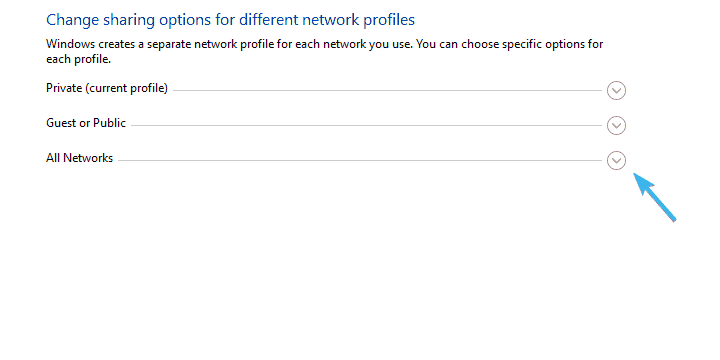
  1. In the Windows Search bar, type Advanced sharing and open ”Manage advanced sharing settings”.windows security popup windows 10
  2. Expand All networks.windows security popup windows 10
  3. Navigate to the bottom and select to Turn off password protected sharing.windows security popup windows 10
  4. Save changes and exit.

2. Change Outlook settings

Outlook security settings are the most common reason for the Windows Security pop-up. Now, there are a lot of variations on the subject and various solutions roaming around. However, the most probable solution is hidden within Outlook’s Account settings.

Here’s what you need to do in order to disable repetitively occurring Windows Security prompts:

  1. Open Outlook.
  2. Open ”File” from the main menu.
  3. Choose Info and then Account Settings.
  4. Choose the E-mail tab.
  5. Right-click on the account that inflicts Windows Security prompt and select Change.
  6. Select More settings.
  7. Under the Security tab, uncheck the ”Always prompt for login credentials” box and confirm changes.
  8. Click OK and save changes.

On the other hand, if you’re still constantly annoyed by Windows Security pop-up asking to sign in with who-knows-what credentials, make sure to check the additional steps.

3. Check Credential Manager

Some users managed to resolve the issue at hand by deleting certain credential inputs from the Credential Manager. During the creation process of an Outlook account, you might have made a slight mistake.

It seems that it’s related to credentials check input, forcing the Windows Security pop-up to reoccur frequently. Follow these steps to delete Outlook-related inputs from the Credential Manager:

  1. In the Search bar, type Credential and open Credential Manager.windows security popup windows 10
  2. Open Windows Credentials.
  3. Look at the Generic section for Outlook-related credentials.
  4. Expand everything associated with Outlook and click Remove.
  5. Restart your PC and look for changes.

If you need more info on how to add, delete, or edit files in Credential Manager, we’ve prepared a complete guide that will help you understand better what it does and how to navigate it.

4. Reset Network settings

Finally, you can try resetting network settings. For some users, the issues started after small Wi-Fi network issues, which are common for various reasons. It seems that resetting the network fixes relentless credential pop-ups.

If you’re not sure how to reset network settings in Windows 10, follow the steps below:

  1. Press Windows key + I to summon the Settings app.
  2. Open Network & Internet.windows security popup windows 10
  3. Select Status from the left pane.windows security popup windows 10
  4. Scroll to the bottom and click on Network Reset.windows security popup windows 10
  5. Enter your Wi-Fi credentials and reconnect.

If Windows 10 forgets your network credentials, check out this simple guide to quickly solve the problem.

That should be it. We hope that at least one of the enlisted solutions helped you address the bothersome Windows Security prompt.

In case you have an alternative solution or questions regarding the ones we posted, make sure to tell us. You can do so in the comments section below.

RELATED STORIES YOU SHOULD CHECK OUT:

Windows RT jailbreak tool released, still needs to be applied every time you reboot

Windows RT

Just recently, we learned about a way to run non-Windows Store apps on a Windows RT device via a circumvention method that requires tinkering with the portion of the RAM that instructs Windows RT on whether it should run unsigned code or signed code.

This jailbreak attempt was brought to Microsoft’s attention and the company issued a statement not only applauding the jailbreak attempt, but also hinting that this circumvention method will most likely be gone in the near future.

Now, a jailbreak tool has been released which is based upon the circumvention method discovered recently. The jailbreak tool is simply a batch file that does most of the work for you so you can run unsigned apps, but will need to be re-applied every time the system is rebooted. Microsoft recently hinted that a patch would be coming soon in an official statement regarding the jailbreak. In response to that, the maker of the jailbreak tool had this to say: “They can patch it through Windows Update, but since we have the ability to reinstall from recovery partitions we can revert any Windows Updates they release.”

This is obviously another step towards a full working jailbreak for Windows RT. Microsoft recently applauded the jailbreak attempt and it is unsure if Microsoft will make a big deal about it. “We applaud the ingenuity of the folks who worked this out and the hard work they did to document it. We’ll not guarantee these approaches will be there in future releases,”Microsoft originally mentioned in an official statement.

Calculator X8 for Windows 8, RT, Windows 10

A good calculator that you can rely on is always a good tool to have handy. Although every operating system comes with an integrated tool to do all your calculations, sometimes these will will not be to the liking of everyone.

Although the integrated Windows 8, Windows 10 Calculator has all the features one could want, its interface is less than appealing, and a good alternative for it comes in the form of Calculator X8, a free app from the Windows Store.

A good tool for day to day use

calculator-x8-for-windows-8-app-review

For normal usage, this tool is perfect, making simple calculations is a breeze, thanks to its awesome interface and fairly big, easy to push buttons. On a laptop or a computer, you can use the number pad for making your calculation, but overall, the app has a pleasant look. It comes with three themes, one being the Windows 8, Windows 10 theme, there is the Windows 7 look and the classic XP theme. These can be changed via the Settings button in the Charms Bar.

On the functionality side, the app offers the basic calculator and a scientific calculator with most of the normal functions that one would need. The interface is split into two areas, one for the scientific functions and one for the number pad, each having the same easy to push buttons.

calculator-x8-for-windows-8

The only drawback of these otherwise awesome app is the lack of more specialized calculations that are present in the pre-loaded app. Features like unit conversion, programmer calculator or currency converter are not present, but we hope to see them in future updates.

calculator-x8-for-windows-8-app-review-2

Overall, Calculator X8 for Windows 8, Windows 10 is a pretty decent tool that can appeal to most users who do not need other functions than the simple arithmetic and basic scientific functions. It’s interface is far superior to the pre-loaded Windows Calculator and with the addition of the missing features, we think it could become the perfect replacement.

Download Calculator X8 for Windows 10, Windows 8

Microsoft confirms Windows Live Messenger service retirement on March 15th

Just recently, we learned that Microsoft plans to retire Windows Live Messenger in favor of Skype. Microsoft officially announced that Windows Live Messenger and Skype will become one back in November of last year and encouraged all Messenger users to update to the latest version of Skype to begin the transition.

In an email to Windows Live Messenger users, Microsoft confirms that the service will retire on March 15th (except for China, which will continue to see the service for a little while until Microsoft announces further). Microsoft continues to urge Messenger users to make the move to Skype by downloading the latest version of Skype for their instant messaging and video chat needs.

Test your Logo Knowledge with 3D Logo Quiz for Windows 8, Windows 10

3D Logo Quiz for Windows 8, Windows 10 is a game where you see how many logos there are, but don’t go search for easy answers as the best way to play this game is the hard way
3d logo quiz windows 8
This day and age we’re constantly bombarded with information coming from all around us, and much of that information is in the form of commercial of diverse companies that try to promote their products. Because of this, we have come to be familiar with most companies and their logos have imprinted in our minds.

This game is based exactly upon this fact and it puts our knowledge of logos to the test. 3D Logo Quiz is a freely downloadable game from the Windows 8, Windows 10 Store that allows users to compete with their friends and see who knows more companies, of just as a tool to see how much are you affected by today’s marketing.

How is the game?

In just a few taps after opening the game you are ready to play. There are no complicated menus or settings, just open and play the game. Although, there is a options bar at the bottom of the main screen, where you have the possibility to turn the sound on or off, access the website of the developer or reset your progress.

The buttons for Facebook or Twitter do nothing more than open the developer’s pages, but there is no real integration to the game that would allow you to play or compare scores with your friends. You can only create an account on their website so you can appear in the leaderboard. This feature would have great to be available in-game, but we hope that future updates will change this.

3d-logo-quiz-windows-8-app-review

Also on the main screen, you can access the Leaderboard, where you can see the top players and their scores and you have your Statistics at the bottom of the screen. For those aggravated by the ads in the game, from the main screen they can access the Remove Ads button which will open the Buy More Coins window, where the option for add removal is also present.

When you get passed the main screen you will see the levels menu, where you can choose what level you want to play at. The game is linear and (I know, strange choice of words for such a game) it does not allow you to play higher levels until you get the necessary number of coins. Keep in mind that this is not that easy, as you will need 300 coins to unlock each level.

At first, you might think that it’s easy to make the necessary coins, but keep in mind that each level allows you to make only 350 coins, and sometimes you will need to use the hints. There are three hints that player can use, the first one costs 10 coins and it gives you a description of the company, the second one gives you the partial name and it costs 20 coins, but it cannot be used until the player has already used the first one, so in a manner, the second hinst costs 30 coins, and the last hint costs 50 coins and it resolves the puzzle for you.

3d-logo-quiz-windows-8-app-review-2

There are 35 logos in each level and you have to correctly type the name of the companies to solve them. Luckily, the game gives you an idea if you are close to the name by showing an “X” for wrong and an approximate sign for names that are almost right.

The logos are not always complete, and for those who incorporate the name of the company within them, you will have only a partial logo to go on, and this can prove quite difficult some times, although most of the time, you will need no help.

3d-logo-quiz-windows-8-app-review-3

One other annoying aspect of the game is the fact that if at any point you complete all the puzzles in one level, but you do not have the necessary 300 coins to advance to the next one, you will have to reset all the progress and start over, or buy coins.

3d-logo-quiz-windows-8-app-review-4

Overall, the game is quite interesting and somewhat entertaining. The graphics are pretty good and to be honest there is not much else we could say. Although I won’t be playing the game regularly, it still is a good game to pass a few minutes of your time while waiting for the bus.

Download 3D Logo Quiz for Windows 10, Windows 8

Microsoft’s Visio 2013 to come in three editions: Standard, Professional, and Pro for Office 365

Microsoft has revealed that its 2D-object drawing application Visio will come in three flavors: Microsoft Visio Standard 2013, Microsoft Visio Professional 2013 and Microsoft Visio Pro for Office 365. Microsoft has also provided a summary of the main functions available in each of the editions (as seen in the below image).

Microsoft Visio Standard 2013 is designed for people looking for a powerful diagramming platform with a rich set of built-in stencils. Visio Professional 2013, on the other hand, has all the features of Standard 2013 but also comes with updated shapes and templates; enhanced support for team collaboration; and the ability to link diagrams to data. Microsoft Visio Pro for Office 365 will be available via a subscription through Office 365 and comes with the same features in Professional 2013 and Visio on Demand. Visio Pro for Office 365 can be installed on up to five PCs running Windows 7 or Windows 8.

Visio 2013 editions

Windows 95 seen running on Windows RT, BOCHS and more ported to ARM

Well, it looks like the jailbreak community for Windows RT is a go, as today it appears that a hacker by the name of Netham45 on the XDA forums has managed to successfully port PuTTy, TightVNC and BOCHS to Windows RT, which means Windows 95 can be seen running on Windows RT here. While most things work, things like networking do not.

Porting Windows applications to ARM is a tricky job, and requires loading and rebuilding apps (.net 4.5 only) in Visual Studio 2012 with a workaround, it involves a lot of trickery and isn’t recommended you do. Also, since many Windows libraries are missing in Windows RT, some programs won’t even run, even if they are ported to ARM.

Microsoft recently commented on the Windows RT jailbreak, saying that they “applaud the ingenuity of the folks who worked this out and the hard work they did to document it,” however they also stated that the exploit may not be in future versions of the Windows RT operating system, which may be a shame for some.

Dropbox for Windows RT, Windows 10 [Review]

The official Dropbox app for Windows 10, Windows 8, Windows 8.1, and Windows RT users is one of the best cloud storage tools. Read our review from beliew and what are our impressions

dropbox-for-windows-8

It’s been a long wait for the Windows 8, Windows 10 Dropbox app, but it’s been worth it! The app is up on the Store, free to download and use by any user worldwide. Although its competitors have already published apps, it seems that the developers of Dropbox have taken their time for developing the app.

The time was well spent, and the Dropbox app for Windows 10, Windows 8 is up and working perfectly! Although it needs some updates and a few features to be added, it looks and works flawlessly. The base for the future features is rock solid, the first sign of a good app.

General Impressions of the Dropbox App

The Dropbox app for Windows 10 is fairly simple. Its interface is very simple, and the developers have adopted Windows 10. Windows 8 Tile look, but also kept to the traditional Dropbox look and created a balance between the two. The service is still as easy to use as ever, and thanks to its intuitive and simple UI, it can be used by anyone.

The app integrates perfectly with any Windows 10 machine, allowing users to share files from other apps to their Dropbox folder, and also share Dropbox files with their contacts or via email.

Also, the app allows users to open and edit files directly from within the app, although when opening videos, the app will forward users to the Windows 8, Windows 10 Media Player.

Sharing is done via the Windows 10 Charms bar, and also from the Charms Bar, users can search their Dropbox folder with great speed. This shows us that the app is properly developed, and when it will have some other features, it will become one of the best apps for cloud storage.

dropbox-for-windows-8-app-review-2

Unfortunately, there is not much else to talk about regarding the app. Currently, it is still limited in features, for instance, there is no upload feature in the app. Delete function is also missing, and when right-clicking on a file, it does not show any options.

dropbox-for-windows-8-app-review

For now, the app could be considered a really good file browser, but with no options for managing your files, such as move, copy or delete. Also, for the moment, there is no “Refresh” option, but we hope that it will be available in future updates, along with the other missing features.

Get Dropbox

Windows Store app highlight: Box, lets you access, edit, and share your files

Looking for an app that lets you access, edit, and share files, images, and videos? Box is a great alternative to Dropbox and offers you 5GB of free space. Check it out!

Very similar to Dropbox, and Sugar Sync, the Box app lets you share folders with colleagues and turn any folder into an online work space. You can invite people to view, share, edit, and upload files; store multiple versions of a file, download previous versions for reference, and use the same sharing link, even as new versions are uploaded. You can also manage files and folders with batch move, copy, and delete operations, save files from other apps to your box account, and access Box files from within other apps.

To use Box, you will need to set up a Box account at Box.com. The Box account gives you 5 GB free, and offers tiered pricing for other storage needs. It also features a desktop application that will allow you to sync files to and from your desktop.

So, if you looking for great online storage and a whole lot more, get Box! The app is available for free for Windows 8, and Windows RT

Researchers claim they have bypassed Microsoft’s Internet Explorer zero-day fix-it patch

A malicious JavaScript was found exploiting a vulnerability in Internet Explorer 6, Internet Explorer 7, and Internet Explorer 8, while Internet Explorer 9 and Internet Explorer 10 were not affected. The zero day flaw came to light after the Council on Foreign Relations website was hacked and was hosting the code as early as December 21st.

Microsoft issued a temporary Fix-it patch for the vulnerability but now researchers are claiming that they have bypassed the patch and were able to compromise a fully-patched system. “After posting our analysis of the current 0day in Internet Explorer which was used in a “watering hole” style attack hosted on the Council for Foreign Relations website, we decided to take a look at the Fix It patch made available by Microsoft to address the vulnerability. After less than a day of reverse engineering, we found that we were able to bypass the fix and compromise a fully-patched system with a variation of the exploit we developed earlier this week,” the researchers stated.

The researchers have notified Microsoft with details of how they were able to bypass the patch and Microsoft is still working on releasing an official patch.

Steven Sinofsky launches new ‘Learn by Shipping’ blog, over a month after departing Microsoft

We learned recently that former Microsoft Windows head Steven Sinofsky was planning on returning to Harvard University to teach and engage in “new perspectives” as well as “share experiences.” After abruptly leaving Microsoft over a month ago, Sinofsky revealed that he is also launching a blog called “Learn by Shipping.”

“The title comes from something impressed upon me early in my career, which is that learning as an engineer comes from the process of starting, then finishing, and iterating on products–getting products to market and putting the broad feedback loop to work. The teams and processes used to create products are critically important and fun to talk about relative to shipping and learning as we search for the best approaches to use at a given time,” Sinofsky mentions in his blog.

Sinofsky made it easier for the Windows community to engage and learn about new Windows 8 features during the operating system’s development by posting blog entries on the Building Windows 8 blog as well as other blogs. Now, Sinofsky’s new blog “picks up where these blogs leave off” and offers insights and perspectives on product development, management, and the process of bringing new products to market. Hit the source link below to check out the blog.

Credit to @windows4live for noticing the blog!

Internet Explorer 8 beats out Internet Explorer 10 in popularity, according to December 2012 market share

Internet Explorer December 2012 Market Share

As December 2012 ends, new data from Net Applications points out that Microsoft’s Internet Explorer 8 is still more popular than Internet Explorer 10. In fact, Internet Explorer 9 is second most-popular right under Internet Explorer 8. Google’s Chrome 23 browser comes in third place in browser market share.

Internet Explorer December 2012 Market Share

As you can see from the image above, Internet Explorer 8 leads the browser market share with 23.29% while Internet Explorer 9 has a 21.35% market share. Google’s Chrome 23 browser comes in at 15.42% share while Mozilla’s Firefox 17 comes in at 10.74% share. Internet Explorer 10, which originally started off as a Windows 8 exclusive browser then made available to Windows 7, only has a 0.96% share. While Internet Explorer 10 has only been in the market for four months, Internet Explorer 9 has been available for over three years. Based on the data provided, Internet Explorers 6, 7, 8, and 9 have more market share than Internet Explorer 10. As the browser matures, we expect to see the share climb fast.

Windows Store app highlight: Craigslist+, an unofficial app for the popular classified ads website

Craigslist+

Looking for a Windows 8/RT app for your favorite classified ads website Craigslist? Look no further. Craigslist+ brings you all the classified ads you desire on your Windows 8 or Windows RT device and even automatically finds nearby cities around you as well as the ability to search in multiple cities. This app comes packed with features!

Once you agree with using the GPS position, Craigslist+ will automatically find nearby cities around you. Users can simultaneously search in multiple cities, as well as use filters. Users can also modifiy the search result page to show a grid view, photo view, map view, split view, and detail view. Users can save searches and save favorites as well as the ability to reply directly to posters. On top of all that, users can even post their own advertisement and share postings via the Share Charm. Craigslist+ also supports Live Tile functionality in Windows 8/RT. Overall, a great app for those who love to visit Craigslist. You wont have to visit the site in your web browser anymore thanks to this app.

Hit the download link to grab this app. It is free and available for both Windows 8 and Windows RT. We have also provided a link to the ads-free version of the app called Craigslist+ Pro, which runs for $1.99.

Windows Store app highlight: Search All, lets you search across multiple search engines with ease

Trying to do research or looking for a specific item but dont feel like typing every single search engine URL into your browser? Search All app saves you some time. This app is pretty cool as it allows you to search across multiple search engines with ease!

“All your favorite search engines are present at one place, enabling you to search contents much faster and efficiently. You can search for contents across following websites: Google, Bing, Yahoo, YouTube, IMDB, Dictionary.com, Wikipedia, Facebook, Twitter, Google+, Amazon, eBay, Netflix, CNN, Digg, Tumblr, Flickr, Picasa, Blogger, and WordPress. This app saves you a lot of time. All you have to do is type your search query and pick which search engine or social media site you want to search. Once you find what you are looking for, there is an option to open that URL in your favorite internet browser. This app is free, weighs 574kb, is published by Shadowfax apps, and is available for both Windows 8 and Windows RT. Hit the download link below to grab it.

Expedia Hotels: Windows 8, Windows 10 Hotel Search Engine App

Although Christmas just passed, those late travelers wanting to go somewhere to celebrate the passing to a new year can still get some great offers from hotels around the world. But for this, they need a good and reliable hotel search engine. If this the case, then Windows 8, Windows 10 offers a great solution in the form of a booking app.

The app in question is Expedia Hotels, and from what we’ve seen, it’s one of the most complete apps for searching for accommodations. The detailed information that is contained within the app is incredible, and on top of this, its functioning is beyond reproach.

Expedia Hotels for Windows 8, Windows 10

expedia-windows-8-app-review

Expedia offers users the possibility to search and book hotel rooms in any part of the world, and thanks to its detailed information, you can choose the best suited room for you. Also, the app’s simple user interface and very fast responses ensures a flawless and productive search. Also, one thing worth mentioning here is the fact that the app performs very well even on a slower Internet connection.

expedia-windows-8

When opening the app, you will see a simple menu that asks you where you want to go, for what period you wish to stay there and how many people are in your group. After filling out this information, the app will search for the best hotels in the area you have chosen, and it will return you a list of hotels, complete with photos and rates. Now, you can filter the results based on price and rating of the hotel.

expedia-windows-8-app-review-2

When you have picked a hotel, you can search for it on the integrated map, which will show you all the results that the app found, or you can access the hotel and see lots more information about it. The contains a detailed list of facilities for almost all the hotels it lists, as well as photos, user reviews and rooms and rates.

expedia-windows-8-app-review-3

Also, at the end of the page, you will be able to see all the hotels that you’ve recently viewed, if at any point you wish to compare them. If you are decided that you would like to book a room in one hotel, all you have to do is click or tap the button in the upper right corner of the screen, where it shows the price.

expedia-windows-8-app-review-4

This will forward you to the booking page, where the final details of your check-in will be shown (period, rooms, number of guests) and it will calculate the total amount of money you will have to play (also, it will show you how much you pay on each day). All that is left now is to complete the information required for booking and you are all set.

The app has functioned flawlessly throughout our test, giving us relevant results each and every time, as well as rock solid stability, not having any crashes of any nature. Overall, the app is brilliant: easy to use, fast and user friendly, so if you are at any time in need of a Windows 8, Windows 10 booking app, Expedia Hotels is the way to go.

Download Expedia Hotels for Windows 10, Windows 8

ESPN App for Windows RT, Windows 10 [Review]

ESPN: the best sports news app for Windows 10 users? Sport is a great way to keep fit, but it also consists of one of the world’s biggest entertainment mediums.

Most of you are big sports fans, with favorite teams or players, and because you are so devoted, you want to see the latest news from sports and about your favorite teams.

One of the biggest authorities in the world of sports news is ESPN. This service extends through almost all types of sports and provides coverage for every event, big or small, in the world of sports.

Also, ESPN offers users of Windows 8, Windows 10, or RT the possibility to install the official ESPN app on their devices and be on top of all the news in the sports world.

ESPN for Windows 10, and RT – A great app

espn-windows-8-rt-app-review

Windows 10 and RT users who would like to install the ESPN app must know that they can do so for free, and with only a few taps, they will be able to have one of the most outstanding news apps of all. To put this into perspective, ESPN is for sports like the Financial Times is for investors.

espn-windows-8-rt-app-review

The app’s design is gorgeous, with stunning graphics and a layout that constantly makes you think it is on the move. Also, on the main screen, you can access information on different sports, stories, magazines, videos, and photos.

Of course, you can select only one sport if it interests you the most and see the latest headlines from that area.

espn-windows-8-rt-app-review-4

By clicking on one particular sport, you can see the national leaderboard and other information, apart from the different stories and videos on the page. Also, here you can access information on a particular team. This information includes team members, recent scores, the next games, etc.

espn-windows-8-rt

Another very interesting feature of the app is the ability to browse through all the different sports that are available by right-clicking on any part of the screen.

This will bring the options menu up, which I’m pleased to say, is one of the best designed so far, offering lots of options and information like team information or ESPN radio.

espn-windows-8-rt-app-review-3

If you log in to your ESPN account, you will be able to set your favorite teams, players, or sports, and you will receive customized information about your favorites.

Also, you will be able to see live scores in the options menu and the main part of the screen. These features are all awesome and make this app one of the possible sources of information you could ever wish for.

Every true sports fan should use this app to get the latest and greatest information on their favorite teams. After extensive testing, I can’t find anything wrong with the app, except that the ESPN services are not worldwide but limited to the US.

We hope that the ESPN system will be able to relay information from different countries, and then the app will be even better.

Get ESPN

Play Puzzle in Windows 8, Windows 10 With PuzzleTouch App

Puzzle games are always entertaining, and they also make for a perfect family activity. Although puzzles are always fun, one thing that has always bothered me with them is when one piece gets lost and you are left with an unfinished puzzle, not to mention the fact that the pieces can get damaged over time.

Although this tends to happen in real life more often than what we’d like, a virtual puzzle offers the a pretty close experience to what we are used to, and so, they are great alternative. Windows 8, Windows 10 also offers puzzle lovers a game that will allow them to complete puzzles and also create puzzles. The app is called PuzzleTouch and it is available for free in the Windows Store.

PuzzleTouch for Windows 8, Windows 10

puzzle-touch-windows-8-app-review

The app is pretty straightforward and does not have any complicated menus or settings. Once you’ve entered the app, you will see a list of puzzles, grouped by their difficulty (the difficulty rating is based on the number of pieces a puzzle has), ranging from easy to difficult. Also, by using the Charms bar from Windows 8 and Windows 10, you can share the app with friends and play online (sharing is supported via email, Facebook and Twitter).

puzzle-touch-windows-8-app-review-2

One feature of the app that caught my eye is the possibility to create your own puzzle from a picture on your computer or from a picture that you can take with your camera right on the spot. This will give you much more flexibility and it will be much more fun, solving a puzzle created by you.

puzzle-touch-windows-8-app-review-3

Apart from this, the app is very simple, once you’ve completed a puzzle, it will give you a rating based on your time and you can advance to the next one. The possibility of creating your own puzzles will make the app much more entertaining because when you finish with the ones that are preloaded on the app, you can start creating your own.

puzzle-touch-windows-8

Overall, the app is tons of fun, and for puzzle lovers, it is a great addition to their app collection. The app’s simpleness and fast performance is what makes one of the best puzzle game apps that we’ve encountered. Also, for those interested in other Windows 8, Windows 10 games, you should check out our reviews of:

Download PuzzleTouch for Windows 10, Windows 8

If you are interested to discover more games, you can check out our handpicked lists :

Watch Over Your Pregnancy with MayoClinic app for Windows

MayoClinic app for Windows 10 is very useful when you want to watch over your pregnancy. Having a baby is scary, and for first time parents, it’s harder still. Of course, there are countless means of getting information about the development of your baby, but many times the good information is hard to reach and it is written in medical terms that you or me can’t understand.

A solution to this problem comes in the form of a Windows 8, Windows 10 app, called Mayo Clinic on Pregnancy, which is free to download from the Windows Store and it contains all the information needed by parents. It gives them invaluable information for both early womb development and post birth development of their baby.

Mayo Clinic on Pregnancy has Great Information

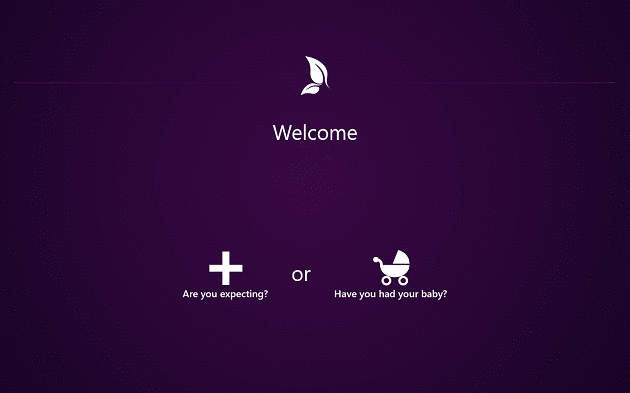
mayo-clinic

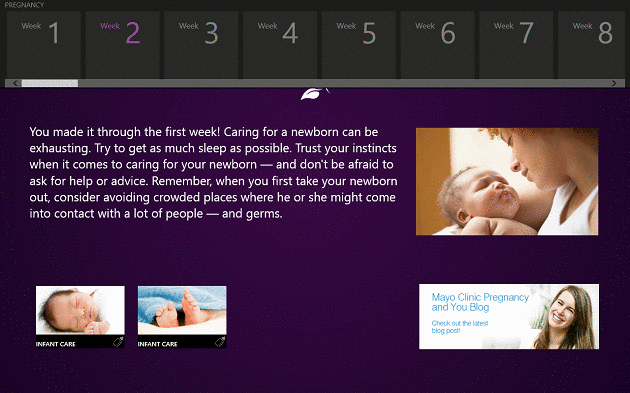
The app is divided in two categories, one give you information on each week of the development of the baby while the baby is still unborn, and the other is based on changes that occur in his or hers body after birth.

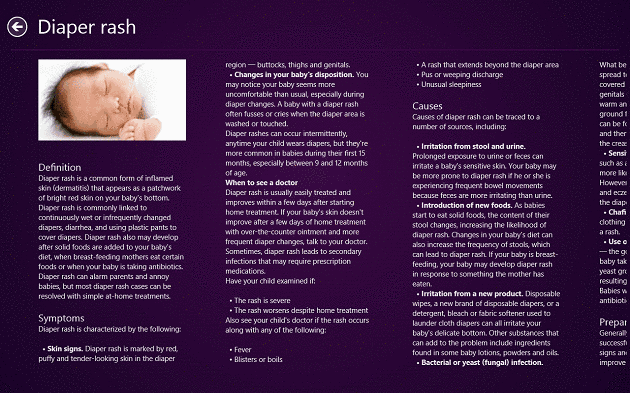
The information is presented in a way that anyone can understand, and for those willing to go beyond the description of the processes that occur in that time, there are in-app articles explaining in detail each change the baby undergoes and the changes that the mother will feel.

mayo-clinic-on-pregnancy

After birth, the app is still very useful, offering advice and a week-by-week guide that will help you learn some of the information that you will need. There are also detailed articles and images for most of the period that the app covers.

The app will cover the development of the baby for an additional 13 weeks after the birth, and if you read all the information that it gives you, there shouldn’t be any problem for you to understand what is going on.

mayo-clinic-on-pregnancy-app-review

The user interface of the app is very intuitive and easy to use, and the extra information is easily accessible. This makes the app very user friendly and a pleasure to use for young parents. Also, the app allows you to search via the Charms bar for specific information.

mayo-clinic-on-pregnancy-expecting-app-review

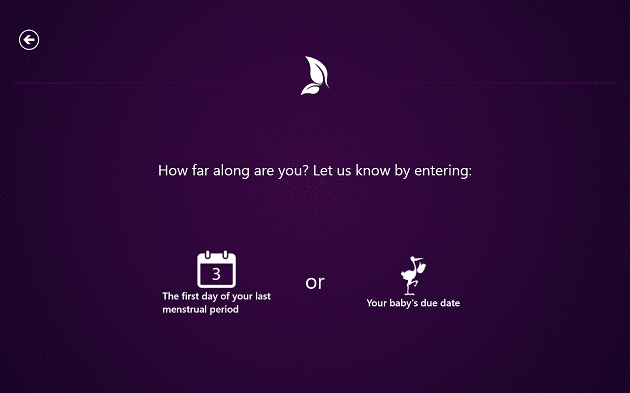
Overall, Mayo Clinic on Pregnancy is a awesome resource for young parents, and because it calculates how long in the pregnancy the mother is (based on the last menstrual period or by the manual input of the due date), it will give you always accurate details about your future baby.

Download Mayo Clinic on Pregnancy for Windows 10, Windows 8

Watch Tom and Jerry Completely Free in Windows 8, Windows 10

Who hasn’t heard about Tom and Jerry? Well, the great news for those of you looking to watch Tom and Jerry’s adventures for free on a Windows 8, Windows 10 tablet is that now you can with the app that we’re reviewing below!
Tom and Jerry was a show that almost everyone from our generation has watched. The two “best friends”, were putting a smile on our faces each day of childhood. I remember, when I was not at the local arcade, playing PacMan and Space Invaders, I was home, watching these two guys, and other awesome cartoons from the time.

Truth be told, even now, when I have the chance, I watch the show, and even after all these years, I still find the old cartoon to be as funny as it was back then. And for fans of this cartoon classic, there is way you can watch all the old episodes on your Windows 8, Windows 10 devices.

Tom and Jerry for Windows 8, Windows 10

tom-and-jerry-windows-8

The app that allows you to watch Tom and Jerry for free in Windows 8, Windows 10 is called…well, you’ve guessed it: Tom and Jerry. Its simplicity and ease of use are some of its most prominent features, and it allows virtually everyone to watch their favorite episodes, without spending countless hours searching for them on YouTube.

When you first open the app, it will ask you if you want to see the tutorial, which is a 18 minutes long YouTube video, explaining how the app works and how you can use it. Of course, this is what we also will be covering in this review, but nevertheless, a good idea, but it would have been better if users wouldn’t had to exit the app and go to the Desktop to see the tutorial.

When you have gotten passed the initial screen, you will see a list with all the episodes of Tom and Jerry, up to episode 161! Each episode has the name and thumbnail so you can quickly find a particular one if you wish so.

tom-and-jerry-windows-8-app-review

When you enter an episode, it will automatically search for it and start playing it. This will greatly depend on your Internet speed, but it usually finds and loads the episode in a matter of seconds. To make the video full screen, requires you to click or tap once on it. One very annoying thing about the app is the fact that the video is not centered, and even in full screen view, the add on the right side of the screen is visible.

Play and pause button is placed on the left of the screen, but only visible when you exit full screen view, and there are no volume buttons. Of course, these are just minor inconveniences, but the player should receive some upgrades in the future. For now, I’m happy that I can view one of my favorite cartoon of all time!

Download Tom and Jerry for Windows 10, Windows 8

Get Infinite Cloud Storage with Bitcasa in Windows 8, Windows 10

If you are looking to get unlimited cloud storage in Windows 10, have a look at what Bitcasa is offering. Cloud storage services have been popping up all around these past few years, and they keep getting better and better, with more offers and more space. Today’s cloud storage services are pretty good, and by adding them up, you can make over 100 GB of free storage if you’d like. Although this is good, it is far from perfect, and with more service and more accounts the risk of losing one of them or mixing them up is pretty high.

A solution would be to use only one such service, and each provider offers the possibility to purchase more space on their service, but this can get pretty expensive. There has to be a solution to this problem, and to find it, we turn to the Windows Store, where there is an app that can put an end to all your troubles: Bitcasa – the infinite cloud storage service.

How to get infinite cloud storage in Windows 8, Windows 10

bitcasa-unlimited-cloud-storage-windows-8-app-review

After downloading the Windows 8, Windows 10 app, the user has to sign in to his Bitcasa account, or create one from within the app if needed, and afterwords, download the desktop client, available on the Bitcasa website. Also on the website there are download links for the Bitcasa mobile applications for Android and iOS, as well as the Google Chrome extension.

After downloading and installing the client, the user can start uploading any files to their Bitcasa account, which, after the uploads are complete, they can view in the Windows 8, Windows 10 app. The app itself is very good looking but as far as functionality and general usage goes, it still needs some work until it will be at the level of its competitors.

bitcasa-unlimited-cloud-storage-windows-8

Note: The uploading service is very similar to the other cloud storage services, such as Dropbox, SkyDrive and Box.com, with a folder on the computer where you can add files and they will be synced to the online account. Also, in addition, uploads can be done via the desktop client itself.

After using the app for a while, we found that it still lacks some basic features, such as account management, the possibility to upload files directly from the app or the ability to manage files (delete, create folders, move items). One other drawback of the app is the relatively slow loading time of images and files, which, by comparison to other services, takes ages, but then again, unlimited storage has got to count for something, right?

The Windows app is still in its infancy, and we very much hope that future updates will give users better performance in loading media and other management features. For the time being, the app supports playback of video and music, and has dedicated buttons for play, pause and playlist.

bitcasa-unlimited-cloud-storage-windows-8-app-review-2

To sum it all up, Bitcasa for Windows 8, Windows 10 is an excellent idea, one that we are sure it will get pretty far and as soon as more people will start noticing it, it will become a sensation! For the time being, the service still has some issues that need to be resolved, but I say again: unlimited storage has got to count for something!

Update: Until recently, Bitcasa offered free infinite storage for its users. However, nowadays you only have 10 GB/account for free, and in order to benefit from infinite storage, you have to pay $99/year or $10/month. This isn’t a lot for the kind of storage they offer, and I guess it was expected. My personal account has almost 100 GB uploaded to it, and for the time being, the status is “Over Limit“. The service has evolved much, and the integration between the Windows 8, Windows 10 app, Android app and Desktop client is better than ever.

bitcasa-windows-8

Download Bitcasa for Windows 10, Windows 8

SearchAll: Search With Multiple Search Engines in Windows 8, Windows 10

As far as Internet search goes, there is only one name that really stands out and makes the scale on which every other service is compared: Google. And, as we know in Windows 8 and Windows 10, there is a Google app that users can search with, but sometimes, even the mighty Google does not please, and you need to search elsewhere. Also, there are lots of different search engines for different things, and this is why a service that unites them all is needed.

SeachAll is exactly the service that does this. This Windows 8, Windows 10 app brings all the most commonly used search engines in one app and allows you to search the web like you never did before. The app is free to download from the Windows 8, Windows 10 Store and it provides a must have service that has been long awaited and overdue.

SearchAll for Windows 8, Windows 10 app review

searchall-windows8-search-engine

Upon opening the app, you will see a search bar where you can type your search query, and below it there is a list of all the popular search engines and websites that are commonly used. This search bar does not disappear when you browse web pages, being always there in case you need it. However, the option of auto-hide would have been good, as it occupies a great deal of screen real estate, and on smaller screens, you will feel that the web-page is too zoomed out.

Apart from this, the service works like any other web browser, and after some time using it, you will forget that you are using a app and not a dedicated web browser altogether. For those interested in what websites they can search using this tool, here is a list of what you can use:

searchall-windows8-search-engine-2

A option that is missing is the ability to add or remove custom search engines, but this may yet appear in future updates, for now, the app is wonderful and it provides an invaluable service for those who search the web frequently. Also, the app moves fairly quick, but this also depends on your Internet connections.

Overall, I am very pleased with the app and what it offers, and I see myself using it for a long time. I would recommend it to anyone in need of a good web searching app!

Christmas Food App Makes Cookie Preparation a Pleasure in Windows 8, Windows 10

This ingenious Windows 8, Windows 10 app will help you prepare delicious, tasty food for Christmas from the comfort of your tablet. Read to get more details!

Christmas is right around the corner and everyone making preparations for the perfect celebration. While some are shopping on Amazon and eBay, others are busy with cooking and creating the perfect Christmas dinner. In the help of those who want a little inspiration for the dinner party, we come with a Windows 8, Windows 10 app that will give them some ideas and tips in making the perfect sweets: Christmas Food.

This app is a great resource for those who want to make some great dishes and drinks for this special occasion. It provides its users with lots of detailed information and with a pretty impressive database of sweets and drinks, Christmas Food for Windows 10, Windows 8 is a great tool for everyone.

Christmas Food for Windows 10, Windows 8

christmas-food-app-review

As mentioned earlier, this app is a perfect resource for those who want to create incredible dishes and drinks for their Christmas dinner. The app is very simple to use, and uses the already familiar Modern UI style interface, with a menu extending to the right of the screen and the information grouped in categories.

christmas-food-app-review-2

Also, the different recipes can be sorted by a number of filters (accessible by right clicking in the app or by the filters button in the upper right corner of the app), including ingredients, cooking type, difficulty and many others. Once you’ve found a recipe that you wish to make, you can then watch a video tutorial and read the entire cooking process and of course, the list of ingredients which is shown under the video.

christmas-food-app-review-3

I would have liked to see better quality videos that explain the cooking process, but sadly most of them have poor quality that cannot be changed. Nevertheless, they are still very good and explain the process very well, so if you don’t mind it, you can learn quite a bit from them.

christmas-food-app-review-4

Unfortunately, the app has problems when searching for recipes, there is no in-app search bar but when you click on the “Search” button it opens the Charms bar search, and some times, when you have entered a word and hit “search”, the app creases immediately (although not all the time). I hope the developers will sort out this problem in future updates, but even still with this drawback, the app performs pretty good and it represents a very good resource.

So, this Christmas, you have at your disposal one of the best apps for creating sweets and drinks. Be sure to install it and see for yourself how great the app can be and how many awesome recipes you can make with it!

Microsoft to retire Windows Live Mesh in February 2013, recommends you use SkyDrive instead

Begining February 13th of 2013, Microsoft will be retiring Windows Live Mesh in favor of SkyDrive. For those that don’t remember, Microsoft first released Windows Live Mesh beta back in late 2008 and it was used to keep files in sync and to remotely access a PC.

“So while Windows Live Mesh was at one point used by a few million people, most have made the move and there are now less than 25,000 active users of Windows Live Mesh. As a result, we’re announcing today that Windows Live Mesh will be officially retired on February 13, 2013, and we’re starting to communicate with the remaining Mesh users and provide a set of instructions on how to keep their files in sync and alternative options for some of the features they’re still using,” Microsoft stated in an official blog post. Microsoft has posted instructions for Live Mesh users on how to migrate their data over to SkyDrive. While SkyDrive looks and feels a little different, Microsoft claims both services are similar for the most part. With over 200 million users of SkyDrive, it was only natural to retire a service like Live Mesh that had only 25,000 active users. Hit the source link for details on how to migrate to SkyDrive.

Review of MyTrip for Windows 8, 10 : Plan Your Trips better

MyTrip is a very useful travel planner app for Windows 10 device. Some of you who don’t like the cold might be wanting to go to warmer climates for the winter vacation, and such a trip requires lots of planning and a strict schedule. From the transportation, to the tourist attractions, to local weather and other information, all of this information has to be taken into account.

This amount of information however, is hard to keep track of in a notebook, so what would be the next best thing? If you said an app, then you are right! Apps are easy to use (most of the time), reliable (with some exceptions) and they are always present with us, on our devices. One such app is MyTrip, a Windows 8 and Windows 10 travel planner that allows you plan your trip and set a schedule for what you will visit.

mytrip3

Using MyTrip – What do we think about it

I had high hopes for this app, being a travel app, it has to offer lots of planning features and most of all, detailed information about each country and every place that you might want to visit. But as I said, this is what the app should have. Unfortunately, it doesn’t! What does have is a collection of seemingly random places (they are grouped by country at least) with some Wikipedia information on the side.

When you start planning your trip, you have the possibility to add as many places as you wish (right click when a place is opened and click on “Add to Trip”), and when you are finished selecting all the places you might want to see, you can start by creating the trip calendar, where you categorize the places you want to visit on days.

mytrip

As I’ve mentioned, the app has its information stored on countries, so first of all, you select a country, then what you are interested in (museums, building, landmarks etc), add them to your list and you are done. Also, there is a map integrated in the app (powered by Nokia Maps) that shows you a pretty detailed view of any city.

However, the search option on the map is far from good, results show but it takes approximately 20 clicks and 2-3 minutes to go to the selected place and there are no Zoom In and Zoom Out buttons. Also, throughout the app, the “Back” button does not change color, and most of the time it is barely visible and hard to click. Also, the map allows you to show diseases, or rather areas where some diseases are present – this could be a good idea, but I highly doubt it can be too accurate.

mytrip6

The Wikipedia information on each element has not undergone any change (just plain copy/paste), and sometimes, the developers did not copy the entire paragraph and you end up reading and the text abruptly ends in the middle of a sentence. Also, there are no outside links for the information provided (and in some places, there are “more info” texts that do not have links – probably a result of the copy/paste from Wikipedia) and the pictures used for the places of interest or regions have unbelievable poor quality.

One time, the app crashed during the tests and all the planned trips disappeared and there was no way to bring them back. Although the places that were added to the Favorites bar were still there, the entire trip (in this case trips) had to be remade.

mytrip5

Quick recap of MyTrip

  • It features lots of places around the world (although many missing)
  • Map with detailed information
  • Information not edited (copy/paste from Wikipedia)
  • Intuitive UI (however it does present some drawbacks and design flaws)
  • Unreliable – crash and loss of data
  • Too many low resolution photos
  • Hard to navigate map
  • Hardly any information on hotels
  • Add places of interest to Windows Start Menu
mytrip2

Final thoughts

After using the app and checking its every feature, it left me with a feeling of sloppiness. I can’t help but think that the app was created as a weekend project and the developer had no serious intent on making it a good and reliable app, but only as something to pass the time.

I do hope I am wrong and the app is having a major upgrade as we speak, but until then I can’t say this is a good app (long from it). The potential is there, the idea is good, the design is simple and very well thought of, but the execution of the app is poor. So, would I use the app to plan my next trip? Definitely not! At least not until it will receive updates that will make it better.

Update

As promised by the developer of MyTrip, the app has gotten a major overhaul. Although there are a few other places where it needs touching up, MyTrip much better than what it was at the time we reviewed the original app. With a bit more work, we think it can become one of the best holiday planning apps of all. Keep on the good work!

However, if you are looking for another app to plan your trips, we suggest you to consult our list of best trip planning apps&software.

Review of YouSendIt for Windows 8, 10 : send files easier

Most of you might have heard of this service before. YouSendIt allows users to send files of various sizes to any other user in Windows 10 and Windows 8.1. Now, those of you who have been using this service will be able to use it on your Windows 8, Windows 10 devices and send or receive files much more easier.

Of course, there are some limitations of the service, but its functionality is still as big as always. You can manage your files, by creating or deleting folders and moving or sending files. YpuSendIt gives sharing a new perspective.

yousendit

App highlights and impressions

When first using the app, I thought that it lacked many of the features that I wanted, but after using it for awhile, I noticed that it works pretty good and it lets me share files quickly, without the need of ever accessing the website. The service is very similar to the Dropbox or Skydrive apps: it uses a local folder and it uploads your files to the server, where you can access them via the app or share them with your friends.

If you want to share to more than one recipients, the app will automatically open your “People” panel, but there is an option of manually entering the email of the recipients. Afterwards, you only have to select “Send” and the files are on their way. It would have been great it you could upload files via the app itself, but sadly, no such feature exists at the moment of this writing.

yousendit-2

The overall look and feel of the app are great: the UI is clean and simple, there are no confusing features or buttons, the menus move fast and it’s very responsive. If the developers will find a way to eliminate the need for a separate desktop client, then it will be awesome! But for now, this will do very good. Here are a few highlights of the app:

  • Fast responding and clean UI (depending on your Internet connection)
  • 50 MB file size limit
  • Easy to use
  • No option for in-app upload or download, a desktop (or online) client is still needed
  • Fast server upload (from website or desktop client only)
  • File manager for in-app search
  • 2 GB of online storage
  • 1GB download bandwidth
  • 100 maximum file downloads
  • Easy to upgrade and cheap
yousendit-3

Note: These values are represented for the Free account, for more information on other billing plans, please refer to the YouSendIt website

Update – YouSendIt on mobile

The app has discontinued the support for Windows-based PC’s. However, it is fully functional on mobile devices.  Even if you have an ARM-structure mobile device, it will support the app. It also has very good reviews from clients. It is a good tool that can help you very much. Let’s hope it won’t be discontinued by developers team.

You can download it in Windows Store and give it a try.

All in all, YouSendIt is a great app that gives users the possibility to share files with anyone, in just a few minutes. I do admit it has its drawbacks, but overall, the app is great, it works perfectly and with time, I’m certain it will receive many more interesting features.

Find Your Way Around any City with PlaceMap for Windows 8, Windows 10

PlaceMap is one of the best map apps to be used with your Windows 10, Windows 8 device, read below to find more about and if it’s worth installing on your tablet

placemap

Even though most of our devices support turn by turn navigation naively, there is always the need for something better. For Windows 8, Windows 10 users, that something better is called PlaceMap. A service that allows you to find any point of interest near you with only a few clicks.

Although we have been accustomed to Google’s navigation for some time, this app provides a better and easier way to find anything around you, by using the native maps from Windows and the database from Google Places. Together, these two make one app that is perfect for travelers or residents alike.

First look at the app

The app is pretty straightforward: it provides a map, a search box and a list of search suggestions. All you need to do it provide your location (if will prompt you when you first enter the app, but in my case, as with the native Windows maps, it didn’t find my location accurately). After your location is set, you have a huge list of search criteria, or you can search manually for something.

After you select one item from the results, it will automatically create a route to that place. The directions are very well listed, and they are very easy to follow. A nice feature they could have implemented is voice guided navigation, but I hope in future updates we will see this option.

placemap-2

One thing that I did not like about PlaceMap is its fixation to Windows maps. I would have preferred to have the possibility to change to Google Maps, but for now, this will do just fine. Also, the custom destination marker does not work that well (I did manage to make it work after a few tries), but nevertheless, this app has great potential.

placemap-3

Short Overview and Conclusion

  • Fast search and directions
  • Search by Type table with lots of possible search options
  • Custom Directions (although it has a few minor bugs)
  • Slightly problematic location detection
  • Only Windows maps available, no possibility to use Google Maps
  • Aerial and bird’s eye view of the map
placemap-4

Overall, the app is a good navigation service that works pretty decent (for the time being), with lots of options and despite its minor setbacks, I would recommend it for those in need of a fast navigation app that works well and provides very easy to follow routes. Test out the app and give us your feedback on how it works for you, or other apps that work best for you.

Microsoft opens up it’s Socl social-search project to the public, go test it now

Back in December of 2011, Microsoft revealed its Socl social-search project, which aimed to be a hybrid between social networking and search. Only special people (those with special invitations) were able to try it out and offer feedback. Well, fast-forward to a year later, Microsoft is now allowing anyone to sign up and test Socl.

“We appreciate your continued feedback which is helping us to gain more insight every day and improve how we can all communicate, learn and share our everyday lives. We’ve been busy redesigning Socl to match how you’re using it, and starting today, we’d like you to give the new Socl a spin at www.so.cl and let us know what you think,” Microsoft stated. Socl was originally a experimental research project focused on how social networking and search can be used for the purpose of learning. Socl was built using TypeScript, which is a superset of JavaScript. On top of that, Socl is not an attempt to take on Facebook, Twitter, Tumblr, or Pinterest. Our initial reaction when using Socl was that it reminded us of Pinterest and Facebook, with a little touch of Google Plus. Head over to www.so.cl/ to try it out.

Review of Doodle God for Windows 10: Imagination Meets Chemistry

It seems that the games for Windows 10 are getting better and better, and of course, more diverse. I remember when I got my Android smartphone, and one of the first games I installed on it was the elements game.

You know, the one where you have to create different elements from the four basic elements: air, water, earth, and fire.

Doodle God is something similar to that game but with better graphics. The basic principle of the game is the same: combine the four elements to create new ones and then combine those to create others, and so on, you get the idea.

The game has a free and paid version, but I’d recommend playing the free version first, to get an idea about the game.

doodle-god

Doodle God – First impressions and game experience

After installing the game, I quickly hopped in the saddle and started playing. Although it looks like an oversized phone game, it retains the image quality and flowing animations we are used to from other games.

When entering the game for the first time, you get a quick story about the creation of the elements, and then you arrive at the start screen, which looks very appealing.

When first starting the game, you get only the four basic elements, but once you start combining them, they quickly grow and group into categories. You will notice that you have 15 categories in the game and a total of 135 elements (I’m still at the first stage, so there are still more to go).

After completing the first stage (you complete this stage when you’ve discovered 100 elements), you can advance to the next one, and the game progresses as before. I should warn you that even if the game seems easy at the start, you are in for a surprise once you’ve passed ~50 elements.

doodle-god-2

By then, numerous possible combinations will make your life pretty hard. Luckily you have the hint button ready to give you some hope. By clicking on it, it will show you two elements you can combine, but each element has sub-elements, and you still need to find the right one.

After playing for a few hours, I noticed that the game is no longer a relaxing pastime but a battle with your knowledge to find out what you can combine to advance.

This being said about the gaming experience, I will add that the game has pretty good graphics, the animations, although simple, look very crisp, and the overall game move very well.

I do, however, recommend that you play this game on a touchscreen device or at least with a mouse (the digital trackpad of the laptop is not a good solution).

doodle-god-4

Final thoughts

Here is a quick list of what I liked about the game:

  • Very well-designed user interface
  • Good graphics
  • Possibility to share progress on Twitter and Facebook
  • No ads, but only a dedicated page with other games from the developer
  • Very responsive
doodle-god-4

I very much enjoyed this game, and if I were to recommend a game for someone who needed to pass the time, this one would come to mind quickly.

But know this: arm yourself with patience before going on a journey of discovery like this because you will often feel the urge to throw your device against a wall or through a window. But all things considered, I like the game and recommend it to everyone!

Update – DoodleGod growing

DoodleGod has received its last update in 2014. Trying to satisfy the public (more than 100,ooo,ooo players worldwide), they made many improvements to the game. Here are some of the most important :

  • Now the game is available in more than 15 international languages
  • New survivor quest
  • New reactions with existing elements and episodes
  • Improved mini-games for arcade fans
  • New artifacts available

Microsoft’s Bing doesn’t want you getting Scroogled, launches campaign for “honest search”

Just in time for the holiday season, Microsoft has launched a new campaign called Scroogled, which is intended to bring back “honest search.” Microsoft believes that shoppers who use Google for their shopping searchers are getting “Scroogled” and being shown advertisements rather than what they really want to see. Microsoft’s Scroogled campaign highlights why Bing is the better option for search.

“Google recently pulled down its “product search service” and replaced it with a “paid listing ads” service. Search for “Canon EOS” in Google Shopping and you receive pages that look like the old days, with “results” down the middle and ads mixed in. But the “results” are also ads. Every product offer within the shopping search results on that page are paid to be there, and where and how high they appear is at least in part dependent on how much they paid,” Microsoft stated in an official Bing blog post. Bing plans on counteracting this by offering better and more objectively ranked search results. Bing claims that they would never let paid advertisements affect what you see in search results and will not be using the pay-to-rank advertisement method like Google. Microsoft is launching the Don’t Get Scroogled campaign to highlight Google’s practice of “pay-to-rank” and emphasize why you should be using Bing instead. Visit www.scroogled.com or hit the source link for more information on this campaign.

Read News in Style on Windows 8, Windows 10 With NewsBento Aggregator

Reading news on your Windows 10, Windows 8 or Windows RT device is something that many will look to do right after buying one such device. There are plenty news applications in the Windows Store that can help you with your need for news, but today, we’re focusing on NewsBento, a news aggregator that’s one of the most popular such applications in the Windows Store.

Probably, one of the most important reasons for NewsBento‘s success was the fact that the application has been in the Windows Store amongst the first. At the moment it has been rated by more than 450 people and has a 4.2 out of 5 score, which is not bad at all. And just like the developers say, this is, indeed, a very fluid and “light” application to use.

Update – NewsBento app no longer on the store

Unfortunately, NewsBento has been discontinued. It was pullet out from the store in 2015. If you have the app installed, you can still use it but you won’t be able to access articles written after discontinuation date. In case you need to be up-to-date with the news, you can check our list of best news app for Windows 10.

NewsBento for Windows 10, Windows 8: get your favorite news

When you first open up the app, you’ll see that there are already some websites added, so in order to customize your own news experience, you’ll have to change that and put your own websites that you are following. But you’ll discover that it will be one fun thing to do, because the application is masterfully made. There’s even a Feedback button there, from where you can go to their Facebook page, vote the app or send them a message (last one didn’t work for me, though).

Hit the “more news” button to be able to customize and put your own websites. You can add more feeds from the websites that are already featured there or you can add feeds to websites that aren’t there. A very, very nice thing is that you can already add your Google Reader account (let’s see what happens when I add my Google Reader with more than 300 websites…).

Surprisingly enought, the import of my G Reader has happened blazing fast. When you are done with that, you’ll see websites appearing on the main page, the “content” page. From there, you can delete, make a tile larger or smaller and pin it to start. If you delete the tile to a certain website, then others will automatically extend to “eat up” the remaining space. At this step, I encountered some issue. First of all, some thumbnails weren’t appearing at all or seemed fuzzy. Secondly, the thumbnails didn’t appear at all.

News in Windows 10. Windows 8 with style

Another big issue was the fact that I didn’t manage to add any website at all using the “Add RSS feed” function if I didn’t put at the end the .xml extension. So, most likely, it won’t work for websites where you’ll try to put /feed at the end of the website’s name. But there’s another awesome function to help you cope with that – search function. Use that to search your favorite website and simply add it for there. Neato!

You can select every website from the main screen, then go to the latest articles, from there you can pick the desired article. When you are inside the article, you can do the following there:

  • Enable CleanView – increases the readability of the article
  • View original article – opens up a sidebar with the original article
  • Open in browser – exits the app and opens the article in the browser

Also, after opening up the website that you want, there’s a nice scroll button that “takes you back in time”, quite quickly, and much easier than you would normally do it on the regular website. A very useful news app in Windows 10, Windows 8 that needs to iron out only a few drawbacks.

Download NewsBento for Windows 10, Windows 8/Windows RT

Read also : Best RSS Reader apps for Windows 10 to feed your news hunger

Windows Store total app count now at 13,783 apps, Books and Reference category sees a drop

After it was reported by WinAppUpdate that there were 20,610 apps worldwide in the Windows Store, we have new data from McAkins Online (a second source who keeps up with the Windows Store app count) that there are now 13,783 apps in the Windows Store. Interestingly enough, the Books and Reference category seems to be dropping in app count.

“According to WinAppUpdate, there are now 20,610 apps worldwide in the Windows Store and 17,958 of those apps are free. In early October before Windows 8’s launch, it was reported that there were over 3,600 apps in the Windows Store. The growth of the Windows Store has been very quick over the last few weeks and developers are publishing their apps at an increased rate,” we reported a few days ago. Now, new data from McAkins Online is claiming that there are now 13,783 apps in the Windows Store. No, your eyes are not deceiving you. There wasn’t a flood of apps added to the Windows Store overnight. According to McAkins, if you turn off Localization in the Windows Store, the app count is higher. However, how many of these apps are considered “quality” apps? “I agree with Wes Miller on one point though, that the success of Windows 8 and its Store is not dependent on the number of Apps in its Store, but the number of Quality Apps in the Store. After the Store reached the 10,000 mark, I also lost interest in counting the number of Store Apps because most of them are chaffs anyway. “Its all about Quality Apps Stupid” like they say,” McAkins states on his blog. Regardless, the Windows Store continues to see an increase in apps (aside from the Books & Reference category which is apparently dropping in app count according to McAkins) and this is obviously a great thing for developers and those who use Windows 8.

On a side note, we are also posting Windows 8 app highlights every week highlighting an app from the Windows Store and you can check that out here.

What you need to know about Microsoft’s Windows RT operating system

For those that don’t know, Microsoft debuted Windows RT alongside Windows 8. Windows RT is designed around the ARM platform and cannot run x86/x64 applications. This is what the world knows about Windows RT, for the most part. Microsoft has now posted some essential details that explain exactly what works and what doesn’t when it comes to Windows RT.

So what exactly is Windows RT (or WinRT for short)? Windows RT is a special version of Windows 8 thats designed to run on mobile devices powered by the ARM platform, which allows for less power to be consumed and thinner hardware designs.

As we all know, Microsoft’s new Surface RT tablet runs Windows RT. It comes with Office 2013 and the operating system cannot run x86 or x64 applications. But what else is Windows RT good for? Microsoft’s Ron Grattopp has put together a list of elements that make Windows RT what it is. Take a look below (i’ve removed some of the commentary bits):

  • You only get WinRT by buying a device that has it pre-installed (in other words it’s OEM only)
  • RT includes BitLocker, the full disk encryption tool that means your data is secure even if your device is stolen, AND it’s ON by default.  (I don’t believe the iPad has any data protection mechanism like this.)
  • WinRT accommodates USB and other externally attached devices and is “surprisingly replete” with drivers. 
  • Has a lot of “Windows 8” functionality
  • WinRT comes with it’s own version of Office 2013 (Office RT) based on the Home & Student Edition apps (as in no Outlook), and “RT Office is almost good enough to make up for the lack of apps” (in comparison to the number of apps available for Apple and Android devices).
  • WinRT includes a version of IE that works with Flash.
  • ARM stands for Advanced RISC Machine and RISC chips have been around since early 1980’s and ARM was an architecture designed to be processor independent.  Yet, even though ARM itself is not new, “RT requires what is currently the newest hardware platform on the planet.”  (Which is part of why you’re just now seeing the devices hitting the market after the launch of Windows 8/RT).
  • “RT has two very different desktops, the “runs old Windows apps” Desktop and the “runs new tablet apps” Start Screen
  • RT devices need a minimum resolution of 1366×768 to enable the “snap” (or docking) experience, that is, to let two apps be in view simultaneously.  From what I understand, this functionality is not an option on iPad (even with retina).
  • RT has a command prompt that can run PowerShell scripts along with other commands and built-in tools
  • The Nvidia ARM CPU is a quad-core ARM chip, so it’s not as powerless as you might think.
  • RT doesn’t support Silverlight (at least, yet)
  • The RDP client (terminal services) is exactly the same one you get on Windows 7/8.

You can also read an entire comprehensive Windows RT review here.

Microsoft launches three-year Get On program to help tackle youth unemployment

Microsoft has launched a new three-year program in the UK to help young people get inspired, get skilled, and get a job. This program is designed to help tackle youth unemployment and create opportunities for young kids. According to Microsoft, this program will help over 300,000 kids between the ages of 16 to 24 take the right steps towards a bright future.

Back in 2009, Microsoft made the decision to help kids in the UK. To date, more than 470,895 kids between the ages of 16 and 24 were helped towards work. Now, Microsoft is launching a new campaign. “In these difficult economic times, the best investment we can make is in our young people, to help them develop the skills and creativity they need to create our economic and social future. As part of our recently announced global companywide commitment to youth – Microsoft YouthSpark – our ‘Get On’ programme in the UK will connect young people with opportunities for education, employment and entrepreneurship so they can develop the confidence and skills required to compete in a global market and build a rewarding career,” Microsoft CEO Steve Ballmer stated.

Using volunteers, Microsoft will hold work inspiration sessions to help kids build confidence about the workforce world, making the most of their talents, and connecting them with job opportunities. Microsoft will work with academic institutions and help teachers in teaching technology. The Kinect will also be utilized to engage students and motivate them to participate. Microsoft will also help kids get a job. “Providing a direct path between University students and Microsoft’s partners, this programme takes graduates interviewed but not hired by Microsoft each year and matches them with jobs or internships in the technology industry, within Microsoft’s 30,000 strong partner community, which employs more than 500,000 people in the UK,” Microsoft added. Hit the source link below for more information about the Get On program from Microsoft.