Microsoft Rewards expands to all 7 continents with two new features

Microsoft has decided to expand the Microsoft Rewards program to more than 230 countries and regions. For the uninitiated, it is a handy program that lets you earn loyalty points for using the company’s products and services like Bing, Microsoft Edge, and more.

Benefits? Well, you can redeem loyal points for various purposes like shopping and more.

Microsoft expands Microsoft Rewards program across 230 regions and countries

On May 15, the company took to X (formerly Twitter) to announce that it is expanding Microsoft Rewards to users across 230 regions and countries, including Morocco and Israel. This means now the rewards program is available to all 7 continents.

Although the program is quite handy, many users have raised concerns regarding recent changes introduced around it by the company. This includes a cooldown period introduced to the program by Microsoft.

Since Microsoft introduced this change, users only have 3 searches per 15 minutes to collect loyalty points. The company earlier suggested that these changes are part of routine updates that allow for improving how users redeem their loyalty points.

That’s not all, Microsoft even discontinued the Xbox Rewards app in April, eventually getting rid of weekly streaks. However, it seems the Microsoft Rewards program is getting better now as it expands to more countries.

The rewards program is also getting streak restore and protection feature

In addition to expanding Microsoft Rewards, the company is also adding two new features to improve users’ engagement with daily streak bonuses.

Microsoft says that eligible users who accidentally miss a day can restore their streak once every 60 days using the streak restore feature. Whereas, users with a 100-day streak can restore it once every month.

Additionally, the company is adding a streak protection feature to the Microsoft Rewards program. When you enable this feature, it will protect your streak and prevent it from getting lost. Users will have 14 days per calendar year of streak protection.

It is worth noting that if you complete your streak when the streak protection is turned on, it won’t count against your quota of days. Earlier users had raised concerns regarding the same.

Microsoft has also talked about expanding the ability to donate your Microsoft Rewards points. Adding more to the original post on X, Microsoft highlighted the changes related to donating your loyalty points. You can check it below.

Lastly, if you are a program member and search the internet with Bing on Edge browser for 3 days, you can access 3 months of Super Duolingo for free, all thanks to Microsoft and Duolingo’s partnership.

What do you think about Microsoft’s decision to expand the Microsoft Rewards program and new features? Share your thoughts in the comments below.

Chrome is reviving Skip Ad Feature in Picture-in-Picture Mode

Google is bringing back the ability to skip ads while watching videos in Chrome Picture-in-Picture (PiP) mode. This feature was originally planned a few years ago but was disabled due to a lack of use cases at the time. The Skip Ad button for PiP mode is expected to ship with desktop Chrome version 127.

Chrome 127 may let you skip ads for Videos directly from PiP mode

Chrome’s PiP mode lets you watch videos in a small window on top of other apps.

Many videos have ads that play before the main content starts. These ads often allow you to skip them after a few seconds. However, Chrome’s Picture-in-Picture (PiP) window doesn’t support skipping these ads while watching in PiP mode. The returning Skip Ad button addresses this issue.

This highly requested feature for PiP mode will allow websites to offer the ability to skip ads at the beginning of videos directly within the PiP window, just like you can on the main webpage. No more switching back and forth! You can simply skip them directly from the PiP window itself, making watching videos in PiP mode more convenient.

According to the Chrome Platform status page for the Skip Media Session Action page, Google is re-enabling the Skip Ad feature because the ChromeOS UI team is interested in adding it to an upcoming project. The page suggests the feature will be shipped with Chrome 127 on desktops.

It’s not entirely clear whether the feature will be available on all platforms (Windows, Mac, and Linux) or just ChromeOS. Google might try out the Skip Ad button on ChromeOS first before making it available on other devices like Windows, Mac, and Linux.

Websites like YouTube might need to make some changes to work with the Skip Ad button. While YouTube might get it first, other websites could offer it later on.

Apart from this, Chrome to get reading mode support to Google Docs and revamped Google Lens with Gemini AI.

New firmware update for Surface Go 4 brings Wi-Fi improvements

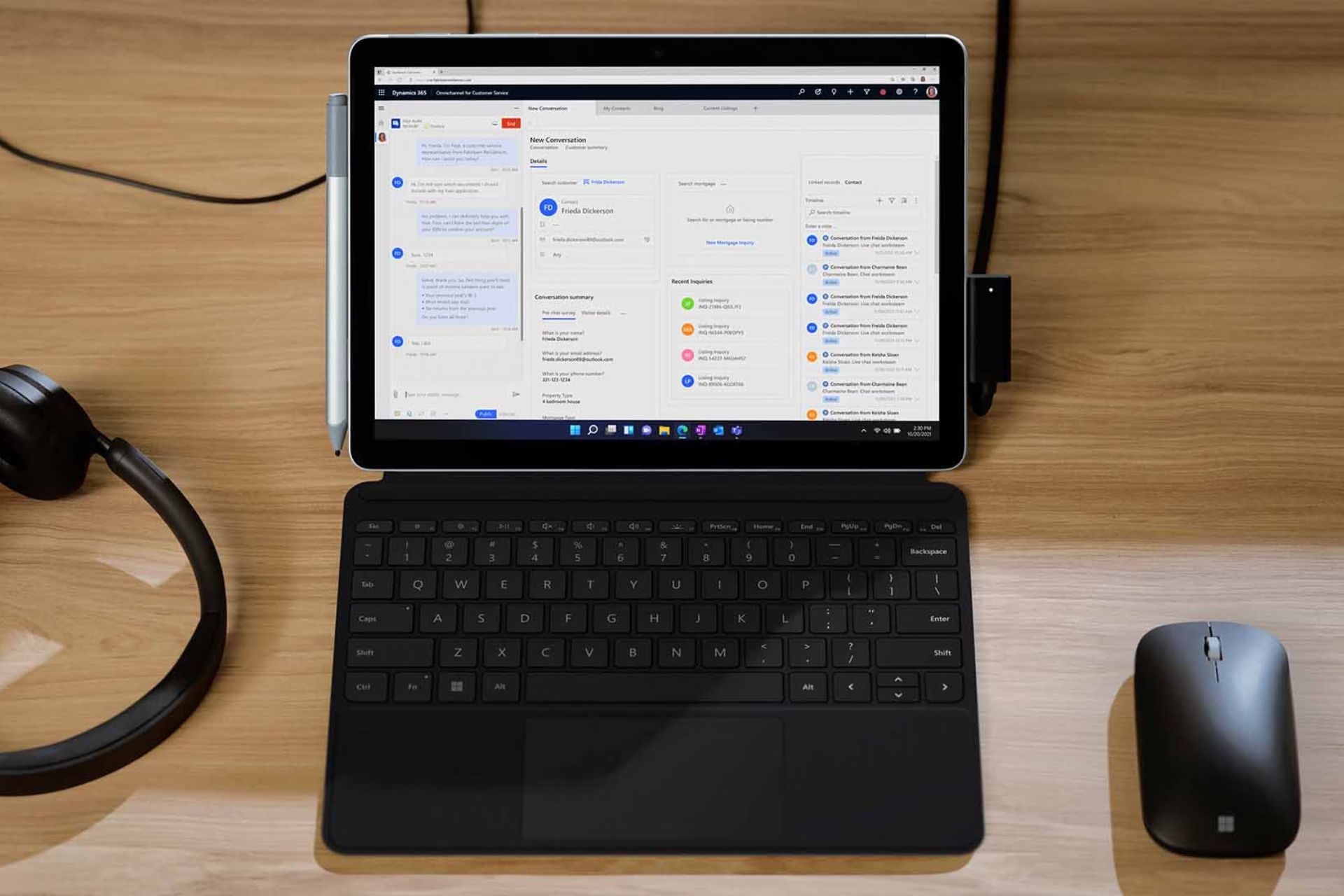
Microsoft has recently released a new firmware update for the Surface Go 4 tablet launched last year. One of the notable changes brought in by the latest firmware update is Wi-Fi improvements. The new firmware update also drops security patches and fixes connectivity issues when resetting the device.

Microsoft releases a new firmware update for Surface Go 4

Microsoft has updated the Surface Go 4 update history page with all the improvements and fixes rolled out with the latest firmware update released on May 15. The company mentions:

The following update is available for Surface Go 4 devices running Windows 10 November 2021 Update, Version 21H2, or greater.

Improvements and fixes:

  • Addresses Wi-Fi related security issues and connection stability during Reset/Recovery.

This latest firmware update for Surface Go 4 also comes with new drivers listed below.

Windows Update NameWindows Device Manager
Intel Corporation – Bluetooth – 23.30.0.3Intel(R) Wireless Bluetooth(R) – Bluetooth
Intel – net – 23.30.0.6Intel(R) Wi-Fi 6 AX201 160MHz – Network adapters
Source: Microsoft

If you want to install the latest firmware update for Surace Go 4, head to Settings > Windows Update. You can also download the installation package to manually update the firmware by visiting the official Surface support website.

The consumer version of Surface Go 4 is rumored to launch soon

Let’s not forget that this firmware update for Surface Go 4 comes ahead of the rumored consumer launch. There were few reports in the past that Microsoft could launch the consumer variant of the tablet with the same configurations and hardware as the commercial one.

Talking of specs, the Surface Go 4 commercial version features a 10.5-inch IPS display and 8GB LPDDR5 RAM. The tablet is powered by an Intel Processor N200 chip. And, is available in three different storage options – 64GB, 128GB, and 256 GB.

At present, the Surface Go 4 is only available to commercial customers at a price tag of $579 for the base variant. However, the price of the rumored consumer version is unknown to date.

Call of Duty 2026 reportedly will launch day one on Xbox Game Pass

Microsoft reportedly will launch Call of Duty 2024 (Call of Duty Black Ops 6) straight to Xbox Game Pass. The Wall Street Journal reports that the company will announce its plans at the Xbox Games Showcase scheduled for June 9.

If the report about the launch of Call of Duty 2024 is true, this could be one of the biggest Day One inclusions to Xbox Game Pass since the service’s inception in 2017.

Call of Duty 2024 could see day one release straight into Xbox Game Pass

Let’s not forget that the WSJ’s report is in line with Xbox President Sarah Bond’s recent comments from an interview with Bloomberg from a week ago. She indicated that all Microsoft’s games including those from Activision will launch directly into Game Pass.

In the latest report, The Wall Street Journal mentions:

Microsoft plans a major shakeup of its video game sales strategy by releasing the coming installment of Call of Duty to its subscription service instead of the longtime, lucrative approach of only selling it a la carte.

Microsoft could raise the price of Xbox Game Pass Ultimate as well

The WSJ report didn’t mention if Microsoft plans to charge additionally for Call of Duty 2024 in Game Pass. Nor, the report adds whether the company will hike the subscription fee of Game Pass Ultimate.

However, reporting for The Verge, Tom Warren had his say about the price hike of the service. In the latest report, Warren adds:

I understand Microsoft has been considering raising the Xbox Game Pass Ultimate pricing again. Activision is currently targeting a late October release of the next Call of Duty, which is rumored to be set during the ’90s Gulf War.

Microsoft seems to believe including the latest Call of Duty 2024 game will boost the Xbox Gampass Subscriber count. In February, the company announced that Xbox Game Pass hit 34 million subscribers. Notably, it is quite a big jump from the 22 million in 2022.

Neither Microsoft nor Activision commented about the day-one launch of Call of Duty 2024 in Xbox Game Pass. Let’s not forget that the game could be released in October 2024. Moreover, Microsoft plans to announce several other Xbox games coming in the latter half of 2024.

Are you excited about the day-one release of Call of Duty 2024 in Xbox Game Pass? Share your thoughts in the comments below.

Windows 11 Release Preview update KB5037853 brings a slew of improvements and fixes

Yesterday, Microsoft released Builds 22621.3668 and 22631.3668 under update KB5037853 for Windows 11, version 23H2 and 22H2, respectively. Notably, this update is available to devices enrolled in the Release Preview Channel.

The latest update includes various improvements for the existing features and non-security fixes. The first notable change brought in by the KB5037853 update is it rolls out the PC Manager app for devices in China.

This is just one change, Microsoft has listed a slew of improvements added to Windows 11 with the KB5037853 update. We’ve categorically listed all the improvements coming your way with the release of Builds 22621.3668 and 22631.366 under KB5037853 for Windows 11 23H2 and 22H2, respectively.

Major improvements coming to Settings app and Windows Share via Windows 11 KB5037853 update

Settings app changes

Microsoft has added a new Linked devices page in the Settings app through which you can easily manage PCs and Xbox consoles. Home and Pro editions users can only access this page by going to Settings > Accounts if they sign in to Windows using a Microsoft account.

Besides, the KB5037853 update rolls out a new Add now button to the Accounts page in the Settings app of Windows 11. You can use the option to add a recovery email address for your Microsoft account if you haven’t already.

Windows Share improvements

There are many improvements added to the Windows Share interface via the Windows 11 KB5037853 update. Now, clicking outside the Windows Share interface won’t close it. Rather, you need to manually click on the Close button at the top right to exit the Share window.

Additionally, you can now directly share to certain Microsoft Teams channels and group chat from within the Share interface. However, you should sign in using Microsoft Entra ID to do so.

That’s not all, the KB5037853 update for Windows 11 also enables you to send emails to your own email address linked to the Microsoft Account without leaving the Windows Share interface. Moreover, you can also create QR codes for web pages as well as cloud files in the Windows Share via Edge browser.

Improvements added to the Start menu, File Explorer, and Sync Settings

Start Menu new account manager

Windows 11 KB5037853 update further rolls out a new account manager in the Start Menu. The new option added to the Start Menu will remind users to back up their files and provide alerts for the cloud and any action needed for the user’s account.

Changes coming to File Explorer

You can now use a mouse to drag files between breadcrumbs in the File Explorer’s address bar. For the uninitiated, a breadcrumb specifies the patch to your current file location in the address bar.

Updates coming to Sync settings

By updating to Windows 11 Release Preview KB5037853, you can back up many of the sound settings. To do so, you’ll need to enable the Remember my preferences option. And, select checkboxes for Personalization and Other Windows settings.

You can find all those in the Windows backup settings under Accounts in the Settings app. Besides, you can sign in to your Microsoft Account in the Windows Backup app which saves backup to your account.

Moreover, the Release Preview Channel update KB5037853 for Windows 11 Insiders also addresses several system issues. Some major fixes are related to the Share Button on USB controllers, File Explorer, and account profile picture error. You can go through the changelog to check every issue addressed with this update.

Copilot can summarize what’s new in your Microsoft Teams channels

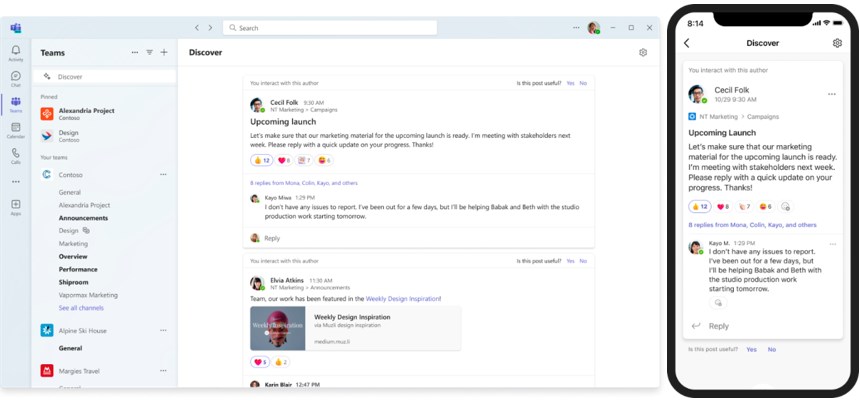
Copilot in Microsoft Teams will help you greatly, especially during busy days. With a few prompts, you get a summarized version of the conversations you missed from different channels. In addition, it can pull out documents from your conversations in real-time. So, even if your coworkers add new information and files in different channels, you just need to use another prompt to find out what’s going on.

Where can you find prompts for Copilot in Teams?

Prompts are the key to using Copilot for Microsoft 365 in Teams. There is a dedicated section for them in the Copilot lab, and you can access it by pressing the Prompts to Try button from the search bar. Also, you can try the GitHub prompt repo, but you won’t find many prompts there.

In addition, there are times when the company’s professionals share various prompts in their articles. For example, you can ask Copilot for Microsoft 365 in Teams what’s new in a specific channel from a particular person or a team. Afterward, the AI assistant will provide you with a summary of everything you need to know. For example, you can find the names of the people involved and if there are new documents. On top of that, it can give you a link to the latest updates.

Copilot can help you when you run out of ideas by suggesting follow-up prompts. Additionally, it combines this feature with data from your channels, even if it is new. So, most of its recommendations will give you fresh insights. Also, Copilot can grab documents from your Microsoft Teams conversations and summarize them. Besides, the AI assistant can use its Graph-grounded chat feature to find stored information anywhere on your channels.

Ultimately, you can use Copilot to stay updated with everything new happening in Microsoft Teams. Besides, the AI assistant will likely generate a few follow-up prompts that will surprise you. So, try using the new prompt and the follow-up feature to see if they help you.

Do you have any prompts you keep using? If you want, share them in the comments.

Enhance your AI experience by running a private chatbot on your PC

The PC industry works on bringing AI chatbots that run directly on your device instead of a faraway center. The process will take time, and you will likely need to buy an AI PC. Also, there is a chance that it will come with a popular AI installed like Copilot, especially if it is a laptop. However, if you don’t want to wait for AI PCs, you can start running private AI chatbots on your PC with the right tool.

What are the benefits of running a private AI chatbot on your PC?

Running a private AI chatbot on your PC brings many benefits. For example, they don’t need an internet connection, and you know exactly where your data goes. Also, they might have fewer limitations than the popular ones. So, you might see fewer messages like “I’m sorry, but I can’t continue this conversation” or “Let’s try a different topic.”

The future of AI could consist of private chatbots running on your PC. After all, they might perform tasks better than their public counterparts. Yet, before we get there, you can use Ollama.

Ollama is an open-source project named after Llama LLM from Meta. It allows you to run private AI chatbots on your PC. The tool is easy to install and use and works on Windows 10, 11, Linux, and macOS. In addition, it uses your hardware to accelerate the AI models. With it, you won’t need a PC with a 40 TOPS NPU performance because it runs on various PCs.

Once installed, to use Ollama, open a command-line window like Terminal, Command Prompt, or PowerShell. To access the command line, press Win + X. Then, to use an AI chatbot, type: ollama run llama2. Afterward, the tool will download the AI model and its required files. When the installation is over, you will see the following: >>> Send a message (/? for help), and you can start using the chatbot. Then, to close the session type /bye and press Enter.

There are plenty of AI chatbots available on the Ollama site. For example, you can use Llama 3 from Meta, Mistral, Gema from Google, Phi-3 Mini from Microsoft, and more. Also, if you don’t want to use Ollama, try Open WebUI.

Additional tools

In addition, if you want to use a private AI model on your PC, you can get Nvidia ChatRTX. However, it requires a PC with a 30-series or 40-series GPU with at least 8 GB of VRAM. Nvidia ChatRTX has a web-based interface and can run LLama 2, Mistral, and Gemma.

Another tool you could run on your PC is GPT4ALL, but it has fewer private AI chatbots available. Yet, it doesn’t require high-end hardware and works on various systems.

Ultimately, there are a few ways in which you can install and run private AI chatbots on your PC. Most of them don’t require high-end devices and they can keep your data safe. If you decide to get one for your PC, make sure that you scan it for malware. Also, don’t forget that they have limited resources compared to public chatbots.

Are you going to use a private AI model? Let us know in the comments.

Microsoft 365 apps will now let you create accessible PDFs

Many of us use PDFs to distribute content, as they ensure that the content stays in format. In addition, PDFs are universally compatible, secure, and platform-independent.

In a recent development, Microsoft now lets you create accessible PDFs with the inbuilt checkers and tagging in Word, PowerPoint and Excel.

You no longer have to click Print to PDF and then select Save as PDF to save the files on your computer.

Moreover, this will be helpful for people with disabilities as they depend on accessible PDFs to consume content. And, with 1 billion people in the world with disabilities, making content accessible should not be just a requirement but a mandatory practice.

Microsoft 365 provides various features to make accessible content creation simple with the Office applications. This is how:

  • All Microsoft 365 applications, such as Word, PowerPoint, Excel, and Outlook, have the Accessibility Check on by default.
  • You will get a notification saying Accessibility: Good to go to indicate it is turned on.
  • To check the issues in your content, you can click this notification to access the Accessibility Assistant pane
  • In PowerPoint, Outlook for Windows, and Excel, if your Accessibility Checker is open, you will see the Accessibility tab at the top of the window, which gives you access to all tools included.
  • If you are a Beta channel user, you can click Review > Check Accessibility to access the Accessibility Assistant in Word and Outlook for Windows. This tool helps you make documents accessible in those apps.

Once you are done with your content, you can choose Save or Export as PDF option to ensure it is accessible.

However, it is advised not to select the Print as PDF option as it will not produce an accessible PDF. Moreover, if there are accessibility issues in the content in Excel, Word, and PowerPoint for Windows, you will get a notification alerting you about the same.

Apart from these, here are the other PDF accessibility improvements in Microsoft 365:

Recent improvements to PDF accessibility in Word, Excel, and PowerPoint include:

  1. Exporting accessible PDF on iOS and Mac (when using the Best for electronic distribution and accessibility option) in Excel as well as Word. This feature is also available in PowerPoint to all Current Channel (Preview) users.
  2. Bookmarks for sections and slides in PowerPoint and headings or bookmarks in Word to help people more easily navigate PDF content.
  3. Over 100 improvements to PDF/UA tags, which provide essential information for people who rely on a screen reader to read and understand PDF content.
  • The most suitable tags for Shapes with text, Alt Text, and Equations
  • <Formula> with Alt Text for Equations in Excel and PowerPoint
  • <Figure> with Alt Text for every other type of graphical object
  • Flat <Figure> (no nesting) for SmartArts and Groups in PowerPoint
  • WordArt preserved as text
  • Hyperlinks aren’t nested in <Figure> in PowerPoint
  • Artifact and no tags for Decorative objects, objects on slide master, headers, footers, cell borders, and more
  • Removed unnecessary <Span> and <P> tags
  • <Span> tags for different languages and no Actual Text
  • <THead> and <TH> for table headers
  • Merged table cells have rowspan and colspan in PowerPoint
  • Lists have proper nesting and <Lbl> for the bullet
  • Footnote and Endnote <Link>s
  • <BlockQuote> for Word Paragraph Quote and Intense Quote styles
  • <Quote> for Word Quote style
  • <Title> for Word Title style
  • Heading levels beyond <H6>

To access these features, you need to have the latest version of Microsoft 365. What do you think about these improvements? Share your opinions with our readers in the comments section below.

Here’s The Ultimate Microsoft Surface Hub 3 Review

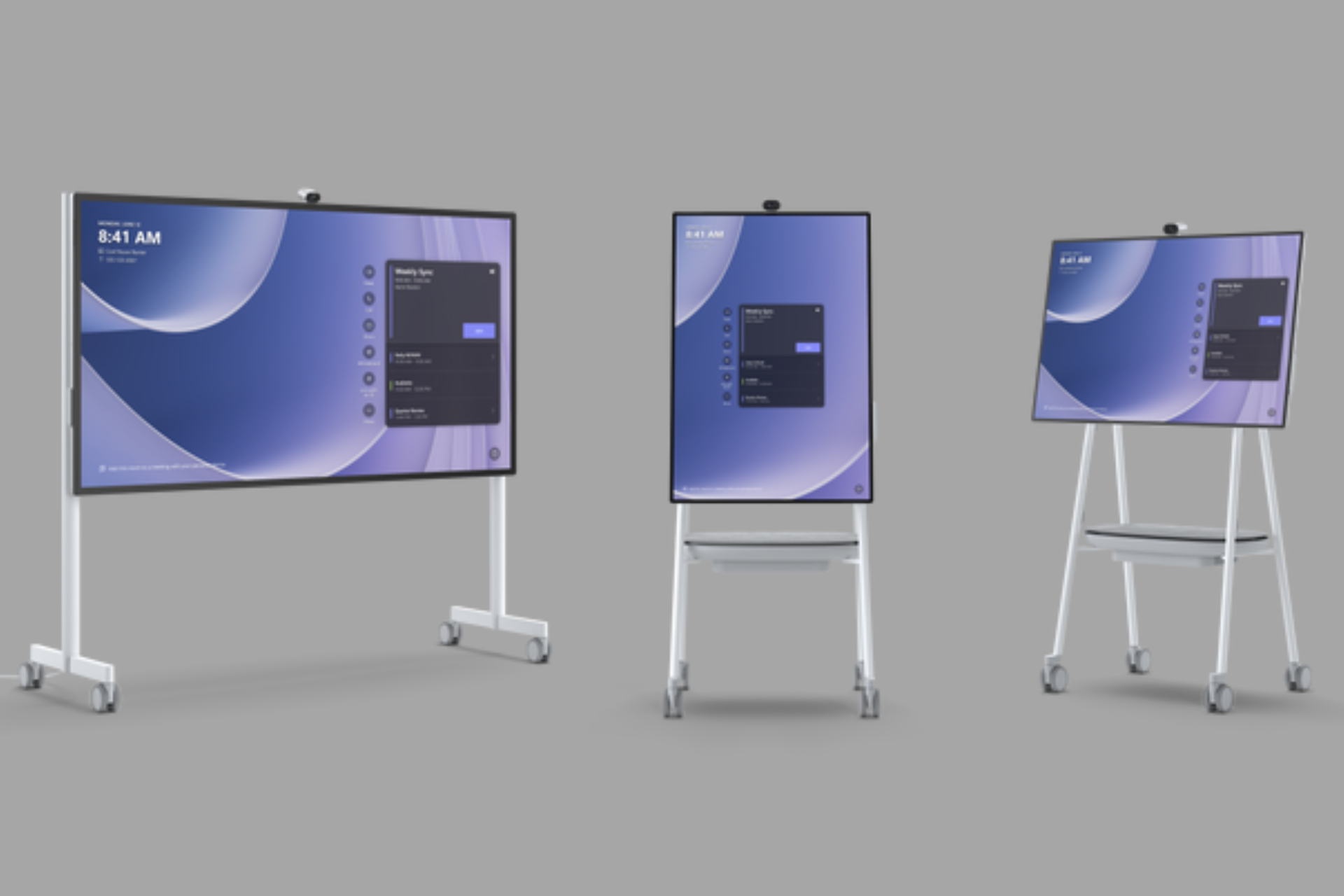
In this age of technological advancements, when it comes to holding productive meetings, the Microsoft Surface Hub 3 should be your go-to. If not for anything else, let it be for its ability to combine video conferencing and a whiteboard into one.

We are always looking to enhance collaboration and communication so having the right tools will ensure you’re maximizing your efficiency. But how does the Microsoft Surface Hub 3 help you achieve this?

What are the main features of the Microsoft Surface Hub 3?

1. Ergonomical

When you get the Surface Hub 3, the first thing you’ll notice is its aesthetic appeal. It’s good on the eyes but beyond its beauty, is its user-friendliness. You can never anticipate how long you’ll be presenting so the adjustable stand allows different positioning for both the presenter and other users.

You can adjust the viewing angle to minimize strain. Further, it also includes Teams Accessibility features that make it easier to complete your tasks.

When it comes to sound, you’re in for an immersive sound experience. This is thanks to the combination of front-facing 3-way stereo speakers, including multiple mid-range and tweeter drivers, along with a rear bass driver.

Whether you’re listening to a presentation with real-time dialogue or recorded video, expect clear sound quality. And it doesn’t matter the size of the room. The built-in microphone array comes with advanced beamforming capabilities.

This feature tones down ambient noises while focusing on the speaker’s voice and helps capture audio from multiple directions.

2. Top-notch security

Because using the Surface Hub 3 involves collaborating with a significant number of users, the question of security will pop up. You’ll be sharing sensitive data across different devices and all this information needs to be sent and received through secure channels.

You’ll be happy to know that Microsoft takes this seriously with hardware-based security features like TPM 2.0. TPM 2.0 not only secures your device from malware and unauthorized access but also guarantees a secure boot process.

Further, since it runs on Windows 11, it leverages its built-in security features such as Windows Antivirus and Firewall for network security.

3. Wireless connectivity

The Surface Hub 3 comes with built-in wireless connectivity options, including Wi-Fi, Cast and Bluetooth. These facilitate the sharing of content and the ability to control presentations from their devices easily.

For Bluetooth, you’ll be able to connect to a wide range of peripheral devices. These include Surface Hub pens, keyboards, mice, headsets, and speakers.

Casting supports compatible devices such as laptops, tablets, and smartphones for collaborative viewing and editing.

Wireless network connectivity leverages Wi-Fi 5. Wi-Fi 5 is not your ordinary standard as it provides amplified coverage and better range. This ensures network stability even in large rooms where dead spots or signal dropouts are bound to occur.

It also has advanced security features such as WPA3 encryption protocol. The WPA3 provides stronger encryption such as individualized data encryption.

This means that even if an attacker were to successfully intercept and get a hold of one user’s encryption details, they would still not be able to access any other data shared between other users.

Further, Wi-Fi 5 is backward-compatible making it easier to connect to both old and new devices with older Wi-Fi standards.

4. Impeccable memory and storage space

Having integrated video-conferencing and whiteboarding, you can bet that the memory and storage footprint of the Surface Hub 3 will be demanding. However, it is designed to handle such tasks because it has the requisite memory and space to support its functionality.

Although available in different variations, the Surface Hub 3 comes with generous amounts of RAM that allow you to multitask without a degraded performance.

Typically, you’ll get 32 GB RAM but when you upgrade, you can be bumped up higher. When it comes to storage, 512 GB is the standard. This can easily accommodate user files, apps and any other information with fast read and write speeds.

And to avoid performance bottlenecks if the storage space is quickly running out, you can always explore expandability options. The needs of an organization are constantly evolving so you may need to upgrade your storage to accommodate them.

You can leverage external storage solutions such as external hard drives, USB flash drives, or network storage to fill in. Additionally, you can also archive files you don’t use anymore to your cloud storage service such as Microsoft OneDrive.

5. Other notable features

Variety of ports

Aside from wireless connectivity, the Microsoft Surface Hub 3 also comes with a variety of ports that offer wired connectivity options. You can integrate external devices, peripherals, and accessories using diverse USB ports, HDMI input, DisplayPort, audio jack and Ethernet.

High-definition camera

Not only will you enjoy crisp and clear images, but you also get the advantage of a wide 136-degree horizontal field of view. This wide-angle allows you to capture all elements of a room for inclusive meetings perfectly.

The Smart Camera features an auto-focus and auto-exposure capabilities. This means that even if you’re at the furthest point of a room, you’ll still be visible to other users as the camera maintains a sharp focus on the subject.

Display

The display has been optimized for the perfect interactive experience. With precise touch sensitivity, the response is amazing. The 16:9 aspect ratio also allows for multitasking and the ability to view content simultaneously.

In different light settings, the anti-glare technology optimizes visibility by minimizing reflections and glare. The sensors also come in handy especially the accelerometer feature that allows the Surface Hub 3 to respond to physical interactions for adaptive screen orientation for when you tilt or rotate the screen.

What are the benefits of Surface Hub 3?

Pros

1. Integration with productivity tools

It makes sense that the Surface Hub being a Microsoft product, it would be integrated with some of its productivity apps. This integration is beneficial because you don’t have to scummage the internet looking for like apps that are likely to have compatibility issues.

Integration with Microsoft 365 apps like Teams, Office and OneNote makes it easy to maximize your productivity because you can create, share and edit documents in the same environment.

2. Enhanced collaboration

In collaborative meetings, users need to share documents and have discussions for a successful meeting. In these discussions, the presentations may require additional tools but with the Microsoft Surface Hub 3, it’s basically an all-in-one deal.

It has built-in video conferencing capabilities and integration with Microsoft Teams so users can easily share their screens. Documents can also be shared for collaboration with real-time monitoring to keep everyone up to speed.

Remote participants have also not been left out as the Surface Hub Smart Camera provides sharp and crisp images. With an ultra-wide angle view, you’ll be able to see the presenter and other participants.

3. Digital Whiteboard

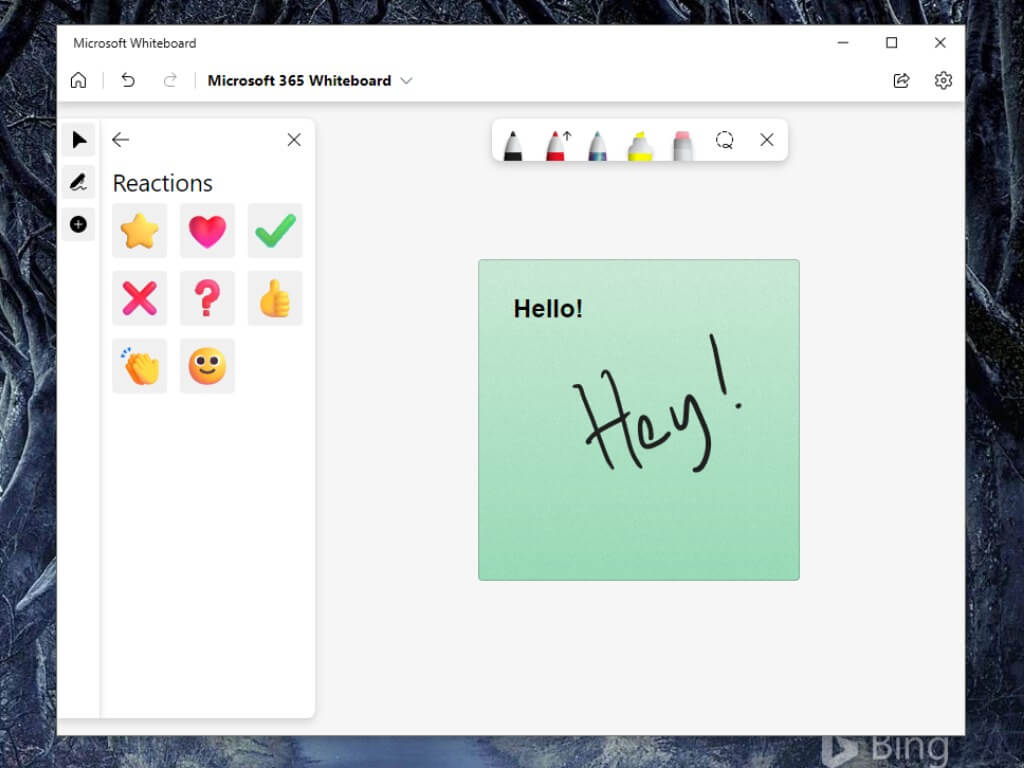
If you’ve been using Teams, you already know how to use the Microsoft Whiteboard and its many features. For the Surface Hub 3, the Whiteboard is perhaps one of the features that stands out.

Meetings involve a lot of brainstorming so you’ll need a rough draft that you can quickly sketch and erase as you fine-tune the details. The advantage of having a Whiteboard is that it allows you and your team to visualize any ideas you come up with.

This can help come up with well-thought-out strategies when you’re trying to bring a project to life.

4. Interactive presentations

The Surface Hub 3 also has a touchscreen display that aids in the presentation process. You can easily make your contribution from your own screen using a Surface Hub Pen or Surface Slim pen.

This makes it an interactive session and when everyone is involved, it is easier to brainstorm and come up with ideas compared to when only one person has the monopoly of the board or presentation.

5. Flexibility and scalability

The Surface Hub 3 is available in various size options tailored for different audiences. If you have a relatively small team, the 50-inch is perfect but should your team upscale, you can also upgrade to the 85-inch.

So whether you’re just starting out or an established organization, you can rest assured that the Surface Hub 3 can meet your needs at any point in time and it is an excellent collaboration tool that you can evolve with to adapt to your organization’s unique requirements.

Cons

1. Expensive

The Surface Hub 3 is not a cheap device. The smallest display which is the 50-inch will set you back at least $9,500 while the 85-inch goes for around $ 23,000.

If you’re a small organization, this may be an investment you’re not ready for yet but once you do, you’ll be happy to know that it is worth it because it is highly durable. You can also watch out for Surface devices deals that come every now and then.

2. Largely depends on the Microsoft ecosystem

The integration with Microsoft 365 and other productivity tools ensures compatibility and offers a seamless collaboration experience. On the downside, it limits organizations from trying other tools that may have advanced features because of compatibility issues.

Another disadvantage is that if one of the Microsoft services or apps is on a downtime, it could have a ripple effect.

3. Requires training

The Surface Hub 3 comes with modern features that may require training for your team. This may include additional costs and it is also time-consuming as your team adapts to the new tools.

Having aired out the good and bad of the Surface Hub 3, perhaps you’re still not convinced to get the Surface Hub 3. But who is the Surface Hub 3 really for?

Our final recommendation would be just go for it. The pros outweigh the cons and if you need only one thing to convince you, we’d say look at its security infrastructure.

Sensitive data is being shared but one thing you can be sure about is that it is not a blanket protocol. WPA3 is all-rounded and unauthorized access is almost impossible. The touchscreen capabilities and Whiteboard are also a plus so, why not?

If you’re looking for something else, we’ve lined up some Surface devices for both work and play depending on your needs.

Have you used the Microsoft Surface Hub 3? What would you say are the top features that make it a must-have? Let us know in the comment section below.

Error Code 45 on Printer – 14 Tried and Tested Solutions

Error Code 45 on your printer can damage your productivity and stop you from printing important documents for work or school.

Luckily, I’ve discovered several reasons why printers on a Windows 10 PC might encounter this error. I’ve thoroughly tested these causes and their respective solutions and compiled all the working fixes for you. Keep reading to resolve your Windows 10 printer problems promptly.

And if you’re using a Windows 11 PC, rest assured that these troubleshooting tips will apply to you, too.

What Is Error Code 45 on Printer?

Error Code 45 usually shows up when a previously connected device isn’t plugged in anymore. So, if you try to send a print command or select a printer to configure it, you’ll get this message if it’s disconnected:

Currently, this hardware device is not connected to the computer. (Code 45)

To fix this problem, reconnect this hardware device to the computer. 
Error Code 45 Printer

This warning could mean any of the following:

  • The device is actually disconnected, no Wi-Fi or USB cable connection exists between the printer and the PC.
  • The printer might be powered off.
  • Operating system or Windows Registry files are faulty.
  • A recent Windows update might have gone wrong.
  • A recently installed third-party software is interfering with the printer driver.

How To Fix Error Code 45 on Printer

First, you should try these quick fixes that usually solve the issue:

  • Check if the printer is connected – Power on the printer using the dedicated button. Connect it via the USB or Ethernet cable and ensure that the other end of the cable is connected to the PC via USB ports or serial ports. For wireless printers, use the printer setup display to go to Home > Wi-Fi or Wireless Setup screen. Choose the correct Wi-Fi network from the list and enter the password to establish a connection.
  • Restart your printer and PC – Click on the Start Menu Windows flag on the PC. You should see the power button in the bottom left corner of the Start Menu dialog box. Click on it and choose Restart from the context menu. On the printer, press the power button to shut it down. After 10 seconds, press it again to turn it on.
  • Update Windows – Press Alt + I to bring up the Windows Settings app. Click on the Update & Security option. Then, click on any of these options: Resume updates, Download and install updates, or Check for updates. Wait for the process to complete and restart your PC.

If these didn’t work, try the following troubleshooting instructions in the order they appear to get your printer working again.

Disable and Then Re-enable the Device

If you know for a fact that the printer isn’t disconnected or powered off, then try these steps first:

  1. Click on the Start Menu icon located at the lower right corner of the Windows Desktop or Home Screen.
  2. Type Device.
  3. Click on the Device Manager tool in the Best match section.
start menu
  1. You should now see the Device Manager dialog box.
  2. Scroll down the list until you find headers like Printers or Print queues.
  3. Click on the small arrow to the left to expand its list of devices.
  4. Find the printer hardware name that isn’t working.
  5. Right-click and choose Disable device from the context menu.
disable device
  1. After a few minutes, repeat the steps again.
  2. But, this time choose Enable device.
enable device

Now, try to print your document again and see if the issue is fixed.

Try a Different USB Port

The USB port you’re using might be faulty or might work intermittently. In this case, follow these steps to fix the Error Code 45 printer issue:

  1. Disconnect the USB connector from the existing USB port.
  2. Plug it into another USB port at the back of the PC case.

Now, follow the steps mentioned in the first troubleshooting method. This will push the printer and Windows to sync up quickly.

Moreover, if you’ve been using a front USB port to connect the PC and printer, try a rear port instead. Front USB ports are connected to the mainboard through normal copper cables.

On the other hand, rear ones are embedded directly into the motherboard PCB so they’re often more durable and work faster.

don't use front usb

Restart Print Spooler Service

A temporary bug might be obstructing the Print Spooler service on the PC. Do the following to fix this:

  1. Click on the Start Menu flag and type Services.
  2. The Services tool should show up below the Best match section. Click on that.
services app
  1. In the Services dialog box, press P to quickly navigate the list.
  2. Find the Print Spooler service and right-click.
  3. Choose Restart from the context menu.
restart service
  1. The Service Control dialog will show up and refresh the Print Spooler services.

Test if you’re getting Error Code 45 with the printer now.

Download the Manufacturer’s Diagnostic Tool

Printer manufacturers like HP develop and publish dedicated troubleshooting software. These apps come with essential drivers and program packages to detect and troubleshoot errors including Error Code 45. For HP, it’s called the HP Print and Scan Doctor app. Here’s how it works:

  1. Download and install the HP Print and Scan Doctor app.
  2. The HP tool icon should show up on your Windows Desktop or Home Screen. Double-click on that to see the following screen:
hp print tool start
  1. Now, click the Start button to begin identifying your HP printer.
  2. The tool will show an appropriate thumbnail for the detected printer hardware.
  3. Click on that and then tap Next.
hp print tool choose
  1. The tool will first test the communication status with the printer.
  2. Then, it’ll identify and fix the problems automatically.
hp print tool fix
  1. You might get a prompt to print a test page a couple of times during the process.

If you don’t have an HP printer, no worries. Find below a list of brand-specific printer troubleshooting tools. They work similarly as the one I just described:

Disable Fast Startup

The Fast Startup feature often interferes with printer hardware drivers. You must disable this feature to check if this is the root cause of the Error Code 45 printer issue. Follow these steps:

  1. Press the Windows Key + R to open the Run dialog.
  2. Type powercfg.cpl and hit Enter.
run dialog
  1. Click “Choose what the power buttons do” from the left-hand side menu.
  2. If the “Turn on fast startup” option is greyed out, you’ll need to enable editing of these settings.
  3. Click on “Change settings that are currently unavailable”.
change settings
  1. Under “Shutdown settings”, uncheck the box for “Turn on fast startup (recommended)”.
  2. Click “Save changes” to apply the new settings.
disable fast startup
  1. Reboot your PC.

Now, see if you can print a test page with your printer. If you can, congratulations! You’ve fixed the issue.

Fix Wi-Fi Connectivity

If you’re facing Error Code 45 with a wireless printer that connects to Wi-Fi, do the following. However, this will only work if you know the Wi-Fi network name or its password.

Reset Wi-Fi Setup

  1. Power off the printer.
  2. Locate the Wi-Fi button or combination of buttons (Wi-Fi + Power button) on your printer’s control panel.
  3. Press and hold the Wi-Fi button or button combination (Wi-Fi + Power buttons) for 3 seconds to 10 seconds.
  4. Release the button(s) once the allotted time is up.
  5. The printer should restart automatically after the reset.

Re-Configure Wi-Fi

  1. Power on your printer.
  2. Make sure it’s in the Wi-Fi router’s range.
  3. Go to the network or wireless settings menu on your printer’s control panel.
  4. You might need to navigate through menus using buttons or a touchscreen.
  5. Then, look for options like “Wireless Setup Wizard” or “Wi-Fi Setup”.
Turn on your printer.

Make sure it is in the Wi-Fi router's range.

Go to the network or wireless settings menu on your printer's control panel.

You might need to navigate through menus using buttons or a touchscreen.

Then, look for options like "Wireless Setup Wizard" or "Wi-Fi Setup".

Now, select your Wi-Fi network name (SSID) from the list of available networks.

When prompted, enter your Wi-Fi password.

The printer should connect to your Wi-Fi network. 

You might see a confirmation on the screen or a status light indicating a successful connection.
  1. Now, select your Wi-Fi network name (SSID) from the list of available ones.
  2. When prompted, enter your Wi-Fi password.
  3. The printer should connect to your network.
  4. You might see a confirmation on the screen or a status light indicating a successful connection.

Fix Ethernet Connectivity

When your printer is in a network for shared usage, it uses an IP address to communicate with all the PCs in the network.

Any issue with this IP address allocation might prevent the printer from communicating with the PC.

Eventually, the Device Manager tool shows Error Code 45 because it thinks that the printer isn’t connected. So, you’ll need to re-establish the IP configuration to nullify any issue related to the network setup. Here’s how:

  1. Go to the Windows Start Menu and search for Printers & scanners.
  2. Select Add a printer or scanner.
  3. When the window opens, click on “The printer that I want isn’t listed.”
The printer that I want isn't listed
  1. Choose “Add a printer using an IP address or hostname.”
Add a printer using an IP address or hostname
  1. Click Next.
  2. Select TCP/IP Device from the Device type list.
Device type
  1. In the “Hostname or IP address” field, enter an IP address that isn’t already in use in your Ethernet network.
  2. Leave the Port name field blank unless you have a specific port number designated by your printer’s manual.
  3. Alternatively, the Windows OS might automatically use the IP address as the Port name.
  4. Check the box for “Query the printer and automatically select the driver to use.”
  5. Click Next.
  6. Windows OS will automatically set up the network configuration now.

Try printing a test page on the printer.

Update Printer Driver

  1. Open the Device Manager app.
  2. Find the printer that’s showing the error code within the Printer or Printer queues tree.
  3. Right-click on it and choose Update driver.
update driver 1
  1. On the dialog box that opens, click on the “Search automatically for drivers” option.
search drivers
  1. Device Manager should now install the latest printer driver from the manufacturers’ or Microsoft’s servers.
  2. If this does nothing, you might also want to click on the “Search for updated drivers on Windows Update” link.
search drivers on windows update

Once it’s done, reboot the PC and try printing a page.

An easier way to update drivers is to use a specialized tool such as Fortect Driver Updater. This software will allow you to scan for and automatically update any drivers in just a few minutes.

Run the Printer Troubleshooter

  1. Click on the Start Menu and type Troubleshoot.
  2. You should see the Troubleshoot settings option below Best match. Click on that.
Troubleshoot settings 1
  1. On the Troubleshoot dialog box, click on the Additional troubleshooters hyperlink.
Additional troubleshooters
  1. Click on the Printer option in the next dialog box.
  2. The menu will expand and you’ll see the Run the troubleshooter button. Click on that.
Run the troubleshooter
  1. On the Printer dialog box, choose the printer make and model that’s showing the error.
choose printer
  1. Now, the Microsoft Windows troubleshooter will look for issues and try to fix them.
  2. Follow on-screen instructions until the app shows that the issue has been fixed.

Use System File Checker (SFC) Scan

Try doing an SFC scan to find out if the Error Code 45 printer issue is caused by system file integrity problems:

  1. Open Command Prompt as an administrator.
  2. When prompted by User Account Control (UAC), click Yes.
  3. In the Command Prompt window, type the sfc /scannow command and press Enter.
Use System File Checker (SFC) Scan
  1. The SFC scan will start and may take some time to complete.
  2. The results will show you that Windows Resource Protection found…
    • …corrupt files and repaired them successfully.
    • …corrupt files but was unable to fix some of them.
    • …no integrity violations.
  3. If you see the second result, continue reading to perform a DISM scan.

Perform a DISM Scan

  1. Launch Command Prompt with elevated privileges.
  2. Enter the following command into the terminal and hit Enter:
DISM /Online /Cleanup-Image /ScanHealth
Perform a DISM Scan 1

If there’s indeed an issue with the system files, the terminal will show you the result that indicates you must follow the DISM Repair Process. Here’s how:

  1. In the terminal windows, enter the following command code:
DISM /Online /Cleanup-Image /RestoreHealth
  1. Hit Enter to initiate the system file-fixing process.

Fix Windows Registry

Sometimes, Windows Registry directory issues can cause printer errors. In such a case, you must restore the registry to its last known working configuration. If you’ve created a Windows Registry backup file, you can easily restore it with that.

If you didn’t, you can try a third-party Windows Registry repair tool like the Glary Utilities Pro app. Download and install it on your PC and follow these steps:

  1. Click on the Clean Up & Repair menu in the Glary app.
  2. Tap the Registry Repair button on the right side menu.
Registry Repair
  1. The tool will quickly scan the existing registry directory to check its status.
  2. Once the scanning is complete, click on the Repair your registry button.
Repair your registry
  1. Wait for the repair to complete.
repairing in progress

Restore Your PC to the Previous State

Uninstall Third-Party Apps

If you’re seeing Error Code 45 on your printer after installing a third-party app, do the following:

  1. Type Apps in the Start Menu and click on the Apps & features option.
  2. You should see all the installed services in the Apps & features dialog box.
  3. Scroll down until you find the one you’ve just installed. Before removing the app, back up your work first.
  4. Click on it to find the Uninstall button.
  5. Hit the Uninstall button to remove the app.
uninstall apps
  1. Restart the PC.

Rollback Windows Updates

If the error started popping up after a recent Windows Update event, you can uninstall those changes by following these steps:

  1. Press Windows + I to open the Settings app.
  2. Click on the Update & Security option at the bottom of the Settings app.
update and security
  1. Choose the View update history option in the Windows Update dialog.
view update history
  1. Click on the Uninstall updates link in the View update history button.
  2. A new dialog box will open showing all the recently installed Windows updates.
  3. Right-click on an item and hit the Uninstall button in the context menu.
uninstall an update
  1. Repeat the steps for the rest of the recent updates.
  2. Restart the PC.

Don’t forget to check if the error persists by printing a test page on your printer.

Use the System Restore Tool

If you’re unable to fix the error code by following any of the above-mentioned methods, try reverting the PC to the last known good configuration. Here’s how:

  1. Type Restore in the Start Menu and click on the Create a restore point option.
  2. The System Properties dialog box will open.
  3. Click on the System Restore button inside the System Protection tab.
System restore
  1. You should now see the System Restore wizard. Click Next.
  2. The next screen will list all the available system restore points for your PC.
  3. Choose the one closest to the date when you last used the printer.
  4. Click Next.
Choose the one close to the date
  1. Choose Finish on the next screen.
  2. The System Restore tool will start the process.
  3. Follow the on-screen instructions for it to complete.

Contact Technical Support

If nothing else works, contact the technical support helpdesk of the printer manufacturer for advanced assistance on the matter. Find below the help and support link for all major printer brands:

The Error Code 45 printer issue shouldn’t stop you from being productive at home, school, or work. Just follow this troubleshooting guide to sort this out. Additionally, if you’re encountering the same error on your disk partition, I’ve got you covered as well.

If the article helped you or you’d like to leave feedback, comment below. If you know a better way to fix this problem, don’t hesitate to mention that in your comment.

PowerToys on Windows 11 can unleash your desktop’s full potential

Windows is an operating system renowned for its multitude of features and intuitive interface; however, to customize your device according to your needs, you need a utility app. And what could be better than an app developed by Microsoft itself?

PowerToys is a free, powerful utility app developed by Microsoft that allows you to customize your Windows beyond the native settings.

Whether you want to keep your PC awake, remap keys or shortcuts, or preview files without opening another app, you can rely on PowerToys. And there is more!

Currently, PowerToys is available in Chinese (traditional), Arabic (Saudi Arabia), Russian, Chinese (simplified), Czech, Portuguese, English, Dutch, French, Hebrew, German, Italian, Turkish, Hungarian, Korean, Japanese, Persian, Polish, Portuguese (Brazil), Spanish, and Ukrainian. PowerToys provides support for x64 and ARM64 processor architectures.

Here, we will explore some of the most beneficial and practical features available in Microsoft PowerToys.

Always on Top

Always on Top - PowerToys

Using this feature, you can pin an active window above other windows. The pinned window will always appear on top, even if you have selected other windows.

To enable it, go to Always on Top on the left pane of PowerToys and ensure Enable Always on Top is turned on. You can also use a keyboard shortcut to activate it: Windows + Ctrl + T.

Awake

Awake

This feature can help you keep your computer awake without having to manage its power and sleep settings. It can be useful when you execute time-consuming tasks, as it ensures the computer stays awake during operation.

To enable it, click on Awake from the left pane and toggle on the switch next to Enable Awake. To keep the system awake, you can manage the settings from System Tray, right-click the Awake icon, and choose from Keep awake indefinitely, Keep awake for a time interval, or Off (Keep using the selected power plan).

Color Picker

It is a system-wide color-picking app that allows you to select colors from anywhere on your screen. The picker automatically copies the colors to your clipboard in a set format.

It also has an editor that displays a history of picked colors and allows you to fine-tune the selected color. To enable it, go to Color Picker on the left pane and toggle on the switch next to Enable Color Picker. Once enabled, you can press Windows + Shift + C to invoke it.

FancyZones

FancyZones

As Microsoft describes, it is a window manager that lets you create window layouts and position them into these layouts for improved workflow.

It allows you to create custom layouts on your desktop, dividing them into zones where you can snap and organize them. To enable it, locate FancyZones from the left pane and toggle on the switch for Enable FancyZones. Once done, you can activate it using Windows + Shift + '

Image Resizer

Image Resizer is a Windows shell extension that allows you to resize images in batch. To enable it, click Image Resizer, then toggle on Enable Image Resizer.

Right-click the image you want to resize. The Image Resizer window will appear. You can select the size and other settings, then click Resize.

Keyboard Manager

This utility enables you to customize the keyboard. You can remap keys and create your keyboard shortcuts.

To enable it, locate Keyboard Manager from the left pane and toggle on the Enable Keyboard Manager.

Peek

Just like the Windows File Explorer preview pane, Peek in Microsoft PowerToys lets you preview file content without opening multiple applications. However, it opens a new window to show the content.

To enable it, locate Peek and toggle on Enable Peek. Launch File Explorer, select the file, then press Ctrl + Space to activate the feature.

Crop And Lock

It is a utility that lets you crop a current application into a smaller window or create a thumbnail.

To enable it, locate Crop and Lock, then toggle on Enable Crop and Look. You can also press Windows + Ctrl + Shift + T.

This is not it! There are other handful useful features like File Locksmith, Hosts File Editor, File Explorer add-ons, Environment Variables, Command Not Found, Hosts File Editor, Paste As Plain Text, Mouse Without Borders, PowerRename, and PowerToys Run.

Which is your favorite utility in Microsoft PowerToys, and what is your experience with the tool? Share your opinions with our readers in the comments section below.

ChatGPT now generates interactive charts to improve data analysis

ChatGPT received a new update that improves its accessibility and enhances its data analysis capabilities. Also, now, the AI chatbot supports Microsoft’s OneDrive and Google Drive. On top of that, you can use ChatGPT to create personalized charts, and it can generate an interactive table based on your dataset. However, you must have a ChatGPT Plus, Team, or Enterprise plan to access the new features.

ChatGPT can use Google and Microsoft tools

The first feature allows ChatGPT to use Google Sheets, Docs, Slides, and Microsoft’s Excell, Word, and PowerPoint. In addition, if you give it access to your OneDrive or Google Drive, you will get the option to upload files to it directly. Thus, you won’t need third-party plugins to do it. Also, according to OpenAI, this new feature will allow ChatGPT to perform data analysis better by understanding your files like spreadsheets, presentations, or documents.

ChatGPT can now create interactive and expandable charts and tables. So, now you can see them in full-screen mode. In addition, you can select specific parts of the table to ask for follow-up questions. Also, if you don’t have any, you can use the follow-up prompts suggested by ChatGPT.

According to OpenAI’s example, you can request the AI chatbot to combine multiple spreadsheets containing monthly expenses and then create a pivot table categorized by their types.

You can now use ChatGPT to customize and interact with bar, line, pie, and scatter charts. In addition, you can hover over chart elements, ask additional questions, or choose different colors. Then, you can download the charts to use them wherever you need them. However, ChatGPT will generate static versions for the unsupported charts.

Is your data safe with ChatGPT?

In case you are concerned about privacy, OpenAI said it will not use the data of its ChatGPT Team and Enterprise customers to train the AI. Also, ChatGPT Pro customers can protect their data by opting out of the training process through the Data Controls from the settings menu.

Ultimately, the update will greatly improve ChatGPT’s data analysis capabilities. On top of that, we can use them to discover new insights. Also, the integration of the follow-up prompts for the interactive tables will help us save a lot of time.

What are your thoughts? Do you find the new features useful? Let us know in the comments.

Windows 11 introduces new Settings menu dialog boxes that fit the theme of the operating system

This week, Microsoft released the new Build 26217 to the Canary Insider channel, and initially, the patch was only documented to fix Windows issues, with no new features or enhancements. However, give it a few days for Windows enthusiasts to dissect the new builds, and you have new features.

Such was the case with this build, as well. After initially discovering a new AI components page within Windows 11’s Settings, enthusiast @PhantomOfEarth found out Build 26217 also features brand new Setting menu dialog boxes that finally match the overall theme of the operating system.

Here’s what these dialog boxes currently look like.Windows 11 Settings menu

And this is what they will look like in a few weeks:

As you can see, the new Settings menu dialog boxes keep in touch with Windows 11’s overall theme. They will take the operating system’s theme, so if you have enabled the dark theme, these boxes will also sport it.

The current boxes feel as if you’re still in Windows 10 but with Windows 11 text fonts. In these new boxes, the text remains the same, but it feels more grounded in Windows 11 than ever before.

For those enlisted in the Windows Insider Program, you can enable the new Windows 11 Settings menu dialog boxes by using special commands in the third-party app, ViveTool. Thanks to the Windows enthusiast, @PhantomOfEarth, here are the commands:

vivetool /enable /id:38228963

You can also enable the new dialog menu box for the Change date/time setting in Windows 11, with the following command:

vivetool /enable /id:39811196

It should look like this.

The new changes were eventually added in the official changelog, which means Microsoft meant to release them, as well. However, for now, they’re only available in the Windows Insider Program, so if you’re not enlisted in the Insider Program, you won’t be able to experience them.

They will be live with the next Windows 11 2024 Update, scheduled to be released to the general users later this year.

Microsoft Purview will finally support user search allowing managers to look up employees within their organizations

Microsoft is finally updating its Purview platform, known for its comprehensive list of security policies, to support user search. The new functionality will allow every user, regardless of privilege, to look up employees within their organization, including their names and emails.

Those users with privileges such as IT admins, security experts, and managers will be able to assign role groups and admin units, effectively turning Purview into a database for various company information.

Our global search feature now enables you to search for users within your organization. You’ll find basic information such as names and email addresses. Additionally, if you have role management privileges, you can view assigned role groups and admin units. This means now you can search for navigational results, data, learning resources, and also for users within your organization.

Microsoft

The user search functionality will be added to Microsoft Purview in July 2024, for all web users. This coincides with the general release of the new unified portal, announced by the Redmond-based tech giant a while ago.

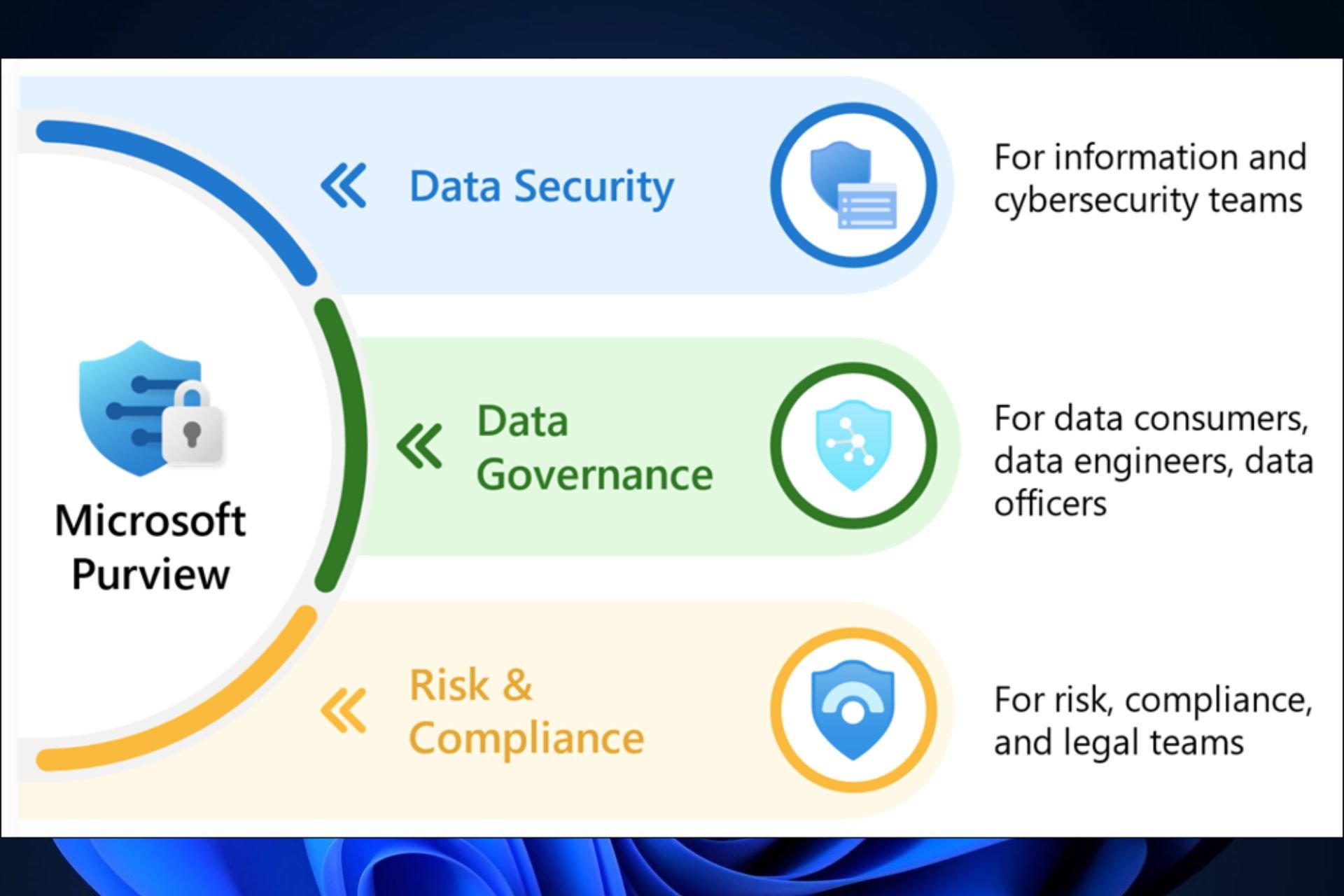
Similar to the new functionality, the new portal will allow IT admins, managers, and cybersecurity experts to access data security, data governance, and risk and compliance solutions for all data, no matter where this data is located. They can also access other settings, such as global search, recommendations, and roles and permissions management, everything within a single page.

Along with the new user search functionality, Microsoft Purview can now act as a database, as well, which can be quite useful in security (but not limited to) situations where employees need to be identified.

Plus, having all the necessary information at hand makes it easier to manage security breaches, and cyberattacks, as well as making it easier to assess the situation at hand. The new updated Purview could solve many of the security issues Microsoft is ongoingly having.

GTA 6 is set to release in fall of 2026, Take-Two financial report says

GTA 6 is probably one of the most anticipated games of all time, and the gaming community is eagerly waiting for it.

We do know that the game is expected to come out next year, and we now finally have a release window.

GTA 6 should come out in the fall of next year, reports say

This information comes from PC Gamer, and this is even stated in Take-Two Interactive’s 2024 year-end financial report.

The report states the following:

As we enter Fiscal 2025 with positive momentum, we expect to deliver Net Bookings of $5.55 to $5.65 billion. Our outlook reflects a narrowing of Rockstar Games’ previously established window of Calendar 2025 to Fall of Calendar 2025 for Grand Theft Auto VI.

The report also shows the table of upcoming games, and we can see Grand Theft Auto 6 on the list, scheduled to release during the fall of 2025.

Do keep in mind that this is just for PS5 and Xbox Series X|S, so if you’re on a PC, you’ll have to wait a bit longer. This isn’t anything new, as we already knew that the GTA 6 launch schedule doesn’t favor PC users.

Speaking of best platform, leaks suggest that PS5 Pro will be the best console for GTA 6, but that’s only if Microsoft doesn’t refresh its lineup before the game launches.

Sainsbury’s enters five-year collaboration with Microsoft to improve customer experience

UK’s second-largest retailer and a household name, Sainsbury’s, is collaborating with Microsoft to leverage expert engineering and AI capabilities in a bid to streamline and enhance the in-store and online customer experiences.

According to a report by Microsoft News, with the five-year collaboration in place, store colleagues at Sainsbury’s will now use AI-powered tools, which provide real-time data and key insights.

The partnership will improve store operations, drive greater efficiency for colleagues, and provide customers with more efficient and effective service, delivering stronger returns for shareholders under Sainsbury’s ‘Save and invest to win’ programme.

Sainsbury’s will hold training and upskilling programs to increase awareness and ensure that employees can leverage AI to the fullest.

On the collaboration, Clodagh Moriarty, Chief Retail and Technology Officer at Sainsbury’s, said,

Our collaboration with Microsoft will accelerate our ambition to become the UK’s leading AI-enabled grocer It’s one of the key ways we’re investing in transforming our capabilities over the next three years, enabling us to take another big leap forward in efficiency and productivity, continue to provide leading customer service and deliver returns for our shareholders.

Sainsbury’s will use Microsoft’s products and services to better harvest data, quickly market new products, guide store operators to sections and shelves that need to be restocked, and enhance the buying experience for customers with improved search and interactive UI.

The two are yet to share the financial details of the collaboration.

Last month, Microsoft and ELC announced an AI Innovation Lab to help the latter develop market-oriented products. Also, reports indicate that LG and Microsoft will soon discuss AI integration into products.

Besides, Microsoft’s recent survey suggests increased AI adoption in workplaces. Globally, 75% of the employees use AI for work-related tasks!

What do you think about Microsoft’s sudden collaborations with retailers, including Sainsbury’s? Is it a sign of Microsoft’s reign in the AI landscape? Share with our readers in the comments section.

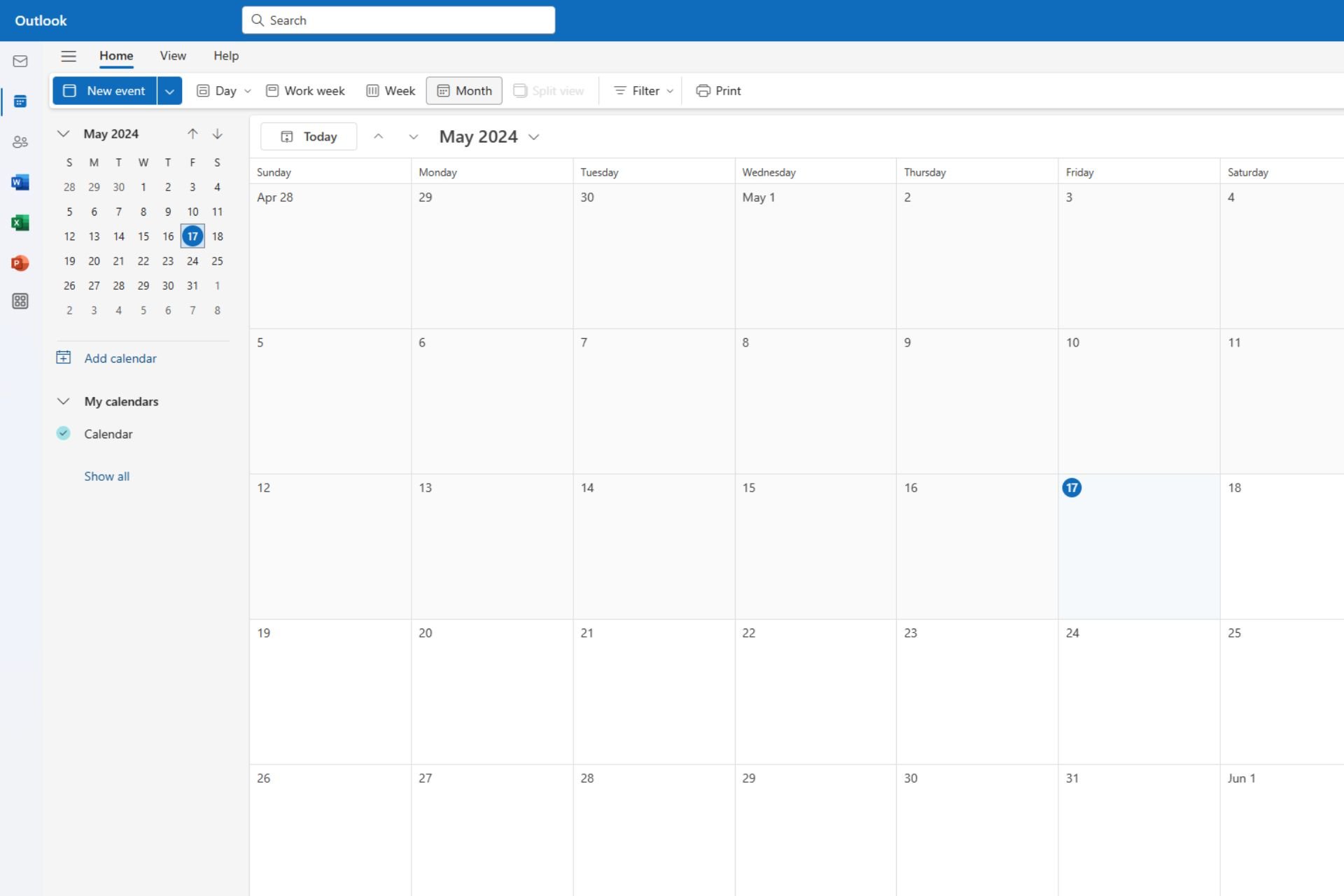
Outlook will introduce Split View, allowing users to manage multiple calendars at once

New Outlook for Windows and Web will soon add the option to split the month view, allowing users to manage multiple calendars at once. The new capability, simply called Split View, will be added to the platform in June, according to the latest entry in the Microsoft 365 Roadmap.

Users will be able to enable the option when viewing multiple calendars in the monthly view, and the screen will automatically split, showcasing the calendars side by side, for more efficient management.

When viewing multiple calendars in month view, users will be able to select “split view” to see those calendars displayed side by side. This feature will be available in new Outlook for Windows and web. #newoutlookforwindows

Microsoft

For now, Outlook is only able to showcase multiple calendars in the same view, often creating confusion, especially when multiple events are happening in a single day. Even though each calendar can be customized with different colors, managing them can be hard when done on a single page.

For those who prefer a more separate method, the new Split View in Outlook can be the perfect method. The calendars will be split in a side-to-side display, allowing you to manage one calendar while looking at the other one, parallelly.

Speaking of design in Outlook, the Redmond-based tech giant will also update the platform to support customized background themes generated by Copilot. The new capability will be introduced in July 2024, and it will be available to all Android, and iOS users.

Fill out the latest Microsoft survey and shape the future of Windows Server

If you are a Windows Server user, it’s the perfect opportunity to contribute to the future of the operating system.

Microsoft is conducting a survey and asking for feedback, based on which changes will be made to Windows Server. You can record responses until May 23, 2024!

The survey includes questions pertaining to the current challenges in the OS, time-consuming tasks that can be refined, features that can be simplified, and areas that will benefit from AI integration.

It’s a quick survey that shouldn’t take more than 5-10 minutes of your time.

The survey becomes all the more important in light of the recent developments, especially after an update broke the VPN functionality on Windows Server. Then, another recent update, KB5037765, throws the 0x800f0982 install error.

What do you feel about the recent changes to Windows Server? Share with our readers in the comments section.

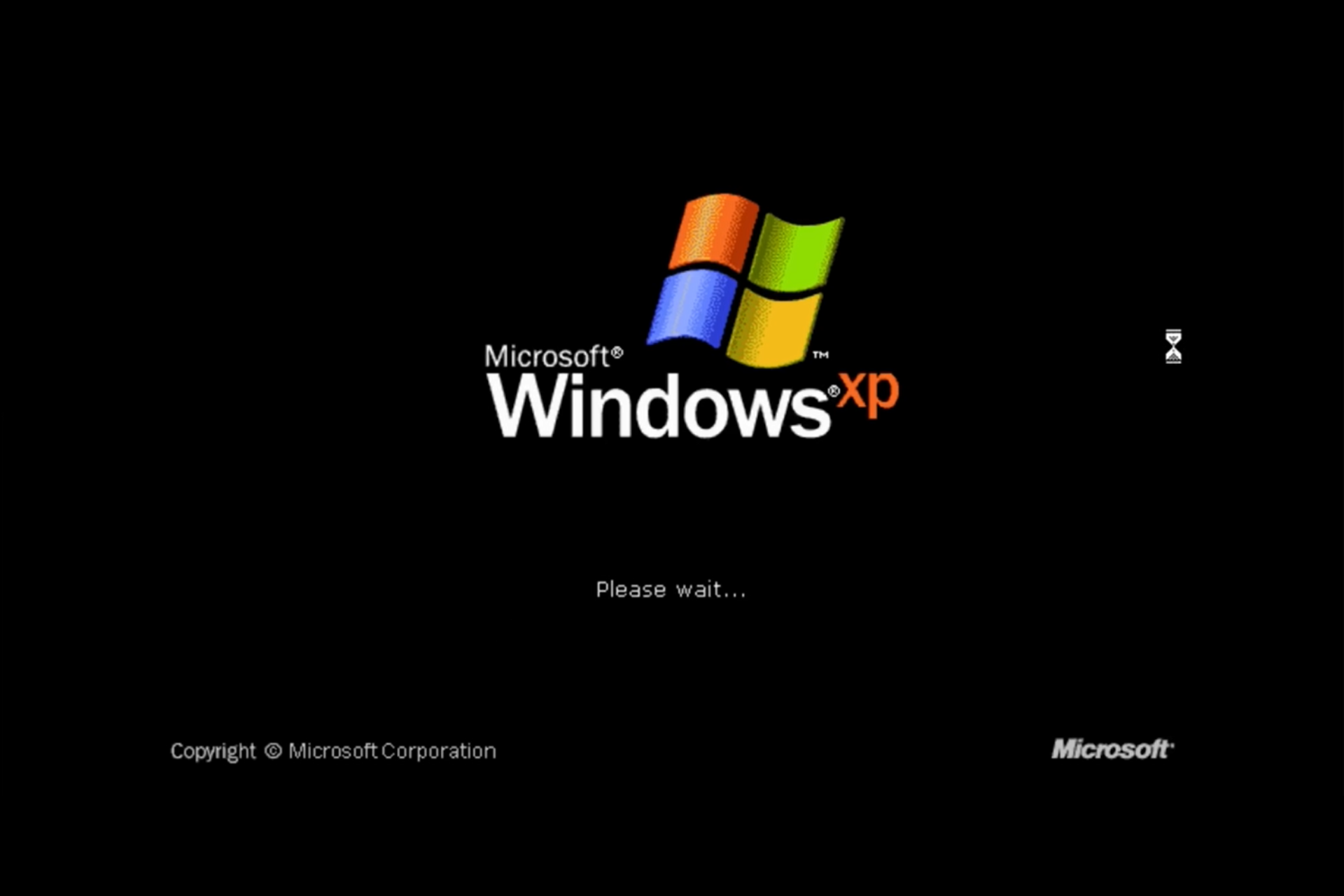
If you’re running Windows XP and turn off the firewall, in 2 hours, your PC will be overrun by malware

Have you ever wondered why sticking to the latest Windows versions, like Windows 10 or 11, is hammered into our heads by tech experts? Well, a recent video sheds light on this advice in a way that’s both fascinating and a bit terrifying. It’s all about security, a topic that, let’s be honest, can sometimes feel a bit abstract until you see it in action.

The video in question, created by Eric Parker, takes us on a journey back in time to Windows XP. It was the go-to operating system for many, and let’s face it, some of us might still get nostalgic about it. But here’s the kicker: Parker decided to run Windows XP without any of the protective measures we take for granted today, like Firewall and Defender. The result? Within minutes, the system was under attack.

Hackers are still coding malware for Windows XP?

Now, you might be thinking, But I wouldn’t disable my firewall! And you’re right, most of us wouldn’t. But the experiment highlights a critical point: the evolution of Windows security. The malware that swiftly took over the Windows XP system in the experiment included trojans, adware, and backdoor malware. It’s a stark reminder of how far we’ve come in terms of security features and why they’re so essential.

After connecting Windows XP to the internet and disabling the firewall, it took only ten minutes for the first malware to install itself on the system. After two hours, Malwarebytes detected 6 threats and it was unable to remove all and Parker declared a victory for the malware. DNS changers, trojans, worms were competing for the data stored on the PC.

What’s even more interesting is that attackers still create malware for Windows XP, which is an obsolete system for years. As products and services meet with demand, there must still be such antiquated systems worth stealing from.

And if we look at the StatsCounter’s latest report, we have our quantitative answer: 0.33% of the Windows running PCs still have XP installed. Not even 1%? That’s nothing. Well, not really. According to Microsoft’s latest data, there are 1.4 billion devices running the Windows OS, which means that about 5.5 million PCs are running Windows XP, quite a lot pool to steal from, right?

Parker also mentions in the clip that he tried the same experiment on Windows 7 and nothing happen. That’s not an encouragement to start using the old OS, but to acknowledge the evolution from system’s evolution.

We’ve learned about this story from Neowin. If you know about similar experiments, we would like to learn about them in the comments below.

Lenovo ThinkPad X1 Carbon Gen 11 is available at 40% off

Lenovo is no stranger to high-quality devices, however, such devices usually aren’t the most affordable.

If you’re looking for a new laptop, you’re in luck since ThinkPad X1 Carbon Gen 11 is on discount, so don’t miss it.

You can get ThinkPad X1 Carbon Gen 11 without breaking the bank

As reported by Digital Trends, this model is available at a discount, and if you’re not familiar with it, here are its specs:

Display:14-inch WUXGA, IPS touch display, 400 nits, 60Hz, LED backlight
CPU:13th Generation Intel Core i7-1365U vPro, up to 5.20 GHz
GPU:Integrated Intel Iris Xe Graphics
RAM:32 GB LPDDR5-6000MHz
Storage:1 TB SSD M.2 2280 PCIe Gen4
Ports:USB-C Thunderbolt 4 / Power in, USB-C Thunderbolt 4, 2x USB-A 3.2 Gen 1, HDMI 2.1 with 4K and 60Hz support, headphone and mic combo
Security:Integrated fingerprint reader, facial recognition software that works with IR camera, TPM

This model can provide users with instant wake, all-day battery life, and improved cooling, so it’s perfect for long business sessions.

It’s worth noting that RAM isn’t expandable, but 32GB will be enough for most users. If you’re interested, you can get this model for $2,135.40 from Lenovo’s website, so don’t miss it.

If you’re looking for something more affordable, you can get a Lenovo Yoga 9i with a 27% discount. In other news, Lenovo ThinkPad P14s will use Ryzen Pro 8040 HS, and we expect to see it soon.

Can you still upgrade to Windows 10? Let’s find out

Windows 10 is, by most standards, the best operating system ever released by Microsoft. But who knew that upgrading to Windows 10 in 2024 would be such a challenge? Besides, the lack of clarity around the subject and process makes it all the more complex!

A lot has changed since Windows 10 was first rolled out in 2015. Earlier, Microsoft offered a year-long period (until July 29, 2016) for free upgrades to devices running Windows 7 and Windows 8.

After that ended, users could still install and activate Windows 10 on PCs, likely because the activation servers were never shut down. That changed on September 20, 2023, when Microsoft discontinued free upgrades to Windows 10.

In an official blog post addressing Windows 7/8 users, Microsoft said,

Microsoft’s free upgrade offer for Windows 10 / 11 ended July 29, 2016. The installation path to obtain the Windows 7 / 8 free upgrade is now removed as well. Upgrades to Windows 11 from Windows 10 are still free.

Then came the uncertainty. Can you upgrade to Windows 10, or can you not? No one knew at this point, and honestly, no one still does!

As it turns out, there are several reports of Windows 7/8 users being able to upgrade to Windows 10 and even complete the activation successfully. In a forum post, a user illustrated installing an activated copy of Windows 10 on a VM running Windows 7.

For others, while installation remains as seamless as ever, the activation never goes through. And I am talking about the vast majority here!

So, activation is indeed a challenge. And if you run unactivated Windows, personalization settings and certain features will be unusable. Besides, you will be left with a less secure version of Windows that is prone to malware and online threats.

If you are planning to upgrade to Windows 10, I would suggest you give it a try. First, back up all the data on the PC to an external drive or use an effective backup software.

Now, download the Windows 10 installation media from Microsoft’s official website > run the setup > follow the on-screen instructions > choose Upgrade this PC > wait for the installation to complete.

Upon reboot, go to the activation settings and verify whether the Windows license is activated. If not, run the Windows 10 Activation Troubleshooter and see if that helps. Or you could try our tips to activate Windows 10!

Should I upgrade to Windows 10?

Now, that’s the real question. Because Microsoft will end support for Windows 10 next year, on October 14, 2025!

With a little over a year to go, I personally feel upgrading to Windows 10 is too much hassle. You will, anyway, be running an unsupported, less secure version of the OS after Oct’25 unless you subscribe to the paid Windows 10 extended security updates (ESU).

My suggestion is that if you have an unactivated copy of Windows 10 and are really bothered about it, switch to a lightweight ChromeOS or Linux. Google is offering ChromeOS Flex as a free upgrade to Windows 10 users!

Or, if you want to remain on Windows, perhaps get a new Windows 11-compatible PC!

Microsoft hasn’t left you with a lot of options. If you are in luck, the Windows 10 copy will be activated post-install. Otherwise, you will have to choose between an unprotected PC, switching OS, or getting a new computer.

Which of these do you think is the best option? Share with us in the comments section.

Error Code 45 on Disk Partition – Simple Troubleshooting Guide

Are you encountering Error Code 45 on your disk partition? I know how frustrating it can be, especially when it interferes with your system’s performance. This article will help you understand what this error means and provide a step-by-step guide to fix it. I’ll use the Windows 10 version for demonstration.

Let’s begin!

What Is Error Code 45 on Your Disk Partition?

Error Code 45 typically appears when Windows can’t connect to the hardware device because it’s not physically connected to your computer. However, even when the device is connected, this error can occur due to corrupted system files, outdated drivers, registry issues, etc.

The error message usually reads, “Currently, this hardware device is not connected to the computer. (Code 45)”.

So, how do you fix the issue?

How To Fix Error Code 45 on Your Disk Partition

Before doing anything more involved, try these common and quick fixes first:

  • Update Windows: Go to Settings, click on Update & Security, then select Windows Update to check for and install any available updates.
  • Restart your computer: Click on the Start menu, select Power, and choose Restart.
  • Check the connection: Ensure all cables are securely plugged in and try reconnecting any loose connections.
  • Check for hardware issues: Try the disk on another PC and confirm it’s working.

If these didn’t help, read on to resolve Error Code 45 on your disk partition:

1. Run Windows Troubleshooters

Windows has built-in troubleshooters that can automatically detect and fix many common problems including Error Code 45. However, there are two different ways to troubleshoot, depending on whether your OS version is before or after Windows 10 build 1809.

I’m running a version that came after Windows 10 build 1809 and it doesn’t have Hardware and Devices Troubleshooter in the Control Panel. Here are the steps:

  1. Type Windows PowerShell on the search button beside the Windows icon and hit Enter.
  2. Select Run as administrator.
Run Windows Troubleshooters
  1. Type msdt.exe -id DeviceDiagnostic to open Hardware and Devices Troubleshooter.
Type msdt.exe -id DeviceDiagnostic
  1. Tap “Next.”
Hardware and Devices Troubleshooter
  1. Wait for the process to complete then follow the instructions on the screen.
Troubleshooting

Reboot your PC and check if the issue is solved.

If your OS version is BEFORE Windows 10 build 1809,  follow the below steps:

  1. Press the Windows Icon and letter R keys simultaneously, type “control panel” and hit Enter.
  2. Tap “Troubleshooting.”
  3. Click “Hardware and Sound.”
  4. Hit “Hardware and Devices.”
  5. You’ll see the troubleshooter wizard. Tap “Next” to begin.
  6. Follow the instructions on your screen to complete the process then restart your PC.

Did the fix work? Here’s another one.

2. Update the Device Driver

Outdated or corrupt drivers can often cause hardware errors. Updating them is crucial for maintaining hardware compatibility and performance.

Here’s how to do it:

  1. Press Windows + X and select Device Manager.
Device manager
  1. Find the device causing the issue, right-click it, and select Update driver.
Update driver
  1. Choose Search automatically for drivers.
Search automatically for drivers

Follow the prompts to install any available updates then restart your PC to check if the error is solved.

This task can also be accomplished faster with the help of professional software such as Fortect Driver Updater. In just a few minutes you can download the updated driver and fix errors that may have occurred from this issue.

3. Run System File Checker

System File Checker can scan and repair missing or corrupted system files, which might be causing the hardware not to connect properly.

Here are the steps to follow:

  1. Press the Windows key on your PC, type cmd then hit Enter. 
  2. Click “Run as administrator.” If prompted for permission, click “Yes.”
Run as administrator
  1. Type sfc /scannow and hit Enter.
Type sfc /scannow

Windows will now verify the system files and automatically fix any detected issues. Once the verification is complete, exit Command Prompt. Then, reconnect your hardware device and check if it’s working properly.

4. Run DISM Scan

Deployment Imaging Service and Management Tool (DISM) can repair a corrupted system image, potentially fixing deeper Windows issues that SFC can’t address.

  1. Type cmd on the search button beside the Windows Icon and tap Enter.
  2. Pick “Run as administrator.” If prompted for permission, click “Yes.“
Run DISM Scan
  1. Type DISM /Online /Cleanup-Image /RestoreHealth and press Enter.
Type DISM /Online /Cleanup-Image /RestoreHealth

Allow the process to complete.

5. Uninstall and Reinstall the Drivers

If updating the driver doesn’t work, try uninstalling and then reinstalling it to reset any corrupt configurations.

Follow the below steps:

  1. Press Windows + X and select Device Manager.
Device Manager
  1. Right-click the problematic device, select Uninstall device, and tap “Uninstall.”
select Uninstall
  1. Restart your computer. Windows will attempt to reinstall the driver automatically.

6. Run CHKDSK

Running CHKDSK is important for identifying and repairing disk-related issues affecting hardware connectivity and performance. This utility ensures that the disk is free from errors.

Follow these steps:

  1. Press the Windows key, type cmd, and tap Enter.
  2. Select “Run as administrator.” If prompted for permission, click “Yes.”
Run CHKDSK
  1. Type chkdsk.exe /f /r and press Enter.
Type chkdsk.exe /f /r
  1. If prompted to schedule the scan at the next restart, type Y and press Enter.
Type Y

Restart your computer to let CHKDSK scan and fix disk errors.

Note: Running a disk check can be time-consuming. If you can’t run it during your next boot, you can skip it and reschedule by following the above steps.

If troubleshooting doesn’t resolve the issue, consider replacing the faulty hardware component with a new one.

Conclusion

Encountering Error Code 45 on your disk partition can be frustrating, but with these troubleshooting steps, you can fix it easily. Regular maintenance, such as keeping your drivers updated and running periodic system checks, can help prevent such issues from arising in the future. Also, if you’re having trouble with the same error on your printer, I’ve got you covered.

Microsoft teases Delegates, a tech assistant that helps you get your requests to the right manager

At the most recent Google I/O, Google came up with AI teammates, which are AI agents that work and use company data to answer any questions related to a variety of company topics, quickly and efficiently. The tech giant sees it as the perfect teammate, others see it as a possible replacement for a real manager, as the tool can easily act like one when the real manager is away.

Needless to say, the technology is similar to Copilot in Microsoft 365, but it’s more engaged in daily conversations, and it’s acting like an interactive workmate.

However, you would be surprised to know that Microsoft has already been thinking about a similar technology, that does the same thing, more or less, but it doesn’t forget about the human side. According to a recent patent, the Redmond-based tech giant is working on Delegates, a capability that will most likely be implemented in platforms like Microsoft Teams.

While the actual technology is not officially called Delegates, the patent describes it as a system that helps when someone is mentioned in a conversation (like a chat or email) but they’re not available. And here comes the interesting part: when the system sees that a person (let’s call them the main person) is mentioned in a message (like when someone uses @name) and knows that this person is out of the office or not available, it automatically finds another person to take their place, a delegate if you wish.

So, basically, this could be Microsoft’s take on Google AI Teammates. A Copilot 2.0 that uses company data to delegate sub-managers, and facilitate human interaction above all.

Microsoft Teams delegates

If someone needs an answer from a manager, but the manager is away, the system takes the message where the manager was mentioned and the conversation around it and sends it to the delegate.

It also changes the permissions so that the delegate’s computer can show and send messages in the conversation on behalf of the main person. When the delegate replies, the system makes sure this reply goes back to the main conversation.

In case you’re wondering about sensitive data leakage, know that the system has in place some processes that stop it from accidentally causing such situations. It will automatically remove the managing privilege of the delegate, once the manager is back online.

The techniques disclosed herein grant each delegate with permissions to access threads and to reply to those threads when a thread participant is marked as unavailable, and the system can also remove the delegate appointments and the granted permission when the thread participant is marked as available.

The technology can work with virtually any kind of interface that allows threaded messaging, including Microsoft Teams, or any other communication platform. And the paper mentions Microsoft Teams as the main example of it.

Other examples of a delivery interface can include a Teams, Channels, document, or any other collection of data that can be displayed with messages of a message thread.

So, while Google is coming with AI-based managers that can provide you assistance with virtually anything, Microsoft sees it the other way: through technology, Teams delegates managers. At least until the real ones show up.

The full paper can be read here.

Asus leaks the Vivobook S15 OLED Snapdragon X Elite laptop before its May 20 scheduled release

In a surprising fumble, ASUS Vietnam accidentally let the cat out of the bag about their first laptop boasting the Snapdragon X Elite CPU. The leaked model, carrying the Vivobook S 15 OLED badge, boasts some eye-popping specs that have tech enthusiasts buzzing.

The leak was spotted by Roland Quandt, who posted a screenshot of the ASUS Vietnam page featuring the new laptop on X.

Leaked tech specs of Vivobook S15 OLED Snapdragon X Elite

At its heart lies the Qualcomm Snapdragon X Elite X1E-78-100 SoC, a powerhouse with 12 cores. This beast is not just about brute force; it’s smart, with a 75 TOPs AI engine to boot.

The machine packs 32 GB of LPDDR5X memory and a standard 1 TB PCIe 4.0 NVMe SSD. But that’s not all. The display is a glossy, 15.6-inch 2,880 x 1,620 resolution OLED, boasting 600 nits peak brightness. For connectivity, it seems to have all the essentials covered, including an HDMI out and USB Type-C ports.

Quandt hints that the price might be around €1,500 ($1,626), but it would be wise to wait for the official announcement for that.

Let’s be honest, the laptop is not a revolutionary device. ASUS just updated their existing Vivobook S15 OLED laptop to accommodate Qualcomm’s CPU. What’s fascinating is the broader context. The Snapdragon X Elite notebook is part of a wave of ARM-based laptops that are challenging the traditional x86 dominance. This shift could redefine what we expect from our laptops in terms of performance, battery life, and connectivity.

However, the real test will be in the user experience. Can these ARM-based laptops deliver on their promise? Will they be able to handle everything from everyday tasks to more demanding applications? We will probably know more about all this during Microsoft’s Build 2024 where some of the focus will also be about Windows on Arm.

Clearly, the laptop market is about to get a lot more interesting. And for us tech enthusiasts, that’s always a good thing. So, let’s keep our eyes peeled and our minds open. We’ve learned about this from NotebookCheck.

What do you think about the new ASUS Vivobook S15 OLED Snapdragon X Elite laptop? Let’s talk about that in the comments below.

Microsoft Teams gets channel management improvements and more

Microsoft Teams is a great collaboration tool for both small and larger teams, and Microsoft is constantly improving it with new features.

Speaking of which, we have some new features related to both channel creation and archival, so let’s dive in and see what’s new.

Microsoft Teams got updated, making it easier to manage channels

Faster channel and team creation

It’s now faster than ever to create a new team, as creating a team from scratch is now the default option, but you can still use templates if you prefer them.

Creating channels is also faster, and you can create a channel from the same menu that you use to create teams.

To avoid creating unnecessary teams, users can now search for public and private teams and join them when needed. Of course, private teams can be hidden by the administrator if necessary. All the previously mentioned features are already available.

As for upcoming features, when you join a team, you’ll be able to show only channels that are relevant to you. This is perfect if you have multiple channels in an organization and you need to focus only on specific ones.

This feature isn’t ready yet, but it will become available by the end of the year.

Improved channel collaboration

Teams now have a Discover feed that uses the power of AI to bring you the most important content from the channels that aren’t in your channel list.

By doing so, you can discover important posts based on people you work with and the topics that might interest you. This feature is available, and you can start using it today.

You can also now hide the general channel to declutter the list of channels, and in the future, it will be possible to rename the general channel.

Speaking of channel removal, Teams will be able to automatically detect and hide inactive channels you haven’t interacted with in the past 45 days.

This is an optional feature, and you can disable it, or you can choose the channels you want to keep. We expect to see this feature in the third quarter of the current year.

Another similar option is also available allowing channel owners to archive a channel that is no longer needed. The channel will be hidden, and members won’t be able to participate anymore, but its content will remain saved.

Archiving is already available, so you might want to give it a try.

Notification improvements

You can now choose to see notifications in the activity feed and show a banner, or turn them off completely. Speaking of activity feed, you also have the option to mark all notifications as read and clear them easily.

This feature has already landed in Teams, and we can start using it today.

It will also be possible to mute all notifications from a specific channel post, allowing you to focus only on the important tasks. This feature is coming in the second quarter of the year.

You’ll also be able to customize the sound of notifications, thus allowing you to have different sounds for urgent messages for example, or mute them entirely. As for availability, we should see it in Q3 of this year.

Lastly, you can now invite a colleague to join a discussion by sharing a link to a channel, post, or reply. The feature is already available, so you can go ahead and start using it.

There are a lot of interesting features available, with more on the way, and if you want to learn more, we suggest reading Microsoft’s blog post.

That’s not all, Teams will get the Call my phone feature that will allow them to seamlessly transfer calls. As for Teams on mobile, organizations will be able to brand their Teams Rooms with custom backgrounds soon.

Latest Starfield update, 1.11.36, comes with new features, introduces bug patches

Ever since Starfield was released in September last year, players had been complaining about there not being a major update. It looks like the developers heard them because the latest Starfield update, version 1.11.36, is said to be the biggest to date!

With the update boasting a wide array of new features, performance enhancements, and increased stability for both PC and Xbox, your Starfield experience will certainly go up a few notches.

Developers have made significant improvements to the Xbox Series X’s display settings, allowing players to customize their experience for the best gameplay. And initial reviews coming in suggest that these do improve things!

Here are the highlights of the latest Starfield update, 1.11.36:

– Improved surface maps – We’ve heard your feedback, and we’ve made some big improvements to surface maps, so you’ll always know just where to go and no longer “get lost” on the way to your parents’ place (and they weren’t buying that excuse anyway, you should really go visit them).

– New gameplay options – For those of you who like a bit of an extra challenge or want to make some aspects of the game easier, you can customize your experience with brand new options in the Settings menu. Want to make ground combat harder but ship combat easier? You can do just that!

– Added Ship Decoration mode to the interior of Ships – now you can decorate your ships just like you can with Outposts!

– Added Tabs to Container menus to make managing your inventory easier.

– Added the ability to change Traits and appearance after entering the Unity.

– Added Dialogue camera toggle in the Settings.

– Added Display settings for Xbox Series X to prioritize Visuals or Performance, adjust Frame Rate Target, and toggle VSync (Series X).

For the complete list of improvements, visit Bethesda’s official blog post.

With the latest update, Bethesda has managed to boost optimism amongst players that future Starfield updates will be more aligned with their needs, i.e., deliver more optimized gameplay. This was important, considering it took developers over a decade to launch Starfield.

For the unversed, there are speculations that Starfield is coming to PlayStation later this year!

Do you believe the latest Starfield update improves the gameplay? Share with our readers in the comments section.

After shutdown of its studio, Hi-Fi Rush is getting a physical edition

Hi-Fi Rush has an active community with many fans, and many were sad to hear that Tango Gameworks is shutting down.

Before the studio shuts down, the company has decided to give their fans a parting gift.

Tango Gameworks will release the Hi-Fi Rush physical edition before the shutdown

As you may know, Microsoft has closed several Xbox studios recently, and one of them is Tango Gameworks, the creator of Hi-Fi Rush.

This is sad news for all the fans of the game, but the company has decided to give their users one last gift.

In addition to the final update of the game that will address some minor issues, Tango Gameworks will also bring a physical edition of the game thanks to the collaboration with Limited Run Games.

If the game ever gets removed from online stores, the fans will be able to install it and play it thanks to the physical copy.

Speaking of the closing of online stores, Microsoft offers a 90% discount on games in the Xbox 360 store before it shuts down, so don’t miss it.

Soon, Chrome will support Google Docs with Reading Mode

Google Chrome is working on bringing its Reading Mode feature to Google Docs. This will allow you to view your documents in a clutter-free format within a dedicated side panel. The integration of Google Docs in Reading Mode is currently being tested in Chrome Canary.

Reading Mode in Chrome removes ads and distractions from web pages, making it easier to focus on the content. You can access it through the page context menu or a pinned toolbar icon. You can further customize the reading experience by adjusting text appearance, and font size, disabling links, and switching to dark mode.

Chrome’s Reading Mode Integration with Google Docs

Previously, Reading Mode wasn’t compatible with Google Docs, meaning you couldn’t view documents in the side panel. Google is changing this by integrating the feature directly with Docs. This integration is currently behind a flag (experimental feature).

Previously, Chrome’s Reading Mode didn’t support Google Docs, preventing you from viewing documents in the Side Panel. Google is working to make this possible. The feature is being added behind a flag.

The feature implementation suggests Chrome will use a local Side Panel when using Reading Mode in Google Docs. This ensures your privacy by keeping Reading Mode for Google Docs isolated from other tabs, with no data sharing.

How to enable and use Reader Mode for Google Docs in Chrome

  1. Launch Chrome.
  2. Visit chrome://flags in the address bar.
  3. Search for “Reading Mode Google Docs Integration.“
  4. Select “Enabled” from the dropdown menu.
  5. Restart Chrome for the changes to take effect.

While Chrome with Google Docs open generally complains from the Side Panel that “Reading Mode can’t find the content of the page,” it suggests highlighting the text for the feature to work. We noticed Chrome showing the Reading Mode icon for a Google Docs page; using it, or the Reading Mode icon on the toolbar, may produce the output in the Side Panel in a readable format.

Apart from this, Chrome has new memory-saver modes that give more control over the feature and Google is revamping Lens Search in Chrome on desktop with Gemini AI integration.

AI is finally taking over the workplace, latest Microsoft survey finds

In the last few years, AI has become integral to most tech corporations around the globe, including emerging economies. A recent survey by Microsoft and LinkedIn highlights how India is leading the charge in AI adoption!

The survey results suggest that 92% of the Indian workforce is using AI, much higher than the global average of 75%. That’s a massive increase in just a year!

Leaders are encouraging AI adoption in India

The results of Microsoft’s survey show that 91% of leaders across organizations are encouraging AI adoption, leading to an increasing workforce using AI-powered tools to outperform the competition.

When the top echelon promotes AI integration, the workforce is bound to follow, as has been the case with India. Regular training programs play an important role in generating awareness and increasing AI adoption.

Sheila Jordan, Chief Digital Technology Officer at Honeywell, says,

To stay ahead of the curve, we’ve made AI training a priority to ensure everyone can leverage the power of Copilot for Microsoft 365 and other AI solutions. We also launched the GenAI Academy, supporting employee growth and development with the aim of increasing ambassadors and GenAI power users across the globe. We are already seeing benefits that are transforming the way we work and innovate

But there’s another side to it. Roughly half the workforce, 54%, believes their organization is not keeping up with the changing landscape. And that’s where AI assistants come into the picture, helping individuals use generative AI to seamlessly perform work-related tasks.

On the bright side, 72% of the workforce doesn’t rely on employers but integrates available AI tools on their own. This highlights a critical aspect: an increase in awareness amongst the workforce.

In my opinion, this has been driven by OpenAI’s ChatGPT and Microsoft Copilot. The latter’s integration into the Windows OS allows millions access to AI in a just click. And with GPT-4o now available for use, employees benefit from improved performance and reliability.

The survey also highlights the potential amongst the workforce and the eagerness to adopt AI. With the right approach, organizations can tap into it and boost their revenue while spending only a fraction.

While speaking to Microsoft News, Irina Ghose, Managing Director, Microsoft India and South Asia, said,

Data from the Work Trend Index shows that AI is now a reality at work, with India having one of the highest AI adoption rates among knowledge workers, at 92%. The rate of diffusion we’re seeing across sectors, from BFSI to healthcare to ITES and the public sector has been very encouraging. This AI optimism presents a tremendous opportunity for organizations to invest in the right tools and training, to unlock efficiencies for employees and ultimately drive long term business impact.

Our survey on Microsoft Copilot suggests that employees use the AI assistant to perform searches, write emails, and automate tasks.

Microsoft Copilot

Microsoft’s survey also highlights how AI power users (ones who are well-versed with the idea and extensively rely on AI tools) are 20% more likely to be selected for training programs and 65% more likely to communicate with the CEO.

Looking at these numbers, it’s clear that integrating AI into work won’t be optional anymore. It’s a critical skill one must excel in!

Even the hiring pattern in India suggests this. 75% of the respondents say they will never hire someone without AI skills, higher than the global average of 66%.

In a country with high unemployment levels among graduates, AI could be a skill that gets you shortlisted for interviews. According to the survey, 80% of the employers in India would prioritize AI skills over experience.

Similar trends will emerge across the globe

While AI adoption is rising exponentially among the Indian workforce, the trends are somewhat similar across the globe, although the rate is lower. And it shall soon attain the same levels or even higher, a key factor being the encouragement from the top leadership!

Besides, with Microsoft’s recent push for AI in manufacturing, we expect future trends to reflect increased adoption across industries.

For our readers, it’s essential to understand that artificial intelligence is here to stay. AI skills are now vital in securing one’s job and outperforming the competition.

If you have yet to discover the perfect AI assistant, check out our top picks for PC AI software and the best AI websites!

Do you agree that AI is now more of an essential skill for the workforce? Share with our readers in the comments section.

Deepin Linux V23 RC was released, but is it better than Windows 11?

Windows 11 is a great operating system, but many aren’t too pleased with it and are looking for similar alternatives.

Deepin Linux V23 is one of those alternatives, and many users are wondering if it is a good alternative, so in today’s guide, we’re going to answer this question.

Deepin Linux V23, a flawed Windows 11 alternative from China

Many have been looking for a Windows 11 replacement, and we saw several distros, such as Wubuntu, that try to emulate the look and feel of Windows.

As BetaNews reports, we have a new contender in the form of Deepin Linux that has just received its release candidate.

In terms of looks Deepin Linux does resemble Windows 11 with its centered Taskbar, but it’s much closer to the macOS in our opinion.

This version brings a lot of improvements, such as an optimized installer, and the ability to try the software before installing it.

UI has been improved as well, and its launcher and taskbar have been revamped. The new version also allows mouse and keyboard sharing, clipboard sharing, and more.

However, release candite has various issues such as shutdown blocking, application installation errors, and blurry picture on high-resolution screens. Some older bugs, such as taskbar crashes with dual screens haven’t been fixed yet.

Users who have tested it reported issues with recognizing the US International keyboard. It’s worth mentioning that preinstalled applications are available in Chinese which makes the apps harder to use.

A few users were also quick to mention alleged hidden backdoors, but we weren’t able to confirm that.

Even the Reddit community had to say few things about this distro, thus raising privacy concerns. The following is a quote from Deepin EULA which is concerning:

When you use deepin community to post,reply,send a private message to other users or do other interactive behaviors,we will collect the content (including text,pictures or videos) and your behavior information (ie,Likes,Collections,Comments and Reporting information) to achieve relevant regulatory requirements in various regions.

Others were quick to recommend other distros over Deepin, so to be on the safe side, we’d do the same. The bugs in the release candidate are expected, but the privacy concerns are what put off many users from using Deepin Linux.

If you want a more reliable Linux distro, Mint is somewhat similar to Windows 11, so you might want to give it a try.

UK could use AI to increase its GDP by £550 billion by 2035

Microsoft commissioned Public First to research how AI could improve the UK’s economic growth. The consultancy used a mix of comprehensive economic data modeling and surveyed over a thousand senior business decision-makers to gather results. In addition, Public First analyzed digital technology opportunities, necessary investments, and current barriers to AI adoption.

How will AI affect the UK GDP?

According to the report, the GDP of the United Kingdom could increase by £550 billion ($679,1 bn) by 2035. For that, the UK should adapt to AI and cloud technologies. Also, the predictions estimate that for every £1 spent by companies, the economy could rise by £5. Thus, the estimated Return on Investment (ROI) could get higher than 5:1 in the next decade.

In addition, the United Kingdom has the most advanced tech sector in Europe. On top of that, in 2021, the UK government launched the National AI Strategy, a 10-year action plan. Also, since 2016, more than £20 ($25,3 bn) billion has been invested privately into the country’s AI companies. However, according to the report, if there are AI advancement delays, the economy could lose £150 billion ($190 bn) by 2035.

What could delay the AI advancements of the United Kingdom?

The UK faces a few challenges that could slow down AI advancements. The first bottleneck is the country’s infrastructure. The United Kingdom covered 1.3% of global computing capacity in 2022. On top of that, AI development requires adequate data centers, an advanced digital technology infrastructure, a supply of powerful hardware, and experienced AI users.

The second issue is that 47% of small and medium UK enterprises don’t use AI, and 31% don’t use cloud services. Thus, there aren’t many experienced AI users. The country should help small and medium businesses harness the power of AI and digital technology to fix the issue.

The last challenge is fixing the digital skill shortage. According to the research, two-fifths of businesses barely find people with IT and data analytics knowledge. On top of that, it is harder to find employees with specific AI-related skills like prompt engineering.

The UK could also use AI to improve its public sector. In doing so, the country could save £17 billion ($21,5 bn) by 2035. However, that’s just enough to cover the salaries of 330,000 nurses, according to the report. Also, the National Health Service (NHS) uses AI tools to support early cancer and disease detection.

Will AI create jobs?

Contrary to some beliefs, AI will not lead to job losses, especially in the short-to-medium term. After all, there is an increase in AI job demands. Additionally, employees could use it to develop new skills and to work more efficiently. For example, people could learn data and prompt engineering.

Microsoft UK made a huge investment to train one million people to use AI. After all, AI can help in financial services, professional services, health, biotech, and science. In addition, Microsoft invested £2.5 billion ($3,1 bn) in AI skills, security, and the infrastructure of its UK data centers in 2023. Also, the company helps the UK to advance AI development. Also, the government invested £1.5 billion ($1,9 bn) in computing capacity.

Ultimately, the UK needs to make a few improvements to keep its AI growth rate. In addition, the government must find ways to help small and medium enterprises adopt AI faster. Besides, Microsoft will continue supporting the United Kingdom’s goal to become an AI superpower.

Will the UK continue being the most advanced tech sector in Europe? Let us know in the comments.

PowerPoint for the web will soon allow you to generate accurate captions for your videos

Microsoft has been adding many useful features to its web versions lately, one of which was a new way to animate PowerPoint presentations.

Now, the Redmond tech giant is planning to integrate another feature into PowerPoint for the web. With the new addition, you will effortlessly generate accurate captions for your videos using PowerPoint for the web.

In the official blog, Peter Wu, Principal Engineer on the PowerPoint team, said:

We are on a journey to make it easier for everyone to create accessible content. Captions in videos are an essential part of the long-term vision and a key accessibility feature that ensures your PowerPoint videos can be enjoyed by all. Not only are captions vital for people who are deaf and hard of hearing, studies show that most people prefer watching videos with captions. One poll found that 86% of people who use video captions are not deaf or hard of hearing. This is a classic example of the inclusive design principle of “design for one, extend to many.

The Redmond tech giant mentions that the captions will be generated using state-of-the-art speech recognition AI. It will be so efficient that it can caption a 2-hour video in 3 minutes and support 63 languages.

Once generated, you can also review the captions for accuracy. For that, click the Edit Captions button and make the edits as it suits you from the Captions pane.

While you are editing a text cue, the associated video segment will play automatically so that you can compare it for accuracy.

The official blog post also included tips and tricks which could help you use the feature better:

  • You can also add speaker names and descriptions of important sounds to help your audience understand the video.
  • Automatic speech recognition isn’t perfect, so be sure to review your captions for accuracy!
  • You also have the option to translate your captions into additional languages right in PowerPoint. (Currently, 76 languages are supported.) Also, be sure to review the translation for accuracy.
  • Captioning your videos makes a world of difference! The improved accuracy and synchronization make it much easier for audiences to understand than live captions.  
  • You can also create captions in other apps and services and then insert them into PowerPoint for the web in WebVTT format. Learn how

This feature will roll out in June in PowerPoint for the web. Are you looking forward to using this feature? If so, share your thoughts in the comments section below.

Microsoft releases a firmware update for Surface Pro 7 to fix overheating issues

Microsoft released a firmware update for the Surface Pro 7, a 12.3-inch touchscreen notebook. The May update, dated May 14, 2024, includes security updates, addresses overheating issues, and enhances energy efficiency.

Here is what the release notes say:

  • Addresses a potential security vulnerability related to Intel® Security Advisories:
    • INTEL-SA-00923 – Uncontrolled resource consumption for some Intel® SPS firmware versions may allow a privileged user to potentially enable denial of service via network access.
    • INTEL-SA-00929 – Race condition in BIOS firmware for some Intel(R) Processors may allow a privileged user to potentially enable escalation of privilege via local access.
    • INTEL-SA-00950 – Sequence of processor instructions leads to unexpected behavior for some Intel(R) Processors may allow an authenticated user to potentially enable escalation of privilege and/or information disclosure and/or denial of service via local access.
  • Prevents overheating and maintains energy efficiency of the device.

And this is the list of new drivers added:

Windows Update NameDevice Manager
Intel – System – 8.7.10802.26924Intel(R) Dynamic Tuning Processor Participant – System Devices
Intel – System – 8.7.10802.26924Intel(R) Dynamic Tuning Battery Participant – System Devices

To install this update, you need Windows 10 version 21H2 and higher or Windows 11 version 21H2 and newer.

You can install the latest firmware update from Settings> Windows Update. However, if you prefer to download it manually, visit the official website, choose the version compatible with your device’s OS, and download it. Once done, double-click the file to initiate the installation. The file size is 680MB, so make sure you have enough space available.

Have you installed this firmware update for Surface Pro 7? If so, share your experience with us in the comments below.

How to Download & Install OneDrive For Windows 7

Newer versions of Windows are not everyone’s cup of tea so if you want to download OneDrive for Windows 7, we show you how to go about it.

Microsoft ended support for Windows 7 in 2023 but with a few tweaks, you can keep using Windows 7 forever. Windows 11 may have dropped with a bang when it was first released but after a while, it seems to be losing market share so it’s no surprise a lot of users are going back to older versions of the OS.

Unfortunately, OneDrive does not come pre-installed in earlier versions of Windows so you’ll have to go the old-fashioned way to download it manually.

How do I download OneDrive for Windows 7?

1. Check system requirements

  • A fast processor
  • At least 2GB RAM or more and 4GB storage space
  • A Microsoft account and a fast and stable internet connection

2. Download and install OneDrive

  1. Launch your browser and go to onedrive.live.com.
  2. Click on Download, select your Windows version then proceed to hit Download.
  3. Hit the Save File button and wait for it to finish downloading.
  4. Launch the EXE file and click on Run.
  5. Wait for the installer to finish.
  6. Next, enter your email address to sign in and follow the on-screen prompts to complete the sign-in process.

You’ll be ready to start moving files and syncing.

Troubleshooting common installation issues

  • If you’re having trouble installing OneDrive or the installer keeps failing before it completes, try running it as an administrator. Sometimes, you just don’t have the requisite permissions.
  • When the OneDrive app fails to launch after a successful installation, the issue is probably a corrupt download. Ensure you download it from an official source and run an antivirus scan before installation.
  • If the OneDrive app is frequently crashing after installation, it is probably an issue of outdated drivers. Ensure you’re running the most recent and up-to-date drivers for your Windows 7.

Ultimately, while these tips may fix the issue, the results may be short-lived and the issues will resurface in due time. Even with the use of OneDrive diagnostic tools, you cannot beat problems from no longer supported versions of OSes.

Windows 7 has already reached its end of support and even if you are able to quiet down the end of support alerts, the fact remains that running this OS is a security risk.

To cushion you from loss of files, ensure you have alternative backup options in case OneDrive fails. That’s all we had on how to download and install OneDrive on your Windows 7.

If you’ve recently reverted to an older version of Windows such as Windows 7, what has been your experience with OneDrive? Are there still some benefits that outpace those in newer Windows versions? Let us know in the comment section below.
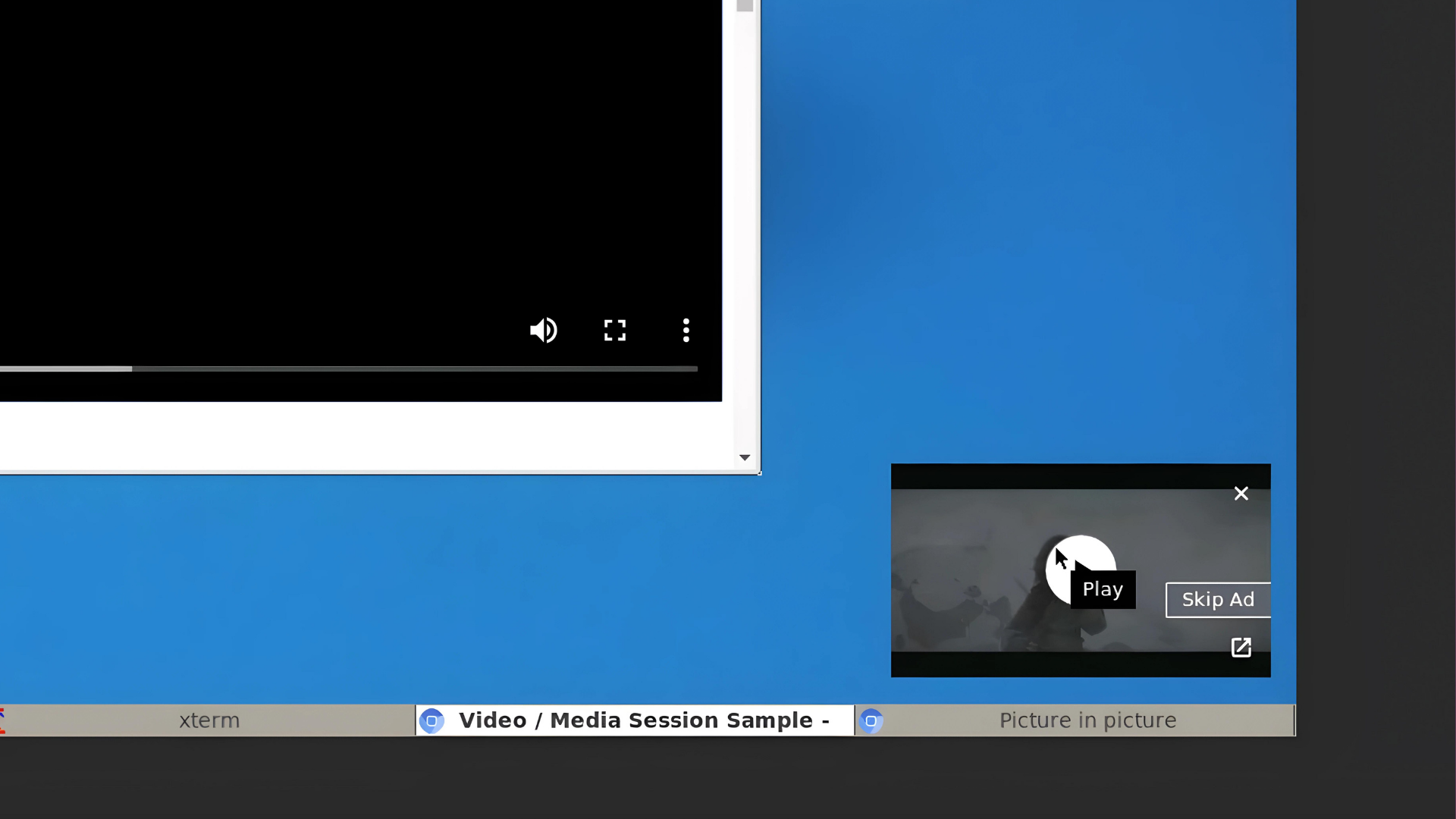
Microsoft’s AI ambitions at significant odds with its climate pledges

According to the company’s latest sustainability report, Microsoft’s pursuit of injecting most of its services and products with artificial intelligence is significantly increasing its carbon footprint.

Despite several environmental pledges to reduce its carbon footprint by reaching carbon neutrality by 2030, its recent AI endeavor will not only set Microsoft’s carbon-negative roadmap back by a substantial amount but could threaten its ability to even achieve the stated goal altogether.

Microsoft’s 2024 Enviornmental Sustainability Report shows a thirty percent increase in the company’s carbon footprint since last year, and that it can contribute much of the growth to resource intensive AI development.

Earlier this month Microsoft announced a new $17 billion dollar investment in a renewable purchasing partnership with Brookfield Asset Management tasked with obtaining 10.5 gigawatts of energy for the company.

However, its 2022 partnership with the Los Angeles based startup CarbonCapture last year appears to be the more vital collaboration for Microsoft going forward as the company is on record emitting 15.357 million metric tons of carbon dioxide during its fiscal calendar in 2023.

While renewable energy will go a long way to powering these resource intensive AI models, the fact that they are spewing more carbon than they are consuming electricity is quickly creating an environmental imbalance Microsoft will need to soon address.

Microsoft’s does offer a handful of future-leaning solutions to help combat the onslaught of environmental consequences that come with its continued AI development as well as regular business output that include improving measurement and efficiencies in its operations.

Microsoft’s plans to build more efficient data centers with servers in low-power states and reduce peak power consumption overall. Other solution posited by Microsoft include infrastructure decarbonization, innovations in low-carbon concrete, improving measurements across its supply chain, partnering with businesses more transparent about their emissions, reducing emissions in Cloud Logisitics, purchasing carbon-free electricity, and measuring semiconductor emissions among other items.

Microsoft’s Sustainability reports isn’t a damning profile of AI pursuit by the company, but a bellwether to the environmental toll this nascent technology already claims.

Hopefully, Microsoft can realign its AI ambitions with its 2020 environmental commitments and get back its original 2030 goal of net negative carbon emissions while providing Copilot services and products to more people.

Opera is now 2x faster on Arm-based Windows PCs

As the demand for Arm-powered Windows PCs grows, developers are optimizing their applications for the more energy-efficient and performance-oriented counterpart. The latest to join the list is Opera, with its ARM-optimized browser for Windows.

According to Opera’s official blog post, its browser is now designed to make full use of the capabilities present in Arm processors, including the Snapdragon X Elite series from Qualcomm. The Arm-optimized Opera has an enhanced AI-powered feature set that uses the built-in NPU (Neural Processing Unit) to perform AI tasks seamlessly.

Highlighting the benefits of the Arm-optimized Opera browser for Windows, the blog post reads,

With Arm-based systems, you’re likely to experience faster processing times when running local LLMs on your machine. This means quicker training and analysis of your custom language data, leading to more responsive and accurate results. Whether you’re using these models for text generation, sentiment analysis, or custom voice commands, you’ll notice a significant improvement in their overall effectiveness.

Opera then discusses how the browser’s built-in battery saver, combined with the power-efficient design of Arm processors, will result in extended battery backup without compromising on performance.

Image source: Opera

To download the Arm-optimized version of Opera, head to the official website. Make sure you are using an Arm-based Windows PC when doing so!

Given the increased integration of the new processor, there has been a rapid shift in the landscape. Sensing the potential for expansion and growth, Microsoft is focussing on Windows on ARM PCs. Earlier, privacy and security-oriented Brave announced optimization for ARM-powered Windows PCs.

Even device compatibility with Windows on ARM PCs is improving by the day!

Have you tried the new native Arm-optimized Opera browser for Windows? If so, share your initial review with our readers in the comments section.