Microsoft opens AI/VR technology incubator in China

While US and China relations remain tenuous for the time being, US-based software company Microsoft is forgoing political formalities and opened the Nanchang City AI+VR Innovation Center last month according to China’s Xinhua news agency.

Based on a report from Venture Beat, we’re getting details of Microsoft new AI+VR Innovation Center initiatives which appear to be “a cloud and mobile technology incubator geared towards startups and established manufacturing companies.”

The Nanchang City AI+VR Innovation Center was launched mid-January, and is expected to bustle in top talent in both artificial intelligence and virtual reality pools all coalescing in the Nanchang City Honggutan New District and ideally providing a boon to the local economy in the process.

Interestingly enough, while Microsoft is head over heels in love with AI development, its outward stance on virtual reality has, at times, seemed less enthused, to the point that the company actively pivots from using the term in its own efforts, opting instead for the phrase “Mixed Reality” to the befuddlement of many observers.

Microsoft planting an AI and VR incubator in China is no random occurrence as China has become a hotbed of VR activity and enthusiasm over the past few years. The Chinese government believes that while casual interest in virtual reality may have bottomed out in 2017, they expect it to recover, to the tune of becoming a $13 billion dollar industry by next year, 2020 based on gains in 2018.

From growth in the standalone headset market to local streaming options offering VR movie using their own 4K headsets, the market for virtual reality in China is burgeoning much faster than it is in the US or parts of western Europe. Microsoft spotting an opportunity in China and placing its incubator there can be seen as a two-prong strategy to bolster its anemic VR efforts while also reestablishing the Microsoft brand in China outside of pirated Windows image.

Microsoft starts Unboxed YouTube series, starting with this one on AI for Good

Microsoft is starting a new “Microsoft Unboxed” video series on YouTube, which will explore the different aspects of what the company has been working on. The show is being hosted by Sonia Dara and Colleen O-Brien, both of whom are also Microsoft employees.

Microsoft’s investments in AI to make the world a better place is the discussion in the first video published today, which is titled “AI for Good.” As you may know, this is also the name for Microsoft’s recent initiative to solve humanitarian issues with technology to “create a more sustainable and accessible world” according to the show’s co-host Colleen. You can watch the video below to see what they mean.

The show will air every Thursday at 9 AM PST (the same time zone Microsoft’s headquarters falls in). Starting with the company’s AI for good initiative was a pretty good idea, but it will be interesting to see if future episodes will cover other innnovative things that Microsoft has been doing in AI, software and hardware.

Microsoft investors unearth positive Bookings gains from FY19 Q2 earnings report

Microsoft recently announced its FY19 Q2 earnings and in doing so, took a moderate hit to its stock evaluation in after hour trading due to what investors saw as only moderate growth for the company.

The hit after the announcement resulted in a shaving of roughly $4.00 of its prior $106.38 mark, however, Microsoft’s stock has since recovered and at times, exceeded its prior earnings evaluation.

Part of the up and down nature of Microsoft’s post-earnings reviews may have something to do with investors reclaiming their knee-jerk reactions and seeing what Seeking Alpha’s research analyst Bert Hochfeld may have uncovered from the company’s earnings news.

According to Hochfeld, the extent of Microsoft’s actual cloud profitability was overshadowed by mitigating one-time factors, that, if revenue remains constant, should highlight the steep rise in the company’s overall cloud business.

  • Beneath the headlines – the company achieved a major acceleration in growth in its commercial business – with bookings rising by 22%.
  • Commercial is now close to 70% of revenues.
  • Profitability was constrained by various one-time factors, but the profitability of Azure and Microsoft’s cloud business overall is rising at steep rates.

Similar to much of the industry’s conclusive analysis, Hochfeld recognizes Microsoft’s pivot and but underneath the success of revenue generating decisions lay profitable outcomes not quite highlighted in all of the company’s earnings reports.

Microsoft has actually been able to execute that pivot and come out growing and generating cash on the other side.

I have enjoyed my ride down the Microsoft river and I will continue the journey. I can’t ignore 76% Azure growth or some of the other gaudy metrics the company has reported, particularly for Office 365 and its various flavors of Dynamics 365.

As Microsoft and Amazon continue to chew up cloud computing market share with big-name partnerships and contracts, the race to profitability will become an increasingly important metric to keep an eye on.

Microsoft Translator gets new compliance certifications

Microsoft Translator has been GDPR complaint for some time now, and according to  today’s announcement, the service is now compliant with three other certifications. According to the tech giant, their service is now certified for the ISO, HIPAA, and SOC compliance standards.

For those who don’t know what all of these fancy abbreviations mean, Microsoft has taken the necessary steps to make sure that the service complies with each of the three certification standards. To be complaint with the US Health Insurance Portability and Accountability Act, the service needs to be able to reliably handle healthcare related information responsibly so that the data is safe from falling into the wrong hands.

On top of this, the service is also compliant with the Service Organization Controls framework standard which hosts a number of safeguards for user data, especially when it comes to that relating to financial information. The International Organization for Standardization certifications are also adhered by the service, as follows:

  • ISO 27001 Information Security Management Standards
  • ISO 9001:2015 Quality Management Systems Standards
  • 27018:2014 Code of Practice for Protecting Personal Data in the Cloud
  • 20000-1:2011: Information Technology Service Management
  • ISO 27017:2015: Code of Practice for Information Security Controls

The company cites its certifications as its commitment to security and user privacy. With tall three of them in mind, those that might have been skeptical to use the Microsoft Translator service in the past should now be able to rest easy knowing their data is secured by multiple standards.

Microsoft continues push into healthcare with Microsoft 365 for health organizations, more

Microsoft has just announced several new tools to help health organisations collaborate and communicate more effectively. Under the “Microsoft 365 for health organizations” banner, the company will first bring new advanced messaging features to Microsoft Teams, including Priority notifications and Message delegation.

With Priority notifications, team members can be alerted of an urgent message every two minutes (for up to 20 minutes) until a response has been sent to the recipient. Priority notifications will work on both desktop and mobile, but they’re currently in private preview.

As for message delegation, it will allow clinical staff members to delegate message to other team members in case of emergency, like when a surgery is about to begin. This other feature is coming “soon” to Microsoft Teams, the company said today.

In addition to these two new healthcare-focused capabilities, Microsoft also announced the integration of FHIR-enabled electronic health records (EHR) data within Teams. This is will allow health organisations to check EHR data Infor Cloverleaf, Dapasoft, Datica, Kno2, and Redox right within Teams.

Microsoft also announced today the general availability of its Healthcare Bot, which will allow health organisations to create their own virtual health assistants and chatbots. “The Microsoft Healthcare Bot service is fully extensible to help organizations adjust the bot to solve their own business problems, and can connect to health systems, like EHRs,” the company explained.

The Redmond giant will be present at the HIMSS19 healthcare IT event in Orlando, Florida next week to share more details about its new capabiilites in Microsoft 365 for healthcare professionnals. In the meantime, you can learn more about Microsoft 365 for Healthcare on this page.

Microsoft recruits twins to begin push for Office 365 over Office 2019 desktop

Microsoft’s Office 365 and Office 2019 offerings can be a bit confusing for some. On the face of it, they both have Office in the title, implying the two software solutions should do roughly the same thing.

Another cosmetically confusing aspect to the productivity suites is that 2019 and O365 can mean the same thing for some looking to update or purchase Office for the first time in years. 2019 is a year with 365 days in it, just like every other Office offering prior, so how are the two substantively different and why does one offer a monthly payment plan?

It would seem Microsoft is not immune to the same sort of customer critique as the company has recently released a series of videos intended to explain the difference between Office 2019 and Office 365 by using the analogous examples of identical twins using the productivity suites in head to head competitions.

The Twins Challenge: Office 365 crushes Office 2019 is a series of three videos with identical twins tasked with completing the identical task using either Office 2019 or Office 365.

Beyond highlighting the more stagnant nature of Office 2019 development and use cases, Microsoft uses the series to press upon customers the additional benefits of moving to an Office 365 subscription.

In fact, while they have similar names, there’s a world of difference between the two. Office 365 includes fully installed Office applications—including the latest versions of Word, Excel, PowerPoint, and Outlook. And these apps keep getting better over time, with new capabilities delivered every month. Most importantly, Office 365 is connected to the cloud, so you can access your content from any device, coauthor with anyone in real-time (regardless of whether or not they’ve purchased a copy of Office), and use the power of artificial intelligence (AI) to create more impactful content with less effort.

On the flipside, Office 2019 also delivers full installs of the Office apps we know and love—but they’re “frozen in time.” They don’t ever get updated with new features, and they’re not cloud-connected. Also, Office 2019 doesn’t support real-time coauthoring across apps, and it doesn’t have the amazing AI-powered capabilities that come with Office 365.

Some of the highlights the help Microsoft and its twin contestants declare Office 365 the winner include the more Google-like real-time co-authoring capabilities, its cloud connectivity, and artificial intelligence that helps create reports, resumes, or identify areas of opportunities within in Office.

While the videos are a cute analogy for the similarities and differences between Office 365 and Office 2019, it should be noted that Microsoft’s latest quarter showed particularly that Office 365 adoption is helping fuel its Productivity and Business Processes division and it should come as no surprise that it would like to push that solutions a bit more.

Skype desktop app gets background blurring in video calls

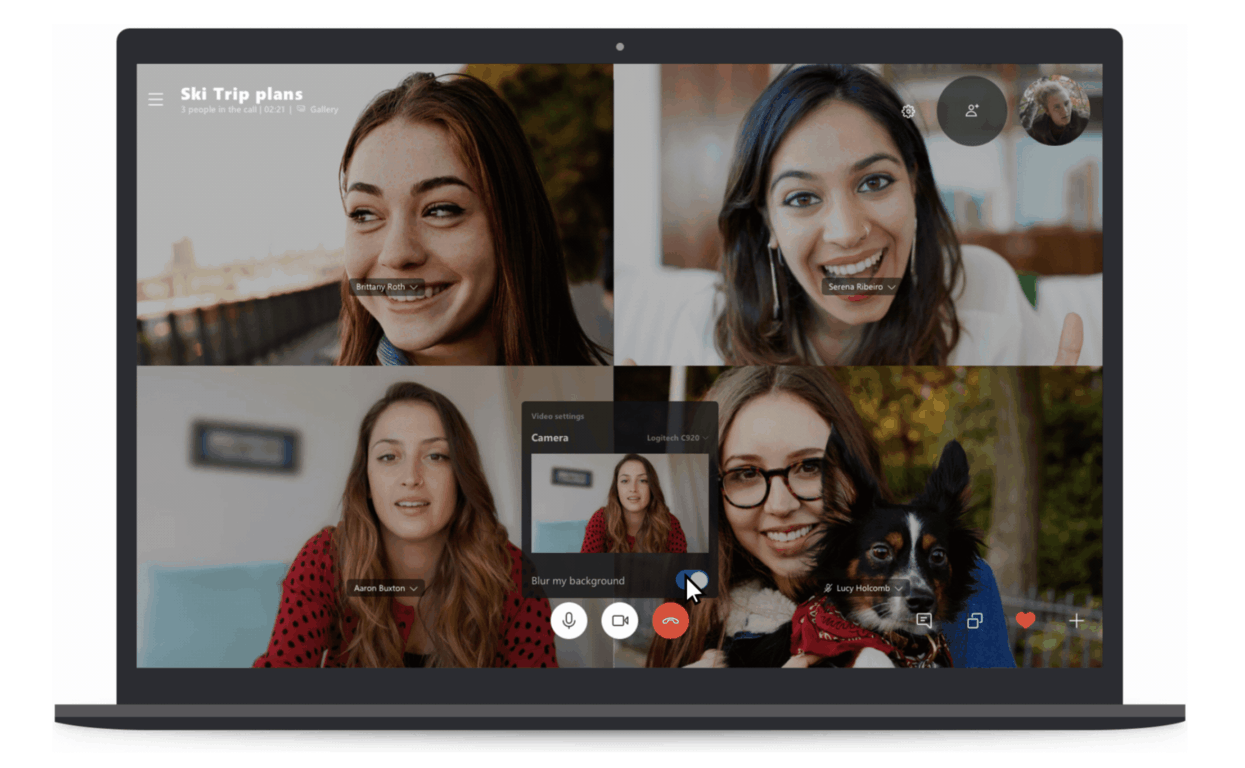
After introducing background blur on video in Microsoft Teams last year, Microsoft is bringing the same AI-powered feature to its Skype desktop app. The purpose of background blur is to help your correspondents focus on you during video calls, and to block any potential distractions coming from your environment.

“Background blur in Skype and Teams uses artificial intelligence (AI)—trained in human form detection—to keep you in focus during your call,” the Skype team explained. “This technology is also trained to detect your hair, hands, and arms, making a call with background blur just as relaxed and easy as a regular video call.”

During a video call, you can turn on background blur by hovering over the video button. The feature is only available on desktop for now, and the team didn’t say if this feature will eventually come to mobile.

It’s important to note that the feature may not be 100% reliable. “We do our best to make sure that your background is always blurred, but we cannot guarantee that your background will always be blurred,” the team said. As a result, it’s probably best to always clean your room before starting that important Skype video call.

Google might add a to Chrome

Google, Microsoft, Mozilla, and co are usually looking for new ways to speed up their browsers. Then the publisher that can genuinely claim its browser is the fastest will have bragging rights. Google is now trying out a new Never-Slow Mode to speed up Chrome’s page loading.

References to a Never-Slow Mode have been spotted on the Chromium Gerrit. That is a Chromium code collaboration tool where Chrome developers outline new features for Google’s flagship browser.

The Never-Slow Mode prototype code states: Adds `–enable-features=NeverSlowMode` to enforce per-interaction budgets designed to keep the main thread clean (design doc currently internal).” The code’s flag description also states, “Enables an experimental browsing mode that restricts resource loading and rutime processing to deliver a consistently fast experience.

The Never-Slow Mode will basically speed up browsing for slower connections if Google implements it. It will do that by establishing maximum size limits for page resources, such as images, stylesheets, and scripts.

The max values specified for images, stylesheets, and scripts are one megabyte, 100 kilobytes, and 50 kilobytes. The browser will not load resources that eclipse the established maximum thresholds, which will speed up page loads.

If Google does introduce Never-Slow Mode, it will probably add the feature as an experimental flag first. Then users would need to toggle it on or off via Chrome’s flags page. However, Never-Slow Mode’s flag description also states, “WARNING: ‘may silently break content!’” Therefore, the flag description also highlights that Never-Slow Mode doesn’t work perfectly at the moment.

It is worth noting, however, that Google Chrome users can already remove images from webpages to speed up browsing. To do so, click the Customize Google Chrome button and select Settings.

Then users can click Content Settings > Images to open the options shown directly below. Toggle the Show all option off to remove pictures from pages, which will certainly speed up browsing. Users can also turn off JavaScript and Flash multimedia with Chrome’s content options.

Furthermore, users can strip pages down to text only alternatives with the Text Mode extension. That is an extension that converts webpages to black-and-white alternatives without any images, videos, or ads. Users can add Text Mode to Google Chrome by clicking the Add to Chrome button on the extension’s page.

So, Chrome might not really need the Never-Slow Mode. Nevertheless, Google might still introduce the new mode with future Chrome updates.

RELATED ARTICLES TO CHECK OUT: 

Wscadminui.exe: What it is and how to troubleshoot it

The wscadminui.exe file comes bundled together with the Windows 10 installer package and it’s another super important part of the Windows Security Center.

This file, just like other executable files in Microsoft Windows has several versions including 10.0.15063.0, 10.0.16199.1000, and 10.0.16299.15.

Now, besides improving Windows 10 users experience by the app., the file plays an important role in stabilizing the overall functioning of your system.

But the file has also been associated with some issues, such as the Wscadminui.exe – Bad Image error, faulty application path, among others.

We will be looking at these errors, some of which have made some users mistake it for a malware, and how to fix them in this article.

But before then, let’s look at the basics.

What is wscadminui.exe?

The file first appeared on the scene in July 2015 with the release of Windows 10.

Officially describe as Windows Security Center Elevated UI App, it has since been updated several times to improve its performance.

Should I uninstall wscadminui.exe?

The answer is a big no.

First, as I mentioned earlier on, the app greatly improves the running of your Windows 10 operating system. Indeed, most of your PC won’t run without executable files like wscadminui.exe.

Furthermore, the file is developed by Microsoft meaning it’s trustworthy.

Escadminui.exe common errors

Like other .exe files, the file is known to trigger various errors in Windows 10 machines. Here are some of the most common wscadminui.exe hitches:

  • Cannot find wscadminui.exe: This could mean that the file maybe missing from the registry.
  • Wscadminui.exe – bad Image: Bad Image error happens if the file has been interrupted or is corrupted.
  • Wscadminui.exe is not a valid Win32 application: Generally this error occurs when Windows tries to run the executable file only to fail possibly because of an incomplete file download.
  • Faulting Application Path: wscadminui.exe: This arises sometimes due to wrong RAM sticks configuration or out of date drivers for essential hardware such as a motherboard.
  • Wscadminui.exe is not running: The app. could have been stopped by a third-party conflicting application.
  • Windows failed to start – wscadminui.exe: With this, it is possible that the services enabling the file to run relevant tasks have issues.
  • The file wscadminui.exe is missing/corrupt: The issue here could be interpreted to mean that the file is damaged or compromised by a malware.
  • Error starting program: wscadminui.exe: In most cases, the program’s starting errors result from the user lacking administrative rights, a virus infection, or Windows compatibility problems.
  • Wscadminui.exe has encountered a problem and needs to close: This issue has a plethora of triggers chief among them a program crash.

How to fix wscadminui.exe errors

The good news is that workarounds exist for many of these issues.  Here is how to troubleshoot some of the aforementioned errors:

  1. Scan The File To See If It’s Corrupt
  2. Restore Your System To An Earlier Working State
  3. Update Windows
  4. Reboot Your Computer
  5. Scan Your PC For Viruses
  6. Halt The Wscadminui.Exe From The Task Manager

Method 1: Scan The File To See If It’s Corrupt

The wscadminui.exe file may refuse to run effectively because its installation has been corrupted.

Here is what to do:

  1. Click on the start button.
  2. Open the command prompt by typing cmd.exe in the shown search box.
  3. Now right-click on command prompt(admin). Wscadminui.exe
  4. Click on yes if and when prompted (to progress to cmd).
  5. Next type sfc /scannow and press enter.Wscadminui.exe
  6. The tool will inspect the entire system to see if it’s in an OK condition. Wait for it to finish then restart your PC.

Fix 2: Restore Your System To An Earlier Working State

System restore allows you to cancel any changes that you could have made in Microsoft Windows that resulted in the file experiencing problems.

Rolling back these changes could thus help permanently eliminate a couple of wscadminui.exe problems:

Steps:

  1. Click start
  2. Type control panel(on the start menu’s search dialog). Press enter.
  3. Click control panel from the results.Wscadminui.exe
  4. Now type recovery on the control panel’s search box. This brings up the system recovery options.Wscadminui.exe
  5. Tap on Open System Restore and click Next.windows 7 wmpshare.exe
  6. Choose the latest update, driver, or app from the listed options then click Scan for affected programs.Wscadminui.exe
  7. A fresh list of the items targeted to be deleted after removing the current restore point is displayed. If satisfied with the present selection, click Next then  You can alternatively select an older restore point appropriately.
  8. Follow the remainder of the steps.

Fix 3: Update Windows

Installing the recent updates from Microsoft helps you keep your system safe from emerging security issues as well as repairing existing problems in files, drivers, and other programs.

You can try to update your system by downloading and adding the latest updates to eliminate some of the issues:

Steps:

  1. Click Start.
  2. Type update in the search dialog box (then press enter).Wscadminui.exe
  3. Choose check for updates.Wscadminui.exe
  4. Select Install Updates(If any come up).

Fix 4: Reboot Your Computer

Rebooting your computer clears any unnecessary data and program files occupying the memory and which could be affecting your machine.

For this reason, restarting the PC can resolve several wscadminui.exe-connected errors.

Furthermore, some Window’s executable files are known to stop/crash when the system resources such as CPU are overstretched.

This problem is again easily fixed by restarting your computer.

Fix 5: Scan Your PC For Viruses

Malicious code attacks your computer in critical system areas including in locations where the wscadminui.exe file reside.

This could be contributing to some of the persistent errors associated with the file.

The solution here is to start your antivirus and scan your PC for an infection.

Steps:

The steps depend on the security software you have in your computer. You can refer to your antiviruses’ manufacturer’s website if you run into trouble.

Fix 6: Halt The Wscadminui.Exe From The Task Manager

If you’re searching for a quick solution, use the task manager to stop the file. This should at least temporarily block the processes linked with the app. and hence some of the glitches.

Steps:

  1. Start Window’s Task Manager, press the CTRL+Alt+Del buttons to access the task manager.Wscadminui.exe
  2. Go to the Details
  3. Locate and click the Wscadminui.exe file from the highlighted list.
  4. Right-click it then select End task.

 RELATED STORIES YOU NEED TO CHECK OUT:

OneNote Windows 10 app will get a new dark theme and navigation improvements

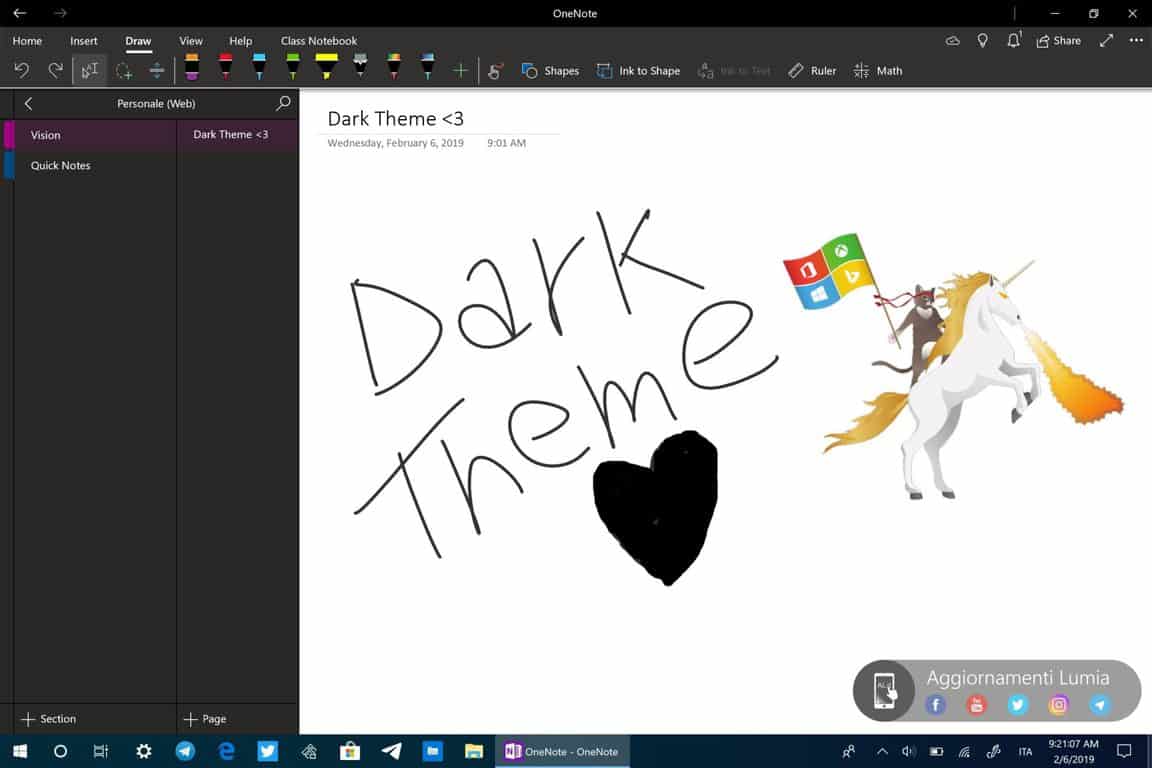
OneNote is one of the few inbox apps that ship on all Windows 10 PCs, but it curiously didn’t get a dark theme option like most of the other UWP apps from Microsoft. Well, that should be changing soon as Italian blog Aggiornamenti Lumia has shared some screenshots showing the new dark theme today.

Laura Butler, head of Microsoft’s Notes and Tasks team confirmed that the dark theme is currently being worked on, teasing upcoming major navigation improvements along the way.

As we’ve seen with many other Microsoft apps in dark mode, the company has opted for a dark grey background color, but the white background will apparently still be there when you open a specific note in the app. There’s no word yet about when this new dark mode will be available for Insiders testing, but it could be a while a Butler said that the app isn’t fully available internally. In the meantime, let us know in the comments if you like what you see in those screenshots.

Crackdown 3 Wrecking Zone technical test will be open to Xbox Insiders starting tomorrow

Microsoft has just dropped some exciting Crackdown 3 news ahead of the game’s release on February 15. Indeed, the company will be running a technical test of Wrecking Zone, the game’s multiplayer mode featuring cloud-powered destruction starting tomorrow, February 7.

The technical test (the team insists that “this is not a beta”) will be available exclusively for Xbox Insiders through the Xbox Insider app. The first playtest will kick off tomorrow at 12PM PST/8PM UTC (you won’t be able to install the client before 9AM PST/5PM UTC tomorrow), and Microsoft is planning additional sessions over the weekend.

“Wrecking Zone is built on brand-new technology that utilizes the cloud in ways never been done before, enabling players the ability to destroy entire buildings and cause mayhem on an unprecedented scale. We’ve been playing and simulating games internally every day, but nothing beats real-world data and feedback from you,” the blog post on Xbox Wire reads.

In case you missed it, the team over at IGN published a video showing a full round Crackdown 3’s Wrecking Zone mode last week, and you can watch it below:

The first previews for Crackdown 3 have been published last week, and early impressions seem to be pretty mixed. Wrecking Zone in particular will ship with just three maps at launch, and this week’s playtest will just include the Agent Hunter game mode on the Blackout Zone map.

Last but not least, in case you missed it while it was free back in November, the original Crackdown Xbox 360 game is once again free to grab on the Xbox Store. The game is backward compatible on the Xbox One and enhanced for the Xbox One X with 4K graphics.

Crackdown
Crackdown
Developer:
Microsoft
Price:
Free

Want to stay on Windows 7 past next year with extended support? Here’s what it will cost

Microsoft has announced its pricing plan for businesses who wish to remain on Windows 7 but still want to continue receiving security patches and support. According to a report from Petri, starting next year the tech giant intends to start with $50 for the first year of support for Windows 7 Professional, then double in price each year. For Windows Enterprise users, an additional 50% will be added to the cost, which will also double annually:

  • Year 1 (January 2020 through January 2021): Windows 7 Pro is $50 per device, Windows Enterprise (add-on) is $25 per device.
  • Year 2 (January 2021 through January 2022): Windows 7 Pro is $100 per device, Windows Enterprise (add-on) is $50 per device.
  • Year 3 (January 2022 through January 2023): Windows 7 Pro is $200 per device, Windows Enterprise (add-on) is $100 per device.

Microsoft is pushing its increased pricing likely as an incentive to move users over to the Microsoft 365 platform. Additionally, some business users might benefit from Microsoft’s recently announced Desktop App Assure incentive, which provides assistance for those who might run into problem with their Windows upgrade.

As it stands, only time will tell how many businesses will continue to use their current Windows 7 setups, upgrade to Windows 10 and risk running into problems, or subscribe to get assistance from Microsoft. Feel free to share your thoughts on this below.

New Microsoft Technology Centre opens in the heart of Sydney, Australia

Microsoft this week opened the Microsoft Technology Centre (MTC) in the heart of Sydney, Australia. This new high-tech location is designed to assist businesses and government employees in digitising their workflow and services by adopting the latest in Microsoft Cloud and AI technology.

According to the official news release, Microsoft Australia has already formed a partnership with the NSW Government where it will focus on “building a data-centric approach to good government, important cyber, platform and capability development initiatives” as well as DXC Technology, a major Australian IT services provider.

The partnership with DXC Technology will involve the company and Microsoft Australia working together to move both of their “leading enterprise and public sector clients in Australia to the Microsoft Azure cloud.”

Microsoft Australia’s managing director, Steven Worrall, said of the arrangement, “This is a significant and important investment by Microsoft in the Australian market. The Microsoft Technology Centre will help our customers accelerate their digital journeys by bringing together the right resources – people and technology – in one location to demonstrate what can be achieved in their organisation and then to work with them to bring that to life. We are delighted that both the NSW Government and DXC Technology and their clients are trailblazers that will be among the first to benefit from our investment in the MTC and Microsoft’s ongoing commitment to Australia.”

A brief video tour of the Sydney Microsoft Technology Centre has been released revealing the modern design of the location, its various social spaces, the showcase of Microsoft hardware and services (like HoloLens), and its incorporation of functional technology concepts such as an AI-powered juice bar. You can watch it below.

“Microsoft Azure is a trusted, secure and high-performance cloud with an already comprehensive and growing array of services,” DXC Technology’s managing director, Seelan Nayagam, enthused. “Together we can provide solutions that our government and commercial clients can confidently deploy today while being prepared for changing market conditions or expectations. The combination of our deep understanding and experience and Microsoft’s cloud and technical expertise is going to be a game changer for existing and new clients to realize and expand their digital transformation ambitions.”

For more of the latest Microsoft news, make sure to follow us on Pinterest, Twitter, and Facebook.

New Sport Red Xbox One Controller announced for March release

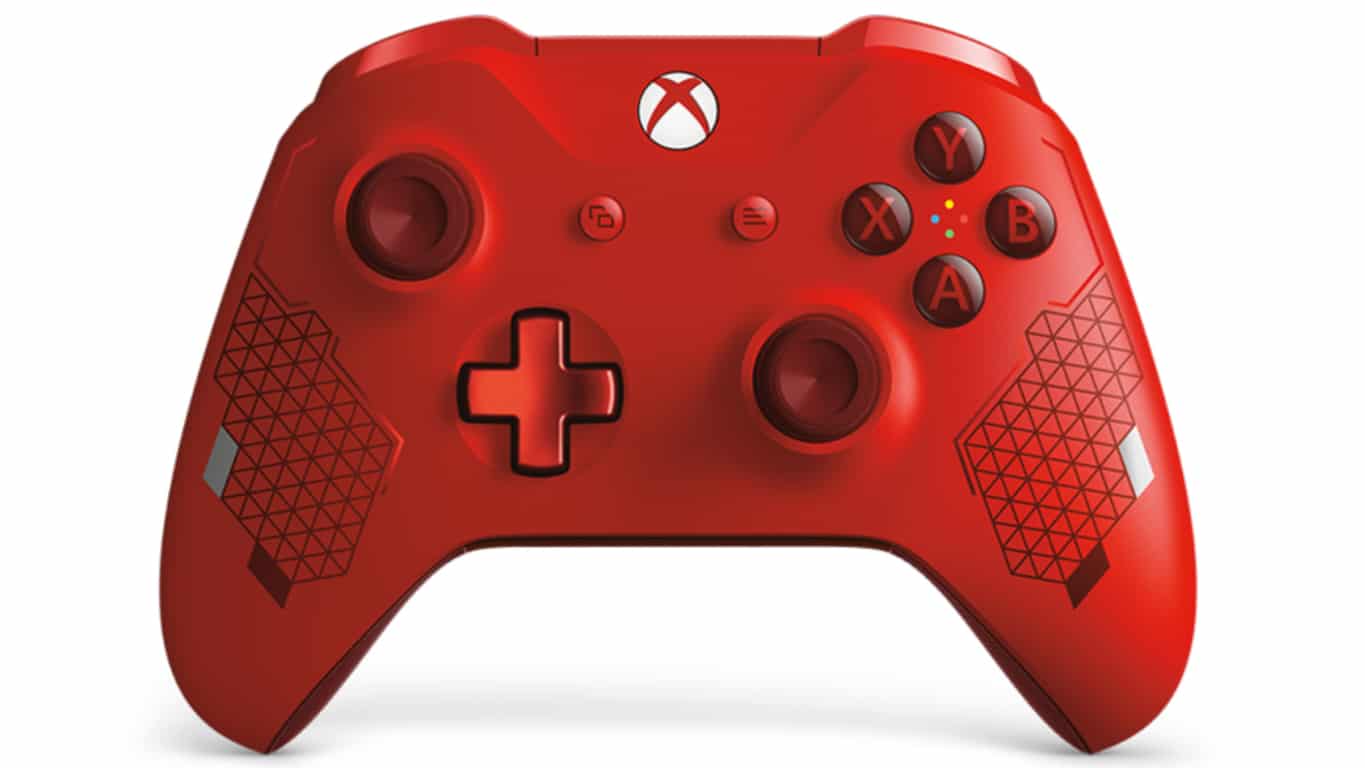
Microsoft today announced the Sport Red Special Edition Xbox Wireless Controller. This new controller, which is due to launch on March 1st, contains all of the same features as the regular Xbox Controllers but boasts a limited edition red and silver design.

“Inspired by the world of active wear and sports lifestyle, the Xbox Wireless Controller – Sport Red Special Edition is the second controller in the Sport Series,” the official announcement reads. “This red controller exudes energy–it features metallic red and silver accents on the front of the controller as well as a metallic red D-pad. The red diamond rubberized grips on the back of the controller will increase your comfort during long gaming sessions and help you stay on target.”

The Sport Red Special Edition Xbox Wireless Controller, like other modern Xbox controllers, will work with both Xbox One consoles and Windows 10 computers. A charging stand, featuring the same Sport Red design, has also been announced.

Sport Red Xbox Controller Charging StandAre you planning on picking up this new controller? Let us know why or why not in the comments below and then follow us on Pinterest for more Xbox gaming content.

Update: The controller is now up for pre-order on the Microsoft website here.

How to recover Sticky Notes in Windows 10/8/7

As you all know, Sticky Notes is a handy Windows 10 app. Users can stick notifiers to the desktop with that app. However, deleted notifications don’t go in the Recycle Bin. Thus, users seemingly can’t restore deleted notes if they need to.

Steps to recover deleted Sticky Notes

1. Open the StickyNotes.snt File in Windows 10, 8, and 7

Yet, users can still recover Sticky Note’s desktop notifications from a StickyNotes.snt file in Windows 10 versions earlier than build 1607 (the Anniversary Update). That’s a file which stores note content for the Sticky Notes app in Windows 8 and 7 and earlier Win 10 build versions.

Users might find deleted note content within that file. This is how users can open the StickyNotes.snt file in Windows 10.

  • Click the File Explorer button on the taskbar.
  • Then click the View tab.
  • Select the Hidden Items option if it’s not already selected.

  • Then enter ‘%APPDATA%MicrosoftSticky Notes’ in File Explorer’s path bar, and press the Return key.

  • Right-click the StickyNotes.snt file and select Open with > Choose another app to open the window shown directly below.

  • Select to open the StickyNotes.snt file with MS Word if you can. Alternatively, open the StickyNotes.snt file with Notepad or another word processor.

Then the StickyNotes.snt file will open in the selected application as shown directly below. The file includes a lot of jumbled text. However, Sticky Note users can also find the actual text of deleted notes within that file.

Copy the actual note text with the Ctrl + C hotkey so that you can paste it back into a sticky with the Ctrl + V hotkey.

Users can also recover recently deleted Sticky Notes in more update Windows 10 versions by opening the plum.sqlite file at: %LocalAppData% Packages Microsoft.MicrosoftStickyNotes_8wekyb3d8bbwe LocalState.

Open that file in MS Word, or alternative word processor, as shown directly below. Then you might find the text for some deleted notes near the bottom of the document.

— RELATED: Create password-protected notes with ZenR Notes

2. Recover Deleted Sticky Notes With Outlook

Sticky Notes now synchronizes notes with Microsoft accounts. Consequently, users can now recover deleted notes with Outlook 2016 and the Windows 10 Mail app so long as they have a synched MS account set up.

Click Deleted Items in Outlook 2016, and press the Restore button. Then users can select to move deleted notes back into your Notes folder. Thereafter, the notes will reappear in Sticky Notes.

3. Back Up Your Sticky Notes

Sticky Notes users can also back up their notes. Then they can recover deleted notes with the backup copy. This is how users can back up their note storage in Windows.

  • Open File Explorer in Windows.
  • Browse to this folder path: %LocalAppData% Packages Microsoft.MicrosoftStickyNotes_8wekyb3d8bbwe LocalState.
  • In Windows 8 and 7 (and earlier Win 10 build versions), users should enter ‘%AppData%MicrosoftSticky Notes’ in Run and click OK.

  • Then select either the plum.sqlite file in Win 10 or StickyNotes.snt file in earlier Windows platforms.
  • Click the Copy to button to select a folder to copy the file to.

  • Users can drag the backup plum.sqlite or StickyNotes.snt file into the LocalState or Sticky Notes folders when they need to restore deleted notes. Then the window shown directly below will open.

  • Select the Replace the file in the destination option to restore deleted notes.

So, users can restore deleted notes by opening the StickyNotes.snt or plum.sqlite files, keeping backup copies of the notes, or moving erased notes from Outlook’s Deleted Items folder. In addition, users can automatically back up Sticky Note’s storage file with File History.

RELATED ARTICLES TO CHECK OUT: 

How to enjoy a smooth Windows 7 to Windows 10/11 upgrade

Microsoft has now launched a Windows 7 solution called Desktop App Assure that will aid users to upgrade easily to Windows 10. The tool is already available in ten different languages across the globe.

The good old Windows 7 is already living its last days, as Microsoft is pushing more efforts into making users see reasons to upgrade to Windows 10. The company promises the transition will go smoothly and there will be no software compatibility issues.

Note that in January 2020, Windows 7 support will be coming to a halt. This means that running on the 2009 OS are running out of time, so now is the better time to move on to Windows 10.

Microsoft wants a smooth transition

The Desktop App Assure solution is a new service from Microsoft FastTrack that was created with the main purpose of helping users deal with app compatibility challenges.

All kinds of tests had been carried out on this new solution by Microsoft and it has been discovered that a small number of applications may be needing additional tweaks in the process of migrating from Windows 7 to Windows 10. This means that all the other apps and programs should perform excellently well on the new OS architecture.

Microsoft has guaranteed free debugging to all users who will have the misfortune of experiencing technical issues after the upgrade. All these are part of their efforts to creating an easy transition from Windows 7 to Windows 10.

A Microsoft engineer works with you to address valid app issues at no additional cost to you with an eligible subscription. We also provide guidance to customers who face compatibility issues transitioning from Office clients to Office 365 ProPlus. This is a service provided by FastTrack and not a software package.

If you want to know more about the Desktop App Assure solution, check out Microsoft’s official page.

RELATED GUIDES YOU NEED TO CHECK OUT:

Microsoft to roll out a standalone Chromium-based Edge installer

Microsoft announced in late 2018 that they were going to switch EdgeHTML over to push a new Chromium-based Edge browser, thereby creating its own Google Chrome Browser version.

The company confirmed that a test version of the new Microsoft Edge browser would be released early 2019. Microsoft’s engineers also stated that the date for the release of the test version of Microsoft Edge is not yet known, but it is expected to be announced in the early months of the year.

While the exact release date is still unknown, we expect the company to roll out the first version of its Chromium-based sometime at the end of March or the beginning of April.

It was believed that the preview version would be available to the Window Insider Program only. However, the company had made it clear that this is going to be a standalone installer. In other words, everyone will be able to get a feel of how the latest Chromium Microsoft Edge browser functions.

The browser can be installed even if one is configured for Windows Insider Builds or not.

The company is making efforts towards getting as many Insider builds as possible to go live. Microsoft is making sure that the first preview version is going to offer a great experience to all users.

If the big M want to impress potential Edge users, that’s the best strategy to use. The first impression always matters. If the first versions of the Chromium-based Edge browser are very fast, highly responsive and support all the features and options that users need, then chances are this will be a successful experiment for Microsoft.

Again, while there is no Estimated Time of Arrival (ETA) concerning the stable version of the Chromium-based Edge, it will most likely go live when the next major OS upgrade is released.

RELATED POSTS TO CHECK OUT:

Xbox Live support to expand to iOS, Android and Nintendo Switch

Xbox Live is one of the biggest gaming subscription networks in the world with millions using the service daily.

Microsoft is planning to expand Xbox Live support to gamers on Android, iOS devices and the Nintendo Switch. If we’re lucky, the Redmond giant is going to confirm this piece of news at the game developers conference scheduled to take place on March 18-22 at San Francisco.

Xbox Principal Program Manager Jeffrey Shi and Xbox Software Engineer Ramsey will be there. Most likely, they will be the heralds of this news.

Xbox Live cross-platform support will enable Microsoft to reach billions of potential gamers and save time while expanding the services.

Innovation gets live

Microsoft has already preparde quite a few games with Xbox Live support for these platforms. One of these titles is Minecraft, which requires an Xbox Live login. The company is planning to expand the feature to more titles.

Furthermore, this new multi-platform strategy will give developers access to use Xbox Live’s infrastructure for multiplayer as well.

Breaking barriers by crossplay revolution

Xbox Live will officially bring and engage communities closer together regardless of the platform they are based on if developers begin participating in the new cross-platform SDK.

Other initiatives under this multi platform strategy include Project xCloud and the next-generation Xbox.

It looks like Microsoft will keep going forward with its cross-platform SDK for Xbox Live. The update could be exactly what the next-gen gaming platforms need taken into account the growth in popularity of mobile gaming.

RELATED POSTS TO CHECK OUT:

Microsoft Studios rebrands to Xbox Game Studios

Microsoft Studios, the company’s video game publishing division and home of 13 video games studios is becoming Xbox Game Studios today. Matt Booty, Head of Xbox Game Studios announced the rebranding during today’s Inside Xbox live show.

“As we’ve expanded our focus beyond the console, the Xbox brand has also evolved from its original roots. Today, Xbox is our gaming brand across all devices, no matter how or where you want to play, or who you want to play with. In that spirit, I’m pleased to share that we are changing the name of our game development organization from Microsoft Studios to Xbox Game Studios,” explained Booty.

Xbox Game Studios expanded in quite a big way last year, with Microsoft acquiring nothing less than seven new game development studios including Obsidian Entertainment (Fallout: New Vegas), Turn 10 Studios (Forza Horizon 4), and Ninja Theory (Hellblade: Senua’s Sacrifice). “As a gaming organization, we have never been in a better position to deliver a diverse line-up of exclusive games for Xbox fans now, and in the future,” said Booty, and we can’t wait to see what these new studios will bring to the table in the near future.

Shadow of the Tomb Raider is coming to Xbox Game Pass on February 7

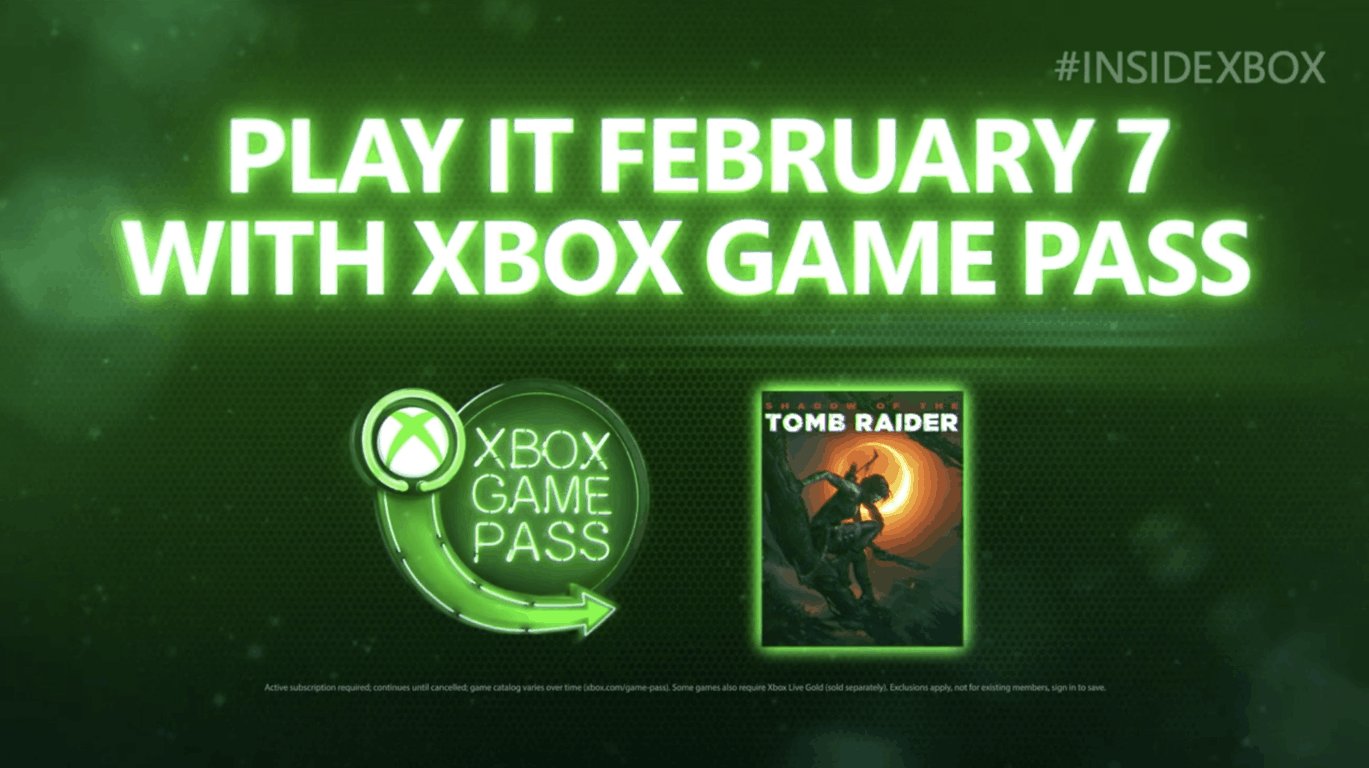
Microsoft has just announced a major new addition to the Xbox Game Pass catalog during its Inside Xbox live show. Shadow of the Tomb Raider, the latest entry in the popular action-adventure franchise will be available on Xbox Game Pass starting this Thursday, February 7. The game will join Tomb Raider: Definitive Edition as well as its sequel Rise of the Tomb Raider, so that will make all the whole trilogy available for subscribers.

Shadow of the Tomb Raider was released back on September 14, and it’s actually quite surprising that Microsoft has been able to add the game to Xbox Game Pass so early. The game is about to get its fourth DLC, “The Price of Survival” on February 12th, and developer Eidos Montreal still has some more additional content in the pipeline.

Microsoft also announced four new other games coming to Xbox Game Pass later this month: The Walking Dead: Season 1 and Pumped BMX Bro are both coming on February 7 along Shadow of the Tomb Raider, and they will be followed by De Blob on February 14 and then Batman: Return to Arkham on February 21. This is in addition to Crackdown 3, the next Xbox One/Windows 10 exclusive to be released on February 15.

If you have yet to subscribe to Xbox Game Pass, you can currently get your first month of subscription for just $1 instead of $9.99. The catalog currently includes over 100 Xbox One and Xbox 360 games, and Microsoft keeps adding quality titles month after month.

Microsoft announces Xbox One S Anthem bundle

As the gaming world prepares for the next biggest title to hit consoles with Electronic Arts Destiny-like successor, Anthem, Microsoft is seizing an opportunity to push a couple of more Xbox One S off the shelves with a new tie-in.

Along with a full-game download of Anthem Legion of Dawn Edition (which includes four legendary armor packs, a legendary weapon, and more), the Xbox One S Anthem Bundle includes an Xbox One S console with a 1TB hard drive, an Xbox Wireless Controller and 1-month trials to EA Access, Xbox Game Pass and Xbox Live Gold.

The Xbox One S Anthem bundle will available for purchase on February 22, 2019, the same day as the release of the game across digital and retail stores.

However, eager fans can pre-order the bundle from their nearest Microsoft Store (if in the US) or online at Xbox.com for anyone not fortunate enough to have a local store within distance. Other retail outlets such as Gamestop should also have pre-orders available for purchase.

Just a few days ago, Microsoft reported that it had one of its best gaming quarters yet as digital services revenue increased due in part to more people signing up for Xbox Live, Game Pass and in-game purchases from behemoth franchises such as Fortnite.

However, Microsoft also reported a quarter where hardware revenue saw a slight decline and offering a new bundle alongside the hotly anticipated Anthem game might go a long way inflating those numbers for next quarter.

Tune in to Inside Xbox on Mixer later today to get another exclusive free “MixPot”

Microsoft’s Inside Xbox Live show is coming back later today at 2PM PT, and those of you who watch it live on Mixer will be able to grab another free “MixPot.” This time, the team will offer an exclusive Onyx Compass skin for Sea of Thieves, as well as invites for the upcoming private beta for Tom Clancy’s The Division 2.

Ubisoft’s upcoming post-apocalyptic shooter will be released worldwide on March 15, but the private beta is set to kick off on Thursday, February 7th at 10am CET through February 11th 2019 at 10am CET. The game will ship after several other AAA games coming this Spring including Far Cry: New Dawn, Metro Exodus, Anthem, and Devil May Cry 5, and hopefully it will be able to find its audience during this busy period.

Today’s Inside Xbox episode should deliver some new Xbox Game Pass additions, as well as lots of news about Crackdown 3, Sea of Thieves, and more. Make sure to connect your Microsoft account to your Mixer account before watching it live on mixer.com/xbox.

Microsoft announces the launch of the Accenture Microsoft Business Group

Microsoft and Accenture have just announced a new partnership aptly called Accenture Microsoft Business group, which, from the announcement, appears to be a sort of service solution for more than 45,000 dedicated professionals.

Accenture and Microsoft have a longstanding collaborative relationship that has already resulted in a grouped effort called Avanade, but yesterday’s, February 4, 2019, announcement seems to be going after scale in the enterprise arena.

Regarding yesterday’s news, Accenture’s chief technology & innovation officer and chairman of the board for Avanade Paul Daugherty described the combined efforts as such,

“The Accenture Microsoft Business Group is a major step forward in our decades-long relationship with Microsoft. It brings Accenture’s broad industry experience and transformation skills together with Microsoft’s powerful digital technologies and Avanade’s specialization in the Microsoft ecosystem. The demand for digital transformation, powered by the cloud, has never been greater. We are bringing the leading capabilities of our companies together to meet this demand and deliver innovation to our clients.”

As for the details of the deal, it appears that Accenture’s role will be to be more of the client facing portion to this global services and solutions offering while Microsoft will help provide the actual infrastructure and technologies.

The collaboration will focus on, “helping clients migrate to Microsoft Azure and effectively harness the power of data, artificial intelligence, optimize Microsoft business processes with Microsoft Dynamics and foster modern work and collaboration with Microsoft 365.”

Microsoft and Accenture have already found similar success in their Avanade partnership delivering some 35,000 Microsoft-related projects to more than 4,000 professional clients over the globe. With the spin-up of Accenture Microsoft Business Group, the two companies look to expand on that success and client portfolio many times over.

TomTom to become main provider of location data for Microsoft Azure and Bing Maps

Microsoft is partnering with location technology specialists TomTom to bring its traffic data statistics over to the tech giant’s Bing Maps program, as well as to their Azure cloud computing service. The Redmond-based tech giant explained that the partnership will enhance Azure Maps by bringing features to allow businesses to build “map-based dashboards to visualize IoT spatial analytics to mobility scenarios for vehicle movement” on their blog post.

Bing Maps users will likely benefit from TomTom’s infrastructure, which will enable users to perform various such as tracking parking meter rates in real time, plus the tracking of street traffic, carbon footprint, noise pollution, and others. TomTom also has the technology to support self driving vehicles, which could also enable Microsoft to integrate its maps into those systems in the future. The tech giant is giving access to these statistics to business users who may want to incorporate them into their apps, but if at least a couple of these made it to Bing Maps, it could help serve to give Google a run for their money. Microsoft’s Partner Group Manager of Azure Maps and connected vehicles Tara Prakriya, explained that:

“This deep partnership with TomTom is very different from anything Microsoft has done in maps before. TomTom hosting their services in the Azure cloud brings with it their graph of map data. Manufacturing maps in Azure reduces the latency to customer applications, ensuring we offer the freshest data through Azure Maps. Azure customers across industries end up winning when their geospatial data and analytics, TomTom data, and Azure Maps services are all running together in the same cloud.”

TomTom will also benefit from the partnership, as Azure will become their primary resource for cloud management. This will give them access to Microsoft’s vast array of services and APIs as they expand their services in the future. It’s a move we recently made ourselves, for those of you who might not already know.

Deal: Get 40% off anime movies and TV seasons on Xbox One and Windows 10

The annual Anime Month campaign is now live in the Microsoft Store on Windows 10 devices and Xbox One consoles.

For the whole month of February, a wide selection of anime movies and TV series will have their prices heavily reduced with some being slashed by as much as 40%.

Some of the discounted anime series worth checking out this month are Dragon Ball Z, Yu-Gi-Oh!, Digimon, One-Punch Man, Cardcaptor Sakura, Ranma ½, and Tiger and Bunny while some recommended anime movies are Digimon Adventure tri, Sailor Moon R: The Movie, A Letter to Momo, Patema Inverted, and Road to Ninja: Naruto The Movie.

Discounts are available to all users and don’t require Xbox Live Gold or any other subscription service. As with all movies and shows bought in the Microsoft Store, all of these anime films and series are viewable on Windows 10 devices, Xbox 360 consoles, Windows phones, and Xbox One consoles.

Have you bought any anime from the Microsoft Store this month? Share your recommendations with the community in the comments below and then follow us on Pinterest for more geek content.

Titanfall battle royale game Apex Legends launches on Xbox One for free

EA and Respawn Entertainment today announced and launched Apex Legends, a new free-to-play battle royale video game set within the same universe as Titanfall and Titanfall 2.

The game is set around 30 years after the Titanfall 2 campaign and focuses on human combatants over the giant titan mechs, which is likely why its title lacks any reference to them. Apex Legends is completely free for anyone to play and supports itself via loot boxes containing purely cosmetic items that have no impact on gameplay or progress whatsoever.

Apex Legends is the latest of the many new battle royale video games launching after the incredible success of Fortnite and PlayerUnknown’s Battlegrounds (PUBG) but its design aesthetic and setting does help set it apart from these two giant rivals.

Here’s its official game description and download link for Xbox One:

Conquer with character in Apex Legends, a free-to-play Battle Royale shooter where legendary characters with powerful abilities team up to battle for fame and fortune on the fringes of the Frontier. Master an ever-growing roster of diverse legends, deep tactical squad play, and bold new innovations that level-up the Battle Royale experience—all within a rugged world where anything goes. Welcome to the next evolution of Battle Royale.

  • A Roster of Legendary Characters: Master a growing roster of powerful Legends, each with their own unique personality, strengths, and abilities that are easy to pick up, but challenging to truly master
  • Build Your Crew: Choose your Legend and combine their unique skills together with other players to form the ultimate crew.
  • Strategic Battle Royale: Use your abilities–and your wits–to make strategic calls on the fly, adapting your crew’s strengths to meet new challenges as the match evolves.
  • Genre-Evolving Innovation: Experience a brand-new array of innovative features that level-up the Battle Royale genre, including Respawn Beacons, Smart Comms, Intelligent Inventory, and an all-new way to drop into the action with Jumpmaster deployment.
  • Sweet, Sweet Loot: Drop in and loot up with a host of powerful weapons, diverse attachments, and useful armor to protect you in battle. After the battle, collect a wealth of cosmetic options for personalizing your character and weapons, and unlock new ways to show off during the match.

Have you had a chance to play Apex Legends yet on your Xbox One console? Share your impressions with the community in the comments below and then follow us on Pinterest for more Xbox gaming content.

Apex Legends™
Apex Legends™
Developer:
Electronic Arts
Price:
Free

How do you want to use this disc with a CD/DVD player?

Even though flash memory took over, there are more than a few solid reasons why one would still use CD or DVD to store and access one’s data. They’re far from being extinct, to say the least.

Now, most DVD drives will work seamlessly on any given Windows configuration and the issues are quite rare.

One rare problem affecting users who try to open the CD/DVD via the optical drive is “How do you want to use this disc with a CD/DVD player?” prompt. It seems that the system reads the non-rewritable CD or DVD as a rewritable one.

We have some steps you could try and resolve what it seems to be a system issue, as Windows is unable to recognize and properly utilize an optical drive.

How to get rid of How do you want to use this disc with a CD/DVD player message?

  1. Run Hardware troubleshooter
  2. Check the DVD ROM driver and BIOS presence
  3. Reinstall IDE/ATAPI drivers
  4. Fix registry
  5. Disable Clone Drives/Virtual Drives
  6. Scan for malware
  7. Uninstall recent Windows Updates
  8. Check hardware

1. Run Hardware troubleshooter

Let’s start by running a built-in hardware troubleshooter. This tool should identify issues with system resources failing to recognize a DVD ROM. If it doesn’t resolve it on its own, you’ll at least get a better insight into the cause of the problem.

The procedure to run the tool is the same applies only to Windows 7/8.

Here’s how to run Hardware troubleshooter on Windows 10:

  1. Open Control Panel.
  2. In the Search bar, type Troubleshoot.
  3. Choose Hardware and Sound.hardware troubleshooter windows 7/8 How do you want to use this disc with a CD/DVD player?
  4. Click Configure a device.
  5. Set up your optical drive and look for changes.

2. Check the DVD ROM driver and BIOS presence

In order for any piece of hardware to function properly, you’ll need a proper driver. Now, even though DVD-ROM drive usually works with the set of generic drivers provided by Windows Update.

However, that’s not a rule of thumb, so we suggest reinstalling the driver or, even better, going for an official driver from the manufacturer’s website.

Here’s how to reinstall the CD/DVD drive’s driver:

  1. Right-click Start (or type Device manager in the Search bar) and open Device Manager.
  2. Expand the “DVD/CD-ROM drives” section.dvd/cd-rom drives section device manager How do you want to use this disc with a CD/DVD player?
  3. Right-click on the optical drive and select Uninstall device.
  4. Restart your PC.
  5. Wait until the driver is installed, place the disk in the drive, and give it another try.

In addition, we encourage you to navigate to BIOS/UEFI settings and confirming that the drive is recognized. If that’s not the case, consider accessing your PC component and unplug and then plug in again the CD/DVD into the motherboard and PSU.


AutoPlay doesn’t work on your PC? Fix it now with this simple guide!


3. Reinstall IDE/ATAPI drivers

While we’re at drivers, another option is reinstalling or even removing the IDE/ATAPI drivers from the Device Manager. Of course, this is only until the next restart and the whole procedure focuses on re-acquiring a new set of drivers.

They seem to cause issues from time to time, making the drive completely invisible by the system. Which will, of course, lead to the “How do you want to use this disc with a CD/DVD player” error on some occasions.

Here’s what you need to do:

  1. Right-click Start (or type Device manager in the Search bar) and open Device Manager.
  2. Click on View under the Toolbar and choose Show hidden devices.
  3. Expand the “IDE/ATAPI Controllers” section.IDE/ATAPI Controllers device manager How do you want to use this disc with a CD/DVD player
  4. Uninstall all entries (usually ATA Channel 0, ATA Channel 1, and Standard Dual Channel PCI IDE Controller).
  5. Reboot your PC and look for changes.

4. Fix registry

Another possible reason for the error at hand might lie in the corrupted registry entry. All kinds of third-party applications tend to change the values of the registry and this might lead to a plethora of errors.

A casual user will rarely look into the Registry as it’s known fact that meddling there might bring a lot of problems. However, in this case, we encourage you to check drive-related registry entries and fix them.

Here’s where to look and what to do:

  1. In the Windows Search bar, type Registry and open Registry Editor.
  2. Navigate to:
    • HKEY_LOCAL_MACHINE\SYSTEM\CurrentControlSet\Control\Class\{4D36E965-E325-11CE-BFC1-08002BE10318}
      registry editor How do you want to use this disc with a CD/DVD player?
  3. In the right pane, right-click on the UpperFilters and delete it. Don’t delete UpperFilters.bak.
  4. Repeat the action for the LowerFilters entry.
  5. Exit Registry Editor and give the optical drive another try.

Can’t access Registry Editor? Don’t worry, we got a fix for it!


5. Disable Clone Drives/Virtual Drives

If you’ve recently installed a Clone virtual drive tool which allows you to mount ISO files, it’s advised to uninstall it. A possible mix-up between the hardware and software-based drives seems to cause issues like this all the times.

Even though your Virtual Drive is inactive (no files are mounted), it still might interfere with the hardware optical drive.

That’s why we recommend navigating to Control Panel > Uninstall a program, and removing all and any third-party applications used to simulate hardware optical drive. After that, reboot your PC and give it another go. If the issue persists, continue with the steps below.


6. Scan for malware

Whenever a strange system issue occurs, there should be a hefty dose of suspicion concerning a malicious software. We can’t stress enough how much danger a virus brings so make sure you have proper protection.

You can either use one of many third-party antivirus solutions or stick with the built-in Windows Defender. Nonetheless, performing a deep system scan is paramount and, in this case, it might resolve the problem with the optical drive.

Here’s how to perform a deep scan with Windows Defender:

  1. Open Windows Defender from the taskbar notification area.
  2. Choose Virus & threat protection.
  3. Choose Scan options.
    windows security main window How do you want to use this disc with a CD/DVD player?
  4. Select Windows Defender Offline Scan.
  5. Save everything you’re doing as this mode will restart the PC.
  6. Click Scan now.

If you’re not sure how to perform the same procedure on a third-party antivirus, check the support site or navigate to Help menu.


Want better protection for your PC? Try one of these antivirus applications!


7. Uninstall recent Windows Updates

Even though you shouldn’t avoid Windows Updates for a prolonged period of time, some of them can certainly break the system. A bit strange thing considering that they supposedly improve the system, both security-wise and feature-wise.

However, it is what it is and there are only two things you can do if you suspect an update broke CD/DVD ROM optical drive. You can either uninstall a recent update or wait for the next update to patch up the issue.

The latter option may take some time until the problem is acknowledged and dealt with. On the other hand, the first option (uninstalling updates) should help you right away.

Of course, if the update caused the “How do you want to use this disc with a CD/DVD player” error in the first place.

Here’s how to uninstall updates in Windows 10:

  1. Press Windows key + I to open Settings.
  2. Choose Update & Security.
  3. Select Windows Update from the left pane and click on “View update history“.
    view update history How do you want to use this disc with a CD/DVD player?
  4. Select Uninstall updates.
  5. Remove recent updates and restart your PC.

8. Check hardware

check your hardware How do you want to use this disc with a CD/DVD player?

Finally, if none of the previous steps worked for you, we suggest disconnecting the optical drive from the current configuration and connecting it to another PC. This might seem like a too much, but the only thing you need is a fitting screwdriver and a few minutes of your time.

If the optical drive works on an alternative PC, then consider reinstalling your system and starting from a scratch. Of course, double check all connections, both to a motherboard and PSU.

On the other hand, if it behaves similarly on an alternative PC, consider replacing the optical drive. And, on that note, we can wrap up this article.

If you know of an alternative way to tackle this, make sure to tell us in the comments section below. We look forward to different insight into this issue.

RELATED STORIES YOU SHOULD CHECK OUT:

Chrome’s new security feature warns users about lookalike URLs

It seems that typosquatting and IDN homograph attacks are going to be impossible on Chrome now. Thinking how? With Chrome‘s new security feature code named Navigation suggestions for lookalike URLs.

This new security feature was developed to prevent lookalike malware or similar domain hacking on Chrome.

What is a lookalike URL?

Lookalike URLs are URLs similar to URLs of popular sites. These fake URLs are designed to support malware attacks such as data phishing. By data stealing, one means stealing of sensitive information like your username and password.

But how do these lookalike URLs work?

These lookalike URLs direct the user to an unregistered website that is cunningly built to steal sensitive information of users. Surprisingly there is a minute difference between the original and fake URL.

Users cannot even perceive that they are visiting a fake site. Here’s an example: the original PayPal.com versus the fake PayPa1.com. This is termed as homograph attack.

Chrome declares war to lookalike URLs

However, with this new security feature, Chrome engineers are confident to give crooks a strong hit back. With this security update, Chrome algorithms will determine if the searched URL is a lookalike URL.

If the results are positive, then a notification box will appear below the Chrome search bar asking users “Did you mean to go to [URL].”

If users take into account this alert, they can protect themselves from phishing attacks.

It is not yet confirmed that when would this feature be officially available for all the users. Once launched it would be available by default. However, you can manually enable it while it is in the testing phase. To enable it, go to this search address: chrome://flags/#enable-lookalike-url-navigation-suggestions.

Chrome is an excellent browser. Google takes all the necessary measures to ensure the security of its users’ data. Enable this Chrome security feature to shield yourself from the dangers of lookalike URLs and enjoy a safe browsing experience.

RELATED POSTS TO CHECK OUT:

How to disable encrypted file indexing on Windows 10

The seventh Windows 10 version that Microsoft will release in a few months’ time is code named the Windows 10 April 2019 Update or Windows 10 19H1. This will be the first major 2019 update out of two scheduled updates.

We already know that Microsoft is separating Cortana and search into two different experiences in the taskbar in this OS version.

As you probably know, the search bar allows you to search any type of files on your device and is an invaluable feature.

On the other hand, the search function can result in encrypted files being unintentionally exposed depending on user settings.

Similarly, some users may not want the search feature to display encrypted files or hidden files on the results screen of the search bar, not only because this could display sensitive data, but because Window attempts to decrypt them and display the content.

First and foremost, users can quickly decide whether to enable or disable the feature. However, many of them are not aware of these settings. As a result, encrypted files are indexed by the search tool by default.

Block Windows 10 Search from indexing encrypted files

  1. To change the indexing settings, you need to launch the Group Editor Policy by typing gpedit.msc in the Start menu.
  2. Then, go to Computer Configuration > Administrative Templates > Windows Components > Search
  3. Search for a policy called: Allow indexing of encrypted filesdisable encrypted file indexing
  4. Right-click on this feature and disable it.turn off encrypted file indexing windows 10

So basically, if the option is enabled, Windows 10 will index encrypted files and the Search tool will display them. That means that data is decrypted in order to display the content.

This causes some problems to users who want their files to remain encrypted and hidden. If you want to let it stay like they are, you can use the search policy settings to block indexing and exclude encrypted files from the search results.

Long story short, simply change the policy to Disabled if you just want to make sure that no indexing is made.

With the landing of a new version of Window 10, the Search menu will get a boost thanks to all the changes coming to search and Cortana.

RELATED POSTS TO CHECK OUT:

Xbox One 1902 system update heads to Omega Insiders ahead of public release

The upcoming Xbox One 1902 system update is rolling out today to Xbox Insiders on the Omega Ring. Now that the Preview Beta, Delta and Omega Insider rings have all received this new software update, we should be pretty close to general availability.

The Xbox One 1902 system update is a minor release that doesn’t bring any new features to the table. According to the Xbox team, this is all about “various general system fixes and improvements,” and today’s blog post about the Omega ring availability doesn’t share further details.

To get new features, we’ll have to wait for the upcoming 1904 update, which is currently in testing with Insiders on the Preview Alpha and Skip Ahead rings. So far, the latest 1904 preview builds have introduced two new features, a floating mini keyboard and the ability to reprogram the OneGuide button on the Xbox Media Remote. We’re hoping to see the team add more over the next couple of weeks, and maybe tomorrow’s Inside Xbox episode will be a good opportunity to announce some new features.

New Edge Chromium browser beta to be separate download, not tied to Windows Insider build

As Microsoft begins the long road to replacing its Edge browser in Windows 10 with a newer version powered by Chromium, developers are already being teased with the future benefits of its development for users.

Microsoft senior program manager for Edge, Kyle Alden, hopped on Reddit to share the news that the company’s new Chromium-powered web browser will be available for testing as a separate download in early 2019 (via TechDows).

As of now, there is no solid timeframe to expect for the first non-Windows 10 attached download, but it might be safe to expect something around Microsoft’s yearly developer conference, BUILD.

We’re working on getting preview builds out as soon as possible – “early 2019” is still the idea, but we want to make sure the first preview is a great experience, so we’re not quite ready to commit to something more specific than that just yet. Stay tuned!

In addition to the development of a standalone PC version of its Chromium web browser, Microsoft has also opened up a new Edge Insider program for developers that will serve as a testing bed of new API and features for upcoming builds of Windows.

Presumably, the Edge Insider program and this new Chromium-powered Edge separate download app will converge development-wise down the road.

Alden’s comments piggyback on the discussion opened by the corporate vice president of Windows Joe Belfiore who dropped a post on the Windows blog detailing Microsoft’s plans to move to the Chromium open source solution.

Today we’re announcing that we intend to adopt the Chromium open source project in the development of Microsoft Edge on the desktop to create better web compatibility for our customers and less fragmentation of the web for all web developers.

Similar to its efforts on Android and iOS, Microsoft plans to make testing and development as inclusive as possible allowing the process to buck traditional Windows OS packaging. The new development path allows for developers and users to test flights much faster and at less risk to their devices as it will no longer be tied to buggy Windows 10 installations nor will the pace of development be slowed by build release issues such as the Windows 10 October 2018 Update rollout.

Microsoft is buying DataSense data management platform from BrightBytes

Microsoft announced today the acquisition of DataSense, a data management platform developed by BrightBytes, an education data analytics company based in San Francisco. The BrightBytes DataSense team will join Microsoft’s global education team and help the company provide better data analytics for schools.

“Together with DataSense, we are committed to help schools migrate to the cloud, simplifying data management and providing explicit security and control over their data,” wrote Steve Liffick, General Manager in the Education product team at Microsoft. “We believe this school-controlled, secure starting point in Azure will make it easier to use analytics to help improve student outcomes, while also servicing the typical data transfer and management needs of a school or district IT team,” he added.

Microsoft and BrightBytes didn’t share financial details about the transaction, and the latter will continue to develop its data analytics solution. The Redmond giant plans to start integrating DataSense technology into its own education products in the coming months, with no disruption for existing DataSense customers.

Microsoft to discuss Project xCloud, new Xbox Live cross-platform “XDK” at Games Developer Conference

It’s look like the upcoming Game Developers Conference is San Francisco will be an opportunity for Microsoft to unveil some exciting things. A session about a new cross-platform “XDK” was spotted by Windows Central yesterday, and this looks to be all about expanding Microsoft’s Xbox Live network to more platforms including iOS, Android, and Nintendo Switch:

Now Xbox Live is about to get MUCH bigger. Xbox Live is expanding from 400M gaming devices and a reach to over 68M active players to over 2B devices with the release of our new cross-platform XDK.

Get a first look at the SDK to enable game developers to connect players between iOS, Android, and Switch in addition to Xbox and any game in the Microsoft Store on Windows PCs.

There are already a couple Microsoft casual games that require an Xbox Live account on iOS and Android, including Wordament or the soon to be discontinued Age of Empires: Castle Siege. The new “Bedrock” version of Minecraft goes even further, leveraging Xbox Live to enable crossplay on all platforms including the Nintendo Switch.

Microsoft has been interested in bringing Xbox Live to other platforms for quite some time. A similar initiative has been described in a Microsoft job posting from five years ago, though those efforts didn’t immediately materialize. However, we’ve seen Mike Ybarra, Corporate Vice President of Xbox Program Management at Microsoft calling developers to integrate Xbox Live functionality to their games last year.

The same Mike Ybarra has been pretty vocal about making crossplay and cross-progression a standard in video games. A few games such as Minecraft and Rocket League now supports cross-platform multiplayer across Xbox One and PlayStation 4, but it seems that cross-progression (the ability to start a game on a select platform and pick up where you left off on another one) is going to be the next frontier for the video games industry. This is really an area where Xbox Live cloud saves could really help, as cross-progression is already present on Xbox Play Anywhere games for Xbox One and Windows 10.

In addition to this new cross-platform XDK, we’ve also spotted another Microsoft GDC session dedicated to Project xCloud, the company’s upcoming game streaming service. “Developers already building games for Xbox will learn how Project xCloud will make it easy to get that entire catalog running on mobile,” the session description reads. GDC will kick off on March 18, and we hope to learn more about Microsoft’s plans ahead of the event.

Download the right Xbox 360 controller driver for Windows PCs

Even though the PC Master Race community has a lot to say about PC superiority over the consoles, we can agree that some games are just not suited for the keyboard/mouse combo. Using a controller is a must, especially if you’re playing sports simulations a lot.

And, what’s better for Windows gaming than a Microsoft-produced controller? Xbox 360 is old but its controllers are still sturdy and built with quality.

So, if by any chance, you want to use an Xbox 360 controller on Windows 8, here’s how to get a necessary driver.

How to get a proper Xbox 360 controller driver for Windows

Windows 10 has a lot of drawbacks in comparison to older Windows iterations but driver support isn’t one of them. In the Xbox 360 controller case, Windows 10 would install the controller automatically, saving you some time and effort.

This doesn’t apply to Windows 8 or Windows 7, where you need to get the driver manually. Plug-and-play won’t work for Windows 8 and earlier iterations of the Windows platform.

Luckily, there’s no need to roam all around the World Wide Web for a proper set of drivers. Microsoft provides Xbox 360 controller drivers for Windows 7 and earlier iterations on their official website.

Have in mind that they won’t work on Windows 8 if not run in the compatibility mode. A lot of users will rather rely on third-party applications for drivers and key mapping but this all can be done with the system built-in resources.

Download and install Xbox 360 controller driver for Windows PC

If you’re not sure how to download and install Xbox 360 controller driver for Windows 8, follow these steps:

  1. Navigate to the Xbox 360 controller for the Windows website, here.
  2. Download Windows 7 driver compatible with your system architecture (32-bit only or 64-bit only).
  3. Plugin the controller.
  4. Right-click on the driver setup file you’ve just downloaded and open Properties.
  5. Choose the Compatibility tab.
  6. Check the “Run this program in compatibility mode for” box and choose Windows 7 from the drop-down menu.
  7. Confirm changes and double-click on the installer to run it.

If you want to test it, follow these instructions:

  1. Search for Joystick in the Windows Search bar and open “Set up USB game controllers“.
  2. Highlight the Xbox 360 controller and open Properties.
  3. Here you can test all the buttons and both sticks. If it won’t work, unplug it and plug it in again.

You can also choose to automatically install and update your Xbox 360 controller driver with the help of third-party software. Using a dedicated driver updater tool will reduce your work steps and will prevent you from installing the wrong drivers that can lead to serious PC malfunctions.

⇒ Get Fortect Driver Updater

That should do it. After this, you shouldn’t have any issues running Xbox 360 controller on Windows 8.

There’s the comments section below for questions or suggestions. So, feel free to share your thoughts.

RELATED STORIES YOU SHOULD CHECK OUT:

Windows 10 news recap: Windows revenue declines while Surface increases, Chrome may get Windows Mixed Reality support, and more

Welcome back to our Windows 10 news recap, where we go over the top stories of the past week in the world of Microsoft’s flagship operating system.

Microsoft’s FY19 Q2 Earnings highlight Azure and Surface increases, Windows declines

In Microsoft’s Q2 earnings for FY19, the company’s Windows revenue declined, but its Surface product line saw an increase. As expected, Azure continued on its track record of revenue increases. See all of Microsoft’s earnings details here.

Windows Mixed Reality support might be coming to Chrome

Google Chrome could support Windows Mixed Reality in the future. As part of its WebVR, a new commit to Chrome has added a flag to enable experimental Windows Mixed Reality support to the web browser.

Windows 10 Twitter app updates with LOADS of changes to events, video, and more

Twitter’s latest updates for its Windows 10 app bring a number of changes across the board, particularly for events and videos. Below is the changelog:

New

  • Video: Events with a video will now pop-out the video and put it in the bottom corner of the screen as you scroll down to read tweets.
  • Events: Added social context (‘8k people here’) to the events page to share the scale of the event.
  • Image Uploading: You can now resize and crop uploaded images for your Tweets and DMs.  Click the paintbrush icon on the bottom right after selecting an image to adjust the image (Profile image cropping is coming soon™).

Updated

  • Polls: Improvements to poll display and poll creation on smaller screens.
  • Emoji: Update emoji to Twemoji 11.3. Good visual coverage of the changes at Emojipedia and more specific details at GitHub
  • Profile: Allow media carousel to scroll through more items. It was set to 6, increased to 20.
  • Profile (mobile only, for now): When viewing an account’s Tweets, Likes, or Media we’ll show the total count. It appears under the account name in the header, and changes appropriately as you navigate the profile.
  • Images: Slightly improved image quality for large images.
  • Timeline: Scroll positioning now accurately accounts for the size of the top-navigation component.
  • Accessibility: Improved the screen readability of the composer to at the top of the timeline.
  • Direct Messages: Make the entire conversation a drag/drop target, rather than just the input component.

Fixed

  • Profile: Profile photos are no longer slightly cropped.
  • Timeline: The ‘retweeted by’ text is now properly aligned.
  • Tweets: Tweet gif attachments were incorrectly limited to 5MB, we’ve increased the limit to 15MB.
  • Video: Fixed an issue when rotating a device while playing a full-screen video.
  • Video: Allow Firefox to autoplay videos too.
  • Timeline: Fixed a scroll position bug cause by a change in Chrome’s full-screen behavior.
  • Direct Messages: Images in DMs will always be full size (as opposed to the cropped display the timeline uses)

Internet Explorer 10 users encouraged to upgrade to IE11 by 2020, when security updates end

Users of Internet Explorer 10 are being encouraged to begin their upgrade to Internet Explorer 11 as the date for security updates on IE10 gets closer. Those who are still using IE10 should upgrade to IE11 by 2020.

Internet Explorer

That’s it for this week. We’ll be back next week with more Windows 10 news!

Microsoft news recap: Xbox Live wobbles, former Google Cloud exec to head up GitHub, and more

Microsoft news recap is a weekly feature highlighting the top Microsoft news stories of the past week. Sit back, grab some coffee, and enjoy the read!

Signing in to Xbox Live is currently down again

Xbox Live hasn’t had its best week. Users have had to endure a week of hiccups and downtime with the Xbox Live service, with one downtime even requiring users to restart their consoles after it caused a black screen.

Former Google Cloud exec to head up Microsoft’s GitHub

Following Microsoft’s acquisition of GitHub, a former Google Cloud exec has been appointed to head up GitHub. Shanku Niyogi is coming on as the head of product development.

Microsoft, GitHub

Xbox Game Pass starting to pay off as gaming revenue had best quarter ever

Microsoft’s bet on a Netflix-like service, Xbox Game Pass, for games appears to be paying off, as gaming revenue climbed to have its best quarter ever.

Redesigned Outlook for iOS app is now available for all users

Outlook users on iOS can enjoy a treat this week as Microsoft releases a redesigned Outlook app on iOS.

That’s it for this week. We’ll be back next week with more Microsoft news.