Windows 10 build 14965 ISO files are now available for download

Microsoft just released the official ISO files for Windows 10 build 14965. This build was released to Insiders on the Fast ring last week, and now Insiders on the Slow ring can download it as well, along with everyone else who wants to install the build manually.

The ISO files are available for download on Microsoft’s site. Available editions, as usual, are:

  • “Windows 10 Insider Preview Enterprise – built to address the needs of large and midsize organizations, and comes with the management tools that IT administrators need.
  • Windows 10 Insider Preview Education – built for students and faculty, and comes with the management tools that IT administrators need.
  • Windows 10 Insider Preview Home Single Language – built for consumers in emerging markets and can only run a single language.
  • Windows 10 Insider Preview Home China – built for consumers in China and is delivered in Simplified Chinese.”

Windows 10 build 14965 introduces some fresh features, like the virtual touchpad, and updates some of the existing apps, like Sticky Notes or the Registry Editor. We also hope that Microsoft addressed at least some of the issues that Insiders on the Fast ring had to deal with when the build was initially released.

As for Insiders on the Fast ring, they also received a new build. Windows 10 build 14971 brings Paint 3D to all Windows 10 Insiders, along with some other additions. For more information about the issues reported by the Insiders who already installed build 14971, check out our dedicated article.

Have you already installed build 14965 on your computer? Are there any differences compared to the Fast ring version? Let us know in the comments below.

RELATED STORIES YOU NEED TO CHECK OUT:

Microsoft Research looks to sound to create a more inclusive visual art experience

Traditional art is considered by most as something that can only be experienced visually. The experience of walking into a gallery and observing the work of painters and sculptors is, by its very nature, intended to be taken in visually. This gave legally blind artist Keith Salmon and his partners a very puzzling issue when they endeavored to help the visually impaired experience art.

This “Eyes-Free Art” project was an incredible undertaking, but it may have broken through the visual barrier to traditional art and created a truly inclusive new mixed media. The project puts viewers in a room filled with 4 Kinect devices and 15 overhead speakers, which mix together 54 soundtracks to create a dynamic artistic experience.

The Kinect sensors detect movement and mix together the music accordingly, going back and forth between the sounds of nature to accentuate Salmon’s paintings. Initial observers from the project’s premiere have had overwhelmingly positive responses, with one woman – an art lover who had lost her sight – breaking down into tears.

While Eyes-Free Art isn’t available to the public yet, a patent has been filed so that it can continue being developed and improved. If you want to see the project in action and happen to be around Scotland next year, “The Oregon Project” will be on display at the Tent Gallery at the Edinburgh College of Art in Scotland in April 2017.

How to display both the taskbar and on-screen keyboard on Windows 10

Using devices such as the Surface Book hybrid laptops from Microsoft with the Windows 10 operating system is highly beneficial to your specific working style, but amidst the perks lies a sneaky inconvenience that is bound to drive people mad. We are talking about the taskbar’s unavailability.

When opening the virtual on-screen keyboard, the taskbar located at the very bottom of the screen is hidden, and becomes unavailable. This could prove to be tremendously hindering in some situations where you really need to use the taskbar and would very much prefer to not have to close the on-screen keyboard.

The good news is that there is a solution for this situation, so if you find yourself in this pickle, do not despair. The following steps will guide you towards placing your keyboard above the taskbar, so that both can be used at the same time.

First up, open the Windows Registry by pressing the Windows key on your keyboard and typing regedit.exe in the pop-up box. After hitting Enter, confirm any prompts that might appear and go to the the following key: HKEY_LOCAL_MACHINE\SOFTWARE\Microsoft\StigRegKey\Typing\TaskbarAvoidanceEnabled.

Next, right click TaskbarAvoidanceEnabled. Select New and then Dword(32-bit) Value. Double click it and give it the value “1”, and also name it Enable. Once you restart your PC, you should find that the taskbar is no longer hidden away when you bring forth the on-screen keyboard feature.

Now, when you  use the taskbar, you won’t need to close the virtual keyboard anymore. This solution can be used on all the devices that run Windows 10, irrespective of the OS version.

Speaking of the on-screen keyboard, if it doesn’t work, you can check out our dedicated fix article to solve this issue.

RELATED STORIES TO CHECK OUT:

Windows 10 Photos app gets a new interface and interesting new features

Microsoft has completely revamped its Photos app. The changes are available across all the platforms that use the Microsoft Photos app and all users can benefit from the new implementations.

One of the most important changes is the Windows Ink support, which lets users draw directly on pictures with various tools, depending on what platform they’re on. You can draw with a pen, through touch, or the old fashioned way, which means using a mouse. Having Windows Ink on all platforms means that Microsoft customers can now express themselves more easily and customize their photos to their liking. The feature also lets you save a doodle and apply it directly to another photo in the future.

The Photos app also includes new filters, as the entire editing department was revamped. People will receive a more responsive and diverse experience when trying to customize a picture with filters through the Photos editing tool.

Last but definitely not least, we have a new user interface, which will be the first thing you spot as being new when opening the updated app. Not only has the Photos UI been given a new coat of paint, but also a new image. Microsoft revamped the UI in full, giving it a fresh aspect that screams “clean”.

Navigating through the app is now a blast, and users will enjoy rediscovering Photos app. Microsoft even changed the functionality of the mouse scroll for Photos, making it zoom in on a picture rather than scroll through an album. While it does seem weird that the scroll button doesn’t scroll anymore, Microsoft did a great job in bringing Photos back to life, as the company continues its update spree across all platforms.

RELATED STORIES TO CHECK OUT:

Microsoft launches Visual Studio 2017 RC

The new Visual Studio 2017 RC takes advantage of Roslyn, Microsoft’s next-gen compiler technology released alongside Visual Studio 2015, and  brings a bunch of new features, such as support for automated tasks, better navigation and immediate feedback about the quality of the code.

Microsoft explained that Visual Studio 2017 RC is supported for use in a production environment, but workloads and components that are marked “Preview” in the installation UI can’t be used in a production environment.

You’ll find the same Roslyn-powered compiler, IntelliSense code completion, and refactoring experience you would expect from a Visual Studio IDE. And, since Visual Studio for Mac uses the same MSBuild solution and project format as Visual Studio, developers working on Mac and Windows can share projects across Mac and Windows transparently.

However, Visual Studio 2017 RC offers a new installation experience as it reduces the minimum footprint of Visual Studio, is installed with less system impact, and can be uninstalled cleanly. Also, it allows developers to install only the features they need. If there are any issues such as unexpected errors, abnormal installation times or if developers want to offer suggestions that will improve the performance of Visual Studio 2017 RC, they are encouraged to hit the “Report a Problem” and “Provide a Suggestion” commands.

Microsoft has also introduced “Live Unit Testing” for C# and Visual Basic, which analyzes data generated at run time, runs impacted tests after an edit, then it offers feedback on the status of the tests in the editor. So, a line of executable code hit by at least one failing test will have a red X, while a line of executable code that’s hit by all passing tests will show a green checkmark. However, a line of executable code that’s not hit by tests shows a blue dash.

In addition, if the source of an issue hasn’t been identified yet, developers can rely on debugging.

RELATED STORIES TO CHECK OUT:

Battlefield 1 Sensitivity Settings: How to Change Them

Newbies and gamers recently logging into Battlefield 1 may feel the aim settings are a bit off. Although it’s nothing out of the ordinary, catching up might take time for players making a comeback. And that’s where Battlefield 1 sensitivity settings help.

The process of achieving the perfect cursor sensitivity and distance for a perfect aim is quite simple. The gameplay experience will definitely get better when you finally get the customization on point.

The customization preferences may vary from player to player, weapon to weapon, and skill to skill. You will have to figure out what works best.

How do I aim better in Battlefield 1?

1. Change the Soldier Mouse Sensitivity

  1. Open the menu, and choose Options.
  2. Go to Controls, and select Soldier Mouse Sensitivity.soldier mouse sentivity
  3. Now, change the setting as required. We recommend trying a few different percentages until things work out.

The Solder Mouse Sensitivity setting in Battlefield 1 should be ideal. But it is not your foremost concern as it means nothing unless you have DPI set according to your taste.

Again user preferences vary for DPI and sensitivity settings, some prefer higher in-game sensitivity with lower DPI settings, and some prefer competitive gamers prefer their DPI set from 600-800 with lower in-game sensitivity. Try using a 600 DPI setting with 4-5% in-game sensitivity.

A simple rule to understand how DPI works is, the higher the DPI, the twitchier your aim is going to be. Gamers playing Overwatch or Battlefield 4 can easily copy their aim settings to save themselves the hassle.

2. Configure the zoom sensitivity

The soldier zoom sensitivity measures how sensitive you are to movement when zoomed in on a weapon or looking down a sight. It is preferable to start lower.

Start with low sensitivity settings to keep things simple, and progress gradually towards more delicate controls.

3. Modify the zoom level

  1. Go to the Customize tab, and select Customize support.
  2. Select the zoom level for each of your weapons.battlefield 1 sensitivity settings contrl

Regarding Battlefield 1 sensitivity settings, the zoom level is a critical aspect. By zoom level, we imply the different distances you travel to make a 360 turn. You can start by setting the zoom level at a magnification level of 1.25 and then adjusting it to your own preferences.

As a quick tip, having the same zooming level for all your weapons is better. However, over-zooming your target is not recommended. Of course, if you use a sniper rifle, you can use a higher zoom level.

Before you leave, check some quick tips to get the best gaming performance in Windows.

For any queries or to share your favorite settings in Battlefield 1, drop a comment below.

Windows 10 UWP Community Toolkit 1.2 is now available

The UWP Community Toolkit brings together a number of tools for developers to use in developing their own Windows 10 apps. It’s a rather technical topic, and so if helper functions, custom controls, and app services don’t mean anything to you, then you likely won’t be too excited about the release of UWP Community Toolkit 1.2.

If you are a developer type who gets this stuff, then you’ll likely be happy to see it. Here’s what you can expect in the updated version:

The focus of this version was to stabilize current features while adding the most wanted ones that were missing. A full list of features and changes is available in the release notes. Here’s a quick preview:

  • New Helpers. we worked on providing 7 new helpers to help with everyday tasks:
    • BackgroundTaskHelper to help you work with background tasks
    • HttpHelper to help you deal with HTTP requests in a secure and reliable way
    • PrintHelper to help you print XAML controls
    • DispacherHelper to help you work with tasks that need to run on UI thread
    • DeepLinkHelper to simplify the management of your deep links
    • WebViewExtensions to allow you to bind HTML content to your Webview
    • SystemInformation to gather all system information into a single and unique class
  • New Controls
    • We introduced a new control named MasterDetailView that helps developers create master/detail user experiences
  • Updates. We updated the following features:
    • ImageCache was improved to provide a more robust cache
    • HeaderedTextBlock and PullToRefreshListView now accept ContentTemplate customization
    • Facebook service now supports paging when requesting data
    • Renamed BladeControl to BladeView. BladeView now also derives from ItemsControl. This will allow for more common convention like data binding and will make the control aligned with SDK naming. To guarantee backward compatibility, we kept the previous control and flagged it as obsolete. This way, developers can still reference the new version and everything will work just fine. A compiler warning will just encourage you to use the new version. The current plan is to keep obsolete classes until next major version and then remove them.

You can keep up with what’s on its way by visiting the roadmap. Head over to GitHub if you have something to contribute.

Learn more about Azure Data Lake, which just reached General Availability, in this 20 minute video

In addition to other announcements made yesterday at Connect(); 2016 in New York City, Microsoft’s Channel 9 posted a video overview of the general availability of Azure Data Lake (ADL).

ADL is an important piece of Cortana Intelligence, and Microsoft’s Channel 9 provides an outline of ADL.

According to the video, Microsoft believes that ADL can provide customers with a scalable analytics solution.

“ADL offers a hyper-scale data repository for storing data of any type, and is built to the open HDFS standard. You can store trillions of files, and single files can be over a petabyte large. ADL makes it easy to run massively parallel data transformations and data processing programs using U-SQL, R, Python and .NET over your petabytes of data – and all with just a few lines of code and absolutely no infrastructure to manage.”

Find out more at the Cortana Intelligence and Machine Learning Blog.

Microsoft releases Visual Studio Tools for Unity 3 preview

Once again, Microsoft’s Connect() conference has born some interesting software release details such as Visual Studio Tool for Unity 3 Preview making its way to developers. For short, VSTU is the “free Visual Studio add-on that enables rich programming and debugging experience for working with the Unity gaming tools and platform.”

Developers currently using Visual Studio 2015 Update 3 can now get their hands on the new preview that now:

VSTU 3 focuses on improving on the fundamentals of an IDE: code editing and debugging. The highlights of this release include:

Code Coloration for Unity messages: Unity messages (or event functions) now stand out from other methods in the editor. By default, they’ll be colored like keywords, but you can change them to your liking. In this screenshot they’re configured to be colored in bright orange.

IntelliSense: VSTU 3 Preview plugs into Visual Studio’s C# IntelliSense engine to provide code completion for Unity messages. Just start declaring a method, and if you’re in a class that supports Unity messages, our IntelliSense will kick-in and show you the list of Unity messages your script can implement.

Improved Expression Evaluator: The expression evaluator is responsible for displaying the values of the Locals and the results of the expressions you input into the Watch and Immediate Window. We’ve improved our expression evaluator to behave closer to the .NET debugger that C# developers know and love.

According to Microsoft’s Visual Studio blog, developers will need to be running Unity 5.4 to run Visual Studio 2017 RC as their script editor and the setup process will have to be manual due to the fact that Unity won’t automatically recognize VS 2017 RC’s installation.

For more on VSTU 3 Preview and 2017 RC installations, we encourage readers to visit the Microsoft Visual Studio blog as soon as possible.

How to fix outdated Java messages on Windows 10/11

Millions of Windows 10 PCs use Java, and although Java has its benefits, it’s also prone to security vulnerabilities. Users reported Outdated Java message on their PCs, and today we’re going to show you how to deal with that message on Windows 10.

What to do if Java is out of date

Many web pages use Java to deliver content to its users, but since Java is vulnerable, it’s necessary that you have the latest version of Java installed on your PC. When you get Outdated Java message, you’ll see three options available: Update (recommended), Block and Later.

If you see this message it’s highly recommended that you select the Update option and download the latest version of Java from Oracle’s website. If you want, you can choose Later option and you won’t see this message until you try to access this website again.

By using this option you’ll view the website content by using an older version of Java which isn’t always the safest option.

Lastly, if the currently installed version of Java is vulnerable, you might want to choose Block option and disable Java on your browser during this browsing session.

By disabling Java, you’ll prevent any Java exploits from affecting your PC. While Java is disabled, you can download the latest update for it and use it to patch security vulnerabilities. If you want, you can also check Do not ask again until the next update is available option.

This option will keep this message from appearing until a new update is released. This might not be the best solution because you’ll leave your system somewhat vulnerable, and certain website won’t work properly unless you have the latest version of Java installed.

We already mentioned that Java is prone to security vulnerabilities, and many malicious users are trying to exploit Java in order to get access to your PC. This is why it’s crucial that you have the latest version of Java installed at all times.

If you want, you can uninstall outdated version of Java from your system simply by downloading the Java uninstall tool. You don’t have to use Java Uninstall tool to remove your Java installation, you can simply remove it by using the Settings app.

To do that, follow these steps:

  1. Press Windows Key + I to open Settings app.
  2. Go to System > Apps & features.
  3. List of all installed applications will now appear. Locate Java, select it and choose the Uninstall button.
    outdated-java-uninstall-1

After you uninstall Java, be sure to download the latest version.

Since Java is installed on millions of PCs and since it’s common target for malicious users, some users decided to use that for their personal gain. There are reports of Outdated Java Plugin Detected message, and we need to mention that this error message is a complete scam.

While it’s true that you’ll get messages that your version of Java is out of date, you’ll usually have an option to install the update, block Java content or simply skip the download.

A fake Outdated Java message doesn’t have any of these options and it will only offer you to download and install a new version of Java for free.

Of course, this is a complete scam, and you’re being tricked by malicious users to download and install their software on your PC. Outdated Java message can be annoying, but there are few ways to deal with this message on your Windows 10 PC.

Steps to fix outdated Java errors

Solution 1 – Remove any suspicious software from your PC

Sometimes installed software will hijack your browser and show you this error message. If that happens, it’s possible that you already have an adware application installed on your PC, and the easiest way to fix this issue is to remove it from your PC by using the Settings app.

Keep in mind that these adware applications try to disguise themselves as real applications and they will use all sorts of normal-looking names, so it might be hard to find them. While searching for these apps keep an eye for any unknown apps available in Apps & features section.

If you see any suspicious or unknown apps installed, be sure to remove them from your PC. After removing these apps, check if the problem is resolved.

Solution 2 – Use malware removal software

If you’re getting Outdated Java message frequently, it’s possible that you have certain malware installed on your PC that is causing this message to appear. If you can’t find and remove this malware by yourself, you can alway use malware removal tools such as Malwarebytes and similar.

In fact, it might not be a bad idea to use several different tools to scan your PC for malware. If malware scanner finds any suspicious files, be sure to remove them and check if that fixes the problem.

Solution 3 – Reset your browser

Sometimes this error message can be caused by malicious browser extension, and in order to fix this problem it’s recommended that you reset your browser.

Resetting your browser will remove all browsing history, list of downloaded files, cache, settings and installed extensions. To reset Google Chrome, do the following:

  1. Click the Menu button in the top right corner and choose Settings.
    outdated-java-reset-chrome-1
  2. When Settings tab opens, scroll all the way down and choose Show advanced settings.
    outdated-java-reset-chrome-2
  3. Locate Reset settings section and click on Reset settings button.
    outdated-java-reset-chrome-3
  4. Confirmation message will now appear. Click the Reset button and wait while your browser is being reset.
    outdated-java-reset-chrome-4

To reset Firefox, you need to follow these steps:

  1. In the top right corner click the Menu button.
  2. Now click Question mark icon.
    outdated-java-reset-firefox-1
  3. Now choose Troubleshooting information.
    outdated-java-reset-firefox-2
  4. Troubleshooting Information tab will now appear. On the right side click the Refresh Firefox button.
    outdated-java-reset-firefox-3
  5. Now select Refresh Firefox option and wait while the reset process is finished.
    outdated-java-reset-firefox-4

To reset Internet Explorer / Microsoft Edge, do the following:

  1. Press Windows Key + S and enter internet options. Select Internet Options from the menu.
    outdated-java-reset-ie-1
  2. When Internet Properties window opens, go to Advanced tab and click the Reset button.
    outdated-java-reset-ie-2
  3. Select Delete personal settings option and click the Reset button.
    outdated-java-reset-ie-3

After resetting your browser, check if the problem is resolved.

Solution 4 – Use Adblock addons

Few users reported that they were able to solve this issue simply by using an Adblock extension in their browser, so you might want to try that. All major browsers support extensions, so if you have this problem, you might want to consider downloading an Adblock addon for your browser and check if that solves the issue.

Using outdated Java can be a security concern, and you should always update it to the latest version, but keep in mind that malicious users might try trick you into installing malicious software or adware to your PC.

If you keep getting Outdated Java Plugin message on your PC, be sure to try some of our solutions.

READ ALSO:

Omega Five and Military Madness are the latest Xbox backwards compatible video games

Xbox 360 games, Omega Five and Military Madness, will both be joining the growing number of backwards compatible Xbox 360 video games no playable on the Xbox One. Here’s the description for each game and links for where to buy or re-download them.

Omega Five

Single Player, Local Multiplayer 2, HD (High Definition). The baddest guys around have been gathered together in order to save the beautiful planet from the clutches of invaders! Take control of characters such as a pirate, alien, or samurai and unleash aggressive action against the invading mechanical life forms using the most awesome weapons in the galaxy! Team up with another player in multiplayer for co-op action or go solo in single player and shoot for the high score with Omega Five’s intense scoring system!

Buy Omega Five on Xbox 360 & Xbox One

Military Madness

The Military is back for a new generation of recruits! The classic turn-based strategy series Military Madness, aka Nectaris, returns with an all-new graphical barrage and a host of new features. In addition to the single-player campaign, you and your allies can wage war offline or online in 4-person multiplayer, either in teams or every man for himself. As you bask in the glow of victory or suffer crushing defeats, check the online leaderboards to compare your skills against those of other generals. There’s even an all-new multiplayer-only unit, the Commander, which has 20 unique abilities to turn the tide of battle.

Buy Military Madness on Xbox 360 & Xbox One

Are you waiting for a specific Xbox 360 game to come to Xbox One via backwards compatibility? Let us know in the comments.

Top 5 LEGO video games on the Xbox One

LEGO video games have established themselves as a franchise suited for gamers of all ages. They’re simple enough for juniors to pick up and play yet also contain a large amount of collectibles and nuanced humor that keep adults coming back again and again. The LEGO games are also fantastic multi-player games with all of the latest titles supporting simultaneous two-player modes with options for gamers to jump in and out of play whenever they wish. Here are the five best LEGO video games for Xbox One owners.

LEGO Marvel Superheroes

By far one of the most-popular LEGO games, LEGO Marvel Superheroes is one giant celebration of Marvel Comics with storylines and characters taken from comic book and movie series such as the X-Men, Spider-man, and the Avengers. From the numerous character cameos and open-world New York City hub area to a playable Stan Lee and the fun Deadpool side-quests, there’s a lot here that sets it apart from other LEGO titles and even LEGO Marvel Superheroes’ sequel, LEGO Marvel’s Avengers, couldn’t recapture this superb blend of fun gameplay and character dynamics.

LEGO Star Wars: The Force Awakens

LEGO Star Wars: The Force Awakens launched in 2016 and as such contains a culmination of game design that’s been refined more and more through each LEGO title. The game uses the same play style familiar to LEGO video game fans but it also experiments with new shooter mechanics and vehicle piloting sequences that make it feel fresh. The visuals in LEGO Star Wars: The Force Awakens are also some of the strongest in any LEGO video game. The only downside of The Force Awakens is the amount of characters that are sold as additional downloadable content (DLC) after the initial purchase is made. Some of the new story content is alright but it’s hard to justify the inclusion of characters as additional purchases that had already appeared in previous LEGO Star Wars games.

LEGO Star Wars: The Force Awakens on Xbox One

LEGO Star Wars: The Complete Saga

Released on the Xbox 360, LEGO Star Wars: The Complete Saga is now playable on the Xbox One thanks to the console’s backwards compatibility functionality. The game itself is one of the earlier LEGO titles, so its graphics do appear very dated compared to The Force Awakens, but where it shines is in its content. LEGO Star Wars: The Complete Saga is actually a repackaging of two previously released video games and as a result contains story and character content from all of the first six Star Wars movies. This is a game that will keep most Star Wars fans busy for a long time and best of all, all of its characters are unlockable in-game without the need to purchase any additional DLC. As an Xbox 360 game, it’s also very cheap to buy digitally and on disk.

LEGO Jurassic World

Like Star Wars: The Complete Saga, LEGO Jurassic World contains story and character content from several films (all four Jurassic Park movies) which will keep most fans of the franchise very busy. Jurassic World is also designed for current gen consoles and features some truly impressive visuals and sound design and a more refined gameplay style than some of the older LEGO games.

LEGO Dimensions

The final LEGO video game on our list, LEGO Dimensions, is the LEGO franchise’s first entry into the toys-to-life market and features a massive collaboration between brands like Harry Potter and Doctor Who through to Ghostbusters and The Simpsons. The character and world selection in Dimensions is incredibly impressive but unfortunately most of it has to be unlocked through the purchase of the physical LEGO Dimension toys. Dimensions is a solid game with loads of content and it continues to be updated on a regular basis, but it’s also very expensive and its shopping model will take some getting used to, especially for fans of previous LEGO games which contained over 100 playable characters for free. Recommended for Xbox One owners with either a lot of will power or cash in their wallet.

Have you bought a LEGO game recently? Did your favorite Xbox One LEGO video game make it onto this list? Share your thoughts with the community in the comments below.

Microsoft looks to go “beyond carbon neutral” with new energy programs

Companies that are actively attempting to “go green” have always focused on trying to become carbon neutral, and eliminating their carbon footprint. Because they’re so committed to improving the environment around them, Microsoft has published a carbon white paper that details their plans to go “beyond carbon neutral,” taking the steps necessary to become a force for good in the environment.

You can download the white paper and read about Microsoft’s goals in energy through their official blog post, but these are the areas they’re focusing their efforts on:

  • Renewable energy: We are using the funds to drive long-term commitments and develop new renewable energy procurement options.
  • Community projects: We are investing in projects that align with the United Nations (UN) Sustainable Development Goals, and we are working to help organizations better leverage the potential of technology to achieve improved environmental, human health, and biodiversity outcomes.
  • Climate Grants: We are evolving our Climate Grant program, which provides funds to catalyze and accelerate climate-related energy and technology innovation, to drive further impact in the communities in which we operate.
  • Reporting: We are expanding our tracking and reporting to better measure our impact over time.

This plan is designed as a follow-up to Microsoft’s carbon fee that was implemented back in 2012 to hold business departments accountable for their carbon emissions. It works to make sure that the company’s carbon emissions are well documented to measure and account for environmental impact over an extended period, and provides grants to organizations that can help to positively influence a green society.

If you decide you want to read the white paper, be ready for an incredibly in-depth look at Microsoft’s plans for the future of energy sustainability. It’s 40 pages of somewhat interesting content regarding Microsoft’s mantras about sustainability and carbon neutrality. Again, if you’re passionate about Microsoft and the environment, it’s worth grabbing.

Windows 10 build 14965 for PC hits Insiders in the Slow Ring

It appears Microsoft is satisfied with the overall stability and performance of build 14965, and as a result, just released it to Slow Ring Insiders. Windows 10 build 14965 was released last week for Fast Ring Insiders, bringing a series of interesting updates and improvements.

As a quick reminder, here are the key improvements:

  • Controlling external monitors from tablets just got easier: Uusers can now drive content on a second display from their tablet without ever having to attach a mouse. The virtual touchpad lets you do more with a tablet and a second screen – just connect to another monitor, PC, or TV, go to Action Center and tap on the “Project” Quick Action to extend your screen.
  • Sticky Notes updates include:
    • Support for Insights extended to many more languages and regions: flight detection added for Germany (Germany), and more English locales (Canada, Great Britain, India, Arabia), email and URL recognition added for every locale, as well as phone number recognition for all English, German, Spanish, French and Italian locales.
    • The performance of text input while typing has been improved.
  • Numerous Windows Ink Workspace improvements, such as better performance of loading Sketchpad, the number of Recently Used apps shown in the Windows Ink Workspace has been increased to 6, and more.
  • The Address Bar in Registry Editor has been improved. You can now use CTRL + L to set focus to the address bar and use shorthand notation for HKEY names.

Build 14965 also brings 16 fixes for PC that include patches for Internet Explorer crashes, Cortana issues, File Explorer crashes and more.

The fact that Microsoft rolled out build 14965 to Slow Ring Insiders only means one thing: a new Windows 10 Creators Update build for Fast Ring Insiders is on its way.

 RELATED STORIES YOU NEED TO CHECK OUT:

Samsung looks to Microsoft for help bringing apps to its open source Tizen platform

If you followed the news about Microsoft’s annual Connect() developer conference yesterday, you may be aware that the company announced some surprising news: not only did Microsoft join the Linux Foundation as a Platinum member, but Redmond also revealed that Google had joined the .NET community, which you can see as an acknowledgement that the software framemork remains definitely relevant today.

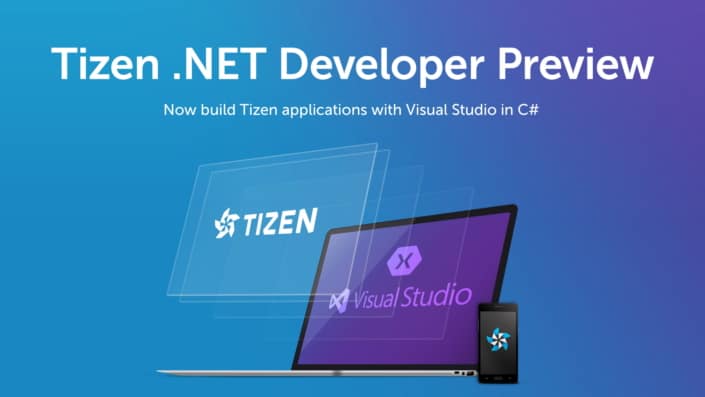
Indeed, Google is actually not the only one technology giant to support the .NET developer community, as Samsung also joined the .NET Foundation Technical Steering Group earlier in June. Today, the Korean company announced that it has partnered with Microsoft to enable .NET support for Tizen, its open source operating system that currently “powers 50 million Samsung devices” including Smart TVs, wearables, smartphones and smart home appliances (via Android Authority)

The company is releasing today a first preview of Visual Studio Tools for Tizen which will “enable .NET developers to easily build Tizen applications for Smart TVs, wearables such as the Gear S3, smartphones, and IoT devices.” Support for Smart TVs, wearables and other IoT devices is expected to be added in the future. “Source code will also be contributed to Tizen and .NET open source projects,” added the company.

In the press release, Samsung’s Executive Vice President and Deputy Head of Software R&D Center Seung-hwan Cho shared his hope to bring more developers to support Tizen through this new partnership:

Samsung is excited to be a part of the .NET community. .NET has an extensive developer base and great potential. Through thoughtful and progressive collaboration with Microsoft, Samsung is expecting to create unique development experiences for both Tizen and C# developers, enriching the Tizen ecosystem.

While Samsung definitely helped Google’s Android achieve massive momentum with its popular Galaxy line of smartphones over the years, Tizen has allowed the Korean company to not rely on Google’s software for its other portfolios of smart products including wearable and TVs. These new product categories remain highly competitive markets today as Google’s Android Wear and Android TVs operating systems have yet to reach the same levels of dominance that Android claims on the smartphone market today.

As for Microsoft, getting more developers using the .NET framework will be definitely welcome, though it’s worth noting that making it easier for developers to bring more apps to Samsung’s Tizen OS may not help the company’s own Windows 10 Mobile and Windows 10 for IoT get more traction. You can learn more about Visual Studio Tools for Tizen by checking the Tizen developer website.

Bethesda releases updates for Fallout 4 on PC and Skyrim on PC/Xbox One

Bethesda has been working diligently to release updates for their two popular video games, Fallout 4 and The Elder Scrolls V: Skyrim Special Edition.

Fallout 4’s update to 1.8 went live on PC on November 7. The release will be coming to Xbox One soon but is currnetly still waiting for certification for consoles.

  • Fixed an issue in which some sound effects would not persist after reloading in an area
  • Resolved an occasional crash when exiting to the Main Menu, and trying to start a New Game
  • Fixed an issues with spaces in Mods search queries
  • Cannot rate “WIP” Work in Progress Mods, and Mods can now only be rated after they have been downloaded
  • Doubled the amount of browse-able tiles in the Mods menu
  • Fixed a rare crash that would occur when a Mod had an unexpected data structure
  • Fixed an issue in which Library and/or Favorite Mods categories would not display correctly in specific situations
  • Fixed an issue in which some Mods images would not load when scrolling quickly
  • A Sentry Bot firing dual Gatling Lasers will no longer cause the audio to cut out

The highly anticipated The Elder Scrolls V: Skyrim Special Edition released just last month was updated to 1.2 yesterday. The patch rolled out across all available platforms (PC, Xbox One, and PS4) with its own list of bug fixes.

  • General stability and performance improvements
  • Fixed issue related to using alt-tab while playing the game (PC)
  • Fixed issue with water flow not rendering properly
  • Fixed crash related to changing from werewolf back to human form
  • Fixed crash related to reloading after changing Load Order of mods
  • General bug fixing and improvements with browsing Mods

Recently, both were released on Xbox One with the new Bethesda.net modding community enabled. Players from around the world are finally allowed to submit the user-created mods. These creations change the gameplay and aesthetics to the platform release. Users can then download their preferred mods into their own games on the console. As any fan favorite feature, there are a lot of kinks to iron out.

Office 365 Groups gets new file experiences for Outlook on the web

Office 365 Groups has added a new file experience feature for Outlook users on the web. Previously, Office 365 announced a new way to connect with external team members via email and also added iPad support for the Outlook Groups iOS app. Today, Office 365 Groups adds another new enhancement; a new file experience for groups in Outlook on the web.

This new file experience will make it easier to collaborate and connect with people via email on documents in Outlook on the web. Some of the key features of this latest update include:

  • Access all your group documents—A new file view gives you access to all the documents shared with the group, including files shared as email attachments, files stored in the group’s SharePoint document library and files shared from OneDrive or other SharePoint document libraries.
  • Co-author and communicate updates quickly—Now you can edit a document and reply via email side-by-side, so no need to switch contexts to update a document and communicate about the changes with your colleagues.

Here’s look at the new files experience in action.

Outlook, Web, Office 365
New Files view in Outlook on the web

The new files view allows you to create, view, edit or download Office documents, including Word, Excel, and PowerPoint files. You can also track changes to the file. You can also edit files that were sent as email attachments to a group, send a reply to the group and store a copy of the file in SharePoint.

This new file experience for groups in Outlook on the web is available to Office 365 First Release customers starting this week. If you want to provide feedback on your Outlook on the web file experience, don’t hestitate to submit your ideas via the Office 365 UserVoice. The Office 365 Groups technical community is also a great resource. Check out the user documentation for more information.

Office Hub shows up for Windows Insiders, disguised as updated Get Office app

Back in August of this year, we reported on rumors which indicated that Microsoft had plans to better integrate Office 365 into Windows 10 with an “Office Hubs” feature. A little over two months later, it would appear that these rumors are true, as Petri.com has learned that a new Office Hub is now showing up:

office-hub-task-mgr
Office Hub showing in the task mananger

According to Petri, the updated Get Office app for Windows Insiders now allows you to manage your Office 365 subscription (without a web browser!) and access content which is used most often. This is significantly different from the non-insider Get Office app which rather acts as one big ad for downloading and installing Office 365. Additionally, you also can use the updated Get Office App to download and install individual Office programs, and view your subscription expiration date. which once again was only accomplished via a web browser.

As seen in our screenshot above, there is some extra reason to believe that this may indeed Office Hub. While the app shows up titled as “Get Office (Beta)” looking at the app in the task manager reveals the application name “Office Hub Application.” While it is just a small change, all it takes to use the updated Get Office App (or Office Hub) is to install the latest Windows Insider Build, and open the Get Office app.

Did you notice this change in the Get Office app? As always, let us know your thoughts by dropping us a comment below!

How to Use the Xbox One Controller on Windows 10

The story about the integration of Windows 10 with Xbox One is well-known. Since Microsoft introduced the system in July 2015, the company has tried to improve the cross-play features between the two platforms. One of the earliest cross-platform possibilities available is the ability to use the Xbox One Controller on Windows 10 PCs.

So, if you own both platforms, you don’t need to spend extra cash on buying a new gamepad for your PC because you can use the one for the Xbox One. There are a couple of ways to connect the Xbox One Controller to your Windows 10 PC, and in this article, we will show you all of them, plus some additional information.

How to connect the Xbox One Controller to Windows 10?

1. Use the USB cable

The USB cable may be the simplest way to connect the Xbox One Controller to your computer. Each Xbox One Controller comes with a USB cable, which is primarily used for charging but can be used for PC integration, as well.

So, plug one end of the USB cable into your controller and the other end into your computer. The connection will be automatically established. Just like it’s the case with almost every other device you plug into your computer, the Xbox One Controller will automatically start charging while plugged in.

2. Use a wireless adapter

Another practical way to connect the Xbox One Controller to your computer is with the Wireless adapter. Some Xbox One Controllers come bundled with this device, but you need to buy them separately in most cases. Remember that the Xbox 360 Wireless adapter won’t work with the Xbox One Controller.

Now, just plug the Wireless adapter into any USB port on your computer. To establish the connection between two devices, do the following:

  1. Hold the Home button on your controller to turn it on.
  2. Now, press the button on the adapter.
  3. After that, press the bind button, located near the top of your controller
  4. Wait for the controller to establish the connection. The LED on the controller will blink while it searches for the Wireless Adapter.

3. Use Bluetooth

If your computer supports Bluetooth, you can use this type of connection to connect the Xbox One Controller with your computer. However, this method is more demanding and slightly more complicated than the previous two.

First thing first, you need to have the Anniversary Update for Windows 10 installed on your computer because Microsoft introduced the ability to connect the Xbox Controller to Windows 10 with this update.

Second, you must use the controller for Xbox One S. this controller comes bundled with the console, but you can also purchase it separately.

Once you’ve made sure you meet all requirements, here’s what you need to do to connect your Xbox One S Controller with Windows 10:

  1. Hold the Xbox One button to turn on your controller.
  2. Now, open the Settings app, and navigate to Devices > Bluetooth.
  3. Make sure you have the Bluetooth option enabled, by sliding it to On.
  4. Now press the bind button on your controller.
  5. Wait for the Xbox Wireless Controller will appear on the device listing.xbox one controller pc
  6. Now, just click Pair to connect the two devices.

There you go. After performing this action, you’ll be able to use your Xbox One S Controller to play games on your Windows 10 PC.

Update Xbox One Controller drivers

No matter which method you’ve used to connect the Xbox One Controller to your Windows 10 PC, there’s one more thing you should do.

You need to ensure that your Xbox One Controller drivers are up to date because updated drivers are required for your device to work correctly.

If you want to make sure your drivers are always updated and in perfect condition, use a driver updater such as Fortect Driver Updater. You can set it up to regularly scan your drivers and automatically download and install the best versions available.

You now know how to connect the Xbox One (S) Controller to your Windows 10 PC and how to make it work properly.

We hope you’ll have a great time playing your games, and we’re looking forward to seeing more amazing cross-platform features in Windows 10 and Xbox One from Microsoft in the future. And in case the Xbox controller keeps blinking when connected to a PC, things are easy to fix!

If you have any questions or suggestions, just let us know in the comments below.

New box design spotted for Xbox 360 backwards compatible games on Xbox One

Some Xbox gamers have begun spotting newly designed box artwork for Xbox 360 video games that have been added to the Xbox One backwards compatibility library. This new-look packaging appears almost identical to the regular Xbox One video game cases but also boasts “Xbox 360” next to “Xbox One” at the top on the green stripe. Here are some photos taken by a user, originally posted on Reddit.


New Xbox 360 Video Game Boxes

This is a rather clever idea on Microsoft’s part as these new packages are designed to draw the attention of Xbox One owners who would usually overlook Xbox 360 video games in stores and is a good reminder that the Xbox One console can now play a rather large number of titles from the previous console generation. The fact that there even is a new design also suggests that Microsoft plans on manufacturing Xbox 360 games for the foreseeable future. How long this will last though is anyone’s guess. It’s also entirely possible that these cases are new but only being made to clear inventory of unsold Xbox 360 games. Let us know what you think of them in the comments below.

Tom Clancy’s The Division: Survival DLC comes to PC and Xbox One

Tom Clancy’s The Division is an online-only open world third-person shooter that was developed and published by Ubisoft. The game was released back on March 8, 2016, for Windows PC, Xbox One and PlayStation 4.

The game came with many bugs and issues and didn’t have the best start like other games. In fact, the hype didn’t last long at all as in less than two months, there were already players leaving the game. The story of the game and its graphics are awesome, but it seems that its developer messed up the PvP system (Dark Zone) as many players who rushed to level up ended up having the top items in a few days, while other players had to farm weeks for them after patches were released.

Today, we will talk about the Survival DLC that will finally be released for Tom Clancy’s The Division. The mentioned patch will be released on November 22, 2016, after being on Public Test Servers for quite a whil. The new patch will bring a new kind of experience in the game like 2-hour quests that will require a total of 24 players. In order to survive, players will need to make their way to the center of the map, an area called the “Dark Zone”.

The Xbox website is already showing the DLC, but Ubisoft has yet to make any official announcements. According to reports, the DLC update will be released along with patch 1.5.

Below you will see the Survival DLC official trailer for the Tom Clancy’s The Division:

RELATED STORIES TO CHECK OUT:

Everyone can now use Azure Application Insights

Another Azure product reaches general availability this week and this time customers will get SLA offering 99.9% availability.

According to the Microsoft Azure blog, the company has just announced at its Connect () 2016 event in New York that Azure Application Insights is now generally available. Not only is Azure Application Insights available to the general public but Microsoft has also released pricing structure.

Visual Studio Application Insight users might be familiar with Microsoft’s new offer as it appears to be a simple re-branding of the product to Azure Application Insights, but new customers may enjoy the following:

Windows 10 Anniversary Update is Microsoft’s most secure OS

Every creator likes to praise its creation, and Microsoft isn’t an exception. In its latest blog post, the company talked about the changes introduced in Windows 10 Anniversary Update, claiming that its is the most secure version of Windows ever, especially since it’s able to fight ransomware.

Recently, Eugene Kapsersky complained that Microsoft is sabotaging third-party antivirus software by forcing users to only accept Windows Defender. In reality, the situation isn’t that bad because this application really protects PCs using real-time protection to scan everything users download or run on their computers. And thanks to cloud-based protection and faster updates, devices are more protected than ever.

Microsoft published a white paper titled “Ransomware Protection in Windows 10 Anniversary Update” in which it states that computers running this new version of Windows are 58% less likely to be hit with ransomware. Rob Lefferts, director of program management, Windows Enterprise and Security, explained  how Microsoft is fighting against ransomware:

  •  Six of the top 10 ransomware threats use browser, or browser-plugin-related exploits, so we made it harder for malware authors to exploit Windows 10 and Microsoft Edge.
  •  We increased detection and blocking capability in our email services, increasing the number of ransomware-related attachments being blocked.
  •  We added new technology to Windows Defender to reduce detection time to seconds, increasing our ability to respond before the infection can occur.
  •  We released Windows Defender Advanced Threat Protection which can be combined with Office 365 Advanced Threat Protection to make it easier for companies to investigate and respond to ransomware attacks.
  •  Combined with other significant security advances, such as Credential Guard, Windows Hello and others, we’ve made Windows 10 Anniversary Update the most secure Windows ever.

Lefferts added that Microsoft Edge is now updated and now, the browser runs Flash Player in an isolated container so if there are any threats, they are kept there. Also, Microsoft is offering better protection for email, preventing hackers from getting their hands on important data.

RELATED STORIES TO CHECK OUT:

Download the Dolby Atmos app for Windows 10 PCs, Mobile and Xbox One

At the Windows 10 event held on October 26, Microsoft revealed several features regarding the Windows 10 Creators Update, including the newly added support for Dolby Atmos on Xbox One. The Dolby Atmos audio testing app has made it to Windows Store, adding support fir PCs, tablets and smartphones with Windows 10, and of course, Xbox One.

The Dolby Atmos update for Xbox One and Xbox One S will make these home media devices even more powerful, adding combined support for Blu-ray, 4K, and Atmos into a single package.

What is Dolby Atmos?

The technology is developed by Dolby Laboratories that is based on sound objects, generally operated in cinemas, to provide a surround sound system “wraparound” during playback of movies, video or music.

It is a sound format used to deliver a supported soundtrack to the standard surround speakers placed either in a walled area of your house or on the ceilings of an open boundary. Dolby Atmos is devised to provide extra height to the soundscape, making the experience more riveting and multidimensional. However, you are going to need a Dolby Atmos-certified amplifier or AV receiver for a fuller experience.

The Dolby Atmos technology has a huge potential if we talk about future upgrades. Given the surround sound feature, if developers are considering adding extra height channels in the near future, gamers will not only hear enemies surging from the front, sides or behind, but also above their heads.

Note that the application is only available for installation if you have the latest Windows 10 Insider build running on your PC, that is build 14965.

Experience up to 7.1 channels of personal surround sound from any pair of headphones from an A / V receiver, game headset, and PC That features Dolby Headphone.

You can get the Dolby Atmos app from the Windows Store.

RELATED STORIES YOU NEED TO CHECK OUT:

India’s apex court directs Microsoft and others to drop sex determination ads from search results

The Supreme Court of India, the highest judicial forum under the Constitution of India, has directed Microsoft, Google, and Yahoo to block all pre-natal sex determination advertisements hosted by them, as per a report by LiveLaw.

The SC bench asked the search engines to do so within 36 hours of a nodal agency of the Centre pointing out to them each such advertisements. The nodal agency to be appointed will also be empowered to receive complaints from the general public. Once any violation is brought to the notice of the nodal agency, it shall inform the search engines and they, after receiving the information, are obliged to delete it within 36 hours and inform the nodal agency.

“Whether one is going to have a boy or a girl, that kind of information is not necessary in India. The sex ratio is going down in the country and we are concerned about that. Whether you are making money or not we are not concerned with that.”

According to the Pre-Conception and Pre-Natal Diagnostic Techniques (Prohibition of Sex Selection) Act, 1994, sex determination of the foetus is prohibited in India. The PNDT Act came into force to crack down on female foeticide, and bans the propagation of pre-natal sex determination.

The apex court will further hear the matter on February 17 but the interim arrangement would continue till this issue pertaining to advertisements relating to pre-natal sex determination was debated upon before it.

The counsels appearing for the companies shared that they have complied with the earlier order passed in the matter according to the provisions of the act, however, contended that the matter requires further debate.

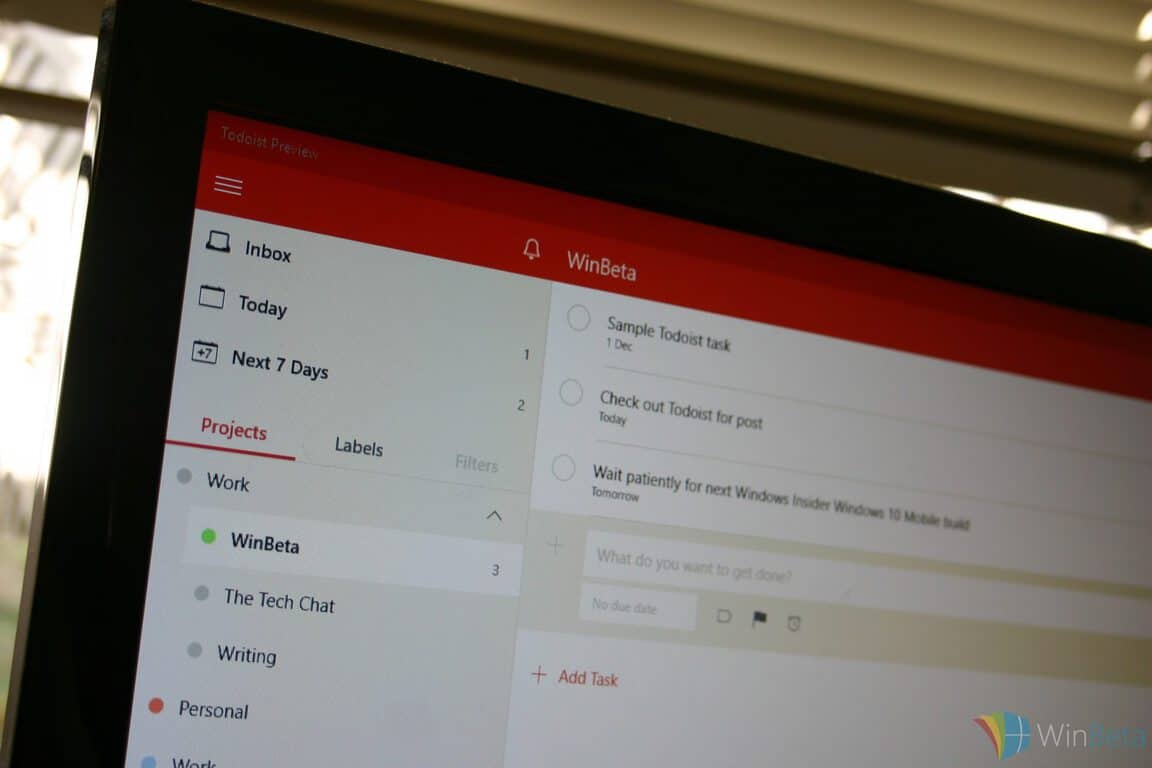
Task manager Todoist gets some machine intelligence smarts in Windows 10 app update with Smart Schedule

Task manages are most useful when they’re actually used. That seems obvious at first glance, but when you really think about it, managing tasks needs to be an active process or it can devolve into merely postponing tasks in perpetuity.

Todoist is a popular task manager system that apparently agrees, because the developer has added some new functionality that gets better the more you actively use it to manage your time.

Smart Schedule for the web

Today, Todoist is introducing Smart Schedule, which injects some machine intelligence to help you better plan your tasks. As you use Todoist, it learns your personal productivity habits and applies algorithms to help you better predict when you’ll actually complete a task.

As the Todoist blog put it:

Smart Schedule uses predictive modeling to help you easily plan out your tasks for the day and week to come. It learns your personal productive habits, and takes into account patterns across all Todoist users, to predict the best possible due dates for your tasks.

That means those 50+ overdue tasks you have hanging around can be quickly rescheduled en masse, while new and unscheduled tasks can be easily assigned to the best due dates. In this way, Smart Schedule makes it much easier to stay on top of your to-do list and roll with the punches when your day doesn’t go as planned.

The process takes stock of a number of data points in determining when to suggest a task might be completed:

  • Your habits – Usually catch up on emails on Monday morning? Is Saturday your reading day? Smart Schedule will learn your habits and suggest dates accordingly.
  • Task urgency – Based on anonymous data from across all Todoist users, Smart Schedule estimates the urgency of any given task.
  • Workdays vs. weekends – Smart Schedule learns which types of tasks can be done on weekends, and which should always be scheduled during the week (for example, “Finish draft” or “Check email”).
  • Upcoming tasks – Have a full load for tomorrow, but a wide open Friday? Smart Schedule will try to balance your task load over the next 7 days accordingly.
  • Your daily and weekly goals – Todoist lets you set and track goals for the number of tasks you want to complete every day and week. Smart Schedule will recommend due dates to help you meet your specific goals.
  • And more…

You can accept the date suggested by Smart Schedule, or choose your own. If you want to give the new feature a try, you can create some new dates, reschedule an existing overdue task, or postpone a pending task. Smart Schedule can also be applied to all tasks when you select more than one.

Overdue tasks

Todoist makes a point of stressing that everything is private and secure. Any personal data is processed automatically by the algorithm and not accessed by any other services or any Todoist staff. And so, you can use the feature without worrying about anyone learning just how far behind you are on your task list.

Go update the app to get the new feature, or download from the link below. Let us know in the comments if Smart Schedule is helping you better manage your most pressing tasks.

How to fix Battlefield 1 constantly alt-tabbing for processor boost

The highly anticipated first person shooter Battlefield 1, which puts you in the shoes of a World War 1 soldier, has finally come out, and people are in love with the game, fascinated by the experience, and also  a bit frustrated about a little issue.

As it just came out, the game is quite demanding for PCs, even the high end ones. People have been using a little trick to boost performance, which generally works for any video game running on PC. The processor tweak is used to make the processor allocate more resources for running Battlefield 1, instead of all the other processes going on in the background. However, a user pointed out that this little trick requires players to constantly alt-tab out of the game, which can be stressful at times. That is why he came up with a solution for the problem, which is easy to use.

“Many FPS Guides say that you should set the process priority in the taskmanager to “high”. But always alt+tab’ing out of the game is kind of anoying.

So here is a better way – Set it permanently!

All you have to do is:

  1. Create a .txt file and copy n’ paste the following into it.

Windows Registry Editor Version 5.00

[HKEY_LOCAL_MACHINE\SOFTWARE\Microsoft\Windows NT\CurrentVersion\Image File Execution Options\bf1.exe\PerfOptions]

“CpuPriorityClass”=dword:00000003

  1. Save the file as .reg
  2. Run it – Done!
  3. Pr000fit!

Hope you like it”

According to this user on the Battlefield1 forums, all users have to do is create a text file and copy the provided code, then save the text file as a registry key, or a .reg file. This should be enough to make the computer constantly treat the Battlefield 1 process as a priority.

The processor tweak isn’t 100% effective, as it the results may differ depending on what game your are trying to boost performance for, or what kind of computer you are using. However, it is a valid solution when trying to boost gaming performance, and if it works for you, then this registry key will make it so you don’t have to repeat the process every time you start the game.

RELATED STORIES TO CHECK OUT:

Can LightKey really make typing in Microsoft Office more efficient?

Yesterday, we wrote an article announcing a new software made specifically for typists. LightKey is a text autocomplete software inspired by mobile platforms, and it works specifically for Microsoft Word, Powerpoint, and Outlook on PC.

As someone who’s constantly looking for ways to write faster and more efficiently, I found this particular software fascinating. And so, I decided to get some hands-on experience of how LightKey works and test for myself exactly how useful it really is.

LightKey in Microsoft Office

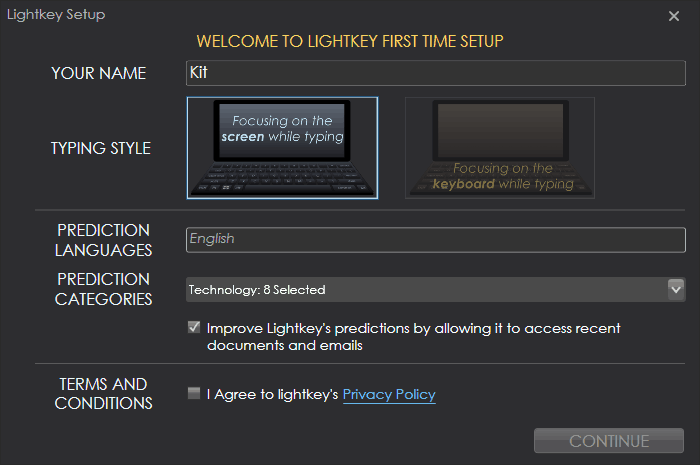
Lightkey is supported from Windows 7 to Windows 10 (32-bit and 64-bit) and is compatible with all Office suites from 2010 to 2016. Downloading and setting up LightKey is a simple task, and it even asks to customize your preferences through a list of hobbies, interests, and topics. Of course, I switched to technology since that’s what I’m always typing about.

With Microsoft Word open and LightKey running in the background, I began to start typing. At first, it was random stuff, but as I began to get a feel for the software I decided to give it the ultimate test: a feature post for WinBeta (OnMSFT).

Typing with LightKey is surprisingly smooth and feels like it is well-integrated with Microsoft products. The average person normally writes around 50-60 words per minute. For those who need to be quicker than usual, this software is a double-edged sword. Initially, it can seem like a time waster but ultimately can be adjusted to and will improve your own typing if not solely for correct spelling.

Typing at the Speed of Light

For faster typists like myself, it seems that we’re more subject to just keep typing than to wait for the LightKey to spell anything out for us. That’s why we decided to reach out and see if we were missing something important. Turns out, we were!

Guy Katabi, CEO of LIGHTKEY SOURCES LTD responded to our inquiries about his software and our concerns about the efficiency for the more experienced . This was his reply:

Regarding your conclusion about fast typists, you are right and fast typists will feel less empowered by Lightkey upon initial use. However, as a fast typist myself I found the following:

  • Fast typing requires energy, and Lightkeying requires less energy. So over time one might find himself enjoying fast typing with less spent energy.
  • Lightkey has a built-in mechanism that allows the user to choose the level of confidence in which Lightkey will offer suggestions. Fast typists could take the slider to the right side to get suggestions only when there is a high probability of match and therefore boost their typing speed on targeted events.

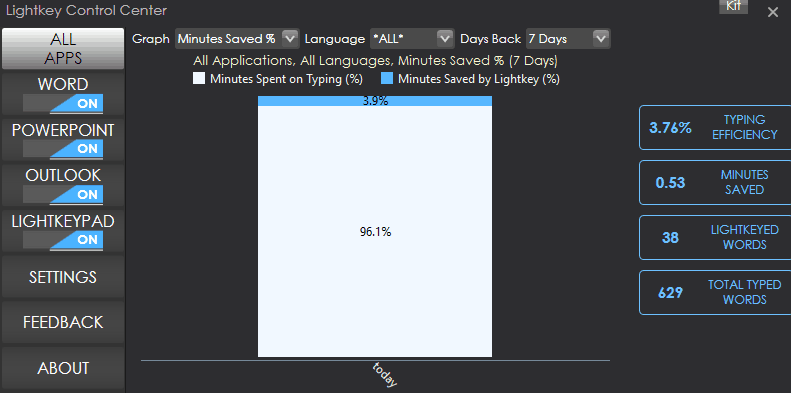
Sure enough, shifting the settings towards the precise end to limit suggestions did improve my experience. The boost in saved minutes seems minimal but it does exist. In fact, 3.9% of my LightKeyed words saved me approximately half a minute. Of course, for a more accurate conclusion, the user would need to regularly use the software over a long period of time to see significant time saves.

Nevertheless, I have found that the software can be very useful upfront. The added precision finishes more accurate words quicker, but that’s not LightKey’s only use. If you’re typing under a time limit, LightKey makes it possible to see the spelling in advance before you’re even finished.

Final Verdict

Is LightKey perfect? Absolutely not. Much of the time, it suggests words that have nothing to do with what I’m typing. If you hit the tab button with a delay, it will act as normal and leave behind chunks of white space. This results in some much needed formatting time afterward. In fact, the more frustrating part is that if you know what you are typing ahead of the time, then you likely won’t find much use for LightKey. But that’s not a fault of LightKey so much as it is a restriction of autocomplete software in general.

For what it does, LightKey performs very well with smart resource consumption and an overall smooth experience. The average typist will likely find this software to be a miracle and the boost of confidence in spelling correctly is worth the effort to get used to the software. If you’re just looking to find that extra edge when you’re typing, then you might enjoy using LightKey.

Microsoft joins the Linux Foundation as a Platinum member, Google joins .Net community

Microsoft’s annual Connect() developer conference is officially underway in New York City. At the event, Microsoft announced it has joined the Linux Foundation as a Platinum member and that Google has joined the independent .NET community. The announcements mark another one of Microsoft’s significant steps towards the goal of empowering the ecosystem by giving developers greater choice in the tools they use.

Since Microsoft is a Platinum Member of the Linux Foundation, Microsoft’s customers will now benefit from increased collaboration and innovation among a diverse ecosystem. Microsoft has already contributed to several Linux Foundation projects, including Node.js Foundation, OpenDaylight, Open Container Initiative, R Consortium and Open API Initiative. According to VentureBeat, the Platinum level membership is the highest level, and will cost the company $500,000 annually.

John Gossman, an  architect on the Microsoft Azure team, will sit on the Linux Foundations Board of Directors and help underwrite projects on behalf of Microsoft. In a statement, Microsoft Cloud and Enterprise Executive Vice President Scott Guthrie reflected on Microsoft joining the Linux Foundation:

“The Linux Foundation is home not only to Linux, but many of the community’s most innovative open source projects. We are excited to join The Linux Foundation and partner with the community to help developers capitalize on the shift to intelligent cloud and mobile experiences… We want to help developers achieve more and capitalize on the industry’s shift toward cloud-first and mobile-first experiences using the tools and platforms of their choice…By collaborating with the community to provide open, flexible and intelligent tools and cloud services, we’re helping every developer deliver unprecedented levels of innovation.”

Similarly,  Jim Zemlin, the Executive Director of The Linux Foundation also reflected on Microsoft joining the Linux Foundation:

Microsoft has grown and matured in its use of and contributions to open source technology… The company has become an enthusiastic supporter of Linux and of open source and a very active member of many important projects. Membership is an important step for Microsoft, but also for the open source community at large, which stands to benefit from the company’s expanding range of contributions

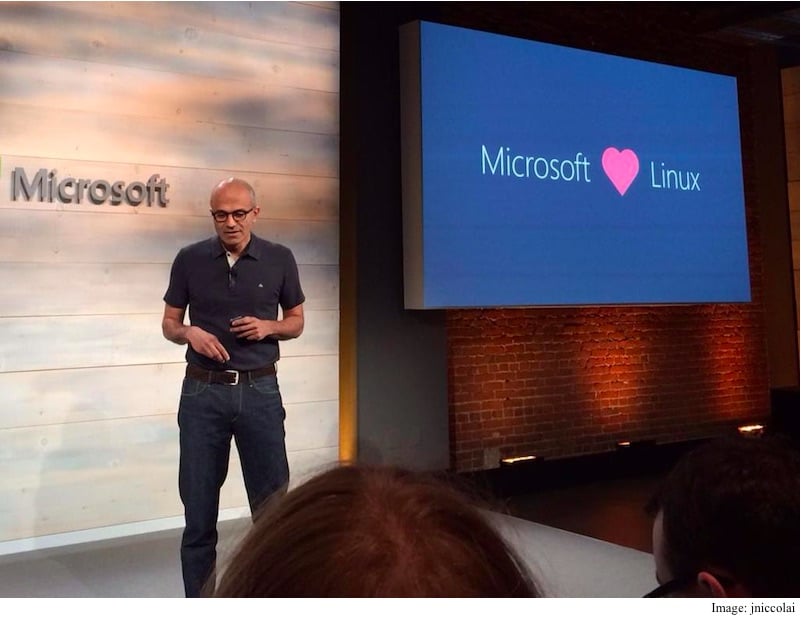
Microsoft loves Linux
Microsoft loves Linux now more than ever

In other Connect() news, Microsoft also announced that the addition of Google to the .NET Foundation’s Technical Steering Group. According to Microsoft, this “further reinforces the vibrancy of the .NET developer community as well as Google’s commitment to fostering an open platform that supports businesses and developers who have standardized on .NET.”

Under CEO Satya Nadella, Microsoft has increased its interests in open source projects and communities. Microsoft currently has many open source projects on GitHub, and even released the open source .NET Core 1.0; partnered with Canonical to bring Ubuntu to Windows 10; and after acquiring Xamarin, open sourced its software development kit.


EU receives commitments from Microsoft on LinkedIn deal, set to rule on the merger by December 6th

Back on October 14th of this year, Microsoft had filed for EU approval for their acquisition of the business and employment-oriented social networking service LinkedIn. Salesforce tried to block Microsoft’s 26.2 billion all-cash acquisition of LinkedIn in the EU, citing antitrust issues. Today we have learned that the EU has received commitments from Microsoft on the LinkedIn deal, and will be set to rule on the merger by December 6th (via Reuters.)

While Microsoft has yet to comment on the commitments, the move does come after a EU competition enforcer expressed concerns about the deal at a meeting with Microsoft executives last week. Not many details were provided by the Commission in regards to Microsoft’s commitments, but Reuters mentions that the Commission will seek feedback from rival companies and customers before making a decision on Microsoft’s commitments.

Despite concerns by SalesForce, Microsoft President, and Chief Legal Officer Brad Smith, has accepted many the worries in regards to the LinkedIn deal and has recently come out to say that Microsoft has “no intention” of cutting off access to LinkedIn data. There has, however, been lots of news on the LinkedIn front since Microsoft’s acquisition of the company, and as most recent as last week, a LinkedIn ban in Russia was upheld and 6 million users were shut down.

Regular Xbox One video game consoles will soon get 4K support

Microsoft’s Mike Ybarra confirmed earlier today via his official Twitter account that the Blu-ray Player app for the Xbox One would be getting an update which would add support for 4K television sets. “Yes, the BR app on Xbox One will soon upscale to 4K for those with 4K TVs,” his tweet said.

While the newer Xbox One S video game console has support for playing 4K Blu-rays, this app update will not bring that specific functionality to the regular Xbox One. Instead, it will simply allow for upscaling of regular Blu-rays when played on 4K television sets. This should, in theory, improve the overall presentation of the media.

Do you have a 4K TV? Is this sort of update something that will benefit you? Share your thoughts with the community in the comments below.

Windows 10 Nextgen Reader UWP app free for a few hours only

The Windows 10 app, Nextgen Reader UWP, is completely free to download for a limited time in the Windows Store. The app is primarily used as an RSS reader and works with the free Feedly service. Here’s its very short official description:

A fast, clean and powerful RSS news reader for Windows 10. Requires Feedly account for login. Thanks for downloading Nextgen Reader.

Nextgen Reader UWP, as its name suggests, is a Universal Windows Platform app but is currently limited to Windows 10 PC/tablet functionality. Make sure to grab it ASAP and let us know your thoughts on it in the comments below.

Nextgen Reader UWP
Nextgen Reader UWP
Developer:
Next Matters
Price:
Free

Renault Sport Formula One team uses Office 365 E5 to boost teamwork

If you’ve ever read the Office blog, chances are that you’ve read plenty of testimonials from companies and other organizations that use the Office 365 suite to run smoothly. The latest testimonial post comes from Mark Everest, the IS development manager at Renault Sport Formula One Team.

Just like so many other organizations, the Renault team needs the tools offered in the Office 365 suite for one reason or another. Whether it be taking their business on the go or making sure that all of the team’s important data stays secure, Microsoft has packed Office with a tool that does the job.

As always, you can look at Microsoft’s blog post in order to check out some of Mark’s thoughts on the Office 365 suite in his own words. If you want something a little bit more in depth, you can check out the full case study. There, you’ll be able to learn the whole story about Renault’s transition to the Office 365 suite from more than just Mark.

Dead Space Ignition and Dead Space Island make their way to Xbox One Backward Compatibility

As the Xbox platform celebrates its 15th anniversary today, Microsoft continues to demonstrate how it wants to continuously add value for Xbox owners. Two new titles have hit Xbox One Backward Compatibility today, providing ever more support for Xbox One owners in playing their old Xbox 360 titles.

Here’s the tweet from the always-on-top-of-things Major Nelson:

If you have either of these two titles sitting around, then get them loaded up on your Xbox One or Xbox One S and get playing. Let us know in the comments if there are other titles you’re particularly looking forward to seeing make their way to the Backward Compatible list.

Xbox gamers have racked up over 100 billion hours of gameplay in 15 years

In the span of 15 years, Xbox gamers played over 100 billion hours of games on the original Xbox, Xbox 360, and Xbox One (S). The November 15, 2001 release of the Xbox in North America was a major moment for Microsoft. With the evolution of Halo and Forza Motorsport, the original Xbox also brought us Xbox Live.

Xbox Wire posted some stats on what the last 15 years has looked like for Xbox.

Number of players: 222,468,423
Number of total gaming hours: 100,539,390,670
Number of total multiplayer hours: 29,000,304,183
Number of Achievements unlocked: 32,667,582,157
Gamerscore racked up: 572,605,554,587
Highest Gamerscore: 1,416,465
Number of Xbox Live friendships made: 4,233,891,482

Xbox Wire provides several ways to help Microsoft celebrate the last 15 years of Xbox; share your favorite Xbox memories using the hashtag, #15YearsOfXbox, on Twitter, Facebook, and Instagram. You can also play against someone on the Xbox team for a quick mulitplayer match by joining the “Celebrate 15 Years of Xbox” Club on Xbox Live. You can also join the “Halo” Club to go head-to-head with Halo developers!

If you can’t participate in gaming on Xbox Live, here’s a list of some Xbox game live streams on Beam and Twitch:

Forza livestream on Beam, starting today at 1PM PT or starting at 3:43 PT, there are Halo live streams on Beam and Twitch. The Halo live streams will feature various special videos sharing Halo memories, contributed by members of the 343 Industries and Bungie teams.

Microsoft will have “Game With” game sessions by special appearances with members from the Killer Instinct Team, Back Compat Team, Beam Team, Ambassadors Team, and a surprise executive “Game With!” Check out Xbox on Beam and Twitch for more details.

Here’s a look at the Xbox in-game giveaways for the 15 year celebration:

A few of our teams are working on special giveaways and in-game events in honor of our 15 year celebration. First up, the Forza team is gifting a 2017 Ford F-150 Raptor complete with a custom livery celebrating Xbox’s 15th anniversary. All players will receive this livery for free and Forza Horizon 3 VIPs will receive a bonus truck with an alternative Xbox 15th anniversary livery as well.

Forza, Xbox
2017 Ford F-150 Raptor


There will be two Rivals events created as well, with one in Forza Motorsport 6 and the other in Forza Horizon 3. In addition, there will be a special Bucket List Challenge in Forza Horizon 3 (TITLE: Celebrate #15YearsofXbox), which players can find by traveling to the Pink Lakes Bucket List point in the game.

If you’re a Halo fan, if you simply log in to Halo 5: Guardians between November 15 at 10AM PT and November 22 at 10AM PT, you will receive a free “15th Anniversary REQ Pack”, which contains consumable items for use in Warzone game modes and the legendary Mark IV Gen 1 armor set, worn by Spartan IIs in the darkest hours of the Covenant War!

Microsoft and Xbox are holding all these events and prizes because they know Xbox would not be where it is today without the support of the Xbox fans. Share your favorite Xbox memories using the #15YearsOfXbox hashtag on whichever social media outlet you choose, and here’s to another 15 years of Xbox!

The original Xbox prototype was an “X”, literally!

The original Xbox was released exactly 15 years ago today, and to celebrate this, a couple of Microsoft employees are having fun on Twitter, talking about the console and revealing some interesting stuff from the past.

According to a tweet from Aaron Greenberg, the head of the Xbox Games marketing division, the original Xbox was an “X”, literally. As Greenberg has taken over the official Xbox Snapchat account for today, expect more to come.

This is pretty interesting to see that something like this was in the works at first, however, it’s just as great to see that this prototype never made it to regular consumers, because who would want a gigantic “X” in their living room?