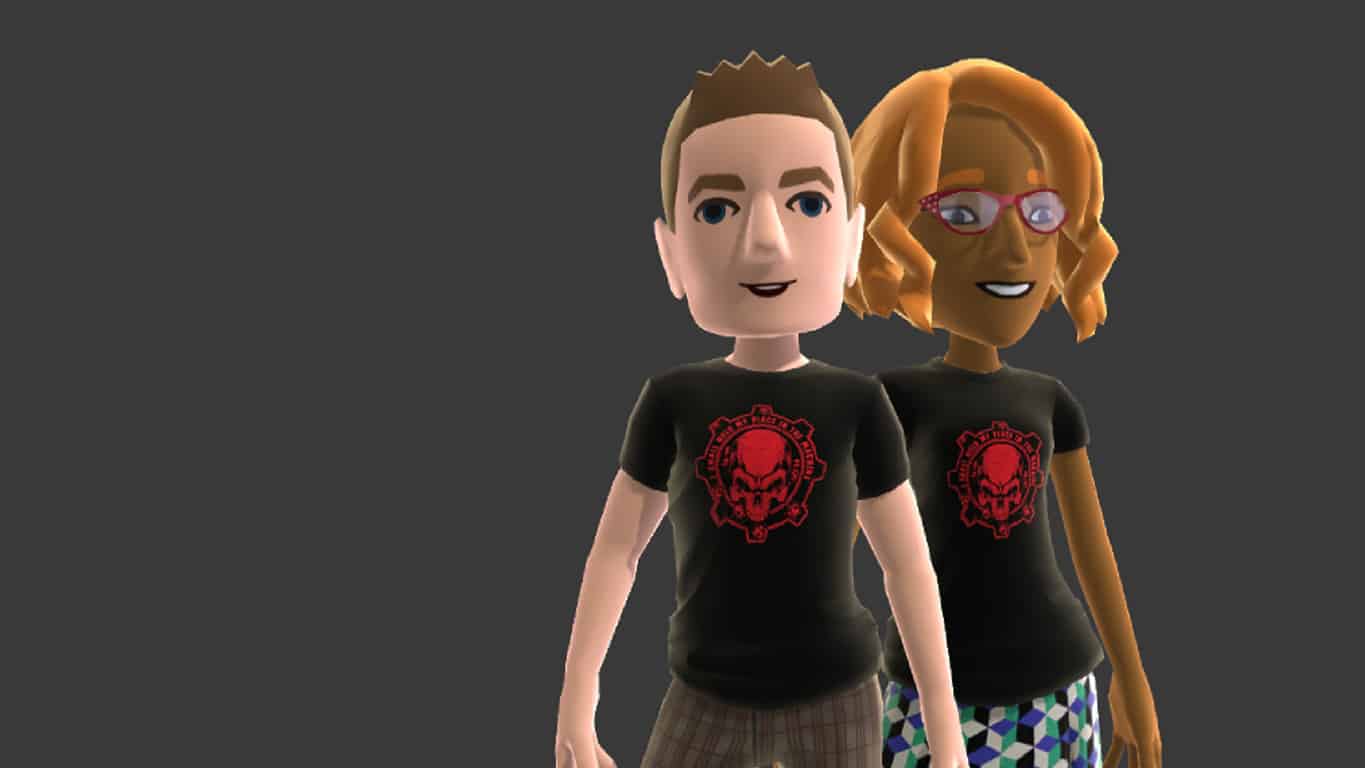
Microsoft is giving Xbox One owners a free Gears of War avatar t-shirt when they watch the first episode of the Xbox Live Daily show via the Xbox One XBL Events Player app.
During the episode, users will have to actively select an option that will appear on screen and a week later, they will receive the item as a direct message in their Xbox Live inbox.
Here’s the official information:
Gears avatar shirt offer available only by viewing Xbox Daily Live @ E3 2016 Episode One on Xbox One between Tuesday June 13th 4pm (PST) and June 15th 4pm (PST). Token sent via system message the following week to users who selected the shirt during the video. Offer available in all Xbox Live countries. Xbox Live account and broadband internet required.
The XBL Events Player is an interactive media app that Microsoft uses to stream live event footage and video on demand of previous recordings. Console owners can currently catch up on Microsoft’s E3 news by using it and links are often incorporated into the experience to encourage viewers to purchase games or visit websites for more information.
Microsoft’s Larry Hryb made a guest appearance on the GameSlice YouTube channel today and performed an unboxing of the newly announced Xbox One S video game console.
Throughout the video, Hryb recapped a lot of information about the Xbox One S and clarified other stats that some fans may have found ambiguous during the initial reveal two days prior at the Microsoft E3 2016 conference. He confirmed that, unlike the Xbox One, the power source on the Xbox One S has been relocated to within the console itself. He also reassured viewers that the new controller that was shipping with the Xbox One S console would also be the same one used in the new Xbox Design Lab. You can watch the video below.
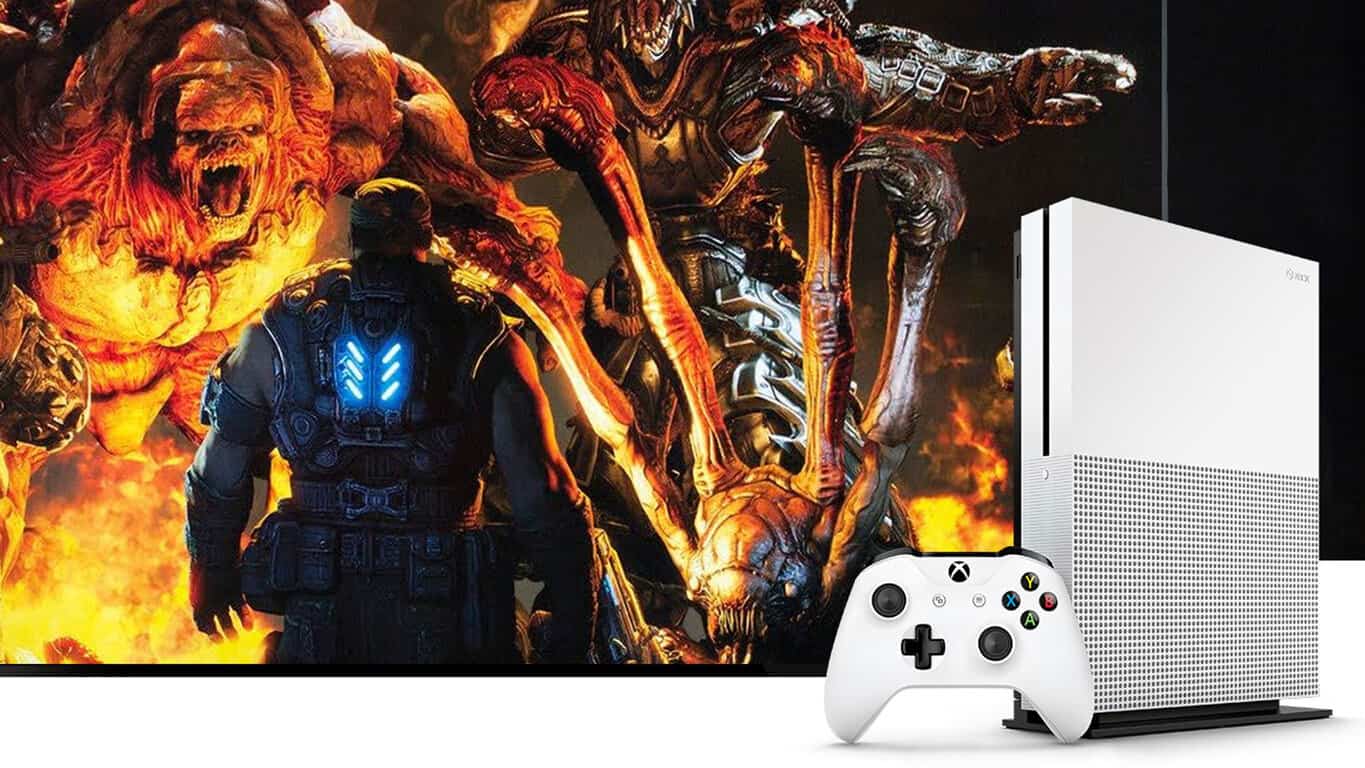
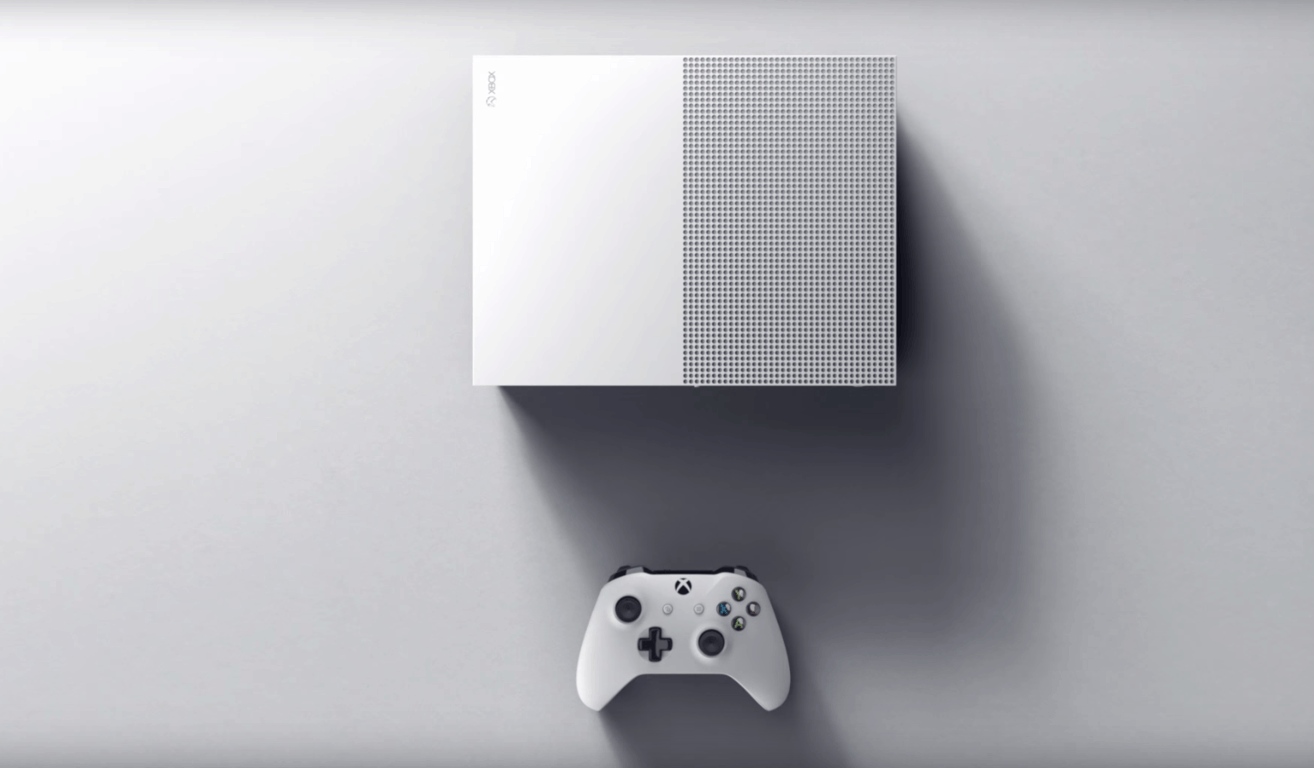
The Xbox One S was formally revealed at Microsoft’s E3 2016 conference. It is very similar to the original Xbox One model but is 40% smaller in physical size, requires no power brick, is slightly more powerful with 4K image capability, and makes use of High Dynamic Range technology to display graphics in more optimized fashion. In addition to one of the new controllers, the Xbox One S console also ships with a stand which allows for it to be positioned vertically, and contains a USB slot and a IR blaster on the front side.
The new Xbox One controller shipping with the Xbox One S and being sold separately from September onwards is a slight remodel of the current Xbox One controller with improved grip on the underside and Bluetooth capability which enables it to be used with a PC as well as an Xbox One console. Previously, gamers would have to purchase a special controller with Bluetooth or a wired connection to play games on the PC.
Both the Xbox One S and the new controller are now available for pre-order. Will you be upgrading to these new models or are you thinking of waiting to see what Project Scorpio looks like? Share the hype with the community in the comments below.
Electronic Entertainment Expo, the annual video game soiree, will kick off tomorrow and will be held at the Los Angeles Convention Center. At a press conference, Bethesda has announced that two of its games, Fallout 4 and DOOM, will undergo the VR treatment with the former coming next year to the HTC Vive. The company also brought VR demos of the games to the event that participants were able to try out.
Todd Howard, director and executive producer at Bethesda Game Studios, talked about the company’s projects and announced that Fallout 4, would receive more DLCs: two more wasteland workshop addons as well as a new story DLC titled Nuka World.
Fallout Shelter will be also updated and starting July, players will explore new locations alongside teams of dwellers and they will take on quests in the game. Fallout Shelter will be also released for PC which will allow players to enhance their gaming experience. As for the VR version of Fallout 4, players should expect it to be released in 2017, but they will need a HTC Vive headset to play it.
DOOM is another game that will receive an important DLC. Unto the Evil will be packed with three new multiplayer maps named Offering, Cataclysm and Ritual, a new player-controlled demon called Harvester, a new weapon (the UAC EMG Pistol) and new equipment (the Kinetic Mine), as well as new hack modules.
Players will be able to customize their marine with additional armor sets, patterns, colors and taunts and multiplayer will also come with free additions such as Exodus (a capture the flag mode) and Sector (a hold mode). Bethesda hasn’t announced which platform the VR version of DOOM would be released on, but like the VR version of Fallout 4, it will be released in 2017.
Microsoft’s expansion of its beta programs into Insider previews have arguably been a success for the company. Going from a few hundred testers to millions of real-world participants finding bugs and issuing feedback has been the bread and butter of several Microsoft experiences that have ranged from Windows to the Xbox One console.
As the teams from several divisions within Microsoft feed on the feedback lifeblood from Insider participants, the company has been tooling and retooling the ways to encourage even more participation. Beyond power users or IT professionals, Microsoft is looking to deputize any and everyone interested in working backstage to help build its services and software.
Perhaps the most highlighted, if not the poster child for Microsoft’s Insider preview programs, is Windows 10. Becoming a Windows Insider is as easy as ever these days.
Being a Windows Insider on any of Microsoft’s platforms is a marathon, not a sprint. While the company has made it somewhat easier to backtrack from messy builds, most Insider programs are fraught with long waits and broken functionality. Those who participate must be ready with either a secondary machine or seemingly unlimited patience.
Step 2. Make it official
Visit the official Microsoft Windows Insider site. The site can be found with a simple Bing, Google (Yahoo or any other search provider) using the keywords Windows-10-Insider.
Once on the page, click the Get Started button to begin the process.
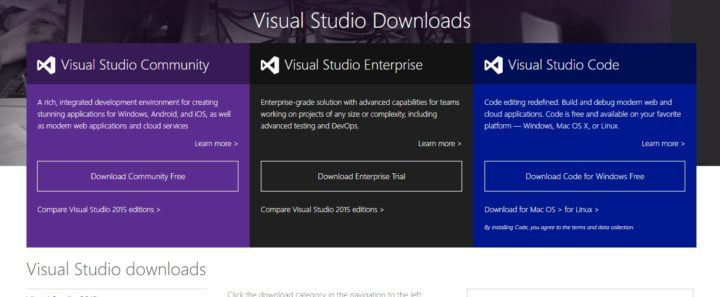
Windows 10 Download page
Step 3. Choose your platform
While there is only one Windows, there are still several Windows platforms Insiders can opt to be a part and choosing the Insider program through the official Windows 10 Insider site will offer participants several options.
For most consumers
PC
Phone
For developers
Windows SDK
Mobile Emulator
IoT Core
Hardware developers
Hardware Dev Kits
Several Windows Insider Previews
Step 4. Select your download method
Avoid the rush to click the big blue Upgrade Now button as participating in the Windows 10 Insider preview already gets you an upgraded copy of Windows 10 and will only delay your Insider participation as you wait through an official upgrade cycle.
There are several ways to get a copy of the Windows 10 Insider preview onto your system. For most, choosing Download Tool Now should suffice.
Warning: Make sure to read the before you begin section listed above the Download Tool Now. Hell, here it is to save you time:
Make sure you have:
An internet connection (internet service provider fees may apply).
Sufficient data storage available on a computer, USB or external drive for the download.
A blank USB or DVD (and DVD burner) with at least 4 GB of space if you want to create media. We recommend using a blank USB or blank DVD because any content on it will be deleted.
Check these things on the PC where you want to install Windows 10:
64-bit or 32-bit processor (CPU). You’ll create either the 64-bit or 32-bit version of Windows 10 that’s appropriate for your CPU. To check this on your PC, go to PC info in PC Settings or System in Control Panel, and look for System type.
System requirements. See the system requirements before installing Windows 10. We also recommend that you visit your PC manufacturer’s website for info about updated drivers and hardware compatibility.
Language in Windows. You’ll need to choose the same language when you install Windows 10. To see what language you’re currently using, go to Time and language in PC settings or Region in Control Panel.
Edition of Windows. You should also choose the same edition of Windows. To check what edition you’re currently running, go to PC info in PC Settings or System in Control Panel, and look for Windows edition. Windows 10 Enterprise isn’t available here. Please see the Volume Licensing Service Center for more information.
Microsoft Office products. If you just purchased a new device that includes Office 365, we recommend redeeming (installing) Office before upgrading to Windows 10. To redeem your copy of Office, please see Download and install Office 365 Home, Personal, or University on your PC. For more information, check How to upgrade to Windows 10 on new devices that include Office 365.
If you have Office 2010 or earlier and choose to perform a clean install of Windows 10, you will need to locate your Office product key. For tips on locating your product key, check Find your Office 2010 product key or Enter the product key for your Office 2007 program.
Step 5 Congratulate yourself
As mentioned before, the Windows team has tweaked and evolved the entry into the Insider preview enabling average joes to participate at the click of a button. Hitting the Download Tool now button is the last thing to do.
A few seconds for the tool to install on your device or (Virtual Machine – check older WinBeta post for that info) and once installed, a series of prompts walk most Insiders into the fray. There is the topic of which Insider Ring to participate in. As mentioned, Fast Ring participation indicates a speedy release of testable builds equipped with bugs, glitches, and breaking points. Slow Ring Participation is for users who want to still be ahead of the curve but would prefer a more stable experience at the expense of getting new features and fixes as quickly as the Fast Ring.
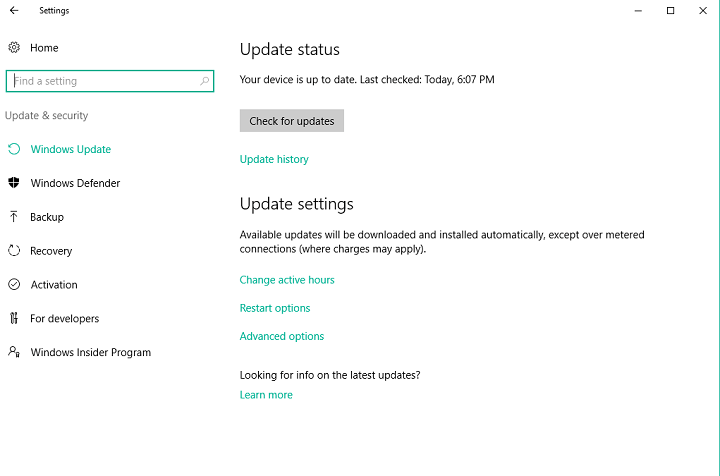
Windows 10 Insider update (old) update screen
Whatever your selection, you’ve already joined the seven million and counting, individuals who are helping to shape Windows 10, welcome.
Valve, the owner of Steam, is a staunch supporter of virtual reality. This is evident with their collaboration with HTC to bring to life their Vive VR headset. Valve must realize the potential here and as such, has decided to create and a release VR world building software.
Dubbed Destinations Workshop, it is designed to help users create their own virtual reality world with several examples to help creators get started. Furthermore, it should work well with all headsets that support Open VR.
One great yet totally non-surprising move by Valve is its decision to have Destination support the Source 2 video game engine, one of the most popular game engines for amateur developers on the PC platform.
“Content creators will be able to use the Source 2 game engine, the same engine that Valve uses to create its own games and experiences, to create and share their own worlds with the VR community using the Destinations Workshop,” said Valve, writing on Steam.
“A few example scenes made via photogrammetry will be available at launch. The application supports motion controllers as well as x-input to teleport within each world on both the HTC Vive and the Oculus Rift.”
The toolkit in its current form is not yet complete. For now, it is in beta but will be available via Early Access on Steam soon. One user said he found several references to Half-Life Life 3, though whether or not that means Valve will announce the game soon is still left to be seen.
For the first time in decades, it appears as if commercial VR is about to takeoff in a big way. Microsoft is rumored to reveal the Xbox Scorpio, a new gaming system with Oculus Rift VR support, while MSI is championing an awesome looking backpack computer to allow for mobile VR experiences.
Power BI, Microsoft’s data visualization software, has been receiving plenty of support in the past couple of months. The latest update brings up some good quality of life changes to users of the Power BI app, primarily the addition of a full notifications page. The notification center does precisely what you expect it to do – it shows off the things that you need to know, and it does that at a glance. With the addition of the notification center, users can check out everything that’s going on in their Power BI experience – and not miss a thing.
Power BI Notification Center.
On top of the notification center addition, the blog post making the announcement also told us what’s coming up next for Power BI. They told us that data-driven alerts are on their way, and more “product level notifications” on the way soon. These include new feature announcements, special offers, and Power BI-related activities.
For businesses that prefer more time to integrate, train, and support new builds, Microsoft Office releases updates on its Deferred Channel. New features only come to the Deferred Channel three times a year: February, June, and October. This month, Office 365 accumulated a long list of features and security updates. For a full list of the new features, visit Office 365 client update channel releases.
More interesting to note, administrators and developers will notice that the Deferred Channel version numbers will be syncing easier with Windows 10’s. The year and month numerals will determine the version number with a build number afterward to distinguish it. For example, May 2016 would be called version 1605.
The May 2016 Office 365 build will be made available on the Deferred Channel in October, and so make sure to begin testing as soon as possible.
The ability to travel while maintaining an online business is extremely rewarding. Especially for Allison Harlow of CURIO Design Studio. For Allison, not only does Skype allow her personal time to communicate with her friends and family, but it is the base that her business is built on.
CURIO Design Studio is an interior design created by Harlow after she and her husband moved to Norway. Picking up and going was easy, but maintaining a lifestyle wasn’t. With Skype, she was able to take on her clients and consult with them no matter where she was.
With a look at the space through video calls, discussion with her clients, and a fact sheet on hand of measurements and styles, Allison is able to conduct her interior design almost the same as she would do so at home–perhaps even better given the nearly limitless reach of online clientele. She boasts,
As long as I have my laptop I can work. I have worked from the United States, Canada, Germany, Kazakhstan, Japan, Norway, Denmark, Poland… the list goes on.
Learn more about Allison Harlow and check out CURIO Design Studio, just another example of moving forward towards a more accessible business design.
On November 23, Microsoft announced that they were going to be releasing a lot of improvements to build up the Enterprise Mode tools for Internet Explorer 11. Today Microsoft is releasing a cumulative update for Windows 7, Windows 8.1, and Windows 10 (version 1507) to bring these tools to a wider audience.
With the Enterprise Mode XML Schema and Enterprise Mode Site List Manager tool, Internet Explorer 11 site administrators were able to import and manage their lists easier. Furthermore, the tools have been tweaked here and there to improve performance and use. For example, the v.2 XML schema is easier to read and manage than the previous version.
Also available today, the about:compat page on Microsoft Edge and Internet Explorer 11 is made available on the same Windows versions.The about:compat page is what helps businesses manage the Enterprise Mode Site List by showing the capability features that are currently applied to the site on the client machine.
As the team moves forward to update the Enterprise tools in Windows, all site lists will be using the v.2 XML schema. This means that developers will need to take the opportunity to convert their lists via the Enterprise Mode Site List Manager tool once the v.2 XML scheme is available on all devices.
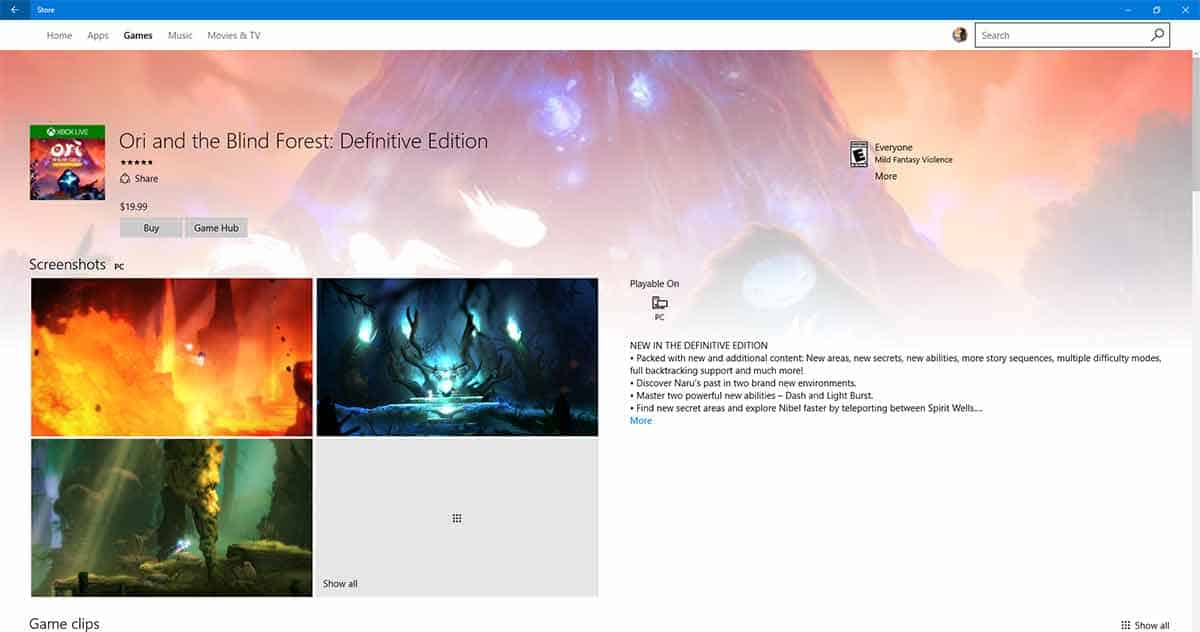
The removal of screenshots and the ability to share links to apps from within the Windows Store has been a rather quiet omission from the Windows team over the past couple of build releases.
Perhaps, Insiders have accepted the often break-repair cycle of build releases and chalked up the omissions as “soon to be fixed,” or maybe some users simply didn’t notice, but over the past few weeks there has seemed to be little outcry for removal. Whatever the explanation for the removal of screenshots and sharing features from the Windows Store, it has now become old news, the Windows team is re-implementing the features in a new Store app update.
Rolling out to Windows Insiders on both Mobile and PC devices is a new build, 11606.1000.43, that brings back both screen shot and sharing functionality to the Windows Store.
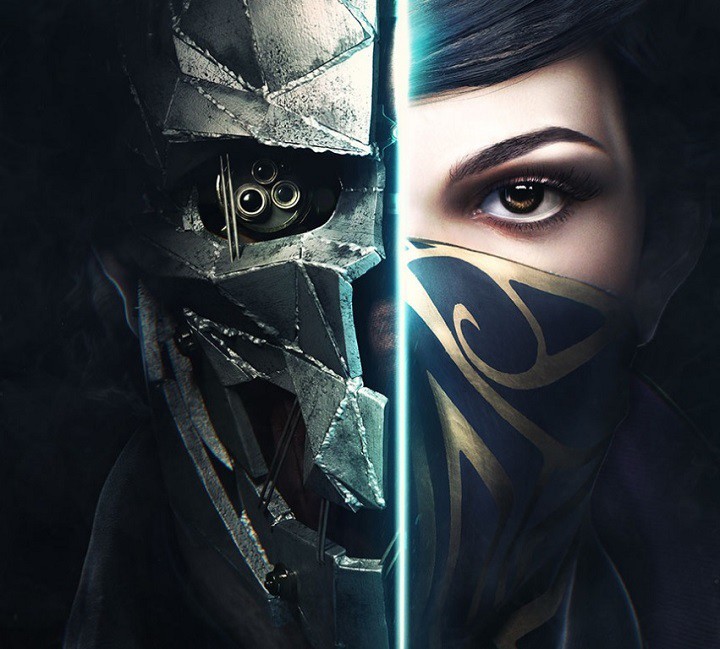
The goodies have arrived at E3: Bethesda revealed the official gameplay trailer for Dishonored 2.
In Dishonored 2, gamers can choose between two characters: the original game’s protagonist, Corvo Attano, or his daughter Emily Kaldwin. Both are supernatural assassins who live in a world where mysticism and industry collide. You can stalk your way through the game unseen or pursue a more visible line of play using brutal combat skills. At some point, you’ll have to use both and be an iron hand in a velvet glove as the game blends combat, stealth, and ultimate mobility, offering you many pathways and approaches.
Bethesda also revealed some of Emily’s special skills:
Domino, links together human targets, forcing them to share the same fate. She can set traps, and use Domino to take out multiple foes in one blow.
Shadow Walk, lets Emily sneak toward and incapacitate a target.
Mesmerize, which enthralls several humans and/or hounds, allowing Emily to easily bypass or eliminate foes.
How the story unfolds depends on your actions and how you combine your character’s unique set of powers, weapons, and gadgets to eliminate your enemies. The story responds to your choices, leading to intriguing outcomes as you play through each of the game’s hand-crafted missions.
The game’s action now takes place in Karnaca, Corvo’s birthplace, in a Victorian-inspired world. The game’s imagery carries a real sense of place, depicting a virtual world based on the local economy and people, where even the food and songs seem real. The team used a technology called the Void Engine to create multi-layered game scenarios and successfully transition between fast-combat scenes and stealth strategies.
According to Bethesda, Dishonored 2 is a game that goes way beyond its predecessor, launched four years ago. The original Dishonored won more than 100 game awards, meaning Dishonored 2 will have to offer more impressive gameplay and graphics to overcome its predecessor.
Dishonored 2 will be released on the Xbox One and PCs on November 11.
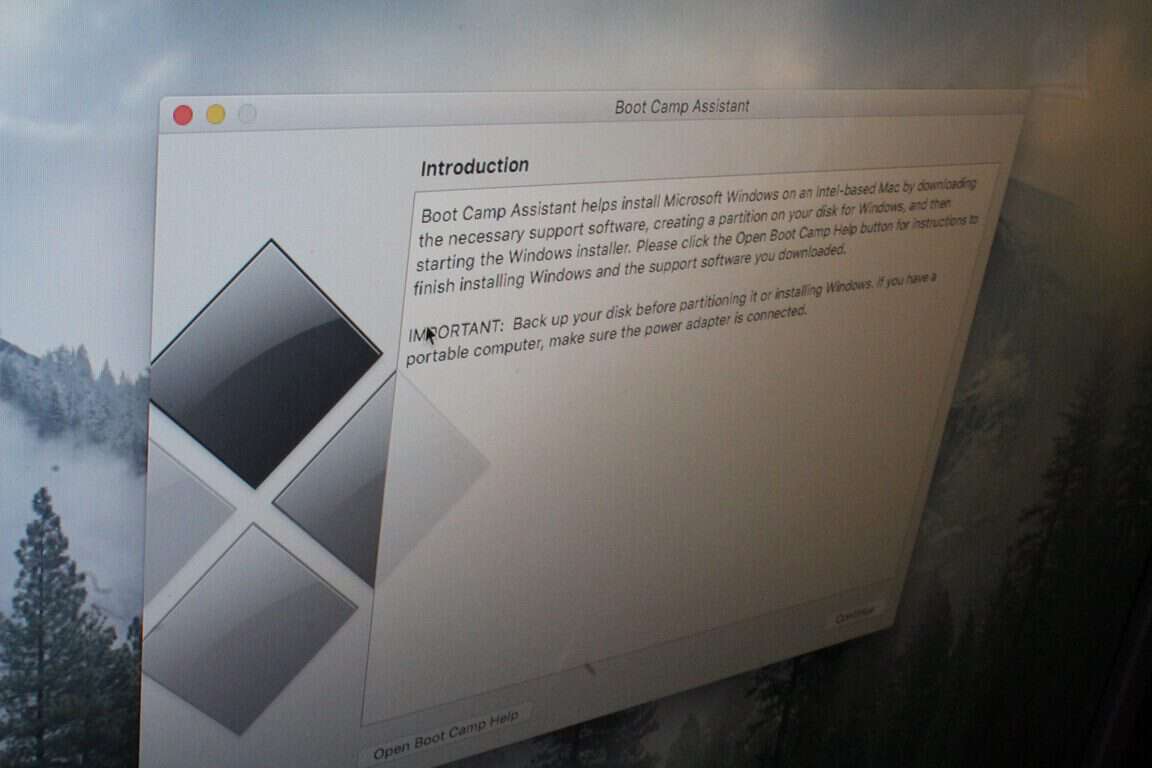
There was once a time when Windows and Mac OSX were separate operating systems that would not get along with each other. In 2006, though, Apple introduced a “Boot Camp” feature for Intel-based Macs, which allowed the user to install Windows XP alongside Mac OSX. Now, in 2016, this feature still exists in the most recent versions of Mac OSX and allows users to Install Windows 7, Windows 8, and even Windows 10 on certain Mac models. What follows is a step by step guide on how to run Boot Camp on your Mac to install Windows.
Step One: Gather the materials
To run Windows on your Mac, you will need an Intel-based Mac with 55 GB Free Space on the HDD, a blank 16 GB or larger USB flash drive and an official Microsoft Windows installation media or disk image. The installation media or media disk should contain a version of Windows Vista, XP, 7, 8, (or Windows 10 if your Mac supports it.) It is also smart to check this page to make sure that your Mac supports the version of Windows you would like to install.
Each Mac has support for different 32 bit or 64-bit versions of Windows, and so it is smart to make sure you check with Apple that your Mac supports the desired version first. For this instructional post, we will install Windows 7 on a 13 inch MacBook Pro from Late 2011.
The required materials to begin the Boot Camp process
Step Two: Prepare an ISO for installation
If your copy of Windows is on a disk, or if you’re installing newer versions of Windows, you will need to prepare for installation by creating an ISO copy of the Windows Install Disk. To accomplish this, you can follow these steps from Apple below. However, if you already have a Windows 10 ISO readily available, you can skip this step.
While your Mac starts from OS X, insert the Windows installation DVD in an external optical USB drive or connect your Windows USB drive to a USB port on your Mac.
After the installation media mounts in the Finder, open Disk Utility from the Utilities folder (choose Go > Utilities).
Select the USB optical drive or Windows flash drive so it’s highlighted in the Disk Utility window.
Choose File > New Image, and then select your Windows DVD or flash drive from the submenu.
Choose DVD/CD Master from the Image Format menu, then choose None from the Encryption menu.
Give the new file a name, then click Save. If prompted, enter an administrator username and password. A progress bar appears while the image file is created (it might take some time to create the image file).
After imaging is done, eject your Windows installation disc or flash drive. If you’re using an external optical drive, disconnect it from the USB port after the disc ejects.
From the Finder, locate the disk image file you created earlier. Single click on it to select it, then press the Enter or Return key on your keyboard to rename the file. Change the disk image file extension from .cdr to .iso. When prompted, click “Use .iso” to verify this change.
Note: In some cases, if you have an older MacBook with a built-in CD drive, or if you’re installing an older version of Windows, you can bypass these steps completely by inserting the CD. This will also help you skip to step three, and going to the Boot Camp assistant to download or copy the Boot Camp support files to a USB stick. The installation of newer versions of Windows on newer Macs, though, will require the above-mentioned steps for Boot Camp to properly dispatch the Windows installation files.
Step Three: Use Boot Camp Assistant
For this step, navigate to the Utilities folder your Mac and open up the Boot Camp Assistant and follow the simple step by step instructions in the wizard on how to repartition your start-up disk for Windows. In this initial step, you must make sure that the all the available boxes are checked.
Next, you will be asked to find the location of the ISO you created, and then you will be directed plug in a USB Drive so your Mac could download the proper Boot Camp support drivers files for your Mac and version of Windows. Be sure to continue along, and then choose how you would like to partition your hard drive for Windows.
After the partition, your Mac will then restart to the Windows Installer. In the event that this restart does not happen, you can power off your Mac and then hold the Option Key and select the CD or USB Drive that has the Windows install files.
Partitioning the HDD for Windows
Note: If you’re one of the folks with an older Mac, who us using a CD to run the install, make sure that you’ve got the proper Bootcamp Support files copied onto the root of a USB Drive. You will need these files later to install the proper Apple drivers for your camera, keyboard trackpad, once you’ve installed Windows.
Step Five: Let your Mac boot into the Windows installer and then run It
After step four, your Mac should now have automatically booted into in the Windows Installer. This initial boot up might take some time, so don’t worry if it is slow at first. Once you’re booted into the installer, though, be sure to select a custom installation, and choose the BOOTCAMP partition, then click Format when you’re asked where you would like to install Windows.
Note: DO NOT select any other disk partition other than the one titled “BOOTCAMP.” Installing Windows onto any of the other listed partitions will delete your OSX partition and result in the loss of your files, and your OSX operating system.
After the format, highlight the just formatted partition, and press next. The installation process will then begin, and it will be time to relax and grab a cup of coffee while your Mac does its magic. Your Mac will restart a few times to complete the installation, so don’t worry if your screen goes blank. Just be sure not to press any keys when asked if you would like to boot from a CD.
Be sure to select the BOOTCAMP Partition
Step 6: Restart your Mac into the new Windows Partition.
After a successful Install, your Mac will restart into Windows. Again, if it does not happen automatically, hold down the option key at startup and select the Windows partition from the list of available drives. Upon this initial boot, The Bootcamp control panel will then pop up, and your Mac should automatically installing the required Apple drivers for your keyboard, display, Bluetooth, and so on.
If this fails to happen, and things look weird, simply navigate to the USB drive which the Boot Camp assistant saved the Boot Camp support files and run the “Setup” file. This will install all the proper drivers for your Mac.
Be sure to run the “Setup” file if things don’t look right on your Mac
Step 7: Learning how to switch between OSX and Windows
Once everything is as good as it should be, you will probably want to switch out of Windows and back into OSX. To change the default OS, you can click on the Boot Camp icon (a small black diamond shape) in the system tray as seen below. From here, you can then choose which operating system you would like to use to start your Mac, and you can also customize the controls for your Keyboard and mouse. However, to switch in between operating systems outside of Windows, you can hold down the option key on your keyboard right as your Mac boots up, and choose either Windows or OSX.
Boot Camp Control panel prompt
So, there you have it, that is how you install Windows on a Mac using Boot Camp. Have you ever installed Windows on OSX? Let us know what you think of this by dropping us a comment below!
Microsoft’s new browser for Windows 10 is finally rounding out some of its rough edges (pun intended) by implementing, at last, an extension platform. Over the past couple of months, Microsoft’s Edge browser has steadily been adding extensions to its web browsing experience and as of last week, Windows 10 Insider build 14361 for PCs finally brought in a well-established password security service.
While the Edge team has ways to go before its stable of extensions are as robust as its competition, the group has been working hard at making the installation process of the extensions it does support, rather seamless.
For those looking to give the extensions a try, the LastPass installation process is, fortunately, a straightforward process.
Step 1. Find a source
Before worrying about .exe files or unzipping packages, first, find a source to the LastPass Edge extension. A few options include:
Search for it using the Windows Store Search option (not recommended, Microsoft’s Store Search still needs work)
Going through the Edge: This is perhaps the most direct and least error prone route.
LastPass Extension source
Step 2. Download
Using the recommended route of using Edge as a source to the LastPass extension, users can now follow the link to Microsoft’s Developer Technologies site for Microsoft Edge. At the very top of the list should be the LastPass Edge extension as Microsoft has ordered its extensions from most recent to older releases.
Hit the open in Store link.
The Link will take the user to the Windows Store to download.
Download.
LastPass Widnows Store
Step 3. Launch the app
Once the app takes its minute to two to download, users who already have a LastPass account are free to begin enjoying the app.
The Microsoft Edge browser will prompt users to launch the app in the upper left corner of the browser and to find out exactly where the app is nestled for continued use; users can click on the ellipses and find a new LastPass icon resting among other extension icons at the top.
LastPass Edge extension
Step 4. Enjoy
For those who already have an account, clicking on the extension icon in the extensions tray will prompt a login credentials page.
For those who do not yet have an account, a free one can be granted at the LastPass.com website or by using the red link at the bottom titled: Create an account now.
Once a user has entered in their credentials, the extension icon will switch from dark grey to red to let users know it’s active. The functionality of the extension is, well, extensive. From the mini browser windows, users have access to:
My Vault
Sites
Secure Notes
Form Fills, Generate Secure Password
Recently used
Print
Import/Export
Preferences
LastPass extension features
Judging by the level of execution, the LastPass extension seems to have been under development for some time. When the Windows 10 Anniversary Update releases later in July, users who have been hesitant to try out Edge may find themselves with one less reason to not try out this evolving web browsing experience.
Microsoft delivered a very interesting E3 2016 keynote yesterday, even if many announcements had already leaked in the press a few days before the annual gaming show. However, while we already knew that the company would announce a slimmer Xbox One as well as a way more powerful hardware revision for late 2017, we’re still impressed by what Microsoft has achieved with the new Xbox One S: at a $299 price tag, the gaming console features a 40% smaller body, a 500GB internal HDD, an internal power supply, an IR Blaster and a redesigned controller with bluetooth support.
You’ll now be able to watch Blu-ray movies and stream video in stunning 4K Ultra HD video, with content from partners like Netflix and Amazon Video. Xbox One S also offers High Dynamic Range (HDR) support for video and gaming, so you can experience richer, more luminous colors in games like Gears of War 4 and Scalebound. With a higher contrast ratio between lights and darks, HDR brings out the true visual depth of your games and media.
On the official product page for the Xbox One S, Microsoft clarified that HDR functionality will be “available with supported games and TVs” which means that it’s up to developers to implement it into their games. Furthermore, according to what The Coalition studio head Rod Fergusson explained yesterday to Polygon it’s up to developers optimize their games for the Xbox One S :
According to Fergusson, the Xbox One S has additional raw GPU and CPU power compared to the Xbox One, and The Coalition’s engineers have been able to take advantage of that to reduce the frequency of frame rate or resolution penalties in more demanding sections of the game.
While Microsoft has clarified yesterday that all existing games and accessories will work with every Xbox One console going forward, some questions still remain. How many upcoming games will leverage the improved performance of the Xbox One S? Could developers patch their existing games to improve performance on the new console? Lastly, could existing Xbox One games still run marginally better on the new hardware without any optimization work from the developers? We can’t wait for Microsoft to answer those questions as it seems the landscape of Xbox One games could soon become fragmented.
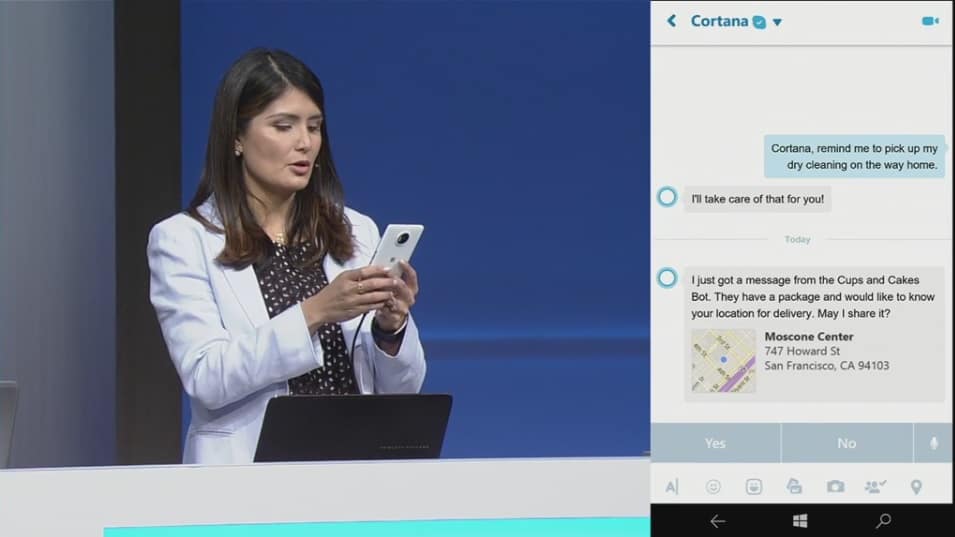
A little more than two months ago, Microsoft announced the Microsoft Bots Framework, a new initiative that will allow developers to create their own intelligent bots to enable natural language interaction with users across many digital services such as its Skype messaging app. To make developers and consumers more familiar with this new interaction model, the Redmond giant has also already introduced a few Skype bots in preview which currently work like a limited search engine that respond to your search queries. You can check out our hands on preview of the Skype messaging bots below:
While these Skype bots are still only available in select markets (Australia, Canada, England, Ireland, India, New Zealand, Singapore, and the US), the Skype team shared in blog post today that there have been “thousands of conversations with bots over Skype, as well as a huge amount of interest from bot developers building all kinds of fun, interactive and intelligent bots.” As the company now seems ready to push its bots platform to the next level, the Skype team is now inviting developers to a Skype bot hackhaton in Palo Alto in June 21-22. Even better, there will be prizes for the most innovative and engaging bots:
We’re inviting you to come and build an awesome bot at Skype Palo Alto on June 21-22, with the help of the Microsoft bot team and AI experts from Cortana, Bing and Microsoft Research. We’ll have sessions on bot best practices, early access to our latest development tools, great food to keep you going and plenty of swag. Plus, the most innovative and engaging bots will compete for the chance to win $5,000.
Microsoft seems clearly convinced that bots are the future, and the company previously announced that it is also working on Skype video bots to give users the opportunity to interact with characters and businesses via a virtual personality through Skype video. You can sign up here to register your place for the event, let us know in the comments if you think bots and artificial intelligence can make Skype a better messaging app.
With a little more than a month until the Anniversary Update, Microsoft slowly transforms Windows 10 with every new Preview build. The latest release, build 14361 for Windows 10 Preview, introduced one interesting change that demonstrates that Windows 10 is almost Anniversary Update-ready .
If you dig into the latest Preview build’s system information, you’ll notice that its version number was changed from 1511 to 1607, the number of the Anniversary Update. With this, it’s safe to say that build 14361 is a real Redstone build, even if it didn’t introduce any major features.
To check your system version, go to Settings > System > About.
Will Microsoft repeat a Threshold 2 scenario?
The new version number clearly shows us that the Anniversary Update is in its final stage of development and that Microsoft should meet its deadline of July 29th. However, we can’t for sure say that everything will go as smoothly as users are hoping.
Even the latest Windows 10 Preview build, and the first build with the Anniversary Update version number, contains a big number of issues and bugs. Of course, people will say it’s normal in the Preview version of the system and they’re right, but what if Microsoft doesn’t manage to polish everything before the update is released?
As a reminder, the November update for Windows 10 gave many users headaches due to a huge number of problems. So, if Microsoft doesn’t focus on fixing all present issues from the Anniversary Update Preview builds, we can easily end up with another troublesome update — something neither Microsoft nor users want.
But not everything is lost for the Anniversary Update. Microsoft has a solid amount of time to work on all its possible issues and get everything in its place for the premiere. Because of that, we don’t expect Microsoft to release any notable new features in the coming Preview builds but instead focus on enhancing the system.
Tell us in the comments below: What do you expect from the Anniversary Update? Will Microsoft release yet another buggy update or it will be different this time?
Not too long ago, there was a pricing error on Xbox Store that had Fallout 4 priced at $0. As expected, gamers jumped at the ability to grab the game for free, but it didn’t take long for Microsoft to realize what was going on. Soon after, the company fixed the issue and made it impossible for gamers to play the game once it was installed making sure to remove the game from all Xbox One systems it was installed on.
According to Xbox support, the pricing error had to do with server maintenance being done at the time. Pricing errors appeared on several other items as well, but outside of Fallout 4, the other games affected are not known.
Because of this, Microsoft decided to give users who downloaded Fallout 4 $10 to smooth things over and should be expected in their Microsoft account by the end of June 2016. While there’s not much $10 alone can buy on the Xbox Store, it can certainly be of help with the purchase of a new game.
Would it be possible to keep playing Fallout 4? We’re not sure, but there might be an option that could work. You see, for Microsoft to brick the game and remove it from your Xbox One, the system must be connected to the web. Simply means, if you haven’t yet connected your Xbox One to the web since then, then don’t and enjoy your brand new Fallout 4 — without Xbox Live access to show off to your friends, of course. So, play and enjoy the game for a while, then allow the software giant to do what it wants and claim your $10. Bear in mind that mods are now available for the Xbox One version of Fallout 4, a move that breathes new life into the game.
With E3 upon us, this $10 from Microsoft could help with the purchase of games such as the recently leaked Halo Wars 2, Watch Dogs 2, or even FIFA 17.
Injustice: Gods Among Us was one of the best video games released back in 2013, managing to do what most fighters fail to accomplish time and time again: offer a compelling story. We’re hoping the newly announced sequel, Injustice 2, can live up to that.
Before the release of its trailer and official announcement, a poster was leaked that gave fans their first glimpse of the game. It appears after that, Warner Bros. and NetherRealm Studios had little choice but to officially announce the game and release the trailer well before E3 2016.
The trailer showed our heroes fighting each other as violently as we’ve come to expect. However, there’s one major change here: each character can be outfitted with armor—even Superman himself. We’re not sure why Superman would need armor, but it looks great nonetheless.
Here’s what Warner Bros. had to say in a statement:
Injustice 2 offers the latest DC fighting game experience that expands on the previous title’s larger-than-life showdowns. Every battle defines you in a game where players personalize iconic DC characters with unique and powerful gear earned throughout the game. For the first time gamers can take control of how their characters look, fight and develop across a variety of game modes.
Injustice 2 continues the epic cinematic story introduced in Injustice: Gods Among Us as Batman and his allies work towards putting the pieces of society back together while struggling against those who want to restore Superman’s regime. In the midst of the chaos, a new threat appears that will put Earth’s existence at risk. Players can play from the biggest DC roster ever offered in a fighting game, from classic fan favorites such as Batman, Superman, Supergirl and Aquaman, to astonishing new villains like Atrocitus and Gorilla Grodd. Battles will take place across arenas that have evolved in scale and span across iconic locations such as Metropolis, Gotham City and Atlantis.
Injustice 2 is set to release on the Xbox One come 2017, though there’s no word if it will ever come to Windows PC. The original was released on Windows PC a year after it came out on consoles.
There’s one thing we have to say: the original game had terrible character facial designs. We hope Warner Bros. and NetherRealm Studios can address this issue with Injustice 2.
E3 2016 should be an interesting affair as several games are expected to be announced during the show. Microsoft is expected to officially unveil the leaked Halo Wars 2, along with an Xbox One Slim and a possible upgraded Xbox dubbed ‘Scorpio‘.
Some sad news for those who take advantage of the TV features on the Xbox One and were hoping Microsoft would transform the device into a complete DVR experience: Microsoft confirms that the DVR feature that was in development has been placed on hold. We’re not sure if this move means the feature will never see the light of day, but it would seem as if it won’t make it to the current Xbox One but instead to a newer device in the future.
Here’s a statement a Microsoft spokesperson made to The Verge:
After careful consideration, we’ve decided to put development of DVR for Over-the-Air TV on hold to focus our attention on launching new, higher fan-requested gaming experiences across Xbox One and Windows 10.
We’re always listening to fan feedback and we look forward to bringing more requested experiences on Xbox One, Windows 10 and Xbox Live this year.
We cannot rule out the possibility of the DVR feature coming to the console at a later date. Chances are, the limitations or overall design of the Xbox One’s architecture did not bode well for a DVR feature, but who knows: the rumored Xbox ‘Scorpio’ could change things.
As it stands right now, Xbox One users need to remove the thought of having DVR functionality on their preferred gaming console and move on for now. We hope the software giant gives a better explanation of why the feature was canned because its statement to The Verge is not good enough from our point of view.
Stay tuned to Microsoft’s Xbox E3 2016 press conference on Monday for the possibility of learning more.
If you’re looking for an app to help you take your music everywhere, check out Style Jukebox. This free music streaming platform allows you to upload your music collection from your computer on the cloud and listen to your favorite songs on your Windows phone on the go, both online and offline.
Style Jukebox helps conserve your phone’s storage to avoid low memory messages when you want to take pictures and videos.
This app is particularly useful when traveling, on a daily commute to work, or at those annoying parties where nobody has good music. Your favorite music is safely stored in the cloud and you can access it at any moment.
To create a Style Jukebox account, all you have to do is install the app on your computer and import your music collection from there. The good news is that the app is compatible with Windows Phone 8 and Windows Phone 8.1 versions, so you can also use it even if you’ve decided not to upgrade your operating system.
There are also premium versions of the app, with prices ranging from $8.99 for a 3-month premium subscription to $79.99 for a one year 1TB Pro version.
Here is a full list of its features:
Upload up to 10 GB of music for free.
All your music and playlists are automatically synced.
Download songs on your phone for offline playback or to reduce data plan usage.
Store music bought online, music imported from CDs, even music you create.
Control music with your voice. Play, queue or search songs using Cortana, your personal DJ.
Instant access to your entire music collection at High-Fidelity sound quality (including FLAC and M4A ALAC formats).
Create a temporary song queue.
Import your music from Dropbox, OneDrive and Google Drive.
Users love this app and suggest it’s better that the Google Music alternative:
Excellent alternative to Google Music, easy to use and excellent playback. Better than the rest.
Feeling the urge to runMS-DOS on your Windows 10 computer? Now you can with the MS-DOS Player emulator. This program enables lets users run simple commands in DOS, but doesn’t support more complex programs. However, it is a very good alternative to the lack of MS-DOS support on Windows 10 and the classic “this app can’t run on you PC” error.
You can run the MS-DOS Player on both Windows 10 32 or 64-bit versions. As stated previously, the program doesn’t emulate hardware like graphics or sound cards, so your options are limited.
MS-DOS Player has eight binaries, and each one emulates a separate processor supporting 32, 64 or both Windows 10 versions. If you’re not sure which version you need, go to the i86_x86 folder and select the only msdos.exe file there is.
If you want to test it, copy the file to the folder containing your DOS executable file, and launch it from a command line.
If this doesn’t work, you can use the troubleshooting switches. They allow you to ignore invalid memory instructions, tweak memory handling, set the DOS version, and more. To see the options, launch msdos.exe with no program name, or double-click it from Windows. For more information, go to the developer’s page.
Speaking of emulators, in case you have friends who are on the fence about upgrading to Windows 10, you can recommend them this Windows 10 emulator. This way, they can see with their own eyes what Windows 10 has to offer, and possibly helping them decide to upgrade for free while they still can.
When using technology, users somehow take off their virtual clothes and reveal more than they would normally do. Apps need to access private information such as the content of your emails or your contact list in order to deliver the best possible user experience. Unfortunately, many users are not even aware of the amount and type of information that companies such as Microsoft collect on them, since very few read terms and conditions before using a particular service.
A service like Cortana constantly gathers information about you, but the good news is that you can edit permissions. Even your Windows 10 computer camera may be spying on you without you even being aware. If you want to limit the data various apps and services collect, we suggest you check out these Windows 10 privacy apps and choose the one that best suits your needs.
As if this wasn’t enough, Microsoft is now caught in the middle of another privacy scandal. This time, the leading role is taken by the company’s Visual Studio 2015 C++ Compiler, in which users have discovered two hidden codes that add telemetry function calls to binaries as they are compiled: telemetry_main_invoke_trigger and telemetry_main_return_trigger.
Coder became extremely angry after they detected the codes, especially because Microsoft didn’t mention anything about their existence in its documentation. Steve Carroll, Development Manager for the Visual C++ team, claims that the telemetry function is entirely innocent, and users have nothing to worry about.
Our intent was benign – our desire was to build a framework that will help investigate performance problems and improve the quality of our optimizer should we get any reports of slowdowns or endemic perf problems in the field.
We apologize for raising the suspicion levels even further by not including the CRT source, this was just an oversight on our part. Despite that, some of you already investigated how this mechanism works in nice detail. As you have already called out, what the code does is trigger an ETW event which, when it’s turned on, will emit timestamps and module loads events. The event data can only be interpreted if a customer gives us symbol information (i.e. PDBs) so this data is only applicable to customers that are actively seeking help from us and are willing to share these PDBs as part of their investigation. We haven’t actually gone through this full exercise with any customers to date though, and we are so far relying on our established approaches to investigate and address potential problems instead.
Microsoft promises to remove these events in Update 3 and also offers a solution for users to disable telemetry function calls in the current Visual Studio 2015 C++ compiler version. To disable this dependency, you can add notelemetry.obj to your linker command line.
What’s your take on this event? Do you think this was only a slip from Microsoft, or is there more to it than meets the eye?
The Titanfall 2 team has been very generously divulging details about the upcoming game lately, recently releasing a second teaser ahead of the game’s official release. The game launch is scheduled for June 12 for the Xbox One, PC, and PlayStation 4.
The first teaser was rolled out in April and revealed impressive images alongside a very vague game introduction. The recent teaser is shorter at only 12 seconds and brings images shot from the same angle as in the first teaser.
We don’t have much information about Titanfall 2 but it seems the game is in many ways similar to the Call of Duty franchise. One of the main differences in Titanfall 2 is its far-off setting where humans have settled on several planets. Some of these planets are home to dragons and other scary creatures, so this game is more science fiction and that’s a great differentiator.
Leaked gameplay images also reveal new tactical plays and bigger multiplayer maps, a feature often requested by players. Presumably, the player count has been increased since maps theoretically can now accommodate more players. Rumors also suggest the game will bring new pilot abilities, such as the addition of a grappling hook. Tactical plays such as pulling enemies while they’re in mid-air should also be available.
Apparently, there will also be a pre-order bonus: a handgun called the Violator. While these rumors should be taken with a grain of salt, we won’t have to wait too long to see if they’re true or not.
A Titanfall companion app is also available for Windows 10, which offers notifications with the latest information and updates to Titanfall so you don’t have to constantly follow the news. Detailed information on Titanfall characters, weapons, maps, modes and controls is available, too.
Microsoft introduced a lot of improvements to Windows 10 Preview with the latest build 14361. A feature that probably received the highest number of changes is Bash on Ubuntu on Windows 10. Microsoft revealed a huge list of improvements for the Ubuntu Bash console of the Subsystem for Linux feature that will help Linux developers do an even better job now.
Here’s what’s fixed and improved in Bash on Ubuntu in the Latest Windows 10 Preview build 14361:
“DrvFs is now case sensitive when running in Bash on Ubuntu on Windows.
Users may create case.txt and CASE.TXT on their /mnt/c drives
Case sensitivity is only supported within Bash on Ubuntu on Windows. When outside of Bash, NTFS will report the files correctly, but unexpected behavior may occur interacting with the files from Windows.
The root of each volume (i.e. /mnt/c) is not case sensitive
More information on handling these files in Windows can be found here.
Greatly enhanced pty / tty support. Applications like TMUX are now supported
Fixed install issue where user accounts not always created
Optimized command line arg structure allowing for extremely long argument list.
Now able to delete and chmod read_only files from DrvFs
Fixed some instances where the terminal hangs on disconnect
chmod and chown now work on tty devices
Allow connection to 0.0.0.0 and :: as localhost
Sendmsg/recvmsg now handle an IO vector length of >1
Users can now opt-out of auto-generated hosts file
Automatically match Linux locale to the NT locale during install
Added the /proc/sys/vm/swappiness file
strace now exits correctly
Allow pipes to be reopened through /proc/self/fd
Hide directories under %LOCALAPPDATA%\lxss from DrvFs
Better handling of bash.exe ~. Commands like “bash ~ -c ls” now supported/li>
Sockets now notify epoll read available during shutdown
lxrun /uninstall does a better job of deleting the files and folders
Corrected ps -f
Improved support for x11 apps such as xEmacs
Updated initial thread stack size to match default Ubuntu setting and reporting the size correctly to the get_rlimit syscall
Improved reporting of pico process image names (e.g. for auditing)
Implemented /proc/mountinfo for df command
Fixed symlink error code for child name . and ..
Additional bug fixes and improvements”
Additionally, Bash also received support for the following syscalls low-levelw level APIs:
GETTIMER
MKNODAT
RENAMEAT
SENDFILE
SENDFILE64
SYNC_FILE_RANGE
Bash on Ubuntu is currently available to Windows Insiders running Windows 10 Preview only. However, Microsoft will release it to the public with the Anniversary Update, making it available to even more Linux developers who want to work on their scripts in Windows 10 without running a virtual machine.
Microsoft changed a few aspects of the Settings app in Windows 10 Preview with the latest build, aspects mostly focused on design improvements.
From now on, the navigation pane will be white or black depending on the selected theme. As a reminder, you can change the default theme in Windows 10 Preview by switching between the light or the dark mode. If you’re not sure how to change the default user interface theme, check out this article.
Additionally, Microsoft added a small block of color which highlights the settings page you’re currently on. Similar to the navigation pane, a highlighter picks up your accent color so it fits better with the environment.
And finally, the last change is the small Home icon, which, as its name says, takes you to the home page of the settings app when clicked. The home icon is located in the upper-left of the window, and it appears above the navigation pane on every page of the Settings app.
After a lot of anticipation and speculation, the Microsoft Edge version of the popular password manager LastPass was finally released with the latest Windows 10 Preview build. LastPass is now available in the Windows Store and Insiders running the latest Windows 10 Preview build can install it.
LastPass appeared in the Store with the previous build for Windows 10 Preview, but its release wasn’t officially confirmed. However, while users were able to download and use it, they faced many unexpected errors that made using it almost impossible.
As Microsoft said, even the official version of LastPass extension for Microsoft Edge has its share of issues. Of course, this isn’t a big surprise, since this version of LastPass Edge is the very first version available in the Store. We expect developers to drastically improve it in the future releases.
Here are some known issues with LastPass:
“Copying with keyboard shortcuts does not work in the LastPass extension popup
Creating a new profile from the LastPass popup may crash the browser
LastPass Vault fails to load when there are no items in the vault
LastPass icons overlap the default placeholder glyphs for credential textboxes
Password import is not currently supported”
LastPass is one of the most popular password managers in the market. It also has extensions for other browsers, like Google Chrome and Mozilla Firefox, so it was just a matter of time before its would debut on Microsoft Edge.
LastPass, just like other extensions for Microsoft Edge, is for now available to Windows Insiders running the latest build only. Regular users should get this feature with the Anniversary Update for Windows 10.
If you’re running the latest Windows 10 Preview build and already managed to install LastPass Edge, feel free to share your experience using it with us in the comments below. How does it perform? Have you dealt with any of above-mentioned errors?
Periodically, Microsoft provides insights into someone important to the development of Windows 10. Known as Windows 10 Team Profiles, past subjects have included Windows & Devices Group Program Manager Anthony Kinsey and Senior Program Manager of Awesomeness (seriously) Brandon LeBlanc. The profiles pop up periodically in the Windows 10 Feedback Hub, and help Windows 10 users get a glimpse into the personalities behind their chosen operating system.
The latest Windows 10 Team Profile covers newly-anointed Queen of the Big Red Button Dona Sarkar, who took over as Windows Insider chief from the illustrious Gabe Aul. Sarkar has become an overnight sensation in the Windows Insider program, pushing the new build button at odd hours and keeping us all aware of the status of Insider builds.
The profile presents a number of questions and answers that help provide some background on who Dona Sarkar really is and why she’s in the position she’s in. This isn’t the first profile of Sarkar–Microsoft News Center writer Vanessa Ho put together her own around the time the Aul-Sarkar transition was announced.
By way of background Sarkar has been with Microsoft for 11 years, having worked on some of the innermost pieces of Windows such as the File Explorer and the backup/restore functionality. She describes her role Windows Insider lead as being responsible for ensuring that the Windows Flight team is always working to provide Windows preview builds to the Windows Insider team and then to Insiders themselves.
In addition, Sarkar monitors the Feedback hub and various other sources of insight on build quality and makes sure that information makes it back to the right people. Here are some interesting tidbits but be sure to visit the Feedback Hub for the entire interview.
What’s your favorite feature on Windows 10?
Practically speaking it’s Backup/Restore (and NOT just because it was my feature!). I install so many builds so often that it’s the only way to quickly get up and running and validating.
Aesthetically speaking, it’s transparent tiles on Windows Phone. The Insiders crew showed me just how creative they can be with layouts and now I’m incredibly inspired. I really enjoyed this past weekend’s “show off your home screen” Tweetstorm!
Describe one of your favorite experiences with the Insider community:
June 1, 2016 when Gabe handed me the big red button. The outpouring of support and welcome was otherworldly and really fueled me to do everything in my power to provide great experiences to my passionate Windows Insider peeps so that we can build the best Windows *ever* together.
Without your phone or computer, what gadgets can’t you live without and why?
Toss up between my Kindle and my sewing machine. I’m a voracious reader and am always reading 3 different things at once. I also like to upload my writing works-in-progress to Kindle and have it read aloud to me via text-to-speech to see if it “sounds” right. My sewing machine opened up a whole new world of creativity for me a few years ago and it’s empowering for me to be able to make whatever I dream up in the fashion world.
What is your current work setup?
Highly mobile. I need the energy of other people around me to get anything done. Being locked in an office by myself has never worked for me so I tend to seek out open spaces like lobbies, lounges, kitchens, cafeterias, etc to loiter in to get it done.
Since I work with so many different teams, I’m on the move all day. All I need is an outlet and a chair. Once I get my Surfacebook, my Asus Zenbook and my phone setup, I’m in work mode.
How do you start your day?
I’m a pretty early riser. Sometime between 4 and 5 am, I’m up. My very demanding cat Ash is on my lap, Americano in my hand, my passion project of the day is in progress. I’ll definitely get completely wrapped up in my work and thankfully my husband will make me breakfast at some point ?
What do you like about life on campus?
How much stuff there is going on every day to support our diversity of interests and passions. For example, my husband is a professional chef AND a software engineering manager. My reports have been musicians, teachers, film-makers, graphic designers…on top of being software engineers. This has manifested itself in how the company takes care of us as holistic beings.
In the past 2 months, I have attended a cooking class, several musical performance, an art show, a farmer’s market, a lecture by a NASA astronaut, a wearables workshop…all within 10 feet of where I was working that day on campus.
What do you do outside of work?
I write books (both fiction and non), design fashion and have co-founded Fibonacci Sequins, a style blog to celebrate STEM. I also travel the world speaking and engaging with people on their career and business goals.
What is your most memorable moment at Microsoft?
I would say the handover of the Big Red Button was pretty momentous, generally my job changes don’t end up in the news. Other than that, I would say #HoloHacks, the first community organized HoloLens hackathon which was a few weeks ago. I poured my soul into that project and was so happy to see it received well.
So far, it appears that the Windows Insider program is in good hands. While you’re waiting for a new build to push out, check out the profile. Let us know in the comments what you think about her performance so far.
The upcoming Windows 10Anniversary Update, due this summer, will bring a slew of changes to Windows 10 on PCs and mobile. Updates are coming across the OS, from Cortana, notifications, Action Center, Settings menu and options, and of course much, much more. If you’re a Windows Insider, then you’ve already been experiencing many of the changes coming to Windows 10.
Today, the Microsoft Developer blog took some time to outline all of the changes coming to Toast notifications, with an emphasis on how developers can implement the newest notification features in their apps. Here’s a quick rundown of the changes coming in Anniversary Update.
Toast supports full Adaptive: In the previous release, Toasts only supported a limited set of Adaptive schema (text and image). With the Anniversary Update, Toast notifications support the full Adaptive schema. Developers can now make Toast notifications visually as rich as Live Tiles, and re-use a large portion of their payload between Toast notifications and Live Tiles.
Wide tile.Toast notification.
Notifications in the Cloud: We have enabled cross-device scenarios for users who own multiple devices (linked via their MSA login), making notifications more “ambient”.
Hero Image: You can specify a hero image in a Toast notification to emphasis visual content and celebrate imagery.
Hero image in a notification.
Attribution: You can specify a new text element placement that provides a consistent way to show content attribution in a Toast notification.
Attribution in notifications.
Context menu action: You can specify an action that gets placed in the context menu.
Context menu action for notifications.
Web Notifications via Microsoft Edge: Edge now supports web notifications through W3C standard web notification API’s. These web notifications are displayed as native Toast notifications and appear in Action Center.
Notification Listener: Apps can finally access the user’s notifications (via a public API), enabling scenarios like showing notifications on wearable accessories.
Action Center UI Refreshed: We’ve made some UI improvements to Action Center and notifications that you’ll automatically see without changing your app’s code.
More User Control/Customization: Users now have more control of Action Center through the Notifications & Actions settings page.
Enhanced user control over notifications.
If you’re a developer, then be sure to check out the blog post for all of the details on implementing these changes. For us users, we’ll just look forward to enjoying much improved Toast notifications in Windows 10 Anniversary Update.
E3 2016 is right around the corner, with Microsoft’s press conference set for Monday June 13th at 9:30am PDT, with more press conferences and the E3 convention itself, set for June 14-16, to follow. Microsoft and others have already teased new titles to be announced at this year’s show (you can read our summary of what to expect to get caught up on all the latest), and as always we’re hoping for a few surprises, too.
But once all the hoopla dies down, game enthusiasts are left to wait for those much anticipated games, and wait and wait and wait.
Cuphead, one of the games announced last year, is still unreleased although this new gameplay video showed up yesterday
A new analysis of what was announced, and what is actually available now, from last year’s E3 has made it to a post on Finder.com.au, stating that 62% of games announced at the sum of last years press conferences are still not available, almost a year later.
Of the 38% of announced games that were released only 5% were released in the same calendar year (2015), with the rest debuting this year. Here are a few more quick facts that Finder.com.au teased out of the data:
Sony is the worst performer, with only one game released from its E3 2015 press conference in that calendar year – a small indie from Devolver Digital called Ronin.
Sony also has the worst record for releasing games announced at its conference in the 12-months leading to the next E3, at only 23%
EA and Nintendo are the most likely to release a game they showcase before the next E3, with 92% and 93% of their titles available respectively.
Sony and Microsoft did not release a single one of their newly announced titles from the last E3 in the 12-months since the event.
Year-on-year, we are seeing a rise in games not being released following an E3 showcase. Our analysis shows 50% of Sony’s, and 60% of Microsoft’s E3 2014 press conferences did not see a release prior to E3 2015. These have increased to 77% and 63% respectively for this 12-month period.
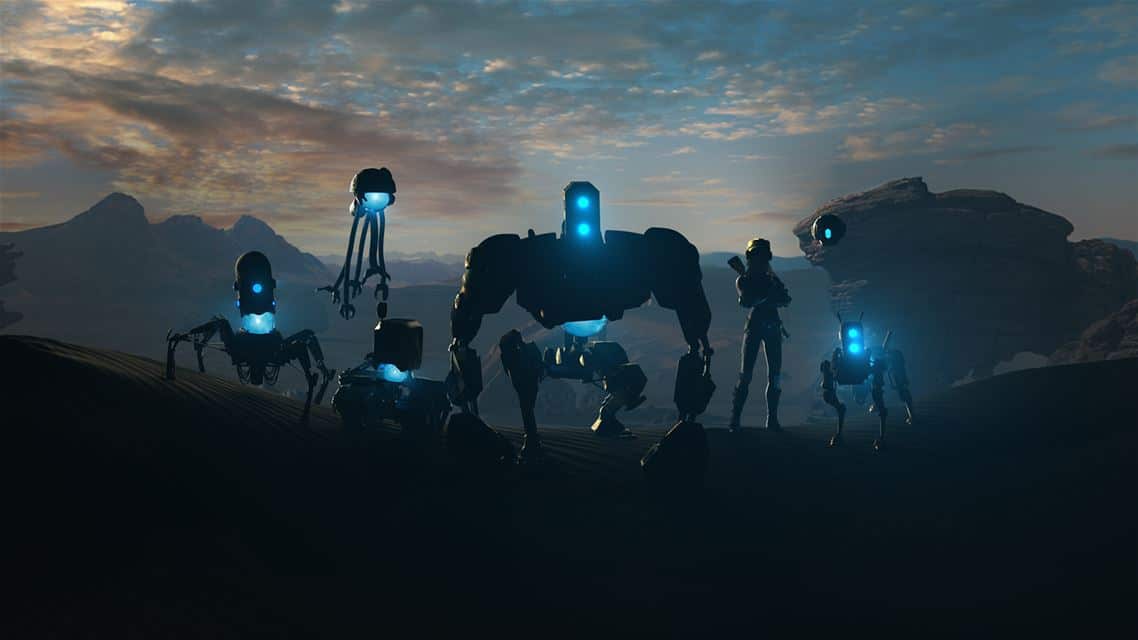
We’re still waiting for Cuphead, and Sea of Thieves, and ReCore, and Gears of War 4, and of course that list of anticipated games is likely to grow next week.
So we’ll be wallowing in the hype of next week’s press conferences and news from the E3 show floor just like you, but the business of building blockbuster games has become so big, so complicated, and so expensive, and the hype leading up to them is so important, that once the glow wears off we’ll likely be left waiting once again.
With the success of the Windows Insider program, Microsoft now lets anyone give them formal feedback through the Feedback app. In this series we break down some of the most intriguing feedback and suggestions. We’ll do our best to dive into the lists of feedback rather than just have “dark theme everywhere.” This week we look at keyboards, a feature that’s used as much as just about anything.
Note that the links to feedback items work by opening the Feedback Hub in Windows 10.
Keyboards aren’t usually considered exciting, though every once in awhile a curved one shows up, but they are used throughout just about any operating system in the majority of apps. Texting and web browsing obviously need them but honestly there aren’t many apps you don’t have to type in, even if it’s just a password or login.
I wouldn’t say the keyboard experience on Windows 10 and Windows 10 Mobile is bad. I mean they’re keyboards after all. It would be impressive if Microsoft couldn’t figure out how to let us type things. But that being said there are some nifty features and bits of feedback that would make text and keyboard entry better on devices.
Bring shape writing to Windows 10
I wrote an entire article on this last year and others from the feedback app agree. In fact, three out of the top ten bits of feedback in the “Input and Interaction Methods” section are basically saying the same thing “Bring swype keyboard to win 10 all devices!!!” Microsoft calls their mobile version of the interaction “shape writing” but regardless, people want it on tablets and 2-1s.
Swype keyboard
I like swiping my thumb around my phone to write text but I think it would be even better on a tablet because it could be combined with a stylus. Imagine how quickly you could type on a tablet with a stylus and swiping. With Windows 10 Mobile soon to be running on devices up to 9″ we’re going to have shape writing on tablet size devices anyway so we know it’s possible.
There are some other smaller features such as “Shift key Change Case on selected text” that feedbackers would also like to see make the leap to the full Windows 10 keyboard.
The feedback app says that Microsoft has “got it” so we can hope that they will add it. That being said, shape writing on a larger tablet wouldn’t work very well without the next bit of feedback.
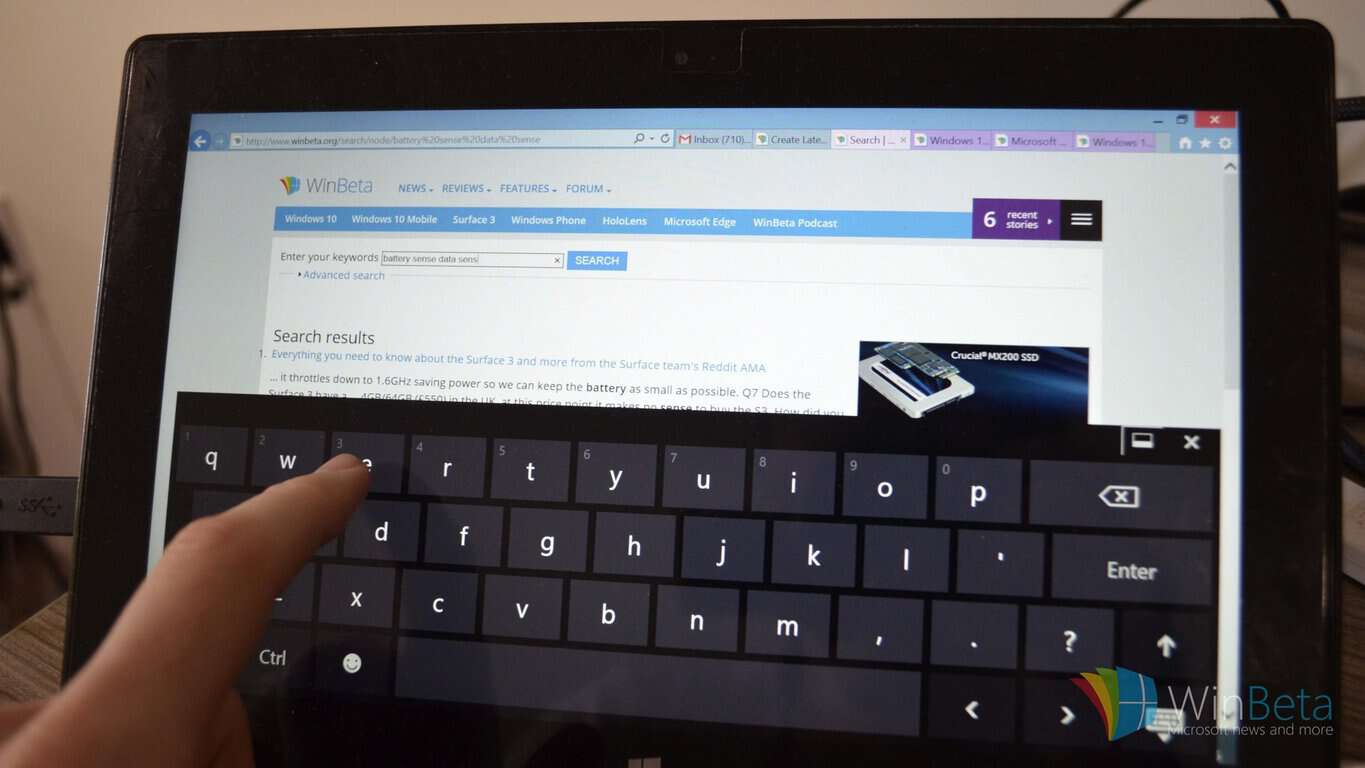
Let me snap the touch keyboard on tablets to the side of my screen
This is actually my own piece of feedback but there are similar ones in the Feedback app. There is currently a more touch centric keyboard on tablets but it splits the keyboard into two halves and puts them on the edge of the screen. What I would like to see is a resizable keyboard that would essentially bring the mobile keyboard onto your tablet but with the option to be bigger to support stylus or thumb support.
split keyboard
I wouldn’t get rid of the current split screen keyboard but would add another option.
Transparent keyboards
About a year ago I broke down a tips and tricks video from Sean Ong and added a tip of my own. Using Touch Mouse Pointer (update: Now Tablet Pro) allows users to have a transparent keyboard. It’s possible to do now as evidenced by Touch Mouse Pointer but that’s a paid feature and it would be nice to see as part of Windows 10.
transparent keyboard
This is another popular piece of feedback that has been given multiple times so hopefully Microsoft will listen.
Curved one handed keyboard on Windows 10 Mobile
I can’t say that I’m dying to have this feature as much as it bothers me a little that I’m not able to try it. Microsoft tested a curved wordflow keyboard on iOS but it hasn’t made its way to Windows 10 Mobile. It very well could in the future if it is popular but I would love to test it on the insider program of Windows 10 and Windows 10 Mobile. This could even be combined with my snapping idea and a stylus by snuggling fitting a curved keyboard in the corner of a tablet.
Conclusion
While Microsoft is making a big push to have stylus and touch be regular input methods, people still need to use keyboards. While the keyboard offering on Windows 10 and Windows 10 Mobile are by no means poor, they could be improved by listening to some key pieces of feeedback. In fact, some feedback such as bringing shape writing to tablets could be advertised as part of a greater stylus and touch experience.
Artifex Mundi’s Grim Legends: The Forsaken Bride is now available to download and play on the Xbox One as either a free trial or a full game purchase.
The video game is a blend of puzzle and trivia and is actually the first in a series of mobile phone games that fall under the Grim Legends banner. Here’s the full game description: Within the shadow of an ancient forest, on the bottom of a foggy valley, stands the lonely village of Ravenbrook. The folk there are cheerful and diligent, yet warily superstitious. They surround the village with countless charms to keep the evil spirits at bay, for on the other side of the forest, there lies a seemingly bottomless pit, known as the Abyss.
It is the place the villagers of Ravenbrook fear most…
Have you played Grim Legends: The Forsaken Bride on Xbox One yet or did you already experience it on mobile? Let us know about your experiences in the comments below.
Volition, the creators behind Saints Row, are up to something new! An American video game developer just announced a new open-world action game called Agents of Mayhem. The game will feature superheroes and should arrive 2017 for the PC, Xbox One and PlayStation 4.
The FAQ page on the official Agents of Mayhem site describes the game as a third-person shooter in which players have the option to switch between three playable characters called Super Agents. Each Super Agent has its own special abilities that will help players fight against enemies.
Even though Agents of Mayhem is a brand new game and it isn’t associated with Saints Row, some elements of the famous title will be visible in the new game. The developer probably decided to do so seeing as the Saints Row’s recipe is already successful and would help players better acclimate to the new game. Agents of Mayhem will also use Volition’s in-house graphics engine.
“Featuring an original storyline, trademark over-the-top open-world gameplay, and the look-and-feel of a distinctive superhero cosmos, Agents of Mayhem is a true Volition game. This new IP is a part of the Saints Row universe, sharing certain story elements, symbolism, and design inspiration with the multi-million selling franchise.” said Deep Silver, the game’s publisher in its official announcement post.
IGN posted the official Agents of Mayhem Official cinematic trailer, which you can check out below:
The game will arrive sometime in 2017 but there’s still no exact release date. Perhaps we’ll have more information about the game after this year’s E3 conference in Los Angeles, where we expect Deep Silver to unveil more details about Agents of Mayhem.
There’s already a rumor that Deep Silver plans to make a big announcement at the event, but it wasn’t confirmed if that announcement is going to be about Agents of Mayhem or maybe some other title (Saints Row 5?).
RELATED STORIES YOU NEED TO CHECK OUT:
Mirror’s Edge Catalyst now available on the Xbox One
If you don’t already know, Mirror’s Edge Catalyst, the first-person open-world action-adventure platform video game, launched yesterday in North America and can be played on Microsoft Windows PC, PlayStation 4 and Xbox One consoles. A European release is slated for tomorrow. To prepare, gamers with PCs equipped with AMD components will want to install the new update for Radeon Software which adds Mirror’s Edge Catalyst support, optimizations and support for Paragon and a new Crossfire profile for Dark Souls III.
In doing this, AMD prevented the inevitable complaints from fans of the aforementioned games, rushing to launch an update for its Radeon Software.
In addition, AMD fixed a number of issues discovered in the previous version of Radeon Software:
– When users were playing videos in a web browser, the display was flickering, or they experienced corruption;
– DiRT Rally was experiencing poor performance on some tracks with rainy/night scenes;
– When the display was set to an interlaced resolution, the HDMI display scaling options in Radeon Settings were missing;
– The AMD Crossfire technology mode options in Radeon Settings didn’t have effect on Origin or Uplay applications;
– Some game textures in Fallout 4 caused flickering in AMD Crossfire technology mode;
– Flickering was experienced on Oculus headsets as well, when there were multiple displays were connected with various resolutions;
– Sometimes, Radeon Settings additional settings page failed to open after performing a Windows Update and users had to install the latest Radeon Software Crimson Edition.
Currently you’re using the Mail and Calendar app in Windows 10. Since this is a Microsoft made product, you might be wondering if it is possible to add your Gmail account in order to get your mail and view schedules from your Google calendar.
Yes, it is possible to do so, and the task is not difficult so keep your pants up. It is a supported feature that from our point of view, works great and should be used by all who have a Gmail account active.
How to add Gmail to the Windows 10 Mail app:
First you’ll need to open the Mail app and click on the Settings icon at the bottom. It’s the icon that looks like a gear, or any other Settings icon of the modern age. Once done, click on the option that says “Manage Accounts” and from there, click on “Add account.”
From here users should see a list of additional options, just click on Google and get ready for the log-in screen. This is where you’ll need to enter your account information, which includes your username and password. Once that is accomplished, hit the button that says “Allow” and you’re good to go.
Yup, that’s it, nothing else to it.
How to add Gmail to the Windows 10 Calendar app:
Now, this is similar to adding your Gmail account to the Windows 10 Mail app. You know, Microsoft could have made it easier by allowing the Calendar app to automatically add any account that was added to the Mail app for vice-versa.
To get it done, launch the Calendar app and click on the Settings icon situated at the bottom. The next step here is to click on “Manage Accounts” and then “Add accounts” in order to get to the list of options. Finally, just click on the “Google” button and go ahead from there.
Once everything is done, your appointments and whatever else will show up in the Calendar app as if they were there all along.
Microsoft is hell bent on having developers create more apps for Windows 10 as it moves to create synergy between both the desktop and mobile versions of the operating system. One way the company is expected to do this, is via a program known only as Project Islandwood.
For those who might have no idea what Project Islandwood is, well, it is a program that should allow developers to port their iOS apps over to the PC in order for them to work on both the desktop and mobile versions of Windows 10.
The software giant created a post on its blog that is designed to help developers port their apps. The company highlighted the best ways to port apps, and also how to deal with problems when the apps have been ported. The post mainly contains geeky languages, so if you’re not a developer and lack the understanding of the meanings of several jargons, then you’ll be overly confused.
The post also focuses on an app known as Pori Fashion Show, created by Dong Yoon Park, Senior User Experience Designer at Microsoft. The post goes into detail of how Park got his iOS app up and running on Windows along with other important information.
Here’s a snippet of what Microsoft had to say via its blog:
iOS supports layout optimization for different sizes of screens through ‘Size Classes.’ Since Pori Fashion Show used constraint-based auto layout, he decided to add phone-specific layout by using the dimension information of the canvas size.
The Windows design guideline provides the break points for adaptive and responsive design. You can use this as guideline for setting up the threshold for your own app’s content layout.
From what we can tell, Pori Fashion Show is a simple app, so porting it to Windows 10 shouldn’t be much of a hassle. What we’d like to know is how difficult it would be for developers to port something more complex. Microsoft should offer more insight into this aspect of porting iOS apps to Windows 10 in the future.
Several apps have already been ported through the Project Islandwood program. For those unaware, both the Instagram and Facebook Messenger apps are direct ports from iOS. The software giant also plans to bring desktop x86 apps to the Windows Store via Project Centennial.
Complimenting the transition of Microsoft becoming more open source with Chakra and the Microsoft Edge JacaScript engine, the company’s developer’s blog today announced that they are releasing the Microsoft Edge WebGL transpiler over to the public.
The WebGL renderer is what runs shaders on the GPU to render 3D content with the GLSL language. However, Edge uses DirectX and HLSL to render content. To put it simply, Microsoft Edge’s ability to display content relies on the transpiler converting the GLSL to HLSL shaders.
The blog states clearly Microsoft has no intention of open-sourcing Microsoft Edge or EdgeHTML anytime in the future. For now, developers are encouraged to play with the transpiler and provide honest feedback. Hopefully, some of that feedback will contribute to the improvement of the Edge WebGL.
Learn more about the GLSL to HLSL conversion through the dev blog. Download the Microsoft WebGL on the GitHub repository.